
7105T - Mobile Phone BLACKBERRY - Free user manual and instructions
Find the device manual for free 7105T BLACKBERRY in PDF.


| Product Type | Mobile Phone |
| Brand | BlackBerry |
| Model | 7105T |
| Dimensions | 107 x 42 x 16 mm |
| Weight | 88 g (with battery) |
| Display Type | Color TFT |
| Display Size | 2.2 inches |
| Display Resolution | 240 x 260 pixels |
| Battery Type | Removable Li-Ion |
| Battery Capacity | 1000 mAh |
| Talk Time | Up to 4 hours |
| Standby Time | Up to 360 hours |
| Operating System | BlackBerry OS 4.0 |
| Processor | 32-bit ARM-7 |
| Memory | 32 MB (RAM), 32 MB (ROM) |
| Connectivity | Bluetooth 1.1, USB 1.1 |
| Network Bands | GSM 850/900/1800/1900 |
| Keyboard | SureType (Qwerty-like) |
| Color | Black/Silver |
| SAR Value | 0.58 W/kg (head) |
| Care and Maintenance | Clean with dry cloth; avoid liquids and extreme temperatures. |
| Safety | Do not use while driving; keep away from pacemakers. |
| Spare Parts and Repairability | Battery and SIM door replaceable; screen repair by qualified technician. |
Frequently Asked Questions - 7105T BLACKBERRY
User questions about 7105T BLACKBERRY
0 question about this device. Answer the ones you know or ask your own.
Ask a new question about this device
Download the instructions for your Mobile Phone in PDF format for free! Find your manual 7105T - BLACKBERRY and take your electronic device back in hand. On this page are published all the documents necessary for the use of your device. 7105T by BLACKBERRY.
USER MANUAL 7105T BLACKBERRY
BlackBerry 7105t™ Getting Started Guide
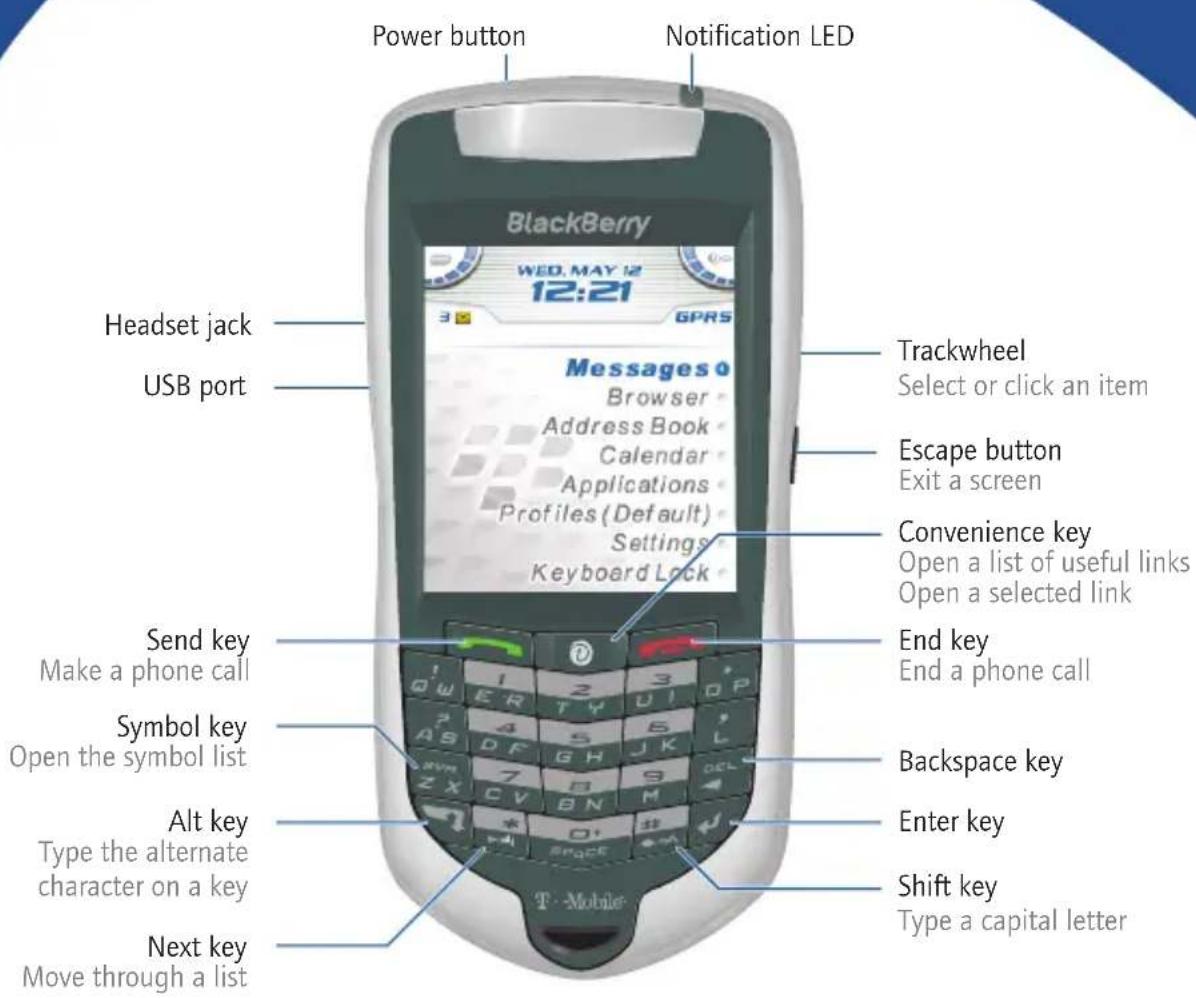
natural_image
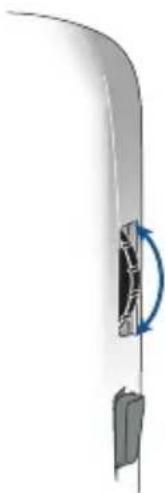
Close-up of a curved mechanical component with a blue rotation arrow indicating motion (no text or symbols)How do I navigate? How do I type?
Roll the trackwheel to move the cursor and highlight items on the screen.
Click (press) the trackwheel to open the menu or select items.

Press the Escape button to exit a screen, cancel an action, or go back one page in the browser.
To type using SureType™ technology, press each letter key only once until you have typed an entire word. The letters on the screen change automatically until a word is formed.
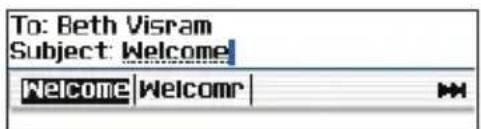
To switch to the multi-tap input method, in a text field, hold the * key. Press a key once for the first letter and twice for the second letter.
Tips
Phone
Open the phone screen or make a phone call
End a call Press
Turn mute on and off during a call
Change the volume during a call
Dial a letter in a phone number
Redial a number Press
Call voice mail
Assign speed dial to a number
Type a phone number extension
Turn speakerphone on or off during a call
Press


Press

Roll the trackwheel
Hold + Press the letter (once for the first letter, twice for the second letter, using the multi-tap method)

Hold

Hold the number > Type a phone number
Press ZX > Type the extension number
Press

Browser
Go back one page
Exit the browser
Go to the next page in the history
Go to the previous page in the history
Switch between normal and full-screen mode
Page down Press
Stop a web page from loading
Go to a specific web page
Press the Escape button
Hold the Escape button
Press

Press

Press


Press the Escape button
Press

Messages
Compose from the messages list
Press

Reply to sender Press

Reply to all Press

Forward a message Press

Go to the next message
Press

Go to the previous message Press

View received messages
Press
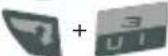
View SMS messages
Press

View voice mail messages
Press
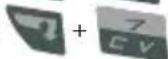
Page up in an open message
Press

Page down in an open message
Press

Calendar\*
Go to the next day, week, or month
Press

Go to the previous day, week, or month
Press

Schedule an appointment
ress

Move the cursor horizontally in week view
Hold trackwheel
+ Roll the
Move the cursor vertically in month view

Hold trackwheel
+ Roll the
*In the calendar options, set the Enable Quick Entry field to No to use these shortcuts in Day format.
Note: The arrangement of letters on your handheld keypad might vary slightly from the depictions on this document.
Navigating your handheld
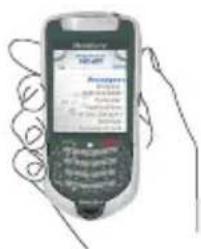
Lock the handheld/keyboard
Unlock the handheld/keyboard
Move the cursor
Return to the previous screen
Return to the Home screen Press
Click an item Highlight the item > Click the trackwheel
Select multiple items Hold
Switch between applications
Go to the top of a screen
Go to the bottom of a screen
Turn on/off the handheld
Hold or Click Lock (set a password for added security)
Press + or Double-click the trackwheel
Roll the trackwheel or Press + Roll the trackwheel
Press the Escape button

+ Roll the trackwheel
Hold + Press the Escape button
Press 1 ER Press 7 CV
Hold the Power button
Typing and editing
Type using SureType™ technology
Type using multi-tap input method
Move through the list that appears when you type
Select an item from the list that appears when you type
Capitalize a letter Hold the letter
Insert a period
Type the alternate character on a key
Insert a symbol
Insert an accented character
Switch between the multi- tap and SureType™ input methods
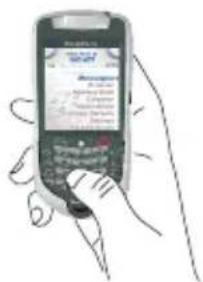
Type the whole word. Press each letter key only once.
Press a key once for the first letter. Press a key twice for the second letter.


Press
Press twice
Press + the key
Press + > Press a letter or Press again to see more symbols
Hold a letter + Roll the trackwheel
In a text field, hold

Status indicatorsWireless netw
To turn the wireless radio on or off, in Settings, click Turn Wireless On/Turn Wireless Off.

Wireless coverage

Emergency calls

No wireless coverage
| GPRS | QPRS | GSM | |
| Emergency calls | ● | ● | ● |
| SMS messages | ● | ● | ● |
| Phone | ● | ● | ● |
| Email and PIN messages | ● | ||
| Browser | ● |

full battery power
low battery power charging
roaming
Home Zone
receiving data
transmitting data
service book waiting
alarm set
voice mail message
TTY enabled
Bluetooth® radio on
Bluetooth connected
Number lock on
Shift mode on
Alt mode on
ABC Multi-tap mode on
How do I...
Make a phone call
- On the Home screen, type a phone number.
- Press the Send key.
- To end the call, press the End key.
Send an email message
- In the messages list, click the trackwheel.
- Click Compose Email.
- Click [Use Once].
- Click Email.
- In the email field, type an email address.
- Click the trackwheel.
- Click Continue.
- In the Subject field, type a subject.
- Press the Enter key.
- Type a message.
- Click the trackwheel.
- Click Send.
Add a contact
- In the address book, click the trackwheel.
- Click New Address.
- Type the contact information.
- Click the trackwheel.
- Click Save.
Fields Menus
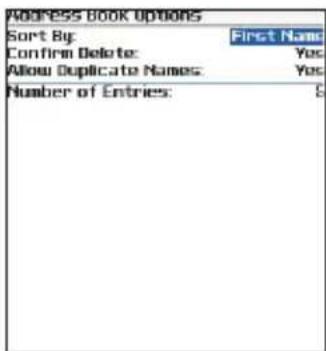
Press the Space key to change the value in a field.
Press the Alt key to view all the values that are available in the selected field.
Navigate the Home screen
Click Applications to access help, tasks, memos, BrickBreaker, and other applications.
Click Settings to access handheld options, and to turn the wireless radio on or off.
Set a password
- In Settings, click Options.
- Click Security.
- Set the Password field to Enabled.
- Set the security options.
- Click the trackwheel.
- Click Save.
- Type a password.
- Press the Enter key.
- Type the password again.
- Click the trackwheel.
Tip: Type passwords using the multi-tap input method. Press a key once for the first letter and twice for the second letter.
natural_image
Line drawing of a hand inserting a small component into a device (no text or symbols visible)Insert the battery
Warning: Use only the battery that Research In Motion specifies for use with your handheld. See the Safety and Product Infomation booklet that accompanied your handheld for more information on using the battery safely. 1. Press the battery cover release button. 2. Slide off the battery cover. 3. Insert the battery so that the connectors align.  4. Replace the battery cover. If the battery is charged, your handheld turns on and a dialog box appears. 5. Click OK. If the date and time are incorrect, see "How do I correct the date and time?" on page 8 for more information.Charge the battery
Using the travel charger
1. Connect the smaller end of the USB cable to your handheld. natural_image
Line drawing of a hand inserting a cable into a device (no text or symbols)Using your computer
To charge your handheld using the computer, the following system requirements must be met: - Intel®-compatible 486 or higher computer that is compliant with USB 1.1 or later • Available USB port. If the port is part of a USB hub, the hub must be self powered. - Windows® 98, Windows ME, Windows 2000, or Windows XP - BlackBerry Desktop Software or BlackBerry Handheld Manager must be installed to obtain the required USB driver on your computer. See "Setting up for email using BlackBerry Enterprise Server" on page 5 or "Setting up for email using BlackBerry Internet Service" on page 7 for more information. Note: If you use Windows 98 (not Windows 98 Second Edition), you must download an update from http://www.microsoft.com/com/dcom/dcom98/dcom1\_3.asp for the USB driver to operate as expected. 1. Connect the smaller end of the USB cable to your handheld. 2. Connect the larger end of the USB cable to an available USB port on your computer. 3. Charge the battery to full power.Turn wireless on
Your handheld connects to the wireless network using an internal radio. When your SIM card is inserted and the battery is charged, turn on the radio in a wireless coverage area. See the inside front cover of this guide for information on wireless coverage levels and the wireless radio. Note: If you use BlackBerry Internet Service, the account setup process might begin automatically the first time that you turn on the wireless radio. See "Setting up for email using BlackBerry Internet Service" on page 7 for more information.Set up email
To begin sending and receiving email on your handheld, you must integrate with an account using one of the setup options listed in the following two sections of this guide.Setting up for email using BlackBerry Enterprise Server
Use this option if all of the following situations apply: - You want to receive messages from your corporate Microsoft® Outlook®, IBM® Lotus Notes®, or Novell® GroupWise® email account. - You subscribe to a service that supports account setup using a BlackBerry Enterprise Server™. - A system administrator is managing a BlackBerry Enterprise Server within your company. - A system administrator has confirmed that you are permitted to use the BlackBerry Enterprise Server. To use this option, one of the following system requirements must be met: - Microsoft Outlook (Workgroup installation) with an account on a Microsoft® Exchange Server version 5.5 or later - IBM Lotus Notes version 4.6 or later, with an account on an IBM Lotus® Domino® Server version 4.6 or later - Novell GroupWise client version 6.5 Service Pack 4 with an account on a Novell GroupWise Server version 6.5 Service Pack 1 or later Note: If your handheld is not enabled on a BlackBerry Enterprise Server, but you want to use a corporate Microsoft Outlook email account with your handheld, you can set up for email using the BlackBerry Desktop Redirector. See "What is the BlackBerry Desktop Redirector?" on page 8 for more information.Use enterprise activation
If your handheld is enabled on a BlackBerry Enterprise Server version 4.0, and your system administrator has provided you with an enterprise activation password, you can integrate your handheld with your account over the wireless network. 1. Verify that your handheld wireless radio is on and that you are in a wireless coverage area. 2. On your handheld, click Enterprise Activation. 3. Type your corporate email address. 4. Type the enterprise activation password provided by your system administrator. 5. Click Activate. Note: Your system administrator might request that you install the BlackBerry Handheld Manager program on your computer to reduce the amount of data that is transmitted over the wireless network when your handheld is connected to your computer. If you install the BlackBerry Handheld Manager program, you do not need to install the BlackBerry Desktop Software.Use the BlackBerry Desktop Software
If your system administrator does not provide you with an enterprise activation password, you can install the BlackBerry Desktop Software to integrate your handheld with your account. 1. Insert the BlackBerry Desktop Software Installation CD into your CD drive. 2. Complete the on-screen instructions. - Select BlackBerry Enterprise Server or BlackBerry Desktop Redirector as your account integration option. - Select BlackBerry Enterprise Server as your message redirection option. 3. Connect your handheld to your computer. 4. On the Windows taskbar, click Start. 5. Select Programs > BlackBerry > Desktop Manager. \- When you are prompted to generate an encryption key, follow the on-screen instructions.Setting up for email using BlackBerry Internet Service
Use this option if one or more of the following situations apply: - You purchased your handheld in a store. - You want to set up a new email account for your handheld. - You want to set up an existing email account for your handheld. Note: To use this option, you must subscribe to a service that supports email setup using BlackBerry Internet Service.Create an account
Consult your service provider's documentation for more information on setting up BlackBerry Internet Service.Synchronize your handheld data
Install the BlackBerry Desktop Software to synchronize and back up handheld personal information management (PIM) data such as contacts and appointments, or to reconcile the status of messages. 1. Insert the BlackBerry Desktop Software Installation CD into your CD drive. 2. Complete the on-screen instructions. \- Select BlackBerry Internet Service as your account integration option. 3. Connect your handheld to your computer. 4. On the Windows taskbar, click Start. 5. Click Programs > BlackBerry > Desktop Manager. Note: See the BlackBerry Desktop Software Online Help for more information on PIM synchronization.Frequently asked questions
Why does my handheld not turn on?
The power might be off. Press the Power button to turn the power on. The battery might not be charged. See "Charge the battery" on page 3 for more information. Remove and then reinsert the battery.Why does my handheld not charge?
A connection might not be secure. Check that all cables and plugs are fully inserted into ports and power outlets. See "Charge the battery" on page 3 for more information. The battery might not be inserted properly. Reinsert the battery so that the connectors align.How do I correct the date and time?
1. In the handheld options, click Date/Time. 2. Set the date and time. 3. Click the trackwheel. 4. Click Save.Why is there a book icon on the Home screen?
A new service book is available on your handheld. Service books determine which services and features are available on your handheld. 1. In the handheld options, click Service Book. 2. Click the service book beside the book icon. 3. Click Accept.Why does the handheld screen turn off?
When you do not use your handheld for a period of time, the screen turns off to conserve battery power. Roll the trackwheel or press any key to turn the screen on again.Why can I not send or receive messages?
Verify that the handheld wireless radio is on and that you are in a wireless coverage area. See the inside front cover of this guide for more information on the wireless radio and levels of wireless coverage. Verify that you have integrated your handheld with an email account. See "Set up email" on page 4 for more information.How do I connect my handheld to the BlackBerry Desktop Software?
If the desktop software is installed on your computer, your handheld should connect to the desktop software automatically when you connect your handheld to the computer. If your handheld does not connect, open the BlackBerry Desktop Software. 1. Click Options > Connection Settings. 2. In the drop-down list, click the correct port. 3. Click Connect. If the connection problems continue, close the BlackBerry Desktop Software and disconnect your handheld. Open the desktop software again and reconnect your handheld. Verify that all connections are secure.What is the BlackBerry Desktop Redirector?
If you use Microsoft Outlook (Workgroup installation) with an account on a Microsoft Exchange Server version 5.5 or later and your handheld is not enabled on a BlackBerry Enterprise Server, you can use the BlackBerry Desktop Redirector to set up for message service on your handheld. 1. Insert the BlackBerry Desktop Software Installation CD into your CD drive. 2. Complete the on-screen instructions. - Select BlackBerry Enterprise Server or BlackBerry Desktop Redirector as your account integration option. - Select BlackBerry Desktop Redirector as your message redirection option. 3. Connect your handheld to your computer. 4. On the Windows taskbar, click Start. 5. Click Programs > BlackBerry > Desktop Manager. \- When you are prompted to generate an encryption key, follow the on-screen instructions. Your computer must be on and the BlackBerry Desktop Redirector must be running to send and receive messages on your handheld.Can I set up for email using both BlackBerry Enterprise Server and BlackBerry Internet Service?
To set up using more than one service, complete the steps in "Setting up for email using BlackBerry Enterprise Server" on page 5 followed by the steps in "Setting up for email using BlackBerry Internet Service" on page 7. Contact your service provider for more information on availability and the fees that might be associated with email setup using both BlackBerry Enterprise Server and BlackBerry Internet Service.How do I reset my handheld?
Only reset your handheld if the handheld does not respond for more than a few minutes, or if your system administrator or service provider has advised you to reset your handheld. To reset your handheld hardware and programs, remove and then reinsert the battery. Customer support BlackBerry support web site: www.blackberry.com/support ©2005 Research In Motion Limited. All Rights Reserved. The BlackBerry and RIM families of related marks, images, and symbols are the exclusive properties of, and trademarks of, Research In Motion Limited (RIM). All other brands and marks are the properties of their respective owners. IBM, Lotus, Domino, and Lotus Notes are trademarks of International Business Machines Corporation in the United States, other countries, or both. Novell and GroupWise are registered trademarks of Novell, Inc. in the United States and other countries. Intel is a registered trademark of Intel Corporation or its subsidiaries in the United States and other countries. Microsoft, Outlook, and Windows are registered trademarks of Microsoft Corporation in the United States and/or other countries. The Bluetooth® word mark and logos are owned by the Bluetooth SIG, Inc. and any use of such marks by Research In Motion Limited is under license. T-MOBILE is a registered trademark of Deutsche Telekom AG. There are no warranties, express or implied, with respect to the contents of this document, and all information provided herein is provided "as is". In no event shall RIM or its affiliates be liable to any party for any direct, indirect, special, or consequential damages in connection with your use of this document, including, without limitation, loss of business revenue or earnings, lost data, damages caused by delays, lost profits, or a failure to realize expected savings, even if RIM was expressly advised of the possibility of such damages. RIM reserves the right to periodically change information that is contained in this document; however, RIM makes no commitment to provide any such changes in a timely manner or at all. Your handheld might vary from the depictions on this card. Published in XXXXX. PRINTSPEC-005 MAT-10131-001 Model number: RAQ43GW- BlackBerry 7105t™ Getting Started Guide
- How do I navigate? How do I type?
- Tips
- Phone
- Browser
- Messages
- Calendar\*
- Navigating your handheld
- Typing and editing
- Status indicatorsWireless netw
- How do I...
- Make a phone call
- Send an email message
- Add a contact
- Fields Menus
- Navigate the Home screen
- Set a password
- Contents
- Where can I find more information?
- On the handheld
- In the BlackBerry Desktop Software
- In your BlackBerry Internet Service account using a desktop browser
- Setting up your handheld 2
- Setting up for email using BlackBerry Enterprise Server 5
- Setting up for email using BlackBerry Internet Service 7
- Setting up your handheld
- Insert the SIM card
- Insert the battery
- Charge the battery
- Using the travel charger
- Using your computer
- Turn wireless on
- Set up email
- Setting up for email using BlackBerry Enterprise Server
- Use enterprise activation
- Use the BlackBerry Desktop Software
- Setting up for email using BlackBerry Internet Service
- Create an account
- Synchronize your handheld data
- Frequently asked questions
- Why does my handheld not turn on?
- Why does my handheld not charge?
- How do I correct the date and time?
- Why is there a book icon on the Home screen?
- Why does the handheld screen turn off?
- Why can I not send or receive messages?
- How do I connect my handheld to the BlackBerry Desktop Software?
- What is the BlackBerry Desktop Redirector?
- Can I set up for email using both BlackBerry Enterprise Server and BlackBerry Internet Service?
- How do I reset my handheld?
Brand : BLACKBERRY
Model : 7105T
Category : Mobile Phone