Pascal Lite C - Kibao bq - Free user manual and instructions
Find the device manual for free Pascal Lite C bq in PDF.


User questions about Pascal Lite C bq
0 question about this device. Answer the ones you know or ask your own.
Ask a new question about this device
Download the instructions for your Kibao in PDF format for free! Find your manual Pascal Lite C - bq and take your electronic device back in hand. On this page are published all the documents necessary for the use of your device. Pascal Lite C by bq.
USER MANUAL Pascal Lite C bq
OUTPUT: 5.0V --- 2.0A
natural_image
Symbol of a trash bin crossed with a diagonal line, representing waste or discharge (no text or labels)- To properly use the device, carefully read this quick-start guide before using it.
- Instructions are based on factory settings of the device.
- Images and screenshots in this guide may not exactly match those of the final product.
- Parts of the content may not exactly match the operation of the product owing to firmware updates of the device. For the latest version of the user manual, visit www.bqreaders.com.
- bq is not liable for any performance problems or incompatibilities caused by the user's editing of the registry.
- Part of the content and services accessed through this device belong to third parties and are protected by copyright, patent, registered trademark and/or other intellectual property laws. bq does not guarantee the content or the services provided.
Instructional icons

Alert: Important tips and notifications about how to use your new device.

Indications on images: Point out specific parts on the screen.
Next: Indicates the next step in a sequence.
Copyright
Copyright© 2011 bq
This guide is protected by international copyright laws.
No part of this quick-start guide may be reproduced, distributed, translated or transmitted in any form or by any means – electronic or mechanical, including photocopying or recording– without the prior written permission of bq.
Trademarks
bq's logo is a registered trademark of Mundo Reader, S.L.
Android, Google Search ^TM , Google Maps ^TM and Android Market ^TM logos are registered trademarks of Google Inc.
Wi-Fi®, Wi-Fi CERTIFIED and Wi-Fi logos are registered trademarks of Wi-Fi Alliance.
Other trademarks and their copyrights are property of their respective owners.
INTRODUCTION
Thank you for choosing bq Pascal Lite Capacitivo. Before using your tablet, carefully read this quick-start guide.
Content of package
Before using your bq for the first time, please check the content of the package. If any of the following items is not in the package, contact the retailer where you purchased the device.
- bq Pascal Lite Capacitivo
- miniUSB-PC cable
- Charger
- Earphones
- Quick-start guide
- Warranty certificate
Buttons and ports
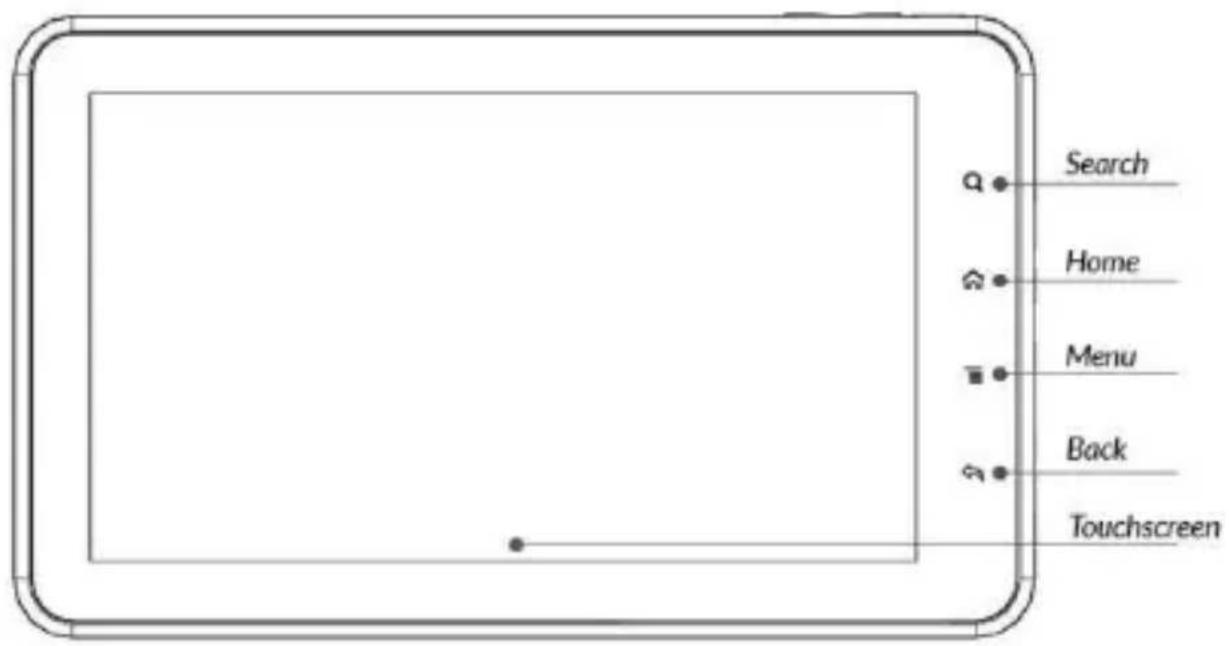
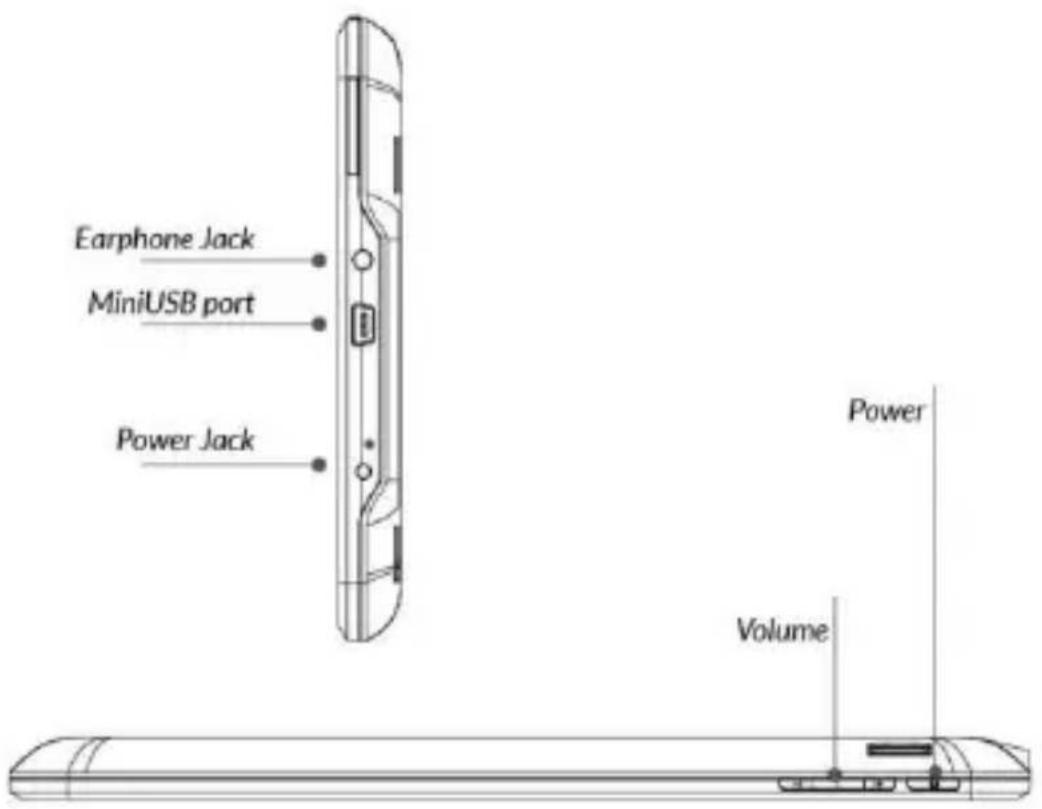
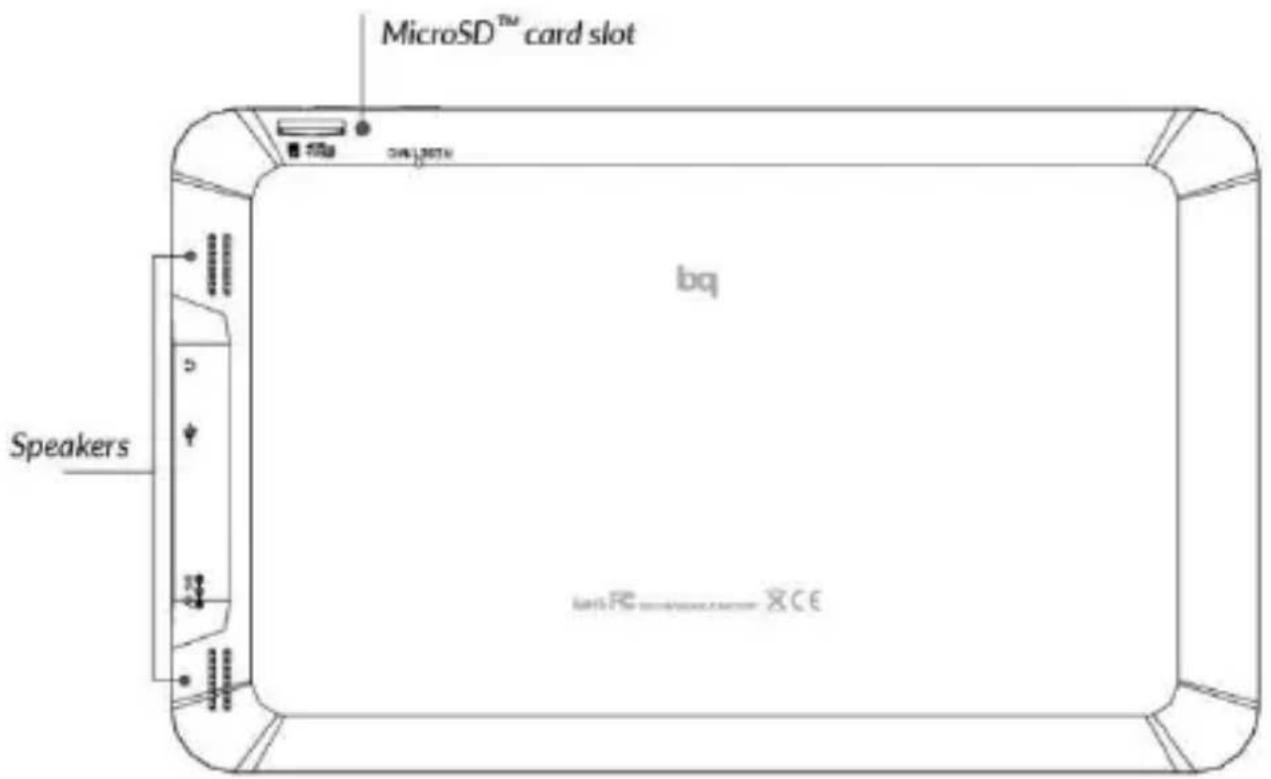
Buttons
| Button | Function |
| Power | Long press to switch on the device, short press to turn on the screen when the device is in suspended mode. |
| Back | Press this button to go back to the previous screen in an application. |
| Menu | Shows the available options for the application that is being used. |
| Home | Press this button to go directly to the home screen. |
| Search | Directly open the Google search screen. |
| Reset | Press this button to reset the device when locked up. |
| Power jack | Use provided charger to charge the battery. |
GETTING STARTED
Battery
This device contains a rechargeable Li-ion battery. To charge your bq Pascal Lite Capacitivo's battery, connect the AC adapter to any standard socket and connect the charger cord to the device charging jack.
When the battery is fully charged, the battery icon will be shown as full. Disconnect the device cord and unplug the charger from the socket.
You should fully charge the battery before using the bq for the first time. The charging time is approximately 6 hours.
Power on/off
To power on the device, press the power button 📁 for a few seconds. To power it off, press the power button until the popup screen Device options appears. Tap on Power off and confirm by tapping on OK.
Insert/remove the microSD™ card
To install the microSD™ card, insert it in the slot and press until it clicks into place. To safely remove the microSD™ card, press the Menu button 📋 and go to Settings > SD Card & Internal Storage > Unmount SD card. Press the card to remove it from the slot.
Operating system
The operating system in your bq Pascal Lite Capacitivo is Android 2.3 (Gingerbread).
Transferring files
To transfer files from your device to a computer or vice-versa, follow these steps:
- Plug the miniUSB connector to the device and the USB side to the computer. Your bq Pascal Lite Capacitivo will ask for confirmation to connect. Tap on OK.
- Your device will be recognized by the computer as a new removable disk, "bq:". If there is a microSD™ card in the device, a second removable storage unit will appear on your computer.
- Copy the files you wish to transfer to your device to any of the two units.
Do not disconnect the cable while files are being copied.
Files can be transferred between your device and a Windows, Linux or Mac OS PC.
- After the files have been transferred, safely disconnect the the tablet.
Periodically backup data in your bq to avoid loss of files in case of physical damage, theft or loss.
USING THE SCREEN
Screen lock
The bq screen locks automatically and by default when it is powered on or when the device is not used for a long period of time. Unlock the screen by dragging the icon to the right.
To regulate the screen timeout interval, press the Menu button and go to Settings > Display > Screen timeout.
To turn off the screen manually, press the power button.
Adjust screen orientation
The orientation of the display switches automatically from portrait (vertical) to landscape (horizontal) and vice-versa according to the position of the device in all applications that support this function.
To change the display orientation, press the Menu button , open Settings > Display and uncheck the box Auto-rotate screen.
Home screen
The home screen is the main pathway to the tools and applications installed on the bq Pascal Lite Capacitivo.
On the home screen, you can control the status of the device, open websites, open applications with their icons, open the Menu, etc.
Notification bar - The notification bar displays time, device status, battery level, the intensity of the Wi-Fi signal and other system notifications.
Default applications
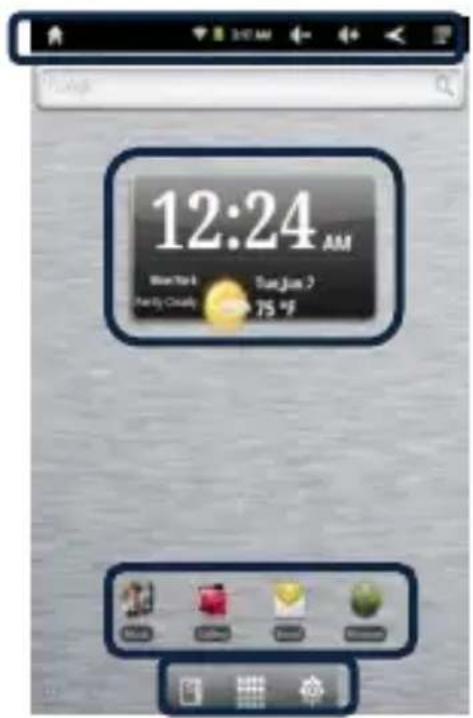
Notification bar
Shortcuts
E-reader - Applications - Settings
Pre-defined applications - Applications installed by default on the device allow you to quickly access useful information like the weather.
Shortcuts - You can use shortcuts to quickly open applications you use the most.
Settings - Access the settings menu.
Applications - Access all applications installed on the tablet.
E-reader - Tap on this icon to launch the EbookReader to read e-books in different formats.
Extended screens
You can use up to four additional extensions of the Home Screen, that can be personalised with shortcuts, applications and other tools. To move between the Home screen and the extended screens, drag the screen to the left or to the right using your finger.
Personalizing the Home screen
You can personalize the Home screen or the extended screens with your own images, such as backgrounds, icons or shortcuts to your favorite applications, etc.
Change the screen background
To change the screen background, press the Menu button > Add > Wallpapers. Select an image to use as the screen background and tap on Set wallpaper to confirm the selection.
Add shortcuts
To add shortcuts to the Home screen, go to the extended screen
where you wish to add an icon. Tap on Applications 📄 to open the Menu and press and hold the application icon until the screen icon appears. Drag it to the place you wish to put it on the screen.
Adding widgets
To add widgets to your Home screen, press the Menu button > Add > Widgets. Scroll through the list of widgets to select the one to add to the Home screen. Hold the widget until it increases in size. Drag it to the spot where you wish to place it on the Home screen.
APPLICATIONS
In the applications Menu you can access all the applications installed on your bq Pascal Lite Capacitivo. To open the Menu, tap on . To access an application, tap on its icon. To go back to the Home screen, tap on.
WI-FI CONNECTION
To connect to the Internet or use and application that requires an Internet connection, you must first connect the device to a Wi-Fi network. To do this, follow these steps:
- Press the Menu button > Settings > Wireless& networks > Wi-Fi. The device will begin to search for an available network.
-
Tap Wi-Fi settings. A list of the names of the Wi-Fi networks (SSID) detected. Scroll down the list of the available networks. Tap on the network detected to check the security level and the intensity of the signal.
-
If the connection is secure, enter the password and tap on Connect to start the connection. In the notifications bar, an icon with the signal intensity is shown.

SAFETY PRECAUTIONS
To use the device safely, please observe the following safety precautions:
- Do not use damaged power cords or connectors or loose sockets.
- Do not touch the power cord with wet hands or pull on the cord to disconnect the charger.
- Do not fold or damage the power cord.
- Do not use the device while charging or touch it with wet hands.
- Do not strike or drop the charger or battery.
- Do not charge the battery with chargers that have not been approved by the manufacturer.
- Do not use the device during a lightning storm.
- Do not handle damaged or leaky Li-ion batteries.
-
Handle and dispose batteries and chargers with precaution.
-
Do not use the device near a pacemaker: if possible, avoid using the device at a distance of less than 15 cm from the pacemaker, as the device may interfere with it.
- Do not use the device in a hospital or near medical equipment which is vulnerable to interference caused by radiofrequency.
- If you use medical equipment, contact the manufacturer to ensure that the equipment is protected from radiofrequency. If you use a hearing aid, contact the manufacturer for further information on radio interference.
- In potentially explosive environments, turn off the device instead of removing the battery. Observe all rules, instructions and warning signs in potentially explosive environments.
- Do not use the device in fuel loading areas (service stations) or near fuels or chemicals in explosive areas.
- Do not store or carry flammable liquids, gases or explosive materials in the same compartment as the device, its parts or accessories.
- Turn off the device when on board a plane.
- Electronic devices in a motor vehicle may behave in a wrong way due to the device's radiofrequency.

Warning!
This product has to be used with a power supply that has the following technical specifications:
INPUT: 100-240V \~ 50/60 Hz 0.4A máx
OUTPUT: 5.0V —— 2.0A
Polarity has to be the same as described in this picture:

The use of power sources with different specifications may cause damage to equipment and can compromise the safety of people and goods.
Cleaning
Before cleaning the device, turn it off and disconnect all the system and power cords. Ensure that the device is completely dry before connecting again the cords and turning it on. Do not use any cleaning liquids or sprays directly on the surface of the screen or the case.
Use a soft, clean and lint-free cloth to remove dust and dirt from the screen. For fingerprints and stains, use a cloth with mild cleaning products. Moisten the cloth with clean water, wring it well and clean the case to remove any leftover detergent.
CORRECT DISPOSAL OF THIS PRODUCT
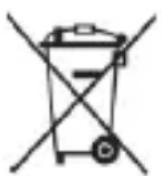
(Electric and electronic device waste)
(Applicable in the European Union and in European countries with selective waste collection systems).
This marking on the product, accessories or literature indicates that the product and its electronic accessories (e.g. charger, headset, USB cable) should not be disposed of with other household waste at the end of their working life.
To prevent possible harm to the environment or human health from uncontrolled waste disposal, easy separate these items from other types of waste and recycle them responsibly to promote the sustainable reuse of material resources.
Household users should contact either the retailer where they purchased this product, or their local government office, for details of where and how they can take these items for environmentally safe recycling.
Business users should contact their supplier and check the terms and conditions of the purchase contract. This product and its electronic accessories should not be mixed with other commercial wastes for disposal.
Declaration of conformity
Mundo Reader S.L., Edificio Las Rozas, 23. Oficina 1, Ctra. La Coruña, Km 23,200. 28230 Las Rozas de Madrid (Madrid) warrants that this product (Pascal Lite Capacitivo model, bq brand) complies with the provisions of Directive 1999/5/CE on Radio and Telecommunications Terminal Equipment (R&TTE) of Directive 95/2006/CE on the Electrical Safety of Low Voltage Equipment and Directive 2004/108/CEE on Electromagnetic Compatibility complying with the harmonized standards: EN 60950-1:2006 + A11:2009, EN 62311:2008, EN 301 489-1 V 1.8.1, EN 301 489-17 V2.1.1, EN 300 328 V1.7.1, EN 55022: 2006 + A1: 2007, EN 55013: 2001 + A1: 2003 + A2: 2006, EN 61000-3-2: 2006 + A1: 2009 + A2: 2009, EN 61000-3-3: 2008, EN 55024: 1998 + A1:2001 + A2: 2003, EN 55020: 2007.
Madrid, November 2011.

CE
Alberto Méndez Peydró CEO