
H-CDM8017 - Car Radio HYUNDAI - Free user manual and instructions
Find the device manual for free H-CDM8017 HYUNDAI in PDF.


| Product Type | Car Radio |
| Brand | Hyundai |
| Model | H-CDM8017 |
| Dimensions (L x W x H) | 178 x 51 x 163 mm |
| Weight | 1.6 kg |
| Power Supply | 12 V DC |
| Current Consumption | Max. 15 A |
| Maximum Power Output | 50W x 4 channels |
| Fuse Rating | 15 A |
| Temperature Range | -20°C to +60°C |
| Mounting Angle | 0° to ±30° |
| Disc Support | CD, CD-R, CD-RW |
| Format Support | CDDA, MP3, WMA |
| Frequency Response | 30 Hz – 18 kHz |
| Signal-to-Noise Ratio (CD) | 55 dB (1 kHz) |
| Line Output | 4-channel RCA (2 V) |
| Radio Bands | FM1, FM2, FM3, MW |
| Preset Stations | 24 (18 FM, 6 MW) |
| USB/SD/MMC Support | Up to 2 GB, FAT12/16/32 |
| Detachable Front Panel | Yes, with anti-theft case |
| Equalizer Modes | FLAT, CLASSICS, POP, ROCK, OFF |
| RDS Functions | AF, TA, PTY, REG, EON |
| Audio Settings | Bass, Treble, Balance, Fader |
| AUX Input | 3.5 mm jack |
| Beep Function | Configurable (OFF, ALL, 2ND) |
Frequently Asked Questions - H-CDM8017 HYUNDAI
User questions about H-CDM8017 HYUNDAI
0 question about this device. Answer the ones you know or ask your own.
Ask a new question about this device
Download the instructions for your Car Radio in PDF format for free! Find your manual H-CDM8017 - HYUNDAI and take your electronic device back in hand. On this page are published all the documents necessary for the use of your device. H-CDM8017 by HYUNDAI.
USER MANUAL H-CDM8017 HYUNDAI
CD/MP3/WMA-РЕСИВЕРСД/MP3/W
Table of contents
Dear customer!
Thank you for purchasing our product. For safety, it is strongly recommended to read this manual carefully before connecting, operating and/or adjusting the product and keep the manual for reference in the future.
Table of contents 2
Before you start 3
Utilization of the product 3
Important safeguards 3
Installation/Connection 4
Installation 4
General notes 4
Din Front/Rear-Mount 4
- DIN front-mount (Method A) 4
Dismantling the unit 4
Trim frame installation 5
- DIN rear-mount (Method B) 5
Detachable control panel 5
Anti-theft system 5
Connection 6
Connection diagram 6
Using the ISO Connector 6
Operation 8
Control elements 8
Front panel 8
Inner panel 8
LCD layout 9
General operations 10
Turning on/off 10
Volume control 10
Audio parameter setting 10
Mode selection 10
Mute function 10
Equalizer 10
Loudness control 10
Information display 10
Beep function 10
Tel mute 10
Reset function 10
AUX in jack.... 11
Radio operations 11
Band selection.... 11
Tuning.... 11
Automatic store/scan 11
Programming stations 11
RDS function.... 11
AF (Alternative Frequencies) function... 11
Region on/off mode 11
TA (Traffic Alarm) function 12
PTY (Program Type).... 12
Local/distant stations 12
Other parameter setting 12
Disc operations.... 13
Insert/Eject disc 13
Pausing playback.... 13
Playing the previous/next track 13
Fast forward/backward playback 13
Folder selection 13
Intro playback 13
Repeat playback 13
Random playback.... 13
Searching file/directory 13
Mixed CD operation.... 14
Notes on MP3 and WMA 14
Notes on creating your own CD-Rs ..... 15
or CD-RWs containing MP3 files 15
USB/SD/MMC operation 15
USB/SD/MMC notes 15
Memory card operation 15
USB device operation 16
General information.... 17
Handling compact discs 17
Cleaning discs 17
Cleaning the unit body 17
Accessories 17
Troubleshooting guide.... 18
Specification.... 19
Utilization of the product
If you want to dispose this product, do not mix it with general household waste. There is a separate collection system for used electronic products in accordance with legislation that requires proper treatment, recovery and recycling.
Please contact your local authorities for the correct method of disposal. By doing so, you will ensure that your disposed product undergoes the necessary treatment, recovery and recycling and thus prevent potential negative effects on the environment and human health.
Important safeguards
- Read carefully through the manual to familiarize yourself with this unit.
- Keep this manual handy as a reference for operating procedures and precautions. Do not allow persons who have not read through this manual to use this unit.
- "CLASS 1 LASER PRODUCT"
This product contains a laser diode of higher class than 1. Laser beams from the optical pickup are dangerous to the eyes. To ensure continued safety, do not remove any covers or attempt to gain access to the inside of the product. Refer all servicing to qualified personnel.
- Do not allow this unit to come into contact with liquids. Electrical shock could result. Also, damage to this unit, smoke, and overheating could result from contact with liquids or dust. Protect this unit from moisture.
- Make sure that foreign objects do not get inside the unit; they may cause malfunctions, or create safety hazards such as electrical shock or laser beam exposure.
- The beginning of operation is the moment of the unit installation. Before use the device in winter it is recommended to heat up the passenger compartment during 20 seconds or to the operation temperature.
- Using the unit with the temperature that goes beyond the operation temperature greatly decreases the operation resource of the screen and other components of the unit and can
result in an outage.
- Disconnect the vehicle's negative battery terminal while mounting and connecting the unit.
- The unit is designed for negative terminal of the battery, which is connected to the vehicle metal. Please ensure it before installation.
- When replacing the fuse, be sure to use one with an identical amperage rating. Using a fuse with a higher amperage rating may cause serious damage to the unit.
- Do not allow the speaker wires to be shorted together when the unit is switched on. Otherwise it may overload or burn out the power amplifier.
- Make sure you disconnect the power supply and aerial if you will not be using the system for a long period or during a thunderstorm.
- Make sure you disconnect the power supply if the system appears to be working incorrectly, is making an unusual sound, has a strange smell, has smoke emitting from it or liquids have got inside it. Let a qualified technician check the system.
• Always keep the volume low enough so that you can hear sounds from outside the vehicle.
- Should this product fail to operate properly, contact your dealer or nearest service center.
Installation
General notes
- Choose the mounting location where the unit will not interfere with the normal driving function of the driver.
- Before finally installing the unit, connect the wiring and make sure that the unit works properly.
- Consult with your nearest dealer if installation requires the drilling of holes or other modifications of the vehicle.
- Install the unit where it does not get in the driver's way and cannot injure the passenger if there is a sudden stop, like an emergency stop.
- If installation angle exceeds 30° from horizontal, the unit may not perform properly.
- Avoid installing the unit where it would be subject to high temperature, such as from direct sunlight, or from hot air, from the heater, or where it would be subject to dust, dirt or excessive vibration.
Din Front/Rear-Mount
This unit can be properly installed either from 'Front' (conventional DIN Front-mount) or 'Rear' (DIN Rear-mount installation, utilizing threaded screw Holes at the sides of the unit chassis). For details, refer to the following illustrated installation methods.
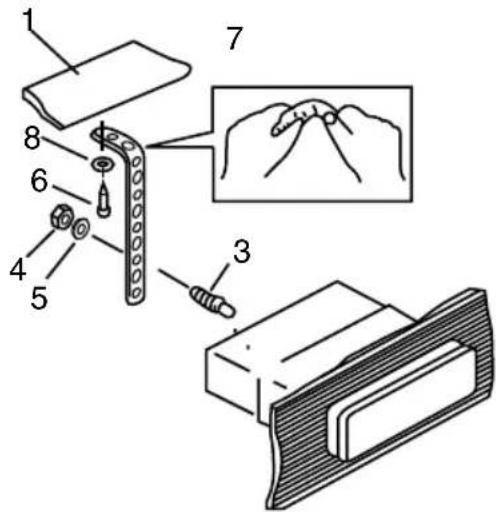
1. DIN front-mount (Method A)
- Car dashboard
- Sleeve
- Screw
- Nut (5 mm)
- Spring washer
- Screw (5 x 25 mm)
- Metal strap
- Flat washer
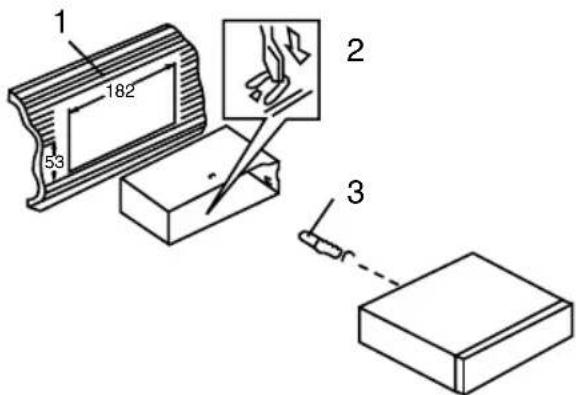
- Install the sleeve into the dashboard; ensure it is installed with the correct side and there are no obstacles (wires, dashboard elements, etc) for the unit installation.
- After installing the sleeve into the dashboard, bend tabs fitting to the size of the dashboard to fix the sleeve in place.
- Use the metal strap to fix the rear side of the unit. Determine a place for fixing and install the strap as shown in the picture. You can bend the strap to the needed angle with your hands.
- Make the necessary wire connections. Ensure the connections are correct.
- Install the unit into the sleeve until the side locks are fixed.
Dismantling the unit
a - Trim frame
b - Frame uninstall direction
c - Release key insertion
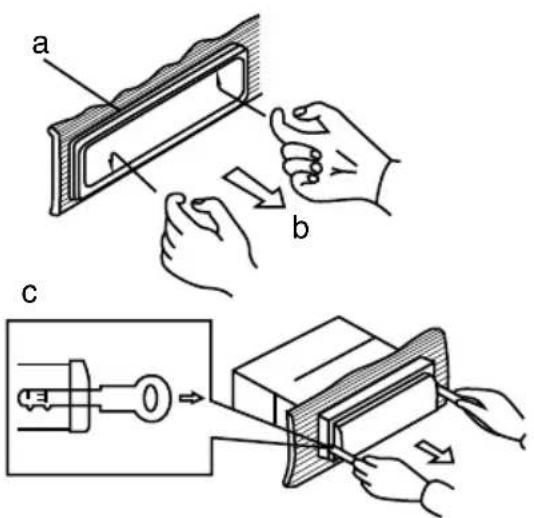
- Switch off the unit and detach the front panel.
- Insert your fingers into the groove in the front side of the trim frame (apply some effort to detach the frame). Pull the frame to detach it.
- Insert the supplied release keys into the both sides of the unit body to click, as shown in the picture. To extract the unit from the dashboard, pull the release keys or the unit body to pull it out. Before detaching the unit, ensure it is not fixed with the metal strap.
Trim frame installation
To install the trim frame, press it to the unit body and push it to fix it in place. This should be done before installing the front panel; otherwise you are not able to install the trim frame. When the trim frame being installed, the side with the groove should face down and fixed first.
2. DIN rear-mount (Method B)
For this method, use the screw holes in the lateral sides of the unit. Fix the unit with the help of the factory radio mounting brackets.
- Select a position in which the screw holes of the brackets (3) are aligned with the screw holes in the unit body, and screw in two screws (2) in each side.
- Screw.
-
Factory radio mounting brackets.
-
Vehicle dashboard.
-
Lock (remove this part).
The outer trim frame and mounting sleeve are not used for method of installation.

Detachable control panel
Install the fastening hole on the right side of the front panel on the right fastening of the unit. Then install the fastening hole on the left side of the front panel on the left fastening of the unit. After that, lift the panel and press on the middle of the panel until a click. Ensure that the panel is properly fixed, otherwise error symbols may be displayed and some buttons may not function.
To detach the front panel, press OPEN button and distract the left, then the right side of the panel from the fastenings of the unit.
The control panel can easily be damaged by shocks. After removing it, place it in a protective case and be careful not to drop it or subject it to strong shocks. The rear connector that connects the main unit and the control panel is an extremely important part. Be careful not to damage it by pressing on it with fingernails, pens, screwdrivers, etc.
If the control panel is dirty, wipe off the dirt with soft, dry cloth only. And use a cotton swab soaked in isopropyl alcohol to clean the socket on the back of the control panel.
Anti-theft system
The front panel of this unit can be stored in the protective case and carried away when you leave the vehicle to deter theft. Switch off the power of the unit. Detach the front panel, then put it to the protective case and take it with you.
Connection
Connection diagram

Using the ISO Connector
- If your car is equipped with the ISO connector, then connect the ISO connectors as illustrated.
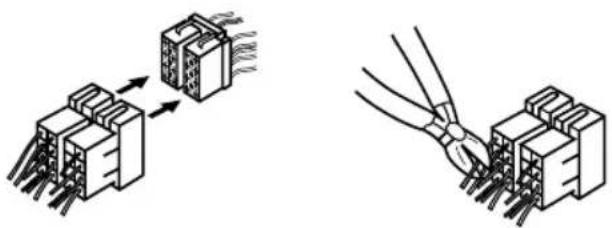
- For connections without the ISO connectors, check the wiring in the vehicle carefully before connecting, incorrect connection may cause serious damage to this unit.
Cut the connector, connect the colored leads of the power cord to the car battery as shown in the colour code table below for speaker and power cable connections.
| Location Function | ||
| Connector A Connector B | ||
| 1 Rear Right(+)---Violet | ||
| 2 Rear Right(-)---Violet/Black | ||
| 3 Front Right(+)---Grey | ||
| 4 Battery 12V (+)/yellow Front Right(-)---Grey/Black | ||
| 5 Antenna control/blue Front Left(+)---White | ||
| 6 Front Left((-)---White/Black | ||
| 7 ACC+/red Rear Left(+)---Green | ||
| 8 Ground/black Rear Left(-)---Green/Black | ||

Power antenna wire is intended for
power supply of the antenna and for remote control of an additional amplifier.
Control elements
Front panel
- POWER button
- VOLUME knob/SEL button
- MUTE button
- MODE button
- Diplay
- PTY button
- DISP button
- OPEN button
- PREV button
-
AMS button
-
NEXT button
- BAND button
- 1/PLAY/PAUSE button
- 2/SCN button
- 3/RPT button
- 4/SHF button
- 5 button
- 6 button
- TA button
- REG/AF button
- AUX IN jack
- USB slot

Inner panel
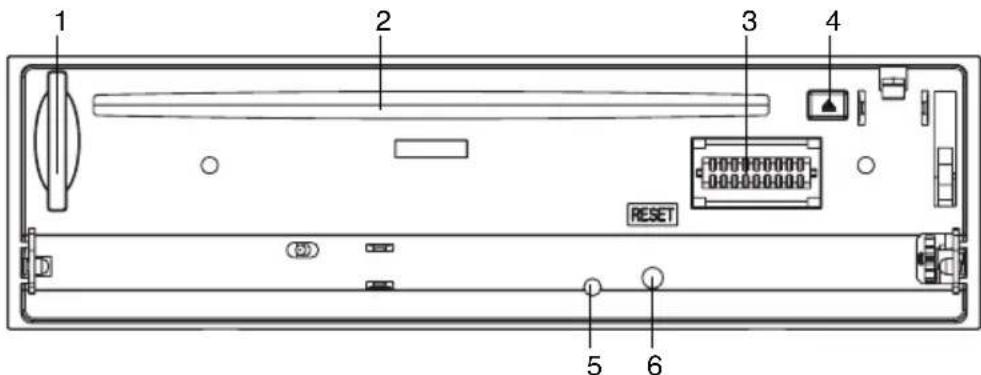
- SD/MMC memory card slot
- Disc slot
- Connector
- EJECT button
- Panel status indicator
- RESET button (hole)

Pressing RESET hole will erase the
clock setting and stored stations.
Panel status indicator lights up when you slide the panel down, flashes when you remove the panel.
LCD layout
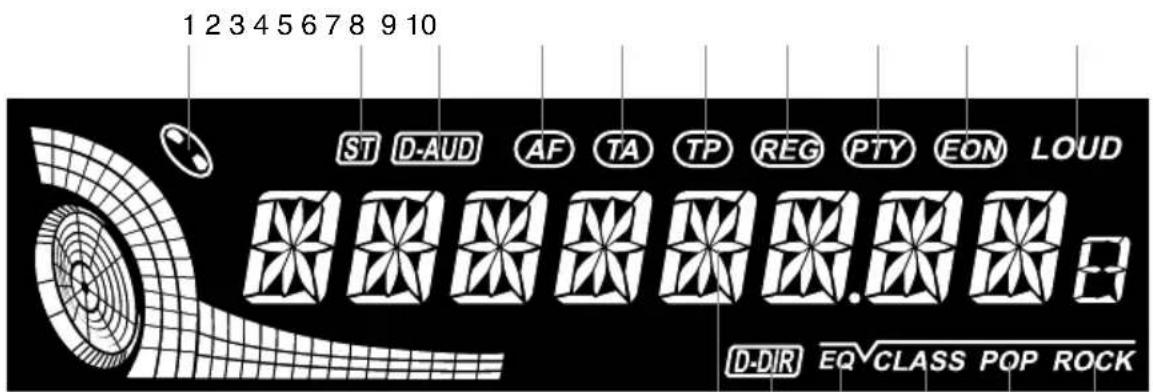
111213141516
- Disc loading indicator
- Stereo reception indicator
- MP3/WMA file playing indicator
- AF function indicator
- TA function indicator
- TP function indicator
- REG function indicator
- PTY function indicator
-
EON function indicator
-
Loudness mode indicator
- ROCK equalizer mode
- POP equalizer mode
- CLASS equalizer mode
- Equalizer ON indicator
- Folder name on
- Digit display (radio frequency, track name/number, etc.)
General operations
Turning on/off
Press any button (except OPEN) or insert disc to switch the unit on. Press POWER button to switch the unit off.
Volume control
Rotate VOL knob on the front panel to adjust volume level.
Audio parameter setting
Press SEL button shortly and repeatedly to select a mode: VOL (volume) => BAS (bass) => TRB (treble) => BAL L-R (balance) => FAD F-R (fader). Rotate VOL knob to adjust each mode.
Caution: In each mode, the waiting time is several seconds, and when the waiting time is over, it returns to the last display mode of radio or disc playback mode.
Mode selection
Press MODE button to choose a sound source: RADIO => AUX => CD => SD/MMC => USB.
Mute function
Press MUTE button to disable the sound. Press the button again or adjust the volume to resume the sound output.
Equalizer
Press and hold MUTE button repeatedly to select an equalizer mode: FLAT - CLASSICS - POP - ROCK - OFF.
Loudness control
Press and hold BAND button; LOUD ON will be displayed meaning that bass output emphasize function is activated. To deactivate the function press and hold the button again.
Information display
Press DISP button to operate as the conversion of each display mode as follows:
- In case of receiving a RDS station In radio mode: PS -> CT -> FREQ -> P TY In CD mode: CD -> CT -> (ID3 TAG) -> PS -> FREQ -> PTY
In case of no receiving CT or PTY Information, the display shows as "NO CLOCK" or "NO PTY".
- In case of receiving a non RDS station In radio mode: "NO CLOCK" -> FREQ-> "NO PTY"
In CD mode: CD -> "NO CLOCK" -> FREQ -> "NO PTY"
Each displaying time is several seconds, and come back to 1'st position after several seconds.
CT = clock time; FREQ = frequency.
BEEP function
Press and hold SEL button; then press it repeatedly until BEEP OFF (BEEP ALL/BEEP 2ND) is displayed. Rotate VOL knob to select one of the following:
BEEP OFF – beep sound is not heard when a button is pressed
BEEP ALL – beep sound is heard when a button is pressed
BEEP 2ND – beep sound is not heard only when a button is pressed and held.
TEL mute
The audio system automatically mutes whenever a call comes in.
This function will not work if a cable is not connected to the car phone.
- When a call comes in. When a call is received, "TEL CALL" is displayed and all the unit functions are temporarily interrupted.
- When the call ends, hang up the phone; "TEL CALL" disappears from the display. The original source (used before the phone call) is returned automatically and the volume restored gradually.
Reset function
RESET button is pressed with either a ballpoint pen or thin metal object. RESET function is to be activated for the following reasons:
- Initial installation of the unit when all wiring
is completed.
- All the function buttons do not operate.
- Error symbol on the display.
AUX in jack
AUX-in jack is intended for connecting an external audio or video equipment to amplify the sound. If connection is made correctly, the audio signal from the external source will be translated through the acoustics of the head unit. This enables to adjust the volume and quality of the sounding. For example, you can connect an MP3-player to listen to tracks using the car acoustic system.
Radio operations
BAND selection
Press repeatedly BAND button to select your desired radio band in radio mode: FM1, FM2, FM3, MW. Each band can store 6 preset stations, for a total of 24 preset memory stations.
Tuning
Press PREV or NEXT button; the unit will automatically search a nearest station with a strong signal. To search next station repeat this procedure. To stop the automatical search, press PREV or NEXT button.
Press and hold PREV or NEXT button to activate manual search mode. Press PREV/ NEXT buttons to search for a station manually (MANUAL will be displayed). If you don't press any button within several seconds, the unit will return to auto search mode.
Automatic store/Scan
- Automatic store: Press and hold AMS button, the receiver will automatically scan and save stations for the current band.
- Scan: Press AMS button once to scan the saved stations in each band.
Programming stations
There are six numbered preset buttons, under which you can store and recall stations for each band. Select the needed station, then press and hold a preset button. The station will be saved in the memory under the corresponding number. To recall a stored station, press the corresponding preset button.
RDS function
RDS (Radio Data System) service availability varies with areas. Please understand if RDS service is not available in you area, the following service is not available, either.
AF (Alternative Frequencies) function
Press REG/AF button to turn the AF function on or off.
When the radio signal strength is poor, enabling the AF function will allow the unit to automatically search another station with the same PI (Program Identification) as the current station but with stronger signal strength, so that you do not have to retune the stations when driving between different transmitter coverage areas. When AF symbol is on, it means RDS information is received; when AF symbol is flashing, it means RDS information is not yet received.
PS (Program Service name): the name of station will be display instead of frequency.
If RDS service is not available in your area, turn off the AF mode. Default setting is ON.
Program name is displayed on receiving a RDS station. “ALARM” will be displayed when an emergency broadcasting is received; meanwhile sound output level will be adjusted to the preset output level automatically when the volume control is set at minimum.
REGIONAL ON/OFF mode
Press and hold REG/AF button, REGION ON/OFF mode is selected.
REG ON: AF switching or PI SEEK is implemented to the station which have all PI codes are same as current station (PI CODE is checked when AF CHECK in progress)
REG OFF: The regional code in the format
of PI code is ignored when AF switching or PI SEEK is implemented. (PI CODE and COVERAGE AREA is not checked when AF CHECK in progress)
TA (Traffic Alarm) function
Press TA button to turn TA function on or off.
In TA mode traffic program will be automatically searched, until the program is received. When traffic announcement is received the unit will temporarily switch to the tuner mode (regardless of the current mode) and begin broadcasting the announcement. After the traffic announcement is over, it will return to the previous mode and volume level. To interrupt traffic announcement press TA button shortly; it will not switch off the TA mode.
PTY (Program Type)
This radio will allow you to select the type of program required, and will search for a station broadcasting that type of program.
Press PTY button to show the music type. Then press 1 - 6 number buttons to choose different music programs available.
Press PTY button twice to show the speech type program. Then press 1 - 6 number buttons to choose different speech programs. Each number button will show 3 different speech programs for you to choose (see table below).
| Button | Music group | Speech group |
| 1 Pop | Rock News, Affairs, Info | |
| 2 Easy | Light Sport, Educate, Drama | |
| 3 Classics Culture, Science, Varied | ||
| 4 Jazz, Country Weather, Finance, Children | ||
| 5 Nation, Oldies Social, Religion, Phone IN | ||
| 6 Folk Travel, Leisure, Document |
When PTY is selected, the radio starts to search corresponding PTY information, and stops if the corresponding PTY information is detected. If no buttons are pressed within several seconds, previously selected PTY is searched. During 1 loop, if desired PTY is not found, the unit will return to previous mode. Press PTY button for the 3rd time to switch the PTY function off.
Local/distant stations
Press TA button for several seconds, to select EON TA LOCAL/EON TA DISTANCE mode. If you want to receive information from local stations only, select EON TA LOCAL mode. Otherwise, select EON TA DISTANCE mode.
Other parameter setting
To choose the corresponding parameter, press and hold SEL button, then press it repeatedly until the display shows the needed parameter. Turn VOL knob to choose the needed value. After choosing, please leave the unit idle to activate.
TA SEEK/TA ALARM
When newly tuned station does not receive TP information for 5 seconds, the radio retunes to next station which has not the same station (PI – Program Information) as the last station, but has the TP information. When TP information gets lost at the current station for retune time which is set by RETUNE SHORT (30 seconds) or RETUNE LONG (90 seconds), the radio starts to retune to next same PI station. When same PI station does not catch in 1 cyclic search, the radio retunes to next station with TP information. In TA SEEK mode, the unit will seek for traffic announcement program when TA button is pressed; in TA ALARM the unit does not retune to TA information.
PI SOUND/MUTE
Choose PI sound or mute. PI sound refers to the reception noise when the AF function tries to scan alternative frequency.
RETUNE S/L - SHORT/LONG
"RETUNE" refers to the time period the unit allows for radio scan when reception is
interrupted. "S" represents a short time period of 30 seconds, and "L" represents a long time period of 90 seconds.
MASK DPI/MASK ALL
During AF search, PI stations and non-RDS (Radio Data Station) stations with strong signal will be masked, in the latter case, the non-RDS stations may cause interference, resulting the real AF to be masked due to the misjudgment of the radio under interference. Rotate the VOL knob to select the desired mode: MASK DPI and MASK ALL. During MASK DPI mode, the unit will mask only the AF which has different PI, this is the default mode; during MASK ALL mode, the unit will mask the AF which has different PI and no RDS signal with high field strength.
Disc operations
Insert/Eject disc
- Press OPEN button to open the front panel. Insert the disc into the slot with the printed side facing upward into the slot. The CD will play automatically. Close the front panel.
- Open the front panel and press EJECT button to eject the disc. If the disc is not removed from the slot within 10 seconds, it will automatically be loaded into the slot again. When the disc is ejected and removed, the unit will automatically switch to radio mode.
Pausing playback
To ensure good system performance, wait until the unit finishes reading the disc information before proceeding. Press 1/PLAY/PAUSE button to pause the playback. Press again to resume the playback.
Playing the previous/next track
During playback press NEXT or PREV button to play next or previous track correspondingly.
Fast forward/backward playback
Press and hold NEXT or PREV button to fast forward or reverse correspondingly. Release the button when the desired location is found.
Folder selection
Press 6 button to go to the next folder. Press 5 button to go to the previous folder (only for MP3 discs containing folders).
Intro playback
You can play the beginning of every track for several seconds in sequence. Press 2/SCN button to start intro play. Press again to cancel.
Repeat playback
During disc playback, press 3/RPT button to repeat the current track playback. Press again to cancel.
Random playback
During disc playback, press 4/SHF button to start random playback of the tracks. Press again to cancel.
Searching file/directory
Press AMS button repeatedly to cycle through the following search modes: Searching by track number => Searching by directory or file name => Searching from root directory => Searching from current directory.
Searching by track number
Press button AMS button once to enter "Searching by track number" mode. The track number will blink on the display. Rotate VOL knob to select the track number. Press BAND button to confirm the selection and play the selected song.
Also, after pressing AMS button you can directly input the number of the needed track pressing the buttons according to the below table:
| Button Number | |
| 1/PLAY/PAUSE 1 | |
| 2/SCN 2 | |
| 3/RPT 3 | |
| 4/SHF 4 | |
| 5 | 5 |
| 6 | 6 |
| MODE or PTY 7 | |
| PREV or TA 8 | |
| NEXT or AF 9 | |
| DISP or POWER 0 |
After inputting the track unber, press BAND button to start playback.
Searching directory or file name
Press AMS button twice to enter "Searching directory or file name" mode. In this search mode, to input characters you can rotate VOL knob or press corresponding buttons listed on the table below:
| Button Character | |
| 1/PLAY/PAUSE A, B, C, 1 | |
| 2/SCN D, E, F, 2 | |
| 3/RPT G, H, I, 3 | |
| 4/SHF J, K, L, 4 | |
| 5 M, N, O, 5 | |
| 6 P, Q, R, 6 | |
| MODE or PTY S, T, U, 7 | |
| PREV or TA V, W, X, 8 | |
| NEXT or AF Y, Z, space, 9 | |
| DISP or POWER _, -, +, 0 | |
Press SEL button to confirm entry of each character. Press BAND button to search the title. If inputted directory or file name does not exist, "NOT FOUND" is shown on the display.
You can rotate VOL knob to list all songs under the current directory and select the title. Press BAND button to confirm and start playback. Repeat the above steps if the selected title is a directory.
Searching from root directory
Press AMS button thrice to enter "Searching from root directory" mode.
Rotate VOL knob to browse file or directory in the root directory. Press BAND button to confirm and start playback if the selected title is a file. If the selected title is a directory, the display will show "ROOT". Rotate VOL knob to list all the files, then press BAND button to play the selected file. Repeat the above steps if the selected title is a directory.
Searching from current directory
Press AMS four times to enter «Searching from current directory» mode.
Rotate VOL knob to browse file or directory in current directory. Press SEL button to confirm. Rotate VOL knob to list all files, then press BAND button to play the selected file. Repeat above steps if the selected title is a directory.
Mixed CD operations
The unit can play the mixed-CD disc (when disc contains both CD audio tracks and MP3/WMA files).
When you insert a mixed-CD disc into the CD slot, it starts to play the CD audio tracks.
If you want to play MP3/WMA files, press 5 button or 6 button, it will search the disc over and start to play the MP3 files.
If you want to return to CD mode, press 5 button or 6 button, it will search the disc over and start to play the CD audio track.
Notes on MP3 and WMA
- MP3 is short for MPEG Audio Layer 3 and refers to an audio compression technology standard.
- This product allows playback of MP3 files on CD-ROM, CD-R or CD-RW discs.
- The unit can read MP3 files written in the format compliant with ISO 9660. However it does not support the MP3 data written by the method of packet write.
- The unit can not read an MP3 file that has a file extension other than “.mp3”.
- If you play a non-MP3 file that has the ".mp3" extension, you may hear some noise.
• In this manual, we refer to what are called
"MP3 file" and "folder" in PC terminology as "track" and "album", respectively.
• Maximum number of directory level is 8, including the root directory. Maximum number of files and folders per disc is 256.
- The unit may not play tracks in the order of Track numbers.
- The unit plays only the audio tracks if a disc contains both audio tracks and MP3 files.
- When playing a disc of 8 kbps or "VBR", the elapsed playing time in the display window will not be correct and also the intro play may not function properly. "VBR": Variable Bit Rate.
- The unit supports the playback of WMA files. The playback of ID3 tags for WMA format is not guaranteed, it depends on versions and availability of Cyrillic alphabet.
- WMA (Windows Media Audio) – music data compression format, created by Microsoft Corporation. This format uses coding algorithm for compression of initial audio-record, greatly decreasing the file size, but, saving the good sound quality even when the bit rate is low (for example, 64 Kbit/s).
- Remember that the unit may not play the tracks in order they are written on disc.
Notes on creating your own CD-Rs or CD-RWs containing MP3 files
- To enjoy high quality sound, we recommend converting to MP3 files with a sampling frequency of 44.1 kHz and a fixed bit rate of 128 kbps.
- Do not store more than 256 MP3 files per disc.
- For ISO 9660 - compliant format, the maximum allowable depth of nested folders is 8, including the root directory (folder).
- When CD-R disc is used, playback is possible only for discs, which have been finalized.
- Make sure that when MP3 CD-R or CD-RW is burned that it is formatted as a data disc and not as an audio disc.
- You should not write non-MP3 files or unneeded folders along with MP3 files on the disc otherwise it takes a long time until the unit
starts to play MP3 files.
- With some CD-R or CD-RW media, data may not be properly written depending on their manufacturing quality. In this case, data may not be reproduced correctly. High quality CD-R or CD-RW disc is recommended.
- Up to 16 characters are displayed for the name of an Album or a Track. ID3TAG version 1.x is required.
- Note that the unit may not play tracks in the order that you wrote them to the disc.
USB/SD/MMC operation
USB/SD/MMC notes
USB functions (flash memory type) MP3 music play.
SD/MMC card support, 2in1 (SD/MMC) support.
USB flash memory.
FAT 12/ FAT 16/ FAT 32 is possible
- FAT 12/16 (dir: 200 support, file: 500 support),
• FAT 32 (dir: 200 support, file: 500 support). - Filename: 32 byte/ Dir name: 32 byte.
- Tag (id3tag ver2.0).
• Title/ Artist/ Album: 32 byte support.
Multi card reader not support. USB 2.0 support.
USB format supports 2.0. Capacity: up to 2 Gb.
For correct and satisfactory operation, licensed SD/MMC memory cards of famous brands should be used with this unit. Avoid using memory cards of unknown brands. Capacity: up to 2 Gb.
Memory card operation
Take the front panel off, you will see the card slot. When you insert a SD/MMC card into the memory card slot, the unit will read the SD/MMC card automatically. The unit gives first priority to the latter. If insert a disc into the disc slot while reading the SD/MMC card, the unit will play the disc. You can press MODE button
to select SD/MMC mode.

- The operations of the MP3 file in the
SD/MMC memory card is the same as the MP3 operation described in the MP3/WMA disc part.
- When reading the memory card, please don't touch or take out the card.
- If unit can't read the card, please check if the card is in good condition, or take out the card then insert it into the card slot once more.
USB device operation
When you insert a USB flash memory in the slot, the unit will search the MP3 files and start to play them automatically. The unit gives priority to the latter. After inserting a disc into the disc slot while reading the USB flash memory, the unit will play the disc. You can press MODE button to select USB mode.

• The operations of the MP3 file in the
USB flash memory is the same as the MP3 operation described in the MP3/WMA disc part.
- When reading the USB flash memory, please don't touch or take it out.
- If unit can't read the USB flash memory, please check if the USB flash memory is in good condition, or take out the USB flash memory then insert it into the USB slot once more.
- The main unit can only support the standard USB flash memory.
- USB MP3 player is not a standard which means different brand name or different models have their own standard. So our product cannot support all MP3 players.
- When connecting an MP3 player and there has normal battery in the player (non rechargeable battery), you should remove the battery from the MP3 player then connect it to the USB port. Otherwise, it may cause battery burst.
Handling compact discs
Handling discs
- Do not insert anything other than a CD into the CD loading slot.
- Do not use cracked, chipped, warped, or otherwise damaged discs as they may cause skipping or noise damage the player.
- Handle the disc only by the edges (as shown in the picture). To keep discs clean do not touch its surface.
• Store discs in their cases when not in use. - Do not expose discs to direct sunlight, high humidity, high temperature or dust.
- Prolonged exposure to extreme temperature (such as leaving the discs in your car during summertime) can wrap a disc.
- Do not attach labels, write on or apply chemicals to the surface of the discs.
- Do not touch the recorded surface of the discs.
- Use 12-cm CDs. Use only conventional, fully circular discs. Do not use shaped discs.
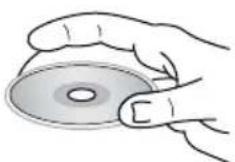
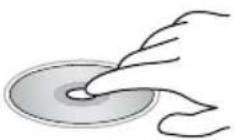
Cleaning discs
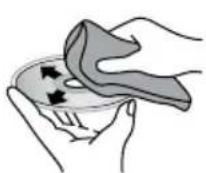
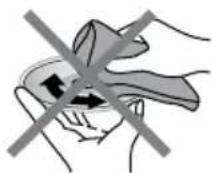
Fingerprints should be carefully wiped from the surface of disc with a soft cloth. Unlike conventional records, compact discs have no grooves to collect dust and macroscopic dirt, so gently wiping them with a soft cloth should remove must panicles. Wipe in a straight motion from the center to the edge.
Never use thinner benzine, record cleaner or anti static spray on a compact disc. Such chemicals can damage its plastic surface.
Cleaning the unit body
Wipe with a soft cloth. If the cabinet is very dampen (not dropping wet) the cloth with a weak solution of soapy water, and then wipe clean.
Accessories
- Receiver ....1.pc....
- Front panel ....1 pc ....
- Protective case .... 1 pc ....
- ISO connector 1 pc
- Mounting parts: Nut 5 mm....1 pc....
Spring washer ....2 pcs....
Plain washer ....2 pcs....
Screw M5x25 mm ..1 pc....
Screw ....1 pc....
Release key ... 2 pcs
Mounting collar ....1 pc....
Trim frame 1 pc
- Instruction manual 1 pc
- Warranty card ....1.pc....
- Consumer information .....1 pc .....
Troubleshooting
Below is a table describing simple measures that can help you eliminate most problems likely to emerge when this unit is in use. If below measures do not help, turn to a service center.
| Symptom Cause Solution | ||
| No power The car | ignition is not on. If the power supply is properly connected to the car accessory switch the ignition key to “ACC”. | |
| The fuse is blown. Replace the fuse. | ||
| No sound Volume | is in minimum. Adjust volume to a desired level. | |
| Wiring is not properly connected. Check wiring connection. | ||
| Bad sound quality | The installation angle is more than 30 degrees. | Adjust the installation angle to less than 30 degrees. |
| The disc is extremely dirty or defective. | Clean the compact disc/try to play a new one. | |
| Disc cannot be loaded or ejected | The unit already contains a disc. | Remove the disc in the player then put a new one. |
| Moisture condensation. Leave the unit idle for an hour, then retry. | ||
| Disc cannot be read | The disc is inserted upside down. | Insert the compact disc with the label side facing upward. |
| Compact disc is extremely dirty or defective. | Clean the disc or try to play a new one. | |
| Temperature inside the car is too high. | Cool off until the ambient temperature returns to normal. | |
| Buttons do not work | The built-in microcomputer is not operating properly. | Reset the unit with the help of RESET button. |
| Front panel is not properly fix into its place. | Install the front panel properly. | |
| The radio does not work | The antenna cable is not connected. | Insert the antenna cable properly. |
| The radio station automatic tuning does not work | The signals are too weak. Select stations manually. | |
| The display shows an error message (ERROR 1 – 11) one time. | Possible disc error. | Reset the unit by pressing RESET hole.Ensure the disc is inserted correctly into the slot.Clean or change the disc. |
| The display shows an error message (ERROR 1 – 11) repeatedly. | Unit operation error. | Turn to a service center. |
Specifications
General
Power supply 12 V DC
Current consumption max. 15 A
Maximum power output 50Wx4 channels
Fuse 15A
Dimensions (L x W x H)/Weight 178 x 51 x 163 mm/1.6 kg
Temperature range -20 ° C - +60 ° C
ESP 40 sec. for CD, 120 sec. for MP3, 300 sec. for WMA
Mounting angle 0 - +/-30
FM stereo radio
Frequency range 87.5 - 108.0 MHz
Presettable stations 18
Stereo separation 25 dB (1 kHz)
MW Section
Frequency range 522 kHz-1620 kHz
Presettable stations 6
Disc player
Disc support CD/CD-R/CD-RW/USB/SD/MMC
Fromat support CDDA/MP3/WMA
Frequency response 30 Hz-18 KHz
Signal to noise CD 55 dB (1kHz)
Line output 4 channel RCA line-out (2 V)
Specifications are subject to change without notice. Dimensions are approximate.
Снятие устройства

Чистка дисков
- Table of contents
- Dear customer
- Table of contents 2
- Before you start 3
- Installation/connection 4
- Operation 8
- General information.... 17
- Utilization of the product
- Important safeguards
- Installation
- General notes
- Din front/rear-mount
- Din front-mount (method a)
- Dismantling the unit
- Trim frame installation
- Din rear-mount (method b)
- Detachable control panel
- Anti-theft system
- Connection
- Using the iso connector
- Control elements
- Front panel
- Lcd layout
- General operations
- Turning on/off
- Volume control
- Audio parameter setting
- Mode selection
- Mute function
- Equalizer
- Loudness control
- Information display
- Beep function
- Tel mute
- Reset function
- Aux in jack
- Radio operations
- Band selection
- Tuning
- Automatic store/scan
- Programming stations
- Rds function
- Af (alternative frequencies) function
- Regional on/off mode
- Ta (traffic alarm) function
- Pty (program type)
- Local/distant stations
- Other parameter setting
- Ta seek/ta alarm
- Pi sound/mute
- Retune s/l - short/long
- Disc operations
- Insert/eject disc
- Pausing playback
- Playing the previous/next track
- Fast forward/backward playback
- Folder selection
- Intro playback
- Repeat playback
- Random playback
- Searching file/directory
- Mixed cd operations
- Notes on MP3 and wma
- Notes on creating your own cd-rs or cd-rws containing MP3 files
- Usb/sd/mmc operation
- Usb/sd/mmc notes
- Memory card operation
- Usb device operation
- Handling compact discs
- Handling discs
- Cleaning discs
- Cleaning the unit body
- Accessories
- Troubleshooting
- Specifications
- General
- Fm stereo radio
- Mw section
- Disc player
- Чистка дисков
Brand : HYUNDAI
Model : H-CDM8017
Category : Car Radio