TM808 - Tablet NuVision - Free user manual and instructions
Find the device manual for free TM808 NuVision in PDF.


| Product Type | Tablet |
| Brand | NuVision |
| Model | TM808 |
| Display Size | 8 inches (20.3 cm) diagonal |
| Display Type | TFT LCD capacitive touchscreen |
| Resolution | 1024 x 768 pixels (160 ppi) |
| Operating System | Android (likely 8.0 or later) |
| Processor | Quad-core 1.3 GHz |
| RAM | 1 GB |
| Internal Storage | 16 GB |
| Expandable Storage | microSD card up to 32 GB |
| Battery Capacity | 4000 mAh (typical) |
| Battery Life | Up to 4 hours of web browsing |
| Charging | 5V / 2A via micro USB |
| Rear Camera | 2 MP |
| Front Camera | 0.3 MP |
| WiFi | 802.11 b/g/n |
| Bluetooth | 4.0 |
| Ports | Micro USB 2.0, 3.5 mm audio jack |
| Dimensions | 200 x 135 x 10 mm (7.9 x 5.3 x 0.4 in) |
| Weight | 350 g (12.3 oz) |
| Speaker | Built-in mono |
| Microphone | Built-in |
| Care Instructions | Wipe with a soft, dry cloth. Avoid liquids. |
| Safety | Do not expose to extreme temperatures or drop. |
Frequently Asked Questions - TM808 NuVision
User questions about TM808 NuVision
0 question about this device. Answer the ones you know or ask your own.
Ask a new question about this device
Download the instructions for your Tablet in PDF format for free! Find your manual TM808 - NuVision and take your electronic device back in hand. On this page are published all the documents necessary for the use of your device. TM808 by NuVision.
USER MANUAL TM808 NuVision
For complete Instructions, visit www.nuvision.com
Customer Service
NuVision Customer Service
Phone: (800) 890-1288
Hours: 8:30am to 5:30pm PST M-F
Email: cs@nuvision.com
For expedited customer service, please register your tablet at www.nuvision.com
Introduction
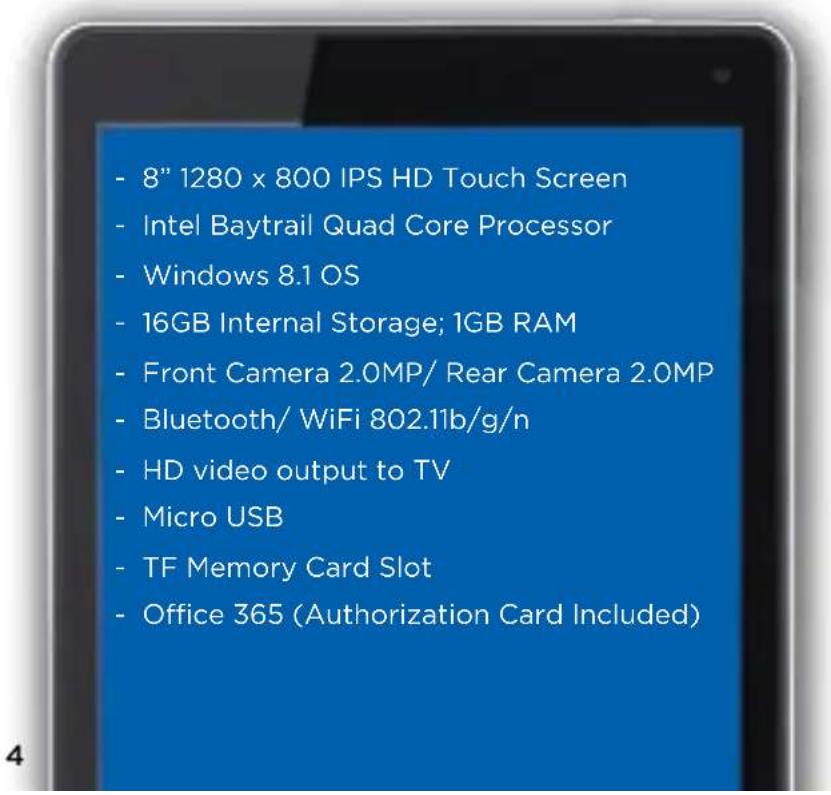
Thank you for purchasing the NuVision TM808 8" Windows 8.1 tablet. It utilizes touch technology to make your personal computing and rich media content experience fast, seamless and immersive. The tablet is the perfect companion for accomplishing everyday tasks, enhancing productivity on the go, playing video games, Xbox Music and Video, taking photos, and surfing the internet with Internet Explorer.
When it's time to work, the TM808 comes with Microsoft Office 365 Personal which includes Word, Excel, Outlook, PowerPoint, OneNote, and Access. Find the enclosed authorization card to begin your one year subscription. In addition, you'll find many more features including WiFi, Bluetooth connectivity, mini-HD video port to view content on an HDTV, a memory card slot for additional storage, dual cameras, and internal storage of 16GB and 1GB RAM. With a sleek design and bright high-definition IPS touch screen display, you'll enjoy your TM808 for many years to come. Using finger gestures you can swipe down from the top side, up from the bottom edge, or inward from the left and right edges of the display to navigate the Tablet.
The following information will help you get the most out of your tablet.
Features & Package Contents
TM808 Tablet AC Adapter
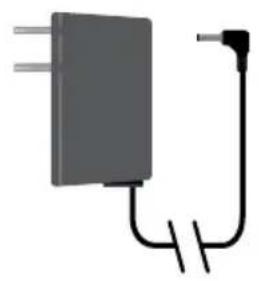
natural_image
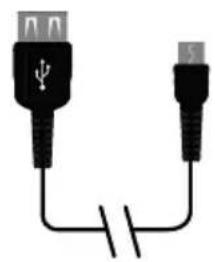
Simple line drawing of a plug connected to a terminal outlet (no text or symbols)Transfer Cable
natural_image
Pure electrical circuit lines without any symbolsImportant Safety Instructions
Please read the following instructions and notices before using your tablet.
- Avoid using in extremely hot, cold, dusty, damp or wet environments.
- Excessive use of earphones at high volume may lead to hearing impairment. Limit earphone usage, and adjust the volume to a moderate level only. Do not use the tablet while walking or driving.
- Do not suddenly disconnect the tablet when formatting, uploading or downloading data.
This may lead to program errors (e.g. system of screen "freezing".)
- If the AC adapter, AC cord or provided cables become damaged in any way, stop using them immediately. Failure to do so may cause the tablet to malfunction, or corrupt files and/or memory.
- Dismantling the tablet will void the manufacturer's warranty and may present the risk of hazard. If you are experiencing problems, review the Troubleshooting section of this manual.
- Improper use of the battery may result in explosion, so please review Batter Care section in this manual to charge the tablet battery safely.
- The touch screen is made of glass, so avoid dropping or forcibly placing the tablet onto a hard surface. Do not use alcohol, thinner or benzene to clean the surface of the tablet.
This may damage the screen or internal electronic components and void warranty.
- Do not use over-loaded, non-standard power sources or any power cable does not come with your device.
- Tablet functions, hardware, software and warranty information may be revised by the manufacturer or their respective owners, an subject to change without notice.
- Warning: This product may contain a chemical known to the State of California to cause cancer, birth defects, or other reproductive harm.
Tablet Overview
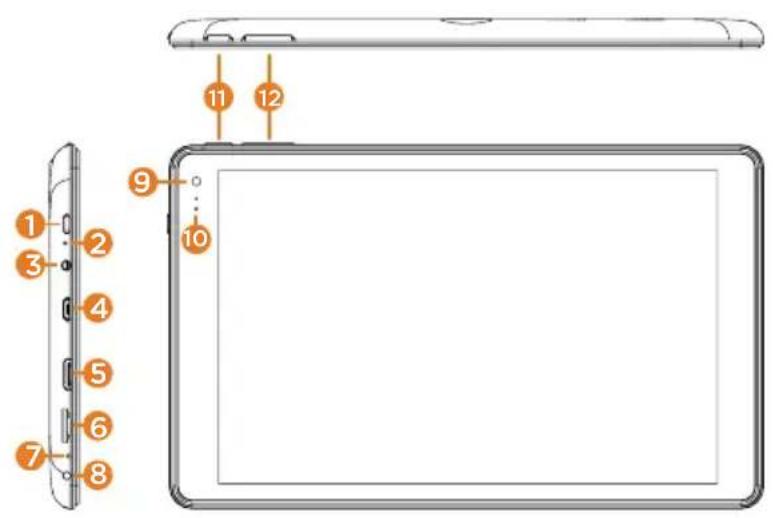
- Power: Press and hold for 3 seconds to turn on the tablet.
Press momentarily to enter Sleep mode. This will turn off display and save battery life. Press and hold to turn off. Slide down to shut off the tablet. - DC Indicator: Lit when device is turned on.
- Headphone: Use headphones for private listening or connect with amplified speakers.
- Micro USB: Transfer media files to or from your computer to the Tablet; connect compatible devices like a mouse, keyboard, flash or external hard drive.
- Mini HD video: Connect to your HDTV and view tablet content on the big screen.
- Micro TF Memory Card Slot: The built-in storage card reader slot supports an optional MicroSD memory card for additional storage.
- MIC: Built-in microphone.
- DC Input: Plug in AC power adapter to recharge the tablet.
- Front Camera: Built in 2.0MP front camera to take "selfies", video chat with family & friends, or shoot 720p HD videos.
- Camera Indicator: The indicator will flash on when the built-in camera is in use.
- Start Menu Button: Press to go directly to the Start Menu to access tiles.
- Volume- / Volume +: Decrease or increase volume level for speakers or headphones.
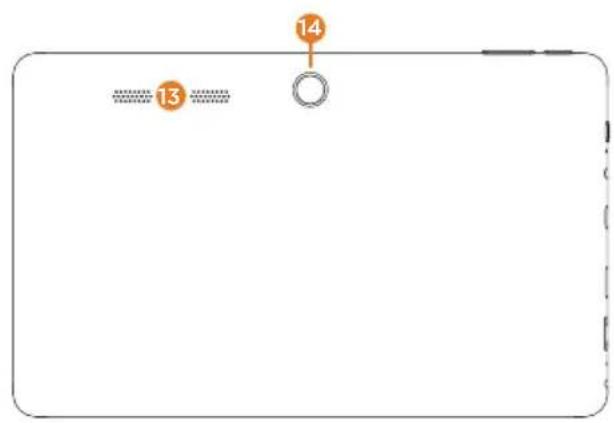
- Loudspeakers: Built in audio speakers to listen to music, podcasts, etc., without headphones.
- Camera: Built in 2.0MP rear camera to take HD photos or 720p videos.
Starting your Tablet
Power On/Off/Standby Mode
ON: Press and hold the POWER button on the side for about 3 seconds until the logo screen appears, then release.
OFF: Press and hold the POWER button. When prompted, slide finger downward to shut off the tablet.
STANDBY MODE: While the Tablet is on, press the POWER button quickly to turn off the display only. The Tablet will enter a sleep mode which minimizes some of the battery functions (turn off completely to avoid unnecessary battery drainage).
Press the POWER button quickly to wake from sleep mode so that you can use the Tablet immediately.
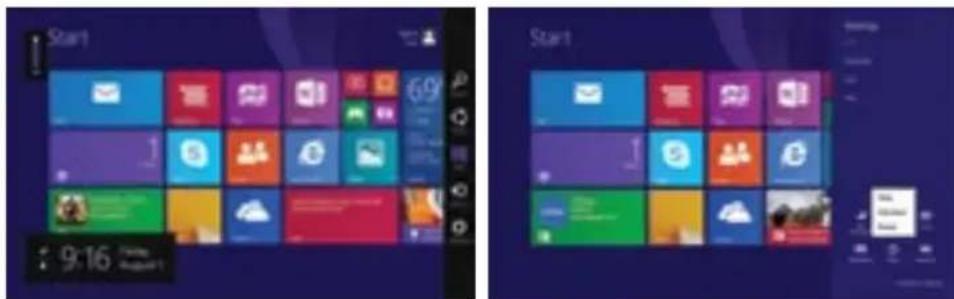
NOTE: Another way to access Power, Shut Down, or Update and Restart is to swipe left from the right edge of the screen and tap the SETTINGS charm.
To RESET, press and hold POWER button for 10 sec. Press again to turn on.
First time Setup
The first time you turn on the tablet, a set up wizard will guide you through a number of steps to personalize your tablet, set up WiFi and more.
User and Password Setup
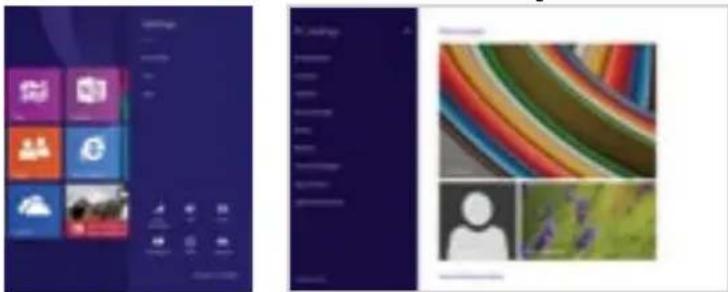
Swipe inward at left edge of display to call up the Charm Menu. when a password is required You can choose one to sign in to Surface. Here's how:
-
Swipe inward at left edge of display to call up the Charm Menu. Open the SETTINGS charm, then tap or click PC settings > Accounts > Sign-in options.
-
Under Password policy, choose an item from the list:
Microsoft account. Choose a time frame or to Always require a password.
Local account. Choose a time frame, Always require a password, or Never require a password.
NOTE: Password policy setting may not be available if you've added a work email account to the Mail app.
Charging the Tablet Battery
natural_image
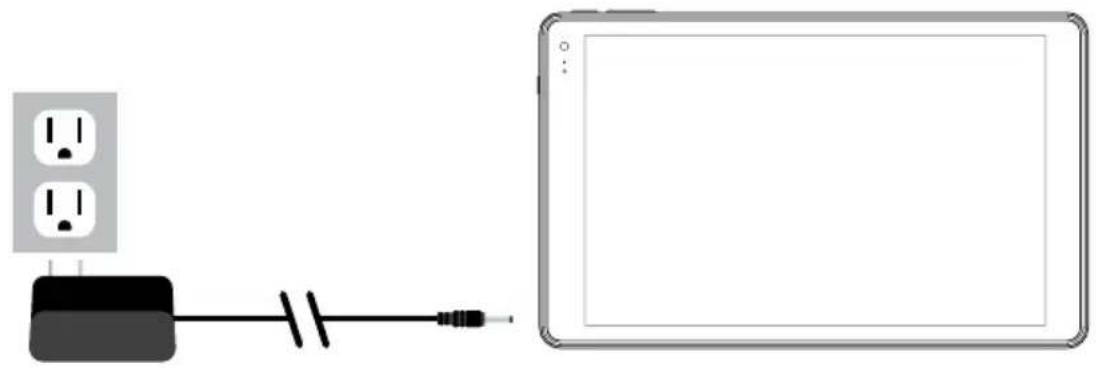
Diagram showing a power outlet connected to a device via cable (no text or symbols present)Connect the power adapter to a wall outlet, then to the Tablet as shown. It is recommended to fully charge the battery before first use. A battery status indicator appears in the lower left corner. Tap the battery icon to view the percentage of battery power remaining.
NOTE: It takes up to 5 hours to recharge the battery from a depleted state. It is normal for the tablet to feel warm during recharging and during actual usage. Actual play times will vary depending on display settings, apps that remain open, and your internet usage.
Charging the Bluetooth Keyboard
When battery power is running low the power light will begin to blink indicating that you need to recharge the keyboard.
Step 1: Attach the long USB cable (included with this keyboard) to the short transfer cable (included with the tablet).
Step 2: Connect the long USB cable to the keyboard's USB port and the other end to the tablet.
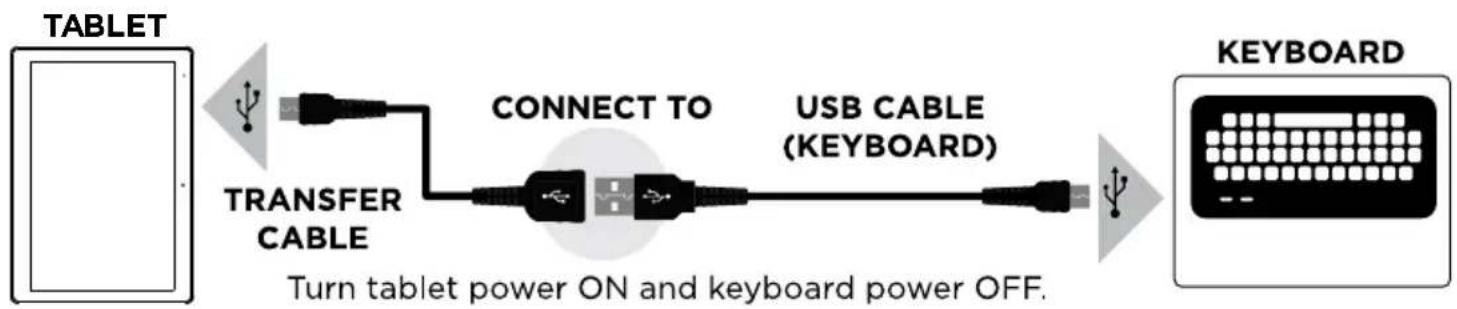
flowchart
graph LR
    A["TABLE"] --> B["USB Cable (KEYBOARD)"]
    B --> C["Keyboard"]
    D["TRANSFER CABLE"] --> E["Connect TO USB Cable"]
    style A fill:#fff,stroke:#000
    style C fill:#fff,stroke:#000
    style D fill:#fff,stroke:#000
    style E fill:#fff,stroke:#000
NOTE: Tablet must be powered on to charge the keyboard. If battery level on the tablet is low, plug in AC power adapter to recharge.

Battery Care
Operating temperature: Your Tablet is designed to work between 32°F and 95°F (or 0°C to 35°C). Lithium-ion batteries are sensitive to higher temperatures. Keep your Tablet out of direct sun light and don't leave it in a closed environment susceptible to extreme temperatures.
Recharge anytime: You can recharge the internal battery at any time. However, we recommend discharging the battery down to 10% or lower level at least once each before you recharge it.
Basic Operation
Lock Screen and Start Menu
First, press the Power button. Then with your finger, swipe up on the touch screen. The Lock screen is the starting point and appears when the tablet screen is turned on. Sign in to your account by typing your password.
The Start Menu is the area where you open your apps, access the web, social media, and more. Tiles will display alerts, new messages, announcements, etc.
To access the Start menu and view your app tiles, press the button. To view apps already running, swipe inward from the left edge of the screen.

natural_image
Colorful abstract swirl pattern with no text or symbols visibleBasic Operation (Cont.)
Create a Microsoft account
It is recommended to set up or use an existing Microsoft account for better enjoyment of Microsoft services such as Xbox, Outlook.com, OneDrive, Skype, etc. Many apps and services rely on the account to sync content and settings across devices.
If you have more than one Microsoft account already, you'll need to choose one.
Add Other Email Accounts
Here's how to add your email accounts:
- Tap or click Mail from the Start screen.
- Open the Settings charm, then tap or click Accounts > Add an account.
- Choose the type of account you want to add, and then follow the on-screen instructions.
Common Finger Gestures
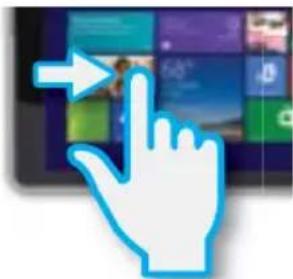
Slide to right to Access Open Apps
natural_image
Hand cursor clicking a digital interface with a blue arrow icon (no text or symbols)Slide to Left for Search, Share, or Settings
natural_image
Hand icon pointing at a digital screen with a blue arrow, no text or symbols present
natural_image
Solid yellow background with a small black square overlay and partial white triangular shape (no text or symbols)Swipe the right side edge: Swipe to search, share, or access PC settings.
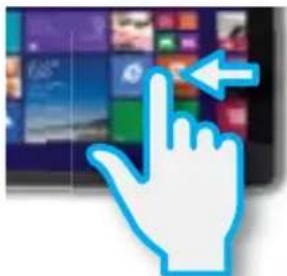
Swipe the left edge: Switch between open apps by swiping inward the left edge of the screen. Each time you swipe you will switch to another app. To switch to a specific app, swipe inward from the left edge and with your finger still on the touchscreen, move it back towards the left edge. Then tap the desired app.
natural_image
Hand icon with blue arrow pointing at a digital screen interface (no text or symbols)Pinch & Zoom Enlarge
natural_image
Hand cursor clicking a tablet screen with an upward arrow icon (no text or symbols visible)Common Finger Gestures (Cont.)
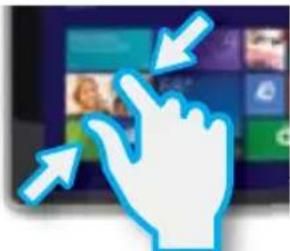
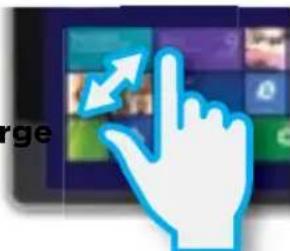
Pinch to Zoom: In some apps (such as Maps, Browser, and Gallery), you can zoom in and out by placing two fingers on the screen at once, and pinching them together (to zoom out) or spreading them apart (to zoom in.)
natural_image
Hand cursor pointing at a digital interface with a downward arrow (no text or symbols visible)Slide Downward
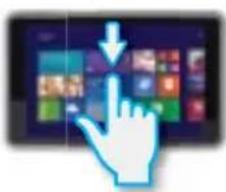
Swipe down from top edge: Switch to access app commands.
natural_image
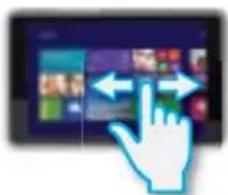
Hand interacting with a tablet displaying a grid of video thumbnails and arrows indicating touch points (no text or symbols visible)Slide with Finger:
Slide finger side to side to move an image.
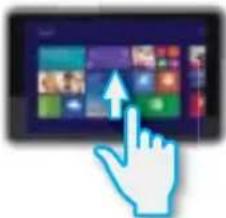
natural_image
Hand cursor clicking a tablet screen with a blue upward arrow (no text or symbols visible)Swipe the bottom edge: Swipe upward
from the bottom edge to choose an item on the bar of app commands.
Apps Menu
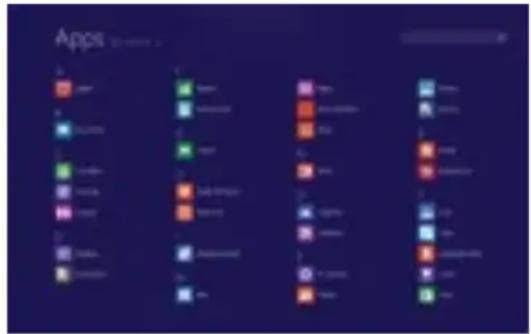
To display the menu of all available apps, tap and drag your finger upward from anywhere below the Start Menu tiles until you see the Apps Menu. Type an app name or scroll to view desired apps. To add one to the Start screen, tap and hold the desired app for 2 seconds. A checkmark will appear. To unpin from Start or uninstall, use the same process.
To return to the Start Menu and dismiss the Apps Menu, tap and drag your finger downward from the top of the screen.
To Close Desktop Apps
Apps can be closed in two ways. You can close the app when you finished using it. Or simply open a second app and the first app will automatically close after a period of non-use.
To completely close, drag the app to the bottom of the screen, and hold it there until the app flips over. View open apps and services in Task Manager (Type Task Manager into Search to find this app).
NOTE: Having too many apps open at the same time may lower the overall performance of the tablet and drain battery power more rapidly.
Connecting to the Internet
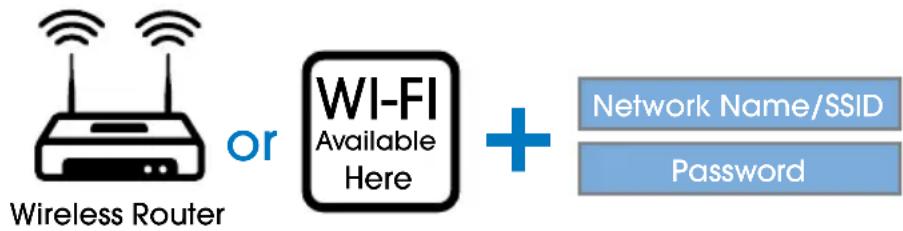
This Tablet utilizes WiFi 802.11b/g/n networks to connect with the internet so that you may access the world wide web, send emails, and download apps.
(WiFi distance may be affected by your surrounding environment and WiFi router).
In order to connect to the internet, you will need the following:
flowchart
graph LR
    A["Wireless Router"] -->|or| B["WiFi Available Here"]
    B --> C["Network Name/SSID"]
    B --> D["Password"]
Connect to a WiFi Network
Open the Settings charm (swipe inward from the right edge of the screen, then tap Settings). Tap the wireless network icon Under WiFi, tap the network you wish to connect to, and then tap CONNECT. If prompted, type and enter the password.
Disconnect from a WiFi Network
Open the Settings charm. Tap the wireless network icon that is connected. Tap the network with connected status, then tap DISCONNECT.
Charm Menu - Search, Share, Connect, Settings
Charms help you do the things you need to get done on your tablet including search, print, sharing and changing many of your tablet settings. From the right edge of the screen, swipe your finger inward to bring up the Charm Menu column.
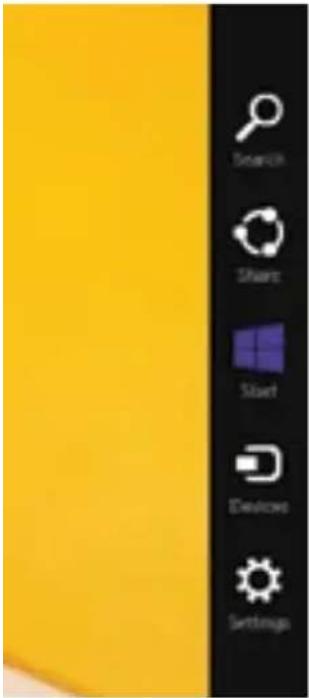
Search the files and application programs in the Tablet PC.
Share the program through social media, or email.
Return to the Start screen. From the start screen, you can also use this function to return to the application program last opened.
Read, write and share files, connect an external screen or printer with the device connected to the Tablet PC.
Personalize and set up the Tablet.
Add Skype for Calls and OneDrive for Additional Storage
Skype and Contacts

With Skype calls and video chat, you can stay in touch with anyone for free.
Once you've added your friends, you can make Skype calls and send instant messages.
To get started using Skype:
- On the Start screen, tap or click Skype.
- Sign in with your Microsoft account and your Messenger friends will be automatically added to your existing list of contacts. If you already have a Skype account, you can merge it with your Microsoft account by following the on-screen instructions.
- Add your contacts.
OneDrive Personal Cloud Storage

OneDrive is online cloud storage that comes with your Microsoft account. When you save documents, photos, music and other files on OneDrive, they're available for access from any web-connected device to use or share with others.
Add files to your OneDrive then access them from your Tablet.
- Go to the computer with the files that you want to copy to the Tablet.
- Go to OneDrive.com and upload the files.
- To access your files once uploaded, from the Start screen tap on OneDrive.
Then navigate accordingly.
Using Micro USB, Bluetooth Devices, & Viewing on HDTV
USB flash drive or hard drive
natural_image
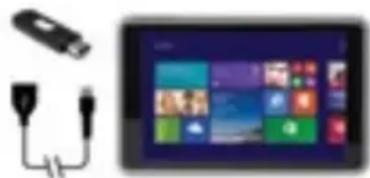
Illustration of a USB cable connected to a digital tablet displaying a grid of app icons (no text or symbols visible)Insert a USB flash drive or external hard drive into the USB port using the included transfer cable. In addition, you can add an external mouse, connect a keyboard, or other USB compatible devices.
NOTE: The first time you plug in a USB accessory, Windows will install the necessary software for you (if applicable).
Add a Bluetooth device
Add or "pair" a Bluetooth compatible device with your Tablet as follows:
- Power on the compatible Bluetooth device and make it discoverable.
- Open the SETTINGS charm, tap Change PC Settings > PC and devices > Bluetooth.
- Make sure Bluetooth is powered on, then wait while Windows searches for the device.
- If you purchased a KBT8 keyboard, see the bluetooth connection instructions included with the KBT8.
Connect to an HDTV or Projector
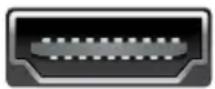
With an optional mini-HD video cable to full size HD video cable, you can connect your Tablet to an HDTV to watch movies or make presentations on a projector.
Using the Cameras and TF Memory Card Slot
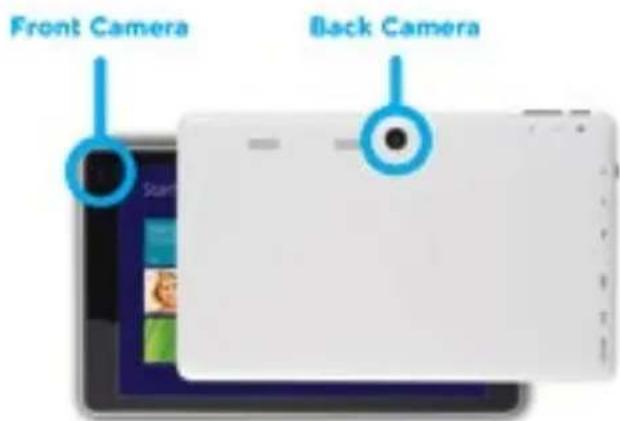
Front and Rear Cameras
Your Tablet features two 2.0MP cameras. Use the 2.0MP front-facing camera for Skype video chat, taking “selfies” or shooting 720p HD videos.
Use the rear-facing camera to record meetings, take HD videos and photographs.
To take a photo or record a video, open the Camera app then tap the on-screen Photo or Video button.
View and Edit Photos
View photos and videos you've taken with the Camera, Photos, & OneDrive app.
Camera app: Swipe to the right to view recent photos and videos. You can also swipe down from the top edge of the screen, and then tap Camera Roll.
Photos, File Explorer, or the OneDrive app: Go to the Pictures folder, and then to the Camera roll.
Using the Cameras and TF Memory Card Slot (Cont.)
Make automatic corrections through the Photos app. Experiment with lighting and color adjustments, effects, cropping and rotation.
- Open a photo in the Camera, Photos, or the OneDrive app.
- Swipe down from the top edge of the screen.
- Tap Edit.
- Choose auto and basic fixes, light and color adjustments, and effects.
- Swipe down from the top edge to save your changes.
TF Memory Card Slot
At some point you may require additional storage space on your Tablet. Use an optional TF style memory card to add storage capacity for media content or other files.
Windows Store for Apps
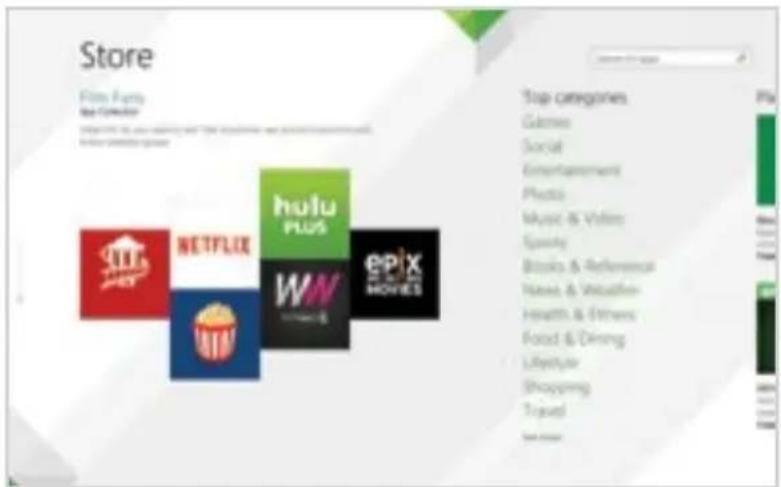
The Windows Store has all the apps you're looking for. Start searching for apps in top categories such as games, entertainment, music, sports eBooks, News, Food & Dining, Travel and more. Many are free and premium apps are available as well.
Warranty
TMAX Digital Inc warrants this product against defects in material or workmanship for a period of one (1) year from the original date of purchase. During this period, TMAX Digital Inc will replace a defective part with a new or refurbished part without a charge to you. If your unit is deemed not repairable, TMAX Digital Inc will replace the unit with a new or refurbished unit at TMAX Digital's sole discretion. The customer is responsible for transportation cost and insurance charges (if applicable) to Corporate. It is the customer's responsibility to retain original packaging or provide like packaging in order to facilitate the warranty process. TMAX Digital Inc. will incur no liability whatsoever to provide packaging for warranty items. Should the product be damaged due to insufficient packaging, the warranty may be voided. You must receive a return authorization number (RMA #) before sending the unit in for service. Service that is provided is warranted for the duration of the original warranty or 45 days whichever is greater.
Your Responsibility
The above warranty is subject to the following conditions: Retain the original bill of sales to provide proof of purchase. Labor service charges for set installation, setup, adjustment of consumer controls and installation or repair of any type of antenna or cable systems are not covered by this warranty.
Warranty (Continued)
The warranty extends only to defects in materials or workmanship as limited above and does not extend to any other products or parts, accessories that have been lost, discarded, damaged by misuse, accident, neglect, acts of God such as lightning, voltage surges in the home, improper installation, rendered illegible. Warranty does not cover cosmetic damage.
How to Obtain Warranty Service
After following the operating instructions and reviewing the FAQ from our website www.NuVision.com, please contact Customer Service directly at (800) 890-1288 or email cs@nuvision.com. Our hours of operation are from 8:30am-to 5:30PM (PST) Monday through Friday. You will be instructed on how your claim will be processed.
Have information available including date of purchase, serial number and the problem with the product. Should a problem be determined to be within the limits of the warranty you will be provided with an (RMA) authorization number and instruction. Proof of purchase must be confirmed before any warranty service can be provided. Should a claim not be covered by the limited warranty, you will be asked whether you wish to have service provided for a fee. We may charge the customer for any service call made for anything not covered by the limited warranty.
Warranty (Continued)
Limitations
Your LCD panel is an innovative device that is manufactured to precise tolerances with active performing pixels of at least 99.9%. As such, it is NOT a malfunction to view multiple nonperforming pixels on your screen. All warranties implied by state law are expressly limited to the duration of the limited warranty set forth above with the exception of warranties implied by state law.
© 2014 NuVision. All rights reserved.
Excel, Hotmail, Internet Explorer, Microsoft, OneNote, Outlook, PowerPoint, OneDrive, Windows, Xbox, Xbox Live, and Skype are registered trademarks of Microsoft Corporation. Bluetooth is a registered trademark of Bluetooth SIG, Inc.
This document is provided “as-is.” Information and specification may change without notice.