TM1088 - Tablet NuVision - Free user manual and instructions
Find the device manual for free TM1088 NuVision in PDF.


| Product Type | Tablet |
| Brand | NuVision |
| Model | TM1088 |
| Display Size | 10.1 inches |
| Display Resolution | 1280 x 800 pixels |
| Processor | Quad-core 1.3 GHz |
| RAM | 2 GB |
| Internal Storage | 32 GB |
| Expandable Storage | microSD up to 128 GB |
| Operating System | Android 10 |
| Battery Capacity | 5000 mAh |
| Battery Life | Up to 8 hours |
| Dimensions | 240 x 170 x 9 mm |
| Weight | 510 g |
| Connectivity | Wi-Fi 802.11 b/g/n, Bluetooth 4.0 |
| Rear Camera | 5 MP |
| Front Camera | 2 MP |
| Ports | Micro USB 2.0, 3.5 mm headphone jack |
| Sensors | Accelerometer, G-sensor |
| Power Supply | 5V/2A via micro USB |
| Certifications | CE, FCC |
Frequently Asked Questions - TM1088 NuVision
User questions about TM1088 NuVision
0 question about this device. Answer the ones you know or ask your own.
Ask a new question about this device
Download the instructions for your Tablet in PDF format for free! Find your manual TM1088 - NuVision and take your electronic device back in hand. On this page are published all the documents necessary for the use of your device. TM1088 by NuVision.
USER MANUAL TM1088 NuVision
NuVision TM1088/TM1088C User Manual
Table of Contents
Introduction / What Is In the Box....1
Safety Instructions....2
Function Overview....3
Getting Started 4-5
a. Charging the Tablet and Keyboard Battery/Battery Care
b. Tablet Power On & Unlock Screen/Tablet Power Off/Standby
Basic Operation....6-10
a. Home Screen and Managing Your Apps
b. Screen Orientation
c. Notification Bar
d. Bottom Navigation Bar Overview (Back, Home, Open Apps, Take a Screenshot)
e. On Screen Text Entry
f. Common Finger Gestures (Touch & Hold, Drag, Pinch to Zoom)
Setting Up Your Tablet 11-14
a. Connecting to Wi-Fi
b. Set Date & Time
c. Changing the Wallpaper
Pre-Installed Apps....14-20
a. Preloaded Apps (Google Play Store, Playkids, CloudLink, Maxthon, AccuWeather)
b. Cloud Storage (Google Drive, File Locker)
c. Utilities (Calculator, Calendar, Clock, File Manager)
d. Maps
e. Google Now
Multimedia Apps 20-22
a. Music
b. Video
c. Sound and Voice Recorders
Overview of Features 22-29
a. Front & Rear Cameras f. TF Memory Card Slot
b. Camera Setting/Adjustments g. Connecting External USB Devices
c. Gallery (Photos & Video h. Email Accounts (email, Gmail)
d. HDTV Output i. Transfer Media Files
e. Bluetooth
Settings Menu 30-31
a. Wireless Menu (WiFi, Data Usage)
b. Device Menu (Sound, Display, Storage, Battery, Apps)
c. Personal Menu (Location Access, Security)
d. Account Menu (Google, Add Accounts)
e. System Menu (Date & Time, Accessibility, About Tablet)
Specifications....32
Limited Warranty 33-34
NuVision TM1088 User Manual
Introduction
Thank you for purchasing the NuVision TM1088 10.1" internet tablet with Google Play. It utilizes touch technology and includes a high definition IPS wide-view panel for an immersive personal experience. The tablet is the perfect companion for accomplishing everyday tasks, browsing multimedia entertainment and enhancing productivity while on the go. Features include access to 25GB of free cloud storage, Bluetooth connectivity, an output to display content on your HDTV, memory card slot for additional storage of up to 64GB, front & rear cameras, and trial access to a popular educational and video app for kids in a parent-protected environment. With a sleek design, and powerful quad-core processor, you'll enjoy the TM1088 for many years to come. The following information will help get the most out of your tablet so we strongly recommend reading it thoroughly.
What is in the Box?
• NuVision TM1088 Tablet
• AC Adapter; Transfer USB Cable
- Quick Start Guide
Customer Support: email cs@nuvision.com or call (800) 890-1288
Important Safety Instructions
Please read the following instructions and notices before using your tablet.
- Avoid using in extremely hot, cold, dusty, damp or wet environments.
- The tablet is not moisture/water-resistant. Avoid using the tablet around sources of water.
- Avoid dropping or forcibly placing the tablet onto a hard surface. This may damage the screen or internal electronic components.
-
Do not use alcohol, thinner or benzene to clean the surface of the tablet. Use only cleaning products designed for computer tablet devices.
-
Do not use the tablet while walking or driving.
-
Excessive use of earphones at high volume may lead to hearing impairment. Limit earphone usage, and adjust the volume to a moderate level when doing so.
-
The images in this manual may vary slightly from the actual product.
-
Charge the tablet battery under any of the following circumstances:
a) Battery level icon indicates low power, by showing a drained, red battery icon.
b) Tablet powers-off automatically, continuing to do so even after restarting.
c) On-screen keys do not function.
-
Do not suddenly disconnect the tablet when formatting, uploading or downloading data. This can lead to program errors (e.g., system or screen "freezing".)
-
Static discharge in the cable, while it is connected to a computer, may corrupt files or damage the memory.
-
Dismantling the tablet will void the manufacturer's warranty. If you are experiencing problems, review the Troubleshooting section of this manual.
-
Tablet functions, hardware, software, and warranty information may be revised by the manufacturer or their respective owners, and subject to change without notice.
-
Warning: This product may contain a chemical known to the State of California to cause cancer, birth defects, or other reproductive harm.
Function Overview
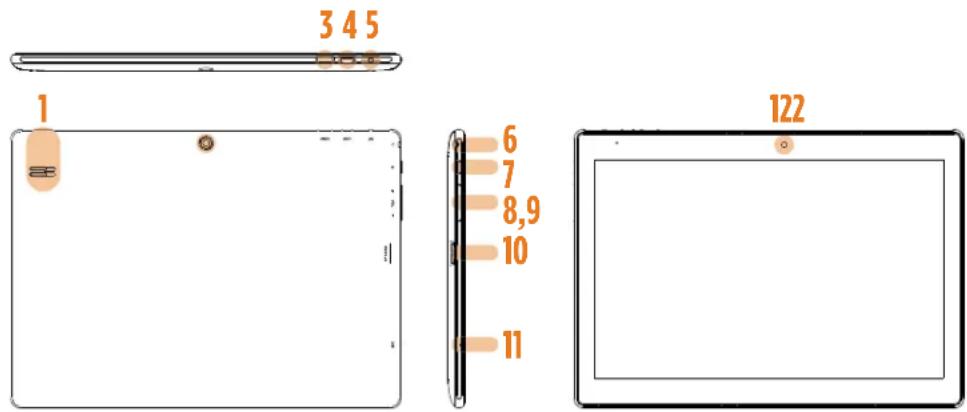
Touch Screen
Experience brilliant detail and wide angle viewing from the widescreen 10.1" IPS panel with 1280 x 800 resolution.
1. Speaker
Built in audio speaker to listen without need for headphones.
2. Rear Camera
Built in rear camera allows you to take HD videos or pictures.
3. HDTV Output
Connect to an HDTV and view all of your media content in high definition Connect to HDTV or monitor to display Tablet images on a larger high definition screen.
4. Micro USB Port
Transfer media files to or from your computer to the Tablet. Micro USB 2.0 will charge the internal battery from your PC (slow charge only).
5. DC Input & Charging Port
Connect to charge the internal rechargeable battery.
6. Headphone Jack
Use headphones for private listening or to connect with amplified speakers.
7. Power On/Off
8,9. Volume + - Key
Increase or decrease the volume level.
10. Micro TF Card Slot
Built-in memory card reader slot that supports up to an additional 32GB of storage.
11. Microphone
Use for voice narration, meetings, or note taking.
12. Front Camera
Built in front camera allows you to take “selfies” or to add video to your calls to family & friends.
Getting Started
Charging the Battery
Connect the power adapter from the wall plug to the Tablet as shown. It is recommended to fully charge the battery before first use.
NOTE: It takes approximately five hours to recharge the battery via AC power and it is normal for the Tablet to feel warm during the recharging process and actual usage. Play times will vary depending on display settings, apps that remain open, and your internet usage.
Battery Care
Operating Temperature: Your Tablet is designed to function between 32°F and 95°F (or 0°C to 35°C). Lithium-polymer batteries are sensitive to higher temperatures, so keep your Tablet out of direct sun light and don't leave it in a closed environment susceptible to extreme temperatures (ie: such as a vehicle).
Recharge Battery: Recharge the battery whenever it is convenient; it is also recommended to run the battery down to 10% at least once a month and recharge it.
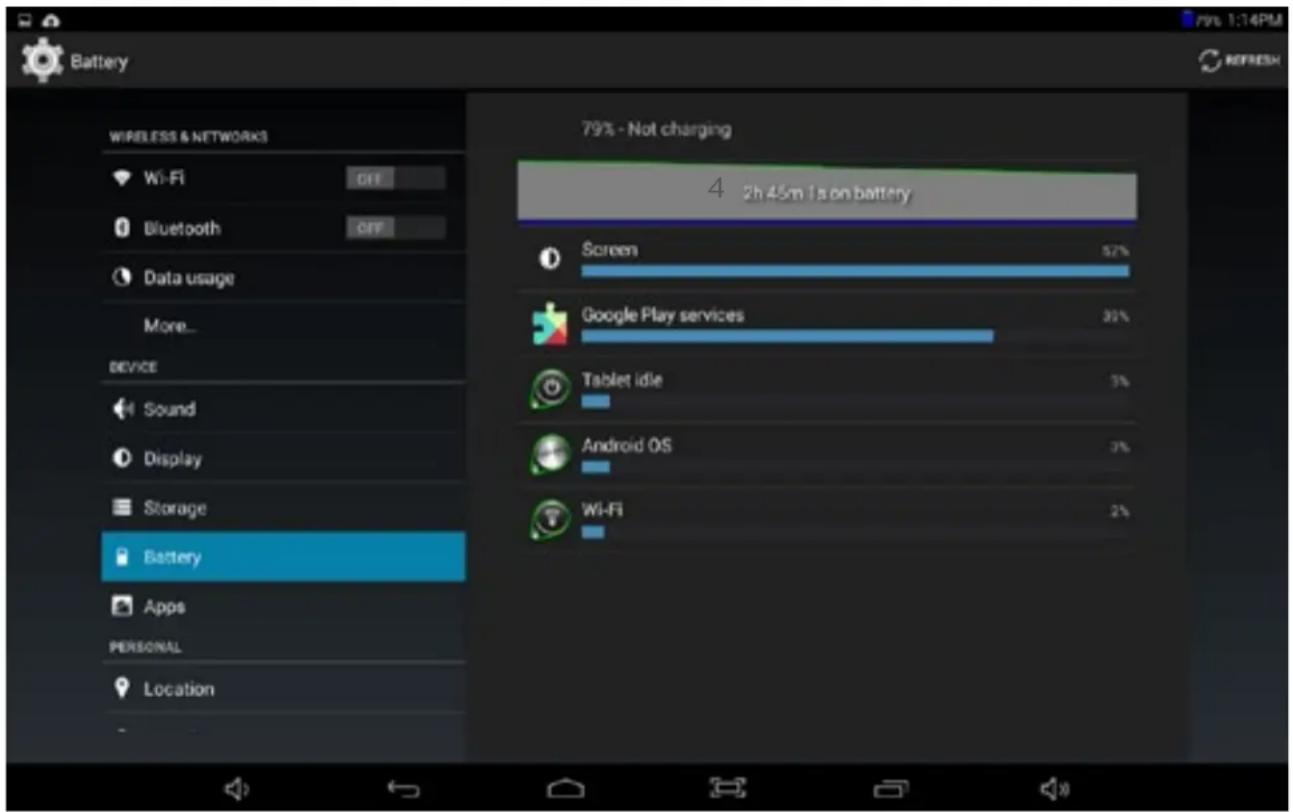
To View battery usage: Go to Settings > Battery to determine where battery resources are being used and for what purpose.
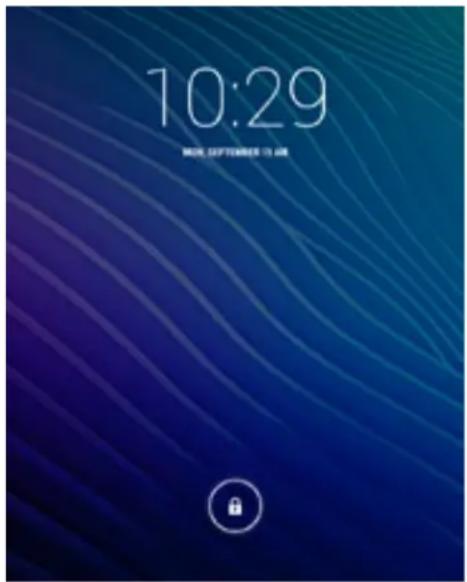
Power ON & Unlock Screen
Press and hold the POWER ⏻ button on the side for about 3 seconds until the logo screen appears, then release. The tablet will eventually display the locked Start-Up screen. Slide the "Lock" icon to the right to unlock.
Power OFF
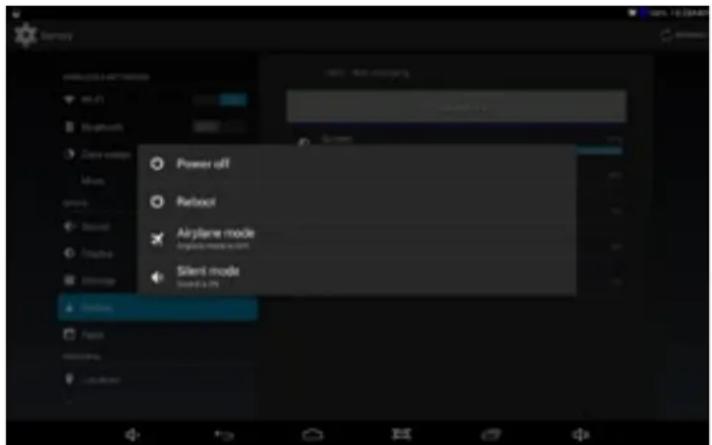
Press and hold the POWER Ⓞ button until the POWER OFF window appears, then tap to turn off. You also have the option to reboot the tablet, turn sound off/on, and turn Airplane mode off/on.
Standby
Briefly press the POWER Ⓞ button to enter STANDBY mode which will turn off the display and leave the tablet in a low-power mode.
NOTE: Battery drain will occur in this mode.
Basic Operation
Unlocking the Tablet
The lock screen is the starting point when you power on your tablet. To unlock, tap the lock icon then drag your finger to unlock.
Home Screen and Managing Your Apps
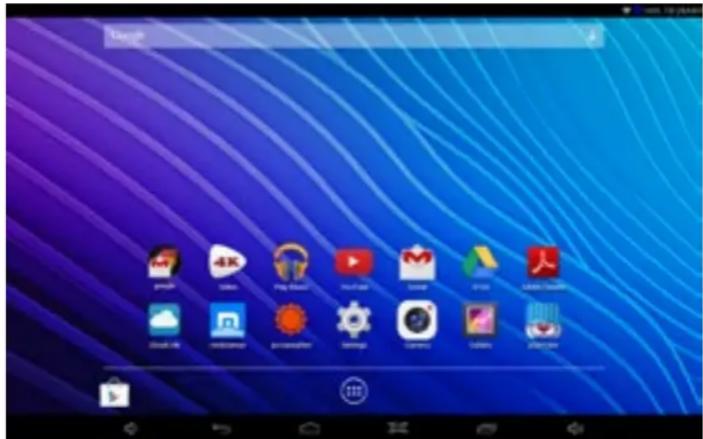
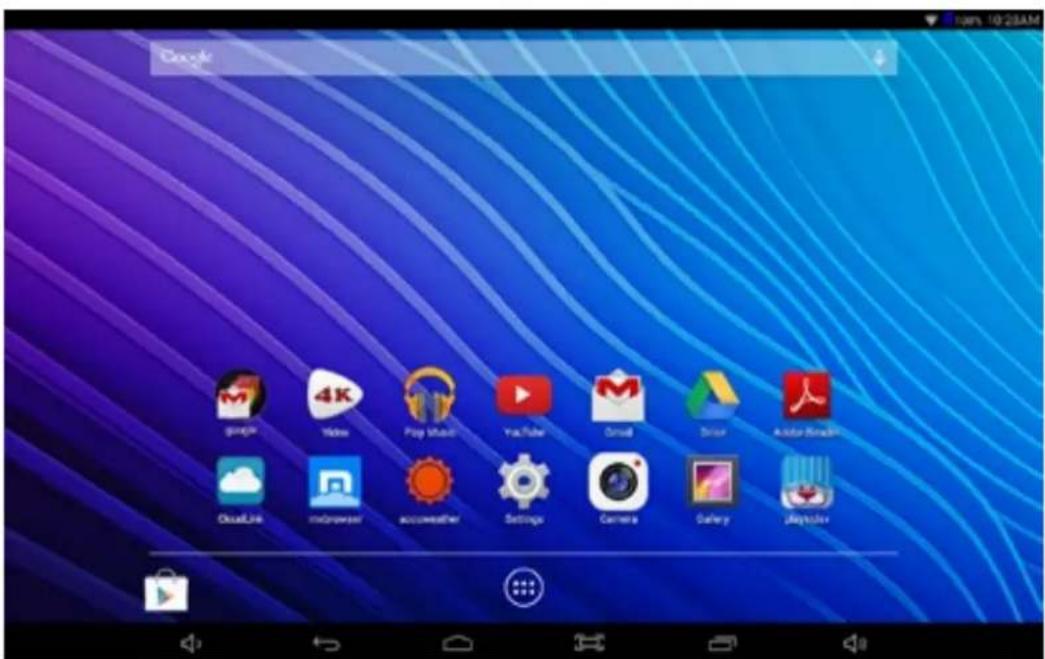
The Home screen is where all of the applications are found on your tablet. There are additional applications in the App Tray. Most Google apps are contained in a folder for your convenience. Press the App Tray icon to launch all Apps on the Tablet. Swipe your finger to the left or right to view additional Apps (if available). The Home screen is comprised of 5 separate screens; the main screen, and others on the right and left side.
In order to move an App from the App Tray to the Home Screen, touch and hold the app, then drag it to the desired screen. To remove it, touch and hold the App, then drag it to the “Remove” icon at the top of the screen. To create app folders for multiple apps, tap and drag an app onto another app until a black box appears.
Screen Orientation
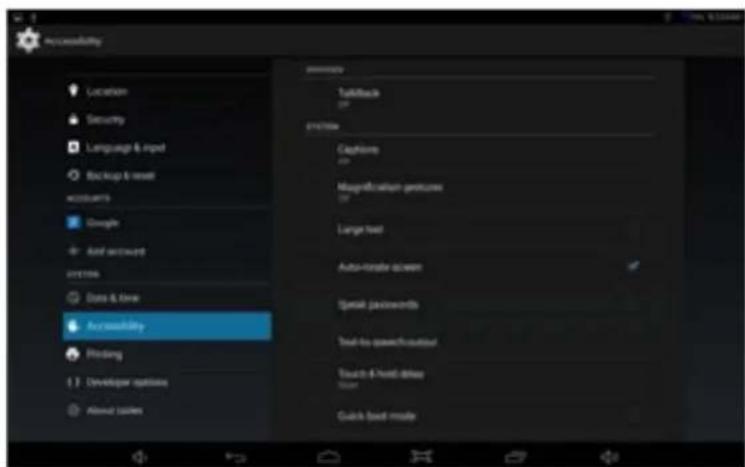
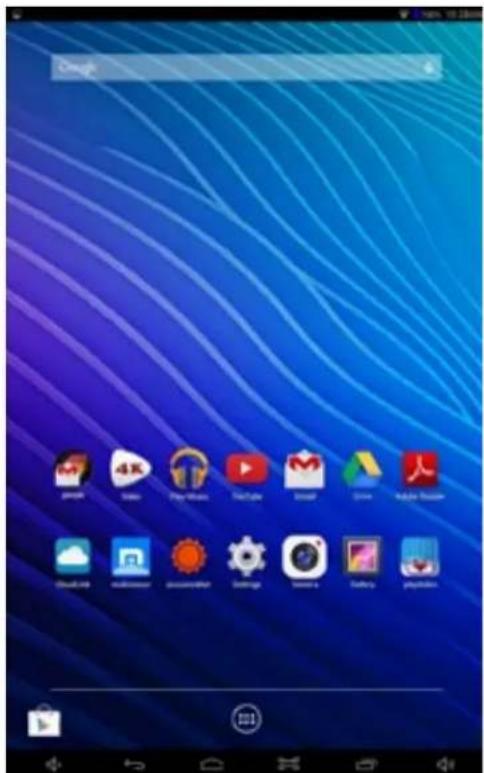
The Tablet is set for “Auto-Rotation”. When enabled, the screen automatically rotates based on how you are holding the tablet.
To lock the display in a Landscape or Portrait screen orientation, simply deselect the “Auto-rotate screen” option in Settings > Accessibility.
Portrait.Mode
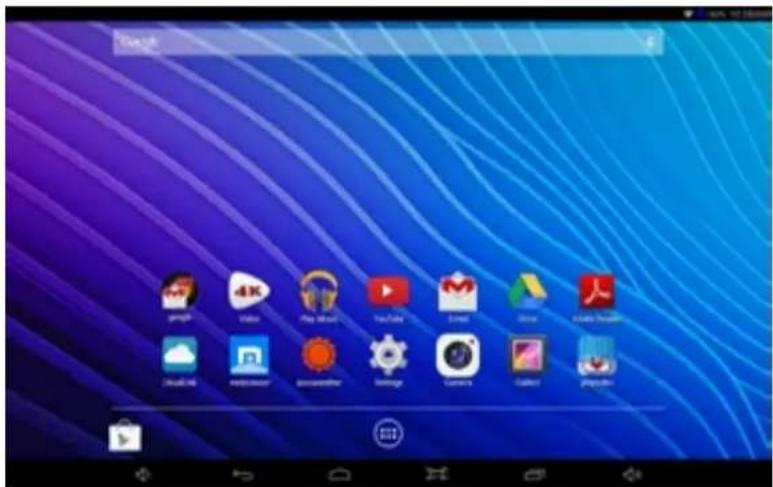
Landscape.Mode
Notification Bar
Swipe the Top Left or Right Side the Status Bar to View Notifications
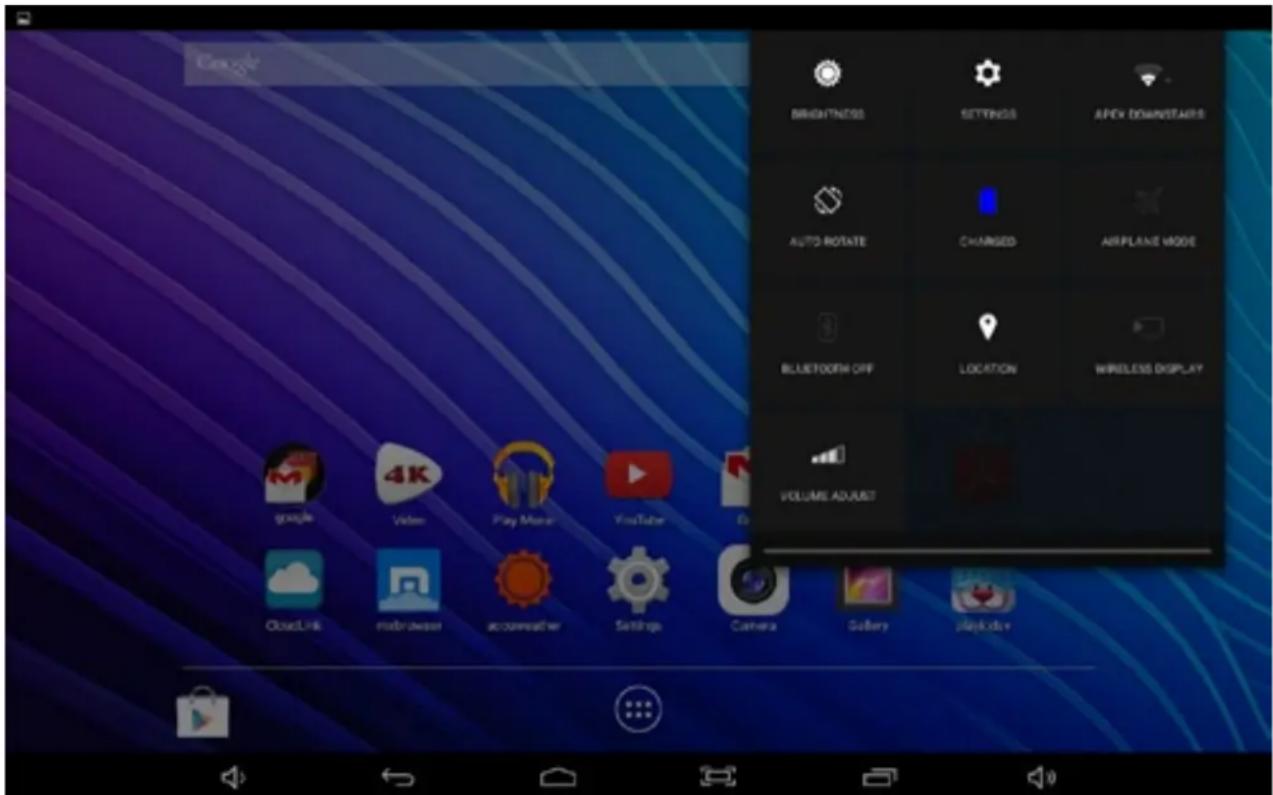
Notifications provide a means to alert you of new messages, alarms and scheduled events, screenshots captured, etc. The Notification Bar is the black bar at the top of the screen.
To view notifications, swipe your finger down from the top left side of the bar to open pending notifications. When done, simply swipe back to close.
For quick access to Settings options, swipe your finger down from the top right side of the Notification Bar. Quickly adjust for brightness, Wi-Fi, screen rotation, battery status, and more.
Bottom Navigation Bar Overview

natural_image
User interface toolbar with playback, download, home, camera, and speaker icons (no text or symbols)Take a Screen Shot - You can take a screenshot of the current image on your tablet. Save it in your Gallery or share with others. To capture an image tap the 📄 icon
NOTE: To share or edit an image, swipe your finger down from the top left of the screen to select.
Volume Down - Tap 📋 to decrease volume.
Back - Tap ← or √ to go back to the previous screen. Once back to the Home screen you cannot go further back.
Home - Tap to open the home screen.
Open Apps - Tap ☐ to open a list of thumbnail images you have open. To open an app, tap on it. To close an app, swipe it left or right.
NOTE: Closing open apps will avoid excessive battery drain.
Volume Up - Tap 📋 to increase volume.
On Screen Text Entry
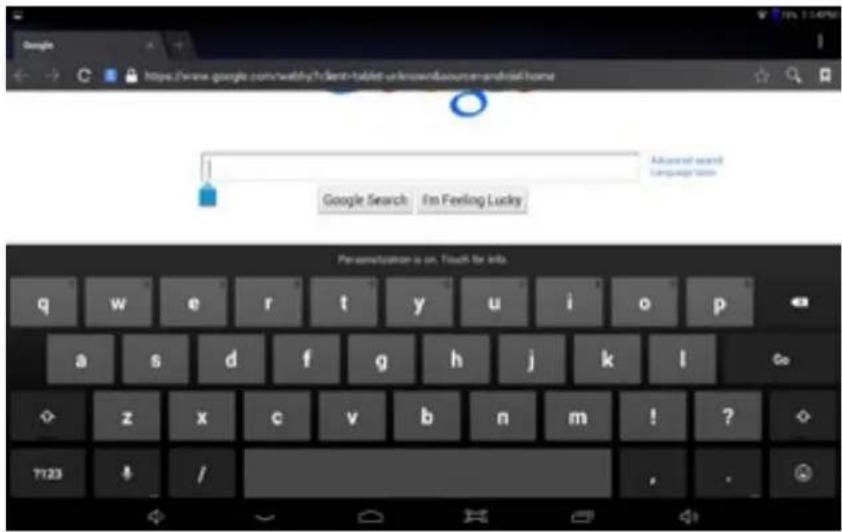
To type information, tap in the text field. An on-screen keyboard will appear and allow you to type directly on the display.
Common Finger Gestures
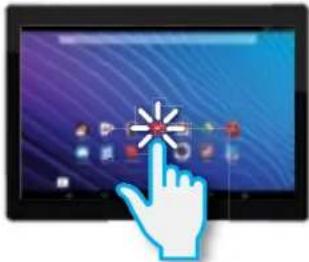
Touch and Hold to Delete: Touch and hold your finger on an on-screen App until a light glow appears around it. This is often used for deleting an item from the tablet.
natural_image
Illustration of a hand cursor clicking on a tablet screen with a starburst icon (no text or symbols)Drag: To move an object, or activate functionality, Touch and Hold an App until it glows, then "drag" it to another location on the screen without lifting your finger.
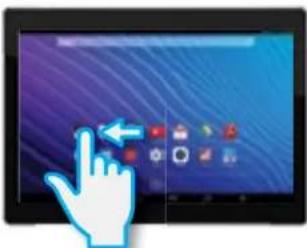
natural_image
Illustration of a hand interacting with a tablet displaying a grid interface (no text or symbols visible)Slide/Swipe: A motion often used to move through menus, pictures and multiple selections. Tap or flick your finger into the direction you want to move toward.
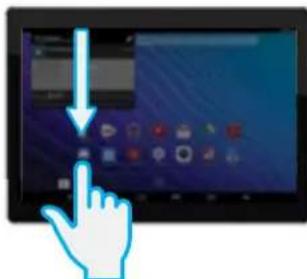
Pinch to Zoom: In some apps (such as Maps, Browser, and Gallery), you can zoom in and out by placing two fingers on the screen at once, and pinching them together (to zoom out) or spreading them apart (to zoom in.)
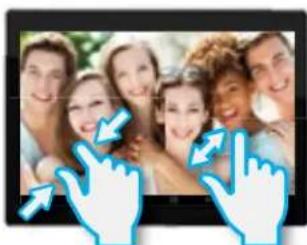
natural_image
Group photo of smiling people on a tablet device with blue hand icons pointing to the right (no text or symbols)Setting Up Your Tablet
Connecting to Wi-Fi
To connect to the internet, use email, or download music and videos, you must connect the tablet via a broadband Wi-Fi network and wireless router that supports Wi-Fi 802.11b/g/n. Know the name of your network (SSID) and password to make certain your network connection is secure.
NOTE: Configure your router to accept 802.00/b/g connections as well.
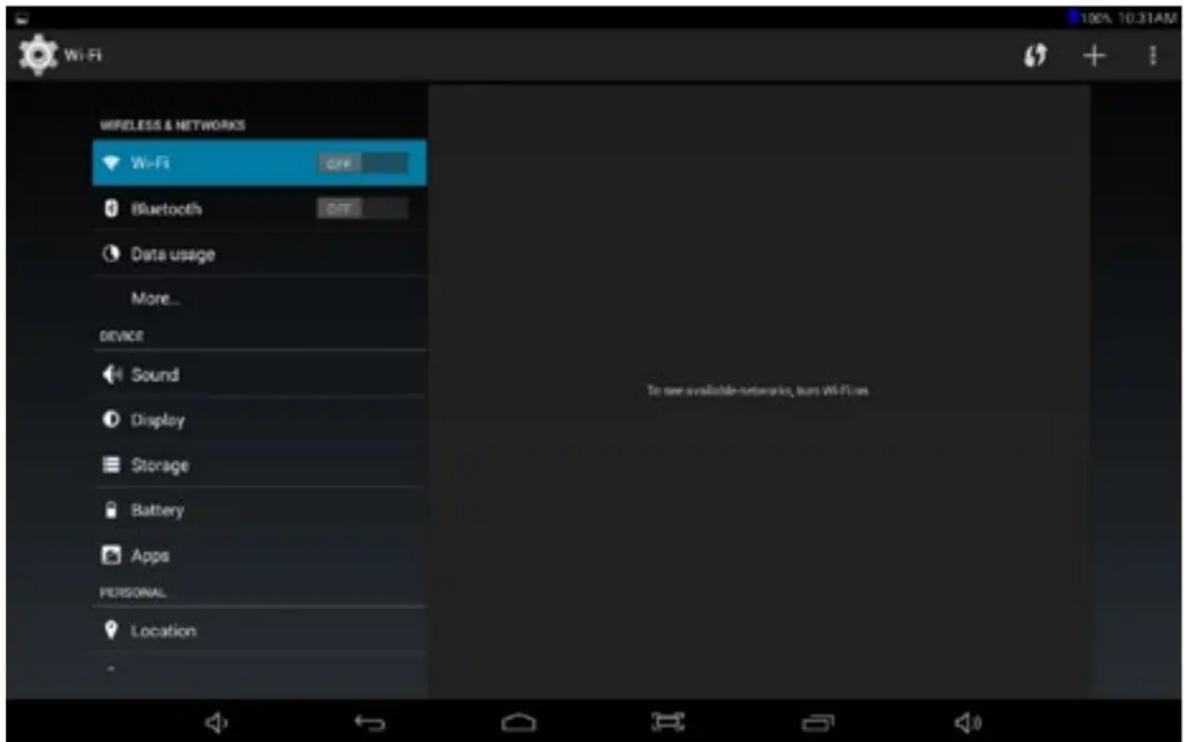
To connect Wi-Fi, follow these steps:
Go to Settings > Wireless & Networks > Wi-Fi
Turn on the Wi-Fi setting from OFF to ON by sliding the switch to the right. The tablet will scan for available Wi-Fi networks within range of your current location. Secured networks will have a Lock icon shown next to the wireless symbol.
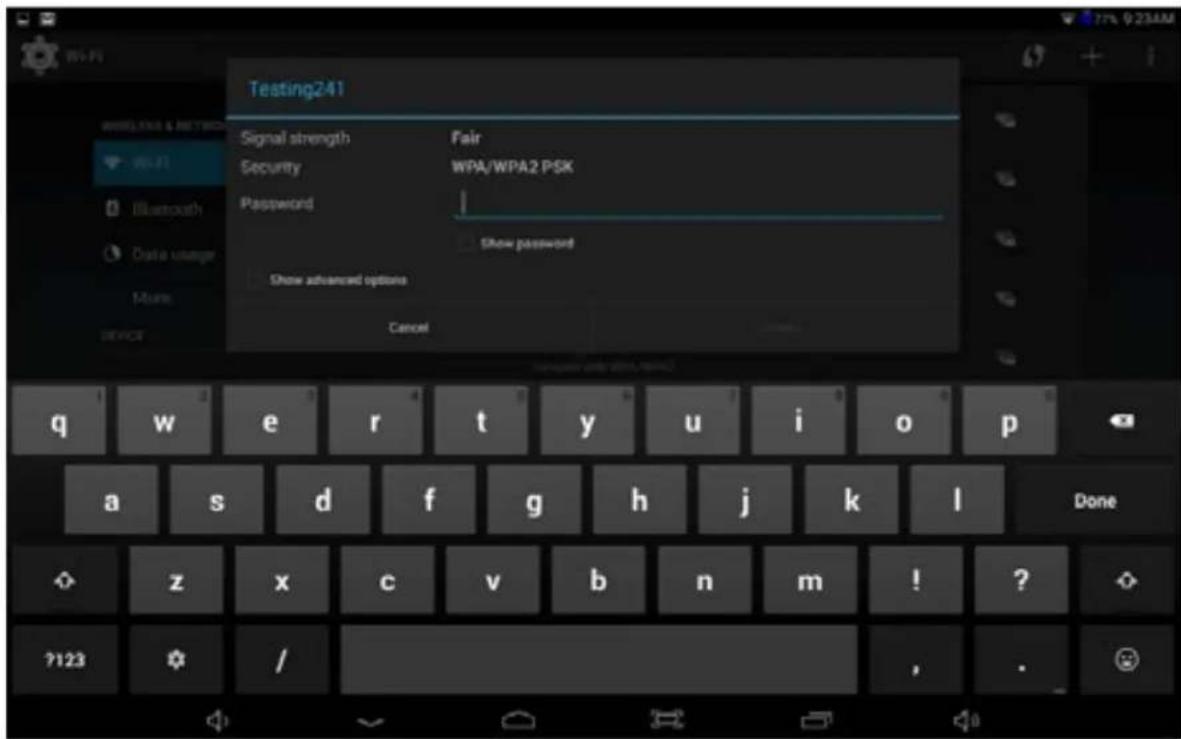
Tap on the name of your network and enter a password (if required). Once you have successfully entered the wireless network information and have connected, the tablet will remember your settings.
NOTE: When Wi-Fi is not in use, turn off in order to conserve battery power.
Set Date & Time
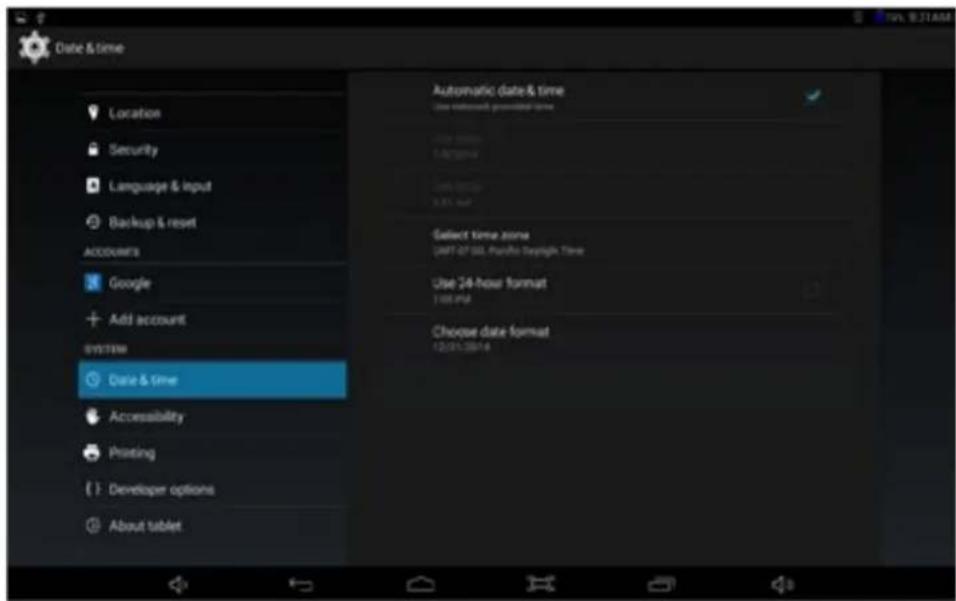
Go to Settings > System > Date & time
Automatically set date & time when connected to the internet. Otherwise, you can manually set date, time, time zone, 12 or 24 hour format, and date format.
Changing the Wallpaper
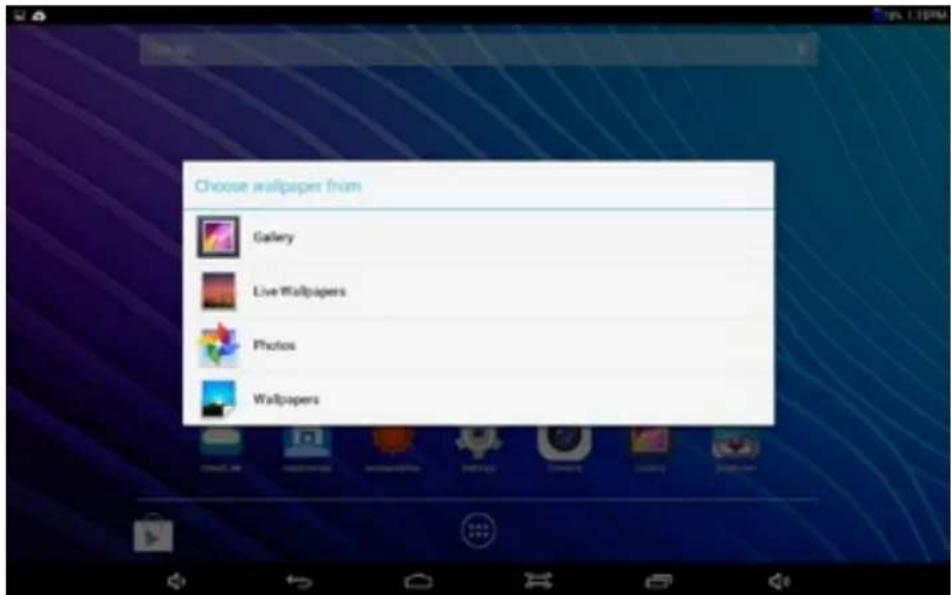
To change the wallpaper displayed on your Home screen, touch and hold anywhere on a Home screen that is not occupied for a few seconds. A list of options will appear. Tap one of them: Gallery, Live Wallpapers, and Wallpapers.
Gallery
Choose from photos that you have synced with your tablet.
Live Wallpapers
Choose from a scrolling list of animated wallpapers.
Wallpapers
Choose from thumbnails of default images, or touch a thumbnail for a larger version. You may also download wallpapers from the Google Play Store.
To set the selected image, tap Gallery, drag the blue dots to determine the crop area and tap OK, or for Wallpaper, tap Set Wallpaper.
Pre-Installed Applications
It is recommended to set up a Google Gmail account since many Apps use Google services. We have selected a diverse group of Apps to help get you started. They are located on the Home screens. Otherwise, tap the App tray to access and launch all other Apps on your tablet.
Google Play Store™ - Over 1M Apps are available for download including music, movies, e-Books, games, and widgets for use on your tablet.
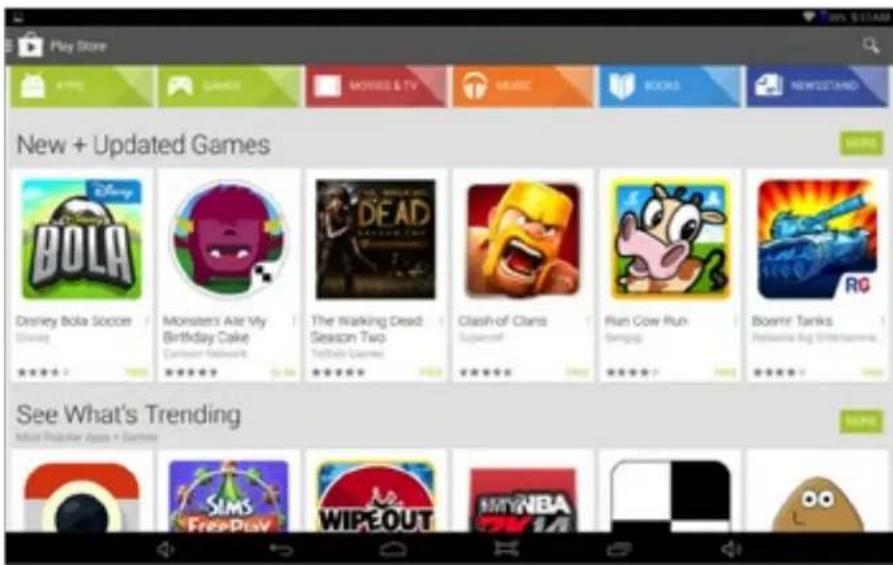
To access tap ▶ the Play Store App. Type in your email account and password. To create a new account, tap New and follow the on-screen instructions. Afterwards, you can begin to download and install Apps.
NOTE: Some Apps require a fee while others can be downloaded for free.
Playkids™ - To access tap
Playkids offers some of the best educational games and popular TV shows with a child-friendly interface made especially for kids and toddlers. Parental controls keep your child from accessing the rest of the tablet. Tap on one of the characters on the train to begin.
NOTE: After a free trial period there is a subscription for premium services.

natural_image
Cartoon illustration of a train with a blue hat on a snowy hill, surrounded by mountains and clouds (no text or symbols)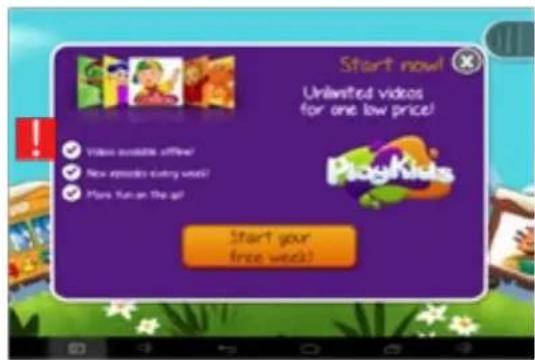
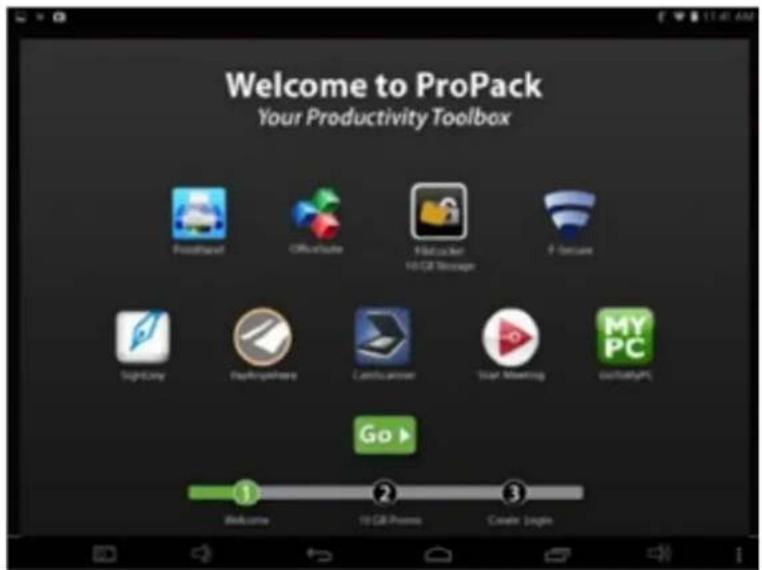
CloudLink™ - To access tap
CloudLink brings you popular productivity apps in one convenient suite that includes 10GB of free cloud storage from File Locker. In addition find premium apps from PrintHand, OfficeSuite, StartMeeting, and more.
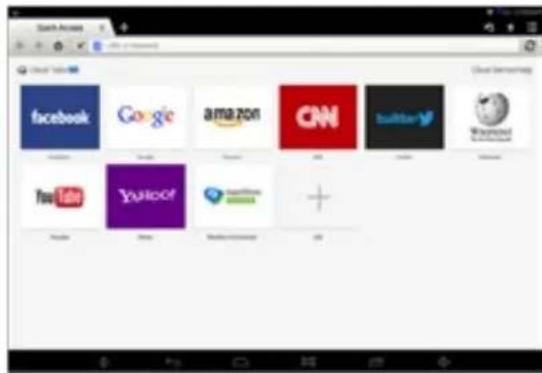
Maxthon™ - To access tap
Maxthon has created the world's first cloud browser that connects all of your devices. Share web content with friends. Download or receive all your content from the cloud.
AccuWeather™ - To access tap

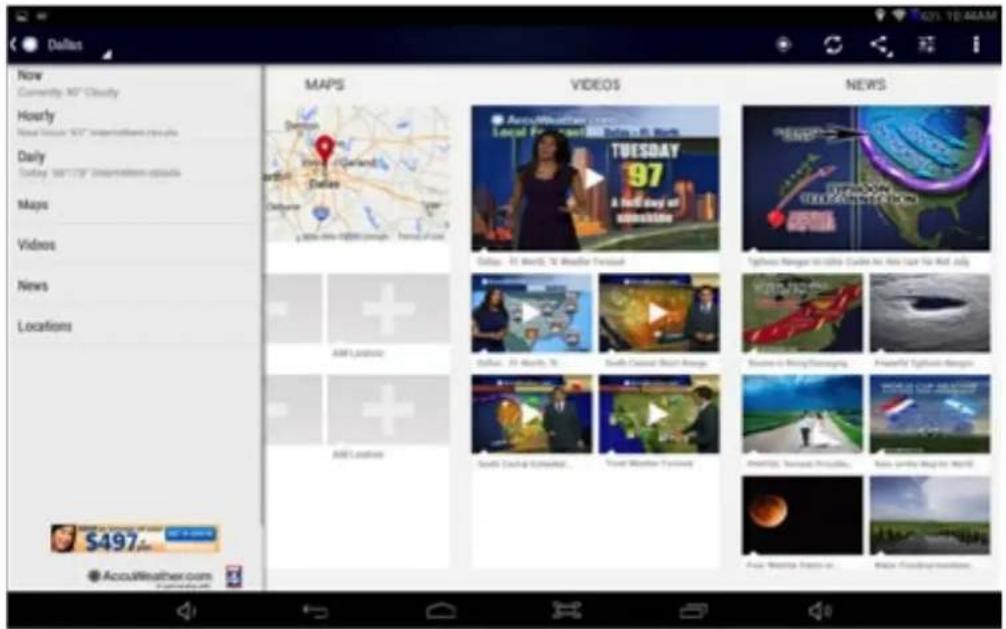
Stay connected to the latest in weather with this customizable weather App that is hyper-localized to provide forecasts at your street address.
Cloud Storage

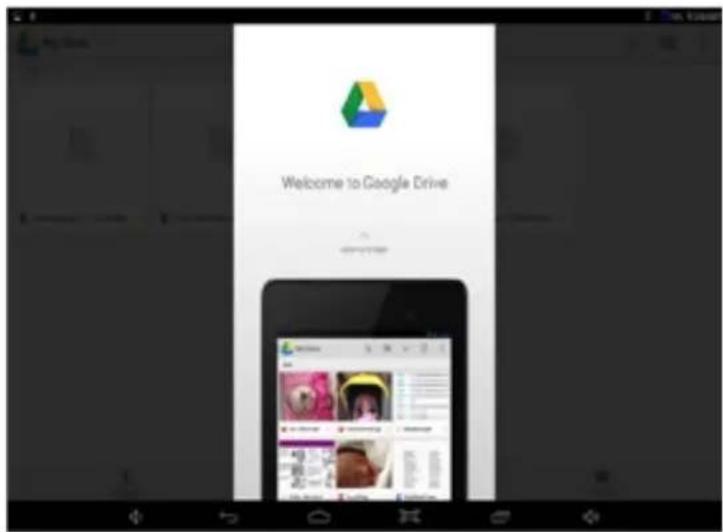
Google Drive - Manage your storage of all types of digital media and documents; share files, ges, etc. Receive 15GB of free storage when you sign up and create an account.
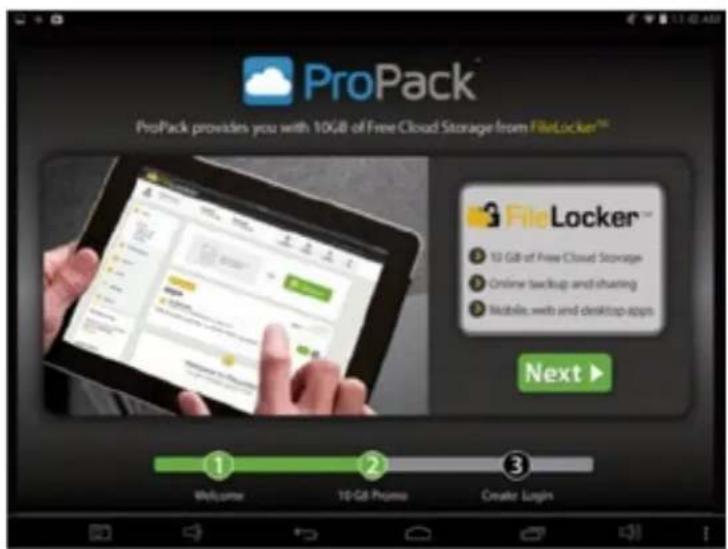
File Locker - (through the CloudLink productivity suite of Apps) - Manage your storage of all types of digital media and documents; share files, images, etc. Receive 10GB of free storage when you sign up and create an account.
NOTE: Additional storage is available for a small monthly fee from these providers.
Utilities
Calculator

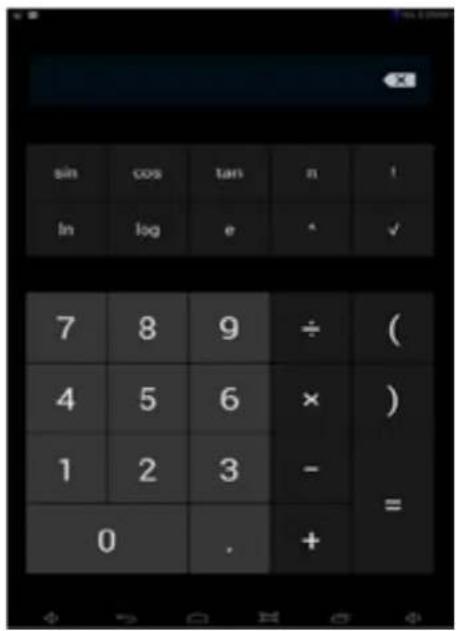
A simple and convenient calculator.
Calendar

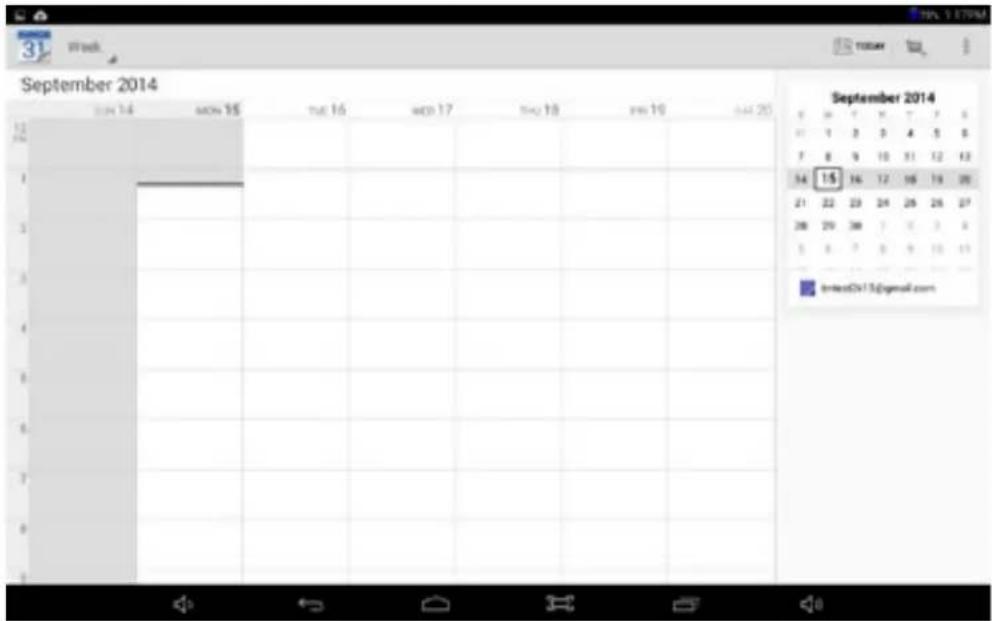
A robust calendar app that allows you to customize scheduling and reminders. When you configure to an existing Google account or create a new one the first time and open the Calendar app, it displays existing calendar events from that Google account.
Clock
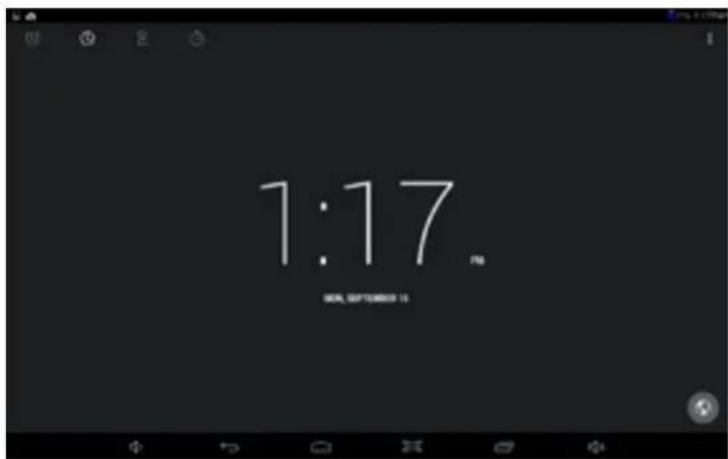
A standard clock/alarm that you can either set the time manually or, when connected to Wi-Fi, automatically updates to the correct local time (assuming the correct time zone has been set). Set an alarm by touching the Alarm icon. Select the time then tap OK.
File Manager
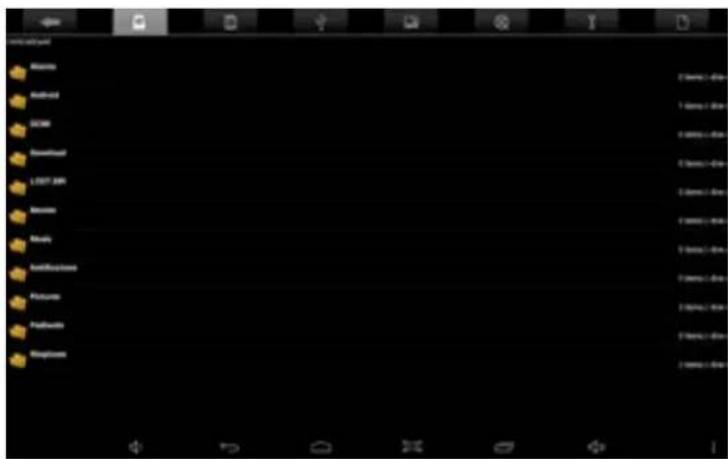
Allows for the management and access of data files, including music, video, and PDFs from internal storage, memory cards or externally connected storage.
Maps

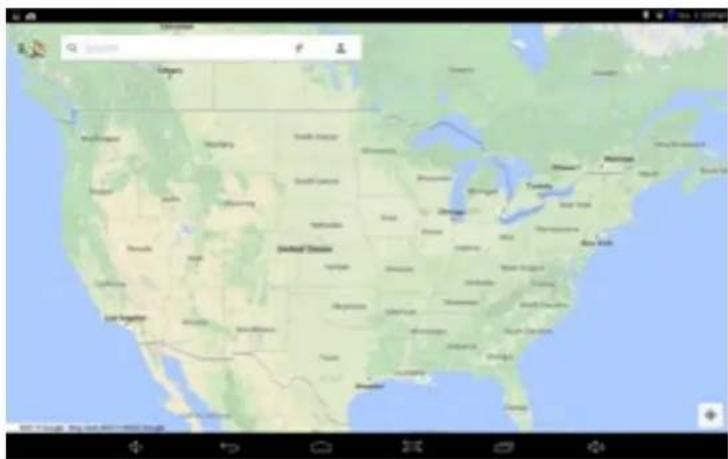
Use Maps and get directions based on your current location or view traffic on the highway before you begin your commute or family vacation.
Google Now
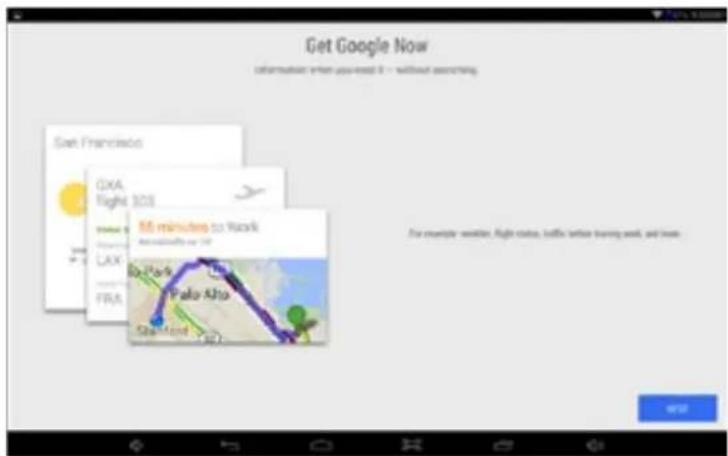
From knowing the weather before you start your day, to planning the best route to avoid traffic, or even checking your favorite team's score while they're playing, Google Now brings you the information you want, when you need it as it works in the background. Your information is automatically organized into simple cards that appear just when they're needed.
Multimedia Apps
Store and playback photos music, video, and games on your Tablet or optional TF memory card that can support up to an additional 64GB.
Music
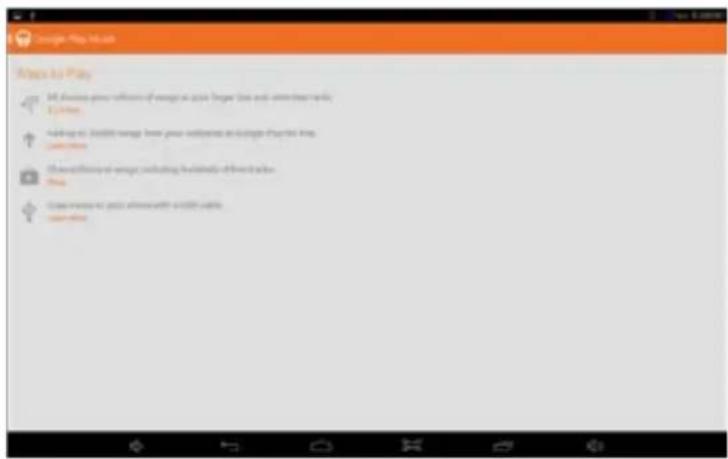
Use the Google Play Music app 📁 to listen to your favorite songs and albums.
Transfer music from your Mac or Windows computer to your Tablet using a mini USB cable.
Video


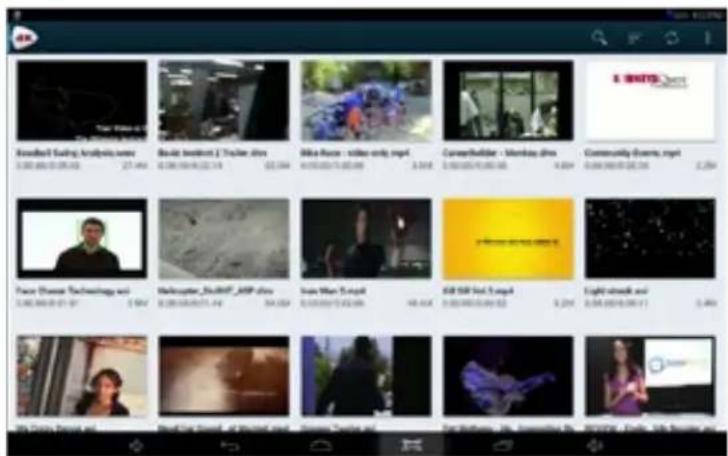
Use the 4KPlayer 🎨 or Gallery applications to view, organize and play back videos. Customize and set your playback preferences.
Sound and Voice Recorders

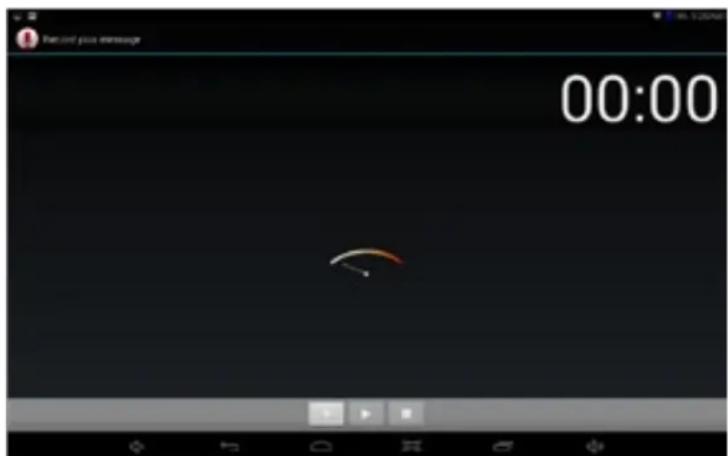
Use the Sound and Voice Recorder apps to manage and store your recordings. They allow for the recording of sound and/or voice narration, lecture meetings, note-taking, and concerts, directly into MP3 files using the internal microphone.
Overview of Features
Front & Rear Cameras

natural_image
Close-up of a smiling man and child with camera interface display (no readable text or symbols)Video Chat
Tap the 📷 icon to access Camera mode. The tablet features two cameras to take HD photos and video movies. The camera on the front of the tablet is for taking “selfies” or video chatting with family & friends (after installing a video chat App from the Play Store™).
To switch between both front and rear cameras press

Slide switch to change mode from camera

to video

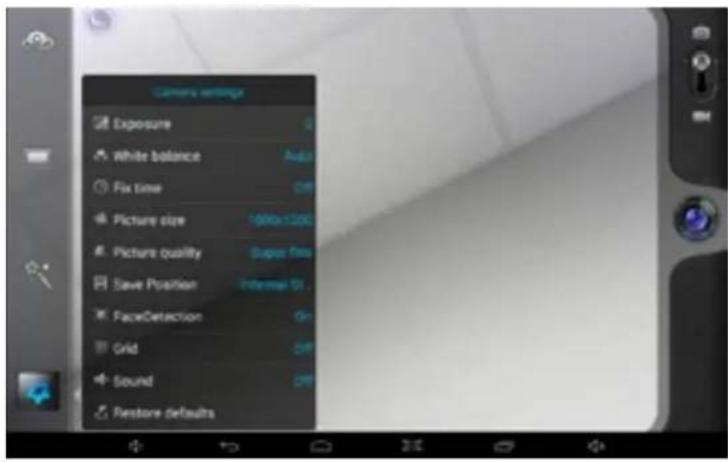
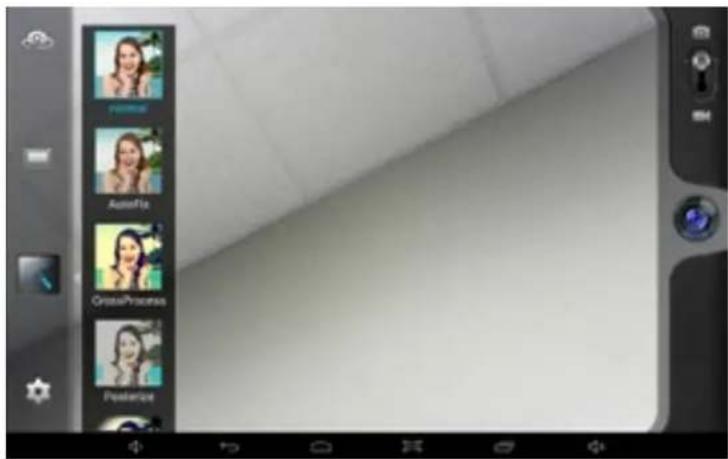
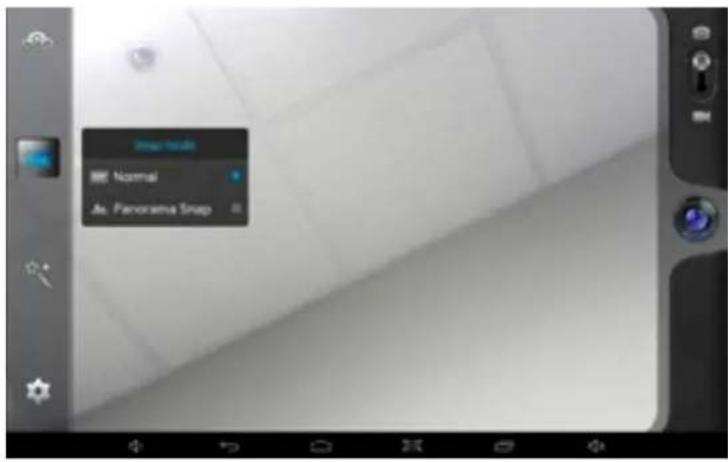
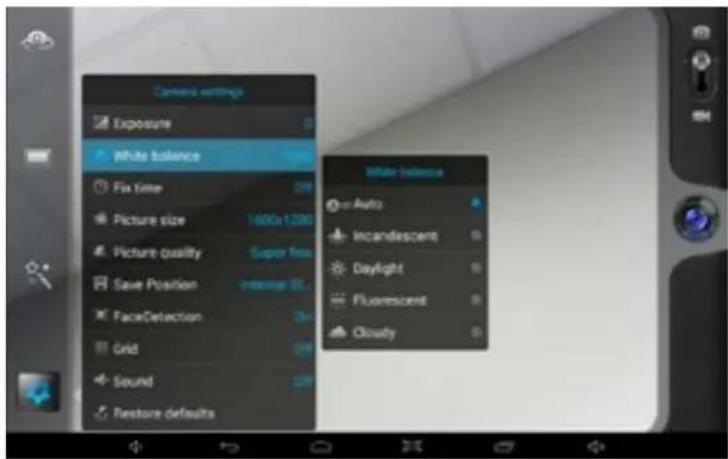
A multitude of camera settings are available for you to customize preferences and make color adjustments.
Camera.settings.and.preferences
Color.adjustments
Snap.modes
Color.corrective.white.balance
Gallery 📋 (Photos & Videos)
natural_image
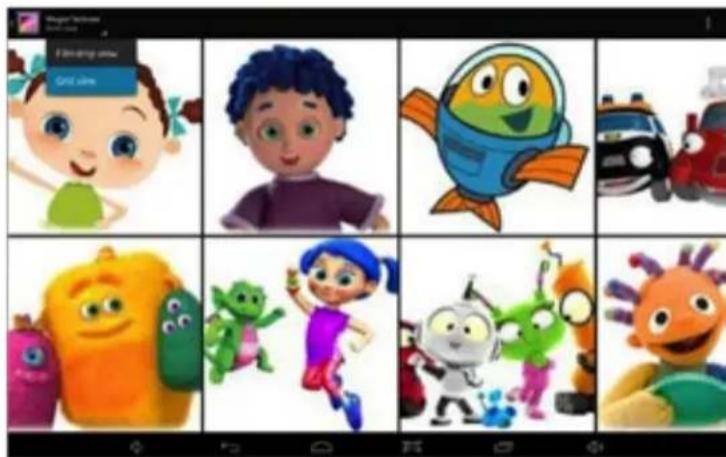
Grid of nine cartoon character illustrations in various poses, including children, toys, and animals (no text or symbols)Display and manage photos and image files. Use the Gallery app to view pictures and play back videos that you've taken, downloaded, or transferred. You can perform basic photo editing tasks, set images as your wallpaper, or share photos and videos with friends.
HDTV Output
Using an optional mini-HDMI to standard HDMI cable, connect from the HD output located on the tablet to your HDTV or TV monitor input and view content directly onto the larger screen. Video will automatically display on your TV.
Bluetooth
Your Tablet is compatible with Bluetooth capable devices. Once your tablet searches and finds the Bluetooth device, follow on-screen instructions to initiate the pairing of the device with the Tablet.
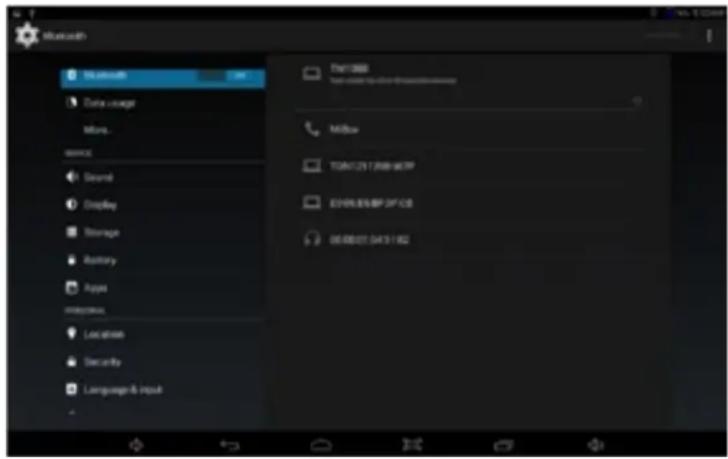
Add or "pair" a Bluetooth compatible device with your Tablet as follows:
- Turn on the compatible Bluetooth device and make it discoverable.
- Open the Settings > turn on Bluetooth.
- Tap on Bluetooth to view paired devices.
TF Memory Card Slot
The tablet supports TF memory cards (up to 64GB). Use an optional memory card to store music, videos, photos, documents, and more when the Tablets internal storage capacity becomes limited.
natural_image
Simple line drawing of a device with a downward arrow pointing to a screen (no text or symbols)TF Card
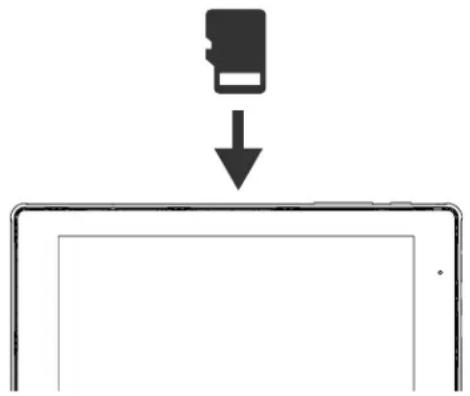
To install: Turn off Tablet; insert the memory card face up into the slot until it clicks and locks into place.
To remove: Open "Settings" > Storage > Un-mount Memory Card.
Make certain there are no programs running. Push the memory card inward with your fingernail until it pops out.
NOTE: Memory cards can only be inserted one way. Do not force when inserting; un-mount the card before ejecting; do not un-mount from the tablet while a program is in use.
Connect to Keyboard, Mouse, & other USB devices
Connect a keyboard, mouse, and other external devices to your tablet via USB or Bluetooth and use in the same way as you would on a PC.
Email Accounts - Gmail
Set up a Gmail account to access Google features including the Play Store, Google Drive, YouTube, Adwords, etc.
Tap 📂 to launch the Gmail App. Tap EXISTING then enter your account and password. If you don't have a Gmail account then tap NEW
Adding Other Email Accounts
To set up an email account other than Gmail tap 🤨 to access all Apps in the App tray.
Tap 📋 to log in. Tap SETTINGS then ADD ACCOUNT.
Transfer Media Files
Use the included micro USB cable to connect your tablet to a PC in order to transfer documents and media files (music, movies, photos) to and from your Tablet. When you connect the tablet to a personal computer, a brief message will appear in the upper left corner "USB Connected" or "Connected as an installer".
From your computer, view files to open and transfer.
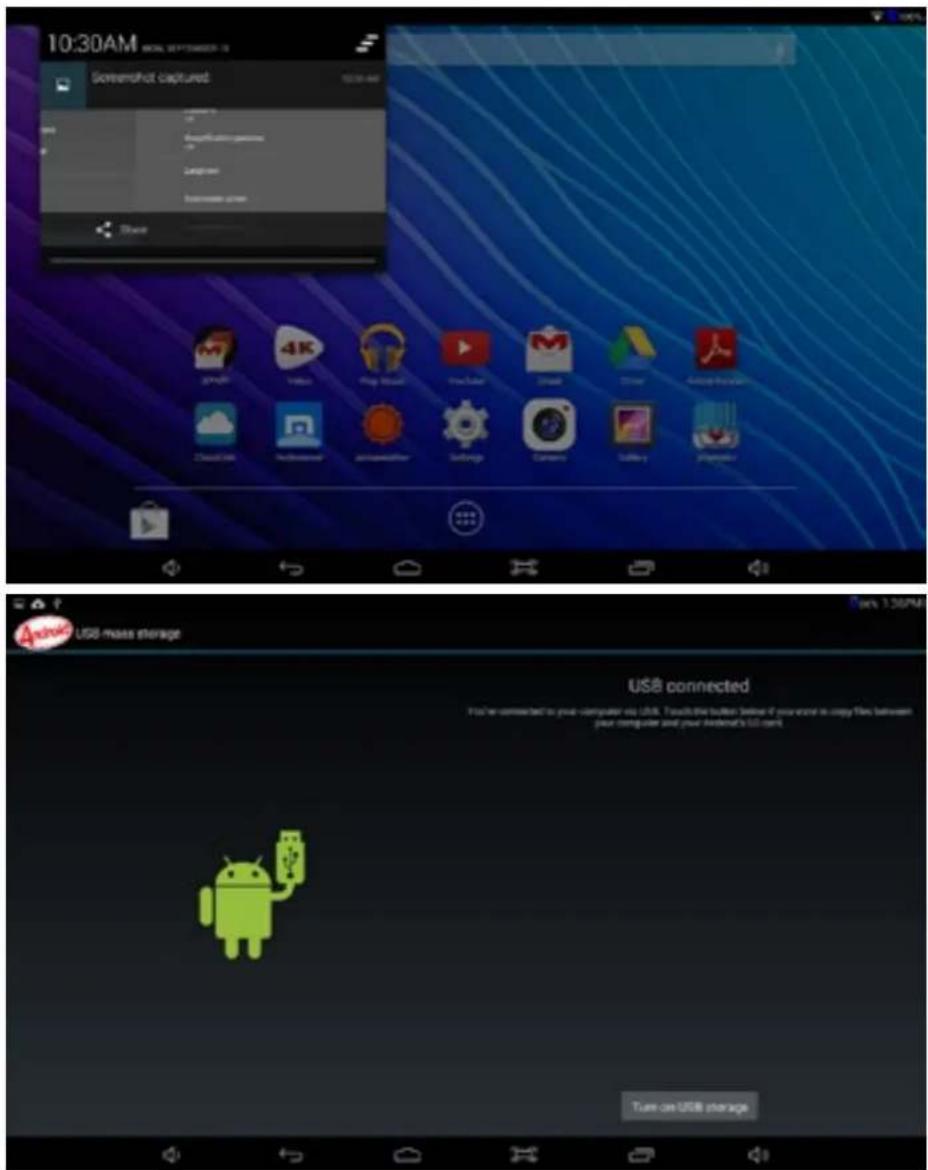
As seen on the Tablet when micro USB cable is connected to PC
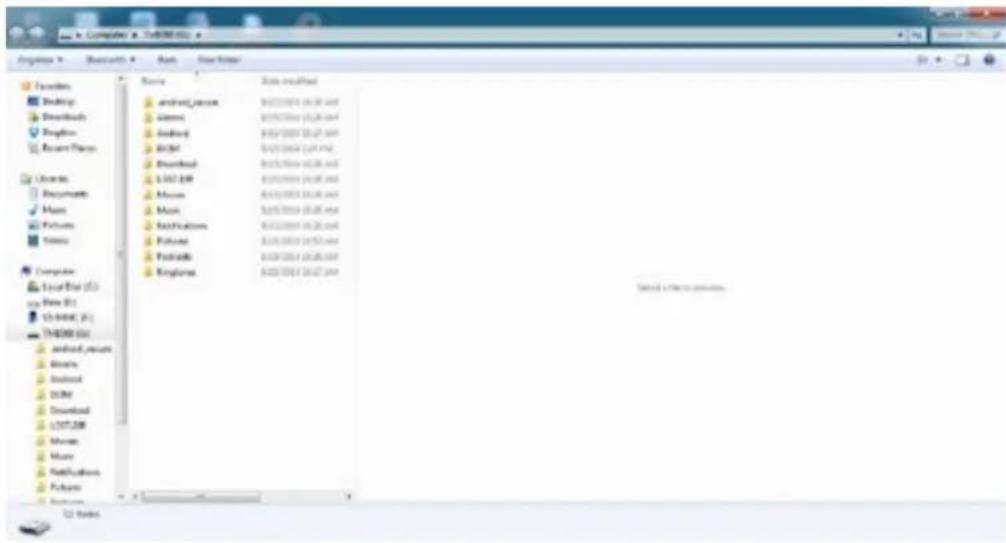
As seen on a PC when Tablet is connected
Settings
The Settings section allows you to personalize and adjust many of the functions of the tablet. Popular adjustments are discussed below:
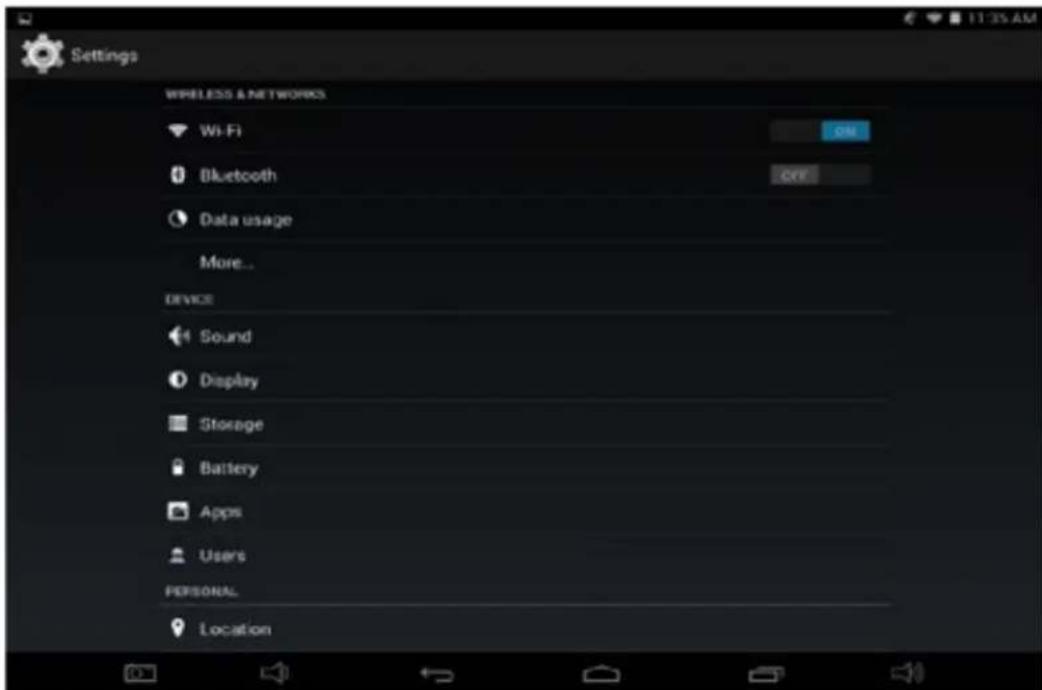
Wireless and Networks Menu
Wi-Fi ON/OFF
Displays available Wi-Fi signals and allows for establishing connectivity. To conserve tablet battery power, switch Wi-Fi to OFF when no longer browsing the web.
Data usage
A convenient tool for viewing the amount of data transferred to/from the tablet.
Devices Menu
Sound
Adjust tablet volume controls for sound and notifications.
Display
Adjust the Brightness, Auto-rotation, Sleep duration and Font size. Customize wallpaper backgrounds. Unless otherwise set, the tablet will go to sleep, and automatically lock, after a preset period of time. The tablet may be set to sleep after 15 seconds to 30 minutes of inactivity, or not at all. The screen lock is determined by the Screen Security setting. To conserve tablet battery power, set the display brightness and sleep functions at reasonable levels.
Storage
Displays the total amount of memory available in the tablet for data (ie: apps, photos.).
Battery
Displays the battery usage over time, the status of the internal battery, and battery level (percentage of a full charge)
Apps
Displays a list of apps that have been downloaded, are currently running, or are located on a separate device (such as a memory card). It displays the total amount of internal storage available.
Personal Menu
Location Access
Allows Google to determine your location using Wi-Fi, and to base any searches from that location.
Security
The Tablet comes with several security methods for unlocking the tablet, encrypting data, and other security functions. You may set locks with a higher security level using this lock setting. When screen security is active, the tablet locks after the Power button has been pressed, and the screen has gone to sleep.
Language Access
Select preferences for spell checker, voice typing, text-to-speech, and keyboard type.
Accounts Menu
Google account information and privacy settings.
Add Accounts
View email accounts linked and accessible by the tablet, and synchronize features such as calendar and contacts.
System Menu
Date & time
Adjust the date, time, time zone, 12 or 24 hour format and date format displayed on the tablet.
Accessibility
Enables features for more functional tablet usage including TalkBack, enlarged text, automatic screen rotation, the ability to speak passwords, touch and hold delays, and the installation of assistive web scripts.
About Tablet
Displays detailed information on the tablet, including system updates, status, legal, and Android software version number.
Specifications
Screen Size: 10.1" Capacitive (measured diagonally)
Display Type: IPS Multi-Touch LCD Screen with Auto-Rotation
Resolution: 1280 x 800 (supports resolutions up to 1080p)
Operating System: Android 4.4.2 KitKat
Processor: Intel 1.5GHz Quad Core
System RAM: 1 GB DDR3
Storage Internal: 16 GB; expandable to an additional 64GB through Memory Card slot
Cameras: TM1088: 2MP Front; 2MP Rear TM1088C: 2MP Front; 5MP Rear
Wi-Fi: 802.11b/g/n Wi-Fi, Bluetooth
Inputs: HDMI, micro USB, 3.5mm Headphone Jack, DC 5V
Battery: High Capacity 6000mAh Lithium-Polymer battery
Enclosure: Rubberized Back Panel
Dimensions: 9.5" W x 6.8" H x 0.4" D
Unit Weight: 1.2 lbs.
Contents: Tablet, Quick Start Guide, transfer cable
Warranty: Limited 1 Year Parts & Labor
Limited Warranty
One Year Limited Warranty
TMAX Digital Inc. warrants this NuVision product against defects in material or workmanship for a period of one (1) year from the date of original purchase (“Limited Warranty period”), and at its own option, to either (a) repair your product with new or refurbished parts, or (b) replace it with a new or a refurbished product. TMAX Digital Inc. will incur no liability whatsoever to provide packaging for warranty items. Upon receipt of the warranted item, should it be determined that the packaging is insufficient, TMAX Digital Inc may at its discretion, void the warranty. You are responsible for the transportation cost to TMAX Digital Inc. A nominal handling fee does apply. You must receive a return authorization number before sending a unit in for service.
To Obtain Warranty Service:
To contact Customer Support, email cs@nuvision.com or call (800) 890-1288 8:30am PST to 5:30pm PST. You will be instructed on how your claim will be processed. Have pertinent information available including proof of purchase and an understanding of the issue.
You must retain the original bill of sale to provide proof of purchase. Call a customer support representative to assess the problem. No service or shipment will be accepted unless RMA # is provided to you and attached or printed to the shipping carton along with a copy of the bill of sale.
Customer Data:
Customer shall be solely responsible for maintaining backup data necessary to replace Customer data lost or damaged from any cause.
This warranty is effective only if the product was purchased through an Authorized Retail Seller and the unit is operated in North America. You are responsible for all tariffs and taxes imposed to ship or receive warranty or replacement units to and from the U.S. Warranty extends only to defects in materials or workmanship and does not extend to any other products that have been lost, discarded or damaged by misuse, accident, neglect, acts of God, such as lightning, improper installation, improper maintenance or modification. The Limited Warranty ALSO DOES NOT COVER damages of having been previously altered, modified, repaired or serviced by anyone other than the service facilities authorized by TMAX Digital Inc. to render such services. Warranty does not cover cosmetic damage or lost accessories.
This warranty gives you specific rights and these rights may vary from state to state. Some states do not allow limitation on how long the warranty lasts or exclusions or limitation of incidental or consequential damages, so the above may not apply to you.
TMAX DIGITAL Inc. reserves the rights to change the warranty from time to time without written notice to you.
Disclaimer of Warranty:
EXCEPT FOR THE FOREGOING WARRANTIES, TMAX DIGITAL INC. HEREBY DISCLAIMS AND EXCLUDES ALL OTHER WARRANTIES, EXPRESSED OR IMPLIED, INCLUDING, BUT NOT LIMITED TO ANY AND/OR ALL IMPLIED WARRANTIES OF MERCHANTABILITY, FAIRNESS FOR A PARTICULAR PURPOSE AND/OR ANY WARRANTY WITH REGARDES TO ANY CLAIMS OF INFRINGEMENT.
Limitation of Liability:
THE LIABILITY OF TMAX DIGITAL INC., IF ANY, ANY PURCHASE'S SOLE AND EXCLUSIVE REMEDY FOR DAMAGES FOR ANY CLAIM OF ANY KIND WHATSOEVER, REGARDLESS OF THE LEGAL THEORY AND WHETHER ARISING IN PART OR CONTRACT, SHALL NOT BE GREATER THAN THE ACTUAL PURCHASE PRICE OF THE PRODUCT WITH RESPECT TO WHICH SUCH CLAIM IS MADE. IN NO EVENT SHALL TMAX DIGITAL INC. BE LIABLE TO PURCHASE FOR ANY SPECIAL, INDIRECT, INCIDENTAL, OR CONSEQUENTIAL DAMAGES OF ANY KIND INCLUDING, BUT NOT LIMITED TO, COMPENSATION, REIMBURSEMENT OR DAMAGES ON ACCOUNT OF THE LOSS OF PRESENT OR PROSPECTIVE PROFITS OR FOR ANY OTHER REASON WHATSOEVER.