
DWH-A059I - Security Camera VELLEMAN - Free user manual and instructions
Find the device manual for free DWH-A059I VELLEMAN in PDF.


| Product Type | Wireless Security Camera System |
| Brand | Velleman |
| Model | DWH-A059I |
| Camera Type | Wireless Color Camera with Night Vision |
| Monitor Type | Wireless Touch Screen LCD Monitor |
| Camera Resolution | Single Camera: 480x272; Multiple Camera: 320x240 |
| Monitor Resolution | 800 x 480 |
| Night Vision Range | 8 meters |
| Wireless Range | Up to 150 meters in open space |
| Wireless Frequency | 2.4 GHz |
| Maximum Channels | 4 cameras |
| Power Supply | Camera: DC 5V / 1A; Monitor: 3.7V 1800mAh Li-ion (rechargeable) |
| Storage | MicroSD card up to 32GB |
| Motion Detection | Yes, with email alerts |
| Remote Access | iOS (iOS 5.0.1+) and Android (2.3X+) via OMGuard app |
| Operating Temperature | -10°C to 50°C |
| Camera Dimensions | 151 x 74 x 49 mm |
| Monitor Dimensions | 184 x 128 x 28 mm |
| Kit Contents | 1 camera, 1 monitor, 2 antennas, 2 power adapters, 1 internet cable, 1 screw bag, 1 manual |
| Recording Time (32GB SD, Single Cam) | Up to 6400 minutes |
Frequently Asked Questions - DWH-A059I VELLEMAN
User questions about DWH-A059I VELLEMAN
0 question about this device. Answer the ones you know or ask your own.
Ask a new question about this device
Download the instructions for your Security Camera in PDF format for free! Find your manual DWH-A059I - VELLEMAN and take your electronic device back in hand. On this page are published all the documents necessary for the use of your device. DWH-A059I by VELLEMAN.
USER MANUAL DWH-A059I VELLEMAN
Installation and Operation Instruction Manual
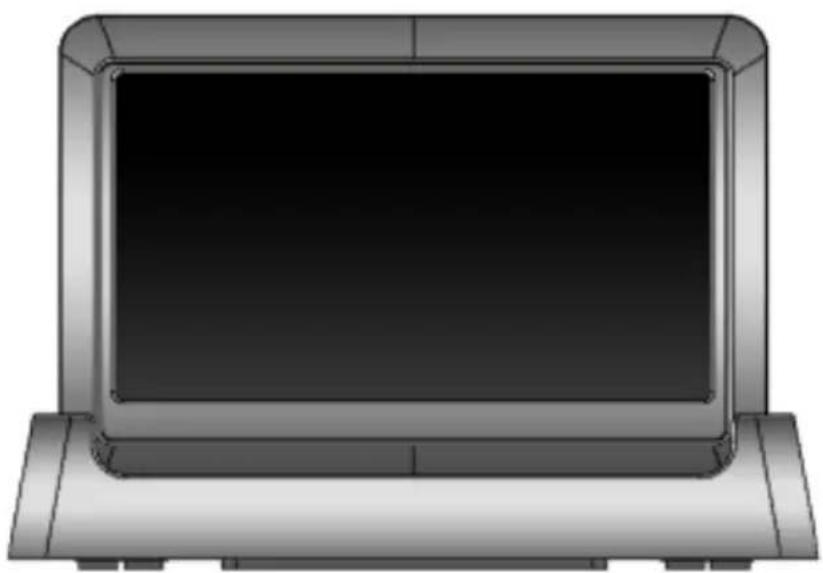
natural_image
Illustration of a vintage computer monitor with front panel and legs (no text or symbols)Model: DWH-A059I
Version 1.0
This manual should be retained for future reference
CONTENTS
IMPORTANT NOTICE....3
Please Read Before You Start ....3
Wireless Devices Operating Range 3
Important Safety Precautions ....3
Requirements for Remote View 5
KIT CONTENT......6
SAFETY AND INSTALLATION TIPS....7
Camera Installation....9
Setting the Camera Channel (optional) 10
Pairing the Camera to Receiver (optional) 10
QUICK START GUIDE ...... 11
Set Up the Camera....11
Set Up the Wireless Touch Screen Monitor....11
System Operation 12
Remote Access 12
GETTING TO KNOW THE MONITOR AND CAMERA ...... 13
SYSTEM INTRODUCTION ....14
Live Screen Displays....16
Zoom Feature....16
Recording Live Video ....16
Playing Back Recorded Video....17
SYSTEM MENU....18
Camera Activation....20
Brightness....20
Recorder Setup Screen 21
Motion Detection....21
Email Alert 21
Schedule Record....23
Clear a Scheduled Recording 24
Network Setup Screen 24
Internet Setup....25
Security Code 25
Network Information....26
Alarm Setup Screen....27
Period....27
Melody....27
System Setup Screen 28
Power Saving....28
Screen Auto Lock....29
Time....30
Clock Alarm ....30
Time Setting 30
Timer 31
Format Storage 32
System Upgrade....32
Language 33
Quick Tips 33
REMOTE ACCESS....34
Overview ....34
Downloading Android APP....34
Downloading iPhone APP 34
Connecting to the Internet 34
MAINTAINING YOUR SYSTEM....36
TROUBLE SHOOTING ....37
PRODUCT SPECIFICATION....38
Recording Time for Memory Card (32GB max) 38
Battery Used In the LCD Monitor....38
PLEASE READ BEFORE YOU START
Always use discretion when installing CCTV equipment, especially when there is perceived policy. Enquire relevant local regulations applicable to the lawful installation of video recording/surveillance. Third party consent may be required.
WIRELESS DEVICES OPERATING RANGE
Ensure the signal reception viewed from the wireless camera(s) is the best possible reception between the camera(s) and receiver. If necessary, reduce the distance between the camera(s) and receiver to improve overall system performance. Wireless Color Camera Recordable CCTV Kit operating on a secure digital 2.4GHz frequency which could greatly reduce interference from product such as wireless routers, cordless phones or microwave ovens.
IMPORTANT SAFETY PRECAUTIONS
Damages caused by non-compliance with this operating manual will void the warranty! We will not assume any liability for damages to items or persons caused by improper handling or non-compliance with the safety notices! Any warranty claim will be null and void in such cases.
- Do not drop, puncture or disassemble the camera; otherwise the warranty will be voided.
- Avoid all contact with water, and dry hands before using.
- Never tug on the power cords. Use the plug to unplug it from the wall outlet.
- Do not expose the camera to high temperature or leave it in direct sunlight. Doing so may damage the camera or cause camera temporary malfunction.
- Use the devices with care. Avoid pressing hard on the camera body.
- For your own safety, avoid using the camera or power off the camera when there is a storm or lightning.
- Remove the power adapter during long periods between usages.
- Use only the accessories and power adapters supplied by the manufacturer.
- To meet the regulations pertaining to parental responsibility, keep the devices out of the reach of infants.
- Check power cables, do not get crushed or damaged by sharp edges whenever the devices are in operation.




FCC Compliance Statement: This device complies with Part 15 of the FCC rules. Operation is subjected to the following two conditions:
(1) this device may not cause harmful interference, and (2) this device must accept any interference received, including interference that may cause undesired operation.

Products with CE Marking comply with EMC Directive (2004/108/EC); Low Voltage Directive (73/23/EEC); R&TTE(1999/5/EC); ROHS Directive
(2011/65/EU) issued by the Commission of the European Community. Compliance with these directives implies conformity to the following European Norms:
EMC: EN 301 489
LVD: EN 60950
Radio: EN 300 328
FCC/CE WARNING
This equipment has been tested and found to comply with limits for a Class B digital device, pursuant to Part 15 of the FCC rules and ETSI(EN) 300328. These limits are designed to provide reasonable protection against harmful interference in residential installations. This equipment generates, uses, and can radiate radio frequency energy, and if not installed and used in accordance with the instructions, may cause harmful interference to radio communications. However, there is no guarantee that interference will not occur in a particular installation. If this equipment does interference to radio or television equipment reception, which can be determined by turning the equipment off and on, the user is encouraged to try to correct the interference by one or more of the following measures:
-Reorient or relocate the receiving antenna.
-Move the equipment away from the receiver.
-Plug the equipment into an outlet on a circuit different from that to which the receiver is connected.
-Consult the dealer or an experienced radio/television technician for additional suggestions.
You are cautioned that any change or modifications to the equipment not expressly approved by the party responsible for compliance could void your authority to operate such equipment.
DISPOSAL

If the camera system no longer functions or can no longer be repaired, it must be disposed of according to the valid statutory regulations.
Disposal of spent batteries/accumulators:
You are required by law (Battery Ordinance) to return all spent batteries and accumulators. Disposing of spent batteries/accumulators with common household waste is prohibited! Batteries/accumulators that contain hazardous substances are marked with the symbols on the side. These symbols indicate that it is prohibited to dispose of these batteries/accumulators in the household waste. The abbreviations for the respective heavy metals are: Cd=cadmium, Hg=mercury, Pb=lead. You can return spent batteries and accumulators that can no longer be charged to the designated collection points in your community, outlets or wherever batteries or accumulators are sold. Following these instructions will allow you to fulfill the legal requirements and contribute to the protection of our environment!
- System “Device ID” and “Password” are provided on a label applied at the back of the LCD Monitor (behind the pull out stand).
The “Device ID” and “Password” are needed for remote viewing. For security purpose, it is recommended for user to copy the “Device ID” and “Password” information to the user manual, following by removing the label containing the “Device ID” and “Password” information.
Please keep the device ID and password information in a safe place for future reference.
REQUIREMENTS FOR REMOTE VIEW
Supported Device
- iPhone / iPad / iPod Touch w/ iOS 5.0.1 or above
- Android smartphone / tablet v2.3X or above"
Note: Not suitable for Windows or Blackberry Smartphones
Recommended minimum internet upload speed
512Kbps upload speed (or bandwidth) to achieve up to an average of 2FPS viewing speed. Average viewing speed will depend on other restrictions by your ISP (internet service provider).
KIT CONTENT
A Wireless Camera w/ stand x 1

natural_image
3D rendering of a black surveillance camera mounted on a stand (no text or symbols visible)C Camera Antenna x 1

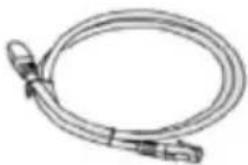
E Internet Cable x 1
natural_image
Coiled medical or laboratory device with connectors (no visible text or symbols)G Instruction Manual x 1
B Wireless Touch Screen LCD Monitor w/ Cradle x 1
D 5V/1A Power Adapter for Camera x2

natural_image
Illustration of a gray electronic device connected to a black cable with two USB ports (no text or symbols visible)F Screw Bag x 1

natural_image
Illustration of multiple screws with different screw specifications (no text or symbols)Tools Required:
- Electric drill
- 5mm masonry drill bit
• 15mm masonry drill bit
• No. 2 Philips screwdriver
SAFETY AND INSTALLATION TIPS
Installation Notes
Always follow manufacturer's advice when using power tools, steps, ladders, etc and wear protective equipment (e.g., safety goggles and gloves) when drilling holes, etc.
When using ladders ensure they are positioned on a firm stable surface at an angle and suitably secured. Check for hidden electricity wires or water pipes before drilling any holes. If in doubt use a cable/pipe locator. It is recommended to avoid exposing the camera to extreme weather conditions (e.g, under a gutter which is prone to water leaks). After drilling any holes through an external wall for a cable, ensure the hole is sealed up using a suitable sealant to prevent drafts.
To prevent a fire or electrical shock hazard, do not attempt to open the housing while the camera is exposed to rain water or wet conditions. Do not expose any wiring connections to weathering. If terminating any wiring connections outdoors then use a suitable weathering box to insulate the connections.
There are no user serviceable parts inside. Refer servicing to qualified service personnel.
LCD Touch Screen Monitor
- keep away from heat sources and high temperature places
- Avoid direct sunlight
- Avoid humid places
- Avoid vibration
• Install in a ventilated environment
● The supplied SD card can be replaced with up to a 32GB SD card if required
Camera Installation
- Avoid positioning the camera so that it is facing directly at the sun as this will impair the picture quality viewed.
- Avoid pointing the camera lens directly through clear glass as the night vision LEDs will cause a blurred image at night.
- Avoid pointing the camera directly at any bushes, tree branches or moving objects that might naturally move due to winds. This is also because if you need to use the motion detection feature in the PC software to record movement the software might record unnecessarily.

natural_image
Two-panel illustration showing a tree scene with a light source and a bird, both without any text or symbols.NOTE: The camera has an open field RF operating range of up to 150 ~m .
Camera Installation
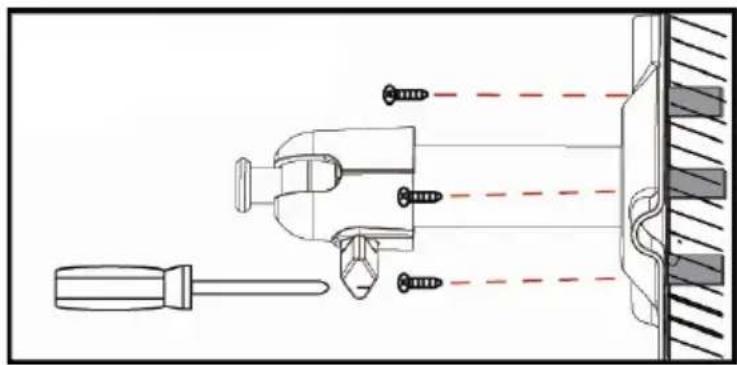
natural_image
Technical line drawing of a screwdriver and tool assembly (no text or symbols)Secure camera stand on the stable surface

Loosen up the Thumb screw
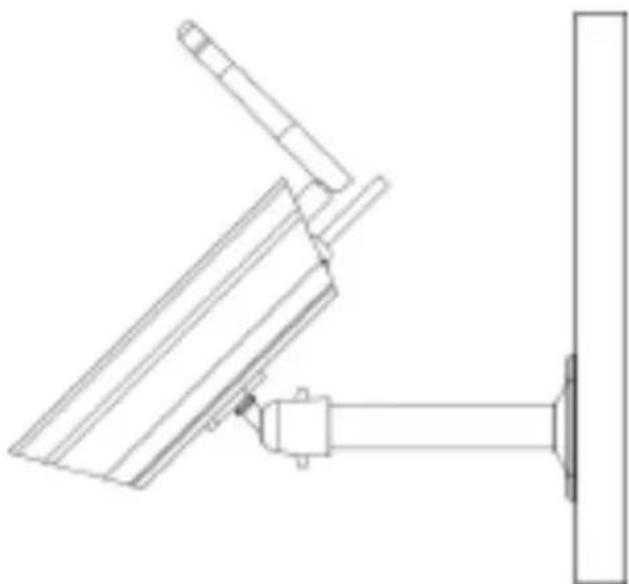
natural_image
Technical line drawing of a mechanical assembly with a vertical support and lever mechanism (no text or symbols)Adjust proper view angle then secure the joint with T-bolt.
Setting the Camera Channel (optional)
The wireless camera is supplied preset to channel 1.
The monitor supports up to 4 cameras. Follow the steps below in Camera Setup section to setup or change the monitor channel of the camera. If you are adding another camera to link with the supplied monitor in this kit, then ensure its channel is set to a different channel to the existing camera(s).
Pairing the Camera to Receiver (optional)
Follow the steps in Camera Setup section to setup or change the channel of the camera. If you are adding another camera to link with the supplied monitor in this kit, then ensure its channel is set to a different channel to the existing camera(s).

Note:
If the camera is located within 1m to 1.5m from the monitor and the camera's volume on the receiver is turned on, then you may hear a whistling noise on the monitor which is the feedback picked up by the microphone. In this case please locate the camera further away from the monitor to prevent this noise.
If the power connection to the camera is kept outdoors, ensure the connection is suitably protected.
QUICK START GUIDE
For further details on the installation of the camera bracket and fixings, please refer to the Camera Installation section.
Set Up the Camera

Set Up the Wireless Touch Screen Monitor
- Flip out the stand, extend the antenna, connect AC/DC adapter to the input on the side of the monitor.

- Press and hold the POWER button on the top of the monitor for 3 – 4 seconds to power it up.
- The receiver displays Welcome Screen for a few seconds and then transitions to the LIVE view.
- Place the SD card into the SD card slot located on the side of the monitor.
Note: The screen remains dark until the camera is powered up.
The monitor is fitted with a rechargeable battery and can operate for up to 2 hours on battery power once fully charged (w/Power Saving function activated). The monitor can be carried around anywhere within operating range of the camera(s), but should be used in a dry environment as it is not weatherproof.
System Operation
Please refer to the System Operation section for Camera, System and Recording Settings.
Remote Access
Can be done via iPhone / iPad / iPod Touch w/iOS 5.0.1 or above, Android smartphone / tablet v2.3X or above connected to 3G/WiFi internet.
For an Android device
Please refer to the Downloading Android APP section.
For iPhone, iPad1, iPad2, New iPad
Please refer to the Downloading iPhone APP section.
Note:
The monitor must be placed on the docking cradle to allow remote viewing.
If removed from the cradle then the camera(s) can only be viewed on the monitor
GETTING TO KNOW THE MONITOR AND CAMERA
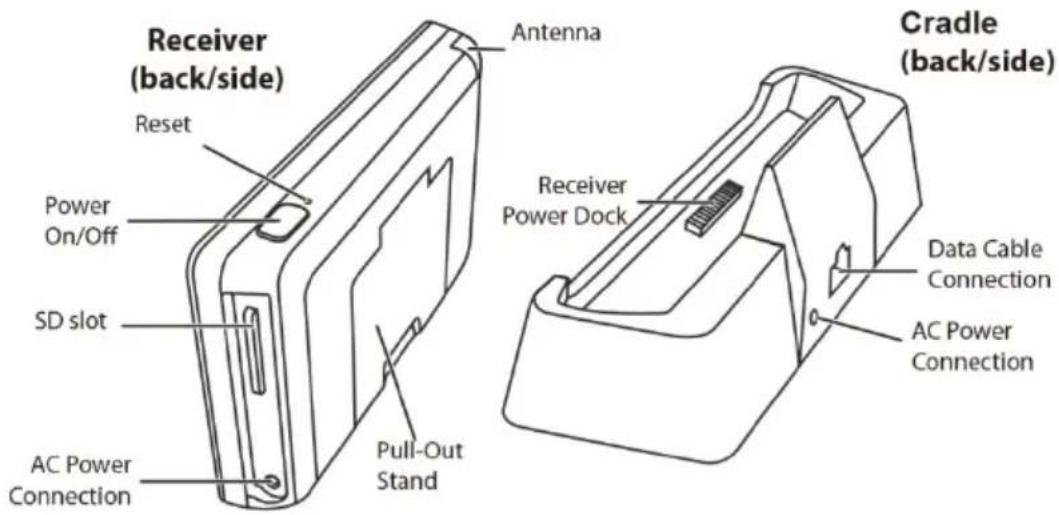
Camera
Front view
Back view

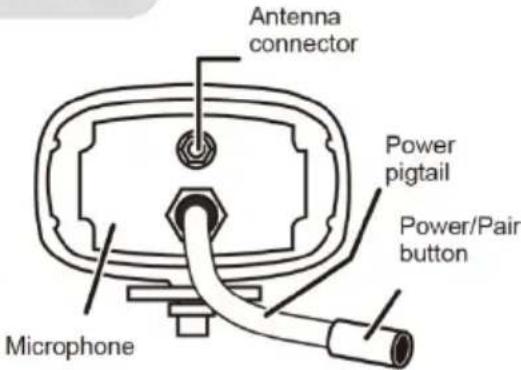
WHAT THE LIGHTS MEAN
| Light State What it means | ||
| Power status | On(Red) | The camera is on. |
| Off | The camera is off. | |
| Link status | Flashing | The camera is in pairing mode. |
| On(Green) | The camera is connected to the receiver. | |
| Off | The camera is in standby. |
SYSTEM INTRODUCTION
Your monitor's system software operates through a series of screens that let you choose groups of operations. For example, when you tap on the camera icon in the Pop-up menu, you can set how you want the main viewing screen, “the Live screen” to display images from the paired cameras. You can scan between cameras, show all cameras on a single screen (Quad view), or only display specific camera.
The Live screen lets you view the camera transmissions. It also lets you set up your screen display and make adjustments to it. Icons on the screen itself let you monitor power and camera status.
LIVE SCREEN
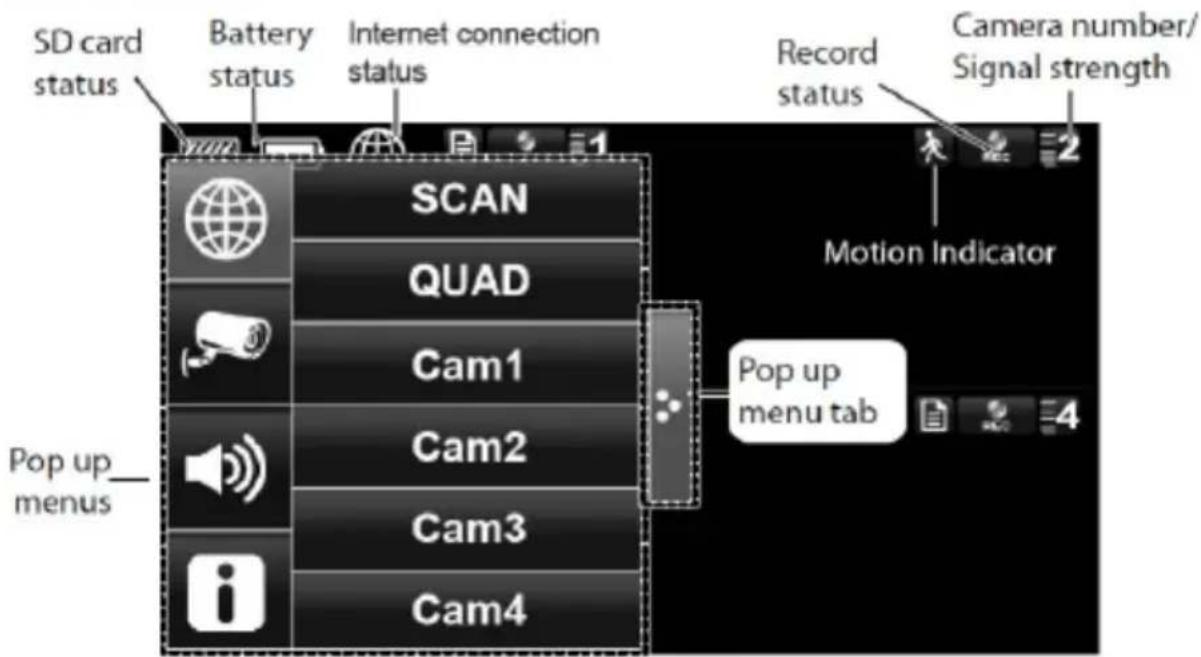
| ICON | WHAT THE ICON MEANS | |
 | Camera Mode | Select how you want the Live screen to display camera input:Scan between cameras (5 seconds)Quad view (all paired cameras display)Full view (1 camera displays on full screen) |
 | Volume | Adjust the volume level. |
 | System Settings | Access the system software operation and setting page or view recorded events. |
 | SD Capacity | Indicates memory capacity remaining. |
 | Battery Capacity | Displays battery capacity. This graphic shows battery at nearly full. |
 | Camera Number | Displays the camera number and signal strength through the status lines to the left of the number. |
 | Record Status | Tap to start or stop recording for that camera• Steady on - Not recording • Flashing - Recording |
 | Connecting to the Internet | Connecting your system to the internet. |
 | Internet Connected | Connects your system to the internet. |
 | Intranet Connected | Connects your system to the intranet. |
 | Remote View | Indicates remote viewing is in process. |
 | Motion | System indicates motion detection recording in progress. |
 | Scheduled | System indicates scheduled recording in progress. |
 | Pop Up Menu Tab | Opens and closes the pop up menu display. |
 | No SD Card Indicator | Displays red when the SD card is not present or is damaged. |
 | Zoom | Zoom in / out of a particular section of the live video |
Live Screen Displays
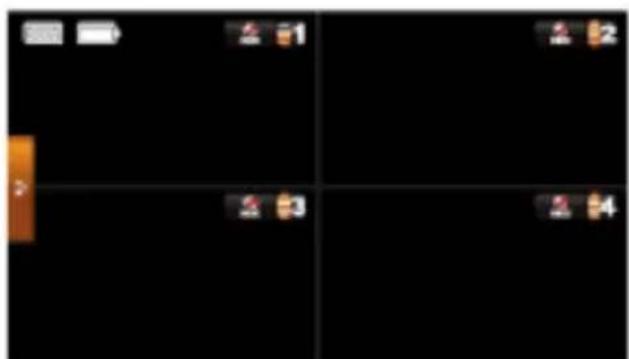
The Live screen displays in 2 views - Quad View or Full View. Quad View displays the images in 4 quadrants (only display camera that is ON). Tap a quadrant to display single camera view / full view. Tap on that image again to return to Quad View.

natural_image
Pure black background with two orange rectangular blocks and a white circular icon on the top right corner (no text or symbols)Zoom Feature
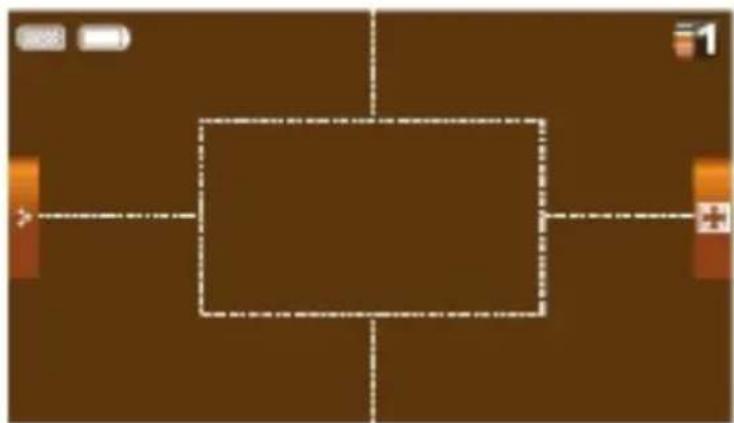
To zoom into a particular area,
-
Go to full view, then tap to activate zoom mode.
-
Select the zone by tapping the zone area to view zoom in screen.
natural_image
Simple diagram with a central rectangle and directional arrows on a brown background, no text or symbols present.Recording Live Video
- On the Live screen, tap
for the camera to begin recording.
- Tap it again to stop recording.
You can record all cameras at the same time. With manual recording, each recording session (video clip per camera) is two minutes in length.
Playing Back Recorded Video
From the pop-up menu, tap the following icons

The Record List screen displays:
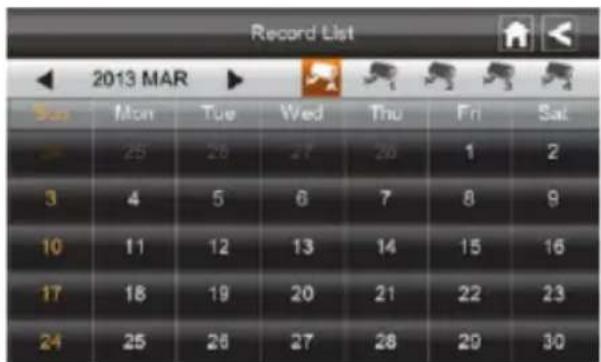
- Tap on the highlighted day containing the recording you want to view.
The Record List screen will display that day's recordings listed in a folder.
If you tap on a day that is not highlighted, a folder displays with no recordings listed. - Tap on the recording you want to view. It displays on the screen.
- Tap on any area of the screen that does not have control icons to bring up the playback progress bar. Tap that area again to close it.
- While playback progress is visible, you can fast forward/rewind by dragging the playback bar.
- When playback ends, tap or to return to the Record List.
SYSTEM MENU
From the pop-up menu, tap the following icons
natural_image
Two icons: a gray information icon and a black gear symbol, both pointing right (no text or labels)The Main Screen displays:
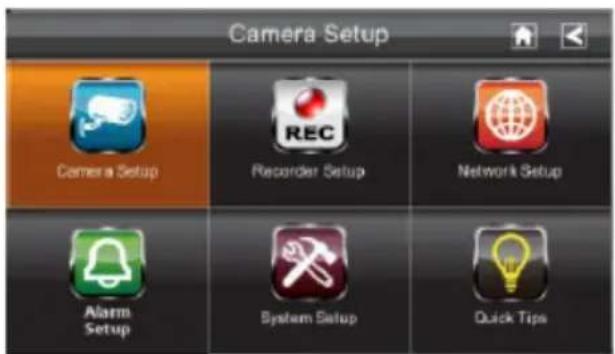
The SYSTEM MENU highlights the Camera Setup option as the default.
| Main Screen | Sub Screens | What it Does |
| Camera Setup | Camera Setup | Pairs new cameras to the receiver. |
| Camera on | Makes the cameras visible to the monitor. | |
| Brightness | Brightens or darkens the video of that camera. | |
| Recorder Setup | Motion Detection | Records when something moves in front of the camera. Continues recording for 2 minutes. |
| Schedule Record | Set up a schedule for pre-determined recording times and lengths. | |
| Network Setup | Internet Setup | Select the type of internet connection to be used. |
| Security Code | Set a security code for remote access. | |
| Network Information | Displays information about your network and the receiver's unique DID number. | |
| Alarm Setup | Period | Set a length of time for the alarm to sound. |
| Melody | Select a melody to play for the alarm. | |
| System Setup | Power Saving | Temporarily turns off the LCD after the system is idle for 2 minutes to conserve power. |
| Screen Auto Lock | Locks the screen from further activity until the screen is unlocked. | |
| Time | Set the time in 12-hour increments. | |
| Format Storage | Formats / erases all the data on the SD card. | |
| System Upgrade | Upgrades the receiver firmware. | |
| Default | Lists the original system defaults. | |
| Quick Tips | N/A | Provides a list of 10 common questions. |
SYSTEM OPERATION
Camera Setup Screen
Tap on camera setup.
This screen should display:
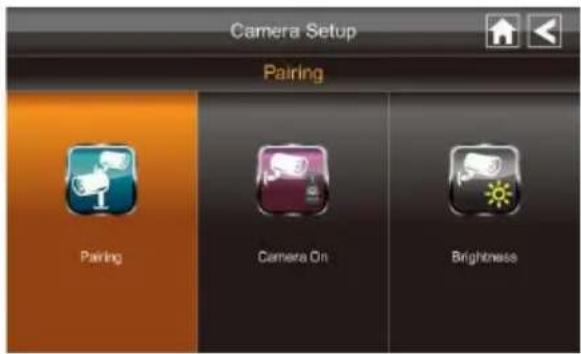
Camera Pairing
Your camera is paired to the monitor at the factory to channel 1.
To add new camera(s) to your system, you have to pair it to the different channel(s).
From the pop-up menu, tap the following icons
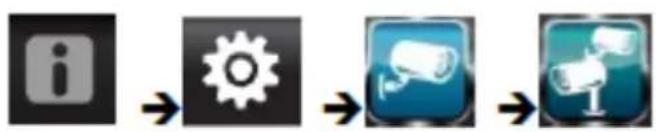
flowchart
graph LR
    A["Input"] --> B["Gear Icon"]
    B --> C["Surveillance Camera Icon"]
    C --> D["Monitoring Camera Icon"]
The Main Screen displays:

- Tap the camera image you want to pair. A processing icon displays for a 60 second countdown.
- Press and release the Pairing button on that camera's power cord (please refer to the Getting to Know the Monitor and Camera section). The system will indicate pairing is successful when pairing completes.
- The system will automatically adjust the Camera On screen.
Camera Activation
When you add a camera to your system, the system will turn on the camera automatically.
From the pop-up menu, tap the following icons

flowchart
graph LR
    A["信息"] --> B["安全图标"]
    B --> C["摄像头图标"]
    C --> D[" messaging图标"]
The screen displays:
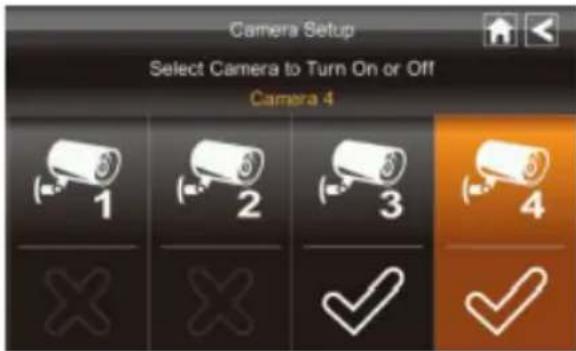
An X indicates a camera is OFF, a check indicates ON. Tap on the camera to turn it ON or OFF.
Brightness
From the pop-up menu, tap the following icons

flowchart
graph LR
    A["信息"] --> B["安全图标"]
    B --> C["报警器图标"]
    C --> D["天气图标"]
The screen displays:

Tap the camera to change brightness level. The default brightness is 0, and the range is from -2 through 2.
Recorder Setup Screen

Motion Detection
From the pop-up menu, tap the following icons
The screen displays:

flowchart
graph LR
    A["i"] --> B["齿轮"]
    B --> C["REC"]
    C --> D["人形"]

Tap the camera's to set the sensitivity to Off, Low or High.
Default = low. The screen will return to the Motion Detection screen after 10 seconds or when you press the Back icon.
Email Alert
The system can notify you when it detects motion from any camera by sending you an email alert. The email alert contains information such as the time that motion was detected and by which camera. In order to enable the Email Alert function, you must enter both incoming and outgoing email addresses.
We strongly recommend you use Gmail to set up as the outgoing email server. The outgoing email server (SMTP server) is responsible for sending out the email notification to tell users when the system detects motion from any camera (Motion
Detection must be activated).
The incoming mail server (Email To) receives the email notification sent from the SMTP server. The user must be able to receive email on a Windows PC or on mobile devices (such as an iPhone, iPad or Android smartphone or tablet) to receive e-mail alerts from the system.
When you receive an email alert, you can view live video from iPhone, iPad, Android smartphone or Android tablet through apps. Free apps are available through the iTunes App store or the Android Market.
From the pop-up menu, tap the following icons as they appear on the screens:

flowchart
graph LR
    A["i"] --> B["齿轮图标"]
    B --> C["REC图标"]
    C --> D[" envelope图标"]
The screen displays:

- Tap Enable to activate Email Alert or Disable to deactivate it.
- Tap on the SMTP Server field. A keyboard screen displays.

-
Enter your outgoing e-mail SMTP server (example: johndoe@gmail.com). You can switch the keyboard from alphabetical characters to numbers/symbols and back again by tapping the field to the left of the space bar. Tap Return. The Email Alert screen displays again.
-
Repeat the previous step for the Password field. Tap Return. The password entered here must be the same password as the password for the outgoing email account.
-
Repeat Step 3 for the Email To field. Only one incoming email account will be accepted by the system. The incoming email account can be different from the outgoing email account.
-
Tap OK to save the settings, then tap ✕ to return to the previous screen.
If you are using Gmail as the outgoing SMTP server, check SSL and use the data in the following table:
| For Gmail | ||
| SMTP Server | Smtp.gmail.com | Enter this. |
| SMTP Port | 465 | Enter this. |
| Username | XXXX@gmail.com | Enter your gmail address in full, including @gmail.com. |
| Password | XXXXXXXXXX | Enter the password for this gmail account. |
| Email to | XXXX@gmail.com | Enter the email address where you want the alerts sent. |
Schedule Record
Up to 5 scheduled recording sessions available in a single day. You are limited to the size of the SD card for how long a total recording time you have. These recording sessions must begin and end within a single 24-hour period. They cannot cross into the next day.
From the pop-up menu, tap the following icons

flowchart
graph LR
    A["Input"] --> B["Settings Icon"]
    B --> C["REC Icon"]
    C --> D["Document Icon"]
The Schedule Record screen displays:
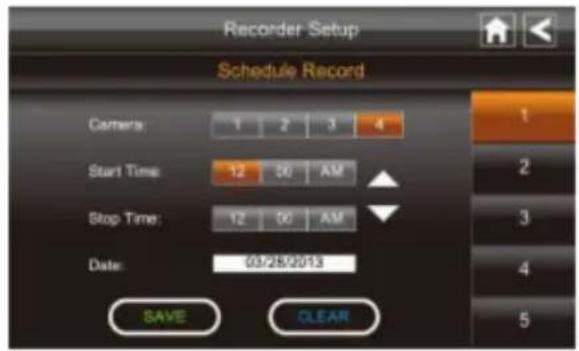
-
Tap the camera/channel number you want to record (1 - 4). Multiple cameras can be selected.
-
Set the recording start and end time. Tap the hour and minutes boxes separately and use the UP and DOWN arrows to scroll through the times.
-
Tap the AM/PM block to toggle between them.
-
Tap on the blank DATE box. The Schedule Record Calendar screen displays.
Recorder Setup  | ||||||
| 2013 MAR | ||||||
| Sun | Mon | Tue | Wed | Thu | Fri | Sat |
| 24 | 25 | 26 | 27 | 28 | 1 | 2 |
| 3 | 4 | 5 | 6 | 7 | 8 | 9 |
| 10 | 11 | 12 | 13 | 14 | 15 | 16 |
| 17 | 18 | 19 | 20 | 21 | 22 | 23 |
| 24 | 25 | 26 | 27 | 28 | 29 | 30 |
-
Tap on the date you want the recording. The previous screen displays.
-
Set up the recording and then tap Save. You can select another recording session to schedule.
Clear a Scheduled Recording
- Access the Schedule Record screen.
- Tap on the scheduled recording you want to clear (1-5). The screen displays the settings for that schedule.
- Tap CLEAR. The screen resets to the default values for that recording slot.
Network Setup Screen
The Network Setup screen allows you to select your internet type, set a security code. You can also display system default configuration.
From the pop-up menu, tap the following icons

flowchart
graph LR
    A["i"] --> B["齿轮"]
    B --> C["地球图标"]
The Network Setup screen displays:
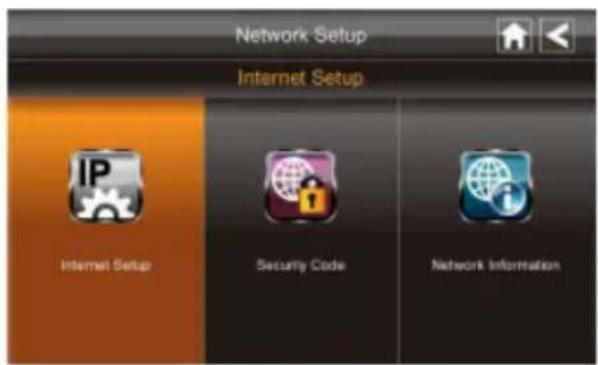
Internet Setup
- Tap Internet Setup icon to display the Internet Setup screen.
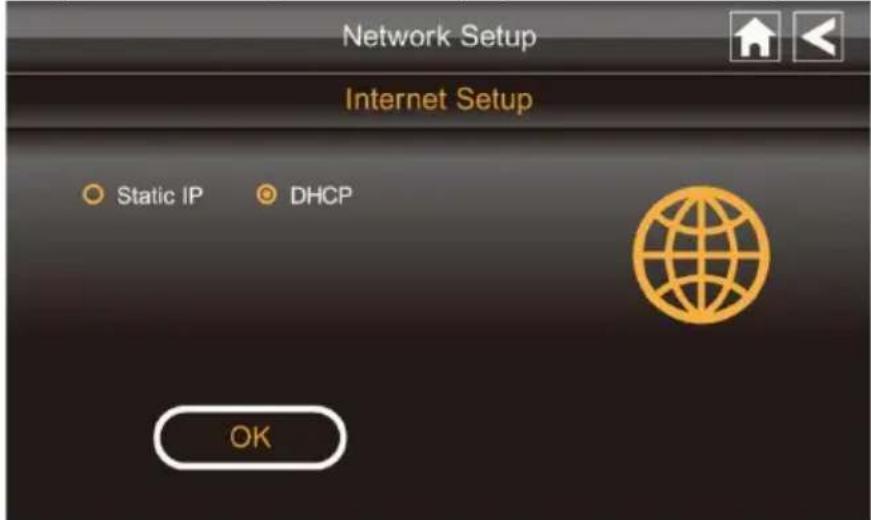
- Tap on your selection and fill in the fields requested. Tap OK.
| Selection | Fields |
| Static IP | - IP Address- Subnet Mask- Default Gateway- DNS Server |
| DHCP | None |
- Tap OK at the system reboot prompt. The Network Setup screen displays.
Security Code
Set up your security code to limit who can have access to the system from a remote location.
- Tap Security Code icon to display the Security Code screen.
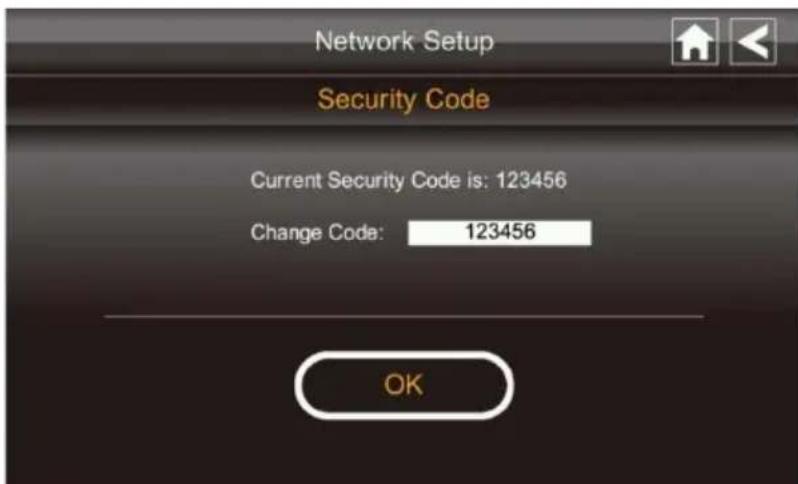
- If you have previously entered a code, the screen will display your current code
- Tap on the change code field, a key board screen displays.
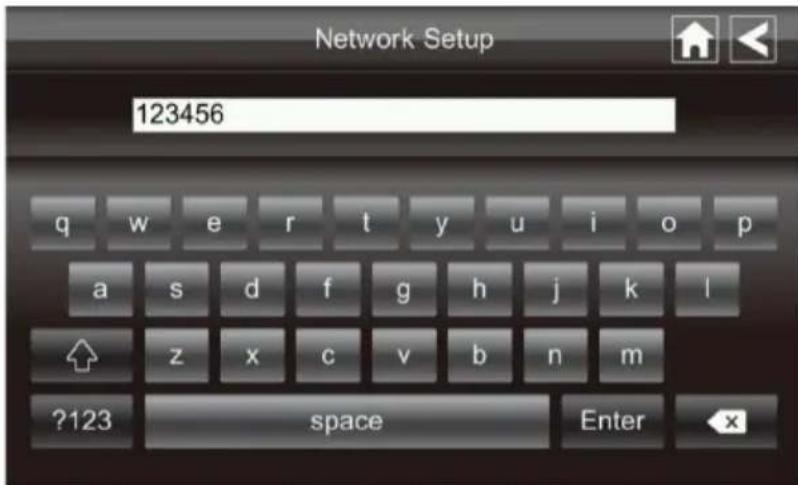
- Enter your security code.
- Tap OK. The system will return to Network Setup screen.
Note: Security code must be entered to gain remote access. To protect your privacy, please be sure to change the default password 123456 into your personal security code.
Network Information
- Tap the Network Information icon to display the Network Information screen.
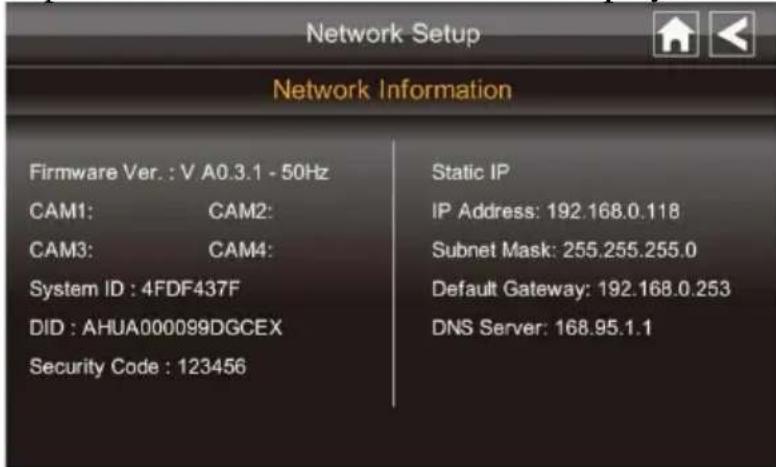
- Tap the BACK arrow to return to the previous screen.
Note:
The DID is a unique code specific to your monitor and is required to gain remote access to your cameras over the internet.
The information in the DHCP setting is assigned to your monitor from your home router.
Alarm Setup Screen
From the Alarm Setup screen, you can:
- Set the length of time the alarm sounds
- Select a melody for the alarm.

flowchart
graph LR
    A["Info Icon"] --> B["Gear Icon"]
    B --> C["Bell Icon"]
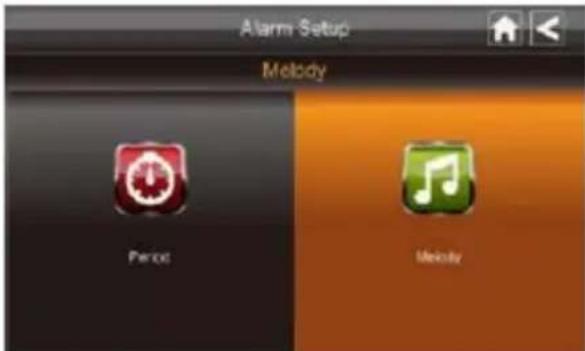
Period
This selection allows you to select the alarm/siren duration for Clock Alarm and Timer.
- Tap Period. The Set Siren Duration screen displays.

- Select the alarm duration time required
- Tap the BACK arrow to return to the previous screen.
Melody
This selection allows you to select a melody for the siren. 1. Tap Melody. The Change Siren Melody screen displays.

- Select the melody required
- Tap the BACK arrow to return to the previous screen.
System Setup Screen

Power Saving
In Power Saving mode, the monitor will shut off LCD after idle for 2 minutes. Press Power button once to reactive the monitor.
If a motion detection event or scheduled recording begins, the LCD turns back on automatically.
- Tap Power Saving Enable to activate power saving. Default is off.

- A check mark appears on your selection.
- Tap the BACK arrow to return to the previous screen.
Screen Auto Lock
In Auto Lock mode, the monitor will enter screen lock mode after it has been idle for 2 minutes. Auto Lock disables the touch screen and removed the icons from the display.
- Tap Screen Auto Lock

- Tap your selection; a check mark displays.
- Tap the BACK arrow to return to the previous screen.
Note: From the Live screen, tap the Power button once to unlock the screen and return to normal touch screen operation.
Time
The Time screen lets you set up clock alarms, set the system time, and set a timer.
From the pop-up menu, tap the following icons

flowchart
graph LR
    A["信息图标"] --> B["齿轮图标"]
    B --> C["工具图标"]
    C --> D["计时器图标"]
The screen displays:
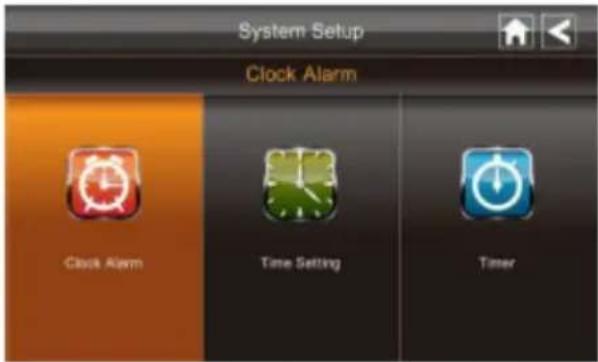
Clock Alarm
This feature operates as an independent alarm clock. It does not affect the operation of live video or recording video.
- Tap to display the Clock Alarm screen.
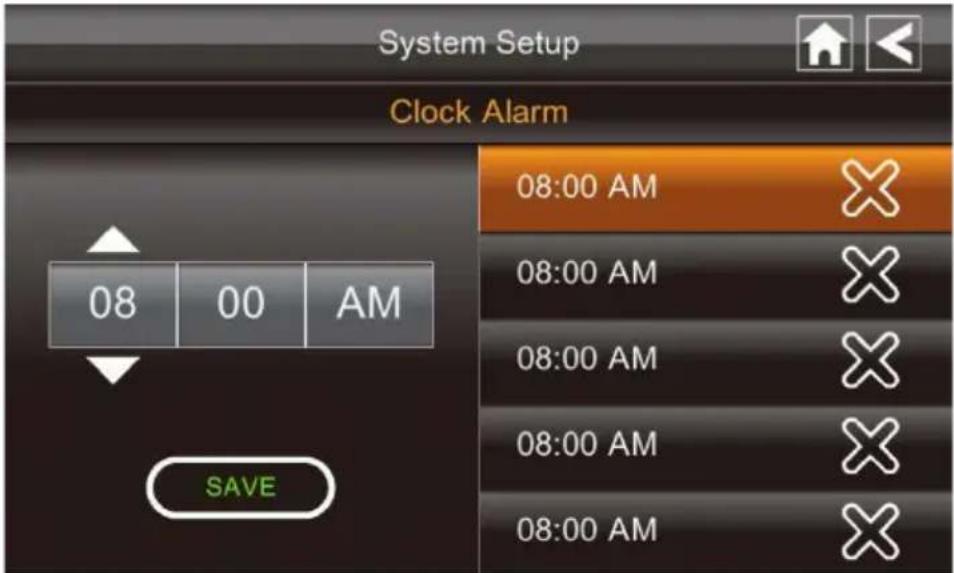
- Tap on an alarm button (total of 5 to select from).
- Tap on the hour/minutes block then UP/DOWN arrows to set the time.
- Tap on AM/PM to toggle between the two.
- Tap SAVE, then back.
Time Setting
This screen contains fields to set the Month, Day, Year, Hour, Minute and AM/PM.
- Tap

to display the Time Setting screen.

- Tap on each field to set it. The UP/DOWN arrows shift to that field. Use UP/DOWN to set the field.
- Tap on the AM/PM block to switch between the two.
- Tap SAVE when you are finished.
Timer
This feature operates as an independent alarm clock. It does not affect the operation of live video of recoding video.
- Tap

to display the Time Setting screen.
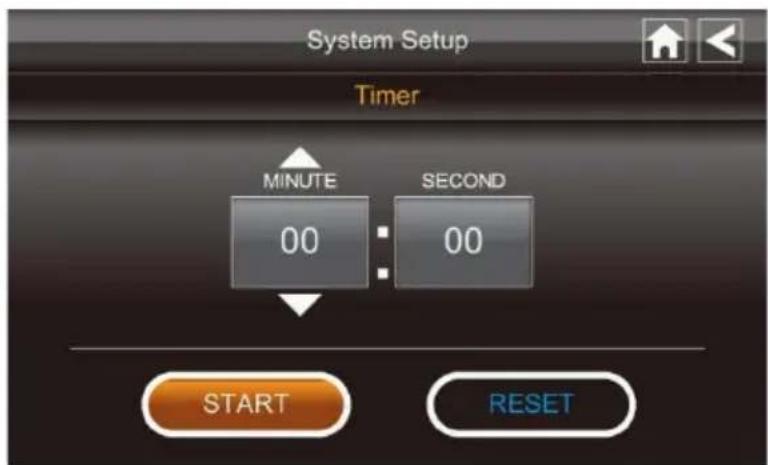
- Tap on each field to set it. Use UP/DOWN to set the field.
- Tap START to begin the time. When the time reaches 00:00, an alarm beeps until you tap OK.
Format Storage
When using an SD card other than the one provided, it is highly recommended that you format the card using these procedures. Formatting any SD card deletes all files on that card.
From the pop-up menu, tap the following icons

flowchart
graph LR
    A["i"] --> B["齿轮"]
    B --> C["扳手"]
    C --> D["工具栏"]
The Format Storage screen displays:
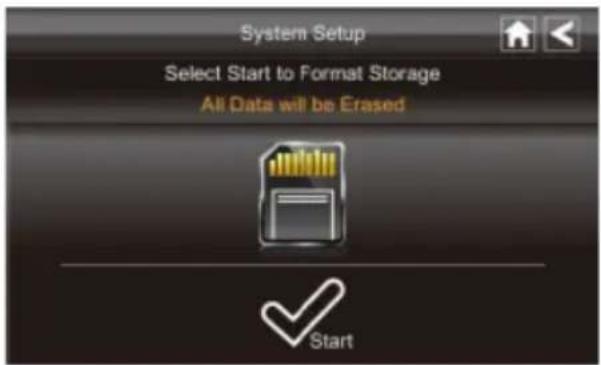
- Tap on START; a warning statement displays.
- Tap OK to proceed to format storage or tap CANCEL to discontinue.
- The system will indicate success or failure.
System Upgrade
To upgrade the firmware from the vendor website, you must download and store it in the SD card root directory.
From the pop-up menu, tap the following icons

flowchart
graph LR
    A["Input: i"] --> B["Security Icon"]
    B --> C["Tool Implementation Icon"]
    C --> D["Upload: +"]
The screen displays:
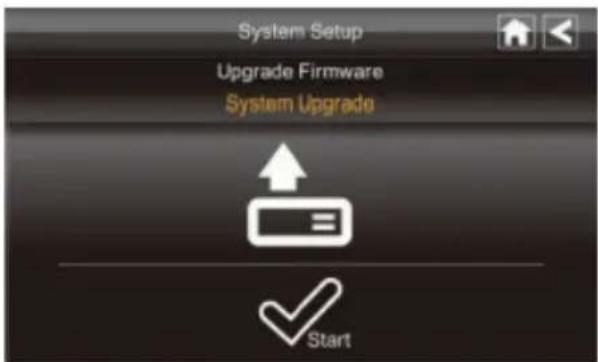
Press the Start button to upgrade the firmware.
Language
English is the default language. If you change the language, all system settings default to the original factory settings. You will have to reenter any specialized settings.
From the pop-up menu, tap the following icons

flowchart
graph LR
    A["Info"] --> B["Gear Icon"]
    B --> C["Switch Icon"]
    C --> D["Server Icon"]
The screen displays:

- Select the language required. The Restore Default Settings screen displays.
- Tap OK to continue. The system will shut down in about 5 seconds.
- When the system restarts, it will ask you to perform the touch screen calibration. Follow the instructions on the screen.
- Select the frequency setting by tapping the frequency icon (50Hz /60Hz). Make sure the frequency setting complies with local electrical regulations.
Note: In general the frequency for Europe is 220-240 volt, at 50 hertz frequency
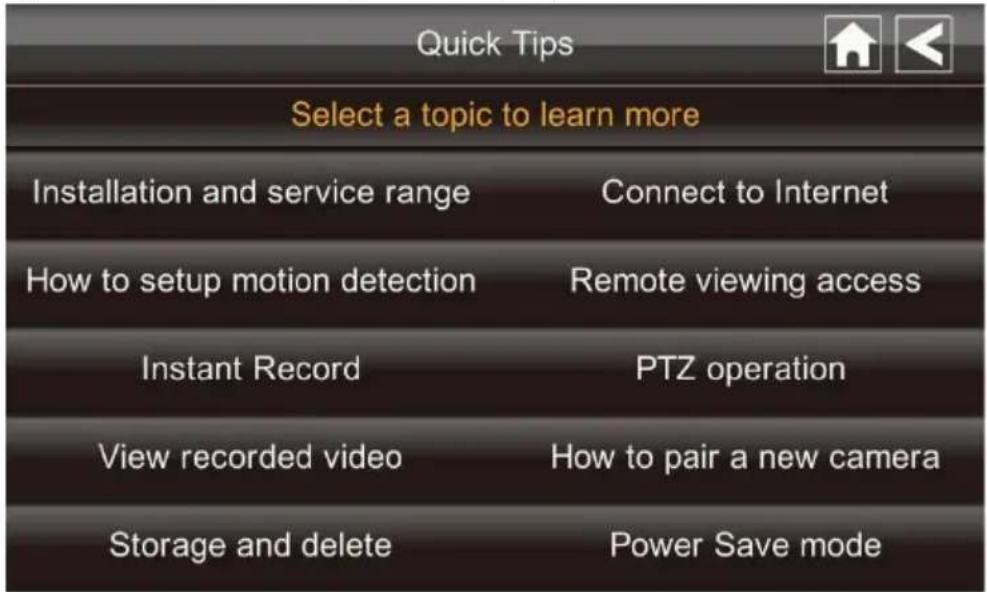
Quick Tips
The Quick Tips screen provides additional details on important subjects of system operation. Tap on a subject to display the information.
REMOTE ACCESS
Overview
This DWH Series Video Security System lets you view live video from your iPhone, iPad, or Android smartphone or tablet. Free apps are available through the iTunes App Store or the Android Market.
Up to 2 remote users can access live video at the same time as long as they have the User ID (DID) code and security code.
Downloading Android APP
From your Android smart phone or tablet device, go to the Android Market and search for OMGuard.

Downloading iPhone APP
From your iPhone or iPad, go to the iTunes App Store and search for OMGuard

Connecting to the Internet
The docking cradle charges your monitor as well as provides an internet connection. When you are connected to the internet, live video will continue to display on the monitor, but monitor's touch operation will become limited.
Monitor's touch operation will resume normal after disconnecting from the internet by select Charge Only option from the pop up menu, or remove monitor from the docking cradle.
- Connect the AC adapter to the docking cradle.
- Connect the RJ45 (Ethernet) cable from the back of the cradle to your primary router (from your internet service provider).
- Insert the monitor into the cradle. A screen asks if you want to connect to the internet or only charge the monitor.
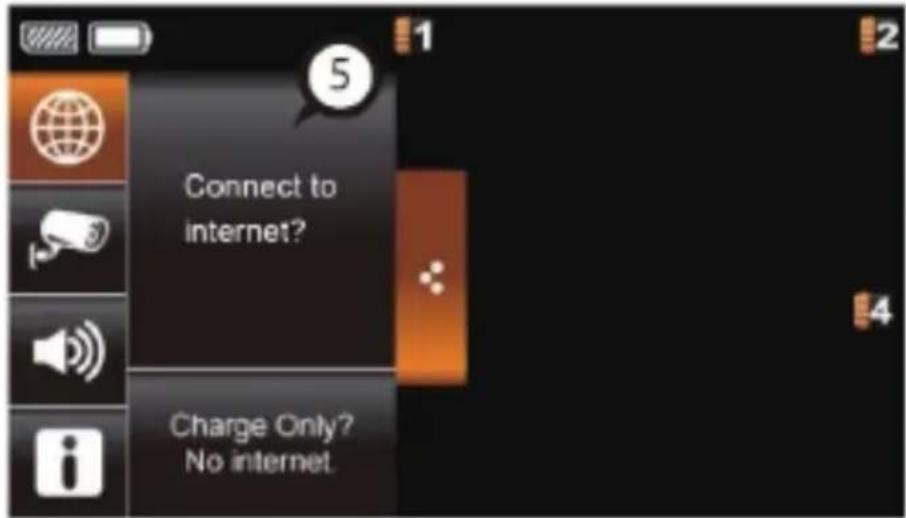
- Tap Connect. The Internet Connection Status Indicator appears on the upper left of the Live screen indicating that the system is connected to the internet.
You can now view live video through your mobile devices.
While the system is connected to the internet, the LIVE screen display rate may reduce to 2 - 3 frames per second.
- When you connect remotely to the monitor, the Internet Connection Status Indicator shows that remote view is in progress.
Once internet connectivity is set, the system will memorize the setting and the next time you place the monitor back into the cradle, the system will automatically connect to the internet."
Connecting to the Intranet (Home Network)
When the monitor is placed in the cradle and "charge only" is selected, you can still access your live video from smartphone(s) or tablet(s) as long as those devices are also connected to the same network as the monitor. For example, your smartphone is connected to your home network via WiFi, in this case, live video will still be displayed on the monitor as well as on the smartphone.
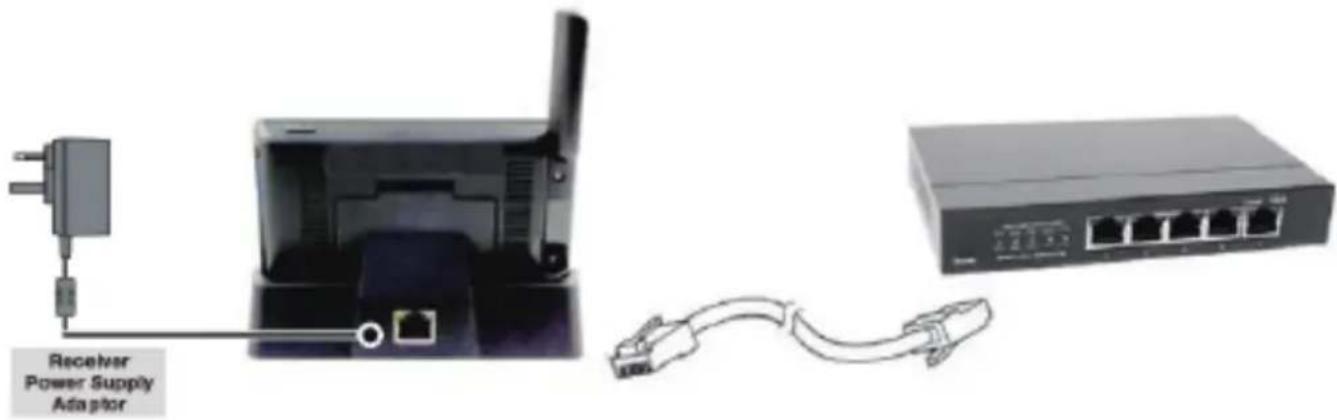
Note: For this procedure, the AC adapter must be connected to the cradle and not to the monitor.
MAINTAINING YOUR SYSTEM
Please make sure to upgrade your system firmware to the latest version. Check your system firmware version on the Network Information screen (please refer to the Network Information section).
Go to vendor website to check the current firmware version. Compare it with your system firmware version. If you need to upgrade your system firmware, download the latest firmware version to your SD card and then upgrade that firmware version to the monitor.
- Eject the SD card from the monitor.
- Place the SD card into a USB card reader/writer (not included with the purchased package).
- Connect the flash drive to your PC.
- Copy the latest firmware version from vendor website to your SD card root directory.
- Remove the SD card and reinsert it into the monitor.
- Upgrade the firmware (please refer to the System Upgrade section).
| TROUBLE | SOLUTIONS |
| No image | Screen lock may be on. Tap the Power button to unlock the screen. Make sure the camera is power on. Make sure the monitor has enough charge / connect it to AC/DC adaptor. Move the camera closer to the monitor; it might be out of range or flip the antenna of the receiver to obtain best possible reception. |
| Poor picture quality | Flip the antenna of the receiver to obtain best possible reception. Clean the camera lens using lens cleaning cloth. |
| The motion sensor not working | Increase or decrease the sensitivity of the motion sensor (please refer to the Motion Detection section). Check the settings on the RECORD screen. |
| No recording happens although it has the schedule set. | Ensure correct DATE AND TIME has been set and the Record Schedule setup correctly. Ensure the memory card is inserted into DVR and formatted. There might be no movement detected, i.e.: no moving object to trigger the motion sensor. |
| Unable to pair the camera to the receiver | Make sure the camera is power on. Press and release the pairing button quickly. Do not press and hold. Power off the receiver and restart. If power button does not respond, use a pin to press the reset button. |
| A white image appears at night | The camera's infra-red LEDs shine invisible light that reflects of surfaces such as glass will cause white light. Place the camera on the other side of windows to improve the night vision or place it in a well-lit area (recommend to install a security lamp to improve lighting). |
| LIVE screen has no icons. | Screen lock may be on. Tap the Power button to unlock the screen. |
| System locked up | Power off the receiver and restart. If power button does not respond, use a pin to press the reset button. |
| Unable to use the Windows Media Player to play the video clips from the SD card | The video files play with a Quicktime® player. Download this free player from www.apple.com. You can also download the alternative free player, VLC Media Player, from www.videolan.org. Ensure your PC has SD card reader. |
PRODUCT SPECIFICATION
| Camera Receiver | ||
| Maximum channels | - | 4 |
| Communication Range | 150 meters in open space | |
| LCD Monitor Resolution | 800 x 480 | |
| Camera Resolution | Single Camera: 480x272 / Multiple Camera: 320x240 | |
| Operating Temperature | -10°C ~ 50°C | |
| Operating Voltage | DC 5V / 1A | |
| Current Consumption | 500mA (MAX) | 800mA (MAX) |
| Night Vision | 8 meters | |
| Dimension | 151x74x49 mm | 184x128x28 mm |
| Battery | N/A | 3.7V 1800mAh (LI-ON) |
Recording Time for Memory Card (32GB max)
| SD Card Capacity Single Camera(Full Screen) | Multiple Cameras(QUAD Mode) | |
| 1GB | 200 Minutes | 130 Minutes |
| 2GB | 400 Minutes | 260 Minutes |
| 8GB | 1,600 Minutes | 1,040 Minutes |
| 16GB | 3,200 Minutes | 2,080 Minutes |
| 32GB | 6,400 Minutes | 4,160 Minutes |
Note: Single camera file recorded with video/audio; multiple camera file recorded with video only.
Battery Used In the LCD Monitor
The LCD monitor is fitted with a 3.7V 1800mAh (Li-ON) rechargeable battery pack. If the power supply adaptor is kept connected to the monitor then the battery will begin recharging until fully charged. The monitor can still be used if left connected to the power supply adaptor even the battery is fully charged.
Note:
A. From zero charge, the rechargeable battery takes approximately 8 hours to reach full charge.
B. The rechargeable battery will maintain 80% of its efficiency within the 300 charge-discharge cycle.
C. The rechargeable battery is not user displaceable. Do not try to change the battery or remove the battery.
- Installation and Operation Instruction Manual
- CONTENTS
- IMPORTANT NOTICE....3
- KIT CONTENT......6
- SAFETY AND INSTALLATION TIPS....7
- QUICK START GUIDE ...... 11
- GETTING TO KNOW THE MONITOR AND CAMERA ...... 13
- SYSTEM INTRODUCTION ....14
- SYSTEM MENU....18
- PLEASE READ BEFORE YOU START
- WIRELESS DEVICES OPERATING RANGE
- IMPORTANT SAFETY PRECAUTIONS
- FCC/CE WARNING
- DISPOSAL
- REQUIREMENTS FOR REMOTE VIEW
- Supported Device
- Recommended minimum internet upload speed
- KIT CONTENT
- Tools Required:
- SAFETY AND INSTALLATION TIPS
- Installation Notes
- LCD Touch Screen Monitor
- Camera Installation
- Setting the Camera Channel (optional)
- Pairing the Camera to Receiver (optional)
- Note:
- QUICK START GUIDE
- Set Up the Camera
- Set Up the Wireless Touch Screen Monitor
- System Operation
- Remote Access
- GETTING TO KNOW THE MONITOR AND CAMERA
- SYSTEM INTRODUCTION
- Live Screen Displays
- Zoom Feature
- Recording Live Video
- Playing Back Recorded Video
- SYSTEM MENU
- Camera Setup Screen
- Camera Pairing
- Camera Activation
- Brightness
- Recorder Setup Screen
- Motion Detection
- Email Alert
- Schedule Record
- Clear a Scheduled Recording
- Network Setup Screen
- Internet Setup
- Security Code
- Network Information
- Alarm Setup Screen
- Period
- Melody
- Power Saving
- Screen Auto Lock
- Time
- Clock Alarm
- Time Setting
- Timer
- Format Storage
- System Upgrade
- Language
- Quick Tips
- Overview
- Downloading Android APP
- Downloading iPhone APP
- Connecting to the Internet
- Connecting to the Intranet (Home Network)
- MAINTAINING YOUR SYSTEM
- PRODUCT SPECIFICATION
- Battery Used In the LCD Monitor
Brand : VELLEMAN
Model : DWH-A059I
Category : Security Camera