
CA-9011135-AP - Fan CORSAIR - Free user manual and instructions
Find the device manual for free CA-9011135-AP CORSAIR in PDF.


| Type | Gaming Headset |
| Model | CA-9011135-AP (VOID Wireless/USB) |
| Audio | Dolby 7.1 Surround Sound |
| Driver | 50mm Neodymium |
| Frequency Response | 20Hz - 20kHz |
| Impedance | 32 Ohms @ 1kHz |
| Microphone | Unidirectional noise-cancelling |
| Mic Frequency Response | 100Hz - 10kHz |
| Mic Sensitivity | -37 dB (±3 dB) |
| Connectivity | 2.4GHz Wireless or USB 2.0 |
| Wireless Range | Up to 40 feet (12 meters) |
| Battery Life | Up to 16 hours (Wireless model) |
| Backlight | RGB ear cups |
| Controls | CUE Control dial, mute button, power button |
| InfoMic | LED indicators for mic status, Dolby, battery, connectivity |
| Ear Pads | Microfiber-wrapped memory foam |
| Dimensions | 228mm(L) x 242mm(W) x 108mm(H) |
| Weight | 388g / 0.85lb |
| Warranty | 2 years |
| Software | Corsair Utility Engine (CUE) |
| Compatibility | PC with USB port, CUE software |
| Model Variants | VOID Wireless, VOID Wireless SE, VOID USB |
Frequently Asked Questions - CA-9011135-AP CORSAIR
User questions about CA-9011135-AP CORSAIR
0 question about this device. Answer the ones you know or ask your own.
Ask a new question about this device
Download the instructions for your Fan in PDF format for free! Find your manual CA-9011135-AP - CORSAIR and take your electronic device back in hand. On this page are published all the documents necessary for the use of your device. CA-9011135-AP by CORSAIR.
USER MANUAL CA-9011135-AP CORSAIR
VOID Gaming Headsets
VOID Wireless Dolby 7.1 Gaming Headset
VOID USB Dolby 7.1 Gaming Headset
Technical Guide
August 2015
Overview
natural_image
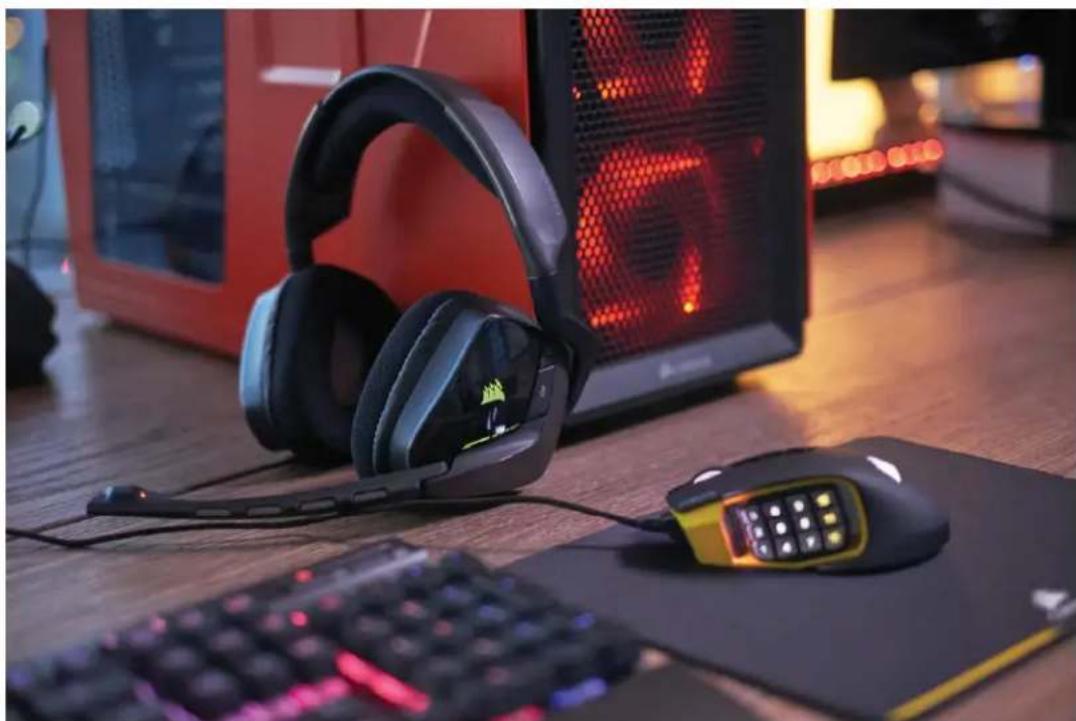
Desktop setup with headsets, mouse, keyboard, and computer monitor displaying red LED screen (no visible text or symbols)The Corsair Gaming VOID gaming headsets, available in wireless, USB, and analog stereo models, are designed for gamers with game-enhancing sound, a modern ultra-comfortable design, and on-headset controls that provide instant one-hand adjustment to key audio settings.
This guide focuses on the VOID Wireless and VOID USB models which include advanced features including RGB lighting, an InfoMic status indicator, a CUE Control dial, and CUE software support.
Before using, please ensure you download and install of CUE from our website: http://www.corsair.com/downloads
The latest firmware for the headset will be updated through the software upon start-up.
Specifications
natural_image
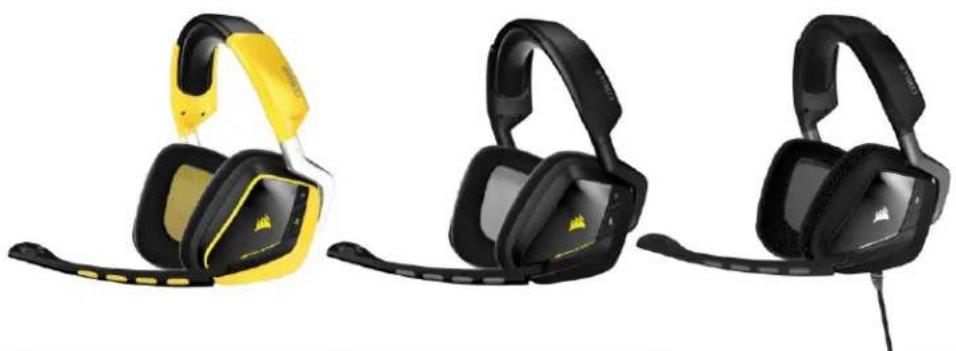
Three black and yellow racing headsets displayed side by side, no text or symbols visible| Model | Void Wireless SE | Void Wireless | Void USB |
| Type | 2.4 GHz Wireless (USB 2.0 receiver) | 2.4 GHz Wireless (USB 2.0 receiver) | Wired USB 2.0 |
| Available Colors | Yellow Jacket | Carbon | Carbon |
| Backlight | Ear cups (RGB) | Ear cups (RGB) | Ear cups (RGB) |
| Audio | Dolby 7.1 | Dolby 7.1 | Dolby 7.1 |
| Driver | 50mm Neodymium | 50mm Neodymium | 50mm Neodymium |
| Frequency Response | 20Hz – 20kHz | 20Hz – 20kHz | 20Hz – 20kHz |
| Impedance | 32 Ohms @ 1kHz | 32 Ohms @ 1kHz | 32 Ohms @ 1kHz |
| Mic Type | Unidirectional noise cancelling | Unidirectional noise cancelling | Unidirectional noise cancelling |
| Mic Impedance | 2.2k Ohms | 2.2k Ohms | 2.2k Ohms |
| Mic Frequency Response | 100Hz – 10kHz | 100Hz – 10kHz | 100Hz – 10kHz |
| Mic Sensitivity | -37 dB (± 3 dB) | -37 dB (± 3 dB) | -37 dB (± 3 dB) |
| Dimensions | 228mm(L) x 242mm(W) x 108mm(H) | 228mm(L) x 242mm(W) x 108mm(H) | 228mm(L) x 242mm(W) x 108mm(H) |
| Product Weight | 388g / 0.85lb | 388g / 0.85lb | 388g / 0.85lb |
| Warranty | 2 years | 2 years | 2 years |
| MSRP | 149.99 | 129.99 | $99.99 |
Features
- Dolby 7.1 multi-channel surround delivers lethally accurate positional audio
- RGB lighting for individual customization or synchronization with other Corsair RGB devices
- CUE Control dial enables rapid on-the-fly audio adjustments
- InfoMic LEDs relay instant visual status of audio and mic settings
- Efficient 50mm neodymium drivers deliver staggering bass and scintillating highs
- Microfiber-wrapped memory foam ear pads for extended play
- Unidirectional noise-cancelling microphone makes gamers' voices loud and clear
- 2.4 GHz wireless and battery provides cordless freedom up to 40 feet and 16 hours of uninterrupted gaming (VOID Wireless)
• USB extension dock for wireless receiver (VOID Wireless SE)
InfoMic & CUE Control – Upgrading to Unfair
InfoMic and CUE control are VOID's solution to creating a way to control virtually every aspect of the audio from the headset itself, while offering a visual feedback system. There was a conscious effort to bring controls up to the left side of the headset, enabling quick changes without having to find a cord-based volume/mute control or button, so players could keep their finger on the trigger – or their mouse in most cases.
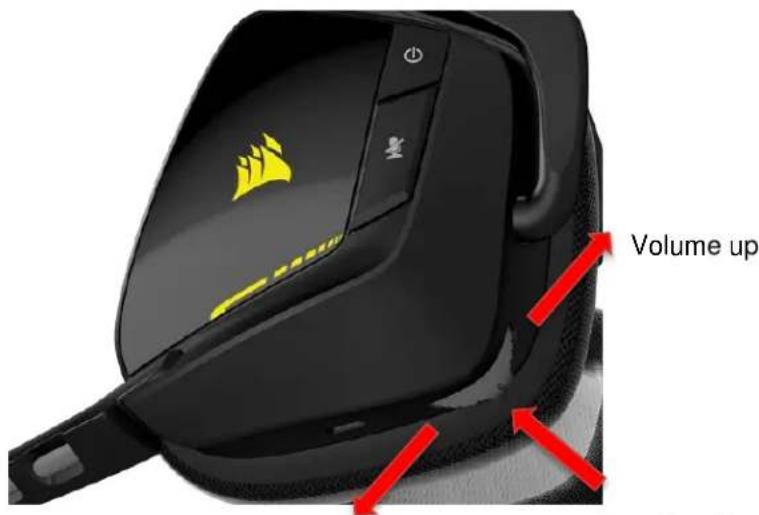
Volume down
Short Key Press: Change EQ profiles
Long Key Press: Enable/Disable Dolby
CUE Control functions
- Adjust Volume - Turn dial upwards to increase volume. Turn dial downward to decrease volume.
- Change EQ Profile - A quick press will cycle through 5 EQ profiles. EQ profiles can be changed in the CUE software.
- Toggle Dolby 7.1 - Pressing and holding the dial will toggle Dolby on and off.
Mute Button
- Mute toggle - a short key press toggles the mic on and off.
- Sidetone - If the mute button is press and held, users can enable or disable sidetone. When sidetone is on, sound from the mic is sent to the ear cups, so users can hear themselves.
Power Button
- On/off – a short key press of the power button to turn the headset on and off. As VOID Wireless is powering off, the ear cup will pulse either green, amber, or red depending on the battery level.
- Pairing – pressing and holding the power button for 10 seconds will put Void Wireless into Pairing mode.
InfoMic
InfoMic is a new feature for our headsets, it provides a visual indicator providing mic status, Dolby status, battery levels, and connectivity status.
LED behavior:
LED 1 - Mic Status
• LED off: Mic unmuted
- Red: Mic muted
LED 2 - Battery Level
- Amber pulse: >20% battery
• Red pulse: >10% battery
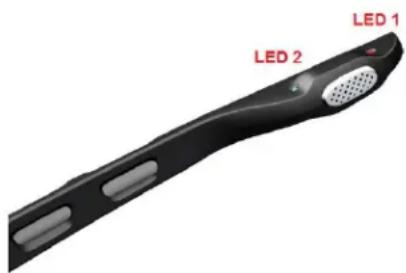
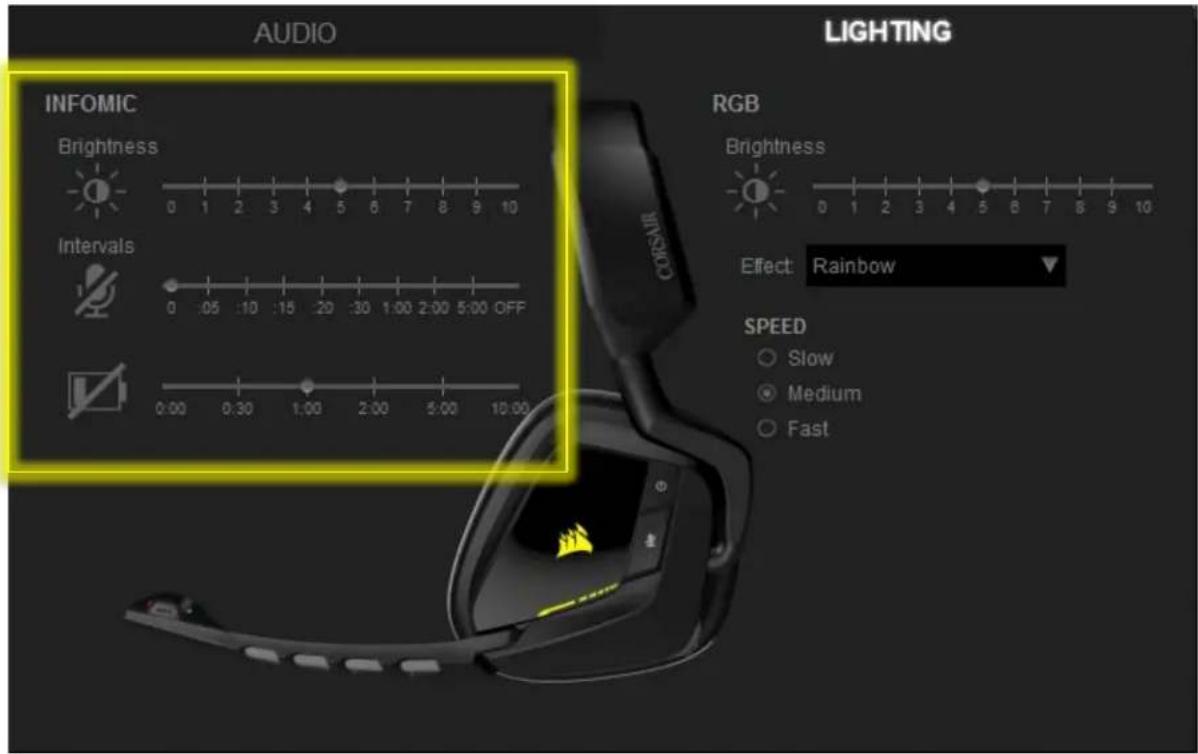
Intervals between each pulse and brightness intensity level can be adjusted using CUE.
EQ profiles and Dolby Status
While CUE is running, quickly pressing the dial on CUE Control will change profiles, InfoMic LED 2 will indicate which profile is active with a series of blinking lights and beep. The number of blinks and beeps and will equal the profile number.
• Profile 1: 1 blink + 1 beep
• Profile 2: 2 blinks + 2 beeps
• Etc
The color of the blinks on LED 2 during switching of profiles will indicated Dolby status.
- Green – Dolby enabled
• Red – Dolby disabled
Wireless pairing indicators
- LED 2 Red rapid blinking – Wireless headset not synced with dongle
- LED 1 and LED 2 blinking red and green – pairing mode. LED 2 will display long green pulse when pairing is successful.
Corsair Utility Engine
Brief Overview
The VOID gaming headset can be programmed and controlled with CUE (Corsair Utility Engine), the same software used for Corsair's RGB keyboards and mice. CUE allows users to configure the ear cup lighting, InfoMic LED notifications for mic status and battery status, and create up to 5 different EQ profiles. Gamers can also use our newest feature "CUE Link" which allows lighting effects to synchronize over all Corsair RGB devices.
The software will also allow gamers to create multiple profiles of color and audio settings for games and applications. These profiles can be automatically activated when the game or loads. Users can export and import profiles/EQ settings/lighting to share with one another on Corsair forums.
Configuring EQ Profiles
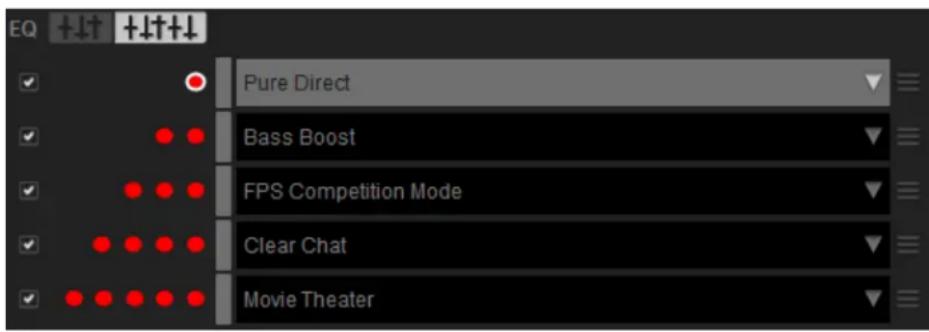
Void uses CUE or Corsair Utility Engine to adjust mic levels, Dolby on/off, sidetone on/off, and EQ. CUE comes 5 EQ profiles (Pure Direct, Bass Boost, FPS Competition Mode, Clear Chat, Movie Theater). Users can customize their own EQ profile and set up to 5 on the fly profiles that can be controlled through CUE control.
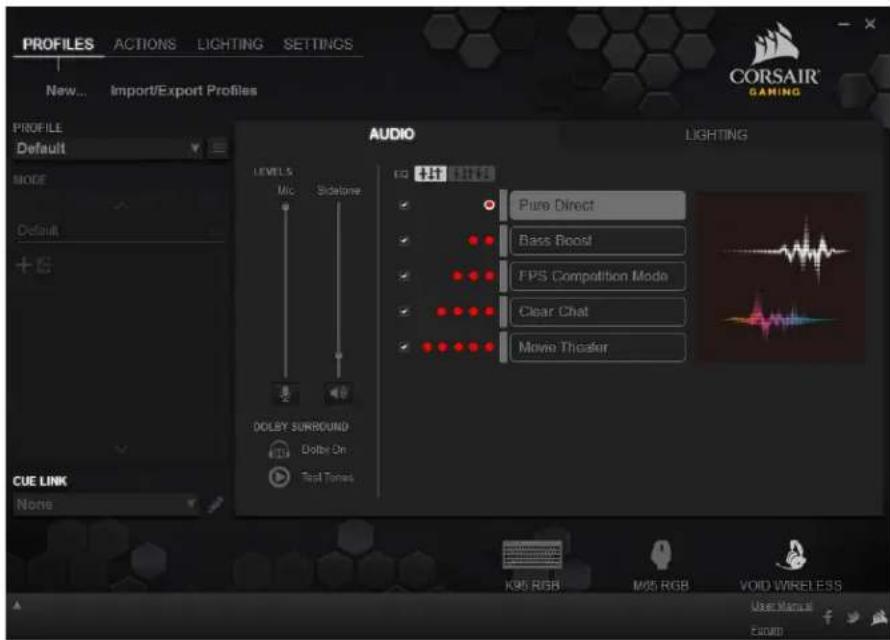
To create and assign a new EQ profile:
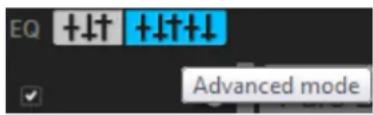
- Click the "Advanced Mode" button.
- Click ■ to the right and click on "new" to create a new profile
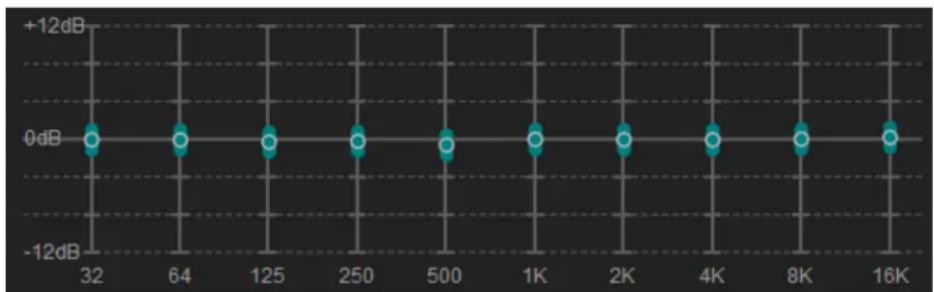
- From here, users will be able to adjust the EQ to taste. Clicking on the slider outside the circle will move that individual slider. Clicking on the circle inside the slider will adjust that slider and adjacent sliders.
scatter
| X-axis (Value) | Y-axis (dB) | |---|---| | 32 | 0 | | 64 | 0 | | 125 | 0 | | 250 | 0 | | 500 | 0 | | 1K | 0 | | 2K | 0 | | 4K | 0 | | 8K | 0 | | 16K | 0 |- New EQ profile "custom"(can be renamed) will now be assigned to Profile #1
Users can move profiles by clicking on the vertical bar next to the profile name dragging it to any of the 5 profiles or by using the drop down menu.
Users can also disable profiles by unselecting the profiles using the check box.
Configuring RGB Lighting
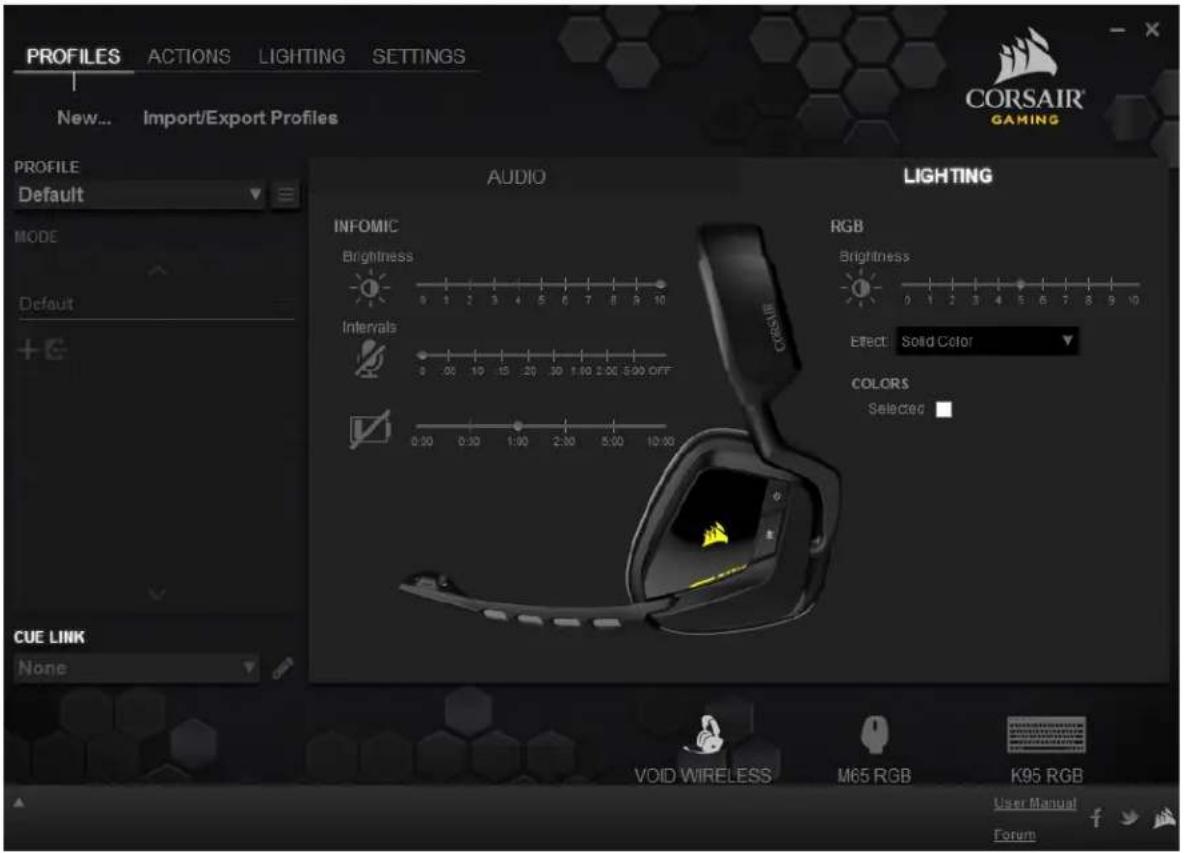
VOID and its RGB lighting is fully compatible with CUE and all other Corsair RGB products. The headset, by default on startup, will use the "Rainbow" effect. We have included other patterns selectable through the dropdown menu for users to select immediately. Some patterns will have addition options to toggle the speed of the lights and/or color of the pattern.
CUE LINK
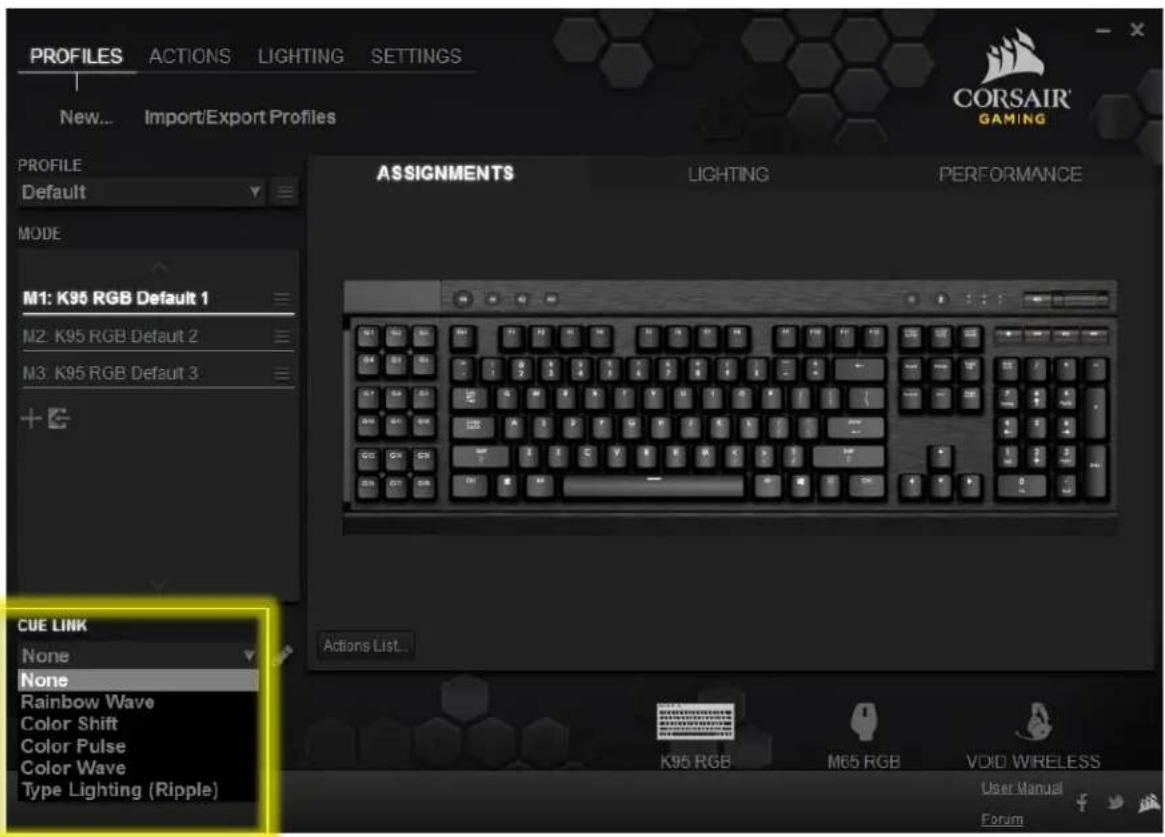
CUE LINK is a feature available for those who have Corsair RGB keyboards and want to synchronize RGB lighting across all Corsair RGB products.
How to set up CUE LINK:
- Click the keyboard icon at the bottom
- Select one of the 5 preset CUE LINK modes. Each mode can be customized by clicking on the pencil icon.
InfoMic Notifications
InfoMic can also be customized through brightness levels, intervals between blinks for mic status, and battery level. Users are able to adjust brightness and intervals by moving the sliders.
Creating CUE Profiles
With the latest version of CUE users will be able to create profiles that unify all RGB devices in addition to synchronized lighting with CUE Link. Like with previous CUE enabled products, users will be able to create profiles for different applications. For example: users can profiles with different keyboard macros, audio EQ profiles, different mouse button assignments for MOBA, FPS, MMOs, RTS, etc.
Profiles can also be linked to a specific game program or application so that the profile is loaded automatically when the program launches.
To create a profile:
-
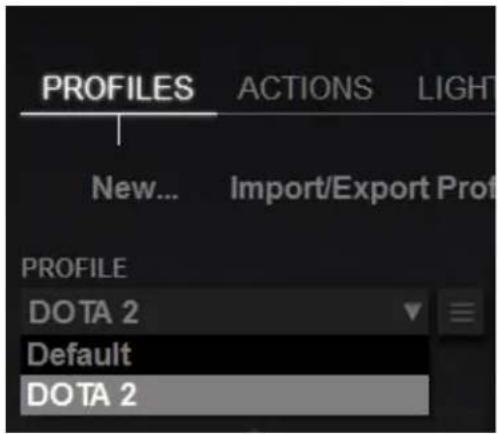
Click the "New..." under the Profiles tab. In the window the profile settings window, enter a name for the profile.
-
Under "Program" users will be able to link profile to any program. To do so click the check box and click "Browse" to find the .exe file to link to the CUE profile.
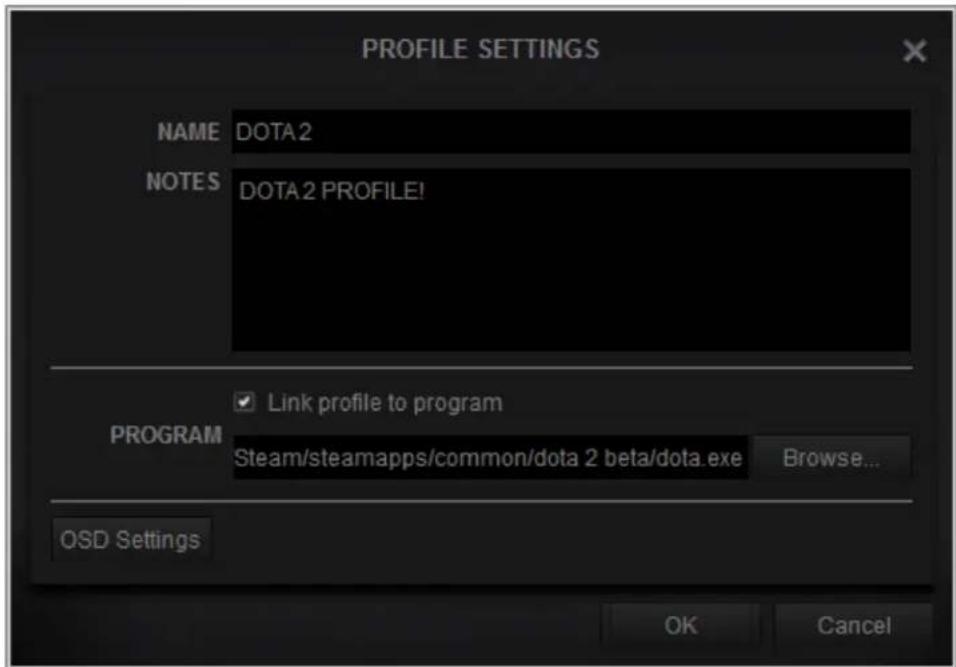
To activate or edit the profile, use the Profile dropdown to select a profile.
Device Information and Updating Firmware
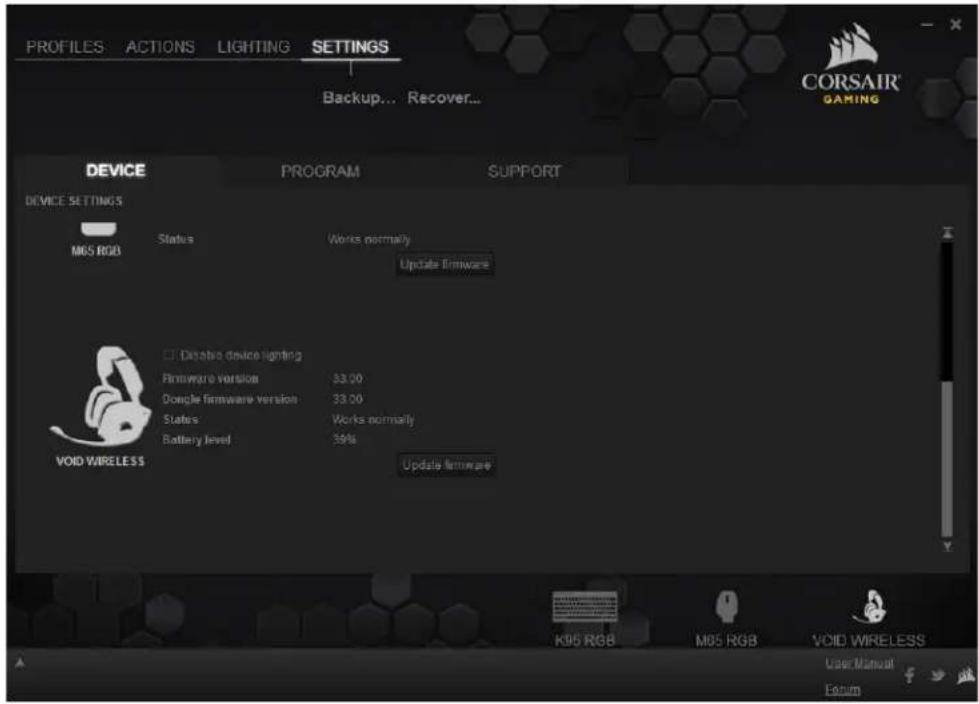
While in CUE, users can find device information and update firmware on the headset by going to the "Settings" tab where the VOID firmware version and other settings are displayed. If firmware requires updating users can click "Update firmware" and CUE will automatically update the firmware.
- VOID Gaming Headsets
- Technical Guide
- Overview
- Specifications
- Features
- InfoMic & CUE Control – Upgrading to Unfair
- CUE Control functions
- Mute Button
- Power Button
- InfoMic
- LED behavior:
- EQ profiles and Dolby Status
- Wireless pairing indicators
- Corsair Utility Engine
- Brief Overview
- Configuring EQ Profiles
- Configuring RGB Lighting
- CUE LINK
- InfoMic Notifications
- Creating CUE Profiles
- Device Information and Updating Firmware
Brand : CORSAIR
Model : CA-9011135-AP
Category : Fan