VP3610 - Computer accessory SMK-Link - Free user manual and instructions
Find the device manual for free VP3610 SMK-Link in PDF.


| Product Type | Wireless Presenter |
| Brand | SMK-Link |
| Model | VP3610 |
| Connectivity | 2.4 GHz Wireless, USB Receiver |
| Wireless Range | Up to 15 meters (49 feet) |
| Laser Pointer | Class 2 Red Laser, < 1 mW |
| Buttons | 5 Programmable Buttons (Slide Up/Down, Laser, Black Screen, Hyperlink) |
| Power Source | 2 x AAA Batteries (Included) |
| Battery Life | Up to 12 months typical use |
| Dimensions (L x W x H) | 120 x 30 x 18 mm (4.7 x 1.2 x 0.7 in) |
| Weight | 45 g (1.6 oz) without batteries |
| Compatibility | Windows, macOS, Linux, Android (with OTG) |
| Color | Black |
| Operating System Requirements | USB Port (HID compatible) |
| Warranty | 1 Year Limited |
| Package Contents | Presenter, USB Receiver, 2 x AAA Batteries, User Manual |
| Storage Temperature | -20°C to 60°C (-4°F to 140°F) |
| Cleaning | Wipe with a soft dry cloth; do not use liquids |
| Safety Approvals | CE, FCC, RoHS |
Frequently Asked Questions - VP3610 SMK-Link
User questions about VP3610 SMK-Link
0 question about this device. Answer the ones you know or ask your own.
Ask a new question about this device
Download the instructions for your Computer accessory in PDF format for free! Find your manual VP3610 - SMK-Link and take your electronic device back in hand. On this page are published all the documents necessary for the use of your device. VP3610 by SMK-Link.
USER MANUAL VP3610 SMK-Link
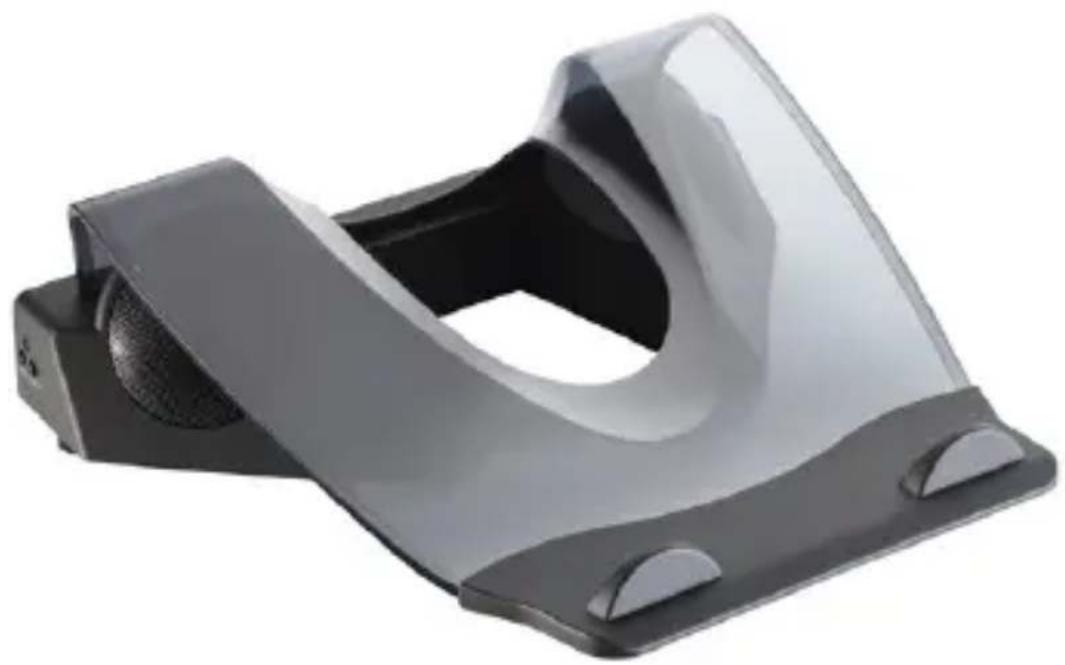
Notebook USB Audio Station
natural_image
Exterior view of a modern office building (no signage)SMK-LINK
Agency Certifications
USA - FCC CFR 47 Part 15, Subpart B
This device complies with Part 15 of the FCC Rules.
Operation is subject to the following two conditions:
(1) This device may not cause harmful interference, and
(2) This device must accept any interference received, including interference that may cause undesired operation. This equipment has been tested and found to comply with the limits for a class B digital device, pursuant to part 15 of the FCC Rules. These limits are designed to provide reasonable protection against harmful interference in a residential installation.
This equipment generates, uses and can radiate radio frequency energy and if not installed and used in accordance with the instructions, may cause harmful interference to radio communications. However, there is no guarantee that interference will not occur in a particular installation. If this equipment does cause harmful interference to radio or television reception, which can be determined by turning the equipment off and on, the user is encouraged to try to correct the interference by one or more of the following measures:
• Reorient or relocate the receiving antenna.
- Increase the separation between the equipment and receiver.
- Connect the equipment into an outlet on a circuit different from that to which the receiver is connected.
- Consult the dealer or an experienced radio/TV technician for help.
Operation with non-approved equipment is likely to result in interference to radio and TV reception. The user is cautioned that changes and modifications made to the equipment without the approval of manufacturer could void the user's authority to operate this equipment.
Changes or modifications not expressly approved by the party responsible for compliance could void the user's authority to operate the equipment.
Canada - ICES-003
This Class B digital apparatus complies with Canadian ICES-003. Operation is subject to the following two conditions: (1) this device may not cause interference, and (2) this device must accept any interference, including interference that may cause undesired operation of the device.
European RoHS DIR 2002/95/EC
Waste electrical and electronic products must not be disposed of with household waste. Please recycle where facilities exist. Check with your Local Authority or Retailer for recycling advice.

© 2009 SMK-LINK Electronics, Inc.
System Requirements
• Hardware: 1 USB (1.1 or 2.0) port
• Operation Systems: Mac OS X or Windows 2000, XP, Vista, Windows 7
Package Contents
• Notebook USB Audio Station
• 3.5mm Audio Cable
- AC adapter
- User's manual
Operating Instructions
- Connect the supplied AC adapter to the station’s power port and plug it to a power outlet. (Note: this is optional but recommended. The USB ports are functional without the AC adapter. However, the speakers and some power-demanding USB peripherals may require DC power through the supplied AC adapter.)
- Connect the attached USB cable to your notebook computer's available USB port.
- Turn on the AC power switch located at the right-hand side of the station before using the USB hub. (Note: the power switch turns the AC power on and off. It will not impact those USB devices that draw power from your computer. Please turn it off when
the computer is not in use to conserve energy.)
• A 3.5mm headphone/earphone jack is provided at the back of the station for your convenience.
• A 3.5mm audio jack is also located at the back of the station for connecting to external audio source.
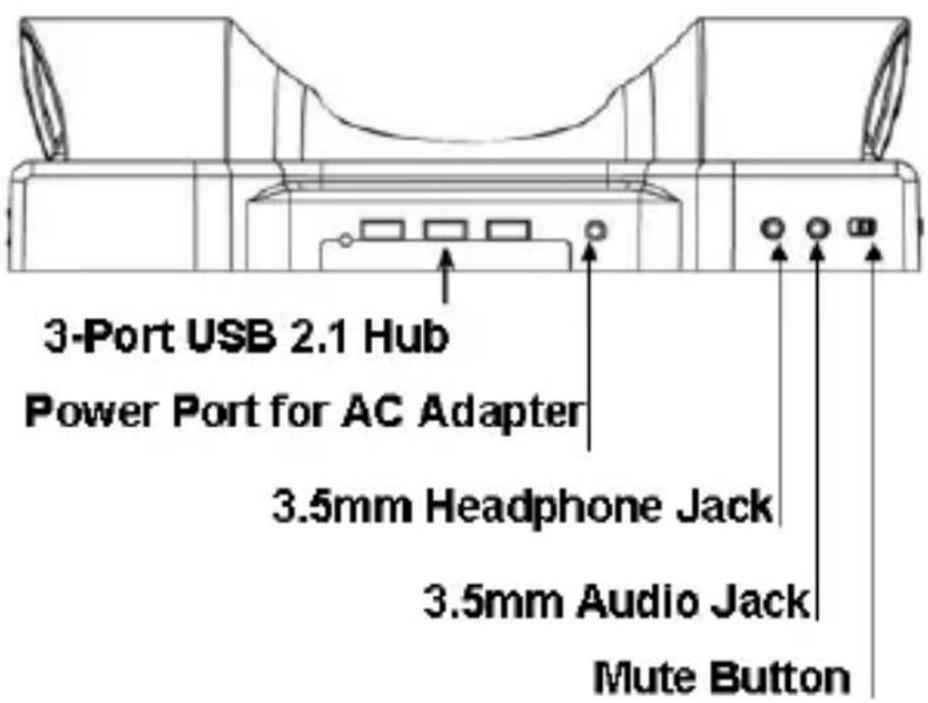
- The speakers are turned on automatically when the audio station’s USB cable is connected to your computer’s USB port. The LED indicator light turns green to signal that the USB cable is connected to your computer. The LED light turns off when the USB cable is disconnected from your computer.
- Remember you must have your audio station's
speaker on (i.e. the station is connected to your computer) before opening your digital media player such as iTunes or Windows Media Player in order to automatically switch the audio output from your built-in notebook speakers to the audio station.
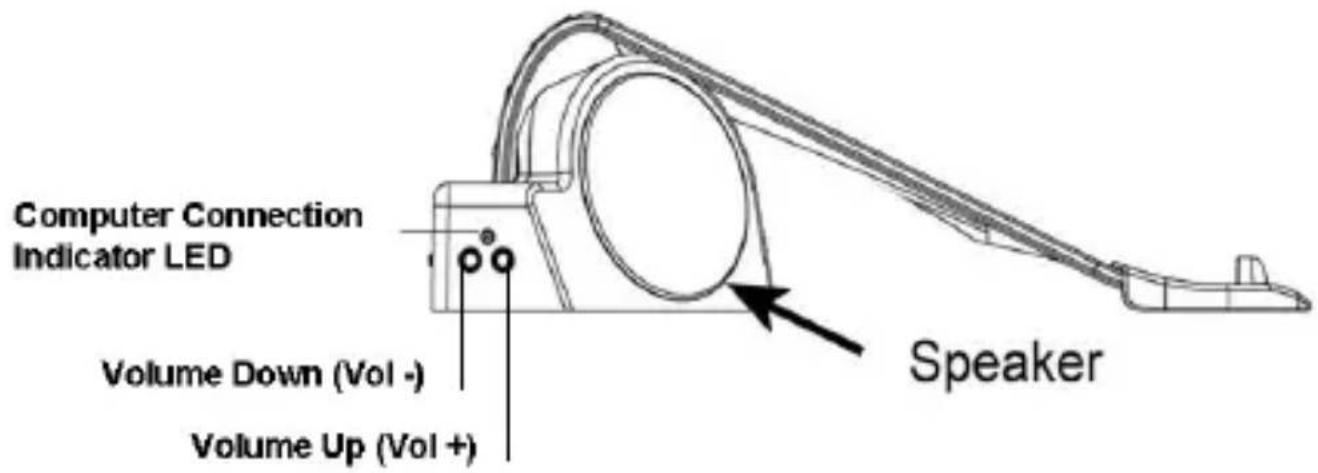
• A mute button is located on the left-side at the back of the base for your convenience.
- To adjust speaker volume, press the volume up and volume down buttons located at the left-hand side of the station. Note: the volume control only affects the speaker's volume. Please remember to adjust the volume controls for your computer, operating system and media player to achieve the desired volume level. (Caution: please take extra care with audio volume. Research has shown high audio volume is harmful to hearing.)
Set up Audio Device
Please note that some computer systems do not automatically adjust their audio device settings when an external audio system is connected to the system. If the speaker on your new Audio Stand does not function after you have completed the installation, please perform the following simple steps to set up your system.
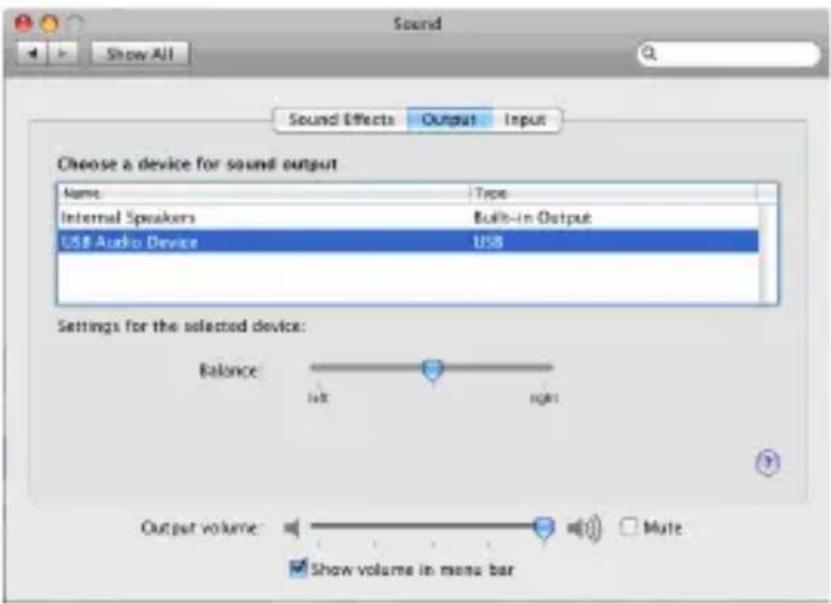
Mac OS
• In System Preferences, select Sound in Hardware category
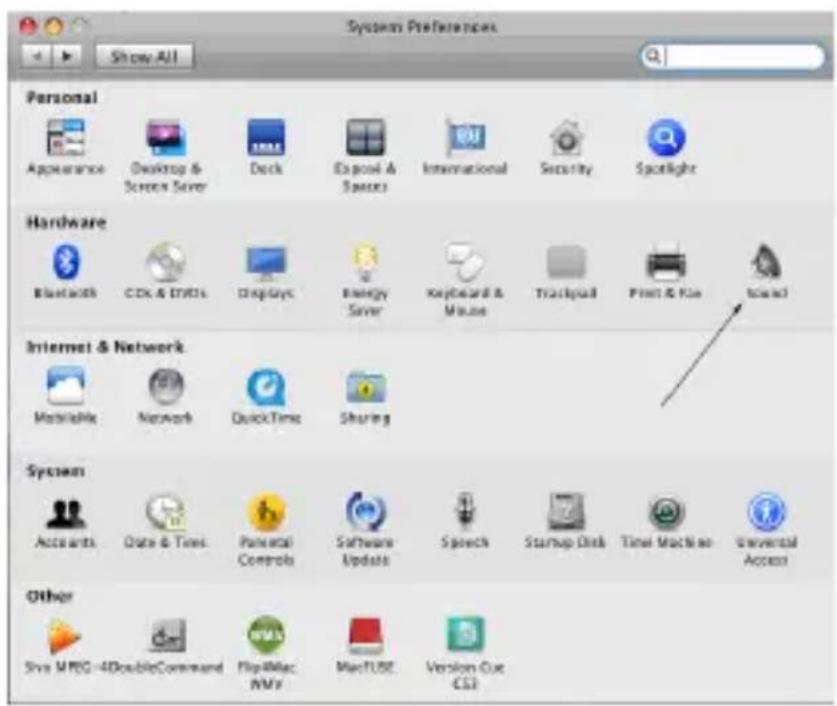
• In Sound, select USB Audio Device under Output tab
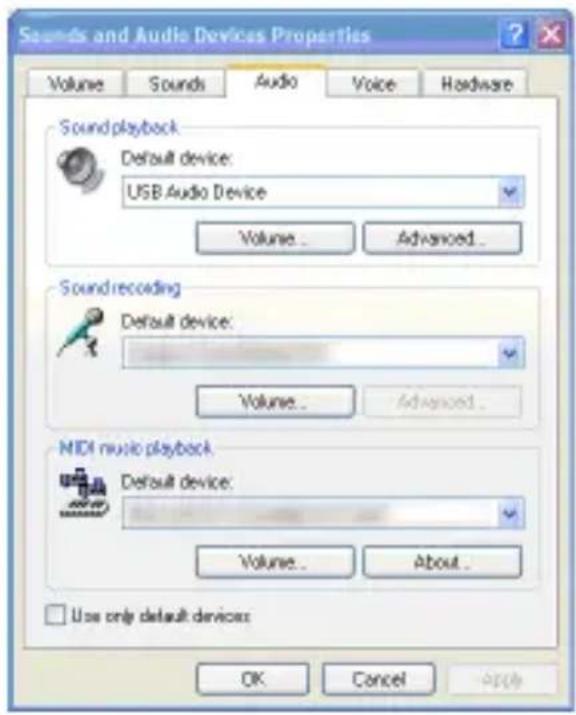
Windows XP
- Go to Control Panel, click on Sounds and Audio Devices. In Audio tab, select USB Audio Device as the default device for Sound playback
Windows 7
• Go to Hardware and Sound to set the audio device

Network and Internet
View network status and tasks
Choose homegroup and sharing options
Hardware and Sound
View devices and printers
Add a device


Programs
Uninstall a program
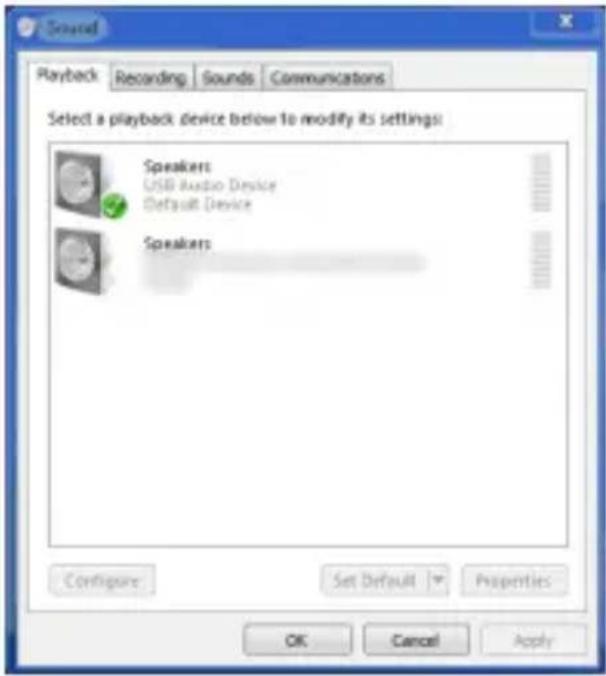
• In Sound, click on Manage audio devices

AutoPlay
Change default settings for media or devices Play CDs or other media automatically

Sound
Adjust system volume Change system sounds Manage audio devices


Power Options
Change power-saving settings | Change what the power buttons do
Require a password when the computer wakes | Change when the computer sleeps | Choose a power plan

Display
Make text and other items larger or smaller | Adjust screen resolution | Connect to an external display
How to correct monitor flicker (refresh rate)
• Once in Sound, open Playback tab and select USB Audio Device as Default Device for Speakers
Troubleshooting
If your computer failed to recognize the USB device with an error message displayed, this could be caused by the low voltage on your computer. When your computer voltage is below 3.3V, USB will automatically close all connection and the error message shows up. To correct this problem, follow the steps listed below:
• Make sure your computer is powered by its AC adapter, not relying on its battery power.
• Unplug the audio station from your computer.
- Unplug all devices connected to the USB hub on the audio station.
- Connect the USB cable to the computer again.
- When the USB device is found by your computer, connect your USB devices back to the audio station.
If the USB ports fail to function:
- Check to ensure the Station is connected to your notebook computer via the attached USB cable.
• Make sure the AC power switch located at the right-hand side of the station is turned on.
• Some of the power-demanding peripherals or accessories, i.e. external harddrive, printer, scanner, external CD/DVD player, etc. may require extra power. Please make sure the AC adapter is connected properly to the Station.
If the speaker doesn't produce audio output, please check the following:
- Check to ensure the Station is connected to your notebook computer via the attached USB cable. The computer connection indicator LED should be green.
- Adjust the speaker volume to the desirable level and check the audio level of your computer operating system and the media player to make sure they are not muted.
- Check “Sounds and Audio Devices” in your computer’s “Control Panel.” This should automatically set to USB Audio Device when the Station is connected to your computer. In “Audio” tab, select “USB Audio Device” as the default device for sound playback. In “Voice” tab, select “USB Audio Device” as the default device for voice
playback if the setting is not set properly.
Warranty:
SMK-LINK Electronics warrants to the original end-user purchaser of the Product (“you”) that the Product, excluding batteries, will be free from defects in materials or workmanship under normal use and service for one-year from date of purchase. Dated invoice or sales receipt is necessary to accompany the Product returned for warranty service consideration. Any Product repaired or replaced under the terms of the warranty is covered for the remainder of the original warranty period or ninety (90) days from the date of service or return shipping, whichever is longer. If the Product becomes defective in materials or workmanship during the warranty period, SMK-LINK Electronics will, at its option, either repair or replace it with a more current or upgraded model if the originally purchased model is not available. This warranty does not cover products which have been subjected to misuse, accident, physical damage, improper installation, abnormal operation or handling, neglect, inundation or fire, or when product regulatory label has been removed, altered or rendered illegible; nor does it cover accessory and consumable items. In no case shall SMK-LINK Electronics be liable for any indirect, special, incidental, or consequential damages based upon breach of warranty, breach of contract, negligence, strict tort or any other legal theory. Such damages include, but are not limited to, loss of profits, loss of savings or revenues, inability to use the product or any associated equipment, cost of capital, cost of any substitute equipment, facilities or services, claims by third parties other than you, and injury to property. SMK-LINK Electronics’s total liability for damages for any cause related to, or arising out of, the use or inability to use
the product, shall not exceed the original price paid for the product even if SMK-LINK Electronics has been informed of such possibility. If your Product requires warranty service, you must first contact SMK-LINK Electronics Product Support to receive an RMA Number. The contact information can be found on SMK-LINK Electronics website: http://www.smklink.com/support/contactsupport.html. This warranty does not affect your statutory right and you may also have other rights which vary from state to state. Unless modified in writing, signed by both you and SMK-LINK Electronics, this warranty is understood to be the complete and exclusive agreement between the parties, superseding all prior agreements, oral or written, and all other communications between the parties relating to the subject matter of this warranty.
Product Support
For technical support please contact SMK-LINK Electronics at http://www.smklink.com/support or call 888 696 3500
All trademarks and registered trademarks mentioned in this document are the property of their respective owners.
Features and specifications are subject to change without notice.
Thank You
Thank you for purchasing the Notebook USB Audio Station. We know you had other choices
and we appreciate that you chose SMK-Link Electronics' Notebook USB Audio Station for your product needs. So that we may better serve you in the future, please register online at www.smklink.com/register.
© 2009 SMK-LINK Electronics