
ADSLR4 - Router CONCEPTRONIC - Free user manual and instructions
Find the device manual for free ADSLR4 CONCEPTRONIC in PDF.


| Product Type | ADSL Router |
| Brand | Conceptronic |
| Model | ADSLR4 (CADSLR4) |
| Dimensions | 160 x 120 x 30 mm (approx.) |
| Weight | 300 g |
| Power Supply | External AC adapter: input 90-120V or 200-240V, 50/60Hz; output 9VAC/800mA |
| Processor | ARM940T (Conexant CX82310-14) |
| ADSL Standards | ANSI T1.413 Issue 2, ITU G.dmt (G.992.1), ITU G.lite (G.992.2) |
| Maximum Downstream Rate | 8 Mbps (full-rate), 1.5 Mbps (G.lite) |
| Maximum Upstream Rate | 1 Mbps (full-rate), 512 Kbps (G.lite) |
| WAN Protocols | PPPoA (RFC 2364), PPPoE (RFC 2516), Bridged/Routed Ethernet over ATM (RFC 2684/1483), Classical IP over ATM (RFC 1577) |
| LAN Ports | 4 x RJ-45 10/100 Mbps Ethernet |
| USB Port | 1 x USB 1.1 (for firmware upgrade) |
| LED Indicators | PWR, LINK, LAN1, LAN2, LAN3, LAN4 |
| Default IP Address | 10.0.0.2 |
| Default Username | admin |
| Default Password | password |
| DHCP Server | Yes (system allocated or user defined) |
| NAT/NAPT Support | Dynamic NAPT, Static NAT, Port Forwarding |
| Firewall | Built-in (FreeBSD based), DMZ support |
| DDNS Support | Yes (DynDNS.org) |
| Package Contents | Router, CD-ROM (manual), Ethernet cable, ADSL cable, USB cable, power adapter, quick installation guide, splitter (optional) |
| Supported Operating Systems | Windows 98SE, ME, 2000, XP |
| Maintenance | Keep in well-ventilated area; clean with dry cloth; restart occasionally |
| Safety | Use only provided power adapter; avoid water; do not disassemble |
Frequently Asked Questions - ADSLR4 CONCEPTRONIC
User questions about ADSLR4 CONCEPTRONIC
0 question about this device. Answer the ones you know or ask your own.
Ask a new question about this device
Download the instructions for your Router in PDF format for free! Find your manual ADSLR4 - CONCEPTRONIC and take your electronic device back in hand. On this page are published all the documents necessary for the use of your device. ADSLR4 by CONCEPTRONIC.
USER MANUAL ADSLR4 CONCEPTRONIC
| Specification Model Name: Conceptronic CADSLR4 (4 Port ADSL Router Annex A/B) | |
| Chipset | ADSL Router Chip:(CX82310-14)ARM940T Processor |
| Line Connection RJ-11(2 wires), USB, RJ-45 Connection | |
| Compliant with ADSL standards | Full-rate ANSI T1.413 Issue 2 and ITU G.dmt (G.992.1) standards Splitter less ITU G.lite (G.992.2) specification |
| Full-rate adaptive modem | Maximum downstream rate of 8 MbpsMaximum upstream rate of 1 Mbps |
| G.lite adaptive modem | Maximum downstream rate of 1.5 MbpsMaximum upstream rate of 512 Kbps |
| WAN Mode Support | PPP over ATM (RFC 2364)PPP over Ethernet (RFC 2516) |
| LAN Mode Support | Bridged/routed Ethernet over ATM (RFC 2684/1483)Classical IP over ATM (RFC 1577) and PPP over Ethernet (RFC 2516) |
| Bridge Mode Support | Ethernet to ADSL self-learning Transparent Bridging (IEEE 802.1D)Supports up to 128 MAC learning addresses |
| Router Mode Support | IP routing-RIPv2 (backward compatible with RIPv1)Static routingDHCP (Dynamic Host Configuration Protocol) Server and ClientNAPT (Network Address and Port Translation)NAT (Network Address Translation)ICMP (Internet Control Message Protocol)Simultaneous USB and Ethernet operationIGMP (Internet Group Management Protocol) |
| Ethernet Interface | Compatible with IEEE 802.3 standard10/100 Mbps auto selection |
| USB host Interface Compliant with USB | Specification, Revision 1.1 |
| PTT and Safety FCC Part 15/Part 68, CE,UL | |
| OS WIN 98SE; WIN 2000WIN MEWIN XP | |
| System Requirement PII-266 + 32M RAM | |
| Power | External AC adapterInput: 90-120V or 200-240V, 50/60HzOutput: 9VAC/800mA |
| LED Indication PWR, LINK, LAN1, LAN2, | LAN3, LAN4 |
| SIZE 160mm * 120mm | |
| Weight | 300g |
| Software Upgrade Upgrade by USB port | |
Package Contents
- ADSL Router
• CD-ROM containing Manual - Ethernet Cable (CAT5 UTP Straight-Through)
• ADSL Cable (Standard telephone cable)
USB Cable - Power Adapter
• Quick Installation Guide hardcopy - Splitter (Optional)
Hardware Connecting
4 Port ADSL
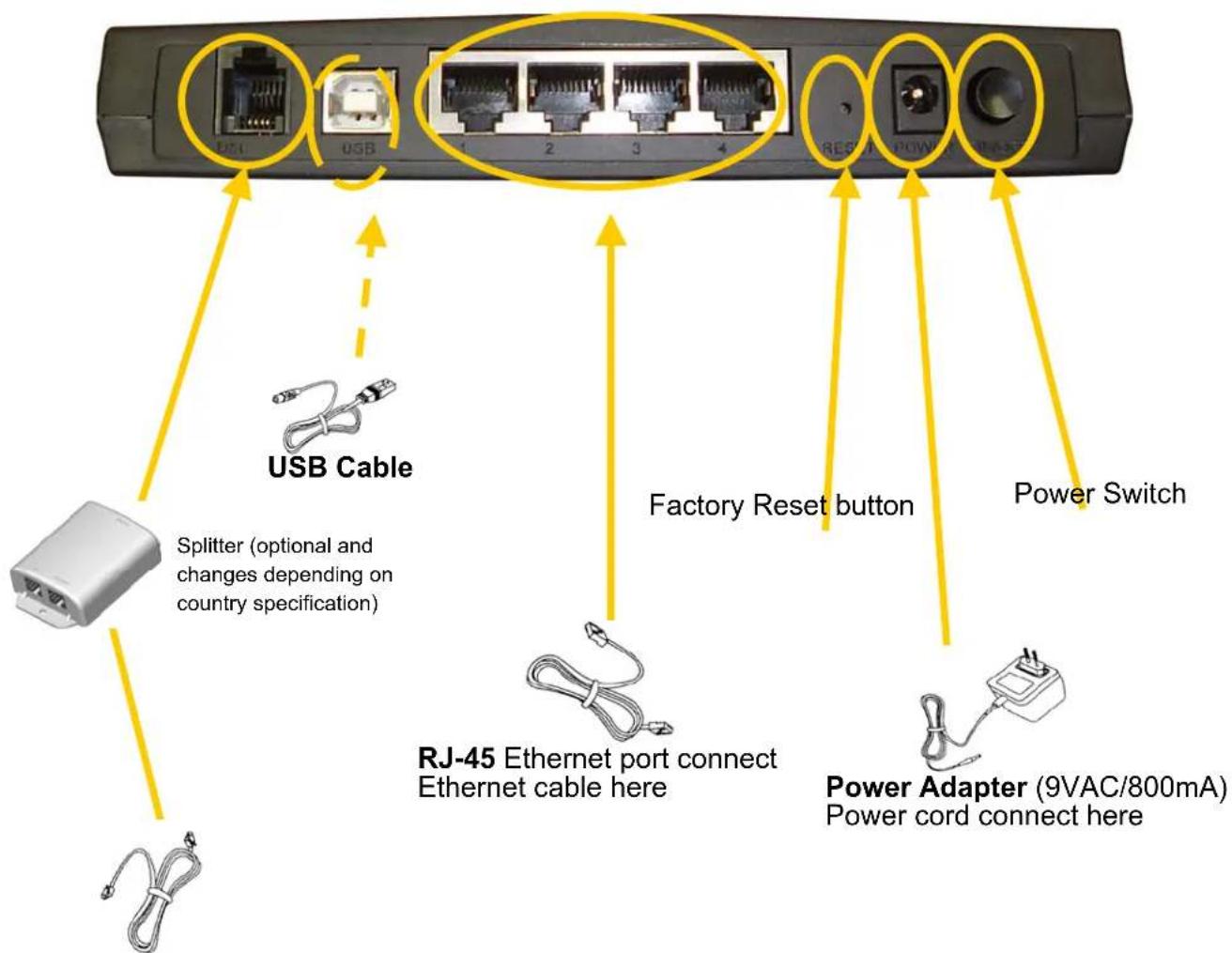
RJ-11 ADSL port connect ADSL cable here
LED Indicators
The LED Indicators are located on the front of the unit, they are green in color. The meanings are as follows:
| Label | Meaning | Status | Indicates | |
| PWR | Power On Power is onOff Power is off | |||
| LINK | WAN Link Flashing Link being attempted by router. | |||
| On | Link | established | ||
| Off | No | link | ||
| LAN 1/ LAN 2/ LAN Link | Flashing | Flashes when data is being sent orreceived on the LAN connection. | ||
| LAN 3/ LAN 4 | ||||
| On Indicates a link to your LAN or | ||||
| Network card is active. | ||||
| Off Indicates no link to LAN | ||||
General Setting
You can use the RJ 45 cable connect to the ADSL Router. Please see the connecting procedures as below:
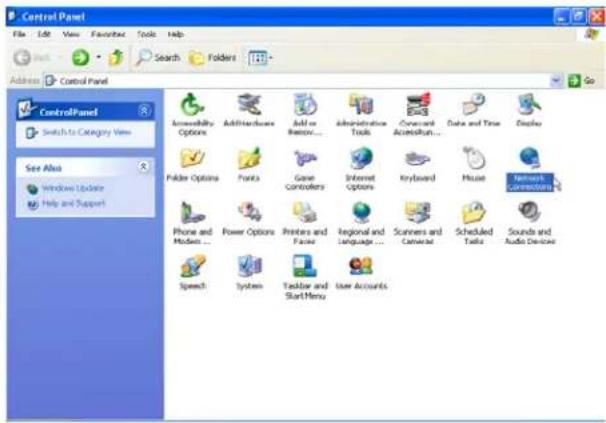
Step 1
Move your cursor as following sequence Start \ Settings \ Control Panel and click Control Panel. Then double-click on the Network Connections
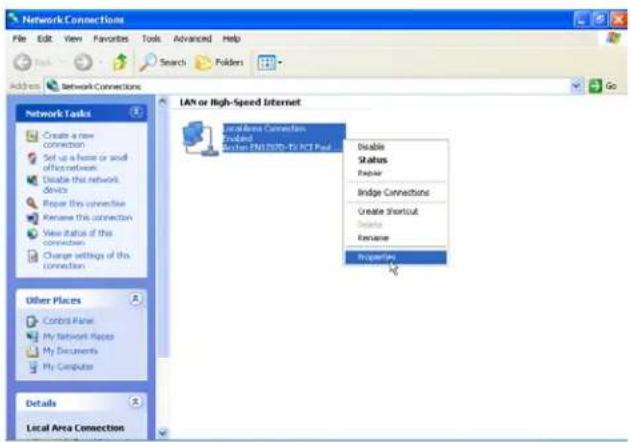
Step 2
In the LAN or High-Speed Internet window, right-click on icon corresponding to your network interface card (NIC) and select Properties. (This icon may be labeled Local Area Connection).
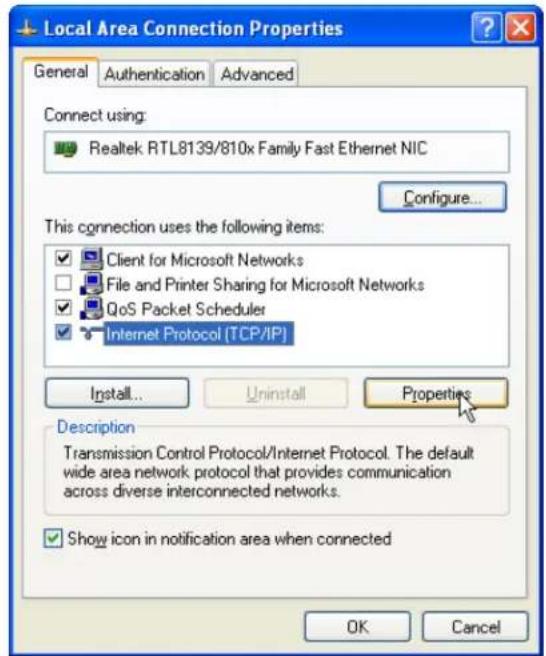
Step 3
In the General Tab of the Local Area Connection Properties menu. Highlight Internet Protocol (TCP/IP) under “This connection uses the following items.” by click on it once. Click on the Properties button.
Step 4
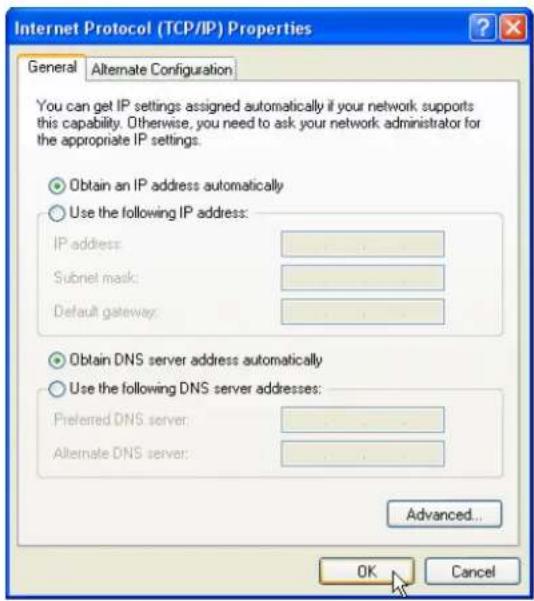
Select Obtain an IP Address automatically: by clicking once in the circle. Click OK button to confirm and save your changes, and the close the Control Panel.
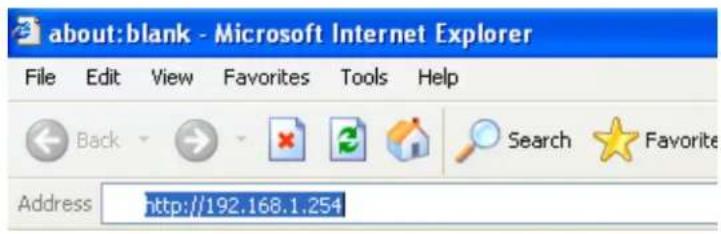

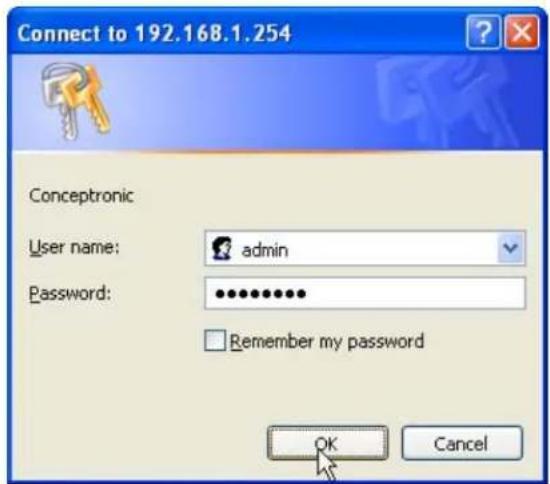
In the User name/Password prompt, please type in admin/password as default.

You can now start browsing the web through the ADSL device.
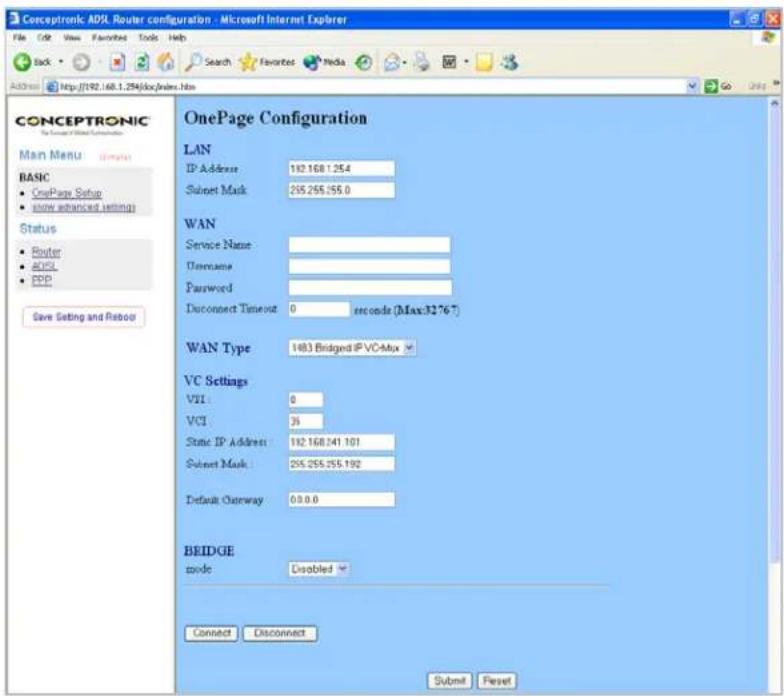
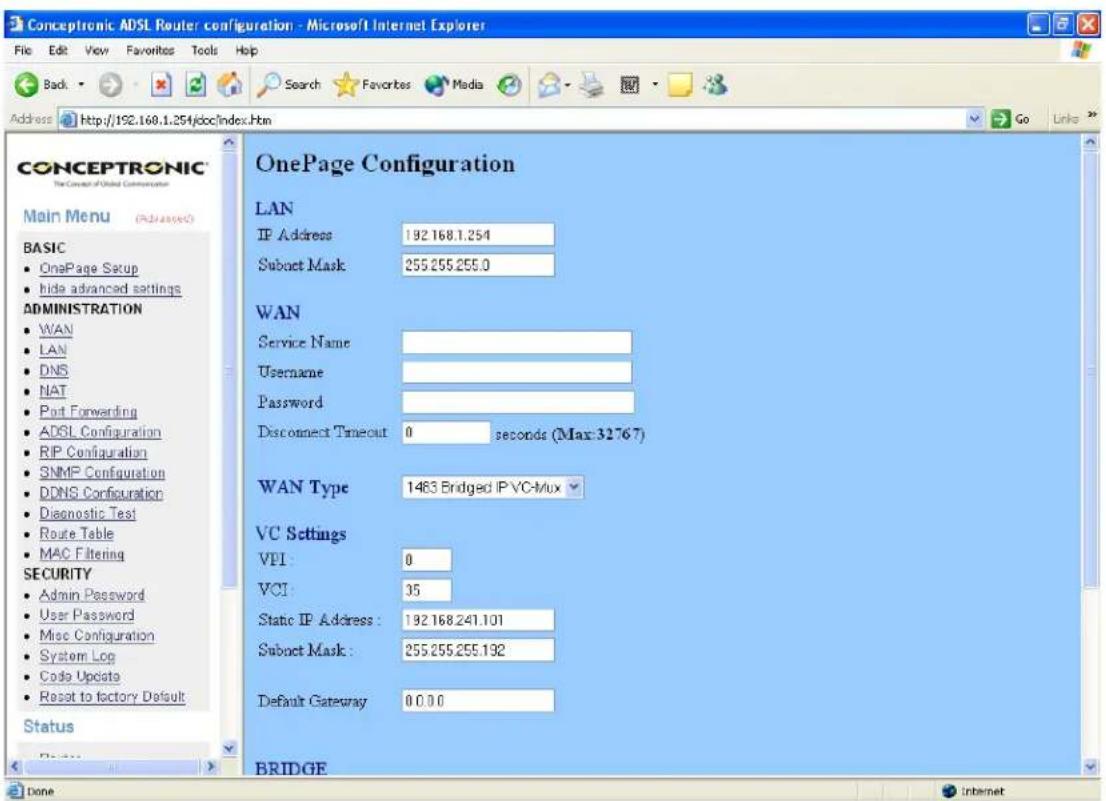
By default you will get the One Page Configuration.
Fill in the necessary data for your internet connection.
Click 'Submit' to save the page settings. Press 'Save Setting and reboot'.
Status
Router
Select ‘Router’ in the ‘Main menu’. This page shows the Firmware Version and WAN and LAN interface status.
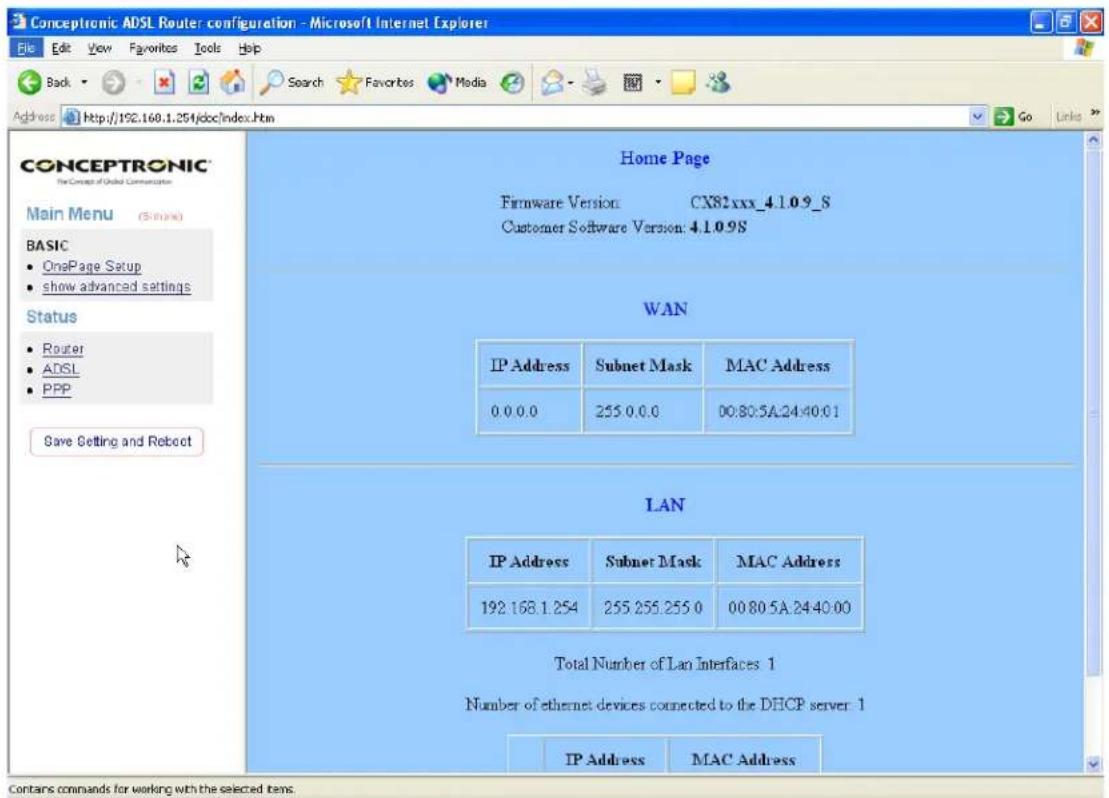
Firmware Version:
This field displays the Firmware Version number.
WAN:
These fields display the IP Address, Subnet Mask, MAC Address for WAN interface.
LAN:
These fields display the IP Address, Subnet Mask, MAC Address for LAN interface.
Number of Ethernet devices connected to the DHCP server:
This field displays the number of DHCP clients connected to the ADSL Wireless Router. It also shows the IP address and MAC address of the attached DHCP clients.
ADSL
The ADSL Status page shows the ADSL physical layer status.
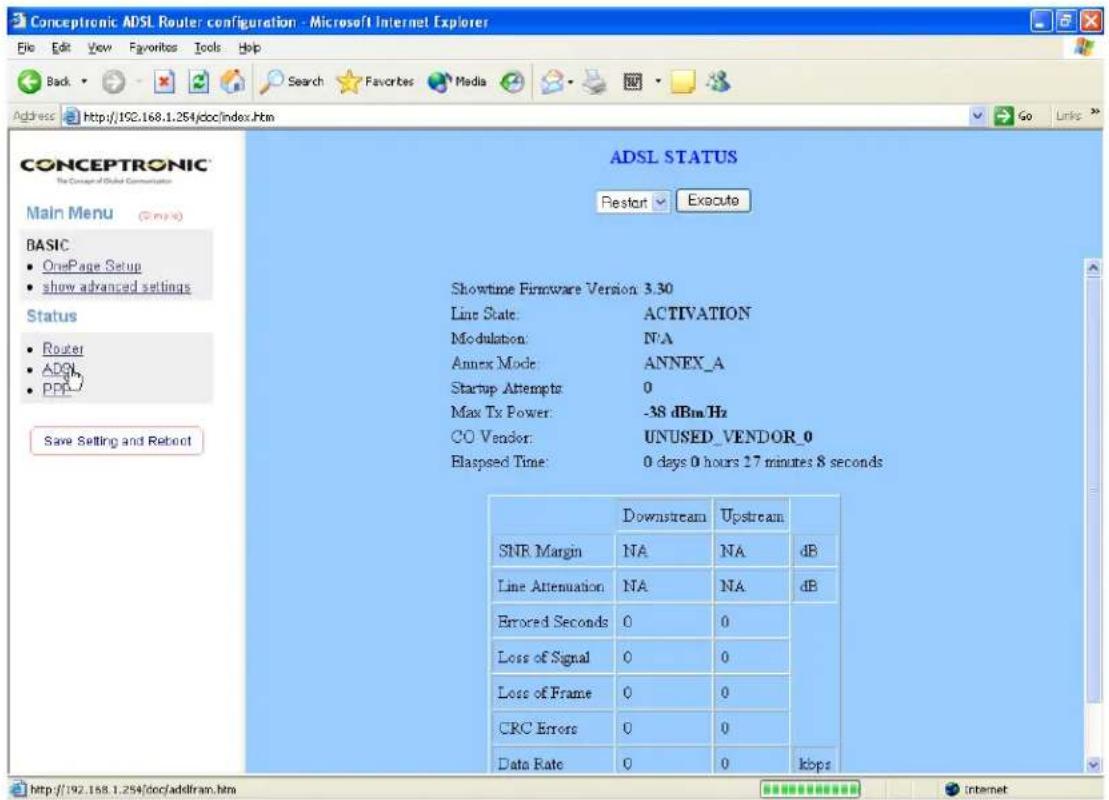
Showtime Firmware Version:
This field displays the ADSL data pump firmware version number.
Line State:
This field displays the ADSL connection process and status.
Modulation:
This field displays the ADSL modulation status for G.dmt or T1.413.
Annex Mode:
This field displays the ADSL Annex modes for Annex A or Annex B.
Startup Attempts:
This field displays the ADSL connection attempts after loss of showtime.
Max Tx Power:
This field displays the transmit output power level of the CPE.
Co Vendor:
This field displays the Central Office DSLAM vendor name. If available.
Elaspsed Time:
This field displays the time of the modem has been in operation.
PPP
The PPP Status page shows the status of PPP for each PPP interface. See PPP.
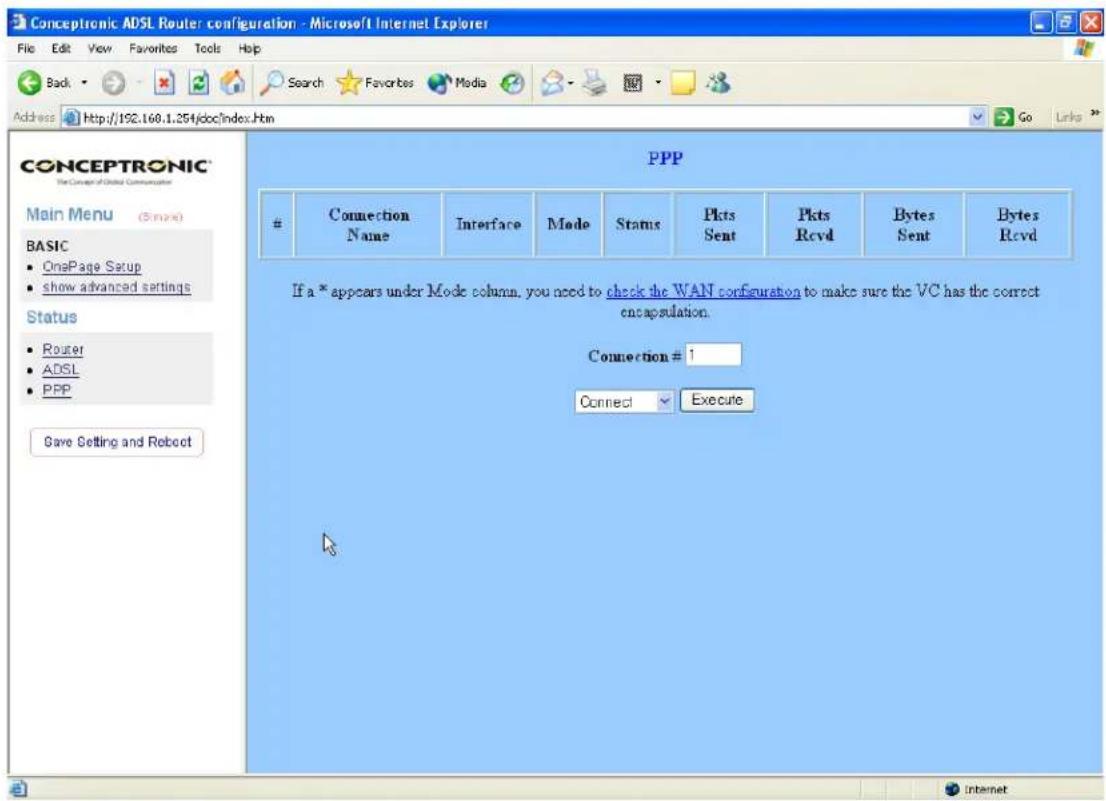
These fields display the following information on each PPP interface:
- Connection Name (user defined)
- Interface (PVC)
• Mode (PPPoE or PPPoA)
• Status (Connected or Not Connected) - Packets Sent
- Packets Received
- Bytes Sent
- Byte Received
Connect and Disconnect:
Each PPP session can be individually controlled, simply enter the desired connection number into the “Connection #” field and select either connect or disconnect from the drop down menu and click on the “Execute” button.
Advanced Setting
To enter the Advanced Setting Page, you have to click 'Show advanced settings'.
CONCEPTRONIC
The Concept of Global Communication
Main Menu (Simple)
BASIC
- OnePage Setup
• show advanced settings
Status
- Router
• ADSL - PPP
Save Setting and Reboot
Administration
The links under the Administartion columns are associated to the pages that represent the configurations of system and interfaces.
Note: When the configurations are changed, please click the Save Setting and Reboot button.
WAN
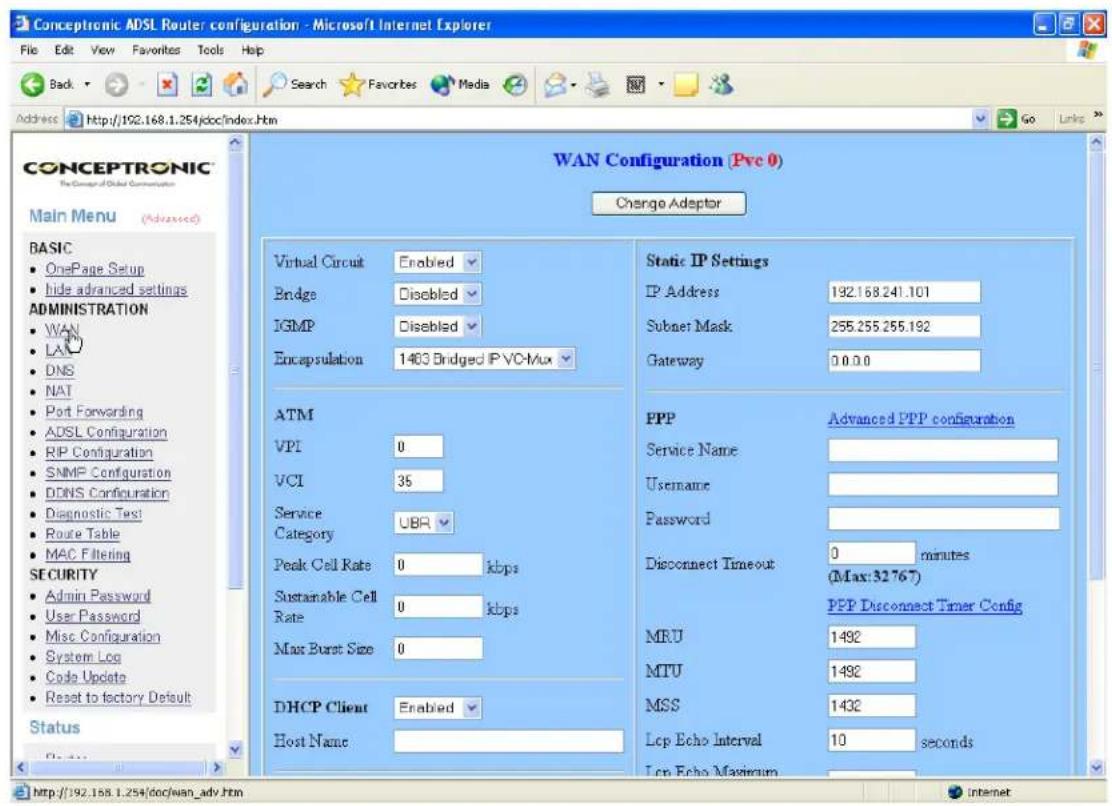
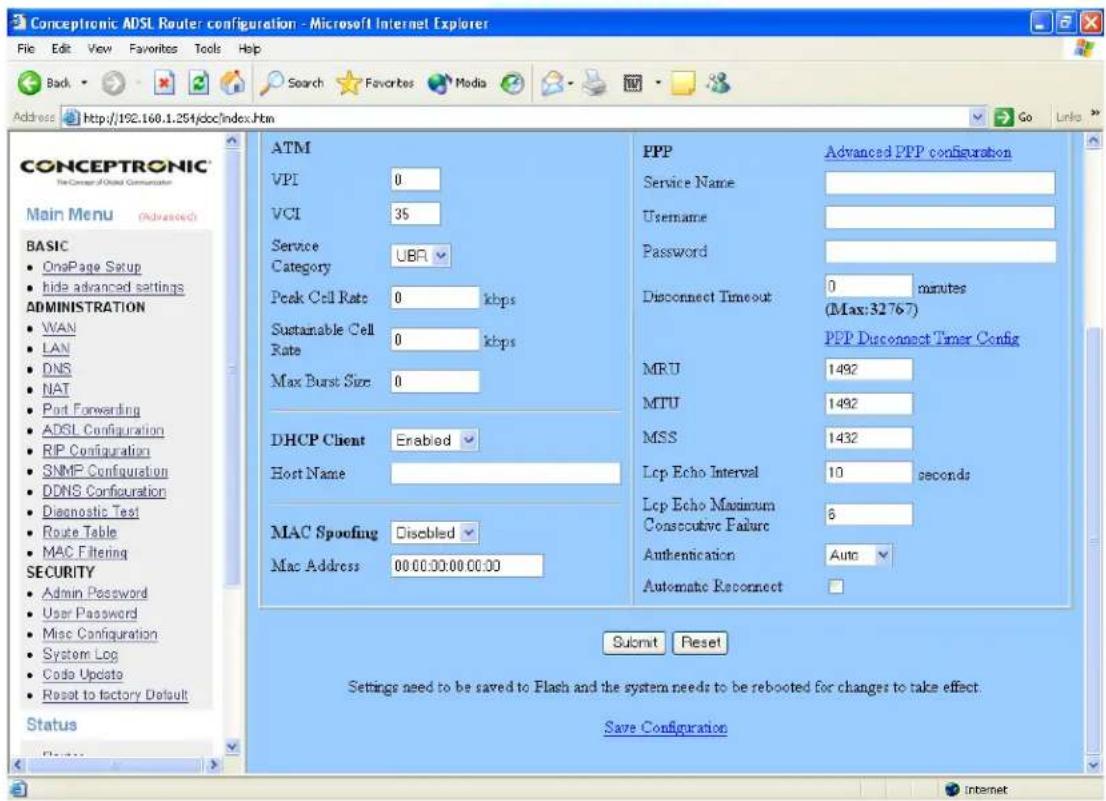
The WAN configuration page allows the user to set the configuration for WAN/ADSL ports.
Per VC Settings
Virtual Circuit:
Selection Enable or Disable.
Bridge:
Enabling bridge mode will place the unit into Transparent bridge mode (like a Ethernet ADSL modem) to use this mode you should also set your WAN type to a Bridging option (e.g RFC1482 Bridge using LLC).
IGMP:
IGMP relay/proxy specification and environment:
Support IGMP proxy/relay function for ADSL modem, based on the following requirement and case:
On CO side, there must be at least one IGMP querier (router) present. IGMP querier will send IGMP query packet. The ADSL modem is responsible to relay these IGMP query to Ethernet.
End-user multicast application device send IGMP report while receiving IGMP query or being activated by user, the ADSL modem should be responsible to proxy (that is, change source IP to ADSL modem's WAN IP) the IGMP report to ADSL WAN side, include all PVCs. The same case is for IGMP leave packet.
Not necessary to relay multicast routing between two ADSL PVCs or two interfaces in LAN side.
Special purpose multicast packet (such as RIP 2 packet) should run without interference.
Encapsulation:
Selection follow as Table-1 Configuration
ATM
VPI:
If instructed to change this, type in the VPI value for the initial connection (using PVC 0). Default = 0.
VCI:
If instructed to change this, type in the VCI value for the initial connection (using PVC 0). Default = 0
Service Category:
UBR and CBR are supported from the ATM.*
*Bandwidth:
Bandwidth setting takes effect only when the CBR is selected. The maximum available bandwidth is from the upstream data rate of ADSL status page.
DHCP Client:
Use Table-1 to configure a valid setting for each PVC.
Host Name:
Required by some ISPs. If the ISP does not provide the Host name, please leave it blank.
Table-1 Configuration
| WAN Configuration | Bridge Mode | Router Mode (PPPoA/PPPoE) | Router Mode (Dynamic IP) | Router Mode (Static IP) |
| IP address N/A | Automatically | assigned by ISP | Automatically assigned by ISP | Provided by ISP |
| Subnet Mask N/A | Automatically | assigned by ISP | Automatically assigned by ISP | Provided by ISP |
| WAN Type 1483 | Bridged IP LLC, 1483 | PPPoA LLC/VC-Mux, PPPoE LLC/VC-Mux | 1483 Bridged/Routed IP LLC, 1483 Bridged/Routed VC-Mux, Classical IP over ATM | 1483 Bridged/Routed IP LLC, 1483 Bridged/Routed VC-Mux, Classical IP over ATM |
| Bridge Enabled | Disabled Disabled | |||
| PPP Service N/A | Provided by ISP N/A N/A | |||
| PPP User name | N/A Provided by ISP N/A N/A | |||
| PPP Password | N/A Provided by ISP N/A N/A | |||
| DHCP Client enable | Unchecked | Unchecked | Checked | Unchecked |
Table-2
| Rx Entity | Packet Class | TTL | Action | Notes |
| ADSL IGMP | query 1 Relay to Ethernet | |||
| IGMP report | 1 Ignore | |||
| IGMP leave | 1 Ignore | |||
| General Multicast IP - Relay it to Ethernet. | ||||
| Ethernet | IGMP query | 1 Ignore | ||
| IGMP report | 1 Relay to all ADSL PVC | |||
| IGMP leave | 1 Relay to all ADSL PVC | |||
| General Multicast IP - Ignore | ||||
PPP:
The current release supports multiple PPP sessions per PVC. The PPP configuration in the WAN configuration page is for the first PPP session for each PVC. The predefined PPP Account Name (Account ID) is “Simple PPP Account 0” for PVC0 and predefined PPP Connection Name is “Simple PPP Session 0” for PVC0. For the other PVC X, the predefined account name and connection name will be Simple PPP Account X and Simple PPP Session X. X is the PVC number from 1 to 7.
It can support up to total of 16 PPP sessions, and each PVC can support up to 8 PPP sessions, the multiple PPP sessions may be configured with any combination over 8 PVCs.
Service Name:
The service name of PPP is required by some ISPs. If the ISP does not provide the Service Name, please leave it blank.
Username:
Your user name provided by your ISP.
Password:
Your password provided bye your ISP.
Disconnect Timeout:
The Disconnect Timeout allows the user to set the specific period of time to disconnect from the ISP. The default is 0, which means never disconnect from the ISP.
MRU:
Maximum Receive Unit indicates the peer of PPP connection the maximum size of the PPP information field this device can be received. The default value is 1492 and is used in the beginning of the PPP negotiation. In the normal negotiation, the peer will accept this MRU and will not send packet with information field larger than this value.
MTU:
Maximum Transmission Unit indicates the network stack of any packet is larger than this value will be fragmented before the transmission. During the PPP negotiation, the peer of the PPP connection will indicate its MRU and will be accepted. The actual MTU of the PPP connection will be set to the smaller one of MTU and the peer's MRU. The default is value 1492.
MSS:
Maximum Segment Size is the largest size of data that TCP will send in a single IP packet. When a connection is established between a LAN client and a host in the WAN side, the LAN client and the WAN host will indicate their MSS during the TCP connection handshake. The default value is 1432.
Automatic Reconnect:
When it is checked, it will maintain the PPP connection all the time. If the ISP shut down the PPP connection, it will automatically reconnect PPP session.
Note: When the configurations are changed, Please click Submit and Save Configuration.
Note: Click the Submit button to save the settings in temporary memory. If you make changes the configuration.
LAN
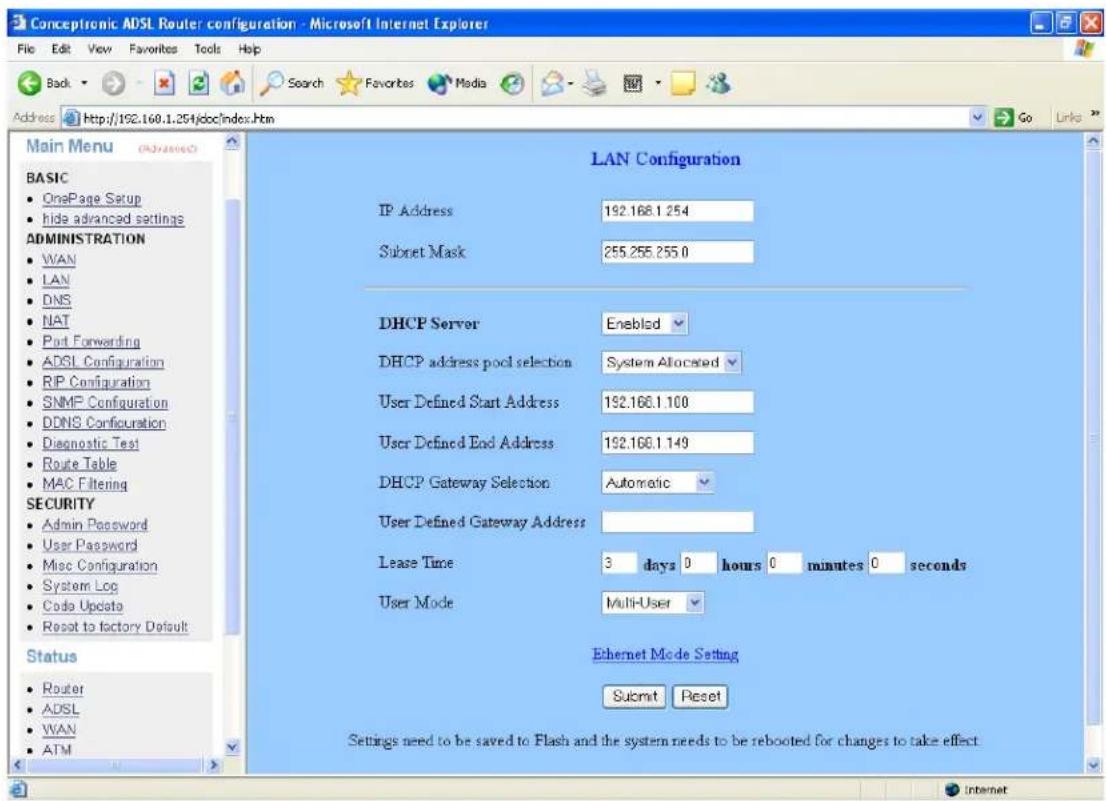
The LAN configuration page allows you to set the configuration for the LAN port.
LAN Configuration
LAN IP Address & Subnet Mask:
The default is 10.0.0.2 and 255.0.0.0 you can change it to another private IP address, such as 211.22.10.191 and 255.255.255.0. For most configurations it is recommended to leave it as default.
DHCP Server:
System Allocated. The DHCP address pool is based on LAN port IP address plus 12 IP address. For example, the LAN IP address is 10.0.0.2; the DHCP address pool is at the range of 10.0.0.3 to 10.0.0.14.
User Defined:
The DHCP address pool is at the range of User Defined Start Address and User Defined End Address. The maximum pool size can be 253 IP address:255 total IP address-1 broadcast address-1 LAN port IP address.
DHCP Gateway Selection:
The default setting for the DHCP Gateway Selection is “Automatic”. The user can select the “User Defined” to specify “User Defined Gateway Address”. The DHCP server will issue the “User Defined Gateway Address” to the LAN DHCP client.
Lease time:
The lease time is the amount of time of a network user will be allowed to connect with DHCP server. If all fields are 0, the allocated IP address will be effective forever.
User mode:
Under the Single User mode, the DHCP server only allocates one IP address to local PC. Under the Multiple User mode, the DHCP server allocates the IP addresses specified by the DHCP address pool.
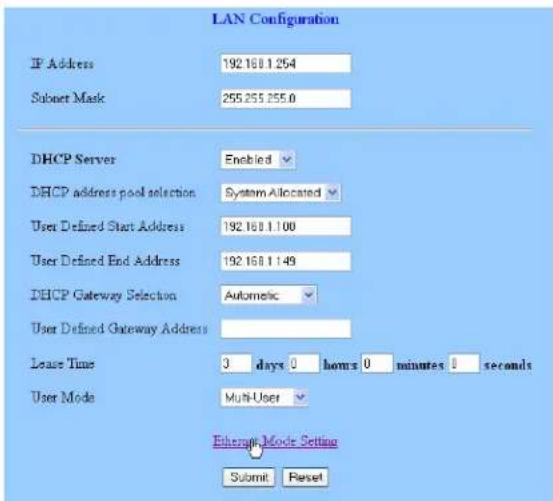
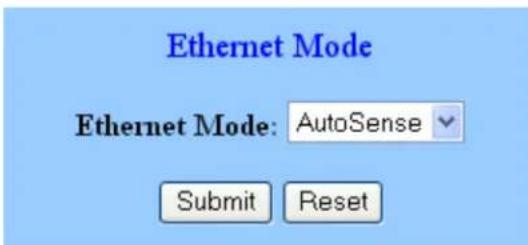
Ethernet Mode Setting:
Click 'Ethernet Mode Settings' in the LAN Configuration page
The Ethernet Mode Configuration page allows the user to set the LAN port into Auto Sense, 100 Mbps Full Duplex, 100 Mbps Half Duplex, 10 Mbps Full Duplex or 10 Mbps Half Duplex.
Note:
Click the Submit button to save the settings in temporary memory. If you make changes the configurations.
DNS
The DNS Configuration page allows you to set the configuration of DNS proxy.
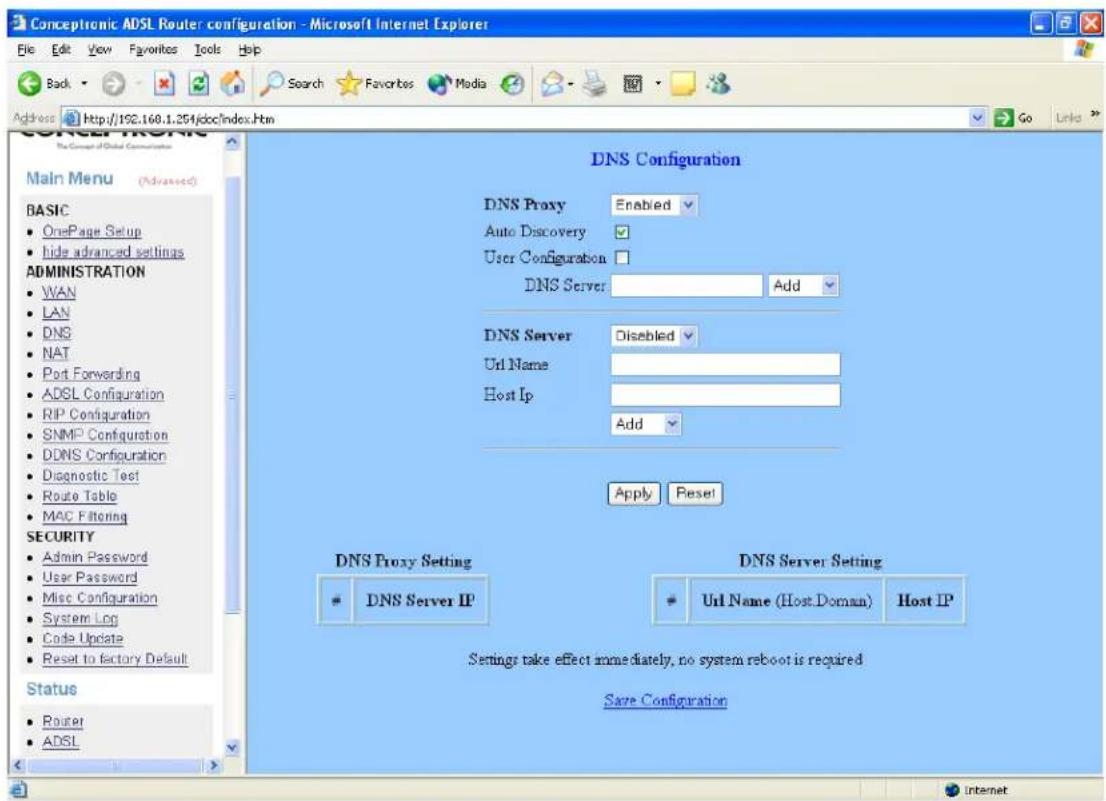
Disable DNS Proxy:
The LAN port does not process the DNS query message. For the DHCP requests from local PCs, the DHCP server will set the user-configured preferred DNS sever or alternate DNS server whichever is available as the DNS server. Then all DNS query messages will be directly sent to the DNS servers.
Use Auto Discovered DNS Servers Only:
The DNS proxy will store the DNS server IP addresses obtained from DHCP client or PPP into the table. And all DNS query messages will be sent to one of the dynamically obtained DNS servers.
Use User Configured DNS Servers Only:
The DNS proxy will use the user-configured preferred DNS server and alternate DNS server. And all DNS query message will be sent to one of DNS servers.
Auto Discovery + User Configured:
The DNS proxy's table has all the IP addresses of dynamically obtained and user configured DNS servers.
User Configuration:
Place your primary and secondary DNS addresses here.
NAT
The NAT Configuration page allows users to set the configuration for the Network Address Translation. The default setting is Dynamic NAPT. It provides dynamic Network Address Translation capability between LAN and multiple WAN connections, and the LAN traffic is routed to appropriate WAN connections based on the destination IP address and Route Table. This eliminates the need for the static NAT session configuration between multiple LAN clients and multiple WAN connections. When the Dynamic NAPT is chosen, there is no need to configure the NAT Session and NAT Session Name Configuration.
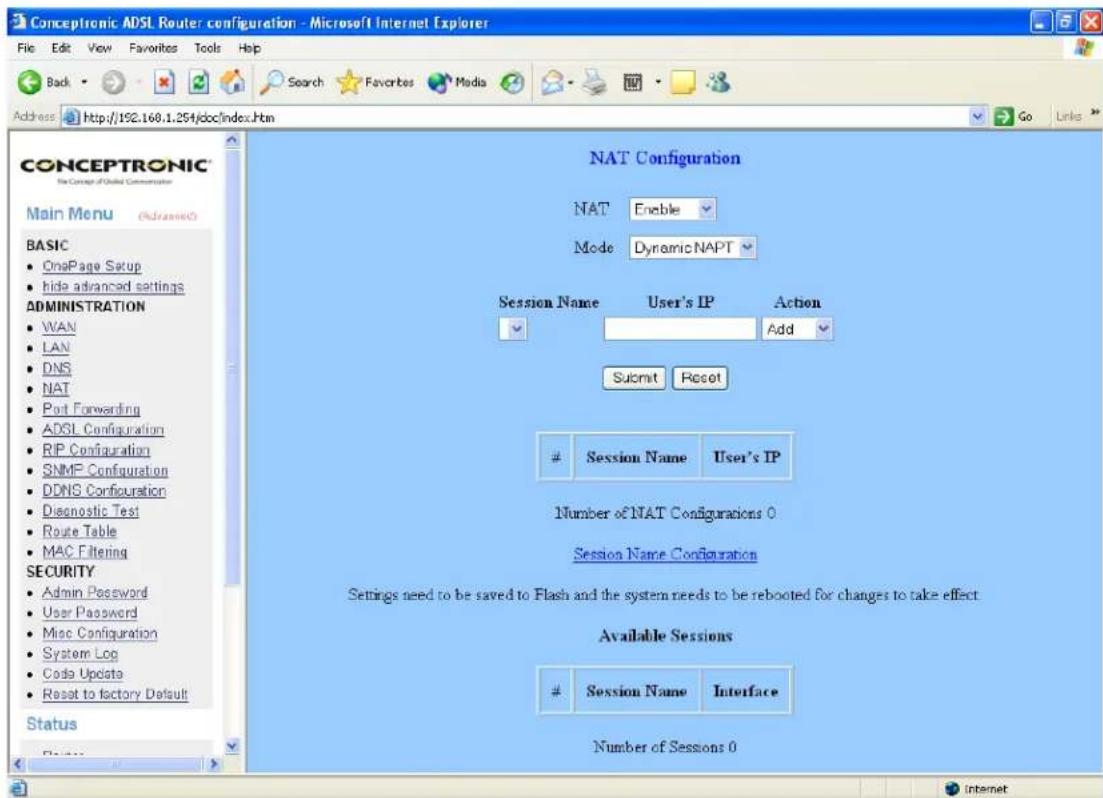
The NAT option only maps single WAN IP address to the local PC IP address. It is peer-to-peer mapping. (1x1) For each WAN interface, only one local PC IP address can be associated with each WAN interface. Click the link Session Name Configuration to add the session name for WAN interface.
The NAPT option only maps single WAN IP address to many local PCs IP address. (1xN). It is the multiple-mapping mechanism. For each WAN Interface, more than one local PC can be associated with one WAN Interface. Click the link Session Name Configuration to add the session name for WAN interface.
Session Name:
This field allows the user to select the session form the configured NAT Session Name Configuration.
User's IP:
This field allows the user to assign the IP address to map the corresponding NAT/NAPT sessions.
Session Name Status will be displayed at the middle of this page to show the corresponding Session Name with its IP address.
Number of NAT Configurations:
This field displays the total number of NAT Sessions is entered.
Available Sessions Status will be displayed at the end of this page to show all the Session Name with its WAN Interface.
Interface:
This field allows the user to choose specific WAN Interface (PVC or PPP Session) for NAT Session.
Number of Session:
This field displays the total number of NAT Sessions Name is entered.
Port Forwarding
The Virtual Server page allows users to set the configuration of Virtual Server. The Conexant firmware includes the Free BSD version firewall. All UDP/TCP ports are protected from intrusion. If any specific local PCs need to be mapped to the UDP/TCP port on WAN side. Please input the mappings here.
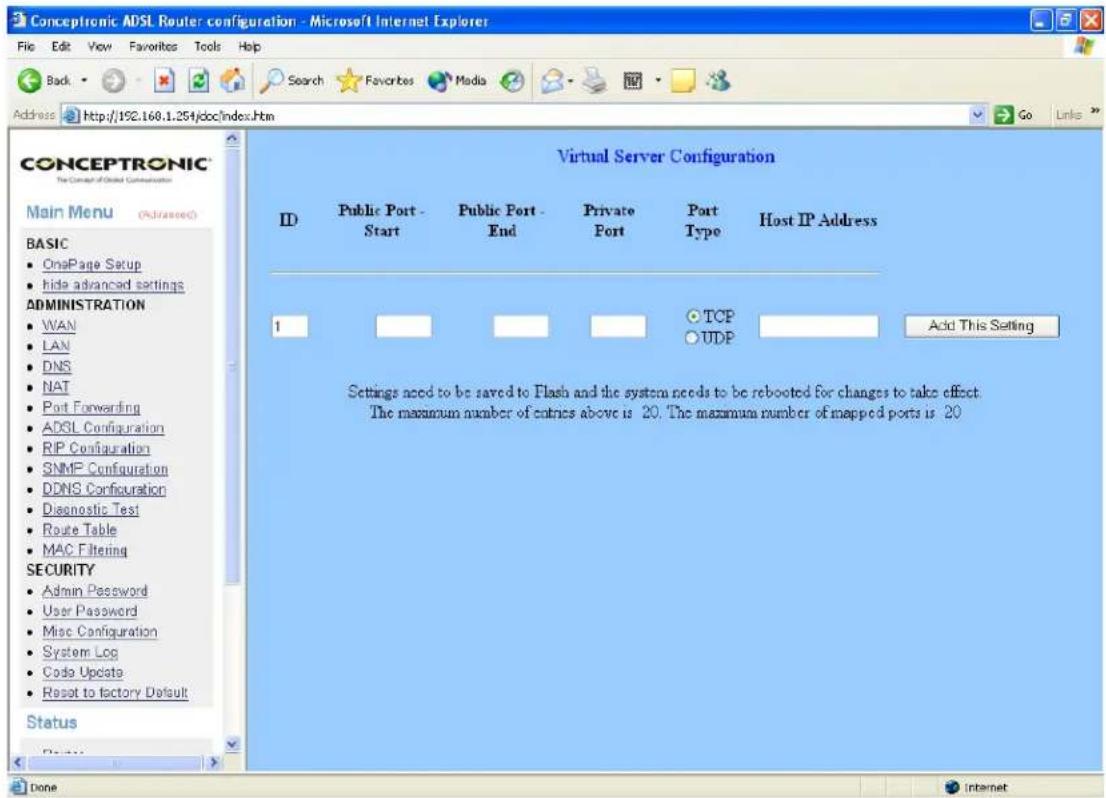
Public Port:
The port number on the WAN side that will be used to access the virtual service.
Private Port:
The port number of the service used by the Private IP computer.
Port Type:
The protocol used for the virtual service.
Host IP Address:
The server computer in the LAN network that will be providing the virtual services.
ADSL Configuration
The ADSL Configuration page allows users to set the configuration for ADSL protocols.
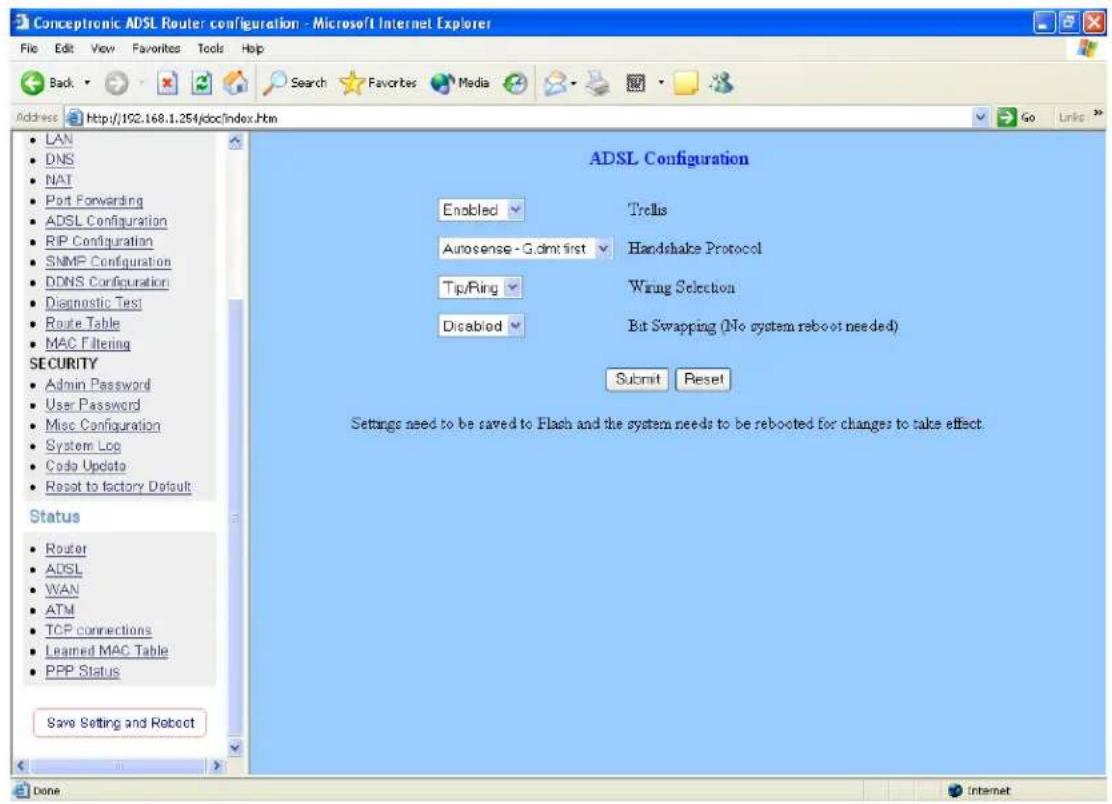
Trellis:
This field allows the user to enable or disable the Trellis Code. By default, it is always enabled.
Handshake Protocol:
This field allows the user to select the ADSL handshake protocol.
Wiring Selection:
This field allows the user to enter the wiring selection for the RJ-11. Tip/Rip is the default for the board without the inner/outer pair relay.
Bit Swapping:
This field allows the user to enable or disable the upstream bit swapping.
Note:
Click the Submit button to save the settings in temporary memory. If you make changes the configurations.
RIP Configuration
The RIP Per Interface Configuration page allows the user to set the configuration for each Interface (PVCs, PPP Sessions, USB and LAN).
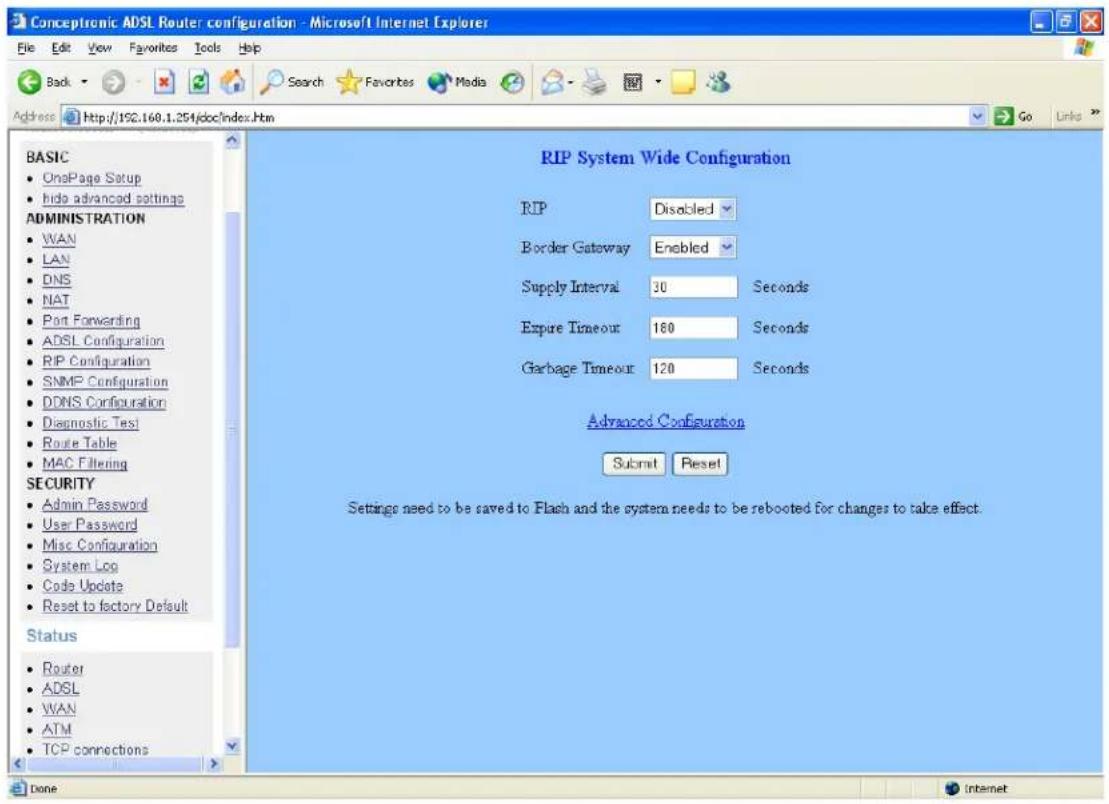
Interface:
This field allows the user to choose the Interface (PVCs, PPP Sessions, USB and LAN), for the RIP to be configured.
Enable:
This field allows the user to Enable (Yes) or Disable (No) the Specified interface for RIP.
Supplier:
This field allows the user to select the Supplier Mode (RIP Transmit).
- Disabled: The supplier transmit is disabled.
• V1 BC: The supplier transmits in RIPv1 Broadcast.
• V2 BC: The supplier transmits in RIPv2 Broadcast.
• V2 MC: The supplier transmits in RIPv2 Multicast.
Listener:
This field allows the user to select the Listener Mode (RIP Receive).
• V1: The listener receives the RIPv1 only.
• V2: The listener receives the RIPv2 only.
- V1+V2: This listener receives the both RIPv1 and RIPv2.
Supplier and Listener are based on section 4.1 "Compatibility Switch" in RFC 1723.
Current RIP Settings:
This field displays the each interface's RIP status.
Note:
Click the Submit button to save the settings in temporary memory. If you make changes the configurations.
SNMP Configuration
The Simple Network Management Protocol(SNMP) let a network administrator monitor on a network by retrieving settings on remote network devices. Network administrator typically runs an SNMP management station program such as MIB browser on a local host to obtain information from an SNMP agent such as the router you use now.
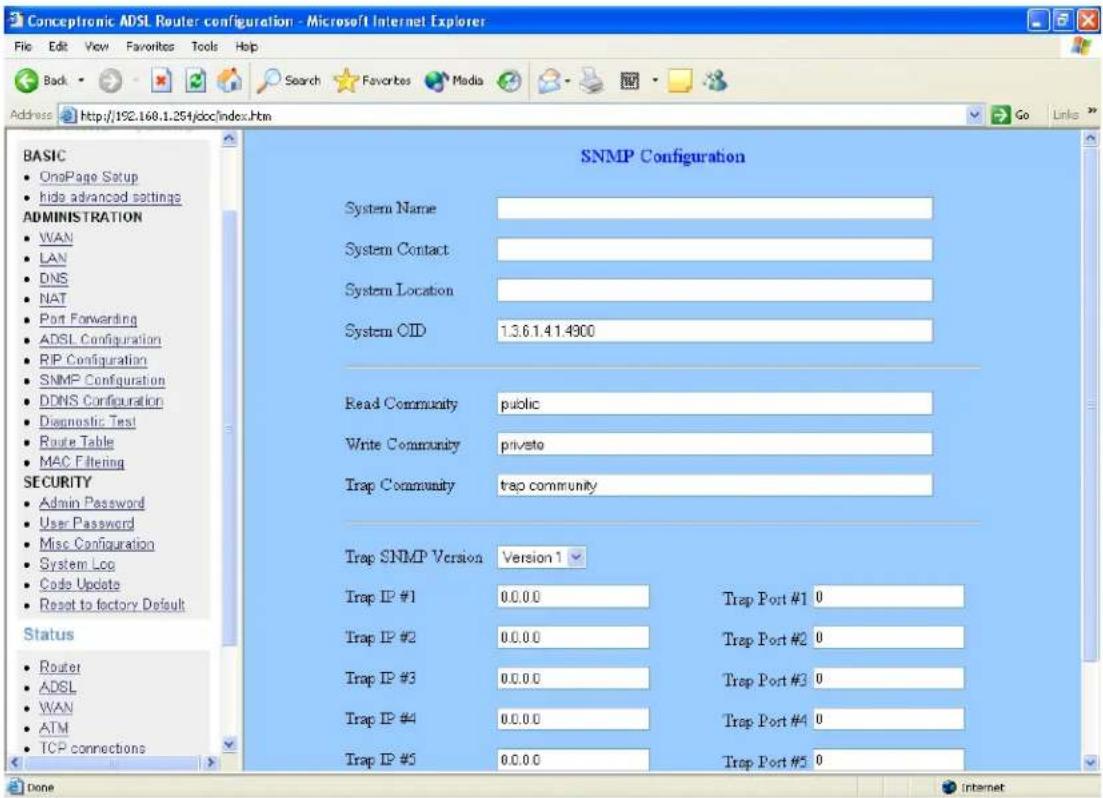
System Name:
Enter information about the system name in the system contact field.
System Contact:
Enter information about the system contact person in the system contact field.
System Location:
Enter information about the system contact person in the system contact field.
The SNMP Version:
Show the SNMP version.
Trap IP:
Enter the IP address of a host acting as an SNMP console which the Router should send SNMP trap messages in the Trap host IP field.
Note: Click the Submit button to save the settings in temporary memory. If you make changes the configurations.
DDNS Configuration
“DDNS” is an acronym for Dynamic Domain Name Service. Whenever you set up the web servers, mail servers, or sometimes ftp servers, you need “Domain Name” to help Internet users reach your servers easily.
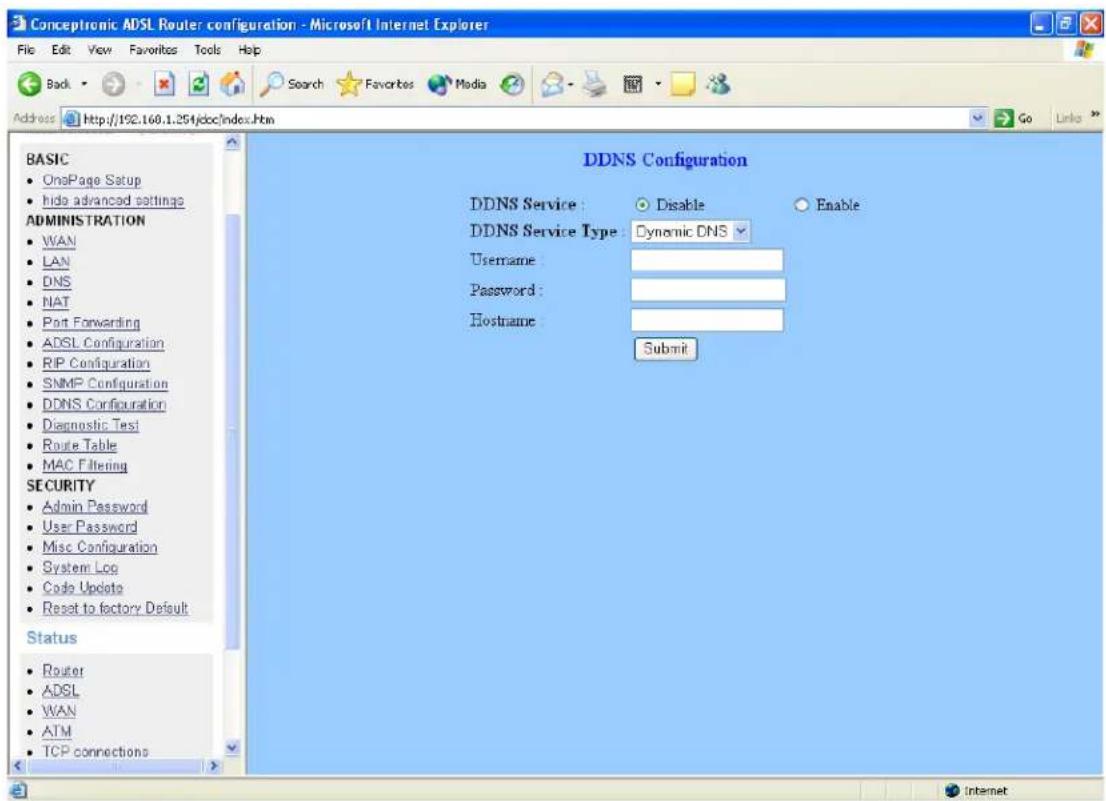
DDNS Service:
Select “Disable” or “Enable”, if you wish to activate this function select “Enable” option.
DDNS Service Type:
Select "Dynamic DNS" or "Static DNS".
Username:
After you have applied for the DDNS service from DynDNS.org, you will be issued with a Username. Enter this username in the “Username” field.
Password:
DynDNS.org will also issue you with a password. Enter the detail in the "Password" field.
Host Name:
DynDNS.org will provide you with a Host Name. Enter this name in the "Host Name" field.
Note:
Click the Submit button to save the settings in temporary memory. If you make changes the configurations.
Diagnostic Test
The Diagnostic Test page shows the test results for the physical layer and protocol layer for both LAN and WAN sides.
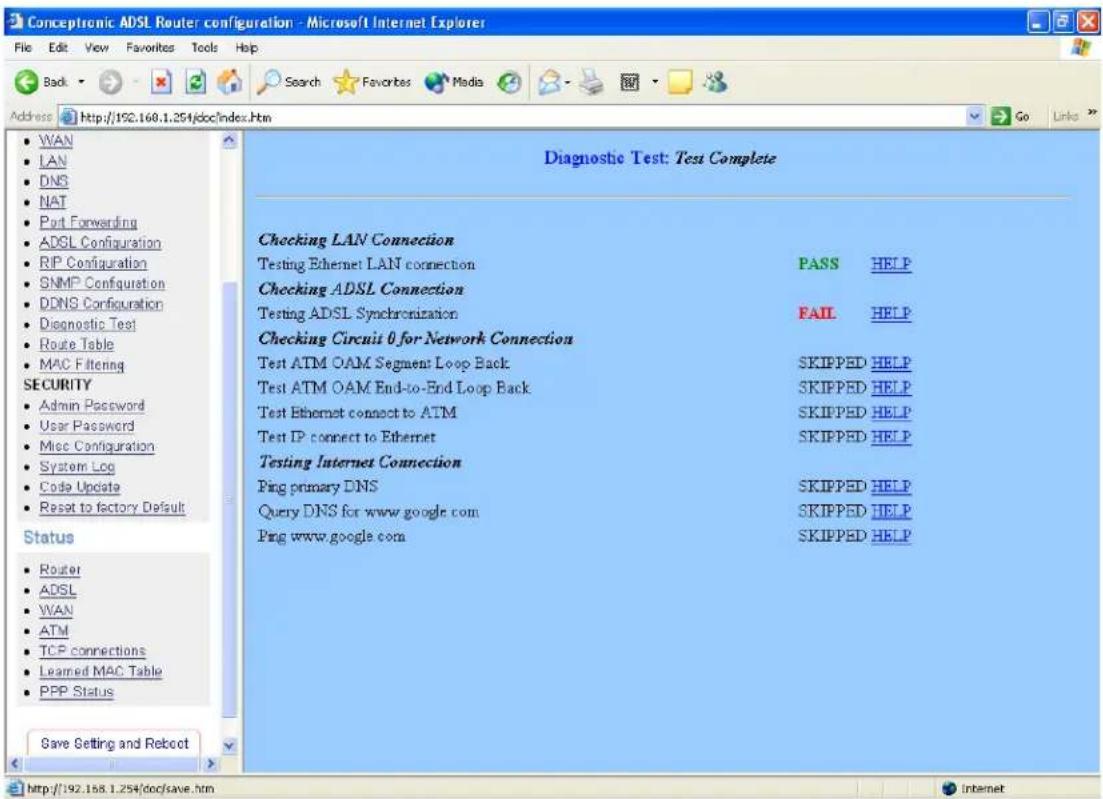
Testing Ethernet LAN Connection:
This test checks the Ethernet LAN interface connection.
Testing ADSL Synchronization:
This test checks the ADSL showtime. If this test returns FAIL, all other tests will be skipped.
Test ATM OAM segment Loop Back:
This test sends ATM OAM F5 Segment loop-back request cells to the CO. This test will pass if response cell is received. Some service providers might not support this test. If this test fails consistently and the ADSL modem does not seem to be working, make sure the VPI and VCI are configured correctly.
Test ATM OAM End-to-End Loop Back:
This test sends ATM OAM F5 End to End loop back request cells to the CO. This test will pass if response cell is received. Some service providers might not support this test. If this test return FAIL consistently and the ADSL modem does not seem to be working, make sure the VPI and VCI are configured correctly.
Test Ethernet Connect to ATM: This test checks the ATM AAL5 module is loaded correctly.
Test PPP Layer Connection:
This test checks the PPP authentication.
Test IP Connect to PPP:
This test checks a valid IP address assigned from the service provider. Please note that on some ADSL services this test may fail despite the fact that you have connected correctly.
Ping Primary DNS:
This test checks the primary DNS can be reached through pin request.
Query DNS for www.google.com :
This test checks the host name can be resolved to IP address though domain name servers.
Ping www.google.com :
This test checks the specified host can be reached through pin request.
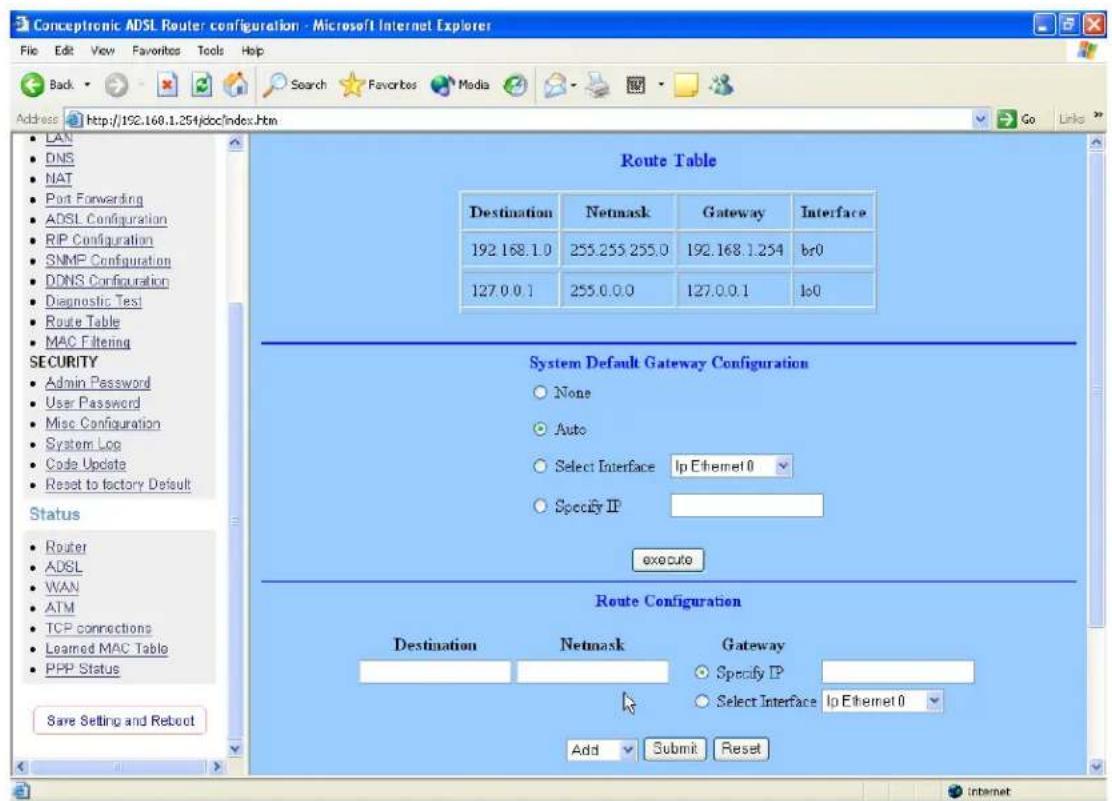
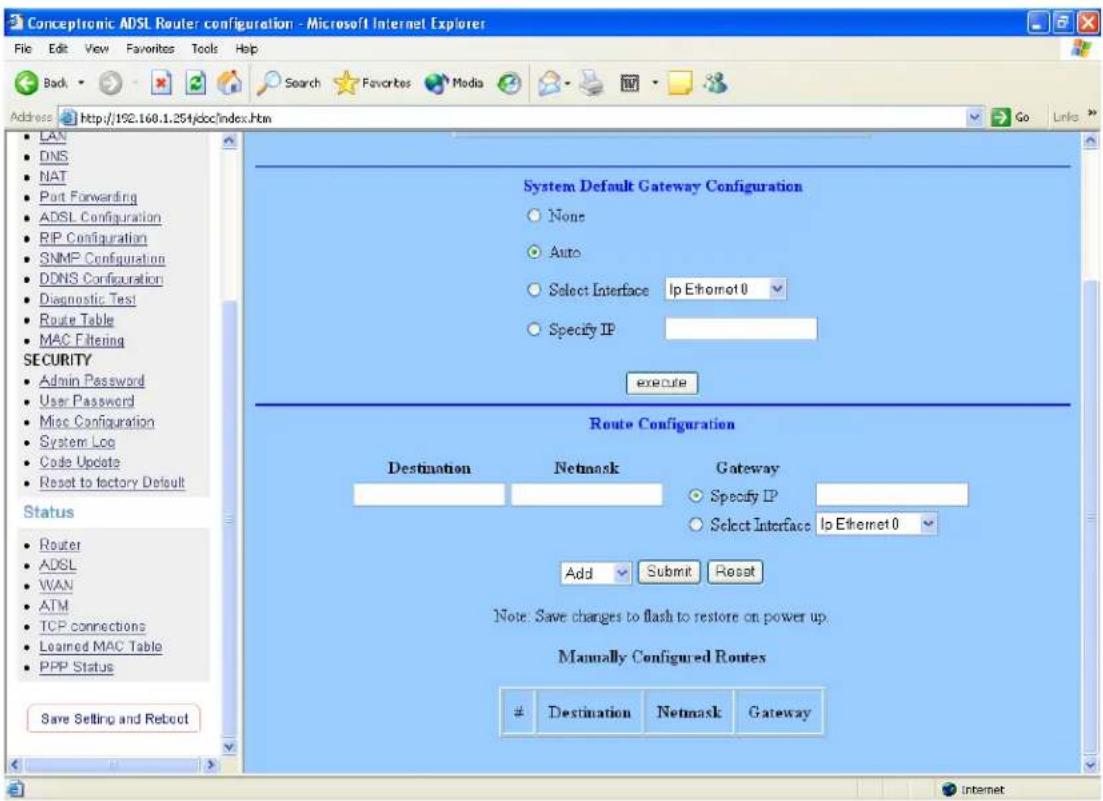
Router Table
The Router Table page displays routing table and allows the user to manually enter the routing entry. The routing table will display the routing status of Destination, Netmask, Gateway and Interface. The interface br0 means the USB interface; Io0 means the loopback interface and ppp1 means the PPP interface. The Gateway is the learned Gateway.
MAC Filtering
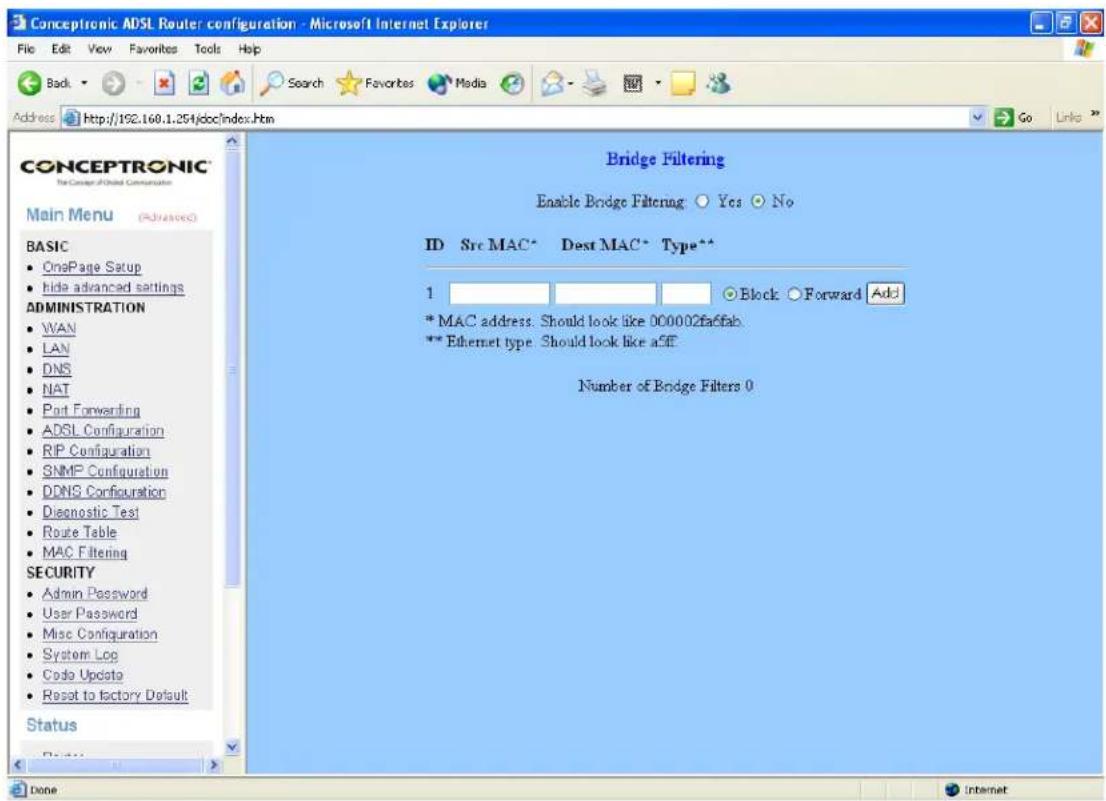
The Bridge filtering page allows users to set the configuration of IP filtering.
Source MAC:
When the bridge filtering is enabled, enter the Source MAC address, select Block and click Add. Then all incoming WAN and LAN Ethernet packets matched with this source MAC address will be filtered out. If the Forward is selected, then the packets will be forwarded to the destination PC.
Destination MAC:
When the bridge filtering is enabled, enter the Destination MAC address, select Block and click Add. Then all incoming WAN and LAN Ethernet packets matched with this destination MAC address will be filtered out. If the Forward is selected, then the packets will be forwarded to the destination PC.
Type:
Enter the hexadecimal number for the Ethernet type field in Ethernet_II packets. For example, 0800 is for IP protocol.
Security
The links under the Administartion columns are associated to the pages that represent the configurations of system and interfaces.
Note: When the configurations are changed, please click the Save Setting and Reboot button.
Admin Password
The Admin Password page allows the user to set the password for administrator. The Admin password is the same as the FTP password and must be at least 8-characters long for the FTP function to work.
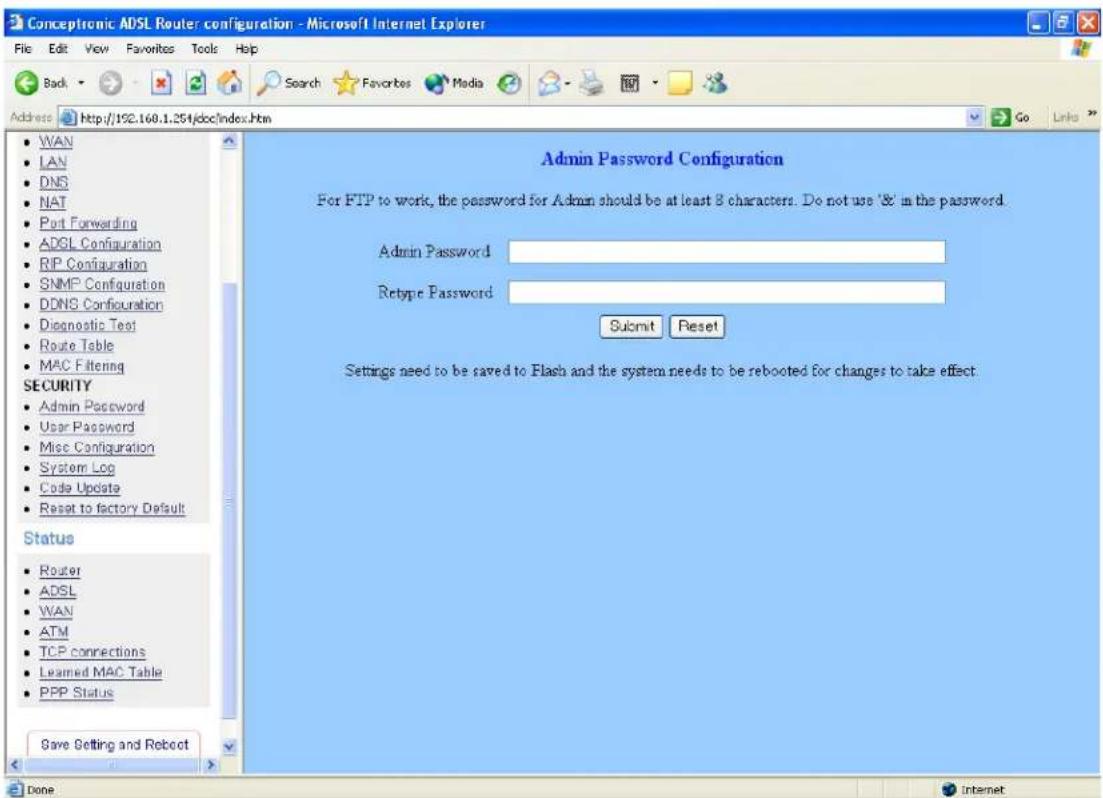
User Name: admin
Password (default): password
User Password Configuration
The User Password Configuration page allows the user to set the password for the user.
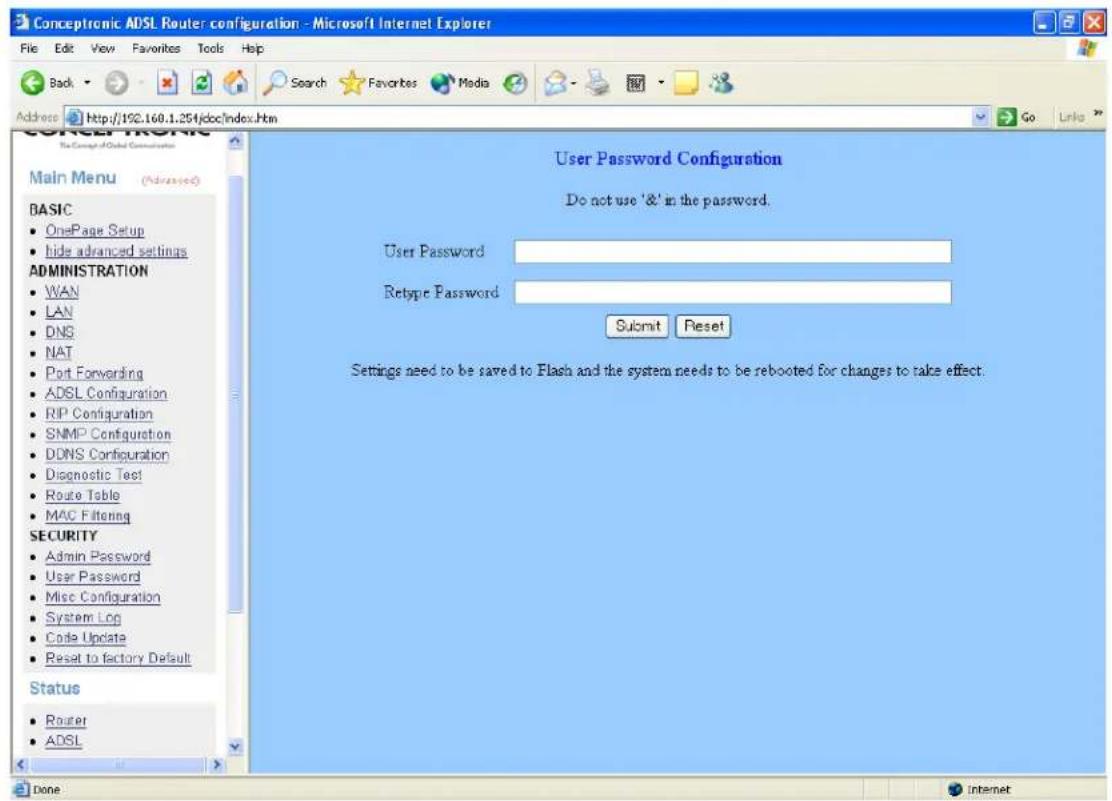
Note:
Click the Submit button to save the settings in temporary memory. If you make changes the configurations.
Misc Configuration
The Miscellaneous Configuration allows the user to set all the miscellaneous configurations.
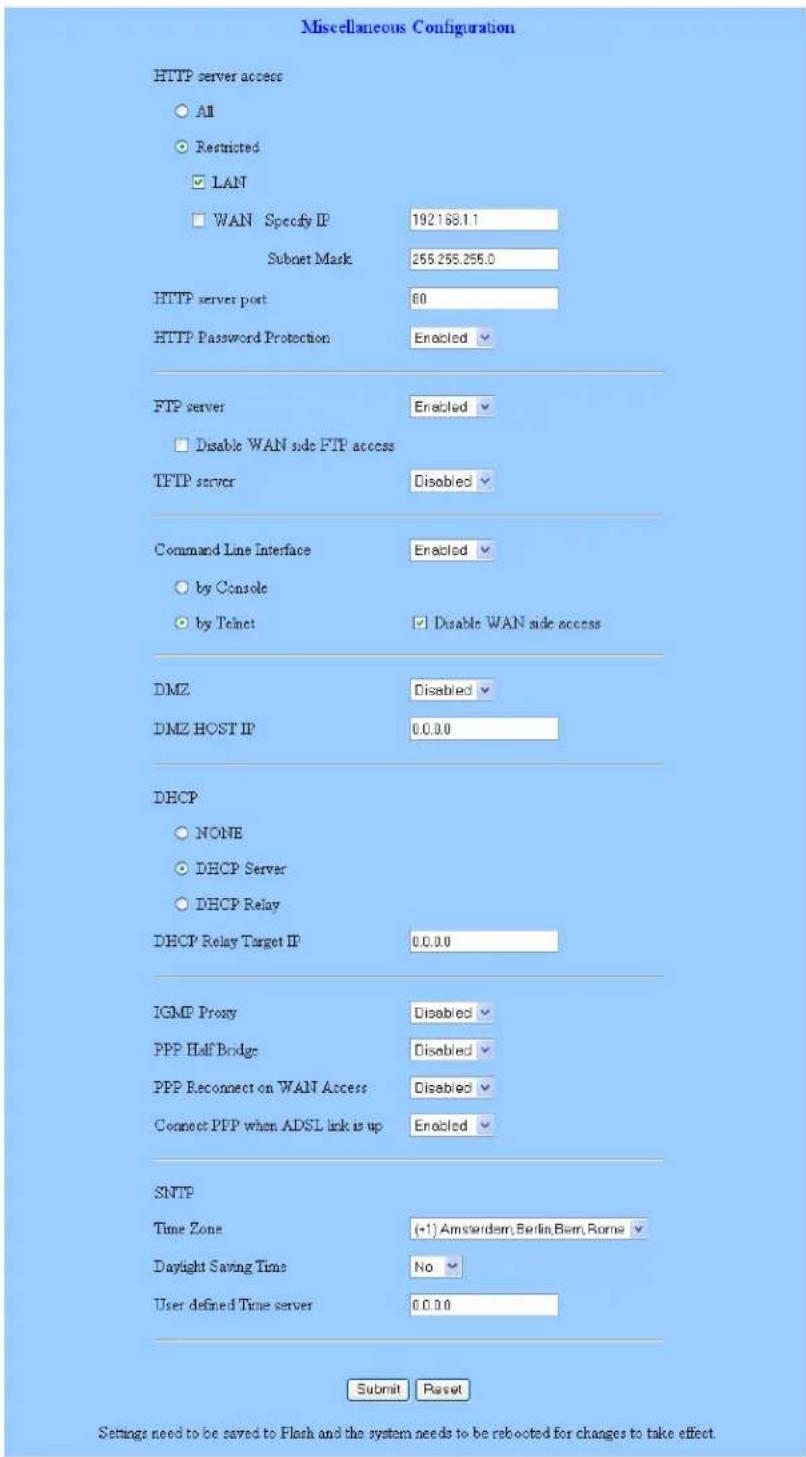
HTTP server access:
This field allows the user to configure the Web pages can be accessed from.
ALL:
When this field is checked, it allows both WAN and LAN access to the Web pages.
Restricted LAN:
This field allows the Web pages access from LAN side.
Restricted WAN Specified IP & Subnet Mask: This field allows the Web access from WAN side with a specify IP and Subnet Mask.
HTTP server port:
This field allows the user to specify the port of the Web access.
FTP server:
This field allows the user to Enable or Disable the FTP connection. If you want FTP access from the WAN side you must ensure there are no port forwards for port 21.
TFTP server:
This field allows the user to Enable or Disable the TFTP connection.
DMZ:
A DMZ (De-Militarized Zone) is added between a protected network and an external network, in order to provide an additional layer of security. When there is a suspected packet coming from WAN, the firewall will forward this packet to the DMZ host.
DMZ Host IP:
The IP address of the DMZ host at LAN side.
DHCP Relay:
If it is enabled, the DHCP requests from local PCs will forward to the DHCP server runs on the WAN side of a network. To have this function working properly, please disable the NAT to run on router mode only, disable the DHCP server on the LAN port, and make sure the routing table has the correct routing entry.
DHCP Target IP:
The DHCP server runs on WAN side.
IGMP Proxy:
Here is the global setting for IGMP Proxy. If it is enabled, then the enabled IGMP Proxy on WAN PVCs will be working. Otherwise, no WAN PVC can have IGMP Proxy working on it.
PPP connect on WAN access:
If it is enabled, the PPP session will be automatically established when there is packet wants to go out the WAN.
PPP Half Bridge:
When the PPP Half Bridge is enabled, only one PC is able to access the Internet and the DHCP server will duplicate the WAN IP address from the ISP to the local client PC. Only the PC with the WAN IP address can access the Internet. This function should only be used if one computer will be allowed to connect to the internet (E.G a Software firewall computer or Proxy server).
Note:
Click the Submit button to save the settings in temporary memory. If you make changes the configurations.
System Log
The System Log page shows the events triggered by the system.
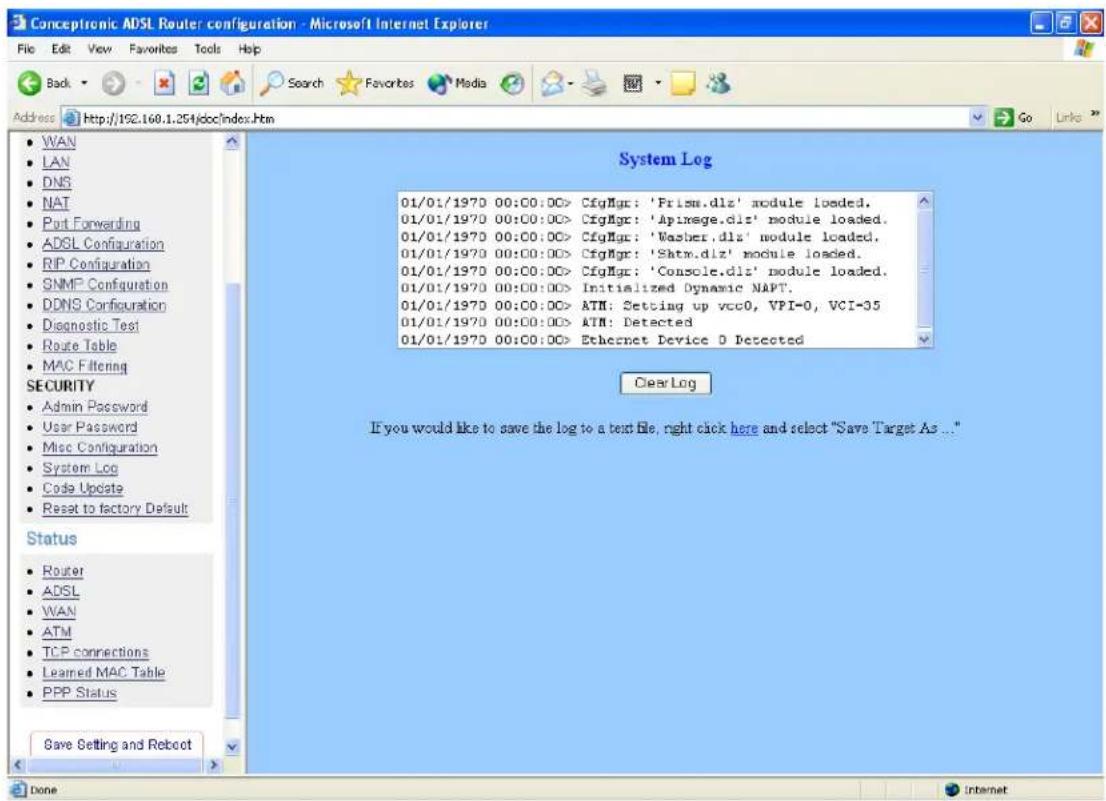
To clear the System Log simply click on the Clear Log button.
Code Update
The Code Image Update page allows the user to upload new firmware to the ADSL Wireless Router.
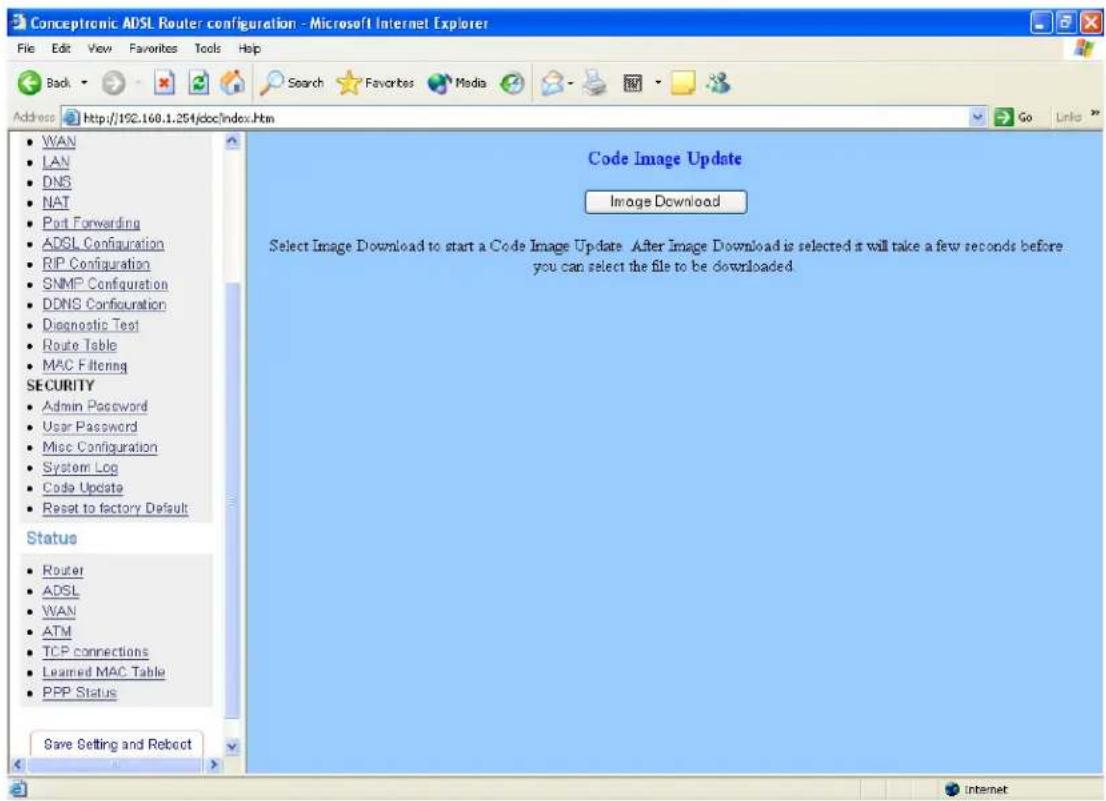
To upload new firmware:
- Download the latest firmware image from the website.
- Save the file to your Desktop or other location.
- Select the Browse button and locate the file saved in step 2.
- Click on the Update button to start the process.
- Once the upgrade has been completed the router will need to reboot.
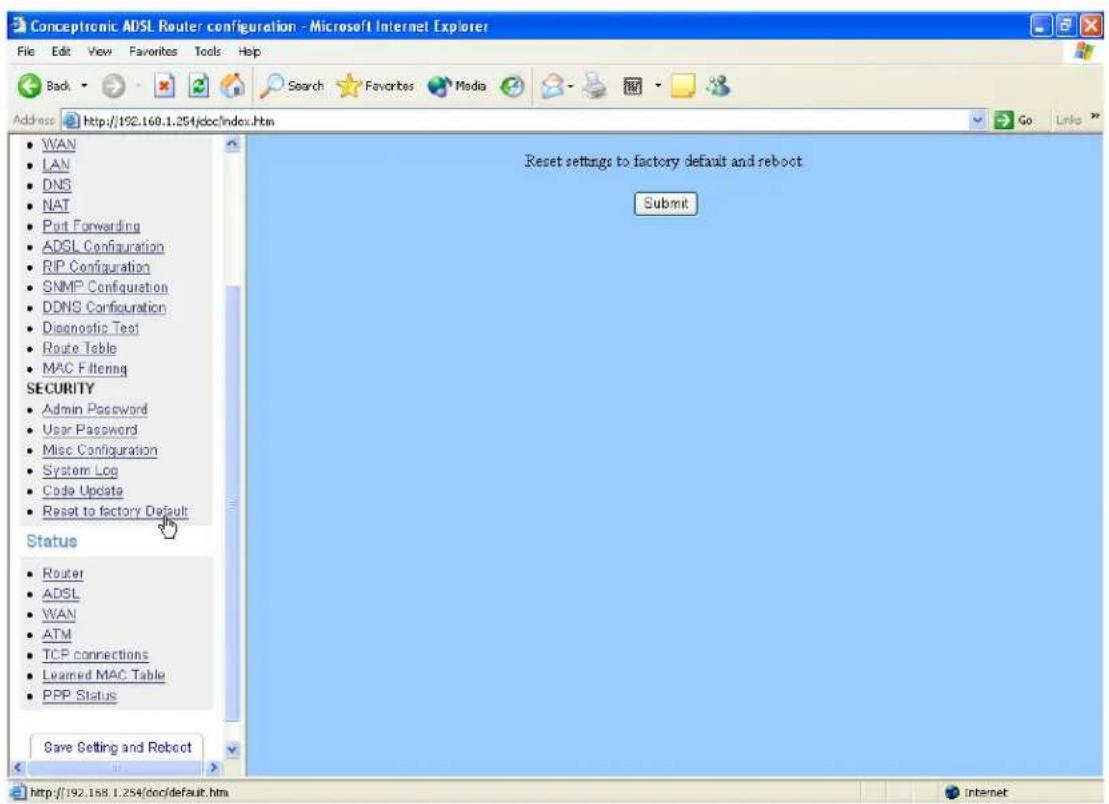
Reset to factory Default
The Reset to Factory Default page allows users to reset the modem to original factory default configuration (factory.reg)
Status
Router
The Home page shows the Firmware Version and WAN and LAN interface status.
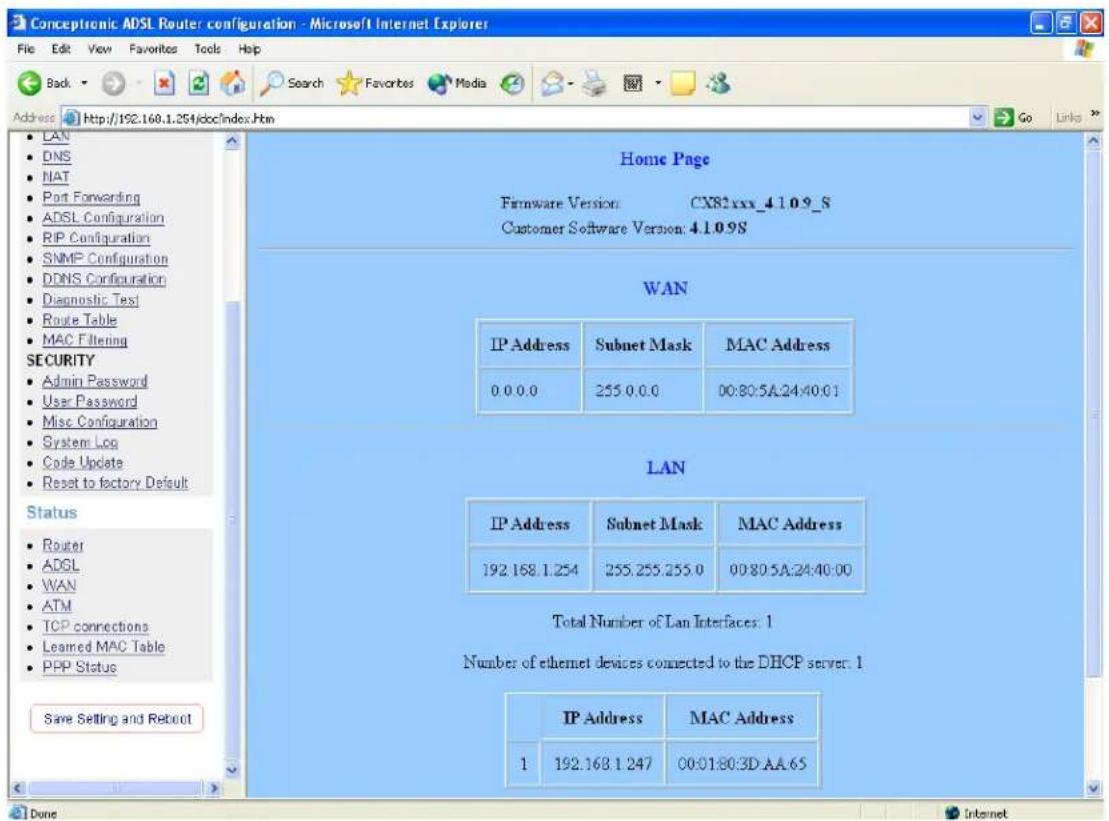
Firmware Version:
This field displays the Firmware Version number.
WAN:
These fields display the IP Address, Subnet Mask, MAC Address for WAN interface.
LAN:
These fields display the IP Address, Subnet Mask, MAC Address for LAN interface.
Number of Ethernet devices connected to the DHCP server:
This field displays the number of DHCP clients connected to the ADSL Wireless Router. It also shows the IP address and MAC address of the attached DHCP clients.
ADSL
The ADSL Status page shows the ADSL physical layer status.
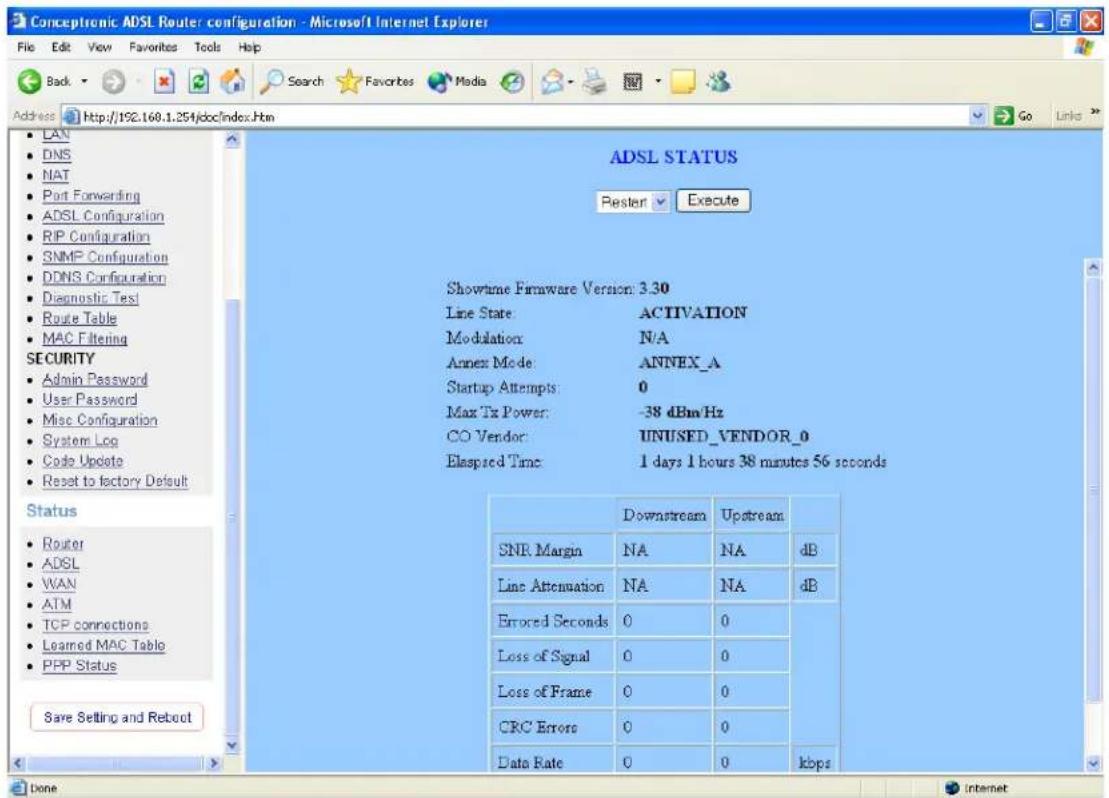
Showtime Firmware Version:
This field displays the ADSL data pump firmware version number.
Line State:
This field displays the ADSL connection process and status.
Modulation:
This field displays the ADSL modulation status for G.dmt or T1.413.
Annex Mode:
This field displays the ADSL Annex modes for Annex A or Annex B.
Startup Attempts:
This field displays the ADSL connection attempts after loss of showtime.
Max Tx Power:
This field displays the transmit output power level of the CPE.
Co Vendor:
This field displays the Central Office DSLAM vendor name. If available.
Elaspsed Time:
This field displays the time of the modem has been in operation.
WAN Status
The WAN Status page shows the information and status of WAN PVCs.
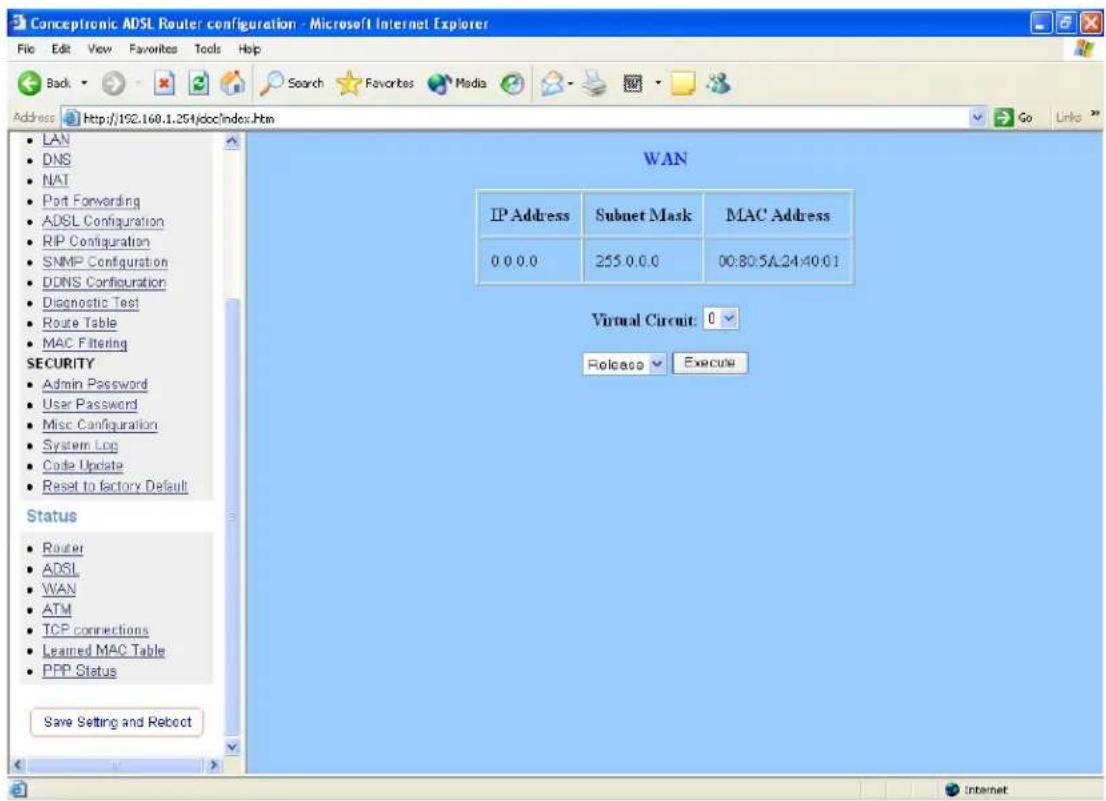
WAN:
These fields display the IP Address, Subnet Mask and MAC Address for the WAN (ADSL) interface. Use the Virtual Circuit selection to selection different PVC for status display.
ATM Status
The ATM Status page shows all the statistics information of ATM cells.
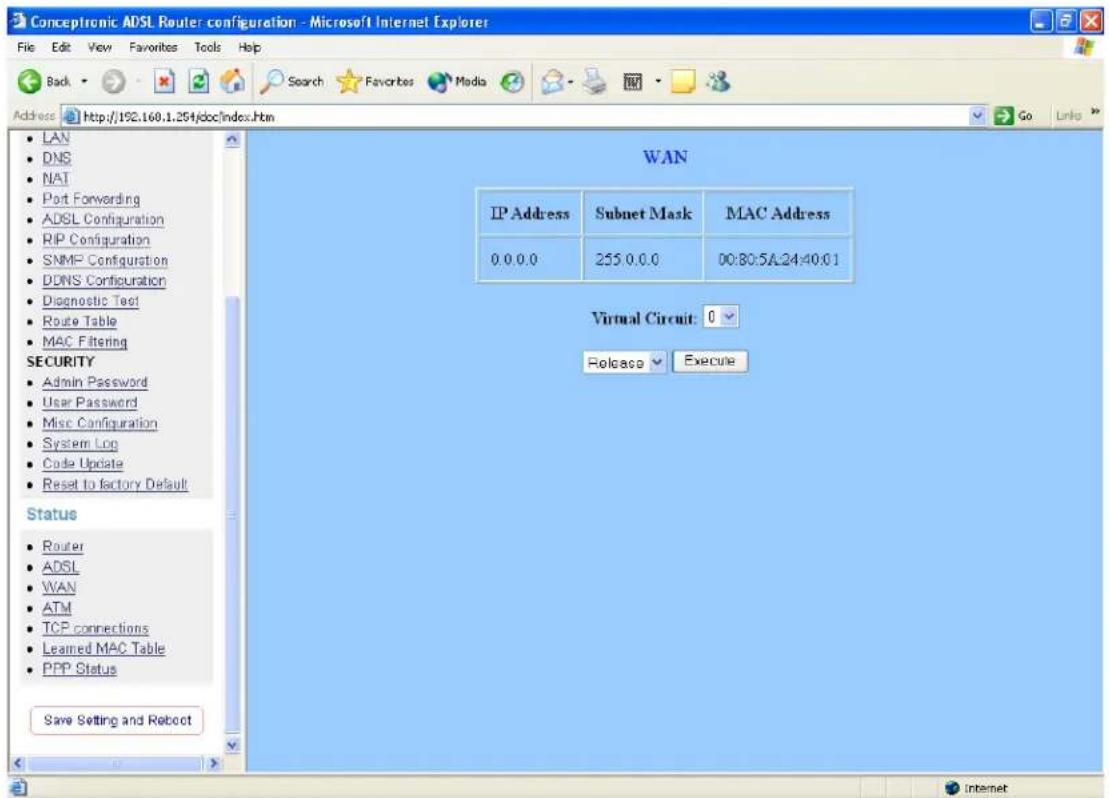
Reset Counters:
This button allows user to reset the ATM Status counter.
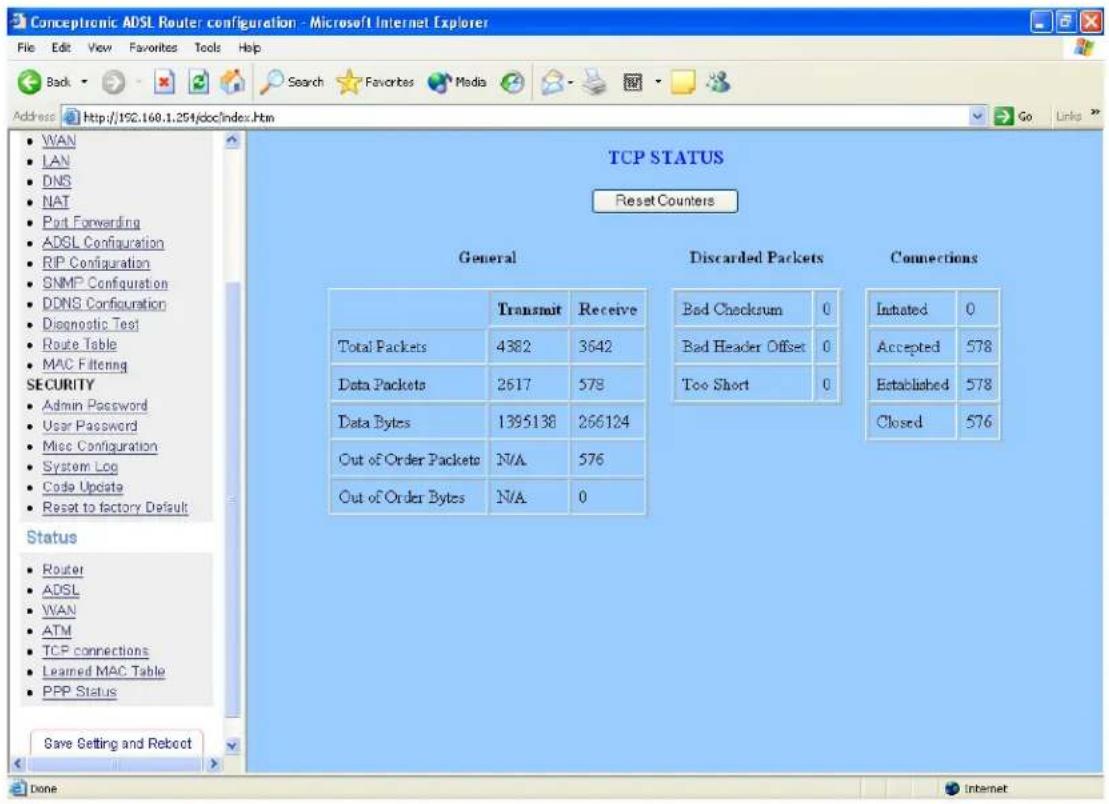
TCP Status
The TCP Status page shows the statistics for all TCP connections.
Learned MAC Table
The Learned MAC Table page shows the current learned Bridge MAC table.
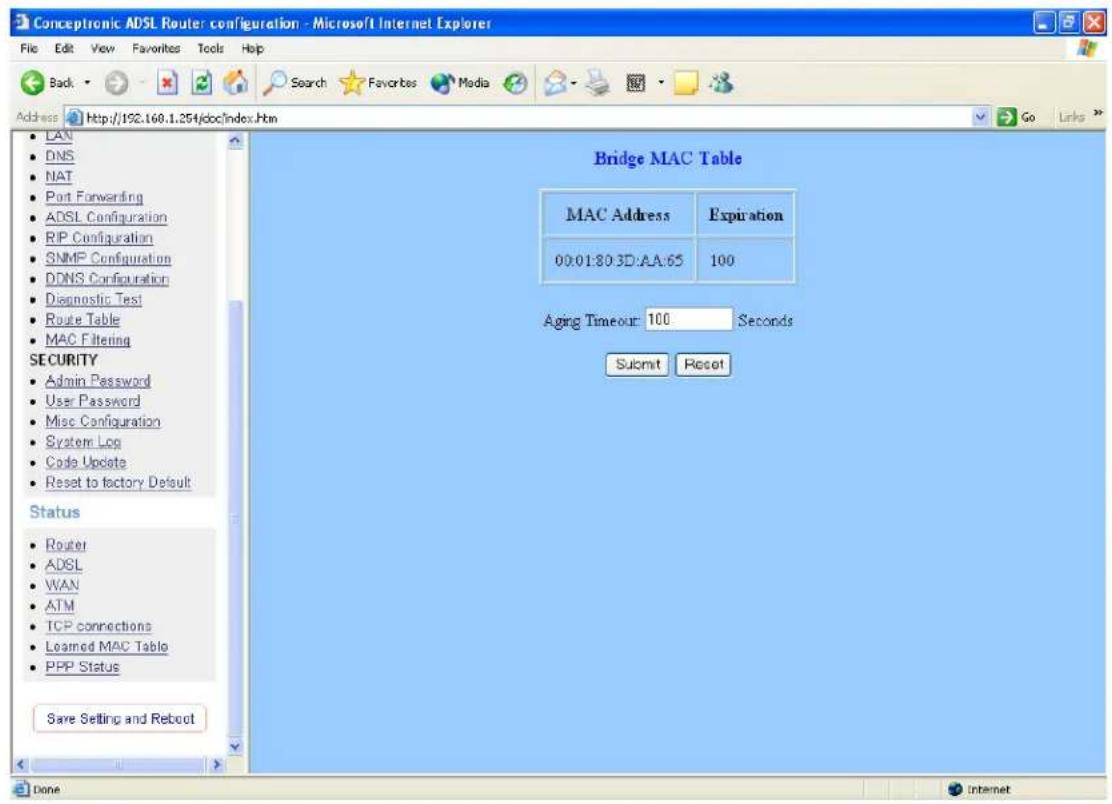
Aging Timeout:
This field allows the user to enter the update period for the MAC table.
Note:
Click the Submit button to save the settings in temporary memory. If you make changes the configurations.
PPP
The PPP Status page shows the status of PPP for each PPP interface. See PPP.
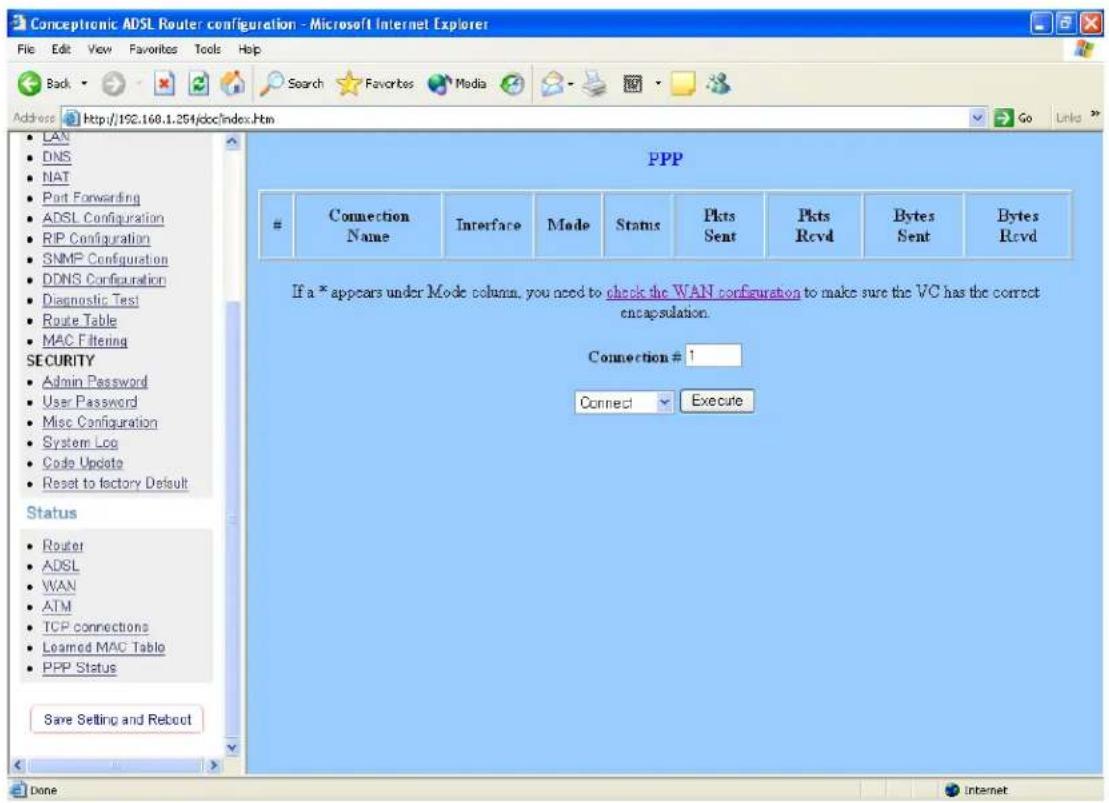
These fields display the following information on each PPP interface:
- Connection Name (user defined)
- Interface (PVC)
- Mode (PPPoE or PPPoA)
• Status (Connected or Not Connected) - Packets Sent
- Packets Received
- Bytes Sent
- Byte Received
Connect and Disconnect:
Each PPP session can be individually controlled, simply enter the desired connection number into the “Connection #” field and select either connect or disconnect from the drop down menu and click on the “Execute” button.


- PACKAGE CONTENTS
- HARDWARE CONNECTING
- LED INDICATORS
- GENERAL SETTING
- STEP 1
- STEP 2
- STEP 3
- STEP 4
- STATUS
- ROUTER
- FIRMWARE VERSION
- WAN
- LAN
- NUMBER OF ETHERNET DEVICES CONNECTED TO THE DHCP SERVER
- ADSL
- SHOWTIME FIRMWARE VERSION
- LINE STATE
- MODULATION
- ANNEX MODE
- STARTUP ATTEMPTS
- MAX TX POWER
- CO VENDOR
- ELASPSED TIME
- PPP
- CONNECT AND DISCONNECT
- ADVANCED SETTING
- CONCEPTRONIC
- MAIN MENU (SIMPLE)
- BASIC
- ADMINISTRATION
- PER VC SETTINGS
- VIRTUAL CIRCUIT
- BRIDGE
- IGMP
- ENCAPSULATION
- ATM
- VPI
- VCI
- SERVICE CATEGORY
- BANDWIDTH
- DHCP CLIENT
- HOST NAME
- SERVICE NAME
- USERNAME
- PASSWORD
- DISCONNECT TIMEOUT
- MRU
- MTU
- MSS
- AUTOMATIC RECONNECT
- LAN CONFIGURATION
- LAN IP ADDRESS & SUBNET MASK
- DHCP SERVER
- USER DEFINED
- DHCP GATEWAY SELECTION
- LEASE TIME
- USER MODE
- ETHERNET MODE SETTING
- NOTE
- DNS
- DNS SERVER IP # URL NAME (HOST DOMAIN) HOST IP
- DISABLE DNS PROXY
- USE AUTO DISCOVERED DNS SERVERS ONLY
- USE USER CONFIGURED DNS SERVERS ONLY
- AUTO DISCOVERY + USER CONFIGURED
- USER CONFIGURATION
- NAT
- SESSION NAME USER'S IP
- SESSION NAME INTERFACE
- SESSION NAME
- NUMBER OF NAT CONFIGURATIONS
- INTERFACE
- NUMBER OF SESSION
- PORT FORWARDING
- PUBLIC PORT
- PRIVATE PORT
- PORT TYPE
- HOST IP ADDRESS
- ADSL CONFIGURATION
- TRELLIS
- HANDSHAKE PROTOCOL
- WIRING SELECTION
- BIT SWAPPING
- RIP CONFIGURATION
- ENABLE
- SUPPLIER
- LISTENER
- CURRENT RIP SETTINGS
- SNMP CONFIGURATION
- SYSTEM NAME
- SYSTEM CONTACT
- SYSTEM LOCATION
- THE SNMP VERSION
- TRAP IP
- DDNS CONFIGURATION
- DDNS SERVICE
- DDNS SERVICE TYPE
- DIAGNOSTIC TEST
- TESTING ETHERNET LAN CONNECTION
- TESTING ADSL SYNCHRONIZATION
- TEST ATM OAM SEGMENT LOOP BACK
- TEST ATM OAM END-TO-END LOOP BACK
- TEST PPP LAYER CONNECTION
- TEST IP CONNECT TO PPP
- PING PRIMARY DNS
- QUERY DNS FOR WWW.GOOGLE.COM
- PING WWW.GOOGLE.COM
- ROUTER TABLE
- DESTINATION NETMASK GATEWAY
- MAC FILTERING
- SOURCE MAC
- DESTINATION MAC
- TYPE
- SECURITY
- ADMIN PASSWORD
- USER PASSWORD CONFIGURATION
- MISC CONFIGURATION
- HTTP SERVER ACCESS
- ALL
- RESTRICTED LAN
- HTTP SERVER PORT
- FTP SERVER
- TFTP SERVER
- DMZ
- DMZ HOST IP
- DHCP RELAY
- DHCP TARGET IP
- IGMP PROXY
- PPP CONNECT ON WAN ACCESS
- PPP HALF BRIDGE
- SYSTEM LOG
- CODE UPDATE
- RESET TO FACTORY DEFAULT
- WAN STATUS
- ATM STATUS
- RESET COUNTERS
- TCP STATUS
- LEARNED MAC TABLE
- AGING TIMEOUT
Brand : CONCEPTRONIC
Model : ADSLR4
Category : Router