MESP211D - Seva B&B Electronics - Free user manual and instructions
Find the device manual for free MESP211D B&B Electronics in PDF.


User questions about MESP211D B&B Electronics
0 question about this device. Answer the ones you know or ask your own.
Ask a new question about this device
Download the instructions for your Seva in PDF format for free! Find your manual MESP211D - B&B Electronics and take your electronic device back in hand. On this page are published all the documents necessary for the use of your device. MESP211D by B&B Electronics.
USER MANUAL MESP211D B&B Electronics
Advantech B+B SmartWorx - European Headquarters
Westlink Commercial Park
Oranmore, Co. Galway, Ireland
Phone +353 91-792444
Fax +353 91-792445
www.advantech-bb.com
support@advantech-bb.com
Document: MESP211 Series 3516m
TABLE OF CONTENTS
- Introduction ......6
About MESP211 Modbus Gateways....6
MESP211 Model Numbering....6
Model Number 6
Serial Protocol....6
Serial port....6
Ethernet Port 6
MESP211D 6
RS-232/422/485 6
DB9M 6
RJ45 6
MESP211T 6
RS-232/422/485 6
Removable Terminal Block....6
RJ45 6
MESP211 Features....7
Configuration Software....7
- MESP211 Hardware ....8
Package Checklist 8
MESP211 Enclosures and Mounting 8
LED Indicators....8
Mode Switch....9
Ethernet Connector....10
Serial Port Connectors .... 10
Power Connector 11
Mounting Hardware....11
- Setup and Connections....12
Connecting the Power Supply 12
Connecting MESP211 Modbus Gateways to Modbus networks....12
Connecting the MESP211....13
Connecting MESP211 Modbus Gateways to a Network 14
MESP211 Configuration Connections....15
Installing Modbus Gateway Manager Software....15
Configuring the MESP211 via the Network Connection....19
Configuring the Modbus Gateway Manager....19
General Sengs 24
Configuring the MESP211 on Networks without a DHCP Server....39
Configuring the MESP211 via the Serial Port (Console Mode) 42
MESP211 Operational Connections 44
Using MESP211 Modbus Gateways in Direct IP Mode 44
Initiating a Hardware Reset on the Modbus Gateway....45
Reloading Factory Defaults 45
- Upgrading Firmware 46
Downloading Firmware Files....47
Uploading the Firmware to the Modbus Gateway....47
- Diagnostics....48
Testing a Modbus Gateway Connection....49
Monitor Function....50
-
Setup Examples ....51
-
Modbus Help....56
Modbus ASCII/RTU Basics....56
Hints and Tips....57
- Appendices....58
Appendix A: Default Gateway Settings....59
Appendix B: Product Specifications ....60
General Specifications....61
Controls, Indicators and Connector Specifications....62
Approvals and Certifications....63
Serial Interface Specifications....64
Network Specifications....65
Appendix C: Dimensional Diagram 66
Appendix D: Connector Pinouts....67
MESP211 Serial Port Pinouts 67
MESP211 Terminal Block Pinouts....68
1. INTRODUCTION
Thank you for purchasing an MESP211 product. This product has been manufactured to the highest standards of quality and performance to ensure your complete satisfaction.
ABOUT MESP211 MODBUS GATEWAYS
MESP211 Modbus Gateways connect Modbus networks (RS-232, RS-422 or RS-485) to Ethernet networks, allowing the Modbus network to become a node on the network. The serial ports can be accessed over a LAN/WAN using Direct IP Mode connections. MESP211 Modbus Gateways feature 10BaseT or 100BaseTX copper network media options, depending upon the model.
MESP211 Modbus Gateways are built for use in industrial environments, featuring an IP30 slim line panel mountable case with DIN rail mounting option. They accept 10 – 30 VDC power and feature barrel jack power connectors. An external power supply is included.
MESP211 MODEL NUMBERING
| Model Number | Serial Protocol | Serial port | Ethernet Port |
| MESP211D | RS-232/422/485 | DB9M | RJ45 |
| MESP211T | RS-232/422/485 | Removable Terminal Block | RJ45 |
MESP211 FEATURES
- DB9M and pluggable terminal block serial port connector options
- Software selectable as RS-232, RS-422 or RS-485 2- or 4-wire
- Configuration of Ethernet and serial port settings using software
- Configuration can be done via network, web page or direct serial connection
- Slim line panel mountable case with DIN rail mount option
- Accepts 10 – 30 VDC power
• 10/100 Mbps Ethernet with Auto Selection, Auto MDI/MDIX
• LAN and WAN Communications - Modbus TCP Client or Modbus TCP Server - configurable
- Firmware Upload for future revisions/upgrades
- Software Support - Windows XP (32/64 bit), 2003 Server (32/64 bit), Vista (32/64 bit), 2008 Server (32/64 bit), Windows 7 (32/64 bit), Windows 8 (32/64 bit), Windows Server 2012
CONFIGURATION SOFTWARE
The configuration software enables you to find connected Modbus Gateways, configure them, upgrade Modbus Gateway firmware, and save/load configuration files. It features a graphical user interface (GUI) that is convenient and easy to use.
2. MESP211 HARDWARE
MESP211 Modbus Gateways are enclosed in panel mountable cases with DIN rail mount options and feature LED indicators, power, Ethernet and serial connectors and a recessed Reset/Mode switch.
PACKAGE CHECKLIST
MESP211 Modbus Gateways are shipped with the following items included:
• MESP211 Modbus Gateway Module
- Quick Start Guide
• CD with configuration software
- Power supply
MESP211 ENCLOSURES AND MOUNTING
All MESP211 models are built into similar enclosures. Modules are panel mountable with DIN rail options.
LED INDICATORS
MESP211 Modbus Gateways have a Power LED, a Ready LED and Data LEDs.
| LEDs | ||
| Ready | OFF | Power is not connected |
| ON | Power is connected | |
| Ethernet | OFF | No Ethernet link |
| ON | Ethernet link | |
| BLINK | Ethernet activity | |
| Serial | ON | Serial Port is available |
| BLINK | Data is present on serial port | |
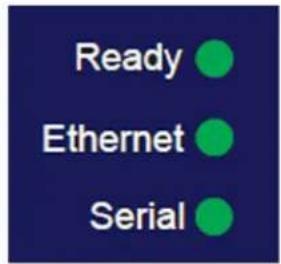
LEDs Figure 1.
Hardware
MODE SWITCH
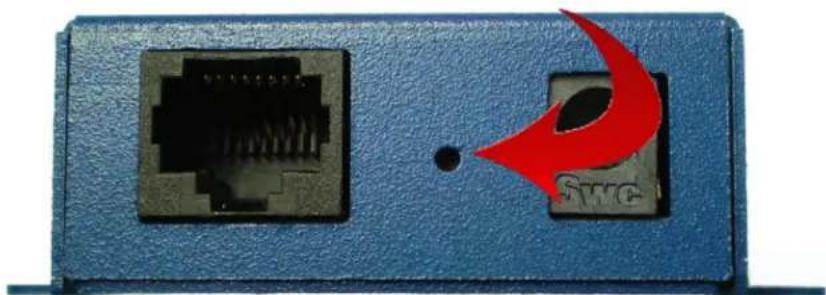
A recessed momentary reset switch is located on the front left side of the enclosure. To activate the switch, insert a small plastic tool through the hole in the enclosure and press gently.
natural_image
Close-up of a blue electronic device with an Ethernet port and a red logo featuring a stylized 'SWG' symbol (no readable text or labels)Mode/Reset Switch Figure 2.
The Mode/Reset switch can be used to:
- Initiate a Hardware Reset
- Enter Console Mode
- Reload factory defaults
Note: Refer to Section 3: Modbus Gateway Setup and Connections for more information on using the Mode switch.
Hardware
ETHERNET CONNECTOR
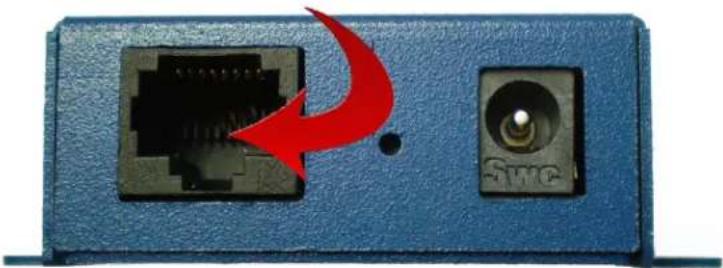
Modbus Gateway models using 10BaseT/100BaseTX network connections use an RJ45 receptacle. The Modbus Gateway is connected to a standard Ethernet network drop using a straight-through RJ45 (male) Ethernet cable.
natural_image
Close-up of a blue electronic device showing an Ethernet port socket and a black SWE connector (no text or symbols visible)Ethernet Connector. Figure 3.
Note: Refer to Appendix D for connection pin-outs.
SERIAL PORT CONNECTORS
The MESP211 has either a DB9M serial connector or a 5-position terminal block connector.
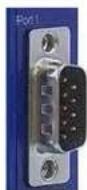
Figure 4. DB-9 Serial Port Connector (MESP211D)
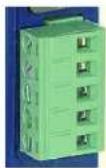
Five-Position Pluggable Terminal Block (MESP211T) Figure 5.
Hardware
POWER CONNECTOR
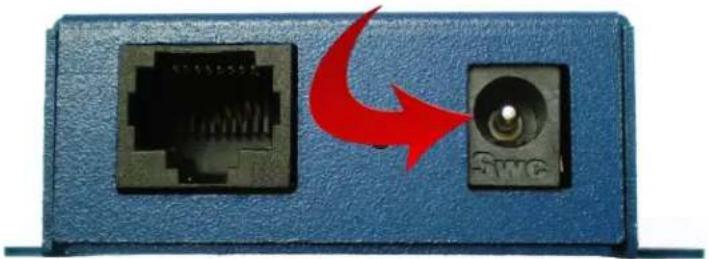
natural_image
Close-up of a blue server interface with two ports, one showing internal network and the other a circular component labeled 'SWG', connected by a red arrow (no text or symbols on the device itself)Power Connection Figure 6.
MOUNTING HARDWARE
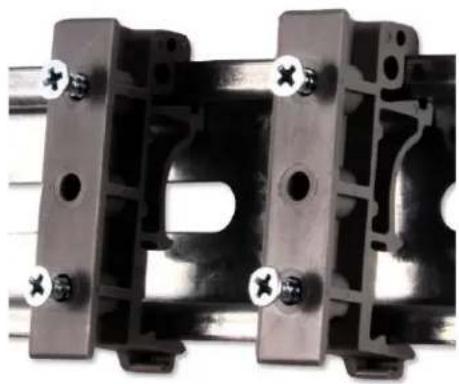
An optional DIN rail mount adapter is available from B&B Electronics.
natural_image
Close-up of two metallic mechanical components with bolt holes and mounting brackets (no visible text or symbols)DIN Clip for Modbus Gateway Module. Figure 7.
3. SETUP AND CONNECTIONS
Note: In this section devices to be connected to the Modbus Gateway's serial connection are simply referred to as the "Modbus network".
CONNECTING THE POWER SUPPLY
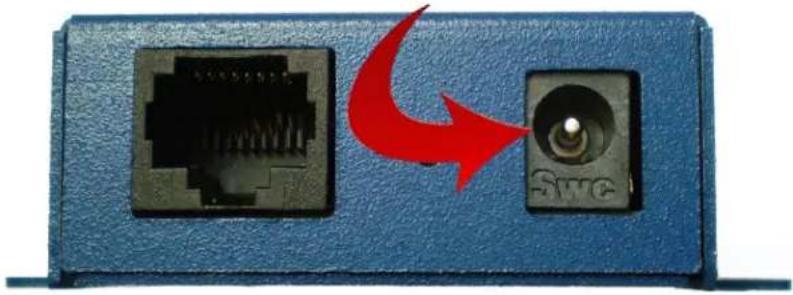
Connect a DC power supply to Modbus Gateway. Acceptable voltages are between 10 VDC and 30 VDC. The power supply must be capable of supplying 4 watts.
natural_image
Close-up of a blue electronic device showing two ports with a red arrow pointing to one port (no text or symbols visible)MESP211 Power Connection Figure 8.
Figure 9.
CONNECTING MESP211 MODBUS GATEWAYS TO MODBUS NETWORKS
MESP211 Modbus Gateways can be configured to connect to Modbus networks using RS-232, RS-422, RS-485 2-wire or RS-485 4-wire.
For the MESP211D
RS-232 connections support eight signal lines plus Signal Ground. Signals are single ended and referenced to Ground. Default communications parameters are 9600, 8, N, 1. RS-422/485 connections are also supported with the DB9 connector.
For the MESP211T
RS-422 4-wire connections support two signal pairs: RXA(-), RXB(+) and TXA(-), TXB(+), plus GND. The data lines are differential pairs (A & B) in which the B line is positive relative to the A line in the idle (mark) state. Ground provides a common mode reference. RS-232 connections are also supported with the terminal block connector.
RS-485 connections support 2-wire or 4-wire operation.
When configured for 4-wire operation the connection supports two signal pairs: RXA(-), RXB(+) and TXA(-), TXB(+), plus GND. This makes full-duplex operation possible. The data lines are differential pairs (A & B) in which the B line is positive relative to the A line in the idle (mark) state. Ground provides a common mode reference.
Setup and Connecons
When configured for 2-wire operation the connection supports one signal pair: Data B(+) and Data A(-) signal channels using half-duplex operation. The data lines are differential with the Data B line positive relative to Data A in the idle (mark) state. Ground provides a common mode reference.
CONNECTING THE MESP211
The MESP211 has either a DB9M serial connector or a 5-position terminal block connector.
If you select RS-232 mode when you configure the Modbus Gateway, you must connect the Modbus serial network to the Modbus Gateway via a serial cable. The MESP211 is a DTE. If the Modbus network is a DTE, use a null modem (cross-over) cable. If the Modbus network is a DCE, use a straight-through cable. DTE and DCE ports are complementary, the Output signals on a DTE port are Inputs to a DCE port, and Output signals on a DCE port are Inputs to a DTE port. The signal names match each other and connect pin for pin. Signal flow is in the direction of the arrows
Modem Cable - Straight Cable DB9 to DB9
| DTE Device (Computer) DB9 DTE to DCE Connections DCE Device (Modem) DB9 | ||||
| Pin# DB9 RS-232 Signal Names | Signal Direction | Pin# DB9 RS-232 Signal Names | ||
| #1 Carrier Detector (DCD) | CD | #1 Carrier Detector (DCD) | CD | |
| #2 Receive Data (Rx) | RD | #2 Receive Data (Rx) | RD | |
| #3 Transmit Data (Tx) | TD | #3 Transmit Data (Tx) | TD | |
| #4 Data Terminal Ready | DTR | #4 Data Terminal Ready | DTR | |
| #5 Signal Ground/Common (SG) | GND | #5 Signal Ground/Common (SG) | GND | |
| #6 Data Set Ready | DSR | #6 Data Set Ready | DSR | |
| #7 Request to Send | RTS | #7 Request to Send | RTS | |
| #8 Clear to Send | CTS | #8 Clear to Send | CTS | |
| Soldered to DB9 Metal - Shield | FGND | Soldered to DB9 Metal - Shield | FGND | |
MESP211 Serial Connections Figure 10.
Setup and Connecons
flowchart
graph TD
    A["PC"] --> B["Network"]
    B --> C["VLink"]
    C --> D["Serial Device"]
    style A fill:#f9f,stroke:#333
    style B fill:#ccf,stroke:#333
    style C fill:#cff,stroke:#333
    style D fill:#ffc,stroke:#333
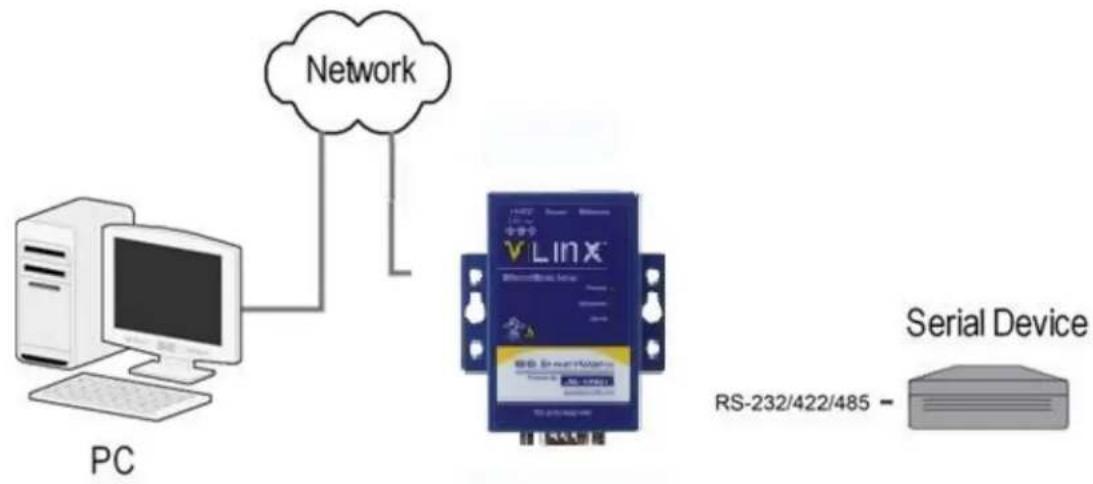
MESP211 Connections Figure 11.
CONNECTING MESP211 MODBUS GATEWAYS TO A NETWORK
Network Connection (10BaseT/100BaseTX)
When connecting a Modbus Gateway equipped with a 10BaseT/100BaseTX network connection (RJ45 connector) a standard network cable is connected from the Modbus Gateway to a network drop. PCs configuring and/or communicating with the Modbus Gateway are also connected to the network.
Setup and Connecons
MESP211 CONFIGURATION CONNECTIONS
MESP211 Modbus Gateways can be configured over the network or via a serial port.
INSTALLING MODBUS GATEWAY MANAGER SOFTWARE
- The Modbus Gateway Manager Software is contained on the CD which is packaged with the product. Insert the CD into your CD ROM drive. The software should automatically begin the installation process. If AUTO RUN is disabled on your computer, open the CD drive and double click on the executable file.
a. The following screen will be displayed on your computer.
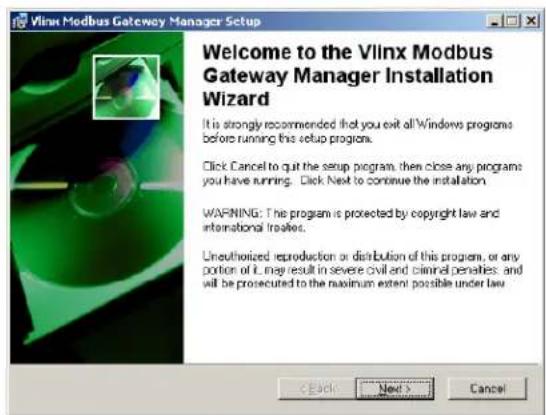
Modbus Gateway Manager Installation Welcome Screen Figure 12.
b. Click "Next." The License Agreement Screen will be displayed on your computer.
Setup and Connecons
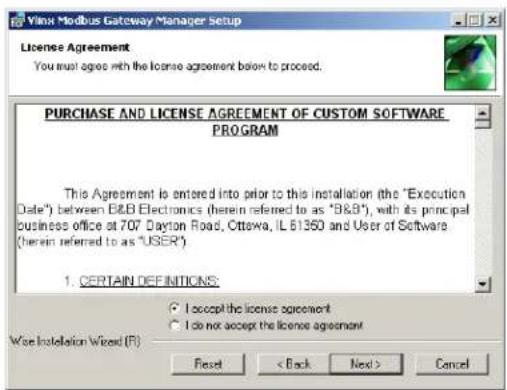
Figure 13. Modbus License Acceptance Screen
c. Click "Next." The User Information Screen will be displayed on your computer. Enter your name and organization (optional) and select if the software will be accessible to your account or anyone who uses the computer.
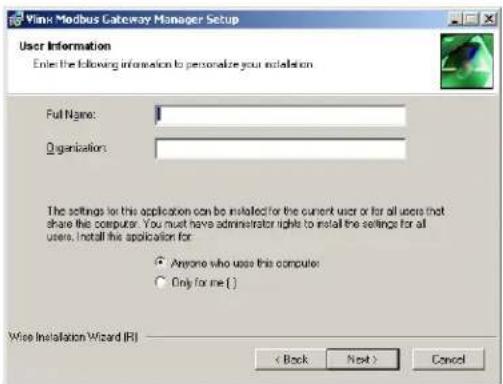
User Information Screen Figure 14.
d. Click "Next." The Destination Folder Screen will be displayed on your computer. The default directory is:
C:\Program Files\B&B Electronics\Vlinx\Modbus Gateway Manager
If desired, you can select another location by pressing the "Browse" button.
Setup and Connecons
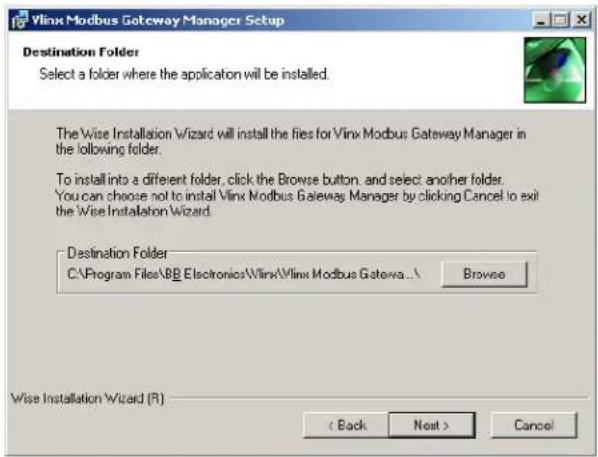
Destination Folder Screen Figure 15.
e. Click "Next." The Ready to Install Application Screen will be displayed on your computer. You can select the "Back" button to change destination folder.
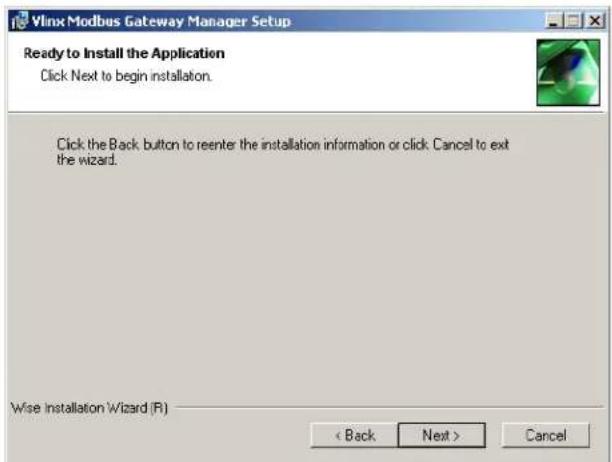
Ready to Install Application Screen Figure 16.
Setup and Connecons
f. Click "Next." The software will begin installing.
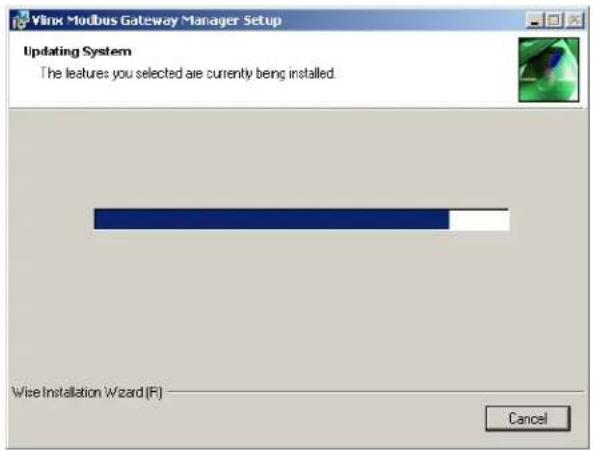
Software Installing Screen Figure 17.
g. Click "Next." The Installation Complete screen will be displayed on your computer. Click "Finish" to finish the installation.
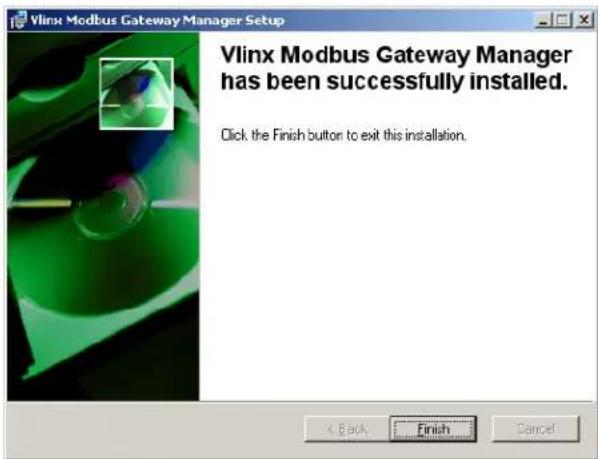
Installation Complete Screen Figure 18.
CONFIGURING THE MESP211 VIA THE NETWORK CONNECTION
When configuring via the network, either Modbus Gateway Manager software or the web interface can be used.
CONFIGURING THE MODBUS GATEWAY MANAGER
MESP211 Modbus Gateways can be configured over the network Modbus Gateway Manager software running on a PC.
To open Modbus Gateway Manager:
- From the Desktop, click Start → Programs → Advantech B+B SmartWorx→ Vlinx → Vlinx Modbus Gateway Manager→Modbus Gateway Manager. An alternate method is to double click the shortcut installed on the desktop.
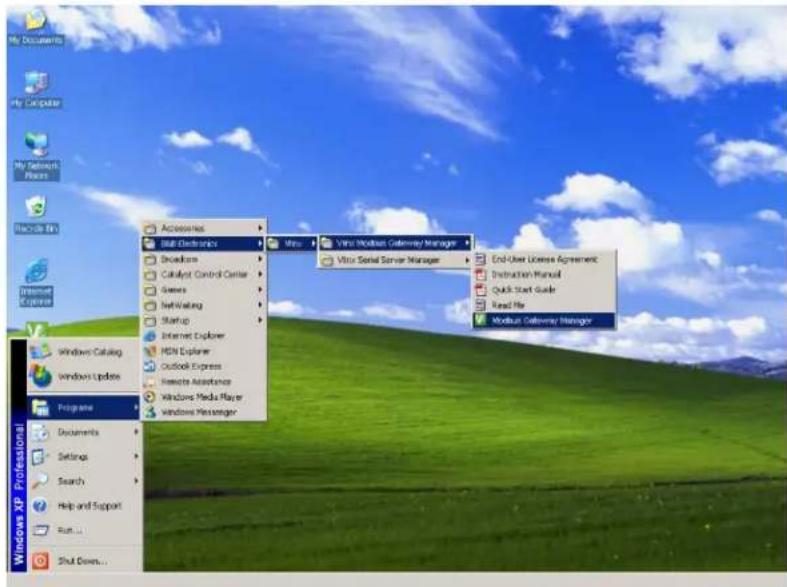
Figure 19. Opening Vlinx Modbus Gateway Manager
Setup and Connecons
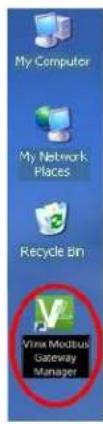
Vlinx Modbus Gateway Manager Shortcut Icon Figure 20.
The Vlinx Modbus Gateway Manager Device Discovery window appears.
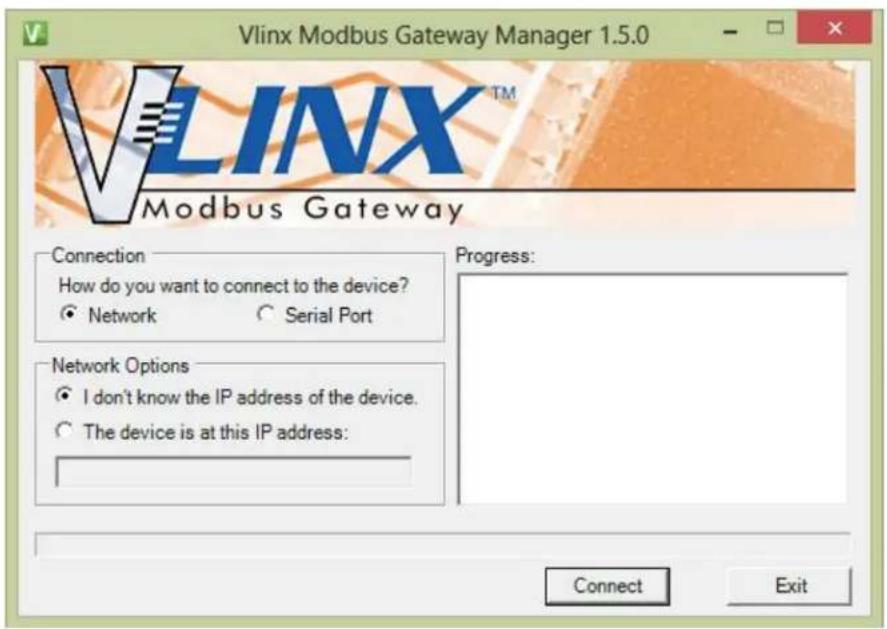
Modbus Gateway Manager Discovery Window Figure 21.
If you do not know the IP address, check the "Network" and "I don't know the IP address of this device" selections and press the "Connect Button." The software will discover any MESP211 Gateways on the network. The configuration manager screen will be displayed on your computer. All available devices will be listed on the top portion of this screen. If you know the IP address, you may select "The Device is located at this IP address" and input the address in the box provided.
Setup and Connecons
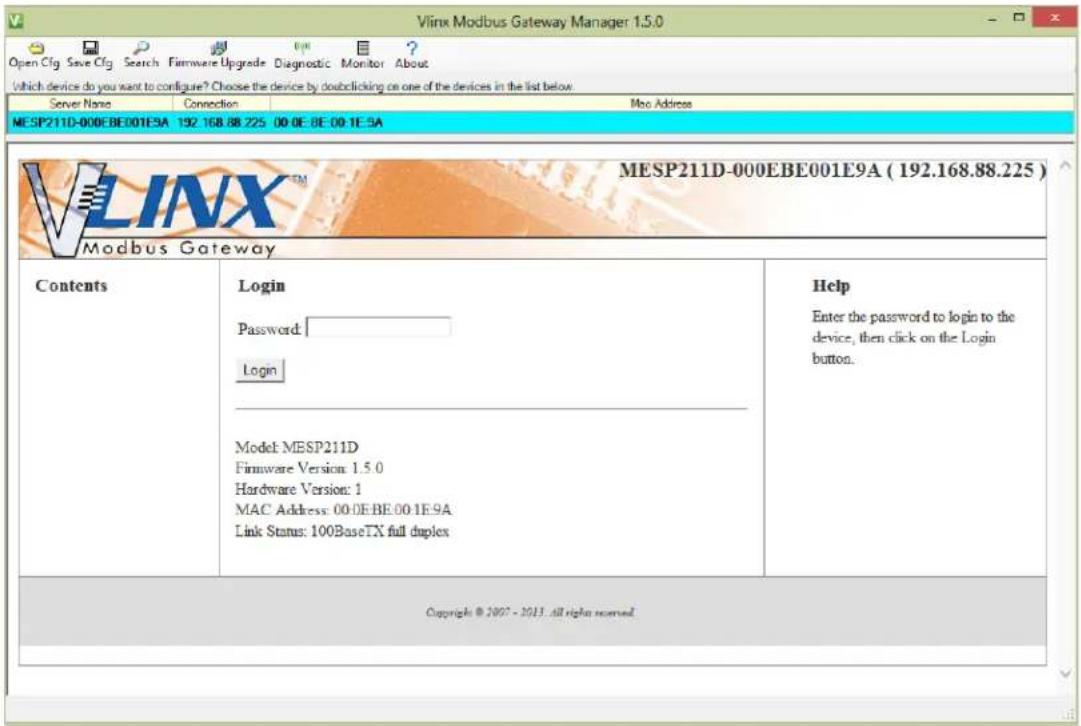
Configuration Manager Screen Figure 22.
- All Modbus Gateways on the network will be displayed in the top portion of the screen. To select a gateway, simply click the appropriate device on the top portion of the screen.
a. The main portion of the screen displays the Model, Firmware version, Hardware Version, MAC Address, and Link Status. The IP Address is also displayed on the top portion of the screen and title graphic area.
- There is no password unless you choose to enter one. The default password is no password at all. Click the "Login" button. The "General" Settings screen will be displayed on your computer.
Vlinx Modbus Manager Settings Screen Overview
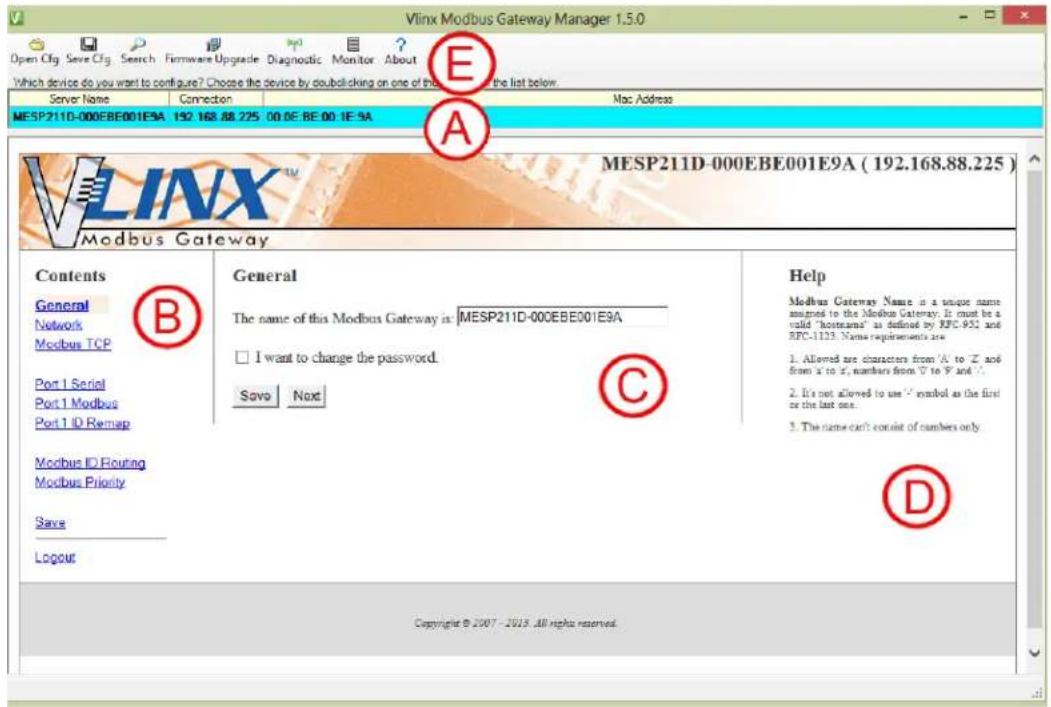
Settings Screen Overview Figure 23.
a. This area shows Modbus Gateways available on the network.
b. This area is used to skip directly to the specific configuration screen you need to access. An alternate method of accessing the configuration screens is to use the "Next" button in area C.
c. This area contains dialog boxes specific the configuration screen.
1. Note: Any configuration changes you make need to be saved using the "Save" button.
d. This area contains helpful information about the configuration screen you are currently on.
e. This area contains shortcuts to specific functions.
- "Open" allows you to load a previously saved configuration file into your Modbus Gateway.
- "Save" allows you to save your configuration to a file. This should not be confused with the "Save" button described in 6.c above.
- "Search" allows you to search for Modbus Gateways on the network.
- "Upgrade" allows you to upgrade your Modbus Gateway's firmware.
Setup and Connecons
- "Diagnostic" allows you to test a configured Modbus Gateway. See Section 5.
- "Monitor" allows you to monitor a Modbus Gateway. See Section 5.
- "About" contains information about your Modbus Gateway.
Note: If an unacceptable value or character is entered on any of the configuration screens, the background turns yellow. You will be unable to leave this screen as long as the yellow background is present. When an acceptable value is entered, the yellow background goes away and you can leave the screen.
Setup and Connecons
GENERAL SETTINGS
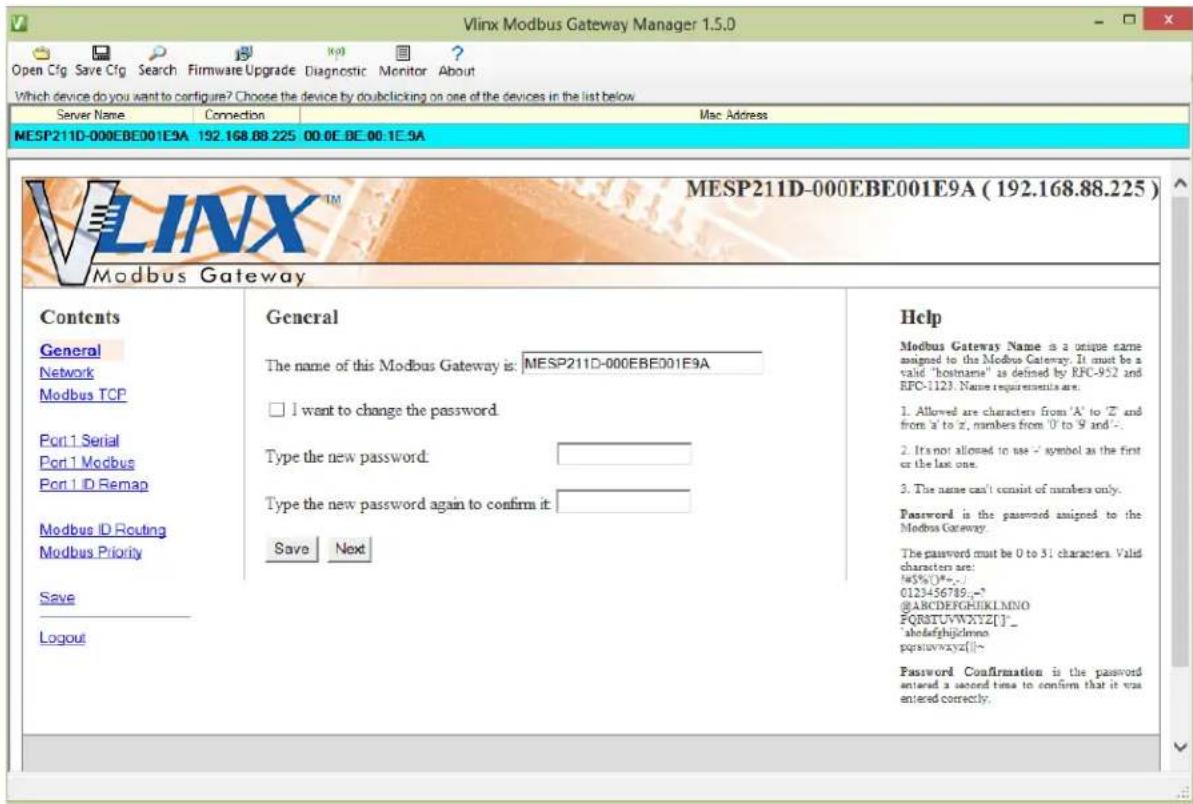
General Settings Screen Figure 24.
a. This screen enables you to assign a unique name to the gateway. This allows you to easily identify a particular gateway when multiple devices are used on the same network. To change the name, type a new name in the "The Name of this Modbus Gateway is" box. The name must be a valid "hostname" as defined by RFC-952 and RFC-1123. Allowed characters are A to Z, a to z, 0 to 9 and "-". The "-"symbol cannot be the first or last character. The name cannot consist of numbers only. To save the new name click the "Save" button.
b. You can also change the gateway's password on this screen. To do this, check the "I want to change the password" box. New password entry boxes will appear on the screen.
Setup and Connections
![Vlinx Modbus Gateway Manager 1.5.0 Open Cfg Save Cfg Search Firmware Upgrade Diagnostic Monitor About Which device do you want to configure? Choose the device by dobclicking on one of the devices in the list below. Server Name Connection Mac Address MESP211D-000EBE001E9A 192.168.88.225 00.0E.0E.00.1E.9A MESP211D-000EBE001E9A (192.168.88.225) Modbus Gateway Contents General General Network Modbus TCP Port 1 Serial Port 1 Modbus Port 1 ID Remap Modbus ID Routing Modbus Priority Save Logout General The name of this Modbus Gateway is: MESP211D-000EBE001E9A I want to change the password. Type the new password: Type the new password again to confirm it: Save Next Help Modbus Gateway Name is a unique name assigned to the Modbus Gateway. It must be a valid "hostname" as defined by RFC-952 and RFC-1123. Name requirements are. 1. Allowed are characters from 'A' to 'Z' and from 'a' to 'z', numbers from 'U' to 'S' and '-'. 2. It's not allowed to use a symbol as the first or the last one. 3. The name can't consist of numbers only. Password is the password assigned to the Modbus Gateway. The password must be 0 to 51 characters. Valid characters are: #5%()#+,-) 0123456789,-= @ABCDEFGHJIKLMNIO FQRSITUWXYZ[ ] 'ahodefghjclmno pqssuwwxyz[ ] Password Confirmation is the password entered a second time to confirm that it was entered correctly.](/content/2026/06/1187195/images/c9d16a040913a5cd99e9107716a04397ade1534551d800fa163dc5800711480c.jpg)
Changing The Password Figure 25.
c. Type your new password in the "Type the new password box." Verify the password by typing it again in the box provided. To save the new password click the "Save" button.
4. Network Settings
a. To get to the Network Settings Screen you can either click the "Next Button" or click on the "Network" link on the left side of the screen.
Setup and Connecons
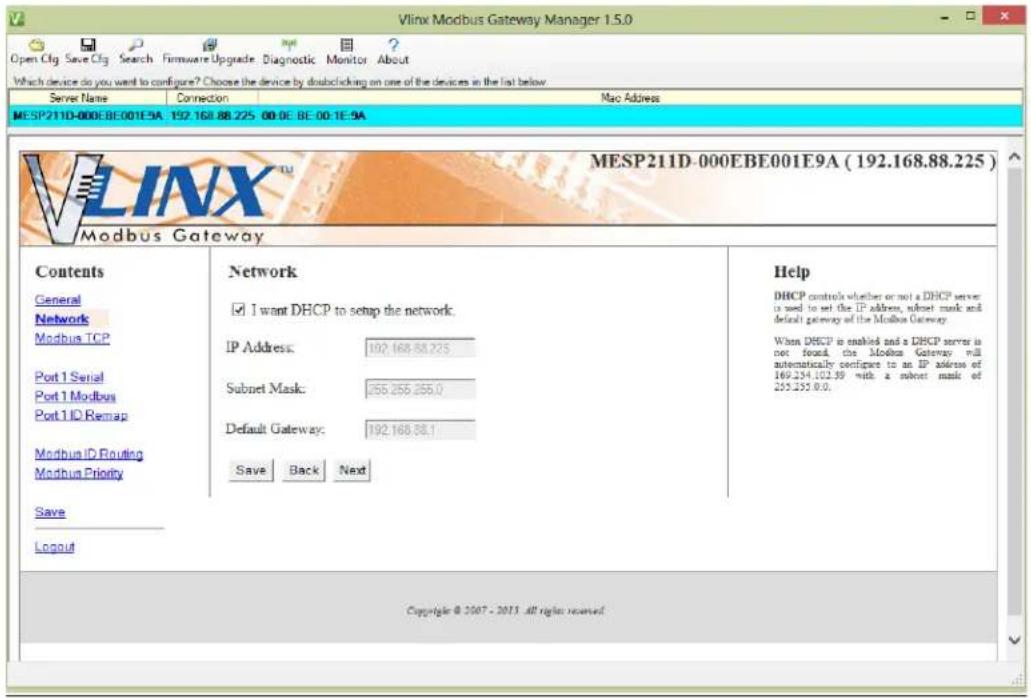
Network Settings Screen (DHCP Selected) Figure 26.
b. The default network configuration is to receive an IP address assignment from a DHCP server. DHCP controls whether or not a DHCP server is used to set the IP address, subnet mask and default gateway of the Modbus Gateway. When DHCP option is enabled but the DHCP server is not found, the Modbus Gateway will automatically configure IP address 169.254.102.39 with a subnet mask 255.255.0.0
c. To configure your Modbus Gateway without using a DHCP Server, uncheck the "I want DHCP to setup the network" box. You will need to know the IP Address, Subnet Mask, and Default Gateway.
IP Address field contains static internet protocol address of the Modbus Gateway.
Subnet Mask field contains mask that is used to define sub network.
For Class A network (IP addresses 0.0.0.0 through 127.255.255.255), the default subnet mask is 255.0.0.0.
For Class B network (IP addresses 128.0.0.0 through 191.255.255.255), the default subnet mask is 255.255.0.0.
For Class C network (IP addresses 192.0.0.0 through 223.255.255.255), the default subnet mask is 255.255.255.0.
Setup and Connecons
For Class D network (IP addresses 224.0.0.0 through 239.255.255.255) and Class E network (IP addresses 240.0.0.0 through 255.255.255.255), the subnet mask is ignored.
Default Gateway field contains default route to remote networks.
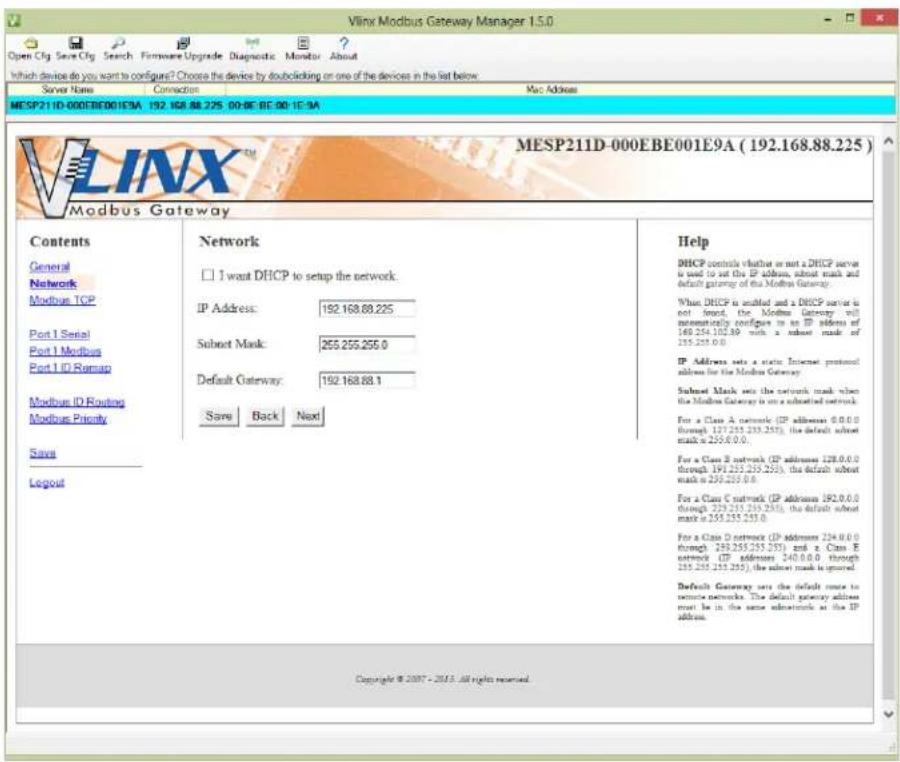
Network Settings Screen (DHCP not Selected) Figure 27.
d. More information about assigning an IP address without using a DHCP Server is contained in the section Configuring the MESP211 on Networks without a DHCP Server.
e. Save changes by Clicking the "Save" button.
- Modbus TCP Settings
a. To access this screen, click the "Next Button" or click on the Modbus TCP link on the left side of the screen.
b. This screen allows you Modbus TCP client and server settings.
Setup and Connecons
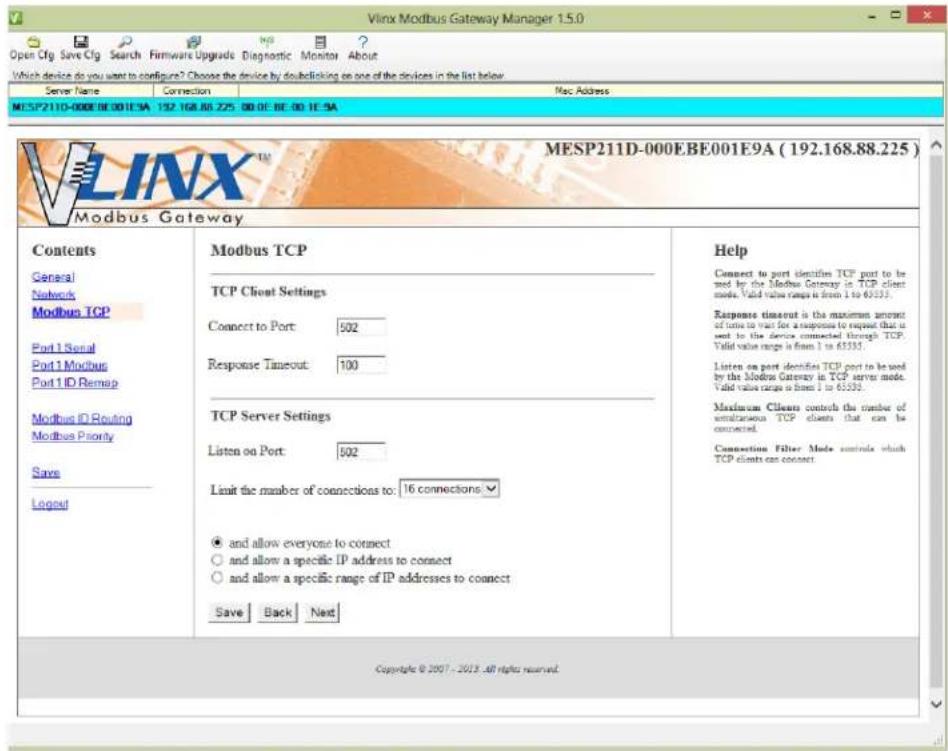
Modbus TCP Settings Screen Figure 28.
c. TCP Client Settings
- Connect to Port identifies TCP port to be used by the Modbus Gateway in TCP client mode. Valid value range is from 1 to 65535.
- Response Timeout is the maximum amount of time to wait for a response to a request that is sent to the device connected through TCP. Valid value range is from 1 to 65535.
- Save settings by clicking the "Save" button.
b. TCP Server Settings
- Listen on Port identifies TCP port to be used by the Modbus Gateway in TCP server mode. Valid value range is from 1 to 65535.
- "Limit the number of connections to" pull down box allows you to control the number of simultaneous TCP clients that can be connected. Choices are 1 through 16.
- Connection Filter Mode controls which TCP clients are able to connect. The default is: "and allow everyone to connect."
Setup and Connecons
a. You can select "allow specific IP addresses to connect." This filter is limited to 4 IP addresses.
b. You can select "a specific range of IP addresses to connect." This filter is limited to 4 IP address ranges
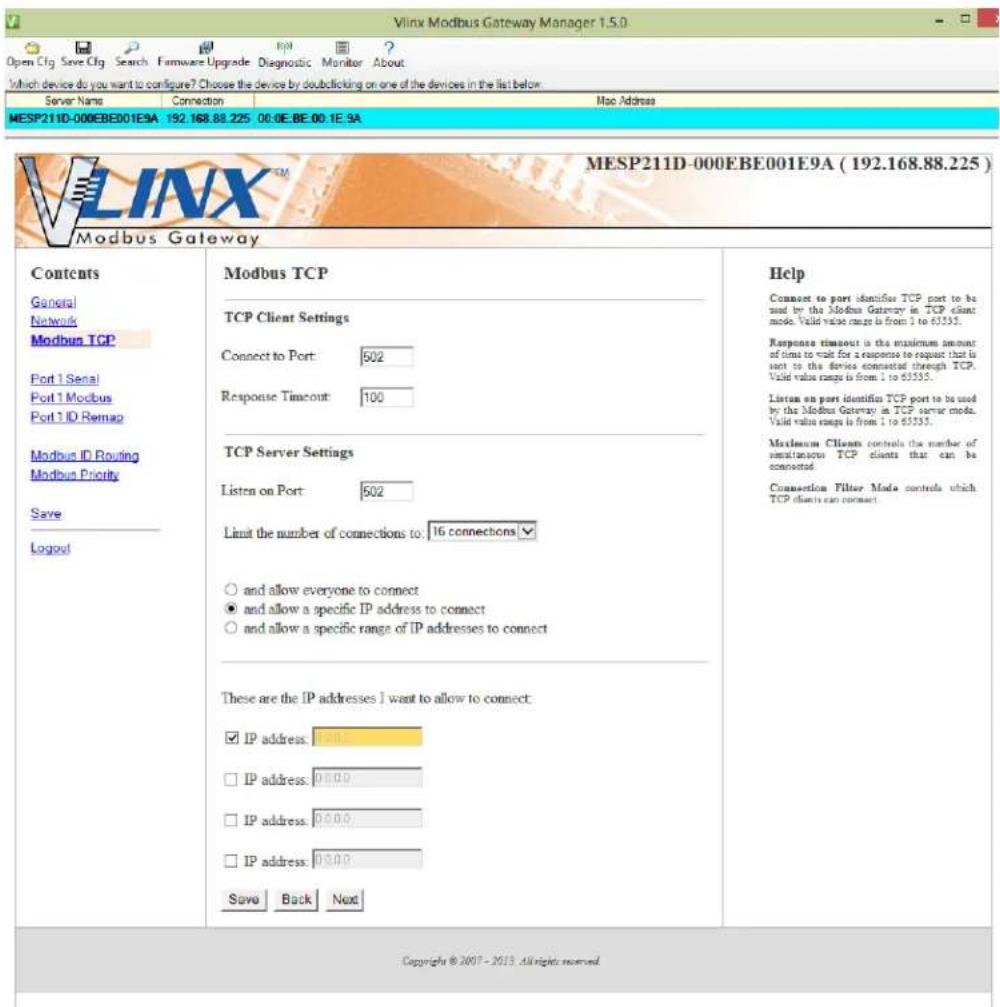
Figure 29. TCP Connection Filter "Allow Specific IP Addresses to Connect"
c. Save settings by clicking the "Save" button.
Setup and Connecons
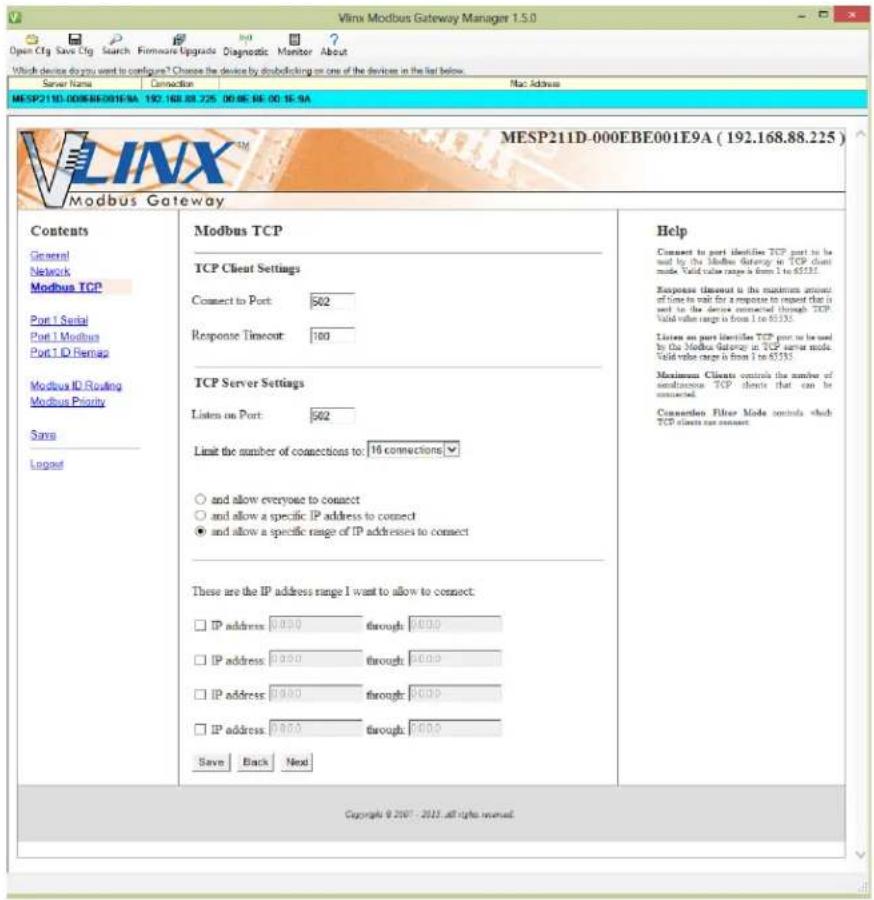
Figure 30. TCP Connection Filter "Allow Specific Range of IP Addresses to Connect"
6. Port 1 Settings
To access this screen, click the "Next" button or click the Port 1 Serial link on the left side of the screen.
Setup and Connecons
a. This screen allows you to change the serial port settings.
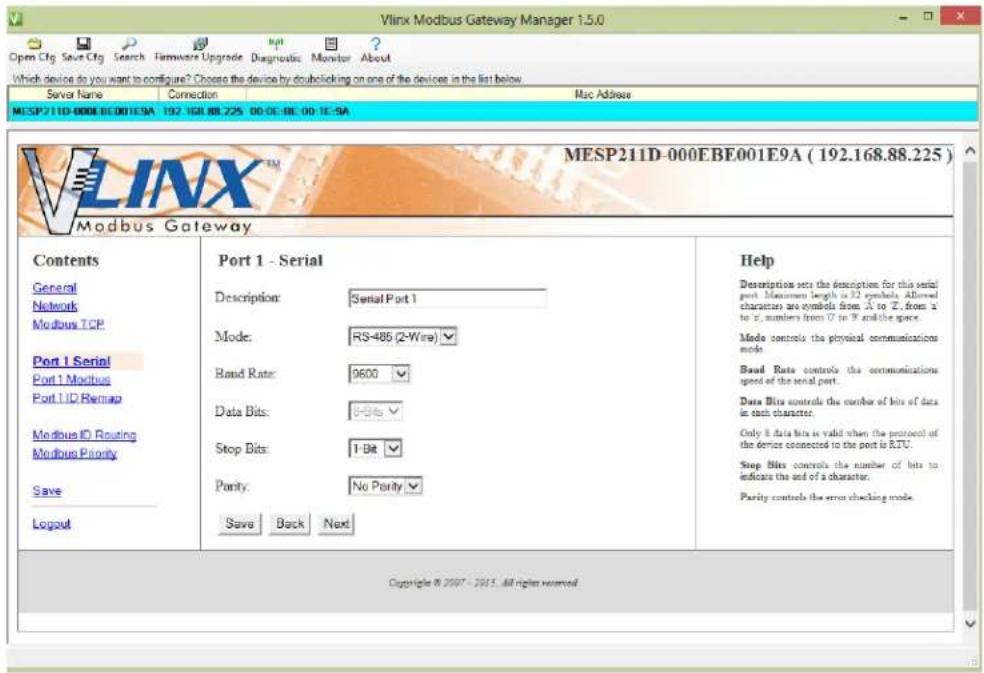
Serial Port Screen Figure 31.
b. Description - sets the description for this serial port. Maximum length is 32 symbols. Allowed characters are symbols from 'A' to 'Z', from 'a' to 'z', numbers from '0' to '9' and the space.
c. Mode - Controls the physical communications mode for the MESP211. The Mode can be RS-232, RS-422 (4-Wire), RS-485 (2-Wire), or RS-485 (4-Wire).
d. Stop Bits – Controls the number of bits to end a character. Choices are 1 or 2.
e. Parity – Controls the error checking mode. Choices are Odd, Even, Mark, or Space.
f. Save settings by clicking the "Save" button.
7. Port 1 Modbus
a. To access this screen, click the "Next" button or click the "Port 1 Modbus" Link on the left side of the screen. This screen allows you to change the Modbus settings for the port.
Setup and Connecons
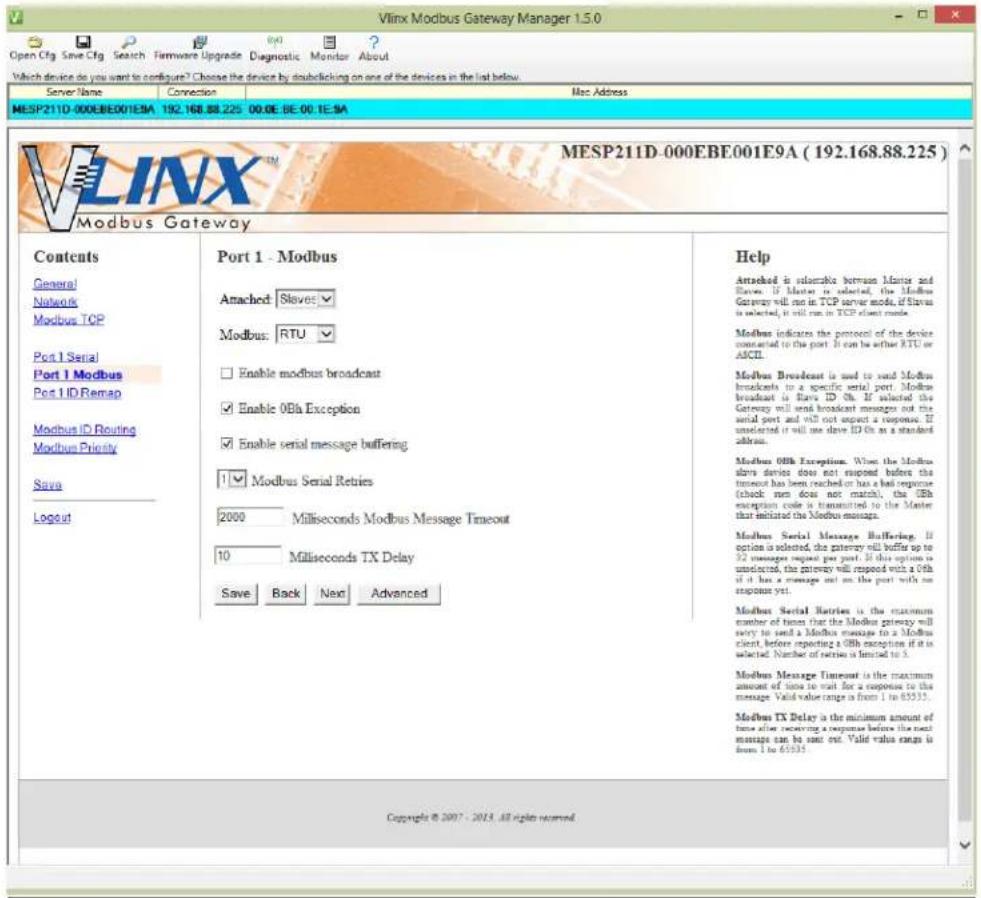
Modbus Port Screen Figure 32.
Setup and Connecons
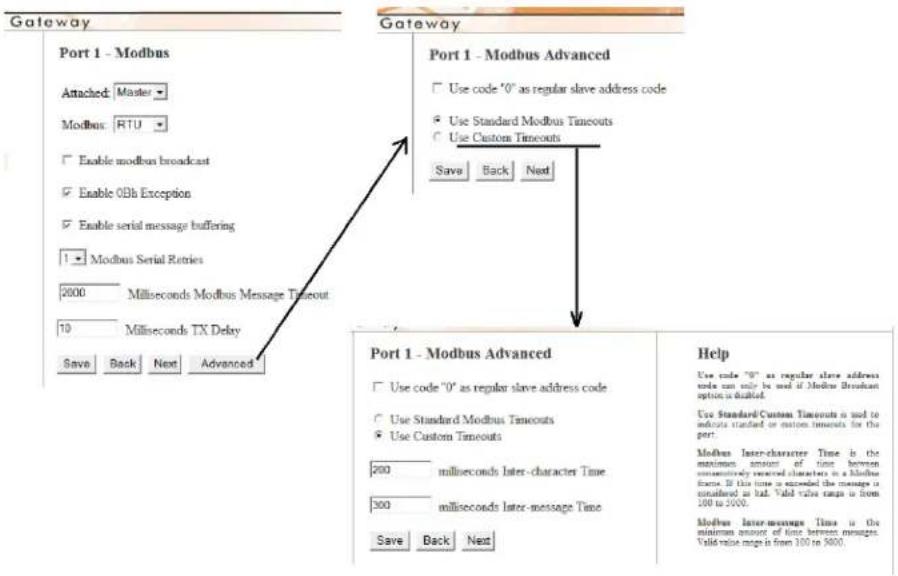
Modbus Port Screen Advanced Figure 33.
b. Attached – This is selectable between Master and Slaves. If Master is selected, the Modbus Gateway will run in TCP server mode, if Slaves is selected, it will run in TCP client mode.
c. Modbus - indicates the protocol of the device connected to the port. It can be either RTU or ASCII.
d. Modbus Broadcast – Check this box to send Modbus broadcasts to a specific serial port. Modbus broadcast is Slave ID 0h. If selected the Gateway will send broadcast messages out the serial port and will not expect a response. If unselected it will use slave ID 0h as a standard address.
e. Enable 0Bh Exception – Check this box to enable. When the Modbus slave device does not respond before the timeout has been reached or has a bad response (check sum does not match), the 0Bh exception code is transmitted to the Master that initiated the Modbus message.
f. Enable Serial Message Buffering – If this option is selected, the gateway will buffer up to 32 messages request per port. If this option is unselected, the gateway will respond with a 06h if it has a message out on the port with no response yet.
g. Modbus Serial Retries – Select 0 through 5. This sets the maximum number of times that the Modbus Gateway will retry to send a Modbus message to a Modbus client, before reporting a 0Bh exception if it is selected. Number of retries is limited to 5.
Setup and Connecons
h. Milliseconds Modbus Message Timeout – This is the maximum amount of time to wait for a response to the message. Valid value range is from 1 to 65535.
i. Milliseconds TX Delay – This is the minimum amount of time after receiving a response before the next message can be sent out. Valid value range is from 1 to 65535.
j. Save settings by clicking the "Save" button.
8. Port 1 ID Remap
a. To access this screen, click the "Next" button or click the "Port 1 ID Remap" link on the left side of the screen.
b. This screen allows you to set Modbus Slave ID Remap settings.
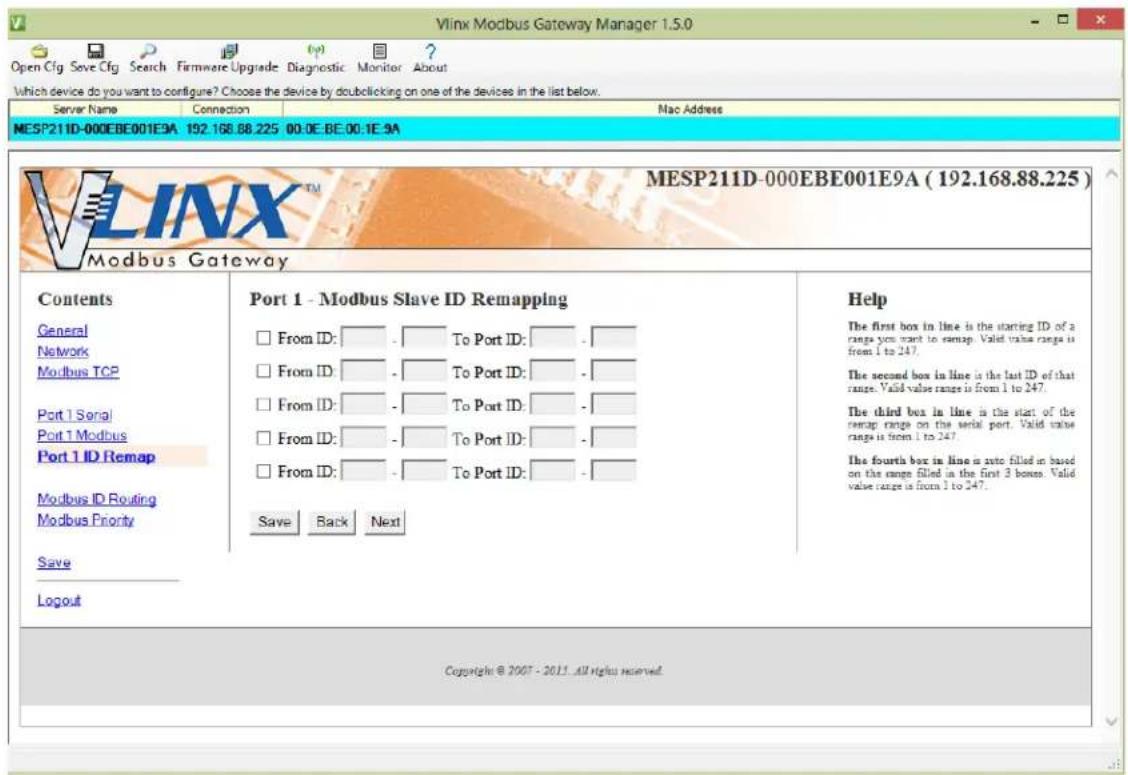
Port ID Remap Screen Figure 34.
c. The first box in line is the start of the remap range on the serial port you want to remap. Valid value range is from 1 to 247.
d. The second box in line is the last serial port of that range. Valid value range is from 1 to 247.
Setup and Connecons
e. The third box in line is the starting ID of a range to remap to. Valid value range is from 1 to 247.
f. The fourth box in line is auto filled, based on the range filled in the first 3 boxes. Valid value range is from 1 to 247.
g. Save settings by clicking the "Save" button.
9. Modbus ID Routing
a. To access this screen click the "Next" button or click the "Modbus ID Routing" Link on the left side of the screen.
This screen allows you to set the Modbus Slave ID routing.
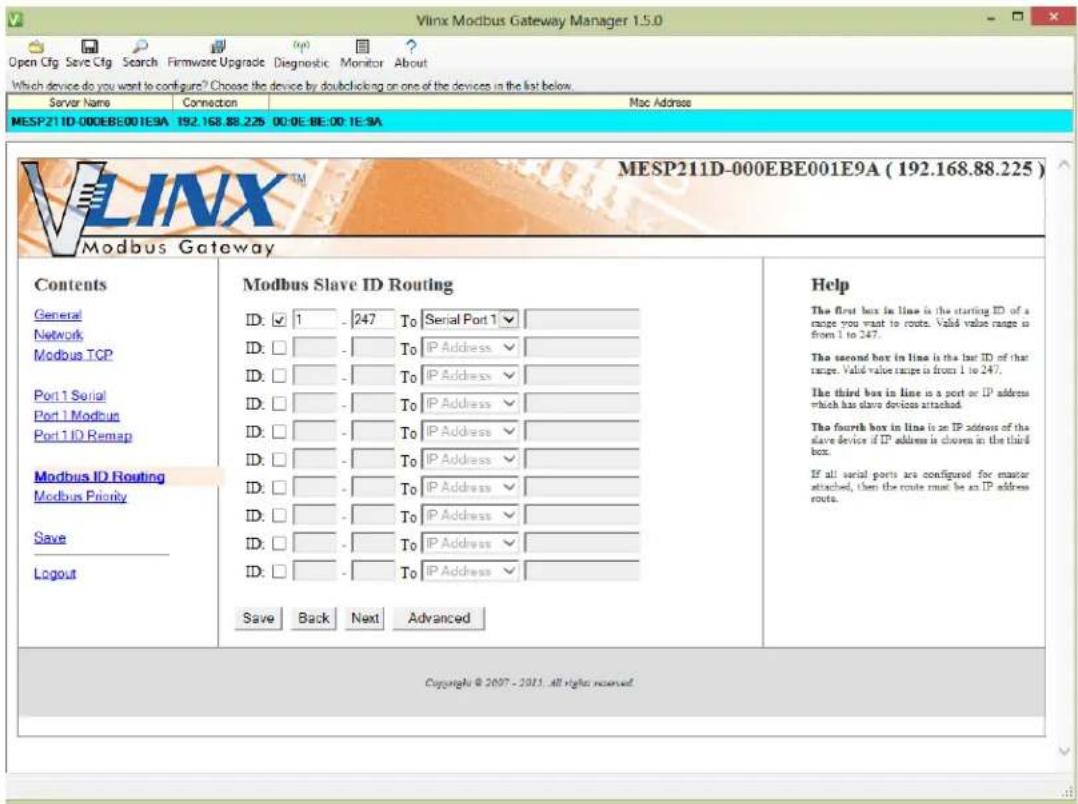
Modbus ID Routing Screen Figure 35.
b. The first box in line is the starting ID of a range you want to route. Valid value range is from 1 to 247.
c. The second box in line is the last ID of that range. Valid value range is from 1 to 247.
d. The third box in line is a port or IP address which has slave devices attached.
Setup and Connecons
e. The fourth box in line is an IP address of the slave device if IP address is chosen in the third box.
f. Save settings by clicking the "Save" button.
10. Modbus Priority
a. To access this screen, click the "Next" button or click the "Modbus Priority" link on the left side of the screen.
b. This screen allows you to configure the gateway to move high priority messages to the front of the serial message buffer.
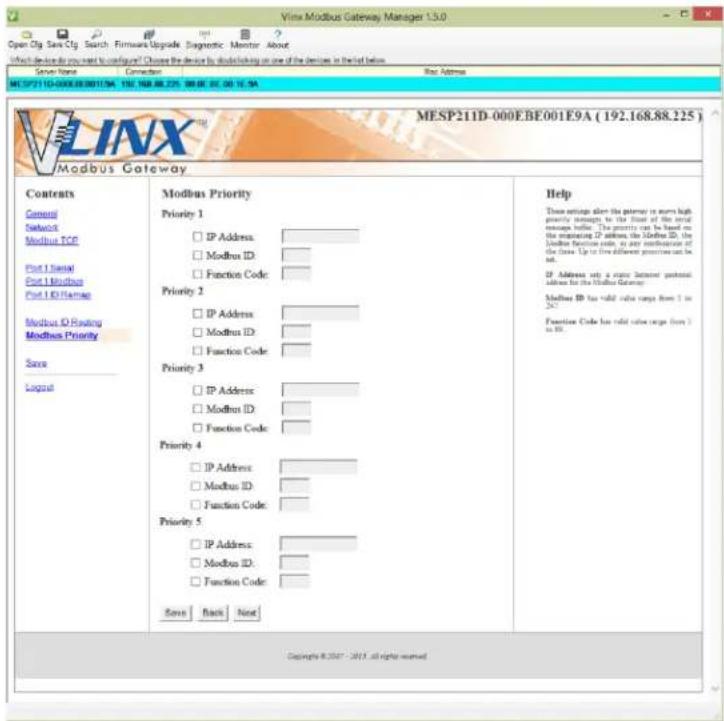
Modbus Priority Screen Figure 36.
c. These settings allow the gateway to move high priority messages to the front of the serial message buffer. The priority can be based on the originating IP address, the Modbus ID, the Modbus function code, or any combination of the three. Up to five different priorities can be set.
d. IP Address – Used to set a static Internet protocol address for the Modbus Gateway.
e. Modbus ID - Valid range is from 1 to 247.
f. Function Code - Valid range is from 1 to 99.
Save settings by clicking the "Save" button.
CONFIGURING WITH THE WEB INTERFACE
MESP211 Modbus Gateways can be configured over the network using a standard web browser such as Internet Explorer or Firefox.
To open the web configuration interface:
- On a PC connected to the network, open a web browser.
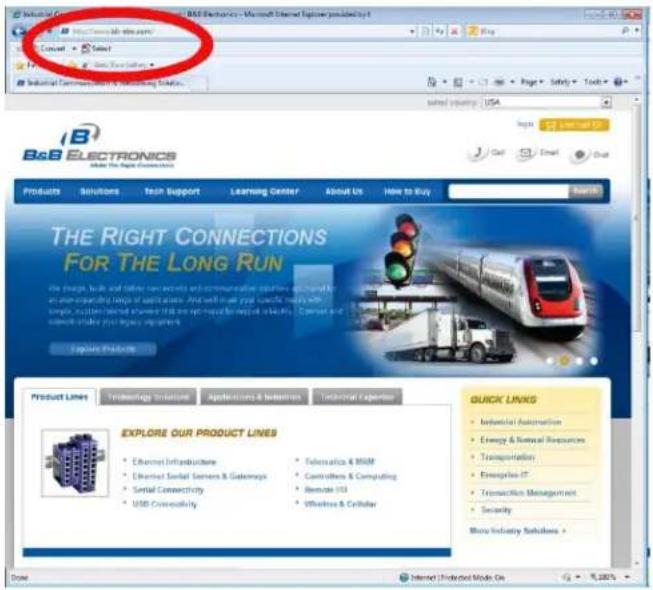
Open Web Browser Figure 37.
- In the browser's address bar, type the IP address of the Modbus Gateway.
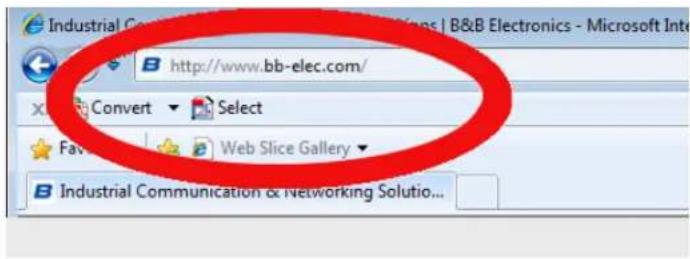
Type IP Address Figure 38.
Setup and Connecons
Note: Your Modbus Gateway comes from the factory pre-configured to receive an IP address assignment from a DHCP server. If a DHCP Server is not available on your network, it will default to 169.254.102.39.
The web interface Login page appears.
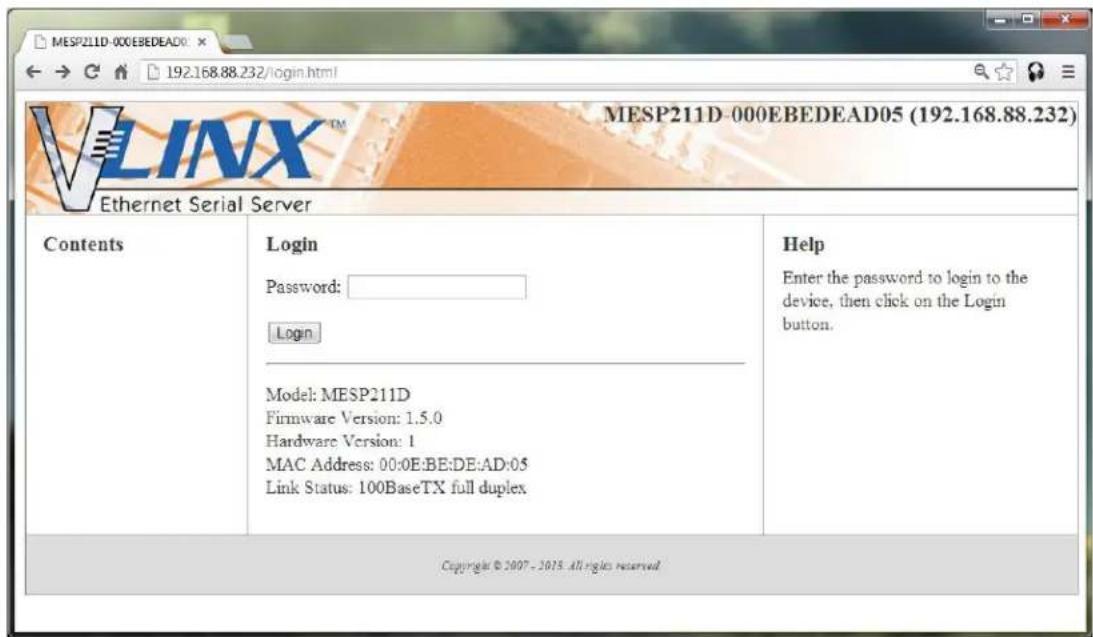
Modbus Gateway Login Screen Figure 39.
- The screens for configuring your gateway using a web browser are the same as those used to configure using the Vlinx Modbus Manager software.
CONFIGURING THE MESP211 ON NETWORKS WITHOUT A DHCP SERVER
Your Modbus Gateway comes from the factory set up to receive an IP assignment from a DHCP Server. If there is not a DHCP server on your network, the Modbus Gateway will default to IP address 169.254.102.39. If this address does not work with your PC, there are two methods to manually configure the network information.
- Method 1: Change your PC Network to Match the Modbus Gateway
a. Open your network connection
![Wire Properties General | Authentication | Advanced | Connect using: 3Com 3CS20 Integrated Fast Ethernet Configure... This connection uses the following items: QoS Packet Scheduler Network Monitor Driver Internet Protocol [TCP/IP] Install... Uninstall... Properties Description Transmission Control Protocol/Internet Protocol. The default wide area network protocol that provides communication across diverse interconnected networks. Show icon in notification area when connected Notify me when this connection has limited or no connectivity OK Cancel](/content/2026/06/1187195/images/5a174d84a563db70a82f01e83a1704ab529ff5ca1835a3347dd4343b79723d69.jpg)
Click on Internet Protocol (TCP/IP) and click
IP Address = 169.254.102.1
Subnet Mask = 255.255.0.0
Default Gateway = 169.254.102.100
Setup and Connecons
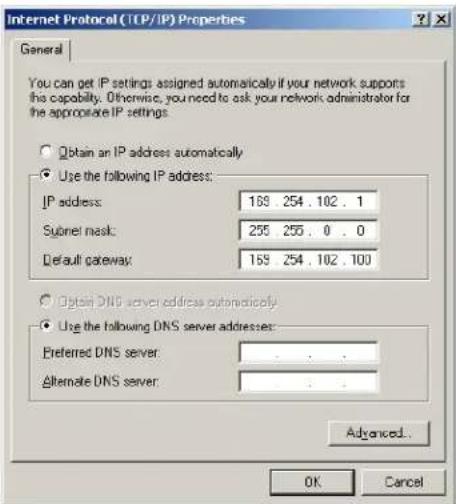
b. Use the Vlinx Modbus Manager Software to search for, discover, and configure the Modbus Gateway.
- Method 2: Change the Modbus Gateway's network settings to match your PC using Console Mode. (Console mode works in RS-232 only.)
a. Connect a null modem serial cable (crossover cable) from Port 1 on the Modbus Gateway to an available COM port on your PC.
b. Enter Console Mode. Press and hold the Modbus Gateway's Mode switch for 2 to 10 seconds. Release the reset button. The READY LED will blink for five seconds. This indicates that the Modbus Gateway is re-booting in Console Mode.
c. When the Modbus Gateway has successfully restarted in Console Mode, the READY LED will be OFF and the PORT 1 LED will be ON.
d. Open the Vlinx Modbus Manager Software and select "Serial Port" as the method to connect to the Modbus Gateway.
e. After logging in, click on
f. Un-check the box next to "I Want DHCP to setup the Network."
g. Re-configure the Modbus Gateway's network settings to something within the range of your PC's network settings. For example:
PC Network Settings
IP Address = 192.168.0.1
Subnet Mask = 255.255.0.0
Default Gateway = 192.168.0.100
Setup and Connecons
Change the Modbus Gateway's network settings to:
IP Address = 192.168.0.50
Subnet Mask = 255.255.0.0
Default Gateway = 192.168.0.100
h. Save the settings and remove power from the Modbus Gateway.
i. Re-apply power. Open the Vlinx Modbus Manager Software and select "Network" as the method to connect to the device.
CONFIGURING THE MESP211 VIA THE SERIAL PORT (CONSOLE MODE)
Your Modbus Gateway can be configured via a serial port using the Vlinx Modbus Manager software. To use this feature the Modbus Gateway's serial port must be connected to the serial port of a PC (using a null modem cable, RS-232 only).
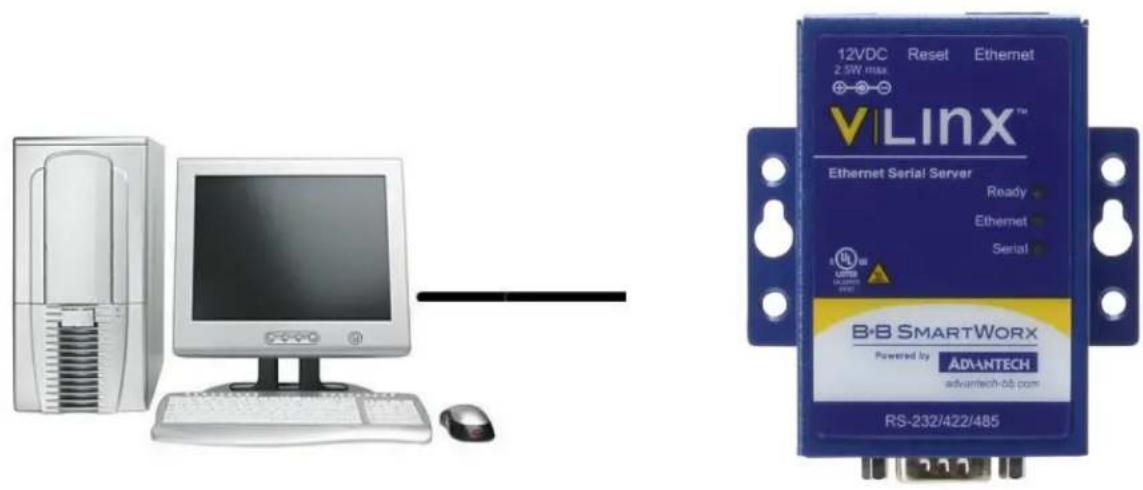
Console Mode Setup Figure 40.
To configure the Modbus Gateway it must be put into Console Mode, using the Mode switch.
To enter Console Mode, press and hold the Mode switch for between two and ten seconds. The LED indicators respond as follows:
- The Ready LED blinks while the button is being pressed.
- When the Modbus Gateway has booted into Console Mode the Ready LED will be OFF.
To congure the Modbus Gateway, open the software and set up the Modbus Gateway's parameters as required.
- Under Connection, select "Serial Port."
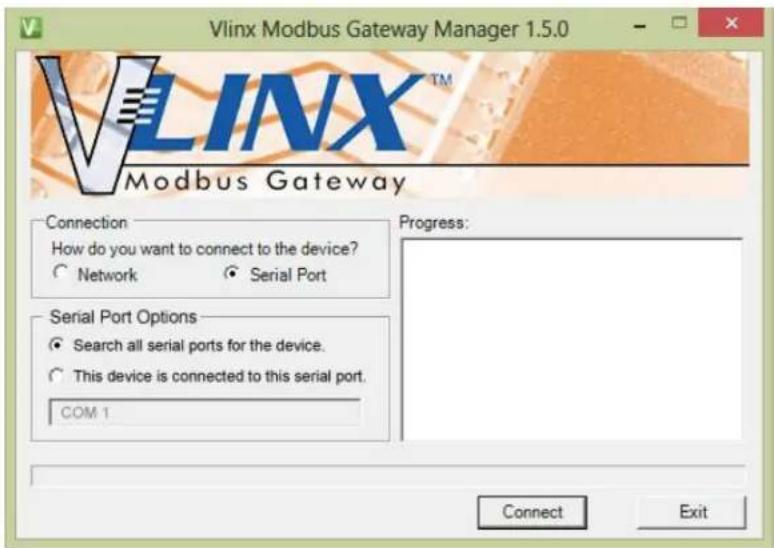
Connection Figure 41.
- If you do not know which COM port your gateway is connect to, select "Search all serial ports for the device" under Serial Port Options. If you do know, you may specify the COM port by selecting "The device is connected to this serial port" under Serial Port Options and using the pull down menu to choose the COM port.
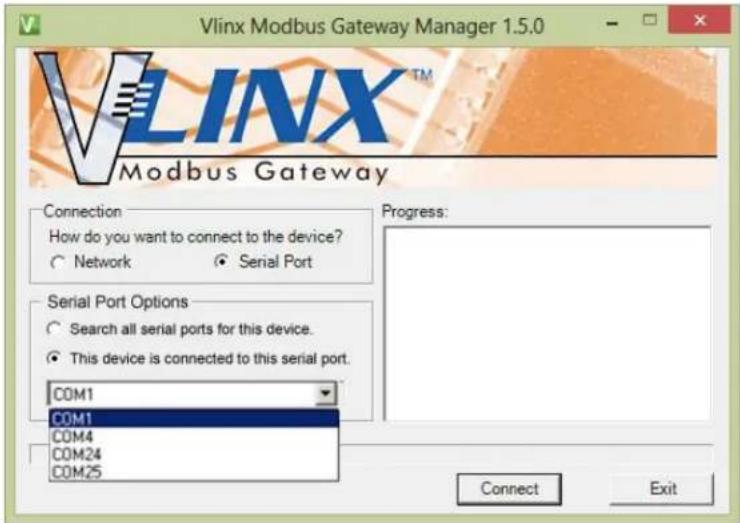
Serial Port Selection Figure 42.
Setup and Connecons
- The remaining screens are identical to those shown in configuring your gateway using a network connection.
To exit Console Mode, press and hold the Reset switch for two seconds.
Saving your conguraon will also take you out of Console Mode.
The LEDs go back to their normal states when the device resumes normal operation.
MESP211 OPERATIONAL CONNECTIONS
USING MESP211 MODBUS GATEWAYS IN DIRECT IP MODE
A Direct IP connection allows applications using TCP/IP socket programs to communicate with the COM ports on the Modbus Gateway. In this type of application the Modbus Gateway is configured as a TCP server. The socket program running on the PC establishes a communication connection with the Modbus Gateway. The data is sent directly to and from the serial port on the server.
To set up a Direct IP Mode connection:
- Connect the Modbus Gateway to the network and a Modbus network as described in previous sections.
- Configure the Modbus Gateway with the appropriate network settings (using or the web interface).
- Configure your software application with the appropriate IP address and port number to communicate with the Modbus network(s).
Setup and Connecons
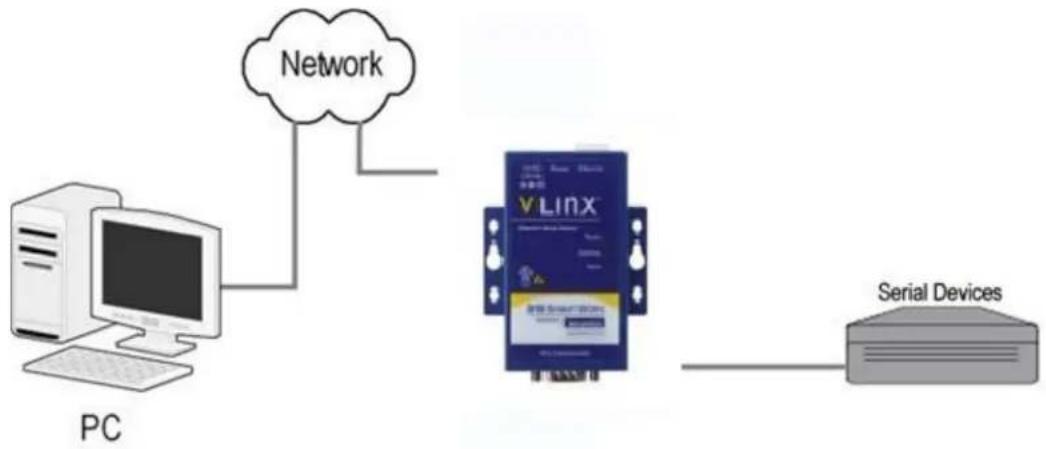
flowchart
graph LR
    PC["PC"] --> Network["Network"]
    Network --> VLine["V-Linx"]
    VLine --> SerialDevice["Serial Devices"]
Direct IP Connection Figure 43.
INITIATING A HARDWARE RESET ON THE MODBUS GATEWAY
To initiate a Hardware Reset on the Modbus Gateway, press and hold the Mode switch for 0 to 2 seconds, and then release it. The LED indicators respond as follows:
- The Ready LED blinks while the button is being pressed.
- When the Modbus Gateway has reset and rebooted into Normal Mode the Ready LED will be blinking.
RELOADING FACTORY DEFAULTS
To reload Factory Defaults, press and hold the Mode switch for more than 10 seconds. The LED indicators respond as follows:
- The Ready LED blinks three times per second while the button is being pressed. The Modbus Gateway reloads all factory default configuration parameters. When the device has reset and rebooted the Ready LED will be blinking.
- The LEDs go back to their normal states when the device resumes normal operation.
Note: Factory default parameters are listed in Appendix A
4. UPGRADING FIRMWARE
Occasionally, updated firmware may become available for your Modbus Gateway. The firmware can be upgraded using the Vlinx Manager software. The following procedure describes the firmware updating process:
- Click the Upgrade button to open the Firmware Upgrade dialog box.
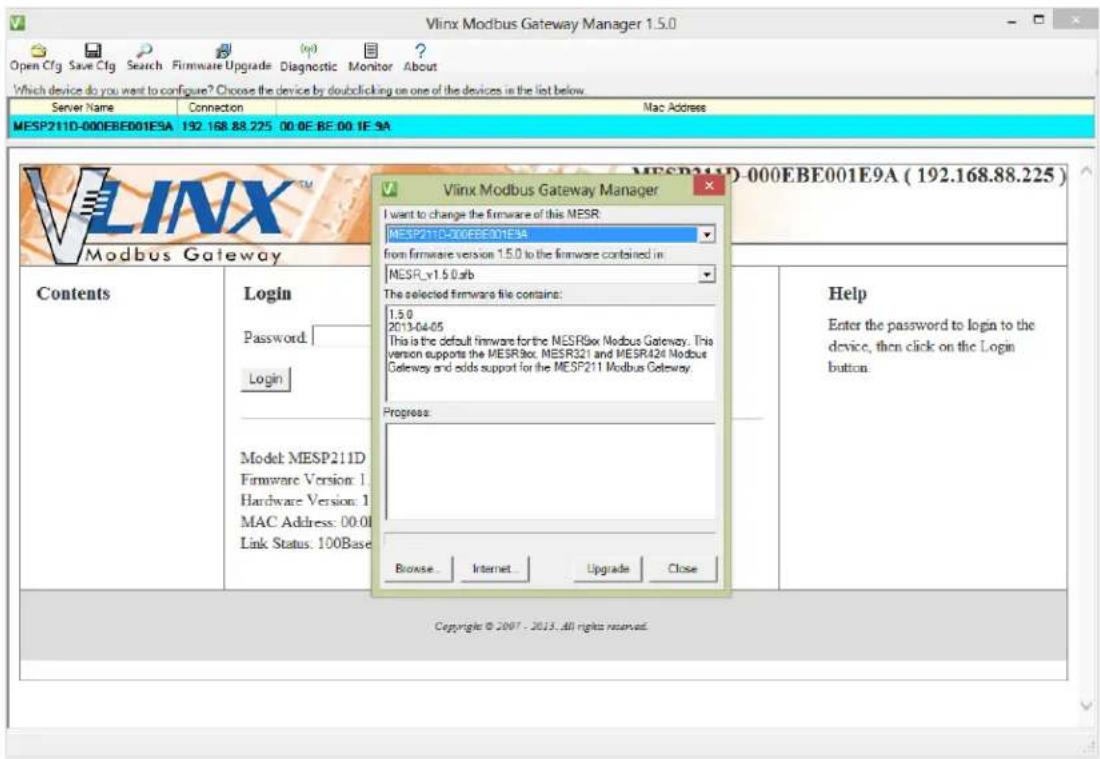
Firmware Upgrade Dialog Box Figure 44.
The name of the currently selected Modbus Gateway appears in the top drop down list. Other Modbus Gateways (that have already been discovered) can be selected from the drop down list, if desired.
The current firmware version of the selected Modbus Gateway is shown in the text below the Modbus Gateway name.
Information about the selected firmware file is shown in the third text box.
DOWNLOADING FIRMWARE FILES
The Firmware File list (second box) displays all firmware files in the firmware installation folder. Only firmware that is compatible with the selected Modbus Gateway is available in this list.
To download the latest firmware files from an FTP site on the Internet:
-
Click the Internet button at the bottom of the window.
The Vlinx Modbus Manager software connects to an FTP server on the Internet. -
Click the Check for Updates button.
Progress Bar and Progress Box display information about and progress of the download.
To download the latest firmware files from a file:
- Click the Browse button to open an Open File dialog box.
- Browse to the drive and folder containing the firmware file.
- Select and download the file to the local firmware folder.
UPLOADING THE FIRMWARE TO THE MODBUS GATEWAY
To upgrade the firmware:
- In the Modbus Gateway Selecon drop down list, select the Modbus Gateway to be upgraded.
- In the Firmware Descripon drop down list, select the firmware to upload to the Modbus Gateway.
- Click the Upgrade button. Progress Bar and Progress Box provides information on the progress of the transfer.
- In the Firmware File drop down list, select the firmware file to upload to the Modbus Gateway.
- Click Upgrade. The Progress box and Progress bar display information on the upgrading process.
- When the upgrade process is complete, click Close.
5. DIAGNOSTICS
Clicking the Diagnoscs icon opens the Diagnostics dialog box and enables you to check the operation of connected Modbus Gateways on the local computer.
The Computer Informaon box displays information about the type of network connections, the IP addresses, Subnet Masks and Default Gateways in use.
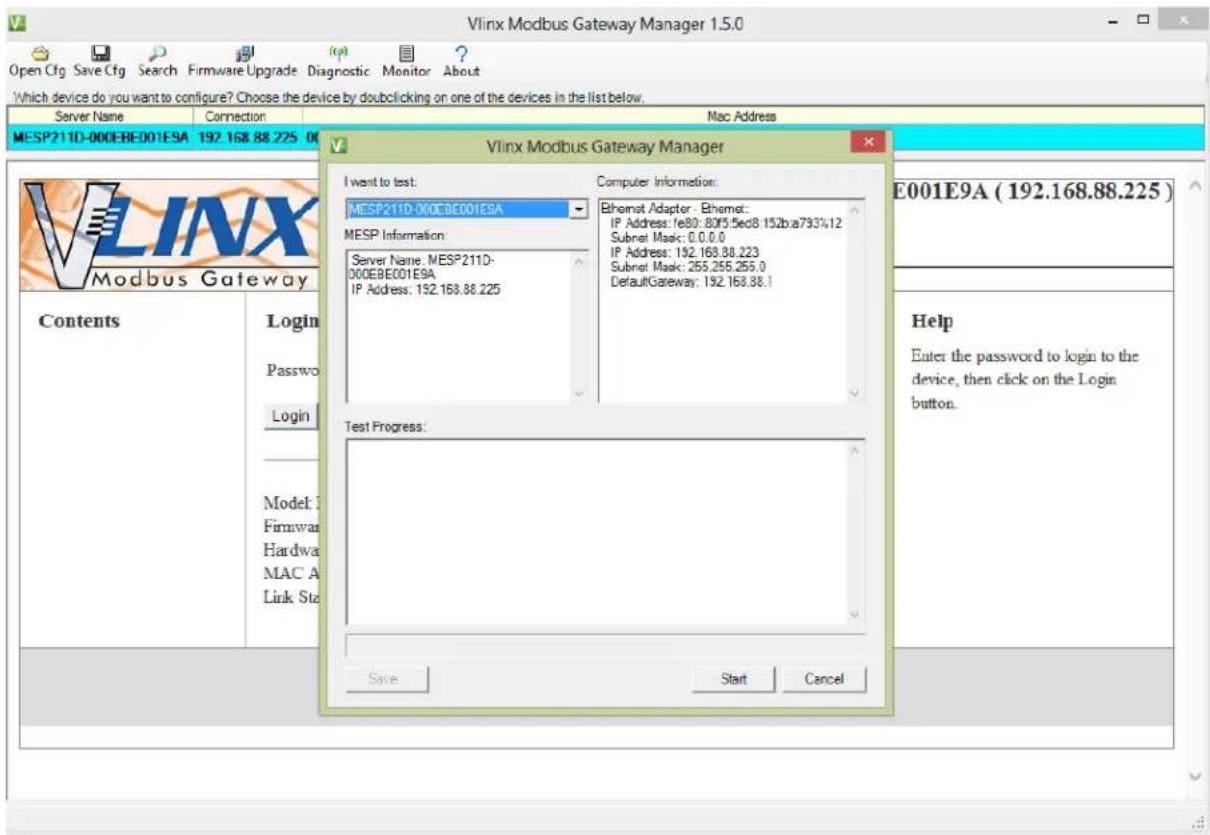
Diagnostics Dialog Box Figure 45.
TESTING A MODBUS GATEWAY CONNECTION
To run diagnostics on a Modbus Gateway:
- Click the Diagnostics icon.
The Diagnostics dialog box appears.
- In the drop down box select the specific Modbus Gateway you want to check.
- Click the Start button
Information about the progress of the pinging process is displayed in the Test Progress box.
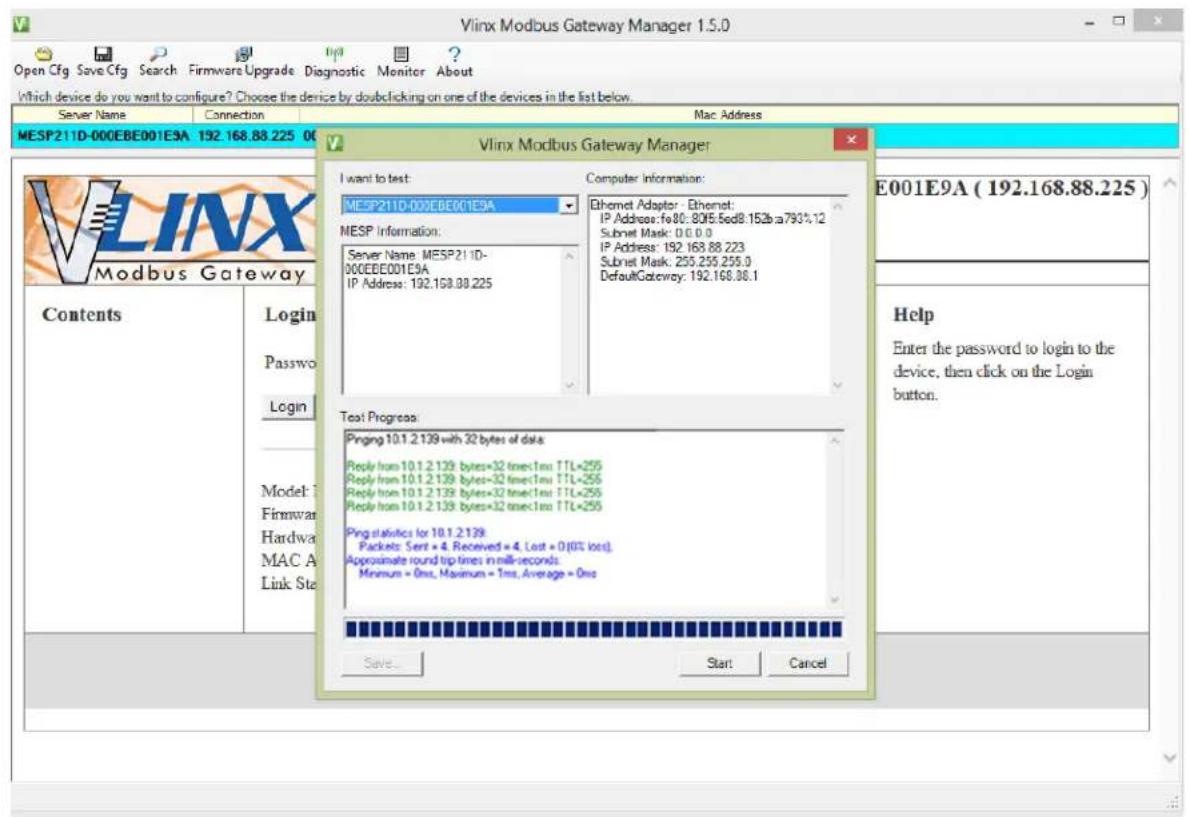
Testing a Modbus Gateway Connection Figure 46.
Diagnoscs
MONITOR FUNCTION
The Monitor button is used to display a screen that shows information about events and data transfer through the Modbus Gateway.
To start monitoring, select a Modbus Gateway and press the "Start" button.
The "Auto Scroll" check box enables and disables automatic scrolling of the displayed text.
The "Clear" button clears the displayed text.
Press the "Stop" button to stop monitoring.
Press the "Save" button to save the information to a file.
6. SETUP EXAMPLES
Modbus Gateways can be used to integrate Modbus networks in a wide variety of settings. But as each setting has its own requirements, users may not understand how a gateway helps, or if it's appropriate for their specific needs.
The following scenarios are examples only, and many others are possible. Refer to the Modbus Serial Server page on the web site for detailed information regarding other applications.
Log into your gateway.
- Access the serial port one setup screen by clicking the link on the left side of the screen.
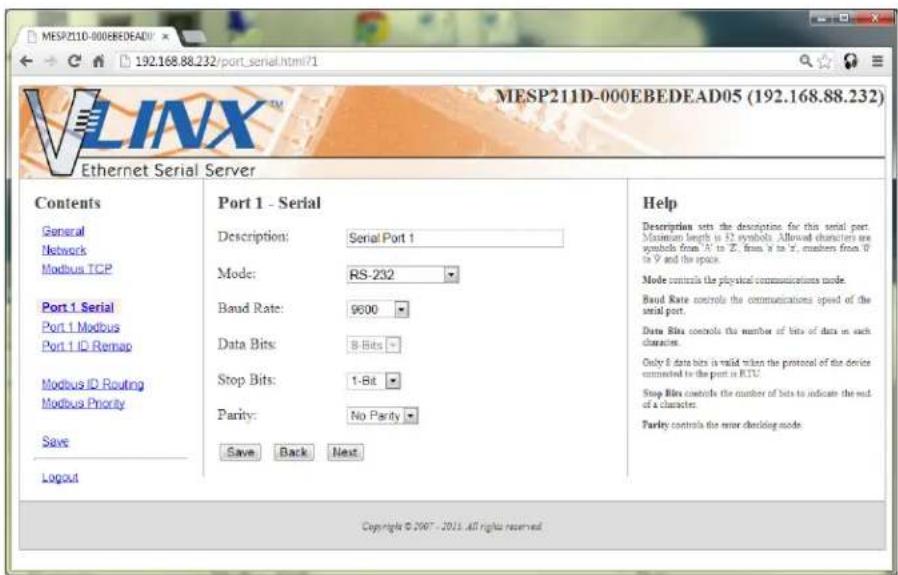
Serial Port 1 Setup Figure 47.
- Configure Serial Port 1. In this case it is RS-232, 19.2 kbps, 8 data bits, 1 stop bit, and no parity. Save the settings
- Access Port 1 Modbus by clicking the link on the left side of the screen.
Setup Examples
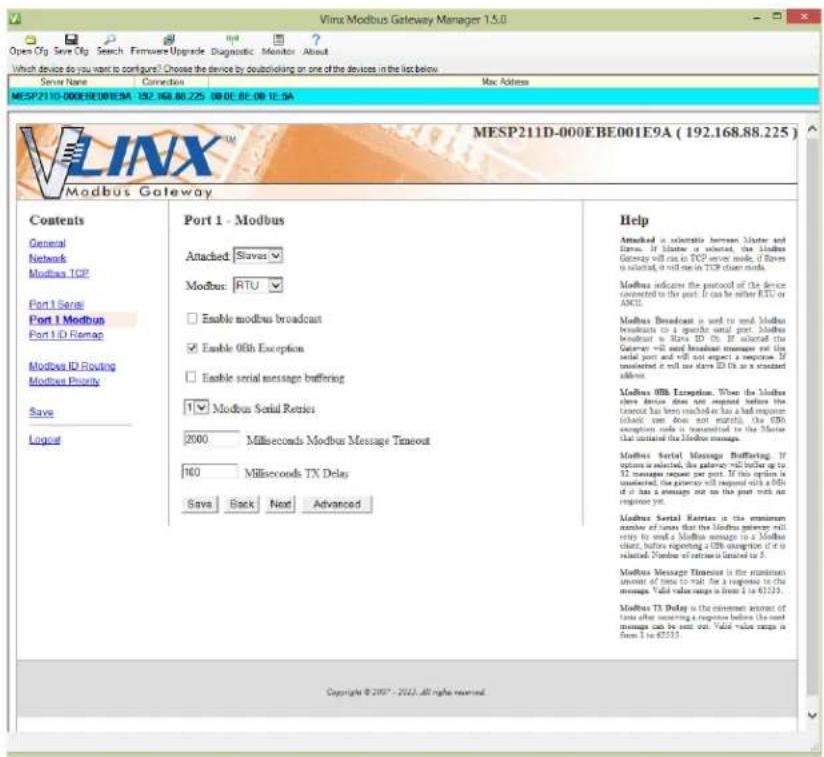
Port 1 Modbus Figure 48.
- Configure the Port 1 Modbus Settings. In this case Attached should be slaves, Modbus should be RTU. The other settings depend on your application.
- Configure Port 2 Serial and Modbus in the same fashion.
- Access Modbus ID Remapping for each port and configure as necessary.
Setup Examples
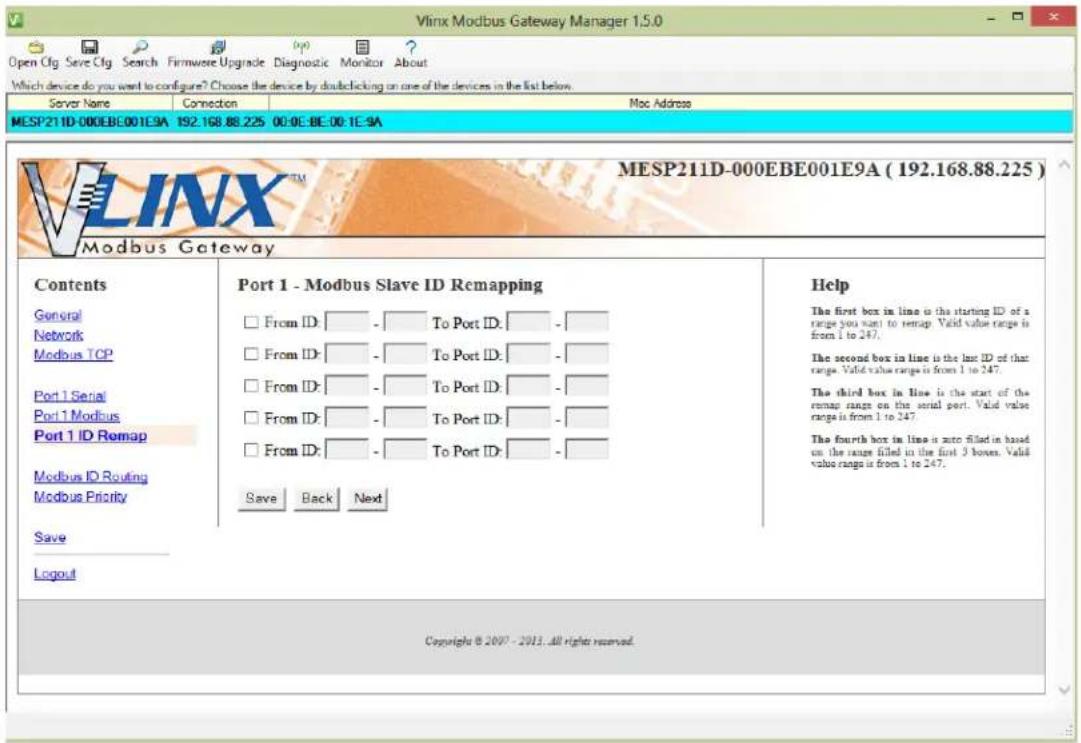
Port 1 Modbus Slave ID Remapping Figure 49.
- Access Modbus ID Routing. Configure as necessary. In this example, Slave ID 200 is mapped to serial Port 1, Slave ID 1 through 5 and 205 are mapped to serial port 2.
Setup Examples
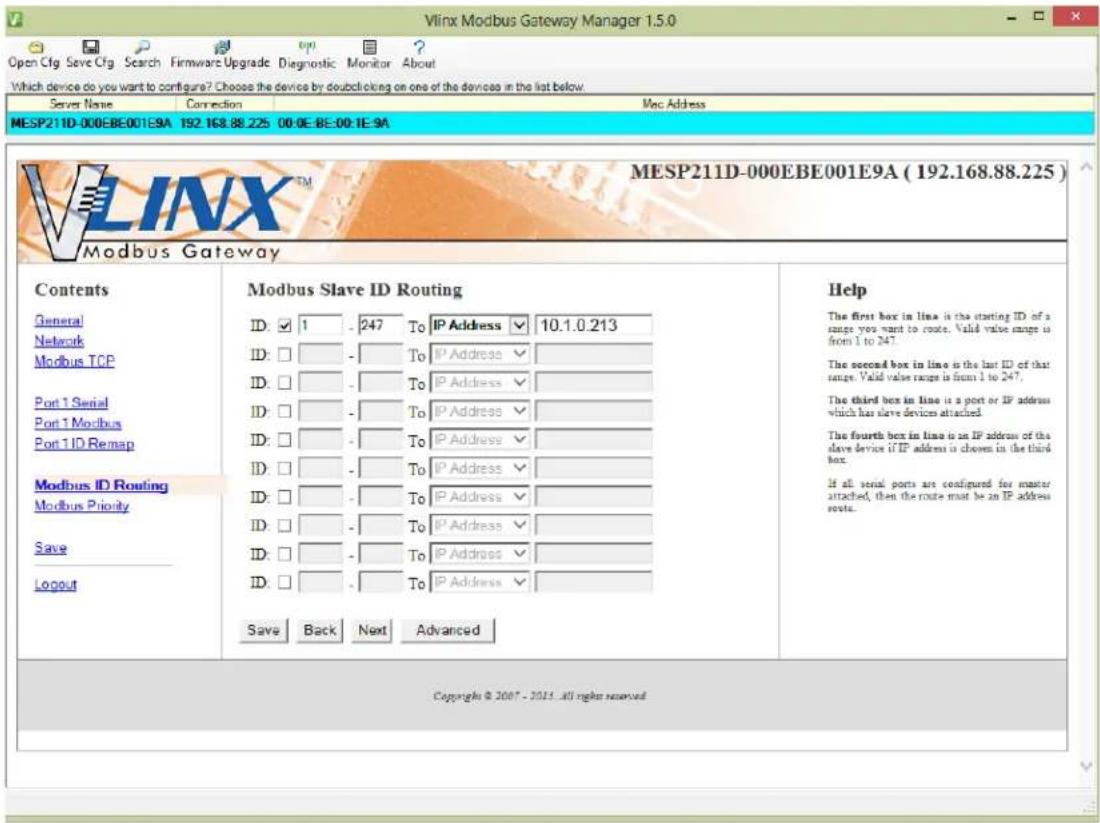
Modbus ID Routing Figure 50.
- Access Modbus Priority and configure as necessary.
Setup Examples
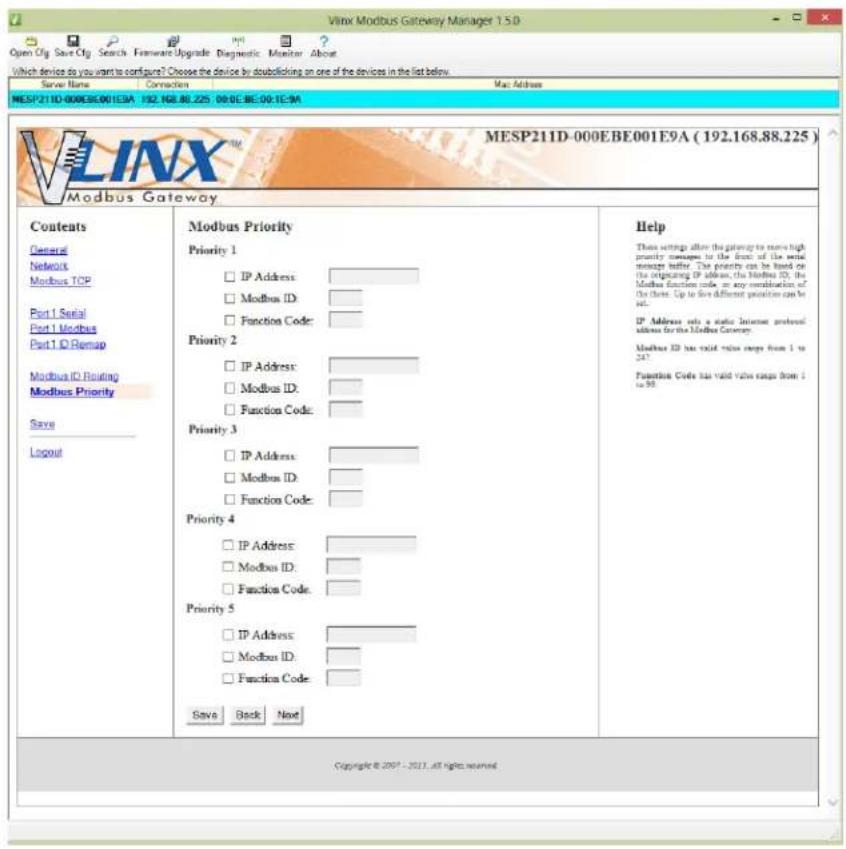
Figure 51. Modbus Priority
7. MODBUS HELP
MODBUS ASCII/RTU BASICS
The Modbus protocol emerged in the mid-1970s as an early protocol for linking terminals with Modicon PLCs using a master/slave (sometimes called a master/client) relationship. A simple, open, message-based protocol, it caught on quickly and became a de facto standard in the industry. It supports asynchronous point-to-point and multidrop communications and can be used with a variety of serial interfaces (RS-232, RS-422, RS-485, modems, etc.).
The original Modbus specification included two possible transmission modes: ASCII and RTU. Modbus RTU mode is the most common implementation, using binary coding and CRC error-checking. Modbus ASCII messages, though somewhat more readable because they use ASCII characters, is less efficient and uses less effective LRC error checking. ASCII mode uses ASCII characters to begin and end messages whereas RTU uses time gaps (3.5 character times) of silence for framing. The two modes are incompatible so a device configured for ASCII mode cannot communicate with one using RTU.
All Modbus communications are initiated by Modbus masters using a polling query/response format. The master can send broadcast messages (using a slave address of 0), which all slaves accept, but do not reply to. More commonly the master polls individual slaves sequentially. In each poll it sends a message containing a device address, followed by a function code, any data that maybe required, and an error check field. The addressed slave responds with a similar message structure. Typically it repeats back its address and the function code, and then sends a field indicating the number of bytes of data it is sending, followed by the data and the error check field.
Slave addresses can range from 1 to 247. Function codes include several common ones typically used in all applications, and additional ones that may be implemented in specific cases. Common function codes include: Read Coil Status (01), Read Input Status (02), Read Holding Registers (03) and Read Input Registers (04).
When a master sends a message to a slave it expects to receive a valid response within certain length of time. If the slave does not receive the message, or if the slave receives the message but an error is detected, it does not respond. If the slave cannot respond appropriately for some other reason (e.g. it does not recognize the function code), it will return a message containing an exception response.
HINTS AND TIPS
A few simple suggestions that may assist you if your system is experiencing problems include:
- Slowing down the polling rate may be helpful if power cycling doesn't cure the problem.
- A common misperception is that every serial network must terminate with a resistor. While this was true of early serial network configurations, it's typically the wrong answer.
8. APPENDICES
This section includes the following Appendices:
- Appendix A: Default Gateway Settings
- Appendix B: Product Specifications
- Appendix C: Dimensional Diagrams
- Appendix D: Connector Pinouts
APPENDIX A: DEFAULT GATEWAY SETTINGS
| Setting | Default Value |
| Gateway Name | User assigned |
| Password | password field is blank from factory |
| DHCP | Enabled from factory |
| IP Address | DHCP will configure. If a DHCP Server is not available, the unit will default to 169.254.102.39 |
| Net Mask | 255.255.0.0 |
| Default Gateway | 169.254.1.1 |
| MAC Address | Fixed - see bottom label |
| Port | 1 |
| Serial port mode | RS-485 |
| Baud Rate | 9600 |
| Data bits | 8 |
| Parity | None |
| Stop bits | 1 |
| Protocol | TCP |
| Serial timeout | 0 seconds |
| Inter-character timer | 0 ms |
| TCP port | 502 |
| Max connection | 1 |
Appendices
APPENDIX B: PRODUCT SPECIFICATIONS
This section includes the following specifications:
- General Specifications
- Controls, Indicators and Connector Specifications
- Serial Interface Specifications
• Network Specifications
GENERAL SPECIFICATIONS
| Hardware and included accessories | Device | Modbus Gateway module |
| CD | CD with software for Win XP (32/64 bit), 2003 Server (32/64 bit), Vista (32/64 bit), Windows 7 (32/64 bit), Windows 2008 Server (32/64 bit), Windows Server 2012 | |
| Configuration Options | Via serial port | Using via a serial connection, (press Reset button to enter Console Mode) |
| Via network | Using Vlinx Gateway Manager via an Ethernet connection | |
| Using a standard web browser such as Internet Explorer, Firefox or Chrome | ||
| Software | For Modbus Gateway configuration | Win XP (32/64 bit), 2003 Server (32/64 bit), Vista (32/64 bit), Windows 7 (32/64 bit), Windows 2008 Server (32/64 bit), Windows 8 (32/64 bit), Windows Server 2012 |
| Environment | Operating Temperature | -40 to 80 °C (-40 to 176 °F) |
| Storage Temperature | -40 to 85 °C (-40 to 185 °F) | |
| Operating Humidity | 10 to 95% non-condensing | |
| Enclosure | Rating | IP30 |
| Mounting | Panel mountable case with DIN rail mount option | |
| Dimensions | 3.1 x 0.9 x 2.0 (with ears 2.89) inches | |
| Power Supply (External Supply Required) | Voltage Requirements | 10 to 30 VDC |
| Power Consumption | 2.5 W | |
| Terminal Blocks (Note: One conductor Per terminal) | Wire Size | 28 to 16 AWG |
| Wire Type | Copper Wire Only | |
| Tightening Torque | 5 KG-cm | |
| Wire Temp Rating | 105°C Minimum, Sized for 60°C Ampacity |
CONTROLS, INDICATORS AND CONNECTOR SPECIFICATIONS
| Switches | Reset button | Hold in for 0 to 2 seconds for hardware resetHold in for 2 to 10 seconds for Console Mode (Do a hardware reset or recycle power to exit Console Mode)Hold in for more than 10 seconds to reset to factory defaults |
| Indicators | Serial LED | Color = GreenOn = Port openBlink = Data traffic |
| RJ45 Ethernet Link LED | Color = GreenOn = 100BaseTXOff = 10BaseTBlink = Data traffic | |
| Ready LED | Color = GreenBlink (once per second) = System in Normal ModeOff = System in Console Mode | |
| Connectors | 10BaseT/100 BaseTX Ethernet | RJ-45 (8 pin) |
| Serial | DB9M connector or terminal block | |
| DC Power | External |
APPROVALS AND CERTIFICATIONS
| FCC | Part 15 Class A |
| CE |
SERIAL INTERFACE SPECIFICATIONS
| Mode Selection | RS-232/422/485 software selectable |
| RS-232 lines | TXD, RXD, RTS, CTS, DTR, DSR, DCD, GND |
| RS-422 lines (4 wire) | TXDA(-), TXDB(+), RXDA(-), RXDB(+), GND |
| RS-485 lines (2 wire) | Data(-), Data(+), GND |
| RS-485 lines (4 wire) | TXDA(-), TXDB(+), RXDA(-), RXDB(+), GND |
| Baud Rates | 75, 150, 300, 600, 1200, 2400, 4800, 7200, 9600, 14.4k, 19.2k, 28.8k, 38.4k, 57.6k, 115.2k, 230.4k |
| Data Bits | 7, 8 |
| Parity | None, even, odd, mark, space |
| Stop bits | 1, 2 |
| RS-422/485 biasing | Auto 1 K ohm pullups and pulldowns |
| RS-485 data control | Auto control via MCU |
| Memory | Serial Memory | 8 kB per port |
| Network Memory | 4 kB | |
| TCP Ports | 80 | Web Server |
| 502 | Modbus client/server port - user configurable | |
| 7000 | TCP Configuration | |
| 10000 | Monitor Port | |
| UDP Ports | 7000 | UDP Configuration |
| 8899 | Device Discovery | |
| Network Communications | LAN | 10/100 Mbps Auto-detecting 10BaseT or 100BaseTX |
| Network Physical Layer Standards | Ethernet | IEEE 802.3 auto-detecting & auto MDI/MDX 10BaseT, 100BaseTX and 100BaseFX |
| Protocols Supported | TCP, IPv4, ARP, HTTP 1.0, ICMP/PING, DHCP/BOOTP | |
| IP Mode | Static, DHCP or Auto IP | |
| TCP | User definable | |
| Connection Modes | Server, Client | |
| Search | Serial direct COM and Ethernet auto search or specific IP | |
| Firmware Upgrade | Via serial or Ethernet | |
| Timeouts | Modbus Message | 1 to 65535 ms, default set at 2,000 ms |
| TX Delay | 1 to 65535 ms, default set at 10 ms | |
| Custom Timeouts | ||
| Inter-character | 100 to 5000 ms, default set at 0 - user to set if enabled | |
| Inter-message | 100 to 5000 ms, default set at 0 - user to set if enabled | |
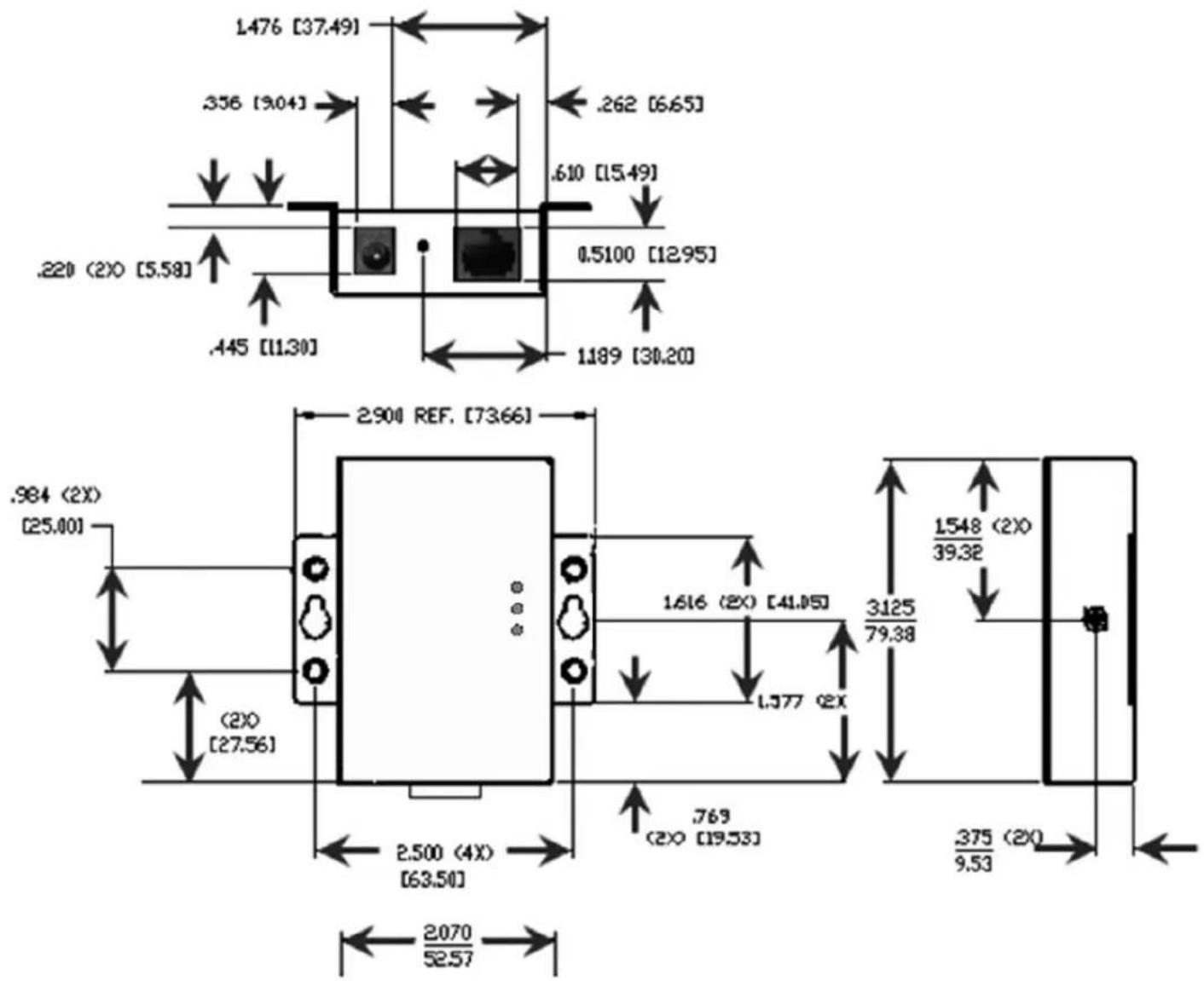
APPENDIX C: DIMENSIONAL DIAGRAM
APPENDIX D: CONNECTOR PINOUTS
MESP211 SERIAL PORT PINOUTS
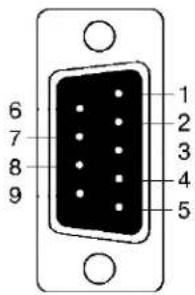
| DB9 Male Pin | Direction (RS-232) | RS-232 | RS-422 RS-485 4-Wire | RS-485 2-Wire |
| 1 | Input | DCD | RDA (-) | **** |
| 2 | Input | RXD | RDB (+) | **** |
| 3 | Output | TXD | TDB (+) | Data B (+) |
| 4 | Output | DTR | TDA (-) | Data A (-) |
| 5 | **** | GND | GND | GND |
| 6 | Input | DSR | **** | **** |
| 7 | Output | RTS | **** | **** |
| 8 | Input | CTS | **** | **** |
| 9 | **** | **** | **** | **** |
MESP211 TERMINAL BLOCK PINOUTS

| Terminal | RS-232 | Direction (RS-232) | RS-422 | RS-485 |
| A | RTS | Output | TDA (-) | Data A (-) |
| B | TD | Output | TDB (+) | Data B (+) |
| C | CTS | Input | RDA (-) | --- |
| D | RD | Input | RDB (+) | --- |
| E | GND | **** | GND | GND |
In the RS-422 mode, TX lines are outputs and RX lines are inputs. Connect the Modbus Gateway TXB(+) line to the RXB(+) line of the Modbus network, and the Modbus Gateway TXA(-) to the RXA(-) of the Modbus network.
Ground is signal ground and provides a common mode reference for the RS-422 Receiver and Transmitters.
ADVANTECH B+B SMARTWORX TECHNICAL SUPPORT
Phone: 1-800-346-3119
(Monday - Friday, 7 a.m. to 5:30 p.m. CST)
Fax: 815-433-5109
Email: support@advantech-bb.com
Web: www.advantech-bb.com