VESR424D-ST - Server B&B Electronics - Free user manual and instructions
Find the device manual for free VESR424D-ST B&B Electronics in PDF.


User questions about VESR424D-ST B&B Electronics
0 question about this device. Answer the ones you know or ask your own.
Ask a new question about this device
Download the instructions for your Server in PDF format for free! Find your manual VESR424D-ST - B&B Electronics and take your electronic device back in hand. On this page are published all the documents necessary for the use of your device. VESR424D-ST by B&B Electronics.
USER MANUAL VESR424D-ST B&B Electronics
natural_image
Blue B&B Electronics device with multiple Ethernet ports and a green connector (no visible text or symbols on the device body)Vlinx Serial Servers
Model VESR4x4
Documentation Number: VESR4x4_R003_4313m
This product designed and manufactured in Ottawa, Illinois USA
using domestic and imported parts by

B&B ELECTRONICS
International Headquarters:
707 Dayton Road - P.O. Box 1040 - Ottawa, IL 61350 USA
Phone (815) 433-5100 - General Fax (815) 433-5105
Website: www.bb-elec.com
European Headquarters:
B&B Electronics
Westlink Commercial Park - Oranmore, Co. Galway, Ireland
Phone +353 91-792444 - Fax +353 91-792445
Website: www.bb-europe.com
B&B Electronics Mfg. Co. Inc – October 2013
©2013 B&B Electronics Mfg Co Inc No part of this publication may be reproduced or transmitted in any form or by any means, electronic or mechanical, including photography, recording, or any information storage and retrieval system without written consent. Information in this manual is subject to change without notice, and does not represent a commitment on the part B&B Electronics Mfg Co Inc.
B&B Electronics Mfg Co Inc shall not be liable for incidental or consequential damages resulting from the furnishing, performance, or use of this manual.
All brand names used in this manual are the registered trademarks of their respective owners. The use of trademarks or other designations in this publication is for reference purposes only and does not constitute an endorsement by the trademark holder.
Table of Contents
Introduction 7
About VESR4x4 Serial Servers 7
VESR4x4 Serial Server Model Numbering....8
List of VESR4x4 Serial Server Models 8
VESR4x4 Features 9
Vlinx Manager Configuration Software 9
VESR4x4 Hardware.... 11
Package Checklist....11
VESR4x4 Serial Server Enclosures and Mounting 11
LED Indicators 11
Power LED 12
Ready LED 12
Ethernet Speed LEDs (1 & 2)....12
Ethernet Link LEDs (1 & 2)....12
Serial Port LEDs (P1, P2, P3 & P4) 12
Reset Switch....13
Using the Reset Switch to Initiate a Hardware Reset ......13
Using the Reset Switch to Enter Console Mode 13
Using the Reset Switch to exit Console Mode....13
Using the Reset Switch to Reload Factory Default Settings....14
Ethernet Connector....14
Fiber Optic Connectors 14
Serial Port Connectors....15
Power Connector 15
Mounting Hardware....16
Installation and Initial Setup.... 19
Connecting the Power Supply....19
Connecting VESR4x4 Serial Servers to Serial Devices....19
RS-232....20
RS-422....20
RS-485....20
Connecting VESR4x4 Serial Servers to a Network 21
Ethernet Connection (10BaseT/100BaseTX) 21
Fiber Optic Connection 21
Ethernet Pass-through Port 21
VESR4x4 Serial Server Configuration 23
Configuring via the Network using Vlinx Manager....23
Configuring via the network using a Browser....23
Configuring via a Serial Port using Vlinx Manager (Console Mode)....24
VESR4x4 Serial Server Operational Connections 24
Installing and Starting Vlinx Manager 26
Discovering Serial Servers 27
Configuring the Serial Server 28
Overview of the Vlinx Manager 28
Icons....29
Serial Server Information Table....29
Configuration Pane....30
Logging In 31
Navigating the Configuration Pages....31
Setting up the Serial Server Name and Password 32
Changing the serial server's name: 32
Changing the password: 32
Setting up IP Addressing 33
Setting up Dynamic IP Addressing 33
Setting up Static IP Addressing 33
Setting up Serial Ports 34
Setting up Port Network Parameters 34
TCP Configuration 35
UDP Configuration 36
Setting up Virtual COM (VCOM) Operation 38
Setting up Paired Mode Operation....39
Setting up Advanced Network Settings....41
Configuring when network connections will be forced closed....42
Configuring when data packets are sent ....43
Saving/Restoring the Configuration Settings 46
Adding Virtual COM Ports 47
Removing Virtual COM Ports 48
Upgrading the Serial Server Firmware.... 49
Downloading Firmware Files 49
To download the latest firmware files from an FTP site on the Internet .....50
To download the latest firmware files from a file....50
Uploading the Firmware to the Serial Server 50
Diagnostics....51
Testing a Serial Server Connection ....51
Testing a Virtual COM Port 52
Listing/Descriptions of Serial Server Settings 54
Appendix 63
Appendix A: Default Server Settings 63
Appendix B: Product Specifications 64
General Specifications 64
Controls, Indicators and Connector Specifications 65
Serial Interface Specifications 65
Network Specifications 66
TCP/UDP Ports Table 66
Appendix C: Dimensional Diagrams 68
Appendix D: Connector Pinouts 69
DB-9M Connector....69
Terminal Block 69
Standard Ethernet Cable RJ-45 Pinout 70
SECTION 1
Introduction
Thank you for purchasing a VESR4x4 Serial Server product! This product has been manufactured to the highest standards of quality and performance to ensure your complete satisfaction.
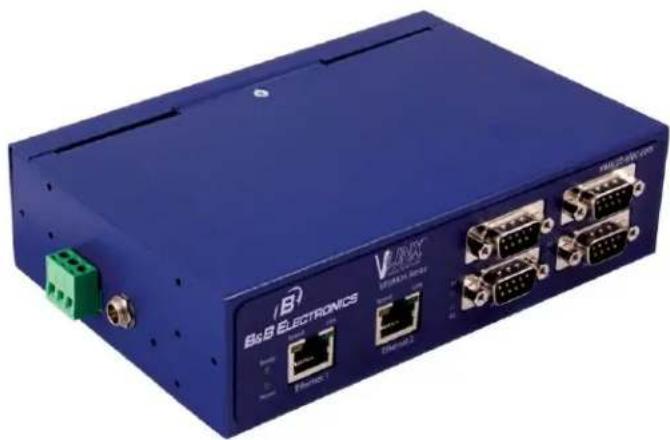
natural_image
Blue B&S Electronics device with multiple Ethernet ports and a green terminal (no visible text or symbols on the device body)Figure 1. A VESR4x4 Serial Server
About VESR4x4 Serial Servers
VESR4x4 Serial Servers connect serial devices (RS-232, RS-422 or RS-485) to Ethernet networks, allowing the serial device to become a node on the network. The serial ports can be accessed over a LAN/WAN using Direct IP Mode, Virtual COM Port, or Paired Mode connections. VESR4x4 Serial Servers feature 10BaseT or 100BaseTX copper network media and several fiber optic media options, depending on the model. Many models also feature an additional copper Ethernet pass-through port. VESR4x4 Serial Servers are built for use in industrial environments and feature heavy duty metal enclosures that are panel and DIN rail mountable. The product operates from a range of DC power supply voltages and features pluggable terminal block power connectors as well as a locking barrel connector that facilitates redundant power sources.
NOTE: the terminal block must be used for Class 1 Division 2 applications; the barrel jack cannot be used for these applications. See the specification tables for further information.
VESR4x4 Serial Server Model Numbering
VESR4x4 Serial Servers are a growing family of products. All models incorporate four serial connections and, depending on the model, may have one or two Ethernet connections with an optional fiberoptic connection.
The following diagram shows the model numbering scheme:
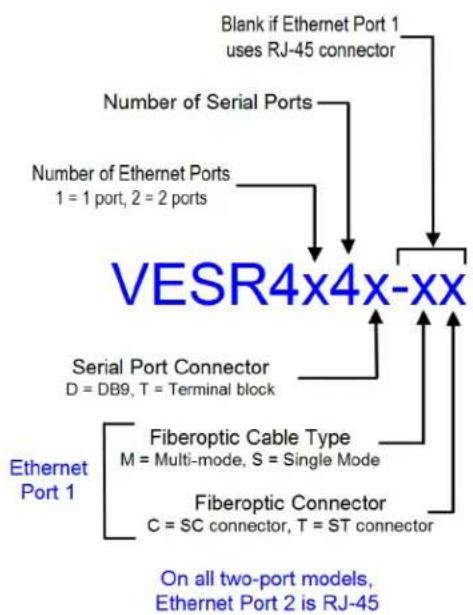
flowchart
graph TD
    A["Blank if Ethernet Port 1 uses RJ-45 connector"] --> B["Number of Serial Ports"]
    B --> C["Number of Ethernet Ports 1 = 1 port, 2 = 2 ports"]
    C --> D["VESR4x4x-XX"]
    D --> E["Serial Port Connector D = DB9, T = Terminal block"]
    D --> F["Ethernet Port 1"]
    F --> G["Fiberoptic Cable Type M = Multi-mode, S = Single Mode"]
    F --> H["Fiberoptic Connector C = SC connector, T = ST connector"]
    D --> I["On all two-port models, Ethernet Port 2 is RJ-45"]
List of VESR4x4 Serial Server Models
The following table lists the various VESR4x4 models available.
| Model Number | Ethernet Ports | Ethernet Connector 1 | Ethernet Connector 2 | Serial Connector (x4) |
| VESR424D | 2 | RJ-45 | RJ-45 | DB9 Male |
| VESR424D-MC | 2 | Multi-mode SC | RJ-45 | DB9 Male |
| VESR424D-MT | 2 | Multi-mode ST | RJ-45 | DB9 Male |
| VESR424D-SC | 2 | Single-mode SC | RJ-45 | DB9 Male |
| VESR424D-ST | 2 | Single-mode ST | RJ-45 | DB9 Male |
| VESR424T | 2 | RJ-45 | RJ-45 | Terminal Block |
| VESR424T-MC | 2 | Multi-mode SC | RJ-45 | Terminal Block |
| VESR424T-MT | 2 | Multi-mode ST | RJ-45 | Terminal Block |
| VESR424T-SC | 2 | Single-mode SC | RJ-45 | Terminal Block |
| VESR424T-ST | 2 | Single-mode ST | RJ-45 | Terminal Block |
VESR4x4 Features
- VESR424x-xx series models – two Ethernet connectors
- Ethernet Fiber port models available
- Ethernet pass through ports (on two Ethernet port models)
• Multi-interface serial ports (RS-232, RS-422, RS-485)
• DB-9M and pluggable terminal block serial port connector options - All serial ports are software selectable for RS-232, RS-422 or RS-485 2-and 4-wire communication
- Configuration can be done via network or direct serial connection
- Rugged metal case, DIN rail or panel mountable
- Accepts DC power over a wide voltage range
- Two power connections (pluggable terminal strip and locking barrel connector) can be used for redundant power supply
NOTE: the terminal block must be used for Class 1 Division 2 applications; the barrel jack cannot be used for these applications. See the specification tables for further information.
• 10/100 Mbps Ethernet with Auto Selection - TCP Client or Server, or UDP operation - configurable
• Virtual COM port and Paired Mode capabilities - Firmware Upload over the Ethernet port for future revisions/upgrades
- Software Support - Windows 2000, XP (32/64 bit), 2003 Server (32/64 bit), Vista (32/64 bit), 2008 Server (32/64 bit), Windows 7 (32/64 bit)
- Configuration of Ethernet and serial port settings using Vlinx Manager software or built-in web server
Vlinx Manager Configuration Software
Vlinx Manager configuration software enables you to find connected serial servers, configure them, upgrade serial server firmware, and save/load configuration files. It features a graphical user interface (GUI) that is convenient and easy to use. The software also makes it easy to add and remove virtual COM ports on your computer.
SECTION 2
VESR4x4 Hardware
VESR4x4 Serial Servers are enclosed in rugged DIN rail or panel mountable enclosures and feature:
- LED indicators
• Power, Ethernet and serial connectors - A recessed Reset (mode) switch.
Package Checklist
VESR4x4 Serial Servers are shipped with the following items included:
• VESR4x4 Serial Server Module
- Quick Start Guide
• CD with User Manual, Quick Start Guide
- Panel mount and DIN rail mount adapters
VESR4x4 Serial Server Enclosures and Mounting
All VESR4x4 models are built into similar enclosures. Modules are DIN rail or panel mountable.
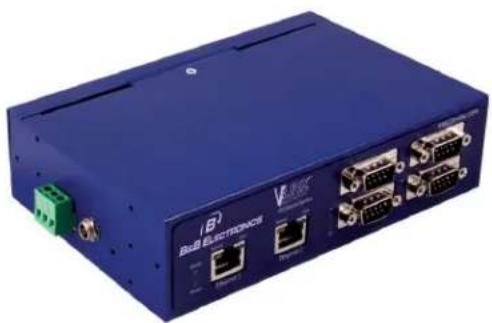
natural_image
Blue electronic device with multiple Ethernet ports and a green connector (no visible text or symbols)Figure 2. Front View of the VESR4x4 Serial Server
LED Indicators
VESR4x4s have LED indicators for Power, Serial Server Ready indication, Ethernet Speed and Link status, and Serial Port status.
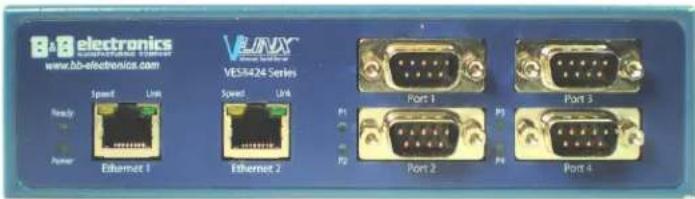
Figure 3. Front Panel of the VESR424D
Power LED
The Power LED illuminates when 10 to 58 VDC power is applied to either power connector.
Ready LED
The Ready LED (green) illuminates continuously while the unit is initializing. It flashes once per second when the system is operating correctly. If the LED is not flashing, it indicates that something is wrong (e.g. another device on the network at the same IP address).
Ethernet Speed LEDs (1 & 2)
The Ethernet Speed LED illuminates (green) if the Ethernet connection is operating at 100Mbit/sec. The LED is off if the connection is operating at 10Mbit/sec.
Ethernet Link LEDs (1 & 2)
The Ethernet Link LED illuminates when a connection has been made. It flashes when there is data traffic on the Ethernet link.
Serial Port LEDs (P1, P2, P3 & P4)
Each serial port has an associated LED. Serial Port LEDs flash (green) when data is being transmitted or received on the serial ports. When the LED is illuminated it indicates the serial port is open.
Note: LEDs on the serial server are also used to indicate various Reset modes, as described in the following section.
Reset Switch
A recessed momentary Reset switch is located on the side of the enclosure. To activate the switch, insert a small plastic tool through the hole in the enclosure and press lightly.
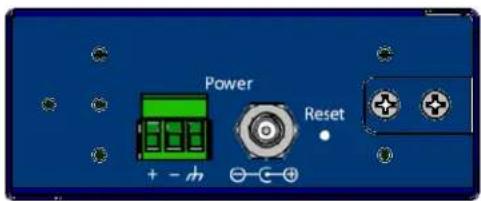
Figure 4. Side View of the Serial Server
The Reset switch is used to:
- Initiate a Hardware Reset
- Enter Console Mode
- Reload factory defaults
Using the Reset Switch to Initiate a Hardware Reset
Hold the Reset switch in for 0 to 2 seconds. The P1 LED illuminates while the switch is being held in. Release the switch in less than two seconds or the serial server will enter Console Mode.
Using the Reset Switch to Enter Console Mode
Hold the Reset switch for between two and ten seconds. The P1 LED illuminates for the first two seconds and the P1 LED goes out; then the P2 LED illuminates until the Reset switch is released. Release the switch in less than 10 seconds or the serial server will reset to factory default settings. The serial server will re-boot and enter Console Mode. LED P1 will be on while the unit is in Console Mode.
Using the Reset Switch to exit Console Mode
Press the Reset switch for less than two seconds, or remove power from the serial server, wait a few seconds, and turn the power on again. The LEDs go back to their normal states when the device resumes normal operation.
Using the Reset Switch to Reload Factory Default Settings
Hold the Reset switch for more than ten seconds. The P1 LED illuminates for the first two seconds; then the P2 LED illuminates. After 10 seconds the P1 and P2 LEDs will illuminate. When the switch is released, both the P1 and P2 LEDs will go out. The Ready LED will flash quickly while the serial server re-initializes to factory default settings, and then the server will re-boot.
Ethernet Connector
Serial server models equipped with 10BaseT/100BaseTX network connections use an RJ45 receptacle. The serial server is connected to a standard Ethernet network drop using a straight-through RJ45 (male) Ethernet cable. Models with a second RJ45 receptacle act as an Ethernet switch enabling the connection of other devices to the network.
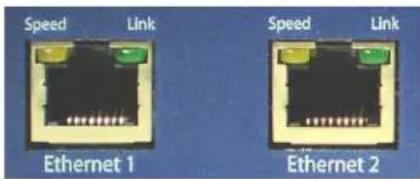
Figure 5. Ethernet Connectors
Note: Refer to Appendix D for connector pinouts.
Fiber Optic Connectors
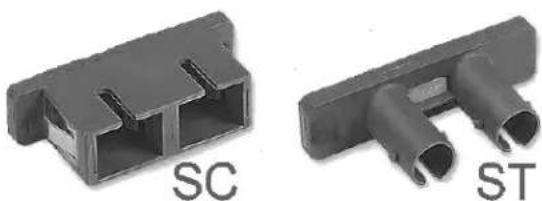
Serial server models equipped with fiber-optic network connections use either SC or ST connectors, depending on the specific model.
natural_image
Two black plastic electronic connectors labeled SC and ST, shown from different angles (no text or symbols on the connectors themselves)Figure 6. SC and ST Fiber Optic Cable Connectors
Serial Port Connectors
VESR4x4 Serial Servers feature two serial port connector configurations, depending on the model:
- VESR4x4D-x serial servers feature four serial ports, all of which use DB-9M connectors for RS-232, RS-422 and RS-485 connections.
- VESR4x4T-x serial servers feature four serial ports, all of which use five-position removable terminal blocks for RS-232, RS-422 and RS-485 connections.
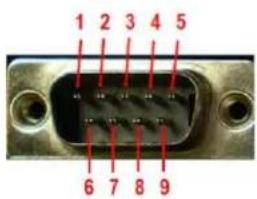
Figure 7. DB-9M Serial Port Connector with Pinout
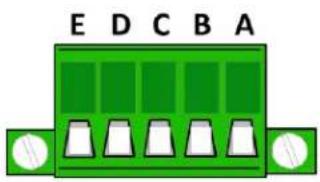
Figure 8. Five-Position Pluggable Terminal Blocks
Note: Refer to Appendix D for connector pinouts.
Power Connector
VESR4x4 serial servers provide two power connectors. One is a three position removable terminal block with +, - and chassis ground connections. The other is a locking barrel jack connector.
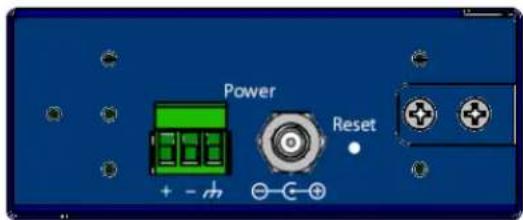
Figure 9. Power Connectors
NOTE: the terminal block must be used for Class 1 Division 2 applications; the barrel jack cannot be used for these applications. See the specification tables for further information.
Mounting Hardware
VESR4x4 Serial Servers can be DIN rail or panel mounted. The necessary hardware is included in the accessory kit, which also includes the screws for attaching the mounting hardware. Two brackets are provided for mounting the serial server flush to a panel or behind a rack-mount instrument panel.
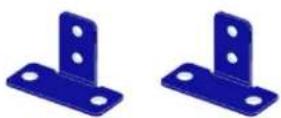
Figure 10. Panel Mount Brackets
Each bracket is mounted using two 4-40 flat-head screws (included). The additional threaded holes on the side of the serial server allow the unit to be mounted in six different configurations.
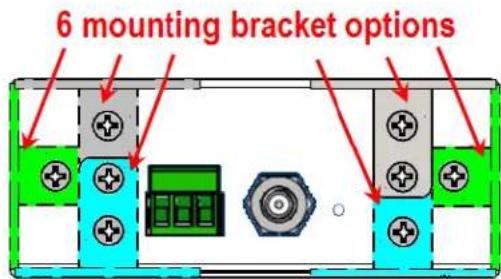
Figure 11. VESR4x4 showing Panel Mount Bracket options
If extra mounting brackets are needed, they can be ordered from B&B Electronics as Kit Number #9030.
The DIN rail mounting bracket attaches to the back of the serial server using three 4-40 flat head screws.
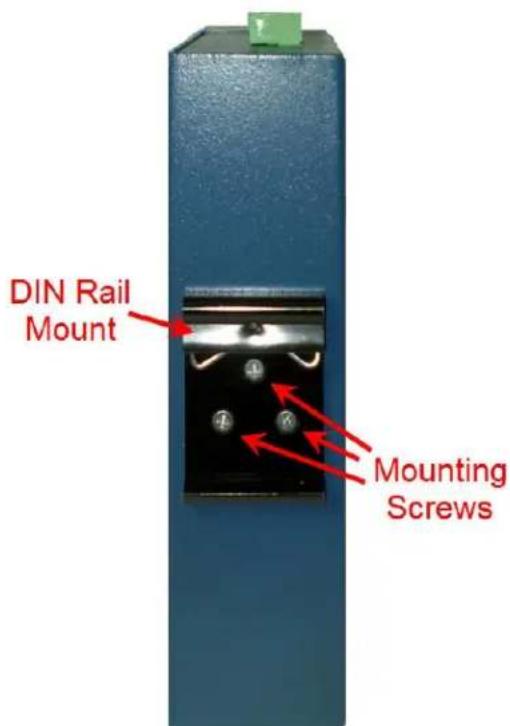
Figure 12. VESR424 with DIN Rail Clip Mounted
SECTION 3
Installation and Initial Setup
This section describes how to install the VESR4x4 Serial Server and configure the device.
Note: In this section devices to be connected to the serial server's serial connections are simply referred to as the "serial device".
Connecting the Power Supply
Connect a DC power supply to the power terminals on the side of the serial server. Polarity of the wires is indicated underneath each connector. Acceptable voltages are between 10 VDC and 58 VDC. The power supply must be capable of supplying 6 watts.
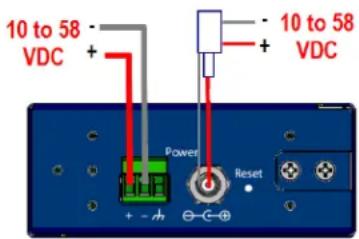
Figure 13. Power Supply Connections
NOTE: the terminal block must be used for Class 1 Division 2 applications; the barrel jack cannot be used for these applications. See the specification tables for further information.
Connecting VESR4x4 Serial Servers to Serial Devices
VESR4x4 Serial Servers can be connected to serial devices using RS-232, RS-422, RS-485 2-wire, or RS-485 4-wire communication. VESR4x4D models use DB-9M connectors and VESR4x4T models use 5-position terminal strips.
RS-232
Models using DB9M connectors support seven RS-232 signal lines (TD, RD, DTR, DSR, RTS, CTS, DCD) plus Signal Ground.
Models using five position pluggable terminal blocks support four signal lines (TD, RD, RTS, CTS) plus Signal Ground.
Signals are single-ended and referenced to Signal Ground. Default communications parameters are 9600, 8, N, 1 (9600 baud, 8 data bits, no parity, 1 stop bit), and no flow control.
Note: The VESR4x4 is configured as a DTE. If it is connected to a computer or other DTE device, use a null modem (cross-over) cable. If the serial device is configured as a DCE, use a straight-through cable.
RS-422
RS-422 connections support two signal pairs: TDA (-), TDB (+), RDA (-), RDB (+) and GND. The data lines are differential pairs (A & B) in which the B line is positive relative to the A line in the idle (mark) state. In RS-422, the transmitter is always enabled. Signal Ground provides a common mode reference for the signal lines.
RS-485
RS-485 connections support 2-wire or 4-wire operation. In RS-485 mode, the transmitter is only enabled when the serial server is transmitting data on the line. This allows other devices to share the bus.
When configured for 4-wire operation the connection supports two signal pairs: TDA (-), TDB (+), RDA (-), RDB (+) and GND. This makes full-duplex operation possible. The data lines are differential pairs (A & B) in which the B line is positive relative to the A line in the idle (mark) state. Signal Ground provides a common mode reference for the signal lines.
When configured for 2-wire operation the connection supports one signal pair: Data A (-) and Data B (+). These lines transmit and receive signals using half-duplex operation. The data lines are differential with the Data B line positive relative to Data A in the idle (mark) state. Signal Ground provides a common mode reference for the signal lines.
Note: Refer to Appendix D for connector pinout information.
flowchart
graph TD
    A["Laptop"] --> B["Network"]
    B --> C["Server"]
    C --> D["Serial Device"]
    B -->|Serial Connection| C
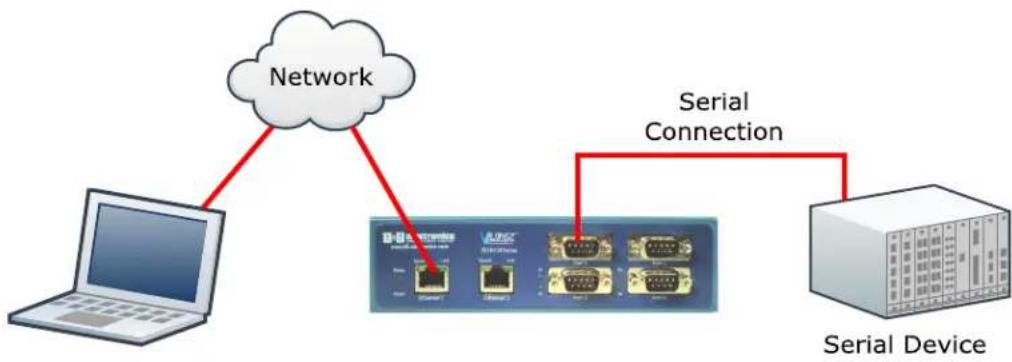
Figure 14. VESR4x4 Connections
Connecting VESR4x4 Serial Servers to a Network
Ethernet Connection (10BaseT/100BaseTX)
When connecting a serial server equipped with a 10BaseT/100BaseTX network connection (RJ45 connector) to an Ethernet network, a standard unshielded twisted-pair cable can be used. When installing this equipment in industrial or other electrically noisy environments, STP (shielded twisted pair) cable is strongly recommended. The serial server has an automatic MDIX interface which will sense the pinout of the network interface and provide a cross-over connection if required.
Fiber Optic Connection
When connecting a serial server equipped with a fiber optic interface to an Ethernet network, the appropriate fiber optic cable must be connected between the serial server and the network interface. The TX output of the serial server port must be connected to the RX input of the network interface and vice-versa. Refer to the list of VESR4x4 Serial Server Models (on page 8) for the supported fiber types, distances, and connectors.
Ethernet Pass-through Port
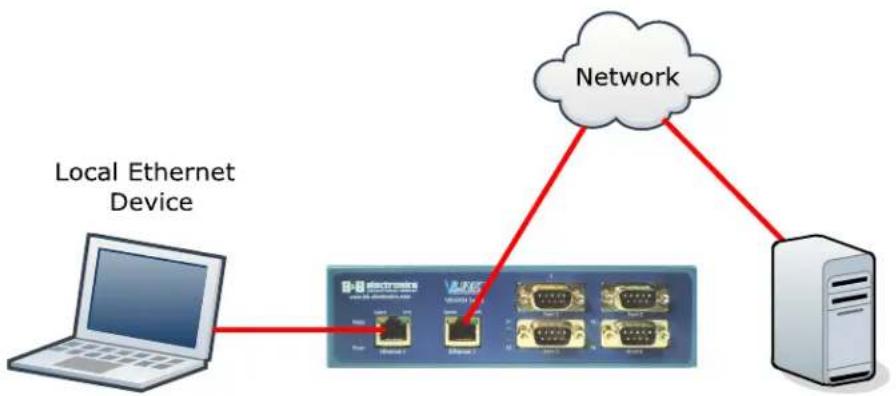
VESR424 serial servers are equipped with an additional RJ45 network port, also known as a pass-through port. This port can be used to connect additional Ethernet devices, such as a local workstation or second serial server, to the network.
flowchart
graph TD
    A["Local Ethernet Device"] --> B["Server"]
    B --> C["Router"]
    C --> D["Cloud"]
    D --> E["Network"]
    style A fill:#f9f,stroke:#333
    style B fill:#bbf,stroke:#333
    style C fill:#dfd,stroke:#333
    style D fill:#dfd,stroke:#333
    style E fill:#dfd,stroke:#333
Figure 15. Ethernet Pass-through Port
VESR4x4 Serial Server Configuration
VESR4x4 Serial Servers can be configured using several methods:
• Via the network using Vlinx Manager Software
• Via the network using a web browser
• Via a serial port using Vlinx Manager Software (Console Mode)
Configuring via the Network using Vlinx Manager
VESR4x4 Serial Servers can be configured over the network using Vlinx Manager Software running on a networked PC. Vlinx Manager includes a discovery function that makes it possible to detect the serial server on the network if you do not know its IP address. Once the serial server has been detected, the Vlinx Manager Software can be used to change its settings.
Note: For more information on how to use Vlinx Manager to configure your serial server, refer to Section 4: Configuring the Serial Server
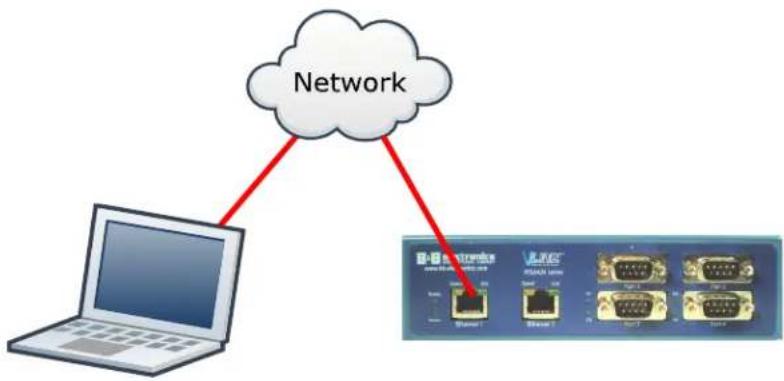
flowchart
graph TD
    A["Laptop"] --> B["Network"]
    B --> C["Server"]
    C --> D["AT&T"]
    C --> E["USB"]
    C --> F["PG"]
    C --> G["PS"]
    style A fill:#f9f,stroke:#333
    style B fill:#ccf,stroke:#333
    style C fill:#cfc,stroke:#333
    style D fill:#fcc,stroke:#333
    style E fill:#cff,stroke:#333
    style F fill:#ffc,stroke:#333
    style G fill:#cfc,stroke:#333
Figure 16. Network Setup
Configuring via the network using a Browser
VESR4x4 Serial Servers can also be configured over the network using a standard internet browser such as Internet Explorer or Firefox running on a networked PC. To do so you must know the IP address of the serial server. Your serial server comes from the factory pre-configured to receive an IP address from a DHCP Server. If a DHCP server is not available, it will default to 169.254.102.39.
Note: For more information on how to use Vlinx Manager to configure your serial server, refer to Section 4: Configuring the Serial Server
Configuring via a Serial Port using Vlinx Manager (Console Mode)
Your serial server can be configured via any serial port, using Vlinx Manager. To use this feature a serial port on the serial server must be connected to the serial port of a PC (using a null modem cable).
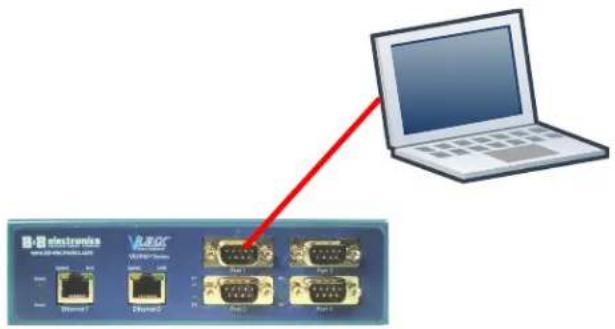
Figure 17. Console Mode Setup
To configure the serial server, it must be put into Console Mode, using the Reset switch.
Note: Refer to Section 2 for information on how to use the Reset switch to enter Console Mode.
VESR4x4 Serial Server Operational Connections
VESR4x4 Serial Servers can operate in Direct IP, Virtual COM Port and Paired Modes.
In Direct IP Mode applications can use TCP/IP socket connections or UDP/IP datagrams to communicate with the COM ports on the serial server. In this type of application, the serial server is configured as a TCP or UDP server. The socket program running on the PC establishes a communication connection with the serial server. The data is sent directly to and from the serial port on the server.
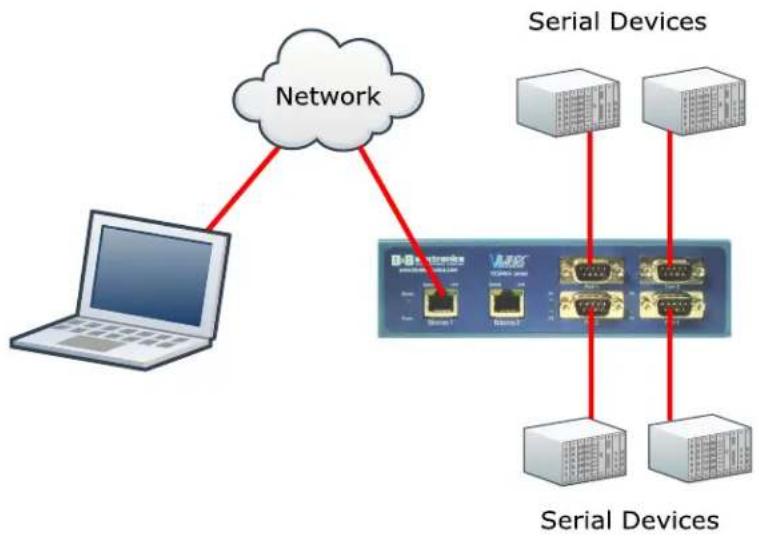
flowchart
graph TD
    A["Laptop"] --> B["Network"]
    B --> C["Internet"]
    C --> D["Serial Devices"]
    C --> E["Serial Devices"]
    C --> F["Serial Devices"]
    C --> G["Serial Devices"]
Figure 18. Direct IP and Virtual COM Port Connection
In Virtual COM Port Mode the serial ports on the serial server appear to applications running on the host PC as if the serial ports were physically located on the host PC. When a virtual COM port is configured on the PC (using Vlinx Manager), a new COM port appears in the Device Manager. Windows programs are able to interface to the virtual COM port using standard Windows API calls. When a program on the PC opens the new COM port, it communicates directly with the remote serial device connected to the serial server.
In Paired Mode, two serial servers are used to provide a virtual cable connection between two remote serial devices using the Ethernet network. The end serial devices communicate data and handshake information directly, as if they were physically connected in a point-to-point serial connection. Paired Mode devices are set up as shown in the following diagram and configured using Vlinx Manager Software or web interface.
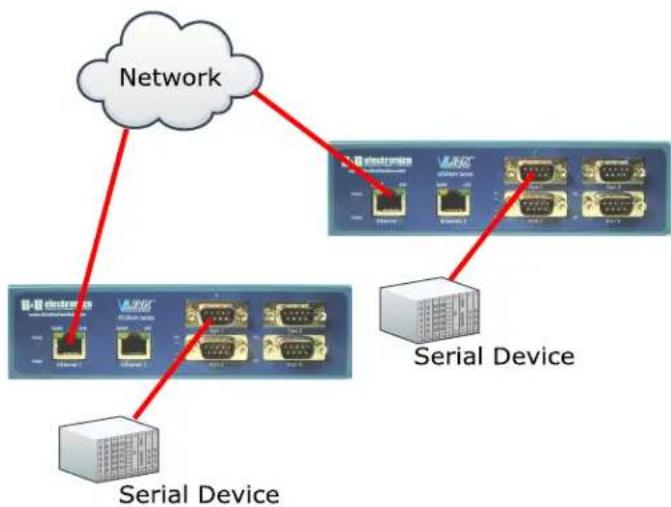
flowchart
graph TD
    A["Network"] --> B["Serial Device"]
    A --> C["Serial Device"]
    A --> D["Serial Device"]
    B --> E["Server 1"]
    B --> F["Server 2"]
    B --> G["Server 3"]
    B --> H["Server 4"]
    B --> I["Server 5"]
    B --> J["Server 6"]
    B --> K["Server 7"]
    B --> L["Server 8"]
    B --> M["Server 9"]
    B --> N["Server 10"]
Figure 19. Paired Mode Setup
Installing and Starting Vlinx Manager
Vlinx Manager is a Windows-based application used to configure serial servers. Install it on your PC from the included CD. Installation should launch automatically when the CD is placed in the CD-ROM drive.
Follow the prompts to install the software.
Once the program is installed, go to the Start > Programs menu and run the program.
The Vlinx Manager Discovery window appears.
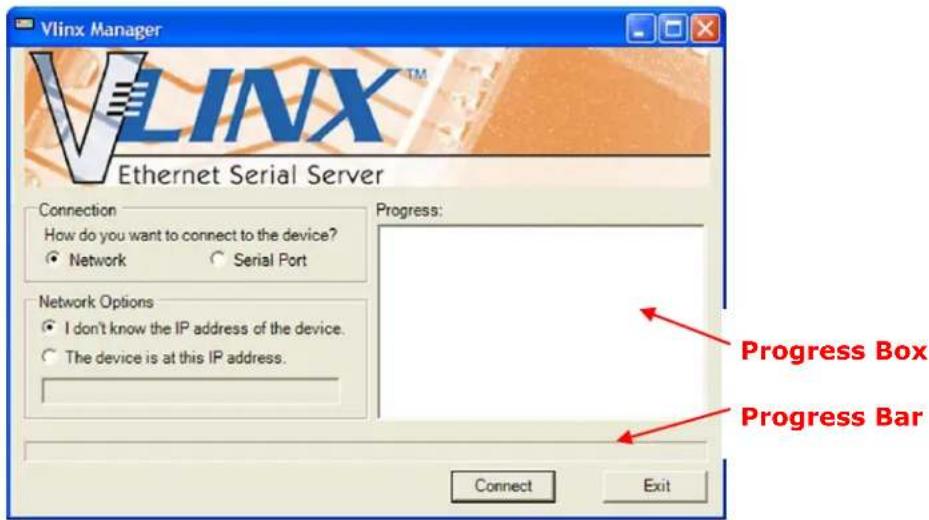
Figure 20. Discovery Window
Discovering Serial Servers
If you are configuring the serial server via the network, select Network; if you are configuring it via the serial port, select Serial Port.
If you already know the IP address of the serial server, click The device is at this IP address; if not, leave I don't know the IP address of the device selected.
Click Connect. The Progress text box and bar graph provide information to indicate whether serial servers are detected and how far along the process is.
The text in the Progress box appears in various colors, depending on the message type.
| Color | Description |
| Black | A step in the discovery process. |
| Dark Blue | A device was not found. |
| Dark Green | A device was found. |
| Dark Red | An error occurred. |
If one or more devices are found, the discovery window closes automatically and the Configuration window appears.
SECTION 4
Configuring the Serial Server
Overview of the Vlinx Manager
The Vlinx Manager configuration window includes three areas:
- Icons
- Serial Server Information Table
- Configuration pane
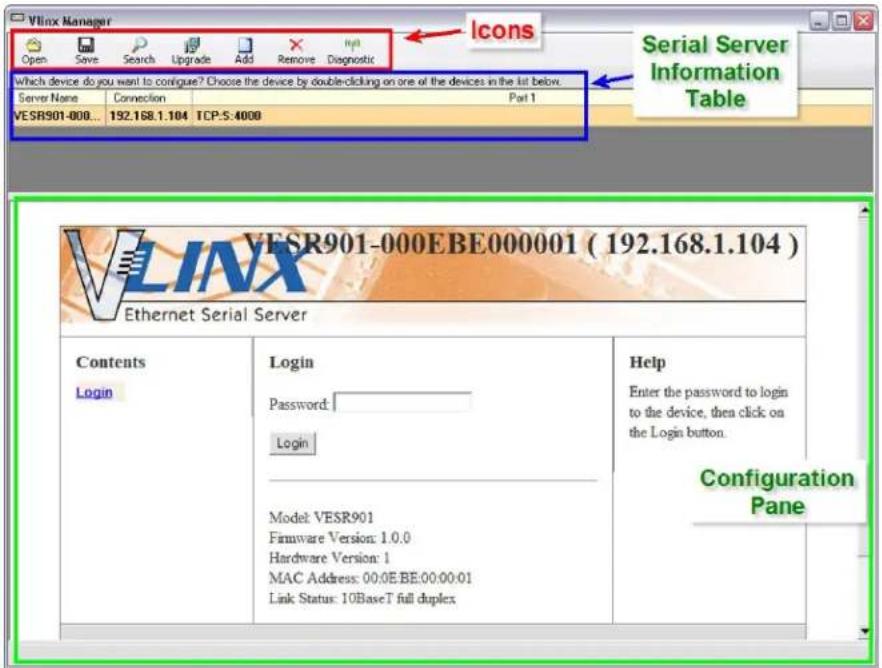
Figure 21. Vlinx Manager Configuration Window
Note: The screen shots shown in this manual refer to the VESR901. Your screen will display the model name/number and serial number of your VESR4x4 device. All menus, functions and options shown on the screen shots in this manual apply to your VESR4x4 device.
Icons

Figure 22. Configuration Window Icons
- Open - Open a serial server configuration file.
- Save - Save the current serial server configuration to a file.
• Search - Initiate a search for serial servers.
• Upgrade - Upgrade the firmware in a serial server (see Section 49) - Add - Add a Virtual COM Port to the host PC (see Section 47)
- Remove - Remove a Virtual COM Port from the host PC (see to Section 48)
• Diagnostic - Perform serial server diagnostics (see Section 51)
Serial Server Information Table
The serial server information table contains information about all serial servers that have been discovered on the network or serial ports.
Which device do you want to configure? Choose the device by double-clicking on one of the devices in the list below.
| Server Name | Connection | Port 1 | Port 2 | Port 3 | Port 4 |
| VESR901 | 169.254.0.41 | TCP:S:4000=COM5, in use | |||
| VESR902T | 169.254.0.42 | TCP:C:4000, in use | UDP:4001 | ||
| VERS904 | 192.168.0.43 | TCP:S:4000=COM8 | TCP:S:4001 | TCP:C:4002 | UDP: |
Figure 23. Serial Server Information Table
The table displays the following information for each serial server:
• Server Name - the name reported by the serial server
• Connection - the IP address of the serial server
• Port 1, Port 2, Port 3 and Port 4
- Communications protocol assigned to the serial port (TCP, UDP, or Paired mode)
- Whether the port initiates connections, (Client mode) or accepts connections (Server mode)
• TCP port number or UDP port number - The virtual COM port assignment on the local PC (if assigned)
- Whether the serial server's serial port is being used by anyone on the network
The status of whether the serial server is in use is updated periodically.
When a serial server's IP address is configured for a network that is not within the local network's range, the serial server's information is displayed in a different color (yellow)
Configuration Pane
The configuration pane is essentially a web browser.
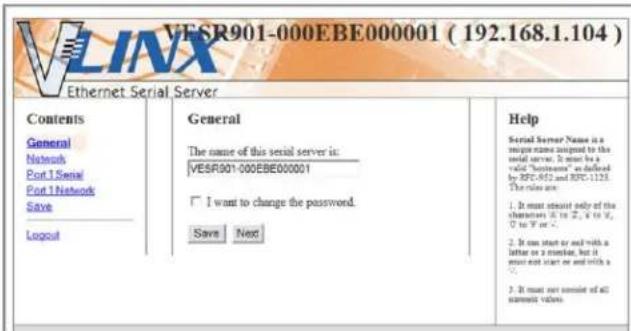
Figure 24. Configuration Pane
It includes the following:
- Masthead with the name and IP address of the currently selected serial server
- Contents sidebar (on the left side) containing hyperlinks to the following configuration pages:
- General
- Network
- Port x Serial (x = port number; each serial port connection is represented by a hyperlink)
- Port x Network (x = port number; each serial port connection is represented by a hyperlink)
- Save
- Login/Logout
- Configuration settings area in the middle of the pane where you can select the settings desired for operation of the serial server
- Help sidebar (on the right side) containing helpful descriptions, explanation and suggestions for configuring the serial server
Logging In
You can log in to any serial server listed in the Server Information Table.
To log in:
- Select the row associated with the desired serial server. The Login page appears.
- Type the password into the Password box. The default password is blank.
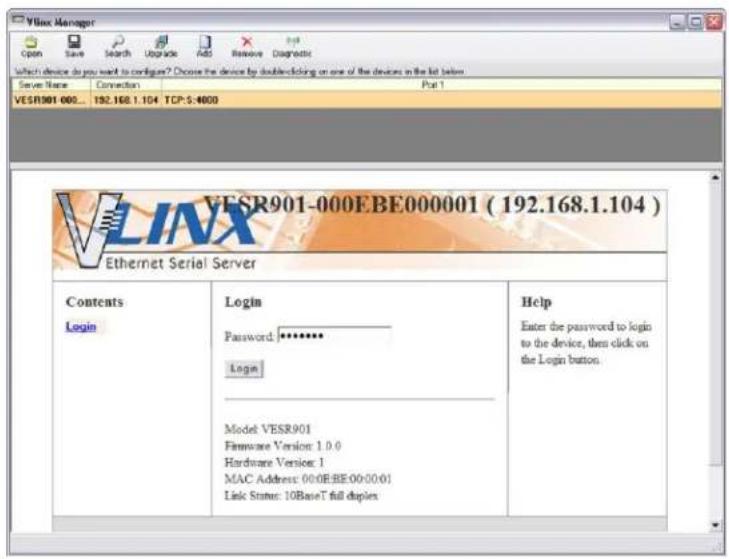
Figure 25. Login Page
3. Click Login.
The General Configuration page appears.
Navigating the Configuration Pages
There are two ways to move from page to page in the Vlinx Manager Software: by clicking a specific link, or by clicking Next or Back to move through the pages sequentially.
Note: Always remember to click Save before leaving a page to ensure your settings are saved.
Setting up the Serial Server Name and Password
On the General Configuration page you can do the following:
- Change the name of the serial server
- Initiate a login password change
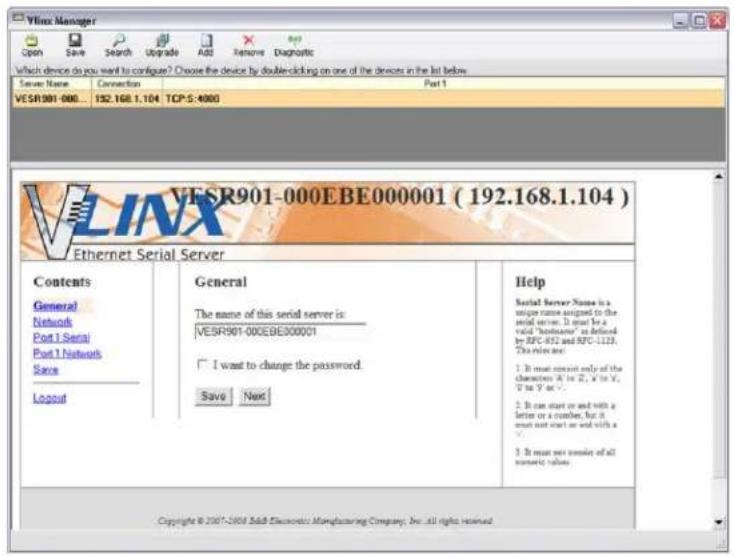
Figure 26. General Configuration Page
Changing the serial server's name:
- Type the new name into the Serial Server Name text box.
- Click Save.
Changing the password:
- Select the I want to change the password check box. Two text boxes appear.
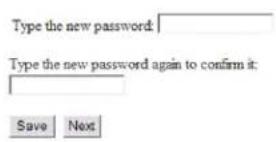
Figure 27. Changing the Password
- Type the new password into both boxes
3. Click Save.
Setting up IP Addressing
On the Network Configuration page you can configure the serial server to use dynamic (DHCP) or static IP addressing on the network.
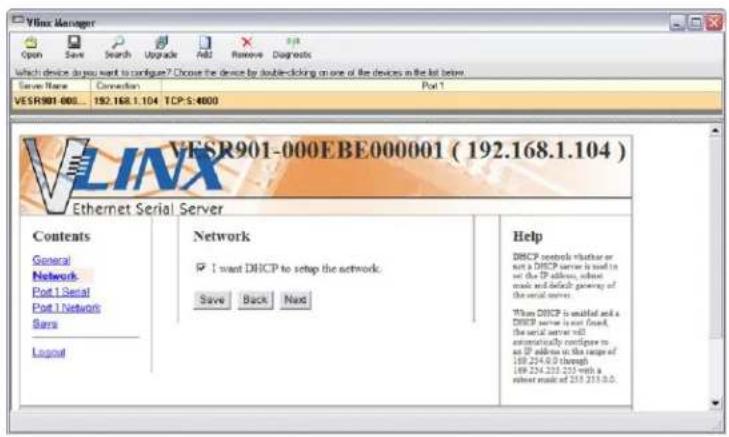
Figure 28. Network Configuration Page
Setting up Dynamic IP Addressing
- Select the I want to use DHCP to setup the network check box.
Setting up Static IP Addressing
- Ensure the I want to use DHCP to setup the network box is un-checked.
Network
I want DHCP to setup the network.
IP Address:
0.0.0.0
Subnet Mask:
255.255.255.0
Default Gateway:
0.0.0.0
Save Back Next
Figure 29. IP Address Settings
- Type the IP Address, Subnet Mask and Default Gateway addresses in the appropriate boxes.
Setting up Serial Ports
On the Serial Port Configuration page you can configure the communications parameters of the current serial port. Parameters include the port mode, baud rate, data bits, parity, stop bits and type of flow control.
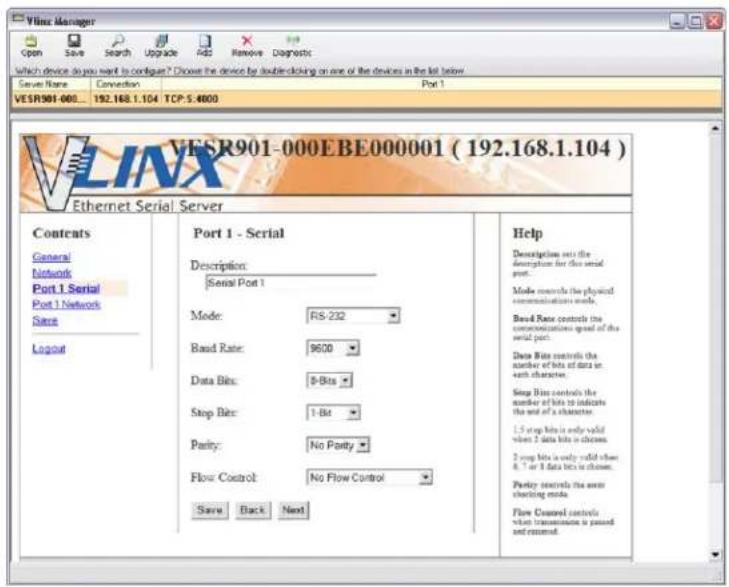
Figure 30. Serial Port Configuration Page
- Mode - select the type of serial connection (RS-232, RS-422, RS-485 2-wire or RS-485 4-wire) required by the serial device.
- Baud Rate - select the Baud Rate (between 75 baud and 230,400 baud) required to communicate with the serial device.
- Data Bits - select the number of Data Bits (5, 6, 7 or 8) required to communicate with the serial device.
- Stop Bits - select the number of Stop Bits (1, 1.5, or 2) required to communicate with the serial device.
- Parity - select the Parity setting (None, Even, Odd, Mark or Space) required to communicate with the serial device.
- Flow Control - select the Flow Control setting (None, RTS/CTS or XON/XOFF) required to communicate with the serial device.
Setting up Port Network Parameters
On the Port Network Parameters Configuration page you can configure the port to use UDP, TCP. VCOM or Paired protocols in several different modes.
TCP Configuration
TCP (Transmission Control Protocol) provides reliable connection-oriented network communication with error checking. In TCP mode the serial server can be configured as a client or a server.
When you configure the serial server as a TCP client it initiates a connection with a remote server on the network. You must set up the IP address and port number of the remote server that you want the client (serial server) to communicate with. You also select whether you want the serial server to connect at power up or only when it receives data from the device connected to its serial port.
When the serial server is configured as a TCP server it waits for an incoming connection request from another network device. You must set up the TCP port number that the serial server will listen to for incoming connections and set the maximum number of simultaneous connections it will support (up to four). You can also set up the serial server to accept incoming connection requests only from certain IP addresses or ranges of IP addresses.
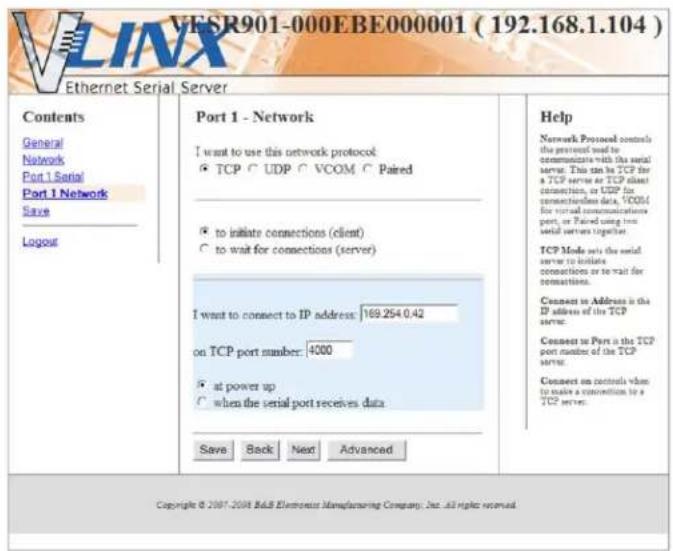
Figure 31. TCP Configuration
Setting the serial server to operate as a TCP Client
- Select TCP protocol.
- Select to initiate connections (client)
-
Type the IP address into the I want to connect to IP address: box
-
Type the TCP port number of the server into the on TCP port number: box.
- Select:
- at power up - if you want the serial server to always be connected
- when the serial port receives data - if you only want to establish a connection when there is data to be sent.
Setting the serial server to operate as a TCP Server
- Select TCP protocol.
- Select to wait for connections (server).
The configuration options change. The server IP address box disappears and the number of connections box appears.
- Type the port number in the I want to wait for connection on TCP port number: box.
- Select the maximum number of connections desired in the and limit the number of connections to: drop down box.
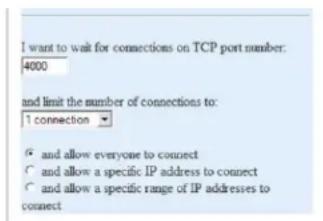
Figure 32. TCP Server Settings
UDP Configuration
UDP (User Datagram Protocol) enables applications using UDP socket programs to communicate with the serial ports on the serial server. UDP protocol provides connectionless communications, which allows data to be broadcast to and received from multiple nodes on a network.
In UDP mode, if you want to control which network node receives data, you must specify the IP address and UDP port the data will be sent to. You can choose to send to:
- Nobody (Port only in receive mode)
• All nodes at a specific UDP port number. (This is a broadcast message.) - Specific IP addresses and UDP port numbers. (This is a unicast message.)
• A range of IP addresses and UDP port numbers. (This is a unicast range.)
You can also configure the serial server to receive from nodes on the network using a similar list of configuration options.
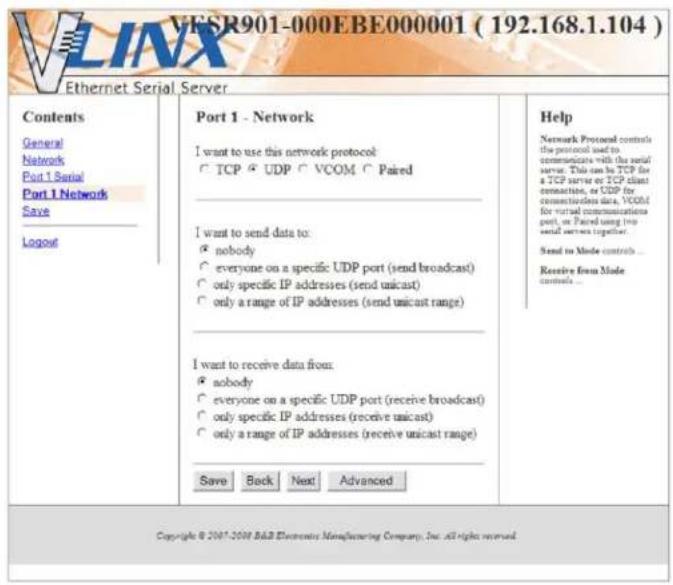
Figure 33. UDP Configuration
Setting the serial server to use UDP
1. Select UDP protocol.
Options are provided for sending and receiving data to and from:
- Nobody (one-way communication only)
• Everyone on a specific UDP Port - Only specific IP addresses
- Only a range of IP addresses
Additional configuration fields appear depending on the options chosen.
2. Select the required Send options:
a. nobody - sends to nobody
b. everyone on a specific UDP port (send broadcast) - sends to all UDP ports on the network (specified later)
c. only specific IP addresses (send unicast) - sends to specific network IP addresses (specified later)
d. only a range of IP addresses (send unicast range) - sends to all IP addresses within a specified range (specified later)
3. Configure the Send IP addresses and port numbers:
- If you selected: everyone on a specific UDP port (send broadcast), type the UDP port number into the This is the UDP port I want to send data to: box
- If you selected: only specific IP addresses (send unicast), type the IP addresses and port numbers into the These are the IP addresses I want to send data to: text boxes
-
If you selected: only a range of IP addresses (send unicast range), type the ranges of IP addresses and port numbers into the These are the IP addresses I want to send data to: text boxes
-
Select the required Receive options:
a. nobody - receives from nobody
b. everyone on a specific UDP port (receive broadcast) - receives from all UDP ports on the network (specified later)
c. only specific IP addresses (receive unicast) - receives from specific network IP addresses (specified later)
d. only a range of IP addresses (receive unicast range) - receives from all IP addresses within a specified range (specified later)
-
Configure the Receive IP addresses and port numbers:
-
If you selected: everyone on a specific UDP port (receive broadcast), type the UDP port number into the This is the UDP port I want to receive data from: box
- If you selected: only specific IP addresses (receive unicast), type the IP addresses and port numbers into the These are the IP addresses I want to receive data from: text boxes
-
If you selected: only a range of IP addresses (receive unicast range), type the ranges of IP addresses and port numbers into the These are the IP addresses I want to receive data from: text boxes
-
Click Save
Setting up Virtual COM (VCOM) Operation
When the Network Protocol is set to VCOM (Virtual COM Port) the serial server communicates over the network with a PC, acting as a remote COM port for the computer.
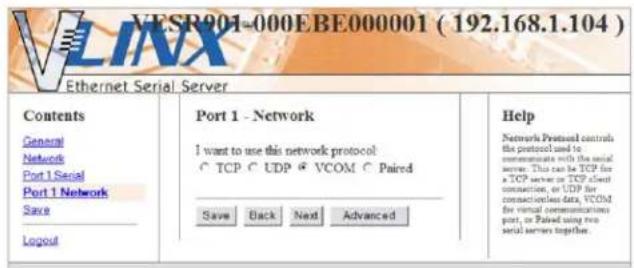
Figure 34. VCOM Configuration
Note: Both the serial server and the computer must be configured for VCOM operation. To set up a virtual COM port on the computer, refer to the section on Adding Virtual COM Ports (see page 47).
- To enable VCOM operation, select VCOM protocol.
- Click Save
Setting up Paired Mode Operation
Paired Mode enables two serial servers to operate across the network like a "wire replacement" between two serial devices. (Paired Mode is also called serial tunneling.) Serial devices connected to serial servers on each end of the link can communicate as it they were connected by a serial cable.
For Paired Mode to work one serial server must be configured "to initiate connections (client)" and the other must be configured "to wait for connections (server)"
The serial server configured as the client initiates the connection. You must set up the IP address and port number of the server that you want the client (serial server) to communicate with. You also select whether you want the serial server to connect at power up or only when it receives data from the device connected to its serial port.
The serial server configured as a server waits for a connection to be initiated by the remote client. You must set up the TCP port number on which it will listen for connections and set the maximum (up to four) number of simultaneous connections it will accept. The maximum number of connections should be set to at least two (2) to allow the unit to recover if the connection is terminated abnormally. You can filter the connections it will accept based on specific IP addresses or ranges of IP addresses that you specify.
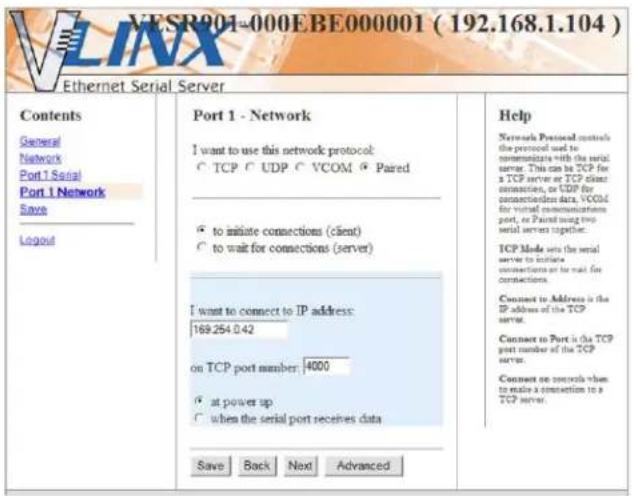
Figure 35. Paired Mode Configuration
Setting the serial server to operate in Paired Mode as a client
- Select Paired protocol.
- Select to initiate connections (client)
- Type the IP address and TCP port numbers of the server in the appropriate text boxes.
- Select:
• at power up - if you want the serial server to always be connected
- when the serial port receives data - if you only want to establish a connection when there is data to be sent.
Setting the serial server to operate in Paired Mode as a server
- Select Paired protocol.
- Select to wait for connections (server).
- to initiate connections (client) - to wait for connections (server)
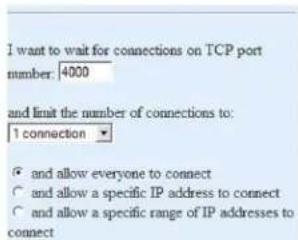
Figure 36. Paired Mode Settings
-
Type the TCP port number to be used in the I want to wait for connections on TCP port number box.
-
Select the number of connections in the and limit the number of connections to drop down box.
-
Select:
• and allow everyone to connect - if you want any server to connect
- and allow a specific IP address to connect - if you want to specify up to four IP addresses to be able to connect
- and allow a specific range of IP addresses to connect - if you want to specify a range of IP addresses that can connect
- If you selected
- and allow a specific IP address to connect, in the area of the window that appears, select one or more IP address boxes and type in the desired IP address
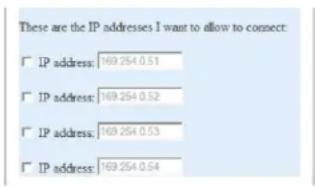
Figure 37. IP Addresses
- and allow a specific range of IP addresses to connect, in the area of the window that appears, select an IP address box and type in the IP addresses that specify the desired range
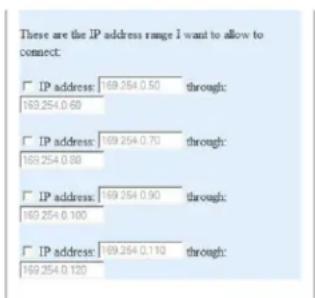
Figure 38. IP Address Ranges
Setting up Advanced Network Settings
On the Advanced Network Settings window you can configure if network connections are automatically closed due to inactivity and when serial data is forwarded to the network.
Data that is received by the serial port is normally buffered for a short period of time and then forwarded over the Ethernet to the remote device. The VESR4x4 automatically optimizes the data buffering to reduce the network overhead and minimize the data transmission latency. For most applications the VESR will transmit data back and forth seamlessly between the end devices. However, certain applications may require additional control over this process. In these cases, the Advanced Port Settings can be used to fine tune the serial server performance.
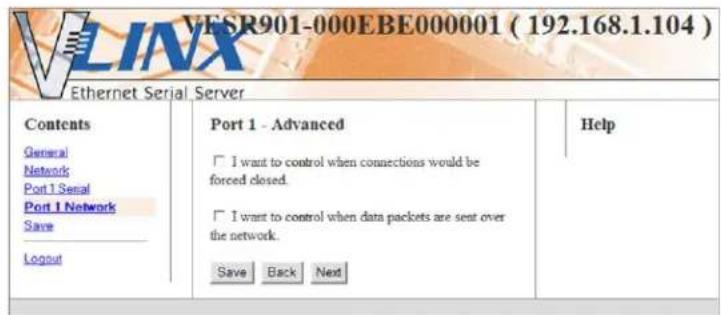
Figure 39. Advanced Network Settings Window with nothing selected
Configuring when network connections will be forced closed
- Select the I want to control when connections would be forced closed checkbox.
The Network Watchdog and Serial Watchdog configuration boxes appear.
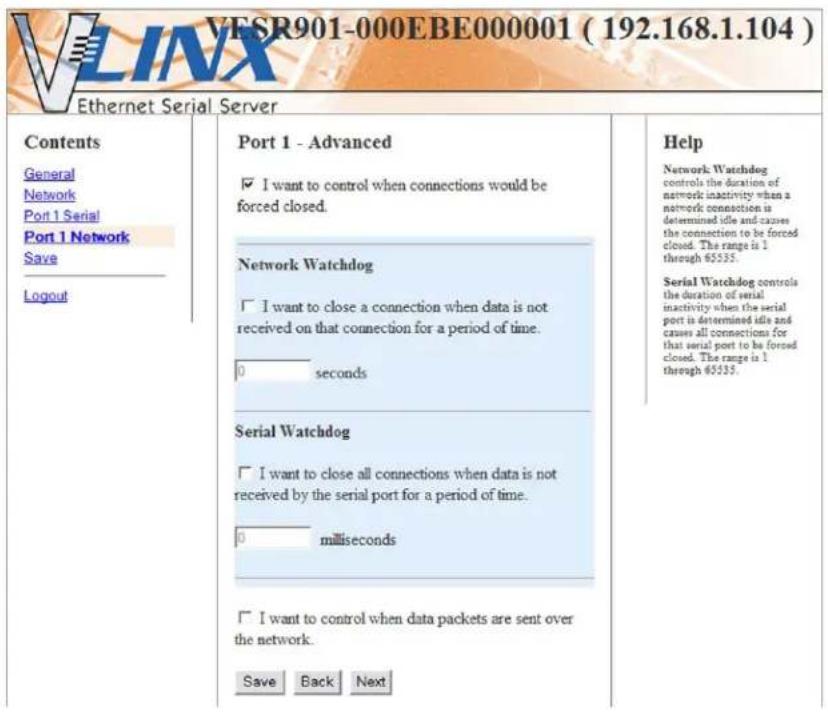
Figure 40. Advanced Configuration - Forcing Connections Closed
To close a network connection if no data is received from the network for a period of time
- Select the I want to close a connection when data is not received on that connection for a period of time checkbox
- Type the desired time period (in seconds) into the text box.
To close a connection if no data is received by the serial port for a period of time
- Select the I want to close all connections when data is not received by the serial port for a period of time checkbox.
- Type the desired time period (in milliseconds) into the text box.
Configuring when data packets are sent
- Select the I want to control when data packets are sent over the network checkbox.
The Character Count, Forced Transmit, Intercharacter Timeout, Delimiter 1, Delimiter 2 and Delimiter Removal configuration boxes appear.
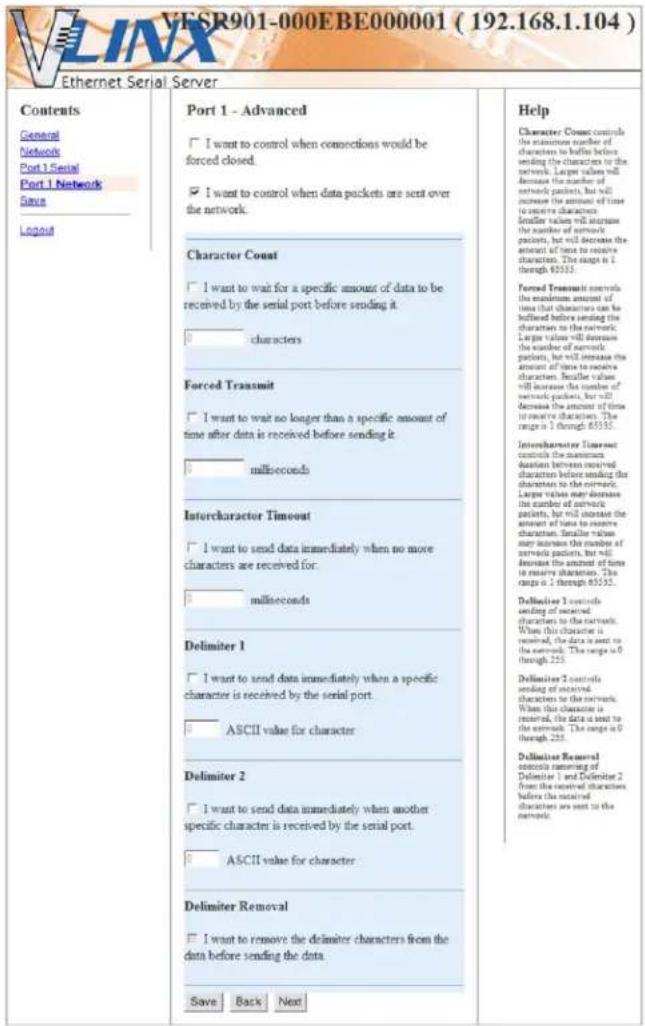
Figure 41. Advanced Configuration - Configuring when data packets are sent
To wait until a specific amount of data is received on the serial port before sending it across the network
- Select: I want to wait for a specific amount of data to be received by the serial port before sending it in the Character Count box
- Type the desired number of characters into the text box.
To force the serial server to send all buffered data received on the serial port within a specified length of time
-
Select: I want to wait no longer than a specific amount of time after data is received before sending it in the Forced Transmit box
-
Type the desired time period (in milliseconds) into the text box.
To force the serial server to send buffered data if another character is not received within a certain period of time
- Select: I want to send data immediately when no more characters are received for in the Intercharacter Timeout box.
- Type the desired time period (in milliseconds) into the text box.
To force the serial server to start buffering data only when it receives a specified ASCII character on its serial port
- Select: I want to send data immediately when a specific character is received by the serial port in the Delimiter I box.
- Type the decimal value for the ASCII character into the text box. For instance, if you want to send data when a '\$' is received, enter '36' into the test box.
Note: If Delimiter 1 is selected, Delimiter 2 must also be used.
To force the serial server to send its buffered data when it receives a specified ASCII character on its serial port
- Select: I want to send data immediately when another specific character is received by the serial port in the Delimiter 2 box.
- Type the decimal value for the ASCII character into the text box. For instance, if you want to send data when a '\$' is received, enter '36' into the test box.
To force the serial server to remove the delimiter characters from the received data when it sends it on to the Ethernet network
- Select: I want to remove the delimiter characters from the data before sending the data.
Saving/Restoring the Configuration Settings
When all configuration windows are complete the Save Configuration page appears.
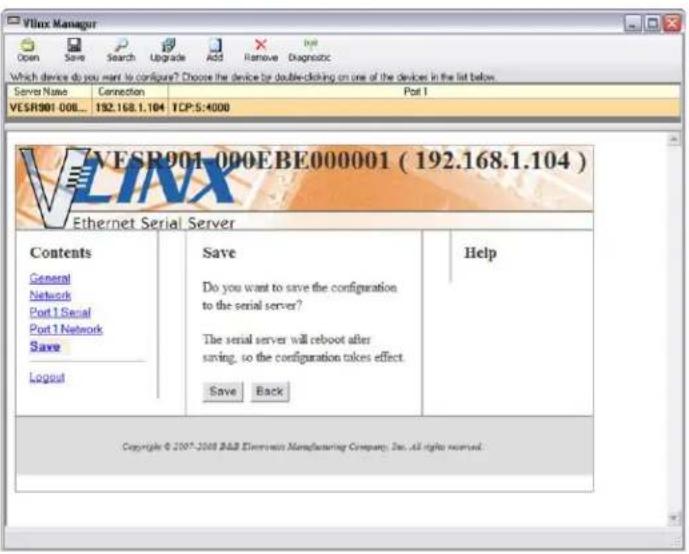
Figure 42. Save Configuration Page
To save the configuration to the serial server, and re-boot it so that the configuration settings will take effect
- Click Save.
Adding Virtual COM Ports
Clicking the Add icon (located at the top of the Vlinx Manager Configuration window) opens the Add Virtual COM Port dialog box.
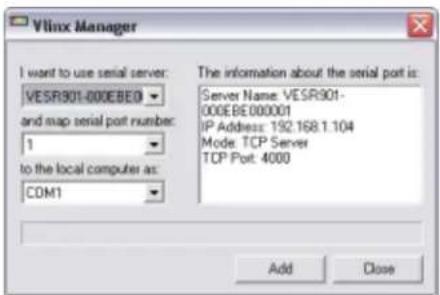
Figure 43. Add Virtual COM Port Dialog Box
Using the drop down boxes you can select the serial server you want to map the virtual COM port to, the number of the serial port on the serial server and the COM port on the local computer. The information box displays the server name, its IP address, operating mode and TCP port.
- On the Vlinx Manager window, click the Add icon.
The Add Virtual COM Port dialog box appears.
-
Select the serial server to which you want to map the virtual COM port.
-
Select the serial port number on the serial server.
-
Select the COM port number you want to use on the local computer.
-
Click the Add button.
When the process of adding the virtual COM port is complete (indicated by the progress bar), the Serial port is successfully installed dialog box appears.
- Click OK
Removing Virtual COM Ports
Clicking the Remove icon (located at the top of the Vlinx Manager Configuration window) opens the Remove Virtual COM Port dialog box.
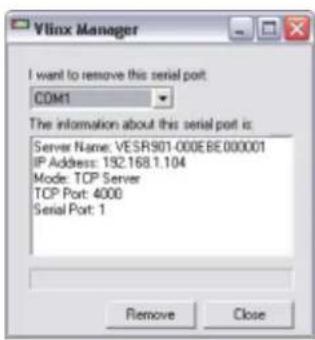
Figure 44. Remove Virtual COM Port Dialog Box
Using the drop down box you can select the virtual COM port on the local computer. The information box displays the server name, its IP address, operating mode and TCP port.
- Click the Remove icon.
The Remove Virtual COM Port dialog box appears.
-
Select the COM port number you want to remove from the local computer.
-
Click the Remove button.
When the process of removing the virtual COM port is complete (indicated by the progress bar), the Serial port is successfully deleted dialog box appears.
- Click OK
SECTION 5
Upgrading the Serial Server Firmware
Occasionally, updated firmware may become available for your serial server. The firmware can be upgraded using the Vlinx Manager Software. The following procedure describes the firmware updating process:
- Click the Upgrade button to open the Firmware Upgrade window.
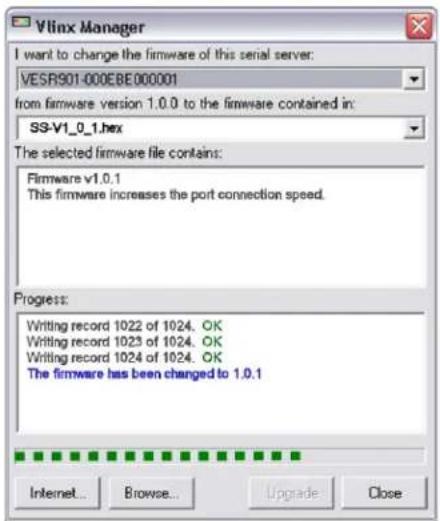
Figure 45. Firmware Upgrade Dialog Box
The name of the currently selected serial server appears in the top drop down list. Other serial servers (that have already been discovered) can be selected from the drop down list, if desired.
The current firmware version of the selected serial server is shown in the text below the serial server name.
Information about the selected firmware file is shown in the third text box.
Downloading Firmware Files
The Firmware File list (second box) displays all firmware files in the firmware installation folder. Only firmware that is compatible with the selected serial server is available in this list.
To download the latest firmware files from an FTP site on the Internet
- Click the Internet button at the bottom of the window.
The Vlinx Manager connects to an FTP server on the Internet.
- Click the Check for Updates button.
Progress Bar and Progress Box display information about and progress of the download.
To download the latest firmware files from a file
-
Click the Browse button to open an Open File dialog box.
-
Browse to the drive and folder containing the firmware file.
-
Select and download the file to the local firmware folder.
Uploading the Firmware to the Serial Server
-
In the Serial Server Selection drop down list, select the serial server to be upgraded.
-
In the Firmware Description drop down list, select the firmware to upload to the serial server.
-
Click the Upgrade button.
Progress Bar and Progress Box provides information on the progress of the transfer.
-
In the Firmware File drop down list, select the firmware file to upload to the serial server.
-
Click Upgrade.
The Progress box and Progress bar display information on the upgrading process.
- When the upgrade process is complete, click Close.
SECTION 6
Diagnostics
Clicking the Diagnostics icon opens the Diagnostics dialog box and enables you to check the operation of connected serial servers and VCOM ports on the local computer.
The Computer Information box displays information about the type of network connections, the IP addresses, Subnet Masks and Default Gateways in use.
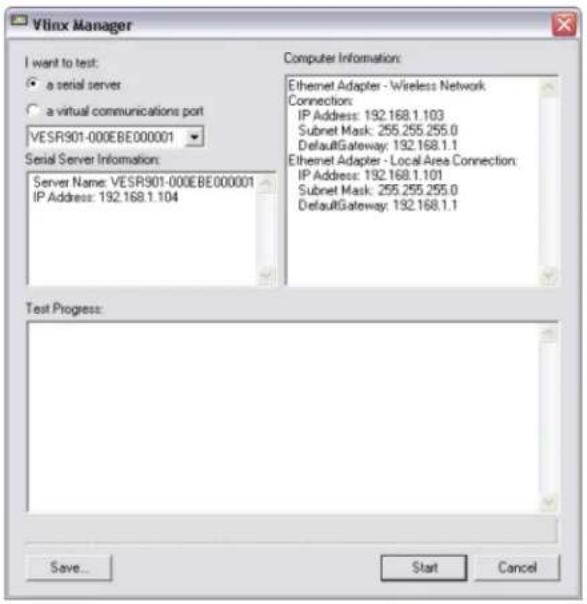
Figure 46. Diagnostics Dialog Box
Testing a Serial Server Connection
- Click the Diagnostics icon.
The Diagnostics dialog box appears.
- Select the option: a serial server
- In the drop down box select the specific serial server you want to check.
- Click the Start button
Information about the progress of the pinging process is displayed in the Test Progress box.
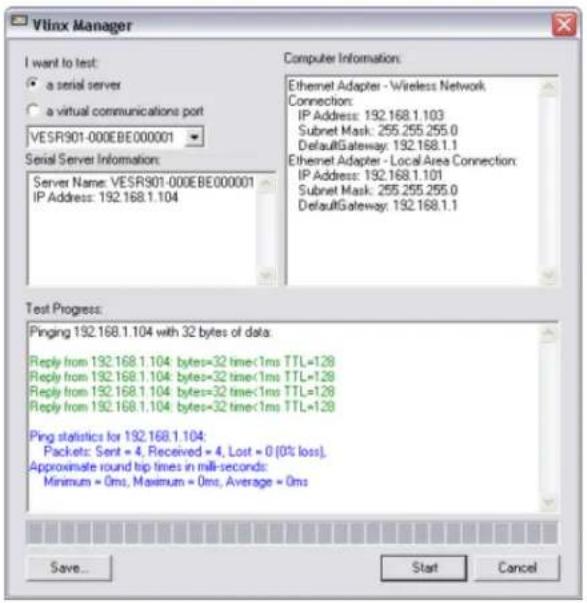
Figure 47. Testing a Serial Server Connection
Testing a Virtual COM Port
- Click the Diagnostics icon.
The Diagnostics dialog box appears.
- Select the option: a virtual communications port
- In the drop down box select the specific COM port you want to check.
- Click the Start button
Information about the progress of the pinging process is displayed in the Test Progress box.
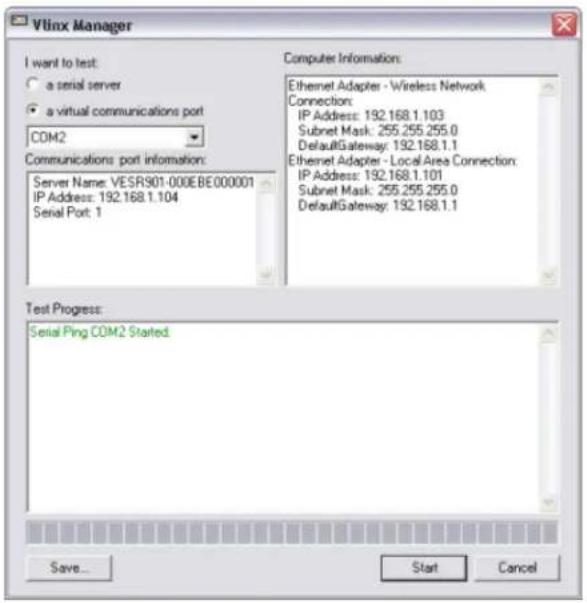
Figure 48. Testing a VCOM Port
SECTION 7
Listing/Descriptions of Serial Server Settings
The following serial server properties are ordered alphabetically to assist you in finding the information you need.
Baud Rate is the communication speed of the link between the serial server and the device attached to its serial port. Both devices must be configured to operate at the same baud rate. Baud rate values range from 75 to 230,400 Baud. (Refer to Appendix B for specific baud rates that are supported.)
Character Count controls the maximum number of characters to buffer before sending the characters to the network. Larger values decrease the number of network packets, but increase the amount of time to receive characters. Smaller values increase the number of network packets, but decrease the amount of time to receive characters. The range is 1 through 65535.
Configuration files contain all of the configuration settings for the serial server. When the serial server settings have been configured you can save the settings using Vlinx Manager. Existing configuration files can be Opened (from Vlinx Manager), which loads them into the serial server. This allows the same configuration to be applied to multiple serial servers, or to reload a previously used configuration.
Data/Parity/Stop Bits. The number of Data bits, type of Parity and number of Stop bits selected define the serial port parameters at which the serial server will operate. These parameters must be configured to match the parameters set on the serial device connected to the serial server's serial port.
- Data Bits controls the number of bits of data in each character. Options include 5, 6, 7 or 8 data bits.
- Parity controls the error checking mode. Options are No Parity, Odd, Even, Mark or Space.
- Stop Bits controls the number of bits to indicate the end of a character. Options include 1, 1.5 and 2. (1.5 bits is only valid when 5 data bits is selected, which is rare. The 2 stop bits setting is only valid when 6, 7 or 8 data bits is selected.)
The Default Gateway address sets the default route to remote networks, enabling users to access the serial server from outside the local network.
Delimiter 1, Delimiter 2 and Delimiter Removal. Delimiters and Delimiter Removal enable you to control how characters received on a serial port are
sent across the network. Delimiters are ASCII characters specified by the user when configuring the serial server. The serial server takes action when it recognizes the specified character(s) on its serial port.
- Delimiter 1 is a start delimiter. The range of ASCII values is 0 through 255.
- Delimiter 2 is an end delimiter. The range of ASCII values is 0 through 255.
- Delimiter Removal controls removing of Delimiter 1 and Delimiter 2 from the received characters before the received characters are sent to the network.
How Delimiters Work. When only Delimiter 2 (the end delimiter) is enabled, characters received by the serial port are accumulated in a buffer. When the end delimiter is received on the serial port, the buffered characters, including the end delimiter, are sent to the network. All characters received after the end delimiter are again buffered until another end delimiter is received.
When both Delimiter 1 (start delimiter) and Delimiter 2 (end delimiter) are enabled, characters received by the serial port will be discarded until the start delimiter character is detected on the serial port. The serial server then buffers the start delimiter character and all subsequent characters received after it until the end delimiter is detected. When the end delimiter is received, the buffered characters, including the start and end delimiters, are sent to the network.
When Delimiter Removal is enabled, the serial server removes the delimiter character(s) before sending the other characters across the network.
DHCP (Dynamic Host Configuration Protocol) is a protocol used on special servers that supply IP addresses to network nodes on request.
When DHCP is enabled on the serial server, on power up it sends a DHCP request to the DHCP server, which assigns a dynamic IP address, subnet mask, and default gateway to the serial server.
When DHCP is disabled (static IP addressing), the IP Address, Subnet Mask and Default Gateway fields must be set manually by entering the appropriate addresses in these fields. If you do not know what addresses to use in these fields, ask your network administrator.
Note 1: This product is factory defaulted to the DHCP mode. It is intended that your network's DHCP Server provide the IP address assignment. If there is not a DHCP server on your network, the device will default to IP address 169.254.102.39.
Note 2: A dynamic address assigned by the DHCP server may change if the server loses the Ethernet connection or power is removed. If a device on the network that normally communicates with the serial server is configured to communicate with a specific IP address of the serial server, and the IP address has been changed, the device will not be able to communicate with the serial server.
The Firmware Version number (Vx.x.x) indicates the serial server's currently loaded firmware release. From time to time new firmware is made available and can be uploaded into the serial server using Vlinx Manager.
Flow Control determines the type of handshaking that is used to control sending and receiving of messages. Options include No Flow Control, Hardware Flow Control (RTS/CTS) and Software Flow Control (XON/XOFF). The Flow Control setting must match the requirements of the serial device connected.
Note: Select No Flow Control when setting the port as RS-422 or RS-485 4-wire.
Forced Transmit controls the maximum amount of time that characters can be buffered before sending the characters to the network. Larger values decrease the number of network packets, but increase the amount of time to receive characters. Smaller values increase the number of network packets, but decrease the amount of time to receive characters. The range is 1 through 65535.
The Hardware Version number of the serial server hardware is displayed on the Login page of Vlinx Manager.
Inter-character Timeout controls the maximum duration between received characters before sending the characters to the network. Larger values may decrease the number of network packets, but increase the amount of time to receive characters. Smaller values may increase the number of network packets, but decrease the amount of time to receive characters. The range is 1 through 65535.
IP Address. Software or hardware attempting to access the serial server via the network must know the IP Address of the server. In DHCP mode (factory default), the serial server requests and receives a dynamic IP address from a DHCP server when it first connects to the network. If there is not a DHCP Server on your network, this device will automatically default to IP Address 169.254.102.39. If the serial server is unable to connect to your network using this address, there are two methods to manually configure the IP Address.
- Method One: Change your PC Network to Match the Serial Server
a. Open the network connection on your PC
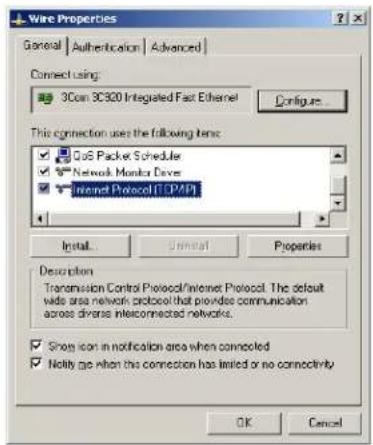
Figure 49. Network IP Properties
b. Click Internet Protocol (TCP/IP) and then click Properties. Change the parameters to the following:
• IP Address = 169.254.102.1
- Subnet Mask = 255.255.255.0
- Default Gateway = 169.254.102.100
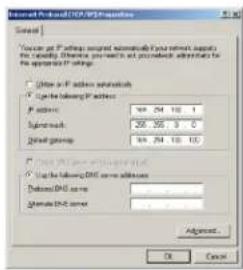
Figure 50. TCP/IP Properties
c. Use the Vlinx Manager Software to search for, discover, and configure the unit.
- Method Two: Change the serial server's network setting to match your PC using Console Mode
a. Connect a null modem serial cable (crossover cable) from any port on the serial server to an available COM port on your PC.
b. Open Vlinx Manager Software and connect to the COM port used in the previous step. Ensure the port is configured to 115,200 baud, 8 data bits, and 1 stop bit.
c. Enter Console Mode. Press and hold the serial server's reset switch for 2 to 10 seconds. The LED indicators will respond as follows:
| Model | Port 1 LED | Port 2 LED | Port 3 LED | Port 4 LED | Ready LED |
| 1 Port | OFF | N/A | N/A | N/A | ON |
| 2 Port | OFF | ON | N/A | N/A | OFF |
| 4 Port | OFF | ON | OFF | OFF | OFF |
d. Release the Reset button. The Ready LED will flash twice per second for 5 seconds. This indicates that the serial server is re-booting in Console Mode.
e. When the serial server has successfully restarted in Console Mode, the Ready LED will be off and the Port 1 LED will be on.
f. Open the Vlinx Manager Software and select Serial Port as the method to connect to the device.
g. After logging in, click Network.
h. De-select I want DHCP to setup the Network.
i. Re-configure the serial server's network settings to an address within the range of your PC's network setting.
For example, if your PC is configured to the following settings:
$$ I P A d d r e s s = 1 9 2. 1 6 8. 0. 1 $$
$$ \text { Network Mask } = 2 5 5. 2 5 5. 2 5 5. 0 $$
$$ \text { Default Gateway } = 1 9 2. 1 6 8. 0. 1 0 0 $$
$$ \text { Configure the serial server to: } $$
$$ I P \text { Address } = 1 9 2. 1 6 8. 0. 5 0 $$
$$ \text { Network Mask } = 2 5 5. 2 5 5. 2 5 5. 0 $$
$$ \text { Default Gateway } = 1 9 2. 1 6 8. 0. 1 0 0 $$
- Save the settings and remove power from the serial server.
- Apply power to the serial server.
- Open the Vlinx™ Manager Software and select "Network" as the method to connect to the serial server
Link Status of the currently selected serial server is shown on the Login page of Vlinx Manager. Link status indicates the type of Ethernet connection between the computer and serial server. It will either display 10BaseT or 100BaseTX in full duplex or half duplex. Link status is dependent on the LAN, switches, hubs used in the LAN topology.
The MAC Address is a hardware level address of the serial server that cannot be changed. It is assigned in the factory. Every Ethernet device manufactured has its own unique MAC address. The MAC address of each serial server is printed on the device's label. The MAC address of the currently selected serial server is also displayed on the Login page of Vlinx Manager.
The Model number of the currently selected serial server is displayed on the Login page of Vlinx Manager.
Network Protocols available for use on VESR4x4 serial servers include TCP, UDP, VCOM and Paired Mode.
Network Watchdog controls the duration of network inactivity when a network connection is determined idle and causes the connection to be forced closed. The range is 1 through 65535 milliseconds.
Paired Mode enables two serial servers to operate across the network like a "wire replacement" between two serial devices. (Paired Mode is also called serial tunneling.) Serial devices connected to serial servers on each end of the link can communicate as if they were connected by a serial cable.
- For Paired Mode to work one serial server must be configured as a TCP server and the other as a TCP client.
- The serial server configured as the TCP client initiates connections. You must set up the IP address and port number of the server that you want the client (serial server) to communicate with. You also select whether you want the serial server to connect at power up or only when it receives data from the device connected to its serial port.
- The serial server configured as a TCP server waits for connections to be initiated by another network device. You must set up the TCP port number on which it will listen for connections and set the maximum (up to four) number of simultaneous connections it will accept. You can filter the connections it will accept based on specific IP addresses or ranges of IP addresses that you specify.
Password. When you first receive the VESR4x4 serial server from the factory the password is blank so that you can initially access the serial server without entering a value into this field. To ensure security you should create and save a password the first time you configure the serial server. After a password has been set up it must be entered each time you login to Vlinx Manager. The password is used to access the configuration pages from the Vlinx Manager Login page and can be changed from the General page.
Serial Interface Modes. Four serial interface modes of operation are:
- RS-232 - Point-to-point serial communications connection used by PC COM ports and many other systems. Capable of baud rates up to 115.2
kbaud over short distances (typically 50 feet). Typically uses DB-9 connectors but terminals are also used on VESR4x4 serial servers.
- RS-422 - Point-to-point communications using a transmit pair and a receive pair. RS-422 can operate at higher speeds and longer distances than RS-232. Typically uses two shielded twisted pairs and screw terminals but DB-9 connectors are also used on VESR4x4 serial servers.
- RS-485 2-wire - Similar speed and distance specifications as RS-422 but allows multidrop connections. Typically uses one shielded twisted pair and screw terminals but DB-9 connectors are also used on VESR4x4 serial servers.
- RS-485 4-wire - Similar speed and distance specifications as RS-422 but allows full-duplex connections. Typically uses two shielded twisted pairs and screw terminals but DB-9 connectors are also used on VESR4x4 serial servers..
Select the appropriate serial interface mode for the type of connection between the serial server's serial port and the device connected to it.
Note: Refer to the Appendix D for connector and pinout details.
Serial Server Name is a unique name assigned to the serial server. It must be a valid hostname as defined by RFC-952 and RFC-1123. The rules are:
- It must consist only of the characters "A" to "Z", "a" to "z", "0" to "9" or "-"
- It can start or end with a letter or a number, but it must not start or end with a "-".
- It must not consist of all numeric values.
The Server Serial Port Number of the currently selected port is shown in this field. For more information refer to the TCP/UDP Ports table in Appendix B, which shows the ports used for several modes of operation.
Serial Watchdog controls the duration of serial inactivity when the serial port is determined idle and causes all connections for that serial port to be forced closed. The range is 1 through 65535 milliseconds.
The Subnet Mask specifies the network mask the serial server uses when on a subnetted network.
- For a Class A network (IP addresses 0.0.0.0 through 127.255.255.255) the default subnet mask is 255.0.0.0.
- For a Class B network (IP addresses 128.0.0.0 through 191.255.255.255) the default subnet mask is 255.255.0.0
-
For a Class C network (IP addresses 192.0.0.0 through 233.255.255.255) the default subnet mask is 255.255.255.0
-
For a Class D network (IP addresses 224.0.0.0 through 239.255.255.255) and Class E Networks (IP addresses 240.0.0.0 through 255.255.255.255) the subnet mask is ignored.
- VESR4x4serial servers come from the factory with a default subnet mask value of: 255.255.255.0
TCP (Transmission Control Protocol) provides reliable connection-oriented network communication with error checking. In TCP mode the serial server can be configured as a client or a server.
TCP client. When the serial server is configured as a TCP client it initiates connections with a server on the network. You must set up the IP address and port number of the server that you want the client (serial server) to communicate with. You also select whether the serial server is to connect at power up or only when it receives data from the device connected to its serial port.
TCP server. When the serial server is configured as a TCP server it waits for connections to be initiated by another network device. You must set up the TCP port number that it will listen to for connections and set the maximum (up to four) number of simultaneous connections it will accept. You can filter the connections it will accept based on specific IP addresses or ranges of IP addresses that you specify.
UDP (User Datagram Protocol) enables applications using UDP socket programs to communicate with the serial ports on the serial server. UDP protocol provides connectionless communications, which allows data to be broadcast to and received from multiple nodes on a network. (Because it is a connectionless protocol UDP does not guarantee the delivery of a datagram and the datagram is only sent once.)
- In UDP mode, if you want to control what network node receives data, you must specify the IP address and UDP port the data will be sent to. You can choose to send to:
- Nobody
• All nodes at a specific UDP port number. (This is called broadcast.)
• Specific IP addresses and UDP port numbers. (This is called unicast.) - A range of IP addresses and UDP port numbers. (This is called unicast range.)
- You can also configure the serial server to receive from nodes on the network using the same list of configuration options.
In VCOM (Virtual COM Port) mode the serial server communicates over the network with a PC, acting as a remote COM port for the computer.
Both the serial server and the computer must be configured for VCOM operation. Virtual COM ports can be set up on the PC using the Vlinx Manager software.
SECTION 8
Appendix
Appendix A: Default Server Settings
| Setting | Default Value |
| Server Name | MODEL NUMBER |
| Serial Number | printed on side of unit |
| Password | password field is blank from factory |
| DHCP | Enable |
| IP Address | BASED ON DHCP SERVERIf a DHCP assignment is not available, the device will default to 169.254.102.39 |
| Net Mask | 255.255.255.0 |
| Gateway | 169.254.102.100 |
| MAC Address | Fixed - see bottom label |
| Firmware Version | X.X.X (Current Version) |
| Hardware Version | X.X (Current Version) |
| Port | 1, 2, 3, 4 |
| Serial port mode | RS-232 |
| Baud Rate | 9600 |
| Data bits | 8 |
| Parity | None |
| Stop bits | 1 |
| Flow Control | None |
| Protocol | TCP |
| Serial timeout | 0 seconds |
| TCP alive timeout | 0 minutes |
| Connection Mode | Server |
| Delimiter HEX 1 | 00 |
| Delimiter HEX 2 | 00 |
| Remove delimiters | Disable |
| Force transmit | 0 ms |
| Inter-character timer | 0 ms |
| Character count | 0 |
| Max connection | 1 |
Appendix B: Product Specifications
General Specifications
| Hardware and included accessories | Device | Serial Server |
| CD | CD with Vlinx Manager Software for Windows 2000, XP (32/64 bit), 2003 Server (32/64 bit), Vista (32/64 bit), 2008 Server (32/64 bit), Windows 7 (32/64 bit) | |
| Optional Accessories | Cable | 232NM9 Null Modem Crossover Cable for DTE to DTE connection |
| Rail | ERS35 one-meter length of steel 35mm DIN Rail | |
| Mounting Bracket Kit #9030 | ||
| Configuration Options | Via serial port | Using Vlinx Manager via a serial connection, (press Reset button to enter Console Mode) |
| Via network | Using Vlinx Manager via a Ethernet connection | |
| Using a standard web browser such as Internet Explorer 7, 8 or 9 or Firefox 3 or 4 | ||
| Software | Vlinx Manager for serial server configuration | Windows 2000, XP (32/64 bit), 2003 Server (32/64 bit), Vista (32/64 bit), 2008 Server (32/64 bit), Windows 7 (32/64 bit) |
| Environment | Operating Temperature | -40 to 80 °C (-40 to 176 °F) |
| Storage Temperature | -40 to 85 °C (-40 to 185 °F) | |
| Operating Humidity | 10 to 95% non-condensing | |
| Maximum Ambient Surrounding Air Temp | 80 °C | |
| Certifications | FCC | Part 15 Class A |
| UL | Class 1, Div. 2, Groups A, B, C, D | |
| CE | ||
| NEMA TS2 | ||
| Enclosure | Rating | IP30 |
| Mounting | DIN rail mount (35 mm) | |
| Dimensions (VESR4x4) | 1.8 x 4.4 x 6.75 in (4.57 x 12.2 x 17.1 cm) | |
| Power Supply | Voltage Requirements | 10 to 48 VDC (58 VDC Max) |
| Power Consumption | 6.0 watts maximum | |
| Locking barrel connector input: | Voltage requirements:10 to 30 VDC maximumClass 2 grounded type supply only | |
| NOTE: Coaxial power cable must be in accordance with Class 2 requirements in Article 725 of the NEC.The locking barrel connector must NOT be used in a hazardous environment. | ||
| Terminal Blocks | Wire Size | 28 to 16 AWG |
| Wire Type | Copper Wire Only | |
| Tightening Torque | 5 KG-CM | |
| Wire Temp Rating | 105 °C Minimum | |
| Sized for 60 °C Ampacity | ||
| Note: | One Conductor Per Terminal | |
Controls, Indicators and Connector Specifications
| Switches | Reset button | Hold in for 0 to 2 seconds for hardware resetHold in for 2 to 10 seconds for Console Mode (Do a hardware reset or recycle power to exit Console Mode)Hold in for more than 10 seconds to reset to factory defaults |
| Indicators | Serial LED(one per port) | Color = GreenOn = Port openFlash = Data traffic |
| Ethernet Link LED(one per port) | Color = GreenOn = When ConnectedFlashing = Data traffic | |
| Ethernet Speed LED(one per port) | Color = YellowOn = 100BaseTXOff = 10BaseT | |
| Ready LED | Color = GreenOn Solid = System InitializingFlash (once per second) = System OKFlash (twice per second) = System Re-bootOff = System NOT OK | |
| Connectors | 10BaseT/100BaseTX EthernetSC fiberST fiberSerialDC Power | Single RJ-45F (8 pin)SC connectorST connectorVESR4x4D: four DB-9M connectorsVESR4x4T: four pluggable terminal blocks3-position pluggable terminal block, or locking barrel connectorNOTE: the terminal block must be used for Class 1 Division 2 applications; the barrel jack cannot be used for these applications. |
Serial Interface Specifications
| Serial Interfaces | Mode Selection | RS-232/422/485 software selectable |
| RS-232 lines | TXD, RXD, RTS, CTS, DTR, DSR, DCD, GND | |
| RS-422 lines | TXDA(-), TXDB(+), RXDA(-), RXDB(+), GND | |
| RS-485 lines (2 wire) | Data(-), Data(+), GND | |
| RS-485 lines (4 wire) | TXDA(-), TXDB(+), RXDA(-), RXDB(+), GND | |
| Baud Rates | 75, 150, 300, 600, 1200, 2400, 4800, 7200, 9600, 14400, 19200, 28800, 38400, 57600, 115200, 230400 | |
| Data Bits | 5, 6, 7, 8 | |
| Parity | None, even, odd, mark, space | |
| Stop bits | 1, 1.5, 2 | |
| Flow control | None, RTS/CTS, XON/XOFF | |
| RS-422/485 biasing | Auto 1K ohm pullups and pulldowns | |
| RS-422/485 termination | Termination with thru hole resistor (user supplied) | |
| RS-485 data control | Auto control via MCU |
Network Specifications
| Memory | Serial MemoryNetwork Memory | 8 KB per port4 KB |
| I/P Port Addresses | 53008888 | Heartbeat & Configuration setting in TCP Mode (i.e. Pair Mode)VESR4x4 update |
| Network Communications | LAN | 10/100 Mbps Auto-detecting 10BaseT or 100BaseTX |
| Network Physical Layer Standards | Ethernet | IEEE 802.3 autodetecting & auto MDI/MDX 10BaseT and 100BaseTX |
| Protocols Supported | TCP, IPv4, UDP, ARP, HTTP 1.0, ICMP/PING, DHCP/BOOTP | |
| IP ModeTCP/UDPUDP | Static, DHCPUser definableUnicast or Multicast | |
| Connection Modes | Server, Client, VCOM, Paired | |
| Client Connection | At power up or upon data arrival | |
| Search | Serial direct COM and Ethernet autosearch or specific IP | |
| Diagnostics | Display PC IP, ping, test VCOM, save test config (text readable) | |
| Firmware Upgrade | Via serial, Ethernet or auto web search | |
| Character count | 0 to 65535 | |
| Delimiters | Hex 1Hex 2 | 01 to FF (begin buffering when hex 1 received)01 to FF (send serial data if delimiter hex 2 is set and received) |
| Timeouts | Inter-characterSerialNetworkForce transmitMax character count | 0 to 65535 ms0 to 65535 ms0 to 65535 min0 to 65535 ms0 to 8192 bytes |
TCP/UDP Ports Table
| Port | Description | Comments |
| 80/tcp | Always open for the web server. | This port is used for configuration of the device using a web browser. This port is always open no matter how you configure the device.If you want to use this method to configure the device from outside of a firewall, then a firewall must allow incoming connections to this port.If you want to use this method to configure the device from the outside of a NAT, the NAT must be configured to forward to this port. |
| 771/tcp | This port is open when any serial port is configured for VCOM mode. | This port is used for communications with the VCOM device driver installed on the computer. This port is open only if you configure any serial port for VCOM mode.If you want to use VCOM from outside of a firewall, then you must allow incoming connections on this port.If you want to use VCOM from outside of a NAT, then you must forward to this port. |
| 7000/tcp | Always open for serial server configuration over TCP. | This port is used for configuration and firmware upgrade of the device using the serial server manager. This port is always open no matter how you configure the device.If you want to configure the serial server from outside of a firewall using the serial server manager, then the firewall must be configured to allow incoming connections on 7000/tcp and allow packets addressed to 7000/udp to be receivedNote: Configuring over 7000/udp is not supported. |
| 60000/tcp | This port is open when serial port 1 is configured for paired-mode server. | These ports are used to transfer handshake line state and break state in paired mode configuration. These ports are open only if you configure the port for paired-mode server. Note that serial port 1 uses 60000/tcp, serial port 2 uses 60001/tcp, serial port 3 uses 60002/tcp and serial port 4 uses 60003/tcp. If a port is not configured for paired-mode server, then the corresponding port is not open.If you want to connect to a paired-mode server from outside of a firewall, then you must allow incoming connections on these ports.If you want to connect to a paired-mode server from outside of a NAT, then you must forward to these ports. |
| 60001/tcp | This port is open when serial port 2 is configured for paired-mode server. | As above |
| 60002/tcp | This port is open when serial port 3 is configured for paired-mode server. | As above |
| 60003/tcp | This port is open when serial port 4 is configured for paired-mode server. | As above |
| 68/udp | This port is open when the network mode is DHCP. | This port is used if you configure the device for DHCP mode (as opposed to Static IP). It is used to communicate with the DHCP server.This should only be used inside of a firewall or NAT. |
| 7000/udp | Always open for serial server configuration over UDP. | These ports are used for configuration and firmware upgrade of the device using the serial server manager. These ports are always open no matter how you configure the device.If you want to configure the serial server from outside of a firewall using the serial server manager, then the firewall must be configured to allow incoming connections on 7000/tcp and allow packets addressed to 7000/udp to be received |
| 8899/udp | Always open for serial server discovery. | This port is used for discovering serial servers. This port is always open no matter how you configure the device.Note: The device discovery only works on a local subnet. The port may not need to be configured in a firewall or NAT. |
| Other | User-specified ports. | Other TCP and UDP ports may be open depending on what you specifie for the device configuration. THESE ARE THE PORTS SPECIFIED IN THE CONFIGURATION FILE.If you want to use these other ports from outside of a firewall, then you must allow these ports.If you want to use these other ports from outside of a NAT, then you must forward to these ports |
Appendix C: Dimensional Diagrams
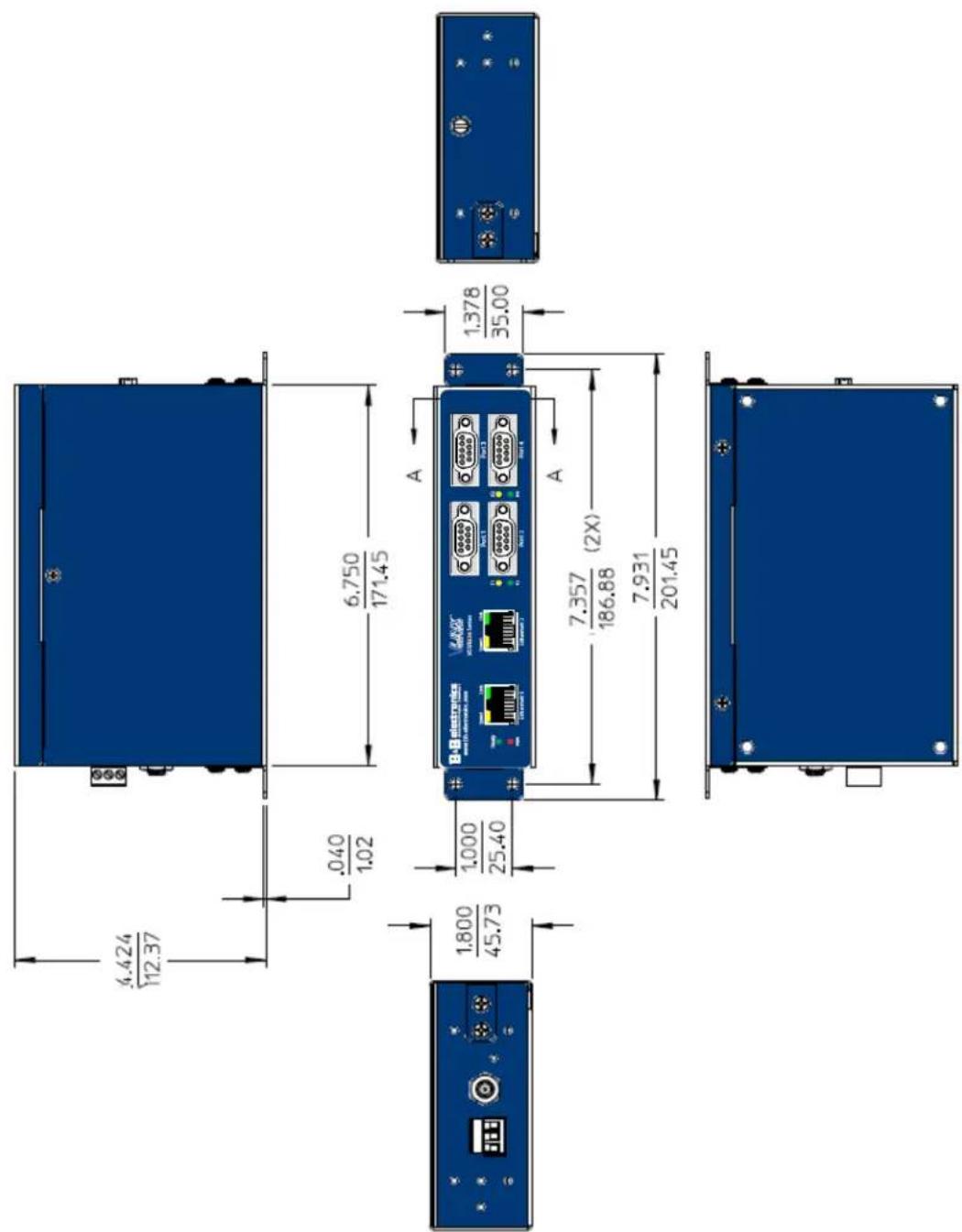
Figure 51. Dimensional Diagram of a VESR424 Serial Server (dimensions in inches & millimeters)
Appendix D: Connector Pinouts
DB-9M Connector
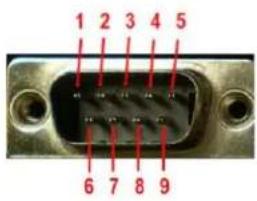
| DB-9M Pin | RS-232 | Direction (RS-232) | RS-422/485 4-Wire | RS-485 2-Wire |
| 1 | DCD | Input | RDA (-) | --- |
| 2 | RD | Input | RDB (+) | --- |
| 3 | TD | Output | TDB (+) | Data B (+) |
| 4 | DTR | Output | TDA (-) | Data A (-) |
| 5 | GND | --- | GND | GND |
| 6 | DSR | Input | --- | --- |
| 7 | RTS | Output | --- | --- |
| 8 | CTS | Input | --- | --- |
| 9 | --- | --- | --- | --- |
Terminal Block

| Terminal | RS-232 | Direction (RS-232) | RS-422 | RS-485 |
| A | RTS | Output | TDA (-) | Data A (-) |
| B | TD | Output | TDB (+) | Data B (+) |
| C | CTS | Input | RDA (-) | --- |
| D | RD | Input | RDB (+) | --- |
| E | GND | --- | GND | GND |
Note 1: In the RS-422 mode, TX lines are outputs and RX lines are inputs. Connect the serial server TXB(+) line to the RXB(+) line of the serial device, and the serial server TXA(-) to the RXA(-) of the serial device.
Note 2: Ground is signal ground and provides a common mode reference for the RS-422 Receiver and Transmitters.
Standard Ethernet Cable RJ-45 Pinout
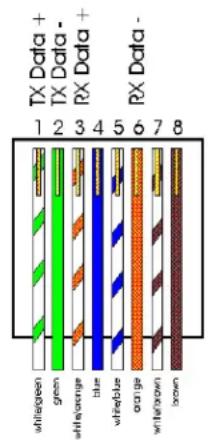
| RJ-45 Pin | Signal | Wire Color | RJ-45 Pin |
| 1 | TX+ | White-Green | 1 |
| 2 | TX+ | Green | 2 |
| 3 | RX+ | White-Orange | 3 |
| 4 | Not used | Blue | 4 |
| 5 | Not used | White-Blue | 5 |
| 6 | RX- | Orange | 6 |
| 7 | Not used | White-Brown | 7 |
| 8 | Not used | Brown | 8 |