956-22603 - Network adapter B&B Electronics - Free user manual and instructions
Find the device manual for free 956-22603 B&B Electronics in PDF.


User questions about 956-22603 B&B Electronics
0 question about this device. Answer the ones you know or ask your own.
Ask a new question about this device
Download the instructions for your Network adapter in PDF format for free! Find your manual 956-22603 - B&B Electronics and take your electronic device back in hand. On this page are published all the documents necessary for the use of your device. 956-22603 by B&B Electronics.
USER MANUAL 956-22603 B&B Electronics
natural_image
Close-up of green PCI Ethernet card plates with various electronic components (no visible text or labels)B+B SMARTWORX
Powered by
ADVANTECH
Advantech B+B SmartWorx Americas
707 Dayton Road
Oawa, IL 61350 USA
Phone (815) 433-5100
Fax (815) 433-5105
Advantech B+B SmartWorx European Headquarters
Westlink Commercial Park
Oranmore, Co. Galway, Ireland
Phone +353 91-792444
Fax +353 91-792445
www.advantech-bb.com
support@advantech-bb.com
Document: Fiber NIC (Gigabit)_3216m
CONTENTS
Preface....4
Product Overview 4
Package Contents ....4
Product Features ....4
Driver Support ....5
LEDs 5
Hardware Installaon 5
Connecng to Your Network ....7
PCI Express Fiber Gigabit Ethernet Adapter 7
Cabling Requirements....8
Driver Installaon for MAC....8
Driver Installaon ....10
Driver Installaon for Windows 8....12
Specicaons....14
PXE BOOT setup....15
Appendix: connecng two Fiber NIC back to back 15
Advantech B+B SmartWorx Technical Support 15
PREFACE
This manual describes how to install and use the PCI Express Gigabit Ethernet Adapter. This PCI Express Gigabit Ethernet Adapter provides opons for dierent ber connecns (such as connector types and segment distance).
To get the most out of this manual, you should have an understanding of Ethernet networking concepts.
PRODUCT OVERVIEW
PACKAGE CONTENTS
When you unpack the product package, you should nd the items listed below. Please inspect the contents and report any apparent damage or missing items immediately to our authorized reseller.
• PCI Express Gigabit Ethernet Adapter
- Low Prole Bracket (aached)
• Standard Prole Bracket
• CD with (Soware Driver and User's Manual)
PRODUCT FEATURES
• One 1000Base-SX/LX port or One SFP slot
- Fiber connecons:
- SC or SFP connector for mul-mode and single-mode
• Compliant with IEEE 802.3z 1000Base-SX/LX
• PCI Express 1.1 compliant
• Supports Microso NDIS5 Checksum Ooad (IP, TCP, UDP) and Large Send Ooad
• Supports Pre-Boot Execuon Environment (PXE) 2.1
• Supports IEEE802.1Q VLAN Tagging
• Supports IEEE802.1p Layer 2 Priority Encoding (Quality of Service)
• RFC 1157 SNMP v1 compliant
• Supports PCI Message Signaled Interrupt (MSI)
• Supports Alert Standard Format (ASF) 2.0
• Supports Plug-and-Play
• Supports Jumbo Frame up to 9K
- IEEE 802.3x full duplex ow control
- Two LEDs: LNK (link) (Green), ACT (acvity) (Yellow)
• 0°C to 45°C (32°F to 113°F) operang temperature range
- Low-prole bracket aached (Standard prole bracket included)
DRIVER SUPPORT
The Adapter supports a wide range of drivers for commonly used network operang systems:
- Microso Windows 2000, XP (32/64-bit), 2003, Vista (32/64-bit), 7, 8
- FreeBSD 7.x, 8.0
- Linux driver for kernel 2.4.x, 2.6.x, 3.x (Support x86, x64)
- UNIX 5.0.6 and 5.0.7
• Mac OS 10.4, 10.5, 10.6 and 10.7 on Intel-based Mac computer
LEDS
- LNK Link
- ACT Acvity
| LEDs | Status | Indicaon |
| LNK (Green) | Steady | A valid network conneconestablished.LNK stands for LINK. |
| O | No network conneccon. | |
| ACT (Yellow) | Flashing | Transming or receiving data.ACT stands for ACTIVITY. |
| O | No acvity. |
HARDWARE INSTALLATION
Installing Ethernet Adapter into PCI Express Slot
Step 1: Pull out the PC's power cord from AC power outlet.
Step 2: Remove any metal decoraons from your hands and wrists.
Step 3: Remove the cover from your PC.
Step 4: Locate an empty bus mastering PCI Express slot and remove the corresponding backplate. Save the screw for use in Step 6.
Step 5: Carefully insert the PCI Express Gigabit Ethernet Adapter into the chosen slot and press rmly with proper push to ensure it is fully seated in the slot.
Step 6: Secure the PCI Express Gigabit Ethernet Adapter with the screw you saved in step 4.
Step 7: Replace the PC cover.
Step 8: Proceed to "Connecng to Your Network" secon.
CONNECTING TO YOUR NETWORK
PCI EXPRESS FIBER GIGABIT ETHERNET ADAPTER
This secon describes connecng the PCI Express Fiber Gigabit Ethernet Adapter to a 1000 Mbps ber-based Ethernet network, which contributes to its opmal performance.
Step 1: Remove the protecve covers from the PCI Express Fiber Gigabit Ethernet Adapter's connector.
Step 2: Prepare a network cable with corresponding connectors for the two end devices, one end for the PCI Express Fiber Gigabit Ethernet Adapter and the other for a 1000Mbps ber port on the network switch.
Step 3: Connect the network cable to the connector on the PCI Express Fiber Gigabit Ethernet Adapter. This network cable consists of two individual cables: one for “transmission (TX)”, and the other for “recepon (RX)”.
Step 4: Connect the other end of the network cable to a 1000BASE-SX/LX switch.
- Insert the cable that is connected to the transmit (TX) connector on the PCI Express Fiber Gigabit Ethernet Adapter into the receive (RX) connector on the network switch.
- Insert the cable that is connected to the receive (RX) connector on the PCI Express Fiber Gigabit Ethernet Adapter into the transmit (TX) connector on the network switch.
Step 5: When the cable is properly connected to two end devices, turn on the power to the PC.
Step 6: Check the LNK (Link) LED. The LED will come on when the PCI Express Fiber Gigabit Ethernet Adapter is receiving a good link signal from the connected device: a switch.
Step 7: Proceed to the next secon to install the network driver.
CABLING REQUIREMENTS
For connector type, cabling requirements, and maximum segment distance when connecng the PCI Express Gigabit Ethernet Adapter to your network, please refer to the following table.
| Speed | Connector | Port SpeedHalf/Full Duplex | Cable | Max.Distance |
| 1000Base-SX | SC, LC | 2000 Mbps | MMF (62.5μm) | 220 m2 km |
| 1000Base-SX | SC, LC | 2000 Mbps | MMF (50μm) | 550 m |
| 1000Base-LX | SC, LC | 2000 Mbps | SMF (9, 10μm) | 10, 20, 50 km |
| 1000Base-BX | SC, LC | 2000 Mbps | SMF (9, 10μm) | 20, 40 km |
The maximum node-to-node network distance is in full-duplex operaon.
DRIVER INSTALLATION FOR MAC
Turn on the computer aer plugging the PCI Express Gigabit Ethernet Adapter into your PCI Express slot Insert the driver CD into CD-ROM drive. Specify the driver locaon and click the driver to connue.
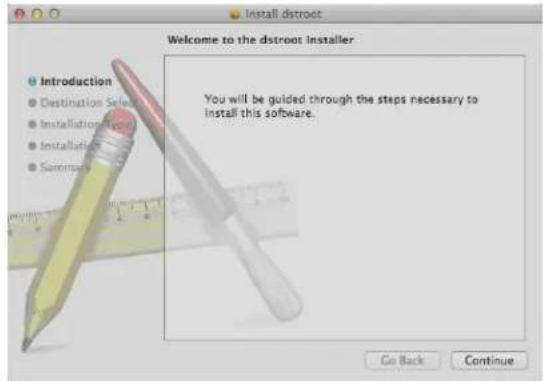
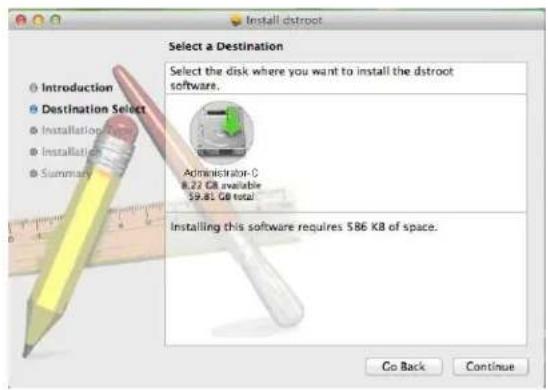
- Select a Desnaon: Select the hard drive where you want to install the soware. Click "Connue" to connue.
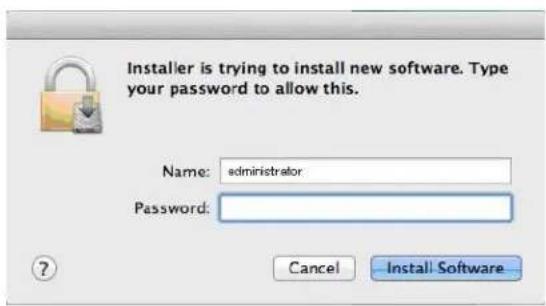
- The Installer is trying to install new soware. Type your password to allow this. Click "Install Soware" to begin the installaon.
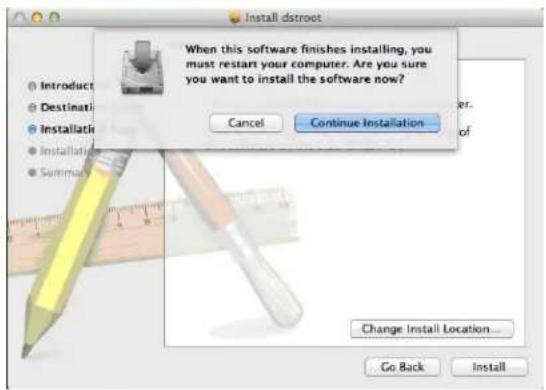
- Click "Connue Installaon" to connue the installaon. You must restart your computer when this soware nishes installing.
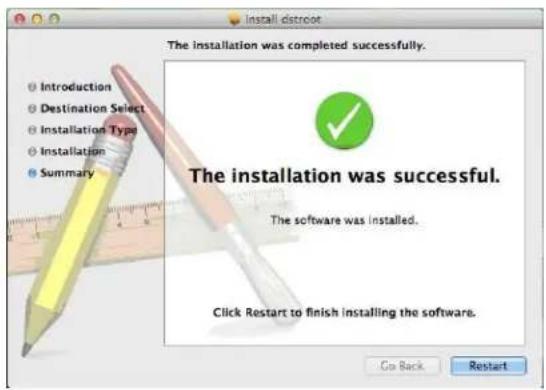
- The installaon was completed successfully. Click "Restart" to restart your computer and nish installing the soware.
DRIVER INSTALLATION
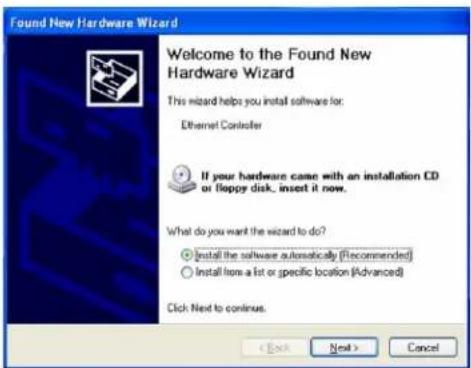
Turn on the computer aer plugging PCI Express Gigabit Ethernet Adapter to PCI Express slot. The "Found New Hardware Wizard" window pops up.
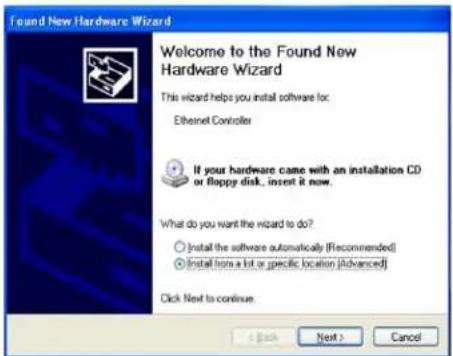
- Select "Install from a list or specic locaon (Advanced)" and click "Next" to connue.
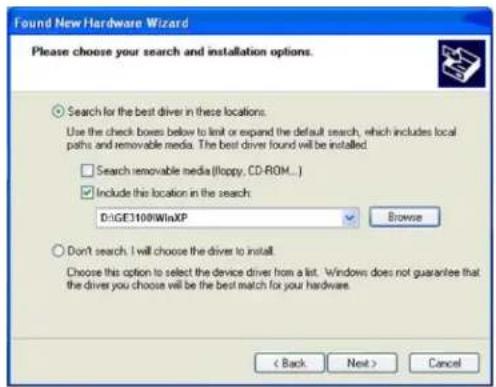
- Select "Search for the best driver in these locaons." and then select "Include this locaon in the search". Click "Browse" to specify the driver locaon and click "Next" to connue.
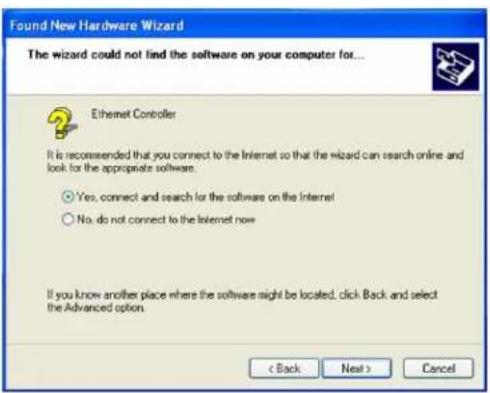
- Select "Yes, connect and search for the soware on the internet" and click "Next" to connue.
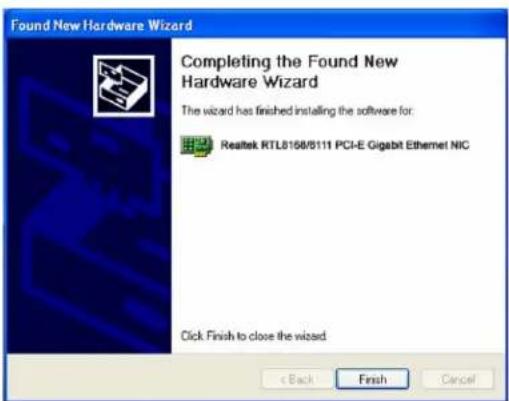
- Click "Finish" to complete the driver installaon.
DRIVER INSTALLATION FOR WINDOWS 8
Turn on the computer aer plugging PCI Express Gigabit Ethernet Adapter to PCI Express slot
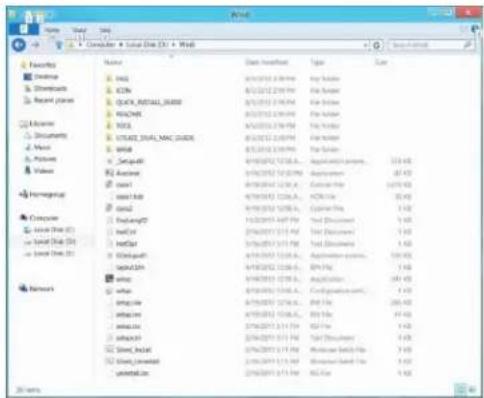
Insert the driver CD into CD-ROM drive. Specify the driver locaon and double click "setup.exe" to connue.
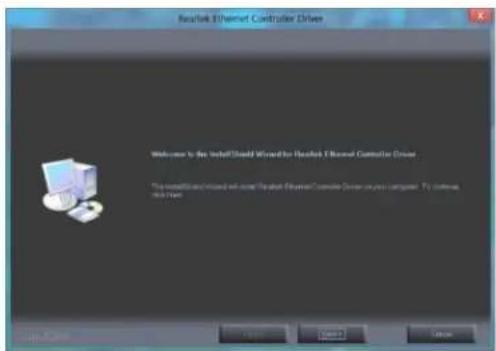
- Welcome to the InstallShield Wizard for Realtek Ethernet Controller Driver. The InstallShield Wizard will install Realtek Ethernet Controller Driver on your computer. Click "Next" to connue.
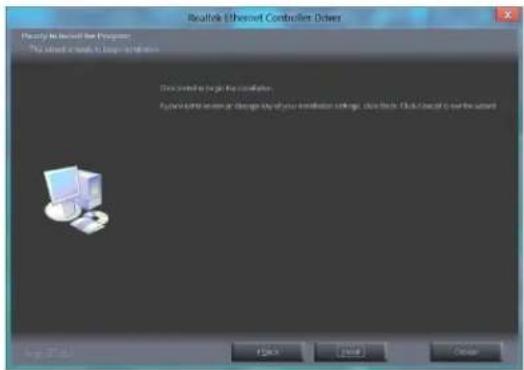
- Ready to Install the Program. The wizard is ready to begin installaon. Click "Install" to begin the installaon.
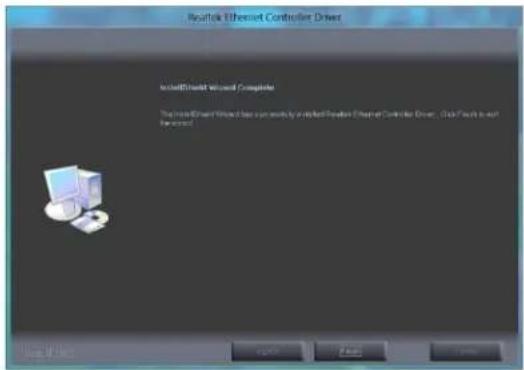
- InstallShield Wizard Complete. The InstallShield Wizard has successfully installed Realtek Ethernet Controller Driver. Click "Finish" to exit the wizard.
SPECIFICATIONS
| Technical Standards | |
| IEEE802.3z, 1000BASE-SX/LX | |
| IEEE 802.3ab | |
| IEEE802.1Q, VLAN tagging | |
| IEEE802.1p, Priority Encoding, QoS | |
| IEEE802.3x, Full duplex ow control | |
| IPv4, IPv6 | |
| Jumbo Frame | 9K bytes |
| Driver Support | |
| Windows Vista, Windows 2003, Windows XP, Windows 7/8 | |
| Linux 2.4/2.6/3.x, UNIX 5.0.6 and 5.0.7 | |
| MacOS 10.4, 10.5, 10.6, and 10.7 (Intel-based) | |
| Remote Monitoring | |
| SNMP v1 | |
| Supports ASF (Alert Standard) | |
| Hardware Acceleraon | |
| Checksum OLoad (IP, TCP,UDP) | |
| Large Send OLoad (V1, V2) | |
| Interface | |
| Fiber Port Gigabit ber, SM or MM | |
| Performance | |
| 1,488,100pps for 1000Mbps | |
| LED Indicators | |
| LED Connector: Link/Acvity, SPD | |
| Environmental | |
| Operang Temperature | 0°C to 45°C (32°C to 113°C) |
| Storage Temperature | -20°C to 70°C (-4°C to 158°C) |
| Ambient Relave Humidity | 5%-95% non-condensing |
| Power | |
| 3.3VDC, 970mA, 3.2W Max. | |
| Mechanical | |
| Low Prole Dimensions | 80W x 117.6D mm(3.2W x 4.7D inches) |
| Standard Prole Dimensions | 117.5W x 117.6D mm(4.7W x 4.7D inches) |
| Weight | 52g (1.8oz.) |
| MTBF | 361,978 hours |
| Emissions | |
| FCC Part 15, Class B | |
| CE, VCCI Class B | |
PXE BOOT SETUP
Please refer to Serva tutorial and free soware for details on how to setup PXE Boot environment. Please visit for details: hp://www.rmprepusb.com/tutorials/serva
APPENDIX: CONNECTING TWO FIBER NIC BACK TO BACK
Connecng two Fiber NICs back to back:
One PCI Express Gigabit Fiber Ethernet Adapter should be set to auto negoaoon mode and the other PCI Express Gigabit Fiber Ethernet Adapter should be set to 1000Mbps full duplex mode. Please change jumper sengs of JP2 on PCI Express Gigabit Ethernet Adapter to set auto negoaoon mode or 1000Mbps full duplex mode for PCI Express Gigabit Ethernet Adapter.
Auto negoaon (default seng): Change jumper cab to posion 2 and 3 of JP2. 1000Mbps full duplex: Change jumper cab to posion 1 and 2 of JP2.
ADVANTECH B+B SMARTWORX TECHNICAL SUPPORT
Phone: 1-800-346-3119
(Monday - Friday, 7 a.m. to 5:30 p.m. CST)
Fax: 815-433-5109
Email: support@advantech-bb.com
Web: www.advantech-bb.com