COM3100C - Television SANSUI - Free user manual and instructions
Find the device manual for free COM3100C SANSUI in PDF.


User questions about COM3100C SANSUI
0 question about this device. Answer the ones you know or ask your own.
Ask a new question about this device
Download the instructions for your Television in PDF format for free! Find your manual COM3100C - SANSUI and take your electronic device back in hand. On this page are published all the documents necessary for the use of your device. COM3100C by SANSUI.
USER MANUAL COM3100C SANSUI
natural_image
Line drawing of a desktop computer with monitor, tower, and remote control (no text or symbols)ATTENTION
If you purchase a universal remote control from your local retailer, please contact the remote manufacturer for the required programming code.
TV/CATV MODE SELECTION
When shipped from the factory, the TV/CATV menu option is set to the "CATV" (Cable Television) mode.
If not using CATV, set this menu option to the "TV" position.
ORION WEBSITE
OR INFORMATION ON OUR OTHER PRODUCTS,
PLEASE VISIT OUR WEBSITE AT
WWW.ORIONSALESINC.COM

CAUTION
RISK OF ELECTRIC SHOCK DO NOT OPEN

CAUTION:
TO REDUCE THE RISK OF ELECTRIC SHOCK, DO NOT REMOVE COVER (OR BACK). NO USER-SERVICEABLE PARTS INSIDE. REFER SERVICING TO QUALIFIED SERVICE PERSONNEL.

The lightning flash with arrowhead symbol, within an equilateral triangle is intended to alert the user to the presence of uninsulated dangerous voltage within the product's enclosure that may be of sufficient magnitude to constitute a risk of electric shock.

The exclamation point within an equilateral triangle is intended to alert the user to the presence of important operating and maintenance (servicing) instructions in the literature accompanying the appliance.
WARNING: TO PREVENT FIRE OR SHOCK HAZARD, DO NOT EXPOSE THIS APPLIANCE TO RAIN OR MOISTURE.
WARNING:
This equipment has been tested and found to comply with the limits for a Class B digital device, pursuant to Part 15 of the FCC Rules. These limits are designed to provide reasonable protection against harmful interference in a residential installation. This equipment generates, uses and can radiate radio frequency energy and, if not installed and used in accordance with the instructions, may cause harmful interference to radio communications.
However, there is no guarantee that interference will not occur in a particular installation. If this equipment does cause harmful interference to radio or television reception, which can be determined by turning the equipment off and on, the user is encouraged to try to correct the interference by one or more of the following measures:
- Reorient or relocate the receiving antenna.
- Increase the separation between the equipment and receiver.
- Connect the equipment into an outlet on a circuit different from that to which the receiver is connected.
- Consult the dealer or an experienced radio/TV technician for help.
CAUTION:
Changes or modifications not expressly approved by the party responsible for compliance with the FCC Rules could void the user's authority to operate this equipment.
IMPORTANT SAFEGUARDS
1. READ INSTRUCTIONS
All the safety and operating instructions should be read before the unit is operated.
2. RETAIN INSTRUCTIONS
The safety and operating instructions should be retained for future reference.
3. HEED WARNINGS
All warnings on the unit and in the operating instructions should be adhered to.
4. FOLLOW INSTRUCTIONS
All operating and use instructions should be followed.
5. CLEANING
Unplug this unit from the wall outlet before cleaning. Do not use liquid cleaners or aerosol cleaners. Use a damp cloth for cleaning the exterior cabinet only.
6. ATTACHMENTS
The manufacturer of this unit does not make any recommendations for attachments, as they may cause hazards.
7. WATER AND MOISTURE
Do not use this unit near water. For example, near a bathtub, washbowl, kitchen sink, laundry tub, in a wet basement, or near a swimming pool.
8. ACCESSORIES
Do not place this unit on an unstable cart, stand, tripod, bracket, or table. The unit may fall, causing serious injury, and serious damage to the unit. PORTABLE CART WAR
8A. An appliance and cart combination should be moved with care. Quick stops, excessive force, and uneven surfaces may cause the appliance and cart combination to overturn.
PORTABLE CART WARNING (symbol provided by RETAC)

natural_image
Symbolic illustration of a person pushing a ladder under a circular background (no text or symbols)S3126A
IMPORTANT SAFEGUARDS
9. VENTILATION
Slots and openings in the cabinet back or bottom are provided for ventilation, and to ensure reliable operation of the unit, and to protect it from overheating. These openings must not be blocked or covered. The openings should never be blocked by placing the unit on a bed, sofa, rug, or other similar surface. This unit should never be placed near or over a radiator or heat source. This unit should not be placed in a built-in installation such as a bookcase or rack unless proper ventilation is provided or the manufacturer's instructions have been adhered to.
10. POWER SOURCES
This unit should be operated only from the type of power source indicated on the rating plate. If you are not sure of the type of power supply to your home, consult your appliance dealer or local power company. For units intended to operate from battery power, or other sources, refer to the operating instructions.
11. GROUNDING OR POLARIZATION
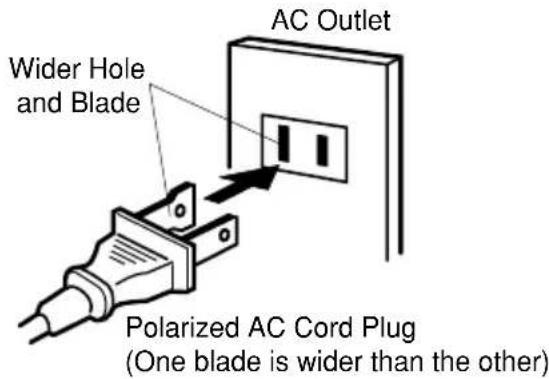
This unit is equipped with a polarized alternating-current line plug (a plug having one blade wider than the other). This plug will fit into the power outlet only one way. This is a safety feature. If you are unable to insert the plug fully into the outlet, try reversing the plug. If the plug should still fail to fit, contact your electrician to replace your obsolete outlet. Do not defeat the safety purpose of the polarized plug, if your unit is equipped with a 3-wire grounding-type plug, a plug having a third (grounding) pin. This plug will only fit into a grounding-type power outlet. This too, is a safety feature. If you are unable to insert the plug into the outlet, contact your electrician to replace your obsolete outlet.
Do not defeat the safety purpose of the grounding-type plug.
12. POWER-CORD PROTECTION
Power-supply cords should be routed so that they are not likely to be walked on or pinched by items placed upon or against them, paying particular attention to cords at plugs, convenience receptacles, and the point where they exit from the appliance.
13. LIGHTNING
To protect your unit from a lightning storm, or when it is left unattended and unused for long periods of time, unplug it from the wall outlet and disconnect the antenna or cable system. This will prevent damage to the unit due to lightning and power line surges.
14. POWER LINES
An outside antenna system should not be located in the vicinity of overhead power lines or other electric light or power circuits, or where it can fall into such power lines or circuits. When installing an outside antenna system, extreme care should be taken to keep from touching such power lines or circuits, as contact with them might be fatal.
15. OVERLOADING
Do not overload wall outlets and extension cords, as this can result in a risk of fire or electric shock.
16. OBJECT AND LIQUID ENTRY
Do not push objects through any openings in this unit, as they may touch dangerous voltage points or short out parts that could result in fire or electric shock. Never spill or spray any type of liquid into the unit.
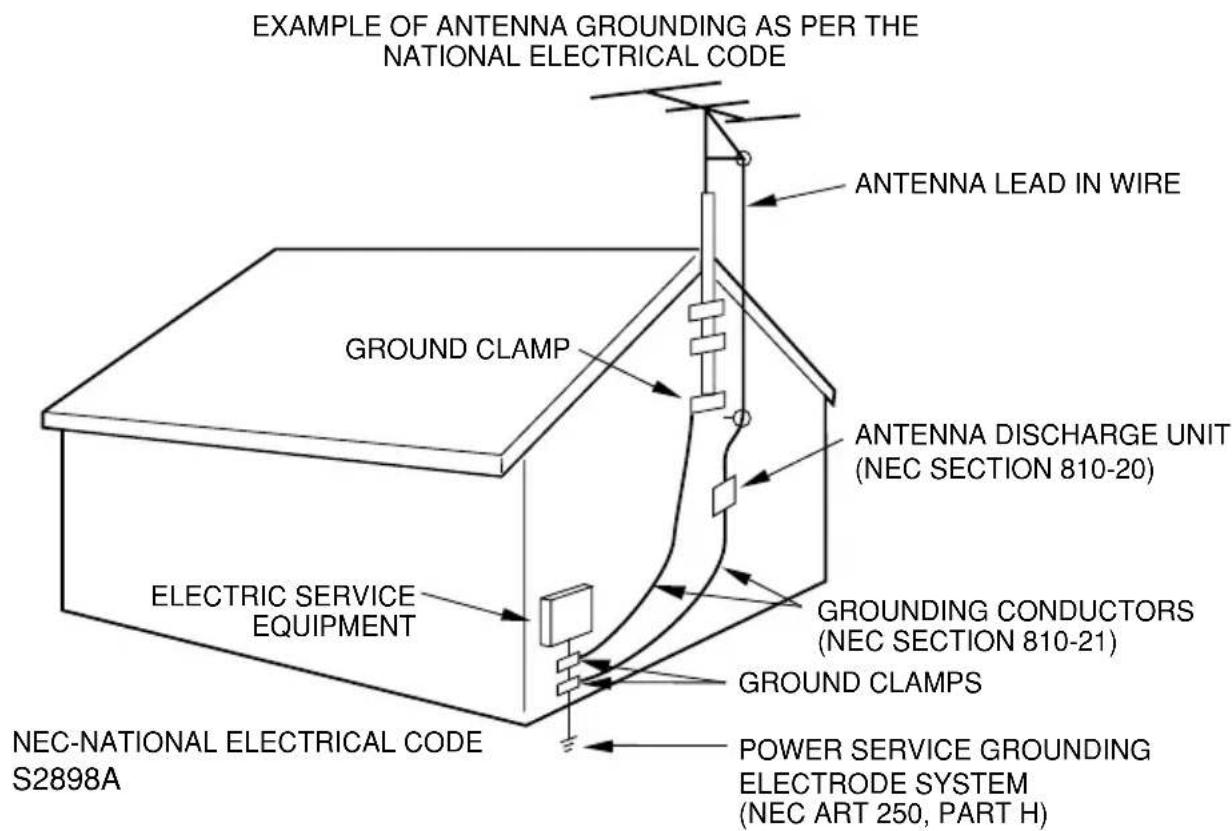
17. OUTDOOR ANTENNA GROUNDING
If an outside antenna or cable system is connected to the unit, be sure the antenna or cable system is grounded to provide some protection against voltage surges and built-up static charges, Section 810 of the National Electrical Code, ANSI/NFPA 70, provides information with respect to proper grounding of the mast and supporting structure, grounding of the lead-in wire to an antenna discharge unit, size of grounding conductors, location of antenna discharge unit, connection to grounding electrodes, and requirements for the grounding electrode.
18. SERVICING
Do not attempt to service this unit yourself as opening or removing covers may expose you to dangerous voltage or other hazards. Refer all servicing to qualified service personnel.
IMPORTANT SAFEGUARDS
19. DAMAGE REQUIRING SERVICE
Unplug this unit from the wall outlet and refer servicing to qualified service personnel under the following conditions:
a. When the power-supply cord or plug is damaged.
b. If liquid has been spilled, or objects have fallen into the unit.
c. If the unit has been exposed to rain or water.
d. If the unit does not operate normally by following the operating instructions. Adjust only those controls that are covered by the operating instructions, as an improper adjustment of other controls may result in damage and will often require extensive work by a qualified technician to restore the unit to its normal operation.
e. If the unit has been dropped or the cabinet has been damaged.
f. When the unit exhibits a distinct change in performance, this indicates a need for service.
20. REPLACEMENT PARTS
When replacement parts are required, be sure the service technician uses replacement parts specified by the manufacturer or those that have the same characteristics as the original part.
Unauthorized substitutions may result in fire, electric shock or other hazards.
21. SAFETY CHECK
Upon completion of any service or repairs to this unit, ask the service technician to perform safety checks to determine that the unit is in proper operating condition.
22. HEAT
The product should be situated away from heat sources such as radiators, heat registers, stoves, or other products (including amplifiers) that produce heat.
23. NOTE TO CATV SYSTEM INSTALLER
This reminder is provided to call the CATV system installer's attention to Article 820-40 of the NEC that provides guidelines for proper grounding and, in particular, specifies that the cable ground shall be connected to the grounding system of the building, as close to the point of cable entry as practical.
SAFETY PRECAUTIONS
MOISTURE CONDENSATION
DO NOT OPERATE ANY FUNCTIONS ON THIS UNIT FOR AT LEAST TWO OR THREE HOURS WHEN MOISTURE IN THE AIR CONDENSES ON IT. LET THE UNIT STAND WITH POWER ON (SEE BELOW).
■ WHAT IS MOISTURE CONDENSATION?
When a cold liquid is poured into a glass, for example, water vapor in the air will condense on the surface of the glass. This is called moisture condensation.
■ MOISTURE WILL CONDENSE ON THE UNIT IN THE FOLLOWING CASES:
- When you move the unit from a cold to a warm place. - After heating a cold room or under extremely humid conditions.
■ WHEN YOU EXPERIENCE THE ABOVE CONDITIONS,
Plug the power cord into an AC outlet, press the POWER button to turn on and leave the unit at room temperature until moisture condensation disappears. Depending on the surrounding conditions, this may take two or three hours.
- If you cause a static discharge when touching the unit, and the unit fails to function, simply unplug the unit from the wall outlet, wait 10 minutes and plug it back in. The unit should return to normal operation.
- Avoid extreme heat or cold.
- Do not place the unit on or near appliances which may cause electromagnetic interference (e.g. speakers, etc). Doing so may cause erratic operation of the unit including picture and/or sound distortion or noise.
- Avoid extreme moisture and dust.
- The ventilation holes prevent overheating. Do not block or cover these holes. Especially avoid covering the holes with soft materials such as cloth or paper.
- Do not insert fingers or any other objects into the cassette loading slot. Do not spray cleaner or wax directly on the unit or use forced air to remove dust.
- Avoid places subject to strong vibration. Use in a horizontal (flat) position only.
- Keep the unit away from flower vases, sinks, etc. If liquids should be spilled into the unit, serious damage will result. If you spill any liquids into the unit, unplug the AC power cord immediately and consult qualified service personnel before attempting to use it again.
- When you finish operating the unit, always unload the cassette and turn off the power.
- When you leave your home for a long time, unplug the AC power cord.
- To protect the unit from a lightning storm, unplug the AC power cord from the wall outlet and disconnect the antenna.
FEATURES
Color TV With Video Cassette Recorder - Unique space saving design combines a color TV and a video cassette recorder.
High Quality Picture Technology - This TV/VCR equipped "HQ" incorporates VHS High Quality technology. A built-in detail enhancer is used to boost the recorded signal and provide maximum picture quality during playback. It is compatible with other VHS video cassette recorders.
181 Channel Tuner - Receives standard VHF and UHF broadcast channels and up to 113 cable channels. The actual number of channels received depends upon channel reception in your area or your cable system.
Closed Caption Decoder With Full Text Mode - Displays text captions or full screen text on the screen for hearing impaired viewers.
8-Programs/1-Month Programmable Timer With Every-day/Every Week Capability - The built-in timer allows automatic absentee recording of up to 8 TV programs within 1 month. It is also possible to record a program which is broadcast at the same time everyday or every week.
Automatic Clock Set - Once your TV/VCR is plugged into the AC outlet, it automatically sets the correct date and time.
On-Screen TV Display And VCR Programming - When you select a channel or make other changes, the TV will show an indicator on the screen for a few seconds. Timer recording can be programmed and confirmed on the screen.
Picture Adjustments Using The Remote Control - The On-Screen display allows precise remote control adjustment of BRIGHTNESS, CONTRAST, COLOR, TINT and SHARPNESS.
Automatic Playback/Rewind-Stop-Eject - When loading a cassette tape without the erase prevention tab, this TV/VCR will automatically play back the cassette tape at the correct speed. When a tape reaches its end during play-back, recording (except during OTR and Timer Record) and fast forward, it will automatically stop, rewind, stop and eject the tape.
Programmable ON/OFF Timer - Allows you to automatically turn on or off the TV/VCR at a set time.
Programmable TV Sleep Timer - Operable from the remote control, the TV can be programmed up to 120 minutes to turn off automatically.
Automatic Repeat Play System - When Auto Repeat option is turned on, the TV/VCR will automatically play back the same cassette tape repeatedly.
FEATURES TABLE OF CONTENTS
One-touch Timer Recording (OTR) - Simply by pressing the REC/OTR button, the TV/VCR can be programmed for up to 5 hours of recording with an immediate start.
Audio/Video Input Jacks - A VCR or other video device may be hooked up to this TV/VCR for dubbing or playback purposes.
Skip Search - When the SKIP SEARCH button on the remote control is pressed during playback, the TV/VCR will automatically search forward in 30 second increments to a maximum of 3 minutes with each press of the SKIP SEARCH button, and then return to normal playback.
2 Speed Picture Search - 3 or 5 times normal speed in SP mode (7X or 9X in LP and 9X or 15X in SLP).
3 Speed Playback - Plays three tape speeds (SP, LP, SLP).
2 Speed Record - Records two tape speeds (SP, SLP).
Real Time Tape Counter With Zero Return - The counter displays the real tape time and the zero return can be used to return the tape to a pre-selected position (00:00:00) while the counter can be used to locate programs.
Digital Auto Tracking - Automatically adjusts tracking during playback for the best possible picture.
On-Screen 3 Language Display - You can select one of 3 languages, English, Spanish or French for on-screen programming.
TV Monitor - When the TV MONI. button on the remote control is pressed during playback, the TV channel selected on the TV/VCR can be viewed.
V-Chip - The V-Chip function can read the rating of a TV program or movie content if the program is encoded with this information. V-chip will allow you to set a restriction level.
CAUTIONS
IMPORTANT SAFEGUARDS 2
SAFETY PRECAUTIONS 5
PREPARATION
FEATURES 5
LOCATION OF CONTROLS 7
REMOTE CONTROL 8
POWER SOURCE 9
ANTENNA CONNECTIONS 10
CABLE TV CONNECTIONS 11
SETTING THE LANGUAGE 11
AUTO CLOCK SETTING 12
MANUAL CLOCK SETTING 13
TV OPERATION
TV OPERATION 13
TO MEMORIZE CHANNELS 15
SETTING THE V-CHIP 16
TO SET THE ON TIMER 17
TO SET THE OFF TIMER.... 18
PICTURE CONTROL ADJUSTMENTS 18
PLAYBACK
LOADING AND UNLOADING.... 19
PLAYBACK 19
SPECIAL PLAYBACK 20
RECORDING
RECORDING A TV PROGRAM 20
TROUBLESHOOTING GUIDE 24
RECEPTION DISTURBANCES 26
VIDEO HEAD CLEANING 26
SPECIFICATIONS 27
LIMITED WARRANTY ...... BACK COVER
LOCATION OF CONTROLS
REARFRONT
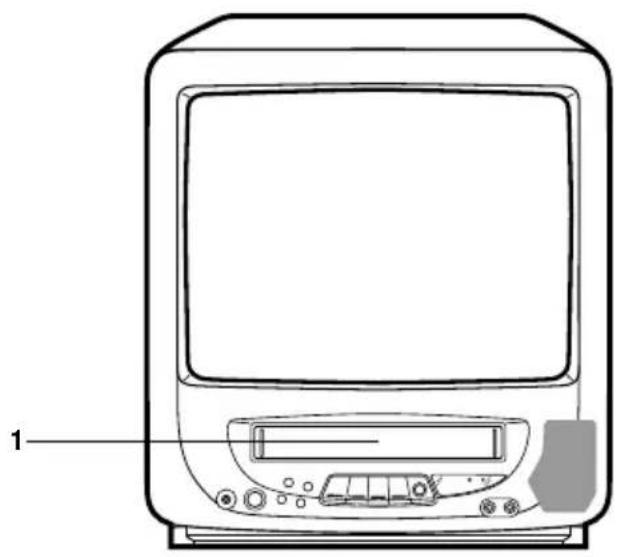
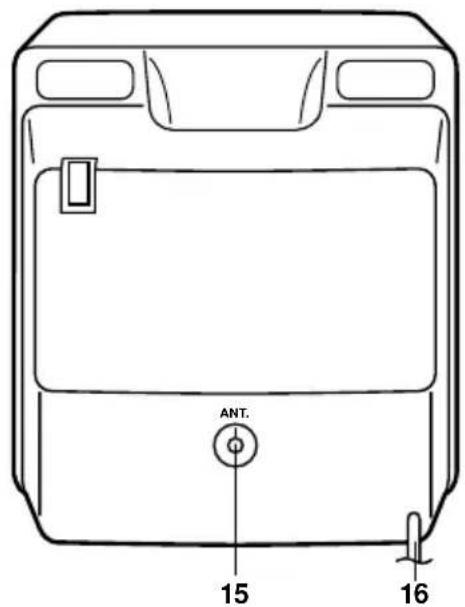
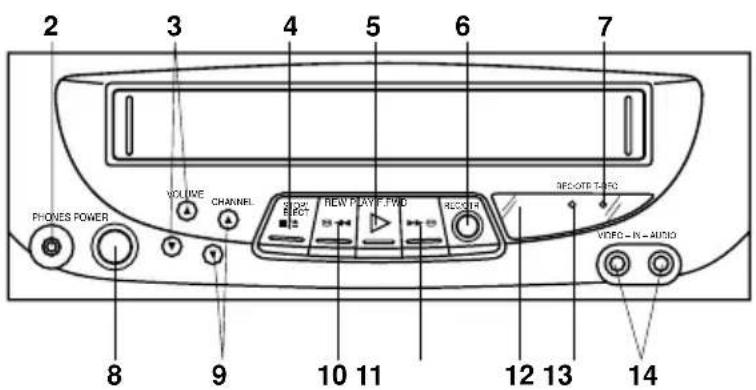
DESCRIPTION OF CONTROLS
FRONT:
-
Cassette Loading Slot - To insert or remove a video tape.
-
PHONES Jack - Plug monaural headphones or an earphone with an 1/8" miniplug into this jack for private listening.
-
VOLUME ▲ / ▼ Buttons - Press to raise or lower the volume of the sound.
-
STOP/EJECT Button - Press once to stop the tape in any mode. Press again to eject the tape.
-
PLAY Button - Press to play a prerecorded tape.
-
REC/OTR Button - Press once to start normal recording. Additional presses activate One-touch Timer Recording.
-
T-REC Indicator - Lights when the unit is in the Timer Record Mode.
-
POWER Button - Press to turn the TV/VCR on or off.
-
CHANNEL ▲ / ▼ Buttons - Press to select a channel for viewing or recording.
-
REW (Rewind) Button - In the Stop mode, this button rapidly winds the tape backwards. In the Play mode, this button activates reverse search.
- F.FWD (Fast Forward) Button - In the Stop mode, this button rapidly winds the tape forward. In the Play mode, this button activates forward search.
- Remote Sensor - Signals from the Remote Control are received here.
- REC/OTR Indicator - Lights when the TV/VCR is recording.
- Audio/Video In Jacks - Audio and video signal cables from an external source can be connected here.
REAR:
- VHF/UHF Antenna Jack - Connect the 75 ohm coaxial cable from the antenna or Cable TV service to this jack.
- AC Power Cord - Connect to a 120V, 60Hz outlet.
REMOTE CONTROL
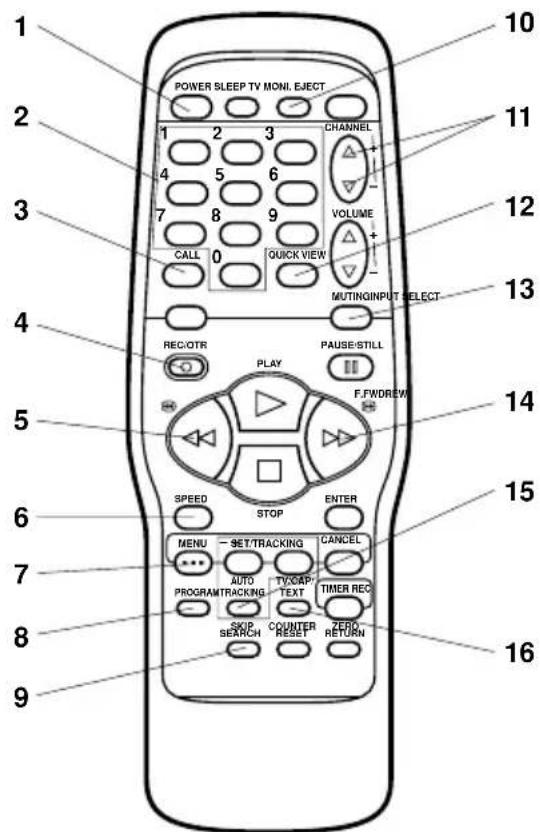
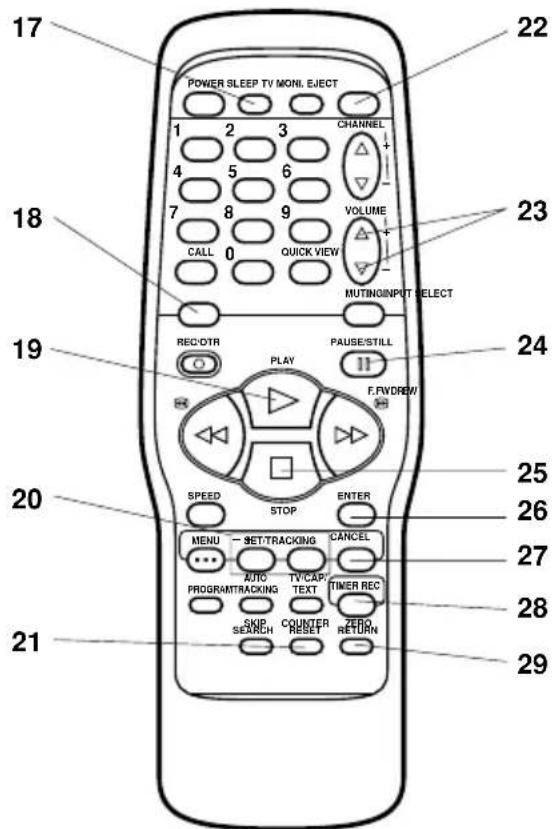
DESCRIPTION OF CONTROLS
- POWER Button - Press to turn the TV/VCR on. Press again to turn the TV/VCR off.
- Direct Channel Selection Buttons (0-9) - Allows direct access to any channel.
- CALL Button - Displays the present time/day of the week, channel, counter, speed selection (and VCR mode if VCR is playing) on the TV screen.
- REC/OTR Button - Press once to start normal recording. Additional presses activate One-touch Timer Recording.
- REW (Rewind) Button - In the Stop mode, this button rapidly winds the tape backwards. In the Play mode, this button activates reverse search.
- SPEED Button - Sets the tape speed for recording.
- MENU Button - Press to display the On-Screen menu function.
- PROGRAM Button - Press to confirm the programmed timer recording and ON/OFF timer.
- SKIP SEARCH Button - Press in the playback mode to search forward in 30 second increments to a maximum of 3 minutes.
- TV MONI. Button - Used to temporarily view a TV channel selected on the TV/VCR while in the playback mode.
- CHANNEL + / - Buttons - Press the + button to change to a higher numbered channel set into memory. Press the - button to change to a lower numbered channel set into memory.
- QUICK VIEW Button - Switches between the present channel and the last channel selected.
- MUTING Button - Press to turn off the sound. Press again to turn the sound back on.
-
F.FWD (Fast Forward) Button - In the Stop mode, this button rapidly winds the tape forward. In the Play mode, this button activates forward search.
-
AUTO TRACKING Button - Allows automatic adjustment of tracking to minimize picture noise during playback.
- TV/CAP/TEXT Button - Switches between Caption, Text and TV modes for Closed-Captioned programs.
- SLEEP Button - Sets the TV to turn off automatically after up to 120 minutes.
- INPUT SELECT Button - Switches the program for viewing between the TV/VCR and external input sources.
- PLAY Button - Press to play a prerecorded tape.
- SET/TRACKING + / - Buttons - Used to set or adjust in the menu mode. During playback, they are used to adjust tracking manually.
- COUNTER RESET Button - Used to reset the counter to 00:00:00.
- EJECT Button - Press to eject the tape.
- VOLUME + / - Buttons - Press the + button to increase, or the - button to decrease the volume level.
- PAUSE/ STILL Button - During recording, this button temporarily stops the tape. During playback, it stops the tape and displays a still image on the TV screen.
- STOP Button - Press once to stop the tape.
- ENTER Button - Press to enter or select information for on-screen operations.
- CANCEL Button - Used to clear the selected program and to move the cursor backward.
- TIMER REC Button - Used to set the TV/VCR to start recording at a preset time.
- ZERO RETURN Button - Use to stop the tape when the counter reaches 00:00:00.
REMOTE CONTROL
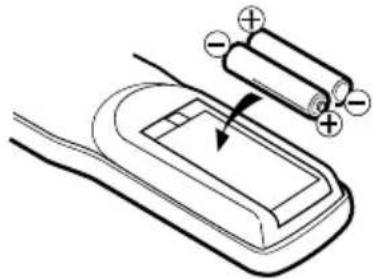
BATTERY INSTALLATION
Slide the battery compartment cover.
Install two "AAA" batteries (not supplied), paying attention to the polarity diagram in the battery compartment.
natural_image
Diagram of a battery and its internal structure with an arrow indicating direction (no text or symbols)Replace the compartment cover.
BATTERY PRECAUTIONS
The precautions below should be followed when using batteries in this device:
1 Use only the size and type of batteries specified.
2 Be sure to follow the correct polarity when installing the batteries as indicated in the battery compartment. Reversed batteries may cause damage to the device.
3 Do not mix different types of batteries together (e.g. Alkaline and Carbon-zinc) or old batteries with fresh ones.
4 If the device is not to be used for a long period of time, remove the batteries to prevent damage or injury from possible battery leakage.
5 Do not try to recharge batteries not intended to be recharged; they can overheat and rupture (Follow battery manufacturer's directions).
EFFECTIVE DISTANCE OF THE REMOTE CONTROL
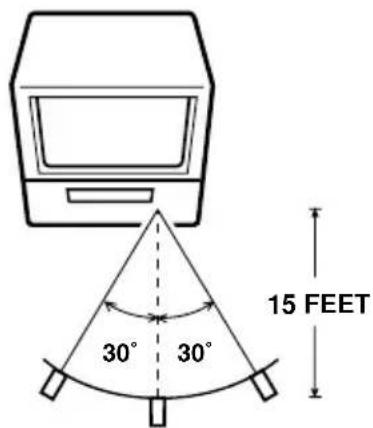
NOTES: • When there is an obstacle between the TV/VCR and the remote control, the remote control may not operate.
- When direct sunlight, an incandescent lamp, fluorescent lamp or any other strong light shines on the Remote sensor of the TV/VCR, the remote operation may be unstable.
POWER SOURCE
Use the AC polarized line cord provided for operation on AC. Insert the AC cord plug into a standard 120V 60Hz polarized AC outlet.
NOTES: • Never connect the AC line cord plug to anything other than the specified voltage (120V 60Hz). Use the attached power cord only. • If the polarized AC cord does not fit into a nonpolarized AC outlet, do not attempt to file or cut the blade. It is the user's responsibility to have an electrician replace the obsolete outlet.
ANTENNA CONNECTIONS
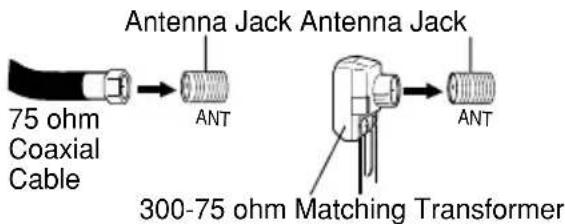
If you are using an indoor or outdoor antenna, follow the instructions below that correspond to your antenna system. If you are using a cable TV service (CATV), see page 11 for Cable TV connections.
Combination VHF/UHF Antenna (Single 75 ohm cable or 300 ohm twin-lead wire)
Connect the 75 ohm cable from the combination VHF/UHF antenna to the Antenna Jack. If your combination VHF/UHF antenna has a 300 ohm twin-lead wire, the use of the 300-75 ohm Matching Transformer may be necessary. Connect the VHF 75 ohm cable and UHF 300 ohm
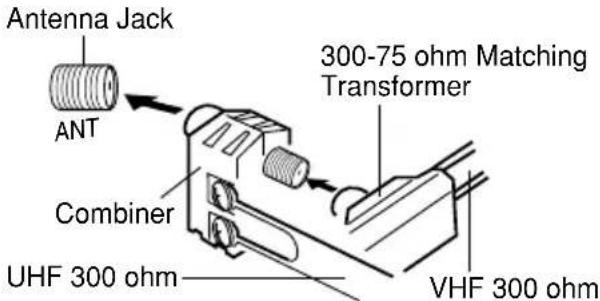
Combination VHF/UHF Antenna (Separate VHF and UHF 300 ohm twin-lead wires)
Connect the UHF 300 ohm twin-lead wire to the Combiner (not supplied). Connect the VHF 300 ohm twin-lead wire to the 300-75 ohm Matching Transformer. Attach the Transformer to the Combiner, then attach the Combiner to the Antenna Jack.
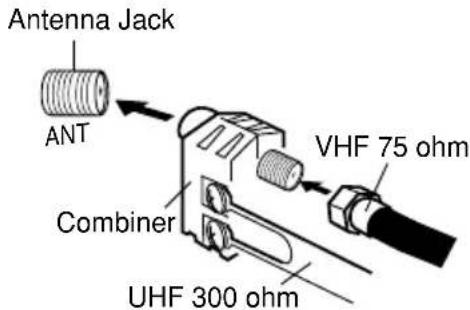
Separate VHF/UHF Antennas (75 ohm VHF cable and 300 ohm UHF twin-lead wires)
Connect the VHF 75 ohm cable and UHF 300 ohm twin-lead wire to the Combiner (not supplied). Attach the Combiner to the Antenna Jack.
CABLE TV CONNECTIONS
This TV/VCR has an extended tuning range and can tune most cable channels without using a Cable TV converter box. Some cable companies offer "premium pay channels" in which the signal is scrambled. Descrambling these signals for normal viewing requires the use of a descrambler device which is generally provided by the cable company.
FOR SUBSCRIBERS TO BASIC CABLE TV SERVICE
For basic cable service not requiring a Converter/Descrambler box, connect the CATV 75 ohm Coaxial Cable directly to the Antenna Jack on the back of the TV/VCR.
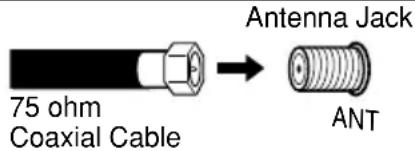
FOR SUBSCRIBERS TO SCRAMBLED CABLE TV SERVICE
If you subscribe to a cable TV service which requires the use of a Converter/Descrambler box, connect the incoming 75 ohm Coaxial Cable to the Converter/Descrambler box. Using another 75 ohm Coaxial Cable, connect the output jack of the Converter/Descrambler box to the Antenna Jack on the TV/VCR. Follow the connections shown below. Set the TV/VCR to the output channel of the Converter/Descrambler box (usually channel 3 or 4) and use the Converter/Descrambler box to select channels.

flowchart
graph LR
    A["Incoming 75 ohm CATV cable"] --> B["Converter/Descrambler"]
    B --> C["75 ohm Cable to TV/VCR"]
    C --> D["Antenna Jack ANT"]
FOR SUBSCRIBERS TO UNSCRAMBLED BASIC CABLE TV SERVICE WITH SCRAMBLED PREMIUM CHANNELS
If you subscribe to a cable TV service in which basic channels are unscrambled and premium channels require the use of a Converter/Descrambler box, you may wish to use a signal splitter and an A/B Switch box (available from the Cable company or an electronics supply store). Follow the connections shown below. With the switch in the "B" position, you can directly tune any nonscrambled channels on your TV/VCR. With the switch in the "A" position, tune your TV/VCR to the output of the Converter/Descrambler box (usually channel 3 or 4) and use the Converter/Descrambler box to tune scrambled channels.

flowchart
graph LR
    A["Incoming 75 ohm CATV cable"] --> B["Splitter"]
    B --> C["Converter/Descrambler"]
    C --> D["A/B Switch"]
    D --> E["75 ohm cable to TV/VCR"]
    E --> F["Antenna Jack ANT"]
SETTING THE LANGUAGE
This TV/VCR can display the on screen language in English, Spanish or French.
On-screen language selection (step 3) will automatically appear on the screen when you press the MENU button initially. Select the language you prefer first, then proceed with the other menu options.
1 Press the MENU button.
Press the SET/TRACKING + or - button to select the SYSTEM SET-UP option, then press the ENTER button.
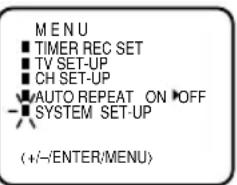
2 Press the SET/TRACKING + or – button to select the LANGUAGE option, then press the ENTER button.
3 Press the SET/TRACKING + or – button to select the desired language: English (ENGLISH), Spanish (ESPAÑOL) or French (FRANCAIS), then press the ENTER button.
4 Press the MENU button until the MENU screen is cleared.
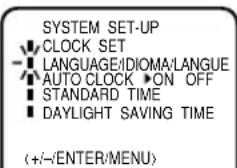
LANGUAGE/IDIOMA/LANGUE
▶ ENGLISH
ESPAÑOL
FRANCAIS
(+/-/ENTER/MENU)
AUTO CLOCK SETTING
The Auto Clock function will automatically set the built-in clock (Month, Day, Year and Time) when the TV/VCR is connected to an Antenna or Cable system and it is turned off. As the TV/VCR searches for a receivable station in your area and it receives a broadcast signal for Auto Clock, the Auto Clock needs several minutes to set itself.
AUTO CLOCK SETTING
1 Connect the Antenna or Cable system.
- If you use a cable box, turn it on.
2 Plug the AC Power cord to the AC outlet.
3 Make sure the TV/VCR is turned off.
- If you press the POWER button, the Auto Clock set is not effective.
4 Wait at least three minutes and press the POWER button.
5 Press the CALL button to check the clock on the screen.
6 If the clock is not set, check the Antenna condition. The Auto Clock may not function properly if the reception condition is not good.
AUTO CLOCK ADJUSTMENT
The Auto Clock Adjustment will be performed at 12:00 PM everyday if you turn off the TV/VCR.
- If you use a cable box and you want Auto Clock adjustment to be performed, the cable box must be left on.
- The Auto Clock Adjustment is not effective when there is a difference of more than 5 minutes exists between the built-in clock time and the actual time.
TO SET AUTO CLOCK TO OFF
When shipped from factory the AUTO CLOCK option is set to ON.
But if you do not want Auto Clock set (Adjustment):
1 Turn on the TV/VCR.
2 Press the MENU button.
3 Press the SET/TRACKING + or - button to select the SYSTEM SET-UP option, then press the ENTER button.
4 Press the SET/TRACKING + or - button to select the AUTO CLOCK option.
5 Press the ENTER button to select OFF.
6 Press the MENU button repeatedly to return to the normal screen.
- When the AUTO CLOCK is set to OFF, the Auto Clock adjustment does not function.
- Set the clock manually (see page 13).
TO SET STANDARD TIME
In the rare event that you live within broadcast range of two stations in two different time zones, the TV/VCR may recognize the wrong station for the Auto Clock set. To correct the situation:
1 Press the MENU button.
2 Press the SET/TRACKING + or - button to select the SYSTEM SET-UP option, then press the ENTER button.
3 Press the SET/TRACKING + or - button to select the STANDARD TIME option, then Press the ENTER button.
4 Press the SET/TRACKING + or - button to select your time zone, then press the ENTER button.
ATLANTIC : GMT - 4 hours (GMT: Greenwich Mean Time)
EASTERN : GMT - 5 hours
CENTRAL : GMT - 6 hours
MOUNTAIN : GMT - 7 hours
PACIFIC : GMT - 8 hours
ALASKA : GMT - 9 hours
HAWAII : GMT - 10 hours
AUTO : AUTO SET
5 Press the MENU button twice to return to the normal screen.
NOTE: To be able to select the standard time, the clock must first be set by "AUTO CLOCK" once.
DAYLIGHT SAVING TIME SETTING
You can set the Daylight saving time automatically or manually.
1 Press the MENU button. Press the SET/TRACKING + or - button to select the SYSTEM SET-UP option, then press the ENTER button.
2 Press the SET/TRACKING + or - button to select the DAYLIGHT SAVING TIME option, then press the ENTER button.
3 Press the SET/TRACKING + or - button to select one of the options, then press the ENTER button. Press the MENU button until the MENU screen is cleared.
ON: for manual setting (forward one hour)
OFF: for manual setting (back one hour)
AUTO: for automatic setting (read XDS in the signal)
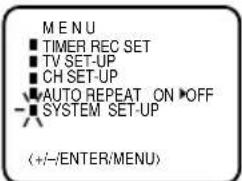
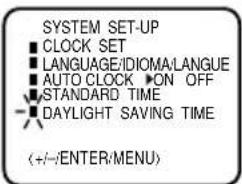
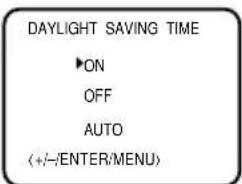
When you want to set the Daylight Saving Time manually, on the first Sunday in April you set to "ON", and on the last Sunday in October you set to "OFF".
NOTES: • When shipped from factory, the DAYLIGHT SAVING TIME option is set to AUTO position.
- When the clock is not set, Daylight Saving Time setting is not available.
- When there is no Daylight Saving Time in your area, always select OFF position in step 3.
MANUAL CLOCK SETTING
You must set the date and time manually for Timer Recordings, ON/OFF Timer and Daylight Saving Time if the Auto Clock process did not set them correctly.
EXAMPLE: Setting the clock to "8:30 AM", 29th (FRI) March, 2002.
1 Press the MENU button.
Press the SET/TRACKING + or - button to select the SYSTEM SET-UP option, then press the ENTER button.
2 Press the SET/TRACKING + or - button to select the CLOCK SET option, then press the ENTER button.
3 Press the SET/TRACKING + or - button to set the month, then press the ENTER button.
4 Set the day, year and time as in step 3.
After setting the clock, date and time starts functioning automatically.
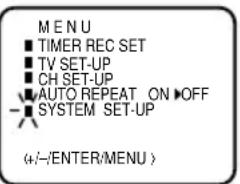
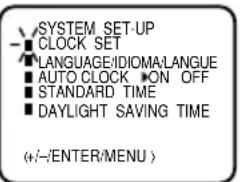
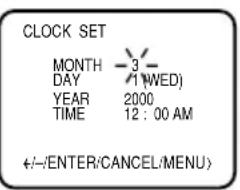
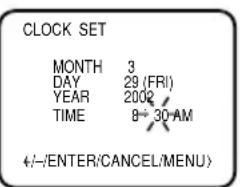
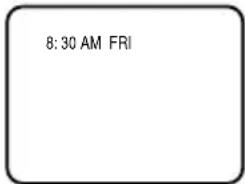
NOTES: • After a power failure or disconnection of the power plug, the time display will be lost. In this case, set the present time again if the Auto Clock did not set correctly.
- To move cursor backward, press the CANCEL button.
TV OPERATION
1 To turn on the TV/VCR, press the POWER button.
2 Adjust the volume level by pressing the VOLUME + or - button. The volume level will be indicated on the screen by green bars. As the volume level increases, so do the number of bars. If the volume decreases, the bars also decreases.
3 Set the TV/CATV menu option to the appropriate position (See page 15).
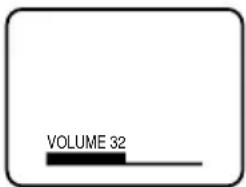
TV - VHF/UHF Channels CATV - CABLE TV Channels
VHF/UHF/CATV CHANNELS
| TV | CATV |
| VHF2-13 | VHF2-13 |
| UHF14-69 | STD/HRC/IRC14-36 (A) (W)37-59 (AA) (WW)60-85 (AAA) (ZZZ)86-94 (86) (94)95-99 (A-5) (A-1)100-125 (100)(125)01 (5A) |
4 Press the Direct Channel selection buttons to select the channel.
• TV mode direct channel selection
When the TV/CATV menu option is in the TV position, all channels can be instantly selected by using two buttons (for example, to select channel 2, press "0", then "2". If you press only "2", channel selection will be delayed for a few seconds). For channels 10 and above, press the 2 digits in order.
- CATV mode direct channel selection
When the TV/CATV menu option is in the CATV position, channels can be selected as follows:
• TO SELECT CATV CHANNELS:
1-9 Press "0" twice, then 1-9 as needed. Example, to select channel 2, press "002". 10-12 Press "0", then the remaining 2 digits. Example, to select channel 12, press "012". 13-99 Press the 2 digits in order. Example, to select channel 36, press "36". 100-125 Press the 3 digits in order. Example, to select channel 120, press "120".
NOTE FOR CHANNELS 1-12:
If only 1 or 2 buttons are pressed, the corresponding channel will be selected in 2 seconds.
CH 012
NOTES: • If a channel with no broadcast is selected, the sound will automatically be muted. • If a station being viewed stops broadcasting, the TV will automatically shut itself off after 15 minutes.
MUTING
Press MUTING button to switch off the sound. The TV/VCR's sound will be silenced and "MUTING" will briefly appear on the screen. The sound can be switched back on by pressing this button again or one of the VOLUME + or - buttons.
MUTING
CHANNEL + / -
Press and release the CHANNEL + or – button. The channel automatically stops at the next channel set into memory. For proper operation, before selecting channels, they should be set into the memory. See pages 15 and 16 “To memorize channels”.
CH 012
CALL
Press the CALL button. The clock, date, channel number, real time tape counter, tape speed and VCR operation will be indicated.
Press CALL button again to disappear the call display.
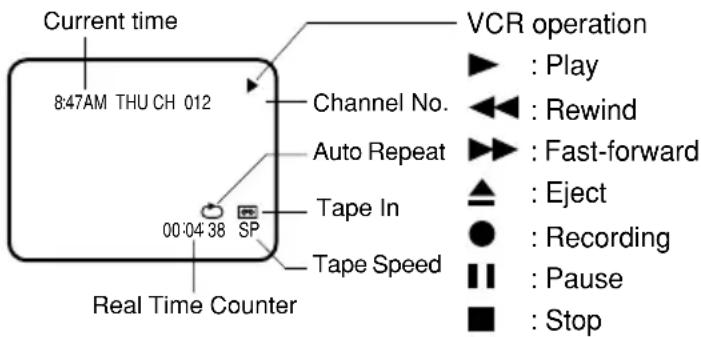
NOTE: To listen through the headphone, insert a headphone (not supplied) with a 1/8" mini plug into PHONES jack on the front. The sound from the TV speaker is muted.
SLEEP
To set the TV/VCR to turn off after a preset amount of time, press the SLEEP button on the remote control. The clock will count down 10 minutes for each press of the SLEEP button (120, 110, ...10, 0). After the sleep time is programmed, the display will appear briefly every ten minutes to remind you that the sleep timer is operating.
To confirm the sleep timer setting, press the SLEEP button and the remaining time will be momentarily displayed. To cancel the sleep timer, press the SLEEP button repeatedly until the display turns to 0.
SLEEP 120
QUICK VIEW
This button allows you to go back to the last channel selected by pressing the QUICK VIEW button. Press this button again to return to the last channel you were watching.
CH 012
TV/CAPTION/TEXT
Press TV/CAP/TEXT button to switch between normal TV and the two closed caption modes (captions and full screen text). Closed captioning will display text on the screen for hearing impaired viewers.
CAPTION CH 1
NOTES: • If using an indoor antenna or if TV reception is very poor, the Closed Caption Decoder text may not appear. In this case, adjust the antenna for better reception or use an outdoor antenna.
- When activating the Closed Captioned Decoder, there will be a short delay before the Closed Captioned text appears on the screen.
- Closed Captioned TV programs can be recorded and played back on a VCR with the Closed Captioned text intact. The Closed Captioning text will disappear during Cue, Rewind and Pause modes or if the VCR tracking is not adjusted properly.
- Closed Captioned text is only displayed in locations where it is available.
- If the Call display is on, the Closed Captioning text will not appear.
WHAT IS CLOSED CAPTIONING?
This television has the capability to decode and display Closed Captioned television programs. Closed Captioning will display text on the screen for hearing impaired viewers or it will translate and display text in another language.
CLOSED CAPTIONING WITH A VCR
Closed Captioned programs can be recorded and played back on a VCR with the Closed Captioned text intact. The Closed Captioned text will disappear during Cue (Fast Forward Search), Review (Rewind Search) and Pause Modes or if the VCR tracking is not adjusted properly.
TO VIEW CLOSED CAPTIONS
Press the TV/CAP/TEXT button on the remote control to switch between normal TV and the two Closed Caption Modes (Captions and Full Screen Text).
Captions: This Closed Caption Mode will display text on the screen in English or another language (depending on the setting of the Closed Captions CH. 1 or 2). Generally, Closed Captions in English are transmitted on Captions Channel 1 and Closed Captions in other languages are transmitted on Captions Channel 2.
Text: The Text Closed Caption Mode will usually fill the screen with a programming schedule or other information. After selecting a Closed Caption Mode, it will stay in effect until it is changed, even if the channel is changed. If the Captions signal is lost due to a commercial or a break in the signal, the Captions will reappear when the signal is received again. If the channels are changed, the Captions will be delayed approximately 10 seconds. The Captions will appear in places on the screen where they will least interfere with the picture, usually on the bottom of the screen. News programs will usually show three-line Closed Captions which scroll onto the screen. Most other shows provide two or three lined Captions placed near the character who is speaking so the viewer can follow the dialogue.
Words in italics or underlined describe titles, words in foreign languages or words requiring emphasis. Words that are sung usually appear enclosed by musical notes. For television programs broadcasting with Closed Captions, look in your TV guide for the Closed Captions symbol (CC).
- When selecting Closed Captions, the captioning will be delayed approximately 10 seconds.
- If no caption signal is received, no captions will appear, but the television will remain in the Caption Mode.
- When Captions are being displayed, on-screen displays, such as volume and mute may not be seen or may interfere with Closed Captions.
- Misspellings or unusual characters may occasionally appear during Closed Captioning. This is normal with Closed Captioning, especially with live programs. This is because during live programs, captions are also entered live. These transmissions do not allow time for editing.
- Some cable systems and copy protection systems may interfere with the Closed Captioned signal.
- If using an indoor antenna or if TV reception is very poor, the Closed Caption Decoder may not appear or may appear with strange characters or misspelled words. In this case, adjust the antenna for better reception or use an outdoor antenna.
TO MEMORIZE CHANNELS
This TV/VCR is equipped with a channel memory feature which allows channels to skip up or down to the next channel set into memory, skipping over unwanted channels. Before selecting channels, they must be programmed into the TV/VCR's memory. In addition to normal VHF and UHF channels, this TV/VCR can receive up to 113 Cable TV channels. To use this TV/VCR with an antenna, set the TV/CATV menu option to the TV mode. When shipped from the factory, this menu option is in the CATV mode.
TV/CATV SELECTION
1 Press the MENU button.
2 Press the SET/TRACKING + or - button to select the CH SET-UP mode, then press the ENTER button.
VHF/UHF/CATV CHANNELS
| TV | CATV |
| VHF2-13 | VHF2-13 |
| UHF14-69 | STD/HRC/IRC14-36 (A) (W)37-59 (AA) (WW)60-85 (AAA) (ZZZ)86-94 (86) (94)95-99 (A-5) (A-1)100-125 (100)(125)01 (5A) |
3 Press the SET/TRACKING + or - button to select the TV/CATV mode.
4 Press the ENTER button to select the TV or CATV mode. The arrow indicates the selected
mode TV - VHF/UHF channels CATV - CABLE TV channels
CH SET-UP TV CATV AUTO CH MEMORY ADD/DELETE
(+/-/ENTER/MENU)
5 Press the MENU button until the MENU screen is cleared.
AUTOMATIC MEMORY TUNING
1 Press the MENU button.
2 Press the SET/TRACKING + or – button to select the CH SET-UP mode, then press the ENTER button.
3 Press the SET/TRACKING + or – button to select the AUTO CH MEMORY mode, then press the ENTER button. The TV/VCR will begin memorizing all the channels available in your area. Channel numbers will remain red until auto memorizing is complete.
4 Press the MENU button until the MENU screen is cleared.
MENU
TIMER REC SET
TV SET-UP
-1 CH SET-UP
AUTO REPEAT ON OFF
■ SYSTEM SET-UP
(+/-/ENTER/MENU)
CH SET-UP
TV CATV
- AUTO CH MEMORY
AUTO CH M
ADD/DELETE
(+/-/ENTER/MENU)
TO MEMORIZE CHANNELS
TO ADD/DELETE CHANNELS
1 Press the MENU button.
2 Press the SET/TRACKING + or – button to select the CH SET-UP mode, then press the ENTER button.
3 Press the SET/TRACKING + or – button to select the ADD/DELETE mode, then press the ENTER button.
4 Select the desired channel to be memorized or deleted using SET/TRACKING + or - button, or using the Direct Channel.
Selection buttons (10 keys, 0-9), or CHANNEL + or - button.
5 Press the ENTER button to select the ADD or DELETE.
If you select an unmemorized channel, the Channel indication will be red. If you select the ADD mode, the Channel indication changes from red to green and the channel will be memorized. If you select a memorized channel, the Channel indication will be green. If you select the DELETE mode, the Channel indication changes from green to red and the channel will be deleted from the memory.
6 Press the MENU button until the MENU screen is cleared.
SETTING THE V-CHIP
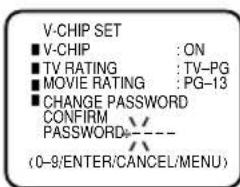
An age limitation can be set to forbid children to see and hear violent scenes or pictures for adults, etc. The TV/VCR responds to "TV RATING" and "MOVIE RATING". To use the V-Chip function, you must register a password.
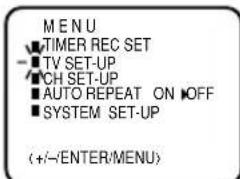
1 Press the MENU button.
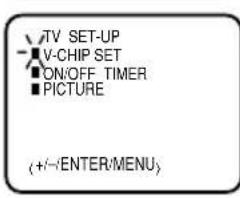
2 Press the SET/TRACKING + or - button to select the TV SET-UP option, then press the ENTER button.
3 Press the SET/TRACKING + or - button to select the V-CHIP SET then press the ENTER button.
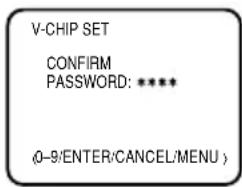
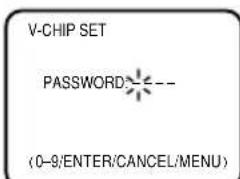
4 Enter the password (4 digits) using the Direct Channel Selection buttons (0-9), then press the ENTER button.
"↑appears instead of the number.
5 Enter the same password again for safety, then press the ENTER button.
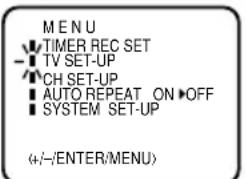
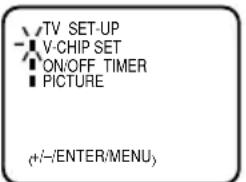
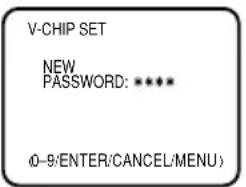
SETTING THE V-CHIP
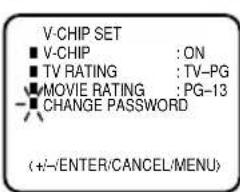
V-CHIP SET menu appears.
NOTES:
- To reset a password that has been previously programmed into your unit, the adult owner of the TV/VCR may contact customer service for assistance.
- To avoid forgetting the password, write it down and keep in a safe place.
- If you are changing channels using a cable box, while the TV/VCR remains on channel 3 or 4, the V-Chip operates differently. When you enter your password to temporarily release the block on any channel, you have completely disabled the V-Chip function for all stations. To reset the V-Chip turn your TV/VCR off and back on.
- Some cable boxes are built with a delay feature, in some cases it can take up to 10 seconds for a program to appear after the password has been input.
TO SET THE V-CHIP
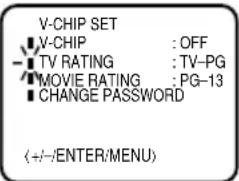
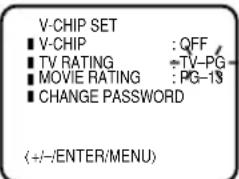
1 In the V-CHIP SET menu, press the SET/TRACKING + or - button to select the TV RATING, then press the ENTER button.
2 Press the SET/TRACKING + or – button to display the desired setting, then press the ENTER button.
OFF : TV RATING is not set
TV-Y : All children
TV-Y7 : 7 years old and above
TV-G : General Audience
TV-PG : Parental guidance
TV-14 : 14 years old and above
TV-MA : 17 years old and above
- When you select TV-Y7, TV-PG, TV-14 or TV-MA, press the CALL button to explain the rating. Press the SET/TRACKING + or – button to select the desired rating you want. Press the ENTER button to select the setting ON or OFF.
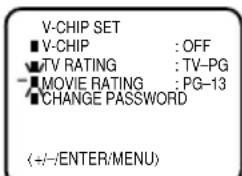
3 Press the SET/TRACKING + or – button to select the MOVIE RATING, then press the ENTER button.
The V-Chip function is activated only on programs and tapes that have the rating signal.
4 Press the SET/TRACKING + or – button to select desired rating, then press the ENTER button.
OFF : MOVIE RATING is not set
G : All ages
PG : Parental guidance
PG-13 : Parental guidance less than 13 years old R : Under 17 years old Parental guidance suggested
NC17 : 17 years old and above
X : Adult only
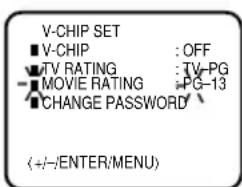
5 Press the SET/TRACKING + or - button to select V-CHIP.
6 Press the ENTER button to display ON.
7 Press the MENU button until the MENU screen is cleared.
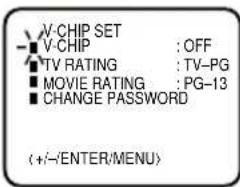
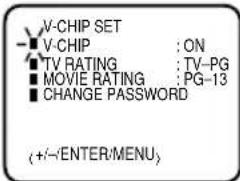
NOTE : The V-Chip function is activated only on programs and tapes that have the rating signal.
To use the TV after the TV is protected.
When the program applied to the V-Chip setting is received, enter the password, then press the ENTER button. When the password is entered correctly the protection will be temporarily overridden.
TO CHANGE PASSWORD
1 Press the MENU button.
2 Press the SET/TRACKING + or – button to select the TV SET-UP, then press the ENTER button.
3 Press the SET/TRACKING + or - button to select the V-CHIP SET, then press the ENTER button.
4 Enter the Password using the Direct Channel Selection button (0-9), then press the ENTER button.
5 Press the SET/TRACKING + or - button to select CHANGE PASSWORD, then press the ENTER button.
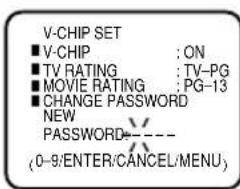
6 Enter the new password using the Direct Channel Selection button (0-9), then press the ENTER button.
7 Enter the same password again to confirm, then press the ENTER button.
8 Press the MENU button repeatedly to return to normal screen.
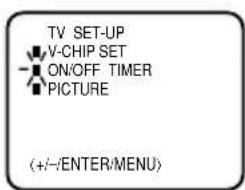
TO SET THE ON TIMER
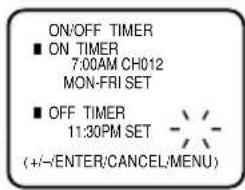
This feature allows you to have the TV/VCR automatically turn "ON" at a predetermined time. If you program the "ON" timer once, the TV/VCR will turn "on" on the programmed day (daily/weekly) at the same time to the same channel.
EXAMPLE: Turning on the TV to channel 12 at 7:00 AM, MONDAY-FRIDAY.
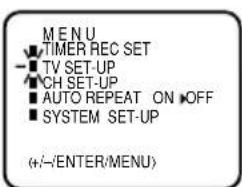
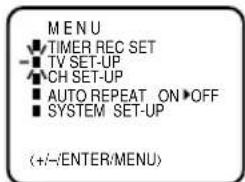
1 Press the MENU button.
Press the SET/TRACKING + or
– button to select the TV SET-UP
option, then press the ENTER
button.
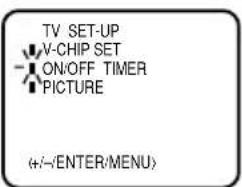
2 Press the SET/TRACKING + or - button to select the ON/OFF TIMER option, then press the ENTER button.
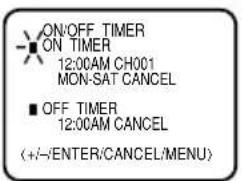
3 Press the SET/TRACKING + or - button to select the ON TIMER option, then press the ENTER button.
4 Press the SET/TRACKING + or – button to set the desired hour, then press the ENTER button.
5 Set the desired minute, channel and daily or weekly timer date as in step 4.
6 Press the SET/TRACKING + or - button to select the SET mode, then press the ENTER button. Press the MENU button repeatedly to return to normal screen.
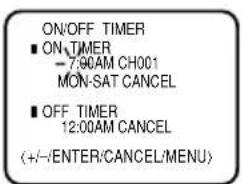
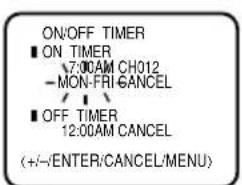
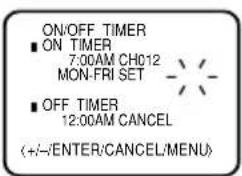
NOTES: • The TV/VCR will automatically turn off approximately 1 hour later after the ON TIMER turns on if no OFF TIMER has been set. To continue watching the TV, press any button to cancel the one hour automatic shut off.
- To cancel ON timer, follow above steps 1-5, then press the SET/TRACKING + or - button to select the CANCEL. Press the MENU button repeatedly to return to the normal screen.
- After setting the ON TIMER, "■" of the OFF TIMER will flash on and off. If you wish to set the OFF TIMER, press the ENTER button then follow the steps 4-6 on "TO SET THE OFF TIMER".
- If you want to correct the digits while setting, press the CANCEL button until the item you want to correct, then press the SET/TRACKING + or - button to correct the desired setting.
TO SET THE OFF TIMER
This feature allows you to have the TV/VCR turn "OFF" automatically at a predetermined time. If you program the OFF TIMER once, the TV/VCR will automatically turn off at the same time everyday.
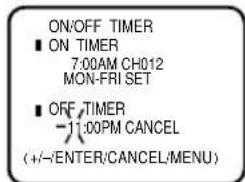
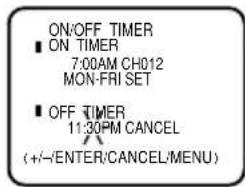
EXAMPLE: Turning off the TV at 11:30 PM.
1 Press the MENU button.
Press the SET/TRACKING + or - button to select the TV SET-UP option, then press the ENTER button.
2 Press the SET/TRACKING + or - button to select the ON/OFF TIMER option, then press the ENTER button.
3 Press the SET/TRACKING + or - button to select the OFF TIMER option, then press the ENTER button.
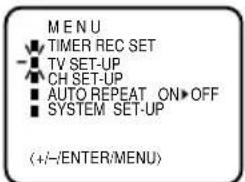
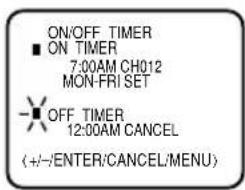
4 Press the SET/TRACKING + or - button to set the desired hour, then press the ENTER button.
5 Press the SET/TRACKING + or - button to set the desired minute, then press the ENTER button.
6 Press the SET/TRACKING + or - button to select the SET mode, then press the MENU button repeatedly to return to the normal screen.
NOTES: • If a station being viewed stops broadcasting, the TV will automatically shut itself off after 15 minutes.
- To cancel OFF timer, follow above step 1-5, then press the SET/TRACKING + or - CANCEL. Press the MENU the normal screen.
• To confirm the ON/OFF TIMER: Press the PROGRAM button twice to indicate the programs on the screen.
PICTURE CONTROL ADJUSTMENTS
Picture controls are factory preset but you can adjust them individually as follows:
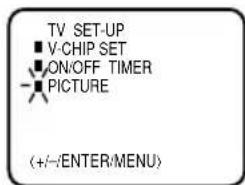
1 To display the picture adjustment screen, press the MENU button. Press the SET/TRACKING + or - button to select the TV SET-UP option, then press the ENTER button.
2 Press the SET/TRACKING + or - button to select the PICTURE option, then press the ENTER button.
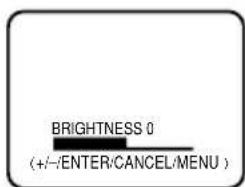
BRIGHTNESS
Press the ENTER button until "BRIGHTNESS" appears on the screen, then press the SET/TRACKING + or - button to adjust the brightness of the picture. When the SET/TRACKING + button is pressed, the darker portions of the picture become lighter.
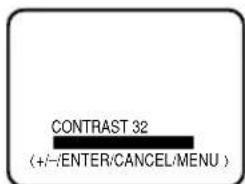
CONTRAST
Press the ENTER button until "CONTRAST" appears on the screen, then press the SET/TRACKING + or - button to adjust the contrast of the picture. Pictures look sharpest in the daytime (bright light) by increasing the contrast. At night
(dim light), the sharpest picture is obtained by reducing the contrast.
NOTE: The CONTRAST default setting is set to maximum at the factory.
COLOR
Press the ENTER button until "COLOR" appears on the screen, then press the SET/TRACKING + or - button to adjust the color intensity of the picture. The control should be set when colors appear normal in intensity and brilliance.
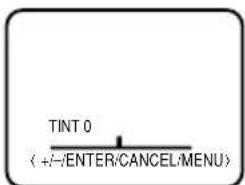
TINT
Press the ENTER button until "TINT" appears on the screen, then press the SET/TRACKING + or - button to adjust the tint of the picture. This determines how accurately the colors are reproduced by the TV.
Adjusting the tint for natural facial tone is the best method of obtaining accurate color reproduction of the entire picture.
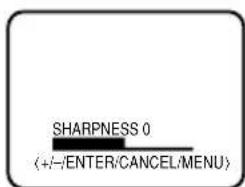
SHARPNESS
Press the ENTER button until "SHARPNESS" appears on the screen, then press the SET/TRACKING + or - button to adjust the sharpness of the picture.

CANCEL
Pressing the CANCEL button while making picture adjustments will return all adjustments to the factory preset levels.
NOTE: The On-screen display will disappear 6 seconds after finishing an adjustment or by pressing the MENU button three times. The settings can only be adjusted when they are displayed on the TV screen.
LOADING AND UNLOADING
Use only video cassette tapes marked VHS.
LOADING
Push the center of the tape until it is automatically retracted into the TV/VCR.
AUTOMATIC POWER ON AND PLAY
When loading a cassette tape without the erase prevention tab intact, the TV/VCR will turn on automatically and playback will start immediately.
Insert the cassette with its labeled side facing you. An inverted video cassette cannot be inserted.
UNLOADING
To unload a video cassette, press the EJECT button on the remote control, or press the STOP/EJECT button on the TV/VCR twice. The first press will stop the tape in any mode. The second press will eject the tape.
natural_image
Empty rounded rectangle with a small triangle marker in the top-right corner (no text or symbols)AUTOMATIC EJECT
If the TV/VCR automatically rewinds the tape to the beginning (AUTO REWIND FEATURE), the tape will be ejected automatically (See NOTE on page 20).
NOTES: • Always eject the tape when not in use. • The cassette tape can be ejected even if the POWER is "OFF".
TO PREVENT ACCIDENTAL ERASURE
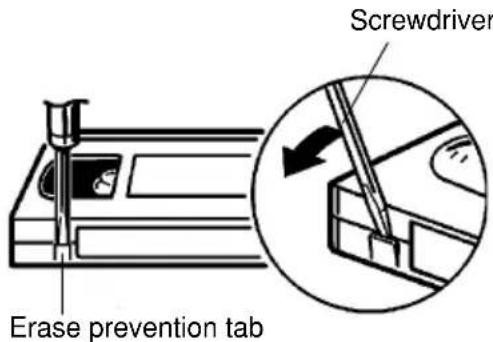
After recording, break off the erase prevention tab if you do not wish to record over the tape.
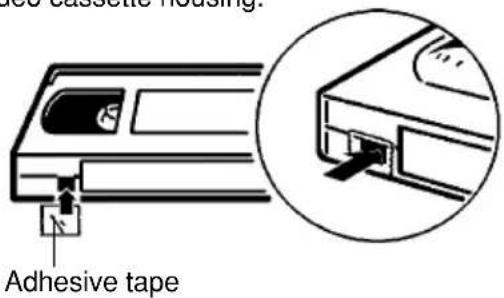
TO RECORD AGAIN
Cover the hole with adhesive tape. Be careful the tape does not extend past the edges of the video cassette housing.
PLAYBACK
To play a prerecorded tape.
TO START PLAYBACK
Load a prerecorded tape (When loading a cassette tape without the erase prevention tab, playback will start automatically).
Press the PLAY button to begin playback.
“▶” will appear on the screen.
natural_image
Empty rounded rectangle with a small arrow in the top-right corner (no text or symbols)NOTE: This TV/VCR selects the playback tape speed SP, LP or SLP automatically.
TO STOP PLAYBACK
Press the STOP button once. The tape will stop, but remain fully loaded and ready to play. "■" will appear on the screen.
natural_image
Empty rectangular frame with a small black square at the top center (no text or symbols)TO REWIND OR FORWARD THE TAPE RAPIDLY
Press the REW (Rewind) or F.FWD (Fast Forward) button in the Stop mode.
“◀◀” or “▶” will appear on the screen.
natural_image
Empty rounded rectangle with a small arrow in the top-right corner (no text or symbols)
natural_image
Empty rounded rectangle with a small arrow icon in the top-right corner (no text or symbols)FORWARD/REVERSE PICTURE SEARCH
If you want to see the tape during REW or FWD mode, press and hold the REW or F.FWD button. The backward or forward visual search picture will be seen on the screen. Release to return to the REW or FWD mode.
DIGITAL TRACKING CONTROLS
When a tape is played, the Digital Auto Tracking system automatically adjusts the tracking to obtain the best possible picture. If noise bars appear during playback, adjust the tracking manually as follows:
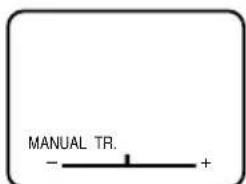
- Press the SET/TRACKING + or – button to obtain the best possible picture. "MANUAL TR." will appear for 4 seconds on the screen. To resume automatic tracking, press the AUTO TRACKING button.
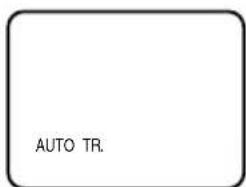
"AUTO TR." will appear for 4 seconds on the screen.
TO MONITOR A TV PROGRAM
Press the TV MONI. button while in the playback mode. The video tape will continue to play while the picture switches to the TV channel selected on the TV/VCR. Press the button to return to the playback picture.
SPECIAL PLAYBACK
TO VISUALLY SEARCH FOR DESIRED POINTS
When either the F.FWD or REW button is pressed in the PLAYBACK mode, the speed search picture will appear. When pressed twice, the search picture will increase speed. Speed search time depends upon the speed used (SP, LP or SLP) during recording. See chart below. To visually search backward or forward, press the REW or F.FWD button once or twice in the PLAYBACK mode. Press the PLAY button to resume normal viewing speed.
SPEED SEARCH TIMES
| TAPE SPEED | PICTURE SEARCH SPEED | |
| PRESS ONCE | PRESS TWICE | |
| SP (Standard Play) | 3 X | 5 X |
| LP (Long Play) | 7 X | 9 X |
| SLP (Super Long Play) | 9 X | 15 X |
SKIP SEARCH
Press the SKIP SEARCH button in the PLAY mode. The VCR will search forward through approximately 30 seconds of the tape (e.g. unwanted commercial time) for each press of the SKIP SEARCH button (maximum six presses) and then resume normal playback.
TO WATCH STILL PICTURE
Press the PAUSE/ STILL button in the PLAYBACK mode. Press the PLAY button or PAUSE/ STILL button to resume normal playback.
NOTES: • "SP" is more appropriate as less noise appeared during search and still playback for tape recorded in SP.
- The audio output is muted during Speed Search and Still.
- A few noise bars will appear on the TV screen during Speed Search and Still.
- To prevent damage to the tape, Still and Speed Search mode is automatically changed to the Playback mode after 5 minutes.
TO WATCH A TAPE REPEATEDLY
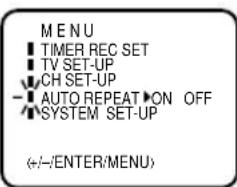
1 Press the MENU button.
2 Press the SET/TRACKING + or – button to select the AUTO REPEAT option.
3 Press the ENTER button to select the ON position.
4 Press the MENU button. If you press the PLAY button, the tape will play over and over until the repeat mode is canceled.
NOTE: To cancel repeat mode, follow above steps 1 and 2, then press the ENTER button to select the OFF position. Press the MENU button to return to the TV. The repeat function is canceled automatically when the unit is switched off or the tape is ejected.
RECORDING A TV PROGRAM
RECORDING AND VIEWING THE SAME TV PROGRAM
1 Load a cassette tape with the erase prevention tab intact.
2 Press the SPEED button to select the desired tape speed SP or SLP. The counter and SP or SLP will appear on the screen about 4 seconds.
3 Set the TV/CATV option to the appropriate position (See page 16).
TV - VHF/UHF channels CATV - CABLE TV channels
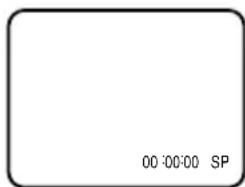
NOTES: • If power is switched off during recording, the TV set goes off and the VCR continues to record. Press the STOP button to halt the recording and turn off the VCR. • The TV/VCR Channel cannot be changed during recording.
4 Press the Direct Channel Selection buttons or CHANNEL + or - button to select the channel to be recorded.
5 Press the REC/OTR button.
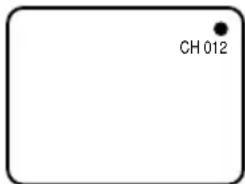
" • " and the channel number will appear on the screen and the REC/OTR indicator will light.
TO STOP RECORDING
Press the STOP button to stop recording. "■" will appear on the screen.
TO STOP RECORDING TEMPORARILY
Press the PAUSE/ STILL button to avoid recording unwanted material.
“■” will appear on the screen and the REC/OTR indicator will blink on and off. Press the PAUSE/STILL button or the REC/OTR button to continue the recording.
NOTE: The PAUSE mode will be changed to STOP mode after five minutes to prevent damage to the tape.
NOTES: • AUTO REWIND FEATURE
This TV/VCR will automatically rewind the video cassette when the tape has ended (except during OTR and Timer Record). It will also eject the video cassette.
- If the erase prevention tab is removed, the tape will eject when the REC/OTR button is pressed for recording.
The One-Touch Timer Recording feature provides a simple and convenient way to make a timed recording.
EXAMPLE: One-touch Timer Recording for 30 minutes.
1 Press the POWER button to turn on the TV/VCR.
2 Load a video cassette with the erase prevention tab intact.
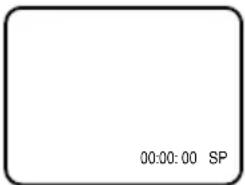
3 Press the SPEED button to select the desired tape speed (SP or SLP). SP or SLP will appear on the screen.
4 Set the TV/CATV option to the appropriate setting (See page 15).
TV - VHF/UHF channels CATV - CABLE TV channels
5 Press the Direct Channel Selection buttons or CHANNEL + or - button to select the channel to be recorded.
6 Press the REC/OTR button to begin recording. Press the button again to stop recording after 30 minutes. Each additional press of the REC/OTR button will increase recording time as shown below, up to a maximum of 5 hours. "OTR" will appear on the screen.
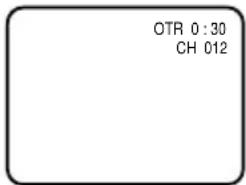
NOTES: • Press the REC/OTR button to increase the time needed for recording (See the chart right).
- To cancel OTR, press the STOP button.
- The TV/VCR channel cannot be changed during recording.
| Press | Recording time |
| once | NORMAL REC |
| twice | 0:30 |
| 3 times | 1:00 |
| 4 times | 1:30 |
| 5 times | 2:00 |
| 6 times | 3:00 |
| 7 times | 4:00 |
| 8 times | 5:00 |
| 9 times | NORMAL REC |
TIMER RECORDING
Timer recording can be programmed on-screen with the remote control. The built-in timer allows automatic unattended recording of up to 8 programs within 1 month.
EXAMPLE: Program a timer recording for 23rd day, channel 007 (CATV), 7:00 - 9:30 PM (Tape speed : SLP).
- Load a video cassette with the erase prevention tab intact. The TV/VCR will automatically turn on.
- Set the TV/CATV selection to the appropriate position (See page 15).
1 Press the MENU button.
2 Check the TIMER REC SET option is selected, then press the ENTER button.
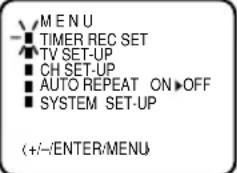
TIMER RECORDING
3 Press the SET/TRACKING + or - button to select the PROGRAM position, then press the ENTER button.
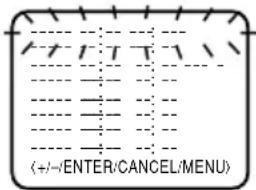
4 Press the SET/TRACKING + or - button to select the date, then press the ENTER button.
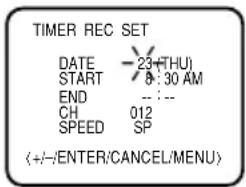
5 Set the start time, end time, channel and tape speed as in step 4.
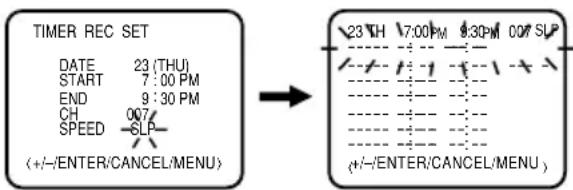
6 To set the timer for another program, press the SET/TRACKING + or - button until the number of the second program blinks, then press the ENTER button. Repeat steps 4 to 5 to set the second program.
7 Press the TIMER REC button. The T-REC indicator will light. The Timer is programmed, when the programmed time is reached, the recording is automatically started.
To cancel timer recording, press the button again and T-REC indicator will go out.
NOTES: • If programming is performed without a tape in the TV/VCR, or with a tape without an erase prevention tab, the Timer Recording is not possible. If a tape without an erase prevention tab is in the TV/VCR, the tape will be ejected.
- To record from the external equipment press the SET/TRACKING + or - button repeatedly until "L" appears when setting the channel in step 5.
- The VCR section cannot be used while the T-REC indicator is lit. If you want to use the VCR operation, press the TIMER REC button to deactivate the timer.
- After a power failure or disconnection of the power plug, all programmed recording setting and time display will be lost upon resumption of power. In this case, reset the clock (see pages 12-13) and reprogram any timer recordings.
- If you want to correct the digits while setting, press the CANCEL button until the item you want to correct, then press the SET/TRACKING + or – button to correct the desired setting.
- To record from the external equipment press the SET/TRACKING + or – button repeatedly until "L" appears when setting the channel in step 5. - The VCR section cannot be used while the T-REC indicator is lit. If you want to use the VCR operation, press the TIMER REC button to deactivate the timer. - After a power failure or disconnection of the power plug, all programmed recording setting and time display will be lost upon resumption of power. In this case, reset the clock (see pages 12-13) and reprogram any timer recordings. - If you want to correct the digits while setting, press the CANCEL button until the item you want to correct, then press the SET/TRACKING + or – button to correct the desired setting.
TIMER RECORDING
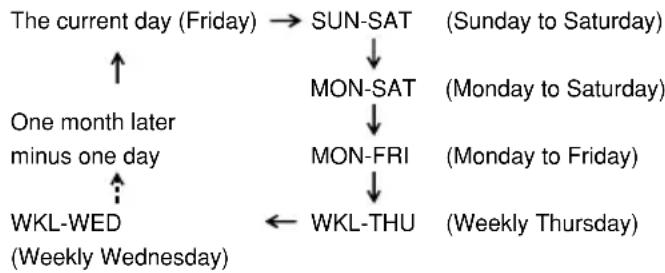
TO SET DAILY/WEEKLY TIMER
When setting the date in the step 4 on page 21, press the SET/TRACKING – button repeatedly when the current day is displayed. The setting changes as follows:
Example
flowchart
graph TD
    A["The current day (Friday)"] --> B["SUN-SAT"]
    B --> C["MON-SAT"]
    C --> D["MON-FRI"]
    D --> E["WKL-THU"]
    E --> F["Weekly Wednesday"]
    G["One month later minus one day"] --> H["WKL-WED"]
    H --> I["Weekly Wednesday"]
    style A fill:#f9f,stroke:#333
    style G fill:#f9f,stroke:#333
    style B fill:#ccf,stroke:#333
    style C fill:#ccf,stroke:#333
    style D fill:#ccf,stroke:#333
    style E fill:#ccf,stroke:#333
    style F fill:#ccf,stroke:#333
    style I fill:#ccf,stroke:#333
TO CONFIRM THE SETTINGS
Press the PROGRAM button once. The TV screen displays the timer program list. Press the PROGRAM button again. The TV screen displays the ON/OFF timer setting. (once) (twice)
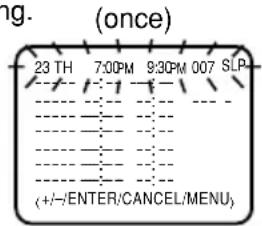
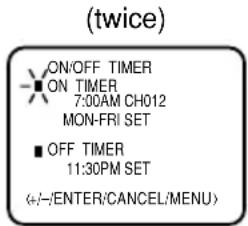
Press the PROGRAM button 3 times. The screen returns to the normal screen.
TO CANCEL A PROGRAM
Press the SET/TRACKING + or - button to select the TIMER REC SET option in the MENU, then press the ENTER button.
Press the SET/TRACKING + or - button to select the unnecessary program, and press the CANCEL button to cancel the program.
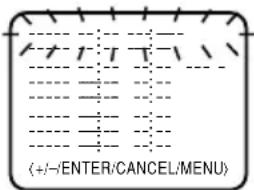
IF THE PROGRAM OVERLAPS ANOTHER
NOTE: Do not overlap programs as portions of the conflicting programs will be lost. The first recording time has priority over the next recording time as shown in the diagram.
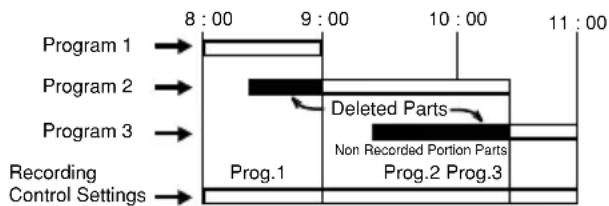
flowchart
graph LR
    A["Program 1"] --> B["8:00"]
    C["Program 2"] --> D["9:00"]
    E["Program 3"] --> F["10:00"]
    G["Recording Control Settings"] --> H["Prog.1"]
    I["Deleted Parts"] --> J["Prog.2 Prog.3"]
    K["Non Recorded Portion Parts"] --> L["Prog.2 Prog.3"]
NOTES: • The everyday/every week recording can be made continuously until the recording is canceled or the tape reaches the end.
- During timer recording, the automatic rewinding mechanism does not function.
- You can correct or cancel the programmed setting in program confirm mode.
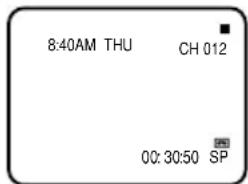
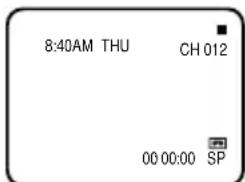
USING THE REAL TIME TAPE COUNTER
The On-Screen Real Time Tape Counter shows the tape running time in Hours, Minutes and Seconds. You can easily determine how long the tape has been running or how much time is left on the tape.
TO VIEW THE COUNTER DISPLAY
1 Press the CALL button.
2 Press the COUNTER RESET button to set the counter to "00:00:00".
3 Begin Playback or Recording to start the tape, the counter will display the elapsed time.
4 When you wish to make the counter disappear, press the CALL button once again.
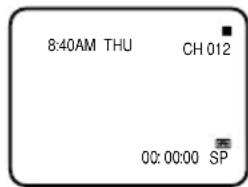
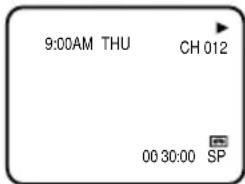
NOTES: • If you rewind the tape from "00:00:00", a minus sign ("−") will be displayed in front of the time.
- When you load a tape, the counter will reset to "00:00:00".
- The counter does not function on nonrecorded (blank) sections of the tape. When you rewind, fast forward or play tapes through blank sections, the counter stops.
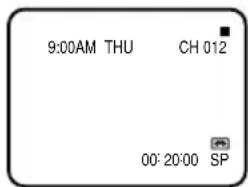
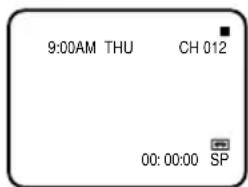
USING ZERO RETURN
The zero return function provides a convenient method of rapidly returning to the starting point of recording or playback. The starting point can be indexed for any location on the tape by pressing the COUNTER RESET button and ZERO RETURN button.
1 Press the CALL button.
2 Before playback or recording, press the COUNTER RESET button to set the counter to "00:00:00".
3 Begin playback or recording.
4 Press the STOP button.
5 Press the ZERO RETURN button. The tape will rewind and automatically stop at the "00:00:00" position.
DUPLICATING A VIDEO TAPE
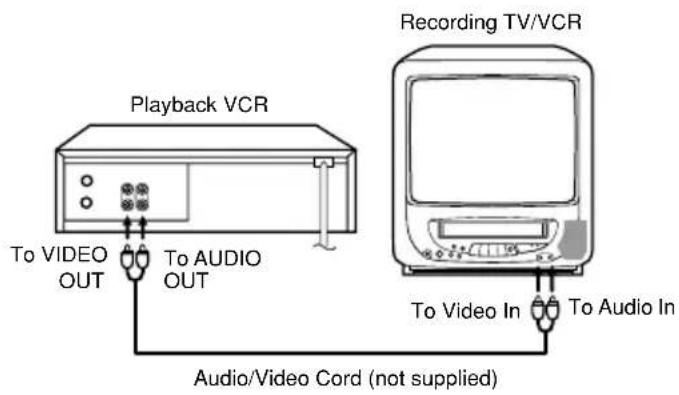
If you connect the TV/VCR to another VCR or Camcorder, you can duplicate a previously recorded tape. Make all connections before turning on the power.
1 Insert a blank cassette with the erase prevention tab intact into the TV/VCR. Insert a previously recorded cassette into the play-back VCR or Camcorder.
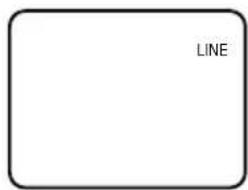
2 Press the INPUT SELECT button twice to select AUDIO/VIDEO input position. The "LINE" will appear on the screen.
3 Press the REC/OTR button on the remote control of the TV/VCR, then press the PAUSE/STILL button.
4 Press the PLAY Button on the playback VCR, then press the PAUSE/ STILL button.
5 Press the PAUSE/ STILL buttons on both units simultaneously to begin the duplicating process.
NOTES: • It is recommended that the tape speed be set to the SP mode on the TV/VCR for best result. • Unauthorized recording of copyrighted television programs, films, video cassettes and other materials may infringe the rights of copyright owners and be contrary to copyright laws.
CONNECTION TO ANOTHER VCR
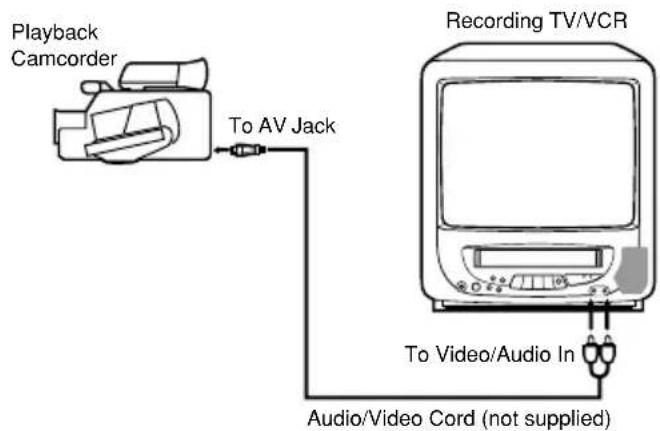
For duplicating a previously recorded tape from a camcorder, follow the camcorder manufacturer's instructions. A typical camcorder dubbing hookup is shown below.
flowchart
graph TD
    A["Playback Camcorder"] -->|To AV Jack| B["Recording TV/VCR"]
    B -->|To Video/Audio In| C["Audio/Video Cord (not supplied)"]
TROUBLESHOOTING GUIDE
Check the following chart before requesting service.
| SYMPTOM CAUSE | POSSIBLE SOLUTION PAGE | ||
| POWER | |||
| No power. | The AC power cord is not connected. | Connect the AC power cord to the AC outlet. | 9 |
| Although the power is on, the TV/VCR does not operate. | Cassette is not inserted. | Insert a video cassette. | 19 |
| TIMER REC button is depressed. | Press the TIMER REC button. | 21 | |
| TV BROADCAST RECEPTION | |||
| Poor or no picture. | TV station experiencing problems. | Try another channel. | 13 |
| Picture control is not adjusted. | Check picture control adjustments. | 18 | |
| Possible local interference. | Check for source of reception disturbance. | 26 | |
| Antenna (CATV) connector is not connected or possible localinterference. | Check CATV connection or VHF/UHF antenna, reposition or rotate antenna. | 10,11 | |
| Poor or no color. | TV station experiencing problems. | Try another channel. | 13 |
| Picture control is not adjusted. | Check picture control adjustments. | 18 | |
| Possible local interference. | Check for source of reception disturbance. | 26 | |
| Antenna (CATV) connector is not connected or possible local interference. | Check CATV connection or VHF/UHF antenna, reposition or rotate antenna. | 10,11 | |
| Picture wobbles or drifts. | TV station experiencing problems. | Try another channel. | 13 |
| Antenna (CATV) connector is not connected or possible local interference. | Check CATV connection or VHF/UHF antenna, reposition or rotate antenna. | 10,11 | |
| Cable TV channel is scrambled. | Try another channel. | 13 | |
| No CATV reception. | CATV connector is not connected. | Check all CATV connections. | 11 |
| TV/CATV Mode menu option is set to the TV mode. | Set the TV/CATV Menu option to the CATV mode. | 15 | |
| Cable TV service interrupted. | Contact your Cable TV company. | 11 | |
| No reception above channel 13. | TV/CATV Mode menu option is not set to the appropriate mode. | Make sure TV/CATV menu option is in the appropriate mode. | 15 |
| UHF antenna is not connected. | Check UHF antenna. | 10 | |
| Poor or no sound. | TV station experiencing problems. | Try another channel. | 13 |
| Antenna (CATV) connector is not connected or possible local interference. | Check CATV connection or VHF/UHF antenna, reposition or rotate antenna. | 10, 11 | |
| Possible local interference. | Check for source of reception disturbance. | 26 | |
| MUTE button is depressed. | Check that MUTING button has not been pressed. | 14 | |
| TV shuts off. | TV station stopped broadcasting. | Tune new channel. | 13 |
| Sleep timer is set. | Set Sleep Timer to "0". | 14 | |
| Closed caption is not activated. | TV station experiencing problems or program tuned is not closed caption. | Try another channel. | 13 |
| TV signal is weak. | Check CATV connection of VHF/UHF antenna, reposition or rotate antenna. | 10,11 | |
| The TV/CAP/TEXT button is not depressed. | Press the TV/CAP/TEXT button to turn on the closed caption. | 14 | |
| RECORDING | |||
| TV recording does not work. | The video cassette's erase prevention tab is broken off. | Place a piece of vinyl tape over the hole. | 19 |
| Timer recording does not work. | The time is not set correctly. | Reset the present time. | 13 |
| The recording start/end time is not set correctly. | Reset the start/end time. | 21 | |
| The TIMER REC button has not been pressed (The T-REC indicator is not lit). | Press the TIMER REC button (The T-REC indicator is lit). | 21 | |
| PLAYBACK | |||
| Noise bars appear on the screen. | Tape is old or worn. | Replace the tape. | — |
| Tracking adjustment is beyond range of automatic tracking circuit. | Adjust tracking manually using the SET/TRACKING + or - buttons on the remote control. | 19 | |
| Video heads are dirty. | Clean the video heads. | 26 | |
| REMOTE CONTROL | |||
| Remote control does not operate. | The remote control is not aimed at the sensor. | Aim the remote control at the remote sensor. | 9 |
| Distance is too far or too much light in the room. | Operate within 15 feet or reduce the light of the room. | 9 | |
| There is an obstacle in the path of the beam. | Clear the path of the beam. | 9 | |
| The batteries are weak. | Replace the batteries. | 9 | |
| The batteries are not inserted correctly. | Insert correctly. | 9 | |

SANSUI®
FOR CUSTOMER SERVICE, ADDITIONAL SET-UP OR OPERATING ASSISTANCE
PLEASE CALL:
1-800-289-0980
OR WRITE TO:
ORION SALES, INC.
3471 N. UNION DR.
OLNEY, ILLINOIS 62450
FOR INFORMATION ON OUR OTHER PRODUCTS, PLEASE VISIT OUR WEBSITE AT
www.orionsalesinc.com
RECEPTION DISTURBANCES
Most types of television interference can be remedied by adjusting the height and position of the VHF/UHF antenna. Outdoor antennas are recommended for best results. The most common types of television interference are shown below. If one of these symptoms appear when the TV/VCR is connected to a Cable TV system, the disturbance may be caused by the local Cable TV company broadcast.
IGNITION
Black spots or horizontal streaks may appear, the picture may flutter or drift. Usually caused by interference from automobile ignition systems, neon lamps or AC powered tools and appliances such as drills or hair dryers.

natural_image
Blurred grayscale image of a person with curly hair (no visible text or symbols)GHOSTS
Ghosts are caused by the television signal following two paths. One is the direct path and the other is reflected by tall buildings, hills or other large objects. Changing the direction or position of the antenna may improve the reception.

natural_image
Portrait of a person with curly hair, no visible text or symbolsSNOW
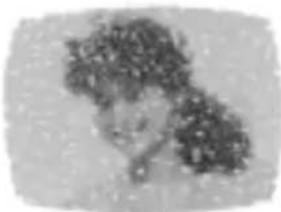
If the TV/VCR is located far from the TV station, in a fringe reception area where the signal is weak, small dots may appear in the picture. If the signal is extremely weak, the installation of a larger external antenna may be necessary.
natural_image
Portrait of a person with curly hair and a small object near the mouth (no visible text or symbols)RADIO FREQUENCY INTERFERENCE (RFI)
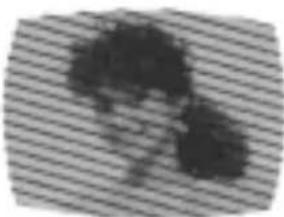
Caused by two-way radios, this type of interference produces moving ripples or diagonal streaks in the picture. Some cases may cause a loss of contrast in the picture. Changing the direction and position of the antenna or installing an RFI filter may improve the picture.
natural_image
Blurred grayscale image of an indistinct human figure with dark hair, set against a striped background (no text or symbols visible)PICTURE SIZE VARIATION
A slight picture size variation is normal when you adjust the CONTRAST or BRIGHTNESS settings.

natural_image
Portrait of a smiling woman with curly hair (no text or symbols visible)CARE AND MAINTENANCE
To prevent fire or shock hazard, disconnect the TV/VCR from the AC power sources before cleaning. The finish on the cabinet may be cleaned with mild soap and a soft, damp cloth and cared for as other furniture. Use caution when cleaning or wiping the plastic parts.
VIDEO HEAD CLEANING
VIDEO HEAD CLOGGING
The video heads are the means by which the TV/VCR reads the picture from the tape during playback. In the unlikely event that the heads become dirty enough to be clogged, no picture will be played back. This can easily be determined if, during playback of a known good tape, there is good sound, but no picture (picture is extremely snowy). If the heads require cleaning use a high quality head cleaning system or have them cleaned professionally.

natural_image
Portrait of a woman with curly hair and a ponytail (no visible text or symbols)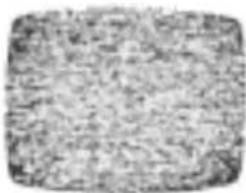
natural_image
Grainy black-and-white image with no discernible text, symbols, or structured content.Good Picture Snowy Picture
VIDEO HEAD CLEANING
Video head cleaning is needed when the playback picture becomes unclear. This signifies that the heads are getting dirty and can occur when playing poor quality or damaged tapes. If the heads require cleaning use a high quality head cleaning system or have them cleaned professionally. If playing a head cleaning tape in the VCR once does not improve the picture, play it several times before requesting service.
DO NOT ATTEMPT TO CLEAN THE VIDEO HEADS OR SERVICE THE UNIT BY REMOVING THE TOP COVER.
NOTES: • Video heads may eventually wear out and should be replaced when they fail to produce clear pictures.
• To help prevent video head clogging, use only good quality VHS tapes. Discard worn out tapes.
SPECIFICATIONS
TELEVISION
Picture Tube: 13" (measured diagonally)
Tuner Type: Quartz PLL Frequency Synthesized
Receiving Channels: VHF 2-13
UHF 14-69
CATV 14-36 (A)-(W)
37-59 (AA)-(WW)
60-85 (AAA)-(ZZZ)
86-94 (86)-(94)
95-99 (A-5)-(A-1)
100-125 (100)-(125)
01 (5A)
Antenna Input: VHF/UHF In 75 ohms coaxial
Speaker: 1-1/2" x 2-1/2", 8 ohm x 1
Audio Output Power: 1.5W
VCR
Video System: VHS, 2 Rotary Heads Helical Scanning System.
Video Signal: NTSC Color
Cassette Tape: VHS
Audio Track: 1 Track
Tape Speed: SP: 33.35 mm/sec.
LP: 16.67 mm/sec.
SLP: 11.12 mm/sec.
F.FWD/REW Time: F.FWD: Approx. 4 minutes 50 seconds
REW: Approx. 2 minutes 30 seconds
(T-120 Cassette)
Speed Search: SP 3 & 5 x Normal Speed
LP 7 & 9 x Normal Speed
SLP 9 & 15 x Normal Speed
GENERAL
Power Source: AC 120V 60Hz
Power Consumption: 65 Watts
Dimensions: W 14-1/4" x D 14-9/16" x H 15-1/16"
Weight: 24.3 lbs
Inputs: Video: (RCA) 1Vp-p/75 ohm
Audio: (RCA) -8 dB/50K ohm
Storage Temperature: -20^ to 60^ ( -4^ to 140^ )
Operating Temperature: 5°C to 40°C (41°F to 104°F)
Accessories: Remote Control
Telescopic Antenna
Specifications are subject to change without notice.
SANSUI®
limited WARRANTY
COMBINATION COLOR TV/VCP/VCR
ORION warrants this product to be free from manufacturing defects in material and workmanship under normal use and conditions for a period of ninety (90) days from date of original purchase in the United States only.
Should service be necessary under this warranty for any reason due to a manufacturing defect or malfunction during the first ninety (90) day period from date of original purchase, ORION will provide carry-in repair service at an ORION authorized Independent Service Center at no charge. In addition, for a period of up to six (6) months from date of original purchase for video heads and twelve (12) months from date of original purchase for other component parts, if an original part fails due to a manufacturing defect in material or workmanship we will replace the defective part only (EXCLUDING LABOR AFTER INITIAL NINETY (90) DAY WARRANTY PERIOD) provided the defect or malfunction is verified along with dated proof of purchase.
There are Independent Service Centers located throughout the country. For the one nearest you, DIAL TOLL FREE: 1-800-289-0980 or visit our website at www.orionsalesinc.com. This product is eligible for CARRY-IN service only. ORION will not be liable for damages incurred in shipment of the unit. If there are no ORION authorized Independent Service Centers in your area please call – 1-888-296-7466 for assistance.
Note: This warranty is void if the product is:
(a) Damaged through negligence, misuse, abuse, or accident.
(b) Used in a commercial application or rentals.
(c) Modified or repaired by anyone other than an Independent Service Center authorized by ORION to effect warranty repairs to the class of product or by the ORION Factory Service Center.
(d) Damaged because it is improperly connected to the equipment of other manufacturers.
This warranty does not cover:
(a) Damage to tape cartridge.
(b) Cleaning of video heads.
(c) Damage to equipment not properly connected to the product.
(d) Costs incurred in the shipping of the product to an authorized Independent Service Center or ORION Factory Service Center.
(e) Damage or improper operation of unit caused by customer abuse, misuse, negligence, or failure to follow operating instructions provided with the product.
(f) Ordinary adjustments to the product which can be performed by customer as outlined in the owner's manual.
THIS WARRANTY IS NON-TRANSFERABLE AND APPLIES ONLY TO THE ORIGINAL PURCHASER AND DOES NOT EXTEND TO SUBSEQUENT OWNERS OF THE PRODUCT. ANY APPLICABLE IMPLIED WARRANTIES, INCLUDING THE WARRANTY OF MERCHANTABILITY, ARE LIMITED IN DURATION TO A PERIOD OF THE EXPRESS WARRANTY AS PROVIDED HEREIN BEGINNING WITH THE DATE OF ORIGINAL PURCHASE AT RETAIL AND NO WARRANTIES, WHETHER EXPRESS OR IMPLIED SHALL APPLY TO THIS PRODUCT THEREAFTER. ORION MAKES NO WARRANTY AS TO THE FITNESS OF THE PRODUCT FOR ANY PARTICULAR PURPOSE AND USE.
UNDER NO CIRCUMSTANCES SHALL ORION BE LIABLE FOR ANY LOSS, DIRECT, INDIRECT, INCIDEN-TAL, SPECIAL, OR CONSEQUENTIAL DAMAGE ARISING OUT OF OR IN CONNECTION WITH THE USE OF THIS PRODUCT.
THIS WARRANTY IS VALID ONLY IN THE UNITED STATES OF AMERICA. THIS WARRANTY GIVES YOU SPECIFIC LEGAL RIGHTS, HOWEVER, YOU MAY HAVE OTHER RIGHTS WHICH MAY VARY FROM STATE TO STATE. SOME STATES DO NOT ALLOW LIMITATION ON IMPLIED WARRANTIES OR EXCLUSION OF CONSEQUENTIAL DAMAGE, THEREFORE, THESE RESTRICTIONS MAY NOT APPLY TO YOU.
ORION SALES, INC.
3471 N. UNION DR.
OLNEY, ILLINOIS 62450