DTV1900 - Television SANSUI - Free user manual and instructions
Find the device manual for free DTV1900 SANSUI in PDF.


User questions about DTV1900 SANSUI
0 question about this device. Answer the ones you know or ask your own.
Ask a new question about this device
Download the instructions for your Television in PDF format for free! Find your manual DTV1900 - SANSUI and take your electronic device back in hand. On this page are published all the documents necessary for the use of your device. DTV1900 by SANSUI.
USER MANUAL DTV1900 SANSUI
ORION warrants this product to be free from manufacturing defects in material and workmanship under normal use and conditions for a period of 12 month from date of original purchase in the United States.
Should service be necessary under this warranty for any reason due to a manufacturing defect or malfunction during the first 12 month from date of original purchase. ORION will provide carry-in repair service by an ORION authorized Independent Service Center at no charge. Also, if an original part fails due to manufacturing defect in material and workmanship within 1 year from date of original purchase (2 years from date of original purchase for picture tube) we will replace the defective part provided the defect or malfunction is verified along with dated proof of purchase.
There are ORION authorized Independent Service Centers located throughout the country. For the one nearest you, DIAL TOLL FREE: 1-800-289-0960 or visit our website at www.orionsalesinc.com This product is eligible for CARRY-N service only. ORION will not be liable for damages incurred in shipment of the unit. If there are no ORION authorized independent Service Centers in your area please call - 1-888-296-7468 for assistance.
Note: This warranty is void if the product is;
a) Damaged through negligence, misuse, abuse, or accident.
b) Used in a commercial application or rentals.
c) Modified or repaired by anyone other than an Independent Service Center authorized by ORION to effect warranty repairs to the class of product or by the ORION Factory Service Center.
d) Damaged because it is improperly connected to the equipment of other manufacturers.
This warranty does not cover:
a) Damage to equipment not properly connected to the product.
b) Costs incurred in the shipping of the product to an ORION authorized Independent Service Center or ORION
Factory Service Center
c) Damage or improper operation of unit caused by customer abuse, misuse, negligence, or failure to follow operating instructions provided with the product.
d) Ordinary adjustments to the product which can be performed by customer as outlined in the owner's manual.
e) Signal reception problems caused by external antenna or cable systems.
THIS WARRANTY IS NON TRANSFERABLE AND APPLIES ONLY TO THE ORIGINAL PURCHASER AND DOES NOT EXTEND TO SUBSEQUENT OWNERS OF THE PRODUCT. ANY APPLICABLE IMPLIED WARRANTIES, INCLUDING THE WARRANTY OF MERCHANTABILITY, ARE LIMITED IN DURATION TO A PERIOD OF THE EXPRESS WARRANTY AS PROVIDED HEREIN BEGINNING WITH THE DATE OF ORIGINAL PURCHASE AT RETAIL AND NO WARRANTIES, WHETHER EXPRESS OR IMPLIED SHALL APPLY TO THIS PRODUCT THEREAFTER, ORION MAKES NO WARRANTY AS TO THE FITNESS OF THE PRODUCT FOR ANY PARTICULAR PURPOSE AND USE
UNDER NO CIRCUMSTANCES SHALL ORION BE LIABLE FOR ANY LOSS, DIRECT, INDIRECT, INCIDENTAL, SPECIAL, OR CONSEQUENTIAL DAMAGE ARISING OUT OF OR IN CONNECTION WITH THE USE OF THIS PRODUCT.
THIS WARRANTY IS VALID ONLY IN THE UNITED STATES OF AMERICA. THIS WARRANTY GIVES YOU SPECIFIC LEGAL RIGHTS, HOWEVER, YOU MAY HAVE OTHER RIGHTS WHICH MAY VARY FROM STATE TO STATE. SOME STATES DO NOT ALLOW LIMITATION ON IMPLIED WARRANTIES OR EXCLUSION OF CONSEQUENTIAL DAMAGE. THEREFORE THESE RESTRICTIONS MAY NOT APPLY TO YOL
ORION SALES, INC.
3471 N. UNION DR
OLNEY, ILLINOIS 62450
ENGLISH
OWNER'S
MANUAL
COLOR TELEVISION
DTV1300
DTV1900
CAUTION
Changes or modifications not expressly approved by the party responsible for compliance with the FCC Rules could void the user's authority to operate this equipment
ATTENTION
If you purchase a universal remote control from your local retailer, please contact the remote manufacturer for the required programming code.
TV/CATV MODE SELECTION
When shipped from the factory, the TV/CATV menu option is set to the "CATV" (Cable Television) mode. If not using CATV, set this menu option to "TV" mode
f CONTACT WITH CUSTOMER SERVICE IS REQUIRED
PLEASE HAVE THE MODEL NUMBER READY PRIOR TO THE CALL
CUSTOMER SERVICE- 1-800-289-0980
ORION WEBSITE
FOR INFORMATION ON OUR OTHER PRODUCTS.
PLEASE VISIT OUR WEBSITE AT
www.orionsalesinc.com
FEATURES
Integrated Digital Tuner - You can view digital broadcasting without using a Digital TV Set-Top Box On-Screen 3 Language Display - This TV can display the on screen language in English, Spanish or French.
Picture Adjustments Using The Remote Control - The On-Screen display allows precise remote control adjustment of BRIGHTNESS, COLOR, CONTRAST, SHARPNESS and TINT
Sleep Timer - Operable from the remote control, this TV can be programmed up to 120 minutes to turn off automatically
Memory Back Up - This system prevents loss of memorized channel selections in case a power interruption to the TV should occur.
Closed Captioned Decoder · Displays text captions or 1/2 of full screen text on the screen for hearing impaired viewers.
V-Chip - The V-Chip function can read the rating of a TV program or movie content if the program is encoded with this information. The V-Chip will allow you to set a restriction level
Manufactured under license from Dolby Laboratories.
J31G0201A SH 07/02
Printed in Thailand
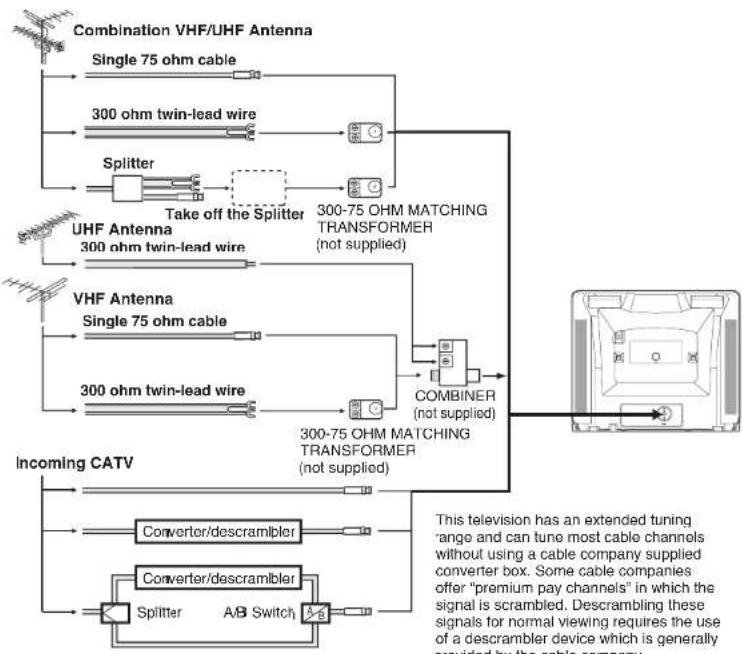
ANTENNA/CATV CONNECTIONS
flowchart
graph TD
    A["Combination VHF/UHF Antenna"] --> B["Single 75 ohm cable"]
    A --> C["300 ohm twin-lead wire"]
    A --> D["Splitter"]
    D --> E["Take off the Splitter"]
    E --> F["300-75 OHM MATCHING TRANSFORMER (not supplied)"]
    G["UHF Antenna"] --> H["300 ohm twin-lead wire"]
    I["VHF Antenna"] --> J["Single 75 ohm cable"]
    I --> K["300 ohm twin-lead wire"]
    L["Incoming CATV"] --> M["Converter/descrambler"]
    L --> N["Converter/descrambler"]
    L --> O["Splitter"]
    L --> P["A/B Switch"]
    Q["COMBINER (not supplied)"] --> F
    R["This television has an extended tuning range and can tune most cable channels without using a cable company supplied converter box. Some cable companies offer "premium pay channels" in which the signal is scrambled. Descrambling these signals for normal viewing requires the use of a descrambler device which is generally provided by the cable company."] --> Q
POWER SOURCE
TO USE AC POWER SOURCE
Use the AC polarized line cord provided for operation on AC. Insert the AC cord plug into a standard 120V 60Hz polarized AC outlet.
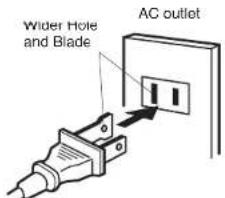
Polarized AG Gord Plug (One blade is wider than the other)
VOTES:
-
Never connect the AC line cord plug to other than the specified voltage (120V 60Hz). Use the attached power cord only.
-
If the polarized AC cord does not fill into a non polarized AC outlet, do not attempt to file or cut the blade. It is the user's responsibility to have an electrician replace the obsolete outlet.
-
If you cause a static discharge when touching the unit, and the unit fails to function, simply unplug the unit from the AC outlet, wait a few minutes, and plug it back in. The unit should return to normal operation.
Combination VHF/UHF Antenna (Single 75 ohm cable or 300 ohm twin-lead wire)
Connect the 75 ohm cable from a combination VHF/UHF antenna to the antenna jack. If your combination antenna has a 300 ohm twin-lead wire, use the 300-75 ohm matching transformer (not supplied)
Combination VHF/UHF Antenna (Separate VHF and UHF 300 ohm twin-lead)
Connect the UHF twin-lead wire to a combiner (not supplied). Connect the VHF twin-lead to the 300-75 ohm matching transformer (not supplied). Attach the transformer to the combiner. Attach the combiner to the antenna
Separate VHF/UHF Antenna
Connect the 75 ohm cable from the VHF antenna and the UHF antenna twin-lead to a combiner (not supplied). Attach the combiner to the antenna jack.
NOTE: If your VHF antenna has a twin-lead wire, use the 300-75 ohm matching transformer (not supplied), then connect the transformer to the combiner
For Subscribers to Basic Cable TV Service
For basic cable service not requiring a converter/descrambler box, connect the CATV 75 ohm coaxial cable directly to the antenna jack on the back of the television.
For Subscribers to Scrambled Cable TV Service
f you subscribe to a cable service which requires the use of a converter/descrambler box, connect the incoming cable to the converter/descrambler box and connect the output of the box to the antenna jack on the back of the television. Follow the connections shown left. Set the television to the output of the converter/descrambler box usually channel 3 or 4) and use the converter/descrambler box to select channels.
For Subscribers to Unscrambled Basic Cable with Scrambled Premium Channels
I you subscribe to a cable service in which basic cable channels are unscrambled and premium channels require the use of a converter/descrambler box, you may wish to use a two-set signal splitter (sometimes called a "two-set coupler") and an A/B switch box from the cable installer or an electronics supply store. Follow the connections shown left. With the switch in the "B" position, you can directly tune any nonscrambled channels on your TV. With the switch in the "A" position, tune your TV to the output of the converter/descrambler box (usually channel 3 or 4) and use the box to tune scrambled channels
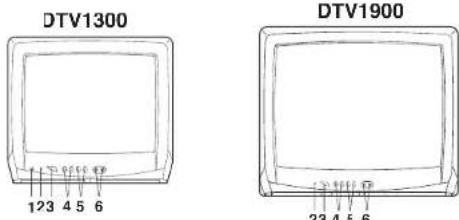
LOCATION OF CONTROLS
DTV1900
23 4 5 6
I. EARPHONE Jack - Plug an earphone or monaural headphones with an 1/8" miniplug into this jack for private listening.
2. Remote Sensor · Signals from the Remote Control unit are received here.
3. Power Button - Press to turn the TV on or off
4. Volume ▲ / ▼ Buttons - Press to raise or lower the level of the sound.
(Menu Buttons) · Press both VOLUME ▲/▼ buttons at the same time to display the On-Screen menu functions.
(Set + / - Buttons) · Press to select the desired setting during On-Screen operations.
5. Channel ▲ / ▼ Buttons - Press to select a higher or lower numbered channel set into memory (Enter Button) - Press to enter or select information for On-Screen operations.
(Reset Button) - Press, while in the On-Screen menu mode, to reset the On-Screen picture adjustments to their factory preset positions.
- Audio/Video In Jacks · Audio and video signal cables from an external source can be connected here
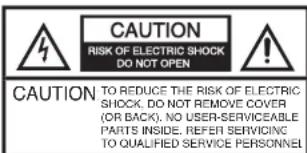

The lightning flash with arrowhead symbol, within an equilater triangle is intended to alert the user to the presence of uninsulated dangerous voltage within the product's enclosure that may be of sufficient magnitude to constitute a risk of electric shock.
The exclamation point within an equilateral triangle is intended to alert the user to the presence of important operating and maintenance (servicing) instructions in the literature accompanying the appliance.
WARNING: TO PREVENT FIRE OR SHOCK HAZARD, DO NOT EXPOSE THIS APPLIANCE TO RAIN OF MOISTURE.
IMPORTANT SAFEGUARDS
-
READ INSTRUCTIONS - All the safety and operating instructions should be read before the unit is operatec
-
RETAIN INSTRUCTIONS - The safety and operating instructions should be retained for future reference.
-
HEED WARNINGS- All warnings on the unit and in the operating instructions should be adhered to.
-
FOLLOW INSTRUCTIONS - All operating and use instructions should be followed.
-
CLEANING - Unplug this unit from the wall outlet before cleaning. Do not use liquid cleaners or aerosol cleaners. Use a damp cloth for cleaning the exterior cabinet only.
-
ATTACHMENTS - The manufacturer of this unit does not make any recommendations for attachments, as they may cause hazards.
-
WATER AND MOISTURE - Do not use this unit near water. For example, near a bathtub, washbowl, kitchen sink, laundry tub, in a wet basement, or near a swimming pool.
-
ACCESSORIES - Do not place this unit on an unstable cart, stand, tripod, bracket, or table. The unit may fall, causing serious injury, and serious damage to the unit.
8A. An appliance and cart combination should be moved with care. Quick stops, excessive force, and uneven surfaces may cause the appliance and cart combination to overturn.
PORTABLE CART WARNING

-
VENTILATION - Slots and openings in the cabinet back or bottom are provided for ventilation, to ensure reliable operation of the unit and to protect it from overheating. These openings must not be blocked or covered. The openings should never be blocked by placing the unit on a bed, sofa, rug, or other similar surface. This unit should never be placed near or over a radiator or heat source. This unit should not be placed in a built-in installation, such as a bookcase, or rack unless proper ventilation is provided or the manufacturer's instructions have been adhered to.
-
POWER SOURCE - This unit should be operated only from the type of power source indicated on the rating plate. If you are not sure of the type of power supply to your home, consult your appliance dealer or local power company. For units intended to operate from battery power, or other sources, refer to the operating instructions.
-
GROUNDING OR POLARIZATION This unit is equipped with a polarized alternating current line plug (a plug having one blade wider than the other). This plug will hit into the power outlet only one way. This is a safety feature. If you are unable to insert the plug fully into the outlet, try reversing the plug. If the plug still fails to hit, contact your electrician to replace your obsolete outlet. Do not defeat the safety purpose of the polarized plug. If your unit is equipped with a 3-wire grounding-type plug, a plug having a third (grounding) pin, this plug will only hit into a grounding-type power outlet. I this too, is a safety feature. If you are unable to insert the plug into the outlet, contact your electrician to replace your obsolete outlet. Do not defeat the safety purpose of the grounding-type plug.
-
POWER-CORD PROTECTION - Power-supply cords should be routed so that they are not likely to be walked on or pinched by items placed upon or against them, paying particular attention to cords at plugs, convenience receptacles, and the point where they exit from the appliance.
-
LIGHTNING - To protect your unit during a lightning storm, or when it is left unattended and unused for long periods of time, unplug it from the wall outlet and disconnect the antenna or cable system. This will prevent damage to the unit due to lightning and power line surges.
-
POWER LINES An outside antenna system should not be located in the vicinity of overhead power lines, or other electric light or power circuits, or where it can fall into such power lines or circuits. When installing an outside antenna system, extreme care should be taken to keep from touching such power lines or circuits as contact with them might be fatal.
-
OVERLOADING: Do not overload wall outlets and extension cords as this can result in a nsk of fire or electric shock.
-
OBJECT AND LIQUID ENTRY Do not push objects through any openings in this unit as they may touch dangerous voltage points or short out parts that could result in fire or electric shock. Never spill or spray any type of liquid into the unit.
-
OUTDOOR ANTENNA GROUNDING: If an outside antenna or cable system is connected to the unit, be sure the antenna or cable system is grounded to provide some protection against voltage surges and built-up static charges. Section 81U of the National Electrical Code, ANSI/NF-PA 70, provides information with respect to proper grounding of the mast and supporting structure, grounding of the lead-in wire to an antenna discharge unit, size of grounding conductors, location of antenna discharge unit, connection to grounding electrodes, and requirements for the grounding electrode.
-
SERVICING - Do not attempt to service this unit yourself as opening or removing covers may expose you to dangerous voltage or other hazards. Refer all servicing to qualified service personnel
-
DAMAGE REQUIRING SERVICE Unplug this unit from the wall outlet and refer servicing to qualified service personnel under the following conditions: a. When the power-supply cord or plug is damaged. b. If liquid has been spilled, or objects have fallen into the unit.
c. If the unit has been exposed to rain or water.
d. If the unit does not operate normally by following the operating instructions. Adjust only those controls that are covered by the operating instructions, as an improper adjustment of other controls may result in damage and will often require extensive work by a qualified technician to restore the unit to its normal operation.
e. If the unit has been dropped or the cabinet has been damaged.
-
When the unit exhibits a distinct change in performance, this indicates a need for ser
-
REPLACEMENT PARTS When replacement parts are required, be sure the service technician uses replacement parts specified by the manufacturer of those that have the same characteristics as the original part. Unauthorized substitutions may result in fire, electric shock or other hazards
-
SAFETY CHECK Upon completion of any service or repairs to this unit, ask the service technician to perform safety checks to determine that the unit is in proper operating condition.
-
HEAT - The product should be situated away from heat sources such as radiators, heat registers, stoves, or other products (including amplifiers) that produce heat.
-
NOTE TO CATV SYSTEM INSTALLER This reminder is provided to call the CATV system installer's attention to Article 820-40 of the NEC that provides guidelines for proper grounding and, in particular, specifically that the cable ground shall be connected to the grounding system of the building, as close to the point of cable entry as practical.
EXAMPLE OF ANTENNA GROUNDING AS PER NATIONAL ELECTRICAL CODE
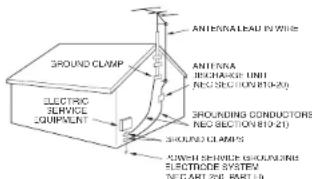
NEC-NATIONAL ELECTRICAL CODE 32898A
REMOTE CONTROL
Before using the remote control transmitter, batteries must first be installed
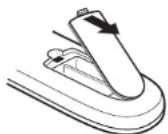
HOW TO INSTALL BATTERIES
- Open the battery compartment cover.
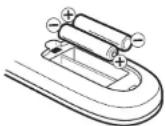
- Install two "AAA" (penlight size) batteries.
- Replace the battery compartment cover.
Use two "AAA" size penlight batteries (supplied) or the transmitter. The batteries may last approximately one year depending on how much the remote control is used. For best performance, it is recommended that batteries should be replaced on a yearly basis, or when the remote operation becomes erratic. Do not mix old and new batteries or different types.
BATTERY PRECAUTIONS
These precautions should be followed when using batteries in this device:
- Use only the size and type of batteries specified
-
Be sure to follow the correct polarity when installing the batteries as indicated in the battery compartment. Heversed batteries may cause damage to the device.
-
Do not mix different types of batteries together (e.g. Alkaline and Carbon-zinc) or old batteries with fresh ones.
-
If the device is not to be used for a long period of time remove the batteries to prevent damage or injury from possible battery leakage.
-
Do not try to recharge batteries not intended to be recharged; they can overheat and rupture.
(Follow battery manufacturer's directions.)
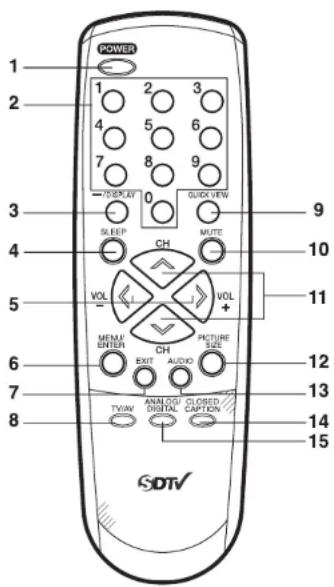
-
POWER Button - Press to turn the TV on. Press again to turn the TV off.
-
Direct Channel Selection Buttons (0-9) - Allow direct access to any channel.
-
-/DISPLAY Button - When the TV is receiving an analog signal pressing this button will display the current information on-screen. When the TV is receiving a digital, pressing this button once will display the digital information on-screen; pressing it a second time will display the analog information on-screen. To remove the display from the screen, press this button again. This button is also the “-” button used when selecting digital channels.
-
SLEEP Button - To set the TV to turn off after a preset amount of time, press the SLEEP button. The clock will count down 10 minutes each time the button is pressed in the order of 120, 110, 100, ..... 20, 10, 0. After the sleep time is programmed, the display will disappear then reappear momentarily every ten minutes to remind you the sleep timer function is operating. To confirm the sleep time setting, press the SLEEP button once and the remaining time will be momentarily displayed. To cancel sleep time, press the SLEEP button repeatedly until the display turns to 0.
-
VOL (VOLUME) + / - Buttons - Press the + button to increase, or the - button to decrease the volume level. Use to select the desired setting during the menu screen operation.
-
MENU/ENTER Button • Press to display the menu screen function and to press to enter or select information for On-Screen operations while in the adjustment menu.
-
EXIT Button - Press remove the menu screen.
-
TV/AV Button - Press this button to display
-
TV/AV Button - Press this button to display SOURCE SELECTION menu to select the video input source.
-
QUICK VIEW Button - This button allows you to go back to the previous channel selected by pressing the QUICK VIEW button. Press this button again to return to the channel you were watching.
-
MUTE Button - To turn off the sound, press this button once. The TV will be silenced and the symbol "MUTE" will appear on the screen. The mute feature can be released by pressing the MUTE button again or one of the VOL + or - buttons.
-
CH (CHANNEL) ∧/ √ Buttons · Press ∧ button to change to a higher numbered channel set into memory. Press √ button to change to a lower numbered channel set into memory. Use to select the desired setting during the menu screen operation.
-
PICTURE SIZE Button - Press this button to change the picture size.
-
AUDIO Button - Press this button to display AUDIO LANGUAGE menu in the digital mode.
-
CLOSED CAPTION Button - Press this button to display CLOSED CAPTION menu.
-
ANALOG/DIGITAL Button - Press this button to switch between analog and digital broadcasting.
SETTING LANGUAGE
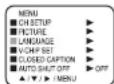
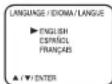
This TV can display the channel number, on screen displays and picture adjustments on the screen in English, Spanish or French.
On-screen language selection (step 3) will automatically appear on the screen when you press MENU/ENTER initially. Select the language you prefer first, then proceed with the other menu options
1 Press MENU/ENTER.
2 Press ∧ or ∨ to select the LANGUAGE mode, then press >.
Press ∧ or √ until the “▶” indicator points to the desired language: English (ENGLISH), Spanish (ESPANOL) or French (FRANÇAIS), then press MENU/ENTER.
4 Press EXIT to return to normal screen.
NOTE:
If Spanish or French is chosen, the Closed Caption indicators will be in the selected language, but the Closed Caption text will not be affected by the language selection.
TV OPERATION
1 To turn on the TV, press POWER button
2 The VOLUME can be adjusted to a desired level by pressing the VOL (VOLUME) - or +
The sound level will be indicated on the TV screen by GREEN BARS AND A NUMBER. As the sound level increases, so do the number of BARS AND THE NUMBER on the screen. The same is true for decreasing the level.
3 Set the TV/CATV menu option to the appropriate position. When shipped from the factory, this menu option is in the CATV setting. See "TO MEMORIZE CHANNELS"
TV - VHF/UHF channels CATV - CABLE TV channels
4 CH (CHANNEL) ∧ and √
Press and release CH (CHANNEL) ▲ or √. The channel automatically stops at the next channel set into memory. Press and hold the button down to change channels more quickly
For proper operation, before selecting channels, they should be set into the TV's memory. See "TO MEMORIZE CHANNELS".
DIRECT CHANNEL SELECTION buttons (0-9)
Press these buttons to select a channel. The channel number will appear on the upper right corner of the TV screen. If an invalid channel number is selected, the display will revert to the previous channel.
TV MODE DIRECT CHANNEL SELECTION
When the TV/CATV menu option is in the TV position, all channels can be instantly selected by using two buttons (For example, to select channel 2, press "0", then "2". If you press only "2", channel selection will be delayed for a few seconds). For channels 10 and above, press the 2 digits in order.
ANALOG CHANNEL SELECTION
When the TV/CATV menu option is in the CATV position, channels can be selected as follows
1-9 Press "0" twice, then 1-9 as needed. Example, to select channel 2, press "002".
10-12 Press "0", then remaining 2 digits.
Example, to select channel 12, press "012".
13-99 Press the 2 digits in order.
Example, to select channel 36, press "36".
100-125 Press the 3 digits in order.
Example, to select channel 120, press "120".
DIGITAL CHANNEL SELECTION
Press the first 3 digits, then press “-/DISPLAY”, followed by the remaining 3 digits. Example, to select channel 015-001, press 015-001.
- If a channel is selected with only audio content, "AUDIO ONLY" will be displayed on the screen. - If a channel is selected with a weak digital signal, "DIGITAL CHANNEL SIGNAL STRENGTH IS LOW" will be displayed on the screen. - If a channel is selected to which you have not subscribed, "DIGITAL CHANNEL IS SCRAMBLED" will be displayed on the screen.
NOTE: It may take a few seconds for a digital channel picture to appear on screen after being selected.
CLOSED CAPTION
WHAT IS CLOSED CAPTIONING?
This television has the capability to decode and display Closed Captioned television programs. Closed Captioning will display text on the screen for hearing impaired viewers or it will translate and display text in another language.
TO VIEW CLOSED CAPTIONS
Press CLOSED CAPTION on the remote control to switch between normal TV and the two Closed Caption Modes (Captions and 1/2 of Full Screen Text)
Captions: This Closed Caption Mode will display text on the screen in English or another language (depending on the setting of the Closed Captions CH.1/2 button). Generally, Closed Captions in English are transmitted on Captions Channel 1 and Closed Captions in other languages are transmitted on Captions Channel 2.
Text The Text Closed Caption Mode will usually fill 1/2 of full screen with a programming schedule or other information. After selecting a Closed Caption Mode, it will stay in effect until it is changed, even if the channel is changed. If the Captions signal is lost due to a commercial or a break in the signal, the Captions will reappear when the signal is received again. If the channels are changed, the Captions will be delayed approximately 10 seconds.
The Captions will appear in places on the screen where they will least interfere with the picture, usually on the bottom of the screen. News programs will usually show three-line Closed Captions which scroll onto the screen. Most other shows provide two or three lined Captions placed near the character who is speaking so the viewer can follow the dialogue.
Words in italics or underlined describe titles, words in foreign languages or words requiring emphasis. Words that are sung usually appear enclosed by musical notes.
For television programs broadcasting with Closed Captions, look in your TV guide for the Closed Captions symbol (CC).
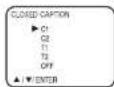
TO VIEW CLOSED CAPTIONS (ANALOG MODE)
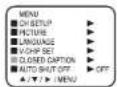
1 Press MENU/ENTER in the analog mode.
2 press ∧ or √ to select CLOSED CAPTION, then press >.
3 Press ∧ or ∨ to select the desired Closed Caption mode, then press MENU/ENTER.
NOTE: To return the Cloesd Caption feauture off, select "OFF"
press EXIT to return to the normal screen.
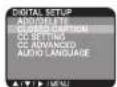
TO VIEW CLOSED CAPTIONS (DIGITAL MODE)
1 Press MENU/ENTER in the digital mode.
Press ∧ or √ to select DIGITAL SETUP, then press >
When DIGITAL SETUP menu appears, press ↗ or ↙ to select CLOSED CAPTION then press >.
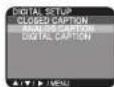
4 press ∧ or ∨ to select ANALOG CAPTION or DIGITAL CAPTION, then press >.
Press ↗ to select the desired Closed Caption mode, then press MENU/ENTER.
NOTE: To turn the Cloesd Caption feature off, select "OFF"
6 press MENU/ENTER until the menu screen is cleared.

NOTES:
- Depending on the broadcast signal, some Analog Captions will function with a Digital broadcast signal. This screen can be displayed by pressing CLOSED CAPTION on the remote control.
- When activating the Closed Captioned Decoder, there will be a short delay before the Closed Captioned text appears on the screen.
- Closed Captioned text is only displayed in locations where it is available.
- If no caption signal is received, no captions will appear, but the television will remain in the Caption Mode
- Misspellings or unusual characters may occasionally appear during Closed Captioning. This is normal with Closed Captioning, especially with live programs. This is because during live programs, captions are also entered live. These transmissions do not allow time for editing.
- When Captions are being displayed, on-screen displays, such as volume and mute may not be seen or may interfere with Closed Captions.
- Some cable systems and copy protection systems may interfere with the Closed Captioned signal.
- If using an indoor antenna or if TV reception is very poor, the Closed Caption Decoder may not appear or may appear with strange characters or misspelled words. In this case, adjust the antenna for better reception or use an outdoor antenna.
CC SETTING (DIGITAL MODE)
You can select the display method of Closed Caption with AUTO designated by broadcasting studios or CUSTO
1 Press MENU/ENTER in the digital mode.
2 press ∧ or √ to select DIGITAL SETUP, then press >.
When DIGITAL SETUP menu appears, press ∧ or √ to select CC SETTING and press >.
4ou can choose from AUTO, SMALL, LARGE, CUSTOM, and press MENU/ENTER.
5 Press MENU/ENTER to return to the normal screen.
CC ADVANCED (DIGITAL MODE)
Closed Caption are factory preset however you can adjust them individually as follows:
Press MENU/ENTER in the digital mode.
2 press ∧ or ∨ to select DIGITAL SETUP, then press >.
When DIGITAL SETUP menu appears, press √ or √ to select CC ADVANCED and press >
4 press ∧ or ∨ to select the item you want to adjust, then press >.
Press ∧ or √ to select desired setting, then press MENU/ENTER.
You can select from among the following items and parameters.
TEXT SIZE : SMALL, STANDARD, LARGE
6 Press MENU/ENTER until the menu screen is cleared.
NOTE:
Do not set the Closed Caption "TEXT COLOR" and "BACKGROUND COLOR" as the same color or you will not be able to see the text.
AUDIO LANGUAGE (DIGITAL MODE)
Press MENU/ENTER in the digital mode.
2 press ∧ or √ to select DIGITAL SETUP, then press >.
When DIGITAL SETUP menu appears, press ∧ or √ to select AUDIO LANGUAGE and press >.
press ∧ / ∨ or the number button (0-7) to select your desired language, then press MENU/ENTER
Bress MENU/ENTER to return to the normal screen.
NOTE: You can also display the AUDIO LANGUAGE menu by pressing AUDIO on the remote control
SETTING V-CHIP
This TV is fitted with a V-CHIP controller which provides you with channel viewing access controls and restrictions. This function allows adult screening of TV programs based upon ratings.
1 Press MENU/ENTER.
Press ∧ or ∨ to select V-CHIP SET option, then press >.
Enter your password (4 digits) using the Direct channel selection buttons (0-9), then press MENU/ENTER.
Enter the same password for confirmation, then press MENU/ENTER.
5 press ∧ or √ to select V-CHIP SET, then press >.
Bress ∧ or √ to select TV RATING, then press < or > to display the desired rating
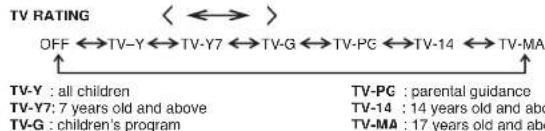
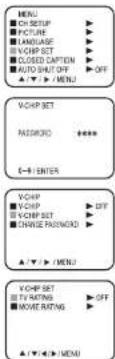
When you select TV-Y7, TV-PG, TV-14 or TV-MA, press DISPLAY to explain the rating.
Press ∧ or ∨ to select the desired rating you want. Press ⟨ or⟩ to select the setting ON or OFF
Press ∧ or √ to select MOVIE RATING, then press >.
press ∧ or √ to select a rating, then press < or > to select ON or OFF for each rating.
G : all ages R : parental guidance for under 1
PG : parental guidance NC-17 : 17 years old and above
PG-13: parental guidance for under 13 years old X: adult only
9 less MENU/ENTER twice to return to the V-CHIP menu, then press ∧ or √ to select V-CHIP
10 Press < or > to select "ON". Your settings are now set into memory
14 press EXIT to return to the normal screen.
NOTES:
- If you want to change the password, follow steps 1-3 and select the "CHANGE PASSWORD" option then enter your new password.
• The V-Chip function is activated only on programs and recordings that have the rating signal - Once you block a program using the V-Chip function, the blocked program cannot be watched based on the content of the show. When the program starts, the "INPUT PASSWORD" will appear on the screen. When you want to release the V-Chip temporarily, enter the password
If you change the channel or turn off the TV while the V-Chip function was temporarily released, the original setting will be resumed. If you return to the channel you were watching you must re-enter your password to temporarily release your V-Chip function again. - If you are changing channels using a VCR, DVD/VCD or a cable box, while the TV remains on channel 3 or 4, the V-Chip operates differently. When you enter your password to temporarily release the block on any channel, you have completely disabled the V-Chip function for all stations. To reset the V-Chip turn your TV off and back on.
- Some cable boxes are built with a delay feature, in some cases it can take up to 10 seconds for a program to appear after the password has been input.
- It may take a few seconds for a digital channel picture to appear on screen after being selected
- The V-CHIP SET (DTV) will only be selectable when the unit receives a digital broadcast using the new rating system. It may take several minutes for the initial V-Chip Set-up to complete. At this time some stations are still developing this signal, in those cases the V-CHIP SET (DTV) will not function
TO MEMORIZE CHANNELS
This TV is equipped with a channel memory feature which allows channels to skip up or down to the next channel set into memory, skipping over unwanted channels.
Before selecting channels, they must be programmed into the TV's memory. To use this TV with an antenna, set the TV/CATV menu option to the TV setting. When shipped from the factory, this menu option is in the CATV setting.
TV/CATV SELECTION
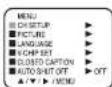
1 Press MENU/ENTER.
Press then press ∧ or ∨ until the indicator next to "CH SETUP" begins to flash
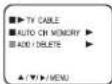
Bress ∧ or √ until the indicator next to "TV CABLE" begins to fl ash
press < or > to select the TV or CABLE mode. The arrow indicates the selected mode.
Bress EXIT to return to the normal screen.
The chart below is typical of many cable system channel allocations.
CATV CHART
| Number on this TVCorresponding CATV channel | 14A | 15B | 16C | 17D | 18E | 19F | 20G | 21H | 22I | ||||||||
| 23J | 24K | 25L | 26M | 27N | 28O | 29P | 30Q | 31R | 32S | 33T | 34U | 35V | 36W | 37AA | 38BB | 39CC | 40DD |
| 41EE | 42FF | 43GG | 44HH | 45II | 46KK | 47LL | 48MM | 49MM | 50NN | 51OO | 52PP | 53QQ | 54RR | 55SS | 56TT | 57UU | 58VV |
| 59WW | 60AAA | 61BBB | 62CCC | 63DDD | 64EEE | 65FFF | 66GG | 67HHH | 68III | 69JJ | 70KKK | 71LLL | 72MMM | 73NNN | 74OOO | 75PPP | 76QQQ |
| 77RRR | 78SSS | 79TTT | 80UUU | 81VVV | 82WWW | 83XXX | 84YYY | 85ZZZ | 86 | 87 | 88 | 89 | 90 | 91 | 92 | 93 | 94 |
| 95A-5 | 96A-4 | 97A-3 | 98A-2 | 99A-1 | 100100 | 101101 | 102102 | 103103 | 104104 | 105105 | 106106 | 107107 | 108108 | 109109 | 110110 | 111111 | 112112 |
| 113113 | 114114 | 115115 | 116116 | 117117 | 118118 | 119120 | 120121 | 121122 | 122123 | 123124 | 124125 | 125 | 01 | ||||
NOTE:
Contact your cable company to determine the type of cable system used in your area.
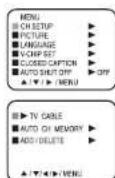
AUTOMATIC CHANNEL MEMORY
1 Press MENU/ENTER.
2 press ∧ or ∨ until the indicator next to "CH SETUP" begins to fl ash then press >.
③ess ∧ or ∨ until the indicator next to "AUTO CH MEMORY" begins to fl ash, then press >. The TV will begin memorizing all the channels available in your area.
After finishing Analog Tuning, Digital Tuning starts automatically
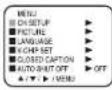
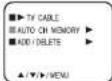
NOTES:
- It may take from 15 minutes to 30 minutes to complete memorizing digital cable channels. Depending on the reception condition, a BAR display may not advance for several minutes.
- Memorizing channels is best accomplished during evening "PRIMETIME" hours, as more stations are broadcasting digital signals. Memorizing channels can only be accomplished while a station is broadcasting a digital signal to set that channel into memory.
- If you are unsure of the digital channels available in your area you may visit www.antennawab.org to receive a list based on your address or zip code. Should you require further assistance you may call our toll-free customer service line at 1-800-289-0980.
TO ADD/DELETE CHANNELS (ANALOG MODE)
1 Press MENU/ENTER in the analog mode.
Press ∧ or ∨ until the indicator next to "CH SETUP" begins to fl ash then press >.
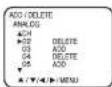
Press then press ∧ or ∨ until the indicator next to "ADD/DELETE" begins to flash >.
4 select the desired channel to be memorized or deleted using or .^ √ Press <or to select "ADD" or "DELETE", whichever function you want to perform.
5 Repeat steps 4 for other channels you wish to add or delete, then press MENU/ENTER.
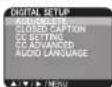
6 press EXIT to return to the normal screen.
TO ADD/DELETE CHANNELS (DIGITAL MODE)
Press MENU/ENTER in the digital mode.
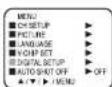
Press ∧ o' ∨ to select DIGITAL SETUP, then press >.
When DIGITAL SETUP menu appears, press and press >.
4 press ∧ o √ to select ADD/DELETE, then press >.
Select the desired channel to be memorized or deleted using ∧ or ∨.
Press
6 Repeat step 4 for other channels you wish to add or delete, then press MENU/ENTER 7 Press MENU/ENTER until the menu screen is cleared.
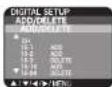
TO ADD A DIGITAL CHANNEL
Select the channel you want to add. Press ∧ or ∨ to select "ADDING CHANNEL" as in step 4 above, then press >.
ADJUSTING PICTURE
You can adjust the settings for color, sharpness, contrast, brightness and tint.
Press MENU/ENTER.
2 Press ∧ or √ until the indicator next to "PICTURE" begins to fl ash, then press >
Bless ∧ or ∨ repeatedly to select the item you want to adjust.

4 less < or > to adjust the setting.
| + | ||
| BRIGHTNESS | increase brightness | decrease brightness |
| CONTRAST | increase contrast | decrease contrast |
| COLOR | be brilliant color | be pale color |
| TINT | be greenish color | be reddish color |
| SHARPNESS | makes picture clearer | makes picture softer |
Bless EXIT to return to the normal screen.
AUTO SHUT OFF
In case of "AUTO SHUT OFF" is "ON", if a station being viewed stops broadcasting, the TV will automatically shut itself off after 15 minutes.
Press MENU/ENTER.
2 Press ∧ or √ until the indicator next to "AUTO SHUT OFF" begins to fl ash, then press < or > to select ON or OFF.
3 press EXIT to return to the normal screen.
CONNECTION TO OTHER EQUIPMENT
The exact arrangement you use to interconnect various video and audio components to the TV is dependent on the model and features of each component. Check the Owner's Manual provided with each component for the location of video and audio inputs and outputs.
The connection diagrams below are offered as suggestions. You may need to modify them to accommodate your particular assortment of components. The diagrams are intended to show component video and audio interconnections only.
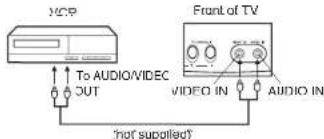
Press the TV/AV selector button to select the AV mode to use the TV as a monitor. Operate your VCR as usual
TV/AV SELECTION
If you connect the TV to a VCR, camcorder or TV game, through the audio/video in jacks, use the TV/AV button to make your selection.
Press the TV/AV button repeatedly to select the desired mode.
"AUX" will display on the screen for 4 seconds.
1. To connect the TV to a VCR
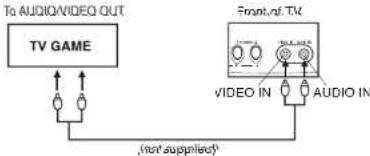
2. To connect the TV to a TV Game
The TV can also be used as a display device for many video games. However, due to the wide variety of different types of signal generated by these devices and subsequent hook-up variations required, they have not all been included in the suggested connection diagrams. You'll need to consult each component's Owner's Manual for additional information
flowchart
graph TD
    A["TV GAME"] --> B["To AUDIO/VIDEO OUT"]
    B --> C["Front Panel"]
    C --> D["VIDEO IN"]
    C --> E["AUDIO IN"]
    D --> F["(not supplied?"]
3. To connect the TV to a camcorder
To playback from the camcorder, connect the camcorder to the TV as shown.
![To AV OUT Jack Front of TV VIDEO IN AUDIO IN [not supplied]](/content/2026/06/1146331/images/b603f4096b5d8d4239829376ddc7c15734c6360dc739b93ef2a0089bd2e1b911.jpg)
TROUBLESHOOTING GUIDE
Before requesting service, please refer to the following chart for the symptom and possible solution.
| SYMPTOMS | POSSIBLE SOLUTIONS |
| TV does not operate. | Make sure the power cord is plugged in.Try another AC outlet.Power is off, check fuse or circuit breakerUnplug unit to an hour, then plug it back in |
| Poor sound or no sound. | Station or CATV experiencing problems, tune to another stationCheck sound adjustments (Volume and Mutel).Check for sources of possible interference. |
| Poor picture or no picture | Station or CATV experiencing problems, tune to another stationMake sure channels are set into memory.Check antenna or CATV connections, adjust antennaCheck for sources of possible interference.Check picture control adjustments. |
| Poor reception on some channels. | Station or CATV experiencing problems, tune to another stationMake sure channels are set into memory.Station is weak, adjust antenna to receive desired station.Check for sources of possible interference. |
| Poor color or no color. | Station or CATV experiencing problems, tune to another stationMake sure channels are set into memory.Check picture control adjustments.Check antenna or CATV connections, adjust antennaCheck for sources of possible interference. |
| Picture wobbles or drifts. | Station or CATV experiencing problems, tune to another stationMake sure channels are set into memory.CATV company is scrambling signalAdjust antenna |
| Digital broadcasting screen problem. | Check antenna, adjust antenna. |
| No CATV reception | Check all CATV connectionsSet TV/CATV menu option to the CATV modeStation or CATV system problems, try another station. |
| Horizontal or diagonal bars on screen. | Check antenna connections, adjust or re-direct antenna.Check for sources of possible interference. |
| No reception above channel 13. | Make sure TV/CATV menu option is in the appropriate mode.If using antenna, check UHF antenna connections. |
| No Remote operation. | Batteries are weak, dead or inserted incorrectly.Remote is out of range, move closer to TV (within 15 feet).Make sure Remote is aimed at sensorConfirm there are no obstructions between the Remote and the TVMake sure the power cord is plugged in. |
| TV shuts off | No broadcast on station tuned.Sleep Timer is set.Power interrupted. |
| Closed - Caption is not activated. | TV station experiencing problems or program tuned is not closed captioned.Try another channel.Check CATV connection or VHF/UHF antenna, reposition or rotate antenna.Press CLOSED CAPTION button to turn on the closed caption decoder. |
| Display is not shown in your language | Select proper language in the menu options. |
SPECIFICATIONS
| Model | JTV1300 | JTV1900 |
| AC Power Input:g | 120V, 60Hz | |
| AC Power Consumption: | Operation: 60 Watts Stand by: 3 Watts | Operation: 80 Watts Stand by: 3 Watts |
| Chassis Construction: | IC Solid state | |
| Picture Tube: | 13" (measured diagonally) | 19" (measured diagonally) |
| Horizontal resolution: | 260 lines | |
| Audio Power Output Rating: | 1.0 Watts | |
| Speaker: | 3" Full Range, 8 ohm | |
| Tuner Type: | NTSC Standard ATSC Standard (8VSB), QAM | |
| Remote Control: | Infrared, Direct Access, 2 x AAA batteries | |
| Receiving Channels: | VHF 2-13 UHF 14-69 CATV 01-97 (5A)-(A-3) 98-99 (A-2)-(A-1) 14-22 (A)-(I) 23-36 (J)-(W) 37-65 (AA)-(FFF) 68-125 (QGG)-(125) | |
| Antenna Input Impedance: | 75 Ohm (VHF/UHF/CATV) Coaxial Input | |
| Input: | Video: 1.0 Vp-p 75 ohm Audio: 300 mV, 47k ohr | |
| Dimensions: | 362 mm (W) × 360 mm (U) × 320.5 mm (H) [14-14' (W) × 14-3/16" (U) × 12-5/8" (H)] | 188 mm (W) × 465 mm (U) × 416 mm (H) [18-3/16" (W) × 18-5/16" (U) × 16-3/8" (H)] |
| Weight: | 20.9 IDS (9.5 Kg) | 50.6 IDS (17.5 Kg) |
ACCESSORY
Remote Control
FOR CUSTOMER SERVICE.
ADDITIONAL SET-UP OF