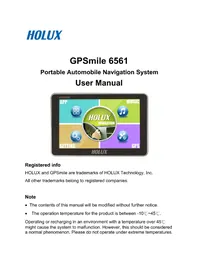
GPSmile 6561 - Gps HOLUX - Free user manual and instructions
Find the device manual for free GPSmile 6561 HOLUX in PDF.


| Product Type | Car Navigation System |
| Brand | HOLUX |
| Model | GPSmile 6561 |
| Display | Touchscreen (approx. 5-inch) |
| Operating System | Android (customized) |
| GPS Receiver | Built-in, 12-channel |
| Maps | Preloaded navigation software |
| Battery | Lithium-ion rechargeable |
| Charging | Car charger (DC 12V) and AC adapter |
| Connectivity | Wi-Fi 802.11 b/g/n, USB 2.0 (OTG) |
| Memory Card Slot | SD/MMC |
| Dimensions | Approx. 135 x 85 x 15 mm |
| Weight | Approx. 200 g |
| Operating Temperature | -10°C to 45°C |
| Audio | Built-in speaker |
| Package Contents | Device, In-vehicle bracket, Car charger, Home charger, USB cable, Quick guide |
| Warranty | 1 year (parts and service) |
| Safety Features | Overheat protection, battery safety warnings |
| Maintenance | Clean with soft damp cloth; avoid moisture and extreme temperatures |
| Regulatory Compliance | FCC Class B, CE, NCC |
Frequently Asked Questions - GPSmile 6561 HOLUX
User questions about GPSmile 6561 HOLUX
0 question about this device. Answer the ones you know or ask your own.
Ask a new question about this device
Download the instructions for your Gps in PDF format for free! Find your manual GPSmile 6561 - HOLUX and take your electronic device back in hand. On this page are published all the documents necessary for the use of your device. GPSmile 6561 by HOLUX.
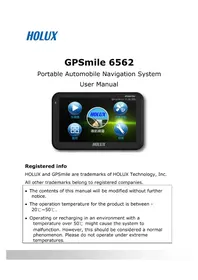
USER MANUAL GPSmile 6561 HOLUX
HOLUX and GPSmile are trademarks of HOLUX Technology, Inc.
All other trademarks belong to registered companies.
Note
- The contents of this manual will be modified without further notice.
- The operation temperature for the product is between -10°C 45°C .
Operating or recharging in an environment with a temperature over 45° C might cause the system to malfunction. However, this should be considered a normal phenomenon. Please do not operate under extreme temperatures.
Safety Precautions
- Select the install location must be cautiously. HOLUX will not bear any responsibility if the user does not follow the correct device installing procedure.
- Use the power adapter included with the package. Using other power adapters than the one provided will result to malfunction and could prove to be dangerous.
- The device should only be used with the supplied batteries.
-
About the power adapter:
-
Do not use the power adapter in a wet environment. When hands and feet are wet, do not touch the power adapter.
- While using the power adaptor, ensure that the area is well ventilated. Do not let paper or other material cover the power adaptor, as this will interfere with cooling. Do not use the power adaptor whilst it is in a bag.
- Do not attempt to repair the device. If device is damaged or is in a wet environment, replace the device immediately.
- It is not recommended to charge from a PC because the PC power voltage is not enough to supply the device.
- About the battery
- Use only the original factory approved charger.
- A Lithium battery is built into the device. To prevent fire or skin burns, do not disassemble, pierce, impact, or expose the battery to fire. The battery will crack, explode, or release dangerous chemicals if placed in a fire.
Warranty Statement
- This warranty applies to parts and services that are manufactured and sold through Holux Technology Inc. The local area covered is Taiwan; the warranty length is one year from date of purchase (starting from the date on the sales receipt). Under normal user operation, Holux Technology provides free repair services.
- After repair, the replaced parts are the properties of Holux Technology Inc.
- Holux Technology is not responsible for providing repairs or replacements of any software; Holux Technology does not provide any warranty service for third party software/hardware.
- Important instructions
Note: This warranty does not cover damage or malfunction from the below causes: unauthorized disassembly/modification of unit, abuse or incorrect usage, accidental and other unpreventable causes, operation under variables mentioned that are different from those in this product user manual, using parts not made or sold by Holux Technology, or repairs done by anyone other than Holux Technology and authorized retail/service providers.
- Expendable parts are not covered in the warranty.
✿ Holux Technology is not responsible for any program, data, or portable storage media damages or loss. Please contact your local Holux Technology authorized service provider to learn more about geographical limitations, proof of purchase requests, response time agreements, and other specific maintenance service requests.
Technical Support
- If there are any questions regarding the use of this product, please log on to the website www.holux.com and see the FAQ.
Maintenance Service
HOLUX Technology, Inc.
+886-3-6687-000
Web Site: www.holux.com
E-mail: info@holux.com
or
Contact your nearest dealer, for further support.
HOLUX Technology, Inc.
www.holux.com
Table of Contents
Safety Precautions....i
Warranty Statement...... ii
Technical Support .... iii
Maintenance Service .... iii
Preface....2
Precautions and Notices....2
Copyright 3
Important Notice ....3
First time use ....4
Package Contents 4
Basic Operation ....5
Introduction 5
Using the In-Vehicle Bracket 7
Connecting the Car Charger 9
Inserting a SD/MMC Card 10
Getting Started....11
Unlocking device 11
Main menu....12
Switching Wallpaper....14
APP....15
Using APPs ....15
Using Widgets 16
SETTING 17
Wireless & Networks 18
Connecting to Wi-Fi networks 18
Device....19
Sound....19
Display 20
Storage....21
Battery....21
Apps 22
PERSONAL 23
Location services ....23
Security 24
Language & input ....25
Backup & reset....26
Accounts & sync 27
System....28
Date & Time ....28
Developer options ......29
About device ....30
MUSIC ....31
Play music....31
GPS 33
Troubleshooting 34
Resetting System 36
Maintaining Device 37
Regulatory Information ....38
Regulations Statements ......38
NCC Warning Statement....40
Preface
We appreciate your purchase of the HOLUX car navigation.
Please read all instructions thoroughly for a full understanding of the products' features.
Precautions and Notices
- For your own safety, do not operate the controls of the product while driving.
- Use this product prudently. The product is intended to be used only as a navigation aid. It is not for precise measurement of direction, distance, location or topography.
- The calculated route is for reference only. It is the user's responsibility to follow the traffic signs and local regulations along the roads.
- When you get off the car, do not leave your device on the dashboard that is subject to direct sunlight. The overheating of the battery can cause malfunction and/or danger.
- GPS is operated by the United States government, which is solely responsible for the performance of GPS. Any change to the GPS system can affect the accuracy of all GPS equipments.
- GPS satellite signals cannot pass through solid materials (except glass). When you are inside a tunnel or building, GPS positioning is not available.
- A minimum of 4 GPS satellite signals is needed to determine current GPS position. Signal reception can be affected by situations such as bad weather or dense overhead obstacles (e.g. trees and tall buildings).
- Other wireless devices in the vehicle might interfere with the reception of satellite signals and cause the reception to be unstable.
- A car holder is needed when using the device in a car. Be sure to place the device in an appropriate place, so as not to obstruct the driver's view or deployment of air bags.
Copyright
Without the written consent of HOLUX Technology, Inc, this manual, including the product and the software, may not be duplicated, transmitted, recorded or saved on storage devices. Furthermore, it shall not be translated under any circumstances into any other languages.
Copyright ©2013 HOLUX Technology, Inc. All rights reserved.
Important Notice
Please thoroughly read this manual of operating instructions and explanations. Only use original factory approved batteries and accessories to prevent unexpected damage. If the correct procedures were not followed for operation or incompatible accessories were connected, this is a violation of the warrantee agreement and will automatically void the warrantee. This may also cause personal safety issues.

First time use
Package Contents
Your product should include the following accessories:
 | 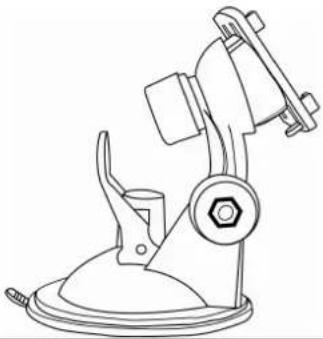 | 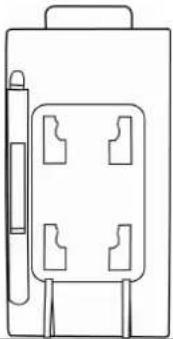 |
| Device In-vehicle Bracket fixing | ||
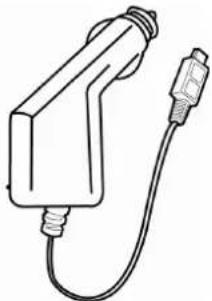 | 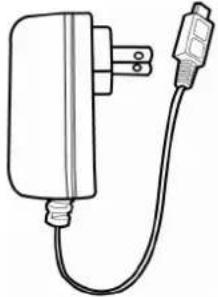 |  |
| Car Adapter Home Charger USB Cable | ||
 | ||
| Quick Guide | ||
Basic Operation
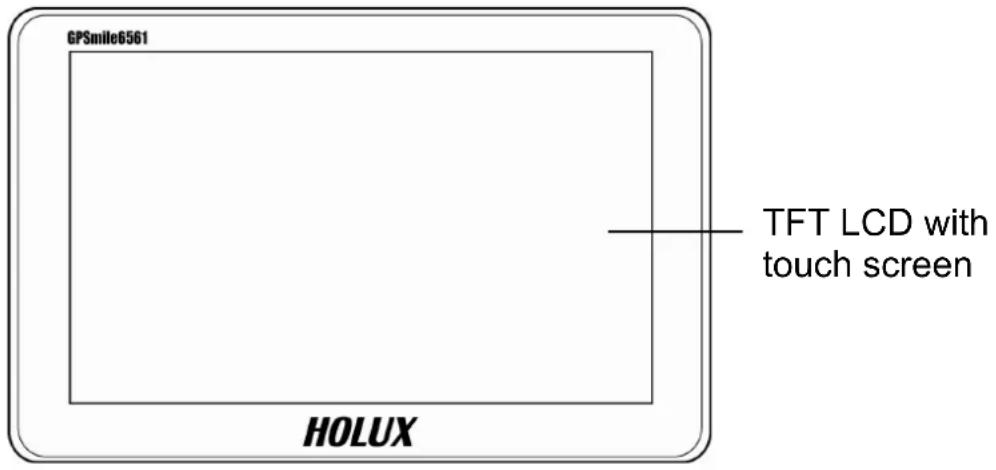
Introduction
Front View
Rear View

Top View

ON/OFF Power button
Left Side

Using the In-Vehicle Bracket
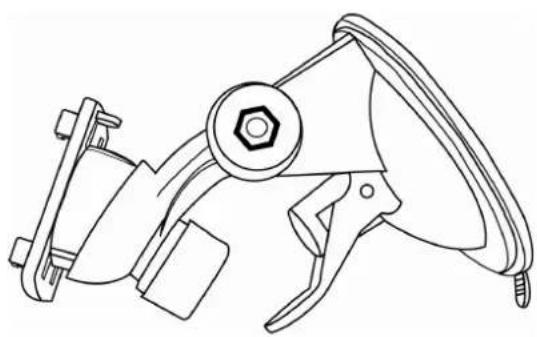
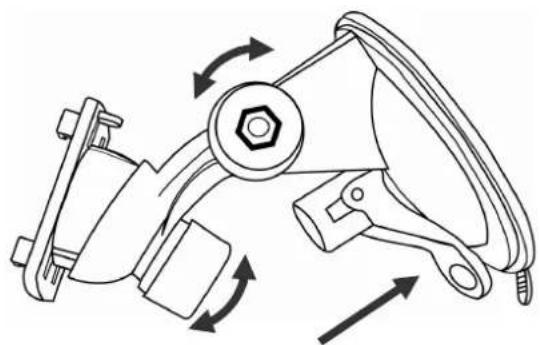
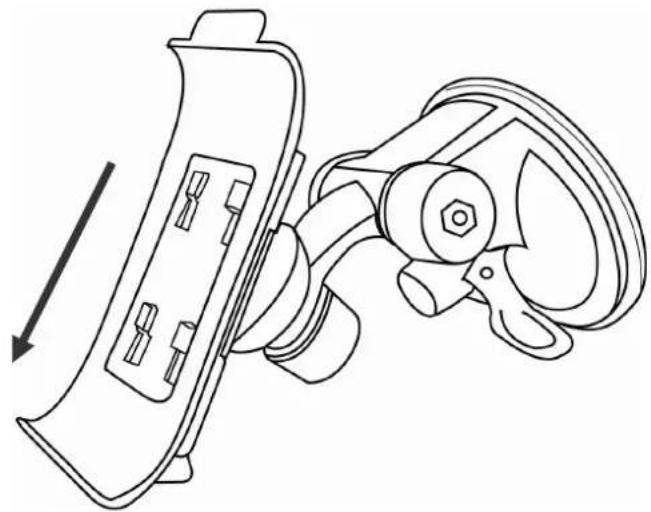
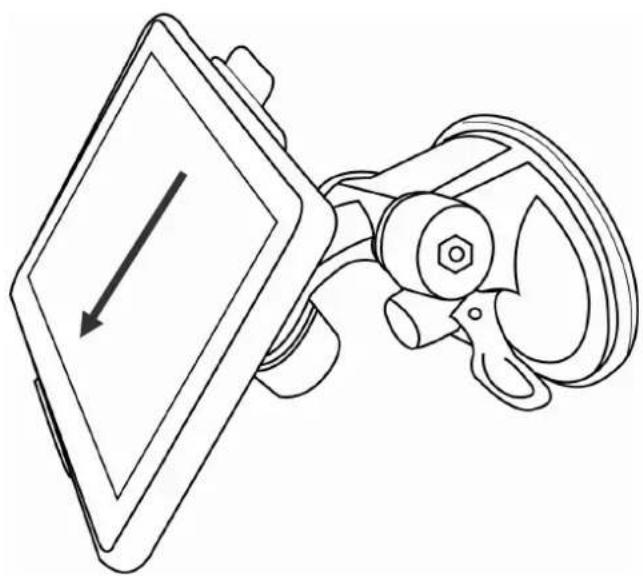
The included in-vehicle bracket set can be securely suctioned on the front windshield, or secured on top of the glove compartment using the adhesive plate. This device will effectively secure the GPS unit in the vehicle. Follow the procedures below to secure the bracket:
1. Install bracket fixing
Screw can be loosened to adjust the bracket fixing. Secure the screw when the bracket fixing is in a proper angle. Suction the bracket fixing to the windshield.
2. Install bracket
Align the bracket fixing with the in-vehicle bracket as the illustration shown. Insert the projection of the socket fixing into the mortise. Pull up the projection until it is firmly seated.
3. Install GPS unit
Slide the GPS into the in-vehicle bracket fitting holes to secure. Gently push down until the unit is tightly fixed with the bracket.
Connecting the Car Charger
The car charger supplies power to your device when you are using the device in a car.
CAUTION: To protect your device against sudden surges in current, connect the car charger only after the car engine has been started.
- Connect one end of the car charger to the power connector of your device.
- Connect the other end to the cigarette lighter in the car to power and charge your device. The indicator on the car charger lights in green to indicate that power is being supplied to your device.
Inserting a SD/MMC Card
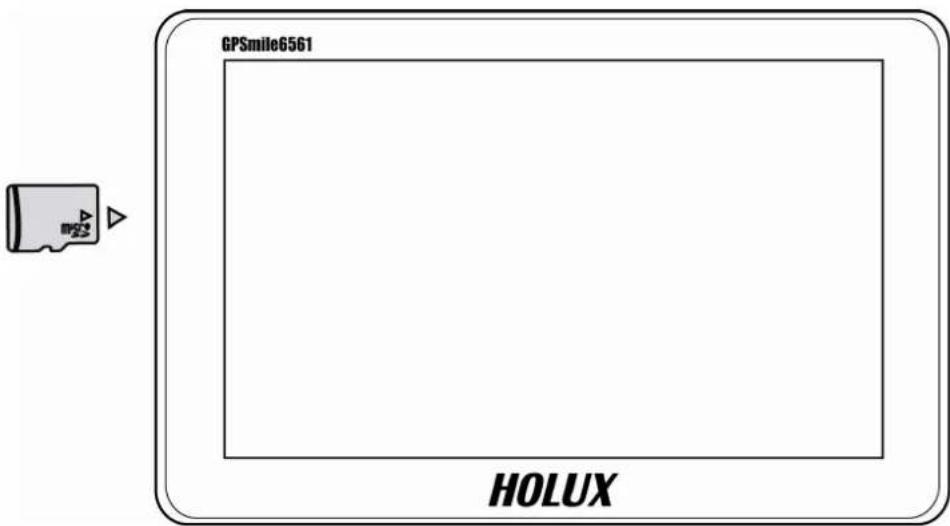
Your device has a SD/MMC slot where you can insert an optional Secure Digital or Multi Media Card storage card.
To use a SD/MMC card, insert it into the slot, with the connector pointing to the slot and its label facing the front of the device.
To remove a card, first make sure that no application is accessing the card, and then slightly push the top edge of the card to release it and pull it out of the slot.
NOTE:
● Make sure that no foreign objects enter the slot.
- Keep a SD or MMC card in a well-protected box to avoid dust and humidity when you are not using it.
Getting Started
Unlocking device
Press the ON/OFF button for several seconds. After turn on the device, you will see the lock screen.

To unlock the screen, touch and drag the lock icon out of the circle to the open locked icon.

After unlocking, the main menu appears. You can touch and drag the main menu to switch the page.
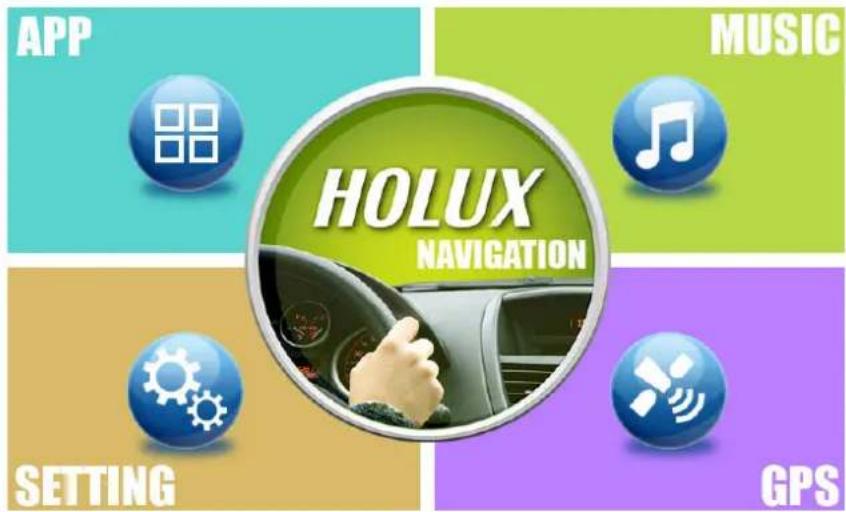
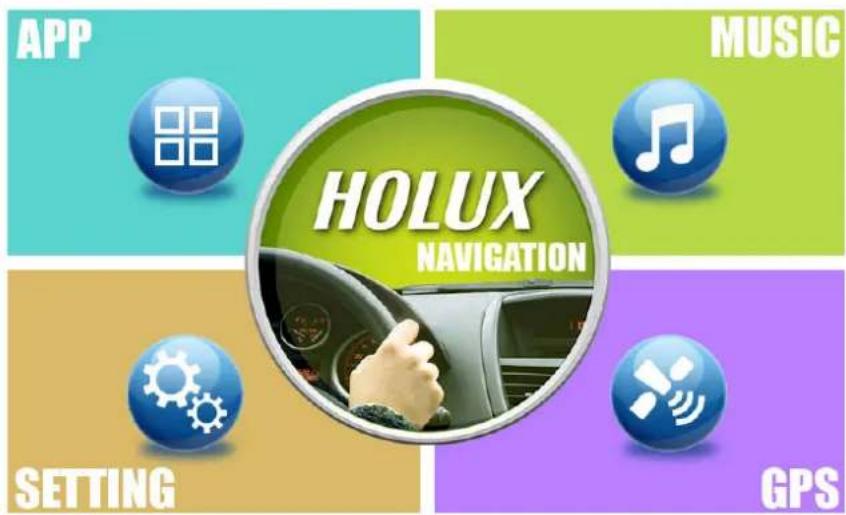
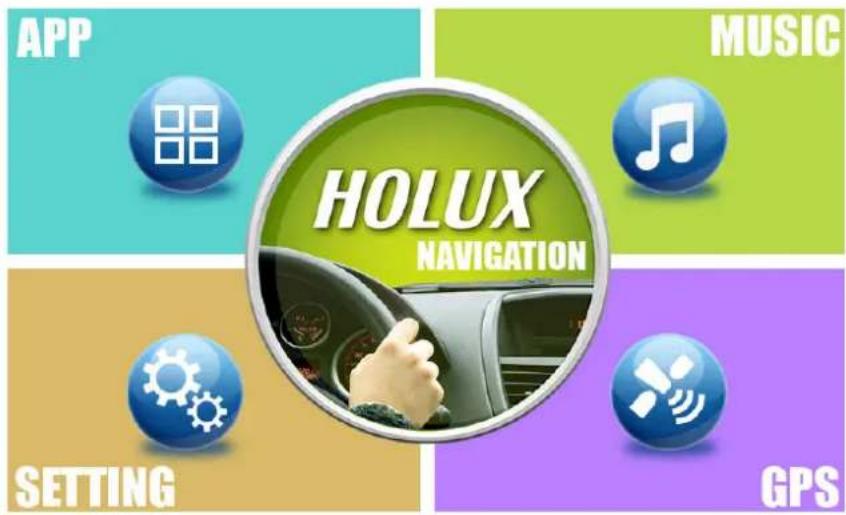
The main menu consists of five functions: Navigation, Applications, Settings, Music and GPS. Directly select an icon on the screen to use the function.

| NAVIGATION Start Navigation | |
| APP Applications | Widgets |
| SETTING Device Settings | |
| MUSIC Play music file | |
| GPS Display GPS information | |
The following table provides a list of other icons:
| Icon Function Description | ||
 | Return icon Returns to the previous page. | |
 | Home icon Opens your main menu | |
 | recent apps Opens a list of your most recent apps. | |
 | Volume icon Decrease/ Increase the volume | |
 | Function icon “Wallpaper”, “Manage apps” and “System settings” shortcut. | |
 | Information bar The right-bottom side of the Information bar displays:Battery (display current battery status.means the device is charging.)Mobile network (The signal is 3G network connection)Wi-Fi (Icon light up when enabled)TimeOther notification icons (When the apps is used, the specific icon will display.) | |
 | Program icon Open the application library to view all installed applications. | |
 | Google search icon Search for information on the Internet. | |
Switching Wallpaper
There are three ways to change the wallpaper.
- Long-press in an empty area on the home screen to pop-up the choose wallpaper function.

Touch the Wallpapers tab and touch a source (Live Wallpapers, Super-HD Player or Wallpapers) from which to select the wallpaper. Touch the image of the wallpaper you want to use.
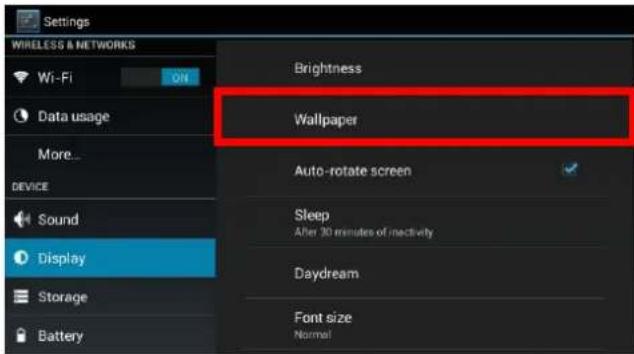
- Choose the Wallpaper on the 「SETTING」/「Display」page.
APP
Touch APP icon on main menu or touch icon on other page to enter APPS/ WIDGETS page.
Using APPs
An application is a software program that enables you to perform a specific task.
The main apps screen is where you can see all your apps. From the main apps screen you can touch the app icon to launch the app.

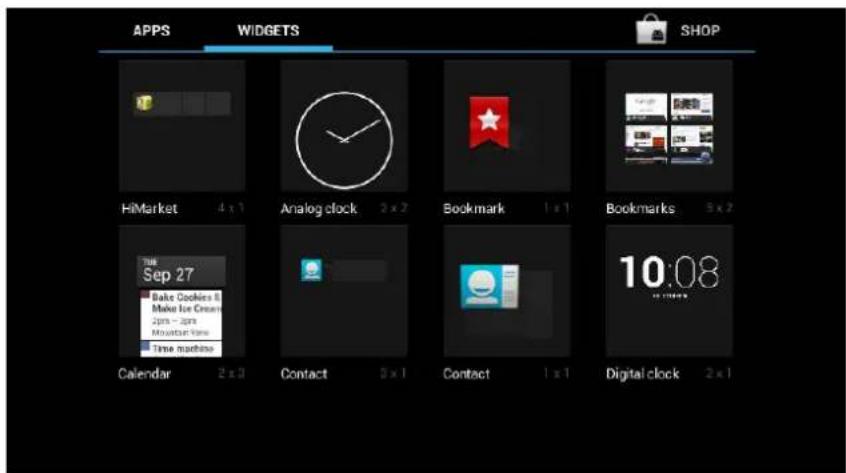
Using Widgets
A widget is a small application that you can place on a Home screen to provide quick and easy access to information, an application, or a function.
Touch the Widgets tab to select the desired item that you want to add. Drag the item to the Home screen where you want to add it. If you simply touch the item instead of dragging it, the item is added to the Home screen from which you entered the Home screen customization view.
SETTING
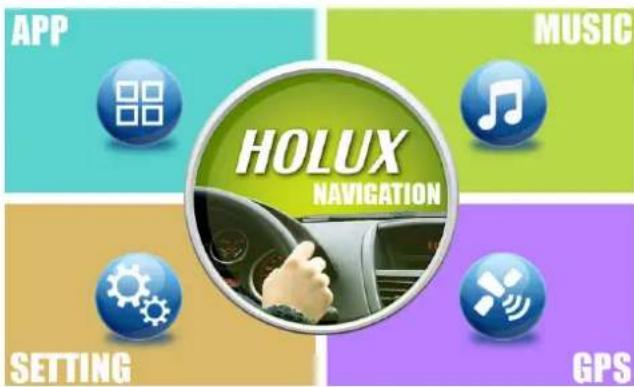
Settings screen allows you to configure the settings of your device, including Wireless & networks, Device, Personal and System settings.
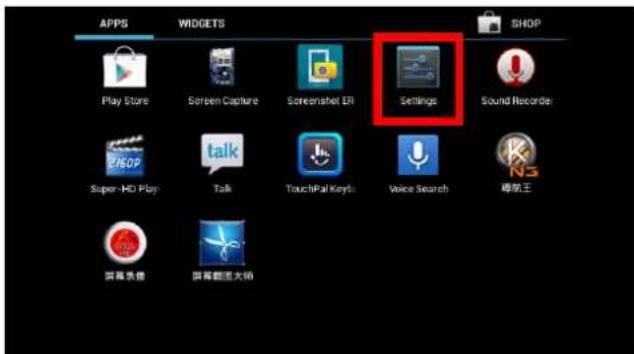
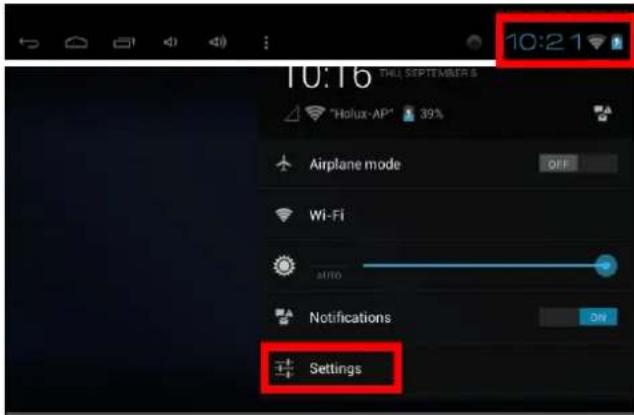
There are three ways to go to the Settings screen.
- On main menu, touch the configurations.

button to switch screens and do the
- On the APPS screen, touch Settings to display the settings menu.
- Touch the information area on the bottom right corner to launch the Settings function.
Wireless & Networks
Configure and manage connections to networks and devices through Wi-Fi, and mobile networks.
Connecting to Wi-Fi networks
To enable Wi-Fi and connect to a Wi-Fi network:
Slide the Wi-Fi switch to ON. When enabled, your device scans for available Wi-Fi networks.
Touch Wi-Fi to display list of available Wi-Fi networks nearby. Secured networks are indicated with a lock icon.
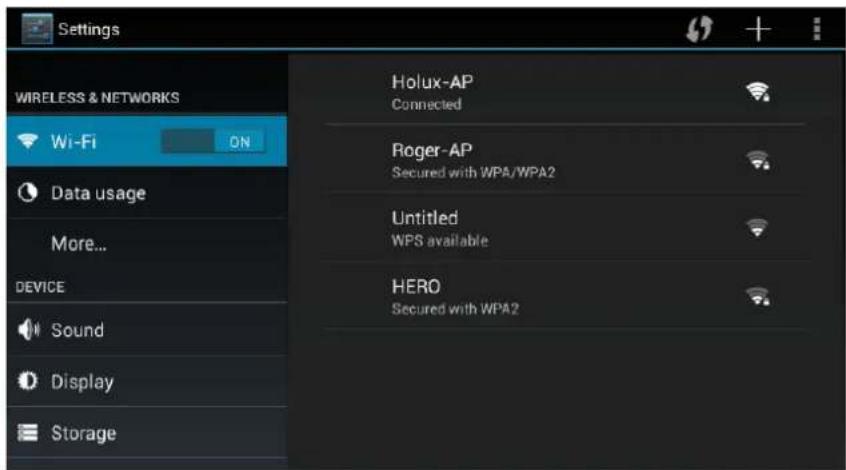
Touch a network name to connect to it. If the network is secured or protected, you are prompted to key in a Password or key in other credentials.

※ If your device finds a network that you have connected to previously, it automatically connects to it.
Device
The item contains: Sound, Display, Storage, Battery and Apps. Directly select an icon on the screen to set the function.
Sound
Configure the volume level and type; configure ringtones and alarms.

Display
Configure brightness and other screen settings.
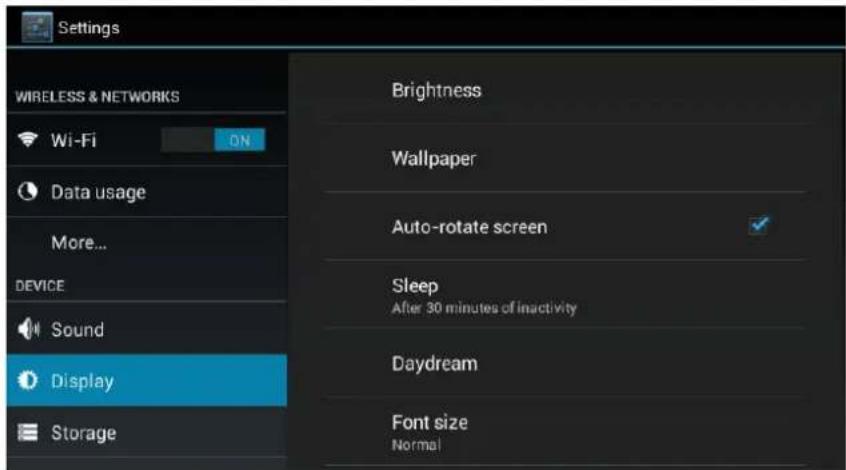
Brightness: Adjust the brightness of the screen.
Wallpaper: changing the wallpaper file.
Auto-rotate screen: Enable or disable the screen auto-rotation function. When enabled, the screen switches the orientation to landscape or portrait views as you rotate the device.
Sleep: adjust the time setting of sleep mode.
Font size: adjust the font size.
Storage
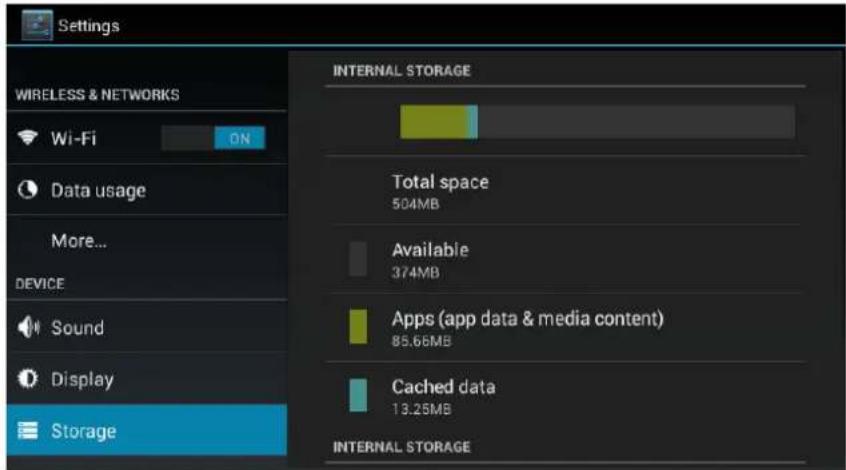
Use the Storage settings to monitor the used and available space on your device internal storage.
Battery
View which applications are using the battery power since you last charged your device.

Apps
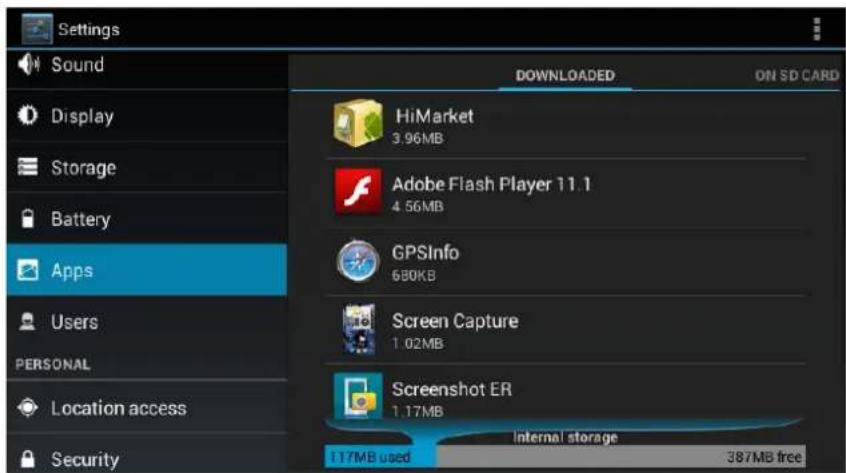
View details about the applications installed on your device, manage application data, close applications, and set whether you want to permit the installation of applications that you obtain from Web sites and e-mail.
PERSONAL
Location services
Configure how you want the device to determine your location and how you want to share your location with Google and others.
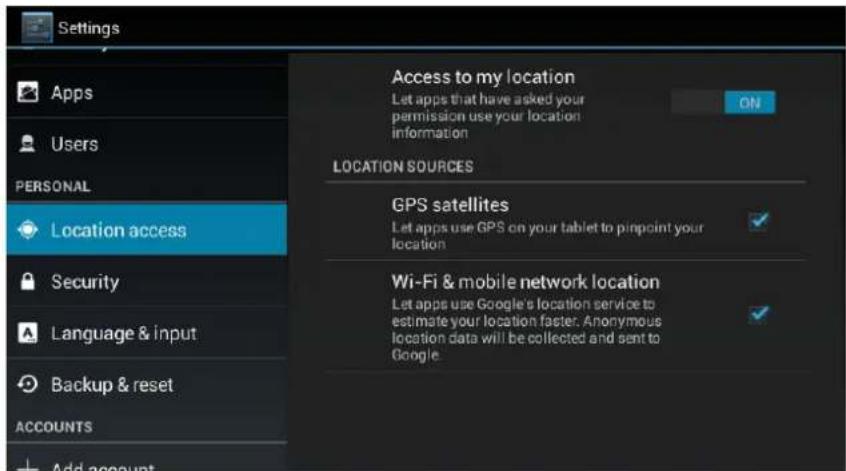
Access to my location: Enable to use Wi-Fi and mobile networks to determine your approximate location.
GPS satellites: Enable to use your device's global positioning system (GPS) satellite receiver to accurately determine your location to several meters. GPS accuracy can be impacted by atmospheric conditions, obstructions, and other factors.
Wi-Fi & mobile network location: Enable to improve Google search results and other Google services.
Security
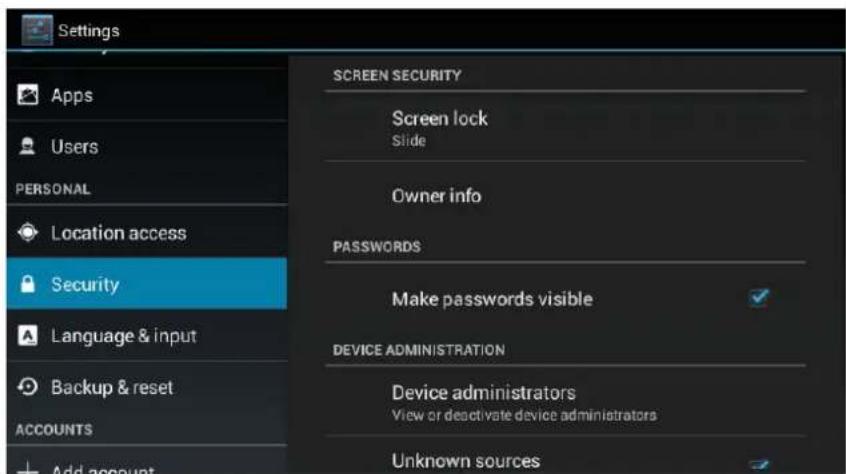
Screen lock: To unlock the screen, the default value is “slide”: Press the power button again and drag the unlock icon across the screen in any direction. If you have set up a screen unlock password or a Personal Identification Number (PIN), or an unlock pattern, you have to type the correct password or PIN, or draw the correct pattern to unlock your screen.
Owner info: Set whether you want to display information about yourself (such as your contact information) on the locked screen and where to type the text you want to display.

Select the language that you want to work with on your device and configure the input method.

Select language: Select the language to use for the text on your device.
Backup & reset
Back up data or reset your device.

Back up my data: Enable to back up some of your personal data to Google servers using your Google Account.
Backup account: View the Google Account that your settings and other data are backed up with. This is the account you need to sign into on a new Android device or other device, if you want to restore the settings from this device to the new one.
Automatic restore: Select this option to restore settings and other data when you reinstall an application.
Factory data reset: Use Factory data reset to reset your settings to the factory default values.
Accounts & sync
Use the Accounts & Sync settings to add, remove, and manage your Google Accounts and other accounts. You also use these settings to control how and whether applications send, receive, and synchronize data on their own schedules, and whether applications can synchronize user data automatically.
System
Date & Time
Use Date & time settings to set your preferences for how dates are displayed. You also can use these settings to set your own time and time zone, rather than obtaining the current time from the network.
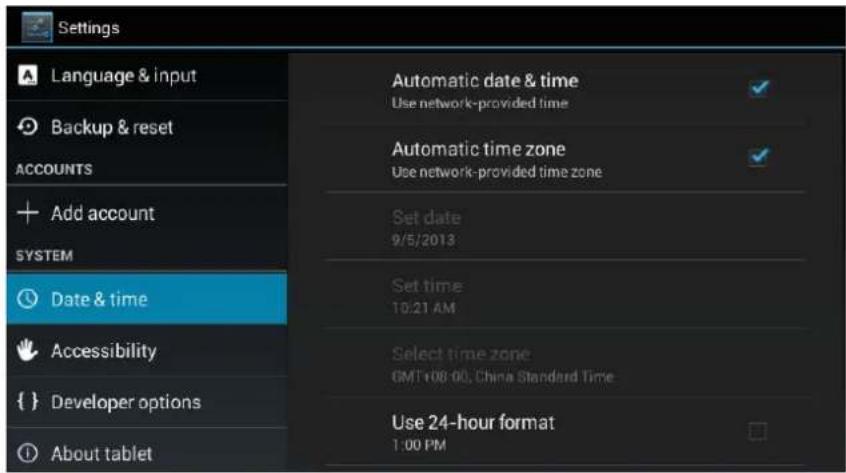
Automatic date & time: Disable to manually set the date and time. Enable to obtain the current time from the wireless network.
Automatic time zone: Disable to manually set the time zone. Enable to obtain the time zone from the wireless network.
Set date: If Automatic date & time is unchecked, touch to manually set the date.
Set time: If Automatic date & time is unchecked, touch to manually set the time.
Select time zone: If Automatic time zone is unchecked, touch to manually set the time zone.
Use 24-hour format: Enable to display the time using the 24-hour time format.
Choose date format: Set the format for displaying dates.
Developer options
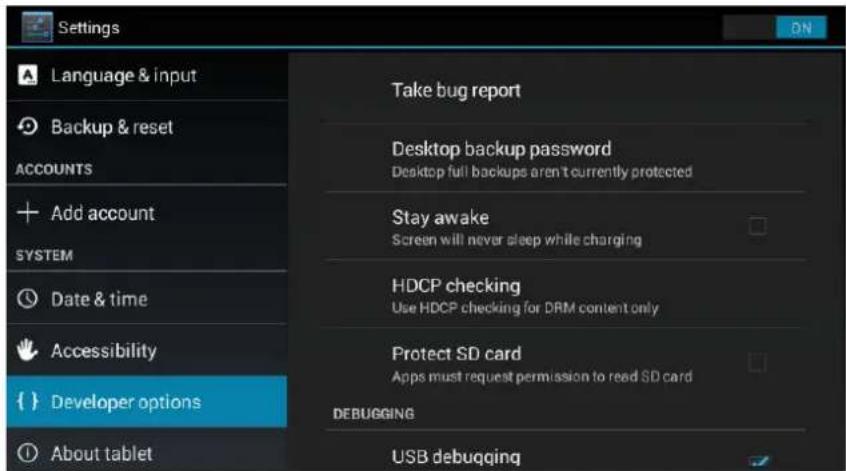
Stay awake: When enabled, the screen will not go to sleep (lock) while the battery is charging, or while the device is connected to a computer through a USB cable.
HDCP checking: Set if you want to use high-bandwidth digital copy protection (HDCP) to check for digital rights management (DRM) content.
USB debugging: Enable to allow debugging when your device is attached to a computer through a USB cable.
Allow mock locations: This setting is used by developers when developing location-based applications.
About device
View information about your device.

System updates: Open a screen that reports the latest available Android software updates for your device.
Status: View information about your battery status, mobile network connection, and other details.
Legal information: Legal information Obtain legal information about the software included with your device.
Model number: View your device model number.
Other information: View other information, such as the Android version, Firmware version, Kernel version, etc.
MUSIC
Touch the MUSIC icon on main menu to enter music page.
Play music
Play music stored on your device or music stored on an optionally installed flash media card. While viewing a list of artists, albums, playlists, or songs, touch the song to play it.
![Artists Albums Songs Playlists Now playing 03 Crazy Unknown artist 10-彼得潘 Unknown artist 11-满满 Unknown artist 12-不朽 Unknown artist Come Back Home Daniel Powter Cupid Daniel Powter ← [ ] [ ] [ ] [ ] [ ] [ ] [ ] [ ] [ ] [ ] [ ] [ ] [ ] [ ] [ ] [ ] [ ] [ ] [ ] [ ] [ ] [ ] [ ] [ ] [ ] [ ] [ ] [ ] [ ] […](/content/2026/06/1186913/images/d204a95f908070478179b457777fb17c4283d9837707f7bd5d96b9efeb4f7dd2.jpg)

Control button lists:
| Control Button Description | |||
 | Play Play the playback. | ||
 | Pause Pause the current music playing. | ||
 | / | Previous/ Next Play the previous or next file. | |
 | Playlist Display Playlists. | ||
 | / | Random play Enable/ disable random play | |
 |  | Replay Turn off replay/Continuous play all songs/Continuous play current song | |
GPS
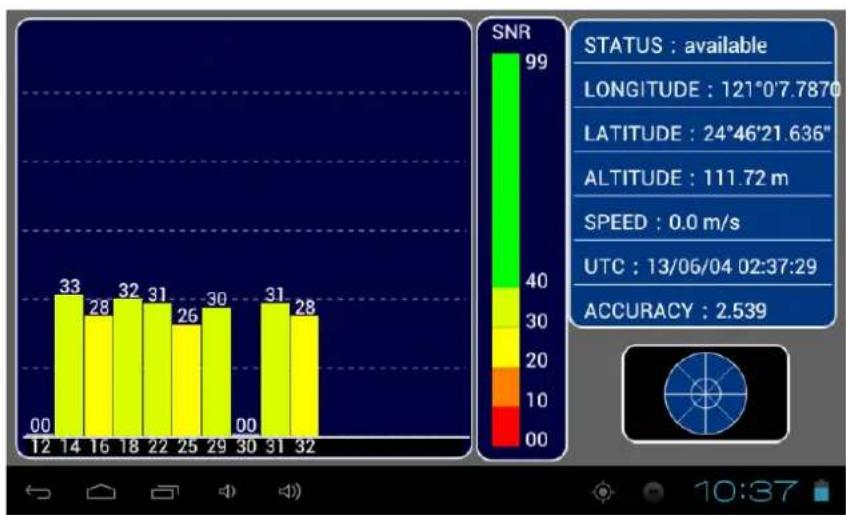
Touch the GPS icon on main menu to enter GPS page.
This page is for information only. You can view the number of satellite signals t he unit is receiving and also the strength of these signals.
Troubleshooting
| Power Problems | |
| Power does not turn on when using battery power | The remaining battery power may be too low to run your device. Connect the AC adapter to your device and to AC power. Then, turn on your device. |
| Screen Problems | |
| Screen is off | If the screen does not respond even after you press the power button, try the following in order until the problem is solved.Connect the AC adapter to your device and to external AC power.Reset your system. |
| Screen responds slowly | Make sure that your device is not running out of battery power. If the problem still exists, reset your system. |
| Screen freezes | Reset your system. |
| Screen is hard to read | Make sure that the backlight of the display is on.Move to a location with more light. |
| Inaccurate response to taps | Recalibrate the touch screen. (See section 3.4 for instructions.) |
| Connection Problems | |
| Cable Connection Problems | Make sure that your device and your computer are both turned on before trying to establish a connection.Make sure that the cable is securely plugged into the USB port on your computer and on the device. Connect the USB cable directly to your computer do not run the cable through a USB hub.Reset your device before connecting the cable. Always disconnect your device before you restart your computer. |
| GPS Problems | |
| When there are no valid signals available, consider the following: | Make sure that the GPS antenna has a clear view of the sky.Note that the GPS reception can be affected by:■ Bad weather■ Dense overhead obstacles (e.g. trees and tall buildings)■ Other wireless device in the car■ Reflective car window tint |
Resetting System
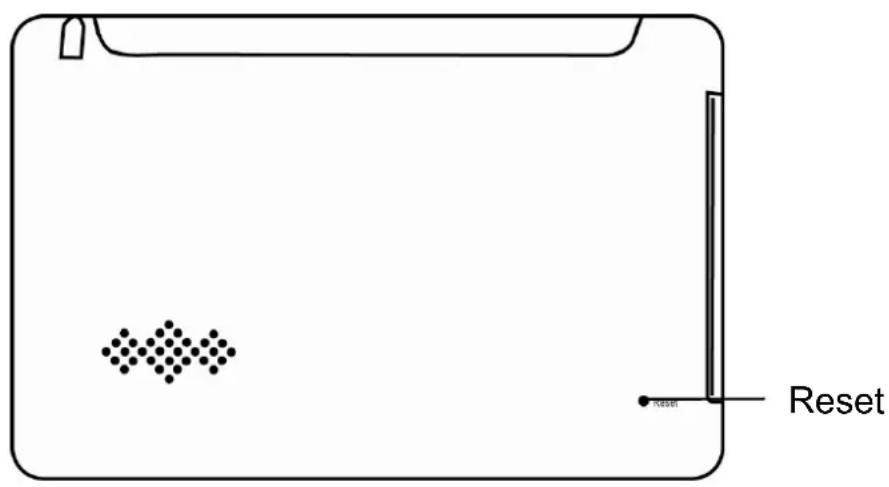
Occasionally, you may need to reset your device. For example, you should reset your system when it stops responding; or appears to be "frozen" or "locked up.
Insert a small rod, such as a straightened paperclip, into the reset button on the bottom of your device. This is called a "soft reset." The Main Menu should appear after a soft reset.
Maintaining Device
Taking good care of your device will ensure trouble-free operation and reduce the risk of damage to your device.
- Keep your device away from excessive moisture and extreme temperatures.
- Avoid exposing your device to direct sunlight or strong ultraviolet light for extended periods of time.
- Do not place anything on top of your device or drop objects on your device.
- Do not drop your device or subject it to severe shock.
- Do not subject your device to sudden and severe temperature changes. This could cause moisture condensation inside the unit, which could damage your device. In the event of moisture condensation, allow the device to dry out completely before use.
- Take care not to sit on the device. We advise not to carry the device in one's back pocket for that reason.
- The screen surface can easily be scratched. Avoid touching it with sharp objects. Non-adhesive generic screen protectors designed specifically for use on portable devices with LCD panels may be used to help protect the screen from minor scratches.
- Never clean your device with it powered on. Use a soft, lint-free cloth moistened with water to wipe the screen and the exterior of your device.
- Do not use paper towels to clean the screen.
- Never attempt to disassemble, repair or make any modifications to your device. Disassembly, modification or any attempt at repair could cause damage to your device and even bodily injury or property damage and will void any warranty.
- Do not store or carry flammable liquids, gases or explosive materials in the same compartment as your device, its parts or accessories.
Regulatory Information
NOTE: Marking labels located on the exterior of your device indicate the regulations that your model complies with. Please check the marking labels on your device and refer to the corresponding statements in this chapter.
Some notices apply to specific models only.
Regulations Statements
Class B Regulations
USA Federal Communications Commission Radio Frequency Interference Statement
NOTE:
This equipment has been tested and found to comply with the limits for a Class B digital device pursuant to Part 15 of the FCC Rules. These limits are designed to provide reasonable protection against harmful interference in a residential in stallation. This equipment generates, uses, and can radiate radio frequency energy and, if not installed and used in accordance with the instructions, may cause harmful interference to radio communications. However, there is no guarantee that interference will not occur in a particular installation. If this equipment does cause harmful interference to radio or television reception, which can be determined by turning the equipment off and on, the user is encouraged to try to correct the interference by one or more of the following measures:
- Reorient or relocate the receiving antenna.
- Increase the separation between the equipment and receiver.
- Connect the equipment into an outlet on a circuit different from that to which the receiver is connected.
- Consult the dealer or an experienced radio/TV technician for help.
Any changes or modifications not expressly approved by the manufacturer could void the user's authority to operate the equipment.
Please note:
The use of a non-shielded interface cable with this equipment is prohibited.
Canada
Canadian Department of Communications
Radio Interference Regulations Class B Compliance Notice
This Class B digital apparatus meets all requirements of the Canada Interference-Causing equipment regulations.
Products with the CE marking comply with Radio & Telecommunication Terminal Equipment Directive (R&TTE) (1999/5/EEC), the Electromagnetic Compatibility Directive (89/336/EEC) and the Low Voltage Directive (73/23/EEC) as amended by Directive 93/68/ECC - issued by the Commission of the European Community.
Compliance with these directives implies conformity to the following European Standards:
EN301489-1: Electronic compatibility and Radio spectrum Matters (ERM), ElectroMagnetic Compatibility (EMC) standard for radio equipment and services; Part 1: Common technical requirements EN301489-3:
Electronic compatibility and Radio spectrum Matters (ERM), ElectroMagnetic Compatibility (EMC) standard for radio equipment and services; Part 3: Specific conditions for Short-Range Devices (SRD) operating on frequencies between 9 kHz and 40 Ghz
En55022: Radio disturbance characteristics
EN55024: Immunity characteristics
EN6100-3-2: Limits for harmonic current emissions
EN6100-3-3: Limitation of voltage fluctuation and flicker in ow-voltage supply system
En60950 / IEC 60950: Product Safety
The manufacturer cannot be held responsible for modifications made by the User and the consequences thereof, which may alter the conformity of the product with the CE Marking.
NCC Warning Statement
Article 12
Without permission, any company, firm or user shall not alter the frequency, increase the power, or change the characteristics and functions of the original design of the certified lower power frequency electric machinery.
Article 14
The application of low power frequency electric machineries shall not affect the navigation safety nor interfere a legal communication, if an interference is found, the service will be suspended until improvement is made and the interference no longer exists.
- NOTE
- SAFETY PRECAUTIONS
- WARRANTY STATEMENT
- TECHNICAL SUPPORT
- MAINTENANCE SERVICE
- OR
- TABLE OF CONTENTS
- PREFACE
- PRECAUTIONS AND NOTICES
- COPYRIGHT
- IMPORTANT NOTICE
- FIRST TIME USE
- PACKAGE CONTENTS
- BASIC OPERATION
- INTRODUCTION
- USING THE IN-VEHICLE BRACKET
- INSTALL BRACKET FIXING
- INSTALL BRACKET
- INSTALL GPS UNIT
- CONNECTING THE CAR CHARGER
- INSERTING A SD/MMC CARD
- GETTING STARTED
- UNLOCKING DEVICE
- SWITCHING WALLPAPER
- APP
- USING APPS
- USING WIDGETS
- SETTING
- WIRELESS & NETWORKS
- CONNECTING TO WI-FI NETWORKS
- DEVICE
- SOUND
- DISPLAY
- STORAGE
- BATTERY
- APPS
- PERSONAL
- LOCATION SERVICES
- SECURITY
- BACKUP & RESET
- ACCOUNTS & SYNC
- SYSTEM
- DATE & TIME
- DEVELOPER OPTIONS
- ABOUT DEVICE
- MUSIC
- PLAY MUSIC
- GPS
- RESETTING SYSTEM
- MAINTAINING DEVICE
- REGULATORY INFORMATION
- REGULATIONS STATEMENTS
- CANADA
- NCC WARNING STATEMENT
Brand : HOLUX
Model : GPSmile 6561
Category : Gps