GPSPort 260 Lite - Gps HOLUX - Free user manual and instructions
Find the device manual for free GPSPort 260 Lite HOLUX in PDF.


User questions about GPSPort 260 Lite HOLUX
0 question about this device. Answer the ones you know or ask your own.
Ask a new question about this device
Download the instructions for your Gps in PDF format for free! Find your manual GPSPort 260 Lite - HOLUX and take your electronic device back in hand. On this page are published all the documents necessary for the use of your device. GPSPort 260 Lite by HOLUX.
USER MANUAL GPSPort 260 Lite HOLUX
- Use the power adapter included with the package, using power adapters other than the one provided will result in malfunction and could prove dangerous.
- Battery replacement should not be performed by consumers, only professionally trained maintenance personnel should do the removal of the cover and the internal components. Note: It may cause explosion if the battery is not properly replaced with the same or equivalent model. Please contact the original professional service personnel to replace the battery.
- Do not use the power adapter in a wet environment. When hands and feet are wet, do not touch the power adapter.
- While using the power adaptor ensure that the area is well ventilated. Do not let paper or other material cover the power adaptor, as this will interfere with cooling. Do not use the power adaptor whilst it is in a bag.
- Do not attempt to repair the device. If this device is damaged or is in a wet environment, replace the device immediately.
- This device is waterproof (meets IPX 7 standard) but not protected against water immersion.
Warranty Information
The GPSport 260 is warranted to be free from defects in material and functions for a period of one year from the date of purchase. If there is a product failure of within this period (under normal conditions), a replacement will be provided at no charge to the customer.
Copyright Information
No part of this manual, including the products and software described in it, may be reproduced, transmitted, transcribed, stored in a retrieval system, or translated into any language in any form or by any mean, without the express written permission of Holux Technology, Inc.
Copyright, All Rights Reserved.
Federal Communications Commission (FCC) Statement
This equipment has been tested and found to comply with the limits for a Class B digital device, pursuant to Part 15 of the FCC Rules. These limits are designed to provide reasonable protection against harmful interference in a residential installation. This equipment generates, uses and can radiate radio frequency energy and, if not installed and used in accordance with the instructions, may cause harmful interference to radio communications.
However, there is no guarantee that interference will not occur in a particular installation. If this equipment does cause harmful interference to radio or television reception, which can be determined by turning the equipment off and on, the user is encouraged to try to correct the interference by one or more of the following measures:
- Reorient or relocate the receiving antenna.
- Increase the separation between the equipment and receiver.
- Connect the equipment into an outlet on a circuit different from that to which the receiver is connected.
- Consult the dealer or an experienced radio/TV technician for help.
CAUTION
Any changes or modifications not expressly approved by the grantee of this device could void the user's authority to operate this equipment.
This device complies with Part 15 of the FCC Rules. Operation is subject to the following two conditions: (1) This device may not cause harmful interference, and (2) this device must accept any interference received, including interference that may cause undesired operation.
For product available in the USA/Canada market, only channel 1\~11 can be operated. Selection of other channels is not possible.
RF Exposure Warning
This equipment must be installed and operated in accordance with provided instructions and the antenna(s) used for this transmitter must be installed to End-users and installers must be provided with antenna installation instructions and transmitter operating conditions for satisfying RF exposure compliance.
Table of Contents
Introduction......1
FEATURES....2
PARTS AND FUNCTIONS....3
CHARGING THE BATTERY 6
Using the AC Charger....6
INSTALLING BIKE MOUNT....7
DOWNLOADING TRACK LOGS....9
Installing ezTour Plus....9
Starting ezTour Plus....12
Starting ezTour Planner....13
Installing Driver....14
Connecting to a PC....16
Introduction of 8 Function Modes ......17
MAIN MENU....17
SPORT MODE....18
PLOT MODE 25
FOLLOW COURSE MODE 29
MULTI FINDER MODE 35
PEDOMETER MODE....37
COMPASS MODE....39
HISTORY MODE ....40
SETTING MODE 42
SETTING MODE 42
Getting Started....45
TURNING ON GPSPORT 260 ....45
TURNING OFF GPSPORT 260....45
INITIAL SETUP....45
Basic Operation without Setting ....48
Speed Meter ....48
Quick Menu....50
STATUS ICONS....51
Setting Up GPSport 260 ....53
QUICK SETUP....53
ALERT....55
To Set Alerts....55
To Set Time Alert....56
To Set Speed Alert ....56
To Set Distance Alert....57
To Set Altitude Alert....57
Reset Alert ....58
CALIBRATION 59
Altimeter Calibration....59
Compass Calibration....62
LOG....64
GENERAL (SETTING)......67
User Profile....67
Set Backlight....68
Auto Flip Page 68
Memory Mode....69
Auto Power Off....70
SYSTEM SETTING 71
Delete all log....71
Time Format....71
Time Zone....72
Unit 72
Language....73
LCD Contrast....73
Odometer....74
GPS....75
Reset Device 76
Initial Setup....76
About ezTour Plus and ezTour Planner....77
FUNCTIONS OF EZTOUR PLUS....77
FUNCTIONS OF EZTOUR PLANNER 77
FEATURES OF EZTOUR PLUS 77
Normal Care and Maintenance....79
Specifications 81
Introduction
Thank you for purchasing the GPSport 260. The GPSport 260 comes with a sturdy feel and shape and is packed with great features. The GPSport 260 works as a GPS data logger with internal memory, plus, it also serves the purpose of a speed meter that shows immediate sport information including speed, distance, time, and pace while users are exercising. Plus, the built-in 3D compass and barometer sensors make it a perfect gadget for outdoor lovers to find their direction and altitude. One of its simplest functions is to work as a pedometer for everyday exercise measurer and motivator.
The GPSport 260 is bundled with a set of powerful software called ezTour Plus and ezTour Planner. The former helps users with their health fitness management, while the latter enables users to plan their course prior to their outdoor adventure.
The device plays the role of outdoor best companion and in the meantime reminds users how they can contribute to the environment by calculating and showing the amount of CO_2 emissions reduced and the amount of calories consumed when users are walking/hiking/cycling instead of driving.
Features
- GPS positioning
- Follow course: Allow users to plan routes at home and download routes to the device!
- BMI calculation
• Automatic page flipping - Auto power off after a specified interval with no signal
- Multi Finder can record up to 20 locations and supports return-to-starting-point
- TripStart automatically records the first GPS fixed location when power on
- Can simulate an analog speedometer and use a large-font display
• 3 sport modes for calorie calculations - Track Log function can start recording after satellite fix
- Generate QR code for current coordination
• Supports metric, imperial, and nautical measurements
• Supports 12-hour or 24-hour and time zone - Pedometer
Parts and Functions
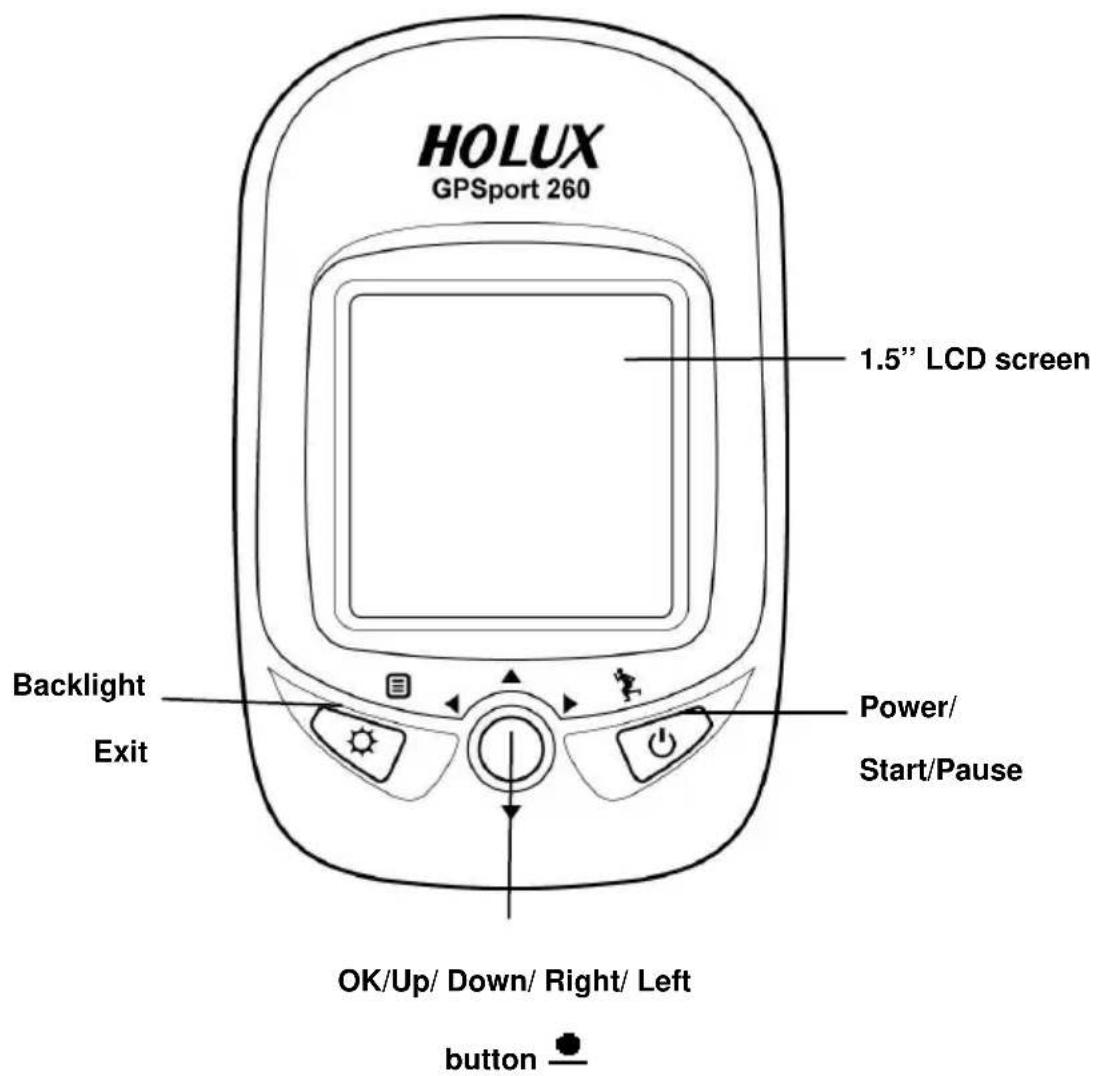
Front View
text_image
HOLUX GPSport 260 1.5" LCD screen Backlight Exit Power/ Start/Pause OK/Up/ Down/ Right/ Left buttonRear View
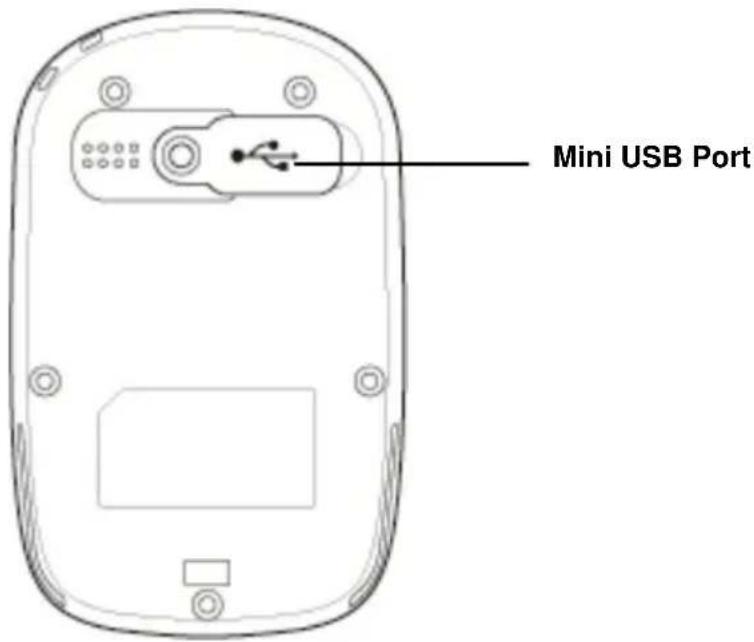
text_image
Mini USB PortButton
| Name Icon Function | ||
| Power button |  | Press to pause/resume log when the device is turned on. |
 | Press for 3 seconds to power on/off the unit. | |
| Exit |  | Exit to previous level of menu |
| Backlight |  | Press for 3 seconds to turn on/off the backlight. |
| 5-DirectionOK |  | Use Left, Up, Right, and Down to select an option.Press the OK button in the middle to confirm selection. |
| Reset device |  | Cannot turn off the system with the power button, please reset system. |
Charging the Battery
Using the AC Charger
-
Plug the mini USB plug of the AC charger into the mini USB port at the back of the GPSport 260.
-
Plug the AC charger into a wall outlet.
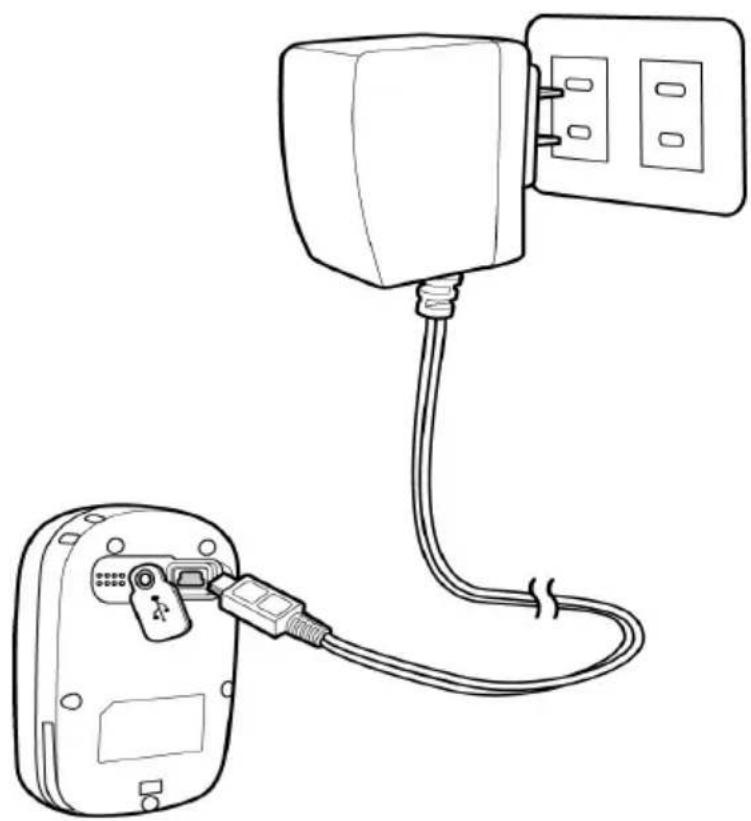
natural_image
Line drawing of a device with a cable and connector, showing connections between a socket and a wall-mounted power outlet (no text or symbols)When charging, the Power indicator shows . After charging is completed, the Power indicator shows ☐ the power indicator shows while charging, it means the charging is automatically disabled because of circuit protection at high temperature.
Note: Do not charge the device at high temperature otherwise the charging may not be performed or the lithium battery can not be fully charged.
Installing Bike Mount
You can install the bike mount and the GPS on the left or right side of the handlebar or on the stem.
- Attach the bracket to the bracket holder.

natural_image
3D diagram of a device housing with a black arrow indicating a downward component (no text or symbols present)- Thread the two cable ties through the slots of the bracket holder.
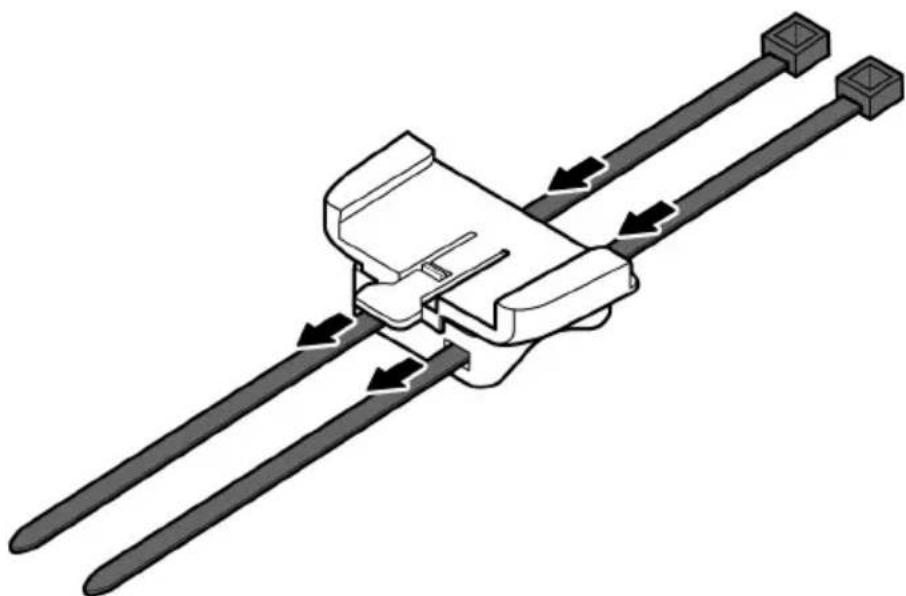
natural_image
Mechanical assembly diagram showing two parallel rods with directional arrows indicating motion (no text or symbols)- Place the rubber pad under the bike mount and attach the bike mount securely to the bike stem using the two cable ties.
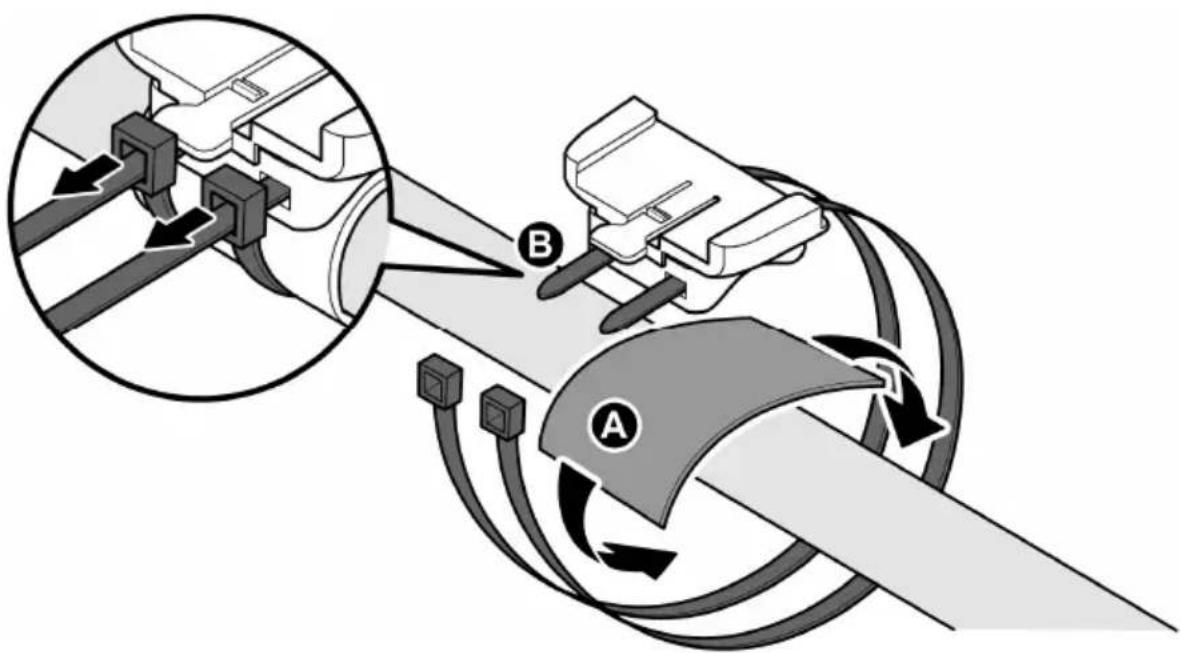
text_image
Diagram illustrating vehicle steering wheel and steering wheel assembly with labeled components A and B, showing gear shift and hub connections.- Slide in the GPS on top of the bike mount until it snaps into place.
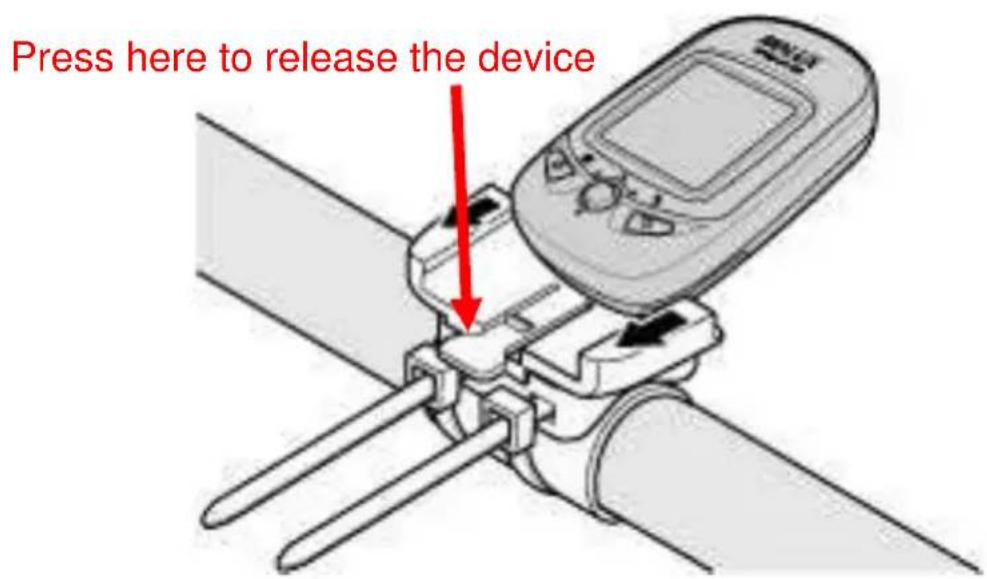
text_image
Press here to release the deviceNote: Cable ties are reusable
Downloading Track Logs
To download the recorded track log and view it on your computer, firstly you will need to install the bundled ezTour Plus.
Installing ezTour Plus
- Insert the provided installation CD into the computer's CD drive. The introductory screen appears automatically. If the screen does not appear, open the Autorun.exe file on the CD.

text_image
HOLUX ezTour Plus v2.01 Setup Welcome to the HOLUX ezTour Plus v2.01 Setup Wizard This wizard will guide you through the installation of HOLUX ezTour Plus v2.01. It is recommended that you close all other applications before starting Setup. This will make it possible to update relevant system files without having to reboot your computer. Click Next to continue. Next > Cancel-
Click Next to begin the installation. The License Agreement screen opens.
-
Read the agreement, click I accept the terms of the license agreement, then click Next.
-
Follow the on-screen instruction to proceed. The installation wizard will guide you through the steps.
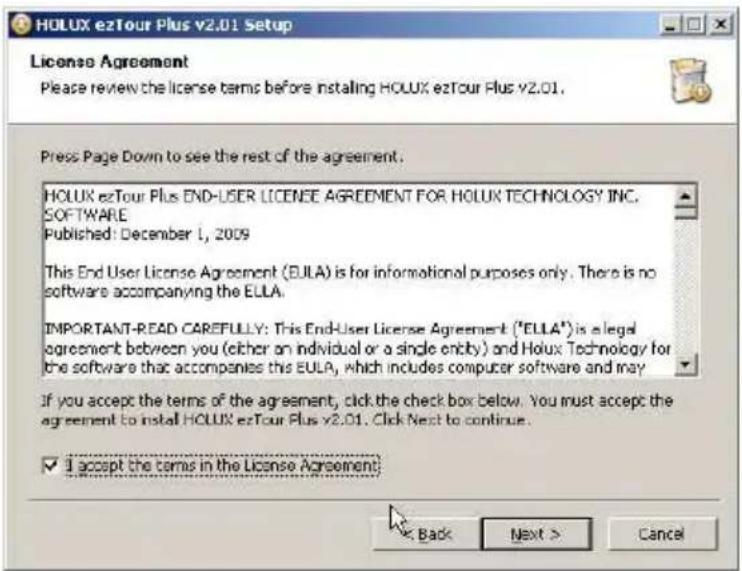
text_image
HOLUX ezTour Plus v2.01 Setup License Agreement Please review the license terms before installing HOLUX ezTour Plus v2.01. Press Page Down to see the rest of the agreement. HOLUX ezTour Plus END-USER LICENSE AGREEMENT FOR HOLUX TECHNOLOGY INC. SOFTWARE Published: December 1, 2009 This End User License Agreement (EULA) is for informational purposes only. There is no software accompanying the EULA. IMPORTANT-READ CAREFULLY: This End-User License Agreement ("ELLA") is a legal agreement between you (either an individual or a single entity) and Holux Technology for the software that accompanies the EULA, which includes computer software and may If you accept the terms of the agreement, click the check box below. You must accept the agreement to install HOLUX ezTour Plus v2.01. Click Next to continue. ✓ I accept the terms in the License Agreement: Back Next > Cancel
text_image
HOLUX ezTour Plus v2.01 Setup Choose Components Choose which features of HOLUX ezTour Plus v2.01 you want to install. Check the components you want to install and uncheck the components you don't want to install. Click Next to continue. Select components to install: HOLUX ezTour Plus Applic ezTour Planner Applicolor GPS Data Log Device Driv Description Post on your mouse over a component to see its description. Space required: 136.3MB < Back Next Cancel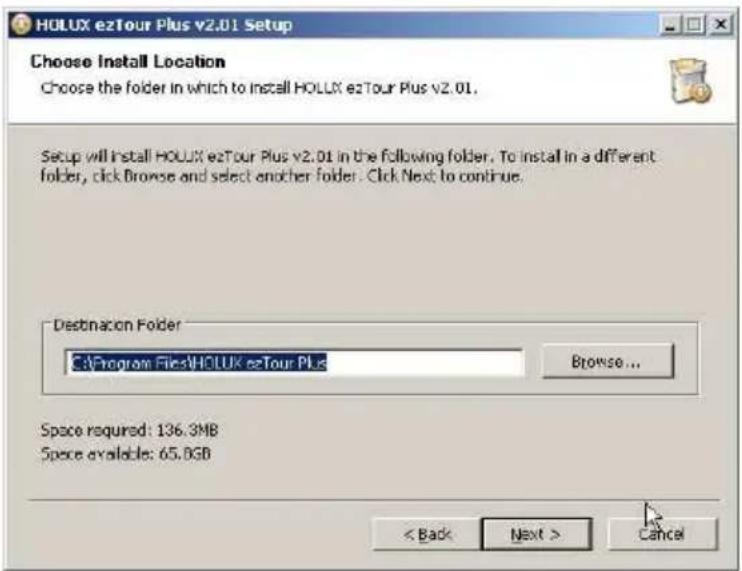
text_image
HOLUX ezTour Plus v2.01 Setup Choose Install Location Choose the folder in which to install HOLUX ezTour Plus v2.01. Setup will install HOLUX ezTour Plus v2.01 in the following folder. To install in a different folder, click Browse and select another folder. Click Next to continue. Destination Folder C:\Program Files\HOLUX ezTour Plus Browse... Space required: 136.3MB Space available: 65.0GB < Back Next > Cancel
text_image
HOLUX ezTour Plus v2.01 Setup Installing Please wait while HOLUX ezTour Plus v2.01 is being installed. Extract: libcef.dll... 69% Created uninstaller: C:\Program Files\HOLUX ezTour Plus\uninst.exe Output Folder: C:\Program Files\HOLUX ezTour Plus\ezTourPlanner Extract:iconv.dll... 100% Extract:libxml2.dll... 100% Extract:zib1.dll... 100% Extract:CooCvt32.dll... 100% Extract:HLX_GetTrkInfo.dll... 100% Extract:cvcodec-52.dll... 100% Extract:cvformat-52.dll... 100% Extract:cvutil-50.dll... 100% Extract:ioudt42.dll... 100% Extract:libcaf.dll... 69% < Back Next > Cancel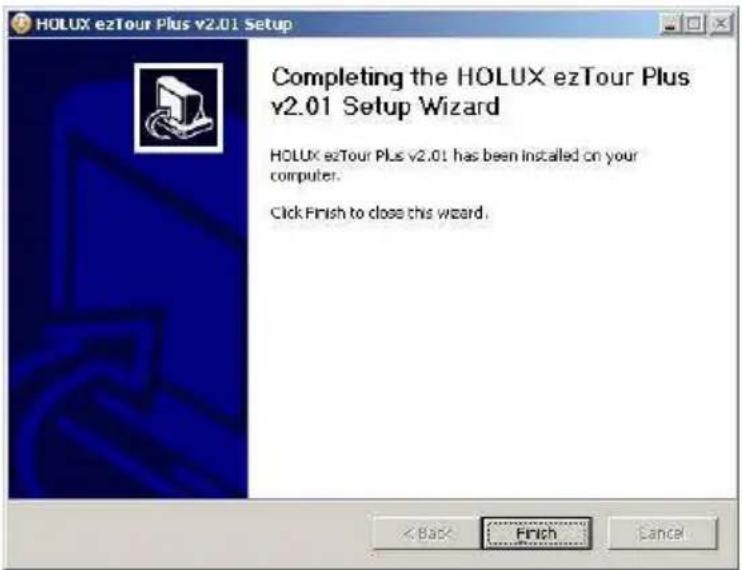
text_image
HOLUX ezTour Plus v2.01 Setup Completing the HOLUX ezTour Plus v2.01 Setup Wizard HOLUX ezTour Plus v2.01 has been installed on your computer. Click Finish to close this wizard.Click Finish to exit the wizard.
Starting ezTour Plus
Once the ezTour Plus is well installed in your computer, the ezTour

Plus icon will appear on your desktop as a shortcut. Double-click the icon to start ezTour Plus. The following opening screen appears and you are ready to use the software. For details, please refer to the included ezTour Plus user manual.

text_image
ezTour Plus HOLUX Technology Inc. All rights Reserve.Starting ezTour Planner
The ezTour Planner will be automatically installed when the ezTour
Plus is installed and the program icon will appear on the tool bar. Double-click the icon and the software to start planning your courses.

text_image
New Project Flakes Point Plasmark Project Tree - (1, project) New Project Flakes Point Plasmark 规模地图 里程: 2000 元/㎡ 5000 元/㎡ 高度表 行程表 Zoom In Zoom Out New Project Remove Cutsal Project Overwrite Mapping ListInstalling Driver
- After the ezTour is installed, you can open the "Holux_Driver" folder and install driver.
The path is "C:\Program Files\HOLUX ezTour\DL\Holux_Driver".

text_image
HOLUX_Driver File Edit View Favorites Tools Help Deck Search Folders Address C:\Program Files\HOLUX.e2Tour\DL\Holux_Driver File and Folder Tasks Make a new folder Publish this folder to the Web Share this folder Other Places DL My Documents Shared Documents My Computer My Network Places CP210x CP210x_VCP_Win7 GR245 GR260 M1000C PL2303 Silicon Labs V5.3 Silicon Labs V5.3+ WinZXMcom Size Type Date Modified File Folder 11/03/2011 16:48 File Folder 11/03/2011 16:48 File Folder 11/03/2011 16:48 File Folder 11/03/2011 16:48 File Folder 11/03/2011 16:48 File Folder 11/03/2011 16:49 File Folder 11/03/2011 16:48 File Folder 11/03/2011 16:48 File Folder 11/03/2011 16:48- Select "PL2303" folder, and click the driver program of the latest date to install.
- Follow the on-screen instruction to proceed. The installation wizard will guide you through the steps.

text_image
PL-2303 Driver Installer Program Welcome to the InstallShield Wizard for PL-2303 USB-to-Serial The InstallShield Wizard will install PL-2303 USB-to-Serial on your computer. To continue, click Next.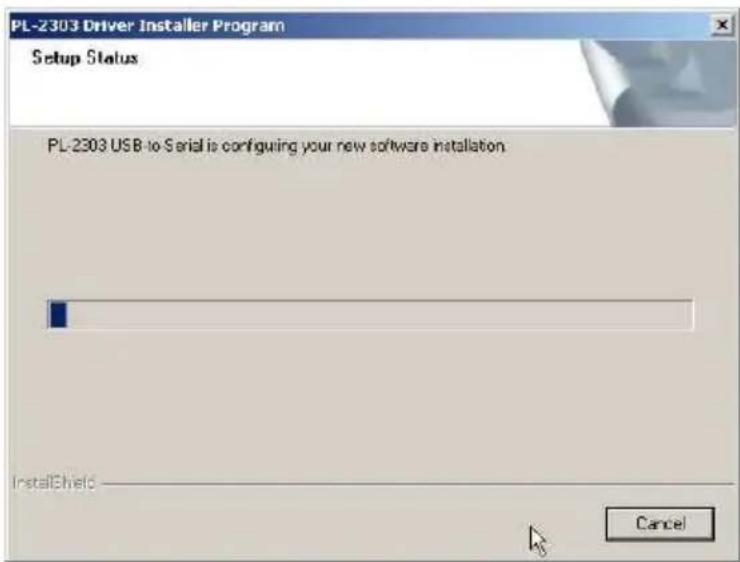
text_image
PL-2303 Driver Installer Program Setup Status PL-2303 USB to Serial is configuring your new software installation. InstallShield Cancel
text_image
PL-2303 Driver Installer Program InstallShield Wizard Complete The InstallShield Wizard has successfully installed PL-2303 USB-to-Serial. Click Finish to exit the wizard. < Back Finish CancelClick Finish to exit the wizard.
Connecting to a PC
After the ezTour Plus is installed, you can now connect your GPSport 260 to your computer to download the recorded track log. Use the included mini USB cable to connect the GPSport 260 with your computer as described below.
-
Connect the mini USB plug (smaller) of the USB cable to the mini USB port at the back of the device.
-
Connect the USB plug (larger) or the USB cable to a USB port on your computer.

natural_image
Diagram showing a computer setup with a connected device and a server tower, highlighting a close-up of the device (no text or symbols present)Introduction of 8 Function Modes
Main Menu
flowchart
graph TD
    A["Sport Mode"] --> B["Plot"]
    B --> C["Follow Course"]
    D["Multiple Finder"] --> E["Pedometer"]
    E --> F["Compass"]
    G["History"] --> H["Settings"]
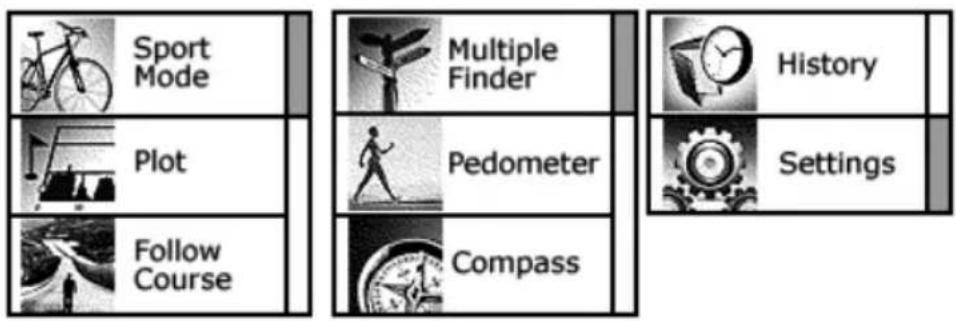
The main menu appears when the device is turned on by pressing the power button. 8 operation modes are displayed in the main menu including Sport, Plot, Follow Course, Multiple Finder, Pedometer, Compass, History and Setting modes. Use the up/down button ▲▼ to scroll up/down and select the mode by pressing the OK button●. To escape from mode and return to main menu, press ↻
This chapter describes respective functions of each mode.
Sport Mode
natural_image
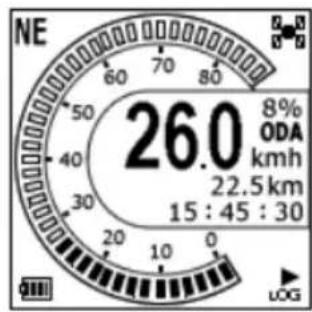
Black-and-white line drawing of a bicycle with visible frame and wheel (no text or symbols)In Sport mode, user can turn on/off the log recording. This mode displays sport information including analog speed meter, speed, time and distance, barometer altitude, calories consumed, and CO2 reduced. Press the 5-way button left ◀ and right ▶ to switch among different sub pages for different sport information.
There are total five sub pages to display sport information in the Sport Mode. Sport information shown on Sub Page 4 and 5 can be determined by users. This 5 way button icon shown on these two pages means these two pages can be customize. Move the Up/ Down ▼▲button to select the information to be displayed on Top or Bottom. Enter the Menu to select information. When finished, press the OK button ● to return to the previous level.
text_image
NE 26.0 8% ODA kmh 22.5 km 15 : 45 : 30Dashboard/ Analog speed meter
Displays the speedometer in analog fashion.
Information displayed in this page includes
Compass, GPS Signal, Battery Status, Log (status),
Grade, Odometer, Current Speed, Trip Distance,
and Clock.

text_image
Compass Direction NE 26.0 8% ODA km/h 22.5 km 15:45:30 GPS Signal Grade Odometer A Speed (Now) Trip Distance Clock Battery Status GPS Log
text_image
26.0 SPD kmh 24.2 DST km PAGE SAVESpeed & Distance:
Displays current speed and distance.
text_image
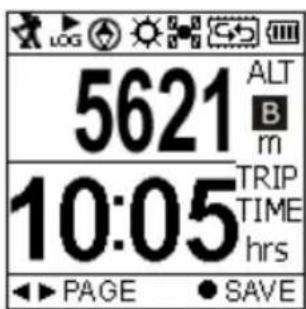
5621 ALT B m 10:05 TRIP TIME hrs PAGE SAVEAltitude and Trip Time:
Displays barometer altitude and the variation since the log started.
Altitude reading is indicated on Barometer altitude and is displayed as . If users want to have the
GPS altitude which will be displayed as G, they can set it through user definable pages on Sub Page 4 or 5.
text_image
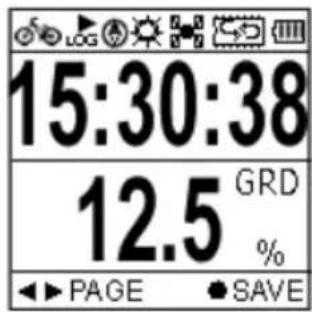
15:30:38 12.5 GRD % PAGE SAVETime and Grade:
Displays current Time and Grade.

text_image
LOG 1020 CAL 2250 CAL TOD SAVECalories:
Displays calories consumed since the log started and total calories consumed today.
This 5 way button icon shown on this page means the information shown on this page can be determined by users. Move the Up/ Down
▼▲button to select the information to be displayed on Top or Bottom. Enter the Menu to select information. When finished, press the OK button ● to return to the previous level.

text_image
5.25 CO2↓ kg TREE 2.4 SAVECarbon Saving:
Displays amount of carbon dioxide emissions avoided or number of trees planted by not driving in one journey.
This 5 way button icon shown on this page means the information shown on this page can be determined by users. Move the Up/ Down ▼▲button to select the information to be displayed on Top or Bottom. Enter the Menu to select information. When finished, press the OK button ● to return to the previous level.
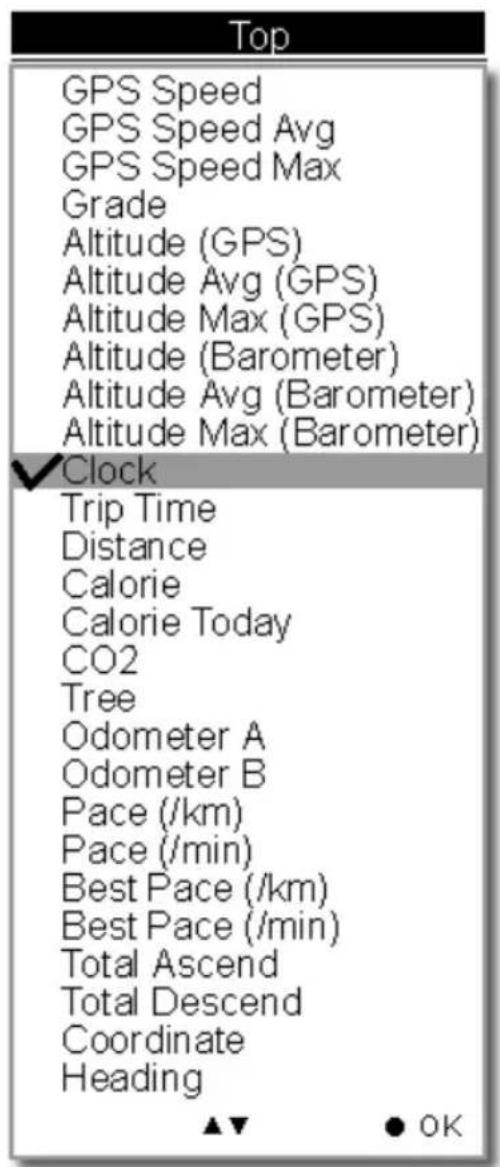
The sport information can be selected by users and displayed on Sub Page 4 and 5 are listed as below.
text_image
Top GPS Speed GPS Speed Avg GPS Speed Max Grade Altitude (GPS) Altitude Avg (GPS) Altitude Max (GPS) Altitude (Barometer) Altitude Avg (Barometer) Altitude Max (Barometer) ✓Clock Trip Time Distance Calorie Calorie Today CO2 Tree Odometer A Odometer B Pace (/km) Pace (/min) Best Pace (/km) Best Pace (/min) Total Ascend Total Descend Coordinate Heading ▲▼ ● OK
text_image
Bottom GPS Speed GPS Speed Avg GPS Speed Max ✓ Grade Altitude (GPS) Altitude Avg (GPS) Altitude Max (GPS) Altitude (Barometer) Altitude Avg (Barometer) Altitude Max (Barometer) Clock Trip Time Distance Calorie Calorie Today CO2 Tree Odometer A Odometer B Pace (/km) Pace (/min) Best Pace (/km) Best Pace (/min) Total Ascend Total Descend Coordinate Heading ▲▼ ●OKThe above selection, for example, will result in the display on Sub Page 4 as shown.

text_image
15:30:38 12.5 GRD % SAVEUser Defined Screen
Listed below are user defined screens of all combination.
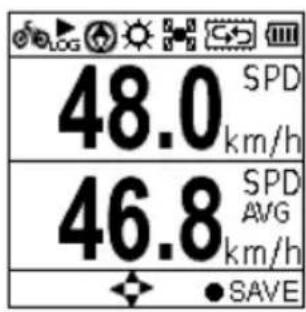
text_image
48.0 km/h 46.8 km/h SPD AVG SAVEGPS Speed GPS Speed Avg
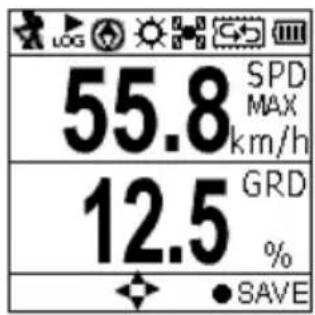
text_image
55.8 SPD MAX km/h 12.5 GRD %GPS Speed Max Grade

text_image
5621 ALT G m 5578 ALT B m SAVEAltitude (GPS) Altitude (Barometer)
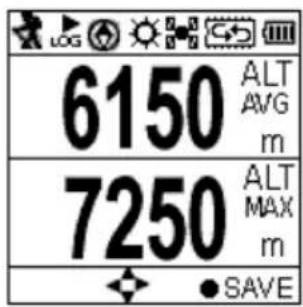
text_image
6150 ALT AVG m 7250 ALT MAX m SAVEAltitude Avg (GPS) Altitude Max (GPS)

text_image
6321 ALT AVG m 7456 ALT MAX m SAVEAltitude Avg (Baro) Altitude Max (Baro)

text_image
05:30 TRIP TIME hrs 20.25 DST km SAVETrip Time Trip Distance
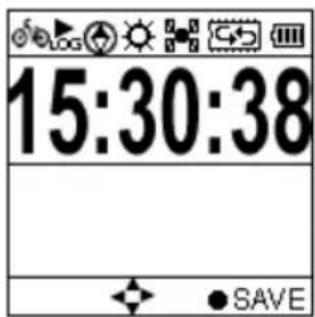
text_image
15:30:38 SAVEClock

text_image
1020 CAL 2250 CAL TOD SAVECalorie Calorie Today

text_image
5.25 CO2↓ kg TREE 3.4 SAVECO2 (kg) Tree (pcs)
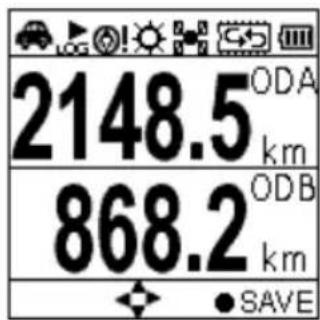
text_image
2148.5 ODA km 868.2 ODB km SAVEOdometer A Odometer B

text_image
5:00 PACE /km 5.25 PACE /min SAVEPace (min/km) Pace (km/min)
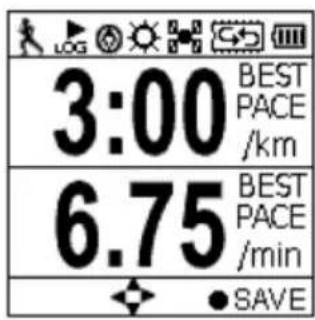
text_image
3:00 BEST PACE /km 6.75 BEST PACE /min SAVEBest Pace (min/km) Best Pace (km/min)
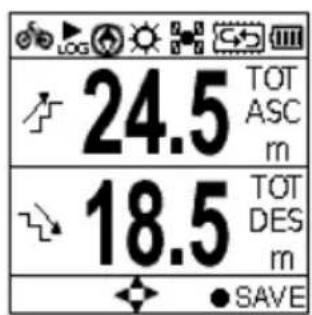
text_image
24.5 TOT ASC m 18.5 TOT DES m SAVETotal Ascend Total Descend
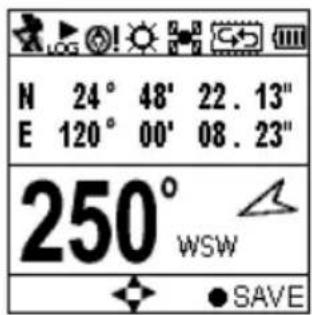
text_image
N 24° 48' 22.13" E 120° 00' 08.23" 250° WSW SAVECoordinate Heading
Plot Mode
natural_image
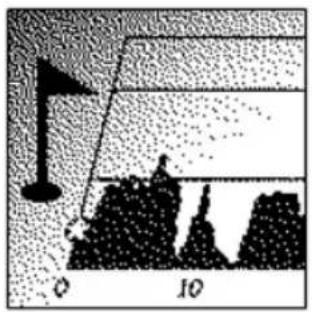
Diagram showing a flag on a slope with a scale marker (no text or symbols)Plot mode shows track log in graph and in real time display without interruption.
The real time transectional plot shows four units of sport information including:
■ Altitude + Time
■ Altitude + Distance
■ Speed + Time
■ Speed + Distance

text_image
Plot Track View Plot Mode Orientation Hide Track log InformationPlot
Displays the graph for altitude and time. Use the down ▼and up ▲buttons to zoom in and zoom out. Use the right button to move the x- and y- along the graph.
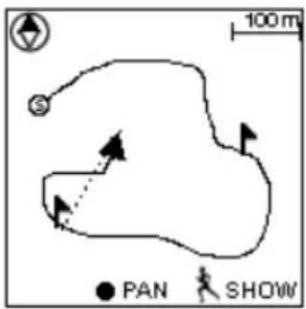
text_image
100 m PAN SHOWView Mode
■ Real-time track drawing
■ Push the OK button to enter Pan/Zoom mode

Compass

POI
● Real time track drawing; push to enter Pan/Zoom mode
Back to Menu


Show POI. Press again to disable the function. POI name will be displayed in the language edited in ezTour Planner.
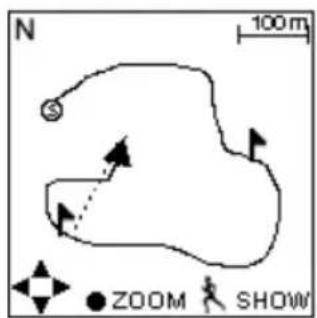
text_image
N 100 m ZOOM SHOWPan Mode
N North

track to left/right & top/bottom

Back to View Mode

Press to show POI. Press again to disable the function. POI name will be displayed in the language edited in ezTour Planner.
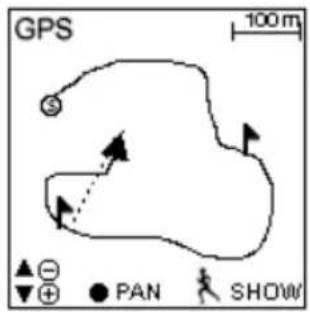
text_image
GPS 100 m ▲ - ▼ + ● PAN SHOWZoom Mode

Zoom out /Zoom in

Back to View Mode

Show POI. Press again to disable the function. POI name will be displayed in the language edited in ezTour Planner.
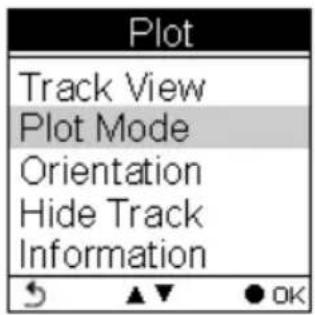
text_image
Plot Track View Plot Mode Orientation Hide Track InformationPlot Mode
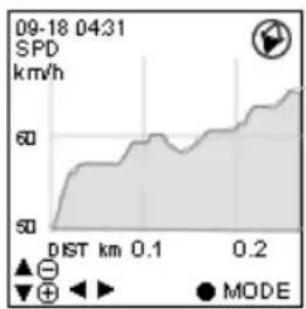
Display Altitude/Speed plot
line
| Time | Speed (km/h) | | ---- | ------------ | | 09-18 04:31 | 60 |
text_image
09-18 04:31 SPD km/h Altitude + Time Altitude + Dist Speed + Time Speed + Dist OK MODEThe following x- and y-axis combinations are available:
■ Altitude + Time
■ Altitude + Distance
■ Speed + Time
■ Speed + Distance
text_image
Plot Track View Plot Mode Orientation Hide Track Information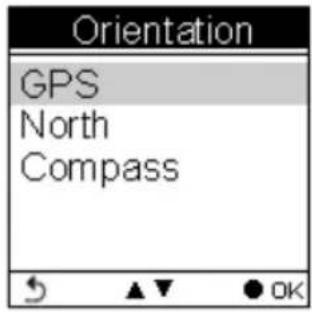
text_image
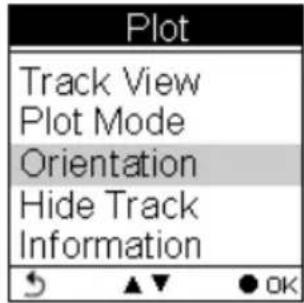
Orientation GPS North CompassOrientation direction can be based on
- GPS
- Always north
- According to Compass
The orientation direction appears on Track View (in Plot Mode) to help users with more track information besides Altitude, Time, Speed, and Distance.
text_image
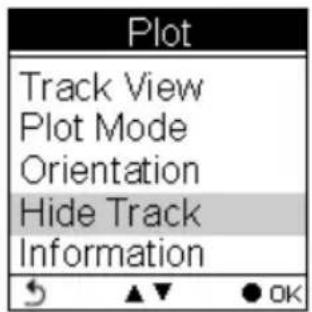
Plot Track View Plot Mode Orientation Hide Track InformationSelect to toggle between Hide Track and Show Track.
text_image
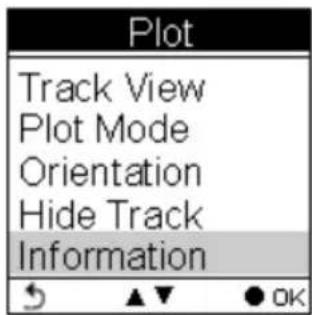
Plot Track View Plot Mode Orientation Hide Track InformationInformation varies as it displays real-time sport information.
Follow Course Mode

natural_image
Silhouette of a person walking on a paved path toward a distant road (no text or symbols visible)Enter this mode to follow a well- recorded track or from history logs.
text_image
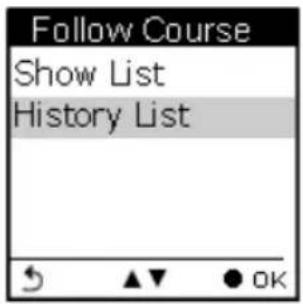
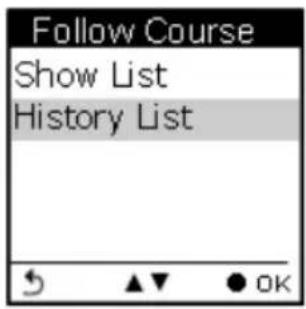
Follow Course Show List History ListTo follow course, tracks can be acquired from one of the following methods:
-
Plan your routes with ezTour Planner and then send it from the PC to GPSport 260. Please refer to the ezTour Planner user manual for details.
-
Get course directly from History log recorded in this device.
Follow course from listed tracks

text_image
List Bicycle Trip Down Hill Run Leslie Mountain Trip Yang Ming MountList
Displays the tracks currently stored on the GPSport 260.
The listed tracks were pre-planned and exported from ezTour Planner
text_image
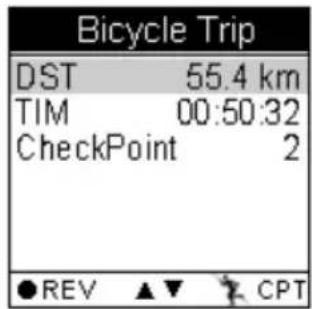
Bicycle Trip DST 55.4 km TIM 00:50:32 CheckPoint 2 ●REV ▲▼ CPTTrack details includes:
Distance, time, maximum speed, average speed, calories, carbon reduction, trees planted, and the number of check points in the track.
Only Distance, Time and Checkpoint will be displayed in the track detail when the list is exported from ezTour Planner.
text_image
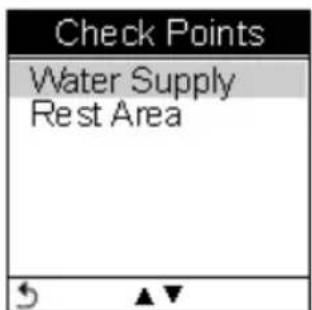
Check Points Water Supply Rest AreaCheck Points
Preview all checkpoints and the details of check points in one track.
When a check point is selected, you will be prompted to confirm if the selected check point the starting point to follow. Press the OK button ● to confirm.

text_image
Check Points 1 Start Start From Water Supply ? OK b DestinationFollow course from history logs
text_image
Follow Course Show List History ListHistory List
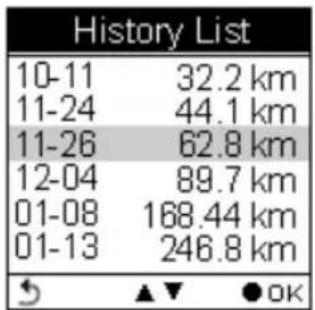
Displays the tracks logs currently stored on the GPSport 260.
text_image
History List 10-11 32.2 km 11-24 44.1 km 11-26 62.8 km 12-04 89.7 km 01-08 168.44 km 01-13 246.8 km OKTrack details:
All history logs are listed in time order followed by track distance.
Move the up and down cursor to select the log. Press the OK button to review the log in details.

text_image
11-26 16:30 DST 62.8 km TIM 01:16:32 SPDMax 39.4 kmh SPDAvg 21.8 kmh CAL 485 Check Points 8 ●REV ▲▼ CPTDistance, time, maximum speed, average speed, calories, altitude, carbon reduction, trees planted, and the number of check points in the track.

text_image
11-26 16:30 CO2 ↓ 1.25kg Tree 1.5 ●REV ▲▼ CPT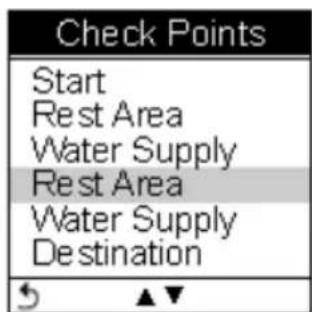
text_image
Check Points Start Rest Area Water Supply Rest Area Water Supply Destination
text_image
Check Points 1 Start Start From Rest Area ? OK b DestinationCheck Points
Preview all checkpoints and the details of check points in one track.
When a check point is selected, you will be prompted to confirm if the selected check point the starting point to follow. Press the OK button ● to confirm.
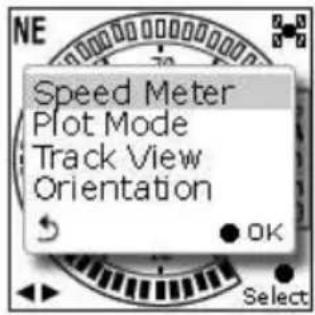
View Track Course in Speed Meter Mode
text_image
NE Speed Meter Plot Mode Track View Orientation OK SelectView Track Course
Loaded track can be displayed in four modes, i.e. Speed Meter, Plot Mode, Track View and Orientation.
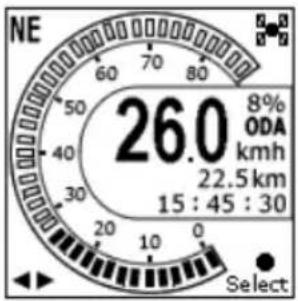
text_image
NE 60 70 80 50 40 30 20 10 0 26.0 8% ODA kmh 22.5 km 15 : 45 : 30 SelectUser left right button to switch between pages.
Shows distance & ascend to next check point and distance to the destination.

text_image
To next check point ← To Water Target Direction ← ↗ 253.5 km Total Ascend ← ↗ 32.5 m Time based on ← ETA 00:45 current speed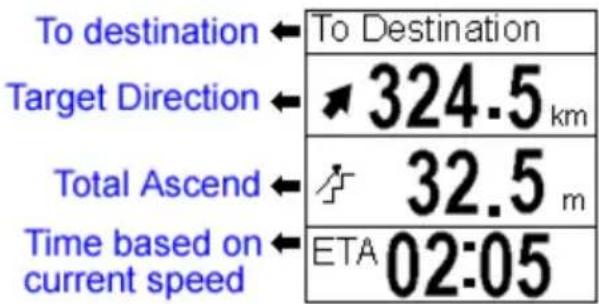
text_image
To destination ← To Destination Target Direction ← ↗ 324.5 km Total Ascend ← ↗ 32.5 m Time based on current speed ← ETA 02:05View Track Course in Plot Mode

text_image
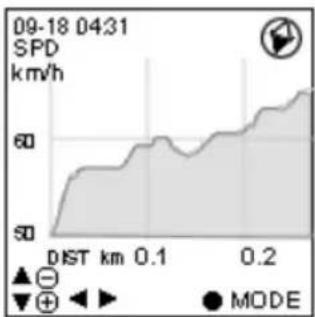
Speed Meter Plot Mode Track View Orientation OK SelectShow track on Plot Mode.
line
| Time | Speed (km/h) | | ---- | ------------ | | 09-18 04:31 | 60 |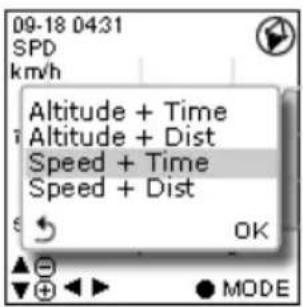
text_image
09-18 0431 SPD km/h Altitude + Time Altitude + Dist Speed + Time Speed + Dist OK MODEView Track Course in Track View
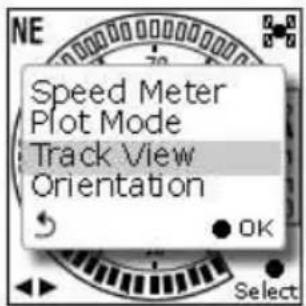
text_image
Speed Meter Plot Mode Track View Orientation OKShows Check Points on track;
Zoom in / out for the loaded track.
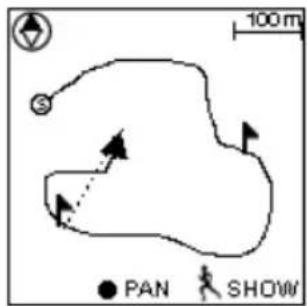
text_image
100 m S ● PAN SHOWPress the ● button to enter/toggle between the Zoom & Pan mode
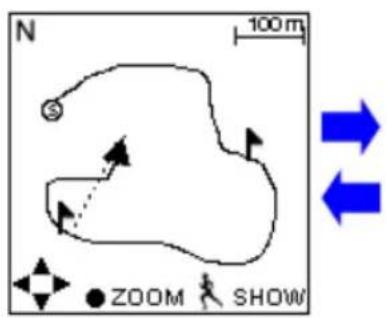
text_image
N 100 m ZOOM SHOW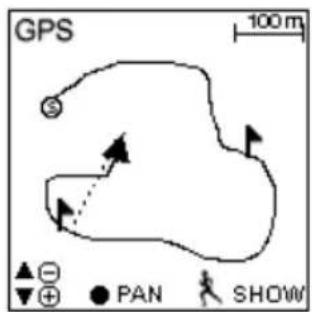
text_image
GPS 100 m ▲ ⊖ ▼ ⊕ ● PAN SHOWMulti Finder Mode
natural_image
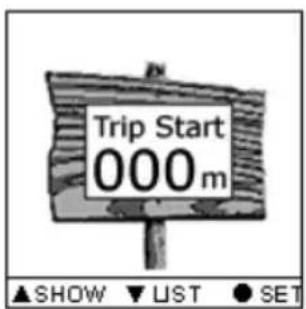
Close-up of a plant stem with leaves and a cutting tool, no visible text or symbolsThe Multiple Finder Mode shows the direction to the start of the track and leads you back to the starting point; alternatively, enter the coordinates for the destination to be guided by direction and distance.
text_image
Trip Start 000 m ▲SHOW ▼UST ●SET- TripStart auto memorized your first GPS fixing location. This cannot be edited or changed by users.

text_image
Edit Parking_ -- N 25°15' 23.06" E 52°16' 48.12"- Stores up to 20 user defined Finder points
- Upload Finder points directly from ezTour planner with their own language
- Allow users to edit coordinate on device
- Allow users to mark a new Finder point on device
- Allow users to switch coordinate between WSG84 and Geocache format
| Finder List | ||
| TripStart | ||
| Home | ||
| Parking | ||
| Meeting | ||
| Start | ||
| Landmark | ||
| Entrance | ||
| Exit | ||
| Camping | ||
| Secret | ||
| Other | ||
| F1 | ||
| F2 | ||
| F3 | ||
| F4 | ||
| F5 | ||
| F6 | ||
| F7 | ||
| F8 | ||
| F9 | ||
| F10 | ||
| Reset List |
| Save Current to | |
| N | 23° 18' 20.02" |
| E | 38° 36' 32.08" |
| Home | |
| Parking | |
| Meeting | |
| Current Point | ||
| N | 23° 18' | 20.02" |
| E | 38° 36' | 32.08" |
| Home | ||
| N | 25° 15' | 23.06" |
| E | 52° 16' | 48.12" |
| ∠ | ◀▶ | ▼CORD |
List Points
Users may store up to 20 records.
Select Reset List to clear all recorded Finder.
Set Points
Save current coordinates to a Finder point on the List.
Show
Displays the coordinates of current location and the destination.
Pedometer Mode

natural_image
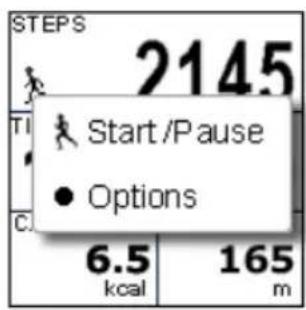
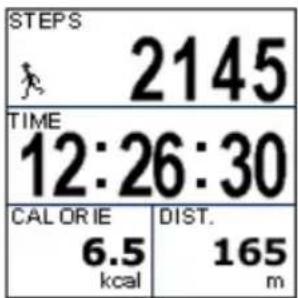
Silhouette of a walking person with motion lines, standing on a textured ground surface (no text or symbols)Pedometer mode enables users to count and record the number of steps taken, and the calories burned.
text_image
STEPS 2145 Start /Pause Options 6.5 kcal 165 mPress the Power button to Start/Pause Pedometer.
Press the OK button ● to enter the Option Menu.
text_image
STEPS 2145 TIME 12:26:30 CAL OR IE 6.5 kcal DIST. 165 mThe icon appears to indicate the pedometer is starting.
Main screen: The device will start counting the walking steps, time, distance, and calories burned.
text_image
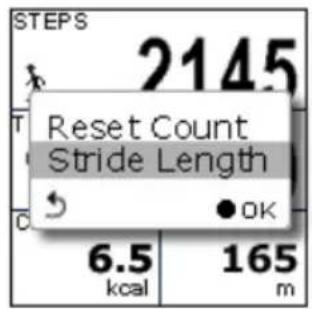
STEPS 2145 Reset Count Stride Length 6.5 kcal 165 mPress the OK button ● to Reset Counter or to set the Stride Length.
Please note:
text_image
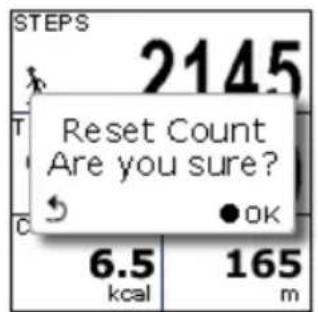
STEPS 2145 Reset Count Are you sure? 6.5 kcal 165 m-
Unless Reset Counter is selected and confirmed, Pedometer will not be reset and number of steps will be stored when the device is turned off.
-
Log recording continues when Pedometer is working.
text_image
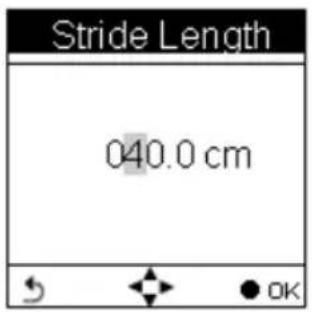
Stride Length 040.0 cm OKEnter this mode, input your stride length and press OK.
While working as a pedometer, the GPSport 260 needs no GPS signal to calculate distance.
Distance is calculated on the basis of steps timing stride length.
Compass Mode
natural_image
Close-up of a compass rose showing cardinal directions (N, S, W) and longitude (180°N, 360°W), no additional text or symbols visible.■ Works as a regular magnetic compass
text_image
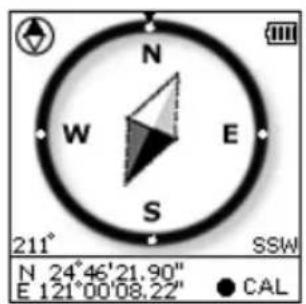
N W E S 211° SSW N 24°46'21.90" E 121°00'08.22" CAL■ Shows direction mark with degree
■ Shows current coordinates
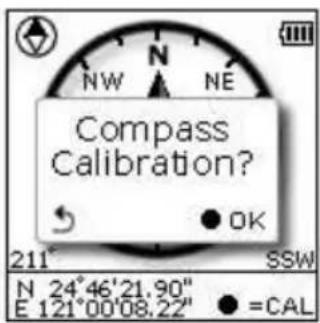
■ Push CAL to calibrate compass
text_image
Compass Calibration? 211 SSW N 24°46'21.90" E 121°00'08.22" ● =CALHistory Mode
natural_image
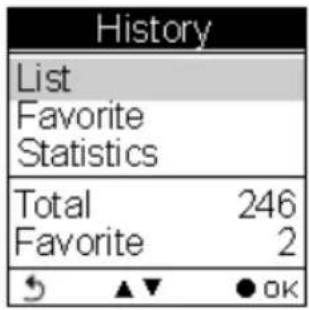
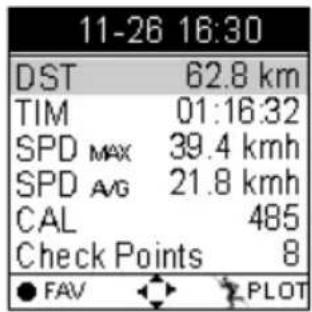
Simple line drawing of a clock with hour and minute hands (no text or symbols)History shows track details including speed, time, distance, altitude, check points, calories consumed, and CO2 reduced.
text_image
History List Favorite Statistics Total 246 Favorite 2 OKDisplays total number of tracks. Tracks can also be set as Favorite.

text_image
List 10-11 32.2 km 11-24 44.1 km 11-26 22.4 km 12-04 89.7 km 01-08 168.44 km 01-13 246.8 km ▶ NAME ● INFOTrack List displays all history track logs with track time and distance listed by order of time.
text_image
11-26 16:30 DST 62.8 km TIM 01:16:32 SPD MAX 39.4 kmh SPD AVG 21.8 kmh CAL 485 Check Points 8 ● FAV ● PLOT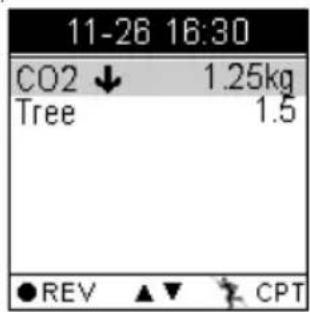
text_image
11-26 16:30 CO2 ↓ 1.25kg Tree 1.5 ●REV ▲▼ CPT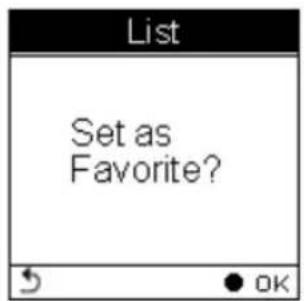
text_image
List Set as Favorite?Push the OK button to save the track to your favorite list.
Favorite: Collect your favorite tracks in one place.
| History | |
| List | |
| Favorite | |
| Statistics | |
| Total | 246 |
| Favorite | 2 |
| ↘ ▲▼ | ● OK |
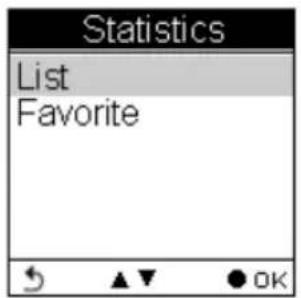
Statistics: shows activity statistic for all tracks or favorites.
text_image
Statistics List Favorite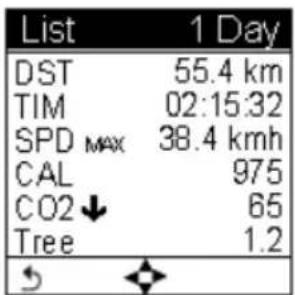
text_image
List 1 Day DST 55.4 km TIM 02:15:32 SPD MAX 38.4 kmh CAL 975 CO2 ↓ 65 Tree 1.2Track statistics. Use the left and right buttons to switch between different intervals (1, 2, 3, 4, 5, 6, 7, 10, 12 days, 2 weeks, 1 month, and all.)
Setting Mode

natural_image
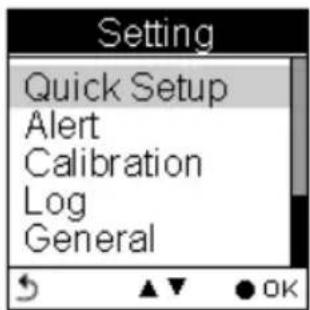
Abstract gear-like pattern with interlocking gears (no text or symbols)Setting Menu
text_image
Setting Quick Setup Alert Calibration Log General
text_image
Setting Alert Calibration Log General SystemQuick Setup

text_image
Setting Quick Setup Alert Calibration Log General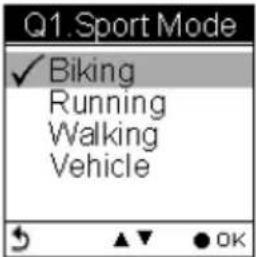
text_image
Q1. Sport Mode ✓ Biking Running Walking Vehicle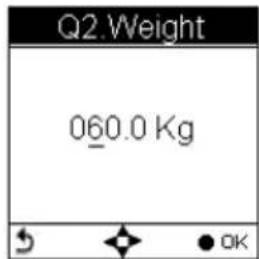
text_image
Q2 Weight 060.0 Kg OK
text_image
Q3.Odometer ✓ Odometer A=ODA Odometer B=ODBQuick setup allows you to select sport type, set user weight and select Odometer.
Alert

text_image
Setting Quick Setup Alert Calibration Log General
text_image
Alert ✓ Time Speed Distance Altitude Reset AllThe Alert function can be set for time, speed, distance and altitude.
Calibration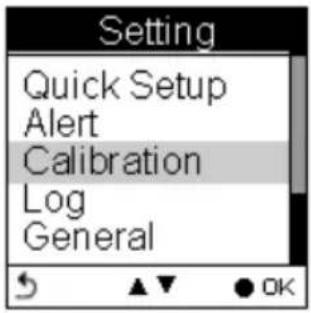 | 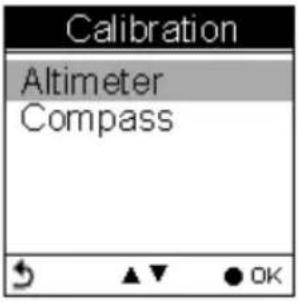 Calibration is needed at the start of each activity's log. Calibration is needed at the start of each activity's log. |
Log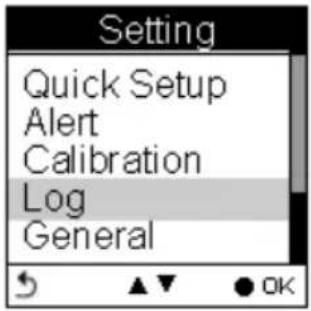 | 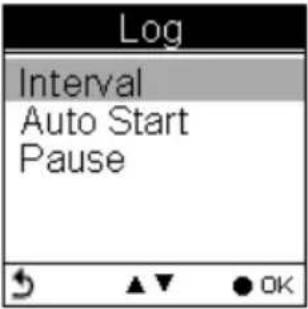 The GPSport 260 is set to automatically start logging user's track once it is turned on. Users can also set the log interval by pre-determined time or distance. The GPSport 260 is set to automatically start logging user's track once it is turned on. Users can also set the log interval by pre-determined time or distance. |
General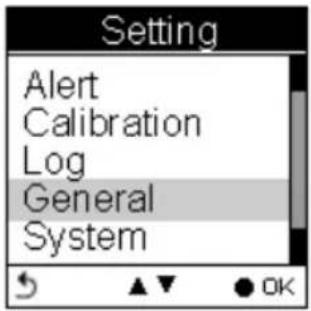 | 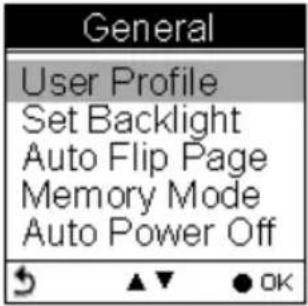 The General Setting includes User Profile, Backlight, Auto Flip Page, Memory Mode and Auto Power. The General Setting includes User Profile, Backlight, Auto Flip Page, Memory Mode and Auto Power. |
System
text_image
Setting Alert Calibration Log General System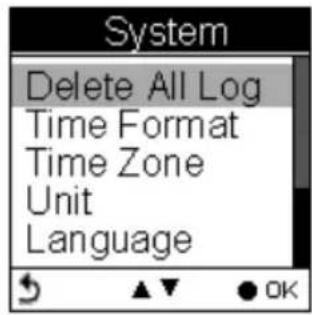
text_image
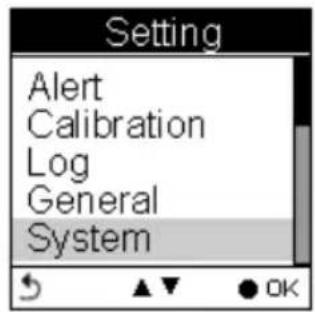
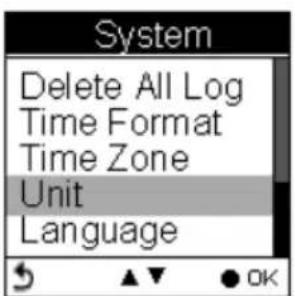
System Delete All Log Time Format Time Zone Unit LanguageSystem includes Delete All Log, Set Time Format, Time Zone, Unit, Language, LCD contrast, Odometer, GPS, and Reset Device (Factory Reset).
Getting Started
Turning On GPSport 260
Press the Power button until the startup screen appears on the LCD.
Turning Off GPSport 260
Press the Power button for 3 seconds and you will be prompted a message to confirm the message. Press the OK button again.

text_image
Power Off Yes No OKInitial Setup
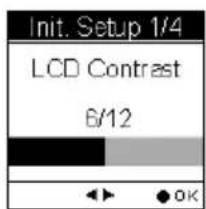
Please perform the initial setup for the very first time use of GPSport 260. If the GPSport 260 is reset, the Initial Setup will automatically start when users turn on the device.
text_image
Init. Setup 1/4 LCD Contrast 6/12
text_image
Init. Setup 2/4 Language ✓ English ▲▼ ● OK
text_image
Init. Setup 3/4 Unit ✓ km / m / kg mi / ft / lb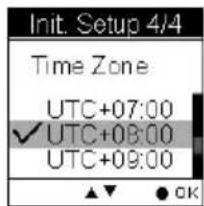
text_image
Init. Setup 4/4 Time Zone UTC+07:00 ✓ UTC+08:00 UTC+09:00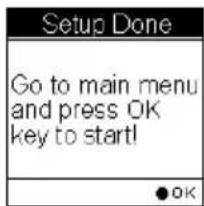
text_image
Setup Done Go to main menu and press OK key to start! OKTurning On/Off Backlight
Press the ⚙ button for 3 seconds to turn on/off backlight.
Backlight can be set to Always on, or you can set it to be automatically turned off after 10, 30, 60, or 120 seconds as displayed below.
Go to Main Menu → Setting → General → Set Backlight

text_image
Setting Alert Calibration Log General System General User Profile Set Backlight Auto Flip Page Memory Mode Auto Power Off Set Backlight ✓ Always On 10 secs 30 secs 60 secs 120 secsStarting/Stopping Logging
Auto-Start Logging
The GPSport 260 is set to automatically log your track once it is turned on.
To pause logging during activity, just press the Power ⏻ button and the icon “ ” will be replaced by pause icon “ ” as shown below.
Users are able to use the Quick Menu function to start/pause the log.


text_image
NE 260 8% ODA km/h 22.5 km 15 : 45 : 30
text_image
NE 26.0 8% ODA km/h 22.5 km 15 : 45 : 30For more details on data log recording, please refer to the later section titled "Log".
Basic Operation
Basic Operation without Setting
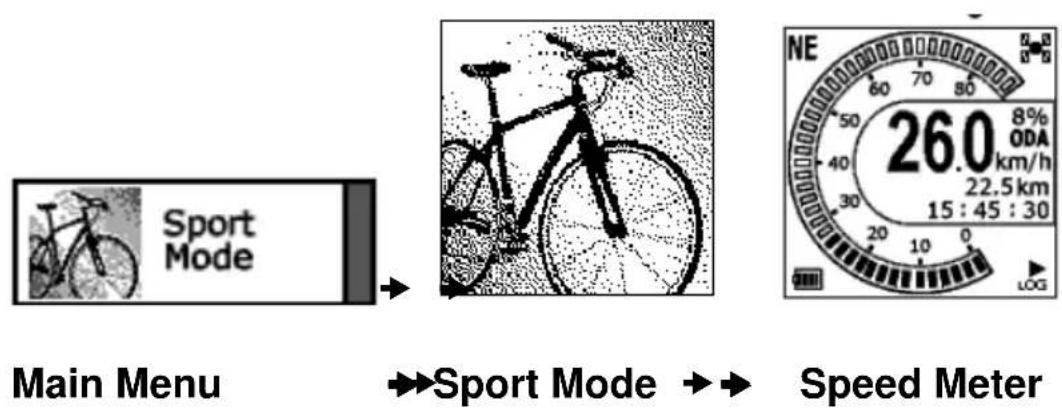
The GPSport 260 is designed to automatically log once it is on and GPS signal is received. Select Sport Mode from the main menu and the default first page Speed Meter appears. You are ready to use the basic function of this device.
flowchart
graph LR
    A["Main Menu"] --> B["Sport Mode"]
    B --> C["Speed Meter"]
Speed Meter
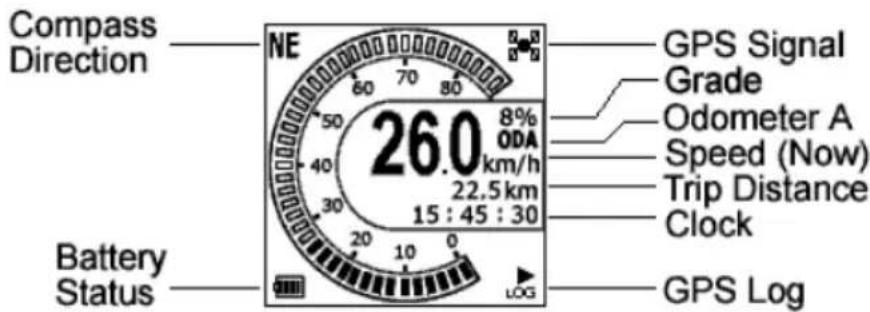
See below for the description of Sport Information on the speed meter.
text_image
Compass Direction NE 80 70 80 50 26.0 8% ODA km/h 22.5km 15 : 45 : 30 GPS Signal Grade Odometer A Speed (Now) Trip Distance Clock Battery Status LOG GPS LogPress the left ◀ or right▶ to switch among pages with different sport information as shown in the following sub pages. The top and bottom sport data items on Sub Page 1, 2 and 3 are fixed. As for Sub Page 4 and 5, both top and bottom data items can be changed and selected by customers. Press ▲ to enter the menu of sport information to select for top row and ▼ for bottom row.

text_image
26.0 SPD km/h 24.2 DST km PAGE SAVE
text_image
5621 ALT B m 10:05 TRIP TIME hrs PAGE SAVE
text_image
15:30:38 12.5 GRD %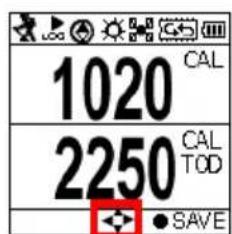
text_image
1020 CAL 2250 CAL TOD SAVE
text_image
5.25 CO2 ↓ kg TREE 2.4 ● SAVEQuick Menu
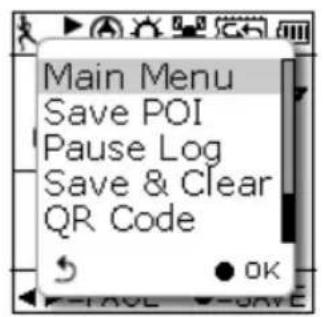
Press and concurrently, the quick menu appears for fast setup including: enter Main Menu, Save POI, Pause Log, Save & Clear (log), and QR Code and Lock Keys.
text_image
Main Menu Save POI Pause Log Save & Clear QR Code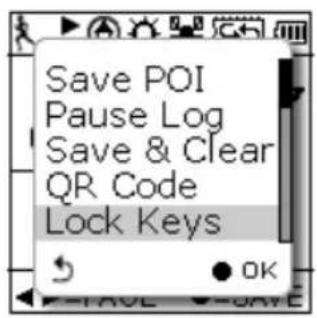
text_image
Save POI Pause Log Save & Clear QR Code Lock KeysSave POI
Save coordinates as POI (waypoint)
Pause Log
Pause track logging.
Save & Clear
Save the track and start another new log.
QR Code
Display current location in a QR code for mobile devices.

text_image
QR code image containing encoded data, no visible human-readable textLock Keys
Lock the buttons to avoid accidentally touch. Press

to unlock.

text_image
Keys Locked! Press → + to unlock!Status Icons
The status icons indicates Sport mode, Compass icon, POI, Backlight,
Satellite Status, Memory Mode and Battery.

Sport mode icons:

Bicycle mode

unning mode

Walking mode

Vehicle mode
Track Log icons:

Track currently being logged

Track currently not being logged
Compass icons:

The black arrow always points north

The compass needs calibrating
Backlight icon:

Backlight is on
Satellite mode icons:

Satellite fix acquired

Device currently attempted to acquire satellite fix
Memory mode icons:

Overwrite: Memory now in Overwrite mode

Full Stop: Show % of remaining memory
Battery status icons:

Battery is being charged

Battery is fully charged

Low battery warning
Note: When battery is extremely low, the device will be turned off automatically.
Setting Up GPSport 260

natural_image
Abstract black-and-white gear-like pattern with concentric circles and dot textures (no text or symbols)Quick Setup

text_image
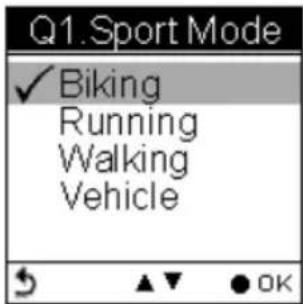
Setting Quick Setup Alert Calibration Log GeneralUser-friendly Quick setup function allows you to quickly setup most common settings. Press the Menu button to enter Main Menu and choose Quick Setup to begin.
text_image
Q1. Sport Mode ✓ Biking Running Walking VehicleQ1. Sport Mode appears.
Use the Up/Down button to move to the desired sport mode.
Press the OK button to confirm and save.

text_image
Q2.Weight 060.0 KgQ2. Weight setup appears
-
Press the Left/Right ◀▶button to move among digits.
-
Press the Up/Down ▲▼button to adjust the value.
-
Press the OK button ● when finish.

text_image
Q3. Odometer ✓ Odometer A=ODA Odometer B=ODBThe Odometer page appears.
Odometer A/B appears for users to choose between different trips. This is useful especially when users want to calculate mileages for different trips in different sport modes.

text_image
Setup Done Go to Main Menu and press start key to start!-
Press the Up/Down ▲▼button to select odometer.
-
Press the OK button ● when finish.
-
Return to the main menu. Press the Power Key
to start.
Alert
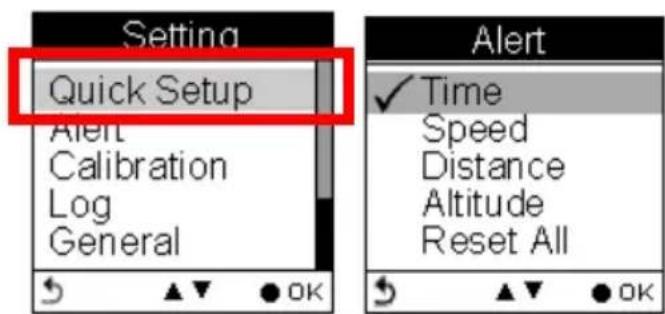
The Alert function can be set for time, speed, distance and altitude.
- Time Alert
- appears only when the pre-determined time is reached.
- Speed Alert
- appears only when the pre-determined speed is reached.
- Distance Alert
- appears only when the pre-determined distance is reached.
- Altitude Alert
- appears only when the pre-determined altitude is reached.
You can press any key to disable the alert message.
To Set Alerts
- Press the Menu button to enter Main Menu.
- Go to Setting → Alert.
- Select Time, Speed, Distance or Altitude to open submenu.
text_image
Setting Quick Setup Alert Calibration Log General Alert ✓ Time Speed Distance Altitude Reset AllTo Set Time Alert
i. Press the Left/Right ◀ button to move to left/right.
ii. Press the Up/Down ▲▼button to adjust the value. Press the OK ● button to confirm.
iii. Press the Up/Down ▲ (Y) /▼ (N) button to check □ Enable or leave it blank.
iv. Press the OK ● button to confirm and return to the Alert Menu.

text_image
Time Alert 00:00:00 □ Enable
text_image
Time Alert 01:00:00 Enable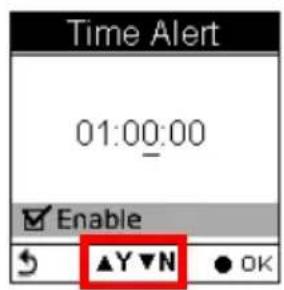
text_image
Time Alert 01:00:00 Enable ▲Y▼N ● OKNote: Time must be set within the range of 00:00:01 to 23:59:59.
To Set Speed Alert
i. Press the Left/Right ◀ button to move to left/right.
ii. Press the Up/Down ▲▼button to adjust the value. Press the OK ● button to confirm.
iii. Press the Up/Down ▲ (Y) /▼ (N) button to check □ Enable or leave it blank.
iv. Press the OK ● button to confirm and return to the Alert Menu.
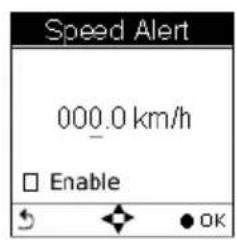
text_image
Speed Alert 000.0 km/h Enable OK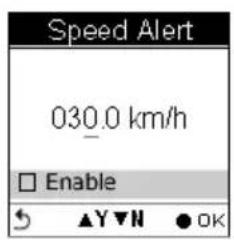
text_image
Speed Alert 030.0 km/h Enable ▲Y▼N ●OK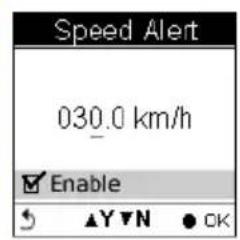
text_image
Speed Alert 030.0 km/h Enable ▲Y▼N ● OK
text_image
Speed Alert Value must between 1 ~ 500 km/n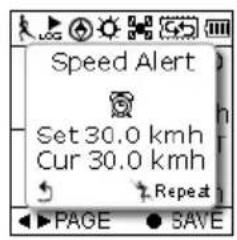
text_image
Speed Alert Set 30.0 kmh Cur 30.0 kmh Repeat PAGE SAVENote: Speed must be set within the range of 1 to 500 (km/h).
To Set Distance Alert
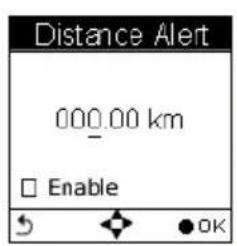
i. Press the Left/Right ◀ button to move to left/right.
ii. Press the Up/Down ▲▼button to adjust the value. Press the OK ● button to confirm.
iii. Press the Up/Down ▲ (Y) /▼ (N) button to check □ Enable or leave it blank.
iv. Press the OK ● button to confirm and return to the Alert Menu.
text_image
Distance Alert 000.00 km Enable OK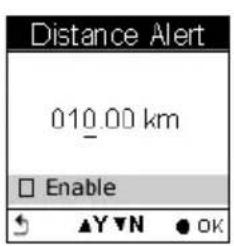
text_image
Distance Alert 010.00 km Enable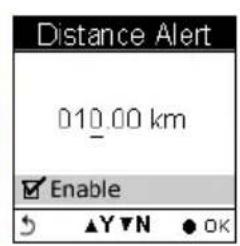
text_image
Distance Alert 010.00 km Enable ▲Y▼N ● OK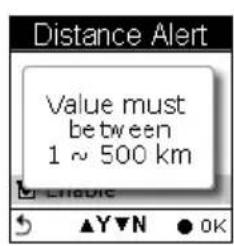
text_image
Distance Alert Value must between 1 ~ 500 km Enable ▲Y▼N ● OK
text_image
Dist. Alert Set 10.0 km Cur 10.0 km Repeat PAGE SAVENote: Distance must be set within the range of 1 to 500 (km).
To Set Altitude Alert
i. Press the Left/Right ◀ button to move to left/right.
ii. Press the Up/Down ▲▼button to adjust the value. Press the OK ● button to confirm.
iii. Press the Up/Down ▲ (Y) /▼ (N) button to check □ Enable or leave it blank.
iv. Press the OK ● button to confirm and return to the Alert Menu.
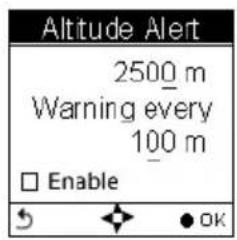
text_image
Altitude Alert 2500 m Warning every 100 m □ Enable OK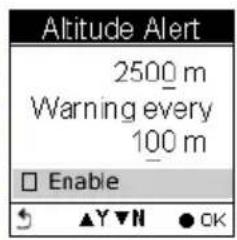
text_image
Altitude Alert 2500 m Warning every 100 m Enable ▲▼▼▼ ● OK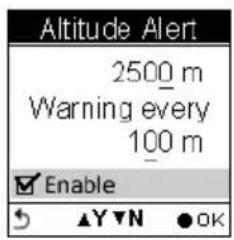
text_image
Altitude Alert 2500 m Warning every 100 m Enable ▲▼▼N ●OK
text_image
Altitude Alert Value must between 1 ~ 9999 m Enable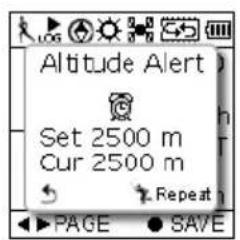
text_image
Altitude Alert Set 2500 m Cur 2500 m Repeat PAGE SAVENote: Altitude must be set within the range of 1 to 9999 (m).
Reset Alert
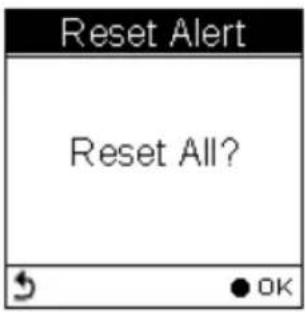
You may also reset alert by selecting Reset Alert from the Alert submenu:
- Select Reset Alert.
- Press the OK button to confirm.
text_image
Reset Alert Reset All?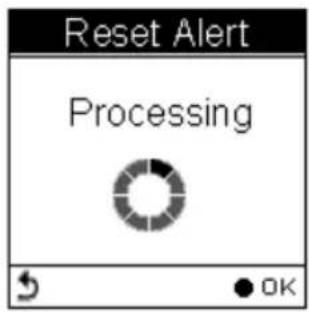
text_image
Reset Alert Processing OK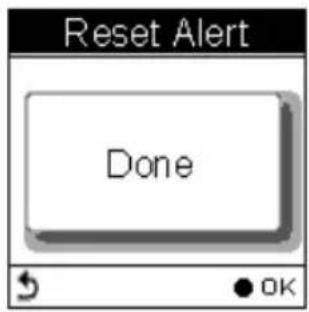
text_image
Reset Alert Done OKCalibration
GPSport 260 comes with built-in 3D electronic compass and barometer sensors. Calibration for barometer is necessary at the start of each activity's recording.
The 3D compass calibration is required to separate the earth's magnetic field from stray magnetic fields emitted by something metallic/electronic like a car for which may affect the operation of the compass. Without calibration, the 3D compass may have inaccurate readings.
As for barometer calibration, the GPSport 260 provides two methods for users to calibrate, i.e. Auto calibration and Manual calibration.
Manual calibration is recommended when the user knows his true elevation there, for Manual calibration uses the calibrated altitude as truth and assumes all changes in the pressure sensor are associated with the barometric pressure, Manual calibration therefore will be more accurate
Altimeter Calibration
A barometer is an instrument for determining the pressure generated by the weight of the atmosphere. Users can use GPSport 260 to determine their immediate altitude and altitude gained/lost.
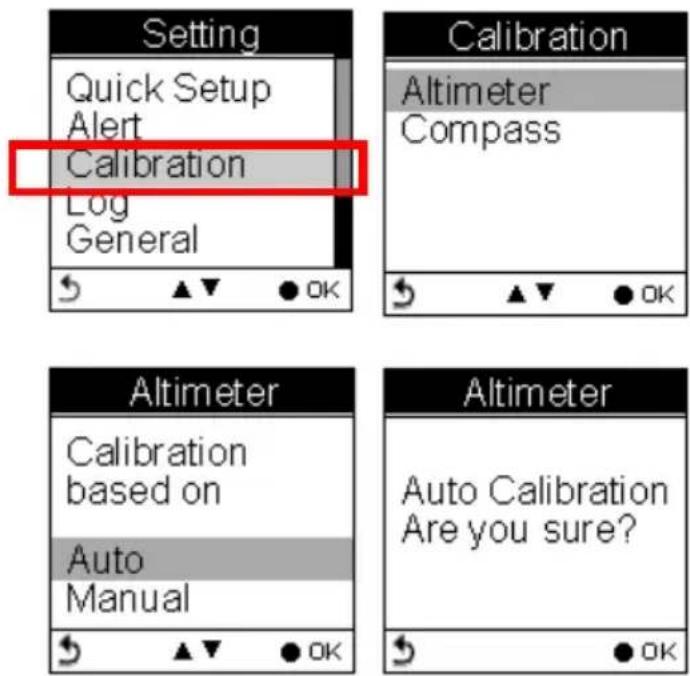
Barometer calibration is set to be automatically performed by default. However, users can set the device to be manually calibrated.
Note: If the device is set to Auto Calibration, the altitude will be gained from the following algorithm.
-
the first 5 log points in 5 seconds after GPS fixed are acquired.
-
the highest and lowest ones of the 5 log points are left out. There are 3 values remained.
- Average the 3 values.
The auto calibration is performed every time when the device is turned on.
Auto Calibration:
■ Main Menu→Setting → Calibration → Altimeter → Auto
Manual Calibration:
■ Main Menu→Setting → Calibration → Altimeter → Manual
■ Enter the current height by pressing the Up/Down ▲▼button to adjust the value. Press the OK button ● to confirm and exit.
Note: Altitude must be set within the range of -999 to +30,000 (m).

text_image
Setting Quick Setup Alert Calibration Log General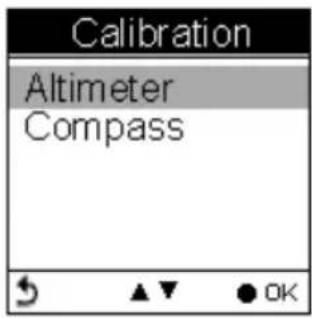
text_image
Calibration Altimeter Compass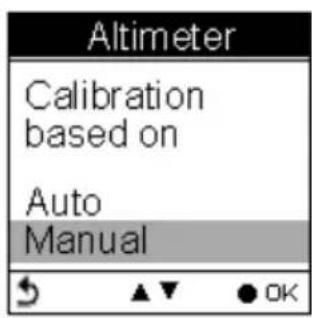
text_image
Altimeter Calibration based on Auto Manual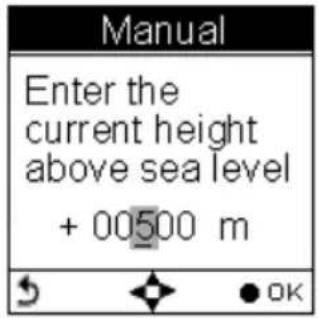
text_image
Manual Enter the current height above sea level + 00500 m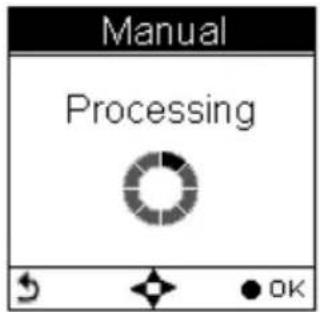
text_image
Manual Processing OK
text_image
Manual DoneCompass Calibration
■ Main Menu→Setting → Calibration → Compass
Press the OK button ● to calibrate the compass.
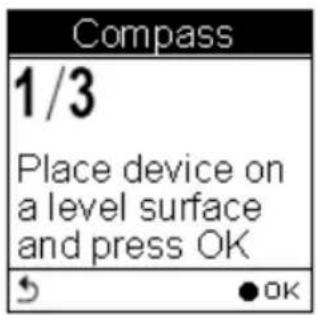
Step 1.
Hold the compass level with the horizon. Make sure that you are not near any metallic or magnetic objects. Press the OK button.
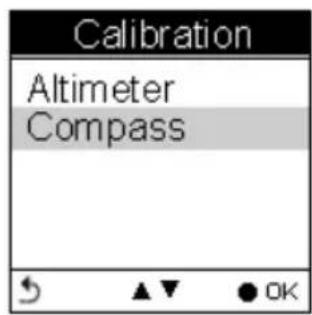
text_image
Calibration Altimeter CompassStep 2.
Rotate the compass twice slowly (two complete rotations), make sure that the compass remains level to the horizon.
text_image
Compass 1/3 Place device on a level surface and press OK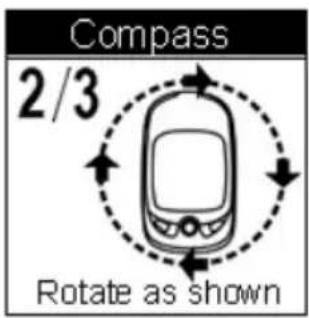
text_image
Compass 2/3 Rotate as shownStep 3.
Press the OK button. Once calibration is finished, the following screen appears follows a beep sound.

text_image
Compass 3/3 Compass Calibration OK! Rotate as shown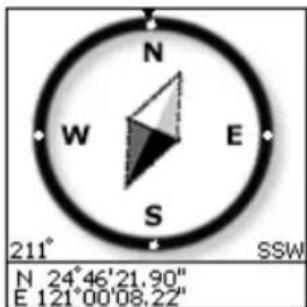
text_image
N W E S 211° SSW N 24°46'21.90" E 121°00'08.22"Note: Users should always calibrate the compass at the start of their outdoor activities for more accurate log information.
Log
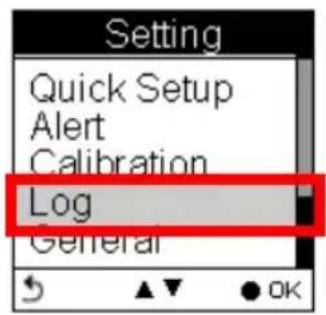
text_image
Setting Quick Setup Alert Calibration Log GeneralInteval
The GPSport 260 is set to automatically log your track once it is turned on. The factory setting of automatic logging is set to log at interval of time/distance ≥ 10 m/5 sec.
The GPSport 260 checks the distance every 5 seconds.
See below illustration for an example. If the distance is less than 10 meters in the first 5 seconds, the GPSport 260 is not logging.
The GPSport 260 checked again in another 5 seconds. The total distance then is 16 meters long, so it logs and one waypoint is recorded. The device resets the counter and measures the distance and time agin.

text_image
Log starts 5 sec 5 sec Recording 8 meter 16 meter No recording Recording & reset the couter Second: 0 Meter: 0The log Interval Auto is useful especially for users who do not want to repeatedly record one waypoint during a trip. Most cases, recording waypoints at the same place only because users were staying for a period of time is not necessary.
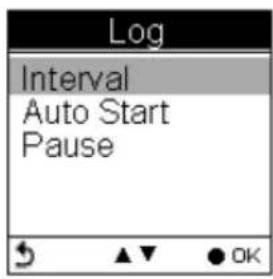
text_image
Log Interval Auto Start Pause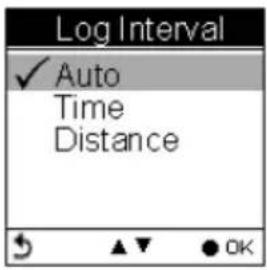
text_image
Log Interval ✓ Auto Time Distance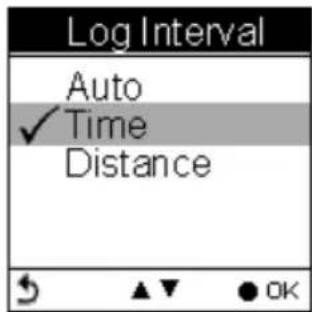
text_image
Log Interval Auto ✓ Time Distance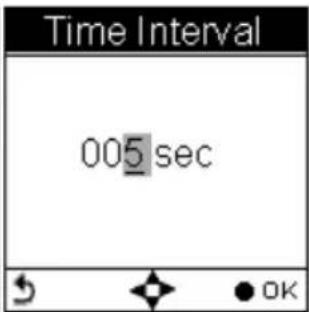
text_image
Time Interval 005 sec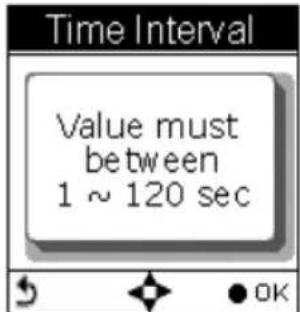
text_image
Time Interval Value must between 1 ~ 120 sec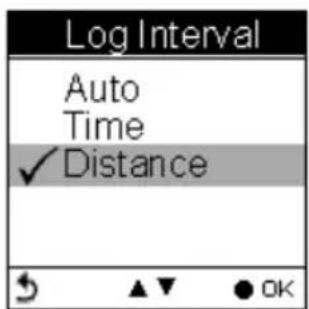
text_image
Log Interval Auto Time ✓ Distance OK
text_image
Dist. Interval 0005 m OK
text_image
Dist. Interval Value must between 1 ~ 1000 mNote: Time interval must be set within the range of 1 to 120 seconds; Distance interval must be set within the range of 1 to 1000 (m).
Auto-Start (Logging)
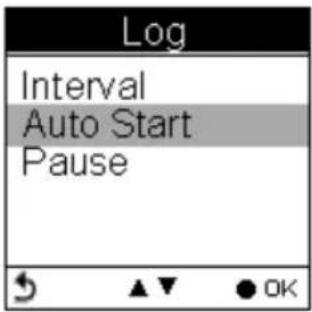
Auto-Start means the GPSport 260 will automatically starts to log once the satellite signal is well received. User can enable/disable the auto logging by entering Setting →Log→ Auto Start →Yes/No
text_image
Log Interval Auto Start Pause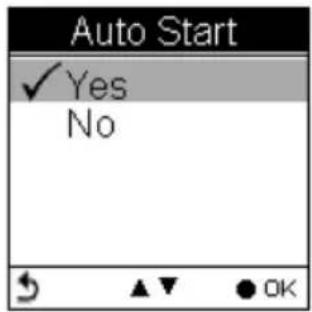
text_image
Auto Start ✓ Yes NoPause (Logging)
Users can set the log to stop/pause recording when the speed is below a determined number from 1km to 5 km.
Press the up and down button to check the □ Enable box.

text_image
Pause When speed lower than ✓ 1 kmh 2 kmh EnableGeneral (Setting)
text_image
Setting Alert Calibration Log General System
text_image
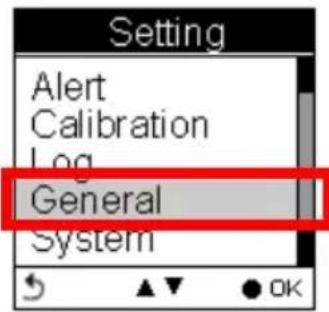
General User Profile Set Backlight Auto Flip Page Memory Mode Auto Power OffUser Profile
text_image
User Profile Birth Year : 1960 Weight : 060.0 kg Height : 170 cm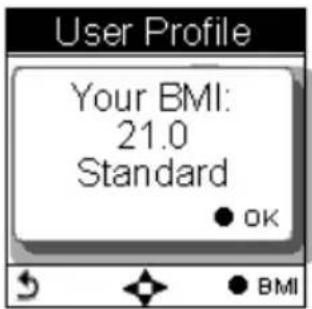
text_image
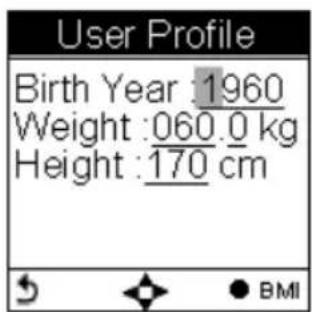
User Profile Your BMI: 21.0 Standard ● OK ● BMIUsers profile includes User's age (Birth year), Weight and Height. Once the above information is entered, user's BMI (Body Mass Index) value is determined. Refer to the following table for BMI categories.
| Body mass index by category | |
| Category BMI | |
| Underweight Below 18.5 | |
| Normal 18.5 - 24.9 | |
| Overweight 25.0 - 29.9 | |
| Obesity 30.0 or greater | |
Set Backlight
Backlight can be set to Always on if needed. To save power, backlight can be set to automatically off after it has been activated for 10, 30, 60 or 120 seconds.

text_image
General User Profile Set Backlight Auto Flip Page Memory Mode Auto Power Off
text_image
Set Backlight ✓ Always On 10 secs 30 secs 60 secs 120 secsAuto Flip Page
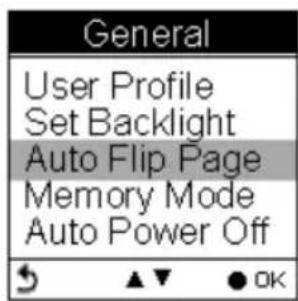
Users can enable the Auto Flip Page to rotate all sport information pages regularly by 5, 10, 30 or 60 seconds. Or they can choose to manually flip the Sport Page.
text_image
General User Profile Set Backlight Auto Flip Page Memory Mode Auto Power Off
text_image
Auto Flip Page ✓ Manual 5 secs 10 secs 30 secs 60 secsMemory Mode
As a data logger, the GPSport 260 is designed to automatically collect information upon activation, and can be left unattended for the duration of the monitoring period, the internal memory will be used up by recorded information.
Overwrite
Users can then determine if new data logs received should overwrite old data logs data logger by selecting Overwrite. Press the Up/Down
▲▼button to select.

text_image
General User Profile Set Backlight Auto Flip Page Memory Mode Auto Power Off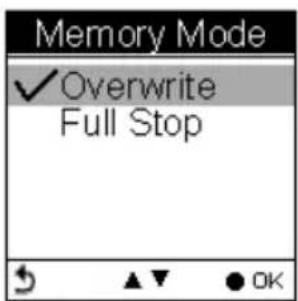
text_image
Memory Mode ✓ Overwrite Full StopFull Stop
If users want the logger automatically stop recording when the internal memory is used up and no room for recording new data logs, select "Full Stop". Press the Up/Down ▲▼button to select.
Auto Power Off
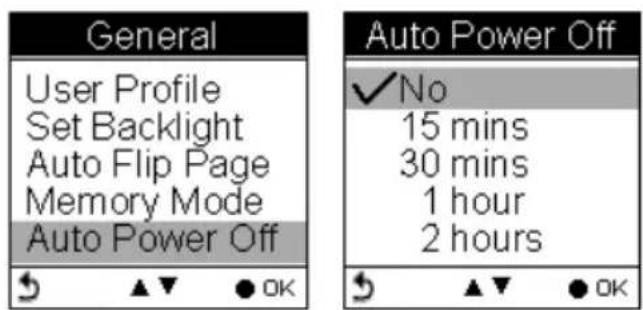
The GPSport 260 can be set to be automatically powered off when there's no GPS signal being detected for 15 minutes, 30 minutes, 1 hour, or 2 hours.
Users can ignore the function and set to No which will keep the GPSport powered on even when there's no GPS signal detected.
To enable the Auto Power Off, please go to General → Auto Power Off
text_image
General User Profile Set Backlight Auto Flip Page Memory Mode Auto Power Off Auto Power Off ✓ No 15 mins 30 mins 1 hour 2 hoursSystem Setting

text_image
Setting Alert Calibration Log General SystemDelete all log
Select "Delete all log" will empty the internal memory and all recorded log data will be removed.

text_image
System Delete All Log Time Format Time Zone Unit Language
text_image
Delete All Log Are you sure?Time Format
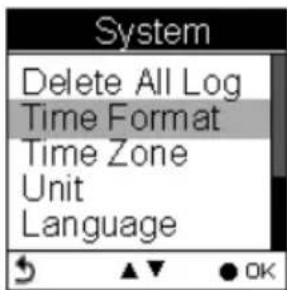
System → Time Format
Select format "24 hours" and "12 hours".
text_image
System Delete All Log Time Format Time Zone Unit Language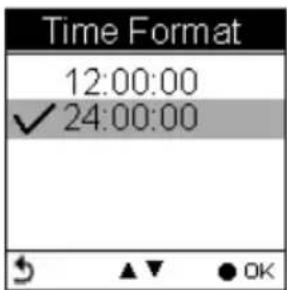
text_image
Time Format 12:00:00 ✓ 24:00:00Time Zone
System → Time Zone
Press the up and down button to select.

text_image
System Delete All Log Time Format Time Zone Unit Language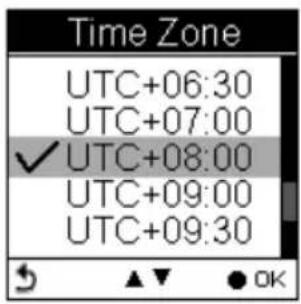
text_image
Time Zone UTC+06:30 UTC+07:00 ✓ UTC+08:00 UTC+09:00 UTC+09:30Unit
Unit Conversion converts units of Speed/Distance, Weight and Temperature.
Speed/ Distance
System → Unit → Speed/Distance
Select “Distance/Speed” to choose metric as “km/m/kmh”, imperial as “mi/ft/mph” or nautical as “kt/nm”.
text_image
System Delete All Log Time Format Time Zone Unit Language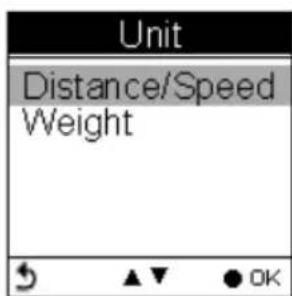
text_image
Unit Distance/Speed Weight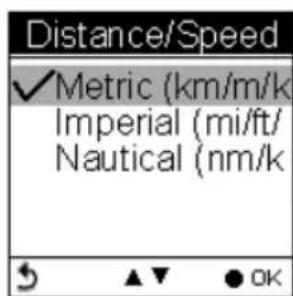
text_image
Distance/Speed ✓Metric (km/m/k Imperial (mi/ft/ Nautical (nm/kWeight
System → Unit → Weight
Select “weight” to choose metric as “Kilogram/kg”, or imperial as “Pound/lb”.

text_image
Weight ✓Kilogram (kg) Pound (lb)Language
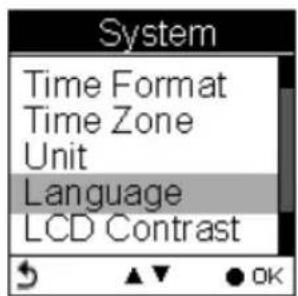
text_image
System Time Format Time Zone Unit Language LCD Contrast
text_image
Language ✓ English OKLCD Contrast
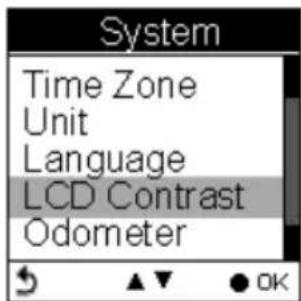
LCD contrast can be adjusted in the LCD Contrast. Press the Up/Down ▲▼button to select.
text_image
System Time Zone Unit Language LCD Contrast Odometer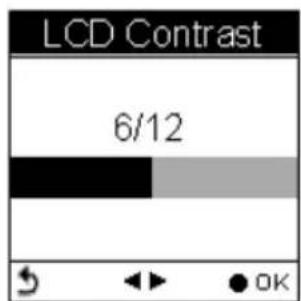
text_image
LCD Contrast 6/12Odometer
You can save trip information in Odometer A or Odometer B. The default is Odometer A.
The value of both odometers can be reset or modified.
■ Press the left and right button to move among the number. Press up and down button to increase/decrease the value. When finished, press OK button ● to continue.
■ Press the up and down button to tick the □ Enable box.

text_image
System Unit Language LCD Contrast Odometer GPS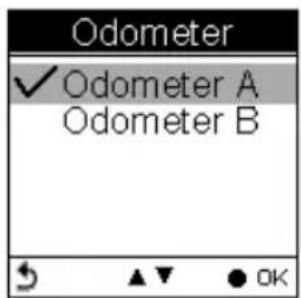
text_image
Odometer ✓ Odometer A Odometer B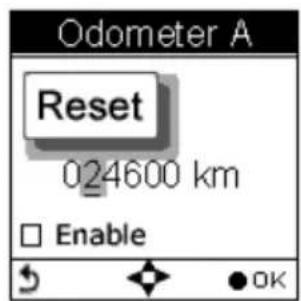
text_image
Odometer A Reset 024600 km Enable
text_image
Odometer A Reset 024600 km EnableGPS
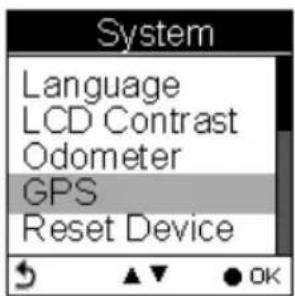
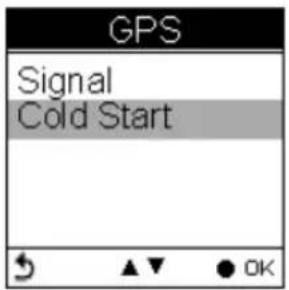
Enter GPS to view the signal strength or you can activate to Cold Start.
text_image
System Language LCD Contrast Odometer GPS Reset DeviceSignal
Setting → GPS → Signal

text_image
GPS Signal Cold Start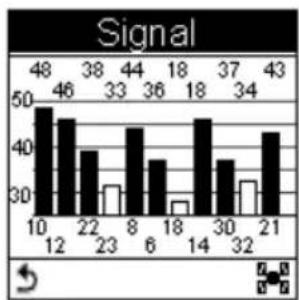
bar
Signal | X-Axis | Value | |---|---| | 10 | 48 | | 12 | 46 | | 22 | 38 | | 23 | 33 | | 8 | 44 | | 6 | 36 | | 18 | 18 | | 14 | 18 | | 30 | 37 | | 32 | 34 | | 21 | 43 |Cold Start
Setting → GPS → Cold Start
Users are recommended to perform Cold Start when they travel for a long distance within a short period of time, say flying from Asia to Europe, for the GPS receiver may have problem to receive information about the current time, the orbits of the satellites or its own current position with previous GPS acquired. The searching time will be long for it proceeds to listen for satellites at random until it has acquired one or more. Cold Start will initialize the positioning of GPS and etc.
text_image
GPS Signal Cold Start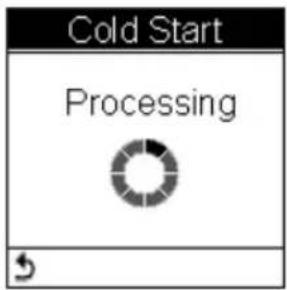
text_image
Cold Start Processing
text_image
Cold Start DoneReset Device
Press Reset Device to restore all settings to factory setting. Please note that all existing values and settings will be cleared except for Track logs in history, history name, finder point & name, odometer data, & POI data.
Once the device is reset to factory setting, users will be prompted with the initial setup screen when the device is turned on.

text_image
System Language LCD Contrast Odometer GPS Reset Device
text_image
Reset Device Reset to factory setting Are you sure?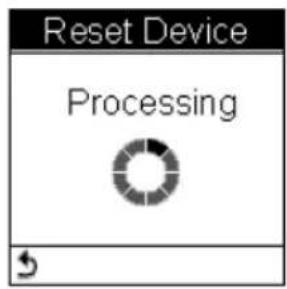
text_image
Reset Device Processing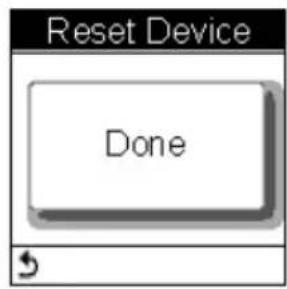
text_image
Reset Device DoneInitial Setup
The initial setup screen prompts when users turn on the device for the first time.
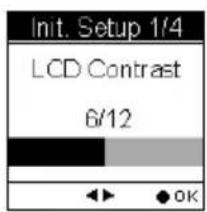
text_image
Init. Setup 1/4 LCD Contrast 6/12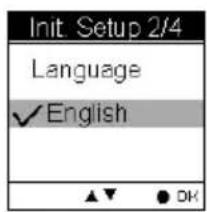
text_image
Init. Setup 2/4 Language ✓ English ▲▼ ● OK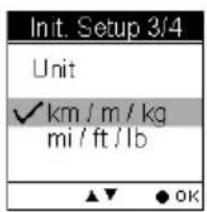
text_image
Init. Setup 3/4 Unit ✓ km / m / kg mi / ft / lb ▲▼ ● OK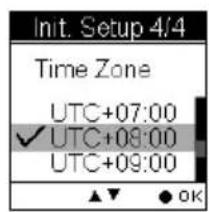
text_image
Init. Setup 4/4 Time Zone UTC+07:00 ✓ UTC+09:00 UTC+09:00 ▲▼ OK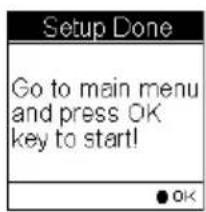
text_image
Setup Done Go to main menu and press OK key to start! OKAbout ezTour Plus and ezTour Planner
Functions of ezTour Plus
■ Posses the original ezTour function and more!
■ Statistic view shows you accumulated activity statistics based on the date rage the users selected!
Functions of ezTour Planner
■ Plan route at home with an easy to use tool
■ Edit the route directly on the Google map!
■ Able to plan the route between two points or follow the road
■ User define Placemark to plan the rest point at home
■ Automatically show earth elevation as soon as the route is completed!
■ Able to synchronize the route to GPSport 260
■ Import/Export .gpx .kml files for other usages
■ Access multiple projects in the same project window.
Features of ezTour Plus
- Display statistic data in month, week, or day view. Support both chart view and table view.
-
Analyze sport data in terms of time, distance, speed, and elevation.
-
Allow users keep notes of every activity.
● Replay the activity on map and detailed information of every point. - Analyze detailed information for user defined segment of activity. (marker1 marker2 support.)
- Export statistic data to Excel report.
- Plan routes before trip or activity.
● Automatically find route by start and end points setting. - User defined point of interest.
● Support check-points and itinerary for trip/activity. - Share routes with friends by exporting/importing kml, gpx files.
● Support various exercises or sports.
Normal Care and Maintenance
To ensure the unit's normal operation and extended life span, please note the following while using and storing:
Do not drop the unit
If violently impacted or shocked, serious damage may be caused.
Avoid sudden temperature changes
Condensation may occur when entering a warm room on a cold day. To prevent condensation from damaging the unit, please place into an airtight plastic bag before sudden temperature changes.
Keep away from strong magnetic fields
When using or storing, please keep away from strong electromagnetic/radioactive or magnetic field equipment.
Operating temperature
The products operating temperature is between 0^ C \~ 40^ C; please do not operate under extreme temperatures.
Avoid exposure to sunlight
Please avoid long periods of sunlight or high temperature exposure.
Cleaning the screen
Using a soft clean cloth to wipe the screen is recommended; do not use ordinary tissue to wipe the screen.
Do not disassemble
Please do not disassemble the product, this may void the warranty and damage the unit.
Storage
When the product is not being used for a long period, store the device in a cool and dry place. For long-term storage, keeping the unit in a dry box is recommended.
Please do not keep the product in the following environments:
- Unventilated and humid locations.
- In a car window that is exposed to excessive amounts of sunlight.
- In an environment where humidity is over 90% .
Specifications
| GPS Chip | Chipset: MTK 3329 |
| Dimensions | 81.7x 54x 22 mm |
| Weight | 84g |
| Battery | Rechargeable 1050 mAh lithium battery |
| Power | DC5V/1A |
| Button | 2 buttons : Menu / Power + 5 Direction keys |
| Antenna | Built-in patch antenna |
| IO Interface | Mini USB |
| Display | High-contrast electro-luminescent backlit display, 4-level grayscale LCD.Dimensions: 33.5 × 33.5 mm, 1.5"Resolution: 128 x 128 pixels |
| Environmental Temperature | Operating Temperature: -10°C to 60°CStorage Temperature: -20°C to 70°CBattery Recharging Temperature: 0°C ~40°C |
| Water proof | IPX7 |
