
KX-TGD225 - Cordless phone PANASONIC - Free user manual and instructions
Find the device manual for free KX-TGD225 PANASONIC in PDF.


| Product Type | Cordless Phone |
| Brand | Panasonic |
| Model | KX-TGD225 |
| Technology | DECT |
| Frequency Band | 1.9 GHz |
| Number of Handsets | 1 (expandable up to 6) |
| Base Dimensions (W x H x D) | Approx. 150 x 100 x 80 mm |
| Handset Dimensions (W x H x D) | Approx. 170 x 45 x 30 mm |
| Base Weight | Approx. 150 g |
| Handset Weight | Approx. 130 g (including battery) |
| Power Supply (Base) | AC adapter (input: 100-240 V, output: 6 V DC) |
| Power Supply (Handset) | Rechargeable Ni-MH battery (1.2 V, 550 mAh) |
| Standby Time | Up to 200 hours |
| Talk Time | Up to 15 hours |
| Charging Time | Approx. 7 hours |
| Range (Indoor) | Up to 50 meters |
| Range (Outdoor) | Up to 300 meters |
| Key Features | Caller ID, Call Waiting, Phonebook (100 entries), Speakerphone, Intercom, Mute, Redial, Ringer Volume Control |
| Display | Backlit LCD with 1 line |
| Additional Handset Compatibility | KX-TGA225 |
| Maintenance & Cleaning | Wipe with a soft, dry cloth. Do not use solvents or abrasive cleaners. |
| Safety | Use only the supplied AC adapter. Do not expose to water or extreme temperatures. |
| Spare Parts & Repairability | Replacement batteries available (model: HHR-4HPT). For repairs, contact Panasonic service center. |
| General Information | Manual available in PDF format (56 pages). |
Frequently Asked Questions - KX-TGD225 PANASONIC
User questions about KX-TGD225 PANASONIC
0 question about this device. Answer the ones you know or ask your own.
Ask a new question about this device
Download the instructions for your Cordless phone in PDF format for free! Find your manual KX-TGD225 - PANASONIC and take your electronic device back in hand. On this page are published all the documents necessary for the use of your device. KX-TGD225 by PANASONIC.
USER MANUAL KX-TGD225 PANASONIC
Operating Instructions
Digital Cordless Phone
Model No.
KX-TGD210
KX-TGD212
KX-TGD213
Digital Cordless Answering System
Model No.
KX-TGD220
KX-TGD222
KX-TGD223
KX-TGD224
KX-TGD225
KX-TG443SK
KX-TG444SK
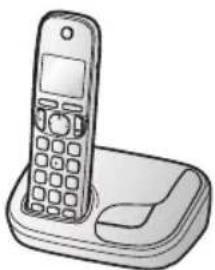
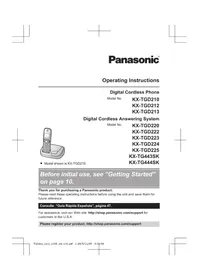
- Model shown is KX-TGD210.
Before initial use, see "Getting Started" on page 10.
Thank you for purchasing a Panasonic product.
Please read these operating instructions before using the unit and save them for future reference.
For assistance, visit our Web site: http://shop.panasonic.com/support for customers in the U.S.A.
Please register your product: http://shop.panasonic.com/support
Table of Contents
Introduction
Model composition 3
Accessory information ....3
Important Information
For your safety 6
Important safety instructions ....7
For best performance 7
Other information 8
Specifications 9
Getting Started
Setting up 10
Controls 12
Display icons 13
Language settings 13
Date and time 13
Recording your greeting message .....14
Other settings 14
Making/Answering Calls
Making calls 15
Answering calls 15
Useful features during a call 16
Intercom 17
Phonebook
Phonebook 18
Speed dial 20
Programming
Menu list 21
Alarm 25
Silent mode 25
Call block 26
Other programming 27
Registering a unit 27
Caller ID Service
Using Caller ID service 28
Caller list 28
Answering System
Answering system 30
Turning the answering system on/off .....30
Greeting message 30
Listening to messages 31
Remote operation ....32
Answering system settings ....33
Useful Information
Voice mail service 35
Wall mounting 36
Error messages ....38
Troubleshooting 39
FCC and other information ....44
Customer services ....51
Limited Warranty (ONLY FOR U.S.A.) .....52
Index
Index....54
Model composition
■ KX-TGD210 series ■ KX-TGD220 series
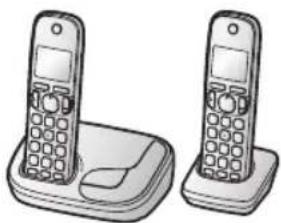
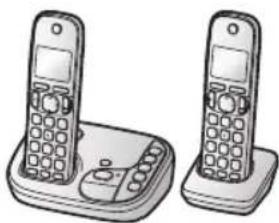
- Model shown is KX-TGD212. - Model shown is KX-TGD222.
| Series Model No. | Base unit Handset | |||
| Part No. Part No. | Quantity | |||
| KX-TGD210 series | KX-TGD210 KX-T | GD210 KX-TGDA20 | 1 | |
| KX-TGD212 KX-T | GD210 KX-TGDA20 | 2 | ||
| KX-TGD213 KX-T | GD210 KX-TGDA20 | 3 | ||
| KX-TGD220 series | KX-TGD220 KX-T | GD220 KX-TGDA20 | 1 | |
| KX-TGD222 KX-T | GD220 KX-TGDA20 | 2 | ||
| KX-TGD223 KX-T | GD220 KX-TGDA20 | 3 | ||
| KX-TG443SK KX-T | TGD220 KX-TGDA20 | 3 | ||
| KX-TGD224 KX-T | GD220 KX-TGDA20 | 4 | ||
| KX-TG444SK KX-T | TGD220 KX-TGDA20 | 4 | ||
| KX-TGD225 KX-T | GD220 KX-TGDA20 | 5 | ||
Accessory information
Supplied accessories
| No. | Supplied handset qty. | 1 unit*1 | 2 units*2 | 3 units*3 | 4 units*4 | 5 units*5 |
| Accessory item/Order number | Accessory quantity | |||||
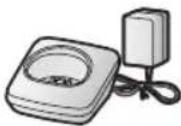
| 1 | AC adaptor/PNLV226-0X | 1 1 1 1 | 1 | |||
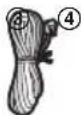
| 2 | Telephone line cord6 | 1 1 1 1 | 1 | |||
| 3 | Wall mounting adaptor7 | 1 1 1 1 | 1 | |||
Introduction
| No. | Supplied handset qty. | 1 unit*1 | 2 units*2 | 3 units*3 | 4 units*4 | 5 units*5 |
| Accessory item/Order number | Accessory quantity | |||||
| 4 | Rechargeable batteries/HHR-4DPA | 2 4 6 8 | 10 | |||
| 5 | Handset cover*8, *9 | 1 2 3 4 | 5 | |||
| 6 | Belt clip*10 | 1 2 3 4 | 5 | |||
| 7 | Charger*11 | -1 2 3 | 4 | |||
*1 KX-TGD210/KX-TGD220 *2 KX-TGD212/KX-TGD222 *3 KX-TGD213/KX-TGD223/KX-TG443SK *4 KX-TGD224/KX-TG444SK *5 KX-TGD225 *6 PQJA10075Y (Black cord), PQJA10075Z (Transparent cord) *7 PNKL1001Y3 (Champagne Gold), PNKL1001X1 (Metallic Black) *8 The handset cover comes attached to the handset. *9 PNYNTGDA20NR (Champagne Gold), PNYNTGDA20MR (Metallic Black) *10 PNKE1054Z4 (Champagne Gold), PNKE1054Z1 (Metallic Black) *11 PNLC1056ZN (Champagne Gold), PNLC1056ZB (Metallic Black)
①

②
⑤



⑥

Additional/replacement accessories
Please contact your nearest Panasonic dealer for sales information (page 51).
| Accessory item Order number | |
| Rechargeable batteries | HHR-4DPA*1To order, please visithttp://shop.panasonic.com/support |
| Battery type:-Nickel metal hydride (Ni-MH)-2 x AAA (R03) size for each handset | |
| T-adaptor KX-J66 | |
| Range extender | KX-TGA405*2 |
*1 Replacement batteries may have a different capacity from that of the supplied batteries.
*2 By installing this unit, you can extend the range of your phone system to include areas where reception was previously not available. This product can be purchased online. Please visit our Web site: http://shop.panasonic.com/support
Other information
- Design and specifications are subject to change without notice.
- The illustrations in these instructions may vary slightly from the actual product.
Expanding your phone system
| Handset (optional): KX-TGDA20 | ||
| You can expand your phone system by registering optional handsets (6 max.) to a single base unit.● Optional handsets may be a different color from that of the supplied handsets. | 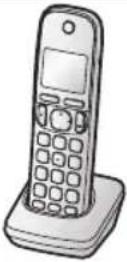 | |
Important Information
For your safety
To prevent severe injury and loss of life/property, read this section carefully before using the product to ensure proper and safe operation of your product.
WARNING
Power connection
- Use only the power source marked on the product.
- Do not overload power outlets and extension cords. This can result in the risk of fire or electric shock.
- Completely insert the AC adaptor/power plug into the power outlet. Failure to do so may cause electric shock and/or excessive heat resulting in a fire.
- Regularly remove any dust, etc. from the AC adaptor/power plug by pulling it from the power outlet, then wiping with a dry cloth. Accumulated dust may cause an insulation defect from moisture, etc. resulting in a fire.
- Unplug the product from power outlets if it emits smoke, an abnormal smell, or makes an unusual noise. These conditions can cause fire or electric shock. Confirm that smoke has stopped emitting and contact us at http://shop.panasonic.com/support
- Unplug from power outlets and never touch the inside of the product if its casing has been broken open.
- Never touch the plug with wet hands. Danger of electric shock exists.
Installation
- To prevent the risk of fire or electrical shock, do not expose the product to rain or any type of moisture.
- Do not place or use this product near automatically controlled devices such as automatic doors and fire alarms. Radio waves emitted from this product may cause such devices to malfunction resulting in an accident.
Do not allow the AC adaptor or telephone line cord to be excessively pulled, bent or placed under heavy objects.
Operating safeguards
- Unplug the product from power outlets before cleaning. Do not use liquid or aerosol cleaners.
- Do not disassemble the product.
- Do not spill liquids (detergents, cleansers, etc.) onto the telephone line cord plug, or allow it to become wet at all. This may cause a fire. If the telephone line cord plug becomes wet, immediately pull it from the telephone wall jack, and do not use.
Medical
- Consult the manufacturer of any personal medical devices, such as pacemakers or hearing aids, to determine if they are adequately shielded from external RF (radio frequency) energy. (The product operates in the frequency range of 1.92 GHz to 1.93 GHz, and the RF transmission power is 115 mW (max.).)
- Do not use the product in health care facilities if any regulations posted in the area instruct you not to do so. Hospitals or health care facilities may be using equipment that could be sensitive to external RF energy.
CAUTION
Installation and location
- Never install telephone wiring during an electrical storm.
- Never install telephone line jacks in wet locations unless the jack is specifically designed for wet locations.
- Never touch uninsulated telephone wires or terminals unless the telephone line has been disconnected at the network interface.
- Use caution when installing or modifying telephone lines.
- The AC adaptor is used as the main disconnect device. Ensure that the AC outlet is installed near the product and is easily accessible.
- This product is unable to make calls when: – the handset batteries need recharging or have failed. – there is a power failure.
Battery
- We recommend using the batteries noted on page 5. USE ONLY rechargeable Ni-MH batteries AAA (R03) size.
- Do not mix old and new batteries.
- Do not open or mutilate the batteries. Released electrolyte from the batteries is corrosive and may cause burns or injury to the eyes or skin. The electrolyte is toxic and may be harmful if swallowed.
- Exercise care when handling the batteries. Do not allow conductive materials such as rings, bracelets, or keys to touch the batteries, otherwise a short circuit may cause the batteries and/or the conductive material to overheat and cause burns.
- Charge the batteries provided with or identified for use with this product only, in accordance with the instructions and limitations specified in this manual.
- Only use a compatible base unit (or charger) to charge the batteries. Do not tamper with the base unit (or charger). Failure to follow these instructions may cause the batteries to swell or explode.
Attention:
A nickel metal hydride battery that is recyclable powers the product you have purchased. Please call 1-800-8-BATTERY (1-800-822-8837) for information on how to recycle this battery.
Important safety instructions
When using your product, basic safety precautions should always be followed to reduce the risk of fire, electric shock, and injury to persons, including the following:
- Do not use this product near water, for example, near a bathtub, washbowl, kitchen sink, or laundry tub, in a wet basement, or near a swimming pool.
- Avoid using a telephone (other than a cordless type) during an electrical storm. There may be a remote risk of electric shock from lightning.
- Do not use the telephone to report a gas leak in the vicinity of the leak.
- Use only the power cord and batteries indicated in this manual. Do not dispose of batteries in a fire. They may explode. Check with local codes for possible special disposal instructions.
SAVE THESE INSTRUCTIONS
For best performance
Base unit location/avoiding noise
The base unit and other compatible Panasonic units use radio waves to communicate with each other.
- For maximum coverage and noise-free communications, place your base unit: – at a convenient, high, and central location with no obstructions between the handset and base unit in an indoor environment. – away from electronic appliances such as TVs, radios, personal computers, wireless devices, or other phones.
- facing away from radio frequency transmitters, such as external antennas of mobile phone cell stations. (Avoid putting the base unit on a bay window or near a window.)
- Coverage and voice quality depend on the local environmental conditions.
Important Information
- If the reception for a base unit location is not satisfactory, move the base unit to another location for better reception.
Environment
- Keep the product away from electrical noise generating devices, such as fluorescent lamps and motors.
- The product should be kept free from excessive smoke, dust, high temperature, and vibration.
- The product should not be exposed to direct sunlight.
- Do not place heavy objects on top of the product.
- When you leave the product unused for a long period of time, unplug the product from the power outlet.
- The product should be kept away from heat sources such as heaters, kitchen stoves, etc. It should not be placed in rooms where the temperature is less than 0 °C (32 °F) or greater than 40 °C (104 °F). Damp basements should also be avoided.
- The maximum calling distance may be shortened when the product is used in the following places: Near obstacles such as hills, tunnels, underground, near metal objects such as wire fences, etc.
- Operating the product near electrical appliances may cause interference. Move away from the electrical appliances.
Routine care
- Wipe the outer surface of the product with a soft moist cloth.
- Do not use benzine, thinner, or any abrasive powder.
Other information
CAUTION: Risk of explosion if battery is replaced by an incorrect type. Dispose of used batteries according to the instructions.
Notice for product disposal, transfer, or return
- This product can store your private/confidential information. To protect your privacy/confidentiality, we recommend that you erase information such as phonebook or caller list entries from the memory before you dispose of, transfer, or return the product.
Notice
- This product is designed for use in the United States of America. Sale or use of this product in other countries may violate local laws.
- This device is designed for use in the United States of America. Sale or use of this device in certain other countries may constitute an infringement of local legislation.
- This product is designed for use in the United States of America. Sale or use of this product in certain countries may constitute a violation of local legislation.
- This product is designed for use in the United States. If sold or used in other countries, it may violate local laws.
- This product is designed for use outside Japan. Use within Japan is a violation of law. Therefore, we generally cannot provide services such as repairs within Japan.
ENERGY STAR
As an ENERGY STAR® Partner, Panasonic has determined that this product meets the ENERGY STAR guidelines for energy efficiency. ENERGY STAR is a U.S. registered mark.

Specifications
- Standard: DECT 6.0 (Digital Enhanced Cordless Telecommunications 6.0)
• Frequency range:
1.92 GHz to 1.93 GHz
- RF transmission power: 115 mW (max.)
● Power source: 120 V AC, 60 Hz
- Power consumption: Base unit 4 :
Standby: Approx. 0.6 W
Maximum: Approx. 3.2 W
Base unit 4 :
Standby: Approx. 0.7 W
Maximum: Approx. 3.5 W
Charger:
Standby: Approx. 0.1 W
Maximum: Approx. 1.8 W
- Operating conditions:
0°C - 40°C (32°F - 104°F) 20% -80%
relative air humidity (dry)
*1 KX-TGD210 series: page 3
*2 KX-TGD220 series: page 3
Getting Started
Setting up
Connections
■ Base unit
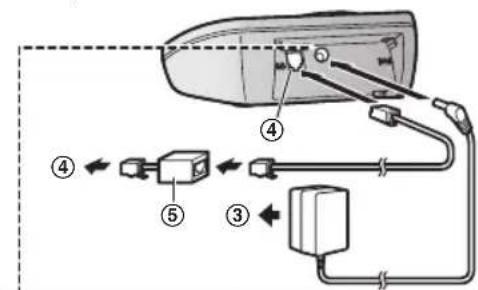
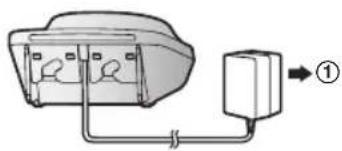
① Connect the AC adaptor to the unit by pressing the plug firmly. ② Fasten the cord by hooking it. ③ Connect the AC adaptor to the power outlet. ④ Connect the telephone line cord to the unit, then to the single-line telephone jack (RJ11C) until you hear a click. ⑤ A DSL/ADSL filter (not supplied) is required if you have a DSL/ADSL service.
Note:
- Use only the supplied Panasonic AC adaptor PNLV226.
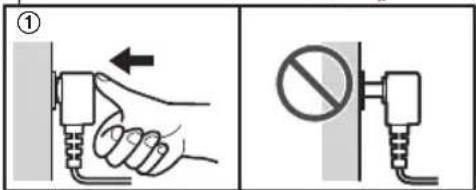
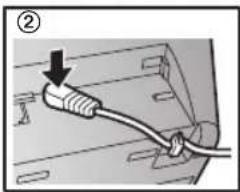
■ Charger
① Connect the AC adaptor to the power outlet.
Battery installation
- USE ONLY rechargeable Ni-MH batteries AAA (R03) size (A).
- Do NOT use Alkaline/Manganese/Ni-Cd batteries.
- Confirm correct polarities (+, -)
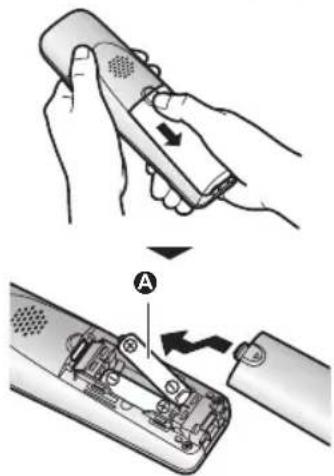
Follow the directions on the display to set up the unit.
Getting Started
Battery charging
Charge for about 7 hours.
- Confirm "Charging" is displayed (A).
- When the batteries are fully charged, "Fully charged" is displayed.
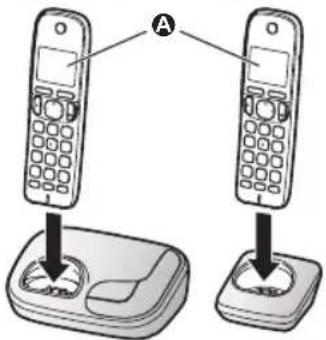
Note when setting up
Note for connections
- The AC adaptor must remain connected at all times. (It is normal for the adaptor to feel warm during use.)
- The AC adaptor should be connected to a vertically oriented or floor-mounted AC outlet. Do not connect the AC adaptor to a ceiling-mounted AC outlet, as the weight of the adaptor may cause it to become disconnected.
During a power failure
The unit will not work during a power failure. We recommend connecting a corded-type telephone (without AC adaptor) to the same telephone line or to the same telephone line jack using a Panasonic T-adaptor (page 5).
Note for battery installation
Use the supplied rechargeable batteries. For replacement, we recommend using the Panasonic rechargeable batteries noted on page 5, 7.
Note for battery charging
- It is normal for the handset to feel warm during charging.
- Clean the charge contacts of the handset, base unit, and charger with a soft and dry cloth once a month. Before cleaning the unit, disconnect from power outlets and any telephone line cords. Clean more often if the unit is exposed to grease, dust, or high humidity.
Battery level
| Icon Battery level | |
| High | |
| Medium | |
| Low | |
| Needs charging. | |
| Empty | |
Panasonic Ni-MH battery performance (supplied batteries)
| Operation Operating | time |
| In continuous use | 10 hours max.* 1 |
| Not in use (standby) | 6 days max.* 1 |
*1 If eco mode is on.
Note:
- Actual battery performance depends on usage and ambient environment.
Intelligent eco mode
This feature automatically reduces handset power consumption by suppressing handset transmission power when the handset is close to the base unit.
- When this feature is activated, ECO is displayed.
- Eco mode is turned off when the clarity booster is activated (page 16).
Getting Started
Controls
Handset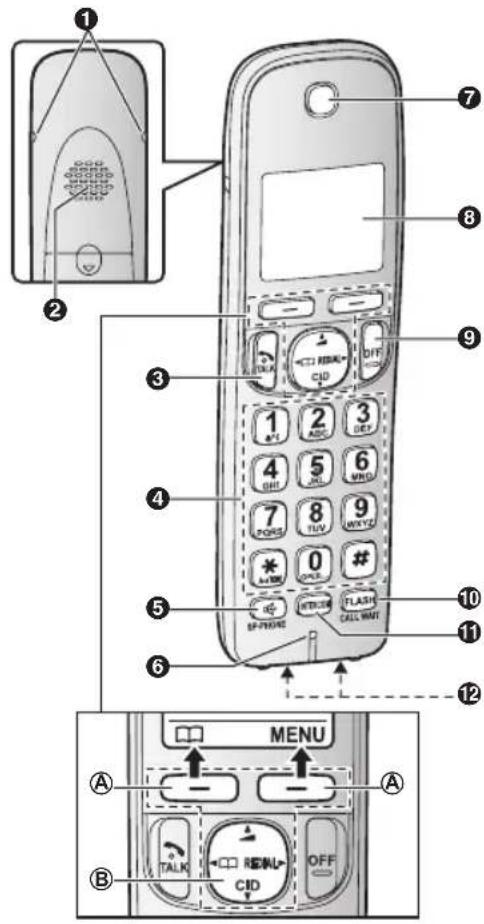
① Belt clip hole ② Speaker ③ 【】(TALK) ④ Dial keypad (※: TONE) ⑤ 【◀】(SP-PHONE: Speakerphone) ⑥ Microphone ⑦ Receiver ⑧ Display ⑨ [OFF] ⑩ [FLASH][CALL WAIT] ⑪ 【INTERCOM】 ⑫ Charge contacts
■ Control type
Ⓐ Soft keys
The handset features 2 soft keys. By pressing a soft key, you can select the feature shown directly above it on the display.
B Navigator key
- [▲], [▼], [◀], or [▶]: Scroll through various lists and items.
- ▲ (Volume: [▲] or [▼]): Adjust the receiver or speaker volume while talking. -【◀】 □□: View the phonebook entry. -【▶】REDIAL: View the redial list. -【▼】CID (Caller ID): View the caller list.
Base unit
■ K-TGD210 series: page 3
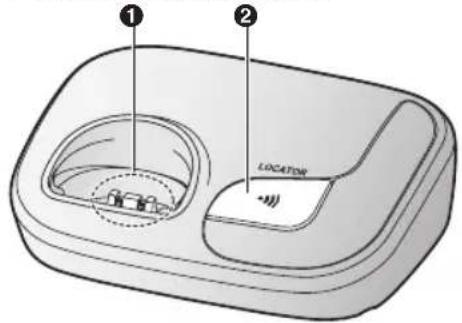
① Charge contacts ② 【·】OCATOR
- You can locate a misplaced handset by pressing [LOCATOR].
■ KX-TGD220 series: page 3
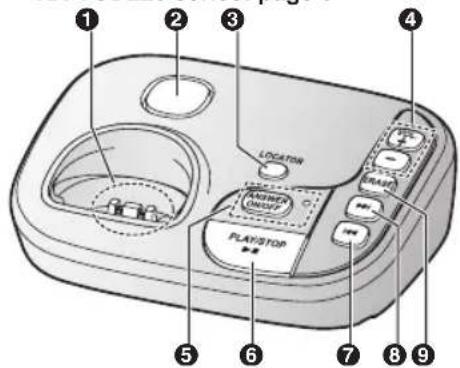
① Charge contacts ② Speaker
Getting Started
③ 【LOCATOR】
- You can locate a misplaced handset by pressing [LOCATOR]. ④ [+]/[−] (VOL.: Volume up/down) ⑤ 【ANSWER ON/OFF】 ANSWER ON/OFF indicator 6 [▶]■ (PLAY/STOP) Message indicator ⑦ (Repeat) 8 [▶] (Skip) ⑨ [ERASE]
Display icons
Handset display items
| Item Meaning | |
| Υ | Within base unit range |
| Υ | Out of base unit range |
| The line is in use.When flashing:The call is put on hold.When flashing rapidly: An incoming call is now being received. | |
| ECO | Eco mode is on. (page 11) |
| Speaker | phone is on.(page 15) |
| Ringer volume is off.(page 15) | |
| Silent mode is on. (page 25) | |
| PRIV. | Call sharing mode is off.(page 24) |
| Alarm is on. (page 25) | |
| Handset number | |
| Battery level | |
| Blocked call (page 26) | |
| BOOST | Clarity booster is on.(page 16) |
| In use | Answering system is being used by another handset or the base unit.* 1 |
| Item Meaning | |
| Line in use | Someone is using the line. |
*1 KX-TGD220 series: page 3
Language settings
Display language
You can select either "English" or "Español" as the display language. The default setting is "English".
1 [MENU]# 1 1 0 2 【◆】: Select the desired setting. → 【SAVE】 3 [OFF]
Voice guidance language
Available for: KX-TGD220 series (page 3)
You can select either "English" or "Español" as the voice guidance language of the answering system. The default setting is "English".
1 [MENU]# 1 1 2 2 [◀]: Select the desired setting. 3 [SAVE] → [OFF]
Date and time
1 [M ENU]#101 2 Enter the current month, date, and year by selecting 2 digits for each. Example: July 15, 2014 0 7 1 5 1 4 3 [OK]
Getting Started
4 Enter the current hour and minute (12-hour clock format) by selecting 2 digits for each. Example: 9:30 0 9 3 0
5 ☒: Select "AM" or "PM".
6 [SAVE] → [OFF]
Note:
- When English is selected as the display language, 12-hour clock format is used. When Spanish is selected, 24-hour clock format is used.
Recording your greeting message
Available for: KX-TGD220 series (page 3)
You can record your own greeting message instead of using a pre-recorded greeting message. See page 30 for details.
1 [MENU]#302 2 [▲]: "Yes" → [SELECT] 3 Record a greeting message. → [STOP] → [OFF]
Other settings
Dialing mode
If you cannot make calls, change this setting according to your telephone line service. The default setting is "Tone".
"Tone": For tone dial service.
"Pulse": For rotary/pulse dial service.
1 [MENU]# 1 2 0 2 [▲]: Select the desired setting. 3 [SAVE] → [OFF]
Making calls
1. Lift the handset and dial the phone number. • To correct a digit, press [CLEAR].
2. [\~]
3. When you finish talking, press [OFF] or place the handset on the base unit or charger.
Using the speakerphone
1. Dial the phone number and press [✿].
2. When you finish talking, press [OFF].
Note:
- To switch back to the receiver, press [✿]/[\~].
Adjusting the receiver or speaker volume
Press [▲] or [▼] repeatedly while talking.
Making a call using the redial list
The last 5 phone numbers dialed are stored in the redial list (each 48 digits max.).
1. [▶] REDIAL
2. [▲]: Select the desired phone number.
Erasing a number in the redial list
1 [▶] REDIAL
2 [◀]: Select the desired phone number. → [ERASE]
3 [▲]: "Yes" → [SELECT] → [OFF]
Pause (for PBX/long distance service users)
A pause is sometimes required when making calls using a PBX or long distance service. When storing a calling card access number and/or PIN in the phonebook, a pause is also needed (page 20).
Example: If you need to dial the line access number "9" when making outside calls with a PBX:
1 9 → [▲] (Pause)
2 Dial the phone number. → [ ]
Note:
- A 3.5 second pause is inserted each time you press [▲] (Pause) on the handset.
Answering calls
1 Lift the handset and press [ ] or [ ] when the unit rings.
2 When you finish talking, press [OFF] or place the handset on the base unit or charger.
Any key answer: You can answer the call by pressing any dial key.
Auto talk: You can answer calls simply by lifting the handset (page 23).
Temporary handset ringer off: You can turn the ringer off temporarily by pressing [2].
Adjusting the handset ringer volume
Press [▲] or [▼] repeatedly to select the desired volume while ringing.
Adjusting the base unit ringer volume
Available for:
KX-TGD220 series (page 3)
Press (+) or (−) repeatedly to select the desired volume.
- To turn the ringer off, press and hold [—] until the unit beeps.
Making/Answering Calls
Useful features during a call
Hold
1 Press [MENU] during an outside call.
2 [▲]: "Hold" → [SELECT]
To release hold, press [ ].
Note:
After holding for 10 minutes, the call is disconnected.
Mute
Press [MUTE] during a call.
To return to the call, press [MUTE].
Note:
[MUTE] is a soft key visible on the display during a call.
Flash
[FLASH] allows you to use the special features of your host PBX such as transferring an extension call, or accessing optional telephone services.
Note:
To change the flash time, see page 24.
For call waiting or Call Waiting Caller ID service users
To use call waiting or Call Waiting Caller ID, you must first subscribe with your service provider/telephone company. This feature allows you to receive calls while you are already talking on the phone. If you receive a call while on the phone, you will hear a call waiting tone.
If you subscribe to both Caller ID and Call Waiting with Caller ID services, the 2nd caller's information is displayed on the handset that is in use after you hear the call waiting tone.
Press [CALL WAIT] to answer the 2nd call. To switch between calls, press [CALL WAIT].
Note:
Contact your service provider/telephone company for details and availability of this service in your area.
Temporary tone dialing (for rotary/pulse service users)
Press ☒ (TONE) before entering access numbers which require tone dialing.
Handset clarity booster
This feature can improve sound clarity when the handset is used in an area where there may be interference. During an outside call, this feature is turned on automatically when necessary.
When this feature is turned on, BOOST is displayed.
Call share
You can join an existing outside call. To join the conversation, press [~] when the other unit is on an outside call.
Note:
- A maximum of 3 parties (including 1 outside party) can join a conversation using 2 extensions. (3-way conference)
- To prevent other users from joining your conversations with outside callers, turn call sharing mode off (page 24).
Transferring calls, conference calls
Outside calls can be transferred or a conference call with an outside party can be made between 2 handsets.
1 During an outside call, press [INTERCOM]. When 3 or more handsets are registered:
[▲]: Select the desired unit. → [SELECT]
2 Wait for the paged party to answer.
- If the paged party does not answer, press [icon] to return to the outside call.
3 To complete the transfer: Press [OFF].
To establish a conference call: [MENU] → [▲]: "Conf." → [SELECT]
- To leave the conference, press [OFF]. The other 2 parties can continue the conversation.
- To put the outside call on hold: [MENU] → [◆]: "Hold" → [SELECT]
To resume the conference: [MENU] → [▲]: "Conf." → [SELECT]
- To cancel the conference: [MENU] → [◀]: "Stop conference" → [SELECT]
You can continue the conversation with the outside caller.
Intercom
Intercom calls can be made between handsets.
Note:
- When paging unit(s), the paged unit(s) beeps for 1 minute.
- If you receive an outside call while talking on the intercom, you hear 2 tones. To answer the call with the handset, press [OFF], then press [~].
Making an intercom call
1 [INTERCOM].
When 3 or more handsets are registered:
[▲]: Select the desired unit. → [SELECT]
2 When you finish talking, press [OFF].
Answering an intercom call
1 Press [INTERCOM] or [ ] to answer the page.
2 When you finish talking, press [OFF].
Phonebook
Phonebook
You can add 100 names (16 characters max.) and phone numbers (24 digits max.) to the phonebook, and assign each phonebook entry to the desired group.
Important:
- All entries can be shared by any registered handset.
Adding phonebook entries
1 or [◀] → [MENU] 2 [▲]: "Add new entry" → [SELECT] 3 Enter the party's name. → [OK] 4 Enter the party's phone number. → [OK] 5 【◆】: Select the desired group. → 【SELECT】2 times → [OFF]
Character table for entering names
While entering characters, you can switch between uppercase and lowercase by pressing ☒ (A→a).
| Key Character | |
| 1 & '() | *,-. / 1 |
| 2 ABC | 2 |
| abc 2 | |
| 3 DEF | 3 |
| def 3 | |
| 4 GHI | 4 |
| ghi 4 | |
| 5 JKL | 5 |
| jkl 5 | |
| 6 M NO | 6 |
| m no 6 | |
| 7 PQR | S 7 |
| pqrs 7 | |
| Key Character | |
| 8 T U | V 8 |
| t u v 8 | |
| 9 W X | Y Z 9 |
| w x y z 9 | |
| 0 | _ 0 |
| # # | |
- To enter another character that is located on the same dial key, first press [▶] to move the cursor to the next space.
- If you do not press any dial key within 5 seconds after entering a character, the character is fixed and the cursor moves to the next space.
- _in the above table represents a single space.
Erasing the character or number
Press [◀] or [▶]. → [CLEAR]
- Press and hold [CLEAR] to erase all characters or numbers.
Storing a redial list number to the phonebook
Phone numbers of up to 24 digits can be stored in the phonebook.
1 [▶] REDIAL 2 [▲]: Select the desired phone number. → [SAVE] 3 To store the name, continue from step 3, "Editing entries", page 19.
Storing caller information to the phonebook
1 [▼] CID 2 [▲]: Select the desired entry.
- To edit the number: [MENU] → [◆]: "Edit" → [SELECT]
Press [EDIT] repeatedly until the phone number is shown in the desired format. Then, press [SAVE]. Go to step 5.
3 [MENU]
Phonebook
4 [▲]: “Save CID” → [SELECT] 5 [▲]: "Phonebook" → [SELECT] 6 Continue from step 3, "Editing entries", page 19.
Groups
Groups can help you find entries in the phonebook quickly and easily. You can change the names of groups assigned for phonebook entries ("Friends", "Family", etc.). By assigning different ringer tones for different groups of callers, you can identify who is calling (ringer ID), if you have subscribed to Caller ID service.
Changing group names/setting ringer ID
The default group name is "Group 1" to "Group 9".
1 or [◀] → [MENU] 2 [▲]: "Group" → [SELECT] 3 [◆]: Select the desired group. → [SELECT] 4 To change group names [♦]: "Group name" → [SELECT] → Edit the name (10 characters max.). → [SAVE] To set group ringer tone [♦]: Select the current setting of the group ringer tone. → [SELECT] → [♦]: Select the desired ringer tone. → [SAVE] 5 [OFF]
Finding and calling from a phonebook entry
1 or [◀]
2 To scroll through all entries
[▲]: Select the desired entry. To search by first character ① Press the dial key (0 to 9, or #) which contains the character you are searching for (page 18). ② [◆]: Scroll through the phonebook if necessary.
To search by group
① [GROUP] ② [◆]: Select the desired group. → [SELECT] ③ [◆]: Scroll through the phonebook if necessary.

Editing entries
1 Find the desired entry (page 19). 2 [MENU] → [▲]: "Edit" → [SELECT] 3 Edit the name if necessary. → [OK] 4 Edit the phone number if necessary. → [OK] 5 [◆]: Select the desired group (page 19). → [SELECT] 2 times 6 [OFF]
Erasing entries
Erasing an entry
1 Find the desired entry (page 19). 2 [MENU] → [▲]: "Erase" → [SELECT] 3 [▲]: "Yes" → [SELECT] 4 [OFF]
Erasing all entries
1 or [◀] → [MENU] 2 [▲]: "Erase all" → [SELECT] 3 [▲]: "Yes" → [SELECT] 4 [▲]: "Yes" → [SELECT] 5 [OFF]
Chain dial
This feature allows you to dial phone numbers in the phonebook while you are on a call. This feature can be used, for example, to dial a calling card access number or bank account PIN that you have stored in the phonebook, without having to dial manually.
1 During an outside call, press [MENU].
Phonebook
2 [▲]: "Phonebook" → [SELECT] 3 [▲]: Select the desired entry. 4 Press [CALL] to dial the number.
Note:
- When storing a calling card access number and your PIN in the phonebook as one phonebook entry, press [▲] (Pause) to add pauses after the number and PIN as necessary (page 15).
- If you have rotary/pulse service, you need to press ✝ (TONE) before pressing 【MENU】 in step 1 to change the dialing mode temporarily to tone. When adding entries to the phonebook, we recommend adding ✝ (TONE) to the beginning of phone numbers you wish to chain dial (page 18).
Speed dial
You can assign 1 phone number to each of the dial keys (☐ to ☐) on the handset.
Adding phone numbers to speed dial keys
■ By entering phone numbers:
1 Press and hold the desired speed dial key (1 to 9). → [ADD] 2 [◆]: "Manual" → [SELECT] 3 Enter the party's name (16 characters max.). → [OK] 4 Enter the party's phone number (24 digits max.). → [OK] 5 [SELECT] → [OFF]
■ From the shared phonebook:
1 Press and hold the desired speed dial key (1 to 9). → [ADD] 2 【▲】: "Phonebook" → [SELECT] 3 [▲]: Select the desired entry. 4 [SAVE] → [OFF]
Note:
- If you edit a phonebook entry which is assigned to a speed dial key, the edited entry does not transfer to the speed dial key.
Editing an entry
1 Press and hold the desired speed dial key (1 to 9). → [MENU] 2 [▲]: "Edit" → [SELECT] 3 Edit the name if necessary. → [OK] 4 Edit the phone number if necessary. → [OK] 5 [SELECT] → [OFF]
Erasing an entry
1 Press and hold the desired speed dial key (1 to 9). → [MENU] 2 [▲]: "Erase" → [SELECT] 3 [▲]: "Yes" → [SELECT] 4 [OFF]
Viewing an entry/Making a call
1 Press and hold the desired speed dial key (1 to 9). 2 To make a call, press [ ]
Menu list
To access the features, there are 2 methods.
■ Scrolling through the display menus
1 [MENU]
2 Press [▼] or [▲] to select the desired main menu. → [SELECT] 3 Press [▼] or [▲] to select the desired item from the next sub-menus. → [SELECT] 4 Press [▼] or [▲] to select the desired setting. → [SAVE]
■ Using the direct command code
1 [MENU] → Enter the desired code. Example: Press [MENU] # 1 0 1. 2 Select the desired setting. → [SAVE]
Note:
- To exit the operation, press [OFF].
- In the following table, < > indicates the default settings.
- In the following table, 📋 indicates the reference page number.
- Display menu order and sub-menu may vary depending on your model.
Display menu tree and direct command code table
Main menu: "Phonebook"
| Operation Code | ||
| Viewing the phonebook entry. #280 19 |
Main menu: → Caller list
| Operation Code | ||
| Viewing the caller list. #213 28 |
Main menu: ☐ Answering device
| Sub-menu 1 Sub-menu | 2 Settings Code | 行使 | ||
| Play new msg. (msg.: message) | --#323 31 | |||
| Play all msg. | --#324 31 | |||
| Erase all msg. *2 | --#325 32 | |||
| Greeting | Record greeting *2 | - #302 30 | ||
| Check greeting | - #303 31 | |||
| Pre-recorded *2 (Reset to pre-recorded greeting) | - #304 31 |
Programming
| Sub-menu 1 Sub-menu | 2 Settings Code | |||
| Settings | Ring count*2 | 2-7 rings<4 rings>Toll saver | #211 33 | |
| Recording time*2 | 1 min<3 min>Greeting only*3 | #305 34 | ||
| Remote code*2 | <111> #306 32 | |||
| Screen call | <On>Off | #310 33 | ||
| Answer on*2 | -- #327 30 | |||
| Answer off*2 | -- #328 30 |
Main menu: "V.M. access" (V.M.: Voice mail)
| Operation Code | ||
| Listening to voice mail messages. #330 35 |
Main menu: • Intercom
| Operation Code | ||
| Paging the desired unit. #274 17 |
Main menu: 📋 Set date & time
| Sub-menu 1 Sub-menu | 2 Settings Code | |||
| Date and time*2 | -- | #101 13 | ||
| Alarm | - | OnceDaily<Off> | #720 | 25 |
| Time adjustment*2,*4 | --aller ID auto>Manual#226-- | aller ID auto>Manual | #226 | - |
Main menu: "Initial setting"
| Sub-menu 1 | Sub-menu 2 | Settings Code | # | |
| Ringer setting | Ringer volume | Off-6 <6> | #160 | 15 |
| Ringer tone*5,*6 | #161 | - | ||
| Silent mode - On/Off | On | #238 | 25 | |
| Silent mode - Start/End | <11:00 PM/06:00 AM> | #237 | 25 |
Programming
| Sub-menu 1 Sub-menu 2 Settings Code | ||||
| Set date & time | Date and time*2 | - #101 13 | ||
| Alarm Once | Daily<Off> | #720 25 | ||
| Time adjustment *2,*4 | Manual | #226 - | ||
| Talking Caller ID *1 | Handset | Off | #162 28 | |
| Base unit *2 | On<Off> | #*162 | ||
| Handset name | -- #104 27 | |||
| Call block *2 | -- #217 26 | |||
| First ring *2 | Off | #173 26 | ||
| Block w/o num*2,*3 (Block calls without phone number) | On<Off> | #240 26 | ||
| Speed dial | -- #261 20 | |||
| Voice mail | Store VM access#*2 (VM: Voice mail) | - #331 35 | ||
| VM tone detect*2 | Off | #332 35 | ||
| LCD contrast(Display contrast) | - Level 1-4 <2> #145 - | |||
| Key tone - | n>Off | #165 - | ||
| Caller ID edit(Caller ID number auto edit) | -Off | #214 29 | ||
| Auto talk*7 | -On | #200 15 | ||
Programming
| Sub-menu 1 Sub-menu 2 Settings Code | ← | |||
| Set tel line | Set dial mode*2 | Pulse | #120 14 | |
| Set flash time*2,*8 | 900 ms<700 ms>600 ms400 ms300 ms250 ms200 ms160 ms110 ms100 ms90 ms80 ms | #121 16 | ||
| Set line mode*2,*9 | A | #122 - | ||
| Call sharing*2 | - <O | n>Off | #194 16 | |
| Registration Register handset | - #130 27 | |||
| Deregistration*3 | - #131 27 | |||
| Changelanguage | Display | Español | #110 13 | |
| Voice prompt*1,*2 | Español | #112 13 | ||
Main menu: ? Customer support
| Operation Code | ||
| Displaying customer support Web address. #680 – |
*1 KX-TGD220 series: page 3. *2 If you program these settings using one of the units, you do not need to program the same item using another unit. *3 This menu is not displayed when scrolling through the display menus. It is only available in direct command code. *4 This feature allows the unit to automatically adjust the date and time each time caller information including date and time is received. To turn this feature on, select "Caller ID auto". To turn this feature off, select "Manual". (Caller ID subscribers only) To use this feature, set the date and time first (page 13). *5 If you subscribe to a distinctive ring service (such as IDENTA-RING), select a tone (tone 1 to 2). If you select a melody, you cannot distinguish lines by their ringers. *6 The preset melodies in this product ("Tone 3" - "Tone 5", "Melody 1" - "Melody 10") are used with permission of © 2012 Copyrights Vision Inc. *7 If you subscribe to a Caller ID service and want to view the caller's information after lifting up the handset to answer a call, turn off this feature.
Programming
*8 The flash time depends on your telephone exchange or host PBX. Contact your PBX supplier if necessary. The setting should stay at "700 ms" unless pressing [FLASH] fails to pick up the waiting call. *9 Generally, the line mode setting should not be changed. This setting automatically maintains receiver volume at the proper level depending on the current telephone line condition. Set the line mode to "A" if telephone line condition is not good.
Alarm
An alarm sounds at the set time for 3 minutes once or daily. Alarm can be set for each handset.
Important:
- Make sure the unit's date and time setting is correct (page 13).
1 [MENU]#720
| “Off” Turns | alarm off. Go to step 7. |
| “Once” An | alarm sounds once at the set time. |
| “Daily” An | alarm sounds daily at the set time. Go to step 4. |
3 Enter the desired month and date. → [OK]
4 Set the desired time.
5 ☐: Select "AM" or "PM". → [OK]
- We recommend selecting a different ringer tone from the one used for outside calls.
7 [SELECT] → [OFF]
Note:
- To stop the alarm, press [OFF] or place the handset on the base unit or charger.
- When the handset is in use, the alarm will not sound until the handset is in standby mode.
Silent mode
Silent mode allows you to select a period of time during which the handset and/or base unit will not ring for outside calls. This feature is useful for time periods when you do not want to be disturbed, for example, while sleeping. Silent mode can be set for each unit.
Important:
- Make sure the unit's date and time setting is correct (page 13).
- We recommend turning the base unit ringer off (page 15) in addition to turning the silent mode on.
- If you have set the alarm, the alarm sounds even if the silent mode is turned on.
Turning silent mode on/off
1 [MENU]#238
2 [♦]: Select the desired setting. → [SAVE] • If you select "Off", press [OFF] to exit.
3 Enter the desired hour and minute you wish to start this feature.
4 ☒: Select "AM" or "PM". → [OK]
5 Enter the desired hour and minute you wish to end this feature.
6 ☒: Select "AM" or "PM".
7 [SAVE] → [OFF]
Changing the start and end time
1 [MENU]#237
2 Continue from step 3 "Turning silent mode on/off", page 25.
Programming
Call block
This feature allows the unit to reject calls when:
– the unit receives a call from a phone number stored in the call block list as unwanted ("Storing unwanted callers", page 26).
– the unit receives a call without phone number ("Blocking incoming calls that have no phone number", page 26).
When a call is received, the unit rings briefly while caller information is being received. If the caller's phone number matches an entry in the call block list, the unit emits no sound to the caller, and disconnects the call. (Caller ID subscribers only)
*1 This is called first ring. If you do not want the first ring to sound, turn this setting to "Off" (page 26).
Important:
- Rejected calls are logged in the caller list.
Storing unwanted callers
You can store up to 60 phone numbers in the call block list.
Important:
- We recommend storing 10 digits (including the area code). If only 7 digits are stored, all numbers that have the same last 7 digits will be blocked.
■ From the caller list:
1 [▼] CID
2 [▲]: Select the entry to be blocked.
- To edit the number: [MENU] → [◆]: "Edit" → [SELECT]
Press [EDIT] repeatedly until the phone number is shown in the 10-digit format. And then, press [SAVE]. Go to step 5.
3 [MENU]
4 [▲]: "Save CID" → [SELECT]
5 [▲]: "Call block" → [SELECT]
6 [▲]: "Yes" → [SELECT]
7 Edit the phone number if necessary (24 digits max.).
8 [SAVE] → [OFF]
■ By entering phone numbers:
1 [MENU]#217
2 [MENU] → [▲]: "Add" → [SELECT]
3 Enter the phone number (24 digits max.). • To erase a digit, press [CLEAR].
4 [SAVE] → [OFF]
Blocking incoming calls that have no phone number
You can reject calls when no phone number is provided, such as private callers or out of area calls.
1 [MENU]#240
2 [▲]: Select the desired setting. → [SAVE] → [OFF]
Setting the first ring for the call block list
If you do not want the first ring from a number on the call block list to sound, turn the first ring setting to "Off". The default setting is "On".
1 [MENU]# 1 7 3
2 [▲]: Select the desired setting. → [SAVE] → [OFF]
Viewing/editing/erasing call block numbers
1 [MENU]#217
2 [▲]: Select the desired entry. • To exit, press [OFF].
3 To edit a number:
[EDIT] → Edit the phone number. → [SAVE] → [OFF] To erase a number: [ERASE] → [◀]: "Yes" → [SELECT] → [OFF]
Note:
- When editing, press the desired dial key to add, [CLEAR] to erase.
- When viewing, "Block w/o num" is displayed if the blocking incoming calls
Programming
without phone number feature is turned on. To turn the feature off: [ERASE] → [▼] → [SAVE] → [OFF]
Other programming
Changing the handset name
Each handset can be given a customized name ("Bob", "Kitchen", etc.). This is useful when you make intercom calls between handsets. You can also select whether or not the handset name is displayed in standby mode. The default setting is "No". If you select "Yes" without entering any handset name, "Handset 1" to "Handset 6" is displayed.
1 [MENU] # 1 0 4 2 Enter the desired name (max. 10 characters; page 18). 3 [SAVE] 4 [◆]: Select the desired setting. → [SELECT] 2 times → [OFF]
Registering a unit
Operating additional units
Additional handsets
Up to 6 handsets can be registered to the base unit.
Important:
- See page 5 for information on the available model.
Registering a handset to the base unit
The supplied handset and base unit are pre-registered. If for some reason the handset is not registered to the base unit, re-register the handset.
1 Handset: [MENU] # 1 3 0
2 Base unit:
Press and hold [LOCATOR] for about 5 seconds.
- If all registered handsets start ringing, press [LOCATOR] again to stop, then repeat this step.
3 Handset:
Press [OK], then wait until a long beep sounds.
Deregistering a handset
A handset can cancel its own registration to the base unit, or other handsets registered to the same base unit. This allows the handset to end its wireless connection with the system.
1 [MENU] # 1 3 1 - All handsets registered to the base unit are displayed. 2 [▲]: Select the handset you want to cancel. → [SELECT] 3 [▲]: "Yes" → [SELECT] → [OFF]
Caller ID Service
Using Caller ID service
Important:
- This unit is Caller ID compatible. To use Caller ID features, you must subscribe to a Caller ID service. Contact your service provider/telephone company for details.
Caller ID features
When an outside call is being received, the caller information is displayed. Caller information for the last 50 callers is logged in the caller list from the most recent call to the oldest.
- If the unit cannot receive caller information, the following is displayed:
- "Out of area": The caller dials from an area which does not provide a Caller ID service.
- "Private caller": The caller requests not to send caller information.
- "Long distance": The caller makes a long distance call.
- If the unit is connected to a PBX system, caller information may not be properly received. Contact your PBX supplier.
Missed calls
If a call is not answered, the unit treats it as a missed call. The display shows "Missed call".
Note:
- Even when there are unviewed missed calls, "Missed call" disappears from the standby display if the following operation is performed by one of the units:
- A handset is replaced on the base unit or charger.
- Pressing [OFF] on a handset.
Phonebook name display
When caller information is received and it matches a phone number stored in the phonebook, the stored name in the phonebook is displayed and logged in the caller list.
Talking Caller ID
Available for:
KX-TGD220 series (page 3)
This feature lets you know who is calling without looking at the display.
To use this feature, you must:
– subscribe to a Caller ID service of your service provider/telephone company.
- turn this feature on (page 23).
When caller information is received, the handsets and/or base unit announce the caller's name or phone number received from your service provider/telephone company following every ring.
The unit announces in English only.
- Name pronunciation may vary. This feature may not pronounce all names correctly.
- Caller ID service has a limit of how many characters can be displayed. If the caller's name is too long, the unit may not be able to display or announce the entire name.
Phonebook name announcement
When caller information is received and it matches a phone number stored in the phonebook, the stored name in the phonebook is announced.
Caller list
Important:
- Make sure the unit's date and time setting is correct (page 13).
Viewing the caller list and calling back
1 [▼] CID
2 Press [▼] to search from the most recent call, or [▲] to search from the oldest call.
3 To call back, press [ ]. To exit, press [OFF].
Note:
- If the entry has already been viewed or answered, "√" is displayed.
Editing a caller's phone number
You can edit a phone number in the caller list by removing its area code and/or the long distance code "1".
1 [▼] CID
2 [▲]: Select the desired entry.
3 [MENU] → [▲]: "Edit" → [SELECT]
4 Press [EDIT] repeatedly until the phone number is shown in the desired format.
5 [ ↘ ]
Note:
- The number edited in step 4 will not be saved in the caller list.
Caller ID number auto edit feature
Once you call back an edited number, the unit which was used to call back remembers the area code and format of the edited number. The next time someone calls from the same area code, caller information is customized by the unit as follows:
- When the call is being received, the Caller ID number is displayed in the same format as the edited number.
- After the call has ended, the caller's phone number is displayed in the same format as the edited number, when reviewed from the caller list.
For example, you can use this feature to set the unit to ignore the area code of callers in your area, so that you can call these local numbers using caller information without dialing the area code.
To activate this feature, you must edit an entry in the caller list, then call that number. After that, phone numbers from that caller's area code are edited automatically.
This feature can be set for each unit (page 23). The default setting is "On".
Note:
- Phone numbers from the 4 most recently edited area codes are automatically edited.
Erasing selected caller information
1 [▼] CID
2 [▲]: Select the desired entry.
3 [ERASE] → [▲]: "Yes" → [SELECT] → [OFF]
Erasing all caller information
1 [▼] CID
2 [ERASE] → [▲]: "Yes" → [SELECT] → [OFF]
Answering System
Answering system
Available for:
KX-TGD220 series (page 3)
The answering system can answer and record calls for you when you are unavailable to answer the phone.
You can also set the unit to play a greeting message but not to record caller messages by selecting "Greeting only" as the recording time setting (page 34).
Important:
- Make sure the unit's date and time setting is correct (page 13).
Memory capacity (including your greeting message)
The total recording capacity is about 17 minutes. A maximum of 64 messages can be recorded.
Note:
- When message memory becomes full:
- "Messages full" is shown on the handset display.
- The ANSWER ON/OFF indicator on the base unit flashes rapidly if the answering system is turned on.
- If you use the pre-recorded greeting message, the unit automatically switches to another pre-recorded greeting message asking callers to call again later.
- If you recorded your own greeting message, the same message is still announced to callers even though their messages are not recorded.
Turning the answering system on/off
Base unit
Press [ANSWER ON/OFF] to turn on/off the answering system.
Handset
1 To turn on:
[MENU]#327
To turn off:
[MENU]#328
2 [OFF]
Note for base unit and handset:
- When the answering system is turned on, the ANSWER ON/OFF indicator on the base unit lights up.
Greeting message
When the unit answers a call, a greeting message is played to callers.
You can use either: - your own greeting message - a pre-recorded greeting message
Recording your greeting message
1 [MENU]#302 2 [▲]: "Yes" → [SELECT] 3 After a beep sounds, hold the handset about 20 cm (8 inches) away and speak clearly into the microphone (2 minutes max.). 4 Press [STOP] to stop recording.→[OFF]
Using a pre-recorded greeting message
The unit provides 2 pre-recorded greeting messages:
- If you erase or do not record your own greeting message, the unit plays a pre-recorded greeting asking callers to leave a message.
- If the message recording time (page 34) is set to "Greeting only", callers' messages are not recorded and the unit plays a different pre-recorded greeting message asking callers to call again.
Resetting to a pre-recorded greeting message
If you want to use a pre-recorded greeting message once you record your own greeting message, you need to erase your own greeting message.
1 [MENU]#304 2 [YES] → [OFF]
Playing back the greeting message
1 [MENU]#303 2 To exit, press [OFF].
Listening to messages
Using the base unit
When new messages have been recorded:
-【▶■】on the base unit flashes.
- "New message" is displayed.
Press [▶■] (PLAY).
- If new messages have been recorded, the base unit plays back new messages.
- If there are no new messages, the base unit plays back all messages.
Operating the answering system during playback
| Key Operation | |
| [+] or [−] | Adjust the speaker volume |
| [◀◀] | Repeat message*1 |
| [▶▶] Skip message | |
| [▶■] (STOP) Stop playback | |
| [ERASE] Erase | currently playing message |
*1 If pressed within the first 5 seconds of a message, the previous message is played.
Erasing all messages
Press [ERASE] 2 times while the unit is not in use.
Using the handset
When new messages have been recorded, "New message" is displayed.
1 To listen to new messages:
[MENU]#323
To listen to all messages:
[MENU]#324
2 When finished, press [OFF].
Note:
- You can also use the [PLAY] soft key, if displayed, to play new messages.
- To switch to the receiver, press [\~].
Operating the answering system
[MENU] → [▲]: "Answering device" → [SELECT]
| Key Operation | |
| [▲] or [▼] | Adjust the receiver/speaker volume (during playback) |
| 1 or [◀] | Repeat message (during playback) 1 |
| 2 or [▶] | Skip message (during playback) |
| 3 Enter the “S ettings” menu | |
| 4 Play new messages | |
| 5 Play all messages | |
| 6 Play greeting message | |
| 7 6 Record greeting message | |
| 8 Turn answering system on | |
| [PAUSE] | Pause message2 |
| 9 or 【STOP】 | Stop recording Stop playback |
| 0 Turn answering system off | |
| × 4*3 | Erase currently playing message |
| × 5 Erase all messages | |
Answering System
| Key Operation | |
| ※6 Reset to a pre-recorded greeting message |
*1 If pressed within the first 5 seconds of a message, the previous message is played.
*2 To resume playback: [◀]: "Playback" → [SELECT]
*3 You can also erase as follows: [PAUSE] → [▲]: "Erase" → [SELECT] → [▲]: "Yes" → [SELECT]
Calling back (Caller ID subscribers only)
1 Press [PAUSE] during playback.
2 [▲]: "Call back" → [SELECT]
■ Editing the number before calling back
1 Press [PAUSE] during playback.
2 [◀]: "Edit & Call" → [SELECT]
3 Press [EDIT] repeatedly until the phone number is shown in the desired format (page 29). → [~]
Erasing all messages
1 [MENU]#325
2 [▲]: "Yes" → [SELECT] → [OFF]
Remote operation
Using a touch-tone phone, you can call your phone number from outside and access the unit to listen to messages or change answering system settings. The unit's voice guidance prompts you to press certain dial keys to perform different operations.
Remote access code
A 3-digit remote access code must be entered when operating the answering system remotely. This code prevents unauthorized parties from listening to your messages remotely. The default setting is "111".
Important:
- To prevent unauthorized access to this product, we recommend that you regularly change the remote code.
1 [MENU]#306
2 Enter the desired 3-digit remote access code.
3 [SAVE] → [OFF]
Deactivating remote operation
Press ☒ in step 2 on "Remote access code", page 32.
- The entered remote access code is deleted.
Using the answering system remotely
1 Dial your phone number from a touch-tone phone.
2 After the greeting message starts, enter your remote access code.
3 Follow the voice guidance prompts as necessary or control the unit using remote commands (page 33).
4 When finished, hang up.
Voice guidance
■ When the English voice guidance is selected
During remote operation, the unit's voice guidance starts and prompts you to press 1 to perform a specific operation, or press 2 to listen to more available operations.
■ When the Spanish voice guidance is selected
To start the voice guidance, press 9. The voice guidance announces the available remote commands (page 33).
Note:
- If you do not press any dial keys within 10 seconds after a voice guidance prompt, the unit disconnects your call.
Remote commands
You can press dial keys to access certain answering system functions without waiting for the voice guidance to prompt you.
| Key Operation | |
| 1 Repeat message (during playback) *1 | |
| 2 Skip message (during playback) | |
| 4 Play new messages | |
| 5 Play all messages | |
| 9 Stop playback*2 Start voice guidance*3 | |
| 0 Turn answering system off | |
| *4 E rase currently playing message | |
| *5 E rase all messages | |
| *# End remote operation (or hang up) |
*1 If pressed within the first 5 seconds of a message, the previous message is played.
*2 For English voice guidance only
*3 For Spanish voice guidance only
Turning on the answering system remotely
1 Dial your phone number from a touch-tone phone. 2 Let the phone ring 15 times. - A long beep is heard. 3 Enter your remote access code within 10 seconds after the long beep. - The greeting message is played back. - You can either hang up, or enter your remote access code again and begin remote operation (page 32).
Answering system settings
Call screening
While a caller is leaving a message, you can listen to the call through the handset's speaker. To adjust the speaker volume, press [▲] or [▼] repeatedly.
You can answer the call by pressing [~]. Call screening can be set for each handset. The default setting is "On".
1 [MENU]#310
2 [▲]: Select the desired setting. → [SAVE]
3 [OFF]
Number of rings before the unit answers a call
You can change the number of times the phone rings "Ring count" before the unit answers calls. You can select 2 to 7 rings, or "Toll saver".
The default setting is "4 rings".
"Toll saver": The unit's answering system answers at the end of the 2nd ring when new messages have been recorded, or at the end of the 5th ring when there are no new messages. If you call your phone from outside to listen to new messages (page 32), you know that there are no new messages when the phone rings for the 3rd time. You can then hang up without being charged for the call.
1 [MENU]#211
2 [◆]: Select the desired setting. → [SAVE] → [OFF]
For voice mail service subscribers
If you subscribe to a flat-rate service package that includes Caller ID, call waiting, voice mail, and unlimited local/regional/long distance calls, please note the following:
- To use the voice mail service provided by your service provider/telephone company rather than the unit's answering system, turn off the answering system (page 30).
Answering System
- To use this unit's answering system rather than the voice mail service provided by your service provider/telephone company, please contact your service provider/telephone company to deactivate your voice mail service. If your service provider/telephone company cannot do this:
- Set this unit's "Ring count" setting so that this unit's answering system answers calls before the voice mail service of your service provider/telephone company does. It is necessary to check the number of rings required to activate the voice mail service provided by your service provider/telephone company before changing this setting.
- Change the number of rings of the voice mail service so that the answering system can answer the call first. To do so, contact your service provider/telephone company.
Caller's recording time
You can change the maximum message recording time allowed for each caller. The default setting is "3 min".
1 [MENU]#305
2 [▲]: Select the desired setting. → [SAVE] → [OFF]
Selecting "Greeting only"
You can select "Greeting only" which sets the unit to announce a greeting message to callers but not record messages.
Select "Greeting only" in step 2 on "Caller's recording time", page 34.
Note:
- When you select "Greeting only":
- If you do not record your own message, the unit will play the pre-recorded greeting-only message asking callers to call again later.
- If you use your own message, record the greeting-only message asking callers to call again later (page 30).
Voice mail service
Voice mail is an automatic answering service offered by your service provider/telephone company. After you subscribe to this service, your service provider/telephone company's voice mail system answers calls for you when you are unavailable to answer the phone or when your line is busy. Messages are recorded by your service provider/telephone company, not your telephone. Please contact your service provider/telephone company for details of this service.
Important:
- To use the voice mail service provided by your service provider/telephone company rather than the unit's answering system, turn off the answering system (page 30). For details, see page 33.
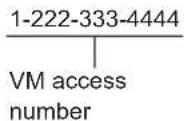
Storing the voice mail (VM) access number
In order to listen to your voice mail messages, you must dial your service provider/telephone company's voice mail access number. Once you have stored your voice mail access number, you can dial it automatically (page 35).
1 [MENU]#331 2 Enter your access number (24 digits max.). → [SAVE] → [OFF]
Note:
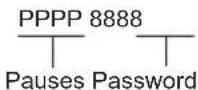
- When storing your voice mail access number and your mailbox password, press [▲] (Pause) to add pauses (page 15) between the access number and the password as necessary. Contact your service provider/telephone company for the required pause time.
Example:
To erase the voice mail access number
1 [MENU]#331 2 Press and hold [CLEAR] until all digits are erased. → [SAVE] → [OFF]
Voice mail (VM) tone detection
Your service provider/telephone company sends special signals (sometimes called "voice mail tones" or "stutter tones") to the unit to let you know you have new voice mail messages. If you hear a series of dial tones followed by a continuous dial tone after you press [ ], you have new voice mail messages. Soon after you hang up a call or after the phone stops ringing, your unit checks the phone line to see if new voice mail messages have been recorded.
Turn this feature off when:
- You do not subscribe to voice mail service.
- Your service provider/telephone company does not send voice mail tones.
- Your phone is connected to a PBX. If you are not sure which setting is required, contact your service provider/telephone company.
Turning VM tone detection on/off
The default setting is "On".
1 [MENU]#332 2 [◆]: Select the desired setting. → [SAVE] → [OFF]
Listening to voice mail messages
The unit lets you know that you have new voice mail messages in the following way:
- "New Voice Mail" is displayed if message indication service is available.
1 [MENU]#330
• The speakerphone turns on.
2 Follow the pre-recorded instructions. 3 When finished, press [OFF].
Useful Information
Note:
- If the handset still indicates there are new messages even after you have listened to all new messages, turn it off by pressing and holding # until the handset beeps.
Wall mounting
Note:
- Make sure that the wall and the fixing method are strong enough to support the weight of the unit.
Base unit
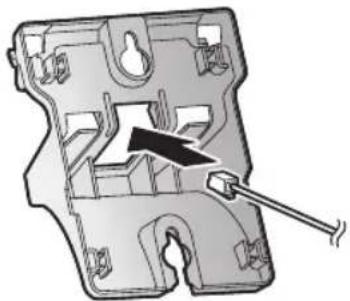
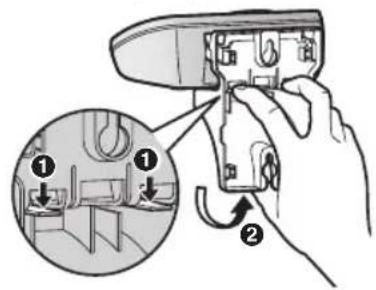
1 Lead the telephone line cord through the hole in the wall mounting adaptor in the direction of the arrow.
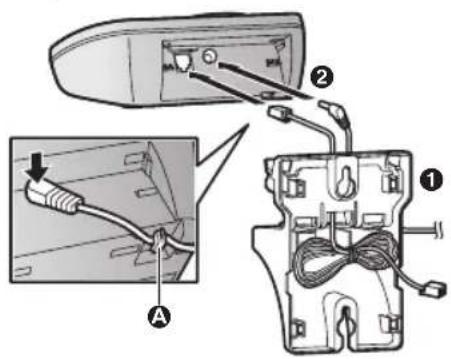
2 Tuck the telephone line cord inside the wall mounting adaptor (①). Connect the AC adaptor cord and telephone line cord (②).
A Hooks
3 Insert the hooks on the wall mounting adaptor into holes A and B on the base unit.
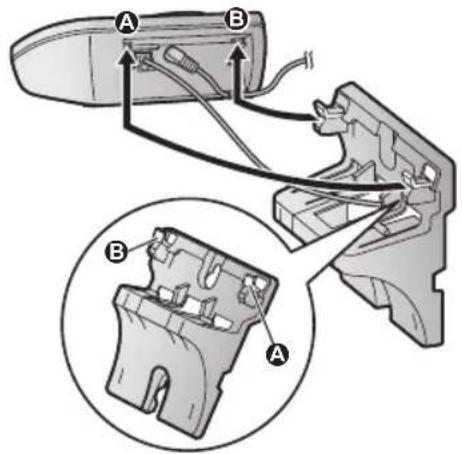
4 Adjust the adaptor to hold the base unit, then push it in the direction of the arrow until it clicks into place.
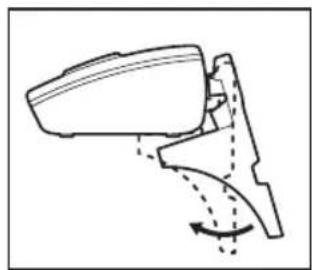
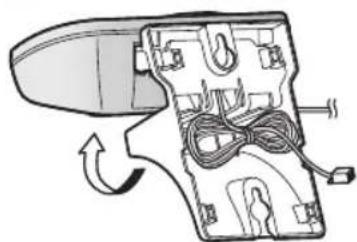
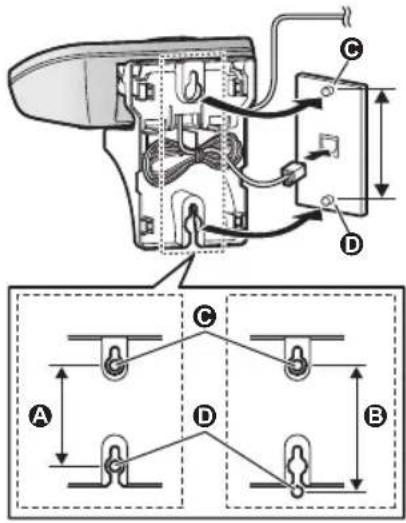
5 Mount the unit on a wall then slide down to secure in place.
- This product is compliant with the following wall phone plate sizes (2 types).
A 83 mm (3 1/4 inches)
B 102 mm (4 inches)
Fit the slots of the unit onto the corresponding wall phone plate tabs for (C) and (D) respectively.
To remove the wall mounting adaptor
While pushing down the release levers (1), remove the adaptor (2).
Charger
Drive the screws (A) (not supplied) into the wall.
B 27.2 mm (1 1/16 inches)

Error messages
| Display message Cause/solution | |
| Base no power or No link. Re-connect base AC adaptor. | The handset has lost communication with the base unit. Move closer to the base unit and try again.Unplug the base unit's AC adaptor to reset the unit. Reconnect the adaptor and try again.The handset's registration may have been canceled. Re-register the handset (page 27). |
| Busy | The called unit is in use.Other units are in use and the system is busy. Try again later.The handset you are using is too far from the base unit. Move closer and try again. |
| Call phone company for your access # | You have not stored the voice mail access number. Store the number (page 35). |
| Check tel line | The supplied telephone line cord has not been connected yet or not connected properly. Check the connections (page 10). |
| Error!! | Recording was too short. Try again. |
| Invalid | There is no handset registered to the base unit matching the handset number you entered.The handset is not registered to the base unit. Register the handset (page 27). |
| Requires subscription to Caller ID. | You must subscribe to a Caller ID service. Once you receive caller information after subscribing to a Caller ID service, this message will not be displayed. |
| Use rechargeable battery. | A wrong type of battery such as Alkaline or Manganese was inserted. Use only the rechargeable Ni-MH batteries noted on page 5, 7. |
Troubleshooting
If you still have difficulties after following the instructions in this section, disconnect the base unit's AC adaptor, then reconnect the base unit's AC adaptor. Remove the batteries from the handset, and then insert the batteries into the handset again.
General use
| Problem Cause/solution | |
| The handset does not turn on even after installing charged batteries. | Place the handset on the base unit or charger to turn on the handset. |
| The unit does not work. ● M | ake sure the batteries are installed correctly (page 10).Fully charge the batteries (page 11).Check the connections (page 10).Unplug the base unit's AC adaptor to reset the unit.Reconnect the adaptor and try again.The handset has not been registered to the base unit.Register the handset (page 27). |
| I cannot hear a dial tone. ● T | he base unit's AC adaptor or telephone line cord is not connected. Check the connections.Disconnect the base unit from the telephone line and connect the line to a known working telephone. If the working telephone operates properly, contact our service personnel to have the unit repaired. If the working telephone does not operate properly, contact your service provider/telephone company. |
Menu list
| Problem Cause/solution | |
| The display is in a language I cannot read. | ● Change the display language (page 13). |
| I cannot register a handset to a base unit. | ● The maximum number of handsets (6) is already registered to the base unit. Cancel unused handset registrations from the base unit (page 27). |
Battery recharge
| Problem Cause/solution | |
| The handset beeps and/orflashes. | ● Battery charge is low. Fully charge the batteries (page 11). |
Useful Information
| Problem Cause/solution | |
| I fully charged the batteries, but– still flashes,– is displayed, or– the operating time seems to be shorter. | Clean the battery ends (+) and the charge contacts with a dry cloth and charge again.It is time to replace the batteries (page 10). |
Making/answering calls, intercom
| Problem Cause/solution | |
| is displayed. | The handset is too far from the base unit. Move closer.The base unit's AC adaptor is not properly connected.Reconnect AC adaptor to the base unit.The handset is not registered to the base unit. Register it (page 27). |
| Noise is heard, sound cuts in and out. | You are using the handset or base unit in an area with high electrical interference. Re-position the base unit and use the handset away from sources of interference.Move closer to the base unit.If you use a DSL/ADSL service, we recommend connecting a DSL/ADSL filter between the base unit and the telephone line jack. Contact your DSL/ADSL provider for details. |
| The handset does not ring. T | he ringer volume is turned off. Adjust the ringer volume (page 15, 22).Silent mode is turned on. Turn it off (page 25). |
| The base unit does not ring. T | he ringer volume is turned off. Adjust the ringer volume (page 15). |
| I cannot make a call. T | he dialing mode may be set incorrectly. Change the setting (page 14). |
| I cannot make long distance calls. | Make sure that you have long distance service. |
Caller ID/Talking Caller ID
| Problem Cause/solution | |
| Caller information is not displayed. | You must subscribe to Caller ID service. Contact your service provider/telephone company for details.If your unit is connected to any additional telephone equipment such as a Caller ID box or cordless telephone line jack, plug the unit directly into the wall jack.If you use a DSL/ADSL service, we recommend connecting a DSL/ADSL filter between the base unit and the telephone line jack. Contact your DSL/ADSL provider for details.The name display service may not be available in some areas. Contact your service provider/telephone company for details.Other telephone equipment may be interfering with this unit. Disconnect the other equipment and try again. |
| Caller information is displayed or announced late. | Depending on your service provider/telephone company, the unit may display or announce the caller's information at the 2nd ring or later.Move closer to the base unit. |
| Caller information is not announced. | The handset or base unit's ringer volume is turned off. Adjust it (page 15, 22).The Talking Caller ID feature is turned off. Turn it on (page 23).The number of rings for the answering system is set to “2 rings” or “Toll saver”. Select a different setting (page 33).If the base unit and another handset are having an intercom call, your handset does not announce caller information. |
| The caller list/incoming phone numbers are not edited automatically. | The Caller ID number auto edit feature is turned off. Turn it on and try again (page 23).You need to call back the edited number to activate Caller ID number auto edit. |
| I cannot dial the phone number edited in the caller list. | The phone number you dialed might have been edited incorrectly (for example, the long distance “1” or the area code is missing). Edit the phone number with another pattern (page 29). |
| Time on the unit has shifted. | ncorrect time information from incoming Caller ID changes the time. Set the time adjustment to “Manual” (off) (page 23). |
Useful Information
| Problem Cause/solution | |
| The 2nd caller's information is not displayed during an outside call. | In order to use Caller ID, call waiting, or Call Waiting Caller ID (CWID), you must first contact your service provider/telephone company and subscribe to the desired service.After subscribing, you may need to contact your service provider/telephone company again to activate this specific service, even if you already subscribed to both Caller ID and Call Waiting with Caller ID services (CWID). |
Answering system
| Problem Cause/solution | |
| The unit does not record new messages. | The answering system is turned off. Turn it on (page 30).The message memory is full. Erase unnecessary messages (page 31).The recording time is set to “Greeting only”. Change the setting (page 34).Your service provider/telephone company’s voice mail service may be answering your calls before the unit’s answering system can answer your calls. Change the unit’s number of rings setting (page 33) to a lower value, or contact your service provider/telephone company. |
| I cannot operate the answering system remotely. | The remote access code is not set. Set the remote access code (page 32).You are entering the wrong remote access code. If you have forgotten your remote access code, enter the remote access code setting to check your current code (page 32).The answering system is turned off. Turn it on (page 33). |
| The unit does not emit the specified number of rings. | If the first ring is turned off, the number of rings decreases by 1 from the specified number of rings. |
Voice mail
| Problem Cause/solution | |
| “New Voice Mail” is shown on the handset display. How do I remove this message from the display? | ● This notification is displayed when your service provider/ telephone company's voice mail service (not the unit's answering system) has recorded a message for you. Typically you can remove this notification from the display by listening to the message. To listen to the message, dial the voice mail number provided by your service provider/ telephone company (for most cases, this will be your own phone number), and follow the voice instructions. Depending on your service provider/telephone company, you may need to remove all messages from your voice mailbox to remove the notification. You can also remove this notification by pressing and holding # until the unit beeps. |
Liquid damage
| Problem Cause/solution | |
| Liquid or other form of moisture has entered the handset/base unit. | ● Disconnect the AC adaptor and telephone line cord from the base unit. Remove the batteries from the handset and leave to dry for at least 3 days. After the handset/base unit are completely dry, reconnect the AC adaptor and telephone line cord. Insert the batteries and charge fully before use. If the unit does not work properly, contact an authorized service center. |
Caution:
- To avoid permanent damage, do not use a microwave oven to speed up the drying process.
FCC and other information
This equipment complies with Part 68 of the FCC rules and the requirements adopted by the ACTA. On the bottom of this equipment is a label that contains, among other information, a product identifier in the format US:ACJ----.
If requested, this number must be provided to the telephone company.
- Registration No......(found on the bottom of the unit) • Ringer Equivalence No. (REN).....0.1B
A plug and jack used to connect this equipment to the premises wiring and telephone network must comply with the applicable FCC Part 68 rules and requirements adopted by the ACTA. A compliant telephone cord and modular plug is provided with the product. It is designed to be connected to a compatible modular jack that is also compliant.
The REN is used to determine the number of devices that may be connected to a telephone line. Excessive RENs on a telephone line may result in the devices not ringing in response to an incoming call. In most but not all areas, the sum of RENs should not exceed five (5.0). To be certain of the number of devices that may be connected to a line, as determined by the total RENs, contact the local telephone company. For products approved after July 23, 2001, the REN for the product is part of the product identifier that has the format US:AAAEQ##TXXXX. The digits represented by ## are the REN without a decimal point (e.g., 03 is a REN of 0.3).
If this equipment causes harm to the telephone network, the telephone company will notify you in advance that temporary discontinuance of service may be required. But if advance notice isn't practical, the telephone company will notify the customer as soon as possible. Also, you will be
advised of your right to file a complaint with the FCC if you believe it is necessary.
The telephone company may make changes in its facilities, equipment, operations or procedures that could affect the operation of the equipment. If this happens the telephone company will provide advance notice in order for you to make necessary modifications to maintain uninterrupted service.
If trouble is experienced with this equipment, for repair or warranty information, please contact a Factory Service Center or other Authorized Servicer. If the equipment is causing harm to the telephone network, the telephone company may request that you disconnect the equipment until the problem is resolved.
Connection to party line service is subject to state tariffs. Contact the state public utility commission, public service commission or corporation commission for information.
If your home has specially wired alarm equipment connected to the telephone line, ensure the installation of this equipment does not disable your alarm equipment. If you have questions about what will disable alarm equipment, consult your telephone company or a qualified installer.
This equipment is hearing aid compatible as defined by the FCC in 47 CFR Section 68.316.
When you hold the phone to your ear, noise might be heard in your Hearing Aid. Some Hearing Aids are not adequately shielded from external RF (radio frequency) energy. If noise occurs, use an optional headset accessory or the speakerphone option (if applicable) when using this phone. Consult with your audiologist or Hearing Aid
manufacturer about the availability of Hearing Aids which provide adequate shielding to RF energy commonly emitted by digital devices.
WHEN PROGRAMMING EMERGENCY NUMBERS AND(OR) MAKING TEST CALLS TO EMERGENCY NUMBERS:
1) Remain on the line and briefly explain to the dispatcher the reason for the call. 2) Perform such activities in the off-peak hours, such as early morning or late evenings.
This device complies with Part 15 of the FCC Rules. Operation is subject to the following two conditions:
(1) This device may not cause harmful interference, and (2) this device must accept any interference received, including interference that may cause undesired operation. Privacy of communications may not be ensured when using this phone.
CAUTION:
Any changes or modifications not expressly approved by the party responsible for compliance could void the user's authority to operate this device.
NOTE:
This equipment has been tested and found to comply with the limits for a Class B digital device, pursuant to Part 15 of the FCC Rules. These limits are designed to provide reasonable protection against harmful interference in a residential installation. This equipment generates, uses, and can radiate radio frequency energy and, if not installed and used in accordance with the instructions, may cause harmful interference to radio communications. However, there is no guarantee that interference will not occur in a particular installation. If this equipment does cause harmful interference to radio or television reception, which can be determined by turning the equipment off and on, the user is encouraged to try to correct the interference by one or more of the following measures:
– Reorient or relocate the receiving antenna. – Increase the separation between the equipment and receiver. – Connect the equipment into an outlet on a circuit different from that to which the receiver is connected. – Consult the dealer or an experienced radio/TV technician for help.
Some cordless telephones operate at frequencies that may cause interference to nearby TVs and VCRs. To minimize or prevent such interference, the base of the cordless telephone should not be placed near or on top of a TV or VCR. If interference is experienced, move the cordless telephone further away from the TV or VCR. This will often reduce or eliminate interference.
FCC RF Exposure Warning:
- This product complies with FCC radiation exposure limits set forth for an uncontrolled environment.
- To comply with FCC RF exposure requirements, the base unit must be installed and operated 20 cm (8 inches) or more between the product and all person's body.
- This product may not be collocated or operated in conjunction with any other antenna or transmitter.
- The handset may be carried and operated with only the specific provided belt-clip. Other non-tested belt-clips or similar body-worn accessories may not comply and must be avoided.
Notice:
- FCC ID can be found inside the battery compartment or on the bottom of the units.
Useful Information
Compliance with TIA-1083 standard:
Telephone handsets identified with this logo have reduced noise and interference when used with T-Coil equipped hearing aids and cochlear implants.
for all your Panasonic gear
Go to
http://shop.panasonic.com/support
Get everything you need to get the most out of your Panasonic products
Accessories & Parts for your Camera, Phone, A/V products, TV, Computers & Networking, Personal Care, Home Appliances, Headphones, Batteries, Backup Chargers & more...
Customer Services Directory
For Product Information, Operating Assistance, Parts, Owner's Manuals, Dealer and Service info go to http://shop.panasonic.com/support
For the hearing or speech impaired TTY: 1-877-833-8855
As of June 2015
Limited Warranty (ONLY FOR U.S.A.)
Panasonic Products Limited Warranty
Limited Warranty Coverage (For USA Only)
If your product does not work properly because of a defect in materials or workmanship, Panasonic Corporation of North America (referred to as “the warrantor”) will, for the length of the period indicated on the chart below, which starts with the date of original purchase (“warranty period”), at its option either (a) repair your product with new or refurbished parts, (b) replace it with a new or a refurbished equivalent value product, or (c) refund your purchase price. The decision to repair, replace or refund will be made by the warrantor.
| Product or Part Name | Parts | Labor |
| Telephone | One (1) Year | One (1) Year |
During the “Labor” warranty period there will be no charge for labor. During the “Parts” warranty period, there will be no charge for parts. This Limited Warranty excludes both parts and labor for non-rechargeable batteries, antennas, and cosmetic parts (cabinet). This warranty only applies to products purchased and serviced in the United States. This warranty is extended only to the original purchaser of a new product which was not sold “as is”.
Mail-In Service--Online Repair Request
Online Repair Request
To submit a new repair request and for quick repair status, visit our Web Site at http://shop.panasonic.com/support
When shipping the unit, carefully pack it, include all supplied accessories listed in the Owner's Manual, and send it prepaid, adequately insured, and packed well in a carton box. When shipping Lithium Ion batteries, please visit our Web Site at http://shop.panasonic.com/support as Panasonic is committed to providing the most up-to-date information. Include a letter detailing the complaint, a return address, and provide a daytime phone number where you can be reached. A valid registered receipt is required under the Limited Warranty.
IF REPAIR IS NEEDED DURING THE WARRANTY PERIOD, THE PURCHASER WILL BE REQUIRED TO FURNISH A SALES RECEIPT/PROOF OF PURCHASE INDICATING DATE OF PURCHASE, AMOUNT PAID, AND PLACE OF PURCHASE. CUSTOMER WILL BE CHARGED FOR THE REPAIR OF ANY UNIT RECEIVED WITHOUT SUCH PROOF OF PURCHASE.
Limited Warranty Limits and Exclusions
This warranty ONLY COVERS failures due to defects in materials or workmanship, and DOES NOT COVER normal wear and tear or cosmetic damage. The warranty ALSO DOES NOT COVER damages which occurred in shipment, or failures which are caused by products not supplied by the warrantor, or failures which result from accidents, misuse, abuse, neglect, mishandling, misapplication, alteration, faulty installation, set-up adjustments, misadjustment of consumer controls, improper maintenance, power line surge, lightning damage, modification, introduction of sand, humidity or liquids, commercial use such as hotel, office, restaurant, or other business or rental use of the product, or service by anyone other than a Factory Service Center or other Authorized Servicer, or damage that is attributable to acts of God.
THERE ARE NO EXPRESS WARRANTIES EXCEPT AS LISTED UNDER "LIMITED WARRANTY COVERAGE".
THE WARRANTOR IS NOT LIABLE FOR INCIDENTAL OR CONSEQUENTIAL DAMAGES RESULTING FROM THE USE OF THIS PRODUCT, OR ARISING OUT OF ANY BREACH OF THIS WARRANTY.
(As examples, this excludes damages for lost time, travel to and from the servicer, loss of or damage to media or images, data or other memory or recorded content. The items listed are not exclusive, but for illustration only.)
ALL EXPRESS AND IMPLIED WARRANTIES, INCLUDING THE WARRANTY OF MERCHANTABILITY, ARE LIMITED TO THE PERIOD OF THE LIMITED WARRANTY.
Some states do not allow the exclusion or limitation of incidental or consequential damages, or limitations on how long an implied warranty lasts, so the exclusions may not apply to you. This warranty gives you specific legal rights and you may also have other rights which vary from state to state. If a problem with this product develops during or after the warranty period, you may contact your dealer or Service Center. If the problem is not handled to your satisfaction, then write to:
Consumer Affairs Department
Panasonic Corporation of North America
661 Independence Pkwy
Chesapeake, VA 23320
PARTS AND SERVICE, WHICH ARE NOT COVERED BY THIS LIMITED WARRANTY, ARE YOUR RESPONSIBILITY.
As of June 2015
Index
Index
3-way conference: 16
Additional handset: 27
Alarm: 25
Answering calls: 15
Answering system
Call screening: 33
Erasing messages: 31, 32, 33
Greeting message: 30
Greeting only: 34
Listening to messages: 31, 32
Number of rings: 33
Recording time: 34
Remote access code: 32
Remote operation: 32
Ring count: 33
Toll saver: 33
Turning on/off: 30
Auto talk: 15, 23
Battery: 10, 11
Booster (Clarity booster): 16
Call block: 26
First ring: 26
Call share: 16, 24
Call waiting: 16
Call Waiting Caller ID: 16
Caller ID number auto edit: 23, 29
Caller ID service: 28
Caller list: 28
Caller list edit: 29
Chain dial: 19
CID (Caller ID): 28
Conference calls: 16
Control type: 12
Customer support: 24
Date and time: 13
Dialing mode: 14
Direct command code: 21
Display
Contrast: 23
Language: 13
Eco mode: 11
Error messages: 38
Flash: 16, 24
Groups: 19
Handset
Deregistration: 27
Name: 27
Registration: 27
Hold: 16
Intercom: 17
Key tone: 23
Line mode: 24
Making calls: 15
Missed calls: 28
Mute: 16
Pause: 15
Phonebook: 18
Power failure: 11
Redialing: 15
Ringer ID: 19
Ringer tone: 22
Rotary/pulse service: 16
Silent mode: 25
Speed dial: 20
SP-PHONE (Speakerphone): 15
Talking Caller ID: 28
Temporary tone dialing: 16
Time adjustment: 23
Transferring calls: 16
Troubleshooting: 39
TTY: 51
VVM (Voice mail): 35
Voice guidance language: 13
Voice mail: 33, 35
Volume
Receiver: 15
If your product is not working properly. . .
① Reconnect AC adaptor to the base unit. ② Check if telephone line cord is connected. ③ Use rechargeable Ni-MH batteries. (Alkaline/Manganese/Ni-Cd batteries CANNOT be used.) ④ Read troubleshooting page in the Operating Instructions.

Visit our Web site: http://shop.panasonic.com/support
- FAQ and troubleshooting hints are available.
For your future reference
We recommend keeping a record of the following information to assist with any repair under warranty.
Serial No. Date of purchase
(found on the bottom of the base unit)
Name and address of dealer
Attach your purchase receipt here.
Panasonic Corporation of North America
Two Riverfront Plaza, Newark, NJ 07102-5490
© Panasonic Corporation 2013
Printed in China

*PNQX6490XA*
PNQX6490XA PC1213MU2027 (E)
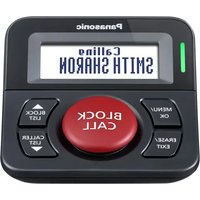


- OPERATING INSTRUCTIONS
- BEFORE INITIAL USE, SEE "GETTING STARTED" ON PAGE
- TABLE OF CONTENTS
- INTRODUCTION
- IMPORTANT INFORMATION
- GETTING STARTED
- MAKING/ANSWERING CALLS
- PHONEBOOK
- PROGRAMMING
- CALLER ID SERVICE
- ANSWERING SYSTEM
- USEFUL INFORMATION
- INDEX
- MODEL COMPOSITION
- ACCESSORY INFORMATION
- ADDITIONAL/REPLACEMENT ACCESSORIES
- OTHER INFORMATION
- EXPANDING YOUR PHONE SYSTEM
- FOR YOUR SAFETY
- WARNING
- POWER CONNECTION
- INSTALLATION
- OPERATING SAFEGUARDS
- MEDICAL
- CAUTION
- INSTALLATION AND LOCATION
- BATTERY
- IMPORTANT SAFETY INSTRUCTIONS
- FOR BEST PERFORMANCE
- BASE UNIT LOCATION/AVOIDING NOISE
- ENVIRONMENT
- ROUTINE CARE
- NOTICE FOR PRODUCT DISPOSAL, TRANSFER, OR RETURN
- NOTICE
- ENERGY STAR
- SPECIFICATIONS
- BASE UNIT
- CHARGER
- SETTING UP
- CONNECTIONS
- NOTE
- BATTERY INSTALLATION
- BATTERY CHARGING
- NOTE WHEN SETTING UP
- NOTE FOR CONNECTIONS
- DURING A POWER FAILURE
- NOTE FOR BATTERY INSTALLATION
- NOTE FOR BATTERY CHARGING
- PANASONIC NI-MH BATTERY PERFORMANCE (SUPPLIED BATTERIES)
- INTELLIGENT ECO MODE
- CONTROLS
- ③ 【LOCATOR】
- DISPLAY ICONS
- LANGUAGE SETTINGS
- DISPLAY LANGUAGE
- VOICE GUIDANCE LANGUAGE
- DATE AND TIME
- RECORDING YOUR GREETING MESSAGE
- OTHER SETTINGS
- DIALING MODE
- MAKING CALLS
- USING THE SPEAKERPHONE
- ADJUSTING THE RECEIVER OR SPEAKER VOLUME
- MAKING A CALL USING THE REDIAL LIST
- ERASING A NUMBER IN THE REDIAL LIST
- PAUSE (FOR PBX/LONG DISTANCE SERVICE USERS)
- ANSWERING CALLS
- ADJUSTING THE HANDSET RINGER VOLUME
- ADJUSTING THE BASE UNIT RINGER VOLUME
- AVAILABLE FOR
- USEFUL FEATURES DURING A CALL
- HOLD
- MUTE
- FLASH
- FOR CALL WAITING OR CALL WAITING CALLER ID SERVICE USERS
- TEMPORARY TONE DIALING (FOR ROTARY/PULSE SERVICE USERS)
- HANDSET CLARITY BOOSTER
- CALL SHARE
- TRANSFERRING CALLS, CONFERENCE CALLS
- INTERCOM
- MAKING AN INTERCOM CALL
- ANSWERING AN INTERCOM CALL
- IMPORTANT
- ADDING PHONEBOOK ENTRIES
- CHARACTER TABLE FOR ENTERING NAMES
- ERASING THE CHARACTER OR NUMBER
- STORING A REDIAL LIST NUMBER TO THE PHONEBOOK
- STORING CALLER INFORMATION TO THE PHONEBOOK
- GROUPS
- CHANGING GROUP NAMES/SETTING RINGER ID
- FINDING AND CALLING FROM A PHONEBOOK ENTRY
- EDITING ENTRIES
- ERASING ENTRIES
- ERASING AN ENTRY
- ERASING ALL ENTRIES
- CHAIN DIAL
- SPEED DIAL
- ADDING PHONE NUMBERS TO SPEED DIAL KEYS
- EDITING AN ENTRY
- VIEWING AN ENTRY/MAKING A CALL
- MENU LIST
- DISPLAY MENU TREE AND DIRECT COMMAND CODE TABLE
- ALARM
- SILENT MODE
- TURNING SILENT MODE ON/OFF
- CHANGING THE START AND END TIME
- CALL BLOCK
- STORING UNWANTED CALLERS
- FROM THE CALLER LIST
- [MENU]
- BLOCKING INCOMING CALLS THAT HAVE NO PHONE NUMBER
- SETTING THE FIRST RING FOR THE CALL BLOCK LIST
- VIEWING/EDITING/ERASING CALL BLOCK NUMBERS
- OTHER PROGRAMMING
- CHANGING THE HANDSET NAME
- REGISTERING A UNIT
- OPERATING ADDITIONAL UNITS
- ADDITIONAL HANDSETS
- REGISTERING A HANDSET TO THE BASE UNIT
- DEREGISTERING A HANDSET
- USING CALLER ID SERVICE
- CALLER ID FEATURES
- MISSED CALLS
- PHONEBOOK NAME DISPLAY
- TALKING CALLER ID
- PHONEBOOK NAME ANNOUNCEMENT
- CALLER LIST
- VIEWING THE CALLER LIST AND CALLING BACK
- EDITING A CALLER'S PHONE NUMBER
- CALLER ID NUMBER AUTO EDIT FEATURE
- ERASING SELECTED CALLER INFORMATION
- ERASING ALL CALLER INFORMATION
- MEMORY CAPACITY (INCLUDING YOUR GREETING MESSAGE)
- TURNING THE ANSWERING SYSTEM ON/OFF
- HANDSET
- [OFF]
- GREETING MESSAGE
- USING A PRE-RECORDED GREETING MESSAGE
- RESETTING TO A PRE-RECORDED GREETING MESSAGE
- PLAYING BACK THE GREETING MESSAGE
- LISTENING TO MESSAGES
- USING THE BASE UNIT
- OPERATING THE ANSWERING SYSTEM DURING PLAYBACK
- ERASING ALL MESSAGES
- USING THE HANDSET
- OPERATING THE ANSWERING SYSTEM
- CALLING BACK (CALLER ID SUBSCRIBERS ONLY)
- REMOTE OPERATION
- REMOTE ACCESS CODE
- DEACTIVATING REMOTE OPERATION
- USING THE ANSWERING SYSTEM REMOTELY
- VOICE GUIDANCE
- REMOTE COMMANDS
- TURNING ON THE ANSWERING SYSTEM REMOTELY
- ANSWERING SYSTEM SETTINGS
- CALL SCREENING
- NUMBER OF RINGS BEFORE THE UNIT ANSWERS A CALL
- FOR VOICE MAIL SERVICE SUBSCRIBERS
- CALLER'S RECORDING TIME
- SELECTING "GREETING ONLY
- VOICE MAIL SERVICE
- STORING THE VOICE MAIL (VM) ACCESS NUMBER
- EXAMPLE
- TO ERASE THE VOICE MAIL ACCESS NUMBER
- VOICE MAIL (VM) TONE DETECTION
- TURNING VM TONE DETECTION ON/OFF
- LISTENING TO VOICE MAIL MESSAGES
- WALL MOUNTING
- TO REMOVE THE WALL MOUNTING ADAPTOR
- TROUBLESHOOTING
- FCC AND OTHER INFORMATION
- WHEN PROGRAMMING EMERGENCY NUMBERS AND(OR) MAKING TEST CALLS TO EMERGENCY NUMBERS
- THIS DEVICE COMPLIES WITH PART 15 OF THE FCC RULES. OPERATION IS SUBJECT TO THE FOLLOWING TWO CONDITIONS
- FCC RF EXPOSURE WARNING
- CUSTOMER SERVICES DIRECTORY
- LIMITED WARRANTY (ONLY FOR U.S.A.)
- PANASONIC PRODUCTS LIMITED WARRANTY
- LIMITED WARRANTY COVERAGE (FOR USA ONLY)
- ONLINE REPAIR REQUEST
- LIMITED WARRANTY LIMITS AND EXCLUSIONS
- THERE ARE NO EXPRESS WARRANTIES EXCEPT AS LISTED UNDER "LIMITED WARRANTY COVERAGE
- THE WARRANTOR IS NOT LIABLE FOR INCIDENTAL OR CONSEQUENTIAL DAMAGES RESULTING FROM THE USE OF THIS PRODUCT, OR ARISING OUT OF ANY BREACH OF THIS WARRANTY
- ALL EXPRESS AND IMPLIED WARRANTIES, INCLUDING THE WARRANTY OF MERCHANTABILITY, ARE LIMITED TO THE PERIOD OF THE LIMITED WARRANTY
- WAY CONFERENCE
- FOR YOUR FUTURE REFERENCE
Brand : PANASONIC
Model : KX-TGD225
Category : Cordless phone