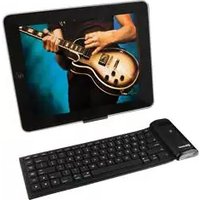
ICD281B - Mp3 player GPX - Free user manual and instructions
Find the device manual for free ICD281B GPX in PDF.


| Product Type | Bluetooth Keyboard for iPad |
| Model | ICD281B |
| Brand | GPX |
| Power Source | Built-in rechargeable lithium battery |
| Charging | Via retractable USB cable connected to computer |
| Connectivity | Bluetooth |
| Compatible Devices | iPad, Apple computers, Windows computers, mobile devices with Bluetooth |
| Pairing Method | Press Pairing button on keyboard, then select device in Bluetooth settings |
| Stand | Foldable back stand for iPad |
| Carry Case | Included |
| Cable | Retractable USB cable included |
| Keyboard Type | Roll-up Bluetooth keyboard |
| Cleaning | Use damp cloth, avoid sharp objects, oils, chemicals, excessive heat |
| Storage | Avoid crushing, squeezing, or placing heavy objects on top |
| FCC Compliance | Class B digital device, complies with Part 15 of FCC Rules |
| Manual Languages | English, Spanish, French (downloadable from www.ilive.net) |
Frequently Asked Questions - ICD281B GPX
User questions about ICD281B GPX
0 question about this device. Answer the ones you know or ask your own.
Ask a new question about this device
Download the instructions for your Mp3 player in PDF format for free! Find your manual ICD281B - GPX and take your electronic device back in hand. On this page are published all the documents necessary for the use of your device. ICD281B by GPX.
USER MANUAL ICD281B GPX
WARNING: Changes or modifications to this unit not expressly approved by the party responsible for compliance could void the user's authority to operate the equipment.
NOTE: This equipment has been tested and found to comply with the limits for a Class B digital device, pursuant to Part 15 of the FCC Rules. These limits are designed to provide reasonable protection against harmful interference in a residential installation. This equipment generates, uses, and can radiate radio frequency energy and, if not installed and used in accordance with the instructions, may cause harmful interference to radio communications. However, there is no guarantee that interference will not occur in a particular installation. If this equipment does cause harmful interference to radio or television reception, which can be determined by turning the equipment off and on, the user is encouraged to try to correct the interference by one or more of the following measures:
- Reorient or relocate the receiving antenna.
- Increase the separation between the equipment and receiver.
- Connect the equipment into an outlet on a circuit different from that to which the receiver is connected.
- Consult the dealer or an experienced radio/TV technician for help.
Cleaning and Care
To ensure the Bluetooth Keyboard functions properly over time, please consider the following warnings during use and storage.
- Do not allow the Bluetooth Keyboard to come into contact with sharp objects, oils, or chemicals.
- Do not squeeze or crush the Bluetooth Keyboard, especially when it is rolled up.
- Do not place heavy objects on top of the Bluetooth Keyboard.
- Do not expose the Bluetooth Keyboard to excessive heat or open flames.
- Do not stretch or distort the Bluetooth Keyboard.
When cleaning your Bluetooth Keyboard, use a damp cloth and gently wipe across and in between the keys on the keyboard.
Bluetooth Keyboard
Features and Included
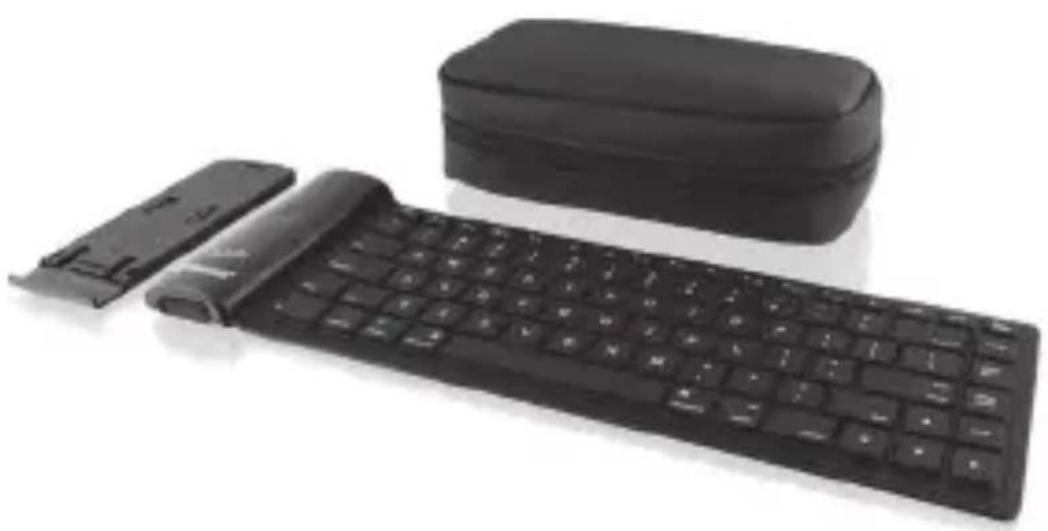
• Roll-up bluetooth keyboard
- Stand for iPad
- Carry case
- Retractable USB cable
• Built-in rechargeable lithium battery
Power
Built-in rechargeable lithium battery.
To charge the built-in rechargeable lithium battery connect the Bluetooth Keyboard to a computer using the included Retractable USB cable.
Introduction
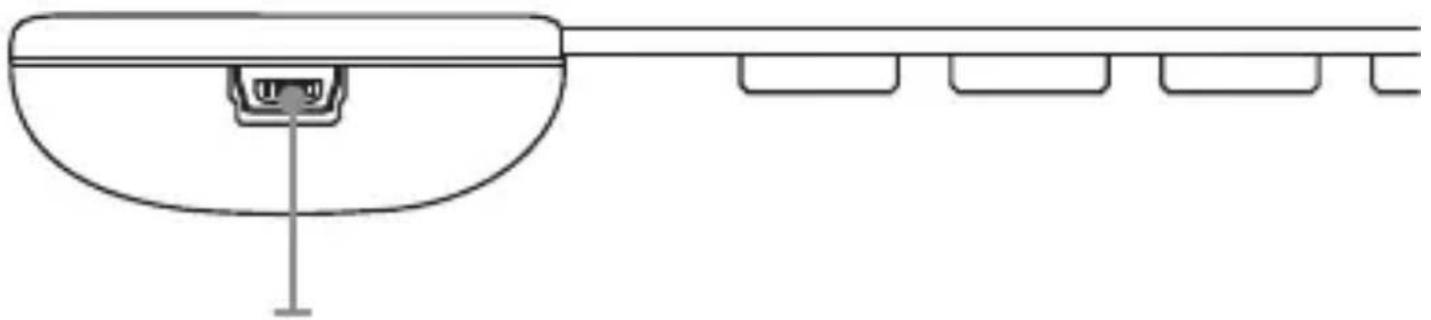
Mini-USB port
Ex|
(Mac
Display Brightness
(Mac Only)



pose
; Only)
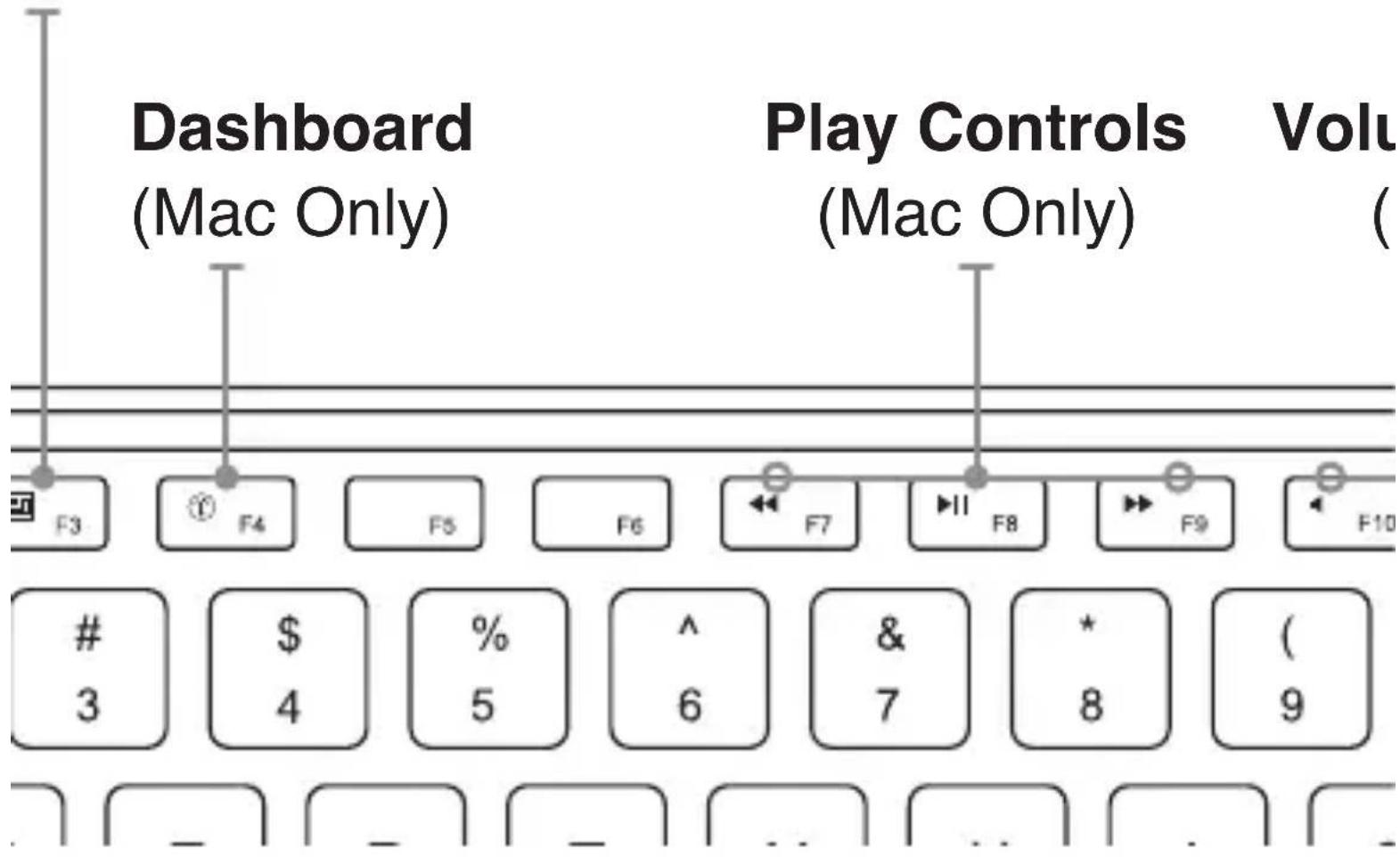


CD Eject
(Mac Only)
ime Controls
Mac Only)
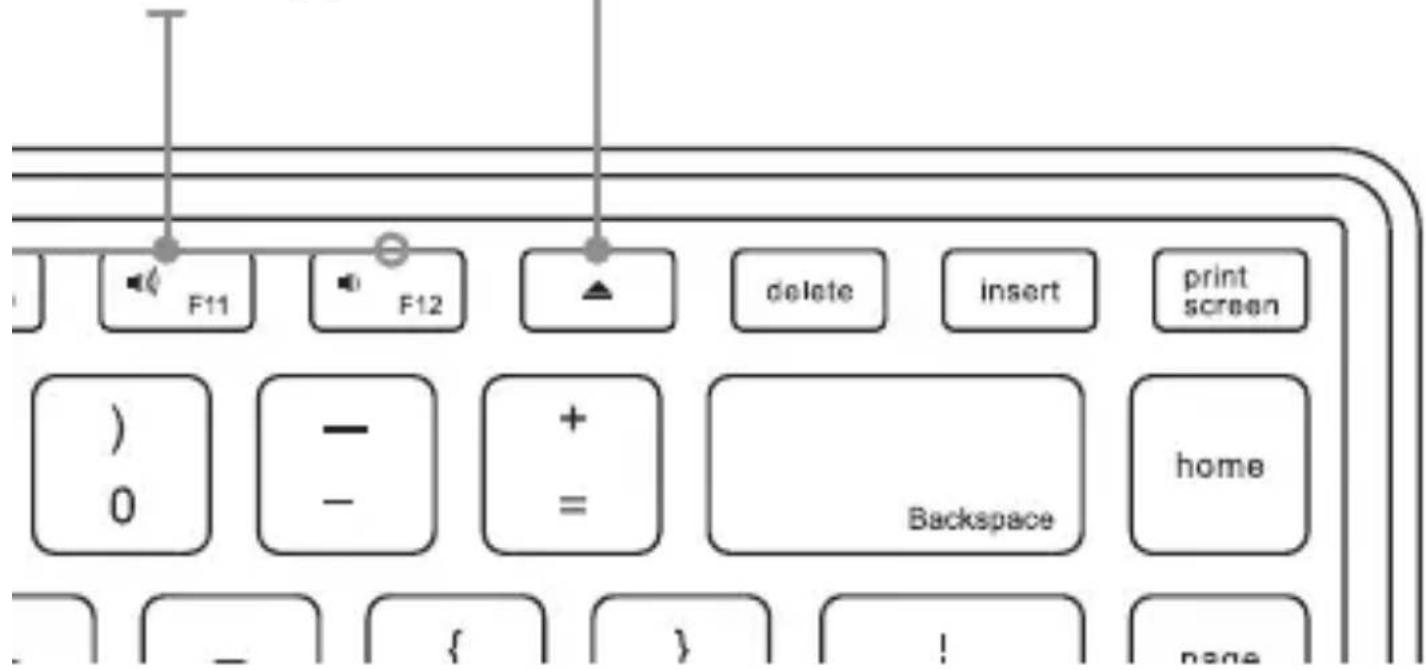
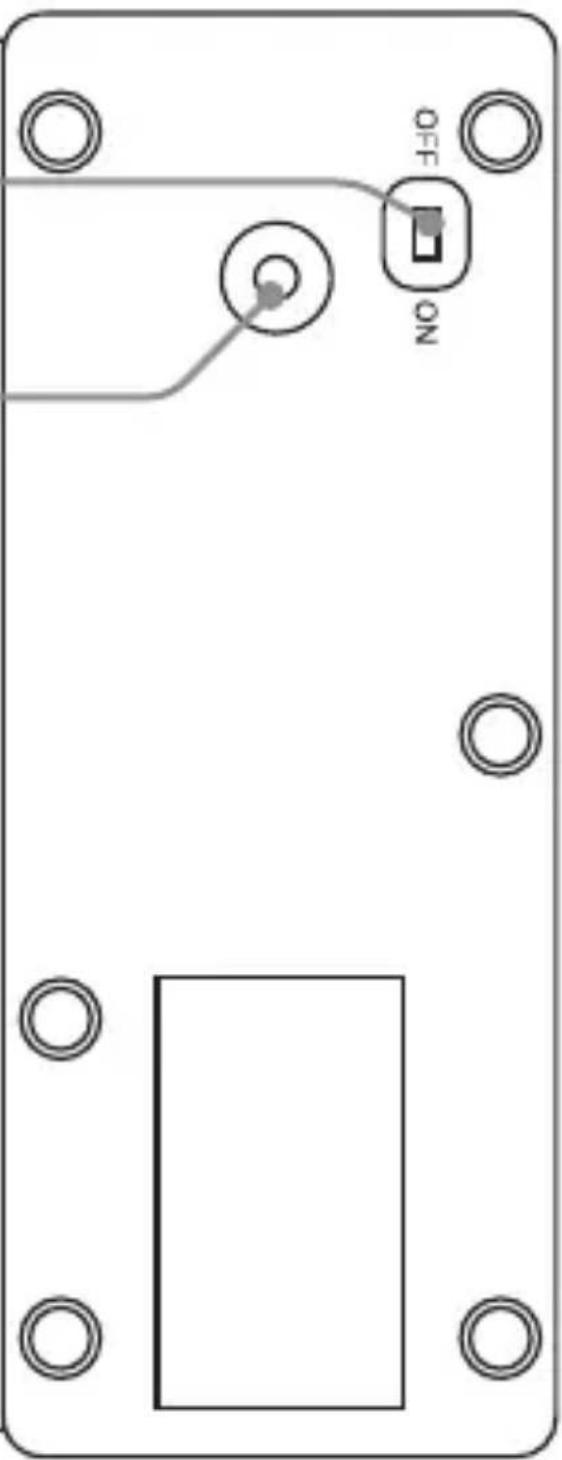
Power Switch
Pairing
Press to pair the Bluetooth Keyboard with an iPod or computer.
Stand for iPad
-
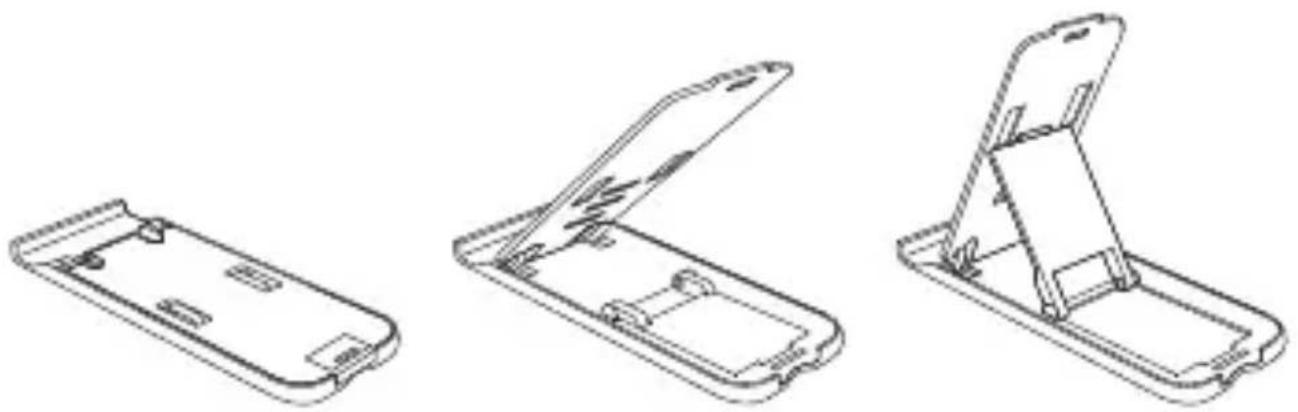
Swing open the back stand for iPad.
-
Lock the small support into place at the rear of the back stand.
-
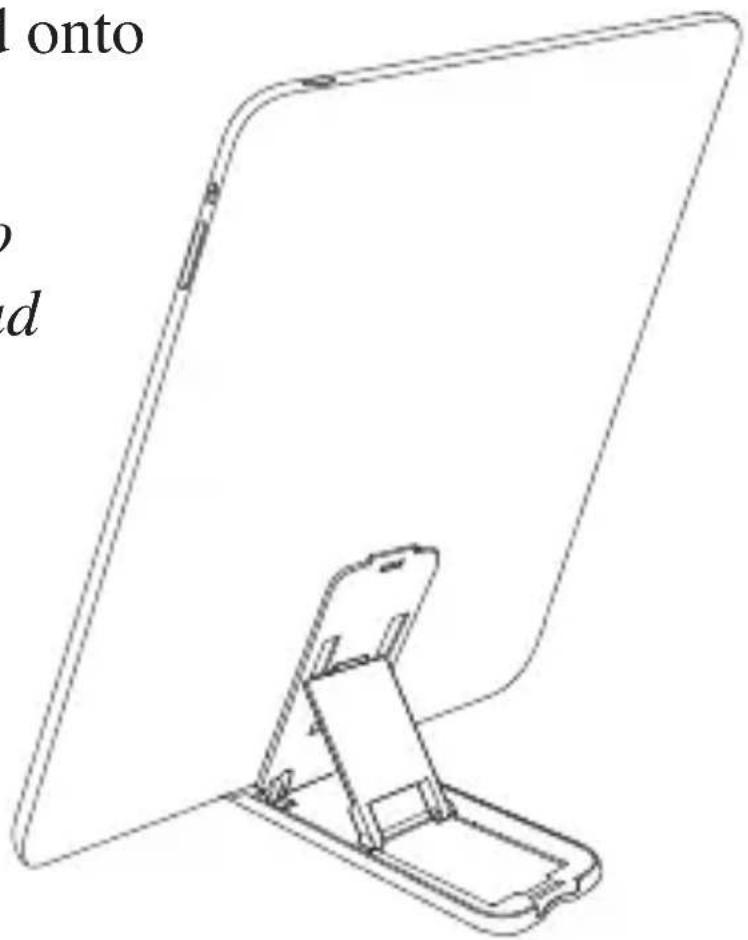
Place your iPad onto the stand.
Make certain to center your iPad on the stand so the weight is properly balanced against the stand.
Company Information
International Support
To download this User's Guide in English, Spanish, or French, visit the support section at www.ilive.net.
Website: www.ilive.net
Connecting to an iPad
- Adjust the Power switch on the Bluetooth Keyboard to the “ON” position.
- Open the "Settings" on your iPad.
- Navigate to “General” then “Bluetooth” in the Settings on your iPad.
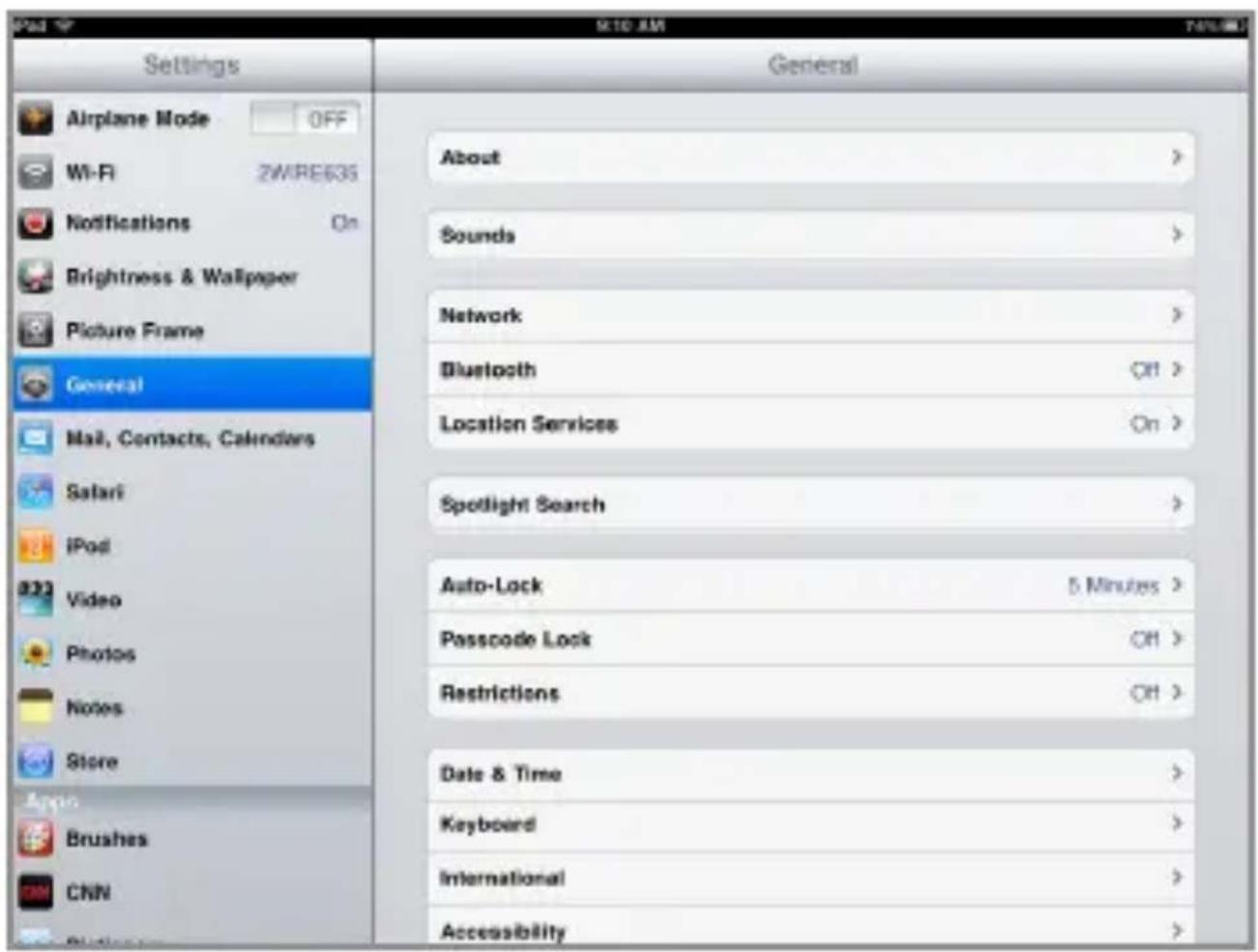
- Turn the Bluetooth "ON".
- Press the Pairing button on the back of the Bluetooth Keyboard.
- On the iPad, touch the name of the Bluetooth Keyboard when it appears on the “Devices” list.

-
If this is your first time connecting this Bluetooth Keyboard to this iPad, the iPad will instruct you to type in a four digit code on the Bluetooth Keyboard and press enter or return.
-
Now that the Bluetooth Keyboard is connected, you can use it to wirelessly type on the iPad.

Connecting to an Apple Computer
Make sure that your computer has Bluetooth
Make sure that your computer has Bluetooth built-in or that a compatible Bluetooth adapter is connected. Open System Preferences (from the Apple menu, choose System Preferences), then choose Bluetooth from the View menu.
Turn on Bluetooth
In Bluetooth preferences, select the “On” checkbox (for earlier Mac OS X versions, click the Settings tab, then click Bluetooth Power: On). Make sure that you also enable Bluetooth on your device, too; refer to your device’s documentation for instructions. If you want your Mac to be discoverable, select that option as well.
Set up a new device
To set up a Bluetooth device, click “Set Up New Device” (in earlier Mac OS X versions, click the Devices tab in Bluetooth, then click “Set Up New Device”). Follow the onscreen instructions to set up your device.
Connecting to a Windows Computer
- COMPUTER: Open Bluetooth Devices on the Windows computer, and then click Add.
- BLUETOOTH KEYBOARD: Press the Pairing button on the bottom of the Bluetooth Keyboard.
- COMPUTER: Select the check box, and then click Next.
- COMPUTER: Click Choose a passkey for me, and then click Next.
- BLUETOOTH KEYBOARD: Within 30 seconds, type the provided passkey and press ENTER key using your Bluetooth keyboard.
- Do not use the keyboard number pad to enter the passkey.
Connecting to a Mobile Device
To connect the Bluetooth Keyboard to a mobile device, first make sure that your mobile device has bluetooth, then use the instructions included with your mobile device to setup the Bluetooth Keyboard.
ICD281
Bluetooth Keyboard for iPad
For the most up-to-date version of this User's Guide, go to www.ilive.net

- CLEANING AND CARE
- BLUETOOTH KEYBOARD
- FEATURES AND INCLUDED
- POWER
- INTRODUCTION
- DISPLAY BRIGHTNESS
- (
- CD EJECT
- IME CONTROLS
- POWER SWITCH
- PAIRING
- STAND FOR IPAD
- COMPANY INFORMATION
- INTERNATIONAL SUPPORT
- CONNECTING TO AN IPAD
- CONNECTING TO AN APPLE COMPUTER
- MAKE SURE THAT YOUR COMPUTER HAS BLUETOOTH
- TURN ON BLUETOOTH
- SET UP A NEW DEVICE
- CONNECTING TO A WINDOWS COMPUTER
- CONNECTING TO A MOBILE DEVICE
- ICD281
- BLUETOOTH KEYBOARD FOR IPAD
Brand : GPX
Model : ICD281B
Category : Mp3 player