DAGE208UTL-NAS - NAS iStarUSA - Free user manual and instructions
Find the device manual for free DAGE208UTL-NAS iStarUSA in PDF.


User questions about DAGE208UTL-NAS iStarUSA
0 question about this device. Answer the ones you know or ask your own.
Ask a new question about this device
Download the instructions for your NAS in PDF format for free! Find your manual DAGE208UTL-NAS - iStarUSA and take your electronic device back in hand. On this page are published all the documents necessary for the use of your device. DAGE208UTL-NAS by iStarUSA.
USER MANUAL DAGE208UTL-NAS iStarUSA
natural_image
Close-up of a black mechanical lock and socket with visible ports and buttons (no text or symbols)Table of Contents
Chapter 1: Top-Menu-Entry: "System" 5
1.1 System → General 5
1.2 System → Admin Password 6
1.3 System → UPS 7
1.4 System → Sensor (limited models only) 8
1.5 System → Update page 8
Chapter 2: Top-Menu-Entry: "Network" 10
2.1 Network → TCP/IP 10
2.2 Network → DNS 12
2.3 Network → Bonding (Teaming) 13
2.4 Network → Roung 14
2.5 Network → Host 15
Chapter 3: Top-Menu-Entry: "Storage" 16
3.1 Storage → Speedy RAID 16
3.2 Basic Steps to Create a RAID 17
3.3 Storage → iSCSI Iniator 20
3.4 Storage → USB/1394 page 21
3.5 Storage → Volume Group page 21
3.6 Storage → Logical Volume page 22
Chapter 4: Top-Menu-Entry: "Account" 25
4.1 Account → Local User page 25
4.2 What is 'Home' (Home Directory / Home Folder)? 26
4.3 How to create and use 'Home Folder'? 27
4.4 Account → Local Group 28
4.5 Account → ADS 30
4.5a Workgroup 30
4.5b Domain 31
4.5c ADS 31
4.5d Joining ADS Server 32
4.5e ADS Opon 32
4.6 Account → NIS 33
4.7 Account → LDAP page 34
4.8 Account → Quota 35
Chapter 5: Top-Menu-Entry: "Services" 37
5.1 Service → SMB/CIFS page 37
5.1a Advanced 38
5.1b Edit SMB/CIFS Access Control 39
5.2 Service → NFS 41
5.2a Edit NFS Access Control 41
5.3 Service → AFP/Atalk 43
The Apple Filing Protocol (AFP) 43
5.4 Service → iSCSI Target page: iSCSI Target Service Management 45
5.5 Service → Replicaon page 46
5.5a Adding a new Replicaon Schedule 47
5.6 Service → Snapshot page 47
5.6a Adding new Snapshot Schedule 48
5.7 Service → Access Control page 48
5.7a Edit 49
5.8 Tape Backup 50
5.9 Cloud Backup 50
Chapter 6: Top-Menu-Entry: "Features" 52
6.1 Features → FTP Service Management 52
6.2 Features → DHCP Management 53
6.3 Features → Network Time Service Management 54
6.4 Features → UPNP 54
6.5 Features → DDNS Management 55
6.6 Features → Remote Access Management 55
Chapter 7: Top-Menu-Entry: Status" 56
7.1 Status → Stascs 56
7.2 Status → Log 57
7.3 Status → User Access 57
7.4 Status → Nocaon page ....58
7.5 Status → SNMP 58
Before reading on with this NAS User's Guide, rst please familiarize yourself with the following documents for quick and proper reference:
Default Admin ID: root ---case sensitive
Default Password: 0000 ---4 zeros
"Quick Start Guide"
- Instrucons on how to quickly nd the NAS user's network and set a stac IP for the NAS, then launch the Web Administrator GUI.
"Setup Workow"
- Illustrates quick steps for creang a SMB/CIFS share and how to access it from Windows clients.
"Menu Layout"
- Illustrates the GUI menu structure for navigang sub-menu items/acons branching out from the top Menu-Entry.
Chapter 1: Top-Menu-Entry: "System"
The "System" entry consists of the following sub-menu entries/pages
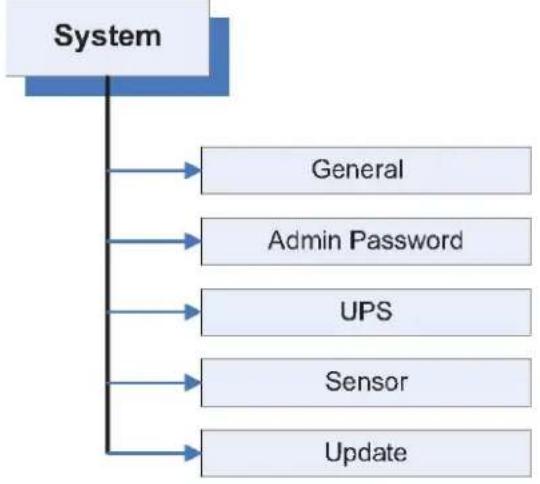
flowchart
graph TD
    A["System"] --> B["General"]
    A --> C["Admin Password"]
    A --> D["UPS"]
    A --> E["Sensor"]
    A --> F["Update"]
1.1 System → General
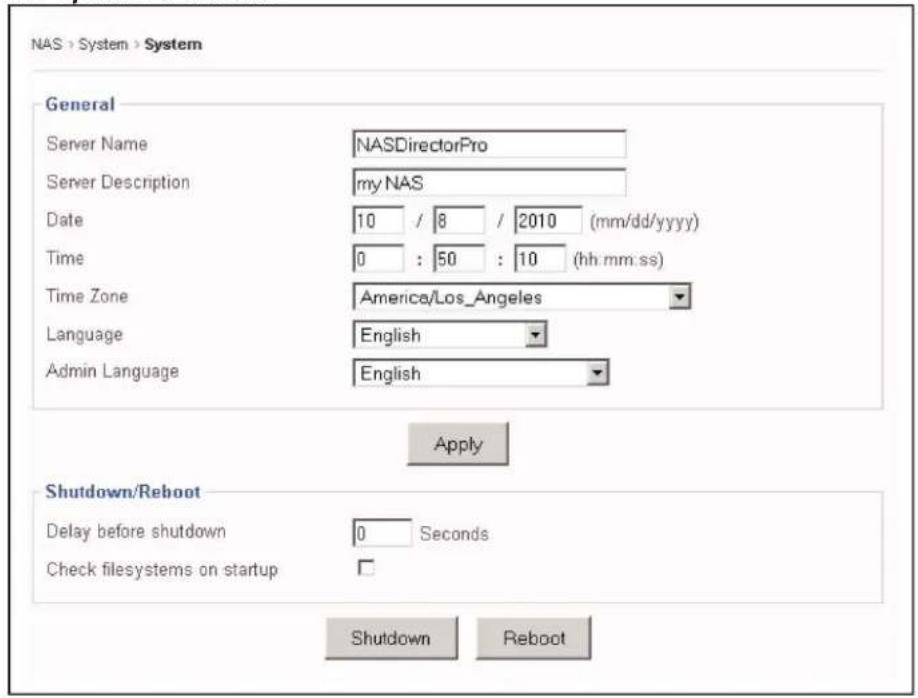
- Server Name: The name given to the NAS unit, such as "MyCompanyNAS", etc.
- Server Descripon: Enter descripon to help identify usage of this unit. Example: "The NAS backup for my SQL server," etc.
- Date / Time / Time Zone: Enter the current date and me zone of where this NAS is located in.
- Language: This seng determines what language the OS will display on the network client. Current supported languages include:
English (default)
Chinese Simplied
Chinese Tradional
UTF-8
- Admin Language: This seng determines what language is displayed on the NAS Admin GUI menu, accessed via web browser. Currently, supported Admin Languages are:
English (default)
Simplified_Chinese_UTF8
Tradional_Chinese_BIG5
Tradional_Chinese_UTF8
Note: the seng for "Language" and "Admin Language" are two dierent
sengs. Generally, it is advised that they should be set the same. Otherwise, the folder name or share name created by NAS Admin GUI will not be the same as what is displayed on the network client.
- Apply buon: Click the "Apply" buon to save any changes and put them into eect.
- Shutdown buon: Click to safely power o the NAS system.
- Reboot buon: Click to safely reboot the NAS system.
- Delay before Shutdown: Desired number of seconds to wait before iniang the shutdown process. By default, it is set to '0' seconds.
- Check Filesystems on Startup: This opon will force the NAS OS to do a lesystem check on each XFS volume (network share) every me it boots. By default, this funcon is turned o.
1.2 System → Admin Password
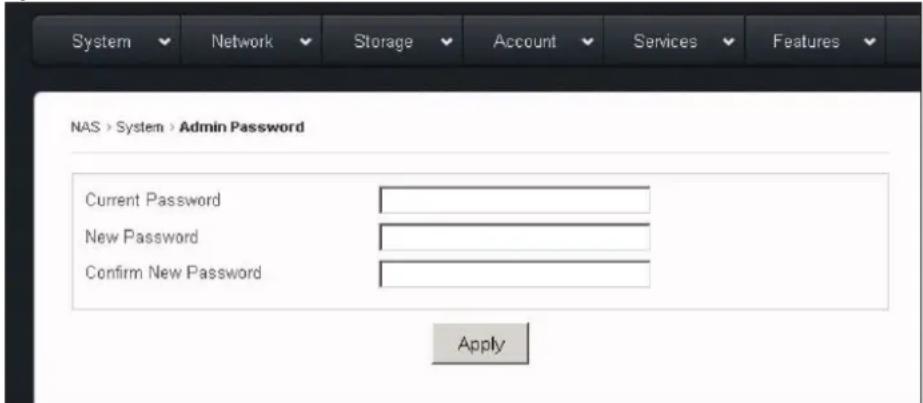
This page is used to change the current admin password to a new password.
- Current Password: Key in the current admin password
-
New Password: Key in the new desired admin password
-
Conrm New Password: Re-key the new desired admin password to conrm.
- Apply: Click the "Apply" to save change of password.
1.3 System → UPS
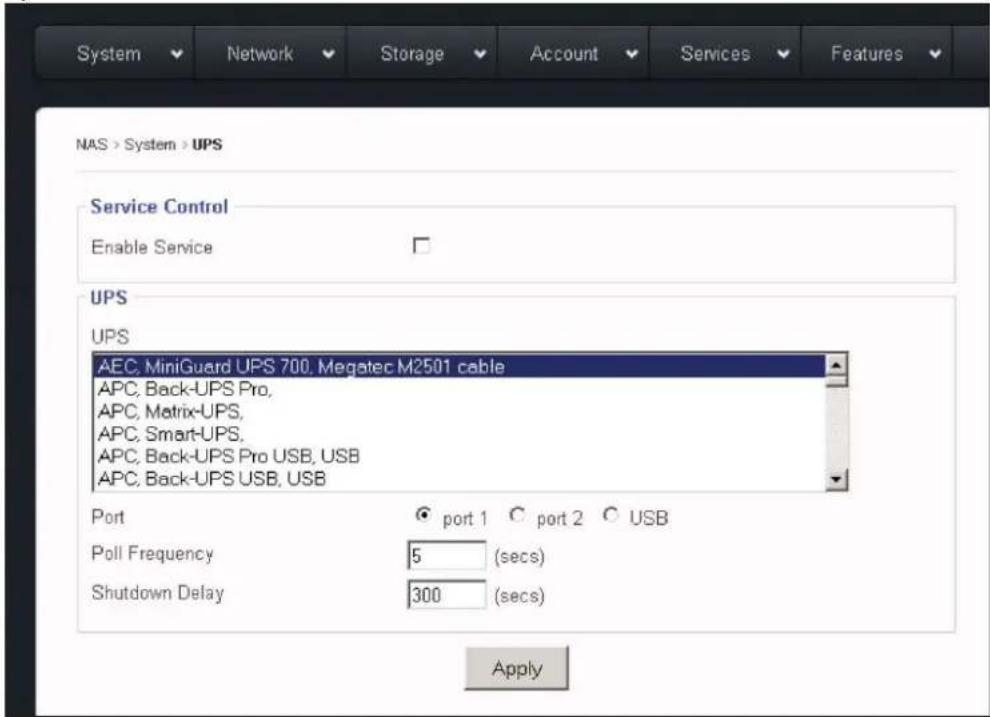
This page is to enable/disable UPS (un-interrupted power supply) Service, to manage some UPS selecons/sengs.
Service Control → Enable Service: Checking this opon box will enable UPS service. By default, this service is disabled.
- UPS: This window lists the supported UPS brands and models. Scroll down to nd more brands and models.
- Port: 'port 1' = COM1; 'port2' = COM2; 'USB' = USB port on the NAS system. Select the proper Port Type according to what connectivity you have between the NAS and your UPS.
- Poll Frequency: This represents how oen the system will check the UPS status. By default, if the USP service is enabled, this is pre-set to 5 seconds.
- Shutdown Delay: This represents how many seconds to wait before iniang the actual shutdown aer receiving the shutdown signal from UPS service. This is pre-set set to 300 seconds.
- Apply buon: Click the "Apply" buon to save the changes to the above elds.
Note: #1: No network UPS is supported, only support UPS is connected via RS232 or USB. #2: For APC UPS, please use the "simple signal cable" for the RS232/COM port conncon. DO NOT use the "smart signal cable" which comes with the APC UPS by default.
1.4 System → Sensor (for DAGE104UTL-NAS and DAGE312UTL-NAS models only) This page will display readings for System, CPU, and Fan sensors: (will not display any info on DAGE208UTL-NAS model)
1.5 System → Update page
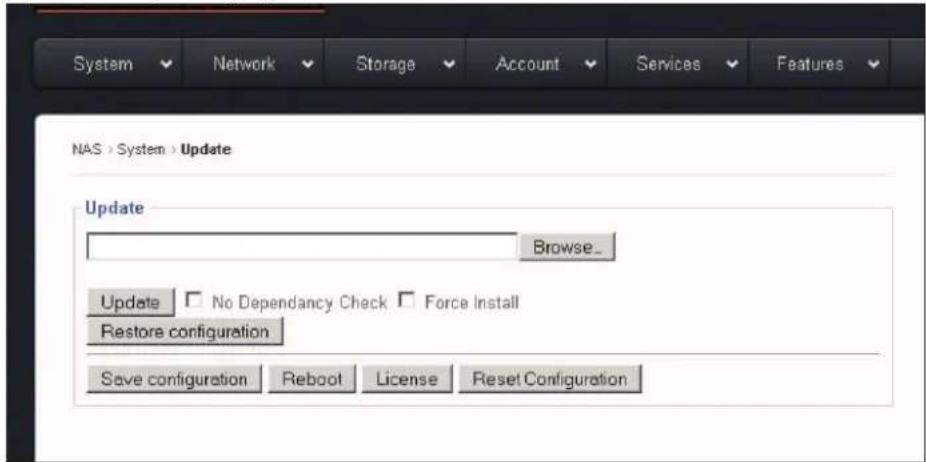
This page is used for the following funcons:
- update patch
- restore previous conguraon
• save exisng system conguraon - reboot the system aer updang patch
- enter new license to enable and reveal special Feature/Funcon
- reset system conguraon back to factory default.
Update:
Browse: Browse the admin's local computer for the patch le.
No Dependency check: From me to me, some specific patches may require check-marking this opon in order for the new patch to be installed.
Update buon: Click "Update" to update the selected patch le. Aer updang the patch, always reboot the system for the patch to take eect.
Restore conguraon:
Browse: Browse the admin's local computer for selecng the previously saved conguraon le.
Restore conguraon buon: This buon will restore the selected previous-saved NAS conguraon back to the NAS. Reboot for the restored conguraon to take eect.
Save conguraon: This buon is used to export the current NAS conguraon into a le and save it onto a local locaon on the administrator's computer. This le serves two purposes: (1) for future conguraon recovery purpose (2) email to technical support for trouble-shoong.
Each me the administrator makes some changes, such as adding users or deleng users, the conguraon le needs to be re-saved again. In other words, keep the saved conguraon le up to date.
When clicking "Save conguraon", the GUI will prompt you to browse and nd a locaon in your computer to save the conguraon le.
Note: The saved conguraon does not include physical volume info because volume info is stored and associated with the physical volume itself.
Reboot: Use the Reboot buon to reboot each me aer updang the patch.
Reboot each me aer restoring the conguraon le.
License: Use the License buon to key in a new license for following purposes:
- increase/extend supported capacity
- enable/reveal hidden funcons/features
Reset conguraon: This buon is used to reset system conguraon back to factory default. It will remove all user accounts, either local or imported; it will remove all LVs (logical volumes) and VGs (volume groups), either network share volume or iSCSI volume, thus it will erase all data. It is useful for administrator who wants to start creang volumes and users all over without worrying any potenal hidden corrupon on the exisng volume or unclear-ags on conguraon les.
Notes: #1: Since it will erase all data in the NAS, please take extra precaution when using this funcon. Please make sure either you have a full backup of the data in the NAS, or you are sure you don't need the data in the NAS any more.
2: It will not reset the exisng Network Conguraon.
Chapter 2: Top-Menu-Entry: "Network"
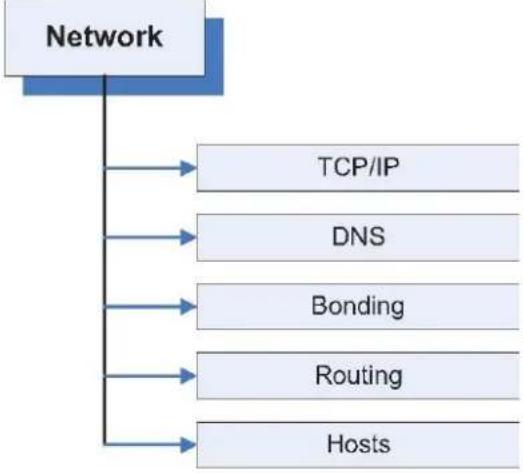
"Network" entry consists of the following sub-menu entries/pages:
flowchart
graph TD
    A["Network"] --> B["TCP/IP"]
    A --> C["DNS"]
    A --> D["Bonding"]
    A --> E["Routing"]
    A --> F["Hosts"]
2.1 Network → TCP/IP
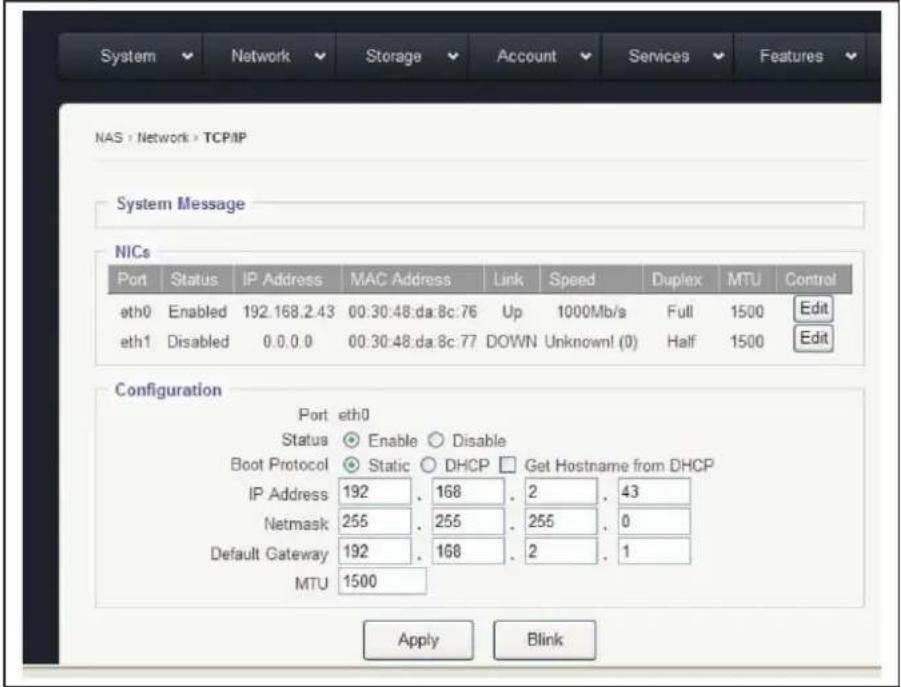
On this page, Stac IPs can be set for specific NIC ports, along with some other properes. NIC Port is idened as "ethx", such as: eth0, eth1, eth2, and etc. When clicking the "Edit" buon of a NIC Port (ethx), the corresponding conguraon of the selected NIC Port will display in the "Conguraon" window.
Port: Displays which NIC Port is selected here.
Status: Shows if the port is Enabled or Disabled
Boot Protocol:
- Stac IP: Allows the admin to enter the stac IP address, Netmask, and Default Gateway for the NIC port.
- DHCP: When selected, the NIC port will get an IP assigned from the DHCP server in the network. The elds: IP address, Netmask, and Default Gateway will display what values were assigned from the DHCP server.
Click "Apply" buon to take eect of the sengs
Boot Protocol:
Get Hostname from DHCP: If the Admin has the “reverse look up” enabled and setups in the DHCP Server, then the DHCP server will not only assign an IP to the NIC port, but will also assign a Server Name to the NAS system. The Server Name is the name dened in the “System → General” page. This opon is seldom used.
MTU: Maximum Transmission Unit. The default value is 1500. To enable Jumbo Frame, refer to the actual Ethernet card being used for the proper MTU number. Most of the Ethernet cards have 9000 MTU for Jumbo Frame, but other values besides 9000 exist for MTU.
Note: In order to use Jumbo Frame properly, the network switch and the other end of the device accessing the NAS also need to be Jumbo Frame enabled and set to the same MTU. Otherwise, unpredictable results may occur.
Apply buon: Click to save changes and put into eect new sengs. Upon clicking the "Apply" buon, this message will appear:
Changing IP address
Reconnecting in 59 seconds
The GUI will return aer the displayed number of seconds
Blink buon: This feature is used to help identify NIC ports. Upon clicking this buon, the physical LED on the selected NIC port will ash. This helps the user identify the physical port for each NIC port.
2.2 Network → DNS
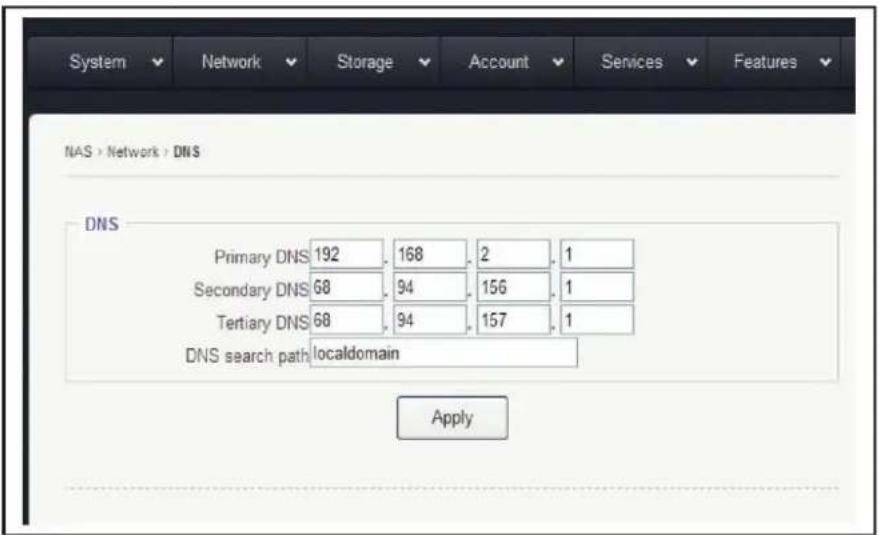
DNS -Domain Name System (DNS) is a database system that translates a computer's fully qualified domain name into an IP address. The computer system that runs the DNS funcons is called the DNS Server. In a small network environment, such as a home network or small oce network, the DNS could be an internet Router. For bigger companies or corporaons, normally there is at least one dedicated DNS server in place.
RAIDAGE's NAS implements a "mul DNS" support scheme. If the user has more than one DNS servers, up to 3 DNS Servers' IPs can be listed, and if the Primary DNS fails, the NAS will fall back to the Secondary DNS, and if the Second DNS fails, too, then the NAS will fall back to the Terary (3 ^rd ) DNS.
Primary DNS / Secondary DNS / Terary DNS eld: Key in the IP address of the corresponding DNS Server. If there is no Secondary or Terary DNS, leave the eld blank.
DNS Search Path --a DNS search path is a list of Domains to try/search for when the NAS tries to translate a machine name into an IP address.
It is in the Format of: mycompany.com mycompany.net mycompany.org
For small network environment, this does not apply, just simply "localdomain" will do.
Click "Apply" buon save sengs
2.3 Network → Bonding (Teaming)
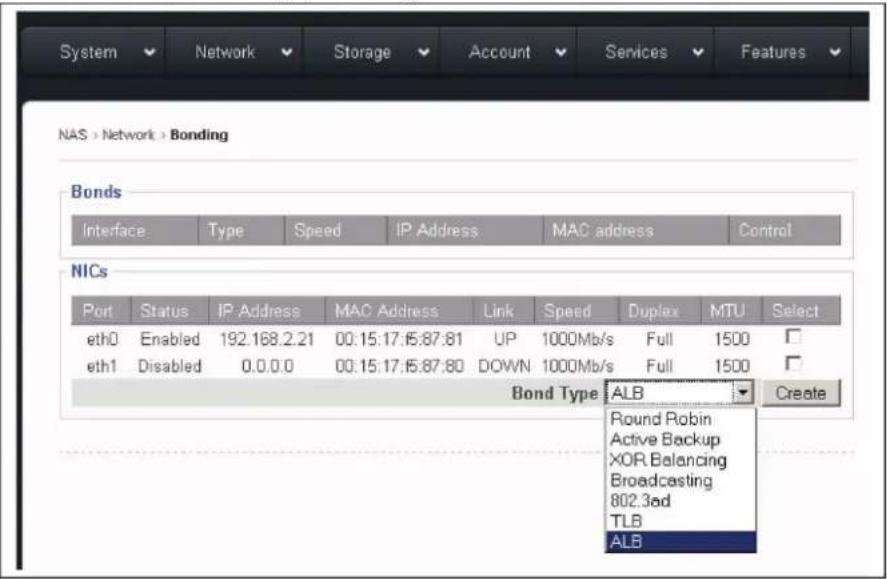
Bonding is sometimes referred to as Teaming. Its purpose is to bond multiple
NIC ports together under the same IP to increase bandwidth and/or provide path redundancy.
Bond Type: The RAIDAGE's NAS supports all 7 basic modes of bonding. However, in these days only 2 types are commonly used, ALB and 802.3ad.
Bond Type ALB: Adapve-Load-Balancing. This aempts to redistribute network trac (outgoing and incoming) quickly based on current conditions. All NIC ports need to hook to the same network switch, and the network switch needs to have special sengs for it as long as the switch is a true switch, not a hub. Because of that, the ALB mode is the most commonly used seng for the bonding, which is why we made it the default seng for bonding. Besides increasing network performance, ALB also provides network path failover in case of NIC port failure.
Notes on ALB: #1: ALB does not increase Point-to-Point network performance. The performance advantage only shows when there are mulple network clients accessing the NAS. In addition, the performance increased is non-linear, so none of the bonding types will actually provide a linear performance increase.
2: All NIC Ports in the same bonding must hook to the same network switch. They cannot be connected to dierent switches.
Bond Type 802.3ad: Dynamic Link Aggregaon. This creates aggregaon groups that share the same speed and duplex sengs. There are two types of 802.3ad: with or without LACP. LACP stands for Link Aggregaon Control Protocol. The RAIDAGE's NAS supports ONLY the 802.3ad with LACP.
This mode requires a switch that supports IEEE 802.3ad with LACP, and the switch needs to be congured on the specific ports that the NIC ports are connected to.
Seng the Bonding: Select the NIC Ports intended to be bonded together and then click the "Create" button to create the bonding.
Rules for Bonding:
- The IP of the bond is always the rst NIC Port in the Bond. For example, in the above Bonding page screen, bonding the eth0 and eth1 will result in the bond0 with eth0's IP address: bond0 IP = eth0 IP = 192.168.2.21
- Multiple bonds are supported, as long as each bond is on a dierent network. For example: bond0 = 192.168.1.100 and bond1 = 192.168.2.100 are a valid seng. However: bond0 = 192.168.1.100 and bond1 = 192.168.1.200 are not a valid seng.
2.4 Network → ROUNG
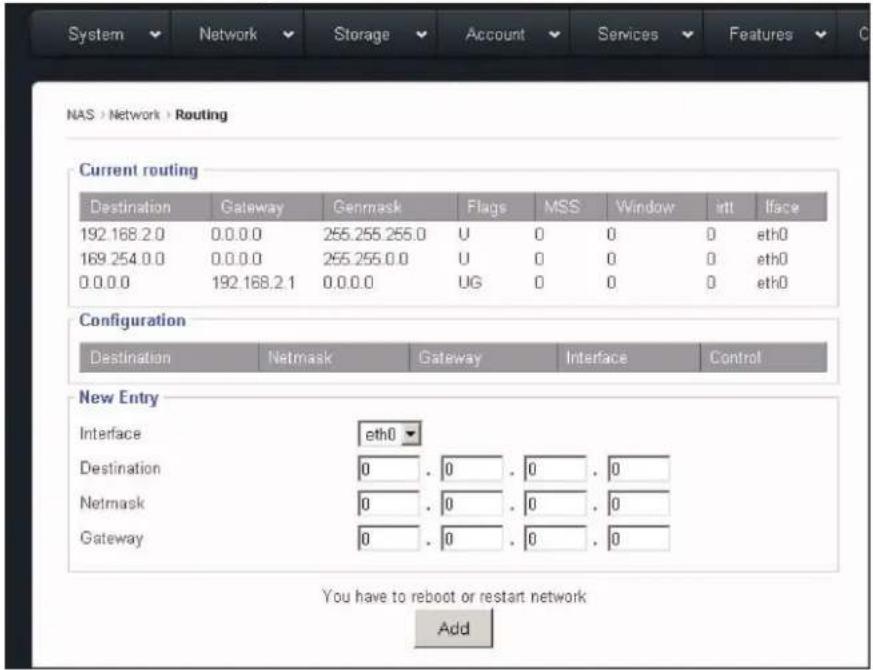
This funcon/page is dedicated for those sophisticated users who have had mulple networks and gateways in their network environments. For those who don't have mulple networks/gateways, please disregard.
What is the "Roung" page" for?
Each NAS has at least two NICs, and some mes more than two NICs. Some corporaon users have mulple subnets and need to assign each NIC with its own subnet and with its own Gateway. However, under the "TCP/IP Seng"
page, there is only one opon eld for "Default Gateway". The "Roung" page is used to address this need by allowing additional Gateway IP and Desnaon IP to be associated with designated NIC port.
2.5 Network → Host
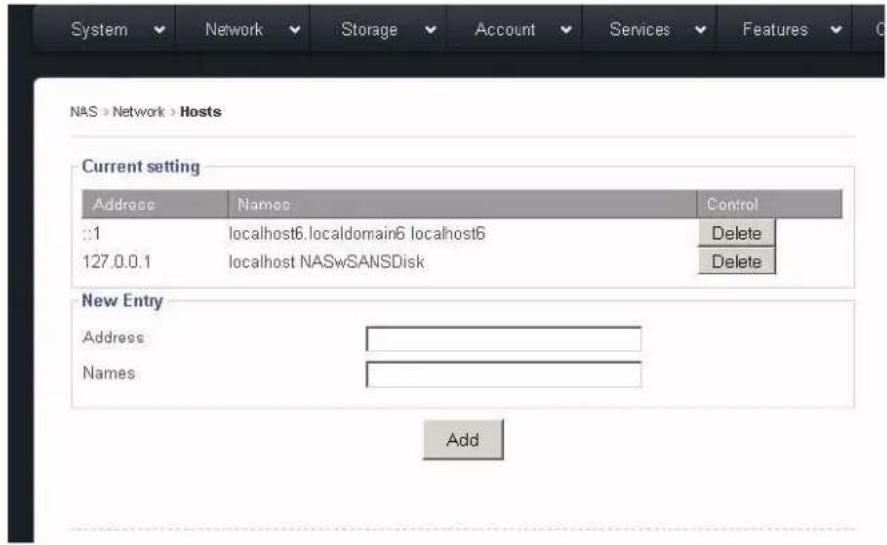
The "Host" funcon allows the associaon of a network client's name with its IP and store it locally within the NAS. When it comes to nding a network client's name/ip resoluon, the NAS will rst look it up locally according to this "Host" informaon, then, go to the DNS server. It is typically useful to enter your ADS server's info here if intent is to join the NAS System to an exisng ADS server.
Note: Do Not Delete the rst two exisng Entries. Just leave them alone.
Address: The IP address of the network client, such as: 192.168.2.100
Names: The name of the network client, it can in any of the following formats:
mycompany
mycompany.com
mycompany mycompany.com (mulple names with space in between)
Make sure to click "Add" buon to save changes.
Chapter 3: Top-Menu-Entry: "Storage"
The "Storage" entry consists of following sub-menu entries/pages:
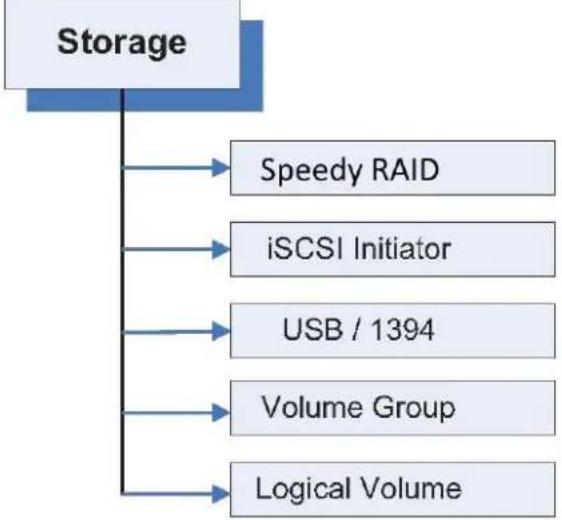
flowchart
graph TD
    A["Storage"] --> B["Speedy RAID"]
    A --> C["iSCSI Initiator"]
    A --> D["USB / 1394"]
    A --> E["Volume Group"]
    A --> F["Logical Volume"]
3.1 Storage → Speedy RAID
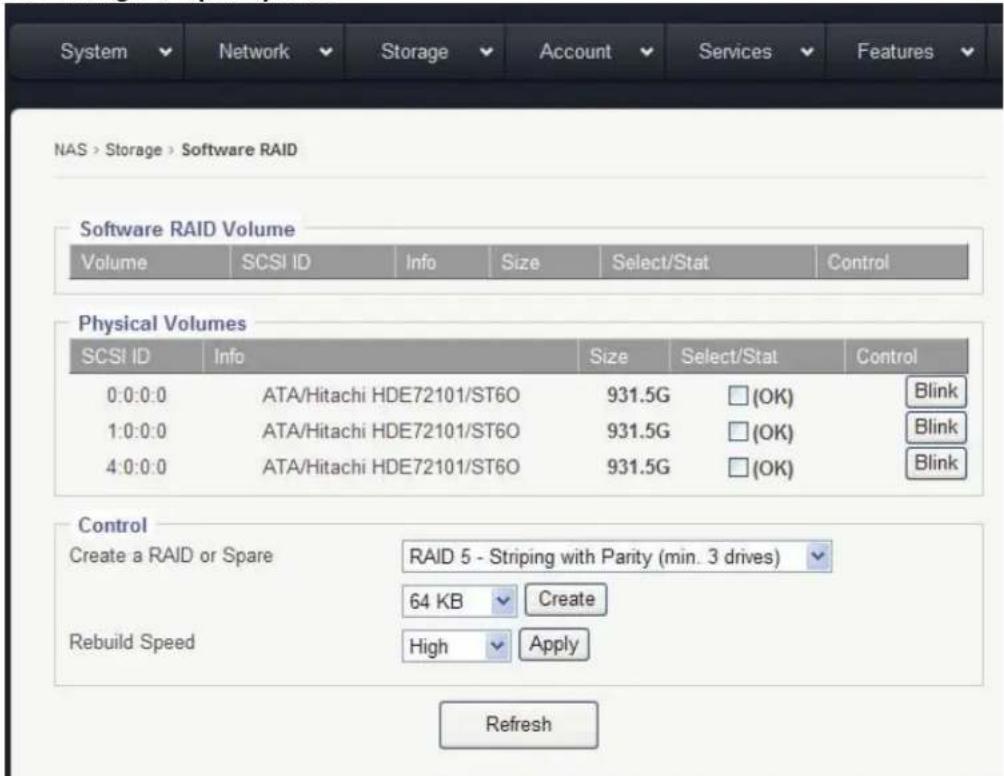
Under the "Physical Volumes" Window:
SCSI ID: Disk ID, in format of:
$$ 0: 0: 0: 0 = \text { Disk } 1 $$
$$ 1: 0: 0: 0 = \text { Disk } 2 $$
$$ 2: 0: 0: 0 = \text { Disk } 3 $$
$$ 3: 0: 0: 0 = \text { Disk } 4 $$
Info: disk Info, such as: Brand, Model, and Firmware
Size: Disk size
Select/Stat: Disk-telecon/disk-status. The empty box means the disk is not selected. Check-marking the box selects his disc. Next to the box is that stat of the disc. "OK" means the disk is at normal status. It could show "Failed" or "Removed" if the disk is bad or removed.
Blink buon: This feature blinks the LED on the Physical hard drive tray to help identify which hard drive is being referenced.
Create a RAID or Spare: When there are no exisng RAID volumes, you can only create a RAID and will not be allowed to create a Spare. The Spare is allowed only if you have an exisng RAID with RAID-level of: 1, 5, 6, or 10.
Supported RAID-level is: 0, 1, 5, 6, or 10
Stripe Size: The stripe size for the RAID can be anywhere from 4KB \~ 1024KB. Opon is selected via the drop down menu. The default size is 64KB.
Rebuild Speed: The opons are: High, Mid, and Low. This is used to denote how much internal storage speed should be allocated to the RAID rebuilding, therefore, reserve a portion of resources for normal data accessing. The higher the rebuild speed is, the less resources it has for normal data access.
For rst me RAID creaons, always set rebuild speed to "High," to decrease me needed to initialize RAID.
3.2 Basic Steps to Create a RAID:
Step 1: select by check-marking all the disks to be put into the same RAID array.
Step 2: select the RAID-level
Step 3: select the Stripe-Size, or leave it at 64KB
Step 4: click the "Create" buon, and the GUI will display the page below:
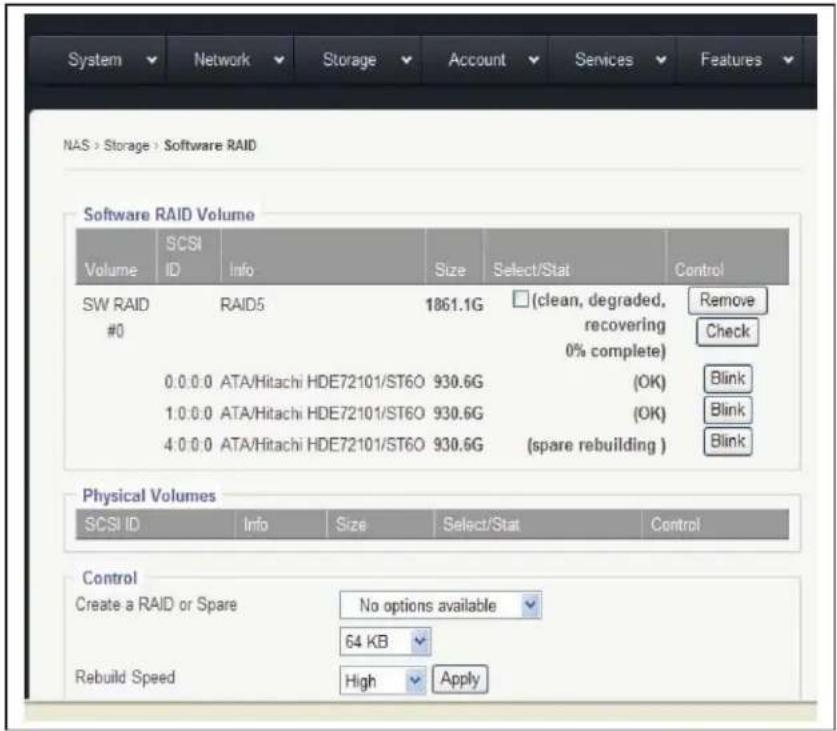
Noce that the disks selected have disappeared from the "Physical Volumes" window, and have shown up in the "Soware RAID Volume" Window.
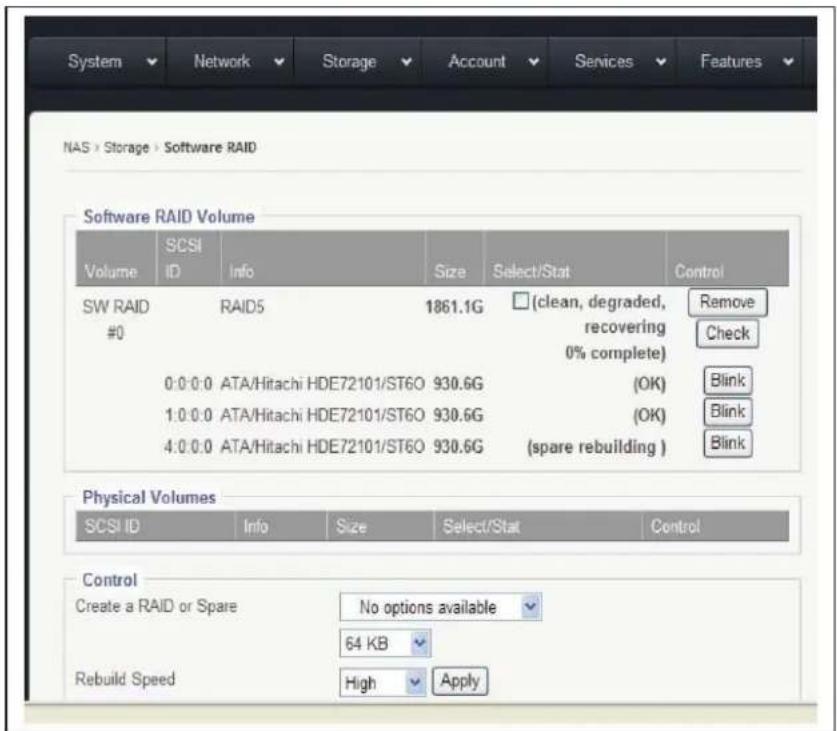
Now under the Soware RAID Volume window, we have:
Volume: SW-RAID#0, if there are more than one SW-RAID, they will be, SW-RAID#1, SW-RAID#2, so forth and so on.
Info: RAID-Level Info, such as RAID5, or RAID0, or RAID6, etc.
Select/Stat: RAID volume-telecon/RAID volume-status. When the selecon box is empty, its means that the RAID is not selected. Status can be: Normal, Degraded, Failed, Degraded recovering %, etc.
Remove buon: Select by check-marking a RAID, and then if the "Remove" buon is clicked, the selected RAID volume will be removed/deleted.
Check buon: Select by check-marking a RAID, and then if the "Check" buon is clicked, the selected RAID volume will run consistency check for RAID-level: 5 or 6.
Create a HotSpare: If the exisng RAID-level is 5, 6, or 10, a HotSpare disk can be added to it.
- Select by check-marking a RAID volume from the Soware RAID Volume window.
- Select a disk from the Physical Volume window.
- Click "Create."
3.3 Storage → iSCSI Iniator
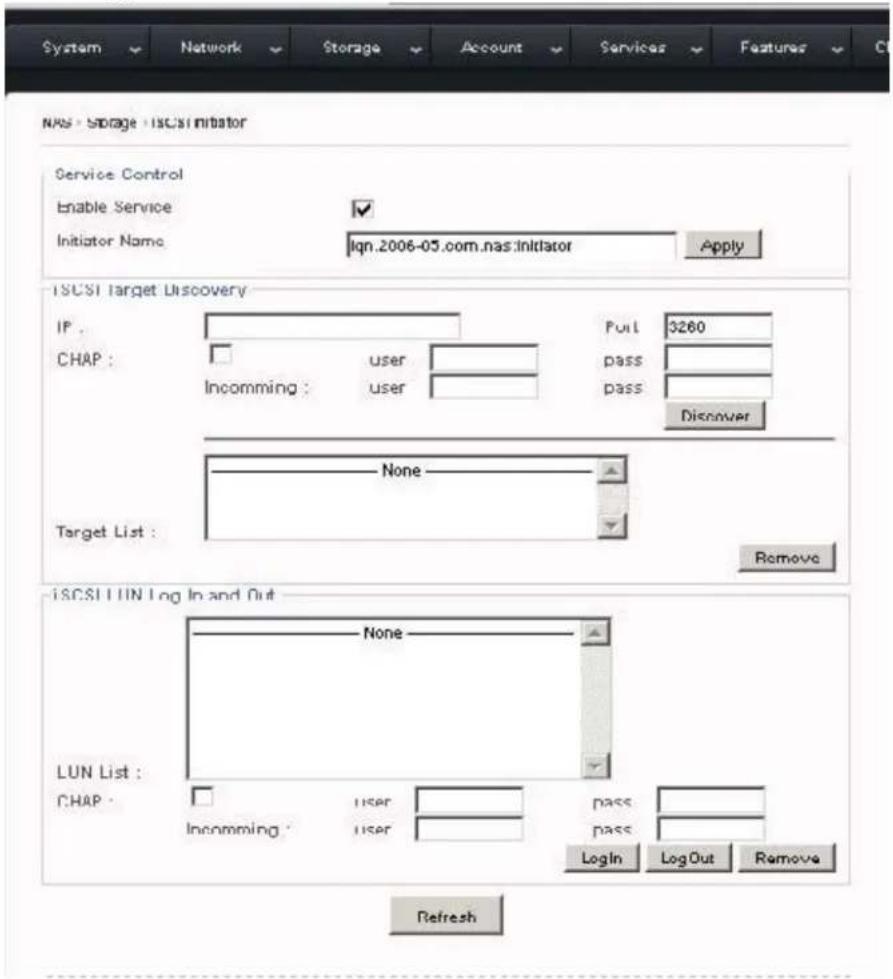
RAIDAGE's NAS has a built-in iSCSI initiator funcon which allows the administrator to pull in a remote iSCSI Target volume as the local physical volume.
Basic Steps to connect to a remote iSCSI Target / LUN:
Step 1: Check-marking "Enable Service" opon box
Step 2: Key in the remote iSCSI Target's IP address in "iSCSI Target Discovery →IP"
Step 3: Key in the remote iSCSI Target port number if it is not the default 3260.
Step 4: Click the "Discover" buon. If the Target IP is correct, the Target name will show up in the "Target List" window and the corresponding iSCSI LUN will show up in the "iSCSI LUN Log In and Out" window.
Step 5: Select the iSCSI LUN and click "Log In."
For CHAP, please refer to the remote iSCSI Target's requirement.
3.4 Storage → USB/1394
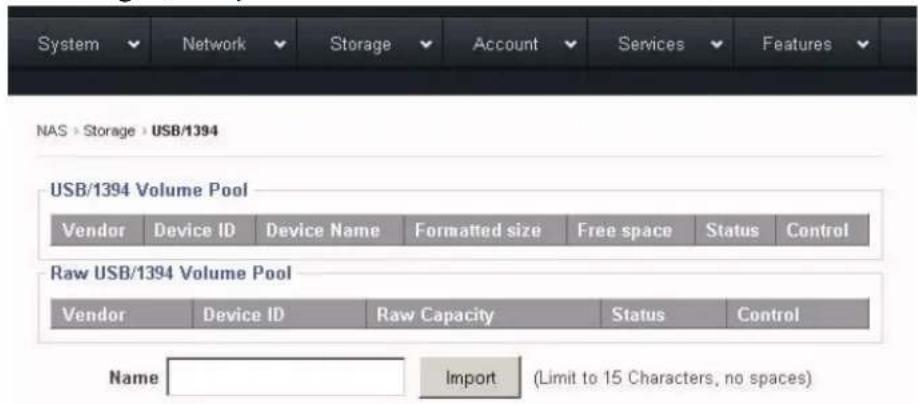
When an USB or 1394 disk is plugged into the system, a device and corresponding capacity will be displayed in the "Raw USB/1394 Volume Pool" window. Give it a name in the "Name" eld and click "Import" and the format screen will appear. Once it is formaed, it will show up in the "USB/1394
Volume Pool" and be ready to be used.
USB/1394 disk is intended to be removable, and removing a XFS volume while online can disrupt the enre OS and all volumes. Therefore, the USB/1394 volume is defaulted to be "FAT32," which in turn limits the volume size to a 2TB maximum.
USB/1394 volume is a logical volume, therefore there is no need to go through the sengs in the "Volume Group" page and "Logical Volume" page.
Depending on the chip used in the motherboard/system and the chip used in the external Device, sometimes they are not compatible, so in such a case the USB/1394 disk will not be supported.
3.5 Storage → Volume Group page
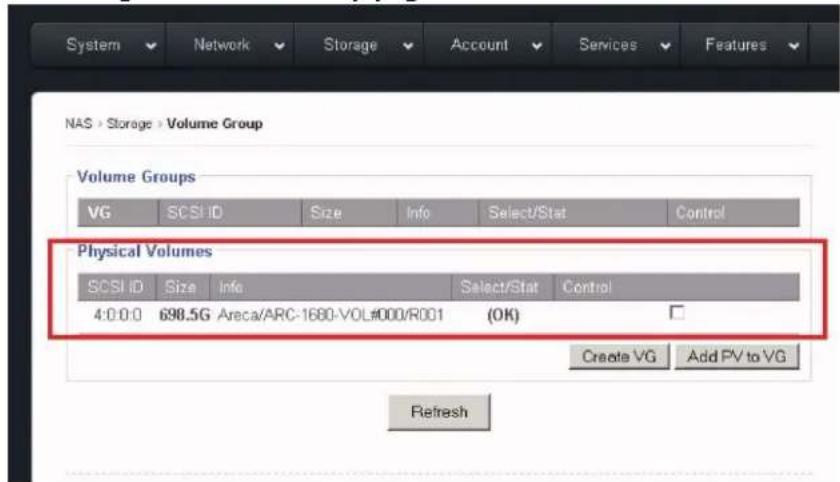
Aer the RAID volume has been created and the NAS restarted, the volume will show up in the "Physical Volumes" window.
Check-mark to select the Physical Volume (aka PV), and click the "Create VG" buon. Now, the selected PV will turn into VG and display under the "Volume Group" window.
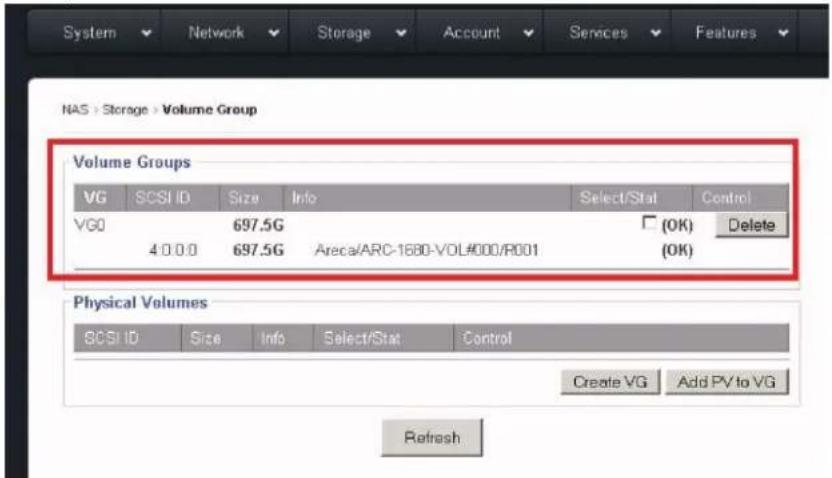
With mulple PVs, mulple VGs can be created. To increase the size of an exisng VG, just simply add a new PV to the exisng VG by check-marking both the PV and VG, and then clicking "Add PV to VG". Adding a PV to an exisng VG is also called: Linear RAID or Spanning.
3.6 Storage → Logical Volume page
This is the last step in creang the network volume or iSCSI Target volume.
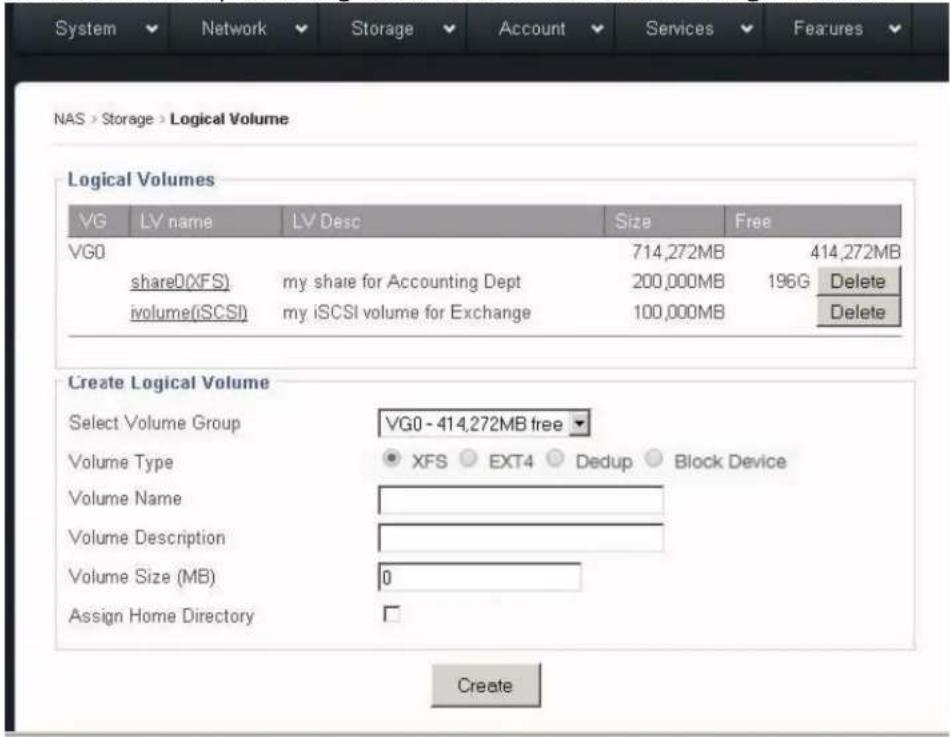
This is a typical illustraon for how it looks like aer a typical XFS share and an iSCSI target volume are created.
Volume Types:
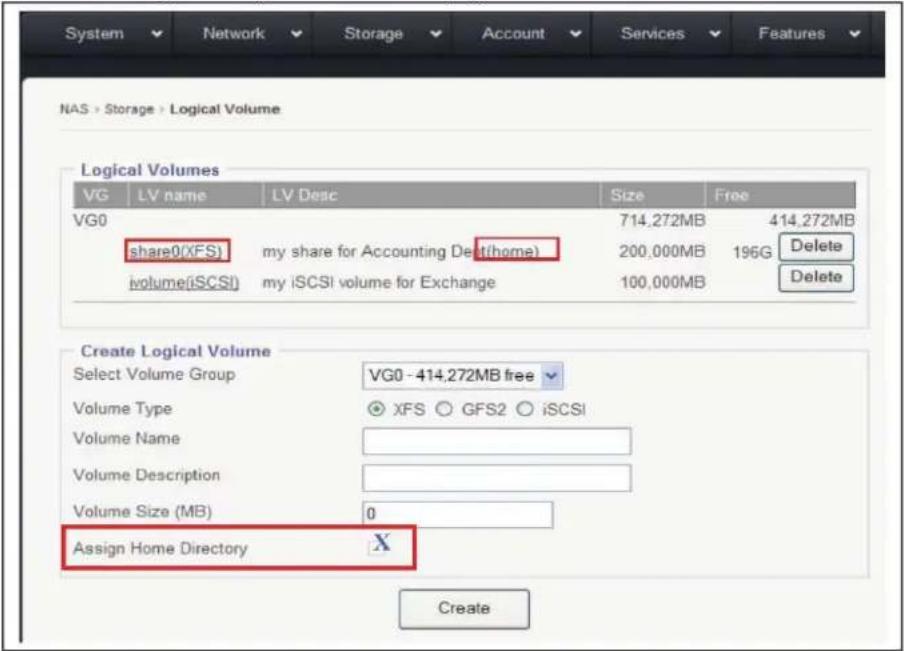
XFS/EXT4 – a XFS/EXT4 volume is to be created for network share(s). "Assign Home Directory" is an option used to create a "home" folder for each user on that network share. Regardless of how many XFS/EXT4 shares you may have, only one XFS/EXT4 share can be used to create "home" folder.
Block Device (iSCSI) – an iSCSI volume is used to create the iSCSI target volume, and it will act as a local disk to the remote iSCSI initiator.
iSCSI target volume has an extra eld: LUN# By default, the LUN# = 0. However, if you are using mulple iSCSI target volumes from mulple NAS units with
VMWare ESX, then you might need to adjust the LUN# on them so that no two iSCSI target volumes will have the same LUN#. Otherwise, ESX will assign the exact same ID to all the volumes and won't connect properly.
VG0 – It has 714,272MB in size, it has two LVs created on it, and it has 414,272MB free space for more LVs.
share0 – It is a XFS share from VG0, it has size of 200,000MB, which is all free. ivolume – It is an iSCSI target volume from VG0, it has size of 100,000MB, and since contents of an iSCSI volume is solely controlled by the iSCSI initiator, and the NAS will not show the Free space of it.
XFS volume target volume can be deleted by clicking "Delete." But they can also be "Modified."
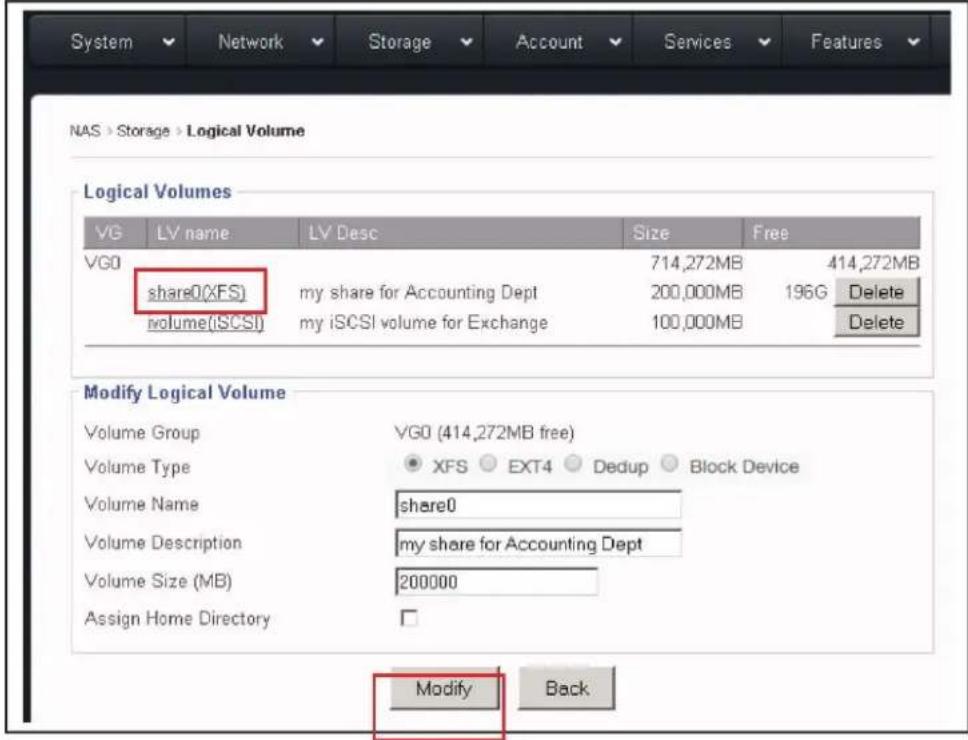
When clicking on an exisng LV name, the "Modify Logical Volume" window will display the corresponding LV info. In the "Modify Logical Volume" window, you can do:
Change the volume name: Enter the new volume name replacing the old volume name.
Increase the volume size: If the VG sll has free/available space, then enter the new larger size for the Volume Size.
Click "Modify" to save and apply changes or click "Back" to cancel.
Chapter 4: Top-Menu-Entry: "Account"
"Account" entry consists of following sub-menu entries/pages:
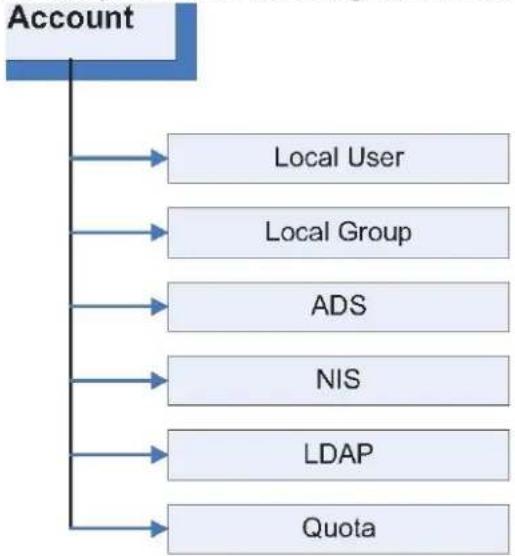
flowchart
graph TD
    A["Account"] --> B["Local User"]
    A --> C["Local Group"]
    A --> D["ADS"]
    A --> E["NIS"]
    A --> F["LDAP"]
    A --> G["Quota"]
Account entry is used to allow the administrator to do following funcons:
• Create local users and local groups
- Join Windows Acve Directory Service Server or PDC
- Join NIS server for Unix/Linux NFS clients
- Join LDAP server for Unix/Linux NFS clients (LDAP for SMB/CIFS clients is not supported)
- Assign quotas to users and groups
4.1 Account → Local User page
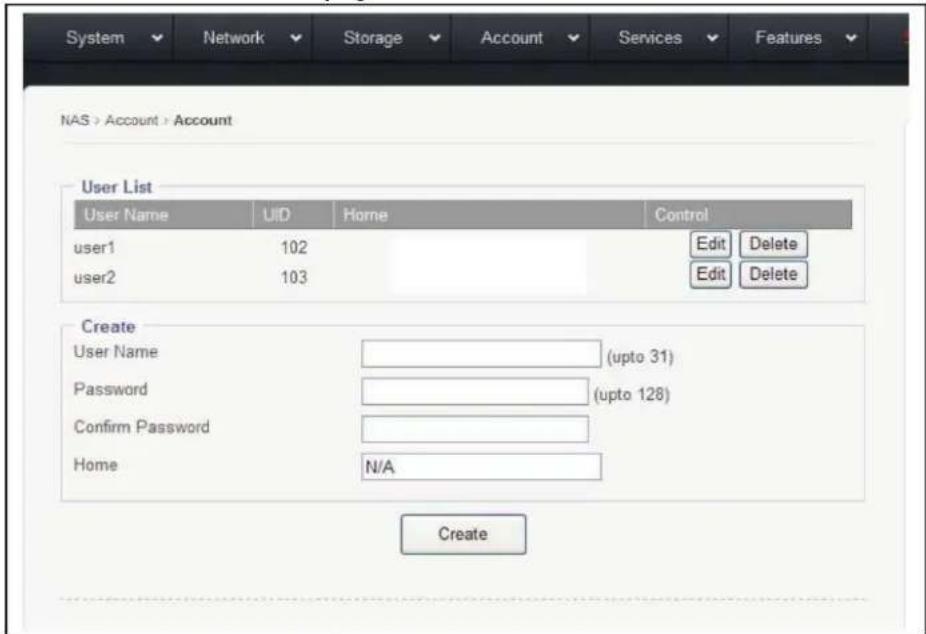
For Mac clients, they are considered local users, user accounts need to be created for them on this page.
For Windows clients on a Workgroup network, they are considered as local users, and need user accounts to be created for them on this page.
In other words, for Windows clients and Mac clients, if they are not syncing their user account info from ADS Server, NIS Server, or LDAP Server, then a local user account must be created on this page.
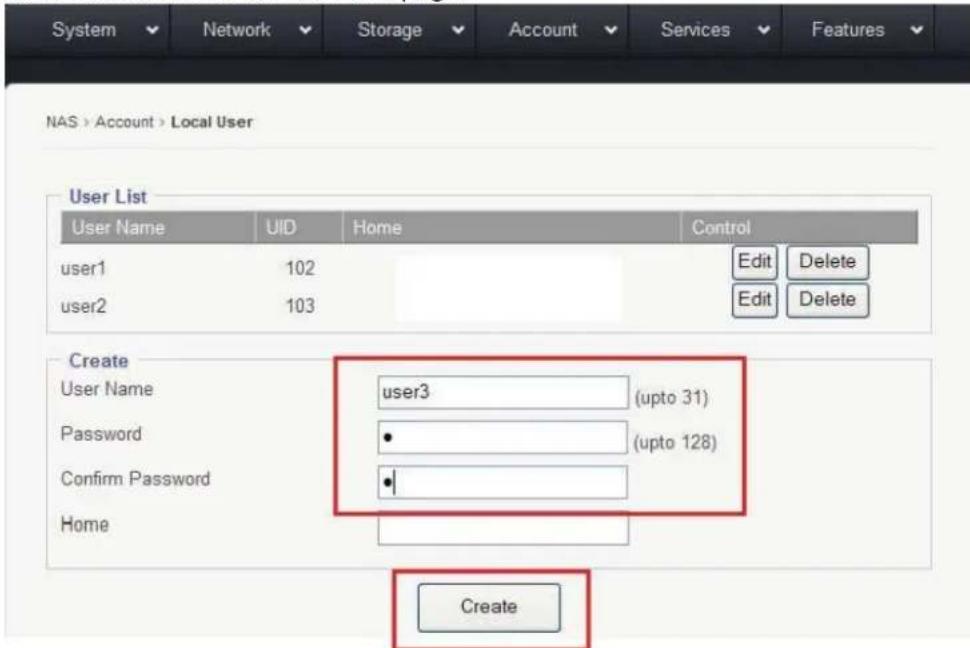
To create a new local user account:
- Enter a desired user name, up to 31 characters long
- Enter a desired password, up to 128 characters long
- Re-enter to conrm the password
- Click "Create"
4.2 What is 'Home' (Home Directory / Home Folder)?
The 'Home' opon is used to create a sub-folder under the designated XFS volume (network share) for each user with the user's account-name as the folder name. When a user logs into the network share, the user automacally has access to his/her home folder. Other users will not have access to this folder, unless the administrator uses the "Services → Access Control" to specifically modify which users are granted access. 'Home Directory' is also referred to as 'Home Folder'.
The 'Home' opon is only an opon, not a "must." It is purely dependent on the administrator's personal experience and habits. There are no standard rules on when to or when not to use this feature.
Most of the NAS units in the data center do not use this opon. But some IT sta found this "Home" opon to be handy and are very used to it.
4.3 How to create and use 'Home Folder'?
There are two steps to creang the 'Home Folder', and one step to assigning access permissions.
Step 1: Enable the "Assign Home Directory" opon for the selected XFS volume in the "Storage → Logical Volumes" page.
Step2: When creang a local user, the administrator is given an opon to create the 'Home' folder on the previously selected volume with the default path.
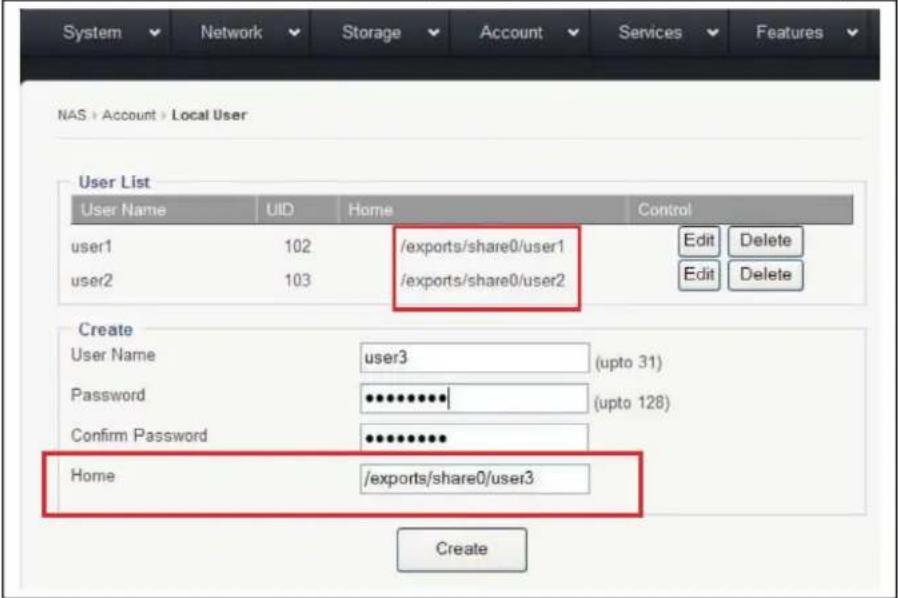
With the given example here: share0, user1, user2, and user3; it works like below.
Inside the share folder 'share0', there are the sub-folders: 'user1', 'user2', and 'user3'; the directory looks like this:
\\share0
\\share0\user1
\\share0\user2
\\share0\user3
When user1 logins to the share, user1 will see it like this:
\home
\share0
\user1
In here, the “\home” and “\user1” and “\share0\user1” are actually the same folder, it is just being displayed by dierent names at dierent locaons. The user1 will have the full access permissions to them by default. If user1 navigates to \share0, user1 will see all 3 sub-folders: \share0\user1, \share0\user2, \share0\user3; but only has access rights to the \user1 sub-folder. The access rights for user1 to other user’s home folder can be granted by “Service → Access Control,” which will be discussed in a later secon of this user guide.
When user2 logs into the share, user2 will see it like this:
\home
\share0
\user2
In here, the “\home” and “\user2” and “\share0\user2” are actually the same folder, it is just being displayed by dierent names at dierent locaons.
Noce now "\user1" has been replaced by "\user2" when user2 logins.
Step 3: Assign user access permissions to the volume/share in the “Services → SMB/CIFS” page. Please refer to the Top-Menu Entry –Services secon for more details.
4.4 Account → Local Group
Local Group is used to create a group(s) of local users, so that later on, the administrator can simplify the process on assigning Access Rights for a group of
users who share the same permissions instead of individually assigning rights to each user one by one.
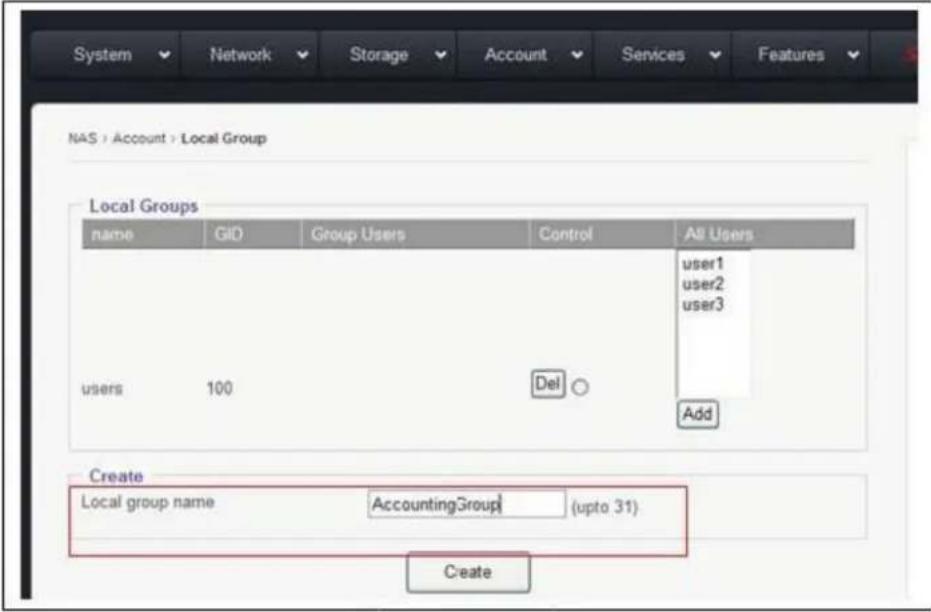
Creang Local Group: Key the group name in the Local group name eld, up to 31 characters long, without any spaces in between, and then click the "Create" buon.
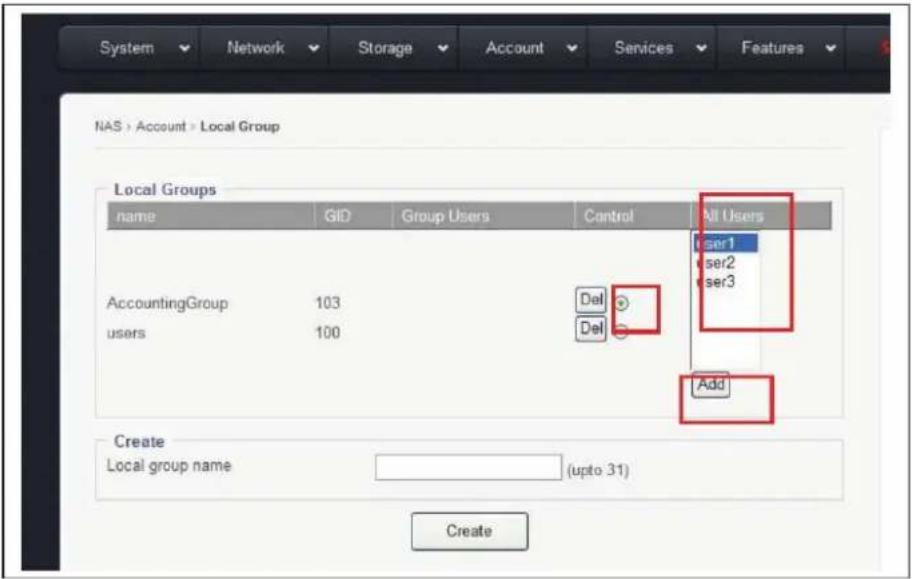
Adding Users to the Group.
Once the Group is created, the administrator can start adding users to it.
- Select the Group by clicking the lile round dot
- Select the user name from the "All Users" window
- Click "Add" to save changes
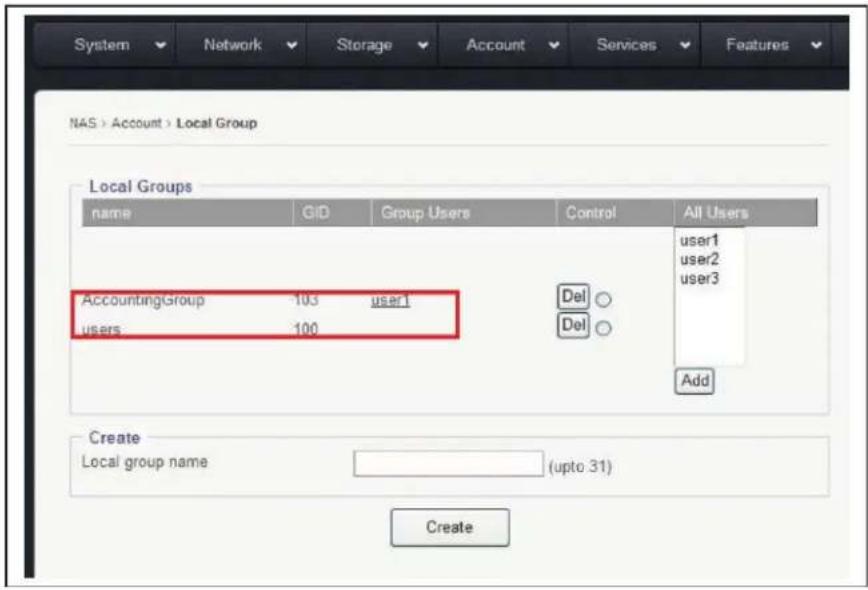
4.5 Account → ADS
This secon denes if the NAS will be in a stand-alone network (Workgroup), or if it will join the Microso PDC server, or if it will join the Microso Acve Directory Service server.
4.5a Workgroup
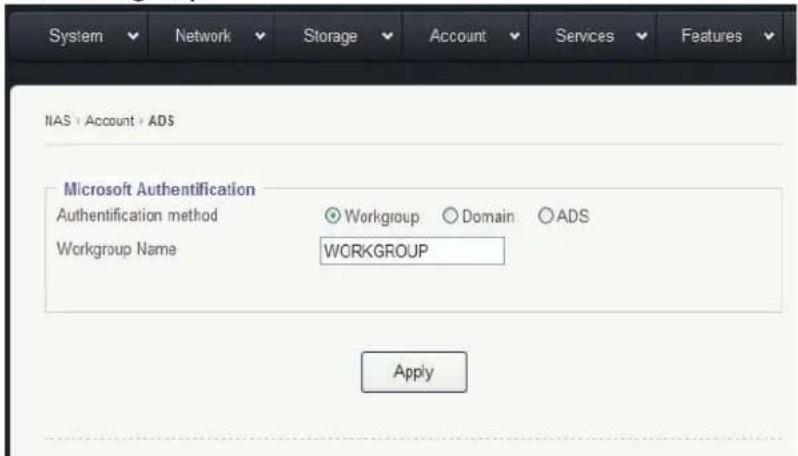
If PDC or AD Servers are absent in your network or if you have PDC/AD Server in your network but you don't plan to join the NAS to the domain for domain users, and then just select the "Workgroup" opon.
Either leave the name "WORKGROUP" as it is, or you may change it to a desired name, then click "Apply" to save the changes.
4.5b Domain
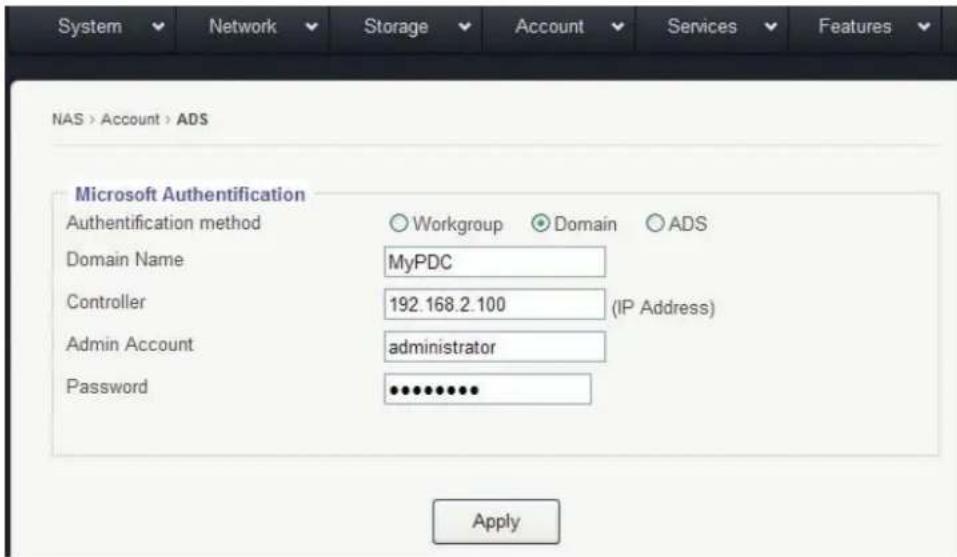
Domain is referring to the PDC created on a Windows NT or Windows 2000
Server. If using a Windows Acve Directory Service server, do not use the
"Domain" opon, instead use the "ADS" opon instead.
To join a PDC:
- Enter the Domain Name
- Enter the PDC's IP address in the "Controller" eld
- In the "Admin Account" eld, enter the Administrator ID (it can be a User ID who has the equivalent rights as the Administrator)
- Enter the password for the Administrator on the PDC
- Click "Apply"
4.5c ADS
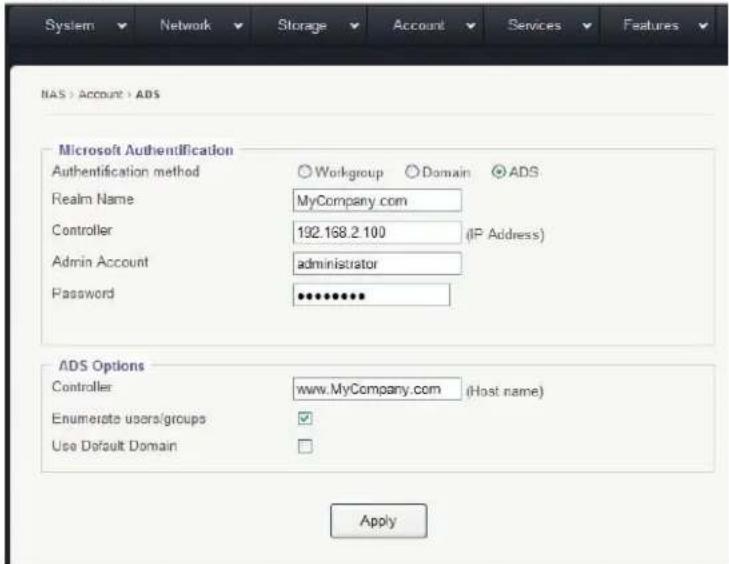
AD here is referring to the Microso Acve Directory Service server. If using a PDC based on Windows NT, then please do not use the "ADS" opon, use the "Domain" opon instead.
Prerequisites for Joining AD Server:
- Time Syncing
The me on the NAS should be in-sync with the ADS server, meaning that the me on the NAS should be set to the same me zone as the ADS server, and the me dience should be less than 2 minutes apart. The me syncing can be achieved by seng the NAS to a common NTP server (refer to Top-Menu-Entry: Features → NTP)
• DNS Server and Local Domain
Make sure to provide accurate DNS Server informaon and "DNS search path" (local domain) in the Top-Menu-Entry: Network → DNS page.
4.6d Joining ADS Server
Select "ADS" opon
Realm Name: = Domain Name = MyCompany.com
Controller: IP address of the ADS server
Admin Count: the administrator's ID, it is normally the “administrator”, but it could also be a user ID who has the administrator rights.
Password: the password for the administrator on the ADS server.
4.5e ADS Opon:
Controller (host name): Provides further detail info of the ADS server. The "host name" here is the FQDN (Fully Qualified Domain Name), such as:
www.MyCompany.com
Enumerate User/Group: This opon denes whether or not to sync users and groups on the ADS server into the NAS. When this opon box is checked, the NAS will sync users and groups from the ADS server to the NAS. Depending on the number of users and groups, this syncing process might take anywhere from a few minutes to a few hours. If there are too many ADS users and groups, it becomes unpraccal to do so, and the opon should be le un-checked.
When the ADS server has many users, normally they are divided into a few groups and each group shares the same access permissions characteristics. So
even without imporg the users and groups to the NAS, the administrator can manually type in the group names and assign access rights to them, plus a few excepons on users. This step is done in the Top-Menu-Entry: Service → SMP/CIFS sub-menu.
There is no hard-coded standard for how many ADS users are too many to use "Enumerate User/Group" opon. Couple hundred ADS users seems to be OK to enable it. Trial and error is the only way to determine actual capacity.
Use Default Domain: To the NAS, ADS user ID is in the format of: 'domain\user'. If "User Default Domain" opon is checked, then the user ID can be referred to as 'user' without the 'domain\' in the later on session: Top-Menu Entry: Service for ACL.
4.6 Account → NIS
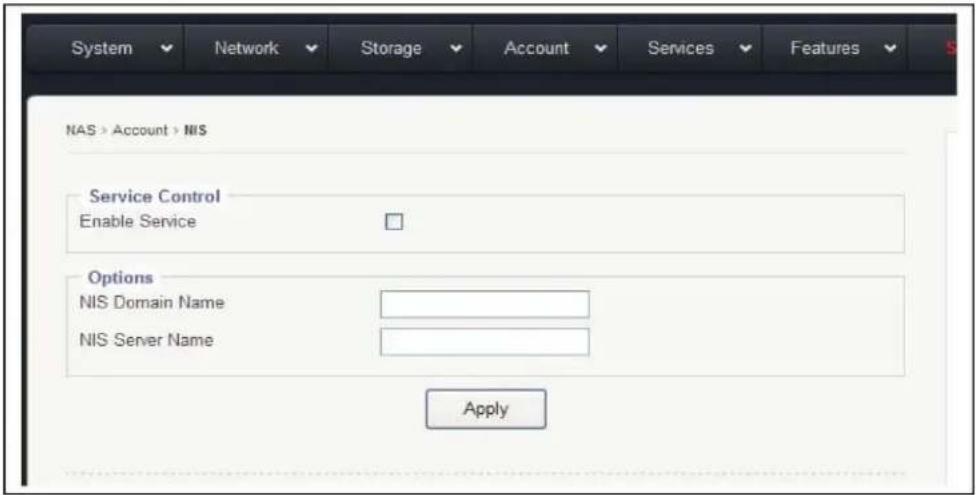
NIS: stands for Network Informaon Service. It is a naming and administraon system for smaller networks. Using NIS, each client or server computer in the system has knowledge about the enre system. A user at any host can get access to les or applicaons on any host in the network with a single user idencaon and password. NIS is similar to the Internet's domain name system (DNS) but somewhat simpler and designed for a smaller network. NIS Server is mostly used for Unix/Linux clients.
Not all Unix/Linux network use NIS servers. If you don't have a NIS Server in your network, just simply skip this chapter.
If you do have a NIS server and would like to use one for NAS authencaon, then,
- Enable the NIS service
• Key in the NIS Domain Name
• Key in the NIS Server Name
LDAP (Lightweight Directory Access Protocol) is a protocol used to access network directory for user/client authencaon.
Note: the LDAP service supported by our NAS system is for NFS clients only.
LDAP service for SMB/CIFS clients are not supported yet.
(NFS client = Unix / Linux clients; SMB/CIFS clients = Windows clients)
Enable Service: Check opon box to enable LDAP service.
Server: Either IP or Name of the LDAP server
Base dn: It is the LDAP Domain name, if the Domain name is: mycompany.com then it is in the format of: dc=mycompany, dc=com
User sux: Dened by the LDAP admin, used to get the user info from LDAP server.
Group sux: Dened by the LDAP admin, used to get the group info from LDAP server.
SSL: This displays if an encrypon is being used
Bind den: Administrator ID of the LDAP domain.
Credenal – Password of the admin ID on the LDAP domain.
Don't forget to click the Apply buon!
4.8 Account → Quota
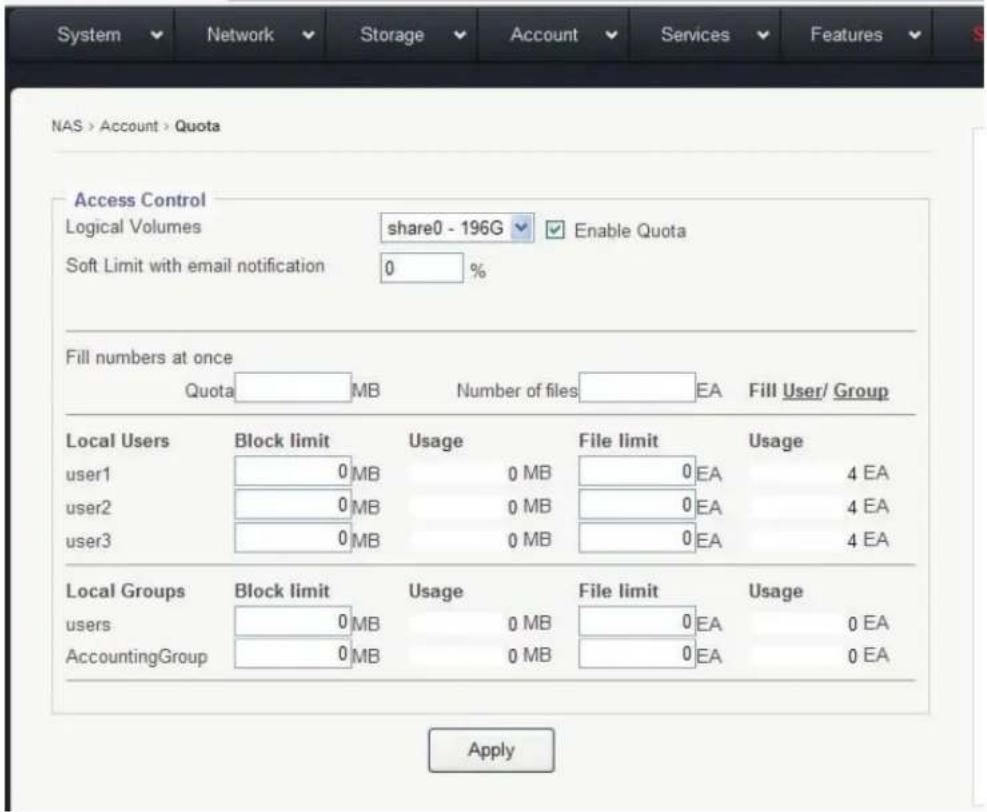
Quota means to assign storage limits to users or group of users. Quota can be either by size (MB – number of Megabytes) or by number of les.

Logical Volumes: Pick the Logical Volume which you will assign quota for.
Enable Quota: Check-mark the opon box to enable the Quota service.
So Limit with email nocao: Enter the % for approaching Quota-Full warning. When the used capacity has reached the predened % here, the system will automatically send out an email nocao to the administrator for warning.

Fill numbers at once – this is used to ll every and all users or groups with the same number of Megabytes or same number of les with one click-acon, so
that the administrator does not need to assign quota user by user or group by group.
Enter the number of Megabytes in the eld: Quota ____ MB or enter the Number of les for each user/group, in the eld: Number of les ____ EA Click on 'User' to ll the quota to each/all users or Click on "Group" to ll the quota to each/all groups
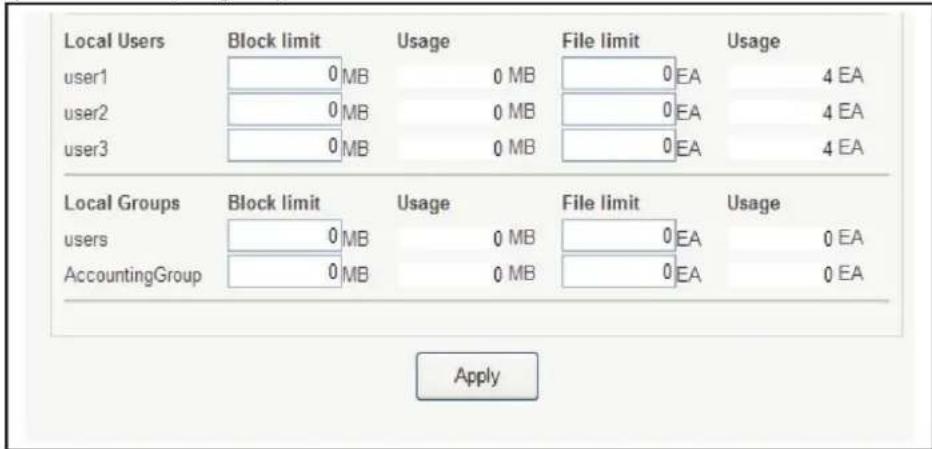
If you are not using the Fill numbers at once, then you can manually enter the quota for each user or group here.
Under the 'Local Users', all users are listed.
Under the 'Local Groups', all groups are listed.
Don't forget to click "Apply" buon.
Chapter 5: Top-Menu-Entry: "Services"
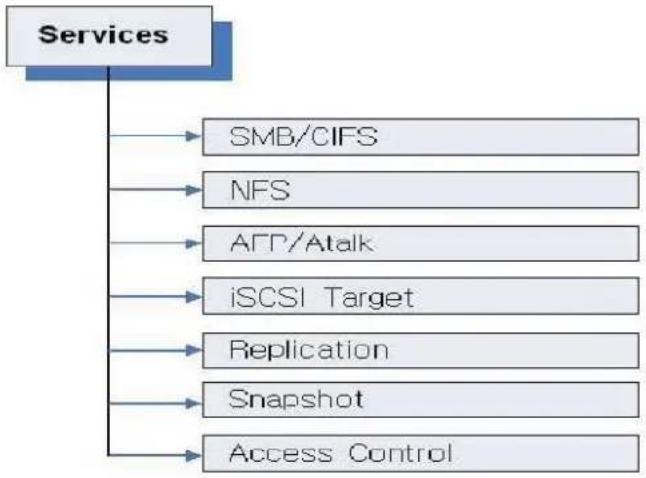
flowchart
graph TD
    A["Services"] --> B["SMB/CIFS"]
    A --> C["NFS"]
    A --> D["AFP/Atalk"]
    A --> E["iSCSI Target"]
    A --> F["Replication"]
    A --> G["Snapshot"]
    A --> H["Access Control"]
5.1 Service → SMB/CIFS page
Windows Screen Sharing Service Management: The SMB/CIFS Submenu allows access to sengs in order to manage sharing on Windows-based systems. All Logical Volumes created on the NAS are automatically enabled for SMB/CIFS Service.
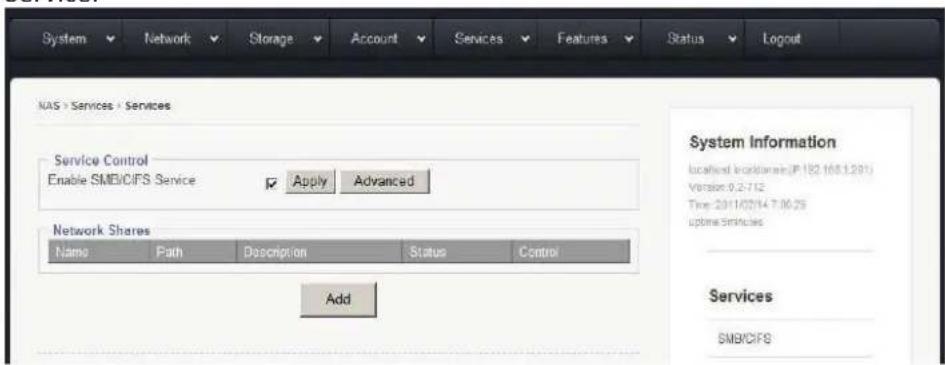
Enable SMB/CIFS Service
- Check "Enable SMB/CIFS Service" opon box
- Click "Apply" to save changes
Note: SMB/CIFS Service must be enabled for the NAS to share les on Windows-based systems.
Disable SMB/CIFS Service
- Uncheck "Enable SMB/CIFS Service" opon box
- Click "Apply" to save changes
5.1a Advanced
The "Advanced" buon brings up additional opons
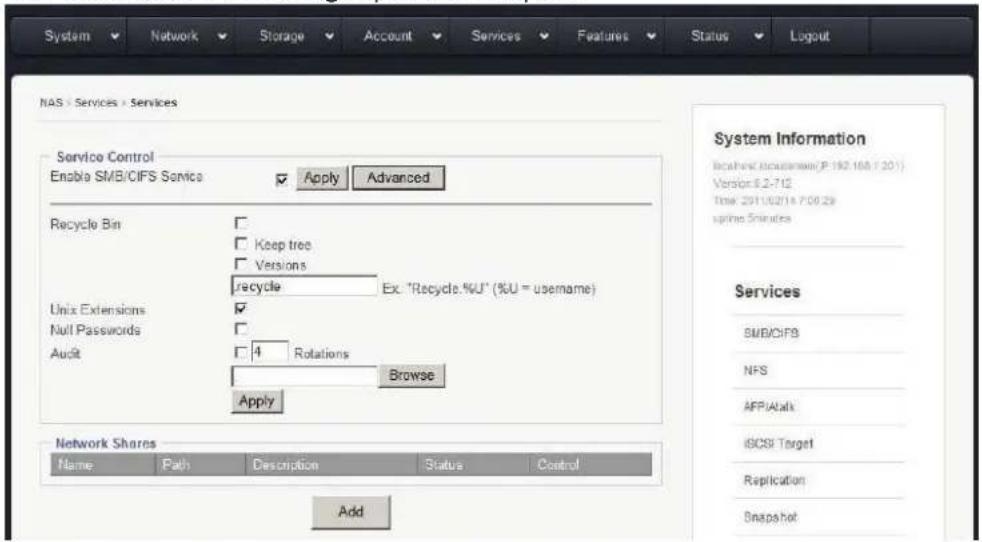
Advanced Opons:
Recycle Bin: By checking this opon box, the Recycle Bin funcon for SMB/CIFS client is enabled.
Keep Tree: This opon species if a directory structure should be kept, or if deleted les should be categorized separately in the recycle bin.
Versions: This opon lets two les with the same name exist simultaneously in the Recycle Bin. The newer le will be tled "Copy #x of 'le name.'"
Recycle Bin Text Box: This box denied where deleted les will be saved.
Note: Even if recycle bin is enabled (default “.recycle”), les will not be saved unless the proper command is entered.
To save les to users recycle bin, manually enter 'Recycle.%U" in the text box. User deleted les will be saved in the format "recycle.user#." For example: User 1 deleted les will be saved in "recycle.user1."
Unix Extensions: Unix le extensions allow user to support features such as: symbolic links, hard links, ect. This feature is enabled by default.
Important: On Mac OS 10.4.x and later versions, this feature must be turned to avoid “le access permission” issues on Mac clients running SMB protocol.
Null Password: This opon allows SMB clients to log on without a password.
Audit: In the case of an audit log being greater than 10MB in size, it will be renamed "audit.log.1." and begin looping to "audit.log."
Rotaons: The number entered into this text box dictates on how many rotaons will be saved. For example, entering 4 into the box will result in log les being generated up to "audit.log.4." Then the program will begin to overwrite "audit.log.1."
Important: Changes in sengs will not be saved unless the "Apply" buon is clicked.
5.1b Edit CMB/CIFS Access Control
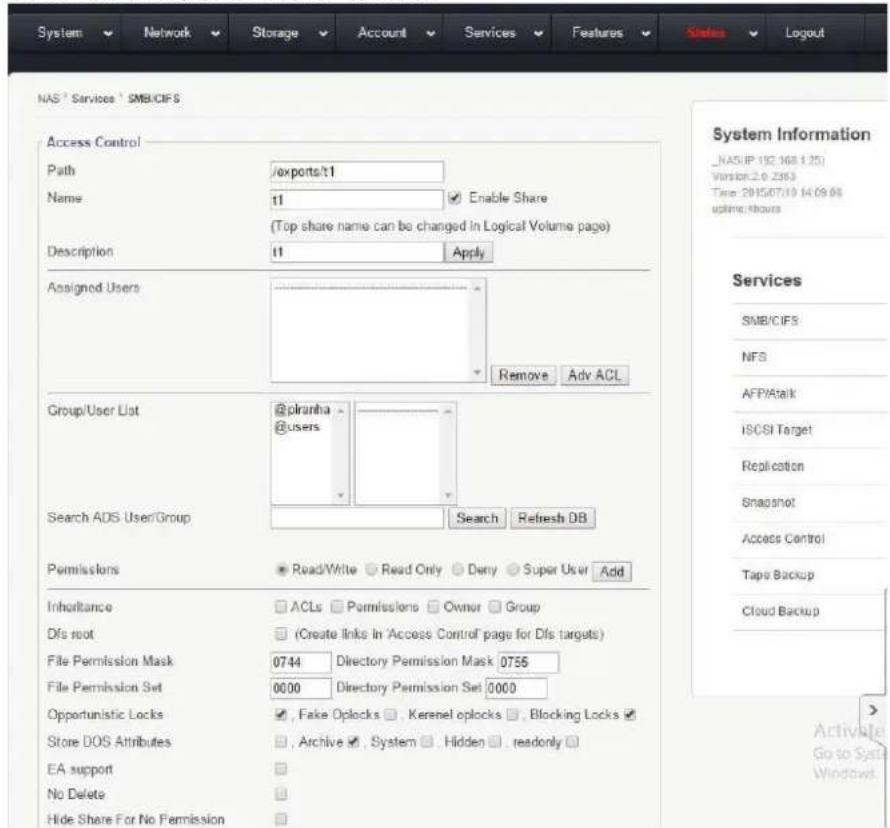
Path: Path lists the full path/locaon of a share.
Name: The text box allows you to name a share. There is also a check opon box that lets you enable/disable the share.
Descripons: This text box shows the descripon given to the share when created.
Group/User List: This window shows available Groups and Users that can be assigned access to certain shares.
Search: This text box allows one to search for a specific Group or User.
Permission: Use this open to assign share access rights to selected users. Use the "Add" Buon to apply permission to a group/user.
Inheritance: Use this seng to apply ACL's, permissions, owner and group properes to sub-folders and les created using the Inheritance opon.
DFS Root: This opon generates links on the Access Control Page for DFS Targets. Enables mulple NAS Aggregaon for SMB/CIFS clients.
File Permission Mask: Sets default permissions for all les created aer File Permission Mask opon has been enabled.
Directory Permission Mask: The Directory Permission mask sets default permissions to all directories and/or folders created aer enabling this opon.
File and Directory Mask Formats: A code is used with this format "0" followed by 3 numbers. (0XXX).
The rst X refers to the owner of the le/directory
The Second X refers to the group assigned to the le/directory
The third X refers to other users assigned to the le/directory
These numbers "X" Can take a total of 6 values.
4: Read Only
2: Write Only
1: Execute Only
5 (4+1): Read and Execute Only
6 (4+2): Read and Write Only
7 (4+2+1): Read, Execute, and Write
Example:
0742
Owner has all rights
Group assigned can read only
Other groups can write only
Opportunisc Locks: This opon is used to improve performance when mulple people or devices are accessing the same le on one network.
Note: This opon is enabled by default.
Store DOS Aributes: Enable this opon in order to run legacy MS DOS based programs.
Hide Files: Use this eld to manually hide les on a share.
Host IP Blocking: This opon is used to give permission or to deny access towards certain hosts, or range of hosts.
Allow: This opon allows you to list all users who are allowed to access a share.
All others will be denied access.
Deny: This opon allows you to list all users who are not allowed access to the share. Those who are not listed will be granted access.
5.2 Service → NFS
This submenu houses the sengs to control client access via the NFS Protocol
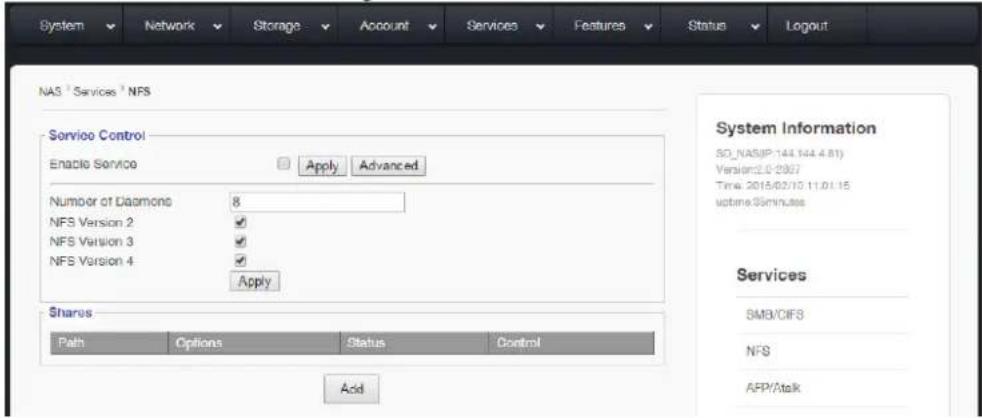
Enable Service: This opon enables NFS service
Number of Daemons: Enter the correct number of Daemons
Shares:
Path- shows the path/locaon of directory
Opons- Shows permissions set to each directory
Status- Shows whether a NFS service is enabled
Control- Use these controls to enable, disable, or to delete NFS shares
5.2a Edit NFS Access Controls
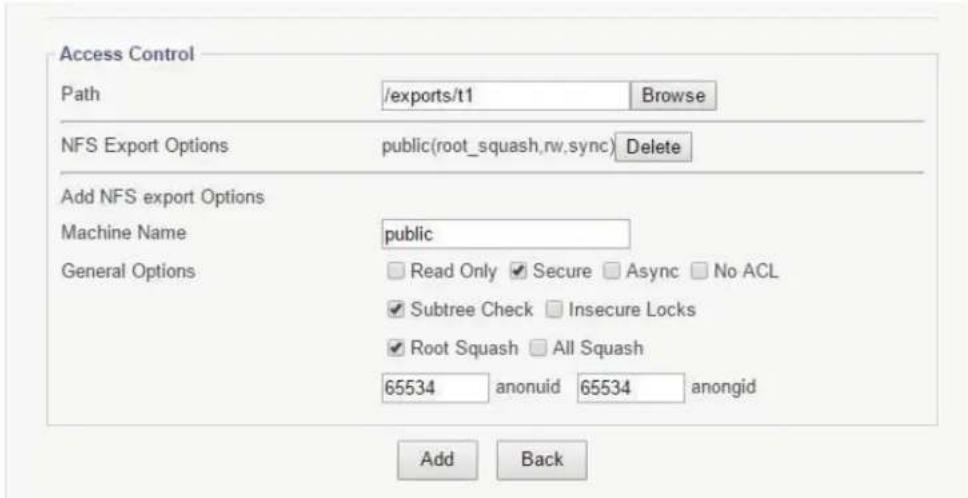
Machine Name: Sets NFS Export Name
General Opons:
Read Only- Limits users from wring new data or changing exisng data
Secure- Requires requests to be made on internet ports less than IPPORT_RESERVED (1024). To turn o this feature, check "Insecure Locks." This must be disabled for access on Macintosh.
Async- This opon allows NFS server to violate NFS protocol and reply to requests before the disk commits said request. This opon usually is correlated with an increase in performance but can also cost data lost in the event of a hard server crash.
No ACL- On systems that do support ACLs, this opon tells nfsd not to reveal ACLs to clients. Note: No ACL opon only has an eect when the system is patched to support ACLs. Safe for use by NFSv2 and NFSv3 clients.
Subtree check- this opon enables or disables subtree checking. Although there are some security implications involved, reliability can improve in certain cases. This refers to the extra step that the server must take to check not only the accessed le, but also the exported tree.
Insecure Locks- This opon tells the NFS Server to not require authencaon of locking requests. No access checks will be performed if this opon is selected.
Root Squash- Maps requests between the UID/GID 0 and the anonymous UID/GID.
All Squash- Maps everything between UID/GID 0 and anonymous user.
Anonuid and Anongid- Explicitly set the uid and gid of anonymous user. Usually this feature is used if one wants all users accessing to seem like 1 user.
5.3 Service → AFP/Atalk
The Apple Filing Protocol (AFP) Access Control
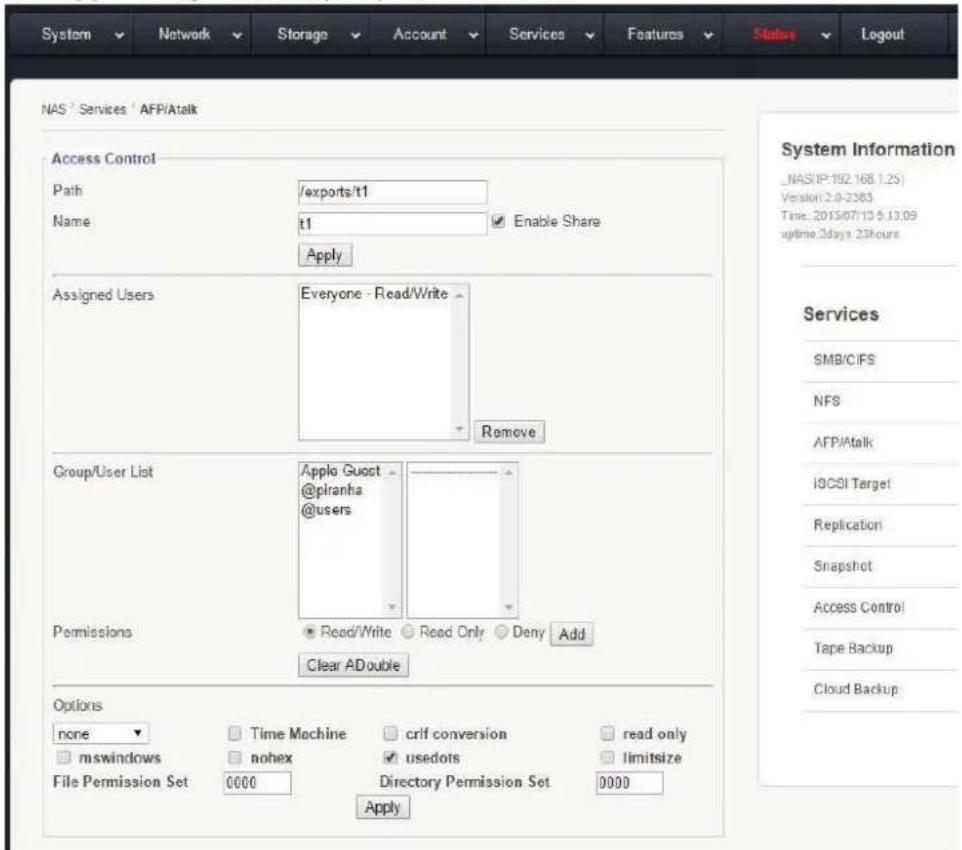
Path: Use this funcon to set the locaon of the share
Name: Use this funcon to name the share. The adjacent opon box enables or disables the share.
Assigned Users: This window displays users who have been granted access to the share.
User/Group List & Permissions: This window displays all available users who can be granted access to the share. To grant a user access, click on their name and chose an opon of: "Read/Write, Read Only, or Deny." To save change, click "add."
Opons: Drop down bar
None- No changes will be made
Tolower- forces all names to be lower case for both direcons of the share.
Toupper- forces all names to be upper case for both direcons of the share.
Xlatelower- AFP client sees lower case and client sees upper case.
Xlateupper- AFP client sees upper case and client sees lower case
Mswindows- checking this opon box improves performance for Windows NT, 2000 and 2003 systems.
Prodos- This funcon improves communicaon with Legacy Apple II OS.
CRLF Conversion- This feature converts line feeds and carriage returns from UNIX to Windows and AFP compatible formats.
Read Only- This opon forces read only communicaon
Nohex-This opon disables hex translaons for all les but DOT les
Usedots- This opon shows le names with conguraons that begin with “.”
Limitsize- This opon limits each le to a 2GB maximum.
File/Directory Permissions Set- Sets default permissions for users accessing les via: AFP. Follow this format:
A code is used with this format "0" followed by 3 numbers. (OXXX). The rst X refers to the owner of the le/directory.
The Second X refers to the group assigned to the le/directory The third X refers to other users assigned to the le/directory
These numbers "X" Can take a total of 6 values.
4: Read Only
2: Write Only
1: Execute Only
5 (4+1): Read and Execute Only
6 (4+2): Read and Write Only
7 (4+2+1): Read, Execute, and Write
Example:
0742
Owner has all rights
Group assigned can read only
Other groups can write only
5.4 Service → iSCSI Target page
iSCSI Target Service Management
This sub menu displays the sengs to enable/disable access via iSCSI.
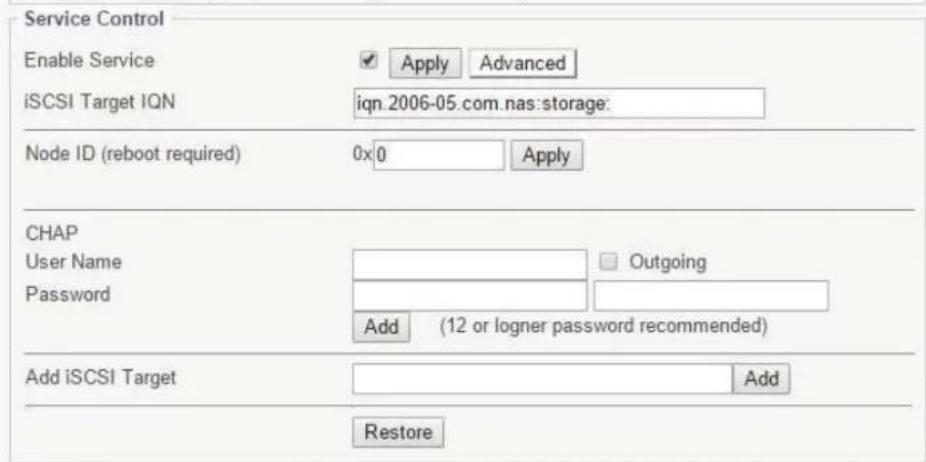
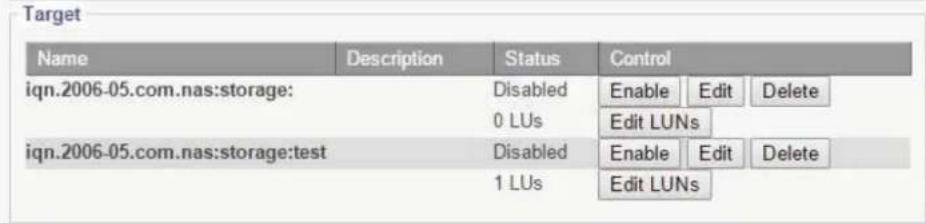
Enable Service: This opon box enables iSCSI service when checked.
Target IQN: Shows the IQN of iSCSI target.
Node ID: Up to 8 digits, used to avoid having the same ID generated by VMWare ESX hosts when mulple NAS systems are used on the same network.
CHAP Conguraon:
User Name: Enter the desired user name.
Password: Enter the desired password, re-enter in the second text box to conrm correct password.
Outgoing: Use this feature for mutual CHAP authencaon. Add: Saves changes of CHAP.
Add iSCSI Target: This feature is used to create a new iSCSI target IQN.
To add iSCSI target:
- Click "Advanced" to open "add iSCSI" opon.
- Copy "iSCSI Target IQN."
- Paste "iSCSI Target IQN" into "Add iSCSI Target" Text box
- Enter a name aer the IQN Target (ie. iqn.2006-05.com.nas:storage:backup)
- Click "Add" to save changes.
Restore: Use this funcon to restart SCST services. This helps restore conneccon with exisng iSCSI targets.
Target:
Enable/Disable- used to grant/prevent access to iSCSI Target
Edit- Use this funcon to edit iSCSI target funcons:. IQN Name, IQN Descripon, CHAP controls, Host IP Block, and Logical Volumes Assignments.
Edit LUNS- Used to manage block-type logical volume access via iSCSI Target.
Edit LUNS
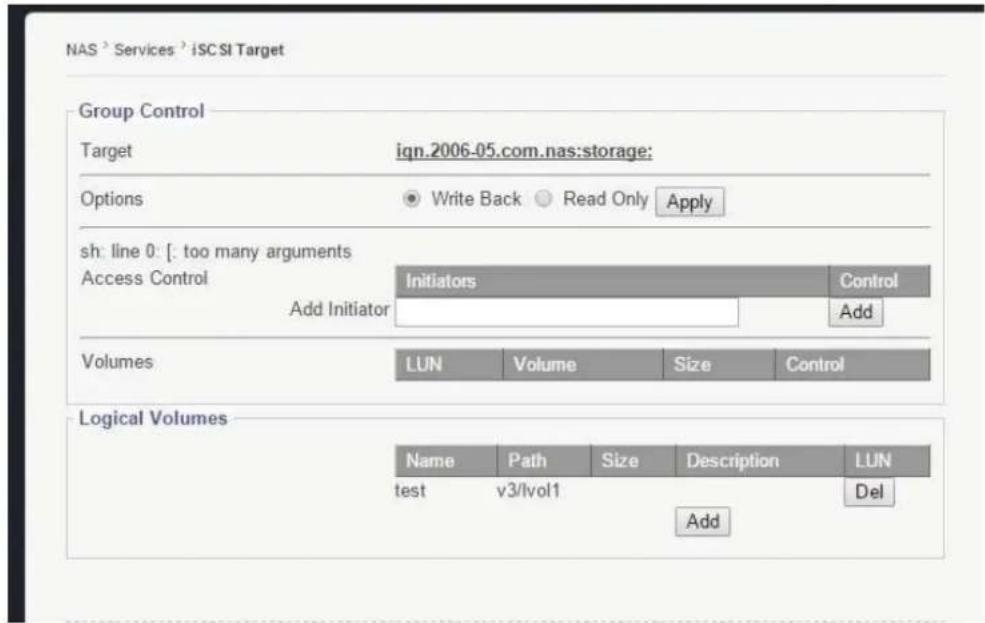
- Target- shows iSCSI Target selected for eding.
- Opons- Grants permission to write or read only.
- Access Control- Used to add/delete initiators from the NAS.
- Volumes- displays current Logical Volumes assigned to this target.
- Logical Volumes-To add LUN, enter a LUN number and click "add." Entry will now be visible on the "Volumes" box.
5.5 Service → Replicaon page
This sub-menu displays the sengs to congure the NAS to replicate to another remote NAS system.
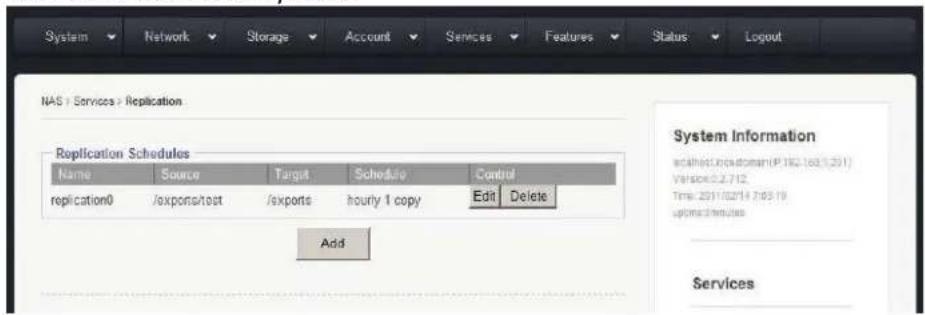
5.5a Adding a new Replicaon Schedule
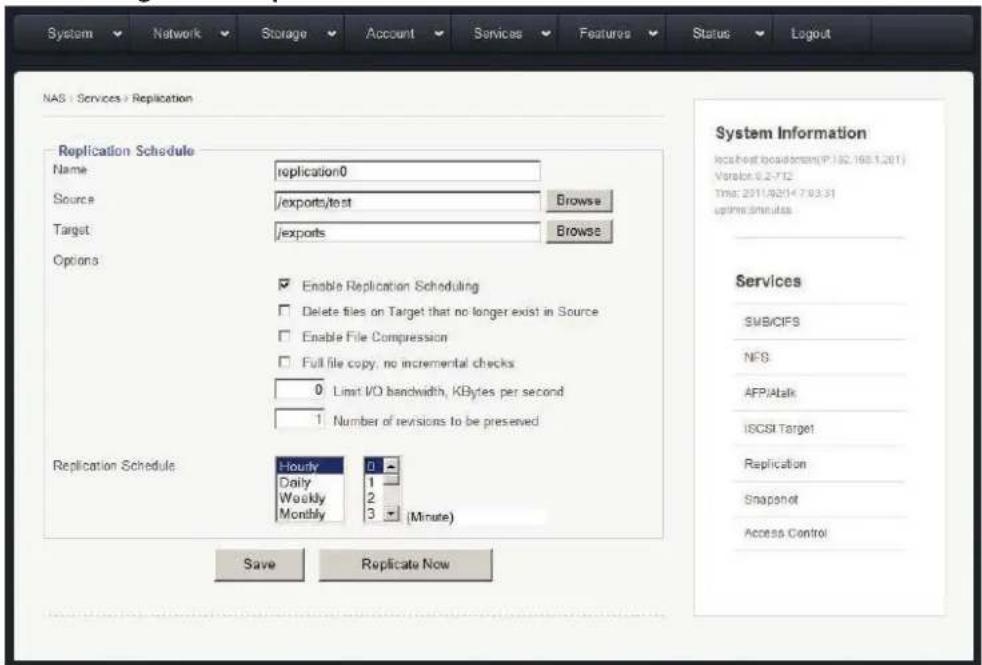
- Click "add" buon to access the Replicaon Schedule editor screen
- Name- Set name for replicaon job
- Source- click "browse" to nd source volume
- Target- click "browse" to nd target volume
- Enable the "Enable Replicaon Scheduling" opon
- Enable the "Delete les on Target that no longer exist in Source" opon
- Enable the "File Compression" opon if so desired
- Enable the "Full File Copy, No Incremental Checks" opon if desired
- Enter a value for bandwidth limitaon if so desired
- Enter the number of revisions desired
- Set desired Replicaon Schedule
- Click "save" to apply changes.
5.6 Service → Snapshot page
This sub menu allows for managing of scheduled snapshot services.
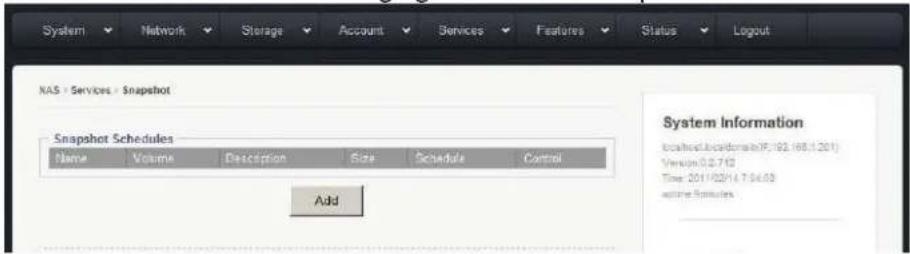
5.6a Adding new Snapshot Schedule
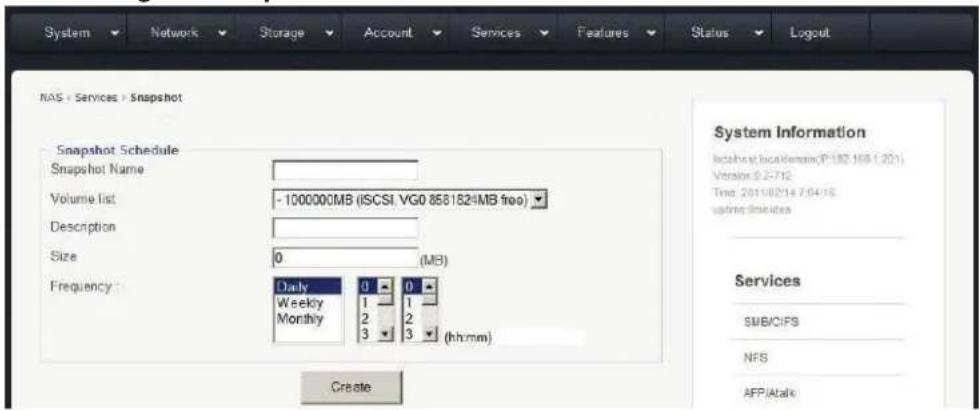
- Snapshot Name- Enter desired name of snapshot schedule
- Volume List- Select the desired volume from the drop down menu
- Descripon- Enter a descripon for the snapshot schedule to aid in idencaon
- Size- Enter the desired snapshot size
- Frequency-Set the desired frequency of snapshots
- Click "Create" to save changes and add the new Snapshot schedule
5.7 Service → Access Control page
This sub menu houses the sengs to control user access to shared le directories/ group permissions.
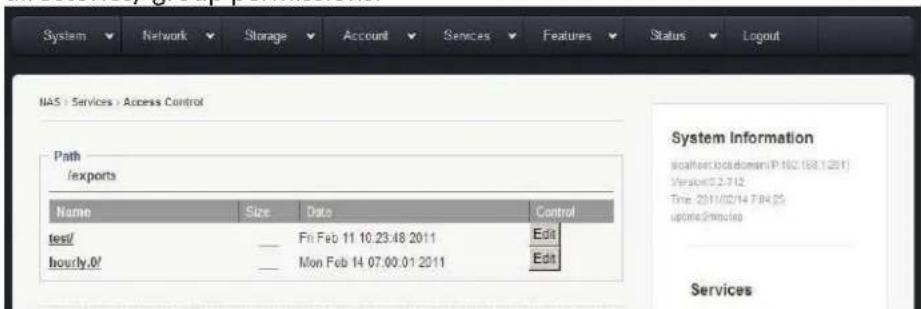
5.7a Edit
Use this buon to open menu to congure user access controls.
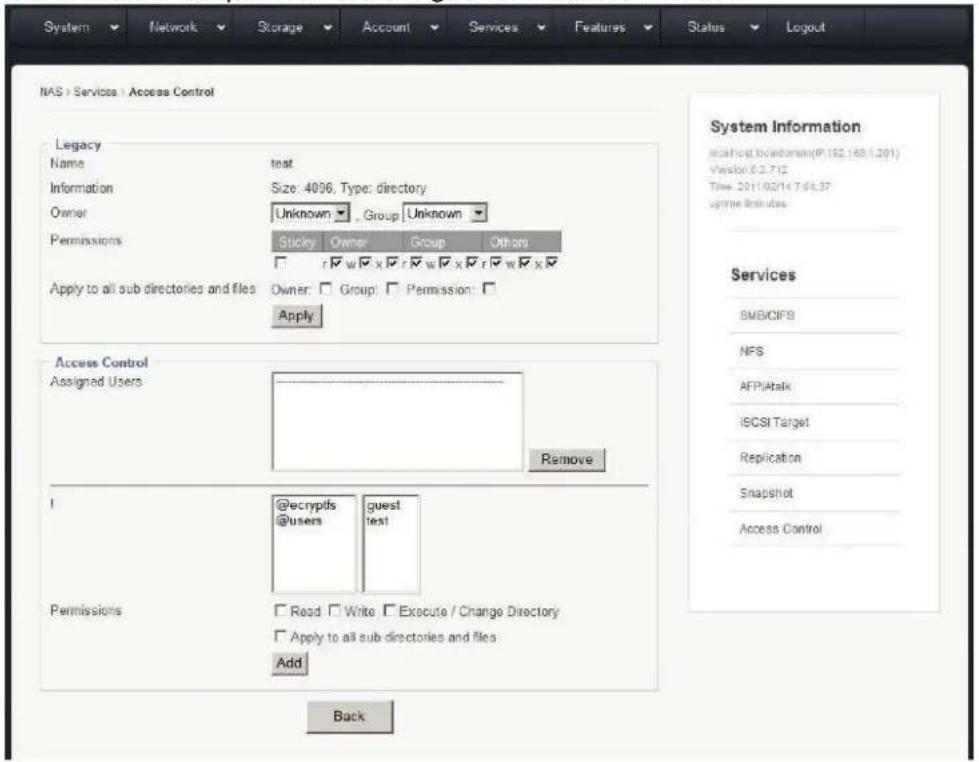
Name: Displays the user that is being edited
Owner: Drop down menu that sets the owner of the share
Group: Drop down menu that sets a group to assign user to
Search User/Group: Feature used to search for a specific user or group
Permissions: Used to set certain permissions granted to owner, group, others, or scky
Apply to all sub directories and les: Used to choose whom is aected by changes in sengs
Assigned users: This window displays all users assigned
Group/User List: This window displays each user and group
Permissions: Used to set permissions for selected users or groups
5.8 Tape Backup
This page displays the sengs to manage tape backups.
NAS ^3 Services ^3 Tape Backup
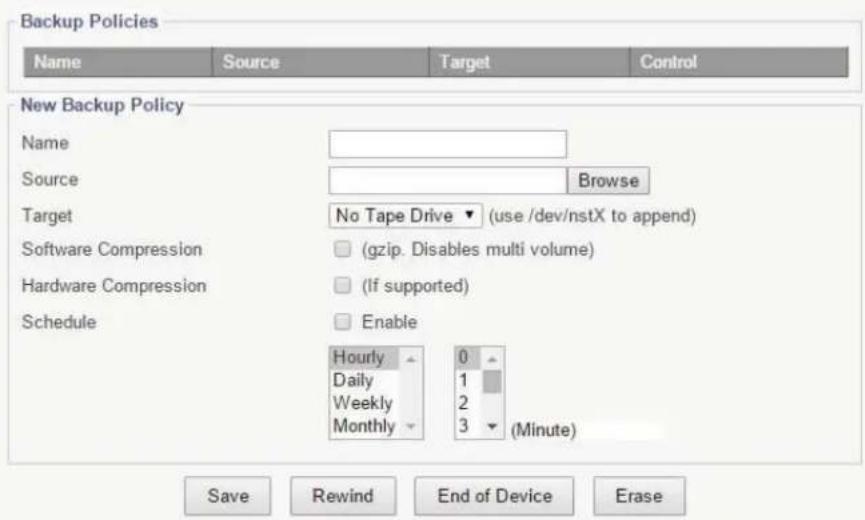
Name: Enter desired name of backup policy
Source: Select the source directory
Target: Select device where backup will be written
Soware Compression: Enable this opon to turn on soware compression
Hardware Compression: Enable this opon to turn on hardware
compression
Schedule: Set the desired schedule of backup frequency
5.9 Cloud Backup
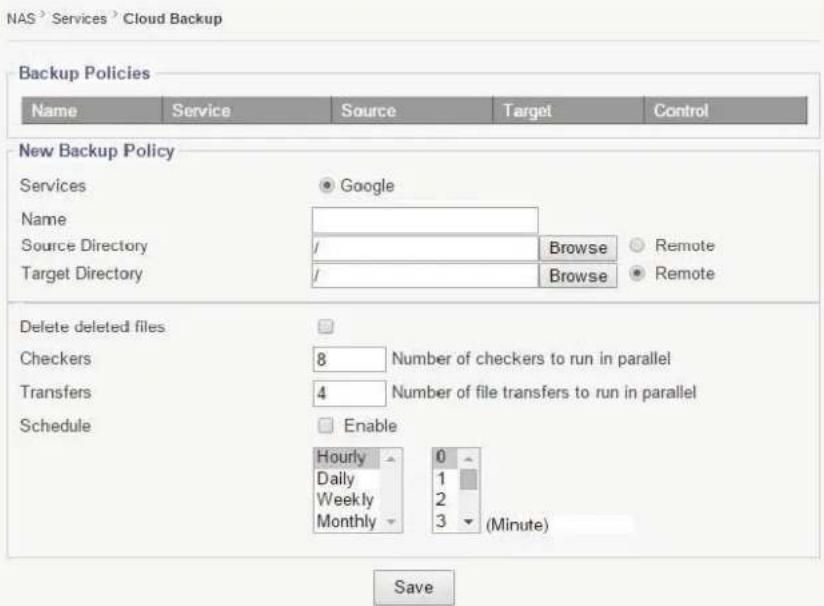
Services: Select service provider for Cloud Backup service
Name: Enter the desired name of the backup
Source Directory: Choose a source directory from the browse list
Target Directory: Choose a target directory from the browse list
Delete deleted les: Checking this opon box deletes les that have been
deleted
Checkers: Enter number of checkers to run in parallel
Transfers: Enter number of le transfers to run in parallel
Schedule: Check this opon box to enable cloud backup scheduling.
Enter schedule desired for cloud backup
Chapter 6: Top-Menu-Entry: "Features"
"Features" entry consists of the following sub-menu entries/pages
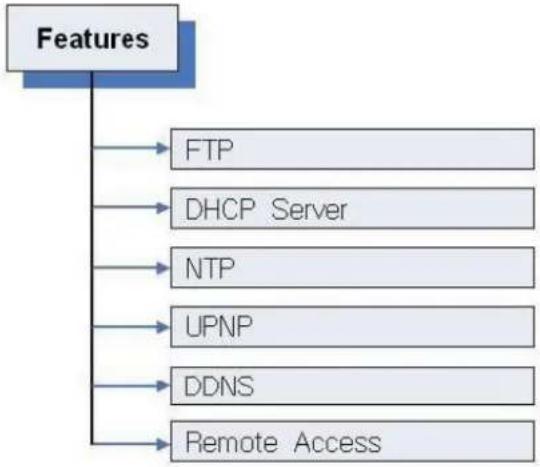
flowchart
graph TD
    A["Features"] --> B["FTP"]
    A --> C["DHCP Server"]
    A --> D["NTP"]
    A --> E["UPNP"]
    A --> F["DDNS"]
    A --> G["Remote Access"]
6.1 Features → FTP Service Management
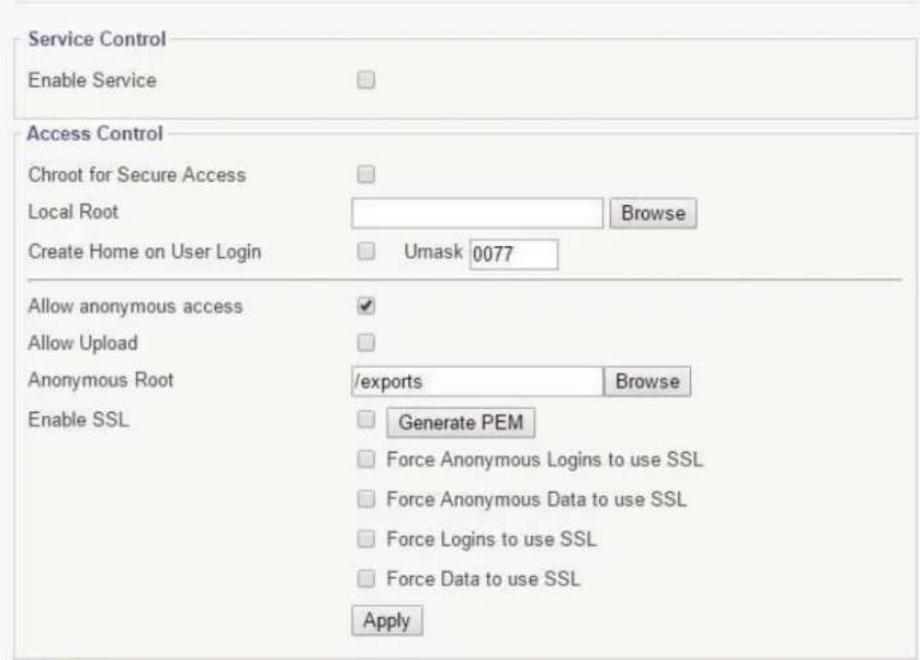

Enable Service: This check opon box enables FTP Service
Create Home on User Login: Enabling this feature automacally creates a
"home" folder for the user
Allow Anonymous Access: Enabling this feature grants anonymous users access to the FTP folder
Allow Upload: Enabling this feature allows users to upload les to the FTP folder
Anonymous Root: Use the browse buon to select a locaon for the
Anonymous Root folder
Enable SSL: Enables SSL encrypted communicaon between User and FTP
Service
Generate PEM-Generates cercate for SSL service
Force Anonymous Logins to use SSL- Forces Anonymous Users to only access via SSL
Force Anonymous Data to use SSL-Forces data transmissions to be logged as "Anonymous User" on FTP
Force Logins to use SSL-Forces all logins to use SSL encrypon
Force Data to use SSL-Forces all data to use SSL encrypon
Enable/Disable FTP Shares: Click the buon to enable/disable FTP Shares
6.2 Features → DHCP Management
This sub menu contains the opons for conguring the DHCP Service.
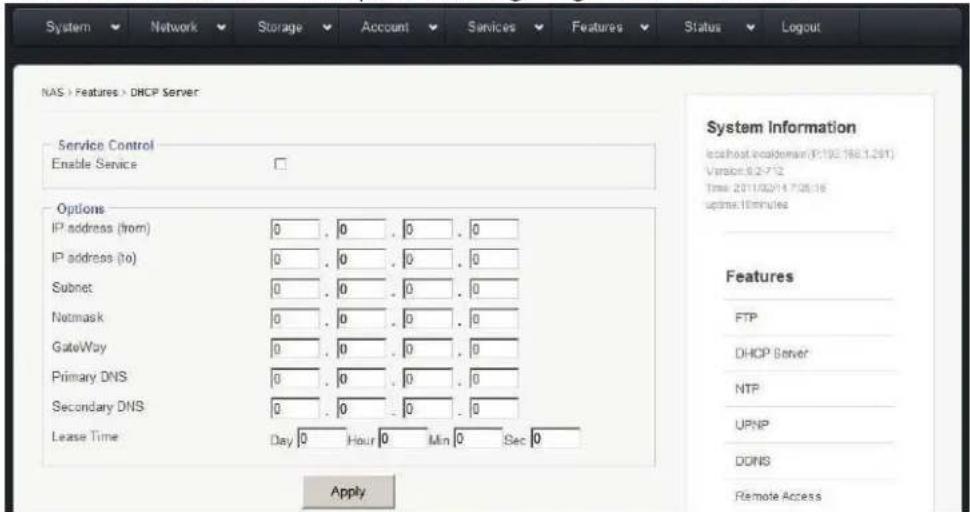
- Enter IP address range that will be given to clients
- Enter a desired subnet mask IP
- Enter a desired netmask IP
- Enter a desired Gateway IP
- Enter the Primary DNS IP
- Enter the Secondary DNS IP
- Enter the length of lease term desired
- Select Apply to save changes
6.3 Features → Network Time Service Management
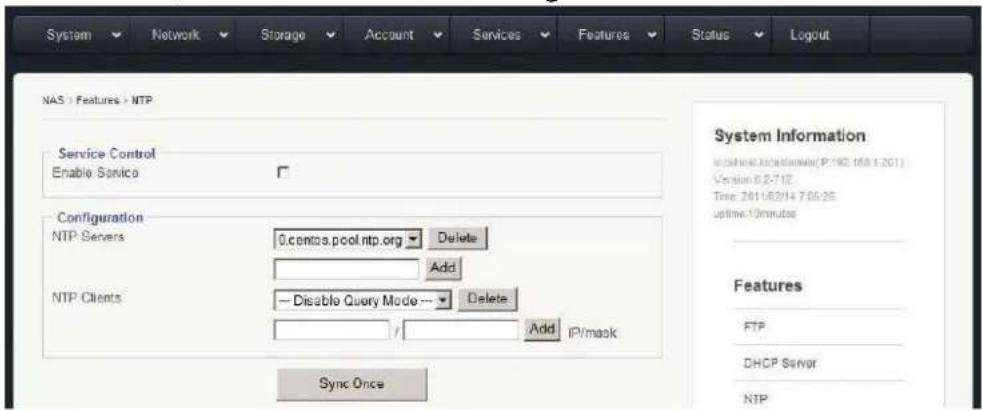
To enable NTP Service:
- Check the "Enable Service" opon box
- Select a pre-exisng NTP Server or add a new NTP server by entering its IP address and subnet elds and clicking "add"
- Click the "Sync Once" buon sync NTP Service with the NTP Server
Add/Remove NTP Clients
- Enter IP address of client
- Click "add" to add client, click "delete" to remove client
- Click the "Sync Once" buon to sync NTP Service with the NTP Server
6.4 Features → UPNP
UPNP stands for Universal Plug and Play, this feature allows users to see each other's presences on the network for data sharing.
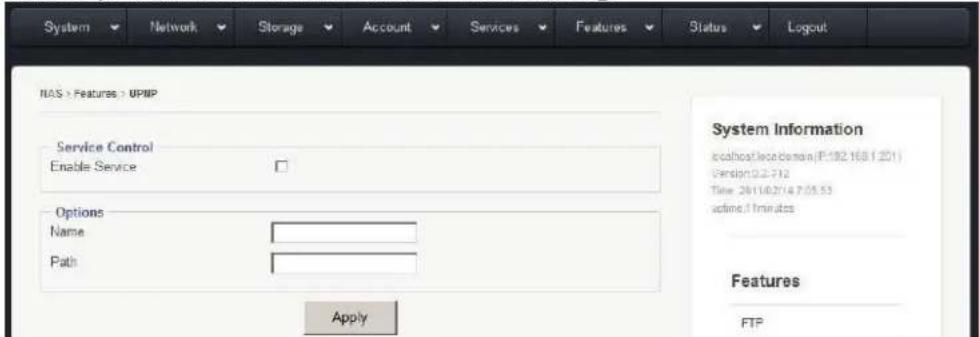
To Enable UPNP:
- Check "Enable Service" opon box
- Enter a desired "name" of share
- Enter desired "path" of the share
- Click "Apply" to save changes
6.5 Features → DDNS Management
This page displays the menu for conging the DDNS Service.
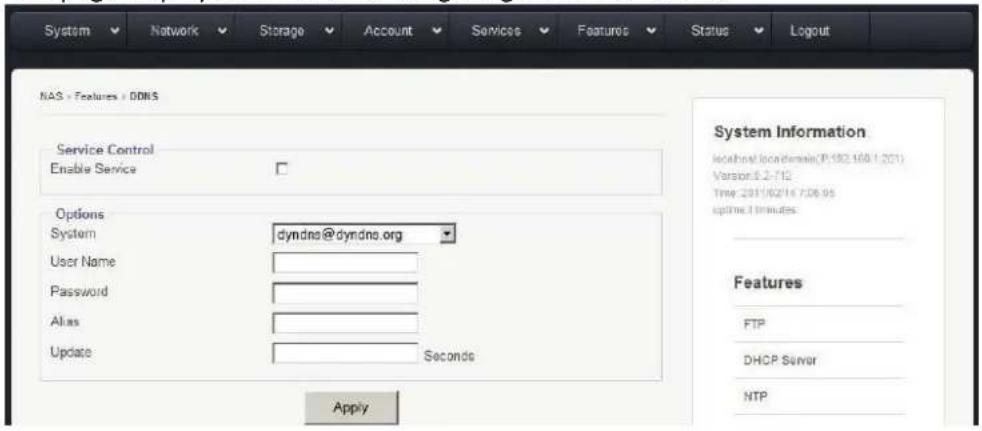
To enable DDNS Service:
- Check the "Enable Service" opon box
- Select a service via the drop down menu
- Enter a desired username for the DDNS Service Account
- Enter a desired password for the DDNS Service Account
- Enter a DDNS Alias
- Enter a DDNS Update frequency (seconds)
6.6 Features → Remote Access Management
This page displays the sengs for conguring Remote Access.
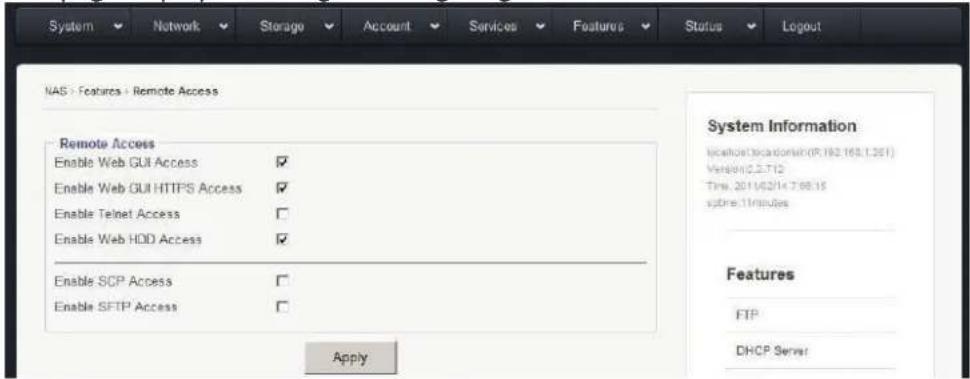
Enable Web GUI Access: Select this opon box to enable web browser access to the Graphical User Interface
Enable Web GUI HTTPS Access: Select this opon box to enable secure browser access to the Graphical User Interface
Enable Telnet Access: Select this opon box to enable access via Telnet conneccons
Enable Web HDD Access: Allows users to access their own folder via Web GUI instead of FTP or SMB
SCP Access: Selecting this option box directs the use of a Secure Copy access
Chapter 7: Top-Menu-Entry: "Status"
"Status" entry consists of the following sub-menu entries/pages: The Status menu shows an array of informaon to help ensure that your NAS system is running at an opmal level.
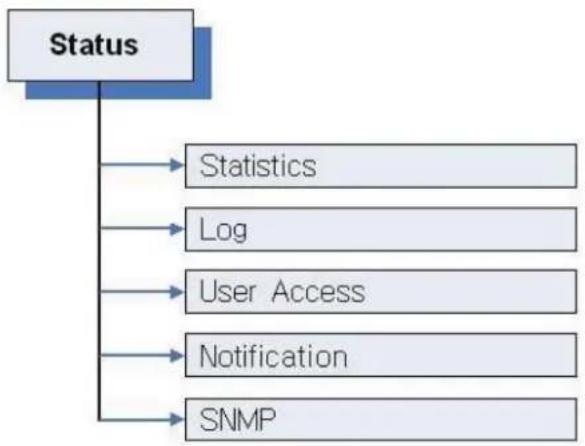
flowchart
graph TD
    A["Status"] --> B["Statistics"]
    A --> C["Log"]
    A --> D["User Access"]
    A --> E["Notification"]
    A --> F["SNMP"]
7.1 Status → Stascs
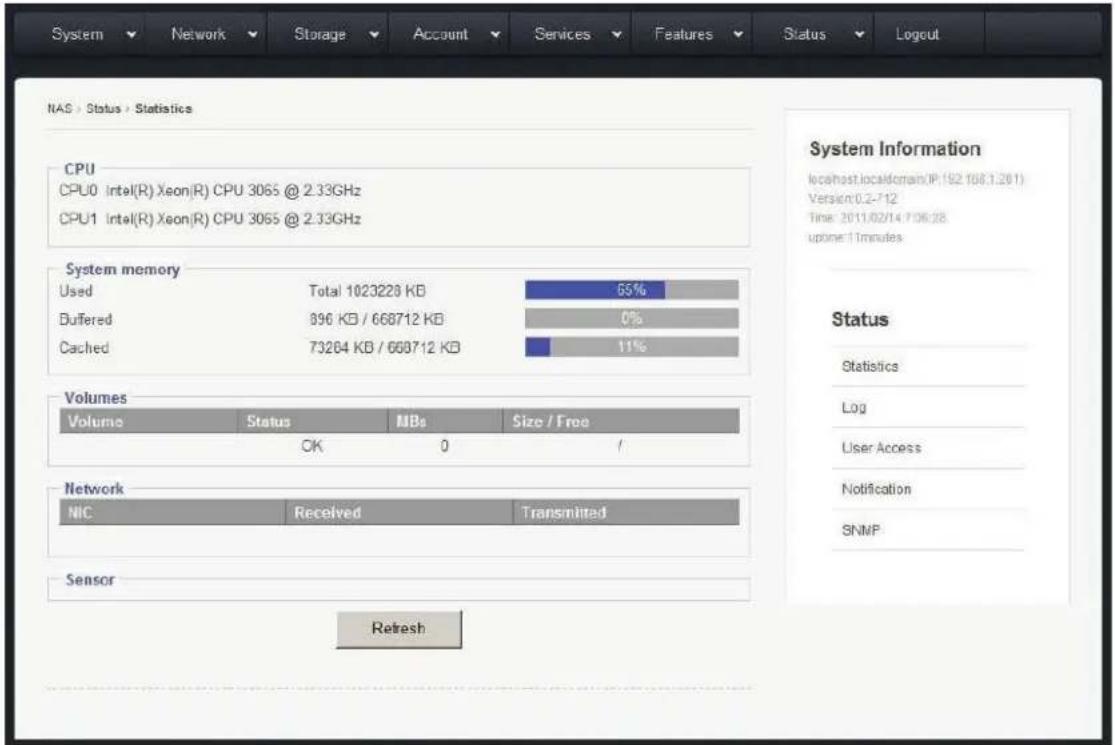
This page provides real me data of CPU, System Memory, Volumes, and Network Usage.
7.2 Status → Log
The log page displays a list of events: shutdowns, reboots, crical soware errors, and etc.
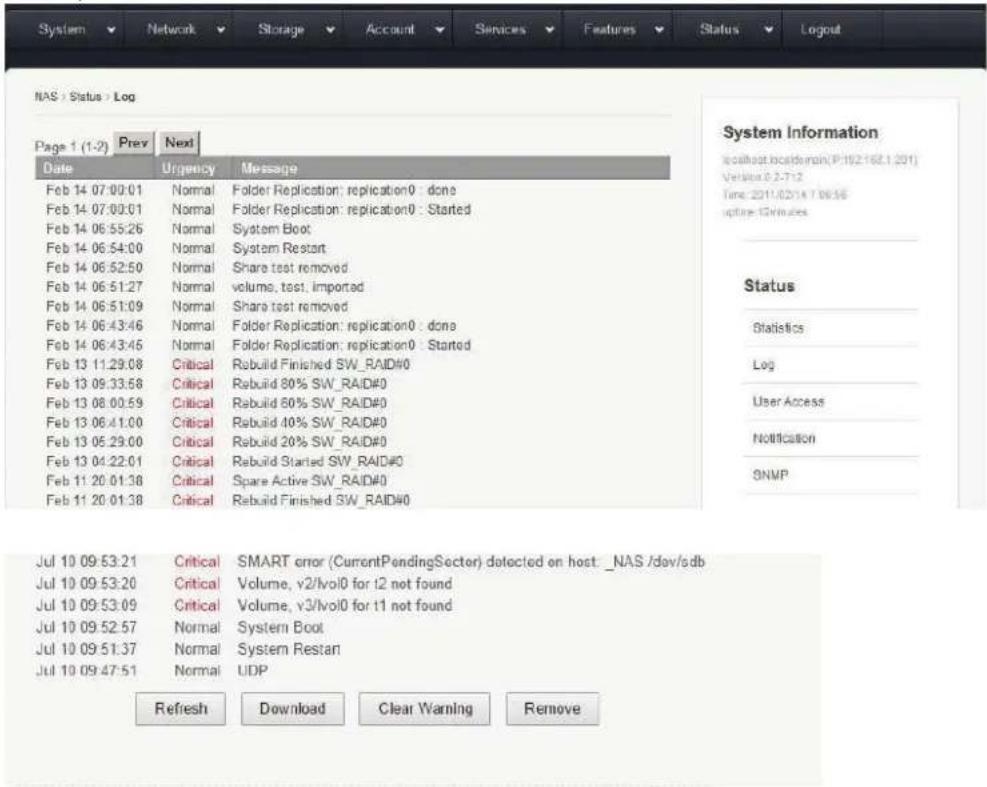
Refresh: Updates log to show most recent acvity
Download: Saves the enre log as a .txt le. (Useful if contacng technical support)
Clear Warning: Removes all outstanding warnings
Remove: Clears enre NAS log
7.3 Status → User Access
This page displays all users currently connected to the NAS system. The page also displays open shared les and folders.
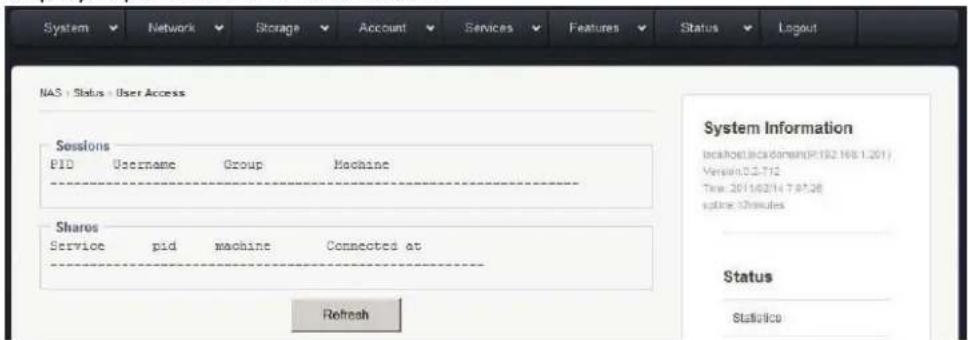
Hing Refresh makes the page show the most current data
7.4 Status → Nocaon page
This menu displays the sengs for conguring communicaon with internal and external SMTP servers to provide informaon to IT sta.
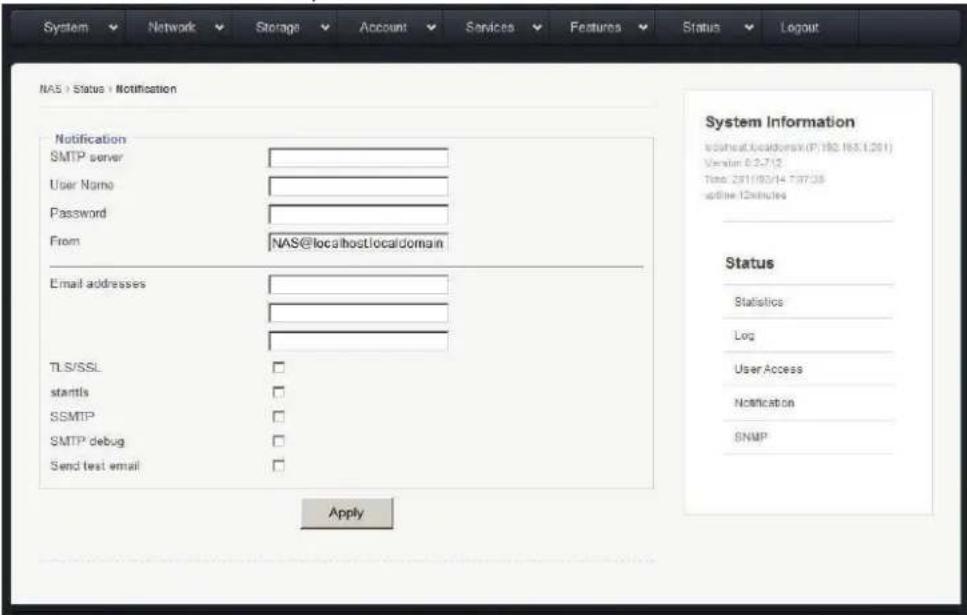
SMTP Server: Simple Mail Transport Protocol used to send email nocaons
User Name: Usually is the email address of the person receiving noficaons
Password: Password of User's Mail Account
From: Used to identify device generang nocaons (oponal)
Email Addresses: Enter email addresses of all persons monitoring and maintaining the NAS
TLS/SSL: Usually required if communicang with SMTP servers, ie smtp.google.com or smtpauth@secureserver.net
Note: SMTP communicaons may not funcon without this seng
Starls: Enabling this feature tells the SMTP applicaon to use TLS
Note: SMTP Server communicaon may not funcon without this seng
SSMTP: Enabling this feature sets up the SSMTP program to deliver an email from a local computer to a mailhub. Mainly used for forwarding automated emails to an external email
SMTP Debug: Enabling this feature keeps a log of SMTP communicaons
Send Test Email: Sends a test email to ensure email system is functioning correctly
7.5 Status → SNMP
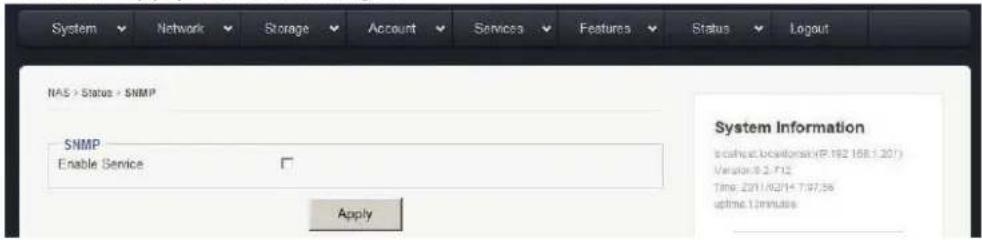
This page displays the seng to enable SNMP Service on the NAS.
SNMP, short for Simple Network Management Protocol is used to manage networks. SNMP can be used to congregate network devices such as printers, hubs, switches, and servers.
Enable SNMP
- Check "Enable Service" opon box
- Click "Apply" to save changes
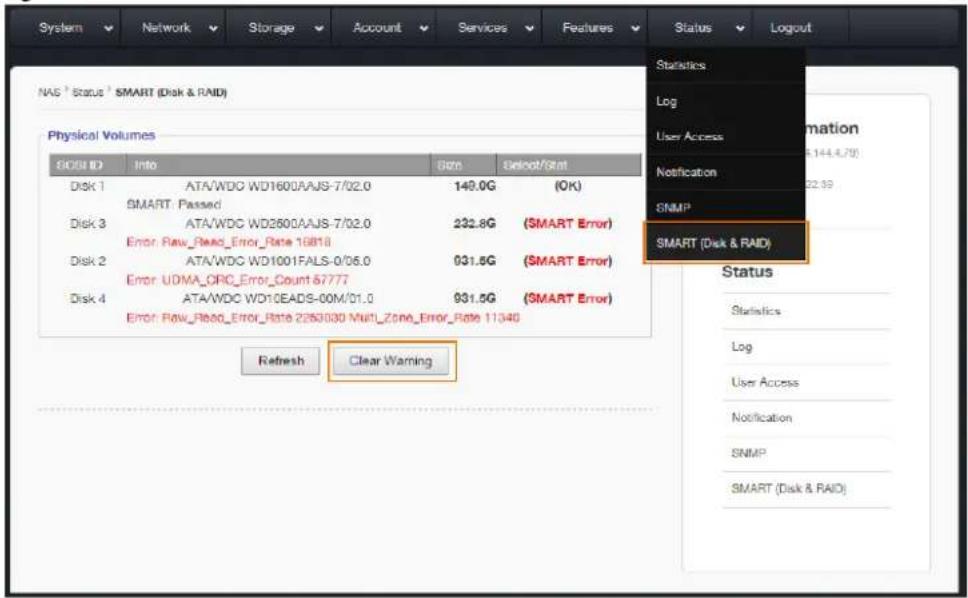
This page monitors each iSCSI conncon. The system will also occasionally check the SMART status of each iSCSI conncon. A properly funconing system will display "Passed." If an error is present a warning will be shown in its place. Clicking "Refresh" prompts the system to reveal real-me data. Warnings can also be cleared by clicking "Clear Warning"
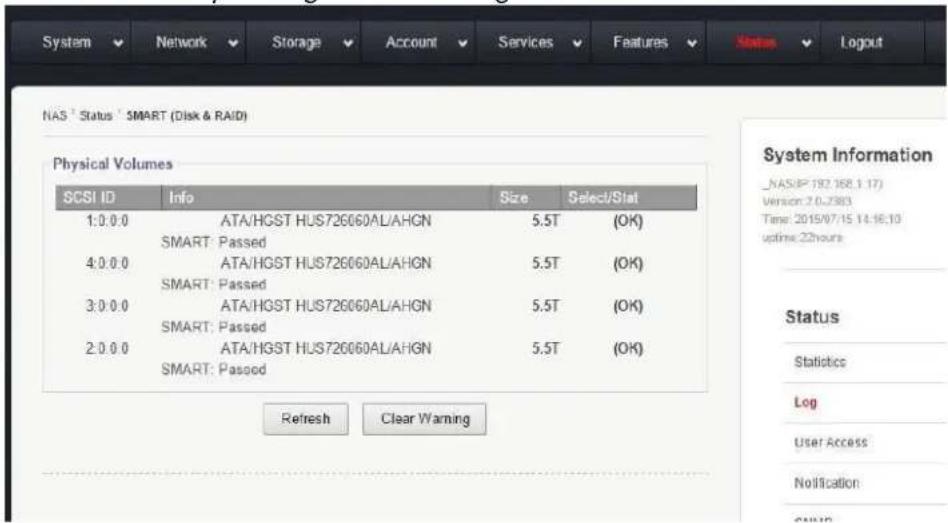
Hard Drive SMART Error Alert
If hard drives show SMART Error, the NAS unit will start beeping.
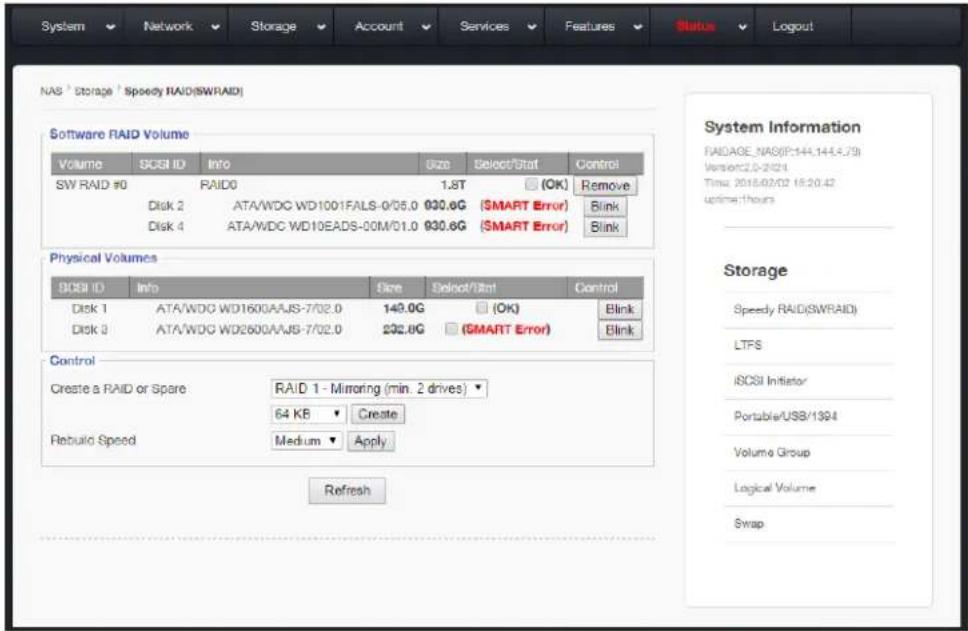
To silence the alert, select "SMART (Disk & RAID)" under "Status" tab. Click "Clear Warning" – will stop beeping for 5 minutes and will start beeping again if hard drive SMART Error issues remain.