
TP-125EDID - AV Switch Kramer - Free user manual and instructions
Find the device manual for free TP-125EDID Kramer in PDF.


| Product Type | AV Switch with EDID Emulator |
| Brand | Kramer |
| Model | TP-125EDID |
| Category | Commutateur AV (AV Switch) |
| Dimensions (W x D x H) | 10.2 cm x 6.4 cm x 2.5 cm |
| Weight | 0.2 kg |
| Power Supply | 5V DC, 1A (USB or adapter) |
| Input Connector | 1 x HDMI Type A (female) |
| Output Connector | 1 x HDMI Type A (female) |
| Supported Resolutions | Up to 4K@60Hz (4:4:4) |
| HDCP Support | HDCP 1.4 and 2.2 pass-through |
| EDID Management | EDID learning and emulation |
| Video Bandwidth | 18 Gbps |
| Operating Temperature | 0°C to 40°C |
| Housing Material | Metal |
| LED Indicators | Power, Input/Output status |
| Included Accessories | Power adapter (5V DC), USB cable, mounting brackets |
| Repairability | Serviceable by authorized technician; no user-serviceable parts |
| Cleaning | Wipe with dry cloth; avoid liquids |
Frequently Asked Questions - TP-125EDID Kramer
User questions about TP-125EDID Kramer
0 question about this device. Answer the ones you know or ask your own.
Ask a new question about this device
Download the instructions for your AV Switch in PDF format for free! Find your manual TP-125EDID - Kramer and take your electronic device back in hand. On this page are published all the documents necessary for the use of your device. TP-125EDID by Kramer.
USER MANUAL TP-125EDID Kramer
Kramer Electronics, Ltd.

USER MANUAL
Models:
TP-121EDID, XGA / Audio Line Transmitter
TP-123EDID, XGA / Audio / Data Line Transmitter
TP-125EDID, XGA / Audio / Data Line Transmitter
PT-110EDID, XGA Line Transmitter
Contents
1 Introduction 1
2 Getting Started 1
2.1 Quick Start 1
3 Overview 3
3.1 Shielded Twisted Pair (STP) / Unshielded Twisted Pair (UTP) 3
3.2 About the Power Connect Feature 3
3.3 Defining EDID 4
3.4 Recommendations for Achieving the Best Performance 4
4 Your TP-121EDID XGA / Audio Line Transmitter 4
4.1 Connecting the TP-121EDID XGA / Audio Line Transmitter 6
4.2 Technical Specifications 8
5 Your TP-123EDID XGA / Audio / Data Line Transmitter 8
5.1 Connecting the TP-123EDID XGA / Audio / Data Line Transmitter 9
5.2 Controlling via RS-232 (for example, using a PC) 12
5.3 Technical Specifications 12
6 Your TP-125EDID XGA / Audio / Data Line Transmitter 13
6.1 Connecting the TP-125EDID XGA / Audio / Data Line Transmitter 14
6.2 Transmitting via RS-232 (for example, using a PC) 16
6.3 Technical Specifications 17
7 Your PT-110EDID XGA / Line Transmitter 17
7.1 Connecting the PT-110EDID XGA / Line Transmitter 18
7.2 Technical Specifications 20
8 Wiring the CAT 5 LINE IN / LINE OUT RJ-45 Connectors 21
9 Acquiring the EDID 21
Figures
Figure 1: TP-121EDID XGA / Audio Line Transmitter 5
Figure 2: Connecting the TP-121EDID XGA / Audio Line Transmitter 7
Figure 3: TP-123EDID XGA / Audio / Data Line Transmitter 9
Figure 4: Connecting the TP-123EDID XGA / Audio / Data Line Transmitter 11
Figure 5: RS-232 PINOUT Connection 12
Figure 6: TP-125EDID XGA / Audio / Data Line Transmitter 13
Figure 7: Connecting the TP-125EDID XGA / Audio / Data Line Transmitter 16
Figure 8: RS-232 PINOUT Connection 16
Figure 9: PT-110EDID XGA Line Transmitter 18
Figure 10: Connecting the PT-110EDID XGA / Line Transmitter 20
Figure 11: CAT 5 PINOUT 21
Tables
Table 1: TP-121EDID XGA / Audio Line Transmitter Features 5
Table 2: Technical Specifications of the TP-121EDID 8
Table 3: TP-123EDID XGA / Audio / Data Line Transmitter Features 9
Table 4: RS-232 PINOUT Connection 12
Table 5: Technical Specifications of the TP-123EDID 12
Table 6: TP-125EDID XGA / Audio / Data Line Transmitter Features 14
Table 7: RS-232 PINOUT Connection 16
Table 8: Technical Specifications of the TP-125EDID 17
Table 9: PT-110EDID XGA Line Transmitter Features 18
Table 10: Technical Specifications of the PT-110EDID 20
Table 11: CAT 5 PINOUT 21
1 Introduction
Welcome to Kramer Electronics! Since 1981, Kramer Electronics has been providing a world of unique, creative, and affordable solutions to the vast range of problems that confront the video, audio, presentation, and broadcasting professional on a daily basis. In recent years, we have redesigned and upgraded most of our line, making the best even better! Our 1,000-plus different models now appear in 11 groups ^1 that are clearly defined by function.
Thank you for purchasing your Kramer TOOLS: TP-121EDID XGA / Audio Line Transmitter, and/or TP-123EDID, XGA / Audio / Data Line Transmitter, and/or TP-125EDID, XGA / Audio / Data Line Transmitter, and/or Kramer Pico TOOLS™ PT-110EDID, XGA Line Transmitter, which are ideal for:
• Presentation and multimedia applications
- Long range graphics distribution for schools, hospitals, security, and stores
The package includes:
- One or more of the following: TP-121EDID, TP-123EDID, TP-125EDID or PT-110EDID
• Power adapter (12V DC)
- This user manual ^2
2 Getting Started
We recommend that you:
- Unpack the equipment carefully and save the original box and packaging materials for possible future shipment
• Review the contents of this user manual
- Use Kramer high-performance high-resolution cables ^3
2.1 Quick Start
This quick start chart summarizes the basic setup and operation steps.
To connect your Kramer Transmitter
1 Connect the sources to the input connectors.
2 Connect the LINE OUTPUT RJ-45 connector on the transmitter to the LINE IN RJ-45 connector on the appropriate receiver (see section 8).
3 Connect the power to both the transmitter and the appropriate receiver (unless the Power Connect™ system applies).
TP-121EDID (Section 4)

flowchart
graph TD
    A["Computer Graphics Source"] -->|VBA| B["TP-121EDID"]
    B --> C["To TP-122"]
    C --> D["CAT6"]
    C --> E["Audio"]
    D --> F["Port 1"]
    E --> G["Port 2"]
    F --> H["Port 3"]
    G --> I["Port 4"]
    H --> J["Port 5"]
    I --> K["Port 6"]
TP-123EDID (Section 5)
flowchart
graph TD
    A["Computer Graphics / Audio / RS-232 Control"] --> B["TP-123EDMD"]
    B --> C["To TP-124"]
    C --> D["Data Bus"]
    D --> E["Server"]
    style A fill:#f9f,stroke:#333
    style B fill:#ccf,stroke:#333
    style C fill:#cfc,stroke:#333
    style D fill:#fcc,stroke:#333
    style E fill:#ffc,stroke:#333
TP-125EDID (Section 6)
flowchart
graph TD
    A["Computer Graphics / Audio / RS-232 Control"] -->|USB| B["TP-125EDID"]
    A -->|USB| C["To TP-126"]
    B -->|USB| D["USB"]
    B -->|USB| E["USB"]
    B -->|USB| F["USB"]
    B -->|USB| G["USB"]
    B -->|USB| H["USB"]
    B -->|USB| I["USB"]
    B -->|USB| J["USB"]
    B -->|USB| K["USB"]
    B -->|USB| L["USB"]
    B -->|USB| M["USB"]
    B -->|USB| N["USB"]
    B -->|USB| O["USB"]
    B -->|USB| P["USB"]
    B -->|USB| Q["USB"]
    B -->|USB| R["USB"]
    B -->|USB| S["USB"]
    B -->|USB| T["USB"]
    B -->|USB| U["USB"]
    B -->|USB| V["USB"]
    B -->|USB| W["USB"]
    B -->|USB| X["USB"]
    B -->|USB| Y["USB"]
    B -->|USB| Z["USB"]
    B -->|USB| AA["USB"]
    B -->|USB| AB["USB"]
    B -->|USB| AC["USB"]
    B -->|USB| AD["USB"]
    B -->|USB| AE["USB"]
    B -->|USB| AF["USB"]
    B -->|USB| AG["USB"]
    B -->|USB| AH["USB"]
    B -->|USB| AI["USB"]
    B -->|USB| AJ["USB"]
    B -->|USB| AK["USB"]
    B -->|USB| AL["USB"]
    B -->|USB| AM["USB"]
    B -->|USB| AN["USB"]
    B -->|USB| AO["USB"]
    B -->|USB| AP["USB"]
    B -->|USB| AQ["USB"]
    B -->|USB| AR["USB"]
    B -->|USB| AS["USB"]
    B -->|USB| AT["USB"]
    B -->|USB| AU["USB"]
    B -->|USB| AV["USB"]
    B -->|USB| AW["USB"]
    B -->|USB| AX["USB"]
    B -->|USB| AY["USB"]
    B -->|USB| AZ["USB"]
    B -->|USB| BA["USB"]
    B -->|USB| BB["USB"]
    B -->|USB| BC["USB"]
    B -->|USB| BD["USB"]
    B -->|USB| BE["USB"]
    B -->|USB| BF["USB"]
    B -->|USB| BG["USB"]
    B -->|USB| BH["USB"]
    B -->|USB| BI["USB"]
    B -->|USB| BJ["USB"]
    B -->|USB| BK["USB"]
    B -->|USB| BL["USB"]
    B -->|USB| BM["USB"]
    B -->|USB| BN["USB"]
    B -->|USB| BO["USB"]
    B -->|USB| BP["USB"]
    B -->|USB| BPB["US"]
    B -->|USB| BPBb["US"]
    B -->|USB| BPBc["US"]
    B -->|USB| BPBd["US"]
    B -->|USB| BPBf["US"]
    B -->|USB| BPBg["US"]
    B -->|USB| BPBh["US"]
    B -->|USB| BPBgB["US"]
    B -->|USB| BPBfB["US"]
    B -->|USB| BPBgB["US"]
    B -->|USB| BPBgC["US"]
    B -->|USB| BPBgD["US"]
    B -->|USB| BPBgE["US"]
    B -->|USB| BPBgF["US"]
    B -->|USB| BPBgG["US"]
    B -->|USB| BPBgH["US"]
    B -->|USB| BPBgI["US"]
    B -->|USB| BPBgJ["US"]
    B -->|USB| BPBgK["US"]
    B -->|USB| BPBgL["US"]
    B -->|USB| BPBgM["US"]
    B -->|USB| BPBgN["US"]
    B -->|USB| BPBgO["US"]
    B -->|USB| BPBgP["US"]
    B -->|USB| BPBgQ["US"]
    B -->|USB| BPBgR["US"]
    B -->|USB| BPBgS["US"]
    B -->|USB| BPBgT["US"]
    B -->|USB| BPBgU["US"]
    B -->|USB| BPBgV["US"]
    B -->|USB| BPBgW["US"]
    B -->|USB| BPBgX["US"]
    B -->|USB| BPBgY["US"]
    B -->|USB| BPBgZ["US"]
    B -->|USB| BPBgA["US"]
    B -->|USB| BPBgB["US"]
    B -->|USB| BPBgC["US"]
    B -->|USB| BPBgD["US"]
    B -->|USB| BPBgE["US"]
    B -->|USB| BPBgF["US"]
    B -->|USB| BPBgG["US"]
    B -->|USB| BPBgH["US"]
    B -->|USB | TP-125EDID
PT-110EDID (Section 7)
flowchart
graph TD
    A["Computer Graphics Source"] -->|Val| B["PT-110EDID"]
    B --> C["To TP-122"]
    C --> D["H SYNC and V SYNC switch"]
    style A fill:#f9f,stroke:#333
    style B fill:#ccf,stroke:#333
    style C fill:#cfc,stroke:#333
    style D fill:#fcc,stroke:#333
To acquire the EDID (Section 9)
- Connect the XGA INPUT 15-pin HD connector to the Input XGA connector of the display, using a short cable.
- Connect the display power.
- On the Transmitter, connect the 12V DC power adapter to the power socket and connect the adapter to the main electricity.
- Press the EDID CAPTURE button.
- Once the EDID STATUS blinks slowly several times, the EDID is captured.
- Disconnect the display.


3 Overview
This user manual describes the following:
• TP-121EDID XGA / Audio Line Transmitter (see section 4)
- TP-123EDID XGA / Audio / Data Line Transmitter (see section 5)
- TP-125EDID XGA / Audio / Data Line Transmitter (see section 6)
• PT-110EDID XGA Line Transmitter (see section 7)
This section describes:
- Using shielded twisted pair (STP) / unshielded twisted pair (UTP), see section 3.1
- The power connect feature, see section 3.2
- Defining EDID, see section 3.3
- Recommendations for achieving the best performance, see section 3.4
3.1 Shielded Twisted Pair (STP) / Unshielded Twisted Pair (UTP)
We recommend that you use shielded twisted pair (STP) cable. There are different levels of STP cable available, and we advise you to use the best quality STP cable that you can afford. Our non-skew-free cable, Kramer BC-STP is intended for analog signals where skewing is not an issue. For cases where there is skewing, our UTP skew-free cable, Kramer BC-XTP, may be used. Bear in mind, though, that we advise using STP cables where possible, since the compliance to electromagnetic interference was tested using those cables.
Although unshielded twisted pair (UTP) cable might be preferred for long range applications, the UTP cable should be installed far away from electric cables, motors and so on, which are prone to create electrical interference. However, since the use of UTP cable might cause inconformity to electromagnetic standards, Kramer does not commit to meeting the standard with UTP cable.
3.2 About the Power Connect Feature
The Power Connect feature applies as long as the cable can carry power. The distance does not exceed 50m on standard CAT 5 cable, for longer distances, heavy gauge cable should be used ^1 .
For a CAT 5 cable exceeding a distance of 50m, separate power supplies should be connected to the transmitter and to the receiver simultaneously.
3.3 Defining EDID
The TP-121EDID, TP-123EDID, TP-125EDID, and PT-110EDID include:
• EDID Capture - Copies and stores the EDID from a display device
The Extended Display Identification Data (EDID ^1 ) is a data-structure, provided by a display, to describe its capabilities to a graphics card (that is connected to the display's source). The EDID enables the graphic source to “know” what kind of monitor is connected to the output. The EDID includes the manufacturer's name, the product type, the timing data supported by the display, the display size, luminance data and (for digital displays only) the pixel mapping data.
3.4 Recommendations for Achieving the Best Performance
To achieve the best performance:
- Use only good quality connection cables ^2 to avoid interference, deterioration in signal quality due to poor matching, and elevated noise levels (often associated with low quality cables).
- Avoid interference from neighboring electrical appliances that may adversely influence signal quality and position your Kramer transmitters away from moisture, excessive sunlight and dust

Caution:
No operator serviceable parts inside unit
Warning:
Use only the Kramer Electronics input power wall adapter that is provided with the unit
Warning:
Disconnect power and unplug unit from wall before installing or removing the device or servicing unit
4 Your TP-121EDID XGA / Audio Line Transmitter
The TP-121EDID is an XGA / audio stereo line transmitter. It receives an XGA signal and an unbalanced stereo analog audio signal and transmits them over CAT 5 cable to a receiver ^3 , converting the unbalanced stereo analog audio signal to digital audio (S/PDIF) stream before transmitting, thus preserving the quality of the audio signal.
When the TP-121EDID is connected to a display device and the EDID CAPTURE button is pressed, the TP-121EDID reads and stores the EDID (Extended Display Identification Data) from the display device. The display can be disconnected and later reconnected without rebooting the operating system.
In particular, the TP-121EDID:
- Has a transmission range of more than 300ft (more than 100m), and a 20kHz audio bandwidth with an S/N ratio that exceeds 80dB on the same transmission range
- Can power or be powered by the receiver over the same CAT 5 cable
- Is 12V DC fed
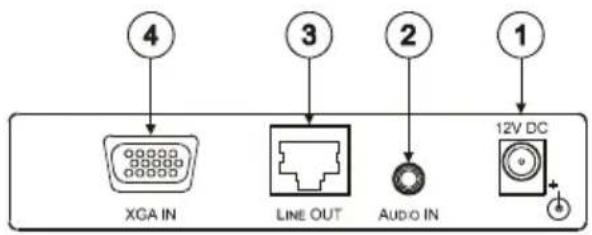
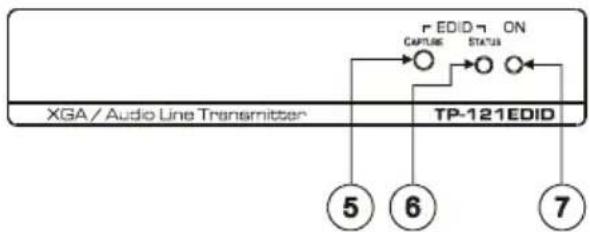
Figure 1 and Table 1 define the TP-121EDID:

flowchart
graph TD
    A["1"] --> B["KRAMER TOOLS"]
    C["2"] --> B
    D["3"] --> B
    E["4"] --> B
    F["5"] --> G["KRAMER"]
    H["6"] --> G
    I["7"] --> G
flowchart
graph TD
    A["4"] --> B["XGA IN"]
    C["3"] --> D["LINE OUT"]
    E["2"] --> F["Audio IN"]
    G["1"] --> H["12V DC"]
flowchart
graph TD
    A["XGA / Audio Line Transmitter"] --> B["TP-121EDID"]
    B --> C["5"]
    B --> D["6"]
    B --> E["7"]
    F["EDID ON CAPTURE STATUS"] --> G["○"]
    G --> H["○"]
    H --> I["○"]
    I --> J["○"]
Figure 1: TP-121EDID XGA / Audio Line Transmitter
Table 1: TP-121EDID XGA / Audio Line Transmitter Features
| # | Feature | Function | |
| 1 | 12V DC | +12V DC connector for powering the unit | |
| 2 | AUDIO IN 3.5mm mini jack | Connects to the audio source | |
| 3 | LINE OUT RJ-45 connector | Connects to ^1 the LINE IN RJ-45 connector on a receiver | |
| 4 | XGA IN 15-pin HD (F) connector | Connect to the XGA source | |
| 5 EDID ^2 | CAPTURE Button | Press to acquire the EDID information from the display | |
| 6 | STATUS LED | Illuminates during normal operation; blinks when acquiring the EDID | |
| 7 | ON LED | Illuminates when receiving power | |
4.1 Connecting the TP-121EDID XGA / Audio Line Transmitter
You can use the TP-121EDID together with the TP-122 XGA / Audio Line Receiver ^1 to configure an XGA/Audio Line-to-Twisted Pair Transmitter and Receiver system.
Before connecting the transmitter and receiver system you can acquire the EDID from the display or set the system to the default EDID, see section9.
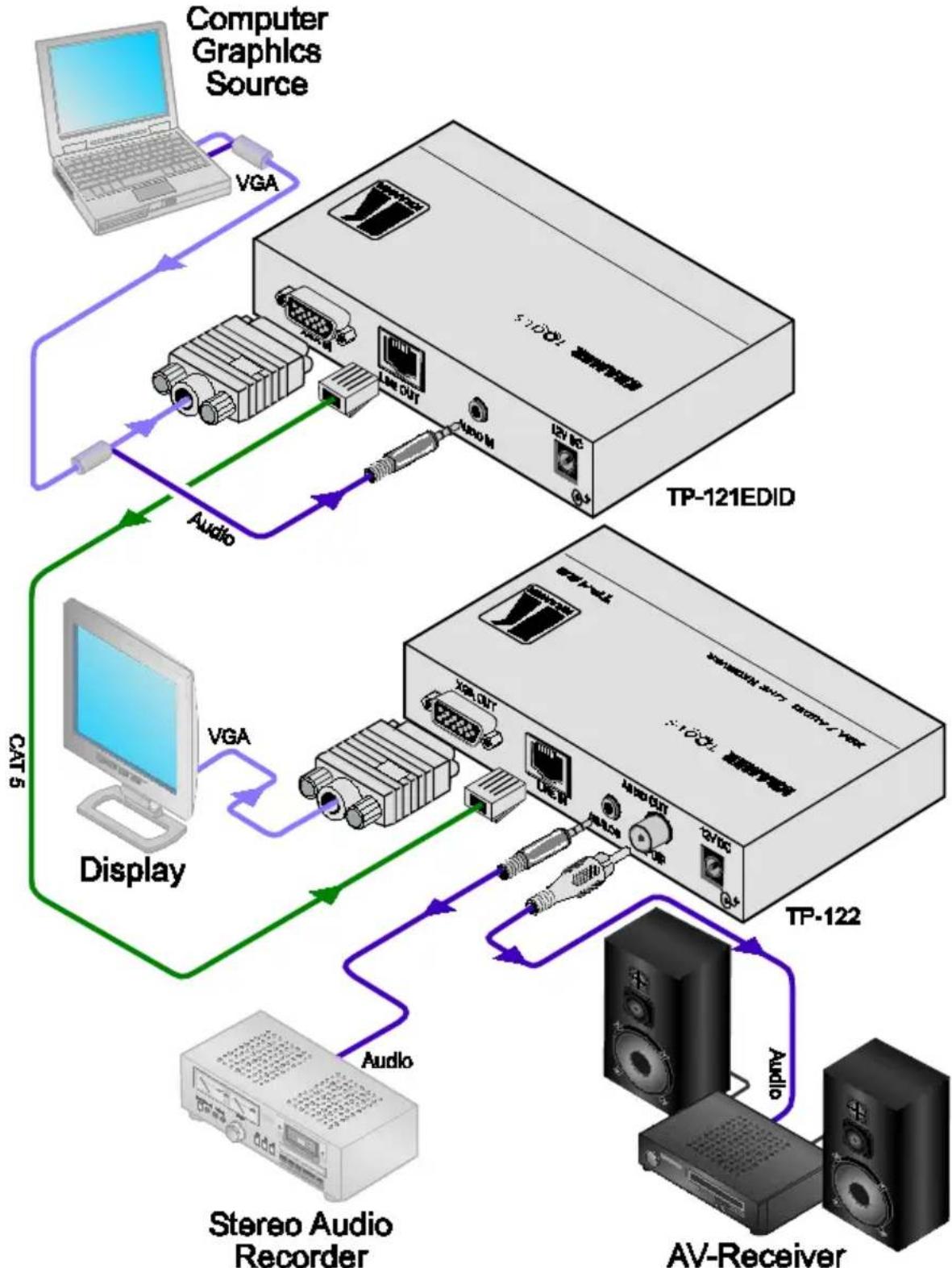
To connect the TP-121EDID XGA / Audio Line Transmitter with the TP-122XGA / Audio Line Receiver, as the example in Figure 2 illustrates, do the following:
- On the TP-121EDID, connect the XGA source (for example, a laptop's graphics card) to the XGA INPUT 15-pin HD (F) connector and an audio source to the AUDIO IN 3.5mm mini jack, for example, using a Kramer C-GMA/GMA cable (VGA 15-pin HD (M) +Audio jack to VGA 15-pin HD (M) +Audio jack) ^2 . Alternatively, you can connect an XGA source to the XGA INPUT 15-pin HD (F) connector, and a separate audio source to the AUDIO IN 3.5mm mini jack.
- On the TP-122, connect the XGA OUT 15-pin HD (F) connector to the XGA acceptor (for example, a display), and connect the AUDIO OUT S/PDIF RCA connector to the digital audio acceptor (for example, an AV Receiver), and the ANALOG 3.5mm mini jack to the analog audio acceptor (for example, a stereo audio recorder).
- Connect the LINE OUTPUT RJ-45 connector on the TP-121EDID to the LINE IN RJ-45 connector on the TP-122, via CAT 5 cabling (with a range of more than 300ft (>100m)), see section 8.
- Connect the 12V DC power adapter to the power socket and connect the adapter to the mains electricity on both ^3 the TP-121EDID and the TP-122. The signal from the XGA source is transmitted via CAT 5 cable, decoded and converted at the XGA OUT 15-pin HD (F) connector to the XGA acceptor.
- On the TP-122:
- Adjust ^4 the video output signal level and/or cable compensation equalization level, if required
If necessary, set the H SYNC and V SYNC switches ^5 , on the underside
flowchart
graph TD
    A["Computer Graphics Source"] -->|VGA| B["TP-121EDID"]
    B -->|Audio| C["Display"]
    C -->|VGA| D["TP-122"]
    D -->|Audio| E["AV-Receiver"]
    E -->|Audio| F["Stereo Audio Recorder"]
    F -->|VGA| G["Display"]
    G -->|Audio| H["TP-122"]
    H -->|Audio| I["AV-Receiver"]
    I -->|Audio| J["Display"]
    J -->|VGA| K["Display"]
    K -->|Audio| L["AT&T"]
    style A fill:#f9f,stroke:#333
    style B fill:#ccf,stroke:#333
    style C fill:#cfc,stroke:#333
    style D fill:#fcc,stroke:#333
    style E fill:#cff,stroke:#333
    style F fill:#ffc,stroke:#333
    style G fill:#cfc,stroke:#333
    style H fill:#fcc,stroke:#333
    style I fill:#ffc,stroke:#333
    style J fill:#cfc,stroke:#333
    style K fill:#fcc,stroke:#333
    style L fill:#ffc,stroke:#333
Figure 2: Connecting the TP-121EDID XGA / Audio Line Transmitter
4.2 Technical Specifications ^1
Table 2 includes the technical specifications of the TP-121EDID
Table 2: Technical Specifications of the TP-121EDID
| INPUTS: | Video: 1 VGA / UXGA on a 15-pin HD connectorAudio: 1 audio ANALOG 3.5mm mini jack |
| OUTPUT: 1 RJ-45 OUT connector | |
| BANDWIDTH (-3dB)^2 | Audio: 20Hz to 20kHz@0.5dB : |
| RESOLUTION: Up to WUXGA and 1080p | |
| S/N RATIO: VIDEO: 58dB unweighted, 68.3dB @5MHz weightedAudio: <-80dB | |
| TOTAL GAIN: | Audio: Analog/analog: 0dB; Analog/SPDIF: -12dBFS |
| COUPLING: AC | |
| TND+N: Audio: <0.01% | |
| POWER SOURCE: 12V DC 60mA | |
| DIMENSIONS: | 12.1cm x 7.18cm x 2.42cm (4.76" x 2.83" x 0.95") W, D, H |
| WEIGHT: 0.3kg (0.67lbs) approx. | |
| ACCESSORIES: Power supply | |
| OPTIONS: | 19" rack mount adapter |
5 Your TP-123EDID XGA / Audio / Data Line Transmitter
The TP-123EDID is a high-performance transmitter. It accepts a computer graphics input signal, an unbalanced stereo analog audio signal, unidirectional (RxD) RS-232 control commands and 12V DC power, over CAT 5 cable, and transmits to a receiver ^3 . The stereo analog audio signal is converted to the digital audio (S/PDIF) stream before transmitting, thus preserving the quality of the audio source signals.
When the TP-123EDID is connected to a display device and the EDID CAPTURE button is pressed, the TP-123EDID reads and stores the EDID (Extended Display Identification Data) from the display device. The display can be disconnected and later reconnected without rebooting the operating system.
The TP-123EDID has a transmission range of more than 300ft (more than 100m) over CAT 5 cabling and can power or be powered by the TP-124 receiver ^4 over the same CAT 5 cable and is 12V DC fed.
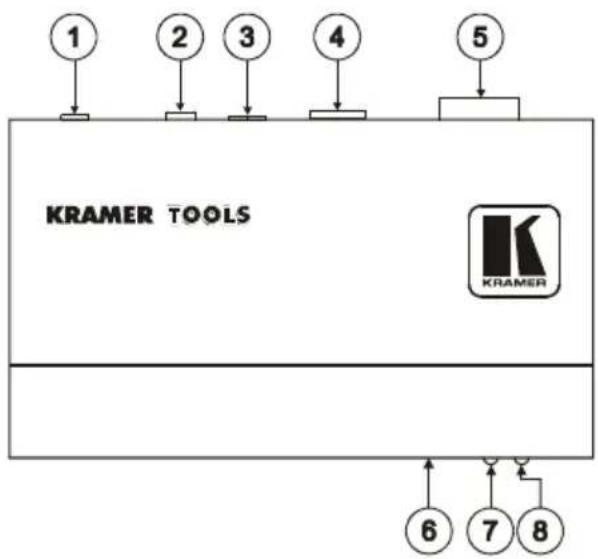
Figure 3 and Table 3 define the TP-123EDID:
flowchart
graph TD
    A["1"] --> B["2"]
    C["2"] --> D["3"]
    E["3"] --> F["4"]
    G["4"] --> H["5"]
    I["6"] --> J["7"]
    K["8"] --> L["9"]
    M["KRAMER TOOLS"] --> N["KRAMER"]
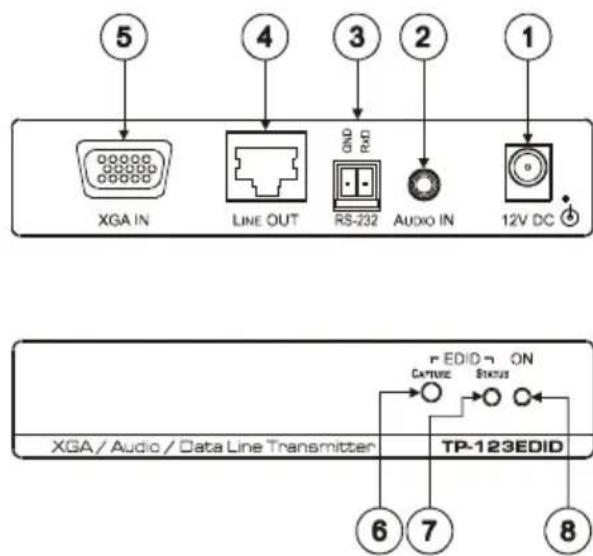
Figure 3: TP-123EDID XGA / Audio / Data Line Transmitter
Table 3: TP-123EDID XGA / Audio / Data Line Transmitter Features
| # | Feature | Function | |
| 1 | 12V DC | +12V DC connector for powering the unit | |
| 2 | AUDIO IN 3.5mm mini jack | Connects to the audio source | |
| 3 | RS-232 terminal block connector | Connects to the PC or the Remote Controller (see section 5.2) | |
| 4 | LINE OUT RJ-45 connector | Connects to ^1 the LINE IN RJ-45 connector on the TP-124 XGA / Audio Line Receiver | |
| 5 | XGA IN 15-pin HD (F) connector | Connect to the XGA source | |
| 6 EDID ^2 | CAPTURE Button | Press to acquire the EDID information from the display | |
| STATUS LED | Illuminates during normal operation; blinks when acquiring the EDID | ||
| ON LED | Illuminates when receiving power | ||
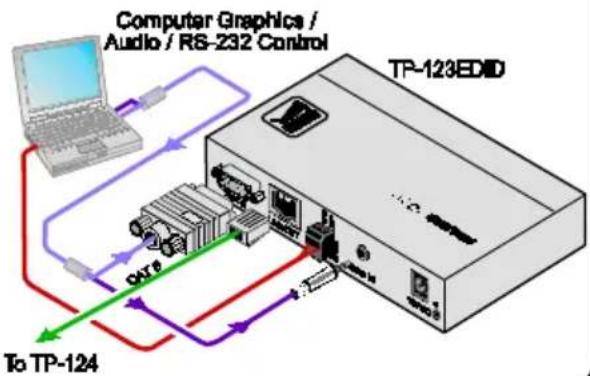
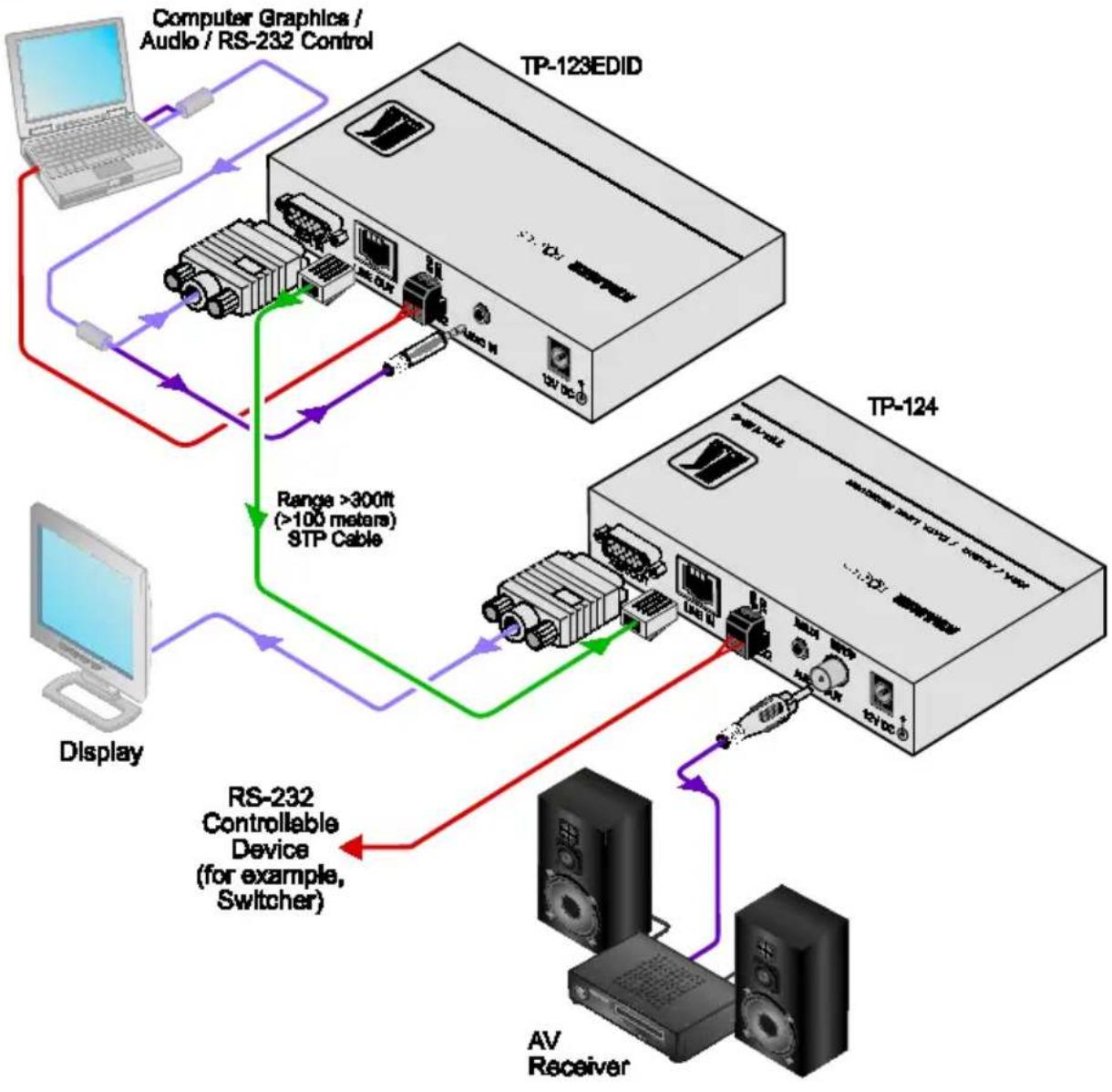
5.1 Connecting the TP-123EDID XGA / Audio / Data Line Transmitter
You can use the TP-123EDID XGA / Audio / Data Line Transmitter together with the TP-124 XGA / Audio / Data Line Receiver ^3 to configure a twisted pair transmitter and receiver system, to transmit the video, audio and RS-232 control signals via CAT 5 cable.
Before connecting the transmitter and receiver system you can acquire the EDID from the display or set the system to the default EDID, see section 9.
To connect the TP-123EDID and the TP-124 to configure a twisted pair transmitter and receiver system, as the example in Figure 4 illustrates, do the following:
-
On the TP-123EDID, connect:
-
An XGA source (for example, a laptop's graphics card) to the XGA IN 15-pin HD (F) connector and an audio source to the Audio IN 3.5mm mini jack, for example, using a Kramer C-GMA/GMA cable (VGA 15-pin HD (M) +Audio jack to VGA 15-pin HD (M) +Audio jack) ^1
-
An RS-232 cable with a 9-pin D-sub connector at one end to the laptop, and a 2-pin terminal block connector at the other end to the TP-123EDID RS-232 port ^2
-
On the TP-124, connect:
■ The XGA OUT 15-pin HD (F) connector to a display
■ The S/PDIF Audio OUT RCA connector to a digital AV Receiver (leave the ANALOG Audio OUT 3.5mm mini jack unconnected)
- An RS-232 cable with a 2-pin terminal block connector at one end to the TP-124 RS-232 port ^2 , and a 9-pin D-sub connector at the other end to the RS-232 port on an RS-232 controllable device (for example, a switcher)
-
Connect the Line OUT RJ-45 connector on the TP-123EDID to the LINE IN RJ-45 connector on the TP-124, via CAT 5 cabling ^3 (with a range of more than 300ft (>100m)).
-
Connect the 12V DC power adapter to the power socket and connect the adapter to the mains electricity on both ^4 the TP-123EDID and the TP-124.
-
On the TP-124:
-
If required, adjust ^5 the video output signal level and/or cable compensation equalization level,
- If necessary, set the H SYNC and V SYNC switches ^6 , on the underside
flowchart
graph TD
    A["Computer Graphics / Audio / RS-232 Control"] --> B["TP-123EDID"]
    B --> C["Display"]
    C --> D["RS-232 Controllable Device (for example, Switcher)"]
    D --> E["AV Receiver"]
    B --> F["Range >300ft (>100 meters) STP Cable"]
    F --> G["TP-124"]
    G --> H["Computer"]
    style A fill:#f9f,stroke:#333
    style B fill:#ccf,stroke:#333
    style C fill:#cfc,stroke:#333
    style D fill:#fcc,stroke:#333
    style E fill:#cff,stroke:#333
    style F fill:#ffc,stroke:#333
    style G fill:#cfc,stroke:#333
    style H fill:#fcc,stroke:#333
Figure 4: Connecting the TP-123EDID XGA / Audio / Data Line Transmitter
5.2 Controlling via RS-232 (for example, using a PC)
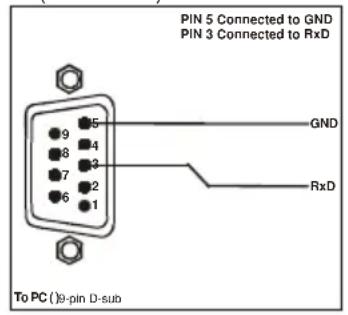
Prepare an RS-232 cable with a 9-pin D-sub connector at one end, and a 2-pin terminal block connector at the other end, as defined in Figure 5 and Table 4:
PC (Controller) to TP-123EDID
TP-124 to Controlled Unit
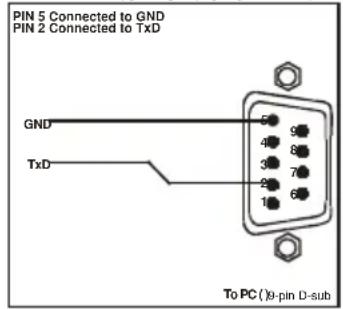
Figure 5: RS-232 PINOUT Connection
Table 4: RS-232 PINOUT Connection
| Connect this PIN on the Terminal Block Connector: | To this PIN on the 9-pin D-sub Connector |
| TxD PIN 2 | |
| RxD PIN 3 | |
| GND PIN 5 |
5.3 Technical Specifications
Table 5 includes the technical specifications ^1 of the TP-123EDID:
Table 5: Technical Specifications of the TP-123EDID
| INPUTS: | Video: 1 VGA / UXGA on a 15-pin HD connectorAudio: 1 audio ANALOG 3.5mm mini jack |
| OUTPUT: | 1 RJ-45 OUT connector |
| CONTROL: | RS-232 2-pin terminal block |
| RS-232 BAUD RATE: | Up to 19200kbps |
| BANDWIDTH (-3dB)^2 | Audio: 20Hz to 20kHz @0.5dB : |
| RESOLUTION: | Up to WUXGA and 1080p |
| S/N RATIO: VIDEO: 58dB | unweighted, 68.3dB @5MHz weightedAudio: <-80dB |
| TOTAL GAIN: | Audio: Analog/analog: 0dB; Analog/SPDIF: -12dBFS |
| COUPLING: | AC |
| TND+N: | Audio: <0.01% |
| POWER SOURCE: | 12V DC 60mA |
| DIMENSIONS: | 12.1cm x 7.18cm x 2.42cm (4.76" x 2.83" x 0.95") W, D, H |
| WEIGHT: | 0.3kg (0.67lbs) approx. |
| ACCESSORIES: | Power supply |
| OPTIONS: | 19" rack mount adapter |
6 Your TP-125EDID XGA / Audio / Data Line Transmitter
The TP-125EDID is a high-performance transmitter that accepts:
• A computer graphics input signal
• An unbalanced stereo analog audio signal
• RS-232 control commands
The TP-125EDID codes the signals and transmits them over CAT 5 cable to a receiver ^1 . The stereo analog audio signal is converted to the digital audio (S/PDIF) stream before transmitting, thus preserving the quality of the audio source signals. Commands and data can flow in both directions via the RS-232 interface, allowing status requests and control of the destination unit. The TP-125EDID includes H and V Sync internal polarity switches.
When the TP-125EDID is connected to a display device and the EDID CAPTURE button is pressed, the TP-125EDID reads and stores the EDID (Extended Display Identification Data) from the display device. The display can be disconnected and later reconnected without rebooting the operating system.
Figure 6 and Table 6 define the TP-125EDID:

Figure 6: TP-125EDID XGA / Audio / Data Line Transmitter
Table 6: TP-125EDID XGA / Audio / Data Line Transmitter Features
| # | Feature | Function | |
| 1 | 12V DC | +12V DC connector for powering the unit | |
| 2 | AUDIO IN 3.5mm Mini Jack | Connects to the audio source | |
| 3 | RS-232 Terminal Block Connector | Connects to the PC or the Remote Controller (see section 5.2) | |
| 4 | LINE OUT RJ-45 Connector | Connects to the LINE IN RJ-45 connector on the TP-126 UXGA / Audio Line Receiver | |
| 5 | UXGA IN 15-pin HD (F) Connector | Connect to the UXGA source | |
| 6 EDID ^1 | CAPTURE Button | Press to acquire the EDID information from the display | |
| 7 | STATUS LED | Illuminates during normal operation; blinks when acquiring the EDID | |
| 8 | ON LED | Illuminates when receiving power | |
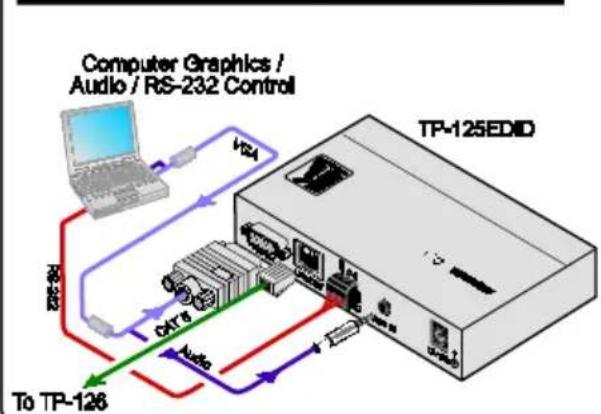
6.1 Connecting the TP-125EDID XGA / Audio / Data Line Transmitter
You can use the TP-125EDID UXGA / Audio / Data Line Transmitter together with the TP-126 UXGA / Audio / Data Line Receiver ^2 to configure a twisted pair transmitter and receiver system, to transmit the video, audio and RS-232 control signals via CAT 5 cable.
Before connecting the transmitter and receiver system you can acquire the EDID from the display or set the system to the default EDID, see section 9
To connect the TP-125EDID and the TP-126 to create a twisted pair transmitter and receiver system, as the example in Figure 7 illustrates, do the following:
-
On the TP-125EDID, connect:
-
An UXGA source (for example, the graphics card on a laptop) to the UXGA IN 15-pin HD (F) connector and an audio source to the Audio IN 3.5mm mini jack, for example, using a Kramer C-GMA/GMA cable (VGA 15-pin HD (M) +Audio jack to VGA 15-pin HD (M) +Audio jack) ^3
-
An RS-232 cable with a 9-pin D-sub connector at one end to the laptop, and a 3-pin terminal block connector at the other end to the TP-125EDID RS-232 port ^4
-
On the TP-126, connect:
■ The UXGA OUT 15-pin HD (F) connector to the AV display system
■ The S/PDIF Audio OUT RCA connector to a digital AV Receiver (leave the ANALOG Audio OUT 3.5mm mini jack unconnected)
- An RS-232 cable with a 3-pin terminal block connector at one end to the TP-126 RS-232 port ^2 , and a 9-PIN D-SUB connector at the other end to the RS-232 port on the AV display system
-
Connect the Line OUT RJ-45 connector on the TP-125EDID to the LINE IN RJ-45 connector on the TP-126, via CAT 5 cabling ^1 (with a range of more than 300ft (>100m)).
-
Connect the 12V DC power supply to the power socket and connect the adapter to the mains electricity on both the TP-125EDID and the TP-126.
-
On the TP-126:
■ Adjust the video output signal level and/or cable compensation equalization level with a screwdriver, if required
If necessary, set the H SYNC and V SYNC switches ^2 , on the underside

flowchart
graph TD
    A["Computer Graphics / Audio / RS-232 Control"] -->|VGA| B["TP-125EDID"]
    A -->|Audio| C["TP-126"]
    B -->|VGA| D["AV Display System with Built-in Speakers"]
    B -->|Audio| E["TP-125EDID"]
    C -->|VGA| F["TP-126"]
    C -->|Audio| G["TP-126"]
    style A fill:#f9f,stroke:#333
    style B fill:#ccf,stroke:#333
    style C fill:#cfc,stroke:#333
    style D fill:#fcc,stroke:#333
    style E fill:#cff,stroke:#333
    style F fill:#ffc,stroke:#333
    style G fill:#fcc,stroke:#333
Figure 7: Connecting the TP-125EDID XGA / Audio / Data Line Transmitter
6.2 Transmitting via RS-232 (for example, using a PC)
Prepare an RS-232 cable with a 9-pin D-sub connector at one end, and a 3-pin terminal block connector at the other end, as defined in Table 4 and Figure 5:
Table 7: RS-232 PINOUT Connection
| Connect this PIN on the Terminal Block Connector: | To this PIN on the 9-pin D-sub Connector |
| TxD PIN 2 | |
| RxD PIN 3 | |
| GND PIN 5 |
RS-232 Pinout

Figure 8: RS-232 PINOUT Connection
6.3 Technical Specifications
Table 8 includes the technical specifications ^1 of the TP-125EDID
Table 8: Technical Specifications of the TP-125EDID ^2
| INPUTS: | Video: 1 UXGA on an 15-pin HD connectorAudio: 1 audio ANALOG 3.5mm mini jack |
| OUTPUT: 1 RJ-45 OUT | connector |
| RESOLUTION: Up to WUXGA and 1080p | |
| S/N RATIO: | VIDEO: 58dB unweighted, 68.3dB @5MHz weightedAudio: <-80dB |
| CONTROL: | RS-232 3-pin terminal block |
| RS-232 BAUD RATE: | Up to 19200kbps |
| RS-232 MODE: | Full-duplex |
| BANDWIDTH: | Audio: 20Hz to 20kHz @0.5dB |
| TOTAL GAIN: | Analog/analog: 0dB, analog/SPDIF: -12dBFS |
| COUPLING: | AC |
| TND+N: | Audio: <0.01% |
| POWER SOURCE: | 12 VDC 60mA |
| DIMENSIONS: | 12.1cm x 7.18cm x 2.42cm (4.76" x 2.83" x 0.95"), W, D, H |
| WEIGHT: | 0.3kg. (0.67lbs.) approx. |
| ACCESSORIES: | Power supply |
7 Your PT-110EDID XGA / Line Transmitter
The PT-110EDID is an XGA line transmitter that receives an XGA signal and transmits it over CAT 5 cable to a receiver ^1 .
The PT-110EDID is pre-programmed with default EDID settings with EDID information ready for the source even before capturing the EDID from the display. When the PT-110EDID is connected to a display device and the EDID CAPTURE button is pressed, the PT-110EDID reads and stores the EDID (Extended Display Identification Data) from the display device. The display can be disconnected and later reconnected without rebooting the operating system.
In particular, the PT-110EDID:
- Has a transmission range of more than 300ft (more than 100m), and a 20kHz audio bandwidth with an S/N ratio that exceeds 80dB on the same transmission range
- Can power or be powered by the receiver over the same CAT 5 cable
- Includes H and V Sync polarity switches
- Is 12V DC fed
Figure 9 and Table 9 define the PT-110EDID:
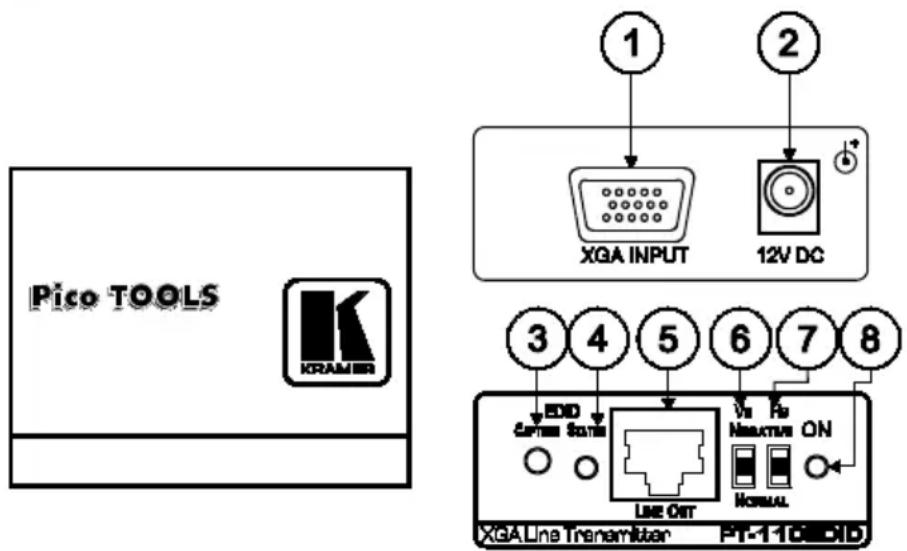
Figure 9: PT-110EDID XGA Line Transmitter
Table 9: PT-110EDID XGA Line Transmitter Features
| # | Feature | Function | |
| 1 | XGA IN 15-pin HD (F) Connector | Connect to the UXGA source | |
| 2 | 12V DC | +12V DC connector for powering the unit | |
| 3 EDID ^1 | CAPTURE Button | Press to acquire the EDID information from the display | |
| 4 | STATUS LED | Illuminates during normal operation; blinks when acquiring the EDID | |
| 5 | LINE OUT RJ-45 Connector | Connects to the LINE IN RJ-45 connector on the TP-120 UXGA / Audio Line Receiver | |
| 6 | VS Switch | Slide up to set the V SYNC to NEGATIVE polarity; slide down ^2 to set the V SYNC to NORMAL polarity | |
| 7 | HS Switch | Slide up to set the H SYNC to NEGATIVE polarity (NEG); slide down ^2 to set the H SYNC to NORMAL polarity | |
| 8 | ON LED | Illuminates when receiving power | |
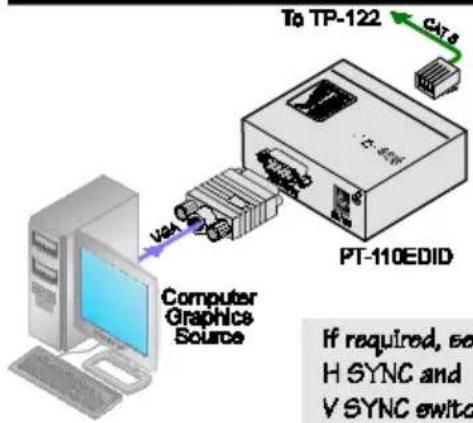
7.1 Connecting the PT-110EDID XGA / Line Transmitter
You can use the PT-110EDID XGA Line Transmitter together with the TP-120 XGA Line Receiver ^3 to configure an XGA-to-Twisted Pair Transmitter and Receiver system.
Before connecting the transmitter and receiver system you can acquire the EDID from the display or set the system to the default EDID, see section 9
To connect the PT-110EDID XGA Line Transmitter with the TP-120 XGA Line Receiver, as the example in Figure 10 illustrates, do the following:
- On the PT-110EDID, connect the XGA source (for example, the 15-pin HD output from a computer's graphics card) to the XGA INPUT 15-pin HD (F) connector.
- On the TP-120, connect the XGA OUT 15-pin HD (F) connector to the XGA acceptor (for example, a monitor).
- Connect the LINE OUTPUT RJ-45 connector on the PT-110EDID to the LINE IN RJ-45 connector on the TP-120, via CAT 5 cabling (with a range of more than 300ft (>100m)).
-
On both ^4 the PT-110EDID and the TP-120, connect the 12V DC power adapter to the power socket and connect the adapter to the mains electricity. The signal from the XGA source is transmitted via CAT 5 cable, decoded and converted at the XGA OUT 15-pin HD (F) connector to the XGA acceptor.
-
On the TP-120, adjust ^1 the output signal level and/or cable compensation equalization level, if required.
- If necessary, set the H SYNC and V SYNC switches ^2 , on the units.

flowchart
graph TD
    A["Computer Graphics Source"] -->|VGA| B["Display"]
    B -->|VGA| C["Long CAT 5 cable"]
    C -->|USB port| D["Device with USB port"]
    D -->|USB port| E["Device with USB port"]
    E -->|USB port| F["Device with USB port"]
    F -->|USB port| G["Device with USB port"]
    G -->|USB port| H["Device with USB port"]
    H -->|USB port| I["Device with USB port"]
    I -->|USB port| J["Device with USB port"]
    J -->|USB port| K["Device with USB port"]
    K -->|USB port| L["Device with USB port"]
    L -->|USB port| M["Device with USB port"]
    M -->|USB port| N["Device with USB port"]
    N -->|USB port| O["Device with USB port"]
    O -->|USB port| P["Device with USB port"]
    P -->|USB port| Q["Device with USB port"]
    Q -->|USB port| R["Device with USB port"]
    R -->|USB port| S["Device with USB port"]
    S -->|USB port| T["Device with USB port"]
    T -->|USB port| U["Device with USB port"]
    U -->|USB port| V["Device with USB port"]
    V -->|USB port| W["Device with USB port"]
    W -->|USB port| X["Device with USB port"]
    X -->|USB port| Y["Device with USB port"]
    Y -->|USB port| Z["Device with USB port"]
Figure 10: Connecting the PT-110EDID XGA / Line Transmitter
7.2 Technical Specifications
Table 10 includes the technical specifications ^1 of the PT-110EDID:
Table 10: Technical Specifications of the PT-110EDID ^2
| INPUT: | 1 VGA / UXGA on a 15-pin HD connector |
| OUTPUT: | 1 RJ-45 LINE OUTPUT connector |
| RESOLUTION: Up to UXGA | |
| S/N RATIO: 69dB (worst case) | |
| COUPLING: AC | |
| POWERSOURCE: | 12V DC 60mA |
| DIMENSIONS: | 6cm x 6.5cm x 2.5cm, (2.36" x 2.56" x 1") W, D, H |
| WEIGHT: | 0.14kg (0.31lbs) approx. |
| ACCESSORIES: Power supply | |
| OPTIONS: | 19-inch rack adapters |
8 Wiring the CAT 5 LINE IN / LINE OUT RJ-45 Connectors
Table 11 and Figure 11 define the CAT 5 PINOUT, using a straight pin to pin cable with RJ-45 connectors:
Table 11: CAT 5 PINOUT
| EIA /TIA 568A | EIA /TIA 568B | |||
| PIN | Wire Color | PIN | Wire Color | |
| 1 | Green / White | 1 | Orange / White | |
| 2 | Green | 2 | Orange | |
| 3 | Orange / White | 3 | Green / White | |
| 4 | Blue | 4 | Blue | |
| 5 | Blue / White | 5 | Blue / White | |
| 6 | Orange | 6 | Green | |
| 7 | Brown / White | 7 | Brown / White | |
| 8 | Brown | 8 | Brown | |
| Pair 1 | 4 and 5 | Pair 1 | 4 and 5 | |
| Pair 2 | 3 and 6 | Pair 2 | 1 and 2 | |
| Pair 3 | 1 and 2 | Pair 3 | 3 and 6 | |
| Pair 4 | 7 and 8 | Pair 4 | 7 and 8 | |
Figure 11: CAT 5 PINOUT

9 Acquiring the EDID
The transmitter can acquire the EDID information from the display connected to the transmitter or acquire the default EDID.
To acquire the display EDID, do the following:
- Connect the XGA INPUT 15-pin HD connector to the input XGA connector of the display, using a short cable ^1 .
- Connect the display power.
- On the Transmitter, connect the 12V DC power adapter to the power socket and connect the adapter to the mains electricity.
- Press the EDID CAPTURE button.
- Once the EDID STATUS blinks slowly several times, the EDID is captured.
- Disconnect the display.
To acquire the default EDID ^2 :
- On the Transmitter, connect the 12V DC power adapter to the power socket and connect the adapter to the mains electricity.
- Press the EDID CAPTURE button.
- Once the EDID STATUS blinks rapidly several times, the default EDID is captured.
Alternatively, you can press the EDID CAPTURE button after connecting the transmitter receiver system. When the EDID STATUS LED blinks rapidly several times, the default EDID information is acquired.
LIMITED WARRANTY
Kramer Electronics (hereafter Kramants this product free from defects in material and workmanship under the following terms.
HOW LONG IS THE WARRANTY
Labor and parts are warranted for seven years from the date of the first customer purchase.
WHO IS PROTECTED?
Only the first purchase customer may enforce this warranty.
WHAT IS COVERED AND WHAT IS NOT COVERED
Except as below, this warranty covers all defects in material or workmanship in this product. The following are not covered by the warranty:
- Any product which is not distributed by Kramer, or which is not purchased from an authorized Kramer dealer. If you are uncertain as to whether a dealer is authorized, please contact Kramer at one of the agents listed in the Web site www.kramerelectronics.com.
- Any product, on which the serial number has been defaced, modified or removed, or on which the WARRANTY VOID IF TOTALPERED is worked rather than being interfered with.
- Damage, deterioration or malfunction resulting from:
i) Accident, misuse, abuse, neglect, fire, water, lightning or other acts of nature
ii) Product modification, or failure to follow instructions supplied with the product
iii) Repair or attempted repair by anyone not authorized by Kramer
iv) Any shipment of the product (claims must be presented to the carrier)
v) Removal or installation of the product
vi) Any other cause, which does not relate to a product defect
vii) Cartons, equipment enclosures, cables or accessories used in conjunction with the product
WHAT WE WILL PAY FOR AND WHAT WE WILL NOT PAY FOR
We will pay labor and material expenses for covered items. We will not pay for the following:
- Removal or installations charges.
- Costs of initial technical adjustments (set-up), including adjustment of user controls or programming. These costs are the responsibility of the Kramer dealer from whom the product was purchased.
- Shipping charges.
HOW YOU CAN GET WARRANTY SERVICE
- To obtain service on you product, you must take or ship it prepaid to any authorized Kramer service center.
- Whenever warranty service is required, the original dated invoice (or a copy) must be presented as proof of warranty coverage, and should be included in any shipment of the product. Please also include in any mailing a contact name, company, address, and a description of the problem(s).
- For the name of the nearest Kramer authorized service center, consult your authorized dealer.
LIMITATION OF IMPLIED WARRANTIES
All implied warranties, including warranties of merchantability and fitness for a particular purpose, are limited in duration to the length of this warranty.
EXCLUSION OF DAMAGES
The liability of Kramer for any effective products is limited to the repair or replacement of the product at our option. Kramer shall not be liable for:
- Damage to other property caused by defects in this product, damages based upon inconvenience, loss of use of the product, loss of time, commercial loss; or:
- Any other damages, whether incidental, consequential or otherwise. Some countries may not allow limitations on how long an implied warranty lasts and/or do not allow the exclusion or limitation of incidental or consequential damages, so the above limitations and exclusions may not apply to you.
This warranty gives you specific legal rights, and you may also have other rights, which vary from place to place.
NOTE: All products returned to Kramer for service must have prior approval. This may be obtained from your dealer.
This equipment has been tested to determine compliance with the requirements of:
EN-50081: "Electromagnetic compatibility (EMC); generic emission standard.
Residential, commercial and light industry"
EN-50082: "Electromagnetic compatibility (EMC) generic immunity standard.
Part 1: Residential, commercial and light industry environment".
CFR-47: FCC* Rules and Regulations:
Part 15: "Radio frequency devices
Subpart B Unintentional radiators"
CAUTION!
Servicing the machines can only be done by an authorized Kramer technician. Any user who makes changes of modifications to the unit without the expressed approval of the manufacturer will void user authority to operate the equipment.
Use the supplied DC power supply to feed power to the machine.
☒ Please use recommended interconnection cables to connect the machine to other components.
* FCC and CE approved using STP cable (for twisted pair products)
For the latest information on our products and a list of Kramer distributors, visit our Web site: www.kramerelectronics.com, where updates to this user manual may be found.
We welcome your questions, comments and feedback.

Caution
Safety Warning:
Disconnect the unit from the power supply before opening/servicing.

CE


- Kramer Electronics, Ltd.
- USER MANUAL
- Models:
- Contents
- Introduction 1
- Getting Started 1
- Overview 3
- Figures
- Tables
- Introduction
- Getting Started
- Quick Start
- To connect your Kramer Transmitter
- To acquire the EDID (Section 9)
- Overview
- Shielded Twisted Pair (STP) / Unshielded Twisted Pair (UTP)
- About the Power Connect Feature
- Defining EDID
- Recommendations for Achieving the Best Performance
- Your TP-121EDID XGA / Audio Line Transmitter
- Connecting the TP-121EDID XGA / Audio Line Transmitter
- Technical Specifications 1
- Your TP-123EDID XGA / Audio / Data Line Transmitter
- Connecting the TP-123EDID XGA / Audio / Data Line Transmitter
- Controlling via RS-232 (for example, using a PC)
- Technical Specifications
- Your TP-125EDID XGA / Audio / Data Line Transmitter
- Connecting the TP-125EDID XGA / Audio / Data Line Transmitter
- Transmitting via RS-232 (for example, using a PC)
- Technical Specifications
- Your PT-110EDID XGA / Line Transmitter
- Connecting the PT-110EDID XGA / Line Transmitter
- Technical Specifications
- Wiring the CAT 5 LINE IN / LINE OUT RJ-45 Connectors
- Acquiring the EDID
- LIMITED WARRANTY
- HOW LONG IS THE WARRANTY
- WHO IS PROTECTED?
- WHAT IS COVERED AND WHAT IS NOT COVERED
- WHAT WE WILL PAY FOR AND WHAT WE WILL NOT PAY FOR
- HOW YOU CAN GET WARRANTY SERVICE
- LIMITATION OF IMPLIED WARRANTIES
- EXCLUSION OF DAMAGES
- CAUTION!
- Safety Warning:
Brand : Kramer
Model : TP-125EDID
Category : AV Switch