GEF-DVI-2-HDSDIPRO - Audio / Vidéo Gefen - Free user manual and instructions
Find the device manual for free GEF-DVI-2-HDSDIPRO Gefen in PDF.


User questions about GEF-DVI-2-HDSDIPRO Gefen
0 question about this device. Answer the ones you know or ask your own.
Ask a new question about this device
Download the instructions for your Audio / Vidéo in PDF format for free! Find your manual GEF-DVI-2-HDSDIPRO - Gefen and take your electronic device back in hand. On this page are published all the documents necessary for the use of your device. GEF-DVI-2-HDSDIPRO by Gefen.
USER MANUAL GEF-DVI-2-HDSDIPRO Gefen
natural_image
Exterior view of a Cefen PRO DVI to HDSDI Pro Scaler audio workstation (no visible text beyond branding)DVI to HDSDI Pro Scaler
GEF-DVI-2-HDSDIPRO
User Manual
Technical Support:
| Telephone | (818) | 772-9100 |
| (800) | 545-6900 | |
| Fax | (818) | 772-9120 |
Technical Support Hours:
8:00 AM to 5:00 PM Monday thru Friday Pacific Time.
Write To:
Gefen LLC
c/o Customer Service
20600 Nordhoff St
Chatsworth, CA 91311
www.gefenpro.com
support@gefenpro.com
Notice
Gefen LLC reserves the right to make changes in the hard ware, packaging and any accompanying doc u men ta tion without prior written notice.
DVI to HDSDI Pro Scaler is a trademark of Gefen LLC
1 Introduction
2 Operation Notes
3 Features
4 Connecting and Operating the DVI to HDSDI Pro Scaler
4 Wiring Diagram
5 Panel Layout - Front Panel
6 Panel Descriptions
7 Panel Layout - Back Panel
8 Panel Descriptions
9 IR Remote Layout / Description
10 IR Remote Description
11 IR Remote Installation
12 IR Remote Configuration
13 Menu Functions
13 General
14 Patterns
15 Output
18 Input
20 Picture
22 Layout
22 Aspect
25 Specifications
26 Warranty
Congratulations on your purchase of the DVI to HDSDI Pro Scaler. Your complete satisfaction is very important to us.
GefenPRO
In the realm of video distribution, certain features are invaluable in a commercial or broadcast environment. Accommodations such as a build-in power supply and flat black rack-mount enclosures set GefenPRO apart from our traditional products. Complex distribution units allow for professional DVI, 3G-SDI, and HDMI signals to be routed and converted easily and seamlessly, while being backed up by a renowned and dependable technical support team. Gefen invites you to explore the GefenPRO product line and hopes that you find the solution that fits your needs.
The GefenPRO DVI to HDSDI Pro Scaler
The GefenPRO DVI to HDSDI Pro Scaler places two DVI to HDSDI Scaler Plus units in one rack mount enclosure. This product provides two separate DVI inputs to be converted and scaled to single link or dual link HDSDI. Resolutions up to 1080p and 2K with genlock are supported on the HDSDI output. This product uses VXP scaler technology which provides high-performance scaling plus additional features: Adaptive video interlacing with edge interpolation, noise reduction, alpha blending, and image enhancement. Two separate BNC connectors offer external genlock capabilities. The GefenPRO DVI to HDSDI Pro Scaler provides superior HDSDI scaling quality in one rack mount space.
How It Works
Connect two (2) DVI sources to the GefenPRO DVI to HDSDI Pro Scaler using the supplied DVI cables. Connect up to two (2) HDSDI devices to the outputs. Apply power to the source and HDSDI devices first then apply power to the product. The DVI source will be converted to HDSDI and then scaled on the output. Use the IR remote control unit to navigate the built-in menu system to control the scaling features on the HDSDI output.
READ THESE NOTES BEFORE INSTALLING OR OPERATING THE DVI TO HDSDI PRO SCALER
- On power-up, the DVI to HDSDI Pro Scaler will automatically detect the format of the input signal.
- The DVI to HDSDI Pro Scaler contains a master and a slave DVI to HDSDI Scaler unit. Both Scaler units are controlled using the IR Remote Control Unit. To view the built-in menu system for the master unit, press the Menu button once on the IR Remote Control Unit. To bring up the built-in menu system for the slave unit, press the Menu button twice. Pressing the Menu button once more will exit the built-in menu system.
Features:
- Input and Output Resolutions up to 2048x1080
• 10-bit resolution for greater precision and dynamic range - Proprietary 10-bit motion adaptive video de-interlacing with edge interpolation for HD / SD formats
• Frame rate conversion to / from any refresh rate - Fully integrated sprite based multi-plane OSD controller
- Advanced noise reduction and detail enhancement
- Test Pattern mode with color bars and cross hatch patterns
• Color correction
- Noise Reduction
• Detail Enhancement
- Brightness Adjustment
- Gamma Selection
- Aspect Ratio Selection
- Custom Timing output mode
- RS-232 Control
- IR Control
- French / English Menu Set
• Field-upgradeable fi rmware
- Genlock capable
Package Includes:
(1) GefenPRO DVI to HDSDI Pro Scaler
(2) 6-foot DVI Cables (M-M)
(1) 6-foot Serial DB9 Cable (M-F)
(1) IR Remote Control Unit
(1) 5V DC Locking Power Supply
(1) Set of Rack Ears
(1) User Manual
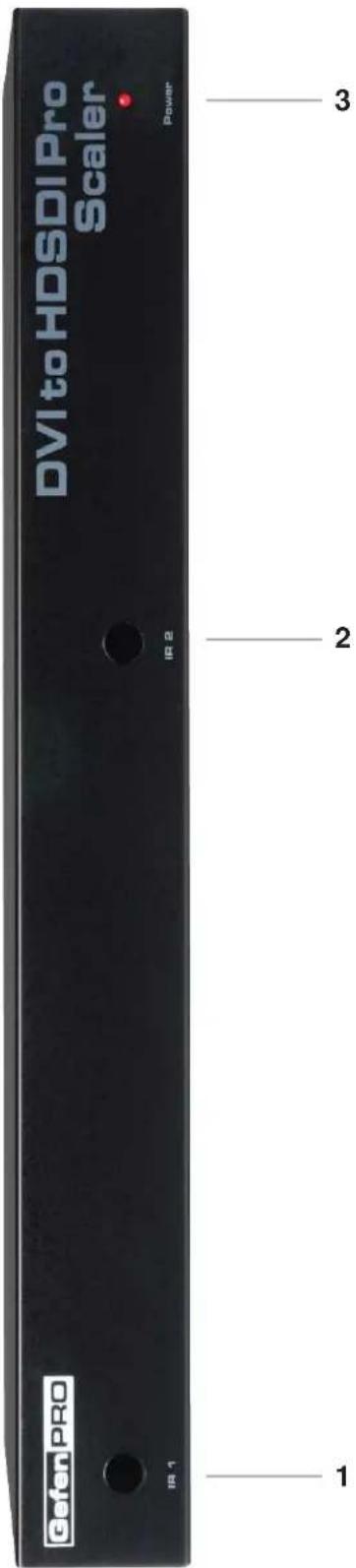
Front Panel
text_image
DVI to HDSDI Pro Scaler Power 3 2 1 GefanPRO IR 1Front Panel
1 IR Window 1 (Primary Board)
Receives signals from the IR Remote Control unit.
2 IR Window 2 (Secondary Board)
Receives signals from the IR Remote Control unit.
3 Power Indicator
This LED indicator will glow red when the power is turned on.
Back Panel
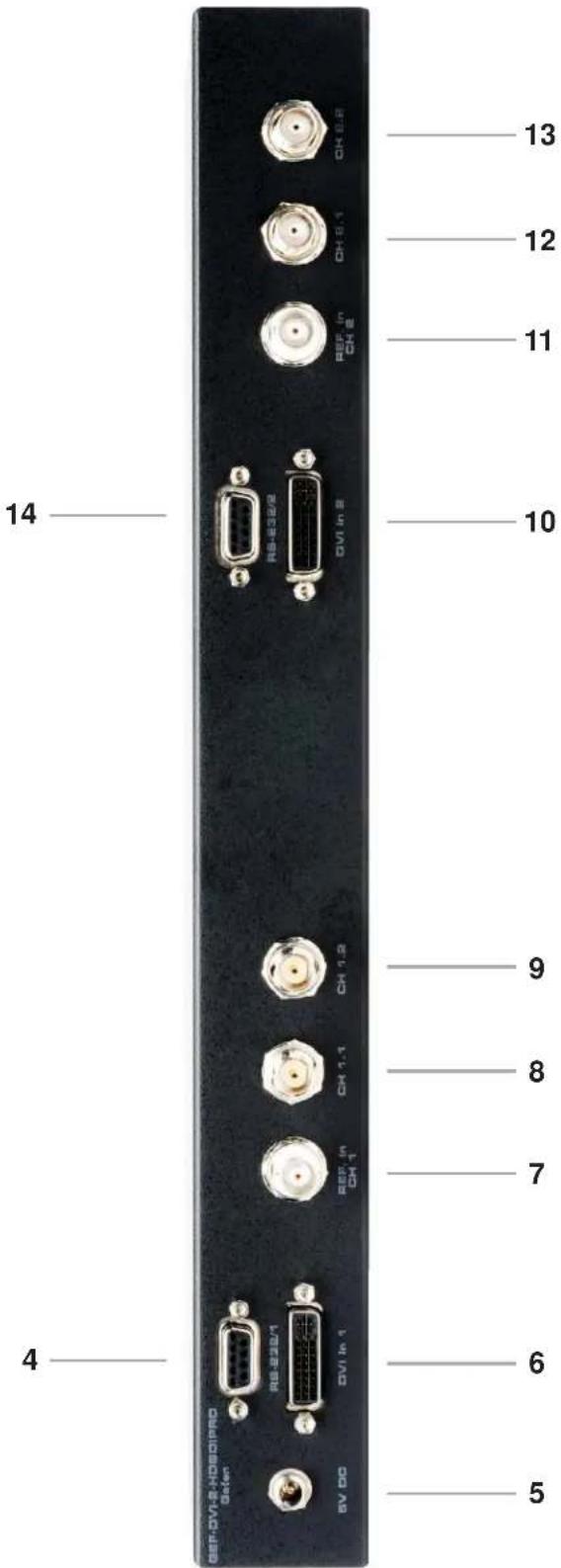
Connects to the RS-232 control device. The DVI to HDSDI Pro Scaler may be controlled using this port. See page 26 for more information.
5 5V DC Locking Power Connector
Connects the included 5V DC Locking Power Supply to this receptacle.
6 DVI Input Port (Primary Board)
Connect the DVI source device to this port.
7 Reference In Connector 1
Connect an external clock to this connector.
8 HD-SDI Single Link Output 1
Connect a single cable to this port for single link resolutions.
9 HD-SDI Dual Link Output 1
Connect a secondary cable to this port for dual link resolutions.
10 DVI Input Port (Primary Board)
Connect the DVI source device to this port.
11 Reference In Connector 2
Connect an external clock to this connector.
12 HD-SDI Single Link Output 2
Connect a single cable to this port for single link resolutions.
13 HD-SDI Dual Link Output 2
Connect a secondary cable to this port for dual link resolutions.
14 RS-232 Serial Port
Connects the secondary board to the RS-232 control device. The DVI to HDSDI Pro Scaler may be controlled using this port. See page 26 for more information.
How to Connect the GefenPRO DVI to HDSDI Pro Scaler
- Connect two (2) DVI sources to the GefenPRO DVI to HDSDI Pro Scaler using the supplied DVI cables..
- Connect up to two (2) HDSDI devices to the outputs.
- Apply power to the source and HDSDI devices first then apply power to the product..
The DVI source will be converted to HDSDI and then scaled on the output. Use the IR remote control unit to navigate the built-in menu system to control the scaling features on the HDSDI output.
Wiring Diagram for the DVI to HDSDI Pro Scaler

flowchart
graph TD
    A["GefenPRO"] --> B["DVI Source"]
    A --> C["Clock Generator"]
    A --> D["Clock Generator"]
    B --> E["Scaler"]
    C --> E
    D --> E
    E --> F["HD-SDI Display"]
    F --> G["Computer"]
    H["SDI CABLE"] --> E
    I["DVI CABLE"] --> E
    J["GEF-DVI-2-HDSDIPRO"] --> K["Computer"]
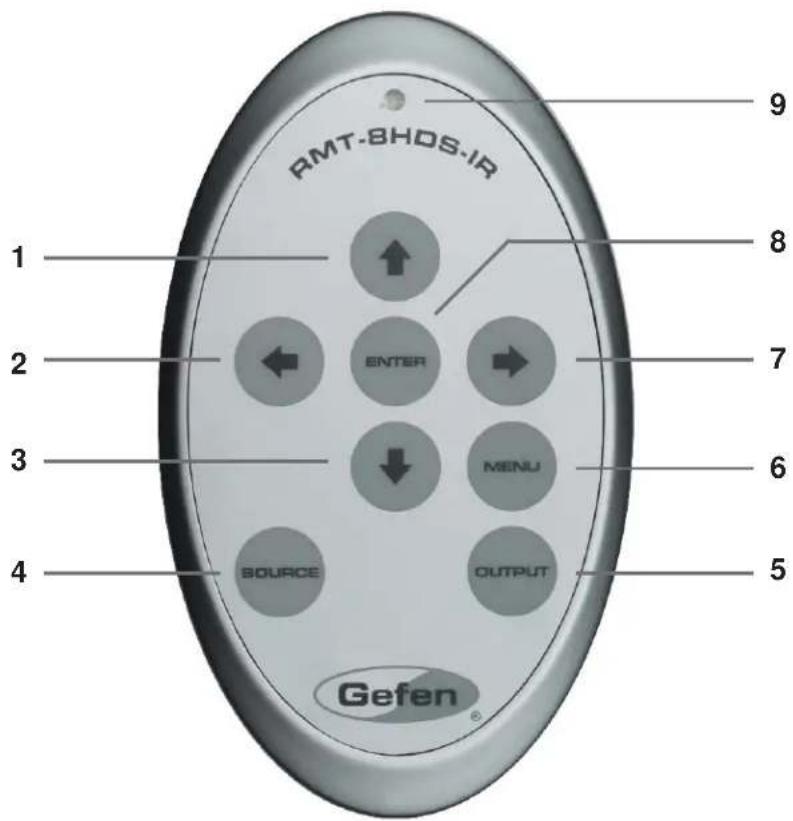
RMT-8HDS-IR Remote Control
text_image
RMT-BHDS-IR 1 2 3 4 5 6 7 8 ENTER MENU SOURCE OUTPUT Gefen 91 Up Cursor Button
Moves the selection cursor Up, when using the built-in menu system.
2 Left Cursor Button
Moves the selection cursor to the Left, when using the On-Screen Display menu system.
3 Down Cursor Button
Moves the selection cursor Down, when using the built-in menu system.
4 Source Button
Not used.
5 Output Button
Pressing this button to cycle through the following Output Modes: 480i, 576i, 720p, and 1080i.
6 Menu Button
Displays the built-in menu system.
7 Right Cursor Button
Moves the selection cursor to the Right, when using the On-Screen Display menu system.
8 Enter Button
Confirms the current action.
9 Activity Indicator
This LED will be activated momentarily each time a button is pressed.
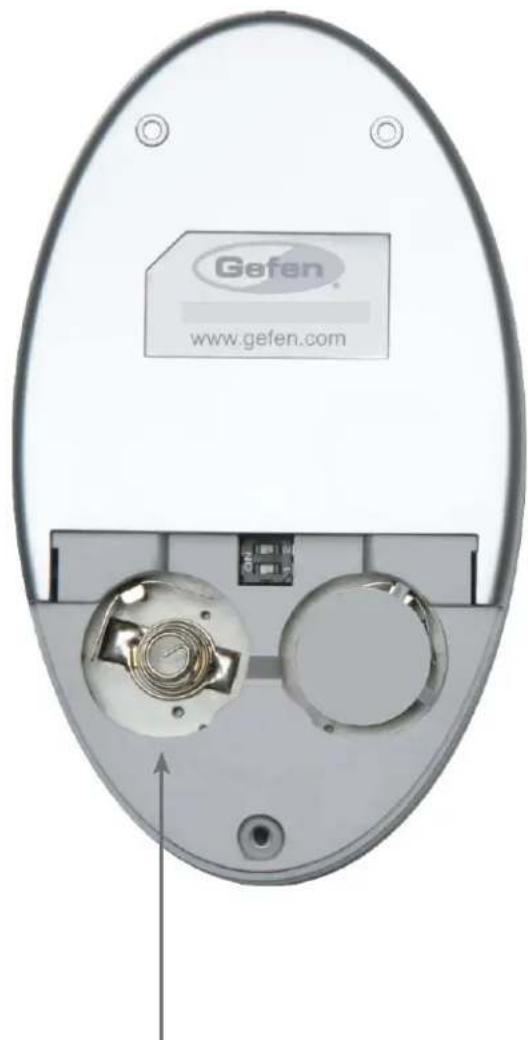
Installing the IR Remote Control Battery
- Remove the battery cover on the back of the IR Remote Control unit.
- Insert the included battery into the open battery slot. The positive (+) side of the battery should be facing up.
- Replace the battery cover.
The Remote Control unit ships with two batteries. One battery is required for operation and the other battery is a spare.
natural_image
Internal view of a device showing a circular component with internal components and a Gefen logo on the top (no text or symbols on main body)Battery Slot
Resolving IR Code Conf icts
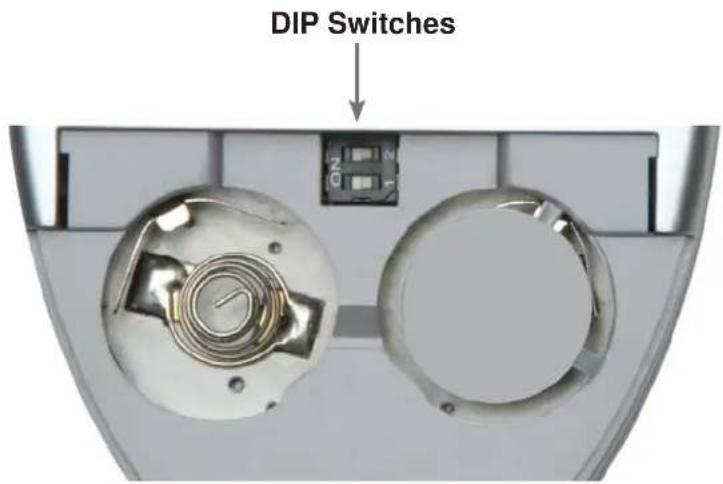
In the event that IR commands from other remote controls conflict with the supplied IR remote control unit, changing the remote channel will alleviate this issue. The IR remote control unit has a bank of DIP switches for setting the remote IR channel.
The DIP Switch bank on the IR remote control unit is located underneath the battery cover.
text_image
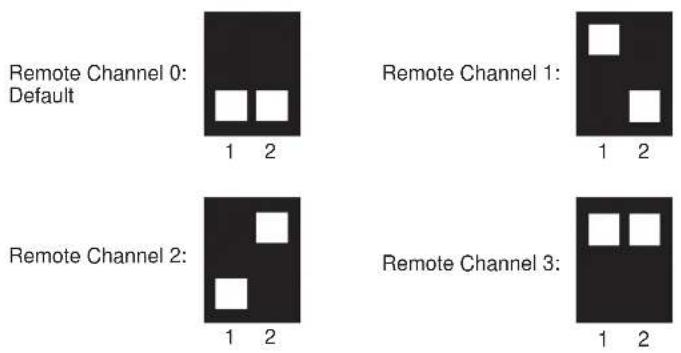
DIP SwitchesIt is important that the IR channel selected on the remote, match the IR channel on the DVI to HDSDI Pro Scaler for proper operation. For example, if you set both DIP switches on the remote to the down position (toward the "1" and "2"), IR channel 0, you must set the DVI to HDSDI Pro Scaler to use IR channel 0.
text_image
Remote Channel 0: Default 1 2 Remote Channel 1: 1 2 Remote Channel 2: 1 2 Remote Channel 3: 1 2See page ## for information on how to change the IR channel on the DVI to HDSDI Pro Scaler.
Controlling Master and Slave Units
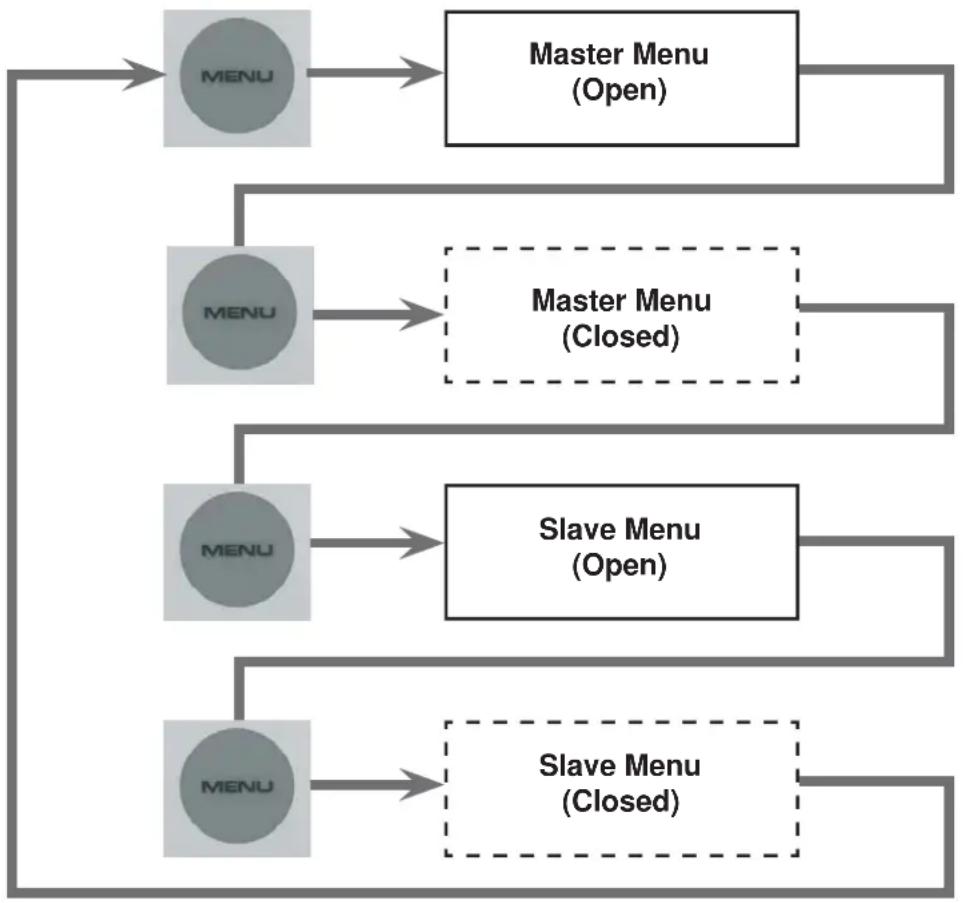
The DVI to HDSDI Pro Scaler contains a master and a slave unit. The built-in menu system is controlled using the IR Remote Control Unit. To view the built-in menu system for the master unit, press the Menu button once on the IR Remote Control Unit. To bring up the built-in menu system for the slave unit, press the Menu button twice. See the illustration below for details.
flowchart
graph TD
    A["MENU"] --> B["Master Menu (Open)"]
    A --> C["MENU"]
    C --> D["Master Menu (Closed)"]
    C --> E["MENU"]
    E --> F["Slave Menu (Open)"]
    E --> G["MENU"]
    G --> H["Slave Menu (Closed)"]
General > Save Configuration

text_image
Aspect Layout Picture Input Output Patterns General Save Configuration Restore default configuration Gefen Host Firmware Version: 2.3.3 Kernel Version: 2.2.8 Configuration Version: 1.10 FPGA Version : 2.2 Remote Channel : 0 Dual (Master) Input: DVI - 1024x768p@60.1Hz Output: SDI - 1280x720p@60HzSaves the current configuration of the Scaler (Input format, Output format, etc). These settings are restored at power-up. Changes can be made to the current settings and then saved using the Restore Default Configurations function (below).
General > Restore Default Configuration

text_image
Aspect Layout Picture Input Output Patterns General Save Configuration Restore default configuration Gefen Host Firmware Version: 2.3.3 Kernel Version: 2.2.8 Configuration Version: 1.10 FPGA Version : 2.2 Remote Channel : 0 Dual (Master) Input: DVI - 1024x768p@60.1Hz Output: SDI - 1280x720p@60HzRestores the Scaler to the factory default settings.
Patterns > Color Bars

text_image
Aspect Layout Picture Input Output Patterns General Colors Bars Cross Hatch Input: DVI - 1024x768p@60.1Hz Output: SDI - 1280x720p@60HzDisplays the Color Bar pattern using the built-in pattern generator.
Patterns > Cross Hatch

text_image
Aspect Layout Picture Input Output Patterns General Colors Bars Cross Hatch Input: DVI - 1024x768p@60.1Hz Output: SDI - 1280x720p@60HzDisplays the Hatch Pattern using the built-in pattern generator.
Output > Output Format
text_image
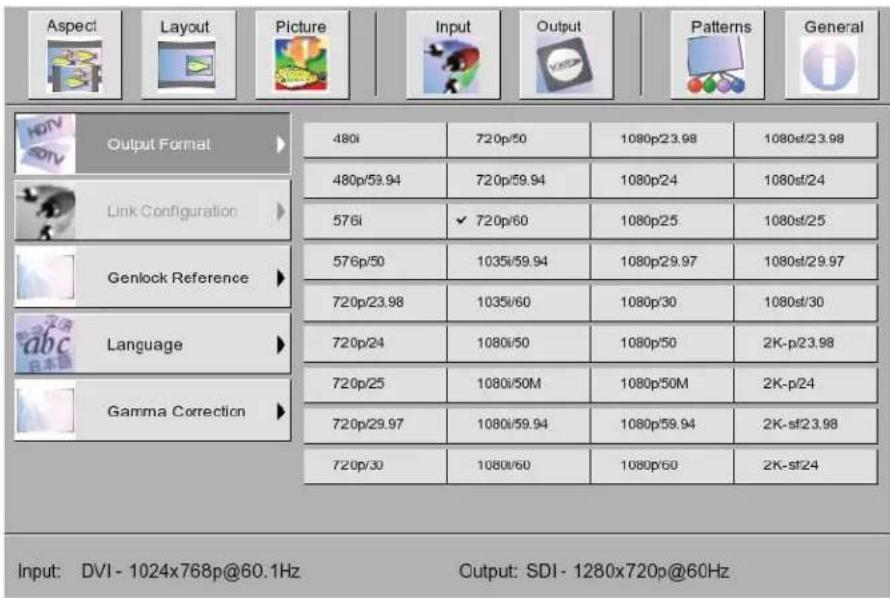
Aspect Layout Picture Input Output Patterns General Output Format 480i 720p/50 1080p/23.98 1080sf/23.98 Link Configuration 480p/59.94 720p/59.94 1080p/24 1080sf/24 576i ✓ 720p/60 1080p/25 1080sf/25 Genlock Reference 576p/50 1035i/59.94 1080p/29.97 1080sf/29.97 Language 720p/23.98 1035i/60 1080p/30 1080sf/30 Gamma Correction 720p/24 1080i/50 1080p/50 2K-p/23.98 720p/25 1080i/50M 1080p/50M 2K-p/24 720p/29.97 1080i/59.94 1080p/59.94 2K-sf/23.98 720p/30 1080i/60 1080p/60 2K-sf/24 Input: DVI - 1024x768p@60.1Hz Output: SDI - 1280x720p@60HzSelects the Output resolution. See page 27 for supported output timings.
Output > Link Configuration

text_image
Aspect Layout Picture Input Output Patterns General HDTV Output Format ✓ Single Link Link Configuration Dual Link YCbCr Genlock Reference Dual Link RGB abc Language Gamma Correction Input: DVI - 1024x768p@60.1Hz Output: SDI - 1280x720p@60HzDual Link configuration: Single Link, Dual Link YCbCr, or Dual Link RGB.
Output > Genlock Reference

text_image
Aspect Layout Picture Input Output Patterns General Output Format Off Video Input Ref Input Link Configuration Genlock Reference Language Gamma Correction Input: DVI - 1024x768p@60.1Hz Output: SDI - 1280x720p@59.94Hz(GENLOCK)The video signal can be synced ("genlocked") to an external clock or video input using the Reference In connector. In order to use Genlock, the external clock must be a multiple of four (4) of the source timing.
Output > Language

text_image
Aspect Layout Picture Input Output Patterns General Output Format English French Link Configuration Genlock Reference Language Gamma Correction Input: DVI - 1024x768p@60.1Hz Output: SDI - 1280x720p@60HzLocalizes the On-Screen Menu to either English or French.
Output > Gamma Correction
text_image
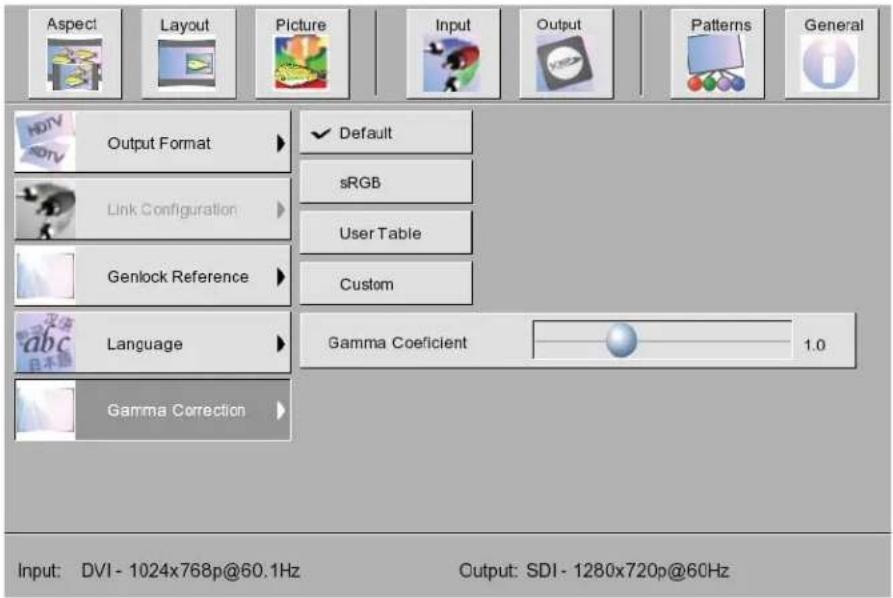
Aspect Layout Picture Input Output Patterns General Output Format Default sRGB User Table Genlock Reference Custom Language Gamma Coefficient 1.0 Gamma Correction Input: DVI - 1024x768p@60.1Hz Output: SDI - 1280x720p@60HzAllows adjustment of the Gamma coefficient, in addition to changing to the sRGB color space or other custom color tables.
Input > Video Format
text_image
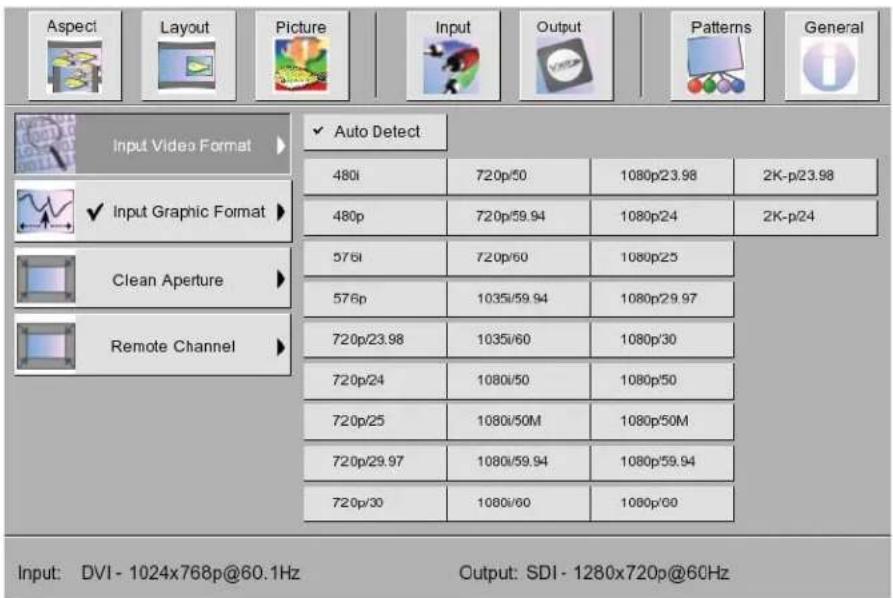
Aspect Layout Picture Input Output Patterns General Input Video Format ✓ Input Graphic Format Clean Aperture Remote Channel ✓ Auto Detect 480i 720p/50 1080p/23.98 2K-p/23.98 480p 720p/59.94 1080p/24 2K-p/24 576i 720p/60 1080p/25 576p 1035i/59.94 1080p/29.97 720p/23.98 1035i/60 1080p/30 720p/24 1080i/50 1080p/50 720p/25 1080i/50M 1080p/50M 720p/29.97 1080i/59.94 1080p/59.94 720p/30 1080i/60 1080p/60 Input: DVI - 1024x768p@60.1Hz Output: SDI - 1280x720p@60HzSelects the input video format. By default, this option is set to Auto-Detect.
Input > Input Graphic Format
text_image
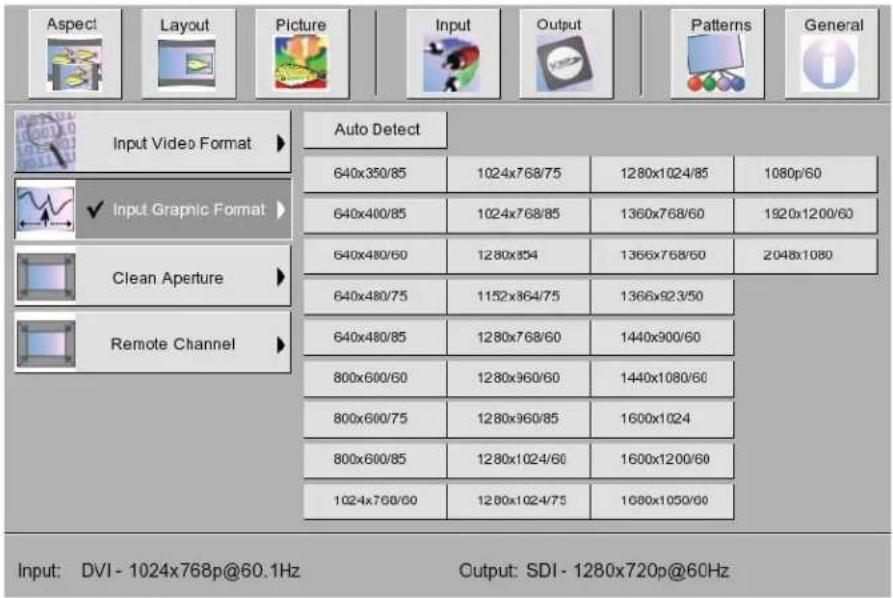
Aspect Layout Picture Input Output Patterns General Input Video Format Auto Detect 640x350/85 1024x768/75 1280x1024/85 1080p/60 640x400/85 1024x768/85 1360x768/60 1920x1200/60 640x480/60 1280x354 1366x768/60 2048x1080 640x480/75 1152x364/75 1366x923/50 640x480/85 1280x768/60 1440x900/60 800x600/60 1280x960/60 1440x1080/60 800x600/75 1280x960/85 1600x1024 800x600/85 1280x1024/60 1600x1200/60 1024x768/60 1280x1024/75 1680x1050/60 Input: DVI - 1024x768p@60.1Hz Output: SDI - 1280x720p@60HzSelects the input graphic format. This should only be used if using a non-standard timing which the DVI to HDSDI Pro Scaler does not recognize.
Input > Clean Aperture
text_image
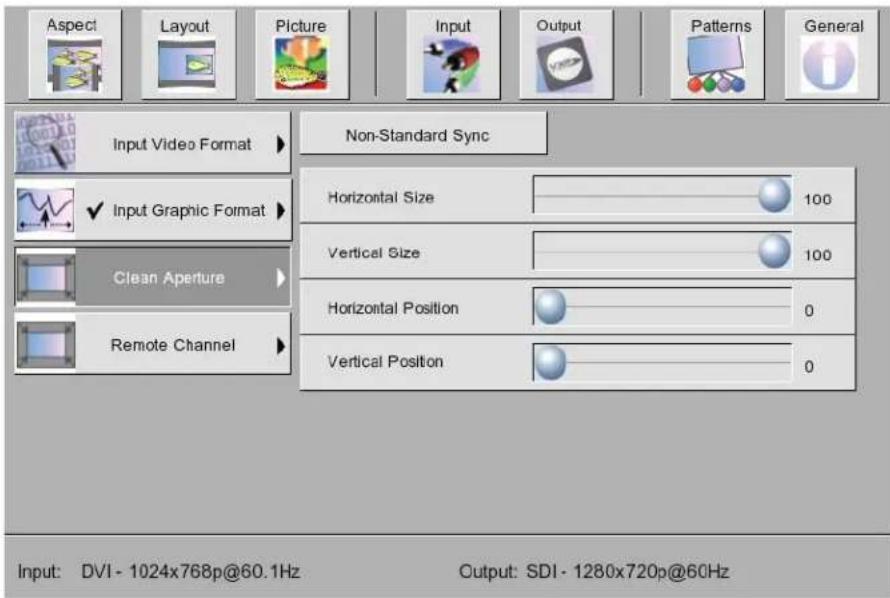
Aspect Layout Picture Input Output Patterns General Input Video Format Non-Standard Sync Input Graphic Format Horizontal Size 100 Vertical Size 100 Clean Aperture Horizontal Position 0 Remote Channel Vertical Position 0 Input: DVI - 1024x768p@60.1Hz Output: SDI - 1280x720p@60HzControls the zoom on the input signal. Zooming the image can be controlled using individual axis.
Input > Remote Channel
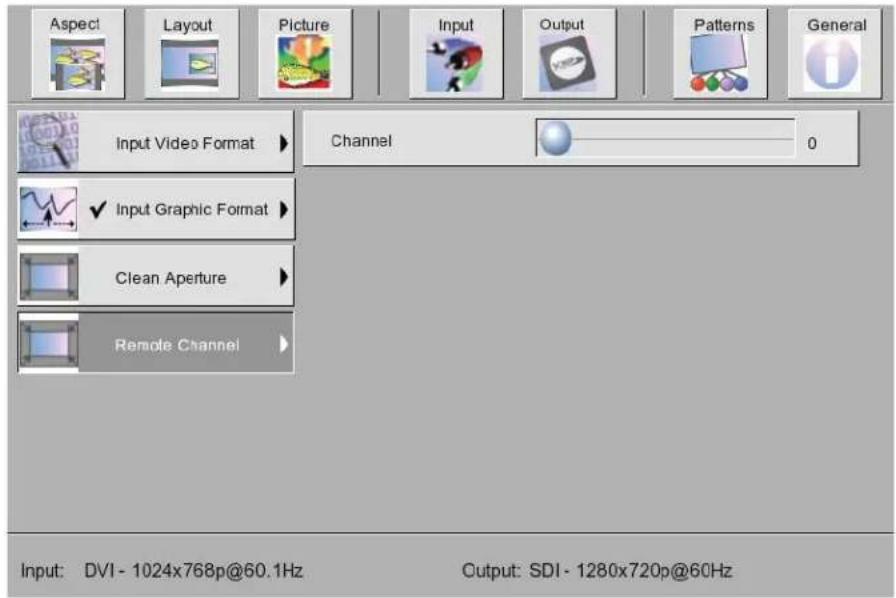
text_image
Aspect Layout Picture Input Output Patterns General Input Video Format Channel 0 Input Graphic Format Clean Aperture Remote Channel Input: DVI - 1024x768p@60.1Hz Output: SDI - 1280x720p@60HzChanges the IR channel of the DVI to HDSDI Pro Scaler. The IR channel range is 0 - 3. NOTE: The IR channel can only be changed when using the Master Menu.
Picture > Image Colour

text_image
Aspect Layout Picture Input Output Patterns General Image Colour Contrast Red 50 Detail Enhancement Contrast Green 50 Noise Reduction Contrast Blue 50 Motion Threshold Brightness Red 50 Color Range Brightness Green 50 Black Level 64 Input: DVI - 1024x768p@60.1Hz Output: SDI - 1280x720p@60HzAdjusts the color levels on the output signal.
Picture > Detail Enhancement

text_image
Aspect Layout Picture Input Output Patterns General Image Colour Detail Enhancement 0 Detail Enhancement Noise Threshold 0 Noise Reduction Motion Threshold Color Range Input: DVI - 1024x768p@60.1Hz Output: SDI - 1280x720p@60HzAdjusts the detail / sharpness of the image. The noise threshold can also be changed.
Picture > Noise Reduction
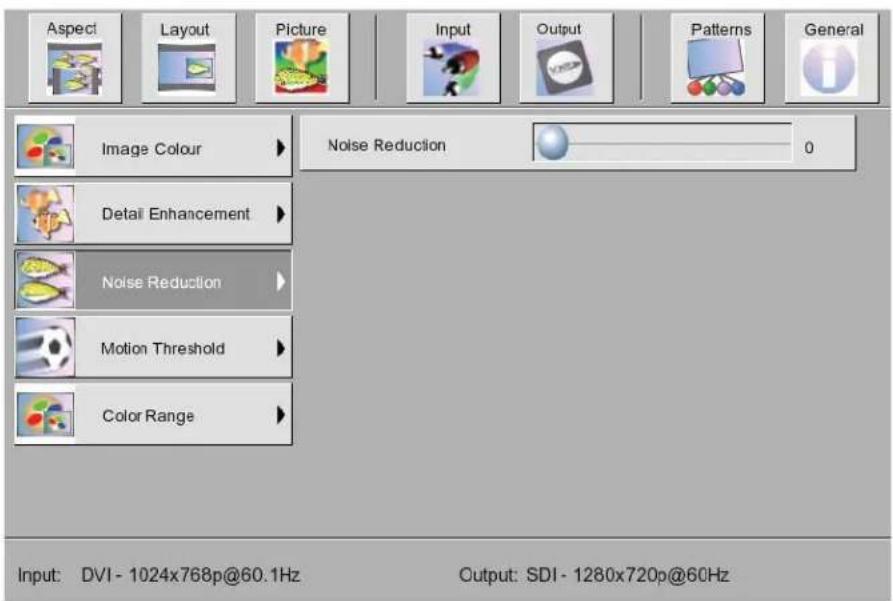
text_image
Aspect Layout Picture Input Output Patterns General Image Colour Noise Reduction 0 Detail Enhancement Noise Reduction Motion Threshold Color Range Input: DVI - 1024x768p@60.1Hz Output: SDI - 1280x720p@60HzDigitally reduces noise in the image.
Picture > Motion Threshold
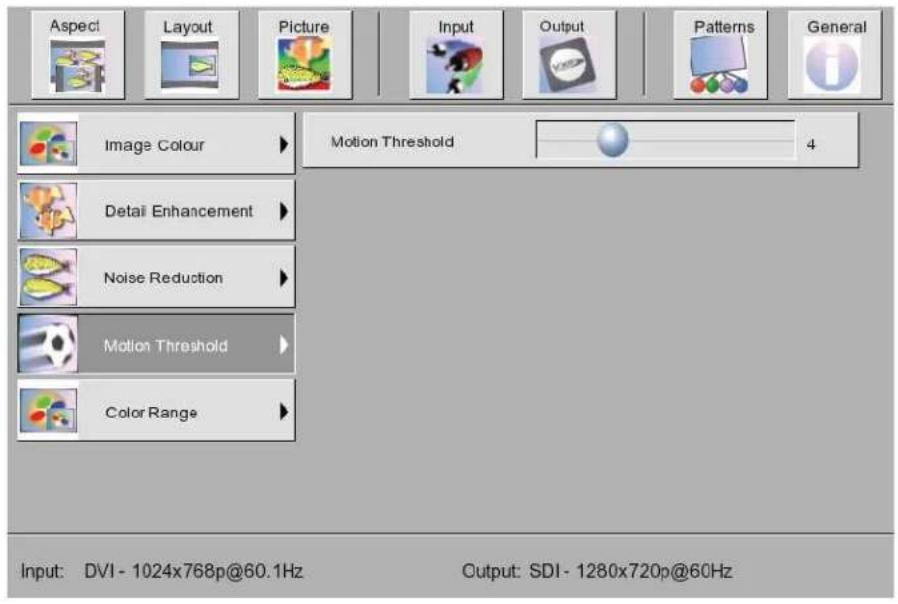
text_image
Aspect Layout Picture Input Output Patterns General Image Colour Motion Threshold 4 Detail Enhancement Noise Reduction Motion Threshold Color Range Input: DVI - 1024x768p@60.1Hz Output: SDI - 1280x720p@60HzSets the intra-frame motion detection threshold for the de-interlacer. Video artifacts are sometimes introduced when creating a progressive frame from interlaced frames. Use this function to set the motion threshold used by the motion-detection algorithm when de-interlacing.
Picture > Color Range

text_image
Aspect Layout Picture Input Output Patterns General Image Colour 16 - 235 Detail Enhancement 0 - 255 ✓ Auto Noise Reduction Motion Threshold Color Range Input: DVI - 1024x768p@60.1Hz Output: SDI - 1280x720p@60HzAdjusts between limited RGB and full-range RGB.
Layout > Size and Position

text_image
Aspect Layout Picture Input Output Patterns General Size and Position Horizontal Size 1280 Vertical Size 720 Horizontal Position 0 Vertical Position 0 Input: DVI- 1024x768p@60.1Hz Output: SDI- 1280x720p@60HzAdjusts both the vertical and horizontal size and position of the output signal.
Aspect > Full Screen
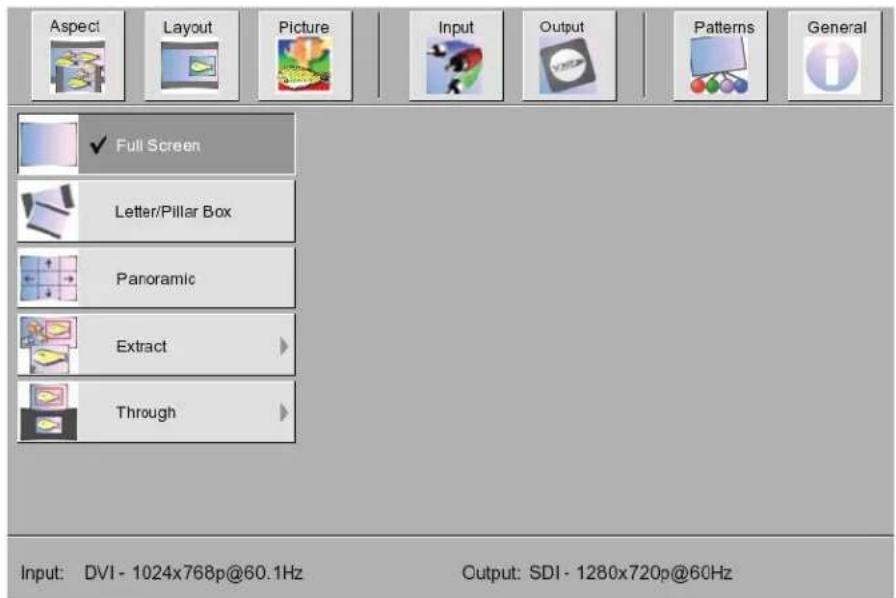
text_image
Aspect Layout Picture Input Output Patterns General ✓ Full Screen Letter/Pillar Box Panoramic Extract > Through > Input: DVI - 1024x768p@60.1Hz Output: SDI - 1280x720p@60HzStretches the output signal to fit the entire screen.
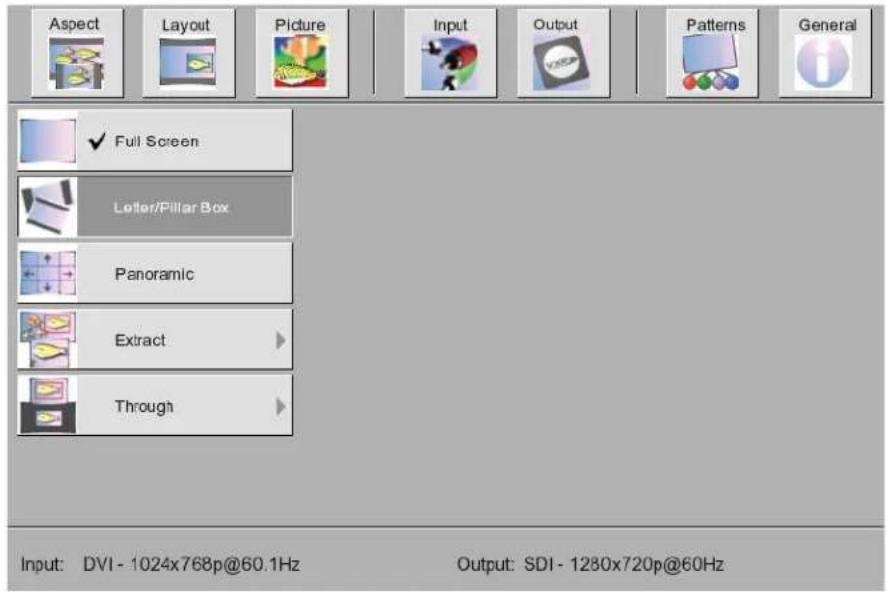
Aspect > Letter / Pillar Box
text_image
Aspect Layout Picture Input Output Patterns General Full Screen Lotter/Pillar Box Panoramic Extract Through Input: DVI - 1024x768p@60.1Hz Output: SDI - 1280x720p@60HzSets the aspect ratio on the output signal to fit the letter box or pillar box format.
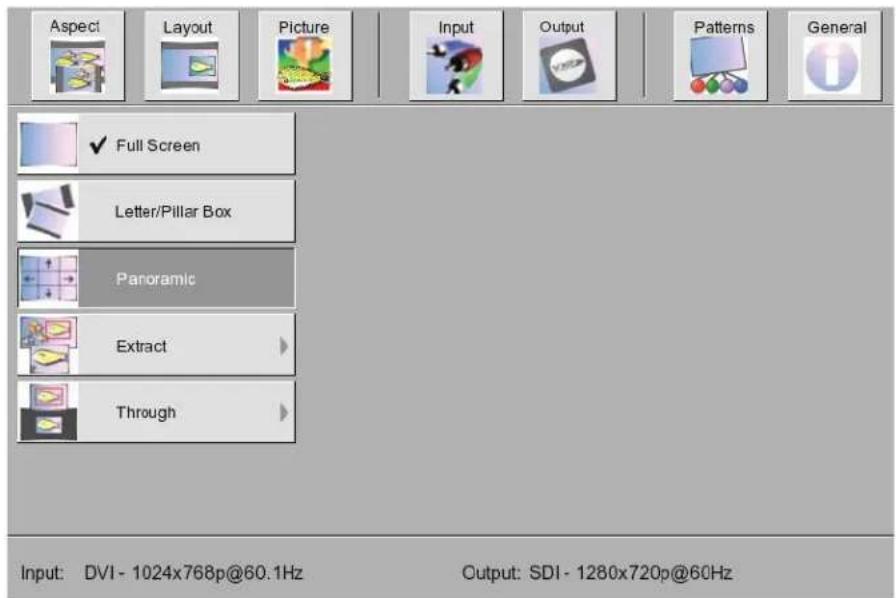
Aspect > Panoramic
text_image
Aspect Layout Picture Input Output Patterns General ✓ Full Screen Letter/Pillar Box Panoramic Extract Through Input: DVI - 1024x768p@60.1Hz Output: SDI - 1280x720p@60HzPanoramic Zoom feature.
Aspect > Extract

text_image
Aspect Layout Picture Input Output Patterns General ✓ Full Screen Extract Size 100 Letter/Pillar Box Horizontal Position 50 Panoramic Vertical Position 50 Extract Through Input: DVI - 1024x768p@60.1Hz Output: SDI - 1280x720p@60HzThis function extracts a sub-window of the input signal. Use the Extract Size parameter to define the window size based on the percentage of the input. Use the Horizontal and Vertical parameters to select the area of the window to be extract.
Aspect > Through

text_image
Aspect Layout Picture Input Output Patterns General Full Screen Horizontal Size 100 Letter/Pillar Box Vertical Size 100 Panoramic Horizontal Position 50 Extract Vertical Position 50 Through Input: DVI - 1024x768p@60.1Hz Output: SDI - 1280x720p@60HzDefines a sub-window that is always centered on the screen. The position of the sub-window is relative to the full picture. This features allows a selected area of the input signal to be displayed without modifying its size.
The GefenPRO DVI to HDSDI Scaler Pro can accept commands through the RS-232 serial communications port located on the rear panel. RS-232 can be used to control many of the product's features which are also controlled using the IR Remote Control Unit. Refer to the HDSDI RS-232 Serial Communications Manual on the Gefen web site for details on using the RS-232 interface.

text_image
5 4 3 2 1 9 8 7 6 1 2 3 4 5 6 7 8 9Only Pins 2 (RX), 3 (TX), and 5 (Ground) are used on the RS-232 serial interface
RS-232 Settings
Bits per second 115200
Data bits 8
Parity None
Stop bits ....1
Flow Control .... None
Input Video Formats Supported:
| 480i 720p/50 1080p/23.98 2K-p/23.98 | ||
| 480p 720p/59.94 1080p/24 2K-p/24 | ||
| 576i 720p/60 1080p/25 | ||
| 576p 1035i/59.94 1080p/29.97 | ||
| 720p/23.98 1035i/60 1080p/30 | ||
| 720p/24 1080i/50 1080p/50 | ||
| 720p/25 1080i/50M 1080p/50M | ||
| 720p/29.97 1080i/59.94 1080p/59.94 | ||
| 720p/30 1080i/60 1080p/60 |
Input Graphic Formats Supported:
| 640x350/85 1024x768/75 1280x1024/85 1080p/60 | |
| 640x400/85 1024x768/85 1360x768/60 1920x1200/60 | |
| 640x480/60 1280x854 1366x768/60 2048x1080 | |
| 640x480/75 1152x864/75 1366x923/50 | |
| 640x480/85 1280x768/60 1440x900/60 | |
| 800x600/60 1280x960/60 1440x1080/60 | |
| 800x600/75 1280x960/85 1600x1024 | |
| 800x600/85 1280x1024/60 1600x1200/60 | |
| 1024x768/60 1280x1024/75 1680x1050/60 |
Output video formats supported:
| 480i 720p/50 1080p/23.98 1080sf/23.98 | ||
| 480p/59.94 720p/59.94 1080p/24 1080sf/24 | ||
| 576i 720p/60 1080p/25 1080sf/25 | ||
| 576p/50 1035i/59.94 1080p/29.97 1080sf/29.97 | ||
| 720p/23.98 1035i/60 1080p/30 1080sf/30 | ||
| 720p/24 1080i/50 1080p/50 2K-p/23.98 | ||
| 720p/25 1080i/50M 1080p/50M 2K-p/24 | ||
| 720p/29.97 1080i/59.94 1080p/59.94 2K-sf/23.98 | ||
| 720p/30 1080i/60 1080p/60 2K-sf/24 |
SPECIFICATIONS
Input Video Bandwidth....165 MHz
Output Video Bandwidth.... 2 x 1.485 Gbps
Maximum Input Resolution....2048x1080
Maximum Output Resolution....2048x1080 with Dual Link HD-SDI
DVI Input Connector.... (2) DVI-I female
SDI/HDSDI Output Connector....(4) BNC female
Reference Connector....(2) BNC female
RS-232......DB-9 female
Power Supply....5V DC
Power Supply Connector....Locking
Power Consumption....20 Watts (max.)
Operating Temperature....0 - 40 °C
Dimensions....6.5"W x 1"D x 6.75"H
Shipping Weight....7 lbs
Gefen warrants the equipment it manufactures to be free from defects in material and workmanship.
If equipment fails because of such defects and Gefen is notified within two (2) years from the date of shipment, Gefen will, at its option, repair or replace the equipment, provided that the equipment has not been subjected to mechanical, electrical, or other abuse or modifications. Equipment that fails under conditions other than those covered will be repaired at the current price of parts and labor in effect at the time of repair. Such repairs are warranted for ninety (90) days from the day of reshipment to the Buyer.
This warranty is in lieu of all other warranties expressed or implied, including without limitation, any implied warranty or merchantability or fitness for any particular purpose, all of which are expressly disclaimed.
- Proof of sale may be required in order to claim warranty.
- Customers outside the US are responsible for shipping charges to and from Gefen.
- Copper cables are limited to a 30 day warranty and cables must be in their original condition.
The information in this manual has been carefully checked and is believed to be accurate. However, Gefen assumes no responsibility for any inaccuracies that may be contained in this manual. In no event will Gefen be liable for direct, indirect, special, incidental, or consequential damages resulting from any defect or omission in this manual, even if advised of the possibility of such damages. The technical information contained herein regarding the features and specifications is subject to change without notice.
For the latest warranty coverage information, please visit Gefen's Warranty web page at http://www.gefen.com/kvm/aboutus/warranty.jsp
PRODUCT REGISTRATION
Please register your product online by visiting Gefen's web site at http://www.gefen.com/kvm/Registry/Registration.jsp
text_image
MA-DVI-2-HDSDI PRORev A1
20600 Nordhoff St., Chatsworth CA 91311
1-800-545-6900 818-772-9100 fax: 818-772-9120
www.gefenpro.com support@gefenpro.com


