GEF-3GSDI-2-HDS - Audio / Vidéo Gefen - Free user manual and instructions
Find the device manual for free GEF-3GSDI-2-HDS Gefen in PDF.


User questions about GEF-3GSDI-2-HDS Gefen
0 question about this device. Answer the ones you know or ask your own.
Ask a new question about this device
Download the instructions for your Audio / Vidéo in PDF format for free! Find your manual GEF-3GSDI-2-HDS - Gefen and take your electronic device back in hand. On this page are published all the documents necessary for the use of your device. GEF-3GSDI-2-HDS by Gefen.
USER MANUAL GEF-3GSDI-2-HDS Gefen
natural_image
Exterior view of a Gafer Pro audio workstation with multiple control knobs and a HDMI board (no readable text or symbols on main subject)3 GSDIto HD Scaler
GEF-3GSDI-2-HDS
User Manual
Technical Support:
| Telephone | (818) | 772-9100 |
| (800) | 545-6900 |
| Fax | (818) | 772-9120 |
Technical Support Hours:
8:00 AM to 5:00 PM Monday through Friday, Pacific Time For 24 / 7 support, see the back of the product for the support number.
Write To:
Gefen, LLC. c/o Customer Service 20600 Nordhoff St Chatsworth, CA 91311
www.gefenpro.com support@gefenpro.com
Notice
Gefen, LLC reserves the right to make changes in the hard ware, packaging and any accompanying doc u men ta tion without prior written notice.
3GSDI to HD Scaler is a trademark of Gefen LLC
HDMI, the HDMI logo, and High-Definition Multimedia Interface are trademarks or registered trademarks of HDMI Licensing in the United States and other countries.
1 Introduction
2 Operation Notes
3 Features
4 Front Panel Layout
5 Front Panel Descriptions
6 Back Panel Layout
7 Back Panel Descriptions
8 Connecting the 3GSDI to HD Scaler
8 Wiring Diagram
9 IR Remote Control
10 IR Remote Control Installation
11 IR Remote Control Configuration
12 Menu System
12 General Menu
13 Patterns Menu
13 Output Menu
15 Input Menu
17 Picture Menu
19 Layout Menu
20 Aspect Menu
22 RS-232 Serial Control
23 Functions
40 Supported Video and Graphics Formats
42 Appendix A - Refresh Rates
43 Appendix B - Gamma Look Up Table
44 Rack Mount Safety Information
45 Specifications
46 Warranty
Congratulations on your purchase of the 3GSDI to HD Scaler. Your complete satisfaction is very important to us.
GefenPRO
In the realm of video distribution, certain features are invaluable in a commercial or broadcast environment. Accommodations such as a build-in power supply and flat black rack-mount enclosures set GefenPRO apart from our traditional products. Complex distribution units allow for professional DVI, 3G-SDI, and HDMI signals to be routed and converted easily and seamlessly, while being backed up by a renowned and dependable technical support team. Gefen invites you to explore the GefenPRO product line and hopes that you find the solution that fi ts your needs.
The GefenPRO 3GSDI to HD Scaler
The Gefen 3GSDI to HD Scaler will take any SDI, HD-SDI, or 3G-SDI video signal and convert it to HDMI 1.3 scaled to the output resolution of the display device. The SDI input signal will simply be converted to an HDMI signal. A user-friendly On-Screen Display will allow the user to select features such as Deep Color conversion and color space. A built-in 720p (60Hz) test pattern is also available without connecting an SDI source, useful for checking the HDMI video output. An SDI loop out and a S/PDIF digital audio output are also provided for monitoring the input SDI source and/or distributing the SDI audio to an external digital amplification device.
How It Works
The 3GSDI to HD Scaler converts an SDI source signal (SD/HD/3GSDI) to an HDMI-compliant A/V signal which is then scaled to optimally fit the output/display device at resolutions of up to 2048x1080p24.
The SDI source device is connected to the SDI input. An HDMI output device is connected to the HDMI A/V output connector. The included power cord is connected and plugged into an available electrical outlet. The SD/HD/3GSDI input signals are converted to the proper output format and scaled to the desired resolution of the output device.
READ THESE NOTES BEFORE INSTALLING OR OPERATING THE 3GSDI TO HD SCALER
- The built-in On-Screen Display (OSD) provides convenient operation of the Scaler. The supplied IR Remote control operates the OSD. Pages 12 - 20 cover the OSD functions.
- The IR Remote Control IR channel must be identical to that of the Scaler. Please see page 11 for complete details on how to configure the IR Channel.
- The 3GSDI to HD Scaler supports many input and output resolutions. For a complete list of supported formats, see pages 40 - 41.
• Supports SMPTE standards 259M, 292M, SMPTE 274M, SMPTE 296M, ITU-R BT.656 and ITU-R BT.601. Handles 3G-SDI SMPTE 425-A and 425-B / formats 1080P 50/59.94/60. - Supports HDMI 1.3 with 225 MHz Video Bandwidth, 10-bit Deep Color (RGB & YCbCr 4:4:4 only), and up to 8 channels of converted SDI audio embedded into HDMI.
- Internal software (firmware) may be upgraded via the built-in Serial or USB ports. A DB9 serial cable is provided for this purpose. Note that software updates performed on the USB port will be quicker due to its higher data transfer rate.
Supported HDMI 1.3 Features:
• 225 MHz Video Bandwidth
• 12-bit Deep Color (RGB 4:4:4 and YCbCr 4:4:4)
- Up to 8 channels of audio embedded into HDMI
Features:
• Maximum image output resolution supported: 2048x1080/24
• Automatic detection of SDI, HDSDI, and 3GSDI formats on the inputs.
- Two built-in test patterns
• Supports 12-bit Deep Color when using YCbCr 4:4:4 or RGB 4:4:4
- Four Aspect ratio modes (Full, Panoramic, Pillar Box, Extract/crop)
- Detail enhancement, noise reduction, motion threshold and gamma settings
- Film Mode produces a progressively scanned output image from an interlaced scanned input image accounting for cadence (i.e. 3:2 / 2:2 pull-down)
- User-friendly on-screen menu system (OSD)
- Conf i guration of clean aperture size and position
• SDI audio channel selection for audio output
- Custom frame rate and/or video timings on output
- Adjustable input picture size, timings and H/V position
• Color Space and Deep Color output controls
- Brightness, Contrast, and Color range controls
• Monitor Supported Mode disables incompatible menu choices
- French or English support for the on-screen menu (OSD)
- User-selectable IR channel for remote and Scaler
- Blackburst and tri-level Genlock Reference Signal Input
• Field upgradable firmware.
Package Includes
(1) GefenPRO 3GSDI to HD Scaler
(1) IR Remote Control Unit
(1) AC power cord
(1) Set of Rack Ears
(1) User Manual
Front Panel
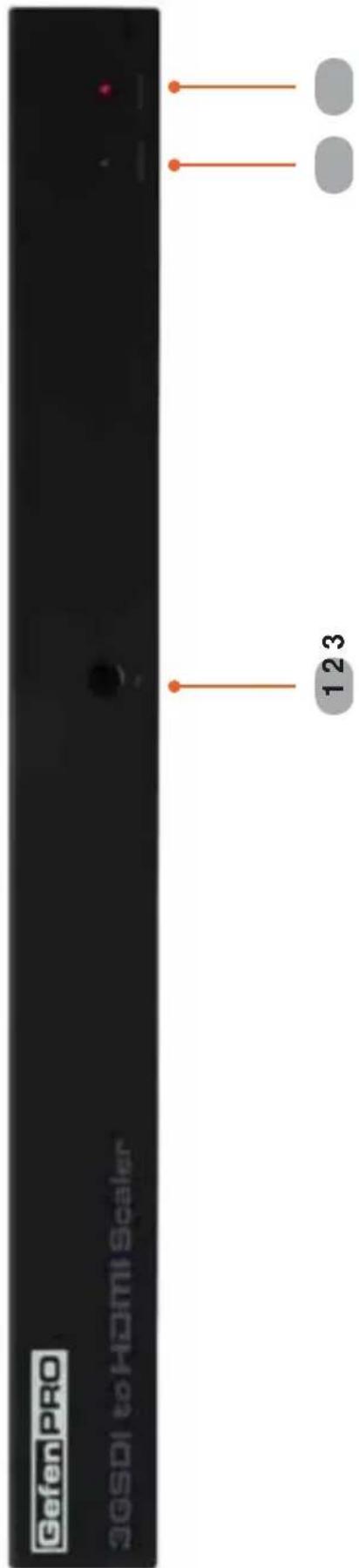
text_image
GofenPRO 3GSDI to HDMI Scaler 123Front Panel
1 IR Window
Receives signals from the IR Remote Control unit.
2 3GSDI Indicator
This LED will glow blue when 3G-SDI signals are detected on the input.
3 Power Indicator
This LED will glow red when the unit is powered.
text_image
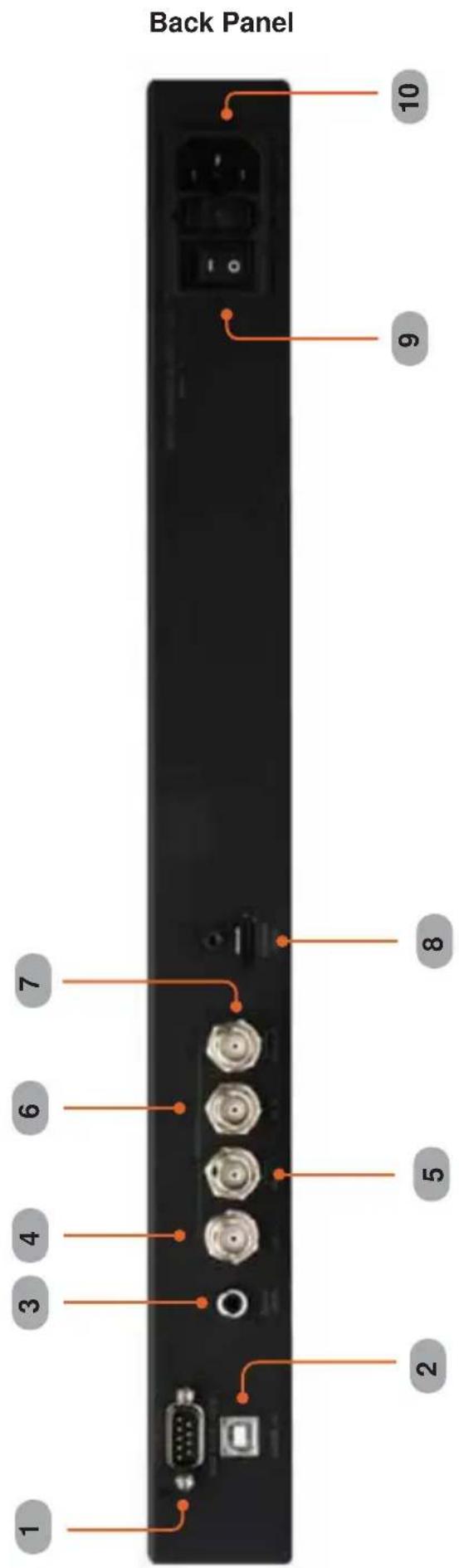
Back Panel 1 2 3 4 5 6 7 8 9 10Back Panel
1 RS-232 Serial Port
Connects to the RS-232 control device. The 3GSDI to HD Scaler can be controlled remotely using this port. See page 22 for more information.
2 USB Port
This high-speed USB port is used to update the firmware on the Scaler.
3 S/PDIF Output
Connect a coax cable from this port to an amplifier or other A/V device. Up to 7.1 channels of digital audio are supported.
4 3GSDI In 1
Receives incoming SDI source signal.
5 3GSDI Loop Output 1
Allows monitoring of SDI source signal on Input 1. No scaling is performed.
6 3GSDI In 2
Receives incoming SDI source signal.
7 3GSDI Out 2
Allows monitoring of SDI source signal on Input 2. No scaling is performed.
8 HDMI Output
Connect an HDTV display to this output.
9 Power Switch
Turn the power ON or OFF using this switch.
10 110 / 220 V AC Power Receptacle
Connect the included AC power cord from this receptacle to an available electrical outlet.
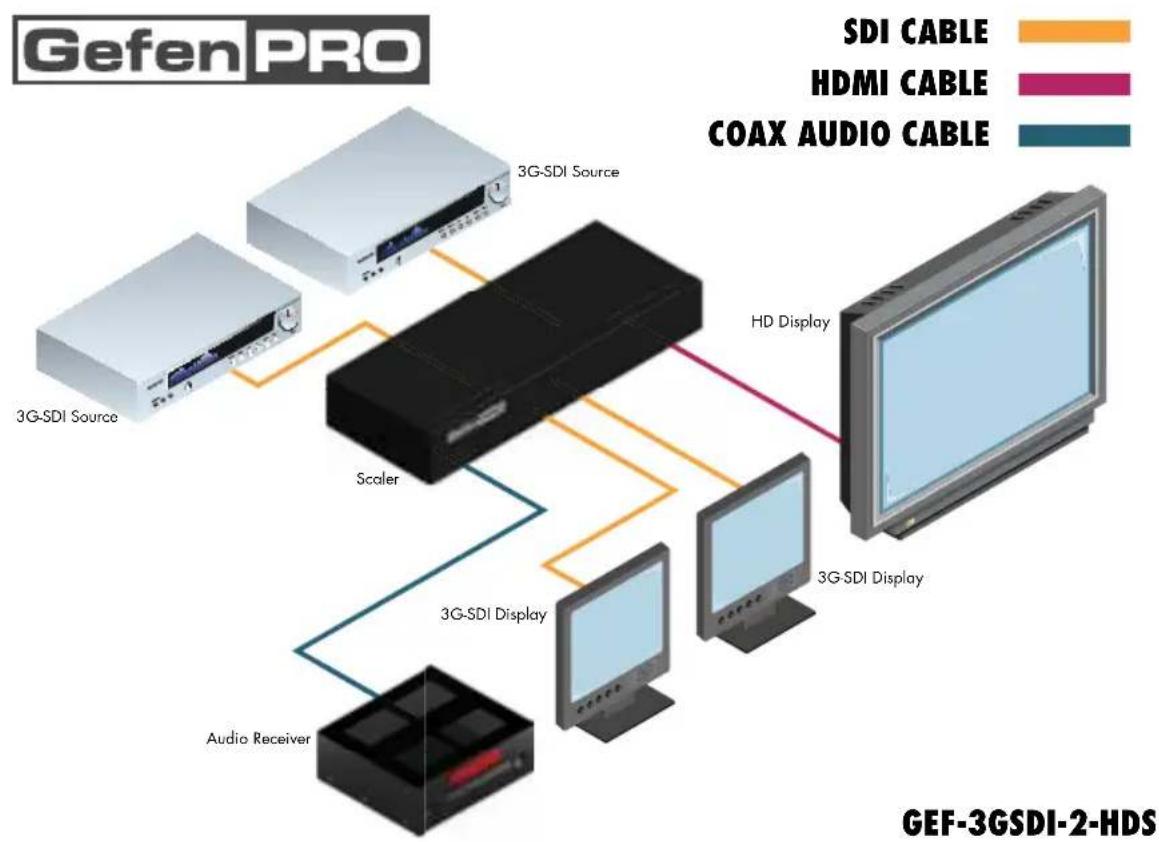
How to Connect the 3GSDI to HD Scaler
- Connect up to 2 SD/HD/3GSDI source devices to the BNC inputs on the rear of the 3GSDI to HD Scaler.
- Use an HDMI to connect an HDTV display to the HDMI output on the rear panel of the 3GSDI to HD Scaler.
- Optionally connect an SDI monitor to each of the Loop Out connectors on the back of the Scaler.
- Connect a coax cable from the S/PDIF output to an external amplifier.
- Connect the included AC power cord to the power receptacle on the rear panel of the 3GSDI to HD Scaler and connect the opposite end of the cable into an available electrical outlet.
- Power on the monitors and the source devices. Turn on the 3GSDI to HD Scaler by pressing the power switch on the rear of the unit.
Wiring Diagram for the 3GSDI to HD Scaler
flowchart
graph TD
    A["3G-SDI Source"] --> B["3G-SDI Display"]
    C["3G-SDI Source"] --> B
    D["3G-SDI Display"] --> B
    E["3G-SDI Display"] --> B
    F["3G-SDI Display"] --> B
    G["3G-SDI Display"] --> H["Audio Receiver"]
    I["3G-SDI Display"] --> H
    J["3G-SDI Display"] --> H
    K["3G-SDI Display"] --> L["HD Display"]
    M["3G-SDI Display"] --> L
    N["3G-SDI Display"] --> L
    O["3G-SDI Display"] --> P["Coax Audio Cable"]
    Q["3G-SDI Display"] --> P
    R["3G-SDI Display"] --> P
    S["3G-SDI Display"] --> T["SDI Cable"]
    U["3G-SDI Display"] --> V["HDMI Cable"]
    W["3G-SDI Display"] --> X["Coax Audio Cable"]

Attention: This product should always be connected to a grounded electrical socket.
RMT-8HDS-IR
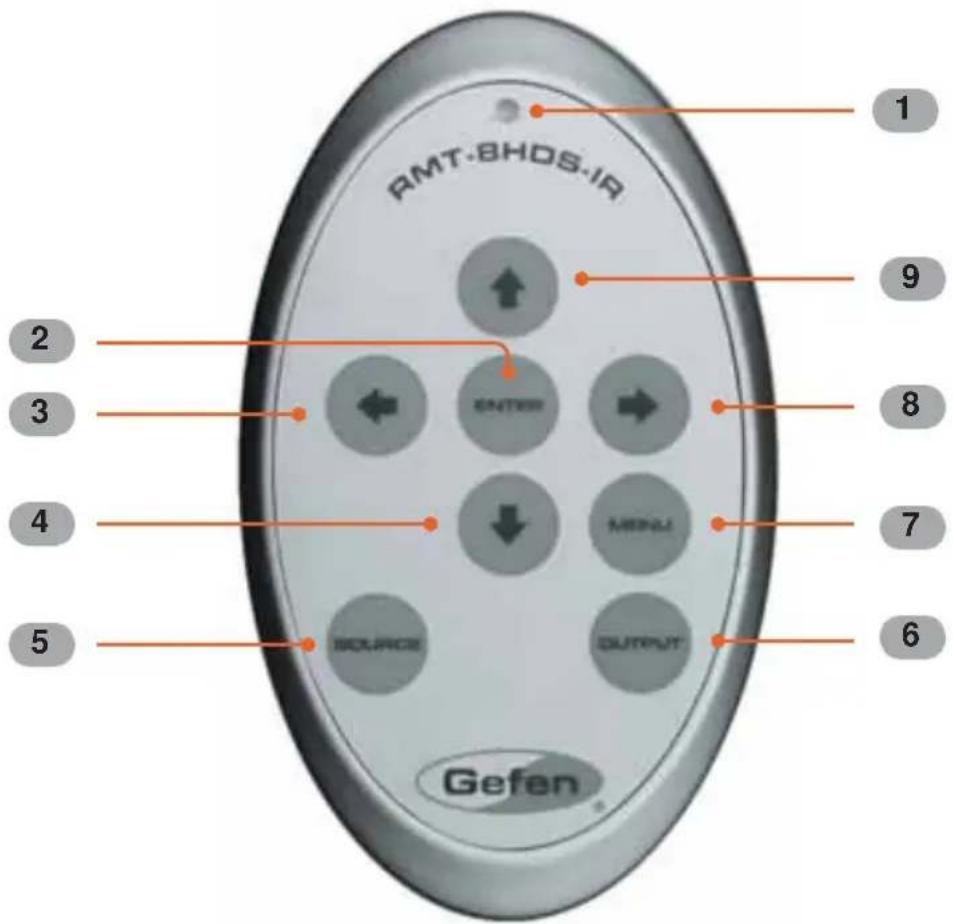
text_image
RMT-BHOS-IR 1 2 3 4 5 Gefen ENTER MENU SOURCE OUTPUT 9 8 7 6- LED indicator - lights up whenever a key is pressed, confirming transmission of IR commands to the Scaler.
- The ENTER button activates a selected menu option in the On-Screen Display.
- LEFT direction key for menu navigation within the On-Screen Display.
- DOWN direction key for menu navigation within the On-Screen Display.
- Source - Cycles between available input sources. The selectable inputs are 3GSDI Input 1 and 3GSDI Input 2. Press once for Input 1; twice for Input 2.
- Output - Cycles through the available output resolutions. Please see the section "Output Resolutions" on pages 40 - 41 for the table of output resolutions.
- Menu - Displays the On-Screen Display menu system for control of the Scaler.
- RIGHT direction key for menu navigation within the On-Screen Display.
- UP direction key for menu navigation within the On-Screen Display.
Installing the IR Remote Control Battery
- Remove the battery cover on the back of the IR Remote Control unit.
- Insert the included battery into the open battery slot. The positive (+) side of the battery should be facing up.
- Replace the battery cover.
The Remote Control unit ships with two batteries. One battery is required for operation and the other battery is a spare.

natural_image
Close-up of a medical imaging device showing two circular components with internal structures, no visible text or symbols.Battery Slot

CAUTION: Risk of explosion if battery is replaced by an incorrect type. Dispose of used batteries according to the instructions.
How to Resolve IR Code Conf icts
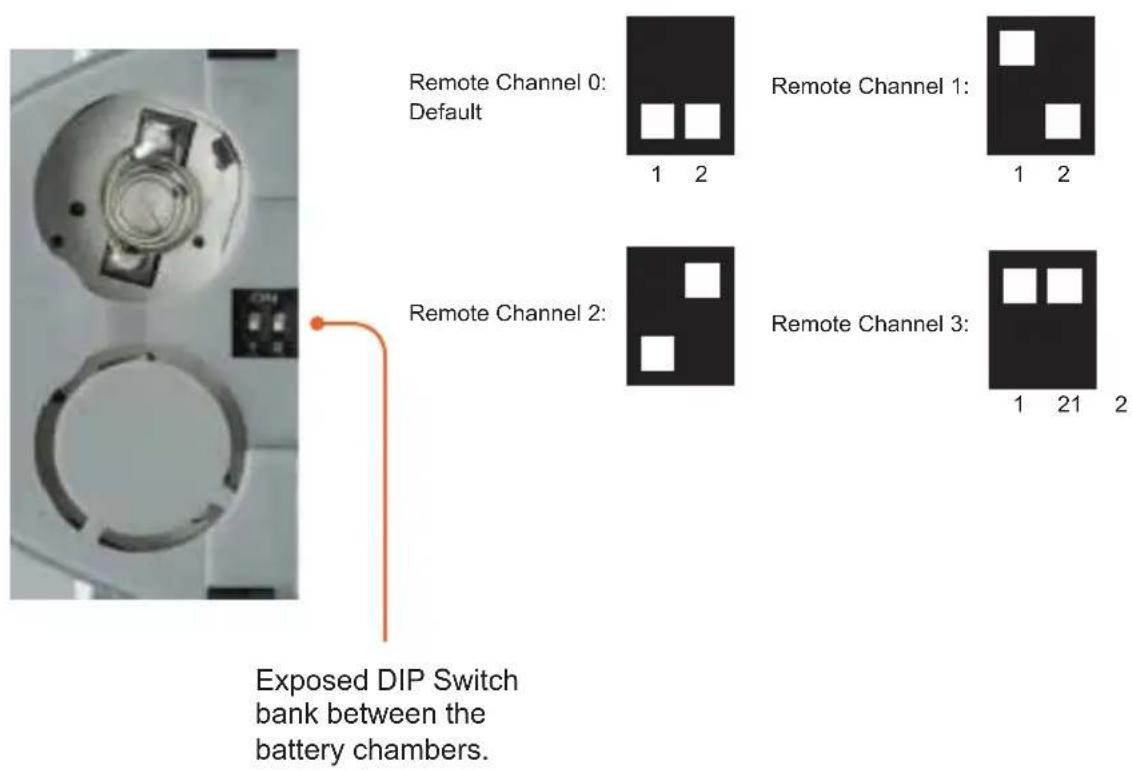
In the event that IR commands from other remote controls interfere with the supplied IR Remote Control unit, changing the IR channel on the IR Remote Control unit will fix the problem. The IR Remote Control unit has a bank of DIP switches used for setting the IR channel.
The DIP switch bank is located underneath the battery cover.
text_image
Remote Channel 0: Default 1 2 Remote Channel 1: 1 2 Remote Channel 2: Remote Channel 3: 1 21 2 Exposed DIP Switch bank between the battery chambers.It is important that the IR channel on the Remote Control unit, matches the IR channel set on the 3GSDI to HD Scaler. For example, if both DIP switches on the IR Remote Control unit are set to IR channel 0 (both DIP switches down), then the 3GSDI to HD Scaler must also be set to IR channel 0. See page 17 on how to change the IR channel on the 3GSDI to HD Scaler.
General Menu
Information
To access the General Menu, press the Menu button on the IR Remote Control Unit. The General Menu will be the first menu displayed on contains information about the Scaler:
- Host Firmware Version
- Kernel Version
- Configuration Version
- FPGA Version
- Remote Channel
General > Language
From the General Menu, press the ▼ button on the IR Remote Control Unit. Select the Language using the ▶ and ▼ buttons on the IR Remote Control Unit. Press the Menu button to exit the menu.
- English
- French
General > Save Configuration
The Save Configuration feature is used to save the current configuration of the Scaler. Once the current configuration is saved, these settings will be restored each time the Scaler is powered.

This function will overwrite any previously saved configuration, including the factory default settings. To restore the factory default settings, press the following buttons in order: Left, Right, and OK buttons. Do not depress all three buttons simultaneously.
General > Restore Default Configuration
Restores the Scaler to factory default settings. Use this feature to restore default configurations if they have been overwritten by using the Save Configuration function.
Patterns Menu
Patterns > Color Bars
Produces a color bar pattern, similar to a standard SMPTE bar pattern used for color calibration.
Patterns > Cross Hatch
Produces a cross hatch pattern. This pattern can be used for “pin cushion” testing (curvature of the image on the screen) or color convergence / divergence.

When a pattern is produced, the current video image will be masked.
Output Menu
The HDMI output signal can be configured from the Output menu. The Output menu controls several functions, such as resolutions, color space, and frame rate.
Output > Available Formats
Selects the output resolution. See pages 40 - 41 for details on output formats.
• All
Makes all output formats available.
• Monitor Supported
Lists only those output formats which are supported by the monitor connected to the 3GSDI to HD Scaler.
Output > Video Output Format
Lists all the available video output resolutions and timings supported by the 3GSDI to HD Scaler. If the Output > Available Formats > Monitor Supported option is selected (see previous page), then only the output resolutions and timings supported by the monitor will be listed. See pages 40 - 41 for a complete list of supported video output resolutions and timings.
Output > Graphic Output Format
Lists all the available graphic output resolutions and timings supported by the 3GSDI to HD Scaler. If the Output > Available Formats > Monitor Supported option is selected (see previous page), then only the graphic output resolutions and timings supported by the monitor will be listed. See pages 40 - 41 for a complete list of supported graphic output resolutions and timings.
Output > Custom Output Format
This option allows creation of a custom video output format. 720p is the default. Check the specifications of the output device to ensure compatibility when creating a custom output format.
Output > Link Configuration
Selects the color space of the HDMI output. If the selected color space is incompatible with the EDID of the output device, then one or all items on the Link Confi guration menu will be disabled.
Selects the output frame rate.
Output > Deep Color
The 3GSDI to HD Scaler supports Deep Color at 10 bits at 4:4:4. Deep Color can be set to Automatic or Forced to 8 bits. To be able to output HDMI 1.3 in Deep Color at 10 bits you must be using YCbCr 4:4:4 or the RGB 4:4:4 output color space (YCbCr 4:2:2 does not support Deep Color). Some monitors may support Deep Color in only one of the possible link configurations (RGB and YCbCr 4:4:4), while others may not support Deep Color at all. Verify the user manual for the output device color space support information.
- Automatic
Transmits in Deep Color whenever possible, according to the EDID information of the output device.
- Force 8 bits
Disables the transmission of Deep Color packets.
Input Menu
Input > Input Format
When the Scaler detects a valid SDI/HD-SDI/3G-SDI input signal, the input format is displayed at the bottom of the OSD. The detected input format is also checked in the Input Format menu. Auto Detect is checked if no valid input is found. In such cases, the Scaler can be set to use a specific format. To use a specific input format, set the color space using the Output > Link Configuration menu. Setting the color space will avoid mistakes such as confusing 1080p dual link resolution with 1080p single link. With single link resolutions, the input source can be set to input 1 or input 2. Therefore, exert caution when setting the input format.
Input > Link Configuration
The Link Configuration must be set to correctly recognize the type of input signal. Many dual-link signals can be interpreted as single link. The input source must be connected first or the Scaler will not allow link configuration to take place. The selected link configuration appears marked in the list of choices. Incompatible choices will cause the Single Link mark to remain selected without an operation being performed.
- Single Link
• Dual Link YCbCr - Dual Link RGB
• Dual Link 1080p/576p/480p
Input > Clean Aperture
The clean aperture parameters allow an area within the production aperture to be defined. The maximum clean aperture size that may be defined and processed by the 3GSDI to HD Scaler is 2048 pixels by 2048 lines. The minimum clean aperture size is 0 pixels by 0 lines.
Input > Film Mode
Automatically detects repeated field sequences present in interlaced signals, such as: 50 Hz or 60 Hz field sequences (no repeated fields), 60 Hz 3:2 pull-down, including broken / edited sequence detection, 60 Hz 2:2: pull-down, 50 Hz 2:2 pull-down, and Freeze frame.
- Enable
- Disable
Input > Audio
Selects the number of audio channel(s) to be extracted from the video input.
Input > Remote Channel
The included IR Remote Control Unit (page 9) transmits IR codes on a single infrared channel. A total of four (4) channels are available for use by the 3GSDI to HD Scaler and the IR Remote Control Unit. If the IR Remote Control Unit and/or the 3GSDI to HD Scaler becomes inoperable due to a conflict with another IR device, IR channel can be changed. The IR channel must be changed on the 3GSDI to HD Scaler and the IR Remote Control Unit. Use this menu option to select the IR channel for the 3GSDI to HD Scaler.
Picture Menu
Picture > Image Color
Allows individual adjustment of the Red, Green, and Blue color components, brightness, and Black Level of the image.
- Contrast Red
Adjusts the contrast of the Red color component. - Contrast Green
Adjusts the contrast of the Green color component. - Contrast Blue
Adjusts the contrast of the Blue color component. - Brightness Red
Adjusts the brightness of the Red color component. - Brightness Green
Adjusts the brightness of the Green color component. - Brightness Blue
Adjusts the brightness of the Blue color component. - Black Level
Adjusts the black level of the image.
Picture > Gamma Correction
Sets the Gamma correction mode.
- Default
Sets the default Gamma settings.
- sRGB
Color space used with PCs, cameras, and printers.
- User Table
This option is used with a user Gamma LUT. See pages 30 and 43 for details on using a Gamma Look Up Table.
- Custom Table
Use when defining a custom LUT. See pages 30 and 43 for details on using a Gamma Look Up Table.
• Gamma Coefficient
Adjusts the Gamma coefficient in the range from 0.3 to 3.0. The default Gamma value is 1.0.

When the Custom LUT (Look Up Table) is selected, the Gamma coeffi cient is used to calculate a new Gamma LUT.
Picture > Detail Enhancement
These parameters processes the input data in either progressive or interlaced format. Changes to the detail enhancement are implemented at the start of the next frame of video. Both of these parameters can be adjusted within the range or 0 - 100.
This is an adaptive noise reduction function which processes the input data in either progressive or interlaced format. Enabling the Noise Reduction to noisy interlaced signals can optimize de-interlacer performance.
Picture > Motion Threshold
This sets the intraframe motion detection threshold for the deinterlacer on the VXP processor. Video artifacts can be created when de-interlacing (creating interlaced fields from progressive fields). This function allows adjustment of the threshold used by the de-interlacer motion detection algorithm, removing / minimizing motion artifacts in the converted video.
Picture > Output Color Range
The RGB output color range may be changed/set to limited (16-235) or to full (0-255). The Output > Link Configuration must be set to RGB 4:4:4 otherwise this menu is disabled. SDI values ranging from 16 - 235 will be expanded to 0 - 255
• 16 - 235
The output color range will be compressed from full-range (0 - 255) to limited-range.
• 0 - 255
The output color range will be expanded from limited-range (16 - 235) to full-range (0 - 255).
Layout Menu
Layout > Size and Position
The size and position of the output signal can be changed. By default, the horizontal and vertical dimensions match the output resolution. For example, an output format of 720p will have a horizontal size of 1280 lines and a vertical size of 720 lines. These values may be decreased to reduce the size of the output picture, after which it may be moved horizontally or vertically.

A picture whose size is the same as the output format cannot be moved horizontally or vertically.
Aspect Menu
Aspect > Full Screen
the Scaler transforms the input signal to the selected resolution on the output device. For example, if the Scaler receives an SDI 480i 4:3 signal and the output is set to HD 720p 16:9, the output signal will have an aspect ratio of 16:9.
Aspect > Letter / Pillar Box
The Scaler will keep the aspect ratio received from the source. For example, if you input 480i at 4:3 and output 720p at 16:9 HD format, the picture will occupy only the center of the screen and black bars will be placed on each side. This option has no effect if the input and the target aspect ratios are identical.
Aspect > Panoramic
The panoramic zoom feature can be used on non-linear inputs to make then fit on the output device.
Aspect > Extract
This a function allows the Scaler to zoom in on a subset of the input video signal. This feature allows you to zoom on one selected section of the input picture.
- Extract Size
Selects the size of the subset to be extracted in percentage of the input.
• Horizontal Position
Moves the picture left or right (within the original input full size input).
• Vertical Position
Moves the picture up or down (within the original input full size input).
Aspect > Through
This function defines a sub-window that is always centered on the screen. The position is the relative position of the window within the full picture. This feature allows you to display one selected section of the input picture without modifying its size.
• Horizontal Size
Adjusts the size of the sub-window horizontally.
• Vertical Size
Adjusts the size of the sub-window vertically.
• Horizontal Position
Horizontally adjusts the relative position of the window within the full picture.
• Vertical Position
Vertically adjusts the relative position of the window within the full picture.

When changing the input format, the Scaler will try and apply the current settings to the new input format. If this is not possible (e.g. the value is beyond the zoom limit), then the default value (100% size) will be used.
What features are available via the RS-232 serial communications port?
The HD to 3GSDI Scaler can accept commands through the RS-232 serial communications port located on the rear panel.
How do I use these features?
These features were initially intended for utilization by custom installers in automated setups. However, these features can be tested and used by using any Windows-based PC with a terminal program.
What pins are used for communication with the 16x16 3GSDI Matrix?
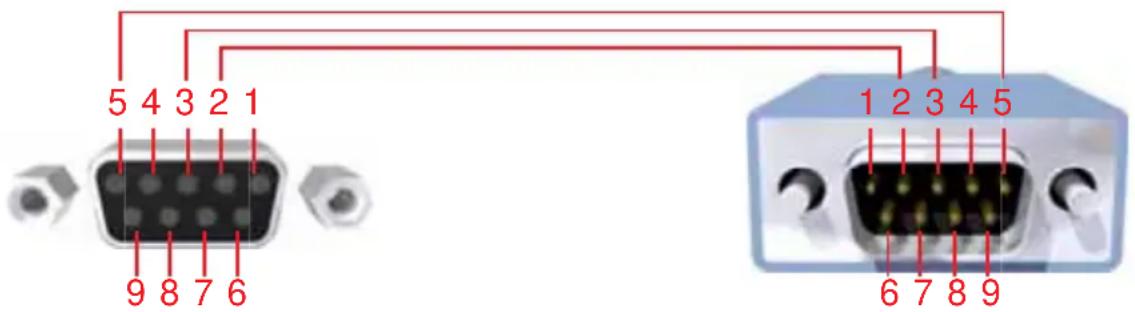
Only pins 2 (Receive), 3 (Transmit), and 5 (Ground) are used for communication. A null-modem adapter should not be used with this product.
text_image
5 4 3 2 1 9 8 7 6 1 2 3 4 5 6 7 8 9Only Pins 2 (RX), 3 (TX), and 5 (Ground) are used on the RS-232 serial interface
What are the communication port settings?
Bits per second 19200
Data bits 8
Parity None
Stop bits ....1
Flow Control None
Functions Syntax
The syntax for each function is always the same:
Function name → Space (_) as function name end flag → Parameter 1 →
Space → Parameter 2 → Parameter n → Carriage Return ( \r ) →
Sample:
FunctionName_param1_param2_param3_param4...\r
Syntax is NOT case sensitive.
Functions
| Function Description | |
| #ASPECT Sets the aspect ratio of the output signal | |
| #AUTOLOCK Enables or disables the automatic genlock mode | |
| #BLACKLEV Sets the black level (RGB/Y) of the output signal | |
| #BRIGHT | Sets the brightness value for a specific color |
| #CLEANAPER Sets the clean aperture level for position and size | |
| #COLRANGE Sets the color range (limited or full) of the output signal | |
| #CONTRAST | Sets the contrast level for a specific color |
| #CUSTOM Used to modify the output format | |
| #DEVERSION | Returns the hardware and firmware version |
| #ENHANCE Sets the enhancement value | |
| #EXTRACT Sets the extract aspect mode | |
| #GAMMA Sets the Gamma correction mode | |
| #INPUT Sets the input format of the image | |
| #INSEL Sets the input channel | |
| #LANGUAGE Sets the current language of the OSD | |
| #LINKCONF | Changes the link configuration |
| #LIST | Displays a list of all available functions on this Scaler |
| #MOTIONTHRES | Sets the intraframe motion detection threshold |
| #NOISEREDUC | Sets the noise reduction value |
| #NOISETHRES | Sets the noise reduction threshold |
| #OUTCONF | Sets the output link configuration |
| #OUTPUT | Sets the format (refresh rate) of the output signal |
| #PATTERN Selects | the test pattern to display on the output |
| #REMOTECHAN Sets | ts the IR Remote Channel on the Scaler |
| #RESTORE Restores | s all of the default parameters (factory defaults) |
| #SAVE Saves the current parameters in the PROM | |
| #SIZEPOS Sets the | size and position of the output signal |
| #THROUGH | Defines a sub-window that is centered on the screen |
| #VERSION | Returns the version of firmware, kernel, and configuration |
#ASPECT Function
The #ASPECT function sets the aspect ratio.
Syntax:
ASPECT param1
Parameters:
param1 IR channel [1 - 5]
| Value Meaning | |
| 1 Full Screen | |
| 2 Letter / Pillar Box | |
| 3 Panoramic | |
| 4 Extract (Uses default value) | |
| 5 Through (Uses default Value) |
Notes:
If the Extract or Through mode is selected, the default values are set. To modify the parameters for Extract or Through mode refer to these functions in this manual.
#AUTOLOCK Function
The #AUTOLOCK function enables or disables the Auto Genlock Mode.
Syntax:
AUTOLOCK param1
Parameters:
param1 IR channel [0 - 2]
| Value Meaning | |
| 0 Disable (Default value) | |
| 1 Video Input Reference | |
| 2 Reference Input | |
#BLACKLEV Function
The #BLACKLEV function sets the black level (RGB/Y) of the image.
Syntax:
BLACKLEV param1
Parameters:
param1 Level value [0 - 1023]
#BRIGHT Function
The #BRIGHT function sets the brightness value for a specific color.
Syntax:
BRIGHT param1 param2
Parameters:
param1 Color name [0 - 2]
| Value Meaning | |
| 0 Red | |
| 1 Green | |
| 2 Blue |
param2 Color value [0 - 100]
Notes:
The default value of the Color value is 50.
#CLEANAPER Function
The #CLEANAPER function sets the clean aperture level for each position and size.
Syntax:
CLEANAPER param1 param2 param3 param4
Parameters:
param1 Horizontal size [1 - 100]
param2 Vertical size [1 - 100]
param3 Horizontal position [1 - 100]
param4 Vertical position [1 - 100]
Notes:
The default value of the Color value is 50.
#COLRANGE Function
The #COLRANGE function sets the color range for the output. The default value is 16 - 235.
Syntax:
COLRANGE param1
Parameters:
param1 Color range [0 - 1]
| Value Meaning | |
| 0 16 - 235 | |
| 1 0 - 255 |
Notes:
The color range of 0 - 255 is only available for RGB 4:4:4 output.
#CONTRAST Function
The #CONTRAST function sets the contrast level for a specific color.
Syntax:
CONTRAST param1 param2
Parameters:
param1 Color name [0 - 2]
| Value Meaning | |
| 0 Red | |
| 1 Green | |
| 2 Blue |
param2 Contrast value [0 - 100]
Notes:
The default value of the Color value is 50.
#CUSTOM Function
The #CUSTOM function is used to modify the output format. The default, the maximum and minimum values are dependent upon the current output format and the current custom output parameters. Therefore, these parameters can be modified only one at a time. See page 42 for a list of the refresh rate values.
Syntax:
CUSTOM param1 param2
Parameters:
param1 Value [see table below]
| Value | Meaning Min. Value Max. | Value | |
| 0 Horizontal Total | HActive + HSync Back Porch | 3500 | |
| 1 Horizontal Active 1 | HTotal - HSync Back Porch* | ||
| 2 | Horizontal Sync Back Porch | 1 HTotal - HActive | |
| 3 Horizontal Sync Width 1 HSync | Back Porch | ||
| 4 Vertical Total | VSync + VSync Back Porch | 3500 | |
| 5 Vertical Active 1 | VTotal - VSync Back Porch* | ||
| 6 | Vertical Sync Back Porch | 1 VTotal - VActive | |
| 7 Vertical Sync Width 1 VSync Back Porch | |||
| 8 Refresh Rate 0 13 | |||
param2 Value from param1 [see table above]
Notes:
If the Horizontal Active and/or the Vertical Active goes up to 2048, then the maximum values are set to 2048.
#DEVERSION Function
The #DEVERSION function returns the hardware and firmware version.
Syntax:
DEVERSION
Parameters:
None
#ENHANCE Function
The #ENHANCE function sets the enhancement value.
Syntax:
ENHANCE param1
Parameters:
param1 Enhancement value [0 - 100]
#EXTRACT Function
The #EXTRACT function sets the extract aspect mode.
Syntax:
EXTRACT param1 param2 param3
Parameters:
param1 Extract size percentage [1 - 100]
param2 Horizontal position [1 - 100]
param3 Vertical position [1 - 100]
#GAMMA Function
The #GAMMA function sets the gamma correction mode.
Syntax:
GAMMA param1 param2
Parameters:
param1 Gamma correction mode [0 - 3]
| Value Meaning | |
| 0 Default | |
| 1 sRGB | |
| 2 Custom | |
| 3 User table |
param2 Mode
[see below]
| Value Meaning | |
| 3 - 30 Set for Custom mode | |
| 1 Set for User table | |
Notes:
If the Custom mode is used, then set the gamma coefficient value in the second parameter. If User Table is used, then set the second parameter to 1 to set the user table currently saved in EEPROM memory. To write a new gamma LUT (Look-Up Table) file, you must use the updater with the following command:
updater %comport% GAMMA [fi lename].csv
If the Default or sRGB modes are used, then set the second parameter to zero. See page 43 for details on using a Gamma LUT.
#INPUT Function
The #INPUT function sets the input format of the image. See pages 40 - 41 for available input formats.
Syntax:
INPUT param1
Parameters:
param1
Value
[0
#INSEL Function
The #INSEL function sets the input channel.
Syntax:
INSEL param1
Parameters:
param1
Channel
[1 - 2]
| Value Meaning | |
| 1 Channel A | |
| 2 Channel B |
#LANGUAGE Function
The #LANGUAGE function sets the current language of the Main Menu.
Syntax:
LANGUAGE param1
Parameters:
param1 Language
[0 - 1]
| Value Meaning | |
| 0 English | |
| 1 French |
#LINKCONF Function
The #LINKCONF function changes the link configuration. This option is not valid for all formats.
Syntax:
LINKCONF param1
Parameters:
param1 Mode
[0 - 2]
| Value Meaning | |
| 0 Single Link | |
| 1 Dual Link YCbCr (4:4:4) | |
| 2 Dual Link RGB | (4:4:4) |
Notes:
The default value is Single Link.
The following table lists the video formats available when using the #LINKCONF function. The Value column is not used by the #LINKCONF function.
| Available Formats Value | |
| 1080i / 60 22 | |
| 1080i / 59.94 23 | |
| 1080i / 50 24 | |
| 1080i / 50M 25 | |
| 1080sf / 29.97 29 | |
| 1080sf / 30 27 | |
| 1080sf / 25 31 | |
| 1080sf / 24 33 | |
| 1080sf / 23.98 35 | |
| 1080p / 30 26 | |
| 1080p / 29.97 28 | |
| 1080p / 25 30 | |
| 1080p / 24 32 | |
| 1080p / 23.98 34 |

Some formats automatically set the link configuration to dual link 4:2:2 progressive. The table below lists these formats:
| Available Formats Value | |
| 1080p / 60 18 | |
| 1080p / 59.94 19 | |
| 1080p / 50 20 | |
| 480p / 59.94 6 | |
| 576p / 50 7 |
#LIST Function
The #LIST function displays the list of all the available functions that can be executed on the serial port. It also gives the number of parameters that each function requires.
Syntax:
LIST
Parameters:
None
#MOTIONTHRES Function
The #MOTIONTHRES function sets the intraframe motion detection threshold for the deinterlacer on the VXP processor. Video artifacts can be created when de-interlacing (creating interlaced fields from progressive fields). This function allows adjustment of the threshold used by the de-interlacer motion detection algorithm, removing / minimizing motion artifacts in the converted video.
Syntax:
MOTIONTHRES param1
Parameters:
param1 Value
[0 - 15]
Notes:
The default value is 4.
#NOISEREDUC Function
The #NOISEREDUC function sets the noise reduction value.
Syntax:
NOISEREDUC param1
Parameters:
param1 Value [0 - 100]
Notes:
The default value is 0.
#NOISETHRES Function
The #NOISETHRES function sets the noise threshold function.
Syntax:
NOISETHRES param1
Parameters:
param1 Value [0 - 100]
Notes:
The default value is 0.
#OUTCONF Function
The #OUTCONF function sets the output link configuration of the image.
Syntax:
OUTCONF param1
Parameters:
param1 Value
[0 - 2]
| Value Meaning | |
| 0 RGB 4:4:4 | |
| 1 YCbCr 4:4:4 | |
| 2 YCbCr 4:2:2 |
#OUTPUT Function
The #OUTPUT function sets the output format of the image. See pages 40 - 41 for a list of all available formats
Syntax:
OUTPUT param1
Parameters:
param1 Value
[0 - 13]
#PATTERN Function
The #OUTPUT function the test pattern to display on the output.
Syntax:
PATTERN param1
Parameters:
param1 Pattern
[0 - 3]
| Value Meaning | |
| 0 No pattern | |
| 1 Color bar | |
| 3 Cross hatch |
#REMOTECHAN Function
The #REMOTECHAN function sets the IR remote control channel.
Syntax:
REMOTECHAN param1
Parameters:
param1 Channel
[0 - 3]
#RESTORE Function
The #RESTORE function restores all of the default parameters.
Syntax:
RESTORE
Parameters:
None
#SAVE Function
The #SAVE function saves all the current parameters in the PROM. These parameters will be reloaded upon the next boot up.
Syntax:
SAVE
Parameters:
None
#SIZEPOS Function
The #SIZEPOS function sets the size and the position of the image. Note that this option is not available in the panoramic aspect mode.
Syntax:
SIZEPOS param1 param2 param3 param4
Parameters:
param1
Horizontal size
| Minimum value | Maximum value |
| 1 | Current horizontal resolution- current horizontal position |
param2
Vertical size
| Minimum value | Maximum value |
| 1 | Current vertical resolution - current vertical position |
param3
Horizontal position
| Minimum value | Maximum value |
| 0 | Current horizontal resolution- current horizontal size |
param4
Vertical position
| Minimum value | Maximum value |
| 0 | Current vertical resolution- current vertical size |
#THROUGH Function
The #THROUGH function defines a sub-window that is always centered on the screen. The position is the relative position of the window within the full picture. This feature allows you to display one selected section of the input picture without modifying its size.
Syntax:
THROUGH param1 param2 param3 param4
Parameters:
| param1 | Horizontal size [1 - 100] |
| param2 | Vertical size [1 - 100] |
| param3 | Horizontal position [0 - 100] |
| param4 | Vertical position [0 - 100] |
#VERSION Function
This function returns the version of the Host Firmware, the Kernel and the configuration in that order.
Syntax:
VERSION
Parameters:
None
Supported Video and Graphics Formats
The following table contains all supported video and graphic formats supported by the GefenPRO 3GSDI to HD Scaler. The Value column are parameters used by the RS-232 Serial Control.
| Input Output | |||
| Format Value | Format Value | ||
| 480i 0 480i 0 | |||
| 480p @ 59.94 6 | 480p @ 59.94 6 | ||
| 576i 1 576 1 | |||
| 576p @ 50 7 576p | 7 | ||
| 720p @ 23.97 | 15 | 720p @ 23.97 | 15 |
| 720p @ 24 | 14 | 720p @ 24 | 14 |
| 720p @ 25 | 13 | 720p @ 25 | 13 |
| 720p @ 29.97 | 12 | 720p @ 29.97 | 12 |
| 720p @ 30 | 11 | 720p @ 30 | 11 |
| 720p @ 50 | 10 | 720p @ 50 | 10 |
| 720p @ 60 8 | 720p @ 60 8 | ||
| 720p @ 59.94 9 | 720p @ 59.94 9 | ||
| 1035i @ 59.94 | 64 | 1035i @ 59.94 | 64 |
| 1035i @ 50 | 63 | 1035i @ 50 | 63 |
| 1080i @ 50 | 24 | 1080i @ 50 | 24 |
| 1080i @ 50M | 25 | 1080i @ 50M | 25 |
| 1080i @ 59.94 | 23 | 1080i @ 59.94 | 23 |
| 1080i @ 60 | 22 | 1080i @ 60 | 22 |
| 1080p @ 23.98 | 34 | 1080p @ 23.98 | 34 |
| 1080p @ 24 | 32 | 1080p @ 24 | 32 |
| 1080p @ 25 | 30 | 1080p @ 25 | 30 |
| 1080p @ 29.97 | 28 | 1080p @ 29.97 | 28 |
| 1080p @ 30 | 26 | 1080p @ 30 | 26 |
| 1080p @ 50 | 20 | 1080p @ 50 | 20 |
| 1080p @ 50M | 21 | 1080p @ 50M | 21 |
| 1080p @ 59.94 | 19 | 1080p @ 59.94 | 19 |
| 1080p @ 60 | 18 | 1080p @ 60 | 18 |
| 1080sf @ 23.98 | 35 | 2K-p @ 23.98 | 75 |
| 1080sf @ 24 33 | 2K-p @ 24 76 | ||
| 1080sf @ 25 31 | 640 x 350 @ 85 36 | ||
| 1080sf @ 29.97 29 | 640 x 400 @ 85 37 | ||
| 1080sf @ 30 27 | 640 x 480 @ 60 38 | ||
| 2K-p @ 23.98 73 | 640 x 480 @ 75 39 | ||
| 2K-p @ 24 74 64 | 40 x 480 @ 85 40 | ||
| 2K-sf @ 23.98 75 | 800 x 600 @ 60 41 | ||
| 2K-sf @ 24 76 | 800 x 600 @ 75 42 | ||
| Auto Detect 255 | 800 x 600 @ 85 43 | ||
| 1024 x 768 @ 60 44 | |||
| 1024 x 768 @ 75 45 | |||
| 1024 x 768 @ 85 46 | |||
| 1280 x 854 | 65 | ||
| 1152 x 864 @ 75 | 47 | ||
| 1280 x 768 @ 60 48 | |||
| 1280 x 960 @ 60 49 | |||
| 1280 x 960 @ 85 50 | |||
| 1280 x 1024 @ 60 51 | |||
| 1280 x 1024 @ 75 52 | |||
| 1280 x 1024 @ 85 53 | |||
| 1360 x 768 @ 60 54 | |||
| 1366 x 768 @ 60 56 | |||
| 1366 x 923 @ 50 55 | |||
| 1440 x 900 @ 60 66 | |||
| 1440 x 1080 @ 60 67 | |||
| 1600 x 1024 68 | |||
| 1600 x 1200 @ 60 57 | |||
| 1600 x 1200 @ 65 58 | |||
| 1600 x 1200 @ 70 59 | |||
| 1600 x 1200 @ 75 69 | |||
| 1680 x 1050 @ 60 70 | |||
| 1920 x 1200 @ 60 71 | |||
| 2048 x 1080 72 | |||
Refresh Rates for Custom Output Formats
| Frame Rate (Hz) Value | |
| 23.98 0 | |
| 24 | 1 |
| 25 | 2 |
| 29.97 3 | |
| 30 | 4 |
| 48 | 5 |
| 50 | 6 |
| 59.94 7 | |
| 60 | 8 |
| 65 | 9 |
| 70 10 | |
| 75 11 | |
| 80 12 | |
| 85 13 |
Gamma LUT File Format
The Gamma Look Up Table can be programmed using the GefenUpdater.exe program from the Gefen software package. To do this, following the instructions below:
1 Create the Gamma LUT.
2 Create a standard ASCII text file with the following line:
GefenUpdater GAMMA fi lename.csv
where filename.csv is the name of the Gamma LUT file.
3 Save the file as UpdateGamma.bat. Make sure that the GefenUpdater.exe file resides in the same directory (or is in the path) as the UpdateGamma.bat file.
4 Connect a USB cable from the computer to the 3GSDI to HD Scaler.
5 Power on the 3GSDI to HD Scaler. Once the Scaler has powered up, run the UpdateGamma.bat file.
The LUT is a standard .CSV file. Each line contains Red, Green and Blue values separate by comma ",". A value must be between 0 and 1023. A file must contain 1024 lines:
1023,0,0 (Line 1)
1023,0,0
1023,0,0
1023,0,0
1023,0,0
1023,0,0
1023,0,0
...
...
1023,0,0 (Line 1024)
a. Maximum recommended ambient temperature: 45 °C
b. Increase the air flow to maintain the temperature inside the rack.
c. Install the product evenly to avoid mechanical overload.
d. Connect an earthing wire between the an earthing stud and the grounding pin on the chassis.
Maximum Input Video Bandwidth....2.97 Gbps
Maximum Pixel Clock....225 MHz
3G-SDI Input Connectors....(2) BNC, male
3G-SDI Loop Connectors....(2) BNC, male
HDMI Output Connector....(1) Type A 19-pin, female
Audio Output Connector....(1) S/PDIF
USB Connector....Type B
RS-232 Interface......DB-9, female
Power Supply....100 \~ 240 V AC
Power Consumption....20 W (max.)
Operating Temperature....0 °C \~ 45 °C / 32 °F \~ 104 °F
Storage Temperature....-20 °C \~ 60 °C / -4 °F \~ 140 °F
Relative Humidity....20% \~ 90% RH (no condensation)
Dimensions....17.25" W x 1.75" H x 6.7" D (1U Rack)
Shipping Weight....4 lbs.
Gefen warrants the equipment it manufactures to be free from defects in material and workmanship.
If equipment fails because of such defects and Gefen is notified within two (2) years from the date of shipment, Gefen will, at its option, repair or replace the equipment, provided that the equipment has not been subjected to mechanical, electrical, or other abuse or modifications. Equipment that fails under conditions other than those covered will be repaired at the current price of parts and labor in effect at the time of repair. Such repairs are warranted for ninety (90) days from the day of reshipment to the Buyer.
This warranty is in lieu of all other warranties expressed or implied, including without limitation, any implied warranty or merchantability or fitness for any particular purpose, all of which are expressly disclaimed.
- Proof of sale may be required in order to claim warranty.
- Customers outside the US are responsible for shipping charges to and from Gefen.
- Copper cables are limited to a 30 day warranty and cables must be in their original condition.
The information in this manual has been carefully checked and is believed to be accurate. However, Gefen assumes no responsibility for any inaccuracies that may be contained in this manual. In no event will Gefen be liable for direct, indirect, special, incidental, or consequential damages resulting from any defect or omission in this manual, even if advised of the possibility of such damages. The technical information contained herein regarding the features and specifications is subject to change without notice.
For the latest warranty coverage information, please visit Gefen's Warranty web page at http://www.gefen.com/kvm/aboutus/warranty.jsp
PRODUCT REGISTRATION
Please register your product online by visiting Gefen's web site at http://www.gefen.com/kvm/Registry/Registration.jsp