SW342-LPP - Security Camera SWANN - Free user manual and instructions
Find the device manual for free SW342-LPP SWANN in PDF.


| Product Type | Security Camera |
| Brand | Swann |
| Model | SW342-LPP |
| Resolution | 2K (2560 x 1440 pixels) |
| Field of View | 110° diagonal |
| Night Vision | Up to 32 ft (10 m) with IR LEDs |
| Connectivity | Wi-Fi 802.11 b/g/n (2.4 GHz) |
| Audio | Two-way audio with built-in microphone and speaker |
| Weatherproof Rating | IP65 (resistant to dust and water jets) |
| Power Supply | DC 5V/2A (USB power adapter included) |
| Dimensions | 2.6 x 2.6 x 4.3 inches (66 x 66 x 109 mm) |
| Weight | 0.5 lbs (225 g) |
| Mounting | Wall or ceiling mount with adjustable bracket |
| Storage | microSD card slot (up to 128 GB, not included) and optional cloud subscription |
| Motion Detection | Yes, with adjustable sensitivity and push notifications |
| App Compatibility | Swann Security app (iOS and Android) |
| Smart Home Integration | Compatible with Amazon Alexa and Google Assistant |
| Warranty | 1-year limited warranty |
| Operating Temperature | -4°F to 122°F (-20°C to 50°C) |
| Certifications | FCC, CE, RoHS |
Frequently Asked Questions - SW342-LPP SWANN
User questions about SW342-LPP SWANN
0 question about this device. Answer the ones you know or ask your own.
Ask a new question about this device
Download the instructions for your Security Camera in PDF format for free! Find your manual SW342-LPP - SWANN and take your electronic device back in hand. On this page are published all the documents necessary for the use of your device. SW342-LPP by SWANN.
USER MANUAL SW342-LPP SWANN
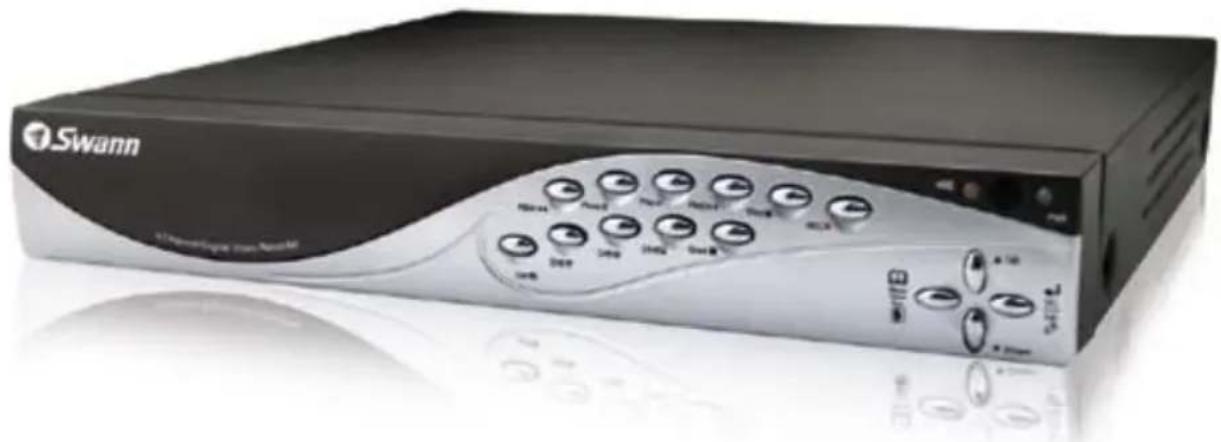
DVR4-1160™ MPEG 4 Channel Digital Video Recorder
natural_image
Exterior view of a Swann audio device with control knobs and dials (no visible text or symbols beyond branding)Operating Instructions
Operating Instructions
FCC Verification:
NOTE: This equipment has been tested and found to comply with the limits for Class B digital device, pursuant to part 15 of the FCC Rules. These limits are designed to provide reasonable protection against harmful interference in a residential installation. This equipment generates, uses and can radiate radio frequency energy and, if not installed and used in accordance with the instructions, may cause harmful interference to radio or television reception, which can be determined by turning the equipment off and on, the user is encouraged to try to correct the interference by one or more of the following measures:
- Reorient or relocate the receiving antenna
- Increase the separation between the equipment and the receiver
- Connect the equipment into an outlet on a circuit different from that to which the receiver is connected
- Consult the dealer or an experienced radio/TV technician for help
These devices comply with part 15 of the FCC Rules. Operation is subject to the following two conditions:
(1) These devices may not cause harmful interference, and
(2) These devices must accept any interference received, including interference that may cause undesired operation.
IMPORTANT NOTE: Prohibition against eavesdropping
Except for the operations of law enforcement officers conducted under lawful authority, no person shall use, either directly or indirectly, a device operated pursuant to the provisions of this Part for the purpose of overhearing or recording the private conversations of others unless such use is authorized by all of the parties engaging in the conversation.
WARNING: Modifications not approved by the party responsible for compliance could void user's authority to operate the equipment.
IMPORTANT SAFETY INSTRUCTIONS:
· Make sure product is fixed correctly and stable if fastened in place
· Do not operate if wires and terminals are exposed
- Do not cover vents on the side or back of the DVR and allow adequate space for ventilation
Before You Begin 2
Contents 3
Package Contents 4
DVR Layout 5
Remote Control 6
Connecting Cameras to the DVR 7
Starting the DVR 8
Main Menu 9
Hard drive Setup 9
Setting the Time 9
Camera Setup 10
Record Setup 10
Record Framerate 10
Video Quality 11
Record Schedule 11
Sensor Setup 11
Motion Detector Setup 12
System Password 13
Image Parameters 14
Miscellaneous Setup 14-16
Recording 17
Playback 18
Installing DVR Software 19
Playback 20
Configuring ActiveX 21
IP Setup 22
User Set Up 23
DxClient 24
DxClient Layout 25
Netviewer 26-28
HDD Viewer 29
HDD Viewer (continued) 30-32
Installing and changing the HDD 33
Troubleshooting 34
Warranty Information 35
Package Contents
DVR4-1160™ Unit
Remote Control
- Operating Instructions
Easy Setup Guide
■ Power Adapter with Cable
Software CD
Network cable
USB cable
RCA Video Cable
■ RCA to BNC adapters X 4
■ Security Stickers (4 Pack)
If you are missing any of the components above, contact Swann Communications for assistance.
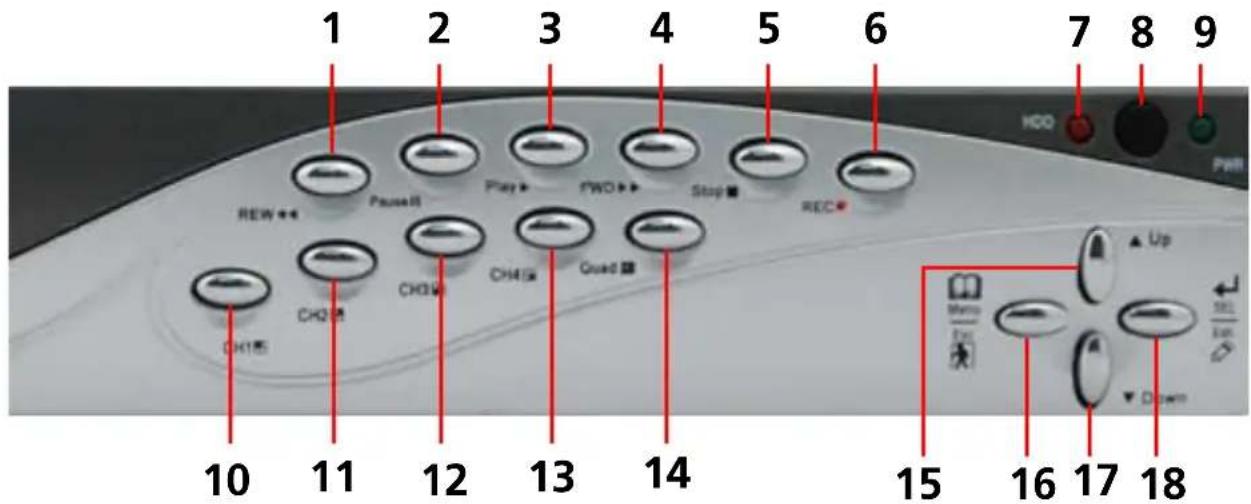
Front Panel
text_image
1 2 3 4 5 6 7 8 9 HCO PWR REW PauseII Play FWD Stop REC CHQ CHQ CHQ CHQ Quad Up Ch1图 10 11 12 13 14 15 16 17 18- Rewind - Press to rewind a recording / press to move cursor left.
- Pause - Press to pause a recording. -During display mode press to activate sequence mode.(SEQ. DWELL TIME must be set).
- Play - Press to begin playing most recent recording.
- Fast foward - Press to fast forward a recording / press to move cursor right.
- Stop - Press to stop a recording.
- Record - Press to begin recording.
Note: will not function if the cameras are not activated in CAMERA SETUP AND RECORD SETUP.
- Hard drive indicator - Lights when hard drive is active (flashes when recording, searching etc.)
- Infra red sensor
- Power Indicator - Lights on when DVR powered
- Channel 1 - Press to view channel 1.
-
Channel 2 - Press to view channel 2.
-
Channel 3 - Press to view channel 3.
- Channel 4 - Press to view channel 4.
- Quad Mode - Press to view all channels in quad mode.
- Up arrow - Move cursor up in menus.
- Menu/ESC - Used to enter the main menu or exit a sub menu.
- Down - Press to move cursor down.
- Select / Edit - Press to select an option/enter a sub menu.
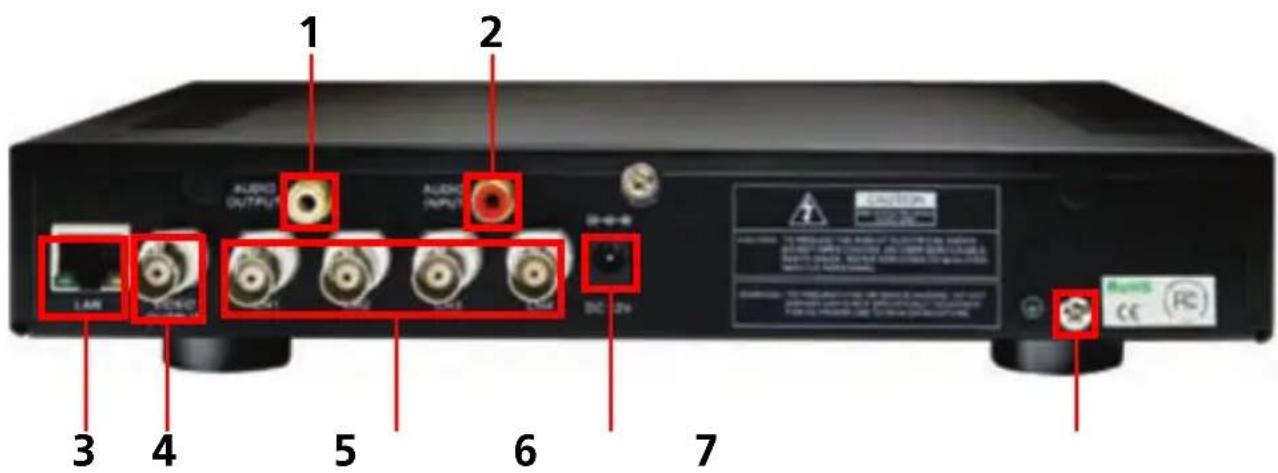
Back Panel
text_image
1 2 AUDIO OUTPUT AUDIO APR LAM 3 4 5 6 7 MACS MACS MACS MACS MACS MACS MACS MACS MACS MACS MACS MACS MACS MACS MACS MACS MACS MACS MACS MACS MACS MACS MACS MACS MACS MACS MACS MACS MACS MACS MACS MACS MACS MACS- Audio Output
- Audio Input
- LAN socket
-
Video Output
-
Channel 1,2,3 & 4
- DC power
- Grounding Terminal
text_image
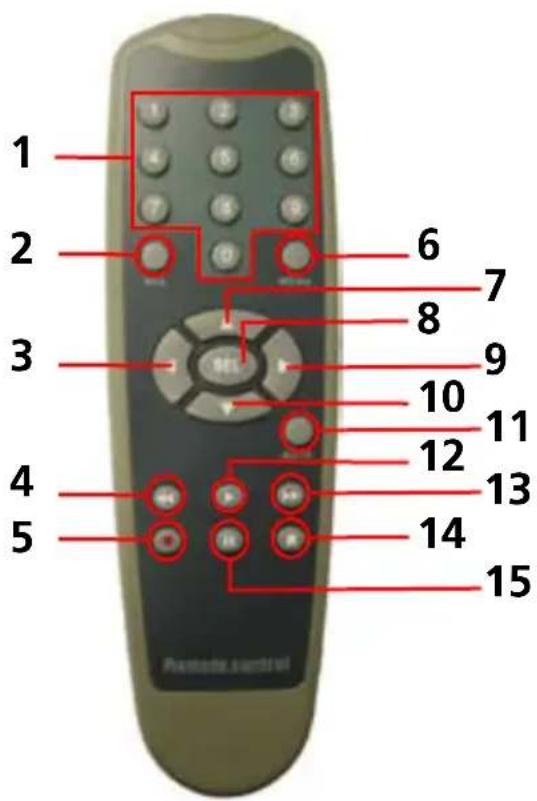
1 2 3 4 5 6 7 8 9 10 11 12 13 14 15 Remote control1. 0-9 (digit key pad)
- Buttons 1-4 can be used to view channels 1-4 in individual display mode during recording and playback.
- 0-9 can be used for a password.
- 0-9 can be used in NETWORK SETUP to change digits.
Note: cannot be used to set the time or input the time in time search.
2. ALL
- Press to activate the entire screen for motion detection in MOTION DETECTOR SETUP.
3 - LEFT arrow
- Move cursor left in menus.
4. REWIND/RWD
- Press to rewind a recording during playback.
5. RECORD
- Press to begin recording.
Note: will not function if the cameras are not activated in CAMERA SETUP AND RECORD SETUP.
6. MENU
- Used to enter the main menu or exit a sub menu.
7. UP arrow
- Move cursor up in menus.
8. SELECT/SEL
-Press to select an option/enter a sub menu.
9. RIGHT arrow
- Press to move cursor right.
10. DOWN arrow
-Press to move cursor down.
11. Mute
- Press to mute audio output.
12. PLAY
- Press to begin playing most recent recording during playback.
13. FAST FORWARD/FWD
- Press to fast forward a recording.
14. STOP
- Press to stop a recording.
15. Pause
- Press to pause a recording.
-During display mode press to activate sequence mode. (SEQ. DWELL TIME must be set).
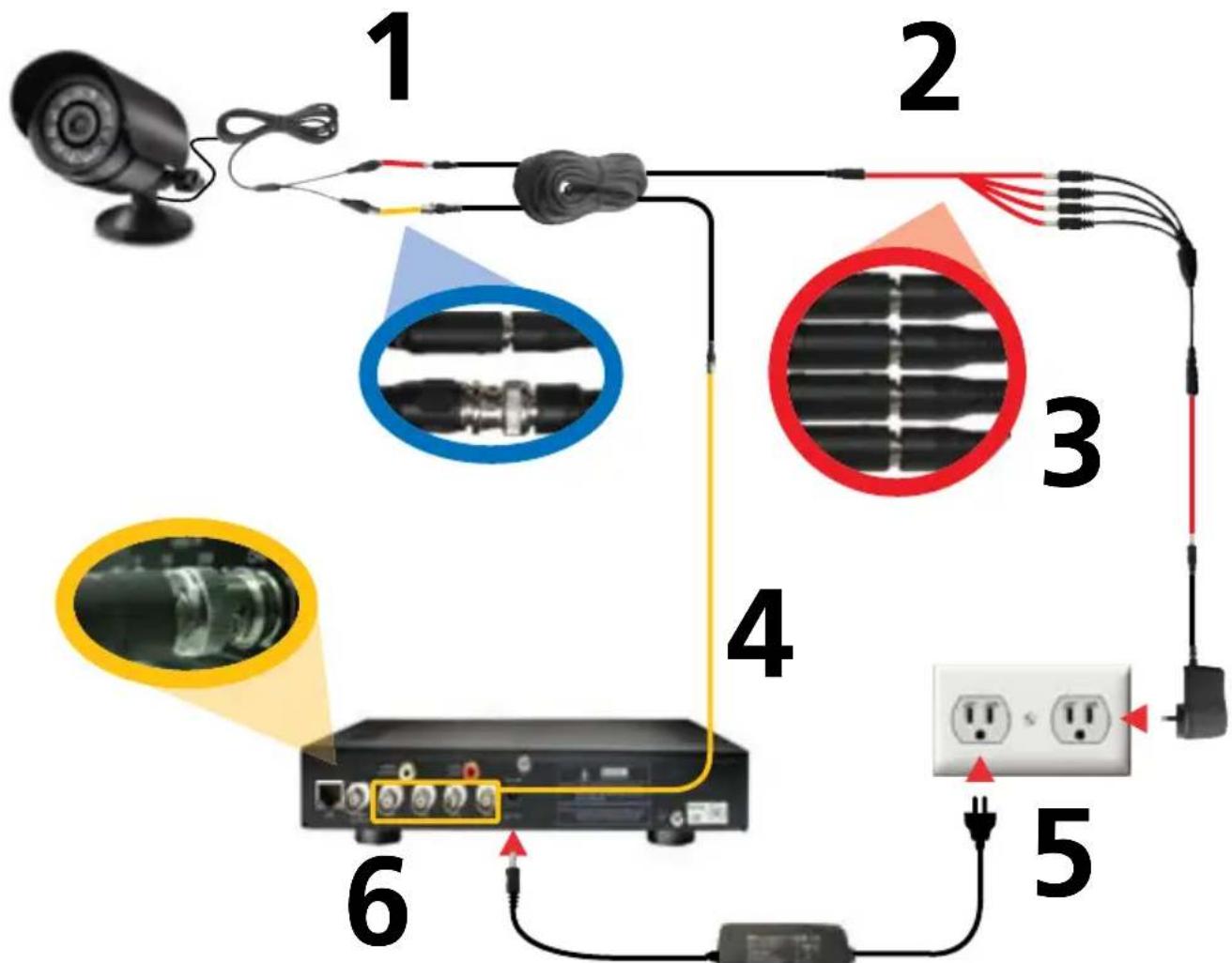
Connecting Cameras to the DVR
Cameras and accessories optional
flowchart
graph TD
    A["Camera"] -->|1| B["Bay"]
    B --> C["Cable"]
    C --> D["Laptop"]
    D --> E["Power Out"]
    D --> F["Switch"]
    D --> G["Terminal"]
    D --> H["Terminal 3"]
    D --> I["Terminal 4"]
    D --> J["Terminal 5"]
    D --> K["Terminal 6"]
    style A fill:#f9f,stroke:#333
    style B fill:#ccf,stroke:#333
    style C fill:#cfc,stroke:#333
    style D fill:#fcc,stroke:#333
    style E fill:#ffc,stroke:#333
    style F fill:#fcc,stroke:#333
    style G fill:#ffc,stroke:#333
    style H fill:#fcc,stroke:#333
    style I fill:#ffc,stroke:#333
    style J fill:#fcc,stroke:#333
    style K fill:#fcc,stroke:#333
- Connect the power and BNC ends of the security camera to an extension cable.
- Connect the DC end on the extension cables to the 4 way power splitter plugs.
- Connect the camera power supply to the other end of the power splitter.
- Connect the BNC end of the extension cables to the camera connections on the back of the DVR unit (CH1, CH2, CH3 & CH4)
- Connect the DVR power supply plug into the power supply socket on the back of the DVR.
- Plug in the camera power adapter and the DVR power adapter to mains power outlets.
Starting the DVR
Once you have connected the DVR and switched the power on it will begin to boot up. During boot up you will see the following screens
V2.6 G-V-MLANG 2009.XX.XX
CHECKING HDD...... MASTER [ST3250310SV] SLAVE [..... NONE]
This third screen will only show on first boot up or after a new hard drive has been installed. Push SELECT to format the hard drive or MENU to cancel the format and continue with the start up.
CHECKING HDD...... MASTER [ST3250310SV] FORMAT HDD CONFIRM (SELECT) FORMAT / (MENU) CANCEL?
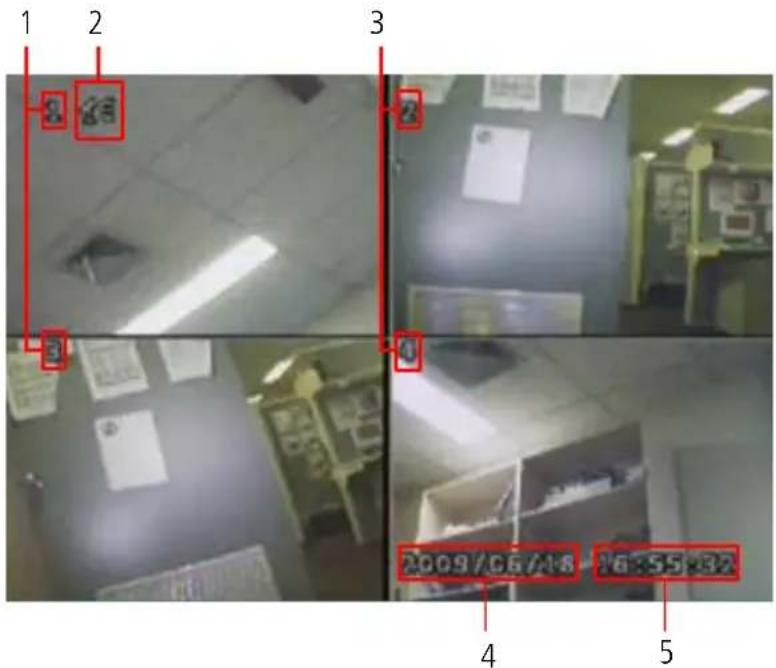
Once the DVR has booted up and you have a camera connected to each channel you should be able to see a quad screen showing all four displays (below).
- Displays showing cameras 1 and 3.
- Audio icon. (in this case audio in active on camera 1)
- Displays showing cameras 2 and 4.
- Date stamp. (year:month:day)
- Time stamp. (hour:minutes:seconds)
text_image
1 2 3 4 5 2009/06/18 16:55:32Main Menu
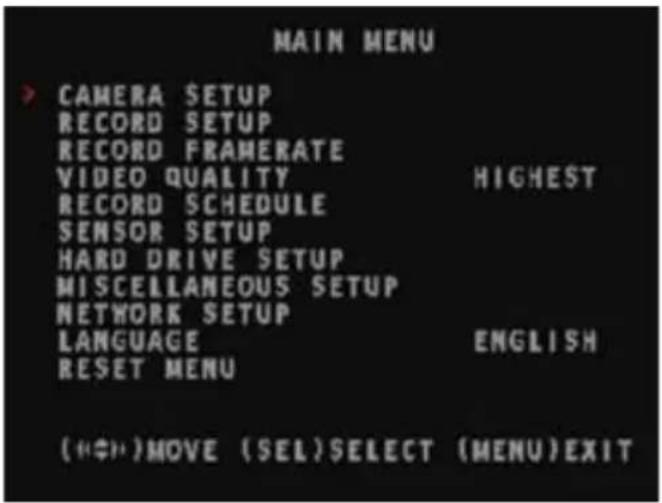
To access the main menu push the MENU button. You can scroll through the sub menus by using the UP & DOWN buttons on the DVR front panel or the remote control.
The red arrow indicates the sub-menu or option that is currently selected. See page 4 for DVR functions and page 5 for remote control functions.
text_image
MAIN MENU CAMERA SETUP RECORD SETUP RECORD FRAMERATE VIDEO QUALITY HIGHEST RECORD SCHEDULE SENSOR SETUP HARD DRIVE SETUP MISCELLANEOUS SETUP NETWORK SETUP LANGUAGE ENGLISH RESET MENU (<<#>)MOVE (SEL)SELECT (MENU)EXITHard drive Setup
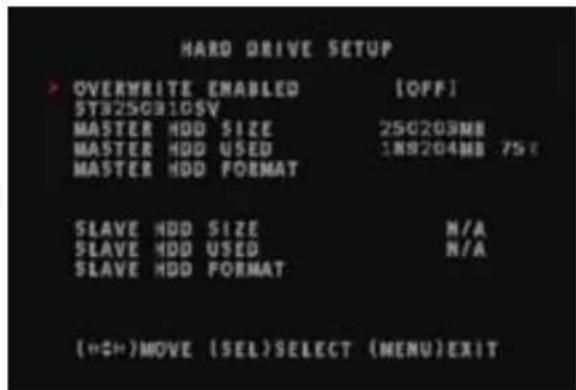
Overwrite enabled - Set to ON to enable the hard drive to overwrite the oldest files when the hard drive is full. When it is set to OFF the DVR will stop recording once the hard drive has reached full capacity.
Master HDD size - Total size of the hard drive installed in the DVR
Master HDD used - Amount of disc space and the percentage currently used up on the hard drive.
HDD format - Select this option to format the hard drive then push the SELECT button.
text_image
HARD DRIVE SETUP > OVERWRITE ENABLED [OFF] STB25CB1GSV MASTER HDD SIZE 250203MB MASTER HDD USED 189204MB 75t MASTER HDD FORMAT SLAVE HDD SIZE N/A SLAVE HDD USED N/A SLAVE HDD FORMAT (<<)MOVE (SEL)SELECT (MENU)EXITSetting the Time
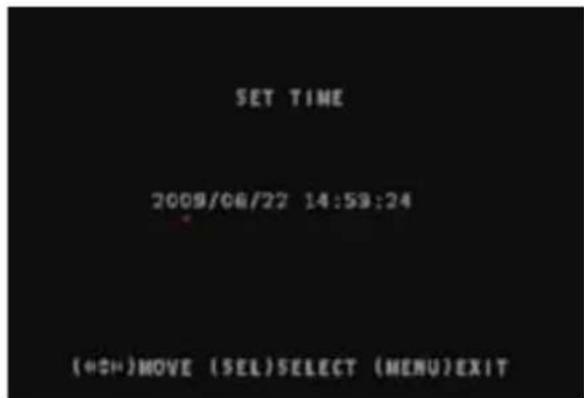
The DVR date and time stamp appear on the bottom right corner of the screen. Follow these instructions to set/change the DVR date and time.
- Select the MISCELLANEOUS SETUP option in the main menu.
- Scroll down to the second option SET TIME and push SELECT.
- Below the date and time digits you will see a red arrow. Use the LEFT and RIGHT buttons on the remote or the FWD and RWD buttons on the front panel to move across.
- Push the SELECT button to change the data.
Note:
The 0-9 buttons on the remote cannot be used to set the time.
text_image
SET TIME 2009/08/22 14:59:24 (=CH)MOVE (SEL)SELECT (MENU)EXITCamera Setup
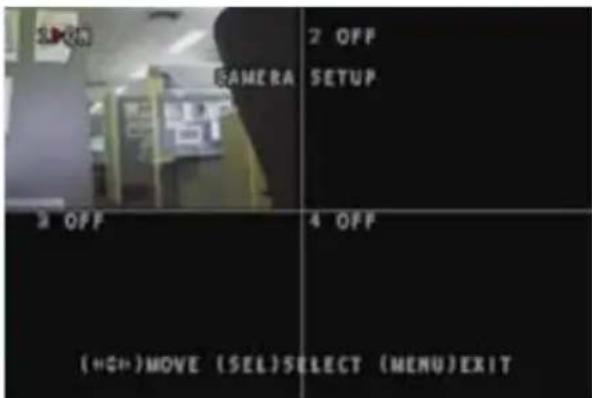
Camera Setup allows you to choose which channels will be active when the cameras are plugged into the DVR. When a camera is set to OFF in Camera Setup you will not be able to view the display for that camera. You will also not be able to record unless the camera is set to ON in Camera Setup.
- Use the UP, DOWN, LEFT and RIGHT buttons (on the remote) or the UP, DOWN, RWD (for left) & FWD (for right) buttons to select the camera you would like to change settings on.
- Push the SELECT button to change the setting to ON or OFF.
- To exit the Camera Setup screen push the MENU button.
text_image
SIMON CAMERA 2 OFF SETUP 3 OFF 4 OFF (<<+)MOVE (SEL)SELECT (MENU)EXITRecord Setup
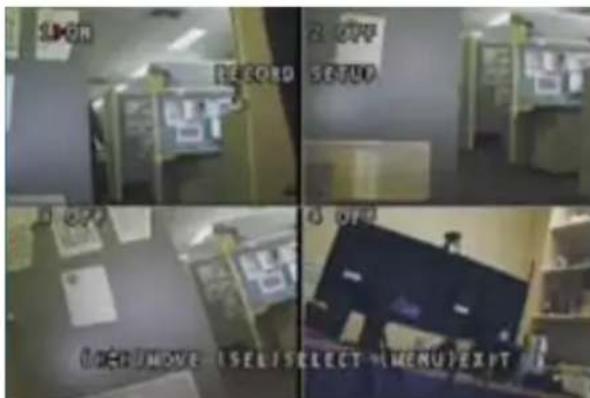
Record Setup allows you to choose which cameras will be recording when the record button is pushed. Make sure all cameras are set to ON in the Camera Setup screen to enable Record.
- Use the UP, DOWN, LEFT and RIGHT buttons (on the remote) or the UP, DOWN, RWD (for left) & FWD (for right) buttons to select the camera you would like to change settings on.
- Push the SELECT button to change the setting to ON or OFF.
- To exit the Record Setup screen push the MENU button.
text_image
SIMON 2 OFF RECORD SETUP 3 OFF 4 OFF (ORUMOVE - SEL SELECT - MENU) EXPTRecord Framerate
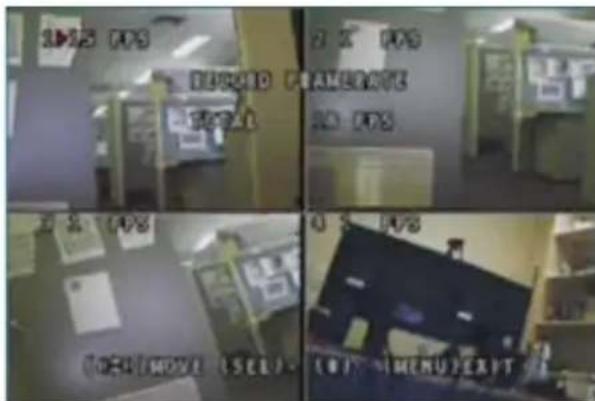
Record Framerate allows you to set each cameras desired framerate. The maximum no of frames is 50FPS (PAL systems) and 60FPS (NTSC systems) shared between 4 cameras.
- Use the UP, DOWN, LEFT and RIGHT buttons (on the remote) or the UP, DOWN, RWD (for left) & FWD (for right) buttons to select the camera you would like to change settings on.
- Push the SELECT button to increase the number of FRAMES PER SECOND and the STOP button to decrease the number of FPS.
- To exit the Record Setup screen push the MENU button.
text_image
Four-panel surveillance photo showing office interior with labeled room numbers and security camera controlsVideo Quality
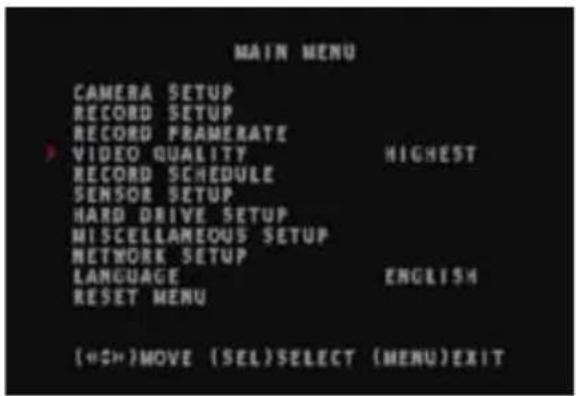
The video quality for all the cameras can be adjusted in the MAIN menu.
- In the MAIN menu scroll down to VIDEO QUALITY.
- Push the SELECT button to scroll between LOW, NORMAL, HIGH and HIGHEST.
- Push the MAIN menu button once you have selected the quality level to update the changes.
text_image
MAIN MENU CAMERA SETUP RECORD SETUP RECORD FRAMERATE VIDEO QUALITY HIGHEST RECORD SCHEDULE SENSOR SETUP HARD DRIVE SETUP MISCELLANEOUS SETUP NETWORK SETUP LANGUAGE ENGLISH RESET MENU (<Record Schedule
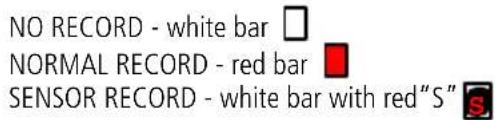
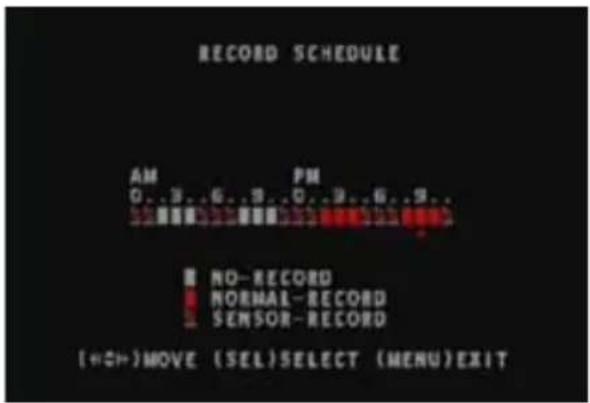
Record Schedule allows you to set the DVR to record between specified times or set to record when motion is detected. The timeline in the Record Schedule screen shows 24 bars representing 24 hours in a day.
-
Use the LEFT and RIGHT buttons (on the remote) or the RWD (for left) & FWD (for right) buttons to select the hour you would like to change the settings on.
-
Push the SELECT button to scroll between each bar (hour).
text_image
NO RECORD - white bar NORMAL RECORD - red bar SENSOR RECORD - white bar with red"S"- To exit the Record Schedule screen push the MENU button.
text_image
RECORD SCHEDULE AM PM 0..3..6..9..0..3..6..9.. NO-RECORD NORMAL-RECORD SENSOR-RECORD (+O+)MOVE (SEL)SELECT (MENU)EXITSensor Setup
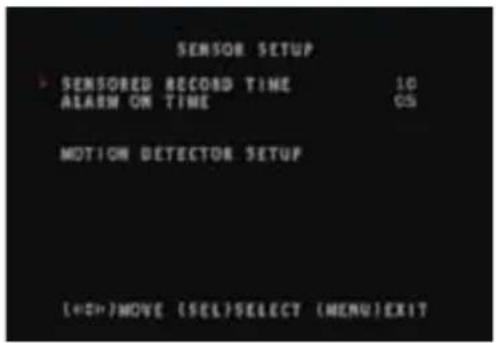
Sensored Record Time
The DVR can be set to continue recording after it has detected motion. 1. Use the UP & DOWN buttons to scroll between each option. Push the SELECT button to choose between 5, 10, 15, 20, 25 & 30 seconds.
Alarm Time
This is the time the alarm continues to beep after the DVR has detected motion.
- With the ALARM TIME option selected push the SELECT button to choose between 5, 10, 15, 20, 25, 30 seconds, CONTINUOUS (CONT) & OFF.
text_image
SENSOR SETUP > SENSORED RECORD TIME 10 ALARM ON TIME CS MOTION DETECTOR SETUP [+0>]MOVE (SEL)SELECT (MENU)EXITMotion Detector Setup
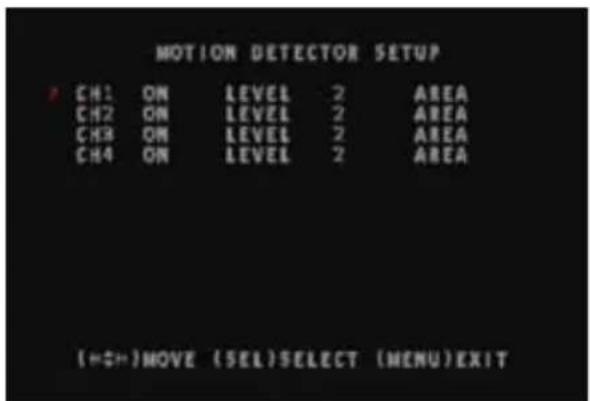
This section allows you to set up motion detection for each camera.
See instructions on MOTION DETECTOR SETUP for setting up the motion detector area.
Motion Detector Setup
- Select whether you want motion detection ON or OFF. The motion detector levels range from 1-3 with 1 being the least sensitive and 3 having the highest sensitivity.
- With the LEVEL option selected push the SELECT button to scroll through the motion detector sensitivity levels (1-3).
- Selecting the AREA option in the MOTION DETECTOR SETUP screen will take you to a full screen display of the camera you have selected. Here you can choose the active area for motion detection for the camera.
text_image
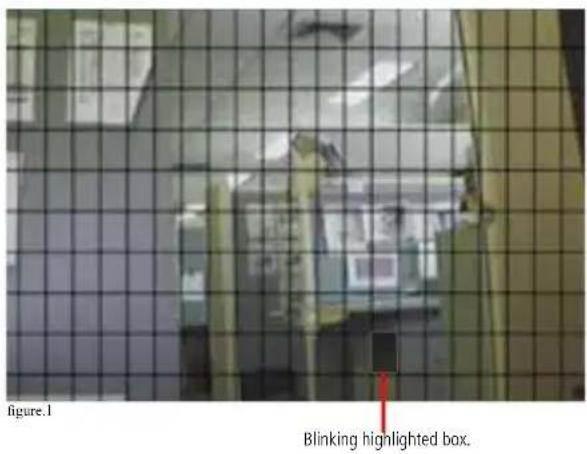
MOTION DETECTOR SETUP CH1 ON LEVEL 2 AREA CH2 ON LEVEL 2 AREA CH3 ON LEVEL 2 AREA CH4 ON LEVEL 2 AREA (=ON)MOVE (SEL)SELECT (MENU)EXITThe display will have a checkered pattern over the whole image. This means the whole area is currently active for motion detection.
- Using the arrow keys move the highlighted blinking box to the area you want to deactivate the motion detection. Once you selected a box to start on push the SELECT button to deactivate that box. Continue using the arrows keys to select boxes you wish to deactivate.
- If you would like to deactivate the whole area push the STOP button on either the remote or the DVR control panel; this will clear all the boxes and leave the entire screen highlighted.
- To reverse this effect push the ALL button on the remote or the QUAD MODE button.
text_image
Figure.1 Blinking highlighted box.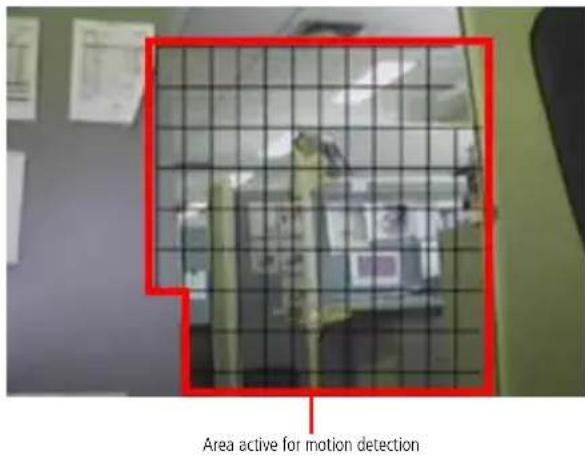
text_image
Area active for motion detectionWhen motion detection is active the area will be covered with a checkered pattern around it.
The highlighted blinking box is the box currently selected. Push the select button to activate and deactivate this box.
natural_image
Interior view of a dimly lit office or lab space with desks, chairs, and papers (no visible text or symbols)figure.2
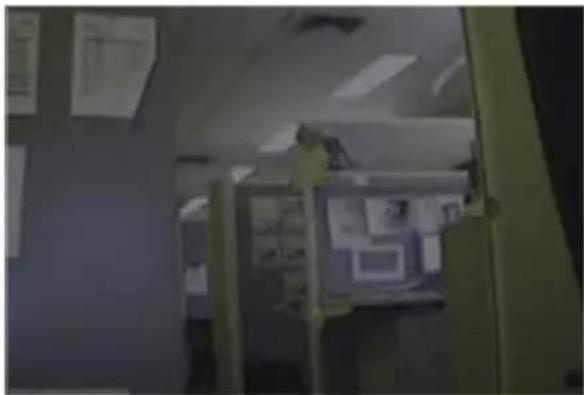
Figure 1 has the checkered pattern over the entire image; motion detection is active. Figure 2 shows the same image without the checkered pattern; motion detection in currently not active over the entire image.
When motion detection is inactive the image will have a highlight over the entire screen.
System Password
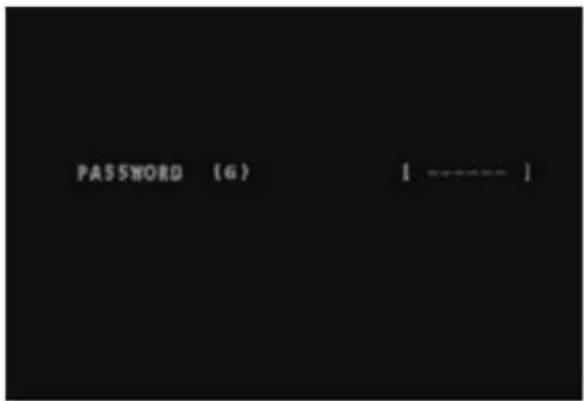
The DVR includes the option of a six character password. When the password is enabled the DVR will prompt you for it
when you try to:
a. stop a recording
b. reset the menu
c. access the main menu
d. format the hard drive
You will be prompted for the password when attempting to format the hard drive whether the password is enabled or not.
text_image
PASSWORD (6) [ ]Enabling and disabling the password
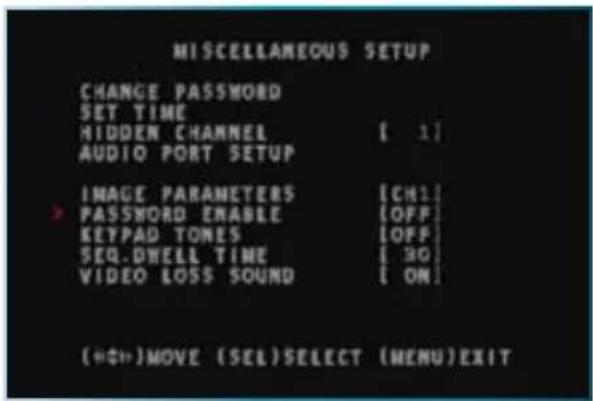
- Select the MISCELLANEOUS SETUP option in the Main menu.
- Scroll down to the PASSWORD ENABLE option.
- Push the SELECT button to set to ON to enable the password and OFF to disable it.
- Push the MENU button to go back to the MAIN menu.
text_image
MISCELLANEOUS SETUP CHANGE PASSWORD SET TIME HIDDEN CHANNEL [ 1 ] AUDIO PORT SETUP IMAGE PARAMETERS [CH1] PASSWORD ENABLE [OFF] KEYPAD TONES [OFF] SEQ.DWELL TIME [ 30] VIDEO LOSS SOUND [ ON ] (+/-)MOVE (SEL)SELECT (MENU)EXITChanging the password
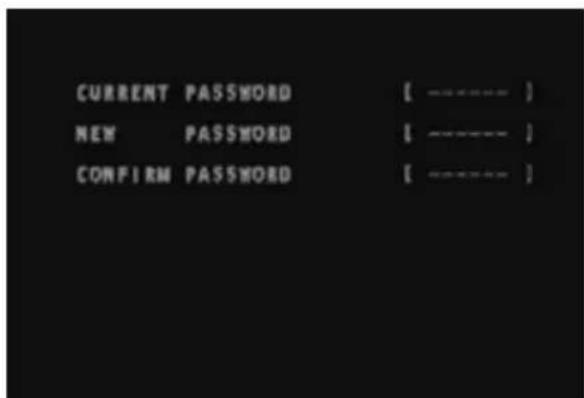
- Select the MISCELLANEOUS SETUP option in the Main menu.
- Select the first option CHANGE PASSWORD
3.Key in the current password in the first blank field. - In the second field key in the new password. Any of the buttons (except for the MENU button) on the remote control or the DVR front panel can be used to make a password.
- Confirm the new password by re-entering it in the third blank field.
text_image
CURRENT PASSWORD [ ---- ] NEW PASSWORD [ ---- ] CONFIRM PASSWORD [ ---- ]The default system password for the DVR is "111111"
Note: the System Password is different to the Admin Password. See User Setup for information on setting up the Admin Password.
Image Parameters
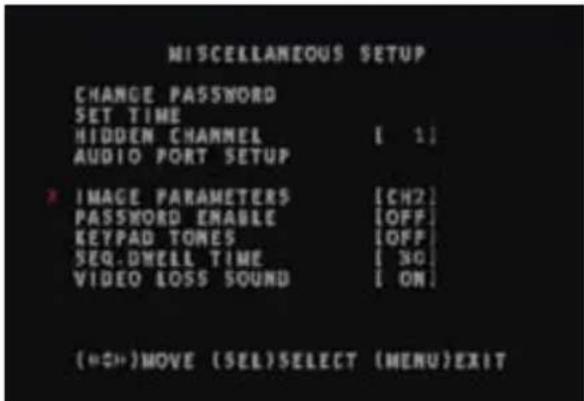
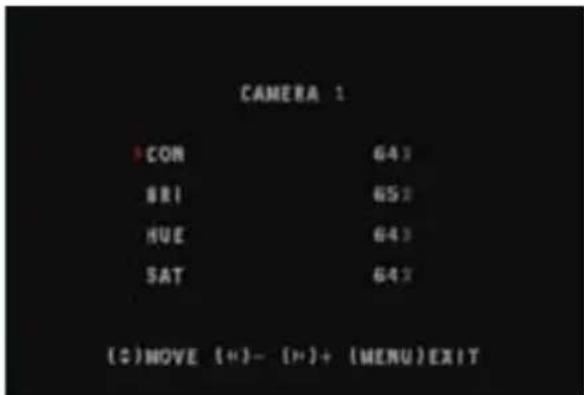
In the IMAGE PARAMETERS screen you can change the picture settings Contrast, Brightness, Hue and Saturation for each camera. Each setting can be set from 0-100%.
- In the MISCELLANEOUS SETUP screen scroll down to IMAGE PARAMETERS.
- Push the FWD button on the DVR front panel or the RIGHT button on the remote to choose the camera you would like to adjust settings for.
- Push SELECT to enter the settings screen for the selected channel.
text_image
MISCELLANEOUS SETUP CHANGE PASSWORD SET TIME HIDDEN CHANNEL [ 1 ] AUDIO PORT SETUP * IMAGE PARAMETERS [CH2] PASSWORD ENABLE [OFF] KEYPAD TONES [OFF] SEQ.DHELL TIME [ NO ] VIDEO LOSS SOUND [ ON ] ( «O»)MOVE (SEL)SELECT (MENU)EXIT- Use the UP and DOWN buttons to select between:
CON = Contrast - adjust the brightness ratio of the lightest to the darkest part of the screen image.
BRI = Brightness - adjust the brightness level of the overall screen image.
HUE = Hue - adjust the gradation of each colour.
SAT = Saturation - adjust the weight/intensity of each colour.
text_image
CAMERA 1 CON 643 MRI 652 HUE 643 SAT 643 (○)NOVE (+)- (+)+ (MERU)EXIT- To increase and decrease the settings use the RIGHT and LEFT buttons on the remote or the FWD and RWD buttons on the front panel.
Miscellaneous Setup
Hidden Channel
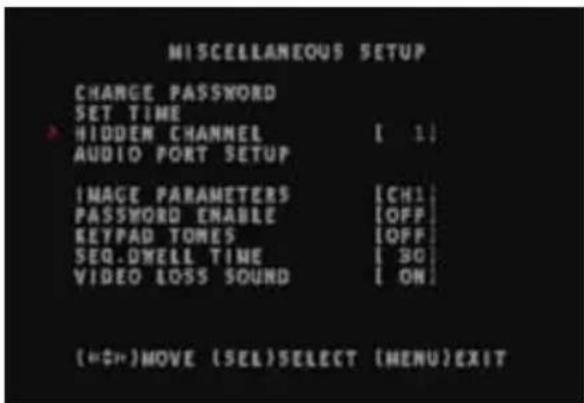
The DVR allows you to hide a channel during monitoring mode. The hidden channel will allow you to record and view in playback mode; but the display screen for that channel will show a black screen on the live screen.
- In the Main menu select MISCELLANEOUS SETUP and then HIDDEN CHANNEL.
- Push the SELECT button to choose the channel. When OFF is selected no channel will be hidden.
- Push the Menu button to go back to the Main menu.
text_image
MISCELLANEOUS SETUP CHANGE PASSWORD SET TIME HIDDEN CHANNEL [ 1] AUDIO PORT SETUP IMAGE PARAMETERS [CH1] PASSWORD ENABLE [OFF] KEYPAD TONES [OFF] SEQ.DWELL TIME [ 30] VIDEO LOSS SOUND [ ON ] (=0_)MOVE (SEL)SELECT (MENU)EXITMiscellaneous Setup
Keypad Tones
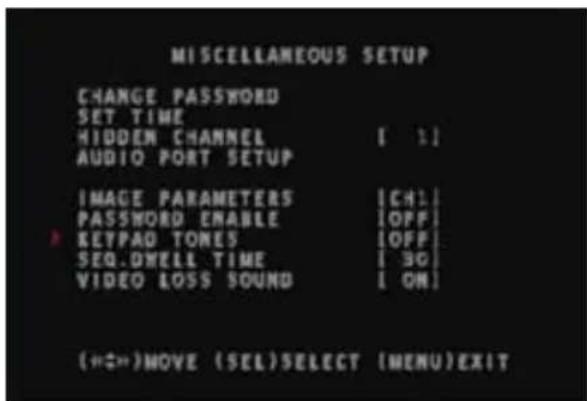
The beeper sound you hear each time you push a button can be disabled.
-
In the Main menu select MISCELLANEOUS SETUP and then KEYPAD TONES.
-
Push the SELECT button to turn ON or OFF.
text_image
MISCELLANEOUS SETUP CHANGE PASSWORD SET TIME HIDDEN CHANNEL [ 1] AUDIO PORT SETUP IMAGE PARAMETERS [CH] PASSWORD ENABLE [OFF] KEYPAD TONES [OFF] SEQ.DWELL TIME [30] VIDEO LOSS SOUND [ON] (<<>)MOVE (SEL)SELECT (MENU)EXITSequence Dwell Time
With sequence dwell time activated you can set the time the display shows each channel when the channels are viewed in individual mode.
- Select SEO. DWELL TIME in the MISCELLANEOUS SETUP screen.
- Push SELECT to choose between 1, 5, 10, 15, 30, 60 seconds and OFF.
- To activate the sequence function push the PAUSE button when you are in display mode.
- Push PAUSE again to deactivate the sequence.
Video Loss Time
This function allows you to set a buzzer sound if one of the cameras connected were to be unplugged or if the DVR could no longer detect that camera. The buzzer will beep three times.
- Select VIDEO LOSS TIME in the MISCELLANEOUS SETUP screen.
- Push SELECT to turn ON and OFF.
Audio Port Setup
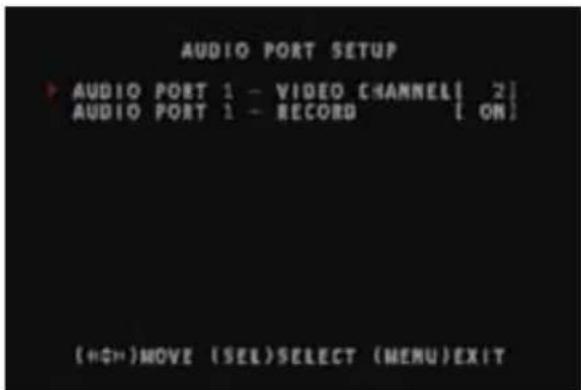
The DVR allows audio to be recorded on one of the channels. If your cameras do not support audio a separate microphone can be connected for this.
- In the Main menu select MISCELLANEOUS SETUP and then AUDIO PORT SETUP.
- Select AUDIO PORT 1 - VIDEO CHANNEL and push the SELECT button to select which channel the audio will be recorded from.
- The next option allows you to activate the recording. Push the select button to turn the audio recording ON and OFF.
text_image
AUDIO PORT SETUP ▶ AUDIO PORT 1 - VIDEO CHANNEL[ 2] AUDIO PORT 1 - RECORD [ ON ] (<<+)MOVE (SEL)SELECT (MENU)EXITMiscellaneous Setup (continued)
Language Setup
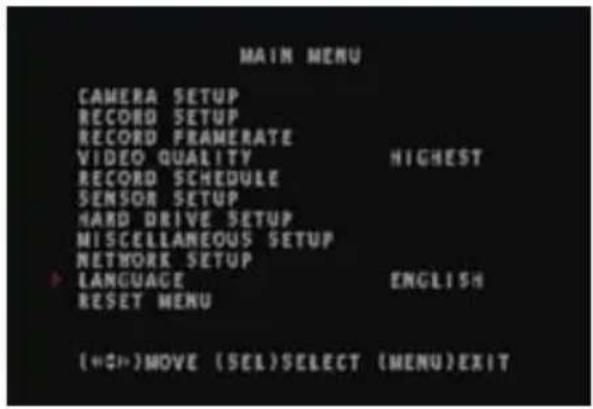
The DVR can be set to 5 foreign languages. Italian, French, Dutch, Portuguese and Spanish.
- In the Main menu scroll down to the LANGUAGES option and push SELECT to change the language.
Note:
If you have changed the language and are having trouble setting it back to English simply push the MAIN menu button until you see one of the options below:
SELEZIONE LINGUA
CHOIX DE LANGUE
SPRACHE EINSTELLAN
IDIOMA
SELECTO IDIOMA
text_image
MAIN MENU CAMERA SETUP RECORD SETUP RECORD FRAMERATE VIDEO QUALITY HIGHEST RECORD SCHEDULE SENSOR SETUP HARD DRIVE SETUP MISCELLANEOUS SETUP NETWORK SETUP LANGUAGE ENGLISH RESET MENU («»)MOVE (SEL)SELECT (MENU)EXITThen scroll down to the one you see from the list above and push the SELECT button until you get back to English.
Record Screen
text_image
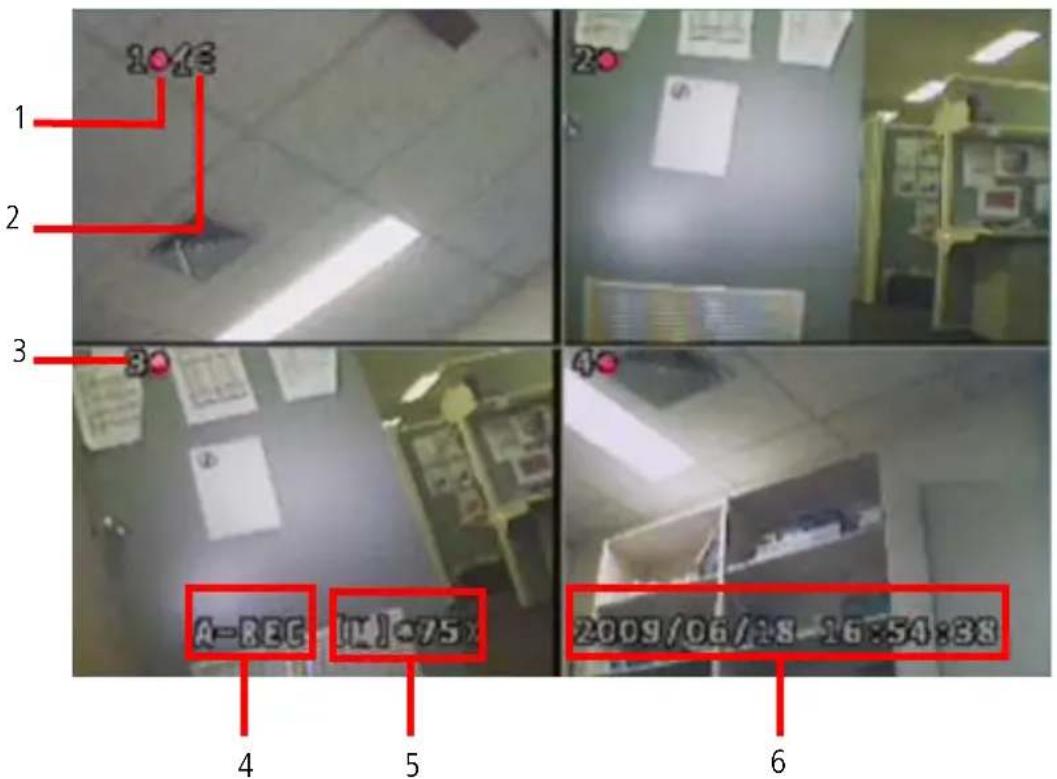
1 2 3 4 5 6 A-REC (1) -75 2009/06/18 16:54:38- Record indicator - When a channel is recording the record indicator will appear beside the channel number.
- Audio indicator - The audio indicator will appear on the top left corner on the display the audio is assigned to. See AUDIO PORT SETUP on page 17 to configure this setting.
Indicates the audio port is assigned to a channel and the audio port is on.
Indicates the audio port is off.
Indicates the audio port is currently recording and audio output is on.
Note:
Pushing the DOWN button on the front panel or the MUTE button on the remote will mute the audio output. The audio inout can still be recorded while the output is muted.
-
Channel - The number on the top left corner of each display indicates the the channel.
-
Record mode - This indicates which record schedule the DVR is set to.
a. A-REC - Current record schedule is set to NORMAL-RECORD mode.
b. S-REC - Current record schedule is set to SENSOR-RECORD mode
c. N-REC - Current record schedule is set to NO-RECORD mode.
-
Hard drive information - This shows which hard drive is been recorded to and the percentage currently used. [M] indicates MASTER HDD, [S] indicates SLAVE HDD and *75% indicates 75 percent of the hard drive is full.
-
Date & Time stamp - Current date and time.
Recording and stopping a recording
- Push the RECORD button in the display mode (quad or individual view) to begin recording.
- Push the STOP button to stop the recording.
Note:
If the password is currently enabled you will be prompted for the password; only the correct password will allow you to stop the recording.
Playback
Playback Screen
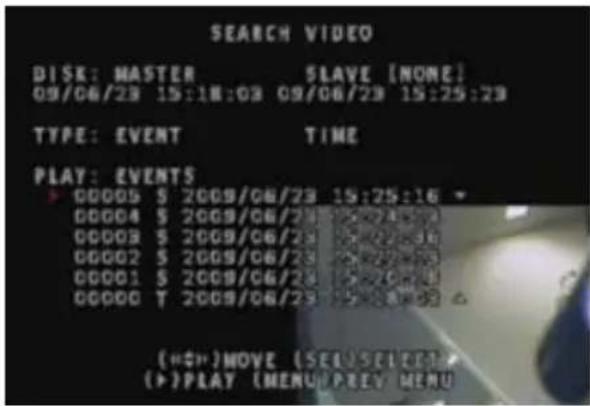
The Search Video screen will display all the recordings currently stored on the hard drive. Playback will automatically play in quad mode. if you would like to view the footage in individual mode simply push the channel button (1-4) you'd like to view individually; push the QUAD button on the front panel or the ALL button on the remote. If there is no recordings stored on the hard drive you will not be able to access the playback screen.
Playing a recording
-
Use the UP and DOWN arrows to select the recording you would like to playback. The most recent recording will be at the top of the list.
-
Push the PLAY button to view the recording you have selected.
text_image
SEARCH VIDEO DISK: MASTER SLAVE [NONE] 09/06/28 15:18:03 09/06/28 15:25:23 TYPE: EVENT TIME PLAY: EVENTS ▶ 00005 S 2009/06/23 15:25:16 00004 S 2009/06/23 15:25:16 00003 S 2009/06/23 15:25:16 00002 S 2009/06/23 15:25:16 00001 S 2009/06/23 15:25:16 00000 T 2009/06/23 15:25:16 (“+”)MOVE (SEE)SELECT > (▶)PLAY [MENU]PREV MENUSearching the list by time
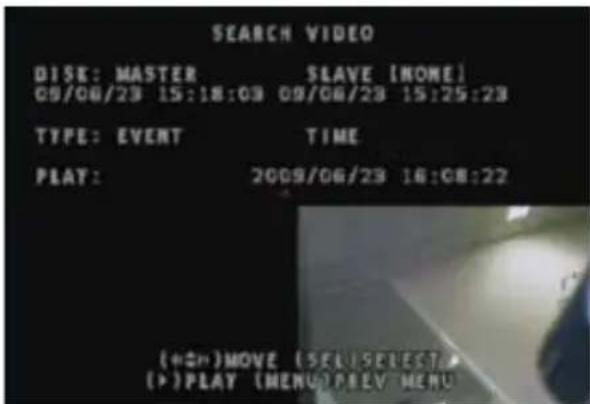
- Push the MENU button to scroll up to EVENT; then push the UP or DOWN button to scroll between TIME and EVENT.
- With the red arrow beside TIME push the SELECT button.
- You will see the date and time. Use the LEFT and RIGHT arrows on the remote or the RWD and FWD buttons on the DVR front panel to scroll between each digit for the date and time. (Note: the "20" for the year cannot be changed)
- Use the SELECT button to change the individual digits for the date and time.
- Push the MENU button to go back to TIME; then push the UP or DOWN button to scroll between TIME and EVENT.
- To exit, push the MAIN menu button until you see the display screen.
text_image
SEARCH VIDEO DISK: MASTER SLAVE [NONE] 09/08/23 15:18:03 09/08/23 15:25:23 TYPE: EVENT TIME PLAY: 2009/06/23 16:08:22 (+ON)MOVE (SEL SEVEST) (+)PLAT (MENU) PREV MENUInstalling the DVR software
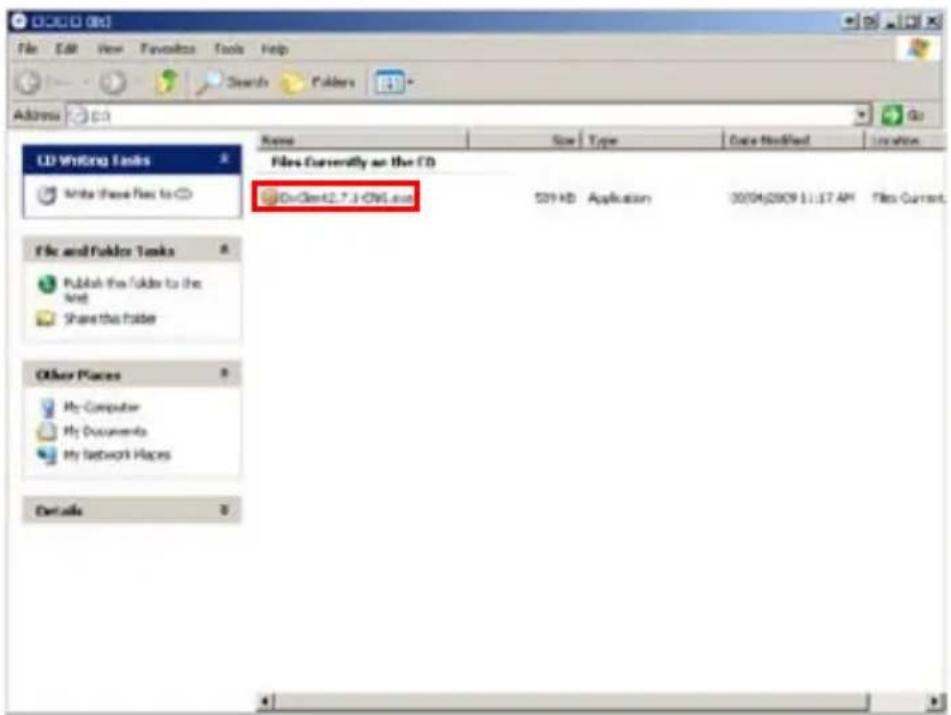
- Insert the mini CD into a CD/DVD ROM drive on your computer.
- If your CD/DVD ROM drive does not auto run the CD; click MY COMPUTER click on the drive the CD is in and double click on the "DXCLIENT2.7.1-ENG.EXE" file.
text_image
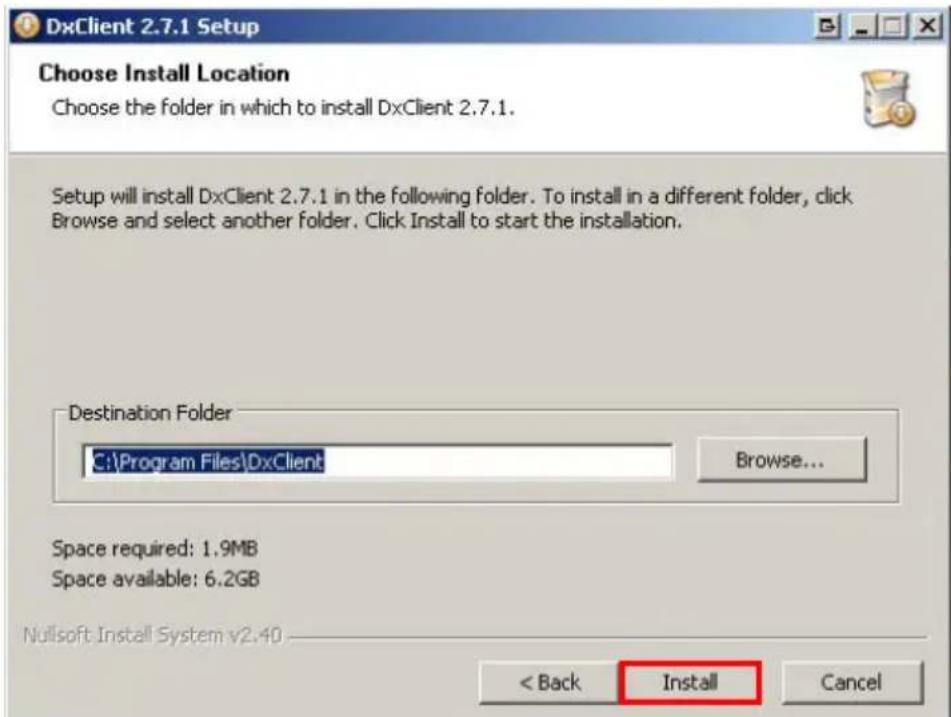
CD/CD (0x) File Edit View Favorites Tools Help Address C3 LD Writing Tasks Write these files to CD Files Currently on the CD DivCent2.7.1-CNS Iraq 599 KB Application 00/04/2009 11:17 AM Files Current File and Folder Tasks Publish the folder to the and Share the folder Other Places My Computer My Documents My Network Hapes Details- In the setup window click INSTALL.
text_image
DxClient 2.7.1 Setup Choose Install Location Choose the folder in which to install DxClient 2.7.1. Setup will install DxClient 2.7.1 in the following folder. To install in a different folder, click Browse and select another folder. Click Install to start the installation. Destination Folder C:\Program Files\DxClient Browse... Space required: 1.9MB Space available: 6.2GB Nullsoft Install System v2.40 < Back Install CancelInstalling DVR Software (continued)
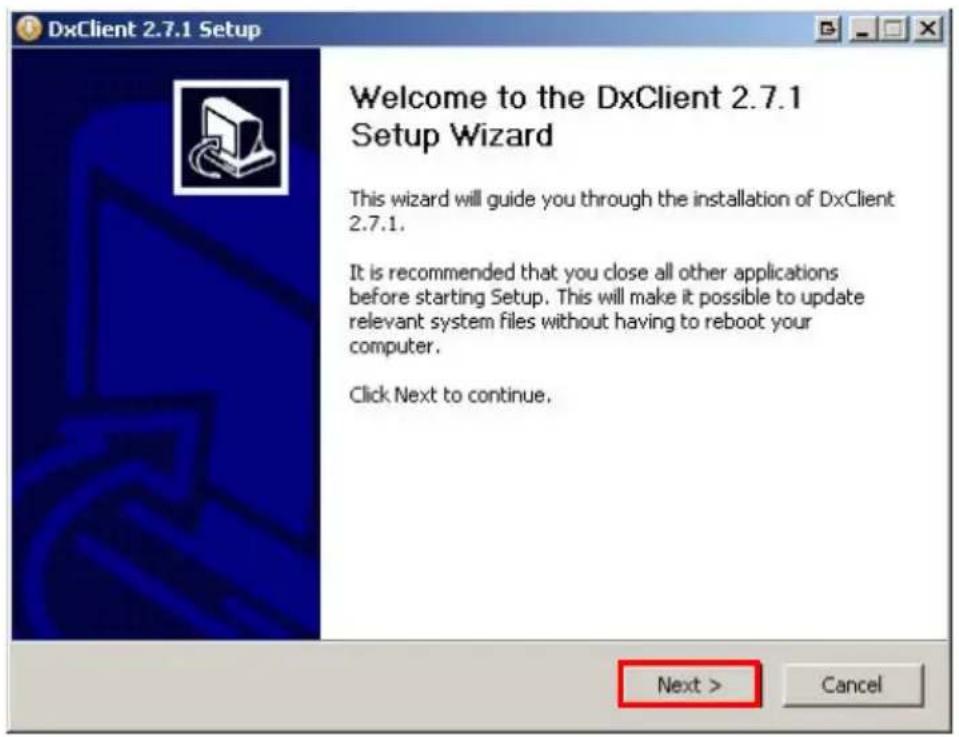
- Follow the instructions in the setup wizard and click NEXT.
text_image
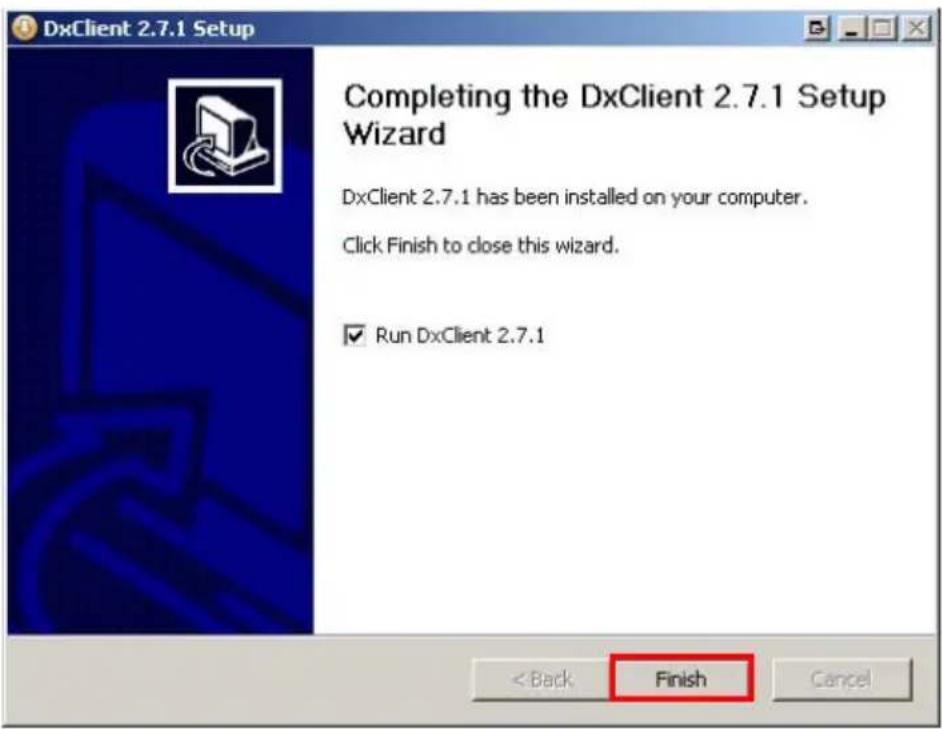
DxClient 2.7.1 Setup Welcome to the DxClient 2.7.1 Setup Wizard This wizard will guide you through the installation of DxClient 2.7.1. It is recommended that you close all other applications before starting Setup. This will make it possible to update relevant system files without having to reboot your computer. Click Next to continue. Next > Cancel- The installation is now complete. Tick the checkbox to run the DXCLIENT and click FINISH.
text_image
DxClient 2.7.1 Setup Completing the DxClient 2.7.1 Setup Wizard DxClient 2.7.1 has been installed on your computer. Click Finish to close this wizard. ✓ Run DxClient 2.7.1 < Back Finish CancelConfiguring ActiveX
You may need to change the security settings on your PC to be able to view the DVR remotely. If you are having trouble viewing your DVR remotely and are getting messages regarding active X controls the following instructions may help.
Changing Security Settings on Internet Explorer
- Open Internet Explorer.
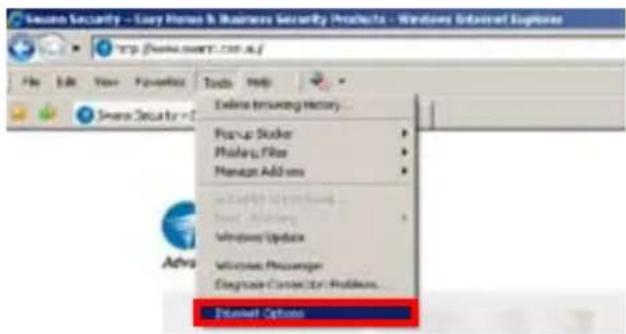
- Click TOOLS > INTERNET OPTIONS.
text_image
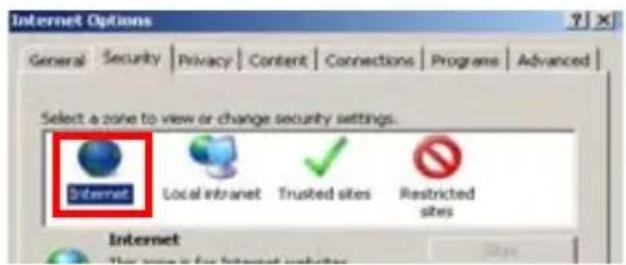
Secure Security -- Easy Home & Business Security Products - Windows Internet Explorer http://www.cs.com/.com/.api/ File Edit View Favorites Tools Help Extris Escanning History... Pour-up Stoker Phases, Files Manage Add-ons Download Options... Enter: Microsoft Windows Update Microsoft Messenger Diagnose Connect Our Problems... Download Options- Select the INTERNET zone option.
text_image
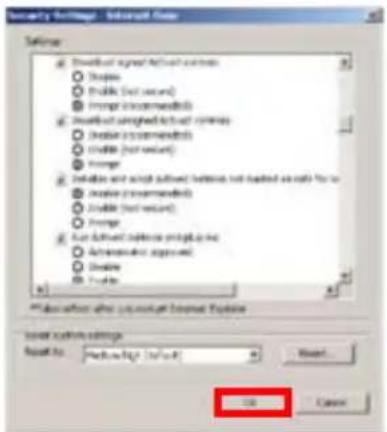
Internet Options General Security Privacy Content Connections Programs Advanced Select a zone to view or change security settings. Internet Local Internet Trusted sites Restricted sites Internet The zone is for Internet update- Find the following three options and SET them to PROMPT.
Download signed ActiveX controls.
Download unsigned ActiveX controls.
Initialize and script ActiveX controls not marked as safe for scripting.
Set the next two options to ENABLE.
Run ActiveX controls and plug-ins.
Script ActiveX controls marked safe for scripting.
Click OK after you have made the changes.
text_image
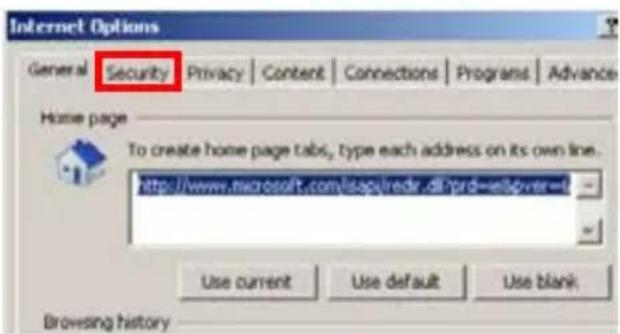
Security Settings - Interactive Data Settings Download signed Active Contexts ○ Displace ○ Disable (Not visible) ○ Integer (Recommended) Download signed Active Context Systems ○ Disable (Recommended) ○ Enable (Not visible) ○ Forward ● Initialize and edit active Contexts that loaded so much for us ○ Disable (Recommended) ○ Enable (Not visible) ○ Forward ● Use Active Context Programs for ○ Acceptable Approved ○ Enable ○ Enable *Description after any output to Internal Options Local Context Settings Format: Performance [Default] OK Cancel- In INTERNET OPTIONS click on the SECURITY tab at the top.
text_image
Internet Options General Security Privacy Content Connections Programs Advance Home page To create home page tabs, type each address on its own line. http://www.microsoft.com/locq/redr.dl?rd=nt5dver= Use current Use default Use blank Browsing history- Click on the CUSTOM LEVEL button.
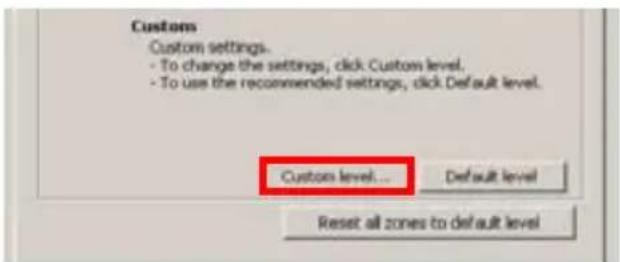
text_image
Custom Custom settings. - To change the settings, click Custom level. - To use the recommended settings, click Default level. Custom level... Default level Reset all zones to default level- After you have changed the settings you will be asked to confirm the changes. Click YES.
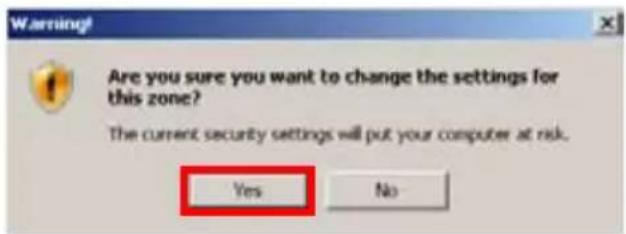
text_image
Warning! Are you sure you want to change the settings for this zone? The current security settings will put your computer at risk. Yes NoIP Allocation
DHCP Setup
- In the NETWORK SETUP sub menu go to IP ALLOCATION and press SELECT to choose DHCP.
Note: the next five options will now show "0.0.0.0" - Push the MENU button to go back to the Main menu.
- Turn the power off or unplug the power cable from the back of the DVR to reboot it.
- Once the DVR has rebooted go back to the NETWORK SETUP sub menu.
You should now have a complete IP ADDRESS, SUBNET MASK, GATEWAY and DNS1 ADDRESS.
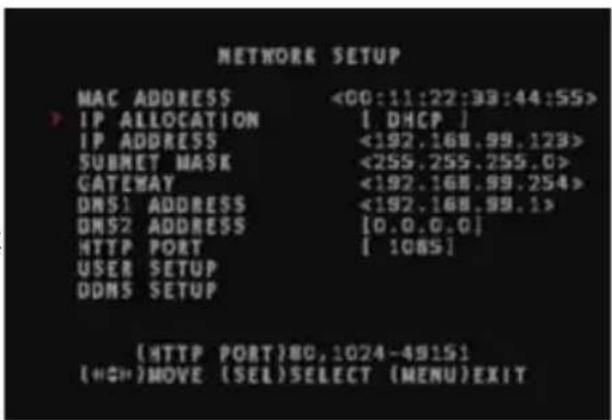
text_image
NETWORK SETUP MAC ADDRESS <00:11:22:38:44:55> IP ALLOCATION [ DHCP ] IP ADDRESS <192.168.99.123> SUBMET MASK <255.255.255.0> GATEWAY <192.168.99.254> DNS1 ADDRESS <192.168.99.1> DNS2 ADDRESS [0.0.0.0] HTTP PORT [ 1085] USER SETUP DDMS SETUP {HTTP PORT}80, 1024-49151 {+0}MOVE {SEL}SELECT {MENU}EXITStatic IP Setup - DVR unit
We strongly recommend only advanced users with network knowledge setup the DVR using a Static IP address.
User Setup
In the USER SETUP screen you can assign the DVR an Admin ID and an Admin Password. These are needed for accessing your DVR remotely. The Admin ID and Password can be up to 14 characters long.
You can also set a USER ID and PASSWORD. This allows others to view your cameras remotely with restrictions.
The default ADMIN ID is "ADMIN".
The default PASSWORD is "111111".
-
Go to the NETWORK SETUP screen and scroll down to USER SETUP.
-
Select Admin ID and push SELECT.
-
Use the UP and DOWN buttons to scroll through the characters and then push the SELECT button to select that character.
-
Use the LEFT and RIGHT buttons on the remote or the RWD and FWD buttons on the front panel to move across to the next character in your password.
-
Repeat steps 3 and 4 to change the ADMIN PASSWORD, USER ID and USER PASSWORD.
-
Reboot the DVR for the changes to take affect.
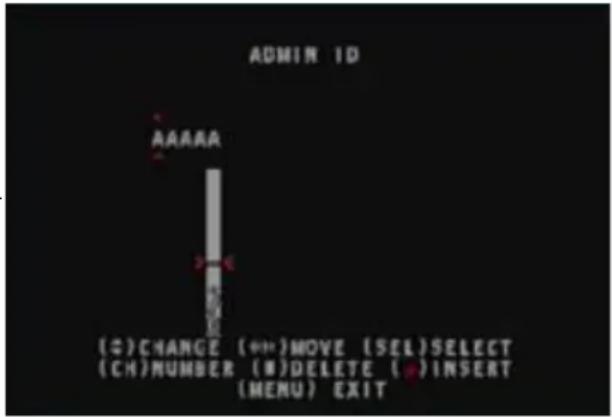
text_image
ADMIN 1D AAAAA (0)CHANGE (++)MOVE (SEL)SELECT (CH)NUMBER (0)DELETE (.)INSERT (MENU) EXITNote:
We highly recommend you change the admin password if connecting to a network/router as this DVR is viewable over the internet and can be easily found using google search.
Viewing Remotely
Now that you have configured the DVR and your PC you can view your DVR over the internet. The DVR can be viewed remotely over the internet using the DVR software on the CD included with the DVR or using a web browser (preferably Internet Explorer).
Using Internet Explorer
-
Open up Internet Explorer. (If you do not have Internet Explorer you can download it from the Microsoft website www.microsoft.com.)
-
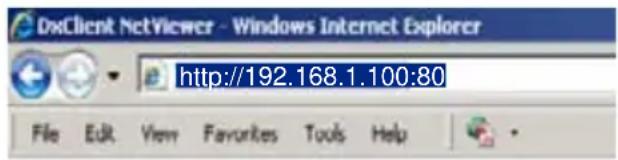
In the address bar type "HTTP://" followed by your IP ADDRESS and a colon then your HTTP PORT. eg "HTTP://192.168.1.100:80" and push ENTER.
See DHCP setup to find your IP address and HTTP port.
- You will now see a login window. See LOGIN for further instructions.
text_image
DxClient NetViewer - Windows Internet Explorer http://192.168.1.100:80 File Edit View Favorites Tools HelpOpening DxClient PC viewer
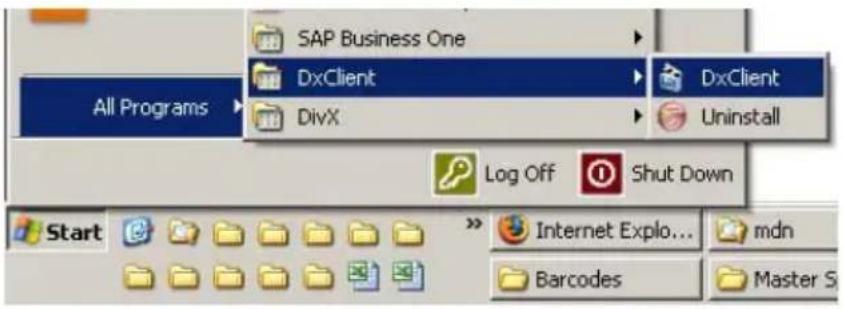
- On your PC click on START > ALL PROGRAMS (PROGRAMS)
- Find DXCLIENT and click DXCLIENT in the DXCLIENT folder.
text_image
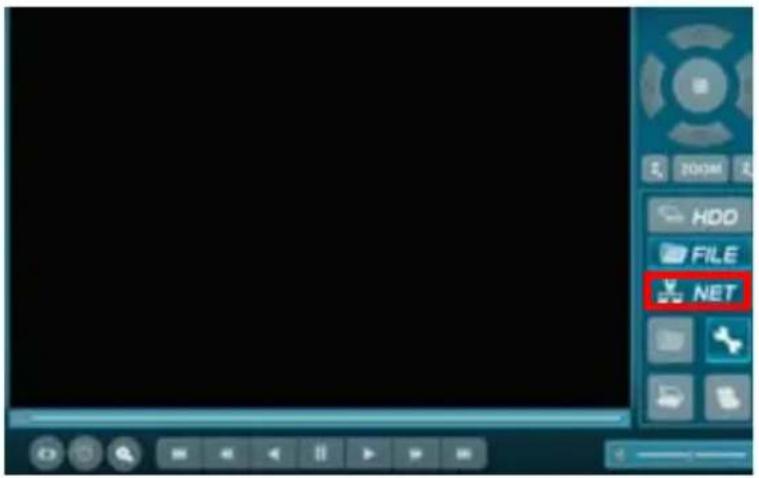
SAP Business One DxClient DivX All Programs DxClient Uninstall Log Off Shut Down Start Internet Explo... mdn Barcodes Master S- The DxClient program should now be open with a blank screen. Click on the large NET button.
text_image
HDD FILE NETNote: the DVR must be connected through a network (using the network cable)
Note: if you are trying to access your DVR from a location outside of your network you will need to know your PUBLIC IP ADDRESS. If you don't know your PUBLIC IP ADDRESS go to www.whatismyip.com.
You will need to access this site from a computer which is on the same network as your DVR. Input the IP address you get from the WHATISMYIP website in the HOST NAME field when logging into the DxClient or in the address bar when accessing the using Internet Explorer.
Login
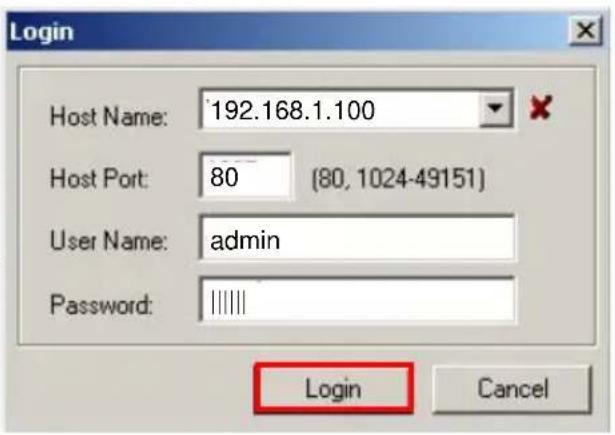
- In the login window type in the following information:
Host name: IP ADDRESS eg. "192.168.1.100"
Host port: HTTP PORT eg. "80"
User name: ADMIN ID eg. "admin" (default)
Password: ADMIN PASSWORD eg. "111111" (default)
- Push login. You should now see the camera display on your PC now.
If you are getting a warning message saying invalid ID or password; go to the USER SETUP screen to confirm you have the correct information.
text_image
Login Host Name: 192.168.1.100 Host Port: 80 (80, 1024-49151) User Name: admin Password: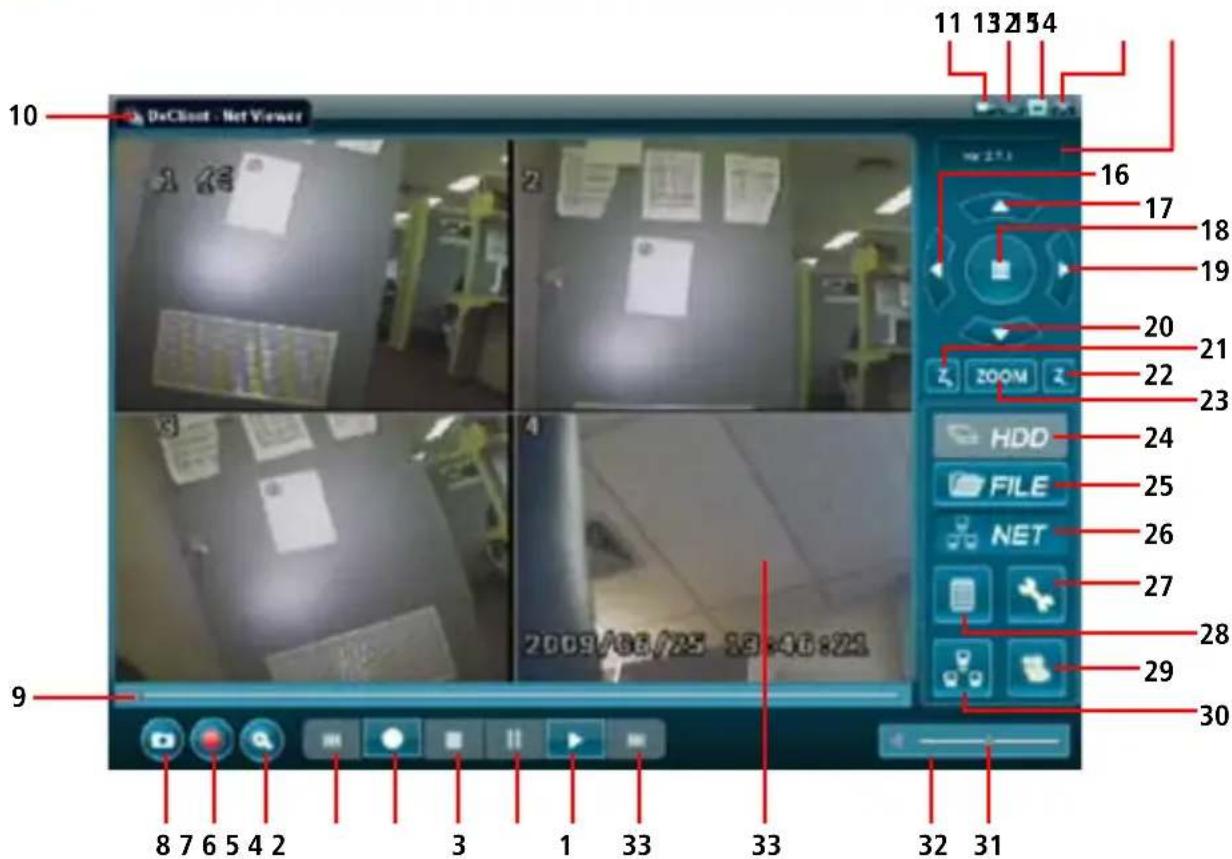
text_image
10 DeCloud - Net Viewer 11 13 25 54 16 17 18 19 20 21 ZOOM 22 23 HDD 24 FILE 25 NET 26 27 28 29 30 9 8 7 6 5 4 2 3 1 33 33 32 31- Play - Press to begin playing recording
2.Pause - Press to pause recording - Stop - Press to stop recording
- Record - Press to begin recording
- Rewind - Press to rewind during playback
- Time Search - Search recording by entering specific time
- Convert To Avi - Press to begin stream capturing
- Capture Image - Press to capture image
- Video Time Bar - Drag during playack to jump to a specific time in the recording
- Toolbar - Double click to maximise screen
- Pin Down Button - Press to pin DxClient down. This will keep the DxClient above other windows opened. (this can also be done by RIGHT clicking and selecting ALWAYS ON TOP).
- Minimise - Press to minimise screen
- Maximise - Press to maximise screen
- Close - Press to close DxClient.
- Software Version
- Left - Move camera left in PTZ
- Up - Move camera up in PTZ
- Display Select - Press to select the display you would like to view
- Right - Move camera right in PTZ
- Down - Move camera down in PTZ
-
Zoom In/+ - Press to zoom in, iris in or focus in (only functions with cameras capable of PTZ)
-
PTZ Control - Press to change between ZOOM, IRIS and FOCUS
- Zoom Out/- - Press zoom out, iris out or focus out
- Hdd - USB Connection mode
- File - Press to select DVR streaming backup file location
- Net - Press to open remote viewing login window
- DVR Settings - Press to view DVR settings
- Event List - Press to view event list
- Dxclient Configuration - Press to view System settings
- Disconnect - Press to disconnect DxClient
- Volume Panel
- Volume Bar - Drag volume bar to increase and decrease volume.
- Display - Double click on a display to view that channel individually. Double clicking on the individual channel display will take you back to quad mode.
You can also RIGHT click on the display to bring up each option
Netviewer
The DxClient Netviewer allows you to view, control recording, view playback and control cameras (depending on the cameras - must have PTZ capabilities).
Note: to view the DVR using the DxClient Netviewer the DVR must be connected to a network (using the network cable).
DxClient Configuration - Netviewer
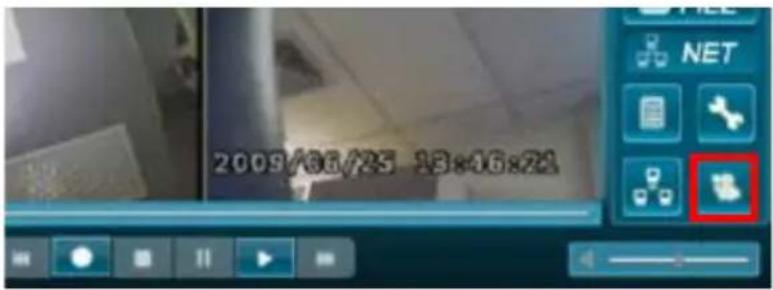
- Click on the DXCLIENT SYSTEM SETTINGS button. This will bring up the Netviewer DX-CLIENT CONFIGURATION window.
text_image
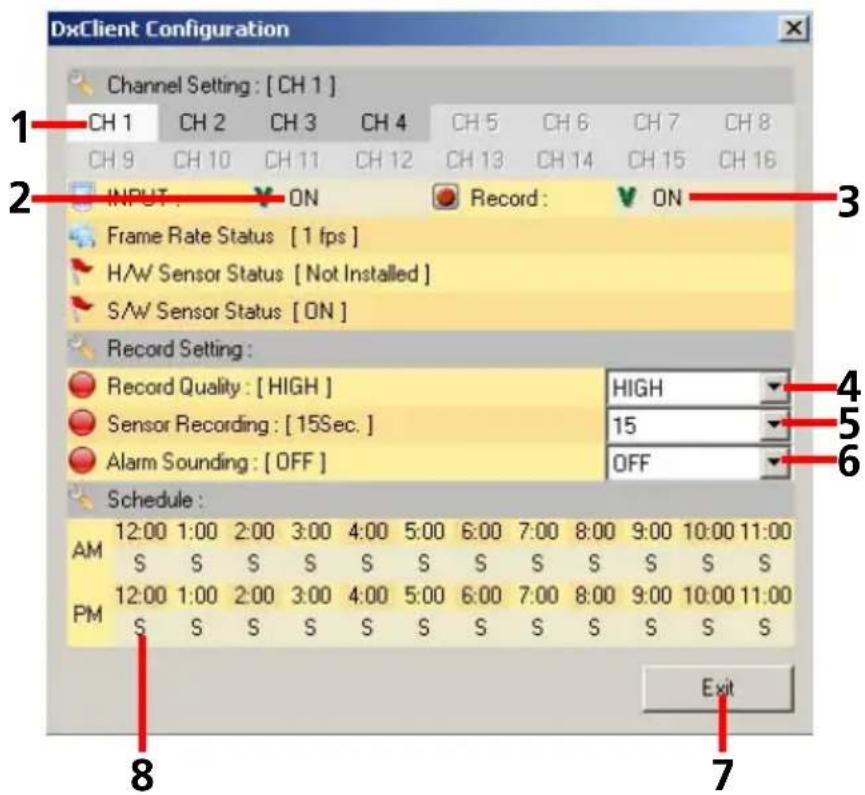
2009/06/25 13:46:24- CH1, CH2, CH3 or CH4 - Click on the channel you would like to change the settings on.
- Camera Setup - Click to turn camera setup ON and OFF.
- Record setup - Click to turn record setup ON and OFF.
-
Record Quality - Click to open dropdown options HIGHEST, HIGH, NORMAL and LOW. Highlight and click to make selection.
-
Sensor Recording - Click to open dropdown options 5, 10, 15, 20, 25 and 30 seconds. Highlight and click to make selection.
-
Alarm Sounding - Click to open dropdown options 5, 10, 15, 20, 25, 30 seconds. CONT (continuos) and OFF Highlight and click to make selection.
-
EXIT - Click to close DxClient Configuration window.
-
Schedule Record Timeline - (--) NO RECORD (S) Sensor Record (A) Normal Record. Click on the "S", "A", or "--" to change the record setting.
text_image
DxClient Configuration Channel Setting: [ CH 1 ] CH 1 CH 2 CH 3 CH 4 CH 5 CH 6 CH 7 CH 8 CH 9 CH 10 CH 11 CH 12 CH 13 CH 14 CH 15 CH 16 INPUT ON Record ON Frame Rate Status [ 1 fps ] H/W Sensor Status [ Not Installed ] S/W Sensor Status [ ON ] Record Setting: Record Quality: [ HIGH ] HIGH Sensor Recording: [ 15Sec. ] 15 Alarm Sounding: [ OFF ] OFF Schedule : AM 12:00 1:00 2:00 3:00 4:00 5:00 6:00 7:00 8:00 9:00 10:00 11:00 S S S S S S S S S S S S S S PM 12:00 1:00 2:00 3:00 4:00 5:00 6:00 7:00 8:00 9:00 10:00 11:00 S S S S S S S S S S S S S S Exit 8 7Netviewer (continued)
Stream Capture
Using the Stream Capture function you can record live footage and then convert it into an AVI file. This enables you to playback the recording on other meida players such as VLC, DivX or Windows Media player.
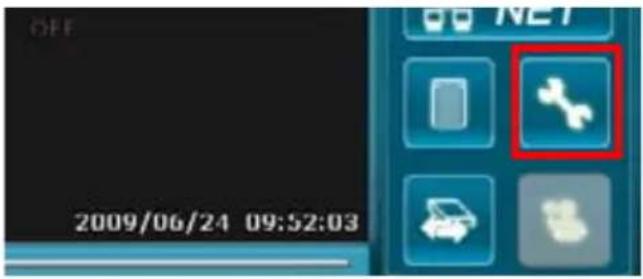
- Click the DVR Settings button.
This will open a HDD viewer DXCLIENT CONFIGURATION window.
text_image
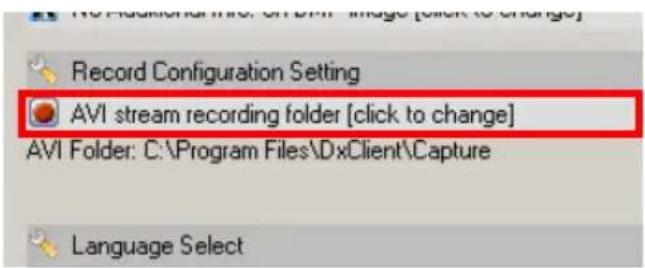
OFF 2009/06/24 09:52:03- Click on AVI STREAM RECORDING FOLDER button to select the location you want the AVI file to be saved on.
text_image
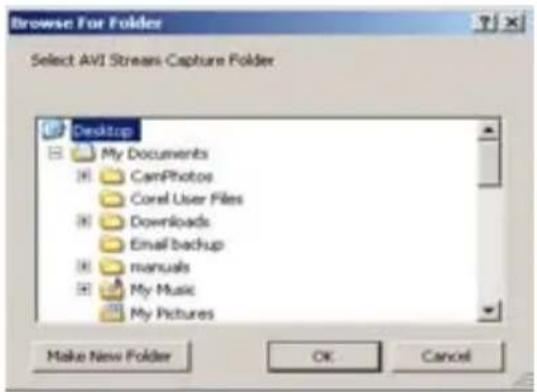
Record Configuration Setting AVI stream recording folder [click to change] AVI Folder: C:\Program Files\DxClient\Capture Language Select- Select the folder you want the AVI file to be saved on. Click OK. Then click SAVE on the DxClient CONFIGURATION window.
text_image
Browse For Folder Select AVI Streams Capture Folder Desktop My Documents CamPhotos Corel User Files Downloads Email backup manuals My Music My Pictures Make New Folder OK CancelNetviewer (continued)
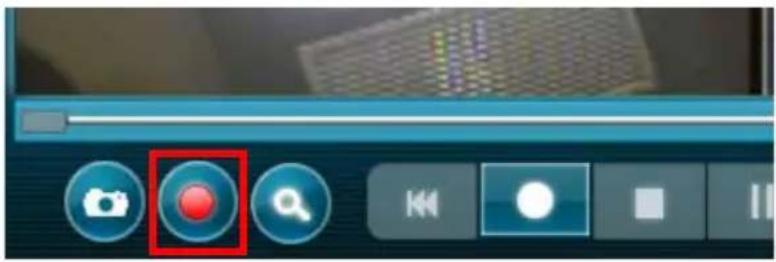
- Click the BACK UP [AVI] button in the DxClient. This will begin Stream Capturing and open a mini display.
text_image
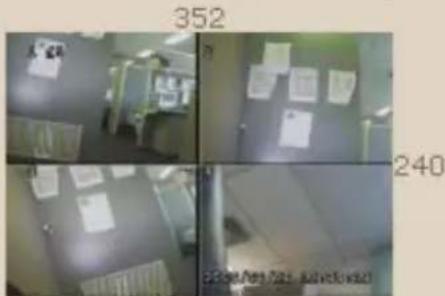
Screenshot of a media player interface with three control buttons labeled 'Camera', 'Search', and 'Click' highlighted in red.- Click the REVIEW AND CONVERT button when you want the capture to end; below the mini display shows the time of the current capture, the maximum time allowed to capture and below that the number of frames currently captured.
The maximum capture time is 900 seconds.
Stream Capturing
text_image
352 2406 seconds / 900 seconds max 33 frames captured
Review & Convert
Discard
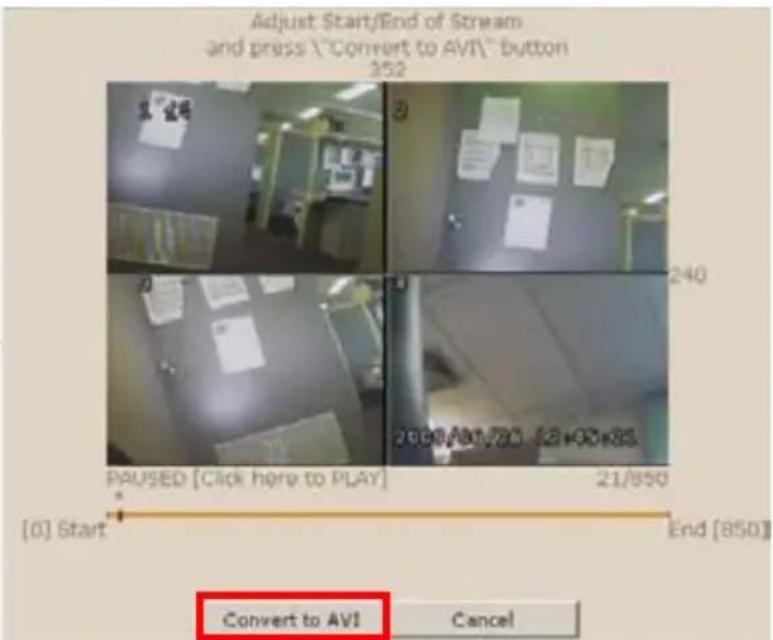
- In this window you can view the footage you have captured before converting to AVI. Click where it says PAUSED [CLICK HERE TO PLAY] to play the captured footage. To pause it click the same button again.
- To convert to AVI click the CONVERT TO AVI button.
- To view the footage go to the location where captured footage is saved as an AVI file.
text_image
Adjust Start/End of Stream and press \"Convert to AVI\" button 352 PAUSED [Click here to PLAY] 240 2000/80,70 52 x 95 x 85 21/850 End [850] [0] Start Convert to AVI CancelDxClient Configuration - HDD Viewer
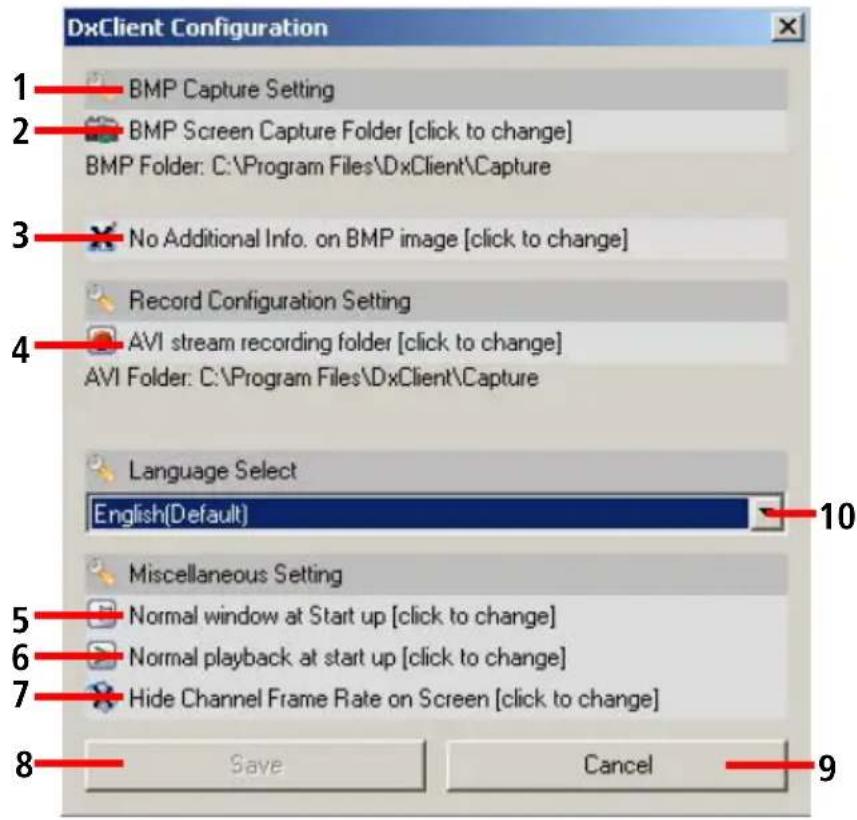
In this configuration window you can choose where you want the capture images and recording files be saved and change other miscellaneous settings concerning the DVR when it is connected to a PC using a USB cable..
Note: to view the DVR using the DxClient HDD Viewer the DVR must be connected directly to a PC using a USB cable.
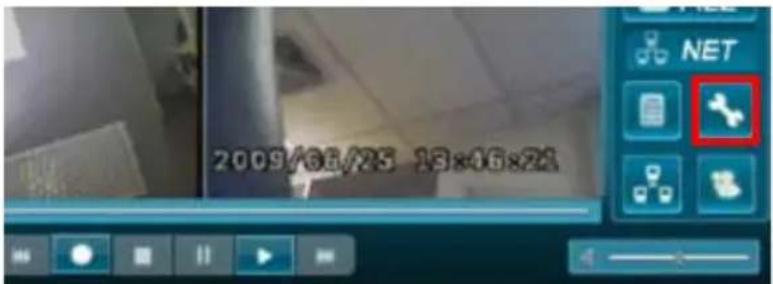
- Click the DVR SETTINGS button. This will bring up HDD viewer DXCLIENT CONFIGURATION window.
text_image
2009/66/25 13:46:281. BMP CAPTURE SETTING
opens a window so you can choose where the capture images will be saved when you push the CAPTURE IMAGE button.
2. NO ADDITIONAL INFO ON BMP IMAGE
click to show additional information on captured BMP image.
opens a window so you can choose where the AVI stream recordings will be saved when you push the STREAM CAPTURING button.
4. LANGUAGE SELECT
this cannot be changed; only default language (English) is available on this software version.
clicking this options sets the DxClient to show on top of other windows on start up.
6. NORMAL PLAYBACK AT STARTUP
click to choose whether the recording plays or is paused on startup in HDD viewer mode.
7. HIDE CHANNEL FRAMERATE ON SCREEN
click to choose to hide or show the framerate during HDD viewer mode.
8. SAVE
click to SAVE changes.
9. CANCEL
Click to cancel changes.
5. NORMAL WINDOW AT STARTUP
text_image
DxClient Configuration 1 BMP Capture Setting 2 BMP Screen Capture Folder [click to change] BMP Folder: C:\Program Files\DxClient\Capture 3 No Additional Info. on BMP image [click to change] 4 Record Configuration Setting AVI stream recording folder [click to change] AVI Folder: C:\Program Files\DxClient\Capture Language Select English(Default) Miscellaneous Setting 5 Normal window at Start up [click to change] 6 Normal playback at start up [click to change] 7 Hide Channel Frame Rate on Screen [click to change] 8 Save Cancel 9HDD Viewer (continued)
Backup
The DVR allows you to backup all your recordings onto your hard drive. The backup format is a MCG file which can be played back on the DxClient; you can select where you would like the MCG file saved. (it only allows you to select the drive you would like to save the MCG file in).
Note: make sure you have the DVR connected to your PC using the USB cable. The network cable must not be connected for this to function.
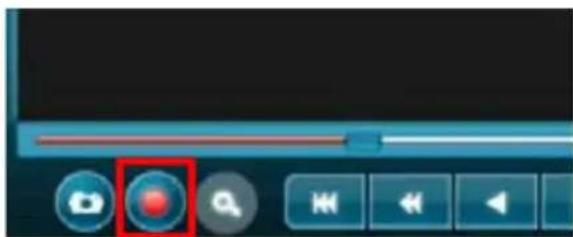
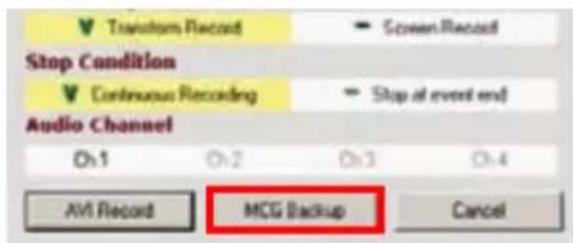
- Click the BACK UP [AVI] button in the DxClient. This will open the RECORD CONFIGURATION window.
natural_image
User interface toolbar with play button, playback bar, and control buttons (no readable text or symbols)- Click on the MCG BACKUP button at the bottom of the window.
text_image
Transform Record Screen Record Stop Condition Continuous Recording Stop at event end Audio Channel Oh1 Oh2 Oh3 Oh4 AVI Record MCG Backup Cancel-
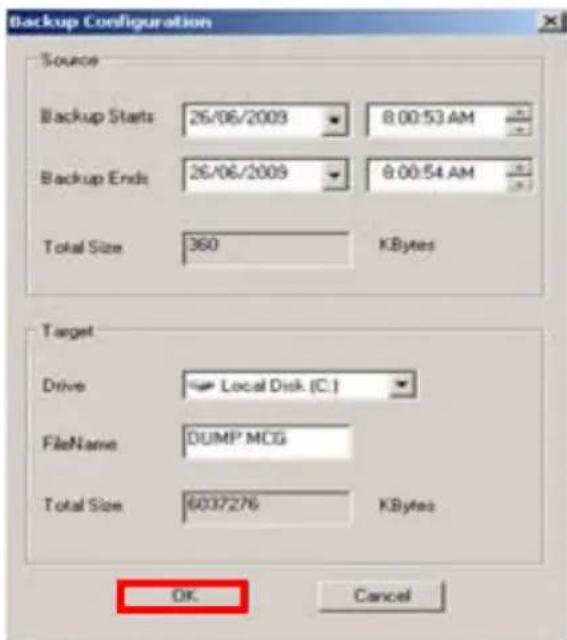
BACKUP STARTS - Select the date and time from when you want the backup to begin.
-
BACKUP ENDS - Select the date and time when you want the backup to end.
-
DRIVE - Select the hard drive you would like the MCG file to be saved in.
-
FILENAME - Name your back up file. The default name is DUMP.MCG. Remember to include the MCG file extension if you change the filename, otherwise the DxClient will not be able to find the backup file.
-
Click OK. Backup will now begin.
text_image
Backup Configuration Source Backup Starts 26/06/2009 8:00:53 AM Backup Ends 26/06/2009 8:00:54 AM Total Size 360 KBytes Target Drive Local Disk (C:) FileName DUMP MCG Total Size 6037276 KBytes OK CancelViewing Backup File
Once you have selected the drive you want the backup files to be saved on and have completed the backup you can view the file on the DxClient.
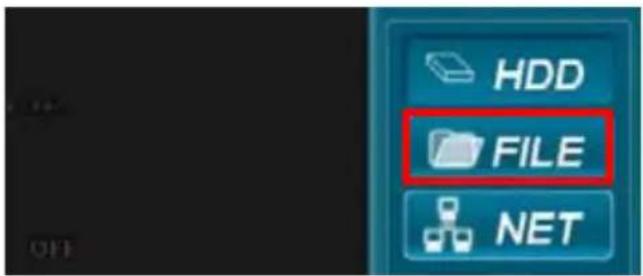
- Click on the large FILE button on the right panel of the DxClient.
Note: viewing the recordings can be done with the DVR connected to a PC using either USB or network cable.
- Select the drive you chose to save the backup file on.
- Search for the MCG file on that drive and click the MCG file.
- Click the OPEN button.
- The backup file will now begin to play in the DxClient.
text_image
HDD FILE NET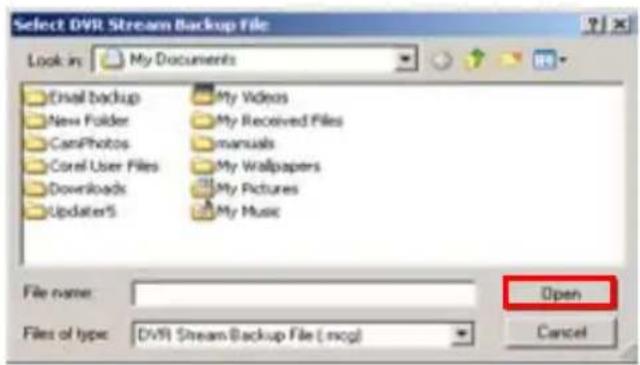
text_image
Select DVR Stream Backup File Look in: My Documents Email backup New Folder CamPhotos Corel User Files Downloads Updater5 My Videos My Received Files Manuals My Wallpapers My Pictures My Music File name: Files of type: DVR Stream Backup File (*.mcg) Open CancelEvent Record List
With the DxClient software you can browse through all the recordings remotely and play them back on your PC.
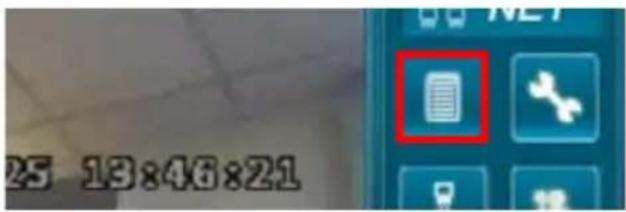
- Click the EVENT LIST button on the left of the control panel on the DXClient software.
- The EVENT LIST window will now be open. Use the arrows on the sidebar to scroll the list.
- Select the recording you would like to view and click it so that it is highlighted.
- Click the PLAYBACK button on the bottom left of the Event List window.
- The video will now begin playing. Push STOP to end playback.
text_image
25 13:46:21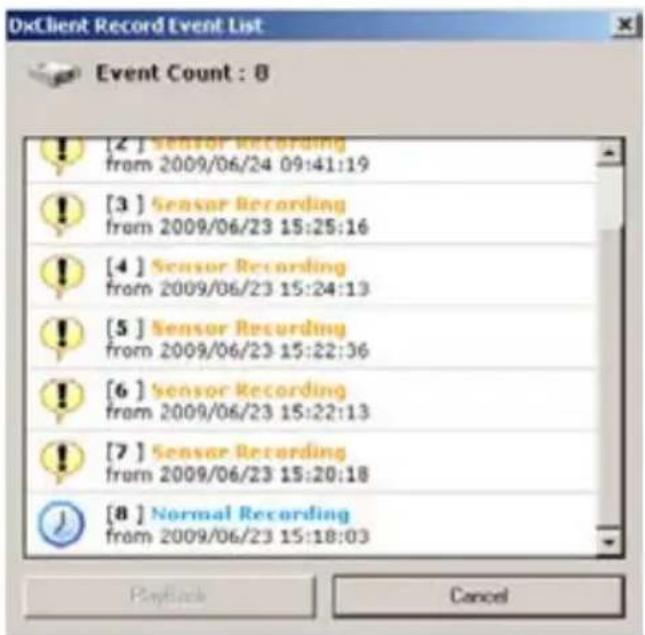
text_image
DxClient Record Event List Event Count : 8 [2] Sensor Recording from 2009/06/24 09:41:19 [3] Sensor Recording from 2009/06/23 15:25:16 [4] Sensor Recording from 2009/06/23 15:24:13 [5] Sensor Recording from 2009/06/23 15:22:36 [6] Sensor Recording from 2009/06/23 15:22:13 [7] Sensor Recording from 2009/06/23 15:20:18 [8] Normal Recording from 2009/06/23 15:18:03 Playback CancelHDD Viewer (continued)
Search Time
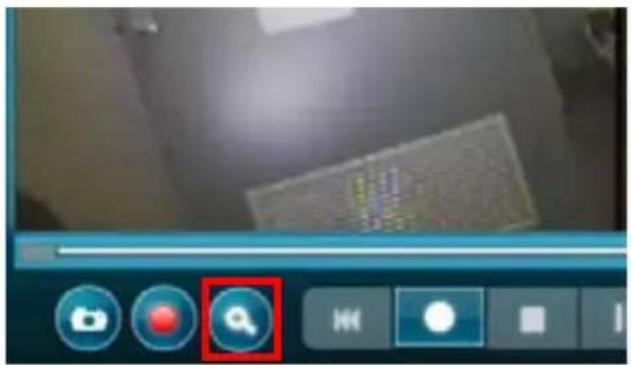
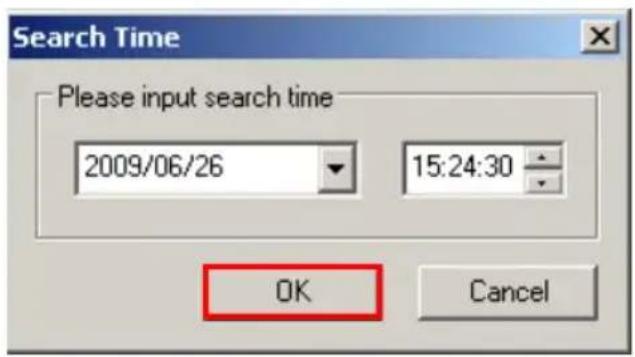
You can also search the recordings by going to a specific time and date. If you have a certain date and time you would like to playback footage from; you can use the Search Time function to do this.
- Click on the Search Time button.
Note: the DVR must be in Netviewer mode (connected to a PC using a network cable) for the Search Time button to be active.
text_image
Mobile phone interface screenshot showing a search button with a red square overlay, alongside three camera icons and a playhead.- Input the date and time you would like to see footage from.
The DVR will playback your search from the time you input. If there is no recording for the time you input nothing will happen.
text_image
Search Time Please input search time 2009/06/26 15:24:30 OK CancelInstalling and changing the HDD
Note: the following instructions are for installing or changing the hard drive. If your DVR already has a hard drive pre-installed disregard these steps.
-
Ensure the DVR is unplugged and removed from mains power.
-
Locate and remove the 5 screws 2 on each side of the DVR and one on the back at the top of the case.
side of DVR (2 more screws on otherside of DVR)
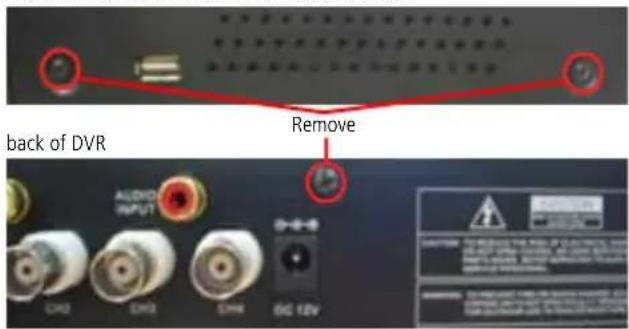
text_image
back of DVR Remove AUDIO INPUT CXO CXO CXH 12V- Locate the 4 screws holding down the hard drive stand.
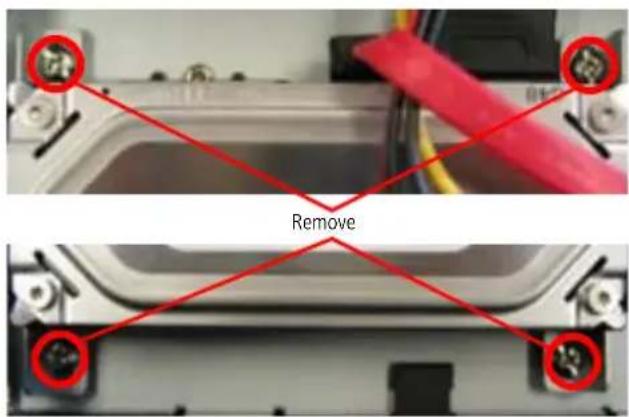
text_image
RemoveNow remove the 4 screws attaching the stand pieces to the hard drive.

text_image
Remove- Pull up the top case of the DVR.
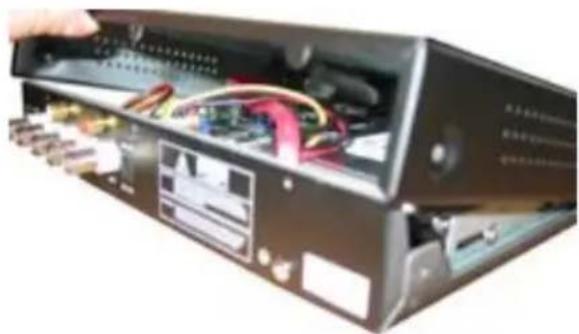
natural_image
Interior view of a computer drive bay showing internal components and wiring (no visible text or labels)- Push the metal clip on the SATA cable (single RED or ORANGE cable) to unplug the cable from the hard drive. Unplug the power cable (2 BLACK 1 YELLOW and 1 RED cable) from the back of the Hard Drive.
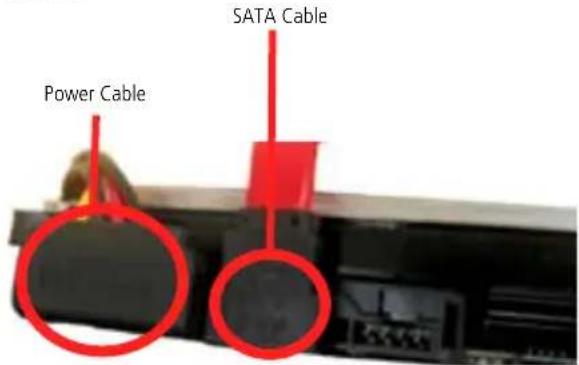
text_image
Power Cable SATA Cable- Replace the Hard Drive and plug in the SATA and the power cable as shown in step 5.
- Screw in the hard drive to case as in step 4.
- Replace the top of the case.
- Screw in the remaining screws to the sides and back of the DVR as in step 2.
Troubleshooting
Problem: My monitor is not showing any display/picture.
Solution: Make sure you have connected the VIDEO OUTPUT to a VIDEO INPUT on the back of your TV/monitor
Problem: My DVR does not switch on.
Solution: Make sure you have plugged in the power supply (12V 3A) to the DVR and into the wall socket.
Problem: My display is showing "NO HARD DISK" when i press record.
Solution: If you have recently changed the hard drive in your DVR unit make sure it is plugged in properly; otherwise the hard drive may be faulty. Try connecting another (working) hard drive to the DVR; if this still doesn't work then the DVR maybe faulty. We suggest you return the DVR to the retailer.
Problem: I am not getting picture on any of my displays.
Solution: Make sure the cameras are connected properly to the DVR and the power supply (12V 1A). Check that the cables are not faulty by connecting the cameras directly to the DVR or to a TV (if you have the proper adapters).
Problem: One of the displays is not showing on my screen.
Solution: Make sure all cameras are set to ON in CAMERA SETUP. Make sure you don't have the HIDDEN CHANNEL function (in MISCELLANEOUS SETUP) on for one of the cameras.
Problem: I cannot login to my DVR remotely using the DxClient software or the Internet Explorer browser.
Solution: Make sure you have configured the IP, ActiveX and USER SETUP correctly. Remember the SYSTEM PASSWORD is different to the ADMIN PASSWORD. The ADMIN PASSWORD is used to login to the DVR remotely.
Problem: I cannot perform a backup.
Solution: Make sure the DVR is connected to a PC using the USB cable. Make sure the USB cable is connected properly to the DVR and PC. Avoid having both the network cable and USB cable connected to the DVR at the same time.
DVR4-1160
Video
Video Format NTSC or PAL
Video Input 4CH Composite
Video Output 1CH Composite
Display Resolution NTSC: 720 x 480
PAL: 720 x 576
Display Frame Rate NTSC: 120fps (4 x 30fps)
PAL: 100fps (4 x 25fps)
Audio
Audio Input 1 RCA Input
Audio Output 1 RCA Output
Recording
Compression Format MPEG4
Recording Resolution NTSC: 720 x 240
PAL: 720 x 288
Recording Frame Rate NTSC: 60fps (4 x 15fps)
PAL: 50fps (4 x 12fps)
Recording Modes Manual / Schedule / Motion
Multiplex Operation Triplex
HDD Interface SATA
Hard Drive Support Up to 1TB
Network
LAN Connection Yes
Network Interface RJ45
Network Type Static, DHCP, PPOE
Protocol TCP/IP
DDNS Supported Yes
Remote Operation Yes
General
Operating Power DC 12V
Dimensions 9.8" x 8.7" x 1.6" / 250mm x 220mm x 40mm
Weight 3.3lbs / 1.5 Kg
Backup Method USB to PC
Mouse Support No
Remote Control Yes
Remote Battery Type 2 x AAA
Helpdesk / Technical Support Details
Swann Technical Support
All Countries E-mail: tech@swannsecurity.com
Telephone Helpdesk
USA toll free
1-800-627-2799
(Su, 2pm-10pm US PT)
(M-Th, 6am-10pm US PT)
(F 6am-2pm US PT)
USA Exchange & Repairs
I-800-627-2799 (Option I)
(M-F, 9am-5pm US PT)
AUSTRALIA toll free
1300 138 324
(M 9am-5pm AUS ET)
(Tu-F I am-5pm AUS ET)
(Sa I am-9am AUS ET)
NEW ZEALAND toll free
0800 479 266
INTERNATIONAL
+61 3 8412 4610
See http://www.worldtimeserver.com for information on time zones and the current time in Melbourne, Australia compared to your local time.
Warranty Information
Swann Communications USA Inc.
12636 Clark Street
Santa Fe Springs CA 90670
USA
Swann Communications PTY. LTD.
Building 4, 650 Church Street,
Richmond, Victoria 3121
Australia
Swann Communications warrants this product against defects in workmanship and material for a period of one (1) year from it's original purchase date. You must present your receipt as proof of date of purchase for warranty validation. Any unit which proves defective during the stated period will be repaired without charge for parts or labour or replaced at the sole discretion of Swann. The end user is responsible for all freight charges incurred to send the product to Swann's repair centres. The end user is responsible for all shipping costs incurred when shipping from and to any country other than the country of origin.
The warranty does not cover any incidental, accidental or consequential damages arising from the use of or the inability to use this product. Any costs associated with the fitting or removal of this product by a tradesman or other person or any other costs associated with its use are the responsibility of the end user. This warranty applies to the original purchaser of the product only and is not transferable to any third party. Unauthorized end user or third party modifications to any component or evidence of misuse or abuse of the device will render all warranties void.
By law some countries do not allow limitations on certain exclusions in this warranty. Where applicable by local laws, regulations and legal rights will take precedence.