SWWHD-INTCAMPK3-UK - Security Camera SWANN - Free user manual and instructions
Find the device manual for free SWWHD-INTCAMPK3-UK SWANN in PDF.


| Product Type | Indoor/Outdoor Security Camera Kit |
| Brand | Swann |
| Model | SWWHD-INTCAMPK3-UK |
| Video Resolution | 1080p Full HD |
| Field of View | 90° (diagonal) |
| Night Vision | Up to 30 ft (9 m) |
| Motion Detection | Yes, with adjustable sensitivity |
| Audio | Two-way audio with built-in microphone and speaker |
| Weather Resistance | IP66 rated |
| Power Supply | AC 100-240V, 50/60Hz (UK plug) |
| Power Consumption | 5W (typical) |
| Dimensions (Camera) | 7.5 x 7.5 x 12.5 cm |
| Weight (Camera) | 350 g |
| Mounting | Wall or ceiling mount included |
| Storage | MicroSD card slot (up to 128 GB, not included) |
| Connectivity | Wi-Fi 802.11 b/g/n (2.4 GHz) |
| App Compatibility | Swann Security App (iOS/Android) |
| Maintenance | Wipe with dry cloth; avoid harsh chemicals |
| Cleaning | Clean lens gently with microfiber cloth |
| Safety | Do not expose to extreme temperatures; keep away from water jets |
| Spare Parts | Mounting kit and screws available from Swann support |
| Repairability | Contact Swann support for repair options |
| General Info | Comes with 1-year limited warranty |
Frequently Asked Questions - SWWHD-INTCAMPK3-UK SWANN
User questions about SWWHD-INTCAMPK3-UK SWANN
0 question about this device. Answer the ones you know or ask your own.
Ask a new question about this device
Download the instructions for your Security Camera in PDF format for free! Find your manual SWWHD-INTCAMPK3-UK - SWANN and take your electronic device back in hand. On this page are published all the documents necessary for the use of your device. SWWHD-INTCAMPK3-UK by SWANN.
USER MANUAL SWWHD-INTCAMPK3-UK SWANN
natural_image
Blue shield icon with a white house symbol in the center (no text or numbers)SAFE by Swann App Manual
SWWHD-INTCAM
SWWHD-INDCAM
SWWHD-OUTCAM

natural_image
Blue shield icon with a white house symbol (no text or numbers)Contents
Getting Started
Installing the SAFE by Swann App 5
Creating a SAFE by Swann Account 6
Pairing the Camera 7
Swann Smart Security Camera (SWWHD-INTCAM) 8
Swann Indoor Camera (SWWHD-INDCAM) 10
Swann Outdoor Camera (SWWHD-OUTCAM) 12
Setting the Camera Date and Time 14
Updating the Camera Firmware 15
About the App Interface
The Camera Dashboard 18
The Camera Dashboard: Layout 19
The Live View Screen 20
The Activity Screen 21
The Playback Screen 22
The Menu 23
The Profile Screen 24
The Cameras Settings Screen 25
The Cameras Settings Screen: Settings Tab 26
The Cameras Settings Screen: Subscriptions Tab 30
The Cameras Settings Screen: About Tab 31
Camera Maintenance
Changing the Wi-Fi Network 34
Resetting the Camera 36
Turning Off the Camera (SWWHD-INTCAM) 37
Factory Resetting the Camera (SWWHD-INTCAM) 38
Removing the Camera from your Account 39
Tips & FAQs
LED Indicator Guide 41
Troubleshooting 42
Frequently Asked Questions 43

natural_image
Blue shield icon with a white house symbol (no text or numbers)Getting Started
Installing the SAFE by Swann App
iOS Android
text_image
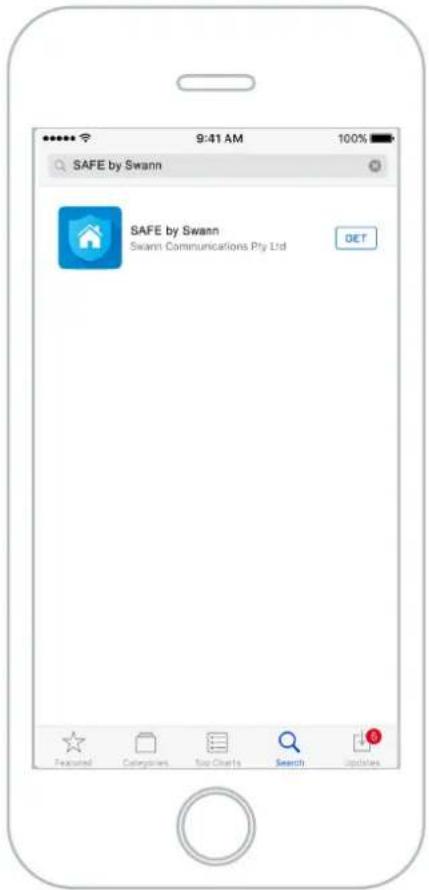
SAFE by Swann SAFE by Swann Swann Communications Pty Ltd DET Featured Categories Too Charts Search UpdatesIf you have an Apple iPhone, download the latest version of the SAFE by Swann app from the Apple App Store.
text_image
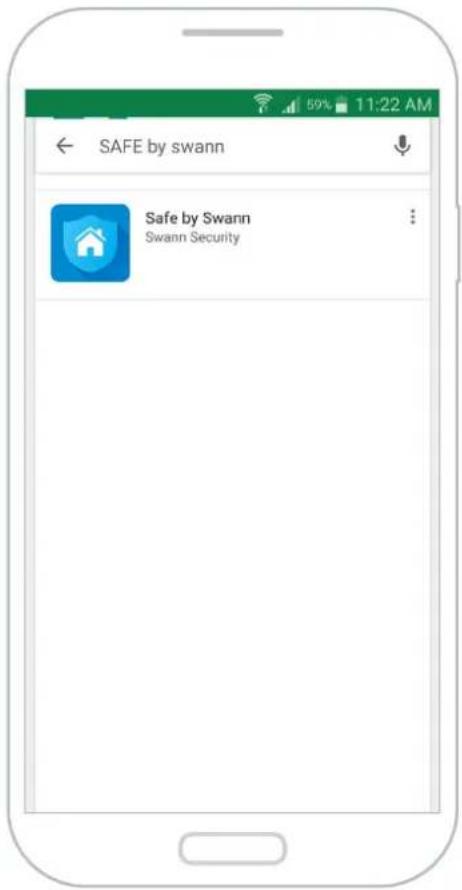
SAFE by swann Safe by Swann Swann SecurityIf you have an Android smartphone, download the latest version of the SAFE by Swann app from Google Play™ (tap Apps > Play Store).
natural_image
Blue shield icon with a white house symbol in the center (no text or numbers)SAFE by Swann
After installation completes, the SAFE by Swann app icon will appear on your smartphone's Home screen or Apps screen. Tap the icon to open the app.
Creating a SAFE by Swann Account
text_image
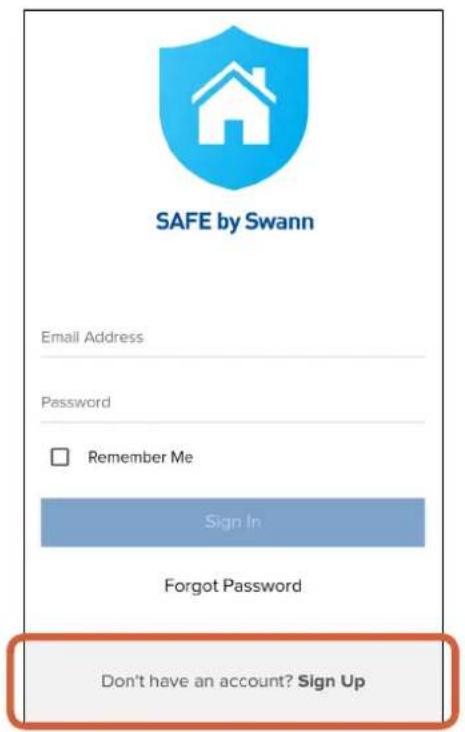
SAFE by Swann Email Address Password Remember Me Sign In Forgot Password Don't have an account? Sign UpAt the bottom of the screen, tap Don't have an account? Sign Up.
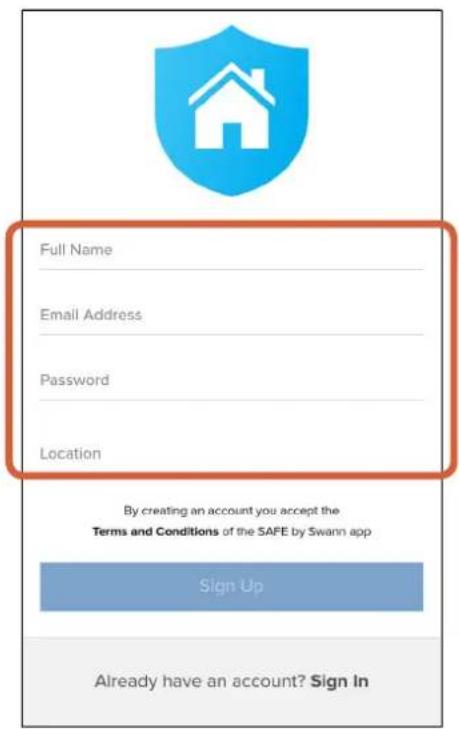
text_image
Full Name Email Address Password Location By creating an account you accept the Terms and Conditions of the SAFE by Swann app Sign Up Already have an account? Sign InEnter your name, email address, and a password for your new account. To enter your location, tap Location, type in the name of your city in the search bar, then select the desired city from the search results.
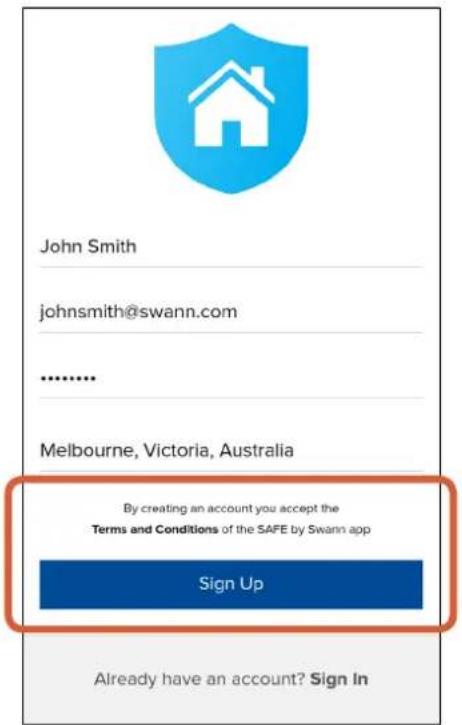
text_image
John Smith johnsmith@swann.com ...... Melbourne, Victoria, Australia By creating an account you accept the Terms and Conditions of the SAFE by Swann app Sign Up Already have an account? Sign InRead the "SAFE by Swann Terms and Conditions", then tap Sign Up to accept the terms and conditions and create your account.
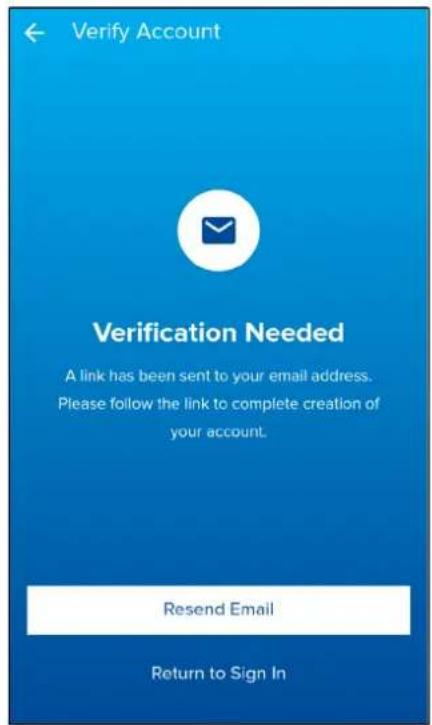
text_image
Verify Account Verification Needed A link has been sent to your email address. Please follow the link to complete creation of your account. Resend Email Return to Sign InCheck your email inbox for a verification email from SAFE by Swann. Open the link provided in the email to validate your email address and activate your account. If you don't receive the verification email within a few minutes of signing up, check your Junk folder or tap Resend Email to receive another verification email.
Pairing the Camera
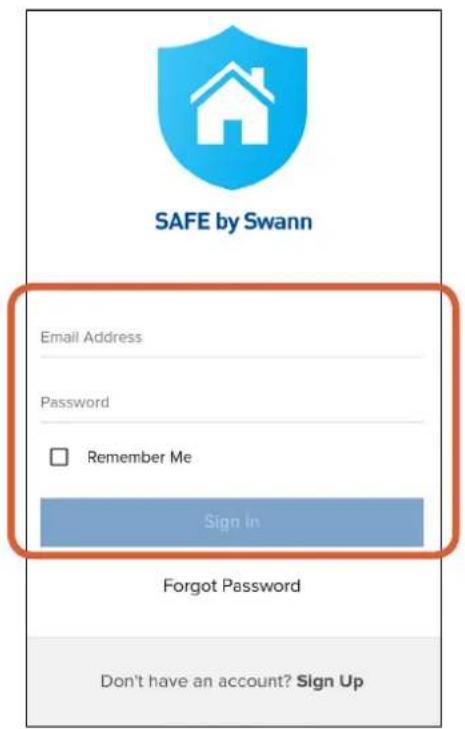
text_image
SAFE by Swann Email Address Password Remember Me Sign In Forgot Password Don't have an account? Sign UpSign in with your SAFE by Swann account information. Select the Remember Me checkbox if you want the app to remember your login credentials and sign in automatically the next time you open it.
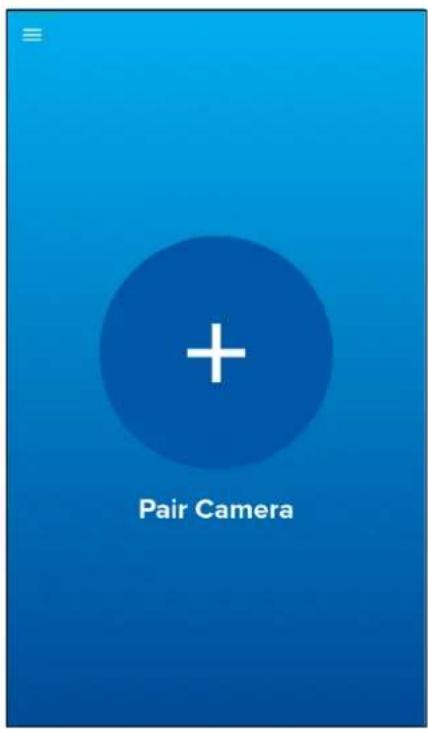
text_image
Pair CameraIf this is the first time you're pairing a camera, tap the + Pair Camera button.
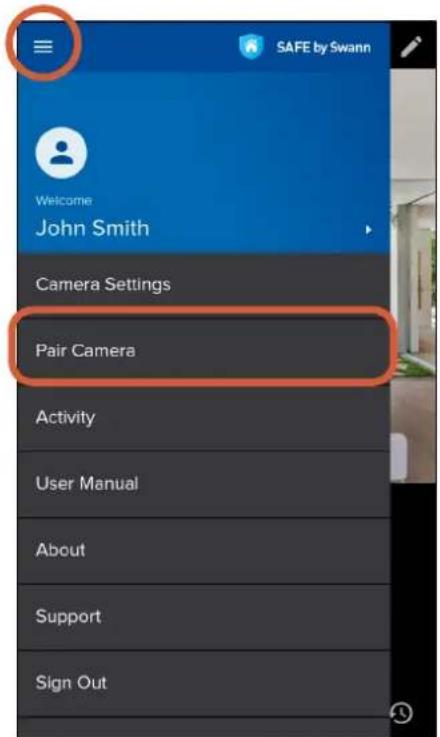
text_image
SAFE by Swann Welcome John Smith Camera Settings Pair Camera Activity User Manual About Support Sign OutYou can also pair more cameras (one at a time) to your account by opening the menu and selecting the Pair Camera option.
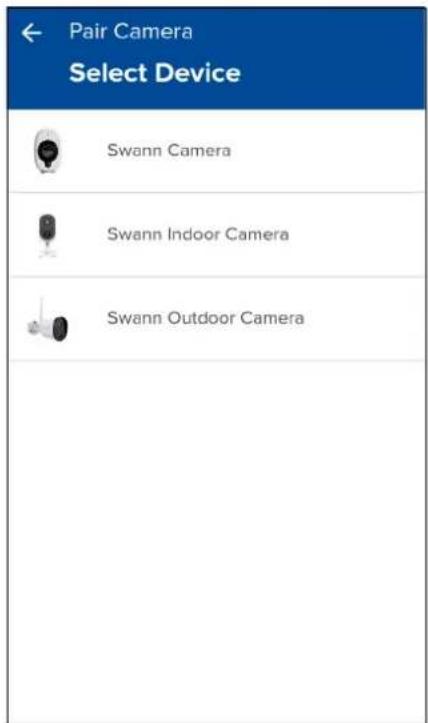
text_image
Pair Camera Select Device Swann Camera Swann Indoor Camera Swann Outdoor CameraSelect the camera that you want to pair:
- Swann Smart Security Camera (SWWHD-INTCAM), go to page 8.
- Swann Indoor Camera (SWWHD-INDCAM), go to page 10.
- Swann Outdoor Camera (SWWHD-OUTCAM), go to page 12.
Swann Smart Security Camera (SWWHD-INTCAM)
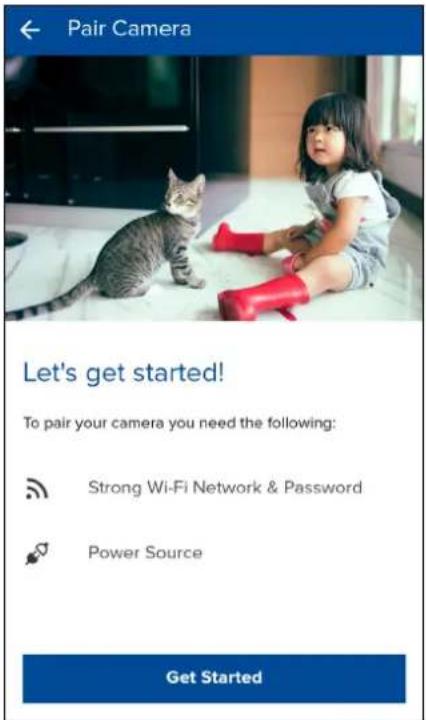
text_image
Pair Camera Let's get started! To pair your camera you need the following: Strong Wi-Fi Network & Password Power Source Get StartedBefore you start, make sure you have access to a power source that's within the coverage area of your router or access point. To proceed, tap Get Started.
text_image
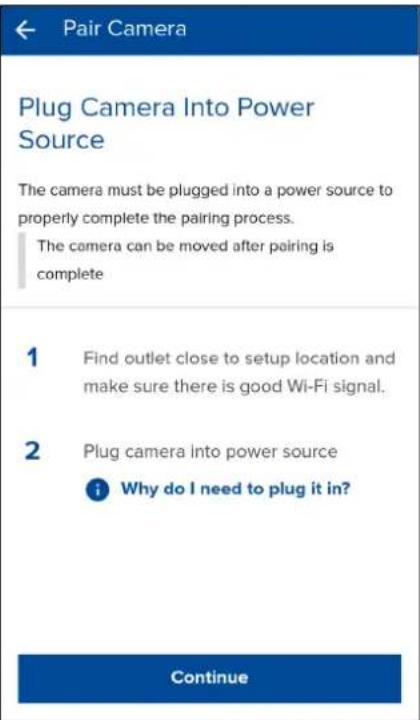
← Pair Camera Plug Camera Into Power Source The camera must be plugged into a power source to properly complete the pairing process. The camera can be moved after pairing is complete 1 Find outlet close to setup location and make sure there is good Wi-Fi signal. 2 Plug camera into power source i Why do I need to plug it in? ContinueConnect your camera to a power outlet, then tap Continue.
text_image
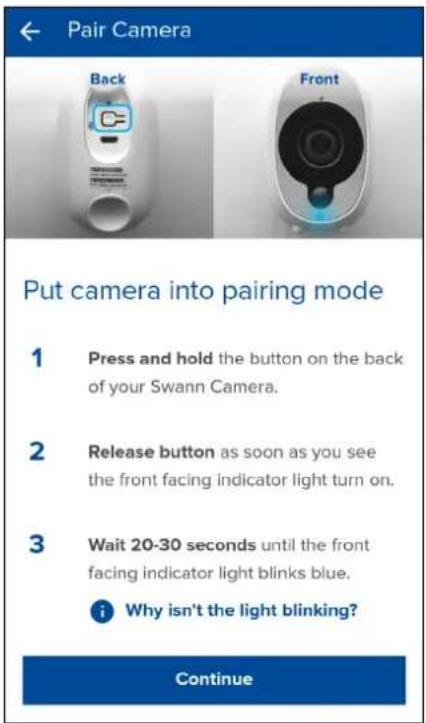
Pair Camera Back Front Put camera into pairing mode 1 Press and hold the button on the back of your Swann Camera. 2 Release button as soon as you see the front facing indicator light turn on. 3 Wait 20-30 seconds until the front facing indicator light blinks blue. i Why isn't the light blinking? ContinueEnable pairing mode on your camera by following the on-screen instructions, then tap Continue.
text_image
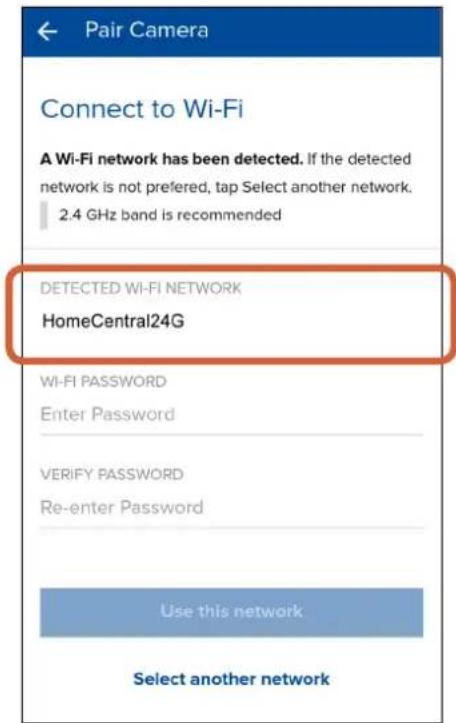
Pair Camera Connect to Wi-Fi A Wi-Fi network has been detected. If the detected network is not preferred, tap Select another network. 2.4 GHz band is recommended DETECTED WI-FI NETWORK HomeCentral24G WI-FI PASSWORD Enter Password VERIFY PASSWORD Re-enter Password Use this network Select another networkThe Wi-Fi network that your phone is currently using will be the network your camera joins. If this is not the network you want your camera to be using, tap Select another network and connect your phone to another Wi-Fi network. For longer range connectivity, we recommend using a 2.4GHz Wi-Fi network.
Swann Smart Security Camera (SWWHD-INTCAM)
text_image
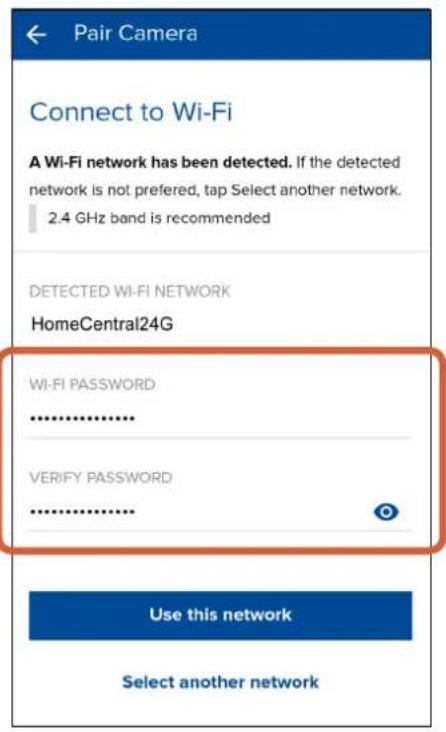
Pair Camera Connect to Wi-Fi A Wi-Fi network has been detected. If the detected network is not preferred, tap Select another network. 2.4 GHz band is recommended DETECTED WI-FI NETWORK HomeCentral24G WI-FI PASSWORD .......... VERIFY PASSWORD .......... Use this network Select another networkEnter and confirm the password for the selected Wi-Fi network, and then tap Use this network. TIP Your Wi-Fi network password is case sensitive, so make sure to enter it exactly the same as it was created or as found on your router. Tap show/hide the password.
text_image
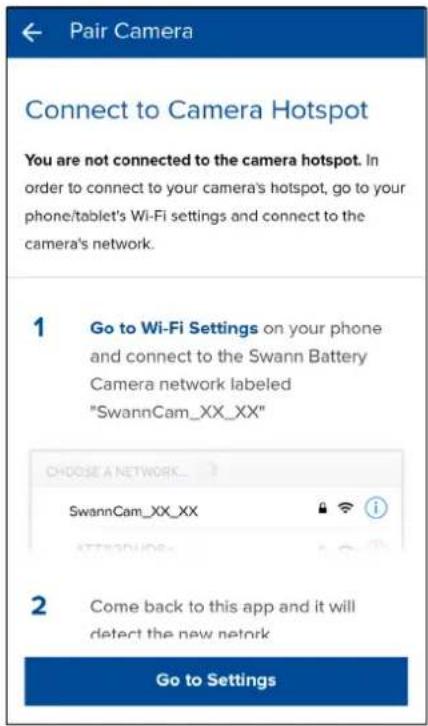
Pair Camera Connect to Camera Hotspot You are not connected to the camera hotspot. In order to connect to your camera's hotspot, go to your phone/tablet's Wi-Fi settings and connect to the camera's network. 1 Go to Wi-Fi Settings on your phone and connect to the Swann Battery Camera network labeled "SwannCam_XX_XX" CHOOSE A NETWORK... SwannCam_XX_XX ATTENUOUE- 2 Come back to this app and it will detect the new network Go to SettingsNow, connect to your camera's temporary Wi-Fi hotspot. Tap Go to Settings to access your phone's Wi-Fi setting and connect to the Wi-Fi network named "SwannCam_XX_XX". When done, return to the app.
text_image
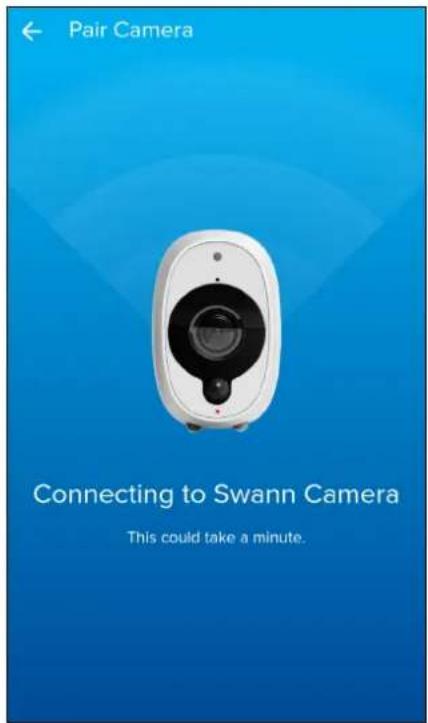
Pair Camera Connecting to Swann Camera This could take a minute.Upon returning to the app, this screen appears showing the progress of the camera pairing.
text_image
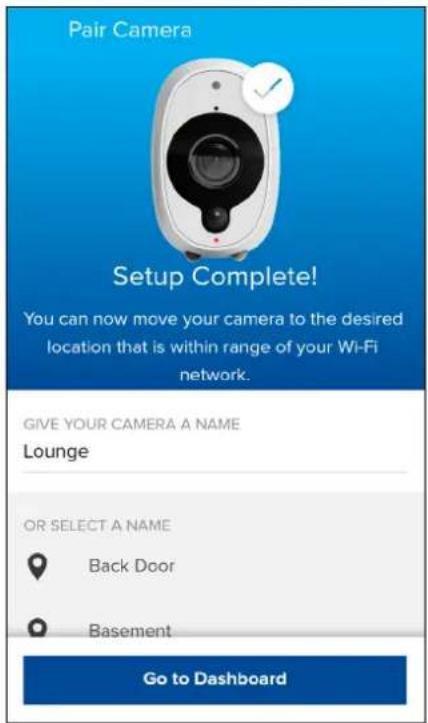
Pair Camera Setup Complete! You can now move your camera to the desired location that is within range of your Wi-Fi network. GIVE YOUR CAMERA A NAME Lounge OR SELECT A NAME Back Door Basement Go to DashboardOnce pairing is complete, you'll be prompted to enter a name for your camera. You can also choose a name from the list of common camera locations. When done, tap Go to Dashboard. Your camera is now ready to use.
Pairing the Camera
Swann Indoor Camera (SWWHD-INDCAM)
text_image
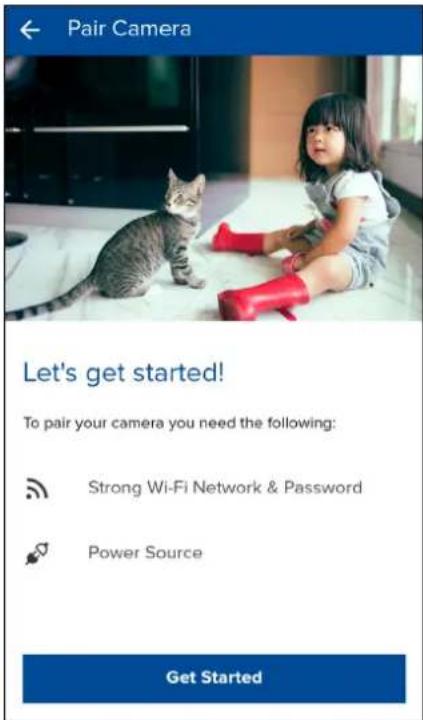
Pair Camera Let's get started! To pair your camera you need the following: Strong Wi-Fi Network & Password Power Source Get StartedBefore you start, make sure you have access to a power source within the coverage area of your Wi-Fi router. To proceed, tap Get Started.
text_image
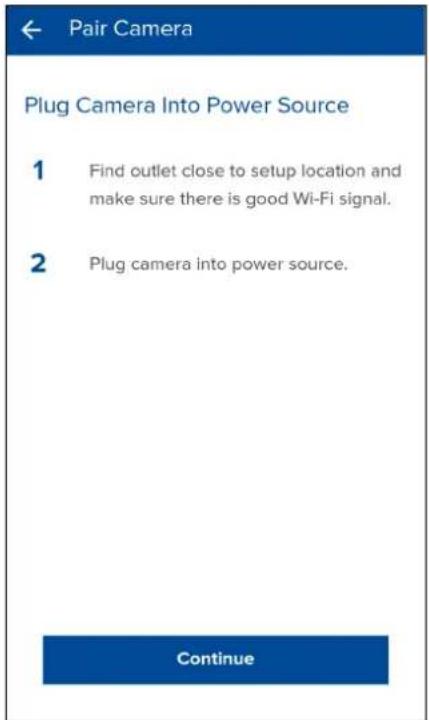
← Pair Camera Plug Camera Into Power Source 1 Find outlet close to setup location and make sure there is good Wi-Fi signal. 2 Plug camera into power source. ContinueConnect your camera to a power outlet, then tap Continue.
text_image
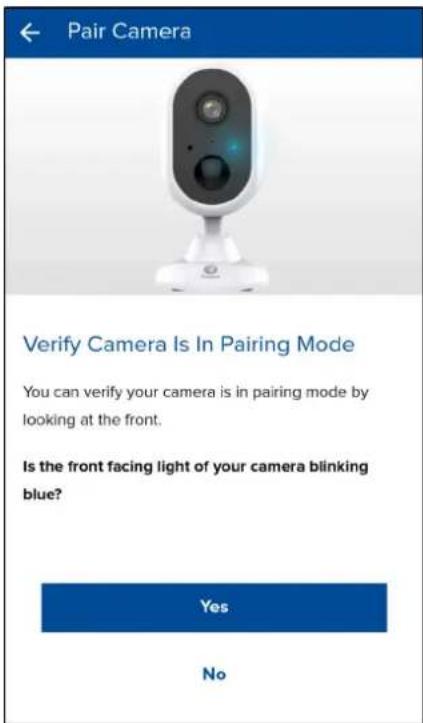
Pair Camera Verify Camera Is In Pairing Mode You can verify your camera is in pairing mode by looking at the front. Is the front facing light of your camera blinking blue? Yes NoThe first time you power up your camera, the camera LED will be blinking blue to indicate pairing mode. If the LED is not blinking blue, press and hold the camera's Reset button (on the rear) until the LED blinks blue rapidly. Your camera will reset and go into pairing mode—this can take up to a minute.
text_image
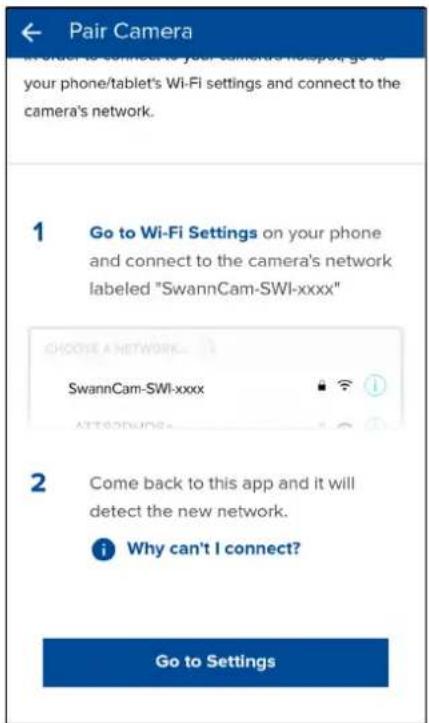
Pair Camera 1 Go to Wi-Fi Settings on your phone and connect to the camera's network labeled "SwannCam-SWI-xxxx" Choose a NETWORK... SwannCam-SWI-xxxx ATTACHONE... 2 Come back to this app and it will detect the new network. i Why can't I connect? Go to SettingsNow, connect to your camera's temporary Wi-Fi hotspot. Tap Go to Settings to access your phone's Wi-Fi setting and connect to the Wi-Fi network named "SwannCam-SWI-xxxx". When done, return to the app.
Swann Indoor Camera (SWWHD-INDCAM)
text_image
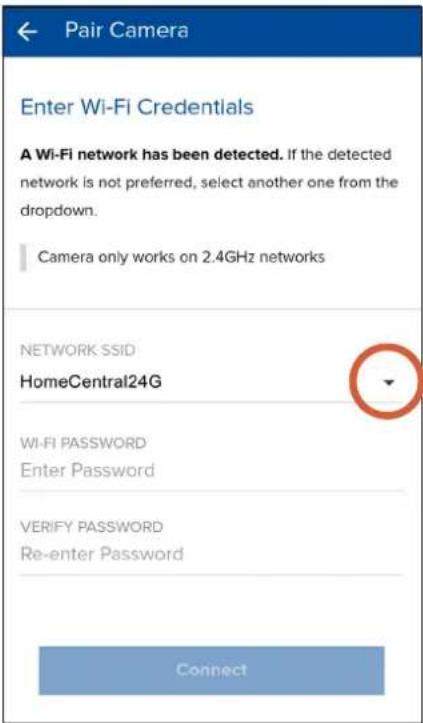
Pair Camera Enter Wi-Fi Credentials A Wi-Fi network has been detected. If the detected network is not preferred, select another one from the dropdown. Camera only works on 2.4GHz networks NETWORK SSID HomeCentral24G WI-FI PASSWORD Enter Password VERIFY PASSWORD Re-enter Password ConnectSelect your preferred Wi-Fi network connection for the camera by tapping the down arrow—a list of available wireless networks nearby is displayed.
Note: The Swann Indoor Camera will only connect to a 2.4GHz network.
text_image
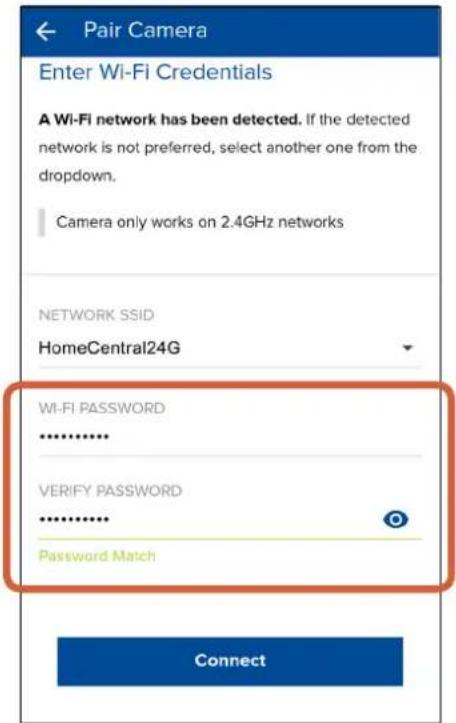
Pair Camera Enter Wi-Fi Credentials A Wi-Fi network has been detected. If the detected network is not preferred, select another one from the dropdown. Camera only works on 2.4GHz networks NETWORK SSID HomeCentral24G WI-FI PASSWORD ****** VERIFY PASSWORD ****** Password Match ConnectEnter and confirm the password for the selected Wi-Fi network, and then tap Connect. TIP Your Wi-Fi network password is case sensitive, so make sure to enter it exactly the same as it was created or as found on your router. Tap show/hide the password.
text_image
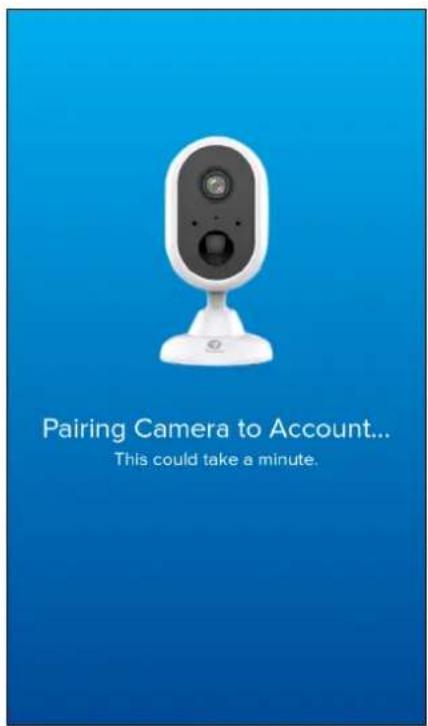
Pairing Camera to Account... This could take a minute.Upon returning to the app, this screen appears showing the progress of the camera pairing.
text_image
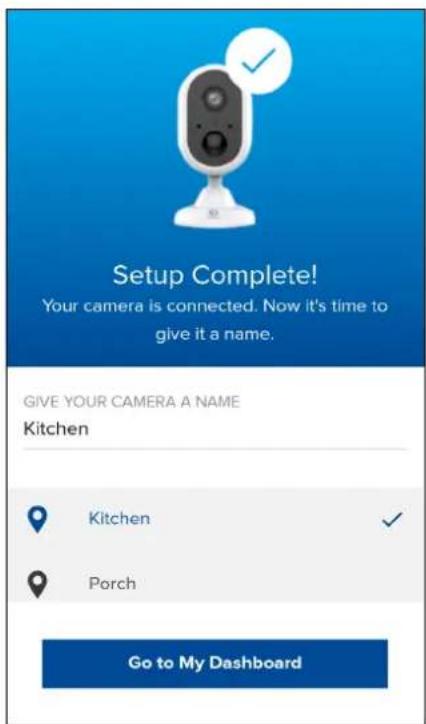
Setup Complete! Your camera is connected. Now it's time to give it a name. GIVE YOUR CAMERA A NAME Kitchen Kitchen Porch Go to My DashboardOnce pairing is complete, you'll be prompted to enter a name for your camera. You can also choose a name from the list of common camera locations. When done, tap Go to My Dashboard. Your camera is now ready to use.
Pairing the Camera
Swann Outdoor Camera (SWWHD-OUTCAM)
text_image
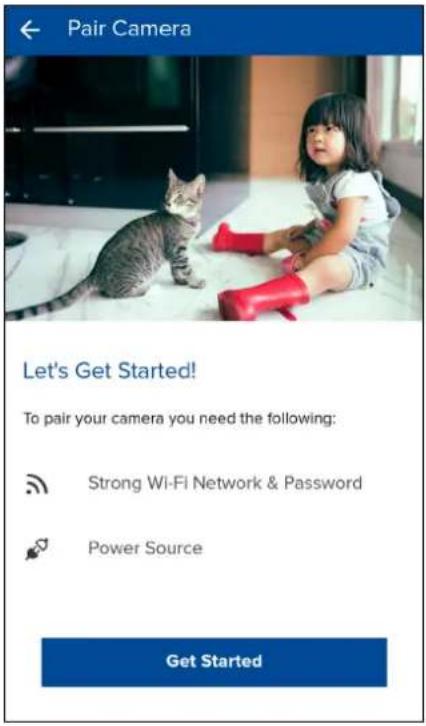
Pair Camera Let's Get Started! To pair your camera you need the following: Strong Wi-Fi Network & Password Power Source Get StartedBefore you start, make sure you have access to a power source within the coverage area of your Wi-Fi router. To proceed, tap Get Started.
text_image
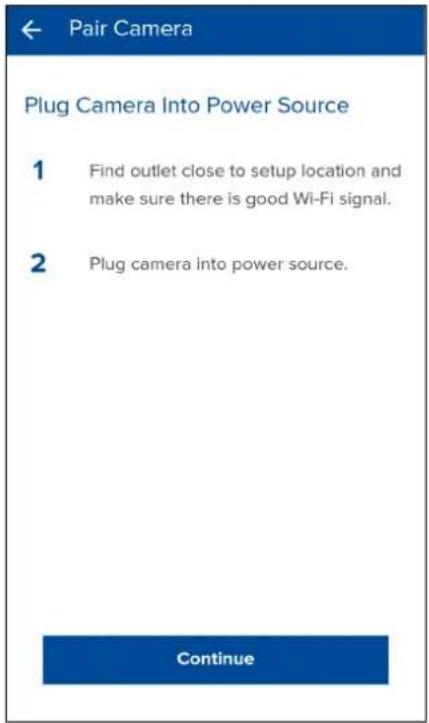
← Pair Camera Plug Camera Into Power Source 1 Find outlet close to setup location and make sure there is good Wi-Fi signal. 2 Plug camera into power source. ContinueConnect your camera to a power outlet, then tap Continue.
text_image
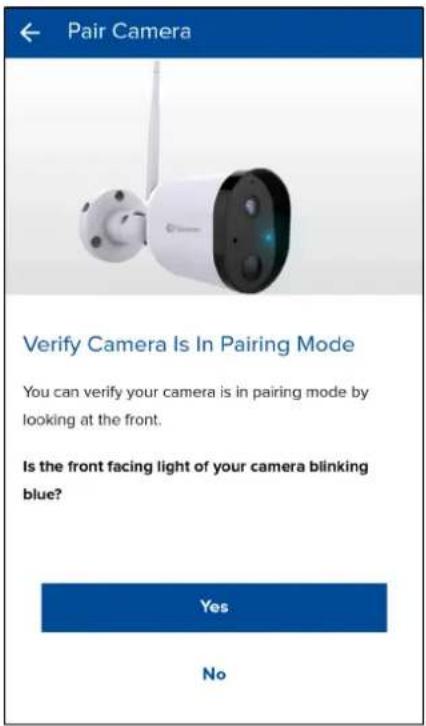
Pair Camera Verify Camera Is In Pairing Mode You can verify your camera is in pairing mode by looking at the front. Is the front facing light of your camera blinking blue? Yes NoThe first time you power up your camera, the camera LED will be blinking blue to indicate pairing mode.
If the LED is not blinking blue, press and hold the camera's Reset button (on camera cable) until the LED blinks blue rapidly. Your camera will reset and activate pairing mode—this can take up to a minute.
text_image
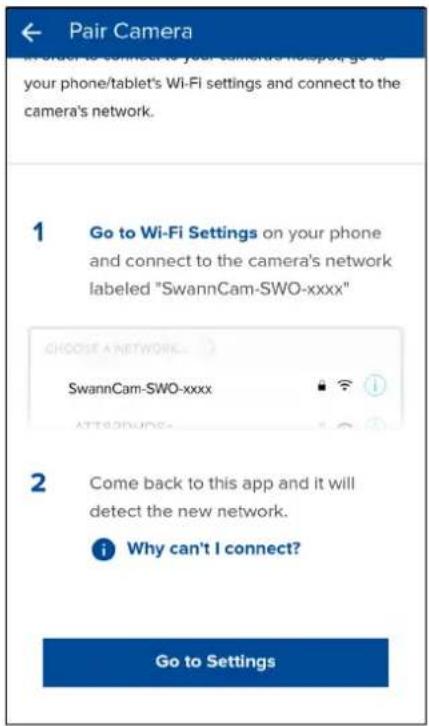
Pair Camera In order to connect to your camera's network, go to your phone/tablet's Wi-Fi settings and connect to the camera's network. 1 Go to Wi-Fi Settings on your phone and connect to the camera's network labeled "SwannCam-SWO-xxxx" CHOOSE A NETWORK... SwannCam-SWO-xxxx ATTRENDUCE... 2 Come back to this app and it will detect the new network. i Why can't I connect? Go to SettingsNow, connect to your camera's temporary Wi-Fi hotspot. Tap Go to Settings to access your phone's Wi-Fi setting and connect to the Wi-Fi network named "SwannCam-SWO-xxxx". When done, return to the app.
Swann Outdoor Camera (SWWHD-OUTCAM)
text_image
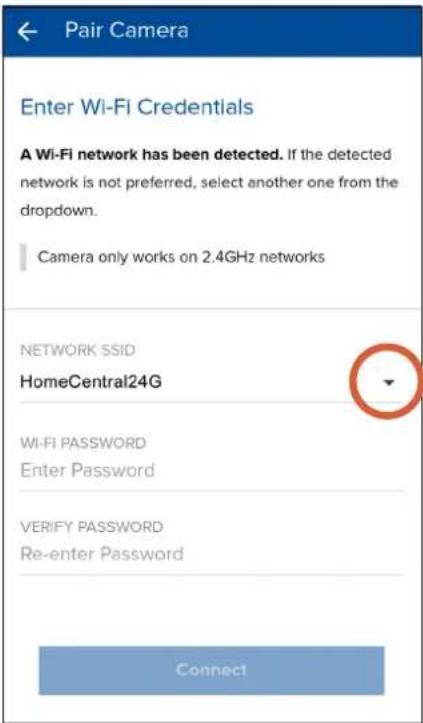
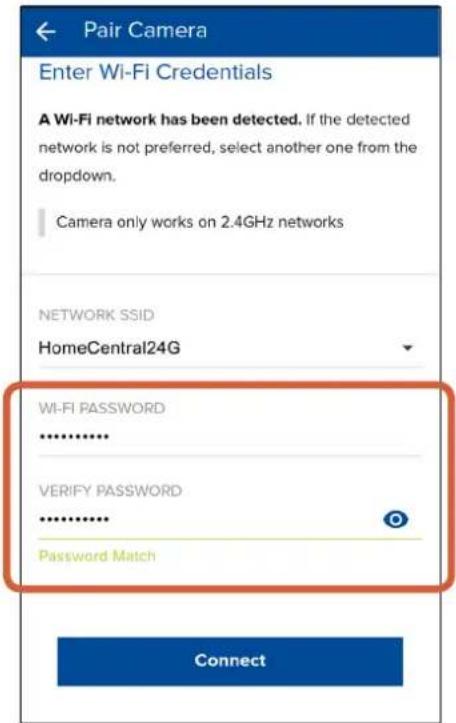
Pair Camera Enter Wi-Fi Credentials A Wi-Fi network has been detected. If the detected network is not preferred, select another one from the dropdown. Camera only works on 2.4GHz networks NETWORK SSID HomeCentral24G WI-FI PASSWORD Enter Password VERIFY PASSWORD Re-enter Password ConnectSelect your preferred Wi-Fi network connection for the camera by tapping the down arrow—a list of available wireless networks nearby is displayed.
Note: The Swann Outdoor Camera will only connect to a 2.4GHz network.
text_image
Pair Camera Enter Wi-Fi Credentials A Wi-Fi network has been detected. If the detected network is not preferred, select another one from the dropdown. Camera only works on 2.4GHz networks NETWORK SSID HomeCentral24G WI-FI PASSWORD ****** VERIFY PASSWORD ****** Password Match ConnectEnter and confirm the password for the selected Wi-Fi network, and then tap Connect. TIP Your Wi-Fi network password is case sensitive, so make sure to enter it exactly the same as it was created or as found on your router. Tap 🔒 to show/hide the password.
text_image
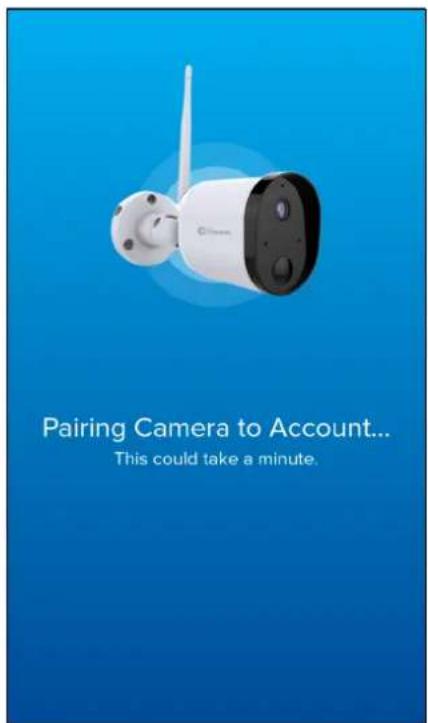
Pairing Camera to Account... This could take a minute.Upon returning to the app, this screen appears showing the progress of the camera pairing.
text_image
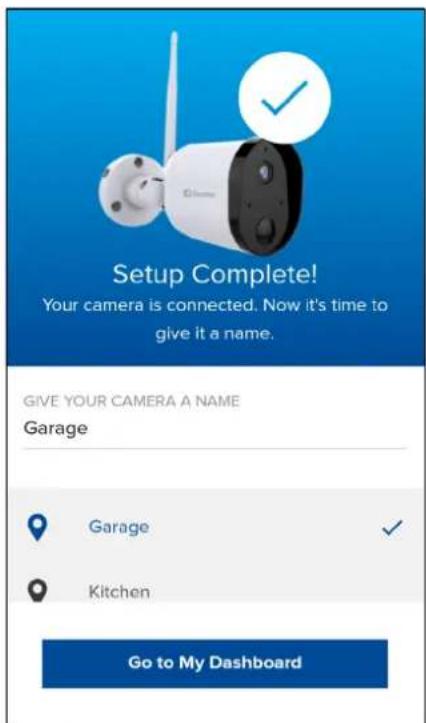
Setup Complete! Your camera is connected. Now it's time to give it a name. GIVE YOUR CAMERA A NAME Garage Garage Kitchen Go to My DashboardOnce pairing is complete, you'll be prompted to enter a name for your camera. You can also choose a name from the list of common camera locations. When done, tap Go to My Dashboard. Your camera is now ready to use.
Setting the Camera Date and Time
natural_image
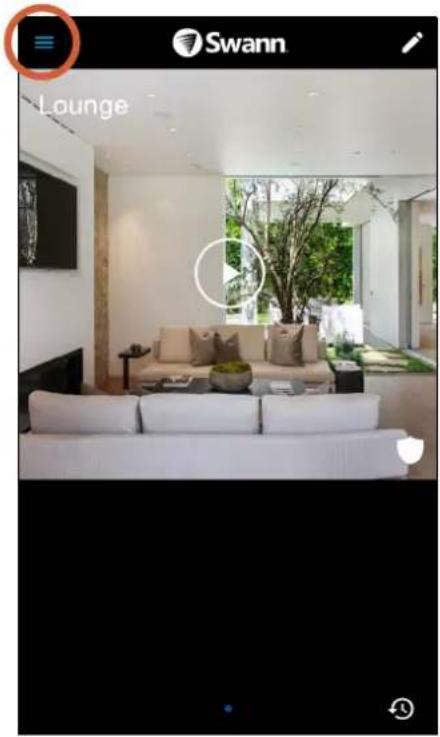
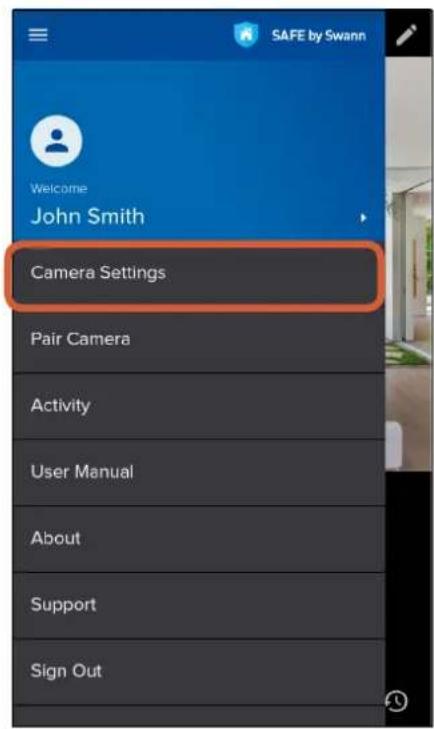
Interior view of a modern living room with white sofas and a large window, featuring a 'Swann' logo and 'Lounge' text overlay (no other signage or readable text)From the dashboard, tap the drawer icon to open the menu.
text_image
SAFE by Swann Welcome John Smith Camera Settings Pair Camera Activity User Manual About Support Sign OutTap Camera Settings.
text_image
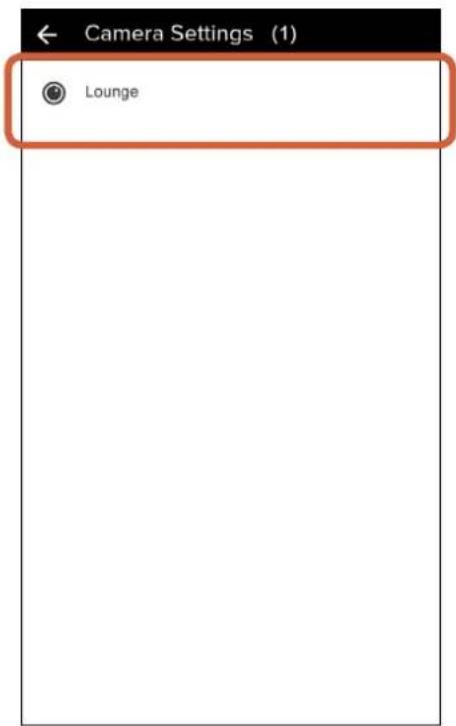
Camera Settings (1) LoungeSelect your camera.
text_image
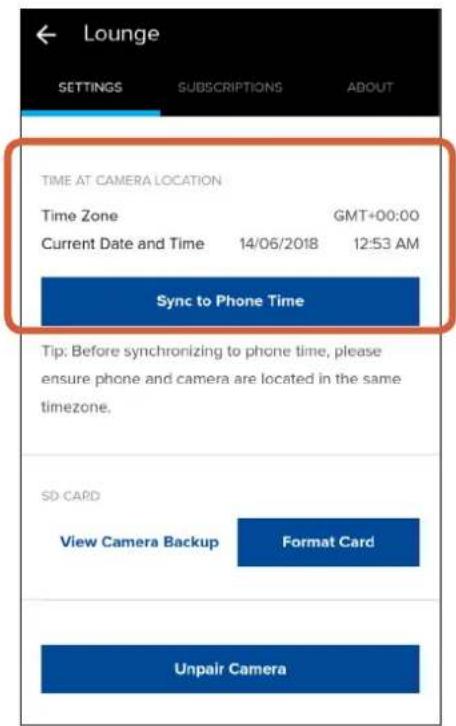
Lounge SETTINGS SUBSCRIPTIONS ABOUT TIME AT CAMERA LOCATION Time Zone GMT+00:00 Current Date and Time 14/06/2018 12:53 AM Sync to Phone Time Tip: Before synchronizing to phone time, please ensure phone and camera are located in the same timezone. SD CARD View Camera Backup Format Card Unpair CameraScroll down to Time At Camera Location and tap the Sync to Phone Time button. Your camera will sync its time zone, date and time to the clock on your phone.
Updating the Camera Firmware
From time to time firmware updates will be available for your camera. For example, you may be prompted to update your camera once it is set up. These updates improve the performance, security, and functionality of your camera. For the best experience, you are strongly recommended to keep your camera current with the latest firmware.
text_image
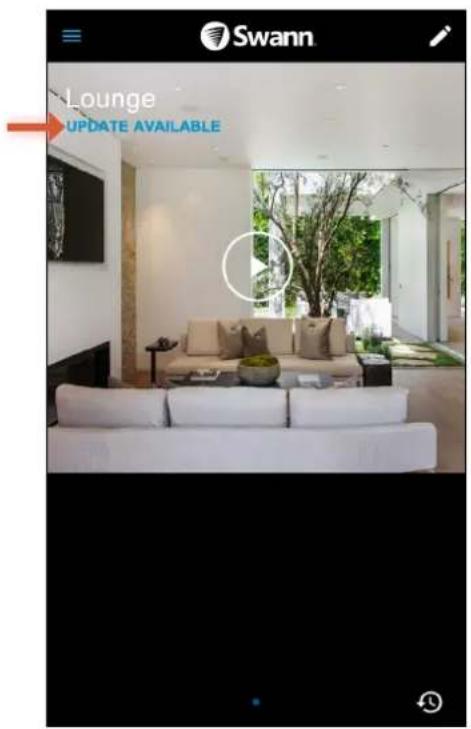
Swann Lounge UPDATE AVAILABLEWhen a firmware update is available for your camera, "Update Available" is shown under the camera name. To update your camera, first tap the Play icon to start live video.
natural_image
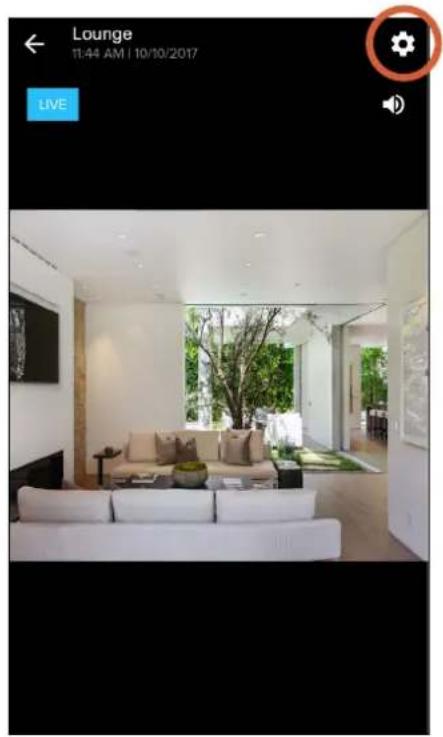
Interior view of a modern living room with white sofas and a large window, no visible text or symbols on the main scene.Once live video from your camera is streaming, tap the gear icon at the top right.
text_image
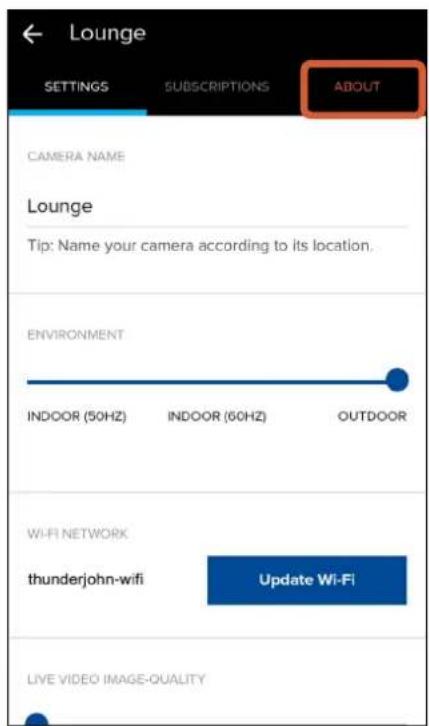
Lounge SETTINGS SUBSCRIPTIONS ABOUT CAMERA NAME Lounge Tip: Name your camera according to its location. ENVIRONMENT INDOOR (50HZ) INDOOR (50HZ) OUTDOOR WI-FI NETWORK thunderjohn-wifi Update Wi-Fi LIVE VIDEO IMAGE-QUALITYTap the ABOUT tab.
text_image
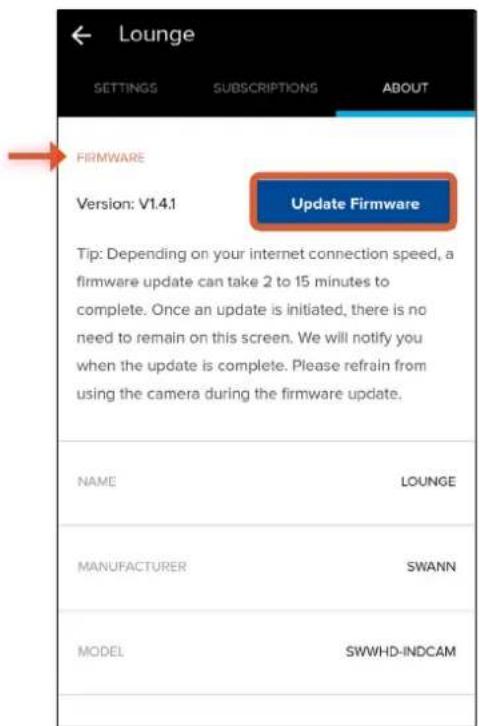
Lounge SETTINGS SUBSCRIPTIONS ABOUT FIRMWARE Version: V1.4.1 Update Firmware Tip: Depending on your internet connection speed, a firmware update can take 2 to 15 minutes to complete. Once an update is initiated, there is no need to remain on this screen. We will notify you when the update is complete. Please refrain from using the camera during the firmware update. NAME LOUNGE MANUFACTURER SWANN MODEL SWWHD-INDCAMUnder Firmware, tap the Update Firmware button. Your camera will download the firmware and begin the update.
Updating the Camera Firmware
text_image
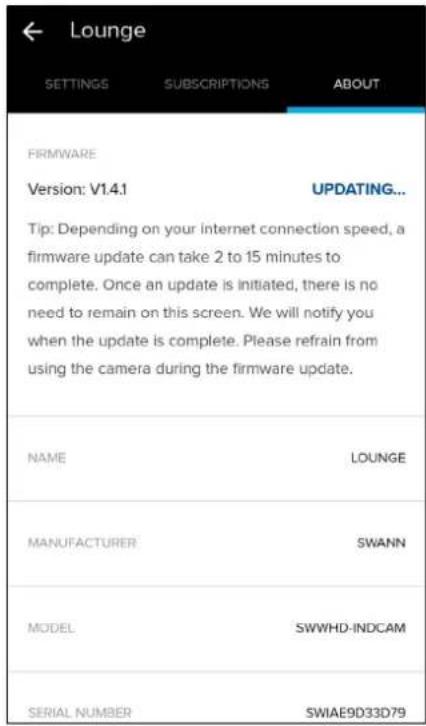
Lounge SETTINGS SUBSCRIPTIONS ABOUT FIRMWARE Version: V1.4.1 UPDATING... Tip: Depending on your internet connection speed, a firmware update can take 2 to 15 minutes to complete. Once an update is initiated, there is no need to remain on this screen. We will notify you when the update is complete. Please refrain from using the camera during the firmware update. NAME LOUNGE MANUFACTURER SWANN MODEL SWWHD-INDCAM SERIAL NUMBER SWIAE9D33D79While the firmware update is in progress, "Updating..." is displayed. It can take up to 15 minutes to update your camera depending on the size of the firmware file and your internet connection speed. You can keep the app open or close it during the update.
text_image
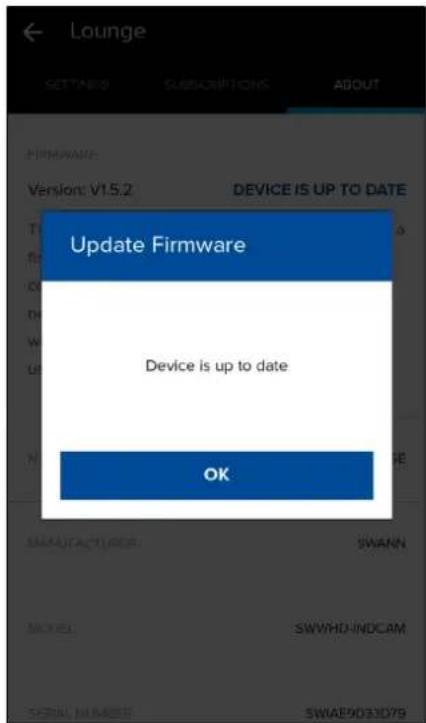
Lounge SETTENED SUBSCRIPTIONS ABOUT FIRMWARE: Version: V1.5.2 DEVICE IS UP TO DATE Update Firmware Device is up to date OK MANUFACTURER: SWANN MODEL: SWWHD INDCAM FORM: NAME: SWAE903D79When your camera has been updated successfully, the popup message as shown above is displayed.

natural_image
Blue shield icon with a white house symbol (no text or numbers)About the App Interface
text_image
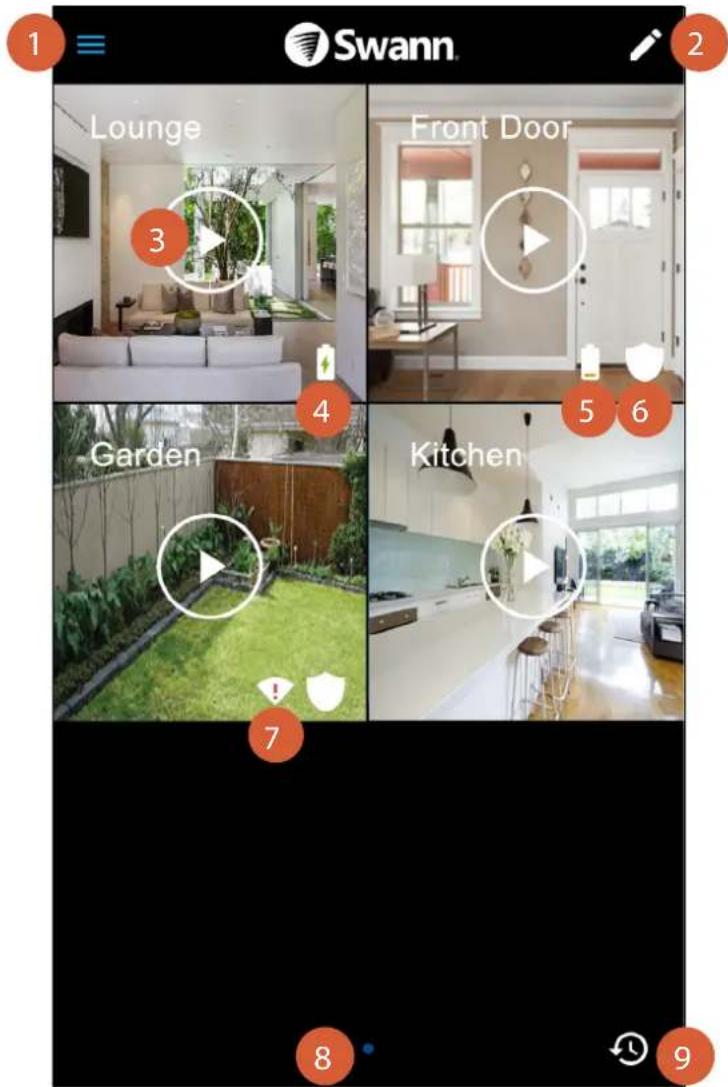
1 Swann 2 Lounge 3 Front Door 4 Garden 5 6 Kitchen 7 8 91 Open the menu where you can edit your account profile, manage camera settings, pair a camera, access the app manual, and more. For more information, see "The Menu" on page 23.
2 Rearrange the layout of camera tiles on the dashboard according to your preferences. For more on customizing your dashboard, see "The Camera Dashboard: Layout" on page 19.
3 Tap the "Play" icon to open the Live View screen and start streaming live video from the camera.
(SWWHD-INTCAM model only) The "Battery charging" icon is displayed when the camera is plugged in for charging. The icon will disappear once the camera is fully charged.
5 (SWWHD-INTCAM model only) The "Battery low" icon is displayed when the camera has less than 30% of battery life remaining.
6 The shield icon is displayed when the camera's motion sensor is enabled (i.e., the motion sensor sensitivity setting is not OFF).
The "Weak Wi-Fi signal" icon is displayed when the camera's Wi-Fi signal strength is less than 30% at the current location. Wi-Fi connection may not work reliably and live stream loading times will increase. Try moving your camera nearer to your router or installing a Wi-Fi range extender.
8 When you have more than one page on the dashboard, a blue dot in a row of dots indicates the page that is currently being viewed. Swipe left or right to see the cameras on the previous or next page, if available.
9 Open the Activity screen and access your cameras' video history. Today's recorded videos will populate the activity timeline automatically. For more information, see "The Activity Screen" on page 21.
The Camera Dashboard: Layout
text_image
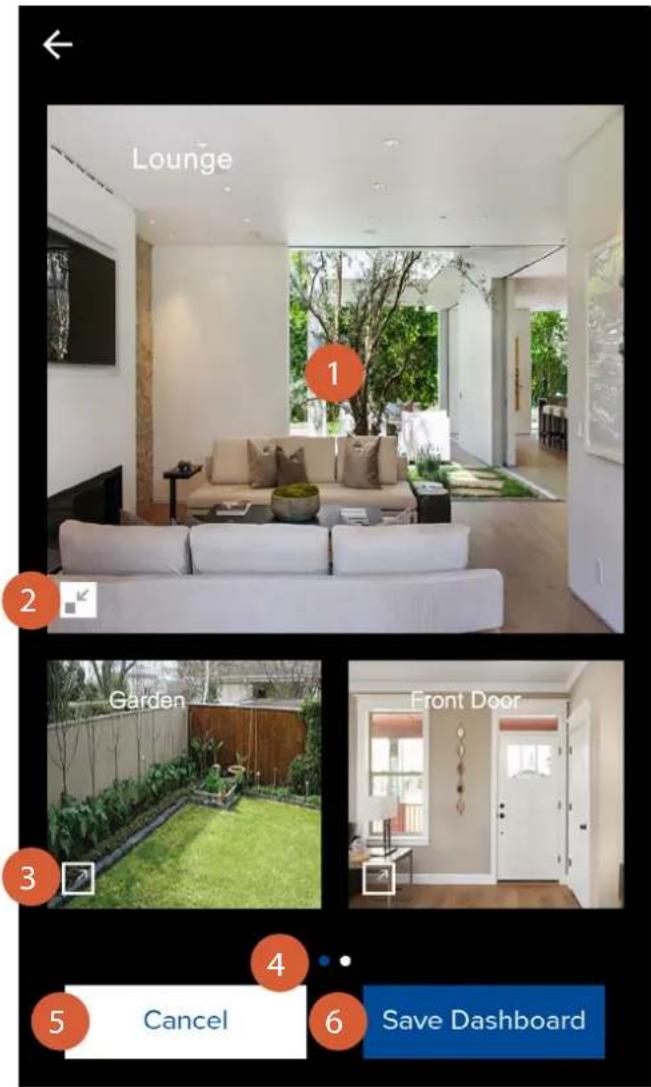
Lounge 1 2 Garden 3 Front Door 4 5 Cancel Save Dashboard 61 You can swap positions between camera tiles. Simply tap and hold a camera tile then drag it over the top of another camera tile and release when the tiles have swapped positions.
2 Tap to resize to a small tile.
3 Tap to resize to a large tile. Only a single large camera tile can be displayed on a page. If there is not enough room, the camera tile will be placed on a new page. Additional pages will be deleted automatically when no camera tiles are present.
4 When you have more than one page on the dashboard, a blue dot in a row of dots indicates the page that is currently being viewed. Swipe left or right to see the cameras on the previous or next page, if available.
5 Discard any changes you've made to the current dashboard layout.
6 Save your new dashboard layout.
text_image
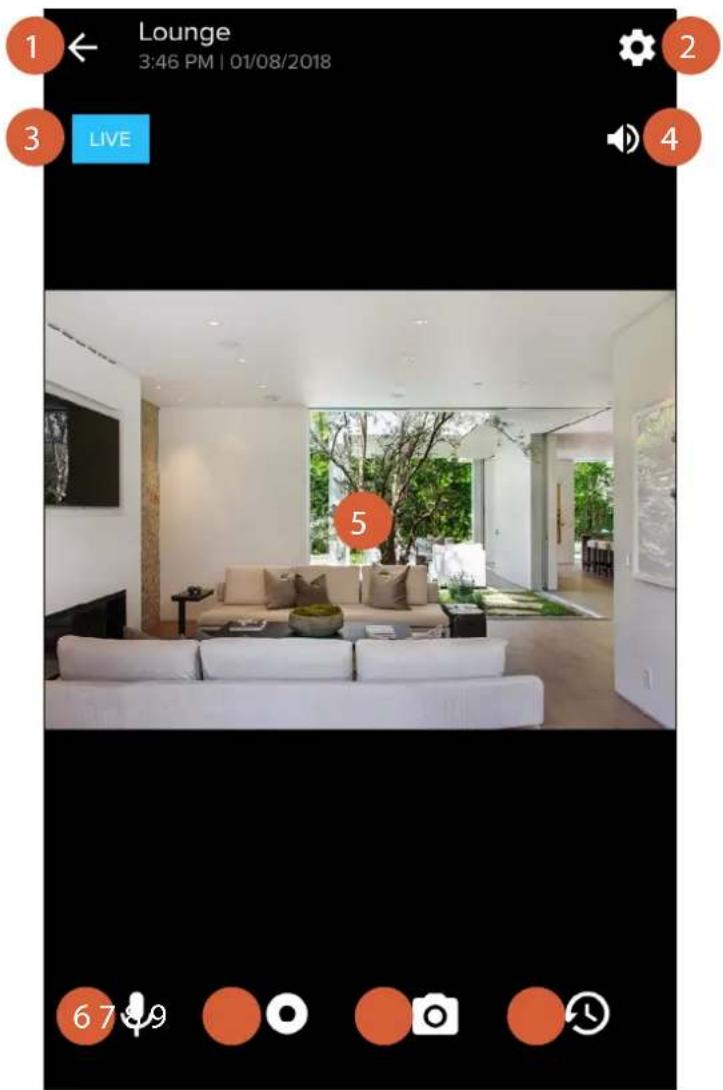
1 Lounge 3:46 PM | 01/08/2018 2 3 LIVE 4 5 67 91
End the camera's live video stream and return to the dashboard.
2
Access and adjust the camera's settings such as the name, image quality, and motion sensor sensitivity. To learn more about the available camera settings, see "The Cameras Settings Screen: Settings Tab" on page 26.
3
Indicates the status of the live stream connection.
- Grey: The live video is loading.
- Blue: The live video is streaming.
4
Mute/unmute the live video.
5
The video screen. To zoom in and out on the video, place two fingers here at once, and spread them apart or pinch them together. While zoomed in, swipe up, down, left, or right to move around. To watch the video in landscape view, turn your phone sideways.
6
(SWWHD-INDCAM model only) Enable/disable the Talkback function. When the mic icon is highlighted in red, you'll be able to talk back through the camera's speaker.
7
(SWWHD-INDCAM/OUTCAM models only) Record a short video clip from the camera. Your video is automatically uploaded to the cloud, after which you can view and download it from the Activity screen.
8
(SWWHD-INDCAM/OUTCAM models only) Capture a photo from the camera. Your photo is automatically uploaded to the cloud, after which you can view and download it from the Activity screen.
9
(SWWHD-INDCAM/OUTCAM models only) Open the Activity screen.
text_image
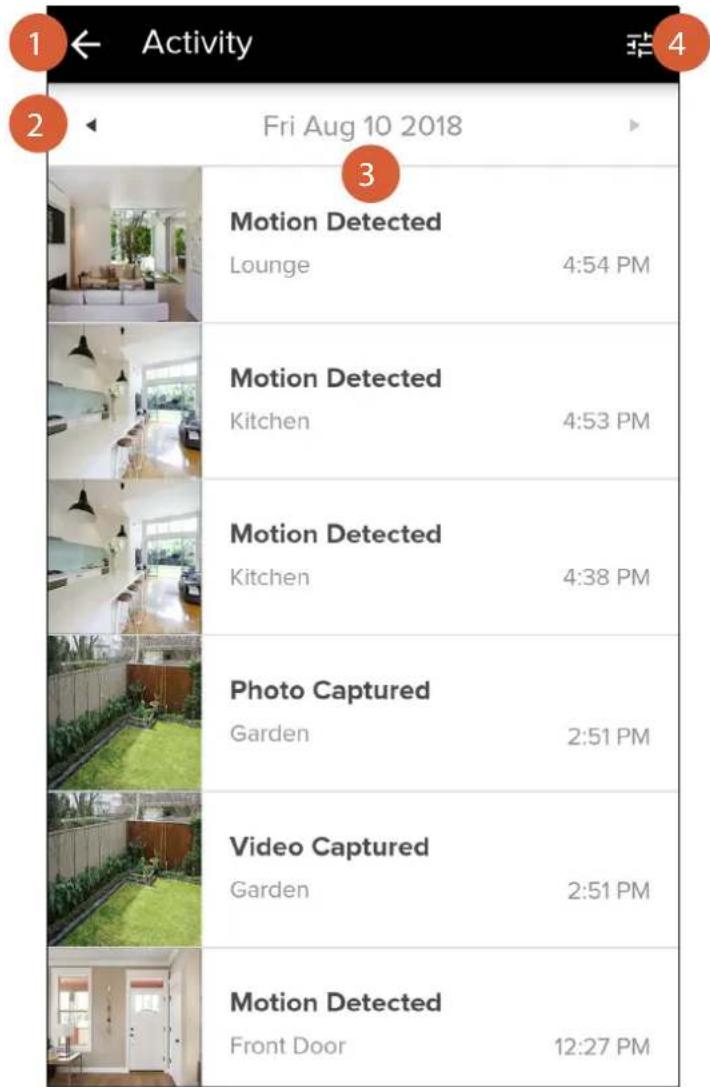
1 ← Activity 2 ← Fri Aug 10 2018 3 Motion Detected Lounge 4:54 PM Motion Detected Kitchen 4:53 PM Motion Detected Kitchen 4:38 PM Photo Captured Garden 2:51 PM Video Captured Garden 2:51 PM Motion Detected Front Door 12:27 PM1
Go back to the previous screen.
2
Tap the left or right arrow to view the previous or following day's activity timeline.
3
The timeline shows a history of all camera activity, such as motion detection videos and manually captured photos and videos (SWWHD-INDCAM/OUTCAM models only), with the most recent activity of the day at the top.
• To refresh the timeline, swipe down on the screen.
- To view or download the video recording of an activity, tap on the activity. For more information, see "The Playback Screen" on page 22.
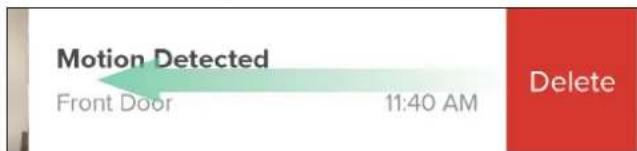
• To delete an activity from the timeline, swipe left on the activity, then tap Delete as shown below.
Note: Deleting the activity will also delete the video footage. Be sure to download the video file to your phone first if you'd like to keep it. Once an activity has been deleted, it cannot be recovered.
text_image
Motion Detected Front Door 11:40 AM Delete4
Tap to filter the activity timeline by "Device Name", "Time At Camera Location" or "Date".
The Playback Screen
text_image
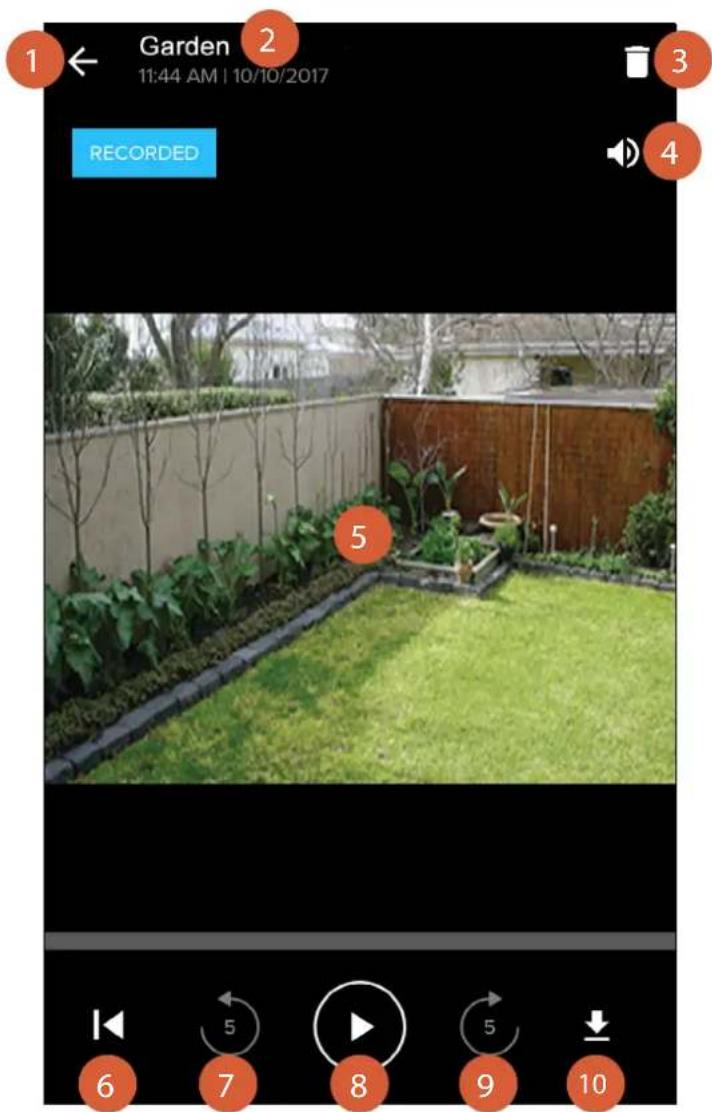
Garden 11:44 AM | 10/10/2017 RECORDED 5 6 7 8 9 10Go back to the Activity screen.
The camera name and the time and date of the activity recording.
Delete the video. This will also remove the corresponding activity from the activity timeline. Be sure to download the recording to your phone first if it contains important footage that you want to keep or review later.
Mute/unmute the video.
The video screen. Turn your phone sideways to watch the video in landscape view. Make sure your phone's screen orientation is set to auto-rotate or unlocked.
Rewind the video back to the beginning.
Rewind the video by 5 seconds.
Forward the video by 5 seconds.
Download the video to your phone. Downloaded videos are saved on your phone's internal memory in the "Pictures/Swann" folder.
text_image
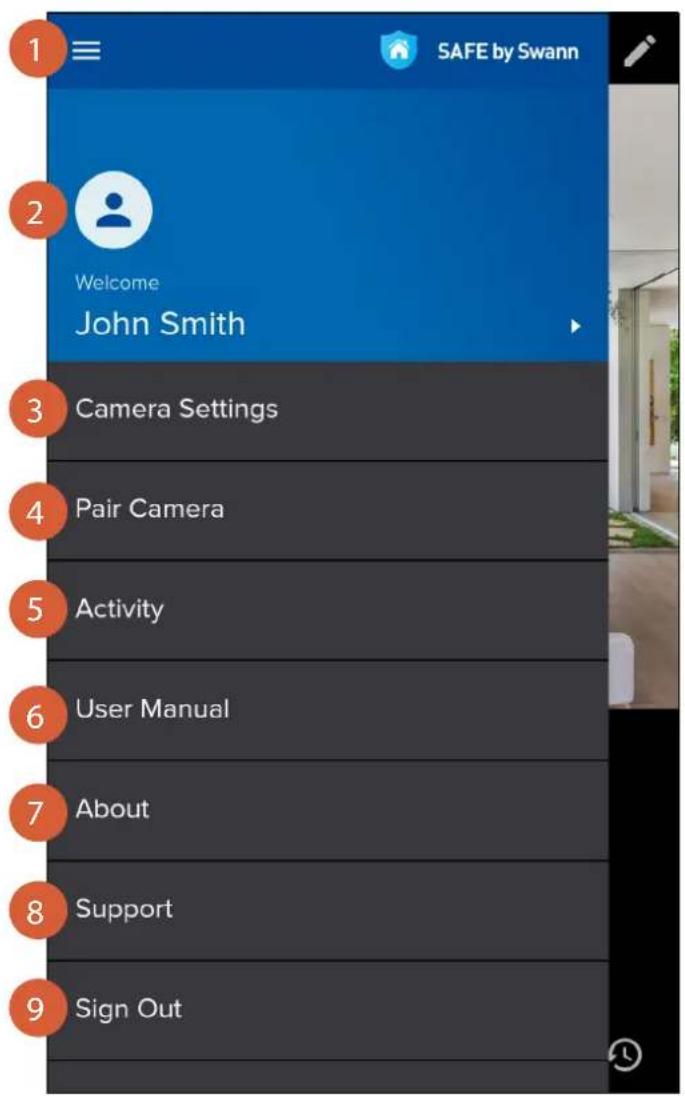
SAFE by Swann Welcome John Smith Camera Settings Pair Camera Activity User Manual About Support Sign OutClose the menu.
Update your profile picture and change your SAFE by Swann account password. For more information, see "The Profile Screen" on page 24.
View the list of cameras associated with your SAFE by Swann account and manage camera settings. For more information, see "The Cameras Settings Screen" on page 25.
Configure Wi-Fi network connection and register a camera to your SAFE by Swann account.
Display the activity timeline where you can browse and view recent and past camera activity.
Download the user manual (PDF file) to your phone. For best viewing experience, open the user manual using Acrobat Reader (available on the App Store or Google Play).
Display the SAFE by Swann application version information and access the terms of service and privacy policy.
Open the Swann Support Center website on your phone's web browser.
Sign out of the SAFE by Swann app.
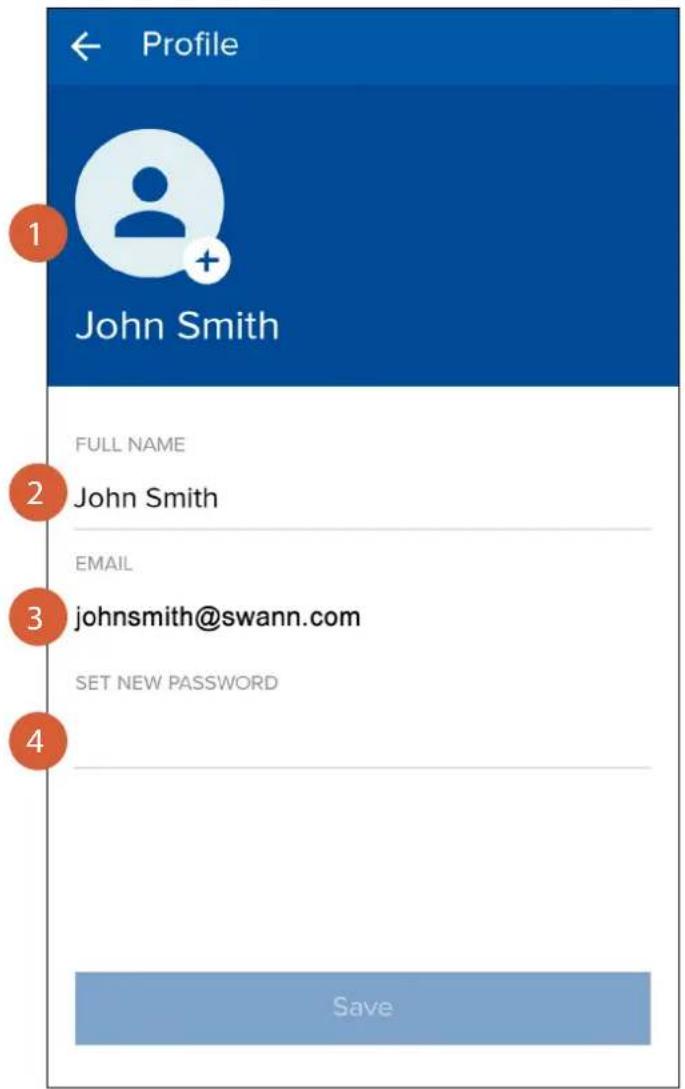
text_image
Profile 1 John Smith FULL NAME 2 John Smith EMAIL 3 johnsmith@swann.com SET NEW PASSWORD 4 Save1 Shows your profile picture. Tap the + button to set up or edit your profile picture.
2 Tap to edit your name.
3 Shows the email address registered with your account.
Tap to change your account login password. To save your new password, tap the Save button at the bottom of the screen, then confirm the password change by entering your current account login password. The Save button is greyed out once the new password has taken effect. You must use your new password the next time you sign in. If you want to change the password again (i.e., ungrey the Save button), simply return to the dashboard, then open the Profile screen again and enter a new password.
The Cameras Settings Screen
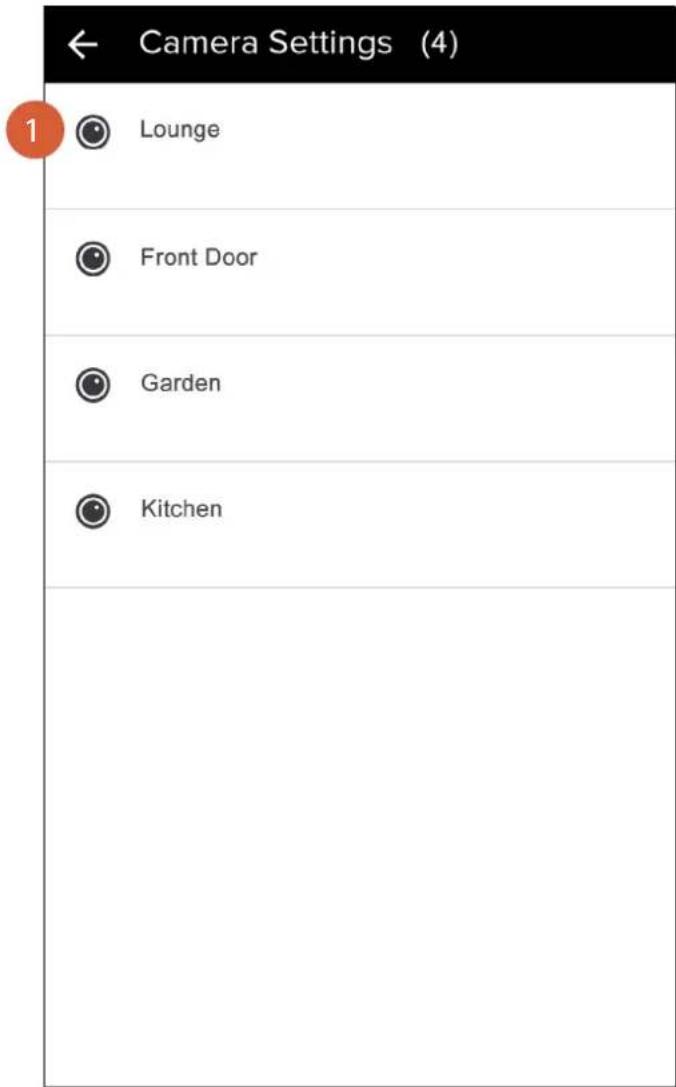
text_image
← Camera Settings (4) 1 Lounge Front Door Garden Kitchen
Lists all of the cameras that are registered to your account. Tap on the camera name to manage the camera's settings and cloud subscription, as well as to check device information such as firmware version, wireless connection strength, and MAC address.
The Cameras Settings Screen: Settings Tab
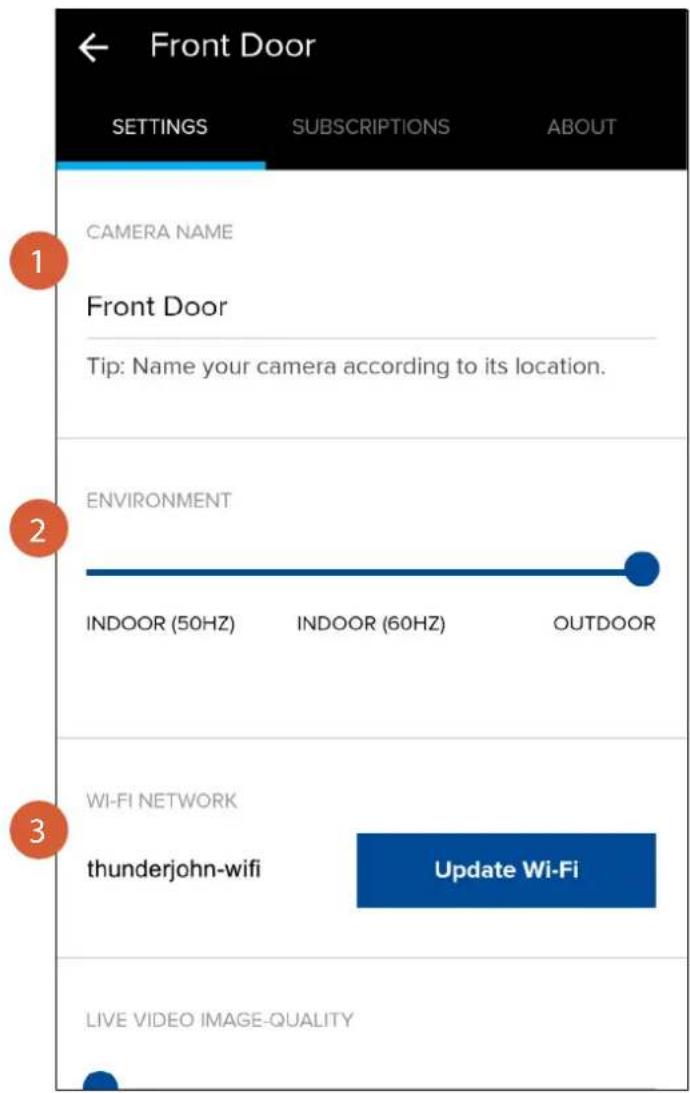
text_image
Front Door SETTINGS SUBSCRIPTIONS ABOUT CAMERA NAME Front Door Tip: Name your camera according to its location. ENVIRONMENT INDOOR (50HZ) INDOOR (60HZ) OUTDOOR WI-FI NETWORK thunderjohn-wifi Update Wi-Fi LIVE VIDEO IMAGE-QUALITY
Tap to change the name of the camera.

If the video is flickering, you can change the camera's refresh rate to one of the following modes: INDOOR 50Hz (Australia/UK), INDOOR 60Hz (North America) or OUTDOOR (Outside/Natural lighting)
TIP
In Outdoor mode, the camera will dynamically adjust exposure based on the ambient light level. This mode can also work well for a camera that is placed in a poorly-lit (or lacking natural light) indoor environment. Note that after changing from Indoor to Outdoor mode, please wait a few minutes for the camera go into standby before starting live video again to enable Outdoor mode to take effect.

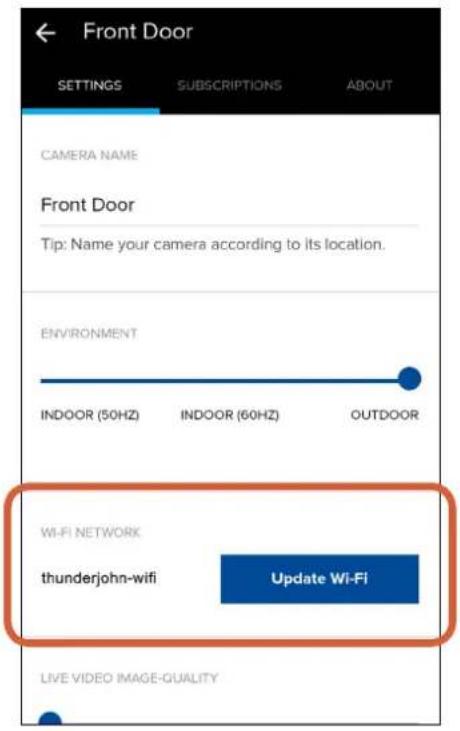
Shows the name of the Wi-Fi network to which the camera is connected. If multiple networks are available in your home and you would like to change the Wi-Fi connection, tap the Update Wi-Fi button. See "Changing the Wi-Fi Network" on page 34 for more information.
The Cameras Settings Screen: Settings Tab
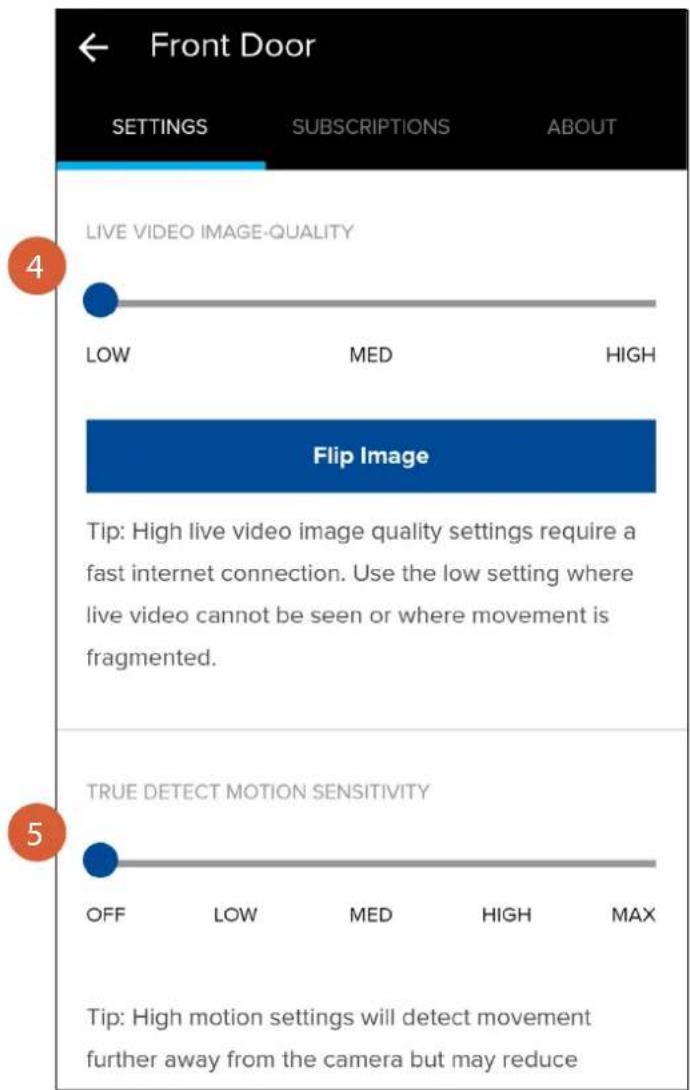
text_image
Front Door SETTINGS SUBSCRIPTIONS ABOUT LIVE VIDEO IMAGE-QUALITY LOW MED HIGH Flip Image Tip: High live video image quality settings require a fast internet connection. Use the low setting where live video cannot be seen or where movement is fragmented. TRUE DETECT MOTION SENSITIVITY OFF LOW MED HIGH MAX Tip: High motion settings will detect movement further away from the camera but may reduce
Drag the slider left or right to change the resolution of the camera's live video between LOW, MED, and HIGH. If your camera is mounted upside down, you can flip the camera's video, including any future motion recordings, right side up by tapping the Flip Image button. If you need to flip the camera's video back to its original orientation, simply tap the Flip Image button again.
TIP
If the camera's live video is slow to load or frequently stops mid-stream, you may have a slow or unstable connection to the internet—try using the LOW setting for faster loading times and smoother video streaming.

Drag the slider left or right to adjust the camera's motion sensor sensitivity. You can also turn off the motion sensor completely to conserve the camera's battery life when activity monitoring is not needed, for example, when the camera is being charged or when positioning the camera during installation. You will still be able to start live video from the camera at any time.
TIP
Every home environment is unique, so we recommend experimenting with the motion sensitivity settings to find out which works best for yours. For example, if your camera is overlooking a high traffic area, you may want to turn down the motion sensitivity to only detect objects that are within the camera's immediate area. This will prevent unnecessary recordings of background activity further away such as your neighbor walking on the sidewalk. That being said, you may also turn up the motion sensitivity to record as much as possible if this is something you desire. Just be aware that the more activity your camera is detecting and recording daily, the more battery it will consume.
The Cameras Settings Screen: Settings Tab
text_image
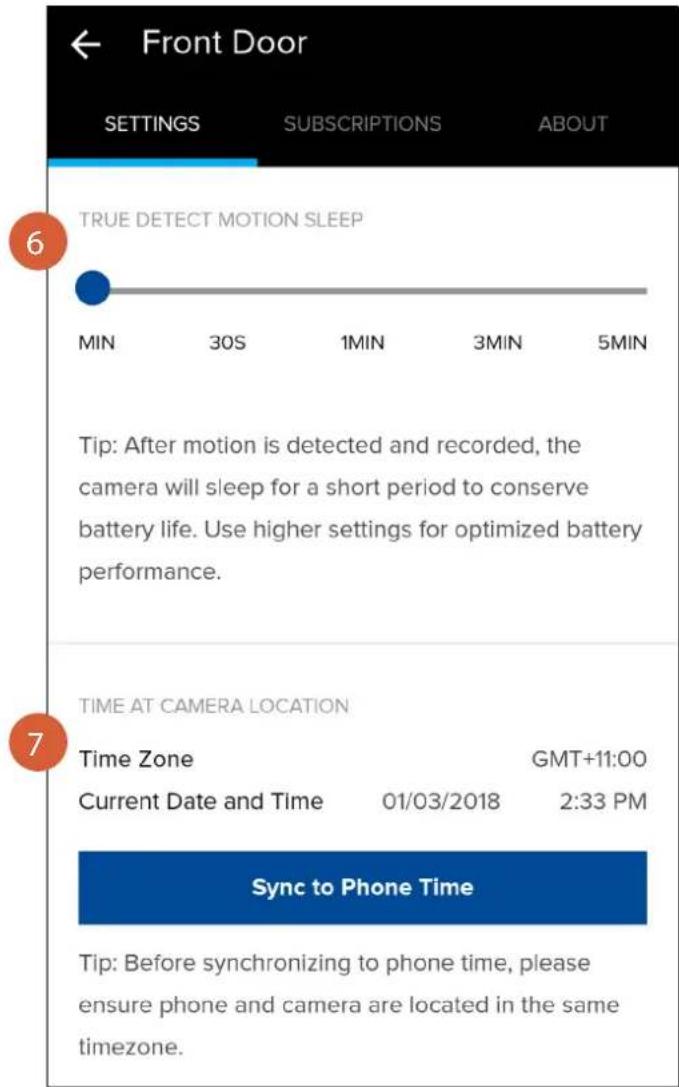
Front Door SETTINGS SUBSCRIPTIONS ABOUT 6 TRUE DETECT MOTION SLEEP MIN 30S 1MIN 3MIN 5MIN Tip: After motion is detected and recorded, the camera will sleep for a short period to conserve battery life. Use higher settings for optimized battery performance. 7 TIME AT CAMERA LOCATION Time Zone GMT+11:00 Current Date and Time 01/03/2018 2:33 PM Sync to Phone Time Tip: Before synchronizing to phone time, please ensure phone and camera are located in the same timezone.
(SWWHD-INTCAM model only) Drag the slider left or right to adjust the time that must elapse before the motion sensor can be triggered again by another motion activity.
TIP
Temporarily set a longer sleep period when you know that there's ongoing activity within the vicinity of the camera like someone mowing the grass in the backyard or guests walking in and out of a party. This will prevent unnecessary recordings and help to conserve the camera's battery life.

Shows the current timezone, date and time of the camera. If the information is not correct, tap the Sync to Phone Time button to enable the camera to automatically sync its timezone, date and time to the clock on your phone.
The Cameras Settings Screen: Settings Tab
text_image
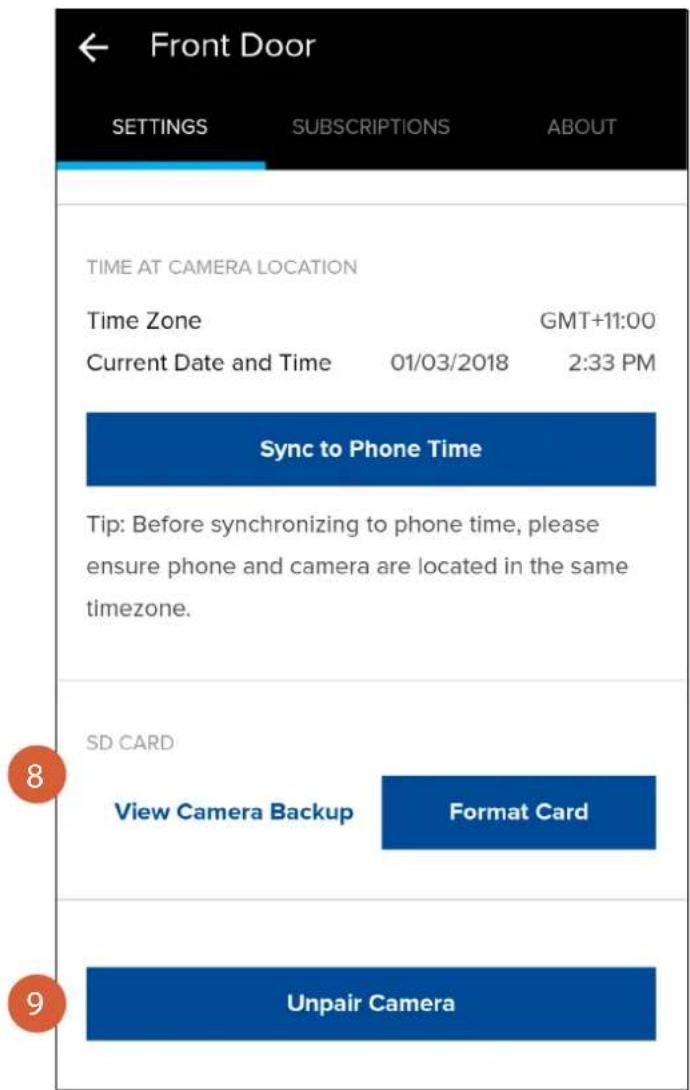
Front Door SETTINGS SUBSCRIPTIONS ABOUT TIME AT CAMERA LOCATION Time Zone GMT+11:00 Current Date and Time 01/03/2018 2:33 PM Sync to Phone Time Tip: Before synchronizing to phone time, please ensure phone and camera are located in the same timezone. SD CARD View Camera Backup Format Card Unpair Camera
Tap View Camera Backup to access the last 7 days of motion event video clips stored on the camera's internal memory. Tap the Format Card button to clear the camera's internal memory and permanently erase all recordings on it.

In some cases, you might need to unpair your camera. For example, if you want to use your camera with a different SAFE by Swann account or give away your camera to a family member, you need to unpair first. Please note that unpairing will completely delete the camera from your SAFE by Swann account and you'll no longer be able to access the camera's activity clips.
The Cameras Settings Screen: Subscriptions Tab
text_image
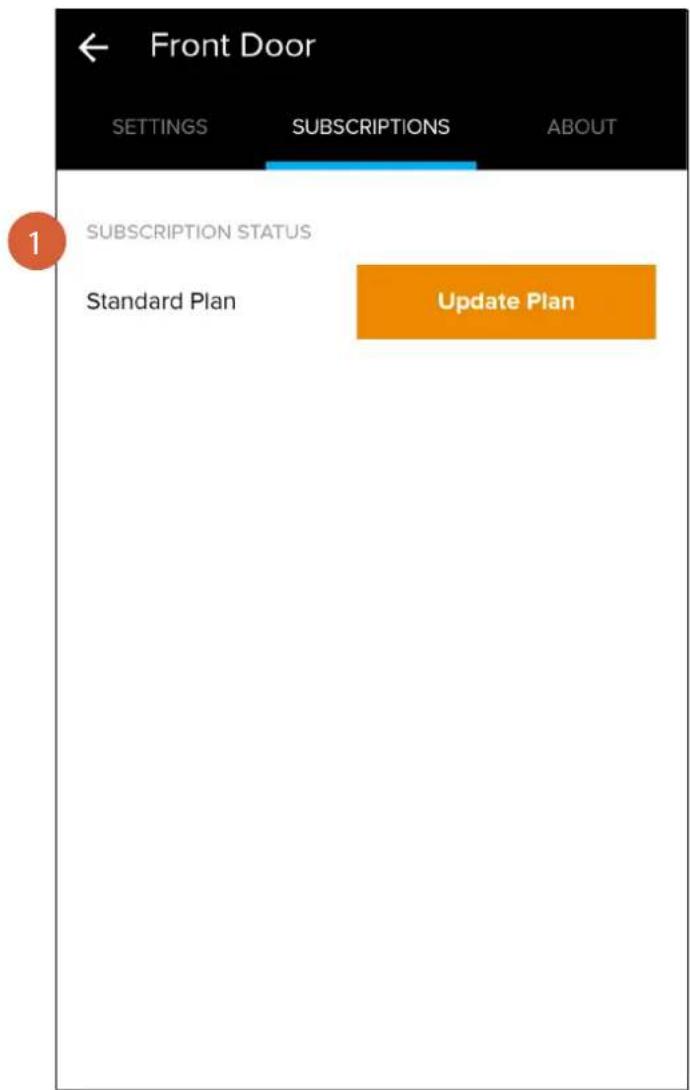
Front Door SETTINGS SUBSCRIPTIONS ABOUT 1 SUBSCRIPTION STATUS Standard Plan Update Plan
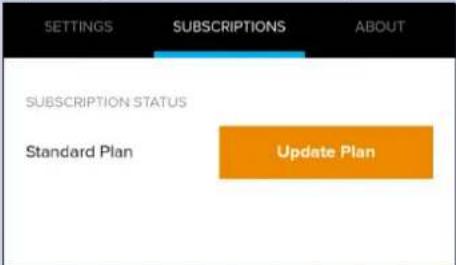
Displays the status of the camera's cloud storage plan. Tap the Update Plan button to manage or upgrade the camera's current cloud plan.
TIP
Every camera comes with free basic cloud storage, and you can easily upgrade your camera to a subscription plan at any time. Subscribing to a cloud plan will allow activity clips to be stored in your account for a longer term, providing additional time for you to access and download videos later on. See in-app for the cloud subscription plan details.
The Cameras Settings Screen: About Tab
text_image
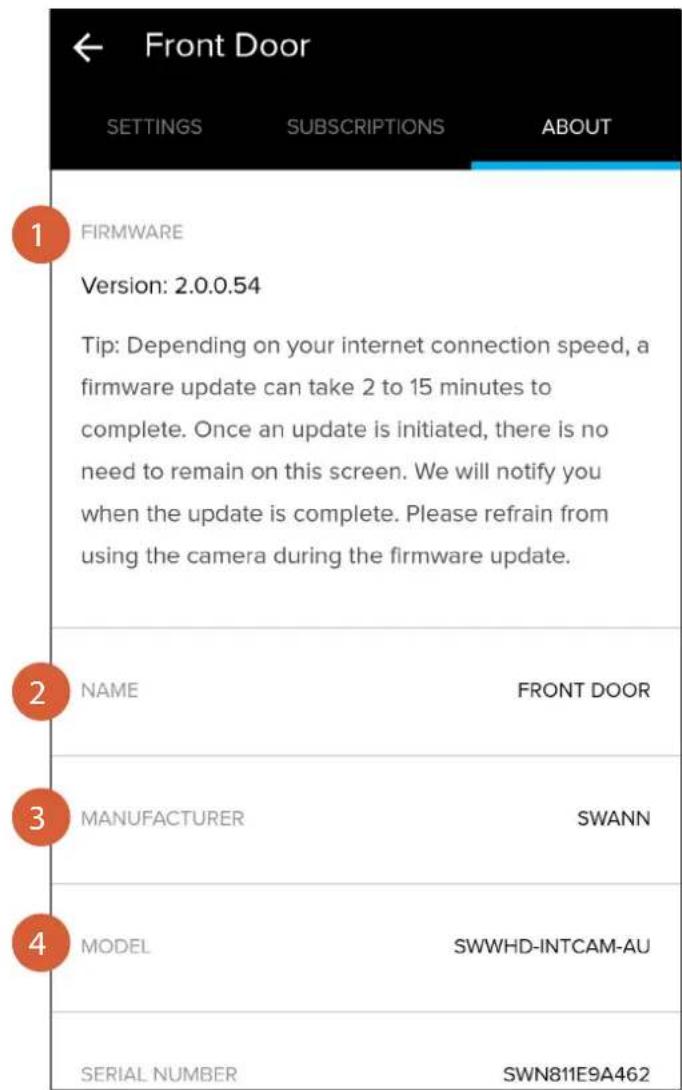
← Front Door SETTINGS SUBSCRIPTIONS ABOUT 1 FIRMWARE Version: 2.0.0.54 Tip: Depending on your internet connection speed, a firmware update can take 2 to 15 minutes to complete. Once an update is initiated, there is no need to remain on this screen. We will notify you when the update is complete. Please refrain from using the camera during the firmware update. 2 NAME FRONT DOOR 3 MANUFACTURER SWANN 4 MODEL SWWHD-INTCAM-AU SERIAL NUMBER SWN811E9A4621 Displays information about the camera's firmware version. When a new version of the firmware is available, the Update Firmware button is displayed. To learn how to update your camera, see "Updating the Camera Firmware" on page 15.
2 Displays the camera's name.
3 Displays the camera's manufacturer name.
4 Displays the camera's model code.
The Cameras Settings Screen: About Tab
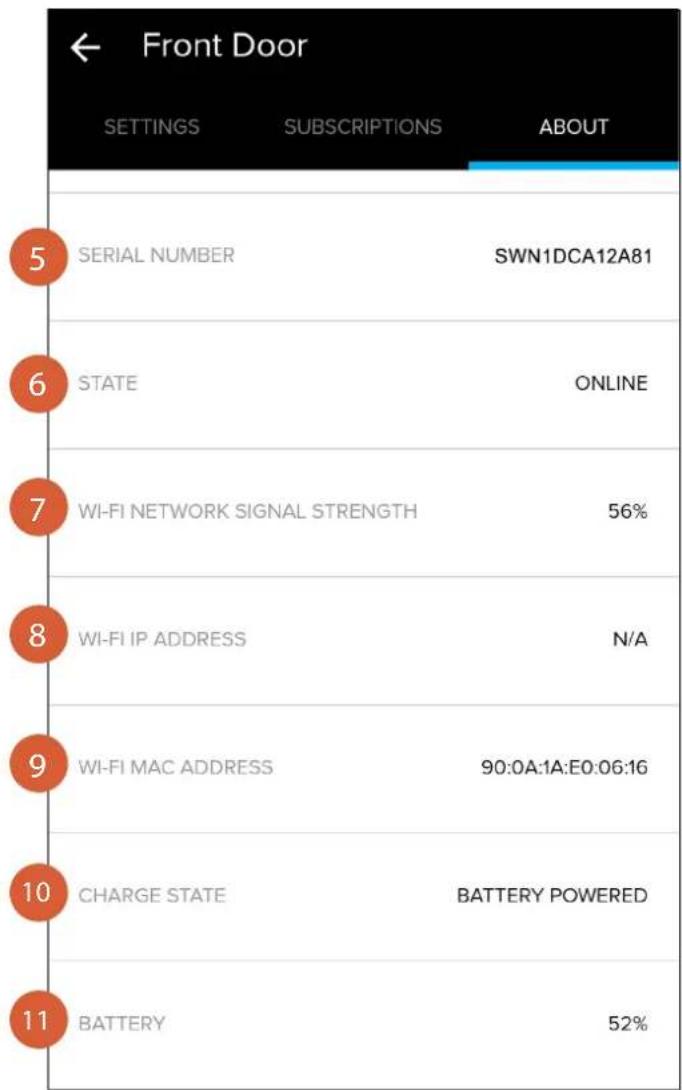
Displays the camera's serial number.
Displays the camera's connection state.
Displays the strength of the Wi-Fi signal the camera is receiving. In general, the closer the camera is to your router/access point, the stronger the signal strength (higher % percentage), and the more reliable and faster the wireless connection between the camera and your router/access point.
Displays the camera's IP address on your wireless network.
Displays the camera's MAC address—a unique 12-character hardware ID assigned to the camera so it is identifiable on your wireless network.
(SWWHD-INTCAM model only) Displays the camera's power charge state—"Battery Powered" or "Charging".
(SWWHD-INTCAM model only) Displays the camera's remaining battery level.

natural_image
Blue shield icon with a white house symbol (no text or numbers)Camera Maintenance
Changing the Wi-Fi Network
You can easily change the Wi-Fi network that your camera is connected to if your home has multiple Wi-Fi access points. Tip: We recommend choosing the access point closest to the camera location for best signal strength.
text_image
Front Door SETTINGS SUBSCRIPTIONS ABOUT CAMERA NAME Front Door Tip: Name your camera according to its location. ENVIRONMENT INDOOR (50HZ) INDOOR (60HZ) OUTDOOR WI-FI NETWORK thunderjohn-wifi Update Wi-Fi LIVE VIDEO IMAGE-QUALITYGo to your camera's settings, then under Wi-Fi Network, tap the Update Wi-Fi button.
text_image
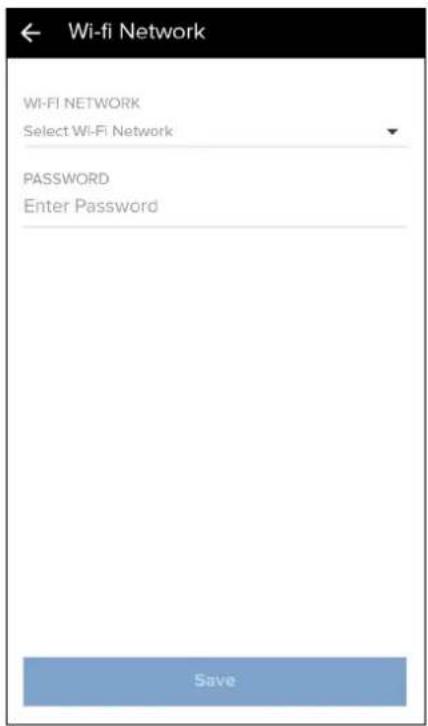
Wi-fi Network Wi-FI NETWORK Select Wi-Fi Network PASSWORD Enter Password SaveTap Select Wi-Fi Network. A list of available wireless networks nearby is displayed.
text_image
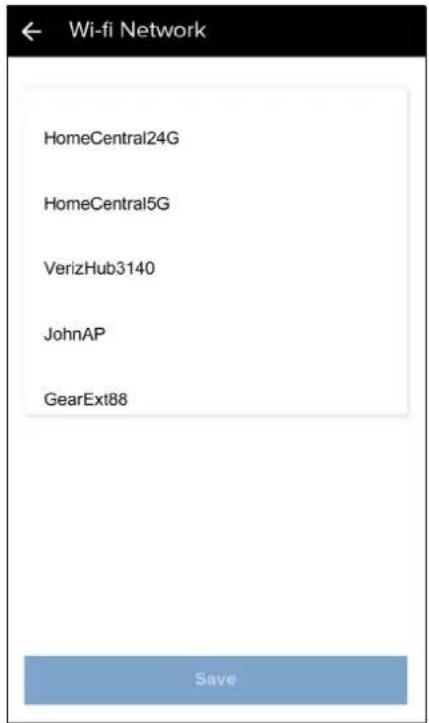
HomeCentral24G HomeCentral5G VerizHub3140 JohnAP GearExt88 SaveTap the Wi-Fi network that you want the camera to join. You can scroll through the list by swiping up or down.
text_image
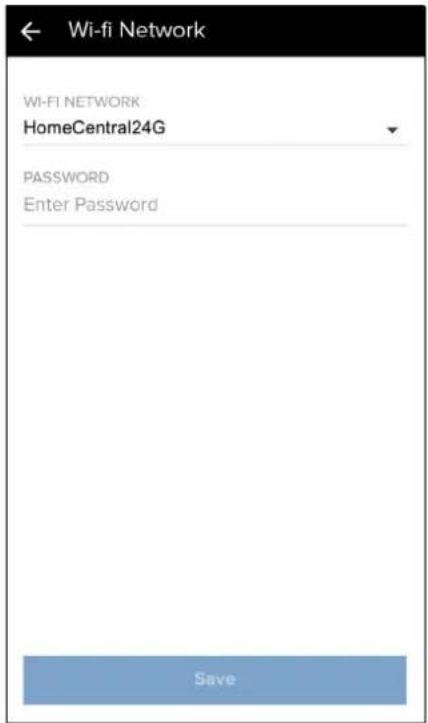
Wi-fi NETWORK Wi-FI NETWORK HomeCentral24G PASSWORD Enter Password SaveEnter the password for the selected Wi-Fi network ("HomeCentral24G in this example). Your Wi-Fi network password is case sensitive, so make sure to enter it exactly the same as it was created or as found on your router.
Changing the Wi-Fi Network
text_image
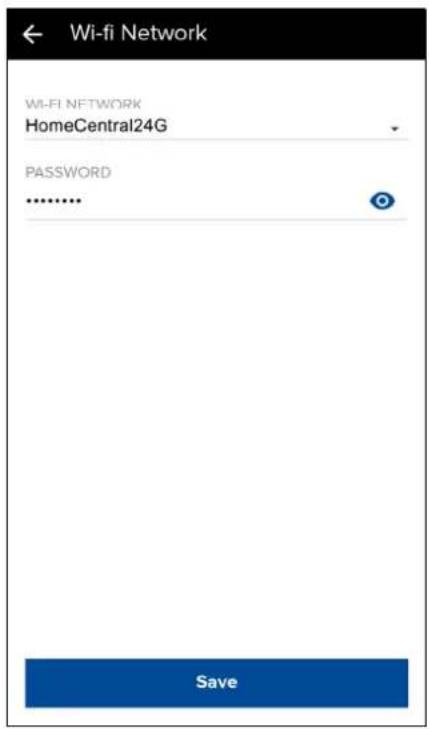
Wi-fi Network Wi-Fi NETWORK HomeCentral24G PASSWORD ****** SaveTap the Save button.
The app returns to the camera settings screen.
text_image
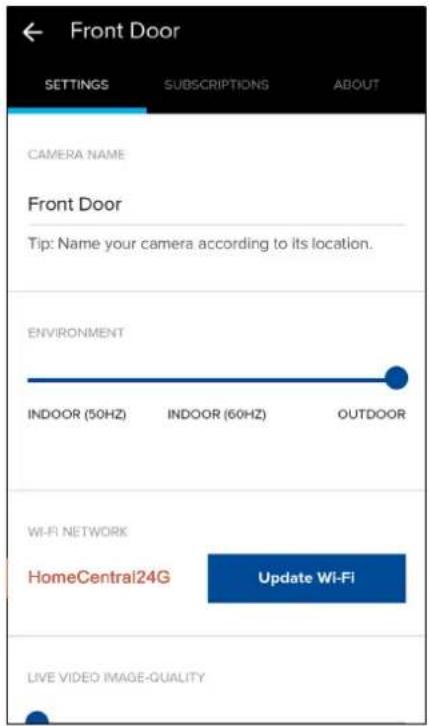
Front Door SETTINGS SUBSCRIPTIONS ABOUT CAMERA NAME Front Door Tip: Name your camera according to its location. ENVIRONMENT INDOOR (50HZ) INDOOR (60HZ) OUTDOOR WI-FI NETWORK HomeCentral24G Update Wi-Fi LIVE VIDEO IMAGE-QUALITYThe Wi-Fi network to which your camera now connects is shown under Wi-Fi Network.
Note: After changing the Wi-Fi network, please allow your camera to go to sleep for about 3 minutes before starting any live video streaming.
Resetting the Camera
text_image
Reset USBReset Button Reset Button Reset Button
Swann Smart Security Camera (SWWHD-INTCAM)
text_image
RESETSwann Indoor Camera (SWWHD-INDCAM)
natural_image
Line drawing of a medical device with attached connectors and ports (no text or symbols)Swann Outdoor Camera (SWWHD-OUTCAM)
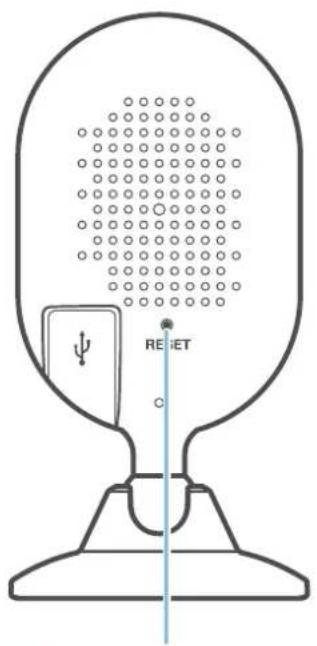
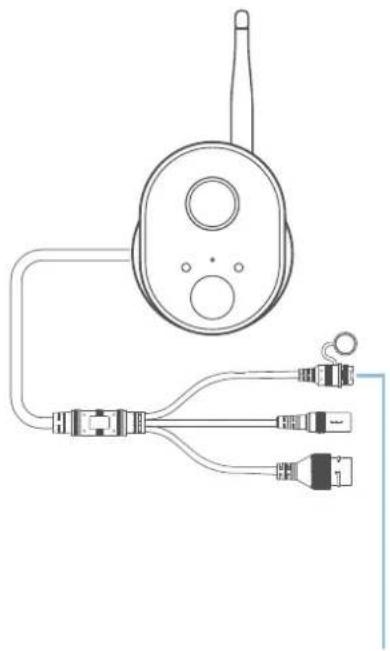
If you are having difficulties with your camera, try resetting it. A simple reset can often fix connectivity issues quickly.
To reset your Swann Smart Security Camera:
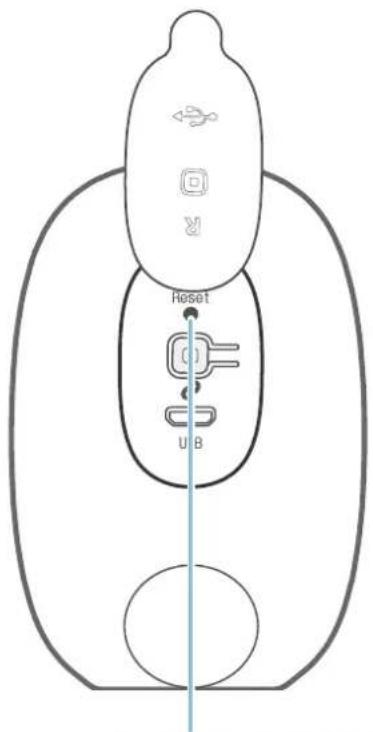
• Using a small, narrow object, such as a paper clip or a sim ejector tool, press the Reset button (see figure above for location) for 2 seconds. The camera will restart and automatically reconnect to Wi-Fi. This can take up to 2 minutes.
To reset your Swann Indoor Camera:
- Press the Reset button (see figure above for location) for 2 seconds. The camera will restart and automatically reconnect to Wi-Fi. This can take up to 2 minutes.
To reset your Swann Outdoor Camera:
- Press the Reset button (see figure above for location) for 2 seconds. The camera will restart and automatically reconnect to Wi-Fi. This can take up to 2 minutes.
Turning Off the Camera (SWWHD-INTCAM)
text_image
Reset USB Pair ButtonSwann Smart Security Camera (SWWHD-INTCAM)
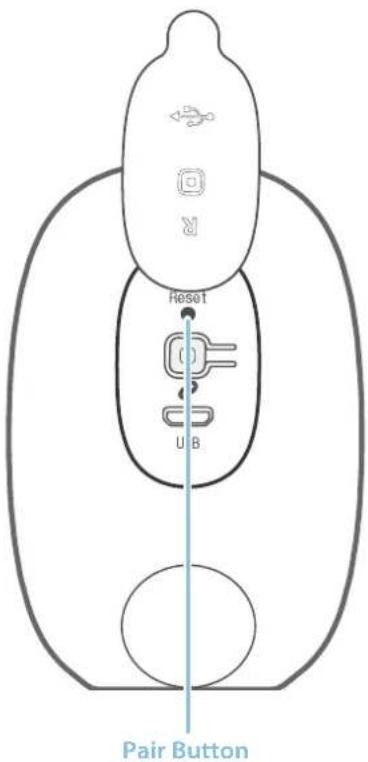
You can turn your camera off completely at any time. We recommend doing this if you're taking the Doorbell to a distant location, for example, your holiday residence, to help protect the integrity of the device.
To turn your camera off:
- Press and hold the Pair button (see figure above for location) for 30 seconds. During this time, the camera's LED turns blue and then goes off.
To turn your camera on again:
- Press the Pair button momentarily. The camera will restart and automatically reconnect to Wi-Fi.
Factory Resetting the Camera (SWWHD-INTCAM)
text_image
Reset Button Reset U B Pair ButtonSwann Smart Security Camera (SWWHD-INTCAM)
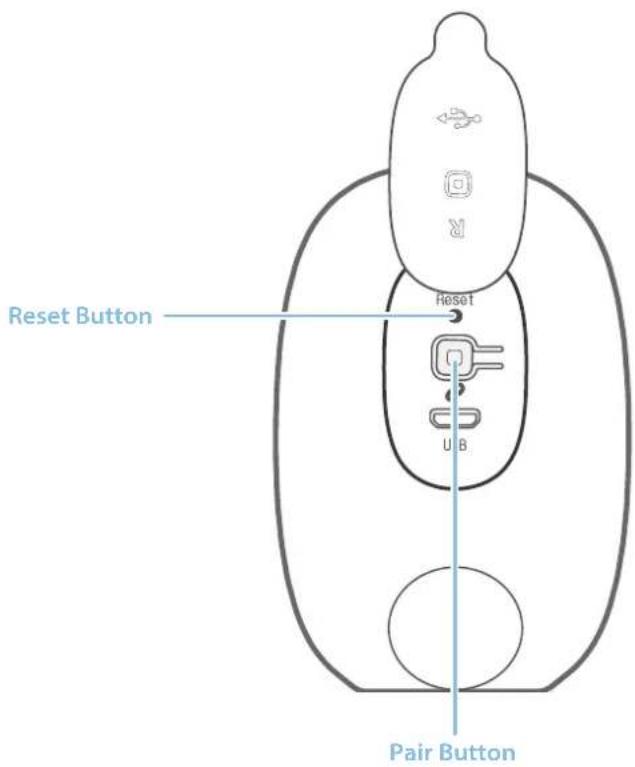
Factory resetting your camera is usually only necessary for troubleshooting. It isn't something to do lightly as it will format the internal memory, wipe the current Wi-Fi information, and return all the camera settings to defaults. If you need to factory reset your camera, here's how to do it:
- Press and hold the Reset and Pair buttons (see figure above for locations) simultaneously.
- Let go of the Reset button and continue holding the Pair button for another 12 seconds until the camera's LED turns blue.
- Let go of the Pair button. The LED turns off and your camera will be restored to its factory default state. This process can take up to a minute. Once complete, your camera will slowly blink blue to indicate that it is in pairing mode and is ready to be set up.
Removing the Camera from your Account
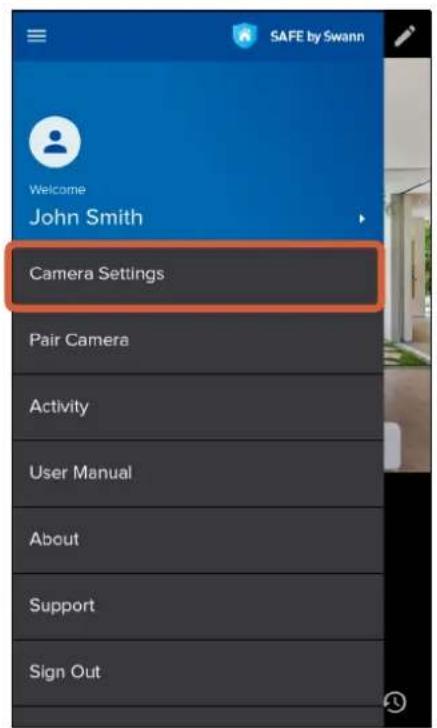
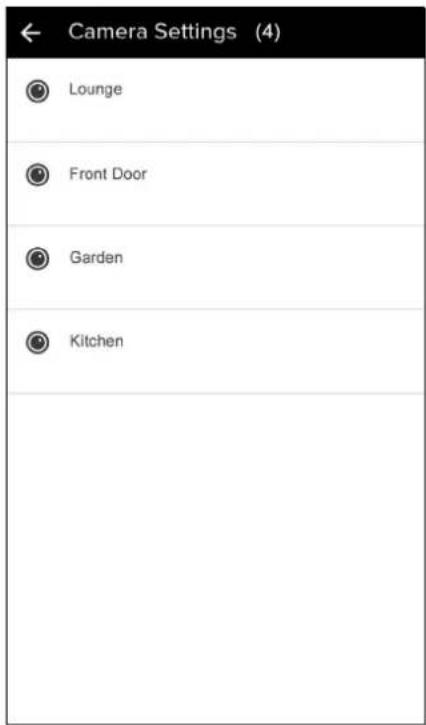
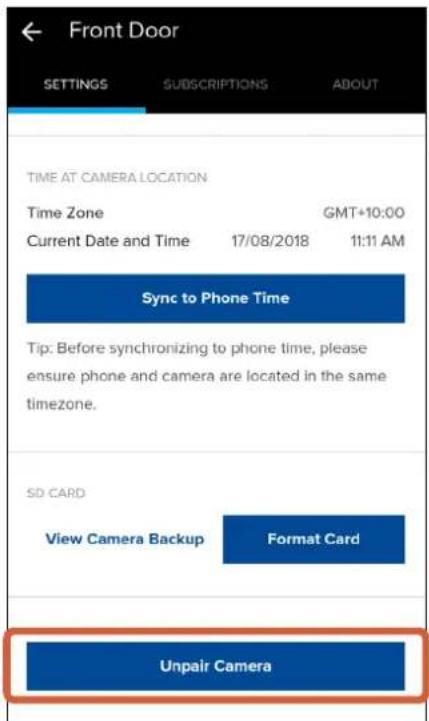
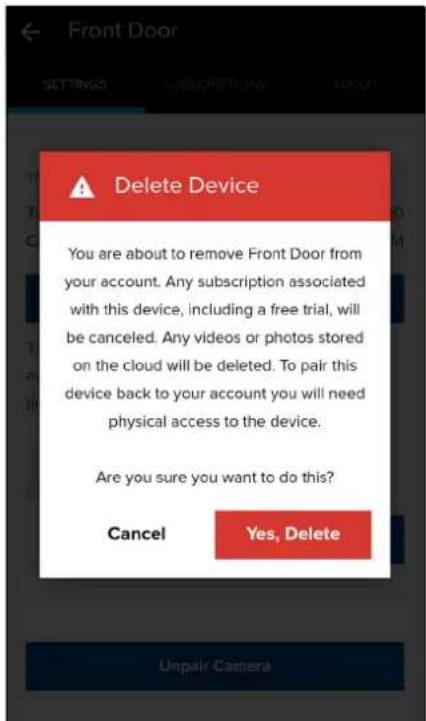
You can remove the camera from your account, if necessary. For example, if you're giving away your camera, you need to do this first so someone else can set it up under their own account. When you remove the camera, all related activity history including recordings will be erased; so make sure to download the videos you'd like to keep to your phone.
text_image
SAFE by Swann Welcome John Smith Camera Settings Pair Camera Activity User Manual About Support Sign OutFrom the dashboard, open the menu and select the Camera Settings option.
text_image
← Camera Settings (4) Lounge Front Door Garden KitchenSelect the camera that you want to remove.
text_image
Front Door SETTINGS SUBSCRIPTIONS ABOUT TIME AT CAMERA LOCATION Time Zone GMT+10:00 Current Date and Time 17/08/2018 11:11 AM Sync to Phone Time Tip: Before synchronizing to phone time, please ensure phone and camera are located in the same timezone. SD CARD View Camera Backup Format Card Unpair CameraUnder the Settings tab, scroll all the way down to the bottom, and tap the Unpair Camera button.
text_image
Delete Device You are about to remove Front Door from your account. Any subscription associated with this device, including a free trial, will be canceled. Any videos or photos stored on the cloud will be deleted. To pair this device back to your account you will need physical access to the device. Are you sure you want to do this? Cancel Yes, Delete Unpair CameraA confirmation box appears. Tap the Yes, Delete button to confirm that you want to remove your camera from your account.

natural_image
Blue shield icon with a white house symbol (no text or numbers)Tips & FAQs
natural_image
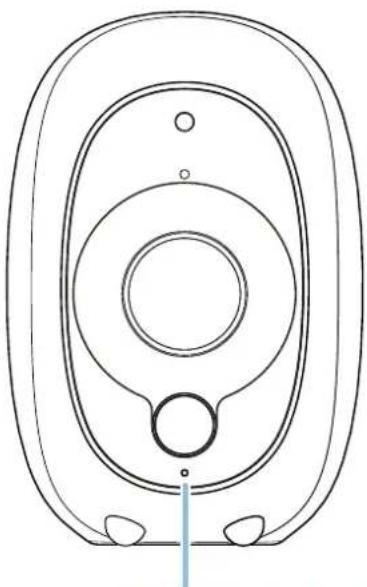
Technical line drawing of a mechanical component with concentric circles and mounting holes (no text or symbols)LED Indicator LED Indicator LED Indicator
Swann Smart Security Camera (SWWHD-INTCAM)
natural_image
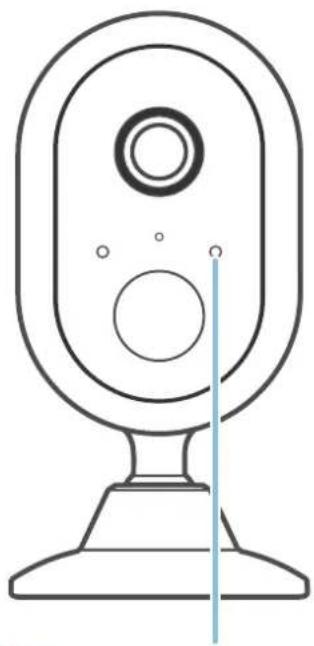
Line drawing of a webcam with a circular head and vertical line indicating measurement (no text or symbols)Swann Indoor Camera (SWWHD-INDCAM)
natural_image
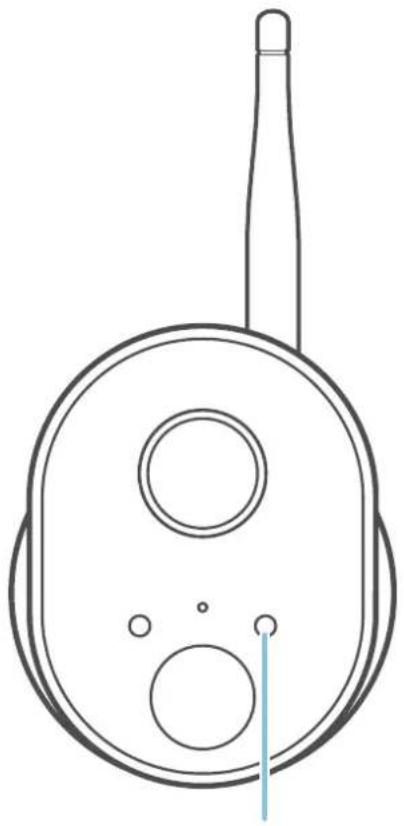
Line drawing of a mechanical component with two circular holes and a tapered shaft (no text or symbols)Swann Outdoor Camera (SWWHD-OUTCAM)
Action LED Indicator
Connecting to Wi-Fi Fast blinking blue
Out of range Fast blinking blue
Wi-Fi Pairing mode Slow blinking blue
Live streaming Solid red
Motion detection recording Solid red
Battery low (SWWHD-INTCAM) Blinking purple
Charging (SWWHD-INTCAM) Solid blue
Troubleshooting
In most cases, setting up and using the camera with the SAFE by Swann app is easy and trouble-free. If you encounter connection or other issues, however, please check this troubleshooting section for help and advice. Should you need additional assistance, please visit support.swann.com.
I cannot connect the camera to my Wi-Fi network
- Make sure the Wi-Fi network that you want the camera to join is not an unencrypted (open) network.
- Test your Wi-Fi network with other devices such as your phone or smart TV to make sure it is operating properly.
- The Wi-Fi connection may not be stable during pairing. Try moving the camera closer to your WI-Fi router.
- Your Wi-Fi network password is case sensitive, so make sure to enter it exactly the same as it was created or as found on your Wi-Fi router.
- Check whether your Wi-Fi router is using MAC filtering. MAC filtering provides an extra level of security by ensuring that no unknown devices can connect to your Wi-Fi network without prior authorization. If you cannot disable MAC filtering, you will need to add the camera's MAC address to the router's white-list of allowed devices. You can find the camera's MAC address printed on a label at the rear or bottom of the device.
The camera status shows"Offline"
- There could be a temporary issue with your network/internet connection (e.g., service disruption). Please try again in a few minutes.
• The camera (SWWHD-INTCAM) is completely out of battery power. Plug the camera into your USB charger to charge it. - The camera has been disconnected from your Wi-Fi network. Press the Reset button on your camera for two seconds to automatically re-connect to your Wi-Fi network. Make sure the camera is getting a good signal from your Wi-Fi router.
I stopped receiving notifications on my phone
- The SAFE by Swann app is not running in the background. If you recently restarted your phone, make sure to open the SAFE by Swann app again.
- Some versions of the Android operating system automatically put apps to sleep to conserve battery life when your phone is not in use or when an app hasn't been used for a few days. You may need to turn off (or exclude) "Battery optimization" for the SAFE by Swann app to enable push notifications to be retrieved. Please check the user guide that comes with your phone for more information.
The live video stream is slow to load
Camera streaming issues may be caused by any of the following:
- Your phone's cellular connection, which is reliant on mobile coverage and signal reception, is slow.
- Limited internet bandwidth at home, for example, other video streaming services running at the same time on your network can cause congestion slowing down the internet upload and download speeds.
- Weak Wi-Fi reception. Wi-Fi won't work reliably on your camera if the camera's Wi-Fi signal strength is less than 40% (i.e., too far away from your router.) You may need to install a Wi-Fi repeater or extender to boost the Wi-Fi connection and signal.
The camera (SWWHD-INTCAM) is not charging
Make sure your USB wall charger is correctly connected to your camera and the power socket. A charging icon will appear in the app when the camera begins charging correctly. If your camera has gone flat and hasn't been charged for a long time, try leaving it connected for awhile (10 minutes or more).
The camera stopped working after I changed my Wi-Fi router
You will need to perform camera pairing again if you replace your existing router and the Wi-Fi settings such as either the SSID or Password, or both changed. You can pair your camera again by selecting the Pair Camera option from the menu. For camera pairing instructions, see "Pairing the Camera" on page 7. Please note that you do not have to remove the camera from your SAFE by Swann account to reconfigure your camera with the new Wi-Fi settings.
I have forgotten my SAFE by Swann account password. How do I reset it?
Tap the "Forgot Password" link on the Sign In screen of the SAFE by Swann app and submit the email address that you used to create your SAFE by Swann account. You'll shortly receive an email with instructions on how to reset your account password.
Can I access my camera on another phone?
Yes. Just install the SAFE by Swann app on your other phone and sign in using the same SAFE by Swann account credentials. For privacy, make sure to sign out of the app on any secondary devices before switching back to your primary phone.
Can I register my camera to another SAFE by Swann account?
A camera can be registered to a single SAFE by Swann account only. If you want to register the camera to a new account (for example, if you want to give the camera to a friend), you'll first need to unpair (Camera Settings > Unpair Camera) it from your account. Once unpaired, the camera can be registered to another account.
How far back does the camera's activity history go?
Every camera comes with free standard 2-day cloud storage. To save your video clips around longer, upgrade to the ExtraSafe subscription plan which will give you 30 days of cloud storage for your camera. In addition, you can also access 7 days of recordings that are stored on your camera's built-in memory.
Will my camera continue to record motion activity if my internet connection drops out?
Your camera will continue to detect and record motion events to its internal memory even if your internet connection is down. Once your internet connection comes back, your camera will attempt to upload any motion event videos to your cloud account.
How do I access recordings stored locally on my camera's internal memory?
From your camera's Settings tab, scroll down to SD card and then tap View Camera Backup.
Can I use my camera without an internet connection?
No, your camera requires a Wi-Fi network connection with internet access to stream live video to your phone and upload videos to the cloud.
Does my camera work on the 5GHz Wi-Fi network band?
Only the Swann Smart Security Camera (SWWHD-INTCAM) can operate on either the 2.4 GHz or 5 GHz Wi-Fi network band. The Swann Indoor & Outdoor Camera models will only connect to 2.4GHz networks.
Why am I getting false motion events?
Moving cars, passersby, direct sunlight or reflection may cause unwanted motion detection. To minimize false motion detections, adjust your camera angle slightly downward and ensure the field of view is focused only on the immediate area of concern and excludes as much background activity as possible. If placed outdoors, avoid locations where your camera will be directly exposed to sunlight during the day. Also, take note of shiny surfaces in the vicinity, such as house or car windows, which can reflect sunlight and trigger your camera's motion sensor.
What should I do when there's a prompt to update the camera's firmware?
Please update your camera's firmware to the latest version for performance improvements, feature enhancements as well as bug fixes.
How long does it take for video recordings to appear on the Activity screen?
Depending on the size of your video and the strength of your network, this can be highly variable.
How do I subscribe to a paid cloud storage plan for my camera?
You can easily purchase a cloud subscription for your camera through the app:
- From the app dashboard, open the menu and select the Camera Settings option.
-
Select the camera that you want to purchase a cloud subscription for.
-
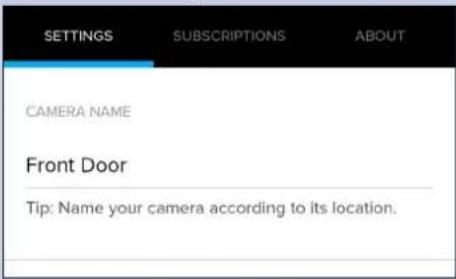
Select the Subscriptions tab.
text_image
SETTINGS SUBSCRIPTIONS ABOUT CAMERA NAME Front Door Tip: Name your camera according to its location.- Tap the Update Plan button to open the SAFE by Swann cloud subscription portal.
text_image
SETTINGS SUBSCRIPTIONS ABOUT SUBSCRIPTION STATUS Standard Plan Update Plan- Follow the on-screen instructions to select the cloud plan that you want to subscribe to and enter the payment and billing information.
What can I do to maximize the battery performance on my camera? (SWWHD-INTCAM)
Here are some simple and practical tips to get more battery life out of your camera:
• Make sure your camera's firmware is the latest version.
- Your camera will last longer when you stream at a lower resolution. The fewer pixels that your camera has to stream, the less power it uses.
- Lower the motion sensor sensitivity or turn off the motion sensor to conserve battery life when activity monitoring is not needed.
- Make sure your camera is properly positioned to eliminate any false motion triggering. The more events the camera records, the faster the battery life will drain. Adjust your camera angle downward so its field of view is focused only on the immediate area of concern and excludes as much background activity as possible.
- As a general rule, the nearer your camera is to your router, the better the wireless connection quality and battery performance. Your camera will work harder and use more power trying to maintain wireless connection the further it is away from your router. Consider installing a Wi-Fi range extender if your camera has poor Wi-Fi reception where it is located.
- Your camera can operate over a wide temperature range, however, in freezing conditions, the battery discharges more quickly and will not hold a charge for as long as it normally would in more moderate climates.
What does the status displayed for my camera mean?
The status can indicate one of the following:
• Standing By - Camera is in power-saving state. This is only applicable to the SWWHD-INTCAM model.
- Activating - Waking camera from standby. This is only applicable to the SWWHD-INTCAM model.
• Offline - Camera is offline. Your camera could be having internet connectivity issues or out of battery completely.
The content in this manual is for information purposes only and is subject to change without notice. While every effort is made to ensure that this manual is accurate and complete at the time of publication, no liability is assumed for any errors and omissions that may have occurred. For the latest version of this user manual, please visit: www.swann.com Apple and iPhone are trademarks of Apple Inc., registered in the U.S. and other countries. Google, Android, and Google Play are trademarks of Google Inc.
© 2018 Swann Communications
Version: 0818