
RIDER EUROPE 45 M - Motorcycle GPS TOMTOM - Free user manual and instructions
Find the device manual for free RIDER EUROPE 45 M TOMTOM in PDF.


| Product type | Motorcycle GPS |
| Brand | TomTom |
| Model | Rider Europe 45 M |
| Dimensions | Approximately 5.5 x 3.5 x 1.5 inches (not specified in manual) |
| Weight | Approximately 200 g (not specified in manual) |
| Screen | 4.3-inch color touchscreen |
| Power supply | Rechargeable lithium-ion battery via USB cable or motorcycle mount |
| Battery life | Up to 3 hours in normal use (estimate) |
| Connectivity | Bluetooth for hands-free kit and phone |
| Storage | Internal memory (unspecified), SD card not mentioned |
| Main features | Motorcycle navigation, curvy routes, route planning, POI, speed camera alerts, voice guidance, hands-free calling |
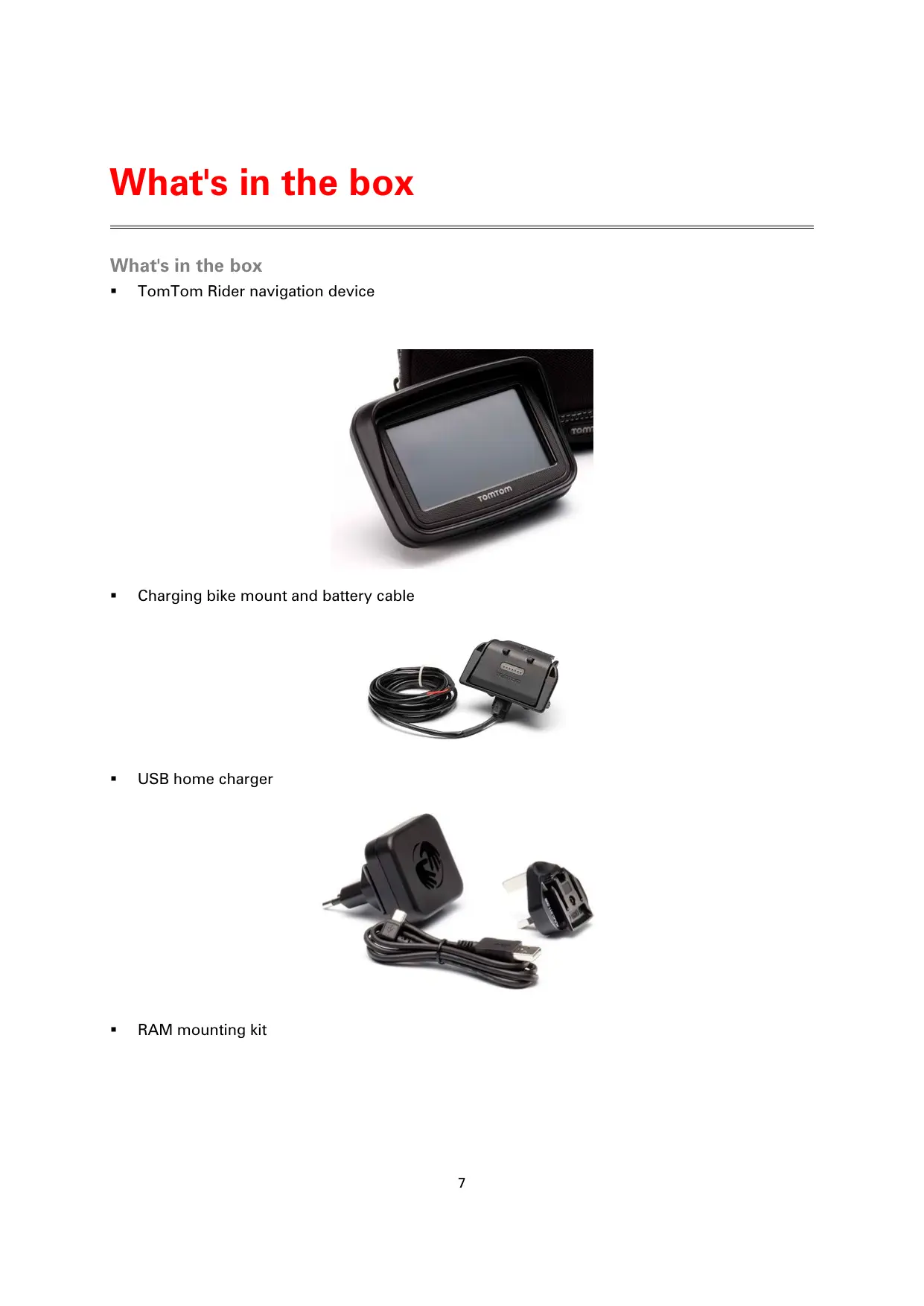
| Box contents | GPS, motorcycle charging mount, battery cable, USB charger, RAM mount kit, Tyre software, documentation |
| Mounting | RAM mount kit on handlebar, active mount with integrated fuse |
| Maintenance and cleaning | Clean with a soft, dry cloth; avoid abrasive liquids |
| Safety | Do not use while driving; anti-theft mount available (Premium); follow mounting instructions |
| Spare parts and repairability | Battery not user-replaceable; contact TomTom for repair |
| General information | Limited warranty; map updates via TomTom HOME; Tyre software included |
Frequently Asked Questions - RIDER EUROPE 45 M TOMTOM
User questions about RIDER EUROPE 45 M TOMTOM
0 question about this device. Answer the ones you know or ask your own.
Ask a new question about this device
Download the instructions for your Motorcycle GPS in PDF format for free! Find your manual RIDER EUROPE 45 M - TOMTOM and take your electronic device back in hand. On this page are published all the documents necessary for the use of your device. RIDER EUROPE 45 M by TOMTOM.
USER MANUAL RIDER EUROPE 45 M TOMTOM
TomTom Rider Reference Guide
Contents
What's in the box 7
What's in the box. 7
Read me first 10
Mounting your navigation device 10
Using a headset 11
Switching on 12
Setting up. 12
GPS reception 12
Using the anti-theft solution. 12
Safety 14
The Driving View 15
About the Driving View. 15
The Driving View 15
Main Menu 17
About the Main Menu 17
Main Menu buttons 17
Quick Menu 19
About the Quick Menu 19
Setting up the Quick Menu 19
Using the Quick Menu 19
Planning a route 20
Planning a winding route 20
Planning a route with a new starting point 21
Planning a route 22
Winding routes 25
About winding routes 25
Switching on winding routes 25
Planning a winding route 25
Winding roads and itineraries 26
Advanced Lane Guidance 28
About lane guidance 28
Using lane guidance 28
Itinerary planning 30
About Itineraries 30
Creating an Itinerary 30
Start using an Itinerary 31
Organising an Itinerary 31
Sharing an Itinerary 32
33
Sorting or reversing an Itinerary 33
Saving an Itinerary 34
Creating an itinerary with a winding route 34
Changing your route 36
Making changes to your route 36
Change route menu. 36
Recording your route 38
About recording your route 38
Starting route recording 38
39
Installing Tyre 39
Tyre FAQs 39
About GPX files 40
Converting a GPX file into an itinerary 40
About ITN files 41
Loading an ITN file. 41
View map 43
About viewing the map 43
View map 43
Options. 44
Cursor menu 44
Map corrections 46
About Map Share 46
Correcting a map error 46
Types of map correction 46
Sounds and voices 50
About sounds and voices 50
Sound and volume control 50
Change voice 50
Disable voice / Enable voice 51
Voice settings 51
Points of Interest 52
About Points of Interest 52
Creating POIs 52
Using POIs to plan a route 53
Showing POIs on the map 54
Calling a POI. 54
Setting warnings for POIs 55
Manage POIs. 55
Hands-free calling 56
About hands-free calls 56
Using a headset. 56
Connecting to your phone 57
Your phonebook. 57
Making a call using speed dial. 57
Making a call 58
Receiving a call 59
Auto-answer 59
Connecting more phones to your device 59
Mobile phone menu 60
Favourites 61
About Favourites 61
Creating a Favourite 61
Using a Favourite 62
Changing the name of a Favourite 63
Deleting a Favourite 63
Change Home location 63
Options 65
About Options 65
Battery saving 65
Brightness preferences 65
Change map colours 65
Change vehicle symbol 65
Connect to headset 66
Safety Alerts menu 66
Help me 66
Home and Favourites 67
Keyboard preferences 67
Language 68
Manage POIs. 68
Map corrections. 68
Mobile phone menu 69
Planning preferences 69
Quick Menu preferences. 70
Reset factory settings. 70
Safety warnings 71
Set clock. 71
Show compass 71
Speed Cameras menu 71
Start or Stop recording 72
Start up 72
Status bar preferences 72
Street name settings 73
Switch map. 73
Trip statistics 73
Units 73
Use night colours / Use day colours 74
Voices. 74
Winding route preference 74
Speed Cameras 75
About Speed Cameras 75
Subscribing to this service 75
Updating locations for alerts. 75
Speed camera warnings 76
Changing the way you are warned. 76
Speed camera symbols. 76
Report button. 78
Reporting a new speed camera while on the move 78
Reporting a new speed camera while at home 79
Reporting incorrect camera alerts 79
Types of fixed speed camera you can report 79
Average speed check camera warnings 80
Speed Cameras menu 81
Danger Zones 82
Danger zones in France 82
Danger zone warnings 82
Changing the way you are warned. 82
Report button. 83
Reporting a new danger zone while on the move. 83
Reporting a new danger zone while at home 83
Safety Alerts menu 84
Help 85
About getting help. 85
Using Help to phone a local service 85
Help menu options. 85
TomTom HOME 87
About TomTom HOME 87
Installing TomTom HOME 87
MyTomTom account. 87
Updating your device. 88
Backing up your navigation device 89
Introducing HOME help 89
Addendum 90
Copyright notices 97
What's in the box
TomTom Rider navigation device
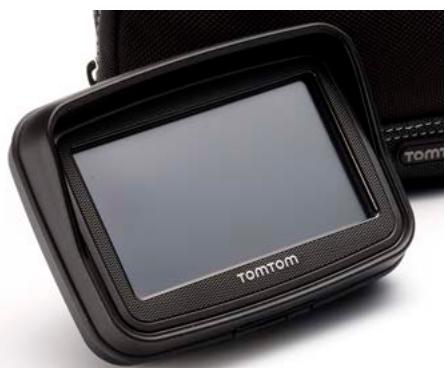
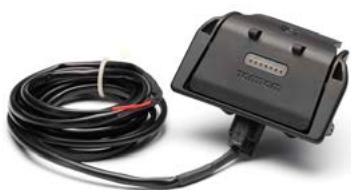
- Charging bike mount and battery cable
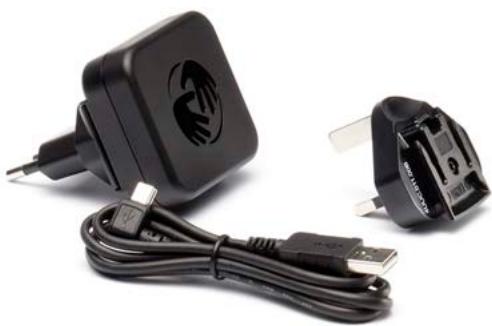
USB home charger
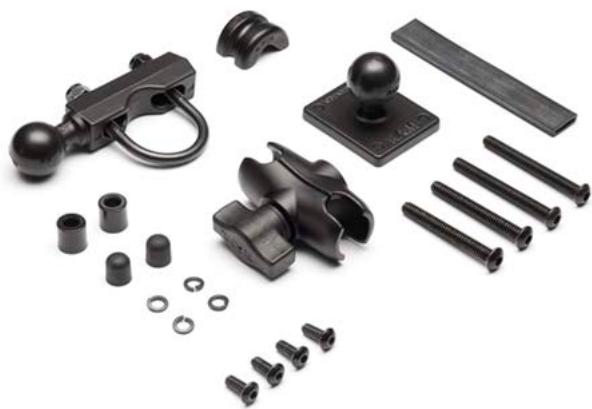
RAM mounting kit
- Tyre route software for your computer - installation file is supplied on your device
- Documentation pack
Extra items supplied in Premium pack:
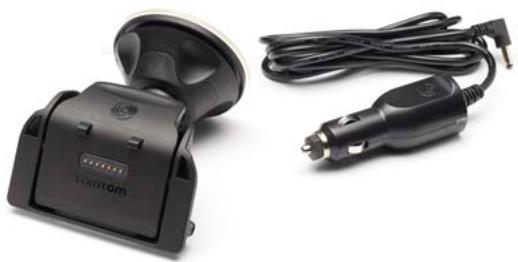
- Car mounting kit
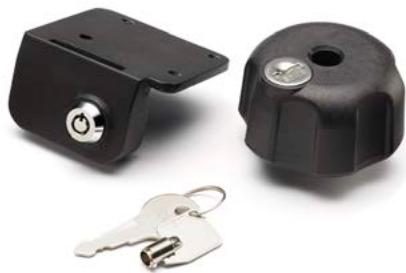
Anti-theft solution
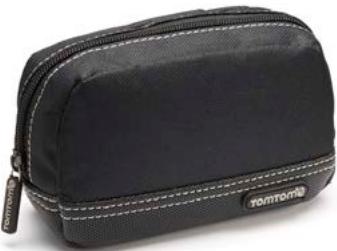
Travel carry case
For more information, go to tomtom.com/accessories.
Mounting your navigation device
Attach the RAM™ mount kit to your motorcycle as shown on the Installation Poster, then place your TomTom Rider in the holder. When you are attaching the mount kit to your motorcycle, follow these guidelines:
If you are unsure about attaching the mount kit yourself, ask a professional to fit it for you.
- If you choose to attach the mount kit yourself, note that the Active Dock has a built-in fuse. This means that you don't need to add a fuse yourself while performing the connection between the device and the motorcycle battery.
- Make sure that the mount kit does not interfere with any of the controls on the motorcycle.
Always use the correct tools. If you use unsuitable tools, you may damage or break the mount kit.
- Do not overtighten nuts. You may crack parts of the mount kit or damage your handlebars if you overtighten the nuts.
- If you are using the u-bolt, don't forget to put the rubber caps provided over the exposed threads.
- Damage due to modifications, improper installation, road hazards or accident, are not covered. Neither RAM nor TomTom shall be liable for any injury, loss, or damage, direct or consequential, arising out of improper installation, or inability to use product. Before use, the user shall determine the suitability of the product for its intended use. The user assumes all risk and liability, whatsoever, in connection with the mount.
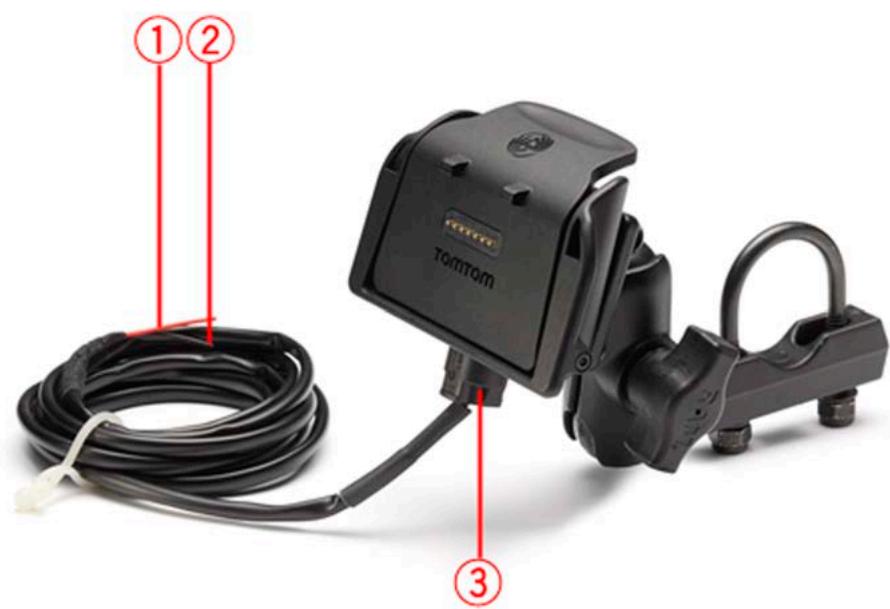
Connecting the dock cable
-
The red POS (+) contact needs to be connected to the motorcycle's +12V battery supply.
-
The black NEG(-) wire needs to be connected to the motorcycle's -(GND) battery supply.
- The dock connector needs to be plugged into the TomTom Rider dock.
Using a headset
We recommend using a compatible headset with your TomTom Rider to hear spoken instructions, make and receive hands-free phonecalls and hear warning sounds on your TomTom Rider. This makes riding with your TomTom Rider as safe as possible. For more information and a full list of compatible headsets, go to tomtom.com/riderheadsets.
The instructions below describe how to set up a Bluetooth® headset. If you did not establish a Bluetooth connection between your Bluetooth headset and your TomTom Rider when you first turned your TomTom Rider on, you can establish the connection at any time by doing the following:
- Turn the headset on or off by following the instructions for your particular brand of headset.
- From the Main Menu, tap options.
- Tap Connect to headset and follow the instructions to establish the connection.
- Attach your headset to your helmet.
Make sure you position the microphone correctly. For best results, don't position the microphone directly in front of your mouth, position it just to the side of your mouth.
An image of the parts of a typical headset is shown below:
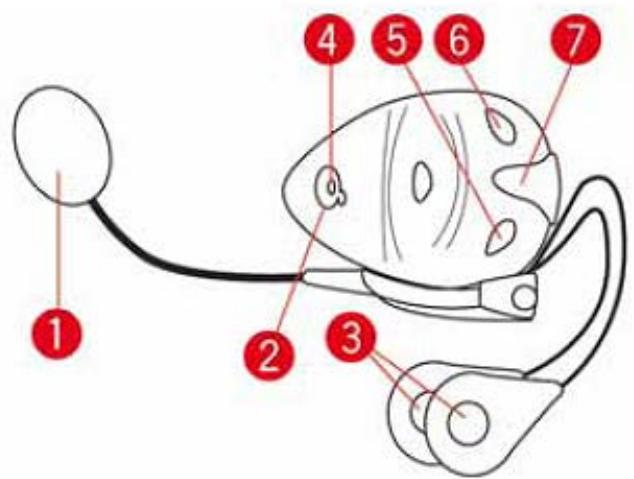
- Microphone
- On/off button
- Speakers
- LED
- Volume down
- Volume up
- Charging connector
Before you can use your Bluetooth headset, fully charge the headset using the charger supplied with the headset.
Switching on
Your TomTom Rider switches on when you switch your motorcycle ignition on. Your TomTom Rider switches off when you switch your ignition off.
The first time you switch on your TomTom Rider, it may take up to 20 seconds to start.
Before you use your TomTom Rider for the first time, it's a good idea to charge it fully.
The battery in your TomTom Rider navigation device charges when you connect it to the home charger or to your computer.
Note: You should plug the USB connector directly into a USB port on your computer and not into a USB hub or USB port on a keyboard or monitor.
Tip: To switch your TomTom Rider on when your motorcycle engine is not running, press and hold the On/Off button for 2 seconds, or until your TomTom Rider starts. To switch off your TomTom Rider, press and hold the On/Off button for 2 seconds.
Setting up
Important: Take care to select the correct language as the language you choose will be used for all text on the screen.
When you first switch on your device, you have to answer a few questions to set up the device. Answer the questions by tapping the screen.
GPS reception
Your TomTom Rider must be outside to be able to locate your current position. Make sure that you are in an open place without tall buildings or trees around you.
The first time you start your TomTom Rider, it can take a few minutes for the device to find your current position. In the future, your position will be found much faster, normally within a few seconds.
Your TomTom Rider does not transmit your location, so others cannot use it to track you while you are driving.
TomTom Rider uses a GPS receiver to locate your current position.
Using the anti-theft solution
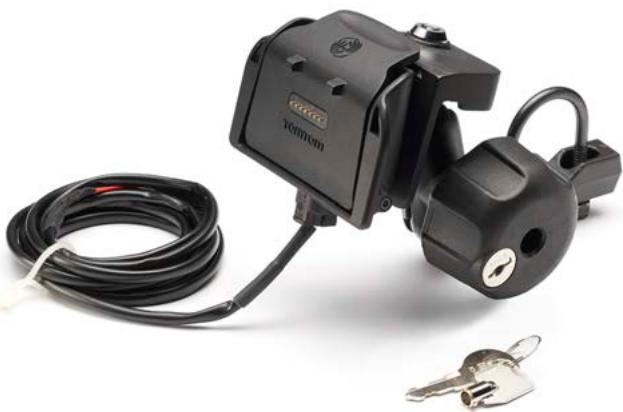
If your box includes an anti-theft solution, it is supplied in two parts:
- A RAM lock for the mount.
This lock prevents the unscrewing of the RAM arm from the bike.
A lock for the TomTom Rider itself.
This lock prevents the disconnection of the TomTom Rider from the dock.
Important: Both locks have keys so you need to make sure that you keep these two extra keys with you at all times!
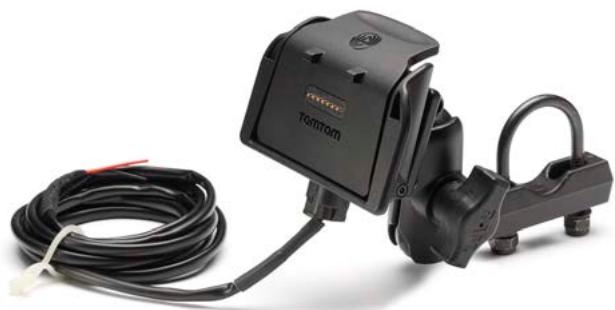
TomTom Rider shown without locks
TomTom Rider shown with both locks
Safety messages
Safety messages
Please read and take note of the following important safety advice:
- Check your tyre pressures regularly.
Service your vehicle regularly. - Medication can affect your riding or driving ability.
Always use seat belts if available. - Don't drink and drive.
Most accidents happen less than 5km from home.
Obey the rules of the road.
Always use your turn indicators.
Every 2 hours, take a break for at least 10 minutes. - Keep your seat belts on.
- Keep a safe distance from the vehicle in front.
Before setting off on a motorbike, fasten your helmet correctly. - When riding a motorbike, always wear protective clothing and equipment.
- When riding a motorbike, be extra vigilant and always ride defensively.
About the Driving View
When your TomTom Rider navigation device starts for the first time, you are shown the Driving View along with detailed information about your current position.
Tap the centre of the screen at any time to open the Main Menu.
The Driving View
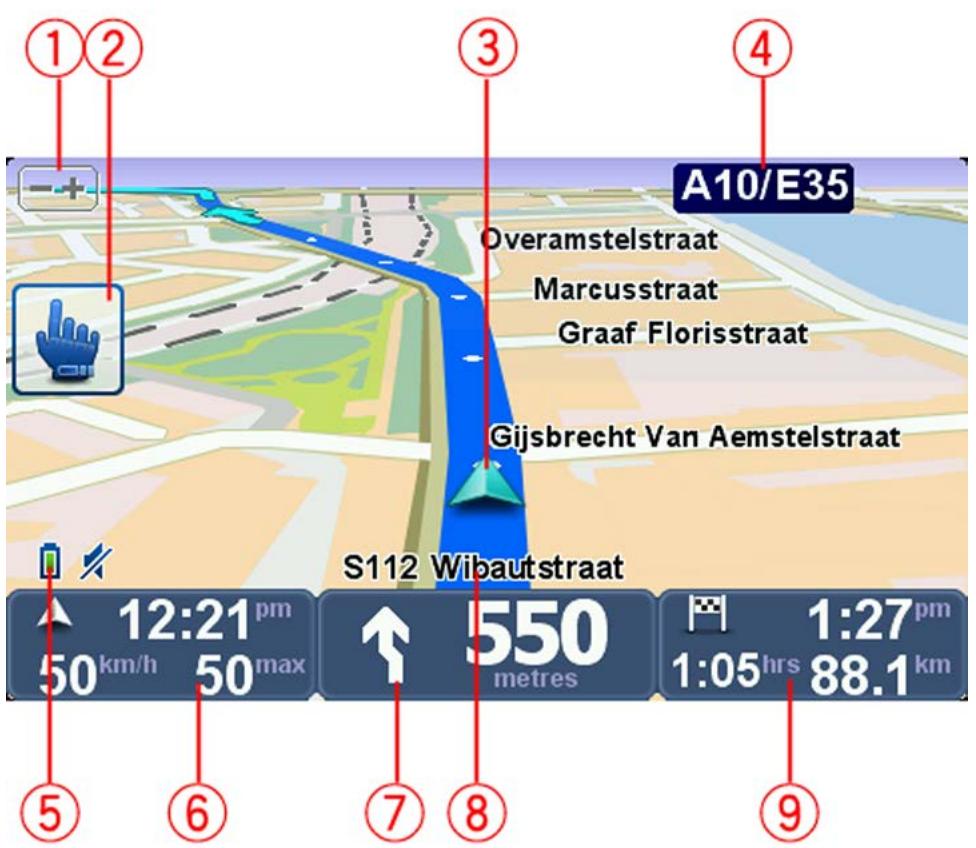
- Zoom button - tap this button to zoom in and out.
When tapped, large + and - buttons appear for easy use when wearing gloves.
- Quick menu.

Tip: When you see this symbol in the guide, it means that this is an option that can be added to your Quick Menu for easy access. For more information, see About the Quick Menu in this
- Your current position.
- The name of the next major road or road sign information, if applicable.
- Battery level indicator.
- Your speed and the speed limit, if known.
Tap this area to repeat the last spoken instruction and to change the volume. When tapped, large + and - buttons appear for easy use when wearing gloves.
- Navigation instruction for the road ahead.
Tap this panel on the status bar to switch between 2D and 3D views of the Driving View.

Quick Menu option!
- The name of the street you are on.
- The remaining journey time, the remaining distance and your estimated arrival time.
Tap this part of the status bar to open the Route Summary screen.
About the Main Menu
The Main Menu is the starting point for planning a route, looking at a map or changing your device settings.
To open the Main Menu from the Driving View, tap the centre of the screen.

Plan route
Plan winding route

Manage itineraries

sound

options

view map

done
To return to the Driving View from the Main Menu, tap done.
Main Menu buttons
The following buttons are shown on the Main Menu:

Plan route
Tap this button to plan a new route. This button is shown when you have not planned a route.

Change route
Tap this button to change the current route.
This button is only shown while there is a planned route on your device.
Plan winding route
Tap this button to plan a route that avoids unnecessary motorways and includes winding roads.
Manage itineraries
Tap this button to plan a journey that includes waypoints and your final destination. You can also access the route files saved on your device.
| sound | Quick Menu option! Tap this button to turn the sound off. |
| sound | Tap this button to turn the sound off. |
| options | Tap this button to adjust the settings for your device. For more information, see About Options in this guide. |
| view map | Tap this button to look at the map. |
About the Quick Menu
The Quick Menu offers a fast and safe way to use your TomTom Rider.
When you use the Quick Menu, the number of taps you need to make is reduced and this makes the device easier to use with gloves.
There are several Quick Menu items to choose from. You can choose just one or several depending on the features you use the most.

Tip: When you see this symbol in the guide, it means that this is an option that can be added to your Quick Menu for easy access.
Setting up the Quick Menu
To set up the Quick Menu, do the following:
- Tap the screen to bring up the Main Menu.
- Tap options in the Main Menu.
- Tap Quick menu preferences.
- Select one or more checkboxes next to the options you want to include in your Quick Menu.
- Tap Done.
Your Quick Menu is now ready to use. To use the Quick Menu, go to the Driving View and tap this button:

Using the Quick Menu
Here are some examples of how you can use the Quick Menu:
- Changing a route to include a petrol station normally requires 5-6 taps but when you use the Quick menu, you only need to tap twice.
- When you use the Call button in the Mobile phone menu, you can call any phone number, but it requires several taps. The Call button in the Quick Menu, however, is like a speed-dial button and allows you to call a pre-set number with very few taps.
- If you want to skip a waypoint on your scenic route, you can do with this with two taps in the Quick Menu by using Go to previous waypoint or Go to next waypoint. It takes at least six taps using the Main Menu.
Planning a winding route
- Tap the screen to open the Main Menu.
- Tap Plan winding route.
You can enter an address in various ways, but we will enter the full address.
- Tap Address.
- Tap Street and house number.
- Start to type the name of the town where your journey will begin and tap on the name when it appears in the list.
Tip: When you plan a route for the first time you are asked to select the country or state. Your choice is saved and used for all future routes. You can change this setting by tapping on the flag and selecting a new country or state.
- Enter the street name and the house number, then tap Done.
Tip: Before you start to enter a street name, City centre is shown at the top of the list. This is useful if you do not have an address and only need general directions.
- Tap Done.
The route is planned and a summary of the route is shown.
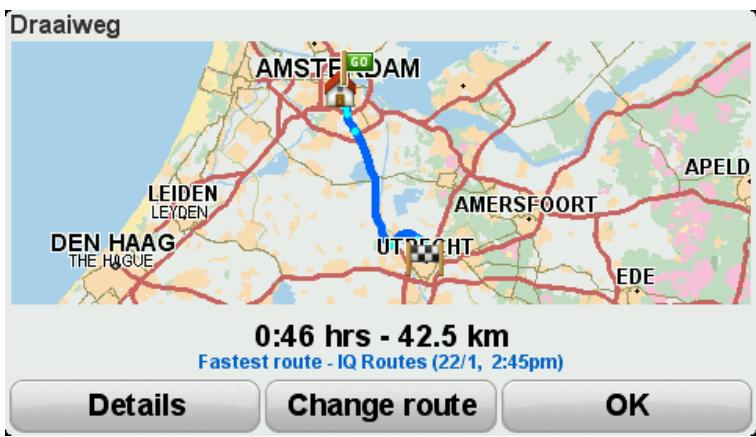
- Tap Done.
Your navigation device is ready to guide you to your destination.
Tip: If you are not happy with the selected route, tap Change route in the Route Summary screen to quickly see an alternative route.
Planning a route with a new starting point
To plan a route in advance of travelling or to use a starting point that isn't your current location, do the following:
- Tap the screen to open the Main Menu.
- Tap Plan route.
- Tap Depart from.
Navigate to...

Home

Favourite

Address

Recent destination

Point of Interest

Cancel
Depart from
You can enter an address in various ways, but we will enter the full address.
- Tap Address.
- Tap Street and house number.
"Navigate to...

city centre
Postcode


Street and house number
Crossing or intersection
Back
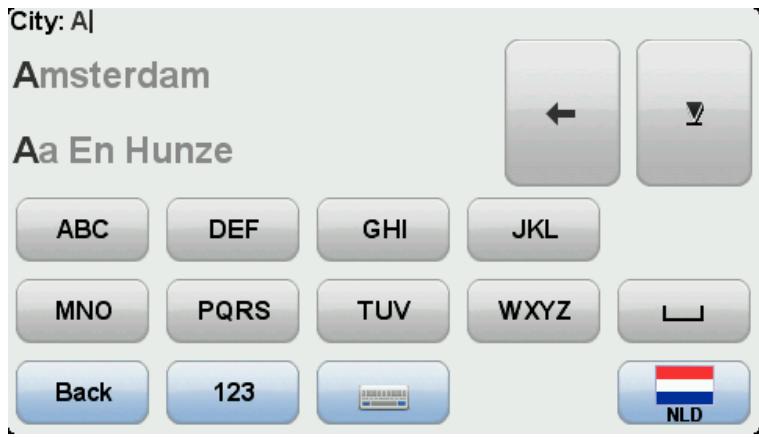
- Start to type the name of the town where your journey will begin and tap on the name when it appears in the list.
Tip: When you plan a route for the first time you are asked to select the country or state. Your choice is saved and used for all future routes. You can change this setting by tapping on the flag and selecting a new country or state.
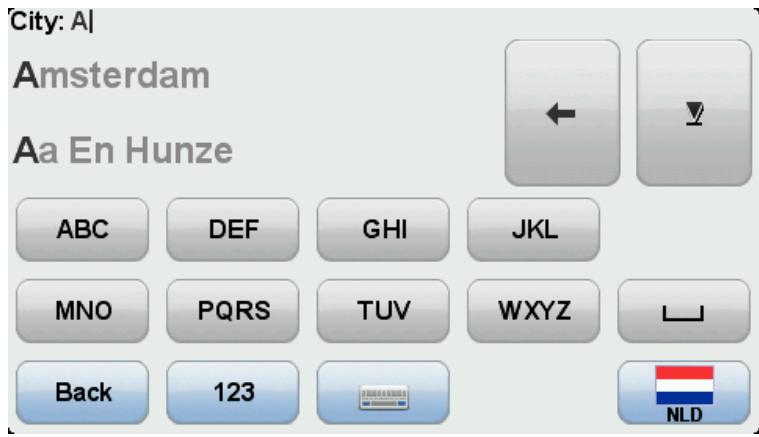
- Enter the street name and the house number, then tap Done.
Tip: Before you start to enter a street name, City centre is shown at the top of the list. This is useful if you do not have an address and only need general directions.
- Enter the destination address, then select Now when asked for the departure time and then tap Done.
The route is planned and a summary of the route is shown.
Tip: Quick Menu option! You can add route summary to the Quick Menu.

ick Menu option! You can add route summary to the Quick Menu.
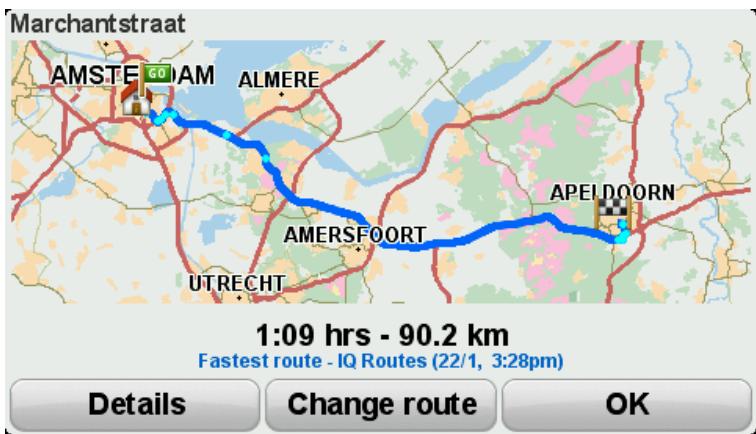
- Tap Done.
Your navigation device is ready to guide you to your destination.
Planning a route
- Tap the screen to open the Main Menu.
- Tap Plan route.
You can enter an address in various ways, but we will enter the full address.
3. Tap Address.
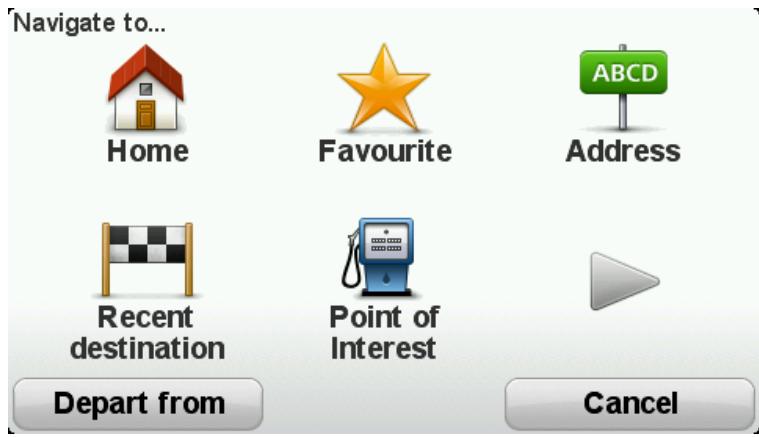
4. Tap Street and house number.
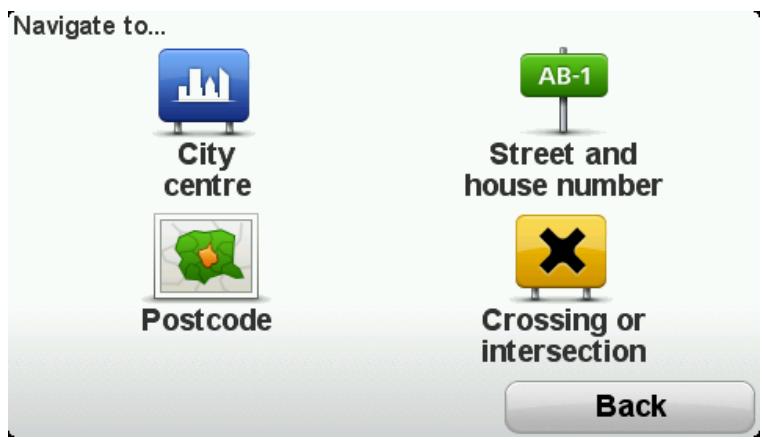
- Start to type the name of the town where your journey will begin and tap on the name when it appears in the list.
Tip: When you plan a route for the first time you are asked to select the country or state. Your choice is saved and used for all future routes. You can change this setting by tapping on the flag and selecting a new country or state.
- Enter the street name and the house number, then tap Done.
Tip: Before you start to enter a street name, City centre is shown at the top of the list. This is useful if you do not have an address and only need general directions.
- Tap Done.
The route is planned and a summary of the route is shown.
Tip:
Quick Menu option! You can add route summary to the Quick Menu.
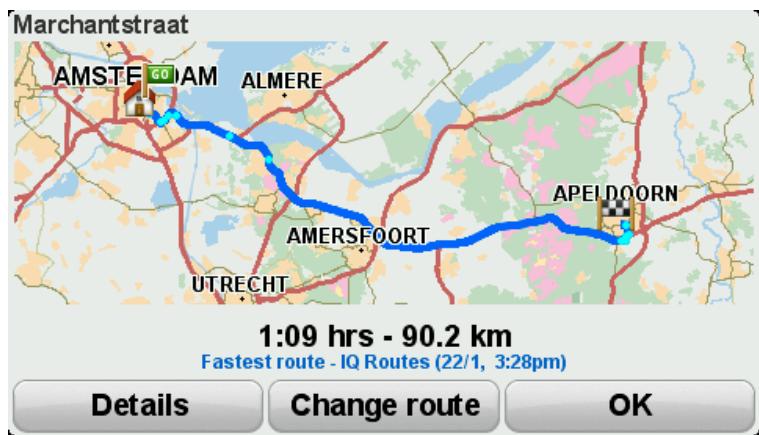
- Tap Done.
Your navigation device is ready to guide you to your destination.
About winding routes
The winding routes feature is for planning a route that avoids unnecessary motorways and includes winding roads, with the aim of making the route a fun and entertaining ride. When planning the route, your TomTom Rider tries to guide you out of the city as quickly as possible.
Switching on winding routes
- Tap the screen to bring up the Main Menu.
- Tap options.
- Tap Winding routes preferences.
Some locations in the world have a lot of winding roads, others have very few due to larger populations or lots of cities. If you think that the winding roads suggested in your area are too winding or not winding enough, you can change the relative amounts of different types of roads in your route.
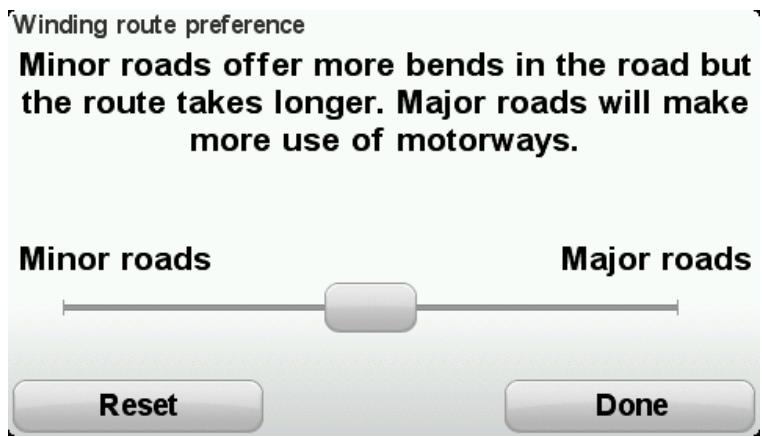
Move the slider to choose the extent to which minor or major roads are part of your route. Move the slider to the left to choose more winding roads.
Planning a winding route
- Tap the screen to open the Main Menu.
- Tap Plan winding route.
You can enter an address in various ways, but we will enter the full address.
- Tap Address.
- Tap Street and house number.
- Start to type the name of the town where your journey will begin and tap on the name when it appears in the list.
Tip: When you plan a route for the first time you are asked to select the country or state. Your choice is saved and used for all future routes. You can change this setting by tapping on the flag and selecting a new country or state.
- Enter the street name and the house number, then tap Done.
Tip: Before you start to enter a street name, City centre is shown at the top of the list. This is useful if you do not have an address and only need general directions.
- Tap Done.
The route is planned and a summary of the route is shown.
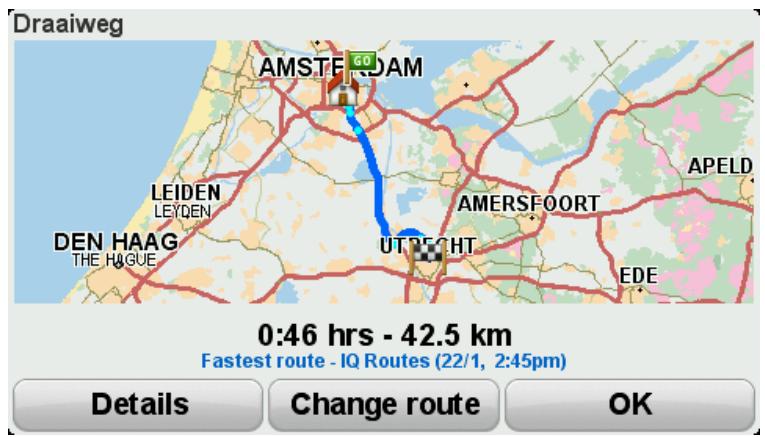
- Tap Done.
Your navigation device is ready to guide you to your destination.
Tip: If you are not happy with the selected route, tap Change route in the Route Summary screen to quickly see an alternative route.
Winding roads and itineraries
You can also use the winding routes feature in combination with the itinerary planner.
Tip: The range of winding routes offered to you depends on the availability of alternative streets and on the distance between the waypoints. Waypoints force your route along a specific road. The number of alternative winding routes is reduced if you choose a lot of waypoints or if waypoints are a short distance from each other. As a result, we recommend using the minimum number of waypoints in an itinerary if you want to use the winding route option.
There are two methods for using winding routes with itineraries. The first is to select just city centres and a route is planned bypassing those cities but using them as a guide. For example:
- City centre 1
- City centre 2
- City centre 3
- Home location
This method, as shown in the example above, calculates a route from your current position using the three city centres as a guide and finishes at your Home location.
The second method uses actual locations that you know you want to visit.
For more information, see Creating an itinerary with a winding route.
About lane guidance
Note: Lane guidance is not available for all junctions or in all countries.
Your TomTom Rider navigation device helps you prepare for motorway exits and junctions by showing the correct driving lane for your planned route.
As you approach an exit or junction, the lane you need is shown on the screen.
Using lane guidance
There are two types of lane guidance:
Lane images
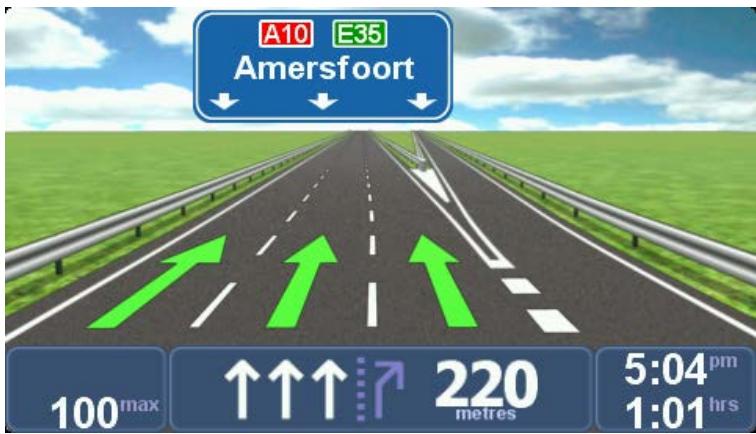
Lane images are permanently switched on.
Tip: Tap anywhere on the screen to return to the Driving View.
- Instructions in the status bar
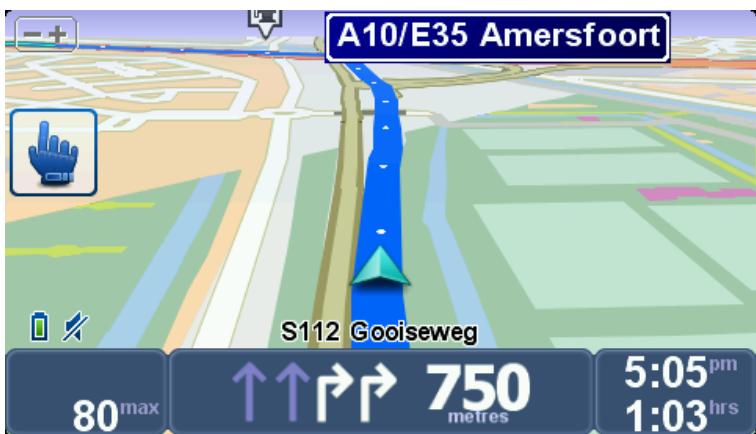
Lane guidance in the status bar can be switched on and off.
To switch off lane guidance in the status bar, tap options in the Main Menu, then tap Status bar settings. Clear the checkbox for Show lane guidance.
Tip: If no lane guidance is shown in the status bar and all lanes are highlighted, you can use any lane.
About Itineraries
An Itinerary is a plan for a journey including more locations than your final destination.
You could use an Itinerary for trips such as:
- A riding holiday through a country with lots of stops.
A two day bike ride with an overnight stop.
A short ride which passes by Points of Interest. - A scenic route from a friend that you downloaded using HOME or the internet.
In all these examples you could tap Navigate to... for each place. However, if you use an ltinerary, you can save time by planning everything in advance.
An Itinerary can include the following items:
- Destination - a location on your journey where you want to stop.
- Waypoint - a location on your journey where you want to travel through without stopping.


Destinations are shown using this symbol.
Waypoints are shown using this symbol.
Creating an Itinerary
- Tap the screen to bring up the Main Menu.
- Tap Manage itineraries.
- Tap Create new.
The Itinerary planning screen opens. At first, there are no items in the Itinerary.
- Tap Add and select a location.
Tip: You can add items to your itinerary in any order and rearrange the order later.
Start using an Itinerary
When you use an Itinerary to navigate, the route will be calculated to the first destination on the Itinerary. Your TomTom Rider calculates the remaining distance and time to the first destination and not for the whole Itinerary.
As soon as you start to use an Itinerary, the route is calculated from your current position.
When you have passed a waypoint or reached a destination, it is marked as visited.
Waypoints are shown on the map. Your device will not warn you when you are approaching a waypoint or when you arrive at a waypoint.
- Tap the screen to bring up the Main Menu.
- Tap Manage itineraries.
- Tap Start navigation.
You are asked if you want to leave from your current position.

Tip: You can add the following menu items to your Quick Menu: Continue Itinerary, Go to previous waypoint and Go to next way point.
Organising an Itinerary
To edit an itinerary, tap Manage itineraries and then tap Edit current.
Tap an item on your Itinerary to edit it. You then see a range of Itinerary editing features as shown below:
Mark as waypoint
You can change a destination into a waypoint using this button.
Remember that waypoints are points on your journey to your destination that you want to pass and destinations are places where you want to stop.
This button is only shown if the item you tapped is a destination.
Mark as destination
You can change a waypoint into a destination using this button.
Remember that destinations are places where you want to stop, and waypoints are points on your journey to your destination that you want to pass.
This button is only shown if the item you tapped is a waypoint.
Mark "visited"
Tap this button to miss out part of your Itinerary. Your TomTom Rider will ignore this item and all the items before it in the Itinerary.
It will navigate you to the next item in the Itinerary.
This button is only shown if you are still due to visit this item.
| Mark " to visit" | Tap this button to repeat part of your Itinerary. Your device will navigate you to this item followed by the rest of the items in the Itinerary. This button is only shown if you have already visited this item. |
| Move item up | Tap this button to move the item up the Itinerary. This button is unavailable if the item is at the top of the Itinerary. |
| Move item down | Tap this button to move the item down the Itinerary. This button is unavailable if the item is at the bottom of the Itinerary. |
| Show on map | Tap this button to see the location of the item on the map. |
| Delete item | Tap this button to delete the item from the Itinerary. |
Sharing an Itinerary
To share an itinerary with a friend using Bluetooth, do the following:
Sending a file
- Tap the screen to bring up the Main Menu.
- Tap Manage itineraries.
- Tap Share.
- Tap Send to another device.
- Make sure that the other device is ready to receive the file and then tap Continue.
- Choose the device from the list.
- Tap the itinerary file that you want to share.
The file is sent.
Receiving a file
- Tap the screen to bring up the Main Menu.
- Tap Manage itineraries.
- Tap Share.
- Tap Receive from another device.
- If the file is waiting already, tap Yes to receive it.
Tip: Your device name is TomTom RIDER.
Deleting an Itinerary
- Tap the screen to bring up the Main Menu.
- Tap Manage itineraries.
- Tap Delete.
Your list of itineraries opens.
- Tap an itinerary to select it.
- Tap Yes to confirm that you want to delete the itinerary.
Sorting or reversing an Itinerary
To sort or reverse an itinerary, tap Manage itineraries, followed by Edit current and then Options:
Sort from my location
To sort the Itinerary into an order which starts from your current location, tap Sort from my location.
This is useful if you are following a scenic route you downloaded using HOME or the internet.
Use this option to drive directly to the closest point on the route and then follow the route from there, instead of starting at the official starting point of the Itinerary.
Saving an Itinerary
To save an itinerary with a new name or overwrite an existing stored itinerary, do the following:
- Tap the screen to bring up the Main Menu.
- Tap Manage itineraries.
- Tap Edit current.
Your current itinerary opens.
- Make your changes.
- Tap Options.
- Tap Save route.
- Enter a new name for your itinerary or leave the name as it is if you wish to overwrite the existing stored version.
- Tap Done.
Creating an itinerary with a winding route
You can use the winding route feature in combination with the Itinerary planner.
Tip: The range of winding routes offered to you depends on the availability of alternative streets and on the distance between the waypoints. Waypoints force your route along a specific road. The number of alternative winding routes is reduced if you choose a lot of waypoints or if waypoints are a short distance from each other. As a result, we recommend using the minimum number of waypoints in an itinerary if you want to use the winding route option.
Note: Ensure that winding routes are switched on before you create your itinerary.
- Tap the screen to bring up the Main Menu.
- Tap options.
- Tap Itinerary planning.
-
Tap Add and select a location.
-
If you choose city centres, your itinerary looks like this:
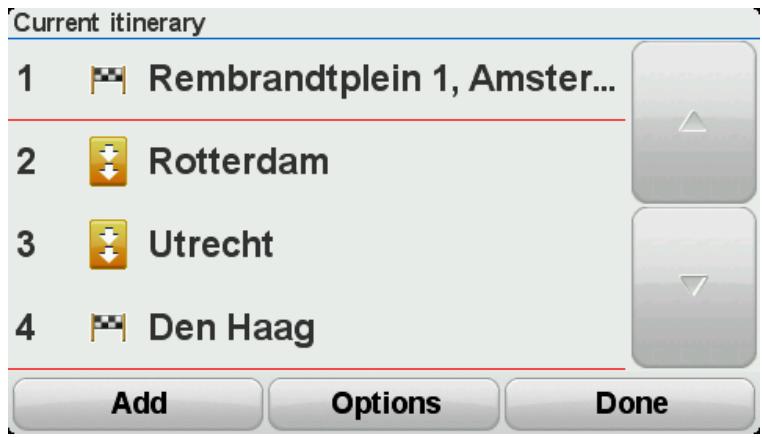
A route is planned using the city centres as a guide for planning the winding road. You are not directed into the city centres as a part of your route.
Note: To plan a circular route using city centres, the city centres should be at least 30km apart.
- If you choose specific locations in your itinerary, your route takes you to your waypoints and destination using winding roads.
- Tap Done. When asked if you wish to navigate to the first destination now, select Winding routes as your route type.
Changing your route
Making changes to your route
After you plan a route, you may want to change the route or even the destination. There are various ways to change your route without the need to completely replan the entire journey.
To change the current route, tap Change route in the Main menu:

Change route
Tap this button to change the current route.
This button is only shown while there is a planned route on your device.
Change route menu
To change the current route or your destination, tap one of the following buttons:
Avoid roadblock

Quick Menu option!
Tap this button while driving on a planned route, to avoid a roadblock or traffic congestion on the road ahead.
Your device will suggest a new route which avoids the roads on your current route for the selected distance.
If the roadblock or traffic congestion suddenly clears, tap Recalculate route to replan your original route.
Important: Be aware that when a new route is calculated, you might immediately be asked to turn off the current road.
Calculate alternative

Quick Menu option!
Tap this button to find an alternative to the current route.
This button is only shown while there is a planned route on your TomTom Rider device.
This is a simple way to search for a different route to your current destination.
Your device calculates a new route from your current location, to reach your destination using completely different roads.
The new route is shown next to the original route so that you can select the route you want to use.
Show another
Tap this button to show another winding route.
This button is only shown when there is a planned winding route on your TomTom Rider device.

Travel via...
Tap this button to change your route by selecting a location you want to travel past, maybe so you can meet someone on the way.
When you select a location to travel past, you are shown the same options and asked to enter the new address in the same way as when you plan a new route.
Your device calculates the route to your destination via the selected location.
The selected location is shown on the map using a marker.
You receive a warning when you reach your destination and when you travel past a marked location.

Plan new route
Tap this button to plan a new route. When you plan a new route, the old one is deleted.
Clear route

Quick Menu option!
Tap this button to delete the current route.

Change waypoint

Quick Menu option!
Tap this button to go to the next or previous waypoint in your current Itinerary.
Recording your route
About recording your route
There are several reasons why you may want to record a route. You may be on the riding holiday of a lifetime and want to share the route with fellow bikers or you may simply wish to build a collection of your favourite routes.
When the recording of a route stops, two files are created. The first file is a GPX file that holds very detailed information and can be viewed with software such as Google Earth.
The second file is an ITN file that can be shared with other TomTom users and can be used to drive the route again using the Itinerary feature.
You can also download GPX files from the internet and convert them to ITN files for sharing and riding using the Itinerary feature.
Tip: You can also use Tyre to create, find and share routes. With one mouse click you can copy the routes that you make with Tyre to your TomTom Rider. See Installing Tyre.
Starting route recording
Important: You need at least 5Mb of free space on your TomTom Rider before starting to record a route.

Quick Menu option!
To start recording your route, do the following:
- Tap the screen to bring up the Main Menu.
- Tap options.
- Tap Start recording.
Tip: You can also select Record my GPS location in Quick menu preferences. You can then tap Start recording in the Quick Menu in the Driving View.
As you ride, your TomTom Rider records your position every few seconds. During recording, you can continue to use your TomTom Rider as normal. You can safely turn your device off and on during recording.
Uploading and sharing routes
Installing Tyre
Tyre, a tool for managing routes, has been included with your TomTom Rider. Tyre enables you to search, design and edit routes, send them to your device and share them with other riders.
To install Tyre, do the following:
- Connect your TomTom Rider to your PC using the supplied USB cable. A drive called "RIDER" appears in Windows Explorer.
- In Windows Explorer, double click on the RIDER drive to open it. Look for a file called "TyreSetup".
- Double click on the file "TyreSetup" to start the Tyre installer. Follow the instructions to install Tyre on your PC.
- Once installed, use Tyre to import, create or edit routes. Use the menu to send the route to your TomTom Rider or share it with other riders.
Tyre FAQs
I want to install Tyre using TomTom HOME, but I don't know how to do that.
See Installing Tyre.
After starting up Tyre, I don't see a map. What can I do?
Most likely your computer is infected with malware, that is prohibiting the map to be displayed.
Use the malware scanner from Malwarebytes to clean your computer:
www.malwarebytes.org/products/malwarebytes free
For your information: some people who were thinking that their computers were free from malware, because they were using a malware scanner themselves already, discovered that the scanner from Malwarebytes detected some other malware, and that removing that malware solved their problem!
Tyre is very slow or seems to freeze. What is going on?
This behaviour occurs when MS Internet Explorer is not installed on your system or when it is not up-to-date. Furthermore it may occur when your file contains a lot of waypoints or POIs. It is just Windows slowing down as memory fills up.
Depending on the number of waypoints or POIs and the speed of your computer, Tyre may seem to hang. It is not really hanging, but it might take a lot of time for the activity to complete.
We recommend to use a maximum of 100 waypoints or POIs for one file. If there are more, split the file, using 'Split' or 'Reduce' from the 'File' menu.
Is there a Tyre version for Mac computers?
We have lots of plans to port Tyre to other platforms. But since we are just a small company, it will take some time to realise them.
For the time being, you might consider installing a Windows emulator (like WINE, a piece of free software) on your Mac. It will create a Windows environment on your computer. You can use that environment to run Tyre.
On opening the map, I get an error message.
There might be an error in the settings of your Internet Explorer. Follow these steps:
- Open your Internet Explorer.
- Select Tools > Internet Options > Advanced tab > Restore Advanced Settings.
- Restart Tyre and your Internet Explorer.
About GPX files
Contents
A very detailed recording of where you have been on your route, including any off-road locations.
Location
GPX folder on your TomTom Rider.
Using the file
There are several things you can do with your GPX file:
Use Tyre to view your route file.
- Connect your TomTom Rider to your computer and view the file using software such as Google Earth.
Note: While viewing your recording, you may notice that the recorded GPS locations do not always correspond with the roads. This can happen for several reasons. Firstly, your device tries to keep the files small and this can cause a slight loss of data precision. Secondly, your device records the actual data from the GPS chip for an accurate representation of where you've been, rather than what you see on your screen. Thirdly, the software with which you view the recording may have the maps misaligned.
- Share the file with friends by sending it using email or the internet on your computer.
Receiving a GPX file
If you receive a GPX file from a friend or download one from the internet, your TomTom Rider can convert it into an Itinerary. You can then use the Itinerary to follow the route with navigational instructions.
Converting a GPX file into an itinerary
To convert a GPX file into an Itinerary, you can use one of the following two methods:
Using Tyre
- Open the GPX file in Tyre.
- Click the button to copy the route to your TomTom Rider.
Tyre converts the file to an Itinerary automatically.
Using manual conversion
- Connect your TomTom Rider to your computer.
- Place your GPX files in the GPX2ITN folder on your device.
- Disconnect your device from the computer.
- Turn your device on.
Each file is then converted into an ITN file. You can convert up to 50 files in one batch.
- When the conversion has finished you can load your Itinerary. In the Main menu, tap Manage itineraries, then Open.
About ITN files
Contents
This file contains less detail than the GPX file but it allows you to retrace your route using the Itinerary feature of your device. The ITN file can contain a maximum of 100 locations but that is enough to recreate a route accurately.
Location
ITN folder on your TomTom Rider.
Using the file
There are several things you can do with an ITN file:
- You can load a recorded route onto your TomTom Rider so you can travel that same route again and get navigation instructions.
- Share the file with other TomTom users by sending it using a Bluetooth connection. To do this, tap Manage itineraries in the Main Menu, followed by Share.
Receiving an ITN file
If you receive an ITN file, you can load it using your TomTom Rider.
You can receive an ITN file in the following ways:
From a friend using Bluetooth.
Download one from the internet.
- Copy one using Tyre.
Receive one using HOME.
Loading an ITN file
To load an ITN file, do the following:
- Tap the screen to bring up the Main Menu.
- Tap Manage itineraries.
- Tap Open.
Tip: After loading a scenic route, if you are asked for a route type, select Shortest route to give you the closest representation of the original route.
Note: If you load an Itinerary that uses a map that is not on your device, the waypoints on the missing map appear crossed out and in orange.
About viewing the map
You can view the map in the same way as you might look at a traditional paper map. The map shows your current location and many other locations such as Favourites and POIs.
To view the map in this way, tap view map in the Main menu.
You view different locations on the map by moving the map across the screen. To move the map, touch the screen and drag your finger across the screen.
To select a location on the map, tap the location on the map. The cursor highlights the location and displays useful information about the location in an information panel. Tap the information panel to create a Favourite or plan a route to that location.
View map
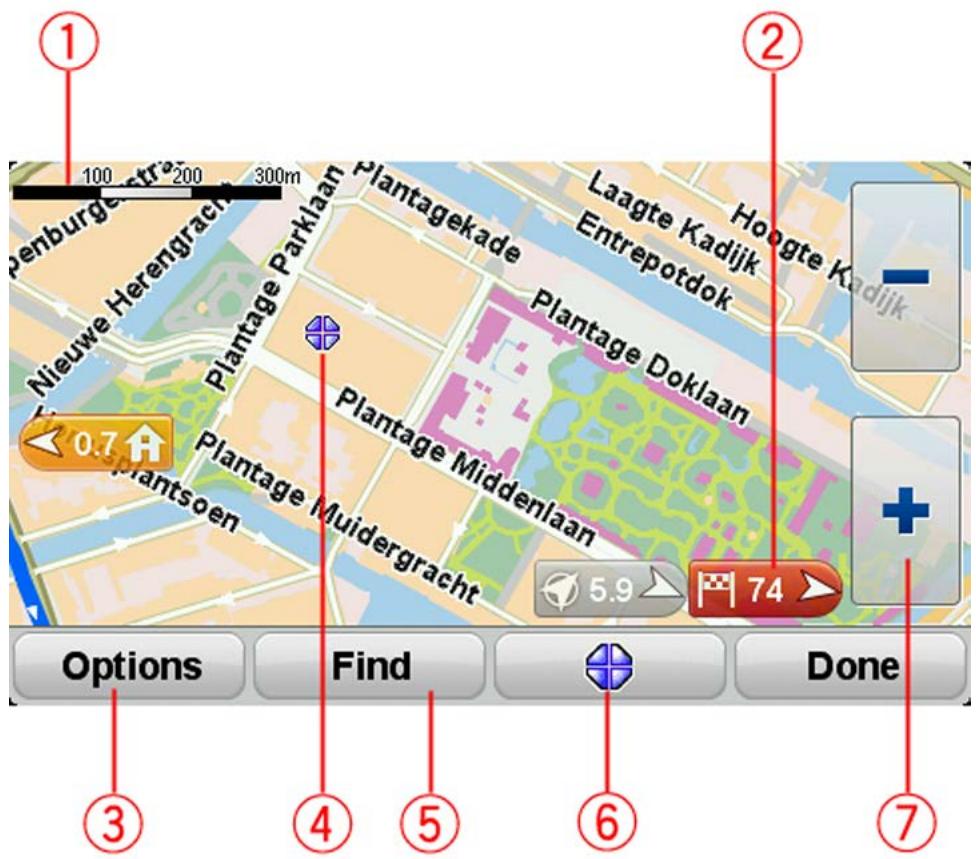
- The scale bar
- Marker
A marker shows the distance to a location. Markers are coloured as follows:
- Blue - points to your current location. This marker is grey if you lose your GPS signal.
- Yellow - points to your home location.
Red - points to your destination.
Tap a marker to centre the map on the location pointed to by the marker.
To turn markers off, tap Options, then Advanced and clear the Markers checkbox.
- Options button
Tap this button to choose whether POIs, Favourites, names, markers and coordinates are shown.
-
The cursor with street name balloon.
-
The Find button
Tap this button to find specific addresses, favourites or Points of Interest.
- The cursor button.
Tap this button to plan a route to the cursor position, create a Favourite at the cursor position or find a Point of Interest near to the cursor position.
- The zoom bar
Zoom in and out by tapping the glove-friendly buttons.
Options
Tap the Options button to set the information shown on the map and show the following information:
- Points of interest - select this option to show POIs on the map. Tap Choose POIs to choose which POI categories are shown on the map.
- Favourites - select this option to show your Favourites on the map.
Tap Advanced to show or hide the following information:
- Markers - select this option to enable markers. Markers point to your current location (blue), your home location (yellow) and your destination (red). The marker shows the distance to the location.
Tap a marker to centre the map on the location which the marker is pointing to.
To disable markers, tap Options, then tap Advanced and unselect Markers.
- Coordinates - select this option to show GPS coordinates in the lower left corner of the map.
- Names - select this option to show street and city names on the map.
Cursor menu
The cursor can be used to do more than highlight a location on the map.
Position the cursor on a location on the map, then tap the cursor menu button. Tap one of the following buttons:

Navigate there
Tap this button to plan a route to the cursor position on the map.
Tap this button to find a POI near the cursor position on the map.
For example, if the cursor currently highlights a restaurant location on the map, you can search for a nearby parking garage.
Find POI nearby
| Add as Favourite | Tap this button to create a Favourite at the cursor position on the map. |
| Add as POI | Tap this button to create a POI at the cursor position on the map. |
| Call... | Tap this button to call the location at the cursor position. This button is only available if your TomTom Rider has the phone number for the location. The phone numbers for many POIs are available on your TomTom Rider. You can also call the phone numbers of your own POIs. |
| Travel via... | Tap this button to travel via the cursor position on the map as part of your current route. Your destination remains the same as before, but your route now includes this location. This button is only available while there is a planned route. |
About Map Share
Map Share helps you correct map errors. You can correct several types of map error.
To make corrections to your own map, tap Map corrections in the Options menu.
Note: Map Share is not available in all regions. For more information, go to tomtom.com/mapshare.
Correcting a map error
Important: For safety reasons, do not enter the full details of a map correction while you are driving. Mark the location of the map error instead and enter the full details later.
To correct a map error, do the following:
- Tap Map corrections in the Options menu.
- Tap Correct a map error.
- Select the type of map correction you want to apply.
- Select how you want to select the location.
- Select the location. Then tap Done.
- Enter the details of the correction. Then tap Done.
- Select whether the correction is temporary or permanent.
- Tap Continue.
The correction is saved.

Tip: You can add Mark location of map error to the Quick Menu.
Types of map correction
To make a correction to your map, tap Map corrections in the Options menu, then tap Correct a map error. There are several types of map correction available.

(Un)block street
Tap this button to block or unblock a street. You can block or unblock the street in one or both directions.
For example, to correct a street near to your current location, do the following:
- Tap (Un)block street.
- Tap Near you to select a street near your current location. Alternatively, you can select a street by name, a street near your Home location or a street on the map.
- Select the street or section of a street you want to correct by tapping it on the map.
The street you select is highlighted and the cursor shows the name of the street.
- Tap Done.
Your device shows the street and whether the traffic is blocked or allowed in each direction.
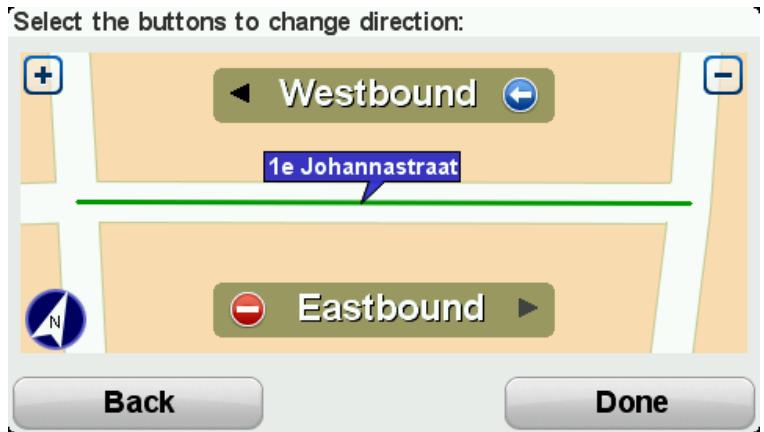
- Tap one of the direction buttons to block or unblock the flow of traffic in that direction.
- Tap Done.
Reverse traffic direction
Tap this button to correct the traffic direction of a one-way street, where the direction of traffic is different from the direction shown on your map.
Note: Reverse traffic direction only works for one-way streets. If you select a two-way street you will be given the chance to block/unblock the street rather than changing the direction.
Edit street name
Tap this button to change the name of a street on your map.
For example, to rename a street near to your current location:
- Tap Edit street name.
- Tap Near you.
- Select the street or section of a street you want to correct by tapping it on the map.
The street you select is highlighted and the cursor shows the name of the street.
- Tap Done.
| Tip: If the highlighted section is not correct, tap Edit to change individual road sections. | |
| 5. Type the correct street name. | |
| 6. Tap Continue. | |
| Change turn restrictions | Tap this button to change and report incorrect road turn restrictions. |
| 60 Change road speed | Tap this button to change and report the road speed limit. |
| Add or remove roundabout | Tap this button to add or remove a roundabout. |
| Add missing POI | Tap this button to add a new Point of Interest (POI). For example to add a new restaurant near to your current location:1. Tap Add missing POI.2. Tap Restaurant in the list of POI categories.3. Tap Near you.You can select the location by entering the address or by selecting the location on the map. Select Near you or Near home to open the map at your current location or at your Home location4. Select the location of the missing restaurant.5. Tap Done.6. Type the name of the restaurant then tap Next.7. If you know the telephone number of the restaurant you can type it, then tap Next.If you don't know the number, just tap Next without typing a number.1. Tap Continue. |
| Edit POI | Tap this button to edit an existing POI.You can use this button to make the following changes to a POI: · Delete the POI. · Rename the POI. · Change the telephone number of the POI. · Change the category that a POI belongs to. · Move the POI on the map. |
Comment on POI
Tap this button to enter a comment about a POI. Use this button if you cannot edit the error with the POI using the Edit POI button.
Correct house number
Tap this button to correct the location of a house number. Enter the address that you wish to correct and then indicate on the map the correct location of that house number.
Existing street
Tap this button to edit an existing street. Once you have selected the street, you can select an error to report. You can select more than one type of error for a street.
Missing street
Tap this button to report a missing street. You have to select the start and end points of the missing street.

City
Tap this button to report an error about a city, town or village. You can report the following types of error:
City is missing
- Wrong city name
Alternative city name
Other
Motorway entrance/exit
Tap this button to report an error about a motorway entrance or exit.
Postcode
Tap this button to report an error about a postcode.
Other
Tap this button to report other types of corrections.
These corrections are not immediately applied to your map but are saved in a special report.
You can report missing streets, errors in motorway entrances and exits and missing roundabouts. If the correction you want to report is not covered by any of these report types, enter a general description then tap Other.
About sounds and voices
Your TomTom Rider device uses sound for some or all of the following:
- Driving directions and other route instructions
Warnings that you set
Hands-free phone calls
Human voices are available for your device. These voices are recorded by an actor and only provide route instructions.
Sound and volume control
To adjust the volume level, tap the left-hand section of the status bar in the Driving View. The last spoken instruction is repeated and the volume level is shown. Tap the glove-friendly plus and minus buttons to adjust the volume.
Alternatively add Volume to the Quick Menu.

Quick Menu option!
To turn the sound on or off, tap sound in the Main Menu or add Switch sound on/off to the Quick Menu.

Quick Menu option!
Change voice

Change voice
Your navigation device is able to provide spoken instructions and warnings using voices which are stored on the device. Recorded voices are used for spoken instructions and cannot read aloud street names.
To select a different voice on your device, tap Change voice in the Voices menu. Then select a voice from the list.
You can add and remove voices using TomTom HOME.
Disable voice / Enable voice

Disable voice
Tap this button to switch off voice guidance. You will no longer hear spoken route instructions, but you will still hear information such as, traffic information and warnings.
Note: If you change the voice on your TomTom Rider, then voice guidance is automatically switched on for the new voice.

Enable voice
Tap this button to switch on voice guidance and hear spoken route instructions.
Voice settings
Tap Voices and then Voice preferences. You can then choose from the following options:
Read early warning instructions
Select the checkbox if you want to have early warning instructions read to you such as "ahead, turn left".
Replace spoken instruction with a beep
Choose whether you want to spoken instructions to be replaced with a beep always, never or above a certain speed.
When you are talking on the phone, spoken instructions are always replaced with a beep so that you don't have two voices talking to you at once.
About Points of Interest
Points of Interest or POIs are useful places on the map.
Here are some examples:
- Restaurants
Hotels
Museums - Parking garages
Petrol stations
Note: Tap Map corrections in the Options menu to report missing POIs or edit existing POIs.
Creating POIs
Tip: For help on managing third party POIs, search for "Third party POIs" at: tomtom.com/support.
- Tap the screen to open the Main menu.
- Tap options.
- Tap Manage POIs.
- If there are no POI categories or the one you want to use does not exist, tap Add POI category and create a new category.
Every POI must be assigned to a POI category. This means you need to have created at least one POI category before you can create your first POI.
You can only add POIs to POI categories you have created.
For more information on creating POI categories, read Managing POIs.
- Tap Add POI.
- Select the POI category you want to use for the new POI.
- Tap a button to enter the POI address in the same way that you plan a route.
The POI is created and saved in the selected category.

Home
Tap this button to set your Home location as a POI.
This is useful if you decide to change your Home location, but first want to create a POI using the current Home address.

Favourite
Tap this button to create a POI from a Favourite.
You might want to create a POI from a Favourite because you can only create a limited number of Favourites. If you want to create more Favourites you need to delete some Favourites. To avoid losing a Favourite, save the location as a POI before you delete the Favourite.
Address
Tap this button to enter an address as a new POI.
When you enter an address, you can choose from four options.
City centre
Street and house number
- Postcode
Crossing or intersection

Recent destination
Tap this button to select a POI location from a list of places you have recently used as destinations.
Point of Interest
Tap this button to add a Point of Interest (POI) as a POI.
For example, if you are creating a category of POIs for your favourite restaurants, use this option instead of entering the addresses of the restaurants.

My location
Tap this button to add your current location as a POI.
For example, if you stop somewhere interesting, you can tap this button to create a new POI at the current location.
Latitude Longitude
Point on map
Tap this button to create a POI using the map browser.
Use the cursor to select the location of the POI, then tap Done.
Tap this button to create a POI by entering latitude and longitude values.
Using POIs to plan a route
When you plan a route, you can use a POI for the destination.
The following example shows how to plan a route to a car park in a city:
- Tap Plan route in the Main menu.
- Tap Point of Interest.
- Tap POI in city.
Tip: The last POI you viewed on your TomTom Rider device is also shown in the menu.
- Enter the name of the town or city and select it when it is shown in the list.
- Tap the arrow button to expand the list of POI categories.
Tip: If you already know the name of the POI you want to use, you can tap Search by name to enter the name and select this location.
- Scroll down the list and tap Car park.
- The car park closest to the city centre is shown at the top of the list.
-
The following list explains the distances shown next to each POI. How the distance is measured varies depending on how you initially searched for the POI:
-
POI near you - distance from your current location
- POI in city - distance from the city centre
POI near Home - distance from your Home location - POI along route - distance from your current location
-
POI near destination - distance from your destination
-
Tap the name of the car park you want to use and tap Done when the route has been calculated.
Your device starts to guide you to the car park.
Showing POIs on the map
You can select the types of POI locations you want to see on your maps.
- Tap Manage POIs in the Options menu.
- Tap Show POI on map.
- Select the categories you want to be shown on the map.
- Tap Done.
The types of POI you have selected are shown as symbols on the map.
Calling a POI
Many of the POIs on your TomTom Rider device include phone numbers. This means that you can use your device to call the POI and plan a route to the location of the POI.
Important: You should only call a POI when you are parked.
For example, you can search for a cinema, call to book a ticket and plan a route to the cinema, and all using your TomTom Rider device.
- Tap options.
- Tap Mobile phone.
- Tap Call...
- Tap Point of Interest.
- Select how you want to search for the POI.
For example, if you want to search for a POI on your route, tap POI along route.
- Tap the type of POI you want to call.
For example, if you want to call a cinema to reserve a ticket, tap Cinema and then select the name of the cinema you want to call. Then tap Call to make the phonecall.
Your TomTom Rider uses your mobile phone to call the POI.
Setting warnings for POIs
You can set a warning sound to be played when you approach a selected type of POI, such as a petrol station.
The following example will show how to set a warning sound to be played when you are 250 metres from a petrol station.
- In the Options menu, tap Manage POIs and then tap Warn when near POI.
- Scroll down the list and tap Petrol station.
Tip: To remove a warning, tap on the category name and then tap Yes. POI categories which have been set with a warning have a sound symbol next to the category name.
- Set the distance as 250 metres and tap OK.
- Select Sound effect and then tap Next.
- Select the warning sound for the POI and then tap Next.
- If you only want to hear the warning when the POI is directly on a planned route, select Warn only if POI is on route. Then tap Done.
The warning is set for the selected POI category. You will hear a warning sound when you are 250 metres from a petrol station on your route.
Manage POIs
Tap Manage POIs to manage your POI categories and locations.
You can set your TomTom Rider device to let you know when you are near to selected POI locations. In this way you could, for example, set the device to let you know you when you are approaching a petrol station.
You can create your own POI categories and add your own POI locations to these categories.
This means you can, for example, create a new POI category called Friends. You could then add all your friends' addresses as POIs in this new category.
Tap the following buttons to create and maintain your own POIs:
- Add POI - tap this button to add a location to one of your own POI categories.
- Warn when near POI - tap this button to set your device to warn you when you are near selected POIs.
- Delete POI - tap this button to delete one of your own POI categories.
Edit POI - tap this button to edit one of your own POIs. - Add POI category - tap this button to create a new POI category.
- Delete POI category - tap this button to delete one of your own POI categories.
About hands-free calls
If you have a mobile phone with Bluetooth® , you can use your TomTom Rider to make phone calls and send and receive messages.
Important: Not all phones are supported or compatible with all features. For more information, go to totom.com/phones/compatibility.
Using a headset
We recommend using a compatible headset with your TomTom Rider to hear spoken instructions, make and receive hands-free phonecalls and hear warning sounds on your TomTom Rider. This makes riding with your TomTom Rider as safe as possible. For more information and a full list of compatible headsets, go to tomtom.com/riderheadsets.
The instructions below describe how to set up a Bluetooth® headset. If you did not establish a Bluetooth connection between your Bluetooth headset and your TomTom Rider when you first turned your TomTom Rider on, you can establish the connection at any time by doing the following:
- Turn the headset on or off by following the instructions for your particular brand of headset.
- From the Main Menu, tap options.
- Tap Connect to headset and follow the instructions to establish the connection.
- Attach your headset to your helmet.
Make sure you position the microphone correctly. For best results, don't position the microphone directly in front of your mouth, position it just to the side of your mouth.
An image of the parts of a typical headset is shown below:
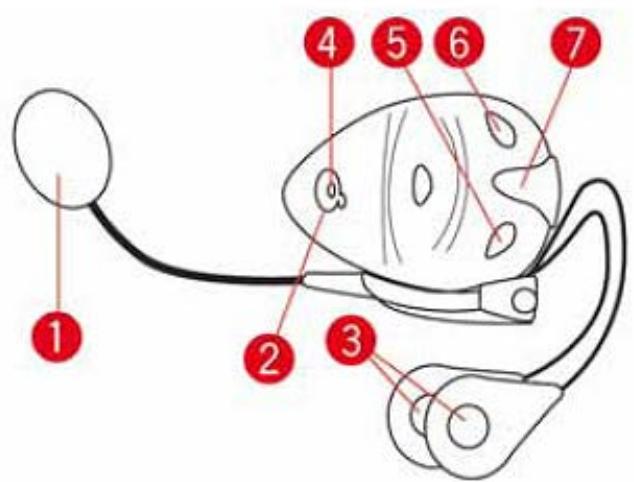
1. Microphone
- On/off button
- Speakers
- LED
- Volume down
- Volume up
- Charging connector
Before you can use your Bluetooth headset, fully charge the headset using the charger supplied with the headset.
Connecting to your phone
Important: To hear voice instructions, hands-free calls or warning sounds, you need to use a compatible headset with your TomTom Rider. For more information and a full list of compatible headsets, go to tomtom.com/riderheadsets.
First you must establish a connection between your mobile phone and your TomTom Rider.
Tip: Do not pair your headset with your mobile phone. If you do this you will not be connected to your TomTom Rider and will not hear any navigation instructions.
Tap Mobile phone in the Options menu. Tap Manage phones and select your phone when it is shown in the list.
You only need to do this once and your TomTom Rider will remember your phone.
Tips
- Make sure that you switch on Bluetooth® on your phone.
Make sure that your phone is set to 'discoverable' or 'visible to all'. - You may have to enter the password '0000' on your phone in order to connect to your TomTom Rider.
- To avoid having to enter '0000' every time you use the phone, save your TomTom Rider as a trusted device on your phone.
For additional information about Bluetooth settings, refer to your mobile phone user guide.
Your phonebook
You can copy your mobile phone address book to your TomTom Rider.
Tip: To copy the phonebook from your mobile phone to your TomTom Rider, tap Get numbers from phone.
Not all phones can transfer the phonebook to your TomTom Rider. For more information, go to tomtom.com/phones/compatibility.
Making a call using speed dial
When you have established a connection between your TomTom Rider and your mobile phone, you can use your TomTom Rider to make hands-free calls on your mobile phone.
To setup a speed dial number that is accessible from the Driving View, do the following:
- Tap Quick menu preferences in the Options menu
- Tap Call...
This displays the button in the Driving View.
-
Choose your speed dial number by tapping one of following buttons:
-
Tap Home to use your home number as your speed dial number.
If you have not entered a number for your home location this button is unavailable. - Tap Phone number to enter a phone number to use as your dial number.
- Tap Point of Interest to choose a POI number as your speed dial number.
If your device knows the phone number of a POI, this is shown next to the POI.
- Tap Phonebook entry to select a contact from your phonebook.
Note: Your phonebook is automatically copied to your TomTom Rider when you first establish a connection with your mobile phone.
Not all phones can transfer the phonebook to your device. For more information, go to tomtom.com/phones/compatibility.
- Tap Recently dialed to select from a list of people or numbers you have called recently to use as your speed dial number.
- Tap Recent caller to select from a list of people or numbers who called you recently.
Only calls you have received on your device are saved in this list.
- To use your speed dial number after you've set it up, tap the phone button in the Driving View.
Making a call
When you have established a connection between your TomTom Rider and your mobile phone, you can use your TomTom Rider to make hands-free calls on your mobile phone.
To make a phone call without using speed dial, do the following:
- Tap options.
- Tap Mobile phone.
- Tap Call...
-
Then tap one of the following buttons:
-
Tap Home to call your Home location.
If you have not entered a number for your Home location this button is unavailable.
- Tap Phone number to enter a phone number to call.
- Tap Point of Interest to choose a Point of Interest (POI) to call.
If your device knows the phone number of a POI, this is shown next to the POI.
- Tap Phonebook entry to select a contact from your phonebook.
Note: Your phonebook is automatically copied to your TomTom Rider when you first establish a connection with your mobile phone.
Not all phones can transfer the phonebook to your device. For more information, go to tomtom.com/phones/compatibility.
- Tap Recently dialed to select from a list of people or numbers you have called recently using your device.
- Tap Recent caller to select from a list of people or numbers who called you recently. Only calls you have received on your device are saved in this list.
Receiving a call
When someone calls you, the caller's name and phone number are shown. Tap the screen to accept or reject the call.
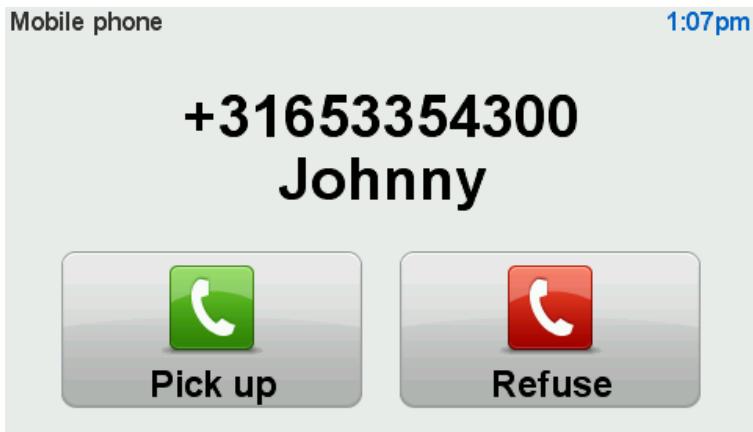
Tip: When you receive a call, the Driving View is automatically shown so you can keep seeing instructions. During a phone call you hear beeps instead of the actual instructions. This is so that you don't have two voices talking to you at once.
Auto-answer
You can set your TomTom Rider device to automatically answer incoming phone calls.
To set automatic answering, tap Mobile phone in the Options menu, then tap Phone preferences. Tap Auto-answer preferences.
Select how long your device will wait before automatically answering your calls, then tap Done.
Connecting more phones to your device
You can establish connections for up to 5 mobile phones.
To add more phones, do the following.
- Tap Mobile phones in the Options menu.
- Tap Manage phones.
- Tap Find another phone and follow the instructions.
To switch between phones, tap Manage phones. Then tap the button for the phone you want to connect to.
Mobile phone menu
Tap options and then tap Mobile phone to use the following options:
| Call | Quick Menu option! Tap this button to make a phone call using your mobile phone. This button also appears in the Driving View while a call is active. Tap this button in the Driving View to open the Call menu where you can see the details of the caller or end the call. |
| Redial | Tap this button to radial a telephone number using your mobile phone. |
| Manage phones | Tap this button to manage the mobile phones that will be connected to your TomTom Rider. You can add a profile for up to five different mobile phones. |
| Phone preferences | Tap this button to configure how your TomTom Rider communicates with your mobile phone. |
| Get numbers from phone | Tap this button to load the contacts and phone numbers from your mobile phone onto your TomTom Rider. |
| Important: Not all phones are supported or compatible with all features. | |
Favourites
About Favourites
Favourites provide an easy way to select a location without the need to enter the address. They do not need to be favourite places, they can simply be seen as a collection of useful addresses.
Creating a Favourite
To create a Favourite, do the following:
- Tap the screen to bring up the Main menu.
- Tap options.
- Tap Home and Favourites.
- Tap Add Favourite.
- Select the type of the Favourite by tapping one of the buttons described below:
Tip: You can type your own name for the Favourite when the keyboard is shown. To enter the name, there's no need to delete the suggested name, just start typing.

Home
You can set your Home location as a Favourite.

Favourite
You cannot create a Favourite from another Favourite. This option will always be unavailable in this menu.
To rename a Favourite, tap Home and Favourites then Rename Favourite in the Options menu.

Address
You can enter an address as a Favourite.

Recent destination
Create a new Favourite by selecting a location from a list of your recent destinations.
Point of Interest
If you visit a POI you particularly like, for example a restaurant, you can add it as a Favourite.
To add a POI as a Favourite, tap this button, then do the following:
- Narrow your choice of POIs by selecting the area where the POI is.
You can select one of these options:
- POI near you - to search from a list of POIs near your current position.
- POI in city - to choose a POI in a particular town or city. You have to specify a town or city.
- POI near Home - to search from a list of POIs near your Home location.
If you are currently navigating to a destination, you can also select from a list of POIs which are on your route or near your destination.
Choose one of these options:
-
POI along route
POI near destination -
Select the category of POI.
Tap the category of POI if it is shown or tap the arrow to choose from the complete list.
Tap Any POI category to search for a POI by name.

My location
Point on map

Latitude Longitude
Tap this button to add your current location as a Favourite.
For example, if you stop somewhere interesting, while you are there you can tap this button to create the Favourite.
Tap this button to create a Favourite using the Map Browser.
Select the location of the Favourite using the cursor, then tap Done.
Tap this button to create a Favourite by entering latitude and longitude values.
Using a Favourite
You can use a Favourite as a way of navigating to a place without having to enter the address. To navigate to a Favourite, do the following:
- Tap the screen to bring up the Main menu.
- Tap Plan route or Change route.
- Tap Favourite.
- Select a Favourite from the list.
Your TomTom Rider device calculates the route for you.
- When the route is calculated, tap Done.
Your device immediately starts guiding you to your destination with spoken instructions and visual instructions on the screen.
Changing the name of a Favourite
To change the name of a Favourite, do the following:
- Tap the screen to bring up the Main menu.
- Tap options.
- Tap Home and Favourites.
- Tap Rename Favourite.
- Tap the Favourite you want to rename.
Tip: Use the left and right arrows to choose another Favourite from your list.
- Tap Rename.
- Type in the new name and then tap OK.
- Tap Done.
Deleting a Favourite
To delete a Favourite, do the following:
- Tap the screen to bring up the Main menu.
- Tap options.
- Tap Home and Favourites.
- Tap Delete Favourite.
- Tap the Favourite you want to delete.
Tip: Use the left and right arrows to choose another Favourite from your list.
- Tap Delete.
- Tap Yes to confirm the deletion.
- Tap Done.
Change Home location

Home location
Tap this button to set or change your Home location. You enter the address in the same way as you do when you plan a route.
Your Home location provides an easy way to plan a route to an important location.
For most people, your Home location will be your home address. However, you might prefer to set the location to another regular destination, such as your workplace.

Quick Menu option!
Once a home location has been set, you can choose Home as part of
your Quick Menu.
About Options
You can change the way your TomTom Rider looks and behaves.
Tap options in the Main Menu.
Battery saving
Battery saving
To change the power saving settings, tap this button on your device.
Brightness preferences
Brightness preferences
Tap this button to set the brightness of the screen.
Move the sliders to set the brightness separately for day map colours and for night map colours.
Change map colours
Change map colours
Tap this button to select the colour schemes for day and night map colours.
Tap Advanced to scroll through colour schemes one at a time.
You can also download more colour schemes using TomTom HOME.
Change vehicle symbol
Change vehicle symbol
Tap this button to select the vehicle symbol that shows your current location in the Driving View.
Additional symbols can be downloaded using TomTom HOME.
Connect to headset
Tap this button to setup and connect your headset to your navigation device.
Connect to headset
Safety Alerts menu
Important: Outside of France, you receive warnings about speed cameras. Inside France, you receive warnings about danger zones. When you cross the border, the type of warning you receive changes.
To open the Danger zones menu, tap options in the Main Menu and then tap Danger zones.
Report danger zone
Tap this button to report a new danger zone location.
Change warning preferences
Tap this button to set when you receive warnings and the sound.
Disable danger zones
Tap this button to disable warnings.
Enable report button
Tap this button to enable the report button. The report button is shown in the Driving View or in the Quick Menu.
When the report button is shown in the Driving View, this button changes to Disable report button.
Help me

Help me

Quick Menu option!
You can use Help me to plan a route to local services, make contact by phone and inform the service about the precise details of your current location.
Tap Phone for help to view the location and contact details for a service.
Tap Drive to help to plan a route by bike to a service.
Home and Favourites

Tap this button to manage your Home and Favourite locations.
For more information, see About Favourites.
Home and Favourites
Keyboard preferences
Keyboard preferences
You use the keyboard to enter your destination or to find an item in a list, such as a POI.
Tap this button to select left or right-handed use, the type of keyboard characters you want to use, the size of the keys and the keyboard layout.
First choose whether you want to operate the keyboard using your left or right-hand.
Then select the type of keyboard from the following options:
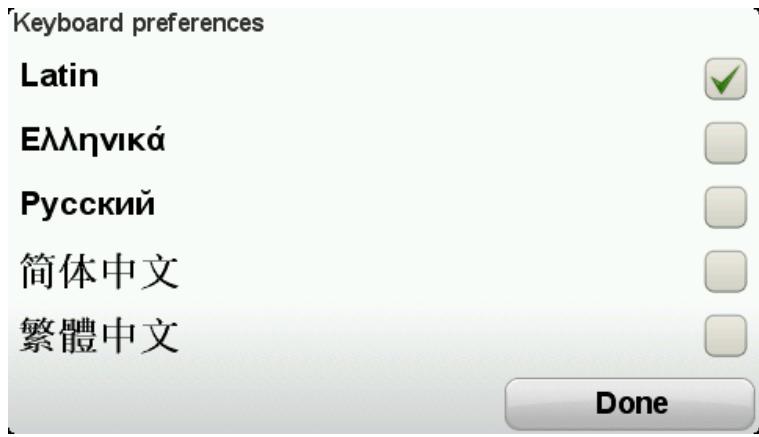
Thirdly, if you selected a Latin keyboard, choose between glove-friendly buttons or a range of keyboard layouts:
Use glove friendly keyboard (big buttons)
Use ABCD, QWERTY, AZERTY or QWERTZ keyboard
If you choose the glove-friendly keyboard, you see large buttons when entering addresses:
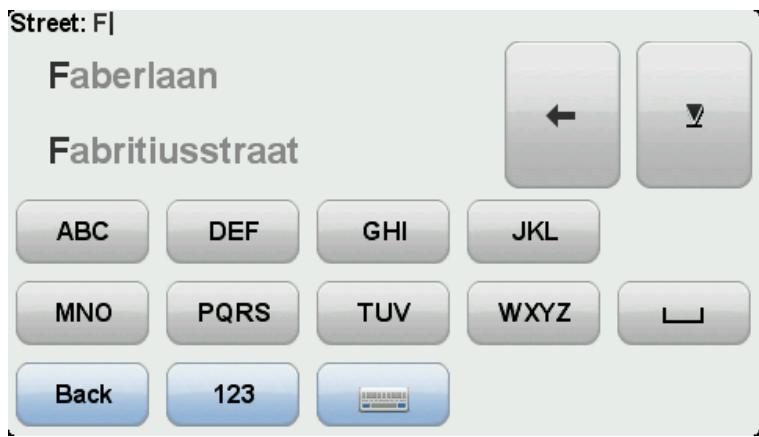
Language

Language
Tap this button to change the language used for all the buttons and messages you see on your device.
You can choose from a wide range of languages. When you change the language, you are also given the opportunity to change the voice.
Manage POIs
Manage POIs
Tap this button to manage your own Point of Interest (POI) categories and locations.
You can set your TomTom Rider device to let you know when you are near to selected POI locations. For example, you could set the device to let you know when you are approaching a petrol station.
You can create your own POI categories and add your own POI locations to these categories.
You can, for example, create a new POI category called Friends. You could then add all your friends' addresses as POIs in this new category. You can even add your friends' phone numbers with their address so you can call them from your TomTom Rider.
Tap the following buttons to create and maintain your own POIs:
- Show POI on map - tap this button to select the categories of POI shown on the map when riding.
- Warn when near POI - tap this button to set your device to warn you when you are near selected POIs.
- Add POI - tap this button to add a location to one of your own POI categories.
- Delete POI - tap this button to delete a POI.
Edit POI - tap this button to edit one of your own POIs. - Add POI category - tap this button to create a new POI category.
- Delete POI category - tap this button to delete one of your own POI categories.
Note: To hear spoken instructions, handsfree phonecalls and warning sounds on your TomTom Rider, you need to use a compatible headset. For more information and a full list of compatible headsets, go to totom.com/riderheadsets.
Map corrections
Map corrections
Tap this button to correct errors on your map.
Mobile phone menu
Tap options and then tap Mobile phone to use the following options:
| Call | Quick Menu option! Tap this button to make a phone call using your mobile phone. This button also appears in the Driving View while a call is active. Tap this button in the Driving View to open the Call menu where you can see the details of the caller or end the call. |
| Redial | Tap this button to radial a telephone number using your mobile phone. |
| Manage phones | Tap this button to manage the mobile phones that will be connected to your TomTom Rider. You can add a profile for up to five different mobile phones. |
| Phone preferences | Tap this button to configure how your TomTom Rider communicates with your mobile phone. |
| Get numbers from phone | Tap this button to load the contacts and phone numbers from your mobile phone onto your TomTom Rider. |
| Important: Not all phones are supported or compatible with all features. | |
Planning preferences
Planning preferences
Tap this button to set the kind of route planned when you select a destination.
The following options are available:
- Ask me every time I plan
Always plan fastest routes
Always plan shortest routes
Always plan eco routes
Always avoid motorways
Always plan walking routes
Always plan bicycle routes
Replanning preferences
Select whether or not you want your TomTom Rider to replan your route when a faster route is found while you drive. This might occur due to changes in the traffic situation.
Although your TomTom Rider cannot connect to a traffic receiver, it can still use measurements for average traffic speeds in your map from IQ Routes.
Planning for road types and crossings
Then set how your TomTom Rider should handle the following when planning a route:
Toll roads on the route
Ferry crossings on the route
HOV lanes on the route
- Carpool lanes
Unpaved roads
You can then set if the route summary screen closes automatically after you have planned a route. If you select No, you have to tap Done to close the route summary screen.
Quick Menu preferences

Quick Menu preferences
Tap this button to choose the options for easy access using the Quick Menu button in Driving View. Some of the options available are:
Petrol station
Call....
- Continue Itinerary
Report speed camera
- Trip statistics for today
For more information, see About the Quick Menu in this guide.
Reset factory settings

Reset factory settings
Tap this button to delete all your personal settings and restore the standard factory settings to your TomTom Rider device.
This is not a software update and will not affect the version of the software application installed on your device.
Important: This feature deletes all your personal settings!
If you want to keep your personal information and settings, you should perform a full backup of your device before you reset the device. You can then restore all your personal information and settings after you reset the device.
This includes items such as your Home and Favourite locations, your personal menu and your POI categories and POI locations.
Safety warnings
Safety warnings
Tap this button to select the safety features you want to use on your device.
Set clock
Set clock
Tap this button to select the time format and to set the time.
The easiest way to set the time is by tapping the Sync button. Your TomTom Rider will then take the time from GPS information.
Note: You can only use Sync if you have GPS reception, so you cannot set the clock in this way when you are indoors.
After using Sync to set the time, you may have to adjust the hours depending on your time zone. Your TomTom Rider works out your time zone and always keeps the time correct using GPS information.
Show compass
Show / hide compass
Tap this button to show or hide the compass in the Driving View.
The compass always shows the direction you are travelling. For example, if it points to the right, you are travelling to the East.
Speed Cameras menu
To open the Speed Cameras menu, tap options in the Main Menu and then tap Speed Cameras.
Report speed camera

Quick Menu option!
Tap this button to report a new speed camera location.
Change warning preferences
Tap this button to set the warnings you will receive and the sounds used for each warning.
Disable speed cameras
Tap this button to disable warnings.
Tap this button to enable the report button. The report button is shown in the Driving View or in the Quick Menu.
When the report button is shown in the Driving View, this button changes to Disable report button.
Start or Stop recording
Start recording
Tap this button to start recording your route.
As your TomTom Rider moves along on your bike, it records your position every few seconds. During recording, you can continue to use your TomTom Rider as normal. You can safely turn your device off and on during recording.
For more information, see About recording your route.
Stop recording
Tap this button to stop recording your route.
For more information, see About recording your route.
Start up
Start up
Tap this button to set what happens when your device starts.

Status & information
Tap this button to find technical information about your TomTom Rider.
Status bar preferences
Status bar preferences
Tap this button to select the information you want to see on the status bar:
Horizontal - show the status bar at the bottom of the Driving View.
- Vertical - show the status bar on the right-hand side of the Driving View.
Current time
Current speed
- Maximum speed - only available when speed (above) is also selected.
- Leeway to arrival time - the leeway is the difference between your preferred arrival time and your estimated arrival time.
Important: The speed limit is shown next to your current speed. If you drive faster than the speed limit, you see a warning indicator in the status
bar, for example the status bar pane turns red. Information about speed limits is not available for all roads.
- Arrival time - your estimated arrival time.
- Remaining time - the estimated time left until you reach your destination.
- Remaining distance - the distance to your destination.
- Lane guidance - If you choose this option, your device shows the lane you should take in the status bar for some exits and junctions.
Street name settings
Street name preferences
Tap this button to set the information that is shown on the map in the Driving View. The following options are available:
Show house number before street name
Show street names
Show next street name
Show current street name on map
Switch map
Switch map
Tap this button to change the map you are using.
Trip statistics
Trip statistics

Tap this button to view a selection of trip statistics.
When you first tap the button, you see statistics for today's riding.
Tap the arrow to see statistics from your most recent trip. Tap it again to see a total of statistics since you started your device.
Tap New trip to reset the tool for a new trip.
Tip: To easily view your current trip statistics, choose Trip statistics for today as part of your Quick Menu.
Units
Units
Tap this button to set the units used on your device for features such as route planning.
Use night colours / Use day colours
Use night colours

Quick Menu option!
Tap this button to reduce the brightness of the screen and display the map in darker colours.
When riding at night or when riding through a dark tunnel, it is easier to view the screen and less distracting for the driver if the brightness of the screen is dimmed.
You can download additional colour schemes using TomTom HOME.
Use day colours

Quick Menu option!
Tap this button to increase the brightness of the screen and display the map in brighter colours.
You can download additional colour schemes using TomTom HOME.
Voices

Voices
Tap Voices to manage your TomTom voices. The following options are available:
- Change voice - tap this button to change the voice that gives you instructions.
- Disable voice - tap this button to disable voice guidance.
- Enable voice - tap this button to enable voice guidance.
- Voice preferences - tap this button to choose the situations when your TomTom navigation device reads instructions or warnings aloud.
Note: To hear spoken instructions, handsfree phonecalls and warning sounds on your TomTom Rider, you need to use a compatible headset. For more information and a full list of compatible headsets, go to tomtom.com/riderheadsets.
Winding route preference
Winding route preference
Tap this button to choose the extent to which minor or major roads are part of your route.
Move the slider to the left to include more winding roads.
Speed Cameras
About Speed Cameras
The Speed Cameras service warns you about a range of speed cameras and safety alerts including the following:
- Fixed speed camera locations.
- Accident blackspot locations.
- Mobile speed camera locations.
Average speed check camera locations.
Traffic light camera locations. - Ungated railway crossings.
Note: In France, no warnings are given for individual cameras or different types of camera. It is only possible to warn about danger zones. Danger zones are areas where there may be cameras. It's possible to report or confirm the location of danger zones, but it's not possible to remove them.
Important: Regularly connect your navigation device to the TomTom HOME to update the list of locations for fixed cameras and blackspots.
Subscribing to this service
The Speed Cameras service is a subscription service that you can join using the TomTom website at tomtom.com.
To download the latest fixed speed camera locations to your navigation device, connect your device to your computer and start TomTom HOME.
Updating locations for alerts
The locations of speed cameras can change frequently. New cameras can also appear without warning and the locations for other alerts, such as accident blackspots, may also change position.
As a result, you may want to have the latest list of camera and alert locations on your device before you start a journey.
To ensure that you have the latest list, connect your TomTom Rider to your computer shortly before you begin each journey. Start TomTom HOME to update and your device is then updated with all the latest fixed alert locations.
Speed camera warnings
By default, warnings are given 15 seconds before you reach a speed camera location. To change the number of seconds or warning sound, tap Change warning preferences in the Speed Cameras menu.
You are warned in three ways:
- Your device plays a warning sound.
- The type of speed camera and your distance from the camera location is shown in the Driving View. If a speed restriction has been reported for the camera, the speed is also shown in the Driving View.
The location of the speed camera is shown on the map.
Note: For average speed cameras, you are warned by a combination of icons and sounds at the start, middle and end of the average speed check zone.
Changing the way you are warned
Change warning preferences
To change the way your TomTom Rider warns you about speed cameras, tap the Change warning preferences button.
For example, to change the sound that is played when you approach a fixed speed camera, do the following:
- Tap options in the Main Menu.
- Tap Speed Cameras.
- Tap Change warning preferences.
A list of speed camera types is displayed. A speaker is shown next to the speed camera types that have been set for an alert.
- Tap Fixed speed cameras.
- Tap NO to keep the fixed speed camera alerts.
- Enter the time in seconds for when a warning is given before you reach a camera. Then tap Next.
- Tap the sound you want to be used for the warning.
Tips: To switch off warning sounds for a camera type, tap Silence in step 7 above. You still see a warning in the Driving View if you switch off the warning sound.
- Tap YES to save your changes.
Speed camera symbols
Speed cameras are shown as symbols in the Driving View.
As you approach a camera, you see a symbol showing the type of camera and the distance to the camera. A warning sound is played. You can change the warning sound for cameras or turn warning sounds on and off for each type of camera.
Tap the camera symbol to report that the camera is no longer there or to confirm that it is still there.
When you first start using your device, warning sounds are played for these types of cameras:
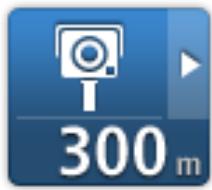
Fixed speed camera - this type of camera checks the speed of passing vehicles and is fixed in one place.
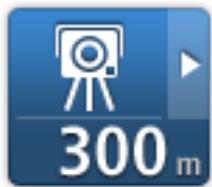
Mobile camera - this type of camera checks the speed of passing vehicles and can be moved to different locations.
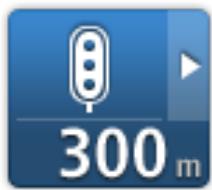
Traffic light camera - this type of camera checks for vehicles breaking traffic rules at traffic lights. Some traffic light cameras may also check your speed.
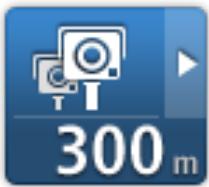
Average speed check - these types of cameras measure your average speed between two points. You are warned at the start and end of the average speed check area.
While you are driving in an average speed check area, your average speed is shown, instead of your current speed.
When you are in the speed check area, the visual warning continues to be shown in the Driving View.
Accident blackspot
Ungated railway crossing
Toll road camera
When you first start using your device, no warning sounds are played for these types of cameras:
Restricted road camera
Other camera
Mobile camera hotspot - this type of warning shows places where mobile cameras are often used.
Bidirectional camera
Report button
To show the report button in the Driving View, do the following:
- Tap options in the Main Menu.
- Tap Speed Cameras.
- Tap Enable report button.
- Tap Done.
The report button is shown on left-hand side of the Driving View or if you are already using the Quick Menu, it's added to the buttons available in the Quick Menu.

Quick Menu option!
Tip: To hide the report button, tap Disable report button in the Speed Cameras menu.
Reporting a new speed camera while on the move
To report a speed camera on the move, do the following:
- Tap the report button shown in the Driving View or in the quick menu to record the location of the camera.
- Confirm that you want to add a camera.
You see a message thanking you for adding the camera.
Note: It's possible to report or confirm the location of danger zones, but it's not possible to remove them.
Reporting a new speed camera while at home
You do not need to be at the location of a speed camera to report the new location. To report a new speed camera location while you are at home, do the following:
- Tap options in the Main Menu.
- Tap Speed Cameras.
- Tap Report safety camera.
- Tap Fixed camera or Mobile camera depending upon the type of speed camera.
- Use the cursor to mark the exact location of the camera on the map, then tap Done.
- Tap Yes to confirm the location of the camera.
- Tap on the type of camera you want to report and if necessary, choose the speed restriction for the camera.
You see a message confirming that a report has been created.
Reporting incorrect camera alerts
You may receive an alert for a camera that is no longer there. To report an incorrect camera alert, do the following:
Note: You can only report an incorrect camera alert while you are at the location.
- While you are at the location of the missing camera, tap Report in the Driving View.
Note: This must be done within 20 seconds of receiving the camera alert.
- Tap Remove.
Note: It's possible to report or confirm the location of danger zones, but it's not possible to remove them.
Types of fixed speed camera you can report
When you report a fixed speed camera, you can select the type of fixed camera you are reporting.
These are the different types of fixed speed camera:
Speed camera
This type of speed camera checks the speed of passing vehicles.
Traffic light camera
This type of camera checks for vehicles breaking traffic rules at traffic lights.

This type of camera monitors traffic at toll road barriers.
Toll road camera
This type of speed camera checks the average speed of vehicles between two fixed points.
Average speed check
This type of camera checks traffic on roads where access is restricted.
Vehicle restriction
All other types of camera that do not fall into any of the above categories.
Other camera
Average speed check camera warnings
There are several types of visual and audible warnings that you may see and hear when you meet an average speed check camera.
You always receive a start and end zone warning regardless of the speed you are travelling at. Intermediate warnings, if given, occur every 200 meters.
All the warnings are described below:
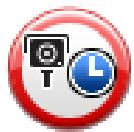
Start of zone warning
As you approach the start of an average speed check zone, you see a visual warning in the top left hand corner of the Driving View with a distance to the camera underneath it. You hear an audible warning.
You also see a small icon on the road showing the position of the average speed check camera at the start of the zone.
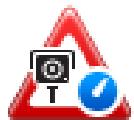
Intermediate warning - type 1
Once in the speed check zone, if you are not speeding and have already received a start of zone warning, you see a visual warning in the Driving View. This reminds you that you are still in the speed check zone.
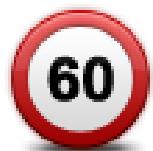
Intermediate warning - type 2
Once in the speed check zone, if you are driving faster than the permitted speed and have already received a start of zone warning, you see a visual warning in the Driving View indicating the maximum permitted speed. You also hear a quiet audible warning. These warnings are there to remind you to slow down...
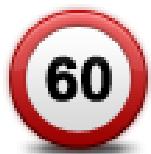
Intermediate warning - type 3
Once in the speed check zone, if you are driving faster than the permitted speed and have not received a start of zone warning, you see a visual warning in the Driving View indicating the maximum permitted speed.
You also hear a loud audible warning.
These warnings occur at the FIRST intermediate point only and are there to remind you to slow down...
End of zone warning
As you approach the end of an average speed check zone, you see a visual warning in the Driving View with a distance to the camera shown underneath it. You hear an audible warning.
You also see a small icon on the road showing the position of the average speed check camera at the end of the zone.
Speed Cameras menu
To open the Speed Cameras menu, tap options in the Main Menu and then tap Speed Cameras.
Report speed camera

Quick Menu option!
Tap this button to report a new speed camera location.
Change warning preferences
Tap this button to set the warnings you will receive and the sounds used for each warning.
Disable speed cameras
Tap this button to disable warnings.
Enable report button
Tap this button to enable the report button. The report button is shown in the Driving View or in the Quick Menu.
When the report button is shown in the Driving View, this button changes to Disable report button.
Danger zones in France
Since 3rd January 2012, it has been illegal to receive warnings about the position of fixed or mobile speed cameras when you are driving in France. To be compliant with this change in French law, all types of speed camera locations are no longer reported but instead, areas of danger are indicated as zones.
In France, TomTom terminated the Speed Cameras service and introduced a new service called TomTom Danger Zones.
Danger zones may or may not contain one or more speed cameras or a range of other driving hazards:
- Specific locations are not available and a danger zone icon is shown instead as you approach the zone.
- The minimum length of the zone depends on the road type and is 300m for roads in built-up areas, 2000m (2km) for secondary roads or 4000m (4km) for motorways.
- The location of one or more speed cameras, if any, can be at any point within the zone.
If two danger zones are close to each other, the warnings can be merged into a single longer zone.
Important: Outside France, you receive warnings about speed cameras. Inside France, you receive warnings about danger zones. When you cross the border, the type of warning you receive changes.
Danger zone warnings
Warnings are given 10 seconds before you reach a danger zone. You are warned in three ways:
- Your device plays a warning sound.
- Your distance from the danger zone is shown in the Driving View. If a speed restriction is known for the zone, the speed is also shown in the Driving View. While you are driving in a danger zone, the warning remains in the Driving View.
- Danger zones have minimum lengths: Highways 4km, Secondary roads 2km and built-up areas 300m.
The location of the danger zone is shown on the map.
Changing the way you are warned
To change the way your TomTom Rider warns you about danger zones, tap Alert settings.
You can then set the warning sound played.
- Tap options in the Main Menu.
- Tap Danger zones.
- Tap Change warning preferences.
- Select when you want to be warned about danger zones. You can select to always be warned, never be warned or only be warned if you are speeding.
- Tap the sound you want to be used for the warning. The warning sound is played and you are asked to confirm that you want this warning sound. Tap No to select another sound.
- Tap Done to save your changes.
Report button
Note: It is not possible to remove a danger zone.
To show the report button in the Driving View, do the following:
- Tap options in the Main Menu.
- Tap Danger zones.
- Tap Enable report button.
- Tap Done.
The report button is shown on left-hand side of the Driving View or if you are already using the quick menu, it's added to the buttons available in the Quick Menu.
Tip: To hide the report button, tap Disable report button in the Danger zones menu.
Reporting a new danger zone while on the move
To report a danger zone while on the move, do the following:
- Tap the report button shown in the Driving View or in the quick menu to record the location of the danger zone.
- Confirm that you want to add a danger zone.
You see a message confirming that a report has been created.
Reporting a new danger zone while at home
You do not need to be at the location of a danger zone to report the new location. To report a new danger zone location while you are at home, do the following:
- Tap options in the Main Menu on your navigation device.
- Tap Danger zones.
- Tap Report danger zone.
- Use the cursor to mark the location of the danger zone on the map, then tap Done.
- Tap Yes to confirm the location of the danger zone.
You see a message confirming that a report has been created.
Important: Outside of France, you receive warnings about speed cameras. Inside France, you receive warnings about danger zones. When you cross the border, the type of warning you receive changes.
To open the Danger zones menu, tap options in the Main Menu and then tap Danger zones.
Report danger zone
Tap this button to report a new danger zone location.
Change warning preferences
Tap this button to set when you receive warnings and the sound.
Disable danger zones
Tap this button to disable warnings.
Enable report button
Tap this button to enable the report button. The report button is shown in the Driving View or in the Quick Menu.
When the report button is shown in the Driving View, this button changes to Disable report button.
About getting help
Help me provides an easy way to navigate to emergency services centres and other specialist services and contact them by phone.
For example, if you are involved in a car accident, you could use Help me to call the nearest hospital and tell them your exact location.

Quick Menu option!
Note: Information may not be available for all services in all countries.
Using Help to phone a local service
You can use Help me to plan a route to local services, make contact by phone and inform the service about the precise details of your current location.
When you search for a service centre, you are shown a list of the nearest services. Select one of the services in the list to view their address and phone number and to see your current location on the map.
To use Help me to locate an emergency service, contact them by phone and plan a route to the emergency service location, do the following:
- Tap the screen to bring up the Main Menu.
- Tap options.
- Tap Help me.
- Tap Phone for help.
- Select the type of service you require. For this example, tap Nearest hospital.
- Select a service from the list. The nearest service is shown at the top of the list. For this example, tap the one at the top of the list.
Your current location is shown on the map together with the phone number of the service. This helps you to explain where you are when you call the service for help.
- To plan a route from your current location to the service location, tap Navigate there.
Your navigation device starts guiding you to your destination.
Help menu options
Note: In some countries, information may not be available for all services.
Phone for help
Tap this button to find the contact details and location of a service centre.
About TomTom HOME
Using TomTom HOME you can register and manage your TomTom Rider to receive free updates and buy new services. It's a good idea to connect frequently to HOME so you can do the following:
- Download for free the most recent map available for your device.
- Download for free updates for your device, including Map Share updates and other services included with your product.
- Add new items to your device, like maps, voices and POIs, as well as buy TomTom services and manage your subscriptions.
- Share your map corrections and other content with the TomTom community.
- Make and restore backups of your device.
When using HOME, you can get help with what you are doing from the HOME Help. You can also read about all the other things that HOME can do for you.
Tip: We recommend using a broadband internet connection whenever you connect to HOME.
Installing TomTom HOME
The steps below refer to Internet Explorer on Windows XP. If you're using another browser or operating system, visit tomtom.com/support for more information.
To install TomTom HOME on your computer, do the following:
- Connect your computer to the internet.
- Click the link below to download the latest version of TomTom HOME: tomtom.com/getstarted
- We recommend downloading the file to your computer by clicking Save.
- Once the download is complete, click Open. If you accidentally closed the Download complete window, locate the file TomTomHOME2winlatest.exe on your computer and double-click it.
- If you get a security warning click Run.
- Click Next, then click Install. The installation starts.
- Once the installation is complete click Finish.
MyTomTom account
To download content and services using TomTom HOME, you need a MyTomTom account. You can create an account when you start using TomTom HOME.
Note: If you have more than one TomTom device, you need a separate MyTomTom account for each device.
If you have a MyTomTom account, you can access the following benefits online using HOME or by using the MyTomTom section of tomtom.com:
- Services - click Services on the TomTom website to subscribe to services such as real-time traffic and safety camera information.
- Newsletters - click MyTomTom followed by Account details on the TomTom website to manage newsletter subscriptions and language preferences for product news
- Support - click My Questions on the TomTom website to track and view your case history and all email conversations you have with TomTom about technical support issues via the website. You can also update cases with new information.
- Orders - click My Orders on the TomTom website to view items you ordered from the TomTom website and your order history.
- TomTom Map Share - report and download map corrections by joining the Map Share community using HOME. You can then benefit from shared reporting of map issues such as missing streets and wrong driving instructions.
- Downloads - download free items using TomTom HOME.
Updating your device
Before you start, make sure you have a backup of your device or memory card. For more information, see Backing up your navigation device.
You can check for updates for your maps, services and for a whole range of other free items or items for purchase. The instructions below describe how to update the TomTom application on your device.
- To check for an updated application version do the following:
- Connect your TomTom device to your computer and switch it on.
- Wait for TomTom HOME to start.
- If HOME does not automatically check for updates, click Update my device in the HOME menu.
Note: if you would like to install an application you downloaded previously, click Add Traffic, Voices, Safety Cameras etc. > Items on my computer.
- If a new application is available, it is listed on the next screen.
- Make sure the new application is selected, then click Download updates. HOME downloads the selected items...
- HOME then installs the selected items on your device.
- Click Done.
- Click Device > Disconnect Device in the HOME menu. You can then disconnect your device or card from your computer.
Backing up your navigation device
The easiest way to make a backup of all the contents of your TomTom navigation device is by using TomTom HOME. You can make one backup per device and store it on your computer. When you make a new backup, the old backup for that device is overwritten.
- Insert your memory card into the card reader connected to your computer.
TomTom HOME starts automatically.
Tip: If TomTom HOME does not start, do one of the following:
Windows: Click on the Start menu and go to All Programs > TomTom and then click on TomTom HOME.
Mac: Click Go in the Finder menu and choose Applications, then double-click TomTom HOME.
- Click Back up and restore in the HOME menu.
- Click Back up my device.
- Click Back up now.
HOME backs up your device.
- Wait until HOME has finished creating the backup, then click Done.
To see where HOME saves your backups do one of the following:
Windows: Click Tools > TomTom HOME Preferences and then select the Folder Preferences tab.
Mac: Click TomTom HOME > Preferences... and then select the Folder Preferences tab.
To restore a backup, click Back up and restore in the HOME menu and then click Restore my device.
Introducing HOME help
In the TomTom HOME Help topics you can find a lot more information about how HOME can help you to manage contents and services on your navigation device.
You can also get help on the following:
- Initialising a memory card
Using a card reader - Updating your device-account combination
The TomTom Route Planner
Note: The TomTom Route Planner does not support the sending of planned routes to every model of TomTom navigation device. Please see TomTom HOME help for more information.
- Downloading free or shared sounds, images and symbols
- Installing themes and extensions
For information on how to create your own POIs, themes, voices, routes, colour schemes, symbols and sounds, see create.tomtom.com.
Important Safety Notices andWarnings
Global Positioning System (GPS) and Global Navigation Satellite System (GLONASS)
The Global Positioning System (GPS) and Global Navigation Satellite System (GLONASS) systems are satellite-based systems that provide location and timing information around the globe. GPS is operated and controlled under the sole responsibility of the Government of the United States of America, who are responsible for its availability and accuracy. GLONASS is operated and controlled under the sole responsibility of the Government of Russia, who are responsible for its availability and accuracy. Any changes in GPS or GLONASS availability and accuracy, or in environmental conditions, may impact the operation of this device. TomTom does not accept any liability for the availability and accuracy of GPS or GLONASS.
Use with care
Use of TomTom products while driving still means that you need to drive with due care and attention.
Aircraft and hospitals
Use of devices with an antenna is prohibited on most aircraft, in many hospitals and in many other locations. This device must not be used in these environments.
Safety messages
Please read and take note of the following important safety advice:
- Check your tyre pressures regularly.
Service your vehicle regularly. - Medication can affect your riding or driving ability.
Always use seat belts if available. - Don't drink and drive.
Most accidents happen less than 5km from home.
Obey the rules of the road.
Always use your turn indicators.
Every 2 hours, take a break for at least 10 minutes. - Keep your seat belts on.
- Keep a safe distance from the vehicle in front.
Before setting off on a motorbike, fasten your helmet correctly. - When riding a motorbike, always wear protective clothing and equipment.
When riding a motorbike, be extra vigilant and always ride defensively.
Battery
This product uses a Lithium-Ion battery.
Do not use it in a humid, wet and/or corrosive environment. Do not put, store or leave your product in or near a heat source, in a high temperature location, in strong direct sunlight, in a microwave oven or in a pressurised container, and do not expose it to temperatures over 60^ (140°F). Failure to follow these guidelines may cause the battery to leak acid, become hot, explode or ignite and cause injury and/or damage. Do not pierce, open or disassemble the battery. If the battery leaks and you come into contact with the leaked fluids, rinse thoroughly with water and seek medical attention immediately. For safety reasons, and to prolong the lifetime of the battery, remove your product from your vehicle when you are not driving and keep in a cool, dry place. Charging will not occur at low (below 0°C/32°F) or high (over 45°C/113°F) temperatures.
Temperatures: Standard operation: 0^ (32^) to 45^ (113^) ; short period storage: -20^ (-4^) to 60^ (140^) ; long period storage: -20^ (-4^) to 25^ (77^) .
Caution: risk of explosion if battery is replaced by an incorrect type.
Do not remove or attempt to remove the non-user-replaceable battery. If you have a problem with the battery, please contact TomTom customer support.
THE BATTERY CONTAINED IN THE PRODUCT MUST BE RECYCLED OR DISPOSED OF PROPERLY ACCORDING TO THE LOCAL LAWS AND REGULATIONS AND ALWAYS KEPT SEPARATE FROM HOUSEHOLD WASTE. BY DOING THIS YOU WILL HELP CONSERVE THE ENVIRONMENT. USE YOUR TOMTOM DEVICE ONLY WITH THE SUPPLIED DC POWER LEAD (CAR CHARGER/BATTERY CABLE), AC ADAPTER (HOME CHARGER), IN AN APPROVED CRADLE OR USING THE SUPPLIED USB CABLE TO CONNECT TO A COMPUTER FOR BATTERY CHARGING.
If your device requires a charger, please use this device with the charger provided. For replacement chargers, go to tomtom.com for information about approved chargers for your device.
The stated battery life is a maximum possible battery life. The maximum battery life will only be achieved under specific atmospheric conditions. The estimated maximum battery life is based on an average usage profile.
For tips on extending the battery life, see this FAQ: tomtom.com/batterytips.
Do not disassemble or crush, bend or deform, puncture or shred.
Do not modify or re-manufacture, attempt to insert foreign objects into the battery, immerse or expose to water or other liquids, expose to fire, explosion or other hazard.
Only use the battery for a system for which it is specified.
Only use the battery with a charging system that has been qualified with the system per this standard. Use of an unqualified battery or charger may present a risk of fire, explosion, leakage or other hazard.
Do not short circuit a battery or allow metallic conductive objects to contact battery terminals.
Replace the battery only with another battery that has been qualified with the system per this standard, IEEE-Std-1725-200x. Use of an unqualified battery may present a risk of fire, explosion, leakage or other hazard.
Promptly dispose of used batteries in accordance with local regulations.
Battery usage by children should be supervised.
Avoid dropping the device. If the device is dropped, especially on a hard surface and the user suspects damage, take it to a service centre for inspection.
Improper battery use may result in a fire, explosion or other hazard.
For those host devices that utilise a USB port as a charging source, the host device's user manual shall include a statement that the navigation device shall only be connected to products that bear the USB-IF logo or have completed the USB-IF compliance program.
CE marking
This equipment complies with the requirements for CE marking when used in a residential, commercial, vehicular or light industrial environment, achieving all the appropriate provisions of the relevant legislation in the EU.

R&TTE directive
Hereby, TomTom declares that TomTom products and accessories are in compliance with the essential requirements and other relevant provisions of the EU Directive 1999/5/EC. The declaration of conformity can be found here: tomtom.com/legal.
WEEE directive
The wheelie bin symbol on the product or its packaging indicates that this product shall not be treated as household waste. In line with EU Directive 2002/96/EC for waste electrical and electronic equipment (WEEE), this electrical product must not be disposed of as unsorted municipal waste. Please dispose of this product by returning it to the point of sale or to your local municipal collection point for recycling. By doing this you will help conserve the environment.
C-tick

N14644
This product displays the C-tick to show it complies with relevant Australian regulations.
Customer support contact
Australia: 1300 135 604
New Zealand: 0800 450 973
Notice for New Zealand
This product displays supplier code Z1230 to show it complies with relevant New Zealand regulations.
Warning for Australia
The user needs to switch off the device when exposed to areas with potentially explosive atmospheres such as petrol stations, chemical storage depots and blasting operations.
Customer support contact
Malaysia 1800815318
Singapore 8006162269
Thailand 0018006121008
Indonesia 0018030612011
FCC information for the user

THE DEVICE COMPLIES WITH PART 15 OF THE FCC RULES
Federal Communications Commission (FCC) Statement
This equipment radiates radio frequency energy and if not used properly - that is, in strict accordance with the instructions in this manual - may cause interference to radio communications and television reception.
Operation is subject to the following two conditions: (1) this device may not cause harmful interference and (2) this device must accept any interference, including interference that may cause undesired operation of the device.
This device has been tested and found to comply with the limits for a Class B digital device, pursuant to part 15 of the FCC rules. These limits are designed to provide reasonable protection against harmful interference in a residential installation. This equipment generates, uses and can radiate radio frequency energy and, if not installed and used in accordance with the instructions, may cause harmful interference to radio communications. However, there is no guarantee that interference will not occur in a particular installation. If this equipment does cause harmful interference to radio or television reception, which can be determined by turning the equipment off and on, the user is encouraged to try to correct the interference by one or more of the following measures:
Reorient or relocate the receiving antenna.
- Increase the separation between the equipment and receiver.
- Connect the equipment into an outlet on a circuit different from that to which the receiver is connected.
- Consult the dealer or an experienced radio/TV technician for help.
Changes or modifications not expressly approved by the party responsible for compliance could void the user's authority to operate the equipment.
Important
This equipment was tested for FCC compliance under conditions that included the use of shielded cables and connectors between it and the peripherals. It is important that you use shielded cable and connectors to reduce the possibility of causing radio and television interference. Shielded cables, suitable for the product range, can be obtained from an authorized dealer. If the user modifies the equipment or its peripherals in any way, and these modifications are not approved by TomTom, the FCC may withdraw the user's right to operate the equipment. For customers in the USA, the following booklet prepared by the Federal Communications Commission may be of help: "How to Identify and Resolve Radio-TV Interference Problems". This booklet is available from the US Government Printing Office, Washington, DC 20402. Stock No 004-000-00345-4.
FCC ID: S4L4GD00
IC ID: 5767A-4GD00
FCC RF Radiation Exposure Statement
The transmitters within this device must not be co-located or operating in conjunction with any other antenna or transmitter.
Responsible party in North America
TomTom, Inc., 150 Baker Avenue Extension, Concord, MA 01742
Tel: 866 486-6866 option 1 (1-866-4-TomTom)
Emissions information for Canada
Operation is subject to the following two conditions:
This device may not cause interference.
This device must accept any interference, including interference that may cause undesired operation of the device.
Operation is subject to the condition that this device does not cause harmful interference.
This Class B digital apparatus complies with Canadian ICES-003. CAN ICES-3(B)/NMB-3(B).
IMPORTANT NOTE
IC Radiation Exposure Statement:
This equipment complies with IC RSS-102 radiation exposure limits set forth for an uncontrolled environment.
This device and its antenna(s) must not be co-located or operating in conjunction with any other antenna or transmitter.
SPECIAL NOTE REGARDING DRIVING IN CALIFORNIA AND MINNESOTA
California Vehicle Code Section 26708 "Material Obstructing or Reducing Driver's View" permits mounting of a navigation device on the windshield as follows: "A portable Global Positioning System (GPS), which may be mounted in a seven-inch square in the lower corner of the windshield farthest removed from the driver or in a five-inch square in the lower corner of the windshield nearest to the driver and outside of an airbag deployment zone, if the system is used only for door-to-door navigation while the motor vehicle is being operated." Drivers in California should not use a suction mount on their side or rear windows.
Note: This section of the California Vehicle Code applies to anyone driving in California, not just California residents.
Minnesota State Legislature Statutes Section 169.71, subdivision 1, section 2 provides that "A person shall not drive or operate with any objects suspended between the driver and the windshield other than sun visors and rearview mirrors and electronic toll collection devices."
Note: this Minnesota Stature applies to anyone driving in Minnesota, not just Minnesota residents.
TomTom Inc. bears no responsibility for any fines, penalties or damage that may be incurred by disregarding this notice. While driving in any state with windshield mounting restrictions, TomTom recommends the use of the supplied Adhesive Mounting Disk or its Alternative Mounting Kit, which includes multiple options for mounting TomTom devices on the dashboard and the air vents. See tomtom.com for more information about these mounting options.
Pacemakers
Pacemaker manufacturers recommend that a minimum of 15cm (6 inches) be maintained between a handheld wireless device and a pacemaker to avoid potential interference with the pacemaker. These recommendations are consistent with independent research and recommendations by Wireless Technology Research.
Guidelines for people with pacemakers
- You should ALWAYS keep the device more than 15cm (6 inches) from your pacemaker.
- You should not carry the device in a breast pocket.
Other medical devices
Please consult your physician or the manufacturer of the medical device, to determine if the operation of your wireless product may interfere with the medical device.
Specific Absorption Rate (SAR) compliance
THIS WIRELESS DEVICE MODEL MEETS GOVERNMENT REQUIREMENTS FOR EXPOSURE TO RADIO WAVES WHEN USED AS DIRECTED IN THIS SECTION
This GPS Navigation System is a radio transmitter and receiver. It is designed and manufactured not to exceed the emission limits for exposure to radio frequency (RF) energy set by the Council of the European Union.
The SAR limit recommended by The Council of the European Union is 2.0W / kg averaged over 10 grams of tissue for the body (4.0 W/kg averaged over 10 grams of tissue for the extremities - hands, wrists, ankles and feet). Tests for SAR are conducted using standard operating positions specified by the EU council with the device transmitting at its highest certified power level in all tested frequency bands.
Exposure limits
This device complies with radiation exposure limits set forth for an uncontrolled environment. In order to avoid the possibility of exceeding the radio frequency exposure limits, human proximity to the antenna shall not be less than 20cm (8 inches) during normal operation.
This document
Great care was taken in preparing this document. Constant product development may mean that some information is not entirely up to date. The information in this document is subject to change without notice.
TomTom shall not be liable for technical or editorial errors or omissions contained herein, nor for incidental or consequential damages resulting from the performance or use of this document. This document contains information protected by copyright. No part of this document may be photocopied or reproduced in any form without prior written consent from TomTom N.V.
Model names
4GD00
© 2013 TomTom. All rights reserved. TomTom and the "two hands" logo are registered trademarks of TomTom N.V. or one of its subsidiaries. Please see tomtom.com/legal for limited warranty and end user licence agreements applying to this product.
© 2013 TomTom. All rights reserved. This material is proprietary and the subject of copyright protection and/or database rights protection and/or other intellectual property rights owned by TomTom or its suppliers. The use of this material is subject to the terms of a licence agreement. Any unauthorised copying or disclosure of this material will lead to criminal and civil liabilities.
Ordnance Survey © Crown Copyright Licence number 100026920.
Data Source © 2013 TomTom
All rights reserved.
Data Source
© 2013 GeoSmart Maps Limited.
Data Source
Whereis® map data is © 2013 Telstra® Corporation Limited and its licensors, Whereis® is a registered trademark of Telstra® Corporation Limited, used under licence.
SoundClear™ acoustic echo cancellation software © Acoustic Technologies Inc.
Some images are taken from NASA's Earth Observatory.
The purpose of NASA's Earth Observatory is to provide a freely-accessible publication on the Internet where the public can obtain new satellite imagery and scientific information about our home planet.
The focus is on Earth's climate and environmental change: earthobservatory.nasa.gov
The software included in this product contains copyrighted software that is licensed under the GPL. A copy of that licence can be viewed in the Licence section. You can obtain the complete corresponding source code from us for a period of three years after our last shipment of this product. For more information, visit totom.com/gpl or contact your local TomTom customer support team via totom.com/support. Upon request, we will send you a CD with the corresponding source code.
Linotype, Frutiger and Univers are trademarks of Linotype GmbH registered in the U.S. Patent and Trademark Office and may be registered in certain other jurisdictions.
MHei is a trademark of The Monotype Corporation and may be registered in certain jurisdictions.
- TomTom Rider Reference Guide
- Contents
- What's in the box 7
- Read me first 10
- Safety 14
- The Driving View 15
- Main Menu 17
- Quick Menu 19
- Planning a route 20
- Winding routes 25
- Advanced Lane Guidance 28
- Itinerary planning 30
- Changing your route 36
- Recording your route 38
- 39
- View map 43
- Map corrections 46
- Sounds and voices 50
- Points of Interest 52
- Hands-free calling 56
- Favourites 61
- Options 65
- Speed Cameras 75
- Danger Zones 82
- Help 85
- TomTom HOME 87
- Addendum 90
- Copyright notices 97
- What's in the box
- Mounting your navigation device
- Connecting the dock cable
- Using a headset
- Switching on
- Setting up
- GPS reception
- Using the anti-theft solution
- TomTom Rider shown without locks
- TomTom Rider shown with both locks
- Safety messages
- About the Driving View
- The Driving View
- Quick Menu option!
- About the Main Menu
- Main Menu buttons
- About the Quick Menu
- Setting up the Quick Menu
- Using the Quick Menu
- Planning a winding route
- Planning a route with a new starting point
- Planning a route
- Tap Address.
- Tap Street and house number.
- About winding routes
- Switching on winding routes
- Winding roads and itineraries
- About lane guidance
- Using lane guidance
- About Itineraries
- Creating an Itinerary
- Start using an Itinerary
- Organising an Itinerary
- Sharing an Itinerary
- Sending a file
- Receiving a file
- Deleting an Itinerary
- Sorting or reversing an Itinerary
- Saving an Itinerary
- Creating an itinerary with a winding route
- Changing your route
- Making changes to your route
- Change route menu
- Show another
- Travel via...
- Plan new route
- Clear route
- Change waypoint
- Recording your route
- About recording your route
- Starting route recording
- Uploading and sharing routes
- Installing Tyre
- Tyre FAQs
- About GPX files
- Location
- Using the file
- Receiving a GPX file
- Converting a GPX file into an itinerary
- Using Tyre
- Using manual conversion
- About ITN files
- Receiving an ITN file
- Loading an ITN file
- About viewing the map
- View map
- Options
- Cursor menu
- About Map Share
- Correcting a map error
- Types of map correction
- Comment on POI
- Correct house number
- Existing street
- Missing street
- Motorway entrance/exit
- Postcode
- About sounds and voices
- Sound and volume control
- Change voice
- Disable voice / Enable voice
- Voice settings
- Read early warning instructions
- Replace spoken instruction with a beep
- About Points of Interest
- Creating POIs
- Using POIs to plan a route
- Showing POIs on the map
- Calling a POI
- Setting warnings for POIs
- Manage POIs
- About hands-free calls
- Microphone
- Connecting to your phone
- Tips
- Your phonebook
- Making a call using speed dial
- Making a call
- Receiving a call
- Auto-answer
- Connecting more phones to your device
- Mobile phone menu
- Favourites
- About Favourites
- Creating a Favourite
- Point of Interest
- My location
- Point on map
- Latitude Longitude
- Using a Favourite
- Changing the name of a Favourite
- Deleting a Favourite
- Change Home location
- About Options
- Battery saving
- Brightness preferences
- Change map colours
- Change vehicle symbol
- Connect to headset
- Safety Alerts menu
- Help me
- Home and Favourites
- Keyboard preferences
- Language
- Map corrections
- Planning preferences
- Replanning preferences
- Planning for road types and crossings
- Quick Menu preferences
- Reset factory settings
- Important: This feature deletes all your personal settings!
- Safety warnings
- Set clock
- Show compass
- Show / hide compass
- Speed Cameras menu
- Report speed camera
- Change warning preferences
- Disable speed cameras
- Start or Stop recording
- Start up
- Status bar preferences
- Street name settings
- Switch map
- Trip statistics
- Units
- Use night colours / Use day colours
- Voices
- Winding route preference
- Speed Cameras
- About Speed Cameras
- Subscribing to this service
- Updating locations for alerts
- Speed camera warnings
- Changing the way you are warned
- Speed camera symbols
- Accident blackspot
- Ungated railway crossing
- Toll road camera
- Restricted road camera
- Other camera
- Bidirectional camera
- Report button
- Reporting a new speed camera while on the move
- Reporting a new speed camera while at home
- Reporting incorrect camera alerts
- Types of fixed speed camera you can report
- Average speed check
- Vehicle restriction
- Average speed check camera warnings
- Start of zone warning
- Intermediate warning - type 1
- Intermediate warning - type 2
- Intermediate warning - type 3
- End of zone warning
- Danger zones in France
- Danger zone warnings
- Reporting a new danger zone while on the move
- Reporting a new danger zone while at home
- About getting help
- Using Help to phone a local service
- Help menu options
- About TomTom HOME
- Installing TomTom HOME
- MyTomTom account
- Updating your device
- Backing up your navigation device
- Introducing HOME help
- Important Safety Notices andWarnings
- Global Positioning System (GPS) and Global Navigation Satellite System (GLONASS)
- Use with care
- Aircraft and hospitals
- Battery
- CE marking
- R&TTE directive
- WEEE directive
- C-tick
- N14644
- Customer support contact
- Notice for New Zealand
- Warning for Australia
- FCC information for the user
- Federal Communications Commission (FCC) Statement
- Important
- FCC RF Radiation Exposure Statement
- Responsible party in North America
- Emissions information for Canada
- IMPORTANT NOTE
- SPECIAL NOTE REGARDING DRIVING IN CALIFORNIA AND MINNESOTA
- Pacemakers
- Guidelines for people with pacemakers
- Other medical devices
- Specific Absorption Rate (SAR) compliance
- Exposure limits
- This document
- Model names
Brand : TOMTOM
Model : RIDER EUROPE 45 M
Category : Motorcycle GPS