AVI202 - Security Camera Lindy - Free user manual and instructions
Find the device manual for free AVI202 Lindy in PDF.


User questions about AVI202 Lindy
0 question about this device. Answer the ones you know or ask your own.
Ask a new question about this device
Download the instructions for your Security Camera in PDF format for free! Find your manual AVI202 - Lindy and take your electronic device back in hand. On this page are published all the documents necessary for the use of your device. AVI202 by Lindy.
USER MANUAL AVI202 Lindy
natural_image
3D rendering of a surveillance camera with mounted lens and mounting bracket (no text or symbols visible)Please read instructions thoroughly before operation and retain it for future reference.
The image shown above may differ from the actual product appearance.
IMPORTANT SAFEGUARD

CAUTION
RISK OF ELECTRIC SHOCK

CAUTION:
To reduce the risk of electric shock, do not expose this apparatus to rain or moisture. Only operate this apparatus from the type of power source indicated on the label. The company shall not be liable for any damages arising out of any improper use, even if we have been advised of the possibility of such damages.
Graphic Symbol Explanation
 | The lightning flash with arrowhead symbol, within an equilateral triangle, is intended to alert the user to the presence of uninsulated “dangerous voltage” within the product’s enclosure that may be of sufficient magnitude to constitute a risk of electric shock to persons. |
 | This exclamation point within an equilateral triangle is intended to alert the user to the presence of important operating and maintenance (servicing) instructions in the literature accompanying the appliance. |
 | All lead-free products offered by the company comply with the requirements of the European law on the Restriction of Hazardous Substances (RoHS) directive, which means our manufacture processes and products are strictly “lead-free” and without the hazardous substances cited in the directive. |
 | The crossed-out wheeled bin mark symbolizes that within the European Union the product must be collected separately at the product end-of-life. This applies to your product and any peripherals marked with this symbol. Do not dispose of these products as unsorted municipal waste. Contact your local dealer for procedures for recycling this equipment. |
 | This apparatus is manufactured to comply with the radio interference requirements. |
Disclaimer
We reserve the right to revise or remove any content in this manual at any time. We do not warrant or assume any legal liability or responsibility for the accuracy, completeness, or usefulness of this manual. The content of this manual is subject to change without notice.
MPEG4 Licensing
THIS PRODUCT IS LICENSED UNDER THE MPEG-4 VISUAL PATENT PORTFOLIO LICENSE FOR THE PERSONAL AND NON-COMMERCIAL USE OF A CONSUMER FOR (i) ENCODING VIDEO IN COMPLIANCE WITH THE MPEG-4 VISUAL STANDARD ("MPEG-4 VIDEO") AND/OR (ii) DECODING MPEG-4 VIDEO THAT WAS ENCODED BY A CONSUMER ENGAGED IN A PERSONAL AND NON-COMMERCIAL ACTIVITY AND/OR WAS OBTAINED FROM A VIDEO PROVIDER LICENSED BY MPEG LA TO PROVIDE MPEG-4 VIDEO. NO LICENSE IS GRANTED OR SHALL BE IMPLIED FOR ANY OTHER USE. ADDITIONAL INFORMATION INCLUDING THAT RELATING TO PROMOTIONAL INTERNAL AND COMMERCIAL USES AND LICENSING MAY BE OBTAINED FROM MPEG LA, LLC. SEE HTTP://WWW.MPEGLA.COM.
Version
1. PRODUCT OVERVIEW.... 1
1.1 Description .... 1
1.2 Features....1
1.3 Package Contents.... 1
1.4 Specifications 2
2. HARDWARE OVERVIEW .... 3
2.1 Rear Panel 3
2.2 Upper Side & Underside .... 3
3. INSTALLATION....4
3.1 Install the Hardware .... 4
3.2 Assign an IP address and Access the Camera....6
4. VIDEO VIEWER BASIC OPERATION .... 7
4.1 The Live View Page ....7
4.2 Address Book....8
4.3 Manual Record....9
4.4 Playback 10
4.5 Snapshot....11
4.6 Information 11
5. VIDEO VIEWER MISCELLANEOUS CONTROL PANEL.... 12
5.1 Color Setting 13
5.2 Backup (For DVR only) 13
5.3 Record Setting 14
5.4 Server Setting 16
General 16
Log....17
Account....17
Online User....18
Trigger....18
Network....19
DDNS 20
SNTP 23
FTP 23
MAIL 24
Video....24
Detection....25
5.5 Tools....25
Update Firmware 25
5.6 Status List....27
Record List....27
Login / Logout Event List 29
Backup List (For DVR only)....30
Playback Screen....31
6. IE WEB BROWSER 32
6.1 Access the Camera from an IE Web Browser 32
6.2 Toolbar Display on the IE Web Browser 32
7. QUICKTIME PLAYER 34
APPENDIX 1 DEFAULT VALUE ...... 35
1. PRODUCT OVERVIEW
1.1 Description
This camera series is a network-based digital surveillance device with a built-in web server for the purpose of remote monitoring and recording. It supports TCP/IP networking for live video transmission in the format of MPEG4 or MJPEG, and you can easily operate the camera via the web browser or the supplied video viewer AP software. Video surveillance over IP network infrastructure is available and easy from anywhere, at anytime.
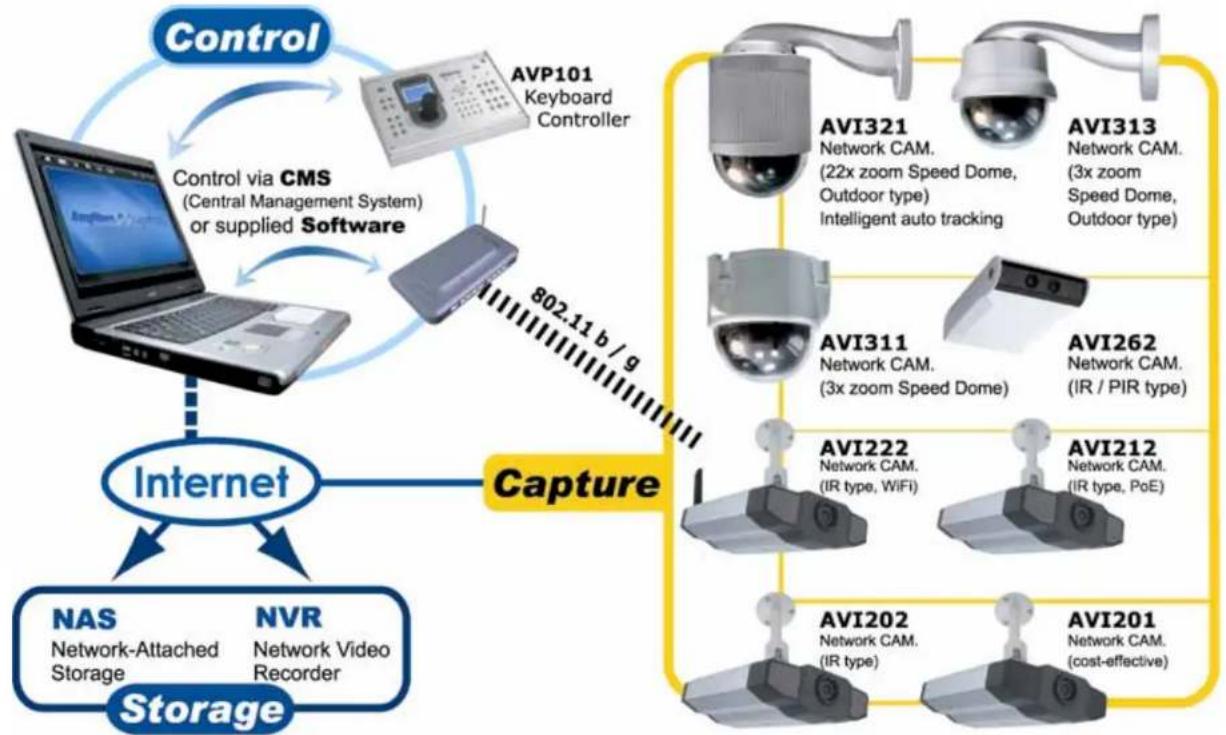
flowchart
graph TD
    A["Control"] --> B["Control via CMS (Central Management System) or supplied Software"]
    B --> C["AVP101 Keyboard Controller"]
    C --> D["802.11 b / g"]
    D --> E["Internet"]
    E --> F["Storage"]
    F --> G["NAS Network-Attached Storage"]
    F --> H["NVR Network Video Recorder"]
    E --> I["Capture"]
    I --> J["AVI321 Network CAM. (22x zoom Speed Dome, Outdoor type) Intelligent auto tracking"]
    I --> K["AVI313 Network CAM. (3x zoom Speed Dome, Outdoor type)"]
    I --> L["AVI311 Network CAM. (3x zoom Speed Dome)"]
    I --> M["AVI262 Network CAM. (IR / PIR type)"]
    I --> N["AVI222 Network CAM. (IR type, WiFi)"]
    I --> O["AVI212 Network CAM. (IR type, PoE)"]
    I --> P["AVI202 Network CAM. (IR type)"]
    I --> Q["AVI201 Network CAM. (cost-effective)"]
1.2 Features
● Low-latency video streaming for sharp and clear images
● Hybrid digital / analog video output
● Motion detection and alarm notification functions
● High quality image sensor
- Complete IP surveillance system, such as the Central Management System (CMS) software, Network-Attached Storage (NAS), Network Video Recorder (NVR), etc.
● External microphone in / audio out for two-way voice communication (AVI202, 212 only)
● Day/night functionality (AVI202, 212 only)
1.3 Package Contents
□ Network camera
Adapter and power cord
Bracket
RJ45 network cable
□ Quick user guide
☐ CD-ROM disc for user manual
| CD-ROM disc for Video Viewer AP Software
1.4 Specifications
| SPECIFICATIONS | AVI201 | AVI202 | AVI212 | |
| ■ Network | ||||
| LAN Port YES | ||||
| LAN Speed 10/100 Based-T Ethernet | ||||
| Supported Protocols | DDNS, PPPoE, DHCP, NTP, SNTP, TCP/IP, ICMP, SMTP, FTP, HTTP, RTP, RTSP | |||
| Frame Rate NTSC:30, PAL:25 | ||||
| Number of Online Users 10 | ||||
| Security Multiple user access levels with password | ||||
| Web management software YES (Control up to 16 network cameras simultaneously) | ||||
| ■ Video / Audio | ||||
| Video Compression MPEG4 / MJPEG | ||||
| Video Remote Control YES | ||||
| Video Adjustment | Brightness, Contrast, Saturation and Hue | |||
| Audio Compression | NO | uLaw , 128kbps | ||
| Audio Input | NO | Built-in Microphone, External Microphone Input | ||
| Audio Output | NO | YES | ||
| ■ Camera | ||||
| Image Sensor 1/3.6" image sensor | ||||
| Pixels | 738(H) x 480(V) | |||
| Lens | f3.6mm | f4.6mm | f3.6mm | |
| F-number | F2.0 | |||
| Viewing Angle | 80° | 55.6° | 80° | |
| Shutter Speed | 1 / 60 (1/50) to 1 / 100,000 sec. | |||
| IR LED | NO | YES | ||
| Min Illumination | 1 Lux / F2.0 | 1 Lux / F2.0; 0 Lux (10m IR ON) | ||
| Video Output | 1.0 Vp-p. 75Ω | |||
| BLC | AUTO | |||
| White Balance | ATW | |||
| ■ Others | ||||
| Remote Control | YES | |||
| Motion Detection | YES | |||
| Alarm and event Notification | Image upload over FTP and Email | |||
| General I/O | NO | Alarm in x1 | ||
| Power | 12VDC, 0.2A | 12VDC, 0.5A | PoE (Power over Ethernet) | |
| Operating Temperature | 0~40°C | |||
| Humidity | 85% | |||
| Minimum Web Browsing Requirements | · Pentium 4 CPU 1.3 GHz or higher, or equivalent AMD · 256 MB RAM · AGP graphics card , Direct Draw, 32MB RAM · Windows XP, Windows 2000 Server, ME, 98, DirectX 9.0 or later · Internet Explorerer 6.x or later | |||
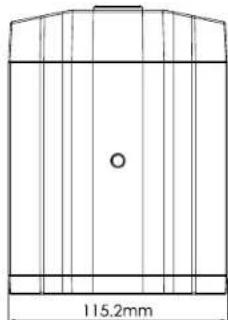
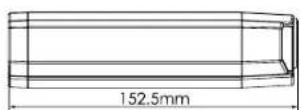
| Dimension (L x W x H)** | 152.5 x 115.2 x 40.2 mm (6.00" x 4.54" x 1.58") | |||
| Shipping Weight | 812 g (1.79 lbs) including mounting bracket and power supply | |||
| Indoor / Outdoor Application | Indoor | |||
text_image
115.2mm* The specifications are subject to change without notice.
** Dimensional tolerance: ± 5mm
- Dimensions: 152.5(L) × 115.2(W) × 40.2(H) mm

2. HARDWARE OVERVIEW
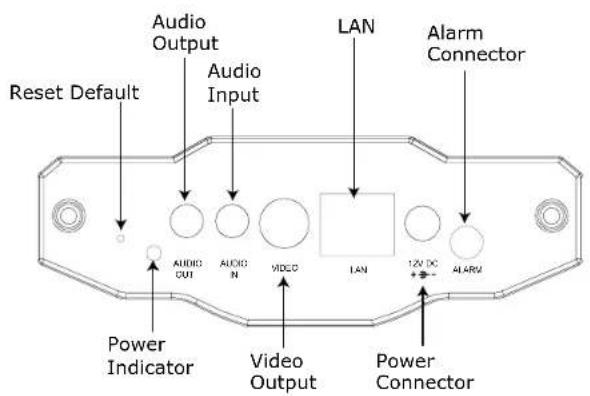
2.1 Rear Panel
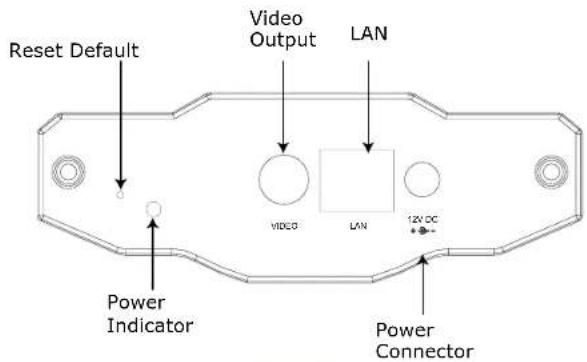
text_image
Reset Default Video Output LAN VIDEO LAN 12V DC Power Indicator Power ConnectorAVI201
text_image
Audio Output Audio Input Reset Default LAN Alarm Connector AUDIO OUT AUDIO N VIDEO LAN 12V DC + - ALARM Power Indicator Video Output Power ConnectorAVI202 / AVI212
CONNECTOR / BUTTON DESCRIPTION
| Reset Default | This button is hidden in the pinhole. Press and hold the reset button until the network camera rebooted. This will reset all parameters, including the IP address to factory default settings. |
| Power Indicator When the camera is power-supplied, this indicator will be on as red. | |
| Audio Output (AVI202 / AVI212 only) | Support the connection to an audio device, such as a speaker, for voice transmission of the remote side. |
| Audio Input (AVI202 / AVI212 only) | Support the connection to an audio device, such as a microphone, for voice transmission of the local side. |
| Video Output | Connect to the video input connector of your monitor with a video cable (i.e. a RCA line with the BNC connector, or a coaxial line) for video output.* The video cable is optional. |
| LAN Connect the camera to the network with the supplied RJ45 cable. | |
| Power Connector Connect the DC 12V adapter for power supply. | |
| Alarm Connector (AVI202 / AVI212 only) Support the connection to an alarm device for function scalability. | |
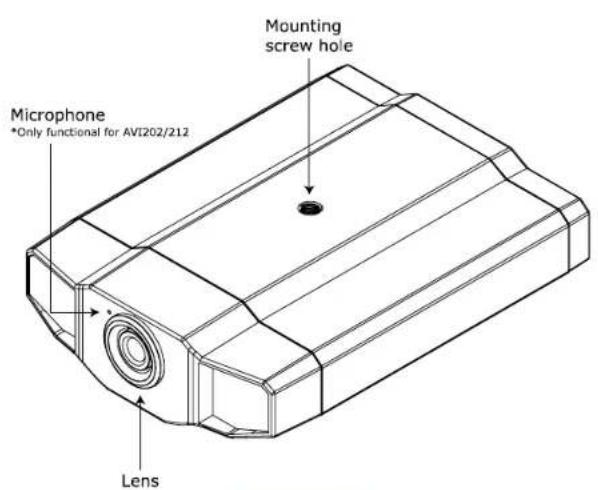
2.2 Upper Side & Underside
text_image
Mounting screw hole Microphone *Only functional for AVI202/212 LensUpper Side

text_image
Mounting screw hole Back PanelThe actual back panel may vary
Please refer to the description
in the "Back Panel" section above for details.
Underside
3. INSTALLATION
3.1 Install the Hardware
This camera can be installed in two ways: ceiling-mounted and desktop. During the installation, please make sure the upper side of the camera is always facing up, as shown in Figure 1 below, regardless of which installation way you're using. This is to ensure the video output won't be up side down.
Note: The illustrations below are based on the ceiling-mounted installation.
Note: For the detailed cable connection, please refer to the section "2.1 Rear Panel" at page 3.
Tool needed: Power drill x 1 (not supplied within the sales package)
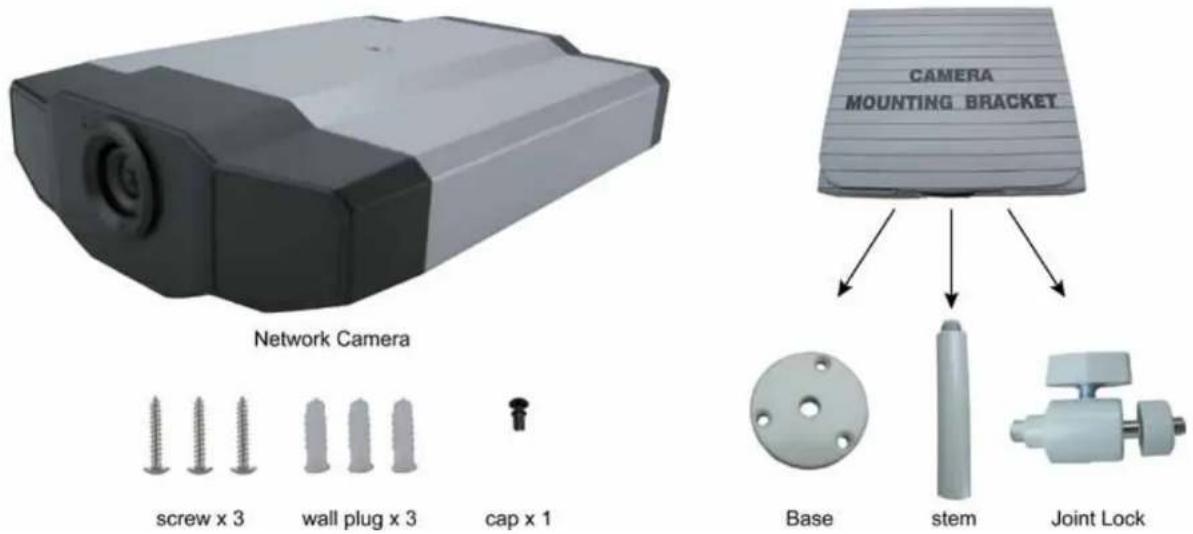
- Prepare all the parts needed for camera installation.
Find the network camera, bracket package, a bag of screws & wall plugs, and a cap supplied with the sales package, as shown in Figure 1.
Unpack the bracket package to find the bracket disassembled into three parts: the base, stem and joint lock.
Figure 1: Parts needed for camera installation
text_image
Network Camera screw x 3 wall plug x 3 cap x 1 CAMERA MOUNTING BRACKET Base stem Joint Lock- Fix the base of the bracket.
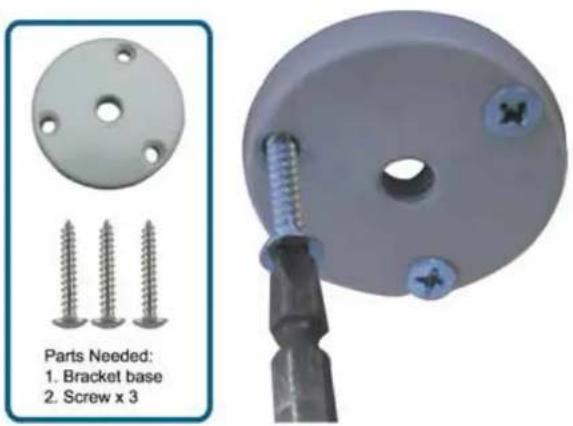
Fix the base of the bracket with the supplied 3 screws to the place you want to install by using a power drill.
Figure 2: Screw the base to the ceiling
text_image
Parts Needed: 1. Bracket base 2. Screw x 3- Assemble the bracket:
a). Align the stem with the central hole of the base, and rotate it to secure, as shown in Figure 3. b). Align the joint lock with the stem, and rotate it to secure, as shown in Figure 4.
Figure 3: Connect the stem to the base Figure 4: Connect the joint lock to the stem

text_image
Part Needed: 1. Stem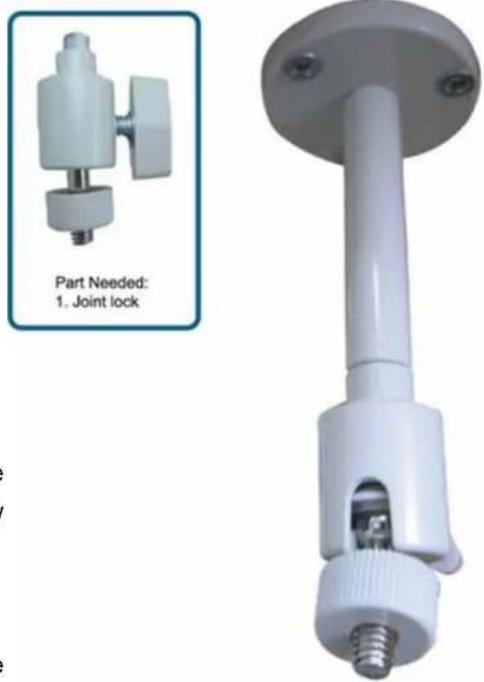
text_image
Part Needed: 1. Joint lock- Connect the camera to the bracket.
Ceiling-mounted:
With the upper side of the camera facing up, align the mounting screw hole on the upper side with the screw thread of the joint lock, and rotate the camera to secure, as shown in Figure 4.
Desktop:
With the upper side of the camera facing up, align the mounting screw hole on the underside with the screw thread of the joint lock, and rotate the camera to secure.
Figure 4: Connect the camera to the bracket
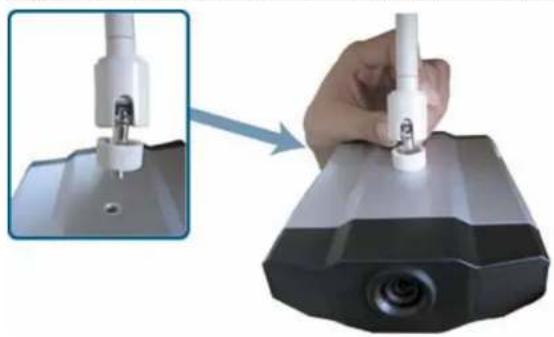
natural_image
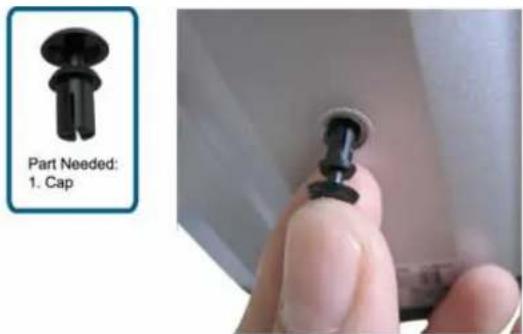
Close-up of a hand using a sewing machine to press or install a device, showing mechanical components and a circular sensor (no text or symbols visible)Figure 5: Insert the cap to the camera
text_image
Part Needed: 1. Cap- Insert the cap to the other mounting screw hole of the camera.
Ceiling-mounted:
Insert the cap to the mounting screw hole on the underside of the camera, as shown in Figure 5.
Desktop:
Insert the cap to the mounting screw hole on the upper side of the camera.
- Adjust the viewing angle of the camera, and fasten the joint lock to fix the angle. The installation is completed, as shown in Figure 6.
Figure 6: Finish the installation

natural_image
Close-up of a white cylindrical mechanical component mounted on a black base, with no visible text or symbols.3.2 Assign an IP address and Access the Camera
Step 1. Install the Software
Place the supplied Video Viewer AP software CD into your DVD- / CD-ROM drive. The installation process will automatically start. Follow the on-screen instructions to install the application programs. After installation, a “Video Viewer” shortcut icon will be shown on your PC desktop.
Step 2. Connect the network camera to the Internet access via a RJ-45 network cable.
Step 3. Search the available IP address to login
a) Double-click “ ” icon on your PC desktop to enter the Video Viewer control panel. By defaults, the “Address Book” ( ) panel will be displayed on the right side of the Video Viewer control panel.
b) Click "Search" (Search) → "Refresh" (Refresh) to search the available IP address(es). The found address(es) will be listed, and can be added into the address book by clicking "Add into address book". For details, please see "Search" at page 9.
c) Select the IP address you just added into the address book, and click "Edit" (Edit) to edit the settings.
d) Double-click the IP address in the address book to log in.
Note: For detailed network settings under different network types (Static IP / PPPOE / DHCP), please refer to "Network" at page 19 and "DDNS" at page 20.
- If you cannot search any available IP address, please follow the instructions below.
Step 4. Add the IP address and other network settings to login
a) Double-click “” icon on your PC desktop to enter the Video Viewer control panel. By defaults, the “Address Book” panel will be displayed on the right side of the Video Viewer control panel.
b) The default network camera settings are as follows:
| Item | Default | Setting |
| IP Address 192.1 | 68.1.1 | |
| User Name | admin | |
| Password | admin | |
| Port Number | 80 |
c) Click "I" (Address Book) → "E" (Add) button to key in the IP address, user name, password, and port number of the network camera you intend to connect.
| Item | Default | Setting |
| IP Address 192.1 | 68.1.1 | |
| User Name | admin | |
| Password | admin | |
| Port Number | 80 |
d) Double-click the IP address you just added into the address book to log in.
After setting up the network information, login user name and password, double-click "a2" on the PC desktop to open and log into the Video Viewer control panel. You will see a screen similar to the following with 6 major sections:
| • Connect to only one network camera | • Connect to multiple network cameras (ex. 4 cameras) |
| • 1-cut display | • 4-cut display |
| NO. | Button | Function | Description |
 | Image Display | To switch to another camera view if two or more network cameras are connected, click the corresponding blue tab. The camera title shown in the blue tab can be customized (For example, “01”, “02”, “03” and “04”). The default camera title is “Camera1”. For detailed camera title setting, please refer to “General” at page 16. The software can control up to 16 network cameras simultaneously. | |
 | Scale Click to view the images in the 1-cut, 4-cut, 9-cut and 16-cut mode. | ||
| D | Full Screen | Click to view the images in the full screen mode. To exit the full screen mode, press “Esc” key on the keyboard of the PC. | |
| Y | Close | Click to close the current image display view.If the image display view is closed, you will be logged out automatically. | |
 | |||
| I | Close All | Click to close all the current image display view.If the image display view is closed, you will be logged out automatically. | |
 | Address Book | Click to show the predefined IP address(es). You can add, remove or search the IP address to log in the network camera remotely. | |
 | Miscellaneous Control | Click to show the main operation functions: audio volume control, color setting, backup, record setting, server setting, upgrade, and find status log list. | |
| 4 | / | Record Click to start / stop the manual recording. | |
 | Snapshot | Click to take a snapshot of the current view. The snapshot will be saved in the path you specified in “5.3 Record Setting” at page 14. | |
| 6 | Information Click to show the current network connection details. | ||

4.2 Address Book

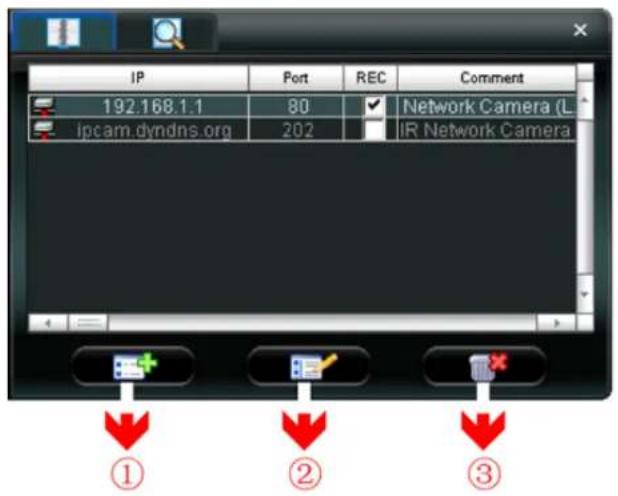
This view is displayed when the Video Viewer is activated for you to log in / out the network camera from the current address list, or search the available IP address as follows:
Address Book
text_image
IP Port REC Comment 192.168.1.1 80 ✓ Network Camera (L) ipcam.dyndns.org 202 ✓ IR Network Camera ① ② ③Search

text_image
IP Port Type 192.168.1.244 80 4CH MPEG4 DVR 192.168.1.1 80 IP CAMERA(FIX) ④ ⑤ ⑥
Click to view the pre-defined network camera access details.
To log in, choose one IP address from the address list, and click the address twice; to log out, click the connected IP address twice.
You can also create new IP address information, or modify or remove the current IP address information.
| NO. | Button | Function | Description |
| 1 |  | Click to directly add one IP address for login. Key in all the network camera access information needed, and click "Apply" and "Close" to add the selected address to the address book.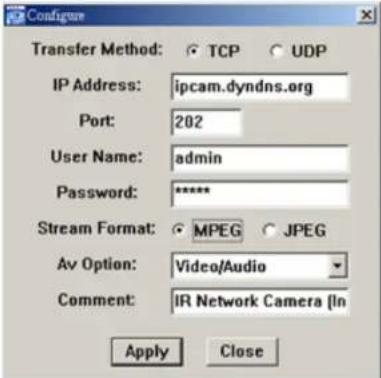 | |
| 2 |  | Edit | Select one current IP address from the address list, and click this button to edit the settings. |
| 3 |  | Remove Select one IP address from the address list, and click this button to delete it. | |
| 4 | [WTAC] | Record | Check this checkbox to enable the record settings. For details, please refer to the "5.3 Record Setting" at page 14. The default setting is unchecked. |
(Search)
Click to search and view the available IP address(es) for the network camera connection. You can choose one address to add into the address book, edit the details, or update the address list.
| NO. | Button | Function | Description |
| 4 |  | Select from the available IP address list, and click this button. Key in the network camera access information needed, and click “Apply” and “Close” to add the selected address to the address book. | |
| 5 |  | Select from the available IP address list, and click this button to edit the setting. | |
| 6 |  | Refresh Click to update the available IP address list. |
4.3 Manual Record
1) Choose the record type and assign the record location
Click “☐” (Miscellaneous Control) > “☐” (Record Setting) to go to the “Record Setting” page. Check the record type “Manual”, and assign the location to save the recordings by double-clicking the “Video Path” cell.
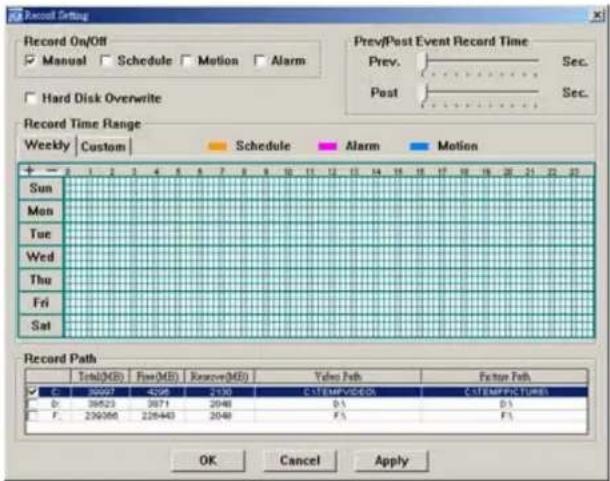
text_image
Record Setting Record On/Off Manual Schedule Motion Alarm Hard Disk Overwrite Prev/Post Event Record Time Prev. Sec. Post Sec. Record Time Range Weekly | Custom | Schedule | Alarm | Motion Sun Mon Tue Wed Thu Fri Sat Record Path Total(0)(B) Prev(0)(B) Remove(0)(B) Value Path Factor Path C 20097 4208 2100 C:\TEM\VIDEO C:\TEM\Pictures D 36523 3871 2048 D1 D1 F 236386 228443 2048 F1 F1 OK Cancel Apply2) Enable the record settings
Once the "Manual" checkbox is checked in the "Record On/Off" section, check the "REC" box in the address book panel "✓ to enable the record settings.
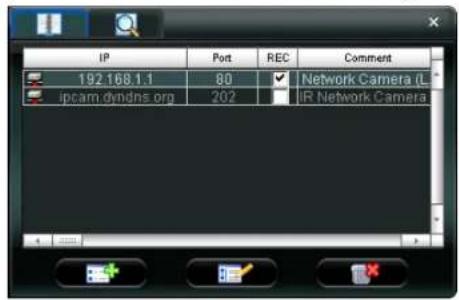
text_image
IP Port REC Comment 192.168.1.1 80 ✓ Network Camera (L ipcam:Dyndns.org 202 ✓ R Network Camera3) Click " (Record) button to start manual recording
Click “” (Record) on the main control panel to start the manual recording immediately, and the recordings will be saved in the specified location. When the record function is started, a flashing indication icon will be shown at the bottom right corner of the image display view.
Note: For detailed schedule record setting, motion-triggered and alarm-triggered recording, please refer to "5.3 Record Setting" at page 14, "Trigger" at page 18 and "Detection" at page 25.
4.4 Playback
To play a recording, click "☐" (Miscellaneous Control) → "☐" (Status List), and select the "Record" tab. A list of all the recordings will be shown by defaults, and you can also sort out the logs you want to speed up the search time. For details, please see "5.6 Status List" at page 27.
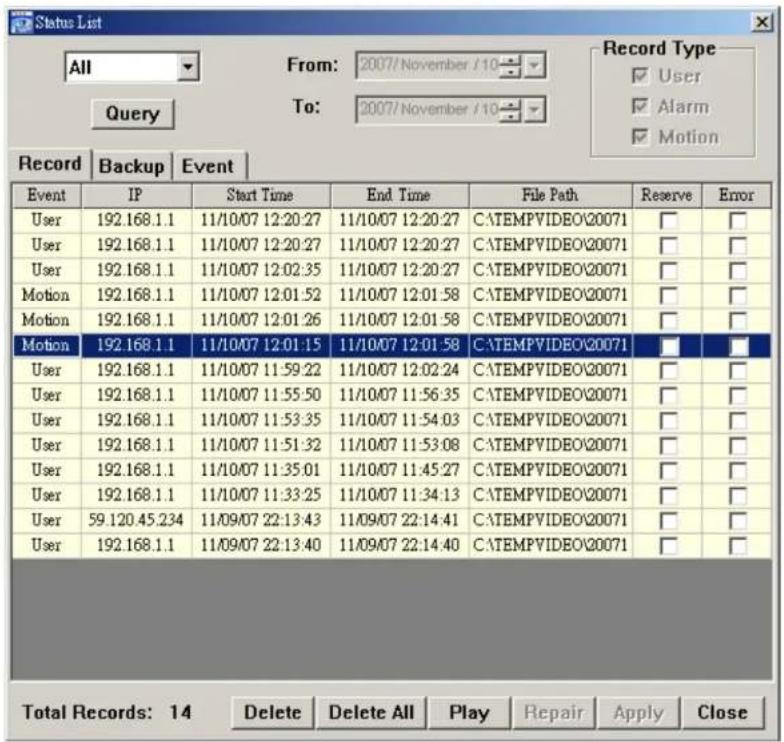
text_image
Status List All From: 2007/November /10 Query To: 2007/November /10 Record Record Type User Alarm Motion Record Backup Event Event IP Start Time End Time File Path Reserve Error User 192.168.1.1 11/10/07 12:20:27 11/10/07 12:20:27 C:\TEMPVIDEO\20071 □ □ User 192.168.1.1 11/10/07 12:20:27 11/10/07 12:20:27 C:\TEMPVIDEO\20071 □ □ User 192.168.1.1 11/10/07 12:02:35 11/10/07 12:20:27 C:\TEMPVIDEO\20071 □ □ Motion 192.168.1.1 11/10/07 12:01:52 11/10/07 12:01:58 C:\TEMPVIDEO\20071 □ □ Motion 192.168.1.1 11/10/07 12:01:26 11/10/07 12:01:58 C:\TEMPVIDEO\20071 □ □ Motion 192.168.1.1 11/10/07 12:01:15 11/10/07 12:01:58 C:\TEMPVIDEO\20071 □ □ User 192.168.1.1 11/10/07 11:59:22 11/10/07 12:02:24 C:\TEMPVIDEO\20071 □ □ User 192.168.1.1 11/10/07 11:55:50 11/10/07 11:56:35 C:\TEMPVIDEO\20071 □ □ User 192.168.1.1 11/10/07 11:53:35 11/10/07 11:54:03 C:\TEMPVIDEO\20071 □ □ User 192.168.1.1 11/10/07 11:51:32 11/10/07 11:53:08 C:\TEMPVIDEO\20071 □ □ User 192.168.1.1 11/10/07 11:35:01 11/10/07 11:45:27 C:\TEMPVIDEO\20071 □ □ User 192.168.1.1 11/10/07 11:33:25 11/10/07 11:34:13 C:\TEMPVIDEO\20071 □ □ User 59.120.45.234 11/09/07 22:13:43 11/09/07 22:14:41 C:\TEMPVIDEO\20071 □ □ User 192.168.1.1 11/09/07 22:13:40 11/09/07 22:14:40 C:\TEMPVIDEO\20071 □ □ Total Records: 14 Delete Delete All.Play Repair Apply CloseTo immediately play a recording file, select a log from the list, and click "Play" button, or double-click the selected log. Then, the playback control panel will be shown at the bottom of the main control panel similar to the following.
For the playback control panel details, please see "Playback Screen" at page 31.

text_image
C:\TEMPVIDEO\20071110115922_Camera1_MP4.avc 1x 640x480 00:01:25 De-Interlace 56%4.5 Snapshot
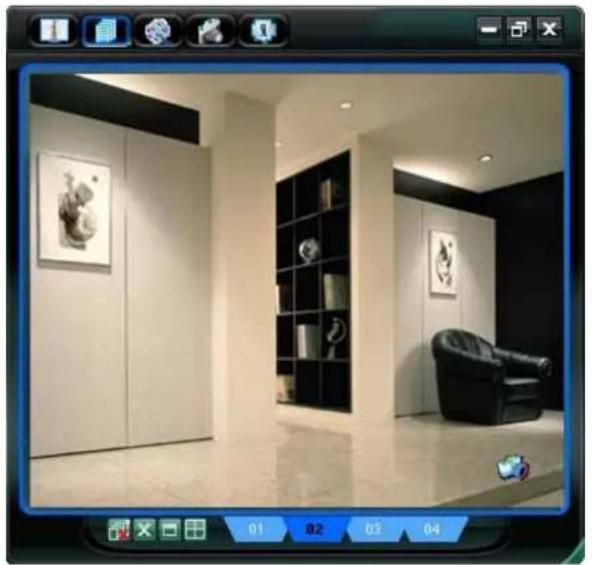
To take a snapshot of the current view, click “ ” (Snapshot) on the main control panel. Once the current view is captured, you’ll see an icon “ ” shown at the bottom right corner of the image display view.
The snapshot will be saved in the path you specified in “Record Setting” (Record Setting). For snapshot path setting, please refer to “5.3 Record Setting” at page 14.
natural_image
Interior view of a modern living room with white walls, black shelves, and a black armchair (no visible text or symbols)4.6 Information

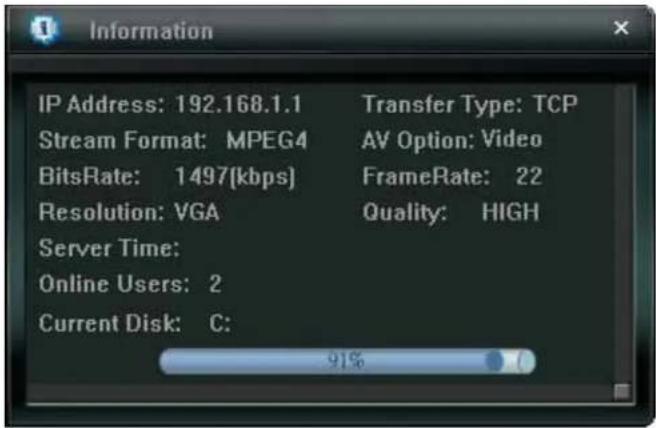
Click this button to show the current network connection details:
1) IP Address 7) Quality
2) Transfer Type 8) Resolution
3) Stream Format 9) Server Time
4) AV Option 10) Online Users
5) Bits Rate 11) Current Disk Capacity
6) Frame Rate
text_image
Information IP Address: 192.168.1.1 Transfer Type: TCP Stream Format: MPEG4 AV Option: Video BitsRate: 1497(kbps) FrameRate: 22 Resolution: VGA Quality: HIGH Server Time: Online Users: 2 Current Disk: C: 91%5. VIDEO VIEWER MISCELLANEOUS CONTROL PANEL
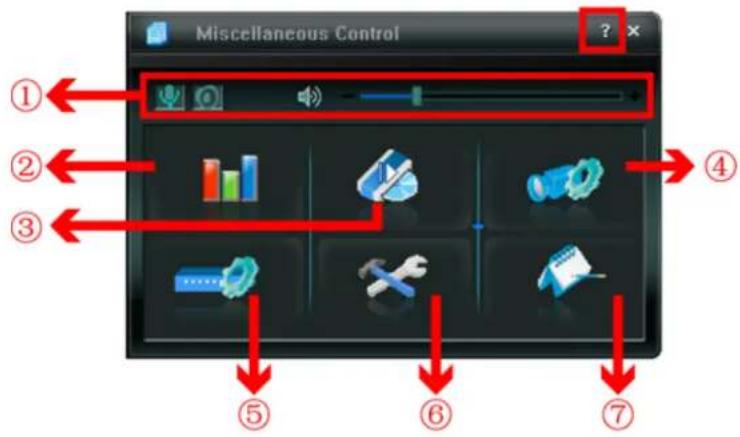
Click “☐” (Miscellaneous Control) on the Video Viewer control panel, and 7 functions are available as follows:
Click the button ?
to show the software version
text_image
Miscellaneous Control ① ② ③ ④ ⑤ ⑥ ⑦| Click the button ?o show the current version of the Video Viewer.The audio / broadcast function is only for AVI202, AVI212 models. | |||
| NO. | Button | Function | Description |
| 1 |  | Audio On / Off | Click this button to turn on / off the audio function of the network camera. |
 | Broadcast On / Off | Use the broadcast function from your PC to the connected network cameras. Please make sure the following items are ready before using this function.Your PC is connected to a microphone device and has the Video Viewer software installed.The connected network cameras are connected to speakers.The audio function of the connected network cameras is turned on ( [IMAGE]). | |
 | Audio Volume Control | To adjust the volume of the audio, press and drag the volume slider. | |
| 2 |  | Color Setting | Click this button to adjust the brightness / contrast / hue / saturation for the selected network camera. For details, please see "5.1 Color Setting" at page 13. |
| 3 |  | Backup(For DVR only) | The network cameras don't support network backup function. This function is available when the Video Viewer is connected to a DVR. You can log into the DVR via this software and remotely backup the video data saved in the DVR. For details, please see "5.2 Backup" at page 13. |
| 4 |  | Record Setting | Click this button to go to the detailed record setting. For details, please refer to "5.3 Record Setting" at page 14. |
| 5 |  | Server Setting | Click this button to go into the detailed server setting. For details, please refer to "5.4 Server Setting" at page 14. |
| 6 |  | Tools | Click this button to update the firmware version of your network camera. For details, please refer to "5.5 Tools" at page 25. |
| 7 |  | Status List | Click this button to view all the record list and login/logout event list, search the desired log list(s) by date, or playback the recording of the selected log list. For details, please refer to "5.6 Status List" at page 27 . |
5.1 Color Setting
In the live view page, choose the desired network camera from the image display tab. Click “☐” (Miscellaneous Control) → “☐” (Color Setting) to go into the “Color Setting” page, and you can adjust the brightness / contrast / hue / saturation for the selected network camera.

text_image
Color Setting Brightness Contrast Hue SaturationClick “√” (Set) to apply the change to the selected network camera. Click “S” (Default) and click “√” (Set) to return to the default color settings.
Note: You need to be a supervisor to operate this function. For details, please see "Account" at page 17.
5.2 Backup (For DVR only)
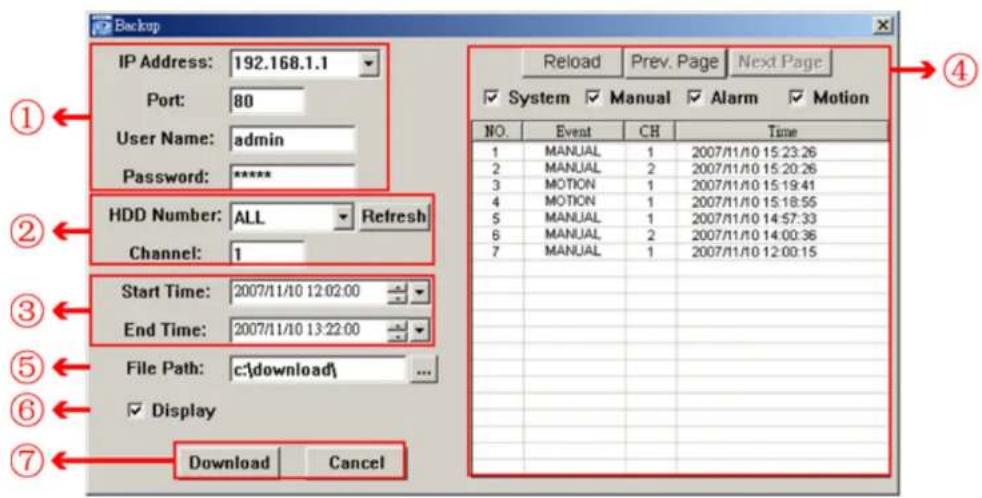
The network cameras don't have network backup function. This function is available when the Video Viewer is connected to a DVR. You can log into the DVR via this software and remotely backup the video data saved in the DVR. Click “” (Miscellaneous Control) → “” (Backup) to go into the “Backup” page, and you can select a specific time range or event to make a video backup of the recorded files saved in the DVR.
Note: You need to be a supervisor to operate this function. For details, please see "Account" at page 17.
text_image
Backup IP Address: 192.168.1.1 Port: 80 User Name: admin Password: ***** HDD Number: ALL Refresh Channel: 1 Start Time: 2007/11/10 12:02:00 End Time: 2007/11/10 13:22:00 File Path: c:\download\ ✓ Display Download Cancel Reload Prev. Page Next Page ✓ System ✓ Manual ✓ Alarm ✓ Motion NO. Event CH Time 1 MANUAL 1 2007/11/10 15:23:26 2 MANUAL 2 2007/11/10 15:20:26 3 MOTION 1 2007/11/10 15:19:41 4 MOTION 1 2007/11/10 15:18:55 5 MANUAL 1 2007/11/10 14:57:33 6 MANUAL 2 2007/11/10 14:00:36 7 MANUAL 1 2007/11/10 12:00:15| NO. | Function | Description |
| 1 | IP Address / Port / User Name / Password | Select the IP address of the desired network camera from the drop-down list and check if the network information is correct. |
| 2 | HDD Number / Channel | Specify the hard disk (HDD Number) and channel number (Channel) within which have the video data you need. |
| 3 | Filter the recorded video by time | Specify the time range within which has the video data you want in the “Start Time” and “End Time” columns. |
| 4 | Filter the recorded video by event | Select an event type from the event list. This list shows all logs in the specified network storage device from the latest to the earliest. |
| ·To quickly find the events you need, check or uncheck the event type “System” / “Manual” / “Alarm” / “Motion”, and select the log you want.·To view the earlier or later logs that are not shown in the current page, click “Prev. Page” or “Next Page”.·To refresh the event list, click “Reload”. | ||
| 5 | File Path Assign the location where the backup files are saved. | |
| 6 | Display | To view the backup images simultaneously when the download process is in progress, select the checkbox “Display”. You will see the backup images while the images are being downloaded to the PC or notebook. To simply backup images without previewing, deselect the checkbox “Display”. You will only see a message box indicating the total time needed, the current status and the saving location. |
| 7 | Download / Cancel Click “Download” to start or “Cancel” to discard the video backup. | |
5.3 Record Setting
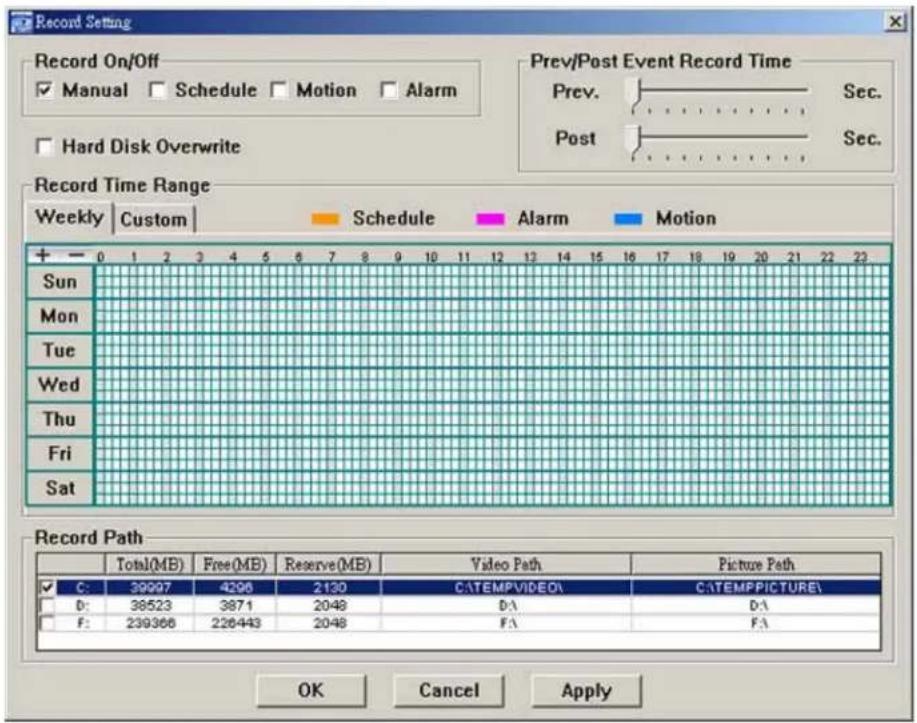
Click “☐” (Miscellaneous Control) → “☐” (Record Setting) to go into the “Record Setting” page, and you can set which type of the recording is enabled (Manual / Schedule / Motion / Alarm), and where the recorded data / snapshots are saved.
text_image
Record Setting Record On/Off ✓ Manual ✓ Schedule ✓ Motion ✓ Alarm ✓ Hard Disk Overwrite Prev/Post Event Record Time Prev. Sec. Post Sec. Record Time Range Weekly Custom Schedule Alarm Motion + - 0 1 2 3 4 5 6 7 8 9 10 11 12 13 14 15 16 17 18 19 20 21 22 23 Sun Mon Tue Wed Thu Fri Sat Record Path Total(MB) Free(MB) Reserve(MB) Video Path Picture Path ✓ C: 39997 4298 2130 C:\TEM\VIDEO\ C:\TEM\PICTURE\ D: 38523 3871 2048 D:\ D:\\ F: 239366 228443 2048 F:\ F:\\ OK Cancel ApplyNote: Once all the record settings are finished, please check the "REC" checkbox in the address book panel "☑ to enable the record setting. Please refer to "Address Book" at page 8.

text_image
IP Port REC Comment 192.168.1.1 80 ✓ Network Camera (L ipcam.dyndns.org 202 ✓ R Network CameraRecord On/Off
In this section, you can select which type of the recording will be enabled. There are 4 options: Manual / Schedule / Motion / Alarm.
Prev / Post Event Record Time
In this section, you can set the pre- / post-event record time from 0 \~ 10 seconds by pressing and dragging the slider.
Hard Disk Overwrite
Check this checkbox to overwrite from the oldest recorded data when the HDD is full.
Record Time Range
There are two options available for you to set the recording time: Weekly & Custom.
Weekly
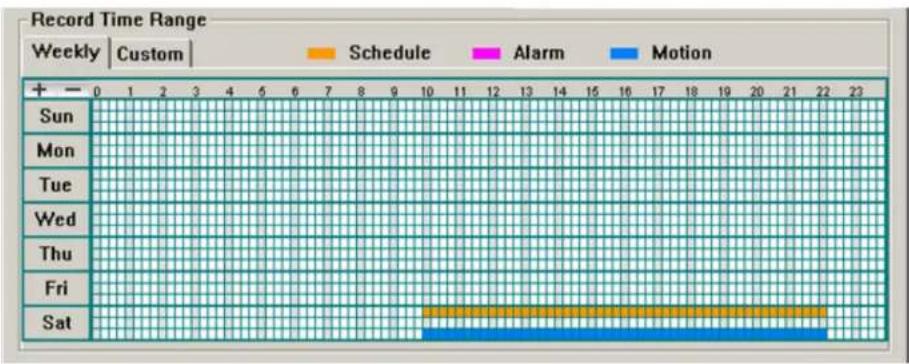
Choose the time box(es) within which you want to enable the recording. The time scale is from 0 \~ 24 hours per day, and there are 3 time lines for each weekday, representing 3 different recording types.
When you select the time box(es), you may see the color orange, pink or blue:
orange => the 1^st line, schedule record
pink => the 2^nd line, alarm record
blue => the 3^rd line, motion record
bar
Record Time Range | Week | Custom | Schedule | Alarm | Motion | |---|---|---|---|---| | Sun | 0-1 | 0 | 0 | 0 | | Mon | 1-2 | 0 | 0 | 0 | | Tue | 2-3 | 0 | 0 | 0 | | Wed | 4-5 | 0 | 0 | 0 | | Thu | 6-7 | 0 | 0 | 0 | | Fri | 8-9 | 0 | 0 | 0 | | Sat | 10-11 | 10 | 0 | 10 | | + - | 12-13 | 12 | 0 | 12 | | 23 | 22-23 | 22 | 0 | 22 |Tip: To set schedule record, alarm record and motion record all at once for the whole week, press "+" button. To clear all record time settings, press "-" button.
Custom
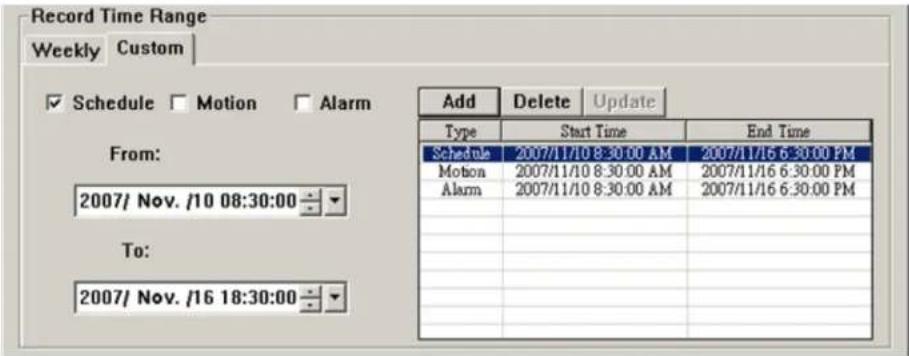
To specify the more specific time for recording, click "Custom".

text_image
Record Time Range Weekly Custom ✓ Schedule ✓ Motion ✓ Alarm Add Delete Update Type Start Time End Time From: 2007/ Nov. /10 08:30:00 To: 2007/ Nov. /16 18:30:00a). Select the desired record type(s) (Schedule / Motion / Alarm), and set the start & end date and time.
b). Press "Add", and a pop-up window will appear and ask you to confirm your setting. Click "OK" to add the record setting, or "Cancel" to discard the setting.

text_image
Information You will add three item: Type: Schedule, Motion, Alarm From: 2007/11/10 8:30:00 AM To: 2007/11/16 6:30:00 PM Are you Sure? OK Cancelc). After adding the record setting, you will see the item(s) you added in the custom record list.
To delete a certain item, choose the item you want to delete, and click "Delete".
To modify a certain item, choose the item you want to modify, change the start time and end time, and click "Update".
text_image
Record Time Range Weekly Custom ✓ Schedule ☐ Motion ☐ Alarm Add Delete Update Type Start Time End Time Schedule 2007/11/10 8:30:00 AM 2007/11/16 6:30:00 PM Motion 2007/11/10 8:30:00 AM 2007/11/16 6:30:00 PM Alarm 2007/11/10 8:30:00 AM 2007/11/16 6:30:00 PM To: 2007/ Nov. /10 08:30:00 2007/ Nov. /16 18:30:00Record Path
Select and view the location for saving the recorded video and snapshot pictures.
To change the saving path for the recorded video clips or snapshots, check the drive you want, click the cell of "Video Path" or "Picture Path" twice, and select a new path for saving the video clips or snapshots.

text_image
Record Path Total(MB) Free(MB) Reserve(MB) Video Path Picture Path ✓ C: 39997 4296 2130 C:\TEMPP\CTURE\ ✓ D: 38523 3871 2048 D:\ F:\ F3 ✓ F: 239366 226443 2048 F:\ F35.4 Server Setting
Click “☐” (Miscellaneous Control) → “☐” (Server Setting) to go into the “Server Setting” page, and you can view, set or modify all the network camera setting. All the changes you make here will be applied to the connected network camera.
Note: You need to be a supervisor to operate this function. For details, please see "Account" at page 17.
General
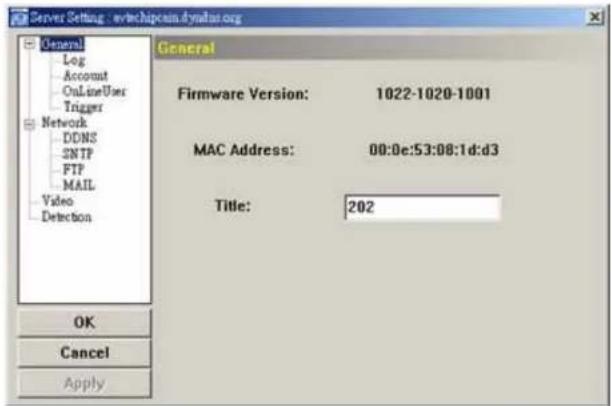
Click "☐" (Miscellaneous Control) > "☐" (Server Setting) > "General" to go into the "General" page. In
"General" page, you will see the following items:
text_image
Server Setting : svtechipcam.dynus.org General Log Account OnLineUsers Trigger Network DDNS SNTP FTP MAIL Video Detection General Firmware Version: 1022-1020-1001 MAC Address: 00:0e:53:08:1d:d3 Title: 202 OK Cancel Apply| Item | Description |
| Firmware Version Display the current firmware version of the network camera. | |
| MAC Address Display the MAC address of the network camera. | |
| Title | Provide a title for the network camera. Only 15 characters are allowed. The default camera title is “Camera1”. |
Log
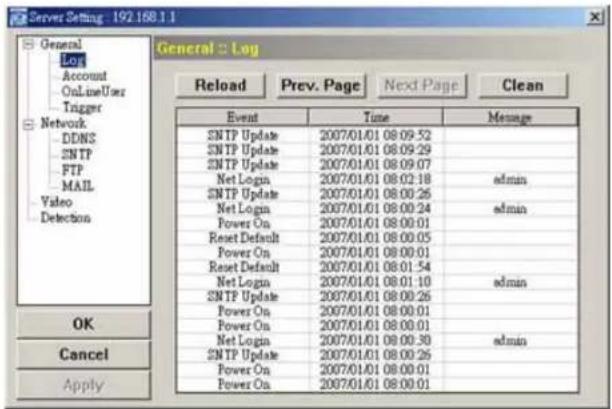
Click “☐” (Miscellaneous Control) → “☐” (Server Setting) → “General” → “Log” to go into the “Log” page. In the “Log” page, you can see all the logs for the network camera, such as “Power On”, “Reset Default”, “Net Login” and “SNTP Update” ... etc.
- To refresh the logs, click "Reload".
- To view the earlier or later logs that are not shown in the current page, click "Prev. Page" or "Next Page".
• To clear all the logs, click "Clean".
text_image
Server Setting : 192.168.1.1 General Log Load Account OnLineUsers Trigger Network DDNS SNTP FTP MAIL Video Detection Event Tune Message SNTP Update 2007/01/01 08:09:52 SNTP Update 2007/01/01 08:09:29 SNTP Update 2007/01/01 08:09:07 Net Login 2007/01/01 08:02:18 adults SNTP Update 2007/01/01 08:00:26 Net Login 2007/01/01 08:00:24 adults Power On 2007/01/01 08:00:01 Reset Default 2007/01/01 08:00:05 Power On 2007/01/01 08:00:01 Reset Default 2007/01/01 08:01:54 adults Net Login 2007/01/01 08:01:10 SNTP Update 2007/01/01 08:00:26 Power On 2007/01/01 08:00:01 Power On 2007/01/01 08:00:01 Net Login 2007/01/01 08:00:30 adults SNTP Update 2007/01/01 08:00:26 Power On 2007/01/01 08:00:01 Power On 2007/01/01 08:00:01 OK Cancel ApplyAccount
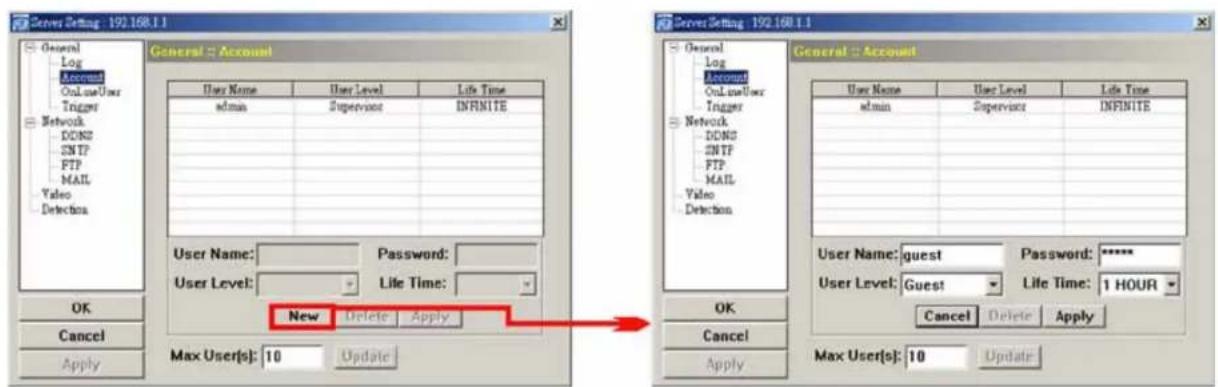
Click “☐” (Miscellaneous Control) → “☐” (Server Setting) → “General” → “Account” to go into the “Account” page. In the “Account” page, you can create a new account for login, or delete or modify the existing account setting.
To add an account, click "New", and set the "User Name", "Password", "User Level" and "Life Time". Then, click "Apply" to save your setting and create a new account.
text_image
Server Setting : 192.168.1.1 General Account User Name User Level Life Time admin Supervisor INFINITE User Name: Password: User Level: Life Time: New Delete Apply Max User(s): 10 Update OK Cancel Apply Server Setting : 192.168.1.1 General Account User Name User Level Life Time admin Supervisor INFINITE User Name: guest Password: ***** User Level: Guest Life Time: 1 HOUR Cancel Delete Apply Max User(s): 10 Update• To modify an existing account, select the account you want, change the setting, and click "Apply".
• To remove an existing account, select the account you want, and click "Delete".
• To save your changes, click "Apply".
| Column | Description |
| User Name Set a user name that will be used for remote login. The user name allows up to 31 characters. | |
| Password | Set the password that will be used for remote login. The password allows up to 31 characters. |
| User Level | Set the security level of an account to give the permission to control different Video Viewer functions.There are 4 user levels: “Supervisor”, “Power User”, “Normal User” and “Guest”. |
| Column | Description | |
| For the functions each user level is allowed to access, please see the information below: | ||
| Supervisor Power User | Normal User Guest | |
| Address Book | ● ● ● ● | |
| Miscellaneous Control | ||
| Color Setting | ● X X X | |
| Backup | ● X X X | |
| Record Setting | ● ● ● ● | |
| Server Setting | ● X X X | |
| Tools | ● X X X | |
| Status List | ● ● ● ● | |
| Record | ● ● ● ● | |
| Snapshot | ● ● ● ● | |
| Information | ● ● ● ● | |
| Life Time | Select how long this account is allowed to stay online (1 MIN / 5 MIN / 10 MIN / 1 HOUR / 1 DAY / INFINITE) | |
| Max User(s) | Allow maximum 10 online users simultaneously | |
Online User
Click “” (Miscellaneous Control) → “” (Server Setting) → “General” → “OnLineUser”, and you can check all the online user information. To update the user information, click “Refresh”.

text_image
Server Setting : 192.168.1.1 General = OnlineUser Online User Information: Refresh User Name User Level IP Address Media Type admin Supervisor 192.168.1.187 MPE04 OK Cancel ApplyTrigger
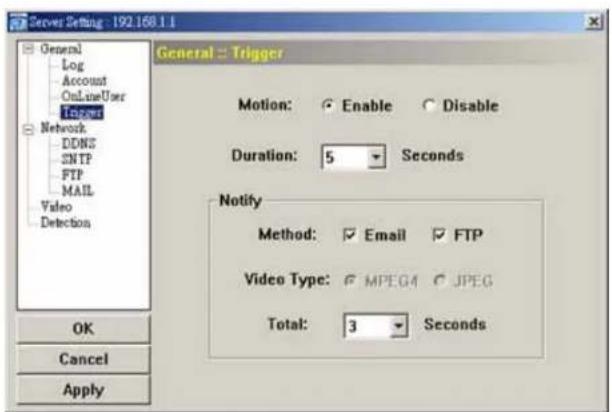
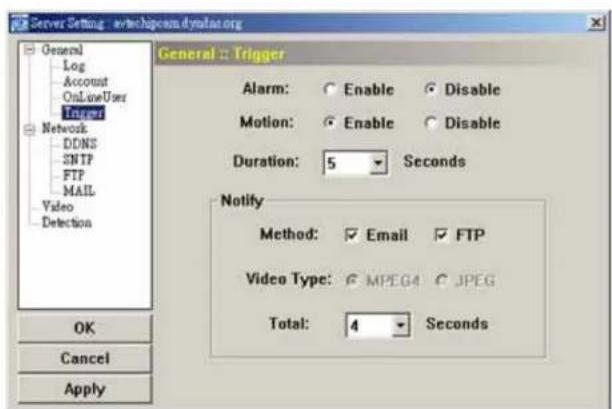
Click “☐” (Miscellaneous Control) → “☐” (Server Setting) → “General” → “Trigger” to enter this page.
• AVI201
text_image
Server Setting : 192.168.1.1 General Log Account OnLineUser Target Network DDNS SMTP FTP MAIL Video Detection General = Trigger Motion: Enable Disable Duration: 5 Seconds Notify Method: Email FTP Video Type: MPEG4 JPEG Total: 3 Seconds OK Cancel Apply• AVI202 / AVI212
text_image
Server Setting - sv@techupcam.dynatoc.org General Log Account OnLineUser Target Network DDNS SNTP FTP MAIL Video Detection General :: Trigger Alarm: Enable Disable Motion: Enable Disable Duration: 5 Seconds Notify Method: Email FTP Video Type: MPEG4 JPEG Total: 4 Seconds OK Cancel Apply♦ Motion Trigger:
In this section, you can select to enable the function of motion trigger. Before this function is enabled, you need to set the motion detection area first. For motion detection area setting, please refer to "Detection" at page 25.
| Item | Description |
| Motion In this section, you can select to enable the function of motion trigger. | |
| Duration Set the duration time of the motion trigger recording (5 / 10 / 20 / 40 seconds). | |
◆ Alarm Trigger (Only for AVI202 / 212):
In this section, you can select to enable the function of alarm trigger.
◆ Notify
In this section, you can select to enable the function of E-mail and/or FTP notification.
| Item | Description |
| Method | ·Email Notification:If the E-mail notification function is activated, the network camera will send the captured video clip to the assigned E-mail address(s) once motion-trigger or alarm-trigger recording happened.·FTP Notification:If the FTP notification function is activated, the network camera will upload the captured video clip to the specified FTP site once motion-trigger or alarm-trigger recording happened. |
| Video Type | Display the video type of the notification files. The video type will vary according to the setting of “Stream Format” in the “[IMAGE]” (Address Book) page. |
| Total Set the record | time of the notification video clip (1 ~ 5 seconds). |
Network
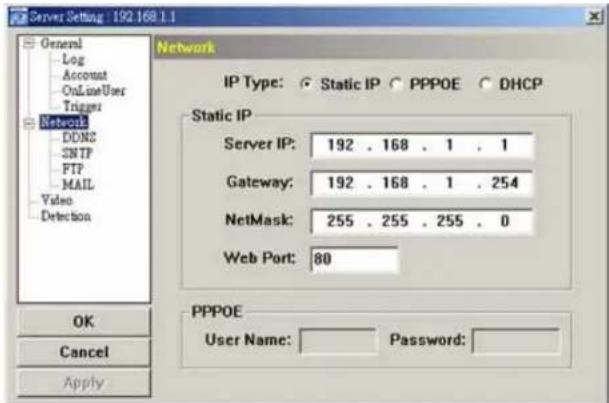
Click “☐” (Miscellaneous Control) → “☐” (Server Setting) → “Network” to go into the “Network” page. In “Network” page, you can set the network configuration of the network camera.
text_image
Server Setting : 192.168.1.1 Network IP Type: Static IP PPPOE DHCP Static IP Server IP: 192 . 168 . 1 . 1 Gateway: 192 . 168 . 1 . 254 NetMask: 255 . 255 . 255 . 0 Web Port: 80 PPPOE User Name: Password: OK Cancel ApplySelect the network type you will be using for the network camera connection. There are 3 network connection types: Static IP, PPPOE and DHCP.
Note: PPPOE and DHCP network connection types are required to apply the DDNS service to get a "Hostname" to correspond to a dynamic IP address. Please refer to "DDNS" section for details.
| Function | Description |
| Web Port | Typically, the default TCP port used by HTTP is 80. However, in some cases, it is better to change this port number for added flexibility or security. The valid web port number ranges from 1 to 9999. |
| Static IP | Computers are communicated and recognized by their own unique IP addresses over the Internet. “Static IP” provided by your ISP (Internet Service Provider) means the IP address of the computer is fixed.Key in the server IP address, gateway and network information provided by your ISP provider to configure a static IP network connection. |
| PPPOE | PPPOE stands for Point-to-Point Protocol over Ethernet. Users can easily have the Internet service as long as they're ready for the following things: 1) Insert an Ethernet card into the PC. 2) Obtain the ADSL service via any ISP. 3) Obtain and install the PPPOE software CD.When everything is ready, choose the "PPPOE" IP type, and key in the user name and password provided by your ISP. Then, select "Network" > "DDNS" to set DDNS settings.For detailed DDNS settings, please refer to "DDNS" section. |
| DHCP | This DHCP function needs to be supported by a router or cable modem network with the DHCP service. Choose the "DHCP" IP type, and select "Network" > "DDNS" to set DDNS settings.For detailed DDNS settings, please refer to "DDNS" section. |
DDNS
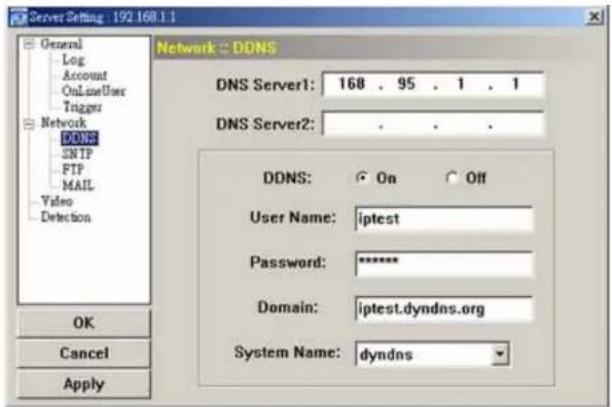
You need to apply a DDNS account before setting PPPOE or DHCP connection. DDNS is a service for transforming the dynamic IP corresponding to a specific "host name". Go to a website which provide free DDNS services and apply a host name.
Click “☐” (Miscellaneous Control) → “☐” (Server Setting) → “Network” → “DDNS” to enter.
text_image
Server Setting : 192.168.1.1 Network :: DDNS DNS Server1: 168 . 95 . 1 . 1 DNS Server2: . DDNS: On Off User Name: iptest Password: ***** Domain: iptest.dyndns.org System Name: dyndns OK Cancel Apply◆ DDNS Apply:
You need to apply a DDNS account before setting PPPoE or DHCP connection. DDNS is a service for transforming the dynamic IP corresponding to a specific "Hostname". Please refer to the steps below.
- Go to a website which provides free DDNS services and apply a "Hostname".
For example, go to http://www.dyndns.com.

text_image
DynDNS® Last Updated: Last Up Now About Services Account Support News Invisible Reliability, Obvious Value. - Run your own server - Mail delivery solutions - Static and dynamic IPs - Easy-to-use web interface - Top-notch technical support Learn more... DNS Services DNS for static and dynamic businesses Mail-hop Services Ensure reliable mail delivery Network Monitoring Monitor your online services, 26.7.065 SSL Certificates High quality digital certificates DyneDNS Receives: "Best Buy" Ranking From Consumer Guide Fastly Automatic Renewals Resources What is DNS? Home Solutions Business Solutions Services Custom DNS Dynamic DNS Mail-hop Outbound Support Knowledge Base Update Clients 24/7 Premier Support About DynDNS Search DynDNS DynDNS Careers Contact Us Copyright © 1999-2004 Dynamic Network Services, Inc. Privacy Policy Available Use Policy Trademark Status• Enter all the information necessary for signing up an account according to the website instructions.

text_image
DynDNS Create Account Create Account Search DynDNS Create Account Acceptable Use Policy Policy List: Modelling February 4, 2008 1. ACCEPTMENT AND ACCEPTANCE OF TERMS OF SERVICE ALL ITEMS PROVIDED BY DEMARKS MOUNTED SYSTEMS, INC. ("PAPERS") are provided to you file "Hemerson's" folder in the Determine and Conditions net forth in this acceptable Use Policy ("ASP") and any other operating roles and policies net forth the Determine) are provided to you file "Hemerson's" folder in the Determine and Conditions net forth in this acceptable Use Policy THE APP is completed by the online movement between the Determine and procedures and experience all prior applications in order to perform engineering law and work without notice by completing the registration process and clicking the "Acrop" SYSTEM, FOR ARE INDICATIONS THIS AGREEMENT TO BE FORM AT ALL OF THE SYSTEM AND CONDITIONS OF THE APP. 1. DESCRIPTION OF SERVICE How read and agree to the Acceptable Use Policy form Check Understanding that each please have been sent to all free accounts, and acknowledge that any creation of multiple free accounts will result in the formation of all free accounts.
text_image
Username Username: Ethys Username You username will be used to page to your account and make changes. E-mail Address Email address: https://security.org/online address: e-mail@security.org E-mail The email address must be sent. Instructions to access your account will use to the email address provided. You must keep the address current. Any accounts will email address be adjusted to send without warning. We do not allow your account information to ensure that here is about our email address. Password Password: Password Password The password order will be used to access your account. It must be more than 5 characters and cannot be the use at your account. Do not choose a password that is a common word, or can otherwise be ready scanned.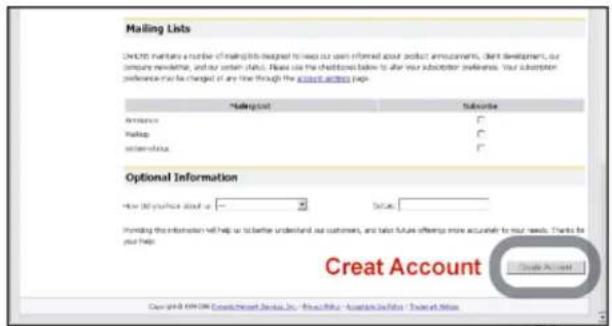
text_image
Mailing Lists ONION: Number of mailing lists designed to keep our own referred about product announcements, card development, our procure newsletter, and our system status. Please use the requested before to show your subscriber preferences. Your subscription preference may be changed if any time through the account accounts page. Mailings Subscribers Accessories + - Mailups + - System-Status + Optional Information How do you have about us Details Providing the information will help us to better understand all customers, and take future offerings more accurately to your needs. Thanks for your help. Creat Account Create Account Copyright © 2016 Creationsheet Services, Inc. (http://www.cncb.com.cn) (Table18/8)- Then, you will see the screen "Account Created", and Dyndns will email the instructions to your specified E-mail address for enabling your account. You must complete the procedure according to the instructions in the mail. That is to must visit the confirmation address within 48 hours of the time that the e-mail was sent to complete the account creation process. Then, you will see "Account Confirmed". Your account is created successfully now.

text_image
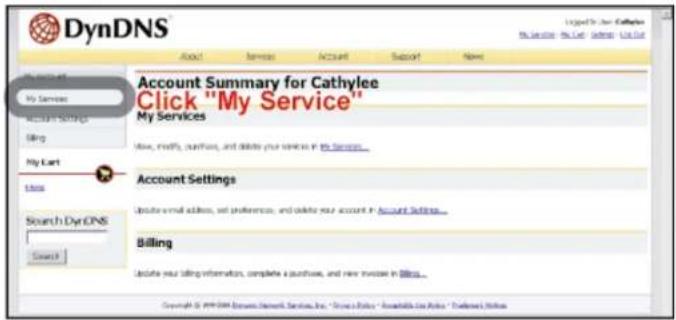
DynDNS Account Created Account Created By Account Check Account1 Logit Last Followed? Search DynDNS Search it You should receive the confirmation mail within a few minutes. Please make sure that your own sharing about messages from successful downloads can be delivered. If you have not received the email within an hour or so, request a password request. Following the instructions in the password request email will also confirm your new account. If you don't receive the password request email either, you should check why your email provider to deliver why you are not receiving these messages. Copyright © 2019 DNS Account Granted Services Inc. (www.dsninfo.com) (www.dsninfo.com) After complete the procedure according to the instructions in the confirmation mail DynDNS Account Confirmed Account Confirmed We recommend that your mail is required. You can now buy and start using your account. The first account announcement is taking let you may with a subscribe to - but it is used for notifications of new services, changes to services, and important system maintenance/purchase notifications. To subscribe, go to our Mail List Subscription page. Once then, you may subscribe to the announcement list by clicking the appropriate box, and did the "Save Settings" button. Copyright © 2019 DNS Account Granted Services Inc. (www.dsninfo.com) (www.dsninfo.com)- Log in with your account information and click "My Service".
text_image
DynDNS Account Summary for Cathylee Click "My Service" My Services How, find's, purchase, and delete your service in My Service... Account Settings Update email address, set preferences, and delete your account in Account Settings... Billing Update your listing information, complete a purchase, and new invoice in Bills... Copyright © FY2019 Econis Network Services Inc. (Source: https://investia.com/) Download: https://www.dynDNS.com- Click "Add Host Services".
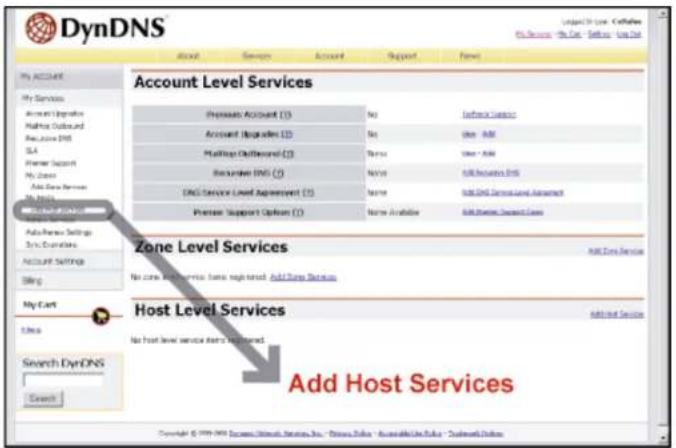
text_image
DynDNS Account Level Services Formative Account (S) Account Upgrades (D) Philing Outperform (C) Recruitment EMS (C) DNS Service Level Agreement (S) Preterm Support Option (C) Name Available Add Zone Service Zone Level Services No zone host service has registered Add Zone Services Host Level Services No host level service has registered Add Host Services Search DynDNS Search Add Host Services Copyright © 2019 DNS Access Services, Inc. - Online Data - AccessData, Inc. - Download Data- Click "Add Dynamic DNS Host".

text_image
DynDNS Add Host Services Dynamic DNS (C) Static DNS (C) Workshop (C) Workshop (C) Network Monitoring (C) Web Certification (C) Add Dynamic DNS Host Add Dynamic DNS Host Add Dynamic DNS Host Add Network Monitoring Add Web Certificate Add Dynamic DNS Host Add Dynamic DNS Host Add Dynamic DNS Host Add Dynamic DNS Host Add Dynamic DNS Host Add Dynamic DNS Host Add Dynamic DNS Host Add Dynamic DNS Host Add Dynamic DNS Host Add Dynamic DNS Host Add Dynamic DNS Host Add Dynamic DNS Host Add Dynamic DNS Host Add Dynamic DNS Host Add Dynamic DNS Host Add Dynamic DNS Host Add Dynamic DNS Host Add Dynamic DNS Host Add Dynamic DNS Host Add Dynamic DNS Host Add Dynamic DNS Hosp Add Dynamic DNS Hosp Add Dynamic DNS Hosp Add Dynamic DNS Hosp Add Dynamic DNS Hosp Add Dynamic DNS Hosp Add Dynamic DNS Hosp Add Dynamic DNS Hosp Add Dynamic DNS Hosp Add Dynamic DNS Hosp Add Dynamic DNS Hosp Add Dynamic DNS Hosp Add Dynamic DNS Hosp Add Dynamic DNS Hosp Add Dynamic DNS Hosp Add Dynamic DNS Hosp Add Dynamic DNS Hosp Add Dynamic DNS Hosp Add Dynamic DNS Hosp Add Dynamic DNS Hosp Add Dynamic DNS hosp Add Dynamic DNS hosp Add Dynamic DNS hosp Add Dynamic DNS hosp Add Dynamic DNS hosp Add Dynamic DNS hosp Add Dynamic DNS hosp Add Dynamic DNS hosp Add Dynamic DNS hosp Add Dynamic DNS hosp Add Dynamic DNS hosp Add Dynamic DNS hosp Add Dynamic DNS hosp Add Dynamic DNS hosp Add Dynamic DNS hosp Add Dynamic DNS hosp Add Dynamic DNS hosp Add Dynamic DNS hosp Add Dynamic DNS hosp Add Dynamic DNS hosp Add Dynamic DNS Hosp Add Dynamic DNS Hosp Add Dynamic DNS Hosp Add Dynamic DNS Hosp Add Dynamic DNS Hosp Add Dynamic DNS Hosp Add Dynamic DNS Hosp Add Dynamic DNS Hosp Add Dynamic DNS Hosp Add Dynamic DNS Hosp Add Dynamic DNS Hosp Add Dynamic DNS Hosp Add Dynamic DNS Hosp Add Dynamic DNS Hosp Add Dynamic DNS Hosp Add Dynamic DNS Hosp Add Dynamic DNS Hosp Add Dynamic DNS Hosp Add Dynamic DNS Hosp Add Dynamic DNS Hospital- Fill in and choose the desired host name.
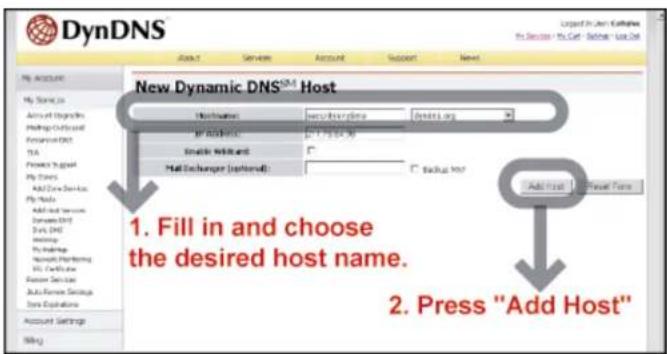
text_image
DynDNS Logard in User Cathode the Service - the Cat - Webbase - Web Date Add List New Dynamic DNS Host Home/Service: www.dynDNS Edit Date: 2017-04-09 Email: wdb@msdb.com Mail Exchange (optional): Backup Info Add Host Press "Add Host" 1. Fill in and choose the desired host name. 2. Press "Add Host"- The host name is created. You will be connected to the corresponding IP address whenever you enter this hostname.

text_image
DynDNS Supported in User Facebook My Account - My Call - Software - Local Hostname Created Hostname Created The Hostname (without requested has been posted. The information now in the database and OVC system) Hostname localhost: www.dynDNS.com Hostname: localhost@dyndns.com IP Address: 100% (http://www.dynDNS.com) Mailagent: % Full Exchangeed: 40% (http://www.dynDNS.com) Backup HIC: %SNTP
SNTP (Simple Network Time Protocol) is for time setting. Click “☐” (Miscellaneous Control) → “☐” (Server Setting) > “Network” > “SNTP” to go into the “SNTP” page.
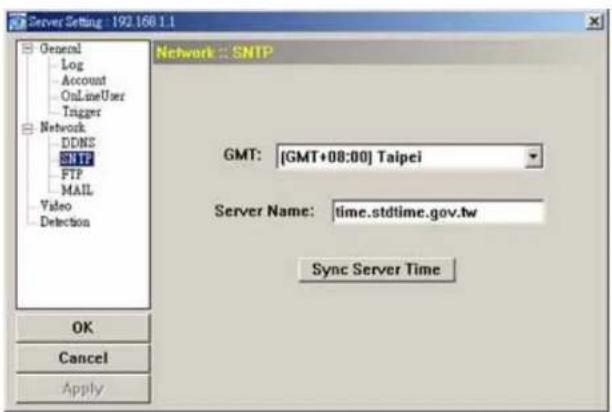
text_image
Server Setting : 192.168.1.1 General Log Account OnLineUser Trigger Network DDNS SNTP FTP MAIL Video Detection Network : SNTP GMT: [GMT+08:00] Taipei Server Name: time.stdtime.gov.tw Sync Server Time OK Cancel Apply| Function | Description |
| GMT (Greenwich Mean Time) | Once users choose the time zone, the network camera will adjust the local area time of the system automatically. |
| Server Name | Users can simply use the default SNTP server (For example, time.stdtime.gov.tw). |
| Sync Server Time The network | camera will synchronize the time with the network time. |
FTP
Click "☐" (Miscellaneous Control) → "☐" (Server Setting) → "Network" → "FTP" to go into the "FTP" page.
Enter the detailed FTP information and press "Apply" to confirm. The information you set here will be applied when the function of FTP notification is enabled in the "Trigger" menu.
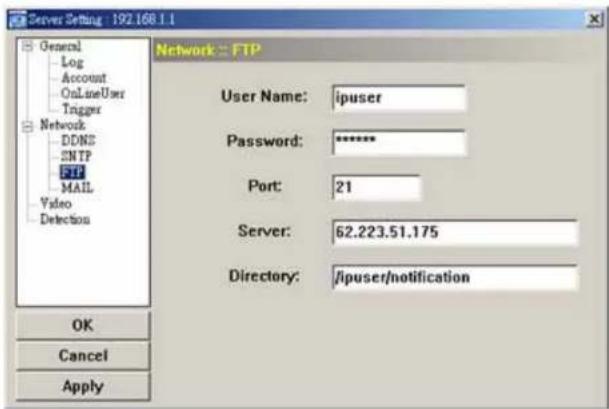
text_image
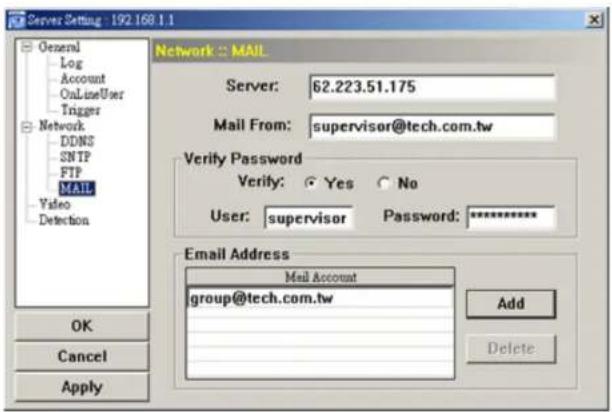
Server Setting : 192.168.1.1 General Log Account OnLineUser Trigger Network DDNS SNTP FTP MAIL Video Detection Network = FTP User Name: ipuser Password: ******** Port: 21 Server: 62.223.51.175 Directory: /ipuser/notification OK Cancel ApplyClick "☐" (Miscellaneous Control) → "☐" (Server Setting) → "Network" → "MAIL" to go into the "MAIL"
page. Enter the detailed E-mail information and press "Apply" to confirm. The information you set here will be applied when the function of E-mail notification is enabled in the "Trigger" menu.
text_image
Server Setting : 192.168.1.1 General Log Account OnLine/User Trigger Network DDNS SMTP FTP MAIL Video Detection Network : MAIL Server: 62.223.51.175 Mail From: supervisor@tech.com.tw Verify Password Verify: Yes No User: supervisor Password: ********* Email Address Mail Account group@tech.com.tw Add Delete OK Cancel Apply| Function | Description |
| Server Enter the SMTP server | address provided from your e-mail system supplier. |
| Mail From Enter the entire mail | address to ensure E-mails will not be blocked by SMTP. |
| Verify Password Some mail servers are required to verify the password. Please enter the “user name” and “password”. | |
| Email Address Add the E-mail | address(s) of the assigned recipient(s). |
Note: Users can assign up to 4 mail accounts for E-mail notification.
Video
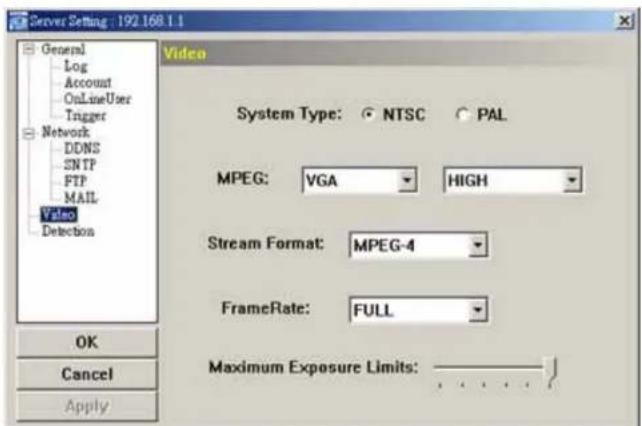
Click "☐" (Miscellaneous Control) > "☐" (Server Setting) > "Video" to go into the "Video" page.
text_image
Server Setting : 192.168.1.1 General Log Account OnLineUser Trigger Network DDNS SNTP FTP MAIL Video Detection Video System Type: NTSC PAL MPEG: VGA HIGH Stream Format: MPEG-4 FrameRate: FULL Maximum Exposure Limits:| Item | Description |
| System Type Select the system type of the connected network camera. | |
| MPEG Image Resolution: VGA (640 × 480) / QVGA (320 × 240)Image Quality: BEST / HIGH / NORMAL / LOW | |
| Stream Format | Select the stream format of the network transmission (MPEG-4 / Motion JPEG). |
| Frame Rate | The frame rate allowed to each viewer can be adjusted to adapt to the bandwidth on the network. Set the desired image frequency to the maximum (FULL) or to a specified frame rate (HALF / ONE THIRD / QUARTER / ONE FIFTH / ONE TENTH / ONE FIFTEENTH).The actual frame rate depends on the actual network connection, and may be lower than the specified one. |
| Maximum Exposure Limits | To compensate for the lighting conditions, the maximum exposure time can be adjusted. There are five levels of the exposure control. The shortest exposure time is LEVEL 0, and the longest exposure time is LEVEL 5. This setting will affect the video image quality. |
Detection
Motion detection is used to generate a motion trigger whenever a movement occurs in the video image. Select the desired channel, and click "Edit" to enter the setting page of the motion detection area.

text_image
Server Setting : 192.168.1.1 General Log Account OnLineUser Trigger Network DDNS SNTP FTP MAIL Video Detection Detection OK Cancel Apply [+]Select All [-]Clear All Apply| Function | Description |
| Motion Detection Setting Area | Set the motion detection area by selecting the area grids with your mouse. Pink grids represent the area that is not being detected while the transparent grids are the area under detection. You can set multiple areas under detection. |
| Select All | Click “+” (Select All) to set the whole area under detection. |
| Clear All | Click “-” (Clear All) to set the whole area undetected. |
| Apply After setup, click “Apply” to confirm. | |
5.5 Tools
Click "☐" (Miscellaneous Control) > "✗" (Tools) to go into the "Tools" page.
Note: You need to be a supervisor to operate this function. For details, please see "Account" at page 17.
Update Firmware
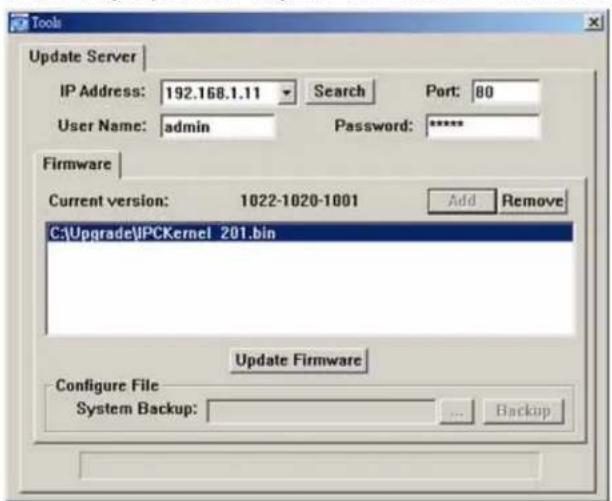
In this page, you can upgrade the firmware version of your network camera.
text_image
Tools Update Server IP Address: 192.168.1.11 Search Port: 80 User Name: admin Password: ***** Firmware Current version: 1022-1020-1001 Add Remove C:\Upgrade\IPCKernel 201.bin Update Firmware Configure File System Backup: ... Backup| Function | Description |
| Update Server | Select the IP address of the network camera. Make sure the network settings of the selected network camera are correct. |
| Current Version In the “Firmware” section, you will see the current firmware version.For example, 1022-1020-1001 | |
| Add | To upgrade the firmware version of your network camera, click “Add” to locate and select the firmware files.There are several upgrade files. Please upgrade one by one. |
| Update Firmware | To start upgrading the firmware of the network camera, click “Update Firmware” to start the upgrade process. After upgraded, you will see a message shown on the screen:“Update Firmware Succeeded! Don’t plug off power, the machine will reboot automatically!” |
| Configure Backup(For DVR only) | If you want to backup your system before upgrading the firmware version, select “System Backup” in the “Configure File” section, click “...” to specify the location for saving system backup, and click “Backup” to start the backup process. |
Note: The network setting of the camera might restore to default values after upgrade. If this is true, please set the network information again.
5.6 Status List
Click “ [icon] ” (Status List) to view all the record list and login/logout event list (All), or search the desired log list(s) by date, or playback the recording of the selected log list (Condition).
There are three types of logs: Record, Event and Backup. To playback the recorded data for a specific record log, select the log, and double-click to start the video playback.
For detailed playback operation, please refer to "Playback Screen" at page 31.
Record List
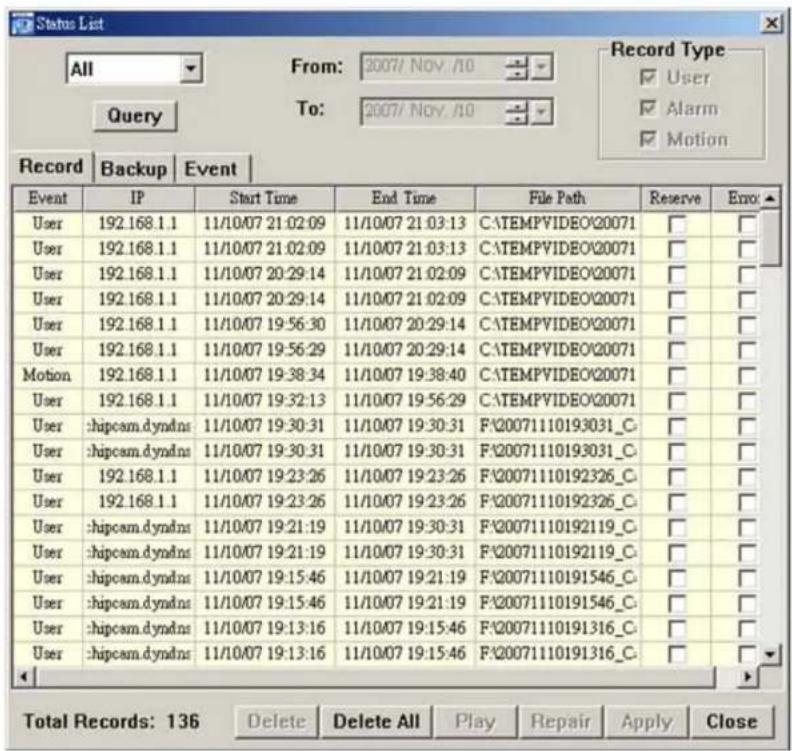
Select "All" to show all record logs, or "Condition" to search for the specific log(s) by date or by record type.
• All
text_image
Status List All From: 2007/ Nov. /10 Query To: 2007/ Nov. /10 Record Type User Alarm Motion Record | Backup | Event | Event IP Start Time End Time File Path Reserve Error User 192.168.1.1 11/10/07 21:02:09 11/10/07 21:03:13 C:\ATEMPVIDEO\20071 □ □ User 192.168.1.1 11/10/07 21:02:09 11/10/07 21:03:13 C:\ATEMPVIDEO\20071 □ □ User 192.168.1.1 11/10/07 20:29:14 11/10/07 21:02:09 C:\ATEMPVIDEO\20071 □ □ User 192.168.1.1 11/10/07 20:29:14 11/10/07 21:02:09 C:\ATEMPVIDEO\20071 □ □ User 192.168.1.1 11/1/07 19:56:30 11/1/07 20:29:14 C:\ATEMPVIDEO\20071 □ □ User 192.168.1.1 11/10/07 19:56:29 11/10/07 20:29:14 C:\ATEMPVIDEO\20071 □ □ Motion 192.168.1.1 11/10/07 19:38:34 11/10/07 19:38:40 C:\ATEMPVIDEO\20071 □ □ User 192.168.1.1 11/10/07 19:32:13 11/10/07 19:56:29 C:\ATEMPVIDEO\20071 □ □ User :hipcam.dyndns 11/10/07 19:30:31 11/10/07 19:30:31 F:\2007\1\1\0\19\3\3\_C □ □ User :hipcam.dyndns 11/10/07 19:30:31 11/10/07 19:30:31 F:\2007\1\1\0\19\3\3\_C □ □ User 192.168.1.1 11/10/07 19:23:26 11/10/07 19:23:26 F:\2007\1\1\0\19\2\3\26_C □ □ User 192.168.1.1 11/10/07 19:23:26 11/10/07 19:23:26 F:\2007\1\1\0\19\2\3\26_C □ □ User :hipcam.dyndns 11/10/07 19:21:19 11/10/07 19:30:31 F:\2007\1\1\0\19\2\1\9_C □ □ User :hipcam.dyndns 11/10/07 19:21:19 11/10/07 19:30:31 F:\2007\1\1\0\19\2\1\9_C □ □ User :hipcam.dyndns 11/10/07 19:546 11/1/07 19:546 F:\2007\1\I\O\I\9\546_C □ □ User :hipcam.dyndns 11/1/07 19:546 5/F:\2007\I\O\I\9\546_C □ □ User :hipcam.dyndns 5/F:\2007\I\O\I\9\546_C □ □ User :hipcam.dyndns 5/F:\2007\I\O\I\9\546_C □ □ Total Records: 136 Delete Delete All.PlayRepairApplyClose| Button | Description |
| Query Press this button to refresh the log list. | |
| Delete / Delete All | Click "Delete" to remove the selected log(s), or click "Delete All" to clear the current log list.Tlp: To select more logs all at once, press and hold the "Ctrl" key on your keyboard, and click to select the logs you want to remove. |
| Play | Click to play the selected record log. The playback panel will be shown for your further operation. For playback details, please refer to "Playback Screen" at page 31. |
| Repair Click to fix the log with errors. | |
| Apply | This button is available in the "Record" tab when the "Reserve" checkbox is checked or unchecked.If you want to keep an important record log for future reference and it can't be removed, check the "Reserve" checkbox, and click "Apply". The selected log will be kept and won't be deleted when somebody accidentally or intentionally chooses it and click "Delete" or "Delete All". |
| Close | Click "Close" to quit this window. |
- Condition

text_image
Status List Condition From: 2007/ Nov. /10 Query To: 2007/ Nov. /10 Record Type User Alarm Motion Record | Backup | Event | Event IP Start Time End Time File Path Reserve Error Motion 192.168.1.1 11/10/07 19:38:34 11/10/07 19:38:40 C:\ATEMPVIDEO\20071 □ □ Motion 192.168.1.1 11/10/07 19:09:10 11/10/07 19:09:18 F:\20071110190856_C □ □ Motion 192.168.1.1 11/10/07 18:18:13 11/10/07 18:18:31 F:\20071110180943_C □ □ Motion 192.168.1.1 11/10/07 17:23:21 11/10/07 17:23:27 F:\20071110171122_C □ □ Motion 192.168.1.1 11/10/07 17:23:14 11/10/07 17:23:27 F:\20071110171122_C □ □ Motion 192.168.1.1 11/10/07 17:23:05 11/10/07 17:23:27 F:\20071110171122_C □ □ Motion 192.168.1.1 11/10/07 17:22:34 11/10/07 17:23:27 F:\20071110171122_C □ □ Motion 192.168.1.1 11/10/07 17:22:24 11/10/07 17:23:27 F:\20071110171122_C □ □ Motion 192.168.1.1 11/10/07 12:01:52 11/10/07 12:01:58 C:\ATEMPVIDEO\2007I □ □ Motion 192.168.1.1 11/10/07 12:01:26 11/10/07 12:01:58 C:\ATEMPVIDEO\2007I □ □ Motion 192.168.1.1 11/10/07 12:01:55 11/10/07 12:01:58 C:\ATEMPVIDEO\2007I □ □ Total Records: 11 Delete Delete All.Play Repair Apply Close| Button / Function | Description |
| Date Selection(From / To) | Choose the specific date range including the event / record logs you might want. |
| Record Type This section is enabled only when the “Record” tab is selected.Select the record type you want to search (User / Alarm / Motion). | |
| Query | When all the search criteria are set, click to search the specified logs. The result will be displayed in the log list, arranged by time from the latest to the earliest. |
| Delete / Delete All | Click “Delete” to remove the selected log(s), or click “Delete All” to clear the current log list.Tip:To select more logs all at once, press and hold the “Ctrl” key on your keyboard, and click to select the logs you want to remove. |
| Play | Click to play the selected record log. The playback panel will be shown for your further operation. For playback details, please refer to “Playback Screen” at page 31. |
| Repair Click to fix the log with errors. | |
| Apply | This button is available in the “Record” tab when the “Reserve” checkbox is checked or unchecked.If you want to keep an important record log for future reference and it can’t be removed, check the “Reserve” checkbox, and click “Apply”. The selected log will be kept and won’t be deleted when somebody accidentally or intentionally chooses it and click “Delete” or “Delete All”. |
| Close | Click “Close” to quit this window. |
Login / Logout Event List
Select "All" to show all event logs (Login / Logout), or "Condition" to search for the specific event log(s) by date.
• All
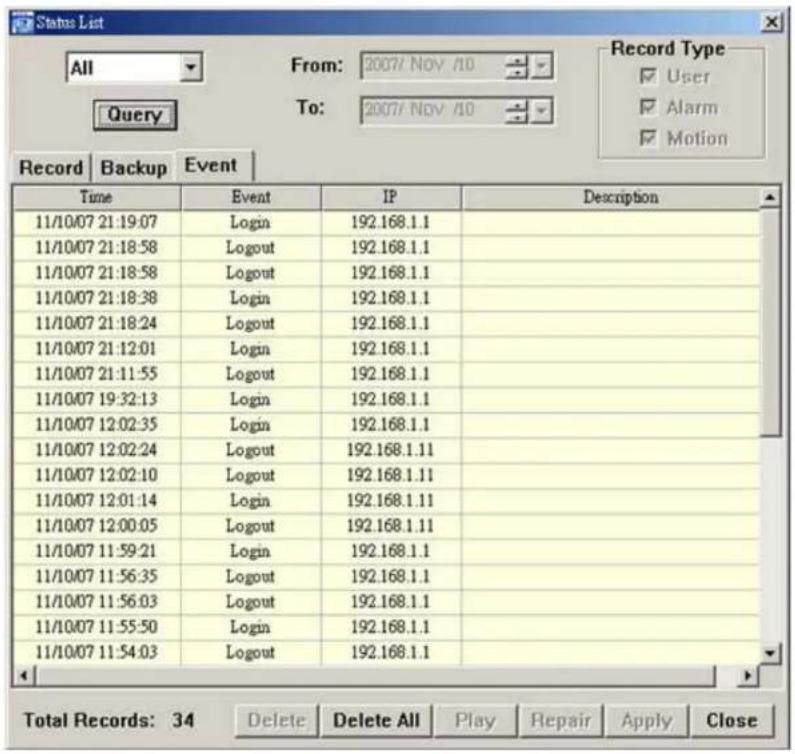
text_image
Status List All From: 2007/ NOV /10 Query To: 2007/ NOV /10 Record Type User Alarm Motion Record | Backup | Event Time Event IP Description 11/10/07 21:19:07 Login 192.168.1.1 11/10/07 21:18:58 Logout 192.168.1.1 11/10/07 21:18:58 Logout 192.168.1.1 11/10/07 21:18:38 Login 192.168.1.1 11/10/07 21:18:24 Logout 192.168.1.1 11/10/07 21:12:01 Login 192.168.1.1 11/10/07 21:11:55 Logout 192.168.1.1 11/10/07 19:32:13 Login 192.168.1.1 11/10/07 12:02:35 Login 192.168.1.1 11/10/07 12:02:24 Logout 192.168.1.1 11/10/07 12:02:10 Logout 192.168.1.1 11/10/07 12:01:14 Login 192.168.1.1 11/10/07 12:00:05 Logout 192.168.1.1 11/10/07 11:59:21 Login 192.168.1.1 11/10/07 11:56:35 Logout 192.168.1.1 11/10/07 11:56:03 Logout 192.168.1.1 11/10/07 11:55:50 Login 192.168.1.1 11/10/07 11:54:03 Logout 192.168.1.1 Total Records: 34 Delete Delete All.PlayRepairApplyClose- Condition
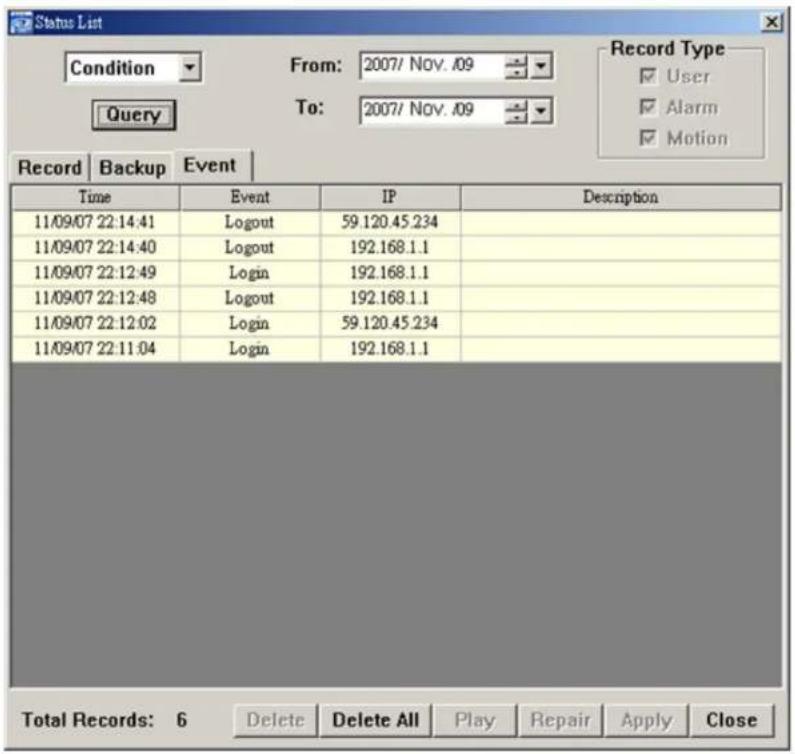
text_image
Status List Condition From: 2007/ Nov. .09 Query To: 2007/ Nov. .09 Record Type User Alarm Motion Record | Backup | Event | Time Event IP Description 11/09/07 22:14:41 Logout 59.120.45.234 11/09/07 22:14:40 Logout 192.168.1.1 11/09/07 22:12:49 Login 192.168.1.1 11/09/07 22:12:48 Logout 192.168.1.1 11/09/07 22:12:02 Login 59.120.45.234 11/09/07 22:11:04 Login 192.168.1.1 Total Records: 6 Delete Delete All.PlayRepairApplyCloseBackup List (For DVR only)
The network cameras don't support network backup function. This function is available when the Video Viewer is connected to a DVR. You can remotely view the backup list and playback the selected item.
Select "All" to show all download logs, or "Condition" to search for the specific log(s) by date.
• All
| Button | Description |
| Query Click this button to refresh the log list. | |
| Delete / Delete All | Click “Delete” to remove the selected log(s), or click “Delete All” to clear the current log list.Tlp: To select more logs all at once, press and hold the “Ctrl” key on your keyboard, and click to select the logs you want to remove. |
| Play | Click to play the selected record log. The playback panel will be shown for your further operation. For playback details, please see “Playback Screen” at page 29. |
| Repair Click to fix the log with errors. | |
| Apply | This button is available in the “Record” tab when the “Reserve” checkbox is checked or unchecked.If you want to keep an important record log for future reference and it can’t be removed, check the “Reserve” checkbox, and click “Apply”. The selected log will be kept and won’t be deleted when somebody accidentally or intentionally chooses it and click “Delete” or “Delete All”. |
| Close | Click “Close” to quit this window. |
- Condition
| Button / Function | Description |
| Date Selection(From / To) | Choose the specific date range including the event / record logs you might want. |
| Query | When all the search criteria are set, click to search the specified logs. The result will be displayed in the log list, arranged by time from the latest to the earliest. |
| Delete / Delete All | Click “Delete” to remove the selected log(s), or click “Delete All” to clear the current log list.Tip:To select more logs all at once, press and hold the “Ctrl” key on your keyboard, and click to select the logs you want to remove. |
| Play | Click to play the selected network backup log. The playback panel will be shown for your further operation. For playback details, please see “Playback Screen” at page 31. |
| Repair If the backup file | has error, click this button to fix the log with errors. |
| Apply | This button is available in the “Backup” tab when the “Reserve” checkbox is checked or unchecked.If you want to keep an important record log for future reference and it can’t be removed, check the “Reserve” checkbox, and click “Apply”. The selected log will be kept and won’t be deleted when somebody accidentally or intentionally chooses it and click “Delete” or “Delete All”. |
| Close | Click “Close” to quit this window. |
Playback Screen
When you select and play the recorded data for a specific log, you will immediately go into the playback mode, and the following playback panel appears.
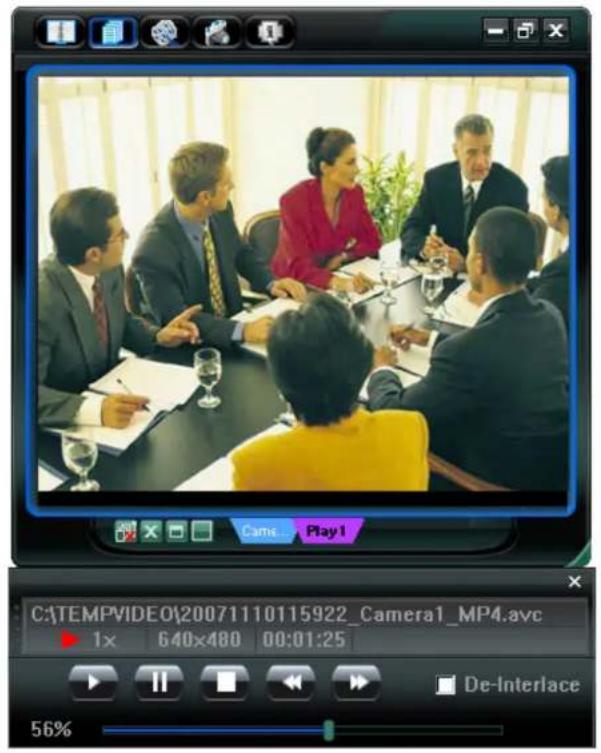
text_image
C:\TEMPVIDEO\20071110115922_Camera1_MP4.avc 1x 640x480 00:01:25 De-Interlace 56%
text_image
C:\TEMPVIDEO\20071110115922_Camera1_MP4.avc 1x 640×480 00:01:25 De-Interface 56%| NO. | Function Description |
| 1 | Playback / Download Info DisplayThis area shows the detailed playback / download information, such as the file name, record date and time, and the speed, etc. |
| 2 | Playback Progress BarThis area shows the playback progress and the progress percentage. |
| 3 | Playback OperationThis area is enabled only when the playback is started.(Rewind) / (Forward) / (Stop) / (Pause) / (Play)Rewind / ForwardClick once to get 2X fast rewind / forward, twice to get 4X, three times to get 8X, and four times to get 16X the highest. |
| 4 | De-Interlace Click to reduce the vibration of the paused picture. |
6. IE WEB BROWSER
6.1 Access the Camera from an IE Web Browser
You can view the images or operate your network camera from an IE web browser.
Note: The supported PC operation systems are Windows 2000 and Windows XP.
Step 1: Key in the IP address used by your network camera in the URL address box, such as "http://ipcam.dyndns.org", and press Enter. You will be prompted to enter the user name and password to access the network camera. If the port number your network camera used is NOT 80, you need to key in the port number additionally. The format is "http://ipaddress:portnum".
Take dynamic IP type as an example: Host name "ipcam.dyndns.org" / Port number "202". Key in "http://ipcam.dyndns.org:202" into the URL address box, and press "Enter".
Step 2: Enter the user name and password, the same as the ones used at the Video Viewer, and press "OK". You will see a similar screen as the following when the login information is correct.
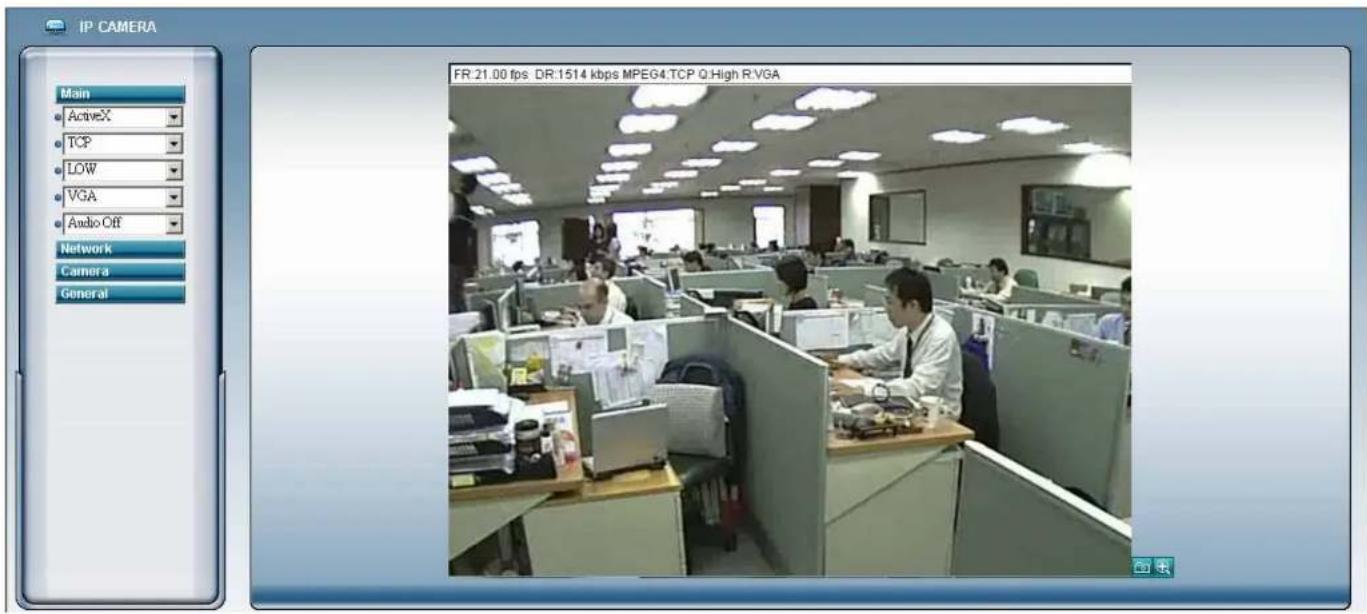
text_image
IP CAMERA Main ActiveX TCP LOW VGA Audio Off Network Camera General FR:21.00 fps DR:1514 kbps MPEG4;TCP Q:High R:VGA6.2 Toolbar Display on the IE Web Browser
| NO. | Function | Description | |
| 1 | Main | ActiveX / Quick Time | According to the type of web browser on your operating system, choose the ActiveX or QuickTime controls. |
| TCP / UDP Choose the internet transmission protocol: TCP / UDP. | |||
| BEST / HIGH / NORMAL / LOW Choose the image quality: BEST / HIGH / NORMAL / LOW | |||
| VGA / QVGA Choose the image size: VGA (640 × 480) / QVGA (320 × 240). | |||
| Audio On / Audio Off | Choose the audio function: On or Off.(This audio function is only for AVI202 and AVI212 model) | ||
| 2 | Network | Static IP / DHCP / PPPOE / DDNS | In the “Network” page, you can set the network configuration of the network camera. For details, please refer to “Network” section of the Video Viewer at page 19. |
| SNTP | Set the SNTP (Simple Network Time Protocol) for the time setting. For details, please refer to “SNTP” section of the Video Viewer at page 23. | ||
| FTP | Assigned a specific FTP site for the motion/alarm notification function. For details, please refer to “FTP” section of the Video Viewer at page 23. | ||
| Assigned a specific email account for the motion/alarm notification function. For details, please refer to “MAIL” section of the Video Viewer at page 24. | |||
| 3 | Camera | Snapshot Path Set the location where | the snapshot pictures are saved. |
| Frame Rate | According to the bandwidth, set the required frame rate (FULL / HALF / ONE THIRD / QUARTER / ONE FIFTH / ONE TENTH / ONE FIFTEENTH). For details, please refer to "Video" section of the Video Viewer at page 24. | ||
| System Type Set the system type of the connected network camera (NTSC / PAL). | |||
| Stream Format | Select the stream format of the network transmission (MPEG-4 / Motion JPEG). | ||
| Maximum Exposure Limits | To compensate for the lighting conditions, the maximum exposure time can be adjusted. For details, please refer to "Video" section of the Video Viewer at page 24. | ||
| Detection | Motion detection is used to generate a motion trigger whenever a movement occurs in the video image. Set the motion detection area. For details, please refer to "Detection" section of the Video Viewer at page 25. | ||
| Motion Sensitivity Level | Set different motion sensitivity level according to different application. For details, please refer to "Detection" section of the Video Viewer at page 25. | ||
| Color Setting | Adjust the brightness / contrast / hue / saturation for the network camera. For details, please refer to "5.1 Color Setting" section of the Video Viewer at page 13. | ||
| 5 | General | Language Support English / Chinese | language for the web interface. |
| Mac Address | Display the MAC address of the network camera.For details, please refer to "General" section of the Video Viewer at page 16. | ||
| Log | In the "Log" page, you can see all the logs for the network camera, such as "POWER ON", "REMOTE LOGIN", "RESET DEFAULT", "EMAIL", "FTP", "DDNS", "PPPOE", "DHCP" and "SNTP UPDATE"...etc. For details, please refer to "Log" section of the Video Viewer at page 17. | ||
| Account | Add / Edit / Delete the user name, password, user level and life time for accessing the network camera. For details, please refer to "Account" section of the Video Viewer at page 17. | ||
| Trigger | Set the motion trigger and/or alarm trigger function, such as "Trigger Motion", "Trigger Alarm" and "Trigger Duration". Set the motion trigger and/or alarm trigger notification function, such as "Method" and "Record Time". For details, please refer to "Trigger" section of the Video Viewer at page 18. | ||
| Configure | Display and upgrade the firmware version of the network camera. For details, please refer to "5.5 Tools" section of the Video Viewer at page 25. | ||
| 6 | Snapshot | [THOC] | Click this button to take a snapshot of the current view. The snapshot will be saved in the path you specified in the "Snapshot Path" of the "Camera" menu from the IE browser. |
| 7 | QVGA Res | [SDCS] | Click this button to enlarge the QVGA viewing size in the live view. |
7. QUICKTIME PLAYER
You can also use the QuickTime player to log into the network camera and check the live view only.
Note: QuickTime is Apple's multimedia software. You need to have QuickTime installed in you computer first, and you can access the network camera to see the live view.
Step 1: Go to Apple's official website to download QuickTime. The website address is as follows: http://www.apple.com/quicktime/win.html
a). Click "Download" to go into the download page, and select to download the free player.
b). Leave your Email address, and press "Free Download Now" to download the latest QuickTime player.
c). When the download is completed, execute the "QuickTimeInstaller.exe" file, and follow the on-screen instructions to finish the installation procedure.
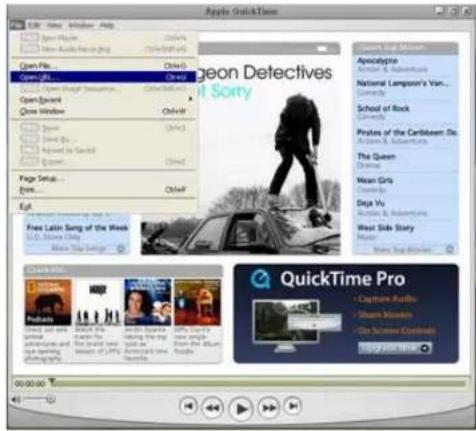
Step 2: Open your QuickTime player. Select "File" → "Open URL", and key in the URL address.
The URL format is "rtsp://ipaddress/live/mpeg4"
For example, if the IP adderss is "avtechipcam.dyndns.org" and port number is "201", key in "rtsp://avtechipcam.dyndns.org:201/live/mpeg4" in the URL box. Click "OK" to continue.
text_image
Apple QuickTime Open the Gate Open the Gate Open the Gate Open the Gate Open the Gate Open the Gate Open the Gate Open the Gate Open the Gate Open the Gate Open the Gate Open the Gate Open the Gate Open the Gate Open the Gate Open the Gate Open the Gate Open the Gate Open the Gate Open the Gate Open the Gate Open the Gate Open the Gate Open the Gate Open the Gate Open the House Open the House Open the House Open the House Open the House Open the House Open the House Open the House Open the House Open the House Open the House Open the House Open the House Open the House Open the House Open the House Open the House Open the House Open the House Open the House Open the House Open the House Open the House Open the House Open the House Open the Hues Open the Hues Open the Hues Open the Hues Open the Hues Open the Hues Open the Hues Open the Hues Open the Hues Open the Hues Open the Hues Open the Hues Open the Hues Open the Hues Open the Hues Open the Hues Open the Hues Open the Hues Open the Hues Open the Hues Open the Huee Open the Huee Open the Huee Open the Huee Open the Huee Open the Huee Open the Huee Open the Huee Open the Huee Open the Huee Open the Huee Open the Huee Open the Huee Open the Huee Open the Huee Open the Huee Open the Huee Open the Sumschus- Open the Sumschus- Open the Sumschus- Open the Sumschus- Open the Sumschus- Open the Sumschus- Open the Sumschus- Open the Sumschus- Open the Sumschus- Open the Sumschus- Open the Sumschus- Open the Sumschus- Open the Sumschus- Open the Sumschus- Open the Sumschus- Open that's in my home. Open that's in my home. Open that's in my home. Open that's in my home. Open that's in my home. Open that's in my home. Open that's in my home. Open that's in my home. Open that's in my home. Open that's in my home. Open that's in my home. Open that's in my home. Open that's in my home. Open that's in my home. Open that's in my home. Open at this time. Open at this time. Open at this time. Open at this time. Open at this time. Open at this time. Open at this time. Open at this time. Open at this time. Open at this time. Open at this time. Open at this time. Open at this time. Open at this time. Open at this time. Open at this time. Open at this time. Open at this time. Open at this time. Open at this time. Open at this Time. Open at this Time. Open at this Time. Open at this Time. Open at this Time. Open at this Time. Open at this Time. Open at this Time. Open at this Time. Open at this Time. Open at this Time. Open at this Time. Open at this Time. Open at this Time. Open at this Time. Open at this Time. Open at this Time. Open at this Time. Open at this Time. Open at this Time. Open at this Ties. Open at this Time. Open at this Time. Open at this Time. Open at this Time. Open at this Time. Open at this Time. Open at this Time. Open at this Time. Open at this Time. Open at this Time. Open at this Time. Open at this Time. Open at this Time. Open at this Time. Open at this Time. Open at this Time. Open at this Time. Open at this Time. Open at this Time. Open at this Times. Open at this Time. Open at this Time. Open at this Time. Open at this Time. Open at this Time. Open at this Time. Open at this Time. Open at this Time. Open at this Time. Open at this Time. Open at this Time. Open at this Time. Open at this Time. One of these times. Open to see it from all three times. Open to see it from all four times. Open to see it from all five times. Open to see it from all six times. Open to see it from all seven times. Open to see it from all eight times. Open to see it from all nine times. Open to see it from all nine days. Open to see it from all ten days. Open to see it from all ten days. Open to see it from all ten days. Open to see it from all ten days. Open to see it from all ten days. Open to see it from all ten days. Open to see it from all ten days. Open to see it from all ten days. Open to see it from all ten days. Open to see it from all ten days. Open to see it from all ten days. Open to see it from all ten day. Open to see it from all ten day. Open to see it from all ten day. Open to see it from all ten day. Open to see it from all ten day. Open to see it from all ten day. Open to see it from all ten day. Open to see it from all ten day. Open to see it from all ten day. Open to see it from all ten day. Open to see it from all ten day. Open to see it from all ten day.
text_image
Open URL Enter an Internet URL to open: rtsp://ipcam.dyndns.org:201/live/mpeg4 OK CancelStep 3: A pop-up window will appear and prompt you to enter the authentication information. Key in the user name and password for accessing your network camera. The user name and password are the same as the ones you use to log into the Video Viewer.
If the information is correct, press "OK" to go on. If not, press "Cancel" to quit the accessing.
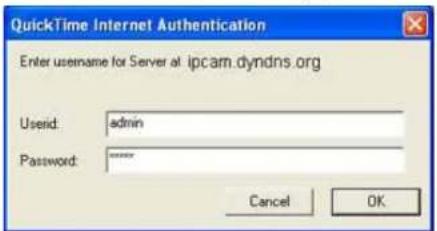
text_image
QuickTime Internet Authentication Enter username for Server at: ipcam.dyndns.org Userid: admin Password: ****** Cancel OKStep 4: When the login is successful, you will see a similar screen as the following.

natural_image
Man in blue shirt working at a desk with documents and a potted plant (no visible text or symbols)APPENDIX 1 DEFAULT VALUE
- Default Value
| Items Default Value | |
| • Default Network Settings: | |
| User Name admin | |
| Password | admin |
| Port | 80 |
| IP Address 192.168.1.1 | |