GTV-ETH-2-PLC - Kit Wi-Fi Gefen - Free user manual and instructions
Find the device manual for free GTV-ETH-2-PLC Gefen in PDF.


User questions about GTV-ETH-2-PLC Gefen
0 question about this device. Answer the ones you know or ask your own.
Ask a new question about this device
Download the instructions for your Kit Wi-Fi in PDF format for free! Find your manual GTV-ETH-2-PLC - Gefen and take your electronic device back in hand. On this page are published all the documents necessary for the use of your device. GTV-ETH-2-PLC by Gefen.
USER MANUAL GTV-ETH-2-PLC Gefen
natural_image
Black-and-white interior view of a modern living room with large windows overlooking mountains, a flat-screen TV, and a sofa (no visible text or symbols)Gefen tv
Ethernet Over PLC
GTV-ETH-2-PLC
User Manual
Technical Support:
| Telephone | (818) | 772-9100 |
| (800) | 545-6900 | |
| Fax | (818) | 772-9120 |
Technical Support Hours:
8:00 AM to 5:00 PM Monday thru Friday PST
Write To:
Gefen Inc.
c/o Customer Service
20600 Nordhoff St
Chatsworth, CA 91311
www.gefentv.com
support@gefentv.com
Notice
Gefen Inc. reserves the right to make changes in the hard ware, packaging and any accompanying doc u men ta tion without prior written notice.
GefenTV Ethernet Over PLC is a trademark of Gefen Inc.
© 2009 Gefen Inc., All Rights Reserved
All trademarks are the property of their respective companies
1 Introduction
2 Operation Notes
3 Features
4 Sender Panel Layout
5 Sender Panel Descriptions
6 Receiver Panel Layout
7 Receiver Panel Descriptions
8 GefenTV Ethernet Over PLC Software Installation
11 Connecting The GefenTV Ethernet Over PLC
17 Automatic Security Setup Feature
19 Advanced Configuration
24 Web Configuration
27 Firmware Update Procedure
28 Specifications
29 Warranty
Congratulations on your purchase of the GefenTV Ethernet Over PLC. Your complete satisfaction is very important to us.
Gefen TV
Gefen TV is a unique product line catering to the growing needs for innovative home theater solutions. We specialize in total integration for your home theater, while also focusing on going above and beyond customer expectations to ensure you get the most from your hardware. We invite you to explore our distinct product line and hope you find your solutions. Don't see what you are looking for here? Please call us so we can better assist you with your particular needs.
The Gefen Ethernet Over PLC
Send RJ-45 Ethernet signals over power lines in the walls of your home with the GefenTV Ethernet Over Power Line Bridge. The Bridge's sender and receiver units send Ethernet through the walls of a building at a distance of up to 1000 feet.
Ideal for tough installations where running CAT5/CAT6 cable is not possible, these devices breathe new life into remote network extensions.
How It Works
Connect your Ethernet network cables to the GefenTV Ethernet Over Power Line Bridge Sender unit, then plug the Bridge's Sender into a nearby power outlet. At the desired reception area in another room, plug the Bridge's Receiver into a power outlet. Power cycle your equipment and you will now receive network signals at your remote destination as if you had cabled the run with Ethernet cables.
READ THESE NOTES BEFORE INSTALLING OR OPERATING THE GEFENTV ETHERNET OVER PLC
- This device passes all 10/100BASE-T Ethernet network protocols (TCP/IP, NETBUEI, Microsoft Networking, etc.) at speeds of up to 200Mbps (Full duplex fast Ethernet).
- All devices connected to the sending and receiving nodes must be on the same power phase to communicate properly.
- Multiple receiving nodes can be used on the same in-house power line system to extend the network to multiple locations.
- Performance of GefenTV Ethernet Over PLC can be affected by “noisy” devices on the power lines. This can be alleviated by using a PLC filter (Part# GTV-PLC-FUS for US and GTV-PLC-FEU for Europe). Offending devices need to be connected to the PLC filter before being connected to the wall outlet.
Features
• Supports up to 200 Mbps data transmission rate
• Extension of up to 200 feet (60 meters)
• Web configuration for easy maintenance
- Features include IGMP multicast, VLAN, and QOS packet management
• 3DES 168 bits encryption used for secure operation
• Four RJ-45 Ethernet ports
Package Includes
(1) GefenTV Ethernet Over PLC sender
(1) GefenTV Ethernet Over PLC receiver
(1) 3 foot Ethernet Patch Cable
(2) Power Adapter Cables
Front Panel
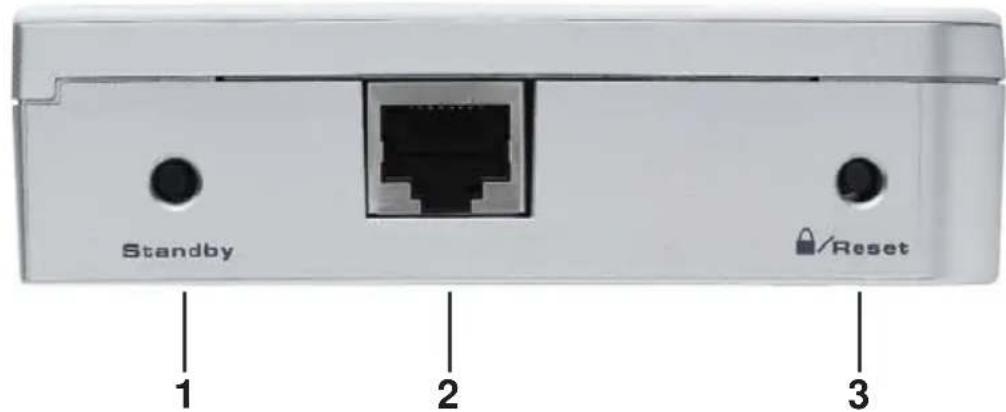
text_image
Standby 1 2 3 Lock/ResetBack Panel

text_image
AC In 4Top Panel
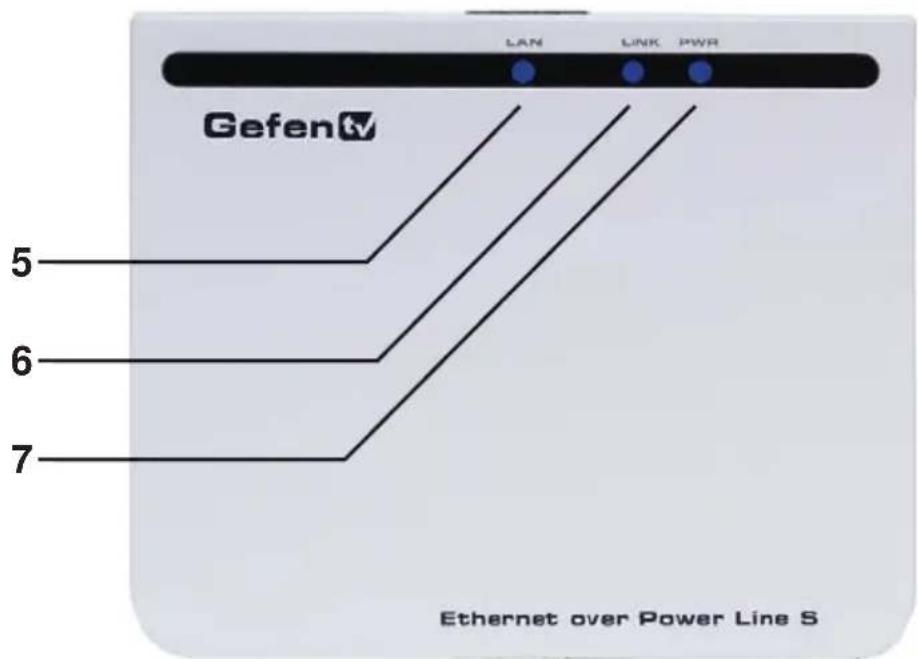
text_image
LAN LINK PWR GefenV 5 6 7 Ethernet over Power Line S1. Standby Button
Pressing this will put the sending unit in standby mode. The unit will not transfer any information to the receiving unit in this mode. To release standby mode, simply press the button again.
2. Ethernet Input Port
Connects to the Ethernet source (i.e a router, computer, or Internet connection) via a standard network cable.
3. Security/Reset Button
Pressing this button for 2 seconds will activate the Automatic Security Configuration (please see page 17). Pressing this button for more than 10 seconds will perform a factory reset.
4. AC Power Cable Input
Input for the supplied AC power cable.
5. LAN LED
This LED will activate when a connection to a valid Ethernet source is established. It will blink when activity is detected to signify that data is actively being trafficked to and from the receiver.
6. Link LED
This LED will activate once a link has been established between the sending and receiving units. It will blink when activity is detected to signify that data is actively being trafficked.
7. Power LED
This LED will activate once the included power supply is properly connected.
Front Panel

text_image
Standby 4 3 2 1 /Reset 1 2 3Back Panel
text_image
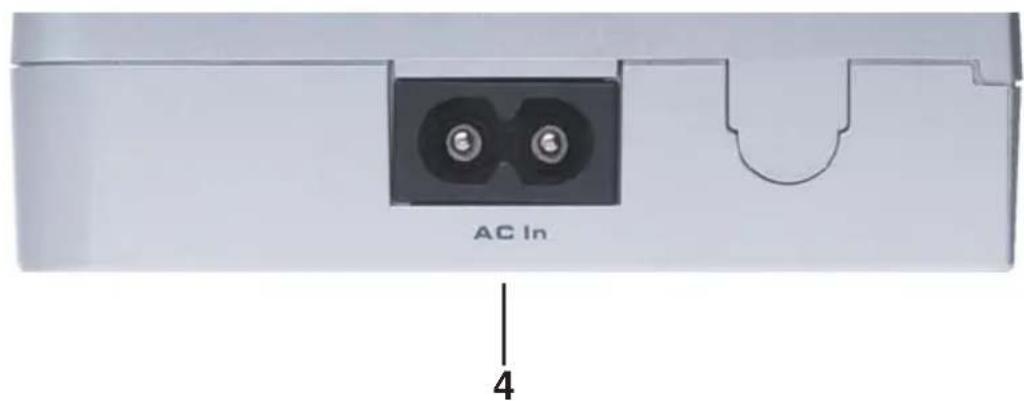
AC In 4Top Panel
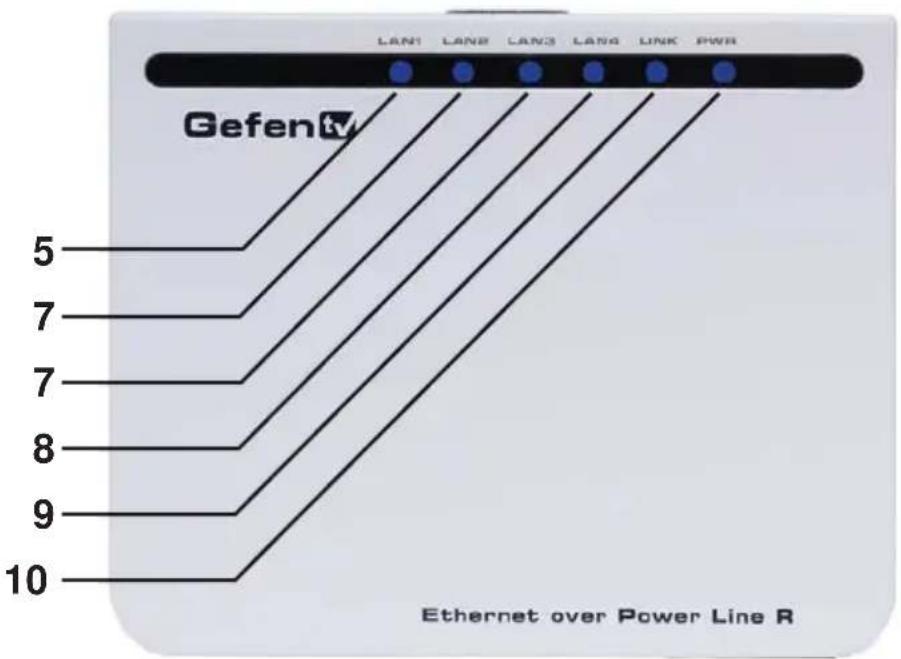
text_image
Gefen 5 7 7 8 9 10 LAN1 LAN2 LAN3 LAN4 LINK PWR Ethernet over Power Line R1. Standby Button
Pressing this will put the receiving unit in standby mode. The unit will not transfer any information to the sending unit in this mode. To release standby mode, simply press the button again.
2. Ethernet Input Port (1 through 4)
Connects to an Ethernet device (i.e a computer or gaming system) via a standard network cable. 4 ports are available for 4 separate devices.
3. Security/Reset Button
Pressing this button for 2 seconds will activate the Automatic Security Configuration (please see page 17). Pressing this button for more than 10 seconds will perform a factory reset.
4. AC Power Cable Input
Input for the supplied AC power cable.
5. LAN 1 LED
This LED will activate when a connection from a valid Ethernet device to Ethernet port 1 is established. It will blink when activity is detected to signify that data is actively being trafficked to and from this port.
6. LAN 2 LED
This LED will activate when a connection from a valid Ethernet device to Ethernet port 2 is established. It will blink when activity is detected to signify that data is actively being trafficked to and from this port.
7. LAN 3 LED
This LED will activate when a connection from a valid Ethernet device to Ethernet port 3 is established. It will blink when activity is detected to signify that data is actively being trafficked to and from this port.
8. LAN 4 LED
This LED will activate when a connection from a valid Ethernet device to Ethernet port 4 is established. It will blink when activity is detected to signify that data is actively being trafficked to and from this port.
9. Link LED
This LED will activate once a link has been established between the sending and receiving units. It will blink when activity is detected to signify that data is actively being trafficked to and from the sender.
10. Power LED
This LED will activate once the included power supply is properly connected.
How to Connect the GefenTV Ethernet Over PLC
Installation of the GefenTV Configuration Assistant
- Insert the included installation CD-ROM into your computer that will be used to configure the GefenTV Ethernet Over PLC.
- The auto run will begin the installation process. If auto run does not start or auto run has been disabled, please navigate to "X:\" drive (where X is the drive letter or your CD-ROM drive) and run the "autorun.exe" file.
- Click on the Install Utility option.

text_image
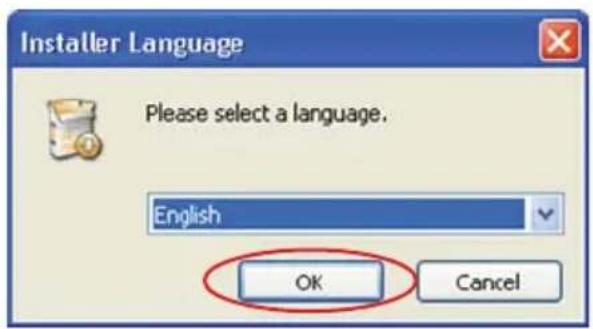
CD Autorun Gefen tv Ethernet Over Power Line Gefen® Enernet Install Utility Quick Installation Guide Browse CD User Manual Guide Exit- Choose your preferred language and click on the OK button to continue. (Currently English is the only selectable language)
text_image
Installer Language Please select a language. English OK Cancel- Close all other applications and press the Next button to continue.

text_image
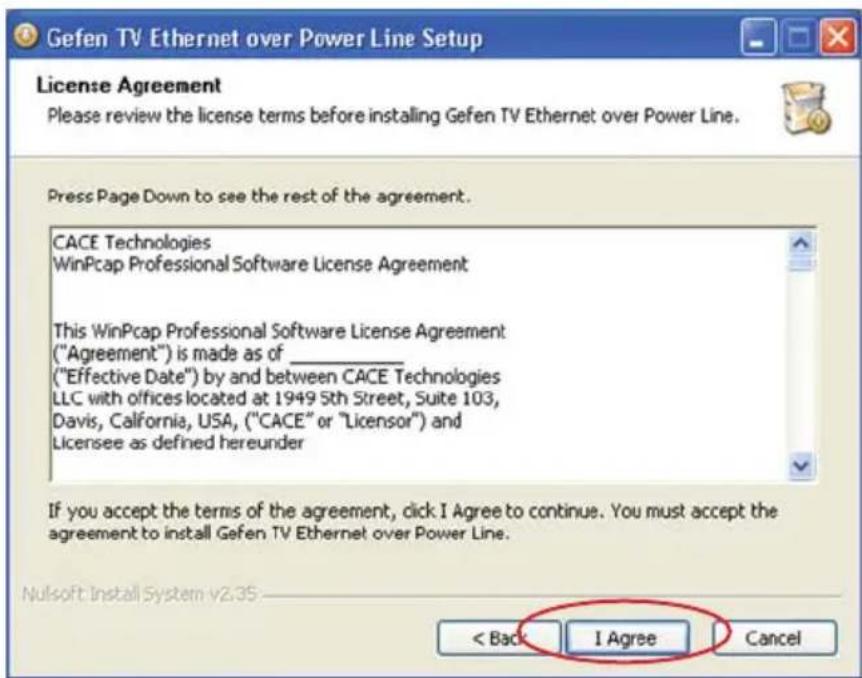
Gefen TV Ethernet over Power Line Setup Welcome to the Gefen TV Ethernet over Power Line Setup Wizard This wizard will guide you through the installation of Gefen TV Ethernet over Power Line. It is recommended that you close all other applications before starting Setup. This will make it possible to update relevant system files without having to reboot your computer. ATTENTION: To install the software, you must have administrator user privileges. If you do not have such privileges, please contact your systems administrator. Click Next to continue. Next > Cancel- Please read the license agreement and click on the I Agree button to continue.
text_image
Gefen TV Ethernet over Power Line Setup License Agreement Please review the license terms before installing Gefen TV Ethernet over Power Line. Press Page Down to see the rest of the agreement. CACE Technologies WinPcap Professional Software License Agreement This WinPcap Professional Software License Agreement ("Agreement") is made as of _ ("Effective Date") by and between CACE Technologies LLC with offices located at 1949 5th Street, Suite 103, Davis, California, USA, ("CACE" or "Licensor") and Licensee as defined hereunder If you accept the terms of the agreement, click I Agree to continue. You must accept the agreement to install Gefen TV Ethernet over Power Line. Nulsoft Install System v2.35 < Back I Agree Cancel- Please choose the program installation destination. The default location is "C:\Program Files\Gefen TV Ethernet Over Power Line". To set your own destination, click on the browse button and navigate to your preferred location. Click the install button to continue.

text_image
Gefen TV Ethernet over Power Line Setup Choose Install Location Choose the folder in which to install Gefen TV Ethernet over Power Line. Setup will install Gefen TV Ethernet over Power Line in the following folder. To install in a different folder, click Browse and select another Folder. Click Install to start the installation. Destination Folder C:\Program Files\Gefen TV Ethernet over Power Line Browse... Space required: 5.3MB Space available: 88.8GB Nullsoft Install System v2.35 < Back Install Cancel- The program files will copy to the specified location in the previous step. When the process is complete, you will see the window below. Click on the fi nish button to complete the software installation process.

text_image
Gefen TV Ethernet over Power Line Setup Completing the Gefen TV Ethernet over Power Line Setup Wizard Gefen TV Click Finish to close this wizard. < Back Finish Cancel- Connect the source (i.e. computer, router, switch) to the GefenTV Ethernet Over PLC sender unit using the supplied CAT-5e cable.
- Connect the Ethernet devices (i.e. computer, game system, set-top box) to the GefenTV Ethernet Over PLC receiver unit. Up to four devices are supported.
- Connect the included power cables to both the GefenTV Ethernet Over PLC sending and receiving units. Please ensure that the sender and receiver units are connected to the same power line system on the same phase.
POWER LED: Once the power cable is connected, the Power LED should become active with a solid blue color.
LAN LED: When a valid Ethernet connection is detected on the sending and receiving Ethernet jacks, their corresponding LED's will become active and should emit a solid blue color.
LINK LED: The Link LED should be flashing red on initial boot up. Once a link between the sending and receiving units has been established, it will emit a solid blue color on both units.
IMPORTANT: The Link LED must be emitting a sold blue color before configuration can continue. If this LED continues to flash red on both the sending and receiving units, it is possible that they are not on the same phase. Please confirm that both the sending and receiving units are attached to the same phase by trying the unit on another power outlet.
Once both the sending and receiving units are linked and powered, basic configuration can proceed. This section of the manual refers to the sending unit as the LOCAL NODE, and the receiving unit as the REMOTE NODE.
NOTE: The following steps are for manual configuration of the nodes for a basic secure network. These steps are optional, as the nodes will function with their default settings. However, for security and performance purposes, it is recommended that the following steps be performed. Automatic configuration is also possible using the Automatic Security Configuration feature on page 17 in lieu of the procedure outlined in this section.
- Ensure that both the local and remote nodes are powered and are properly linked.
- Confirm that the computer with the installed GefenTV Ethernet Over PLC software is connected to the local node.
- Start the Gefen TV Config Tool from this location:
Start Menu \ All Programs \ GefenTV Ethernet Over Power Line \ Gefen TV Config Tool
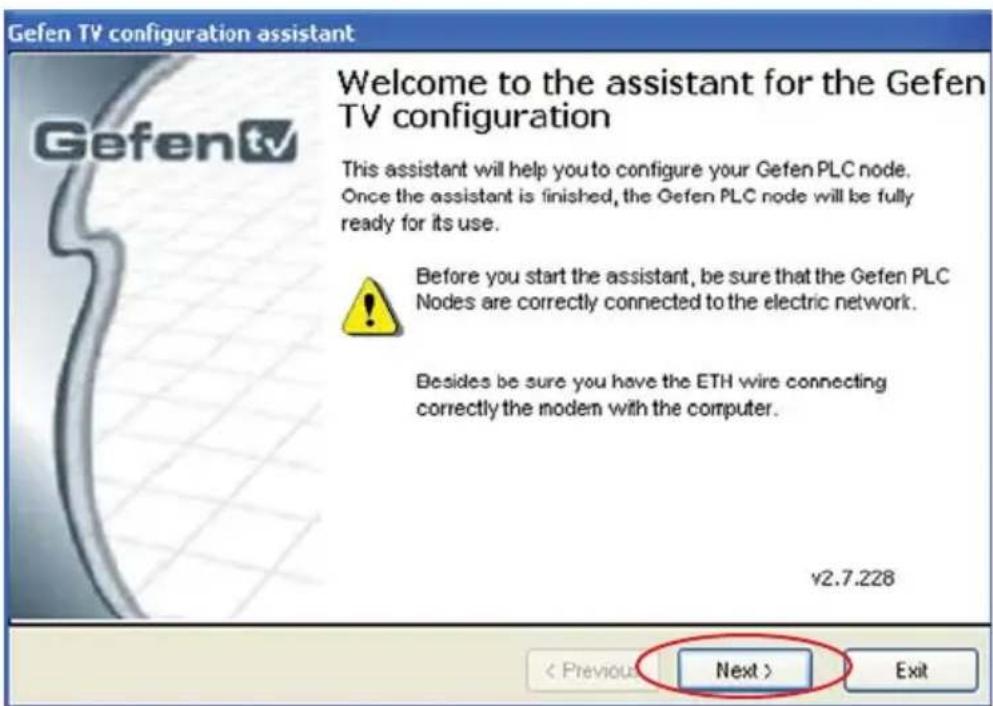
- The introduction screen should appear as the image below. Click on the next button to continue.
text_image
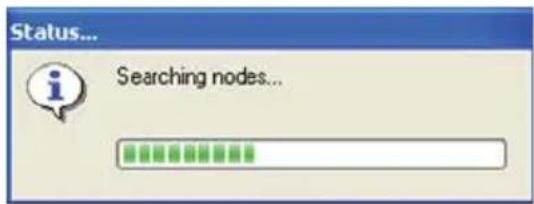
Gefen TV configuration assistant Welcome to the assistant for the Gefen TV configuration This assistant will help you to configure your Gefen PLC node. Once the assistant is finished, the Gefen PLC node will be fully ready for its use. Before you start the assistant, be sure that the Gefen PLC Nodes are correctly connected to the electric network. Besides be sure you have the ETH wire connecting correctly the modem with the computer. v2.7.228 < Previous Next > Exit- The program will begin to search for all connected nodes.
text_image
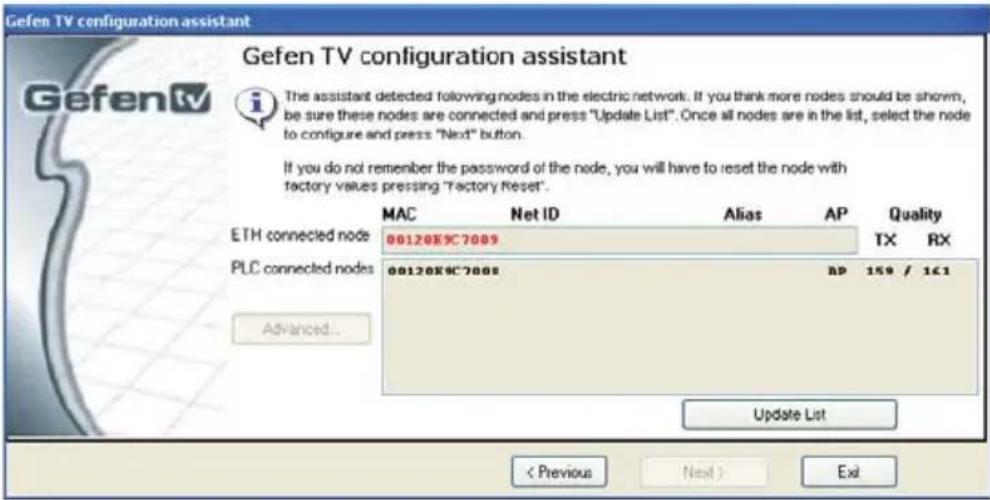
Status... Searching nodes...- Once all possible nodes have been detected, the program will display all of these nodes as in the window below.
text_image
Gefen TV configuration assistant Gefen TV configuration assistant The assistant detected following nodes in the electric network. If you think more nodes should be shown, be sure these nodes are connected and press "Update List". Once all nodes are in the list, select the node to configure and press "Next" button. If you do not remember the password of the node, you will have to reset the node with factory values pressing "Factory Reset". ETH connected node 00120KSC7009 MAC Net ID Alias AP Quality TX RX PLC connected nodes 00120KSC7008 AP 159 / 161 Advanced... Update List < Previous Next > ExiThe local node that the computer is connected to will appear as the "ETH connected node". All remote nodes will be listed as "PLC connected nodes".
NOTE: Both the local and remote nodes must use the same Net ID and encryption passwords for proper operation. These will be configured in the next step. However, it is important to configure the remote nodes first. If the local node is configured first, all remote nodes will become inaccessible and will have to be removed from their locations and physically connected to the computer, where they can be configured to match the local node's settings.
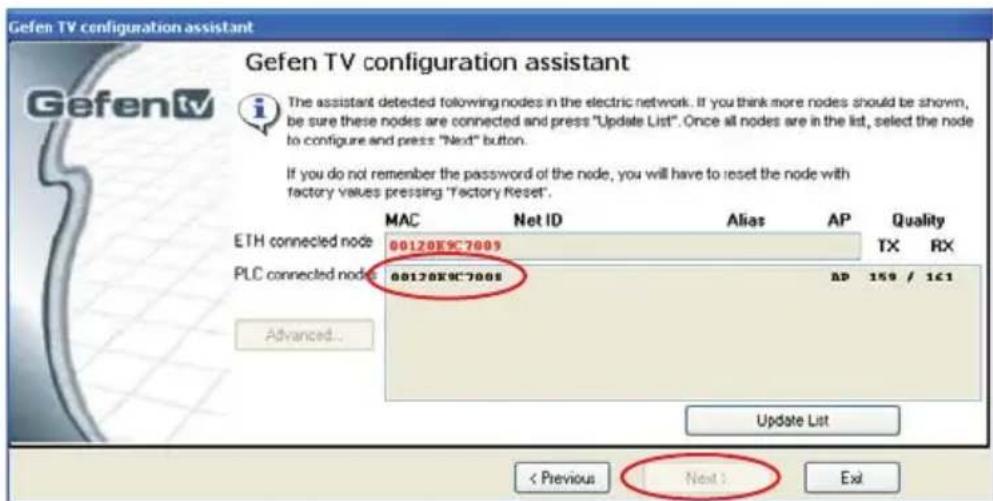
- To begin configuration, click on the mac address of the remote node (PLC connected node) and then click on the next button.
text_image
Gefen TV configuration assistant Gefen TV configuration assistant The assistant detected following nodes in the electric network. If you think more nodes should be shown, be sure these nodes are connected and press "Update List". Once all nodes are in the list, select the node to configure and press "Next" button. If you do not remember the password of the node, you will have to reset the node with factory values pressing 'Factory Reset'. ETH connected node 00120K9C7008 PLC connected node 00120K9C7008 Advanced... MAC Net ID Alias AP Quality TX RX AP 159 / 161 Update List < Previous Next > Exit8.

text_image
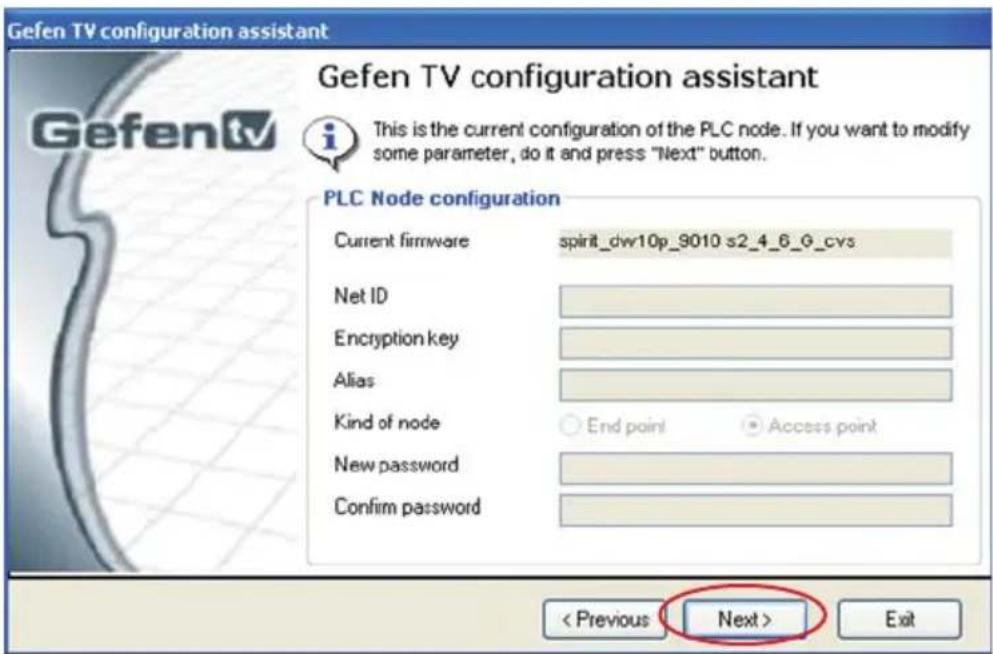
Gefen TV configuration assistant Gefen TV configuration assistant This is the current configuration of the PLC node. If you want to modify some parameter, do it and press "Next" button. PLC Node configuration Current firmware spirit_dw10p_9010 s2_4_6_G_cvs Net ID Encryption key Alias Kind of node End point Access point New password Confirm password < Previous Next > ExitThe PLC node configuration screen is separated into the following items:
NET ID
This is the name of the network. This name must be the same for both the local and remote nodes for proper operation. The NET ID can be an ASCII string up to 20 characters long.
ENCRYPTION KEY
This is the password needed for network authentication by all nodes. If you wish to set an encryption key, please set the NET ID first. The password can be an ASCII string up to 24 characters long.
ALIAS
This name is for easy identification of the node. This can be an ASCII string of up to 10 characters long. This fi eld is optional.
NEW PASSWORD (CONFIGURATION PASSWORD)
This is to set the configuration password. If a new password is set here, the configuration tool will ask for it every time you access the node. The default password is "paterna". This fi eld is optional.
CONFIRM PASSWORD
The password entered into the new password listing above must also be entered here. This is for confirmation purposes.
Enter the Net ID, encryption key, and alias into the corresponding fields. Once these fi elds are completed, click on the next button to continue.
- Once the update is complete, a message will appear to indicate the update was successful. Click on the ok button to continue.

text_image
Gefen Config Tool Updated successfully!!! OK- Once the update to the remote node is complete, you will be presented with a window that will give the option to either return to the main configuration window or continue with advanced configuration.

text_image
Gefen TV configuration assistant Gefen TV configuration assistant Gefen tv Gefen TV Config Tool v2.7.228 PLC node configuration completed successfully. PLC node is now ready to use. Please, press "Next" to keep configurating nodes. Press "Advanced" for advanced operations. Advanced... < Previous Next > ExitFor basic usage, it will not be necessary to continue to the advanced configuration. For advanced options, please see the ADVANCED CONFIGURATION section on page 19. To continue with the basic configuration, click on the next button.
- Once the configuration for the remote node is complete, the local node will then have to be configured. Click on the local node which is labeled as the "ETH connected node" and press next to continue.

text_image
Gefen TV configuration assistant Gefen TV configuration assistant The assistant detected following nodes in the electric network. If you think more nodes should be shown, be sure these nodes are connected and press "Update List". Once all nodes are in the list, select the node to configure and press "Next" button. If you do not remember the password of the node, you will have to reset the node with factory values pressing "Factory Reset". ETH connected nodes 00120E9C7009 PLC connected nodes 00120E9C7008 Advanced... MAC Net ID Alias AP Quality TX RX Update List < Previous Next > Exit- Using the same Net ID and encryption key from the remote node, input the same information into the corresponding fields for the local node. The Alias field should be set to a different name as the remote node for easy identification.
text_image
Gefen TV configuration assistant Gefen TV configuration assistant This is the current configuration of the PLC node. If you want to modify some parameter, do it and press "Next" button. PLC Node configuration Current firmware spirit_dw10p_9010 s2_4_6_G_cvs Net ID Encryption key Alias Kind of node End point Access point New password Confirm password < Previous Next > ExitOnce the information has been input, click on the next button to continue. A confirmation window will appear once the update is complete. The same window in step 10 will appear with the option to continue with the advanced configuration. It is not necessary to continue with the advanced configuration for basic operation. Click on the next button to return to the main configuration window and exit the configuration tool by clicking on the exit button.
To quickly setup the Gefen TV Ethernet Over PLC for secure use, the Automatic Security Configuration Mode (ASCM) can be activated on each node. Follow the below steps to automatically setup a secure connection between multiple nodes.
It is important to understand these concepts before proceeding with the Automatic Security Configuration.
- Master Node (Fixed Access Point) - The Master node is the unit that all of the Slave nodes use to copy the Net ID and Encryption Key from. Because all of the nodes on a network need to have the same Net ID and encryption key to operate properly together, there needs to be a single Master node that stores the information that all other Slave nodes will use to properly configure themselves. A Master node is indicated by its Power LED glowing a solid RED color. It is recommended to have only one Master node on the PLC network.
- Slave Node (Normal) - A node in this mode will be indicated by its Power LED glowing a solid Blue color. Multiple Slave nodes can be on the same PLC network.
- Automatic Security Configuration Mode (ASCM) - This mode is initialized by pressing and holding the Security/Reset button on the front panel for approximately 2 seconds. Once the node's Power LED begins flashing RED, release the button. This mode lasts for approximately 30 seconds and will return to normal operation after this time period.
- Both the Master and Slave nodes must be in ASCM for the automatic procedure to complete successfully.
- When a Slave node initializes ASCM, it will first attempt to find a Master node in ASCM. If a Master node in ASCM is not found, it will assume the role of the Master node. To avoid accidentally setting a Slave node as a Master node, make sure that the Master node is in ASCM when activating a Slave's ASCM.
- Any Slave node that assumes the role of a Master node will automatically have a random ASCII Net ID and Encryption Key generated.
- Connect the computer with the installed Gefen TV Config Tool software to the node that you wish to initially set as the Master node.
- If a node is connected to media server or router, it is recommended that this node be set as the Master node for increased performance.
Please refer to the next page for step by step instructions on how to activate the Automatic Security Configuration feature for the Gefen TV Ethernet Over PLC nodes.
- Connect the computer with the installed Gefen TV software to the node you wish to set as the Master node.
- Press and hold the Security/Reset button on the node (ASCM), located on the front panel, for approximately 2 seconds. The Power LED should begin to flash RED, then release the button.
- After approximately 30 seconds, the Power LED should stop flashing and glow solid RED. This indicates that it is now a Master node. If this node was a Slave node (normal node) before this process, it will now have a randomly generated ASCII Net ID and Encryption Key set.
- Open the Gefen TV Config Tool (page 12). There should be a random ASCII value as the Net ID. If you wish to use this Net ID for the other Slave nodes, proceed to step 5. Otherwise, you can now set your own Net ID and encryption password which will be applied to all of the Slave nodes in the next step. To do this, click on the local "ETH connected node" MAC address and press the next button. Change only the Net ID and encryption password fi elds and click on the next button. Once the local node has been updated, proceed to step 5.
- For this step to complete successfully, both the Master and Slave nodes have to be in ASCM. To do this, press and hold the Security/Reset button on the Master node for approximately 2 seconds. The Power LED should begin flashing RED. Within 30 seconds, press and hold the Security/Reset button on the Slave node(s) for 2 seconds to enter ASCM. The Slave node's Power LED should also begin to flash while it receives the Net ID and Encryption Key information from the Master node. Once the Power LED on both the Master and Slave nodes stop flashing and glow solid, the setup will be complete. Check this by opening the Gefen TV Config Tool and seeing that all nodes have the same Net ID.
NOTE: If the Slave nodes are located at a great distance from the Master node, it is recommended that Step 5 be repeated for each Slave node separately. The window that each device remains in ASCM is only 30 seconds, and it may not be possible to put all Slave nodes in the ASCM within the time frame. It is also possible to temporarily relocate the Slave nodes to a PLC port closer to the Master node for this configuration process, and then move them to their permanent location after this process is complete. If a Slave node is accidentally set as a Master node, you can hard reset the node by pressing and holding the Security/Reset button for approximately 10 seconds. This will revert the node to a Slave node and reset all internal configurations to factory settings.
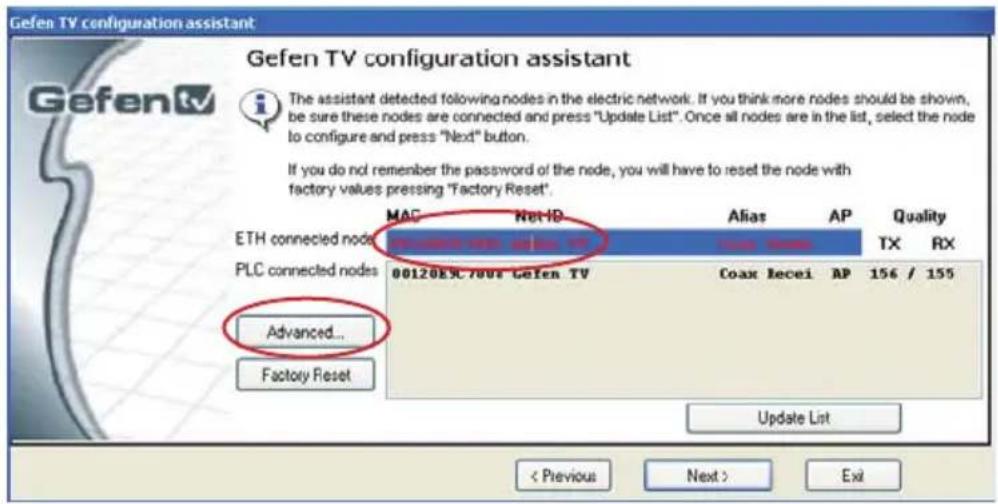
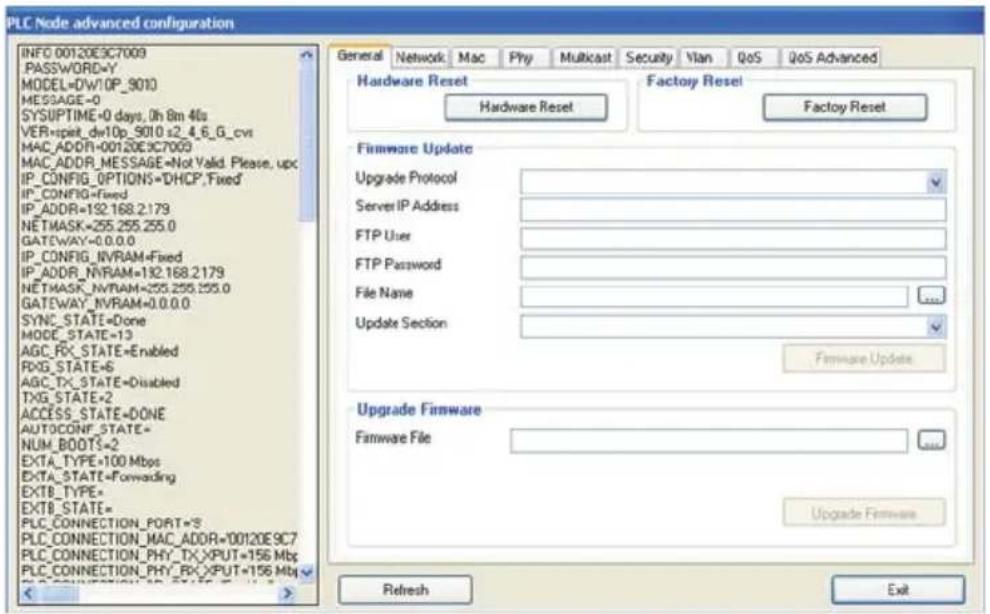
There are optional advanced settings that can be configured for each node. The advanced menu can be accessed directly through the main configuration page. Click on the MAC address of the node you wish to configure and click on the advanced button to the left of the node listing.
text_image
Gefen TV configuration assistant Gefen TV configuration assistant The assistant detected following nodes in the electric network. If you think more nodes should be shown, be sure these nodes are connected and press "Update List". Once all nodes are in the list, select the node to configure and press "Next" button. If you do not remember the password of the node, you will have to reset the node with factory values pressing "Factory Reset". ETH connected nodes MAC Net ID Alias AP Quality 00120ESC70us Gefen TV Coax Recei AP 156 / 155 PLC connected nodes Advanced... Factory Reset Update List < Previous Next > ExitGENERAL
text_image
PLC Node advanced configuration INFO:00120E3C7009 PASSWORD=Y MODEL=DW1OP_9010 MESSAGE=0 SYSUPTIME=0 days, 0h 8m 40s VER=spit_dw10p_5010 s2_4_6_G_cvi MAC_ADDR=00120E3C7009 MAC_ADDR_MESSAGE=Not Valid. Please, upc IP_CONFIG_OPTIONS=DHCP,Fixed IP_CONFIG=Fixed IP_ADDR=192.168.2.179 NETMASK=255.255.255.0 GATEWAY=0.0.0.0 IP_CONFIG_NVRAM=Fixed IP_ADDR_NVRAM=192.168.2.179 NETMASK_NVRAM=255.255.255.0 GATEWAY_NVRAM=0.0.0.0 SYNC_STATE=Done MODE_STATE=13 AGC_RX_STATE=Enabled RXG_STATE=6 AGC_TX_STATE=Disabled TXG_STATE=2 ACCESS_STATE=DONE AUTOCONF_STATE= NUM_BOOTS=2 EXTA_TYPE=100 Mbps EXTA_STATE=Forwarding EXTB_TYPE= EXTB_STATE= PLC_CONNECTION_PORT=3 PLC_CONNECTION_MAC_ADDR=00120E9C7 PLC_CONNECTION_PHY_TX,XPUT=156 Mb$ PLC_CONNECTION_PHY_RX,XPUT=156 Mb$ General Network Mac Phy Multicast Security Vlan QoS QoS Advanced Hardware Reset Hardware Reset Factory Reset Factory Reset Firmware Update Upgrade Protocol Server IP Address FTP User FTP Password File Name Update Section Firmware Update Upgrade Firmware Firmware File Upgrade Firmware Refresh ExitHardware Reset
This will reboot the node. Settings made in this menu will be applied once the node is restarted.
Factory Reset
This will return the node to factory default settings. A password is required to complete this operation. The default password is "betera".
Firmware Update
This section is used to update the node's firmware from a server location. Please see the Firmware Update section on page 27 for full details.
Upgrade Firmware
This section is used to update the node's firmware from a file. Please see the Firmware Update section on page 27 for full details.
NETWORK

text_image
PLC Node advanced configuration INFO 00120E9C7009 PASSWORD=Y MODEL+0V10P_9010 MESSAGE=0 SYSUPTIME=0 days, 0h 8n 40s VER=split_dw10p_9010 e2.4.6_G_rvs MAC_ADDR=00120E9C7009 MAC_ADDR_MESSAGE=Not Valid Please upc IP_CONFIG_OPTIONS=DHCP,Fixed IP_CONFIG=Fixed IP_ADDR=192.168.2.179 NETMASK=255.255.255.0 GATEWAY=0.0.0.0 IP_CONFIG_NVRAM=Fixed IP_ADDR_NVRAM=192.168.2.179 NETMASK_NVRAN=255.255.255.0 GATEWAY_NVRAM=0.0.0.0 SYNC_STATE=Done MODE_STATE=13 AGC_RX_STATE=Enabled RXG_STATE=6 AGC_TX_STATE=Disabled TXG_STATE=2 ACCESS_STATE=DONE AUTOCONF_STATE= NUN_BOOTS=2 EXTA_TYPE=100 Mbps EXTA_STATE=Forwarding EXTB_TYPE= EXTB_STATE= PLC_CONNECTION_PORT=9' PLC_CONNECTION_MAC_ADDR=00120E9C7 PLC_CONNECTION_PHY_TX_XPUT=156 Mbps PLC_CONNECTION_PHY_RX_XPUT=156 Mbps General Network Mac Phy Multicast Security Vlan QoS QoS Advanced Network Configuration IP Configuration Fixed Fixed IP Configuration IP Address 192.168.2.179 Subnet Mask 255.255.255.0 Default Gateway IP Address 192.168.2.1) Update Refresh ExitIP Configuration
For access to the node's web configuration tool an IP address must be assigned. Options are:
Fixed - Manually assigned IP address
DHCP - IP assigned by the networks DHCP server
Fixed IP Configuration
Assign an IP address, subnet mask, and default gateway for web tool access.
Click on the update button to apply settings made in this tab.
MULTICAST
text_image
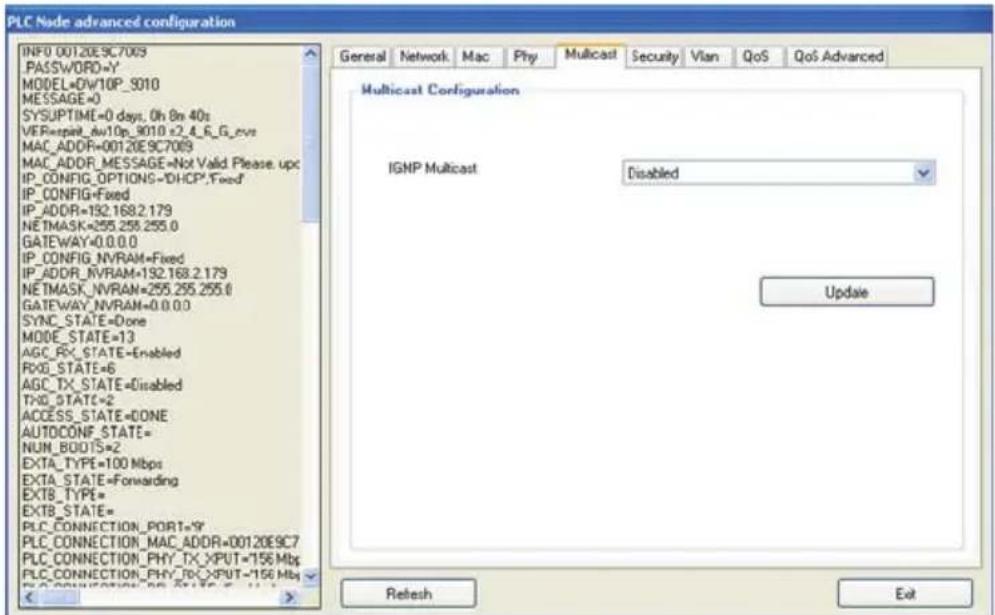
PLC Node advanced configuration INFO 00120E9C7009 PASSWORD=Y MODEL=OW10P_9010 MESSAGE=0 SYSUPTIME=0 days, 0h 8n 40s VER=split_dw10p_9010 e2.4_R_G_rvs MAC_ADDR=00120E9C7009 MAC_ADDR_MESSAGE=Not Valid Please.upc IP_CONFIG_OPTIONS=DHCP*,Fixed IP_CONFIG=Fixed IP_ADDR=192.168.2.179 NETMASK=255.255.255.0 GATEWAY=0.0.0.0 IP_CONFIG_NVRAM=Fixed IP_ADDR_NVRAM=192.168.2.179 NETMASK_NVRAN=255.255.255.0 GATEWAY_NVRAN=0.0.0.0 SYNC_STATE=Done MODE_STATE=13 AGC_RX_STATE=Enabled RXG_STATE=6 AGC_TX_STATE=Disabled TXG_STATE=2 ACCESS_STATE=DONE AUTOCONF_STATE= NUN_BOOTS=2 EXTA_TYPE=100 Mbps EXTA_STATE=Forwarding EXTB_TYPE= EXTB_STATE= PLC_CONNECTION_PORT=9' PLC_CONNECTION_MAC_ADDR=00120E9C7 PLC_CONNECTION_PHY_TX_XPUT=156 Mbps PLC_CONNECTION_PHY_TX_XPUT=156 MbpsIGMP Multicast
This option will enable or disable the node's ability to transmit IGMP multicast data.
SECURITY
text_image
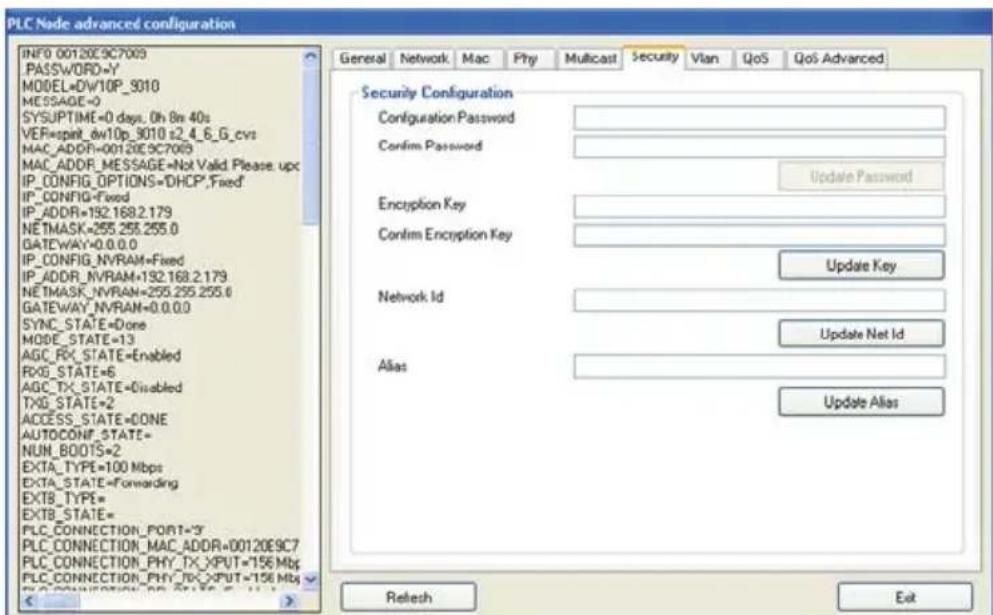
PLC Node advanced configuration INFO 00120E9C7009 PASSWORD=Y MODEL=OW10P_9010 MESSAGE=0 SYSUPTIME=0 days, 0h 8n 40s VER=spint_6w10p_9010 s2_4_6_G_cvs MAC_ADDR=00120E9C7009 MAC_ADDR_MESSAGE=Not Valid. Please.upc IP_CONFIG_OPTIONS=DHCP',Fixed' IP_CONFIG=Fixed IP_ADDR=132.168.2.179 NETMASK=255.255.255.0 GATEWAY=0.0.0.0 IP_CONFIG_NVRAM=Fixed IP_ADDR_NVRAM=132.168.2.179 NETMASK_NVRAN=255.255.255.0 GATEWAY_NVRAN=0.0.0.0 SYNC_STATE=Done MODE_STATE=13 AGC_RC_STATE=Enabled RXG_STATE=6 AGC_TX_STATE=Disabled TXG_STATE=2 ACCESS_STATE=CONE AUTOCONF_STATE= NUN_BOOTS=2 EXTA_TYPE=100 Mbps EXTA_STATE=Forwarding EXTB_TYPE= EXTB_STATE= PLC_CONNECTION_PORT=3 PLC_CONNECTION_MAC_ADDR=00120E9C7 PLC_CONNECTION_PHY_TX_XPUT=156 Mbp PLC_CONNECTION_PHY_RXXPUT=156 Mbp General Network Mac Phy Multicast Security Vlan QoS QoS Advanced Security Configuration Configuration Password Confirm Password Update Password Encryption Key Confirm Encryption Key Update Key Network Id Update Net Id Alias Update Alias Refresh ExitThe security tab will allow the user to adjust the configuration password, the encryption password, the network ID, and the alias for the node. For a detailed description of each of these options, please see page 14.
VLAN
text_image
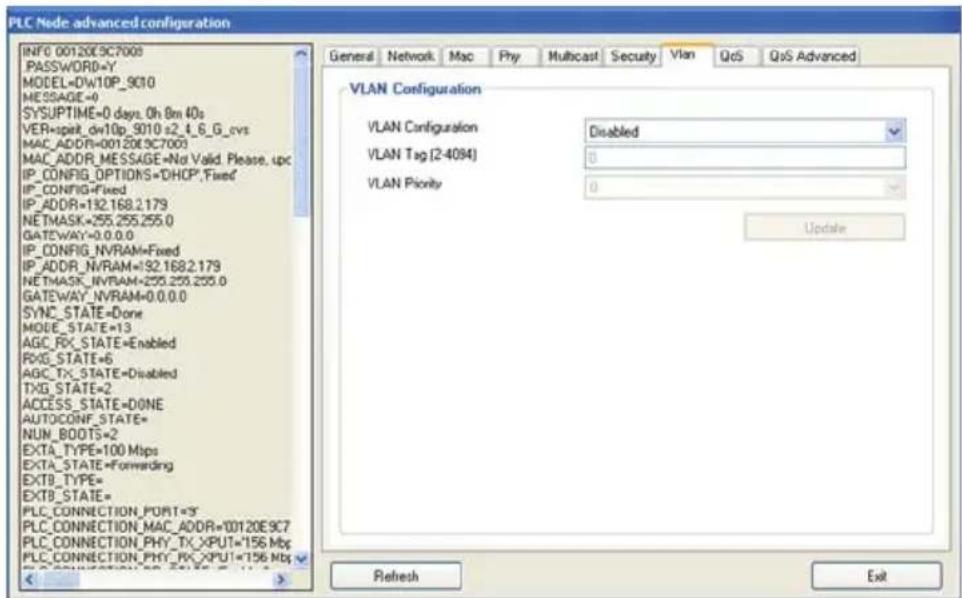
PLC Node advanced configuration INFO 00120E9C7000 PASSWORD=Y MODEL=DW10P_9C10 MESSAGE=0 SYSUPTIME=0 days_0h 8m 40s VER=spit_dw10p_9C10 s2_1_6_G_cvs MAC_ADDR=00120E9C7003 MAC_ADDR_MESSAGE=No Valid. Please, tpc IP_CONFIG_OPTIONS=DHCP,Fixed IP_CONFIG=Fixed IP_ADDR=132.168.2.179 NETMASK=255.255.255.0 GATEWAY=0.0.0.0 IP_CONFIG_NVRAM=Fixed IP_ADDR_NVRAM=132.168.2.179 NETMASK_NVRAM=255.255.255.0 GATEWAY_NVRAM=0.0.0.0 SYNC_STATE=Done MODE_STATE=13 AGC_RX_STATE=Enabled RXG_STATE=6 AGC_TX_STATE=Disabled TXG_STATE=2 ACCESS_STATE=DONE AUTOCONF_STATE= NUN_BOOTS=2 EXTA_TYPE=100 Maps EXTA_STATE=Forwarding EXTB_TYPE= EXTB_STATE= PLC_CONNECTION_PORT=3' PLC_CONNECTION_MAC_ADDR=00120E9C7 PLC_CONNECTION_PHY_TX_XPUT=156 Mbp PLC_CONNECTION_PHY_RX_XPUT=156 Mbp General Network Mac Phy Multicast Security Vlan QoS QoS Advanced VLAN Configuration VLAN Configuration Disabled VLAN Tag (2-4084) 0 VLAN Priority 0 Update Refresh ExitThis option will enable or disable the node's ability to accept VLAN data. If this feature is enabled on one of the nodes, it must be set on all other for VLAN tag packets to pass.
QOS
text_image
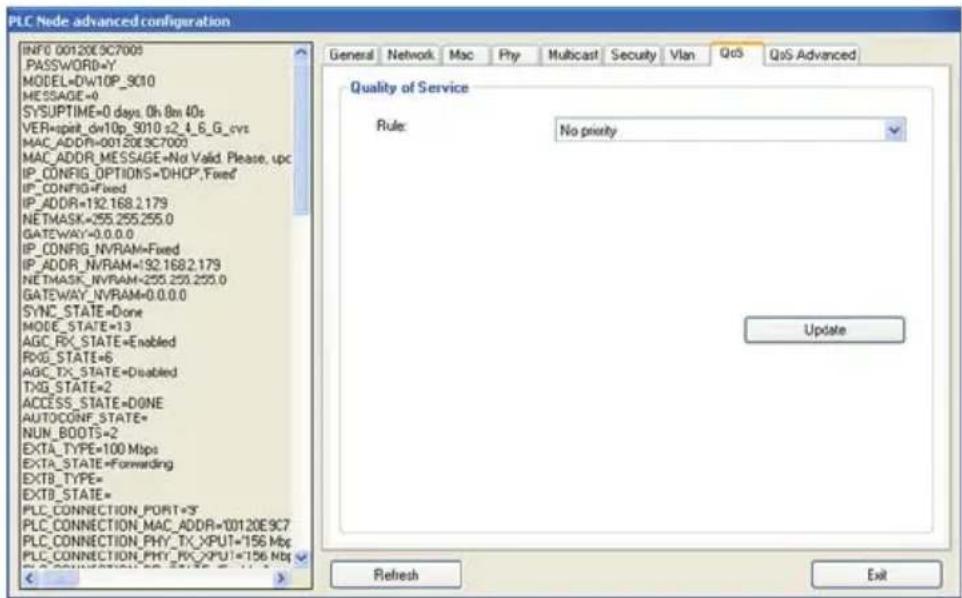
PLC Node advanced configuration INFO 00120E5C7009 PASSWORD=Y MODEL=DW10P_9010 MESSAGE=0 SYSUPTIME=0 days.0h 8m 40s VER=split_dw10p_9010 s2_4_6_G_cvt MAC_ADDR=00120E3C7003 MAC_ADDR_MESSAGE=No Valid. Please, upc IP_CONFIG_OPTIONS=DHCP,Fixed IP_CONFIG=Fixed IP_ADDR=192.168.2.179 NETMASK=255.255.255.0 GATEWAY=0.0.0.0 IP_CONFIG_NVRAM=Fixed IP_ADDR_NVRAM=192.168.2.179 NETMASK_NVRAM=255.255.255.0 GATEWAY_NVRAM=0.0.0.0 SYNC_STATE=Done MODE_STATE=13 AGC_RX_STATE=Enabled RXG_STATE=6 AGC_TX_STATE=Disabled TXG_STATE=2 ACCESS_STATE=DONE AUTOCONF_STATE= NUN_BOOTS=2 EXTA_TYPE=100 Mbps EXTA_STATE=Forwarding EXTB_TYPE= EXTB_STATE= PLC_CONNECTION_PORT='S' PLC_CONNECTION_MAC_ADDR=10120E9C7 PLC_CONNECTION_PHY_TX_XPUT=156 Mbps PLC_CONNECTION_PHY_RX_XPUT=156 MbpsQOS (quality of service) is supported for managing traffic between nodes. The supported protocols are:
- TCP port priority
- UDP port priority
- 802.1p
- TOS (RFC 1122)
- DSCP (RFC 2475)
- No Priority
ADVANCED QOS

text_image
PLC Node advanced configuration INFO 00120E9C7009 PASSWORD=V MODEL+DW10P_5010 MESSAGE=0 SYSUPTIME=0 days, 0h 8n 40s VER=spint_dw10p_9010 x2_4_E_G_rvc MAC_ADDR=00120E9C7009 MAC_ADDR_MESSAGE=Not Valid Please.upc IP_CONFIG_OPTIONS='DHCP*.Fixed' IP_CONFIG=Fixed IP_ADDR=132.168.2.179 NETMASK=255.255.255.0 GATEWAY=0.0.0.0 IP_CONFIG_NVRAM=Fixed IP_ADDR_NVRAM=132.168.2.179 NETMASK_NVRAN=255.255.255.0 GATEWAY_NVRAN=0.0.0.0 SYNC_STATE=Done MODE_STATE=13 AGC_RC_STATE=Enabled RXS_STATE=6 AGC_TX_STATE=Disabled TXO_STATE=2 ACCESS_STATE=CONE AUTOCONF_STATE= NUN_BOOTIS=2 EXTA_TYPE=100 Mbps EXTA_STATE=Forwarding EXTB_TYPE= EXTB_STATE= PLC_CONNECTION_PORT=9T PLC_CONNECTION_MAC_ADDR=00120E9C7 PLC_CONNECTION_PHY_TX_XPUT=156 Mbps PLC_CONNECTION_PHY_TX_XPUT=156 MbpsQOS (quality of service) prioritization. Rule 1 will be applied to all packets first and then Rule 2. Prioritization protocols are:
- UDP is high priority, TCP is low priority
- TCP is high priority, UDP is low priority
- UDP port XXXX is high priority, the rest is low priority
- UDP port XXXX is low priority, the rest is high priority
- TCP port XXXX is high priority, the rest is low priority
- TCP port XXXX is low priority, the rest is high priority
- Use 802.1p prioritization
- No prioritization
If an IP address has been set in the ADVANCE CONFIGURATION PANEL, access to the WEB UTILITY will be enabled. To access the WEB UTILITY, open your web browser and type the ip address into the address field. The IP address is dependant on the IP Configuration Setting assigned on page 20. The IP address can either be assigned by the DHCP server or a static IP address can be manually assigned.
AUTHENTICATION
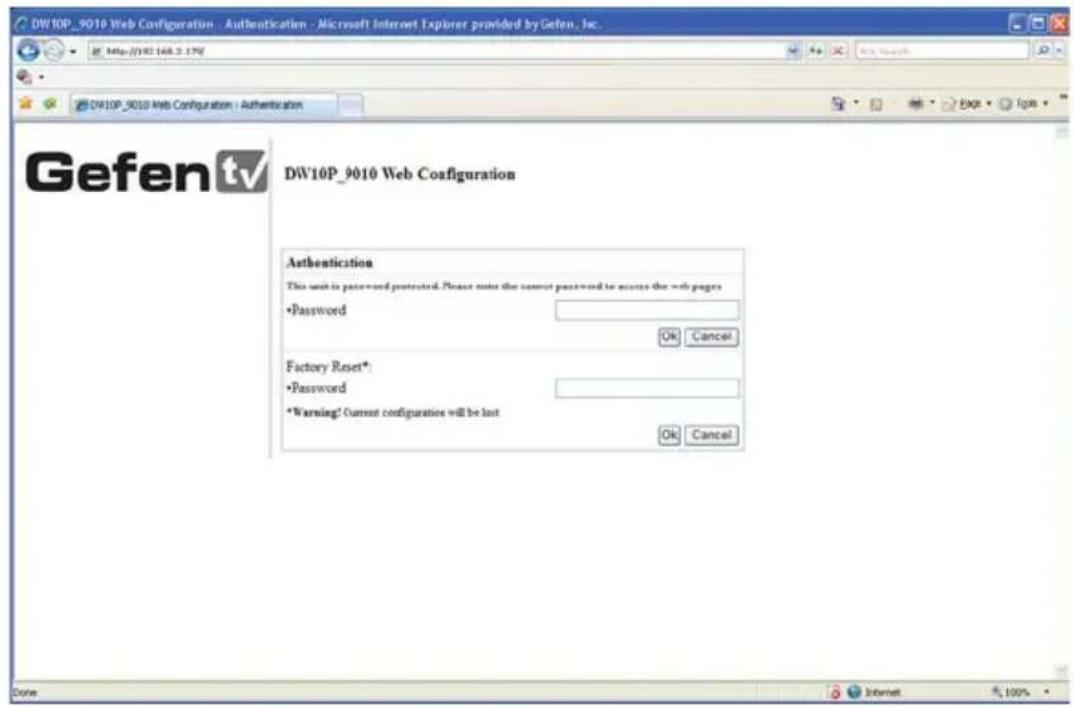
The browser should open the authentication page displayed below.
text_image
DW10P_9010 Web Configuration - Authentication - Microsoft Internet Explorer provided by Gefen, Inc. Gefen tv DW10P_9010 Web Configuration Authentication This unit is password protected. Please note the current password to access the -web pages •Password OK Cancel Factory Reset* •Password *Warning! Current configurations will be last OK Cancel Done Internet 100%Authentication
To enter the WEB UTILITY, enter the configuration password. The default password is "paterna" unless modified during the setup stage on page 14.
Factory Reset
The unit can be reset to factory settings from this menu. Enter the factory reset password. The default password is "betera".
MAIN PAGE
text_image
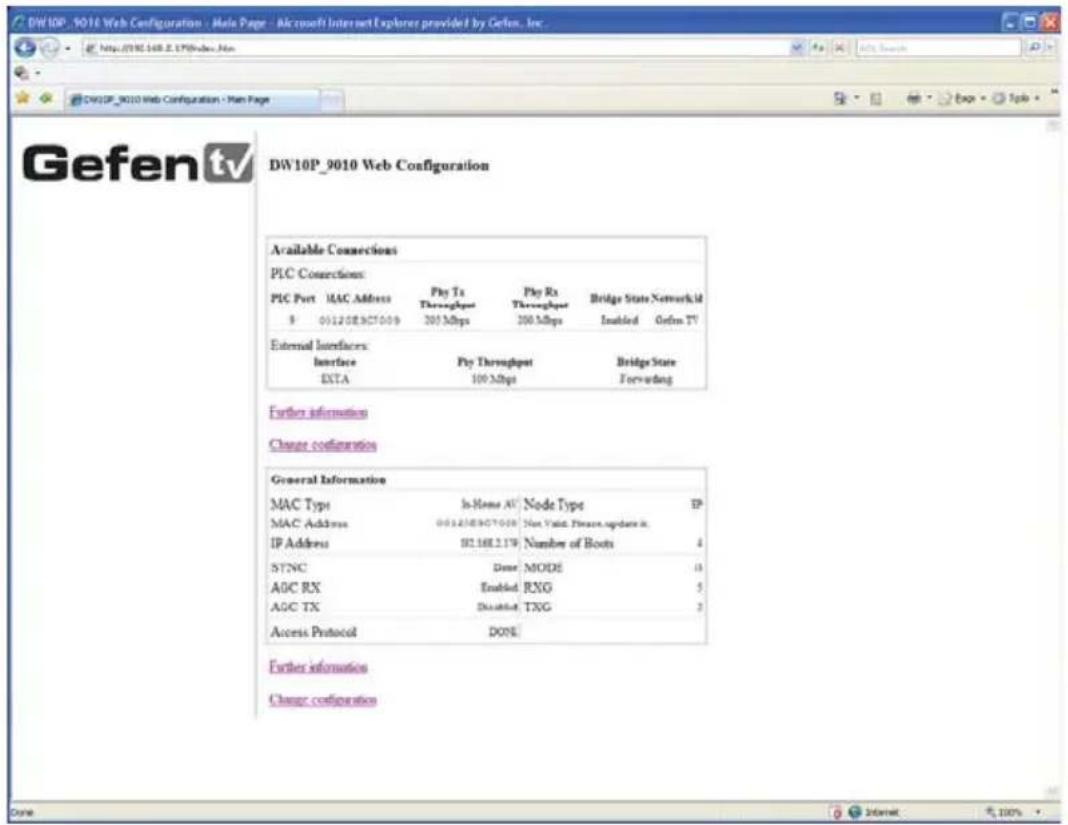
DW10P_9010 Web Configuration - Main Page - Microsoft Internet Explorer provided by Gefen, Inc. http://WNE.168.2.175/index.htm DW10P_9010 Web Configuration - Main Page DW10P_9010 Web Configuration Available Connections PLC Connections PLC Port MAC Address Ply Tx Ply Rx Bridge State Network Id 9 00120E9C7009 300 Mbps 300 Mbps Enabled Gefen TV External Interfaces Interface Ply Throughput Bridge State EXTA 100 Mbps Forwarding Further information Change configuration General Information MAC Type In-Home AV Node Type EP MAC Address 00120E9C7009 Non-Valid. Please update it. IP Address 82.16E2.179 Number of Boots 4 SYNC Done MODE 13 AGC RX Enabled RXG 5 AGC TX Disabled TXG 2 Access Protocol DONE Further information Change configuration Done Internet 100%The main page will display general configuration information. Clicking on the further information link will navigate to a new page with all the current configuration information (see page 26). Clicking on the change configuration link will navigate to a new page where all configuration options will be available for adjustment (see below).
WEB CONFIGURATION
text_image
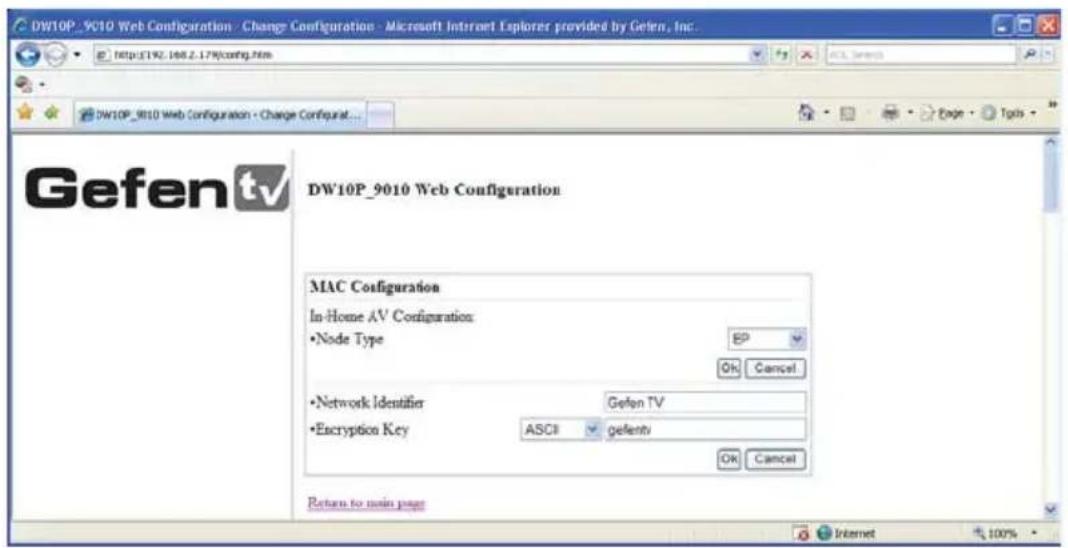
DW10P_9010 Web Configuration - Change Configuration - Microsoft Internet Explorer provided by Gefen, Inc.. http://192.168.2.179/config.htm DW10P_9010 Web Configuration - Change Configurat... DW10P_9010 Web Configuration MAC Configuration In-Home AV Configuration: •Node Type EP OK Cancel •Network Identifier Gefen TV •Encryption Key ASCII gelentiv OK Cancel Return to main page Internet 100%This page will allow the user to adjust all options that are available just as in the ADVANCED CONFIGURATION PANEL in the GEFENTV CONFIG TOOL.
The configuration options are as follows:
MAC Configuration
Network Configuration
Multicast Configuration
VLAN Configuration
Priority Configuration (QOS)
Security Configuration
Hardware Reset
Flash Upgrade
Please refer to the ADVANCED CONFIGURATION section, starting on page 19, for information on the above categories. Going back to the main page can be done by clicking on any of the Return to main page links.
FURTHER INFORMATION
text_image
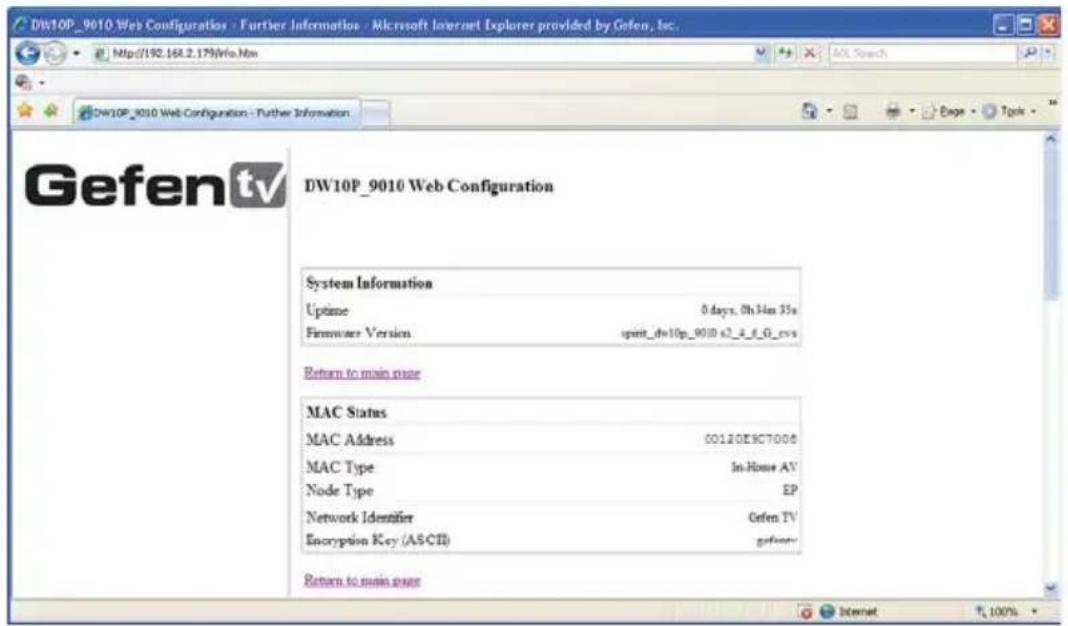
DW10P_9010 Web Configuration - Further Information - Microsoft Internet Explorer provided by Gefen, Inc. Http://192.168.2.179(Who.Nm DW10P_9010 Web Configuration - Further Information DW10P_9010 Web Configuration System Information Uptime 0 days, 0h34m 35s Firmware Version upent_dw10p_9010 s2_4_6_G_cvs Return to main page MAC Status MAC Address 00120E9C7000 MAC Type In-Home AV Node Type EP Network Identifier Gefen TV Encryption Key (AS-CII) gefen- Return to main pageThis page will display all of the information and status of the current node. The following sections are listed:
System Information
MAC Status
Network Status
PHY Status
Multicast Status
VLAN Status
Priority Status
Security Status
Information on this page is not configurable. If you wish to make adjustments to any of these categories, return to the main menu by clicking on any of the Return to main page links on the page. Then click on the Change configuration link which is also available on the main page.
The firmware for the GefenTV Ethernet Over PLC can be updated by FTP, TFTP, or a direct file. The firmware update can be executed from either the ADVANCED CONFIGURATION PANEL, or the WEB UTILITY.
UPDATE VIA THE ADVANCED CONFIGURATION PANEL
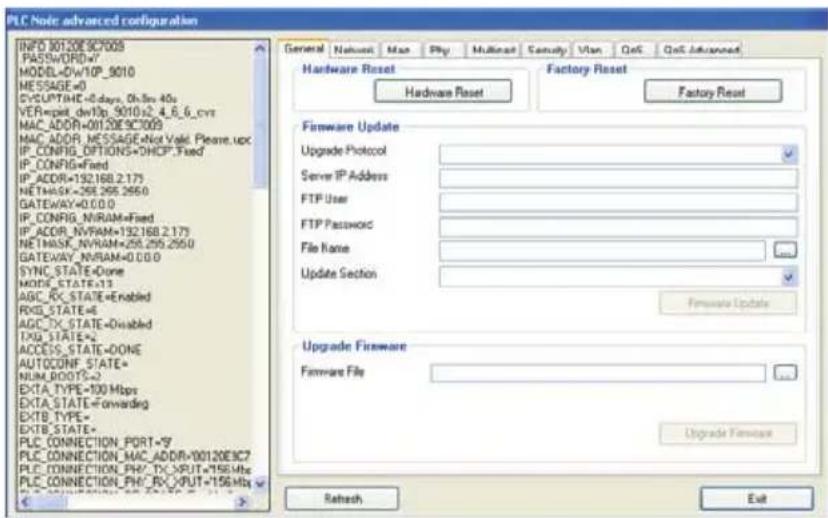
Firmware updates can be accomplished from the General tab in the ADVANCED CONFIGURATION PANEL. See page 19 for instructions on how to enter the ADVANCED CONFIGURATION PANEL.
text_image
PLC Node advanced configuration INFO 80120E9C700S PASS=WORD-v* MODEL=0w10P_5010 MESSAGE=0 CVS/UTHE=0 days, Oh 8m 40s VER=pet_dw10p_5010s2_4_6_6_cvs MAC_ADDR=00120E9C700S MAC_ADDR_MESSAGE=Not Valid. Please.upc IP_CONFIG_OPTIONS=DHCP_Fixed IP_CONFIG=Fixed IP_ADDR=132.16B.2.173 NETMASK=NVRAM=132.16B.2.173 NETMASK_NVRAM=255.255.2550 GATEWAY=0.0.0.0 IP_CONFIG_NVRAM=Fixed IP_ADDR_NVRAM=132.16B.2.173 NETMASK_NVRAM=255.255.2550 GATEWAY_NVRAM=0.0.0.0 SYNC_STATE=Done MODE_STATE=13 AGC_RC_STATE=Enabled RXD_STATE=6 AGC_TX_STATE=Disabled TXD_STATE=4 ACCESS_STATE=DONE AUTOCONF_STATE= NUM_BOOTS=3 EXTA_TYPE=100 Mbps EXTA_STATE=Forwarding EXTB_TYPE= EXTB_STATE= PLC_CONNECTION_PORT=9 PLC_CONNECTION_MAC_ADDR=00120E9C7 PLC_CONNECTION_PHY_TX_RUT=156MHz PLC_CONNECTION_PHY_RX_RUT=156MHz Hardware Reset Hardware Reset Factory Reset Factory Reset Firmware Update Upgrade Protocol Server IP Address FTP User FTP Password File Name Update Section Firmware Update Upgrade Firmware Firmware File Upgrade Firmware Refresh ExitUpgrade Via FTP or TFTP
- Select the update protocol. Either FTP or TFTP
- Enter the server IP address
- Enter the user name and password
- Enter the name of the file (if the file is not in the root directory of the TFTP or FTP directory, you have to write the whole route from root server directory)
- Select which section you would like to update (Firmware, Loader or Factory Settings)
- Click on the fi rmware update button
Upgrade Via File
- Use the browse button to the right of the firmware file window and select the firmware update file. You can also manually type the full path to the firmware file
- Click on the upgrade firmware button
NOTE: This procedure is the same using the web utility. The web update section is located in the change configuration settings, which is accessible from the main page.
Standard Support .... UPA DHS (200 Mbps) PLC
Interface ...... One Power Line port / 4 Ethernet 10/100M Ports
Security 3DES 168 bits encryption
Power AC 100\~240V / 50\~60Hz / 0.15A
Power Consumption 8W/230V Max & 7W/110V Max
Operating Temp 0\~40°C (32\~104°F)
Operating Humidity 10%\~90% non-condensing
Storage Temp Range ...... -20\~70°C (-4\~158°F)
Storage Humidity 5%\~95% non-condensing
Storage Altitude .... Sea level to 40,000 feet
Certifications ...... FCC Part 15, Part B, Class B, CE Class B
Gefen warrants the equipment it manufactures to be free from defects in material and workmanship.
If equipment fails because of such defects and Gefen is notified within two (2) years from the date of shipment, Gefen will, at its option, repair or replace the equipment, provided that the equipment has not been subjected to mechanical, electrical, or other abuse or modifications. Equipment that fails under conditions other than those covered will be repaired at the current price of parts and labor in effect at the time of repair. Such repairs are warranted for ninety (90) days from the day of reshipment to the Buyer.
This warranty is in lieu of all other warranties expressed or implied, including without limitation, any implied warranty or merchantability or fitness for any particular purpose, all of which are expressly disclaimed.
- Proof of sale may be required in order to claim warranty.
- Customers outside the US are responsible for shipping charges to and from Geten.
- Copper cables are limited to a 30 day warranty and cables must be in their original condition.
The information in this manual has been carefully checked and is believed to be accurate. However, Gefen assumes no responsibility for any inaccuracies that may be contained in this manual. In no event will Gefen be liable for direct, indirect, special, incidental, or consequential damages resulting from any defect or omission in this manual, even if advised of the possibility of such damages. The technical information contained herein regarding the features and specifications is subject to change without notice.
For the latest warranty coverage information, please visit Gefen's Warranty web page at http://www.gefen.com/kvm/aboutus/warranty.jsp
PRODUCT REGISTRATION
Please register your product online byvisiting Gefen's web site at http://www.gefen.com/kvm/Registry/Registration.jsp
text_image
* M A - E T H - 2 - P L C *Rev X3
20600 Nordhoff St., Chatsworth CA 91311
1-800-545-6900 818-772-9100 fax: 818-772-9120
www.gefentv.com support@gefentv.com