
BLUEME - GPS and Navigation Systems TOMTOM - Free user manual and instructions
Find the device manual for free BLUEME TOMTOM in PDF.


| Product Type | GPS and Navigation Systems |
| Brand | TOMTOM |
| Model | BLUEME |
| Dimensions | 120 x 80 x 15 mm |
| Weight | 150 g |
| Power Source | Rechargeable lithium-ion battery, 5V via USB |
| Battery Life | Up to 2 hours |
| Screen | 4.3-inch Touchscreen |
| Main Functions | GPS navigation, Europe maps, real-time traffic information, point of interest search, voice guidance |
| Care and Cleaning | Clean with a soft, dry cloth. Do not use abrasive products. |
| Safety | Windshield mount included. Do not obstruct driver's view. |
| Spare Parts | Mount, USB cable, cigarette lighter charger available on manufacturer's website. |
| Repairability | Battery replaceable by a professional. |
| General Information | 2-year warranty. Map updates via TomTom Home software. |
Frequently Asked Questions - BLUEME TOMTOM
User questions about BLUEME TOMTOM
0 question about this device. Answer the ones you know or ask your own.
Ask a new question about this device
Download the instructions for your GPS and Navigation Systems in PDF format for free! Find your manual BLUEME - TOMTOM and take your electronic device back in hand. On this page are published all the documents necessary for the use of your device. BLUEME by TOMTOM.
USER MANUAL BLUEME TOMTOM
1. What's in the box

a Blue&Me-TomTom
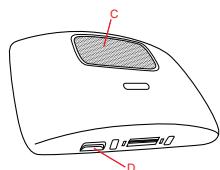
A On/Off button
B Microphone
C Speaker
D Memory card (micro SD card) slot
USB cable

C Documentation pack

Your product also includes either A or B:
A Dash Dock
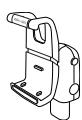
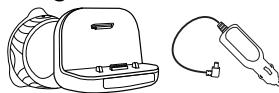
B Active Dock and USB Car Charger
2. Before you start
Type of Dock
Your product includes either the Dash Dock or the Active Dock. Use the images above to see which Dock is included in your product. Follow the instructions below to install your Dock in your car. Alternatively, follow the visual instructions at the start of this guide.
Installing the Dash Dock (A)
Use the dash dock to install your Blue&Me-TomTom navigation device inside the car.
To attach the dash dock, insert the base of the dock into the dash plug on the car dashboard.
To insert your navigation device into the dock, push the button on the front of the dock to open the top bracket. Place the bottom of the device into the dock and then push the top bracket of the dock down until it clicks into place. Rotate your device to a position that suits you best.
To remove the navigation device, press the button on the front of the dock and lift the navigation device out.
To release the dock from the dashboard, push the lower button on each side of the shaft and pull out the dock.
Installing the Active Dock (B)
Make sure that both the Active Dock and your window are clean and dry.
- Press the suction cup firmly against the window on an area where the glass is flat.
- Twist the rubber grip near the base of the Active Dock in a clockwise direction until you hear a click.
The Active Dock is now installed.
Positioning the Active Dock
Consider carefully where to attach the dock in your car. The dock should not block or interfere with any of the following:
- Your view of the road
- Any of the controls in your car
- Any of your mirrors
The airbag
When your navigation device is in the dock, you should be able to reach the device easily without leaning or stretching. The diagrams show where you can safely attach the dock.
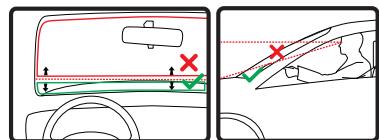
You can attach the dock to the windscreen, side window or use a Dashboard Mount Disk to attach the dock to your dashboard. TomTom also offers alternative mounting solutions for your TomTom navigation device. For more information about Dashboard Mount Disks and alternative mounting solutions, go to tomtom.com/accessories.
Switching on and off
To switch on your navigation device, press and hold the On/Off button until you see the start-up screen. The first time you switch on your navigation device, it may take a short time to start.
To set up your navigation device you need to answer a few questions by tapping the screen. You then need to connect your navigation device to Blue&Me in your car.
Note: Your dealer may have connected your navigation device to Blue&Me for you. If this is the case, you can already start using your device.
Device not starting
In rare cases, your Blue&Me-TomTom navigation device may not start correctly or may stop responding to your taps.
First, check that the battery is properly charged. It can take up to 2 hours to fully charge the battery.
If this does not solve the problem, you can reset the device. To do this, press and hold the On/Off button for 15 seconds and release the button when your device begins to restart.
GPS reception
When you first start your Blue&Me-TomTom navigation device, the device may need a few minutes to determine your GPS position and show your current position on the map. In future, your position will be found much faster, usually within a few seconds.
To ensure good GPS reception, you should use your device outdoors. Large objects such as tall buildings can sometimes interfere with reception.
Take care of your device
Never leave your Blue&Me-TomTom navigation device or accessories on view when you leave the car as they may become an easy target for thieves.
You can set a password which must be entered every time you start your device.
It is important to take care of your device.
- Your device is not designed for use in extreme temperatures and any such exposure may cause permanent damage.
- Do not open the casing of your device under any circumstances. Doing so may be dangerous and will invalidate the warranty.
- Wipe or dry the screen of your device using a soft cloth. Do not use any liquid cleaners.
We recommend using the safety preferences to make your driving as safe as possible. The safety preferences include, for example, the following options:
- Hide most menu options when driving
Show safety reminders - Warn when driving faster than allowed
You can also drive more safely by using voice commands to control your Blue&Me-TomTom.
3. Blue&Me controls
Steering wheel controls
You can control some of the functions of your Blue&Me-TomTom navigation device using five of the buttons on the steering wheel. To start doing this, press SRC/OK, use the arrow keys to highlight Satnav, then press SRC/OK again.
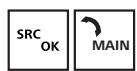
Press one of these buttons to open selected items in the menu or to select or clear checkboxes.

Press this button to return to the Driving View and to stop using the steering wheel buttons to control the navigation device.

Press one of these two buttons to move up or down in a list or menu.
Note: The remaining buttons are used for specific Blue&Me functions, for controlling the volume of the radio and incoming calls, and to activate Blue&Me voice commands.
A message is displayed on your navigation device if you try to do something which is not supported by the steering wheel buttons. To control these functions on your device, tap the screen or use voice command and control.
Cluster display
Note: Not all cars support showing navigation instructions in the cluster display.
Navigation instructions from your Blue&Me-TomTom navigation device are shown in your car's cluster display.
The display shows the next navigation instruction, the distance to next navigation instruction and the name of the next street.
You can switch the navigation instructions in the cluster display on or off in the Blue&Me Preferences menu.
4. Pairing and connection
Your Blue&Me-TomTom navigation device and Blue&Me in your car communicate with each other using a Bluetooth connection.
To pair your navigation device with Blue&Me, do the following:
- Turn your car key to the MAR position.
- Press the MAIN button on your steering wheel to open the main menu of Blue&Me in the cluster display of your car.
- Use the arrow buttons on the steering wheel to navigate to the settings menu.
- Select Settings and then Pairing.
A 4-digit PIN code appears on the cluster display. You use this PIN in a later step.
- On your navigation device, tap Change preferences then Blue&Me.

- Tap Find Blue&Me.
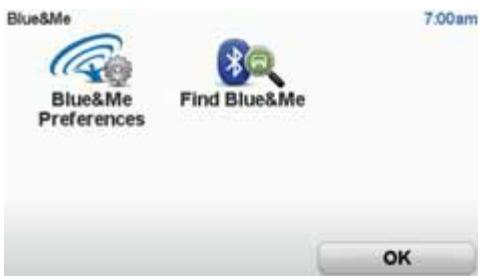
- Tap Yes when your navigation device asks if you want to establish a connection.
- Tap Yes when asked if you want to start searching for Blue&Me now.
- Enter the Blue&Me PIN on your navigation device. This is the PIN shown in the cluster display of your car earlier.
A message confirming that the connection is successful appears both on the navigation device and in the cluster display. Each time the Blue&TomTom device is connected or disconnected from Blue&Tme, you see a confirmation message.
When your navigation device and your car have been paired, the Car Menu button appears in the Main Menu of the navigation device.
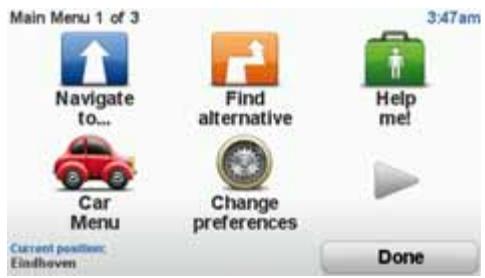
Tap Car Menu to access Telephone, Trip Computer and eco:Drive info.
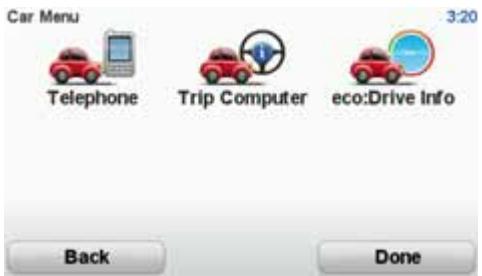
In the future, the connection is activated automatically each time the navigation device is switched on and either the car key is in MAR position or the car engine is running.
In some instances, you may need to repeat the pairing procedure. Note that the PIN code will change every time.
To connect your Blue&Me-TomTom device to a different car, you need to carry out the complete pairing and connection procedure.
5. Synchronising your settings
You can synchronise some settings on your Blue&Me-TomTom navigation device with your car settings.
Settings that can be synchronised include time, language and units.
When you first connect your navigation device to Blue&Me, you are asked if you want to synchronise settings automatically.
If synchronisation is switched on, this happens every time you connect your navigation device to Blue&Me and every time you change the car settings.
You can control the synchronisation of individual properties in the Blue&Me Preferences menu.
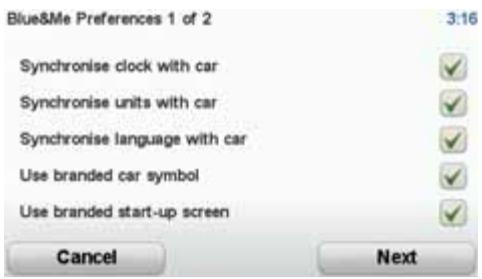
5.
6. Car menu
Telephone
You can use your Blue&Me-TomTom navigation device to manage your hands-free calls. You should establish a Bluetooth connection between your phone and Blue&Me in your car, and not between your phone and the navigation device.
You can also use Blue&Me to handle hands-free phone calls without the navigation device. However, if the navigation device is in the dash dock and switched on, you can access all the functions through the navigation device, for example, answering incoming calls and calling POIs.
Note: For information about hands-free calling and Blue&Me in your car, see the Blue&Me user guide.
Answering a phone call
Tap the buttons on the screen of your Blue&Me-TomTom navigation device to accept or reject incoming calls.
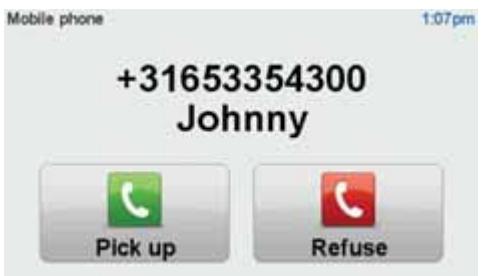

During a call, tap this button in the Driving View to access the Call... menu.
Using this menu, you can end the call, switch between calls or access the Telephone menu.
Telephone menu
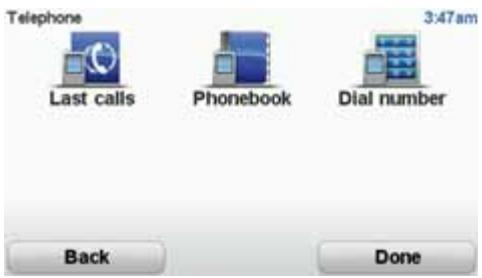
To access the Telephone menu, do the following:
- Tap Car menu in the Main Menu on your navigation device.
- Tap Telephone.
- Tap Dial number to enter a phone number using the keyboard on the screen.
You can also access the list of recently dialled numbers and the phone book.
Trip Computer
Your Blue&Me-TomTom navigation device shows constantly updated information about your current fuel consumption and remaining driving range. The range is the distance you can travel with the current amount of fuel in your car.
To see this information on your device, tap Car Menu in the Main Menu on your navigation device, then tap Trip Computer.
Note: This functionality is not available in all cars.
The information about trip A and B is the same as shown in the dashboard display but shown in one screen. The type of information shown depends on your car.
Note: For further information about using trip information, see the guide that was supplied with your car.
eco:Drive info
Note: eco:Drive info and the Gear Shift Indicator are not available for all car configurations.
eco: Drive info provides you with information to help you drive in a more environmentally friendly way.
It can improve the efficiency of your driving by analysing your driving style. It helps you to use less fuel, reduce CO2 emissions and save money.
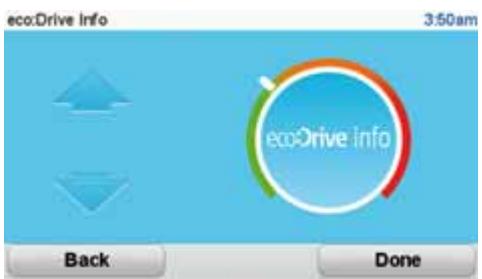
eco: Drive info suggests when you should change gear on the left of the display, repeating the information shown on the cluster display. It also shows you the ecological impact of your driving, on the right.
To view this information, do the following:
- Tap Car Menu in the Main Menu on your navigation device.
- Tap eco:Drive info.
The eco:Drive info screen is shown while driving until you tap Done.
7. Making your first journey
Planning a route with your Blue&Me-TomTom navigation device is easy. To plan a route, follow the steps below.
Important: For safety reasons, you should always plan a route before you start your journey.
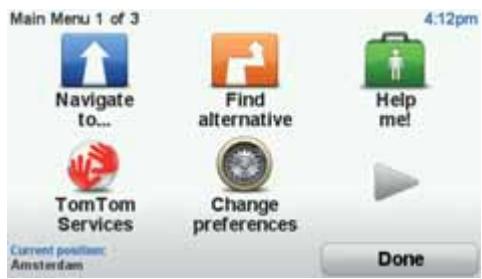
- Tap the screen to bring up the Main Menu.
Note: The buttons on your navigation device are shown in full colour unless a button is currently unavailable. For example, the button named Find alternative in the Main Menu is not available until you have planned a route.
- Tap Navigate to...
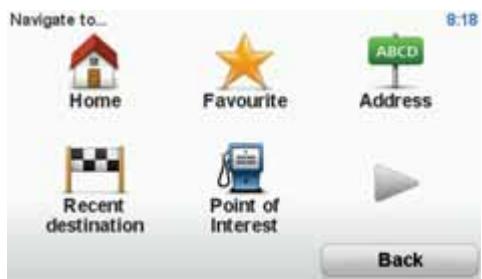
- Tap Address.
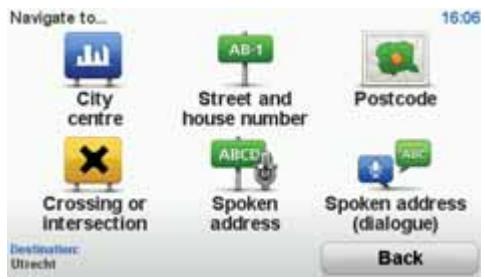
When you enter an address, you can choose from the following options:
- City centre - tap this button to set your destination as the centre of a city or town.
- Street and house number - tap this button to set an exact address as your destination.
- Postcode - tap this button to enter a postcode as your destination.
Note: You can enter a postcode for any country. In some countries, postcodes are detailed enough to identify a house on their own. In other countries you can enter a postcode to identify a town or area. You will then have to enter a street and house number.
- Crossing or intersection - tap this button to set your destination as the point where two streets meet.
- Spoken address - tap this button to set your destination by saying the address to your navigation device.
In this example, we will enter an address.
4. Tap Street and house number.
Note: When planning a trip for the first time your navigation device asks you to choose a state or country. Your choice is saved and used for all routes you plan.
You can change this setting at any time by tapping the flag.
- Start to type the name of the town where you want to go.
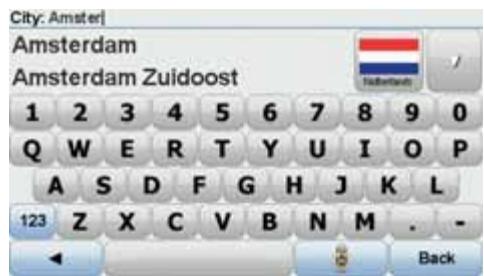
As you type, the names of the towns that match what you have typed are shown. When your destination appears in the list, tap the name of the town to set the destination.

Tip: Instead of typing the name, tap this button to say the address by speaking to your navigation device.
- Start to type the street name. Tap the name when it is shown in the list.
As with the name of the town, the names of the streets that match what you have typed are shown. When your destination appears in the list, tap the name of the street to set the destination.
- Enter the house number and then tap Done.
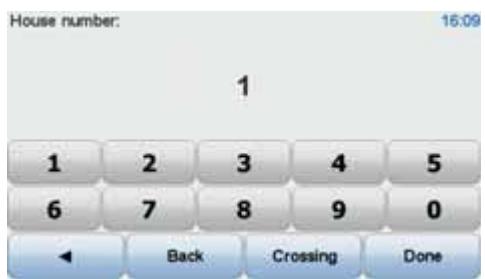
- Your navigation device asks if you need to arrive at a particular time. For this exercise, tap NO.
The route is calculated by your device using IQ Routes™.
IQ Routes is used to plan the best possible route using information about the average speeds measured on the roads.
When the route has been calculated, tap Done.
Your Blue&Me-TomTom navigation device begins to guide you to your destination.
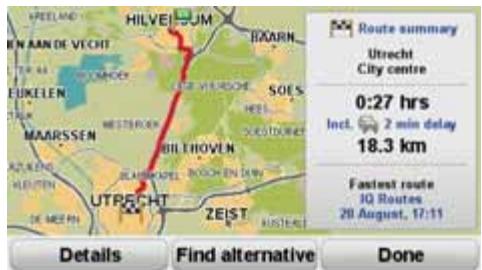
Route summary
After planning a route, you see a summary of your route.
The route summary shows an overview map of your route and the total journey time including delays caused by both incidents and busy roads.
You can see the route summary at any time by tapping the right side of the status bar.
Using your voice to plan a route
Instead of tapping the screen to plan a route, you can use your voice to plan a route.
For information about the different ways you can plan a route using your voice, see Voice command and control.
Frequent destinations
If you often make trips to the same destinations, you can set your device to ask if you want to plan a route to one of these locations every time the device starts. This is faster than planning a route in the normal way.
To select a new destination, tap Start-up preferences in the Preferences menu then select Ask for a destination. You are asked if you want to select a new destination and you then need to answer a few questions about the location.
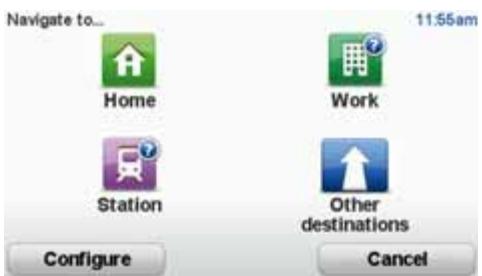
Show my list of frequent destinations every time my Blue&Me-TomTom starts
You can set your Blue&Me-TomTom to ask if you want to plan a route to one of your frequently visited destinations, every time the device starts.
To change this setting, do the following:
- Tap Start-up preferences in the Preferences menu and then select Ask for a destination.
- Tap Yes, then tap Yes again to begin entering information about the destination.
- Select a symbol for the destination and tap Done to set the symbol, then tap Yes.
Tip: If you want to choose a title of your own, select a numbered symbol.
- Tap Yes and if required enter a new name, then tap Done.
- Enter the address details in the same way you enter an address when planning a route, then tap Done.
- If you want to set more destinations, repeat the steps above. Otherwise, tap Done.
You are asked if you want to change the start-up image.
- If you want to change the image, follow the instructions shown on the screen. Otherwise, tap No.
Every time your Blue&Me-TomTom starts, you are asked if you want to plan a route. If you tap Cancel, you are shown the Main Menu.
Arrival times
When you plan a route, your Blue&Me-TomTom asks you if you need to arrive at a particular time.
Tap YES to enter a preferred arrival time.
Your Blue&Me-TomTom calculates your arrival time and shows you whether you will arrive on time.
You can also use this information to work out when you need to leave. If your Blue&Me-TomTom shows that you will arrive 30 minutes early, you can wait and leave in 30 minutes time, rather than arrive early.
Your arrival time is constantly recalculated during your journey. The status bar shows whether you will arrive on time or if you are going to be late, as shown below:
+55
You will arrive 55 minutes before the arrival time you entered.
If the estimated arrival time is more than five minutes before the time you entered, it is shown in green.
+3
You will arrive 3 minutes before the arrival time you entered.
If the estimated arrival time is less than 5 minutes before the time you entered, it is shown in yellow.
| Status bar preferences | You will arrive 19 minutes late. If the estimated arrival time is later than the time you entered, it is shown in red. |
| Tap Status bar preferences in the Preferences menu, to enable or disable arrival time notifications. Select the required options on the first menu screen and then tap Done. To enable arrival time notifications, select Show leeway to arrival time. | |
| Other navigation options | |
| When you tap Navigate to..., you can set your destination in many ways, not just by entering the address. The other options are listed below: | |
| Home | Tap this button to navigate to your Home location. You will probably use this button more than any other. |
| Favourite | Tap this button to select a Favourite as your destination. |
| Address | Tap this button to enter an address as your destination. |
| Recent destination | Tap this button to select your destination from a list of places you have recently used as destinations. |
| Point of Interest | Tap this button to navigate to a Point of Interest (POI). |
| Point on map | Tap this button to select a point on the map as your destination using the map browser. |
| Latitude Longitude | Tap this button to enter a destination using latitude and longitude values. |
Planning a route in advance
You can use your Blue&Me-TomTom to plan a route in advance, selecting your starting point and your destination.
Here are some more reasons to plan a route in advance:
Find out how long a journey is going to take before you start.
You can also compare journey times for the same route at different times of the day or on different days of the week. Your Blue&Me-TomTom uses IQ Routes when planning a route. IQ Routes calculates routes based on the real average speeds measured on roads.
- Study the route of a journey you are planning.
- Check a route for someone who is coming to visit you and then explain the route to them in detail.
To plan a route in advance, follow these steps:
- Tap the screen to bring up the main menu.
- Tap the arrow button to move to the next menu screen and tap Prepare route.

Prepare route
-
Select the starting point for your journey in the same way that you would select your destination.
-
Set the destination for your journey.
-
Choose the type of route that should be planned.
-
Fastest route - the route which takes the least time.
- Eco route - the most fuel-efficient route for your journey.
- Shortest route - the shortest distance between the locations you set. This may not be the quickest route, especially if the shortest route is through a town or city.
- Avoid motorways - a route which avoids motorways.
- Walking route - a route designed for making the journey on foot.
- Bicycle route - a route designed for making the journey on a bicycle.
-
Limited speed - a route for a vehicle which can only be driven at a limited speed. You have to specify the maximum speed.
-
Choose when you will make the journey you are planning. There are three options:
Now
- Specific date and time - you will be asked to enter the date and time.
No specific date and time
If you select either Now or Specific date and time, your Blue&Me-TomTom uses IQ Routes to work out the best possible route at that time, using the real average speeds measured on roads. In this way you can compare how
long a journey takes at different times of day, or on different days of the week.
- Your Blue&Me-TomTom plans the route between the two locations you selected.
More information about a route
| You can access these options for the route you last planned by tapping View route in the Main Menu or the Details button on the route summary screen. You can access these options for the route you last planned by tapping the Details button on the route summary screen. You can then select from the following options: | |
| Browse as text | Tap this button for a list of all the turn instructions on the route. This is very useful if you need to explain a route to someone else. |
| Browse as images | Tap this button to see each turn in the journey. Tap the right and left arrows to move forwards and backwards through the journey. Tap the screen to turn off the 3D display and view the map from above. |
| Browse map of route | Tap this button to see an overview of the route using the map browser. |
| Show route demo | Tap this button to watch a demo of the journey. You can interrupt the demo at any time by tapping the screen. |
| Show route summary | Tap this button to open the route summary screen. |
| View route | Tap this button to see your route. |
8. Driving View
When your Blue&Me-TomTom device starts, you are shown the Driving View along with detailed information about your current position.
Tap the centre of the screen at any time to open the Main Menu.
Note: The Driving View is shown in black and white until your device locates your current position.
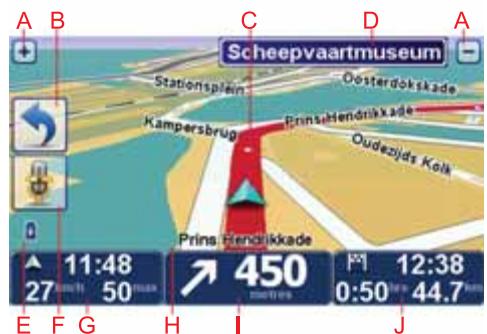
A Tap + and - to zoom in and out.
B Quick menu - you can enable the quick menu in the Preferences menu.
C Your current position.
D Road sign information or the next street name.
E Battery level indicator.
F Microphone button for voice command and control.
G The time, your current speed and the speed limit, if known.
Tap this part of the status bar to change the volume and hear the next spoken instruction.
H The name of the street you are on.
I Navigation instruction for the road ahead.
Tap this part of the status bar to change between 2D and 3D views of the Driving View.
J The remaining journey time, the remaining distance and your estimated arrival time.
Tap this part of the status bar to open the route summary screen.
To change the information shown in the status bar, tap Status bar preferences in the Preferences menu.
Driving View symbols
| The following symbols are shown in the Driving View: | |
| EPT - this symbol is shown when your device is using EPT to estimate your current location. EPT is only used when you have no GPS reception. | |
| Note: EPT is not supported on all devices. | |
| Mobile phone not connected - this symbol is shown when the selected mobile phone is not connected to your device. You must have already established a connection to this phone. | |
| Sound off - this symbol is shown when the sound is switched off. | |
| To switch on the sound, open the preferences menu and tap Turn on sound. | |
| Battery - this symbol shows the battery level. When the battery is low and requires charging, the battery symbol is empty. You should charge your navigation device as soon as possible. | |
| Compass - the compass is shown when the compass is enabled. | |
| To enable or disable the compass, adjust the setting in the status bar preferences. |
9. Voice command and control
There are two types of voice command and control.
The first type is provided by Blue&Me and you can use it to control Blue&Me features. You do this using a button on your steering wheel.
The second type is provided by your navigation device and you can use it to plan routes and control other features of your navigation device. You do this by initially tapping the screen on the navigation device.
Blue&Me voice command and control

Press this button on your steering wheel to start using command and control provided by Blue&Me.
Then give one of the following voice commands:
- Say "SatNav" to start using buttons on the steering wheel to control your navigation device.
- Say "Car Menu" to open the Car menu. Then say one of these voice commands: "Telephone", "Trip Computer" and "eco:Drive info".
The menu opens for your chosen command. Blue&Me lists the commands available for that menu.
To return to the Driving View at any time, press Done on your navigation device.
Note: For a list of all Blue&Me voice commands see the FAQ on tomtom.com/support. For additional information about Blue&Me voice command and control, please see the Blue&Me manual that was delivered with your car.
Navigation device voice command and control
Instead of tapping the screen to control your Blue&Me-TomTom navigation device, you can give instructions to your device using your voice. For example, to increase the volume, you can say, "Increase volume."
Important: To use command and control on your navigation device, you must have a computer voice installed on your Blue&Me-TomTom device. You can install computer voices using TomTom HOME.
To view the list of available commands, tap Command and control in the Preferences menu and then tap What can I say?
Using voice command and control
Note: You must select a computer voice in order to use voice command and control. To select a computer voice, tap Voices in the Preferences menu, then tap Change voice. Select a computer voice.
In this example, you will use voice command and control to plan a journey to your Home address.
- Tap the microphone button in the Driving View.
Note: To add or remove this button from the Driving View, tap Command and control in the Preferences menu, then tap Enable command and control or Disable command and control.

The microphone monitor is shown in colour, unless command and control is busy with another task.
- When you hear a beep, say, "Navigate to Home."
When you speak, the microphone monitor shows if you are talking too loudly or quietly:

A green bar means your voice is at the right level for your device to hear your commands.

A red bar means your voice is too loud.

A grey bar means your voice is too quiet.
For some phrases, your device repeats the command, then asks you if the command has been correctly recognised.
- If the command is correct, say, "Yes."
If the command is incorrect, say, "No" and when prompted, say the command again after the beep.
Your device plans a route from your current position to your Home address.
Tips
- The microphone switches off after a few seconds if you don't say anything.
- You can stop your device from listening for commands either by tapping the screen or by saying any of the following commands: Back, Cancel, Quit.
- To select an item from a list, tap the screen to select the item. Voice control cannot be used to select items from a list.
10. Advanced Lane Guidance
Advanced Lane Guidance
Your Blue&Me-TomTom helps you prepare for motorway exits and junctions by showing you which lane you should be in.
Note: This information is not available for all junctions or in all countries.
For some exits and junctions, an image shows the lane you should be in. To turn the images off, clear the checkbox for Show lane images in the Advanced preferences in the Preferences menu.
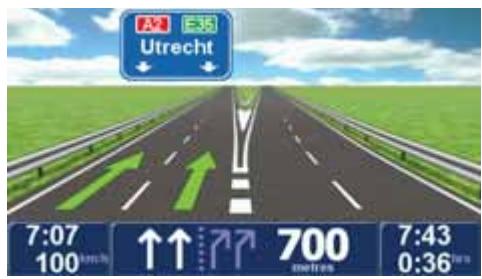
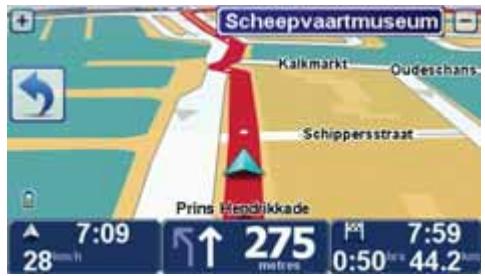
For other exits and junctions, your Blue&Me-TomTom shows the lane you should take in the status bar. To turn this guidance off, tap Change preferences in the Main Menu, then tap Status bar preferences. Clear the checkbox for Show lane guidance.
11. Finding alternative routes
Once you have planned a route, you may want to change something about the route, without changing your destination.
Why change the route?
Maybe for one of these reasons:
- You can see a roadblock or a line of traffic ahead.
- You want to travel via a particular location, to pick someone up, stop for lunch or fill up with petrol.
- You want to avoid a difficult junction or a road you don't like.

Find alternative...
Tap Find alternative... in the Main Menu to change the route that is currently planned.
The Find alternative... button is also shown in the route summary screen after you plan a route.

Calculate alternative
Tap this button to calculate an alternative to the route already planned.
Your Blue&Me-TomTom will look for another route from your current location to your destination.
If you decide you would prefer to use the original route after all, tap Recalculate original.
Why would I need to do this?
Apart from the roads near your position and near your destination, the new route will use totally different roads to reach your destination. This is an easy way of calculating a totally different route.

Avoid roadblock
Tap this button if you can see a roadblock or a line of traffic ahead. You then have to choose how much of the route ahead you want to avoid.
Choose from the different options: 100m, 500m, 2000m, 5000m. Your Blue&Me-TomTom will recalculate your route avoiding the section of the route for the distance you selected.
Don't forget that once a new route is calculated, you may have to turn off the road you are on very soon.
If the roadblock suddenly clears, tap Recalculate original to return to your original route.
| Travel via... | Tap this button to change your route so that it passes a particular location, perhaps to pick someone up on the way. When you do this, a marker is shown on the map for the location you choose the travel via. You choose the location you want to pass in the same way as you choose a destination. So you can select from all the same options: for example, Address, Favourite, Point of Interest and Point on map. Your Blue&Me-TomTom will calculate a new route to your destination that passes the location you chose. Unlike your final destination, your Blue&Me-TomTom does not inform you when you pass by this location. Using this button, you can only travel via one location. If you want to pass more than one, use an Itinerary. |
| Recalculate original | Tap this button to return to the original route without deviations to avoid roadblocks or travelling via particular locations. |
| Avoid part of route | Tap this button to avoid a part of the route. Use this button if you see that your route includes a road or junction you don't like, or which is well-known for traffic problems. You then choose the road you want to avoid from a list of the roads on your route. |
12. Browse Map
To look at the map in the same way as you might look at a traditional paper map, tap Browse map in the Main Menu.
You can move around the map by dragging it using your finger on the screen.
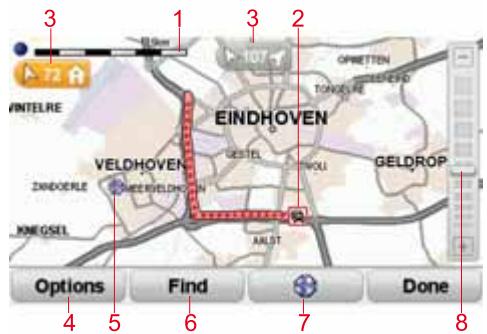
- The scale bar
- Traffic - current traffic incidents. Use the Options button to select whether traffic information is shown on the map. When traffic information is shown on the map, POIs and Favourites are not shown.
Note: To use a TomTom traffic information service, you may need a subscription or a receiver. Traffic services are not supported in all countries. For more information and how to subscribe, visit tomtom.com/services.
- Marker
Markers point towards and show the distance to your current location, your home location and your destination.
Tap a marker to centre the map on the marked location.
To set your own marker, position the cursor on the required location on the map, tap the cursor button and then tap Set marker position.
- Options
- The cursor
- The Find button
Tap this button to find specific addresses.
- The Cursor button
Tap this button to navigate to the cursor position, make a Favourite of the cursor position, or find a Point of Interest near the cursor position.
- The zoom bar
Zoom in and out by moving the slider.
Options
Tap the Options button to set the information shown on the map. You can choose to show the following information:
- Points of interest. Tap POI below the list of options to select which POIs are shown.
Favourites - Traffic - when traffic information is shown on the map, POIs and Favourites are not shown.
Tap Advanced to show or hide the following information:
- Names
- Markers - markers point to your current location, your home location and your destination. The marker shows the distance to the location. Markers are shown when the location they point to are off the screen.
Tap a marker to centre the map on the location pointed to by the marker.
You can also set your own marker. Tap the cursor button, then tap Set marker position to place a marker at the cursor position.
- Coordinates
13. TomTom Map Share™
With TomTom Map Share, you can correct errors on your map and share those corrections with other people in the TomTom Map Share community, as well as receiving corrections made by others.
Note: TomTom Map Share is not available in all regions. For more information, go to tomtom.com/mapshare.
Map corrections
There are two types of map correction:
- Corrections that are immediately shown on the map. These include, changing the traffic flow of a street, blocking or renaming a street and adding or editing POIs.
This type of change is immediately shown on your own map. You can hide these corrections at any time in the Map Share preferences menu. - Corrections that are reported to TomTom but not shown immediately on your map. These include, missing streets, errors in motorway entrances and exits and missing roundabouts.
This type of correction is investigated by TomTom and once verified, is included in the next map release. These corrections are therefore not shared with the Map Share community.
Making a map correction
Correct a map error
Important: For safety reasons, you should only mark a location when you are driving. Do not enter the full details of an error while you are driving.
- Tap Map corrections in the Main Menu.
- Tap Correct a map error.
A list of possible map corrections is shown.
- Select the type of correction you want to report.
Note: If you tap Add missing POI or Report other error you will be asked for some additional information before the next step.
- Select the method you want to use for selecting the location of the correction.
- When you have found the location, tap Done.
- Enter correction or confirmation of correction now.
Receiving the latest map updates
When you connect your Blue&Me-TomTom to your computer, TomTom HOME automatically downloads any available map corrections and sends any changes you have made, to the Map Share community.
There are several types of corrections which can be set in the Correction preferences menu.
Marking a map error while on the move
Important: For safety reasons, you should only mark a location when you are driving. Do not enter the full details of an error while you are driving.
If you notice an item on your map that needs attention, you can mark the location using the Report button and then enter the details when you are no longer driving.
To show the Report button in the Driving View or in the quick menu, do the following:
- Tap Map corrections in the Main Menu.
- Tap Correction preferences.
- Tap Done and then tap Done again.
- Select Show report button, then tap Done.
The Report button is shown on the left-hand side of the Driving View. After you mark a location, you can add more information about the change when you open the Map corrections menu.
For example, you are driving to a friend's house and you notice that the name of the street you are on is different from the one on your map. To report the change, tap the Report button and your Blue&Me-TomTom will save your current location. You can then send the correction to TomTom Map Share when you have finished your journey.
TomTom Map Share community
To join the Map Share community, do the following:
- Tap Map corrections in the Main Menu.
- Tap Download corrections made by others.
- Tap Join.
When you connect your Blue&Me-TomTom to your computer, TomTom HOME downloads new corrections and sends your corrections to the Map Share community.
Important: Connect your device to your computer regularly and use TomTom HOME to check for new updates.
Correction preferences
The correction preferences set the way TomTom Map Share works on your device.
You can set the following preferences:
- Use the trust level slider to choose the types corrections from the Map. Share community you want to use on your maps.
- Decide if you want to share your corrections with others.
- Show or hide the report button in the Driving View.
To set your preferences, tap Map corrections in the Main Menu, then tap Correction preferences.
Tip: If you later decide you want to remove corrections from the map, clear the checkbox next to the types of correction you want to remove. If you clear all the checkboxes, your map returns to the original state before the first correction.
Accepting map corrections
You can set the type of map corrections you want added to your map. To do this, tap Correction preferences in the Map corrections menu.
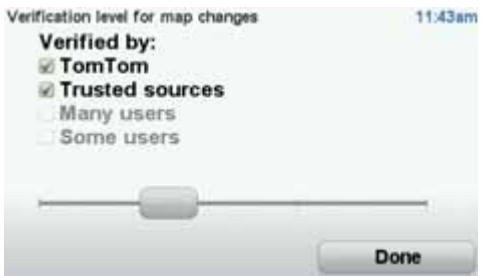
There are four levels of corrections that you can choose. The level changes when you move the slider:
- TomTom - only accept changes made by TomTom.
- Trusted sources - accept changes made by TomTom and by trusted users who have been verified by TomTom.
- Many users - accept changes made by TomTom, by trusted users who have been verified by TomTom and changes made by a high number of Map Share community members.
- Some users - accept changes made by TomTom, by trusted users who have been verified by TomTom and all changes that have been made by Map Share community members.
Types of map correction
There are several types of correction that you can make to a map.
To make a correction to your map, tap Map corrections in the Main Menu then tap Correct a map error. The following types of corrections are shown.

(Un)block street
Tap this button to block or unblock a street. You can block or unblock the street in one or both directions.
For example, to correct a street near to your current location, do the following:
- Tap (Un)block street.
- Tap Near you to select a street near your current location. You can select a street by name, a street near your Home location or a street on the map.
- Select the street or section of a street you want to correct by tapping it on the map.
The street you select is highlighted and the cursor shows the name of the street.
- Tap Done.
Your device shows the street and whether the traffic is blocked or allowed in each direction.
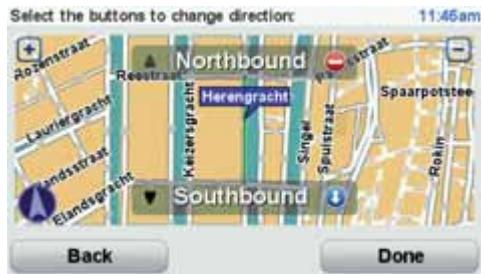
- Tap one of the direction buttons to block or unblock the flow of traffic in that direction.
- Tap Done.
The next time you connect your device to TomTom HOME, your corrections are shared with the TomTom Map Share community.

Reverse traffic direction
Tap this button to correct the traffic direction of a one-way street, where the direction of traffic is different to the direction shown on your map.
Note: Reverse traffic direction only works for one-way streets. If you select a two-way street you will be given the chance to block/unblock the street rather than changing the direction.
| ABC Edit street name | Tap this button to change the name of a street on your map. For example, to rename a street near to your current location: 1. Tap Edit street name. 2. Tap Near you. 3. Select the street or section of a street you want to correct by tapping it on the map. The street you select is highlighted and the cursor shows the name of the street. 4. Tap Done. 5. Type the correct street name. 6. Tap Done. |
| Change turn restrictions | Tap this button to change and report incorrect road turn directions. |
| 60 Change road speed | Tap this button to change and report the road speed limit. |
| Add or remove roundabout | Tap this button to add or remove a roundabout. |
| Add missing POI | Tap this button to add a new Point of Interest (POI). For example to add a new restaurant near to your current location: 1. Tap Add missing POI. 2. Tap Restaurant in the list of POI categories. 3. Tap Near you. 4. Select the location of the missing restaurant. You can select the location by entering the address or by selecting the location on the map. Select Near you or Near home to open the map at your current location or at your Home location. 5. Tap Done. 6. Type the name of the restaurant then tap OK. 7. If you know the telephone number of the restaurant you can type it, then tap OK. If you don't know the number, just tap OK without typing a number. |
| Edit POI | Tap this button to edit an existing POI. You can use this button to make the following changes to a POI: ·Delete the POI. ·Rename the POI. ·Change the telephone number of the POI. ·Change the category that a POI belongs to. ·Move the POI on the map. |
| Existing street | Tap this button to edit an existing street. Once you have selected the street, you can select an error to report. You can select more than one type of error for a street. |
| Missing street | Tap this button to report a missing street. You have to select the start and end points of the missing street. |
| City | Tap this button to report an error about a city. You can report the following types of error: ·City is missing ·Wrong city name ·Alternative city name ·Other |
| Comment on POI | Tap this button to send a comment about a POI. You must select the POI, and then you can enter your comment. |
| Motorway entrance/exit | Tap this button to report an error about a motorway entrance or exit. |
| Postcode | Tap this button to report an error about a postcode. |
| Other | Tap this button to report other types of corrections. These corrections are not immediately applied to your map. Your Blue&Me-TomTom sends a special report to TomTom Map Share. You can report missing streets, errors in motorway entrances and exits and missing roundabouts. If the correction you want to report is not covered by any of these report types, enter a general description then tap Other. |
14. Sounds and voices
Your Blue&Me-TomTom plays the following kinds of sound:
- Spoken instructions
- Hands-free calls
-Warnings
Changing the volume level
You can change the volume in three ways:
- Tap the bottom left hand area of the Driving View. The last spoken instruction is repeated and the volume level is shown.
Move the volume slider to adjust the volume.
- In the Main Menu, tap Change preferences, then tap Volume preferences. Tap Test to check your changes.
- You can set your Blue&Me-TomTom to change the volume automatically depending on how noisy it is in the car.
Changing the volume automatically

Volume preferences
Your Blue&Me-TomTom can change the volume automatically.
- In the Main Menu, tap Change preferences.
- Tap Volume preferences.
- Select Link volume to noise level.
- Tap Done.

Voice preferences
To change the voice being used by your Blue&Me-TomTom, tap Voices in the Preferences menu, then tap Change voice. Select a voice from the list.
Your Blue&Me-TomTom has two different kinds of voices:
Computer voices
These are generated by your Blue&Me-TomTom. They provide spoken instructions while you are driving and can pronounce street names and announce messages, traffic reports, weather reports, tips and tutorials.
Human voices
These are recorded by an actor.
Note: Human voices only provide spoken instructions.
How do computer voices work?
Your Blue&Me-TomTom makes use of text-to-speech technology to generate computer voices. A text-to-speech program converts written text, for example an instruction like "Turn right", into the sound of a human voice.
The text-to-speech program looks at the whole sentence to make sure that the sound you hear is as close to the real thing as possible. The program is also able to recognise and quite accurately pronounce foreign place and street names. For example, the English voice can read French street names.
Note: If you select a Human voice, this will only be able to announce commands, but not street names. If you would like street names to be announced, you will need to select a computer voice.
Internal and external speakers
Your Blue&Me-TomTom contains a high quality speaker. This is used to play all the sounds on your Blue&Me-TomTom unless you select to play some sounds through external speakers.
The following types of sound can be played through the speakers as listed below:
- Spoken instructions and warnings:
- The speaker inside your Blue&Me-TomTom
- An external Bluetooth® Hi-Fi headset or speakers
-
Using an audio cable.
-
Phone calls
-
The speaker inside your Blue&Me-TomTom
Note: If you wish to use an audio cable, an Active Dock with an audio connector is available as an accessory. Your car stereo needs a line-in connector. Not all car stereos have line-in connectors. Check the instructions for you car stereo for more information.
Your Blue&Me-TomTom can play sound through Bluetooth® Hi-Fi speakers, such as a Bluetooth® Hi-Fi headset, or a car stereo which uses Bluetooth®.
Note: Bluetooth needs to be enabled before you can use a Bluetooth Hi-Fi speaker. Tap Change preferences, followed by Bluetooth preferences to enable Bluetooth.
To play sound over Bluetooth® Hi-Fi speakers, do the following:
- Tap Speaker preferences in the Preferences menu.
Tap this button to change the speaker settings.

- To play spoken instructions or music through a Bluetooth device, select Bluetooth Hi-Fi device.
- Tap Done.
- Your Blue&Me-TomTom asks you to confirm that you want to use an external Bluetooth® Hi-Fi speaker. Tap YES.
Your Blue&Me-TomTom starts searching for Bluetooth® Hi-Fi devices.
- Select your Bluetooth® Hi-Fi device from the list of devices found by your Blue&Me-TomTom.
Your Blue&Me-TomTom tries to establish a Bluetooth® connection with your device.
Your device may ask you to enter a password on your Blue&Me-TomTom before a Bluetooth® connection can be established. See the documentation for your Bluetooth® Hi-Fi device for more information.
Once connected, sound is be played through the external Bluetooth® Hi-Fi device.
If your Blue&Me-TomTom cannot establish a Bluetooth® connection then all sound is played through the internal speaker or through the audio cable if it is connected.
15. Preferences
You can change the way your Blue&Me-TomTom looks and behaves.
Tap Change preferences in the Main Menu.
Use night colours / Use day colours
Use Night colours
Tap this button to reduce the brightness of the screen and show darker colours on the map.
When should I use this?
When it's dark, it is easier to see the screen if the display on your Blue&MetTomTom is not brightly lit.
Use day colours
To change back to a brighter screen showing brighter colours on the map, tap Use day colours.
Show POI on map

Show POI on map
Tap this button to choose which categories for the Points of Interest (POIs) should be shown on the map:
- Tap Show POI on map in the Preferences menu.
- Select the POI categories to display on the map.
Tap Find to search for a POI category.
- Select whether you want to show POIs using the 2D or 3D map view.
- Tap Done.
The POIs you have selected are shown as symbols on the map.
Quick menu preferences

Quick menu preferences
Tap this button to choose up to six buttons to be used in the Quick menu.
The Quick menu button enables easy access for your most commonly used buttons.
The buttons you assign for use with the Quick menu, are shown in the Driving View.
Guided tours
Tap this button to show one of the Guided tours on how to use your Blue&Me-TomTom.
Turn off voice guidance / Turn on voice guidance
Tap this button to switch off spoken route instructions. You still hear all other information such as messages and warnings.
If you tap Turn off sound in the Preferences menu, voice guidance is also turned off.
Changing voices
If you change voices, voice guidance is switched on automatically.
To turn spoken route instructions back on, tap Turn on Voice guidance.
Voices

Tap Voices to manage your TomTom voices. The following options are available:
- Change voice - tap this button to change the voice that gives you instructions.
A wide range of recorded human voices and computer voices are available. - Disable voice - tap this button to disable voice guidance.
- Enable voice - tap this button to enable voice guidance.
- Voice preferences - tap this button to choose the situations when your TomTom navigation device reads instructions or warnings aloud.
- Download voice - tap this button to download new voices from TomTom Services and transfer them to your device.
Volume preferences
Tap this button and then move the slider to change the volume.
Can my Blue&Me-TomTom change the volume depending on how noisy it is in the car?
Select Link volume to noise level and your Blue&Me-TomTom will change the volume according to the background noise. The noise level is constantly mon-
itored by the microphone on your Blue&Me-TomTom. If there is a lot of noise in the car, your Blue&Me-TomTom will automatically increase the volume.
For example, if you are driving on the motorway, which is often very noisy, the volume level on your Blue&Me-TomTom will be increased. When you are driving more slowly again, the volume level will be lowered by your Blue&Me-TomTom.
Command and control

Command and control
Tap Command and control to enable or disable voice command and control and to see which spoken commands your Blue&Me-TomTom understands.
Important: To use voice control, a computer voice must be installed on your Blue&Me-TomTom. You can use TomTom HOME to install computer voices if they are not already installed.
- Enable Command and control - Tap this button to enable voice command and control.
- Disable Command and control - Tap this button to disable voice command and control.
- What can I say? - Tap this button to view the list of spoken commands which are understood by your Blue&Me-TomTom.
Speaker preferences

Speaker preferences
Tap this button to select which speakers are used by your Blue&Me-TomTom for sound. The following options are available:
- Internal speaker
- Bluetooth Hi-Fi device
- Line-out (audio cable)
Turn off sound / Turn on sound

Turn off sound
Tap this button to turn off sound. If you turn off sound, voice guidance is also turned off and you no longer hear spoken route instructions.

Turn on sound
Tap this button to turn on sound. When you turn sound on, voice guidance remains off. To turn on voice guidance, tap Turn on voice guidance in the Preferences menu.
Tips
To change the volume, tap Volume preferences in the Preferences menu.
To change the volume quickly while you are driving, tap the bottom left-hand section of the Driving View and move the slider.
To change the voice being used by your Blue&Me-TomTom, tap Change voice in the Voice preferences menu.
Can I still use my Blue&Me-TomTom to make hands-free calls when the sound is turned off?
Yes. Turning the sound off does not affect hands-free calling, meaning that you will still be able to talk to and hear the caller.
Manage Favourites

Manage Favourites
Tap this button to rename or delete Favourites.
To find a Favourite, tap Find, then start to type the name of the Favourite. You can select the Favourite when it is shown in the list.
Change Home location

Change Home location
Tap this button to set or change your Home location.
Do I need to use my actual home address for the Home location?
No. Your Home location can be a place you go often, for example, your office. It can be your actual home address, but it can be any address you like.
Why should I set a Home location?
Having a Home location means that you have a quick and easy way to navigate there, by tapping the Home button in the Navigate to... menu
Planning preferences
Planning preferences
Tap this button to set the kind of route planned when you select a destination.
The following options are available:
- Ask me every time I plan
- Always plan fastest routes
- Always plan eco routes
- Always plan shortest routes
Always avoid motorways - Always plan walking routes
- Always plan bicycle routes
- Always plan for limited speed
Then set how your Blue&Me-TomTom should handle the following when planning a route:
- Toll roads on the route
- Ferry crossings on the route
- Carpool lanes
Unpaved roads
You can then set if the route summary screen closes automatically after you have planned a route. If you select No, you have to tap Done to close the route summary screen.
Replanning preferences
Select whether or not you want your Blue&Me-TomTom to replan your route when a faster route is found while you drive. This might occur due to changes in the traffic situation.
Switch maps

Switch maps
Tap this button to do the following:
- Download a map - tap this button to download a map you have bought using TomTom HOME. It may not be possible to download maps on all devices.
- Switch map - tap this button to change the map you are using.
Use TomTom HOME to make backups, download, add and delete maps from your navigation device.
Note: Don't delete a map unless you have already made a backup of the map. If you delete a map before you make a backup, you will no longer be able to load the map on your Blue&Tome-TomTom.
Manage POIs
Manage POIs
Tap this button to do the following:
- Set alerts for when you are near POIs.
For example, your Blue&Me-TomTom can tell you when there is a petrol station nearby.
- Create your own POI categories and add POIs to them.
For example, you could create a category of POIs called "Friends", and add all your friend's addresses as POIs in the category. You can even add your friends' phone numbers with their address so you can call them from your Blue&Me-TomTom.
The following buttons are available:
- Add POI - tap this button to add a location to a POI category you have created.
- Warn when near POI - tap this button to be warned when you approach a POI. You can select the types of POI for which you wish to be warned.
- Delete POI - tap this button to delete a POI you created.
- Edit POI - tap this button to edit the details of a POI you created.
- Add POI category - tap this button to create a new POI category.
- Delete POI category - tap this button to delete a POI category you created.
Change car symbol

Change car symbol
Tap this button to select a car symbol that will be used to show your current position in the Driving view.
Additional car symbols can be downloaded using TomTom HOME.
2D/3D preferences
Tap this button to set 2D/3D preferences.
The 2D view shows a two-dimensional view of the map as though viewed from above. The 3D view shows a three-dimensional view of the map as though you are driving through the landscape.
The following buttons are available:
- In 2D view: rotate map in direction of travel - tap this button to have the map automatically turn to match the direction you are travelling in.
- Switch to 3D view when following a route - tap this button to automatically switch to the 3D view whenever you are following a route.
Tip: To switch between 2D and 3D views of the map, tap the centre part of the status bar in Driving View.
In some situations, it is easier to see the map from above. Perhaps if the road network is complicated or for times when you are walking while using your Blue&Me-TomTom to navigate.
Status bar preferences

Status bar preferences
Tap this button to select the information shown on the status bar:
- How should the status bar be displayed?
Horizontal - if you choose this option, the status bar is shown at the bottom of the Driving view.
Vertical - if you choose this option, the status bar is shown at the right-hand side of the Driving view.
Current time
- Speed
- Show max speed next to speed - only available when speed (above) is also selected.
Note: If the speed limit for the road you are on is available, it is shown next to your speed.
If you drive faster than the speed limit, your speed is shown in red.
- Show leeway to arrival time - your Blue&Me-TomTom shows how late or early you will arrive, compared with the preferred arrival time that is set during the planning of a route.
- Direction
Show compass - Arrival time - your estimated arrival time.
- Remaining time - the estimated time left until you reach your destination.
- Remaining distance - the distance left until you reach your destination.
- Show lane guidance - if you choose this option, your Blue&Me-TomTom shows the lane you should take in the status bar for some exits and junctions.
Change map colours

Change map colours
Tap this button to select the colour schemes for day and night map colours.
Tap Advanced to scroll through colour schemes one at a time.
You can also download more colour schemes using TomTom HOME.
Brightness preferences
Brightness preferences
Tap this button to set the brightness of the screen.
Move the sliders to set the brightness separately for day map colours and for night map colours.
Bluetooth preferences

Bluetooth preferences
Tap this button to manage Bluetooth functionality on your Blue&MeTomTom.
Important: In places such as hospitals and on aeroplanes, you are required to switch off Bluetooth for all your electronic devices.
You can select the following options:
- Disable Bluetooth/Enable Bluetooth - switch Bluetooth on or off for your Blue&Me-TomTom. If you disable Bluetooth, all the other options are unavailable.
- Connect to Bluetooth device - connect to another device that uses Bluetooth.
- Disable hands-free calling/Enable hands-free calling - switch hands-free calling on or off for your Blue&Me-TomTom.
- Disable wireless data/Enable wireless data - enable or disable the transfer of wireless data.
Send/Receive files

Send/Receive files
Tap this button to send or receive files, such as photos, voices, itineraries and images, using your Blue&Me-TomTom with other Bluetooth devices.
Set owner

Set owner
Tap this button to enter your name and address as the owner of your Blue&Me-TomTom and to change or delete a 4-digit password for your Blue&Me-TomTom.
Note: You can only create a 4-digit password by using TomTom HOME. You can only change or delete a 4-digit password directly on your Blue&Me-TomTom.
You can create a 4-digit password for your Blue&Me-TomTom using TomTom HOME:
- Connect your Blue&Me-TomTom to your computer.
- Turn on your GO and then turn on your computer.
TomTom HOME starts automatically.
- Click Operatemy device in TomTom HOME.
Your Blue&Me-TomTom is shown and can now be controlled using TomTom HOME.
- In the Main Menu on your Blue&Me-TomTom, click Change preferences.
- Click Set Owner.
Enter the new 4-digit password which will be used to protect your Blue&Me-TomTom.
Start-up preferences

Start-up preferences
Tap this button to select what happens when your device starts. The following options are available:
- Continue where I left off - your device starts and shows the last screen that was shown when you turned off the device.
- Ask for a destination - your device starts with Navigate to... menu or the list of frequent destinations, if you have set some frequent destinations.
- Show the Main Menu - your device starts with the Main Menu.
- Start Slideshow - your device starts by showing a slideshow of the images stored there. To interrupt the slideshow, tap the screen.
You are then asked if you want to change the picture that is shown whenever you start your device.
Tap No to finish or tap Yes to see the photos stored on your device and tap on a photo to select that photo for use as your start-up picture.
Set clock

Set clock
Tap this button to select the time format and to set the time.
The easiest way to set the time is by tapping the Sync button. Your Blue&Me-TomTom will then take the time from GPS information.
Note: You can only use Sync if you have GPS reception, so you cannot set the clock in this way when you are indoors.
After using Sync to set the time, you may have to adjust the hours depending on your time zone. Your Blue&Me-TomTom works out your time zone and always keeps the time correct using GPS information.
Set units

Set units
Tap this button to set the type of units that will be shown for the following:
Keyboard preferences
Keyboard preferences
You use the keyboard to enter your destination or to find an item in a list, such as a POI.
Tap this button to select the size of the keys on the keyboard and the keyboard layout. You can select from two sizes:
Large keyboard
- Small keyboard
Several keyboard layouts are available:
- ABCD keyboard
- QWERTY keyboard
AZERTYkeyboard - QWERTZ keyboard
Battery saving preferences

Battery saving preferences
Tap this button to configure your Blue&Me-TomTom to conserve power when possible. The following options are available:
- Never dim screen
- Dim screen between instructions
Then select whether or not the Device stays on when external power is lost.
Change language

Change language
Tap this button to change the language used for all the buttons and messages you see on your Blue&Me-TomTom.
You can choose from a wide range of languages. When you change the language, you are also given the opportunity to change the voice.
Hide tips / Show tips

Hide tips
Tap this button to stop your Blue&Me-TomTom from showing tips.
To turn tips on again, tap Show tips.
Safety preferences
Tap this button to set the following safety preferences:
- Show only essential menu options while driving
- Suggest driving breaks
Show safety reminders - Warn when near places of worship or schools
- Warn when driving faster than allowed
- Warn when driving faster than a set speed
- Warn me not to leave the device in the car
Select whether or not your Blue&Me-TomTom should warn you about which side of the road you should be driving on.
Decide if you want the map display to be turned off in special circumstances and press Done.
What happens when I use the Turn off map display option?
When you turn off the map display, instead of seeing your position on a map in the Driving View, you will only see information about the next instruction.
Tap the button and select an option for when the map should be turned off. These are the options:
- Always - The map will not be shown and you will only see information about the next instruction and arrows showing direction.
- Above a certain speed - you set the speed at which point the map will be turned off. This option is useful for situations when the map might be distracting, such as when you are driving fast.
- Never - the map is never turned off.
Advanced preferences

Advanced preferences
Tap this button to set the following advanced preferences:
- Show house number before street name - when does this happen??
- Show street names - if you are using a computer voice for spoken instructions and have selected that street names should be read aloud, you do not need to select this option, since the street names will be read aloud even though this option is not selected.
- Show next street name - the name of the next street is shown in the top of the Driving View.
- Show current street name on map - the name of the street you are on is shown just above the status bar.
- Enable automatic zooming in 2D view
- Enable automatic zooming in 3D view
- Show lane images - for some exits and junctions, an image shows the lane you should be in.
Reset factory settings
Tap this button to restore the factory settings to your Blue&Me-TomTom.
All your settings, including Favourites, your Home location, warnings for POIs and any Itineraries you have created are deleted.
16. Navigating to POIs
POIs
Points of Interest or POIs are useful places on the map. Here are some examples:
- FIAT service points
Hotels - Restaurants
- Parking garages
- Petrol stations
Your Blue&Me-TomTom navigation device comes with a European-wide list of service centres and LPG/CNG petrol stations. These are all stored as POIs and you can navigate to any of them as a destination.
When you need to service or repair your car or fill it up with fuel, you can choose a POI, view the contact information and then navigate to it.
Low Fuel Warning
When the amount of fuel in your car drops into the reserve, your Blue&MeTomTom navigation device gives you a warning.
Tap Yes to be routed to the petrol station that is closest to your route. If you do not have a route planned, tap Yes to be taken to the closest petrol station to your current location.
Your Blue&Me-TomTom navigation device knows which type of fuel your car uses and guides you to a petrol station that offers you the correct fuel type.
Note: The Low Fuel Warning is not available in all cars.
Creating POIs
Note: You can also download sets of POIs and share the POI sets you create using TomTom HOME.
- Tap the screen to bring up the Main Menu.
- Tap Change preferences.
- Tap Manage POIs.
- Before you can add a POI, you have to create at least one POI category. Every POI is assigned to a POI category. You can only add POIs to POI categories you have created yourself.
Add POI category
Tap Add POI category.
- Enter a name for your POI category, for example, 'Friends' or 'Favourite restaurants'. Then select a marker for your POI category.
- Tap Add POI.

Add POI
Tap this button to add a POI.
- You are asked to name the POI.
- Select the POI category in which you want to add the POI.
- Select the location of your POI from the list below.

Home
You can set your Home location as a POI.
If you want to change your Home location, you can create a POI of the Home location before you change it.

Favourite
You can create a POI from a Favourite.
You can only create a limited number of Favourites. If you want to create more Favourites you have to delete some Favourites first. Before you delete a Favourite, make it into a POI so that you don't lose the address.

Address
You can specify an address to be a POI. When you enter an address, you can choose from four options.
- City centre
- Street and house number
- Postcode
Crossing or intersection

Recent destination
Select a POI location from a list of places you have recently used as destinations.

Point of Interest
You can add a Point of Interest (POI) as a POI. For example, if you are creating a category of POIs for your favourite restaurants, use this option instead of entering the addresses of the restaurants.

My location
Tap this button to add your current position as a POI.
For example, if you stop somewhere you like, while you are there you can tap this button to create the POI.
| Point on map | Tap this button to create a POI using the map browser. Select the location of the POI using the cursor, then tap Done. |
| LatitudeLongitude | Tap this button to create a POI by entering latitude and longitude values. |
| Position of last stop | Tap this button to select as your destination the position where your device was last docked in your car. This may be useful, for example, when you remove your Blue&Me-TomTom from your car and then need help to find the car again in a large car park. |
| Note: You can report missing POIs or edit existing POIs using Map Share and share your corrections with the Map Share community. |
Navigating to a POI
You can use a POI as your destination. For example, if you are travelling to an unfamiliar city, you could choose a POI to help find a parking garage.
- Tap the screen to bring up the Main Menu.
- Tap Navigate to... in the Main Menu.
- Tap Point of Interest.
- Narrow your choice of POIs by selecting the area where the POI is located.
You can select one of these options:
- POI near you - to choose from a list of POIs near to your current location.
- POI in city - to find a POI in a particular town or city.
- POI near Home - to choose from a list of POIs near to your Home location.
You can select from a list of POIs which are along your route or close to your destination. Choose from one of these options:
- POI along route
- POI near destination
Note: The last POI you viewed is also shown so that you can plan a route there more quickly.
- Type the name of the town you want to visit and select the town when it appears in the list.
- Select the category of POI:
Tap Any POI category to search for a POI by category name.
Tap the category of POI, if it is shown.
Tap the arrow to choose from the complete list of categories. Select the category from the list or start to type the name of the category and select it when it appears in the list.
-
Tap Parking garage.
-
From the list of POIs shown, select the POI you want to navigate to.
The table below explains the distances listed next to each POI.
POI near you Distance from your current location
POI in city Distance from the city centre
POI near Home Distance from your Home location
POI along Distance from your current location route
POI near desti- Distance from your destination nation
If you know the name of the POI, tap Find and type the name. Select it from the list when it is shown.
The next screen shows more detailed information including the location of the POI on the map and the phone number of the POI, if available.
Tap Select to confirm you want to plan a route to this POI.
Once you have selected a POI, the route to the POI is calculated by your Blue&Me-TomTom.
Showing POIs on the map
- Tap Show POIs on map in the Preferences menu.
Show POI on map
- Select the POI categories to display on the map.
Tap Find to search for a POI by name.
- Tap Done.
The POIs you have selected are shown as symbols on the map.
Calling a POI
Your Blue&Me-TomTom knows the phone numbers for many POIs. You can, for example, call a restaurant to book a table.
- In the Main Menu, tap Mobile phone.
- Tap Call....
- Tap Point of interest.
- Select the POI you want to call.
You are shown the location on the map and telephone number.
- Tap Dial.
Your Blue&Me-TomTom dial the phone number using your mobile phone.
How can I set warnings for POIs?
- Tap the screen to bring up the main menu.
- Tap Change preferences.
-
Tap Manage POIs.
-
Tap Warn when near POI.
Warn when near POI
Tap this button to receive a warning when you travel near to the location of a POI.
- Select the category of POI you want to be warned about.
Select the category from the list or start to type the name of the category and select it when it is shown in the list.
- Set how close the POI should be when you receive a warning.
- Choose the warning sound for the category of POI you selected.
Managing POIs
Manage POIs
Tap Manage POIs from the Preferences menu.
You can, for example, do the following:
- Create your own POI categories and add POIs to them.
- Set warnings when you get close to POIs.
Why would I want to create my own POIs?
A POI acts like a shortcut - once you have saved a location as a POI you never have to type the address of that POI again. But when you create a POI you can save more than just the location.
- Phone number - when you create a POI, you can save a phone number with it.
- Categories - when you create a POI you have to put it in a category.
For example, you could create a category of POIs called 'Favourite restaurants'. With each POI, save their phone number so that you can call them to reserve a table.
Note: You can report missing POIs or edit existing POIs using Map Share and share your corrections with the Map Share community.
17. Itinerary Planning
What is an Itinerary?
An Itinerary is a plan for a journey including more locations than your final destination.
An Itinerary can include the following items:
- Destination - a location on your journey where you want to stop.
- Waypoint - a location on your journey where you want to travel through without stopping.
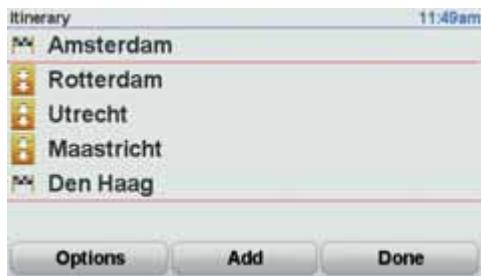

Destinations are shown using this symbol.

Waypoints are shown using this symbol.
When would I use an Itinerary?
You could use an Itinerary for trips such as:
- A driving holiday through a country with lots of stops.
- A two day car journey with an overnight stop.
- A short drive which passes by Points of Interest.
In all these examples you could tap Navigate to... for each place. However, if you use an Itinerary, you can save time by planning everything in advance.
Creating an Itinerary
- Tap the screen to bring up the Main Menu.
- Tap Itinerary planning.
Itinerary planning
The Itinerary planning screen opens. At first, there are no items on the Itinerary.
- Tap Add and select a location.
Tip: You can add items to your Itinerary in any order and rearrange the order later.
Following an Itinerary
When you use an Itinerary to navigate, the route will be calculated to the first destination on the Itinerary. Your Blue&Me-TomTom calculates the remaining distance and time to the first destination and not for the whole Itinerary.
As soon as you start to use an Itinerary, the route is calculated from your current position. You do not need to set a departure point.
When you have passed a waypoint or reached a destination, it is marked as visited.
Waypoints are shown on the map. Your Blue&Me-TomTom will not warn you, when you are approaching a waypoint or when you arrive at a waypoint.
Organising an Itinerary
Tap an item on your itinerary to open a page of buttons for editing the item. The buttons shown below are available.
| Mark as waypoint | You can change a destination into a waypoint using this button. |
| Remember that waypoints are points on your journey to your destination that you want to pass and destinations are places where you want to stop. | |
| This button is only shown if the item you tapped is a destination. | |
| Mark as destination | You can change a waypoint into a destination using this button. |
| Remember that destinations are places where you want to stop, and waypoints are points on your journey to your destination that you want to pass. | |
| This button is only shown if the item you tapped is a waypoint. | |
| Mark ‘visited’ | Tap this button to miss out part of your Itinerary. Your Blue&Me-TomTom will ignore this item and all the items before it in the Itinerary. |
| It will navigate you to the next item in the Itinerary. | |
| This button is only shown if you are still due to visit this item. | |
| Mark ‘to visit’ | Tap this button to repeat part of your Itinerary. Your Blue&Me-TomTom will navigate you to this item followed by the rest of the items in the Itinerary. |
| This button is only shown if you have already visited this item. | |
| Move item up | Tap this button to move the item up the Itinerary. |
| This button is unavailable if the item is at the top of the Itinerary. | |
| Move item down | Tap this button to move the item down the Itinerary. |
| This button is unavailable if the item is at the bottom of the Itinerary. | |
| Show on map | Tap this button to see the location of the item on the map. |
| Delete item | Tap this button to delete the item from the Itinerary. |
Start using an Itinerary
Tap Options, then tap Start navigation.
To save an Itinerary, tap Save Itinerary.
To load a saved Itinerary, tap Load Itinerary.
To create a new Itinerary, tap New Itinerary and to delete one, tap Delete Itinerary.
18. Help me
Help me provides an easy way to navigate to emergency services centres and other specialist services and contact them by phone.
For example, if you are involved in a car accident, you could use Help me to call the nearest hospital and tell them your exact location.
How do I use Help me to phone a local service?
You can use Help me to search for a service centre, make contact by phone and inform the centre about the precise details of your current location.
When you search for a service centre, you are shown a list of nearby locations. Select one of the centres in the list to view their address and phone number and your current location on the map.
If a phone is connected to your Blue&Me-TomTom, your Blue&Me-TomTom automatically dials the phone number. If no phone is connected, the phone number is displayed for you to call.
To use Help me to locate a service centre, contact the centre by phone and navigate from your current location to the centre, do the following:
- Tap the screen to bring up the Main Menu.
- Tap Help me.
- Tap Phone for help.
- Select the type of service you require, for example, Nearest hospital.
- Select a centre from the list, the nearest is shown at the top of the list.
- If a phone is connected to your Blue&Me-TomTom, your Blue&Me-TomTom automatically dials the phone number. If no phone is connected, the phone number is displayed for you to call.
Once the call is answered your Blue&Me-TomTom shows your position on the map along with a description of the location. This helps you explain where you are while making a call.
- To navigate your way to the centre on foot, tap Walk there.
Your Blue&Me-TomTom starts guiding you to your destination.
Options
Note: In some countries, information may not be available for all services.
| Phone for help | Tap this button to find the contact details and location of a service centre. |
| Drive to help | Tap this button to navigate your way by car to a service centre. |
| Walk to help | Tap this button to navigate your way on foot to a service centre. |
| Where am I? | Tap this button to see your current location on the map. You can then tap Phone for help and select the type of service you want to contact and tell them your exact location. |
| First Aid guide | Tap this button to read the British Red Cross First Aid guide. |
| Other guides | Tap this button to read a selection of useful guides. |
19. Favourites
What are Favourites?
Favourites are places that you often visit. You can create Favourites so that you don't have to enter the address every time you want to navigate there.
They don't have to be places you especially like, just useful addresses.
How can I create a Favourite?
From the Main Menu, tap Add Favourite.
You can then select the location of the Favourite from the list below.
Give your Favourite a name that is easy to remember. Your Blue&Me-TomTom will always suggest a name, usually the address of the Favourite. To enter the name, just start typing. You don't have to delete the suggested name.

Home
You can set your Home location as a Favourite.

Favourite
You cannot create a Favourite from another Favourite. This option will always be unavailable in this menu.
To rename a Favourite, tap Manage Favourites in the Preferences menu.

Address
You can specify an address to be a Favourite. When you enter an address, you can choose from four options.
- City centre
- Street and house number
- Postcode
Crossing or intersection

Recent destination
Select a Favourite location from a list of places you have recently used as destinations.
| Point of Interest | You can add a Point of Interest (POI) as a Favourite. Does it make sense to do this? If you visit a POI you particularly like, for example a restaurant, you can add it as a Favourite. To add a POI as a Favourite, tap this button, then do the following: 1. Narrow your choice of POIs by selecting the area where the POI is. You can select one of these options: • POI near you - to search from a list of POIs near your current position. • POI in city - to choose a POI in a particular town or city. You have to specify a town or city. • POI near Home - to search from a list of POIs near your Home location. If you are currently navigating to a destination, you can also select from a list of POIs which are on your route or near your destination. Choose one of these options: • POI along route • POI near destination 2. Select the category of POI. Tap the category of POI if it is shown or tap the arrow to choose from the complete list. Tap Any POI category to search for a POI by name. |
| My location | Tap this button to add your current position as a Favourite. For example, if you stop somewhere interesting, while you are there you can tap this button to create the Favourite. |
| Point on map | Tap this button to create a Favourite using the map browser. Select the location of the Favourite using the cursor, then tap Done. |
| Latitude Longitude | Tap this button to create a Favourite by entering latitude and longitude values. |
| Position of last stop | Tap this button to create a Favourite using the position of your last stop. |
How can I use a Favourite?
You will normally use a Favourite as a way of navigating to a place without having to enter the address. To navigate to a Favourite, do the following:
-
Tap the screen to bring up the Main Menu.
-
Tap Navigate to...
- Tap Favourite.
- Select a Favourite from the list.
Your Blue&Me-TomTom calculates the route for you.
- When the route is calculated, tap Done.
Your Blue&Me-TomTom will immediately start guiding you to your destination with spoken instructions and visual instructions on the screen.
How can I change the name of a Favourite?
- Tap the screen to bring up the Main Menu.
- Tap Change preferences to open the Preferences menu.
- Tap Manage Favourites.
- Tap the Favourite you want to rename.
- Tap Rename.
How can I delete a Favourite?
- Tap the screen to bring up the Main Menu.
- Tap Change preferences to open the Preferences menu.
- Tap Manage Favourites.
- Tap the Favourite you want to delete.
- Tap Delete.
20. Media
Important: Only select media while you are stationary. It is dangerous to change settings, read documents or view photos while you are driving.
On your Blue&Me-TomTom you can store and view photos and text documents. Photos must be saved as .jpg or .bmp and text files as .txt files.
Putting documents and photos on your Blue&Me-TomTom
Transfer documents and photos from your computer to your Blue&MeTomTom, using TomTom HOME.
Looking at photos
- Tap Media in the Main Menu.
- Tap Photo gallery.
The Photo gallery starts, showing small versions (photographs on your Blue&Me-TomTom.
Tap the arrows to move up and down the page of thumbnails.
Tap Slideshow to start a slideshow.
Tap the thumbnail of a photo to view a large version of that photo.
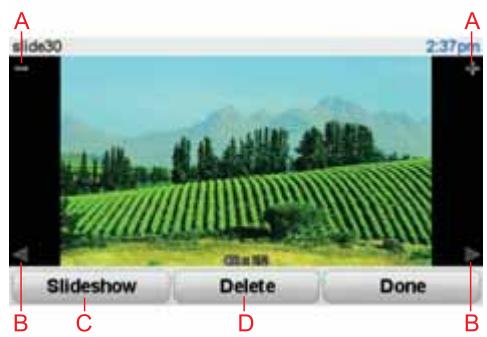
A Buttons to zoom in and zoom out on the photo.
B Buttons to move to the next and the previous photo.
C Tap Slideshow to start a slideshow.
D Tap Delete to delete a photo.
Reading documents
- Tap Media in the Main Menu.
- Tap Document reader.
The Document reader starts, showing a list of all the documents on your Blue&Me-TomTom.
- Tap the icon of a document to open it.
- Tap the PgUp, PgDn buttons and arrow keys to move around inside the document.
21. TomTom Safety Alerts

The TomTom Safety Alerts service warns you about a variety of locations including:
- Safety camera locations.
- Accident blackspot locations.
- Mobile safety camera locations.
Average speed camera locations. - Toll road camera locations.
- Traffic light camera locations.
Important: Regularly connect your navigation device to TomTom HOME to update the list of locations for all types of safety alerts. The locations of mobile cameras are sent directly to your device.
When a safety camera location is shown on the map, a warning sound is played to warn you that you are approaching an area where a safety camera is located.
If you discover a location that has a safety camera but you receive no warning, you can report the new location to TomTom using your Blue&Me-TomTom.
Setting up Safety Cameras
The TomTom Safety Camera service is a subscription service that you can join using TomTom HOME.
To download the latest camera locations to your device, click Update my device in TomTom HOME.
Updating locations for safety alerts
The locations of safety cameras can change frequently. New cameras can also appear without warning and the locations for other alerts, such as accident blackspots, may also change position.
As a result, you may want to have the latest list of camera and alert locations on your device before you start a journey.
To ensure that you have the latest list, connect your Blue&Me-TomTom to TomTom HOME on your computer shortly before you begin each journey. Your device is then automatically updated with all the latest locations.
Safety camera warnings
Warnings are given 15 seconds before you reach a safety camera location.
You are warned in three ways:
-
Your Blue&Me-TomTom plays a warning sound.
-
The type of safety camera and your distance from the camera location is shown in the Driving View. If a speed restriction has been reported for the camera, the speed is also shown in the Driving View.
- The location of the safety camera is shown on the map.
Note: For average speed safety cameras, you are warned by a combination of icons and sounds at the start, middle and end of the average speed check zone. For more information, see: Changing the way you are warned.
Changing the way you are warned

Change warning preferences
To change the way your Blue&Me-TomTom warns you about safety cameras, tap the Change warning preferences button.
You can then set how close you want to be to a safety camera before you are warned and what type of sound will be played.
For example, to change the sound that is played when you approach a fixed safety camera, do the following:
- Tap TomTom Safety Cameras in the Main Menu.
- Tap Change warning preferences.
A list of safety camera types is displayed. A speaker is shown next to the speed camera types that have been set for an alert.
- Tap Fixed safety cameras.
- Tap NO to avoid removing the fixed safety camera alerts.
- Enter the time in seconds for when a warning is given before you reach a camera. Then tap OK.
- Tap the sound you want to be used for the warning. For example, to select a bugle sound tap on Bugle.
Tips: To switch off warning sounds for a camera type, tap Silence instead of Bugle in step 6 above. To record your own warning sound for a camera type, tap Record warning instead of Bugle in step 6 above.
- Tap YES to save your changes.
Report button
To show the report button in the Driving View, do the following:
- Tap Services in the Main Menu.
- Tap Safety Alerts.
- Tap Enable report button.
The report button is shown on left-hand side of the Driving View or if you are already using the quick menu, it's added to the buttons available in the quick menu.
Reporting a new safety camera while on the move
- Tap the report button shown in the Driving View or in the quick menu to record the location of the camera.
If you tap the report button within 20 seconds of receiving a safety camera warning, you get the option to add a camera or remove a camera. Tap Add camera.
- Tap Fixed camera or Mobile camera, depending on the type of camera you are reporting.
- Tap the type of camera you want to report.
Note: If the type of camera you choose has a speed restriction, you can also enter the speed.
The locations of cameras you report are reported when you next connect your device to TomTom HOME.
Reporting a new safety camera while at home
You do not need to be at the location of a safety camera to report the new location.
To report a new safety camera location while you are at home, do the following:
- Tap Services in the Main Menu on your device.
- Tap Safety Alerts.
- Tap Report safety camera.
- Tap Fixed camera or Mobile camera depending upon the type of safety camera.
- Find the location of the camera you want to report using the Map browser. Use the cursor to mark the exact location, then tap Done.
- Tap on the type of camera you want to report and if necessary, the speed restriction for the camera.
Reporting incorrect camera alerts
You may receive an alert for a camera that is no longer there.
To report an incorrect camera alert, do the following:
- While you are at the location of the missing camera, tap Report in the Driving View.
Note: This must be done within 20 seconds of receiving the camera alert.
- Tap Remove.
The next time you connect your device to TomTom HOME, the camera alert is reported as incorrect.
Types of fixed safety camera you can report
When you report a fixed safety camera, you can select the type of fixed camera you are reporting.
| These are the different types of fixed safety camera: | |
| Speed camera | This type of safety camera checks the speed of passing vehicles. |
| Traffic light camera | This type of safety camera checks for vehicles breaking traffic rules at traffic lights. |
| Toll road camera | This type of safety camera monitors traffic at toll road barriers. |
| Average speed check | This type of safety camera checks the average speed of vehicles between two fixed points. |
| Vehicle restriction | This type of safety camera checks traffic on roads where access is restricted. |
| Other camera | All other types of camera that do not fall into any of the above categories. |
| Average speed check camera warnings | |
| There are several types of visual and audible warnings that you may see when you meet an average speed check camera. | |
| You always receive a start and end zone warning regardless of the speed you are travelling at. Intermediate warnings, if given, occur every 200 meters. | |
| All the warnings are described below: | |
| Start of zone warning | |
| As you approach the start of an average speed check zone, you see a visual warning in the top left hand corner of the Driving View with a distance to the camera underneath it. You hear an audible warning. | |
| You also see a small icon on the road showing the position of the average speed check camera at the start of the zone. | |
| Intermediate warning - type 1 | |
| Once in the speed check zone, if you are not speeding and have already received a start of zone warning, you see a visual warning in the Driving View. This reminds you that you are still in the speed check zone. | |
| 60 | Intermediate warning - type 2 Once in the speed check zone, if you are driving at over 100% of the per-mitted speed and and have already received a start of zone warning, you see a visual warning in the Driving View indicating the maximum permitted speed. You also hear a small audible warning. These warnings are there to remind you to slow down... |
| 60 | Intermediate warning - type 3 Once in the speed check zone, if you are driving at over 100% of the per-mitted speed and and have not received a start of zone warning, you see a visual warning in the Driving View indicating the maximum permitted speed. You also hear a loud audible warning. These warnings occur at the FIRST intermediate point only and are there to remind you to slow down... |
| End of zone warning As you approach the end of an average speed check zone, you see a visual warning in the Driving View with a distance to the camera shown under-neath it. You hear an audible warning. You also see a small icon on the road showing the position of the average speed check camera at the end of the zone. | |
| TomTom Safety Camera menu | |
| To open the Safety Cameras menu, tap Services in the Main Menu and then tap Safety Alerts. | |
| Report safety camera | Tap this button to report a new safety camera location. |
| Change warning preferences | Tap this button to set the safety alerts you will receive and which sounds will be used for each alert. |
| Disable alerts | Tap this button to disable safety alerts. |
| Enable report button | Tap this button to enable the report button. The report button is shown in the Driving View or in the quick menu. |
22. Introducing TomTom HOME
TomTom HOME is a free application for your computer that helps you manage the contents and services of your Blue&Me-TomTom navigation device, as well as giving you access to the TomTom community. It is a good idea to frequently connect to HOME to backup your device and to ensure you always have the latest updates.
Here are some of the things you can do with TomTom HOME:
- Add new items to your device, like maps, voices, POIs and more.
- Buy TomTom services and manage your subscriptions.
- Share your content with the TomTom community.
- Use Map Share to download and share map corrections.
- Make and restore backups of your device.
- Create a MyTomTom account.
- Read the Reference Guide for your device.
When using HOME, you can get help with what you are doing from the HOME Help. You can also read about all the other things that HOME can do for you.
Tip: We recommend using a broadband internet connection whenever you connect to HOME.
Installing TomTom HOME
To install TomTom HOME on your computer, do the following:
- Connect your computer to the internet.
- Connect your device to your computer using the USB cable, then switch your device on.
TomTom HOME starts to install.
Note: If HOME does not install automatically, you can download it from tomtom.com/home.
MyTomTom Account
To download content and services using TomTom HOME, you need a MyTomTom account. You can create an account when you start using TomTom HOME.
Note: If you have more than one TomTom device, you need a separate MyTomTom account for each device.
If you have a MyTomTom account, you can access the following benefits online via HOME or via the MyTomTom section of tomtom.com:
- TomTom Services - click My Services on the TomTom website to subscribe to services such as real-time traffic and safety camera information.
- Newsletters - click My Profile on the TomTom website to manage newsletter subscriptions and language preferences for product news
- Support - click My Questions History on the TomTom website to track and view your case history and all email conversations you have with TomTom about technical support issues via the website. You can also update cases with new information.
- Orders - click My Orders on the TomTom website to view items you ordered from the TomTom website and your order history.
- TomTom Map Share™ - report and download map corrections by joining the Map Share™ community via HOME. You can then benefit from shared reporting of map issues such as missing streets and wrong driving instructions.
- Downloads - download free items via TomTom HOME.
Find out more with HOME Help topics
In the TomTom HOME Help topics you can find a lot more information about how HOME can help you to manage contents and services on your navigation device.
You can also get help on the following:
- Using an activation or promotion code
- Updating your device-account combination
- The TomTom Route Planner
- Downloading free or shared sounds, images and symbols
Using a card reader - Installing themes and extensions
For information on how to create your own POIs, themes, voices, routes, colour schemes, symbols and sounds, see create.tomtom.com.
More information
For support, more information and to download the Reference Guide go to tomtom.com/support.
For warranty information, go to tomtom.com/legal.
23. Addendum
Important Safety Notices andWarnings
Global Positioning System
The Global Positioning System (GPS) is a satellite-based system that provides location and timing information around the globe. GPS is operated and controlled under the sole responsibility of the Government of the United States of America which is responsible for its availability and accuracy. Any changes in GPS availability and accuracy, or in environmental conditions, may impact the operation of your TomTom device. TomTom does not accept any liability for the availability and accuracy of GPS.
Use with Care
Use of a TomTom device for navigation still means that you need to drive with due care and attention.
Aircraft and Hospitals
Use of devices with an antenna is prohibited on most aircraft, in many hospitals and in many other locations. A TomTom device must not be used in these environments.
Battery
This product uses a Lithium-Polymer battery. Do not use it in a humid, wet and/or corrosive environment. Do not put, store or leave your product in or near a heat source, in a high temperature location, in strong direct sunlight, in a microwave oven or in a pressurized container, and do not expose it to temperatures over 60~C (140 F). Failure to follow these guidelines may cause the Lithium-Polymer battery to leak acid, become hot, explode or ignite and cause injury and/or damage. Do not pierce, open or disassemble the battery. If the battery leaks and you come into contact with the leaked fluids, rinse thoroughly with water and seek medical attention immediately. For safety reasons, and to prolong the lifetime of the battery, charging will not occur at low (below 0 C/32 F) or high (over 45 C/113 F) temperatures.
Temperatures: Standard operation: -10 C (14 F) to +55 C (131 F); short period storage: -20 C (-4 F) to +60 C (140 F); long period storage: -20 C (-4 F) to +25 C (77 F).
Caution: risk of explosion if battery is replaced by an incorrect type.
Do not remove or attempt to remove the non-user-replaceable battery. If you have a problem with the battery, please contact TomTom customer support.
THE LITHIUM-POLYMER BATTERY CONTAINED IN THE PRODUCT MUST BE RECYCLED OR DISPOSED OF PROPERLY. USE YOUR TOM-TOM ONLY WITH THE SUPPLIED DC POWER LEAD (CAR CHARGER/
BATTERY CABLE) AND AC ADAPTER (HOME CHARGER) FOR BATTERY CHARGING.
Please use this device with the charger provided.
For replacement chargers, go to tomtom.com for information about approved chargers for your device.
To recycle your TomTom unit please see your local approved TomTom service center.
The stated battery life is a maximum possible battery life. The maximum battery life will only be achieved under specific atmospheric conditions. The estimated maximum battery life is based on an average usage profile.
For tips on extending the battery life, go to the FAQ listed below for your country:
AU: www.tomtom.com/8703
CZ: www.tomtom.com/7509
DE: www.tomtom.com/7508
DK: www.tomtom.com/9298
ES: www.tomtom.com/7507
FI: www.tomtom.com/9299
FR: www.tomtom.com/7506
HU: www.tomtom.com/1025
IT: www.tomtom.com/7505
NL: www.tomtom.com/7504
PL: www.tomtom.com/7503
PT: www.tomtom.com/8029
RU: www.tomtom.com/10256
SE: www.tomtom.com/8704
UK: www.tomtom.com/7502
US: www.tomtom.com/7510
CE Marking
This equipment complies with the requirements for CE marking when used in a residential, commercial, vehicular or light industrial environment.

R&TTE directive
Hereby, TomTom declares that this personal navigation device is in compliance with the essential requirements and other relevant provisions of the EU Directive 1999/5/EC. The declaration of conformity can be found here: www.tomtom.com/legal.
WEEE directive
This symbol on the product or its packaging indicates that this product shall not be treated as household waste. In line with EU Directive 2002/96/EC for waste electrical and electronic equipment (WEEE), this electrical product must not be disposed of as unsorted municipal waste. Please dispose of this product by returning it to the point of
sale or to your local municipal collection point for recycling.
This Document
Great care was taken in preparing this manual. Constant product development may mean that some information is not entirely up to date. The information in this document is subject to change without notice.
TomTom shall not be liable for technical or editorial errors or omissions contained herein; nor for incidental or consequential damages resulting from the performance or use of this material. This document contains information protected by copyright. No part of this document may be photocopied or reproduced in any form without prior written consent from TomTom N.V.
24. Copyright notices
© 2009 TomTom N.V., The Netherlands. TomTom®, and the "two hands" logo, among others, are Trademarks owned by TomTom N.V. or one of its subsidiaries. Please see www.tomtom.com/legal for warranties and end user licence agreements applying to this product.
© 2009 TomTom N.V., Niederlande. TomTom®, das 'Zwei Höhe'-Logo usw. sind registrierte Marken von TomTom N.V. oder eines zugehörigen Tochterunternehmens. Die für these Produkt geltenden Garantien und Endnutzerlözenzvereinbarungen finden Sie unter www.tomtom.com/legal.
© 2009 TomTom N.V., Pays-Bas. TomTom® et le logo composé de « deux mains», entre autres, font partie des marques commerciales appartenant à TomTom N.V. ou l'une de ses filiales. L'utilisation de ce produit est régie par notre garantie limitée et le contrat de licence utilisé final, que vous pouvez consulter à l'adresse suivante: www.tomtom.com/legal
© 2009 TomTom N.V., Nederland. TomTom® en het logo met twee handen zich onder andere handelsmerken die eigendom zich van TomTom N.V. of een vanhaar dochterondernemingen. Gaaar www.tomtom.com/legal voor garanties en licentieovereenkomsten voor eindgebruikers die van toepassing zich op dit product.
© 2009 TomTom N.V., The Netherlands TomTom® e il logo delle "due mani", fra gli altri, sono marchi registrati di proprietà di TomTom N.V. o di una delle sue filiali. Consultare www.tomtom.com/legal per le garanzie e i contratti di licenza per l'utente finale applicabili a quello prodotto.
© 2009 TomTom NV, PaíSES Bajos. TomTom™ y el logotipo "dos manos" son MARCAS comérciales, aplicaciones o MARCAS registradas de TomTom NV. Nuestra garantía limitada y是我国 acuero de licencia de usuario final para el software integrado son de aplicacion para este producto; pueda consultarledge en www.tomtom.com/legal.
© 2009 TomTom N.V., Països Baixos. TomTom®, i el logotip amb les "dues mans", entre autres, formen part de les marques commercials de TomTom N.V. o d'une de les seves filials. Visiteu www.tomtom.com/legal per a obtaining informatión sobre les garanties i els acords de licensia d'usuari final d'aquest produit.
© 2009 TomTom N.V., Holanda. TomTom® e o logólico das "duas mãos", entre outras, são MARCAS comércios detidas pela TomTom N.V. ou por uma das suas subsidiárias. Vá a www.tomtom.com/legal para consulutar as garantias e o contratos de licença do utilizesdor final aplicáveis a este produto.
© 2009 TomTom NV, Holland. TomTom™ og logoet med "de to hænder" er blandt de varemærker,produkter og registrerede varemærker, der tilhører TomTom International B.V. Vores begrønsede garanti og slutbrugerlicens-aftale for indlejret software gælder for dette produit; begge dokumenterfindes på www.tomtom.com/legal.
© 2009 TomTom N.V., Alankomaat. Muun muassa TomTom® ja kaksi kättä - logo ovat TomTom N.V:n tai sen tytäryhtiöiden omistamia tavaramerkkejä. Katso osoitteesta www.tomtom.com/legal tätä tuotetta koskevat takuut ja käyttoehtosopimukset.
© 2009 TomTom N.V., Nederland. TomTom®, og de "to hender"-logoen, blant andre, er varemeker Eid av TomTom N.V. eller en av deres underleverandörer. Vennligst se www.tomtom.com/legal for gjeldende garantier og lisensavtaler for sluttbrukere for dette produitet.
© 2009 TomTom NV, Nederländerna. TomTom™ och logotypen "två händerr tillhör de varumärken, programvaror eller registrerade varumärken som ägs av TomTom International B.V. Vår begränsade garanti och vårt slutanvändar-licensavtal for inbyggd programvara kan gälla fürenna produit. Du kan lasa dem båda på www.tomtom.com/legal.
© 2009 TomTom N.V., Nizozemsko. TomTom® a logo „dyou rukou“ jsou, mimo jiné, ochrannesznámky společnosti TomTom N.V. nebo jejich pobocek. Navstivte prosím adresu www.tomtom.com/legal, kde naleznete informace o zárukách a licenčních smlouvách s koncovým uživatelem vztahujících se k tomuto vyrobku.
© 2009 TomTom N.V., Hollandia. A TomTom®, és a „két kéz“ embléma, tõbek kõzött, a TomTom N.V. vagy leányvállalataj védjegye. A termékre vonatkozo garanciaról és a végfelhasználói licencszerzódéskröl részleteket a www.tomtom.com/legal oldalon olvashat.
© 2009 TomTom N.V., Holandia. TomTom™ i logo z dwiema dłonmi, oraz innne, są zarejestrowanymi znakami towardwymi firmy TomTom N.V. lub jedernej z jej spoßekazoleżnych. Informacja o gwarancjach i umowach licencjnych dla końcowego uzytkownika tego produktu znejduźsię na stronie www.tomtom.com/legal.
© 2009 TomTom N.V., Holandsko. TomTom® a logo „dve ruky“ su okrem d'alsich ochrannożámky, ktoré vlastníspolocnost' TomTom N.V. alebo jeder na jej dcérskych spolocnosti. Pozrite si stränku www.tomtom.com/legal, ak chcete informácie o zárukákach a dohody o licencié pre koncového používatel'a týkajúce sa tohto produktu.
© 2009 TomTom N.V., Madalmaad. TomTom® ja "kahe käe" logo kuuluvad nende kaubamärkide hulka, mille omanikuks on TomTom N.V. voi moni selle filial. Tootele kehtivad garantiiid ja loppkasutaja litsentsilepingud leiad aadressilt www.tomtom.com/legal.
© 2009 TomTom N.V., Nynderlandai. TomTom® ir "dvieju plastaku" formos logotipas, kaip ir daugelis kitu, prikauso TomTom N.V. arba kuriai hors dukterinej jmonei. Apie šiam produktui taikomas garantijas ir licencijavimo galutiniam vartotojui sutartis skaitykite internete adresu www.tomtom.com/legal
© 2009 TomTom N.V., Niederlande. TomTom® un "divu rociñu" logotips ir preczīmes, kas pieder TomTom N.V. vai kādam tā meitas uzñēmumam. Garantijas un gala lietotāja ligumus, kas piemērojami šim izstrādājumam, skatiet vietnē www.tomtom.com/legal.
© 2009 TomTom N.V., Hollanda. TomTom® ve diger logolar ile birlikte "iki el" logosunun.mulkiyeti, TomTom N.V. veya baglı sirketlerine aittir. Bu ürün icinGPCERLI garanti ve son kullanici lisans sözleşmeleri icin www.tomtom.com/legal sayfasina bakın.
© 2009 TomTom N.V., Holanda. TomTom® e o logotipo "duas mãos" entreculos, são MARCAS comecais de proprietadade da TomTom N.V. ou de umaderasubidas. Consulte www.tomtom.com/legalpara obter garantiase contratos de licença de uso final que se aplicam a este produits.
Data Source
© 2009 Tele Atlas N.V. Based upon:
Ordnance Survey of Northern Ireland.
© IGN France.
© Swisstopo.
BEV, GZ 1368/2003.
Geonext/DeAgostini.
© Norwegian Mapping Authority, Public Roads Administration / © Mapsolutions.
© DAV, violation of these copyrights shall cause legal proceedings.
This product includes mapping data licensed from Ordnance Survey with the permission of the Controller of Her Majesty's Stationery Office. © Crown copyright and/or database right 2009. All rights reserved. Licence number 100026920.
© Roskartographia
Data Source
SoundClear™ acoustic echo cancellation software © Acoustic Technologies Inc.
Apple® and iPod® are trademarks of Apple Computer, Inc., registered in the U.S. and other countries.
Audible®, AudibleListener® and Audiblemanager® are registered trademarks of Audible, Inc. When purchasing and using Audible content you need to agree to the terms and conditions as posted in the Legal Notices www.audi-ble.com.
Text to Speech technology, © 2009 Loquendo TTS. All rights reserved. Loquendo is a registered trademark. www.loquendo.com
MPEG Layer-3 audio coding technology licensed from Fraunhofer IIS and Thomson.
Supply of this product does not convey a license nor imply any right to distribute content created with this product in revenue-generating broadcast systems (terrestrial, satellite, cable and/or other distribution channels), streaming applications (via Internet, intranets and/or other networks), other content distribution systems (pay-audio or audio-on-demand applications and the like) or on physical media (compact discs, digital versatile discs, semiconductor chips, hard drives, memory cards and the like). An independent license for such use is required. For details, please visit mp3licensing.com
Some images are taken from NASA's Earth Observatory.
The purpose of NASA's Earth Observatory is to provide a freely-accessible publication on the Internet where the public can obtain new satellite imagery and scientific information about our home planet.
The focus is on Earth's climate and environmental change: earthobservatory.nasa.gov/