
APP FOR IPHONE - Navigation TOMTOM - Free user manual and instructions
Find the device manual for free APP FOR IPHONE TOMTOM in PDF.


| Product Type | Navigation App |
| Brand | TomTom |
| Model | APP FOR IPHONE |
| Compatibility | iPhone with iOS 4.0 and later |
| Languages | French, English, German, Spanish, etc. |
| Main Features | GPS navigation, voice guidance, 2D/3D maps, real-time traffic information (optional paid), points of interest |
| Maps | Pre-installed or downloadable maps depending on version |
| Update | Via App Store, free map updates for a period |
| Power | Uses iPhone battery (no external power required) |
| Connectivity | Wi-Fi, 3G/4G for traffic data |
| Screen | Adapted to iPhone screen size |
| Maintenance | Regular app updates |
| Safety | Use a phone mount in the vehicle |
| Support | Online help center, FAQ on tomtom.com |
| General Information | ©2009 TomTom N.V., end user license |
| License Type | Paid (one-time purchase or subscription depending on version) |
| Storage | Requires free space on iPhone (approx. 1-4 GB for maps) |
| Additional Features | Arrival time prediction, trip history |
| Map Update | Via TomTom MyDrive Connect (on computer) |
| Warranty | iPhone manufacturer warranty for hardware, not for the app |
Frequently Asked Questions - APP FOR IPHONE TOMTOM
User questions about APP FOR IPHONE TOMTOM
0 question about this device. Answer the ones you know or ask your own.
Ask a new question about this device
Download the instructions for your Navigation in PDF format for free! Find your manual APP FOR IPHONE - TOMTOM and take your electronic device back in hand. On this page are published all the documents necessary for the use of your device. APP FOR IPHONE by TOMTOM.
USER MANUAL APP FOR IPHONE TOMTOM
To start the TomTom app, tap the icon in your iPhone.
The language used for buttons and menus in the TomTom app is the same as the language you selected in the iPhone settings.
Note: There are some languages that are not supported by TomTom app. In this case, US English is used for buttons and menus in the application.
Updating
If you have a previous version of the TomTom app on your iPhone or iPod touch, you need to update it. To do this, go to the Apple App Store and download your free update before continuing to read this guide.
GPS reception
The iPod touch and some models of the iPhone do not include a GPS receiver. To use these devices for navigation, you need to use them with a GPS accessory, such as the TomTom car kit.
The car kit includes a GPS receiver, a speaker for playing navigation instructions, and a microphone for making hands-free calls while you are driving. We recommend using the TomTom car kit with all iPhones and the iPod touch.
For more information, go to tomtom.com/iphone.
When you first start the TomTom app, it may need a few minutes to determine your GPS position and show your current position on the map.
To make sure you have good GPS reception, you should use your device outdoors. Large objects such as tall buildings can sometimes interfere with reception.
Note: If your device has no GPS reception, TomTom app uses position information from WiFi networks or mobile phone towers. This information is used to find your approximate position and for route planning. TomTom app cannot give you route instructions until it has GPS reception.
2. Planning a route
Important: For safety reasons, always plan your route before you start your journey.
Planning routes with the TomTom app is easy. To plan a route, follow the steps below.
- Tap the screen to open the Main Menu.
Note: When you start the TomTom app for the first time, the Main Menu is shown.
-
Tap Navigate To...
-
Tap Address.
Note: When planning a trip for the first time the TomTom app asks you to choose a state or country. Your choice is saved and used for all routes you plan. You can change this setting at any time by tapping the country flag. To view the country flag, tap the button next to the search box.
- Start to type the name of the place where you want to go.
As you type, the names of the towns that match what you have typed are shown. When your destination appears in the list, tap the name of the town to set the destination.
- Start to type the name of the street and select it when it is shown.
Just as for place names, the names of the streets that match what you have typed are shown. When your destination appears in the list, tap the name of the street to set the destination.
Tip: To show more search results and hide the keyboard, tap this button. This also shows the navigation bar so that you can return to the previous screen.

- Now enter the house number of your destination and then tap Select. You can also select the point where two streets meet by tapping Crossing.
The route is calculated. If available on your map, IQ Routes information is used to plan the best possible route taking into account the real average speeds measured on the roads.
By default, the fastest route is planned. To set the type of route that should be planned by default, go to the Advanced settings in the Settings menu.
- When the route has been calculated, tap Done.
The TomTom app immediately begins to guide you to your destination, using both spoken instructions and on-screen directions.
Other destination options
| When you tap Navigate To..., you can set your destination in many ways, not just by entering the address. The other options are listed below: | |
| Home | Tap this button to navigate to your Home location. If you haven't set your Home location, when you tap Home, you can set your Home location. You can also set your Home location in the Settings menu. |
| Favourite | Tap this button to select a Favourite as your destination. |
| Address | Tap this button to enter an address as your destination. |
| Recent Destination | Tap this button to select your destination from a list of places you have recently used as destinations. |
| Point of Interest | Tap this button to navigate to a Point of Interest (POI). |
| Contact | Tap this button to navigate to the address of a contact on your device. |
| Postcode | Tap this button to enter a postcode as a destination. This option is not available in all countries. |
| Point on Map | Tap this button to select a point on the map as your destination using the Map Browser. |
Finding alternative routes
Once you have planned a route, you may want to change something about the route, without changing your destination. It could be for one of these reasons:
- You can see a roadblock or a line of traffic ahead.
- You want to travel via a particular location, to pick someone up, stop for lunch or fill up with petrol.
| Find Alternative | You want to avoid a difficult junction or a road you don't like. To change your route, tap Find Alternative... in the Route Options menu. You can open the route options as follows: · Tap Route Options in the Main Menu. Note: The Route Options button is only shown if you have planned a route. · Tap Options on the Route Summary screen after you plan a route. · Tap the information icon in bottom right hand corner of the Driving View to open the Route Summary screen, then tap Options. Then select one of the following options: |
| Calculate Alternative | Tap this button to calculate an alternative to the route already planned. The TomTom app looks for another route from your current location to your destination. If you decide you would prefer to use the original route after all, tap Recalculate Original. Apart from the roads near your position and near your destination, the new route uses totally different roads to reach your destination. This is an easy way of calculating a totally different route. |
| Recalculate Original | Tap this button to return to the original route. This ignores any previous instructions you have given to avoid roadblocks or travel via a particular location. |
| Avoid Roadblock | Tap this button if you can see a roadblock or a line of traffic ahead. You then have to choose how much of the route ahead you want to avoid. Choose from the different options available. The TomTom app recalculates your route avoiding the section of the route for the distance you selected. Don't forget that once a new route is calculated, you may have to turn off the road you are on very soon. If the roadblock suddenly clears, tap Recalculate Original to return to your original route. |
| Travel Via... | Tap this button to change your route so that it passes a particular location, perhaps to pick someone up on the way. When you do this, a marker is shown on the map for the location you choose to travel via. You choose the location you want to pass in the same way as you choose a destination. So you can select from all the same options, for example, Address, Favourite, Point of Interest and Point on Map. The TomTom app will calculate a new route to your destination that passes the location you chose. Unlike your final destination, the TomTom app does not inform you when you pass by this location. |

Avoid Part of Route
Tap this button to avoid a part of the route. Use this button if you see that your route includes a road or junction you don't like, or which is well-known for traffic problems.
You then choose the road you want to avoid from a list of the roads on your route.
Planning a route in advance
You can use the TomTom app to plan a route in advance, selecting your starting point and your destination. You could, for example, do the following:
Find out how long a journey is going to take before you start.
You can also compare journey times for the same route at different times of the day or on different days of the week. The TomTom app uses IQ Routes when planning a route. IQ Routes calculates routes based on the real average speeds measured on roads.
- Check the route of a journey you are planning.
- Check a route for someone who is coming to visit you and then explain the route to them.
To plan a route in advance, follow these steps:
- Tap the screen to bring up the main menu.
- Tap Advanced Planning.
- Select the starting point for your journey in the same way that you would select your destination.
- Set the destination for your journey.
-
Choose the type of route that should be planned.
-
Fastest Route - the route which takes the least time.
- Shortest Route - the shortest distance between the locations you set. This may not be the quickest route, especially if the shortest route is through a town or city.
- Avoid Motorways - a route which avoids motorways.
- Walking Route - a route designed for making the journey on foot.
- Bicycle Route - a route designed for making the journey on a bicycle.
-
Limited Speed - a route for a vehicle which can only be driven at a limited speed. You have to specify the maximum speed.
-
If IQ Routes is supported by your map, you can choose when you will make the journey you are planning. You can set the date and time in 5 minute intervals.
The TomTom app uses IQ Routes to work out the best possible route at that time, using the real average speeds measured on roads. In this way you can compare how long a journey takes at different times of day, or on different days of the week.
- The TomTom app plans the route between the two locations you selected.

Advanced Planning
3. Driving View
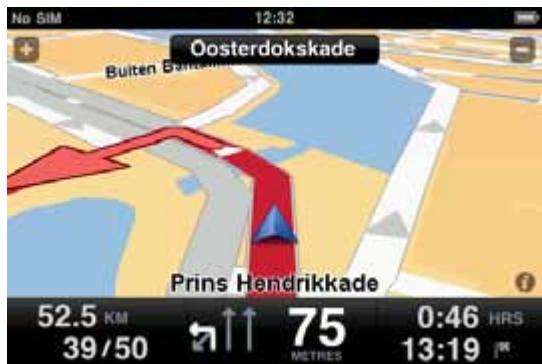
After you plan a route, you are shown the Driving View along with detailed information about your current location.
Tap the centre of the screen at any time to open the Main Menu.
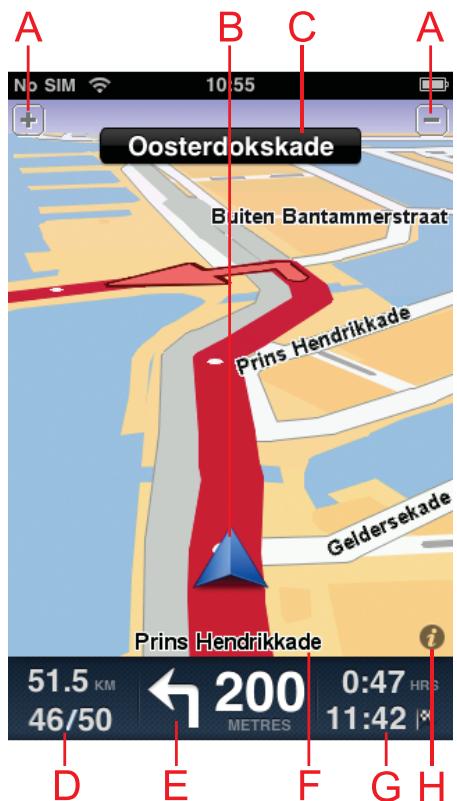
A Tap + and - to zoom in and out.
B Your current position.
C The name of the next street on your journey.
D The remaining distance of your journey and your current speed. If known, the speed limit is also shown.
E Navigation instruction for the road ahead.
Tap this area to open the volume control.
F The name of the street you are on.
G The remaining journey time and the estimated arrival time.
H Tap this symbol to open the Route Summary screen.
Setting the volume for music
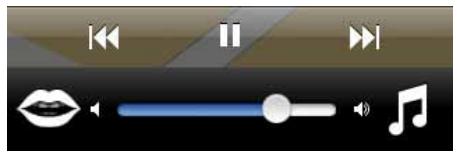
Tap the status bar in the Driving View to see the volume control.
Tap the musical note on the right of the volume control and then move the slider to set the music volume.
You can also tap play/pause, next and previous to control the music track that is currently playing.
Setting the volume for voices
Tap the status bar in the Driving View to see the volume control.
Tap the mouth on the left of the volume control and then move the slider to set the volume for voices.

Driving View options
Use these buttons in the Main Menu to change the Driving View:
| Mute Sound | Tap this button to mute all sounds from the TomTom app. |
| If the sound is muted, this button changes to Enable Sound. Tap the button again to switch sound back on. | |
| When the sound is muted, the mute sound indicator is shown in the bottom left corner of the Driving View. | |
| Night Colours | Tap this button to use night colours on the map. |
| If night colours are being used, this button changes to Day Colours. Tap the button again to switch back to day colours. | |
| 2D Map | Tap this button to use a 2D map in the Driving View. The 2D map is fixed so that north is always at the top of the screen. |
| If the 2D map is being used, this button changes to 3D Map. Tap the button again to use the 3D map. |
Map settings
To set the appearance of the map, tap Change Settings in the Main Menu, then tap Map to change these settings:
Day Colours / Night Colours
Tap these options to select the map colours used when the map is set to use night colours or day colours.
2D Map North Up
When this setting is on, the 2D map is fixed in place with north at the top of the screen. When this setting is off, the 2D map moves so that your current direction is always at the top of the screen.
Show Current Street
When this setting is on, the current street name or number is shown in the Driving View, just below your position on the map.
Streets on Map
When this setting is on, the names of streets are shown on the map.
POIs on Map
When this setting is on, POIs are shown on the map. Use the setting POI Types to select which POIs are shown.
4. Advanced Lane Guidance
Advanced Lane Guidance
Your TomTom app helps you prepare for motorway exits and junctions by showing you which lane you should be in.
Note: This information is not available for all junctions or in all countries.
For some exits and junctions, an image shows the lane you should be in. To turn the images off, switch Lane images to OFF in the Advanced Settings menu.
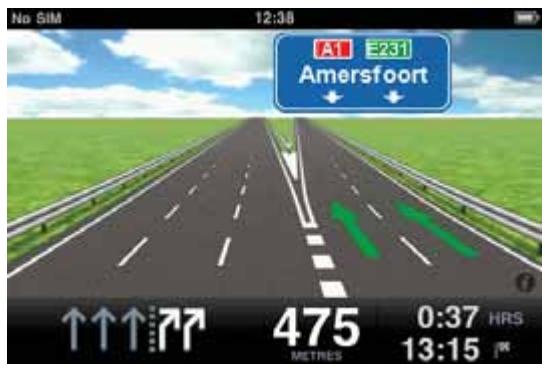
For other exits and junctions, your TomTom app shows the lane you should take in the status bar.
5. Route options
Route Options
You can find out more information about your route, or change the route using the route options.
You can open the route options as follows:
- Tap Route Options in the Main Menu.
Note: The Route Options button is only shown if you have planned a route.
- Tap Options on the Route Summary screen after you plan a route.
- Tap the information icon in bottom right hand corner of the Driving View to open the Route Summary screen, then tap Options.
Finding alternative routes
Once you have planned a route, you may want to change something about the route, without changing your destination. It could be for one of these reasons:
- You can see a roadblock or a line of traffic ahead.
- You want to travel via a particular location, to pick someone up, stop for lunch or fill up with petrol.
- You want to avoid a difficult junction or a road you don't like.

Find Alternative
To change your route, tap Find Alternative... in the Route Options menu.
You can open the route options as follows:
- Tap Route Options in the Main Menu.
Note: The Route Options button is only shown if you have planned a route.
- Tap Options on the Route Summary screen after you plan a route.
- Tap the information icon in bottom right hand corner of the Driving View to open the Route Summary screen, then tap Options.
Then select one of the following options:
| Calculate Alternative | Tap this button to calculate an alternative to the route already planned. The TomTom app looks for another route from your current location to your destination. If you decide you would prefer to use the original route after all, tap Recalculate Original. Apart from the roads near your position and near your destination, the new route uses totally different roads to reach your destination. This is an easy way of calculating a totally different route. |
| Recalculate Original | Tap this button to return to the original route. This ignores any previous instructions you have given to avoid roadblocks or travel via a particular location. |
| Avoid Roadblock | Tap this button if you can see a roadblock or a line of traffic ahead. You then have to choose how much of the route ahead you want to avoid. Choose from the different options available. The TomTom app recalculates your route avoiding the section of the route for the distance you selected. Don't forget that once a new route is calculated, you may have to turn off the road you are on very soon. If the roadblock suddenly clears, tap Recalculate Original to return to your original route. |
| Travel Via... | Tap this button to change your route so that it passes a particular location, perhaps to pick someone up on the way. When you do this, a marker is shown on the map for the location you choose to travel via. You choose the location you want to pass in the same way as you choose a destination. So you can select from all the same options, for example, Address, Favourite, Point of Interest and Point on Map. The TomTom app will calculate a new route to your destination that passes the location you chose. Unlike your final destination, the TomTom app does not inform you when you pass by this location. |
| Avoid Part of Route | Tap this button to avoid a part of the route. Use this button if you see that your route includes a road or junction you don't like, or which is well-known for traffic problems. You then choose the road you want to avoid from a list of the roads on your route. |
Route Demo

Route Demo
Tap this button to watch a demo of the journey. To stop a demo, tap Stop Demo in the Route Options menu, when a demo is running.
Clear Route

Clear Route
Tap this button to clear the currently planned route.
Instructions

Instructions
Tap this button for a list of all the turn instructions on the route.
Map of Route
Map of Route
Tap this button to see an overview of the route using the Map Browser.
6. Settings
To change the way the TomTom app looks and behaves, tap Change Settings in the Main Menu.
Set Home Location
Tap this option to set or change your Home location. Set your Home location in the same way that you select a destination.
Having a Home location means that you have a quick and easy way to navigate there, by tapping the Home button in the Navigate To... menu
Your Home location can be a place you go often, for example, your office. It can be your actual home address, but it can be any address you like.
Voice
Tap this option to select the voice used for instructions. The TomTom app has two different kinds of voices:
Computer voices
The TomTom app makes use of text-to-speech technology to generate computer voices. They provide spoken instructions while you are driving and can pronounce street names and status messages.
A text-to-speech program converts written text, for example an instruction like "Turn right", into the sound of a human voice.
The text-to-speech program looks at the whole sentence to make sure that the sound you hear is as close to the real thing as possible. The program is also able to recognise and quite accurately pronounce foreign place and street names. For example, the English voice can read French street names.
Note: Computer voices are not available in all regions or for all languages.
If you select a human voice, this can give instructions, but is not able to read street names aloud. If you would like street names to be included with instructions, you need to select a computer voice.
Human voices
These are recorded by an actor.
When you select a voice, a sample of that voice is played.
You can select a voice in any language. The language used for menus and buttons does not change if you select a voice in a different language.
Alerts
Tap this option to turn on safety alerts.
There are two alert settings, one for safety cameras and one to warn you when you are driving above the speed limit.
For each alert, move the corresponding slider to ON and then you see a visual warning in the Driving View. If you also select an alert tone, you hear an alert as well.
Note: To ensure you have the latest safety camera information, regularly check the App Store for updates for the TomTom app.
When a safety camera location is shown on the map, a warning sound is played to warn you that you are approaching an area where a safety camera is located.
Note: The Alerts service is not available in all regions.
Map
Day Colours / Night Colours
Tap these options to select the map colours used when the map is set to use night colours or day colours.
2D Map North Up
When this setting is on, the 2D map is fixed in place with north at the top of the screen. When this setting is off, the 2D map moves so that your current direction is always at the top of the screen.
Show Current Street
When this setting is on, the current street name or number is shown in the Driving View, just below your position on the map.
Streets on Map
When this setting is on, the names of streets are shown on the map.
POIs on Map
When this setting is on, POIs are shown on the map. Use the setting POI Types to select which POIs are shown.
Route planning
Using the Route planning settings, you can set how routes are planned.
Default Route Type
Use this preference to select the type of route planned when you plan a route.
You can choose from these types of routes:
- Fastest - the fastest route to your destination.
- Shortest - the shortest route to your destination. This may take much longer than the fastest route.
- Avoid Motorways - this type of route avoids all motorways.
- Walking Routes - this type of route is optimised for walking.
- Bicycle Routes - this type of route is optimised for bicycles.
-
Limited Speed - if you select this type of route, you must enter a maximum speed for your vehicle. The route planned takes this restriction into account.
-
Always Ask Me - if you select this option, you will always be asked to select the type of route that should be planned.
You can also set how these types of roads are handled when a route is planned:
Toll Roads
Ferry Crossing
HOV Lanes
Unpaved Lanes
For each of these types of roads you can select from the following options:
- Avoid - the type of road is always avoided automatically.
- Don't Avoid - the type of road is not avoided automatically.
- Always Ask - when the route is planned, you have to select how to handle these roads when they occur on your route.
Distance Units
You can choose to use either Kilometres or Miles for all distances and speeds.
About
Tap About for information about the application and map version as well as copyright and the licence notices.
Advanced
Tap this option to set the following options:
Lane Images
Use this setting to turn lane images on and off.
Lane images help you prepare for motorway exits and junctions by showing you which lane you should be in.
IQ RoutesTM
Use this setting to turn IQ Routes on and off.
IQ Routes is used when you plan a route. Your route is calculated using information about the real average speeds measured on roads, so your route may change depending on the time of day and day of the week.
Note: IQ Routes is not available in all regions.
TomTom GPS Enhancer
Use this setting to turn the TomTom GPS Enhancer on and off. The GPS Enhancer helps the GPS receiver in your device locate your position more accurately.
Reset to Defaults
Tap this setting to restore the factory settings to the TomTom app.
All your settings, including Favourites and your Home location, are deleted and the application closes.
7. Main Menu
To open the Main Menu from the Driving View, tap the screen.
When you start the TomTom app, and no route is planned, the Main Menu opens.
To return to the Driving View at any time, tap Cancel.
These buttons are available in the Main Menu:

Navigate To...

Route Options
Tap this button to start planning a route.
Tap this button to find out more information about your route, or change the route.
Note: This button is only shown if a route is planned.

Mute Sound
Tap this button to mute all sounds from the TomTom app.
If the sound is muted, this button changes to Enable Sound. Tap the button again to switch sound back on.
When the sound is muted, the mute sound indicator is shown in the bottom left corner of the Driving View.

Night Colours
Tap this button to use night colours on the map.
If night colours are being used, this button changes to Day Colours. Tap the button again to switch back to day colours.

2D Map
Tap this button to use a 2D map in the Driving View. The 2D map is fixed so that north is always at the top of the screen.
If the 2D map is being used, this button changes to 3D Map. Tap the button again to use the 3D map.

Advanced Planning
Tap this button to plan a route in advance, selecting your starting point and your destination.
| Browse map | Tap this button to browse the map in the same way as you might look at a traditional paper map. |
| Help Me | Tap this button to phone or drive to the nearest emergency services. The Help Me menu also gives a description of your location so you can tell the emergency services where you are. |
| Manage Favourites | Tap this button to create and manage your Favourites. Favourites are places that you go often. You can create Favourites so that you don't have to enter the address every time you want to navigate there. |
| Call POI | Tap this button to call a POI. You can, for example, search for a restaurant and call to make a reservation. |
| Change Settings | Tap this button to change how the TomTom app behaves. |
| Navigate To menu | When you tap Navigate To in the Main Menu, you can choose from the following options to set your destination: |
| Home | Tap this button to navigate to your Home location. If you haven't set your Home location, when you tap Home, you can set your Home location. You can also set your Home location in the Settings menu. |
| Favourite | Tap this button to select a Favourite as your destination. |
| ABCD Address | Tap this button to enter an address as your destination. |
| Recent Destination | Tap this button to select your destination from a list of places you have recently used as destinations. |
| Point of Interest | Tap this button to navigate to a Point of Interest (POI). |

Contact
Tap this button to navigate to the address of a contact on your device.

Postcode
Tap this button to enter a postcode as a destination.
This option is not available in all countries.
Point on Map
Tap this button to select a point on the map as your destination using the Map Browser.
8. Browse map
Tap Browse Map in the Main Menu to open the Map Browser. Using the Map Browser you can browse the map in the same way as you might look at a traditional paper map.
You can move around the map by dragging it across the screen with your finger.
Zoom in and out by pinching your fingers together and apart on the screen. You can also zoom by tapping the screen twice with one finger to zoom in on a location, or tap once with two fingers at the same time to zoom out.
The cursor
Tap the map to place the cursor at the location you tap.
You can also drag the cursor around the map by holding your finger on it until it expands. When you drag the cursor, the area within the expanded cursor is magnified.
When you place the cursor, a part of the map is selected. Details of this location are shown, along with an arrow.
Tap the arrow to use the cursor position. You can choose from these options:
- Navigate There - tap this button to plan a route from your current location to the cursor position.
- Find POI Nearby - tap this button to search for a Point of Interest (POI) near the cursor position.
- Call... - tap this button to call a POI at the cursor position. This option is only shown if a POI with a phone number is selected.
- Centre on Map - tap this button to move the map so that the cursor position is in the centre of the screen. The map zooms in on the cursor position.
- Add as Favourite - tap this button to add the cursor position as a Favourite. You have to give the Favourite a name.
- Travel Via... - tap this button to travel via the cursor position in the journey that is currently planned. This option is only shown if you have already planned a route.

Tap this button to centre the map on your current location.

Tap this button to search for a location on the map. Select the location in the same way as you select a destination when planning a journey. The cursor moves to the location you select.

Tap this button to select the information shown on the map. You can select to show the following information:
Favourites
- Names
- Coordinates
- POI
Tap POI Types to select which POIs are shown on the map.
9. Points of Interest (POIs)
Points of Interest or POIs are useful places on the map. Here are some examples:
- Restaurants
Hotels
Museums - Parking garages
- Petrol stations
There are several places where you can use POIs in the TomTom app:
- Selecting your destination when planning a route.
- Calling a POI from the Main Menu.
- Selecting which POIs to show on the map.
Selecting a POI
You can use a POI as your destination. For example, if you are travelling to an unfamiliar city, you could search the POIs to help find a restaurant.
If your device has a phone feature, you can also call that POI to make a reservation. Tap the button showing the phone number to dial it immediately. If your device does not have a phone feature, you are shown the number so you can dial using another device.
When calling a POI or navigating to a POI, you select the POI in the same way.
- Tap the screen to bring up the Main Menu.
- Tap Navigate To... or Call POI in the Main Menu, then tap Point of Interest.
- Narrow your choice of POIs by selecting the area where the POI is located.
You can select one of these options:
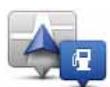
POI Near Me
Tap this button to choose from a list of POIs near to your current location.

POI in City
Tap this button to find a POI in a particular town or city.
| POI near Home | Tap this button to choose from a list of POIs near to your Home location. |
| If a route is already planned, you can also select one of these options: | |
| POI Along Route | Tap this button to find a POI along your planned route. |
| POI Near Destination | Tap this button to find a POI near your planned destination. |
Tap this button to choose from a list of POIs near to your Home location.

Once you have selected a POI, the next screen shows more detailed information including the location of the POI on the map and the phone number of the POI, if available.
Tap Select to confirm you want to plan a route to this POI.
Tap Call to call the POI.
Note: If your device does not have a phone feature, you are shown the number so you can dial using another device.
Showing POIs on the map
POIs can be shown on the map in the Driving View, and also on the map in the Map Browser.
To show POIs in the Driving View, do the following:
- In the Main Menu, tap Change Settings.
- Tap Map.
- Make sure that the setting POIs on Map is selected.
To show POIs on the map in the Map Browser, do the following:
- In the Main Menu, tap Browse Map.
- Tap the information button in the bottom right-hand corner of the screen.
- Make sure that the setting POI is selected.
Selecting which POIs to show on the map
You can select the categories of POIs that are shown, for example, petrol stations, restaurants and hotels.
The selection you make is used for both maps.
To change the POI categories shown in the Settings menu, do the following:
- In the Main Menu, tap Change Settings.
- Tap Map.
- Tap POI Types.
- Select which POIs you want shown on the map.
To change the POI categories shown on the map in the Map Browser, do the following:
- In the Main Menu, tap Browse Map.
- Tap the information button in the bottom right-hand corner of the screen.
- Tap POI Types.
- Select which POIs you want shown on the map.
10. Help Me
Help Me provides an easy way to navigate to emergency services centres and other specialist services and contact them by phone.
For example, if you are involved in a car accident, you could use Help Me to call the nearest hospital and tell them your exact location.
How do I use Help Me to phone a local service?
You can use Help Me to search for a service centre, make contact by phone and inform the centre about the precise details of your current location.
When you search for a service centre, you are shown a list of nearby locations. Select one of the centres in the list to view their address and phone number and your current location on the map.
To use Help Me to locate a service centre, contact the centre by phone and navigate from your current location to the centre, do the following:
- Tap the screen to bring up the Main Menu.
- Tap Help Me.
- Tap Phone for Help.
- Select the type of service you require, for example, Nearest hospital.
- To dial, select a centre from the list, the nearest is shown at the top of the list.
If your device has a phone feature, you can tap the button showing the phone number to dial it immediately. If your device does not have a phone feature, you are shown the number so you can dial using another device.
Once the call is answered, for a description of your current location, open the TomTom app again and tap Help Me. A description of your current location is shown. Tap the description to copy the text. You can then paste the description into a text message or email.
- To navigate your way to the centre by car, tap Drive to Help.
Your TomTom app starts guiding you to your destination.
11. Favourites
Favourites are places that you often visit. You can create Favourites so that you don't have to enter the address every time you want to navigate there.
They don't have to be places you especially like, just useful addresses.
Creating a Favourite
To create a Favourite, tap Manage Favourites in the Main Menu, then Add favourite. You can then select the location of the Favourite from the list below.
Give your Favourite a name that is easy to remember. The TomTom app will always suggest a name, usually the address of the Favourite. If you don't like the suggested name, delete it and enter a new one.
Tap Save to store your favourite.

Home
Tap this button to set your Home location as a Favourite. You might do this if you want to change your Home location but keep the current Home location as a Favourite.

Favourite
Tap this button to create a Favourite from another Favourite.
If you actually want to rename a Favourite, tap the Favourite in the list, then tap Name. Then enter the new name for your Favourite.

Address
Tap this button to enter a specific address as a Favourite.

Recent Destination
Tap this button to select a Favourite location from a list of places you have recently used as destinations.

Point of Interest
Tap this button to add a Point of Interest (POI) as a Favourite.

Contact
Tap this button to add a contact's address as a Favourite.
| Postcode | Tap this button to enter a postcode as a Favourite. |
| This option is not available in all countries. | |
| My Location | Tap this button to add your current position as a Favourite. |
| For example, if you stop somewhere interesting, while you are there you can tap this button to create the Favourite. | |
| Point on Map | Tap this button to create a Favourite using the Map Browser. |
| Select the location of the Favourite using the cursor, then tap Select. |
Using a Favourite
You will normally use a Favourite as a way of navigating to a place without having to enter the address. To navigate to a Favourite, do the following:
- Tap the screen to bring up the Main Menu.
- Tap Navigate To...
- Tap Favourite.
- Select a Favourite from the list.
The TomTom app calculates the route for you.
- When the route is calculated, tap Done.
The TomTom app immediately starts guiding you to your destination with spoken instructions and visual instructions on the screen.
Changing the name of a Favourite
- Tap the screen to bring up the Main Menu.
- Tap Manage Favourites.
- Tap the Favourite you want to rename.
- Tap Name.
- Enter the new name for the Favourite, then tap Save.
Deleting a Favourite
- Tap the screen to bring up the Main Menu.
- Tap Manage Favourites.
- Tap Edit. A red symbol is shown next to each Favourite.
- Tap the red symbol next to the Favourite you want to delete. A Delete button is shown for that Favourite.
- Tap Delete.
12. Addendum
Important Safety Notices andWarnings
Global Positioning System
The Global Positioning System (GPS) is a satellite-based system that provides location and timing information around the globe. GPS is operated and controlled under the sole responsibility of the Government of the United States of America which is responsible for its availability and accuracy. Any changes in GPS availability and accuracy, or in environmental conditions, may impact the operation of TomTom software. TomTom does not accept any liability for the availability and accuracy of GPS.
Use with Care
Use of TomTom software and devices for navigation still means that you need to drive with due care and attention.
Aircraft and Hospitals
Use of devices with an antenna is prohibited on most aircraft, in many hospitals and in many other locations. TomTom software and devices must not be used in these environments.
SPECIAL NOTE REGARDING DRIVING IN CALIFORNIA AND MINNESOTA
California Vehicle Code Section 26708 (a) (1) provides that "No persons shall drive any motor vehicle with an object or material placed, displayed, installed, affixed or applied upon the windshield or side or rear windows." Drivers in California should not use a suction mount on their windshield, side or rear windows.
Note: this section of the California Vehicle Code applies to anyone driving in California, not just California residents.
Minnesota State Legislature Statutes Section 169.71, subdivision 1, section 2 provides that "A person shall not drive or operate with any objects suspended between the driver and the windshield other than sun visors and rearview mirrors and electronic toll collection devices."
Note: this Minnesota Stature applies to anyone driving in Minnesota, not just Minnesota residents.
TomTom Inc. bears no responsibility for any fines, penalties or damage that may be incurred by disregarding this notice. While driving in any state with windshield mounting restrictions, TomTom recommends the use of the supplied Adhesive Mounting Disk or its Alternative Mounting Kit, which includes multiple options for mounting TomTom devices on the dashboard and using the air vents. See totom.com for more information about this mounting option.
This Document
Great care was taken in preparing this manual. Constant product development may mean that some information is not entirely up to date. The information in this document is subject to change without notice.
TomTom shall not be liable for technical or editorial errors or omissions contained herein; nor for incidental or consequential damages resulting from the performance or use of this material. This document contains information protected by copyright. No part of this document may be photocopied or reproduced in any form without prior written consent from TomTom N.V.
13. Copyright notices
© 2009 TomTom N.V., The Netherlands. TomTom®, and the "two hands" logo, among others, are Trademarks owned by TomTom N.V. or one of its subsidiaries. Please see www.tomtom.com/legal for warranties and end user licence agreements applying to this product.
© 2009 Tele Atlas N.V. Based upon:
Ordnance Survey of Northern Ireland.
© IGN France.
© Swisstopo.
BEV, GZ 1368/2003.
Geonext/DeAgostini.
© Norwegian Mapping Authority, Public Roads Administration / © Mapsolutions.
© DAV, violation of these copyrights shall cause legal proceedings.
This product includes mapping data licensed from Ordnance Survey with the permission of the Controller of Her Majesty's Stationery Office. © Crown copyright and/or database right 2009. All rights reserved. Licence number 100026920.
© Roskartographia
Data Source
© 2009 Tele Atlas North America. Inc. All rights reserved.
Compatible with all iPhone models
"Works with iPhone" means that an electronic accessory has been designed to connect specifically to iPhone and has been certified by the developer to meet Apple performance standards.
Apple is not responsible for the operation of this device or its compliance with safety and regulatory standards.
iPhone is a registered trademark of Apple Inc.
Some images are taken from NASA's Earth Observatory.
The purpose of NASA's Earth Observatory is to provide a freely-accessible publication on the Internet where the public can obtain new satellite imagery and scientific information about our home planet.
The focus is on Earth's climate and environmental change: earthobservatory.nasa.gov/
- Updating
- GPS reception
- Planning a route
- Other destination options
- Finding alternative routes
- Avoid Part of Route
- Planning a route in advance
- Advanced Planning
- Driving View
- Setting the volume for music
- Setting the volume for voices
- Driving View options
- Map settings
- Show Current Street
- Streets on Map
- POIs on Map
- Advanced Lane Guidance
- Advanced Lane Guidance
- Route options
- Route Demo
- Clear Route
- Instructions
- Map of Route
- Settings
- Set Home Location
- Voice
- Alerts
- Map
- Day Colours / Night Colours
- 2D Map North Up
- Route planning
- Default Route Type
- Distance Units
- About
- Advanced
- Lane Images
- IQ RoutesTM
- TomTom GPS Enhancer
- Reset to Defaults
- Main Menu
- Browse map
- The cursor
- Points of Interest (POIs)
- Selecting a POI
- Showing POIs on the map
- Selecting which POIs to show on the map
- Help Me
- How do I use Help Me to phone a local service?
- Favourites
- Creating a Favourite
- Using a Favourite
- Changing the name of a Favourite
- Deleting a Favourite
- Addendum
- Important Safety Notices andWarnings
- Global Positioning System
- Use with Care
- Aircraft and Hospitals
- SPECIAL NOTE REGARDING DRIVING IN CALIFORNIA AND MINNESOTA
- This Document
- Copyright notices
- Data Source
Brand : TOMTOM
Model : APP FOR IPHONE
Category : Navigation