
GO 700 - Navigation GPS TOMTOM - Free user manual and instructions
Find the device manual for free GO 700 TOMTOM in PDF.


| Product type | Navigation GPS |
| Brand | TOMTOM |
| Model | GO 700 |
| Screen | Touchscreen, 4.3 inches |
| Dimensions | Approx. 118 x 83 x 24 mm |
| Weight | Approx. 220 g |
| Power supply | Rechargeable lithium-ion battery, 12V power adapter, USB cable |
| Battery life | Up to 4 hours |
| Internal memory | 2 GB |
| Processor | Samsung 400 MHz |
| Connectivity | USB 2.0, Bluetooth |
| Main functions | GPS navigation with maps, route planning, POI, voice guidance, updates via TomTom HOME |
| Maintenance and cleaning | Soft dry cloth, avoid abrasive products |
| Safety | Do not expose to moisture, extreme temperatures; use fixed mount |
| Spare parts and repairability | Replaceable battery (authorized center), standard USB cable |
| Interface languages | Multilingual (FR, EN, etc.) |
Frequently Asked Questions - GO 700 TOMTOM
User questions about GO 700 TOMTOM
0 question about this device. Answer the ones you know or ask your own.
Ask a new question about this device
Download the instructions for your Navigation GPS in PDF format for free! Find your manual GO 700 - TOMTOM and take your electronic device back in hand. On this page are published all the documents necessary for the use of your device. GO 700 by TOMTOM.
USER MANUAL GO 700 TOMTOM
What's in the box? 4
Unpacking 4
Your TomTom GO 5
Remote control 6
Docking shoe 6
Installation 7
Assembly 7
Switching on for the first time 8
Starting up 8
Using TomTom GO 8
Using the remote control 9
How to plan your first route 10
Helping with your journey 12
What's on the screen? 13
Finding alternative routes 14
Advanced planning 15
Preferences 16
Use night colours 16
Manage POI 17
Hide POI 17
Change Home location 17
Connecting to your phone 18
Using GO 700 or GO 500 18
More information 20
TomTom PLUS 20
General information 20
Unpacking
Unpack your TomTom GO box and identify the contents. The model number of your TomTom GO can be found on the bottom of the device itself. You should have:
- TomTom GO (1). Its main features are a touch-sensitive LCD screen, a power (On/Off) button, a release button (for removing TomTom GO from its cradle) and a Secure Digital (SD) memory card slot (included in GO 500 and GO 300 models).
- A pre-installed SD card (2) (included with GO 500 and GO 300 models). The GO 700 includes a pre-installed hard disk.
- The component parts (3/4) of a suctionmount cradle, for attaching to your windscreen.
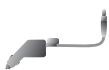
- A DC power lead (5), with 12V cigarette lighter adaptor. This is the normal way of providing power to TomTom GO when it's in your vehicle.
- An installation poster (6), showing how to assemble the cradle, how to fix it to your
windscreen and how to insert TomTom GO.
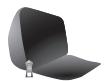
- A carry case (7), for storing TomTom GO when it's not in your vehicle.
- A USB data cable (8) for connecting TomTom GO to a Windows PC or Mac.
- A Microsoft Windows® and Apple Macintosh® compatible CD (9) containing documentation and optional extras.
- A Product Code Card (10) for product activation, support and future map upgrades.
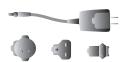
This Quick Start Guide (11). - An AC adaptor (12), included for you to charge and work with TomTom GO even when it's not in your vehicle (included with GO 700 and GO 500 models). Note that this comes with several international pin adaptors, for use anywhere in the world. When you use the adaptor, please make sure it is cooled by placing it in a ventilated area.
- A remote control (13) (included with GO 700 model), for operating TomTom GO when out of reach. This is available as an accessory for GO 700 and GO 500 models.

1

2

3

4
5

6
7

8

9

10

11
12

13
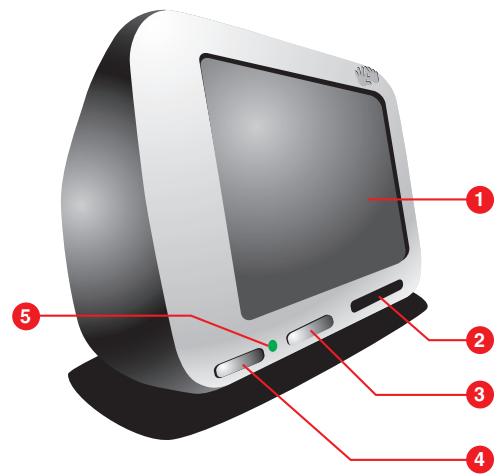
Your TomTom GO
- Touchscreen
- SD card slot (included on GO 500 and GO 300 models)
- Release button
- On/Off button
- Charging LED
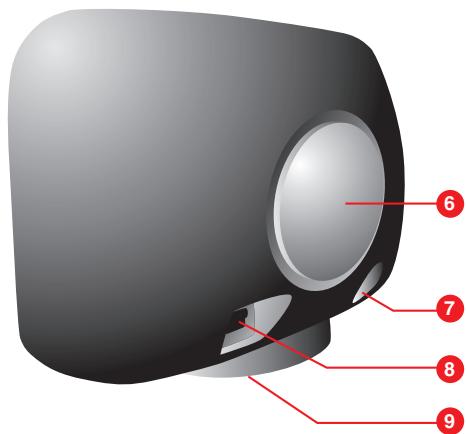
- Speaker
- AC-connector
- USB-connector
- Docking connector
NOTE: Do not expose TomTom GO to high or low temperatures. We recommend that you do not leave TomTom GO in direct sunlight for long periods or in an unattended car on sunny days. High or low temperatures can cause permanent damage. Do not attempt to service TomTom GO yourself. Do not open, puncture or disassemble it. Doing so may be dangerous and will invalidate your warranty. Do not leave your TomTom GO in your glove box when driving.
What's in the box?
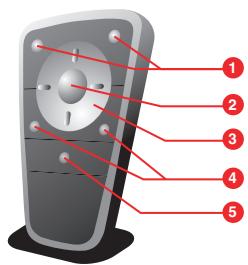
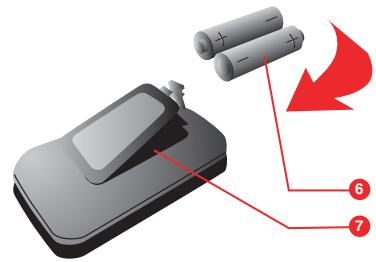
Remote control
- Volume up/down
- OK button
- Arrow buttons
- Left and Right soft buttons
- Keyboard button
- Batteries
- Battery compartment
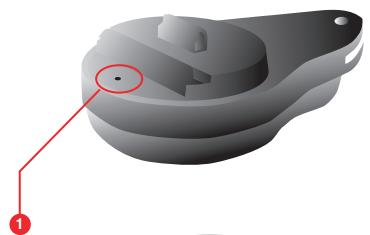
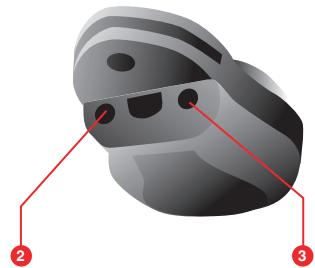
Docking Shoe
- Integrated microphone (included with GO 700 and GO 500 models).
- Charger socket
- External microphone socket
Assembly
- Assemble the suction-mount cradle as shown in the installation poster.
- Plug the small plug end of the DC power lead into the socket on the back of the cradle. Plug the other end into your vehicle's 12V (cigarette lighter) socket.
- Ease TomTom GO onto its cradle by locating its front edge first and then rotating back firmly until you hear a click. You'll feel TomTom GO lock into place. The green LED on TomTom GO's front panel will light up if the cradle is also connected to your vehicle's 12V socket.
- Clean the inside of your windscreen (or side window), to remove any dust and grease. Place the cradle in a suitable location on your windscreen and push the black plastic lever to the right, fixing the cradle in position.
NOTE: Some newer vehicles may have a heat reflective shield embedded in the windscreen. In some cases this can prevent proper GPS signal reception. If this turns out to be a problem in your vehicle, you will need to purchase and install the TomTom External Antenna Kit (available as an accessory).
Tip: You don't have to use the cradle if you don't want to. If necessary, TomTom GO can be positioned on its own anywhere that's convenient, provided that it's safely secured.
Under normal journey conditions, the suction mount is perfectly sufficient to hold the cradle in position. Note that suction may be lost if left overnight, due to condensation and low temperature. For this reason, and for security, we recommend removing both the suction mount
cradle and TomTom GO when leaving your vehicle overnight. To remove the cradle, pull the suction mount lever to the left. If the cradle still doesn't detach from your windscreen, tug gently on the clear plastic tab at the edge of the suction mount, to break the vacuum seal.
Tip: To activate your 12V socket, you may need to set your ignition key in an 'Accessories' position. Please consult your vehicle handbook. In addition, TomTom GO contains a rechargeable battery and can be used for up to 4 hours without charging, so for short journeys it may be possible to do without the DC power lead for simpler and tidier operation.
To adjust the angle of TomTom GO, slacken the adjustable knobs on the cradle and then turn it gently. In addition to tilting the cradle up and down and from side to side, you can also rotate TomTom GO in the cradle, from left to right, ± 45^ . When you're happy, tighten up the knobs again.
Tip: After using TomTom GO, remove it from the cradle by pressing the release button while rotating the unit forward gently. Put it in the supplied bag. If you want to clean it, use a soft, dry cloth. Do not use water or a solvent.
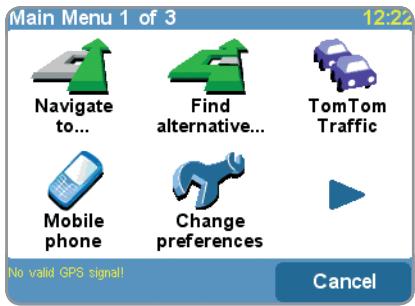
As with many of the menus in TomTom GO, there are more options than can be shown on one screen. Try tapping on a few times, to cycle through all the different things you can do. Note that this image of the main menu may vary per model and region.
Starting up
- Refer to your installation poster for setup instructions.
- Follow the on-screen instructions, using your finger on the touchscreen to select your preferences.
Using TomTom GO
Note: Your TomTom GO does not transmit your location, so others cannot use it to track you while driving.
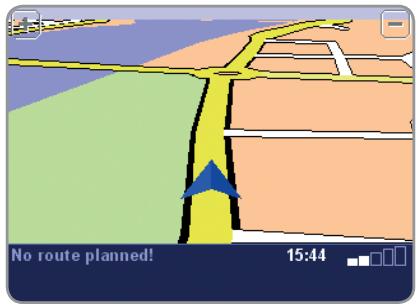
TomTom GO starts by displaying the navigation view. The screen will appear in black and white until your TomTom GO locates your current position. Once this is done, the navigation view is shown in full colour. In future, your position will be found much faster, normally within a few seconds. Everything on TomTom GO can be accomplished easily using just your finger on the touchscreen. Importantly, you can bring up the main options menu by tapping your finger somewhere in the middle of the screen.
Note: When you use the GO for the first time we advise you to make a backup of your SD card using the backup option on the CD.
Switching on for the first time
Using the remote control
The remote control is included with the GO 700 model and is also available as an accessory for GO 700 and GO 500 models.
You can use the TomTom remote control instead of the main touchscreen in circumstances where you'd rather not reach over and tap the screen directly. The remote control uses radio waves so you don't need to point it at your TomTom GO. Use the arrow buttons to select something on the screen and the central 'OK' button to activate the selected command button or icon.
You can change the loudness of the GO speaker by using the volume buttons. The two keys near the bottom of the remote control can be used to mimic the buttons appearing at the bottom left and right of the TomTom GO screen. Finally, you can use the keyboard button to make an on-screen keyboard appear or disappear, if appropriate, allowing you to search for something by name.
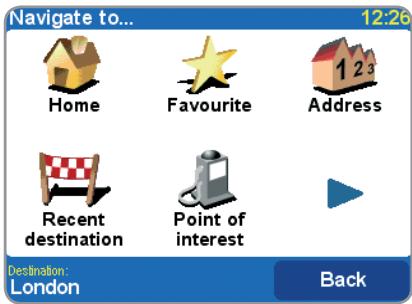
Don't worry if some of the icons are 'greyed out', this just indicates that these menu options aren't available yet. E.g. as you haven't yet planned a route then 'Find alternative...'.
View route' and Clear route' are all greyed out.
How to plan your first route
- Move outside, if you haven't already done so, so that the GPS hardware can locate your position. This may take some time, and will happen more quickly if you remain stationary. The screen displays your current position on its map, represented in a '3D' navigation view, from a driver's perspective. When you start moving, the navigation view will match the streets outside as you would see them through your windscreen.
Your position (and direction) is indicated by the icon.
- Bring up the main menu as explained previously. Use a few times to browse through all the different things you can do, then choose 'Navigate to...' to start planning your first route.
Remember that always means that there's more to see on the next page, in this case extra ways of choosing a destination.
-
Choose 'Address' 123 . You'll see a standard keyboard, used for entering placenames (e.g. towns, streets and favourite locations). Above the keyboard is a small browser window in which your TomTom GO will present locations from its database.
-
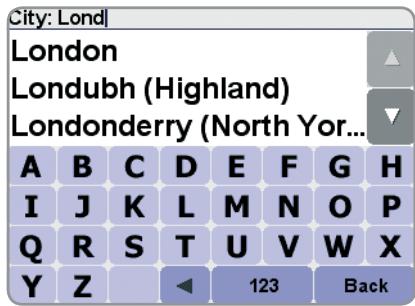
The best way to see how your TomTom GO works is to use it for real, so think of the address that you want to visit and enter the first few letters of the city, town or village. Be as specific as possible. As you type, the letters are compared to the built-in list of possible names and any matches appear in the browser window.
Quick-matching a town name. Use and to scroll through other possible matches. If you make a mistake, use to delete the last letter entered.
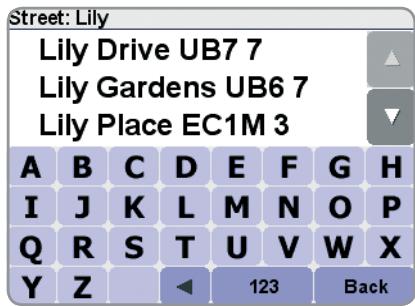
- When you see the name of the place you want, select it by tapping on the name. A new browser window is now shown, this time with the prompt 'Street:' at the top. Again, start entering the road name of your destination, selecting it when the full name is shown among the matches.
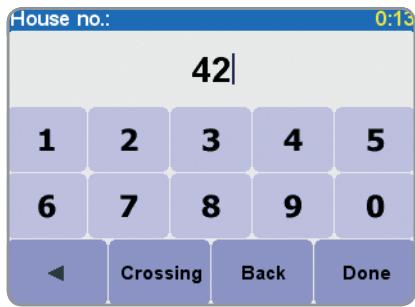
- A third and final keyboard and browser are shown, this time for you to select a house number. For some roads (such as those that don't have house numbers), you'll be asked to select a particular 'Crossing': (i.e. an intersection). Select a crossing, or enter the house number and then choose 'Done'.
If you'd rather pick a crossing than a house number, just select the 'Crossing' button.
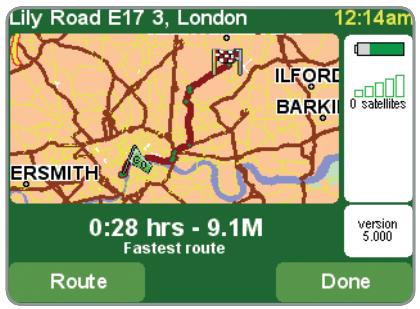
- The fastest route from your current position to your destination is then calculated. This should only take a few seconds and its progress is shown on the screen. When done, a summary is shown, on a suitably scaled map.
Studying this summary can be useful for you to get a feel for your journey's scope and to check if the route includes roads that you'd rather avoid (in which case, see 'Finding alternative routes', below).
- Select 'Done' and you'll find yourself back at the main navigation view, but with the route now clearly coloured in for you.
Helping with your journey
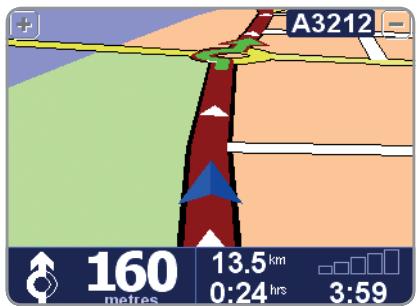
That's the planning all done, so simply buckle your seat belt and drive. As you approach a specific turn in the calculated route, your chosen voice will tell you what to do. For example, "In 100 metres, turn left", followed by "Tum left", without you having to take your eyes off the road. As you travel, following the voice instructions, you'll notice that the navigation view is updated constantly, always showing coming roads and junctions and presenting the best route to you.
Don't worry if you miss a turn or drive down the wrong road. A new fastest route will be calculated automatically, based on your new position and direction of travel. Wherever you go, it will always give you instructions that will take you to your chosen destination.
What's on the screen?
What's on the screen?
Much of the information on the main navigation view is configurable (see the 'Preferences' chapter for details).
If you miss a voice instruction, tap on the tum instruction in the bottom left hand corner to generate a new one. And if you'd like to view the route summary again, tap anywhere in the journey information panel in the bottom right hand corner.
Most of the time, the voice and turn instructions are all you need to navigate successfully, which means never having to take your eyes off the road. At complicated junctions, where simple instructions aren't adequate to describe the path to take, the navigation view comes into its own. A quick comparison between the screen and the world in front of you should be all you need.
Tip: No instruction is shown or spoken at junctions which require no action. In towns and cities especially, don't be concerned that you are passing side-roads and driving over crossroads without any instruction.
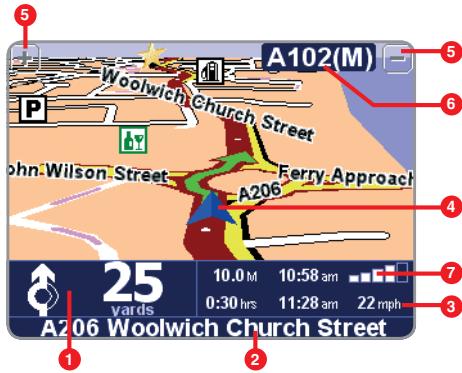
1 Your next turn instruction.
The name of the next street to turn onto.
3 Configurable journey information including arrival time, time to destination and distance to destination.
4 Your current GPS position.
5 'Zoom out' and 'Zoom in" buttons.
6 Next motonway' indicator, if applicable. See 'Name preferences' in the manual on CD, if you want to turn this off.
A 'phone-style' signal indicator to give an idea of how good or bad the GPS reception is in your current location. The more bars, the better.
Finding alternative routes
Perhaps a route has been planned that you're not happy with? Perhaps you have been routed via a busy junction? Perhaps you have spotted roadworks up ahead?
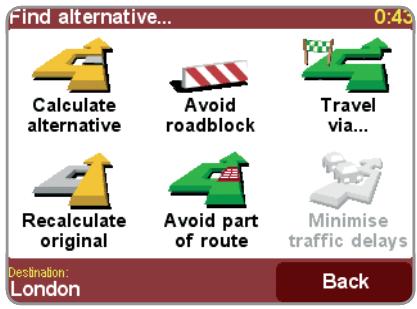
Or perhaps you really wanted to go 'via' one particular location? In each of these cases, 'Find alternative...' can help you. Again, you'll see it on the main menu, right next to 'Navigate to...'.
Which 'Find alternative' option you go for depends on why you're dissatisfied with the first route.
Choose 'Travel via...' if you want to make sure the planned route goes past one particular location, perhaps to collect (or drop off) a letter or person. If you spot signs of trouble, choose 'Avoid roadblock'
Or if you want to avoid a particular road junction, perhaps because it's a known traffic black spot, choose 'Avoid part of route'. Finally, if you want an alternative route because you simply don't like the original, choose 'Calculate alternative'.
Tip: If you want to include more than a single 'via' location in your journey, use the comprehensive 'Itinerary planning' feature instead, described in the manual on CD.
Advanced planning
Although navigating from your current position is the function that you'll use most often, there may be times when you want to plan ahead. Choosing 'Advanced planning' on the main menu lets you look at the best route and journey time between any two given locations or get directions that will help someone else get to your current position.
Tip: You may need to use in order to see the 'Advanced planning' icon.
If you'd like this choice every time you navigate, or if you'd like to change the default setting, see 'Planning preferences' in the 'Change preferences' menu.
Rather than use your GPS position, with 'Advanced planning' you choose your departure location using either an address, a Point Of Interest, a favourite location, and so on. You then pick a destination in the same way and finally choose a planning option (fastest, shortest, walking, etc.)
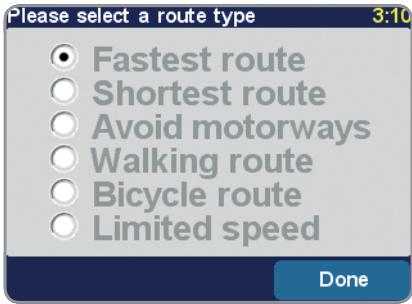
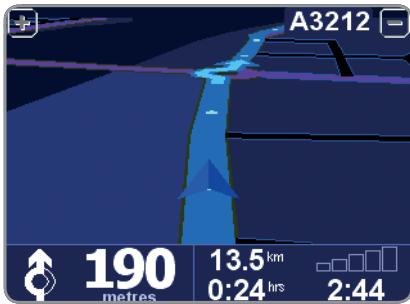
The default night colours, designed not to affect your night vision.
Preferences
You can change much of the look and feel of your TomTom system to your own liking by using the main menu option 'Change preferences'. Use to cycle through the different pages of preferences. Here are some of the most important ones (you'll find the full set in the manual on CD).
Tip: The icons shown for some preferences will change, depending on the state the preference is currently in. For example, choosing 'Turn off sound' disables the voice instructions. Once disabled, the option and icon change to 'Turn on sound', reflecting the action to take when it is next selected.
Use night colours
Bright colours are normally used in the maps so that you can see them clearly even in sunlight. When it is dark outside, you may want to use the preference 'Use night colours' , to show the map in (by default) dark and subdued colours that will not interfere with your night vision. You can use the preference 'Use day colours' to revert to the original colour scheme.
Manage POI
POI is an abbreviation you'll see a lot, standing for 'Point Of Interest'. Dozens of categories of POIs are built-in, from airports to petrol stations, from restaurants to theatres. Most importantly, POIs can be used as destinations, can be shown on the map and can even warn you of their proximity (for example, looking for a car park or petrol station while driving in a strange city).
You can choose which Points Of Interest categories you're interested in by selecting the option 'Enable/Disable POI' , or set up a warning (you can have as many as you like) with the option 'Warn when near POI'.
Hide POI
Once you've spent time carefully browsing through the categories in 'Manage POI' and have chosen the ones you need, you can hide all of them from the main navigation view in one stroke with 'Hide POI' and then show your preferred set again with 'Show POI'.
Change Home location
You can set or change your 'Home' location at any time by using Change home location. You will then be able to select this quickly later as a departure or destination point.
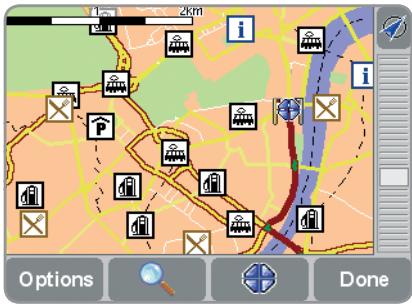
A typical selection of POIs from the categories selected in the 'Manage POI' preference.
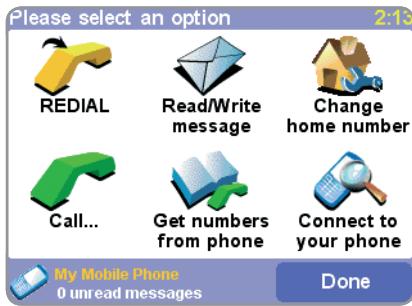
Here's the main mobile phone 'hands-free' menu. The connection to your phone is also used when communicating with our Internet-based TomTom PLUS service using GPRS (see the manual on CD for more details).
Using GO 700 or GO 500
If you have a Bluetooth-capable mobile phone then you can use your TomTom GO 700 or GO 500 as a hands-free car kit. Although some functions are dependent on your phone's capabilities, you should usually be able to:
- Accept incoming calls on the TomTom GO screen with a single tap of the screen.
- See that a new SMS message has arrived and read its contents, again with a single tap.
- Dial out, using contact details retrieved from your phone's SIM card.
- Get your call history, contact phone numbers and SMS messages from your phone.
Visit www.tomtom.com/phones for a list of compatible Bluetooth-enabled phones.
This is the very first time you have used TomTom GO with your phone and there are a few steps needed to 'pair' the two devices, i.e. make a connection.
- Choose 'Mobile phone'

to get started.
- Select 'Connect to your phone' and TomTom GO will search for your mobile phone.
- Pick your phone from the list displayed.
Connecting to your phone
- When prompted to connect, enter a passcode (password) of '0000' on the phone.
- You will then be asked to set up a wireless Internet connection. Do this if you want to use TomTom PLUS services.
- Finally, you can copy your phone book to the TomTom GO. You cannot use hands-free features while this is happening.
Tip: To allow automatic connection from now on, make the TomTom GO a 'trusted' device on your phone.
Use 'Call' and then 'Number' to make your first hands-free call. It's also easy to phone a contact from your SIM card or the number of a particular Point Of Interest.
TomTom PLUS
In addition to voice-guided satellite navigation, our optional TomTom PLUS service can give you various additional services like weather, entertaining voices, useful POIs, map colors and our real time information on traffic congestion, helping you plan around it. Please go to www.tomtom.com to see what's available in your territory. Full details of the TomTom PLUS service can be found on the CD.
Note: To use TomTom PLUS, you need a GPRS-ready mobile phone with Bluetooth. If you already pick up email or browse the Internet on your phone, then it's probably already GPRS-ready; if you're not sure, ask your network provider.
General information
All the features of your TomTom GO are fully explained in the manual included on the CD.
The manual is available in UK and US English, Dutch, German, French, Italian, Spanish, Portuguese, Danish, Swedish, Finnish, Norwegian, Polish, Czech, Hungarian, Turkish, Latvian, Estonian and Lithuanian.
For technical support information please visit our website at www.tomtom.com
Our "Frequently Asked Questions" (FAQs) section contains answers to all the most frequent requests from our customers, providing a quick and easy way to get the information you need. You can also access the support section of our website to find product documentation and contact details for our customer support department. We primarily supply support via email, as this allows us to explain solutions in the most effective way.
Important Safety Notices andWarnings
1. Global Positioning System
The Global Positioning System (GPS) is a satellite-based system that provides location and timing information around the globe. GPS is operated and controlled under the sole responsibility of the Government of the United States of America, who are responsible for its availability and accuracy. Any changes in GPS availability and accuracy, or in environmental conditions, may impact the operation of your TomTom GO. TomTom International B.V. cannot accept any liability for the availability and accuracy of GPS.
2. Use with Care
Use of TomTom GO for navigation still means that you need to drive with due care and attention.
3. Aircraft and Hospitals
Use of devices with an antenna is prohibited on most aircraft, in many hospitals and in many other locations. TomTom GO must not be used in these environments.
4. Battery
This product uses a Lithium- ion battery. Do not use it in a humid, wet and/or corrosive environment. Do not put, store or leave your product in or near a heat source, in a high temperature location, in strong direct sunlight, in a microwave oven or in a pressurized container, and do not expose it to temperatures over 60 C (140 F). Failure to follow these guidelines may cause the Lithium- ion battery to leak acid, become hot, explode or ignite and cause injury and/or damage. Do not pierce, open or disassemble the battery. If the battery leaks and you
come into contact with the leaked fluids, rinse thoroughly with water and seek medical attention immediately. For safety reasons, and to prolong the lifetime of the battery, charging will not occur at low (below 0 C/32 F) or high (over 45 C/113 F) temperatures.
Temperatures: Standard operation: - 10 C (14 F) to + 55 C (131 F); short period storage: - 20 C (-4 F) to + 60 C (140 F); long period storage: - 20 C (-4 F) to + 25 C (77 F).

THE LITHIUM-ION BATTERY CONTAINED IN THE PRODUCT MUST BE RECYCLED OR DISPOSED OF PROPERLY. USE TOMTOM GO ONLY WITH THE SUPPLIED DC POWER LEAD AND AC ADAPTER FOR BATTERY CHARGING.
To recycle your TomTom GO unit, please see your local approved TomTom service centre.
FCC Information for the User
The device used for this transmitter must not be co-located simultaneously operating in conjunction with any other transmitter.
Exposure to Radio Frequency Radiation
To comply with RF exposure requirements please maintain a separation distance of at least 20~cm from any part of the product.
Radio and Television Interference
This equipment radiates radio frequency energy and if not used properly - that is, in strict accordance with the instructions in this manual - may cause interference to radio communications and television reception.
Addendum
It has been tested and found to comply with the limits for a Class B digital device pursuant to part 15 of the FCC Rules. These are designed to provide reasonable protection against harmful interference in a residential installation. However, there is no guarantee that interference will not occur in a particular installation. If this equipment does cause harmful interference to radio or television reception, which can be determined by turning the equipment off and on, the user is encouraged to try to correct the interference by one or more of the following measures:
Reorient or relocate the receiving antenna.
- Increase the separation distance between the equipment and the receiver.
- If you are using the equipment with a mains adapter, plug it into an outlet which is on a different circuit from that to which the receiver is connected.
- Consult an experienced radio/TV technician for help.
Important
This equipment was tested for FCC compliance under conditions that included the use of shielded cables and connectors between it and the peripherals. It is important that you use shielded cable and connectors to reduce the possibility of causing radio and television interference. Shielded cables, suitable for the product range, can be obtained from an authorised dealer. If the user modifies the equipment or its peripherals in any way, and these modifications are not approved by TomTom, the FCC may withdraw the user's right to operate the equipment. For customers in the USA, the following booklet prepared by the Federal Communications Commission may be of help: "How to Identify and Resolve Radio-TV Interference Problems". This booklet is available from the US Government Printing Office, Washington, DC 20402. Stock No 004-000-00345-4.
FCC Declaration of Conformity
Tested to Comply with FCC Standards for Home or Office Use
TomTom GO has been tested to – and complies with – part 15 of the FCC rules. Operation is subject to the following two conditions:
- This device may not cause harmful interference.
- This device must accept any interference received, including interference that may cause undesired operation.
Responsible party in North America
TomTom, Inc., 150 Baker Ave, Concord, MA 01742
Tel: 978 287 9555 option 1
Fax: 978 287 9522
Emissions information for Canada
This equipment complies with the requirements for CE marking when used in a residential, commercial, vehicular or light industrial environment.
R&TTE Directive
This equipment complies with the essential requirements of EU Directive 99/5/EC (declaration available at www.tomtom.com).
In line with EU Directive 2002/96/EC for waste electrical and electronic equipment (WEEE), this electrical product must not be disposed of as unsorted municipal waste.
Please dispose of this product by returning it
to the point of sale or to your local municipal collection point for recycling. For more information, see www.tomtom.com
This product displays the Ctick to show it complies with all relevant Australian and New Zealand regulations.
This Document
Great care was taken in preparing this manual. Constant product development may mean that some information is not entirely up-to-date. The information in this document is subject to change without notice.
TomTom International B.V. shall not be liable for technical or editorial errors or omissions contained herein; nor for incidental or consequential damages resulting from the performance or use of this material. This document contains information protected by copyright. No part of this document may be photocopied or reproduced in any form without prior written consent from TomTom International B.V.
Part numbers
TomTom GO 300:4D00.300
TomTom GO 500:4D00.500
TomTom GO 700:4D00.700