
XSAN 1.4 - Network Storage System APPLE - Free user manual and instructions
Find the device manual for free XSAN 1.4 APPLE in PDF.


| Product type | Network storage system (SAN) |
| Version | 1.4 |
| Supported operating systems | Mac OS X / Mac OS X Server v10.4.7 or later (Intel and PowerPC) |
| Maximum number of computers per SAN | 64 (controllers and clients) |
| Maximum number of volumes per SAN | Unlimited (limited by resources) |
| Maximum number of storage pools per volume | 512 |
| Maximum number of LUNs per storage pool | 32 |
| Maximum number of files per volume | 4,294,967,296 |
| Maximum file size | Approximately 2^63 bytes (8 exabytes) |
| Maximum volume size | Limited by the number and size of LUNs |
| Fibre Channel connectivity | Apple Fibre Channel PCI, PCI-X, or PCI-E cards; supported Fibre Channel switches |
| Required Ethernet network | Private TCP/IP network for metadata traffic |
| Main features | Shared volume management, metadata controllers with failover, folder affinities, user/group quotas, access control lists (ACL), Fibre Channel multipathing |
| Maintenance and cleaning | Software updates via Apple; monitoring via Xsan Admin; volume defragmentation and verification |
| Security | Volume access control via selective mounting, ACLs, Finder permissions, Fibre Channel zones |
| Spare parts and repairability | Software not repairable; hardware components (servers, storage) are third-party |
| General information | Publisher: Apple Computer, Inc.; manual available in PDF; administration interface: Xsan Admin (GUI and command line) |
Frequently Asked Questions - XSAN 1.4 APPLE
User questions about XSAN 1.4 APPLE
0 question about this device. Answer the ones you know or ask your own.
Ask a new question about this device
Download the instructions for your Network Storage System in PDF format for free! Find your manual XSAN 1.4 - APPLE and take your electronic device back in hand. On this page are published all the documents necessary for the use of your device. XSAN 1.4 by APPLE.
USER MANUAL XSAN 1.4 APPLE
Apple Computer, Inc.
© 2006 Apple Computer, Inc. All rights reserved.
Under the copyright laws, this manual may not be copied, in whole or in part, without the written consent of Apple.
The Apple logo is a trademark of Apple Computer, Inc., registered in the U.S. and other countries. Use of the "keyboard" Apple logo (Option-Shift-K) for commercial purposes without the prior written consent of Apple may constitute trademark infringement and unfair competition in violation of federal and state laws.
Every effort has been made to ensure that the information in this manual is accurate. Apple is not responsible for printing or clerical errors.
Apple
1 Infinite Loop
Cupertino, CA 95014-2084
408-996-1010
www.apple.com
Apple, the Apple logo, Final Cut Pro, Mac, Macintosh, the Mac logo, Mac OS, Panther, Xsan, and Xserve are trademarks of Apple Computer, Inc., registered in the U.S. and other countries.
Finder and Tiger are trademarks of Apple Computer, Inc.
ADIC and StorNext are registered trademarks of Advanced Digital Information Corporation.
Intel and Intel Core are trademarks of Intel Corp. in the U.S. and other countries.
PowerPC and the PowerPC logo are trademarks of International Business Machines Corporation, under license therefrom.
Other company and product names mentioned herein are trademarks of their respective companies. Mention of third-party products is for informational purposes only and constitutes neither an endorsement nor a recommendation. Apple assumes no responsibility with regard to the performance or use of these products.
The product described in this manual incorporates copyright protection technology that is protected by method claims of certain U.S. patents and other intellectual property rights owned by Macrovision Corporation and other rights owners. Use of this copyright protection technology must be authorized by Macrovision Corporation and is intended for home and other limited viewing uses only unless otherwise authorized by Macrovision Corporation. Reverse engineering or disassembly is prohibited.
Apparatus Claims of U.S. Patent Nos. 4,631,603, 4,577,216, 4,819,098 and 4,907,093 licensed for limited viewing uses only.
Simultaneously published in the United States and Canada. 034-3767-A/07-21-06
Contents
11 About This Book 12 What's New in Xsan 1.4 12 Version Compatibility 14 Upgrading from an Earlier Version of Xsan 14 For More Information 15 Notation Conventions
17 Chapter 1: Overview of Xsan 17 What Is Xsan? 19 Xsan Storage Area Networks 21 Shared SAN Volumes 21 Controllers and Clients 22 SAN Connections 23 How Xsan Storage Is Organized 24 LUNs 25 Storage Pools 26 Volumes 28 Folders with Affinities 28 How Xsan Utilizes Available Storage
28 Metadata and Journal Data 29 Striping at a Higher Level 30 Security 30 Expanding Storage 31 Xsan Capacities
33 Chapter 2: Setting Up a Storage Area Network
33 Hardware and Software Requirements 34 Supported Computers 34 Supported Storage Devices 35 Fibre Channel Fabric 36 Ethernet TCP/IP Network 37 Directory Services 38 Outgoing Mail Service 39 Planning Your SAN 41 Planning Considerations and Guidelines 50 Connecting Computers and Storage Devices 51 Preparing LUNs 51 Using the Xsan Admin Application 52 Installing Just the Xsan Admin Application 52 Connecting Through a Firewall 52 Xsan Admin Preferences 52 Getting Help 53 Using the Command Line
53 SAN and Volume Setup Summary 54 Setting Up an Xsan Volume on a Storage Area Network 74 Renaming a SAN 75 Removing a SAN 75 Setting Up Additional SANs
77 Chapter 3: Managing SAN Storage
78 Adding Storage 79 Restoring the Previous Volume Configuration After Changes 79 About Rearranging Fibre Channel Connections 80 Adding LUNs to a Storage Pool 82 Adding a Storage Pool to a Volume 84 Adding a Volume to a SAN 86 Assigning a Storage Pool Affinity to a Folder 87 Assigning an Affinity to a Folder Within a Folder 89 Removing an Affinity 90 Changing Storage Pool Settings 91 Renaming a Storage Pool 92 Choosing the Types of Files Stored on a Storage Pool 92 Setting Storage Pool Stripe Breadth 94 Setting the Selection Method for Multiple Connections 95 Changing Volume Settings 96 Renaming a Volume 97 Setting the Block Allocation Size
99 Setting the Volume Allocation Strategy 100 Enabling or Disabling Access Control Lists 101 Choosing the Windows ID Mapping Method 101 Checking Volume Fragmentation 102 Defragmenting a Volume 103 Checking the Integrity of a Volume 104 Repairing a Volume
105 Chapter 4: Managing Clients and Users
106 Adding a Client 107 Adding a Client to a StorNext SAN 108 Mounting a Volume on a Client 109 Controlling Client and User Access 109 Controlling Access to Folders on Volumes 110 Setting Up Access Control Lists 110 Unmounting a Volume on a Client 110 Restricting a Client to Read-Only Access 111 Removing a Client from a SAN 111 Removing Xsan Software from a Computer 112 Mapping Windows User and Group IDs 114 Setting User and Group Quotas 115 About Xsan Quotas 117 Checking User Quota Use 119 Helping Clients Check Their Own Quotas
120 Creating Local Home Folders for Network Accounts 121 Chapter 5: Managing Metadata Controllers 122 Adding a Controller 123 Setting Controller Failover Priority 124 Switching to a Standby Controller 125 Finding Out Which Controller Is Hosting a Volume 127 Listing the Volumes Hosted by a Controller 128 Changing a Controller's IP Address 129 Upgrading Controller Software 130 Monitoring Controller Status 131 Chapter 6: Monitoring SAN Status 132 Locking Xsan Admin Views for Secure Monitoring 133 Checking Overall SAN Status 134 Checking Overall Volume Status 135 Checking Free Space on a Volume 136 Checking Free Space on a Storage Pool 136 Checking Quota Use 136 Viewing a Controller's CPU and Network Utilization 137 Viewing File System CPU and Memory Utilization 138 Setting Up Status Notifications 139 Checking the Status of File System Processes 139 Viewing Xsan Logs
140 Checking Volume Clients 141 Checking for Fibre Channel Connection Failures 141 Checking the State of Xserve RAID Systems
143 Chapter 7: Solving SAN Problems
143 A Dialog on a Client Reports That a LUN Is Unreadable 143 You're Unable to Connect to a Computer Using Xsan Admin 144 You're Unable to Install the Xsan Software 144 Some Computers Aren't Listed in Xsan Admin 144 You're Unable to Mount a Volume on a Client 145 Xserve RAID LUNs Aren't Accessible over Fibre Channel 145 You're Unable to Restart a Volume After Adding LUNs or Storage Pools 146 Some LUNs Aren't Listed in Xsan Admin 147 Some LUNs Are Listed Twice in Xsan Admin 147 Files and Folders Created by Mac OS 9 Computers Show the Wrong Creation Date 148 Problems Using Command-Line Tools 148 A LUN Doesn't Have as Much Space as Expected 149 You're Unable to Rename an Xsan Volume in the Finder 149 Fibre Channel Performance Is Poorer Than Expected 149 A Client User Sees Error Code -1425 149 File Copy Doesn't Finish 150 A Client is Unable to Use a Volume After a Fibre Channel Interruption 150 SAN Performance Declines Periodically and Predictably 151 You're Unable to Add a Storage Pool
152 You're Unable to Add LUNs to a Storage Pool 153 The Capacity of a Larger LUN is Listed as 2 Terabytes 155 Appendix A: Combining Xsan and StorNext Clients and Controllers 155 Terminology 156 Compatible Software Versions 156 Licensing 157 Adding Macintosh Clients to a StorNext SAN 159 Using Xsan Controllers with StorNext Clients 161 Appendix B: Using the Command Line 161 Using the Shell Commands 162 Sending Commands to Remote Computers 162 Viewing the Man Pages 163 Notation Conventions 164 The Commands 164 Viewing or Changing Volume and Storage Pool Settings (cvadmin) 168 Copying Files or Folders (cvcp) 171 Checking or Repairing a Volume (cvfsck) 172 Labeling, Listing, and Unlabeling LUNs (cvlabel) 173 Creating a Folder with an Affinity (cvmkdir) 174 Creating and Preallocating a File (cvmkfile) 175 Initializing a Volume (cvmkfs) 176 Applying Volume Configuration Changes (cvupdatefs)
176 Starting a Volume Controller (fsm) 177 Starting a Port Mapper Process (fsmpm) 177 Defragmenting a File, Folder, or Volume (snfsdefrag) 179 Mounting an Xsan Volume 180 Unmounting an Xsan Volume 181 Viewing Logs 181 The Configuration Files 181 Examples 183 Glossary 187 Index
About This Book
Preface
Use this guide to learn how to set up and manage Xsan volumes on a storage area network.
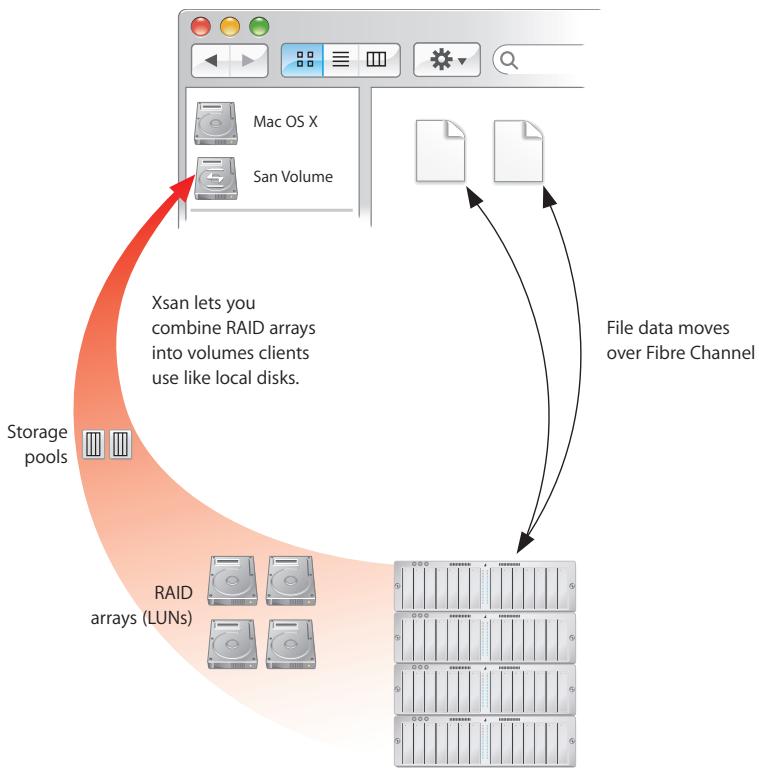
This guide shows how to use Xsan to combine Xserve RAID arrays and slices into large, easy-to-expand volumes of storage that clients use like local disks but are actually shared over a high-speed Fibre Channel fabric.
Chapter 1 provides an overview of Xsan and how you can use it to organize RAID arrays into shared volumes of storage.
Chapter 2 includes hardware and software requirements, SAN planning guidelines, and basic steps for setting up an Xsan volume.
Chapter 3 contains instructions for expanding storage, creating folders with affinities, changing volume and storage pool settings, and checking, defragmenting, and repairing SAN volumes.
Chapter 4 shows how to add client computers to a SAN, mount volumes on clients, control client and user access to SAN files, and control user space using quotas.
Chapter 5 contains information about managing volume metadata controllers.
Chapter 6 includes instructions for monitoring and automatically reporting the condition of a SAN.
Chapter 7 lists solutions to common problems you might encounter.
Appendix A contains information to help you combine Xsan controllers or clients with ADIC StorNext controllers or clients on the same SAN.
Appendix B describes command-line utilities and configuration files you can use to manage an Xsan SAN using Terminal.
What's New in Xsan 1.4
Xsan 1.4 offers these new features and capabilities:
- You can use access control lists (ACLs) to manage user access to Xsan volumes. Xsan runs on Intel-based Macintosh computers.
Version Compatibility
The following table shows which versions of Xsan and StorNext controllers and clients can be used on the same SAN.
Important: If you set up a LUN that is larger than 2 terabytes (TB), be aware that older clients (those running Xsan on Mac OS X 10.3 Panther or Xsan 1.2 or earlier on Mac OS X 10.4 Tiger) cannot read these large LUNs. A dialog appears on these older clients that says the LUN is unreadable. Be sure to click Ignore to dismiss this dialog. Do not click Format, or information on the corresponding Xsan volume will be lost. If you use LUNs greater than 2 TB, you should upgrade all SAN clients to Xsan 1.3 or later on Mac OS X or Mac OS X Server v10.4.
| Controller | Client | Compatible |
| Xsan 1.4 | Xsan 1.4 | Yes |
| Xsan 1.3 (Mac OS X v10.4) | Yes | |
| Xsan 1.3 (Mac OS X v10.3) | Yes, for LUNs < 2 TB | |
| Xsan 1.2 or earlier | No | |
| StorNext 2.8 | No | |
| StorNext FX 1.3 or 1.4 | Yes | |
| StorNext 2.6 or 2.7 | Yes | |
| StorNext 2.5 or earlier | No | |
| Xsan 1.3 (Mac OS X v10.4) | Xsan 1.4 | No |
| Xsan 1.3 (Mac OS X v10.4) | Yes | |
| Xsan 1.3 (Mac OS X v10.3) | Yes | |
| StorNext FX 1.3 or 1.4 | Yes | |
| StorNext 2.6 or 2.7 | Yes | |
| StorNext 2.5 or earlier | No | |
| StorNext 2.8 | Xsan 1.4 or 1.3 | Yes |
| StorNext 2.7 | Xsan 1.4 or 1.3 | Yes |
| StorNext 2.6 or earlier | Xsan 1.4 or 1.3 | No |
Upgrading from an Earlier Version of Xsan
For more information about migrating your SAN storage to Xsan 1.4 from an earlier version of Xsan, including tips for upgrading with the least impact on existing storage, see the Xsan Migration Guide at www.apple.com/server/documentation/.
For More Information
For more information about Xsan, consult these resources:
Read Me documents—important updates and special information. Look for them on the Xsan installation disc.
Xsan website (www.apple.com/xsan/)—gateway to extensive product and technology information.
Xsan Support website (www.apple.com/support/xsan/)—access to articles about Xsan from Apple's support organization.
Apple customer training (train.apple.com/)—instructor-led and self-paced courses for honing your Xsan administration skills.
Apple discussion groups (discussions.info.apple.com/)—a way to share questions, knowledge, and advice with other Xsan administrators.
Apple mailing list directory (wwwLists.apple.com/)—subscribe to mailing lists so you can communicate with other Xsan administrators using email.
Notation Conventions
The following conventions are used in this book wherever shell commands or other command-line items are described.
| Notation | Indicates |
| fixed-width font | A command or other terminal text |
| $ | A shell prompt |
| {text_in_brackets] | An optional parameter |
| (one|other) | Alternative parameters (type one or the other) |
| underlined | A parameter you must replace with a value |
| [...] | A parameter that may be repeated |
| <angle_brackets> | A displayed value that depends on your SAN configuration |

Overview of Xsan
1
This chapter gives you an overview of Xsan and storage area networks.
Read this chapter for an overview of Xsan and how you can use it to set up a storage area network (SAN) to provide fast, shared storage.
What Is Xsan?
Xsan is a storage area network file system and a management application (Xsan Admin) that you can use to provide users or applications on client computers with shared high-speed access to expandable storage.
Xsan Storage Area Networks
A storage area network is a way of connecting computers to storage devices that gives users very fast access to files and gives administrators the ability to expand storage capacity as needed without interrupting users.
An Xsan SAN consists of:
- Volumes of shared storage, stored on Xserve RAID systems, available to clients as mounted volumes that they can use like local disks
- At least one computer acting as a metadata controller that coordinates access to the shared volumes
- Client computers that access storage in accordance with established permissions and quotas Underlying Fibre Channel and Ethernet networks
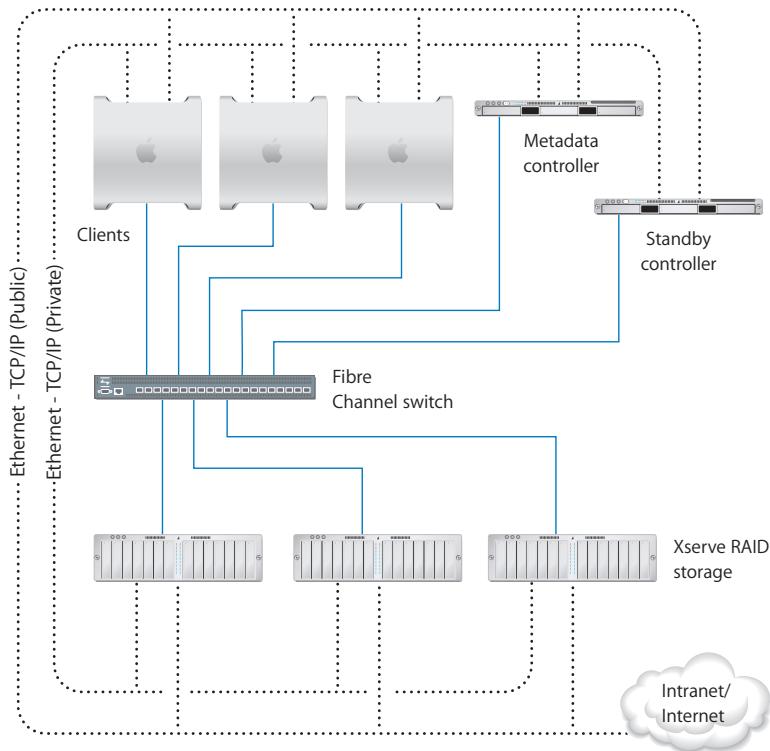
The following illustration shows the physical components of a typical Xsan SAN.
Shared SAN Volumes
Users and applications see shared SAN storage as local volumes. Xsan volumes are logical disks made up of groups of RAID arrays. The elements you combine to create an Xsan volume are described under "How Xsan Storage Is Organized" on page 23.
Controllers and Clients
When you add a computer to an Xsan SAN, you specify whether it will play the role of client, controller, or both.
Controllers
When you set up an Xsan SAN, you assign at least one computer to act as the controller. The controller manages the SAN volume metadata, maintains a file system journal, and controls concurrent access to files. Metadata includes such information as where files are actually stored and what portions of available storage are allocated to new files.
For high availability, you should add more than one controller to a SAN, as shown in the illustration on page 20. If the primary controller fails, the standby controller takes over. Though not recommended for best performance, controllers can also act as clients, so you can use a standby controller as a working client while the primary controller is operational.
Clients
The computers that users or applications use to access SAN volumes are called clients. Clients communicate with controllers over the Ethernet network but use Fibre Channel to send and retrieve file data to and from the RAID systems that provide storage for the volumes.
SAN Connections
Xsan uses independent networks to connect storage devices, metadata controllers, and client computers: a Fibre Channel network and one or two Ethernet networks.
User Data Over Fibre Channel
User data is transferred over high-speed Fibre Channel connections. Controllers also use a Fibre Channel connection to move metadata to and from the volume.
Metadata Over Ethernet
To eliminate unnecessary traffic on the Fibre Channel connections, controllers and clients use an Ethernet network to exchange file system metadata. (When a controller reads or writes metadata on a volume, it uses Fibre Channel.) The Xsan Admin application also uses the Ethernet connection to let you manage the SAN.
To prevent Internet or intranet traffic from interfering with metadata communications, you should set up separate Ethernet networks as shown in the illustration on page 20.
Fibre Channel Multipathing
Xsan can take advantage of multiple Fibre Channel connections between clients and storage. Xsan can alternate between connections for each read and write, or assign each LUN in a volume to one of the connections when the volume is mounted.
How Xsan Storage Is Organized
Users use an Xsan volume the same way they use a local disk. What they don't see is that the SAN volume actually consists of numerous physical disks combined on several levels using RAID techniques.
The following illustration shows an example of how disk space provided by the individual drive modules in several Xserve RAID systems is combined into a volume that users see as a large local disk.
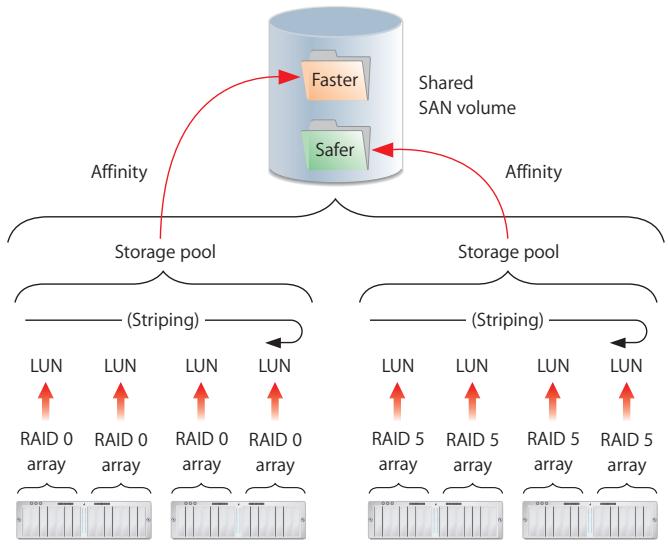
The following paragraphs describe these storage elements and how you organize them to create shared Xsan volumes.
LUNs
The smallest storage element you work with in Xsan is a logical storage device called a LUN (a SCSI logical unit number). In most storage area networks a LUN represents a group of drives such as a RAID array or a JBOD (just a bunch of disks) device. In Xsan, LUNs are Xserve RAID arrays or slices.
You create a LUN when you use the RAID Admin application to create an Xserve RAID array. The controller hardware and software in the Xserve RAID system combine individual drive modules into an array based on the RAID scheme you choose. Each array appears on the network as a separate LUN. If you slice an array, each slice appears as a LUN.
One of your first tasks when you set up a SAN volume is to prepare LUNs. If the two RAID 5 arrays on a new Xserve RAID are not right for your application, you can use RAID Admin to create arrays based on other RAID schemes. For help choosing schemes for your LUNs, see "Choosing RAID Schemes for LUNs" on page 44.
The illustration on page 23 shows four Xserve RAID systems that each host two arrays. Half of the arrays use a RAID 0 scheme (striping only) for speed while the others use RAID 5 (distributed parity) to ensure against data loss. Xsan sees the arrays as LUNs that can be combined to create a volume.
After your Xserve RAID LUNs are set up, you label and initialize them for use with the Xsan file system using Xsan Admin.
Storage Pools
LUNs are combined to form storage pools. A storage pool in a small volume might consist of a single RAID array, but storage pools in many volumes consist of multiple arrays.
Xsan distributes file data in parallel across the LUNs in a storage pool using a RAID 0 (striping) scheme. So, you can improve a client's access speed by distributing available storage over several LUNs in a storage pool.
You can set up storage pools that have different performance or recoverability characteristics and assign folders to them using affinities. Users can then select where to store files based on their need for speed or safety. See "Folders with Affinities" on page 28.
The illustration on page 23 shows eight LUNs combined into two storage pools, one pool consisting of RAID 0 (fast, but not recoverable) arrays and the other made up of RAID 5 (not as fast, but recoverable) arrays. Xsan stripes data across the four LUNs in each storage pool.
You use Xsan Admin to add available LUNs to specific storage pools.
Volumes
Storage pools are combined to create the volumes that users see. From the user's perspective, the SAN volume looks and behaves just like a large local disk, except that:
- The size of the volume can grow as you add underlying arrays or storage pools
- Other users on the SAN can access files on the volume at the same time
In the illustration on page 23, two storage pools are combined to create a single shared volume.
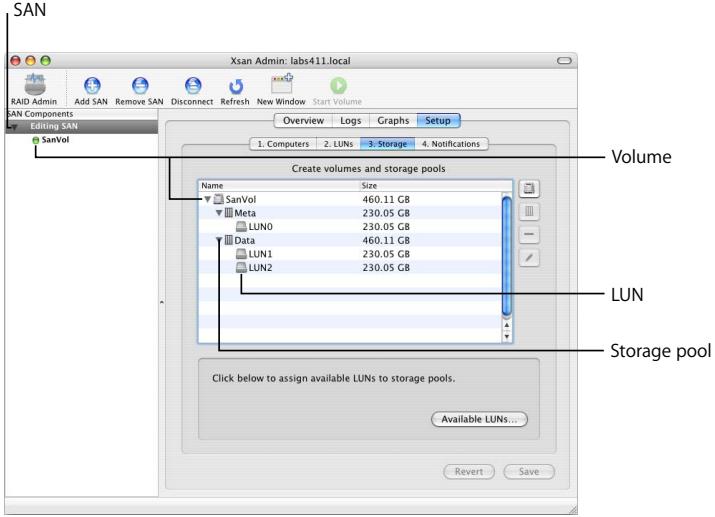
You create volumes and mount them on client computers using the Xsan Admin application.
The following screen image shows how LUNs, storage pools, and volumes appear as you organize them in Xsan Admin. This example shows a SAN named "Editing SAN" with a single shared volume named "SanVol." Storage for the volume is provided by two storage pools, "Meta" and "Data," the first based on a single LUN and the second on two. Each of the LUNs is a 3-disk RAID 5 array on an Xserve RAID using 115 GB drive modules.
Folders with Affinities
To control which storage pool is used to store specific files (for example, to provide different levels of service for different users or applications), you can associate a folder on an Xsan volume with one of the storage pools that make up the volume.
If, for example, you set up storage pools with different balances of performance and data redundancy, users can choose between faster and safer storage by putting files in the appropriate folder.
In the illustration on page 23, a predefined folder has an affinity for the faster storage pool that is based on RAID 0 arrays. Any file that a user copies into this folder is automatically stored on the faster arrays. A second folder is associated with the more secure RAID 5 storage.
How Xsan Utilizes Available Storage
Xsan stores both user files and file system data on SAN volumes, and stripes data across the LUNs in a volume for better performance.
Metadata and Journal Data
Xsan records information about the files in an Xsan volume using metadata files and file system journals. File system metadata includes information such as which specific parts of which disks are used to store a particular file and whether the file is being accessed. The journal data includes a record of file system transactions that can help ensure the integrity of files in the event of a failure.
These files are managed by the Xsan metadata controller, but are stored on SAN volumes, not on the controller itself. By default, metadata and journal data are stored on the first storage pool you add to a volume. You can use Xsan Admin to choose where these files are stored when you add storage pools to a new volume.
Striping at a Higher Level
When you write a file to a RAID array using RAID 0 (striping), the file is broken into segments that are spread across the individual disk drives in the array. This improves performance by writing pieces of the file in parallel (instead of one piece at a time) to the individual disks in the array. Xsan applies this same technique at a second, higher level in the storage hierarchy. Within each storage pool in a volume, Xsan stripes file data across the individual LUNs that make up the storage pool. Once again, performance is improved because data is written in parallel.
You can tune SAN performance by adjusting the amount of data written to each LUN in a storage pool (the "stripe breadth") to suit a critical application.
Security
As the SAN administrator, you can control access to shared volumes in several ways.
First, users cannot browse or mount SAN volumes. Only a SAN administrator can specify which volumes are mounted on which client computers. One way you can control access to data is to mount a volume only on appropriate client computers.
To prevent users from modifying data on a volume, you can mount the volume with read-only access.
You can control user access to folders on a volume by setting up access control lists (ACLs) in Workgroup Manager or by specifying owner, group, and general access permissions in the Finder.
You can also set up zones in the underlying Fibre Channel network to segregate users and volumes.
Expanding Storage
There are two ways you can add free space to an Xsan volume:
- Add Xserve RAID systems (new LUNs) to existing storage pools
- Add entire new storage pools to volumes
Both methods require you to unmount and remount the volume on clients.
You can also add new volumes to a SAN at any time.
For information about expanding Xsan storage, see "Adding Storage" on page 78.
Xsan Capacities
The following table lists limits and capacities for Xsan volumes.
| Parameter | Maximum |
| Number of computers on a SAN (controllers and clients) | 64 |
| Number of storage pools in a volume | 512 |
| Number of LUNs in a storage pool | 32 |
| Number of LUNs in a volume | 512 |
| Number of files in a volume | 4,294,967,296 |
| LUN size | Limited only by the size of the RAID array |
| Volume size | Limited only by the number and size of LUNs |
| File size | Approximately 263 bytes |
| Volume name length | 70 characters |
| File or folder name length | 251 characters |
| SAN name length | 255 characters |
| Storage pool name length | 255 characters |
| LUN name (label or disk name) | 242 characters |

Setting Up a Storage Area Network
2
This chapter lists requirements, suggests planning tips, and gives instructions for setting up an Xsan SAN.
This chapter contains:
Xsan hardware and software requirements (page 33) - Planning guidelines (page 39) SAN setup instructions (page 53)
Hardware and Software Requirements
Your SAN environment needs to satisfy requirements in these areas:
Supported computers - Supported storage devices - Fibre Channel fabric, adapters, and switches - Ethernet network - Directory services (optional) Outgoing mail service (optional)
Supported Computers
You can use Xsan 1.4 on computers that meet these minimum requirements:
Systems
- Macintosh computers with an Intel or PowerPC G5 processor
Memory
- Clients should have a minimum of 256 MB of RAM.
- Controllers should have a minimum of 512 MB of RAM. For optimum performance, add an additional 512 MB of RAM for each SAN volume hosted by the controller.
Supported Operating Systems
You can install Xsan 1.4 only on computers running
Mac OS X or Mac OS X Server v10.4.7 or later
To join an Xsan 1.4 SAN, Windows, AIX, IRIX, Linux, and Solaris clients must be running ADIC's StorNext File System version 2.6 or 2.7. For complete compatibility information, see "Version Compatibility" on page 12.
Supported Storage Devices
Although you can use any standard LUN storage device, this guide assumes you are using Xserve RAID systems for your storage devices.
Important: Be sure to install the latest firmware update on your Xserve RAID systems before you use them with Xsan.
For the best performance, use Xserve RAID systems that have:
- A full set of 14 Apple Drive Modules
- 512 MB of cache in each controller (1 GB total)
Fibre Channel Fabric
Unlike file system metadata, which controllers and clients exchange over Ethernet, actual file content in an Xsan SAN is transferred over Fibre Channel connections (as is metadata that controllers access on a volume). To set up the connections, you need:
- Apple Fibre Channel PCI, PCI-X, or PCI-E cards for each client and controller computer
- One or more supported Fibre Channel switches
- Fibre Channel cables connecting computers and storage devices to the switches to form a Fibre Channel fabric
Fibre Channel PCI Cards
Install Apple Fibre Channel PCI, PCI-X, or PCI-E cards in all Macintosh computers that will connect to the SAN.
Fibre Channel Switches
The following Fibre Channel switches have been tested with Xsan, Xserve RAID systems, and the Apple Fibre Channel PCI, PCI-X, and PCI-E cards:
- Brocade Silkworm 3200, 3800, 3900, and 12000 series
- QLogic SANbox 2-8, SANbox 2-16, SANbox 2-64, SANbox 1400, and SANbox 5200 Emulex SAN Switch 355, 375, and 9200 Cisco MDS 9000 family
For the latest additions to this list of qualified switches, see the Xsan webpages at www.apple.com/xsan/.
Fabric Configuration
You must connect the computers, storage devices, and switches in your Fibre Channel network to form a Fibre Channel "fabric." In a fabric, Fibre Channel cables connect node ports (F or N_Port). See the documentation that came with your Fibre Channel switches for more information.
Note: If you are using a Vixel 355 switch, you must connect Xserve RAID systems to an FL (arbitrated loop) port on the switch.
You cannot use Fibre Channel Arbitrated Loop (FL ports) with an Xsan SAN, with the exception noted above for Vixel 355 switches.
Ethernet TCP/IP Network
Computers on the SAN must also be connected to an Ethernet network. Xsan uses this network instead of the Fibre Channel network to transfer file system metadata, reserving the Fibre Channel connections for actual file contents.
If the computers on your SAN need to communicate with directory servers, a corporate or campus intranet, or the Internet, you should connect each SAN client and controller to two separate Ethernet networks: one private subnet for the SAN and a separate connection for directory, intranet, or Internet traffic. This is important if you plan to use the SAN for high-performance applications such as video editing.
IP Addresses and Domain Names
Assign fixed, non-routed IP addresses to all clients, controllers, and storage devices connected to the SAN Ethernet network. Don't use DHCP to assign addresses to SAN devices. You can use the following ranges of IP addresses on your private (non-routed) subnet:
| Private address range | Associated subnet mask | Comments |
| 10.0.0.0 – 10.255.255.255 | 255.0.0.0 | 10/8 |
| 172.16.0.0 – 172.31.255.255 | 255.240.0.0 | 172.16/12 |
| 192.168.0.0 – 192.168.255.255 | 255.255.0.0 | 192.168/16 |
Directory Services
If you plan to use user and group privileges to control access to files and folders on the SAN, you can simplify management by setting up or joining a user and group directory. Although not required, a central directory lets you manage users and groups on one computer instead of having to visit all SAN clients and controllers.
If you already have a directory service, you can use the Directory Access application on each controller and client to access the directory for user and group information.
If you don't use a central directory service, you need to set up users and groups on each SAN computer.
Important: If you create users and groups on each SAN computer, be sure that 1) each user or group has a numeric user ID (UID) or group ID (GID) that is unique throughout the SAN and 2) each user or group defined on more than one computer has the same UID or GID on each computer.
If you don't have access to a directory service, you can use the directory services in Mac OS X Server to set up an LDAP directory of SAN users and groups.
Note: If you do create your user accounts in a centralized directory, be aware that some applications running on SAN client computers, such as Final Cut Pro, for example, work better when users have local home folders. For help setting up local home folders for users with network accounts, see "Creating Local Home Folders for Network Accounts" on page 120.
Outgoing Mail Service
Xsan can send SAN status notifications via email on your local subnet or corporate network without using a separate mail server. However, to send notifications outside your local network, you need an SMTP server to act as a mail gateway. If you don't have access to an outgoing mail server, you can use the mail service in Mac OS X Server to set one up.
Planning Your SAN
It's easy to add storage to an existing Xsan SAN, but reorganizing a SAN after you set it up is not so simple. So, it's important to plan the layout and organization of your SAN and its storage before you set it up.
An Xsan SAN is composed of:
- Storage devices (usually Xserve RAID systems)
- LUNs (logical unit numbers, usually RAID arrays)
- Storage pools (groups of LUNs)
- Volumes (groups of storage pools visible to users)
- Clients (computers that use volumes)
- Controllers (computers that manage volume metadata)
- Underlying Fibre Channel and Ethernet networks
Before you use Xsan Admin to set up a SAN, decide how you want to organize these components. Take the time to create a drawing or a table that organizes available hardware into RAID arrays, storage pools, volumes, client computers, and controllers in a way that meets both your users' needs and your needs as the SAN administrator.
Then, consider the following questions.
Preliminary Planning Questions
How much storage do you need? - How do you want to present available storage to users? - What storage organization makes the most sense for user workflow? - What levels of performance do your users require? - How important is constant availability? What are your requirements for security?
Your answers to the above questions will help you decide the following:
- What RAID schemes should you use for your RAID arrays? How many SAN volumes do you need?
- How should individual volumes be organized?
- Which LUNs go in each storage pool?
- Which storage pools make up each volume?
- Which clients, users, and groups should have access to each volume?
- Which computers will act as controllers?
- Do you need standby controllers?
- Do you want to use controllers as clients also?
- Where do you want to store file system metadata and journal data? What allocation strategy should you use?
Review the considerations and guidelines on the following pages for help translating your answers into a suitable SAN design.
Planning Considerations and Guidelines
The following paragraphs might help you make some of your SAN design decisions.
How Much Storage?
Because it's easy to add storage to an Xsan SAN, you only need to decide on an adequate starting point. You can then add storage for user data as needed.
You can't expand a storage pool that is used to store volume metadata and journal data. For information about estimating your metadata and journal data storage requirements, see "Estimating Metadata and Journal Data Storage Needs" on page 50.
Note that the number of Xserve RAID systems you use affects not only available space but also SAN performance. See "Performance Considerations," below.
How Should Users See Available Storage?
If you want the users working on a particular project to see a volume dedicated to their work, create a separate volume for each project. If it's acceptable for a user to see a folder for his or her work on a volume with other peoples' folders, you can create a single volume and organize it into project folders.
Workflow Considerations
How much file sharing is required by your users' workflow? If, for example, different users or groups work on the same files, either simultaneously or in sequence, it makes sense to store those files on a single volume to avoid having to maintain or hand off copies. Xsan uses file locking to manage shared access to a single copy of the files.
Performance Considerations
If your SAN supports an application (such as high resolution video capture and playback) that requires the fastest possible sustained data transfers, design your SAN with these performance considerations in mind:
- Set up the LUNs (RAID arrays) using a RAID scheme that offers high performance. See "Choosing RAID Schemes for LUNs" on page 44.
- Group your fastest LUNs in storage pools reserved for the application. Reserve slower devices for a volume dedicated to less demanding or supporting applications.
- To increase parallelism, spread LUNs across different Xserve RAID controllers. For example, instead of creating a single 4-disk LUN on one side of an Xserve RAID, create two 2-disk LUNs, one on each side, and add these LUNs to a storage pool. Xsan then stripes data across the two LUNs and benefits from simultaneous transfers through two controllers.
- To increase parallelism in a relatively small storage pool (the size of one or a few drive modules), create a slice of similar size across all the drives on a controller instead of creating the storage pool from just one or two drive modules.
- Spread file transfers across as many drives and RAID controllers as possible. Try creating slices across the drives in RAID systems, and then combine these slices into a storage pool.
- To increase throughput, connect both ports on client Fibre Channel cards to the fabric and set the multipathing method for the storage pool to Rotate.
- Store file system metadata and journal data on a separate storage pool from user data, and make sure the metadata LUNs are not on the same RAID controller as any user data LUNs.
- Use a router to isolate the Ethernet network used by the SAN from a company intranet or the Internet, or better, use a second Ethernet network (including a second Ethernet card in each SAN computer) for the SAN.
- If your SAN uses directory services, mail services, or other services on a separate server, use a second, separate Ethernet network to connect SAN computers to that server.
- As a rule of thumb, consider that a single Xserve RAID controller, after file system overhead, can transfer roughly 80 MB of user data per second (160 MB per Xserve RAID system). If your SAN must support an application running on multiple clients that requires specific throughput on each client, you can use this number to estimate the number of Xserve RAID systems necessary to support the aggregate transfer rate.
Availability Considerations
If high availability is important for your data, set up at least one standby controller in addition to your primary controller. Also, consider setting up dual Fibre Channel connections between each client, controller, and storage device using redundant Fibre Channel switches.
Important: Losing a metadata controller without a standby can result in the loss of all data on a volume. A standby controller is recommended.
Also, if you have a standby controller, you can upgrade the Xsan software without interrupting the SAN. For more information, see "Upgrading Controller Software" on page 129.
Security Considerations
If your SAN will support projects that need to be completely secure and isolated from each other, you can create separate volumes for each project to eliminate any possibility of the wrong client or user accessing files stored on a volume.
As the SAN administrator, you control which client computers can use a volume. Clients can't browse for or mount SAN volumes on their own. You use Xsan Admin to specify which clients a volume is mounted on.
You can also set up access control lists (ACLs) in Workgroup Manager or assign user and group permissions to folders using standard file access permissions in the Finder.
Choosing RAID Schemes for LUNs
Much of the reliability and recoverability of data on a SAN is not provided by Xsan itself but by the RAID arrays you combine to create your storage pools and volumes. Before you set up a SAN, you use the RAID Admin application to prepare LUNs based on specific RAID schemes.
Important: If a LUN belonging to an Xsan volume fails and can't be recovered, all data on the volume is lost. It is strongly recommended that you use only redundant LUNs (LUNs based on RAID schemes other than RAID 0) to create your Xsan volumes.
LUNs configured as RAID 0 arrays (striping only) or LUNs based on single drives are difficult or impossible to recover if they fail. Unprotected LUNs such as these should only be used for volumes that contain scratch files or other data that you can afford to lose.
Xserve RAID systems ship already configured as recoverable RAID 5 arrays.
Xserve RAID supports all popular RAID levels. Each RAID scheme offers a different balance of performance, data protection, and storage efficiency, as summarized in the following table.
| RAID level | Storage efficiency | Read performance | Write performance | Data redundancy |
| RAID 0 | Highest | Very High | Highest | No |
| RAID 1 | Low | High | Medium | Yes |
| RAID 3 | High to very high | Medium | Medium | Yes |
| RAID 5 | High to very high | High | High | Yes |
| RAID 0+1 | Low | High | High | Yes |
RAID 10, 30, and 50 schemes assume the use of AppleRAID software striping and aren't appropriate for use with Xsan, which performs its own striping. For more help choosing RAID schemes for your arrays, see the Xserve RAID User's Guide or the Xserve RAID Technology Overview (at www.apple.com/server/documentation/).
Deciding on the Number of Volumes
A volume is the largest unit of shared storage on the SAN. If your users need shared access to files, you should store those files on the same volume. This makes it unnecessary for them to pass copies of the files among themselves.
On the other hand, if security is critical, one way to control client access is to create separate volumes and mount only the authorized volume on each client.
For a more typical balance of security and shared access, a flexible compromise is to create a single volume and use folder access privileges or access control lists in Mac OS X Server's Workgroup Manager to control access.
Deciding How to Organize a Volume
You can help users organize data on a volume or restrict users to specific areas of the volume by creating predefined folders. You can control access to these folders by assigning access permissions using Xsan Admin.
You can assign folders to specific storage pools using affinities. You can, for example, create a folder for data that requires fast access and assign that folder to your fastest storage pool.
Assigning LUNs to Storage Pools
You should set up a storage pool using LUNs that have similar capacity and performance characteristics.
To provide high performance, Xsan uses the RAID 0 scheme to stripe data across the LUNs in a storage pool. This requires that the LUNs in the pool be the same size. If you set up a storage pool using LUNs of different sizes, Xsan uses available space on each LUN equal to the capacity of the smallest LUN. If the LUNs vary in size, this can result in wasted capacity. For example, if you assign 240 GB and 360 GB RAID arrays to a storage pool, 120 GB of the larger array will not be used. By combining LUNs with similar capacities, you avoid wasting available storage.
If you want to set up a storage pool for use by a high performance application, assign similarly high speed LUNs. Assign slower LUNs to a storage pool where you keep data that doesn't have critical performance requirements.
Creating storage pools from LUNs that are hosted on different drive modules and different RAID controllers increases performance by increasing the parallelism of data transfers. For example, a storage pool consisting of two LUNs, each a single drive module on the left side of an Xserve RAID, will not be as fast as a similarly sized storage pool made up of two LUNs that are single slices across all seven drives, one slice on each controller. In the first case, all transfers go through a single RAID controller to just two drives; in the second case the same transfer is spread across two RAID controllers and fourteen drives.
Assigning Storage Pools to Volumes
After you decide how to combine available LUNs into storage pools, assign the storage pools to the volumes you want to create.
For best performance, create a separate storage pool just for file system metadata and journal data.
Deciding Which Clients to Mount a Volume On
If you create multiple volumes, decide which volumes should be mounted on which clients.
Choosing Controllers
You must choose at least one computer to be the SAN controller, the computer that is responsible for managing file system metadata.
Note: File system metadata and journal data are stored on the SAN volume, not on the controller itself. For more information, see "Choosing Where to Store Metadata and Journal Data" on page 49.
If you have a small number of clients or if performance is not critical you can use a single computer as both controller and client. You can even set up a SAN consisting of a single storage device and a single computer that acts as both controller and client (to provide network attached storage, for example).
If high availability is important, you should use at least two controllers, one as the primary controller and one as a standby. You can specify additional controllers as needed, and set their failover priorities to determine the order in which they are tried if the primary controller stops responding.
If performance is critical, don't run other server services on the metadata controller and don't use the controller itself to reshare a SAN volume using AFP or NFS.
Choosing Standby Controllers
To be sure that SAN volumes are always available, set up at least one standby controller that can take over if your primary metadata controller fails. A standby controller also makes it possible for you to upgrade software on the controllers without interrupting user access to SAN volumes.
Combining Clients and Controllers
The same computer can function as both a metadata controller and a client. It's possible, for example, to set up a SAN consisting of a single Xserve RAID and one computer that acts as both controller and client. Any computer you specify as a controller can also act as a client.
If, for example, you don't have a computer to dedicate as a standby controller, you can assign a computer that is normally used as a client to take over controller duties if the primary controller fails.
To keep clients and controllers separate, you can set up client-only computers for your users.
Choosing Where to Store Metadata and Journal Data
The metadata and journal data that describe a volume are not stored on the volume's metadata controller but on the volume itself. By default, they are stored on the first storage pool in the volume. If the volume consists of more than one storage pool, you can choose which storage pool is used to store metadata and journal data.
In most cases, storing metadata and journal data on the same storage pool as user data results in adequate performance. However, for the best possible performance, store metadata and journal data on a separate storage pool within the volume and make sure that the LUNs used are connected to a different RAID controller than the LUNs that make up user data storage pools.
Estimating Metadata and Journal Data Storage Needs
To estimate the amount of space required for Xsan volume metadata, assume that 10 million files on a volume require approximately 10 gigabytes of metadata on the volume's metadata storage pool.
Choosing an Allocation Strategy
The allocation strategy you choose for a volume determines the order in which its storage pools are filled with data. You can choose round robin, fill, or balance.
If you choose round robin, Xsan writes new data in turn to each storage pool in the volume.
If you choose fill, Xsan writes all new data to the first storage pool in the volume until that storage pool is full, and then moves to the next storage pool. This is a good choice if you want to keep a particular storage pool unused as long as possible.
If you choose balance, Xsan writes new data to the storage pool with the most free space.
Connecting Computers and Storage Devices
Before you set up your Xsan SAN, connect client computers, controller computers, and storage devices to the SAN's Fibre Channel and Ethernet networks. Make sure your networks meet the requirements summarized under "Fibre Channel Fabric" on page 35 and "Ethernet TCP/IP Network" on page 36.
Preparing LUNs
Xserve RAID systems usually come preconfigured with two RAID 5 arrays, one on each side (on each controller). So, out of the box, each Xserve RAID provides two LUNs. If this suits your needs, no other preparation is needed.
If you want to set up some other combination of RAID arrays or slices, you need to do so using the RAID Admin application before you can add the resulting LUNs to your SAN's storage pools. For help using RAID Admin, see Using RAID Admin 1.2 and Disk Utility (available at www.apple.com/server/documentation/). For information about choosing a RAID scheme, see "Choosing RAID Schemes for LUNs" on page 44.
Note: You don't need to use Disk Utility to format arrays or slices for use with Xsan. The LUNs are labeled and initialized when you add them to a storage pool using Xsan Admin. After they are labeled, the LUNs can't be modified using Disk Utility.
Be sure to create arrays of similar size if you plan to combine them into the same storage pool. For more information, see "Assigning LUNs to Storage Pools" on page 46.
Using the Xsan Admin Application
You use the Xsan Admin application to set up and manage SANs. You can use Xsan Admin to manage a SAN from any computer that has access to the SAN's TCP/IP subnet.
Xsan Admin is installed in /Applications/Server/.
Installing Just the Xsan Admin Application
Xsan Admin is included when you install the Xsan software on SAN controller and client computers. You can also install just Xsan Admin on any other computer you want to use to manage the SAN. For help, see page 55.
Connecting Through a Firewall
If there is a firewall between the SAN and the computer you're using to run Xsan Admin, you need to open port 311 in the firewall so Xsan Admin can communicate with the SAN computers.
Xsan Admin Preferences
Open Xsan Admin and choose Xsan Admin > Preferences to adjust these settings:
- The use of SSL or digital signatures to secure communications
- Listing computers by IP address instead of using DNS to display names Smoothing of SAN utilization graphs
- Connection alerts SAN status refresh interval The amount of log information displayed
Getting Help
Xsan Admin includes onscreen help. Choose Help > Xsan Admin Help, or click the help button in any dialog or pane where it appears.
Using the Command Line
If necessary, you can perform many Xsan setup and management tasks from a shell command prompt. For more information, see Appendix B.
SAN and Volume Setup Summary
You'll perform the following tasks to set up your first Xsan storage area network. Details for each task are on the indicated pages.
1 Set up the Fibre Channel network (page 54) 2 Set up the Ethernet network (page 54) 3 Set up SAN users and groups (page 54) 4 Set up LUNs (page 55) 5 Install Xsan software on SAN computers (page 55) 6 Log in to the SAN (page 57) 7 Choose a controller and add clients (page 58) 8 Label and initialize available LUNs (page 61) 9 Create volumes (page 63) 10 Add storage pools to volumes (page 65) 11 Add LUNs to storage pools (page 67) 12 (Optional) Set up status notifications (page 68) 13 (Optional) Assign folders to storage pools (page 69) 14 (Optional) Set user and group quotas (page 71) 15 Start the volumes and mount them on clients (page 73)
Setting Up an Xsan Volume on a Storage Area Network
Step 1: Set Up the Fibre Channel Network
- Connect controller computers, client computers, and Xserve RAID storage systems to a Fibre Channel network. Be sure to configure the switch and make the connections so that you create a Fibre Channel fabric.
For more information, see the guidelines and requirements under "Fibre Channel Fabric" on page 35.
Step 2: Set Up the Ethernet Network
- Connect controller computers, client computers, and Xserve RAID systems to a private TCP/IP subnet, or to the same subnet of an intranet.
Follow the guidelines summarized under "Ethernet TCP/IP Network" on page 36.
Step 3: Set Up SAN Users and Groups
- If you already have a centralized directory of users and groups, use the Directory Access application on each SAN computer to choose that directory for authentication. If you don't have a central directory, you can set one up using Workgroup Manager and the Open Directory service in Mac OS X Server. Otherwise, you need to recreate the same set of users and groups on each SAN computer.
Important: If you create users and groups individually on each SAN computer, be sure that each user or group name is assigned the same numeric user ID (UID) or group ID (GID) on all SAN computers. One way to do this is to create an identical list of users and groups in the same order on each computer following a fresh install of the operating system.
Step 4: Set Up LUNs
- New Xserve RAID systems are usually preconfigured as two RAID 5 arrays that are ready to use as LUNs. To set up some other configuration of LUNs, use the RAID Admin application to create RAID arrays or slices on your Xserve RAID systems. For help choosing other RAID schemes, see "Choosing RAID Schemes for LUNs" on page 44.
Important: If you set up a LUN that is larger than 2 terabytes (TB), be aware that older clients (those running Xsan on Mac OS X 10.3 Panther or Xsan 1.2 or earlier on Mac OS X 10.4 Tiger) cannot read these large LUNs. A dialog appears on these older clients that says the LUN is unreadable. Be sure to click ignore to dismiss this dialog. Do not click Format, or information on the corresponding Xsan volume will be lost. If you use LUNs greater than 2 TB, you should upgrade all SAN clients to Xsan 1.3 or later on Mac OS X or Mac OS X Server v10.4.
Step 5: Install Xsan Software on Clients and Controllers
Take the Xsan installation disc to each controller and client computer connected to the SAN and install the Xsan software.
To install the Xsan file system and Xsan Admin application:
- Insert the disc and double-click the Xsan installer icon.
To install just the Xsan file system without Xsan Admin:
- Click Customize on the final installer window and deselect Xsan Admin.
To install just the Xsan Admin application:
- On the Xsan installation disc, open the Admin Tools folder, and double-click XsanAdmin.pkg.
To install Xsan on a computer that has no keyboard or monitor:
1. Log in to a computer that does have a keyboard and monitor, and then insert the Xsan disc. 2. Open the Terminal application (in /Applications/Utilities/). 3. In Terminal, copy the Xsan installer package to the remote computer: $ scp -r /Volumes/Xsan/Install_Xsan.mpkg user@remotehost:/tmp/ where user is an administrator user on the remote computer and remotehost is the IP address or DNS name of the computer you want to install on.
4. Log in to the remote computer:
$ ssh user@remotehost
where user and remotehost are the same as in the previous step.
5. Run the installer on the headless computer:
$ sudo installer -pkg /tmp/Install_Xsan.mpkg -target /
Or, if you want to watch the progress of installation, add the -verbose parameter:
$ sudo installer -verbose -pkg /tmp/Install_Xsan.mpkg -target /
Step 6: Open Xsan Admin and Log In to the SAN
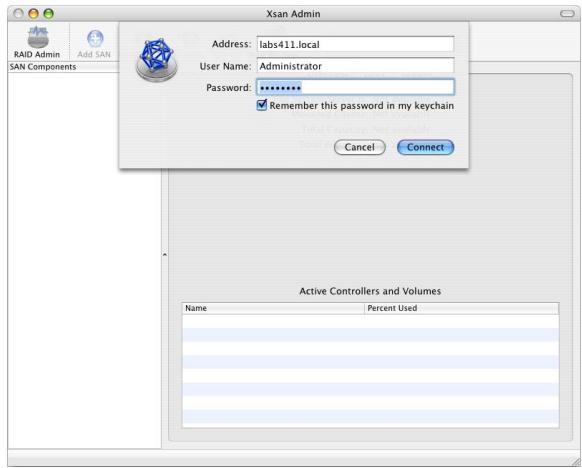
1. Open Xsan Admin on any computer connected to the SAN.
Xsan Admin is in /Applications/Server/.
You can open Xsan Admin on any computer attached to the SAN, or on any remote computer that can reach the SAN's TCP/IP subnet.
2 When the login dialog appears, use an administrator account to log in to a SAN computer that will be used as a controller. 3 Click Setup.
4 In the Computers pane, type a name for the SAN and click Save.
The SAN name you type appears in the SAN Components list instead of the controller name or address. To list the controller instead, deselect "Use SAN name in list" in Xsan Admin Preferences.
Step 7: Set Up Controllers and Clients
All computers on the local network that have Xsan installed are listed in the Computers pane. In this step you choose at least one computer to act as metadata controller and set up the others as clients.
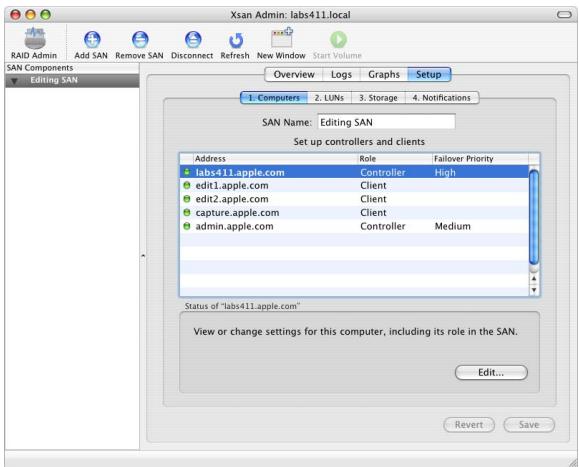
1 In the Computers pane, select a computer in the list.
If the computer you're looking for is not listed, make sure the Xsan software is installed on it, that it is connected to the SAN's Ethernet subnet, and that it is turned on and not set to sleep.
2 If the Authenticate button appears, click it and type an administrator user name and password for the computer you are adding to the SAN. 3 Click Edit. 4 Choose whether the computer will function as a controller or a client.
You must choose at least one computer to act as controller for the SAN. Choose from the Role pop-up menu:
Client: The computer functions as a client only.
Controller: The computer acts as a controller and is also available for use as a client.
There is no controller-only choice. All controllers are also ready to function as clients.
To prevent a controller from being used as a client, restrict user logins on or physical access to the computer.
5 If the computer is a controller, choose its failover priority. Choose High for the primary controller or the only controller in the SAN. Choose Medium or Low for standby controllers. 6 If this computer is a controller, choose the network interface it will use for metadata communications with other clients and controllers from the "Access the SAN via" pop-up menu. 7 Type an Xsan software serial number.
You can find the serial number for a single copy of Xsan on the Xsan installation disc sleeve. If you're using individual licenses for each copy of Xsan, make sure each serial number in the SAN is unique, and leave the "Registered to" and Organization fields blank.
If you purchased a site-licensed serial number, you can find it on the documentation you received when you purchased the license.
8 If you're using a site-licensed serial number, type the registered license holder and organization in the "Registered to" and Organization fields. Be sure to type these exactly as they were provided when you purchased the license. 9 Click OK, and then repeat these steps for other computers in the list. 10 When you're through, click Save.
Step 8: Label and Initialize LUNs
Next, label and initialize the available LUNs for use with the Xsan file system. Each LUN represents one of the RAID arrays or slices you set up using RAID Admin.
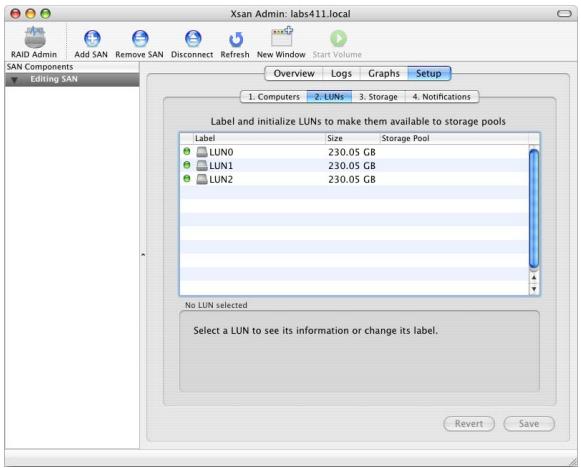
1 In Xsan Admin, click LUNs in the Setup pane.
Responding storage devices are listed by name and size. You should see one LUN for each RAID array or slice you created on Xserve RAID systems attached to the SAN's Fibre Channel network.
If some newly created LUNs are not listed, click Refresh or wait a moment for them to appear. If they still don't appear, quit Xsan Admin, restart the computer, and try again.
If existing LUNs are not listed, particularly if they are LUNs you have used before as part of an old Xsan volume, try removing the old label from the LUN. For instructions, see "Some LUNs Aren't Listed in Xsan Admin" on page 146.
2 Select a LUN and click Edit. (You can also just double-click the LUN in the list.) 3 Type a label for the LUN. 4 If the LUN is larger than 2 terabytes (TB) and will be part of a volume mounted only on clients running Xsan 1.3 or 1.4 on Mac OS X v10.4 Tiger, you can select the option "Allow LUN to exceed 2 TB capacity." 5 Click OK 6 Repeat for each unlabeled LUN. 7 Click Save to initialize the LUNs.
Now you can organize the LUNs into storage pools and volumes.
Step 9: Create Volumes
Next, you'll create the volumes your users will see.
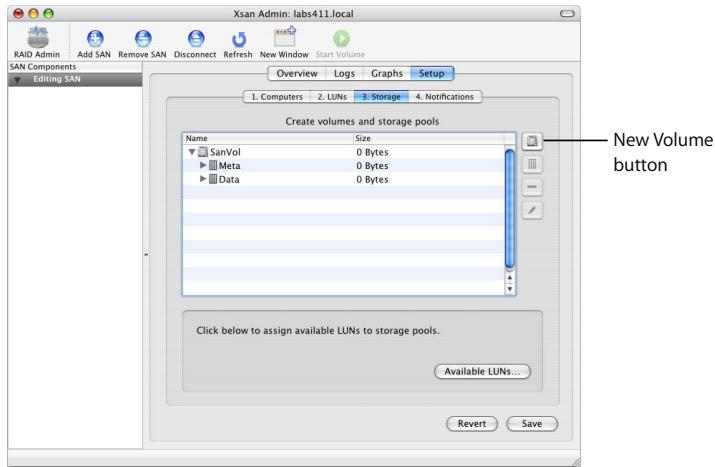
1 In Xsan Admin, click Storage in the Setup pane. 2 Click the New Volume button (next to the empty list). 3 Type a name for the volume.
Use only uppercase letters (A-Z), lowercase letters (a-z), numbers (0-9), and underscores (_). Don't include spaces or hyphens. The maximum length is 70 characters.
4 Don't adjust the block allocation size unless you have specific performance tuning needs.
For more information, see "Choosing Block Allocation Size for a Volume" on page 98.
5 Choose an allocation strategy. This determines the order in which data is written to the storage pools that make up the volume. You can choose:
- Round Robin: New data is written to the next available storage pool in the volume.
- Fill: Data is stored on the first storage pool until it is full, and then on the next storage pool.
- Balance: New data is written to the storage pool that has the most free space.
6 If you have Windows clients, choose an ID mapping method.
Note: To use ID mapping, Windows clients must be running StorNext 2.7Xsan controllers and clients must be running Xsan 1.3 or later.
- Generate IDs from GUID: Windows clients dynamically generate UIIDs and GIDs based on GUID information in an Active Directory domain.
- Use IDs from LDAP (RFC 2307): Windows clients get UID and GID values from the uidNumber and gidNumber attributes in Active Directory records.
For more information, see "Mapping Windows User and Group IDs" on page 112.
7 Click OK.
Repeat these steps if you want to create additional volumes.
Now you're ready to add storage pools to each volume.
Step 10: Add Storage Pools to the Volumes
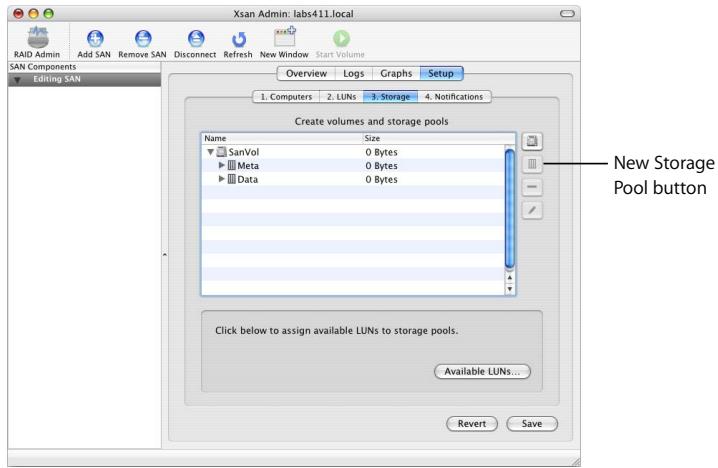
1. Select a volume in the list and click the New Storage Pool button (next to the list). 2. In the storage pool dialog, provide the following information.
- Storage Pool Name: Type a name for the storage pool. If the OK button is disabled after you type a name, the name is reserved. For a list of reserved names, see "You're Unable to Add a Storage Pool" on page 151.
- Use for: Choose the type of data to store in the storage pool. Journal data is used by the controller to ensure the integrity of files in the volume. Metadata is file system information used by the controller. Journal data and metadata are always stored at least on the first storage pool in a volume. If this is not the first storage pool in the volume, you can choose "User data only." To allow only files saved in a folder that has an affinity for this storage pool, enable "Only data with affinity."
- Stripe Breadth: Unless you have calculated a different value for performance tuning, leave this set to the default (256 blocks). Otherwise, change this number to the amount of data written, in turn, to each LUN in the storage pool. For optimum performance with Xserve RAID systems, the stripe breadth multiplied by the block allocation size (which you set for the volume) should equal 1 MB (1,048,576 bytes). For more information, see "Choosing Stripe Breadth for a Storage Pool" on page 93.
- Multipath Method: If you have two Fibre Channel connections between each client computer and Xserve RAID system, choose how Xsan uses the connections. Choose Rotate to have Xsan alternate between the connections for maximum throughput. Choose Static to have Xsan assign each LUN in the storage pool alternately to one of the connections when the volume is mounted.
3. Click OK to return to the list. 4. Repeat for each storage pool you need.
Step 11: Add LUNs to Storage Pools
The final step in preparing storage for the SAN is assigning LUNs to the storage pools in your SAN volumes:
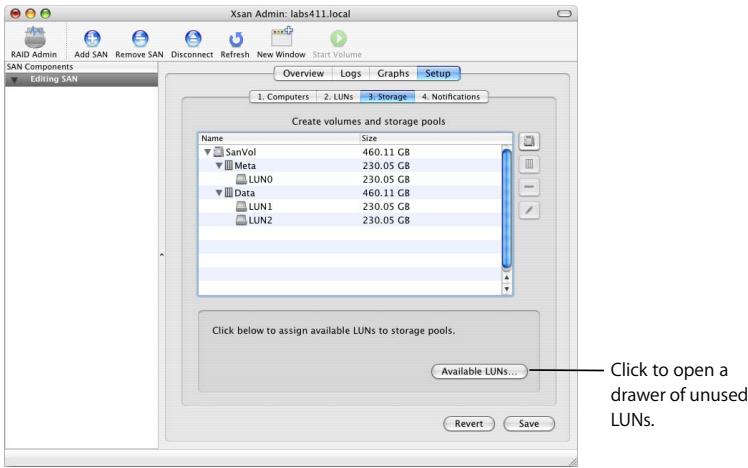
1. Select a storage pool in the Storage pane and click Available LUNs.
A drawer opens with a list of all the LUNs you initialized on page 61.
2. Drag LUNs from the drawer to the storage pool.
If a new LUN is larger than the LUNs already in the storage pool, the usable size is shown next to the LUN in the list.
3 Click Save.
Step 12: (Optional) Set Up SAN Status Notifications
Xsan can notify you by email or pager when the condition of the SAN changes. If you don't want to set up notifications now, you can do it later.
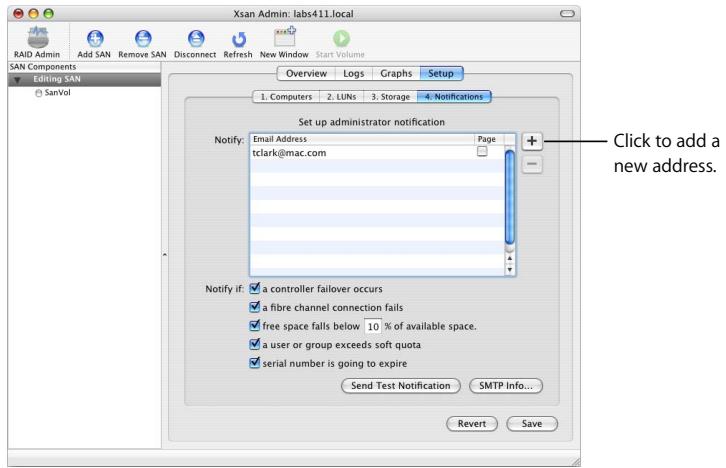
1 In the Notification pane, click the Add button (+) next to the list to add a contact. 2 Type an email address or the address of a pager text-messaging account, and press Return. 3 If the entry is for a pager, select the checkbox in the Page column. 4 Choose the conditions that cause a notification to be sent (next to "Notify if").
5 If the notification is to be sent to a computer that is not on the local SAN subnet, click SMTP Info and enter a sender name and the mail server address for the SMTP server that will relay the email. 6 To verify that notifications are set up correctly, click Send Test Notification.
Step 13: (Optional) Assign Folders to Storage Pools
If you want to force specific files to be stored in a specific storage pool of a volume, create a folder with an affinity for that storage pool. Then, files that users put in the folder are stored only on that storage pool.
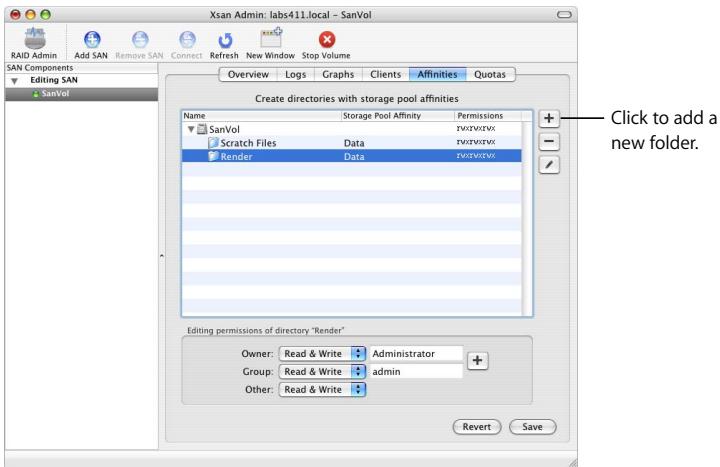
1 In Xsan Admin, select a volume in the SAN Components list and click Start Volume. 2 With the volume still selected, click Clients. 3 Select the controller you're connected to and click Mount Read & Write. 4 Click Affinities. 5 If the folder doesn't already exist, click the Add (+) button next to the list. 6 In the dialog that appears, type a name for the folder, choose the storage pool where the folder (and all files placed in it) will be stored, and click OK.
If the storage pool you want to use is not listed in the Storage Pool Affinity pop-up menu, it might not be set to allow user data. To check, select the SAN in the SAN Components list, click Setup, and click Storage. Then select the storage pool, click the Edit button, and check which data types are enabled next to Use For.
7 Select the new folder and set permissions (below the list).
To change the owner or group, click the Add (+) button and drag a user or group from the drawer that appears.
8 Click Save.
Step 14: (Optional) Set User and Group Quotas
You can set up quotas to control how much space on each SAN volume is used by each user or group.
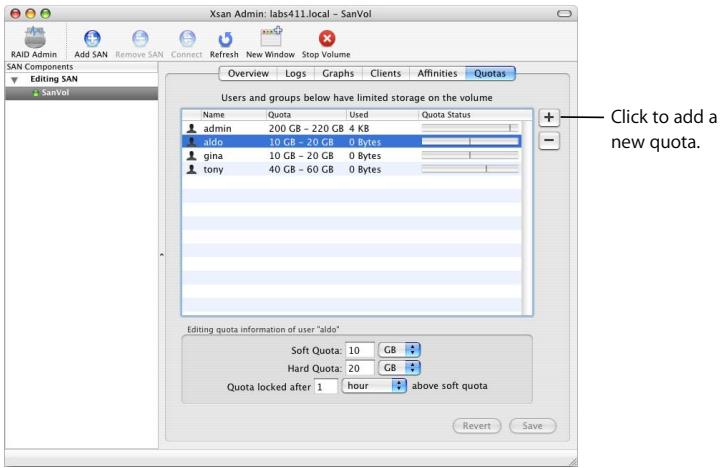
1 If the volume you want to set the quota for is not already started, select it in the SAN Components list and click Start Volume. 2 With the volume still selected, click Quotas.
3 Click the Add (+) button, and then drag a user or group from the drawer to the quotas list.
If you don't see the SAN users in the drawer, open Directory Access (in /Applications/Utilities/) and make sure you're using the correct directory for user authentication.
4 Select the user or group in the quotas list and adjust their quota settings in the lower half of the window.
- Soft Quota: The user's recommended working maximum. The user can exceed this limit as needed, but only for the length of time specified following "Quota locked after."
- Hard Quota: The absolute maximum amount of storage the user's data can occupy.
- "Quota locked after ____": The length of time the user can exceed his or her soft quota before it automatically becomes a hard quota.
5 Click Save.
Step 15: Start the Volumes and Mount Them on Clients
To make a volume available to a user or application on a client computer, you must use Xsan Admin to start the volume and mount it on the client. Users logged in to client computers can't browse for or mount SAN volumes themselves.
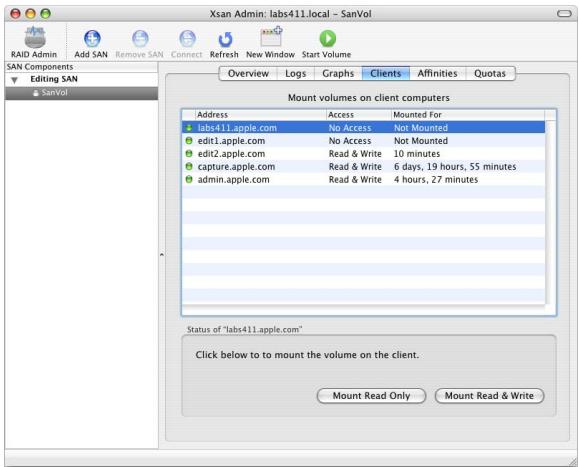
1 In Xsan Admin, select each new volume in the SAN Components list and click Start Volume.
If you already set up affinities or quotas on the volume, the volume is already started.
2 With the volume still selected, click Clients. 3 Select a client computer.
4 To allow the client to modify files on the volume, click Mount Read & Write.
To prevent the client from modifying the volume, click Mount Read Only.
Shift-click computers to mount on more than one at a time.
An icon for the mounted volume appears in the Finder on each client computer.
If you're unable to mount volumes on a client, check your Fibre Channel switch configuration to be sure that the SAN's clients, controllers, and storage devices are in the same Fibre Channel zone. If you still have trouble, try shutting down all clients and controllers, restarting the controller first and then the clients, and mounting again.
Renaming a SAN
SANs are listed by name in the SAN Components list in Xsan Admin. By default, a SAN is named for the controller you connect to when you set up the SAN. You can change this name using Xsan Admin.
To change the name of a SAN:
1 Open Xsan Admin (in /Applications/Server/). 2 Select the SAN in the SAN Components list.
If the SAN is not listed under SAN Components, click Connect and log in to the SAN's controller.
3 Click Setup, and then click Computers. 4 Type a name in the SAN Name field and click Save. 5 If the new name does not appear in the SAN Components list, choose Xsan Admin > Preferences and select "Use SAN name in list."
Removing a SAN
Follow these steps to take a SAN out of service and remove it from Xsan Admin.
To remove a SAN:
1 Open Xsan Admin (in /Applications/Server/). 2 Unmount the SAN's volumes from client computers.
Select each of the SAN's volumes in the SAN Components list, click Clients, select each client that has the volume mounted, and click Unmount.
3 Stop the SAN's volumes. Select each of the SAN's volumes in the SAN Components list and click Stop Volume. 4 Select the SAN in the SAN Components list and click Remove SAN.
Setting Up Additional SANs
You can use Xsan Admin to set up and manage more than one SAN. To add a new SAN, connect computers and storage devices to Fibre Channel and Ethernet networks, identify computers that will act as controllers or clients, organize available storage by combining Xserve RAID arrays and slices (LUNs) into storage pools and storage pools into volumes, and mount the resulting volumes on client computers.
If you are setting up a SAN for the first time, see the planning guidelines and more detailed instructions earlier in this chapter.
To add a SAN:
- Open Xsan Admin, click Add SAN, and log in to a computer you will use as a controller for the new SAN. Then set up the SAN as described under "SAN and Volume Setup Summary" on page 53.

Managing SAN Storage
3
This chapter shows how to expand, modify, check, and repair SAN storage.
This chapter shows how to:
- Add storage to a SAN (page 78)
- Add LUNs to storage pools (page 80)
- Add storage pools to volumes (page 82)
- Add a volume (page 84)
- Create a folder with an affinity for a particular storage pool (page 86)
- Assign an affinity to a folder within a folder (page 87)
- Remove an affinity (page 89)
- Change storage pool settings (page 90)
- Rename a storage pool (page 91)
- Choose the types of files to store on a storage pool (page 92)
- Set the storage pool stripe breadth (page 92)
- Set the method for choosing a connection (page 94)
- Change volume settings (page 95)
- Rename a volume (page 96)
- Set the block allocation size (page 97)
- Set the storage allocation strategy (page 99)
- Enable or disable access control lists (page 100)
- Set the Windows ID mapping method (page 101)
- Check volume fragmentation (page 101)
- Defragment a volume (page 102)
- Check a volume (page 103) Repair a volume (page 104)
Adding Storage
There are several ways you can add storage to a SAN:
- Add RAID arrays (LUNs) to existing storage pools
- Add storage pools to existing volumes
- Add new volumes
The first option, adding LUNs to a storage pool, increases available storage and can improve the performance of the SAN because it increases the number of RAID controllers and data paths between clients and storage. You'll need to stop the volume and unmount it from clients before you add LUNs to any of its storage pools.
Note: You can't add LUNs to an existing storage pool that is being used to store journal data or metadata.
The second option, adding a storage pool to a volume, also increases available storage, and also requires you to stop the volume and unmount it from clients.
The third option creates a new volume that must be explicitly mounted on client computers. Clients must then choose to save new files and folders on the new volume, or copy existing items there, so this option is more likely to disrupt user workflow.
Restoring the Previous Volume Configuration After Changes
If you have trouble with a volume after expanding it, you can restore its previous configuration so it can be used until you solve the problem. See "You're Unable to Restart a Volume After Adding LUNs or Storage Pools" on page 145.
About Rearranging Fibre Channel Connections
If, while expanding or reconfiguring your SAN, you break a Fibre Channel connection between an Xsan client and a mounted volume for more than one minute, the volume is unmounted from the client in a way that can cause problems with applications running on the client and make the volume difficult to remount. To avoid this, unmount the volume before you disconnect the client.
Important: If you need to disconnect a Fibre Channel cable for more than a minute, you should first unmount all Xsan volumes from all controllers and clients on the SAN, and then either shut down all computers connected to the SAN or disconnect all of their Fibre Channel cables.
Adding LUNs to a Storage Pool
You can increase the capacity of a SAN volume by adding LUNs (RAID arrays or array slices) to a storage pool that belongs to the volume.
Choosing Compatible LUNs
Add LUNs that are similar in performance and capacity to the LUNs already in the storage pool. Mixing LUNs of different sizes or speeds in the same storage pool wastes capacity and can degrade performance. If you're adding a LUN to an existing storage pool, the LUN must be at least as large as the other LUNs in the pool.
Note: A storage pool can't contain more than 32 LUNs, the total number of LUNs in a volume can't be greater than 512, and you can't add LUNs to a storage pool that contains journal data or metadata.
To add a LUN to a storage pool:
1 Connect the new LUN to the SAN's Fibre Channel and Ethernet networks. 2 Use RAID Admin to create the RAID array or slice. For help, see Using RAID Admin 1.2 and Disk Utility (available at www.apple.com/server/documentation/) or look in the RAID Admin onscreen help.
Note: Don't use Disk Utility to format the new array. You'll use Xsan Admin to format the array for Xsan in step 6.
3 Open Xsan Admin, select the volume in the SAN Components list, click Clients, and unmount the volume from all clients and controllers. 4 Stop the volume.
Important: If you forget to unmount the volume (in step 3) before you stop it, be sure to click Disconnect in the "server no longer available" alert that appears on SAN computers.
5 Select the SAN in the SAN Components list, click Setup, and then click LUNs. 6 Select the new array or slice in the list of available LUNs and click Edit. 7 In the dialog that appears, type a label for the LUN. The label can't contain spaces. Only SAN administrators, not users, will see this label. 8 Click OK, and click Save. 9 Click Storage, and then click Available LUNs. 10 Drag the new LUN to make it the last LUN in the storage pool and click Save.
If you're adding the LUN to an existing storage pool, it must be at least as large as the other LUNs in the pool. If the storage pool is new and you're adding LUNs of different sizes, the usable size is shown next to the LUN in the list.
11 Start the volume. 12 Select the volume in the SAN Components list, click Clients, and remount the volume on each client that had it mounted.
Note: To have an existing file redistributed across all of the LUNs in the storage pool (including the LUN you just added), you must make a new copy of the file. If you are adding LUNs to speed up access to a file, be sure to duplicate the file so a new copy is distributed across all available LUNs.
From the Command Line
You can also add LUNs to a storage pool by modifying the associated volume configuration file and using the cvlabel command in Terminal. For more information, see the cvfs_config and cvlabel man pages or "The Configuration Files" on page 181 and "Labeling, Listing, and Unlabeling LUNs (cvlabel)" on page 172.
Adding a Storage Pool to a Volume
You can add free space to a SAN volume by adding a storage pool to the volume.
Note: A volume can't contain more than 512 storage pools.
To add a storage pool:
1. Prepare the LUNs you'll use to create the storage pool. 2. Open Xsan Admin, select the volume in the SAN Components list, click Clients, and unmount the volume from all clients and controllers. 3. Stop the volume.
Important: If you forget to unmount the volume (in step 2) before you stop it, be sure to click Disconnect in the "server no longer available" alert that appears on SAN computers.
4. Select the SAN in the SAN Components list, click Setup, and then click Storage. 5. Select the volume you're expanding, and then click the Add Storage Pool button (next to the list). 6. In the dialog that appears, specify:
- Storage Pool Name: Type a name for the storage pool. If the OK button is disabled when you finish typing the name, the name is reserved; try another. For a list of reserved names, see Chapter 7.
- Use for: Choose the types of data that can be stored on the storage pool.
- Stripe Breadth: Specify how much data is written to or read from each LUN in the storage pool before moving to the next LUN. This value can affect performance. If you're not sure what value to use, use the default (256 blocks) or see "Choosing Stripe Breadth for a Storage Pool" on page 93.
- Multipath Method: Choose Rotate to have Xsan alternate between the connections for maximum throughput. Choose Static to have Xsan assign each LUN in the storage pool alternately to one of the connections when the volume is mounted.
7. Click OK. 8. Click Available LUNs, drag LUNs to the storage pool, and click Save. 9. Start the volume. 10. Select the volume in the SAN Components list, click Clients, and remount the volume on each client that had it mounted.
From the Command Line
You can also add a storage pool by modifying the associated volume configuration file in Terminal. For more information, see the cvfs_config man page or "The Configuration Files" on page 181.
Adding a Volume to a SAN
A single Xsan SAN can provide multiple shared volumes.
1 Open Xsan Admin and select the SAN in the SAN Components list. 2 Click Setup, and then click Storage. 3 Click the Add Volume button next to the list. 4 In the dialog that appears, provide the following information and then click OK.
- Volume Name: Type a name for the volume. Use only uppercase letters (A-Z), lowercase letters (a-z), numbers (0-9), or underscores (_). Don't include spaces or hyphens. The maximum length is 70 characters.
- Block Allocation Size: If you're not sure what value to use, use the default (4 KB) or see "Choosing Block Allocation Size for a Volume" on page 98.
- Allocation Strategy: Choose how storage for files is allocated among the storage pools that belong to the volume. If you choose Round Robin, each new request for space is assigned to the next available storage pool in turn. If you choose Fill, all space is allocated on the first storage pool until it is full, then on the second storage pool, and so on. If you choose Balance, space is allocated on the storage pool that has the most free space.
- Access Control Lists: Leave this enabled if you want to use access control lists in Workgroup Manager to control access to the volume and its contents.
- Windows ID Mapping: If you will have Windows clients on your SAN, choose how they map user and group information to the Xsan-compatible user IDs and group IDs they need in order to access this volume. For more information, see "Mapping Windows User and Group IDs" on page 112.
5 Select the new volume and click the Add Storage Pool button. In the dialog that appears, provide the following information, and then click OK.
- Storage Pool Name: Type a name for the storage pool. If the OK button is disabled when you finish typing the name, the name is reserved; try another. For a list of reserved names, see Chapter 7.
- Use for: Choose the types of data that can be stored on the storage pool.
- Stripe Breadth: Specify how much data is written to or read from each LUN in the storage pool before moving to the next LUN. This value can affect performance. If you're not sure what value to use, use the default (256 blocks) or see "Choosing Stripe Breadth for a Storage Pool" on page 93.
- Multipath Method: Choose Rotate to have Xsan alternate between the connections for maximum throughput. Choose Static to have Xsan assign each LUN in the storage pool alternately to one of the connections when the volume is mounted.
Repeat to add other storage pools.
6 Click Available LUNs, drag LUNs to the storage pool. 7 Click Save.
From the Command Line
You can also add a volume by setting up a configuration file. For more information, see the cvfs_config man page or "The Configuration Files" on page 181.
Assigning a Storage Pool Affinity to a Folder
You can set up an affinity between a folder and a storage pool so that files saved in the folder are stored only on the specified storage pool.
When you set up storage pools, you group devices with similar performance, capacity, and data protection schemes. Depending on the devices and the protection schemes you choose for them, you might end up with some storage pools that are larger, faster, or better protected than others. Using affinities, you can make sure that an application or task that needs speed or extra protection stores its files on a suitable storage pool.
Using Xsan Admin, you can assign an affinity to an existing top-level folder or create a new top-level folder with an affinity. To assign an affinity to a folder within another folder, you must use a command in Terminal; see "Assigning an Affinity to a Folder Within a Folder" on page 87.
To assign a storage pool affinity to a folder:
1 Open Xsan Admin and select the volume that contains the storage pool. 2 If the volume is not started and mounted on the controller, start and mount it.
To start the volume, select it and click Start Volume. To mount the volume, select it, click Clients, select the controller, and click Mount Read & Write.
3 With the volume still selected, click Affinities. 4 If the folder doesn't already exist, click the Add button (+) next to the folder list and type a name for the folder.
If the folder already exists, select it and click the Edit button.
5 Choose the storage pool (where the folder's contents will be stored) from the Storage Pool Affinity pop-up menu in the dialog that appears.
If the storage pool you want to use is not listed in the Storage Pool Affinity pop-up menu, it might not be set to allow user data. To check, select the SAN in the SAN Components list on the left, click Setup, and click Storage. Then select the storage pool, click the Edit button, and check which data types are enabled next to Use For.
6 Click OK, and then click Save.
From the Command Line
You can also assign an affinity to a folder using the cvmkdir command in Terminal. For more information, see the cvmkdir man page or "Assigning an Affinity to a Folder Within a Folder" on page 87.
Assigning an Affinity to a Folder Within a Folder
You can use Xsan Admin to assign an affinity to a folder at the top, or root, level of a volume, but to assign an affinity to a folder that is inside another folder you need to use the cvmkdir command-line tool.
To assign a storage pool affinity to a folder within a folder:
1. Open Terminal (in /Applications/Utilities/). 2. If you are not working at a SAN controller, use SSH to log in to the controller remotely:
$ ssh user@computer
where user is an administrator user on the controller computer and computer is the controller's name or IP address.
3. In Terminal, type
$ sudo cvmkdir -k affinity path
where affinity is the affinity name of a storage pool in the volume and path is the full path to the folder on the volume. If the name of the storage pool is 8 characters or less, you can use the storage pool name for the affinity name. If the storage pool name is longer than 8 characters, you must use the affinity name instead of the storage pool name.
To see a storage pool's affinity name, use the cat command in Terminal or use a text editor such as TextEdit to look at the configuration file for the volume on the controller: /Library/Filesystems/Xsan/config/ .cfg
The affinity name for the storage pool is listed in this file next to the Affinity keyword in the block of parameters for the storage pool (called a "stripe group" in the configuration file). Look in the section of the file that defines stripe groups.
For example, to assign an affinity for the storage pool "pool1" to folder "gina audio" which is inside the folder "projects" on the volume "audio," you would type $ sudo cvmkdir -k p0oll /Volumes.audio/projects/gina\audio
Removing an Affinity
The way you remove an affinity depends on whether the affected folder is at the top level of the volume or inside another folder.
To remove a storage pool affinity from a folder:
1 If the folder is at the top level of the volume (not within another folder), open Xsan Admin, select the volume, click Affinities, double-click the folder and choose Any Storage Pool from the Storage Pool Affinity pop-up menu. If the folder is inside another folder on the volume, continue with the next step. 2 Open Terminal (in /Applications/Utilities/) 3 If you are not working at a SAN controller, use SSH to log in to the controller remotely: $ ssh user@computer where user is an administrator user on the controller computer and computer is the controller's name or IP address. 4 In Terminal, type $ sudo cvmkt dir -k "path where path is the full path to the folder on the volume.
Changing Storage Pool Settings
The best way to set up a SAN is to plan its organization carefully before you set it up, including settings for the storage pools that make up its volumes. You can change some storage pool settings on an existing SAN, but other changes require the associated volume to be reinitialized.
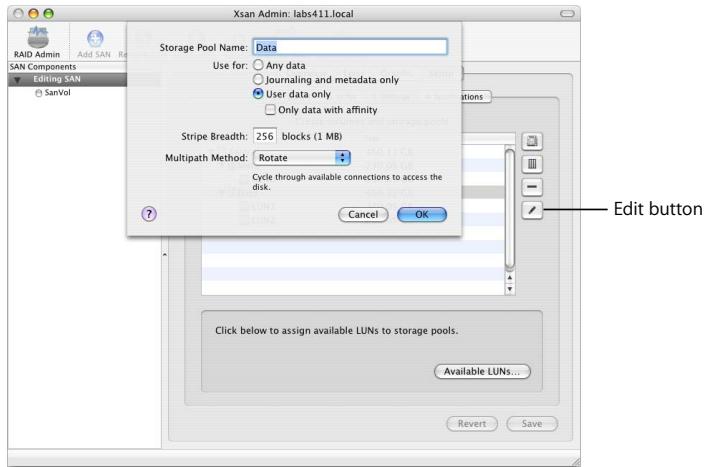
To view or change storage pool settings:
- Select the SAN in the SAN Components list, click Setup, and click Storage. Then select a storage pool and click the Edit button (or double-click a storage pool).
See the following pages for information about changing specific storage pool settings.
Renaming a Storage Pool
You can rename a storage pool, but doing so erases all data on the storage pool and the volume it belongs to.
Warning: When you rename a storage pool, all data on the storage pool and the volume to which it belongs is lost.
To rename a storage pool:
1 Unmount the associated volume from all clients.
In Xsan Admin, select the volume, click Clients, select clients in the list, and click Unmount.
2 Stop the associated volume.
With the volume still selected, click Stop Volume.
3 Rename the storage pool.
Select the SAN, click Setup, click Storage, and double-click the storage pool in the list. Type the new name and click OK.
4 Click Save.
From the Command Line
You can also rename a storage pool by modifying the associated volume configuration file in Terminal. For more information, see the cvfs_config man page or "The Configuration Files" on page 181.
Choosing the Types of Files Stored on a Storage Pool
You can limit the files that are stored on a particular storage pool to volume journal data and metadata, user data, user data with an affinity for that storage pool, or a combination of these.
Warning: When you change the data type of a storage pool, all data on the storage pool and the volume to which it belongs is lost.
Journal data and metadata are always stored on the first storage pool in a volume.
To choose the data types for a storage pool:
1 In Xsan Admin, select the SAN the storage pool belongs to, click Setup, and click Storage. 2 Double-click the storage pool in the list. 3 Next to "Use for," choose the data types to store on the storage pool. 4 Click OK, and then click Save.
Setting Storage Pool Stripe Breadth
The default stripe breadth value (256 file system blocks) is adequate for storage pools in most SAN volumes. However, you can adjust this value along with the file system block allocation size to tune SAN performance for special applications. For help choosing a stripe breadth, see "Choosing Stripe Breadth for a Storage Pool," below.
Warning: When you change a storage pool's stripe breadth, all data on the storage pool and the volume to which it belongs is lost.
To set the stripe breadth:
1 In Xsan Admin, select the SAN that the storage pool belongs to, click Setup, and click Storage. 2 Double-click the storage pool in the list. 3 Next to Stripe Breadth, type the new value. 4 Click OK, and then click Save.
Choosing Stripe Breadth for a Storage Pool
Xsan uses the storage pool stripe breadth and volume block allocation size together to decide how to write data to a volume. For most SANs, the default values for storage pool stripe breadth and volume block allocation size result in good performance.
However, in some cases you might be able to improve read and write performance by adjusting these values to suit a specific application.
The stripe breadth of a storage pool is the number of file allocation blocks that are written to a LUN in the pool before moving to the next LUN. To choose an efficient stripe breadth, you need to consider two other factors:
- The most efficient data transfer size of the LUN storage device (1 MB for the combination of Mac OS X or Mac OS X Server and Xserve RAID systems)
- The size of the data blocks written and read by the critical application that uses the volume (as reflected in the block allocation size for the volume)
Knowing these values, choose a stripe breadth using this formula: stripe breadth (in blocks) = transfer size (in bytes) / block allocation size (in bytes)
For Xserve RAID systems, which have an optimal transfer size of 1 MB, this becomes: stripe breadth = 1048576 / block allocation size
If, for example, you are using an application such as Final Cut Pro to move large amounts of video data, choose the largest block allocation size (512KB) and use the equation to find the stripe breadth of 2 blocks. Then, Xsan writes 1 MB of data (two 512KB blocks), in turn, to each LUN in your video storage pool.
Setting the Selection Method for Multiple Connections
If there is more than one Fibre Channel connection to the LUNs in a storage pool, you can choose whether Xsan alternates between connections for each write or statically assigns each LUN in the volume to a connection at volume mount time. This is called the "multipath method."
To change the multipath method:
1 In Xsan Admin, select the SAN that the storage pool belongs to, click Setup, and click Storage. 2 Double-click the storage pool in the list. 3 Choose a value from the Multipath Method pop-up menu.
- Static: Xsan assigns each LUN in a storage pool to one of the connections when the volume is mounted.
- Rotate: Xsan switches to a different connection each time it writes data to the storage pool. This can improve performance.
4 Click OK, and then click Save.
From the Command Line
You can also set the multipath method using the cvadmin multipath command in Terminal. For more information, see the cvadmin man page or "Viewing or Changing Volume and Storage Pool Settings (cvadmin)" on page 164.
Changing Volume Settings
You can change some settings for an existing volume, but other changes require the volume to be re-initialized (you'll see a warning for these cases).
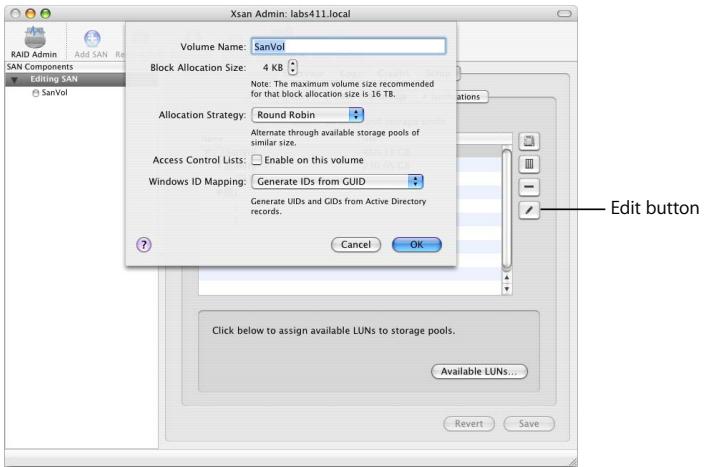
To view or change volume settings:
- Select the SAN in the SAN Components list, click Setup, and click Storage. Then select a volume and click the Edit button (or double-click a volume).
See the following pages for information about changing specific volume settings.
Renaming a Volume
You must use Xsan Admin to change the name users see when the volume is mounted on their computers. You can't rename Xsan volumes using the Finder.
Warning: Renaming a volume causes all data on the volume to be lost.
To rename a volume:
1 Unmount the volume from clients.
In Xsan Admin, select the volume and click Clients. Then select clients and click Unmount.
2 Stop the volume.
In Xsan Admin, select the volume and click Stop Volume.
3 Rename the volume.
In Xsan Admin, select the SAN that the volume belongs to, click Setup, and click Storage. Then double-click the volume, type a new name in the Volume Name field, click OK, and click Save.
Use only uppercase letters (A-Z), lowercase letters (a-z), numbers (0-9), or underscores (_). Don't include spaces or hyphens. The maximum length is 70 characters.
4 Start the volume.
Select the volume in the SAN Components list and click Start Volume.
5 Mount the volume on clients.
Select the volume and click Clients. Select clients and click Mount.
Setting the Block Allocation Size
The default file system block allocation size (4 KB) is adequate for most volumes. However, you can adjust this value along with the stripe breadth of the volume's storage pools to tune performance for special applications. For help choosing a block allocation size, see "Choosing Block Allocation Size for a Volume," below.
Warning: When you change a volume's block allocation size, all data on the volume is lost.
To set the block allocation size:
1 In Xsan Admin, select the volume in the SAN Components list, click Clients, and unmount the volume from all clients and controllers. 2 Click Stop Volume.
Important: If you forget to unmount the volume (in step 1) before you stop it, be sure to click Disconnect in the "server no longer available" alert that appears on any computer that has the volume mounted.
3 Select the SAN, click Setup, and then click Storage. 4 Double-click the volume in the list. 5 Use the up and down arrows to choose a new value for Block Allocation Size. 6 Click OK, and then click Save.
Choosing Block Allocation Size for a Volume
Xsan uses the volume block allocation size and storage pool stripe breadth together to decide how to write data to a volume. For most SANs, the default values for volume block allocation size and storage pool stripe breadth result in good performance. However, in some cases you might be able to improve read and write performance by adjusting these values to suit a specific application.
If the critical application that uses the volume reads and writes small blocks of data, you might improve performance by choosing a correspondingly small allocation block size. If, for example, the application reads and writes 16 KB blocks of data, you can try adjusting the block allocation size to 16 KB. Then calculate the best corresponding stripe breadth for the volume's storage pools using this formula:
stripe breadth (blocks) = transfer size (bytes) / block allocation size (bytes)
For Xserve RAID systems, which have an optimal transfer size of 1 MB when used in conjunction with Mac OS X or Mac OS X Server, this becomes:
stripe breadth = 1048576 / block allocation size
For the block allocation size of 16 KB in the example, solving the equation (1048576/16384) gives a stripe breadth of 64.
Setting the Volume Allocation Strategy
You can set the allocation strategy for a volume to determine the order in which data is written to the volume's storage pools.
To set the allocation strategy:
1 In Xsan Admin, select the volume in the SAN Components list, click Clients, and unmount the volume from all clients and controllers. 2 Click Stop Volume.
Important: If you forget to unmount the volume (in step 1) before you stop it, be sure to click Disconnect in the "server no longer available" alert that appears on any computer that has the volume mounted.
3 Select the SAN that the volume belongs to, click Setup, and click Storage. 4 Double-click the volume in the list. 5 Choose a value from the Allocation Strategy pop-up menu.
- Round Robin: New data is written to the next available storage pool in the volume.
- Fill: All data is stored on the first storage pool until it is full, then on the next storage pool, and so on.
- Balance: New data is written to the storage pool that has the most free space.
6 Click OK, and then click Save.
Enabling or Disabling Access Control Lists
You can use Xsan Admin to specify whether the Xsan file system uses access control lists (ACLs) on a volume.
To use ACLs, your SAN controller must be running Xsan 1.4. Only Xsan 1.4 clients and Windows StorNext clients recognize ACLs. (ACLs on Xsan volumes are ignored by UNIX clients as well as clients running Xsan 1.3 or earlier.) If you have a mix of Windows clients and Xsan clients, they must all be bound to the same directory domain, whether provided by Open Directory configured as a Primary Domain Controller (PDC), by Windows Active Directory, or by Windows NT PDC.
Note: If you enable ACLs but your SAN includes clients that don't support them, don't use those clients to change ownership information or inconsistencies might result.
To enable or disable ACLs:
1 In Xsan Admin, select the volume in the SAN Components list, click Clients, and unmount the volume from all clients and controllers. 2 Click Stop Volume.
Important: If you forget to unmount the volume (in step 1) before you stop it, be sure to click Disconnect in the "server no longer available" alert that appears on any computer that has the volume mounted.
3 Select the SAN that the volume belongs to, click Setup, and click Storage. 4 Double-click the volume in the list. 5 Set or clear the checkbox next to Access Control Lists and click OK.
Choosing the Windows ID Mapping Method
Use the Windows ID Mapping setting to specify how Windows clients map user and group information to Xsan-compatible user IDs (UIDs) and group IDs (GIDs), which they need in order to access Xsan volumes.
For more information, see "Mapping Windows User and Group IDs" on page 112.
Checking Volume Fragmentation
When you create a file, Xsan breaks the file into pieces and distributes these pieces efficiently over the LUNs that make up one of the volume's storage pools. Over time, as the file is modified, its pieces can become scattered in less efficient arrangements. You can use the cvfsck utility to check on the state of file fragmentation on your volumes.
To check volume fragmentation:
1 Open Terminal (in /Applications/Utilities/). 2 If you are not working at the SAN controller computer, use SSH to log in to the controller remotely:
$ ssh user@computer
where user is an administrator user on the controller computer and computer is the controller's name or IP address.
3 Run the cvfsck command-line utility (in /Library/Filesystems/Xsan/bin/) with the -f option:
$ sudo cvfsck -f volume
For more information, see the cvfsck man page.
Defragmenting a Volume
Defragmenting a file reassembles its pieces into the most efficient arrangement. You can use the snfsdefrag command to defragment a single file, a folder (directory of files), or an entire volume.
To defragment a file, folder, or volume:
1 Open Terminal (in /Applications/Utilities/). 2 If you are not working at the SAN controller computer, use SSH to log in to the controller remotely:
$ ssh user@computer
where user is an administrator user on the controller computer and computer is the controller's name or IP address.
3 Run the snfsdefrag command (in /Library/Filesystems/Xsan/bin/).
To defragment one or more individual files:
sudo snfsdefrag filename [filename ... ] To defragment an entire folder: sudo snfsdefrag -r folder To defragment an entire volume, set folder to the root directory of the volume.
For more information see the snfsdefrag man page or "Defragmenting a File, Folder, or Volume (snfsdefrag)" on page 177.
Checking the Integrity of a Volume
If SAN users are having trouble accessing files, you can use the pvfsck command to check the integrity of a volume, its metadata, and files.
To check a volume:
1 Open Terminal (in /Applications/Utilities/). 2 If you are not working at the SAN controller computer, use SSH to log in to the controller remotely:
$ ssh user@computer where user is an administrator user on the controller computer and computer is the controller's name or IP address. 3 Run the cvfsck command-line utility (in /Library/FileSystems/Xsan/bin/) to check the volume without making repairs:
$ sudo cvfsck -vn volume
where volume is the name of an Xsan volume. You'll see a warning that the journal is active; this is normal.
For more information about this command, see the cvfsck man page.
Repairing a Volume
If the cvfsck utility reveals problems with a volume, you can use the same command to repair the volume.
To repair a volume:
1 Stop the volume. Open Xsan Admin, select the volume, and click Stop Volume. 2 Open Terminal (in /Applications/Utilities/).
If you are not working at the SAN controller computer, use SSH to log in to the controller remotely:
$ ssh user@computer
where user is an administrator user on the controller computer and computer is the controller's name or IP address.
3 Run the cvfsck command-line utility (in /Library/Filesystems/Xsan/bin/) to replay the journal:
$ sudo cvfsck -j volume
4 Check the volume to see if additional repairs are required:
$ sudo cvfsck -vn volume
5 If the report generated in the previous step lists additional problems, type the following command to perform a full check and repair of the volume:
$ sudo cvfsck -v volume
For more information about this command, see the cvfsck man page.
This chapter shows how to add, control, and remove client computers and their users.
Xsan clients are computers that have access to a SAN. This chapter shows you how to:
- Add a client (page 106)
- Mount a volume on a client (page 108) Control client and user access
Control access to folders (page 109) - Set up access control lists (page 110) - Unmount a volume from a client (page 110) - Restrict a client to read-only access (page 110) - Remove a client from a SAN, or Xsan software from a client (page 111)
Map Windows user and group IDs (page 112) - Set and check volume quotas
- Set user and group quotas (page 114)
- Check user quota use (page 117)
- Help clients check their quota use (page 119)
- Create local home folders for network accounts (page 120)
Adding a Client
Before a computer can access a SAN volume, you need to set up that computer as a SAN client.
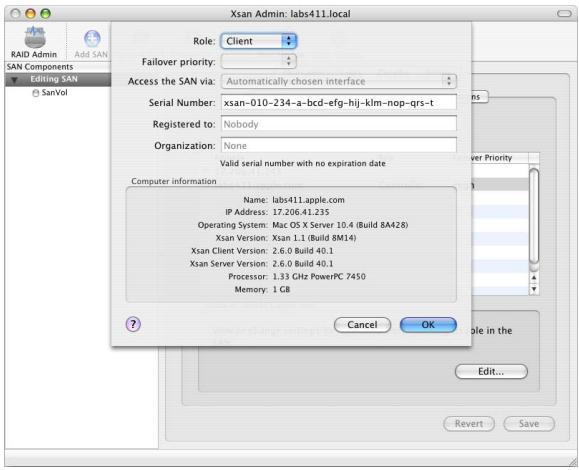
To add a client computer to a SAN:
1 If you haven't already, connect the client computer to the SAN's Fibre Channel and Ethernet networks and install the Xsan software. 2 Open Xsan Admin, select the SAN in the SAN Components list, and click Setup. 3 Click Computers, select the new computer in the list, and click Edit.
4 Choose Client from the Role pop-up menu.
You can choose Controller if you want the computer to be used as a client but want it also to be available as a standby controller for the SAN.
5 Type an Xsan software serial number.
You can find the serial number for a single copy of Xsan on the Xsan installation disc sleeve. If you have purchased a site-licensed serial number, look on the paperwork you received when you purchased the license.
6 If you're using a site-licensed serial number, type the registered license holder and organization in the "Registered to" and Organization fields. 7 Click OK, and then click Save.
Now you can mount Xsan volumes on the client.
Adding a Client to a StorNext SAN
If you already have an ADIC StorNext File System set up, you can add Macintosh Xsan clients to it. For more information, see Appendix A.
Mounting a Volume on a Client
A user who is logged in to a client computer can't mount a SAN volume. You or another SAN administrator must use Xsan Admin to mount the volume on the client computer.
To mount an Xsan volume on a client:
1 Open Xsan Admin, select the volume in the SAN Components list, and click Clients. 2 Select the client computer in the list. 3 To allow the client to modify files on the volume, click Mount Read & Write.
To prevent the client from modifying the volume, click Mount Read Only.
You only need to mount an Xsan volume on a client once. The volume remains mounted until you unmount it or until the user on the client unmounts it, even if the user logs out or the client computer is restarted. If a user unmounts the volume, it is remounted automatically when he or she restarts the computer.
From the Command Line
You can also mount a volume on a client using the mount command in Terminal. For more information, see the mount man page or "Mounting an Xsan Volume" on page 179.
Controlling Client and User Access
You can control access to information on SAN volumes at several levels:
- You can restrict user access to folders on a volume by specifying owner, group, and general access permissions using the Finder (folder level).
- You can restrict user access to folders on a volume or the entire volume using access control lists in Mac OS X Server's Workgroup Manager (folder/volume level).
- You can unmount a SAN volume from selected client computers (volume level).
- You can restrict a client computer to read-only access to a volume (volume level).
- You can remove a client from a SAN (SAN level).
Controlling Access to Folders on Volumes
To restrict user access to specific folders on a SAN volume, assign access permissions to the folder.
To assign folder access permissions:
1. Make sure the volume is started and mounted on the controller. To start a volume, select it and click Start Volume. To mount it, select the volume, click Clients, select the controller, and click Mount Read & Write. 2. In Xsan Admin, select the volume that contains the folder, and click Affinities. Volumes are listed in the SAN Components list under the SAN to which they belong. 3. Select the folder in the list and specify permissions at the bottom of the window. 4. Click Save.
Setting Up Access Control Lists
You can use Mac OS X Server's Workgroup Manager to control access to SAN volumes and folders on those volumes using access control lists (ACLs).
To set up the access control list for a volume or folder:
- Make sure ACLs are enabled on the volume. For help, see "Enabling or Disabling Access Control Lists" on page 100. Then open Workgroup Manager and click Sharing. Select the SAN volume or folder, click Access, and drag user or group names to the access control list. For more information, see the Workgroup Manager onscreen help.
Unmounting a Volume on a Client
To prevent a client from accessing a volume, you can unmount the volume from the client. Clients can't mount SAN volumes themselves; only an administrator can mount a SAN volume on a client.
To unmount a volume:
1. Open Xsan Admin, select the volume, and click Clients. 2. Select the client computer in the list and click Unmount.
Restricting a Client to Read-Only Access
To prevent a user logged in to a client computer from modifying data on a SAN volume, you can mount the volume on the client with read-only permissions.
To grant read-only volume access:
1 Open Xsan Admin, select the volume, and click Clients. 2 Select the client computer. 3 If the volume is already mounted on the client, click Unmount.
4 Click Mount Read Only.
Removing a Client from a SAN
You can remove a client computer from a SAN to prevent it from accessing SAN volumes.
To remove a client from a SAN:
- Physically disconnect the client computer from the SAN's Ethernet and Fibre Channel networks or remove the Xsan software from the client.
Removing Xsan Software from a Computer
If you're no longer using a computer on a SAN, you can remove the Xsan software from the computer.
To uninstall the Xsan software:
1 Unmount any volumes mounted on the computer.
Open Xsan Admin, select the volume, and click Clients. Then select the client computer and click Unmount.
2 Insert the Xsan installation disc and double-click Uninstall_Xsan pkg.
After the software is removed, you can reuse the software and associated serial number on another computer.
Mapping Windows User and Group IDs
You can use the Windows ID Mapping setting for a volume to specify how Windows clients map user and group information to Xsan-compatible user IDs (UIDs) and group IDs (GIDs), which they need in order to access Xsan volumes.
Note: To use ID mapping, Windows clients must be running StorNext 2.7. Xsan controllers and clients must be running Xsan 1.3 or later.
Windows clients can use either of these methods to provide UIDs and GIDs:
- Generate IDs from GUID: Windows clients dynamically generate UIDs and GIDs based on Globally Unique Identifier (GUID) information in an Active Directory domain. This is the method you should choose if, for example, Macintosh computers on the SAN are bound to Active Directory and the Directory Access Active Directory plug-in is set to automatically generate IDs.
- Use IDs from LDAP (RFC 2307): Windows clients get UID and GID values from the uidNumber and gidNumber attributes in Active Directory records. Choose this method if, for example, Macintosh computers on the SAN are bound to Active Directory and the Directory Access Active Directory plug-in is set to map IDs to uidNumber and gidNumber.
Important: To avoid ID conflicts, be sure all computers on the SAN use the same Active Directory domain and the same method of ID mapping.
To select the Windows ID mapping method:
1 In Xsan Admin, select the volume in the SAN Components list, click Clients, and unmount the volume from all clients and controllers. 2 Click Stop Volume.
Important: If you forget to unmount the volume (in step 1) before you stop it, be sure to click Disconnect in the "server no longer available" alert that appears on any computer that has the volume mounted.
3 Select the SAN, click Setup, and click Storage. 4 Double-click the volume in the list. 5 Choose a mapping method from the Windows ID Mapping pop-up menu. If you choose "Use IDs from LDAP (RFC 2307)" you can change the ID numbers used when a directory record doesn't include a uidNumber or gidNumber attribute. 6 Click OK, and then click Save. 7 Select the volume in the SAN Components list and click Start Volume. 8 Click Clients, and remount the volume on each client that had it mounted.
Setting User and Group Quotas
You can set quotas to manage the amount of storage available to a user or group.
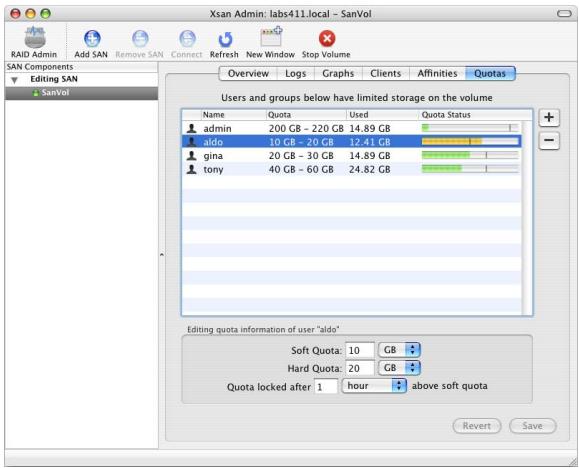
To set storage quotas for users and groups:
If the volume is not already started, start it.
Open Xsan Admin, select the volume, and click Start Volume.
In Xsan Admin, select the volume and click Quotas. If the user or group is not in the list, click the Add (+) button next to the list and drag users or groups from the drawer to the list.
If the user or group doesn't appear in the drawer, open Directory Access and make sure the computer is using the correct directory for authentication.
Select the user or group in the list and type their hard quota, soft quota, and grace period in the fields below the list. Click Save to enforce the specified quotas or Revert to restore the last saved values.
From the Command Line
You can also set user quotas using the cvadmin quotas set command in Terminal. For more information, see the cvadmin man page or "Viewing or Changing Volume and Storage Pool Settings (cvadmin)" on page 164.
About Xsan Quotas
Xsan enforces two disk space quotas for each user or group you choose to restrict: a soft quota and a hard quota. You can set these in combination to establish clear limits on the amount of storage a user or group can use while still allowing temporary access to extra space for unexpected storage needs. You specify quotas individually for each volume on a SAN. A user for whom no quotas are specified can use all available space on a volume.
Soft Quota
The soft quota is the maximum space a user or group is expected to occupy on a regular basis. It is "soft" because it can be exceeded by an amount up to the hard quota for a grace period that you specify.
Hard Quota
The hard quota is an absolute limit on the space a user or group can occupy. Users are prevented from using more space than specified by their hard quotas. A user who tries to exceed the hard quota sees a message containing the error code -1425.
Grace Period
A user or group can exceed the soft quota without penalty as long as each returns below the soft quota within the grace period you specify.
Soft Quotas Change to Hard Quotas
If a user or group exceeds the soft quota for a time longer than the grace period, the soft quota is changed to a hard quota, and the user or group will not be able to save additional data on the volume until each deletes old files and returns below the soft quota.
Example
Suppose you assign Aldo a soft quota of 75 GB, a hard quota of 100 GB, and a grace period of 48 hours. Aldo's files can occupy up to 75 GB of space at any time, for as long as he needs them. If Aldo is surprised by additional or unusually large files, he can still copy them to the volume, up to a total of 100 GB. He then has 48 hours to remove files and return below the 75 GB soft limit. If he is still using more than 75 GB after 48 hours, Xsan resets his hard quota to 75 GB and he is forced to reduce his storage use. Aldo is unable to copy or save additional files to the volume until he deletes enough to return below the 75 GB quota.
Define SAN Users Consistently for Accurate Quotas
To be sure that Xsan user quota information is accurate, make sure user names and IDs are consistent on all computers on the SAN. For more information, see "Set Up SAN Users and Groups" on page 54.
Checking User Quota Use
You can use Xsan Admin to check file system quotas to see how much of their allotment users and groups are using.
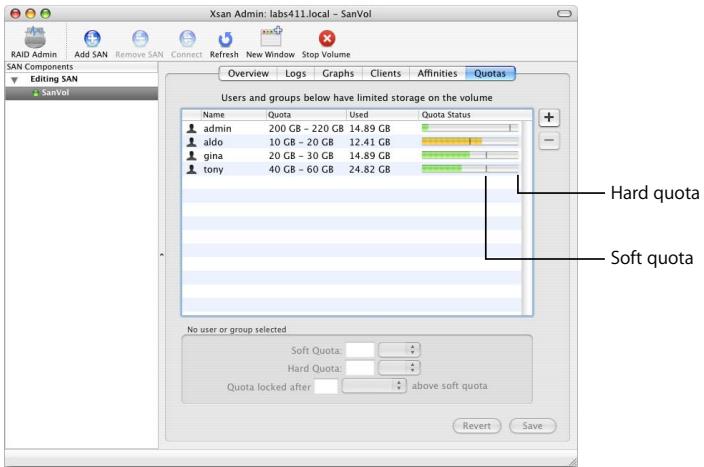
To view quota utilization:
- Open Xsan Admin, select a volume in the SAN Components list, and click Quotas. To be sure you're seeing the latest information, click Refresh at the top of the window
Xsan Admin lists the following information for each user or group:
- Quota: The soft and hard quotas. For example, "75 – 100 MB" indicates a soft quota of 75 MB and a hard quota of 100 MB.
- Used: The amount of space the user's files are occupying.
- Quota Status: Green indicates that the user or group is below the soft quota. Yellow indicates usage exceeding the soft quota but for a time within the grace period. Red indicates that usage now exceeds the hard limit because the soft quota was exceeded beyond the grace period, after which the soft quota was changed to a hard quota.
You can set up Xsan to notify you by email or pager when a user or group exceeds a specific percentage of the quota. See "Setting Up Status Notifications" on page 138.
For more information about quotas and how to set them, see "Setting User and Group Quotas" on page 114.
From the Command Line
You can also check user quotas using the cvadmin quotas get command in Terminal. For more information, see the cvadmin man page or "Viewing or Changing Volume and Storage Pool Settings (cvadmin)" on page 164.
Helping Clients Check Their Own Quotas
SAN users who work at client computers but don't have access to Xsan Admin can use the Xsan User Quotas application to check their personal space quotas.
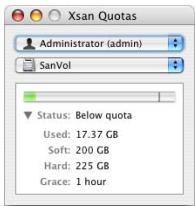
To check your quota from a client computer:
- Open the Xsan User Quotas application (in /Applications/Server/).
Note: The Xsan User Quotas application is installed only on computers running Mac OS X or Mac OS X Server version 10.4 or later. You can't use the application on earlier versions of Mac OS.
Creating Local Home Folders for Network Accounts
Creating SAN user accounts in a centralized directory simplifies the job of managing user accounts for computers attached to the SAN. However, some applications, such as Final Cut Pro, work best when a user has a local home folder on the computer he or she is using.
To create a local home folder for a network user account:
1 Open Workgroup Manager on the server that is acting as your Open Directory master. 2 Click the Users tab, select the user, and click Home. 3 Click the Add (+) button below the list. 4 Type "/Users/ " in the Home field, replacing with the user's short name and leaving off the quotes. 5 Click OK, and then click Save.
The user's home folder is created on the client computer the first time he or she logs in.
Managing Metadata Controllers
5
This chapter shows how to add, switch, monitor, and upgrade Xsan metadata controllers.
Every SAN volume you set up is managed by a metadata controller. To be sure that the volume is available to clients even if the active controller becomes unresponsive, you can set up standby controllers, one of which will assume control of the volume if the primary controller fails.
This chapter shows you how to:
- Add a controller (page 122)
- Set controller failover priority (page 123)
- Switch to a standby controller (page 124) Find out which controller is hosting a volume (page 125)
- List the volumes hosted by a controller (page 127)
- Change a controller's IP address (page 128)
- Upgrade controller software (page 129)
Adding a Controller
You can add one or more standby controllers to a SAN so that volumes are still available if the primary controller fails.
Any computer set to act as a controller can also function as a client. So, if you don't want to dedicate a computer to act solely as a standby controller, you can use an existing client.
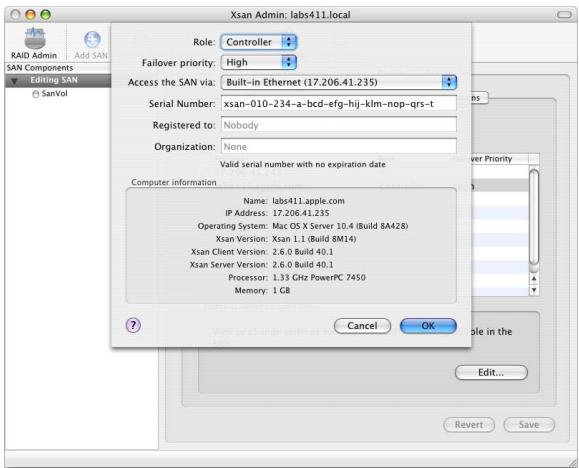
To add a controller:
1 If you haven't already, connect the new controller computer to the SAN's Fibre Channel and Ethernet networks and install the Xsan software.
2 In Xsan Admin, select the SAN in the SAN Components list and click Setup. 3 Select the new controller in the computer list and click Edit. 4 Choose Controller from the Role pop-up menu. 5 Choose a failover priority and click OK. 6 Choose the Ethernet interface the controller will use to communicate with other devices on the SAN. 7 Type an Xsan software serial number.
You can find the serial number for a single copy of Xsan on the Xsan installation disc sleeve. If you have purchased a site-licensed serial number, look on the paperwork you received when you purchased the license.
8 If you're using a site-licensed serial number, type the registered license holder and organization in the "Registered to" and Organization fields. Be sure to type these exactly as they were provided when you purchased the license. 9 Click OK.
Setting Controller Failover Priority
When the primary controller for a volume fails, Xsan uses the failover priorities of the available standby controllers to decide which one to switch to.
To set a controller's failover priority:
1 Open Xsan Admin, select the SAN in the SAN Components list, click Setup, and then click Computers. 2 Select the controller in the computer list and click Edit. 3 Choose a failover priority and click OK.
Switching to a Standby Controller
You can force an active metadata controller to turn over control of a volume to a standby controller using the cvadmin command or by stopping the file system manager process for the volume.
To switch a volume to a standby controller:
1 Open Terminal (in /Applications/Utilities/) on any controller or client connected to the SAN. 2 In Terminal, type:
$ sudo cvadmin -e "fail volume"
where volume is the name of an Xsan volume.
To see a list of volumes hosted by a controller, open Terminal on the controller and type:
$ sudo cvadmin -e select
To see which controller is hosting a volume, open Xsan Admin, select the volume, and click Overview.
Finding Out Which Controller Is Hosting a Volume
Control of a particular volume can move from one controller to another as a result of controller failover. You can use Xsan Admin to find out which controller is currently hosting a particular volume.
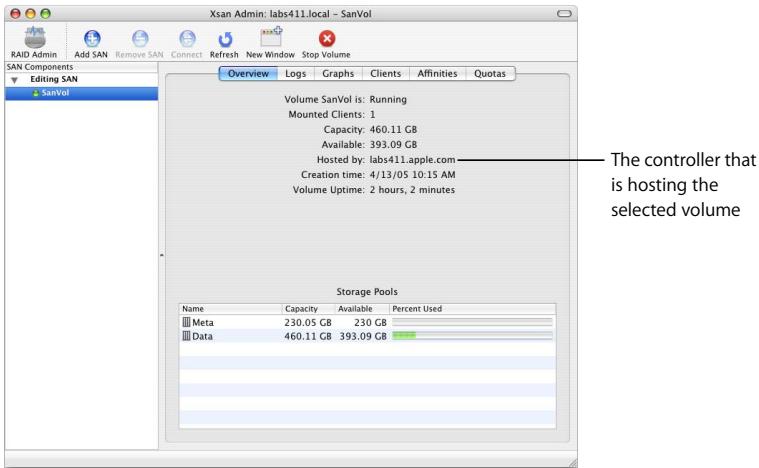
To view a volume's controller:
- Open Xsan Admin, select the volume in the SAN Components list, and click Overview.
From the Command Line
You can also find out which controller is hosting a volume using the cvadmin command in Terminal. Open Terminal on the controller and type:
$ sudo cvadmin -e select
For more information, see the cvadmin man page or "Viewing or Changing Volume and Storage Pool Settings (cvadmin)" on page 164.
Listing the Volumes Hosted by a Controller
You can use Xsan Admin or the cvadmin command to find out which SAN volumes are being hosted by a particular controller.
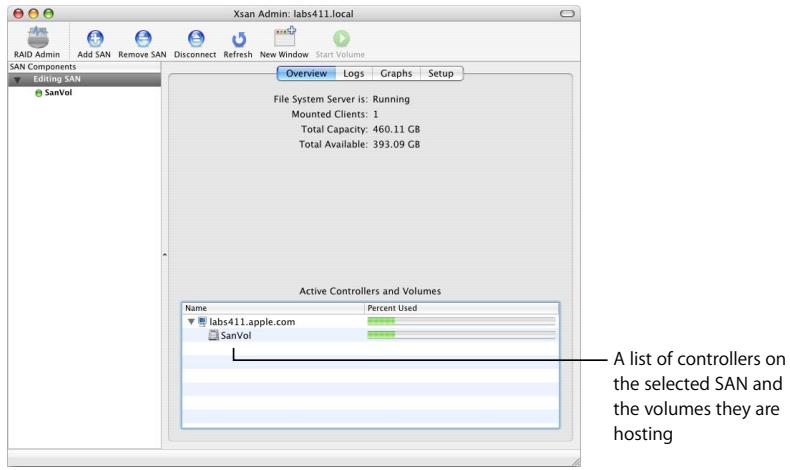
To list hosted volumes:
- Open Xsan Admin, select a SAN in the SAN Components list, and click Overview.
From the Command Line
You can also find out which volumes are hosted by a controller using the cvadmin select command in Terminal. For more information, see the cvadmin man page or "Viewing or Changing Volume and Storage Pool Settings (cvadmin)" on page 164.
Changing a Controller's IP Address
Follow these instructions if you need to change the IP address of an Xsan controller.
Warning: To avoid losing all data on the volumes hosted by the controller, you must have a standby controller available.
To change a controller's IP address:
1. Make sure your standby controller is ready.
To check the status of the standby controller, open Xsan Admin, select the SAN, click Setup, and look in the Computers pane to make sure there is a green status indicator next to the standby controller.
2. In the Xsan Admin Computers pane, double-click the controller that you are giving a new address and change its role to Client. 3. Change the computer's IP address.
If the computer is running Mac OS X, change its IP address in the Network pane of System Preferences.
If the computer is running Mac OS X Server, use the changeip command-line tool to change its address. For more information, see the Mac OS X Server Command-Line Administration guide at www.apple.com/server/documentation/.
4. Restart the computer.
5. In Xsan Admin, change the role of the computer from Client back to Controller.
If you want to switch control of the volumes back to the controller with the new IP address (they're currently hosted by the standby controller), stop and restart them. You can also force the switch from the command line by typing:
$ sudo cvadmin -e "fail volume"
where volume is the name of an Xsan volume.
Upgrading Controller Software
If your configuration includes a standby controller, you can upgrade the Xsan software without interrupting the SAN. Xsan controller software is always compatible with the preceding version of the client software (controllers can be one version ahead of clients). So, you can upgrade your controllers first and your client computers will continue to work until it is convenient to upgrade them to the same version.
Important: The following instructions work only if you are upgrading from the most recent previous version of Xsan (for example, from Xsan 1.3 to Xsan 1.4). If you're skipping a version by upgrading from Xsan 1.1 or 1.2 to Xsan 1.4, the failover method of avoiding SAN interruption won't work, and you'll need to unmount and stop Xsan volumes before upgrading.
For more information about migrating your SAN controllers, clients, and storage to Xsan 1.4 from an earlier version of Xsan, including tips for upgrading with minimum impact on existing storage, see the Xsan Migration Guide at www.apple.com/server/ documentation/.
To upgrade controller software without interruption:
1 Switch all volumes to a standby controller.
Go to the primary controller, open Terminal, and type:
$ sudo cvadmin -e "fail volume"
where volume is the name of an Xsan volume.
To see a list of volumes hosted by the controller, type:
$ sudo cvadmin -e select
To see which controller is hosting a volume, open Xsan Admin, select the volume, and click Overview.
2 When all volumes are being hosted by the standby controller, upgrade the software on the primary controller. 3 When you are finished upgrading the primary controller, use the methods in step 1 to switch control of active volumes back to the primary controller.
Now you can upgrade the standby controller.
Monitoring Controller Status
For information about checking or reporting the status of a controller, see these topics:
Viewing a Controller's CPU and Network Utilization" on page 136 - "Setting Up Status Notifications" on page 138 - "Checking the Status of File System Processes" on page 139 Viewing Xsan Logs" on page 139
This chapter shows how to check the condition of a SAN and its components.
This chapter shows you how to:
- Monitor a SAN securely by locking Xsan Admin views (page 132) Check overall status
- Of the SAN (page 133) or a volume (page 134)
- Check free space
- On a volume (page 135)
- On a storage pool (page 136)
View overall controller CPU and network utilization graphs (page 136) View file system process CPU and memory utilization graphs (page 137) - Set up status notifications (page 138) - Check status of file system processes (page 139) View logs (page 139) - Check volume clients (page 140) - Check for Fibre Channel failures (page 141) - Check the state of Xserve RAID systems (page 141)
Locking Xsan Admin Views for Secure Monitoring
You can use the Lock View command to allow SAN monitoring without the risk of accidental or malicious configuration changes. For example, you might want to monitor a SAN from an unsecured computer or allow specific people to monitor a SAN without letting them change its configuration.
To lock views:
- Open Xsan Admin and choose View > Lock View.
While views are locked, you can monitor the SAN as usual but all buttons and controls that you use to change the SAN configuration are disabled.
To unlock views:
- Choose View > Unlock View and type your user password.
Checking Overall SAN Status
Xsan Admin can show you an overview of SAN status.
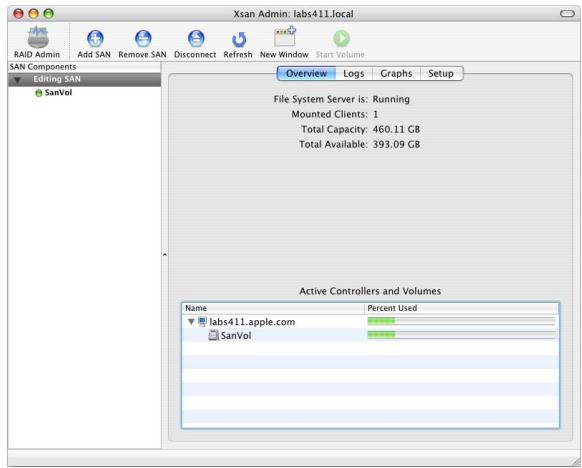
To get a quick look at the status of a SAN:
- Open Xsan Admin, select a SAN, and click Overview. To check the controller process for a particular volume, select the volume and click Overview.
Checking Overall Volume Status
Xsan Admin can show you an overview of the status of a particular volume.
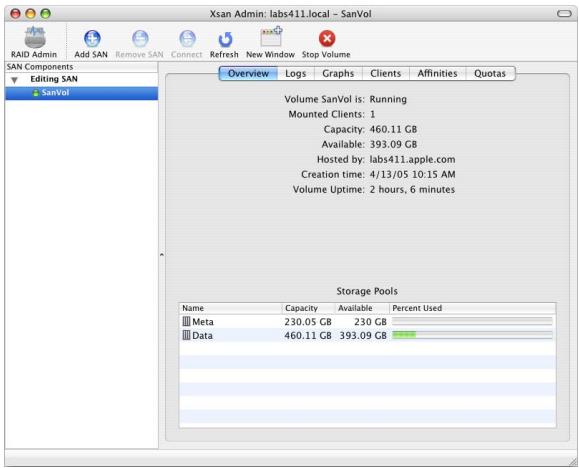
To get a quick look at the status of a volume:
- Open Xsan Admin, select a volume, and click Overview.
Checking Free Space on a Volume
There are several ways to see how much space is available on a SAN volume.
To see how much free space is available on a volume:
- If you're using a computer on which the volume is mounted, select the volume in a Finder window and look at the size information at the bottom of the window (in column or list view) or choose File > Get Info.
- If you're using a computer on which the volume is not mounted or a computer that isn't part of the SAN, open Xsan Admin, connect to a SAN controller, select the volume in the SAN Components list, and click Overview.
Note: When reporting the size of a volume, Xsan Admin doesn't include space on storage pools that are set to contain only journal data and metadata. Only space on storage pools where users can store data (that is, storage pools set to be used for "Any data" or "User data only") is counted. For example, if you create a volume consisting of four 120-gigabyte (GB) storage pools, one of which is designated for journal and metadata only, Xsan Admin reports the size of the volume as 360 GB, not 480 GB.
From the Command Line
You can also check volume free space using the cvadmin stat command. For more information, see the cvadmin man page or "Viewing or Changing Volume and Storage Pool Settings (cvadmin)" on page 164.
Checking Free Space on a Storage Pool
In addition to checking free space on a volume, you can check free space on the individual storage pools that make up the volume.
To see how much free space is available on a storage pool:
1 Open Xsan Admin and connect to a SAN controller. 2 Select the volume in the SAN Components list, click Overview, and look in the Storage Pools list at the bottom of the window.
From the Command Line
You can also check storage pool free space using the cvadmin show command. For more information, see the cvadmin man page or "Viewing or Changing Volume and Storage Pool Settings (cvadmin)" on page 164.
Checking Quota Use
See "Checking User Quota Use" on page 117.
Viewing a Controller's CPU and Network Utilization
You can use Xsan Admin to view graphs of up to 7 days of overall CPU, IP network, and Fibre Channel network utilization data for a controller.
To view utilization graphs:
1. Open Xsan Admin and connect to the controller. 2. Select the SAN in the SAN Components list and click Graphs.
3. Choose the type of data you want to graph from the Show pop-up menu and choose a computer from the On pop-up menu. Use the slider at the bottom of the window to adjust the time period displayed in the graph.
To turn off mathematical smoothing of the graphs and see only data points, choose Xsan Admin > Preferences and disable "Smooth graphs under 12 hours."
Viewing File System CPU and Memory Utilization
You can use Xsan Admin to view graphs of the CPU and memory used by the file system (fsm) process controlling a particular volume on a controller.
To view a volume's process resource utilization:
1. Open Xsan Admin and connect to the controller. 2. Select the volume in the SAN Components list and click Graphs. 3. Choose the type of data you want to graph from the Show pop-up menu and choose a computer from the On pop-up menu. Use the slider at the bottom of the window to adjust the time period displayed in the graph.
To turn off the mathematical smoothing of the graphs and see measured data points only, choose Xsan Admin > Preferences and disable "Smooth graphs under 12 hours."
From the Command Line
You can also check the file system process current CPU and memory utilization by using the top command in Terminal to check the process named fsm.
Setting Up Status Notifications
Xsan can send an email or dial a pager to notify you or other administrators when:
- A controller switches to its backup
- A Fibre Channel connection fails
- Free space on a volume falls below a specific percentage
- A user or group exceeds the designated soft quota
- A serial number is about to expire
To send email notifications outside the local network, the controller needs access to an SMTP server.
To have Xsan send status notifications:
1. Open Xsan Admin, select a SAN in the SAN Components list, click Setup, and click Notifications. 2. Click the Add (+) button to add an email address or pager number to the list of contacts. 3. Double-click the new entry in the list, type an email address or the address of a pager text-messaging account, and press Return. 4. If the entry is for a pager, select the checkbox in the Page column. 5. Choose the conditions that cause a notification to be sent (next to "Notify if"). 6. Click SMTP Info to enter a sender name and the mail server address. 7. Click Save. 8. To test, select an address and click Send Test Notification.
Checking the Status of File System Processes
You can use Xsan Admin to see if Xsan file system processes are running.
To see if Xsan processes are running:
- To check the main controller process, open Xsan Admin, select a SAN, and click Overview. To check the controller process for a particular volume, select the volume and click Overview.
From the Command Line
You can also check to see if the file system processes are running using the cvadmin command in Terminal. For more information, see the cvadmin man page or "Viewing or Changing Volume and Storage Pool Settings (cvadmin)" on page 164.
Viewing Xsan Logs
You can use Xsan Admin to view diagnostic and informational messages that Xsan has written to a computer's system and console logs.
To view the system logs:
- Open Xsan Admin, select a SAN in the SAN Components list, and click Logs. Use the Show pop-up menu to change logs and the On pop-up menu to switch to another computer. To find entries containing specific text, type the text in the Filter field and press Return.
To view volume logs:
- Open Xsan Admin, select a volume in the SAN Components list, and click Logs.
From the Command Line
To see the log for a particular volume from the command line, look at the log file:
/Library/Filesystems/Xsan/data/ /log/cvlog
where <volume> is the name of the volume.
Checking Volume Clients
You can use Xsan Admin to see a summary of how many clients are using a volume or a complete list of those clients.
To see the clients that are using a volume:
- Open Xsan Admin, select the volume in the SAN Components list, and click Clients.
To see how many clients have a volume mounted:
- Open Xsan Admin, select the volume in the SAN Components list, and click Overview.
From the Command Line
You can also use the cvadmin who command in Terminal to see a list of volume clients.
For more information, see the cvadmin man page or "Viewing or Changing Volume and Storage Pool Settings (cvadmin)" on page 164.
Checking for Fibre Channel Connection Failures
Fibre Channel connection failures or errors are recorded in the system log.
To view the system log:
- Open Xsan Admin, select a SAN in the SAN Components list, and click Logs. Choose System Log from the Show pop-up menu and the computer you're interested in from the On pop-up menu.
Checking the State of Xserve RAID Systems
You can use the RAID Admin application to check the condition of Xserve RAID systems and the arrays, slices, and LUNs they are providing as storage for an Xsan volume.
To see the condition of Xserve RAID systems and LUNs:
- Open RAID Admin (in /Applications/Server/).

Solving SAN Problems
7
This chapter provides solutions to common problems you might encounter while working with a SAN.
Look here for solutions to common problems you might encounter while setting up, managing, or using an Xsan SAN.
A Dialog on a Client Reports That a LUN Is Unreadable
Xsan volumes can now include LUNs larger than 2 terabytes (TB). However, older clients (those running Xsan on Mac OS X 10.3 Panther or Xsan 1.2 or earlier on Mac OS X 10.4 Tiger) cannot read these large LUNs. A dialog appears on these older clients that says the LUN is unreadable. Be sure to click Ignore to dismiss this dialog. Do not click Format, or information on the corresponding Xsan volume will be lost.
If you use LUNs greater than 2 TB, you should upgrade your clients to Xsan 1.3 or later on Mac OS X or Mac OS X Server v10.4.
You're Unable to Connect to a Computer Using Xsan Admin
If there is a firewall between the administrator computer and the SAN computer, make sure TCP port 311 is open.
You're Unable to Install the Xsan Software
If the installer says you can't install the Xsan 1.4 software on a particular computer, make sure the computer has Mac OS X or Mac OS X Server version 10.4.7 or later installed.
Some Computers Aren't Listed in Xsan Admin
If a computer you want to add to the SAN as a controller or client is not listed in Xsan Admin, make sure:
- You have installed the Xsan software on the computer.
- The computer is powered on.
- The computer is not sleeping and is not set to sleep (in the Energy Saver pane of System Preferences).
- The computer is on the same TCP/IP subnets as the other SAN components. (If you are using both a private and a public Ethernet network, all SAN components must be connected to both.)
You're Unable to Mount a Volume on a Client
- Try restarting the client computer, and then try again.
- Check that all Fibre Channel cables are plugged in.
- If the volume contains LUNs that are larger than 2 terabytes (TB), make sure the client is running Xsan 1.3 or later.
- Make sure there are no other volumes mounted on the client that have the same name as the Xsan volume.
Xserve RAID LUNs Aren't Accessible over Fibre Channel
- If you are using a Vixel 355 Fibre Channel switch, connect the Xserve RAID systems to an FL (arbitrated loop) port on the switch.
- Try restarting the computer that doesn't see the LUNs.
- Check the configuration of the Fibre Channel switch to be sure the SAN components are in the same Fibre Channel zone.
You're Unable to Restart a Volume After Adding LUNs or Storage Pools
If you can't restart a volume after you add LUNs or storage pools, you can follow these steps to return the volume to its previous state.
To restore the previous volume configuration:
1 Quit Xsan Admin. 2 Delete the file /Library/Filesystems/Xsan/config/ .cfg from each of the volume's controllers. 3 On each controller, rename the volume's previous configuration file:
/Library/Filesystems/Xsan/config/ .cfg.backup to: /Library/Filesystems/Xsan/config/ .cfg
4 Open Xsan Admin and restart the volume.
Some LUNs Aren't Listed in Xsan Admin
If you reuse an array that was previously labeled for use in another Xsan storage pool, you might need to remove the old label before Xsan Admin will recognize the LUN as available. This can also happen if you slice a LUN you used previously, in which case you might need to relabel the first slice, which still has the old label.
To see if a LUN is mounted using an old label, open Terminal and type:
$ sudo cvlabel -l -s
This will show the old label. In the following sample output, the label is sanvol1:
/dev/rdisk4/ [APPLE Xserve RAID 1.23] CVFS "sanvoll" ...
If the disk is unlabeled, the file system and label are listed as "unknown," as shown in the following sample output:
/dev/rdisk4/ [APPLE Xserve RAID 1.23] unknown ...
If the disk is labeled, you need to remove the existing label.
To remove the old label:
In Terminal, type:
$ sudo cvlabel -u label
where label is the old label (sanvol1 in the example above).
After you unlabel the LUN, it should appear in the LUNs pane in Xsan Admin. If it still does not appear, quit Xsan Admin and restart the server.
Some LUNs Are Listed Twice in Xsan Admin
If you are using mismatched versions of Xserve RAID firmware and the RAID Admin application, you might see duplicate LUNs listed in the LUNs pane in Xsan Admin.
To remove the duplicates:
- Open RAID Admin, select the Xserve RAID system that is hosting the LUNs, and choose System > Repair LUN Map.
If you don't see the Repair LUN Map command, upgrade to the latest version of RAID Admin (available at www.apple.com/support/).
To avoid this problem in the future, always use the latest version of RAID Admin and use it to install the latest firmware on your Xserve RAID systems.
Files and Folders Created by Mac OS 9 Computers Show the Wrong Creation Date
A computer running Mac OS 9 can store files or folders on an Xsan volume that is reshared using the AFP service of Mac OS X Server. However, the creation date reported for those items by the Finder's Get Info command on the Mac OS 9 computer is always Feb 4, 2040. A computer running Mac OS X reports a blank creation date for the same files and folders. In both cases, the correct creation date is displayed in the Modified field.
Problems Using Command-Line Tools
• If you get the response "command not found" when you try to use an Xsan command-line tool, add /Library/Filesystems/Xsan/bin/ to your search path or switch to this folder before you type the command. For example, to use the cvadmin tool: cd /Library/Filesystems/Xsan/bin sudo ./cvversions • If you get the response "Cannot list FSS - reason -Bad file descriptor" when you run the cvadmin tool, make sure you are using the tool as the root user. Either log in as the root user or use the sudo command to run the tool. For example: $ sudo cvadmin - If you get the response "No manual entry for..." when you try to view the man page for an Xsan command-line tool, you need to add the Xsan man pages folder /Library/Filesystems/Xsan/man to your man search path. One way to do this is to add the following line to the file /usr/share/misc/man.conf (Mac OS X or Mac OS X v10.4.) or the file /etc/manpath.config (Mac OS X or Mac OS X v10.3.):
MANPATH /Library/Filesystems/Xsan/man
A LUN Doesn't Have as Much Space as Expected
To make striping across LUNs possible, Xsan automatically adjusts LUN sizes to make all LUNs in a storage pool the same size as the smallest LUN in the pool. Xsan doesn't use the extra space on larger LUNs when you mix LUNs of different sizes in the same storage pool.
You're Unable to Rename an Xsan Volume in the Finder
Xsan doesn't allow a mounted Xsan volume to be renamed using the Finder. If you try, you get a message saying the name you've typed can't be used, even if the name you type is an acceptable Xsan volume name. To rename an Xsan volume, you must use Xsan Admin to reinitialize the volume. For instructions, see "Renaming a Volume" on page 96.
Fibre Channel Performance Is Poorer Than Expected
Mismatched optical transceivers (GBICs) can cause Fibre Channel communication errors and degrade SAN performance. To ensure good performance, use identical transceivers (same manufacturer and model number) on both ends of your Fibre Channel cables.
A Client User Sees Error Code -1425
The user is trying to occupy more space than allowed by his or her hard quota.
File Copy Doesn't Finish
If the Ethernet connection to a metadata controller is lost, Finder file copies in progress on clients might not finish even though the volume fails over successfully to a standby controller.
To allow the copy to finish:
- Reconnect the disconnected controller to the SAN's Ethernet network.
A Client is Unable to Use a Volume After a Fibre Channel Interruption
If a client loses its Fibre Channel connection to the SAN (because a cable is unplugged, for example), the client might not recognize LUNs in an Xsan volume after the connection is restored. If this happens, restart the client to remount the volume.
If problems persist, restart all SAN devices. Begin with Xserve RAID systems, continue with SAN controllers, and finally restart all clients.
To check if a computer is seeing Xsan volume LUNs:
- Open Disk Utility on the computer and look for the LUNs in the list of disks and volumes.
From the Command Line
You can also check for accessible LUNs using the clabel -l command or the diskutil list command in Terminal.
SAN Performance Declines Periodically and Predictably
If clients experience simultaneous SAN performance problems (dropped video frames, for example), system activity might be using resources. In particular, if all clients experience dropped frames at around 4:30 a.m. local time on Saturdays, the problem is probably due to the weekly system maintenance scripts. One script in particular, which rebuilds the locate database, can have a noticeable impact on file system performance.
To disable the scripts:
- Disable the script that runs "locate.updatedb" in /etc/weekly, or disable all the weekly scripts by commenting out the "periodic weekly" command in /etc/crontab.
You're Unable to Add a Storage Pool
There are some reserved names you can't use to name a storage pool. If you type one of these names, the OK button in the storage pool sheet is disabled.
| Reserved storage pool names | ||
| Affinity | InodeExpandInc | Rtios |
| AllocationStrategy | InodeExpandMax | RtiosReserve |
| AttrTokenSize | InodeExpandMin | Rtmb |
| Brls | IoHangLimitSecs | RtmbReserve |
| BrlTime | Journal | RtTokenTimeout |
| BufferCacheSize | JournalcBufNum | Sectors |
| BufferPoolSize | JournalcBufSize | SectorSize |
| BWMFields | JournalSize | Static |
| DataMigration | Log | StaticInodes |
| DataMigrationThreadPoolSize | MaxConnections | Status |
| Debug | MaxLogs | Sticky |
| DeviceName | MaxLogSize | StripeBreadth |
| DirCacheSize | MaxMBPerClientReserve | StripeClusters |
| DirFDCacheSize | Mbufs | StripeGroup |
| DirWarp | MbufSize | ThreadPoolSize |
| Disabled | MetaData | Type |
| Disk | MirrorGroup | UnixFabricationOnWindows |
| DiskType | MirrorReadMethod | UnixNobodyUidOnWindows |
| Enabled | MultiPathMethod | UnixNobodyGidOnWindows |
| Exclusive | No | UnixFileCreationMode ... |
| ForcePerfectFit | Node | UnixDirectoryCreation ... |
| ForceStripeAlignment | OpHangLimitSecs | WindowSecurity |
| FSBlockSize | Quotas | Write |
| GlobalSuperUser | Read | Yes |
| InodeCacheSize | Regular | |
| InodeDeleteMax | Rotate | |
You're Unable to Add LUNs to a Storage Pool
You can't add a new LUN to an existing storage pool unless the LUN is at least as large as the common LUN size for the pool. (The common LUN size is the same as the size of the smallest LUN you added when you created the pool.) You can add a larger LUN, but space beyond the common LUN size is not used.
Also, you can't add a LUN to an existing storage pool if the storage pool is used to store journal data or metadata. This applies to any storage pool set to be used for "Journaling and metadata only" or "Any data."
To check the common LUN size for a storage pool:
- In Xsan Admin, select the SAN or controller from the SAN Components list and click Setup. Click Storage, and then click the disclosure triangle next to the storage pool to see the sizes of the LUNs it contains.
To check the size of the LUN you want to add:
- In Xsan Admin, select the SAN or controller from the SAN Components list, click Setup, and then click Available LUNs.
To check the data types a storage pool is used for:
- In Xsan Admin, select the SAN or controller from the SAN Components list and click Setup. Then click Storage, double-click the storage pool in the list, and look next to "Use for" in the storage pool settings sheet.
The Capacity of a Larger LUN is Listed as 2 Terabytes
If a LUN that does not yet belong to a storage pool is listed in Xsan Admin with a capacity of 2 TB even though you know it is larger, make sure you have set Xsan to allow the LUN to exceed 2 TB. If the size is still shown as 2 TB (which can happen if you used the LUN with an earlier version of Xsan), try relabeling the LUN.
To prepare a LUN with a capacity greater than 2 TB:
1 In Xsan Admin, select the SAN in the SAN Components list and click Setup. 2 Click LUNs, select the LUN in the list, and click Edit. 3 Select the option "Allow LUN to exceed 2 TB capacity."
4 If the capacity shown remains 2 TB or less, delete the current label (in the Label field), click OK, and click Save. Then select the unlabeled LUN, click Edit to reopen it, and select "Allow LUN to exceed 2 TB capacity." The capacity shown should now match the actual size of the LUN. 5 Type a label and click Save.
Combining Xsan and StorNext Clients and Controllers
This appendix shows how to add Macintosh clients to an existing StorNext File System SAN or connect Windows, Solaris, AIX, Irix, or Linux clients to an Xsan SAN.
Xsan is fully compatible with ADIC's StorNext File System, so you can add Macintosh clients to an existing StorNext SAN or set up Xserve and Xserve RAID systems to act as controllers and storage for Windows, Solaris, UNIX, AIX, Irix, or Linux clients that are running StorNext software.
Terminology
Note the following differences in terminology between StorNext and Xsan:
| StorNext term | Equivalent Xsan term |
| file system | volume |
| file system server (FSS) | controller (or metadata controller) |
| stripe group | storage pool |
Compatible Software Versions
The following table shows which versions of Xsan and StorNext controllers and clients can be used on the same SAN.
| Controller | Client | Compatible |
| Xsan 1.4 | StorNext 2.8 | No |
| StorNext FX 1.3 or 1.4 | Yes | |
| StorNext 2.6 or 2.7 | Yes | |
| StorNext 2.5 or earlier | No | |
| Xsan 1.3 (Mac OS X v10.4) | StorNext FX 1.3 or 1.4 | Yes |
| StorNext 2.6 or 2.7 | Yes | |
| StorNext 2.5 or earlier | No | |
| StorNext 2.8 | Xsan 1.4 or 1.3 | Yes |
| StorNext 2.7 | Xsan 1.4 or 1.3 | Yes |
| StorNext 2.6 or earlier | Xsan 1.4 or 1.3 | No |
Licensing
You license a Macintosh Xsan client or controller using the single-copy serial number printed on the installation disc sleeve that comes in the Xsan package or a site-licensed serial number you purchase separately. Licenses for StorNext are purchased from ADIC when you buy the StorNext software. Xsan clients do not use or count against StorNext File System client licenses.
Adding Macintosh Clients to a StorNext SAN
If you already have a StorNext File System SAN, you can add a Macintosh client using Xsan.
To add a Macintosh Xsan client to a StorNext SAN:
1. Connect the Macintosh computer to the SAN's Ethernet and Fibre Channel networks. 2. Install the Xsan software on the Macintosh computer. 3. License the Xsan software on the Macintosh client.
Open Xsan Admin on the client (in /Applications/Server/) and connect to the local computer. Then select the SAN in the SAN Components list, click Setup, and click Computers. Double-click the client in the list (in the center of the window), enter the serial number, and click Save.
The serial number is on a sticker on the Xsan installation disc sleeve.
4. Go to an existing StorNext client on the SAN and print a copy of its fsnameservers file. On SGI IRIX, Sun Solaris, IBM AIX, and Linux StorNext clients, you can find the file in /usr/cvfsls/config/. On Windows clients, you can find the file in \%cvfsroot%\config\, where %cvfsroot% is the folder in which you installed the StorNext software. 5. Back on the Macintosh client, use a text editor such as vi to create a copy of the fsnameservers file that you printed in step 4. Save it in:
/Library/FileSystems/Xsan/config/
Note: To avoid problems caused by different systems using different end-of-line characters, don't copy the fsnameservers file to the Macintosh client. Instead, use a text editor on the Macintosh to recreate the file.
6. Delete or move the following files from /Library/FileSystems/Xsan/config:
automount.plist
saninfo.plist
notifications.plist
.auth_secret
Note: If you decide to move this computer to an Xsan SAN with Macintosh controllers, you need to restore these files to their original location (or reinstall Xsan) before adding the computer to the Xsan SAN.
7 Force the Xsan software on the Macintosh to read the new fsnameservers file.
Either restart the Macintosh computer or open Terminal and type this command:
$ sudo kill -HUP 'cat /var/run/fsmpm.pid'
8 Mount the file system.
If the file system doesn't mount automatically, type this command in Terminal:
$ sudo mount -t acfs fsname mountpoint
where fsname is the name of the file system and mountpoint is the location where the file system appears on the Macintosh client (/Volumes/SanVol, for example).
You can create a mount point by typing
$ mkdir /Volumes/mountpoint
Using Xsan Controllers with StorNext Clients
You can use ADIC's StorNext software to access an Xsan SAN from a Windows, UNIX, AIX, Irix, or Linux computer.
1. Connect the non-Macintosh client to the SAN's Fibre Channel and Ethernet networks. 2. Install the StorNext File System software on the non-Macintosh client following the instructions that ADIC provides in the StorNext package. 3. Duplicate the Macintosh Xsan controller's shared secret file on the non-Macintosh client.
The shared secret file is named .auth_secret. On a Macintosh Xsan controller, it is stored in the folder /Library/Filesystems/Xsan/config/.
Copy the file (using the same name) to the non-Macintosh client. On SGI IRIX, Sun Solaris, IBM AIX, and Linux StorNext clients, put the file in /usr/cvf/s/config/. On Windows clients, put the file in \%cvfsroot%\config\, where %cvfsroot% is the folder where you installed StorNext.
Important: This file contains sensitive information. Secure the file for read/write access by the root user or Windows administrator only.
4. Place a StorNext license file for your non-Macintosh clients on the Macintosh Xsan controller.
On the Xsan controller, put the file (named license.dat) in the folder:
/Library/Filesystems/Xsan/config/
Contact ADIC to obtain a license file for your non-Macintosh clients.

Using the Command Line
This appendix describes Xsan shell commands and configuration files you can use to work with a SAN from the command line.
You can use the shell commands and configuration files described here to access, set up, and manage Xsan SANs, LUNs, storage pools, and volumes from the command line.
Using the Shell Commands
The Xsan command-line utilities are located in /Library/Filesystems/Xsan/bin/, which is part of the default shell search path.
Most of the commands require superuser privileges.
If you have trouble using a command, try typing the full path, for example:
$ sudo /Library/FileSystems/Xsan/bin/cvversions
or change to the folder before typing the command:
$ cd /Library/FileSystems/Xsan/bin
$ sudo ./cvversions
Sending Commands to Remote Computers
To use commands on a remote computer, first use SSH to log in to the other computer:
$ ssh user@computer
where user is a user account on the remote computer and computer is its IP address or DNS name.
Viewing the Man Pages
UNIX-style man pages describing each of the commands are available in /Library/FileSystems/Xsan/man/.
If you get the response "No manual entry for ..." when you try to view a man page, add the Xsan man pages folder /Library/Filesystems/Xsan/man to your man search path. If you're running Mac OS X or Mac OS X Server version 10.3, you can add the following line to the file /etc/manpath.config on your computer:
OPTIONAL_MANPATH /Library/Filesystems/Xsan/man
If you're running Mac OS X or Mac OS X Server version 10.4, you can add the following line to the file /usr/share/misc/man.conf:
MANPATH /Library/Filesystems/Xsan/man
Notation Conventions
The following conventions are used throughout the command descriptions.
| Notation | Indicates |
| fixed-width font | A command or other terminal text |
| $ | A shell prompt |
| {text_in_brackets] | An optional parameter |
| (one|other) | Alternative parameters (type one or the other) |
| underlined | A parameter you must replace with a value |
| [...] | A parameter that may be repeated |
| <angle_brackets> | A displayed value that depends on your SAN configuration |
The Commands
Xsan includes the following command-line tools:
| Command | Description |
| cvadmin | View or change volume and storage pool settings (page 164) |
| cvcp | Copy files or folders (page 168) |
| cvfsck | Check or repair a volume (page 171) |
| clabel | View, label, and initialize LUNs (page 172) |
| cvmkdir | Create a folder with an affinity (page 173) |
| cvmkfile | Create and preallocate a file (page 174) |
| cvmkfs | Initialize a volume (page 175) |
| cvupdatefs | Apply volume setup changes (page 176) |
| fsm | Start a volume controller process (page 176) |
| fsmpm | Start a port mapper process (page 177) |
| snfsdefrag | Defragment a volume (page 177) |
Viewing or Changing Volume and Storage Pool Settings (cvadmin)
You can use the cvadmin tool to perform a variety of information and setup tasks related to Xsan volumes.
For help, see the cvadmin man page or type
$ sudo cvadmin -e help
To enter interactive mode:
$ sudo cvadmin
To execute commands from a file:
$ sudo cvadmin [-H host] [-F volume] -f cmdfile
To execute a single command and return to the shell prompt:
$ sudo cvadmin [-H host] [-F volume] ["]-e command [cmdparam...]
| Parameter | Description |
| -H host | The metadata controller that is hosting the volume. If not provided, the local computer is assumed.host - the IP address or DNS name of a metadata controller other than the one on which you are logged in. |
| -F volume | The volume to be the active ("selected") volume in cvadmin.volume - the name of an Xsan volume |
| -f cmdfile | Read commands from the specified file.cmdfile - the name of a text file containing cvadmin commands |
| -e command | Execute the specified command and return to the shell prompt. Otherwise, cvadmin continues to run in interactive mode with the prompt Xsanadmin>. If you include parameters (cmdparam) with the command, enclose the command and its parameters in a pair of quotes. Available commands are listed under "cvadmin Commands," below. |
| cmdparam | Values required by the command. |
Commands available in the cvadmin tool are listed in the following table.
cvadmin Commands
| cvadmin command | Description |
| activate [volume|index] | Choose the "active" volume that you want to work with interactively. volume - the name of the volume index - the numeric ID of the volume (to see a list of these, use the cvadmin select command without any parameters) |
| disable pool [read|write] | Prevent read or write access to a storage pool. pool - the name of a storage pool in the currently active volume. |
| disks [refresh] | List LUNs. |
| down pool | Disallow all access to a storage pool. |
| enable pool [read|write] | Allow read or write access to a storage pool. |
| fail (volume|index) | Cause a volume to fail over to a standby controller. volume - the name of the volume index - the numeric ID of the volume (to see a list of these, use the cvadmin select command without any parameters) |
| filelocks [yes|no] | Enable or disable file and record locks. Use the command without any parameter to see the current setting for locks. |
| multipath pool (rotate|static) | Specify how Xsan uses multiple paths to a storage pool. |
| paths | List available LUNs. |
| quit | Exit from cvadmin. |
| quotas [yes|no] | Enable or disable quotas for the active (selected) volume. Use the command without any parameters to see the current setting for quotas. |
| quotas get (user|group) name | Display current quota information for a user or group. name - the name of the user or group |
| quotas set (user|group) name hard soft grace | Set quotas for user or group name. name - the name of the user or group hard - hard quota (bytes) soft - soft quota (bytes) grace - grace period (minutes) |
| quotacheck | Recalculate quota information for the active volume. |
| repquota | Generate the following quota report files in /Library/FileSystems/Xsan/data:<vol>: quota_report.txt - text file quota_report.csv - comma-delimited file quota_regen.in - cvadmin commands that will set up identical quotas on another controller. You can use cvadmin -f to execute the commands. |
| repof | Create a report of open files on the active volume in the file / Library/Filesystems/Xsan/data/<volume>/open_file_report.txt. |
| select [volume] | Choose the "active" volume that you want to work with. The name of the currently active volume appears following the command prompt in interactive mode, for example: Xsanadmin (Vol1) >. To see a list of running volumes, leave off the volume parameter. volume - the name of an Xsan volume |
| show [pool] [long] | List storage pool information for the active volume. |
| start volume [on] [controller] | Start the volume based on the information in its configuration file (/Library/FileSystems/Xsan/config/volume.cfg). controller – The address of the controller to start the volume's FSM process on. |
| stat | Display information about the active volume. |
| stop volume | Stop the active volume and its FSM process. |
| up pool | Allow access to the specified storage pool. |
| who | Display client information for the active volume. |
Copying Files or Folders (cvcp)
You can use the cvcp command to perform high-speed file copies to or from an Xsan volume. You can use this command to:
- Copy files or folders
- Copy tar-formatted data to a folder
- Copy a file or folder to a tar-formatted data stream
$ cvcp [options] source destination
| Parameter | Description |
| options | See “cvcp Command Options,” below. |
| source | The file or folder (directory) to be copied. |
| destination | Where the copy is created. |
cvcp Command Options
| Option | Description |
| -A | Turn off preallocation. |
| -b buffers | Set the number of I/O buffers to use. buffers - the number of buffers to use for the copy |
| -k size | Set the copy buffer size. size - the buffer size (bytes) |
| -l | Copy the targets of symbolic links, not the links. |
| -n | Do not apply command to sub folders. |
| -p prefix | Only copy files with names that start with the specified prefix. prefix - characters to match with the beginning of the file name |
| -s | Allocate on storage pool block boundaries. |
| -t | Specify the number of copy threads. |
| -v | Report all information about file copied. |
| -x | Retain original file permissions in the copy. |
| -y | Retain ownership and group information in the copy. This works only if the root user is performing the copy. |
| -z | Retain original modification times in the copy. |
Examples
Copy the file friday to /datasets/data1/july:/
$ cvcp friday /datasets/data1/july
Copy the folder /data1/ and all subfolders to /datasets/data1/, retaining all permissions
and ownerships and displaying files as they are copied:
$ cvcp -vxy data1 /datasets/data1
Perform a similar copy as above, but only copy files with names that begin "jul":
$ cvcp -vxy -p jul data1 /datasets/data1/july
Copy the folder /datasets/ to a tar file named /transfers/data.tar:
$ cvcp . - > /transfers/data
Checking or Repairing a Volume (cvfsck)
You can use the cvfsck command to check or repair an Xsan volume.
$ cvfsck [options] volume
| Parameter | Description |
| options | See “cvfsck Command Options,” below. |
| volume | The name of the volume to check or repair. |
cvfsck Command Options
| Option | Description |
| -d | Display extra debugging information. |
| -e | Display file extents statistics. |
| -f | Report fragmentation. |
| -g | Print journal recovery log. |
| -j | Perform journal recovery. |
| -J | Display raw journal data. |
| -K | Reset journal. Warning: Resetting the journal might introduce metadata inconsistencies. Don't use unless absolutely necessary. |
| -l | Record problems in the system log. |
| -n | Check volume in read-only mode. |
| -r | Relocate files before changing volume configuration. |
| -v | Display all available information. |
| -x | Report statistics in comma-separated form for use in a spreadsheet. |
Labeling, Listing, and Unlabeling LUNs (cvlabel)
You can use the cvlabel command to initialize LUNs so they can be added to storage pools. For additional details, see the cvlabel man page.
To list available LUNs:
$ cvlabel -l [-s] [-v]
To list current LUN and label information you can paste into a label file:
$ cvlabel -c
To label a LUN:
$ cvlabel [-v] [-f] [labelfile]
To remove the existing label from a LUN:
$ cvlabel -u lun
| Parameter | Description |
| -1 | List available LUNs. |
| -s | Display device serial numbers. |
| -v | Show progress display. |
| -c | Create a label template file. |
| -f | Relabels LUNs that are already labeled. |
| labelfile | An optional file containing information for each label. You can use the -c option to create this file, or use this file as a template: /Library/Filesystems/Xsan/examples/cvlabels.example |
| lun | The LUN identified by disk name, for example /dev/disk4. |
| -u | Unlabel the specified LUN. |
Creating a Folder with an Affinity (cvmkdir)
You can use the cvmkdir command to create a folder (directory) with an affinity for a particular storage pool in an Xsan volume.
$ cvmkdir [-k affinity] folder
| Parameter | Description |
| -k | Optional parameter for specifying the name of the storage pool to be associated with the folder. If you omit this parameter, Xsan creates a folder without an affinity. |
| affinity | The name of a storage pool's affinity key. In Xsan, this is the same as the name of the storage pool. You can use the cvadmin show long command to see a storage pool's affinity key. |
| folder | The name of the folder. |
Creating and Preallocating a File (cvmkfile)
You can use the cvmkfile command to allocate space for a file on an Xsan volume.
$ cvmkfile [-k affinity] [-p] [-s] [-w] [-z] size(k|m|g) filename
| Parameter | Description |
| -k affinity | Allocate space for the file on the storage pool with the specified affinity key.affinity - the affinity key (in Xsan, the affinity key is the same as the name of the storage pool)You can use the cvadmin show long command to see a storage pool's affinity key. |
| -p | Force future extensions of the file to be aligned on block boundaries. |
| -s | Force the file allocation to align with block boundaries. |
| -w | Set file size as indicated by size. |
| -z | Set the contents of the file to zeros. |
| size(k|m|g) | A number specifying the amount of space to allocate to the file.size - a numberk - kilobytesm - megabytesg - gigabytes |
| filename | The name of the file to allocate. |
Example
Allocate 2 GB of space for the file "data1" on the storage pool "datasets":
$ cvmkfile -k datasets 2g data1
Initializing a Volume (cvmkfs)
You can use the cvmkfs command to initialize an Xsan volume based on the information in the corresponding configuration file for the volume (in /Library/Filesystems/Xsan/config/ .cfg).
Warning: Initializing a volume destroys all existing data on the volume.
$ cvmkfs [-G] [-F] [volume]
| Parameter | Description |
| -G | Don’t display “Press return to continue” prompts. |
| -F | Don’t display warning and verification prompts. Use this parameter with caution. |
| volume | The name of the volume to initialize. This name matches the name of a configuration (.cfg) file in /Library/Filesystems/Xsan/ config/. |
Applying Volume Configuration Changes (cvupdatefs)
You can use the cvupdatefs command to apply configuration file changes to a volume after you modify the volume's configuration files.
$ cvupdatefs [-f] volume [configdir]
| Parameter | Description |
| -f | Update without prompting for confirmation or advising of errors in the configuration file. |
| volume | The volume to update. If you don’t specify a volume, available volumes are listed for you to choose from. |
| configdir | Location of the volume’s configuration (.cfg) file if it is not in the default location (/Library/Filesystems/Xsan/config/). |
Starting a Volume Controller (fsm)
You can use the fsm command to start a file system manager process on a controller. The fsm process manages the volume's name space, file allocations, and metadata.
$ fsm [volume] [controller]
| Parameter | Description |
| volume | The volume that the process will manage. |
| controller | The computer on which the process is started, and which therefore becomes the volume's metadata controller. |
Starting a Port Mapper Process (fsmpm)
You can use the fsmpm command to start a file system port mapper process on a client or controller.
$ fsmpm
For more information, see the fsmpm man page.
Defragmenting a File, Folder, or Volume (snfsdefrag)
You can use the snfsdefrag command to defragment a file by reallocating its data in a single extent. This can improve read and write performance for a file by increasing disk efficiency and reducing file metadata management overhead.
To defragment a file or folder:
$ snfsdefrag [-D] [-d] [-q] [-s] [-v] [-G group] [-K affinity] [-k affinity] [-m count] [-r] target
To report file extents without defragmenting:
$ snfsdefrag -e [-G group] [-K affinity] [-r] target [target] [... ]
To display an extent count without defragmenting:
$ snfsdefrag -c [-G group] [-K affinity] [-r] target [target] [... ]
To prune a file (remove allocated extents beyond the end of file):
$ snfsdefrag -p [-D] [-v] [-q] [-G group] [-K affinity] [-m count] [-r] target [target] [...]
To list files that are candidates for defragmentation:
$ snfsdefrag -l [-D] [-v] [-G group] [-K affinity] [-m count] [-r] target [target] [... ]
| Parameter | Description |
| -c | Display an extent count but don't defragment target. |
| -D | Display debugging messages. |
| -d | Operate on files with other than the current depth. |
| -e | Report extents without defragmenting. |
| -K affinity | Only operate on files with the specified storage pool affinity. affinity - the affinity key (in Xsan, the affinity key is the same as the name of the storage pool)You can use the cvadmin show long command to see a storage pool's affinity key. |
| -k affinity | Allocate new extents on the storage pool with this affinity. |
| -l | List files that might benefit from defragmentation. |
| -m count | Only operate on files with more than count extents. |
| -p | Prune instead of defragment. |
| -q | Suppress messages. |
| -r [target] | Operate recursively to defragment all files in all folders within the specified target folder. |
| -s | Allocate new extents on block boundaries. |
| -v | Display all available information and status during defragmentation. |
Examples
Count the extents in the file "datafile":
$ snfsdefrag -c datafile
List the extents:
$ snfsdefrag -e datafile
Defragment the file "datafile":
$ snfsdefrag datafile
Defragment the file "datafile" only if it has more than two extents:
$ snfsdefrag -m 2 datafile
Defragment every file in the folder /datafolder/ (or any folder within /datafolder/) that has more than one extent:
$ snfsdefrag -r datafolder
Recover unused preallocated disk space assigned to every file in folder /datafolder:
$ snfsdefrag -rp datafolder
Mounting an Xsan Volume
You can use the mount command to mount an Xsan volume on a computer.
1 Either go to the computer and open Terminal, or use SSH to log in to the computer remotely:
$ ssh user@computer
where user is a user account on the remote computer and computer is its IP address or DNS name.
2 Create the mount point where the file system will be mounted:
$ mkdir mountpoint
where mountpoint is the directory where the file system is mounted (usually in /Volumes/; for example /Volumes/SanVol).
3 Mount the volume:
$ sudo mount -t acfs volume mountpoint
where volume is the name of the volume and mountpoint is the mount point you created in step 2. For example:
$ sudo mount -t acfs SanVol /Volumes/SanVol
Unmounting an Xsan Volume
You can use the amount command to unmount an Xsan volume on a computer.
1 Either go to the computer and open Terminal, or use SSH to log in to the computer remotely:
$ ssh user@computer
where user is a user account on the remote computer and computer is its IP address or DNS name.
2 Unmount the volume:
$ sudo umount mountpoint
where mountpoint is the directory where the mount point is mounted (usually /Volumes/). For example:
$ sudo umount /Volumes/SanVol
Viewing Logs
The system log to which Xsan writes information about SANs is in /var/log/system.log. Volume logs are in /Library/Filesystems/Xsan/data/ /log/cvlog, where is the name of the specific volume.
The Configuration Files
Xsan stores its configuration information in the following files:
| File | Contents |
| /Library/Filesystems/Xsan/config/<vol>.cfg | Volume settings |
| /Library/Filesystems/Xsan config/fsmlist | Volume auto-start list |
| Library/Filesystems/Xsan-config/fsnameservers | Controller list |
Examples
You can find sample configuration files in Library/Filesystems/Xsan/examples/.

Glossary
affinity A relationship between a folder on an Xsan volume and one of the storage pools that provide storage for the volume. The affinity guarantees that files placed in the folder are stored only on the associated storage pool. Storage pools can differ in capacity and performance, and affinities can be used to assure that data such as video, which requires high transfer speed, is stored on the fastest storage devices.
allocation strategy In Xsan, the order in which data is written to the storage pools that make up a volume. Applicable only if there's more than one storage pool in a volume, and only if the pools are of the same class. Can be fill, round robin, or balance.
balance An Xsan storage pool allocation strategy. Before allocating space on a volume consisting of more than one storage pool, Xsan checks available storage on all pools, then uses the one with the most free space.
block allocation size An Xsan volume property. The smallest number of bytes that can be reserved on, written to, or read from an Xsan volume.
client A computer (or a user of the computer) that requests data or services from another computer, or server.
controller In an Xsan storage area network, short for metadata controller.
See metadata controller. In RAID systems, controller refers to hardware that manages the reading and writing of data. By segmenting and writing or reading data on multiple drives simultaneously, the RAID controller achieves fast and highly efficient storage and access.
failover In Xsan, the automatic process by which a standby metadata controller becomes the active metadata controller if the primary controller fails.
failover priority On a SAN with more than one controller, specifies which standby controller to try first during failover.
file system A scheme for storing data on storage devices that allows applications to read and write files without having to deal with lower-level details.
file system server See FSS.
fill An Xsan storage pool allocation strategy. In a volume consisting of more than one storage pool, Xsan fills up the first pool before writing to the next.
format (verb) In general, to prepare a disk for use by a particular file system.
FSS File System Server. The StorNext File System term for the computer that manages metadata in a storage area network (SAN). In Xsan, this is called a metadata controller.
initialize In general, to prepare a disk for use by a particular file system. In Xsan, to prepare a RAID array for use in a storage pool.
label (noun) In Xsan, an identifying name for a LUN. You assign a label to the LUN while setting up an Xsan storage pool.
label (verb) Used by some sources (such as ADIC) to refer to the process of preparing a logical disk for use with a file system. In Xsan, however, use initialize to refer to preparing a disk for use in a storage pool.
logical disk A storage device that appears to a user as a single disk for storing files, even though it might actually consist of more than one physical disk drive. An Xsan volume, for example, is a logical disk that behaves like a single disk even though it consists of multiple storage pools that are, in turn, made up of multiple LUNs, each of which contains multiple physical disks.
LUN Logical unit number. A SCSI identifier for a logical storage device. In Xsan, an unformatted logical storage device such as an Xserve RAID array or slice.
metadata Information about a file system and the files it stores (for example, which disk blocks a file occupies or which blocks are available for use). In Xsan, metadata is managed by a metadata controller and exchanged over an Ethernet connection, while actual file data is transferred over a Fibre Channel connection.
metadata controller The computer that manages metadata in an Xsan storage area network.
mount (verb) In general, to make a remote directory or volume available for access on a local system. In Xsan, to cause an Xsan volume to appear on a client's desktop, just like a local disk.
multipath method An Xsan storage pool property. Specifies how Xsan uses multiple Fibre Channel paths between clients and storage. Can be set to static, which assigns each LUN in a storage pool alternately to one of the connections when the volume is mounted; or rotate, which alternates between the connections for higher performance.
RAID array A group of physical disks organized and protected by a RAID scheme and presented by RAID hardware or software as a single logical disk. In Xsan, RAID arrays appear as LUNs, which are combined to form storage pools.
round robin An Xsan storage pool allocation strategy. In a volume consisting of more than one storage pool, Xsan allocates space for successive writes to each available pool in turn.
SAN Storage area network. In general, a network whose primary purpose is the transfer of data between computer systems and storage elements and among storage elements. In Xsan, a SAN is a combination or one or more controllers, storage volumes, and storage clients.
storage pool A group of logical disks that share common characteristics, such as throughput or latency, across which user data is striped. In Xsan, storage pools are combined into volumes. ADIC's StorNext File System calls this a stripe group.
stripe breadth An Xsan storage pool property. The number of bytes of data, expressed as a number of file system blocks, that Xsan writes to a LUN in a storage pool before moving to the next LUN in the pool.
stripe group The StorNext File System term for an Xsan storage pool.
volume A mountable allocation of storage that behaves, from the client's perspective, like a local hard disk, hard disk partition, or network volume. In Xsan, a volume consists of one or more storage pools. See also logical disk.
Index
"command not found" message 148
"No manual entry for..." message 148
A
access permissions for folders 109 read-only volumes 110 unmounting a volume 110
access control list. See ACLs ACLs enabling and disabling 100 setting up 110
adding clients to StorNext SAN 157 to Xsan SAN 106
adding storage 30, 78
affinity assigning to folder 69,86 described 28 for folder within folder 87 removing 89
allocation strategy 64 setting for volume 99 availability considerations 43
B
balance volume allocation strategy 64, 99
block allocation size, choosing for a volume 98; setting 64, 97
C
Client role 59; clients: adding 106; adding to StorNext file system 157
checking quotas from 119; defined 21
limit per SAN 31; removing from SAN 111
StorNext 159; using a volume
commands. See shell commands
compatibility with other versions of Xsan 12
with StorNext software 156
configuration files 181
Controller role 59
controllers
adding 122
changing IP address 128
limit per SAN 31
listing hosted volumes 127
overview 21
upgrading software 129
cvadmin command 164; switching to standby controller 124
cvcp command 168
cvfsck command 171
checking volumes 101, 103
repairing volumes 104
cvlabel command 172; removing old LUN la
cvmkdir command 173; assigning affinity 88
cvmkfile command 174
cvmkfs command 175
cvupdatefs command 176
D defragmenting volumes 102 directory services 37 DNS using with Xsan Admin 52
E email notifications 138 error-1425 149 Ethernet guidelines 36 expanding storage 30,78
F failover 123 forcing 124 failover priority 123 Fibre Channel configuration requirements 35 monitoring connection failures 141 supported switches 35 files
limit per volume 31 maximum size 31 name length limit 31 file systems. See volumes file system server. See controllers fill
volume allocation strategy 64, 99 ewall, and Xsan Admin 52 segmentation 101
free space checking quota use 117 checking storage pool 136 checking volume 135 fsm command 176 fsmpm command 177 fsnameservers file 157 FSS. See controllers
G GID (group ID) assigning 54 grace period (quota) 116 graphs controller overall CPU use 136 controller overall IP network use 136 file system CPU use 137 file system memory use 137 smoothing 52 group ID. See GID groups assigning GIDs 54
H hard quota checking 117
defined 116 setting 72,114 home folders creating local 38,120
I installing Xsan software 55 IP addresses changing for controller 128 for clients and controllers 37
J journal choosing location 49 described 28
L labels for LUNs 62 removing old 146 logical unit number. See LUNs logs controlling number of messages 52 viewing 139 LUNs (logical unit numbers) actual size vs. used size 80, 148 adding to existing storage pool 80 description 24
limit per storage pool 31
limit per volume 31
maximum size 31
name length limit 31
overview 21
preparing 51
removing old label 146
size adjusted
downward 148
M
mail service
for notifications 38
man pages
"No manual entry for..." 148
for shell commands 162
problems viewing 162
memory
requirements 34
used by file system 137
metadata
choosing location 49, 92
described 28
estimating space requirement !
mounting a volume 74, 108
from the command line 179
StorNext 158
multipath method 66
setting for storage pool 94
N
naming limits 31
New Storage Pool button 65
New Volume button 63
notation
conventions for
commands 163
notifications
mail service required 38
setting up 68, 138
P
page robot notifications 138
permissions
user access to folders 109
processes, checking status 139
Q
quotas
checking from client 119
checking from command
line 118
checking usage in Xsan
Admin 117
described 115
example 116
grace period 72, 116
hard 72
setting 71, 114
soft 72
R
RAID schemes for LUNs 44
read-only volumes 110
refresh interval, Xsan Admin 52
repairing a volume 104
role, choosing 59, 107
rotate multipath method 94
round robin
volume allocation
strategy 64, 99
S
SAN (storage area network)
adding 75
adding clients 106
adding storage 78
name length limit 31
removing 75
renaming 74
security considerations 30, 44
serial number 60, 107, 123
sending expiration
notifications 138
site-licensed 60, 123
shared secret file 159
shell commands
"command not found" 148
cvadmin 164
cvcp 168
cvfsck 171
cpanel 172
cvmkdir 173
cvmkfile 174
cvmkfs 175
cvupdatefs 176
fsm 176
fsmpm 177
installed location 161
listed in table 164
man pages 162
problems using 148
snfsdefrag 177
snfsdefrag command 177
defragmenting files 102
soft quota
checking 117
defined 115
setting 72,114
SSL, and Xsan Admin 52
static multipath method 94
storage, expanding 78
storage area network. See SAN
storage pools
adding to existing
volume 82
checking free space 136
described 25
limit per volume 31
name length limit 31
renaming 91
reserved names 151
StorNext File System 155
adding Xsan client 157
stripe breadth 66
and block allocation size 93
choosing a value 93
setting 92
stripe groups. See storage pools
striping, across LUNs 25, 29
T
troubleshooting
"command not found"
message 148
"No manual entry for..."
message 148
can't access RAID
system 145
can't connect to SAN 143
can't install software 144
can't mount volume 144
client unable to
reconnect 150
computers not listed 144
LUN size adjusted
downward 148
LUNs listed twice 147
LUNs not listed 146
poor Fibre Channel
performance 149, 150
reserved storage pool
names 151
unable to rename
volume 149
wrong creation date in
Mac OS 9 147
U
UID (user ID)
assigning 54
unmounting a volume 110
from the command line 180
user ID. See UID
users, assigning UIDs 54
V
volume configuration file 181
volumes
adding to existing SAN 84
checking free space 135
checking integrity 103
configuration file 181
defragmenting 102
described 26
fragmentation 101
identifying controller 125
listed by controller 127
mounting from command
line 179
mounting on client 74, 108
mounting StorNext file
system 158
name length limit 31
renaming 96
repairing 104
show clients using 140
starting 73
trouble mounting 144
unmounting 110, 180
X
Xsan Admin application
and firewalls 52
installing separately 52
overview 51
preferences 52
refresh interval 52
Xsan software
compatibility with StorNext
software 156
installing 55
removing (uninstalling) 111
serial number 60, 107, 123
upgrading controllers 129
version compatibility 12
Xsan User Quotas
application 119
Xserve RAID systems
checking state 141



- CONTENTS
- CHAPTER 2: SETTING UP A STORAGE AREA NETWORK
- CHAPTER 3: MANAGING SAN STORAGE
- CHAPTER 4: MANAGING CLIENTS AND USERS
- CHAPTER 7: SOLVING SAN PROBLEMS
- ABOUT THIS BOOK
- WHAT'S NEW IN XSAN
- VERSION COMPATIBILITY
- UPGRADING FROM AN EARLIER VERSION OF XSAN
- FOR MORE INFORMATION
- NOTATION CONVENTIONS
- OVERVIEW OF XSAN
- THIS CHAPTER GIVES YOU AN OVERVIEW OF XSAN AND STORAGE AREA NETWORKS
- WHAT IS XSAN
- XSAN STORAGE AREA NETWORKS
- AN XSAN SAN CONSISTS OF
- SHARED SAN VOLUMES
- CONTROLLERS AND CLIENTS
- CONTROLLERS
- CLIENTS
- SAN CONNECTIONS
- USER DATA OVER FIBRE CHANNEL
- METADATA OVER ETHERNET
- FIBRE CHANNEL MULTIPATHING
- HOW XSAN STORAGE IS ORGANIZED
- LUNS
- STORAGE POOLS
- VOLUMES
- FOLDERS WITH AFFINITIES
- HOW XSAN UTILIZES AVAILABLE STORAGE
- METADATA AND JOURNAL DATA
- STRIPING AT A HIGHER LEVEL
- SECURITY
- EXPANDING STORAGE
- XSAN CAPACITIES
- SETTING UP A STORAGE AREA NETWORK
- HARDWARE AND SOFTWARE REQUIREMENTS
- SUPPORTED COMPUTERS
- SYSTEMS
- MEMORY
- SUPPORTED OPERATING SYSTEMS
- SUPPORTED STORAGE DEVICES
- FIBRE CHANNEL FABRIC
- FIBRE CHANNEL PCI CARDS
- FIBRE CHANNEL SWITCHES
- FABRIC CONFIGURATION
- ETHERNET TCP/IP NETWORK
- IP ADDRESSES AND DOMAIN NAMES
- DIRECTORY SERVICES
- OUTGOING MAIL SERVICE
- PLANNING YOUR SAN
- PRELIMINARY PLANNING QUESTIONS
- PLANNING CONSIDERATIONS AND GUIDELINES
- HOW MUCH STORAGE
- HOW SHOULD USERS SEE AVAILABLE STORAGE
- WORKFLOW CONSIDERATIONS
- PERFORMANCE CONSIDERATIONS
- AVAILABILITY CONSIDERATIONS
- SECURITY CONSIDERATIONS
- CHOOSING RAID SCHEMES FOR LUNS
- DECIDING ON THE NUMBER OF VOLUMES
- DECIDING HOW TO ORGANIZE A VOLUME
- ASSIGNING LUNS TO STORAGE POOLS
- ASSIGNING STORAGE POOLS TO VOLUMES
- DECIDING WHICH CLIENTS TO MOUNT A VOLUME ON
- CHOOSING CONTROLLERS
- CHOOSING STANDBY CONTROLLERS
- COMBINING CLIENTS AND CONTROLLERS
- CHOOSING WHERE TO STORE METADATA AND JOURNAL DATA
- ESTIMATING METADATA AND JOURNAL DATA STORAGE NEEDS
- CHOOSING AN ALLOCATION STRATEGY
- CONNECTING COMPUTERS AND STORAGE DEVICES
- PREPARING LUNS
- USING THE XSAN ADMIN APPLICATION
- INSTALLING JUST THE XSAN ADMIN APPLICATION
- CONNECTING THROUGH A FIREWALL
- XSAN ADMIN PREFERENCES
- GETTING HELP
- USING THE COMMAND LINE
- SAN AND VOLUME SETUP SUMMARY
- SETTING UP AN XSAN VOLUME ON A STORAGE AREA NETWORK
- STEP 1: SET UP THE FIBRE CHANNEL NETWORK
- STEP 2: SET UP THE ETHERNET NETWORK
- STEP 3: SET UP SAN USERS AND GROUPS
- STEP 4: SET UP LUNS
- STEP 5: INSTALL XSAN SOFTWARE ON CLIENTS AND CONTROLLERS
- TO INSTALL XSAN ON A COMPUTER THAT HAS NO KEYBOARD OR MONITOR
- STEP 6: OPEN XSAN ADMIN AND LOG IN TO THE SAN
- STEP 7: SET UP CONTROLLERS AND CLIENTS
- STEP 8: LABEL AND INITIALIZE LUNS
- STEP 9: CREATE VOLUMES
- STEP 10: ADD STORAGE POOLS TO THE VOLUMES
- STEP 11: ADD LUNS TO STORAGE POOLS
- STEP 12: (OPTIONAL) SET UP SAN STATUS NOTIFICATIONS
- STEP 13: (OPTIONAL) ASSIGN FOLDERS TO STORAGE POOLS
- STEP 14: (OPTIONAL) SET USER AND GROUP QUOTAS
- STEP 15: START THE VOLUMES AND MOUNT THEM ON CLIENTS
- RENAMING A SAN
- TO CHANGE THE NAME OF A SAN
- REMOVING A SAN
- TO REMOVE A SAN
- SETTING UP ADDITIONAL SANS
- TO ADD A SAN
- MANAGING SAN STORAGE
- THIS CHAPTER SHOWS HOW TO EXPAND, MODIFY, CHECK, AND REPAIR SAN STORAGE
- ADDING STORAGE
- RESTORING THE PREVIOUS VOLUME CONFIGURATION AFTER CHANGES
- ABOUT REARRANGING FIBRE CHANNEL CONNECTIONS
- ADDING LUNS TO A STORAGE POOL
- CHOOSING COMPATIBLE LUNS
- TO ADD A LUN TO A STORAGE POOL
- FROM THE COMMAND LINE
- ADDING A STORAGE POOL TO A VOLUME
- TO ADD A STORAGE POOL
- ADDING A VOLUME TO A SAN
- ASSIGNING A STORAGE POOL AFFINITY TO A FOLDER
- TO ASSIGN A STORAGE POOL AFFINITY TO A FOLDER
- ASSIGNING AN AFFINITY TO A FOLDER WITHIN A FOLDER
- IN TERMINAL, TYPE
- REMOVING AN AFFINITY
- TO REMOVE A STORAGE POOL AFFINITY FROM A FOLDER
- CHANGING STORAGE POOL SETTINGS
- TO VIEW OR CHANGE STORAGE POOL SETTINGS
- RENAMING A STORAGE POOL
- TO RENAME A STORAGE POOL
- CHOOSING THE TYPES OF FILES STORED ON A STORAGE POOL
- TO CHOOSE THE DATA TYPES FOR A STORAGE POOL
- SETTING STORAGE POOL STRIPE BREADTH
- TO SET THE STRIPE BREADTH
- CHOOSING STRIPE BREADTH FOR A STORAGE POOL
- SETTING THE SELECTION METHOD FOR MULTIPLE CONNECTIONS
- TO CHANGE THE MULTIPATH METHOD
- CHANGING VOLUME SETTINGS
- TO VIEW OR CHANGE VOLUME SETTINGS
- RENAMING A VOLUME
- TO RENAME A VOLUME
- SETTING THE BLOCK ALLOCATION SIZE
- TO SET THE BLOCK ALLOCATION SIZE
- CHOOSING BLOCK ALLOCATION SIZE FOR A VOLUME
- SETTING THE VOLUME ALLOCATION STRATEGY
- TO SET THE ALLOCATION STRATEGY
- ENABLING OR DISABLING ACCESS CONTROL LISTS
- TO ENABLE OR DISABLE ACLS
- CHOOSING THE WINDOWS ID MAPPING METHOD
- CHECKING VOLUME FRAGMENTATION
- TO CHECK VOLUME FRAGMENTATION
- DEFRAGMENTING A VOLUME
- CHECKING THE INTEGRITY OF A VOLUME
- TO CHECK A VOLUME
- REPAIRING A VOLUME
- TO REPAIR A VOLUME
- THIS CHAPTER SHOWS HOW TO ADD, CONTROL, AND REMOVE CLIENT COMPUTERS AND THEIR USERS
- ADDING A CLIENT
- TO ADD A CLIENT COMPUTER TO A SAN
- ADDING A CLIENT TO A STORNEXT SAN
- MOUNTING A VOLUME ON A CLIENT
- TO MOUNT AN XSAN VOLUME ON A CLIENT
- CONTROLLING CLIENT AND USER ACCESS
- CONTROLLING ACCESS TO FOLDERS ON VOLUMES
- TO ASSIGN FOLDER ACCESS PERMISSIONS
- SETTING UP ACCESS CONTROL LISTS
- UNMOUNTING A VOLUME ON A CLIENT
- TO UNMOUNT A VOLUME
- RESTRICTING A CLIENT TO READ-ONLY ACCESS
- TO GRANT READ-ONLY VOLUME ACCESS
- REMOVING A CLIENT FROM A SAN
- REMOVING XSAN SOFTWARE FROM A COMPUTER
- MAPPING WINDOWS USER AND GROUP IDS
- TO SELECT THE WINDOWS ID MAPPING METHOD
- SETTING USER AND GROUP QUOTAS
- TO SET STORAGE QUOTAS FOR USERS AND GROUPS
- ABOUT XSAN QUOTAS
- SOFT QUOTA
- HARD QUOTA
- GRACE PERIOD
- SOFT QUOTAS CHANGE TO HARD QUOTAS
- EXAMPLE
- DEFINE SAN USERS CONSISTENTLY FOR ACCURATE QUOTAS
- CHECKING USER QUOTA USE
- TO VIEW QUOTA UTILIZATION
- HELPING CLIENTS CHECK THEIR OWN QUOTAS
- TO CHECK YOUR QUOTA FROM A CLIENT COMPUTER
- CREATING LOCAL HOME FOLDERS FOR NETWORK ACCOUNTS
- TO CREATE A LOCAL HOME FOLDER FOR A NETWORK USER ACCOUNT
- MANAGING METADATA CONTROLLERS
- THIS CHAPTER SHOWS HOW TO ADD, SWITCH, MONITOR, AND UPGRADE XSAN METADATA CONTROLLERS
- ADDING A CONTROLLER
- TO ADD A CONTROLLER
- SETTING CONTROLLER FAILOVER PRIORITY
- TO SET A CONTROLLER'S FAILOVER PRIORITY
- SWITCHING TO A STANDBY CONTROLLER
- TO SWITCH A VOLUME TO A STANDBY CONTROLLER
- FINDING OUT WHICH CONTROLLER IS HOSTING A VOLUME
- TO VIEW A VOLUME'S CONTROLLER
- LISTING THE VOLUMES HOSTED BY A CONTROLLER
- TO LIST HOSTED VOLUMES
- CHANGING A CONTROLLER'S IP ADDRESS
- TO CHANGE A CONTROLLER'S IP ADDRESS
- UPGRADING CONTROLLER SOFTWARE
- TO UPGRADE CONTROLLER SOFTWARE WITHOUT INTERRUPTION
- MONITORING CONTROLLER STATUS
- THIS CHAPTER SHOWS HOW TO CHECK THE CONDITION OF A SAN AND ITS COMPONENTS
- LOCKING XSAN ADMIN VIEWS FOR SECURE MONITORING
- TO LOCK VIEWS
- TO UNLOCK VIEWS
- CHECKING OVERALL SAN STATUS
- CHECKING OVERALL VOLUME STATUS
- CHECKING FREE SPACE ON A VOLUME
- TO SEE HOW MUCH FREE SPACE IS AVAILABLE ON A VOLUME
- CHECKING FREE SPACE ON A STORAGE POOL
- CHECKING QUOTA USE
- VIEWING A CONTROLLER'S CPU AND NETWORK UTILIZATION
- TO VIEW UTILIZATION GRAPHS
- VIEWING FILE SYSTEM CPU AND MEMORY UTILIZATION
- TO VIEW A VOLUME'S PROCESS RESOURCE UTILIZATION
- SETTING UP STATUS NOTIFICATIONS
- TO HAVE XSAN SEND STATUS NOTIFICATIONS
- CHECKING THE STATUS OF FILE SYSTEM PROCESSES
- TO SEE IF XSAN PROCESSES ARE RUNNING
- VIEWING XSAN LOGS
- TO VIEW THE SYSTEM LOGS
- TO VIEW VOLUME LOGS
- CHECKING VOLUME CLIENTS
- CHECKING FOR FIBRE CHANNEL CONNECTION FAILURES
- TO VIEW THE SYSTEM LOG
- CHECKING THE STATE OF XSERVE RAID SYSTEMS
- SOLVING SAN PROBLEMS
- A DIALOG ON A CLIENT REPORTS THAT A LUN IS UNREADABLE
- YOU'RE UNABLE TO CONNECT TO A COMPUTER USING XSAN ADMIN
- YOU'RE UNABLE TO INSTALL THE XSAN SOFTWARE
- SOME COMPUTERS AREN'T LISTED IN XSAN ADMIN
- YOU'RE UNABLE TO MOUNT A VOLUME ON A CLIENT
- XSERVE RAID LUNS AREN'T ACCESSIBLE OVER FIBRE CHANNEL
- YOU'RE UNABLE TO RESTART A VOLUME AFTER ADDING LUNS OR STORAGE POOLS
- TO RESTORE THE PREVIOUS VOLUME CONFIGURATION
- SOME LUNS AREN'T LISTED IN XSAN ADMIN
- TO REMOVE THE OLD LABEL
- SOME LUNS ARE LISTED TWICE IN XSAN ADMIN
- TO REMOVE THE DUPLICATES
- FILES AND FOLDERS CREATED BY MAC OS 9 COMPUTERS SHOW THE WRONG CREATION DATE
- PROBLEMS USING COMMAND-LINE TOOLS
- A LUN DOESN'T HAVE AS MUCH SPACE AS EXPECTED
- YOU'RE UNABLE TO RENAME AN XSAN VOLUME IN THE FINDER
- FIBRE CHANNEL PERFORMANCE IS POORER THAN EXPECTED
- A CLIENT USER SEES ERROR CODE
- FILE COPY DOESN'T FINISH
- TO ALLOW THE COPY TO FINISH
- A CLIENT IS UNABLE TO USE A VOLUME AFTER A FIBRE CHANNEL INTERRUPTION
- SAN PERFORMANCE DECLINES PERIODICALLY AND PREDICTABLY
- TO DISABLE THE SCRIPTS
- YOU'RE UNABLE TO ADD A STORAGE POOL
- YOU'RE UNABLE TO ADD LUNS TO A STORAGE POOL
- TO CHECK THE COMMON LUN SIZE FOR A STORAGE POOL
- TO CHECK THE SIZE OF THE LUN YOU WANT TO ADD
- TO CHECK THE DATA TYPES A STORAGE POOL IS USED FOR
- THE CAPACITY OF A LARGER LUN IS LISTED AS 2 TERABYTES
- TO PREPARE A LUN WITH A CAPACITY GREATER THAN 2 TB
- COMBINING XSAN AND STORNEXT CLIENTS AND CONTROLLERS
- TERMINOLOGY
- COMPATIBLE SOFTWARE VERSIONS
- LICENSING
- ADDING MACINTOSH CLIENTS TO A STORNEXT SAN
- TO ADD A MACINTOSH XSAN CLIENT TO A STORNEXT SAN
- USING XSAN CONTROLLERS WITH STORNEXT CLIENTS
- USING THE SHELL COMMANDS
- SENDING COMMANDS TO REMOTE COMPUTERS
- VIEWING THE MAN PAGES
- THE COMMANDS
- VIEWING OR CHANGING VOLUME AND STORAGE POOL SETTINGS (CVADMIN)
- CVADMIN COMMANDS
- COPYING FILES OR FOLDERS (CVCP)
- CVCP COMMAND OPTIONS
- EXAMPLES
- CHECKING OR REPAIRING A VOLUME (CVFSCK)
- CVFSCK COMMAND OPTIONS
- LABELING, LISTING, AND UNLABELING LUNS (CVLABEL)
- TO LIST AVAILABLE LUNS
- TO LABEL A LUN
- CREATING A FOLDER WITH AN AFFINITY (CVMKDIR)
- CREATING AND PREALLOCATING A FILE (CVMKFILE)
- INITIALIZING A VOLUME (CVMKFS)
- APPLYING VOLUME CONFIGURATION CHANGES (CVUPDATEFS)
- STARTING A VOLUME CONTROLLER (FSM)
- STARTING A PORT MAPPER PROCESS (FSMPM)
- DEFRAGMENTING A FILE, FOLDER, OR VOLUME (SNFSDEFRAG)
- TO DEFRAGMENT A FILE OR FOLDER
- MOUNTING AN XSAN VOLUME
- UNMOUNTING AN XSAN VOLUME
- VIEWING LOGS
- THE CONFIGURATION FILES
- GLOSSARY
- INDEX
- A
- B
- C
- M
- N
- P
- Q
- R
- S
- T
- U
- V
- X
Brand : APPLE
Model : XSAN 1.4
Category : Network Storage System