ABC970NW - Media player LG - Free user manual and instructions
Find the device manual for free ABC970NW LG in PDF.


User questions about ABC970NW LG
0 question about this device. Answer the ones you know or ask your own.
Ask a new question about this device
Download the instructions for your Media player in PDF format for free! Find your manual ABC970NW - LG and take your electronic device back in hand. On this page are published all the documents necessary for the use of your device. ABC970NW by LG.
USER MANUAL ABC970NW LG
Before connecting, operating or adjusting this product, please read this instruction booklet carefully and completely.

Position your VCR so that no bright light or sunlight falls directly onto it.
Care should be taken not to expose your VCR to any unnecessary vibration, moisture, dust or heat.
During electrical storms it is advisable to unplug both the aerial cable and mains plug to prevent accidental damage to your VCR and TV.
Do not operate your VCR if it is damaged. Your VCR should not be repaired by anyone except qualified service personnel.
Never remove the back cover of your VCR as this can expose you to very high voltage and other hazards. If your VCR does not operate properly, please check the Troubleshooting Check List (see p. 33). If your VCR still does not operate properly, unplug it and call your dealer.


Just to name a few examples of the extraordinary features:
• HQ (High Quality)-picture enhancement system
• ez (easy) operations (see p. 29)
• Energy Saving Function
• Programmable 80
channel memory with Frequency synthesised tuner
• ACMS (Automatic Channel Memory System)
• 7 event/1 month programmable timer
- LP - Long Play - recording & playback
- Digital Shuttle Controls
- ICON OSD (On Screen Display)
• NTSC playback on PAL TV
- Logic & Picture Search
- Child Lock
• Auto Head Cleaner
• Auto Power on and Play
- Fine still, Frame advance & Fixed Slow functions
• Real Time Counter
- Quick Start function
•Auto Tracking System
• Digital Stereo decoder for reception of NICAM Stereo & Mono sound
• Hi-Fi Audio System
• Simulcast Recording & Playback

Welcome to LG
Thank you for buying this LG video cassette recorder Model BC970NW.
| Description | 2 - 5 |
| Precaution & Features information | 2 |
| Remote Control Location & functions | 4 |
| Your VCR's Controls | 5 |
| Setting Up | 6 - 15 |
| Connecting to a TV | 6 |
| Connecting to your Hi-Fi & Camcorder | 7 |
| Tuning in a video channel On your TV | 8 - 9 |
| How to Using the main menu | 10 |
| Tuning in TV Stations Automatically | 11 |
| Tuning in TV Stations Manually | 12 - 13 |
| Changing the order of TV Stations | 14 |
| Deleting TV Stations | 15 |
| Basic Operations | 16 - 23 |
| Playback a tape | 16 - 17 |
| CM(Commercial Message) skip | 17 |
| OPR(Optimum Picture Response) | 17 |
| Other Playback features | 18 - 19 |
| Recording TV programmes | 20 - 21 |
| To set the Colour System | 22 |
| Setting the Clock Manually | 23 |
| Advanced Operations | 24 - 33 |
| Timer Recording Using On Screen Display | 24 - 25 |
| Energy Saving | 26 |
| On Screen Display | 26 |
| Tape Counter Memory Stop | 27 |
| Child Lock | 27 |
| Memory Shut-Off | 28 |
| Video Doctor (Self-Diagnosis) | 28 |
| ez (easy) Operations | 29 |
| Hi-Fi Stereo Sound System | 30 |
| Simulcast Recording & Playback | 31 |
| Helpful Hints | 32 - 33 |
| Tape Copying | 32 |
| Specifications | 32 |
| Troubleshooting Check List | 33 |
Remote Control Location & functions
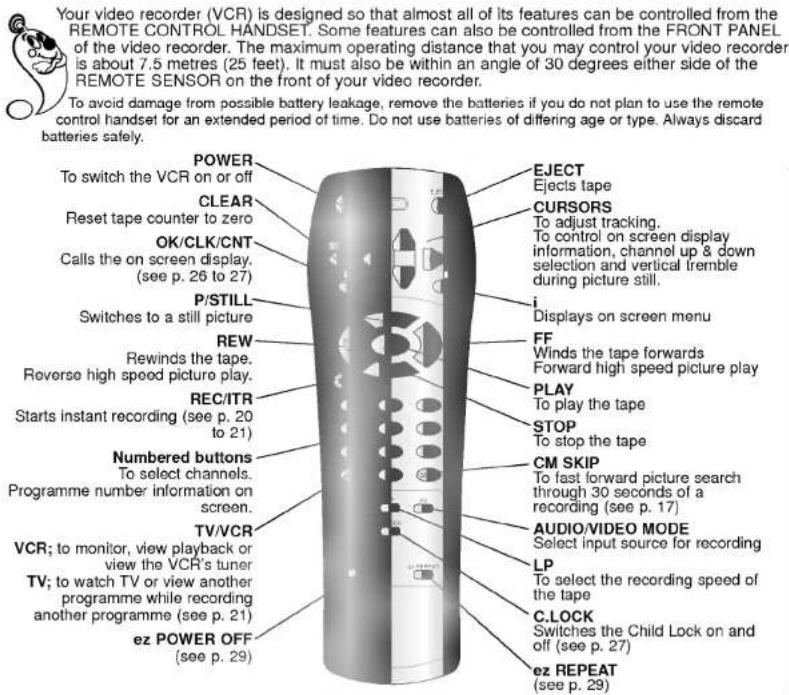
To install batteries: Your REMOTE CONTROL HANDSET is powered by two AA type batteries.
- To insert them, push the tab backwards and lift off the cover of the handset.
- Put the two batteries into the compartment making sure the + and - are correctly positioned.
- Replace the cover.

text_image
Your video recorder (VCR) is designed so that almost all of its features can be controlled from the REMOTE CONTROL HANDSET. Some features can also be controlled from the FRONT PANEL of the video recorder. The maximum operating distance that you may control your video recorder is about 7.5 metres (25 feet). It must also be within an angle of 30 degrees either side of the REMOTE SENSOR on the front of your video recorder. To avoid damage from possible battery leakage, remove the batteries if you do not plan to use the remote control handset for an extended period of time. Do not use batteries of differing age or type. Always discard batteries safely. POWER To switch the VCR on or off CLEAR Reset tape counter to zero OK/CLK/CNT Calls the on screen display. (see p. 26 to 27) P/STILL Switches to a still picture REW Rewinds the tape. Reverse high speed picture play. REC/ITR Starts instant recording (see p. 20 to 21) Numbered buttons To select channels. Programme number information on screen. TV/VCR VCR; to monitor, view playback or view the VCR's tuner TV; to watch TV or view another programme while recording another programme (see p. 21) ez POWER OFF (see p. 29) EJECT Ejects tape CURSORS To adjust tracking. To control on screen display information, channel up & down selection and vertical tremble during picture still. i Displays on screen menu FF Winds the tape forwards Forward high speed picture play PLAY To play the tape STOP To stop the tape CM SKIP To fast forward picture search through 30 seconds of a recording (see p. 17) AUDIO/VIDEO MODE Select input source for recording LP To select the recording speed of the tape C.LOCK Switches the Child Lock on and off (see p. 27) ez REPEAT (see p. 29)
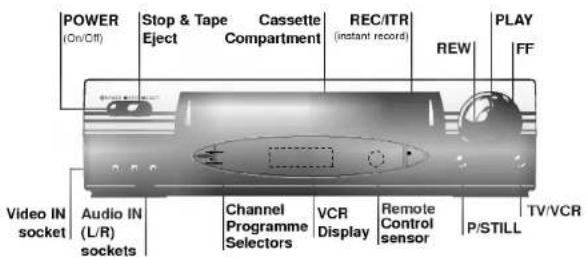
Each button on your VCR has the same function as its corresponding button on the remote control handset.
text_image
POWER (On/Cff) Stop & Tape Eject Cassette Compartment REC/ITR (instant record) REW PLAY FF Video IN socket Audio IN (L/R) sockets Channel Programme Selectors VCR Display Remote Control sensor P/STILL TV/VCR
text_image
Mains Lead AUDIO IN/ OUT(R/L) Terminals AERIAL (Connect the aerial using this socket) VIDEO IN/OUT Terminals RF. OUT (Connect to your TV using this terminal)Controls
Your VCR's
Connecting
To a TV
Using your VCR very first time
Following picture will display on the TV screen when you have just connected your video recorder for the very first time.
To make tuning TV stations, please follow stages 3 to 4 as shown "ACMS" (see p. 11).


The guidance given on the next two pages is the most common forms of connection. However please check with your manufacturers instruction books for specific information. Make sure all connections are made with both your VCR and additional appliance unplugged from the mains to avoid damaging your equipment.

text_image
Aerial The quality of the sound and picture can be greatly influenced by the positioning, quality and state of repair of your external aerial. Back view of your VCR All connections must be made with both your VCR and TV unplugged from the mains. Television To AUDIO OUT (R/L) To VIDEO OUT To VIDEO IN To AUDIO IN (R/L) Aerial Connection Cable (75 ohms) Do not try and force the connector into place, it should plug in easily.

n audio system can be connected to the AUDIO OUT terminals on the back of your VCR.
Please remember to turn the volume to minimum on your Hi-Fi, then gradually increase the volume; this will prevent damaging your speakers and save you from an extremely noisy shock!

Make sure all connections are made with both your VCR and camcorder unplugged from the mains to avoid damaging your equipment. To make connecting your camcorder easier we have designed the Audio IN (Left and Right) and Video IN terminals on the front panel of your VCR.

text_image
Hi-Fi Audio Left & Right Lead Back view of your VCR
text_image
Audio Left & Right Lead Video Lead CamcorderAudio out terminals & RCA Leads
The RCA terminals for connecting your VCR to your Hi-Fi are on the back of the set; L = Left sound output, R = Right sound output. You normally have to select the AUX function on your Hi-Fi.
Camcorder
To your Hi-Fi &
Connecting
Tuning in a Video channel On your TV
The output frequency of this video recorder (VCR) is set at UHF channel 36. If channel 36 is already used by another TV station, or if the picture is distorted, you can change the transmitter channel of your VCR. Stages 5 \~ 8 will show you how to change the output frequency of your VCR.

Your TV receives signals from the video recorder (VCR) like another TV station.
You have to select a channel number on your TV and tune it in so that you may watch video tapes.
If you have used AUDIO and VIDEO cables then your TV should already have a dedicated video channel built into it, usually called AV.
1
Make sure that you have correctly installed your VCR as described earlier in this book.
Press POWER to turn on your VCR.
Turn on your TV.

2
Insert a pre-recorded video tape into your VCR and press PLAY on the remote control.

Select a TV channel number on which you wish to watch video's.
Don't worry if you don't have a video-tape to play at this stage! If you switch your VCR on and continue stages 3 \~ 4, instead of seeing video playback tune your TV until you see a bright blue screen.
3
Tune this channel until the video picture is sharp and the sound is clear.
If you have used a AUDIO and VIDEO cables you will not have to tune your TV, simply select the AV channel. The AV channel is already pre-tuned for optimum video playback on your TV.
4
Store this channel on your TV.
You will need to look at the TV instruction book if you do not know how to do this.
5
Only carry out stages 5 \~ 8 if you cannot obtain clear video play-back as described in stages 1 \~ 4.
Select a TV channel number on which you wish to watch video's.
Make sure that your VCR is in STANDBY (only the clock will be displayed) by pressing POWER on the remote control.
6
Hold down PROG ▲ or ▼ on the front of your VCR for more than 4 seconds.

CH36 will appear in the VCR display.
The following picture will be displayed on the TV screen.

7
Press PROG ▲ or ▼ to select another video channel.

You may select any channel number between 22 and 68.
8
Select a TV channel number on which you wish to watch video's.
Tune this channel so that a bright blue screen appears.
Store this channel on your TV.
Press ⏻ on the front of your VCR when you have finished.

Make sure that you have correctly installed your VCR and successfully
tuned in a dedicated video channel on your TV. If you do not tune in a dedicated video channel on your TV you will be unable to view and record video tapes!
How to Using the main menu
LANGUAGE
SELECTION
You can select the
language among English,
Russian, Deutsch
Francais, and Polski.

This VCR can easily be programmed by using the menus displayed on screen. The menus are controlled from the REMOTE CONTROL HANDSET.
1
Switch on your TV set and video recorder by pressing the POWER button.

2
Press i button.
The main menu will appear on the TV screen.

3
Press ◀ and ▶ to select the desired menu.
Press OK and press ▲ or ▼ to select.


text_image
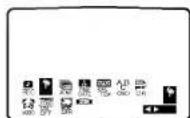
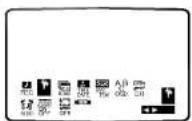
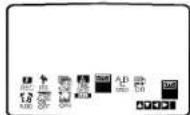
PR ACMS TIME DATE SYSTEM A B OSD DR ON OFF OPR AUDIO4
Press i to remove the menus from the TV screen.

● REC - Timer recording setting (see p. 24 to 25).
● PR - Manual tuning setting (see p. 12 to 13).
● ACMS - ACMS (Automatic Channel Memory System) (see p. 11)
● TIME DATE - Date & clock setting (see p. 23)
● SYSTEM - To set the Colour TV System (see p. 22).
- ABC OSD - To change the language setting for OSD (see left)
● DR - To check a problem with your VCR (see p. 28).
- AUDIO -To select the channel for audio output (see p. 30). To select the channel of audio output according to your TV type ("B/G" for PAL B/G TV, "D/K" for PAL D/K TV)
● F.OSD ON/OFF - To display the operational mode of your VCR (see p. 26).
● OPR - To improve the playback picture (see p. 17)
● NIC - To activate or deactivate the NICAM digital sound (see p. 30).

If the TV broadcast signal is weak your VCR may not detect the necessary information and will be and to store them correctly. To overcome this problem please turn to the MANUAL TUNING section on page 12 to 13.

Press POWER to turn on your VCR.


Press i.
The main menu will appear on the TV screen.
Press ◀ or ▶ to select the ACMS.
Press OK.


Press OK again to start the automatic tuning process.

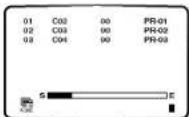

The TV STATION TABLE will appear when tuning is complete.
Press I to save your settings.

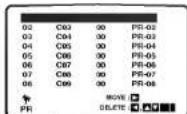
Automatically
TV Stations
Tuning in
Tuning in TV Stations Manually

In certain areas of the country broadcast signals may be too weak for your VCR's automatic tuning process to find or assign TV stations correctly. You must tune in these weaker broadcast stations manually in order for your VCR to store them.

Press i.
The main menu will appear on the TV screen.
Press ◀ or ▶ to select the PR.
Press OK.


Press i.
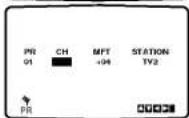
The station table will appear.
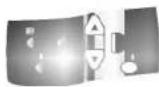
Press ▲ or ▼ to select the programme number that you want to tune (for example, PR 07).


Press OK.
Enter the channel number of station that you want to tune with the numbered buttons.

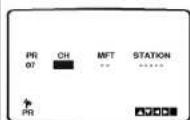

Searching will stop when it locates a station.
Control the fine tuning of the station by pressing ▲ or ▼.
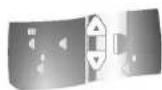
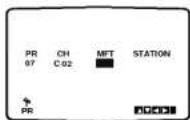

Press ▶ to select and press OK.

Press ▲ or ▼ to select letters and numbers for the new station name.
Press ◀ or ▶ to move back and forth between characters.
Press OK.

Press i, confirm the station placement.
If you wish to manually tune other stations repeat stages 1-7.

Press i again to remove the menus from the TV screen.
Your new TV station has now been tuned into your VCR.




Changing the order of TV Stations

After tuning TV stations into your VCR you may wish to change the order in which they are stored without having to retune them against! The instructions given on this page will show you how you can simply move them into your desired order.
1
Press i.
The main menu will appear on the TV screen.
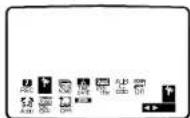
Press ◀ or ▶ to select the PR.
Press OK.


2
Press i.
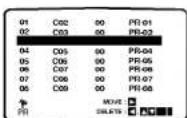
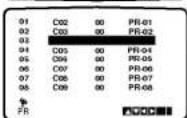
Press ▲ or ▼ to select the programme number you want to move (for example, PR 03).
Press ▶
3
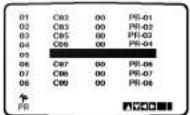
Press ▲ or ▼ to select the programme number you want to move to (for example, PR 05).

4
Press OK.
The selected programme will be moved to the new programme number.
If you wish to move other TV stations repeat stages 1 - 4.
Press 1 to remove the menus from the TV screen.
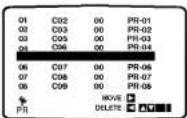

After tuning TV stations into your VCR you may wish to delete a station.
The instructions given on this page will show you how easily delete any unwanted TV stations.

Press i.
The main menu will appear on the TV screen.
Press ◀ or ▶ to select the PR.
Press OK.

Press i.
Press ▲ or ▼ to select the programme number you want to delete.


Press
After a short while, the selected station will be deleted.

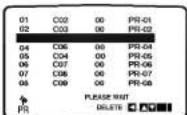

Press i to remove the menus from the TV screen.
If you wish to delete other TV stations repeat stages 1 - 3.


TV Stations
Deleting

How to selecting Stored TV stations:
Stored TV stations can be selected in
either of two ways. Press ▲ or ▼ to select different stations that are tuned into your VCR.

You may also directly select stations using the numbered buttons on the remote control.


You will only be able to load and eject video cassettes when your VCR is plugged into the mains. Your VCR may also playback recordings from NTSC tapes (on PAL TV).
Getting a better picture
When a cassette is inserted and playback started, the automatic tracking function works to get
the best possible picture automatically. If the quality of the recording is poor, repeatedly press
▼ of ▲ on the remote control to manually adjust the tracking until any distortions have been
removed. Press numbered 0 on the remote control to switch automatic tracking back on again.
1
Make sure that you have correctly connected your VCR as described earlier in this book.
Turn on your TV and select the video channel for video playback.
Press POWER to turn on your VCR.

2
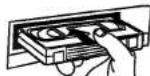
Insert the video cassette into your VCR.
The video cassette should have the window side facing up and the arrow facing away from you.
3
Press PLAY to start playing your tape.
If you load a video cassette which has had its record protection tab removed (playback of the cassette will start automatically).
AUTO TRACKING
Your VCR will automatically adjust the tracking to give the best picture quality.
4
Press P/STILL to still a picture.
Press P/ STILL repeatedly to advance the tape frame by frame.
If you hold down P/ STILL, the picture will be slowed down at about 1/19 times the normal playback.

Tapes can be paused for up to 5 minutes. After 5 minutes your VCR will stop the tape to prevent damaging the tape or your VCR.
Still picture quality can be improved slightly by pressing ▲ or ▼.


Press PLAY to continue playing your tape.
Picture search: During playing back press either FF or REW to this will enable you to rapidly wind the tape (7 times normal playback) see where you are on the tape.
Logic search: During fast forwarding or rewinding press and hold FF or REW the picture will be played back at 7 times normal playback speed.

Press STOP to end playback.

Press EJECT.

If the end of the tape is reached, your VCR will stop playback automatically, rewind, stop, eject the tape and place itself into power off mode.
CM (Commercial Message) Skip:
This feature enables you during playback of a tape to skip a commercial break in a few seconds, then resume normal playback.
While tape is playing press CM SKIP on the remote control to skip commercial (or another programme material).
Repeatedly press CM SKIP to skip:
1 Press 30 seconds
2 Press 60 seconds
3 Press 90 seconds
4 Press 120 seconds
5 Press 150 seconds
6 Press 180 seconds
OPR (Optimum Picture Response):
This feature automatically improves playback picture quality by adjusting your VCR to the condition of the tape.
Press i.
Press ◀ or ▶ to select OPR.
Press OK.

Press ▲ or ▼ repeatedly to select: OFF, SOFT or SHARP.
Please note you may only set OPR when playing a tape.
Press I return to screen.
Other Playback features

Your VCR incorporates a number of tape search features that enable you to quickly search a tape for your particular recording.
1
During playing back or still picture press ◀ or ▶ repeatedly to obtain different playback speeds.

You can reach the following playback speeds.
(-7xplay, -3xplay, -play, still, 1/19 slow, play, 2xplay, 7xplay)
To switch off the slow motion and shuttle, press the desired function.
During slow motion and shuttle, the noise bars may appear on the picture according to the status of tape.
2
Press ▲ or ▼ to improve picture quality.
3
Press PLAY to play your tape back at normal speed.
4
Press STOP.
STOP will appear for a few seconds on the TV screen.
Fast Forward (FF):
Press FF.
The tape will rapidly wind forwards.
FF will appear for a few seconds on the TV screen.

Rewind (REW):
Press REW.
The tape will rapidly wind backwards.
REW will appear for a few seconds on the TV screen.

Recording TV programmes
If you do not wish to record on a tape (this can happen quite easily by accident!) remove the protection tab on the back edge of the video cassette.
It is possible to record on a video cassette with the record protection tab removed by covering the hole with self adhesive tape.



Your VCR allows you to make recordings using a variety of simple methods: Instant Timer Recording (ITR) start recording immediately for a set period of time or until the video cassette runs out.
1
Make sure that you have correctly connected your VCR as described earlier in this book.
Press POWER to turn on your VCR.

2
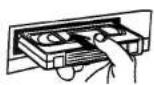
Insert a video cassette with protection tab into your VCR.
The video cassette should have the window side facing up and the arrow facing away from you.
3
Press ▲ or ▼ to select the programme number you wish to record.
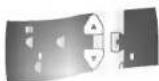
You may also directly select programme number using the numbered buttons on the remote control.

4
If you wish to record external video from a sky decoder or satellite receiver using the VIDEO IN and AUDIO IN(L/R) set the pre-set number to "SC", "AV1" or "AV2" by pressing the "AV" button.

SC01 Hi-Fi Sound only recording using the AUDIO IN terminals on the front of your VCR.
AV 1 Sound and Picture recording using the VIDEO IN and AUDIO IN (L/R) on the back of your VCR.
AV 2 Sound and Picture recording using the VIDEO IN and AUDIO IN (L/R) on the front of your VCR.

Your VCR incorporates Long Play (LP) which enables you to record up to twice the amount of time on a video cassette. For example an E-180 will record up to 180 minutes using Standard Play (SP); using LP you will be able to record up to 360 minutes. Please note there will be a slight loss in picture and sound quality when using LP.
5
Press LP if you wish to record in Long Play or Standard Play.
SP will produce improved picture and sound quality, however LP will provide twice as much recording time as SP. SP or LP will be displayed. to let you know which you have selected.
6
Press REC/ITR to start recording.
RECORD will appear on the TV screen.
Press REC/ITR several times. Each successive press will increase the record time by 30 minutes until you reach a maximum of 9 hours.

7
Press P/ STILL to avoid recording unwanted scenes.
Press P/STILL to continue recording.
Tapes can be paused for up to 5 minutes; RECP will be displayed when a tape is paused. After 5 minutes your VCR will stop recording to prevent damaging the tape or your VCR.

8
Press STOP to end recording.
Press EJECT.
EJECT will appear on the TV screen.
If the end of the tape is reached, your VCR will stop recording automatically, rewind, stop, eject the tape and place itself into power off.


Remember you can record one programme while watching another
by starting your instant recording, press TV/VCR to select TV mode and then selecting a different channel on your TV.
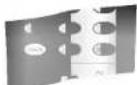

Your VCR is equipped with triple colour standard, you can play back a tape in PAL B/G and SECAM D/K.
During playback your VCR detects the colour system automatically. If there are colour problem please select the colour system manually.
1
Press i.
The main menu will appear on the TV screen.
Press ◀ or ▶ to select the SYSTEM.
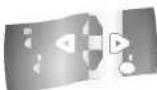
2
Press OK.
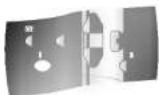
3
Press ▲ or ▼ to select according to the COLOUR system used.
AUTO: automatic colour selection, PAL: PAL recordings MESECAM: MESECAM recordings.
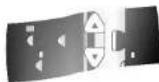
4
Press i to remove the menus from the TV screen.


Press i.
Press ◀ or ▶ to select TIME DATE.
Press OK.


Use the numbered buttons on the remote control or press ▲ or ▼ to alter the HOURS, MINUTES, DAY, MONTH and YEAR.
Please note your VCR uses a 24 hour clock. e.g. 1pm will be displayed as 13:00.
The day of the week will appear automatically when you enter the year.


If you make a mistake press ◀ or ▶ and enter the correct details.


Press i.
Your new clock settings are stored and will appear on your video recorder's display.


text_image
Timer recording Using On Screen Display ON Screen Display
You may set up to seven timer record events within one month of the current date PLEASE NOTE! before setting the timer make sure that you have set the VCR clock correctly and you know which stations you have tuned TV stations on your VCR.
1
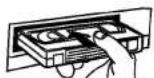
Insert a video cassette with protection tab into your VCR.
The video cassette should have the window side facing up and the arrow facing away from you.
2
Press i.
Press ◀ or ▶ to select REC.
Press OK.


3
Press OK to start setting the timer record event.
If all timer record events are full press ▲ or ▼ to select the event that you wish to remove and replace.
Press ◀ to delete the event.

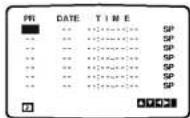
4
Press the numbered buttons to enter the station that you wish to record.

When selecting stations 1 - 9, press 0 first, then the channel number; for example Stations 3 - 03. You may also select Channels by pressing ▲ or ▼. Once selected press ▶.
If you wish to record external video from a satellite receiver using the VIDEO IN and AUDIO IN(L/R) set the pre-set number to "AV1" or "AV2" by pressing the "AV" button on the remote control.


If at a later date you wish to delete or change any of the settings in timer event memory you may do so without having to enter all the timer event information again. Simply display the timer event screen. Press ▲ or ▼ to select the event that you wish to delete or change.
Press ◀ to delete the event...or
Press OK to change; then press ◀ or ▶ to select; Station, Date, Start and End times and LP. Press ▲ or ▼ to enter the correct information.

Press the numbered buttons to enter the date of the programme.
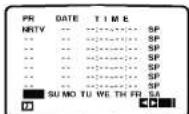
If you press OK before entering the date you may select one of the following automated recording features. Press
◀ or ▶ to select, then press OK to confirm.
DLY To record every day (except Saturday and Sunday) at the same time.
Weekly To record at the same time every week.

Press the numbered buttons to enter the recording start and end times of the programme that you wish to record.
Please note your VCR uses a 24 hour clock. e.g. 1pm will be displayed as 13:00. You may also select the the start and end times by pressing ▲ or ▼.


Press ◀ or ▶ and press ▲ or ▼ if you wish to record in Long Play.
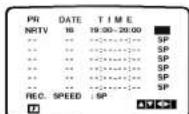

Check that the timer event details are correct.
Press I twice.
If PLEASE CHECK is displayed, you have entered incorrect and will need to re-enter the data.
Press POWER to switch your VCR Standby.
TIMER will appear in the video recorder's display while your VCR waits to make the recording.

If Timer record events Overlap...
Make sure that the preset times of the timer recording events do not overlap. If they do, the earlier programme will always be given priority.
Example:
Programme 1 is programmed to start at 16:00 and end at 17:00.
Programme 2 is programmed to start at 16:30 and end at 18:00.
(In this case, Programme 1 will be recorded in its entirety, but only the last 30 minutes of Programme 2 will be recorded.)

(This portion will not be recorded)

text_image
Energy Saving An Screen Display
Your VCR has an Energy Save feature which if set will place your VCR into an economic power save where the clock display will disappear. If you have programmed a recording, this feature will not work.

Press POWER on the VCR.
The VCR and clock will appear on the video recorder's display.

Press POWER on the VCR again and your VCR will go into Energy Save.
All indicators will turn off in the video recorder's display.
Press POWER to switch off Energy Save.

You may easily display the current time or tape counter and amount of tape left, day, month, year, day of week, programme channel, tape speed and operational mode of your VCR on the TV screen. If a recording is taking place these On Screen Displays will not be corded onto the tape.

Press OK/CLK/CNT to display.


Press OK/CLK/CNT repeatedly to display the tape counter and amount of tape left.

After 3 seconds the display will clear only leaving the clock or tape counter and amount of tape left on the TV screen.
Press OK/CLK/CNT again to remove all displays from the TV screen.


If you have set the OSD ON/OFF to OFF in the main menu, function
OSD(On Screen Display) will not be displayed.

The Digital Tape Counter can be displayed on your TV screen instead of the time by pressing OK/CLK/CNT on the remote control. The Digital Tape Counter indicates the relative positions of recordings on the tape.

The control buttons on the front of the VCR can be switched off so that your VCR can only be operated using the remote control.

Press OK/CLK/CNT. Press CLEAR to set the counter to 0:00:00.
Press PLAY or start recording.
The tape counter will display the actual play time in hours, minutes and seconds.

Press STOP when playback or recording is complete.
Press REW.
The tape will rewind and automatically stop when the counter returns to 0:00:00.

Press C.LOCK.
SAFE will appear on the TV screen.
SAFE will flicker in your video recorder's display for a few seconds.
None of the buttons on the front of your VCR will work (except STOP/ EJECT)
If any buttons on the front of your VCR are pressed SAFE will flicker in your video recorder's display for a few seconds.

Press C.LOCK again to switch off the child lock.
SAFE will disappear on the TV screen.
OFF will flicker in your video recorder's display for a few seconds.


text_image
Memory Shut-Off A0V0NCO Video Doctor (Self-diagnosis)
Automatic Memory Shut-Off
This feature of your VCR enables you to switch off your VCR automatically after tape rewind has been completed.

Press POWER during tape rewind.


The tape will rewind to the beginning and your VCR will automatically switch itself off.

VIDEO DOCTOR (Self-Diagnosis)
This feature informs you that there is a problem with your VCR. These error messages will appear on the TV screen.

Press i.
Press ◀ or ▶ to select DR.
Press OK.

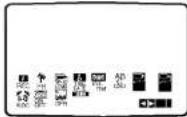


Press ▲ or ▼ to check a problem.
HEAD STATUS
- PLEASE CLEAN: Clean your video heads.
TAPE STATUS
● NOT RECORDABLE: Insert a tape with its protection tab in place
NO. OF TIMER PRO- GRAMME
Shows the number of timer recording.
NEXT TIMER PROGRAMME
● 1 26 10:00\~11:00 Shows the current status of timer recording.
Press i.

flowchart
graph TD
    A["ez (easy) power off\nSequence of "Stop→Rewind→Eject→Power Off" is operated automatically by pressing ez POWER OFF."] --> B["During playing back press ez POWER OFF."]
    B --> C["STOP"]
    C --> D["REWIND"]
    D --> E["EJECT"]
    E --> F["POWER OFF"]
    G["ez (easy) repeat\nBy pressing & holding ez REPEAT during playing back, the holding section is replayed twice automatically."] --> H["During playing back, press & hold ez REPEAT at the point where repeat play is to be concluded. Then, your VCR is started reverse search."]
    I["Release ez REPEAT at the point where repeat play is to start.\nThe holding section is replayed twice automatically."] --> J["Pressing ez REPEAT again during repeat play, return to normal play."]

Your VCR will record and playback Hi-Fi stereo sound. In addition it has a stereo NICAM digital stereo sound decoder. This allows you to record and playback the sound in several different ways. Video cassettes recorded on your VCR will have a normal mono audio track and two VHS Hi-Fi stereo audio tracks. These stereo tracks allow you to make audio recordings in Hi-Fi stereo mode from a TV broadcast, stereo audio system, video disc or another Hi-Fi VCR.
1
Your VCR is fitted with a NICAM stereo decoder to obtain the benefits of digital stereo sound (on stations that transmit stereo sound).
The particular type of sound received or that recorded will be briefly displayed on the TV screen for a couple of seconds:
STEREO NICAM
Sound is automatically recorded on the Hi-Fi stereo and mono tracks of the video tape.
MONO
The sound is recorded on the Hi-Fi tracks and the mono track of the video tape without any separation.
2
Switch on your VCR.
Press i.
Press ◀ or ▶ to select AUDIO.
Press OK.


3
Press ▲ or ▼ to select AUDIO.
The choice is STEREO, L-CH (left channel), R-CH (right channel) and MONO.
4
Press i.

This feature enables you to simulcast sound transmitted by an audio source and the picture transmitted by the TV station.

text_image
Simulcast Stereo Recording

Connect the stereo tuner or receiver to the left and right AUDIO INPUT connectors (AV2) on the front panel of the VCR.

Adjust the stereo sound quality on your stereo tuner or receiver.
Simulcast Stereo Playback

Connect the VCR and TV.

Other operations are the same as general play-back.

Press AV to select SIMULCAST (SC).

Other operations are the same as for general recording.

If the VCR is connected both to a stereo TV and your audio system, turn on your audio system and set the TV sound to minimum.

text_image
Simulcast Recording & PlaybackTape Copying
Specifications

The design and specifications are subject to change without notice.

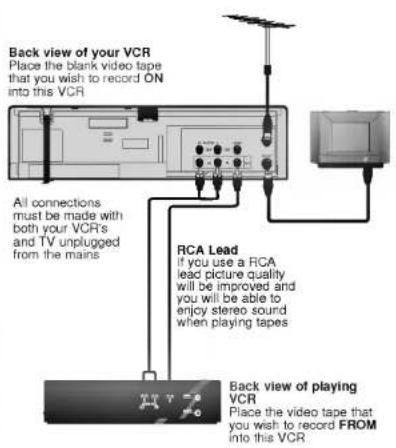
A second VCR (for tape copying) should be connected to the AUDIO IN (L/R) and VIDEO IN terminals on the front of your VCR or from the back of your VCR. Remember to select the appropriate audio/video mode by pressing the AV button on the remote control.
text_image
Back view of your VCR Place the blank video tape that you wish to record ON into this VCR All connections must be made with both your VCR's and TV unplugged from the mains RCA Lead if you use a RCA lead picture quality will be improved and you will be able to enjoy stereo sound when playing tapes Back view of playing VCR Place the video tape that you wish to record FROM into this VCR
General
Power 110-240V\~, 50/60Hz
Power consumption Approx. 18 Watts (Energy Saving
mode: 3 Watts)
Video Head System Double azimuth 4 heads, helical
scanning.
Tape speed 23.39 mm/sec (SP mode)/
11.69 mm/sec (LP mode)
Tape format Tape width 12.7 mm (0.5 inch).
Maximum recording 4 hours (SP mode, E-240 tape)
time 8 hours (LP mode, E-240 tape)
Rewind time Approx. 65 (+/-10) sec.(E-180 tape).
Dimensions 360 x 94 x 270 mm (W x H x D)
Weight 3.4 Kg.
Operating temperature 5°C - 35°C
Operating humidity Less than 80%.
Timer 24 hours display type
Video
Television system CCIR standard (625 lines, 50 fields)
PAL/SECAM colour signal
Recording format PAL/MESECAM
RF reception PAL/SECAM (B/G, D/K)
RF OUT PAL G/K
Input level VIDEO IN (RCA type)
1.0 Vp-p, 75 Ohm, unbalanced
Output level VIDEO OUT (RCA type)
1.0 Vp-p, 75 Ohm, unbalanced
Signal to noise ratio More than 43 dBm
RF Modulator UHF 22-68 (Adjustable)
Audio
Input level AUDIO IN (RCA type)
-6.0 dBm, more than 47 kohms
Output level AUDIO OUT (RCA type)
-6.0 dBm, less than 1 kohms
Track Mono track & Hi-Fi track
Frequency response Normal: 100 Hz-10 kHz (-6/+3 dB)
Hi-Fi: 20 Hz-20 kHz (-3/+3 dB)
Signal to noise ratio Normal: More than 43 dB (at SP mode)
Hi-Fi: More than 70 dB (at SP mode)
Dynamic range Hi-Fi: More than 80 dB (at SP mode)

Video Head Cleaning
Whenever a video cassette is inserted into or ejected from your VCR the video head is automatically cleaned. This should mean that additional head cleaning should not be necessary. However dirt accumulating on the head after a long period of time can cause the playback picture to become blurred or broken up. High quality video cassette tapes will not normally deposit dirt onto the video head, but old or damaged tapes might.
| Symptom | Check points | Symptom | Check points |
| No picture & no sound | Is the mains plug plugged in and switched on?Is the TV switched on?Try another channel, maybe a weak signal.Check the aerial. Is it connected?Check the aerial. Is the cable broken or damaged?Have you tuned in a video channel on your TV to watch video on?If you have used a RCA lead to connect your VCR and TV have you selected the AV channel on your TV?Check tuning, carry out Automatic Tuning again | Videocassettecannot beinserted | Is the cassette compartment empty?Are you trying to insert the cassette the right way round? |
| Remotecontrol doesnot work | Is the mains plug plugged in and switched on?Is the VCR switched onCheck the batteries in remote control. | ||
| The top ofthe playbackpicture isunstable | Is the video cassette damaged, have you tried using another one?Adjust the horizontal control on your TV. Check the aerial. Is it connected?Check the aerial. Is the cable broken or damaged?Check for local interferenceMake sure that you are using a video TV channel on your TV. | ||
| No playback or poor picture | Are the TV channels tuned in properly?Have you tried using another cassette?Can you minimise the noise bars to an acceptable level with 0, ▲ or ▼? | ||
| TV programmes cannot be recorded | Can you get a picture on the TV?Are the aerial leads and special RF connector lead between your VCR and TV connected?Are the TV channels tuned in properly?Has the safety tab on the video cassette been removed to prevent recording?Try another station, maybe a weak signalCheck the aerial. Is it connected to the TV? | Auto Playdoes notwork | Has the safety tab been removed from the video cassette?Is the child lock switched on mode?Switch "AUDIO" in the menu to STEREO. |
| No Hi-Fisound | Make sure "NIC" in the main menu is set to "AUTO" for the station to be recorded. | ||
| No NICAMSoundrecording |

LG Electronics Inc.