ROG GL10CS-BE010T - Office ASUS - Free user manual and instructions
Find the device manual for free ROG GL10CS-BE010T ASUS in PDF.


User questions about ROG GL10CS-BE010T ASUS
0 question about this device. Answer the ones you know or ask your own.
Ask a new question about this device
Download the instructions for your Office in PDF format for free! Find your manual ROG GL10CS-BE010T - ASUS and take your electronic device back in hand. On this page are published all the documents necessary for the use of your device. ROG GL10CS-BE010T by ASUS.
USER MANUAL ROG GL10CS-BE010T ASUS
natural_image
Line drawing of a sleek, geometric device with a stylized 'O' logo and mesh pattern (no text or symbols)E14827
First Edition
September 2018
Copyright © 2018 ASUSTeK Computer Inc. All Rights Reserved.
No part of this manual, including the products and software described in it, may be reproduced, transmitted, transcribed, stored in a retrieval system, or translated into any language in any form or by any means, except documentation kept by the purchaser for backup purposes, without the express written permission of ASUSTeK Computer Inc. ("ASUS").
Product warranty or service will not be extended if: (1) the product is repaired, modified or altered, unless such repair, modification of alteration is authorized in writing by ASUS; or (2) the serial number of the product is defaced or missing.
ASUS PROVIDES THIS MANUAL "AS IS" WITHOUT WARRANTY OF ANY KIND, EITHER EXPRESS OR IMPLIED, INCLUDING BUT NOT LIMITED TO THE IMPLIED WARRANTIES OR CONDITIONS OF MERCHANTABILITY OR FITNESS FOR A PARTICULAR PURPOSE. IN NO EVENT SHALL ASUS, ITS DIRECTORS, OFFICERS, EMPLOYEES OR AGENTS BE LIABLE FOR ANY INDIRECT, SPECIAL, INCIDENTAL, OR CONSEQUENTIAL DAMAGES (INCLUDING DAMAGES FOR LOSS OF PROFITS, LOSS OF BUSINESS, LOSS OF USE OR DATA, INTERRUPTION OF BUSINESS AND THE LIKE), EVEN IF ASUS HAS BEEN ADVISED OF THE POSSIBILITY OF SUCH DAMAGES ARISING FROM ANY DEFECT OR ERROR IN THIS MANUAL OR PRODUCT.
SPECIFICATIONS AND INFORMATION CONTAINED IN THIS MANUAL ARE FURNISHED FOR INFORMATIONAL USE ONLY, AND ARE SUBJECT TO CHANGE AT ANY TIME WITHOUT NOTICE, AND SHOULD NOT BE CONSTRUED AS A COMMITMENT BY ASUS. ASUS ASSUMES NO RESPONSIBILITY OR LIABILITY FOR ANY ERRORS OR INACCURACIES THAT MAY APPEAR IN THIS MANUAL, INCLUDING THE PRODUCTS AND SOFTWARE DESCRIBED IN IT.
Products and corporate names appearing in this manual may or may not be registered trademarks or copyrights of their respective companies, and are used only for identification or explanation and to the owners' benefit, without intent to infringe.
Contents
Notices 4
Safety information....9
Conventions used in this guide....10
Where to find more information....10
Package contents....11
Chapter 1: Getting started
Welcome!....13
Getting to know your computer....13
Setting up your computer....17
Turning your computer ON 18
Chapter 2: Connecting devices to your computer
Connecting a USB storage device....19
Connecting microphone and speakers....20
Connecting multiple external displays 22
Connecting an HDTV 23
Chapter 3: Using your computer
Proper posture when using your Desktop PC....25
Using the optical drive 26
Chapter 4: Connecting to the Internet
Wired connection....27
Wi-Fi connection (on selected models only)....31
Chapter 5: Troubleshooting
Troubleshooting....33
Appendix: Windows ^® 10 User Manual
Starting for the first time....43
Using the Windows ^® 10 UI ....44
Keyboard shortcuts ....48
ASUS contact information
ASUS contact information....50
Notices
ASUS Recycling/Takeback Services
ASUS recycling and takeback programs come from our commitment to the highest standards for protecting our environment. We believe in providing solutions for you to be able to responsibly recycle our products, batteries, other components, as well as the packaging materials. Please go to http://csr.asus.com/english/Takeback.htm for the detailed recycling information in different regions.
REACH
Complying with the REACH (Registration, Evaluation, Authorisation, and Restriction of Chemicals) regulatory framework, we published the chemical substances in our products at ASUS REACH website at http://csr.asus.com/english/REACH.htm
Federal Communications Commission Statement
This device complies with Part 15 of the FCC Rules. Operation is subject to the following two conditions:
• This device may not cause harmful interference; and
- This device must accept any interference received including interference that may cause undesired operation.
This equipment has been tested and found to comply with the limits for a Class B digital device, pursuant to Part 15 of the FCC Rules. These limits are designed to provide reasonable protection against harmful interference in a residential installation. This equipment generates, uses and can radiate radio frequency energy and, if not installed and used in accordance with manufacturer's instructions, may cause harmful interference to radio communications. However, there is no guarantee that interference will not occur in a particular installation. If this equipment does cause harmful interference to radio or television reception, which can be determined by turning the equipment off and on, the user is encouraged to try to correct the interference by one or more of the following measures:
• Reorient or relocate the receiving antenna.
- Increase the separation between the equipment and receiver.
- Connect the equipment to an outlet on a circuit different from that to which the receiver is connected.
- Consult the dealer or an experienced radio/TV technician for help.

The use of shielded cables for connection of the monitor to the graphics card is required to assure compliance with FCC regulations. Changes or modifications to this unit not expressly approved by the party responsible for compliance could void the user's authority to operate this equipment.
Lithium Battery Warning
CAUTION: Danger of explosion if battery is incorrectly replaced. Replace only with the same or equivalent type recommended by the manufacturer. Dispose of used batteries according to the manufacturer's instructions.
Compliance Statement of Innovation, Science and Economic Development Canada (ISED)
This device complies with Innovation, Science, and Economic Development Canada licence exempt RSS standard(s). Operation is subject to the following two conditions: (1) this device may not cause interference, and (2) this device must accept any interference, including interference that may cause undesired operation of the device:
Operation in the band 5150–5250 MHz is only for indoor use to reduce the potential for harmful interference to co-channel mobile satellite systems.
CAN ICES-3(B)/NMB-3(B)
IC: Canadian Compliance Statement
Complies with the Canadian ICES-003 Class B specifications. This device complies with RSS 210 of Industry Canada. This Class B device meets all the requirements of the Canadian interference-causing equipment regulations.
This device complies with Industry Canada license exempt RSS standard(s). Operation is subject to the following two conditions: this device may not cause interference, and (2) this device must accept any interference, including interference that may cause undesired operation of the device.
Canadian Department of Communications Statement
This digital apparatus does not exceed the Class B limits for radio noise emissions from digital apparatus set out in the Radio Interference Regulations of the Canadian Department of Communications.
This class B digital apparatus complies with Canadian ICES-003.
VCCI Class B Statement
This is a Class B product based on the standard of the VCCI Council. If this is used near a radio or television receiver, it may cause radio interference. Install and use equipment according to the instruction manual.
Equipment registered based on the confirmation measurement at the user installation site.
This is a product for which interference was measured at the present installation site and confirmed to comply with the standard of Voluntary Control Council for Interference by Information Technology Equipment (VCCI). Before using the equipment at any location other than the present installation site, the member shall measure interference for confirmation and register the result to VCCI.
India E-Waste (Management) Rules 2016
This product complies with the "India E-Waste (Management) Rules, 2016" and prohibits use of lead, mercury, hexavalent chromium, polybrominated biphenyls (PBBs) and polybrominated diphenyl ethers (PBDEs) in concentrations exceeding 0.1% by weight in homogenous materials and 0.01% by weight in homogenous materials for cadmium, except for the exemptions listed in Schedule II of the Rule.
KC: Korea Warning Statement
B급 기기 (가정용 방송통신기자재)
RF Equipment Notices
CE: European Community Compliance Statement
The equipment complies with the RF Exposure Requirement 1999/519/EC, Council Recommendation of 12 July 1999 on the limitation of exposure of the general public to electromagnetic fields (0–300 GHz).
Wireless Radio Use
This device is restricted to indoor use when operating in the 5.15 to 5.25 GHz frequency band. For the standard EN 300 440 V2.1.1, the device operating in 802.11a/n/ac mode is considered as a receiver category 2.
Exposure to Radio Frequency Energy
The radiated output power of the Wi-Fi technology is below the FCC radio frequency exposure limits. Nevertheless, it is advised to use the wireless equipment in such a manner that the potential for human contact during normal operation is minimized.
FCC Bluetooth Wireless Compliance
The antenna used with this transmitter must not be colocated or operated in conjunction with any other antenna or transmitter subject to the conditions of the FCC Grant.
Bluetooth Industry Canada Statement
This Class B device meets all requirements of the Canadian interference-causing equipment regulations.
BSMI: Taiwan Wireless Statement
無線設備的警告聲明
Japan RF Equipment Statement
Simplified EU Declaration of Conformity
ASUSTek Computer Inc. hereby declares that this device is in compliance with the essential requirements and other relevant provisions of Directive 2014/53/EU. Full text of EU declaration of conformity is available at https://www.asus.com/support/.
The Wi-Fi operating in the band 5150-5350MHz shall be restricted to indoor use for countries listed in the table below:
| AT BE | BG CZ DK | EE FR | ||||
| DE IS | IE IT EL ES | CY | ||||
| LV | LI | LT | LU | HU | MT | NL |
| NO PL | PT RO SI SK TR | |||||
| FI SE | CH UK HR | |||||
CE
Optical Drive Safety Information
Laser Safety Information
CD-ROM Drive Safety Warning
CLASS 1 LASER PRODUCT

WARNING! To prevent exposure to the optical drive's laser, do not attempt to disassemble or repair the optical drive by yourself. For your safety, contact a professional technician for assistance.
Service warning label

WARNING! INVISIBLE LASER RADIATION WHEN OPEN. DO NOT STARE INTO BEAM OR VIEW DIRECTLY WITH OPTICAL INSTRUMENTS.
CDRH Regulations
The Center for Devices and Radiological Health (CDRH) of the U.S. Food and Drug Administration implemented regulations for laser products on August 2, 1976. These regulations apply to laser products manufactured from August 1, 1976. Compliance is mandatory for products marketed in the United States.

WARNING! Use of controls or adjustments or performance of procedures other than those specified herein or in the laser product installation guide may result in hazardous radiation exposure.
Safety information

Disconnect the AC power and peripherals before cleaning. Wipe the Desktop PC using a clean cellulose sponge or chamois cloth dampened with solution of nonabrasive detergent and a few drops of warm water then remove any extra moisture with a dry cloth.
- DO NOT place on uneven or unstable work surfaces. Seek servicing if the casing has been damaged.
• DO NOT expose to dirty or dusty environments. DO NOT operate during a gas leak.
• DO NOT place or drop objects on top and do not shove any foreign objects into the Desktop PC.
• DO NOT expose to strong magnetic or electrical fields. - DO NOT expose to or use near liquids, rain, or moisture. DO NOT use the modem during electrical storms.
- Battery safety warning: DO NOT throw the battery in fire. DO NOT short circuit the contacts. DO NOT disassemble the battery.
- Use this product in environments with ambient temperatures between 0°C (32°F) and 35°C (95°F).
• DO NOT cover the vents on the Desktop PC to prevent the system from getting overheated.
• DO NOT use damaged power cords, accessories, or other peripherals. - To prevent electrical shock hazard, disconnect the power cable from the electrical outlet before relocating the system.
- Seek professional assistance before using an adapter or extension cord. These devices could interrupt the grounding circuit.
- Ensure that your power supply is set to the correct voltage in your area. If you are not sure about the voltage of the electrical outlet you are using, contact your local power company.
- If the power supply is broken, do not try to fix it by yourself. Contact a qualified service technician or your retailer.

Hazardous moving parts. Desktop should be completely shutdown before servicing product. Replacing fan components should only be attempted by qualified service personnel.
Hazardous Moving Parts Warning
WARNING: Keep fingers and other body parts away from any moving parts.
Conventions used in this guide
To ensure that you perform certain tasks properly, take note of the following symbols used throughout this manual.

DANGER/WARNING: Information to prevent injury to yourself when trying to complete a task.

CAUTION: Information to prevent damage to the components when trying to complete a task.

IMPORTANT: Instructions that you MUST follow to complete a task.

NOTE: Tips and additional information to help you complete a task.
Where to find more information
Refer to the following sources for additional information and for product and software updates.
ASUS websites
The ASUS website provides updated information on ASUS hardware and software products. Refer to the ASUS website www.asus.com.
ASUS Local Technical Support
Visit ASUS website at https://www.asus.com/support/contact for the contact information of local Technical Support Engineer.
Package contents
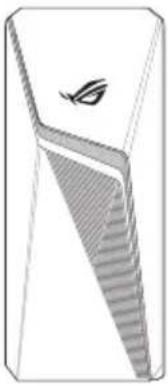 | 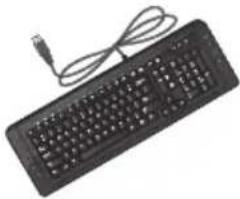 | 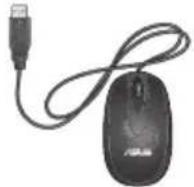 |
| Desktop PCFX10CS | Keyboard x1 Mouse x1 | |
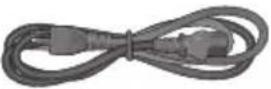 | 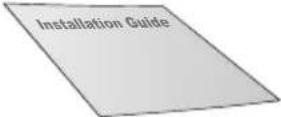 | 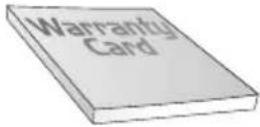 |
| Power cord x1 Installation Guide x1 Warranty Card x1 | ||

• If any of the above items is damaged or missing, contact your retailer.
- The illustrated items above are for reference only. Actual product specifications may vary with different models.
Chapter 1
Getting started
Welcome!
Thank you for purchasing the ASUS Desktop PC!
The ASUS Desktop PC provides cutting-edge performance, uncompromised reliability, and user-centric utilities. All these values are encapsulated in a stunningly futuristic and stylish system casing.

Read the ASUS Warranty Card before setting up your ASUS Desktop PC.
Getting to know your computer

Illustrations are for reference only. The ports, their locations and the chassis color vary with different models.
Front Top
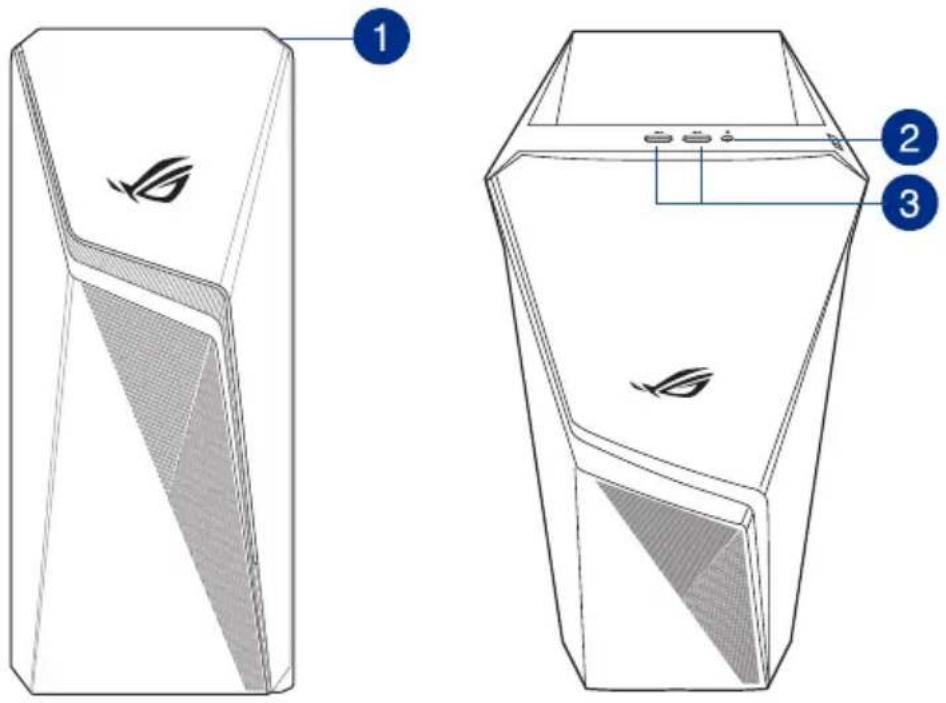
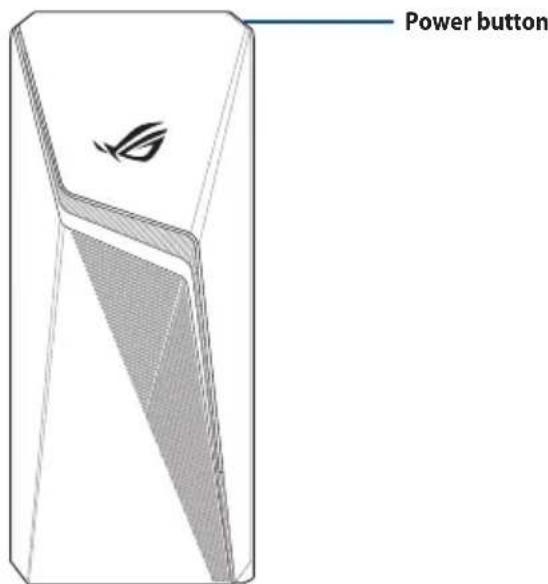
1 Power button. Press this button to turn on your computer.
2 Headphone port. This port connects to a headphone or speaker.
3 USB 3.1 Gen 1 ports. These ports connect to USB 3.1 Gen 1 devices such as a mouse, printer, scanner, camera, PDA, and others.

• USB 3.1 Gen 1 devices can only be used for data storage.
• We strongly recommend that you connect USB 3.1 Gen 1 devices to USB 3.1 Gen 1 ports for faster and better performance for your USB 3.1 Gen 1 devices.
Rear
1
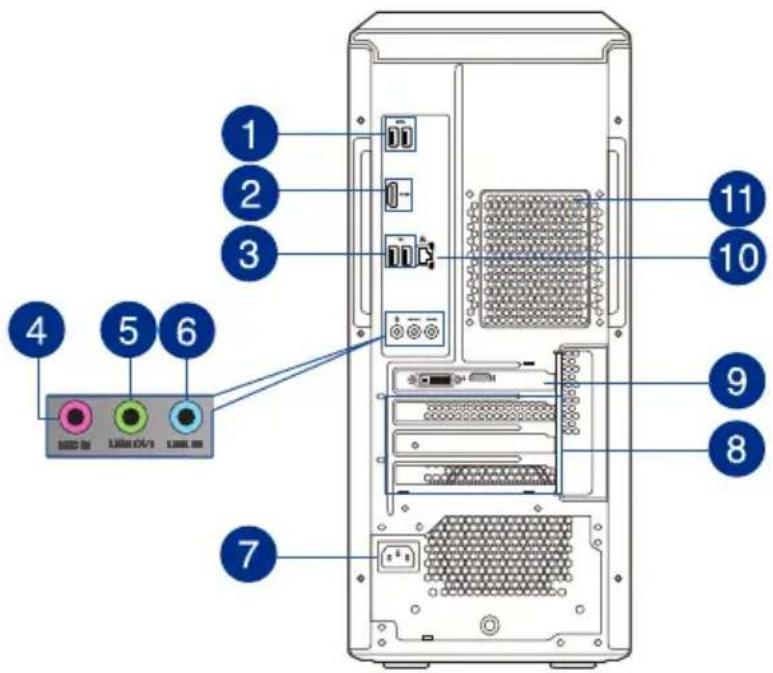
USB 3.1 Gen 1 ports. These ports connect to USB 3.1 Gen 1 devices such as a mouse, printer, scanner, camera, PDA, and others.

• USB 3.1 Gen 1 devices can only be used for data storage.
• We strongly recommend that you connect USB 3.1 Gen 1 devices to USB 3.1 Gen 1 ports for faster and better performance for your USB 3.1 Gen 1 devices.
2
HDMI port. This port is for a High-Definition Multimedia Interface (HDMI) connector, and is HDCP compliant allowing playback of HD DVD, Blu-ray, and other protected content.
3
USB 2.0 ports. These Universal Serial Bus 2.0 (USB 2.0) ports connect to USB 2.0 devices such as a mouse, printer, scanner, camera, PDA, and others.
4
Microphone port (pink). This port connects to a microphone.
5
Line Out port (lime). This port connects to a headphone or speaker. In a 4.1 or 5.1-channel configuration, the function of this port becomes Front Speaker Out.
6
Line In port (light blue). This port connects to a tape, CD, DVD player, or other audio sources.

Refer to the audio configuration table on the next page for the function of the audio ports in a 2.1, 4.1, or 5.1-channel configuration.
Audio 2.1, 4.1, or 5.1-channel configuration
| Port | Headset 2.1-channel | 4.1-channel | 5.1-channel |
| Light Blue (Rear panel) | Line In | Rear Speaker Out | Rear Speaker Out |
| Lime (Rear panel) | Line Out | Front Speaker Out | Front Speaker Out |
| Pink (Rear panel) | Mic In | Mic In | Bass/Center |
7
Power connector. Plug the power cord to this connector.

RATING: 100\~120/220\~240Vac, 50/60Hz, 6.0/3.0A
8
Expansion slot brackets. Remove the expansion slot bracket when installing an expansion card.
9
ASUS Graphics Cards (on selected models only). The display output ports on these optional ASUS Graphics Cards may vary with different models.
10
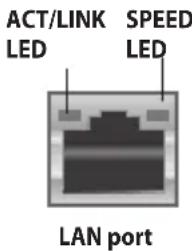
LAN (RJ-45) port. This port allows Gigabit connection to a Local Area Network (LAN) through a network hub.
LAN port LED indications
| Activity/Link LED | Speed LED | |
| Status Description Status Description | ||
| OFF No link OFF 10Mbps connection | ||
| ORANGE Linked ORANGE 100Mbps connection | ||
| BLINKING Data activity GREEN 1Gbps connection | ||
11
Air vents. These vents allow air ventilation.

DO NOT block the air vents on the chassis. Always provide proper ventilation for your computer.
Setting up your computer
This section guides you through connecting the main hardware devices, such as the external monitor, keyboard, mouse, and power cord to your computer.
Connecting an external monitor
Using the ASUS Graphics Card (on selected models only)
Connect your monitor to the display output port on the discrete ASUS Graphics Card.
To connect an external monitor using the ASUS Graphics Card:
- Connect a monitor to a display output port on the ASUS Graphics Card.
- Plug the monitor to a power source.

The display output ports on the ASUS Graphics Card may vary with different models.
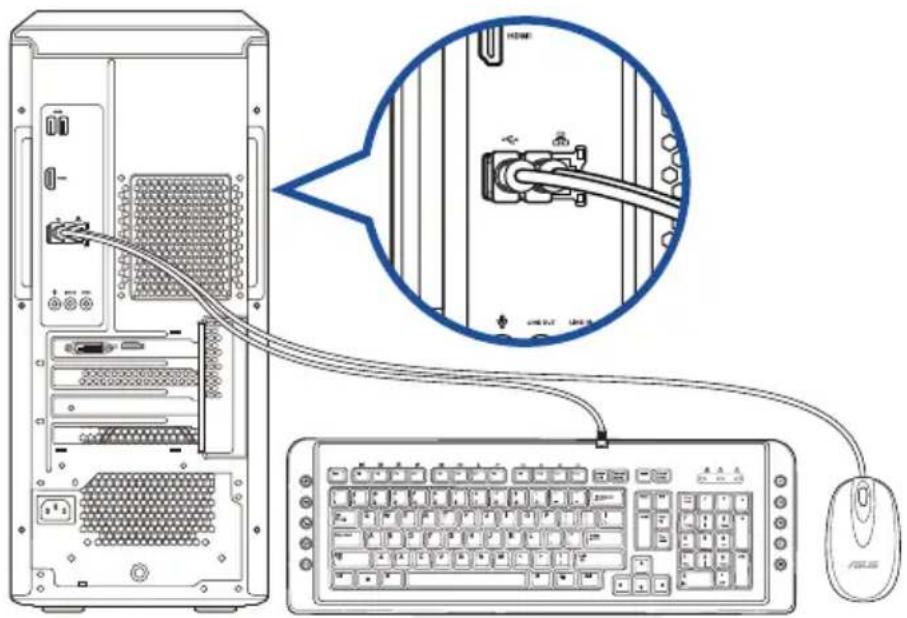
Connecting a USB keyboard and a USB mouse
Connect a USB keyboard and a USB mouse to the USB ports on the rear panel of your computer.
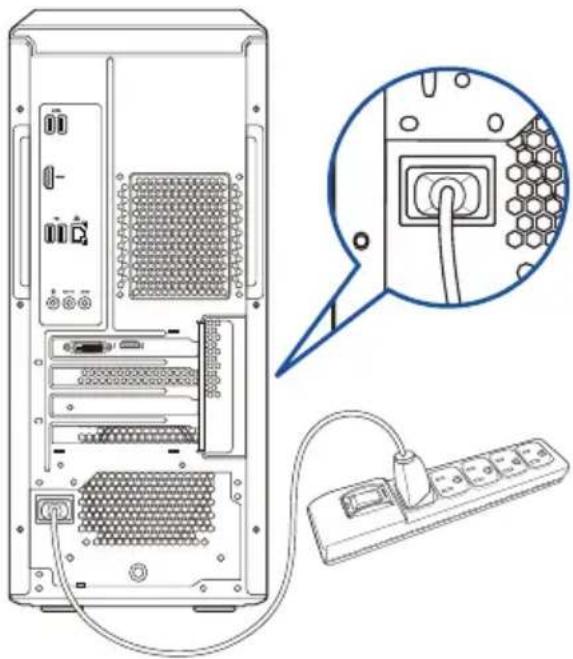
Connecting the power cord
Connect one end of the power cord to the power connector on the rear panel of your computer and the other end to a power source.
natural_image
Diagram of a desktop computer tower showing internal components and a close-up view of the socket (no text or labels)Turning your computer ON
This section describes how to turn on your computer after setting up your computer.
Turning your computer ON
To turn your computer ON:
- Turn your monitor ON.
- Press the power button on your computer.
- Wait until the operating system loads automatically.
Chapter 2
Connecting devices to your computer
Connecting a USB storage device
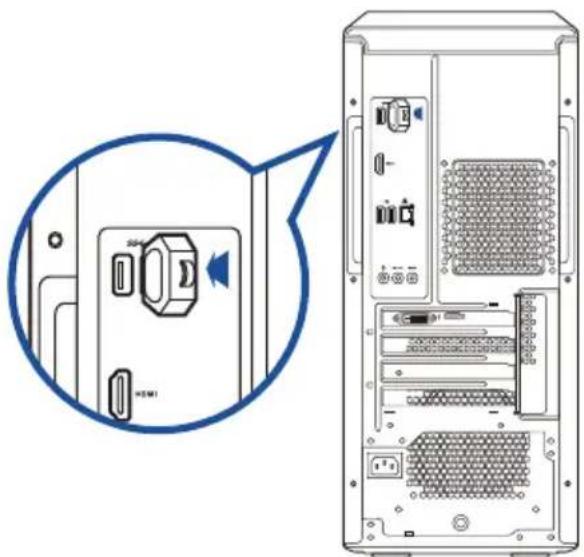
This desktop PC provides USB 2.0 and USB 3.1 Gen 1 ports on the front and rear panels. The USB ports allow you to connect USB devices such as storage devices.
To connect a USB storage device:
• Insert the USB storage device to your computer.
Front panel
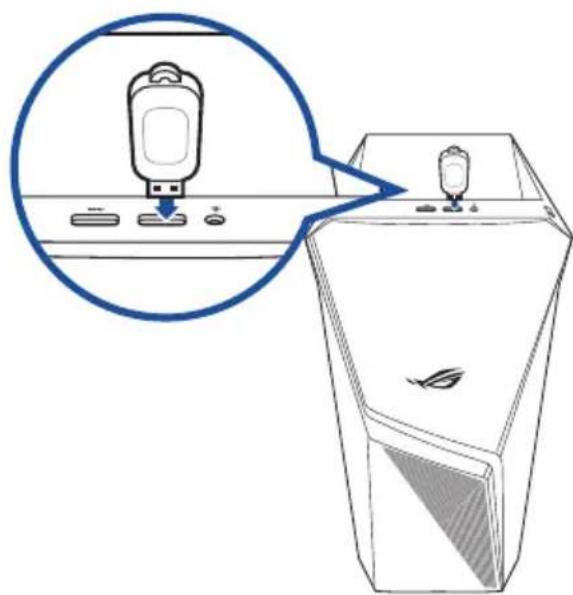
Rear panel
natural_image
Diagram of a desktop computer tower showing internal components and a magnified view of the device's front panel (no text or labels present)Connecting microphone and speakers
This desktop PC comes with microphone ports and speaker ports on both the front and rear panels. The audio I/O ports located on the rear panel allow you to connect 2.1-channel, 4.1-channel, and 5.1-channel speakers.
Connecting Headphone and Mic
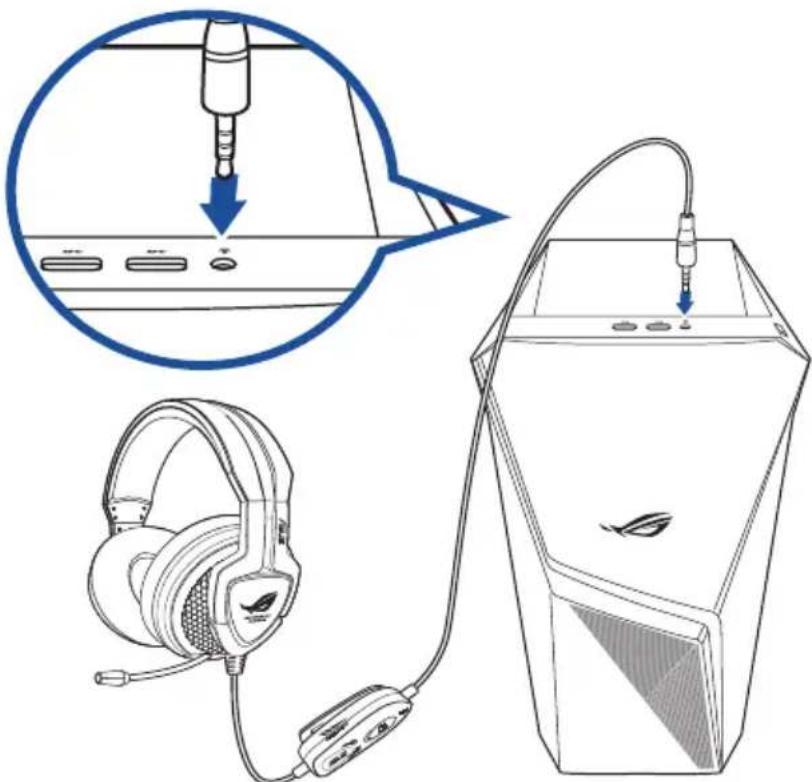
Connecting 2.1-channel Speakers
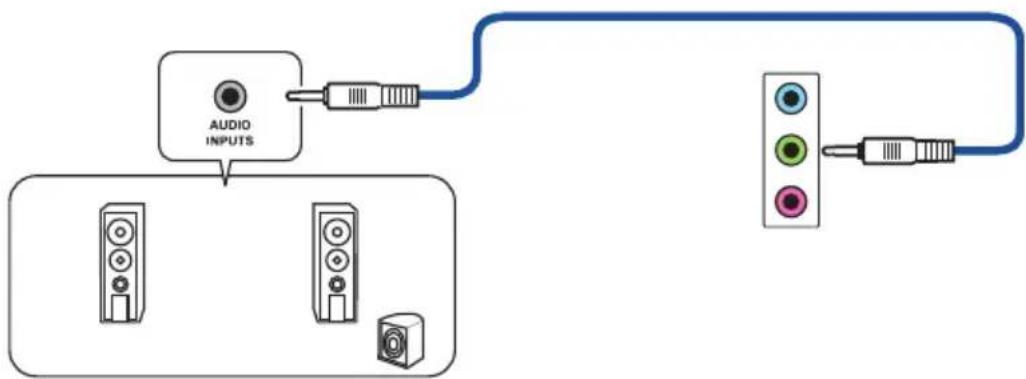
flowchart
graph TD
    A["Audio INPUTS"] --> B["Speaker 1"]
    A --> C["Speaker 2"]
    A --> D["Speaker 3"]
    A --> E["Speaker 4"]
    B --> F["Output"]
    C --> F
    D --> F
    E --> F
Connecting 4.1-channel Speakers
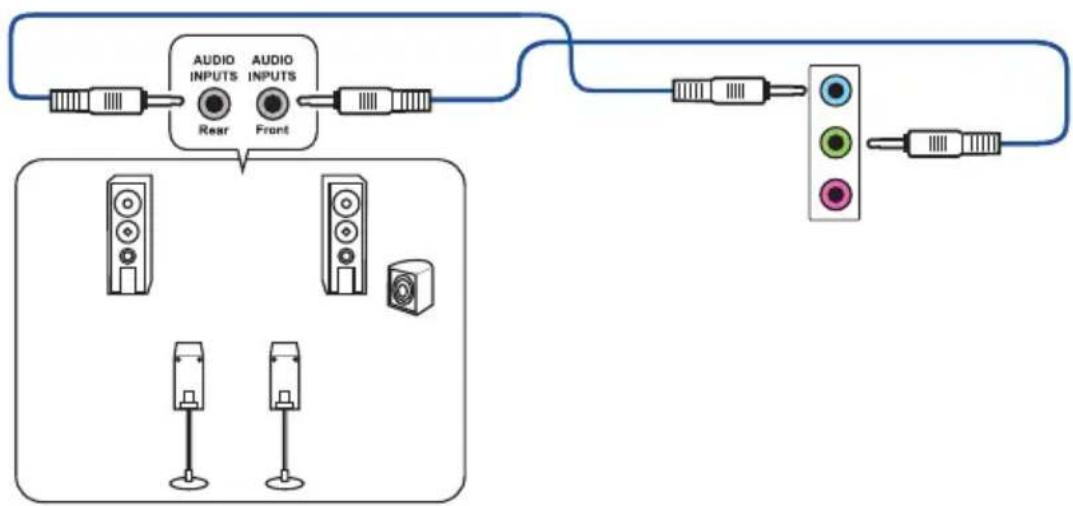
flowchart
graph TD
    A["Audio Inputs"] --> B["Rear"]
    C["Audio Inputs"] --> D["Front"]
    B --> E["Traffic Light"]
    D --> E
    E --> F["Output"]
Connecting 5.1-channel Speakers
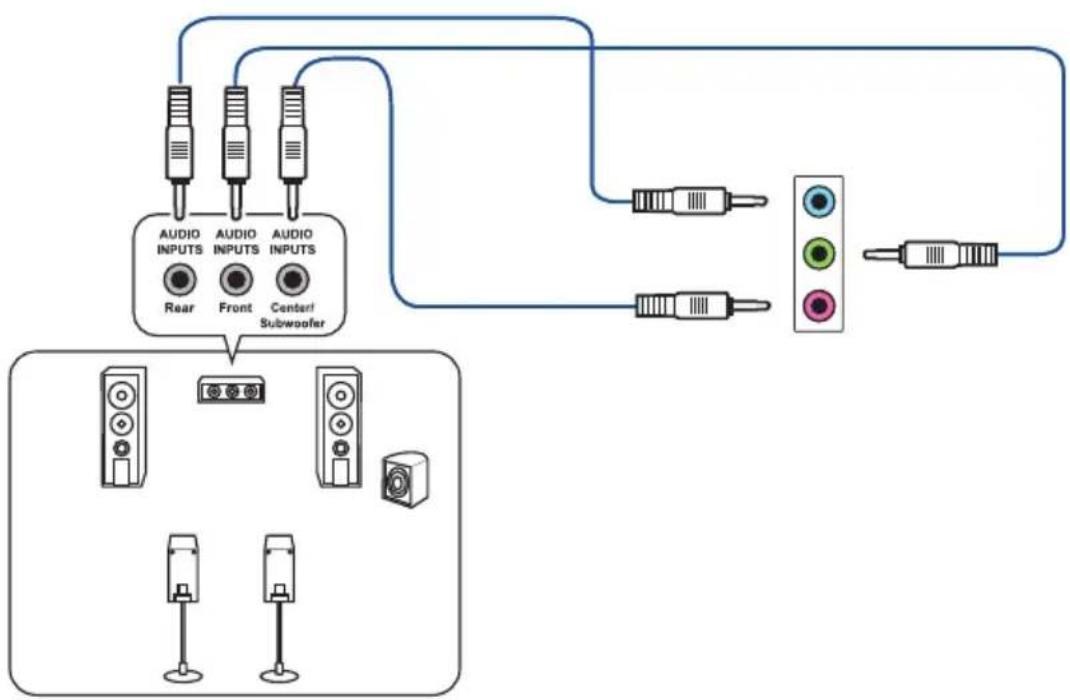
flowchart
graph TD
    A["Audio Inputs"] --> B["Rear"]
    A --> C["Front"]
    A --> D["Center"]
    A --> E["Subwoofer"]
    F["Sensor"] --> G["Output"]
    H["Speaker"] --> I["Display Unit"]
    J["Input"] --> K["Output"]
Connecting multiple external displays
Your desktop PC may come with VGA, HDMI, or DVI ports and allows you to connect multiple external displays.
Setting up multiple displays
When using multiple monitors, you are allowed to set display modes. You can use the additional monitor as a duplicate of your main display, or as an extension to enlarge your Windows desktop.
To set up multiple displays:
- Turn off your computer.
- Connect the two monitors to your computer and connect the power cords to the monitors. Refer to Setting up your computer section in Chapter 1 for details on how to connect a monitor to your computer.
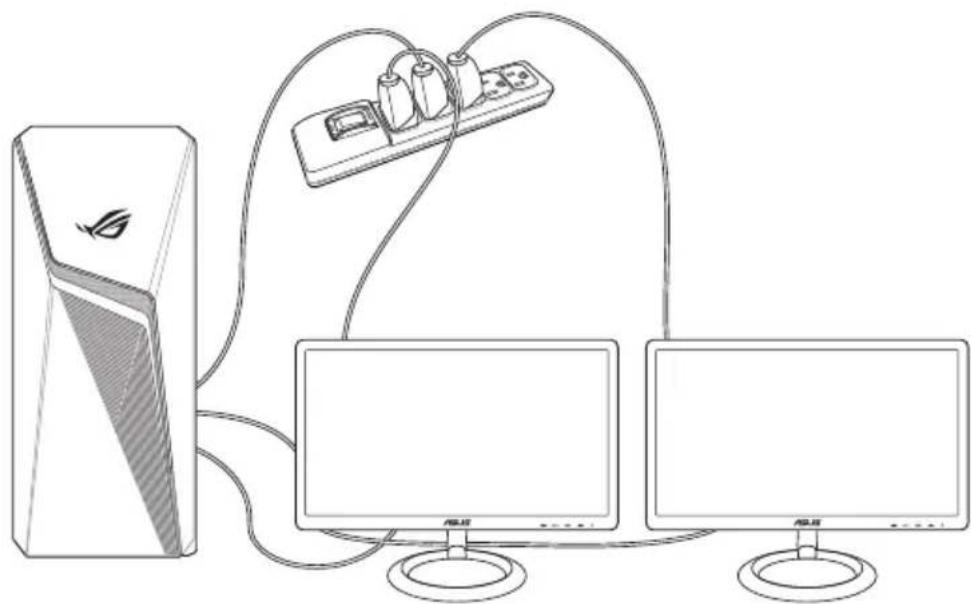
natural_image
Line drawing of a network device with two monitors and a server, no text or symbols present- Turn on your computer.
- From the Start menu, click Settings > System > Display.
- Configure the settings for your displays.

For some graphic cards, only the monitor that is set to be the primary display has display during POST. The dual display function works only under Windows.
Connecting an HDTV
Connect a High Definition TV (HDTV) to the HDMI port of your computer.

- You need an HDMI cable to connect the HDTV and the computer. The HDMI cable is purchased separately.
• To get the best display performance, ensure that your HDMI cable is less than 15 meters.
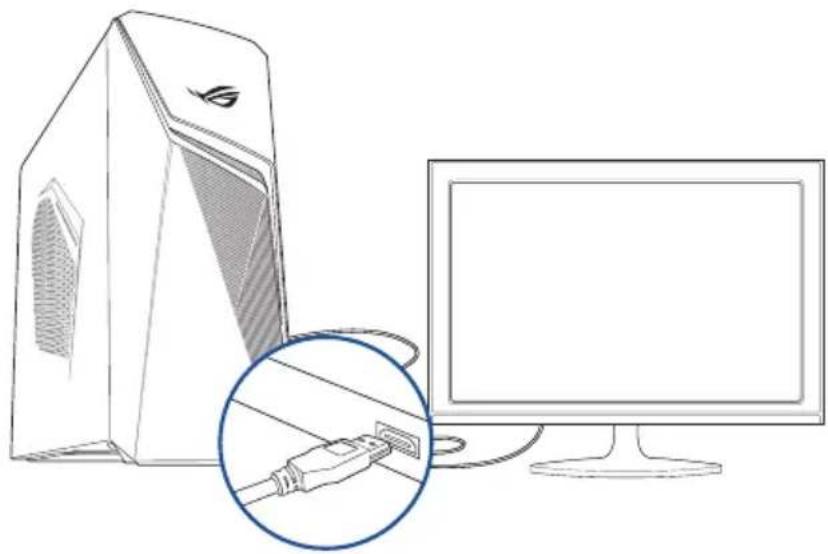
natural_image
Line drawing of a desktop computer tower next to a computer monitor, with an inset showing the cable being inserted (no text or symbols present)Chapter 3
Using your computer
Proper posture when using your Desktop PC
When using your Desktop PC, maintaining the proper posture is necessary to prevent strain to your wrists, hands, and other joints or muscles. This section provides you with tips on avoiding physical discomfort and possible injury while using and fully enjoying your Desktop PC.
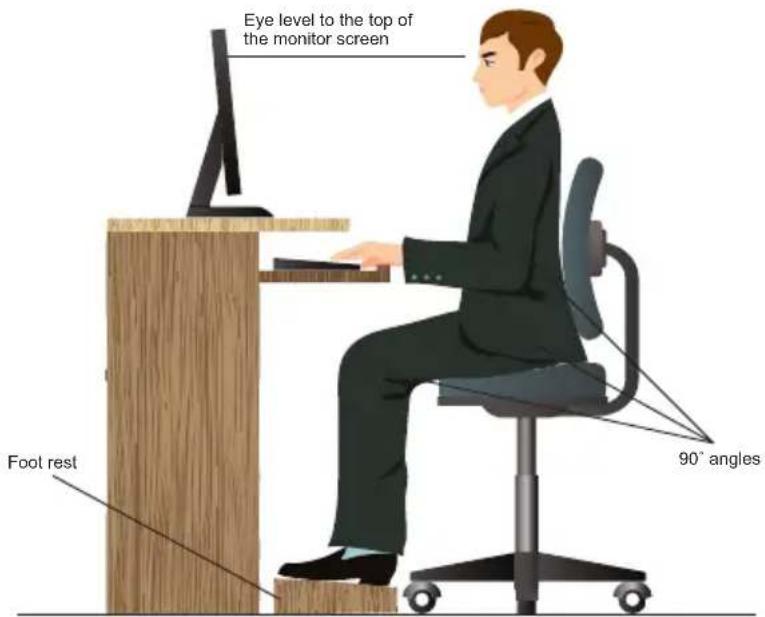
To maintain the proper posture:
- Position your computer chair to make sure that your elbows are at or slightly above the keyboard to get a comfortable typing position.
- Adjust the height of your chair to make sure that your knees are slightly higher than your hips to relax the backs of your thighs. If necessary, use a footrest to raise the level of your knees.
- Adjust the back of your chair so that the base of your spine is firmly supported and angled slightly backward.
- Sit upright with your knees, elbows and hips at an approximately 90° angle when you are at the PC.
- Place the monitor directly in front of you, and turn the top of the monitor screen even with your eye level so that your eyes look slightly downward.
- Keep the mouse close to the keyboard, and if necessary, use a wrist rest for support to reduce the pressure on your wrists while typing.
- Use your Desktop PC in a comfortably-lit area, and keep it away from sources of glare such as windows and straight sunlight.
• Take regular mini-breaks from using your Desktop PC.
Chapter 4
Connecting to the Internet
Wired connection
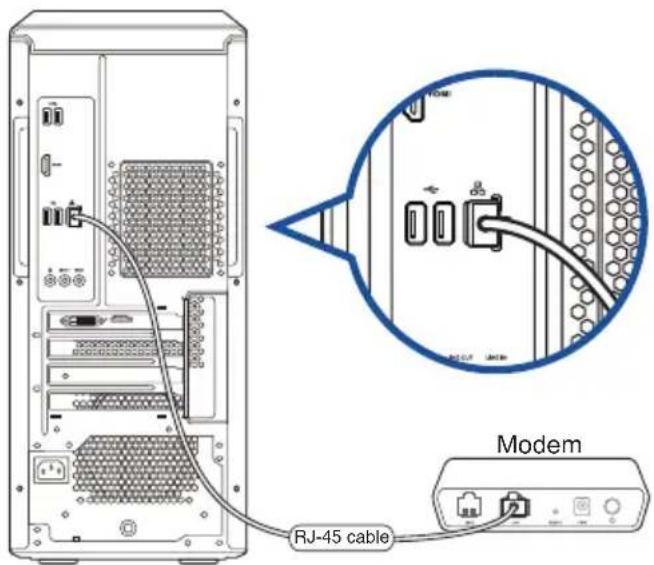
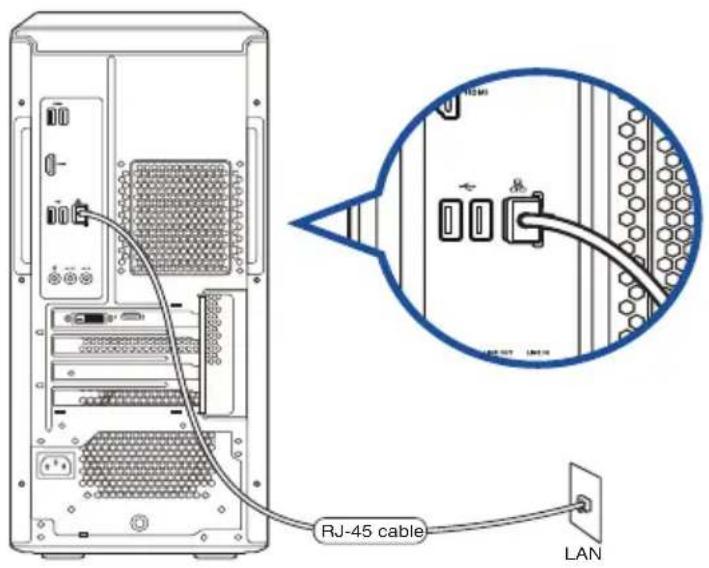
Use an RJ-45 cable to connect your computer to a DSL/cable modem or a local area network (LAN).
Connecting via a DSL/cable modem
To connect via a DSL/cable modem:
- Set up your DSL/cable modem.

Refer to the documentation that came with your DSL/cable modem.
- Connect one end of an RJ-45 cable to the LAN (RJ-45) port on the rear panel of your computer and the other end to a DSL/cable modem.
-
Turn on the DSL/cable modem and your computer.
-
Configure the necessary Internet connection settings.

- Contact your network administrator for details or assistance in setting up your Internet connection.
- For more details, refer to the sections Configuring a dynamic IP/PPPoE network connection or Configuring a static IP network connection.
Connecting via a local area network (LAN)
To connect via a LAN:
- Connect one end of an RJ-45 cable to the LAN (RJ-45) port on the rear panel of your computer and the other end to your LAN.
-
Turn on your computer.
-
Configure the necessary Internet connection settings.

- Contact your network administrator for details or assistance in setting up your Internet connection.
- For more details, refer to the sections Configuring a dynamic IP/PPPoE network connection or Configuring a static IP network connection.
Configuring a dynamic IP/PPPoE network connection
To configure a dynamic IP/PPPoE network connection:
- Launch Network and Sharing Center in either of these two ways:
a) From the taskbar, right-click , then click Open Network and Sharing Center.
b) From the Start menu, click Settings > Network & Internet > Ethernet > Network and Sharing Center.
- From the Open Network and Sharing Center screen, click Change Adapter settings.
- Right-click on your LAN and select Properties.
- Click Internet Protocol Version 4(TCP/IPv4) and click Properties.
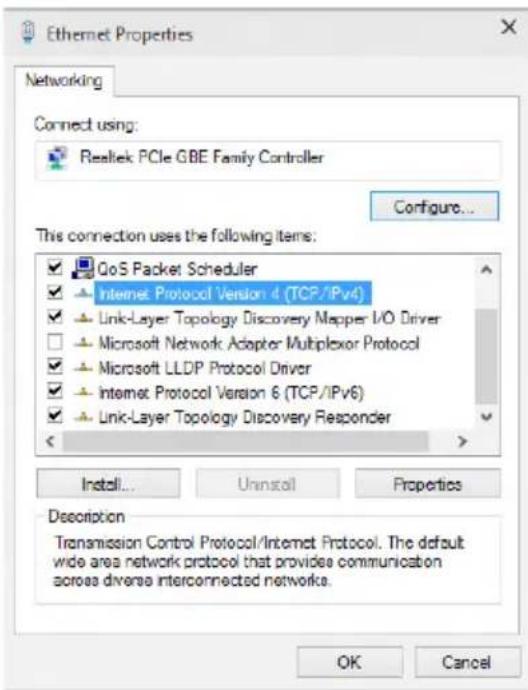
- Click Obt and click OK.
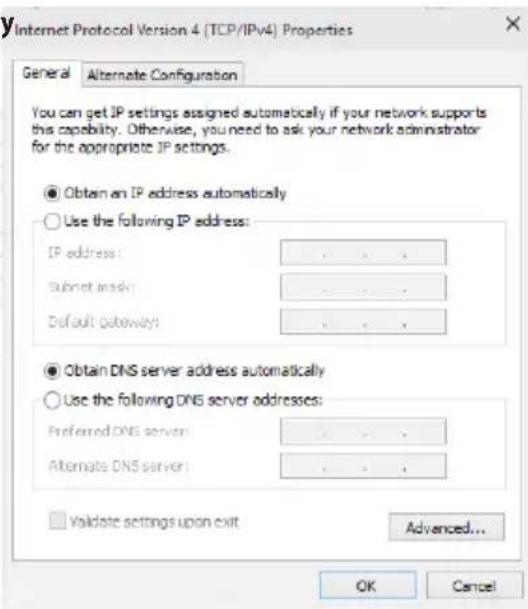

Continue to the next steps if you are using PPPoE connection.
- Return to the Network and Sharing Center and then click Set up a new connection or network.
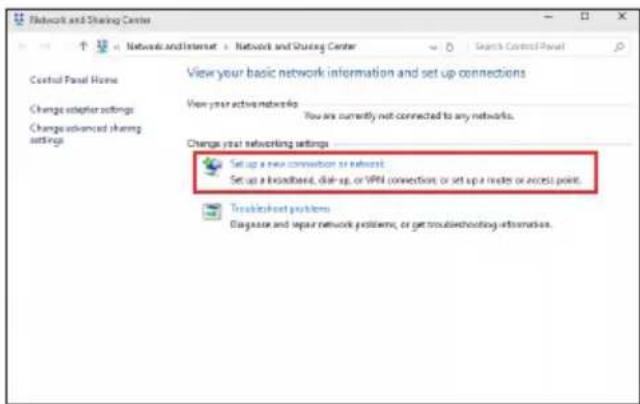
- Select Connect to the Internet and click Next.
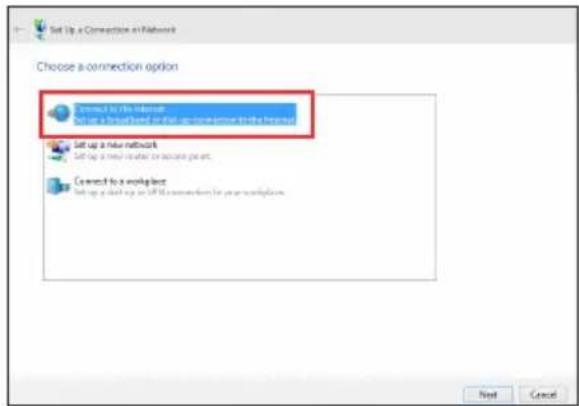
-
Select Broadband (PPPoE) and click Next.
-
Follow the next onscreen instructions to complete the setup.
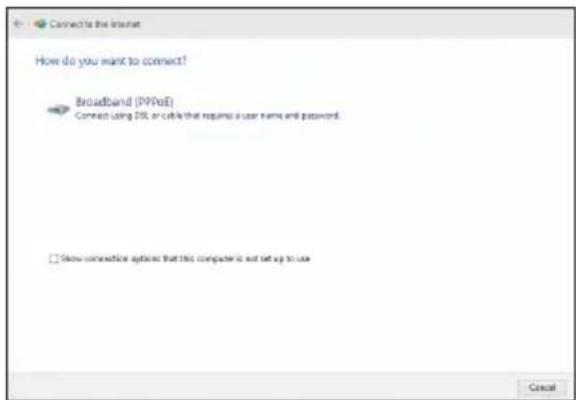
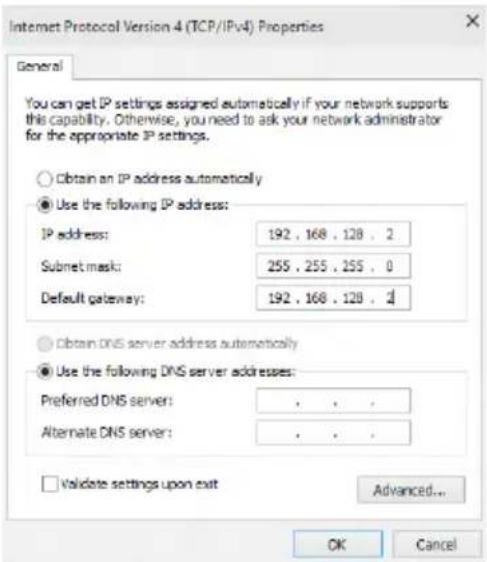
Configuring a static IP network connection To configure a static IP network connection:
- Repeat steps 1 to 4 of the previous section.
2 Click Use the following IP address. - Enter the IP address, Subnet mask and Gateway from your service provider.
- If needed, enter the preferred DNS Server address and alternative address.
- When done, click OK.
Wi-Fi connection (on selected models only)
Connect your computer to the Internet through a wireless connection.

To establish a wireless connection, you need to connect to a wireless access point (AP).
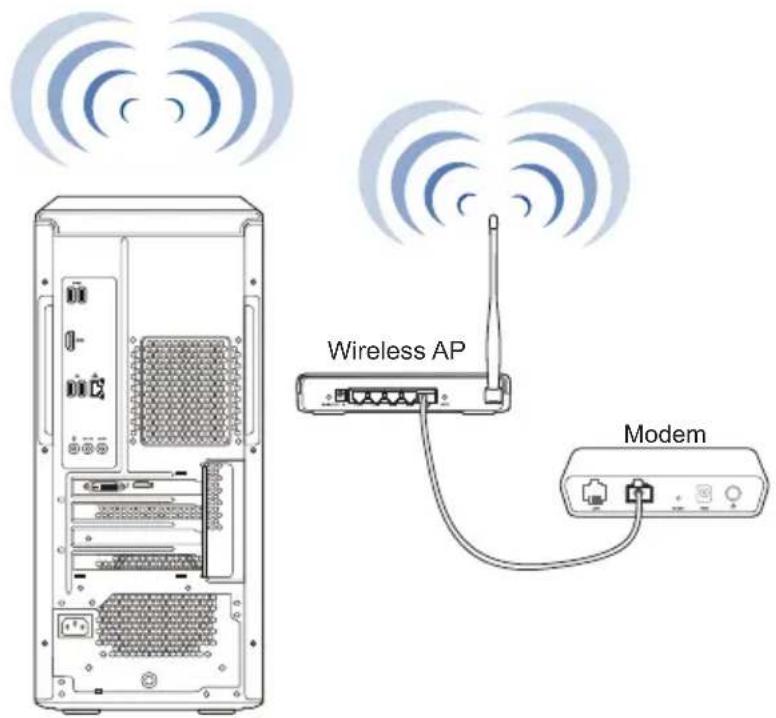

To increase the range and sensitivity of the wireless radio signal, connect the external antennas to the antenna connectors on the ASUS WLAN Card.
Chapter 5
Troubleshooting
Troubleshooting
This chapter presents some problems you might encounter and the possible solutions.
? My computer cannot be powered on and the power LED on the front panel does not light up.
• Check if your computer is properly connected.
• Check if the wall outlet is functioning.
- Check if the Power Supply Unit is switched on. Refer to the section Turning your computer ON in Chapter 1.
? My computer hangs.
- Do the following to close the programs that are not responding:
-
Simultaneously press
+ + keys on the keyboard, then click Task Manager. -
Select the program that is not responding, then click End Task.
- If the keyboard is not responding, press and hold the Power button on the top of your chassis until the computer shuts down. Then press the Power button to turn it on.
? I cannot connect to a wireless network using the ASUS WLAN Card (on selected models only)?
- Ensure that you enter the correct network security key for the wireless network you want to connect to.
- Connect the external antennas (optional) to the antenna connectors on the ASUS WLAN Card and place the antennas on the top of your computer chassis for the best wireless performance.
? The arrow keys on the number key pad are not working.
Check if the Number Lock LED is off. When the Number Lock LED is on, the keys on the number key pad are used to input numbers only. Press the Number Lock key to turn the LED off if you want to use the arrow keys on the number key pad.
? No display on the monitor.
• Check if the monitor is powered on.
- Ensure that your monitor is properly connected to the video output port on your computer.
- If your computer comes with a discrete graphics card, ensure that you connect your monitor to a video output port on the discrete graphics card.
- Check if any of the pins on the monitor video connector is bent. If you discover bent pins, replace the monitor video connector cable.
- Check if your monitor is plugged to a power source properly.
- Refer to the documentation that came with your monitor for more troubleshooting information.
? When using multiple monitors, only one monitor has display.
• Ensure that the both monitors are powered on.
- During POST, only the monitor connected to the VGA port has display. The dual display function works only under Windows.
- When a graphics card is installed on your computer, ensure that you connect the monitors to the output port on the graphics card.
- Check if the multiple displays settings are correct.
? My computer cannot detect my USB storage device.
- The first time you connect your USB storage device to your computer, Windows automatically installs a driver for it. Wait for a while and go to My Computer to check if the USB storage device is detected.
- Connect your USB storage device to another computer to test if the USB storage device is broken or malfunctions.
? I want to restore or undo changes to my computer's system settings without affecting my personal files or data.
You can use Windows ^® 10 Refresh your PC without affecting your files recovery option to restore or undo changes to your computer's system settings without affecting your personal data such as documents or photos. To use this recovery option, click Settings > Update & recovery > Recovery from the Start menu, select Refresh your PC without affecting your files, and click Get started.
? The picture on the HDTV is distorted.
- It is caused by the different resolutions of your monitor and your HDTV. Adjust the screen resolution to fit your HDTV. To change the screen resolution:
• From the Start menu, click Settings > System > Display.
? My speakers produce no sound.
- Ensure that you connect your speakers to the Line out port (lime) on the front panel or the rear panel.
- Check if your speak is connected to an electrical source and turned on.
- Adjust your speakers' volume.
- Ensure that your computer's system sounds are not Muted.
• If it is muted, the volume icon is displayed as . To enable the system
sounds, click from the Windows notification area, then click .

• If it is not muted, click and drag the slider to adjust the volume.
- Connect your speakers to another computer to test if the speakers are working properly.
? The DVD drive cannot read a disc.
- Check if the disc is placed with the label side facing up.
- Check if the disc is centered in the tray, especially for the discs with non-standard size or shape.
• Check if the disc is scratched or damaged.
? The DVD drive eject button is not responding.
-
From the Start menu, click File Explorer.
-
Right-click , then click Eject from the menu

Power
| Problem Possible Cause Action | ||
| No power(The power indicator is off) | Incorrect power voltage | Set your computer's power voltage switch to your area's power requirements.Adjust the voltage settings. Ensure that the power cord is unplugged from the power outlet. |
| Your computer is not turned on. | Press the power key on the front panel to ensure that your computer is turned on. | |
| Your computer's power cord is not properly connected. | Ensure that the power cord is properly connected.Use other compatible power cord. | |
| PSU (Power supply unit) problems | Contact the ASUS Service Center about installing another PSU on your computer. | |
Display
| Problem Possible Cause Action | ||
| No display output after turning the computer on (Black screen) | The signal cable is not connected to the correct VGA port on your computer. | Connect the signal cable to the correct display port (onboard VGA or discrete VGA port).If you are using a discrete VGA card, connect the signal cable to the discrete VGA port. |
| Signal cable problems Try connecting to another monitor. | ||
LAN
| Problem Possible Cause Action | ||
| Cannot access the Internet | The LAN cable is not connected. | Connect the LAN cable to your computer. |
| LAN cable problems | Ensure the LAN LED is on. If not, try another LAN cable. If it still does not work, contact the ASUS service center. | |
| Your computer is not properly connected to a router or hub. | Ensure that your computer is properly connected to a router or hub. | |
| Network settings | Contact your Internet Service Provider (ISP) for the correct LAN settings. | |
| Problems caused by the anti-virus software | Close the anti-virus software. | |
| Driver problems Reinstall the LAN driver | ||
Audio
| Problem Possible Cause Action | ||
| No Audio | Speaker or headphone is connected to the wrong port. | Refer to your computer's User Guide for the correct port.Disconnect and reconnect the speaker to your computer. |
| Speaker or headphone does not work. | Try using another speaker or headphone. | |
| The front and back audio ports do not work. | Try both the front and back audio ports. If one port failed, check if the port is set to multi-channel. | |
| Driver problems Reinstall the audio driver | ||
System
| Problem Possible Cause Action | ||
| System speed is too slow | Too many programs are running. | Close some of the programs. |
| Computer virus attack | ·Use an anti-virus software to scan for viruses and repair your computer.·Reinstall the operating system. | |
| The system often hangs or freezes. | Hard disk drive failure | ·Send the damaged hard disk drive to ASUS Service Center for servicing.·Replace with a new hard disk drive. |
| Memory module problems | ·Replace with compatible memory modules.·Remove the extra memory modules that you have installed, then try again.·Contact the ASUS Service Center for assistance. | |
| There is not enough air ventilation for your computer. | Move your computer to an area with better air flow. | |
| Incompatible softwares are installed. | Reinstall the OS and reinstall compatible softwares. | |
CPU
| Problem Possible Cause Action | ||
| Too noisy right after turning on the computer. | Your computer is booting up. | It is normal. The fan runs on its full speed when the computer is powering on. The fan slows down after entering the OS. |
| The BIOS settings have been changed. | Restore the BIOS to its default settings. | |
| Old BIOS version | Update the BIOS to the latest version. Visit the ASUS Support site at http://support.asus.com to download the latest BIOS versions. | |
| Computer is too noisy when in use. | The CPU fan has been replaced. | Ensure that you are using a compatible or ASUS-recommended CPU fan. |
| There is not enough air ventilation for the computer. | Ensure that your computer is working in an area with good air flow. | |
| The system temperature is too high. | Update the BIOS.If you know how to reinstall the motherboard, try to clean the inner space of the chassis.Contact the ASUS Service Center for assistance. | |

If the problem still persists, refer to your Desktop PC's warranty card and contact the ASUS Service Center. Visit the ASUS Support site at http://support.asus.com for the service center information.
ASUS Desktop PC
Windows® 10
User Manual
E10435
First Edition
May 2015
Copyright © ASUSTeK Computer Inc.
All Rights Reserved
Starting for the first time
When you start your computer for the first time, a series of screens appear to guide you in configuring the basic settings of your Windows ^® 10 operating system.
To start your Desktop PC for the first time:
- Press the power button on your Desktop PC. Wait for a few minutes until the setup screen appears.
- From the setup screen, pick your region and language that you want to use on your desktop PC.
- Carefully read the License Terms, then tap I Accept.
-
Follow the onscreen instructions to configure the following basic items:
-
Personalize
- Get online
- Settings
-
Your account
-
Wait until Windows ^® 10 finishes installing the apps and system settings. After the installation, the Windows ^® 10 desktop appears.
Using the Windows® 10 UI
The Windows ^® 10 User Interface (UI) includes the favorite Start menu and the tiled-formatted Start screen. It includes the following features you can use while working on your Desktop PC.
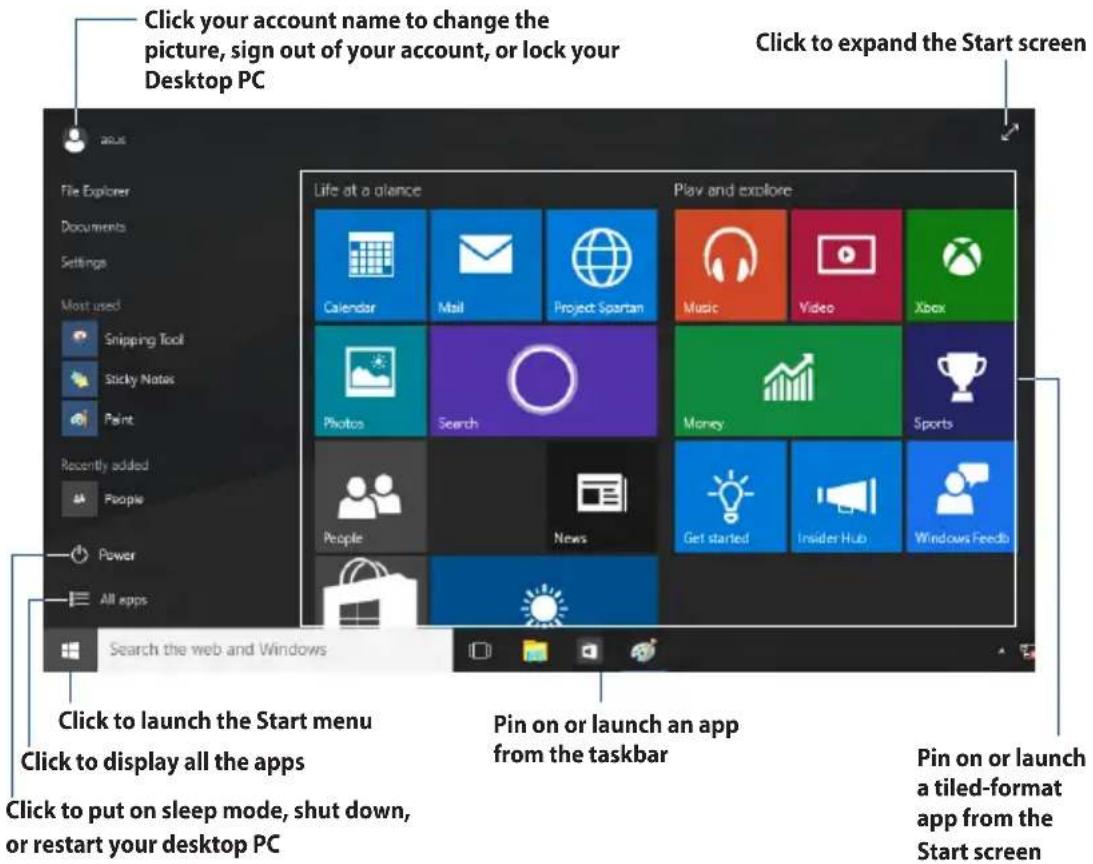
Start menu
Windows® 10 brings back the Start menu with some enhancements, such as the space that you can customize with your favorite apps, people, or websites.
You can launch the Start menu in two ways:
- Click the Start button from the lower-left corner of the taskbar.
- Press the Windows® Start key on your keyboard.
Pinning apps to the Start screen or taskbar
To pin an app to the Start screen or taskbar:
- From the Start menu, click All apps, then select the app that you want to pin.
- Click Pin to Start or Pin to taskbar to pin your selected app to the Start screen or taskbar. You can also drag then drop an app to the Start Screen or taskbar to pin it.
Start screen
The Start screen, which appears together with the Start menu, helps organize all the apps you need in just one place. The apps on the Start screen are displayed on tiled-format for easy access.

Some apps require signing in to your Microsoft account before they are fully launched.
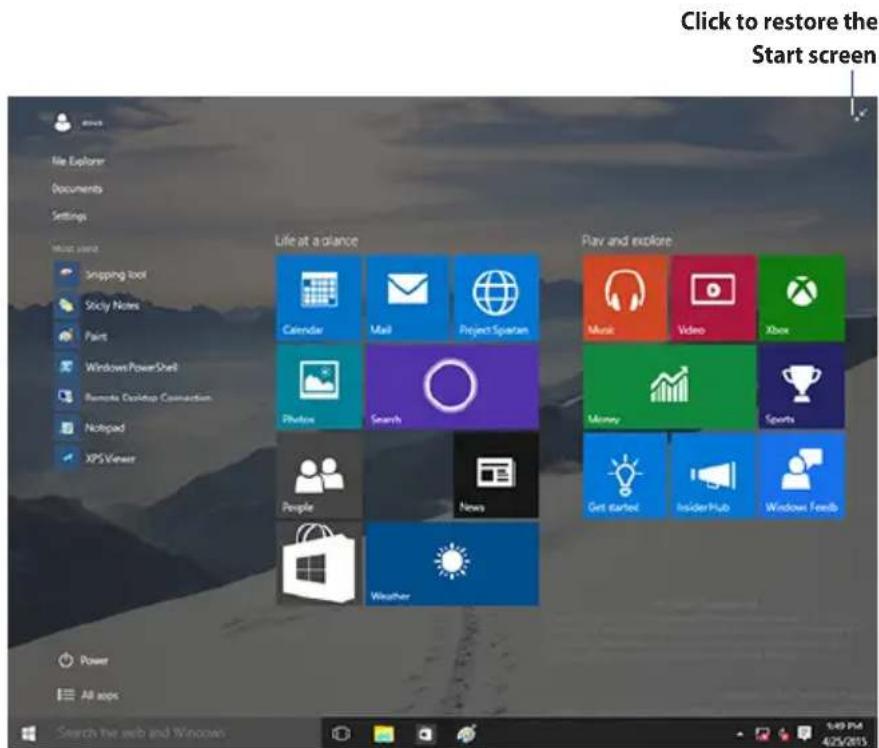
Moving apps on the Start screen
You can move apps from the Start screen simply through dragging and dropping the app to your preferred location.
Unpinning apps from the Start screen
To unpin an app from the Start screen, right-click on the app to activate its settings bar then click Unpin from Start.
Taskbar
Windows® 10 comes with the standard taskbar, which keeps all your currently running apps or items in the background.
Unpinning apps from the taskbar
- From the Start screen or taskbar, right-click the app you want to unpin.
- Click Unpin from Start or Unpin this program from taskbar to remove the app from the Start screen or taskbar.
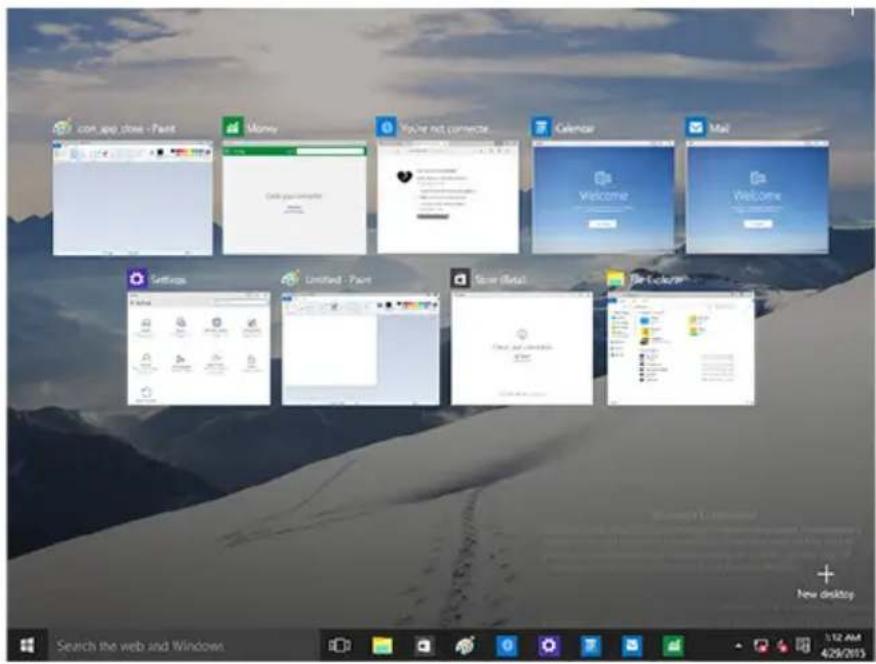
Using the Task View
When you have several running apps, you can click 📄m the taskbar to display all your running apps, and click on an app or item to launch it.
If task view is disabled, click ▲ > Show Task View button to display the task view icon

Snap feature
The Snap feature displays about four apps or more in one screen, allowing you to work or switch among apps.
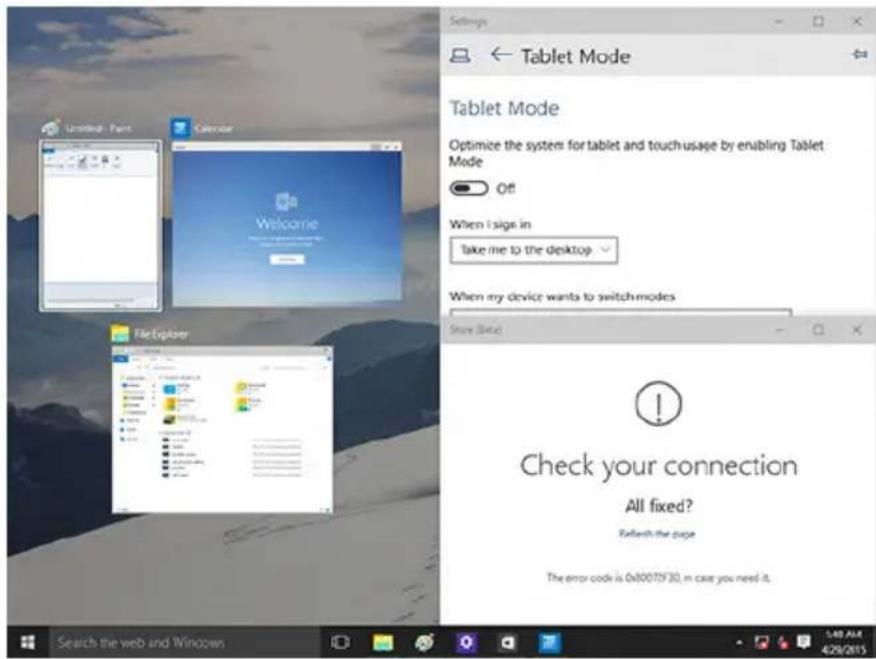
Using Snap
Use your Desktop PC's mouse or keyboard to activate Snap onscreen.
Using your mouse
a) Launch an app, then drag and release on a screen corner to snap it in place.
b) Snap another app to your preferred location on the screen.
Using your keyboard
a) Launch an app, press and the arrow keys to select the direction where you want to snap the app in place.
b) Snap another app using and the arrow keys.
Keyboard shortcuts
Using your keyboard, you can also use the following shortcuts to help you launch apps and navigate Windows*10.
 | Switches between the Start screen and the last running app |
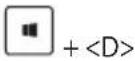 | Launches the desktop |
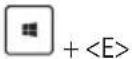 | Launches File Explorer |
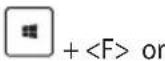 | Activates the File search function |
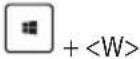 | |
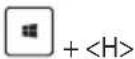 | Launches Share |
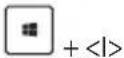 | Launches Settings |
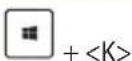 | Launches Media Connect |
 | Activates the Lock screen |
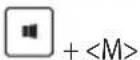 | Hides all currently active screens to the taskbar |
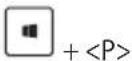 | Your desktop PC is mirrored to your secondary monitor |
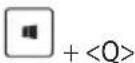 | Launches Cortana |
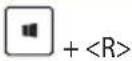 | Launches the Run window |
 | Launches Ease of Access Center |
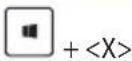 | Launches a menu box of Windows tools |
| +<+> | Launches the magnifier and zooms in your screen. |
| +<-> | Zooms out your screen. |
| + | Opens the Narrator Settings. |
Removing everything and reinstalling Windows® 10
Restoring your PC to its original factory settings can be done using the Remove everything and reinstall options in PC Settings. Refer to the steps below to use this option.

Back up all your data before using this option.

This process may take a while to complete.
- From the Start menu, click Settings > Update & security > Recovery.
- Scroll down to view the Remove everything and reinstall Windows option. Under this option, click Get started.
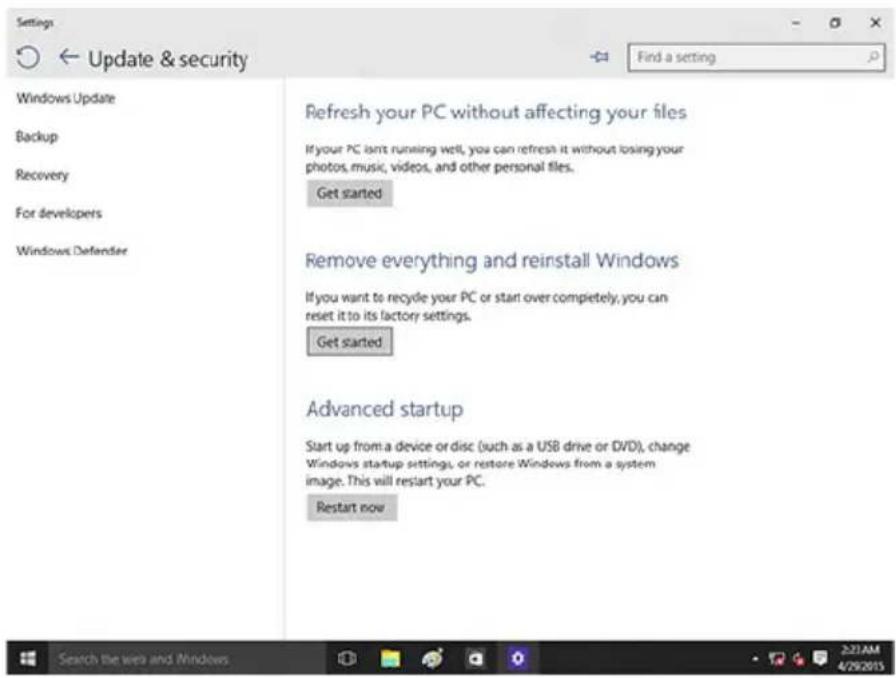
- Follow the onscreen instructions to complete the reinstallation and reset process.
ASUS contact information
ASUSTeK COMPUTER INC.
Address 4F, No. 150, Li-Te Rd., Peitou, Taipei 112, Taiwan
Telephone +886-2-2894-3447
Fax +886-2-2890-7798
Web site www.asus.com/
Technical Support
Telephone +86-21-38429911
Fax +86-21-5866-8722, ext. 9101#
Online support http://qr.asus.com/techserv
ASUS COMPUTER INTERNATIONAL (America)
Address 800 Corporate Way, Fremont, CA 94539, USA
Telephone +1-510-739-3777
Fax +1-510-608-4555
Web site http://www.asus.com/us/
Technical Support
Support fax +1-812-284-0883
Telephone +1-812-282-2787
Online support http://qr.asus.com/techserv
ASUS COMPUTER GmbH (Germany and Austria)
Address Harkort Str. 21-23, D-40880 Ratingen, Germany
Fax +49-2102-959931
Web site http://www.asus.com/de
Online contact http://eu-rma.asus.com/sales
Technical Support
Telephone +49-2102-5789555
Support Fax +49-2102-959911
Online support http://qr.asus.com/techserv