
DS-820W - Portable scanner BROTHER - Free user manual and instructions
Find the device manual for free DS-820W BROTHER in PDF.


User questions about DS-820W BROTHER
0 question about this device. Answer the ones you know or ask your own.
Ask a new question about this device
Download the instructions for your Portable scanner in PDF format for free! Find your manual DS-820W - BROTHER and take your electronic device back in hand. On this page are published all the documents necessary for the use of your device. DS-820W by BROTHER.
USER MANUAL DS-820W BROTHER
Thank you for buying a Brother machine! Reading the documentation will help you make the most of your machine.
Symbols and conventions used in the documentation
The following symbols and conventions are used throughout the documentation.
IMPORTANT IMPORTANT indicates a potentially hazardous situation which, if not avoided, may result in damage to property or loss of product functionality.
NOTE Notes tell you how you should respond to a situation that may arise or give tips about how the operation works with other features.
Bold Bold style identifies keys on the machines control panel or computer screen.
Italics Italicized style emphasizes an important point or refers you to a related topic.
Courier New Courier New font identifies the messages shown on the LCD of the machine.
NOTE
If you are using a tablet running Windows®, you can make your selections either by tapping the screen or by clicking with your mouse.
Trademarks
Brother and DSmobile are registered trademarks of Brother Industries, Ltd.
Apple, Macintosh, Mac OS, iOS and App Store are trademarks of Apple Inc., registered in the United States and other countries.
Windows and Windows Vista are either registered trademarks or trademarks of Microsoft Corporation in the United States and / or other countries.
Wi-Fi is a registered trademark of the Wi-Fi Alliance.
Google Play and Android are trademarks of Google Inc.
Nuance, the Nuance logo and PaperPort are trademarks or registered trademarks of Nuance Communications, Inc. or its affiliates in the United States and / or other countries.
Any trade names and product names of companies appearing on Brother products, related documents and any other materials are all trademarks or registered trademarks of those respective companies.
Table of contents
1 General Information 1
Scanner overview 1
Control panel overview 3
Items displayed on the LCD 4
LCD messages 5
Power button LED indications 5
Checking the Wi-Fi indicator 6
Setting the Clock 7
Using the auto power off function 7
Installing the battery 8
Charging battery 9
Formatting an SD card 10
2 Document Specifications 11
Acceptable documents 11
Unacceptable documents 12
Documents recommended for use with the Carrier Sheet 12
3 Scan Preparation 13
Loading a document 13
Loading the Carrier Sheet 14
Important Carrier Sheet tips 15
4 Scan Using the Control Panel 16
Scanning in SD mode 16
5 Scan Using Your Computer 17
Installing the scanner driver and scanning software 17
For Windows® users 17
For Macintosh users 19
Connecting your scanner to your computer in TWAIN Mode 21
Choosing your scanning software 22
Using DSmobileCapture (for Windows®) 23
Changing DSmobileCapture scan settings (for Windows®) 26
File settings 26
Image settings 27
Paper settings 28
Preview settings 30
Options settings 31
Imprimer settings 32
Information 33
Using DSmobileCapture (for Macintosh) 34
Changing DSmobileCapture scan settings (for Macintosh) 35
Image settings 35
File settings 36
Paper settings 37
Options settings 38
Information 39
Using Button Manager V2 (for Windows®) 40
Scanning methods 42
Scan buttons in the Button Manager V2 Button Panel (for Windows®) 43
Scan to an image 43
Scan to BR-Docs 43
Scan to an application 44
Scan to an email 44
Scan to a printer 45
Scan to shared folder 45
Scan to a FTP server 45
6 Wi-Fi® Connection 46
Connecting in access point (AP) mode 46
Enabling Wireless Access Mode (for computer) 47
Enabling Wireless Access Mode (for smartphone, tablet, etc.) 49
7 Configure Wireless Access Mode for BOL Services 50
8 Scan to the Cloud Server Using a Wireless Access Point (BOL Mode) 54
9 Access Scanned Images on the SD Card 55
Using your web browser 55
Setting a Wi-Fi® network password 55
Using the USB connection between your scanner and computer 58
Using ScanHubTM (AndroidTM) 59
Using ScanHubTM (iOS) 59
10 Changing Settings Using Your Browser 60
Configuring Wi-Fi® settings in access point (AP) mode 60
Configure network settings 60
Reset network settings 61
11 Scanner Calibration 62
Calibration using the control panel 62
Calibration using software (for Windows®) 63
Calibration using software (for Macintosh) 66
12 Scanner Maintenance 68
Cleaning the outside of your scanner 68
Cleaning the inside of your scanner 68
13 Troubleshooting
70
Error messages and Error codes 70
Troubleshooting 72
A Appendix A
80
Specifications 80
General 80
Scanner 81
Li-ion battery 81
Interfaces 82
Network 82
Computer requirements 83
B Appendix B
84
Contacting Brother 84
Register your product 84
Frequently asked questions (FAQs) 84
For customer service 85
Technical support (for PageManager and BizCard) 86
Basic functions
Storing scanned images
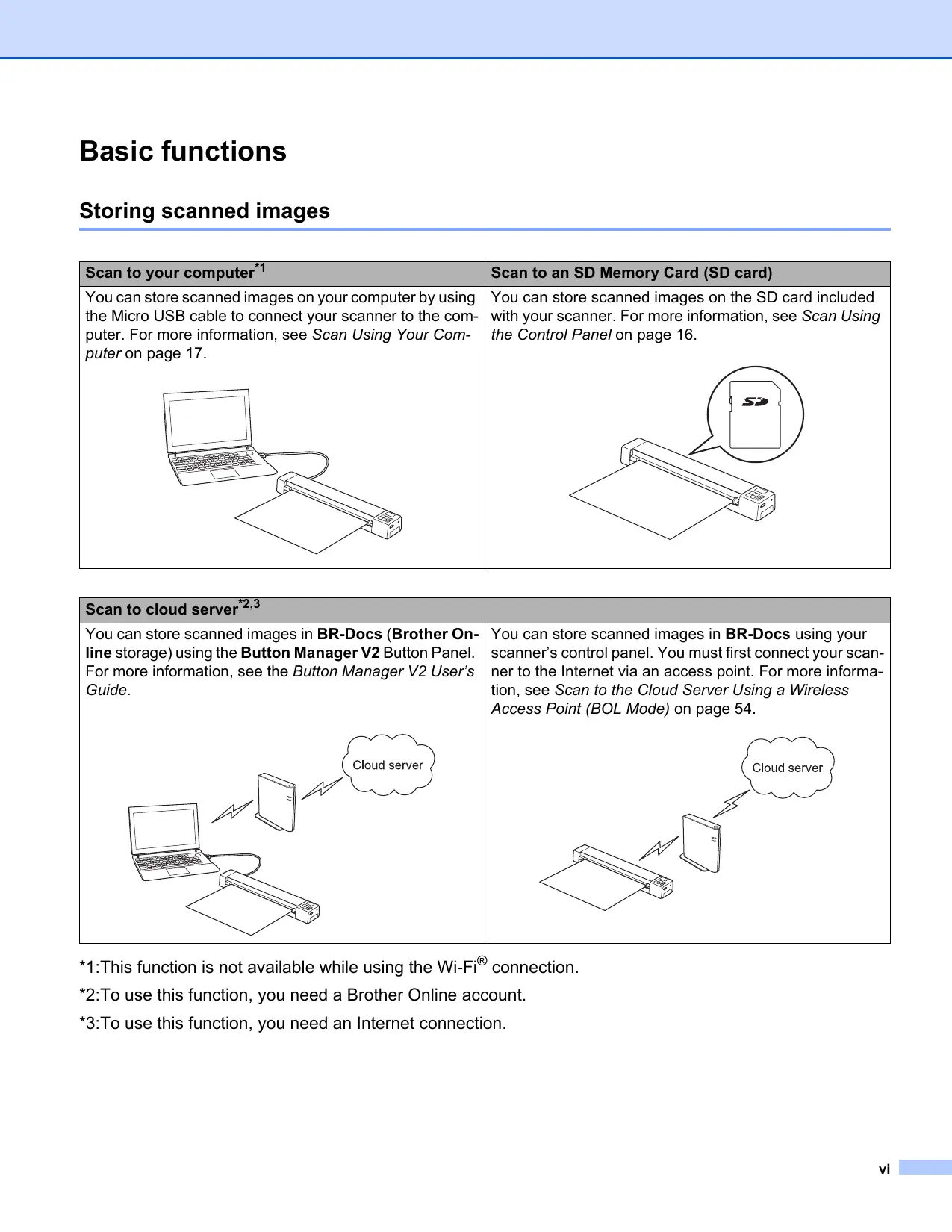
Scan to your computer\*1
You can store scanned images on your computer by using the Micro USB cable to connect your scanner to the computer. For more information, see Scan Using Your Computer on page 17.
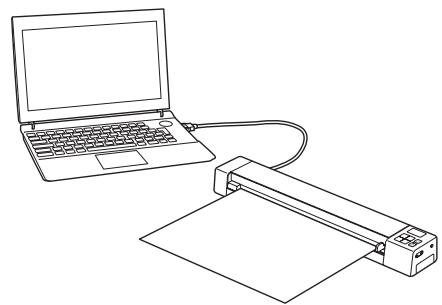
Scan to an SD Memory Card (SD card)
You can store scanned images on the SD card included with your scanner. For more information, see Scan Using the Control Panel on page 16.
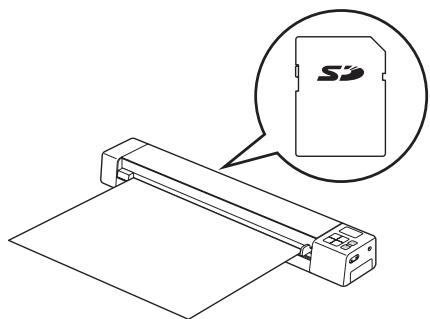
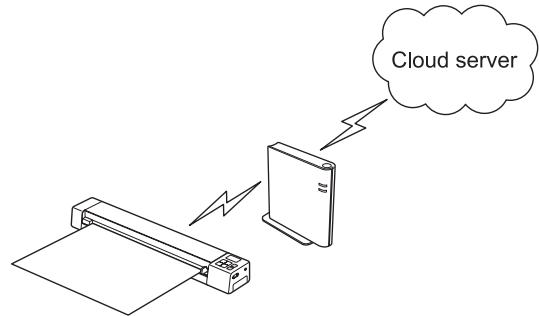
Scan to cloud server\*2,3
You can store scanned images in BR-Docs (Brother Online storage) using the Button Manager V2 Button Panel. For more information, see the Button Manager V2 User's Guide.
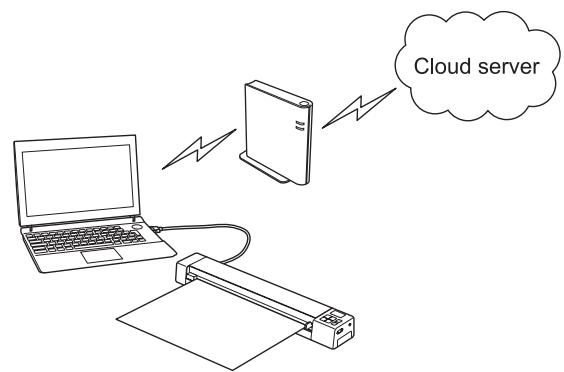
You can store scanned images in BR-Docs using your scanner's control panel. You must first connect your scanner to the Internet via an access point. For more information, see Scan to the Cloud Server Using a Wireless Access Point (BOL Mode) on page 54.
1:This function is not available while using the Wi-Fi® connection.
2:To use this function, you need a Brother Online account.
*3:To use this function, you need an Internet connection.
Accessing scanned images stored on the SD card
| View in the browser | View on an AndroidTM or iOS mobile device | View on your computer via the USB connection |
| Access scanned images stored on the SD card via the web browser of a wireless LAN tablet or your computer. For more information, see Using your web browser on page 55. | Access scanned images stored on the SD card via ScanHubTM. For more information, see Using ScanHubTM (AndroidTM) on page 59 or Using ScanHubTM (iOS) on page 59. | Access and view scanned images stored on the SD card from your computer when it is connected to your scanner via the supplied Micro USB Cable. For more information, see Us ing the USB connection between your scanner and computer on page 58. |
1 General Information
Scanner overview
Front
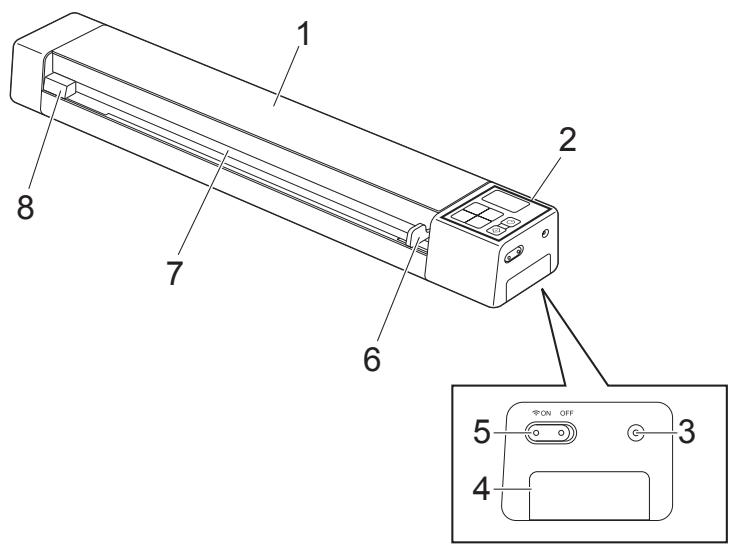
1 Top cover
2 Control panel
3 Reset button
4 Battery compartment
5 Wi-Fi® (ON / OFF) switch
NOTE
When you do not use the Wi-Fi® function, set the Wi-Fi® switch to OFF. If you leave the switch in the ON position, it will use more battery.
6 Document guide
7 Feeder slot
8 Left edge
Rear
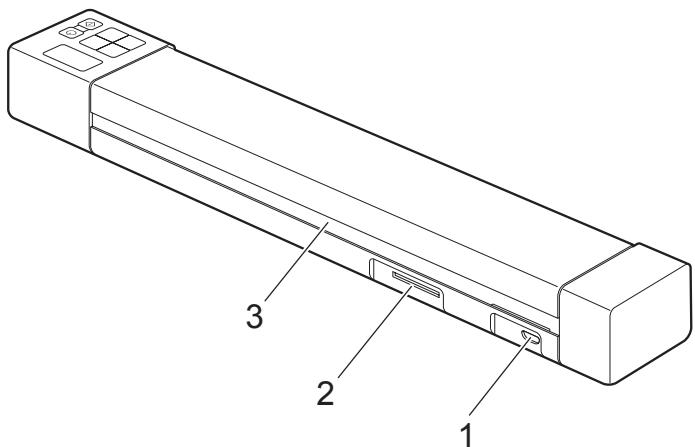
1 Micro USB port
2 SD card slot
3 Paper ejection slot
Control panel overview
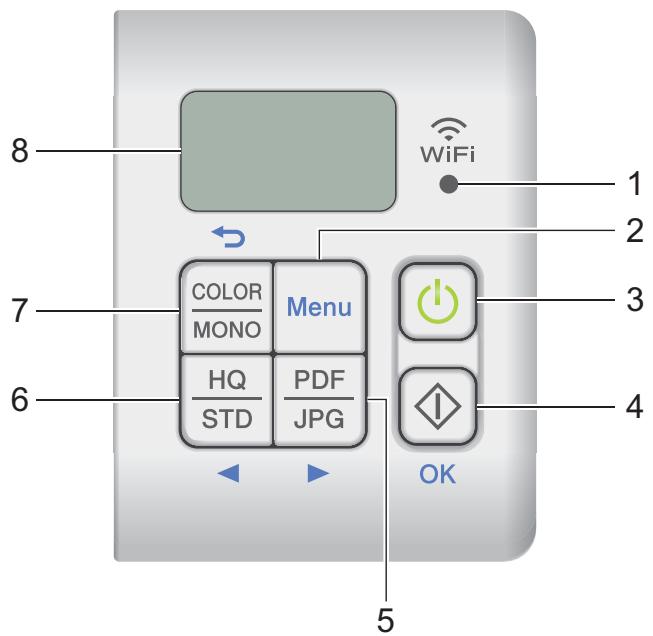
1 Wi-Fi® indicator
Indicates the status of the Wi-Fi® connection.
2 Menu button
Press to configure the menu settings.
3 Power button
- Press to turn on the scanner.
- Press and hold to turn off the scanner.
4 Start / OK button
- Press to confirm a selected item.
- Press to switch from SD mode to PC/TWAIN mode. (You can select SD mode only when an SD card is inserted in the scanner's SD card slot. You can select PC/TWAIN mode only when the scanner is connected to your computer via the Micro USB Cable.)
- For Windows®
Press to start scanning when using Button Manager V2. (Only available when a document is set in the feeder slot.)
For more information, see Using Button Manager V2 (for Windows®) on page 40.
For Macintosh
Press to start scanning when using DSmobileCapture. (Only available when a document is set in the feeder slot.)
For more information, see Using DSmobileCapture (for Macintosh) on page 34.
5 PDF / JPG (▶) button
- Press to change the scanning file format (PDF or JPEG).
- Press to scroll through the menu and option items.
6 HQ/STD( )button
- Press to change the resolution. HQ (High Quality) is 600 dpi and STD (Standard) is 300 dpi.
- Press to scroll through the menu and option items.
7 COLOR/MONO () button
- Press to change the scan mode (color or mono [black and white]).
- Press to return to the previous screen.
8 Liquid Crystal Display (LCD)
Displays messages to help you set up and use your scanner.
Items displayed on the LCD
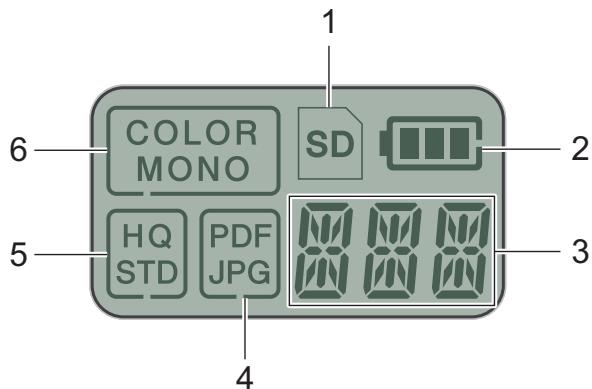
1 SD
Appears when the SD card is inserted into the scanner's SD card slot.
2 Remaining battery power
3 The selected menu or the current status appears here.
For more information about the messages displayed on the LCD, see LCD messages on page 5.
4 PDF/JPG
Displays the scanning file format (PDF or JPEG).
5 HQ/STD
Press to change the resolution. HQ (High Quality) is 600 dpi and STD (Standard) is 300 dpi.
6 COLOR/MONO
Displays the scan mode (color or mono [black and white]).
LCD messages
| Message | Machine Status |
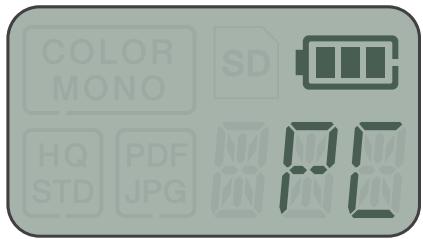
| PC | The machine is connected to your computer in TWAIN mode. |
| SD | The machine is in SD mode (Mass-storage mode). For more information, see Scanning in SD mode on page 16. |
| BRD | The machine is in BR-Docs mode. For more information, see Scan to the Cloud Server Using a Wireless Access Point (BOL Mode) on page 54. |
| FMT | The machine displays the menu to format an SD card. For more information, see Formatting an SD card on page 10. |
| TME | The machine displays the menu to set its clock. For more information, see Setting the Clock on page 7. |
| CAL | The machine displays the calibration menu. For more information, see Calibration using the control panel on page 62. |
| PWR | The machine displays the menu to use the auto power off function. For more information, see Using the auto power off function on page 7. |
| ---- | The machine is not connected to your computer and there is no SD card inserted in it. |
Power button LED indications
| LED indication | Machine Status |
| No light | The machine is not connected to your computer or the Li-ion battery is not installed. |
| Green light | The machine is ready to scan or is charging the battery. |
| Blinking green | The machine is scanning a document. |
| Rapidly blinking red | Some error has occurred. The top cover is open, or a document is jammed. |
Checking the Wi-Fi® indicator
| Wi-Fi® indicator | Wi-Fi® status |
| No light WiFi | The Wi-Fi® switch is set to OFF. |
| Lit (Red) WiFi | The Wi-Fi® switch is set to ON and the scanner is searching for a Wi-Fi® connection. It will take about 40 seconds to make the Wi-Fi® connection. |
| Lit (Blue) WiFi | A Wi-Fi® connection has been made [in access point (AP) mode]. For more information, see Connecting in access point (AP) mode on page 46. |
| Lit (Orange) WiFi | Connection to an access point has been made. |
| Blinking (Orange) WiFi | Your scanner is transferring scanned images to BR-Docs. For more information, see Scan to the Cloud Server Using a Wireless Access Point (BOL Mode) on page 54. |
| Slow blinking (Red) WiFi | Connection to BR-Docs has failed. |
NOTE
When you are not using the Wi-Fi® function, set the Wi-Fi® switch to OFF. If you leave the switch in the ON position, it will use more battery.
Setting the Clock
Before using your scanner, set the scanner clock to the correct time.
1 Turn on your scanner.
2 On the scanner's control panel, press Menu.
Press or until TME is displayed on the LCD.
4 Press Start / OK.
Press or to set the year.
6 Press Start / OK to confirm the year.
NOTE
To return to the previous screen, press the COLOR/MONO () button.
Repeat steps 5 and 6 to set the month, day, hour (24-hour format) and minute.
After setting the minute, the LCD displays OK, indicating that the clock is set.
Using the auto power off function
You can turn your scanner off automatically to save power. The scanner will power off after five minutes of inactivity.
NOTE
When the Wi-Fi® switch is set to ON, this function is disabled.
1 Turn on your scanner.
On the scanner's control panel, press Menu.
Press or until PWR is displayed on the LCD.
4 Press Start / OK.
5 Do one of the following:
To enable the auto power off function, press or to select YES.
- To disable the auto power off function, press or to select NO.
6 Press Start / OK.
The LCD displays OK, indicating that auto power off has been set.
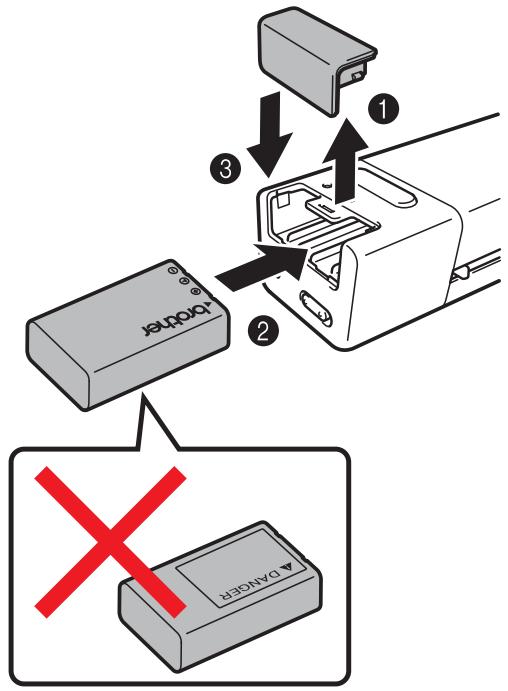
Installing the battery
Install the supplied Li-ion Battery into the end of your scanner, as shown in the illustration.
Charging battery
1 Make sure that your computer is ON.
Connect the supplied Micro USB Cable to the micro USB port on your scanner.
3 Connect the cable to your computer. The battery starts charging automatically.
The Power button lights up green while the battery is charging, and goes off when charging is complete.
NOTE
- When charging the battery, press and hold the Power button to turn off your scanner. You can charge the battery with the power either on or off, but charging takes more time than when the scanner is off.
- When charging the battery with the power on, set the Wi-Fi® switch to OFF.
- When the scanner is turned on, the battery level is displayed on the LCD panel.
| Battery icon | Power level |
| Full | |
| Half charge | |
| Low |
- If you do not use the scanner for a long period, charge the battery fully at least once every six months to prolong the battery life.
- If you do not use the scanner for a long period, remove the battery from the scanner, and store the battery in a cool, dry place at a consistent temperature.
Formatting an SD card
When you purchase your own SD card, you must format the SD card before using it.
NOTE
Before formatting an SD card, make sure if there is no important data on it. When you format an SD card that was previously used with other devices, all of its data will be deleted.
1 Insert the SD card into the SD card slot.
2 Turn on your scanner.
3 Make sure that SD appears on the LCD display.
4 On the scanner's control panel, press Menu.
Press or until FMT is displayed on the LCD.
6 Press Start / OK.
7 Do one of the following:
- To format the SD card, press or to select YES, and then press Start / OK. The SD icon and FMT in the LCD display will blink, and the scanner will begin to format the SD card. When the LCD display OK, formatting is complete.
- To cancel formatting, press or to select NO, and then press Start / OK.
2
Document Specifications
Acceptable documents
| Standard Paper | Length | 90 mm to 812.8 mm | |
| Width | 55 mm to 215.9 mm | ||
| Weight | 60 g/m² to 105 g/m² To scan thinner documents, use the Carrier Sheet (see Loading the Carrier Sheet on page 14). | ||
| Maximum Number of Pages | 1 page | ||
| Standard Paper Size | A4 | 210 × 297 mm | |
| A5 | 148 × 210 mm | ||
| A6 | 105 × 148 mm | ||
| A7 | 74 × 105 mm | ||
| A8 | 52 × 74 mm | ||
| B5 | 182 × 257 mm | ||
| B6 | 128 × 182 mm | ||
| B7 | 91 × 128 mm | ||
| B8 | 64 × 91 mm | ||
| Legal | 215.9 × 355.6 mm | ||
| Letter | 215.9 × 279.4 mm | ||
| Plastic Cards | Length | 40 mm to 86 mm |
| Width | 40 mm to 86 mm | |
| Standard Size (ISO) | 85.6 × 54.0 × 0.76 mm | |
| Material | Plastic (PET) | |
| Type | Plastic card such as a driver's license or an insurance card | |
| Thickness | Less than 0.8 mm | |
| Maximum Number of Pages | 1 page |
| Receipts | Length | 90 mm to 812.8 mm |
| Width | 55 mm to 215.9 mm | |
| Thickness | More than 0.04 mm | |
| Maximum Number of Pages | 1 page |
Unacceptable documents
Documents with paper clips or staples
Documents with wet ink
■ Fabrics, metallic sheets, overhead projector sheets
Glossy or mirrored media
Embossed plastic cards
Documents that exceed the recommended thickness
Documents recommended for use with the Carrier Sheet
Use the supplied Carrier Sheet when you scan the following:
Documents with a carbon sheet attached on the back
Documents written in pencil
Documents narrower than 55 mm wide
Documents shorter than 90 mm long
Documents of an uneven thickness, such as envelopes
Documents with large wrinkles or curls
Bent or damaged documents
Documents that use tracing paper
Documents that use coated paper
Photographs (photographic paper)
Documents printed on perforated paper
Documents printed on unusually-shaped paper (not square or rectangular)
Documents with photos, notes, or stickers affixed to them
Documents that use carbonless paper
Documents that use loose-leaf paper or any paper with holes in it
Photographic negatives
For more information about using the Carrier Sheet when scanning, see Loading the Carrier Sheet on page 14.
IMPORTANT
- Do not place the Carrier Sheet in direct sunlight or in an area subject to high temperatures and high humidity, or the Carrier Sheet may warp.
- Do not place large or heavy objects on the Carrier Sheet.
- Do not bend or pull the Carrier Sheet. If it becomes damaged, it may not be acceptable for scanning, and should not be used.
3 Scan Preparation
Loading a document
IMPORTANT
- Insert only one page into the scanner at a time. Insert the next page only after the first one is completely scanned. Inserting more than one page at a time may cause your scanner to malfunction.
- DO NOT pull on the document while it is feeding.
DO NOT use paper that is curled, wrinkled, folded, ripped, stapled, paper clipped, pasted, or taped. - DO NOT try to scan cardboard or fabric.
NOTE
- Make sure there is enough space behind the paper ejection slot. The scanned document will be ejected from the rear of the scanner.
- Make sure documents that have ink or correction fluid on them are completely dry.
- Certain types of plastic cards may be scratched when scanned. To prevent damage to the card, we recommended using the Carrier Sheet. For more information, see Loading the Carrier Sheet on page 14.
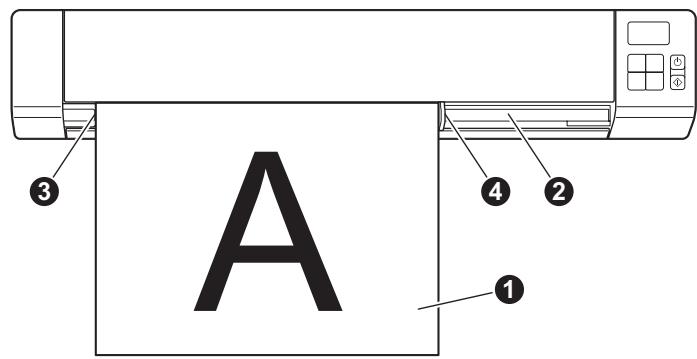
1 Set your document 1 face up in the feeder slot 2 and align the left edge of the page with the left edge of the feeder slot 3.
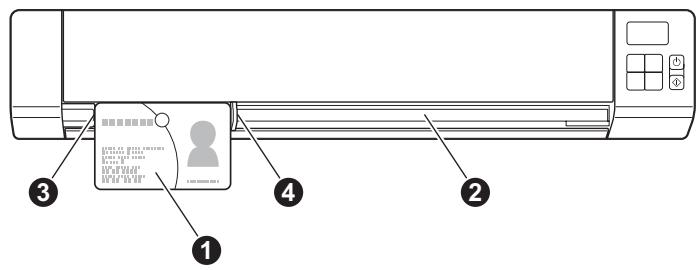
To scan a plastic card 1, set the card top edge first into the feeder slot 2 and align the left edge of the card with the left edge of the feeder slot 3.
2 Slide the document guide 4 until it touches the right side of the document.
Gently insert the document until you feel its top edge touch the inside of the scanner.
NOTE
If you insert a document while SD is displayed on the LCD, scanning begins automatically.
Loading the Carrier Sheet
NOTE
Make sure documents that have ink or correction fluid on them are completely dry.
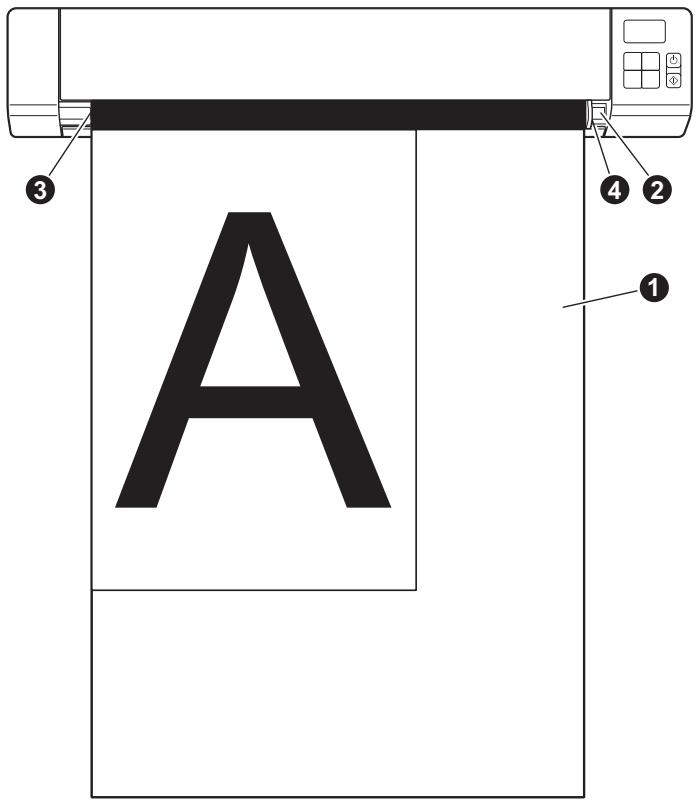
1 Place the document you want to scan in the left corner of the Carrier Sheet and align the top of the document with the top left corner of the Carrier Sheet.

2 Set the Carrier Sheet 1, document face up, with the black edge first in the feeder slot 2 and align the left edge of the Carrier Sheet with the left edge of the feeder slot 3.
3 Slide the document guide 4 against the right side of the Carrier Sheet.
Gently insert the Carrier Sheet until you feel its top edge touch the inside of the scanner.
Important Carrier Sheet tips
- To avoid document jams, do not load the Carrier Sheet upside down. For more information, see Loading the Carrier Sheet on page 14.
- To avoid document jams, do not put several small documents into the Carrier Sheet at the same time. Insert only one document into the Carrier Sheet at a time.
- Do not write on the Carrier Sheet, as the writing may be seen in scanned documents. If the Carrier Sheet becomes dirty, wipe it with a dry cloth.
- Do not leave documents in the Carrier Sheet for extended periods of time, as the printing on the documents may bleed through onto the Carrier Sheet.
4 Scan Using the Control Panel
Scanning in SD mode
1 Insert the SD card into the SD card slot.
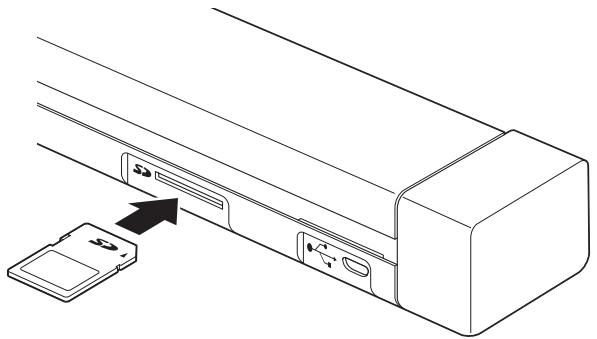
NOTE
When you use a purchased SD card, you must format the SD card first. To format the SD card on your scanner, see Formatting an SD card on page 10.
2 Turn on your scanner.
3 Make sure that SD appears on the LCD display.
If necessary, adjust the scanning settings by pressing the COLOR / MONO, PDF / JPG and HQ / STD buttons on the control panel.
5 Insert your document.
6 Your scanner starts scanning automatically. The Power button LED blinks green and SD blinks on the LCD.
The scanned image is stored on the SD card. Check the result to make sure your document has scanned correctly.
NOTE
To access the scanned images on the SD card, see Access Scanned Images on the SD Card on page 55.
5 Scan Using Your Computer
Installing the scanner driver and scanning software
For Windows® users
NOTE
- Make sure that your computer is ON and you are logged on with Administrator rights.
- DO NOT connect the Micro USB Cable yet.
- If your computer does not have a DVD-ROM drive, the supplied DVD-ROM does not contain drivers for your operating system, or you want to download manuals and utilities, visit your model page at http://solutions.brother.com/.
1 Insert the DVD-ROM.
When the Setup screen appears, click Install Scanner Driver and follow the on-screen instructions.
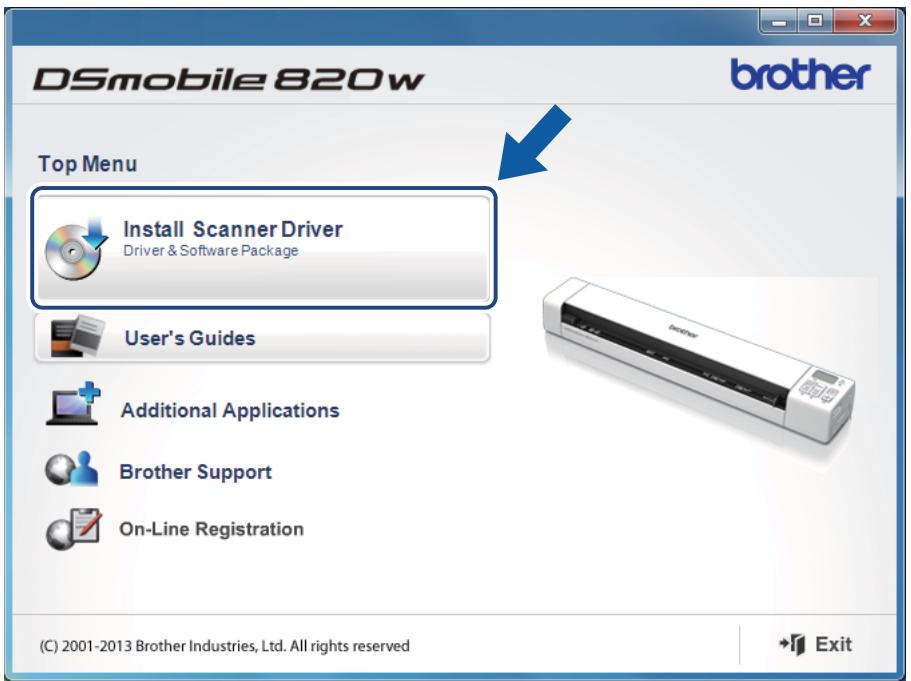
NOTE
- If the Brother screen does not appear automatically, go to My Computer (Computer), double-click the CD-ROM icon, and then double-click AutoRun.exe.
- When you install the scanner driver, DSmobileCapture (a scanning application) will be installed at the same time. For more information on using DSmobileCapture, see Using DSmobileCapture (for Windows®) on page 23.

Click Additional Applications to install any of these applications during setup.
- Button Manager V2: document scanning and storing (to specified destinations)
- PaperPort™ 12SE: document scanning, editing and management
- Presto! BizCard 6: business card scanning, editing and management
- BR-Receits: receipt scanning, editing and management
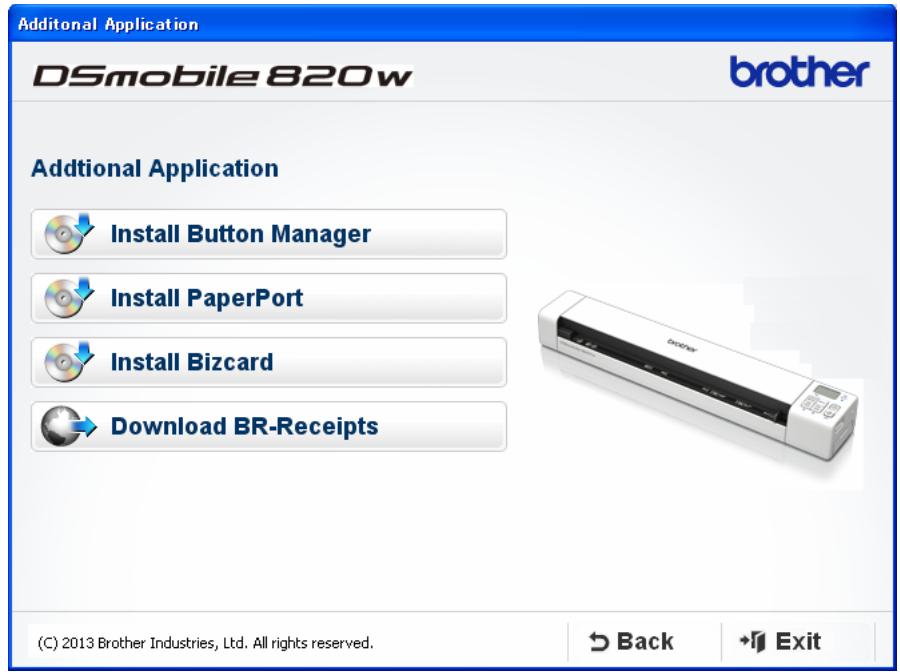
NOTE
- To register your product and download BR-Receits, click Download BR-Receits to access the Brother Online site at http://www.brother.com/product/brotheronline/.
- For more information on which scanning application will work best for you, see Choosing your scanning software on page 22.
For Macintosh users
NOTE
- Make sure that your computer is ON and you are logged on with Administrator rights.
- DO NOT connect the Micro USB Cable yet.
- If your computer does not have a DVD-ROM drive, the supplied DVD-ROM does not contain drivers for your operating system, or you want to download manuals and utilities, visit your model page at http://solutions.brother.com/.
1 Insert the DVD-ROM.
Double-click on the DVD icon, and then double-click DS-820W.
3 Double-click on Brother DS-820W and follow the on-screen instructions to install the scanner driver.
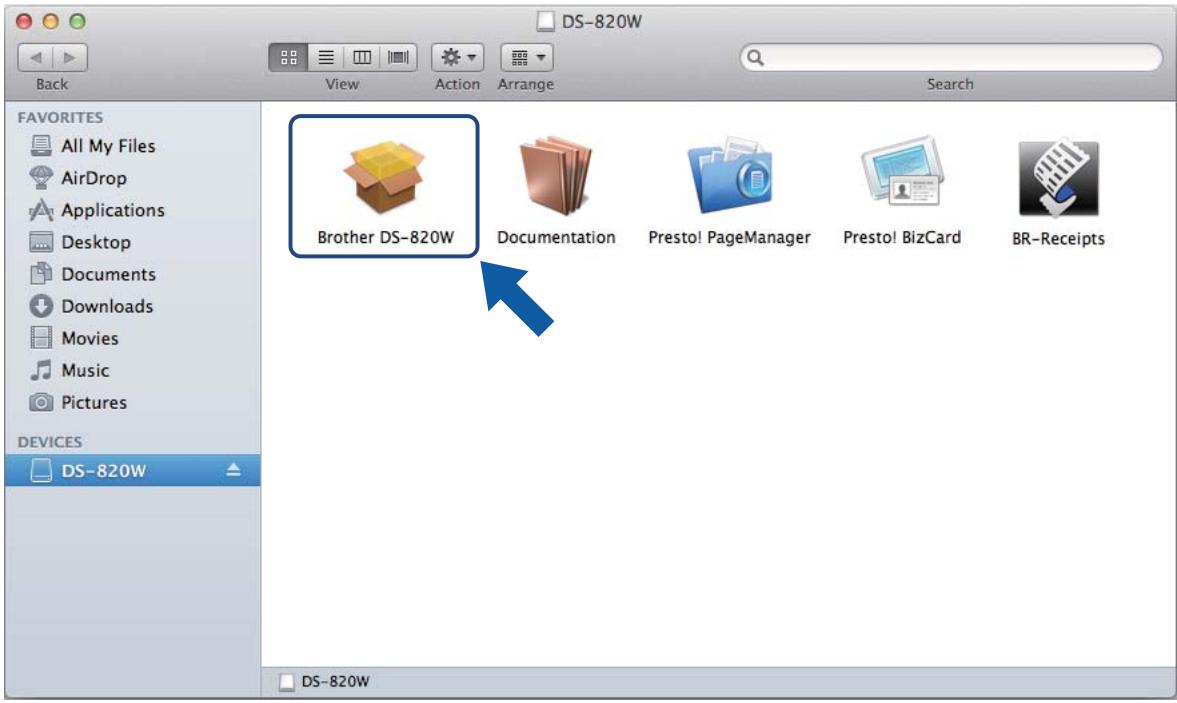
NOTE
When you install the scanner driver, DSmobileCapture (a scanning application) will be installed at the same time. For more information on using DSmobileCapture, see Using DSmobileCapture (for Macintosh) on page 34.
4 Click one of these folders to install the application during setup.
- Presto! PageManager 9: document scanning, editing and management
- Presto! BizCard 6: business card scanning, editing and management
- BR-Receipts: receipt scanning, editing and management
NOTE
- Clicking Presto! PageManager or Presto! BizCard will bring you to NewSoft Technology Corporation's website. Download the application from this website.
- To register your product and download BR-Receits, double-click BR-Receits to access the Brother Online site at http://www.brother.com/product/brotheronline/.
- For more information on which scanning application will work best for you, see Choosing your scanning software on page 22.
Connecting your scanner to your computer in TWAIN Mode
Before scanning a document using the scanning software, select TWAIN Mode on your computer. To select TWAIN Mode, see steps from 1 to 3 of Using DSmobileCapture (for Windows®) on page 23.
1 Turn on your scanner.
2 Confirm that the Wi-Fi® switch is set to OFF.
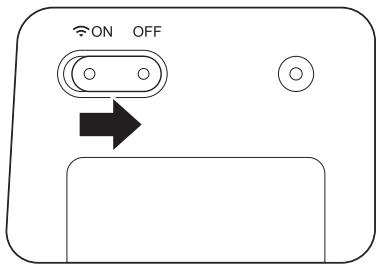
3 Connect the Micro USB Cable to the Micro USB port on your scanner. Connect the cable to your computer.
Press the Start / OK button on the scanner to display PC on the LCD.
Choosing your scanning software
After downloading the scanner drivers, select a scanning software application for saving scanned images to your computer. Brother has supplied several options for you on the DVD-ROM; use this table to help determine which of the included scanning applications will work best for you:
| Software | Function | For more information |
| DSmobileCapture | Document scanning, browsing and filing | For Windows®: See Using DSmobileCapture (for Windows®) on page 23. For Macintosh: See Using DSmobileCapture (for Macintosh) on page 34. |
| Button Manager V2 (Windows® only) | Document scanning and storing (in speci-fied destinations) | See the software's user instructions or Us-ing Button Manager V2 (for Windows®) on page 40. |
| Nuance PaperPort™ 12SE (Windows® only) | Document scanning, OCR scanning, editing and management | See the software's user instructions. |
| Presto! PageManager 9 (Macintosh only) | Document scanning, OCR scanning, editing and management | See the software's user instructions. |
| Presto! BizCard 6 | Business card scanning, editing and man-agement | See the Presto! BizCard User's Manual which will be downloaded onto your computer when you download the software. |
| BR-Receints | Receipt scanning and management | See the software's user instructions. |
NOTE
- Clicking Presto! PageManager or Presto! BizCard will bring you to NewSoft Technology Corporation's website. Download the application from this website.
- To register your product and download BR-Receits, double-click BR-Receits to access the Brother Online site at http://www.brother.com/product/brotheronline/.
Using DSmobileCapture (for Windows®)
1 Connect the supplied Micro USB Cable to the Micro USB port on your scanner. Connect the cable to your computer.
Double-click the DSmobileCapture shortcut on your desktop.
The Select Scanner Model dialog box appears. Select TWAIN under Driver Type, select Brother DS-820W under Scanner Model, and then click OK.
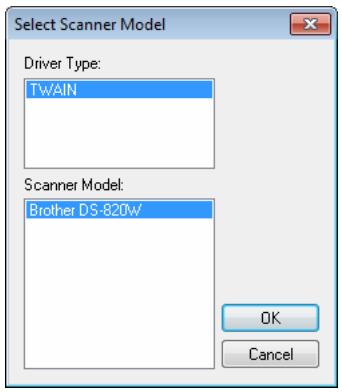
DSmobileCapture launches.
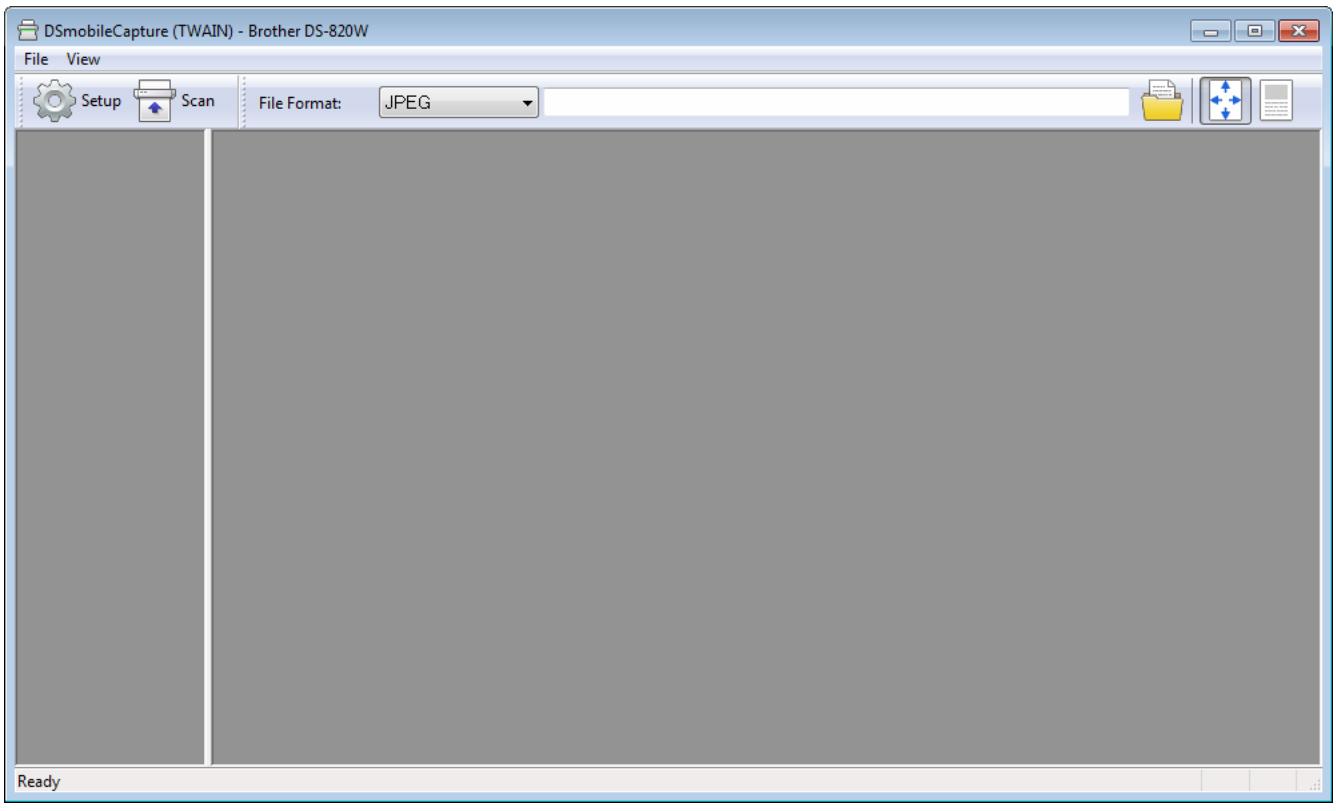
5 Change the scanning settings, if needed.
For more information on changing settings, see Changing DSmobileCapture scan settings (for Windows®) on page 26.
6 Insert a document into your scanner.
7 Click Scan. Your scanner starts scanning.
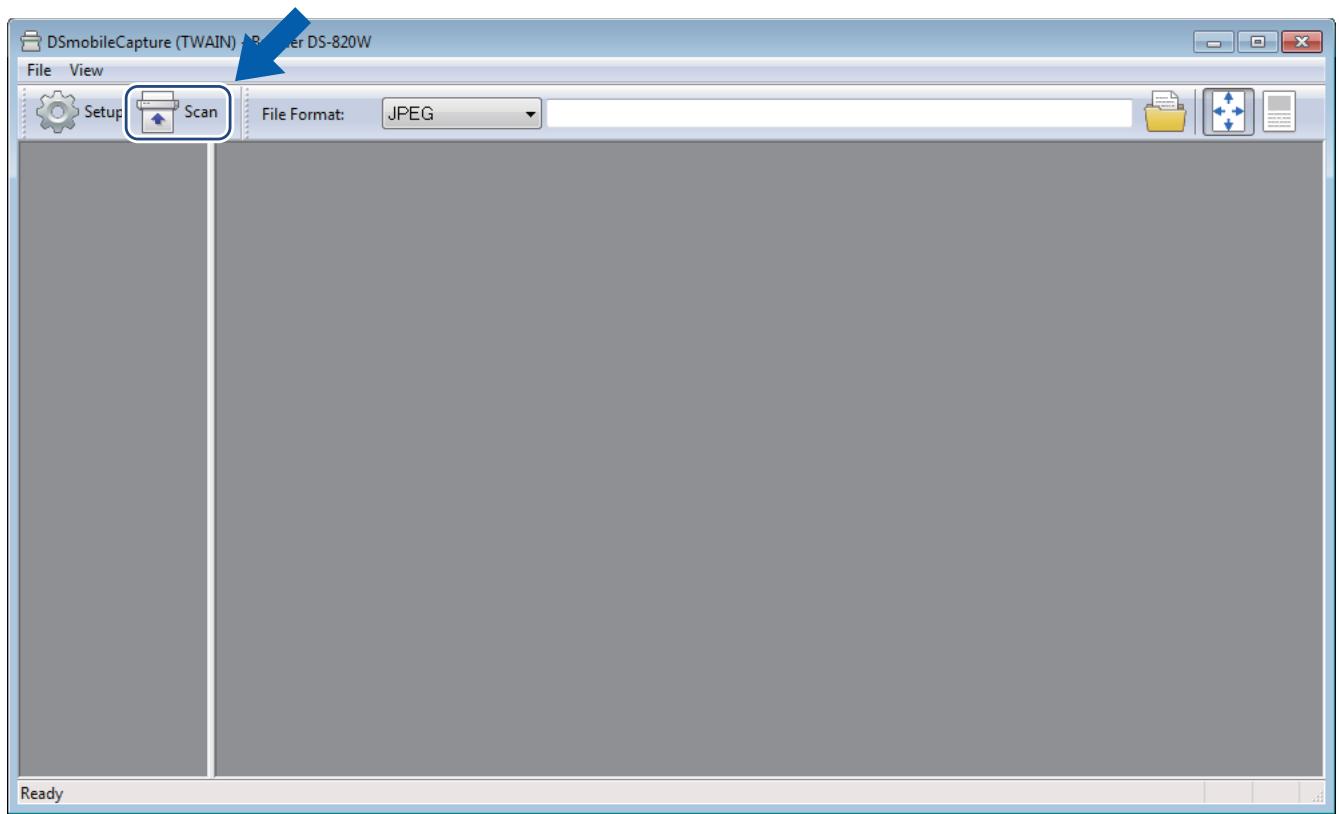
A thumbnail of the scanned image appears in the DSmobileCapture screen and the scanned image will be saved in the directory you specified in step 5.
Check the result to make sure your document has scanned correctly.
For continuous scanning, insert the next document into the scanner while Waiting for next job... screen is displayed. When the document is ready, scanning will start automatically. To stop the continuous scanning, click Cancel on Waiting for next job... screen.
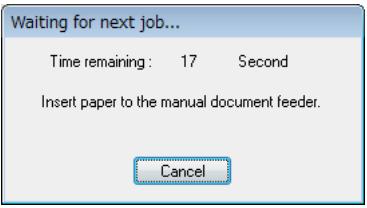
NOTE
- To change the time delay when waiting for the next job, see Paper settings on page 28.
- To save multiple documents as one file, choose Multi-page PDF or Multi-page TIFF from the File Format drop-down list.
Changing DSmobileCapture scan settings (for Windows®)
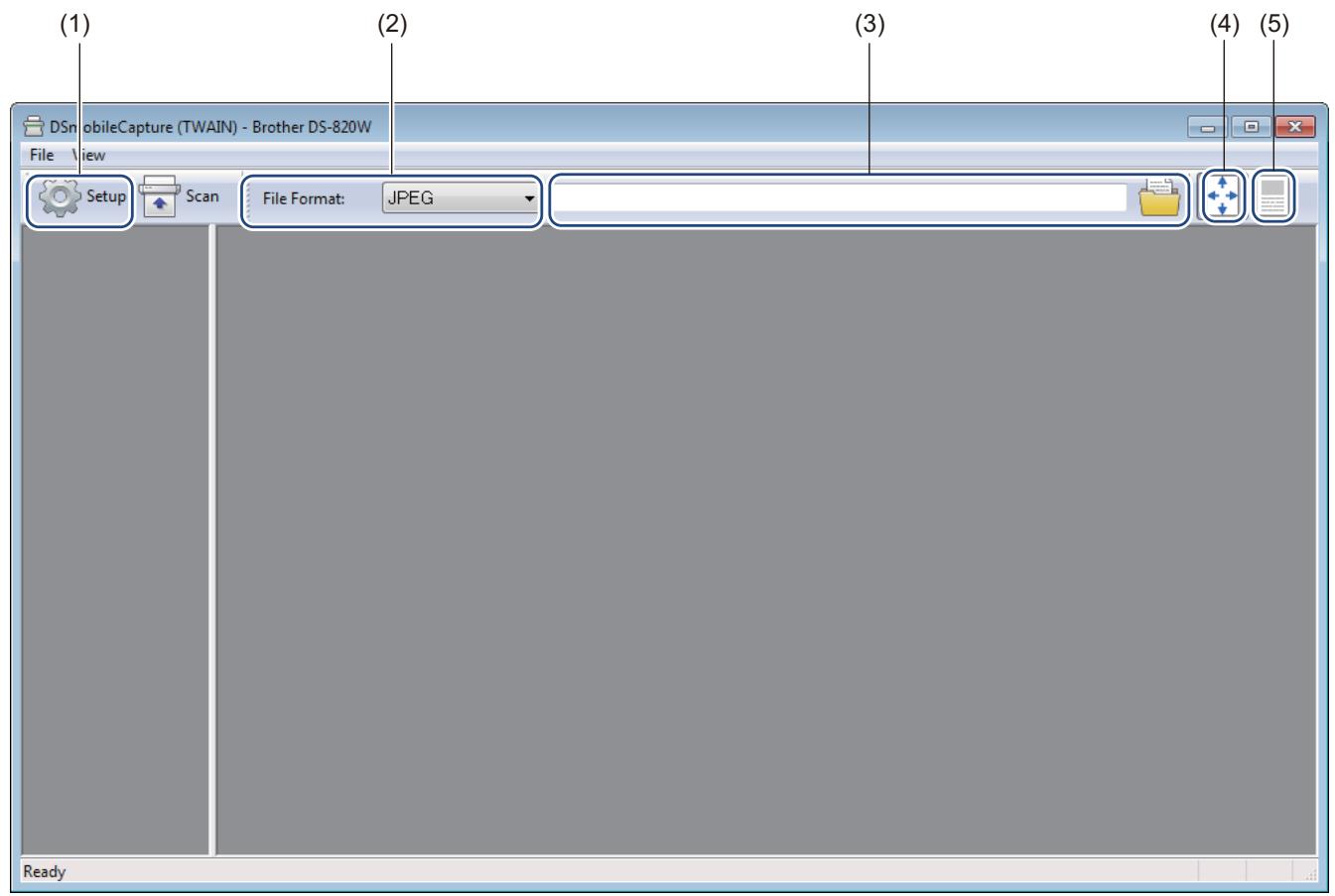
File settings
| (1) | Setup | Change scanner properties. |
| (2) | File Format | Change the file format. Select the format you want to use from the drop-down list. |
| (3) | Path | Specify the directory where you want to save scanned images. |
| (4) | Fit Page | You can view and size the scanned image. You cannot use Fit Page when PDF or Multi-page PDF is chosen in File Format. |
| (5) | Actual Size (100%) | You can view the scanned image in Actual Size (100%) You cannot use Actual Size (100%) when PDF or Multi-page PDF is chosen in File Format. |
Image settings
Click Setup , and then click the Image tab to choose the image type and to set basic scan settings.
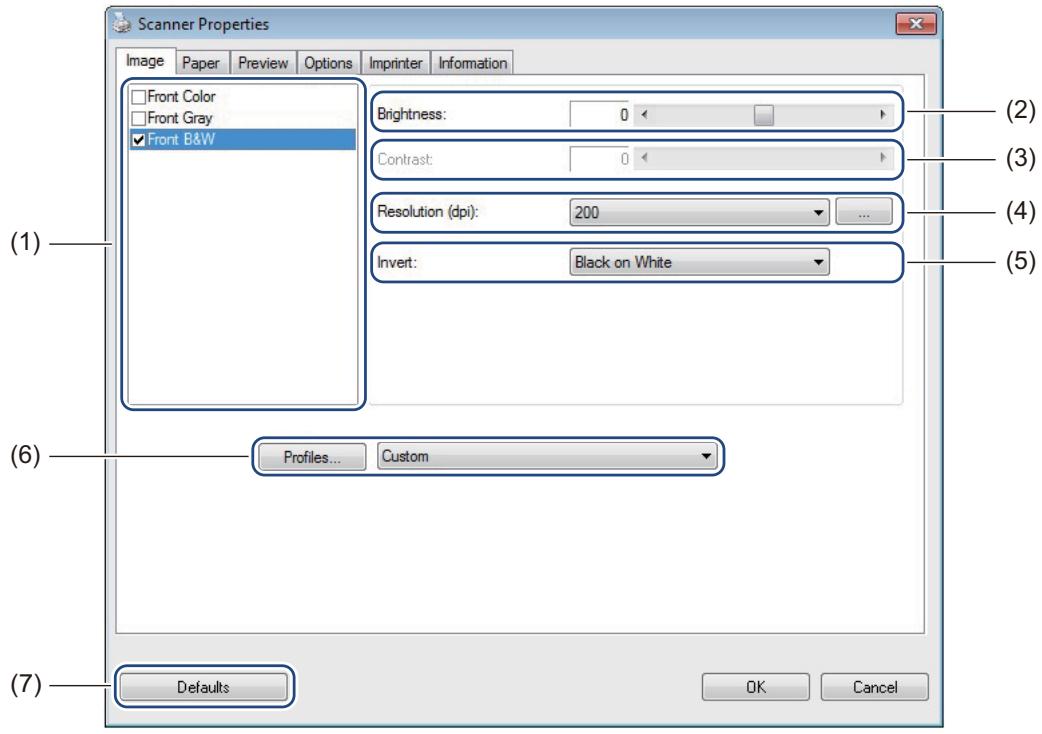
| (1) | Image Selection Box | Choose the colour mode of document you want to scan. |
| (2) | Brightness | Adjusts the lightness or darkness of an image. The range is from -100 to +100. The factory default is 0. |
| (3) | Contrast | Adjusts the range between the darkest and the lightest shades in the image. The range is from -100 to +100. The factory default is 0. |
| (4) | Resolution | Determine the quality of the scanned image. The factory default is 200 dpi. |
| (5) | Invert | Reverse the brightness and the colours in the image. |
| (6) | Profiles | Save or change the scan setting in the Scanner Properties dialog box. |
| (7) | Defaults | Reset values in this and all other tabs in the properties dialog box to the original factory settings. |
Paper settings
Click Setup , and then click the Paper tab to define values related to image output.
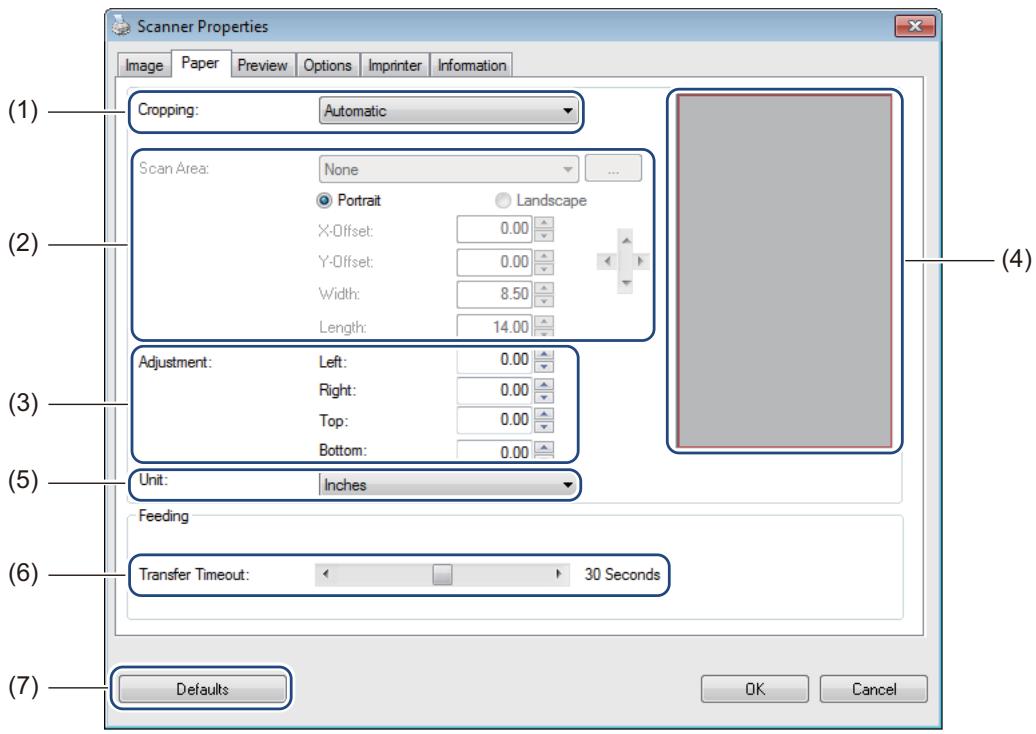
| (1) | Cropping | Cropping allows you to capture a portion of the scanned document. ■ Automatic Choose Automatic to allow the software to adjust the cropping window according to the document size. Use this option for batches of mixed-sized documents. ■ Fix for Transfer Choose Fix for Transfer if you want the ability to define the area or zone to be cropped. Use for batches of same-sized documents. |
| (2) | Scan Area | Choose your paper size from the drop-down list or create a custom paper size by clicking Add in the drop-down list. If you selected Fix for Transfer in Cropping (1), define the X-Offset and Y-Offset or specify Width and Length to redefine the scan area. The Display Area (4) in this screen displays image placement as you change the values. • X-Offset - the distance from the left edge of the document to the left edge of the scanned area. • Y-Offset - the distance from the top edge of the document to the top edge of the scanned area. • Width - the width of the scanned area. • Length - the length of the scanned area. • Use these arrows (or your mouse) to move the scan area; you can view the results in the Display Area of this screen. |
| (3) | Adjustment | Adjustment allows you to add a specific margin at the left, right, top and bottom of your image. This may help to reduce possible corner clipping on any skewed images. Select a value from 0 to +5 mm. The Adjustment result will not be shown in the Display Area. |
| (4) | Display Area | Displays image placement as you change the values in Scan Area (2). |
| (5) | Unit | Unit allows you to define your preferred measurement system. Select Inches, Mil-limeters, or Pixels from the drop-down list. |
| (6) | Transfer Timeout | Transfer Timeout allows you to set the amount of time (in seconds) the scanner will wait before starting automatic scanning after the first scan job is completed. When you have many separate documents that need to be scanned with the same scan settings, this feature is especially useful. The default time is 30 seconds. The value ranges from 0 to 60 seconds. |
| (7) | Defaults | Reset values in this and all other tabs in the properties dialog box to the original factory settings. |
Preview settings
Click Setup , and then click the Preview tab to preview your image before scanning, to make sure the scan area is set correctly.
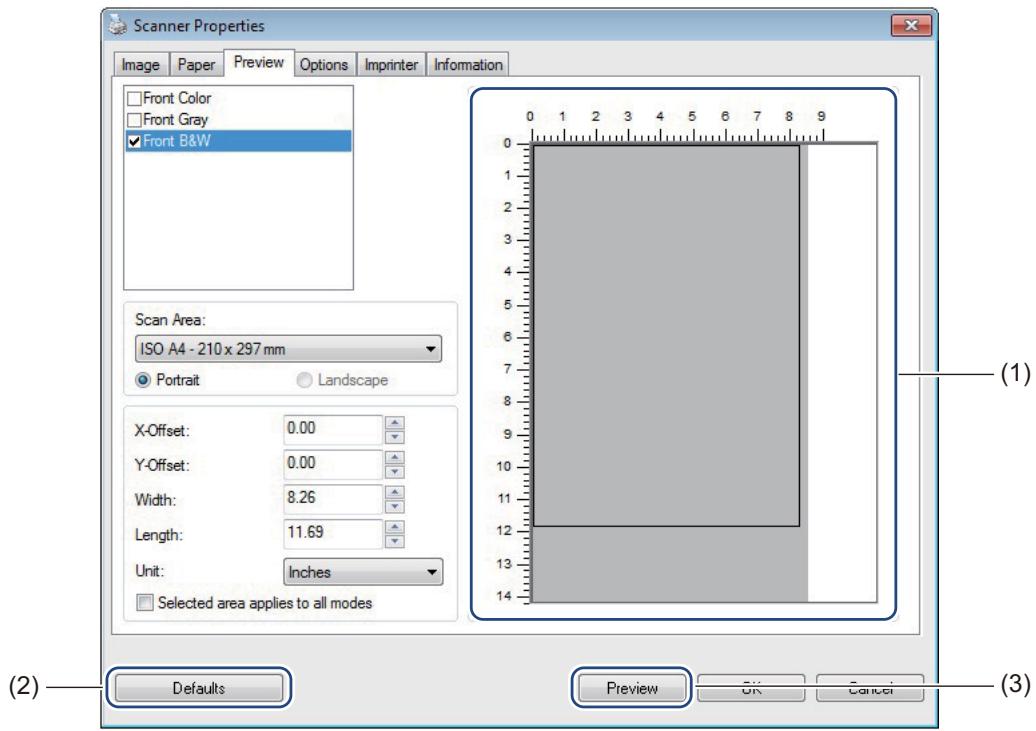
| (1) | Preview Window | When you click Preview (3), the scanned image will appear in this area. This pre-view image lets you define your scan area. |
| (2) | Defaults | Reset values in this and all other tabs in the properties dialog box to the original factory settings. |
| (3) | Preview | Click to start the preview scan. The scanned image will appear in the Preview Window (1). Note that the scanned image is only for the preview and will not be saved. |
NOTE
If you chose Automatic cropping, in the Paper tab screen, you cannot preview your scan on this screen.
Options settings
Click Setup , and then click the Options tab to choose additional image processing settings or to calibrate your scanner.
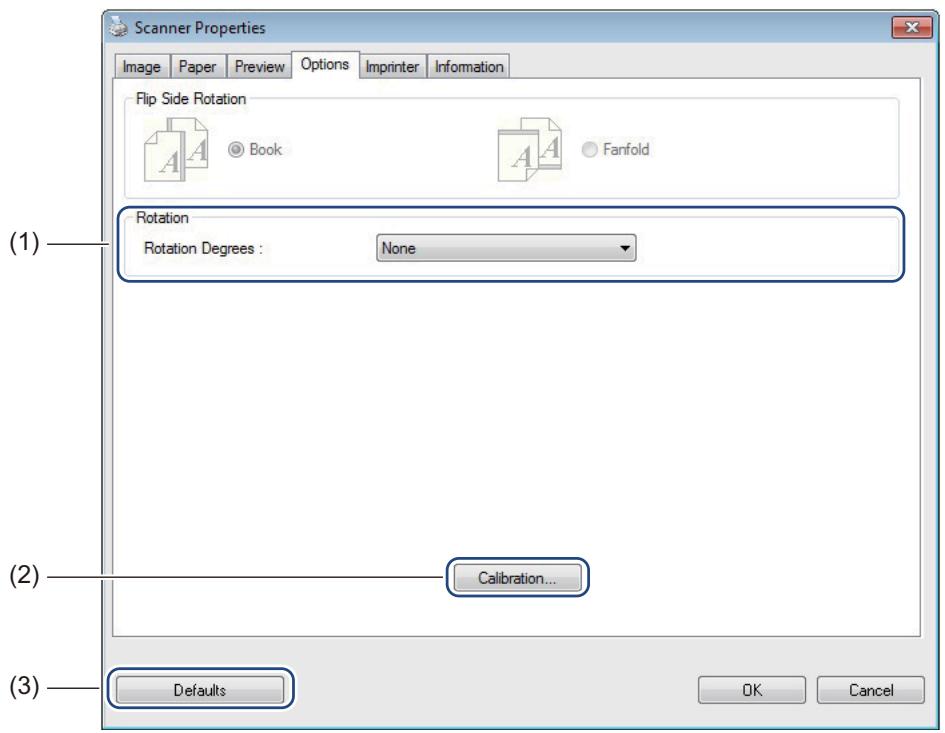
| (1) | Rotation | Choose the rotation angle from the drop-down list if you want to rotate your scanned image. |
| (2) | Calibration | Calibrate the scanner. For more information, see Calibration using software (for Windows®) on page 63. |
| (3) | Defaults | Reset values in this and all other tabs in the properties dialog box to the original factory settings. |
Imprimer settings
Click Setup , and then click the Imprimer tab to print alphanumeric characters, date, time, document count and custom text on your scanned images.
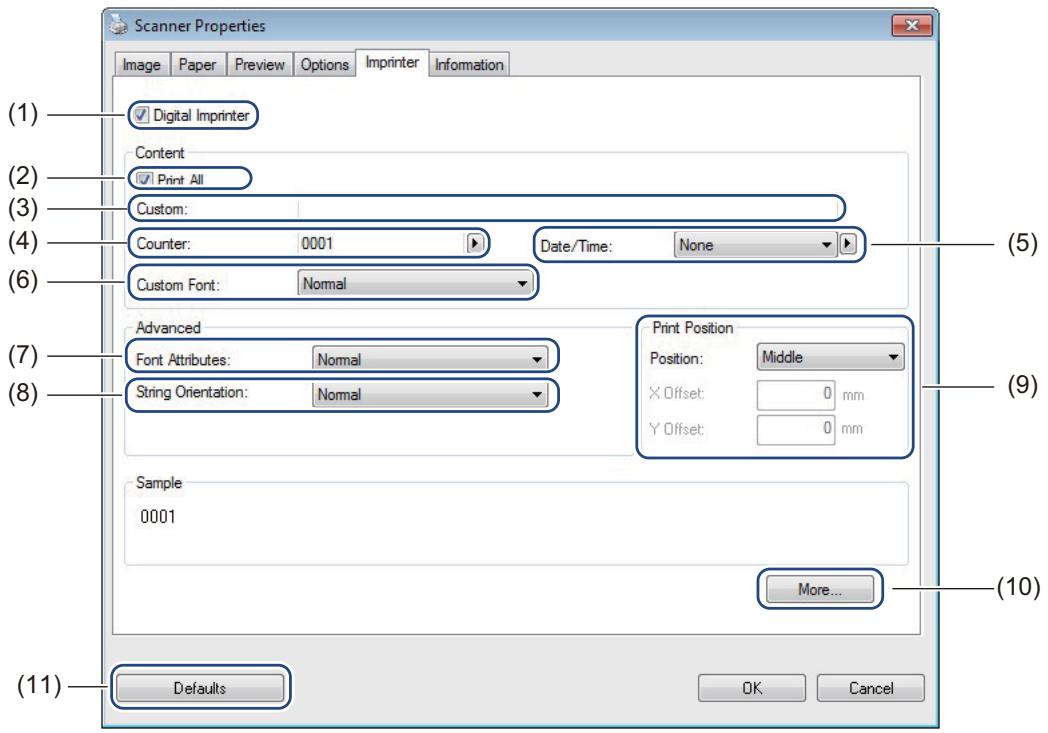
| (1) | Digital Imprimer | Select Digital Imprimer to print the message on the front of your scanned image. |
| (2) | Print All | Select the Print All check box to print your chosen text content, on all pages of your document. Clear the Print All check box to print the text on the first page only. |
| (3) | Custom | Type the text you want to print. |
| (4) | Counter | Displays the page count for the scan session. |
| (5) | Date / Time | Select a format from the drop-down list if you want to include the date and time in your text. |
| (6) | Custom Font | Click the drop-down list to select a font for your text. |
| (7) | Font Attributes | Select a font attribute from the drop-down list. Options include Normal, Underline, Double, or Bold. |
| (8) | String Orientation | Select a text orientation from the drop-down list. Options include Normal, Rotated, Vertical, Vertical Inversion, 90 Degrees CW1 or 90 Degrees CCW2. |
| (9) | Print Position | Select the position of your text from the drop-down list. Options include Top, Middle, Bottom, or Custom. If you choose Custom, enter the X Offset and Y Offset values to specify the text position. |
| (10) | More | Click More... to set Size, Density and Transparency for your text. |
| (11) | Defaults | Reset values in this and all other tabs in the properties dialog box to the original factory settings. |
1:Clockwise,2: Counter-clockwise
Information
Click Setup , and then click the Information tab to view system and scanner information.
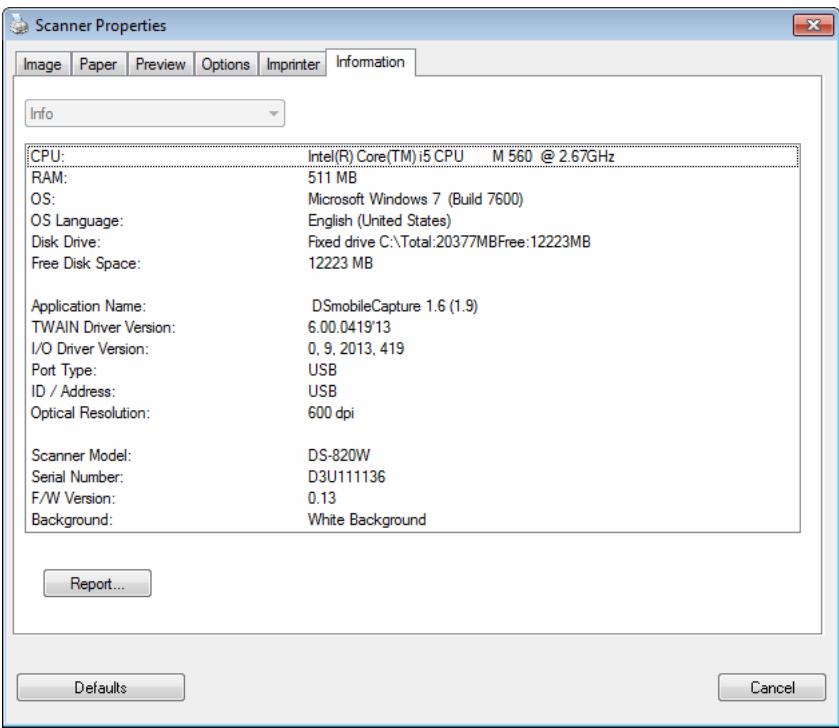
Using DSmobileCapture (for Macintosh)
1 Connect the supplied Micro USB Cable to the Micro USB port on your scanner. Connect the cable to your computer.
Double-click the DSmobileCapture shortcut on your desktop.
DSmobileCapture launches.

4 Change the scanning settings, if needed.
For more information on changing settings, see Changing DSmobileCapture scan settings (for Macintosh) on page 35.
5 Insert a document into your scanner.
6 Click Scan in the DSmobileCapture screen or press the scanner's Start / OK button when the document is set.
Your scanner starts scanning. The scanned image will be saved in the directory you specified in step 4. Check the result to make sure your document has scanned correctly.
Changing DSmobileCapture scan settings (for Macintosh)
Image settings
Click the Image tab to choose image type and to set basic scan settings.
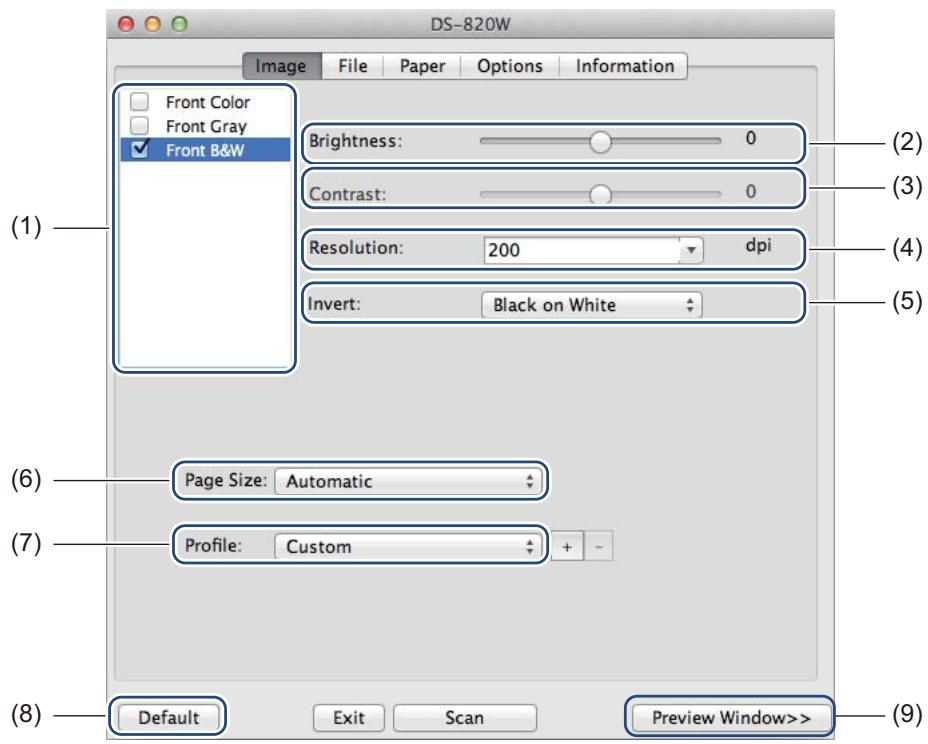
| (1) | Image Selection Box | Choose the colour mode of document you want to scan. |
| (2) | Brightness | Adjusts the lightness or darkness of an image. The range is from -100 to +100. The factory default is 0. |
| (3) | Contrast | Adjusts the range between the darkest and the lightest shades in the image. The range is from -100 to +100. The factory default is 0. |
| (4) | Resolution | Determine the quality of the scanned image. The factory default is 200 dpi. |
| (5) | Invert | Reverse the brightness and the colours in the image. |
| (6) | Page Size | Page Size allows you to capture a portion of the scanned document. Choose your paper size from the Page Size pop-up list. |
| (7) | Profiles | Save or change the scanning setting in the dialog box of Scanner Properties. |
| (8) | Default | Reset values in this and all other tabs in the properties dialog box to the original factory settings. |
| (9) | Preview Window | Click to preview your image before scanning. This preview image helps you define your scan area. When you click Preview, scanning for the preview starts and the scanned image will appear in the Preview Window. Note that the scanned image is only for the preview and will not be saved. |
File settings
Click the File tab to configure the settings related to the file name and the directory where you want to save the scanned image.
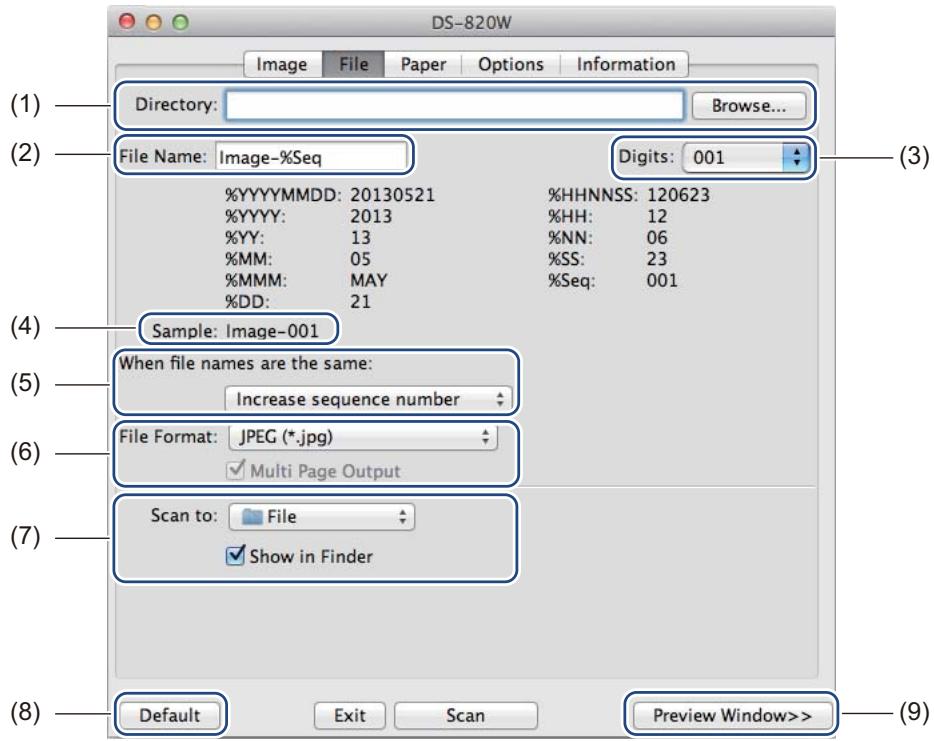
| (1) | Directory | Specify the directory where you want to save scanned images. |
| (2) | File Name | Set the rule for the file name of the scanned image. |
| (3) | Digits | Determine the starting number of the sequence number that is included in the file name. |
| (4) | Sample | Preview the file name that you set. |
| (5) | When file names are the same | Change the file name if the same name already exists in the directory you chose in Directory. |
| (6) | File Format | Choose the file format for the scanned image. When you choose TIFF or PDF, the Multi Page Output option is available. You can continue to scan the next document after the first scan job is completed. |
| (7) | Scan to | Choose the destination to send the scanned image. |
| (8) | Default | Reset values in this and all other tabs in the properties dialog box to the original factory settings. |
| (9) | Preview Window | Click to preview your image before scanning. This preview image helps you define your scan area. When you click Preview, scanning for the preview starts and the scanned image will appear in the Preview Window. Note that the scanned image is only for the preview and will not be saved. |
Paper settings
Click the Paper tab to define values related to image output.
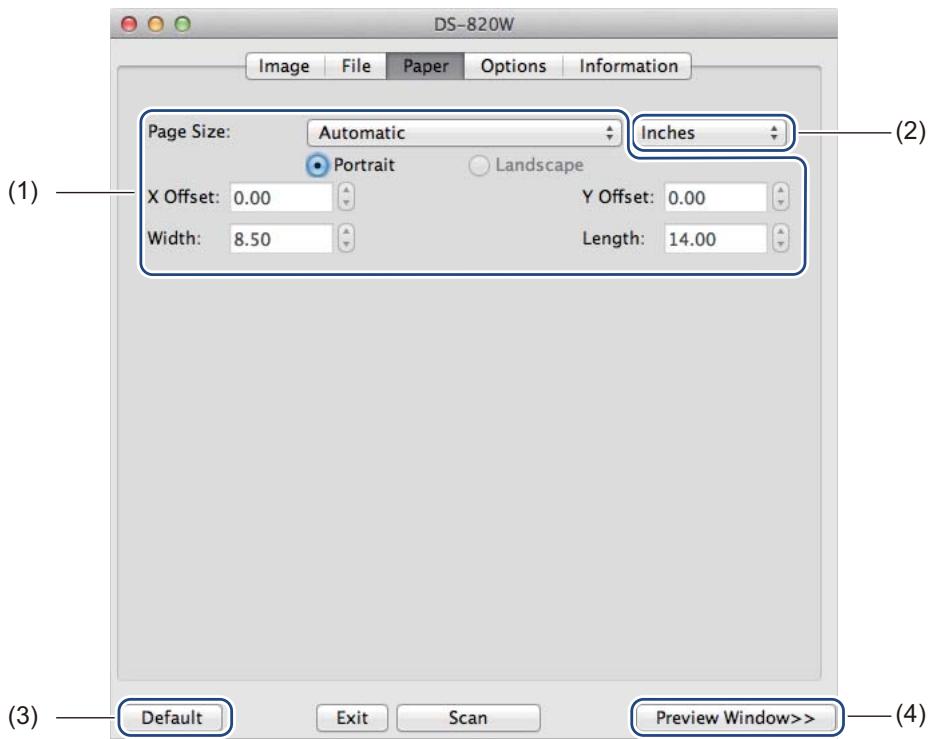
| (1) | Page Size | Page Size allows you to capture a portion of the scanned document. Choose your paper size from the Page Size drop-down list, define the X Offset and Y Offset values or specify Width and Length to define your scanned area. Click Preview Window (4) to preview the image placement as you change the values. • X Offset - the distance from the left edge of the document to the left edge of the scanned area. • Y Offset - the distance from the top edge of the document to the top edge of the scanned area. • Width - the width of the scanned area. • Length - the length of the scanned area. |
| (2) | Unit | Unit allows you to define your preferred measurement system. Select Inches, Millimeters, or Pixels from the pop-up list. |
| (3) | Default | Reset values in this and all other Properties tabs to the original factory settings. |
| (4) | Preview Window | Click to preview your image before scanning. This preview image helps you define your scan area. When you click Preview, scanning for the preview starts and the scanned image will appear in the Preview Window. Note that the scanned image is only for the preview and will not be saved. |
Options settings
Click the Options tab to set some additional image processing settings or calibrate your scanner.
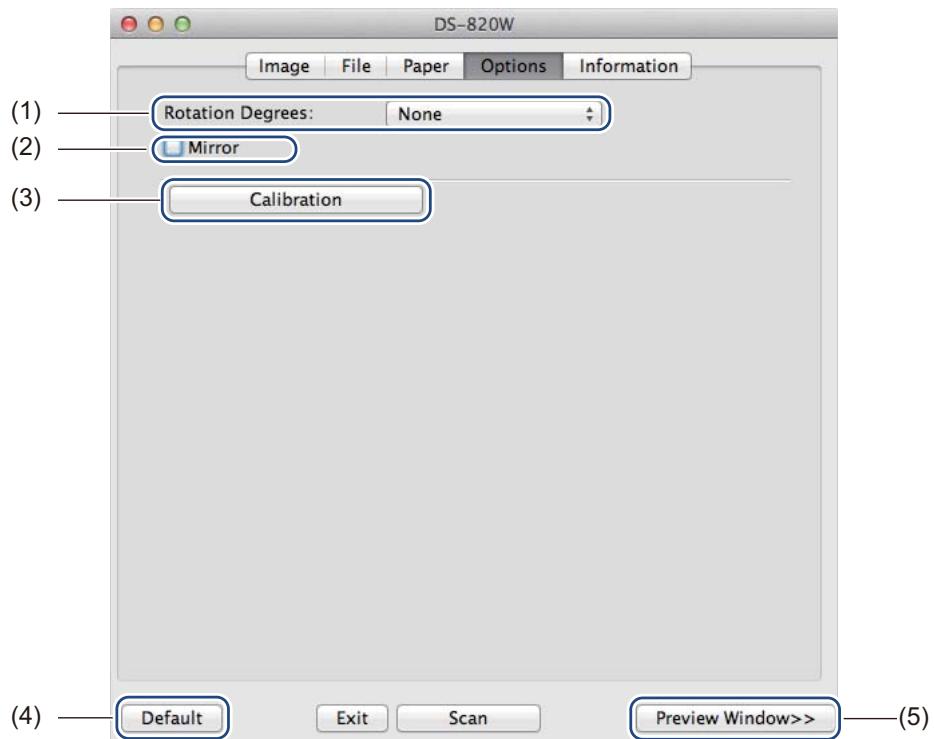
| (1) | Rotation Degrees | Choose the rotation angle from the pop-up list if you want to rotate your scanned image. |
| (2) | Mirror | Select the Mirror check box to reverse your image. |
| (3) | Calibration | Calibrate the scanner. For more information, see Calibration using software (for Macintosh) on page 66. |
| (4) | Default | Reset values in this and all other tabs in the properties dialog box to the original factory settings. |
| (5) | Preview Window | Click to preview your image before scanning. This preview image helps you define your scan area. When you click Preview, scanning for the preview starts and the scanned image will appear in the Preview Window. Note that the scanned image is only for the preview and will not be saved. |
Information
Click the Information tab to view system and scanner information.
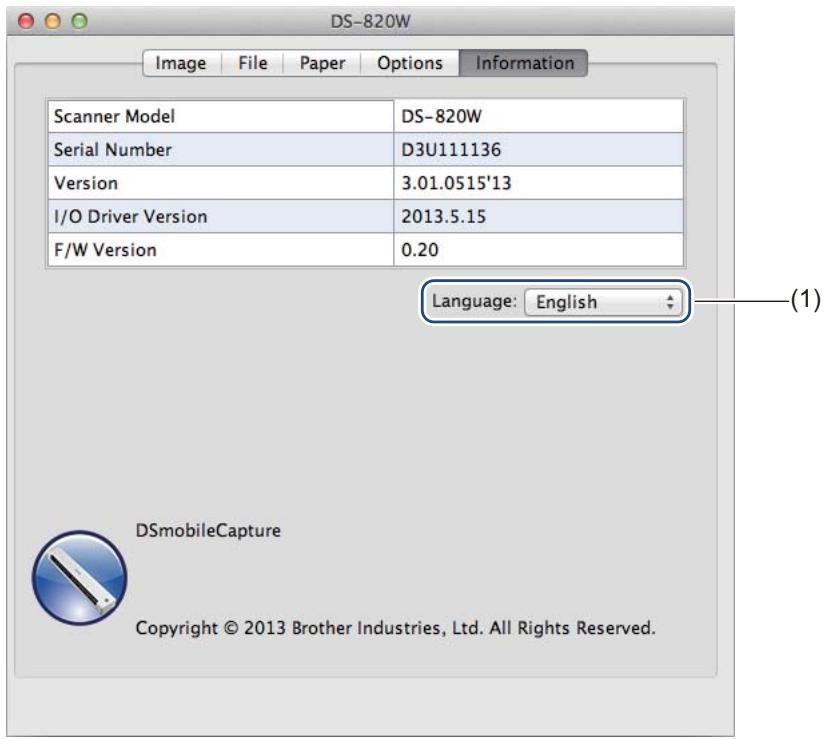
(1) Language Choose the language you want to display from the drop-down list.
Using Button Manager V2 (for Windows®)
NOTE
- For more detailed instructions, see the Button Manager V2 User's Guide from the application's help menu.
- To see the help menu, right-click the Button Manager V2 icon on the system tray, and then click Help.
Use either one of these two methods to launch Button Manager V2.
To display the shortcut icon and launch Button Manager V2 from your system tray
1 Connect the Micro USB Cable to the Micro USB port on your scanner and then to a USB port on your computer.
2 Click the Button Manager V2 icon on the system tray at the bottom right corner of your computer screen.
3 Button Manager V2 launches.

To launch Button Manager V2 from the Windows® Start button
1 Click Start V2.

All Programs > Brother DS- 820W Scanner > Button Manager > Button Manager
When the Select Scanner Model dialog box appears, select your scanner model from the list, and then click OK.
3 Button Manager V2 launches.
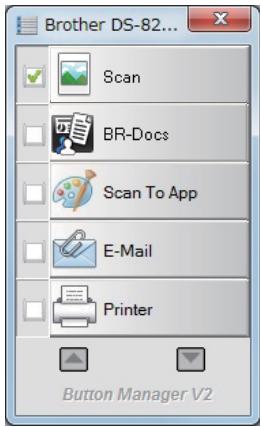
Scanning methods
There are two ways to scan using Button Manager V2. If necessary, check or change scan settings before scanning.
To scan using the scan button on Button Manager V2 Button Panel
1 Insert a document into your scanner.
Launch Button Manager V2.
3 If necessary, right-click the desired scan button in the Button Manager V2 Button Panel to change scan settings.
For more information, see the Button Manager V2 User's Guide.
4 Click the scan button you want to use in the Button Manager V2 Button Panel to start scanning.
To scan using the Start button on your scanner
1 Insert a document into your scanner.
Launch Button Manager V2.
3 If necessary, right-click the desired scan button in the Button Manager V2 Button Panel to change scan settings.
For more information, see the Button Manager V2 User's Guide.
4 Select the check box to the left of the scan button you want to use.
Press the Start button on your scanner to start scanning.
Scan buttons in the Button Manager V2 Button Panel (for Windows®)
Scan to an image
Use this option to open the scanned image in a specific application. Note that the application must already be open and running on your computer.
To change scan settings, right-click the Scan

Scan
button (see the Button Manager V2
User's Guide).
1 Insert a document into your scanner.
Launch Button Manager V2.
3 Click Scan

When scanning is complete, the scanned image will be inserted to your open and running application.
Check the result to make sure your document has scanned correctly.
NOTE
- If no application launches or the application is minimized, the scanned image will be saved in a predefined folder (for more information about changing the folder path, see the Button Manager V2 User's Guide).
- If two or more applications are open, the scanned image will appear in the active application.
Scan to BR-Docs
Use this option to save a scanned image in BR-Docs.
To change scan settings, right-click the BR-Docs

BR-Docs
button.
1 Insert a document into your scanner.
Launch Button Manager V2.
3 Click BR-Docs BR-Docs to start scanning.
When scanning is complete, the scanned image will be sent directly to BR-Docs.
Check the result to make sure your document has scanned correctly.
NOTE
For more information about BR-Docs, see the Button Manager V2 User's Guide.
Scan to an application
Use this option to open the scanned image in an application that you choose from a list.
To change scan settings, right-click the Scan to App

button.
1 Insert a document into your scanner.
Launch Button Manager V2.
3 Click Scan to App Scan To App to start scanning.
When scanning is complete, the scanned image will open in an application you chose from the displayed list.
Check the result to make sure your document has scanned correctly.
Scan to an email
Use this option to attach the scanned image to an email.
To change scan settings or email software, right-click the E-mail E-Mail button.
1 Insert a document into your scanner.
Launch Button Manager V2.
3 Click E-mail E-Mail to start scanning.
When scanning is complete, your email software launches and the scanned image will be attached to a blank email.
Check the result to make sure your document has scanned correctly.
Scan to a printer
Use this option to print the scanned image from your default printer.
To change scan settings or the destination printer, right-click the Printer Printer button.
1 Insert a document into your scanner.
Launch Button Manager V2.
3 Click Printer Printer to start scanning.
When scanning is complete, the scanned image will be printed from your default printer. Check the result to make sure your document has scanned correctly.
Scan to shared folder
Use this option to save the scanned image in a shared folder on your network.
To change scan settings, right-click the Shared Folder Shared Folder button.
1 Insert a document into your scanner.
Launch Button Manager V2.
3 Click Shared Folder Shared Folder to start scanning.
When scanning is complete, the scanned image will be sent directly to the shared folder. Check the result to make sure your document has scanned correctly.
Scan to a FTP server
Use this option to save the scanned image in a folder on your FTP server.
To change scan settings, right-click the FTP FTP button.
1 Insert a document into your scanner.
Launch Button Manager V2.
3 Click FTP FTP to start scanning.
When scanning is complete, the scanned image will be sent directly to the folder on your FTP server. Check the result to make sure your document has scanned correctly.
6 Wi-Fi® Connection
Connecting in access point (AP) mode
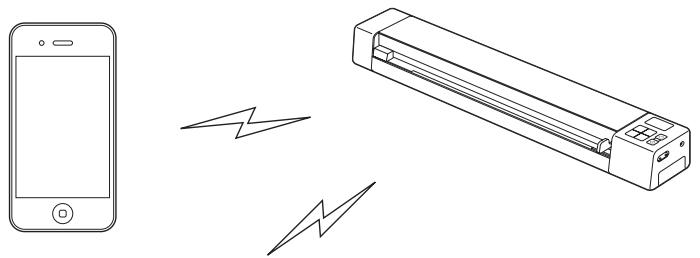
You can connect your wireless device (computer, smartphone, tablet, etc.) to your scanner. Your scanner itself can be the access point without going through any access point, and your wireless device can access the scanned images stored on the SD card directly.
NOTE
- If you have not set a Wi-Fi® network password, be sure to set up a network password in your web browser first. For more information, see Setting a Wi-Fi® network password on page 55.
- Without a Wi-Fi® network password, data on your SD card can be viewed and stolen by a third party.
- If you forget your password, press the scanner's RESET button to reset the password. For more information, see Reset network settings on page 61.
- Up to three wireless devices can connect to your scanner at a time.
Enabling Wireless Access Mode (for computer)
Enable Wireless Access Mode to view and download scanned documents from the scanner's SD Card in your web browser.
1 Ensure that your scanner has a fully charged battery.
2 Power ON the scanner.
Once the scanner is on, set the Wi-Fi® switch to ON.
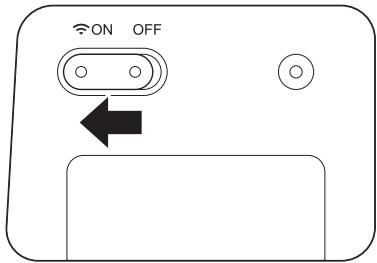
When the scanner's Wi-Fi® indicator changes from red to blue (it may take up to 40 seconds), your scanner is Wi-Fi® access-enabled.
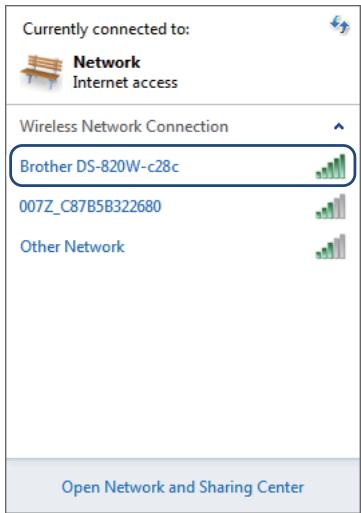
On your computer, click the (Internet access) icon in the task tray. Your scanner's SSID will appear in the list of available wireless devices. The default SSID is Brother DS-820W-xxxx (xxxx shows the last four digits of your scanner's MAC address (twelve-digits). The address is printed on your product label.). Click on it to select your scanner.

For example, in Windows® 7, click the icon in your task tray, and then select the scanner's SSID. If you cannot locate your machine's SSID, contact your network administrator.
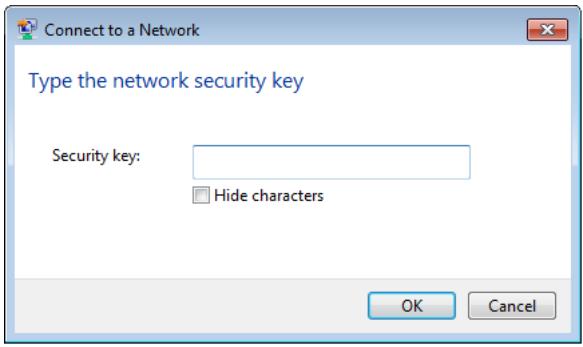
Enter Security key (Passkey) referring to the label at the bottom of the product.
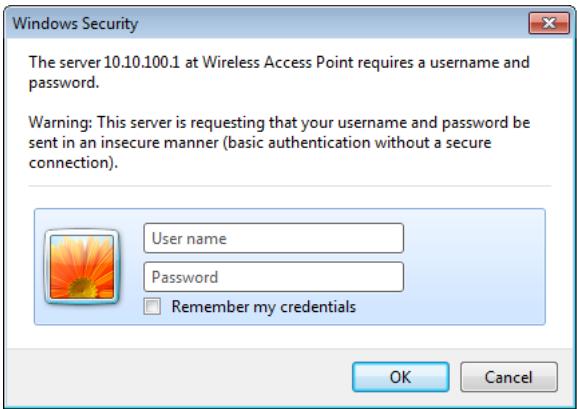
In the confirmation screen, type a User Name and Password.
NOTE
The first time you access the device, you will be prompted to enter a user ID and password.
8 Click OK. Your computer or mobile device is now connected to the scanner, and the scanner is set to Wireless access Mode.
To access the scanner's web page, open a new browser page on your computer and type http://10.10.100.1 in the address bar.
Enabling Wireless Access Mode (for smartphone, tablet, etc.)
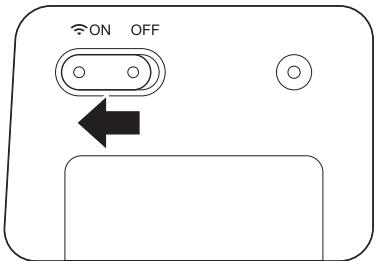
1 Set the Wi-Fi® switch to ON.
Wait for about 40 seconds until the Wi-Fi® indicator turns from red to blue.
2 Activate the Wi-Fi® function of your wireless device (computer, smartphone, tablet, etc.) to select the scanner.
For more information, see the instructions provided with your wireless device.
3 Select the scanner's SSID. The default SSID is Brother DS-820W-xxxx (xxxx shows the last four digits of your scanner's MAC address (twelve-digits). The address is printed on your product label.).
7
Configure Wireless Access Mode for BOL
Services
When your scanner is in Wireless Access Mode, you can configure it to access Brother Online (BOL) services, including Brother BR-Docs.
To access the scanner's web page, open a new browser page on your computer or mobile device and type http://10.10.100.1 in the address bar.
2 Type a User Name and Password.
3 When the scanner's internal web page appears, click Setting.
DS-820W
brother

Mode

Select All

Download

Delete


Setting
Scan file is empty
© 2013 Brother Industries, Ltd. All Rights Reserved.
4 Click Brother Online Setting.
DS-820W
brother
Home Setting

Wi-Fi Setting

Password Setting

Status

Brother Online Setting

Language Setting

Back to Home
© 2013 Brother Industries, Ltd. All Rights Reserved.
5 Click BOL Account and then enter your BOL account information: URL, User ID and Password.
DS-820W
brother
Home
Setting
Brother Online
BOL Account
Setting
BOL Account
URL:
E-mail:
Password:

Apply

Cancel
© 2013 Brother Industries, Ltd. All Rights Reserved.
6 Click Apply.
To return to the scanner's internal web page, click Setting.
Click Brother Online Setting >WiFi for Internet Access. The following screen appears.
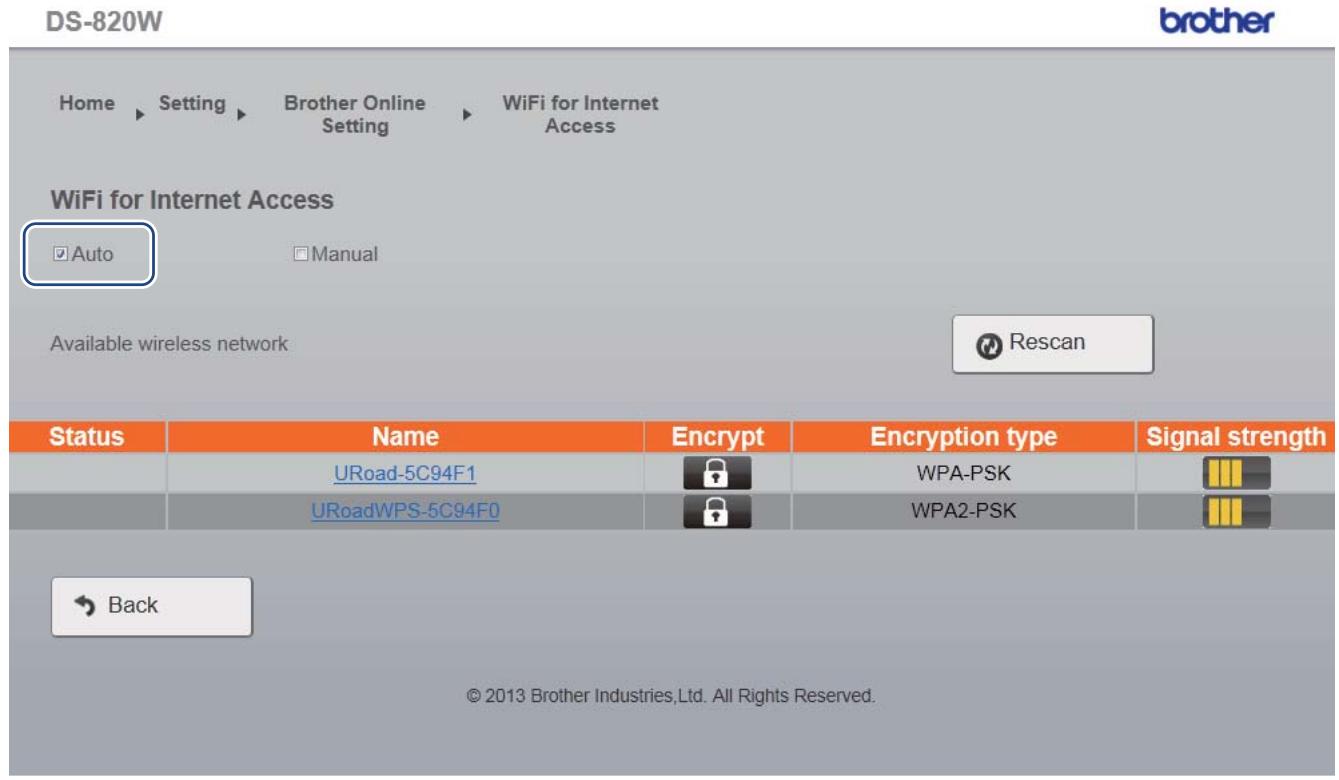
9 Make sure the Auto check box is selected.
10 Select the name of the wireless network you want to use to allow the scanner to access the Internet.

If the network requires a password, type it in the Please enter password field.
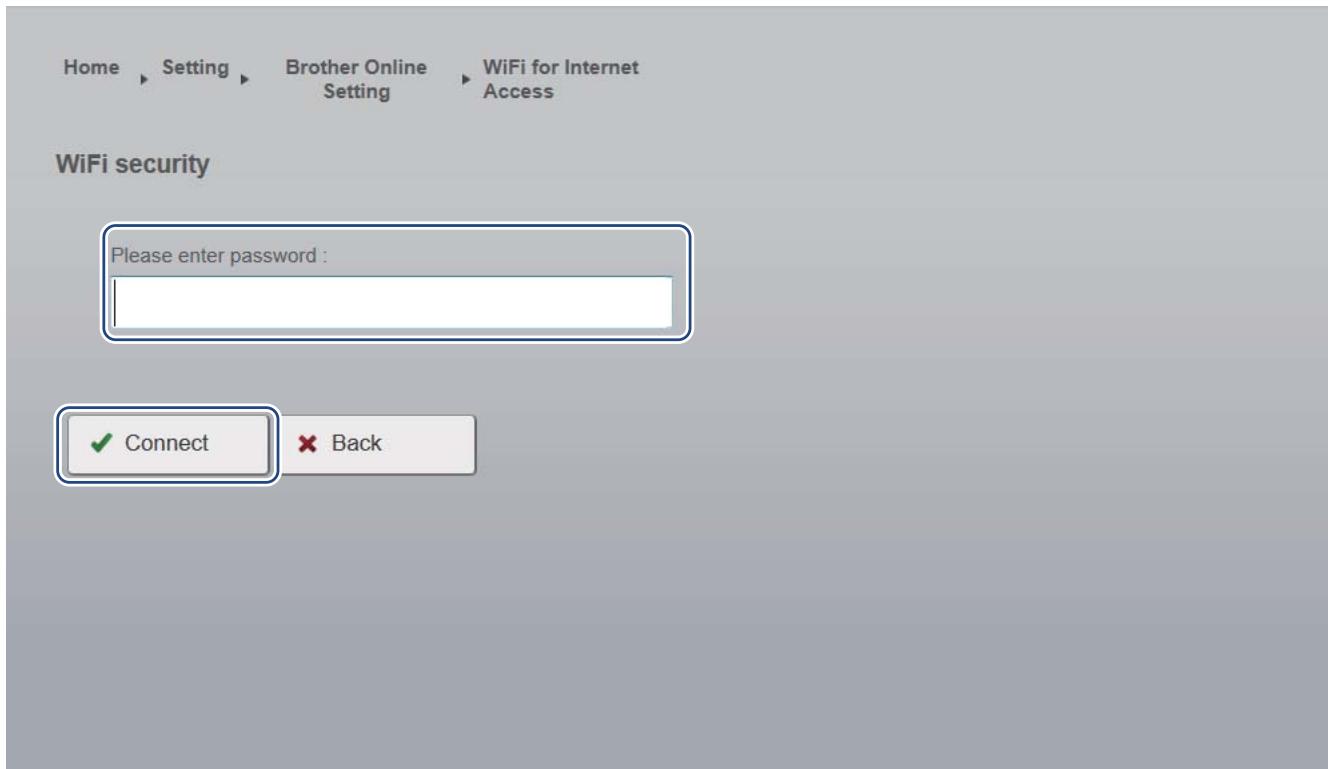

Click Connect.
The scanner will reboot (it may take up to 80 seconds). When it restarts, your new access mode for BOL services is applied.
NOTE
- While the scanner reboots, the Wi-Fi® indicator will change colour several times. When the scanner is ready, the indicator will turn orange.
- When the scanner finishes rebooting, your computer or mobile device will be disconnected from the scanner's access point and reconnected to your default access point. If you reconnect to the scanner, your computer or mobile device once again has Internet access via the scanner.
- For more information on using BR-Docs, see www.brothercloud.com.
8
Scan to the Cloud Server Using a Wireless Access Point (BOL Mode)
You can store scanned images with Brother Online storage services (BOL) in BR-Docs. Configure access using your scanner's control panel.
NOTE
- To use this function, you must first configure your BOL (Brother Online) Account in a web browser. (See Configure network settings on page 60.) Configure Wi-Fi® Settings for Internet access in your web browser, and then connect your scanner to the Internet via an access point (see Configure network settings on page 60).
- When you use this function, a file that is 50 MB or more cannot be scanned.
1 Set the Wi-Fi® switch to ON.
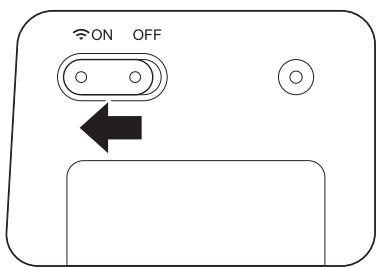
Wait about 40 seconds until the Wi-Fi® indicator turns from red to blue.
When your scanner makes a connection to your access point the Wi-Fi® indicator starts blinking blue.
2 Insert the SD card into your scanner.
3 Make sure that SD appears on the LCD
4 On the scanner's control panel, press Menu.
Press or until BRD is displayed on the LCD.
6 Insert your document.
7 Your scanner starts scanning automatically.
The Power LED blinks green and the SD card indicator blinks on the LCD.
When scanning is completed, your scanner starts transferring the scanned image to BR-Docs.
The Wi-Fi® indicator blinks orange while transferring.
9 When the transfer is complete, the Wi-Fi® indicator turns blue.
Check the result to make sure your document has scanned correctly.
Using your web browser
You can use your wireless device's (computer, smartphone, tablet, etc.) web browser to view the scanned images stored on the scanner's SD card and download the scanned images to your wireless device.
1 Connect your wireless device to your scanner in AP mode.
For more information, see Connecting in access point (AP) mode on page 46.
Launch your wireless device's web browser.
3 Type http://10.10.100.1 in the address bar.
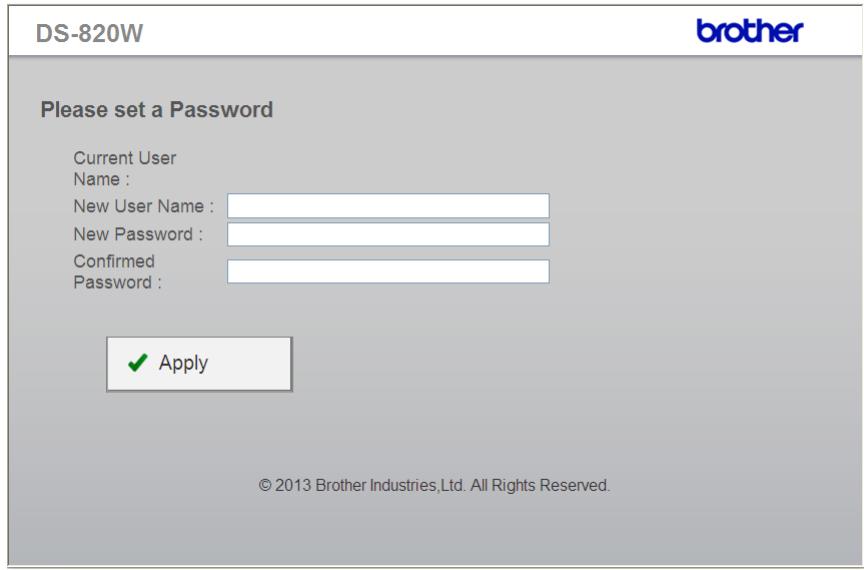
When you view the scanned image in the browser for the first time, the Password Setup screen appears. Set your password, and then click Apply.
If you have already set a password, type the password to log in.
The home screen appears in the browser.
NOTE
Images will not appear when there is no data on the SD card.
Setting a Wi-Fi® network password
If you have not set a Wi-Fi® network password, be sure to set up a network password in your web browser first. Without a Wi-Fi® network password, data on your SD card can be viewed and stolen by a third party.
1 Connect your wireless device to your scanner in AP mode.
For more information, see Connecting in access point (AP) mode on page 46.
Launch your wireless device's web browser.
3 Type http://10.10.100.1 in the address bar.
When you view the scanned image in the browser for the first time, the Password Setup screen appears. Set your password, and then click Apply.
If you have already set a password, type the password to log in.
The home screen appears in the browser.
Click Setting > Wi-Fi Setting. The Wi-Fi Setting screen will appear.
7 Select WPA2(AES) from the Encryption drop-down list.
8 Enter your encryption key, and click Apply.
Rebooting... screen appears, and the setting is completed.
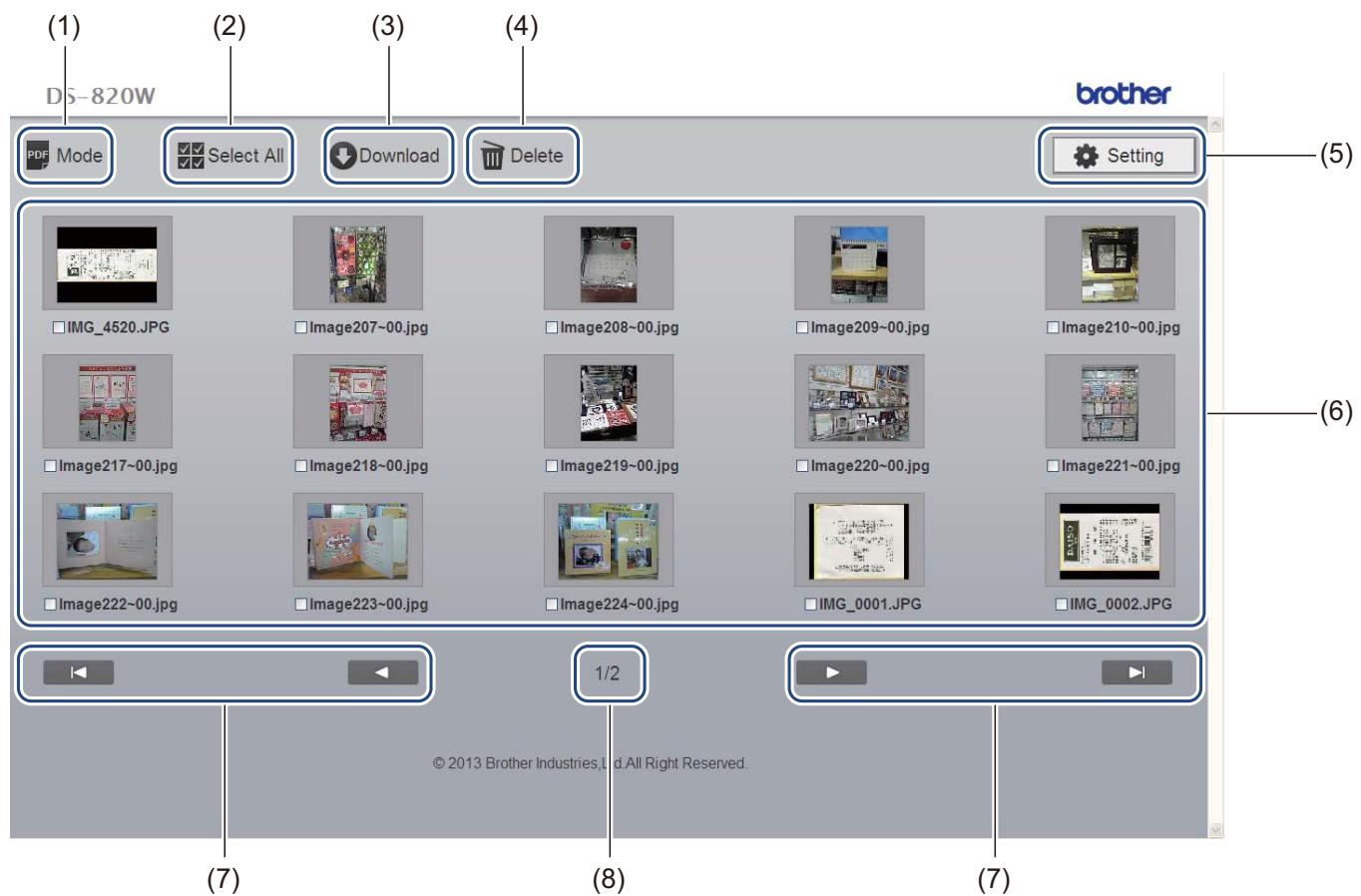
| (1) | Mode | Click to switch the scanned image according to the file format (PDF or JPEG). |
| (2) | Select All | Click to select all check boxes. |
| (3) | Download | Click to download the file that is checked in the box. |
| (4) | Delete | Click to delete the file that is checked in the box. |
| (5) | Setting | Click to go to the settings pages. For more information, see Changing Settings Us-ing Your Browser on page 60. |
| (6) | Thamburger view | Displays the scanned images (up to 15 images per screen). When you double-click the scanned image in the thumbnail view, the preview screen will appear. The scanned images do not appear when there is no data on the SD card. |
| (7) | On-screen cursors | Click to go to the first page. Click to go to the previous page. Click to go to the next page. Click to go to the last page. |
| (8) | Page | Displays the number of the current page and the total number of pages. |
Using the USB connection between your scanner and computer
NOTE
You cannot view the contents of the SD card when the Wi-Fi® switch is ON or your computer is in TWAIN mode.
(For Windows®)
1 Connect the Micro USB Cable to the Micro USB port on your scanner, and then to a USB port on your computer.
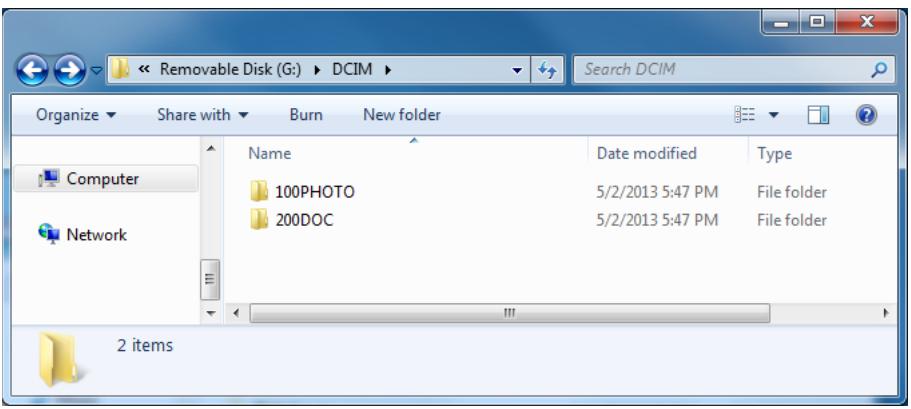
Click Start > Computer, and then double-click Removable Disk.
3 Double-click DCIM.
The folders on the SD card appear.
100PHOTO folder
Stores the scanned images in JPEG format.
200DOC folder
Stores the scanned images in PDF format.
(For Macintosh)
1 Connect the Micro USB Cable to the Micro USB port on your scanner. Connect the cable to your computer.
iPhoto launches automatically, and the scanned images on the SD card will appear.
Using ScanHub™ (Android™)
You can use your Android™ device's application to view the scanned images stored on the scanner's SD card and download scanned images to the Android™ device.
Install the application from Google Play to your Android™ device. To download, install, or uninstall the Android™ application, see the instructions provided with your device.
NOTE
- If you have not set a Wi-Fi® network password, be sure to set up a network password in your web browser first. For more information, see Setting a Wi-Fi® network password on page 55.
- Without a Wi-Fi® network password, data on your SD card can be viewed and stolen by a third party.
Using ScanHub™ (iOS)
You can use your iOS device's application to view the scanned images stored on the scanner's SD card and download scanned images to the iOS device.
Install the application from the App Store to your iOS device. To download, install, or uninstall the iOS application, see the instructions provided with your device.
NOTE
- If you have not set a Wi-Fi® network password, be sure to set up a network password in your web browser first. For more information, see Setting a Wi-Fi® network password on page 55.
- Without a Wi-Fi® network password, data on your SD card can be viewed and stolen by a third party.
10
Changing Settings Using Your Browser
Configuring Wi-Fi® settings in access point (AP) mode
Configure network settings
You can configure network settings in your browser.
1 Access the browser in AP mode.
For more information, see Connecting in access point (AP) mode on page 46.
2 Click Settings.
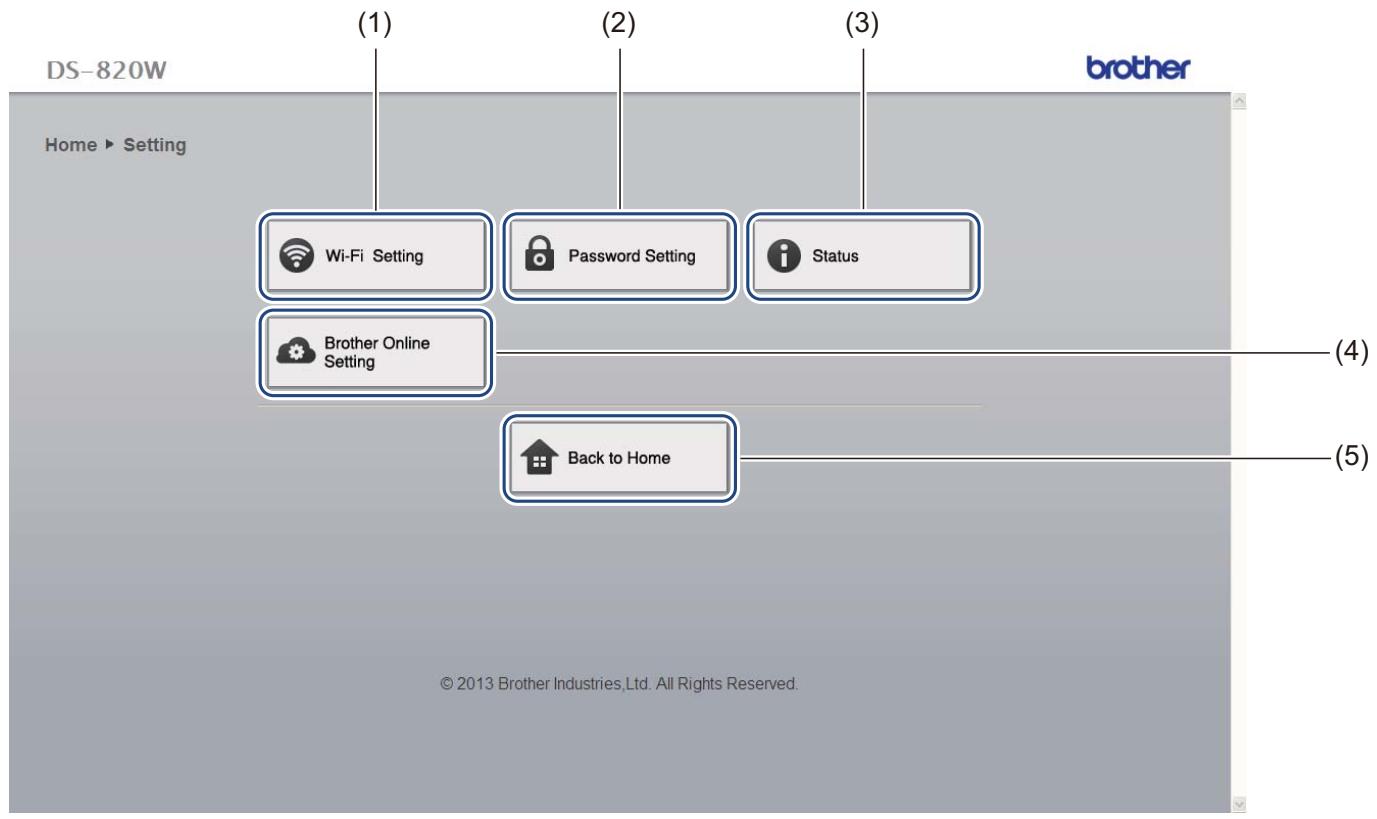
| (1) | Wi-Fi Setting | Set the SSID (network name) and Pre-Shared Key. |
| (2) | Password Setting | Set the password to log in. |
| (3) | Status | Check the status of the current access point. Check the firmware version. |
| (4) | Brother Online Setting | Configure your BOL (Brother Online) Account. Configure Wi-Fi® settings for Internet access in infrastructure mode. |
| (5) | Back to Home | Return to the Home screen. |
Reset network settings
You can restore any settings you changed via Wi-Fi® connection (Wi-Fi® AP Setting and Password Setup) to the factory settings.
1 Confirm that the scanner is turned on.
2 Set the Wi-Fi® switch to ON.
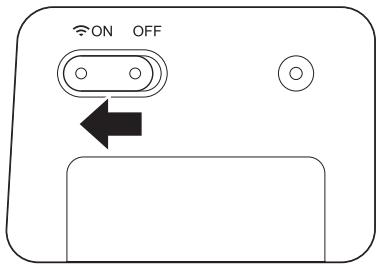
Wait about 40 seconds until the Wi-Fi® indicator turns from red to blue.
When your scanner makes a connection to your access point the Wi-Fi® indicator starts blinking blue.
Press and hold the scanner's reset button (1) using a pointed object, such as a needle or a fine-point pen for 10 seconds.
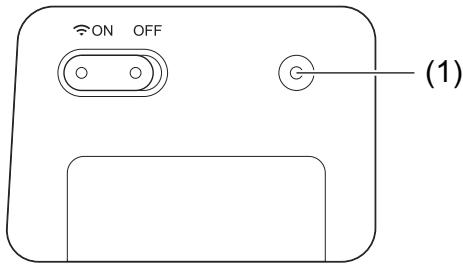
4 Release the reset button. The Wi-Fi® indicator will turn red and the Wi-Fi® network settings will be restored to the factory settings.
NOTE
When you press the reset button, the settings controlled by the buttons on the control panel will not be restored to the factory settings and the scanned images on the SD card will not be deleted.
11 Scanner Calibration
Calibrate your scanner only if the scanned images start to look fuzzy, the colour looks abnormal (darker than normal), after 8,000 scans, or if the scanner has been stored without being used for a long time.
You will need the Calibration Sheet that came with your scanner, to successfully perform calibration.
Calibration using the control panel
1 Turn on your scanner.
Press the Menu button.
Press the or button repeatedly to select CAL on the LCD.
Hold the edges of the Calibration Sheet and insert it into the feeder slot as shown below.
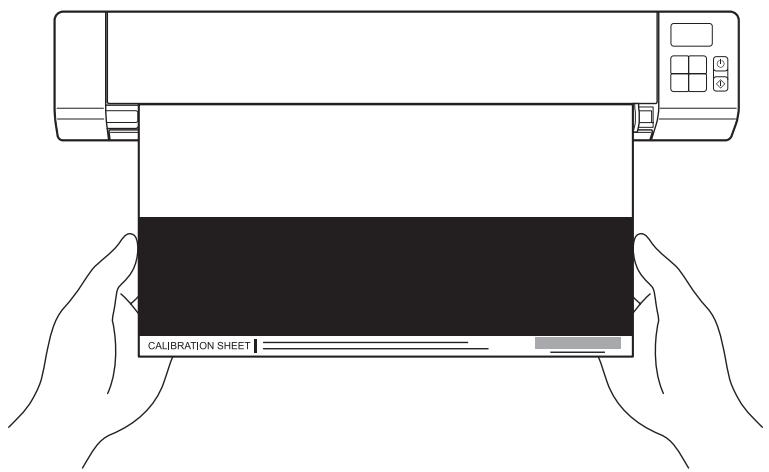
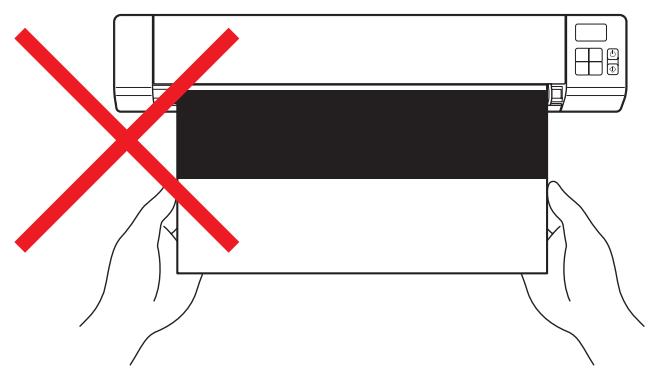
NOTE
Hold only the edges of the calibration sheet and be careful not to touch the white or black area. Leaving marks or fingerprints on this sheet can cause errors in calibration.
Press the Start / OK button.
The scanner starts feeding the calibration sheet. The Power button LED blinks green.
After the calibration sheet is ejected, OK appears on the LCD and calibration is finished.
Calibration using software (for Windows®)
1 Double-click the DSmobileCapture shortcut on your desktop.
The Select Scanner Model dialog box appears. Select TWAIN under Driver Type, select Brother DS-820W under Scanner Model, and then click OK.
3 DSmobileCapture launches.
4 Click Setup
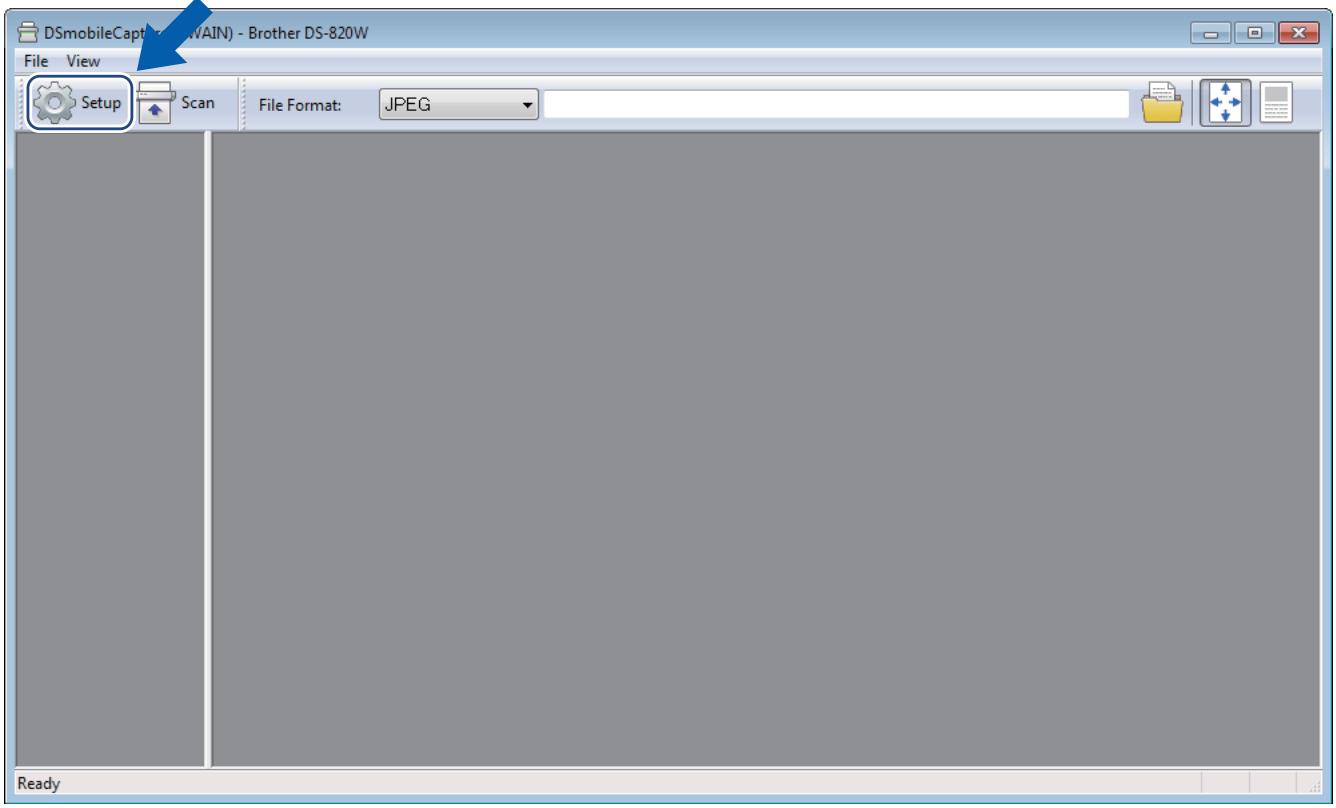
5 Click the Options tab.
6 Click Calibration to start calibrating the scanner.
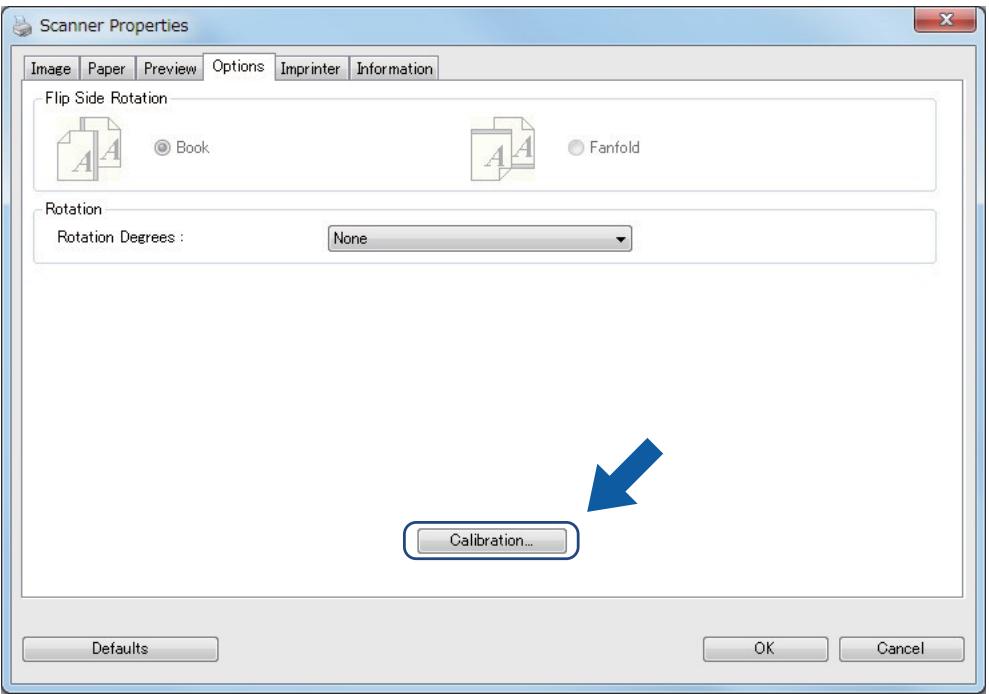
A message appears, prompting you to insert the Calibration Sheet.
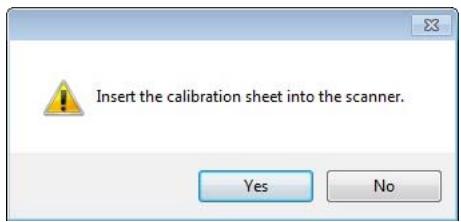
Hold the edges of the Calibration Sheet and insert it into the feeder slot as shown below. Click Yes.
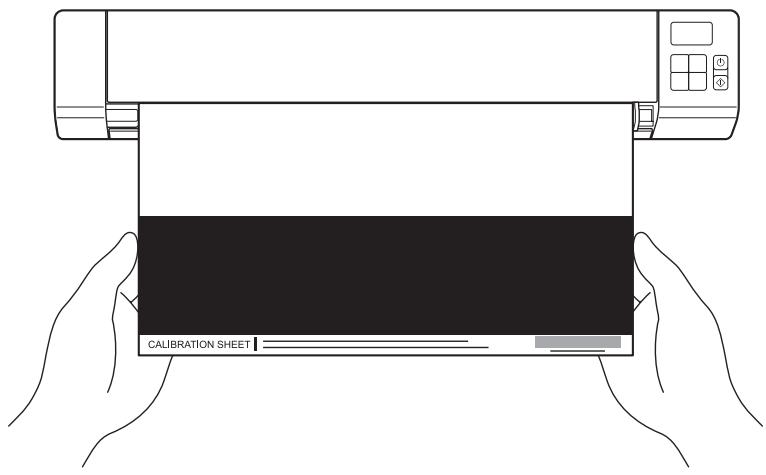
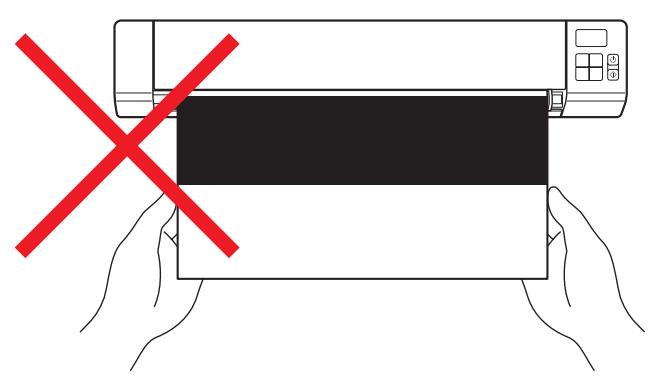
NOTE
Hold only the edges of the Calibration Sheet and be careful not to touch the white or black area. Leaving marks or fingerprints on this sheet can cause errors in calibration.
9 Scanning starts automatically.
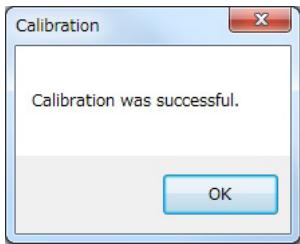
After the Calibration Sheet is scanned, a Calibration was successful message appears on your screen, indicating that calibration is finished. Click OK to end calibration, and then click OK to close the Options screen.
NOTE
If a Calibration failed message appears on your screen, remove the Micro USB Cable from your computer. Reconnect the Micro USB Cable to the computer and perform the calibration again.
Calibration using software (for Macintosh)
1 Double-click the DSmobileCapture shortcut

on your desktop.
DSmobileCapture launches.
3 Click the Options tab.
4 Click Calibration to start calibrating the scanner.
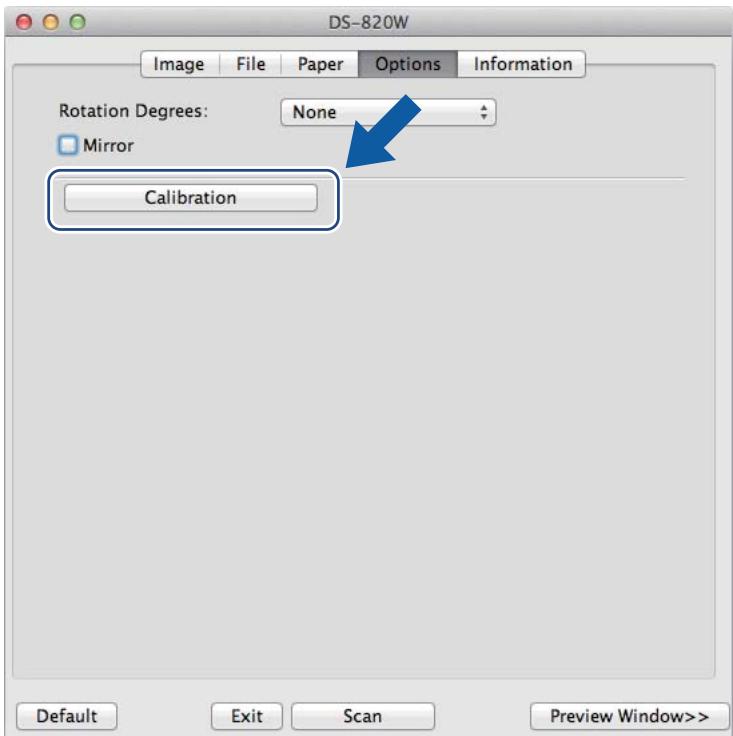
A message appears, prompting you to insert the Calibration Sheet.
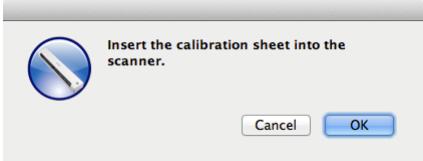
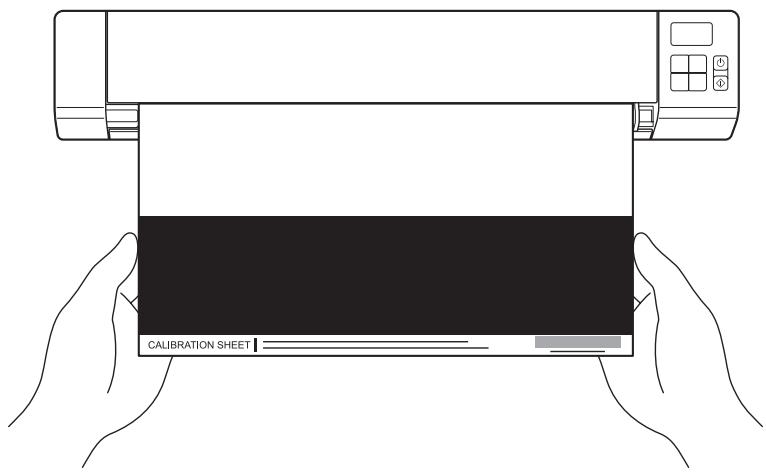
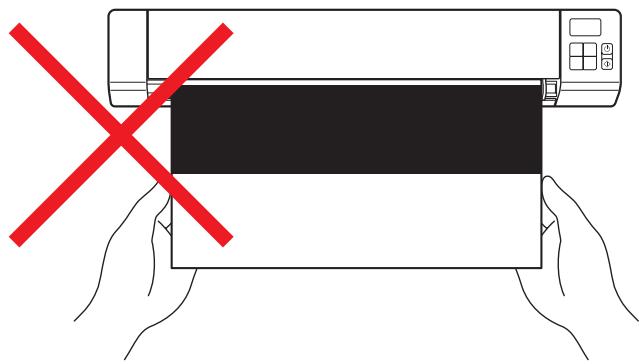
Hold the edges of the Calibration Sheet and insert it into the feeder slot as shown below. Click OK.
NOTE
Hold only the edges of the Calibration Sheet and be careful not to touch the white or black area. Leaving marks or fingerprints on this sheet can cause errors in calibration.
7 Scanning starts automatically.
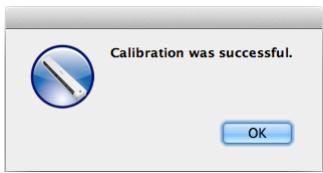
After the Calibration Sheet is scanned, a Calibration was successful message appears on your screen, indicating that calibration finished successfully. Click OK to end calibration.
NOTE
If a Calibration failed message appears on your screen, remove the Micro USB Cable from your computer. Reconnect the Micro USB Cable to the computer and perform the calibration again.
12 Scanner Maintenance
IMPORTANT
Do not use any solvents or corrosive liquid, such as alcohol, kerosene, etc., to clean any part of the scanner, or the plastic may be permanently damaged.
Cleaning the outside of your scanner
To prevent dust accumulation, we recommend cleaning the exterior of your scanner periodically.
1 Remove the Micro USB Cable from both your scanner and your computer.
Wipe the outside of the scanner with a dry, soft, lint-free cloth. If necessary, wipe the exterior with a cloth lightly dampened with water or diluted detergent, and finish with a dry cloth.
3 Reconnect the Micro USB Cable to your scanner and your computer.
Cleaning the inside of your scanner
To maintain the scanned image quality, clean the interior of your scanner periodically. If vertical lines or stripes appear on scanned images, cleaning the scanner may help.
1 Remove the Micro USB Cable from both your scanner and your computer.
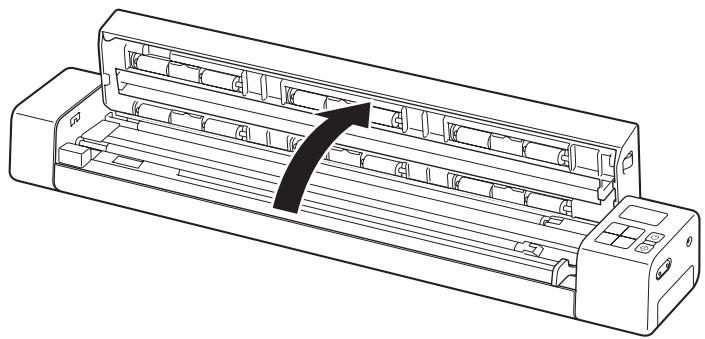
2 Open the scanner's top cover.
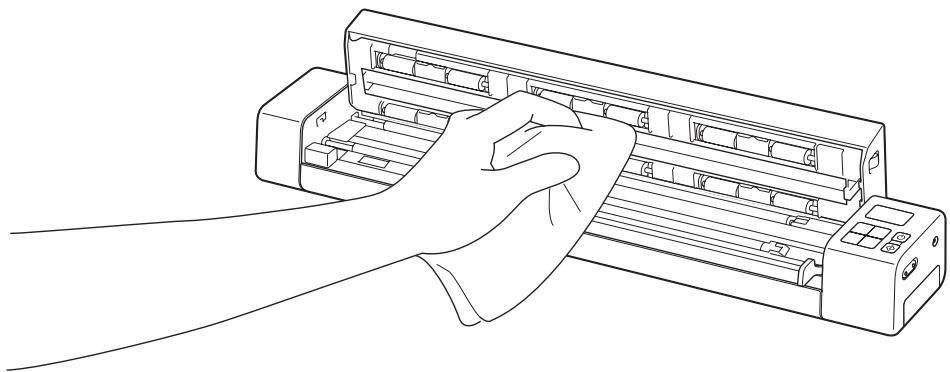
Gently wipe the scanning glass strip and feed rollers with the supplied cleaning cloth.
4 Close the top cover.
5 Reconnect the Micro USB Cable to your scanner and your computer.
13 Troubleshooting
IMPORTANT
For technical help, you must contact the Customer Service center in the country where you bought the scanner. For more information, see For customer service on page 85. Calls must be made from within that country.
If you think there is a problem with your scanner, check the chart below and follow the suggestions.
Most problems can be easily resolved by yourself. If you need additional help, go to the Brother Solutions Center at http://solutions.brother.com/ for more FAQs and troubleshooting tips.
Using non-Brother supplies may affect scan quality, hardware performance and product reliability.
Error messages and Error codes
Error messages
| Error message | Cause | Action |
| Driver busy | The scanning application in use crashed, or the scanner driver is locked with administrator rights. | Press and hold the Power button to turn off the scanner, and press the Power button to turn on it. Then launch the application again. |
| A document is jammed. Please open the top cover and remove the jammed paper by pulling it forward, then try again. | A document is jammed. | Open the top cover and remove the document by pulling it forward, then close the top cover. |
| The cover of the manual document feeder is open. | Your scanner's top cover is open when scanning starts. | Close the top cover and start scanning again. |
| No paper in the manual document feeder | No document is set in the feeder slot. | Place your document in the feeder slot and start scanning again. |
| Cannot find the scanner. | Your scanner is not connected to your computer. | Confirm that the Micro USB Cable connecting the scanner to the computer is properly connected. |
| Your scanner is not turned on. | Press the Power button to turn on the scanner. | |
| Operation system return error | Your Operating System cannot recognize your scanner. | ■ Confirm that the Micro USB Cable connecting the scanner to the computer is properly connected. ■ Restart the computer. |
Error Codes
| Error message | Cause | Action |
| Calibration failed. Please reboot the machine. | An error caused the calibration to fail. For example, the Calibration Sheet is not inserted in the correct direction. | ■ Press and hold the Power button to turn off the scanner, and press the Power button to turn on it. Then, perform the calibration again. ■ Insert the Calibration Sheet in the correct direction. · To perform the calibration using the control panel, see Calibration using the control panel on page 62. · For Windows®: to perform the calibration using software, see Calibration using software (for Windows®) on page 63. · For Macintosh: to perform the calibration using software, see Calibration using software (for Macintosh) on page 66. |
| Error Code | Items Description | Root cause / Code Purpose | How to restore |
| E03 | Card full or Card Read / Write error | The SD card is full, protected, or corrupt; scanned images cannot be saved to the SD card. | Check the SD card's protective switch, reinsert the SD card, or insert a new SD card. |
| E04 | Paper Jam | Scan exceeds the maximum length, and cannot successfully eject the scanned document. | Open the top cover and remove the document, then close the cover and try to scan again. |
| E05 | Missing Scan Data | Scanner does not detect a document in the document feeder slot. | Make sure the document is properly inserted. |
| E06 | Cover Open | The scanner's top cover is open, or the top cover sensor has failed. | Close the scanner's top cover. |
| E19 | Calibration Fail | The scanner's internal check failed because of a calibration data error. | Recalibrate the scanner. • To perform the calibration using the control panel, see Calibration using the control panel on page 62. • For Windows®: to perform the calibration using software, see Calibration using software (for Windows®) on page 63. • For Macintosh: to perform the calibration using software, see Calibration using software (for Macintosh) on page 66. |
Troubleshooting
Scanning difficulties
| Difficulty | Cause | Suggestions |
| My scanner does not turn on. | The supplied Micro USB Cable is not connected securely. | Make sure the Micro USB Cable is securely connected to your scanner and computer. |
| The battery is low. | Connect the Micro USB Cable to your scanner and computer to charge the battery. If you charge the scanner's battery only a little from empty battery, you cannot use the scanner. Turn off the scanner until the battery is charged fully. | |
| My computer does not recognize the scanner when it is connected via the Micro USB Cable. | Causes may vary. | Make sure the Micro USB Cable is securely connected to your scanner and computer. Remove the Micro USB Cable and reconnect the Micro USB Cable to your scanner and computer. |
| My scanned images have black lines running through them, blank spaces, or are of overall bad quality. | This problem occurs if the scanner is not calibrated correctly or if a foreign object, such as a paper clip or ripped paper, is stuck in the scanner. | 1. Check the document feeder slot and make sure that the slot is clear. If foreign objects are found, remove them from your scanner. 2. Calibrate your scanner (see Scanner Calibration on page 62). If scan quality is not improved after you calibrate your scanner: 1. Clean the scanner (see Scanner Maintenance on page 68). 2. Calibrate your scanner again. |
| My document did not scan correctly. | The Document Guides are not adjusted to fit the width of the document. | Adjust the Document Guide to fit the width of the document. |
| The settings are not suitable for your document. For example, a A4 document was fed when A5 was selected as document size. | Make sure the document size settings are suitable for your document. For Windows®: see Paper settings on page 28. For Macintosh: see Paper settings on page 37. | |
| The scan speed is too slow. | The resolution is not suitable for your document. | Decrease the scanner resolution. For Windows®: see Image settings on page 27. For Macintosh: see Image settings on page 35. |
| My scanner is con- nected but it will not feed my document or do anything else. | Your document is not set correctly. | Insert your document until you feel the top edge of the document touch the inside of your scanner. |
| Your document is too thin or too thick. | Check that your document is acceptable (see Doc- ument Specifications on page 11).If your document is not the problem:1. Confirm that the Micro USB Cable connecting your scanner to your computer is securely con- nected.2. Reinstall the scanner driver from the DVD-ROM. | |
| The scanner's top cover is open. | Close the top cover and start scanning again. | |
| The scanner is turned off because the auto power off function is active. | Press the Power button to turn on the scanner. | |
| You are operating the settings menu. (SD mode only) | Get out of the settings menu to put the scanner into standby mode. | |
| No SD card is inserted in the scanner's SD card slot. (SD mode only) | Insert an SD card into the scanner's SD card slot. | |
| The document is jammed. | Causes may vary. | Open the scanner's top cover and gently pull out the document. Make sure that no piece of paper re- mains inside the scanner. |
| Your document is not acceptable for the machine (for example, if the paper is too long). | ■ Make sure your document is acceptable for the machine (see Document Specifications on page 11).■ Use the supplied Carrier Sheet (see Loading the Carrier Sheet on page 14). | |
| My scanner gets warm. | It is normal for your scanner to emit a small amount of heat after prolonged use. | If there is a strange smell coming from the scanner or the scanner feels a little bit hot to the touch, im-mediately remove the Micro USB Cable from your scanner and computer. |
| The scan quality is poor. | Paper dust has accumulated inside your scanner. | Clean your scanner (see Scanner Maintenance on page 68). |
| Calibration needs to be performed. | Perform the calibration.· To perform the calibration using the control pan- el, see Calibration using the control panel on page 62.· For Windows®: to perform the calibration using software, see Calibration using software (for Windows®) on page 63.· For Macintosh: to perform the calibration using software, see Calibration using software (for Macintosh) on page 66. | |
| The scanner resolution is too low. | Increase the scanner resolution.For Windows®: see Image settings on page 27.For Macintosh: see Image settings on page 35. | |
| Colours in the scanned image are dark. | The settings are not appropriate for the type of document being scanned. | Adjust the scanning settings. For Windows®: see Image settings on page 27. For Macintosh: see Image settings on page 35. |
| Calibration needs to be performed. | Perform the calibration. • To perform the calibration using the control pan- el, see Calibration using the control panel on page 62. • For Windows®: to perform the calibration using software, see Calibration using software (for Windows®) on page 63. • For Macintosh: to perform the calibration using software, see Calibration using software (for Macintosh) on page 66. | |
| OCR feature does not work. | The scanner resolution is too low. | Increase the scanner resolution. For Windows®: use PaperPort™ 12SE to increase the resolution. For Macintosh: use Presto! PageManager 9 to in- crease the resolution. |
| (Windows® users) Nuance PaperPort™ 12SE has not been installed on your computer. | Make sure you have installed Nuance PaperPort™ 12SE from the supplied DVD-ROM. | |
| (Macintosh users) Presto! PageManager has not been in- stalled on your computer. | Make sure you have installed Presto! PageMan- ager from the supplied DVD-ROM. | |
| The scanned image is skewed (slanted). | The scanner's Document Guide is not adjusted to fit the width of the docu- ment. | Adjust the Document Guide to fit the width of the document. |
| White vertical lines or white stripes appear on the scanned image. | The scanner is in direct sunlight. | Move the scanner indoors, or out of direct sunlight without direct sunlight. |
| A light source is near the scanner. | Move the scanner away from the light source. | |
| Bleed-through is seen in the scanned image. | Your document is too thin. | Check that your document is acceptable (see Document Specifications on page 11). |
| The contrast setting is improper. | Increase the contrast level. For Windows®: see Image settings on page 27. For Macintosh: see Image settings on page 35. | |
| When I want to scan in SD mode, is it possible to change the paper size, the image quality, etc. on my scanner? | You can change only part of the settings. | For more information about the settings, see step 4 of Scanning in SD mode on page 16. |
Software difficulties
| Difficulty | Cause | Suggestions |
| When I press Scan in my scanning software, an error message appears: Please install scanner or The scan was aborted because the scanner is not powered on or not connected properly. | This error message appears if your scanner isn't recognized by your computer. | 1. Make sure your scanner is connected properly. 2. Confirm that the Micro USB Cable is working and that it is not frayed or damaged in any way. If the error still appears after verifying that the Micro USB Cable is connected properly, reinstall the scanner driver from the DVD-ROM. |
| I cannot install the scanner drivers. (Windows®) | You may not have been given adminis-trator privileges. | Log into Windows® with administrator rights. |
| I cannot install the scanner drivers. (Macintosh) | You may not have been given adminis-trator privileges. | From Apple menu, select System Preferences > System > Users & Groups. The left pane of the window will list the current accounts, one of which should be your name with the word “Admin” underneath. If this is not the case, contact your system administrator. |
| The file size is too large. | The size of the file will depend upon many factors. The physical size of the document and the amount of text / graphics on each page are factors that will affect the resulting file size. These factors cannot be changed. | To produce the smallest scan file for a given docu-ment, use the lowest resolution and Black and White mode, and scan the smallest area possible. Using the opposite settings (scanned in the highest resolution, in the Colour mode, and scanning the largest area possible) will produce the largest-sized file. For Windows®: see Changing DSmobileCapture scan settings (for Windows®) on page 26). For Macintosh: see Changing DSmobileCapture scan settings (for Macintosh) on page 35). |
Network difficulties
| Difficulty | Cause | Suggestions |
| My wireless device (computer,smart-phone,tablet,etc.) cannot access my scanner via the wire-less LAN network. | The Wi-Fi® switch of the scanner is set to OFF. | Set the Wi-Fi® switch to ON. |
| Four or more wireless devices are con- nected to your scanner at a time. | Disconnect the wireless devices that are already connected to the scanner. Then, try to connect three or fewer wireless devices to the scanner. | |
| Causes may vary. | Set the Wi-Fi® switch to OFF, then set it to ON to reconnect the scanner. | |
| I forgot the login pass- word to enter the Home screen on the browser. | Causes may vary. | Reset the network settings (see Reset network set- tings on page 61). |
| The Wi-Fi® indicator blinks red slowly. | The BR-Docs settings are wrong. | 1. Connect your computer to your scanner via Wi-Fi®. 2. Launch your computer's web browser. 3. Type http://10.10.100.1 in the address bar. 4. Click Setting > Brother Online Setting. 5. Configure your account settings for BR-Docs. |
| The network settings are wrong. | • Set a new correct SSID and password. • Confirm that the IP address of your access point is set. If not, activate the DHCP function of your access point. | |
| The network line is busy. | Wait for a while, and then try to access the network again. | |
| A system error has occurred. | • Set the Wi-Fi® switch to OFF, then set it to ON. • Press and hold the Power button to turn off the scanner, and press the Power button to turn on it. • Reset the network settings (see Reset network settings on page 61). • If the problem still appears though you tried the above suggestions, contact the Customer Ser- vice center in the country where you bought the scanner. | |
| My scanner cannot connect to any access point. | The settings for the access point have not been done. | 1. Connect your computer to your scanner via Wi-Fi®. 2. Launch your computer's web browser. 3. Type http://10.10.100.1 in the address bar. 4. Click Setting > Brother Online Setting. 5. Configure the settings for the access point. |
| The settings for the access point have been done but the scanner cannot connect to any access point. | Do one of the following: · Confirm that your access point is turned on. · Turn your access point off, then turn it on. · Place the scanner in a service area. · Set a new correct SSID and password. · Confirm that the IP address of your access point is set. If not, activate the DHCP function of your access point. · When MAC address filtering is used for your access point, register the MAC address of the scanner. · Set the Wi-Fi® switch to OFF, then set it to ON. · Press and hold the Power button to turn off the scanner, and press the Power button to turn on it. | |
| I do not know the scanner's SSID. | — | The SSID is below: Brother DS-820W-xxxx (xxxx shows the last four digits of your scanner's MAC address (twelve-digits). The address is printed on your product label.) |
| My computer cannot connect to the scanner with the web browser. | — | 1. Connect your computer to your scanner via Wi-Fi®. 2. Launch your computer's web browser. 3. Type http://10.10.100.1 in the address bar. |
| I do not know the scanner's MAC address. | — | See the initial password on the mark located on the bottom of your scanner. |
| I do not know the initial Wi-Fi® password. | — | See the initial password on the mark located on the bottom of your scanner. |
| I cannot reset the network settings. | The Wi-Fi® switch is set to OFF. | 1. Set the Wi-Fi® switch to ON. 2. Wait for 40 or more seconds. 3. Press and hold the scanner's reset button for 10 or more seconds. 4. Release the reset button. In several seconds, the Wi-Fi® indicator will turn red. |
Other difficulties
| Difficulty | Cause | Suggestions |
| I can't find the Calibra- tion Sheet. | Causes may vary. | The special glossy calibration sheet that came with your scanner will give you the best calibration re- sults. To order a new Calibration Sheet, go to the Brother Solutions Center at http://solutions.brother.com/ or find contact infor- mation for your local Brother office at http://www.brother.com/. |
| I want to use a USB hub. | Causes may vary. | Use your scanner without connecting it to a USB hub. A USB hub may not be able to supply enough power to the scanner. |
| I cannot charge my scanner. | The scanner is on while you are trying to charge it. | Turn the scanner off when you charge it. |
| The Li-ion battery is not installed cor- rectly. | Make sure the Li-ion battery is installed in the cor- rect direction (see the Quick Setup Guide). | |
| My scanner cannot be turned on or turns off immediately. | The battery has not been inserted. | Insert the battery. |
| The battery has been inserted in the wrong direction. | Insert the battery in the correct direction. For more information, see Installing the battery on page 8. | |
| • The battery is empty. • The battery is low. • The scanner's Wi-Fi® switch is ON. | Do one of the following: • Set the Wi-Fi® switch to OFF to use the scanner. • Connect the Micro USB Cable to your scanner and your computer to use the scanner. If you cannot turn on the scanner when you press the Power button, wait for two minutes, and then press the Power button again. • Turn off the scanner and connect the Micro USB Cable to your scanner and your computer until the battery is charged fully. And then use the scanner. | |
| When I set the Wi-Fi® switch to ON, the Wi-Fi® indicator does not turn on. | The battery is low. | Connect the Micro USB Cable to your scanner and your computer to charge the battery. |
| The Li-ion battery is not installed. | Install the battery, and then charge it. | |
| I lost the Li-ion battery or I cannot charge the battery. | Causes may vary. | Find contact information at http://solutions.brother.com. |
| My computer cannot access the SD card via the Micro USB Cable. | The Micro USB Cable is not connected to your computer. | Connect the Micro USB Cable to your scanner and your computer. |
| Your scanner is in TWAIN mode. | Press the Start / OK button, and then display SD on the LCD to change to Mass Storage mode (SD mode). | |
| The Wi-Fi® switch is set to ON. | Set the Wi-Fi® switch to OFF. | |
| A document is being scanned. | When the scanning is finished, wait for the SD card's folder to be displayed on your computer screen. | |
| When I type http://10.10.100.1 to access the home screen in the web browser, the scanned images stored on the scanner's SD card are not displayed on the home screen. | Your scanner is in TWAIN mode. | Press the Start / OK button, and then display SD on the LCD to change to Mass Storage mode (SD mode). |
| Your scanner is scanning a document. | Display the web browser again when scanning is complete. | |
| My scanner cannot be put into TWAIN mode. | The scanner's Wi-Fi® switch is ON. | Set the Wi-Fi® switch to OFF (see Connecting your scanner to your computer in TWAIN Mode on page 21). |
| I set the auto power off to ON but my scanner does not turn off automatically. | The Wi-Fi® switch is set to ON. | Set the Wi-Fi® switch to OFF. |
Specifications
NOTE
This chapter provides a summary of the scanner's specifications. For additional specifications, go to your scanner's product page at http://www.brother.com/ and click the Specifications tab.
General
| Power Source | USB bus-power / Li-ion battery | ||
| Power consumption1 | Scanning / Battery Charging | 5 V / 500 mA or less | |
| Battery full-charged / Power Off | 5 V / 1 mA or less | ||
| Dimensions | Width | 308.0 mm | |
| Height | 40.7 mm | ||
| Depth | 52.5 mm | ||
| Weight | Approx. 440 g | ||
| Temperature | Operating | 5 °C to 35 °C | |
| Humidity | Operating | 15 to 85 % | |
| Storage | 10 to 90 % | ||
| Document Size | Single Sheet | Width | 55 mm to 215.9 mm |
| Length | 90 mm to 812.8 mm | ||
1 Measured when the scanner is connected to your computer.
Scanner
| Colour / Black | Yes / Yes | |
| TWAIN Compliant | Windows® | Windows® XP 1 / Windows Vista® / Windows® 7 / Windows® 8 |
| Macintosh | Mac OS X 10.6.x, 10.7.x, 10.8.x2 | |
| Colour Depth | Input | 48 bit colour processing |
| Output | 24 bit colour processing | |
| Resolution | Optical | Up to 600 × 600 dpi |
| Interpolated | 1200 dpi | |
| Scanning Width | Up to 216 mm | |
| Greyscale | Input | 16 bit |
| Output | 8 bit | |
| Scanning Max. Speed | Mono 8.0 ppm (7.5 seconds (Letter) up to 300 dpi) 7.5 ppm (8 seconds (A4) up to 300 dpi) 4.3 ppm (14.1 seconds (Letter) above 400 dpi) 4 ppm (15 seconds (A4) above 400 dpi) Colour 8.0 ppm (7.5 seconds (Letter) up to 300 dpi) 7.5 ppm (8 seconds (A4) up to 300 dpi) 4.3 ppm (14.1 seconds (Letter) above 400 dpi) 4 ppm (15 seconds (A4) above 400 dpi) | |
1 Windows® XP in this User's Guide includes Windows® XP Home Edition and Windows® XP Professional.
2 For the latest driver updates for the version of Mac OS X you are using, visit us at http://solutions.brother.com/ and click "Downloads" from your model page.
Li-ion battery
| Charging time | 4 hours |
| Continuous standby time (WLAN OFF) | 5 minutes (when the auto power function is active.) |
| Scannable number of sheets (WLAN ON) | 90 sheets |
| Scannable number of sheets (WLAN OFF) | 450 sheets |
NOTE
- The numbers described in the Li-ion battery table may differ depending on the scanned document and on environmental factors, such as temperature and the charging and discharging method.
-
For a longer battery life:
-
Set the Wi-Fi® switch to OFF when you are not using the Wi-Fi® function.
- Turn the scanner off when you are not using it.
Interfaces
| USB | Hi-Speed USB 2.012 Use a USB 2.0 cable (Type A / B) that is no more than 1.2 metres long. |
| SD card | SD card memory size limit: between 2GB - 32GB When you do not use the SD card that came with your scanner, any operation is not guaran-teed. |
| Wireless LAN | IEEE 802.11b/g/n |
1 Your scanner has a Hi-Speed USB 2.0 interface. The scanner can also be connected to a computer that has a USB 1.1 interface.
2 Third party USB ports are not supported.
Network
| Network (common) | Protocol (IPv4) | ARP, DNS Resolver, HTTP, ICMP, DHCP with BOOTP |
| Network Security | Wireless | SSL/TLS (HTTPS) |
| Wireless Network Security | WEP 64/128 bit, WPA-PSK (AES), WPA2-PSK (AES) | |
| Wireless Certification | Wi-Fi Certification Mark License (WPA™/WPA2™, Personal) | |
Computer requirements
| SUPPORTED OPERATING SYSTEMS AND SOFTWARE FUNCTIONS | |||||||
| Computer Platform & Operating System Version | Processor Minimum Speed | Minimum RAM | Recommended RAM | Hard Disk Space to install | Supported PC Interface | ||
| For Drivers | For Applications | ||||||
| Windows®Operating System | Windows®XP Home Windows®XP Professional | Intel®Core™2 Duo or equivalent | 1 GB | 2 GB | 80 MB | 1.2 GB | USB |
| Windows®XP Professional x64 Edition | 64-bit (Intel®64 or AMD64) supported CPU | 1 GB | 2 GB | ||||
| Windows Vista® | Intel®Core™2 Duo or equivalent 64-bit (Intel®64 or AMD64) supported CPU | 1 GB | 2 GB | 80 MB | 1.2 GB | ||
| Windows®7 | Intel®Core™2 Duo or equivalent 64-bit (Intel®64 or AMD64) supported CPU | 1 GB (32-bit) 2 GB (64-bit) | 2 GB (32-bit) 4 GB (64-bit) | 80 MB | 1.2 GB | ||
| Windows®8 | Intel®Core™ i3 or equivalent 64-bit (Intel®64 or AMD64) supported CPU | 1 GB (32-bit) 2 GB (64-bit) | 2 GB (32-bit) 4 GB (64-bit) | 80 MB | 1.2 GB | ||
| Macintosh Operating System | Mac OS X 10.6.x | Intel®Processor | 1 GB | 2 GB | 80 MB | 400 MB | USB |
| Mac OS X 10.7.x | Intel®Processor | 1 GB | 2 GB | ||||
| Mac OS X 10.8.x | Intel®Processor | 2 GB | 4 GB | ||||
For the latest driver updates, visit http://solutions.brother.com
All trademarks, brand and product names are property of their respective companies.
B Appendix B
Contacting Brother
IMPORTANT
For technical help, contact the Customer Service center in the country where you bought the scanner. For more information, see For customer service on page 85. Calls must be made from within that country.
Register your product
By registering your product with Brother International Corporation, you will be recorded as the original owner of the product. Your registration with Brother:
may serve as confirmation of the purchase date of your product should you lose your receipt
may support an insurance claim by you in the event of product loss covered by insurance
■ will help us notify you of enhancements to your product and special offers
Complete and fax the Brother Warranty Registration And Test Sheet or, for your convenience and most efficient way to register your new product, register online at
http://www.brother.com/registration/
Frequently asked questions (FAQs)
The Brother Solutions Center is our one-stop resource for all your Brother machine needs. You can download the latest software documents and utilities, read FAQs and troubleshooting tips, and learn how to get the most from your Brother product.
http://solutions.brother.com/
You can check the Brother Solutions Center for Brother driver updates.
To keep your machine performance up to date, check the Brother Solutions Center for the latest firmware upgrade.
For customer service
Visit http://www.brother.eu for contact information for your local Brother office.
Appendix B
Technical support (for PageManager and BizCard)
E-mail Address: tech@newsoft.eu.com
NOTE
For all other issues, see For customer service on page 85.
brother
- Symbols and conventions used in the documentation
- NOTE
- Trademarks
- Table of contents
- General Information 1
- Document Specifications 11
- Scan Preparation 13
- Scan Using the Control Panel 16
- Scan Using Your Computer 17
- Wi-Fi® Connection 46
- Configure Wireless Access Mode for BOL Services 50
- Scan to the Cloud Server Using a Wireless Access Point (BOL Mode) 54
- Access Scanned Images on the SD Card 55
- Changing Settings Using Your Browser 60
- Scanner Calibration 62
- Scanner Maintenance 68
- Troubleshooting
- A Appendix A
- B Appendix B
- Basic functions
- Storing scanned images
- Scan to your computer\*1
- Scan to an SD Memory Card (SD card)
- Scan to cloud server\*2,3
- Accessing scanned images stored on the SD card
- General Information
- Scanner overview
- Front
- Rear
- Control panel overview
- Wi-Fi® indicator
- Menu button
- Power button
- Start / OK button
- PDF / JPG (▶) button
- HQ/STD( )button
- COLOR/MONO (→) button
- Liquid Crystal Display (LCD)
- Items displayed on the LCD
- Remaining battery power
- The selected menu or the current status appears here.
- LCD messages
- Power button LED indications
- Checking the Wi-Fi® indicator
- Setting the Clock
- Using the auto power off function
- Installing the battery
- Charging battery
- Formatting an SD card
- 2
- Document Specifications
- Acceptable documents
- Unacceptable documents
- Documents recommended for use with the Carrier Sheet
- IMPORTANT
- Scan Preparation
- Loading a document
- Loading the Carrier Sheet
- Important Carrier Sheet tips
- Scan Using the Control Panel
- Scanning in SD mode
- Scan Using Your Computer
- Installing the scanner driver and scanning software
- For Windows® users
- For Macintosh users
- Connecting your scanner to your computer in TWAIN Mode
- Choosing your scanning software
- Using DSmobileCapture (for Windows®)
- DSmobileCapture launches.
- Changing DSmobileCapture scan settings (for Windows®)
- Image settings
- Paper settings
- Preview settings
- Options settings
- Imprimer settings
- Information
- Using DSmobileCapture (for Macintosh)
- Changing DSmobileCapture scan settings (for Macintosh)
- File settings
- Using Button Manager V2 (for Windows®)
- To display the shortcut icon and launch Button Manager V2 from your system tray
- To launch Button Manager V2 from the Windows® Start button
- Scanning methods
- To scan using the scan button on Button Manager V2 Button Panel
- To scan using the Start button on your scanner
- Scan buttons in the Button Manager V2 Button Panel (for Windows®)
- Scan to an image
- Scan to BR-Docs
- Scan to an application
- Scan to an email
- Scan to a printer
- Scan to shared folder
- Scan to a FTP server
- Wi-Fi® Connection
- Connecting in access point (AP) mode
- Enabling Wireless Access Mode (for computer)
- Enabling Wireless Access Mode (for smartphone, tablet, etc.)
- 7
- Configure Wireless Access Mode for BOL
- Services
- Click Brother Online Setting.
- Click BOL Account and then enter your BOL account information: URL, User ID and Password.
- BOL Account
- Click Connect.
- 8
- Scan to the Cloud Server Using a Wireless Access Point (BOL Mode)
- Using your web browser
- Setting a Wi-Fi® network password
- Using the USB connection between your scanner and computer
- (For Windows®)
- (For Macintosh)
- Using ScanHub™ (Android™)
- Using ScanHub™ (iOS)
- 10
- Changing Settings Using Your Browser
- Configuring Wi-Fi® settings in access point (AP) mode
- Configure network settings
- Reset network settings
- Scanner Calibration
- Calibration using the control panel
- Calibration using software (for Windows®)
- Calibration using software (for Macintosh)
- Scanner Maintenance
- Cleaning the outside of your scanner
- Cleaning the inside of your scanner
- Error messages and Error codes
- Troubleshooting
- Software difficulties
- Specifications
- General
- Scanner
- Li-ion battery
- Interfaces
- Network
- Computer requirements
- Contacting Brother
- Register your product
- Frequently asked questions (FAQs)
- For customer service
- Technical support (for PageManager and BizCard)
- brother
Brand : BROTHER
Model : DS-820W
Category : Portable scanner