DMR-1904LCD - Surveillance Camera Monacor - Free user manual and instructions
Find the device manual for free DMR-1904LCD Monacor in PDF.


User questions about DMR-1904LCD Monacor
0 question about this device. Answer the ones you know or ask your own.
Ask a new question about this device
Download the instructions for your Surveillance Camera in PDF format for free! Find your manual DMR-1904LCD - Monacor and take your electronic device back in hand. On this page are published all the documents necessary for the use of your device. DMR-1904LCD by Monacor.
USER MANUAL DMR-1904LCD Monacor
SAFETY INSTRUCTIONS....1
CHAPTER 1: DVR FEATURES....2
CHAPTER 2: LAYOUT....3
2.1 PANEL BUTTONS....3
2.2 SIDE PANEL INTERFACE....4
2.3 MULTII/O 'L' ADAPTER....5
2.4 REMOTE CONTROL 6
CHAPTER 3: DVR INSTALLATION....7
3.1 HARD DRIVE INSTALLATION....7
3.2 CAMERA AND MONITOR CONNECTION ....7
3.3 POWER SUPPLY CONNECTION ....7
CHAPTER 4: DVR BOOT UP....8
4.1. SYSTEM INITIALIZATION....8
4.2. MAIN INTERFACE....8
5.1.MAIN MENU PREVIEW....9
CHAPTER 5. DVR MENU....9
5.2 MAIN MENU....10
5.2.1 Camera setup....10
5.2.2 Record setup....11
5.2.3 Network Set....11
5.2.4 Recording Search....13
5.2.5 Multi player 14
5.2.6 Device Management 15
5.2.6.1 HDD Management....16
5.2.6.2 Alarm Set 16
Email Alarm Notification....17
5.2.6.3 PTZ Setup....18
5.2.6.4 Mobile....18
5.2.6.5 Motion Detect....18
5.2.7 System Function....19
5.2.7.1 Time Set....19
5.2.7.2 Password....19
5.2.7.3 Video Setup....20
5.2.7.4 Language 20
5.2.7.5 Info. 20
5.2.7.6 System Maintenance....20
5.3 MENU LOCK....20
5.4VIDEO SEARCH....21
5.5 PTZ CONTROL 21
5.6 RECORD 21
5.7 STOP RECORDING....21
CHAPTER 6: NET-VIEWER PROGRAM....22
6.1 PLUG-INS DOWNLOAD AND INSTALLATION....22
6.2 LOG-IN TO NETVIEWER....22
6.3 MAIN INTERFACE OF NET- VIEWER 23
6.3.1 Menu column....23
6.3.1.1 Live....23
6.3.1.2 Replay....23
6.3.1.3. Setup 24
6.3.1.4 Log out....26
6.3.2 PTZ Control 26
6.3.3 Live Play Control....26
CHAPTER 7: SPECIFICATIONS....27
CHAPTER 8: WINDOWS VISTA USER....28
CHAPTER 9: APPENDIX....40
9.1 RECORDING ALARM SETTING ....40
9.2 TROUBLESHOOTING 40
9.3 EMAIL SERVER CHECK LIST (THE BELOW INFO ONLY FOR YOUR REF.) 41
9.4 USAGE MAINTENANCE....41
9.5 SYSTEM CONNECTION CONFIGURATION....42
Safety Instructions
- Use proper power source.
Do not use this product with a power source that applies more than specified voltage (100-240V AC).
- Never insert anything metallic into the DVR case.
Putting something into the DVR case can be a source of dangerous electric shock.
- Do not operate in wet & dusty area or use near water.
Avoid places like a damp basement or dusty hallway.
- Do not expose this product to rain or use near water.
If this product accidentally gets wet, unplug it and contact an authorized dealer immediately.
- Keep product surfaces clean and dry.
To clean the outside case of the DVR, use a cloth lightly dampened with water (no solvents).
- Provide proper ventilation.
This DVR has a built in fan that properly ventilates the system.
- Do not attempt to remove the top cover.
If there are any unusual sounds or smells coming from the DVR, unplug it immediately and contact an authorized dealer or service center.
- Do not attempt to remove the top cover.
Warning: You may be subjected to severe electrical shock if you remove the cover of the DVR.
- Handle DVR box carefully.
If you accidentally drop your DVR on any hard surface, it may cause a malfunction. If the DVR doesn't work properly due to physical damage, contact an authorized dealer for repair or exchange.
- Use standard lithium cell battery. (NOTE: Manufacturer has preinstalled battery.)
The standard lithium cell 3v battery located on the mother board should be replaced if the time clock does not hold its time after the power is turned off. Warning: unplug the DVR before replacing battery or you may be subjected to severe electrical shock. Properly dispose of old batteries.
- Make sure there is good air circulation around the unit.
This DVR system uses a hard drive for video storage, which generates heat during operation. Do not block air holes (bottom, upper, sides and back) of the DVR that cool down the system while running. Install or place this product in an area where there is good air circulation.
Chapter 1: DVR Features
| Real time monitoring Supports real time surveillance via Monitor | |
| Saves Recordings DVR saves real-time recording image to HDD | |
| Backup Recordings Supports DVR backup via USB flash drive and hard drive. | |
| Playback Recordings Supports DVR single CH and multiple CH playback of recorded files | |
| Network operation Supports remote surveillance by multiple users simultaneously | |
| Alarm Setting | Supports HDD & video input alarm management and external alarm signal inputs |
| Mouse Operation Supports Mouse operation for faster menu navigation. | |
| PTZ Control Supports PTZ camera operations through RS-485. | |
List 1-1
Other Features:
H. 264 video compression format, supports D1, HD1, CIF resolution
ADPCM audio compression format
Windows Graphical interface
BNC and VGA video out ports
Supports remote live viewing via 3G mobile networks
Supports sending email alerts when motion is detected by system
Triplex (recording, playback and net transmitting at the same time)
Supports USB mouse, IR remote control operation
Rear USB2.0 ports for backup, upgrade and mouse operation.
Supports Double Encode bit network transmission
The video package time is adjustable
Multiple alarm record mode
Multiple language OSD
Supports auto maintenance
Chapter 2:Layout
2.1 Panel Buttons
(Please refer to actual product for detail)
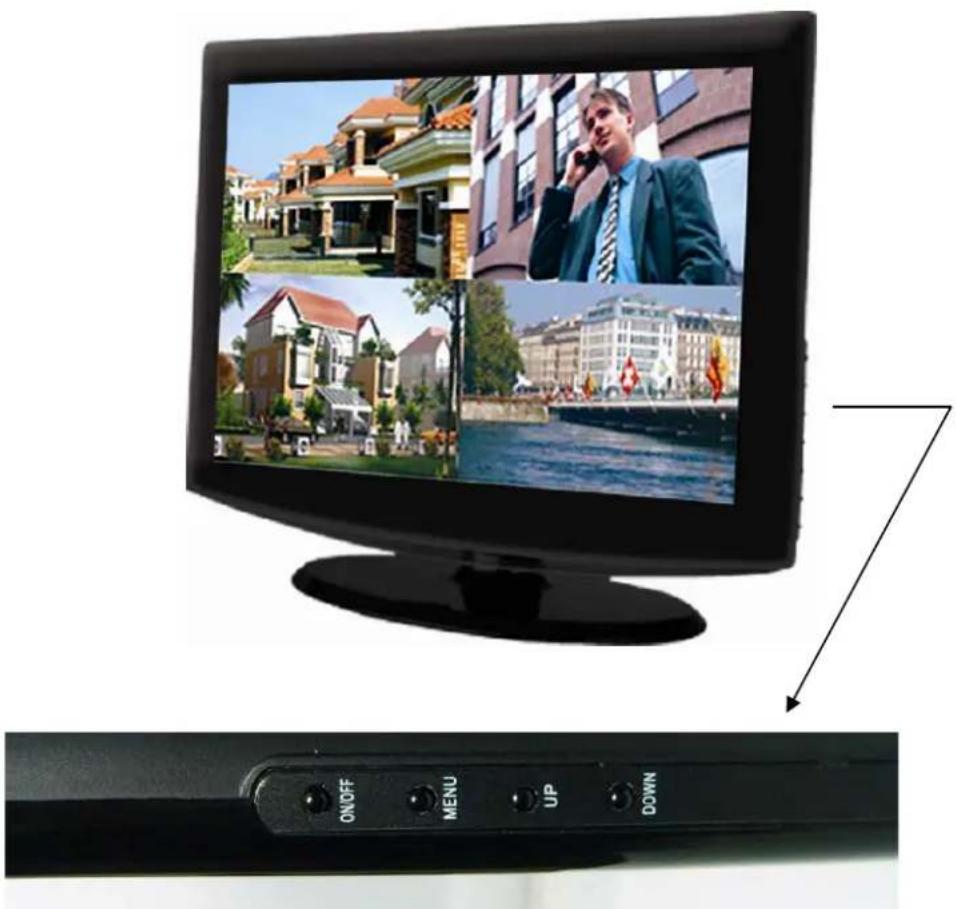
text_image
ON/OFF MENU UP DOWN| Item | Buttons/Indicators | Marks | Functions |
| 1 | ON/OFF | ON/OFF | Turns the screen on or off. |
| 2 | MENU | MENU | Opens the Main Menu screen. |
| 3 | Up | UP | Move up |
| 4 | Down | DOWN | Move Down |
2.2 Side Panel Interface
(Please see actual product for detail)
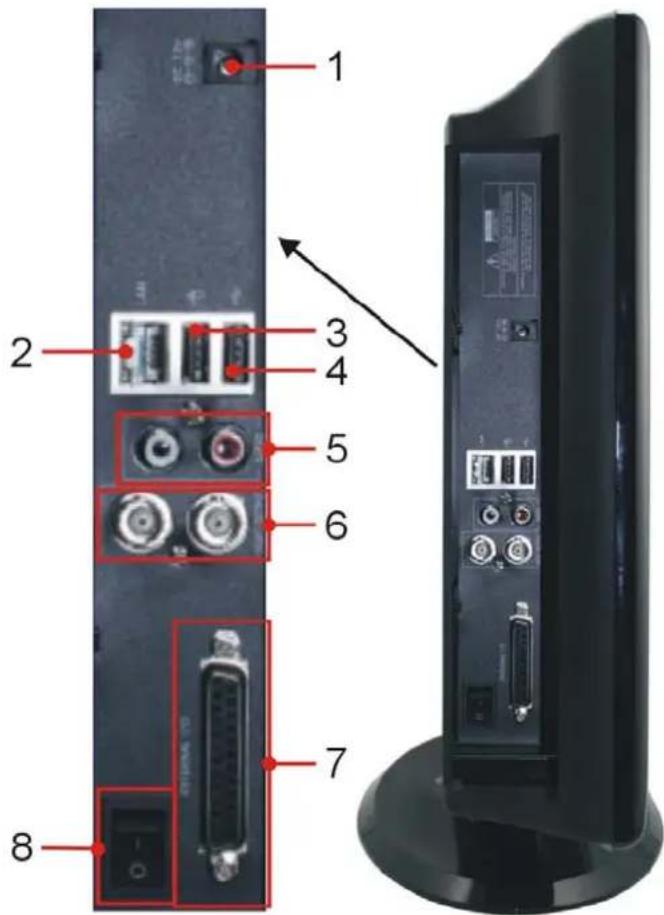
text_image
1 2 3 4 5 6 7 8| Item | Physical ports | Connection method |
| 1 | Power | Port Connect power supply - DC12V 5A |
| 2 | Ethernet | Port Connect intranet, internet (RJ45 interface) |
| 3 | USB Port | Connect USB mouse |
| 4 | USB Port | Connect USB device (Flash Drive, Hard Drive) |
| 5 | Audio output | Connect signal output (RCA interface) |
| 6 | Video outputs | Connect monitor output ( BNC interface) |
| 7 | External I/O | Connects to the included “L” Adapter for connecting cameras and PTZ enabled cameras. |
| 8 | Power Switch | Powers the DVR On/Off completely. |
2.3 Multi I/O 'L' Adapter
(Please see actual product for detail)
4CH
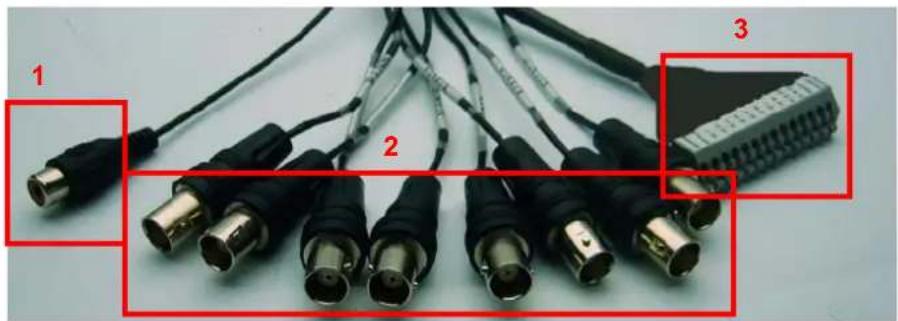
natural_image
Close-up of various black and metallic audio/video connectors with labeled parts (1, 2, 3), no visible text or symbols beyond labels.8CH
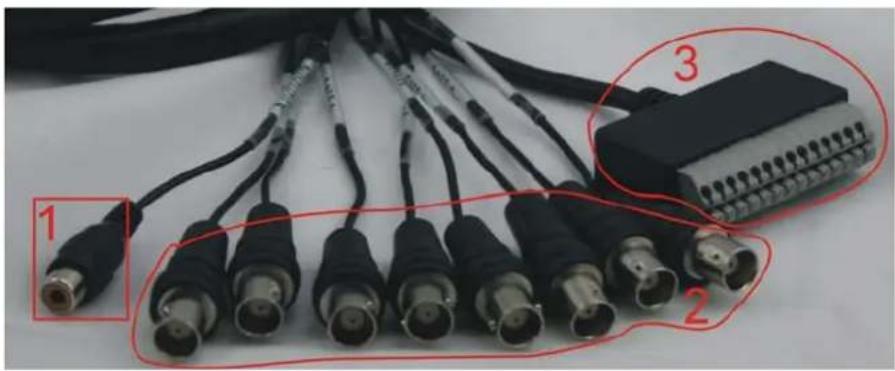
natural_image
Close-up of black cable connectors with red annotations highlighting parts 1, 2, and 3 (no text or symbols on the connectors themselves)| Item | Physical Jacks | Connection method |
| 1 | Audio | Connects to the audio output of an audio enabled camera |
| 2 | Video | Connect to the signal output of cameras |
| 3 | PTZ Outputs | Connect to the PTZ input of any Pan-Tilt-Zoom enabled camera |
2.4 Remote Control
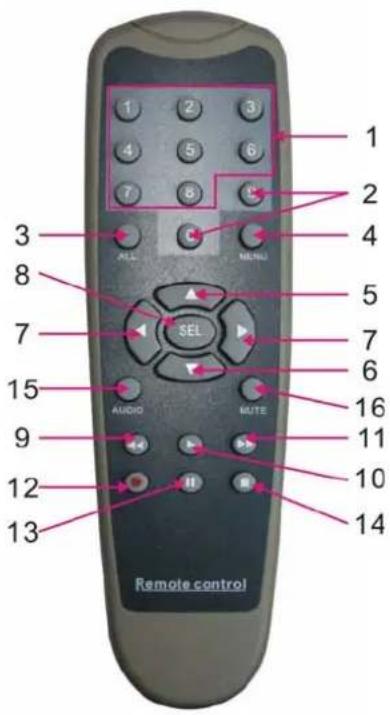
text_image
1 2 3 4 5 6 7 8 9 10 11 12 13 14 15 AUDIO MUTE 16 17 18 19 20 21 22 23 24 25 26 27 28 29 30 31 32 33 34 35 36 37 38 39 40 41 42 43 44 45 46 47 48 49 50 51 52 53 54 55 56 57 58 59 60 61 62 63 64 65 66 67 68 69 70 71 72 73 74 75 76 77 78 79 80 81 82 83 84 85 86 87 88 89 90| 1 1-8 | Channel Select 1-8 ; Numeric key | |
| 2 | 9、0 | Numeric Key |
| 3 ALL | Preview all Channel | |
| 4 Menu | Enter/Exit Main Menu | |
| 5 ▲ | Up Key | |
| 6 | ▼ Down Key | |
| 7 | ◀ / ▶ | Left / Right Key |
| 8 SEL | Select Key/ Edit Key | |
| 9 | ◀◀ | Rewind key |
| 10 | ▶ | Play Key, Enter to recording search menu |
| 11 | ▶▶ | Forward Key |
| 12 | ● | Manual Recording |
| 13 | II | Pause / Frame Play |
| 14 | ■ | Stop manual recording; Stop Playback |
| 15 | Audio | Undefined |
| 16 | Mute | Undefined |
Mouse Operation
You can use a mouse instead of front panel buttons or remote control.
| Click left key of Mouse | In menu lock mode, Enter into pop-up menu and clicking any sub menu to pop up Log-in window; on menu unlock mode, enter into pop-up menu, and then clicking left key to enter into any sub menu directly. |
| After entering main menu, clicking left key could enter into any sub menu; On[Detailed file] menu mode, clicking left key could playback one recording file. | |
| Change the status of check box and motion detection area. | |
| Clicking combo box to access pull-down menu | |
| By clicking left key you can adjust Color control bar and volume control bar. | |
| By clicking left key you can select values in edit boxes or pull-down menu and supports Chinese word input, special symbol, numeric and character input, use instead of [Enter- ] or [Backspace] | |
| In the [Detailed file] menu mode, clicking left key will playback one recording file. | |
| Click right key of Mouse | In live display mode, clicking right key will display pop-up menu (shown as Picture 5-1). |
| In Main menu or sub menu mode, clicking right key will exit current menu. | |
| Double-click Left key of Mouse | In live display or playback mode, double-clicking left key will maximize the screen. |
| Moving Mouse Select menu item | |
| Sliding Mouse On motion mode, sliding mouse will select motion area; On [Color set] menu mode, sliding mouse will adjust color control bar and volume control bar. | |
List 2-3
Chapter 3: DVR Installation
3.1 Hard Drive Installation
Caution : Please do not Install or take out hard drive when DVR is running!
(1) Remove screws and open DVR upper cover carefully;
(2) Insert Power Cord and data cable into Pin of hard drive securely;
(3) Put the upper cover back carefully, re-attach screws.
3.2 Camera and Monitor Connection
Connect camera cable to video input of DVR, and from video output of DVR to Monitor via BNC connector (Refer to section2.2-Rear Panel); or
If the camera is a PTZ speed dome, you could connect RS485 A & B to the according port of DVR respectively (refer to system figuration on Chapter 8).
3.3 Power Supply connection
Please only use the power adapter supplied with the DVR.
Chapter 4: DVR Boot up
4.1. System Initialization
text_image
System Initializing...After connecting the power adapter the system will boot-up and start initializing.
4.2. Main Interface

text_image
CH1 01/02/2009 01:53:40 CH2 CH3 CH4 CH5 VIDEO LOSS CH6 CH7 CH8After initialization, the system will display main interface. When there are video inputs, live images from the cameras will be displayed on screen. You can use mouse to double-click the live image of any channel for full screen display; by double-clicking again, the display will return to display all cameras.
On the main interface, you will be able to see current system date & time, channel title, recording status.
When there is no HDD installed in the DVR, or the HDD is in abnormal working condition, system will display "H" on screen.
Press SEL button on the front panel or click the right button of mouse, you will be able to see the pop-up menu bar. It's a short cut for your quick jump to menus in common use. Detailed method to operate the pop-up menu bar will be introduced in relative chapter.
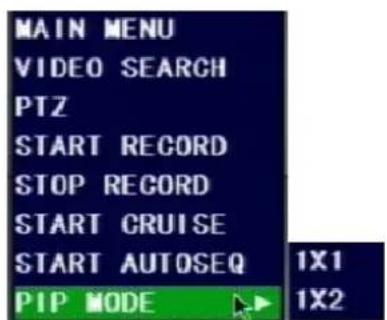
text_image
MAIN MENU VIDEO SEARCH PTZ START RECORD STOP RECORD START CRUISE START AUTOSEQ PIP MODE 1X1 1X2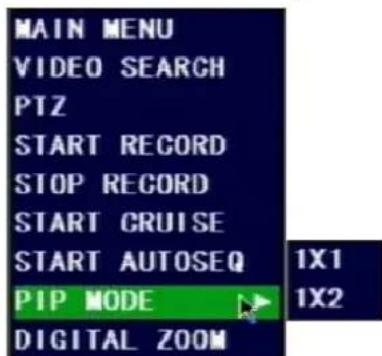
text_image
MAIN MENU VIDEO SEARCH PTZ START RECORD STOP RECORD START CRUISE START AUTOSEQ PIP MODE DIGITAL ZOOM 1X1 1X2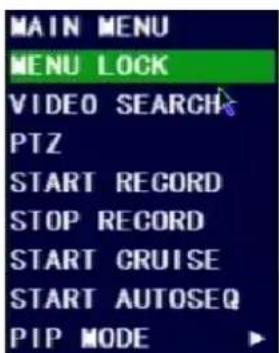
text_image
MAIN MENU MENU LOCK VIDEO SEARCH PTZ START RECORD STOP RECORD START CRUISE START AUTOSEQ PIP MODEChapter 5. DVR Menu
5.1. Main Menu Preview
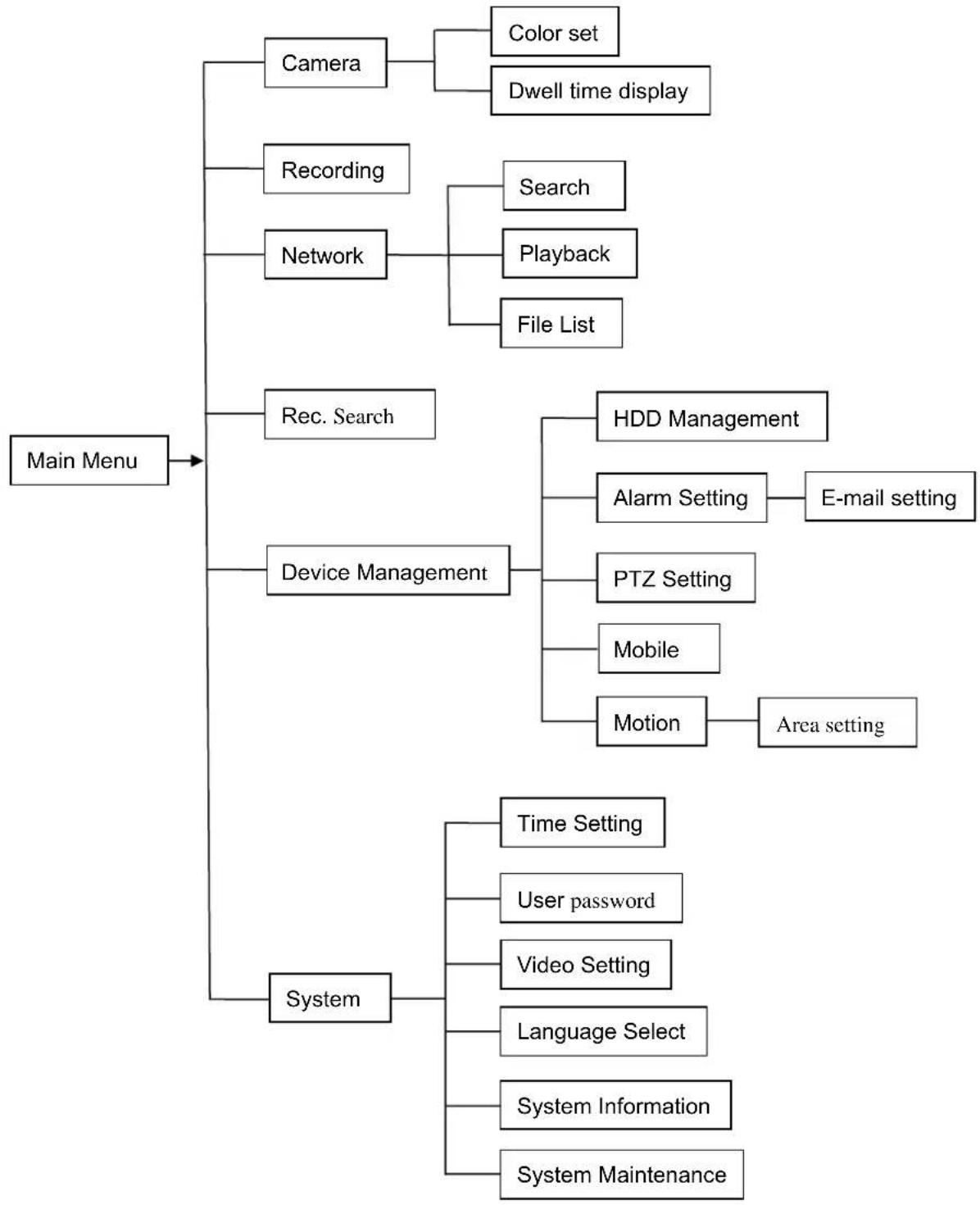
flowchart
graph TD
    A["Main Menu"] --> B["Camera"]
    A --> C["Recording"]
    A --> D["Network"]
    A --> E["Rec. Search"]
    A --> F["Device Management"]
    A --> G["System"]

    B --> H["Color set"]
    B --> I["Dwell time display"]

    C --> J["Search"]
    C --> K["Playback"]
    C --> L["File List"]

    F --> M["HDD Management"]
    F --> N["Alarm Setting"]
    N --> O["E-mail setting"]

    F --> P["PTZ Setting"]
    F --> Q["Mobile"]
    F --> R["Motion"]
    R --> S["Area setting"]

    G --> T["Time Setting"]
    G --> U["User password"]
    G --> V["Video Setting"]
    G --> W["Language Select"]
    G --> X["System Information"]
    G --> Y["System Maintenance"]
5.2 Main Menu
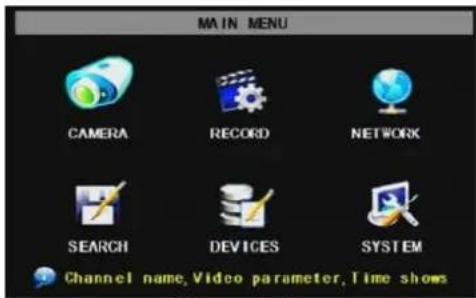
text_image
MAIN MENU CAMERA RECORD NETWORK SEARCH DEVICES SYSTEM Channel name,Video parameter,Time showsPicture 5-2
After clicking right button of mouse, pop-up menu will be displayed on the screen. You can click [main menu] button on pop-up menu to enter into Main menu interface (Shown as Picture 5-2). You can also use the Menu button on the front panel to bring up the window, when using the front panel buttons use the FWD and REW button to move in the menu, and the SEL button to select the icon. You use the ESC button to return to previous window. In Main Menu mode, you can control device management settings,
such as Camera, Recording, Network, Recording search, HDD, Alarm, PTZ Control, Mobile Phone & motion detection etc, you can also set system function settings, such as Time setting, User password, Audio/Video setting, Language select, and access system information, system maintenance etc.
5.2.1 Camera setup
text_image
DISPLAY SETUP TITLE POSITION COLOR LIVE CH1 CH1 UPLEFT SETUP ON CH2 CH2 UPLEFT SETUP ON CH3 CH3 UPLEFT SETUP ON CH4 CH4 UPLEFT SETUP ON DISPLAY TIME WHILE IN LIVE VIEW ON DISPLAY TIME WHILE RECORDING ON Set the Channel Name AUTOSEQ DEFAULT APPLY EXITPicture 5-3
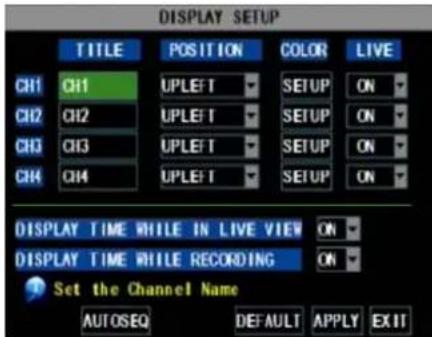
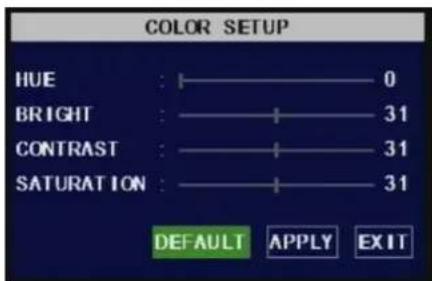
Go to [Main Menu → Camera] to set up the name display and position display of each channel (Shown as Picture 5-3), You can also adjust image brightness, saturation, contrast and hue settings of each channel after entering into [Color] Menu and set up whether each channel can be previewed or not under Live display and/or Recording mode.
Please note that the name of each channel supports up to eight characters.
text_image
COLOR SETUP HUE : 0 BRIGHT : 31 CONTRAST : 31 SATURATION : 31 DEFAULT APPLY EXITPicture 5-4
Below is the Color Menu where you can adjust image brightness, saturation, contrast and hue parameters of each channel.(shown as picture 5-4)
Explanation:
1、The modifications will be available after clicking [APPLY] button on the bottom of the sub-menu windows and being prompted to save and then clicking [ok] button.
2、If you want to cancel the modification, click [Exit] button to exit the menu.
3、When clicking [DEFAULT] button, all system default values will be reset to default value.
4、System default value indicates the value pre-set at the factory.

text_image
AUTO ROTATION CH1 5S CH2 5S CH3 5S CH4 5S QUAD 5S DEFAULT APPLY EXITPicture 5-4A
Click [AUTOSEQ] button to start auto rotation function. (setting sub menu shown as Picture 5-4A. After starting auto rotation function, system will auto rotate the video images among CH1, CH2, CH3, CH4 and Quad in turn.
Default rotation time: 5 second
Settable time range: 0\~10 second
5.2.2 Record setup
text_image
RECORD SETUP CHANNEL CH1 ON CH2 ON CH3 ON CH4 ON RESOLUTION D1 HD1 CIF QUALITY BEST GOOD NORMAL AUDIO ENABLE DISABLE REC MODE POWER ON RECORD PACK TIME 60Min Please select the record mode you want DEFAULT APPLY EXITPicture 5-5
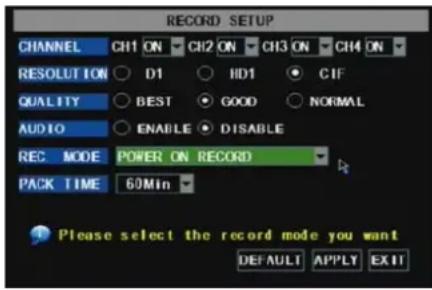
Click [Main Menu] →[Record] to enter into [Record Setup] menu (Shown as Picture 5-5)
Functions:
1、The [Rec Mode] button allows you to setup recording 24 hours, on motion, or on a set schedule.
2、[PACK time] indicates maximum continuous time length of recorded files (15, 30, 45, 60 min).
The [Record Setup] menu allows you set up recording status (on/off) of each channel, it also allows you setup recording image resolution and quality, and turn audio on/off. This menu also allows you select recording mode (recording after power on and scheduled recording) and recording file length.
Once a channel is set to "on" the channel can record, if it is set to "off" the video from the channel will not be recorded. Resolution options are D1, HD1 and CIF; and Quality options are Best, Good and Normal.
When Audio is set to "On", system will also record audio from the channels and will have audio output on playback mode; if it is set to "off" you can not record audio and will have no audio output available on playback mode.
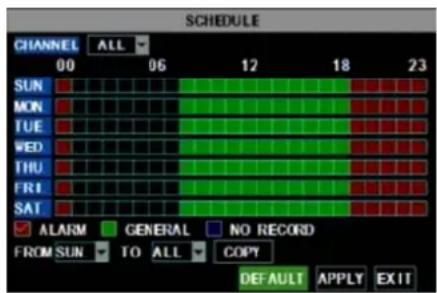
To record 24 hours a day set the Rec Mode to Always. To record on motion or a set schedule, select Time Schedule Record and click the "Schedule" option, the Schedule interface will open as shown in (picture 5-6):
text_image
SCHEDULE CHANNEL ALL 00 06 12 18 23 SUN ▼ MON ▼ TUE ▼ WED ▼ THU ▼ FRI ▼ SAT ▼ ✓ ALARM GENERAL NO RECORD FROM SUN TO ALL COPY DEFAULT APPLY EXITPicture 5-6
Recording options include All, CH-1, CH-2, CH-3, CH-4 respectively. Please click the channel you need, the channel you select will be highlighted in "Blue" unselected channels will be "Grey".
To setup weekly schedules, click on the box of the recording status you want (Alarm, General, or No Record) and then click on each box in the schedule time line that you want this method to apply to. You can use the [From – To] pull-down menus and Copy button to copy settings from one day to another day or all days. After you
complete the schedule you activate it by clicking the [Apply] button.
You can also click on the Default button to use the system defaults. The system default settings are:
Hr01:00 am-07:59 am : No recording
Hr08:00 am-18:59 pm : Normal recording
Hr 19:00 pm- 00:59 pm : Alarm recording
Explanation: Under the recording Set menu and recording search menu, original color stands for no recording, "Red" stands for alarm recording, "Green" stands for normal recording and "Blue" stands for the channel and date you have selected.
5.2.3 Network Set
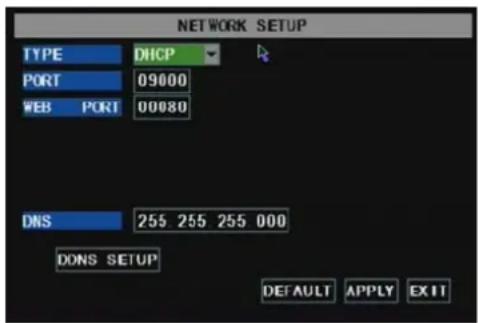
Enter into [Main Menu→Network Set] to proceed network set (Shown as picture 5-7):
text_image
NETWORK SETUP TYPE DHCP PORT 09000 WEB PORT 00080 DNS 255 255 255 000 DDNS SETUP DEFAULT APPLY EXITPicture 5-7
After selecting network mode - such as DHCP、PPPOE and static allocation and setup web port, you could visit DVR remotely via network.
When selecting DHCP, DHCP server will allocate DVR IP address automatically.
text_image
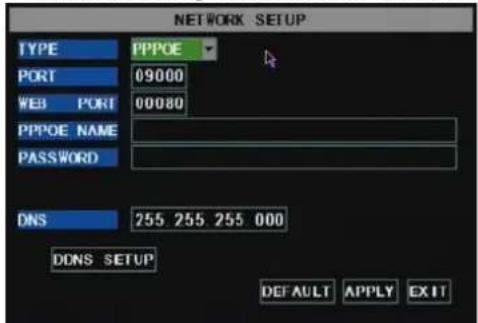
NETWORK SETUP TYPE PPPOE PORT 09000 WEB PORT 00080 PPPOE NAME PASSWORD DNS 255 255 255 000 DDNS SETUP DEFAULT APPLY EXITPicture 5-8
When selecting PPPoE, you need to input user and password provided by ISP supplier and set up web port (details please refer to the below picture 5-8).
text_image
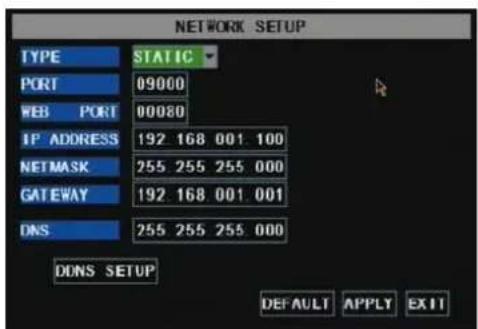
NETWORK SETUP TYPE STATIC PORT 09000 WEB PORT 00080 IP ADDRESS 192 168 001 100 NETMASK 255 255 255 000 GATEWAY 192 168 001 001 DNS 255 255 255 000 DDNS SETUP DEFAULT APPLY EXITPicture 5-9
When selecting static allocation, you need to setup IP address, net-mask, gateway and web port (shown as picture 5-9).
text_image
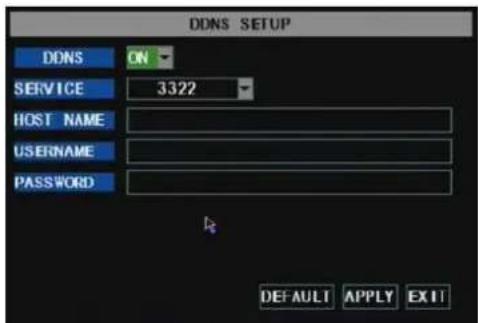
DDNS SETUP DDNS ON SERVICE 3322 HOST NAME USERNAME PASSWORD DEFAULT APPLY EXITPicture 5-10
If you apply for DDNS service and set up net parameter of DVR accordingly, you could visit DVR remotely via IE browser. (shown as picture 5-10)
text_image
Virtual Servers ID Service Port IP Address Protocol Enable 1 9000 192.168.1 101 ALL ✓ 2 8080 192.168.1 101 ALL ✓ 3 554 192.168.1 101 ALL ✓ 4 192.168.1 ALL ✓ 5 192.168.1 ALL ✓ 6 192.168.1 ALL ✓ 7 192.168.1 ALL ✓ 8 192.168.1 ALL ✓ Common Service Port: DNS(53) Copy to ID 1 Clear All SavePicture 5-11
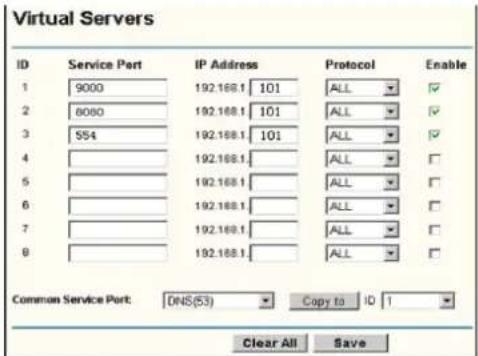
If you need to visit DVR via Internet, you should setup the inflection of video port at the public Router located in the DVR (shown as Picture 5-11).
Host Port: 9000
Web Port: 8080
LAN IP address of DVR: 192.168.1.101
Input http://router IP:8080 (192.168.1.101:8080) to you computer IE browser, then you will visit your DVR freely.
5.2.4 Recording Search
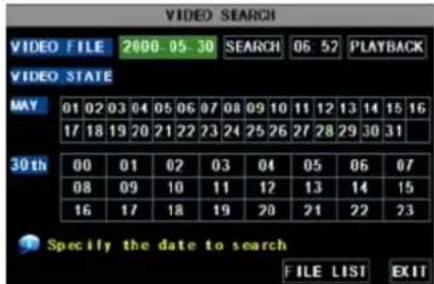
Click [Main menu→ search] to enter into [Video Search] menu (shown as the below picture 5-20).
text_image
VIDEO SEARCH VIDEO FILE 2000-05-30 SEARCH 06-52 PLAYBACK VIDEO STATE MAY 01 02 03 04 05 06 07 08 09 10 11 12 13 14 15 16 17 18 19 20 21 22 23 24 25 26 27 28 29 30 31 30th 00 01 02 03 04 05 06 07 08 09 10 11 12 13 14 15 16 17 18 19 20 21 22 23 Specify the date to search FILE LIST EXITSearched playback:
If you input specific date and click [Search], you will find all the recordings for that day. When you select [Date] item, you will playback the recordings in 4 channel mode; or, click [File list] button to display File list interface, where you can playback or backup the file you selected. See File List heading below.
Picture 5-20
You can play video Forward at 2x, 4x, and 8x speeds, Slow play at 1/2x, 1/4x, and 1/8x, normal play, pause and play frame by frame using the playback control bar, and adjust volume by clicking or sliding tune control bar. When playback has finished, system will return to previous menu.
File list
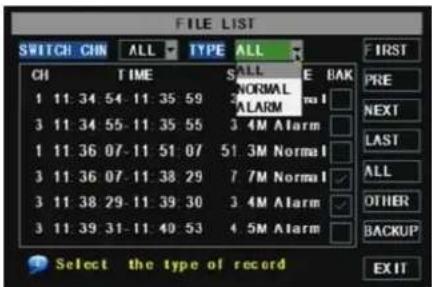
On the [Video search] menu mode, click [File list] to pop up the sub-menu shown below as Picture 5-21. This option will allow you to view all of the available files by channel and type (all, normal, or alarm).
You can select a file and push the SEL button to playback the file, or use the FWD button and down button to select the option and backup the recording file you selected. You can also put a checkmark in the box at the end of multiple files if you want to backup more then one file.
text_image
FILE LIST SWITCH CHN ALL TYPE ALL FIRST CH TIME SALL E BAK PRE 1 11:34 54-11:35 59 NORMAL mo I 3 11:34 55-11:35 55 ALARM 1 11:36 07-11 51:07 51.3M Normal 3 11:36 07-11:38 29 7.7M Normal 3 11:38 29-11:39:30 3.4M Alarm 3 11:39 31-11:40:53 4.5M Alarm Select the type of record EXITPicture 5-21
First: Indicates the first page of recording history you have searched. When you view other pages, clicking [First] button brings you back to Page one.
PRE (Previous page): When viewing event list, clicking [Previous page] button will take you back to page before the one you are currently viewing (except the first page).
NEXT (Next page): When viewing event list, clicking [Next page] button will take you to the page after the one you are currently viewing (except the last page).
LAST (Last page): Indicates the last page of recording history you have searched. When you view other pages, clicking [Last page] button will take you to the Last page.
ALL (Select All): Allows you to select all the events on the current page.
INVERSE (Select Invert): Allows you to select other events on the current page except those you have currently selected.
Recording File Backup
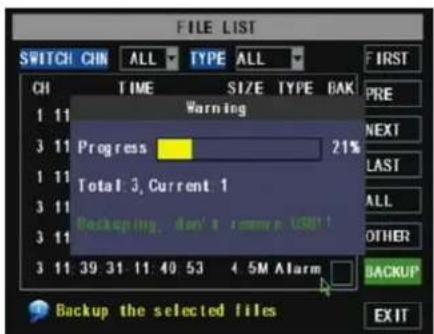
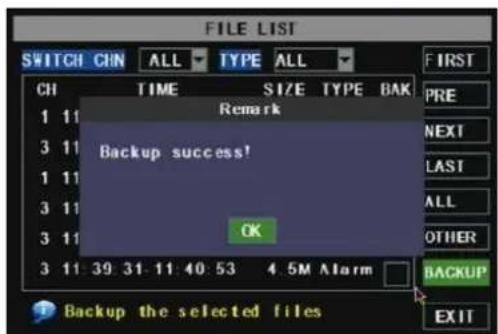
If you want to backup one recording from the file list, you just select the recording and click [Backup] button. When the backup is completed you will be notified. Please click [OK] button to save your backup (shown as Picture 5-22).
Explanation: Backup file will be in H264 format, you can convert it to AVI format using the Multimedia Player program that comes with the DVR or through the net-viewer program, so you can use any player which supports AVI format.
text_image
FILE LIST SWITCH CHN ALL TYPE ALL CH TIME SIZE TYPE BAK Warning 1 11 Progress 21% 3 11 Total: 3, Current: 1 1 11 Backuping, don't remove USB! 3 11 3 11 39 31 11:40 53 4.5M Alarm BACKUP EXIT Backup the selected filesPicture 5-22
text_image
FILE LIST SWITCH CIN ALL TYPE ALL FIRST CH TIME SIZE TYPE BAK PRE Remark 1 11 Backup success! 3 11 1 11 3 11 OK 3 11 39:31-11:40:53 4.5M Alarm BACKUP ? Backup the selected files EXITPicture 5-23
5.2.5 Multi player
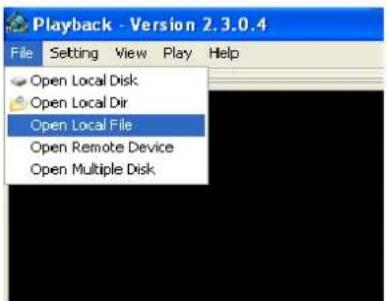
1、Copy backup file to your PC.
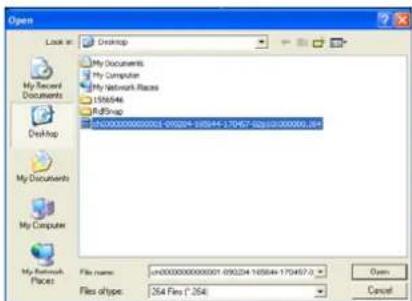
2、Open multimedia player and click [File→ Local (F)] to find/select the backup file, and then click [open] button
Note: the file type you have selected should be *.264 format.
text_image
Playback - Version 2.3.0.4 File Setting View Play Help Open Local Disk Open Local Dir Open Local File Open Remote Device Open Multiple DiskPicture 5-24
text_image
Open Look at: Desktop My Documents My Computer My Network Spaces 106546 RJ8Snap 260000000000003 090224 105544 170457 42810-000000_894 My Documents My Computer My Network Places File name: n=00000000000001 095224 105544 170457-3 Files type: 254 Files (*.254) Open CancelPicture 5-25
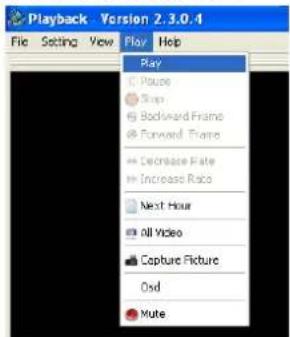
3、Open backup file:
text_image
Playback - Version 2.3.0.4 File Setting View Play Help Play Picture Trip Backward Frame Forward Frame Balance Plate Increase Rate Next Hour All Video Capture Picture Osd MutePicture 5-26
(1)、Click [Play] menu (P) on the top of multimedia player interface to select playing the backup file;
(2)、Click pop-up menu button on the bottom of multimedia player and [Play-] button, then the backup file will be played on the according channel.
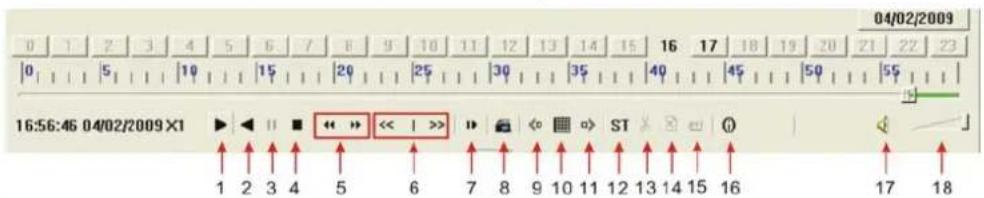
(3)、The Menu brief on the bottom of multimedia player:
text_image
04/02/2009 0 1 2 3 4 5 6 7 8 9 10 11 12 13 14 15 16 17 18 19 20 21 22 23 0 1 5 10 15 20 25 30 35 40 45 50 55 16:56:46 04/02/2009 X1 ▶ ◀ ▼ ■ ◆ ◆ ◆ ◆ ◆ ◆ ◆ ◆ ◆ ◆ ◆ ◆ ◆ ◆ ◆ ◆ ◆ ◆ ◆ ◆ ◆ ◆ ◆ ◆ ◆ ◆ ◆ ◆ ◆ ◆ ◆ ◆ ◆ ◆ ◆ ◆ ◆ ◆ ◆ ◆ ◆ ◆ ◆ ◆ ◆ ◆ ◆ ◆ ◆ ◆ ◉ 1 2 3 4 5 6 7 8 9 10 11 12 13 14 15 16 17 18Date: 04/02/2009 recording date for the current backup file shown as right corner;
24H recording time: lie under [Date] menu. Black number button stands for current recording playback is normal recording for the time line.

text_image
0 | 1 | 2 | 3 | 4 | 5 | 6 | 7 | 8 | 9 | 10 | 11 | 12 | 13 | 14 | 15 | 16 | 17 | 18 | 19 | 20 | 21 | 22 | 230\~60 Minute recording time quantum: Green part on play processing bar stand for recording length for one hour recording.

Recording date and time processing for the current recording file
1 Play 10 All the windows
2 Previous recording file 11 Add window
3 Pause 12 Start
4 Stop 13 Cut
5 Previous frame / Next frame 14 Delete
6 Slow play, Normal play, Fast Play 15 Convert AVI
7 Next Hour 16 OSD
8 Capture picture 17 Mute switch
9 Reduce window 18 Volume adjust
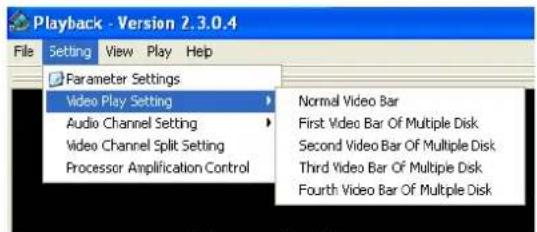
4、Please refer to the below [Video on] setting procedure (System default - video for every channel is on)
text_image
Playback - Version 2.3.0.4 File Setting View Play Help Parameter Settings Video Play Setting Audio Channel Setting Video Channel Split Setting Processor Amplification Control Normal Video Bar First Video Bar Of Multiple Disk Second Video Bar Of Multiple Disk Third Video Bar Of Multiple Disk Fourth Video Bar Of Multiple DiskPicture 5-27
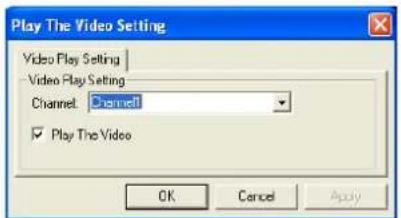
Setting→Video play setting →Normal video Bar→Select the channel you want to display→Select ☑ to play the video→Apply→OK
text_image
Play The Video Setting Video Play Setting Video Play Setting Channel: Channel ✓ Play The Video OK Cancel ApplyPicture 5-27A
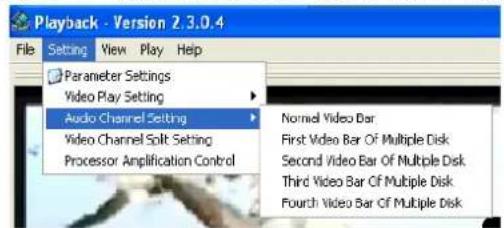
5、Refer to the below for [Audio on] setting procedure. (Setting parameter will be available after re-starting multimedia player after [Audio on] set up.)
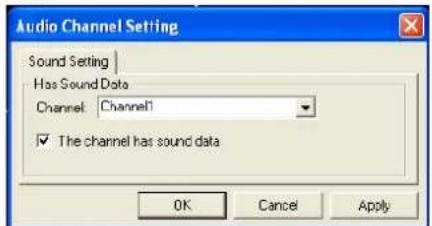
Setting→Audio channel setting → Normal video Bar→Select the channel you want to playback the audio→Select ☑ the channel has audio files→Apply→OK.
text_image
Playback - Version 2.3.0.4 File Setting View Play Help Parameter Settings Video Play Setting Audio Channel Setting Video Channel Split Setting Processor Amplification Control Normal Video Bar First Video Bar Of Multiple Disk Second Video Bar Of Multiple Disk Third Video Bar Of Multiple Disk Fourth Video Bar Of Multiple DiskPicture 5-28A
text_image
Audio Channel Setting Sound Setting Has Sound Data Channel: Channel1 ✓ The channel has sound data OK Cancel ApplyPicture 5-28B
After successfully setting the above, when you playback the current channel, you can open the channel's audio function at the same time as the video
5.2.6 Device Management
text_image
DEVICE MANAGEMENT HDD ALARM PTZ MOBILE MOTION EXIT Return to Main MenuPicture 5-29
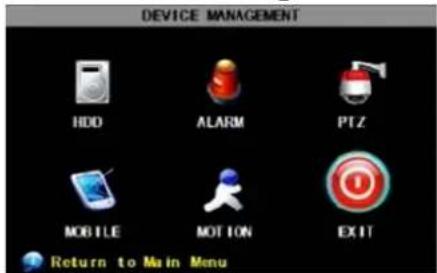
Options in device management include Hard drive, External Alarm, PTZ control, Mobile Phone Monitoring, and Motion Detection.
5.2.6.1 HDD Management
text_image
HDD MANAGEMENT HDD STATUS No Disk TOTAL SPACE 0G FREE SPACE 0G USEABLE REC TIME 0Hour OVERWRITE ENABLE HDD FORMAT USB FORMAT Auto overwrite the oldest record files DEFAULT APPLY EXITPicture 5-30
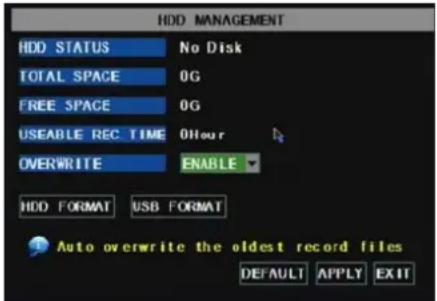
Click [Main Menu→Device → HDD] to enter [HDD Management] menu (shown as Picture 5-30)
text_image
HDD MANAGEMENT HDD STATUS No Disk TOTAL SPACE 0G FREE S USEADL OVERWE HDD F Warning All data will lose after format Are you sure to format? OK CANCEL DEFAULT APPLY EXITPicture 5-31
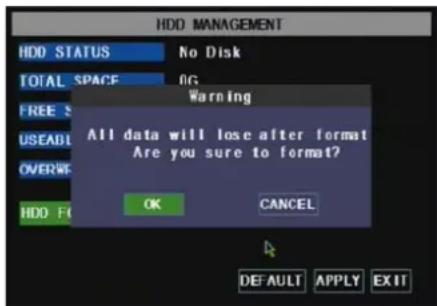
When you install a HDD, the system will automatically detect if HDD is formatted or not; If HDD needs to be formatted, HDD status will be shown as "Not format", otherwise, the HDD status will be shown as "Normal" (refer to Picture 5-31)
TOTAL SPACE: Indicates total space available on Hard Drive.
FREE SPACE: Indicates unused space available on the Hard Drive.
USEABLE REC TIME: Based on current image detail/quality and frame rate, system will show you how
Recording time you have left on the Hard Drive.
OVERWRITE: If you select "on" the system will automatically overwrite the oldest recordings once the hard drive is full; if you select "off", recording will stop once the hard drive is full.
HDD FORMAT: You use this option to format the hard drive, you can not record files to the hard drive until it has been formatted. Click [Format HDD] button to start formatting. When selecting [Format HDD] option the system will prompt you – “Format HDD will loss all the data, do you confirm?”; click “OK”, system will prompt you – “Is formatting…” and “successful format”; and then system will restart automatically.
USB FORMAT: Use this option to format USB devices.
5.2.6.2 Alarm Set
text_image
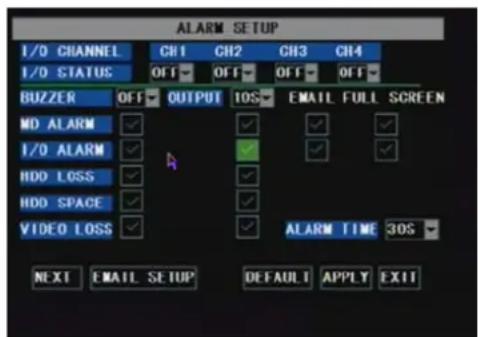
ALARM SETUP I/O CHANNEL CH1 CH2 CH3 CH4 I/O STATUS OFF OFF OFF OFF BUZZER OFF OUTPUT IOS EMAIL FULL SCREEN MD ALARM ✓ ✓ ✓ ✓ I/O ALARM ✓ ✓ ✓ ✓ ✓ HDD LOSS ✓ ✓ ✓ ✓ ✓ HDD SPACE ✓ ✓ ✓ ✓ ✓ VIDEO LOSS ✓ ✓ ALARM TIME 30S NEXT EMAIL SETUP DEFAULT APPLY EXITPicture 5-32
BUZZER: Options are ON or OFF. Set this to OFF to disable the buzzer, or set this option to ON and then set the ALARM TIME option for how long the duration of the alarm will be. This option must be enabled if any of the alarm option below will be enabled.
OUTPUT: Set the duration of the trigger time of the external alarm.
MD ALARM and I/O ALARM: Check the box on the left to enable the buzzer to go off when motion is detected or when the external I/O is triggered. Check the second box to the right labeled "EMAIL" if you would like your DVR to send an e-mail to
an assigned e-mail account configured under "EMAIL SETUP".
Check the box labeled "FULL SCREEN" on the right if you would like the channel that has detected motion to automatically expand to full screen.
HDD LOSS, HDD SPACE, VIDEO LOSS: Check this box if you would like to trigger the alarm when HDD is operating irregularly, HDD is full while "HDD Overwrite" is disabled, or video signal from the cameras has been loss.
ALARM TIME: Option for the duration of alarm after an alarm is triggered. If "Motion Detect" recording is enabled, this option controls the duration of the recording time after the motion has stopped.
Email Alarm Notification
(to send notice to email account when motion alarm is triggered)
text_image
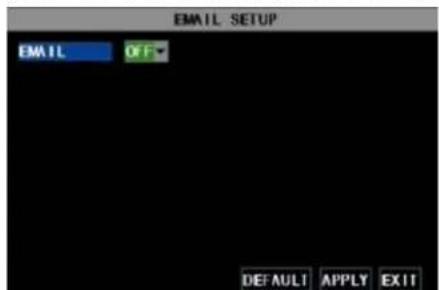
EMAIL SETUP EMAIL OFF DEFAULT APPLY EXITPicture 5-33
Click the [Email setup] menu to enter into its sub menu (shown as Picture 5-33).
text_image
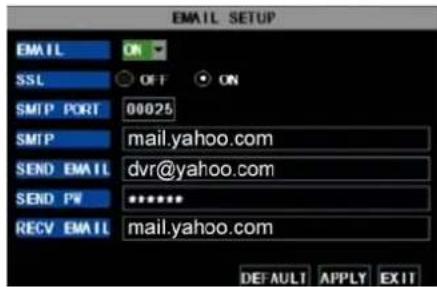
EMAIL SETUP EMAIL ON SSL OFF ON SMTP PORT 00025 SMTP mail.yahoo.com SEND EMAIL dvr@yahoo.com SEND PW ******** RECV EMAIL mail.yahoo.com DEFAULT APPLY EXITPicture 5-34
On the [Email setup] mode, refer to its parameter setup shown as picture 5-34 when setting email alarm to "on".
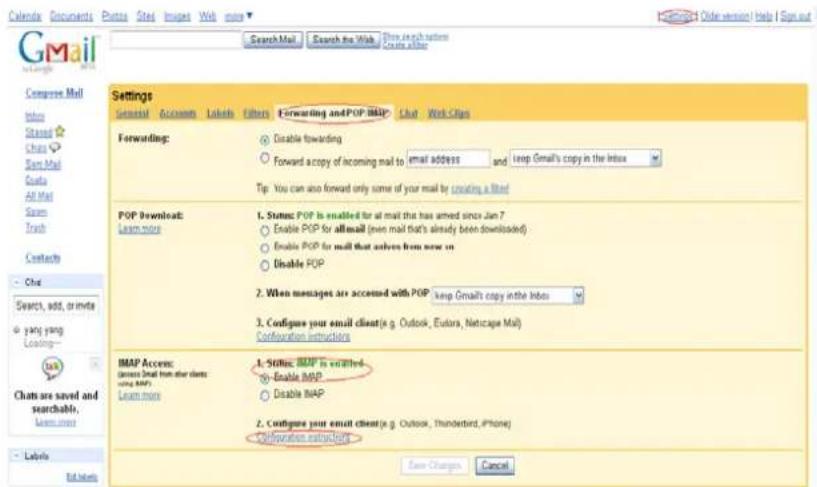
SSL: is a security link transport protocol. You can encrypt your communication info (including your email) using SSL to prevent hackers from monitoring your email or communication info and even your password.
Please set SSL to "On" via Gmail.com server, and set to "Off" via other mail server.
If your setting is still not right, please contact the web site where you have applied for your email box to get SMTP server and SSL of mail box.
text_image
Calendar Documents Posts Sites Images Web more Search Mail Search the Web Show search options Create other Gmail Compose Mail Info Shared Chat Sent Mail Costs All Mail Search Trash Contacts Chat Search, add, or imite yang yang Looking— Link Charts are saved and searchable, Learn more Labels Settings General Accounts Labels Filters Forwarding andPOP IMAP Chat Work Clips Forwarding: Disable forwarding Forward copy of incoming mail to email address and loop Gmail's copy in the Inbox Tip You can also forward only some of your mail by creating a list POP Download: Learn more 1. Status: POP is enabled for all mail that has arrived since Jan 7 Enable POP for allmail (new mail that's already been downloaded) Enable POP for mail that solves from new on Disable POP 2. When messages are accessed with POP keep Gmail's copy in the Inbox 3. Configure your email client (e.g. Outlook, Eulara, Netscape Mail) Configuration instructions IMAP Access: (Express Mail from other clients using MAP) Learn more 1. Status: IMAP is enabled Enable IMAP Disable IMAP 2. Configure your email client (e.g. Outlook, Thunderbird, iPhone) Configuration instructions Case Changes CancelPicture 5-35
SMTP Port: indicates sender port of SMTP server. Generally the SMTP port value is 25, but there are exceptions, for example, SMTP port of G-mail server should be 465.
SMTP server: indicates server address you use.
Sender email: indicates sender's email address. The email address should be consistent with the server you use. That is to say, when you use email address – aaa@gmail.com, the according server should be smtp.gmail.com.
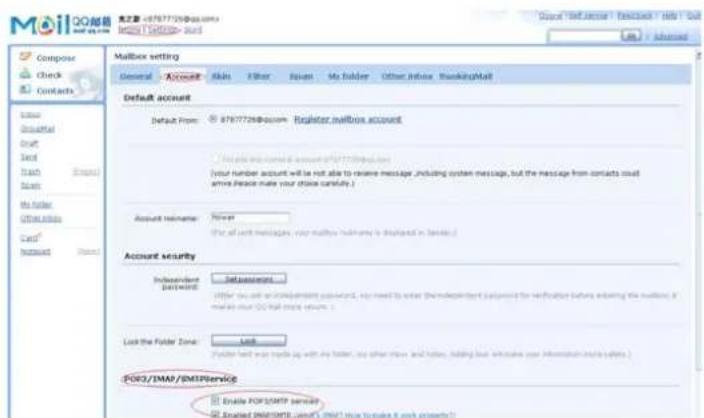
Receiver address: indicates receiver's email address. The email address is used to receive image transmitted from motion detection alarm of DVR. Please clear the images you have received as soon as possible to avoid overloading your email account. For detailed SMTP protocols settings refer to the below
picture 5-35A.
text_image
Mailbox setting General Account Tools Filter Status My Folder Other Info Service BankingMail Default account Default From: 8787729@you.com - Register mailbox account [ ] Include and create account of POQ/IMAP.com [your number account will be not able to revise message, including system message, but the message from contacts could where please make your choice carefully.] Account hostname: None [Use all soft messages, your mailbox hostname is displayed in servers] Account security Independent password: Set passwords... [after you are an independent password, you need to enter the independent password for verification before ordering the mailbox, if make your POQ file name server.] Lock the Folder Zone: Link [Provider hand way works up with the folder, you other lines and tables, adding both instructions your information on site safety.] POQ/IMAP/SMTP service Enable POQ/SMTP service Enabled IMPOST/MAT (MINT that provides it and projects)Picture 5-35A
5.2.6.3 PTZ Setup
text_image
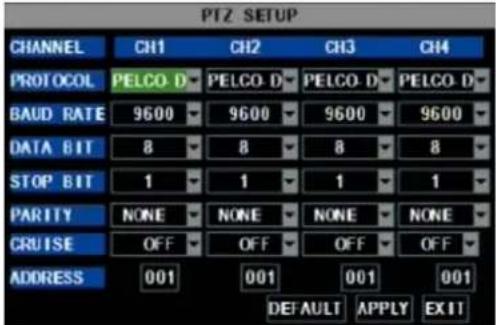
PTZ SETUP CHANNEL CH1 CH2 CH3 CH4 PROTOCOL PELCO D PELCO D PELCO D PELCO D BAUD RATE 9600 9600 9600 9600 DATA BIT 8 8 8 8 STOP BIT 1 1 1 1 PARITY NONE NONE NONE NONE CRUISE OFF OFF OFF ADDRESS 001 001 001 001 DEFAULT APPLY EXITPicture 5-36
Enter into [Main menu→Device→PTZ Setup] to select the channel you want to control and set PTZ protocol (Pelco-D or Pelco-P), Baud Rate (1200, 2400, 4800, 9600), Stop bit (1, 2), Parity Check (None, Odd, Even Mark Space), Address Code and Cruise status respectively. Please note the above mentioned channel settings must match the settings of the PTZ camera.
5.2.6.4 Mobile
text_image
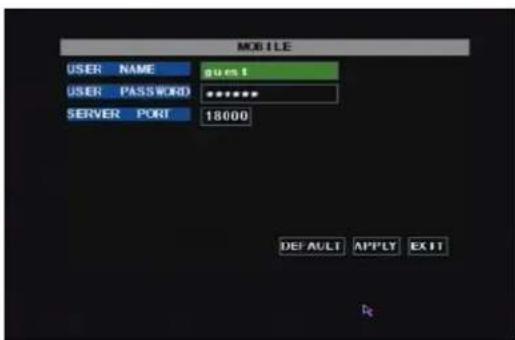
MOBILE USER NAME guest USER PASSWORD ******** SERVER PORT 18000 DEFAULT APPLY EXITPicture 5-37
Click [Main menu→Device→Mobile] to enter into [Mobile] menu.
User Name: indicate user name of DVR.
User password: indicate user password of DVR
Server port: Mobile monitoring port. Setting range is between 1024 and 65535. Please note that
Explanation: Please connect DVR to Internet before setting DVR port number and the server port no is not equal to network menus.
5.2.6.5 Motion Detect
text_image
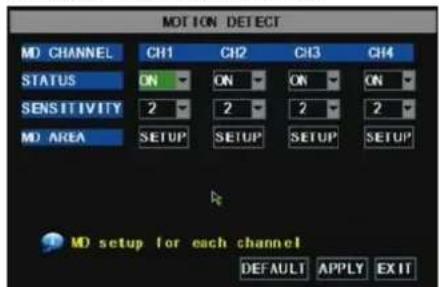
MOTION DETECT MD CHANNEL CH1 CH2 CH3 CH4 STATUS ON ON ON ON SENSITIVITY 2 2 2 2 MD AREA SETUP SETUP SETUP MD setup for each channel DEFAULT APPLY EXITPicture 5-38
Click [Main→Device→Motion] to enter into the [Motion Detection] menu to setup motion detection recording.
The [Motion detection] Menu has three sections, including Channel Status, Sensitivity and Motion area.
Channel STATUS: This option allows you enable motion detection on any channel.
SENSITIVITY: This option allows you to set sensitivity level of motion detection from 1 to 4 with 4 being the most sensitive.
text_image
Cropped image showing a red rectangular object with a small white label and faint text, set against a grid background.Picture 5-39
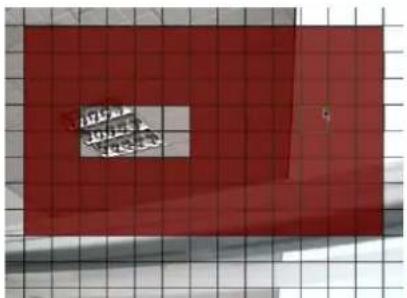
MD AREA: This option allows you select the area you want to be sensitive to motion. The channel is separated into a 13*10 area. When any object moves into the motion detection area, and the area where the object is located is displayed in red recording will be triggered. In the semi-transparent area the motion detection is off.
5.2.7 System Function
text_image
SYSTEM SETUP DATE/TIME PASSWORD VID LANGUAGE INTO MAINTAIN Setup the Time and DST for devicePicture 5-40
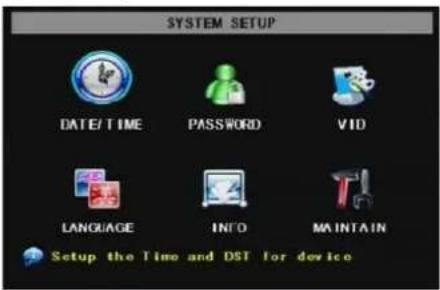
The [System] Menu includes the below sub-menus: Time Set, User Password, Audio/Video Setting, Language select, System Info and System Maintenance.
After entering into the [System], you can configure the system to meet your needs.
5.2.7.1 Time Set
text_image
TIME SETUP DATE 2009.04 15 DATE FORMAT YY MM DD TIME 10 43 50 TIME FORMAT 24HOURS TIME ZONE GMT+08 00 DST OFF DEFAULT APPLY EXITPicture 5-41
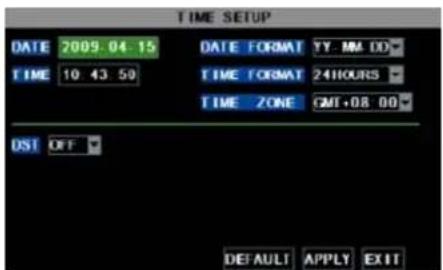
Click the [Main menu→System→Date/Time] in turn to Enter into the time setup menu shown as Picture 5-41 to not only modify system date, time, date/time format and time zone, but also setup DST (day saving time) status and mode.
5.2.7.2 Password
text_image
PASSWORD SETUP DEVICE ID 000000 PASSWORD ENABLE OFF OFF ON APPLY EXITPicture 5-42
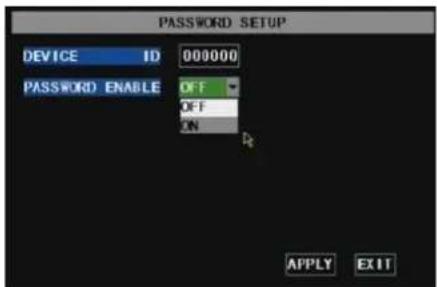
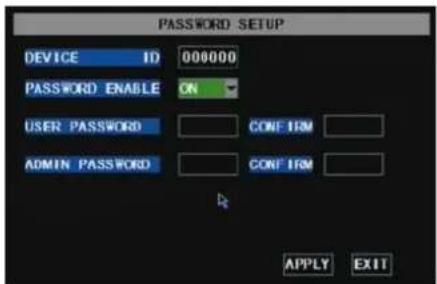
This option allows you set the device ID for the DVR and set the system password if you want to use one. The new passwords will be available after clicking [APPLY] button.
text_image
PASSWORD SETUP DEVICE ID 000000 PASSWORD ENABLE ON USER PASSWORD CONFIRM ADMIN PASSWORD CONFIRM APPLY EXITPicture 5-43
When you set Password Enabled to "ON" (shown as Picture 5-43), you can setup a user password and administrator password respectively. The password supports up to 6 characters.
5.2.7.3 Video Setup
text_image
VIDEO SETUP VGA RESOLUTION 1280x1024 VIDEO SYSTEM PAL Setup the VGA Resolution APPLY EXITPicture 5-44
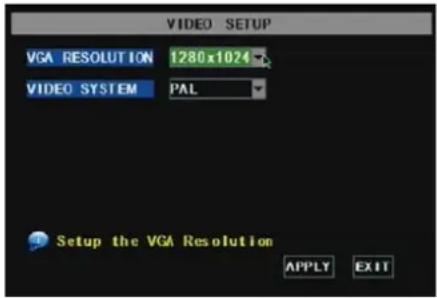
Click [Main Menu→System→VIDEO] to setup Video, here you can set Camera system (PAL, NTSC) In the USA we use NTSC.
You can also set the resolution for the VGA video out port. Your options are 600x480, 800x600, or 1024x768, or 1280x1024.
5.2.7.4 Language
text_image
SYSTEM LANGUAGE SYSTEM LANGUAGE ENGLISH Warning System will restart when changed APPLY EXITPicture 5-45
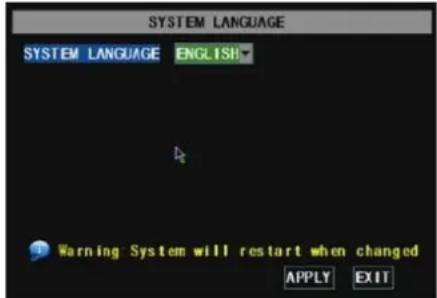
Enter into [System Language] menu to select the language you want to use on the DVR (shown as Picture 5-45) and click [APPLY] button. The selection will be available after system Auto restarts.
5.2.7.5 Info.
text_image
SYSTEM INFORMATION DEVICE TYPE D9004-16 SOFTWARE VERSION V081203 MAC ADDRESS 00-11-22-33-44-55 EXITPicture 5-46
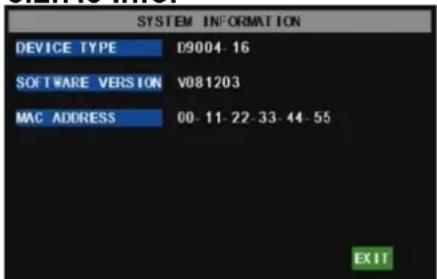
Click [Main Menu→System→Info] to enter into [System Information] menu to view system info, including Device type, Software (firmware) version and MAC address etc.
5.2.7.6 System Maintenance
text_image
SYSTEM MAINTAIN AUTO MAINTAIN OFF SYSTEM UPDATE LOAD DEFAULT REBOOT DEFAULT APPLY EXITPicture 5-47
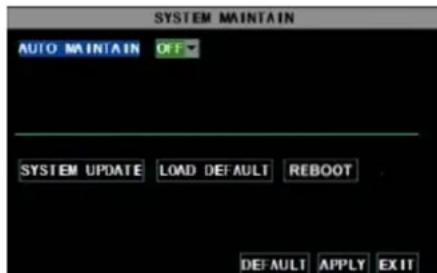
This option allows you reset the DVR to factory default settings, update system software (firmware), and set system auto-maintenance. Click [Main menu→System→Maintain] to enter into the [System Maintain] menu (shown as Picture 5-47).
When opening auto-maintain function, you can setup system to restart regularly.
5.3 Menu Lock
text_image
USER LOGIN DEVICE ID: 000000 (000000) PASSWORD : ******** APPLY EXITPicture 5-48
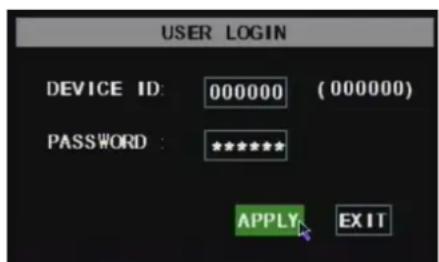
As a system safety feature you can click [Menu Lock] menu to lock menu when leaving the DVR. If you want to login to the DVR, you would input device code and password (refer to the Menu Locking interface- Picture 5-48).
Explanation: User only has the authority to search recordings, but Administrator has full authority over Main Menu operations
5.4 Video Search
Click pop-up menu video search to enter into [Video Search] menu you search files and playback recordings. For more information on this operation refer to the previous section 5.24.
5.5 PTZ Control
text_image
PTZ SETUP SLOW —— 30 FAST ZOOM + FOCUS + IRIS + EXITPicture 5-49
We introduced setting PTZ parameters previously in chapter 5.2.5.3. Here we will discuss how to operate PTZ controls.
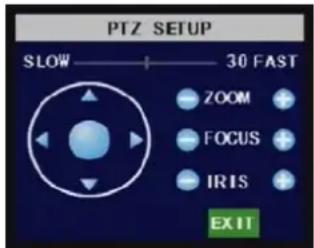
Click pop-up menu to show PTZ option and enter into PTZ control interface (shown as Picture 5-49). You can now click Z+&Z- keys to zoom In or out, click F+&F- keys to control camera focus and click I+&I- to adjust iris.
Cruise Set
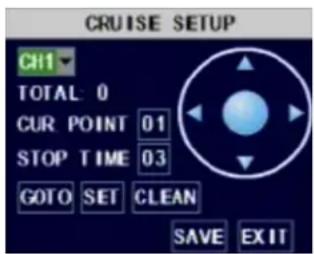
Open auto cruise function on PTZ setting menu if you want to setup cruise function (system default: on), and set up cruise channel, cur point and total quantity and stop time etc.
text_image
CRUISE SETUP CH1 TOTAL 0 CUR POINT 01 STOP TIME 03 GOTO SET CLEAN SAVE EXITChannel select: select the channel with the PTZ camera
Total: set up presetting bit quantity
Cur Point: System has default starting (current) cruise point as 01. You can use this option to set additional cruise points.
Stop time: sets the pause time at each stop.
GOTO : select this option to go to specific preset points
Set: save the preset point. After setting channel and setting the position by adjusting PTZ direction key you click [Set] button to setup the pre-set point. Please note you will click the [Save] button to finish the setting successfully. If you want to combine Zoom, Iris, Focus and direction keys into the pre-set setting, please return to previous menu (shown as Picture 5-56) to add additional settings, and then enter into Cruise Set again and click [Set] and [Save] to make sure your setting is setup successfully.
Clean: remove settings.
Note: this DVR model supports up to 100 pre-set points. But actual quantities may be restricted by the PTZ camera you are using.
5.6 Record
When you want the system to start recording click [ Rec ] button to start manual recording.
5.7 Stop recording
If you want to stop manual recording click [Stop Record.] menu or [Stop] button
Chapter 6: Net-Viewer Program
6.1 Plug-ins download and installation
Open IE browser and input IP address and web port of DVR, such as http://172.18.6.202:80/ and confirm to download and install webcam. If your computer is connected to internet, computer will auto download and install the webcam.
Reminder: If the webcam is not downloaded successfully, please check if your browser's safety level or firewall setting is too advanced. Also refer to section 5.2.3 Network Setup to make sure network configuration is correct, ports are forwarded correctly, and ActiveX is enabled.
6.2 Log-in to NetViewer
text_image
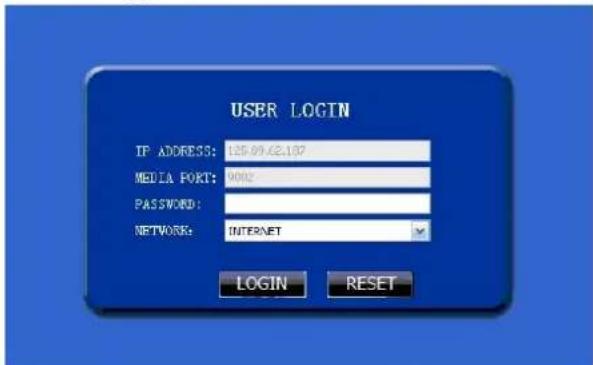
USER LOGIN IP ADDRESS: 125-99.42.107 MEDIA PORT: NONE PASSWORD: NETWORK: INTERNET LOGIN RESETPicture 6-1
After webcam installs plug-ins, please select log-in language (Chinese or English) and enter password and click [Log-in] button, and now you can view DVR remotely through NetViewer.
Please note default password is empty. System allows Administrator to set new password as per instructions in section 5.2.6.2 - [Password set] menu. Note: If you want to delete old IE webcam at DVR system update, run the command characters: "regsvr32/u dvrocx.ocx"
text_image
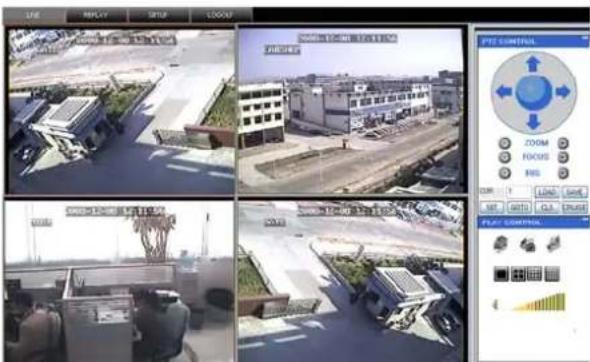
Screenshot of a surveillance system interface showing four aerial view frames with labeled control panels and a 3D panel displaying 'PTE CONTROL' with circular indicators.Picture 6-2
After successful Log-in to Net-viewer, system will enter into live display interface and connect to audio/video feed automatically (shown as Picture 6-2).
6.3 Main Interface of Net-viewer
1-
text_image
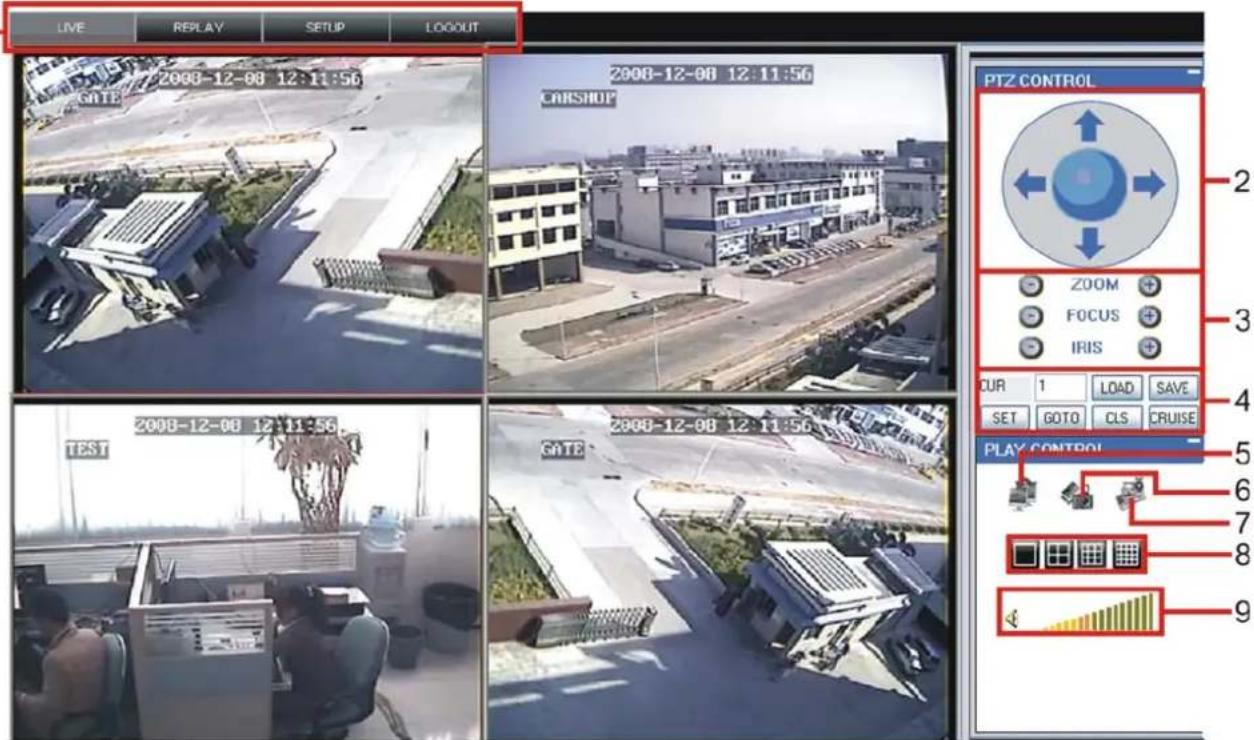
LIVE REPLAY SETUP LOGOUT 2008-12-08 12:11:56 2008-12-08 12:11:56 CARSHOP PTZ CONTROL ZOOM FOCUS IRIS OUR 1 LOAD SAVE SET GOTO CLS CRUISE PLAY CONTROL 6 7 8 9Picture 6.3
Log in Net-viewer and show the interface as follows
6.3.1 Menu column (Section 1 on Picture 6-3)
6.3.2 PTZ Control (Numbers 2, 3, 4 on Picture 6-3)
6.3.3 Live Play Control (Numbers 6 through 10 on Picture 6-3)
6.3.1 Menu column (Section 1 on Picture 6-3)
Menu column include [Live] menu, [Replay] menu and [Setup] menu and [Logout] menu.
6.3.1.1 Live
After Logging-in to system, system will enter into Live display (shown as Picture 6-3).
6.3.1.2 Replay
text_image
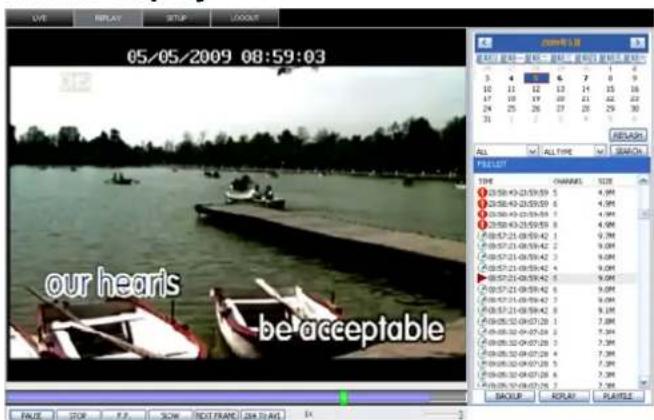
05/05/2009 08:59:03 our hears be acceptablePicture 6-4
Play button: [Play]/[Pause]
Stop button: stop playing recording.
This option allows you to playback recordings remotely.
First select the day, channel and type and proceed searching and refreshing; second select any event from search result list to playback.
Please note you can control playing speed by sliding the playing-control bar on the bottom of the interface (shown as Picture 6-4).
F.F. button: fast forward playback recording
Slow button: slow playback recording.
Next Frame: play frame by frame.
264 TO AVI button: convert file from H.264 format to AVI format

The native format of the backup files is H.264, you can convert H.264 format into more familiar AVI format by clicking the key of 264 to AVI.
6.3.1.3. Setup
Click [Setup] menu to enter into its sub menu, including [Recording Mode] menu, [Alarm Mode] menu, [PTZ Control] Menu, [Network Setting] menu, [System Setting] menu and [Host Info] menu.
Explanation: Only when DVR is on the status of live display, you could modify and save its parameters remotely at this moment, the settings are available. The modification method to DVR via Net-viewer is the same as local adjustment of DVR.
① Record
text_image
CHANNEL HOLD RESET ORANGE AVEN PERFORM ORDER ORDER ORDER ORDER ORDER ORDER ORDER ORDER ORDER ORDER ORDER ORDER ORDER ORDER ORDER ORDER ORDER ORDER ORDER ORDER ORDER ORDER ORDER ORDER ORDER ORDER ORDER ORDER ORDER ORDER ORDER ORDER ORDER ORDER ORDER ORDER ORDER ORDER ORDER ORDER ORDER ORDER ORDER ORDER ORDER ORDER ORDER ORDER ORDER ORDER orderPicture 6-5
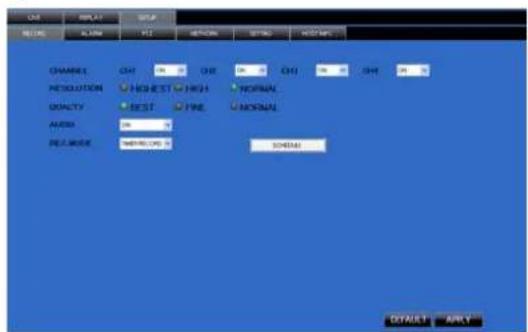
Enter into sub menu – [Recording Mode] menu, you can select on/off for every channel, and adjust recording parameters (resolution, quality, audio, REC mode and Schedule) remotely via Net-viewer.
text_image
Schedule 01 S M T W T F G 8 9 10 11 12 13 14 15 16 17 18 19 20 21 22 23 COPY SUN SET TO All COPY ○ ALARM ○ NORMAL ○ NO APPLY EXITPicture 6-6
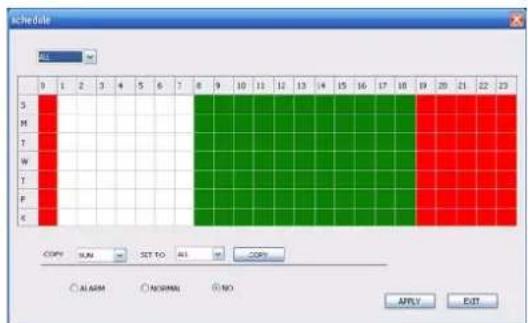
Click the [Schedule] menu to enter into its sub menu (shown as Picture 6-6).
Remote setup methods are the same as local DVR setup. Please refer to Section 5.2.2 Record Setup
② Alarm
text_image
LOAD CHANNEL TYPE CHANNEL ORDER CUSTOMER CHANNEL CHANNEL CHANNEL CHANNEL CHANNEL CHANNEL CHANNEL CHANNEL CHANNEL CHANNEL CHANNEL CHANNEL CHANNEL CHANNEL CHANNEL CHANNEL CHANNEL CHANNEL CHANNEL CHANNEL CHANNEL CHANNEL CHANNEL CHANNEL CHANNEL CHANNEL CHANNEL CHANNEL CHANNEL CHANNEL CHANNEL CHANNEL CHANNEL CHANNEL CHANNEL CHANNEL CHANNEL CHANNEL CHANNEL CHANNEL CHANNEL CHANNEL CHANNEL CHANNEL CHANNEL CHANNEL CHANNEL CHANNEL CHANNEL CHANNEL EXTERNAL EXTERNAL EXTERNAL EXTERNAL EXTERNAL EXTERNAL EXTERNAL EXTERNAL EXTERNAL EXTERNAL EXTERNAL EXTERNAL EXTERNAL EXTERNAL EXTERNAL EXTERNAL EXTERNAL EXTERNAL EXTERNAL EXTERNAL EXTERNAL EXTERNAL EXTERNAL EXTERNAL EXTERNAL EXTERNAL EXTERNAL EXTERNAL EXTERNAL EXTERNAL EXTERNAL EXTERNAL EXTERNAL EXTERNAL EXTERNAL EXTERNAL EXTERNAL EXTERNAL EXTERNAL EXTERNAL EXTERNAL EXTERNAL EXTERNAL EXTERNAL EXTERNAL EXTERNAL EXTERNAL EXTERNAL EXTERNAL EXTERNAL INTERNALPicture 6-7
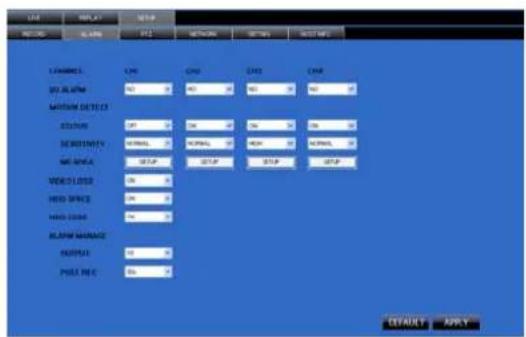
Click [Alarm] menu to enter into its sub menu (shown as Picture 6-7).
You can set I/O alarm for every channel, motion detection alarm, motion recording, motion trace, motion sensitivity, video loss alarm, HDD not enough space alarm, HDD not found alarm and alarm output time etc.
For details on setup method please refer to section 5.2.5.2.
text_image
MOTION CLEAR CONFIRM CANCELPicture 6-8
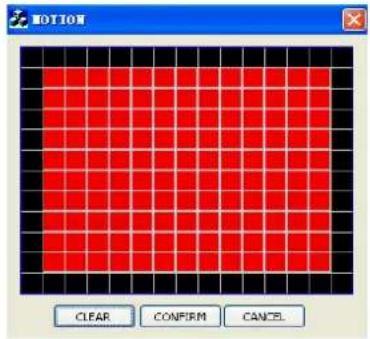
System allows you setup motion detection settings for each channel of DVR remotely (shown as Picture 6-8)
③ PTZ Control
text_image
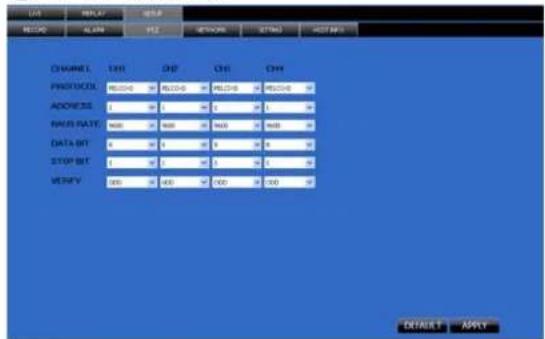
LAT ARRAY USE CHANNEL LOAD CHF CHF CHF PROTOCOL 80.046 80.046 80.046 ADDRESS 1 1 1 1 SAMS RATE 900 900 900 900 DATA BIT 0 0 0 0 0 STOP BIT 1 1 1 1 1 VERIFY 300 300 300 300 DEFAULT APPLYPicture 6-9
Click [PTZ control] to setup PTZ cameras. Remote setup methods are the same as local DVR setup.
Please refer to Section 5.2.5.3 (shown as Picture 6-9).
④ Network
text_image
TYPE R10000000000000000000000000000000000000000000000000000000000000000000000000000000000000000000000000000 R1254888888888888888888888888888888888888888888888888888888888888888888888888888888888888888888888888888 R125469999999999999999999999999999999999999999999999999999999999999999999999999999999999999999999999999999 R1254673333333333333333333333333333333333333333333333333333333333333333333333333333333333333333333 R12546722222222222222222222222222222222222222222222222222222222 R1254671111111111111111111111111111111111111111111111111111 R1254674444444444444444444444444444444444444444444444444444 R12546757777777777777777777777777777777777777777777777777777 R1254676666666666666666666666666666666666666666666666666666666666666666666666 R1254677777777777777777777777777777777777777777777777 R12546785555555555555555555555555555555555555555555555 R125467945555555555555555555555555555555 R12546814444444444444444444444444444444 R125468212121212121212121212121212121212 R125468221212121212121212121212121212 R12546823121212121212121212121212 R1254682412121212121212121212 R1254682512 R12546826 R12546827 R12546828 R1254683 R1254683 R1254683 R1254683 R1254683 R1254683 R1254683 R1254683 R1Picture 6-10
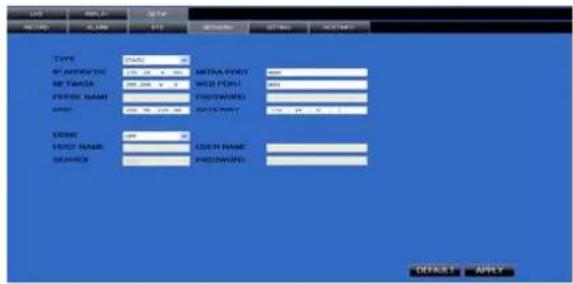
Click [Network] to enter into [Network] menu. Remote setup methods are the same as local DVR setup.
Please refer to Section 5.2.3. – Network Set.
⑤ Setting
text_image
LIP NEW LIST NEW IMPORT IMPORT IMPORT IMPORT IMPORT IMPORT IMPORT IMPORT IMPORT IMPORT IMPORT IMPORT IMPORT IMPORT IMPORT IMPORT IMPORT IMPORT IMPORT IMPORT IMPORT IMPORT IMPORT IMPORT IMPORT IMPORT IMPORT IMPORT IMPORT IMPORT IMPORT IMPORT IMPORT IMPORT IMPORT IMPORT IMPORT IMPORT IMPORT IMPORT IMPORT IMPORT IMPORT IMPORT IMPORT IMPORT IMPORT IMPORT IMPORT IMPORT NOTICE NOTICE NOTICE NOTICE NOTICE NOTICE NOTICE NOTICE NOTICE NOTICE NOTICE NOTICE NOTICE NOTICE NOTICE NOTICE NOTICE NOTICE NOTICE NOTICE NOTICE NOTICE NOTICE NOTICE NOTICE NOTICE NOTICE NOTICE NOTICE NOTICE NOTICE NOTICE NOTICE NOTICEPicture 6-11
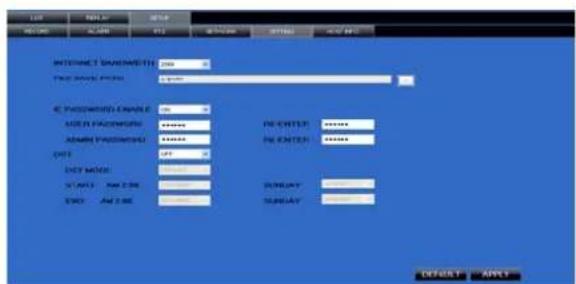
Click [setting] menu to enter into the menu interface (shown as Picture 6-11);
Click [...] button to preview net-viewer recording saving path and screen capture saving path.
The menu also allows you to set a lower bandwidth for Internet video transmission, set user password, turn daylight saving time on/off, etc.
⑥ Host Info
text_image
UVE REPLAY SETUP RECORD ALARM PT2 NETWORK SETBQ HOST INFO HDD STATUS: Hind Disk Score 60/218G AVAILABLE TIME 172 HOUR SOFT VERSION V08126 MAC ADDRESS 00-11-22-33-44:55Picture 6-12
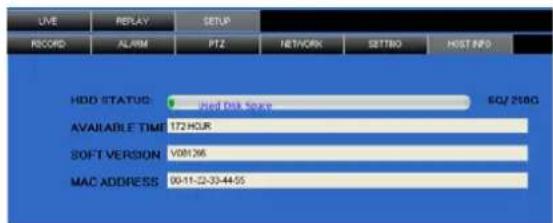
Click [Host Info.] to enter into the sub menu (shown as Picture 6-12). Here you can check Usage rate of HDD, available recording time, software version and MAC address.
6.3.1.4 Log out
Log out of the system.
6.3.2 PTZ Control (Numbers 2, 3, 4 on Picture 6-3)
Note: below-mentioned series no will be consistent with the remark no shown as Picture 6-2.
②.PTZ direction control: Control PTZ moving direction
③ Zoom, Focus and Iris Control: control direction, zoom, focus and iris of PTZ.
④.Presetting bit Control
CUR : display current presetting bit or input a presetting bit you want to fix at according edit box.
Load : Load one presetting bit setting you have saved last time.
Save: Save presetting bit.
Set: set presetting bit parameter (Details setting method please refer to section 5.5- cruise set.
GOTO: on the preview mode, please input one presetting bit no and click [GOTO] button, you could fix the presetting bit quickly.
Clean: clean presetting bit setting
Cruise: control cruise status (including on and off).
6.3.3 Live Play Control (Numbers 6 through 10 on Picture 6-3)

⑤On / Off Live display [ ]: When Live display status is “On”, Clicking the button closes Live display. When “Off” clicking the button opens the Live display.
⑥. Capture [

⑥. Capture [ ]: Capture Screen image and save to PC as *bmp image.
⑦.Recording [ ]:Operate DVR recording remotely
⑧Channel display [ ]: The icons stand for Single Channel display, Quad Channel display, 3x3 Channel display and 4x4 Channel display respectively.
⑨.Volume control [--] Click or slide the control bar to adjust sound volume.
Chapter 7: Specifications
| Model | 4CH | 8CH | |
| Video System NTSC / PAL(Optional) | |||
| Compression Format | Video: H.264 / Audio: 8kHz*16bit ADPCM | ||
| Video Output | 4-CH BNC Input/ 2-CH BNC Output / 1-VGA output (Optional) | 8-CH BNC input/2-CH BNC output / 1-VGA output (Optional) | |
| Audio I/O 1-CH RCA audio input/ 1-CH RCA audio output | |||
| Display Resolution | D1: 704×576(PAL) 704×480 (NTSC) | ||
| Frame rate | Single CH PAL: 25 fps, NTSC: 30 fps | ||
| Recording Resolution | PAL: CIF(352*288), HD1(704*288) D1 (704*576)NTSC:CIF(352*240),HD1(704*240) D1 (704*480) | PAL: CIF(352×288)NTSC: CIF(352×240) | |
| Recording Frame Rate (shared) | PAL: 25 fps@D1, 50 fps@HD1, 100 fps@CIFNTSC: 30 fps@D1, 60 fps@HD1,120 fps@CIF) | PAL: 200 fps@CIFNTSC: 240 fps@CIF | |
| HDD | 1 SATA HDD, up to 1024GB; USB removable HDD | ||
| Video Mode | Always / schedule / manual /motion detection | ||
| Record Pack Time | 15/30/45/60min | ||
| Video backup | USB flash disk / removable HDD, USB Burner, Network backup to AVI File Format | ||
| Playback Mode | PLAY / SLOW / FWD/Frame by Frame | ||
| Alarm Type Motion/Video loss/HDD | Space/HDD Loss | ||
| PTZ Control Built-in RS-485 port, supports PELCO-P & PELCO-D | |||
| USB 2.0 Port | Supports USB mouse, removable HDD, USB flash drive to backup to AVI file and upgrade system | ||
| Ethernet One RJ-45 10M/100M self-adaptable Ethernet interface | |||
| Network Protocol Supports TCP/IP, DHCP, UDP, DDNS, PPPOE network Protocol | |||
| Network Function | Support preview live display remotely via mobile phone and real time monitoring via IE-based browser and/or network, and support parameter setting of DVR remotely. | ||
| Power consumption | 10~15W (exclude HDD) | ||
| Power Adapter | DC 12V / 3A | DC 12V / 3A | |
| Working Temperature | 50°F to 104°F (10°C to 40°C) | ||
| Working humidity | 10%~90% | ||
| Dimension (W x D x H) | 12.40 x 9.3 x 2.4 in (315x 236 x 60 mm) | ||
List 7-1
Chapter 8: Windows Vista User
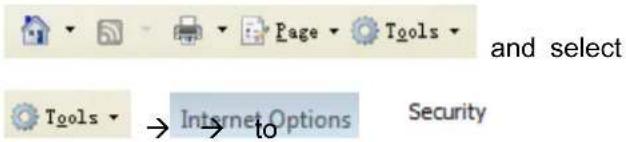
1、Open IE browse firstly, then enter into Tool bar-
text_image
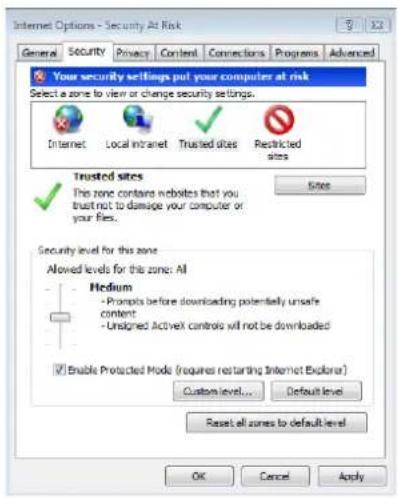
and select Tools → Internet Options Securityappear the below picture:
text_image
Internet Options - Security At Risk General Security Privacy Content Connections Programs Advanced Your security settings put your computer at risk Select a zone to view or change security settings. Internet Local intranet Trusted sites Restricted sites Trusted sites This zone contains websites that you trust not to damage your computer or your files. Security level for this zone Allowed levels for this zone: All Medium - Prompts before downloading potentially unsafe content - Unsigned ActiveX controls will not be downloaded Enable Protected Mode (requires restarting Internet Explorer) Custom level... Default level Reset all zones to default level OK Cancel Apply2、Second, select Custom level... icon
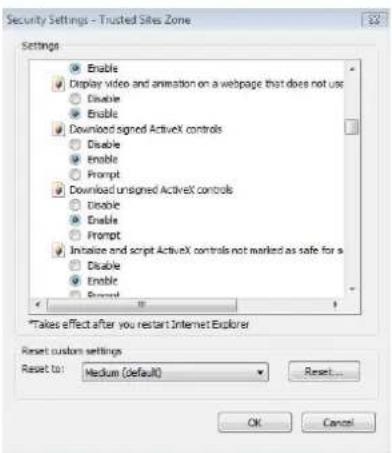
and tick the settings of "ActiveX controls and plug-ins" to Enable, details as follows:
text_image
Security Settings - Trusted Sites Zone Settings Enable Display Video and animation on a webpage that does not use Disable Enable Download signed ActiveX controls Disable Enable Prompt Download unsigned ActiveX controls Disable Enable Prompt Initialize and script ActiveX controls not marked as safe for a Disable Enable Reset *Takes effect after you restart Internet Explorer Reset custom settings Reset to: Medium (default) Reset... OK Cancel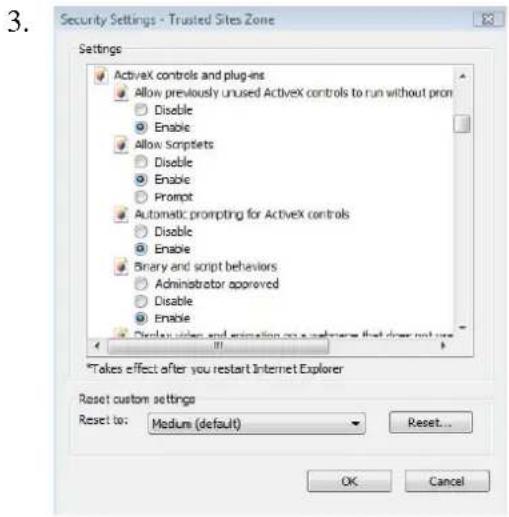
text_image
Security Settings - Trusted Sites Zone Settings ActiveX controls and plug-ins Allow previously unused ActiveX controls to run without pron Disable Enable Allow Scriptets Disable Enable Prompt Automatic prompting for ActiveX controls Disable Enable Binary and script behaviors Administrator approved Disable Enable Display video and animation on a webpage that does not use *Takes effect after you restart Internet Explorer Reset custom settings Reset to: Medium (default) Reset... OK Cancel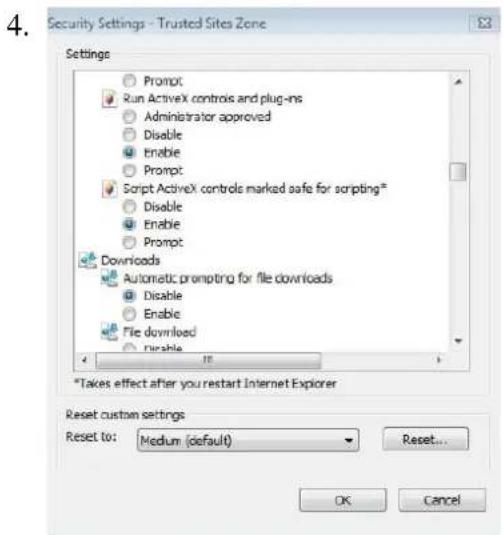
text_image
Security Settings - Trusted Sites Zone Settings Prompt Run ActiveX controls and plug-ins Administrator approved Disable Enable Prompt Script ActiveX controls marked safe for scripting* Disable Enable Prompt Downloads Automatic prompting for file downloads Disable Enable File download Disable Takes effect after you restart Internet Explorer Reset custom settings Reset to: Medium (default) Reset... OK CancelLastly after tick all the "Enable", please
click to exit. At this
moment, you could input IP address to run your programme.
Open IE browser and input IP address and web port of DVR...computer will auto download and install the widget.
We suggest Visita user set user access authority in order to make your PC safer. Setting processing as follows:
Click [Start→Set→Control panel→User account] to set user access authority shown as below picture.

Remind: If the widgets are not downloaded successfully, please check if your browser's safety level or firewall setting is too advanced.
Open IE browser to enter into [tool→Internet Option→Internet user-defined level→enable widgets.
Downloading and auto running install widgets need one minute, please wait...patiently.
Chapter 9: Appendix
9.1 Recording Alarm setting
Please refer the below matrix: “⊥” stand for “only alarm but no recording”; “AMR” stand for “alarm recording”; “NLR” stand for “normal recording”; and “NOR” stand for “no recording”. Once alarm is triggered, alarm icon will occur, and when many alarms are triggered, alarm remarks will occur on the screen.
Recording Mode
| Recording alarm setting | Alarm icon | Recording after power on | Timing recording | Manuel Recording | ||||
| AMR NLR NOR | ||||||||
| Alarm mode | MD alarm | M | AMR | AMR | NLR | ⊥ | NLR | |
| I/O triggered alarm | I | AMR | AMR | NLR | ⊥ | NLR | ||
| HDD loss, HDD space full | H | ⊥ | ⊥ | ⊥ | ⊥ | ⊥ | ||
| Video Loss | Video Loss | ⊥ | ⊥ | ⊥ | ⊥ | ⊥ | ||
List 9-2
When DVR is in recording mode, [R] icon or [M] icon will appear on the screen. But when there are [I] icon and [M] icons on the screen it indicates a motion alarm was triggered. When [H] icon appears on the screen, that mean a hard drive alarm has occurred.
9.2 Troubleshooting
- Q: What can I do if the system does not detect the HDD?
A: Check the data and power cables and make sure they are securely connected.
- Q: We have changed the password but do not remember the new password, how can we access the system?
A: If you forget system password, enter 0800808 into the password field to reset the password
- Q: We are not getting any video signal on the DVR, what is wrong?
A: Check to make sure the cables are securely connected to the BNC ports on the DVR. You can also try another cable to make sure there is not a problem with the cable. Make sure you have selected the correct video format for your country (NTSC or PAL), is the USA we use NTSC.
4. Q: Can the DVR have problems if it gets too hot, how can I prevent this?
A: The DVR has a fan to help it dissipate heat while it is working. Please place the DVR in a place where there is good air circulation and away from high temperatures to increase stability and life of the DVR.
- Q: My remote control does not work when the DVR is in Live mode but the front panel buttons are working, what is wrong?
A: Make sure nothing is blocking the LED on the remote, or the receiver on the DVR, if both are ok, check the batteries.
6. Q: Can I use the hard drive from my PC in the DVR?
A: You can if the hard drive is the same type and the size is supported by the DVR. If you install it in the DVR it will be formatted for use in the DVR and the PC will not be able to read it.
7. Q: Do I have to stop recording to playback files on the DVR?
A: No you do not have to stop recording, the DVR will support both functions at the same time.
- Q: Can I erase files from the hard drive of the DVR?
A: You can not erase individual files, you would need to format the hard drive which will erase all of the files
9.Q: Why can't I log-in to the Net-viewer program?
A: Please verify that the Net mode is correct, The cable to the RJ-45 port is well connected to the DVR and the router, and that you are using the correct password.
10. Q: We have attached a PTZ camera but can not control it, what is wrong?
A: Verify that the Protocol, baud rate, address, and other settings on the PTZ camera match the settings you have
put into the DVR. Make sure the data cables are attached firmly to the RS485 port on the DVR.
11. Q: Why does the Buzzer keep sounding?
A: Please check to see if motion detection is on and the system has detected motion, make sure the hard drive is being detected and has sufficient space available, and that none of your cameras have lost video. You can turn off the buzzer in the Alarm setup option.
9.3 Email server check list (The below info only for your ref.)
| (Web site) | Email address | Sender server (25) | Receiver server (110) |
| @163.com | smtp.163.com | pop3.163.com | |
| @vip.163.com | smtp.vip.163.com | pop.vip.163.com | |
| @188.com | smtp.188.com | pop.188.com | |
| www.163.com | @126.com | smtp.126.com | pop3.126.com |
| @netease.com | smtp.netease.com | pop.netease.com | |
| @yeah.net | smtp.yeah.net | pop.netease.com | |
| www.163.net | smtp.163vip.net | popx.163vip.net | |
| www.sina.com | @sina.com.cn | smtp.sina.com.cn | pop3.sina.com.cn |
| @yahoo.com.cn | smtp.mail.yahoo.com.cn | pop.mail.yahoo.com.cn | |
| www.yahoo.com | @yahoo.com | smtp.mail.yahoo.com | pop.mail.yahoo.com |
| www.google.com | @gmail.com | smtp.gmail.com(465/587) | pop.gmail.com(995) |
| www.china.com | @china.com | smtp.china.com | pop.china.com |
| www.sohu.com | @sohu.com | smtp.sohu.com | pop.sohu.com |
| www.163.net | smtp.163.net | pop.163.net | |
| www.163vip.net | smtp.163vip.net | pop.163vip.net | |
| www.tom.com | @tom.com | smtp.tom.com | pop.tom.com |
| www.263.net | @263.net | smtp.263.net | pop3.263.net |
| x263.net | smtp.x263.net | pop.x263.net | |
| 263.net.cn | smtp.263.net.cn | pop.263.net.cn | |
| www.qq.com | @qq.com | smtp.qq.com | pop.qq.com |
| www.139.com | @139.com | smtp.139.com pop.139.com | |
| www.21cn.com | smtp.21cn.com | pop.21cn.com | |
| 21cn VIP mail | vip.21cn.com | vip.21cn.com | |
| ctang.com | smtp.etang.com | pop.etang.com | |
| elong.com: | smtp.elong.com | pop3.elong.com | |
| List 9-3 |
9.4 Usage Maintenance
- Please make sure DVR keep away from heating source.
- Clean the internal dust regularly, keep DVR aeration well and be easy to heat dissipate.
- Please not plug in RS-232 and RS-485 when power is on to avoid any damage to the port.
- Please check the HDD cable and data cable to avoid the cable aging.
- Please avoid other electronics device interfere video/audio signal of DVR a.s.a.p., or static electricity and induced voltage damage to DVR.
- Suggest user replace BNC cable regularly to keep signal input stable.
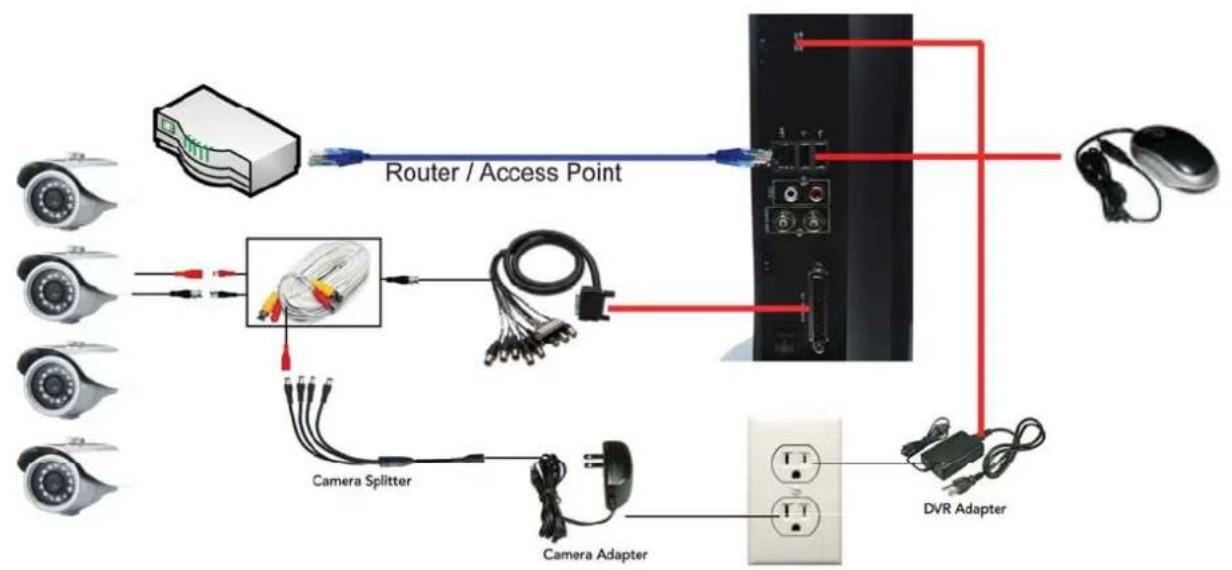
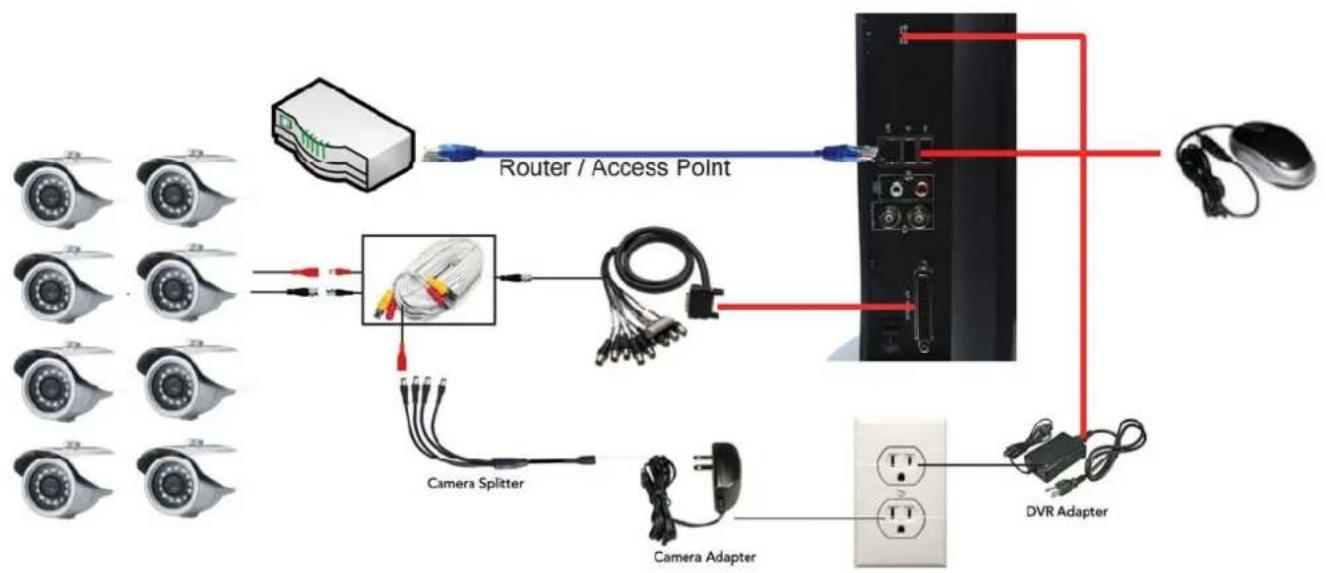
9.5 System connection Configuration
4-CH.
flowchart
graph TD
    A["Camera Splitter"] --> B["Camera Adapter"]
    B --> C["DVR Adapter"]
    C --> D["Router / Access Point"]
    D --> E["Camera Splitter"]
    E --> F["Camera Adapter"]
    F --> G["DVR Adapter"]
    G --> H["Computer"]
    style A fill:#f9f,stroke:#333
    style B fill:#ccf,stroke:#333
    style C fill:#cfc,stroke:#333
    style D fill:#fcc,stroke:#333
    style E fill:#cff,stroke:#333
    style F fill:#ffc,stroke:#333
    style G fill:#fcc,stroke:#333
    style H fill:#ccf,stroke:#333
8-CH
flowchart
graph TD
    A["Security Camera"] --> B["Camera Splitter"]
    B --> C["Camera Adapter"]
    C --> D["DVR Adapter"]
    D --> E["Router / Access Point"]
    E --> F["Monitor"]
    style A fill:#f9f,stroke:#333
    style B fill:#ccf,stroke:#333
    style C fill:#cfc,stroke:#333
    style D fill:#fcc,stroke:#333
    style E fill:#cff,stroke:#333
    style F fill:#ffc,stroke:#333
The material in this document is the intellectual property of our department.
No part of this manual may be repr transmitted, or published in any form or by any means without our department prior written permission.
Our products are under continual improvement and we reserve the right to make changes without notice. But no guarantee is given as to the correctness of its contents.
We do not undertake any responsibility for the harms cause by using our product.
The model of the products in the user's manual only for recognition, but these names also perhaps are belong to other company's registered trademark or the copyright.
The product picture may differ from the actual product, only for your reference. The accessories will probably be different according to the different selling areas. For details of accessories, please refer to your local distributor.
Copyright reserved
o d u c e d, c