
PF21 Extreme - Motherboard ECS - Free user manual and instructions
Find the device manual for free PF21 Extreme ECS in PDF.


| Product Type | Motherboard |
| Brand | ECS |
| Model | PF21 Extreme |
| Form Factor | ATX (305 mm x 244 mm) |
| CPU Socket | LGA775 |
| Supported CPU | Intel Pentium 4 with FSB 1066/800 MHz |
| Chipset | Intel 925XE Northbridge + ICH6R Southbridge |
| Memory | 4 x 240-pin DDR2 DIMM slots, dual-channel, up to 4 GB, DDR2 533/400 |
| Expansion Slots | 1 x PCI Express x16, 2 x PCI Express x1, 3 x PCI |
| Storage Interfaces | ICH6R: 2 x Ultra DMA 100/66, 4 x SATA with RAID 0/1; SiS180: 2 x Ultra DMA 133/100/66, 2 x SATA with RAID 0/1/0+1 |
| Audio | CMI9880 8-channel HD Audio, compliant with Intel Azalia |
| LAN | Marvell 88E8001 Gigabit LAN + Realtek 8100C 10/100 Mbps Fast Ethernet |
| IEEE 1394 | VIA VT6307 controller, 2 ports (1 rear, 1 header) |
| Rear Panel I/O | PS/2 keyboard & mouse, 4 x USB 2.0, 2 x RJ45, serial port (COM1), S/PDIF in/out (optical), audio jacks (line-in/out, mic) |
| Internal I/O | 24-pin ATX power, 4-pin 12V, floppy connector, 2 x IDE, 6 x SATA, 2 x USB 2.0 headers (4 ports), 1394a header, front panel audio, LPT header, etc. |
| BIOS | Award BIOS with 4 Mb Flash ROM, supports Plug and Play, ACPI, DMI |
| Special Features | Extreme Power, Extreme Guardian, Extreme Link, Genius; ECS Top-Hat Flash for BIOS recovery |
| Power Supply Requirements | ATX 12V 2.0, minimum 300 W for fully configured system |
| Maintenance | Clean with a soft dry cloth; avoid liquids. Do not open the motherboard. |
| Safety | Risk of electric shock. Do not expose to moisture. Use only with compatible power supply. |
| Spare Parts / Repairability | Replacement parts not provided. Professional servicing recommended. |
| General Information | Desktop motherboard for Intel Pentium 4 processors, supports Hyper-Threading. Package includes user manual, installation CD, cables, I/O shield, Top-Hat Flash. |
Frequently Asked Questions - PF21 Extreme ECS
User questions about PF21 Extreme ECS
0 question about this device. Answer the ones you know or ask your own.
Ask a new question about this device
Download the instructions for your Motherboard in PDF format for free! Find your manual PF21 Extreme - ECS and take your electronic device back in hand. On this page are published all the documents necessary for the use of your device. PF21 Extreme by ECS.
USER MANUAL PF21 Extreme ECS
The TÜV CERT Certification Body for QM Systems of RWTÜV Systems GmbH
hereby certifies in accordance with TUV CERT procedure that
ELITEGROUP COMPUTER SYSTEMS CO., LTD.
ECS MANUFACTURING (SHENZHEN) CO., LTD. ELITE TECHNOLOGY (SHENZHEN) CO., LTD.
- Im 240, Inc. 1, Pte in Road, Jones, Jones L14
No. 12, Alley 38, Lone 11, Sec. 1, Nai Hu Food, Tsabei, Taiwan 114 No. 20 & No. 26, Free Trade Zone, Shidouiao, Shenzhen City, Guangdong Province, China
has established and applies a quality system for
Design, Manufacturing and Sales of Mainboards.
Personal Computers, Notebooks and Peripheral Cards
An audit was performed, Report No. 2.5-1984/2000
Proof has been furnished that the requirements according to
ISO 9001:2000 / EN ISO 9001:2006 / JIS Q 9001:2010 / ANSI/ASOC Q5001:2010
are fulfilled. The certificate is valid until 27 January 2003
Certificate Registration No. 04100 2009 1325
The company has been certified since 2000
Issue: 04/22/2024


ISO14001 CERTIFICATE
Certificate No.: 061-04-EI-0065-R1-L
We hereby certify that
ECS MANUFACTURING (SHANZHEN) CO., LTD.
by reason of its
Environmental Management System
has been awarded this certificate
ISO14001:1996
The Environmental Management System
applies in the following area
ECS MANUFACTURING (SHANZHEN) CO., LTD.
Seated at: No. 20 & 26 (eigenic 19, 21). Free State Lone, Shatoujiao, Shenzhen City, Guangdong Province, P. R. China.
is engaged in manufacturing of Mother Board and Peripheral Card,
Date of issue: 280 Sept. 2004
Date of issue: 2003 Sept. 2004 Date of session: 27th Sept. 2007
Date of exp Signed by:
④

SHENZHEN SOUTHERN CERTIFICATION CO., LTD.

ELITEGROUP
Table of Contents
CHAPTER 1
Introduction....1-1
Package Check List....1-1
Feature Summary....1-2
Special Features....1-3
Major Components....1-5
Headers and Connectors....1-7
Jumpers....1-13
Rcar Panel....1-14
CHAPTER 2
Installing the CPU & the CPU cooling fan....2-1
Installing Memory Module....2-1
Connecting IDF, Floppy and SATA cable....2-2
Installing Motherboard in a case....2-2
Connecting IDE. Floppy & SATA Device....2-3
Installing Expansion cards....2-3
Connecting the Power supply cable....2-4
Powering up....2-4
CHAPTER 3
Entering the BIOS Setup Menu....3-1
Updating and Recovering the BIOS....3-1
Using AWARD Flash to update your BIOS....3-1
Using ECS Top-Hat Flash to recover your BIOS....3-2
The Main Menu....3-2
Standard CMOS Features....3-3
Advanced BIOS Features....3-4
Advanced Chipset Features....3-7
Integrated Peripherals....3-9
Power Management Setup....3-13
PNP/PCI Configurations....3-15
PC Health Status....3-16
EXTREME

ELITEGROUP
Frequency/Voltage Control....3-17
Load Performance Defaults....3-19
Load Optimized Defaults....3-19
Set Supervisor/User Password....3-20
Save & Exit Setup....3-20
Exit Without Saving....3-20
CHAPTER 4
Software CD Information....4-1
Running the Software CD....4-1
Setup Tab....4-1
Application Tab....4-2
Read Me Tab....4-2
Software Utilities Introduction....4-2
Multi-Language Translations
Legal Notices
EXTREME
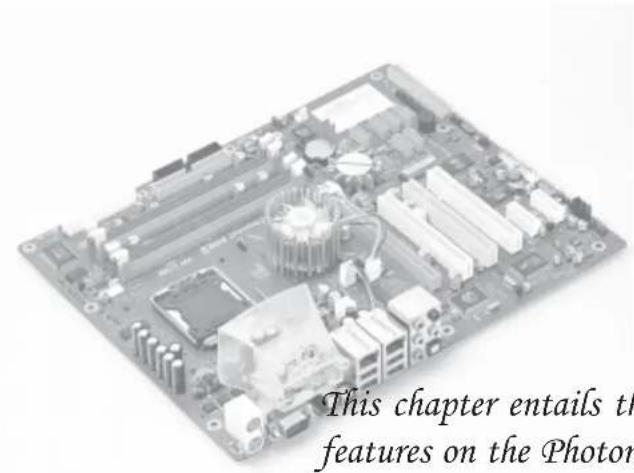
This chapter entails the newest technology and rich features on the Photon Extreme motherboard.
Chapter 1
Reference
1.1 Introduction....1-1
1.2 Package Check List....1-1
1.3 Feature Summary....1-2
1.4 Special Features....1-3
1.5 Major Components....1-5
1.6 Headers and Connectors....1-7
1.7 Jumpers....1-13
1.8 Rear Panel....1-14
1.1 Introduction
Thank you for choosing the ECS PF21 Extreme motherboard.
The PF21 Extreme is the next generation of high performance motherboard designed to support the LGA775 socket Intel Pentium4 Processors.
This motherboard has an ATX form factor that uses a 6-layer printed circuit board and measures 305 mm x 244 mm.
The PI/21 Extreme motherboard is based on the Intel 925XE Northbridge and ICH6R chipsets to set a new benchmark for the best desktop platform solution. Supporting up to 4 GB of system memory with DDR2 533/400 DDR DIMMs, high resolution graphics via PCI Express ports, Dual LAN, USB 2.0, 8-channel audio, Digital S/PDIF in/out, SATA support and RAID function.
1.2 Package Check List
Motherboard User's Guide Installation CD
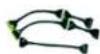
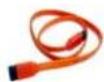
SATA Power Cable

Top Har Flash

I/O Shield
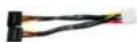
Two Streamlined IDE & FDD Ribbon Cable

Two SATA Cables Cross Over Cable
USB+1394 PCI Bracket & housing


*Accessories are subject to change without prior notice.
1.3 Feature Summary
| CPU | LGA775 Socket for Intel Pentium 4 processorFSB 1066/800MHz (266/200MHz Core Clock)Supports Hyper-Threading Technology |
| Chipset | Intel 925XE & ICH6RNorth Bridge: Intel 925XESouth Bridge: Intel ICH6R |
| Memory | Dual-channel DDR memory architecture4 x 240-pin DDR2 DIMM socket support up to 4 GBSupports DDR2 533/400Supports Non FCC unbuffered 1.8V DDR DIMMs |
| Expansion Slots | 1 x PCI Express x162 x PCI Express x13 x PCI Slots |
| Storage | Supported by ICH6R2 x Ultra DMA100/66 devices4 x SATA devices,- RAID 0 and RAID 1 configurationSupported by SiS180-2 x Ultra DMA133/100/66 devices-2 x SATA devices- RAID 0, RAID 1, RAID 0+1 configuration |
| IEEE 1394a | • VIA VT6307 IEEE1394a controller• Supports 2 x IEEE1394a ports |
| Audio | • CMI9880 8-channel audio CODEC• Compliant with Intel Azalia specification |
| Dual LAN | • Marvel 88E8001 Gigabit LAN Controller• Realtek8100C 10/100 Mbps Fast Ethernet Controller |
| Rear panel I/O | • 1 x PS/2 keyboard connector• 1 x PS/2 mouse connector• 4 x USB ports• 2 x RJ45 LAN connectors• 1 x Serial port (COM)• 1 x Digital SPDIF out• 1 x Digital SPDIF in• Line-out/Line-in/Microphone in connectors |
| BIOS features | • Award BIOS with 4Mb Flash ROM• Supports Plug and Play 1.0A, APM 1.2, Multi Boot, DMI• Supports ACPI revision 1.0B specification |
| Internal I/O | • 1 x 24-pin ATX Power Supply Connector & 4 pin 12 V Connector• 1 x Cloppy connector- supports 360K ~ 2.88M Bytes, 3 Mode FDDs or LS120• 2 x IDE connectors• 6 x Serial ATA connectors• 2 x USB 2.0 headers support additional 4 USB ports• 1 x 1394a header• 1 x SMBus header• 1 x Front panel switch/LED header• 1 x Front panel audio header• 1 x LPT header• 1 x CIJS1 header• 1 x SMII header• CD in header• CPUFAN/NB_PAN/SYSFAN connectors |
| Form Factor | • ATX size• 305mm x 244mm |
1.4 Special Features
Extreme Power Extreme Power

Device plug with USB-like ease!

Uncompromising DVD audio quality!

Upgrade your PC to Server-grade power now!

The best aluminum capacitors empowering!

Slash memory access time!

6-layer PCB!

New generation of I/O interface!
Extreme Guardian Extreme Guardian

One-key boot device selection!

Auto restart after power loss!

Awesome overclocking!

PC protection tool kit!

A 'time machine' to protect and restore files!

Become your own BIOS 'doctor'!

All the USB 2.0 connectivity you'll ever need!

More options for data storage!

Cool operations, cool appearance!

Memory module alert!

More port options!

A cooling channel with a fansink placed on top of the PWM controller!

Eliminate data bigway roadblocks!

Fuzzy logic design for diagnosing PCI slots health!

Industrial-strength LAN power!

Server Class Dual LAN for both Internet & Intranet!

Ultra sound quality!
Extreme Link Extreme Link

Auto-negotiate your 10/ 100M L.1N!
Extreme
Genius Extreme
Genius
[Non-Text]

Add peripherals and consumer electronics devices!

Let your PC as a fileserver!

Color-coding for easy connections!

Clear & Clean!

PCI 2.3 support:

Keep best audio quality!

Flash BIOS from Windows!

Smart LAN!

Let your PC as a fileserver!

Rounded corners for strength and safety!
1.5 Major Components
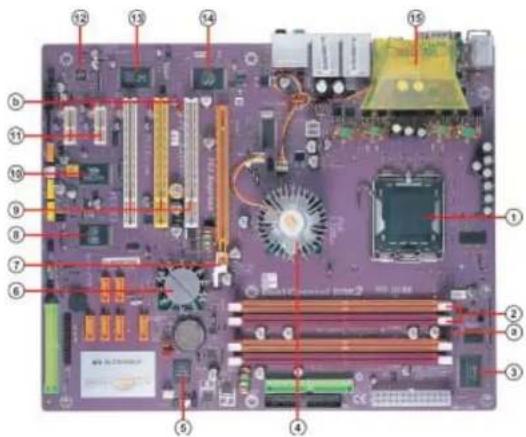
1. CPU socket
LGA775 surface mount, Zero Insertion Force socket for latest Intel Pentium 4 Processors support FSB 1066/800MHz (266/200MHz Core Clock)
2. Dual-channel DDR2 DIMM sockets
These four 240-pin DIMM sockers support up to 4GB system memory using unbuffered DDR2 533/400 DDR DIMMs.
3. Super I/O (83627THF) controller
The Winbond 83627THF Low Pin Counter (LPC) interface provides the commonly used super I/O functionality. The chipset support a high performance floppy disk controller, a multi-mode parallel port, one serial port, the mouse and keyboard interface.
4. Northbridge controller
925XE is a Memory Controller Hub (MCH) designed for use with the Pentium 4 processor in desktop platforms. It also supports PCI Express specification.
5. Flash ROM
This 4Mb ROM contains the programmable BIOS program.
6. Southbridge controller
The Intel ICH6R integrated peripheral controller supports various 1/O functions including four Serial ATA connectors, dual channel Ultra DMA100/66/33 master mode EIDE controller, up to eight USB
2.0 ports, Azalia Audio interface, and PCI 2.3 interface.
7. PCI Express x16 (PCI-E1) slot
This 925XF has one x16 PCI Express slot, which is intended for an external PCI Express graphics card.
8. SiS 180 Serial ATA controller
This motherboard incorporates the high performance SiS 180 IDE RAID controller, which supports RAID 0, RAID 1 and RAID 0+1 configuration.
9. PCI slots
These three 32-bit PCI 2.3 expansion slots support bus master PCI cards like SCSI or LAN cards with 133MB/s maximum throughput.
10. IEEE 1394a controller
The IEEE 1394a controller provides high-speed and flexible PC connectivity to a wide range of peripherals and devices compliant to IEEE 1394a standards. The IEEE 1394a interface allows up to 400Mbps tranfer rates.
11. PCI Express x1 (PCI-E2/PCI-E3) slots
The two PCI Express x1 slots are fully compliant to the PCI Express Base Specification revision 1.0a
12. Audio CODEC
The audio CODEC is compliant with Intel Azalia spec and supports 8-channel High Definition audio.
13. 10/100Mbps LAN Controller
The 10/100Mbps LAN delivers a transfer rates up to 10/100 Mbps.
14. Gigabit LAN controller
The Gigabit LAN controller delivers transfer rates up to 10/100/1000Mbps Ethernet connection. Ideal for handling large amounts of data such as video, audio and voice.
15. Cooling Accelerator
The cooling accelerator supercharges airflow exchange between the chassis interior and exterior, keeping operating temperatures under control.
a. Anti-Burn LED indicator
When this LED is light up, do not remove the memory module from your DIMM slot or else your memory module will be damaged.
b. PCI LED indicator
The PCI LED indicates the PCI slot activity. These LEDs will stop blinking when any add-on card has been installed. Blinking means no add-on card installed or the add-on card was not properly installed.
1.6 Headers and Connectors
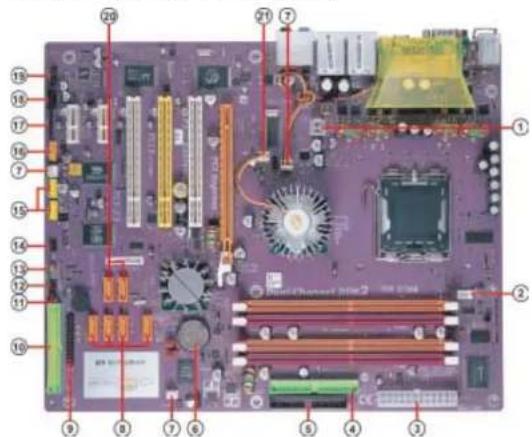
- ATX12V (ATX 12V Power Connector, 4 pin, White)
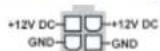
This connector supplies the CPU operation voltage (Vcore). Don't forget to connect the 4-pin ATX 12V connector, otherwise the system cannot boot up.
- CPU_FAN1 (CPU Fan Connector, 4 pin, White)
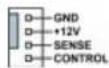
Please note that a proper installation of the CPU cooler is essential to prevent the CPU from running under abnormal condition or damaged by overheating. The fan connector supports the CPU cooling fan of 1.1A\~2.2A (26.4W max.) at +12V.
3. ATX1 (ATX PWR Connector, 24 pin, White)
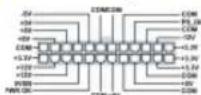
AC power cord should only be connected to your power supply until after ATX power cable and other related devices are firmly connected to the motherboard. Make sure that your ATX12V power supply could provide 8A of 12V and at least 1A on the +5V standby. The minimum recommended power is 300W for a fully-configured system. If not, the system may become unstable or may not even boot up.
4. IDE1 (IDE1 Connector, 40-1 pin, Green)
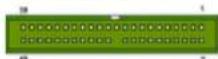
IDE1 is supported by ICH6R South Bridge. Please connect the first hard disk to IDE 1. The streamline IDE cable must be the same side with the Pin 1.
5. FDD1 (Floppy Connector, 34-1 pin, Black)
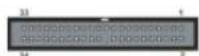
Please connect the floppy drive ribbon cables to FDD. It supports 360K, 12M, 720K, 1.44M and 2.88M bytes floppy disk types.
6. Battery

Danger of explosion if battery is incorrectly replaced. Replace only with the same of equivalent type recommended by the manufacturer.
- SYSFAN1/SYSFAN2/SYSFAN3(System Fan Connectors, 3 pin, White)
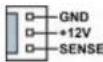
If you installed wrong direction, the chip fan will not work. Sometimes will damage the chip fan.
- SATA1/2/3/4 (Serial ATA Connectors, 7 pin, Orange)
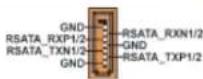
These next generation connectors are delivered by ICH6R South Bridge support the thin Serial ATA cables for Serial ATA hard disks. The current Serial ATA interface allows up to 150MB/s data transfer rate, faster than the standard parallel ATA with 133MB/s (UltraATA 133)
- LPT1 (Onboard LPT Port, 26-1 pin, Black)
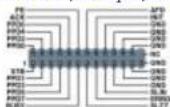
This 25-pin port connects a parallel printer, a scanner, or other devices.
- IDE2 (IDE2 Connector/IDE RAID ATA133 Connector, 40-1 pin, Green)
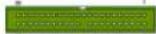
This is supported by SiS180. The streamline IDE cable must be the same side with the Pin 1. This connector supports either RAID 0 or RAID 1 configuration through the onboard SiS180 controller. You can connect two UltraATA 133 hard disks to this connector and set up a disk array configuration. You may also set up the UltraATA 133 hard disks with the Serial ATA hard disks on the Serial ATA RAID connectors to create a multi-RAID configuration.
Note: To install the OS, the CD-ROM must be installed on IDE1. You may as well connect the CD-ROM to IDE2, only after SiS180 driver is installed before you start using it!
- CHS1 (Chassis Intrusion Detect Header, 2 pin, Black)

This header allows users to detect unauthorized intrusion to the case. It will alert users with a warning message when the case is turned on.
- SMI1 (System Management Interrupt Header, 2 pin, Black)
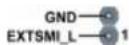
This connector is for use with SMI hardware interrupt power management.
- PANEL1 (Front Panel Switch/LED Header, 10-1 pin)
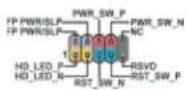
The front panel connector provides a standard set of switch and LED connectors commonly found on ATX or micro-ATX cases.
- IR1 (Infrared Header, 6-1 pin, Black)
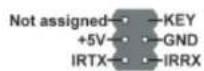
The motherboard supports an infrared (IR1) data port. Infrared ports allow the wireless exchange of information between your computer and similarly equipped devices such as printers, laptops, Personal Digital Assistants (PDAs), and other computers.
- USB3/USB4 (Front USB Headers, 10-1 pin, Yellow)
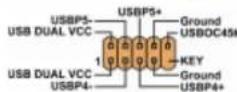
If the USB ports on the rear panel are inadequate, two USB headers are available for additional USB ports. The USB header complies with USB 2.0 specification that supports up to 480 Mbps connection speed. This speed advantage over the conventional 12 Mbps on USB 1.1.
- 1394A2 (IEEE 1394a Header, 10-1 pin, Orange)
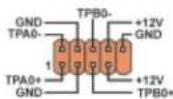
Attach the 10-1 pin 1394 cable plug from the device to this connector. You may also connect a 1394 compliant internal hard disk to this connector.
- SMB1 (SMBus Header, 6-1 pin, Black)
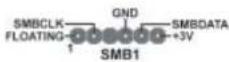
This connector allows you to connect SMBus (System Management Bus) devices. Devices communicate with an SMBus host and/or other SMBus devices using the SMBus interface.
- CDIN1 (CD In Connector, 4 pin, Black)
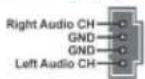
Connect CD-ROM or DVD-ROM audio out to the connector.
- AUDIO1 (Front Panel Audio Header, 10-1 pin, Purple)
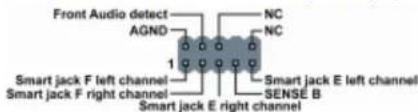
This is an interface for the Intel front panel audio cable that allows convenient connection and control of audio devices.

If your front panel cable is seperated, please connect it to pin1 and pin3 or pin5 and pin7 to activate the MIC function.
- SATA5/6 (Serial ATA RAID Connectors, 7 pin, Orange)
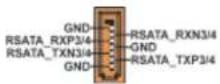
These Serial ATA connectors support SATA hard disks that you may configure as a RAID set. Through the onboard SiS180 RAID controller you may create a RAID 0, RAID 1, RAID 0+1, or multiRAID configuration together with the RAID ATA133 connector.
- NBFAN1 (Northbridge Fan Connector, 3 pin, White)
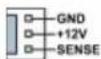
If you installed wrong direction, the chip fan will not work. Sometimes will damage the chip fan.
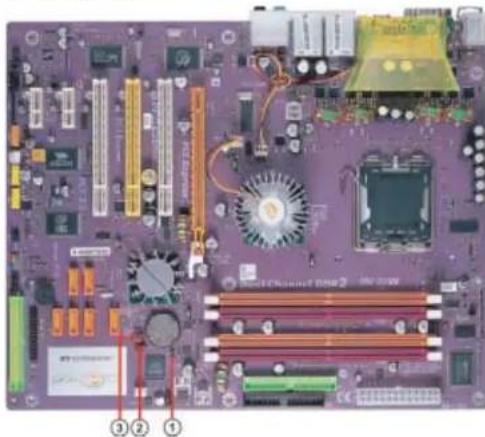
1.7 Jumpers
natural_image
Close-up of a purple computer motherboard with visible slots, chips, and connectors (no readable text or symbols)- BIOS_WP1 (Flash Protect)
This jumper enables you to prevent the BIOS from being updated
(flashed).
Open: Disable (Default)
Short: Enable
- JP1 (Clear CMOS)
This jumper allows you to clear the Real Time Clock (RTC) RAM in
CMOS. You can clear the CMOS memory of date, time, and system
setup parameters by crasing the CMOS RAM data. Before
clearing the CMOS data, make sure to turn the system off.
- JP10 (Clear RTC) (Optional)
This jumper allows you to clear the Real Time Clock (RTC) RAM in
CMOS.
1.8 Rear Panel
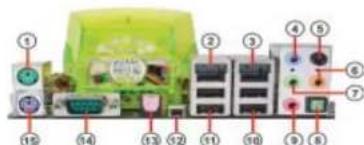
- PS/2 mouse port
This 6-pin connector is for connecting PS/2 mouse.
- RJ-45 port
This port allows connection to a Local Area Network (LAN)
through a network hub. It supports up to 10/100Mbps transfer rate.
- RJ-45 port
This port allows connection to a Local Area Network (LAN)
through a network hub. It supports up to Gigabit tranfer rate.
- Side Surround Jack *
This jack connects a tape player or other audio sources. In 8-channel
mode, the function of this jack is Side Surround speaker out.
- Back Surround Jack
This jack connects a tape player or other audio sources. In 8-channel
mode, the function of this jack is Back-Surround speaker out.
1-14
- Center/Bass Jack *
This jack connects a tape player or other audio sources. In 8-channel
mode, the function of this jack is Center/Bass speaker out.
- Front Out Jack *
This jack connects a tape player or other audio sources. In 8 channel
mode, the function of this jack is l'ront speaker out.
- Optical S/PDIF output port
This jack connects to external digital audio output devices.
- Microphone in Jack *
The function of the jack is microphone input.
10/11. USB 2.0 ports 3/4
These Universal Serial Bus (USB) ports are available for connecting
USB 2.0 devices.
- 1394_A1 port
Use the 1394a port to connect any Firewire device.
- S/PDIF input port
This jack connects to external digital audio input devices.
- Serial port
This 9 pin COM1 port is for serial devices.
- PS/2 keyboard port
This 6-pin connector is for connecting PS/2 keyboard.
The audio ports with a * sign can be changed to audio input or audio output by changing the driver utility setting.
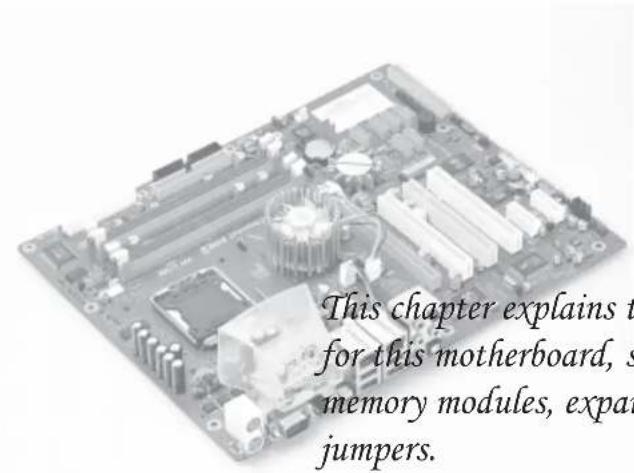
This chapter explains the hardware setup procedure for this motherboard, such as installing the CPU, memory modules, expansion cards, as well as the jumpers.
Reference
2.1 Installing the CPU & the CPU cooling fan.....2-1
2.2 Installing Memory Module....2-1
2.3 Connecting IDE, Floppy and SATA cable......2-2
2.4 Installing Motherboard in a case....2-2
2.5 Connecting IDE, Floppy & SATA Device......2-3
2.6 Installing Expansion cards....2-3
2.7 Connecting the Power supply cable....2-4
2.8 Powering up....2-4
2.1 Installing the CPU & the CPU cooling fan
A. Unload the cap
- Use thumb & forefinger to hold the lifting tab of the cap.
- Lift the cap up and remove the cap completely from the socket.
B. Open the load plate
- Use thumb & forefinger to hold the hook of the lever, pushing down and pulling aside unlock it.
- Lift up the lever.
- Use thumb to open the load plate. Be careful not to touch the contacts.
C. Install the CPU on the socket
- Orientate CPU package to the socket. Make sure you match the triangle marker to the pin 1 location.
D. Close the load plate
- Slightly push down the load plate onto the tongue side, and hook the lever.
- CPU is locked completely.
E. Apply thermal grease on top of the CPU.
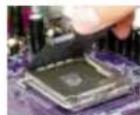
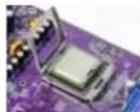
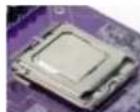
F. Fasten the cooling fan supporting base onto the CPU socket on the motherboard.
G. Make sure the CPU fan is plugged to the CPU fan connector. Please refer to the CPU cooling fan user's manual for more detailed installation procedure.
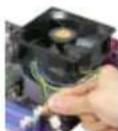

To achieve better airflow rates and heat dissipation, we suggest that you use a high quality fan with 3800 rpm at least. CPU fan and heatsink installation procedures may vary with the type of CPU fan/heatsink supplied. The form and size of fan/heatsink may also vary.
2.2 Installing Memory Module
- Push the latches on each side of the DIMM slot down.
- Check that the cutouts on the DIMM module edge connector match the notches in the DIMM slot.
- Install the DIMM module into the slot and press it firmly down until it seats correctly. The slot latches are levered upwards and latch on to the edges of the DIMM.
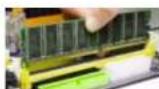
Table A: Recommended dual-channel DDR2 configurations
| DIMM1 DIMM2 DIMM3 DIMM4 Dual Channel | ||||
| √ | √ | √ | ||
| √ | √ | √ | ||
| √ | √ | √ | √ | √ |
Notes: When using dual channel mode, install only same (same density, DRAM technology and DRAM bus width) module for each dual channel. Memory module install into one or any four sockets will function in single channel mode.

925XL chipset can only support 256-Mb, 512-Mb and 1-Gb DDR technologies for x8 and x16 device, NOT support 128-Mb DDR technology. That is, 256 MB Double Side Memory Module & 128 MB Single Side Memory Module are NOT support.
2.3 Connecting IDE, Floppy and SATA cable
-
Connect the IDF/Floppy disk ribbon cable. Make sure the side of the cable with the red stripe on it is plugged into pin 1 side of the disk connector.
-
Connect the SATA cable to the SATA hard drive or the connector on the motherboard.
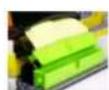


IDE connector FDD connector SATA connector
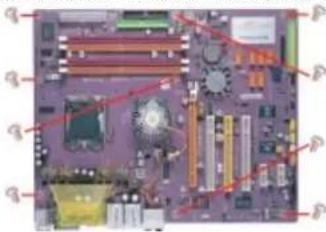
2.4 Installing Motherboard in a case
- Place the motherboard over the mounting brackets.
- Secure the motherboard with screws where appropriate.
natural_image
Close-up of a purple computer motherboard with visible CPU socket, RAM slots, and indicator lights (no text or symbols)- Double check to make sure that the underside of the motherboard is not touching the case or else shorting may occur and make sure that the slots and I/O connectors line up with the holes on the back of the case.
- Case LED leads are labeled, connect the leads to the panel header on the motherboard.
2.5 Connecting IDE, Floppy & SATA Device
- If installing two IDE devices on the same ribbon cable, one device must be set to "master" and the other to "slave." Check the accompanying documents for the master/slave settings of IDE Devices, i.e.: the hard disk and CD-ROM drives and then set their jumper caps accordingly.
- Mount the drives in the case.
- Connect the floppy disk ribbon cable and power cable.
- Connect the IDE ribbon cable and power cable.
IDE Hard Disk
Floppy Disk Device
SATA Hard Disk
2.6 Installing Expansion cards
- Remove the slot covers from the case where you will be installing the expansion cards.
- Install your graphics card in the proper slot if your motherboard does not have integrated graphics.
- Press the card firmly into the slot
- Secure the card with the screw from step 1.
- Install other expansion cards using the same procedure.
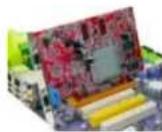
Graphics card
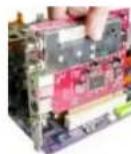
PCI card
2.7 Connecting the Power supply cable
The A1X power connector is keyed for proper insertion. There are two connectors for 4-pin and 24-pin A1X power cable. The plastic clip on the power connector should lock over the plastic tab on the motherboard power connector.

Connecting 20/24-pin power cable
Users please note that the 20-pin and 24-pin power cables can both be connected to the ATX1 connector. With the 20-pin power cable, just align the 20 pin power cable with the pin 1 of the ATX1 connector. However, using 20-pin power cable may cause the system to become unbootable or unstable because of insufficient electricity.
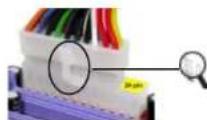
Users please note that when installing 20-pin power cable, the latch of power cable clings to the left side of the A1TX1 connector latch.
20-pin power cable
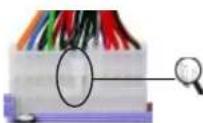
24-pin power cable
Users please note that when installing 24-pin power cable, the latch of power cable connector clings to the right side of the ATX1 connector latch.
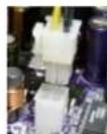
Users please note that when installing 4-pin power cable, the latches of power cable and the ATX12 match perfectly.
4-pin ATX power connector
2.9 Powering up
Turn on the power to the monitor and the computer. If necessary, format your hard disk drive and install an operating system.
In this chapter, you will learn how to adjust the BIOS (Basic Input and Output System). It provides information on the system's configuration status and options to setup system parameters.
Reference
3.1 Entering the BIOS Setup Menu....3-1
3.2 Updating and Recovering the BIOS....3-1
3.2-1 Using AWARD Flash to update your BIOS....3-1
3.2-2 Using ECS Top-Hat Flash to recover your BIOS..3-2
3.3 The Main Menu....3-2
3.3-1 Standard CMOS Features....3-3
3.3-2 Advanced BIOS Features....3-4
3.3-3 Advanced Chipset Features....3-7
3.3-4 Integrated Peripherals....3-9
3.3-5 Power Management Setup....3-13
3.3-6 PNP/PCI Configurations....3-15
3.3-7 PC Health Status....3-16
3.3-8 Frequency/Voltage Control....3-17
3.3-9 Load Performance Defaults....3-19
3.3-10 Load Optimized Defaults....3-19
3.3-11 Set Supervisor/User Password....3-20
3.3-12 Save & Exit Setup....3-20
3.3-13 Exit Without Saving....3-20
3.1 Entering the BIOS Setup Menu
When you power on the system, BIOS enters the Power-On Self-Test (POST) routines. POST is a series of built-in diagnostics performed by the BIOS. After the POST routines are completed, the following message appears:
Press DEL to enter SETUP
Pressing the delete key accesses the BIOS Setup Utility:
Phoenix-AwardBIOS CMOS Setup Utility:
| Standard CMOS FeaturesAdvanced BIOS FeaturesAdvanced Chipset FeaturesIntegrated PeripheralsPower Mangement SetupPnP/PCI ConfigurationsPC Health Status | Frequency/Voltage ControlLoad Performance DefaultsLoad Optimized DefaultsSet Supervisor PasswordSet User PasswordSave & Exit SetupExit Without Saving |
| Esc: Quit P9: Menu in BIOSF10: Save & Exit Setup | 1↓→← : Select Item |
| Time, Date , Herd Desk Type... | |
3.2 Updating and Recovering the BIOS
A standard configuration has already been set in the Setup Utility. However, if you encounter a configuration error or you need a better performance. You could attempt to update or recover your system BIOS.
3.2-1 Using AWARD Flash to update your BIOS
- If your motherboard has an item called Firmware Write Protect in Advanced BIOS features, disable it. (Firmware Write Protect prevents BIOS from being overwritten).
- Create a bootable system disk. (Refer to Windows online help for information on creating a bootable system disk.)
- Use the Award Flash Utility from the ECS support CD and download the last BIOS file for this motherboard from ECS web site (www.ecs.com.tw). Copy these files to the system diskette you created in step 2.
- Turn off your computer and insert the system diskette in your computer's diskette drive. (You might need to run the Setup Utility and change the boot priority items on the Advanced BIOS Features Setup page, to force your computer to boot from the floppy diskette drive first.)
- At the A:\ prompt, type the Flash Utility program name and press
. You see a screen similar to the following:
- Type the filename of the new BIOS in the "File Name to Program" text box. Follow the onscreen directions to update the motherboard BIOS.
- When the installation is complete, remove the floppy diskette from the diskette drive and restart your computer. If your motherboard has a Flash BIOS jumper, reset the jumper to protect the newly installed BIOS from being overwritten.
3.2-2 Using ECS Top-Hat Flash to recover your BIOS
The ECS Top-Hat Flash kit allow you to restore BIOS from ECS website (www.ces.com.tw) or ECS support CD, in case you current BIOS on the motherboard might corrupt. Please follow the procedures below to recover your BIOS.
- Please find the BIOS ROM located on your motherboard. (Figure A)
- Find the cut edge corner on the Flash ROM. (Figure B)
- Find the cure edge corner on the Top-Hat Flash. (Figure C)
- Orient the cur edge Top-Har Flash to BIOS ROM's and press the flash ROM into the lower socket of Top Hat Flash. (Figure D & E)
- Then, power on your computer.


Figure A Figure B Figure C Figure D Figure E
- After the computer boots up, remove the Top-Hat Flash.
- Download the BIOS file from ECS web site (www.ces.com.tw) or ECS support CD and use Flash Utility to reflash the original Flash ROM.
- You can choose either AWARD Flash utility in DOS mode or "ECSonie" in Windows to reflash the BIOS.
3.3 The Main Menu
The main menu of the Setup Utility displays a list of the options that are available. A highlight indicates which option is currently selected. Use the cursor arrow keys to move the highlight to other options. When an option is highlighted, execute the option by pressing
3.3-1 Standard CMOS Features
This option displays basic information about your system.
Phoenix-AwardBIOS CMOS Setup Utility
| Date (mmoddy)Mon. May 17 2004Time (Frmms)9 : 33 : 26 | Item Help |
| Menu LevelChange the day, month,year and century | |
| IDE Channel 0 MasterIDE Channel 0 SlaveIDE Channel 1 MasterIDE Channel 1 SlaveDrive A [1.44M, 3.5 in.]Floppy 3 Mode Support [Disabled]Video [EGA/VGA]Hall On [AI Errors]Base Memory 840KExtended Memory 6653KTotal Memory 1824K |
---: Move Enter: Select +/PU/PD:Value F10:Save ESC:Exit F1: General Help
F6:Previous Values
F6:Fail-Sale Defaults
F7:Optimized Defaults
Date and Time
The Date and Time items show the current date and time on the computer. If you are running a Windows OS, these items are automatically updated whenever you make changes to the Windows Date and Time Properties utility.
▶ IDE Devices [None]
Your computer has two IDE channels (Primary and Secondary) and each channel can be installed with one or two devices (Master and Slave). Use these items to configure each device on the IDE channel.
Press
Phoenix AwardBIOS CMOS Setup Utility
IDE Channel 0 Slave
| IDE HDD Auto-Detection [Press Enter] | Item Help |
| IDE Channel 0 Slavs [Auto]Access Mode [Auto]Capacity 0MBCylinder 0Head 0Preamp 0Landing Zone 0Sector 0 | Menu Level ▶▶To auto detect theHDD's size, head... on this channel |
↑↓→→:Move Error Select +/-PU/PD:Value F10:Save ESC:Exit F1:General Help
E5:Previous Values E8:Fail Safe Defaults E7:Optimized Defaults
IDE HDD Auto-Detection
Press
Note: If you are setting up a new hard disk drive that supports LBA mode, more than one line will appear in the parameter box. Choose that lists LBA for an LBA drive.
IDE Channel 0/1 Master/Slave
Leave this item at Auto to enable the system to automatically detect and configure IDE devices on the channel. If it fails to find a device, change the value to Manual and then manually configure the drive by entering the characteristics of the drive in the items described below.
Note: Before attempting to configure a hard disk drive, ensure that you have the configuration information supplied by the manufacturer of your hard drive. Incorrect settings can result in your system not recognizing the installed hard disk.
Access Mode
This item defines ways that can be used to access IDE hard disks such as LBA (Large Block Addressing). Leave this value at Auto and the system will automatically decide the fastest way to access the hard disk drive.
Press
Drive A [1.44M, 3.5in.]
These items define the characteristics of any diskette drive attached to the system. You can connect one or two diskette drives.
Floppy 3 Modc Support [Disabled]
Floppy 3 mode refers to a 3.5-inch diskette with a capacity of 1.2 MB. Floppy 3 mode is sometimes used in Japan.
Video [EGA/VGA]
Thsi item defines the video mode of the system. This motherboard has a built-in VGA graphics system; you must leave this item at the default value.
Halt On [All Errors]
This item defines the operation of the system POST (Power On Self Test) routine. You can use this item to select which types of errors in the POST are sufficient to halt the system.
Base Memory, Extended Memory and Total Memory
These items are automatically detected by the system at start up time. These are display-only fields. You cannot make changes to these fields.
3.3-2 Advanced BIOS Features
This option defines advanced information about your system. Phoenix AwardBIOS CMOS Setup Utility Advanced BIOS Features
![▶CPU Feature [Press Enter] ▶Hard Disk Boot Priority [Press Enter] CPU L3 Cache [Enabled] Hyper-Threading Technology [Enabled] Quick Power On Salt Test [Enabled] First Boot Device (Floppy) Second Boot Device [Hard Disk] Third Boot Device [OSROM] Boot Other Device [Enabled] Boot Up Floppy Seek [Disabled] Boot Up NumLock Status [On] Gate AOD Option [Fast] Typematic Rate Setting [Disabled] X Typematic Rate [Chats/Sec0 6] X Typematic Delay (Max) 250 Security Option [Setup] APIC Mode [Enabled]](/content/2026/06/1169262/images/d4cc4c651a615769a4df0f728839c547066267ad8eb44139282c2bf1f0993c75.jpg)
1↓→←: Move Enter: Select +/-PU/PD:Value F10:Save ESC:Exit F1: General Help F5:Previous Values F6:Fail-Sale Defaults F7:Optimized Defaults
▶CPU Feature (Press Enter)
Scroll to this item and press
Phoenix AwardBIOS CMOS Setup Utility
CPU Feature
| Delay Prior to Thermal [15 Min]Thermal Management [Thermal Monitor 1]TM2 Bus Ratio (0X)TM2 Bus VID (3.6375V)Limit CFUID MaxVal [Disabled] | Item Help |
| Menu: Local ▶▶ |
↑↓→•: Move Enter: Select -U-PUPO:Value F10:Save ESC:Exit F1: General Help
F5:Previous Values F6:Fail Solo Defaults F7:Optimized Defaults
Delay Prior to Thermal [16 Min]
Enables you to set the delay time before the CPU enters auto thermal mode.
Thermal Management [Thermal Monitor 1]
This item sets CPU's thermal control rule to protect CPU from overheat. This feature is only available when CPU supports Thermal Monitor 2.
TM2 Bus Ratio [0 X]
This item helps you to set the frequency (bus ratio) of the throttled performance that will be initiated when the on die sensor goes from not hot to hot. You may set the bus ration number from 0 to 255.
TM2 Bus VID [0.8375V]
This item helps you to set the voltage of the throttled performance that will be initiated when the on die sensor goes from not hot to hot.
Limit CPUID MaxVal [Disabled]
This item limits the CPUID maximum value. Enable this item to install WinNT. Leave this item at the default value for other OS.
Press
▶ Hard Disk Boot Priority (Press Enter)
Scroll to this item and press
Phoenix-AwardBIOG CMOS Setup Utility
Hard Disk Boot Priority
| 1. Pd Master:2. Pd Slave:3. Soc Master:4. Soc Slave:5. USHDDD0:6. USHDDD1:7. USHDDD2:8. Backels Add-in Cards | Item Help |
| Menu Level ▶▶Use < ↑ > ◀< → to select a device, than press <> to move it up, or <> to move it down the list. Press <> to exit this menu. |
↑↓→← Move PUPD+Exchange Priority F10 Save ESC Exit
F5.Previous Values F6.Fail-Safe Defaults F7.Optimized Defaults
CPU 1.3 Cache [Enabled]
Some high-end processors support L3. If the CPU do support L3, you may set this item to enable or disable. Leave this item at the default value for better performance.
Hyper-Threading Technology [Enabled]
This item is only available when the chipset supports Hyper-Threading and you are using a Hyper-Threading CPU.
Quick Power On Self Test [Enabled]
Enable this item to shorten the power on testing (POST) and have your system start up faster. You might like to enable this item after you are confident that your system hardware is operating smoothly.
First/Second/Third Boot Device [Floppy/Hard Disk/CDROM]
Use these three items to select the priority and order of the devices that your system searches for an operating system at start-up time.
Boot Other Device [Enabled]
When enabled, the system searches all other possible locations for an operating system if it fails to find one in the devices specified under the First, Second, and Third boot devices.
Boot Up Floppy Seek [Disabled]
If this item is enabled, it checks the size of the floppy disk drives at start-up time. You don't need to enable this item unless you have a legacy diskete drive with 360K capacity.
Boot Up NumLock Status [On]
This item defines if the keyboard Num Lock key is active when your system is started.
Gate A20 Option [Fast]
This item defines how the system handles legacy software that was written for an earlier generation of processors. Leave this item at the default value.
Typematic Rate Setting [Disabled]
If this item is enabled, you can use the following two items to set the typematic rate and the typematic delay settings for your keyboard.
- Typematic Rate (Chars/Sec): Use this item to define how many characters per second are generated by a held-down key.
- Typematic Delay (Msec): Use this item to define how many milliseconds must elapse before a held-down key begins generating repeat characters
Security Option [Setup]
If you have installed password protection, this item defines if the password is required at system start up, or if it is only required when a user tries to enter the Setup Utility.
APIC Mode [Enabled]
This item allows you to enable or disable the APIC (Advanced Programmable Interrupt Controller) mode. APIC provides symmetric multi-processing (SMP) for systems, allowing support for up to 60 processors.
OS Select For DRAM > 64MB [Non-OS2]
This item is only required if you have installed more than 64 MB of memory and you are running the OS/2 operating system. Otherwise, leave this item at the default.
HDD S.M.A.R.T Capability [Disabled]
The S.M.A.R.T. (Self-Monitoring, Analysis, and Reporting Technology) system is a diagnostics technology that monitors and predicts device performance S.M.A.R.T. software resides on both the disk drive and the host computer.
The disk drive software monitors the internal performance of the motors, media, heads and electronics of the drive. The host software monitors the overall reliability status of the drive. If a device failure is predicted, the host software, through the Client WORKS S.M.A.R.T applet, warns the user of the impending condition and advises appropriate action to protect the data.
Report No FDD For WIN 95 [Yes]
Set this item to the default if you are running a system with no floppy drive and using Windows 95; this ensures compatibility with the Windows 95 logo certification.
Full Screen LOGO Show [Enabled]
When enabled, this will show a full screen company logo on the boot up screen. Select disabled when you want to show POST messages during boot up.
Small Logo (EPA) Show [Disabled]
Enables or disables the display of the EPA logo during boot.
3.3-3 Advanced Chipset Features
These items define critical timing parameters of the mainboard. You should leave the items on this page at their default values unless you are very familiar with the technical specifications of your system hardware. If you change the values incorrectly, this may cause fatal errors or instability into your system.
Phoenix-AwardBIOS CMOS Setup Utility Advanced Chipset Features
| DRAM Timing Selectable [By SPD]CAS Latency Time [Auto]DRAM RASE to CASB Delay [Auto]DRAM RASE Precharge [Auto]Precharge Delay (RAS) [auto]System Memory Frequency [Auto]System BIOS Cacheable [Disabled]Video BIOS Cacheable [Disabled]PCI Express Root Port Func [Press Enter]DDR Voltage [1.80V]DRAM Data Integrity Mode [Auto] | Item Help |
| Mono Level ▶▶ |
↑↓→---: Move Enter: Select +/-PU/PD/Value F10:Save ESC:Exit F1: General Help F5:Previous Values F6:Fail-Sale Defaults F7:Optimized Defaults
DRAM Timing Selectable [By SPD]
The value in this field depends on performance parameters of the installed memory chips (DRAM). Do not change the value from the factory setting unless you install new memory that has a different performance rating than the original DRAMs.
CAS Latency Time [Auto]
When synchronous DRAM is installed, the number of clock cycles of CAS latency depends on the DRAM timing. Do not reset this field from the default value specified by the system designer.
DRAM RAS# to CAS# Delay |Auto|
This field lets you insert a timing delay between the CAS and RAS strobe signals, used when DRAM is written to, read from, or refreshed. Disabled gives faster performance; and Enabled gives more stable performance.
DRAM RAS# Precharge |Auto|
Select the number of CPU clocks allocated for the Row Address Strobe (RAS#) signal to accumulate its charge before the DRAM is refreshed. If insufficient time is allowed, refresh may be incomplete and data lost.
Precharge Delay (tRAS) [Auto]
The precharge time is the number of cycles it takes for DRAM to accumulate its charge before refresh.
System Memory Frequency |Auto|
You can adjust the system memory frequency to enable the best performance for the system.
System BIOS Cacheable [Disabled]
This item allows the system to be cached in memory for faster execution. Enable this item for better performance.
Video BIOS Cacheable [Disabled]
This item allows the video BIOS to be cached in memory for faster execution. Enable these items for better performance.
▶ PCI Express Root Port Func (Press Enter)
Scroll to this item and press
Phoenix-AwardBIOS CMOS Setup Utility
PCI Express Root Port Funco
| PCI Express Port 1 [Auto]PCI Express Port 2 [Auto] | Item Help |
| Menu Level ▶▶ |
↑↓---:Move PU/PD+/-Change Priority F10.Save ESC:Exit F5:Previous Values F6:Fail-Sata Defaults F7:Optimized Defaults
PCI Express Port 1\~2 [Auto]
These items enable PCI transmission to a higher level.
Press
DDR Voltage [1.80V]
This item allows you to set the DDR SDRAM operating voltage.
DRAM Data Integrity Mode [Auto]
This item enables or disables the ECC (Error Correction Code) error checking on the DRAM memory.
3.3-4 Integrated Peripherals
These options display items that define the operation of peripheral components on the system's input/output ports.
Phoenix-AwardBIOS CMOS Setup Utility Integrated Peripherals
| OnChip IDE Device [Press Enter]OneCore Device [Press Enter]SuperIO Device [Press Enter] | Item Help |
| Menu Level ▶▶ |
| | ← : Move Enter: Select +/PU/PD:Value F10:Save ESC:Exit F1: General Help F5:Previous Values F6:Fail Safe Defaults F7:Optimized Defaults
▶ OnChip IDE Device (Press Enter)
Scroll to this item and press
Phoenix-AwardBIOS CMOS Setup Utility OnChip IDE Device
| IDE IDD Block Mode [Enabled]ATA 60100 Galvo Mag [Enabled]IDE DMA transfer access [Enloaded]On-Chip Primary PCI IDE [Enabled]IDE Primary Master PIO [Auto]IDE Primary Slave PIO [Auto]IDE Primary Master UDMA [Auto]IDE Primary Slave UDMA [Auto]On-Chip Secondary PCI IDE [Enabled]IDE Secondary Master PIO [Auto]IDE Secondary Slave PIO [Auto]IDE Secondary Master UDMA [Auto]IDE Secondary Slave UDMA [Auto]*** On Chip Serial ATA Setting ***On-Chip Serial ATA [Disabled]PATA IDE Mode [Primary]SATA Port P1, P3 is Secondary | Item Help |
| Menu Level ▶▶If your IDE hard drive supports block mode select Enabling for automatic detector of the optimal number of block readwrites per sector the drive can support |
↑↓→← : Mava Enter: Select ←/PUPD/Value F10-Save ESC-Exr F1: General Help F5: Previous Values F6: Fail-Sale Defaults F7: Optimized Defaults
IDE HDD Block Mode [Enabled]
Enable this field if your IDE hard drive supports block mode. Block mode enables BIOS to automatically detect the optimal number of block read and writes per sector that the drive can support and improves the speed of access to IDE devices.
ATA 66/100 Cable Msg |Enabled|
This item enables or disables the display of the ATA 66/100 Cable MSG.
IDE DMA transfer access [Enabled]
This item allows you to enabled the transfer access of the IDE DMA.
On-Chip Primary/Secondary PCI IDE [Enabled]
The integrated peripheral controller contains an IDE interface with support for two IDE channels. Select Enabled to activate each channel separately.
IDE Primary/Secondary Master/Slave PIO [Auto]
Each IDE channel supports a master device and a slave device. These four items let you assign which kind of PIO (Programmed Input/Output) is used by IDE devices. Choose Auto to let the system auto detect which PIO mode is best, or select a PIO mode from 0-4.
IDE Primary/Secondary Master/Slave UDMA [Auto]
Each IDE channel supports a master device and a slave device. This motherboard supports UltraDMA technology, which provides faster access to IDE devices.
If you install a device that supports UltraDMA, change the appropriate item on this list to Auto. You may have to install the UltraDMA driver supplied with this motherboard in order to use an UltraDMA device.
On-Chip Serial ATA [Disabled]
When set to Disabled, then disabled SATA controller; when set to Auto, then will be automatically arranged by BIOS; when set to Combined Mode, then PATA and SATA are combined. Maximum of 2 IDE drives in each channel. When set to Enhanced Mode, then enable both SATA and PATA. Maximum of 6 IDE drives are supported. When set to SATA only, then SATA is operating in legacy mode.
PATA IDE Mode [Primary]
This item is used to set the PATA IDE mode. When set to Primary, P1 and P3 are
Secondary; on the other hand, when set to Secondary, P0 and P2 are Primary.
Press
▶ Onboard Device (Press Enter)
Scroll to this item and press
Phoenix-AwardBIOS CMOS Setup Utility Orboard Device
| USB Controller (Enabled) | Item Help |
| USB 2.0 Controller (Enabled) | |
| USB Keyboard Support (Enabled) | |
| USB Mouse Support (Enabled) | |
| Avatar/ACS7 Audio SE(sci [A/c]) | |
| Orboard LAN Device (Enabled) | |
| Orboard LAN Boot ROM (Disabled) | |
| Orboard SATA Device (Enabled) | |
| Orboard 1994 Device (Enabled) | |
| Orboard GigaLAN Device (Enabled) | |
| Orbors OigaLAN Boot ROM (Disabled) |
↑↓→←: Move Enter: Select +/PU/PD:Value F10:Save ESC:Exit F1: General Help F5:Previous Values F6:Fail Safe Defaults F7:Optimized Defaults
USB Controller | Enabled|
Enable this item if you plan to use the Universal Serial Bus ports on this motherboard.
USB 2.0 Controller |Enabled|
Enable this item if want to use the USB 2.0 controller.
USB Keyboard Support [Enabled]
Enable this item if you plan to use a keyboard connected through the USB port in a legacy operating system (such as DOS) that does not support Plug and Play.
USB Mouse Support [Enabled]
Enable this item if you plan to use a USB mouse.
Azalia/AC97 Audio Select [Auto]
Enables and disables the onboard audio chip. Disable this item if you are going to install a PCI audio add-on card.
Onboard LAN Device [Enabled]
Enables and disables the onboard LAN.
Onboard LAN Boot ROM [Disabled]
Use this item to enable and disable the booting from the onboard LAN or a network add-in card with a remote boot ROM installed.
Onboard SATA Device [Enabled]
Enable this item if you plan to use the serial ATA device.
Onboard 1394 Device | Enabled!
Enable this item if you plan to use the 1394 device.
Onboard GigaLAN Device [Enabled]
This option allows you enable or disable the onboard GigaLan device.
Onboard GigaLAN Boot ROM [Enabled]
Use this item to enable and disable the booting from the onboard LAN or a network add-in card with a remote boot ROM installed.
Press
▶ SuperIO Device (Press Enter)
Scroll to this item and press
Phoenix AwardBIOS CMOS Setup Utility
SuperIO Device
| POWER ON Function (SI) [Hot KEY]KB Power ON Password (SI) [Enter]Hot Key Power ON (SI) [Cir-F12]Onboard PDC Controller [Enabled]Onshore Serial Port [388/IRG4]UART 2 Mode Controller [Disabled]UART 2 Select [Normal]RxD, ToD Active [II, Lo]IIT Transmission Delay [Enabled]UFC Duplex Mode [Hall]Use Iit Pins [H, Rs210]Onshore Parallel Port [378/IRG7]Parallel Port Mode [SPP]ECP Mode Use DMA [3] | Item Help |
| Menu Level ▶▶ |
- — Move Enter Select vHPUPD:Value F10:Save ESC:Exit F1: General Help F5:Previous Values F6:Fail-Sale Defaults F7:Optimized Defaults
POWER ON Function (S3) [Hot KEY]
This feature allows you to set the method by which your system can be turned on.
KB Power ON Password (S3) [Enter]
When the POWER ON Function is set to Password, use this item to set the password.
Hot Key Poewr ON (S3) [Ctrl-F12]
When the POWER ON Function is set to Hot KEY, use this item to set the hot key combination that turns on the system.
Onboard FDC Controller [Enabled]
Select Enabled if your system has a floppy disk controller (FDC) installed on the system board and you wish to use it. If you install an add-in FDC or the system has no floppy drive, select Disabled in this field.
Onboard Serial Port 1 [3F8/IRO4]
This option is used to assign the I/O address and interrupt request (IRQ) for onboard serial port 1 (COM1).
UART 2 Mode Controller [Disabled]
When enabled, this item activates the onboard infrared feature and sets the second serial UART to support the infrared module connector on the mainboard. Enabling this field disables the onboard COM2 connector.
UART 2 Select [Normal]
This field is available if the Onboard Serial Port 2 field is set to any option but "Disabled." UART Mode Select enables you to select the infrared communication protocol—Normal, IrDA, ASKIR or SCR
The UART mode setting depends on which type of infrared module is used in the system. When set to "SCR," "ASKIR" or "rIDA," the UART mode is used to support the infrared module connected on the mainboard. If this option is not set to "Normal," a device connected to the COM2 port will no longer work.
RxD, TxD Active [Hi, Lo]
This feature enables you to set the IR reception/transmission polarity as High or Low.
IR Transmission Delay [Enabled]
This field enables you to set the whether the IR transmission rate will be delayed while converting to receiving mode.
UR2 Duplex Mode [Half]
This field is available when UART 2 Mode is set to either ASKIR or IrDA. This item enables you to determine the infrared function of the onboard infrared chip. The options are Full and Half (default).
Full-duplex means that you can transmit and send information simultaneously. Half-duplex is the transmission of data in both directions, but only one direction at a time.
Use IR Pins (IR-Rx2Tx2)
Please consult your IR peripheral documentation to select the correct setting of the TxD and RxD signals.
Onboard Parallel Port (378/IRQ7)
This option is used to assign the I/O address and interrupt request (IRQ) for the onboard parallel port.
Parallel Port Mode (ECP)
Enables you to set the data transfer protocol for your parallel port. There are four options: SPP (Standard Parallel Port), EPP (Enhanced Parallel Port), ECP (Extended Capabilities Port) and ECP+EPP.
SPP allows data output only. Extended Capabilities Port (ECP) and Enhanced Parallel Port (EPP) are bi-directional modes, allowing both data input and output. ECP and EPP modes are only supported with EPP- and ECP-aware peripherals.
ECP Mode Use DMA (3)
When the onboard parallel port is set to ECP mode, the parallel port can use DMA 3 or DMA 1.
Press
3.3-5 Power Management Setup
This option lets you control system power management. The system has various power-saving modes including powering down the hard disk, turning off the video, suspending to RAM, and software power down that allows the system to be automatically resumed by certain events.
Phoenix-AwardBIOS CMOS Setup Utility
Power Management Setup
![ACPI Suspend Type [S2]STRI Run VOABOS if SD Resume [Auto] Video Oil Method [OPMS] Video Oil In Suspend [Yes] Suspend Type [Stop Grant] MODRM Use RD [8] Suspend Mode [Disabled] HOD Power Down [Disabled] Soft-off by PWR-BTTN [Instant-off] Resume by PCI PME [Enabled] Resume by Ring [Disabled] Resume by USB [SS] [Disabled] Resume by Alarm [Disabled] Done for Monthly Alarm 0 Time (hh:mm:ss) Alarm 0.0:0 "Reload Global Timer Events" Primary IDE 0 [Disabled]](/content/2026/06/1169262/images/4dbeec98d045ff056df510709aceae2f9b7ba60a12faa9a6f9385163716759be.jpg)
| | — ←: Move Enter: Select +I-PU-PD.Value F10.Save ESC.Exit F1: General Help F5.Previous Values F6.Fail-Sale Defaults F7.Optimized Defaults
ACPI Suspend Type [S3(STR)]
Use this item to define how your system suspends. In the default, S3 (STR), the suspend mode is a suspend to RAM, i.e., the system shuts down with the exception of a refresh current to the system memory. If you select S1 (POS), the suspend mode is equivalent to a software power down.
Run VGABIOS if S3 Resume [Auto]
This item allows the system to initialize the VGA BIOS from S3 (Suspend to RAM) sleep state.
Video Off Method [DPMS]
This item defines how the video is powered down to save power. This item is set to DPMS (Display Power Management Software) by default.
Video Off In Suspend [Yes]
This option defines if the video is powered down when the system is put into suspend mode.
Suspend Type [Stop Grant]
If this item is set to the default Stop Grant, the CPU will go into Idle Mode during power saving mode.
MODEM Use IRQ [3]
If you want an incoming call on a modem to automatically resume the system from a power-saving mode, use this item to specify the interrupt request line (IRQ) that is used by the modem. You might have to connect the fax/modem to motherboard Wake On Modem connector for this feature to work.
Suspend Mode [Disabled]
The CPU clock will be stopped and the video signal will be suspended if no Power Management events occur for a specified length of time. Full power function will return when a Power Management event is detected. Options are from 1 Min to 1 Hour and Disable.
HDD Power Down [Disabled]
The IDE hard drive will spin down if it is not accessed within a specified length of time.
Options are from 1 Min to 15 Min and Disable.
Soft-Off by PWR-BTTN [Instant-Off]
Under ACPI (Advanced Configuration and Power management Interface) you can create a software power down. In a software power down, the system can be resumed by Wake Up Alarms. This item lets you install a software power down that is controlled by the power button on your system. If the item is set to Instant-Off, then the power button causes a software power down. If the item is set to Delay 4 Sec. then you have to hold the power button down for four seconds to cause a software power down.
Resume by PCI PME [Enabled]
This item specifies whether the system will be awakened from power saving modes when activity or input signal of the specified hardware peripheral or component is detected.
Resume by Ring [Disabled]
An input signal on the serial Ring Indicator (RI) line (in other words, an incoming call on the modern) awakens the system from a soft off state.
Resume by USB(S3) [Disabled]
This option allows the activity of the USB devices (keyboard and mouse) to wake-up the system from S3 sleep state.
Resume by Alarm |Disabled|
When set to Enabled, additional fields become available and you can set the date (day of the month), hour, minute and second to turn on your system. When set to 0 (zero) for the day of the month, the alarm will power on your system every day at the specified time.
**Reload Global Timer Events**
Global Timer (power management) events are I/O events whose occurrence can prevent the system from entering a power saving mode or can awaken the system from such a mode. In effect, the system remains alert for anything that occurs to a device that is configured as Enabled, even when the system is in a power-down mode.
Primary IDE0/1 [Disabled]
When these items are enabled, the system will restart the power-saving timeout counters when any activity is detected on any of the drives or devices on the primary or secondary IDE channels.
Secondary IDE0/1 [Disabled]
When this item is enabled, the system will restart the power-saving timeout counters when any activity is detected on the floppy disk drive, serial ports, or the parallel port.
Power on After Power-fail [Off]
This item enables your computer to automatically restart or return to its last operating.
3.3-6 PNP/PCI Configurations
These options configure how PnP (Plug and Play) and PCI expansion cards operate in your system. Both the the ISA and PCI buses on the motherboard use system IRQs (Interrupt ReQuests) and DMAs (Direct Memory Access). You must set up the IRQ and DMA assignments correctly through the PnP/PCI Configurations Setup utility for the motherboard to work properly. Selecting PnP/PCI Configurations on the main program screen displays this menu.
Phoenix-AwardBIOS CMOS Setup Utility
PnP/PCT Configurations
| Init Display First (PCI Slot) Reset: Configuration Data [Disabled] | Item Hato |
| Menu Level ▶▶ | |
| Resources Controlled By [Auto(FSCD)] × IRC Resources Press Enter | |
| PCI/VGM Palette Snapp [Disabled] | |
| Assign IRC For USB [Enabled] | |
| INT Pin 1 Assignment [Auto] | |
| INT Pin 2 Assignment [Auto] | |
| INT Pin 3 Assignment [Auto] | |
| INT Pin 4 Assignment [Auto] | |
| INT Pin 5 Assignment [Auto] | |
| INT Pin 6 Assignment [Auto] | |
| INT Pin 7 Assignment [Auto] | |
| INT Pin 8 Assignment [Auto] |
1↓→—: Move Enter: Select +/-PU/PD.Value F10.Save ESC.Exit F1: General Help F5:Previous Values F8:Fall Safe Defaults F7:Optimized Defaults
Init Display First [PCI Slot]
Use this item to specify the initial display to be the PCI slot or the graphics chip integrated on the motherboard.
Reset Configuration Data [Disabled]
If your enable this item and restart the system, any Plug and Play configuration data stored in the BIOS Setup is cleared from memory.
Resources Controlled By [Auto (ESCD)]
You should leave this item at the default Auto (ESCD). Under this setting, the system dynamically allocates resources to Plug and Play devices as they are required. If you can't get a legacy ISA expansion card to work properly, you might be able to solve the problem by changing this item to Manual, and them opening up the IRQ Resources submenu.
PCI/VGA Palette Snoop [Disabled]
This item is designed to overcome problem that can be caused by some non-standard VGA cards. This board includes a built-in VGA system that does not require palette snooping so you must leave this item disabled.
Assign IRQ For USB [Enabled]
Names the interrupt request (IRQ) line assigned to the USB on your system. Activity of the selected IRQ always awakens the system.
INT Pin 1-8 Assignment [Auto]
Identify the interrupt request (IRQ) line assigned to the USB on your system. Activity of the selected IRQ always awakens the system.
3.3-7 PC Health Status
On motherboards that support hardware monitoring, this item lets you
Phoenix-AwardBIOS CMOS Setup Utility
| Casa Open Warning [Disabled]Case has been CLGISINGShutdown Temperature [Disabled]Current: System TempCurrent: CPU1 TemperatureNBFAN1CPU FANCAS FANCPU Vears1.5V3.3VSmart CPU1Fan Function [Disabled]X CPU1Pan Tolerance Value 5 | Item Help |
| Menu Level ▶ |
- → ← : Move Enter: Select ←/PU/PD/Value F1:Save ESC:Ext F1: General Help F5:Previous Values F6:Fail Safe Defaults F7:Optimized Defaults
Case Open Warning [Disabled]
This item enables or disables the warning if the case is opened up, and the item below indicates the current the status of the case.
Shutdown Temperature [Disabled]
Enables you to set the maximum temperature the system can reach before powering down.
System Component Characteristics
These fields provide you with information about the systems current operating status. You cannot make changes to these fields.
- Current System Temp
• Current CPU1 Temperature
• NB FAN Speed
• CPU FAN SSpeed
• CAS FAN Speed
• CPU Vcore
• 1.5V
• 3.3V
Smart CPUFan Function [Disabled]
This item enables users to set to which Celsius degree when the Smart Fan2 start functioning. The default value is 40irc C to 104irc C.
CPUFan Tolerance Value [5]
This item helps you to adjust the frequency of Smart Fan.
3.3-8 Frequency/Voltage Control
This item enables you to set the clock speed and system bus for your system. The clock speed and system bus are determined by the kind of processor you have installed in your system.
Phoenix-AwardBIOS CMOS Setup Utility Frequency/Voltage Control
| CPU Clock Ratio [RX]AGP Voltage [1.500V]CPU Voltage Control [By Auto]X CPU Core Voltage 1.1/25VAuto Deterc PCI Clk [Enabled]Spread Spectrum [Disabled]PCI Clock [Async]CPU Clock [200MHz]Async PCIEX Clock [CPU Clock2] | Item Help |
| Monu Level ▶ |
↑↓→←: Move Enter: Select F5:Previous Values →F6:Fail-Safe Defaults F7:Optimized Defaults
CPU Clock Ratio [8X]
Enable you to set the CPU clock. The CPU colck ratio times the CPU Host/PCI Clock should equal the core speed of the installed processor. (For unlock Ratio CPU only.)
Example: CPU Clock Ratio 8
CPU Clock X200
Installed CPU Clock Speed 1600 MHz
AGP Voltage [1.500 V]
This item regulates the voltage delivered to the AGP.
CPU Voltage Control [By Auto]
If you are manually configuring the CPU clock, use this item to set the CPU voltage for more stability. But we recommend the users keep this item to By Auto.
Auto Detect PCI Clk [Enabled]
When this item is enabled, BIOS will disable the clock signal of free PCI slots.
Spread Spectrum [Disabled]
If you enable spread spectrum, it can significantly reduce the EMI (Electro-Magnetic Interference) generated by the system.
PCI Clock [Asyn]
This item correlates to CPU Clock item; when set to Asyn. PCI Clock and CPU Clock will not operate at the same clock; when set to Sync. PCI Clock and CPU Clock will operate at the same clock.
CPU Clock[200MHz]
This item allows you to adjust the CPU clock to 200MHz. You can key-in the numbers within the range to make a precise and ideal adjustment.
Async PCIE Clock | CPU Clock/2|
This item correlates to CPU Clock item; when set to Asyn, PCIE Clock and CPU Clock will not operate at the same clock; when set to Sync, PCI Clock and CPU Clock will operate at the same clock.
3.3-9 Load Performance Defaults
If you select this item and press Enter a dialog box will appear. If you select [OK], and then Unter, the Setup Utility loads a set of performance default values. These default settings are quite demanding and your system might not function properly if you are using slower CPU, memory, or other low performance components.

Warning: To load Performance settings may make your system become unstable or unbovable.
3.3-10 Load Optimized Defaults
This option opens a dialog box that lets you install optimized defaults for all appropriate items in the Setup Utility. Press

Users please remain the factory BIOS default setting of "Load optimized Defaults" when install Operation System onto your system.
3.3-11 Set Supervisor/User Password
When this function is selected, the following message appears at the center of the screen to assist you in creating a password.
ENTER PASSWORD
Type the password, up to eight characters, and press
PASSWORD DISABLED
If you have selected "System" in "Security Option" of "BIOS Features Setup" menu, you will be prompted for the password every time the system reboots or any time you try to enter BIOS Setup.
If you have selected "Setup" at "Security Option" from "BIOS Features Setup" menu, you will be prompted for the password only when you enter BIOS Setup.
Supervisor Password has higher priority than Uscr Password. You can use Supervisor Password when booting the system or entering BIOS Setup to modify all settings. Also you can use User Password when booting the system or entering BIOS Setup but can not modify any setting if Supervisor Password is enabled.
3.3-12 Save & Exit Setup
Highlight this item and press
3.3-13 Exit Without Saving
Highlight this item and press
Note: If you have made settings that you do not want to save, use the "Exit Without Saving" item and press
This chapter delivers contents of the ECS support CD.
Chapter 4
Reference
4.1 Software CD Information....4-1
4.2 Running the Software CD....4-1
4.3 Setup Tab....4-1
4.4 Application Tab....4-2
4.5 Read Me Tab....4-2
4.6 Software Utilities Introduction....4-2
4.1 Software CD Information
The support software CD-ROM that is included in the motherboard package contains all the drivers and utility programs needed to properly run the bundled products. Below you can find a brief description of each software program, and the location for your motherboard version. More information on some programs is available in a README file, located in the same directory as the software.
Note: Never try to install software from a folder that is not specified for use with your motherboard.
4.2 Running the Software CD
To begin using the software CD, simply insert the CD into your CD-ROM drive. The CD automatically displays the multimedia if auto run is enable in your computer.

4.3 Setup Tab
The setup tab shows three buttons - Setup, Browse CD, Exit.
Setup button: Click the Setup button to run the software installation program. Select from the menu which software you want to install.
- Click Setup The installation program begins:
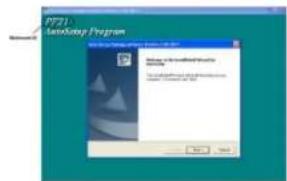
Note: The following screens are examples only. The screens and driver lists will be different according to the motherboard you are installing.
The motherboard identification is located in the upper left-hand corner.
- Click Next The following screen appears:
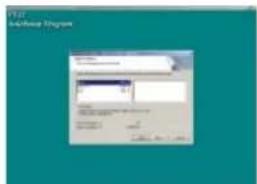
- Follow the instructions on the screen to install the items.
Drivers and software are automatically installed in sequence. Follow the onscreen instructions, confirm commands and allow the computer to restart a few times to complete the installation.
Browse CD button: The Browse CD button is the standard Windows command that allows you to open Windows Explorer and show the contents of the support CD.
Exit button: The Exit button closes the Auto Setup window.
4.4 Application Tab
Lists the software utilities that are available on the CD.
4.5 Read Me Tab
Displays the path for all software and drivers available on the CD.
4.6 Software Utilities Introduction
AWARD Flash Memory Utility
This utility lets you erase the system BIOS stored on a Flash Memory chip on the motherboard, and lets you copy an updated version of the BIOS to the chip. Proceed with caution when using this program. If you erase the current BIOS and fail to write a new BIOS, or write a new BIOS that is incorrect, your system will malfunction. Refer to Chapter 3 "Using BIOS" for more information.
WinFlash Utility
The AWARD WinFlash utility is a Windows version of the DOS Award BIOS flash writer utility. The utility enables you to flash the system BIOS stored on a Flash Memory chip on the motherboard while in a Windows environment. This utility is currently available for WINXP\ME\2000\98SF. To install the WinFlash utility, fin WINFLASH.EXE from the following directory: \UTILITY\WINFLASH
I'm InTouch
I'm InTouch remote access software allows you to login and work on your far-away computer, just as if you were sitting behind it! Run programs, transfer files, manage e mail, contacts and calendar events. With I'm InTouch, you always have access to your PC and the important information and programs that you need.
MediaRing Talk - Telephony Software
Go to \UTILITY\MEDIARING EZ NET and run SETUP 331.EXE to install the MediaRing Talk voice modem software for the built in modem.
WinCinema
■ WinDVD Creator Plus
WinDVD Creator Plus is designed for people who want to make their own DVDs but who don't want to learn complicated programs. By taking you through 4 DVD-making steps, WinDVD Creator Plus walks you through capturing video, editing it, adding titles, transitions, effects, music, DVD menus and finally burning the finished product. Uscr also can direct-burn to DVD when DVD burner is available.
WinDVD
WinDVD is the world's most popular DVD player and supports over 30 new features and enhancements such as improved picture quality, easier-to-use Time-Stretching, MP3 playback, and Video Desktop - which lets you watch movies under your desktop icons while you work or check email.
WinRIP
WinRIP lets you record, store, organize, and enjoy you music collection on your PC, CD player, and portable player. Organize your Music Gallery and create your own playlists. You can switch between simple Player mode or full-featured Jukebox mode.
Pro Magic Plus
This amazing software not only provides users with convenient and instant restoration of your computer, but also restores within seconds important data back to the preferred state at a specific point in time. Pro Magic also combines several other functions including anti-virus, backup, uninstall software and multi-booting to satisfy all your system protection needs.
DPU (Data Process Utility)
Specially designed for file protection, security and management this DPU or data processing utility insures the safety of important data through complete file restoration, eliminating file damage even in case of improper operation. User can freely edit original files after a set restore time point. The DPU can even restore even deleted files.
Adobe Reader
This item install the Adobe Acrobat Reader. 'The Acrobat Reader software is for viewing files saved in Portable Document Format (PDF).
Smart LAN
The motherboard support Marvell Virtual Cable Tester (VCT) technology. It enables end users to remotely diagnose the quality and characteristics of the attached cable. With this feature it is possible to detect and report potential cabling issues such as cable opens, cable shorts, and impedance mismatches. The distance of the fault can be reported within one meter.
Show Shifter
ShowShifter, the award winning software, combines viewing TV, video, CD, MP3 and digital pictures into one easy to use application. With a little help from Showshifter your PC will be the ultimate home media center.
This publication, including all photograph, illustrations and software, is protected under international copyright laws, with all rights reserved. Neither this manual, nor any of the material contained herein, may be reproduced without written consent of the author.
Disclaimer
The information in this document is subject to change without notice. The manufacturer makes no representations or warranties with respect to the contents hereof and specifically disclaims any implied warranties of merchantability or fitness for any particular purpose. The manufacturer reserves the right to revise this publication and to make changes from time to time in the content hereof without obligation of the manufacturer to notify any person of such revision or changes.
Trademark Recognition
Microsoft, MS-DOS and Windows are registered trademarks of Microsoft Corp.
MMX, Pentium, Pentium II, Pentium III, Pentium IV, Celeron are registered trademarks of Intel Corporation.
Other product names used in this manual are the properties of their respective owners and are acknowledged.
Federal Communications Commission (FCC)
This equipment has been tested and found to comply with the limits for a Class B digital device, pursuant to Part 15 of the FCC Rules. These limits are designed to provide reasonable protection against harmful interference in a residential installation. This equipment generates, uses, and can radiate radio frequency energy and, if not installed and used in accordance with the instructions, may cause harmful interference to radio communications. However, there is no guarantee that interference will not occur in a particular installation. If this equipment does cause harmful interference to radio or television reception, which can be determined by turning the equipment off and on, the user is encouraged to try to correct the interference by one or more of the following measures:
- Reorient or relocate the receiving antenna.
- Increase the separation between the equipment and the receiver.
- Connect the equipment onto an outlet on a circuit different from that to which the receiver is connected.
- Consult the dealer or an experienced radio/TV technician for help.
Shielded interconnect cables and a shielded AC power cable must be employed with this equipment to ensure compliance with the pertinent RF emission limits governing this device. Changes or modifications not expressly approved by the system's manufacturer could void the user's authority to operate the equipment.
Declaration of Conformity
This device complies with part 15 of the FCC rules. Operation is subject
to the following conditions:
- This device may not cause harmful interference, and
- This device must accept any interference received, including inter-
ference that may cause undesired operation.
Canadian Department of Communications
This class B digital apparatus meets all requirements of the Canadian
Interference-causing Equipment Regulations.
- ISO14001 CERTIFICATE
- ELITEGROUP
- Table of Contents
- CHAPTER 1
- CHAPTER 2
- CHAPTER 3
- EXTREME
- CHAPTER 4
- Multi-Language Translations
- Reference
- Introduction
- Package Check List
- Special Features
- Extreme Link Extreme Link
- Genius Extreme
- Genius
- CPU socket
- Dual-channel DDR2 DIMM sockets
- Super I/O (83627THF) controller
- Northbridge controller
- Flash ROM
- Southbridge controller
- PCI Express x16 (PCI-E1) slot
- SiS 180 Serial ATA controller
- PCI slots
- IEEE 1394a controller
- PCI Express x1 (PCI-E2/PCI-E3) slots
- Audio CODEC
- 10/100Mbps LAN Controller
- Gigabit LAN controller
- Cooling Accelerator
- a. Anti-Burn LED indicator
- b. PCI LED indicator
- ATX1 (ATX PWR Connector, 24 pin, White)
- IDE1 (IDE1 Connector, 40-1 pin, Green)
- FDD1 (Floppy Connector, 34-1 pin, Black)
- Battery
- Rear Panel
- Installing the CPU & the CPU cooling fan
- Installing Memory Module
- Connecting IDE, Floppy and SATA cable
- Installing Motherboard in a case
- Connecting IDE, Floppy & SATA Device
- Installing Expansion cards
- Connecting the Power supply cable
- Connecting 20/24-pin power cable
- Powering up
- Entering the BIOS Setup Menu
- Press DEL to enter SETUP
- Updating and Recovering the BIOS
- 3.2-1 Using AWARD Flash to update your BIOS
- 3.2-2 Using ECS Top-Hat Flash to recover your BIOS
- Figure A Figure B Figure C Figure D Figure E
- The Main Menu
- 3.3-1 Standard CMOS Features
- Access Mode
- 3.3-2 Advanced BIOS Features
- Delay Prior to Thermal [16 Min]
- Thermal Management [Thermal Monitor 1]
- TM2 Bus Ratio [0 X]
- TM2 Bus VID [0.8375V]
- Limit CPUID MaxVal [Disabled]
- ▶ Hard Disk Boot Priority (Press Enter)
- CPU 1.3 Cache [Enabled]
- Hyper-Threading Technology [Enabled]
- Quick Power On Self Test [Enabled]
- First/Second/Third Boot Device [Floppy/Hard Disk/CDROM]
- Boot Other Device [Enabled]
- Boot Up Floppy Seek [Disabled]
- Boot Up NumLock Status [On]
- Gate A20 Option [Fast]
- Typematic Rate Setting [Disabled]
- Security Option [Setup]
- APIC Mode [Enabled]
- OS Select For DRAM > 64MB [Non-OS2]
- HDD S.M.A.R.T Capability [Disabled]
- Report No FDD For WIN 95 [Yes]
- Full Screen LOGO Show [Enabled]
- Small Logo (EPA) Show [Disabled]
- 3.3-3 Advanced Chipset Features
- DRAM Timing Selectable [By SPD]
- CAS Latency Time [Auto]
- DRAM RAS# to CAS# Delay |Auto|
- DRAM RAS# Precharge |Auto|
- Precharge Delay (tRAS) [Auto]
- System Memory Frequency |Auto|
- System BIOS Cacheable [Disabled]
- Video BIOS Cacheable [Disabled]
- ▶ PCI Express Root Port Func (Press Enter)
- PCI Express Port 1\~2 [Auto]
- DDR Voltage [1.80V]
- 3.3-4 Integrated Peripherals
- ▶ OnChip IDE Device (Press Enter)
- IDE HDD Block Mode [Enabled]
- ATA 66/100 Cable Msg |Enabled|
- ▶ Onboard Device (Press Enter)
- USB Controller | Enabled|
- USB 2.0 Controller |Enabled|
- USB Keyboard Support [Enabled]
- Azalia/AC97 Audio Select [Auto]
- Onboard LAN Device [Enabled]
- Onboard 1394 Device | Enabled!
- Onboard GigaLAN Boot ROM [Enabled]
- ▶ SuperIO Device (Press Enter)
- POWER ON Function (S3) [Hot KEY]
- KB Power ON Password (S3) [Enter]
- Hot Key Poewr ON (S3) [Ctrl-F12]
- Onboard FDC Controller [Enabled]
- Onboard Serial Port 1 [3F8/IRO4]
- UART 2 Mode Controller [Disabled]
- UART 2 Select [Normal]
- RxD, TxD Active [Hi, Lo]
- IR Transmission Delay [Enabled]
- UR2 Duplex Mode [Half]
- Use IR Pins (IR-Rx2Tx2)
- Onboard Parallel Port (378/IRQ7)
- Parallel Port Mode (ECP)
- ECP Mode Use DMA (3)
- 3.3-5 Power Management Setup
- ACPI Suspend Type [S3(STR)]
- Run VGABIOS if S3 Resume [Auto]
- Video Off Method [DPMS]
- Video Off In Suspend [Yes]
- Suspend Type [Stop Grant]
- MODEM Use IRQ [3]
- Suspend Mode [Disabled]
- HDD Power Down [Disabled]
- Options are from 1 Min to 15 Min and Disable.
- Soft-Off by PWR-BTTN [Instant-Off]
- Resume by PCI PME [Enabled]
- Resume by Ring [Disabled]
- Resume by USB(S3) [Disabled]
- Resume by Alarm |Disabled|
- Primary IDE0/1 [Disabled]
- Secondary IDE0/1 [Disabled]
- Power on After Power-fail [Off]
- 3.3-6 PNP/PCI Configurations
- 3.3-7 PC Health Status
- System Component Characteristics
- Smart CPUFan Function [Disabled]
- CPUFan Tolerance Value [5]
- 3.3-8 Frequency/Voltage Control
- CPU Clock Ratio [8X]
- AGP Voltage [1.500 V]
- CPU Voltage Control [By Auto]
- Auto Detect PCI Clk [Enabled]
- Spread Spectrum [Disabled]
- PCI Clock [Asyn]
- CPU Clock[200MHz]
- Async PCIE Clock | CPU Clock/2|
- 3.3-9 Load Performance Defaults
- 3.3-10 Load Optimized Defaults
- 3.3-11 Set Supervisor/User Password
- ENTER PASSWORD
- PASSWORD DISABLED
- 3.3-12 Save & Exit Setup
- 3.3-13 Exit Without Saving
- Software CD Information
- Running the Software CD
- Setup Tab
- Application Tab
- Read Me Tab
- Software Utilities Introduction
- AWARD Flash Memory Utility
- WinFlash Utility
- I'm InTouch
- MediaRing Talk - Telephony Software
- WinCinema
- ■ WinDVD Creator Plus
- WinDVD
- WinRIP
- Pro Magic Plus
- DPU (Data Process Utility)
- Adobe Reader
- Smart LAN
- Show Shifter
- Disclaimer
- Trademark Recognition
- Federal Communications Commission (FCC)
- Declaration of Conformity
- Canadian Department of Communications
Brand : ECS
Model : PF21 Extreme
Category : Motherboard