Beyond SCD-5083R - Surveillance Camera Hanwha - Free user manual and instructions
Find the device manual for free Beyond SCD-5083R Hanwha in PDF.


User questions about Beyond SCD-5083R Hanwha
0 question about this device. Answer the ones you know or ask your own.
Ask a new question about this device
Download the instructions for your Surveillance Camera in PDF format for free! Find your manual Beyond SCD-5083R - Hanwha and take your electronic device back in hand. On this page are published all the documents necessary for the use of your device. Beyond SCD-5083R by Hanwha.
USER MANUAL Beyond SCD-5083R Hanwha
Super High Resolution WDR Dome Camera
User Manual
SCD-5083R

text_image
SAMSUNGCE
SAMSUNG
Super High Resolution WDR Dome Camera
User Manual
Copyright
©2014 Samsung Techwin Co., Ltd. All rights reserved.
Trademark
SAMSUNG TECHWIN

is the registered logo of Samsung Techwin Co., Ltd.
The name of this product is the registered trademark of Samsung Techwin Co., Ltd.
Other trademarks mentioned in this manual are the registered trademark of their respective company.
Restriction
Samsung Techwin Co., Ltd shall reserve the copyright of this document. Under no circumstances, this document shall be reproduced, distributed or changed, partially or wholly, without formal authorization of Samsung Techwin.
Disclaimer
Samsung Techwin makes the best to verify the integrity and correctness of the contents in this document, but no formal guarantee shall be provided. Use of this document and the subsequent results shall be entirely on the user's own responsibility. Samsung Techwin reserves the right to change the contents of this document without prior notice.
Warranty
If the product does not operate properly in normal conditions, please let us know. Samsung Techwin will resolve the problem for free of charge. The warranty period is 3 years. However, the followings are excluded:
- If the system behaves abnormally because you run a program irrelevant to the system operation.
- Deteriorated performance or natural worn-out in process of time
- Design and specifications are subject to change without prior notice.
Before operating the camera, confirm the camera model and correct input power voltage. To help you understand this manual thoroughly, we'll introduce our model description.
■ SCD-5083R SERIES
- NTSC MODEL
SCD-5083RN
- PAL MODEL
SCD-5083RP
■ MODEL DESCRIPTION
- SCD-5083RX
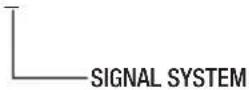
- SIGNAL SYSTEM
N → NTSC MODEL
P → PAL MODEL
safety information
CAUTION
RISK OF ELECTRIC SHOCK. DO NOT OPEN

CAUTION:
TO REDUCE THE RISK OF ELECTRIC SHOCK, DO NOT REMOVE COVER (OR BACK) NO USER SERVICEABLE PARTS INSIDE. REFER SERVICING TO QUALIFIED SERVICE PERSONNEL.
This symbol indicates that dangerous voltage consisting a risk of electric shock is present within this unit.

This exclamation point symbol is intended to alert the user to the presence of important operating and maintenance (servicing) instructions in the literature accompanying the appliance.
WARNING
- To prevent damage which may result in fire or electric shock hazard, do not expose this appliance to rain or moisture.
- To prevent injury, this apparatus must be securely attached to the floor/wall in accordance with the installation instructions.
WARNING
- Be sure to use only the standard adapter that is specified in the specification sheet. Using any other adapter could cause fire, electrical shock, or damage to the product.
- Incorrectly connecting the power supply or replacing battery may cause explosion, fire, electric shock, or damage to the product.
- Do not connect multiple cameras to a single adapter. Exceeding the capacity may cause abnormal heat generation or fire.
- Securely plug the power cord into the power receptacle. insecure connection may cause fire.
- When installing the camera, fasten it securely and firmly. The fall of camera may cause personal injury.
4\_ safety information
- Do not place conductive objects (e.g. screwdrivers, coins, metal parts, etc.) or containers filled with water on top of the camera. doing so may cause personal injury due to fire, electric shock, or falling objects.
- Do not install the unit in humid, dusty, or sooty locations. doing so may cause fire or electric shock.
- If any unusual smells or smoke come from the unit, stop using the product. in such case, immediately disconnect the power source and contact the service center. continued use in such a condition may cause fire or electric shock.
- If this product fails to operate normally, contact the nearest service center. never disassemble or modify this product in any way. (samsung is not liable for problems caused by unauthorized modifications or attempted repair.)
- When cleaning, do not spray water directly onto parts of the product. doing so may cause fire or electric shock.
CAUTION
- Do not drop objects on the product or apply strong shock to it. Keep away from a location subject to excessive vibration or magnetic interference.
- Do not install in a location subject to high temperature (over 55^ C), low temperature (below -10^ C), or high humidity. Doing so may cause fire or electric shock.
- If you want to relocate the already installed product, be sure to turn off the power and then move or reinstall it.
- Remove the power plug from the outlet when then there is a lightning. Neglecting to do so may cause fire or damage to the product.
- Keep out of direct sunlight and heat radiation sources. It may cause fire.
- Install it in a place with good ventilation.
- Avoid aiming the camera directly towards extremely bright objects such as sun, as this may damage the CMOS image sensor.
- Apparatus shall not be exposed to dripping or splashing and no objects filled with liquids, such as vases, shall be placed on the apparatus.
- The Mains plug is used as a disconnect device and shall stay readily operable at any time.
- Do not expose the camera to radioactivity. Radioactivity exposure may damage the CMOS.
safety information
FCC Statement
This device complies with part 15 of the FCC Rules. Operation is subject to the following two conditions :
1) This device may not cause harmful interference, and
2) This device must accept any interference received including interference that may cause undesired operation.
CAUTION
This equipment has been tested and found to comply with the limits for a Class A digital device, pursuant to part 15 of FCC Rules. These limits are designed to provide reasonable protection against harmful interference when the equipment is operated in a commercial environment. This equipment generates, uses, and can radiate radio frequency energy and, if not installed and used in accordance with the instruction manual, may cause harmful interference to radio communications. Operation of this equipment in a residential area is likely to cause harmful interference in which case the user will be required to correct the interference at his own expense.

IC Compliance Notice
This Class A digital apparatus meets all requirements of the Canadian Interference.-Causing Equipment Regulations of ICES-003.
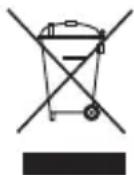
Correct Disposal of This Product (Waste Electrical & Electronic Equipment)
(Applicable in the European Union and other European countries with separate collection systems)
This marking on the product, accessories or literature indicates that the product and its electronic accessories (e.g. charger, headset, USB cable) should not be disposed of with other household waste at the end of their working life. To prevent possible harm to the environment or human health from uncontrolled waste disposal, please separate these items from other types of waste and recycle them responsibly to promote the sustainable reuse of material resources.
Household users should contact either the retailer where they purchased this product, or their local government office, for details of where and how they can take these items for environmentally safe recycling.
Business users should contact their supplier and check the terms and conditions of the purchase contract. This product and its electronic accessories should not be mixed with other commercial wastes for disposal.

Correct disposal of batteries in this product
(Applicable in the European Union and other European countries with separate battery return systems.)
This marking on the battery, manual or packaging indicates that the batteries in this product should not be disposed of with other household waste at the end of their working life. Where marked, the chemical symbols Hg, Cd or Pb indicate that the battery contains mercury, cadmium or lead above the reference levels in EC Directive 2006/66. If batteries are not properly disposed of, these substances can cause harm to human health or the environment.
To protect natural resources and to promote material reuse, please separate batteries from other types of waste and recycle them through your local, free battery return system.
6\_ safety information
important safety instructions
- Read these instructions.
- Keep these instructions.
- Heed all warnings.
- Follow all instructions.
- Do not use this apparatus near water.
-
Clean only with dry cloth.
-
Do not block any ventilation openings. Install in accordance with the manufacturer's instructions.
-
Do not install near any heat sources such as radiators, heat registers, or other apparatus (including amplifiers) that produce heat.
-
Do not defeat the safety purpose of the polarized or grounding-type plug. A polarized plug has two blades with one wider than the other. A grounding type plug has two blades and a third grounding prong. The wide blade or the third prong is provided for your safety. If the provided plug does not fit into your outlet, consult an electrician for replacement of the obsolete outlet.
-
Protect the power cord from being walked on or pinched particularly at plugs, convenience receptacles, and the point where they exit from the apparatus.
-
Only use attachments/accessories specified by the manufacturer.
-
Use only with cart, stand, tripod, bracket, or table specified by the manufacturer, or sold with the apparatus.
-
Unplug this apparatus when a card is used. Use caution when moving the cart/ apparatus combination to avoid injury from tip-over.
-
Refer all servicing to qualified service personnel. Servicing is required when the apparatus has been damaged in any way, such as powersupply cord or plug is damaged, liquid has been spilled or objects have fallen into the apparatus, the apparatus has been exposed to rain or moisture, does not operate normally, or has been dropped.


Apparatus shall not be exposed to dripping or splashing and no objects filled with liquids, such as vases, shall be placed on the apparatus

text_image
eco RoHS compliantSamsung Techwin cares for the environment at all product manufacturing stages to preserve the environment, and is taking a number of steps to provide customers with more environment-friendly products. The Eco mark represents Samsung Techwin's will to create environment-friendly products, and indicates that the product satisfies the EU RoHS Directive.
English_7
contents
inTroDuCTion

9 Features
10 Components and Accessories
11 Component names and functions
insTallaTion
12
12 Before installation
12 Installation
14 Adjusting the monitoring direction for the camera
ConnECTion
15
15 Connecting to Monitor
15 Connecting to Power
16 Using Coaxial Communications
CamEra oPEraTion
18
18 Menu Configuration
18 Menu Setup
TroublEshooTing
34
34 Troubleshooting
sPECifiCaTions
35
35 Specifications
37 Dimension
8_ contents
introduction
FEATURES
- High Resolution
Use of a 1.3 mega pixel CMOS device provides clear pictures with a horizontal resolution of 1000.
• Excellent Sensitivity
The built-in high sensitivity COLOR CMOS produces a clear image.
- Color : 0.05Lux (F1.4, 50IRE), 0.001Lux (1sec, F1.4, 50IRE) 0.02Lux (F1.4, 30IRE), 0.0006Lux (1sec, F1.4, 30IRE)
B/W : 0Lux (IR LED On)
- Intelligence
Without an external sensor, you can use this product to detect motion and generate alarms and thus more efficient monitoring can be achieved.
• SSNR4 (Samsung Super Noise Reduction) Function
High performance W7 Chip removes noises of GAIN resulting from the low light level and shows a vivid, high definition video even in the dark place.
Day&Night
This camera has a function that automatically selects the mode that is appropriate for daytime or night-time conditions. The COLOR mode operates in daytime conditions to provide optimum colors, and B/W mode operates in night-time conditions to enhance the definition of the image.
• SSDR (Samsung Super Dynamic Range)
If an object has a large variance between bright and dark areas, it will keep bright areas bright and make selected dark areas bright, so that the overall brightness can be maintained.
- PROFILE
You can set a mode according to the camera installation conditions.
- BASIC, DAYNIGHT, BACKLIGHT, ITS, INDOOR, USER
WDR
By adopting a proprietary W7 chip, the camera delivers clear, high quality pictures even in backlight, by increasing exposure in dark areas while decreasing it in bright areas; a corrected image with clear details results.
• DIS (Digital Image Stabilizer)
The DIS function compensates for any camera movement, to produce more stable pictures.
introduction
• Miscellaneous Functions
HLC(High Light Compensation), REVERSE, D-ZOOM, SHARPNESS and PRIVACY functions are provided.
- Communication
Coaxial communication methods are supported.
- Coaxial Communications : Pelco Coaxitron
- OSD
The camera's OSD is complimented by 17 languages.
- English, Chinese, Korean, Japanese, German, Italian, French, Spanish, Russian, Czech, Polish, Romanian, Serbian, Swedish, Danish, Turkish, Portuguese
COMPONENTS AND ACCESSORIES
Check if the following items are included in the product package.
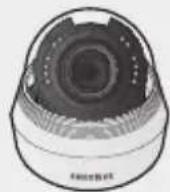
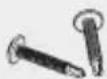
SCD-5083R Quick Manual Screws
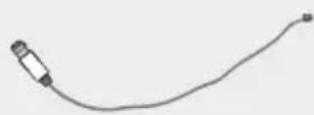
Video Output Cable Template
10_introduction
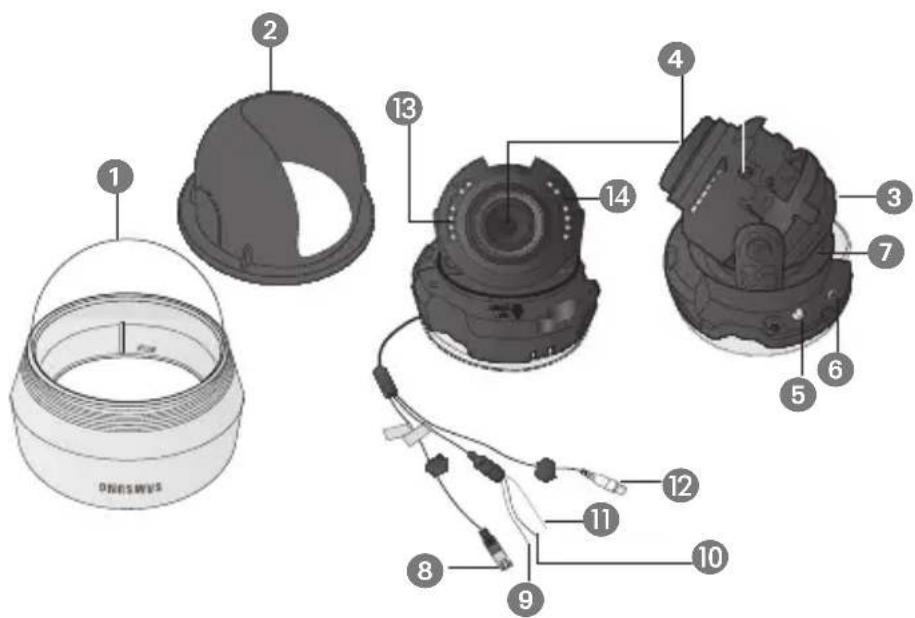
COMPONENT NAMES AND FUNCTIONS
text_image
1 2 3 4 5 6 7 8 9 10 11 12 13 DENSWINS1 Dome Cover
2 Shield Case
3 Rotate base: control rotating angle of camera.
4 Vari-focal Lens Module: 3 \~ 10.0mm (F1.4).
5 Function Setup switch : Display the menu on the screen and move the cursor to four directions to confirm status or after changing a selected item.
6 Video Output Terminal
7 Pan Base: Control panning angle of camera.
8 Power Input Connector
9 Ground Terminal
10 D & N Input Terminal: You can switch to Day & Night Mode by connecting an external signal to this terminal.
11 MD Output Terminal: Motion detection signals are output through this terminal.
12 Video Output Jack : Video signals are output through this port. Connect this port to the Video IN port of a monitor.
13 IR LED: These infrared LED's are controlled by the illumination sensor.
14 Illumination Sensor: Detects incoming light to control the IR LED.
English_11
Installation
BEFORE INSTALLATION
Ensure you read out the following instructions before installing the camera:
- You have to check whether the location (ceiling or wall) can bear five times the weight of your camera.
- Don't let the cable to be caught in improper place or the electric line cover to be damaged. Otherwise it may cause a breakdown or fire.
- Before installing your camera, you have to adjust the lens focus, zoom, and switch settings.
- When installing your camera, don't allow any person to approach the installation site.
INSTALLATION
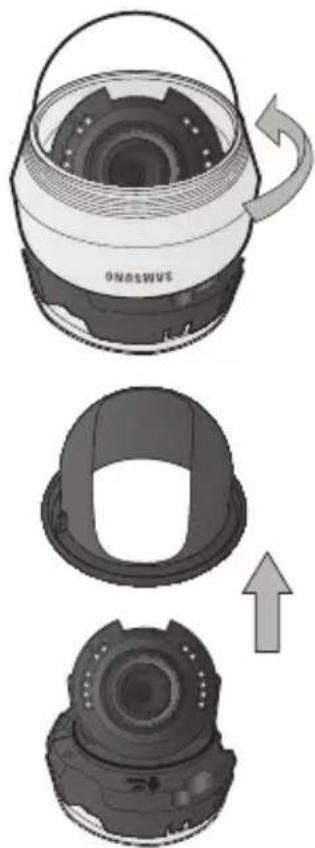
Disassembling
- Use one hand to hold the camera's bottom part and turn the cover counterclockwise with another hand to separate it.
natural_image
Three-step diagram showing a device with internal components and an arrow indicating rotation (no text or symbols)- Lift up the shield case to separate it.
12_Installation
Installation
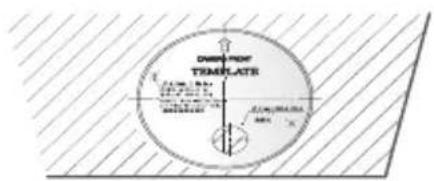
- Attach the installation template to the selected area and punch 2 holes as shown in the figure.
- Use the 2 supplied screws to fix the camera to the 2 punched holes.
- Set the
text_image
DISENT RYTHATE 100 mm x 250 mm x 300 mm x 350 mm x 400 mm x 450 mm x 500 mm x 550 mm x 600 mm x 650 mm x 700 mm x 750 mm x 800 mm x 850 mm x 900 mm x 950 mm x 1000 mm x 1050 mm x 1100 mm x 1150 mm x 1200 mm x 1250 mm x 1300 mm x 1350 mm x 1400 mm x 1450 mm x 1500 mm x 1550 mm x 1600 mm x 1650 mm x 1700 mm x 1750 mm x 1800 mm x 1850 mm x 1900 mm x 1950 mm x 2000 mm x 2050 mm x 2100 mm x 2150 mm x 2200 mm x 2250 mm x 2300 mm x 2350 mm x 2400 mm x 2450 mm x 2500 mm x 2550 mm x 2600 mm x 2650 mm x 2700 mm x 2750 mm x 2800 mm x 2850 mm x 2900 mm x 2950 mm x 3000 mm x 3050 mm x 3100 mm x 3150 mm x 3200 mm x 3250 mm x 3300 mm x 3350 mm x 3400 mm x 3450 mm x 3500 mm x 3550 mm x 3600 mm x 3650 mm x 3700 mm x 3750 mm x 3800 mm x 3850 mm x 3900 mm x 3950 mm x 4000 mm x 4050 mm x 4100 mm x 4150 mm x 4200 mm x 4250 mm x 4300 mm x 4350 mm x 4400 mm x 4450 mm x 4500 mm x 4550 mm x 4600 mm x 4650 mm x 4700 mm x 4750 mm x 4800 mm x 4850 mm x 4900 mm x 4950 mm x 5000 mm x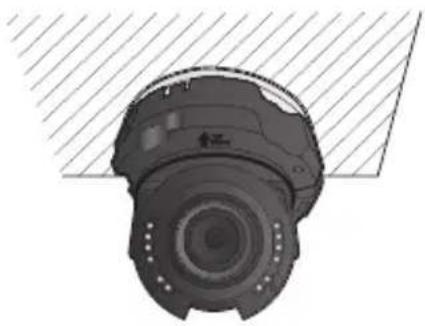
natural_image
Top-down view of a mechanical component with a circular housing and mounting holes, resting on a hatched surface (no text or symbols visible)
text_image
INSTALLATION- Adjust the lens in a desired direction by referring to the "Adjusting the monitoring direction for the camera" section.
- Attach the dome cover and the shield case to the main body.

■Pay attention to the direction for assembly.
Installation
aDjusting ThE moniToring DirECTion for ThE CamEra
text_image
Pan Tilt Lens rotation■ Adjusting the monitoring direction
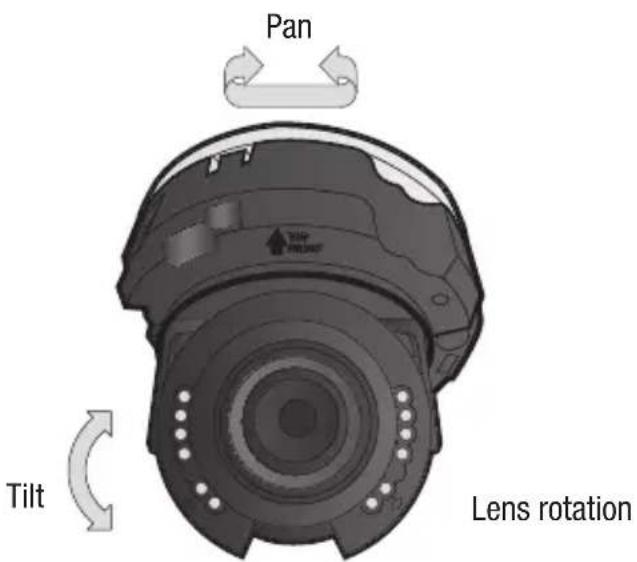
You can adjust the camera direction only when the camera is fixed on the ceiling. Where, rotating the camera unit to the left or right is called Pan, adjusting the tilt is called Tilt, and turning the lens on its axis is called Rotation.
- The effective range of pan is a total of 354 degrees.
- The effective range of rotation is a total of 355 degrees.
- The effective range of tilt is a total of 68 degrees.
■ Methods of adjustment
- After installing the camera, adjust the panning angle in consideration of the monitoring direction.
- Set the horizontal angle so that the image is not reversed.
- Adjust the tilt angle so that the camera faces toward the monitoring object.
14\_Installation
connection
ConnECTing To moniTor
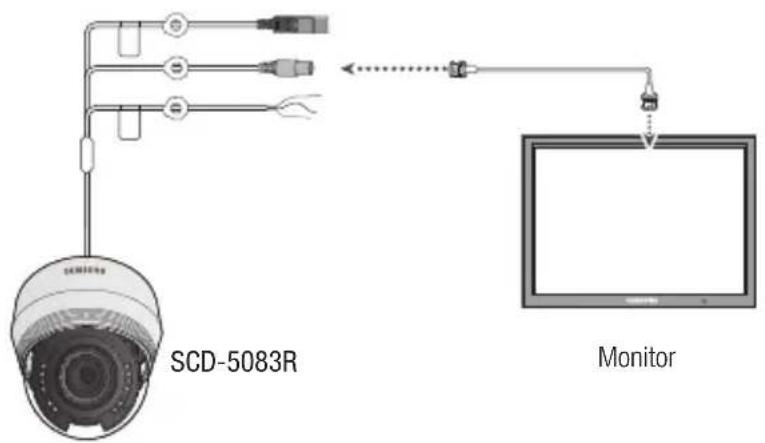
Connect the Video OUT port on the camera to the video input port of the monitor.
text_image
SCD-5083R Monitor- As the connecting method varies with the instruments, refer to the manual supplied with the instrument.
- Only connect the cable when the power is turned off.

text_image
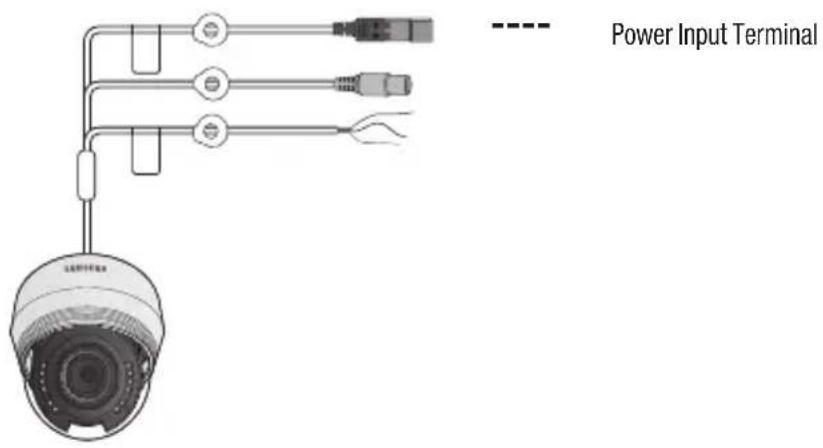
• CONNECTIONConnECTing To PoWEr
You can connect power as shown in the following figure.
text_image
Power Input TerminalEnglish_15
connection
When the resistance value of copper wire is at [20^(68^)]
| Copper wire size (AWG) #24 (0.22mm ^2) #22 (0.33mm ^3) #20 (0.52mm ^2) #18 (0.83mm ^3) |
| Resistance value(Ω/m) 0.078 0.050 0.030 0.018 |
| Voltage Drop (V/m) 0.028 0.018 0.011 0.006 |
- As shown in the table above, voltage decreases as the wire gets longer. Therefore use of an excessively long adaptor output line for connection to the camera may affect the performance of the camera.
※ Standard voltage for camera operation : DC 12V±10%, AC 24V±10%
※ There may be some deviation in voltage drop depending on the type of wire and the manufacturer.

- Be sure to connect power only after all the installation is complete.
using CoaXial CommuniCaTions
• Coaxial Communications System
- OSD Control method
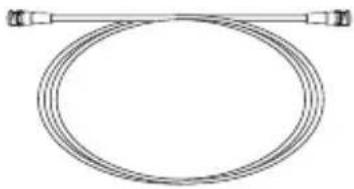
The camera's video output port is connected to the monitor with a BNC coaxial cable, shown below. If the distance between the camera and the monitor exceeds the recommended maximum, please use an auxiliary video amp.
natural_image
Pure diagram of a coiled cable with two connectors at ends (no text or symbols)| Distance | Recommended Cable Specification |
| 300m3C2V(RG-59/U) | |
| 450m5C2V(RG-6/U) | |
| 600m7C2V(RG-11/U) | |
It is recommended that pure copper coax cable is used and not copper coated steel, as this will cause issues with the communication over the coaxial cable.
- To ensure picture quality, only single-channel video output connector can be used while camera connected to other video equipments.
camera operation
mEnu Configuration
| main sETuP | |||
| PROFILE | ● BASIC● ITS | ● DAY/NIGHT● INDOOR | ● BACKLIGHT● USER |
| SSDR | ● ON | ● OFF | |
| WHITE BAL | ● ATW● MANUAL | ● OUTDOOR● AWC → SET | ● INDOOR● MERCURY |
| EXPOSURE | ● BRIGHTNESS● AGC | ● LENS● SSNR4 | ● SHUTTER● RETURN |
| BACKLIGHT | ● OFF● WDR | ● USER BLC | ● HLC |
| SPECIAL | ● DISPLAY● DAY/NIGHT● DIS | ● COMM ADJ● DEFOG● VIDEO ANALYTICS | ● IMAGE ADJ● PRIVACY● RETURN |
| EXIT | ● SAVE | ● NOT SAVE | ● RESET |
mEnu sETuP
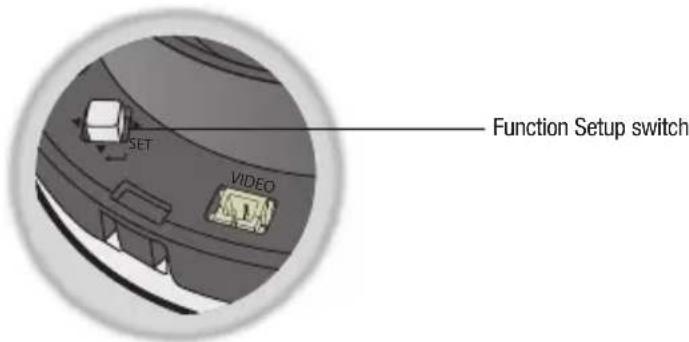
For function setting, you can use the function setting switch inside the dome cover.
text_image
SET VIDEO Function Setup switch18_ camera operation
Select the function using the Function Setup switch.
- PROFILE BASIC
- SSDR ON
- WHITE BAL ATW
- EXPOSURE
- BACKLIGHT OFF
- SPECIAL
- EXIT SAVE

Change the status using the Function Setup switch.
- Press the Function Setup switch.
- Main SETUP menu is displayed on the monitor screen.
- Select a desired function using the Function Setup switch.
- Place the cursor over a desired item.
- Set up a selected item by using the Function Setup switch.
- To finish the setting, select 'EXIT' and press the Function Setup switch.

An item with the ←icon also has sub menus. To select a sub menu, select an item with the icon and press the Function Setup switch.
■ An item with the --- icon is unavailable due to function settings.
Profile
- When the SETUP menu screen is displayed, select 'PROFILE' by using the Function Setup switch so that the arrow indicates 'PROFILE'.
-
Select a desired mode using the Function Setup switch according to the picture display you want.
▶ 1. PROFILE BASIC -
basiC: The most common environment is set to meet.
- DaY/nighT: It will be set automatically so it optimizes to the day or night conditions, respectively.
- baCKlighT: It will be set automatically so you can distinguish the object from the background in a severe backlighting scene.
- iTs: It will be set automatically so you can easily check the traffic conditions.
MAIN SETUP
- INDOOR: It will be set automatically to help you take a picture in a regular indoor lighting condition.
- USER : Automatically configures the camera to your custom settings.
1) Select USER for Simple Setup mode.
2) Configure the menu options to your USER settings.
3) The settings are automatically saved as USER mode.
4) Profile user mode don't initialize when menu resets.
- In the PROFILE menu, you can configure the following camera settings at once.
| BASIC DAY/NIGHT BACKLIGHT | ITS INDOOR | USER | ||||
| SHUTTER 1/5~1/12000 1/5~1/12000 1/5~1/12000 | 1/200~1/12000 | A.FLK - | ||||
| AGC HIGH HIGH HIGH HIGH HIGH | - | |||||
| WHITE BAL ATW ATW ATW | OUTDOOR INDOOR - | |||||
| BACKLIGHT | OFF | OFF | USER BLC | OFF | OFF | - |
| SSNR4 | ON | ON | ON | ON | ON | - |
| DAY/NIGHT | AUTO AUTO AUTO AUTO AUTO | - | ||||

If you select the ITS, the shutter will be set to 1/200 sec. Noise can be detected at night.
SSDR (Samsung Super Dynamic Range)
If an object has a large variance between bright and dark areas, it will keep bright areas bright and make selected dark areas bright, so that the overall brightness can be maintained.
-
When the SETUP menu screen is displayed, select 'SSDR' by using the Function Setup switch so that the arrow indicates 'SSDR'.
-
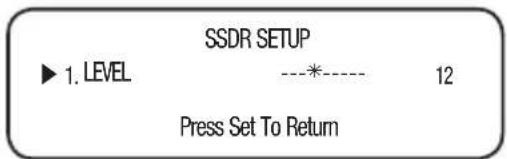
Use the Function Setup switch to change the SSDR level in the sub menu according to the contrast between bright and dark areas.
text_image
SSDR SETUP ► 1. LEVEL ----*---- 12 Press Set To Return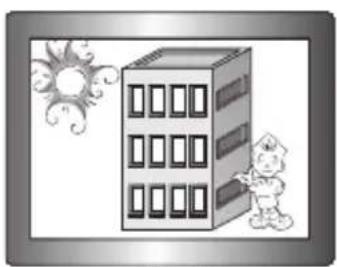
natural_image
Illustration of a child pointing at a multi-story building under a sun (no text or symbols)SSDR ON
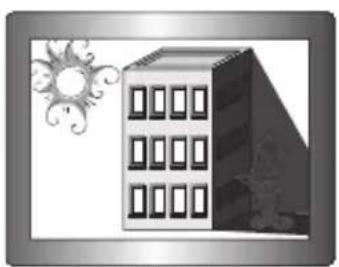
natural_image
Illustration of a modern building with windows and a decorative sun symbol (no text or symbols present)SSDR OFF
20_ camera operation
White Bal (White Balance)
Use the White Balance function to adjust the screen color.
-
When the SETUP menu screen is displayed, select 'White Bal' by using the Function Setup switch so that the arrow indicates 'White Bal'.
-
Select a desired mode using the Function Setup switch.
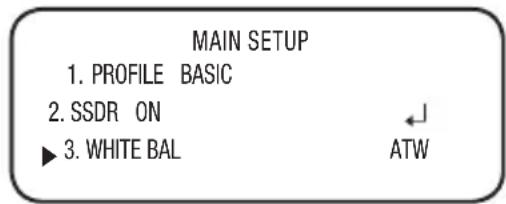
text_image
MAIN SETUP 1. PROFILE BASIC 2. SSDR ON ► 3. WHITE BAL ATW※ Select one of the following 6 modes, as appropriate for your purpose.
- ATW: Select this when the color temperature is between 1,800K and 10,500K.
- OUTDOOR: Use it in a color temperature range of 1,800K to 10,500K.(including Natrium). Auto adjustment is made to optimize the camera color to the outdoor environment.
- INDOOR: Select this when the color temperature is between 4,500K and 8,500K. Automatically adjusts the camera color for optimization to the indoor environment.
- MANUAL : Select this to fine-tune White Balance manually. Set White Balance first by using the ATW or AWC mode. After that button to MANUAL mode, fine-tune the White Balance and the Function Setup switch
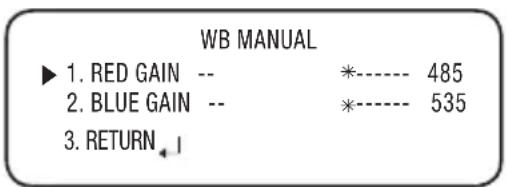
text_image
WB MANUAL ▶ 1. RED GAIN -- *---- 485 2. BLUE GAIN -- *---- 535 3. RETURN ← 1- AWC→SET: To find the optimal luminance level for the current environment, point the camera towards a sheet of white paper and press the Function Setup switch. If the environment changes, readjust it.
Mercury : This is an auto compensation function that optimizes camera colors for the environments such as mercury lamps.

- White Balance may not work properly under the following conditions. In this case select the AWC mode.
1 Select this When the color temperature of environment surrounding the subject is out of the control range (e.g. clear sky, or sunset)
2 When the ambient illumination of the subject is dim.
If the camera is directed towards a fluorescent light or is installed in a place where illumination changes dramatically, the White Balance operation may become unstable.
English_21
camera operation
EXPosurE
-
When the SETUP menu screen is displayed, select 'EXPOSURE' by using the Function Setup switch so that the arrow indicates 'EXPOSURE'.
-
Select a desired mode using the Function Setup switch.
- brighTnEss: Adjusts the video brightness.
JEns : Using this function, you can control the screen brightness.
EXPOSURE SETUP
| 1. BRIGHTNESS | ----* ---- | 50 |
| 2. LENS | DC←↓ | |
| 3. SHUTTER←↓ | ||
| 4. AGC | HIGH | |
| 5. SSNR4 | ON←↓ | |
| 6. RETURN←↓ |
- DC : Select Auto Iris Lens.
- IRIS SPEED (DC) : Adjusts the Iris control speed of the DC lens. If the control speed is too slow or fast, please use this menu to adjust the speed.
- FOCUS ADJ (DC) : To correctly adjust the focus of LENS, activate the focus setup mode located at the bottom of each lens menu.
- Manual : The shutter does not automatically move but is fixed to the maximal degree in this mode.
- shuTTEr: You can select the shutter.
-MIN:1\~1/12000
-MAX: 1/60 \~ 1/12000(NTSC), 1/50 \~ 1/12000(PAL)
-A.FLK: Select this when you experience picture flicker, this happen when there is a clash with the installed lighting frequency.

The greater the shutter value the brighter the screen is but the more the residual images of objects there are.
If the min shutter value is large, it can cause noise, spots and white areas but still operate normally.
If you do not use the AGC mode on the exposure menu, it cannot be set above 1/60sec.
■ Depending on the setting range of the minimal/maximal shutter, the screen exposure can become saturated.
agC (off/loW/miDDIE/high) : The higher the gain level, the brighter the screen - but the greater the noise.
- snr4: This function reduces the background noise in a low luminance environment.
- OFF : Deactivates SSNR4. Noise is not reduced.
- ON : Activates SSNR4 so that noise is reduced.

- When adjusting the noise reduction level in the SSNR4 mode, remember that the higher the level set, the more the noise level will be reduced, as will the brightness of the image.
22_camera operation
BACKLIGHT
The camera uses our own W7 chips that are designed to clearly display the object and the background despite severe reverse light.
-
When the SETUP menu screen is displayed, select 'BACKLIGHT' by using the Function Setup switch. so that the arrow indicates 'BACKLIGHT'.
-
Select a desired mode using the Function Setup switch depending on the camera purpose.
- USER BLC :
Enables a user to select a desired area on a picture and view that area more clearly.
- LEVEL : Adjusts the brightness level of a monitoring area.
- TOP/BOTTOM/LEFT/RIGHT: Adjust the area to be enhanced.
-RETURN : Return to the MAIN SETUP menu.
•HLC (High Light Compensation):
This function masks the strong light to minimize white out due to over exposure and preserve much of the on-screen details when the camera aims a strong light source.
- LEVEL : Adjusts the brightness level of a monitoring area.
- LIMIT : Enable to change the operating condition.
- MASK COLOR /TONE :
Change the color / brightness of the masking area.
(Black, Red, Blue, Cyan, Magenta)
- TOP/BOTTOM/LEFT/RIGHT : Adjust the area to be enhanced.
-RETURN : Return to the MAIN SETUP menu.

If the white balance menu is set to manual, then HLC performance can be limited.
If you use the defog and HLC functions at the same time, saturation can occur in a bright environment.
Because there can be a difference in the effectiveness of HLC according to the amount of light area in the screen, optimize the installation angle for the best HLC performance.
- When dark, the HLC is only activated when a bright light exceeding a specific size. (In NIGHT ONLY mode).
The HLC is not activated in day light or when bright light is not present at night. (In NIGHT ONLY mode).
English_23
camera operation
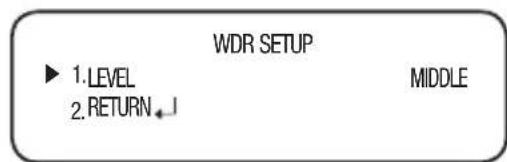
WDr: When there are both bright and dark areas at the same time, this mode makes both areas distinctive.
- LEVEL : Select one from low, med, high to adjust the brightness of the WDR setup.
text_image
WDR SETUP ► 1.LEVEL 2.RETURN←↓ MIDDLE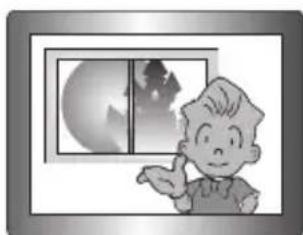
natural_image
Cartoon illustration of a boy looking at a window with a crescent moon and silhouette of a person (no text or symbols)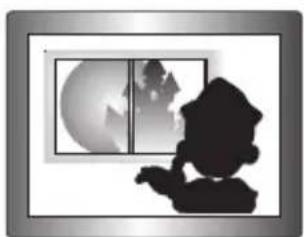
natural_image
Silhouette of a person looking out at a window with a crescent moon and mountain silhouette (no text or symbols)- RETURN : Return to the MAIN SETUP menu.

In WDR mode, the max/min shutter value is set to 1/2 to 1/480.
In WDR mode, there can be noise between a bright and dark area.
■ Depending on light conditions, unnatural changes or symptoms can occur on the screen so deactivate the user mode.
sPECial
-
When the SETUP menu screen is displayed, select 'SPECIAL' by using the Function Setup switch so that the arrow indicates 'SPECIAL'.
-
Select a desired mode using the Function Setup switch.
DisPlaY
① If the SPECIAL menu screen is displayed, use the Function Setup switch so that the arrow indicates 'DISPLAY'.
② Select a desired mode using the Function Setup switch.
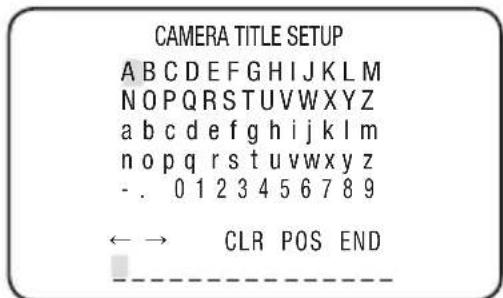
-CAM TITLE
① If the DISPLAY menu screen is displayed, use the Function Setup switch so that the arrow indicates 'CAM TITLE'.
② Set it to 'ON' by using the Function Setup switch.
③ Press the Function Setup switch.
④ Use the Function Setup switch to move to a desired letter and select switch. Repeat this to enter multip
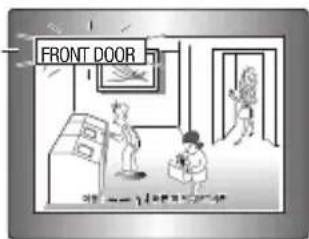
⑤ Enter a title, move the cursor to 'POS' and press the Function Setup switch. The entered title appears on the screen. Select the position to display the title on the screen by using the Function Setup switch and press the Function Setup switch. When the position is determined, select 'END' and press the Function Setup switch to return to the DISPLAY menu.
When the CAM TITLE menu is 'OFF', no title will be displayed on the monitor screen even if you enter one.
■ and Numbers are available in this mode.
If you move the cursor to CLR and press the Function Setup switch, all the letters are deleted. To edit a letter, change the cursor to the bottom left arrow and press the Function Setup switch. Move the cursor over the letter to be edited, move the cursor to the letter to be inserted and then press the Function Setup switch.
SPECIAL SETUP
▶ 1.DISPLAY
2.COMM ADJ
3. IMAGE ADJ
4. DAY/NIGHT AUTO
5. DEFOG OFF
6. PRIVACY OFF
7. DIS OFF
8. VIDEO ANALYTICS
9. RETURN
text_image
CAMERA TITLE SETUP A B C D E F G H I J K L M N O P Q R S T U V W X Y Z a b c d e f g h i j k l m n o p q r s t u v w x y z - . 0 1 2 3 4 5 6 7 8 9 ← → CLR POS END ----
text_image
FRONT DOOREnglish_25
camera operation
- FONT COLOR : You can change the OSD font color. (White, Yellow, Green, Red, Blue)
- LANGUAGE: You can select the menu language according to your requirements.
- RETURN : Return to the SPECIAL menu.
• COMM ADJ (Communication Adjustment) :
- COAX: You can select whether to use COAX communication.
- RETURN : Return to the SPECIAL menu.
- IMAGE ADJ
1 If the SPECIAL menu screen is displayed, use the Function Setup switch so that the arrow indicates 'IMAGE ADJ'.
② Select a desired mode using the Function Setup switch.
- GAMMA :
The setting range is 0.2 \~ 1.0. The closer to 1.0 the setting is, the darker it gets.
→ 0.20, 0.25, 0.30, 0.35, 0.40,
0.45, 0.50, 0.55, 0.60, 0.65, 0.70, 0.75, 0.80, 0.85, 0.90, 0.95, 1.0
- PED LEVEL : The setting range is 1 \~ 100. The closer to 100 the setting is, the higher the PED level gets.
- COLOR GAIN : The setting range is 1 \~ 100. The smaller the setting value is the smaller the color gain gets and the more color blind it gets.
-H-REV : Flip an image horizontally. - V-REV : Flip an image vertically.
-D-ZOOM: You can use a digital zoom of x1 \~ x16. - SHARPNESS : Select a mode to adjust the thickness of an image's sharpness. Increase or decrease the level of each mode to adjust the level of sharpness. Depending on the image, adjust it to an appropriate value. (OFF/LOW/MIDDLE/HIGH)
- PFR : Purple fringe can be reduced.
- RETURN : Return to the SPECIAL menu.

When the V-REV or H-REV mode is enabled, the text on the screen does not flip.
If you increase the SHARPNESS level too high, the picture may become distorted or noise may appear.
- When you use the PFR function, if there is an object near the strong light, the color can be missing.
26\_ camera operation
COMM SETUP
▶ 1. COAX
ON
- RETURN
-
| IMAGE SETUP | ||
| ▶ 1. GAMMA | 0.45 | |
| 2. PED LEVEL | ---- *---- | 50 |
| 3. COLOR GAIN | ---- *---- | 50 |
| 4. H-REV OFF | ||
| 5. V-REV OFF | ||
| 6. D-ZOOM OFF | ||
| 7. SHARPNESS MIDDLE | ←↓ | |
| 8. PFR | OFF | |
| 9. RETURN ↓ | ||
DaY/nighT: You can display pictures in color or in black and white.
① If the SPECIAL menu screen is displayed, use the Function Setup switch so that the arrow indicates 'DAY/NIGHT'.
② Select a desired mode using the Function Setup switch according to the picture display you want.
- auTo : The mode is switched to 'Color' in a normal environment, but switches to 'B/W' mode when ambient illumination is low. To set up the switching
| AUTO SETUP | |
| ▶ 1. BURST MODE | ON |
| 2. DURATION | NORMAL |
| 3. DWELL TIME | 30 SEC |
| 4. RETURN | J |
time for AUTO mode, press the Function Setup switch. You can turn on or off the burst signal on B/W mode.
- BURST MODE : Activate or deactivate the burst mode to maintain or remove the color signal.
- DURATION: This function is used to select the brightness of light where switching occurs.
- DWELL TIME: You can select day/night switching delay time from. → 3s, 5s, 7s, 10s, 15s, 20s, 30s, 40s, 60s

you set the AGC mode to off on the exposure menu, you cannot switch the day/night mode to auto.
- When a bright light source is in the screen or there are frequent brightness changes, if you use the auto night/day mode, and set the switching time to short (3, 5 sec), a hunting can be caused. In this situation, it is recommended to use the default setting (30 sec).
- EXTERN : Ground to the grounding terminal to allow automatic switching between COLOR and B/W (Black/White).
- COLOR : The picture is always displayed in color.
- B/W : The picture is always displayed in black and white.
- DEfog: You can use the defog mode to allow the camera to automatically detect the fog density of the screen and display a clear image despite smog, fog or general poor visibility.
1 If the SPECIAL menu screen is displayed, use the Function Setup switch so that the arrow indicates 'DEFOG'.
② Select a desired mode using the Function Setup switch.
- AUTO : Adjust the level automatically.
English_27
camera operation
- Manual : Depending on the defog level set by the user, adjust the clarity of image. (LOW, MIDDLE, HIGH)
-OFF : Released state
DEFOG MANUAL SETUP
▶ 1. LEVEL
MIDDLE
- RETURN

If the defog mode is set to Auto, and if the amount of fog is reduced, the function level will be also reduced. If you want to maintain the same level of defogging, set it to Manual.
If there is little fog and the manual fog level is high, the screen contrast can get high.
- PRIVACY: Mask an area you want to hide on the screen.
If the SPECIAL menu screen is displayed, use the Function Setup switch so that the arrow indicates 'PRIVACY'.
②Select a desired mode using the Function Setup switch.
- AREA : You can select up to 24 PRIVACY areas.
PRIVACY AREA SETUP
▶ 1. AREA
AREA1
- MODE
OFF
- MASK COLOR
GREEN
- TRANSPARENCY
OFF
- SEL POS
L_TOP
6.X POS
*----
18
7.YPOS
- * - - - - -
33
-
RETURN
-
MODE: Determines whether to use the area selected in the AREA.
- MASK COLOR : Determine area color. You can select Green, Red, Blue, Black, White, Gray.
- TRANSPARENCY : Adds or removes transparency from the masking area.
- SEL POS/ XPOS/ YPOS : Adjust the size and position of the selected area.
- RETURN : Return to the SPECIAL menu.
- DIS (Digital Image Stabilizer): This function mitigates any picture movement due to external factors such as wind.
•VIDEO ANALYTICS
① If the SPECIAL menu screen is displayed, use the Function Setup switch so that the arrow indicates 'VIDEO ANALYTICS'.
②Select a desired mode using the Function Setup switch.
VIDEO ANALYTICS
▶ 1. TAMPERING
OFF
2.MOTION
OFF
- INTELLIGENCE
OFF
- RETURN
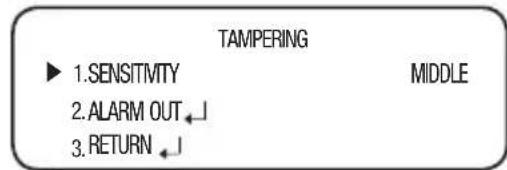
- TAMPERING : If the screen view is obstructed or the camera location is changed, tampering detection, you can issue an event signal
text_image
TAMPERING ► 1.SENSITMTY MIDDLE 2.ALARM OUT←↓ 3.RETURN←↓• SENSITIVITY: Set the sensitivity to tampering detection.
• ALARM OUT : Outputting of detection signals can be set.
- EXTERNAL : Send signals through external terminals.
- OSD: Display signals on the screen.
■RETURN : Return to the TAMPERING menu. - RETURN: Return to the VIDEO ANALYTICS menu.
In the following cases, the initially set tampering detection function can malfunction.
- In a monitoring environment with a simple background or an environment with low light level or at night, the detection performance can deteriorate.
- Sudden changes in the lighting and severe camera shaking can be wrongly detected as tampering.
- Immediately after tampering, the camera tampering detection can take up to a max of five seconds.
- If camera tampering is detected, after some time(five sec), stabilization will be done before restarting. During stabilization, there is no detection.
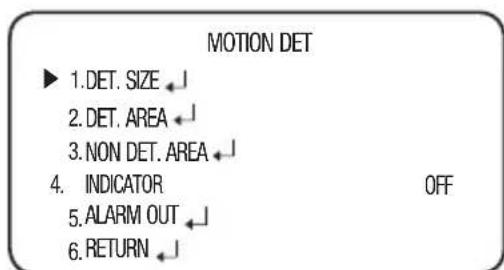
- MOTION : This product generates signals each time an object movement is detected in the four areas of the screen so efficient monitoring can be achieved.
text_image
MOTION DET ► 1.DET. SIZE ← 2. DET. AREA ← 3. NON DET. AREA ← 4. INDICATOR OFF 5. ALARM OUT ← 6. RETURN ←DET. SIZE : Selects an object size to detect on the screen.
- DET. AREA : Set the areas of motion detection.
■SEL AREA : Select from four areas that users want.

text_image
MOTION DETECT AREA ► 1.SEL AREA 2.MODE 3.SENSITIVITY 4. TOP 5.BOTTOM 6.LEFT 7.RIGHT 8.RETURN ↓ AREA1 ON 5 1 100 1 100English_29
camera operation
■MODE : Determine whether to use the selected area.
■ SENSITIVITY : Set the sensitivity of the motion detection. When you adjust the higher level, the more sensitive.
■TOP/BOTTOM/LEFT/RIGHT : Area location can be adjusted.
■RETURN : Return to the MOTION DET menu.
- NON DET. AREA : Specify a detection exception area to mask.Select a mask area number and specify the size and position.
- SEL AREA: You can select up to 4 areas.
■ MODE : Determines whether to use the area selected in the AREA.
TOP/BOTTOM/LEFT/RIGHT : Adjust the size and position of the selected area.
■RETURN : Return to the MOTION DET menu.
- INDICATOR: If an object moves in a pattern set by the user, it will be displayed on the screen as a box.
ALARM OUT: When object movement is detected, the detection signal will be outputted.
■EXTERNAL : Send signals through external terminals.
- OSD : Display signals on the screen.
-RETURN: Return to the MOTION DET menu.
RETURN: Return to the VIDEO ANALYTICS menu.
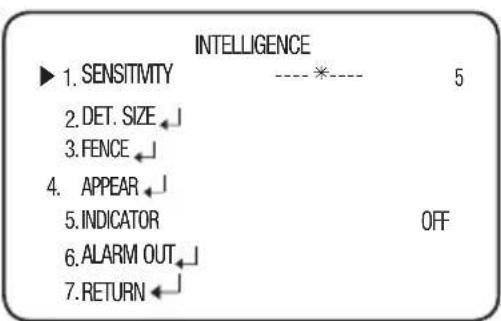
- INTELLIGENCE : Set the intelligent video detection function.
SENSITIVITY: Set the sensitivity of the motion detection. When you adjust the higher level, the more sensitive.
DET. SIZE : Selects an object size to detect on the screen.
FENCE
■SEL FENCE: You can select up to 4 FENCE.
■MODE : Determines whether
text_image
INTELLIGENCE ► 1. SENSITIVITY ----*---- 5 2. DET. SIZE 3. FENCE 4. APPEAR 5. INDICATOR OFF 6. ALARM OUT 7. RETURN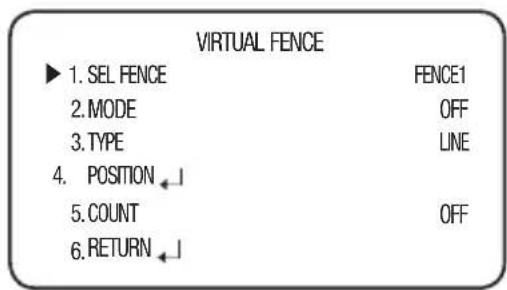
text_image
VIRTUAL FENCE ► 1. SEL FENCE FENCE1 2. MODE OFF 3. TYPElfINE 4. POSITION ← 5. COUNT OFF 6. RETURN ←30_ camera operation
to use the fence selected in the FENCE.
■TYPE : Two types, line and area, of fences are available.
■ POSITION : Defines the position and detection direction of a line or fenced area.
1) LINE FENCE
- SEL POS : Selects a position from POS1,POS2.
- X POS / Y POS : Adjust the size and position of the selected line fence.
- DIRECTION
• RIGHT : Detects objects moving left to right on the fence line.
• LEFT : Detects objects moving right to left on the fence line.
• RIGHT/LEFT : Detects all objects moving crosswise on the fence line.
- RETURN : Return to the VIRTUAL FENCE menu.
2) AREA FENCE
- SEL POS : Selects a position from POS1 \~ POS4.
- X POS / Y POS : Adjust the size and position of the selected area fence.
- DIRECTION
• IN : Detects objects entering the fenced area.
• OUT : Detects objects exiting the fenced area.
• IN/OUT : Detects all objects entering and exiting the fenced area.
- RETURN : Return to the VIRTUAL FENCE menu.
■ COUNT : Displays how many times a subject passes over the fence on the screen.
■RETURN : Return to the INTELLIGENCE menu.
APPEAR: Detects an object that emerges or disappears from the screen, or stays onscreen without movement.
LINE FENCE
| 1.SEL POS | POS1 | |
| 2.X POS | ----*---- | 50 |
| 3.Y POS | *---- | 1 |
| 4. DIRECTION | RIGHT | |
| 5.RETURN ← |
| AREA FENCE | ||
| ▶ 1.SEL POS | POS1 | |
| 2.X POS | --*---- | 25 |
| 3.Y POS | --*---- | 25 |
| 4. DIRECTION | IN | |
| 5.RETURN↓ | ||
camera operation
INDICATOR : Outlines an object on the screen in a box when its movement matches a custom Motion Type.

In the following cases, the appear/indicator may malfunction.
- When multiple movements occur randomly
- When a fixed object keeps moving in the same location
- When a new object covers an object with changes
ALARM OUT: When object movement is detected, the detection signal will be outputted.
■EXTERNAL : Send signals through external terminals.
- OSD : Display signals on the screen.
■RETURN : Return to the INTELLIGENCE menu.
RETURN : Return to the VIDEO ANALYTICS menu.

before use, set the max/min movement size within the range.
■ Depending on the shape of an object, there can be errors in size detection.
From the top of the screen, a max of sixteen objects can be expressed.
If the camera shoots an object a short distance away, the video analysis function can be degraded.
In the following cases, motion detection or video analysis event performance can be degraded or malfunctions can occur.
- If an object's brightness or color is similar to that of the background
- If there is little movement near the screen edge
- If multiple movements keeps occurring randomly, such as scene switching or sudden light changes
- If an object fixed in the same location keeps moving
- Moving away from the camera or approaching the camera. Little location change on the screen.
- If a moving object approaches the camera
- If random objects obstruct the view of each other
- If more than one objects merge or one object divides into multiple objects
- If an object moves too fast (the same object should have overlapping areas between the consecutive frames)
- If there are reflections/blurs/shadows created by a strong light such as direct sunlight, lights, and headlights.
32\_ camera operation
- Severe snow, rain and wind. Sunset or sunrise
- If the size is greater than the max size or smaller than the min size, motion is not detected. To avoid false detection caused by noises, set the max/min detection size suitable for the installation environment.
But the same movement in the same location can cause a different detection size. So, include margins when you set the min/max detection size.
EXiT
Select a desired EXIT mode using the Function Setup switch depending on the camera purpose.
- saVE : Save the current settings and exit the MAIN SETUP menu.
- noT saVE: Do not save the current settings and exit the MAIN SETUP menu.
- rEsET: Revert camera to factory settings. (The language, communication and lens settings will remain the same).
troubleshooting
TroublEshooTing
If you have trouble operating your camera, refer to the following table. If the guidelines do not enable you to solve the problem, contact an authorized technician.
| Problems Troubleshooting | |
| Nothing appears on the screen. | Check that the power cord and line connection between the camera and monitor are properly connected.Check that you have properly connected BNC cable to the camera.Check the type of lens. |
| The image on the screen is dim. | Is lens stained with dirt? Clean your lens with soft, clean cloth.Set the monitor or DVR to the proper condition.If the camera is exposed to very strong light, change the camera position. |
| The image on the screen is dark. | Adjust the contrast feature of the monitor or DVR.If you have an intermediate device, set the 75Ω / Hi-z properly. |
| The camera is not working properly, and the surface of the camera is hot. | Check that you have properly connected the camera to an appropriate power source. |
| he DAY/NIGHT menu does not work. | Check that AGC of EXPOSURE SETUP menu is ‘OFF’. |
| The INTELLIGENCE function does not work. | Check that INTELLIGENCE of menu is ‘OFF’. |
| Color is not correct. | Check the setting of WHITE BAL SETUP menu |
| The screen flickers continually. | Ensure the camera is not pointing towards the sun. |
| When coaxial communication is not available | Make sure that the camera and monitor are installed within the recommended distance.Use the video amplifier equivalent to coaxitron if the recommended installation distance is exceeded. |
34_ troubleshooting
specifications
sPECifiCaTions
| sCD-5083rn sCD-5083rP | ||
| Video | ||
| Imaging Device 1/3" 1.3M CMOS | ||
| Total Pixels 1312(H) x 1069(V) | ||
| Effective Pixels 1305(H) x 1049(V) | ||
| Scanning System Progressive Scan | ||
| Synchronization Internal | ||
| Frequency H : 15.734KHz / V : 59.94Hz H : 15.625KHz / V : 50Hz | ||
| Horizontal Resolution | Color : 1000 TVLB/W : 1000 TVL | |
| Min. Illumination | Color : 0.05Lux (F1.4, 50IRE), 0.001Lux (1sec, F1.4, 50IRE)0.02Lux (F1.4, 30IRE), 0.0006Lux (1sec, F1.4, 30IRE)B/W : 0Lux (IR LED On) | |
| S / N Ratio 52dB (AGC) | off, Weight on) | |
| Video Output CVBS : 1 | 0 Vp-p / 75Ω composite | |
| Lens Type | ||
| Focal Length (Zoom Ratio) | 3~10mm | |
| Max. Aperture Ratio F1.4 | ||
| Angular Field of View H: 82.0°(Wide)~26.5°(Tele), V: 59.7°(Wide)~19.9°(Tele) | ||
| Min. Object Distance | 0.5m | |
| Focus Control | Manual | |
| Lens Type | DC Auto Iris | |
| Mount Type | Board Type | |
| Operational | ||
| On Screen Display | English, Chinese, Korean, Japanese, German, Italian, French, Spanish, Russian, Czech, Polish, Romanian, Serbian, Swedish, Danish, Turkish, Portuguese | |
| Camera Title | Off / On (Displayed 15 characters) | |
| Day & Night | Auto (ICR) / External / Color / B/W | |
| Anti IR Saturation TOP | / BOTTOM / LEFT / RIGHT | |
| Backlight Compensation | Off / User BLC / HLC / WDR | |
| Wide Dynamic Range | 120dB | |
English_35
specifications
| sCD-5083rn sCD-5083rP | |
| Contrast Enhancement | SSDR ( Off / On ) |
| Digital Noise Reduction | SSNR4 ( Off / On ) |
| Defog | AUTO / MANUAL / OFF |
| Purple Fringe Reduction | Purple Fringe Reduction ( Off / Low / Middle / High) |
| Digital Image Stabilization | Off / On |
| Tampering | Off / On |
| Motion Detection Off / On | |
| Intelligent Video Fence | Apear_Disappear, Counting ( Off / On ) |
| Privacy Masking Off / On (24 programmable zones with 4points polygonal masking) | |
| Gain Control Off / Low / Middle / High | |
| White Balance | ATW / Outdoor / Indoor / Manual / AWC / MERCURY(1,800K° ~ 10,500K°) |
| Electronic Shutter Speed | 1 sec ~ 1/12,000 sec |
| Digital Zoom | Off / On (1x ~ 16x) |
| Reverse Off / H-Rev / V-Rev / HV-Rev | |
| Profile Basic, Day & Night, Backlight, ITS, Indoor, User | |
| Alarm 1 Out | |
| Communication Coaxial | Control ( SPC-300 Compatible ) |
| Protocol Coax : Pelco-C (Coaxitron) | |
| IR Distance 30m | |
| Environmental | |
| Operating Temperature / Humidity | -10°C ~ +55°C (+14°F ~ +131°F) / Less than 90% RH |
| Electrical | |
| Input Voltage | Dual ( 24VAC±10% & 12VDC±10% ) |
| Power Consumption | Max. 6W |
| Mechanical | |
| Color / Material | Ivory / Aluminum, Plastic |
| Dimension (∅ X H) | ∅ 119.8 x 101.8mm |
| Weight | 550g |
※ The specification for this product may change without prior notice for product improvement.
36_ specifications
DimEnsin
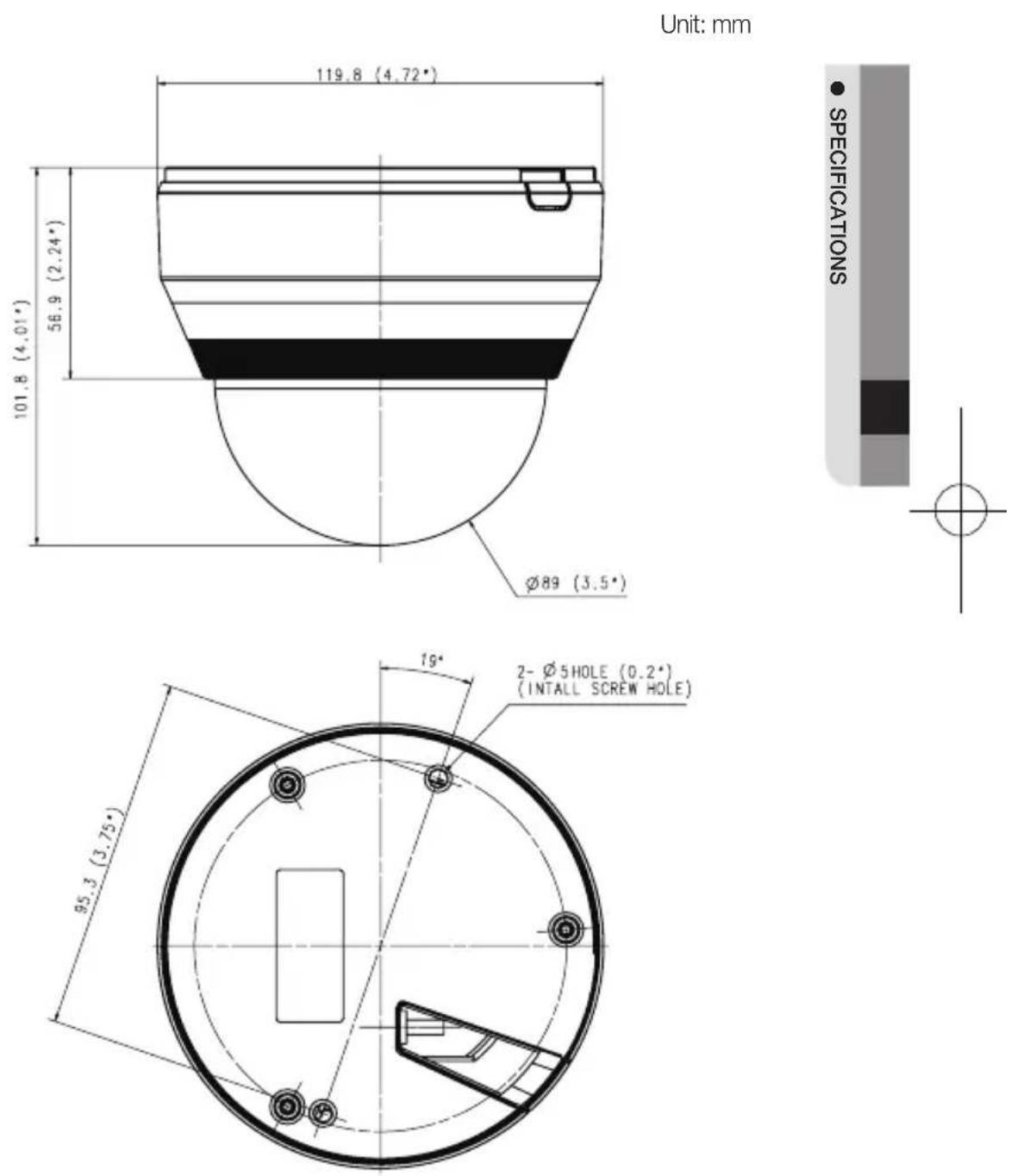
English_37
MEMO
SAMSUNG
SALES NETWORK
SAMSUNG TECHWIN CO., LTD.
Samsung Techwin R&D Center, 6, Pangyo-ro 319beon-gil, Bundang-gu, Songnam-si, Gyeonggi-do 463-400, Korea
TEL : +82-70-7147-8740\~60, FAX : +82-31-8018-3745
100 Challenger Rd. Suite 700 Ridgefield Park, NJ 07660
Toll Free : +1-877-213-1222 Direct : +1-201-325-6920
Fax: +1-201-373-0124
www.samsungcctvusa.com
SAMSUNG TECHWIN EUROPE LTD.
Samsung House, 1000 Hillswood Drive, Hillswood Business Park
Chertsey, Surrey, UNITED KINGDOM KT16 OPS
TEL: +44-1932-45-5300, FAX: +44-1932-45-5325
www.samsungtechwin.com
www.samsungsecurity.com