
Optics LN-G2-B50 - Observation glasses Yukon - Free user manual and instructions
Find the device manual for free Optics LN-G2-B50 Yukon in PDF.


| Product Type | Night Vision Binoculars |
| Brand | Yukon |
| Model | Optics LN-G2-B50 |
| Magnification | 2x |
| Objective Lens Diameter | 50 mm |
| Field of View | 30 m @ 1000 m |
| Eye Relief | 12 mm |
| Diopter Adjustment | -4 to +4 diopters |
| Focus System | Central focusing knob |
| Image Intensifier Tube | Gen 2+ (assumed) |
| Infrared Illuminator | Built-in, 850 nm |
| Power Supply | 2x AA batteries |
| Battery Life | Up to 20 hours (without IR) |
| Dimensions | 203 x 102 x 76 mm |
| Weight | 560 g |
| Material | Rubber armored polycarbonate body |
| Waterproof / Fogproof | Waterproof, Nitrogen filled |
| Operating Temperature | -30°C to +40°C |
| Warranty | 2 years |
| Included Accessories | Carrying case, lens cloth, manual |
Frequently Asked Questions - Optics LN-G2-B50 Yukon
User questions about Optics LN-G2-B50 Yukon
0 question about this device. Answer the ones you know or ask your own.
Ask a new question about this device
Download the instructions for your Observation glasses in PDF format for free! Find your manual Optics LN-G2-B50 - Yukon and take your electronic device back in hand. On this page are published all the documents necessary for the use of your device. Optics LN-G2-B50 by Yukon.
USER MANUAL Optics LN-G2-B50 Yukon
natural_image
Green and black LUNA 2018 optical device with lens and propeller (no visible text or symbols on body)LN-DB60-HD
IMPORTANT: Please read this manual in its enrety prior to using this device!
DIGITAL DAY/NIGHT VISION:
-
Your new binocular operates with baeries. Unlike a daylight binocular, where you see the image due to light traveling through the glass and the prisms, the digital night vision device works by processing the image with the internal CCD or CMOS sensor and projecting the image onto an LCD screen. While the CCD/CMOS sensor and the LCD display are both crucial components of your viewer, the opcal parts of the unit are also very important, as they gather the light into the CCD/CMOS sensor and then bring the projected image from LCD screen to your eye. Since the image is projected on the screen, just like any TV, it has certain limited resolution, so your digital night viewer cannot provide the same crystal clear image, as you see through your daylight binoculars.
-
Another important point – your digital night vision viewer has full color image during the day and opon of color / night vision green / black & white images when operang with IR illuminator – why? Because full color image somemes washes out the details in the dark and will not be as eecve as monochrome image during nighme condions. The night vision green color was chosen because green color shows more details than any other color in the palee and black & white image is especially useful when reading text or building signs or car plates.
-
Your digital viewer is intended for operaon during daylight and nighme hours. Please note that during daylight you will have to reduce the brightness level of the unit to prevent the image from becoming totally washed out. You should also ulize Color Enhancing Filter, supplied with the unit for daylight operaon in order to view more vibrant colors.
-
For more details on how to operate your viewer, please read this manual completely to ensure proper operaon.
YOUR SYSTEM INCLUDES THE FOLLOWING:
- LN-DB60-HD Digital Night Vision Viewer/recorder
- 8GB Micro SD-card (installed into the SD-card slot)
- Color Enhancing Filter (Daylight use only for vivid colors)
- Carry case with shoulder strap
- Padded neck strap
- DC adapter with US plug (EU plug adapter included for Internaonal customers) (110V/240V compatible)
- RCA-type Video Cable
- USB cable
- 2xCR123 baeries (oponal – may not be included with every unit – if included they are NON-RECHARGEABLE)
- 18650 Baery charger
- Lens cleaning cloth
WI-FI APP LINKS:
Scan the appropriate QR code with your phone camera for either Android or Apple Wi-Fi App and choose to follow the link to the store to download the App. Follow Wi-Fi connecn instrucons listed on page 10 for connecng your binocular to the App.

Android QR
Apple QR
OPERATION:
Now that we've covered some of the basics of the technology behind the night vision, let's learn how to operate your new device. Please look at the next page to identify all the parts of the unit.
LN-DB60-HD DIGITAL BINOCULAR / RECORDER
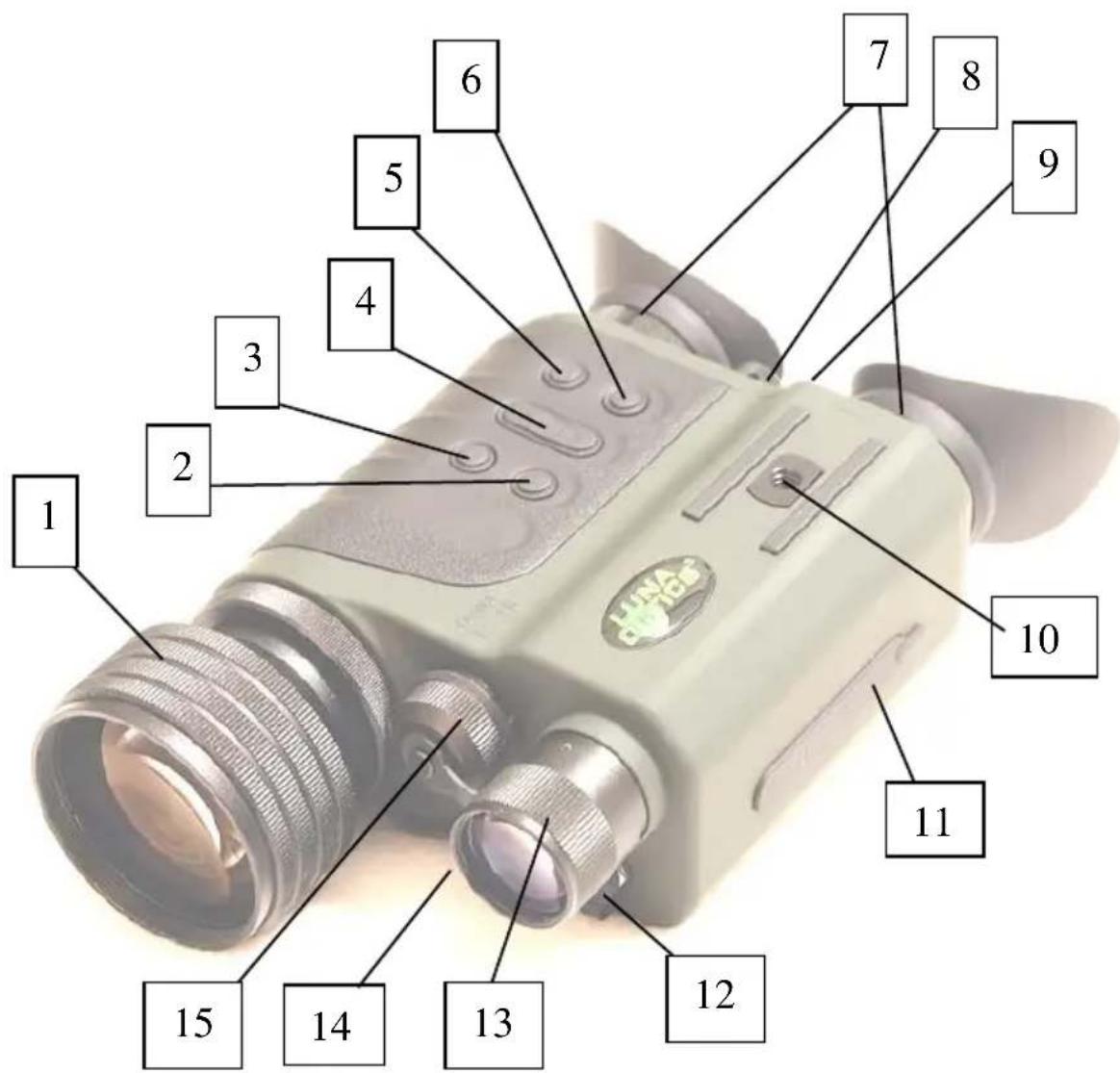
Glossary:
1 - Obiectve Lens Focusing Wheel
2 – Video Record Buon
3 – Sll Image Buon
4 - Image / Zoom Buon
5 – Power ON/OFF Buon
6 - Infrared / Menu Buon
7 – Ocular Focusing Wheels
8 – Brightness Toggle Wheel
9 - IR Beam Brightness Wheel
10 – Accessory Mount
11 - USB / Micro-SD Card Ports
12 - DC Output
13 – IR Beam Focusing Wheel
14 - Video Output
15 – Baery Compartment
INSTALLING THE BATTERIES:
Your digital day/night vision unit operates on a single 3.7V rechargeable baery type 18650 available at Amazon and other online retailers. NOTE: it is possible to use either regular or rechargeable CR123 baeries, but working me may be reduced and baeries conneccon may not be 100% reliable
WARNING: if 2xCR123 baeries are supplied with the unit – they are not rechargeable – do not charge or recharge these baeries!
WARNING: it is prohibited to charge any baery inside the unit or have baery inside the unit while operang it from wall or car outlet!
To install the baeries, unscrew the baery compartment cover (15), located on the front of the unit between the objecve lens and the IR illuminator and install the baeries into the compartment inserng the posive (+) end rst. Once the baeries are inside, replace the cover.
TURNING THE UNIT ON AND OFF:
Your digital day/night vision unit has one-touch push-buons. To turn the unit ON, rst remove the objecve lens cover and momentarily press the power buon (5). The green light indicator located on the back of the unit should light up. Look through the ocular – you should see the Welcome screen for a few seconds, followed by image. Even if the image is not yet sharp, the unit is operang. To turn the unit OFF, press and hold the power buon for 2 seconds. The image will disappear if you turn the unit o correctly. Always replace the objecve lens cover aer the unit is turned o and no longer is in use to protect the lens from scratching or dust.
IMPORTANT: When turning the unit ON it is normal to see some image ickering, as the components warm up to display the image. This is normal and does not aect the unit. If the ickering connues aer 5-
10 seconds, please try to decrease the brightness of the image by gently toggling the Brightness Wheel (8) either le or right.
CONNECTING THE DC ADAPTER:
Your digital binocular can also operate from a common wall outlet with the use of the plug adapter (included). Insert the adapter cord into the DC Output (12) and connect adapter to the wall outlet. IMPORTANT: Always remove the baeries prior to operang the unit from wall/car outlet!
SETTING UP DATE AND TIME:
As your viewer has capability to take images and record video, me and date is automacally stamped onto each image and video recording. To set the correct date and me, please follow this procedure:
Turn the unit ON. Aer image appears, press and hold for 2 seconds the IR/Menu Buon (6). Menu will appear on the image screen. Select date/Time opon with Image buon (4) and acvate it with IR/Menu buon (6). Default date format is MM/DD/YYYY. To adjust the numbers, press Image Buon (11) either in + or – direcon. To switch between date/month/year, press IR buon momentarily. Aer Date is set, adjust the me. Time is in 24hr format, so 13:00 is 1pm; 17:30 is 5:30pm and so on. As with the date, changing hours and minutes is done with Image buon (4) either + or – and moving between hours and minutes is done via IR buon (6). Once the me is adjusted you may choose to change the date format from the factory seng MM/DD/YYYY to DD/MM/YYYY or YYYY/MM/DD according to your preference. Once you are nished seng date and me, you must conrm your seng by pressing REC buon (2).
IMPORTANT: in order to preserve the set date/me do not remove the dead baeries from the unit unl you are ready to replace them with the new set, then replace the old baeries with new set as quickly as possible and the date/me will be preserved.
FOCUSING THE UNIT:
To obtain the sharp image, you must rst rotate the objecve lens (1) in either direcon, unl you noce in which posion the image is at its best. Aer that, rotate the oculars (7) also unl the image is at its best. You may have to repeat the process again, unl the image is sharp and clear. Once the clear image is obtained, you no longer need to adjust the oculars, just rotate the front objecve lens to adjust the distance to the object you are viewing.
BRIGHTNESS ADJUSTMENT:
Your digital viewer is equipped with dual brightness control. An automac brightness control sensor adjusts the image brightness according to the available ambient light. In addition a toggle brightness adjustment wheel (8) allows you to ne-tune the image brightness depending on the ambient light conditions. Please note that during daylight you will need to tone the brightness down to avoid image ickering and to preserve the baery life. During nighme you could increase the brightness all the way up, however when ulizing built-in or external IR illuminator, you may need to tone the brightness down a bit.
ELECTRONIC IMAGE MAGNIFICATION ZOOM:
Your unit is also equipped with electronic zoom funcon, which allows you to change image magnicaon from 6x to 30x. To increase the image magnicaon press the IMAGE buon (4) on the + side and look into the ocular – you will see the image magnicaon increase. At the minimum level (1.00) the image magnicaon is 6x; at the maximum level (5.00) the image magnicaon is 30x. You can see the zoom level in the le lower corner of the image screen once you start pressing the IMAGE buon on the + side. To decrease the image magnicaon, press the IMAGE buon on the – side.
USING INFRARED ILLUMINATOR:
Your digital viewer is equipped with a built-in powerful Infrared illuminator light. This light operates in a spectrum, which is normally invisible to a human eye, however with the help of the internal image sensor you will see a beam of light when looking though the ocular.
Since the image sensor does not acvely amplify the available light, you will need to ulize the IR illuminator oen in the nighme condions.
To turn the Infrared illuminator ON, press the IR illuminator buon (6) momentarily – image will remain full color. To switch image to night vision green (Sephia opon) – press IR buon again. To switch image to Black & White press the IR buon again. To turn the IR illuminator OFF press the same IR buon again once. A red light indicator located in the back of the unit will light up indicang the IR Illuminator is on and will disappear when the IR illuminator is o.
Your binocular has a fully adjustable IR beam, meaning you can adjust the IR power via special IR brightness wheel (9) located just below the image brightness toggle wheel (8). You can also adjust the width of the IR beam by rotang the IR beam focusing wheel (13) in order to either spread the IR light beam, or narrow it for longer distances.
It is also possible to ulize dierent color image opons without the use of IR illuminator in order to preserve baery power. If you wish to use night vision green or black & white image connuously, acvate it via the IR buon and dial the IR brightness all the way down via the IR brightness wheel (9), so that you are not wasng the baery power.
When using the infrared illuminator it is important to remember that like a ashlight, it is brightest when used in short distances. As the distance increases, the intensity of the infrared light fades away.
Extended range IR illuminators are available (model LN-EIR-2, or LN-ELIR-2), which can be mounted into the top accessory mount socket (10). The thread is a standard 14 " type and will accept any accessory with moung screw of that size. Please note there is another moung socket at the boom of the binocular, which is reserved for moung the unit onto a tripod with standard 14 " thread.
TAKING PICTURES AND RECORDING HD VIDEOS:
Your digital viewer has the ability to take pictures and record HD videos onto the external Micro-SD card. 8GB card is included with your unit and it is already installed into the SD-card slot. The Micro-SD card can be upgraded up to 128GB, which is especially useful if you plan to record a lot of videos. To change the SD-card, open the SD-card/USB compartment (11) and remove the included 8GB card by carefully
pressing onto its end. It will pop out of its slot. Gently remove the card and replace it with the new one by pressing it straight forward until it is securely locked in the slot. Close ghtly the rubber compartment cover to protect the card from water and/or dust.
To take a picture, focus the unit onto the object you are viewing and with a steady hand rmly press the PIC buon (3) once. The display will give a countdown (2-1) and then image is taken and is automacally stored onto the SD card.
To record a video, focus the unit onto the object and press REC buon (2) once. The system will start recording. Please note that the video is being recorded in Full-High Denion (1080p) and in the Widescreen format (16x9). To stop video recording press REC buon again. During video recording it is possible to take a sll picture by pressing PIC buon (3) momentarily. Please note during video recording it is sll necessary to re-adjust the focus if you wish to record dierent objects, located at dierent distances. Please be aware that actual video recording quality is significantly higher than what you will see through the viewnders – to see recording in High Denion widescreen format please remove the micro-SD card and play it on your Blu-Ray player or computer.
NOTE: during daylight video-recording is 60fps, during nighme it is 30fps.
CHOOSING CORRECT ISO (SENSITIVITY) SETTING:
Your digital binocular comes with 5 user-selectable ISO (sensitivity) sengs, plus an AUTO mode. All units come with AUTO mode as a default seng and in most conditions this mode is the best choice for viewing and recording. In certain conditions where extra sensitivity is desired (such as Sky Watching where small light objects need to be constantly seen) it is beer to select one of the highest ISO sengs (between 1600 and 6400) for constant sensitivity, which prevents any sudden bright light source to lower the overall system sensitivity. To choose the ISO seng, access the menu by long pressing the IR/Menu buon (6) and selecng desired mode with IMAGE/Zoom buon (4) and conrming with IR buon (6)
VIEWING PICTURES AND RECORDED VIDEOS:
It is possible to view the images and videos directly on the unit's micro-display. To do so, while the unit is operang press the Power buon (5)
momentarily just once. You will be able to switch between images and videos by pressing IMAGE buon (4) in either + or – direcon. To play the recorded video, press PIC buon (3) once. To stop playing video press PIC buon again. To exit picture/video viewing mode and to come back to the acve image mode, press Power buon (5) briefy just once. Please note – if you press and hold Power buon, your unit will shut down and would need to be reacvated again by pressing Power buon once.
CONNECTING TO EXTERNAL VIDEO SOURCE:
You can connect your device to the TV/VCR/DVR via the RCA-type video cord (included with your device). Connect the small end of the Video cable to the Video Output (14) and then connect the yellow plug to the TV/Recorder video input. NOTE – if you live outside of USA, you may need to switch the Video Output from NTSC to PAL by accessing the menu (Press IR Buon for 2 seconds and when Menu appears select the Video format opon. Switch between NTSC and PAL formats by pressing the Image Buon and conrm your seng by pressing IR buon).
WI-FI LINK INSTRUCTIONS:
- Download "WIFI ACTION CAMERA" app on your Android phone/tablet or on iPhone/iPad (NOTE: if the App cannot be found by searching the store – please scan the appropriate QR code provided for your convenience on page 3 and choose to link to the store)
- Press PIC buon for 3 seconds to acvate your monocular WI-FI setup. Look through the eyepiece and observe the WI-FI link name and Password. The Wi-Fi link is the rst line of the screen and the password is on the second line.
- Open the App
- Click on "Connect Camera"
- Click on "Go Sengs"
- Find the Wi-Fi link (same as rst line shown on the unit's LCD display) and click on it
-
Enter password (second line of the unit's LCD display) – NOTE: only numbers aer “:” are needed to be entered – typical default password is 12345678
-
Close the app and open the App again and click on "Connect Camera"
- Green check (v) sign means camera is now connected
- Follow on screen menu on your mobile phone to ulize the available features of the app.
TROUBLESHOOTING:
- Unit does not turn on and the light indicator is o:
a) please check if the baeries are inserted correctly
b) please make sure the baeries are fresh
- The light indicator is working, but you cannot see the image:
a) you may be turning the unit on in a dark area with the lens cover sll on the unit
b) You may need to turn on the infrared light
- Unable to obtain sharp and clear image:
a) you may need to repeat the process of rotang the oculars and objecve lens several mes unl you get a good feel of it
b) You may be viewing an object that it too close – the minimum focusing distance is approximately 80cm or 2.6ft
- I switch from acve image to photo/video review and the unit shuts o:
a) You are pressing the Power buon too long. You must only press the Power buon momentarily.
- Image freezes during operaon or during initial turn on:
a) Open at least one baery compartment and then re-avvate the unit.
b) If this situaon connues – call or e-mail our technical support: 1-972-722-1100 / info@lunaopcs.com
- I'm trying to turn the IR illuminator on and instead I see the date/me menu:
a) You are holding the IR buon for more than 1 sec. In order to turn the IR illuminator on, you must press the IR buon once and immediately release it.
WARNING! NEVER ATTEMPT THE FOLLOWING:
- Try to disassemble the unit by yourself or by anyone who is not our authorized technician. Doing so may result in injury and will void any warranty claims
- Charge baeries included with the unit – they are not rechargeable!
- Charge ANY baeries inside the unit – it can only be done in the correct baery charger!
- Leave the baeries inside the unit while operang it from the AC/DC source! You must remove the baeries prior to connecng the cord!
- Submerse the unit into water or use it during heavy rain.
TECHNICAL SPECIFICATIONS:
CCD/CMOS Resoluon / Sensitivity: ____ 1920x1080 / 0.002lux (night)
Image Display ____ 0.26" Micro-at HR 800x600 (dual)
Sll Image resoluon 2.1MP JPEG
Video resoluon (signal) ____ Full-HD 1080p AVI (NTSC / PAL)
Video recording daylight 60fps
Video recording nighme 30fps
Image Magnicaon 6x-30x
Focusing Distance 80cm (2.6) - ∞
Viewing Distance (clear skies, full moon) ____ 600m (656yds)
Viewing Distance (1/4 Moon) ____ 400m (437yds)
Viewing Distance (IR complete darkness) ____ 200m (219yds)
Field Of View 7°
Memory ____ Micro SD card (up to 128GB)
External Wi-Fi 802.11 b/g/n
Power ____ 2 x 3V Lithium (CR123) or 1 x 3.7V type 18650
Operang Time ____ 2.5-3hrs (2xCR123) ____ 4hrs (18650)
Dimensions ____ 180mm x 120mm x 60mm (7.2"x4.7"x2.3")
Weight 725g (1.6lbs)
Warranty ____ 1yr