524SG - Phone CISCO - Free user manual and instructions
Find the device manual for free 524SG CISCO in PDF.


| Product Type | IP Phone |
| Brand | Cisco |
| Model | 524SG |
| Dimensions (H x W x D) | 185 x 220 x 45 mm |
| Weight | 0.8 kg |
| Power Supply | Power over Ethernet (PoE) or 5V DC adapter |
| Display | Monochrome LCD, 2 lines x 24 characters |
| Keypad | 24 programmable feature keys |
| Ethernet Ports | 2x RJ45 10/100 Mbps |
| Audio | Handset, full-duplex speakerphone, headset jack |
| Call Features | Call hold, transfer, conference, redial, voicemail |
| Maintenance | Clean with dry, lint-free cloth |
| Security | Device lockdown mode |
| Spare Parts | Handset, handset cord, power adapter |
| Mounting | Wall-mountable |
Frequently Asked Questions - 524SG CISCO
User questions about 524SG CISCO
0 question about this device. Answer the ones you know or ask your own.
Ask a new question about this device
Download the instructions for your Phone in PDF format for free! Find your manual 524SG - CISCO and take your electronic device back in hand. On this page are published all the documents necessary for the use of your device. 524SG by CISCO.
USER MANUAL 524SG CISCO
natural_image
Portrait of a man in a beige jacket sitting on a sofa, with blurred background (no text or symbols visible)Cisco Unified Communications Manager Express for Cisco Unified IP Phone 521SG and 524SG User Guide
1 Overview
2 Operating Your Phone
3 Phone Features Index
1 Overview
This guide provides operating instructions, and feature descriptions for the Cisco Unified IP Phone models 521SG and 524SG. The Cisco Unified IP Phone 521SG has a single line and the 524SG has four lines.
Physical Description
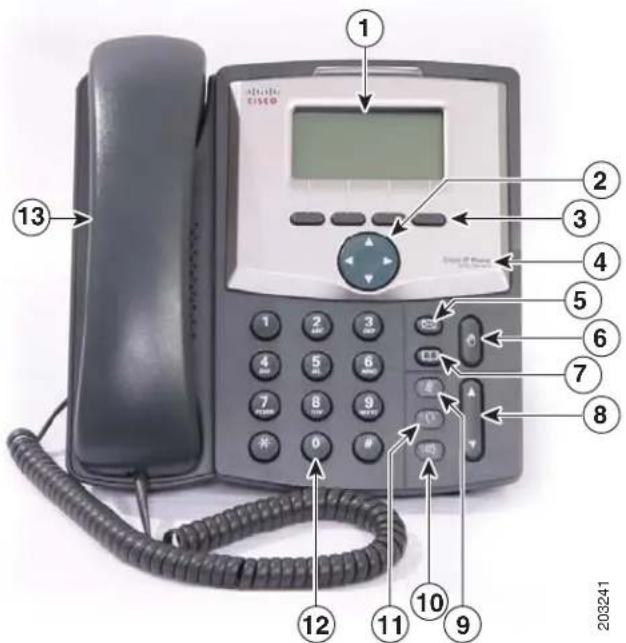
Your Cisco Unified IP phone 521SG and 524SG has soft keys and dedicated buttons, allowing you to place and receive phone calls, put calls on hold, transfer calls, make conference calls, and access other features.
text_image
1 2 3 4 5 6 7 8 9 10 11 12 13 203241| Name Description | ||
| 1 | LCD screen | Displays information such as line/call status, phone number, date, time, and soft key tabs. |
| 2 | 4-way navigation pad and select (center) button | Allows you to scroll through soft button features, and displays phone numbers from your Placed Calls, when phone is on-hook. Use select button to select an item that is highlighted on the screen. |
| 3 | Soft keys buttons | Engages the functions displayed on the corresponding LCD tabs. |
| 4 | Cisco Unified Communications Manager Express phone model types | Shows the Cisco Unified IP phone model number. |
| 5 | Messages button Provides access to voice message service. | |
| 6 | Hold button  | be put on hold. |
| 7 | Setup button | Provides access to phone options and directory services. |
| Name (continued) Description (continued) | ||
| 8 | Volume button | Increases or decreases handset, headset, ringer, or speakerphone volume. |
 | ||
| 9 | Mute button Toggles mute on and off. | |
| 10 | Speaker button Toggles speaker on and off. | |
| 11 | Headset button Toggles headset on and off. | |
| 12 | Keypad Functions as a traditional phone keypad. | |
| 13 | Handset Functions as a traditional handset. | |
Connecting Your Phone
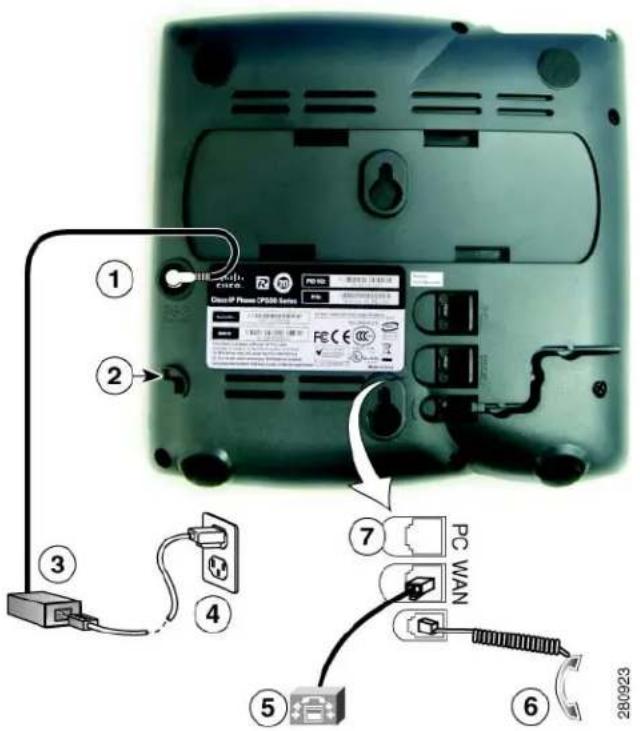
This section shows and describes the connectors on your Cisco Unified IP phone.
text_image
Diagram of a device rear panel with labeled components including PC WAN, cable, and connectors| 1 | Optional DC adapter port (DC5V) for phones not provided with inline power |
| 2 | Headset port |
| 3 | AC-to-DC power supply |
| 4 | AC power cord |
| 5 | Network port (10/100 WAN) for connecting to the network |
| 6 | Handset port |
| 7 | Access port (10/100 PC) for connecting your phone to your computer |
Adjusting the Handset Rest
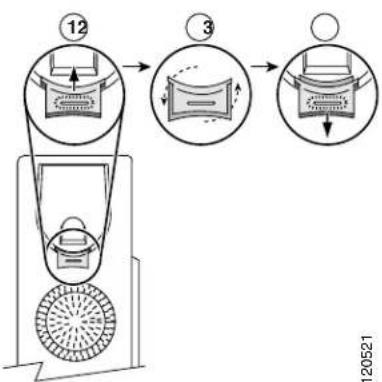
When you connect your phone, you can adjust the handset rest so that the receiver does not slip out of the cradle. To adjust the handset:
- Set the handset aside and pull the square plastic tab from the handset rest.
- Rotate the tab halfway.
- Slide the tab back into the handset rest. An extension protrudes from the top of the rotated tab. Return the handset to the handset rest.
flowchart
graph TD
    A["12"] --> B["3"]
    B --> C["Output"]
    style A fill:#f9f,stroke:#333
    style B fill:#ccf,stroke:#333
    style C fill:#cfc,stroke:#333
2 Operating Your Phone
This section describes how to operate your Cisco Unified IP phone and includes information on soft keys and phone features.

Note
Because there are differences in phone and site configurations, not all features described here might apply to your phone. Consult your system administrator.
Soft Key Descriptions
Your Cisco Unified IP phone is equipped with soft keys for call features and options. Soft keys are listed along the bottom of the LCD screen and activated using the corresponding buttons. Soft keys can change according to the state of the phone.
Following is a comprehensive list of soft keys offered on the Cisco Unified IP Phones 521SG and 524SG. Functions depend on your system configuration.
| Soft Key Function | |
| <> | Navigates left and right through entry without deleting any character. |
| Add Allows addition of a new entry. | |
| Answer Answers incoming call. | |
| Callback Notifies callers that called line is free. | |
| Cancel Cancels last selection. | |
| cbarge Allows callers to join a shared-line call. | |
| CFwdALL Forwards all calls. | |
| Clear Clears the entire entry. | |
| Confrn Connects callers to a conference call. | |
| Soft Key | Function |
| Delete Deletes selected number. | |
| Delchr Deletes a character. | |
| Dial Dials displayed number. | |
| DnD Enables Do-Not-Disturb feature. | |
| Down Decreases LCD screen contrast. | |
| EditDial Selects number and activates cursor for editing. | |
| EndCall Ends current call. | |
| Exit Exits from current selection. | |
| Flash | Provides hookflash functionality for three-way calling and call waiting services provided by the PSTN or Centrex service. |
| GPickUp | Selectively picks up calls coming into a phone number that is a member of the pickup group. |
| Hold Places active call on hold. Resumes on hold call. | |
| Login Provides PIN-controlled access to restricted phone features. Contact your system administrator for additional instructions. | |
| LiveRcd Enables the user to record a phone conversation. | |
| more | Scrolls through additional soft key options (for example, use themoresoft key to locate the DnD soft key). |
| NewCall Opens a new line on a speakerphone to place a call. | |
| Ok | Confirms selection. |
| Park | Forwards calls to a location from which a call can be retrieved by anyone in the system. |
| PickUp | Selectively picks up calls coming into another extension. |
| Play Plays ring sound samples. | |
| Redial | Redials last number dialed. |
| Remove | Removes conference participant. |
| RmLstC | Removes last participant from the conference call. |
| Resume | Returns to active call. |
| Save | Saves last change. |
| Search | Initiates search in local directory. |
| Select | Selects highlighted option. |
| TrnsfVM | Transfers a call to voice mail. |
| Trnsfr | Transfers active calls to another extension. |
| Up | Increases LCD screen contrast. |
| Update | Updates content. |
Phone Features
This section provides information on using your phone's features and includes:
- Basic—Place a Call, 6
• Additional Options—Place a Call, 7 - Answer a Call, 7
• End a Call, 7 - Hold and Resume a Call, 7
- Mute a Call, 7
- Manage Call Waiting, 8
- Retrieve Voice Messages, 8
- Adjust the Volume for the Current Call, 8
- Adjust the Ring Volume, 8
- Select the Ring Type, 8
- Adjust the Display Contrast, 9
• Divert Incoming Calls, 9
- Park a Call, 9
- Call-Blocking (Toll Bar) Override, 9
• View Multiple Calls, 10
- Transfer a Call, 10
- Cancel Transfer, 10
- Transfer to Voice Mail, 10
- Forward All Calls, 10
- Pick Up Calls, 11
- Place and Establish Conference Call, 11
• End a Conference Call, 11
• Live Record a Call, 12
- Join a Shared-Line Call, 12
- Place Call from Your Local Directory, 12
- Program Personal Speed-Dial Buttons, 12
- Place a Call from Your System Speed-Dial Directory or Fast Dial, 13
• View Call History, 13
- Place a Call from Call History, 13
- Clear Call History, 13
- Use the Intercom Feature, 14
- Activate Do Not Disturb, 14
Basic—Place a Call
Use one of the following methods to place a call:
- Lift the handset and dial the number.
- Dial the number, and then lift the handset.
-
Dial the number, and then press the Dial soft key.
-
Press the line button for your extension, and then dial.
- Press the Speaker button, and then dial.
- Press the New Call soft key, and then dial.
- If you are using a headset, press the Headset button, and then dial. Or, if ( ) is lit, press New Call and enter a number.
- Dial the number, and then press the Headset button.
- If you have selected a number from a directory, press the Dial soft key.
- Press Redial to dial the last number, or press the Navigation button (with the phone idle) to see your Placed Calls.
- If you are placing a call while another call is active (using the same line), press the Hold button, and then press New Call and enter the number.
- If you are dialing from the Setup, choose Call History and select Missed Calls, Received Calls, or Placed Calls.
- If you are dialing on-hook, without a dial tone (predial), enter a number, then, lift the handset to go off-hook and press Dial, or.

Note
Use the backspace (<<) soft key to erase digits that you enter incorrectly.
Additional Options—Place a Call
To place a call while another call is active (using a different line):
-
Press the line button for a new line. The first call is automatically placed on hold.
-
Enter a number.
Answer a Call
Use one of the following methods to answer a call:
- Press to answer with a headset, if unlit. Or, if is lit, press Answer.
- Press to answer with the speakerphone or press Answer.
- Press Answer to switch from a connected call to answer a new call, or, if the call is ringing on a different line, press the line button.
- Press Answer to answer a call using call waiting.
- Press DnD to send a call to your voice messaging system.
End a Call
Use one of the following methods to end a call:
- Hang up the handset or press EndCall.
- If you are using a headset, press 📄. Or, to keep headset mode active, press EndCall.
- If you are using a speakerphone, press 📷 or EndCall.
- Press EndCall to hang up one call, and preserve another call on the same line. If necessary, remove the call from hold first.
Hold and Resume a Call
Engaging the Hold feature typically generates music or a beep to the caller.
To put a call on hold:
-
Make sure the call you want to put on hold is highlighted.
-
Press the Hold button.
-
Make sure the call you want to put on hold is highlighted.
- Press the Hold button.
To remove a call from hold on the current line:
- Make sure the appropriate call is highlighted.
2. Press Resume.
To remove a call from hold on a different line, press the appropriate line. If a single call is holding on this line, the call automatically resumes. If multiple calls are holding, scroll to the appropriate call and press Resume.
Mute a Call
With Mute enabled, you can hear other parties on a call and they cannot hear you. You can use Mute in conjunction with the handset, headset, or a speakerphone.
Press to toggle Mute on, red light will light when active.
Press to toggle Mute off.
Manage Call Waiting
If you are on a call when a second call comes in, you hear a call-waiting tone or see a flashing indicator light on the handset rest, depending on the configuration of your phone.
To answer the new call on the same line:
- Use the Navigation button to select the call.
- Press Answer to answer the call. The call on the other line is automatically put on hold.
To return to the original call:
- Use the Navigation button to reselect the call.
- Press Resume to reconnect to the call.
For calls on a separate line:
- Press the Line button for the incoming call. The call on the other line is automatically put on hold.
To return to the original call: - Press the Line button associated with the original call.
Retrieve Voice Messages
To retrieve voice messages:
- Select an available line by lifting the handset, pressing the speakerphone button, or pressing a line button. Listen for the dial tone.
- Press the Messages button, and follow the voice instructions.

Note
Cisco Unity Express is the default voice message service that your phone systems use. For more information on voice mail, go to cisco.com and search for the Cisco Unity Express User Guide.
Adjust the Volume for the Current Call
To adjust the handset, speakerphone, or headset volume for the current call:
- During a call, press the Up or Down Volume button.
- Press Save to apply the new volume level to future calls.
Adjust the Ring Volume
- Press the Up or Down Volume button while the handset is in its cradle.
Select the Ring Type
To change the ringer sound:
-
Press the Setup button and select Settings.
-
Press 2 for Ring Type, or use the Navigation button to scroll to Ring Type and press Select.
- Use the Navigation button to scroll through the list of ring types.
- Press Play to hear samples.
- Highlight the ring you want, and then press the Select.
- Press Ok to select your setting.
- Press Save to save the setting, or press Cancel to exit to the previous menu without changing the setting.
- Press Exit to return to the main directory menu.
Adjust the Display Contrast
To adjust the contrast in your LCD Display:
- Press the Setup button.
- Press 1 for Contrast, or use Select.
- Use the Down or Up soft key to change the contrast.
- Press Ok.
- Press Save or Exit.
- Press Ok to select your contrast setting.
- Press Save to save the setting, or press Cancel to exit to the previous menu without changing the setting.
- Press Exit to return to the main directory menu.
Divert Incoming Calls
To forward any incoming call to the call-forward destination set on the Cisco Unified IP phone:
- Press the DnD soft key.

Note If the call-forward destination is not set, pressing the DnD soft key disables the ringer.
Park a Call
Call park allows a phone user to place a call on hold at a designated parking spot from which the call can be retrieved by anyone on the system.

Note Contact your system administrator for your call park slot number.
To park a call:
- Press the Park soft key.
The Cisco Unified Communications Manager Express system automatically selects an available call park slot and displays the number on the Cisco Unified IP phone screen.
To retrieve a parked call:
• Dial the park slot extension.
To park a call to a directed call park slot:
- Press the Transfer softkey followed by the call park slot number provided by your system administrator.
To retrieve a call parked at a directed call park slot:
- Dial the retrieval park-slot extension.
Call-Blocking (Toll Bar) Override
Call blocking prevents unauthorized use of phones. It is implemented by matching a pattern of specified digits during a specified time of day and day of week or date. The call-blocking override feature allows individual phone users to override the call blocking that was defined.

Contact your system administrator for your personal identification number (PIN).
To place calls when call-blocking is enabled:
- Press Login on the Cisco Unified IP phone.
- Enter the PIN that is associated with the phone.
Transfer a Call
To transfer a selected call to another number:
- During a call, press Trnsfr. The call is placed on hold.
- Dial the number to which you want to transfer the call.
- Press Trnsfr to complete the transfer or wait for the call to be answered. Speak to the transfer recipient. Then press the Trnsfr button or hang up the handset.
- If the transfer fails, press EndCall then press Resume to return to the original call.
Cancel Transfer
- To cancel your consultative call-transfer attempt:
- Press EndCall.
- To reconnect to the original caller:
- Press Resume.
Transfer to Voice Mail
To transfer a call to the recipient's voice mail:
- Press TrnsfVM to place the call on hold.
- Enter the recipient's extension number and press TrnsfVM again.
Forward All Calls
To forward all incoming calls to another number:
- Press CFwdALL. You hear a confirmation beep.
- Dial the number to which you want to forward all your calls. Dial the number exactly as if you are placing a call to that number. Remember to include locally required prefix numbers.
- Press the pound key (#) or EndCall. The phone display is updated to show that calls are to be forwarded.

Note
To forward calls to voice mail, manually enter the voice-mail number, or use the soft key and button sequence of CFwdALL plus the Messages button, followed by EndCall.
To forward calls to a speed-dial number, use the soft key and button sequence of CFwdALL plus a speed-dial button, followed by EndCall.
To cancel call forwarding:
- Press CFwdALL.
Pick Up Calls
To pick up a call that is on hold or a call that is ringing at another extension:
-
Press PickUp.
-
Dial the extension number of the Cisco Unified IP phone that you want to pick up. Call control is transferred to your phone.
To selectively pick up a call ringing at a number that belongs to a pickup group:
- Press GPickUp. If only one pickup group is defined in the entire Cisco Unified Communications Manager Express system, call control is transferred to your phone.
- If the ringing phone and your phone are in the same pickup group, press the asterisk (*) to transfer call control to your phone.
- If the ringing phone and your phone are in different pickup groups, dial the pickup group number where the phone is ringing to transfer call control to your phone.
Place and Establish Conference Call
To place a conference call:
- During a call, press Confrn to open a new line and put the first party on hold.
- Place a call to another number.
- When the call connects, press Confrn again to add the new party to the call.
To establish a conference call between two- and three-parties to a Cisco Unified IP phone, one active and the other on hold:
- Press Confrn.
To establish a conference call between two- and three-party calls already present on a Cisco Unified IP phone, using separate line buttons, one active and the other on hold:
-
Press Confrn.
-
Press the Line button of the call you want to add to the conference.

Note
Your system administrator must configure the system for three-party or eight-party ad-hoc conferences.
End a Conference Call
• To end the conference call:
- Hang up the handset, or press EndCall.

Note
Depending on the configuration, when the conference call initiator disconnects, the conference call terminates.
Alternate Method to End Conference Call
Call initiators can disconnect from the conference by hanging up the handset. The other parties remain on the conference call.
Live Record a Call
Call initiators can use the LiveRcd soft key to record an active call, private line or conference call. To record a call, use this method:
- Press LiveRcd. This puts the other party on-hold and initiates a call to the configured live record number.
- Press LiveRcd again to stop the recording.
Join a Shared-Line Call
Users can join a call on a shared line using the cBarge softkey.
To join the shared-line call:
- Highlight the remote-in-use call that you want to join.
- Press more to navigate to cBarge and press cBarge.
Place Call from Your Local Directory
To access the local phone directory established by the system administrator:
- Press the Setup button and select Directory.
- Press the Navigation Up or Down button or select the Local Directory.
- Press the Navigation Up or Down button to select the Last, First, or Number field search option.
- Using the keypad, enter the last name or first name for the entry.
When entering letters, select the appropriate number key of the letter you want, and press that key a number of times that equals the position of the target letter. For example, to enter a B, press the 2 key two times, and to enter a C, press the 2 key three times. Use the backspace (<<) soft key to make corrections.
-
Press Search to find your selection.
-
If your search results in multiple listings, use the Navigation Up or Down button to select the correct number.
-
If your search results in multiple pages, use the Next and Prev soft keys to move back and forth between the previous and next pages.
-
Press Dial to dial the selected number.
Program Personal Speed-Dial Buttons
After a system administrator defines one or more speed-dial instances for a Cisco Unified IP phone, you can reprogram numbers that are not locked or program numbers into an instance that has an empty dial string:
- Select an available phone line by lifting the handset, pressing NewCall, or pressing a line button. Listen for the dial tone.
- Press the pound key (#).
- Press the speed-dial button that you want to program. A short beep confirms that you are starting to program this button.
- Enter the speed-dial number. The digits appear on the phone display. When you are entering speed-dial numbers, use the backspace (<<) soft key to erase digits that you entered incorrectly.
To remove a speed-dial number without replacing it with a new one:
- Press the pound key (#).
- Press the same speed-dial button a second time to indicate that you are done entering the speed-dial digits and to store the new speed-dial number.
- Hang up the handset, or press a new speed-dial button and repeat this procedure.
Place a Call from Your System Speed-Dial Directory or Fast Dial
To place a call from your system speed-dial directory:
- Select an available Cisco Unified IP Phone line (off hook or NewCall) and get a dial tone.
- Press the Setup button and go to CME Services, and select Speed Dial.
- Use the Navigation button to scroll through the options. Use Select to select speed-dial options.
- Press 2 for Local Speed Dial.
- Press 3 for Personal Speed Dial (functionality varies depending on your system configuration).
-
Use the Navigation button to scroll through the speed-dial phone list.
-
To dial the selected phone number, either press Select or enter the number on the keypad.
-
Press Cancel to go to the previous page.
-
Use the Navigation button to scroll through the speed-dial phone list.
- To dial the selected phone number, either press Select or enter the number on the keypad.
- Press Cancel to go to the previous page.
View Call History
To view recent missed, received, or placed calls:
- Press the Setup button and select Call History.
-
Use the Navigation button to scroll and select the desired call list. Press Select, or:
-
Press 1 on the keypad for Missed Calls.
- Press 2 on the keypad for Received Calls.
-
Press 3 on the keypad for Placed Calls.
-
Press Exit to return to the previous directory menu.
Place a Call from Call History
To place a call to a number in the call history list:
- Use the Navigation button to scroll through the Call History list.
- Use Select to select a phone number. The digits appear on the phone display.
To dial the number as it appears on the phone display:
- Press Dial.
To edit the number on the phone display before dialing:
- Press EditDial to place the cursor at the beginning of the number on the phone display.
- Use the keypad to edit the digits as needed. Use delChr to erase digits that you enter incorrectly.
- Press Dial to place the call.
Clear Call History
To clear all numbers in the directory histories:
- Press Clear.

Note
The Clear soft key clears all call history lists. Selective clearing of call history lists is not supported.
Use the Intercom Feature
Cisco Unified Communications Manager Express supports intercom functionality for one-way and press-to-answer voice connections using a dedicated pair of intercoms on two phones that speed-dial each other.
To use the intercom feature:
- Press the Speaker button and get a dial tone.
- Press the speed dial key or dial the directory number to start the intercom call.

Note
The called Cisco Unified IP phone automatically answers the call in speakerphone mode with mute activated or deactivated depending on the configuration. The phone beeps to alert the recipient to the incoming call.
To respond to an intercom call:
- If the Mute key is lit, Press the Mute button, or lift the handset.
- If the Mute key is not lit, reply to the caller hands free.
Activate Do Not Disturb
For visual call alerting and information without audible ringing, use Do Not Disturb (DnD). Calls receive normal call-forward-busy and no-answer treatment.
To activate the Do-Not-Disturb feature:
-
Press DnD.
-
A text message indicates that the phone is in Do-Not-Disturb mode.

Note
Pressing the DnD soft key while the phone is ringing immediately forwards the call to the call-forward destination set on the phone. If the call-forward destination is not set, pressing the DnD soft key disables the ringer.
To deactivate the Do-Not-Disturb feature, repeat Step 1.
3 Phone Features Index
This section provides an alphabetical list of features for your Cisco Unified IP phone. Features supported in Smart Phone Control Protocol (SPCP) are marked as “Supported”.
Table 1 Features supported in SPCP protocols.
| Phone Features, page reference SPCP | |
| Activate Do Not Disturb, page 15 | Supported |
| Additional Options—Place a Call, page 8 Supported | |
| Adjust the Display Contrast, page 10 | Supported |
| Adjust the Ring Volume, page 9 Supported | |
| Adjust the Volume for the Current Call, page 9 Supported | |
| Answer a Call, page 8 Supported | |
| Basic—Place a Call, page 7 Supported | |
| Call-Blocking (Toll Bar) Override, page 11 | Supported |
| Clear Call History, page 14 | Supported |
| Divert Incoming Calls, page 10 | Supported |
| End a Call, page 8 | Supported |
| End a Conference Call, page 12 | Supported |
| Forward All Calls, page 11 | Supported |
| Hold and Resume a Call, page 8 | Supported |
| Join a Shared-Line Call, page 12 | Supported |
| Live Record a Call, page 12 | Supported |
| Manage Call Waiting, page 9 | Supported |
| Mute a Call, page 9 | Supported |
| Park a Call, page 10 | Supported |
| Pick Up Calls, page 12 | Supported |
| Place a Call from Call History, page 14 | Supported |
| Place a Call from Your System Speed-Dial Directory or Fast Dial, page 13 | Supported |
| Place and Establish Conference Call, page 12 | Supported |
| Place Call from Your Local Directory, page 13 | Supported |
Table 1 Features supported in SPCP protocols.
| Phone Features, page reference SPCP | |
| Program Personal Speed-Dial Buttons, page 13 | Supported |
| Retrieve Voice Messages, page 9 Supported | |
| Select the Ring Type, page 9 Supported | |
| Transfer to Voice Mail, page 11 | Supported |
| Transfer a Call, page 11 Supported | |
| Use the Intercom Feature, page 14 | Supported |
| View Call History, page 14 Supported |

Americas Headquarters
Cisco Systems, Inc.
170 West Tasman Drive
San Jose, CA 95134-1706
USA
www.cisco.com
Tel: 408 526-4000
800 553-NETS (6387)
Fax: 408 527-0883
Asia Pacific Headquarters
Cisco Systems, Inc
168 Robinson Road
28-01 Capital Tower
Singapore 068912
www.cisco.com
Tel: +65 6317 7777
Fax: +65 6317 7799
Europe Headquarters
Cisco Systems International BV
Haarlerbergpark
Haarlerbergweg 13-19
1101 CH Amsterdam
The Netherlands
www-europe.cisco.com
Tel: 31 0 800 020 0791
Fax: 31 0 20 357 1100
Cisco has more than 200 offices worldwide. Addresses, phone numbers, and fax numbers are listed on the Cisco Website at www.cisco.com/go/offices.
Cisco, Cisco Systems, the Cisco logo, and the Cisco Systems logo are registered trademarks or trademarks of Cisco Systems, Inc. and/or its affiliates in the United States and certain other countries. All other trademarks mentioned in this document or Website are the property of their respective owners. The use of the word partner does not imply a partnership relationship between Cisco and any other company. (0705R)
© 2008 Cisco Systems, Inc. All rights reserved.