ALF-SCU61E - Router Alfatron - Free user manual and instructions
Find the device manual for free ALF-SCU61E Alfatron in PDF.


| Product Type | Wireless Router |
| Brand | Alfatron |
| Model | ALF-SCU61E |
| Dimensions (W x D x H) | 200 x 150 x 30 mm |
| Weight | 0.5 kg |
| Power Supply | DC 12V, 1A |
| Wireless Standards | IEEE 802.11 a/b/g/n/ac |
| Frequency Bands | 2.4 GHz / 5 GHz |
| Maximum Wireless Data Rate | Up to 1200 Mbps (2.4 GHz 300 Mbps + 5 GHz 867 Mbps) |
| Ethernet Ports | 4 x LAN 10/100/1000 Mbps, 1 x WAN 10/100/1000 Mbps |
| USB Ports | 1 x USB 2.0 |
| Security | WPA2-PSK, WPA3, SPI Firewall, DoS Protection |
| Antennas | 4 x External, 5 dBi each |
| VPN Support | PPTP, L2TP, IPSec, OpenVPN |
| Management | Web GUI, Mobile App |
| Recommended Room Size | Up to 200 m² |
| Operating Temperature | 0°C to 40°C |
| Certifications | CE, FCC, RoHS |
| Maintenance & Cleaning | Use a dry, soft cloth. Avoid liquids and solvents. |
| Spare Parts & Repairability | Contact Alfatron support for authorized repair centers. |
Frequently Asked Questions - ALF-SCU61E Alfatron
User questions about ALF-SCU61E Alfatron
0 question about this device. Answer the ones you know or ask your own.
Ask a new question about this device
Download the instructions for your Router in PDF format for free! Find your manual ALF-SCU61E - Alfatron and take your electronic device back in hand. On this page are published all the documents necessary for the use of your device. ALF-SCU61E by Alfatron.
USER MANUAL ALF-SCU61E Alfatron
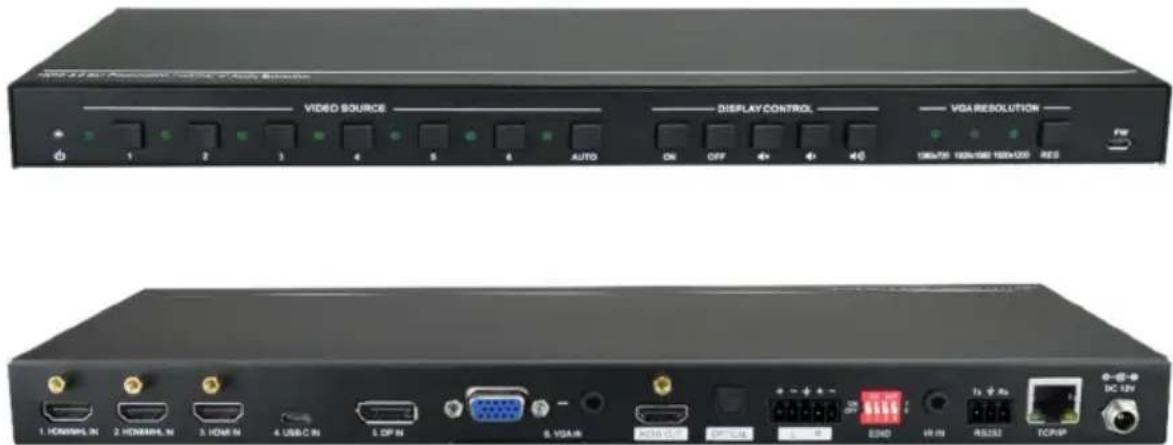
HDMI 2.0 6x1 Presentation Switcher with Audio Extraction
text_image
VIDEO SOURCE DISPLAY CONTROL VGA RESOLUTION 1 2 3 4 5 6 AUTO ON OFF OFF 100V/78 100V/80 100V/90 RES 1. HDMI IN 2. HDMI IN 3. HDMI IN 4. USB/C IN 5. OP IN 6. VGA IN DC: 18V USB: 2222 USB: 2222 USB: 2222 USB: 2222 USB: 2222 USB: 2222 USB: 2222 USB: 2222 USB: 2222 USB: 2222 USB: 2222 USB: 2222 USB: 2222 USB: -18V USB: -18V USB: -18V USB: -18V USB: -18V USB: -18V USB: -18V USB: -18V USB: -18V USB: -18V USB: -18V USB: -18V USB: -18V USB: -18V USB: -18V INTC: 18VPreface
Read this user manual carefully before using the product. Pictures shown in this manual are for reference only. Different models and specifications are subject to real product.
This manual is only for operation instruction, please contact the local distributor for maintenance assistance. The functions described in this version were updated till September, 2019. In the constant effort to improve the product, we reserve the right to make functions or parameters changes without notice or obligation. Please refer to the dealers for the latest details.
FCC Statement
This equipment generates, uses and can radiate radio frequency energy and, if not installed and used in accordance with the instructions, may cause harmful interference to radio communications. It has been tested and found to comply with the limits for a Class B digital device, pursuant to part 15 of the FCC Rules. These limits are designed to provide reasonable protection against harmful interference in a commercial installation.
Operation of this equipment in a residential area is likely to cause interference, in which case the user at their own expense will be required to take whatever measures may be necessary to correct the interference.
Any changes or modifications not expressly approved by the manufacture would void the user's authority to operate the equipment.

text_image
CE FCC COMMUNICATIONS FEDERAL COMMUNICATIONS USA · NOISSN CONISMATIONSAFETY PRECAUTIONS
To ensure the best from the product, please read all instructions carefully before using the device. Save this manual for further reference.
- Unpack the equipment carefully and save the original box and packing material for possible future shipment.
- Follow basic safety precautions to reduce the risk of fire, electrical shock and injury to persons.
- Do not dismantle the housing or modify the module. It may result in electrical shock or burn.
- Using supplies or parts not meeting the products' specifications may cause damage, deterioration or malfunction.
• Refer all servicing to qualified service personnel.
- To prevent fire or shock hazard, do not expose the unit to rain, moisture or install this product near water.
- Do not put any heavy items on the extension cable in case of extrusion.
- Do not remove the housing of the device as opening or removing housing may expose you to dangerous voltage or other hazards.
- Install the device in a place with fine ventilation to avoid damage caused by overheat.
- Keep the module away from liquids.
- Spillage into the housing may result in fire, electrical shock, or equipment damage. If an object or liquid falls or spills on to the housing, unplug the module immediately.
- Do not twist or pull by force ends of the optical cable. It can cause malfunction.
- Do not use liquid or aerosol cleaners to clean this unit. Always unplug the power to the device before cleaning.
- Unplug the power cord when left unused for a long period of time.
- Information on disposal for scrapped devices: do not burn or mix with general household waste, please treat them as normal electrical wastes.
Table of Contents
- Product Introduction....1
1.1 Features .... 1
1.2 Package List....2
-
Specification ....3
-
Panel Description....5
3.1 Front Panel 5
3.2 Rear Panel....6
- System Connection....7
4.1 Usage Precaution....7
4.2 System Diagram....7
- Button Control....8
5.1 Manual Switching ....8
5.2 Automatic Switching ....8
5.3 Display Control 8
5.4 VGA Resolution Selection....9
5.5 EDID Setting....9
-
IR Remote Control .... 11
-
GUI Control....12
7.1 Switching Tab 13
7.2 Display Control Tab....13
7.3 Audio Tab....15
7.4 EDID Tab 16
7.5 RS232 Tab....17
7.6 Interface Tab....18
7.7 Access Tab 19
7.8 Network Tab....19
7.9 GUI Upgrade ....20
- RS232 Control 21
8.1 RS232 Control Software....21
8.2 RS232 Command....23
8.2.1 Device Control....23
8.2.2 Source Switching....24
8.2.3 VGA Resolution Selection ....25
8.2.4 EDID Management....26
8.2.5 Audio Control....26
8.2.6 Display Control 27
8.2.7 CEC Control 27
8.2.8 Third-party Device Control....28
9. Panel Drawing 29
10. Troubleshooting & Maintenance ....30
11. Customer Service ....Error! Bookmark not defined.
1. Product Introduction
Thanks for choosing the HDMI 2.0 6x1 Presentation Switcher. The switcher allows selection of six different sources (three HDMI inputs, one USB-C input, one DisplayPort input and one VGA input), and will switch the selected video to HDMI output. It supports video resolution up to 4Kx2K@60Hz 4:4:4 8bit, 1080P, and 3D. In addition, there is the smart built-in EDID setting can be selected by the 4-pin DIP switch on the rear panel.
The switcher supports stereo and multichannel audio on the HDMI inputs. In addition to the audio embedded in the HDMI output stream, the audio is simultaneously de-embedded to an optical digital audio output and a balanced analog audio output.
The switcher features multiple methods of control. When in the AUTO mode, the switcher will automatically switch to the first detected source device. When the active source is removed, the switcher will switch from input 1 to 6. The switcher can be manually controlled by the front panel buttons, IR remote and RS232 command. CEC allows the display device can be controlled by the front panel buttons and RS232 CEC commands.
1.1 Features
• Supports HDMI 2.0 and video resolution up to 4K@60Hz 4:4:4 8bit, 1080P, and 3D.
• 18Gbps high bandwidth and supports HDR 10.
• HDCP 2.3 compliant.
• Supports automatic switching.
- CEC control for display volume and ON/OFF.
- Controllable via RS232 and IR.
• VGA resolution is selectable on the front panel.
- Optical and balanced analog audio for audio de-embedding.
• Smart EDID management for various application and customized setting.
1.2 Package List
• 1x SCU61E HDMI 2.0 6x1 Presentation Switcher
• 2x Mounting Ears with 4 Screws
- 4x Plastic Cushions
- 1x IR Receiver
- 1x IR Remote
- 1x 3-pin Terminal Block
- 1x 5-pin Terminal Block
• 1x RS232 Cable (3-pin terminal block to DB9)
• 1x Power Adapter (12V DC, 2A)
- 1x User Manual
Note: Please contact your distributor immediately if any damage or defect in the components is found.
2. Specification
| Video | |
| Video Input (2) HDMI/MHL, (1) HDMI | (1) USB-C, (1) DP, (1) VGA |
| Video Input Connector | (3) Type-A female HDMI, (1) Type-C USB 3.0,(1) DisplayPort, (1) 15-pin female VGA |
| HDMI Input Resolution Up to 4Kx2K@60Hz 4:4:4 8bit | |
| MHL Input Resolution Up to 1080P@60Hz | |
| USB-C Input Resolution Up to 4Kx2K@30Hz | |
| DP Input Resolution Up to 4Kx2K@60Hz 4:4:4 8bit | |
| VGA Input Resolution Up to 1920x1200@50/60Hz | |
| Video Output (1) HDMI | |
| Video Output Connector (1) Type-A female HDMI | |
| HDMI Output Resolution Up to 4Kx2K@60Hz 4:4:4 8bit | |
| HDMI Version 2.0 | |
| HDCP Version 2.3 | |
| MHL Version 2.2 | |
| DP Version 1.2 | |
| HDR 10 Supported | |
| CEC Supported | |
| HPD Supported | |
| Audio | |
| Audio Output (1) OPTICAL, (1) Stereo balanced L/R | |
| Audio Output Connector (1) Toslink connector, (1) 5-pin terminal block | |
| HDMI Audio Format | LPCM 7.1 audio, Dolby Atmos®, Dolby® TrueHD, Dolby Digital® Plus, DTS: XTM, and DTS-HD® Master AudioTM pass-through. |
| DP Audio Format 8 channels LPCM, up to 24bit 192Khz, AC3, DTS | |
| Stereo analog L/R audio Format | PCM |
| Toslink Digital Audio Format | PCM, Dolby Digital, DTS, DTS-HD |
| Max Output Level | 2.0Vrms ± 0.5dB. 2V = 16dB headroom above -10dBV (316mV) nominal consumer line level signal |
| THD+N | <0.05% (-80dB), 20Hz ~ 20KHz bandwidth, 1KHz sine at 0dBFSlevel (or max level) |
| SNR >80dB, 20Hz ~ 20KHz bandwidth | |
| Crosstalk Isolation >70dB, 10KHz sine at 0dBFS level (or max level before clipping) | |
| L-R Level Deviation < 0.3dB, 1KHz sine at 0dBFS level (or max level before clipping) | |
| Frequency Response Deviation <±0.5dB 20Hz ~ 20KHz | |
| Output Load Capability 1KΩ and higher (supports 10x paralleled 10KΩ loads) | |
| Stereo Channel Separation >70dB@1KHz | |
| Control Part | |
| Control (1) FW, (1) EDID, (1) IR IN, (1) RS232, (1) TCP/IP | |
| Control Connector | (1) Micro-USB, (1) 4-pin DIP switch, (1) 3.5mm mini jack, (1) 3-pin terminal block, (1) RJ45 |
| General | |
| HDMI 2.0 Cable Length | 4K@60Hz 4:4:4 ≤ 5m,4K@60Hz 4:2:0 ≤ 10m,1080P ≤ 15m |
| Bandwidth 18Gbps | |
| Operation Temperature | -10°C ~ +55°C |
| Storage Temperature | -25°C ~ +70°C |
| Relative Humility 10%-90% | |
| External Power Supply Input: AC 100~240V, 50/60Hz, Output: 12V DC 2A | |
| Power Consumption 10W (Max) | |
| Dimension (W*H*D) 342.5mm x 26mm x 115mm | |
| Net Weight 620g | |
3. Panel Description
3.1 Front Panel

text_image
1 2 3 4 5 VIDEO Q SOU RC E B DISPLAY CONTROL VGA RES CL U TION ON OFF OFF 120x720*192x680*29x1200 RES FW① Power LED: The LED illuminates red when the device is in standby, or illuminates green when the device is power on.
② VIDEO SOURCE:
- Press 1\~6 button to select input source respectively, and its corresponding LED illuminates green.
- Press and hold the AUTO button at least three seconds to enable automatic switching mode, and its LED illuminates green.
③ DISPLAY CONTROL:
- Press ON to turn on the display.
- Press OFF to turn off the display.
- Press to mute/unmute display audio.
- Press ☐ to decrease the audio volume gradually, or press and hold it to decrease the audio volume constantly.
- Press 🖼 to increase the audio volume gradually, or press and hold it to increase the audio volume constantly.
④ VGA RESOLUTION:
- When the VGA input is selected, press RES repeatedly can set the VGA resolution to 1280x720, 1920x1080 or 1920x1200.
- The three LEDs illuminate green to indicate the VGA resolution is selected.
⑤ FW: Micro-USB port for firmware upgrade.
3.2 Rear Panel

text_image
1 2 3 4 5 6 7 8 9 1 HDMI IN 2 HDMI IN 3 HDMI IN 4 VGA IN USB-IN 5.0 IN OPTICAL L R RS 23.2 IN EDDP IP DC 12V① VIDEO SOURCE:
- Three type-A female HDMI input ports to connect HDMI video source.
- One Type-C USB input port to connect the device with SlimPort output, e.g. Macbook.
- One DisplayPort input port to connect the DisplayPort video source.
- One 15-pin VGA input port to connect the VGA video source, and one stereo auxiliary audio input (3.5mm mini jack) can be embedded in VGA video.
② HDMI OUT: Type-A female HDMI output port to connect the video display.
③ OPTICAL: Toslink connector for digital audio output.
④ L/R: 5-pin terminal block for balanced audio output.
⑤ EDID: 4-pin DIP switch for EDID setting.
⑥ IR IN: 3.5mm mini jack to connect the IR receiver to control the switcher by the included IR remote.
⑦ RS232: 3-pin terminal block to connect the RS232 control device (e.g. PC) or a device to be controlled by RS232 commands.
⑧ TCP/IP: RJ45 connector to connect the control device (e.g. PC) to control the switcher via GUI.
⑨ DC 12V: DC barrel port for power adapter connection.
4. System Connection
4.1 Usage Precaution
- Make sure all components and accessories included before installation.
- System should be installed in a clean environment with proper temperature and humidity.
- All of the power switches, plugs, sockets, and power cords should be insulated and safe.
- All devices should be connected before power on.
4.2 System Diagram
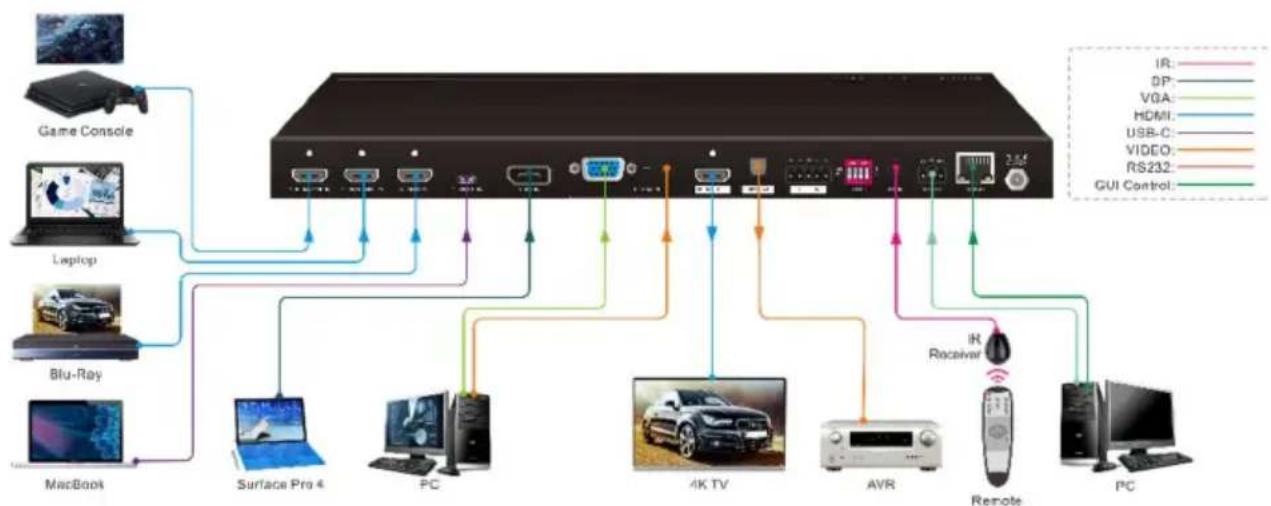
flowchart
graph TD
    A["Game Console"] --> B["Router"]
    C["Laptop"] --> B
    D["Blu-Ray"] --> B
    E["MacBook"] --> B
    B --> F["4K TV"]
    F --> G["ARV"]
    G --> H["Remote"]
    H --> I["PC"]
    B --> J["IR Receiver"]
    B --> K["GPU Control"]
    style A fill:#f9f,stroke:#333
    style C fill:#f9f,stroke:#333
    style D fill:#f9f,stroke:#333
    style E fill:#f9f,stroke:#333
    style F fill:#ccf,stroke:#333
    style G fill:#ccf,stroke:#333
    style H fill:#ccf,stroke:#333
    style I fill:#ccf,stroke:#333
5. Button Control
5.1 Manual Switching
When the switcher is in the manual switching mode, the Auto Mode LED goes out. If need to change the input source, please directly press the 1, 2, 3, 4, 5 or 6 button, and the corresponding LED illuminates green immediately.
5.2 Automatic Switching
Press and hold the AUTO button at least three seconds to enable automatic switching, and the Auto mode LED will light.
When in the Auto mode, the switcher will switch according to the following rules:
- The switcher will switch to the first available active input starting at input 1 to 6.
- New input: The switcher will automatically select the new input once detecting a new input.
- Reboot: If power is restored to the switcher, it will automatically reconnect the input before powered off.
- Source removed: When an active source is removed, the switcher will switch to the first available active input starting at 1-HDMI/MHL input.
- Press the Video Source button (1, 2, 3, 4, 5 or 6) can directly change the input source. If the corresponding source device is active, it will be switched as input source; otherwise, the switcher will switch to the first available active input starting at 1-HDMI/MHL input.
- Press and hold the AUTO button at least three seconds again can exit AUTO mode, but the input source will remain the current setting.
5.3 Display Control
The switcher supports CEC, and the DISPLAY CONTROL buttons on the front panel are designed for Display On/Off and volume adjustment.
• ON: Display On.
- OFF: Display Off.
- mute/unmute display audio.
• Volume down display audio.
• : Volume up display audio.
5.4 VGA Resolution Selection
The RES button on the front panel is designed for VGA resolution selection.
OFF: Display Off.
Press RES button repeatedly to set the VGA resolution to 1280x720, 1920x1080 or 1920x1200, and its corresponding LED will illuminates green.
5.5 EDID Setting
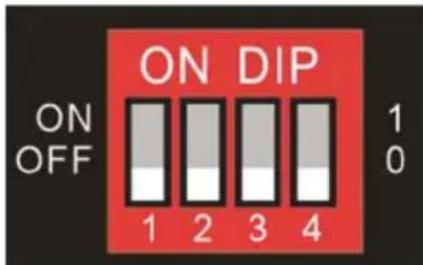
The Extended Display Identification Data (EDID) is used for the source device to match its video resolution with the connected display. By default, the source device obtains its EDID from the first connected display. Meanwhile, since the displays with different capabilities are connected to the switcher, the 4-pin DIP switch on the rear panel can be used to set the EDID to a built-in fixed value. Use the following table to determine the setting for the 4-pin DIP switch for specific video resolution and audio capabilities.
The switch represents "0" when in the lower (OFF) position, and it represents "1" while putting the switch in the upper (ON) position.
text_image
ON DIP ON OFF 1 OFF 0 1 2 3 4| Switch Status | Video Resolution | Audio Format | |
| 0000 (Default) | EDID pass-through | ||
| 0001 | 1920x | 1080@60Hz RGB 4:4:4 8bit Stereo Audio | |
| 0010 | 1920x | 1080@60Hz RGB 4:4:4 8bit High Definition Audio | |
| 0011 | 1920x | 1080@60Hz RGB 4:4:4 12bit Stereo Audio | |
| 0100 | 1920x | 1080@60Hz RGB 4:4:4 12bit High Definition Audio | |
| 0101 | 3840x | 2160@60Hz RGB 4:2:0 12bit Stereo Audio | |
| 0110 | 3840x | 2160@60Hz RGB 4:2:0 12bit High Definition Audio | |
| 0111 | 3840x | 2160@60Hz HDR Stereo Audio | |
| 1000 | 3840x | 2160@60Hz HDR High Definition Audio | |
| 1001 | 1280x800@60Hz RGB 4:4:4 8bit Stereo Audio | ||
| 1010 | 1920x | 1200@60Hz RGB 4:4:4 8bit Stereo Audio | |
| 1011 | User-defined 1 | ||
| 1100 User-defined 2 |
| 1101 User-defined 3 |
| 1110 User-defined 4 |
| 1111 Enable GUI or RS232 EDID management. |
Note:
- Stereo Audio: LPCM 2Ch
• High Definition Audio: LPCM 8Ch, AC-3 6Ch, DTS 5.1, Dolby Digital5.1
6. IR Remote Control
Connect the IR IN port to an IR receiver, the switcher can be controlled by the below IR remote.

text_image
1 2 3 4 5 6 INPUTS Manual/Auto SOURCE OK VGA RESOLUTION 1280x720 1360x768 1920x1080 1920x1200 DISPLAY HDMI 2.0 Presentation Swither① Enter or exit standby mode.
② Video input selection buttons (1\~6) and AUTO mode button.
③ Source device control buttons.
 | Page Up | Page Down | |
 | Rewind | Fast Forward | |
 | Pause/Play | Stop | |
 | Exit | Enter | |
 | Up | Down | |
 | Left | Right | |
 | Power On/Off | ||
④ VGA resolution selection buttons.
⑤ Display device control buttons.
 | Power On/Off |  | Mute/Unmute |
 | Volume Down |  | Volume Up |
7. GUI Control
The switcher also be controlled via TCP/IP, and the default IP setting is:
IP Address: 192.168.0.178
Subnet Mask: 255.255.250.0
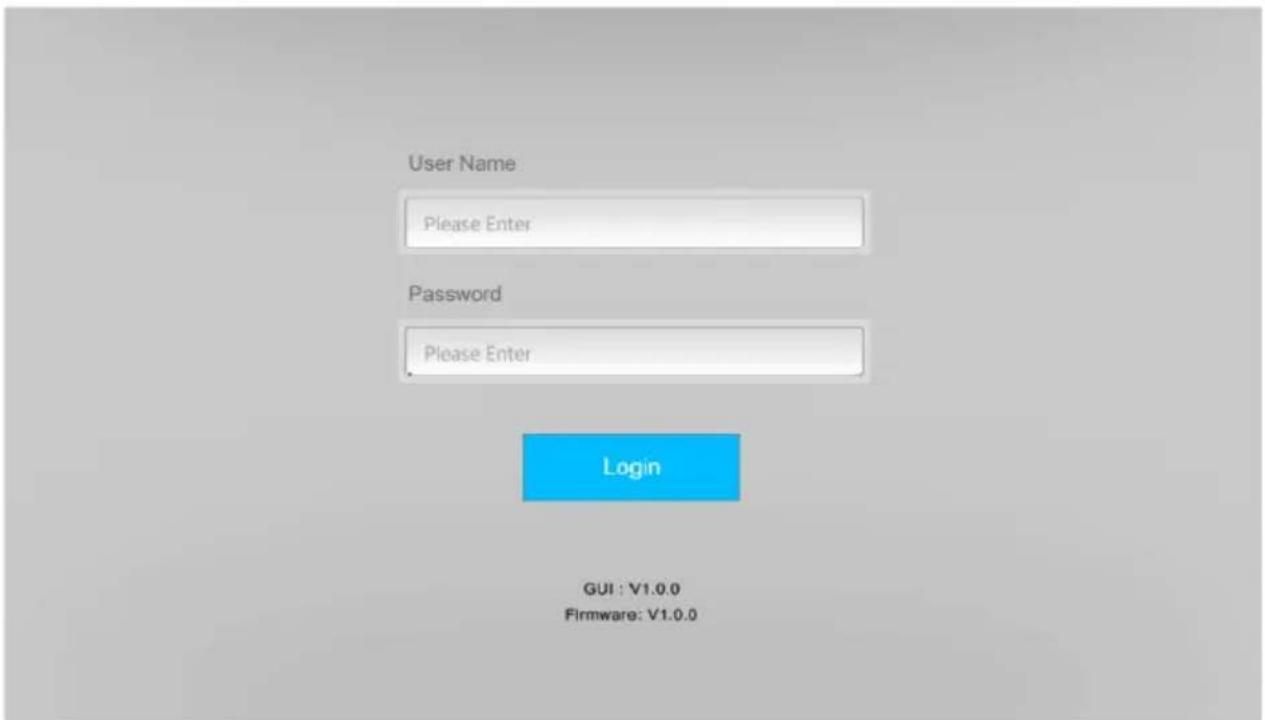
Please type 192.168.0.178 in the internet browser, and it will enter the below log-in webpage:
text_image
User Name Please Enter Password Please Enter Login GUI : V1.0.0 Firmware: V1.0.0Username: admin
Password: admin
Please type the user name and password, and then click Login to enter the section for video switching.
7.1 Switching Tab
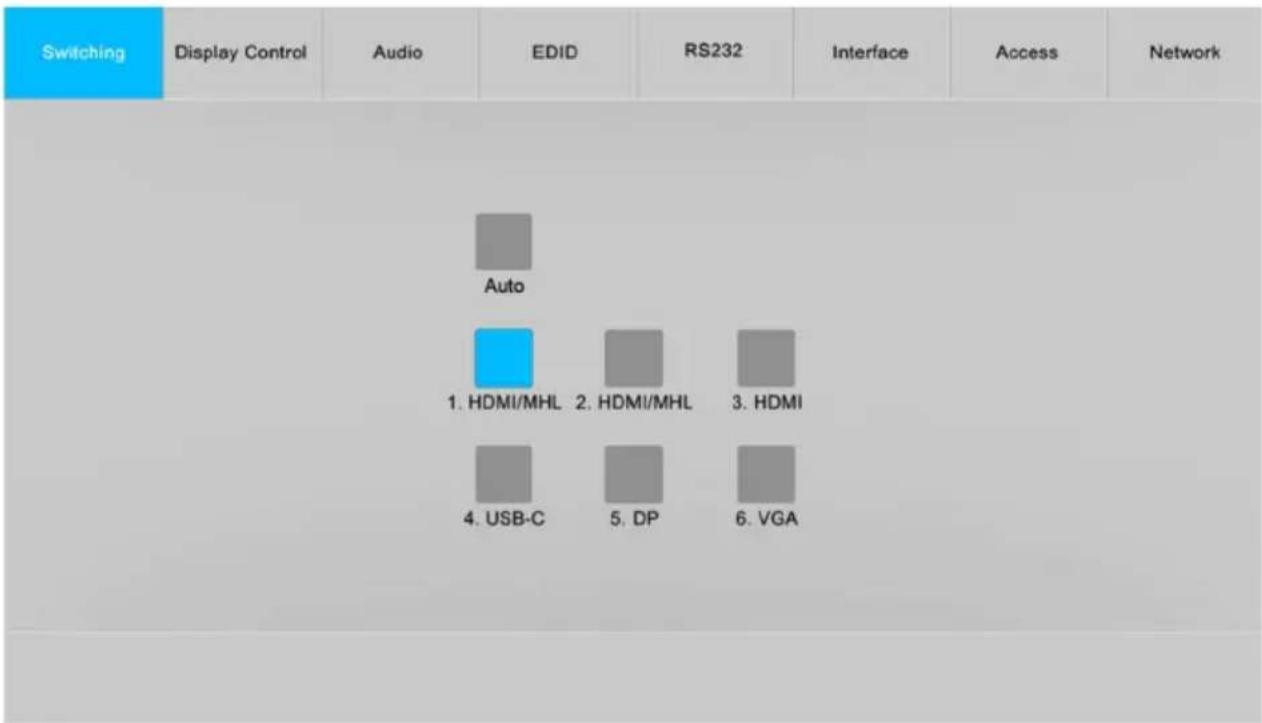
text_image
Switching Display Control Audio EDID RS232 Interface Access Network Auto 1. HDMI/MHL 2. HDMI/MHL 3. HDMI 4. USB-C 5. DP 6. VGA- Click the AUTO button to enable automatic switching mode.
- Click 1\~6 button to select input source respectively.
7.2 Display Control Tab
1) CEC Control
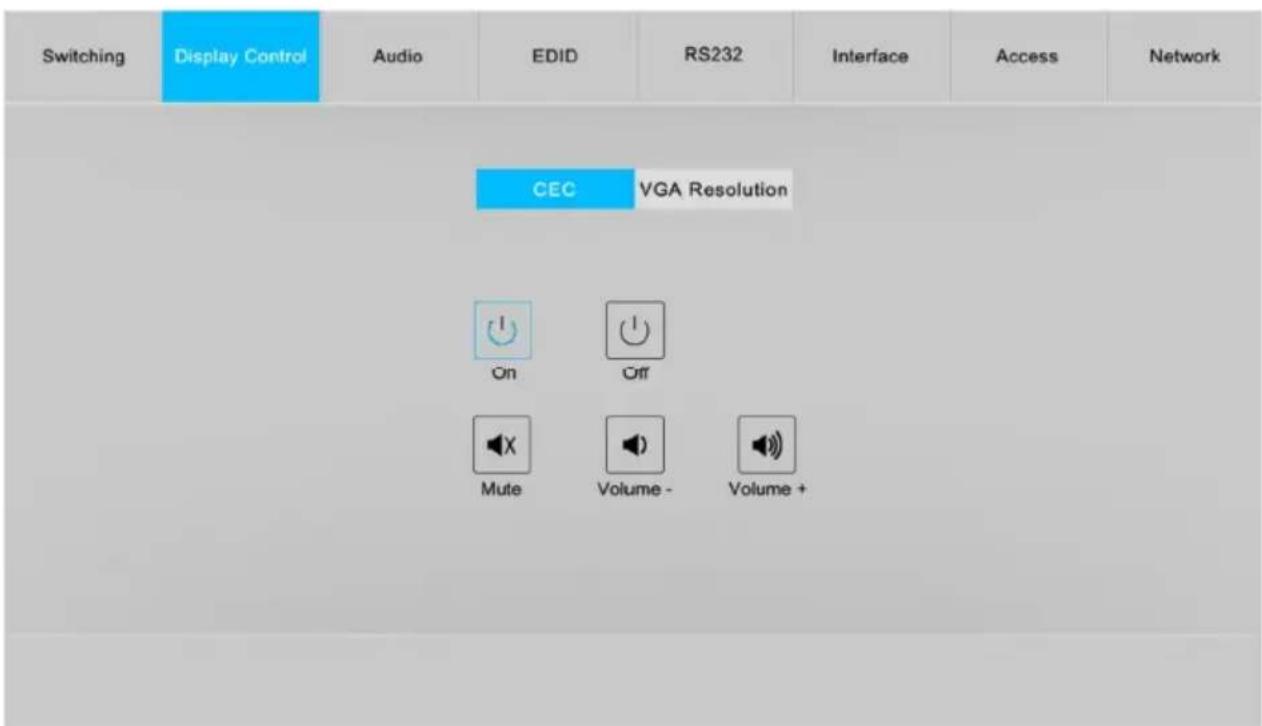
text_image
Switching Display Control Audio EDID RS232 Interface Access Network CEC VGA Resolution On Off Mute Volume - Volume +• ON: Display On.
- OFF: Display Off.
- 1ute/unmute display audio.
• Volume down display audio.
• Volume up display audio.
2) VGA Resolution Selection

text_image
Switching Display Control Audio EDID RS232 Interface Access Network CEC VGA Resolution 1920x1200@60Hz 1920x1080@60Hz 1920x1080@50Hz 1600x1200@60Hz 1360x768@60Hz 1280x720@60Hz 1280x720@50Hz 1024x768@60Hz Confirm Cancel- VGA output resolution can be selected as 1024x768@60Hz, 1280x720@50Hz, 1280x720@60Hz, 1360x768@60Hz, 1600x1200@60Hz, 1920x1080@50Hz, 1920x1080@60Hz (Default) or 1920x1200@60Hz.
7.3 Audio Tab

text_image
Switching Display Control Audio EDID RS232 Interface Access Network On Off Digital Audio ● ● Analog Audio ● ● Confirm Cancel- Turn on or turn off the digital audio output.
- Turn on or turn off the analog audio output.
7.4 EDID Tab
| Switching | Display Control | Audio | EDID | RS232 | Interface | Access | Network |
| Pass Through | |||||||
| 1920*1080p@60 RGB/4:4:4 8bit Stereo Audio | 3840*2160@60 4:2:0 12bit High Definition Audio | ||||||
| 1920*1080p@60 RGB/4:4:4 8bit High Definition Audio | 3840*2160@60 HDR Stereo Audio | ||||||
| 1920*1080p@60 RGB/4:4:4 12bit Stereo Audio | 3840*2160@60 HDR High Definition Audio | ||||||
| 1920*1080p@60 RGB/4:4:4 12bit High Definition Audio | 1280*800@60 RGB 4:4:4 8bit Stereo Audio | ||||||
| 3840*2160@60 4:2:0 12bit Stereo Audio | 1920*1200@60 RGB 4:4:4 8bit Stereo Audio | ||||||
| User-defined 1 | bin | Apply | User-defined 3 | .bin | Apply | ||
| User-defined 2 | bin | Apply | User-defined 4 | .bin | Apply | ||
| Confirm | |||||||
Note: Before select EDID in this tab, please ensure the 4-pin DIP switch on the rear panel is on the "1111" position.
• Built-in EDID: There are ten built-in EDID values can be selected by this tab.
- User-defined EDID: There are four EDID values can be customized by the below steps:
Step 1: Prepare the EDID file (.bin) on the control PC.
Step 2: Select the user-defined 1/2/3/4.
Step 3: Click the black box, and then select the EDID file (.bin) according to the tooltip.
Step 4: Click Apply to upload the user-defined EDID.
7.5 RS232 Tab
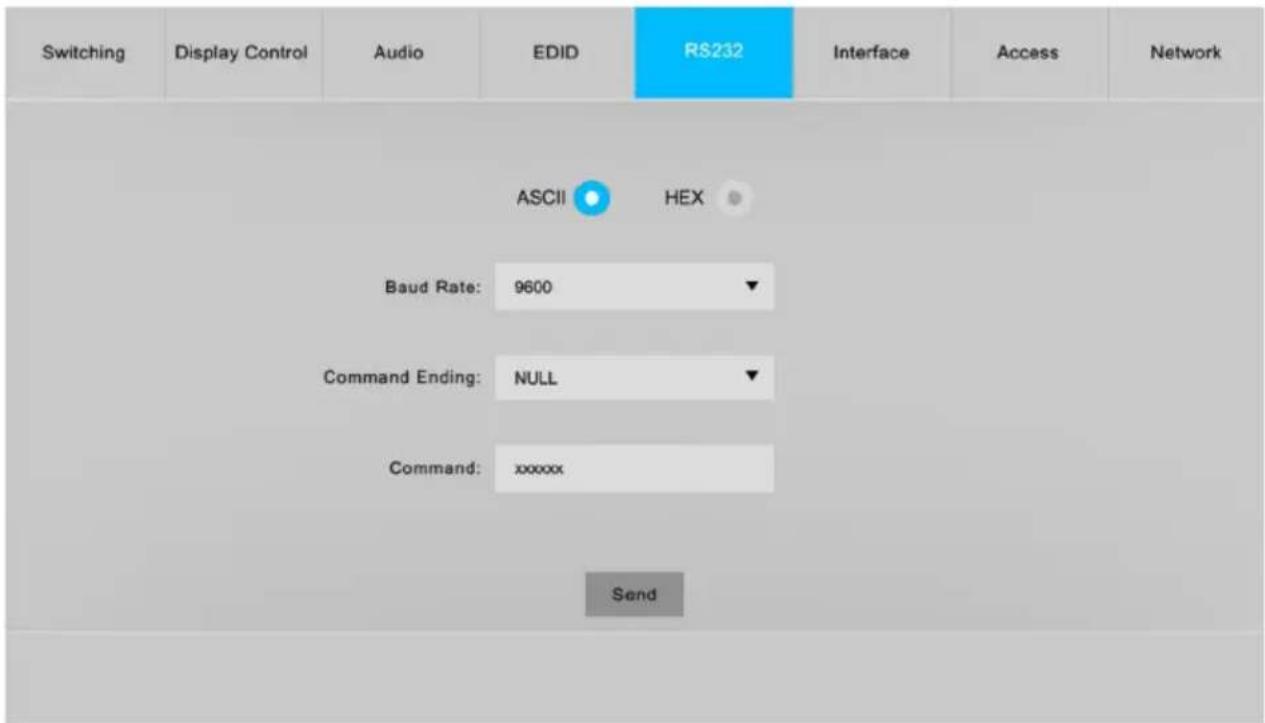
text_image
Switching Display Control Audio EDID RS232 Interface Access Network ASCII HEX Baud Rate: 9600 Command Ending: NULL Command: xxxxxx Send• Baud Rate: Supports 2400, 4800, 9600, 19200, 38400, 57600 or 115200.
- Command Ending: NULL, CR, LF or CR+LF can be chosen.
- Command: Type the command in this box to control the third-party device which is connected to the RS232 port of the switcher.
7.6 Interface Tab
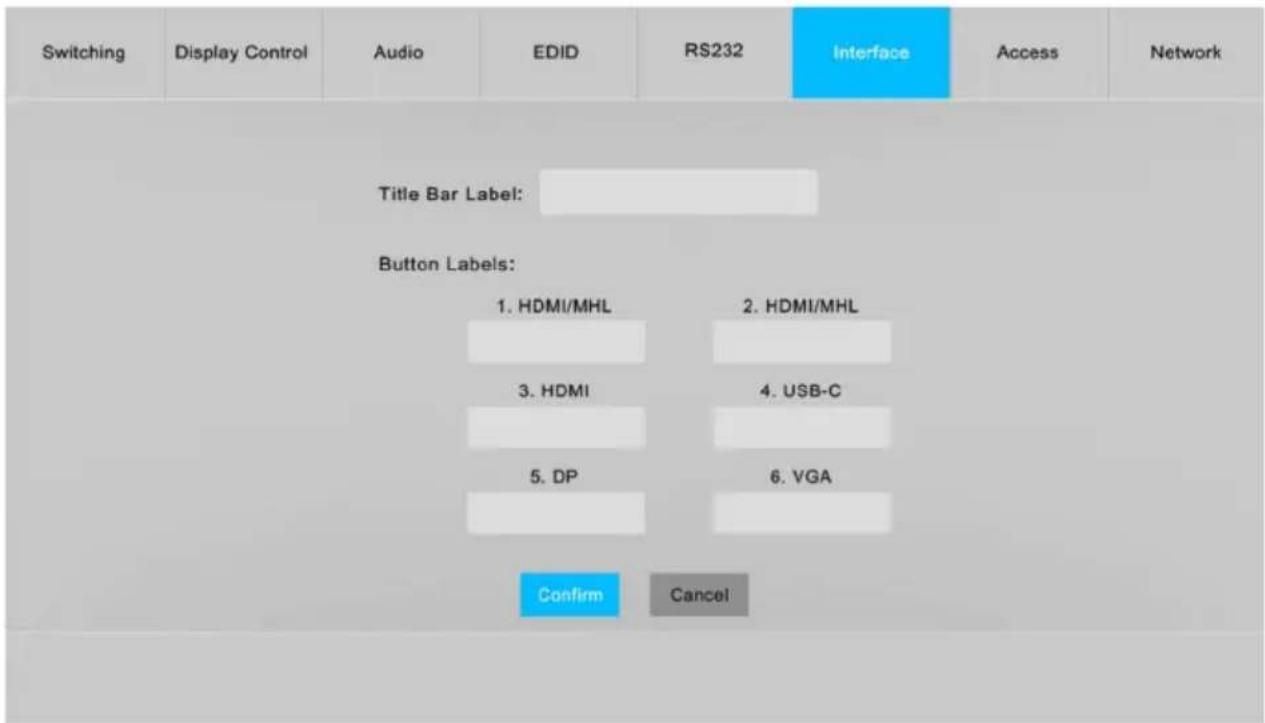
text_image
Switching Display Control Audio EDID RS232 Interface Access Network Title Bar Label: Button Labels: 1. HDMI/MHL 2. HDMI/MHL 3. HDMI 4. USB-C 5. DP 6. VGA Confirm Cancel- Modify the title bar label.
- Modify the button labels.
7.7 Access Tab

text_image
Switching Display Control Audio EDID RS232 Interface Access Network Credentials Password: admin Confirm Front Panel Lock ON OFF- Modify the login password.
- Lock or unlock the front panel buttons.
7.8 Network Tab
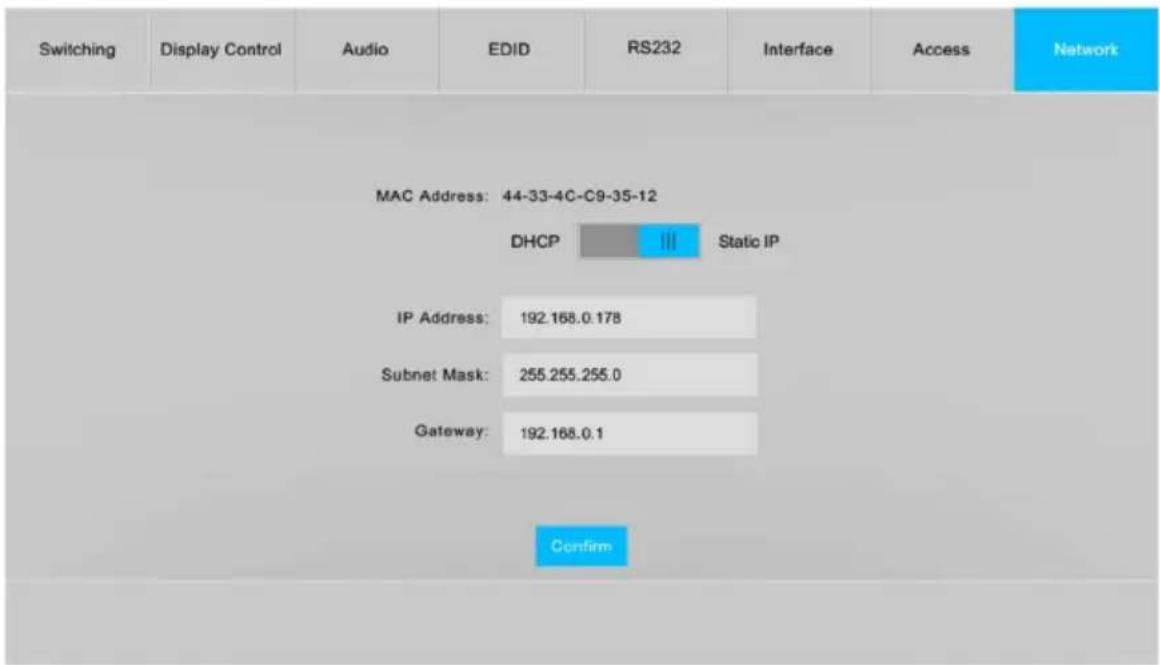
text_image
Switching Display Control Audio EDID RS232 Interface Access Network MAC Address: 44-33-4C-C9-35-12 DHCP III Static IP IP Address: 192.168.0.178 Subnet Mask: 255.255.255.0 Gateway: 192.168.0.1 Confirm- Set Static IP or Dynamic Host Configuration Protocol (DHCP).
- Modify the static IP Address, Subnet Mask, and Gateway.
7.9 GUI Upgrade
Please visit at http://192.168.0.178:100 for GUI online upgrade.
Type the username and password (the same as the GUI log-in setting, modified password will be available only after rebooting) to login the configuration interface. After that, click Administration in the source menu to get to Upload Firmware as shown below:
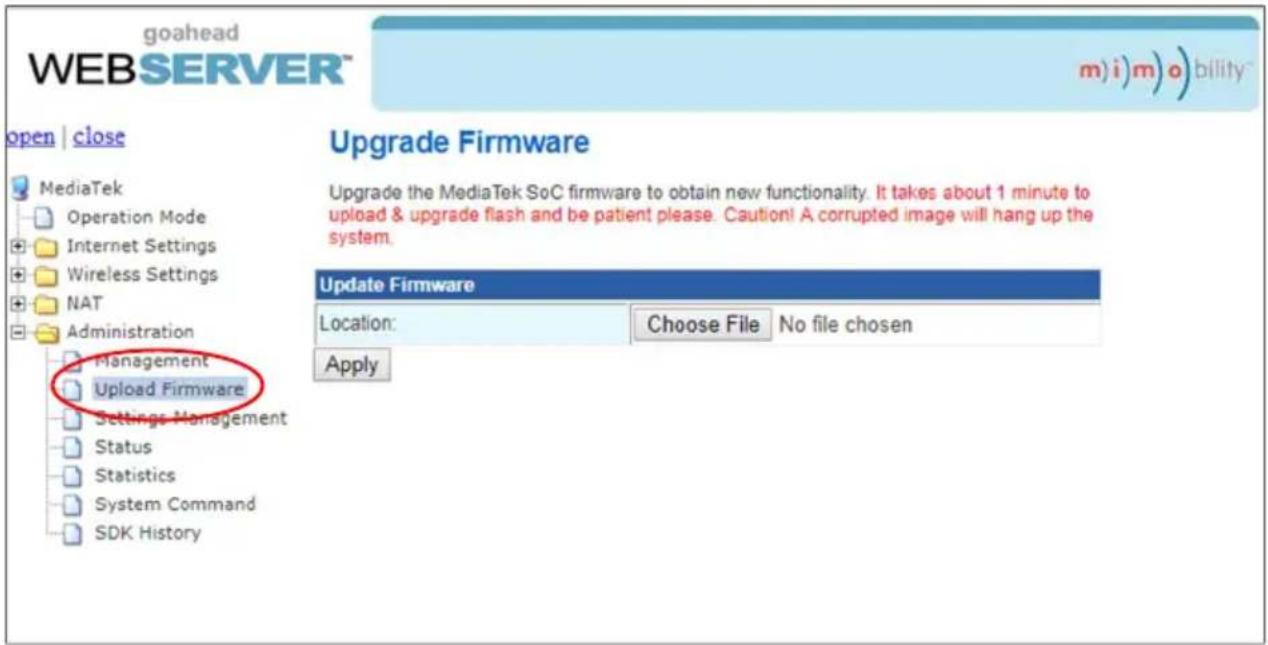
text_image
goahead WEBSERVER™ m) i) m) o) bility open | close Upgrade Firmware MediaTek Operation Mode Internet Settings Wireless Settings NAT Administration Management Upload Firmware Settings Management Status Statistics System Command SDK History Upgrade the MediaTek SoC firmware to obtain new functionality. It takes about 1 minute to upload & upgrade flash and be patient please. Caution! A corrupted image will hang up the system. Update Firmware Location: Choose File No file chosen ApplySelect the update file and click Apply button, and then it will start upgrade process.
8. RS232 Control
Connect the RS232 port to control device (e.g. PC) with RS232 cable. The switcher can be controlled by sending the RS232 commands.
8.1 RS232 Control Software
• Installation: Copy the control software file to the control PC.
- Uninstallation: Delete all the control software files in corresponding file path.
Basic Setting:
Connect the switcher with all input devices and output devices needed, then to connect it with a PC which is installed with RS232 control software. Double-click the software icon to run this software.
Here take the software CommWatch.exe as an example:

text_image
S CommWatch.exeThe main view is shown as below:

text_image
Parameter configuration area. PORT1 9600 BaudRa Parity pNone Byte 8 Stop 1 Reset Clear Save To File Hex View Stop View Auto Clear View New Line Hex Send Mode Send Auto Send Interval 1000 ms Counter Reset Clear 2013-0 14:03:35 Send:0 Receive:0 V1.0 Monitoring area, show the commands and its feedback information. Command sending area. Operation areaPlease set the parameters of COM number, bound rate, data bit, stop bit and the parity bit correctly, and then the command is ready to be sent in command sending area.
8.2 RS232 Command
Communication protocol: RS232 Communication Protocol
Baud rate: 9600
Data bit: 8
Stop bit: 1
Parity bit: none
Note:
- In the commands, “[”and “]” are symbols for easy reading and do not need to be typed in actual operation.
- Please remember to end the commands with the ending symbols “.” or “.”
- Please type the command carefully due to case-sensitive.
8.2.1 Device Control
| Command Function Feedback Example | ||
| POWON. | Power on system. POWER ON! | |
| POWOFF. | System standby. POWER OFF! | |
| LOCK. | Lock front panel buttons. FRONT PANEL LOCKED! | |
| UNLOCK. | Unlock front panel buttons. FRONT PANEL UNLOCK! | |
| GETGUIIP. | Report GUI IP. GUI_IP:192.168.0.178 | |
| SETGUIIP:[xxx.xxx.xxx.xxx]. | Set GUI IP to [xxx.xxx.xxx.xxx]. | Example:SETGUIIP:192.168.0.178.Feedback:SETGUIIP:192.168.0.178! |
| STA. | Report system status. | GUI/RS232 QUERY STATUS!SCU61EVERSION V1.0.0POWER ON!FRONT PANEL UNLOCK!HDMI OUT SWITCH TO AUTO MODE!HDMI OUT SWITCH TO 2!DIP0000!5DIP EDID0000!SPDIF OUT ON!IIS OUT ON! |
| RST. | Factory reset. FACTORY DEFAULT! | SCU61EVERSION V1.0.0POWER ON!FRONT PANEL UNLOCK!HDMI OUT SWITCH TO AUTO MODE!HDMI OUT SWITCH TO 1!DIP0000!DIP EDID0000!SPDIF OUT ON!IIS OUT ON! |
| HELP. | Get the command list. | RS232/GUI COMMANDS LIST:1 - POWON2 - POWOFF3 - RST4 - UNLOCK... |
8.2.2 Source Switching
| Command Function Feedback Example | ||
| HDMI1. | Switch to HDMI input 1. HDMI OUT SWITCH TO 1! | |
| HDMI2. | Switch to HDMI input 2. HDMI OUT SWITCH TO 2! | |
| HDMI3. | Switch to HDMI input 3. HDMI OUT SWITCH TO 3! | |
| HDMI4. | Switch to HDMI input 4. HDMI OUT SWITCH TO 4! | |
| HDMI5. | Switch to HDMI input 5. HDMI OUT SWITCH TO 5! | |
| HDMI6. | Switch to HDMI input 6. HDMI OUT SWITCH TO 6! | |
| HDMIA. | Enable auto switching mode. | HDMI OUT SWITCH TO AUTO MODE! |
| HDMIM. | Enable manual switching mode. | HDMI OUT SWITCH TO MANUAL MODE! |
8.2.3 VGA Resolution Selection
When VGA source is selected, the below commands can be used to set the VGA output resolution.
| Command Function Feedback Example | ||
| VGARES1. | Set the VGA output resolution to 1024x768@60Hz. | SET RESOLUTION OF VGA OUTPUT TO 1024x768@60Hz! |
| VGARES2. | Set the VGA output resolution to 1280x720@50Hz. | SET RESOLUTION OF VGA OUTPUT TO 1280x720@50Hz! |
| VGARES3. | Set the VGA output resolution to 1280x720@60Hz. | SET RESOLUTION OF VGA OUTPUT TO 1280x720@60Hz! |
| VGARES4. | Set the VGA output resolution to 1360x768@60Hz. | SET RESOLUTION OF VGA OUTPUT TO 1360x768@60Hz! |
| VGARES5. | Set the VGA output resolution to 1600x1200@60Hz. | SET RESOLUTION OF VGA OUTPUT TO 1600x1200@60Hz! |
| VGARES6. | Set the VGA output resolution to 1920x1080@50Hz. | SET RESOLUTION OF VGA OUTPUT TO 1920x1080@50Hz! |
| VGARES7. | Set the VGA output resolution to 1920x1080@60Hz. | SET RESOLUTION OF VGA OUTPUT TO 1920x1080@60Hz! |
| VGARES8. | Set the VGA output resolution to 1920x1200@60Hz. | SET RESOLUTION OF VGA OUTPUT TO 1920x1200@60Hz! |
| VGAAUTO. | Auto adjust the VGA output image. VGA AUTO ADJUST! | |
| VGAUPGR. | Upgrade the firmware Of VGA input port chip | UPGRADING FIRMWARE OF VGA CHIP! |
8.2.4 EDID Management
| Command Function Feedback Example | ||
| EDIDR[xxxx]. | Read the preset EDID. [xxxx] represents the 4-pin DIP switch status. | EDID_0001!... |
| EDIDUSE[xxxx]. | Invoke the preset EDID. [xxxx] represents the 4-pin DIP switch status. | EDIDUSE0001!EDID_RS232&GUI_MODE!EDID0001! |
- User-define EDID
There are four EDID values can be customized by sending the below command.
Note: When send the below commands to configure EDID, the 4-pin EDID DIP switch on the rear panel must be in the "1111" status.
| Command Function & | Operation |
| EDIDW[xxxx]. | User-define EDID. xxxx = 1011, 1100, 1101 or 1110.Operation:Step 1: Prepare the EDID file (.bin).Step 2: Set the 4-pin DIP switch to “1111” status.Step 3: Send the command “EDIDW1101.”, and the feedback is “PLEASE SEND THE EDID FILE!”.Step 4: Send the EDID file (.bin). If successfully upload, the feedback is:“RECEIVED THE FILE, LENGTH=134!EDID1101 UPDATE SUCCESSFULLY!” |
8.2.5 Audio Control
| Command Function Feedback Example | ||
| IISON. | Turn on the stereo analog L/R audio output. | IIS OUT ON! |
| IISOFF. | Turn off the stereo analog L/R audio output. | IIS OUT OFF! |
| SPDIFON. | Turn on the Toslink digital audio output. | SPDIF OUT ON! |
| SPDIFOFF. | Turn off the Toslink digital audio output. | SPDIF OUT OFF! |
8.2.6 Display Control
| Command Function Feedback Example | ||
| TVON. | Power on the display. CEC TV POWER ON! | |
| TVOFF. | Power off the display. CEC TV POWER OFF! | |
| TVVOL+. | Increase the display audio. CEC TV VOLUME INCREASE! | |
| TVVOL-. | Decrease the display audio. CEC TV VOLUME DECREASE! | |
| TVMUTE. | Mute/unmute the display. | CEC TV VOLUMEMUTE/UNMUTE! |
8.2.7 CEC Control
If the input sources and display support CEC, they can be controlled by sending the below command to replace IR remote.
| Command Description | Command Example | |
| CECxx. | Send CEC command "yy yy yy" to control the source device or the display device.The "xx" represents the port number.xx Port00 1-HDMI/MHL IN01 2-HDMI/MHL IN02 3-HDMI IN03 4-USB-C IN04 5-DP IN05 HDMI OUT | CEC00 <40:44:41>.Send CEC command "40:44:41" to control the source device which is connected to the 1-HDMI/MHL IN port. |
8.2.8 Third-party Device Control
The switcher supports RS232 pass-through control, the third-party device can be controlled by RS232 command, and the command format as shown below:
| Command Function Command Example | ||
| /[B]:xxx. | xxx: ASCII string.The “B” represents the baud rate of third-party device.B=1, the baud rate is 2400B=2, the baud rate is 4800B=3, the baud rate is 9600B=4, the baud rate is 19200B=5, the baud rate is 38400B=6, the baud rate is 57600B=7, the baud rate is 115200 | /+3:abc123 |
| Send the ASCII command “abc123” to the third-party whose baud rate is 9600. | ||
| /[B]:xx xx xx. | xx xx xx: HEX string.The “B” represents the baud rate of third-party device.B=1, the baud rate is 2400B=2, the baud rate is 4800B=3, the baud rate is 9600B=4, the baud rate is 19200B=5, the baud rate is 38400B=6, the baud rate is 57600B=7, the baud rate is 115200 | /-3:1A 2A 3A 4A |
| Send the HEX command “1A 2A 3A 4A” to the third-party whose baud rate is 9600. | ||
| CMDON/[B]:xxx. | Send ASCII command “xxx” to power on the third-party device. | CMDON/+3:abc123 |
| CMDON/[B]:xx xx xx. | Send HEX command “xx xx xx” to power on the third-party device. | CMDON/-3:1A 2A 3A 4A |
| CMDOFF/[B]:xxx. | Send ASCII command “xxx” to power off the third-party device. | CMDOFF/+3:abc123 |
| CMDOFF/[B]:xxx. | Send HEX command “xx xx xx” to power off the third-party device. | CMDOFF/-3:1A 2A 3A 4A |
9. Panel Drawing
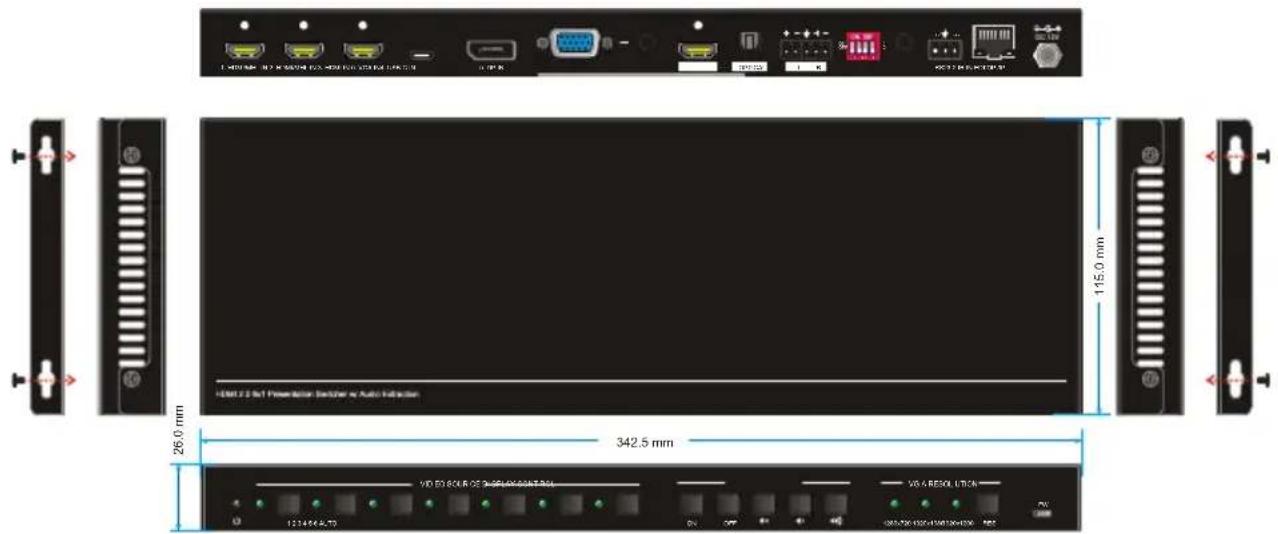
text_image
HDMI 2.0x1 Power Driver Adapter by Auto Inductor 115.0 mm 26.0 mm 342.5 mm VDD EQUA OE A QENQO GND TOL VDD RESOLUTICS 1234846,70 0x OFF DATA: 1920-1920-1920-1920-192010. Troubleshooting & Maintenance
| Problems Potential Causes Solutions | ||
| Output image with snowflake. | Bad quality of the connecting cable. | Try another high quality cable. |
| Fail or loose connection. | Make sure the connection is good. | |
| No output image when switching. | No signal at the input / output end. | Check with oscilloscope or multimeter if there is any signal at the input/ output end. |
| Fail or loose connection. | Make sure the connection is good. | |
| The switcher is broken. | Send it to authorized dealer for repairing. | |
| POWER indicator doesn't work or no respond to any operation. | Fail connection of power cord. | Make sure the power cord connection is good. |
| EDID management does not work normally. | The HDMI cable is broken at the output end. | Change for another HDMI cable which is in good working condition. |
| Static becomes stronger when connecting the video connectors. | Bad grounding. | Check the grounding and make sure it is connected well. |
| Cannot control the device by control device (e.g. a PC) through RS232 port. | Wrong RS232 communication parameters. | Type in correct RS232 communication parameters. |
| Broken RS232 port. | Send it to authorized dealer for checking. | |
| Cannot control the device by front panel buttons while can control it through RS232 port. | The front panel buttons are locked. | Unlock the front panel buttons. |
Note: If the problem still remaining after following the above troubleshooting steps, please contact your local dealer or distributor for further assistance.
1. Limited warranty in respect of Alfatron Products Only
1.1 This limited warranty covers defects in materials and workmanship in this product.
1.2 Should warranty service be required, proof of purchase must be presented to the Company. The serial number on the product must be clearly visible and not have been tampered with in any way whatsoever.
1.3 This limited warranty does not cover any damage, deterioration or malfunction resulting from any alteration, modification, improper or unreasonable use or maintenance, misuse, abuse, accident, neglect, exposure to excess moisture, fire, improper packing and shipping (such claims must be presented to the carrier), lightning, power surges, or other acts of nature. This limited warranty does not cover any damage, deterioration or malfunction resulting from the installation or removal of this product from any installation, any unauthorized tampering with this product, any repairs attempted by anyone unauthorized by the Company to make such repairs, or any other cause which does not relate directly to a defect in materials and/or workmanship of this product. This limited warranty does not cover equipment enclosures, cables or accessories used in conjunction with this product.
This limited warranty does not cover the cost of normal maintenance. Failure of the product due to insufficient or improper maintenance is not covered.
1.4 The Company does not warrant that the product covered hereby, including, without limitation, the technology and/or integrated circuit(s) included in the product, will not become obsolete or that such items are or will remain compatible with any other product or technology with which the product may be used.
1.5 Only the original purchaser of this product is covered under this limited warranty. This limited warranty is not transferable to subsequent purchasers or owners of this product.
1.6 Unless otherwise specified, the goods are warranted in accordance with the manufacturer's product specific warranties against any defect attributable to faulty workmanship or materials, fair wear and tear being excluded.
1.7 This limited warranty only covers the cost of faulty goods and does not include the cost of labor and travel to return the goods to the Company's premises.
1.8 In the event of any improper maintenance, repair or service being carried out by any third persons during the warranty period without the Company's written authorization, the limited warranty shall be void.
1.9 A 7 (seven) year limited warranty is given on the aforesaid product where used correctly according to the Company's instructions, and only with the use of the Company's components.
1.10 The Company will, at its sole option, provide one of the following three remedies to whatever extent it shall deem necessary to satisfy a proper claim under this limited warranty:
1.10.1 Elect to repair or facilitate the repair of any defective parts within a reasonable period of time, free of any charge for the necessary parts and labor to complete the repair and restore this product to its proper operating condition.; or
1.10.2 Replace this product with a direct replacement or with a similar product deemed by the Company to perform substantially the same function as the original product; or
1.10.3 Issue a refund of the original purchase price less depreciation to be determined based on the age of the product at the time remedy is sought under this limited warranty.
1.11 The Company is not obligated to provide the Customer with a substitute unit during the limited warranty period or at any time thereafter.
1.12 If this product is returned to the Company this product must be insured during shipment, with the insurance and shipping charges prepaid by the Customer. If this product is returned uninsured, the Customer assumes all risks of loss or damage during shipment. The Company will not be responsible for any costs related to the removal or re-installation of this product from or into any installation. The Company will not be responsible for any costs related to any setting up this product, any adjustment of user controls or any programming required for a specific installation of this product.
1.13 Please be aware that the Company's products and components have not been tested with competitor's products and therefore the Company cannot warrant products and/or components used in conjunction with competitor's products.
1.14 The appropriateness of the goods for the purpose intended is only warranted to the extent that the goods are used in accordance with the Company's installation, classification and usage instructions.
1.15 Any claim by the Customer which is based on any defect in the quality or condition of the goods or their failure to correspond with specification shall be notified in writing to the Company within 7 days of delivery or (where the defect or failure was not apparent on reasonable inspection by the Customer) within a reasonable time after discovery of the defect or failure, but, in any event, within 6 months of delivery.
1.16 If delivery is not refused, and the Customer does not notify the Company accordingly, the Customer may not reject the goods and the Company shall have no liability and the Customer shall pay the price as if the goods had been delivered in accordance with the Agreement.
1.17 THE MAXIMUM LIABILITY OF THE COMPANY UNDER THIS LIMITED WARRANTY SHALL NOT
EXCEED THE ACTUAL PURCHASE PRICE PAID FOR THE PRODUCT