SKG-300 - Phone Planet - Free user manual and instructions
Find the device manual for free SKG-300 Planet in PDF.


| Product Type | Personal VoIP Gateway |
| Model | SKG-300 |
| Brand | Planet Technology |
| Hardware Interface | USB 1.1/2.0 |
| Phone Ports | 1x RJ-11 (Phone), 1x RJ-11 (Line) |
| LED Indicators | LINK (USB connection), PSTN (line status), VoIP (Skype status) |
| Power Supply | USB bus-powered (5V DC) |
| System Requirements | Windows 2000/XP, Pentium 400MHz, 128MB RAM, 10MB free disk, CD-ROM, Internet connection, PSTN line |
| Skype Compatibility | Skype version 1.3 or higher |
| Voice Features | Call Waiting, Call Forwarding, Three-Way Conference, Voicemail Access, Call Recording (manual/auto) |
| Call Control | Flash key sequences for switching, conferencing, forwarding |
| Audio Quality | Full-duplex, echo-free |
| Dimensions | Approximately 70 x 60 x 25 mm (estimated) |
| Weight | Approximately 50 g (estimated) |
| Package Contents | SKG-300 base, USB cable, RJ-11 telephone cable, Quick Installation Guide, CD-ROM with driver and manual |
| Certifications | CE Class B, WEEE compliant |
Frequently Asked Questions - SKG-300 Planet
User questions about SKG-300 Planet
0 question about this device. Answer the ones you know or ask your own.
Ask a new question about this device
Download the instructions for your Phone in PDF format for free! Find your manual SKG-300 - Planet and take your electronic device back in hand. On this page are published all the documents necessary for the use of your device. SKG-300 by Planet.
USER MANUAL SKG-300 Planet
Personal VoIP Gateway
SKG-300
User Manual
Copyright
Copyright (C) 2005 PLANET Technology Corp. All rights reserved.
The products and programs described in this User's Manual are licensed products of PLANET Technology, This User's Manual contains proprietary information protected by copyright, and this User's Manual and all accompanying hardware, software, and documentation are copyrighted.
No part of this User's Manual may be copied, photocopied, reproduced, translated, or reduced to any electronic medium or machine-readable form by any means by electronic or mechanical. Including photocopying, recording, or information storage and retrieval systems, for any purpose other than the purchaser's personal use, and without the prior express written permission of PLANET Technology.
Disclaimer
PLANET Technology does not warrant that the hardware will work properly in all environments and applications, and makes no warranty and representation, either implied or expressed, with respect to the quality, performance, merchantability, or fitness for a particular purpose.
PLANET has made every effort to ensure that this User's Manual is accurate; PLANET disclaims liability for any inaccuracies or omissions that may have occurred.
Information in this User's Manual is subject to change without notice and does not represent a commitment on the part of PLANET. PLANET assumes no responsibility for any inaccuracies that may be contained in this User's Manual. PLANET makes no commitment to update or keep current the information in this User's Manual, and reserves the right to make improvements to this User's Manual and/or to the products described in this User's Manual, at any time without notice. If you find information in this manual that is incorrect, misleading, or incomplete, we would appreciate your comments and suggestions.
CE mark Warning
The is a class B device, In a domestic environment, this product may cause radio interference, in which case the user may be required to take adequate measures.
WEEE Warning

To avoid the potential effects on the environment and human health as a result of the presence of hazardous substances in electrical and electronic equipment, end users of electrical and electronic equipment should understand the meaning of the crossed-out wheeled bin symbol. Do not dispose of WEEE as unsorted municipal waste and have to collect such WEEE separately.
Trademarks
The PLANET logo is a trademark of PLANET Technology. This documentation may refer to numerous hardware and software products by their trade names. In most, if not all cases, their respective companies claim these designations as trademarks or registered trademarks.
Revision
User's Manual for PLANET Personal VoIP Gateway
Model: SKG-300
Rev: 1.0 (November 2005)
Part No. 2080-D10150-000
Index
Chapter 1 Introduction......4
SKG-300 Features 4
Package contents 4
System requirements....5
Chapter 2 SKG-300 Setup....6
2.1 Hardware Details ......6
LED Display....6
Port Connection....6
2.2 SKG-300 utility setup....7
Chapter 3 SKG-300 Configuration ....15
3.1 Enable SKG-300....15
3.2 Testing SKG-300....17
3.3 Making and Receiving Calls....19
3.4 Setting Up Skype Speed Dial....20
3.5 Switching Between VoIP and Regular Calls 21
3.6 Conference Call Between VoIP and Regular Calls....22
3.7 Three-Way Calling....22
3.8 Forwarding Calls....22
3.9 Toll Bypass 26
3.10 Call Recorder....29
3.11 Skype Voicemail....30
3.12 Changing the Default Settings .... 31
3.13 Disabling SKG-300....32
3.14 Uninstall....32
3.15 Troubleshooting....33
Thank you for purchasing SKG-300 Personal VoIP Gateway.
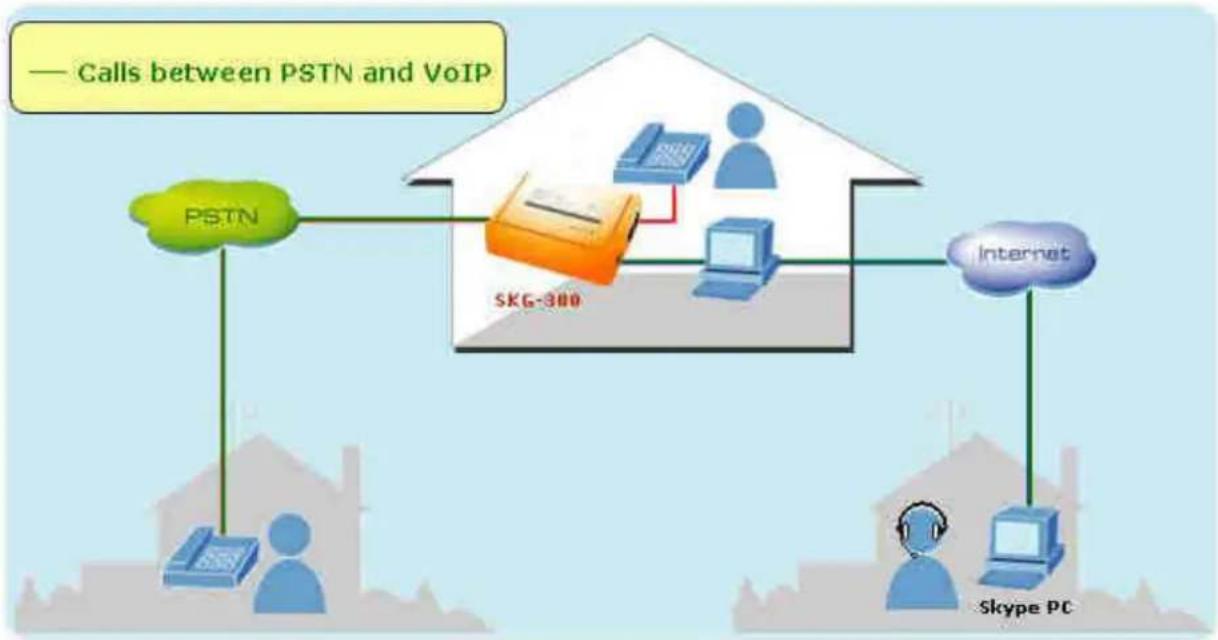
PLANET provides several types of Skype solution to meet various demands. As illustrated, customers can use any home phone for both Internet-based and standard telephony, without the need for special phone, headsets or microphones. Following the wizard to install software, customers can easily dial up or receive Skype or PSTN calls from one handset; through a simple setting of Call forward feature, customers can receive any incoming call wherever even away home.
• Auto detection and switching of incoming PSTN or Skype calls
• RJ-11 phone port to POTS phone, RJ-11 line port to PSTN
• One handset for both PSTN and Internet calls
- No need for microphone and speaker to make Skype call
• Three-Way conference calling between PSTN and Skype calls
• Supports to forward incoming PSTN call to Skype, and forward incoming Skype call to PSTN
• C all waiting
• Voice recording by manually or automatically
• Full-duplex and echo-free sound quality
Package contents
SKG-300 Base x 1
USB cable x 1
➢ Telephone line (RJ-11) x 1
▶ Quick Installation Guide
CD-ROM with User's Manual, Driver and Utility
System requirements
Minimum System Requirements :
➢ Microsoft Windows 2000/XP
➢ Pentium 400MHz CPU or equivalent
128MB RAM
➢ 10MB free Disk Space
CD-ROM drive
➢ Internet connection (any broadband: ADSL or Cable)
➢ Standard telephone landline subscription (PSTN)
Skype™ version 1.3 or higher must be installed
2.1 Hardware Details
LED Display
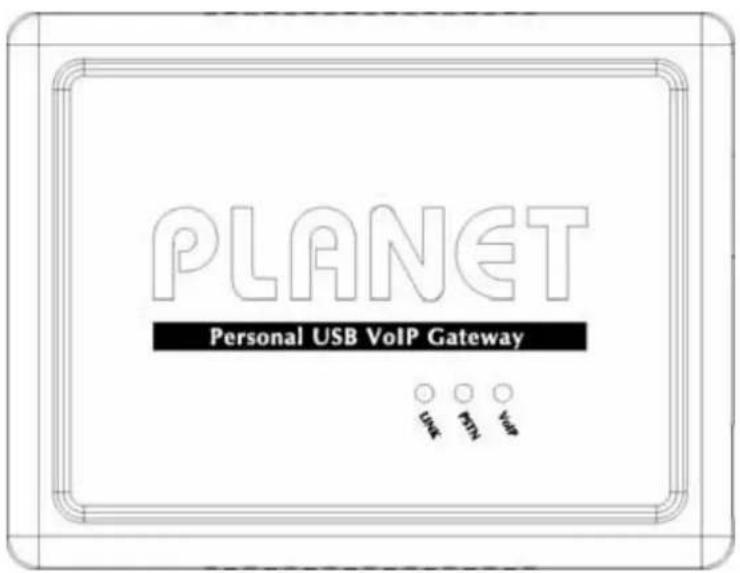
| LED Indicators Descriptions | |
| LINK | Steady on indicates SKG-300 has correctly connected to the USB port of your PC |
| PSTN | Steady on indicates SKG-300 is communicating with PSTN line, or wait for calling at standby mode |
| VoIP | Steady on indicates SKG-300 is communicating with VoIP line |
Port Connection
flowchart
graph TD
    A["Right-hand Side Panel"] --> B["USB"]
    B --> C["Internet"]
    B --> D["RJ-11"]
    B --> E["PSTN"]
    E --> F["RJ-11"]
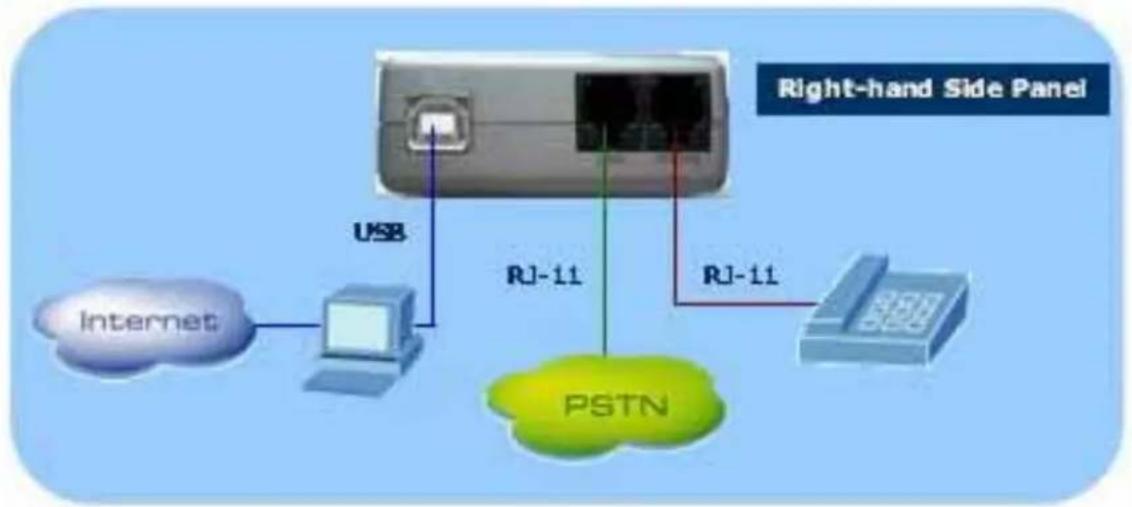
| Port Descriptions | |
| Line | For connecting to PSTN line |
| Phone | For connecting to a phone set |
| USB | For connecting to a computer or laptop |
2.2 SKG-300 utility setup

Note:
Do not connect the SKG-300 adapter to your computer until instructed to do so by the installation wizard.
The following instructions will guide you to through the process of installing the PLANET Personal VoIP Gateway SKG-300.
The installation procedure is to:
• Install Skype™ (step 1 below)
- Start the SKG-300 SW installation (step 2 below)
- Plug in the SKG-300 adapter WHEN INSTRUCTED TO DO SO (step 2 below)
- Verify the installation is OK (step 3 below)
- Connect a telephone handset to the SKG-300 adapter (step 4 below)
- Connect the SKG-300 adapter to the wall jack (step 5 below). Note that this is optional and only required for the forwarding and conferencing features.
- Use your SKG-300 adapter to make and receive Skype™ calls
The detailed instructions follow:
STEP 1: If Skype™ is not already installed on your computer, visit http://www.skype.com and follow the instructions there to install Skype™. Verify that Skype™ is working before installing the SKG-300 adapter.
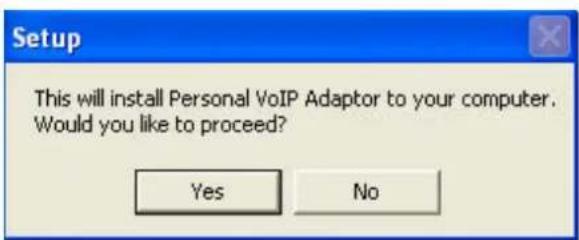
STEP 2: Insert the supplied CD-ROM into your PC CD-ROM drive. The installation should start automatically. If not, open the installation folder on the CD-ROM and double click on the setup.exe program. You will see the following popup. Press Yes to proceed or No to cancel.
Then you will see the End User License Agreement. Click the "I have read ..." checkbox and press the / Agree button as shown below.

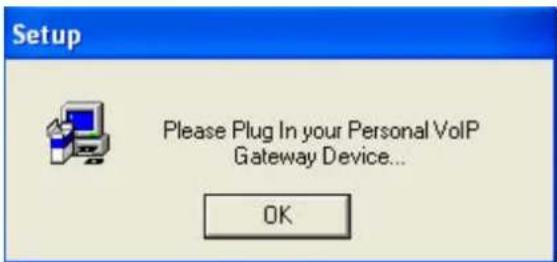
Wait until you see the following popup and press the OK button.
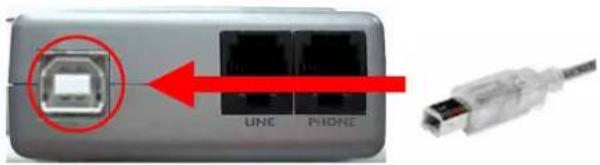
Connect the USB cable to the SKG-300 adapter USB port as shown below:
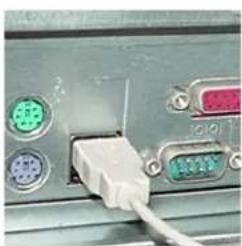
The other end of the USB cable must be connected to a USB port on your computer as shown below, or to an AC Powered USB hub.
natural_image
Close-up of a computer interface showing connected ports with a white cable (no visible text or symbols)You will see the following Windows New Hardware Found Wizard.
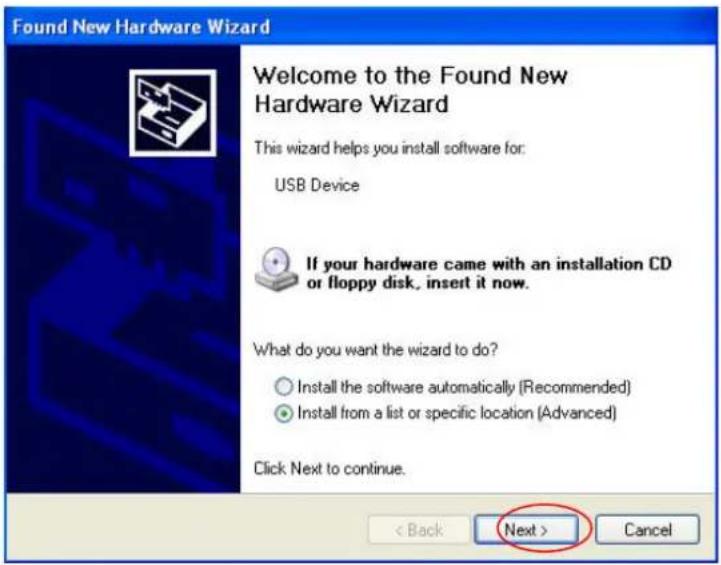
Select Install from a list or specific location (Advanced) and press the Next button, input the installation program location and press Next button.
The installation will continue and you will see the following screen.
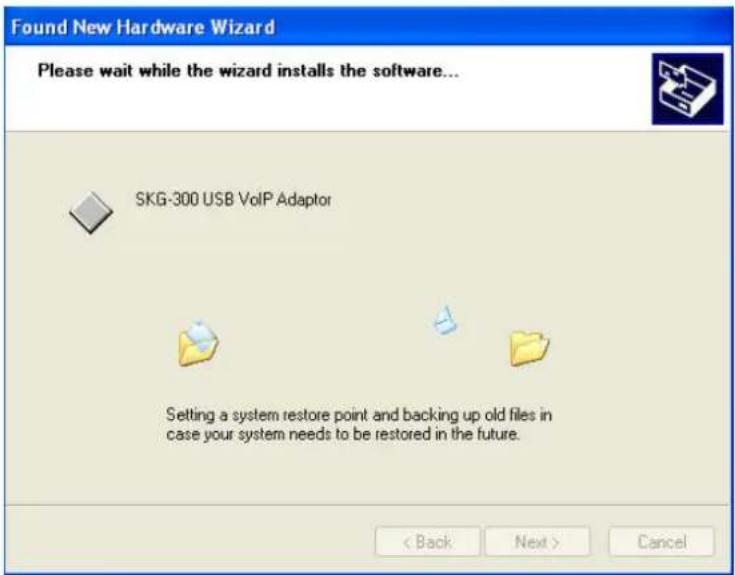
When you see the following screen, press the Finish button.
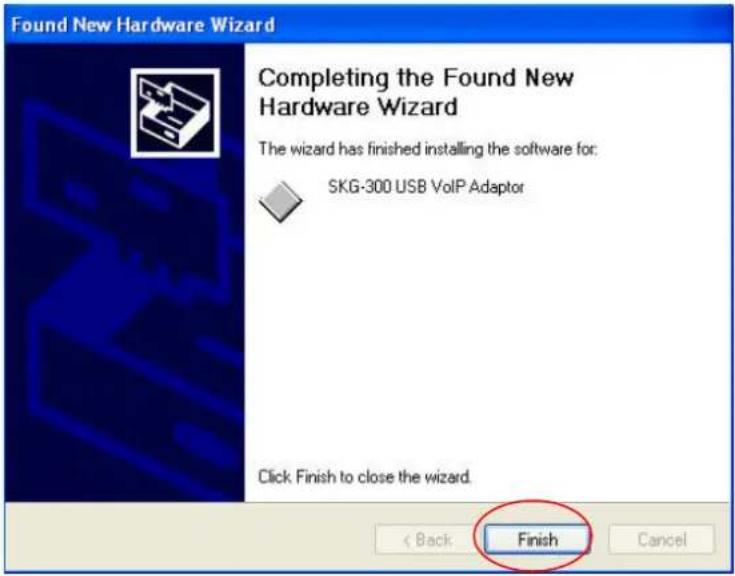
Then you will see the following Windows New Hardware Found Wizard screen.
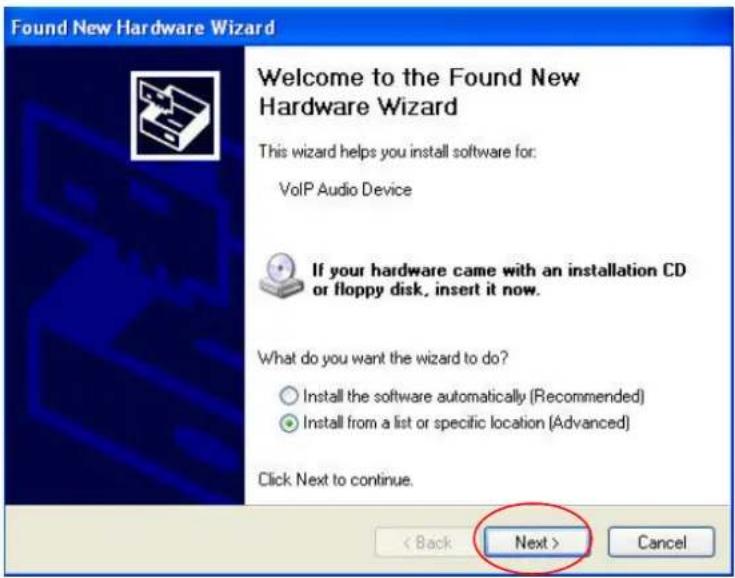
Select Install from a list or specific location (Advanced) and press the Next button, input the installation program location and press Next button.
The installation will continue and you will see the following screen.
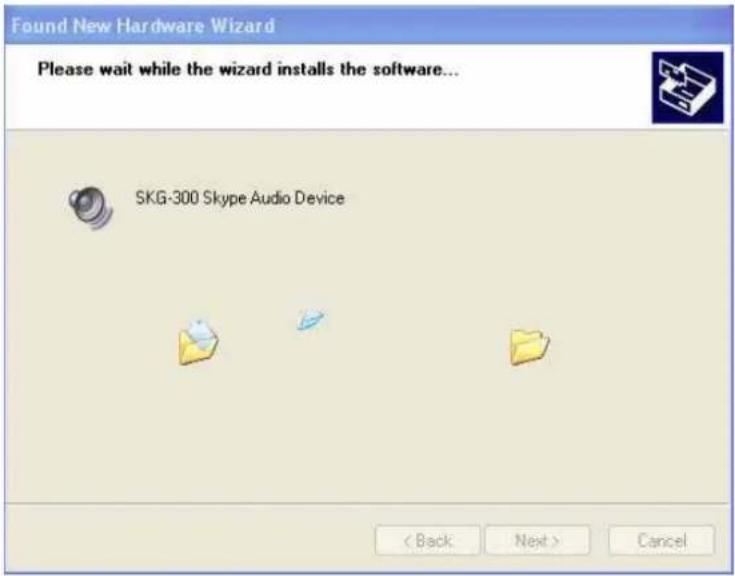
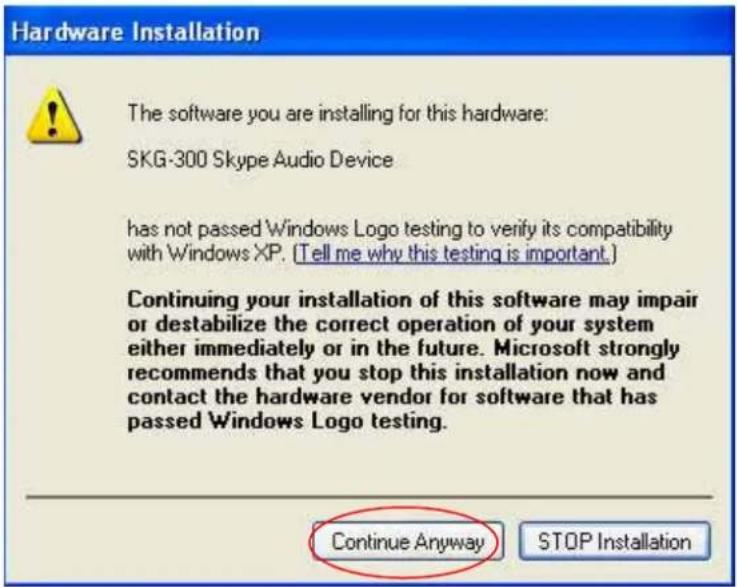
When you see the following screen, press the Continue Anyway button.
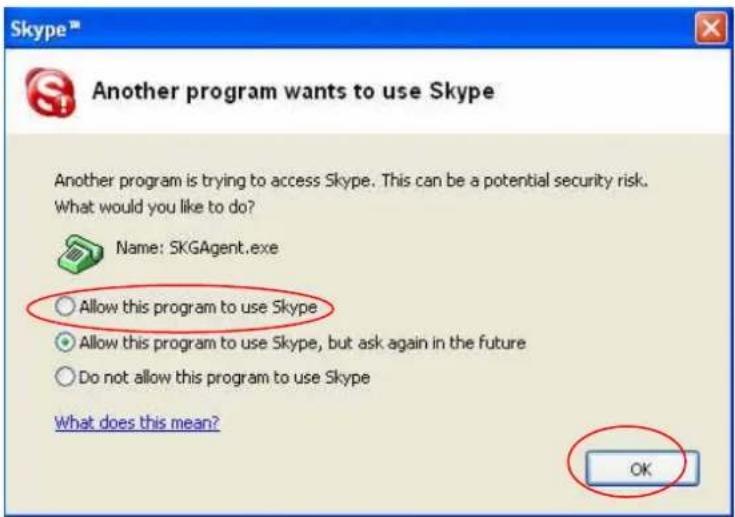
When you will see the following screen, select the option, "allow this program to use Skype" and press the OK button.
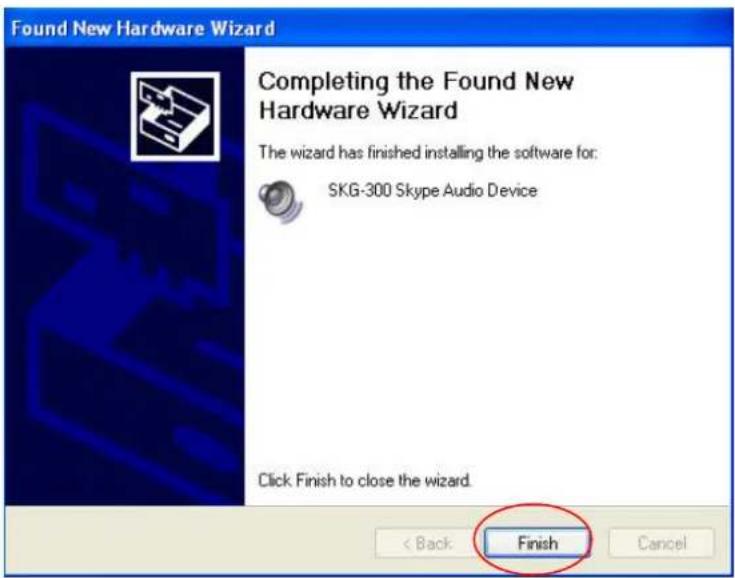
When you see the following screen, press the Finish button.
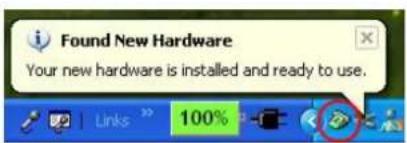
STEP 3: When the installation completes you should see the following message appear near your system tray and a new telephone icon (circled in red below) in your system tray as shown below.
The telephone icon indicates that the SKG-300 software is installed and running and that you can start making calls via Skype™ and the SKG-300 adapter.
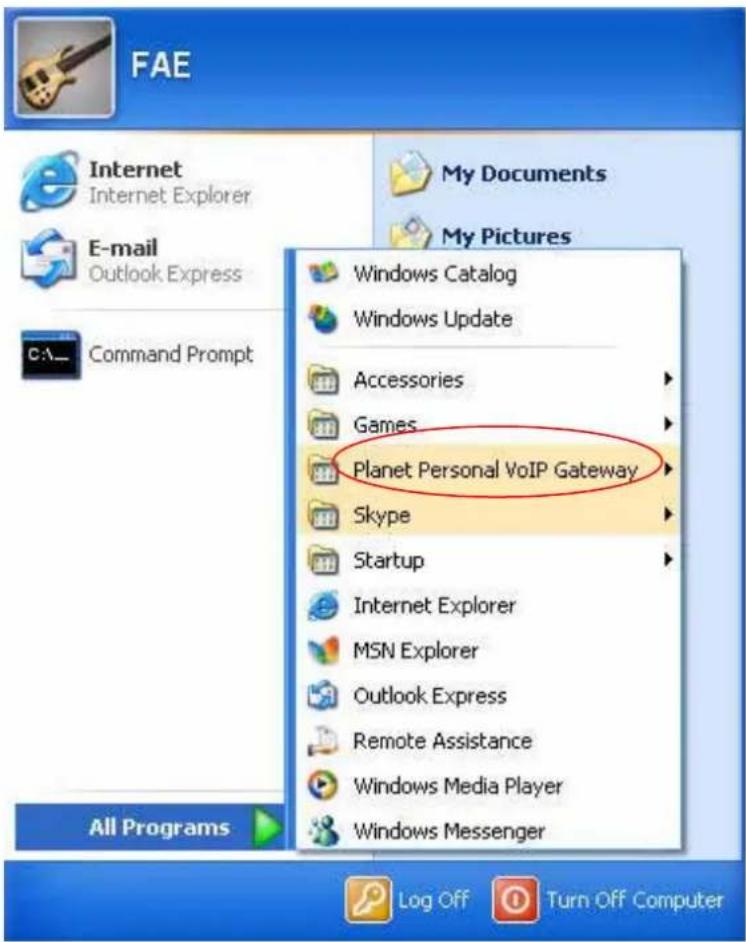
You will see a new program group named "Planet Personal VoIP Gateway", accessed from the Start button -> All Programs as shown below.
STEP 4: Connect a standard telephone handset to the SKG-300 phone jack using a telephone cable as shown below
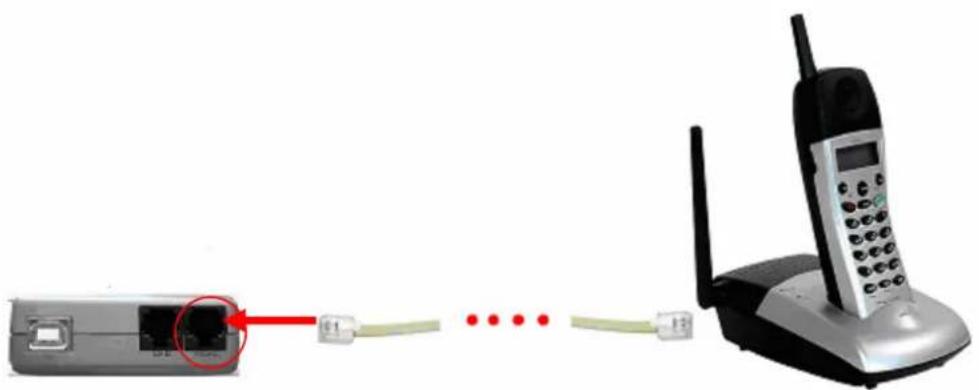
natural_image
Diagram showing connection between a device with a red arrow pointing to its port, connected to a wireless telephone (no text or symbols present)STEP 5: Connect a telephone cable between the SKG-300 line jack and a wall jack as shown below. Note that this is only required for making regular phone calls or for forwarding Skype calls to your mobile (or other off-site) phone or for toll bypass applications.
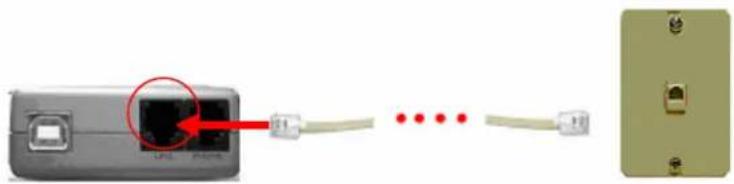
natural_image
Diagram showing connection between a device with a red arrow pointing to a port, and connected to a green electrical outlet (no text or symbols visible)You final configuration should resemble the following.
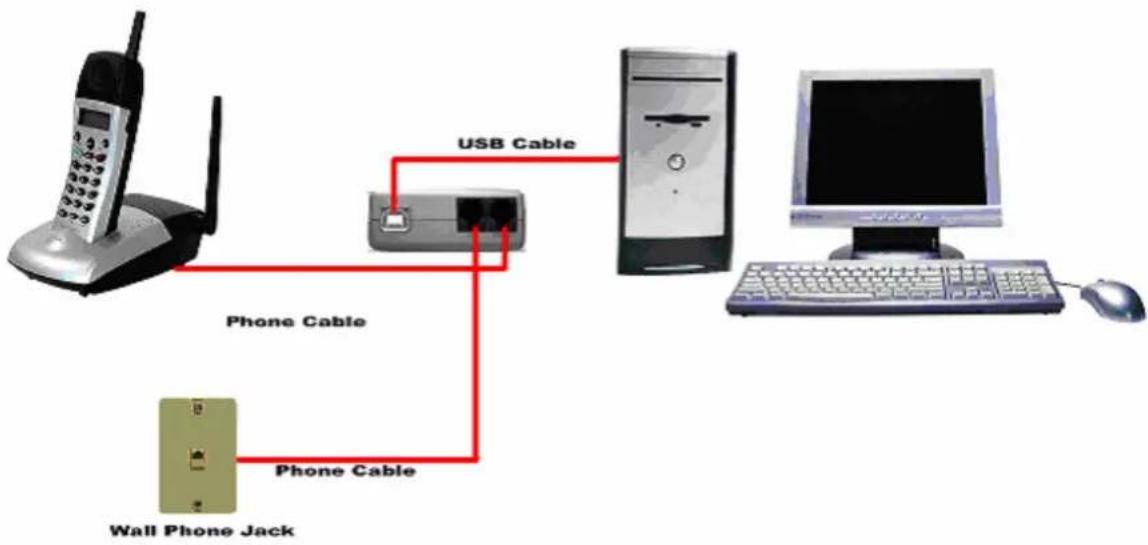
flowchart
graph TD
    A["Telephone"] -->|USB Cable| B["USB Cable"]
    B --> C["Computer"]
    D["Wall Phone Jack"] -->|Phone Cable| B
    style A fill:#f9f,stroke:#333
    style B fill:#ccf,stroke:#333
    style C fill:#cfc,stroke:#333
    style D fill:#fcc,stroke:#333
Chapter 3 SKG-300 Configuration
3.1 Enable SKG-300
In order to use SKG-300 and its features, (1) the SKG-300 adapter must be plugged into the PC, (2) a telephone handset must be plugged into the SKG-300 adapter, (3) the SKG-300 adapter must be connected to the telephone wall jack ^1 and (4) the SKG-300 agent must be running (see green telephone in the Windows System Tray).

Note:
This is only required for making regular phone calls or for forwarding Skype calls to your mobile (or other off-site) phone or for toll bypass application.
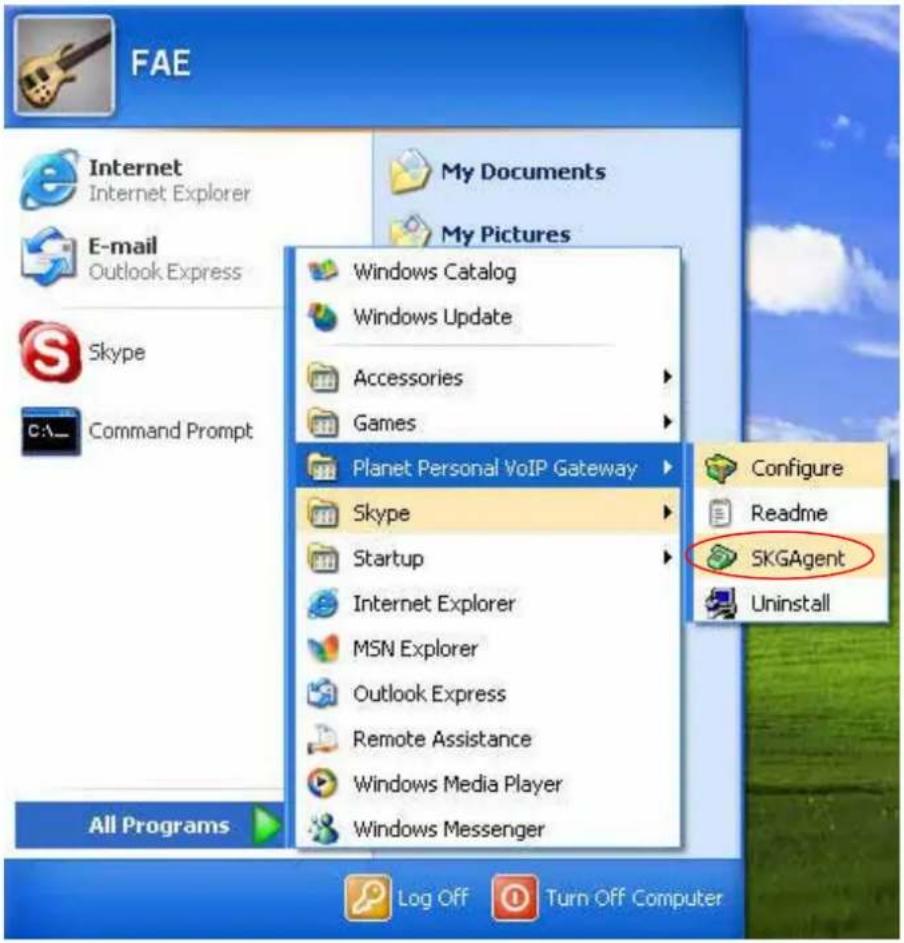
If the SKG-300 Agent is not running (i.e. no green telephone in the system tray), make sure the SKG-300 adapter is connected to the PC and start the SKG-300 Agent as shown below (Start -> All Programs -> Planet Personal VoIP Gateway -> SKG Agent):
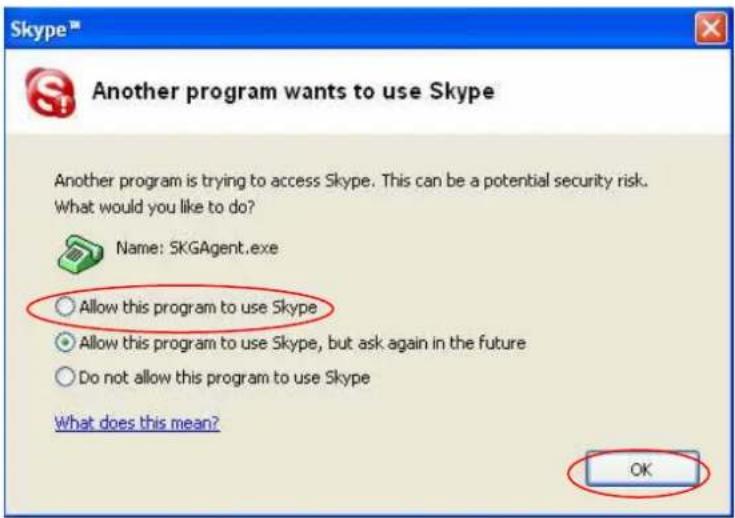
You may see the following screen, select the option, "allow this program to use Skype" and press the OK button.
You should now see the SKGAgent in the Windows System Tray as shown below.

You are now ready to use the Planet Personal VoIP Gateway.
SKGAgent States
When the SKG-300 adapter is installed and the software is installed properly, then you will see a green phone in the system tray as shown below.

If the SKGAgent is running and the SKG-300 adapter is removed or Skype is not running, then the telephone will be red as shown below.

During an incoming or outgoing Skype call, the telephone handset will jiggle as shown below, indicating a VoIP call is being initiated.

When the SKGAgent is not running, there is no phone in the system tray.
3.2 Testing SKG-300
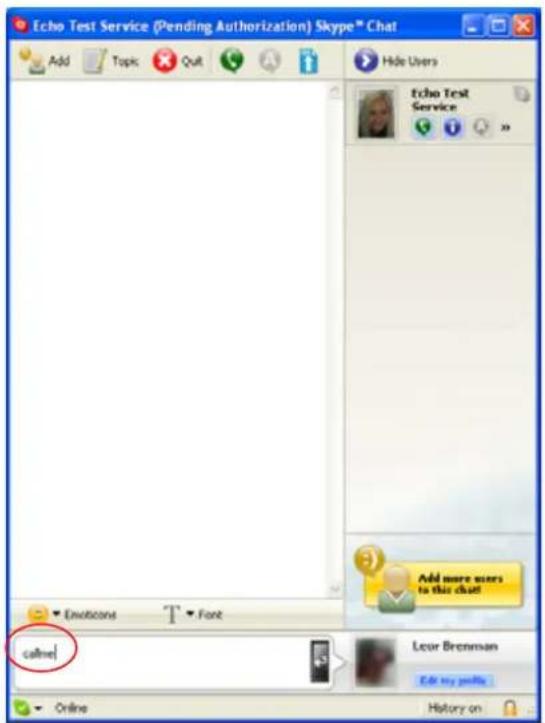
Skype provides a useful feature to test your connection. It is called Echo123. If you send "callme" in a chat with echo123, the echo123 service will call you and let you leave a message which will be played back to you. This will help you verify that the SKG-300 adapter, SKG-300 driver and the telephone are all connected and installed properly.
Add Echo123 to your Skype contact list from the Skype Tools menu -> Add to Contact List entry as shown below:
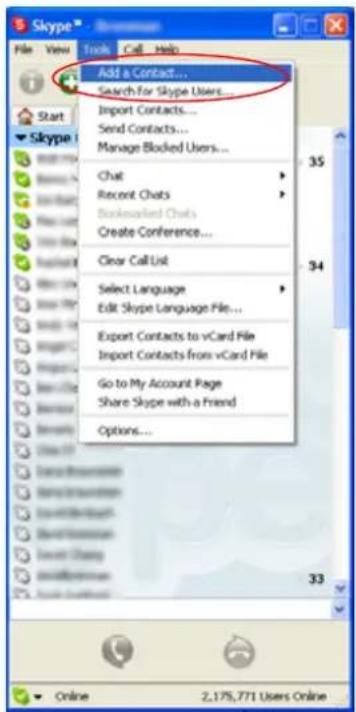
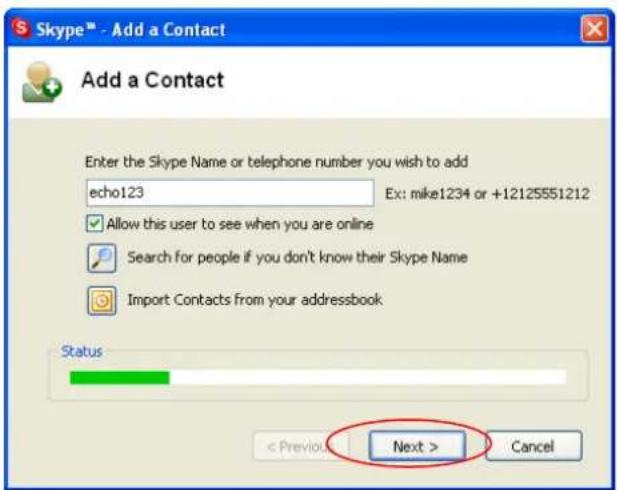
When Echo123 is added, click on the chat button as shown below.
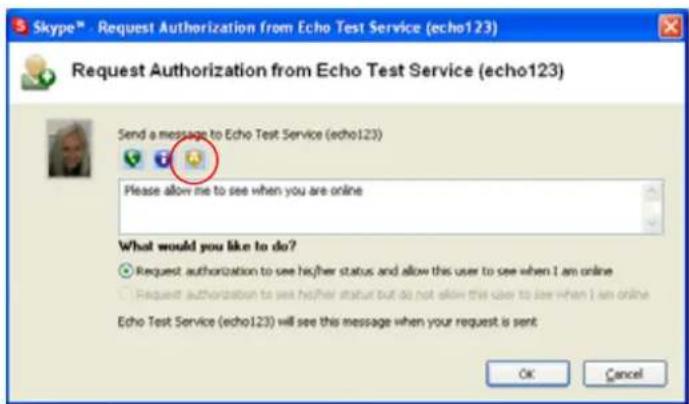
You will see the following chat screen and you should enter "callme" and press the Enter key on your keyboard.
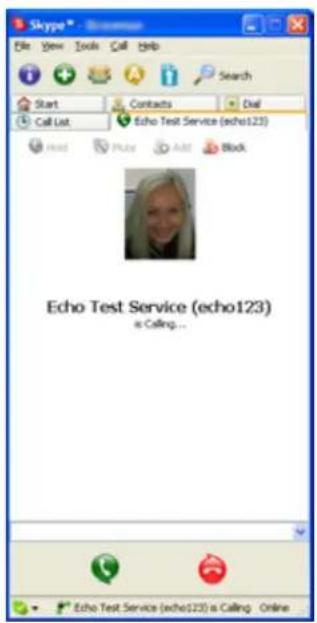
Within 10-20 seconds, you should see the following screen, and the telephone connected to the SKG-300 adapter should ring. Pick up the handset and follow the instructions. The Echo Test Service will ask you to leave a message which will be played back immediately. This will help you verify that the SKG-300 adapter, SKG-300 driver and the telephone handset are all connected and installed properly.
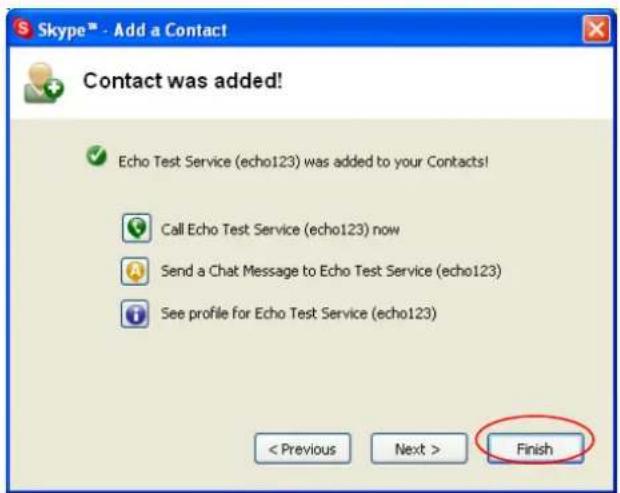
When the test concludes you can press OK on the following screen.
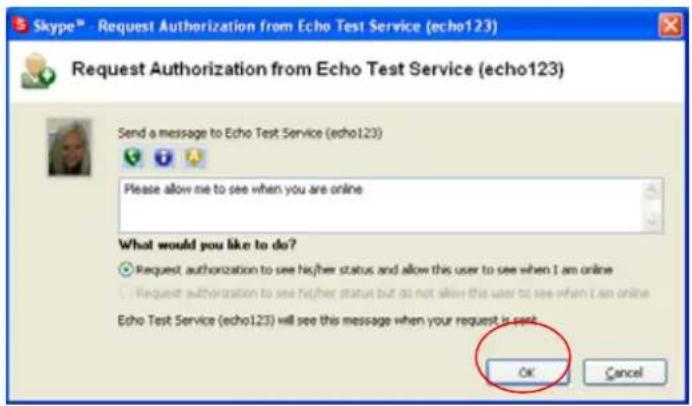
and then press Finish on the following screen.
3.3 Making and Receiving Calls
You can continue to use the telephone handset connected to the SKG-300 adapter to make and receive standard telephone calls as you used without any change. To make a standard phone call, just pick up the handset and dial as you normally would. To answer (receive) a standard phone call just pick up the handset when the phone rings.
When you receive an incoming Skype™ call, the handset connected to the SKG-300 adapter will ring. If you handset supports Alphanumeric Caller ID, then the Skype username will be displayed on the handset's screen where the standard caller ID information is displayed. To answer the call, just pick up the handset and speak as you normally would. To end the call, simply hang up the handset as you normally would.
If you have SkypeOut™, you can use the SKG-300 connected handset to make SkypeOut™ calls by picking up the handset, pressing ##, to indicate to the SKG-300 adapter that this is not a standard call but a Skype
call, dialing as per the SkypeOut™ recommended dialing sequence, 00 + country code + telephone number (e.g. 00 886 2 22199518) and pressing the asterisk (*) key.
In order to make a call to a Skype™ contact, you will need to use the Skype™ program to assign a speed dial (as described in the next section) to each person you would like to call from the SKG-300 connected handset. Then simply pick up the handset, press ##, to indicate to the SKG-300 adapter that this is not a standard call but a Skype call, you will hear a new dial-tone, press the speed dial number (e.g. 22) and then press the asterisk (*) key.
3.4 Setting Up Skype Speed Dial
This section describes how to setup speed dials in Skype™. This is required in order to use a SKG-300 connected handset to dial to a Skype™ contact. It is not required for making SkypeOut™ calls using a SKG-300 connected handset.
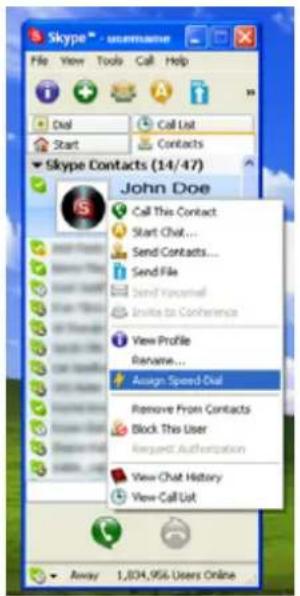
Step 1: Right click on the desired contact as shown below and select Assign Speed-Dial:
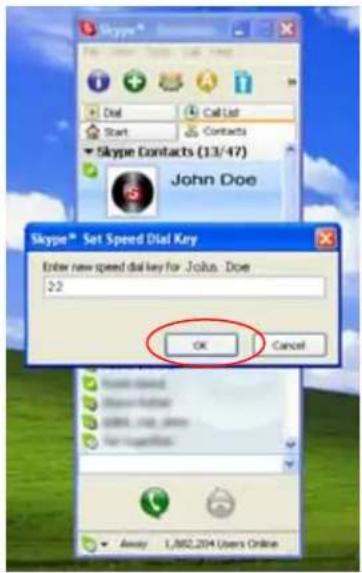
Step 2: Enter the desired speed dial number (e.g. 22) as shown below and press the OK button.
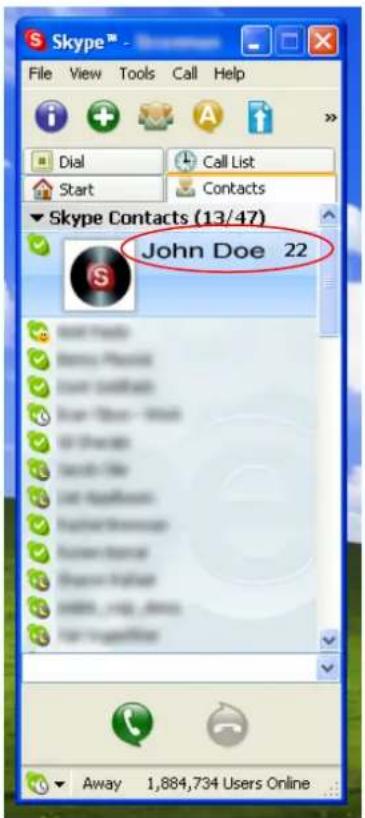
Step 3: You will now see an indication that the Skype™ contact has a speed dial associated with them as shown below.
3.5 Switching Between VoIP and Regular Calls
While on a regular phone call you may receive a Skype™ call or while on a Skype™ call you may receive a regular call. The SKG-300 adapter will indicate an incoming call with an audible call waiting tone and you
can do the following:
- Press '#1' to answer new call keeping current call on-hold
- Press ‘##’ to answer call and terminate current call
Once having 2 active calls, you may:
- Press '#1' putting current call on-hold switching to other call
- Press ‘##’ terminating current call switching to other call
- Press '#2' to conference the calls together (see next section)
While on a regular phone call, if you receive a Skype call, you can see the Skype username on your telephone (if it has alphanumeric CLID display).
3.6 Conference Call Between VoIP and Regular Calls
While on a regular phone call you may receive a Skype™ call or while on a Skype™ call you may receive a regular call. The SKG-300 adapter will indicate an incoming call with an audible tone and you can conference in the additional caller by pressing #2. While in a conference call, you may press ‘##’ to terminate the conference call.
3.7 Three-Way Calling
During an active Skype call the user may press '#1' to put current Skype call on-hold and get a PSTN dial tone to establish a PSTN call.
You may then:
- Press '#1' to switch between active calls keeping current call on-hold
- Press ‘##’ to terminate current call and switch to call on-hold
- Press '#2' to conference the calls together
3.8 Forwarding Calls
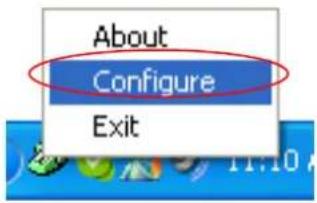
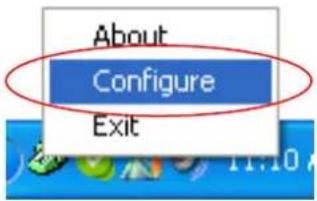
The SKG-300 adapter can be configured to forward incoming Skype ^™ calls to another telephone number, such as your mobile phone. It can also forward incoming telephone calls to a Skype ^™ or SkypeOut ^™ call. Right click on the SKGAgent (green telephone in the Windows System Tray) and select configure as shown below.
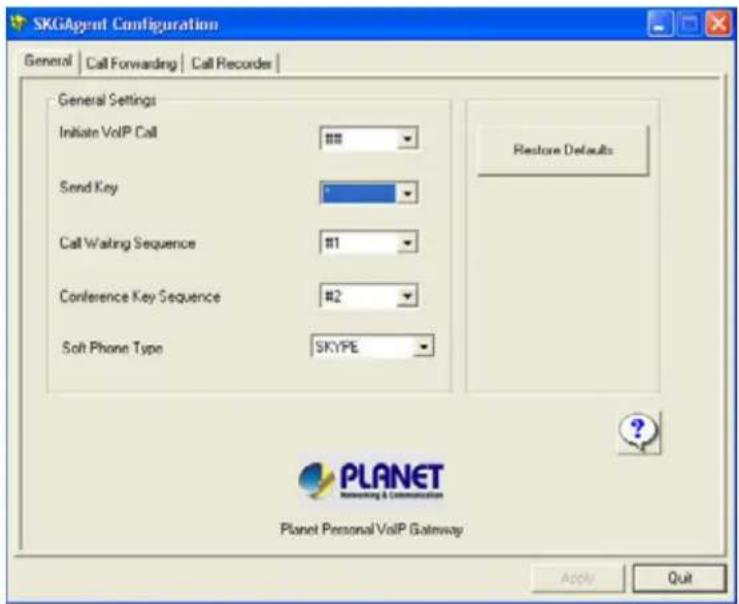
You will see the SKG-300 configuration screen as shown below.
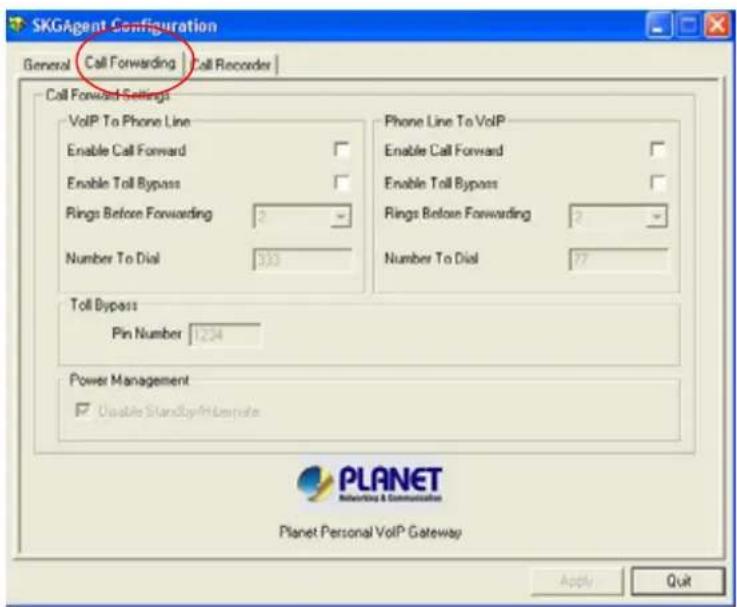
Press the Call Forwarding tab to see the Call Forwarding parameters as shown below.
In order to forward incoming Skype™ calls to a telephone number such as your mobile phone, change the VOIP to Phone Line settings as follows:
- Check the Enable Call Forward checkbox as shown below
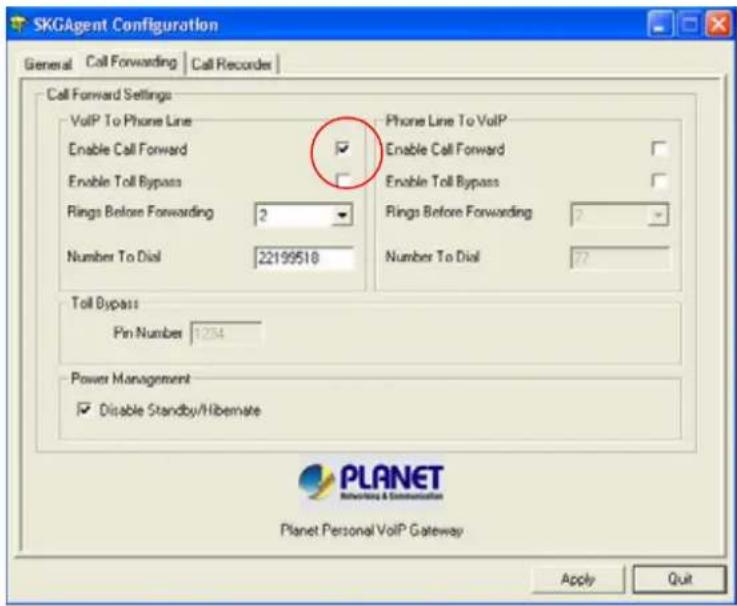
- Select the number of rings before the forwarding takes place as shown below.
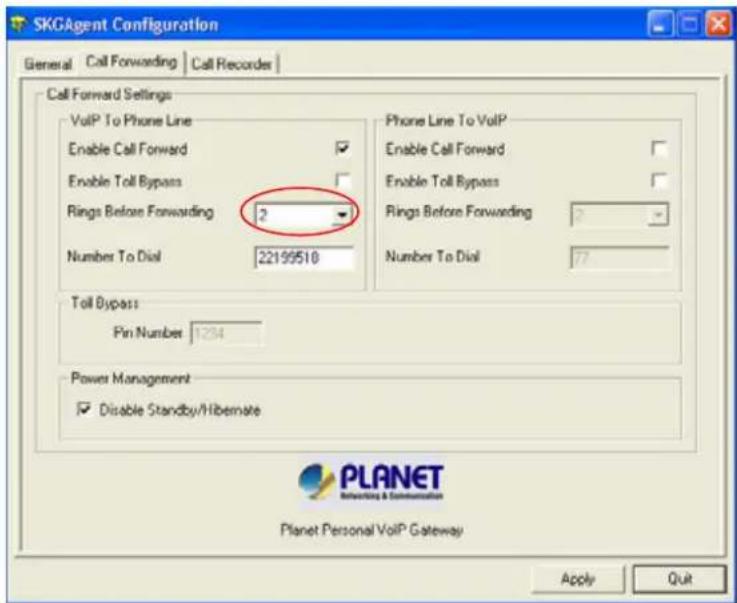
Then select the telephone that should be dialed on the telephone line and press the Apply and/or Exit button as shown below. Enter the telephone exactly as you would dial it if you were to pick up a telephone directly connected to the phone line.
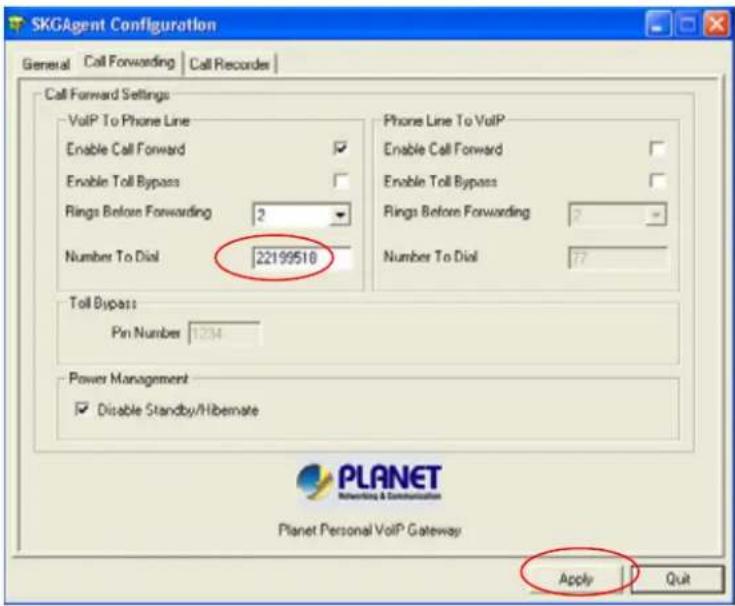
If you are on a PBX, you may need to press a digit to get an outside line (i.e. 9). In this case you would enter 0,,22199518.
In order to forward incoming regular calls to a VoIP call, such as through SkypeOut™ or to a Skype account, enter speed dial number (e.g. 22) associated with the Skype User without the * key (as shown above).or enter the SkypeOut™ number (e.g. 00886222199518).

Note:
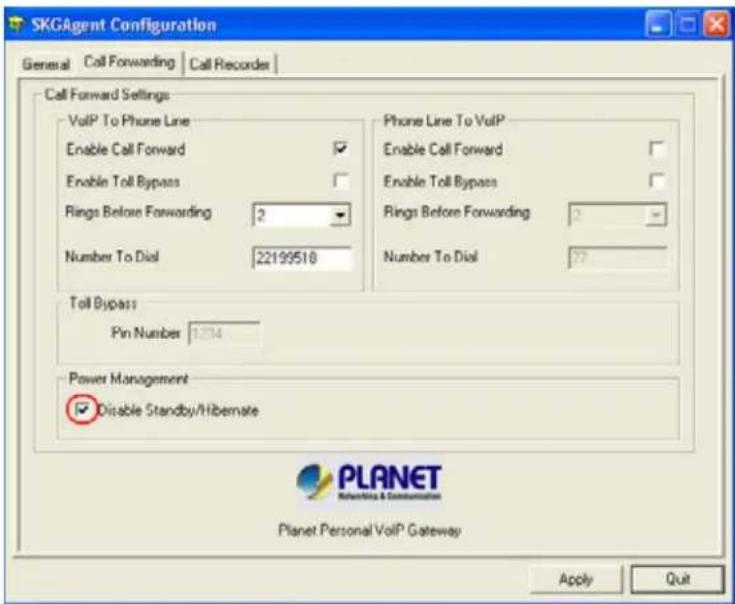
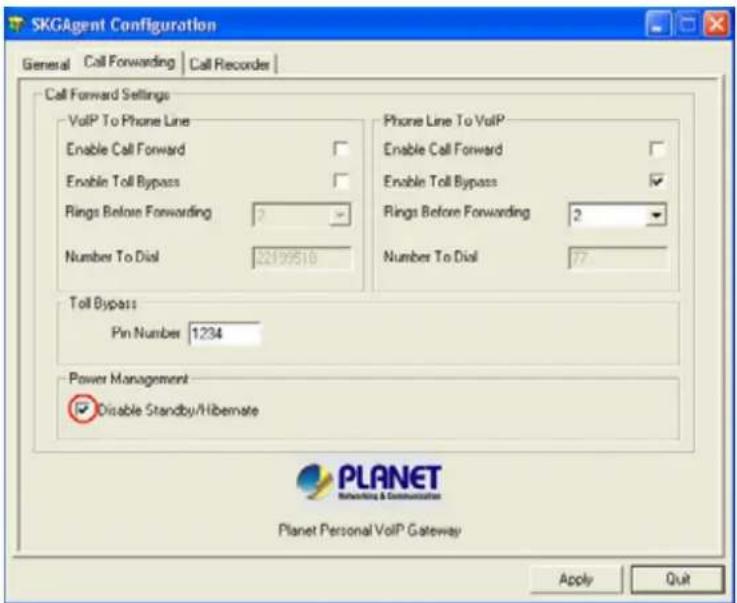
You may need to disable suspend mode in your computer to prevent the computer from going into sleep mode. If the computer is in sleep mode, then forwarding will not work. Or you can enable “Disable Standby/Hibernate” in configuration.
3.9 Toll Bypass
Toll bypass is similar to forwarding, except the incoming caller hears a beep, enters a password and then dials out an arbitrary number instead of fixed forwarding as described in the previous section.
There are two common scenarios for this. You can call in from your mobile phone to the computer that the SKG-300 adaptor is connected to and make a low cost SkypeOut international call. This is useful if you are in the same geographical location as SKG-300 and want to make international calls.
The second common scenario is your Skype to the computer that the SKG-300 adaptor is connected to and make a low cost local call over the PSTN line. This is useful if you are traveling abroad and want to make a low cost local call (in the geographical location that the SKG-300 adaptor is in).
Right click on the SKGAgent (green telephone in the Windows System Tray) and select configure as shown below.
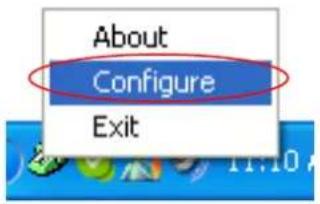
You will see the SKG-300 configuration screen as shown below.
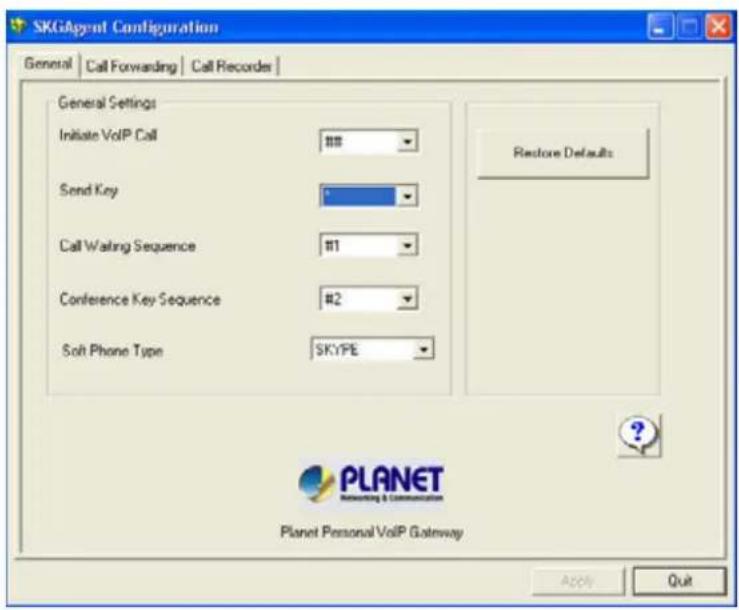
Press the Call Forwarding tab to see the Call Forwarding parameters as shown below.
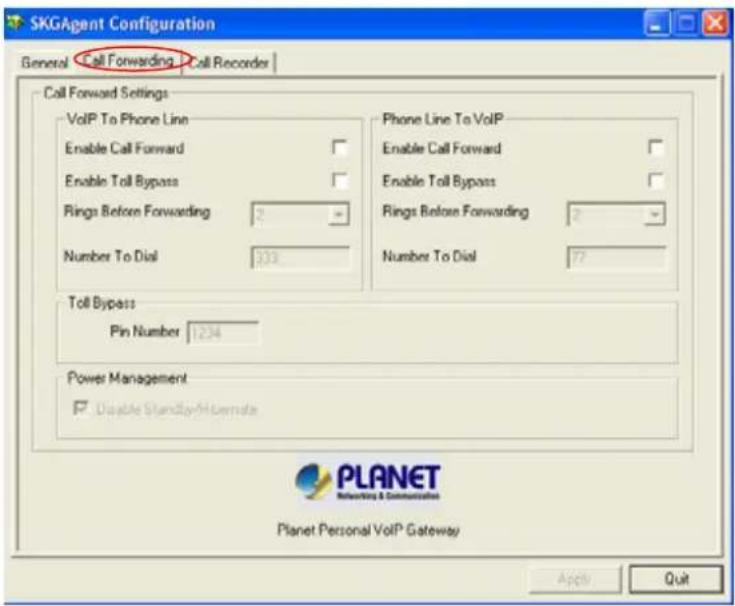
In order to enable toll bypass of incoming PSTN calls, change the Phone Line to VOIP settings as follows:
- Check the Enable Toll Bypass checkbox as shown below
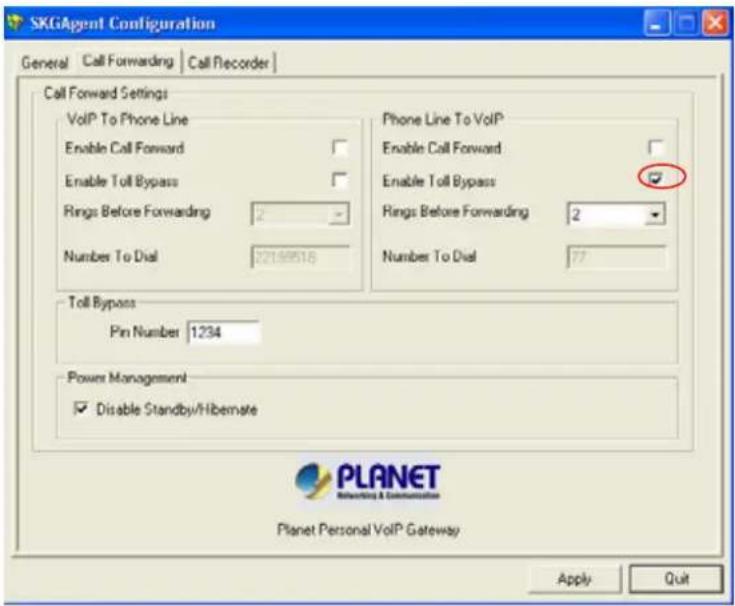
- Select the number of rings before the forwarding takes place as shown below.
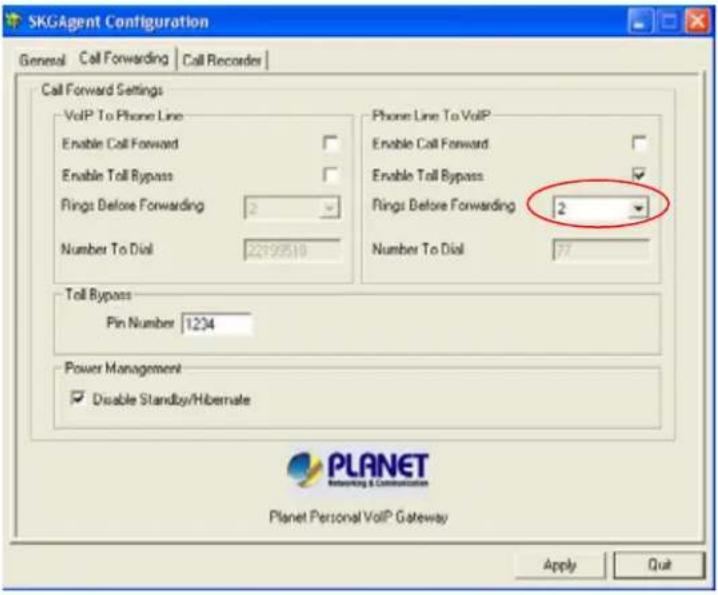
Set your password and press apply as shown below. The password can be any 4 to 8 digits
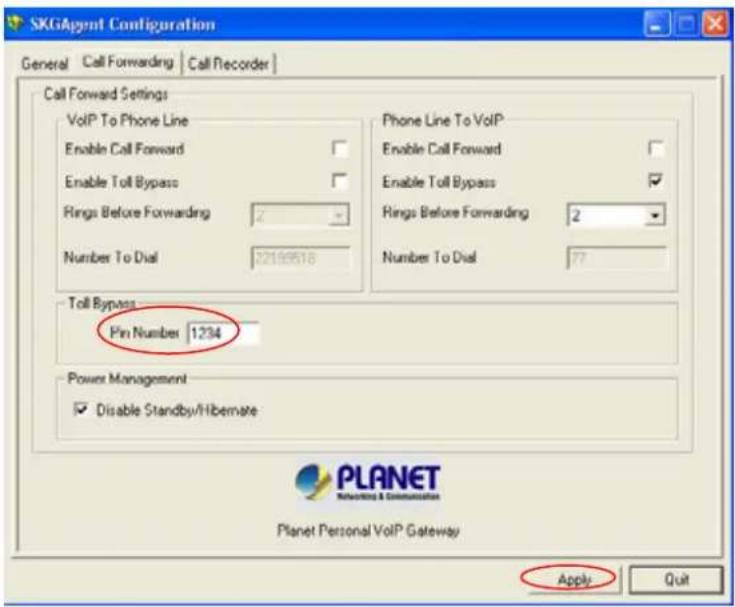
When you call into your telephone line you will hear a beep. Enter the pin code followed by the * button and then enter the Skype speed dial (e.g. 22) or the SkypeOut telephone number (e.g. 00 + country code + telephone number) followed by the * button.
In order perform toll bypass on an incoming Skype call, enable Toll Bypass in the VoIP to Phone Line section. When you Skype into the SkKG-300 adaptor, you will hear a beep. Enter the pin code followed by the * button and then enter the telephone number you want to dial on the PSTN line followed by the * key.

Note:
You may need to disable suspend mode in your computer to prevent the computer from going into sleep mode. If the computer is in sleep mode, then forwarding will not work. Or you can enable “Disable Standby/Hibernate” in configuration.
3.10 Call Recorder
The SKG-300 adapter can be configured to record PSTN or Skype voice by manually or automatically. Right click on the SKGAgent (green telephone in the Windows System Tray) and select configure as shown below.
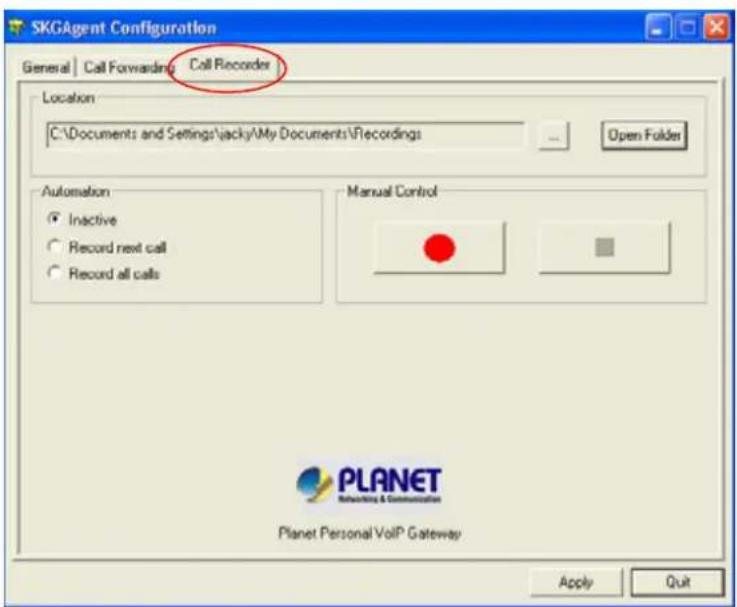
Location : You can click "Open Folder" button to change the location of the voice file, or leave it as the default setting.
Automation :
Inactive : SKG-300 will not record any voice.
Record next call : SKG-300 will only record the next call, and then the Automation status will change to Inactive.
Record all calls : SKG-300 will record all the calls automatically; user can check the voice file in the specific directory.
Manual Control : User can select to record which call he wants to save, just press the red circle button to start recording, and press black square button to stop the recording.

Note:
To enable recording feature, user must click on SKGAgent and keep the configuration on the desktop, if user click "Quit" to quit the setting, SKG-300 will not record any voice at all.
3.11 Skype Voicemail
With SKG-300 active, the attached telephone handset can be used to check for, and listen to your Skype voicemail.
When you have a new Skype voicemail that you have not listened to, you will hear an intermittent beep in the VoIP dial tone.
If you have no new voicemail (i.e. either no voicemail or voicemail that you have already listened to), the standard VoIP dial tone will be heard.
You can access your voice mail only when there is no call in progress.
In order to access your voicemail:
- Pick up the attached telephone handset
- Press ‘##’ to get VoIP dial tone
- If a new Skype voice message exists the VoIP dial tone will have an intermittent beep
- Press '*' to access voice mail mode
- Once in voice mail mode the first message is played automatically
- At the end of each message a trailing "beep" is played
- At the end of the last messages a trailing 'beep-beep-beep' is played
- During the playing of current message and within 5 seconds following the end of message the you can press the 1, 2, 3, 9 in order to perform the following actions:
| User Action Key | |
| Repeat current message 1 | |
| Delete current message, move to next 2 | |
| Keep current message, move to next 3 | |
| Delete all messages 9 |
- If you don't enter any valid key within 5 sec after message has ended, the system will behave as if you pressed '3'
To exit voicemail mode press ‘##’ or place the attached telephone in the handset (i.e. on hook). Alternatively, pressing ‘#1’ will also exit voicemail mode. In either case, the currently playing message will be stopped.
3.12 Changing the Default Settings
You can change the default settings for sending a call, activating a Skype™ call, switching between a Skype™ call and a regular call (call waiting) and conference calling, by running the SKG-300 configuration.
Right click on the SKGAgent and select Configure as shown below.
You will see the configuration tab as shown below.
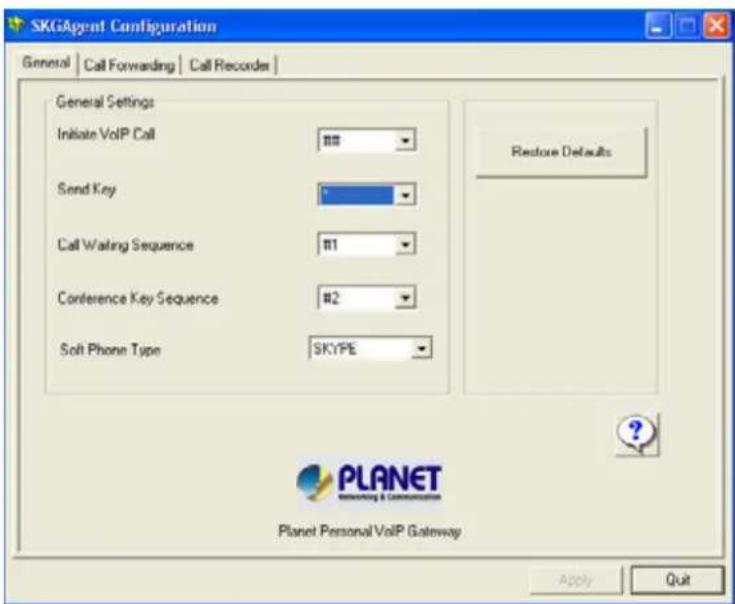
The Initiate VoIP Call – press these keys to get a VoIP dial-tone. You can now dial a SkypeOut™ call or a Skype™ speed dial call from your telephone handset.
The Send Key – press this key following the phone number (or speed dial number) when making a VoIP call.
The Call Waiting Sequence – press these keys during a call to switch between a VoIP and regular call. For example to switch from a regular telephone call to an incoming Skype™ call or to switch from a Skype™ call to an incoming regular phone call.
The Conference Key Sequence – while on a Skype call and you receive a regular call or while on a regular call and you receive a Skype call, press these keys conference together the two calls.
Press the Restore Defaults button if you want to restore all sequences to their factory shipped settings.
3.13 Disabling SKG-300
In order to disable SKG-300, right click on the SKGAgent in the system tray and select Exit as shown below.
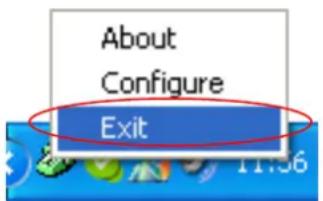
You can now disconnect the SKG-300 adapter from the PC.
3.14 Uninstall
In order to uninstall the SKG-300 adapter, click on the uninstall utility in the SKG-300 program group accessed from the Start button -> All Programs -> Planet Personal VoIP Gateway.
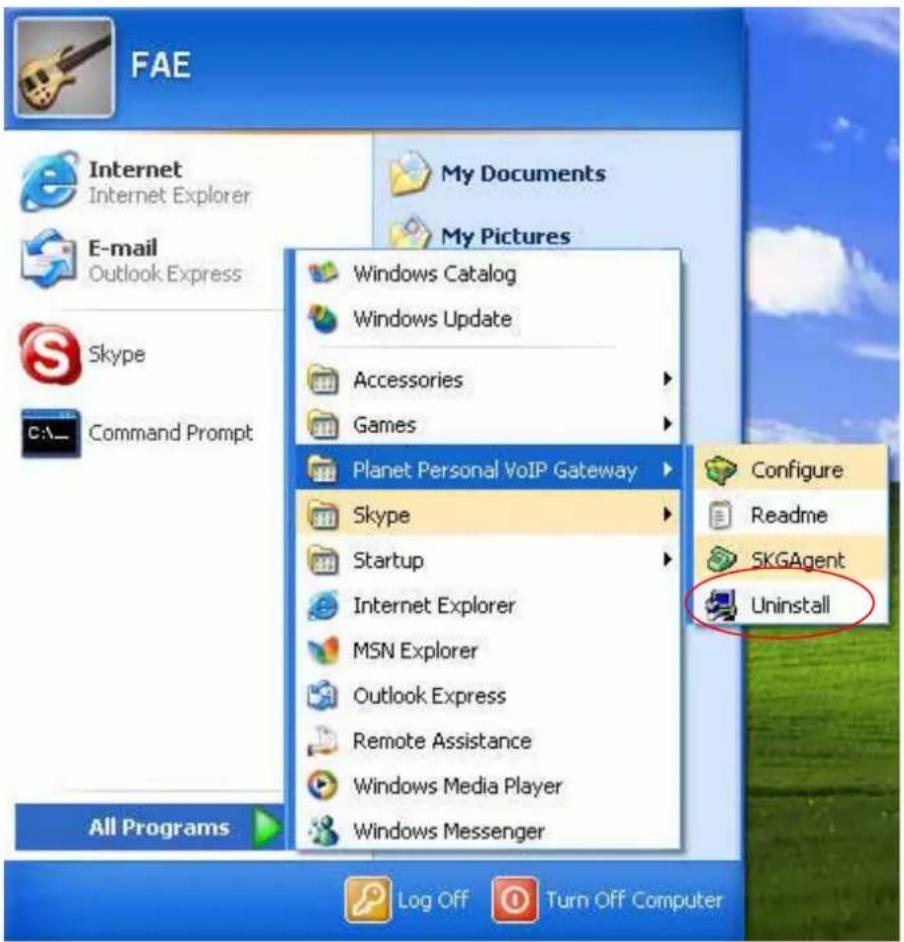
When the uninstall indicator disappears, the un-installation is complete.
3.15 Troubleshooting
The first step in troubleshooting is to read the readme.txt that appears in the SKG-300 program group. It contains a list of known issues for the current SKG-300 driver version.
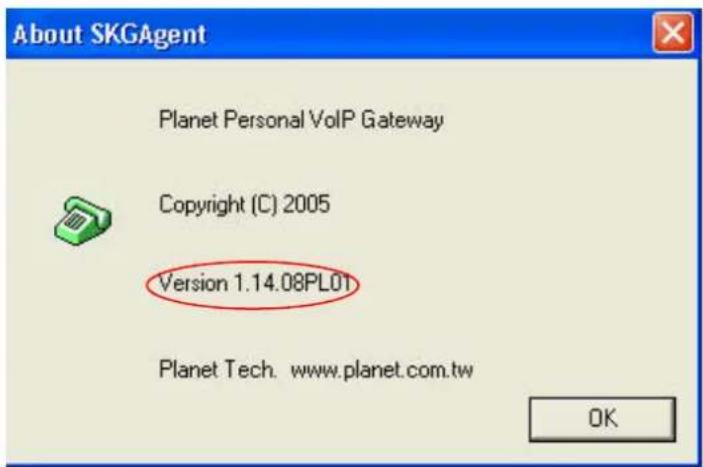
To find out the driver version, right click on the SKGAgent (green telephone in the system tray) and select About.
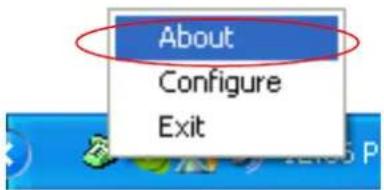
You will see the SKGAgent About screen below.
Common Fix
If SKG-300 was working OK and suddenly stops working properly (e.g. stops responding to incoming rings or you cannot get a VoIP dial tone) try the following:
- Quit the SKGAgent (right click on the green telephone in the System Tray and select Quit)
- Quit the Skype application
• Unplug the SKG-300 adaptor - Wait 30 seconds
- Plug in the SKG-300 adaptor
- Start Skype
- Start the SKGAgent
Wrong Device Installed
If you insert the SKG-300 adapter on a Windows XP SP2 PC "prior" to installing the software, the adapter will be incorrectly installed as a USB Modem.
Simply proceed to install the SKG-300 software and it will resolve the issue and install the adapter properly.
Softphone Version Warning
If you get a Softphone Version Warning from SKG-300, then you should upgrade your softphone to the latest version. Otherwise, SKG-300 may not operate properly.
SKG-300 does not appear to be responding to incoming calls
There are several reasons why SKG-300 may not function.
- SKG-300 may not work properly with some 4 wire (multi-line) phones
-
Make sure the SKG-300 adapter is connected to the PC and SKGAgent is running (green phone in the Windows System Tray).
• Make sure the handset is connected to the phone jack on the SKG-300 adaptor and not the line jack -
If the Skype™ application was terminated for any reason while the SKG-300 agent was running, you will need to exit the SKGAgent and then restart it.
- Some telephone handsets require a battery to be installed in order to ring. If your handset supports a battery, make sure there is a battery installed and that the battery is not depleted.
Cannot hear dial-tone when I pick up the handset connected to the SKG-300 adapter
Check to make sure that the handset is connected to the correct jack on the SKG-300 adapter
Cannot hear the Skype™ call in telephone handset
Check to make sure that Skype is configured to use the SKG-300 Audio device as its Audio In and Audio Out Sound Device.
This is done as following:
Select Options from the Skype™ Tools Menu as shown below.
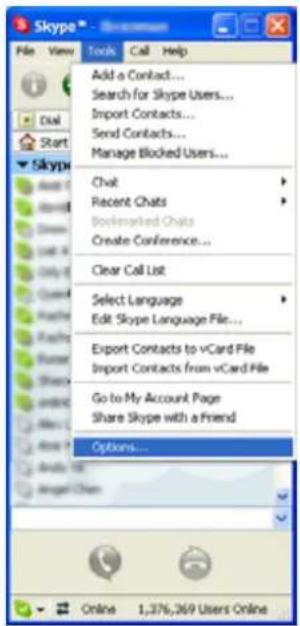
and then select Sound Devices as shown below.
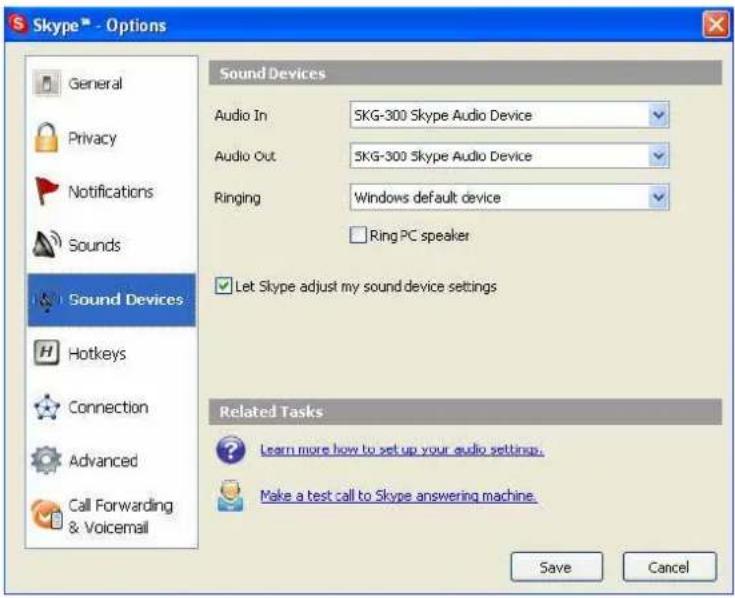
Check the Audio In and Audio Out list boxes and make sure SKG-300 Skype Audio Device is selected.
Call Forwarding is not working properly
- Make sure that a telephone cable is plugged into the SKG-300 adaptor line jack and to the wall phone plug
- Make sure call forwarding is configured properly in the SKGAgent -> Configure -> Call Forwarding tab
- Try to dial the telephone number as you have entered in the SKG-300 Call Forwarding dialog box
- If you are on a PBX, make sure you have entered enough commas after the 9 (for example) to make sure that SKG-300 waits for the dial tone before dialing the telephone number
- Make sure your computer is not going into suspend (sleep) mode. This will prevent forwarding from working
Toll bypass is not working properly
- Make sure that a telephone cable is plugged into the SKG-300 adaptor line jack and to the wall phone plug
• Make sure toll bypass is configured properly in the SKGAgent -> Configure -> Call Forwarding tab - Make sure Skype version 1.3.xx or higher is used on both sides
- Make sure your computer is not going into suspend (sleep) mode. This will prevent toll bypass from working.
- Personal VoIP Gateway
- SKG-300
- User Manual
- Copyright
- Disclaimer
- CE mark Warning
- WEEE Warning
- Trademarks
- Revision
- Index
- Chapter 1 Introduction......4
- Chapter 2 SKG-300 Setup....6
- Chapter 3 SKG-300 Configuration ....15
- Package contents
- System requirements
- Minimum System Requirements :
- Hardware Details
- LED Display
- Port Connection
- SKG-300 utility setup
- Note:
- Chapter 3 SKG-300 Configuration
- Enable SKG-300
- SKGAgent States
- Testing SKG-300
- Making and Receiving Calls
- Setting Up Skype Speed Dial
- Switching Between VoIP and Regular Calls
- Conference Call Between VoIP and Regular Calls
- Three-Way Calling
- You may then:
- Forwarding Calls
- Toll Bypass
- Call Recorder
- Automation :
- Skype Voicemail
- Changing the Default Settings
- Disabling SKG-300
- Uninstall
- Troubleshooting
- Common Fix
- Wrong Device Installed
- Softphone Version Warning
- SKG-300 does not appear to be responding to incoming calls
- Cannot hear dial-tone when I pick up the handset connected to the SKG-300 adapter
- Cannot hear the Skype™ call in telephone handset
- Call Forwarding is not working properly
- Toll bypass is not working properly
Brand : Planet
Model : SKG-300
Category : Phone