LDD-2454MC - TV DENVER - Free user manual and instructions
Find the device manual for free LDD-2454MC DENVER in PDF.


| Product Type | LED TV |
| Brand | Denver |
| Model | LDD-2454MC |
| Screen Size | 24 inches (61 cm) |
| Resolution | 1366 x 768 (HD Ready) |
| Display Technology | LED |
| Aspect Ratio | 16:9 |
| Refresh Rate | 60 Hz |
| Connectivity | HDMI, USB, VGA, SCART, AV (RCA), Headphone out |
| Tuner | DVB-T/T2/C (terrestrial/cable) |
| Power Supply | AC 100-240V, 50/60 Hz |
| Power Consumption (typical) | 30 W |
| Standby Power | < 0.5 W |
| Dimensions (with stand) | 55.5 x 38.0 x 16.0 cm |
| Weight (with stand) | 3.2 kg |
| VESA Mount | 100 x 100 mm |
| Remote Control | Included |
| User Interface | On-Screen Display (OSD) with multilingual support |
| Cleaning Instructions | Use a soft, dry cloth. Do not use liquid or aerosol cleaners. |
| Safety Warning | Do not cover ventilation openings. Keep away from heat sources and moisture. |
| User Serviceable Parts | None. Refer servicing to qualified personnel. |
| Spare Parts Availability | Contact Denver customer support for spare parts. |
Frequently Asked Questions - LDD-2454MC DENVER
User questions about LDD-2454MC DENVER
0 question about this device. Answer the ones you know or ask your own.
Ask a new question about this device
Download the instructions for your TV in PDF format for free! Find your manual LDD-2454MC - DENVER and take your electronic device back in hand. On this page are published all the documents necessary for the use of your device. LDD-2454MC by DENVER.
USER MANUAL LDD-2454MC DENVER
22" full hd led tv with atv and mpeg-4 dvb-t/c + c.i & built-in dvd player + usb input + pvr function
Model NO.: LDD-2254MC
natural_image
Line drawing of a flat-screen monitor with a circular base (no text or symbols)Instruction Manual
Contents
| Caution | 1 |
| Safety Information | 2 |
| Accessories | 3 |
| Technical Specification | 3 |
| Product Introduction | 4 |
| Front View | 4 |
| Connections | 5 |
| Remote Control | 6-7 |
| Basic Operation | 8 |
| OSD Menu | 9-17 |
| 1. Channel menu | 9-10 |
| 2. Picture menu | 11 |
| 3. Sound menu | 12 |
| 4. Time menu | 13 |
| 5. Lock menu | 14-16 |
| 6. Setup menu | 17 |
Multimedia Operation 18-21
Recording Operation 22-23
DVD Operation 24-31
23gnitoohselbuorTelpS

The lightning flash with arrowhead symbol, within an equilateral triangle is intended to alert the user to the presence of un-insulated “dangerous voltage” within the products enclosure that may be of sufficient magnitude to constitute a risk of electric shock to the persons.

The exclamation point within an equilateral triangle is intend to alert the user to the presence of important operating and maintenance (servicing) instructions in the literature accompanying the appliance.
text_image
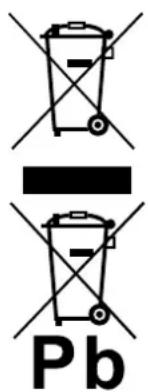
PbCorrect disposal of this Product
(Waste Electrical & Electronic Equipment (WEEE)
Your product is designed and manufactured with high quality materials and components which can be recycled and reused.
This symbol means that electrical and electronic equipment, at their end-of-life should be disposed of separately from your household waste.
Please dispose of this equipment at your local community waste collection/recycling center.
In the USA there are separate collection systems for used electrical and electronic products. Please help us to conserve the environment we live in!

This unit complies with European safety and electrical interference directives.
To ensure reliable and safe operation of this equipment, please read carefully all the instructions in this user guide, especially the safety information below.
Electrical safety
- The TV set should only be connected to a mains supply which matches that stated on the label on the mains adaptor.
- The power cable/disconnect device shall remain easy to operate/disconnect.
-
To prevent overload, don't share the same mains supply socket with too many other items of equipment.
-
Do not place any connecting wires where they may be stepped on or tripped over.
- Do not place heavy items on the leads, which may damage them.
- Hold the Mains plug, not the wires, when removing from a socket.
- During a thunderstorm or while leaving the TV for long periods, disconnect the aerial (if outdoor) and mains adaptor from the supply.
-
Do not allow water or moisture to enter the TV or mains adaptor. Do NOT use in wet or moist areas such as Bathrooms, steamy kitchens or near swimming pools.
-
Pull the plug out immediately, and seek professional help if:
- the mains plug or cable is damaged.
- liquid is spilt onto the set, or if it is accidentally exposed to water or moisture.
- anything accidentally penetrates the ventilation slots.
- the set does not work normally.
- Do NOT remove the safety covers. There are no user serviceable parts inside. You may invalidate the warranty. Qualified personnel only are permitted to service this apparatus.
- To avoid battery leakage, remove exhausted batteries from the remote control handset, or when not using for along period.
- Do NOT break open or throw exhausted batteries on a fire.
Physical safety
- Do NOT block ventilation slots in the back cover. You may place the TV in a cabinet, but ensure at least 5cm (2") clearance all around the unit.
- Do NOT tap or shake the TV screen, you may damage the internal circuitry. Take good care of the remote control, do not drop it or allow it to come into contact with liquids.
• To clean the TV use a soft dry cloth. Do NOT use solvents or petrol based fluids. For stubborn stains, you may use a damp soft cloth with diluted detergent.
natural_image
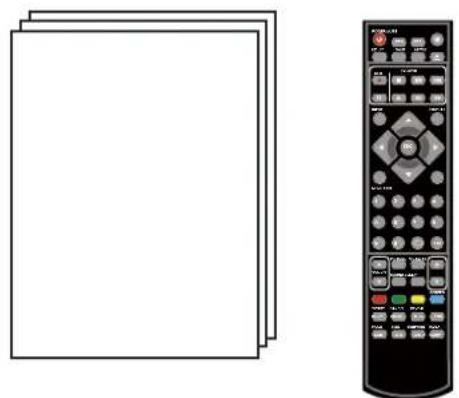
Illustration of a blank document page next to a remote control with a black scroll (no text or symbols visible)User's Manual Remote control
natural_image
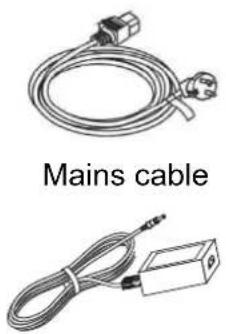
Two types of cables: a coiled cable and a connected audio device (no text or symbols visible)Mains adaptor
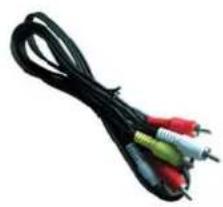
natural_image
Coiled black audio/video audio cable with multiple colored connectors (no text or symbols visible)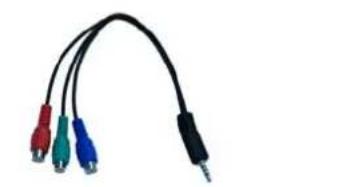
natural_image
Black cable with four colored connectors (red, blue, green, purple) attached to a terminal connector (no text or symbols visible)Converter cableAV Cable for YPbPr
* Note: The configuration of the components may look different from the following illustration
Technical Specification
| - TV System | PAL BG/DK/I SECAM BG/DK L/L' |
| - Screen Size | 22 inch(diagonal) |
| - Resolution | 1920x1080 |
| - Aerial input | 75 Ω (unbalanced) |
| - Audio output power | 2x3W |
| - Power Consumption | 12V--- 3.33A 40W |
Remote Control
| Type | infrared |
| Control distance | 5m |
| Control angle | 30^ (horizontal) |
| Batteries | 2 x 1.5V, size AAA |
Introduction
Front View
text_image
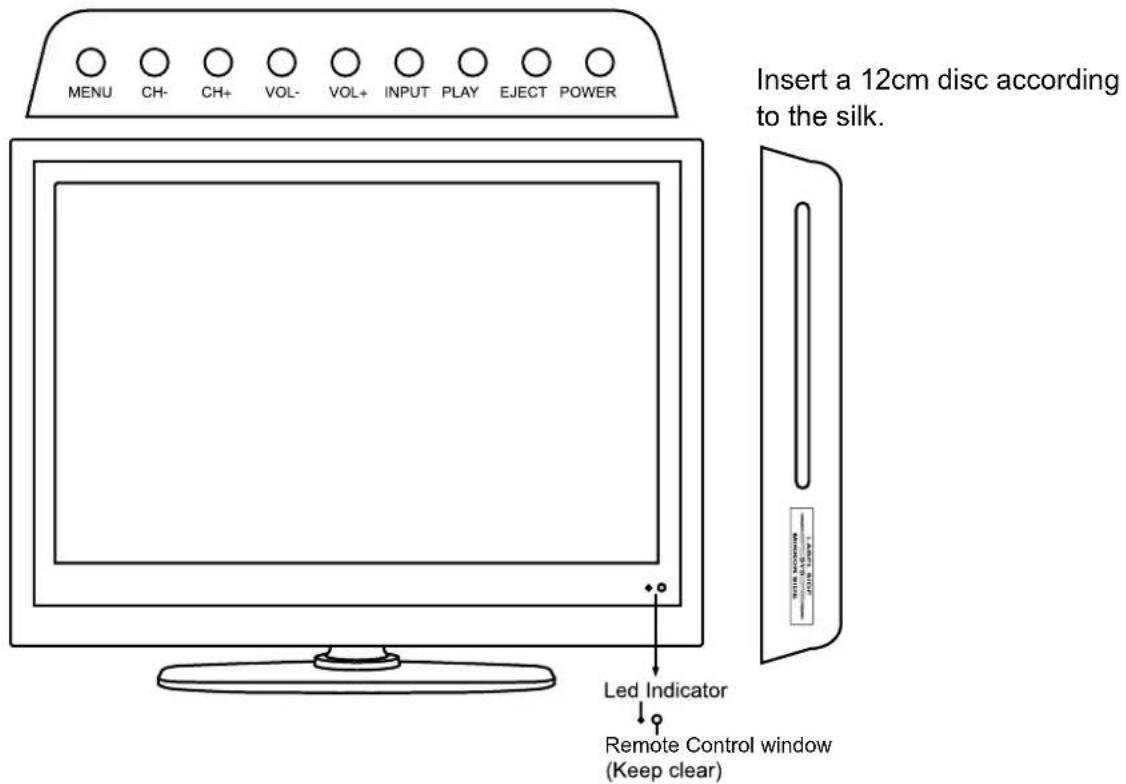
MENU CH- CH+ VOL- VOL+ INPUT PLAY EJECT POWER Insert a 12cm disc according to the silk. Led Indicator Remote Control window (Keep clear)- (IR) Infrared Receiver: Receives IR signals from the remote control. (Power on/Standby)LED Indicator: Press POWER to turn on and off.
Indicator on(Red)
Standby mode
Indicator off (Null)
Power on mode
The effective receiving range for the signal is 5-8 metres from the front of the remote control window, and 30^0 to the left or right side and 20^0 above or below the remote control window.
- The functions of the buttons are described as bellows:
INPUT: Press to display the input source menu.
MENU: Press to display the OSD menu, press again to exit the menu.
CH+/-: Press to scan through channels.
VOL+/-: Press to adjust the volume.
PLAY: Play/Pause DVD program.
EJECT: Load/eject DVD disc.
POWER: Turn on/standby the TV set.

text_image
Coax Headphone YPbPr Video R-in L-in RF RF Common InterfaceCommon Interface: CI slot.
RF: Connect antenna or cable 75 Ohm coaxial to receive TV signal.
R/L in: Connect them to the audio output terminal of DVD.(shared with YPbPr)
VIDEO: Connect it to video output terminal of DVD.
YPbPr: Connect them to the YPbPr video output terminal of DVD with the converter cable.
Headphone: Connect it to your headphone or other audio equipment.
Coax: Digital coaxial output.

text_image
POWER USB HDMI1 HDMI2 SCART PC-IN VGAPOWER: Connect to the mains adaptor.
USB: USB jack for update, media and PVR.
HDMI1/2: Connect it to the HDMI of DVD or other equipment.
SCART: Connect them to the SCART video output terminal of DVD.(used in component source)
PC-IN: Connect it to the audio output terminal of PC.
VGA: For PC display. Connect it to the D-Sub 15 pins analog output connector of the PC.
Remote Control
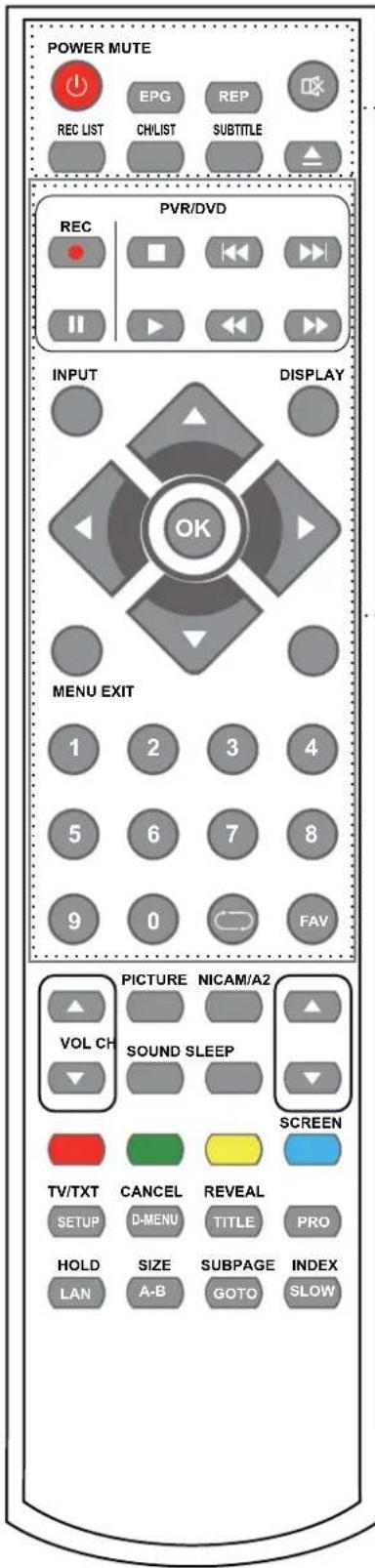
The remote control is using Infra-Red(IR). Point it towards the front of the LED TV. The remote control may not work correctly if it is operated out of range or out of angle.
text_image
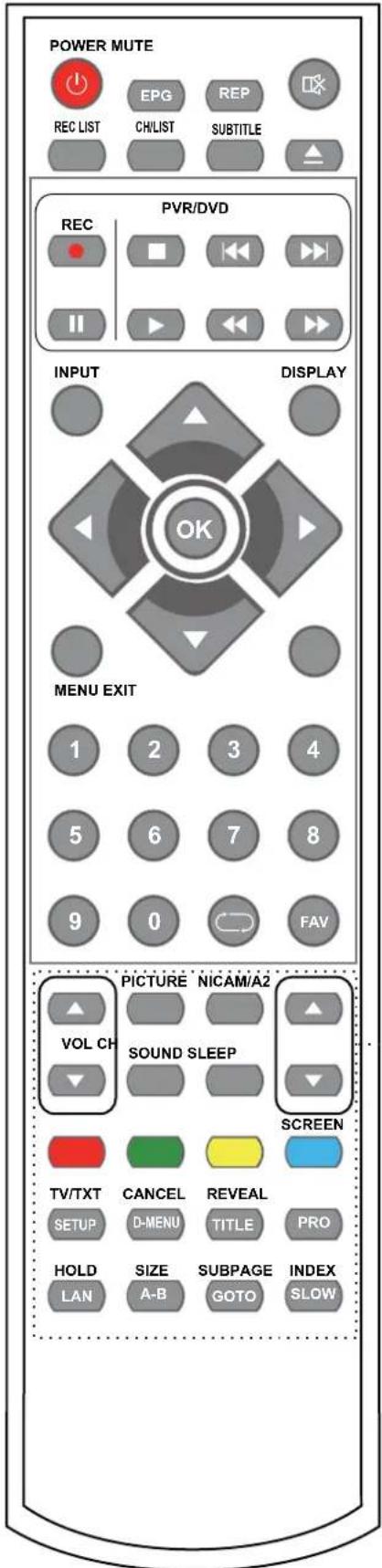
POWER MUTE EPG REP REC LIST CHLIST SUBTITLE PVR/DVD REC INPUT DISPLAY OK MENU EXIT 1 2 3 4 5 6 7 8 9 0 FAV PICTURE NICAM/A2 VOL CH SOUND SLEEP SCREEN TV/TXT CANCEL REVEAL SETUP D-MENU TITLE PRO HOLD SIZE SUBPAGE INDEX LAN A-B GOTO SLOWPOWER: Turn the TV on/standby.
MUTE: Press to mute the sound, press again or press VOL+ to unmute.
REC LIST: Record List.
CH/LIST: Display the programs list.
SUBTITLE: Turn on/off the subtitle display in DTV mode and DVD mode.
EPG: To show the Electronic Program Guide during no-menu state only in DTV mode.
REP: Repeat playing the title or chapter.
▲ : Load/eject DVD disc.
PVR/DVD
REC ● : Press to start record the program in DVB mode.
■ : Stop program.
◀◀ : Previous chapter.
▶▶ : Next chapter.
II : Pause program.
▶ : Play program.
◀: Fastreverse.
▶▶ : Fast forward.
INPUT: Press to display the input source menu.
DISPLAY: Press to display the current mode's information.
MENU: System setup menu.
EXIT: Exit the OSD menu.
FAV: Display the favorite program list.
NUMBER BUTTONS
Press0-9 to select a TV channel directly when you are watching TV.

Return to the previous channel viewed.
CURSOR KEYS (▲/▼/◄/►OK)
Allows you to navigate the on-screen menus and adjust the system settings to your preference.
text_image
POWER MUTE REC LIST EPG REP CHLIST SUBTITLE PVR/DVD REC INPUT DISPLAY OK MENU EXIT 1 2 3 4 5 6 7 8 9 0 FAV PICTURE NICAM/A2 VOL CH SOUND SLEEP SCREEN TV/TXT CANCEL REVEAL SETUP D-MENU TITLE PRO HOLD SIZE SUBPAGE INDEX LAN A-B GOTO SLOWCH▲/▼: Scan through channels.
VOL▲/▼: Adjust the volume.
PICTURE: Select the picture mode.
NICAM/A2: TV Nicam/A2 select.
SOUND: Select the sound mode.
SLEEP: Standby timer.
SCREEN: Turn on/off the screen.
TV/TXT: Turn off/on the Teletext display.
CANCEL: Cancel the Teletext display.
REVEAL: Reveal any hidden text.
HOLD: Hold or carry on the current subpage.
SIZE: Press to see top half of page double size, Press again to see the bottom
half of page double size. Press again for normal size.
SUBPAGE: Press to enter subpages, pressagain to cancel.
INDEX: Go to index.
Colour buttons: Short cuts-follow the coloured links in the text
SETUP: DVD system setup.
D-MENU: DVD play list/Disc menu.
TITLE: DVD title.
PRO: Edit the program and play.
LAN: Select DVD disc language.
A-B: Select and play the preferable paragraph of DVD program by pressing this key twice at the beginning and end of it.
GOTO: Play your favorite title/chapter/track.
SLOW: Play DVD programs at slow speed.
Basic Operation
Power on/off
- Connect to the power supply with a power cord and an adaptor.
- -To turn on the TV
Press POWER button on the TV or remote control.
-To turn off theTV
Press POWER button on the TV or remote control.
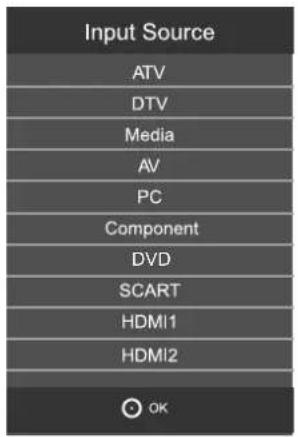
Input Source select
Press INPUT button on the TV set or remote control to display input source menu, and use CH+/- button on the TV set or ∧/∨ button on remote control to select the input source, press OK button on the remote control to enter.
Note: Before you select the input source, make sure the connections are prepared.
text_image
Input Source ATV DTV Media AV PC Component DVD SCART HDMI1 HDMI2 OKBasic OSD Menu operation
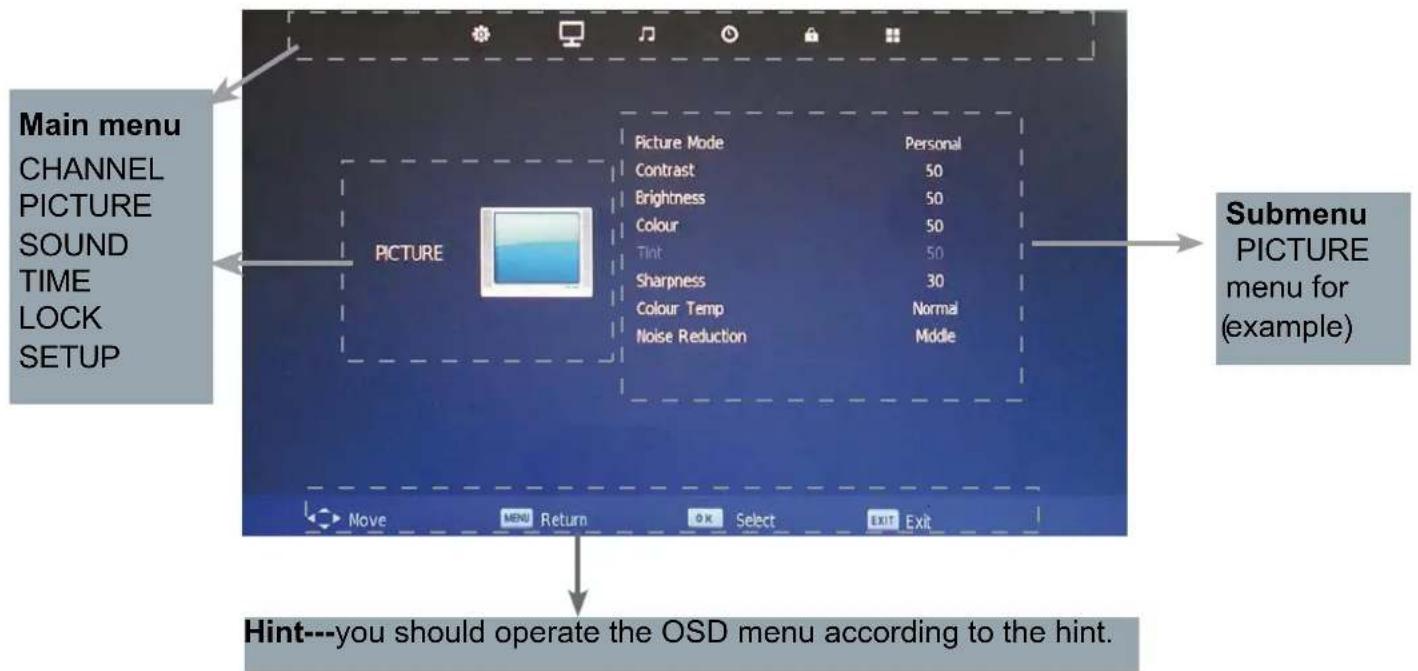
Press MENU button to display the OSD menu as below:
text_image
Main menu CHANNEL PICTURE SOUND TIME LOCK SETUP PICTURE Picture Mode Personal Contrast 50 Brightness 50 Colour 50 Tint 50 Sharpness 30 Colour Temp Normal Noise Reduction Middle Submenu PICTURE menu for (example) Move MENU Return OK Select EXIT Exit Hint---you should operate the OSD menu according to the hint.Use K > button to select the main menu, and press button to enter the submenu.
In the submenu, use ∧ ∨ button to select the function item, press < / > button to adjust/setup, or press OK button to enter the submenu.
* (Press MENU button to return to the upper menu.)
* (Press EXIT button to exit the menu display.)
Note1: Only when you input the suitable signal, the relevant items can be activated Note2: Please operating the OSD menu according to hint on the bottom of the banner.
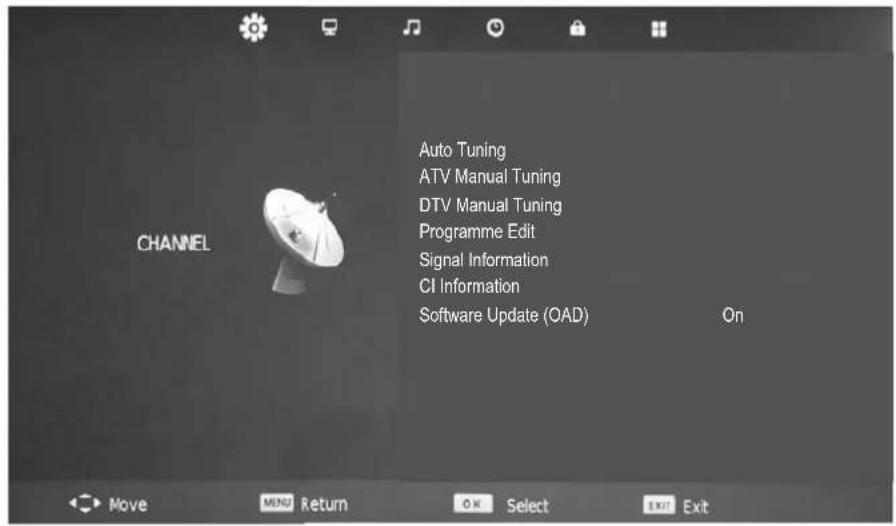
1. CHANNEL menu
text_image
Auto Tuning ATV Manual Tuning DTV Manual Tuning Programme Edit Signal Information CI Information Software Update (OAD) OnDescription
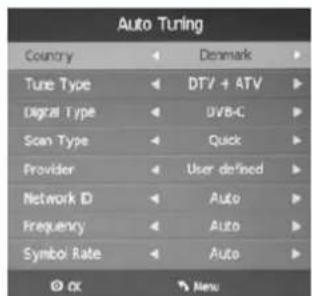
Auto Tuning
Press OK button to enter the hint menu, and Press < /> button to select the Tune Type, then press ∨ button, and use < /> ∨/ ∧ button to select the Country for the TV, then press OK button to start auto tuning.
ATV Manual Tuning
Press OK button to enter the ATV Manual Tuning menu.
Current CH: Select a Channel for storing the programme.
Color System: Select from PAL and AUTO
Sound System: Select from I, BG, DK
Search: Press < /> button to manual search.
Fine Tune: Press </> button to fine-tune.
AFC: Automatic Frequency control ON/OFF.
text_image
Auto Tuning Country Denmark Tune Type DTV + ATV Digital Type UVBC Scan Type Quick Provider User defined Network ID Auto Frequency Auto Symbol Rate Auto OK Menu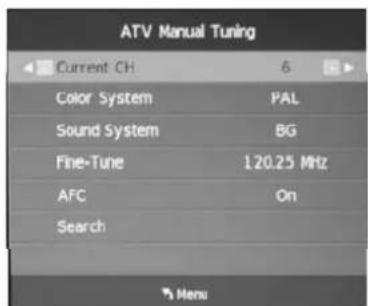
text_image
ATV Manual Tuning Current CH 6 Color System PAL Sound System BG Fine-Tune 120.25 MHz AFC On Search MenuCADTV(DVB-C) / DTV(DVB-T) Manual Tuning
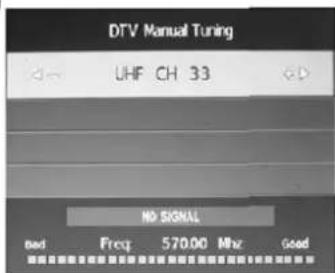
Press OK button to enter the CADTV/DTV Manual Tuning menu, and press OK button to start searching.
text_image
DTV Manual Tuning UHF CH 33 NO SIGNAL bad Freq 570.00 Mhz Good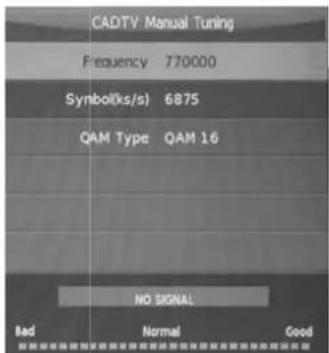
text_image
CADTV Manual Tuning Frequency 770000 Symbol(ks/s) 6875 QAM Type QAM 16 NO SIGNAL Bad Normal GoodProgramme Edit
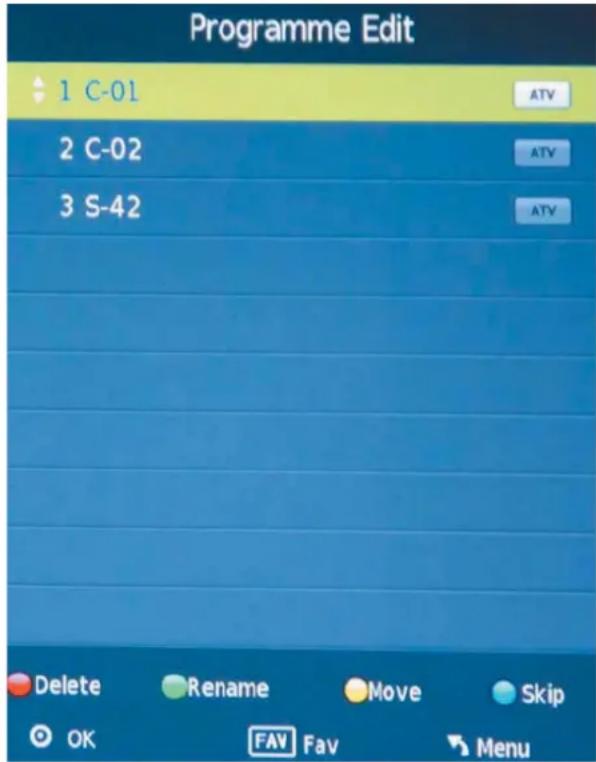
Press OK button to enter the Programme Edit menu as the following picture.
text_image
Programme Edit 1 C-01 2 C-02 3 S-42 Delete Rename Move Skip OK FAV Fav MenuDelete: Select a channel and press RED button, then press RED button again, the program will be deleted.
Rename: Select an ATV channel and press the GREEN button to change the name of the channel by ∧/∨/ < /> buttons.
Move: Select an ATV channel, and press YELLOW button, then you can use ∧ and ∨ buttons to change the position of the program, press YELLOW again to confirm the change. Press menu to exit and it will automatically save the current set.
Skip: Select a channel and press the BLUE button to label the channel, as long as the channel has a skip label it will be skipped when searching through the channels with the CH+/- buttons.
Signal Information
Display the digital TV-signal information (DTV mode only).
CI Information
Please contact your "pay perview" provider who can supply a viewing card and cam unit with instructions for their use.
2. PICTURE menu
text_image
Picture Mode Contrast Brightness Colour Tint Sharpness Colour Temp Noise Reduction Personal 50 50 50 30 Normal MiddleDescription
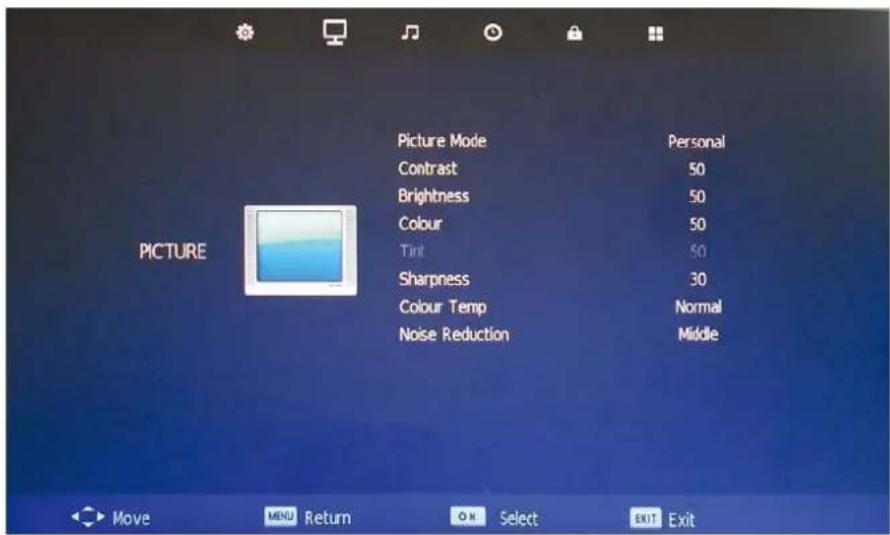
Picture Mode: Choose from Standard, Dynamic, Personal and Mild.
Note: Contrast, Brightness, Colour and sharpness are only available and can be adjusted in the User mode option in the Picture Mode Settings.
Contrast: Controls the difference between the brightest and darkest regions of the picture.
Brightness: Controls the overall brightness of the picture.
Colour: Control the colour.
Sharpness: Increase this setting to see crisp edges in the picture; decrease it for soft edges.
Tint: Controls the tint (NTSC mode only).
Colour Temperature: Choose from Normal, Cool and Warm.
Noise Reduction: Choose interference noise modes form Off, Low, Middle, High and Default.
3. SOUND menu
text_image
Sound Mode Treble 50 Bass 50 Balance 0 Auto Volume Off SPDF Mode Off AD Switch Off Audio DelayDescription
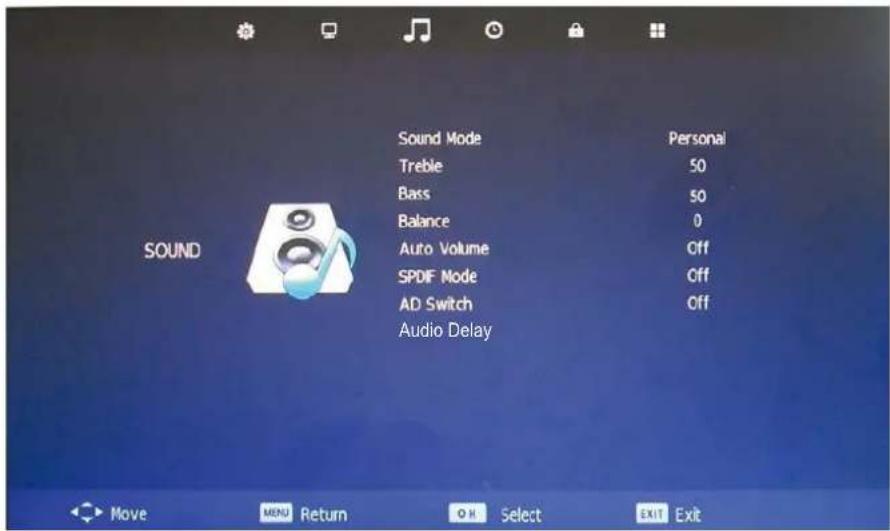
Sound Mode: Allows you to select among: Standard, Music, Movie, Sports and Personal.
Treble(Can be adjusted when the sound mode is Personal): Controls the relative intensity of higher pitched sounds.
Bass (Can be adjusted when the sound mode is set to Personal): Controls the relative intensity of lower pitched sounds.
Balance: To adjust the balance of the left and right sound track, or turn off the volume of the left and right sound track.
Auto Volume: Control the volume of the programme automatically when you turn on the function by selecting "On".
SPDIF MODE: Select the spdif mode.
AD Switch: Turn on/off the AD switch.
Audio Delay: Control the Audio Delay.
4. TIME menu
text_image
Clock 20/14 13:21 TIME Zone GMT+1 Sleep Timer Off Auto Standby Off OSD Timer 30 S Move MENU Return OK Select EXIT ExitDescription
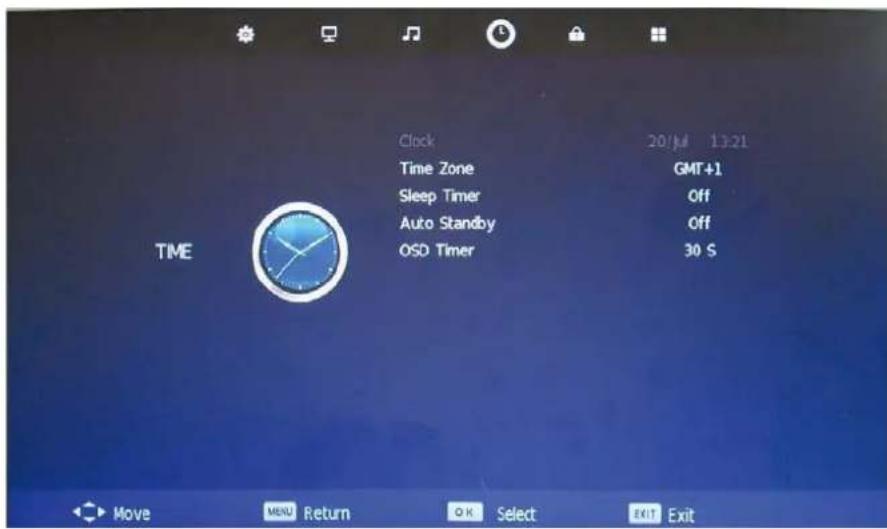
Clock: Display the time.
Time Zone: Allows you to select the time zone.
Sleep Timer: Allows you to setup the sleep timer among: 10min, 20min, 30min, 60min, 90min, 120min, 180min, 240min and off.
Auto Standby : According to the latest ERP regulation, this unit will switch off itself automatically if no change in status within the last 4 hours of operation.
OSD Timer: Allows you to select the time for OSD menu displays on the screen.
OSD Menu
5. LOCK menu
text_image
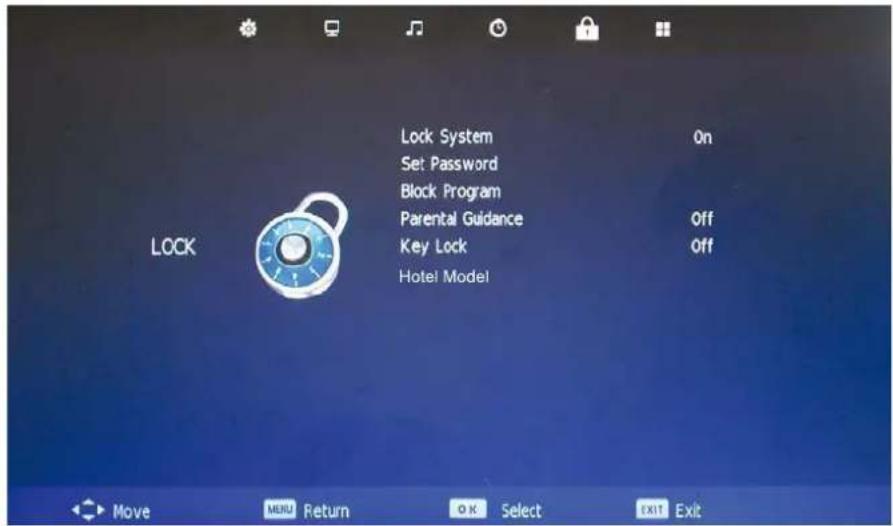
Lock System Set Password Block Program Parental Guidance Key Lock Hotel Model On Off Off Move MENU Return OK Select EXIT ExitDescription
Lock System: Turn on/off the Lock System function.
Note: You should enter the code to operate the menu.(original code is 0000)
Set Password: Set pin code. If the Pin code has been changed you must enter the present code.
New : Enter the new password.
Confirm: Enter the new password.
OSD Menu
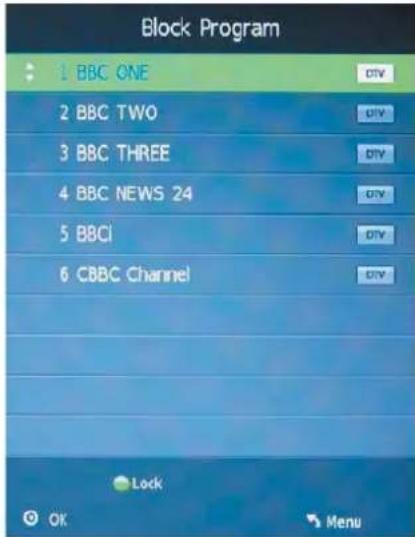
Block Program: You must enter the password to view channels that have been locked. Use √ and ∧ buttons to select the channel and press the GREEN button on the remote control to
lock the channel.
text_image
Block Program 1 BBC ONE 2 BBC TWO 3 BBC THREE 4 BBC NEWS 24 5 BBCi 6 CBBC Channel DTV Lock OK MenuParental Guidance: Allows you to select the Parental Guidance mode.
Key Lock: Lock the buttons on the TV set when you turn on the function.
HOTEL MODE
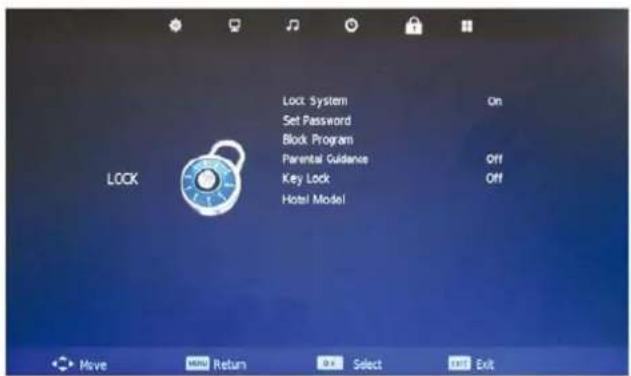
press ▲ ▼ to select Hotel Mode and press OK button and enter the code by the number buttons to enter HOTEL MODE menu(the original password is 0000).
text_image
Lock System Set Password Block Program Parental Guidance Key Lock Hotel Model On Off Off Move Return Select Exit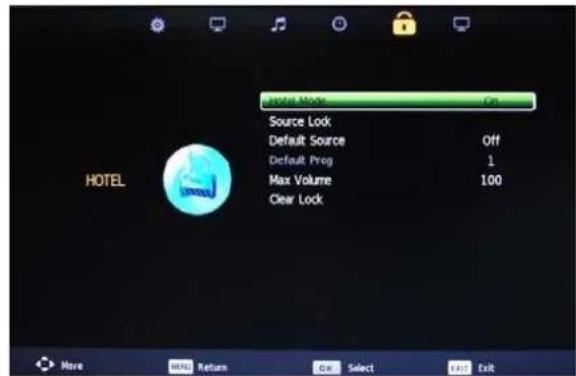
text_image
HOTEL Source Lock Default Source Off Default Prog 1 Max Volume 100 Clear LockHotel Mode: Press ▲▼ to select Hotel Mode and press ◀▶ to select the ON or OFF.
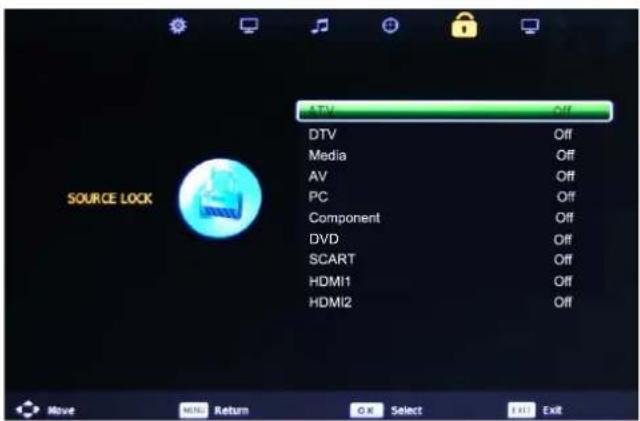
Source Lock:
press ▲ ▼ to select Source Lock and press ◀▶ to enter Source Lock then press ▲ ▼ to select the source and press ◀▶ to select the ON for prohibiting any external input.
text_image
ATV DTV Media AV PC Component DVD SCART HDMI1 HDMI2 OFF Off Off Off Off Off Off Off Off Off Source LOCKDefault Source: if "Hotel Mode" set to on, select the default source when turn on the TV. Default Prog: if "Hotel Mode" set to on and "Default Source" set to ATV, select the default programme when turn on the TV.
MAX Volume: ou can choose the maximum volume limit, the user cannot set a volume level higher.
6. SETUP menu
text_image
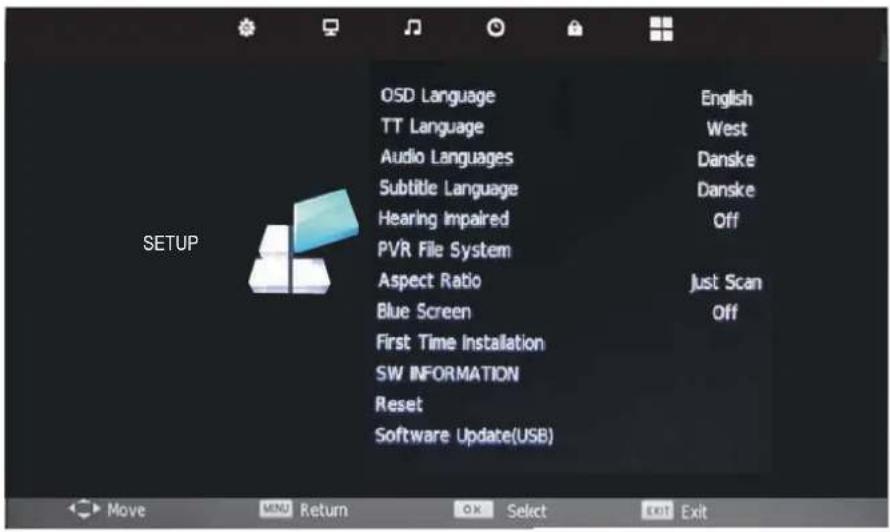
OSD Language TT Language Audio Languages Subtitle Language Hearing Impaired PVR File System Aspect Ratio Blue Screen First Time Installation SW INFORMATION Reset Software Update(USB) English West Danske Danske Off Just Scan Off SETUP Move Add Return OK Select Exit ExitDescription
OSD Language: Allows you to select menu language.
TT Language: Allows you to select teletext language.
Audio Language: Allows you to select audio language.
Subtitle Language: Allows you to select subtitle language.
Hearing Impaired: Turn on/off the Hearing Impaired function.
PVR File System: Setup the PVR file system.
Note: The options PVR File System are described on pages.
Aspect Ratio: Choose from 4:3, 16:9, Zoom1, Zoom2.
Blue Screen: Turn on/off the blue screen function when there's no signal.
First Time Installation: Display the First Time Installation menu.
SW INFORMATION: To show software information.
Reset: Press OK button to restore factory default.
Software update(USB): Allows you to update the software from the USB.
Multimedia Operation
Basic Operation
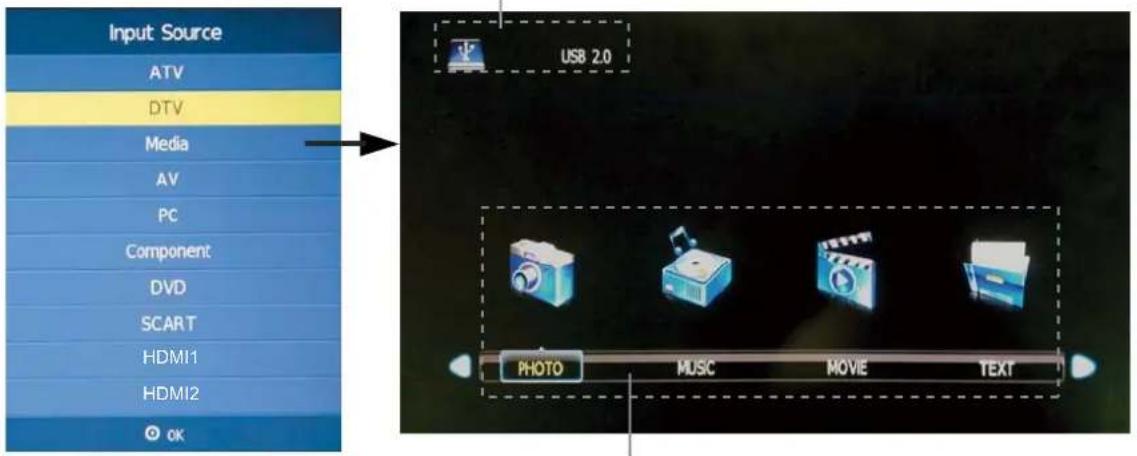
1). Press the INPUT button on the remote control to display the input source menu, select Media source by the < / > buttons, and press OK button to enter the Multimedia menu seen below.
Hints and informations of USB device
text_image
Input Source ATV DTV Media AV PC Component DVD SCART HDMI1 HDMI2 OK USB 2.0 PHOTO MUSC MOVIE TEXTMAINS MENU: PHOTO MUSIC MOVIE TEXT
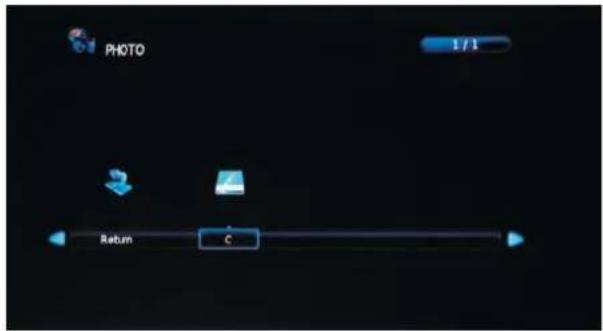
2). Select the file type (mains menu) you want to view, and insert USB device, you will find the name of the device display on the screen.
text_image
PHOTO 1/1 Return C3). Press < / > button to select the the USB device, and press OK button to enter.
text_image
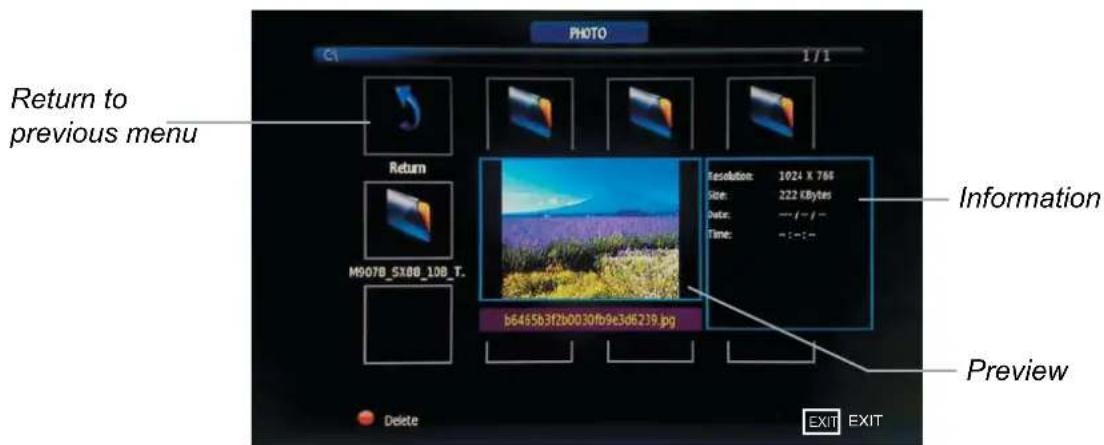
PHOTO C1 1/1 Return to previous menu Return M9078_5X88_10B_T. Resolution: 1024 X 766 Size: 222 kBytes Date: -- i-- i-- Time: = : : : - b6465b3f2b0030fb9e3d6239.jpg Information Preview Delete EXIT EXITPress < / > / / buttons to select and the OK button to activate the file or open folder. Press OK button to play the files in full screen mode. When in full screen mode press the OK button to show the option menu on the bottom of the screen or press ■ stop button to return to files. Note: You can press RED button on the file to delete the file.
Multimedia Operation
1. Photo
Photo viewing
natural_image
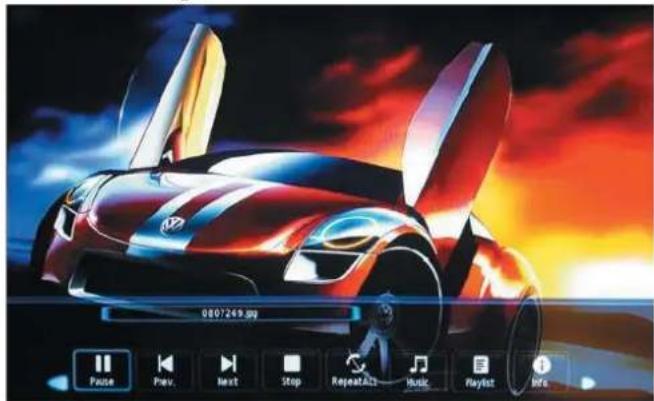
Illustration of a futuristic sports car with glowing red and orange effects, displayed in a video player interface (no readable text or symbols on the car itself)Press < / > button to select the option on the menu, and press OK button to change.
Pause: Play/pause the photo view.
Prev./Next: View the previous/next photo.
Stop: Stop the photo view.
Repeat: Select the repeat mode from Repeat All, Repeat 1, Repeat None.
Music: Play/Pause the music.
Playlist: Display the playlist on the screen and play the file by ∧/∨ button and OK button, you can press ▶ button to select "CANCEL", and press OK button to cancel the list displaying.
Info: Display the information of the file.
Rotate: Rotate the photo clockwise/counterclockwise.
Zoom Out/In: Zoom out/in the photo.
Move View: Move the photo in Zoom in mode.
2. Music
Play the music
text_image
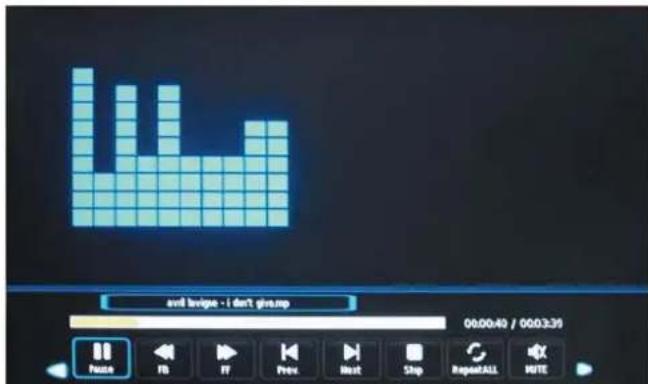
and tvvige - i don't give.mp 00:00:49 / 00:03:39 Pause FB FF Prev Host Stop RepeatALL NOTEPress < / > button to select the option on the menu, and press OK button to change.
Pause: Play/pause the music.
FB/FF: Fast backward/fast forward.
Prev./Next: Play the previous/next file.
Stop: Stop the music.
Repeat: Select the repeat mode from Repeat All, Repeat 1, Repeat None.
Mute: Mute the sound.
Playlist: Display the playlist on the screen and play the file by ∧/∨ button and OK button, you can press ▶ button to select "CANCEL", and press OK button to cancel the list displaying or press the "list" button.
Info: Press "INFO" button to display the information of the file.
Goto Time: Play the music from the time you set.
Multimedia Operation
3. Movie
Play the movie
text_image
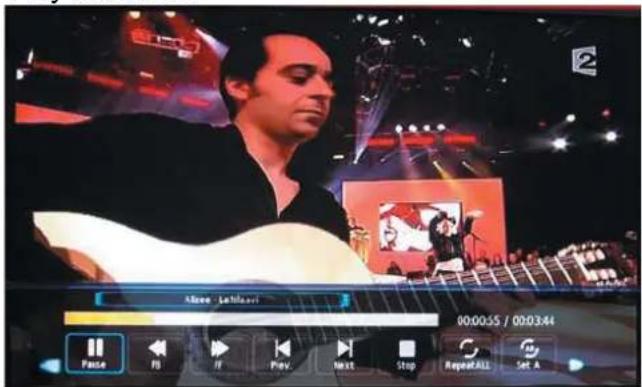
Alice Lehlowski 00:00:55 / 00:03:44 Paste PS FF Prev. Next Stop RepeatALL Set APress < / > button to select the option on the menu, and press OK button to change.
Pause: Play/pause the music.
FB/FF: Fast backward/fast forward.
Prev./Next: Play the previous/next file.
Stop: Stop the music.
Repeat: Select the repeat mode from Repeat All, Repeat 1, Repeat None.
Set A-B: Select and play the preferable part of the file by setting A and B at the beginning and end.
Press OK button to cancel.
Playlist: Display the playlist on the screen.
Info: Display the information of the movie.
Slow Forward: Play the movies at slow speed, press ▶ button to cancel.
Step Forward: Step quickly through the movie by using this option
Goto Time: Program the movie form the time you set.
Zoom out/in: Zoom out/in the movie screen.
Aspect Ratio: Select the aspect ratio of the screen display.
Move View: Move the photo in Zoom in mode.
4. Text
View the text
text_image
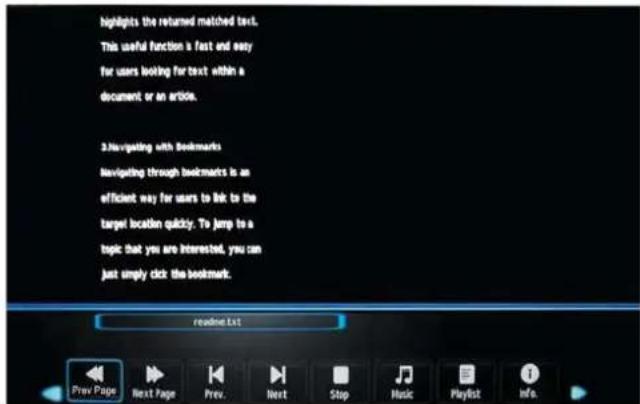
Highlights the returned matched text. This useful function is fast and easy for users looking for text within a document or an article. 3.Navigating with Bookmarks Navigating through bookmarks is an efficient way for users to link to the target location quickly. To jump to a topic that you are interested, you can just simply click the bookmark. reading.txt Prev Page Next Page Prev. Next Stop Music Playlist Info.Press < / > button to select the option on the menu, and press OK button to change.
Previous/Next page: Turn to previous/next page of the text.
Prev./Next: Turn to previous/next file.
Stop: Stop auto turning pages.
Music: Play/pause the music programme.
Playlist: Display the playlist on the screen.
Info: Display the information of the text.
USB MULTIMEDIA PLAYBACK FORMAT
| Media | File Ext. | Codec | Remark | |
| Video Audio | ||||
| Movie | .mpg | MPEG-1, MPEG-2 | MP3, WMA, AAC, AC3 | Max Solution: 1920×1080Max Data Rate: 40 Mbps |
| .avi | DivX, Xvid, MJPEG, MPEG-4 SP/ASP, H.264 | Max Solution: 1920×1080Max Data Rate: 20 Mbps | ||
| .ts | MPEG-2, H.264 | |||
| .mov | MPEG-4 SP/ASP, H.264 | |||
| .dat | MPEG-1 | |||
| .mp4 | MPEG-4 SP/ASP, H.264 | |||
| MPEG-1, MPEG-2 | Max Solution: 720×576Max Data Rate: 40 Mbps | |||
| .vob | MPEG-2 | |||
| Music | .mp3 | -- | MP3 | Sample Rate: 8K~48KHzBit Rate: 32K~320KbpsChannel: Mono/Stereo |
| .wma | -- | WMA | ||
| .m4a/.aac | -- | AAC | Sample Rate: 16K~48KHzBit Rate: 32K~442KbpsChannel: Mono/Stereo | |
| Photo | .jpg/.jpeg | Progressive JPEG | Max Resolution: 1024×768 | |
| Baseline JPEG | Max Resolution: 8192×8192 | |||
| PMB pmb. | Max Resolution: 6500×6500Pixel Depth: 1/4/8/16/24/32 bpp | |||
| .png | Non-Interlaced | Max Resolution: 3000×3000 | ||
| Interlaced | Max Resolution: 1500×1500 | |||
| File system: Hi Speed FS, FAT32, FAT16, NTFS(NTFS compressed file is not supported)Note: Licenses are required for DivX, MPEG, H.264, AC3, MP3, WMA and AAC. | ||||
Recording Operation
PVR settings
1. PVR File System
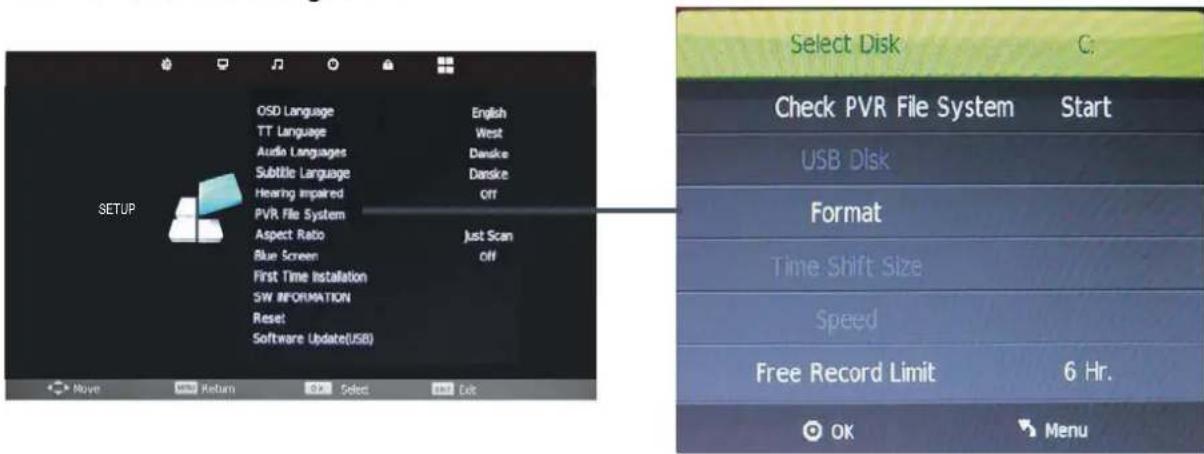
Press the MENU button, select SETUP menu, and select "PVR File System", then press OK button to enter the setting menu.
text_image
SETUP OSD Language TT Language Audio Languages Subtitle Language Hearing Impaired PVR File System Aspect Ratio Blue Screen First Time Installation SW INFORMATION Reset Software Update(USB) Select Disk Check PVR File System Start USB Disk Format Time Shift Size Speed Free Record Limit 6 Hr. OK MenuSelect Disk: Select the device for the Record files.
Check PVR File System: Check the system.
USB Disk: Display the USB state.
Format: Format the USB device for PVR operating.
Time Shift Size: Display the size of the USB device (The device has been formatted).
Speed: Display the speed of the USB device (The device has been formatted).
Free Record Limit: Display the Free Record Limit state.
2. Recorder
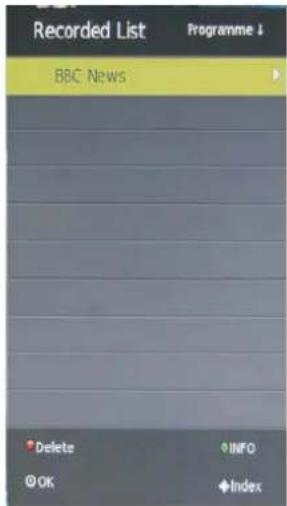
Press INDEX button on the remote control to display the recorder menu in DTV mode as below.
text_image
Recorded List BBC News Delete INFO OK IndexNote: You select a recorded programme, and press OK button to program.
Note: You can delete a recorded programme by pressing the RED button on the list.
Note: You can display the information of the recorded programme by pressing the GREEN button on the list.
Recording Operation
Recording
Record and Time shift function buttons
REC: Press to start recording.
II PAUSE: Press to enter the timeshift mode.
■ Stop: Press to stop recording or timeshift.
REC: To display the recorder menu.
1) Recording menu
When you press REC button in DTV mode, the screen will display the recording menu as below:

text_image
[00:00:28] Play FB FF Prev. Next Pause Stop (0000:53:10) 2 BBC TWO 13:09Note: a. display and exit the navigation menu by pressing the REC.
b. Press STOP button to exit the recording mode.
c. Press PLAY button to play the programme you are recording from the beginning.
2) Timeshift menu
Press || PAUSE button to enter the Timeshift mode in DTV mode, and the picture will be paused, the recording will begin.

text_image
[00:00:04/00:00:09] Play FB FF Prev. Next Pause Stop 13:08Note: a. Press ■ STOP button to exit the Timeshift mode.
b. Press ▶ PLAY button to play the programme you are recording from the beginning.
Basic Operation
Press the Power button on the TV or the remote control, then press the INPUT button to select DVD mode. If there is no disc in the DVD player the screen will show "NO DISC".
Insert Disc according to picture next to disc slot.
Do not touch the playing surface.
Hold the disc around the outside with your fingers and place the disc into the slot. The player will automatically draw the disc into the player.
To "Eject" the disc, press the EJECT button on the TV or the "▲" button on the remote control.
DVD Setup Mode
- Setup Mode provides the menu for the configuration of General Setup Page, Audio Setup Page, Dolby Digital, Setup, Preference Page.
- Item selection in the Setup Menu is done by using the Navigation Arrows, SETUP button and the OK button.
- Press the SETUP button first, enter into SETUP menu, then press the DIRECTION RIGHT button, you can enter into the next Sub-menu.
- Press the SETUP button again to exit the Setup Menu.
General Setup
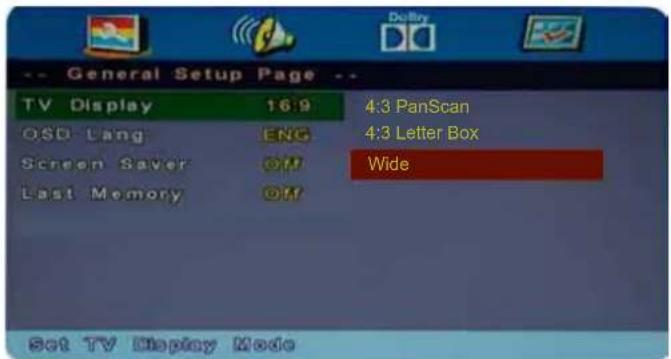
TV Display
• 4:3 pan scan
This is selected when the DVD player is connected to a normal TV. Wide-screen images are shown on the screen, but with some parts cut automatically.
• 4:3 Letter Box
This is selected when the player is connected to a normal TV. Wide-screen images are shown on the screen, with black belt on the top and bottom.
- Wide
This is selected when the player is connected to a wide-screen TV.
text_image
General Setup Page -- TV Display 16:9 OSD Lang ENG Screen Saver ON Last Memory ON 4:3 PanScan 4:3 Letter Box Wide Set TV Display ModeOSD Language
This is used to select the OSD language.
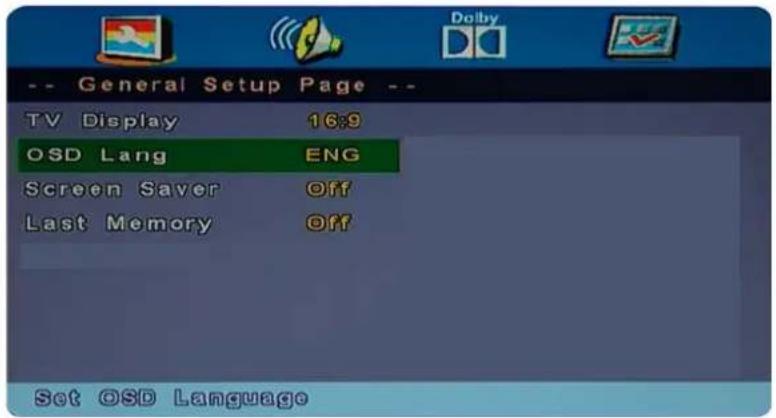
text_image
-- General Setup Page -- TV Display 16:9 OSD Lang ENG Screen Saver Off Last Memory Off Set OSD LanguageScreen Saver
Start the screen saver, the screen saver image will appear when the player stops or the picture is frozen for a few minutes. This saver can keep the screen from being damaged.
- On (Start the screen saver)
- Off (Remove the screen saver).
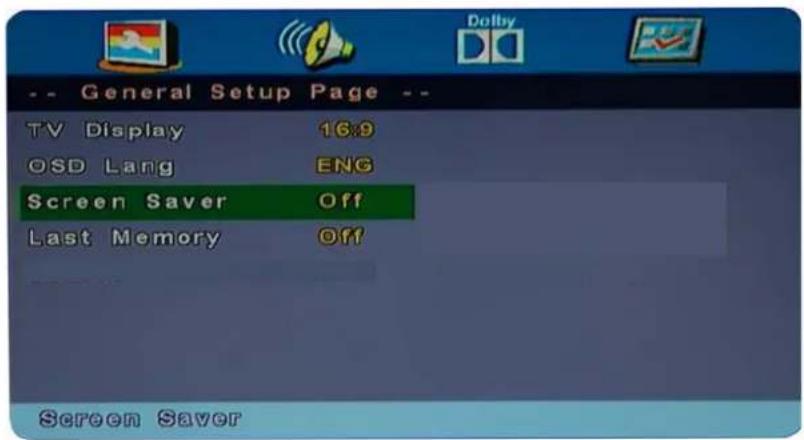
text_image
-- General Setup Page -- TV Display 16:9 OSD Lang ENG Screen Saver Off Last Memory Off Screen SaverLast Memory
Can set the items on the last memory, "on" and "off" option.
Select "On", the shutdown will shutdown the machine before the settings for memory, re-boot the machine settings. Set near the same time.
Select "Off", every time the machine automatically switched back to the default settings
- On (Start the memory)
- Off (Remove the memory).
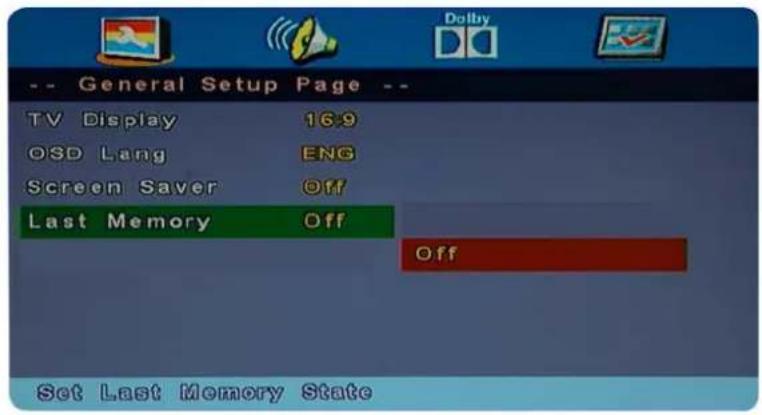
text_image
-- General Setup Page -- TV Display 16:9 OSD Lang ENG Screen Saver Off Last Memory Off Off Set Last Memory StateAUDIO Setup
- Speaker Setup
In the "Audio Setup page" press "▼" button to select "Speaker Setup" item, press the "OK ENTER" or "►" button (play) into the "Speaker Setup Page".
DVD Operation
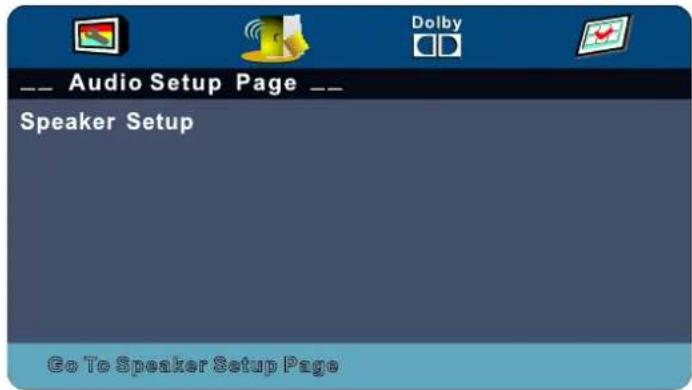
text_image
Audio Setup Page Speaker Setup Go To Speaker Setup PageDownmix
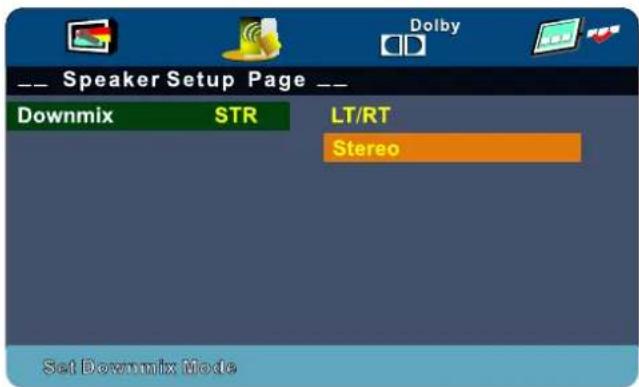
• LT/RT
A disc recorded multi channel soundtrack, the output signal will be incorporated to left and right channel.
- Stereo
A disc recorded multi channel soundtrack, The output signal will be incorporated to stereo.
text_image
Speaker Setup Page -- Downmix STR LT/RT Stereo Set Downmix ModeDolby Digital Setup
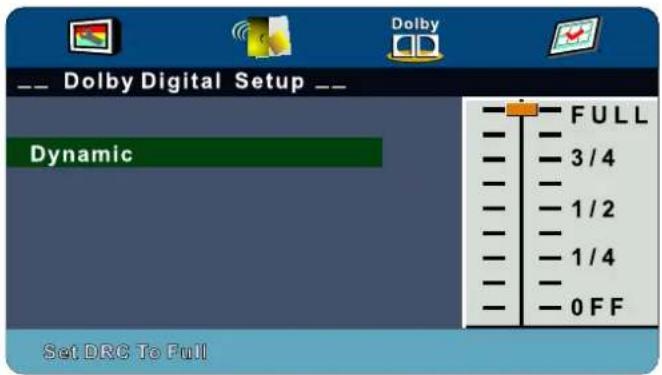
Dynamic
This option is used to set the compression ratio in order to control the sound (Volume) contrast.
text_image
Dolby Digital Setup Dynamic FULL 3/4 1/2 1/4 0 FF Set DRC To FullYou must press STOP twice to enter Preference Page or NO disc
Preference Setup
TV Type
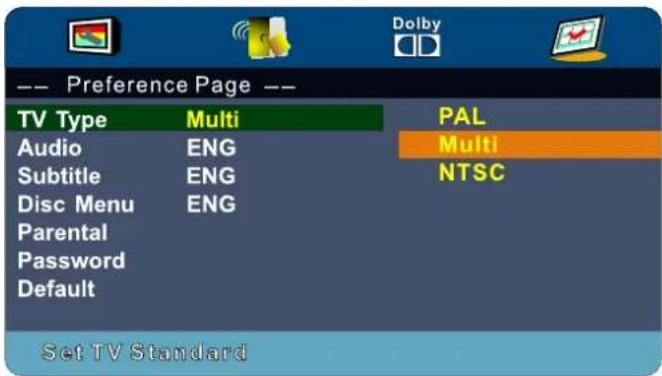
• PAL
This is selected when the player is connected to an PAL System TV.
• MULTI
The player will set the TV system according to the disc in the tray.
• NTSC
This is selected when the player is connected to a NTSC System TV.
text_image
-- Preference Page -- TV Type Multi PAL Audio ENG Multi Subtitle ENG NTSC Disc Menu ENG Parental Password Default Set TV StandardAudio
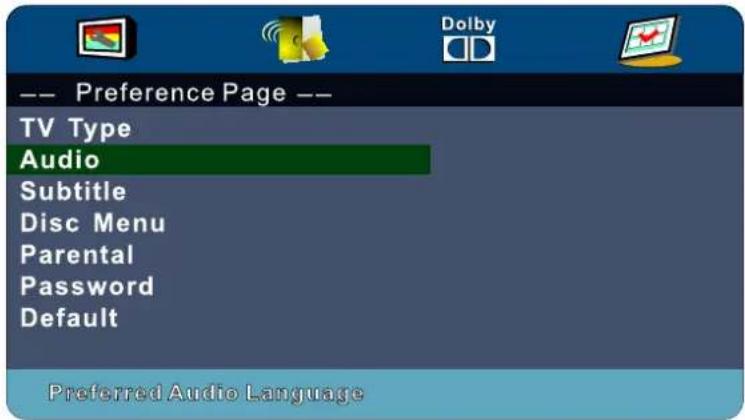
If a language listed below is recorded on the disc, you can play the sound in such language. If not, the language recorded will be used.
text_image
-- Preference Page -- TV Type Audio Subtitle Disc Menu Parental Password Default Preferred Audio LanguageSubtitle
If a language listed below is recorded on the disc, you set the subtitle to be displayed in such language. If not, the language recorded will be used.
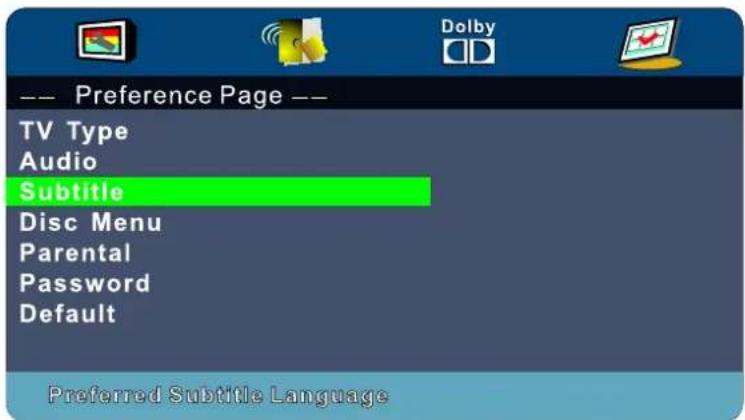
text_image
-- Preference Page -- TV Type Audio Subtitle Disc Menu Parental Password Default Preferred Subtitle LanguageDisc Menu
If a language listed below is record on the disc, you can set the Menu to be displayed in such language. If not, the language recorded will be used.
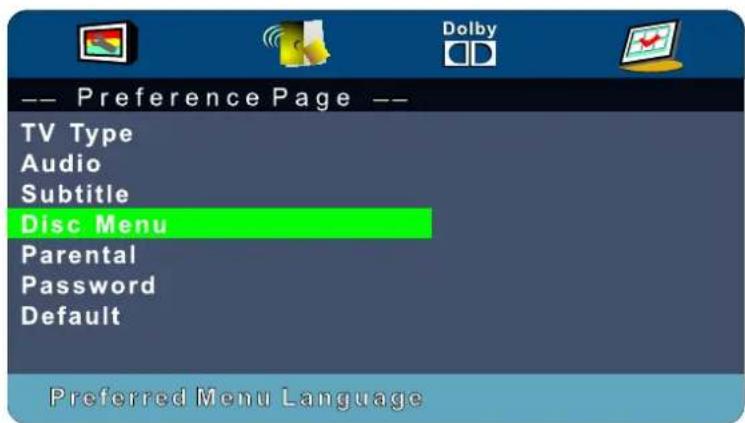
text_image
-- Preference Page -- TV Type Audio Subtitle Disc Menu Parental Password Default Preferred Menu LanguageDVD Operation
Parental
When playing disc with parental lock function, you may select an Age Control Grade according to grade of disc and your own preference. For example, if PG is selected, DVD Video disc rated higher than the PG grade cannot be played.
User can change the password that is required when the user wants to change the Age Control Grade in the Parental Lock function.
NOTE:(Default password is 123456)
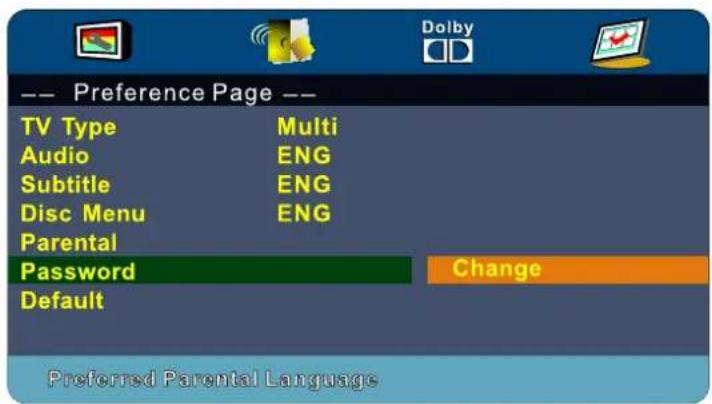
text_image
-- Preference Page -- TV Type Multi Audio ENG Subtitle ENG Disc Menu ENG Parental Password Change Default Preferred Parental Language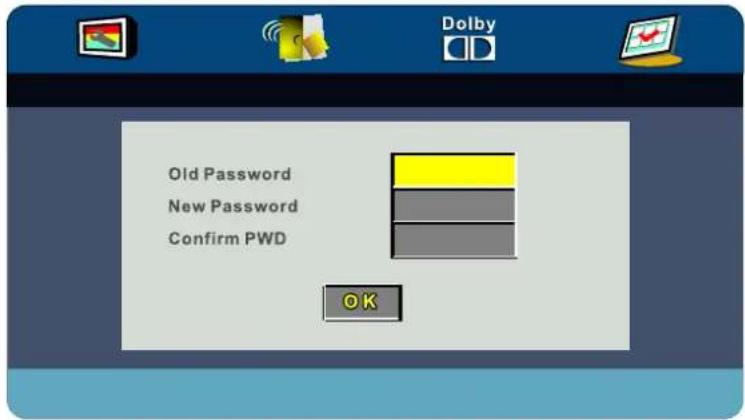
text_image
Old Password New Password Confirm PWD OKDefault
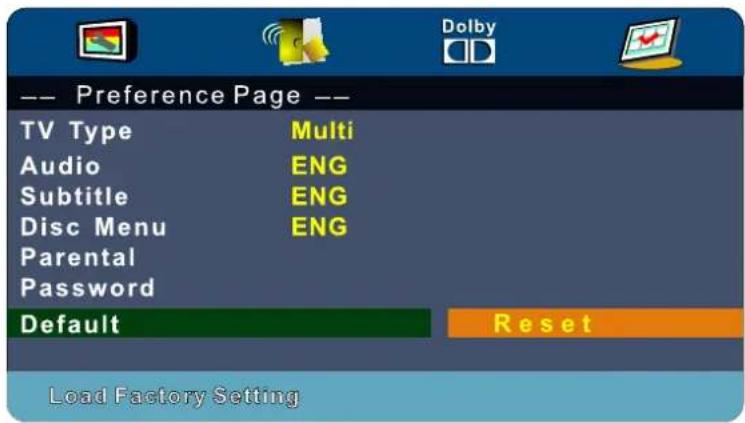
User can load the original factory setting by choose RESET and press OK button.
text_image
-- Preference Page -- TV Type Multi Audio ENG Subtitle ENG Disc Menu ENG Parental Password Default Reset Load Factory SettingSimple Troubleshooting
If the display fails or performance dramatically deteriorates check the Display in accordance with the following instructions. Remember to check the peripherals to point the source of the failure.
If the display still fails to perform as expected, connect your helpline for assistance.
No power
- Check all connections to the TV.
- Press either the power button or the Standby button on the Remote control.
No picture or sound
- Ensure that the TV is plugged in and the power is on.
- Ensure that the aerial is connected.
- Try a different programme.
Poor picture quality
- Check the aerial connections.
- Check that the channel is tuned in properly.
- Adjust the picture settings: brightness, colour, sharpness, contrast, hue.
- Make sure that the TV is not located close to electrical appliances that may emit radio frequency interference.
No colour
- Adjust the colour setting.
- Check that the programme is broadcast in colour.
- Check that the cannel is tuned properly.
TV does not respond to remote control
- Check that there are no obstructions between the remote control and the unit.
- Check that the remote control is within range of the unit.
- Check that the batteries in the remote control and not weak or exhausted.
This TV is for household use and registered as harmless on electromagnetic waves.
Therefor, you can use it in every location as well as residential areas.
text_image
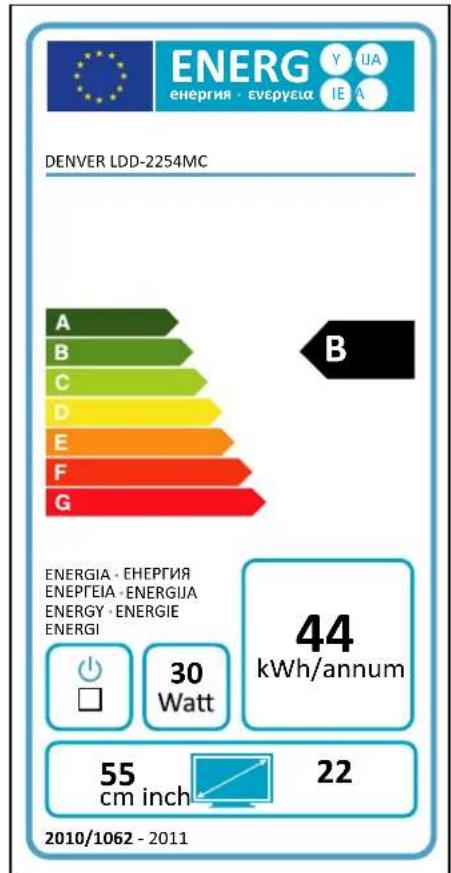
DENVER LDD-2254MC A B C D E F G ENERGIA - EHERGIA ENEPEIA - ENERGIJA ENERGY - ENERGIE ENERGI 30 Watt 44 kWh/annum 55 cm inch 22 2010/1062 - 2011
text_image
DENVER LDD-2254MC A B C D E F G ENERGIA - EHERGIA ENEPEIA - ENERGIJA ENERGY - ENERGIE ENERGI 30 Watt 44 kWh/annum 55 cm inch 22 2010/1062 - 2011Electric and electronic equipment and included batteries contains materials, components and substances that can be hazardous to your health and the environment, if the waste material (discarded electric and electronic equipment and batteries) is not handled correctly.
Electric and electronic equipment and batteries is marked with the crossed out trash can symbol, seen below. This symbol signifies that electric and electronic equipment and batteries should not be disposed of with other household waste, but should be disposed of separately.
As the end user it is important that you submit your used batteries to the appropriate and designated facility. In this manner you make sure that the batteries are recycled in accordance with legislature and will not harm the environment.
All cities have established collection points, where electric and electronic equipment and batteries can either be submitted free of charge at recycling stations and other collection sites, or be collected from the households. Additional information is available at the technical department of your city.

ALL RIGHTS RESERVED
COPY RIGHT DENVER ELECTRONICS A/S

www.denver-electronics.com
Inter Sales A/S
Stavneragervej 22
8250 Egaa
Denmark