
BURGcam Light 3010 - Surveillance Camera BURG WACHTER - Free user manual and instructions
Find the device manual for free BURGcam Light 3010 BURG WACHTER in PDF.


| Product Type | Surveillance Camera |
| Brand | Burg Wächter |
| Model | BURGcam Light 3010 |
| Video Resolution | 1920 x 1080 (Full HD) |
| Frame Rate | 25 fps |
| Lens | Fixed, 2.8 mm |
| Night Vision Range | Up to 10 m (IR LEDs) |
| Field of View | 90° (diagonal) |
| Audio | Two-way audio with built-in microphone and speaker |
| Connectivity | Wi-Fi 802.11 b/g/n, Ethernet RJ-45 |
| Power Supply | 12V DC, 1A (adapter included) or PoE (802.3af) |
| Power Consumption | 5 W (max) |
| Dimensions (W x H x D) | 60 x 60 x 120 mm |
| Weight | 200 g |
| Operating Temperature | -20°C to 50°C |
| Storage | MicroSD up to 128 GB or cloud storage |
| IP Rating | IP65 (weatherproof) |
| Material | Aluminum housing |
| Mounting | Wall or ceiling bracket included |
| Supported Software | BURGcam app (iOS/Android) and PC client |
| Motion Detection | Yes, configurable zones and sensitivity |
| Recording | Manual, scheduled, or motion-triggered |
| Warranty | 2 years |
Frequently Asked Questions - BURGcam Light 3010 BURG WACHTER
User questions about BURGcam Light 3010 BURG WACHTER
0 question about this device. Answer the ones you know or ask your own.
Ask a new question about this device
Download the instructions for your Surveillance Camera in PDF format for free! Find your manual BURGcam Light 3010 - BURG WACHTER and take your electronic device back in hand. On this page are published all the documents necessary for the use of your device. BURGcam Light 3010 by BURG WACHTER.
USER MANUAL BURGcam Light 3010 BURG WACHTER
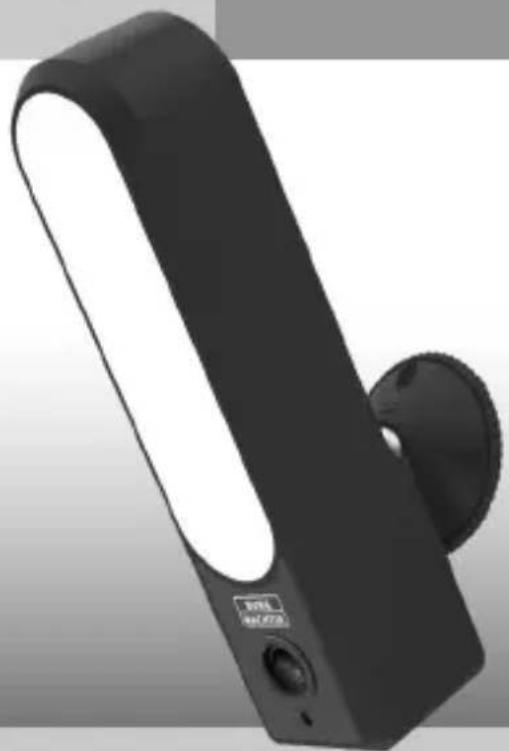
15W LED white light - WIFI camera with intercom


Language
de Deutsch 4
en English 34
fr Download: www.burg.biz
nl Download: www.burg.biz
it Download: www.burg.biz
cs Stáhnout: www.burg.biz
sk Download: www.burg.biz
Beschreibung
Schritt 2:
Abb. 1.4
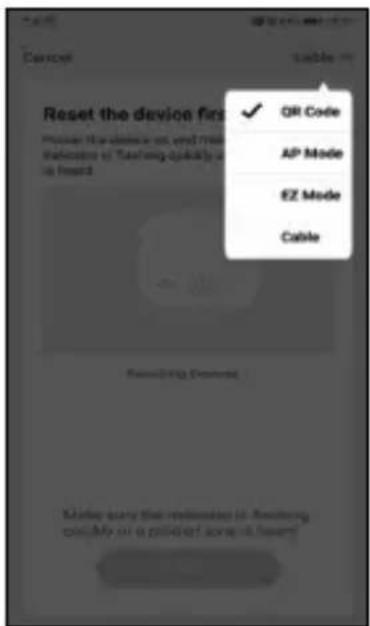
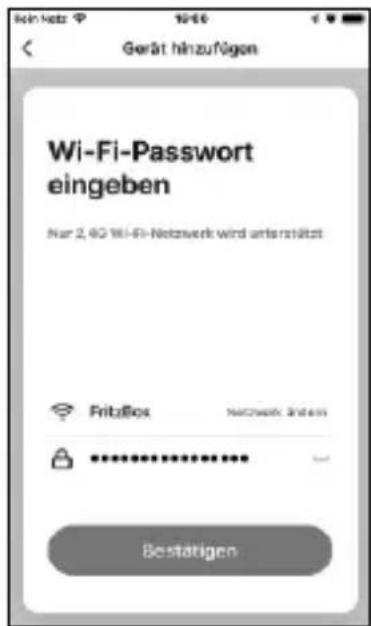
Abb. 4.6A
Shortcuts
BURGcam LIGHT 3010 Deutsch | 27
Included in delivery
1x Camera
1x Bracket
1x 12V DC power supply unit
1x Quick installation guide
1x set screws and wall plugs
Special product features
• Full-HD (1080p) video resolution
- 110° field of view keeps the entrance area in view
- Bright 700lm white light via 21 LEDs
- Infrared light for night vision up to 10m*
- Intercom function with app, via loudspeaker and microphone*
- Motion detection function
- Recording on SD card up to 128GB (memory card not included)
• Live image available via ALEXA Echo Spot and Echo Show 5/8/10
• Supports 2.4Ghz b/g/n networks
- Easy setup via Smartphone App
- Easy installation and alignment thanks to ball joint mounting
• Temperature range -20°C to +55°C
• Waterproof according to IP65
• 12Vdc power supply, power supply unit included
Measurements
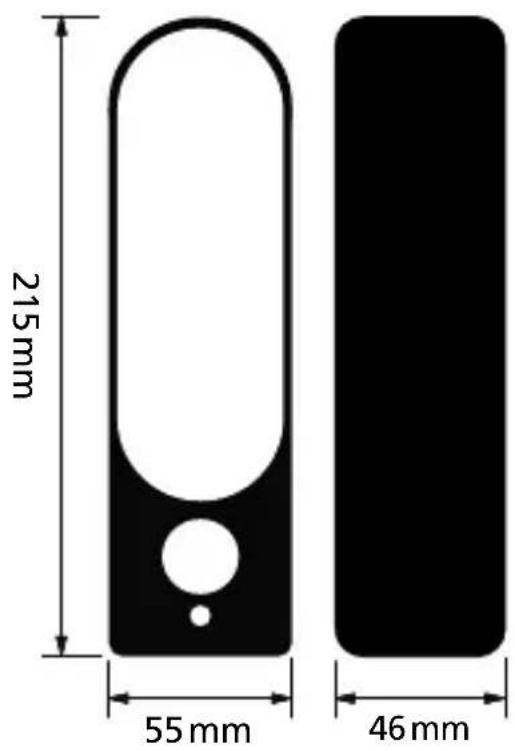
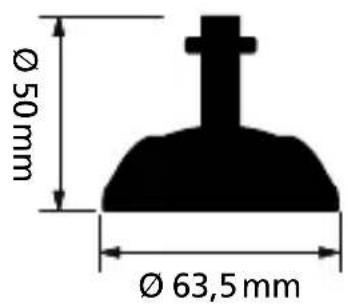
Drawing is not true to scale. Errors and technical changes excepted.
* The range of the IR emitter and microphone is highly dependent on the location and the surrounding area. Highly absorbent surfaces, such as dark rough structures (soil, turf, asphalt) can lead to a significant reduction in maximum range of IR emitter.
** The range of the WLAN signal is highly dependent on the location. Metallic structures, walls, etc. influence the signal/connection.
Connections, displays and control buttons
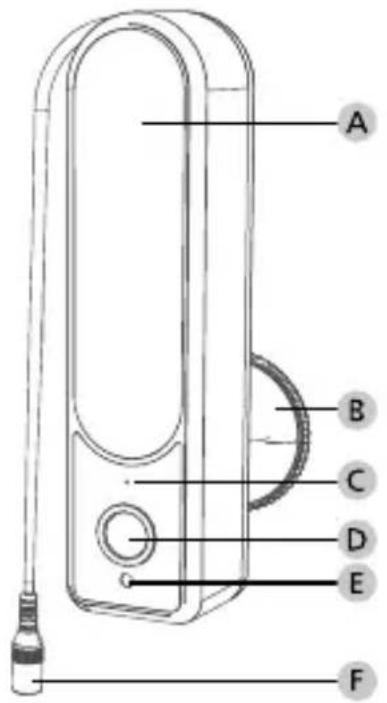
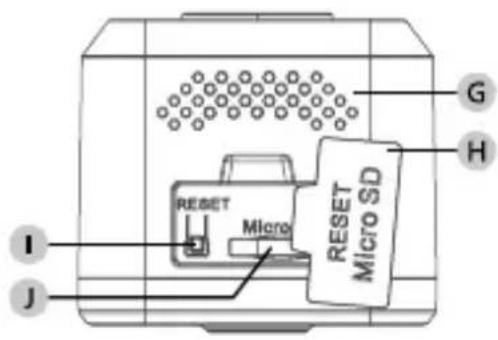
Description
A LED-Light
B Bracket
c Microphone
D Lens
E Light sensor
F 12Vdc power plug
G Speaker
H Water resistant cover
1 Reset button
MicroSD card slot
Installation
Preparations
Checklist:
| 1 Power supply is available at installation spot | |
| 2 For WIFI operation: WIFI signal strength is good enough for high quality video streaming. Maybe a repeater is required. | |
| 3 Check for power cables or water pipes that could be damaged during installation | |
| 4 There are no obstacles in the field of view of the camera at desired location. Note: Check the plant growth | |
| 5 For WIFI operation: WIFI password is ready to hand | |
| 6 5 Ghz frequency band of the Dual-Band Router disabled | |
| 7 Smartphone connected to the same WIFI SSID in which the camera is to be set up. |
Assembly
After you have reviewed the checklist, you can then start assembly.
Step 1:
Required materials:
- Pencil (not included)
- Bracket from the packaging
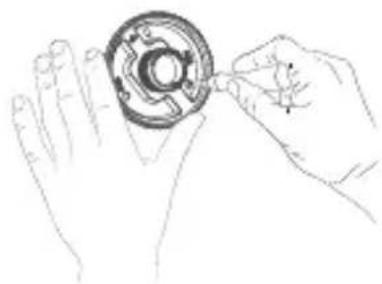
Mark the position where you want to mount the camera.
Hold the mounting foot in the desired position and mark the drill holes with the pencil.
Step 2:
Required materials:
• Electric drill (not included)
- 4mm drill bit, suitable for the mounting surface (not included)
• Cross screwdriver (not included)
• Assembly set from the packaging
Drill three holes for fixing the mounting foot. Insert the wall plugs into the holes. Arrange the mounting foot to the holes and place one of the supplied screws into each hole using across-head screw driver.
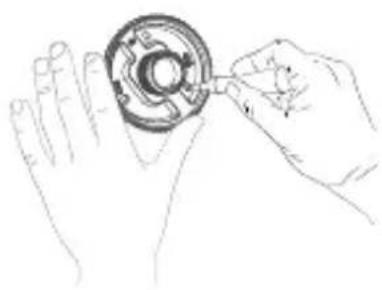
Note: If you use a cordless screwdriver with bits, make sure to set a low torque before tightening the screws.
Step 3:
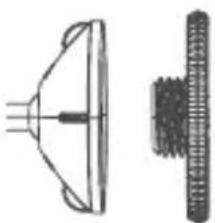
Screw the upper part of the mounting foot to the camera and then tighten the locking nut on the mounting foot. Screw the camera with the upper part of the mounting foot onto the thread of the lower mounting foot.
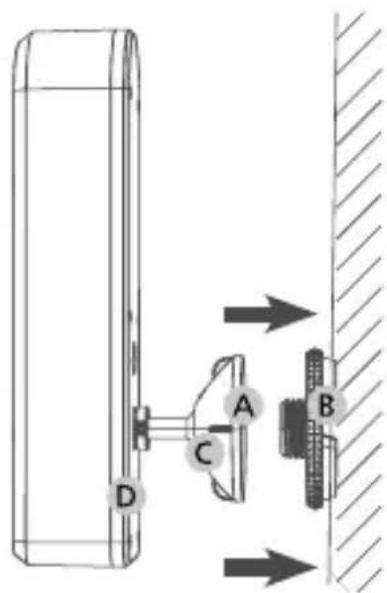
A Foot of upper mounting ring
B Foot of the lower mounting ring
c Upper part of the mounting ring
D Lock nut on the mounting ring
For lateral alignment of the camera, the camera can be loosened at the mounting foot (left hand side) and tightened (right hand side) to fix the position again.
Step 4
Connect the camera to the power supply using the supplied AC adapter.
Turn on the power supply. Now continue with the setup via the app.
Setup
The BURGcam LIGHT 3010 can be used with the following apps:
TUYA Smart
secuENTRY
KeyApp
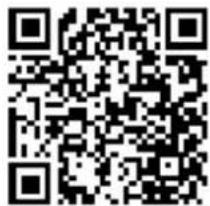
additional use of secuENTRY products is possible with this app only.
TUYA Smart App:
1.1 Make sure that the camera is supplied with electricity, and switch it on.
1.2 The camera will prompt you shortly after the system start with an acoustic signal.
Note: If the camera is not ready, hold the reset button for about 10 seconds and wait until the system is signalled acoustically.
1.3 In the TUYA App tap on "Add Device" to add a new device.
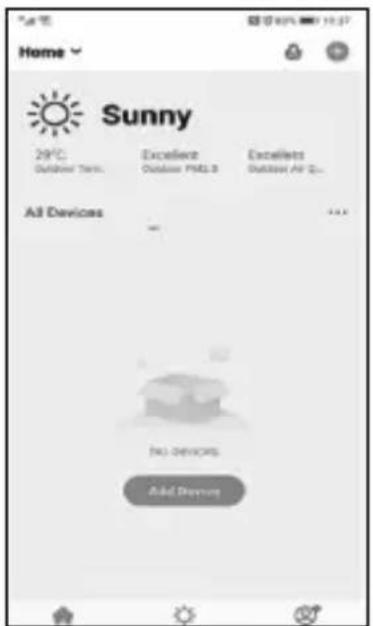
Abb. 1.3
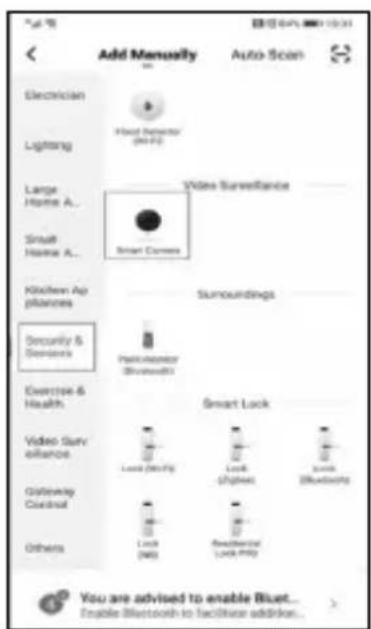
Abb. 1.4
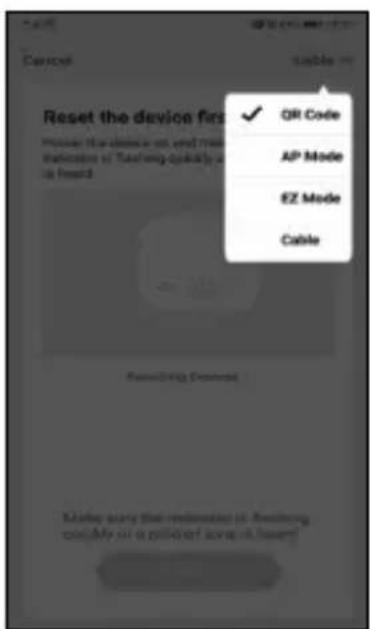
1.4 Select "Security Camera" from the list
1.5 Select QR Code for the setup mode
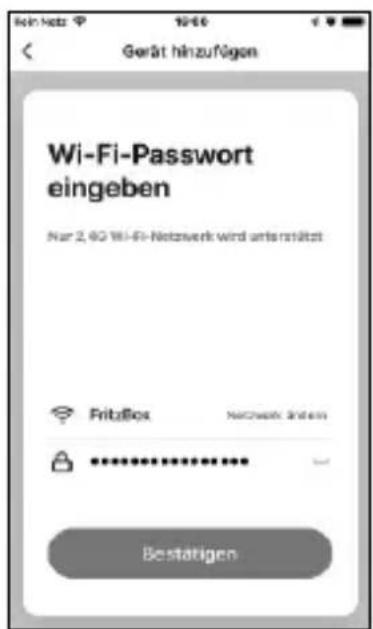
1.6 Enter a name for the camera and type enter the WIFI password.
Note: The smartphone must be connected to the same WIFI in which you want to integrate the camera.
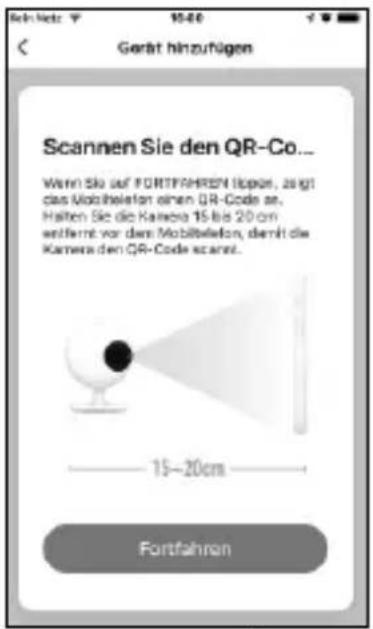
1.7 Hold the displayed QR code approx. 15-20cm in front of the camera until a signal tone sounds. Vary the distance if necessary. A success message is displayed after setup.
Note: Adjust the brightness of your smartphone according to the ambient light so that the QR Code can be easily recognised.
If login failed, please check the WIFI signal strength and set the camera to the default settings by holding down the reset button for 8 seconds. Return to the factory setting before repeating the setup.
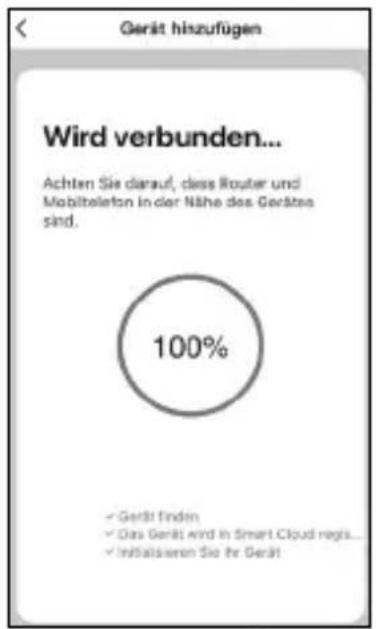
1.8 An acoustic signal confirms the successful setup. In the app the device is displayed in the list of the available devices.
Select the camera to reach the operating menu.
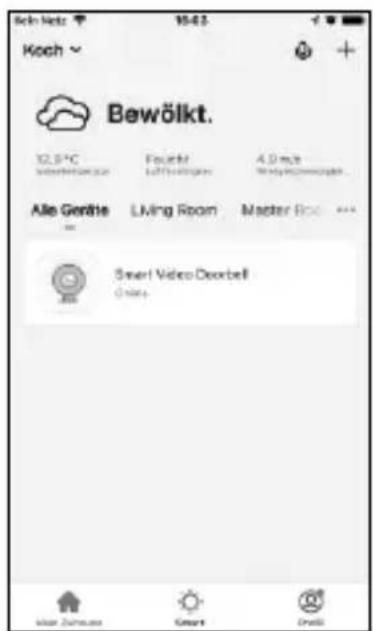
Abb. 1.8-2
Operation
- Taking pictures: Saves a photo on the smartphone in the album
- Microphone: Enables/disables the microphone to speak to guests
- Recording: Starts/stops recording (video and sound) on the smartphone
Important: Please observe the legal regulations the basic data protection regulation (GDPR).
-
Playback: Calls recordings from the SD card of this camera (not supplied)
-
Cloudstorage: Opens the directory with the saved Recordings
-
Lightsettings: Via the light settings you can manually switch the light on/off or use the automatic mode (brightness sensor).
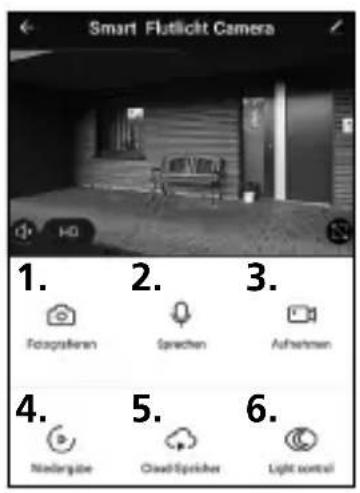
HD: High resolution picture SD: Low resolution picture

Settings
Settings
- Night vision
Here you can set when the infrared (IR) LED light should illuminate the scene and when the spotlight should be switched on.
- Motion detection
Test the necessary sensitivity setting to get a to ensure safe alarming in your environment and adjust the setting accordingly.
- Share device access
Share access to this camera with family members or friends and neighbours when you travel.
Smart assistants
- Link to Amazon Alexa
If you use an Alexa device with a screen, you can connect the camera. To do this:
- Check the connection between your smartphone with the Alexa app and the Alexa device.
- Start the Alexa app on your smartphone and select "More" at the bottom right.
- Select "Add device"
- Select "TUYA" under "popular brands".
- Click on "Search devices" within 45 seconds on the same network as the Alexa devices.
- Confirm the account link with the TUYA app. It is necessary to release account data for this.
- Say: "Alexa, show me the camera" for testing.
Note: All product names, logos, and brands are property of their respective owners. All company, product and service names used here are for identification purposes only. Use of these names, logos, and brands does not imply endorsement. You will get more information on our website www.burg.biz
secuENTRY KEY App
BURGcam LIGHT 3010 - KEY App compatible device integration
Do you own a BURGcam camera that is KeyApp compatible?
You can use these functions to view your cameras live footage.
Two-way audio allows you to communicate with guests, if intercom is supported. You can also take photos/videos and open an assigned lock.
Setup:
- Open the main menu
- Select the BURGcam entry
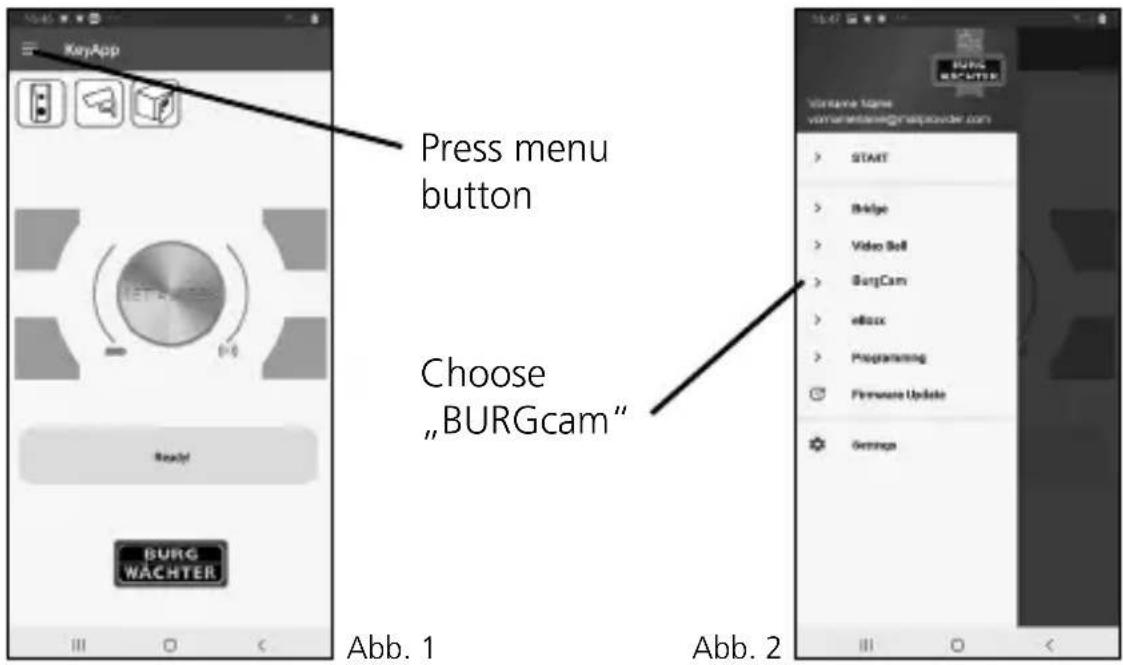
3. Select Devices & Allocation
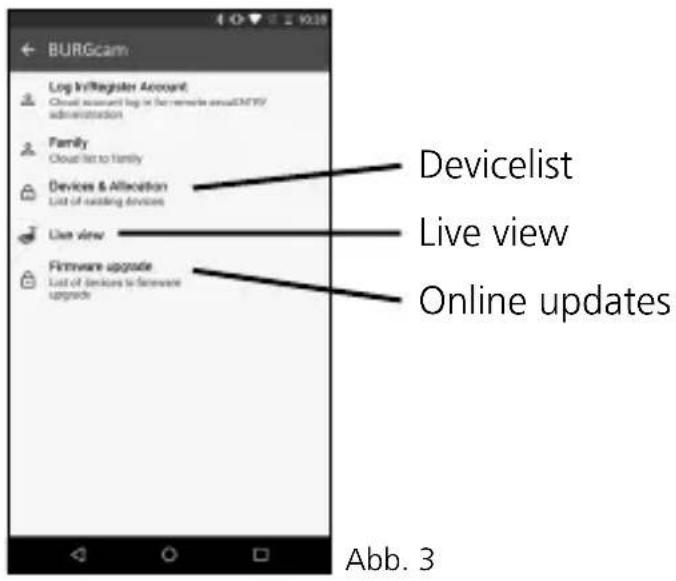
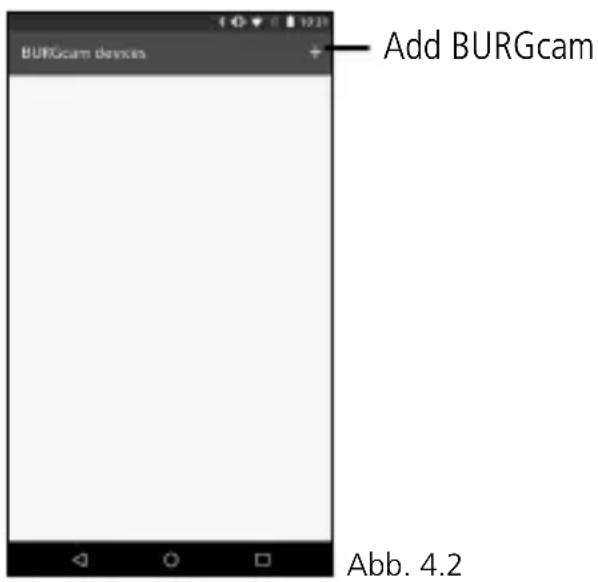
- Add compatible BURGcam
4.1 Make sure that the camera is powered and switch it on.
4.2 Tap the + sign to add a new device.
4.3 The camera will prompt you shortly after the system startup with an acoustic sound to start the installation.
Note: If the camera is not ready, press the reset button for about 10 seconds and wait until the system signals readiness acoustically.
4.4 Enter a name for the device and press enter the WIFI password.
Note: The smartphone must be connected to the same WIFI as the camera.
4.5 Confirm the entry by pressing the yellow key.
4.6 Hold the displayed QR code approx. 15-20 cm in front of the camera until you hear a signal tone. Vary the distance if necessary. A success message is displayed after setup.
Note: Adjust the brightness of your smartphone according to the ambient light so that the QR code can be easily recognised.
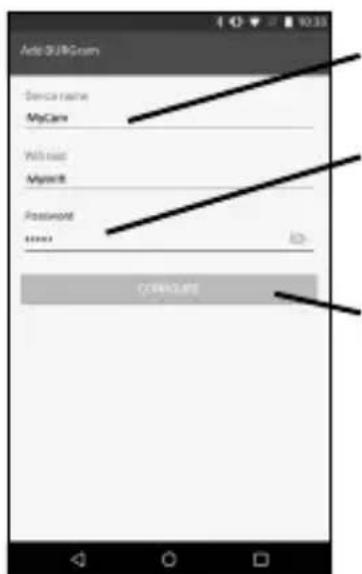
Enter your personal name for BURGcam
Enter your WIFI password
Tap on yellow button
Press button after acoustic signal
Abb. 4.6A
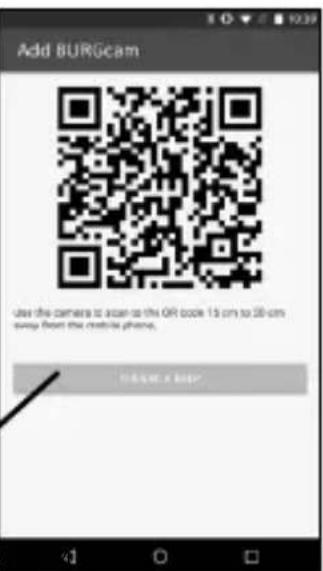
If login failed, please check the WLAN signal strength and reset the camera by holding down the reset key for 10 seconds to return to factory settings before you repeating the setup.
A beep confirms successful transmission. You can do this by tapping the yellow button under the QR code.
5 After successful setup, the device is displayed in the Device list is displayed. Tap the device name to access the device-specific menu.
6 To remove, wipe to the left and start the erasing process. confirm Remove BURGcam:
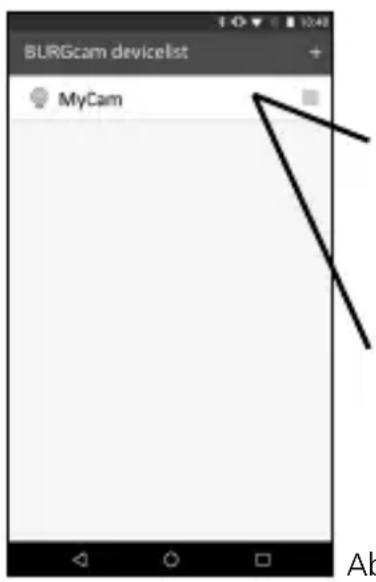
(5) Tap on the device name to change to access the device-specific menu.
(6) To remove, wipe to the left and confirm the deletion
Abb. 5 / 6
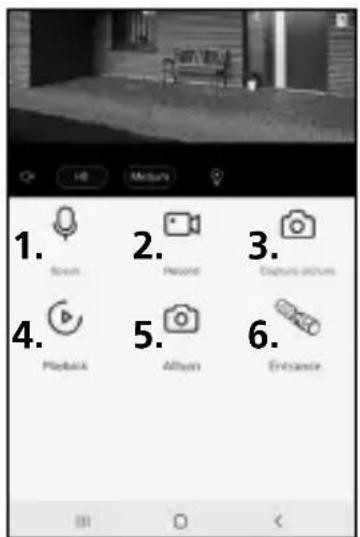
Device specific menu / live feed
Switch between HD and SD resolution
Setup the motion detection
Light setup
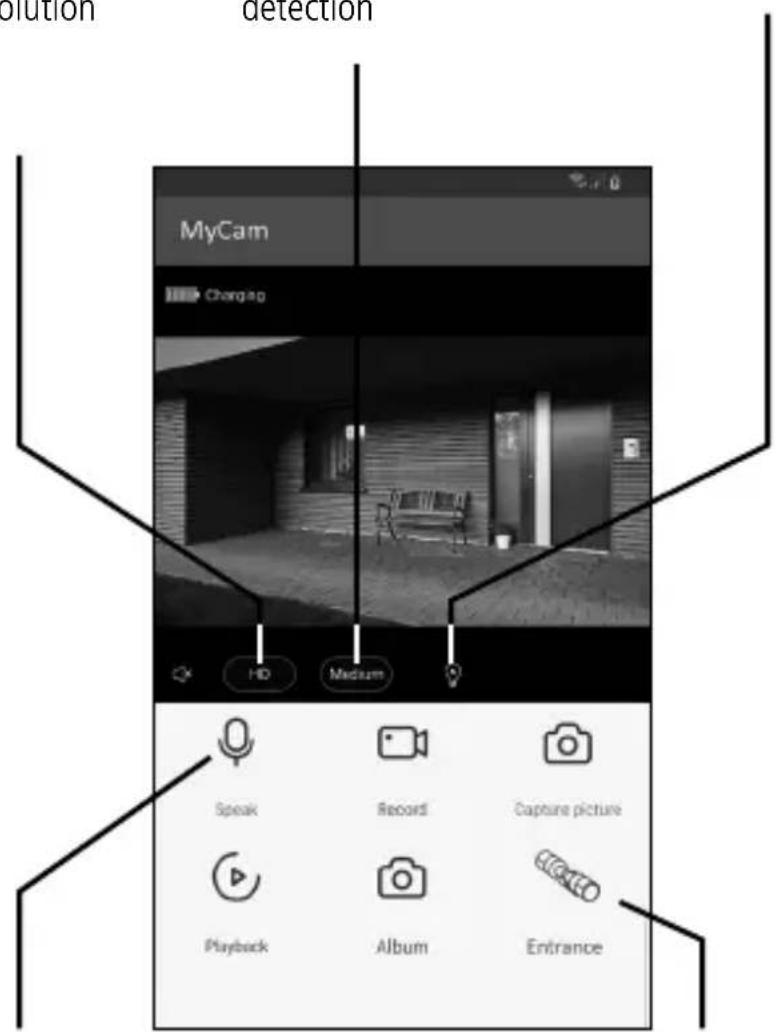
Microphone / sound on/off
Open door (only assigned lock is available)
- Speak: Enables/disables the microphone to speak to the person
- Recording : Starts/stops recording (video and sound) on the smartphone
- Photo: Takes a photo and stores it on the smartphone photo album
Important: Please observe the legal regulations the basic data protection regulation (DSGVO). - Playback: Calls recordings from the SD card (if applicable) of this machine (not supplied)
- Album: Opens the folder with the saved recordings
- Unlock secuEntry: Open door (only assigned lock is available)
54 | English BURGcam LIGHT 3010
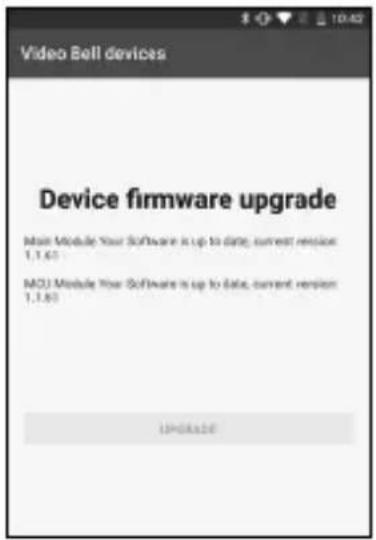
Firmware-Upgrade
With this menu item you can future firmware upgrades of the BURGcam devices
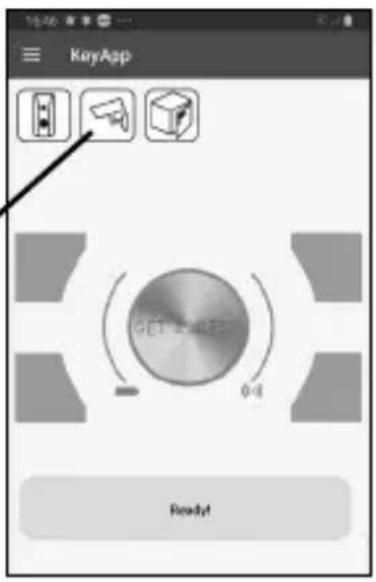
Shortcuts
Via the shortcuts product-specific special functions is made available. Such as the Graphic icon of all available cameras
General
Please take care that the codes and the code carrier do not fall into the wrong hands. Therefore, store the codes and code carrier in a safe location so that these can only be accessed by authorised persons. In case a code or code carrier is lost, immediately change the codes and create a new code carrier.
For your own security, it is urgently recommended:
- Personal data (e.g. birthdays) or other data that may be concluded from information about the user must not be used as a password.
- Change ALL user password at regular intervals.
- Assign user privileges in such a way that everyone receives the minimum necessary rights to be able to work without changing system-relevant data.
- Outsource surveillance systems into your own networks and do not link them together with IT/company-relevant networks.
- Replace outdated systems with new systems that meet modern IT security requirements.
- Checking frequently for system updates
Detailed user manual
The purpose of this quick installation guide is to start the device in an easy and convenient way. Further detailed explanations and descriptions of the various functions are available in the user manual which you can download as pdf file from our website:
www.burg.biz ⇒ service & downloads ⇒ Users manual ⇒ Assembly instructions ⇒ Video security
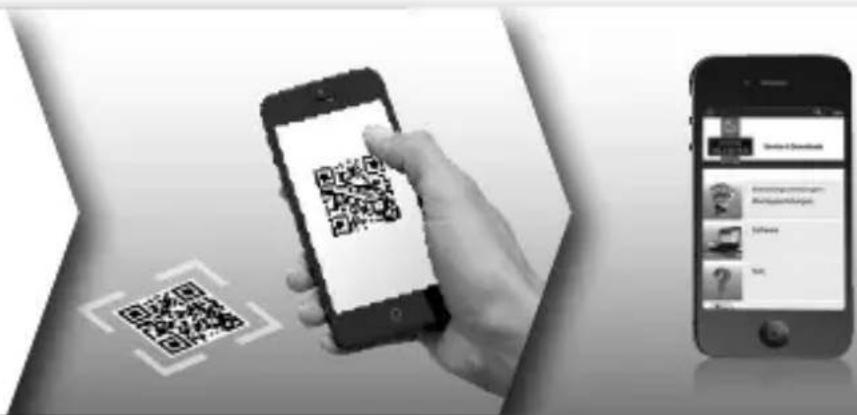
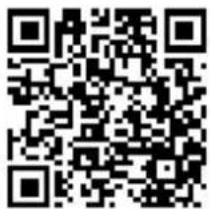
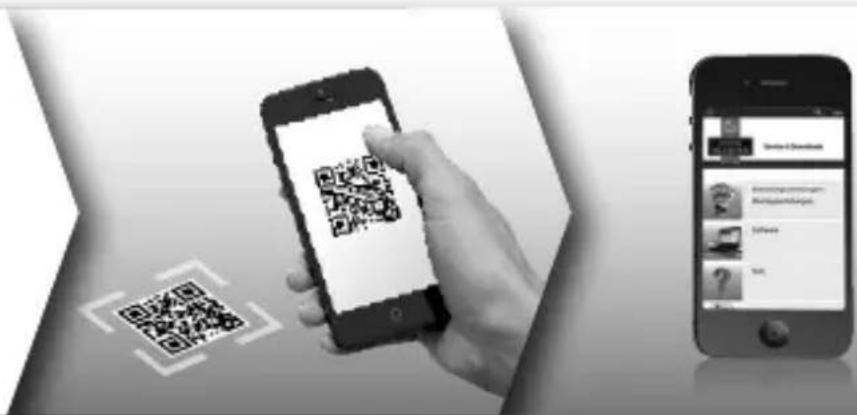
Alternatively, for quick access to the user manual, you can scan the QR-code below to view the user manual on your smartphone or tablet. This QR-code will also provide additional information (FAQ).
QR-code for user manual/further information in English:
BURGcam LIGHT 3010 English | 57
General safety precautions and safety instructions
Assistance and technical support
If you have questions regarding this product or the installation process, please contact: camera-service@burg.biz
Please include the following information so that we can offer you the best possible service:
- Device name
- For questions about the App: Firmware Version / App Version and Smartphone with version information
• Installation information - For network issues: settings and network setup
• Detailed problem description
• Information on how and when we can reach you
Attention
Any changes or modifications to this appliance which have not been explicitly approved of by the respective regulatory authority, may lead to a prohibition of usage of this appliance. This appliance complies with the CE guidelines.
GDPR Note
When using video security systems, personal data is collected in an automated manner, processed and used. Such data are under the protection of the GDPR, which is direct as an EU regulation. The operator of the system is responsible for the operation and processing of the data. When installing the video security system, appropriate technical and organizational measures must be taken to safeguard the personal rights of those affected.
Safety instructions
- Before operating the appliance, please read this manual carefully and retain it for further reference
• Refer all servicing on electric devices to qualified service personnel - The appliance must only be installed by qualified service personnel and has to comply with local specifications and regulations.
- Before cleaning the appliance, it has to be switched off and unplugged from the power outlet. Wipe the appliance with a soft damp cloth.
- Use the device only for its intended purpose.
- The type label may not be replaced.
- Before operating, check all live parts for damage. Damaged parts must be replaced or exchanged.
- Do not use attachments unless recommended by the manufacturer as they may affect the functionality of the appliance and result in the risk of fire, electric shock or injury.
- Never install the appliance in areas exposed to water or other liquids.
- The appliance has to be installed in a safe and stable location which is able to carry the weight of the appliance.
- Openings in the appliance, if any, are provided for ventilation to ensure reliable operation of the appliance and to protect if from overheating. These openings must not be covered or blocked. Please make sure that the appliance does not overheat.
Safety instructions
- The appliance should only be operated from the type of power source indicated on the marking label.
- If the appliance is powered through a grounding-type plug, the plug will only fit into a grounding-type power outlet.
- Route power cords and cables in a manner to protect them from damage by being walked on or pinched by items places upon or against them.
- In case of any operating interruption or a complete operating failure please switch off the appliance and disconnect it from the wall outlet. Never attempt to service or repair the appliance yourself, as opening or removing covers may expose you to dangerous voltage or other hazards.
• Refer all servicing to qualified service personnel. - When replacement parts are required, be sure that replacements parts specified by the manufacturer
- Please respect the local legal regulations on waste if you need to dispose of discarded appliances.

Please be aware that electrical and electronic equipment and batteries shall not be disposed of as household waste, but rather collected separately. Please obtain information on the collecting points for electrical waste from the responsible authority of you municipality
BURG-WÄCHTER KG hereby declares that this device complies with Directive 2014/53/EU, (RED) 2014/30/EU, (EMC), 2011/65/EU (RoHS) and Low Voltage Directive (2014/35/EU).
The full text of the EU Declaration of Conformity can be found on the following website www.burg.biz.
GNU GPL License note
Certain open source components are licensed pursuant to GNU General Public License. This establishes that the customers have the right to acquire, modify and redistribute the source code of said software in accordance with the terms of the GNU General Public License or Lesser General Public License.
A printed copy of the license text GPL V2 is included in this product shipment. The license text can also be downloaded from our homepage at
https://www.burg.biz/international/service-downloads/manuals/#Videosecurity
You as well as any other third party may request to have access to the complete and machine-readable open source code for the GPLv2 licensed software. The source code can be provided as free-of-charge download link or, alternatively, on a common data storage device (at cost price). This offer is valid for up to three years after you downloaded the software or after the product has been shipped to you.
Please send your request to the following address:
BURG-WÄCHTER KG
Altenhofer Weg 15
58300 Wetter
Germany
Tel: +49 2335 965 30
Fax: +49 2335 965 390
E-Mail: camera-service@burg.biz
We can't give support or guarantee for squeaky-cleanness of source codes. The source codes are only a part of whole software.
If you have technical questions about this device, please read the detailed user manual and the FAQ sheet which you will find on the following website: www.burg.biz.If, however, you still have questions, please send an e-mail to: camera-service@burg.biz.
Copyright
All rights reserved. This publication may not be reproduced, stored in a retrieval system or transmitted, in any form or by any means (electronic, mechanical, photocopying, recording or otherwise), without the written prior permission of BURG-WÄCHTER KG.
No reproduction of any part or excerpts thereof are permitted.
Errors excepted. Specifications are subject to change without notice for quality improvement. All companies or products mentioned in this publication are trademarks, registered trademarks or brands of the respective company.
Subject to technical changes without notice. Errors excepted.

BURG
WACHTER
BURG-WÄCHTER KG
Altenhofer Weg 15
58300 Wetter
Germany
info@burg.biz
www.burg.biz


- LANGUAGE
- BESCHREIBUNG
- SCHRITT 2
- SHORTCUTS
- INCLUDED IN DELIVERY
- SPECIAL PRODUCT FEATURES
- MEASUREMENTS
- CONNECTIONS, DISPLAYS AND CONTROL BUTTONS
- DESCRIPTION
- INSTALLATION
- PREPARATIONS
- CHECKLIST
- ASSEMBLY
- STEP 1
- STEP 2
- STEP 3
- STEP 4
- SETUP
- TUYA SMART APP
- OPERATION
- SETTINGS
- NIGHT VISION
- MOTION DETECTION
- SHARE DEVICE ACCESS
- SMART ASSISTANTS
- LINK TO AMAZON ALEXA
- SECUENTRY KEY APP
- BURGCAM LIGHT 3010 - KEY APP COMPATIBLE DEVICE INTEGRATION
- SELECT DEVICES & ALLOCATION
- DEVICE SPECIFIC MENU / LIVE FEED
- FIRMWARE-UPGRADE
- GENERAL
- DETAILED USER MANUAL
- GENERAL SAFETY PRECAUTIONS AND SAFETY INSTRUCTIONS
- ASSISTANCE AND TECHNICAL SUPPORT
- ATTENTION
- GDPR NOTE
- SAFETY INSTRUCTIONS
- GNU GPL LICENSE NOTE
- BURG-WÄCHTER KG
- COPYRIGHT
Brand : BURG WACHTER
Model : BURGcam Light 3010
Category : Surveillance Camera