
KX-MB2030NL - Printer PANASONIC - Free user manual and instructions
Find the device manual for free KX-MB2030NL PANASONIC in PDF.


| Product Type | Multifunction Laser Printer |
| Brand | Panasonic |
| Model | KX-MB2030NL |
| Functions | Print, Copy, Scan, Fax |
| Print Technology | Laser |
| Print Speed (Black) | Up to 24 ppm |
| Resolution | Up to 600 x 600 dpi |
| Paper Input Capacity | 250 sheets |
| Duplex Printing | Manual |
| Scanner Type | Flatbed & ADF |
| Fax Speed | 33.6 kbps |
| Connectivity | USB 2.0, Ethernet |
| Dimensions (W x D x H) | 420 x 380 x 370 mm |
| Weight | Approx. 11 kg |
| Power Consumption | Max 900 W (printing), Standby 65 W |
| Power Supply | AC 220-240 V, 50/60 Hz |
| Memory | 32 MB |
| Supported Media | A4, Letter, Legal, Envelopes |
| Maintenance | Clean with soft dry cloth; use genuine toner |
| Safety | Do not expose to moisture; use grounded outlet |
| Spare Parts / Repairability | Replaceable toner cartridge and drum unit |
| General Information | User manual available online in PDF |
Frequently Asked Questions - KX-MB2030NL PANASONIC
User questions about KX-MB2030NL PANASONIC
0 question about this device. Answer the ones you know or ask your own.
Ask a new question about this device
Download the instructions for your Printer in PDF format for free! Find your manual KX-MB2030NL - PANASONIC and take your electronic device back in hand. On this page are published all the documents necessary for the use of your device. KX-MB2030NL by PANASONIC.
USER MANUAL KX-MB2030NL PANASONIC
natural_image
Line drawing of a printer with control panel and paper feed (no text or symbols)2

KLASSE 1 LASER PRODUCT

KLASSE 1 LED-PRODUCT

Algemene verzorging
Illegale kopieën
12.2 Specifications 97
Copyrights
12.3 Gegevens over copyrights en licenties .....100
13. Index
13.1 Index....112
1.1 Meegeleverde accessoires
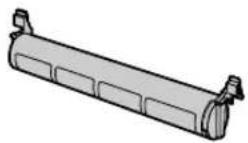
① Tonercartridge (meegeleverd) ^*1
② Drumeenheid

natural_image
Technical line drawing of a mechanical component with no visible text or symbols③ [Broadcast] (alleen KX-MB2030)
13 [Lower] (alleen KX-MB2030)
15 [Fax] (alleen KX-MB2030)
17 [Redial][Pause] (alleen KX-MB2030)
18 [Recall] (alleen KX-MB2030)
19 [Monitor] (alleen KX-MB2030)
- Kiezen.
natural_image
Illustration of a hand holding a mechanical tool or device with motion lines indicating movement (no text or symbols)natural_image
Diagram of a printer with a magnified inset showing internal components (no text or symbols)Opmerking:
natural_image
Technical line drawing of a mechanical device with open lid and internal components (no text or symbols)natural_image
Technical illustration of an open printer with internal components and a magnified inset showing part 13 (no text or symbols present)natural_image
Illustration of a printer's internal structure with hand gestures and a close-up of the open lid (no text or symbols)Let op:
natural_image
Diagram of an open industrial machine with internal components and directional arrows indicating assembly (no text or symbols)De tonercartridge en de drumcartridge vervangen
Opmerking:
natural_image
Diagram of a printer with internal components and a paper holder, showing no text or symbols.natural_image
Line drawing of a hand holding a stack of books (no text or symbols present)natural_image
Illustration of a printer being inserted into a rack, showing the printer's internal structure and the paper tray (no text or symbols present)Opmerking:
natural_image
Diagram showing a mechanical component with a no-smoking symbol and a broken structure, next to a table (no text or labels present)natural_image
Illustration of a hand holding a tray with a warning symbol (no text or labels)Circa 2 kg
Opmerking:
natural_image
Technical line drawing of a computer monitor with cable and connector (no text or symbols)natural_image
Illustration of a microwave oven with a magnified inset showing internal components (no text or symbols)natural_image
Line drawing of a printer with control panel and paper feed (no text or symbols)2.11 Multi-Function Station installeren
3 [Easy Installation]
- [Connect directly with a USB cable.] → [Next]
natural_image
Technical line drawing of a computer monitor with cable and socket (no text or symbols)- [Connect via the Network.] → [Next]
"Would you like to install this device software? (Wilt u deze apparaatsoftware installeren?)"
2.12 Multi-Function Station starten
[Start] → [All Programs] of [Programs] → [Panasonic] → de apparaatnaam → [Multi-Function Station]
- Multi-Function Station verschijnt.

[PC FAX] (alleen KX-MB2030)
- [Start] → [Control Panel] → [Internet Options] → [Programs] → [Set programs] → [Set program access and computer defaults]
- [Start] → [Control Panel] → [Network and Internet] → [Internet Options] → [Programs] → [Set programs] → [Set program access and computer defaults]
2. [Custom]
- Selecteer de gewenste MAPI-compatibele e-mailsoftware via [Choose a default e-mail program]. → [OK]
[Effects]: Watermerk, overlappen.

![PANASONIC KX-MB2030NL - [Custom] - 2](/content/2026/06/1161701/images/35cd58e7d6bebbbda3ed7b196900fe1ef1cb6352b5f124181ba8c1f72eee422c.jpg)
3.2 Easy Print Utility
2 Selecteer "PAG. OPMAAK" met [Page Layout].
3 Druk meerdere keren op [▼] of [▲] om "ID KOPIEREN" of "BEELD HERH." te selecteren. → [Set]
| Origineel Pagina-indeling | |
“4 in 1” “LANDSCHAP” |  “PORTRET” “PORTRET” |
“8 in 1” “LANDSCHAP”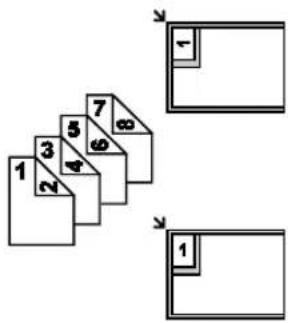 |  “PORTRET” “PORTRET” |
| Origineel Pagina-indeling | |
“2 in 1” |   |
“4 in 1” |   |
“8 in 1”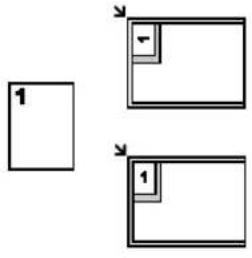 |  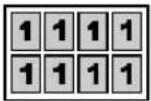 |
Voor MANUAL BROADCAST:
-
[Manual Broad]
-
Druk meerdere keren op [▼] of [▲] om "HANDM. ZEND." te selecteren.
3 [Set]
4 Programmeer de nummers.
Snelkiesnummer 1-3:
natural_image
Line drawing of a printer with attached telephone and wiring (no text or symbols)natural_image
Line drawing of a printer with a telephone and wiring, no text or symbols present- Selecteer [PC FAX] in Multi-Function Station.
- Selecteer [Received Log] in [Communication Log].
![Multi-Function PC FAX - Communication Log File Edit View Tools Help View Forward Delete CCR Help Communication Log Start Log Received Log (%) Outbox Sender Inform... Date Subject Reception Time Number ... Comm TESTMOD... 1/7/2009 4:00 PM Received data 08.01.00 I OK For Help, press [F1]. L 0](/content/2026/06/1161701/images/dc02d7dc3ee5805fbbecac84a3a80fb465520892d9151b23181781717e9a8ae6.jpg)
- Selecteer [PC FAX] in Multi-Function Station.
- Selecteer [Received Log] in [Communication Log].
- Klik op [File] in de menubalk. → [Receive a Fax]
- Selecteer "UIT" met [0].
3 [Set] → [Menu]
Opmerking:
1 Start Multi-Function Station.
2 [Utilities] → [Configuration Web Page] → [Systeem Configuratie]
- Start Multi-Function Station. → [Utilities] → [Configuration Web Page]
1 Start Multi-Function Station. → [Remote Control]
1 Start Multi-Function Station.
2 [Utilities] → [Device Monitor]
1 Start Multi-Function Station. → [Utilities] → [Configuration Web Page]
- [Start] → [Control Panel] → [Security Center]
- [Start] → [Control Panel] → [Security Center]
2 [Easy installation]
3 [Modify] → [Next]
4 Selecteer [Modify Utility] of [Add Printer Driver]. → [Next]. Volg vervolgens de scherminstructies op.
Belangrijk:
natural_image
Illustration of a printer with a hand inserting paper into the print, no text or symbols presentnatural_image
Diagram of an open printer with internal components and a prohibition symbol (no text or labels)natural_image
Illustration of a printer with a paper holder and control panel, showing internal components (no text or symbols)- Sluit de papierinvoerlade.

natural_image
Illustration of a printer with a paper holder and control panel, showing internal components (no text or symbols)
Let op:
natural_image
Technical line drawing of a printer with open lid and internal structure, showing part 6 (no text or symbols)natural_image
Technical line drawing of a printer with open lid and internal mechanism (no text or symbols)natural_image
Technical line drawing of a printer with open lid and internal mechanism (no text or symbols)
natural_image
Illustration of a printer with hand gestures and internal components, showing open lid and internal structure (no text or symbols)Voorbeeld 3:

Let op:
natural_image
Technical line drawing of a printer with open lid and internal structure, showing paper feed and paper tray (no text or symbols)10. Paperstoringen
natural_image
Illustration of a printer with hand gestures and close-ups of the lid (no text or symbols)natural_image
3D diagram showing a component being rotated into a mechanical housing (no text or symbols)natural_image
Line drawing of a printer with paper feeding into a slot, showing internal structure and wiring (no text or symbols)Opmerking:
natural_image
Illustration of a printer with a hand holding a paper, no text or symbols present10. Paperstoringen
natural_image
Illustration of a printer with a hand inserting a paper into it, showing internal components and a numbered label (no text or symbols on the printer itself)natural_image
Line drawing of a printer with control panel and paper feed (no text or symbols)natural_image
Diagram of a printer with an open lid and internal control panel, showing the paper's open lid and internal mechanism (no text or symbols present)natural_image
Line drawing of a printer with an arrow indicating the paper direction (no text or symbols present)natural_image
Technical line drawing of a mechanical device with open lid and labeled component (no text or symbols beyond parts)natural_image
Illustration of a printer's internal structure with hands operating it, showing part assembly and component insertion (no text or symbols)natural_image
Technical line drawing of an open printer with internal components and a magnified inset showing part 8 (no text or symbols)natural_image
Illustration of a printer being inserted, showing hand positioning and assembly steps (no text or symbols)Let op:
natural_image
Diagram of an open printer with internal structure and directional arrows indicating process flow (no text or symbols)natural_image
Line drawing of a printer with control panel and paper feed (no text or symbols)Colour Contact Image Sensor
■ Type printer:
Laserprinter
Modified Huffman (MH), Modified READ (MR), Modified Modified READ (MMR)
■ Modemsnelheid*1:
33.600 / 31.200 / 28.800 / 26.400 / 24.000 / 21.600 / 19.200 /
16.800 / 14.400 / 12.000 / 9.600 / 7.200 / 4.800 / 2.400 bps;
Automatische terugval
■ Omgeving:
KX-MB2000: circa 11 kg
KX-MB2010/KX-MB2030: circa 12 kg
■ Stroomverbruik:
Stand-by: circa 5,5 W
Voorverwarming: circa 65 W
Opmerking:
216 × 340: 216 mm × 340 mm*1
Etiketformaat:
A4: 210 mm × 297 mm
Letter: 216 mm × 279 mm
Gewicht afdrukpapier:
64 g/m² tot 90 g/m²
Voorbeeld 2
Voorbeeld 3
Opmerking:
The Regents of the University of California. All rights reserved.
Redistribution and use in source and binary forms, with or without modification, are permitted provided that the following conditions are met:
- Redistributions of source code must retain the above copyright notice, this list of conditions and the following disclaimer.
- Redistributions in binary form must reproduce the above copyright notice, this list of conditions and the following disclaimer in the documentation and/or other materials provided with the distribution.
- All advertising materials mentioning features or use of this software must display the following acknowledgement:
This product includes software developed by the University of California, Berkeley and its contributors. - Neither the name of the University nor the names of its contributors may be used to endorse or promote products derived from this software without specific prior written permission.
THIS SOFTWARE IS PROVIDED BY THE REGENTS AND CONTRIBUTORS ``AS IS'' AND ANY EXPRESS OR IMPLIED WARRANTIES, INCLUDING, BUT NOT LIMITED TO, THE IMPLIED WARRANTIES OF MERCHANTABILITY AND FITNESS FOR A PARTICULAR PURPOSE ARE DISCLAIMED. IN NO EVENT SHALL THE REGENTS OR CONTRIBUTORS BE LIABLE FOR ANY DIRECT, INDIRECT, INCIDENTAL, SPECIAL, EXEMPLARY, OR CONSEQUENTIAL DAMAGES (INCLUDING, BUT NOT LIMITED TO, PROCUREMENT OF SUBSTITUTE GOODS OR SERVICES; LOSS OF USE, DATA, OR PROFITS; OR BUSINESS INTERRUPTION) HOWEVER CAUSED AND ON ANY THEORY OF LIABILITY, WHETHER IN CONTRACT, STRICT LIABILITY, OR TORT (INCLUDING NEGLIGENCE OR OTHERWISE) ARISING IN ANY WAY OUT OF THE USE OF THIS SOFTWARE, EVEN IF ADVISED OF THE POSSIBILITY OF SUCH DAMAGE.
Copyright (c) 1980, 1983, 1988, 1993 The Regents of the University of California. All rights reserved.
Copyright (c) 1980, 1986, 1989, 1993 The Regents of the University of California. All rights reserved.
Copyright (c) 1980, 1986, 1991, 1993 The Regents of the University of California. All rights reserved.
Copyright (c) 1980, 1986, 1993 The Regents of the University of California. All rights reserved.
Copyright (c) 1982, 1985, 1986, 1988, 1993, 1994 The Regents of the University of California. All rights reserved.
Copyright (c) 1982, 1986, 1988, 1990, 1993 The Regents of the University of California. All rights reserved.
Copyright (c) 1982, 1986, 1988, 1990, 1993, 1994, 1995 The Regents of the University of California. All rights reserved.
Copyright (c) 1982, 1986, 1988, 1990, 1993, 1995 The Regents of the University of California. All rights reserved.
Copyright (c) 1982, 1986, 1988, 1991, 1993 The Regents of the University of California. All rights reserved.
Copyright (c) 1982, 1986, 1988, 1993 The Regents of the University of California. All rights reserved.
Copyright (c) 1982, 1986, 1988, 1993, 1995 The Regents of the University of California. All rights reserved.
Copyright (c) 1982, 1986, 1989, 1991, 1993 The Regents of the University of California. All rights reserved.
Copyright (c) 1982, 1986, 1989, 1993 The Regents of the University of California. All rights reserved.
Copyright (c) 1982, 1986, 1990, 1991, 1993 The Regents of the University of California. All rights reserved.
Copyright (c) 1982, 1986, 1990, 1993 The Regents of the University of California. All rights reserved.
Copyright (c) 1982, 1986, 1990, 1993, 1994 The Regents of the University of California. All rights reserved.
Copyright (c) 1982, 1986, 1991, 1993 The Regents of the University of California. All rights reserved.
Copyright (c) 1982, 1986, 1991, 1993, 1994 The Regents of the University of California. All rights reserved.
Copyright (c) 1982, 1986, 1991, 1993, 1995 The Regents of the University of California. All rights reserved.
Copyright (c) 1982, 1986, 1993 The Regents of the University of California. All rights reserved.
Copyright (c) 1982, 1986, 1993, 1994 The Regents of the University of California. All rights reserved.
Copyright (c) 1982, 1986, 1993, 1994, 1995 The Regents of the University of California. All rights reserved.
Copyright (c) 1982, 1986, 1993, 1995 The Regents of the University of California. All rights reserved.
Copyright (c) 1982, 1988, 1991, 1993 The Regents of the University of California. All rights reserved.
Copyright (c) 1983, 1990, 1993 The Regents of the University of California. All rights reserved.
Copyright (c) 1983, 1993 The Regents of the University of California. All rights reserved.
Copyright (c) 1985, 1986, 1993 The Regents of the University of California. All rights reserved.
Copyright (c) 1985, 1986, 1993 The Regents of the University of California. All rights reserved.
Copyright (c) 1986, 1989, 1991, 1993 The Regents of the University of California. All rights reserved.
Copyright (c) 1986, 1993 The Regents of the University of California. All rights reserved.
Copyright (c) 1987, 1991, 1993 The Regents of the University of California. All rights reserved.
Copyright (c) 1987, 1993 The Regents of the University of California. All rights reserved.
Copyright (c) 1987, 1993 The Regents of the University of California. All rights reserved.
Copyright (c) 1988 Regents of the University of California. All rights reserved
Copyright (c) 1988 Stephen Deering.
Copyright (c) 1988 University of Utah.
Copyright (c) 1988, 1989, 1993 The Regents of the University of California. All rights reserved.
Copyright (c) 1988, 1991, 1993 The Regents of the University of California. All rights reserved.
Copyright (c) 1988, 1992, 1993 The Regents of the University of California. All rights reserved.
Copyright (c) 1988, 1993 The Regents of the University of California. All rights reserved.
Copyright (c) 1989 The Regents of the University of California. All rights reserved.
Copyright (c) 1989, 1991, 1993 The Regents of the University of California. All rights reserved.
Copyright (c) 1989, 1993 The Regents of the University of California. All rights reserved.
Copyright (c) 1989, 1993, 1994 The Regents of the University of California. All rights reserved.
Copyright (c) 1990, 1991, 1993 The Regents of the University of California. All rights reserved.
Copyright (c) 1990, 1993 The Regents of the University of California. All rights reserved.
Copyright (c) 1991, 1993 The Regents of the University of California. All rights reserved.
Copyright (c) 1991, 1993, 1994 The Regents of the University of California. All rights reserved.
Copyright (c) 1992 Regents of the University of California. All rights reserved.
Copyright (c) 1992, 1993 The Regents of the University of California. All rights reserved.
Copyright (c) 1993 The Regents of the University of California. All rights reserved.
Copyright (c) 1993 Adam Glass
Copyright (C) 1993 by Sun Microsystems, Inc. All rights reserved.
Copyright (c) 1994 Gordon W. Ross
Copyright (c) 1994 Winning Strategies, Inc. All rights reserved.
Copyright (c) 1995 The Regents of the University of California. All rights reserved.
Copyright (C) 1995, 1996, 1997, and 1998 WIDE Project. All rights reserved.
Copyright (c) 1996 The Regents of the University of California. All rights reserved.
Copyright (c) 1996 John S. Dyson All rights reserved.
Copyright (c) 1996 Matt Thomas. All rights reserved.
Copyright (c) 1996 Matthew R. Green. All rights reserved.
Copyright (c) 1996 Paul Kranenburg
Copyright (c) 1996, 1997, 1999, 2001 The NetBSD Foundation, Inc. All rights reserved.
Copyright (c) 1996, 2000 Christopher G. Demetriou. All rights reserved.
Copyright (c) 1996, 1999 by Internet Software Consortium.
Copyright (c) 1996-1999 by Internet Software Consortium.
Copyright (c) 1997 Jonathan Stone and Jason R. Thorpe. All rights reserved.
Copyright (c) 1997 Christos Zoulas. All rights reserved.
Copyright (c) 1997 Manuel Bouyer. All rights reserved.
Copyright (c) 1997, 1998 The NetBSD Foundation, Inc. All rights reserved.
Copyright (c) 1997, 1998, 1999, 2000 The NetBSD Foundation, Inc. All rights reserved.
Copyright (c) 1997, 1998, 1999, 2001 The NetBSD Foundation, Inc. All rights reserved.
Copyright (c) 1997, 1998, 1999, 2002 The NetBSD Foundation, Inc. All rights reserved.
Copyright (c) 1997, 1998, 2000, 2001 The NetBSD Foundation, Inc. All rights reserved.
Copyright (c) 1997, 1998, 2001 The NetBSD Foundation, Inc. All rights reserved.
Copyright (c) 1997,98 The NetBSD Foundation, Inc. All rights reserved.
Copyright (C) 1997-2000 Sony Computer Science Laboratories Inc. All rights reserved.
Copyright (c) 1997-2002 The NetBSD Foundation, Inc. All rights reserved.
Copyright (c) 1998 The NetBSD Foundation, Inc. All rights reserved.
Copyright (c) 1998 Todd C. Miller Todd.Miller@courtesan.com All rights reserved.
Copyright (c) 1998, 1999 The NetBSD Foundation, Inc. All rights reserved.
Copyright (c) 1998, 1999, 2000 The NetBSD Foundation, Inc. All rights reserved.
Copyright (c) 1998, 1999, 2000, 2001 The NetBSD Foundation, Inc. All rights reserved.
Copyright (c) 1998, 2000 The NetBSD Foundation, Inc. All rights reserved.
Copyright (c) 1998, 2000, 2001 The NetBSD Foundation, Inc. All rights reserved.
Copyright (c) 1999 The NetBSD Foundation, Inc. All rights reserved.
Copyright (C) 1999 WIDE Project. All rights reserved.
Copyright (c) 1999, 2000 Jason L. Wright (jason@thought.net) All rights reserved.
Copyright (c) 1999, 2000 The NetBSD Foundation, Inc. All rights reserved.
Copyright (c) 1999, 2000, 2001 The NetBSD Foundation, Inc. All rights reserved.
Copyright (c) 1999, 2001 The NetBSD Foundation, Inc. All rights reserved.
Copyright (c) 2000 The NetBSD Foundation, Inc. All rights reserved.
Copyright (c) 2000, 2001 The NetBSD Foundation, Inc. All rights reserved.
Copyright (c) 2000, 2001, 2002 The NetBSD Foundation, Inc. All rights reserved.
Copyright (c) 2001 The NetBSD Foundation, Inc. All rights reserved.
Copyright (c) 2002 The NetBSD Foundation, Inc. All rights reserved.
Copyright 1998 Massachusetts Institute of Technology. All rights reserved.
Copyright 2001 Wasabi Systems, Inc. All rights reserved.
Portions Copyright (c) 1993 by Digital Equipment Corporation.
Portions Copyright (c) 1995 by International Business Machines, Inc.
Copyright (c) 1983, 1989 The Regents of the University of California. All rights reserved.
Copyright (c) 1996 by Internet Software Consortium. All rights reserved.
Copyright (c) 1980, 1986, 1989 Regents of the University of California. All rights reserved.
Copyright (c) 1988 The Regents of the University of California. All rights reserved.
Copyright (c) 1992, 1993 The Regents of the University of California. All rights reserved.
Copyright (c) 1994 Christopher G. Demetriou. All rights reserved.
Copyright (c) 1997 The NetBSD Foundation, Inc. All rights reserved.
Copyright (c) 1999 The NetBSD Foundation, Inc. All rights reserved.
Copyright (c) 2001 The NetBSD Foundation, Inc. All rights reserved.
Copyright (c) 1996 Gardner Buchanan gbuchanan@shl.com All rights reserved.
Copyright 1989, 1991, 1992 by Carnegie Mellon University
Derivative Work - 1996, 1998-2000
Copyright 1996, 1998-2000 The Regents of the University of California
All Rights Reserved
Permission to use, copy, modify and distribute this software and its documentation for any purpose and without fee is hereby granted, provided that the above copyright notice appears in all copies and that both that copyright notice and this permission notice appear in supporting documentation, and that the name of CMU and The Regents of the University of California not be used in advertising or publicity pertaining to distribution of the software without specific written permission.
CMU AND THE REGENTS OF THE UNIVERSITY OF CALIFORNIA DISCLAIM ALL WARRANTIES WITH REGARD TO THIS SOFTWARE, INCLUDING ALL IMPLIED WARRANTIES OF MERCHANTABILITY AND FITNESS. IN NO EVENT SHALL CMU OR THE REGENTS OF THE UNIVERSITY OF CALIFORNIA BE LIABLE FOR ANY SPECIAL, INDIRECT OR CONSEQUENTIAL DAMAGES OR ANY DAMAGES WHATSOEVER RESULTING FROM THE LOSS OF USE, DATA OR PROFITS, WHETHER IN AN ACTION OF CONTRACT, NEGLIGENCE OR OTHER TORTIOUS ACTION, ARISING OUT OF OR IN CONNECTION WITH THE USE OR PERFORMANCE OF THIS SOFTWARE.
---- Part 2: Networks Associates Technology, Inc copyright notice (BSD) ----
Copyright (c) 2001-2003, Networks Associates Technology, Inc All rights reserved.
Redistribution and use in source and binary forms, with or without modification, are permitted provided that the following conditions are met:
* Redistributions of source code must retain the above copyright notice, this list of conditions and the following disclaimer.
* Redistributions in binary form must reproduce the above copyright notice, this list of conditions and the following disclaimer in the documentation and/or other materials provided with the distribution.
* Neither the name of the Networks Associates Technology, Inc nor the names of its contributors may be used to endorse or promote products derived from this software without specific prior written permission.
THIS SOFTWARE IS PROVIDED BY THE COPYRIGHT HOLDERS AND CONTRIBUTORS ``AS IS'' AND ANY EXPRESS OR IMPLIED WARRANTIES, INCLUDING, BUT NOT LIMITED TO, THE IMPLIED WARRANTIES OF MERCHANTABILITY AND FITNESS FOR A PARTICULAR PURPOSE ARE DISCLAIMED. IN NO EVENT SHALL THE COPYRIGHT HOLDERS OR CONTRIBUTORS BE LIABLE FOR ANY DIRECT, INDIRECT, INCIDENTAL, SPECIAL, EXEMPLARY, OR CONSEQUENTIAL DAMAGES (INCLUDING, BUT NOT LIMITED TO, PROCUREMENT OF SUBSTITUTE GOODS OR SERVICES; LOSS OF USE, DATA, OR PROFITS; OR BUSINESS INTERRUPTION) HOWEVER CAUSED AND ON ANY THEORY OF LIABILITY, WHETHER IN CONTRACT, STRICT LIABILITY, OR TORT (INCLUDING NEGLIGENCE OR OTHERWISE) ARISING IN ANY WAY OUT OF THE USE OF THIS SOFTWARE, EVEN IF ADVISED OF THE POSSIBILITY OF SUCH DAMAGE.
---- Part 3: Cambridge Broadband Ltd. copyright notice (BSD) ----
Portions of this code are copyright (c) 2001-2003, Cambridge Broadband Ltd. All rights reserved.
Redistribution and use in source and binary forms, with or without modification, are permitted provided that the following conditions are met:
* Redistributions of source code must retain the above copyright notice, this list of conditions and the following disclaimer.
* Redistributions in binary form must reproduce the above copyright notice, this list of conditions and the following disclaimer in the documentation and/or other materials provided with the distribution.
* The name of Cambridge Broadband Ltd. may not be used to endorse or promote products derived from this software without specific prior written permission.
THIS SOFTWARE IS PROVIDED BY THE COPYRIGHT HOLDER ``AS IS'' AND ANY EXPRESS OR IMPLIED WARRANTIES, INCLUDING, BUT NOT LIMITED TO, THE IMPLIED WARRANTIES OF MERCHANTABILITY AND FITNESS FOR A PARTICULAR PURPOSE ARE DISCLAIMED. IN NO EVENT SHALL THE COPYRIGHT HOLDER BE LIABLE FOR ANY DIRECT, INDIRECT, INCIDENTAL, SPECIAL, EXEMPLARY, OR CONSEQUENTIAL DAMAGES (INCLUDING, BUT NOT LIMITED TO, PROCUREMENT OF SUBSTITUTE GOODS OR SERVICES; LOSS OF USE, DATA, OR PROFITS; OR BUSINESS INTERRUPTION) HOWEVER CAUSED AND ON ANY THEORY OF LIABILITY, WHETHER IN CONTRACT, STRICT LIABILITY, OR TORT (INCLUDING NEGLIGENCE OR OTHERWISE) ARISING IN ANY WAY OUT OF THE USE OF THIS SOFTWARE, EVEN IF ADVISED OF THE POSSIBILITY OF SUCH DAMAGE.
---- Part 4: Sun Microsystems, Inc. copyright notice (BSD) ----
Copyright © 2003 Sun Microsystems, Inc., 4150 Network Circle, Santa Clara, California 95054, U.S.A. All rights reserved.
Use is subject to licence terms below.
This distribution may include materials developed by third parties.
Sun, Sun Microsystems, the Sun logo and Solaris are trademarks or registered trademarks of Sun Microsystems, Inc. in the U.S. and other countries.
Redistribution and use in source and binary forms, with or without modification, are permitted provided that the following conditions are met:
* Redistributions of source code must retain the above copyright notice, this list of conditions and the following disclaimer.
* Redistributions in binary form must reproduce the above copyright notice, this list of conditions and the following disclaimer in the documentation and/or other materials provided with the distribution.
* Neither the name of the Sun Microsystems, Inc. nor the names of its contributors may be used to endorse or promote products derived from this software without specific prior written permission.
THIS SOFTWARE IS PROVIDED BY THE COPYRIGHT HOLDERS AND CONTRIBUTORS ``AS IS'' AND ANY EXPRESS OR IMPLIED WARRANTIES, INCLUDING, BUT NOT LIMITED TO, THE IMPLIED WARRANTIES OF MERCHANTABILITY AND FITNESS FOR A PARTICULAR PURPOSE ARE DISCLAIMED. IN NO EVENT SHALL THE COPYRIGHT HOLDERS OR CONTRIBUTORS BE LIABLE
FOR ANY DIRECT, INDIRECT, INCIDENTAL, SPECIAL, EXEMPLARY, OR CONSEQUENTIAL DAMAGES (INCLUDING, BUT NOT LIMITED TO, PROCUREMENT OF SUBSTITUTE GOODS OR SERVICES; LOSS OF USE, DATA, OR PROFITS; OR BUSINESS INTERRUPTION) HOWEVER CAUSED AND ON ANY THEORY OF LIABILITY, WHETHER IN CONTRACT, STRICT LIABILITY, OF TORT (INCLUDING NEGLIGENCE OR OTHERWISE) ARISING IN ANY WAY OUT OF THE USE OF THIS SOFTWARE, EVEN IF ADVISED OF THE POSSIBILITY OF SUCH DAMAGE.
Copyright 1988, 1989, 1990 by Carnegie Mellon University Copyright 1989 TGV, Incorporated
All Rights Reserved
Permission to use, copy, modify, and distribute this software and its documentation for any purpose and without fee is hereby granted, provided that the above copyright notice appear in all copies and that both that copyright notice and this permission notice appear in supporting documentation, and that the name of CMU and TGV not be used in advertising or publicity pertaining to distribution of the software without specific, written prior permission.
CMU AND TGV DISCLAIMS ALL WARRANTIES WITH REGARD TO THIS SOFTWARE, INCLUDING ALL IMPLIED WARRANTIES OF MERCHANTABILITY AND FITNESS, IN NO EVENT SHALL CMU OR TGV BE LIABLE FOR ANY SPECIAL, INDIRECT OR CONSEQUENTIAL DAMAGES OR ANY DAMAGES WHATSOEVER RESULTING FROM LOSS OF USE, DATA OR PROFITS, WHETHER IN AN ACTION OF CONTRACT, NEGLIGENCE OR OTHER TORTIOUS ACTION, ARISING OUT OF OR IN CONNECTION WITH THE USE OR PERFORMANCE OF THIS SOFTWARE.
* Copyright (c) 1990 The Regents of the University of California.
* All rights reserved.
*
* This code is derived from software contributed to Berkeley by Chris Torek.
*
* Redistribution and use in source and binary forms, with or without modification, are permitted provided
* that the following conditions are met:
* 1. Redistributions of source code must retain the above copyright notice, this list of conditions and the following disclaimer.
* 2. Redistributions in binary form must reproduce the above copyright notice, this list of conditions and * the following disclaimer in the documentation and/or other materials provided with the distribution.
* 3. Neither the name of the University nor the names of its contributors may be used to endorse or
* promote products derived from this software without specific prior written permission.
*
* THIS SOFTWARE IS PROVIDED BY THE REGENTS AND CONTRIBUTORS "AS IS" AND ANY
* EXPRESS OR IMPLIED WARRANTIES, INCLUDING, BUT NOT LIMITED TO, THE IMPLIED
* WARRANTIES OF MERCHANTABILITY AND FITNESS FOR A PARTICULAR PURPOSE ARE
* DISCLAIMED. IN NO EVENT SHALL THE REGENTS OR CONTRIBUTORS BE LIABLE FOR ANY
* DIRECT, INDIRECT, INCIDENTAL, SPECIAL, EXEMPLARY, OR CONSEQUENTIAL DAMAGES
* (INCLUDING, BUT NOT LIMITED TO, PROCUREMENT OF SUBSTITUTE GOODS OR SERVICES;
* LOSS OF USE, DATA, OR PROFITS; OR BUSINESS INTERRUPTION) HOWEVER CAUSED AND
* ON ANY THEORY OF LIABILITY, WHETHER IN CONTRACT, STRICT LIABILITY, OR TORT
* (INCLUDING NEGLIGENCE OR OTHERWISE) ARISING IN ANY WAY OUT OF THE USE OF THIS
* SOFTWARE, EVEN IF ADVISED OF THE POSSIBILITY OF SUCH DAMAGE.
*/
* Copyright (c) 1989 The Regents of the University of California.
* All rights reserved.
*
* This code is derived from software contributed to Berkeley by Tom Truscott.
*
* Redistribution and use in source and binary forms, with or without modification, are permitted provided
* that the following conditions are met:
* 1. Redistributions of source code must retain the above copyright notice, this list of conditions and the
* following disclaimer.
* 2. Redistributions in binary form must reproduce the above copyright notice, this list of conditions and
* the following disclaimer in the documentation and/or other materials provided with the distribution.
* 3. All advertising materials mentioning features or use of this software must display the following
* acknowledgement:
* This product includes software developed by the University of California, Berkeley and its
* contributors.
* 4. Neither the name of the University nor the names of its contributors may be used to endorse or
* promote products derived from this software without specific prior written permission.
*
* THIS SOFTWARE IS PROVIDED BY THE REGENTS AND CONTRIBUTORS "AS IS" AND ANY
* EXPRESS OR IMPLIED WARRANTIES, INCLUDING, BUT NOT LIMITED TO, THE IMPLIED
* WARRANTIES OF MERCHANTABILITY AND FITNESS FOR A PARTICULAR PURPOSE ARE
* DISCLAIMED. IN NO EVENT SHALL THE REGENTS OR CONTRIBUTORS BE LIABLE FOR ANY
* DIRECT, INDIRECT, INCIDENTAL, SPECIAL, EXEMPLARY, OR CONSEQUENTIAL DAMAGES
* (INCLUDING, BUT NOT LIMITED TO, PROCUREMENT OF SUBSTITUTE GOODS OR SERVICES;
* LOSS OF USE, DATA, OR PROFITS; OR BUSINESS INTERRUPTION) HOWEVER CAUSED AND
* ON ANY THEORY OF LIABILITY, WHETHER IN CONTRACT, STRICT LIABILITY, OR TORT
* (INCLUDING NEGLIGENCE OR OTHERWISE) ARISING IN ANY WAY OUT OF THE USE OF THIS
* SOFTWARE, EVEN IF ADVISED OF THE POSSIBILITY OF SUCH DAMAGE.
*/
* Copyright (c) 1987, 1993, 1994
* The Regents of the University of California. All rights reserved.
*
* Redistribution and use in source and binary forms, with or without modification, are permitted provided
* that the following conditions are met:
* 1. Redistributions of source code must retain the above copyright notice, this list of conditions and the
* following disclaimer.
* 2. Redistributions in binary form must reproduce the above copyright notice, this list of conditions and
* the following disclaimer in the documentation and/or other materials provided with the distribution.
* 3. All advertising materials mentioning features or use of this software must display the following
* acknowledgement:
* This product includes software developed by the University of California, Berkeley and its
* contributors.
* 4. Neither the name of the University nor the names of its contributors may be used to endorse or
* promote products derived from this software without specific prior written permission.
*
* THIS SOFTWARE IS PROVIDED BY THE REGENTS AND CONTRIBUTORS ``AS IS'' AND ANY
* EXPRESS OR IMPLIED WARRANTIES, INCLUDING, BUT NOT LIMITED TO, THE IMPLIED
* WARRANTIES OF MERCHANTABILITY AND FITNESS FOR A PARTICULAR PURPOSE ARE
* DISCLAIMED. IN NO EVENT SHALL THE REGENTS OR CONTRIBUTORS BE LIABLE FOR ANY
* DIRECT, INDIRECT, INCIDENTAL, SPECIAL, EXEMPLARY, OR CONSEQUENTIAL DAMAGES
* (INCLUDING, BUT NOT LIMITED TO, PROCUREMENT OF SUBSTITUTE GOODS OR SERVICES;
* LOSS OF USE, DATA, OR PROFITS; OR BUSINESS INTERRUPTION) HOWEVER CAUSED AND
* ON ANY THEORY OF LIABILITY, WHETHER IN CONTRACT, STRICT LIABILITY, OR TORT
* (INCLUDING NEGLIGENCE OR OTHERWISE) ARISING IN ANY WAY OUT OF THE USE OF THIS
* SOFTWARE, EVEN IF ADVISED OF THE POSSIBILITY OF SUCH DAMAGE.
*/
* Copyright (c) 1990, 1993
* The Regents of the University of California. All rights reserved.
* This code is derived from software contributed to Berkeley by Chris Torek.
* Redistribution and use in source and binary forms, with or without modification, are permitted provided
* that the following conditions are met:
* 1. Redistributions of source code must retain the above copyright notice, this list of conditions and the following disclaimer.
* 2. Redistributions in binary form must reproduce the above copyright notice, this list of conditions and
* the following disclaimer in the documentation and/or other materials provided with the distribution.
* 3. Neither the name of the University nor the names of its contributors may be used to endorse or
* promote products derived from this software without specific prior written permission.
* THIS SOFTWARE IS PROVIDED BY THE REGENTS AND CONTRIBUTORS "AS IS" AND ANY
* EXPRESS OR IMPLIED WARRANTIES, INCLUDING, BUT NOT LIMITED TO, THE IMPLIED
* WARRANTIES OF MERCHANTABILITY AND FITNESS FOR A PARTICULAR PURPOSE ARE
* DISCLAIMED. IN NO EVENT SHALL THE REGENTS OR CONTRIBUTORS BE LIABLE FOR ANY
* DIRECT, INDIRECT, INCIDENTAL, SPECIAL, EXEMPLARY, OR CONSEQUENTIAL DAMAGES
* (INCLUDING, BUT NOT LIMITED TO, PROCUREMENT OF SUBSTITUTE GOODS OR SERVICES;
* LOSS OF USE, DATA, OR PROFITS; OR BUSINESS INTERRUPTION) HOWEVER CAUSED AND
* ON ANY THEORY OF LIABILITY, WHETHER IN CONTRACT, STRICT LIABILITY, OR TORT
* (INCLUDING NEGLIGENCE OR OTHERWISE) ARISING IN ANY WAY OUT OF THE USE OF THIS
* SOFTWARE, EVEN IF ADVISED OF THE POSSIBILITY OF SUCH DAMAGE.
*/
All rights reserved.
Redistribution and use in source and binary forms, with or without modification, are permitted provided that the following conditions are met:
-
Redistributions of source code must retain the above copyright notice, this list of conditions and the following disclaimer.
-
Redistributions in binary form must reproduce the above copyright notice, this list of conditions and the following disclaimer in the documentation and/or other materials provided with the distribution.
THIS SOFTWARE IS PROVIDED BY THE AUTHOR AND CONTRIBUTORS ``AS IS'' AND ANY EXPRESS OR IMPLIED WARRANTIES, INCLUDING, BUT NOT LIMITED TO, THE IMPLIED WARRANTIES OF MERCHANTABILITY AND FITNESS FOR A PARTICULAR PURPOSE ARE DISCLAIMED. IN NO EVENT SHALL THE AUTHOR OR CONTRIBUTORS BE LIABLE FOR ANY DIRECT, INDIRECT, INCIDENTAL, SPECIAL, EXEMPLARY, OR CONSEQUENTIAL DAMAGES (INCLUDING, BUT NOT LIMITED TO, PROCUREMENT OF SUBSTITUTE GOODS OR SERVICES; LOSS OF USE, DATA, OR PROFITS; OR BUSINESS INTERRUPTION) HOWEVER CAUSED AND ON ANY THEORY OF LIABILITY, WHETHER IN CONTRACT, STRICT LIABILITY, OR TORT (INCLUDING NEGLIGENCE OR OTHERWISE) ARISING IN ANY WAY OUT OF THE USE OF THIS SOFTWARE, EVEN IF ADVISED OF THE POSSIBILITY OF SUCH DAMAGE.
* Copyright (c) 1990 The Regents of the University of California.
* All rights reserved.
*
* This code is derived from software contributed to Berkeley by Chris Torek.
*
* Redistribution and use in source and binary forms, with or without modification, are permitted provided
* that the following conditions are met:
* 1. Redistributions of source code must retain the above copyright notice, this list of conditions and the
* following disclaimer.
* 2. Redistributions in binary form must reproduce the above copyright notice, this list of conditions and
* the following disclaimer in the documentation and/or other materials provided with the distribution.
* 3. Neither the name of the University nor the names of its contributors may be used to endorse or
* promote products derived from this software without specific prior written permission.
*
* THIS SOFTWARE IS PROVIDED BY THE REGENTS AND CONTRIBUTORS "AS IS" AND ANY
* EXPRESS OR IMPLIED WARRANTIES, INCLUDING, BUT NOT LIMITED TO, THE IMPLIED
* WARRANTIES OF MERCHANTABILITY AND FITNESS FOR A PARTICULAR PURPOSE ARE
* DISCLAIMED. IN NO EVENT SHALL THE REGENTS OR CONTRIBUTORS BE LIABLE FOR ANY
* DIRECT, INDIRECT, INCIDENTAL, SPECIAL, EXEMPLARY, OR CONSEQUENTIAL DAMAGES
* (INCLUDING, BUT NOT LIMITED TO, PROCUREMENT OF SUBSTITUTE GOODS OR SERVICES;
* LOSS OF USE, DATA, OR PROFITS; OR BUSINESS INTERRUPTION) HOWEVER CAUSED AND
* ON ANY THEORY OF LIABILITY, WHETHER IN CONTRACT, STRICT LIABILITY, OR TORT
* (INCLUDING NEGLIGENCE OR OTHERWISE) ARISING IN ANY WAY OUT OF THE USE OF THIS
* SOFTWARE, EVEN IF ADVISED OF THE POSSIBILITY OF SUCH DAMAGE.
*/
* Copyright (c) 1990 The Regents of the University of California.
* All rights reserved.
*
* This code is derived from software contributed to Berkeley by Chris Torek.
*
* Redistribution and use in source and binary forms, with or without modification, are permitted provided
* that the following conditions are met:
* 1. Redistributions of source code must retain the above copyright notice, this list of conditions and the
* following disclaimer.
* 2. Redistributions in binary form must reproduce the above copyright notice, this list of conditions and
* the following disclaimer in the documentation and/or other materials provided with the distribution.
* 3. Neither the name of the University nor the names of its contributors may be used to endorse or
* promote products derived from this software without specific prior written permission.
*
* THIS SOFTWARE IS PROVIDED BY THE REGENTS AND CONTRIBUTORS ``AS IS'' AND ANY
* EXPRESS OR IMPLIED WARRANTIES, INCLUDING, BUT NOT LIMITED TO, THE IMPLIED
* WARRANTIES OF MERCHANTABILITY AND FITNESS FOR A PARTICULAR PURPOSE ARE
* DISCLAIMED. IN NO EVENT SHALL THE REGENTS OR CONTRIBUTORS BE LIABLE FOR ANY
* DIRECT, INDIRECT, INCIDENTAL, SPECIAL, EXEMPLARY, OR CONSEQUENTIAL DAMAGES
* (INCLUDING, BUT NOT LIMITED TO, PROCUREMENT OF SUBSTITUTE GOODS OR SERVICES;
* LOSS OF USE, DATA, OR PROFITS; OR BUSINESS INTERRUPTION) HOWEVER CAUSED AND
* ON ANY THEORY OF LIABILITY, WHETHER IN CONTRACT, STRICT LIABILITY, OR TORT
* (INCLUDING NEGLIGENCE OR OTHERWISE) ARISING IN ANY WAY OUT OF THE USE OF THIS
* SOFTWARE, EVEN IF ADVISED OF THE POSSIBILITY OF SUCH DAMAGE.
*/
* Copyright (c) 1989 The Regents of the University of California.
* All rights reserved.
*
* This code is derived from software contributed to Berkeley by Tom Truscott.
*
* Redistribution and use in source and binary forms, with or without modification, are permitted provided
* that the following conditions are met:
* 1. Redistributions of source code must retain the above copyright notice, this list of conditions and the
* following disclaimer.
* 2. Redistributions in binary form must reproduce the above copyright notice, this list of conditions and
* the following disclaimer in the documentation and/or other materials provided with the distribution.
* 3. All advertising materials mentioning features or use of this software must display the following
* acknowledgement:
* This product includes software developed by the University of California, Berkeley and its
* contributors.
* 4. Neither the name of the University nor the names of its contributors may be used to endorse or
* promote products derived from this software without specific prior written permission.
*
* THIS SOFTWARE IS PROVIDED BY THE REGENTS AND CONTRIBUTORS ``AS IS'' AND ANY
* EXPRESS OR IMPLIED WARRANTIES, INCLUDING, BUT NOT LIMITED TO, THE IMPLIED
* WARRANTIES OF MERCHANTABILITY AND FITNESS FOR A PARTICULAR PURPOSE ARE
* DISCLAIMED. IN NO EVENT SHALL THE REGENTS OR CONTRIBUTORS BE LIABLE FOR ANY
* DIRECT, INDIRECT, INCIDENTAL, SPECIAL, EXEMPLARY, OR CONSEQUENTIAL DAMAGES
* (INCLUDING, BUT NOT LIMITED TO, PROCUREMENT OF SUBSTITUTE GOODS OR SERVICES;
* LOSS OF USE, DATA, OR PROFITS; OR BUSINESS INTERRUPTION) HOWEVER CAUSED AND
* ON ANY THEORY OF LIABILITY, WHETHER IN CONTRACT, STRICT LIABILITY, OR TORT
* (INCLUDING NEGLIGENCE OR OTHERWISE) ARISING IN ANY WAY OUT OF THE USE OF THIS
* SOFTWARE, EVEN IF ADVISED OF THE POSSIBILITY OF SUCH DAMAGE.
*/
The OpenSSL toolkit stays under a dual licence, i.e. both the conditions of the OpenSSL Licence and the original SSLeay licence apply to the toolkit. See below for the actual licence texts. Actually both licences are BSD-style Open Source licences. In case of any licence issues related to OpenSSL please contact openssl-core@openssl.org.
OpenSSL Licence
/*
* Copyright (c) 1998-2000 The OpenSSL Project. All rights reserved.
*
* Redistribution and use in source and binary forms, with or without
* modification, are permitted provided that the following conditions
* are met:
*
* 1. Redistributions of source code must retain the above copyright notice, this list of conditions and the following disclaimer.
* 2. Redistributions in binary form must reproduce the above copyright * notice, this list of conditions and the following disclaimer in * the documentation and/or other materials provided with the * distribution.
* 3. All advertising materials mentioning features or use of this * software must display the following acknowledgment: * "This product includes software developed by the OpenSSL Project * for use in the OpenSSL Toolkit. (http://www.openssl.org/)"
* 4. The names "OpenSSL Toolkit" and "OpenSSL Project" must not be used to * endorse or promote products derived from this software without * prior written permission. For written permission, please contact * openssl-core@openssl.org.
* 5. Products derived from this software may not be called "OpenSSL" * nor may "OpenSSL" appear in their names without prior written * permission of the OpenSSL Project.
* 6. Redistributions of any form whatsoever must retain the following * * acknowledgment: * "This product includes software developed by the OpenSSL Project * for use in the OpenSSL Toolkit (http://www.openssl.org/)
* THIS SOFTWARE IS PROVIDED BY THE OpenSSL PROJECT ``AS IS'' AND ANY * EXPRESSED OR IMPLIED WARRANTIES, INCLUDING, BUT NOT LIMITED TO, THE * IMPLIED WARRANTIES OF MERCHANTABILITY AND FITNESS FOR A PARTICULAR * PURPOSE ARE DISCLAIMED. IN NO EVENT SHALL THE OpenSSL PROJECT OR * ITS CONTRIBUTORS BE LIABLE FOR ANY DIRECT, INDIRECT, INCIDENTAL, * SPECIAL, EXEMPLARY, OR CONSEQUENTIAL DAMAGES (INCLUDING, BUT * NOT LIMITED TO, PROCUREMENT OF SUBSTITUTE GOODS OR SERVICES; * LOSS OF USE, DATA, OR PROFITS; OR BUSINESS INTERRUPTION) * HOWEVER CAUSED AND ON ANY THEORY OF LIABILITY, WHETHER IN CONTRACT, * STRICT LIABILITY, OR TORT (INCLUDING NEGLIGENCE OR OTHERWISE) * ARISING IN ANY WAY OUT OF THE USE OF THIS SOFTWARE, EVEN IF ADVISED * OF THE POSSIBILITY OF SUCH DAMAGE.
* This product includes cryptographic software written by Eric Young * (eay@cryptsoft.com). This product includes software written by Tim * Hudson (tjh@cryptsoft.com). * */
Original SSLeay Licence
/* Copyright (C) 1995-1998 Eric Young (eay@cryptsoft.com)
* All rights reserved.
*
* This package is an SSL implementation written
* by Eric Young (eay@cryptsoft.com).
* The implementation was written so as to conform with Netscapes SSL.
* This library is free for commercial and non-commercial use as long as
* the following conditions are aheared to. The following conditions
* apply to all code found in this distribution, be it the RC4, RSA,
* Ihash, DES, etc., code; not just the SSL code. The SSL documentation
* included with this distribution is covered by the same copyright terms
* except that the holder is Tim Hudson (tjh@cryptsoft.com).
* Copyright remains Eric Young's, and as such any Copyright notices in
* the code are not to be removed.
* If this package is used in a product, Eric Young should be given attribution
* as the author of the parts of the library used.
* This can be in the form of a textual message at program startup or
* in documentation (online or textual) provided with the package.
*
* Redistribution and use in source and binary forms, with or without
* modification, are permitted provided that the following conditions
* are met:
* 1. Redistributions of source code must retain the copyright notice, this list of conditions and the following disclaimer.
* 2. Redistributions in binary form must reproduce the above copyright
* notice, this list of conditions and the following disclaimer in the
* documentation and/or other materials provided with the distribution.
* 3. All advertising materials mentioning features or use of this software
* must display the following acknowledgement:
* "This product includes cryptographic software written by
* Eric Young (eay@cryptsoft.com)"
* The word 'cryptographic' can be left out if the rouines from the library
* being used are not cryptographic related :-).
* 4. If you include any Windows specific code (or a derivative thereof) from
* the apps directory (application code) you must include an acknowledgement:
* "This product includes software written by Tim Hudson (tjh@cryptsoft.com)"
*
* THIS SOFTWARE IS PROVIDED BY ERIC YOUNG "AS IS" AND
* ANY EXPRESS OR IMPLIED WARRANTIES, INCLUDING, BUT NOT LIMITED TO, THE
* IMPLIED WARRANTIES OF MERCHANTABILITY AND FITNESS FOR A PARTICULAR PURPOSE
* ARE DISCLAIMED. IN NO EVENT SHALL THE AUTHOR OR CONTRIBUTORS BE LIABLE
* FOR ANY DIRECT, INDIRECT, INCIDENTAL, SPECIAL, EXEMPLARY, OR CONSEQUENTIAL
* DAMAGES (INCLUDING, BUT NOT LIMITED TO, PROCUREMENT OF SUBSTITUTE GOODS
* OR SERVICES; LOSS OF USE, DATA, OR PROFITS; OR BUSINESS INTERRUPTION)
* HOWEVER CAUSED AND ON ANY THEORY OF LIABILITY, WHETHER IN CONTRACT, STRICT
* LIABILITY, OR TORT (INCLUDING NEGLIGENCE OR OTHERWISE) ARISING IN ANY WAY
* OUT OF THE USE OF THIS SOFTWARE, EVEN IF ADVISED OF THE POSSIBILITY OF
* SUCH DAMAGE.
*
* The licence and distribution terms for any publicly available version or
* derivative of this code cannot be changed. i.e. this code cannot simply be
* copied and put under another distribution licence
* [including the GNU Public Licence.]
*/
- JPEG
434 Faxactiveringscode: 61
539 WINS-server #2: 68
578 Alle e-mailadressen wissen: 69
Easy Print Utility: 29
Multi-Function Station-software
Installeren: 24
Starten: 26
Verwijderen: 25
N
Netwerkfuncties: 70
0
OCR-software: 32
- KLASSE 1 LASER PRODUCT
- KLASSE 1 LED-PRODUCT
- Algemene verzorging
- Illegale kopieën
- Copyrights
- Index
- Meegeleverde accessoires
- Opmerking:
- Let op:
- De tonercartridge en de drumcartridge vervangen
- Multi-Function Station installeren
- [Easy Installation]
- Multi-Function Station starten
- [PC FAX] (alleen KX-MB2030)
- [Custom]
- Easy Print Utility
- Voor MANUAL BROADCAST:
- [Set]
- Belangrijk:
- Voorbeeld 3:
- Paperstoringen
- ■ Stroomverbruik:
- Etiketformaat:
- Gewicht afdrukpapier:
- Voorbeeld 2
- Voorbeeld 3
- All Rights Reserved
- OpenSSL Licence
- Faxactiveringscode: 61
- WINS-server #2: 68
- Alle e-mailadressen wissen: 69
- N
- 0
Brand : PANASONIC
Model : KX-MB2030NL
Category : Printer