GV62 8RC-216NL - Laptop MSI - Free user manual and instructions
Find the device manual for free GV62 8RC-216NL MSI in PDF.


User questions about GV62 8RC-216NL MSI
0 question about this device. Answer the ones you know or ask your own.
Ask a new question about this device
Download the instructions for your Laptop in PDF format for free! Find your manual GV62 8RC-216NL - MSI and take your electronic device back in hand. On this page are published all the documents necessary for the use of your device. GV62 8RC-216NL by MSI.
USER MANUAL GV62 8RC-216NL MSI
natural_image
Stylized black dragon emblem inside a shield shape, no text or symbols presentmsi®
Content
Copyright and Trademarks Notice....1-4
Revision History 1-4
FCC-B Radio Frequency Interference Statement 1-5
FCC Conditions 1-5
CE Conformity 1-5
Battery Regulations 1-6
WEEE Statement 1-6
Chemical Substances Information....1-6
RoHS Statement 1-7
Japan JIS C 0950 Material Declaration....1-7
India RoHS 1-7
Turkey EEE regulation 1-7
Ukraine restriction of hazardous substances 1-7
Vietnam RoHS....1-7
Upgrade and Warranty 1-8
Acquisition of Replaceable Parts....1-8
Safety Instructions....1-9
MSI Highlights 1-11
Introductions....2-1
Unpacking 2-2
Product Overview....2-3
Top-open View 2-3
Front Side View 2-6
Right Side View....2-7
Left Side View 2-8
Rear Side View....2-10
Bottom Side View....2-11
How to Use the Keyboard 2-12
Windows Key....2-12
Quick Launch Keys 2-13
Disable or Enable Touchpad....2-14
Enter Sleep Mode....2-14
Switch Display 2-14
Use Multiple Monitors....2-14
Adjust the Brightness Level of the Display 2-15
Adjust the Sound Level of the Speaker 2-15
Adjust the Brightness Level of the Keyboard Backlight LED (optional)....2-15
Application: True Color (optional)....2-16
Video: How to Use [Fn] Buttons 2-16
Specifications 2-17
How to Get Started ....3-1
Begin to Use the Notebook 3-2
How to Use the Notebook Comfortably....3-3
How to Manage Power Supply 3-4
AC/DC Adapter....3-4
Battery 3-4
How to Set Up a Power Plan in Windows 10 ....3-6
Choose or Customize a Power Plan 3-6
Create Your Own Power Plan 3-9
How to Use the Touchpad ....3-11
About HDD and SSD 3-13
About M.2 SSD Slot 3-13
How to Connect the Internet....3-14
Wireless LAN....3-14
Wired LAN 3-16
How to Set Up Bluetooth Connection....3-21
Activating Bluetooth Connection 3-21
How to Connect External Devices....3-24
Video: How to Use RAID Function 3-25
How to Select Boot Mode in BIOS 3-26
Video: How to Restore Windows 10 Operating System on MSI Notebooks ......3-27
Video: How to Use MSI One Touch Install 3-28
Copyright and Trademarks Notice
Copyright © Micro-Star Int'l Co., Ltd. All rights reserved. The MSI logo used is a registered trademark of Micro-Star Int'l Co., Ltd. All other marks and names mentioned may be trademarks of their respective owners. No warranty as to accuracy or completeness is expressed or implied. MSI reserves the right to make changes to this document without prior notice.
Revision History
Version: 1.0
Date: 02, 2018
FCC-B Radio Frequency Interference Statement
This equipment has been tested and found to comply with the limits for a Class B digital device, pursuant to part 15 of the FCC rules. These limits are designed to provide reasonable protection against harmful interference in a residential installation. This equipment generates, uses and radiates radio frequency energy, and, if not installed and used in accordance with the instructions, may cause harmful interference to radio communications. However, there is no guarantee that interference will not occur in a particular installation. If this equipment does cause harmful interference to radio or television reception, which can be determined by turning the equipment off and on, the user is encouraged to try to correct the interference by one or more of the following measures:
▶ Reorient or relocate the receiving antenna.
▶ Increase the separation between the equipment and receiver.
Connect the equipment into an outlet on a circuit different from that to which the receiver is connected.
NOTE
The changes or modifications not expressly approved by the party responsible for compliance could void the user's authority to operate the equipment.
Shield interface cables and AC power cord, if any, must be used in order to comply with the emission limits.
FCC Conditions
This device complies with part 15 of the FCC Rules. Operation is subject to the following two conditions:
This device may not cause harmful interference.
This device must accept any interference received, including interference that may cause undesired operation.
CE Conformity

This device is in compliance with the essential safety requirements and other relevant provisions set out in the European Directive.
Battery Regulations

European Union: Batteries, battery packs, and accumulators should not be disposed of as unsorted household waste. Please use the public collection system to return, recycle, or treat them in compliance with the local regulations.

廢電池請回收
Taiwan: For better environmental protection, waste batteries should be collected separately for recycling or special disposal.
California, USA: The button cell battery may contain perchlorate material and requires special handling when recycled or disposed of in California.
For further information please visit: http://www.dtsc.ca.gov/hazardouswaste/perchlorate/
Safety Guideline for Using Lithium Battery
Danger of explosion if battery is incorrectly replaced. Replace only with the same or equivalent type recommended by the equipment manufacturer. Discard used batteries according to manufacturer's instructions.
WEEE Statement

European Union: Under the European Union ("EU") Directive on Waste Electrical and Electronic Equipment, Directive 2002/96/EC, which takes effect on August 13, 2005, products of "electrical and electronic equipment" cannot be discarded as municipal waste anymore and manufacturers of covered electronic equipment will be obligated to take back such products at the end of their useful life.
Chemical Substances Information
In compliance with chemical substances regulations, such as the EU REACH Regulation (Regulation EC No. 1907/2006 of the European Parliament and the Council), MSI provides the information of chemical substances in products at:
http://www.msi.com/html/ popup/csr/evmtprtt_pcm.html
RoHS Statement
Japan JIS C 0950 Material Declaration
A Japanese regulatory requirement, defined by specification JIS C 0950, mandates that manufacturers provide material declarations for certain categories of electronic products offered for sale after July 1, 2006.
http://www.msi.com/html/ popup/csr/cemm_jp.html
http://tw.msi.com/html/popup/csr_tw/cemm_jp.html
India RoHS
This product complies with the "India E-waste (Management and Handling) Rule 2011" and prohibits use of lead, mercury, hexavalent chromium, polybrominated biphenyls or polybrominated diphenyl ethers in concentrations exceeding 0.1 weight % and 0.01 weight % for cadmium, except for the exemptions set in Schedule 2 of the Rule.
Turkey EEE regulation
Conforms to the EEE Regulations of the Republic Of Turkey.
Ukraine restriction of hazardous substances
The equipment complies with requirements of the Technical Regulation, approved by the Resolution of Cabinet of Ministry of Ukraine as of December 3, 2008 № 1057, in terms of restrictions for the use of certain dangerous substances in electrical and electronic equipment.
Vietnam RoHS
As from December 1, 2012, all products manufactured by MSI comply with Circular 30/2011/TT-BCT temporarily regulating the permitted limits for a number of hazardous substances in electronic and electric products.
Upgrade and Warranty
Please note that certain components, such as memory modules, HDD, SSD, ODD, and Bluetooth/WiFi combo card, etc., preinstalled in the product may be upgradable or replaceable by user's request depending on the models users purchased.
For any further information on the product users purchased, please contact the local dealer. Do not attempt to upgrade or replace any component of the product if users do not understand the component location or how to assembly/disassembly, since it may cause the product damaged. It is recommended that user contact the authorized dealer or service center for product service.
Acquisition of Replaceable Parts
Please be noticed that the acquisition of replaceable parts (or compatible ones) of the product users purchased in certain countries or territories may be fulfilled by the manufacturer within 5 years at most since the product has been discontinued, depending on the official regulations declared at the time. Please contact the manufacturer via http://www.msi.com/support/ for the detailed information about the acquisition of spare parts.
Safety Instructions

Read the safety instructions carefully and thoroughly. All cautions and warnings on the equipment or user's manual should be noted.

Keep the notebook away from humidity and high temperature.

Lay the notebook on a stable surface before setting it up.

Do not cover the ventilators of the notebook to prevent the notebook from overheating.

- Do not leave the notebook in an unconditioned environment with a storage temperature above 60^ (140°F) or below 0^ (32°F), which may damage the notebook. - This notebook should be operated under maximum ambient temperature of 35^ (95°F).

Place the power cord in a way that people are unlikely to step on it. Do not place anything on top of the power cord.

Always keep the strong magnetic or electrical objects away from the notebook.

- Never pour liquid into the opening that could damage the equipment or cause an electrical shock. - Never use any chemical substance to wipe the surface of this equipment, such as keyboard, touchpad, and notebook case.

If any of the following situations arises, get the equipment checked by a service personnel:
• The power cord or plug is damaged.
• Liquid has penetrated into the equipment.
• The equipment has been exposed to moisture.
- The equipment has not worked well or you can not get it work according to User's Manual.
• The equipment was dropped and damaged.
• The equipment has obvious signs of breakage.
Green Product Features
- Reduced energy consumption during use and stand-by
- Limited use of substances harmful to the environment and health
• Easily dismantled and recycled - Reduced use of natural resources by encouraging recycling
• Extended product lifetime through easy upgrades - Reduced solid waste production through take-back policy

Environmental Policy
- The product has been designed to enable proper reuse of parts and recycling and should not be thrown away at its end of life.
- Users should contact the local authorized point of collection for recycling and disposing of their end-of-life products.
- Visit the MSI website and locate a nearby distributor for further recycling information.
- Users may also reach us at gpcontdev@msi.com for information regarding proper disposal, take-back, recycling, and disassembly of MSI products.
MSI Highlights
Explore more exclusive features of MSI notebooks for all series, please visit: http://www.msi.com and https://www.youtube.com/user/MSI

How to use SteelSeries Engine 3 on MSI notebooks
MSI collaborates with SteelSeries to develop an exclusive SteelSeries Engine 3 in gaming notebooks. SteelSeries Engine 3 is the Apps to combine frequently used functions for gamers in multiple devices management.

MSI GAMING Notebook is the first gaming Notebook featuring XSplit Gamecaster live stream app!
MSI gaming notebook features XSplit Gamecaster, the easiest live streaming and recording solution for gamers.

Sound by Dynaudio on MSI Gaming Notebooks
MSI partners with Dynaudio, the Danish sound specialists, in its gaming notebooks to present you an authentic fidelity audio performance.

Color Your Life with True Color
MSI has partnered with Portrait Displays, Inc. in developing more accurate, high precision panel quality. MSI True Color Technology guarantees that each panel in a MSI notebook comes with the finest precision in color.

Tutorial: How to use Nahimic
Discover how to use Nahimic and its three features: Nahimic Audio Effects, Microphone Effects and HD Audio recorder.
Introductions
User's Manual
NOTEBOOK
Introductions
Congratulations on becoming an user of this notebook, the finely designed notebook. You will have a delightful and professional experience in using this exquisite notebook. We are proud to tell users that this notebook is thoroughly tested and certified by our reputation for unsurpassed dependability and customer satisfaction.
Unpacking
First, unpack the shipping carton and check all items carefully. If any item contained is damaged or missing, please contact your local dealer immediately. Also, keep the box and packing materials in case you need to ship the unit in the future. The package should contain the following items:
Notebook
Quick Start Guide
▶ AC/DC adapter and AC power cord
▶ Optional carry bag
Product Overview
This section provides the description of basic aspects of the notebook. It will help you to know more about the appearance of this notebook before using it. Please be aware that the figures shown here are for reference only.
Top-open View
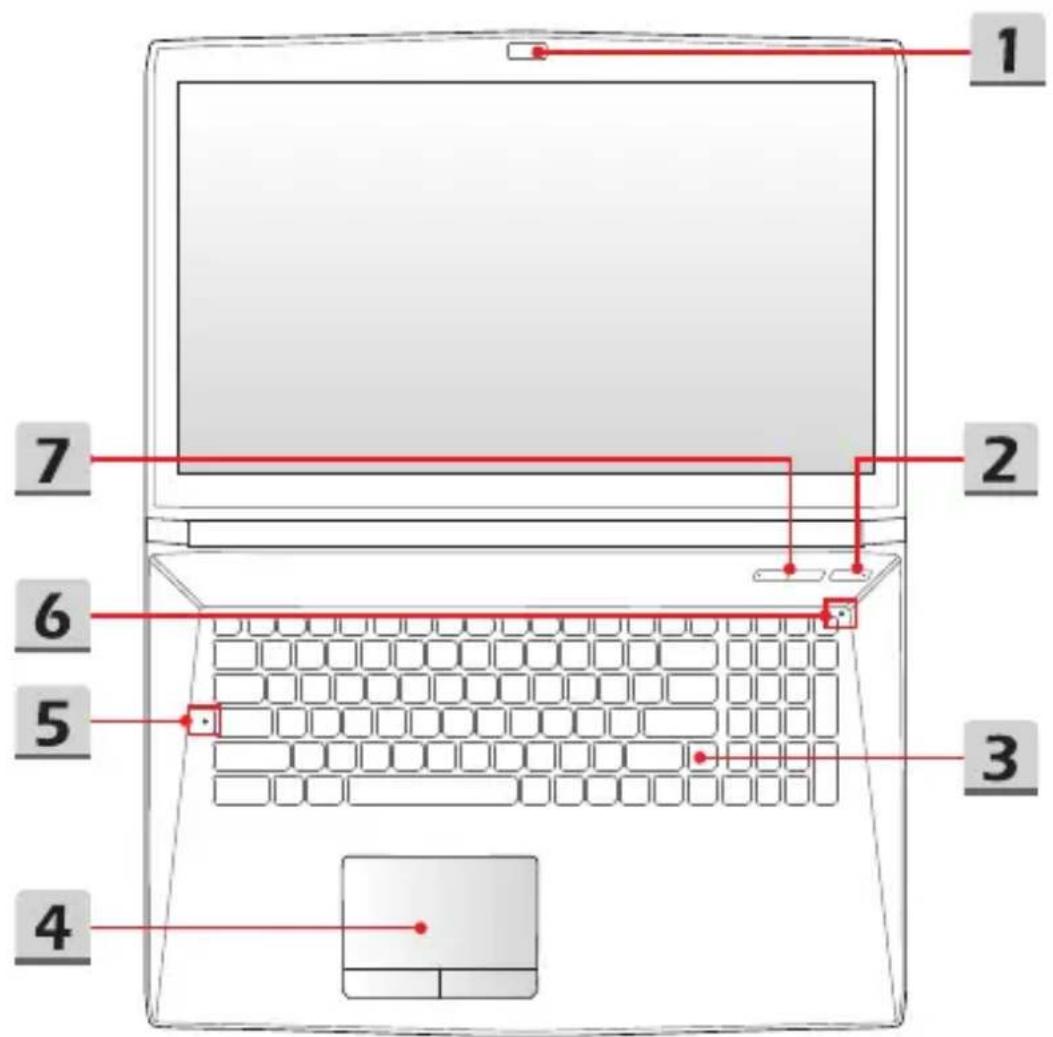
The figure of top-open view and description shown below will lead you to browse the main operating area of your notebook.
text_image
1 2 7 6 5 3 41. Webcam/ Webcam LED/ Internal Microphone
- This built-in webcam can be used for picture taking, video recording or conferencing, and so on.
- Webcam LED indicator, next to the webcam, glows when webcam function is activated; LED goes out when this function is turned off.
• The built-in microphone and its function is the same with microphone.
2. Power Button / Power LED/ GPU Mode LED

Power
Power Button
• Use this button to turn the notebook power ON and OFF.
- Use this button to awake the notebook from the sleep state.
Power LED/ GPU Mode LED
- Glowing blue when the notebook power is turned on, and the UMA GPU mode is selected.
- Glowing amber when the optionally supported discrete GPU mode is selected.
• LED flashes when the notebook goes to the sleep state.
• LED goes off when the notebook is turned off.
3. Keyboard
The built-in keyboard provides all the functions of a full-sized keyboard. Refer to How to Use the Keyboard for details.
4. Touchpad
This is the pointing device of the notebook.
5. Status LED

Caps Lock
Glows when the Caps Lock function is activated.
6. Status LED

Num Lock
Glows when the Num Lock function is activated.
7. Quick Launch Buttons
Use the quick launch buttons to activate the specific applications or tools. The following quick launch buttons will only be functional in the operating system with the SCM application installed. Download SCM utility from MSI website for easy and convenient operation.
 Cooler Boost Cooler Boost | ·Use this button to maximize the fan speed to cool down the overall temperature of the notebook. ·Button LED glows when the fan speed is set to maximum level; LED goes off when AUTO mode is selected. |
 SSE (optional) SSE (optional) | ·This notebook may be pre-installed a unique keyboard manager application, SSE (SteelSeries Engine). With this application, users will be able to own several combinations of keyboard hot keys defined separately for specific occasions. ·Use this button repeatedly to switch between keyboard 1 (layer 1), keyboard 2 (layer 2), keyboard 3 (layer 3), and keyboard 4 (layer 4) recurrently. |
 Dragon Center (optional) Dragon Center (optional) | ·This notebook may be pre-installed with a gaming utility, Dragon Center, providing users an astonished and efficient solution in game playing. ·Use this button to bring up the Dragon Center application. |
 True Color or User Defined (optional) True Color or User Defined (optional) | ·This notebook may be pre-installed the True Color application. With this application, users can select various color settings for the best viewing experience. ·Use this button to bring up the True Color application. ·If the notebook doesn't have the True Color application pre-installed, press this button will launch the User Defined appliction. |
Front Side View
text_image
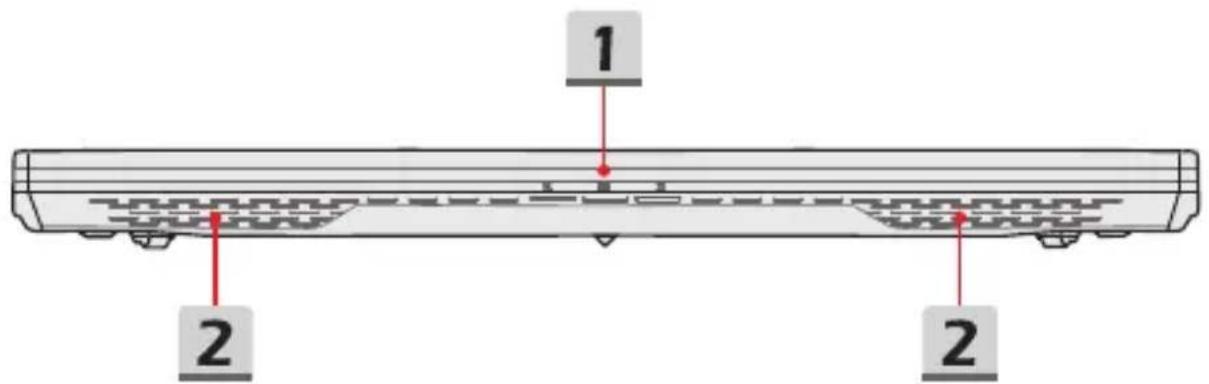
1 2 21. Status LED

Wireless LAN (WiFi)
• LED glows when WLAN (WiFi) function is enabled.
• LED goes out when this function is disabled.

Battery Status
• LED glows when the battery is being charged.
- Continuously blinking if the battery fails. If the problem persists, please contact your local authorized retailer or service center.
- Battery LED goes out when it is fully charged or when the AC/DC adapter is disconnected.

Drive Activity Indicator
LED blinks when the system is accessing the internal storage drives.
2. Stereo Speakers
This notebook may be equipped with built-in stereo speakers which deliver the high quality sound, and supports the HD audio technology.
Right Side View
text_image
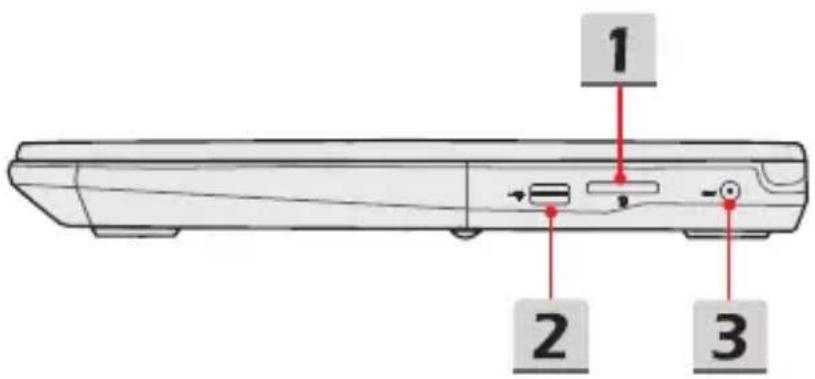
1 2 31. Card Reader
The built-in card reader supports various types of memory cards. Check the Specifications for details.
2. USB 2.0 Port
The USB 2.0 port allows you to connect USB-interface peripheral devices, such as the mouse, keyboard, modem, portable hard disk module, printer, etc..
3. Power Connector
This connector is to connect the AC/DC adapter and supply power for the notebook.
Left Side View
text_image
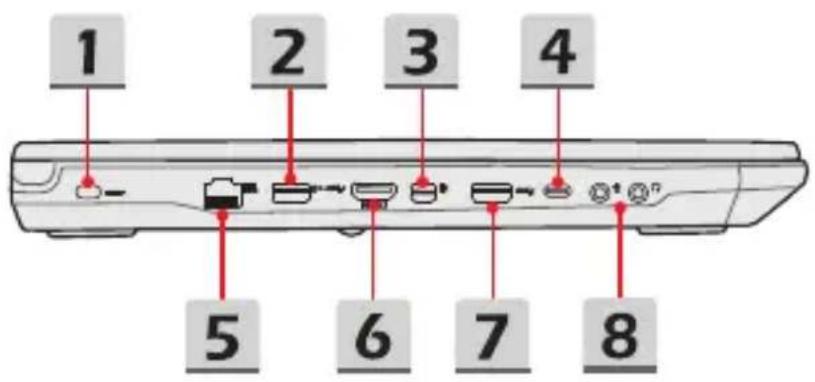
1 2 3 4 5 6 7 81. Kensington Lock
This notebook provides a Kensington lock hole, which allows users to secure the notebook in place with a key or some mechanical PIN device and attached through a rubberized metal cable. The end of the cable has a small loop which allows the whole cable to be looped around a permanent object, such as a heavy table or other similar equipment, thus securing the notebook in place.
2. USB 3.1 Gen 1 Port
USB 3.1 Gen 1, the SuperSpeed USB, delivers the higher interface speeds for connecting various devices, such as storage devices, hard drives, or video cameras, and offers more advantages over high-speed data transferring.
3. Mini-DisplayPort
The Mini-DisplayPort is a miniaturized version of the DisplayPort, with a suitable adapter, the Mini-DisplayPort may be used to drive displays with a VGA, DVI or HDMI interface.
4. USB 3.1 Gen 1/ Gen 2 Port (Type C) (optional)
USB 3.1 Gen 1/ Gen 2, the SuperSpeed USB/ SuperSpeed USB 10Gbps, delivers the higher interface speeds for connecting various devices, such as storage devices, hard drives, or video cameras, and offers more advantages over high-speed data transferring.
The slim and sleek USB Type C connector features reversible plug orientation and cable direction, and supports scalable performance to future-proof solution, including USB 3.x, DisplayPort, PCIe, audio, and optionally supported Thunderbolt™ 3.
5. RJ-45 Connector
The Ethernet connector, with optionally supported transmitting rate of 10/100/1000/10000 megabits per second, is used to connect a LAN cable for network connection.
6. HDMI Connector

HDMI (High Definition Multimedia Interface) is a new interface standard for PCs, displays and consumer electronics devices that supports standard, enhanced and high-definition video, plus multi-channel digital audio on a single cable.
7. USB 3.1 Gen 1/ Gen 2 Port (optional)
USB 3.1 Gen 1/ Gen 2, the SuperSpeed USB/ SuperSpeed USB 10Gbps, delivers the higher interface speeds for connecting various devices, such as storage devices, hard drives, or video cameras, and offers more advantages over high-speed data transferring.
8. Audio Port Connectors
Make high quality sound blaster with stereo system and Hi-Fi function supported.

Microphone
Used for an external microphone.

Headphone
A connector for speakers or headphones.
Rear Side View
text_image
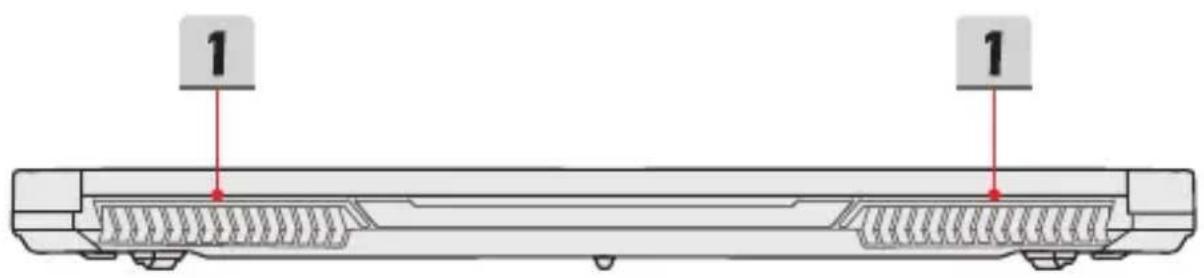
1 11. Ventilator (optional)
The ventilator is designed to cool the system. DO NOT block the ventilator for air circulation.
Bottom Side View
text_image
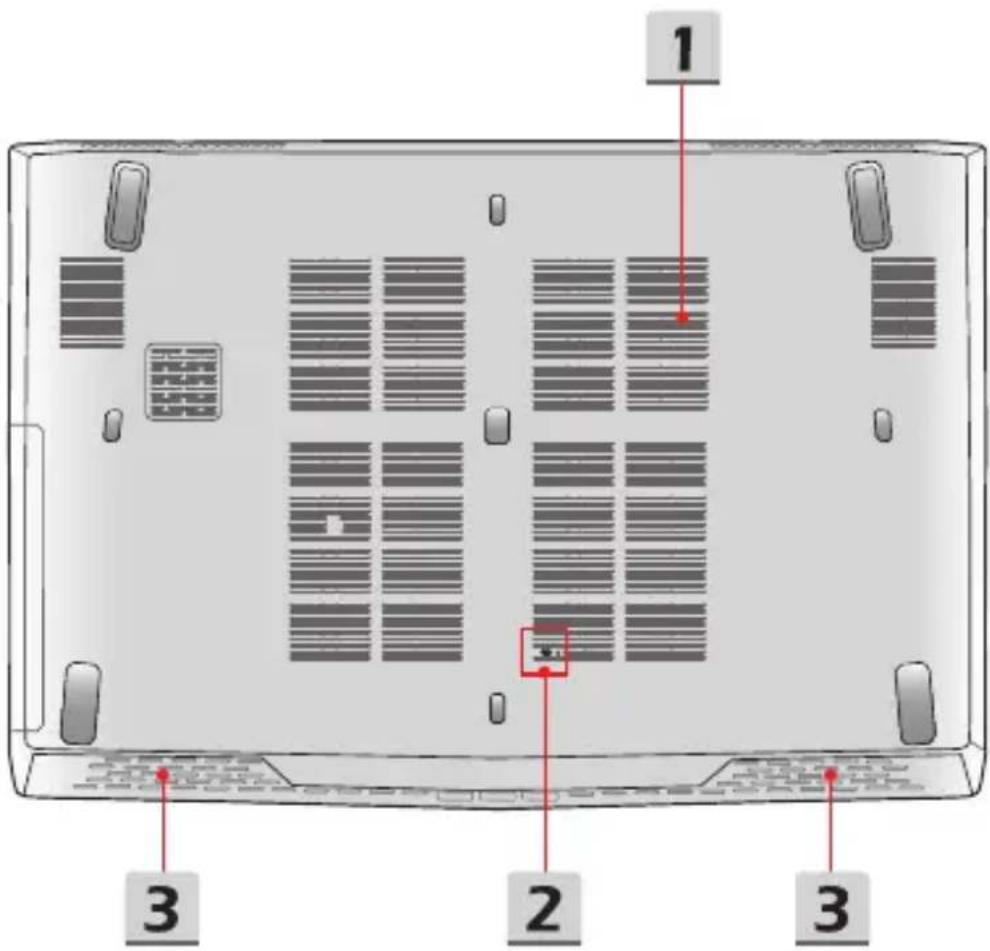
1 2 3 31. Ventilator
The ventilator is designed to cool the system. DO NOT block the ventilator for air circulation.
2. Battery Reset Hole
Whenever the system firmware (EC) is upgraded or the system hangs, please 1) power off the notebook; 2) remove the AC power; 3) use a straightened paperclip to insert this hole for 10 sec; 4) connect the AC power; 5) power on the notebook.
3. Stereo Speakers
This notebook may be equipped with built-in stereo speakers which deliver the high quality sound, and supports the HD audio technology.
How to Use the Keyboard
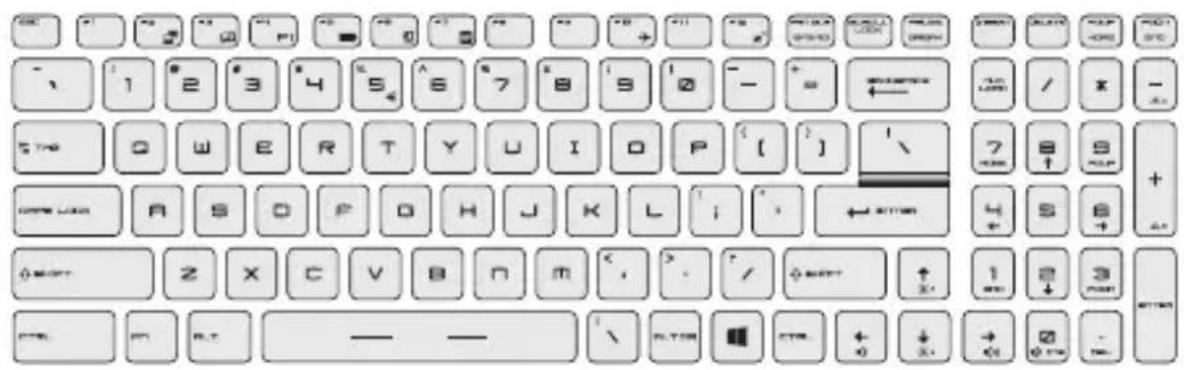
This notebook provides a full functioned keyboard. To ensure that the keyboard will be functional properly, it is a must to install SCM application before using the keyboard function keys.
text_image
Screenshot of a standard keyboard layout with standard alphanumeric keys and symbolsWindows Key

You can find the Windows Logo key on the keyboard which is used to perform Windows-specific functions, such as opening the Start menu and launching the shortcut menu.
Quick Launch Keys
Use the [Fn] combination keys on the keyboard to activate the specific applications or tools. With the help of these keys, users will be able to do work more efficiently.
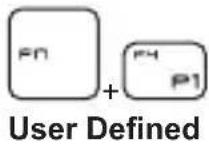
- Press both Fn and F4 keys to launch the User Defined application.
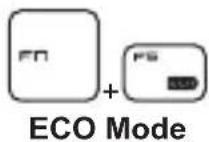
- Press Fn and F5 keys to switch to ECO Mode, the power saving mode provided by SHIFT function.
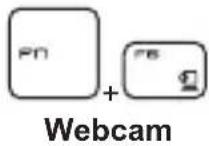
- Press Fn and F6 keys to turn the Webcam function on. Press again to turn it off.
- Webcam is turned off under default settings.

- Press Fn and F7 keys repeatedly to switch among Turbo Mode (optional)/ Sport Mode/ Comfort Mode/ ECO Mode/ Power Options to shift the performance depending on users' demand.
- Be noted that the selections of Turbo Mode/ Sport Mode/ Comfort Mode will only be available when AC Power is connected.
• Refer to the Notebook Software Application Manual for further details.
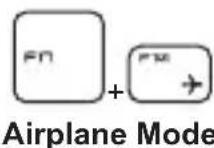
- Press Fn and F10 keys repeatedly to turn Airplane Mode on or off recurrently.
Disable or Enable Touchpad
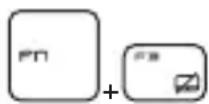
Enable or disable the touchpad function.
Enter Sleep Mode
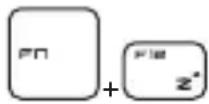
Force the computer into sleep state (depending on the system configuration). Press the Power button to wake up the system from sleep state.
Switch Display
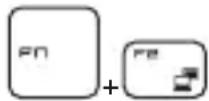
Switch the display output mode between the LCD, external monitor and both.
Use Multiple Monitors

If users connect an additional monitor to the notebook, the system will automatically detect the external monitor connected. Users will be allowed to customize the display settings.
- Connect the monitor to the notebook.
- Press and hold the Windows key, and then press [P] key to bring up [Project].
- Select how you want your display to project on the second screen from the selections of PC screen only, Duplicate, Extend, and Second screen only.
Adjust the Brightness Level of the Display
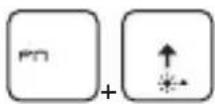
Increase the LCD brightness.

Decrease the LCD brightness.
Adjust the Sound Level of the Speaker

Increase the built-in speaker's volume.

Decrease the built-in speaker's volume.
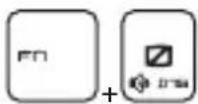
Mute the built-in speakers.
Adjust the Brightness Level of the Keyboard Backlight LED (optional)
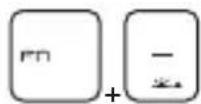
Increase the brightness level of the keyboard backlight LEDs.
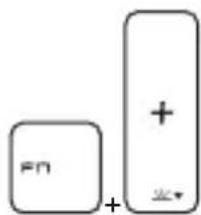
text_image
FN +Decrease the brightness level of the keyboard backlight LEDs.
Application: True Color (optional)
This notebook may be pre-installed the True Color application. With this application, users can select various color settings for the best viewing experience.
Refer to the Notebook Software Application Manual for detailed instructions.

True Color
- Press and hold the Fn key, and then press the Z key to launch the True Color application.

True Color Selections
- Press and hold the Fn key, and then press the A key to change different view modes.
Video: How to Use [Fn] Buttons
Watch the instruction video at: https://www.youtube.com/watch?v=u2EGE1rzfrQ
![MSI GV62 8RC-216NL - Video: How to Use [Fn] Buttons - 1](/content/2026/06/1161393/images/ac060f3ae5eae2ca2e5ddfa43e1b2fc6e075edb1f777a7063b55d6e6ba632c89.jpg)
text_image
YouTube Youku msi How to use [Fn] ButtonsSpecifications
The specifications listed here is reference only, and may change without notice. The actual products sold are different from areas.
Visit MSI official website at www.msi.com, or contact the local retailers to learn the correct specifications of the product user purchased.
| Physical Characteristic | |
| Dimension | 383 (W) x 260 (D) x 22~29 (H) mm (15.6")419.9 (W) x 287.8 (D) x 29.8~32 (H) mm (17.3") |
| Weight | 2.2 kg (15.6")2.8 kg (17.3") |
| CPU | |
| Package BGA | |
| Mobile Processor 8th Gen Intel | ® CoreTM Processor Family |
| Core Chip | |
| PCH Intel | ® 300 series |
| Memory | |
| Technology DDR4, 2400/ 2666 | |
| Memory 2 x SO-DIMM slots | |
| Maximum Up to 32GB | |
| Power | |
| AC/DC Adapter (1)(optional) | 1 x 180W, 19.5VInput: 100~240V, 50~60HzOutput: 19.5V --- 9.23A |
| AC/DC Adapter (2)(optional) | 1 x 150W, 19.5VInput: 100~240V, 50~60HzOutput: 19.5V --- 7.7A |
| AC/DC Adapter (3)(optional) | 1 x 135W, 19.5VInput: 100~240V, 50~60HzOutput: 19.5V --- 6.92A |
| Battery 6-cell | |
| RTC Battery Yes | |
Storage
HDD 1 x SATA interface for 2.5" HDD device
SSD 1 x M.2 slot, supports PCIe or SATA SSD device
I/O Port
| USB (option 1) | 1 x USB 3.1 Gen 11 x USB 3.1 Gen 21 x USB 3.1 Gen 2 Type C1 x USB 2.0 |
| USB (option 2) | 2 x USB 3.1 Gen 11 x USB 3.1 Gen 1 Type C1 x USB 2.0 |
| Audio Connectors | 1 x Mic-in1 x Headphone-out (S/PDIF-Out supported) |
| Video Connectors | 1 x HDMI1 x Mini-DisplayPort |
| LAN 1 x RJ-45 | |
| Card Reader | 1 x optionally supports SD/ MMC/ SDHC/ SDXC/ MS |
| Communication Port | |
| LAN Supported | |
| Wireless LAN Supported | |
| Bluetooth Supported | |
| Display | |
| LCD Type (optional) | 15.6" HD/ FHD/ 4K UHD LED panel17.3" HD/ FHD/ 4K UHD LED panel |
| Video | |
| Graphics | NVIDIA® GeForce® discrete graphics with NVIDIA® OptimusTM supportedIntel® HD UMA graphicsVirtual Reality optionally supported |
| VRAM GDDR5, based on GPU structure | |
Webcam
Resolution HD
Audio
Internal Speakers 4 x stereo speakers
Introductions
How to Get Started
User's Manual
NOTEBOOK
Begin to Use the Notebook
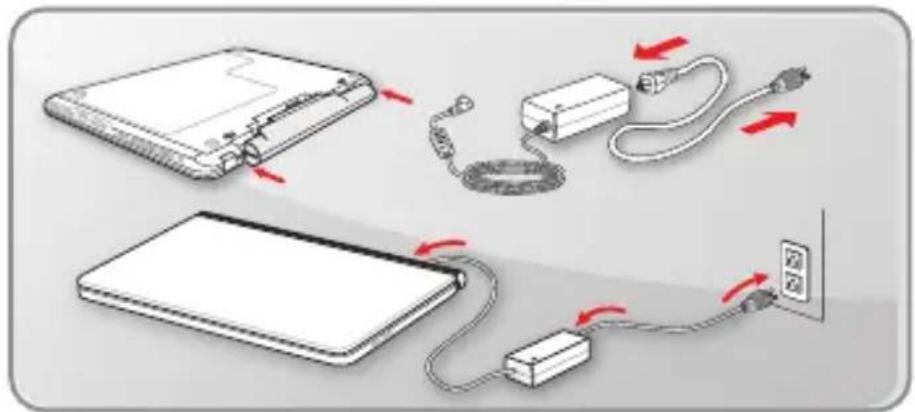
For a new user of this notebook, we would like to suggest you follow the illustrations below to begin to use the notebook.
text_image
Diagram illustrating cable connection and power transfer process for a device, showing cable routing and power outlet installation.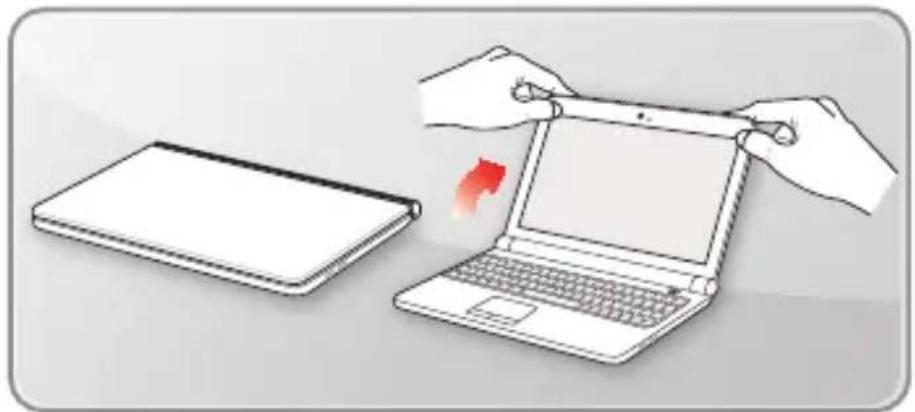
natural_image
Illustration of hands holding a tablet and interacting with a laptop, next to a closed notebook (no text or symbols present)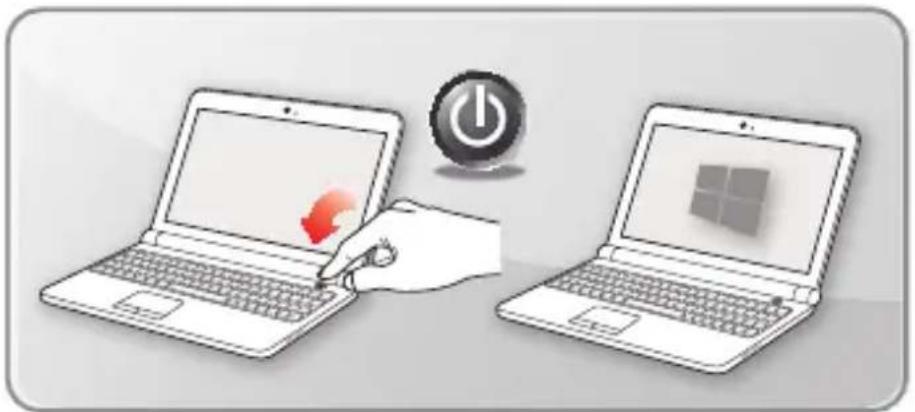
natural_image
Illustration of two laptops with a hand interacting, one displaying a red arrow on the screen, the other showing a Windows logo (no text or symbols present)How to Use the Notebook Comfortably
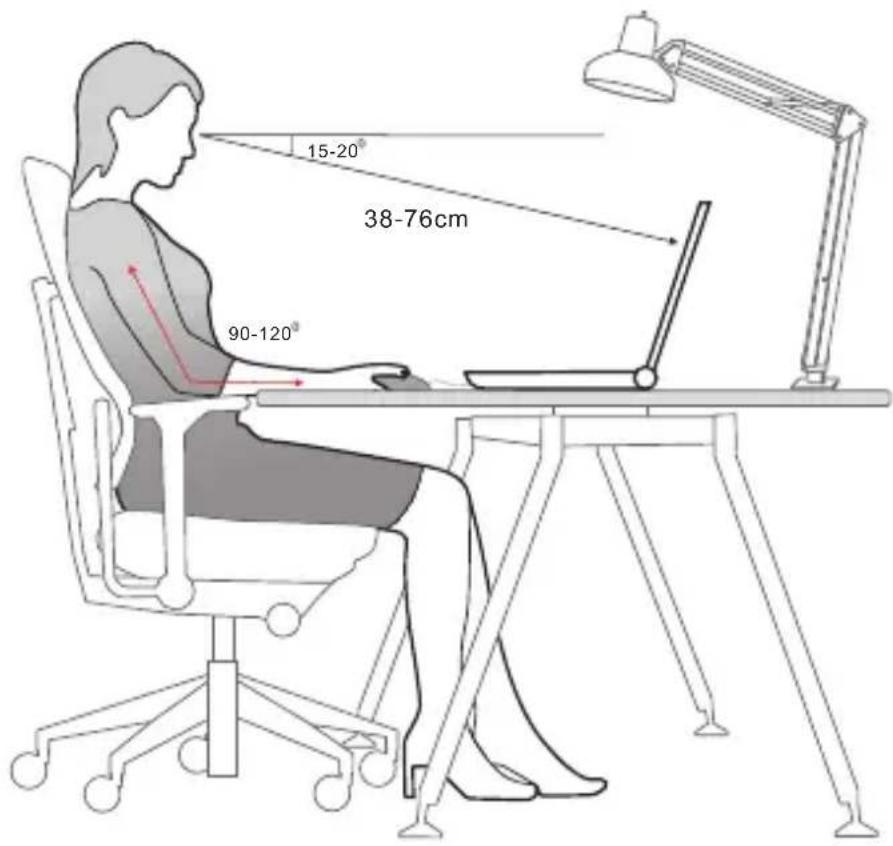
If you are a beginner to the notebook, please read the following instructions to assure your own safety, and make yourself comfortable during the operations.
Good illumination is essential in the work area.
▶ Choose a chair and desk with good ergonomics and adjust their heights according to your posture.
Adjust the backrest to support your lower back comfortably when you are sitting upright.
Place your feet flat on the floor with your knees bent to a 90 degrees.
Adjust the angle/position of the LCD panel to have an optimal view.
▶ Stretch and relax your body regularly. Always take a break after working for a period of time.
text_image
15-20° 38-76cm 90-120°How to Manage Power Supply
This section provides users basic safety precautions to take when using an AC/DC adapter and battery power properly.
AC/DC Adapter
Ensure that your notebook is connected to an AC power source via the AC adapter before turning it on for the first time. If the notebook automatically shuts down due to low battery power, it is likely to cause system failure. Below are some Dos and Don'ts of an AC/DC adapter.
Dos
• Use the adapter that shipped with your notebook only.
• Always be aware of heat coming from the in use AC/DC adapter.
• Unplug the AC power cord before disassembly the notebook.
Don'ts
• Cover an in-use adapter since it can generate heat.
- Have the AC power cord plugged after powering off the system when the notebook is going to be left unused for a longer time.
Battery
When you get a new notebook or a new notebook battery, it is important to know how to charge and care for your battery in order to get the most out it for as long as you can.
Be aware of that the battery may not be replaced by users.
Safety guidelines
- This notebook is equipped with a non-removable battery, follow the local regulations while discarding the notebook.
- Always keep the notebook and its battery away from excessive moisture and extreme temperatures.
• Always unplug the AC power cord before installing any module to the notebook.
▶ Battery type
- This notebook may be equipped with a high-capacity Li-ion or Li-polymer battery pack depending on the model you have.
• The rechargeable battery pack is an internal power source of the notebook.
▶ Battery charging behavior
To optimize battery life and avoid a sudden power loss, read the tips below:
- Suspend system operation if the system will be idle for a while or shorten the suspend timer's time period.
- Turn off the system if you won't be using it for a period of time.
- Disable unnecessary settings or remove idle peripherals.
- Connect an AC/DC adapter to the system whenever possible.
▶ How to charge the battery properly
Please pay attention to the following tips before recharging the battery:
- If a charged battery pack is not available, save your work and close all running programs and shut down the system.
• Plug in an AC/DC adapter. - You can use the system, suspend system operation or shut down and turn off the system without interrupting the charging process.
- The Li-ion or Li-polymer battery has no memory effect. It is unnecessary to discharge the battery before recharging. However, to optimize the life of battery, we suggest that consuming the battery power completely once a month is necessary.
• The actual charging time will be determined by the applications in use.
How to Set Up a Power Plan in Windows 10
A power plan is a collection of hardware and system settings that manages how your computer uses and conserves power. Power plans can save energy, maximize system performance, or balance energy conservation with performance. The default power plans — Balanced and Power saver — meet most people's needs. But you can modify settings for existing plans or create your own plan.
Choose or Customize a Power Plan
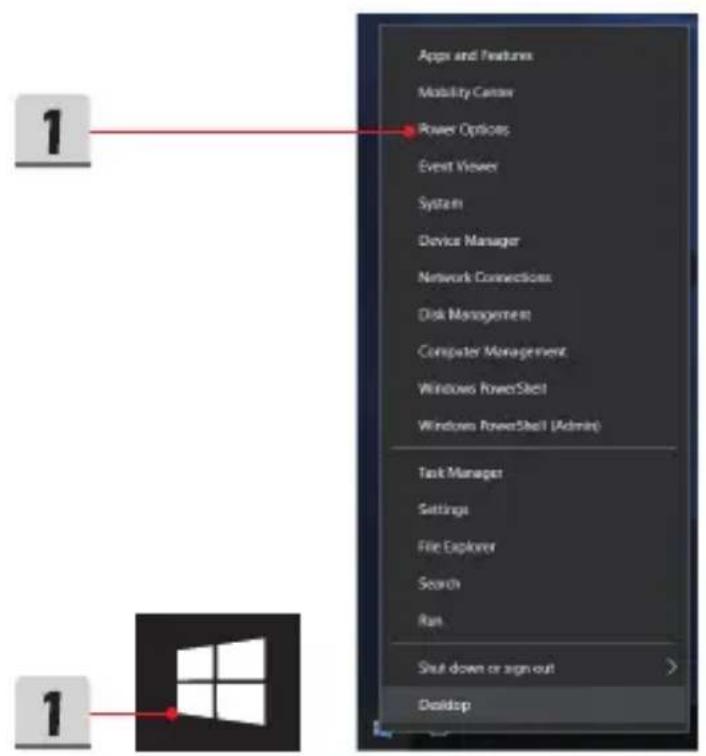
- Find [Windows] icon in the lower-left corner of the screen. Right click it to unfold the selection menu. Select [Power Options] within the menu.
- Select [Additional power settings] under [Related settings].
- Choose a Power Plan by left clicking on one of the selections from the Power Plan list. The Power Plan of [Balanced] is selected as an example here. Click on the [Change plan settings] to the right of the power plan to customize a power plan.
- Choose the sleep and display settings you want your computer to use. Click on [Change advanced power settings] to make changes to the selected power plan settings to meet your needs.
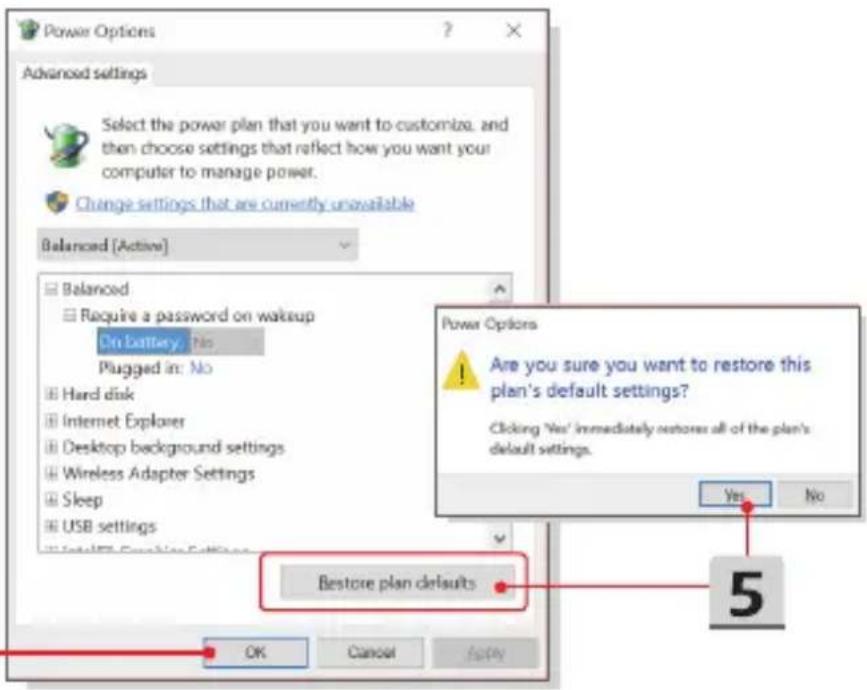
- To restore the selected Power Plan back to its default settings, click on [Restore plan defaults] and then click [Yes] to confirm.
- Click [OK] to finish.
text_image
Apps and Features Mobility Center Power Options Event Viewer System Device Manager Network Connections Disk Management Computer Management Windows PowerShell Windows PowerShell (Admin) Task Manager Settings File Explorer Search Run Shall down or sign out Desktop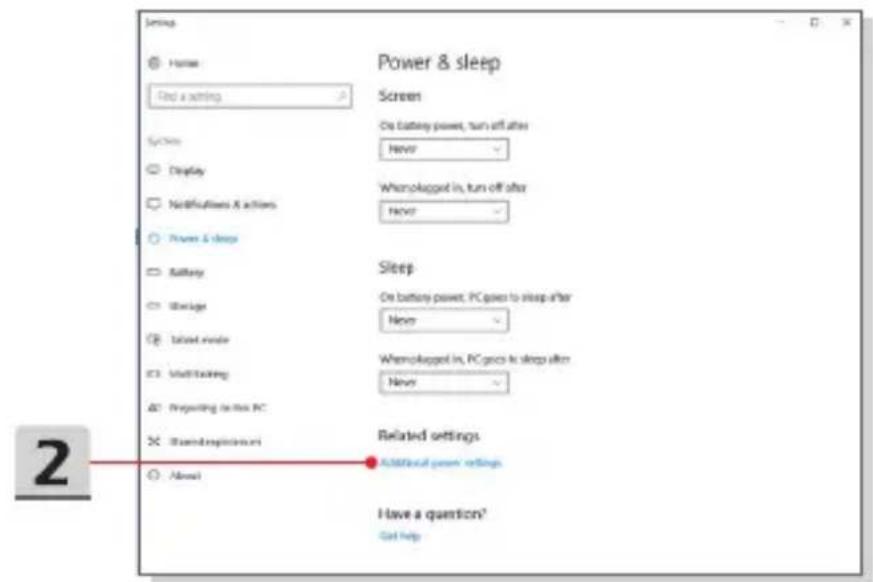
text_image
Settings Home Find a setting System Display Notifications & actions Power & sleep Battery Storage Tablet mode Multifacing Preparing in this PC Boarding/implicator About Power & sleep Screen On battery power, turn off after Never When plugged in, turn off after Never Sleep On battery power, PC goes to sleep after Never When plugged in, PC goes to sleep after Never Related settings Additional power settings Have a question? Get help3
Choose or customize a power plan
A power plan is a collection of hardware and system settings (like display brightness, sleep, etc.) that manages how your computer uses power. Tell me more about power plans
Plans shown on the battery meter
Balanced (recommended)
Change plan settings
Automatically balances performance with energy consumption on capable hardware.
Power saver
Change plan settings
Saves energy by reducing your computer's performance where possible.
Hide additional plans

Gaming
Change plan settings
○ High performance
Change plan settings
Favors performance. But may use more energy.
Change settings for the plan: Balanced
Choose the sleep and display settings that you want your computer to use.

On battery

Plugged in

Turn off the display:
5 minutes
5 minutes

Put the computer to sleep:
10 minutes
10 minutes

Adjust plan brightness:


4
Change advanced power settings
Restore default settings for this plan
text_image
Power Options Advanced settings Select the power plan that you want to customize, and then choose settings that reflect how you want your computer to manage power. Change settings that are currently unavailable Balanced [Active] Balanced Require a password on wakeup On Battery, No Plugged in: No Hard disk Internet Explorer Desktop background settings Wireless Adapter Settings Sleep USB settings Bestore plan defaults OK Cancel Apply Power Options Are you sure you want to restore this plan's default settings? Clicking 'Yes' immediately restores all of the plan's default settings. Yes No 56
Create Your Own Power Plan
You can create your own power plan and customize it as your requirement. However, it will be recommended to use ECO Mode power saving function to optimize the battery life while using this notebook.
Please refer to the section of System Control Manager (SCM) in the Notebook Software Application Manual for details.
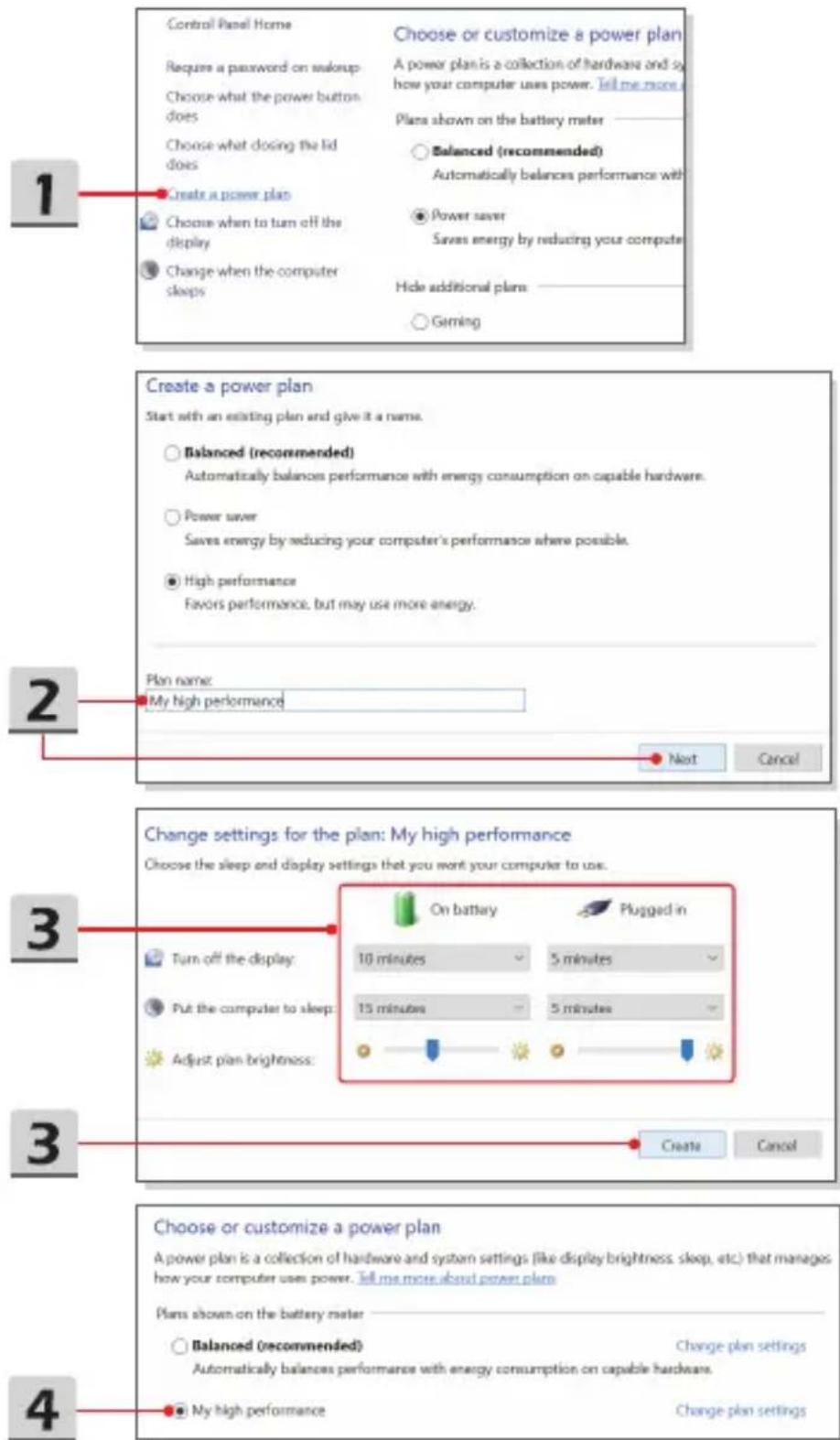
- Select Power Options in the menu. Click [Create a power plan] in the left pane.
- Select an existing plan that meet your needs most, and give the plan a name. Click [Next] to continue.
- Change the settings for the new power plan. Click [Create] to make the customized power plan taking effect.
- Now you have a new power plan that is automatically set as active.
text_image
1 Control Panel Home Require a password on setup Choose what the power button does Choose what dosing the lid does Create a power plan Choose when to turn off the display Change when the computer sleeps Choose or customize a power plan A power plan is a collection of hardware and so how your computer uses power. Tell me more. Plans shown on the battery meter —— Balanced (recommended) Automatically balances performance with Power saver Saves energy by reducing your compute Hide additional plans —— Gaming 2 Create a power plan Start with an existing plan and give it a name. Balanced (recommended) Automatically balances performance with energy consumption on capable hardware. Power saver Saves energy by reducing your computer's performance where possible. High performance Favors performance, but may use more energy. Plan name: My high performance Next Cancel 3 Turn off the display: Put the computer to sleep: Adjust plan brightness: On battery Plugged in 10 minutes 5 minutes 15 minutes 5 minutes 3 Create Cancel 4 Choose or customize a power plan A power plan is a collection of hardware and system settings (like display brightness, sleep, etc.) that manages how your computer uses power. Tell me more about power plan. Plans shown on the battery meter —— Balanced (recommended) Change plan settings Automatically balances performance with energy consumption on capable hardware. My high performance Change plan settingsHow to Use the Touchpad
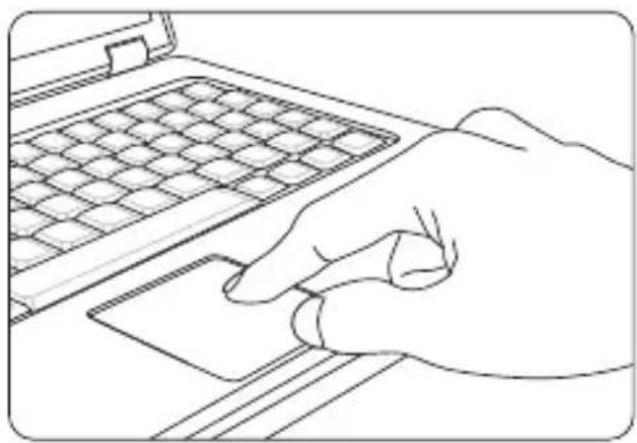
The touchpad integrated in your notebook is a pointing device that is compatible with standard mouse, allowing you to control the notebook by pointing the location of the cursor on the screen.
natural_image
Line drawing of a hand typing on a laptop keyboard (no text or symbols)Configure the Touchpad
You can customize the pointing device to meet your personal needs. For example, if you are a left-handed user, you may want to swap the functions of the two buttons. In addition, you can change the size, shape, moving speed and other advanced features of the cursor on the screen.
To configure the touchpad, you can use the standard Microsoft or IBM PS/2 driver in your Windows operating system. The Mouse Properties in Control Panel allows you to change the configuration.
▶ Position and Move
Place your finger on the touchpad (usually using the forefinger), and the rectangular pad will act as a miniature duplicate of your display. When you move your fingertip across the pad, the cursor on the screen will move simultaneously to the same direction. When your finger reaches the edge of the pad, lift your finger and place it on a proper location of the touchpad to continue the movement.
▶ Point and Click
When you have moved and placed the cursor over an icon, a menu item or a command that you want to execute, simply tap slightly on the touchpad or press the left button to select. This procedure, called as point and click is the basics of operating your notebook. Unlike the traditional pointing device such as the mouse, the whole touchpad can act as a left button, so that your each tap on the touchpad is equivalent to pressing the left button. Tapping twice more rapidly on the touchpad is to execute a double-click.
Drag and Drop
You can move files or objects in your notebook by using drag-and-drop. To do so, place the cursor on the desired item and slightly tap twice on the touchpad, and then keep your fingertip in contact with the touchpad on the second tap. Now, you can drag the selected item to the desired location by moving your finger on the touchpad, and then lift your finger from the touchpad to drop the item into place. Alternately, you can press and hold the left button when you select an item, and then move your finger to the desired location; finally, release the left button to finish the drag-and-drop operation.
About HDD and SSD
This notebook may be equipped with hard disk drive (HDD) or solid state drive (SSD) depending on the models users purchased.
The hard disk drive and solid state drive are the data storage devices used for storing and retrieving digital information. Most SSDs use NAND-based flash memory, and have higher data transfer rates, lower power consumption, and faster read/write speed than HDDs.
Do not attempt to remove or install the HDD and SSD when the notebook is powered on. Please consult an authorized retailer or service center for the replacement of the HDDs and SSDs.
About M.2 SSD Slot
The notebook may be equipped with M.2 SSD slots for M.2 SSD cards, which are compatible with SATA or PCIe interfaces, providing diverse features and usages to users. Consult an authorized retailer or service center for correct specifications and installations.
How to Connect the Internet
Wireless LAN
Wireless LAN is a wireless broadband connection that allows you to connect to the Internet without using any cables. Follow the instructions below to set up a Wireless LAN connection.
▶ Wireless LAN Connection
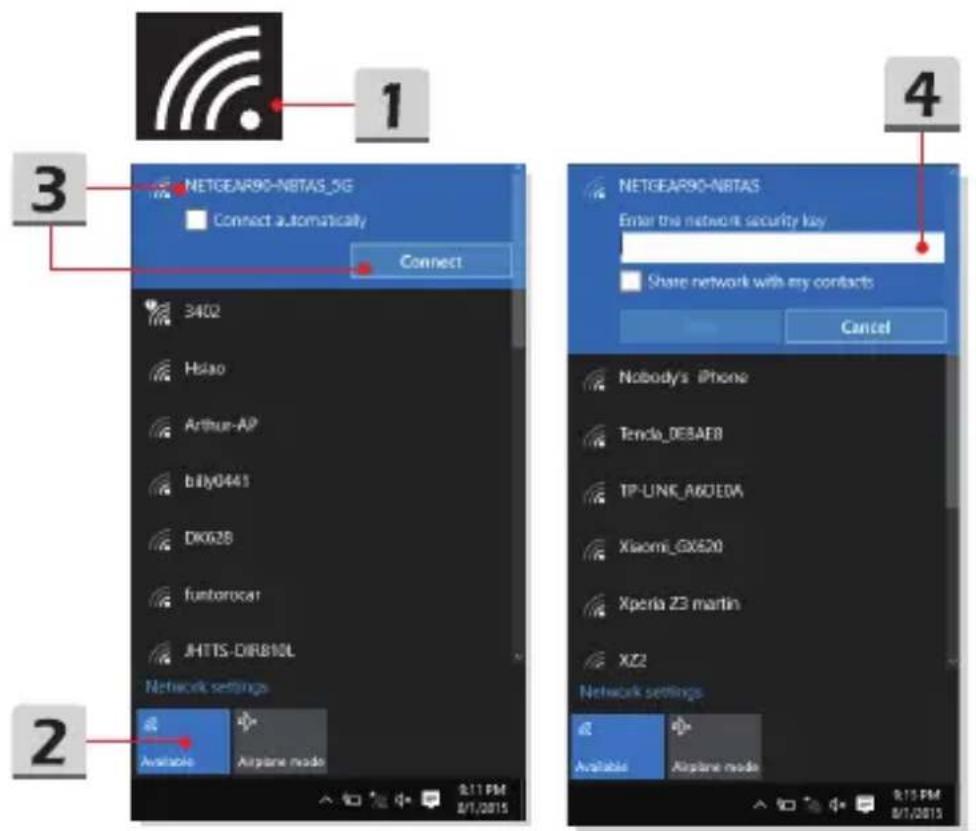
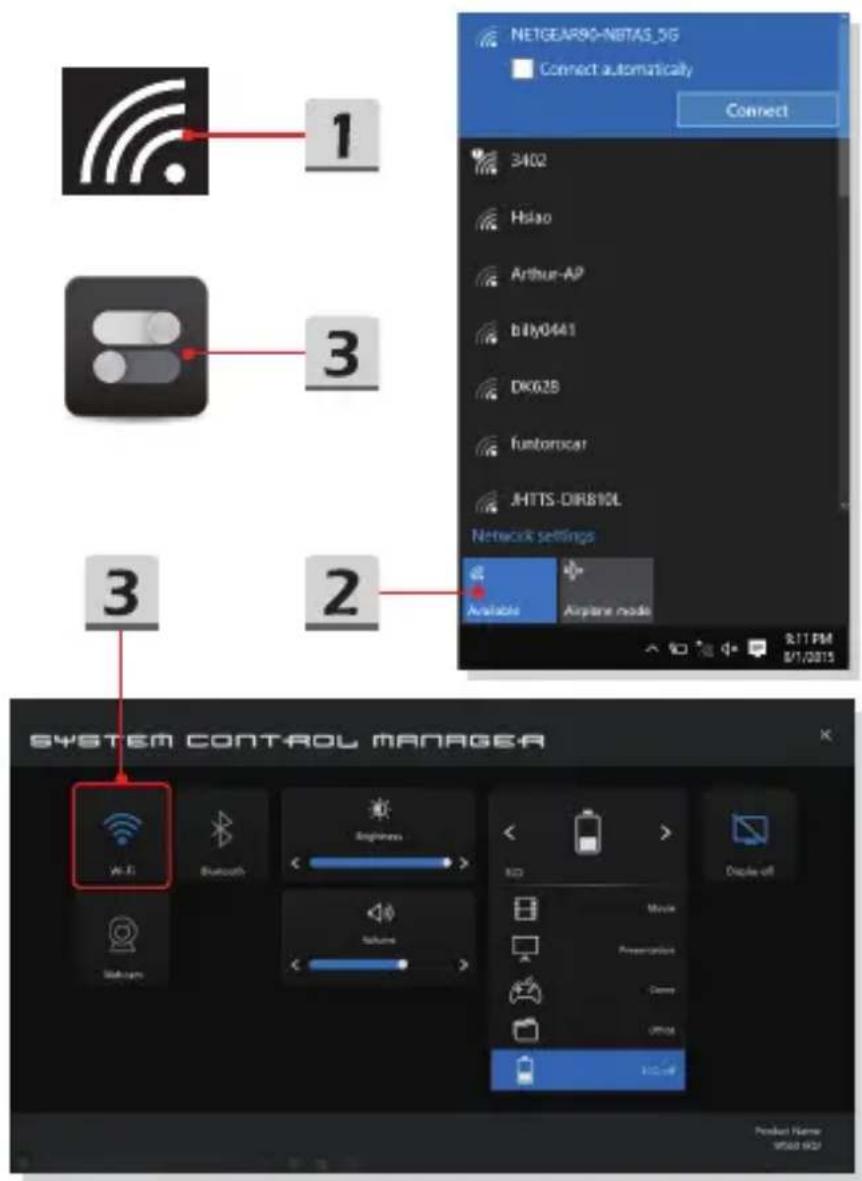
- Go to the desktop. Find the 📄 icon in the lower-right corner of the task bar and click on it to unfold the settings menu.
- There are [Wi-Fi] and [Airplane mode] two options in the Network settings, select [Wi-Fi] here.
- Choose one Wireless LAN connection from the network list to connect to the Internet. Click [Connect] to continue.
- A security key may be required for connecting the selected network. Then click [Next].
text_image
1 3 NETGEAR90-NBTAS_5G Connect automatically Connect 3402 Hsiao Arthur-AP bIly0441 DK028 funtorocar JHTTS-DIRB10L Network settings Available Airplane mode 2 4 NETGEAR90-NBTAS Enter the network security key Share network with my contacts Cancel Nobody's iPhone Tendo_DEBAE8 TP-UNK_A60EDA Xiaomi_GX620 Xperia Z3 martin XZ2 Network settings Available Airplane mode R15 PM 01/2015▶ Check the Wireless LAN status
When Airplane mode is enabled, Wireless LAN connection will be turned off. Before setting up a Wireless LAN connection, make sure that Airplane mode is turned off.
- Go to the desktop. Find the icon in the lower-right corner of the task bar and click on it to unfold the settings menu.
- Check if Wireless LAN mode is available in the Network settings.
- Or, find the [SCM] icon in the lower-right corner of the task bar and click on it to bring out the main window of System Control Manager, please check if Wireless LAN mode is turned on.
flowchart
graph TD
    A["1: Wireless Signal"] --> B["2: Display"]
    B --> C["3: Network Settings"]
    C --> D["4: System Control Manager"]
    D --> E["5: Connect automatically"]
    E --> F["6: Connect"]
    style A fill:#f9f,stroke:#333
    style B fill:#ccf,stroke:#333
    style C fill:#cfc,stroke:#333
    style D fill:#fcc,stroke:#333
    style E fill:#ffc,stroke:#333
Wired LAN
Using cables and network adapters to connect to the Internet. Before setting up the connection of Dynamic IP/PPPoE or Broadband (PPPoE) or Static IP, contact your Internet Service Provider (ISP) or network administrator for assistance of setting up Internet connection.
▶ Dynamic IP/PPPoE Connection
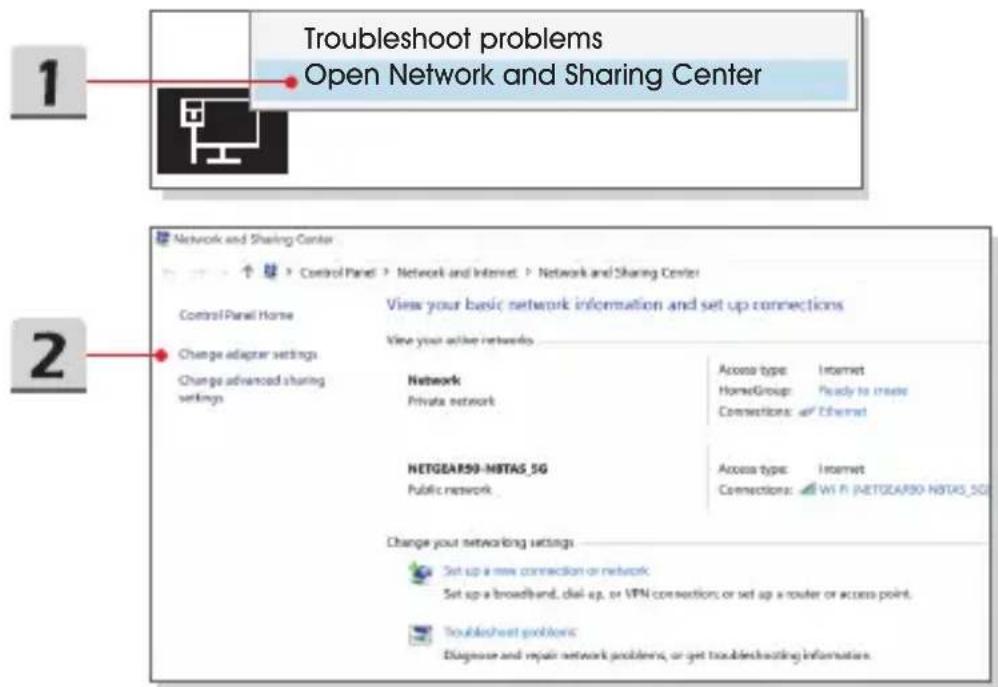
- Go to the desktop. Find the icon in the lower-right corner of the task bar, and then right click on it to select [Open Network and Sharing Center].
- Choose [Change adapter settings].
- Right click on [Ethernet] to select [Properties] from the drop-down menu.
- In the Ethernet Properties window, select [Networking] tab and check [Internet Protocol Version 4 (TCP/IPv4)]. Then click [Properties] to continue.
- Select [General] tab, click [Obtain an IP address automatically] and [Obtain DNS server address automatically]. Then click [OK].
text_image
Troubleshoot problems Open Network and Sharing Center 1 2 Network and Sharing Center ↑ ↑ > Control Panel > Network and Internet > Network and Sharing Center View your basic network information and set up connections Control Panel Home Change adapter settings Change advanced sharing settings View your active networks Network Private network Access type: Internet HomeGroup: Ready to create Connections: or Ethernet NETGEAR59-NBTAS_5G Public network Access type: Internet Connections: Wi-Fi (NETGEAR59-NBTAS_5G) Change your networking settings Set up a new connection or network Set up a broadband, dial-up, or VPN connections; or set up a router or access point. Troubleshoot problems Diagnose and repair network problems, or get troubleshooting information.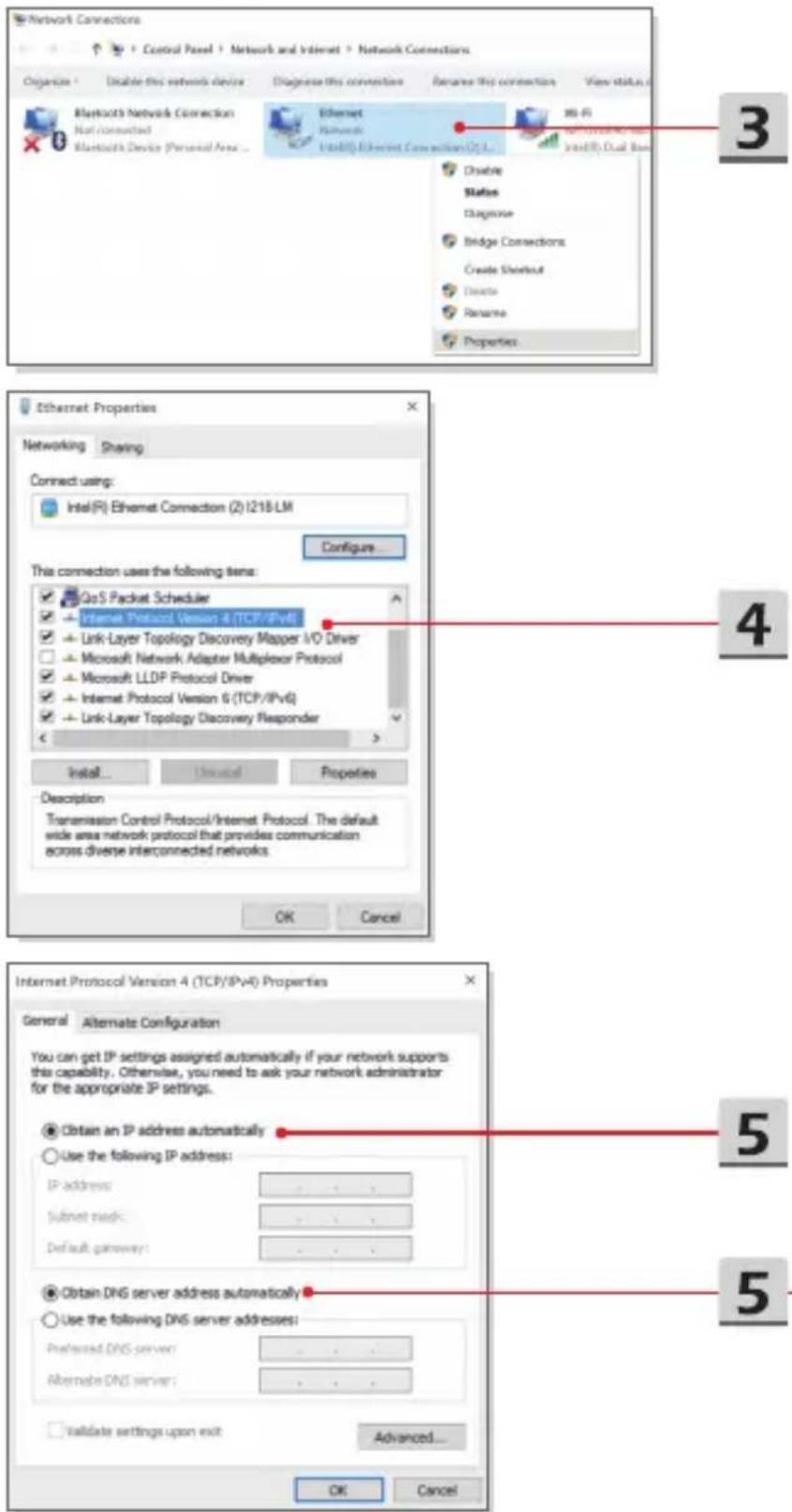
text_image
Network Connections Control Panel > Network and Internet > Network Connections Organize > Enable this network device Diagnose this connection Recsame this connection View status Bluetooth's Network Connection Not connected Bluetooth's Device (Personal Area... Ethernet Network USB(I): Ethernet Connection(2) 36 Fi Enable Status Diagnose Bridge Connections Create Shortcut Delete Rename Properties Ethernet Properties Networking Sharing Connect using: Intel(R) Ethernet Connection (2) I218 LM Configure... This connection uses the following items: QoS Packet Scheduler + Planet Protocol Version 4 (TCP/IPv6) + Link-Layer Topology Discovery Mapper I/O Driver + Microsoft Network Adapter Multiplexor Protocol + Microsoft LLDP Protocol Driver + Internet Protocol Version 6 (TCP/IPv6) + Link-Layer Topology Discovery Responder Install... Unloaded Properties Description Transmission Control Protocol/Internet Protocol. The default wide area network protocol that provides communication across diverse interconnected networks. OK Cancel Internet Protocol Version 4 (TCP/IPv4) Properties General Alternate Configuration You can get IP settings assigned automatically if your network supports this capability. Otherwise, you need to ask your network administrator for the appropriate IP settings. Obtain an IP address automatically Use the following IP address: IP address: Submit mask: Default gateway: Obtain DNS server address automatically Use the following DNS server addresses: Preferred DNS server: Alternate DNS server: Validate settings upon exit Advanced... OK CancelBroadband (PPPoE) Connection
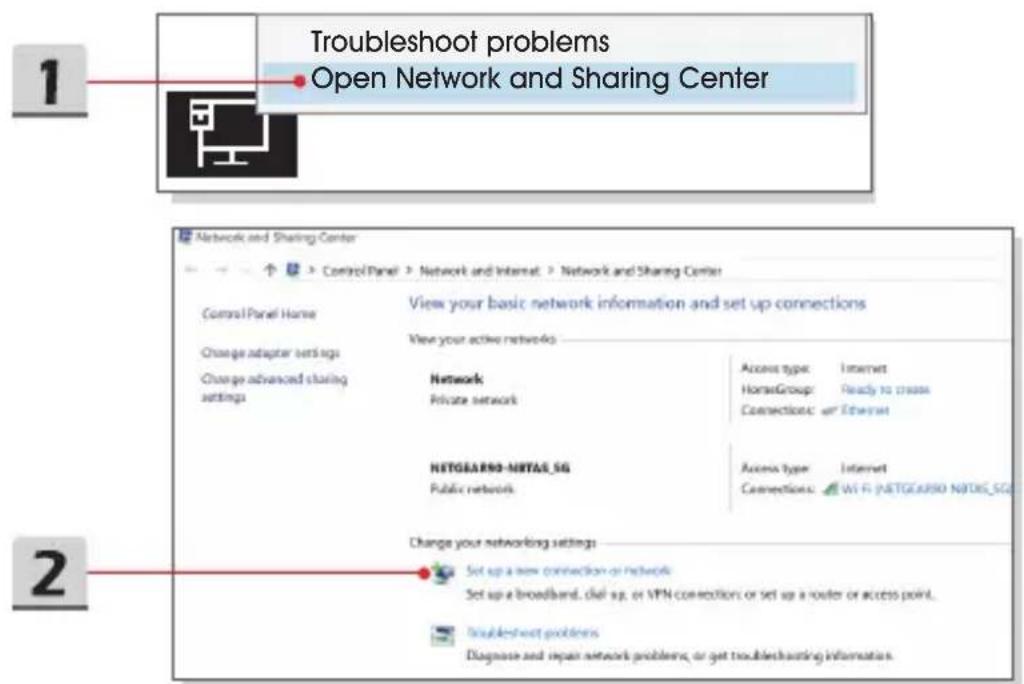
- Go to the desktop. Find the icon in the lower-right corner of the task bar, right click on it to select [Open Network and Sharing Center].
- Select [Set up a new connection or network] under [Change your networking settings].
- Select [Connect to the Internet], and then click [Next].
- Click [Broadband (PPPoE)].
- Fills User name, Password, and Connection name fields. Then click [Connect].
text_image
Troubleshoot problems Open Network and Sharing Center 1 2 Network and Sharing Center Control Panel Home Change adapter settings Change advanced sharing settings View your basic network information and set up connections View your active networks Network Private network Access type: Internet HomeGroup: Ready to create Connections: or Ethernet NETGEARNO-MRTAS_5G Public network Access type: Internet Connections: WiFi (NETGEARNO MRTAS_SQ) Change your networking settings Set up a new connection or network Set up a broadband, dial sp. or VPN connections or set up a router or access point. Double-shot problems Diagnose and repair network problems, or get troubleshooting information.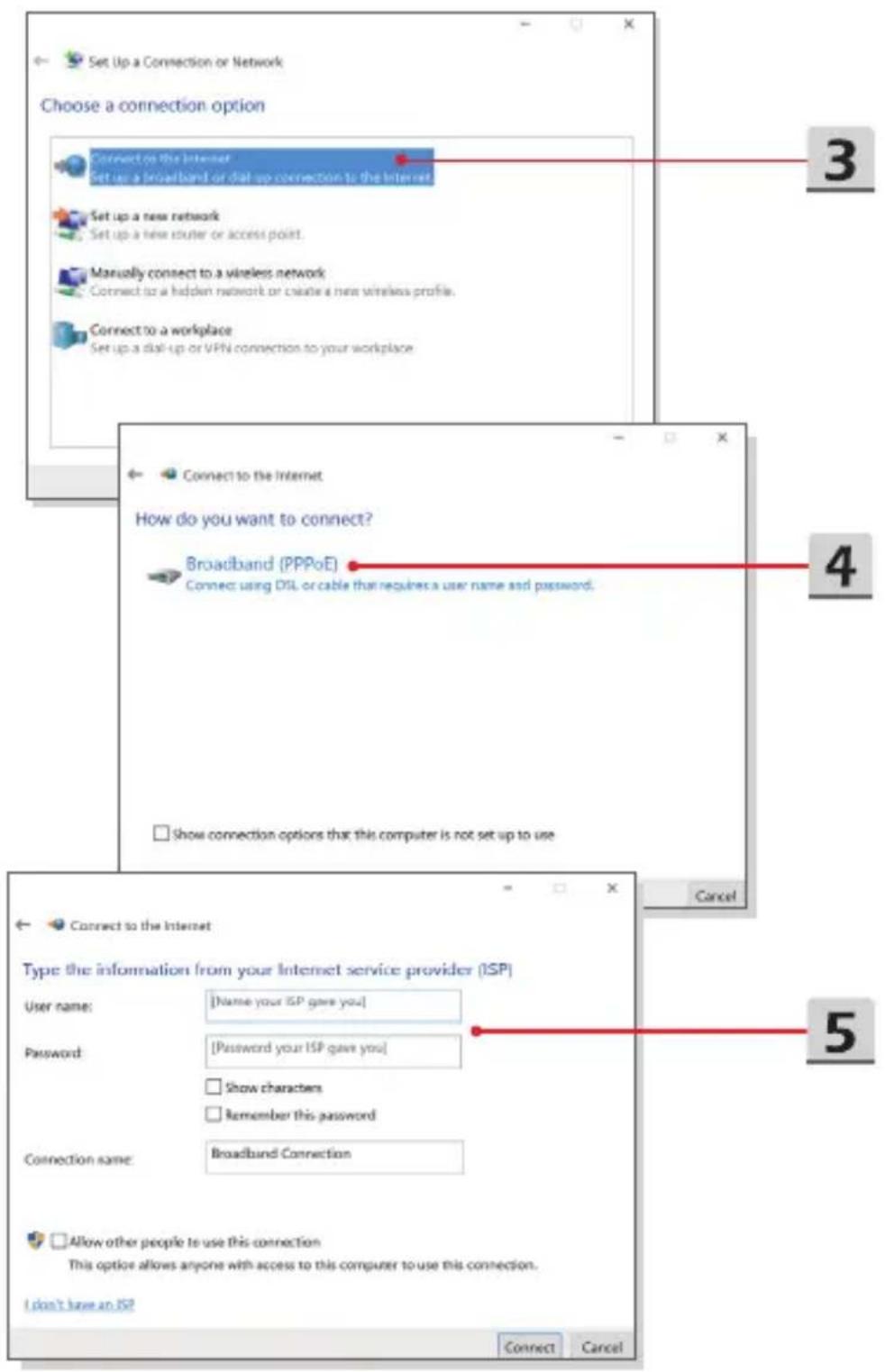
text_image
Set Up a Connection or Network Choose a connection option Connect to the Internet Set up a dial-up or dial-up connection to the Internet Set up a new network Set up a new router or access point. Manually connect to a wireless network Connect to a hidden network or create a new wireless profile. Connect to a workplace Set up a dial-up or VPN connection to your workplace Connect to the Internet How do you want to connect? Broadband (PPPoE) Connect: using DSL or cable that requires a user name and password. Show connection options that this computer is not set up to use Connect to the Internet Type the information from your Internet service provider (ISP) User name: [Name your ISP gave you] Password: [Password your ISP gave you] Show characters Remember this password Connection name: Broadband Connection Allow other people to use this connection This option allows anyone with access to this computer to use this connection. I don't have an ISP Connect CancelHow to Get Started
Static IP Connection
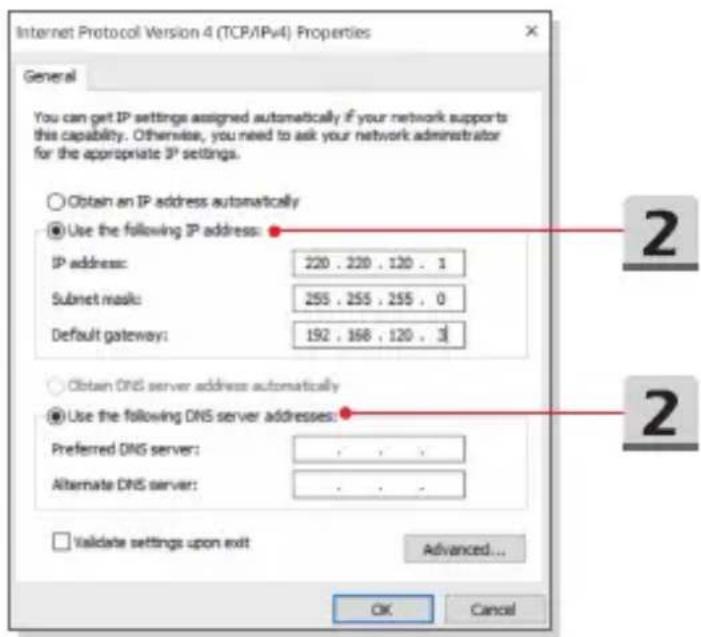
- Follow the previous steps 1 to 4 in Dynamic IP/PPPoE Connection.
- Select [General] tab and click [Use the following IP address] and [Use the following DNS server addresses]. You will be asked to fill the IP address, Subnet mask, and Default gateway, and then click [OK].
text_image
Internet Protocol Version 4 (TCP/IPv4) Properties General You can get IP settings assigned automatically if your network supports this capability. Otherwise, you need to ask your network administrator for the appropriate IP settings. Obtain an IP address automatically Use the following IP address: IP address: 220 . 220 . 130 . 1 Submit mask: 255 . 255 . 255 . 0 Default gateway: 192 . 168 . 120 . 3 Obtain DNS server address automatically Use the following DNS server addresses: Preferred DNS server: . Alternate DNS server: . Validate settings upon exit Advanced... OK CancelHow to Set Up Bluetooth Connection
Bluetooth pairing is a process in which two Bluetooth devices communicate with each other through an established connection.
Activating Bluetooth Connection
▶ Checking the Bluetooth status
When Airplane mode is enabled, Bluetooth connection will be turned off. Before setting up a Bluetooth connection, make sure that Airplane mode is turned off.
- Go to the desktop. Find the icon in the lower-left corner of the screen and click on it.
- Select [Settings] to bring out [Windows Settings] menu, and then select [Devices] to enter the next Settings menu.
- Select [Bluetooth & other devices].
- Switch [On] the Bluetooth connection if it is set to [Off].
- Or, find the [SCM] icon in the lower-right corner of the task bar and click on it to bring out the main window of System Control Manager. Check if Bluetooth connection is switched on.

text_image
Apps and Features Mobility Center Power Options Event Viewer System Device Manager Network Connections Disk Management Computer Management Windows PowerShell Windows PowerShell (Admin) Task Manager Settings File Explorer Search Run Shut down or sign out Desktop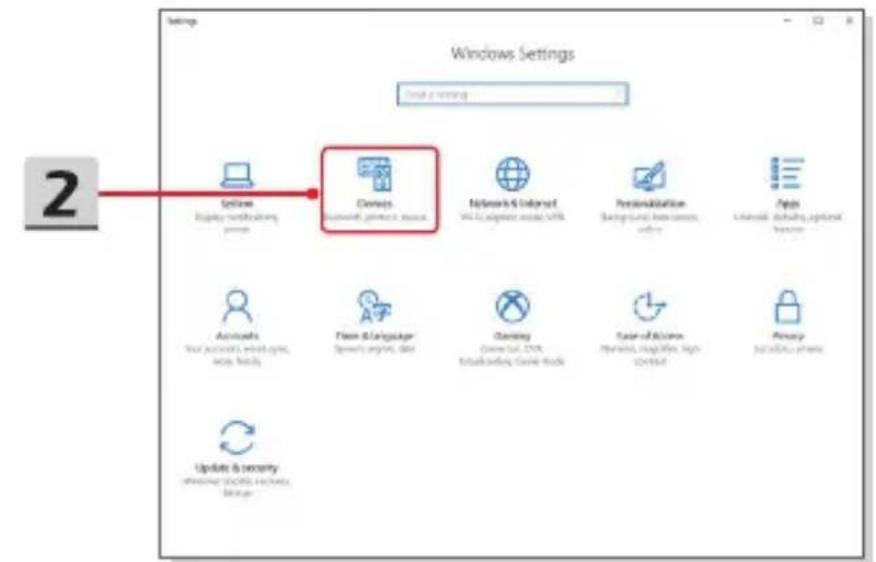
text_image
Windows Settings Create a new Settings Display certificate, video Groups Networks & Internet Web: access music v8% Personalization Search and feedback, audio Apps User account, web apps, video, video Accounts Your accounts, web apps, video, video Team & Language Speech apps, video Gamey Game Web, TV+, social media, Game Web Color of Accounts Video, video, high video Proxy My own apps Update & security Windows (SQL Server, Video) Browse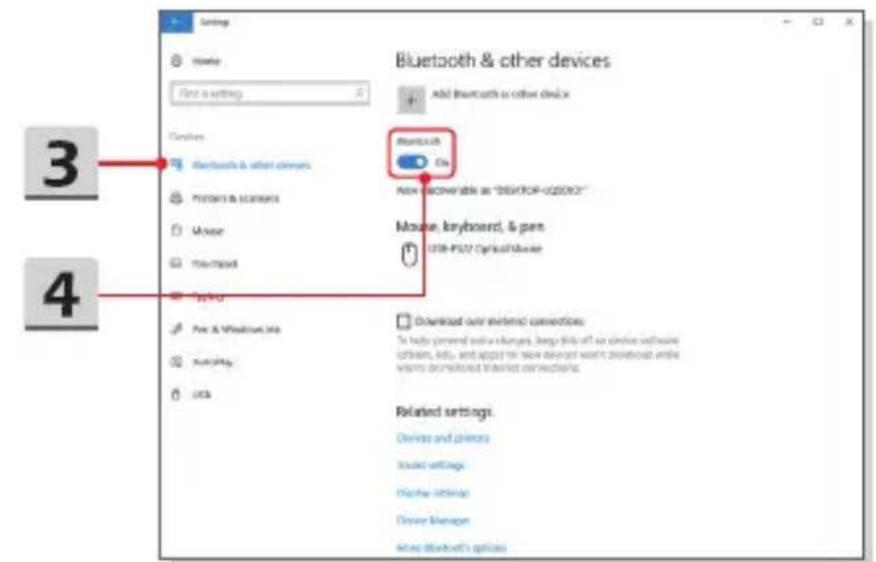
text_image
Bluetooth & other devices Add Bluetooth as other devices 3 4 Bluetooth One New (convertable as "DEMOF-UGOFOZ") Mouse, keyboard, & pen USB-FUO Optical Mouse Download our external connections To help general with changes, large links off an drive software others, info, and app! To save device want to download and write works on related internet connections. Related settings. Devices and primers Board settings Display settings Driver Manager Many Bluetooth's options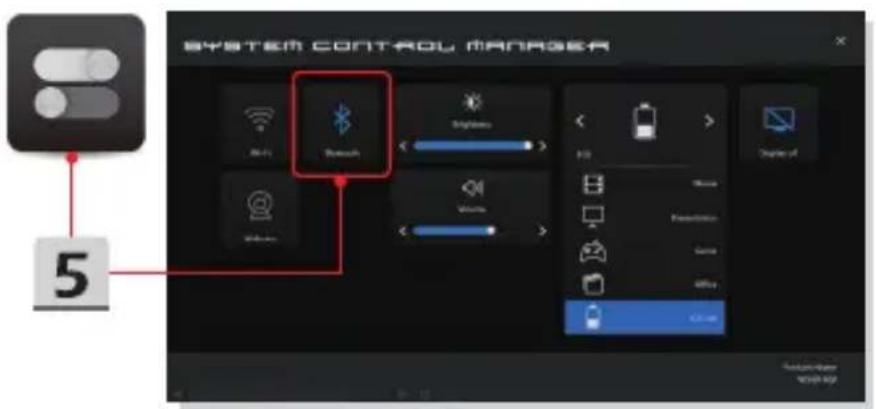
text_image
SYSTEM CONTROL MANAGER 5▶ Pairing the Bluetooth devices
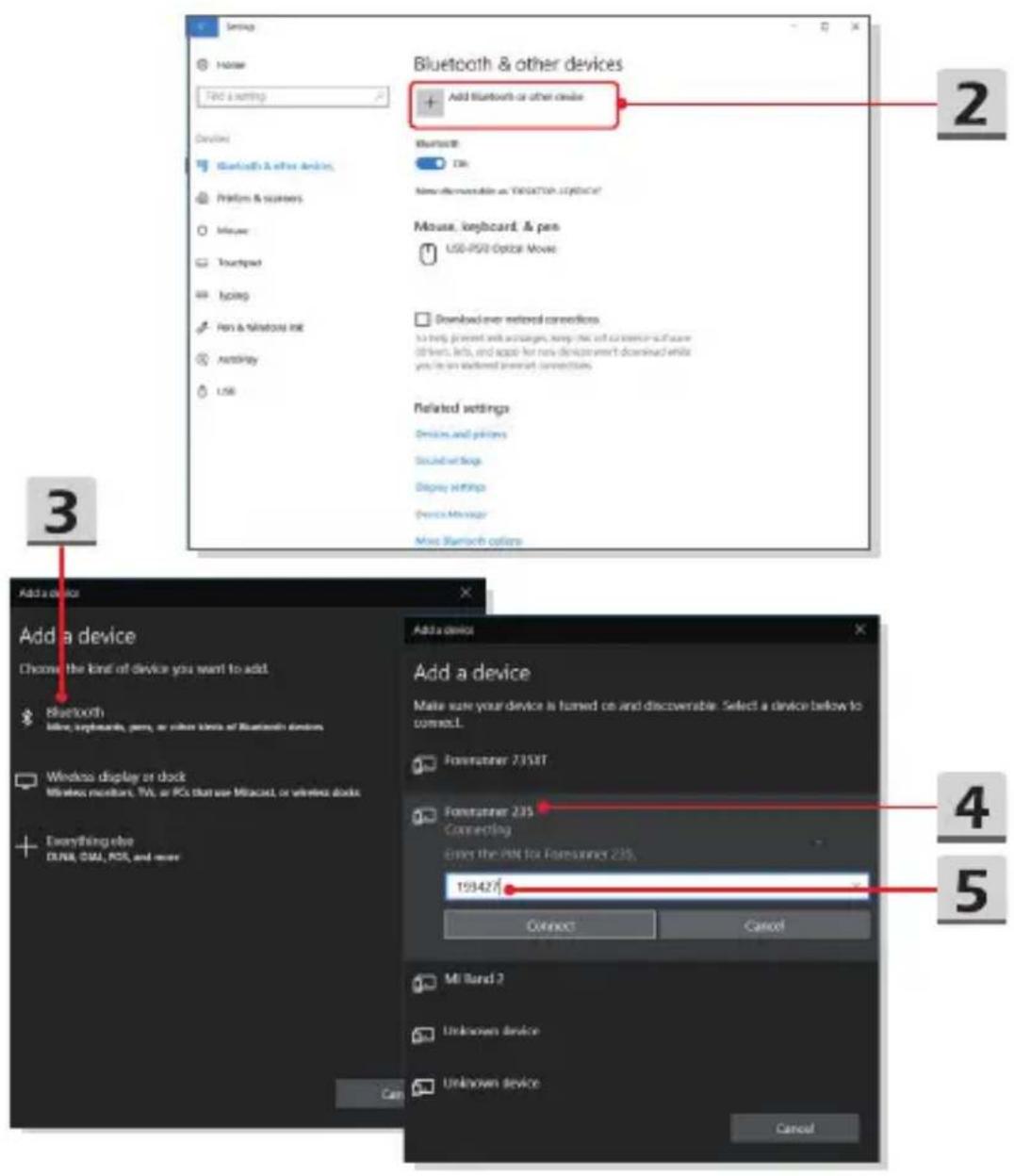
- Go to [Start/ Settings/ Devices], and then find [Bluetooth & other devices].
- Click on [Add Bluetooth or other device].
- Click on [Bluetooth].
- Select a device to start pairing.
- Give the passcode as instructed by the device waiting to be connected, and then click on [Connect] to continue.
text_image
Bluetooth & other devices Add Bluetooth or other devices Bluetooth OK New detectable as: YI60109.128347 Mouse, keyboard, & pen USB/PSB Optical Movie Download over retained connections To help prevent with switches, keep this set to ensure it's a new all users, lefts, and apps for new devices won't download while you are on worldwide wireless connections. Related settings Devices and printers Scheduled Slots Display Settings Device Manager Move Bluetooth options Add a device Add a device Make size your device is turned on and discoverable. Select a device below to connect. Fornrunner 7358T Fornrunner 235 Connecting Evers the PM to Fornrunner 235. 193427 Connect Cancel MI Band 2 Unknown device Unknown device CancelHow to Connect External Devices
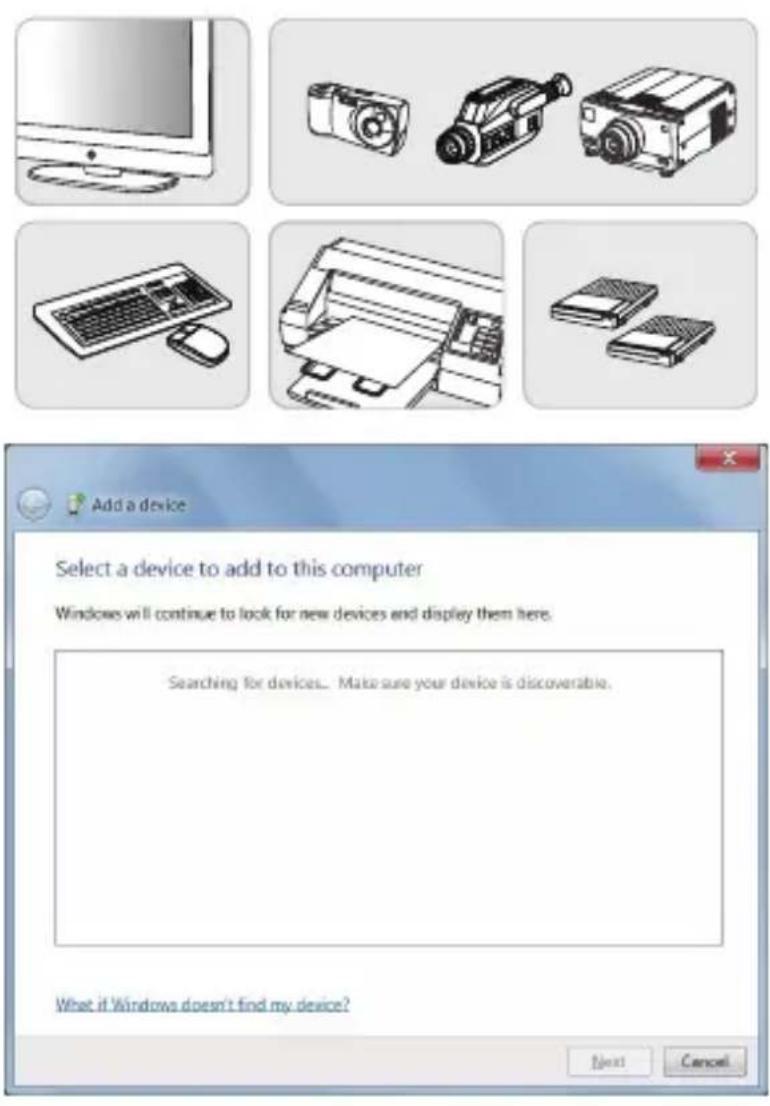
This notebook may be equipped with various connecting I/O (input/output) ports, such as USB, HDMI, DisplayPort, and mini DisplayPort. Users will be able to connect diverse peripheral devices to the notebook.
To connect these devices, refer to the instruction manuals of each device first, and then connect the device to the notebook. This notebook is capable to auto detect the connected devices, and if there is no detection of the devices, please manually enable the devices by going to [Start Menu/ Control Panel/ Hardware and Sound/ Add a device] to add the new devices.
Video: How to Use RAID Function
This notebook may support RAID function of different levels. RAID allows users to store data on multiple hard disk drives or solid state drives. Contact the local dealer for further and correct information and be noted that the supported RAID functions may vary depending on the models users purchased.
Watch the instruction video at: https://youtu.be/u2C35-ctFbw
text_image
YouTube YouTube HOW TO SET UP A RAID ARRAY SET UP A RAID ARRAY ON [LEGACY MODE]How to Select Boot Mode in BIOS
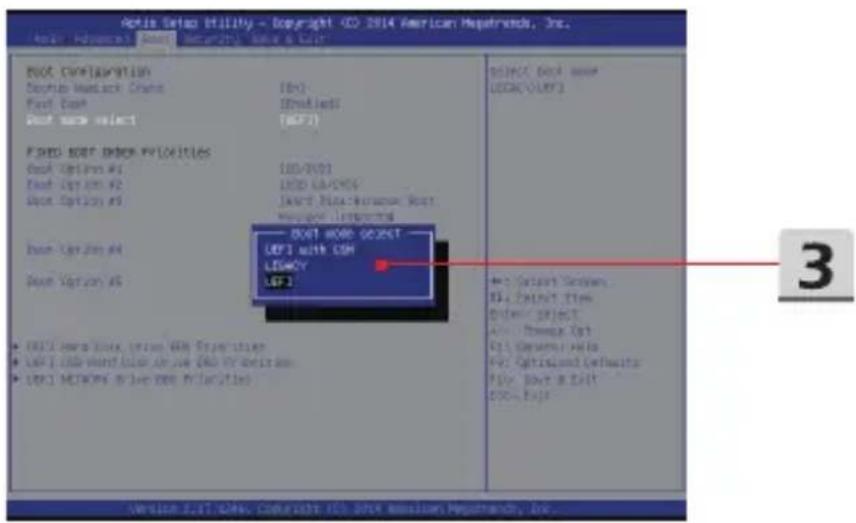
- Power on the system. As soon as the first logo screen appears, press the DEL key immediately and enter the BIOS menu.
- Move the cursor to [Boot] tab, and select [Boot mode select] in Boot Configuration.
- For operating system support UEFI-based BIOS (Windows 10), it is suggested to select [UEFI].
- Refer to MSI FAQ for further information about installing Windows operating system on the notebook at https://www.msi.com/faq/notebook-1971
text_image
Apple Setup Utility - Copyright © 2014 American Hapetrench, Inc. Next > Options > Next > Security > Next > Help NEXT CONFIGURATION Setup Wizard Chain First Base First Home Select FIRST ROOT ORDER PROGRESS First Option #1 First Option #2 First Option #3 First Option #4 First Option #5 • FIRST HOME SELECT • FIRST HOME HAND ORDER PROGRESS • FIRST HOME HAND ORDER PROGRESS • FIRST HOME HAND ORDER PROGRESS SELECT First Option LOGIC/VREF: LIST HOME SELECT LIST WITH CSH LESHCY LGF3 NEXT HOME SELECT LIST WITH CSH LESHCY LGF3 • Select Options SQL Connection Item Order Project Auto Tools Opt SQL General Help FOR Options And Defaults FOR Have A Roll DOOR Help Version: LIF1.0246. Copyright: ICS.0246. Security Hapetrench, Inc.Video: How to Restore Windows 10 Operating System on MSI Notebooks
Watch the instruction video at: https://www.youtube.com/watch?v=hSrK6xAQooU, to restore the Windows 10 operating system by using [F3 Recovery] and [Windows 10 Settings] when it is needed.
text_image
YouTube Youku msi How to restore Windows 10 system on MSI NotebooksVideo: How to Use MSI One Touch Install
MSI "One Touch Install", the one-click installer application, allows users to efficiently install all needed drivers on MSI notebooks with single click.
Watch the instruction video at:
Windows 10/8.1: https://www.youtube.com/watch?v=ERItRaJUKQs
Windows 7: https://www.youtube.com/watch?v=43InM4m-500
text_image
YouTube Youku msi How to restore Windows 10 system on MSI Notebooks