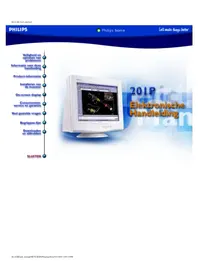
201P10 - Screen PHILIPS - Free user manual and instructions
Find the device manual for free 201P10 PHILIPS in PDF.


| Product Type | Color CRT Monitor |
| Brand | Philips |
| Model | 201P10 |
| Screen Size | 20 inches (20" viewable) |
| Display Type | Shadow Mask CRT |
| Native Resolution | 1600 x 1200 |
| Pixel Pitch | 0.24 mm |
| Horizontal Scan Frequency | 30 - 96 kHz |
| Vertical Scan Frequency | 50 - 160 Hz |
| Input Connectors | 15-pin D-sub VGA, BNC (optional) |
| Power Supply | AC 100-240 V, 50/60 Hz |
| Power Consumption | 110 W (typical) |
| Weight | Approx. 28 kg (61.7 lbs) |
| Dimensions (W x H x D) | 465 x 465 x 460 mm |
| Safety Features | Vented design; do not block openings; unplug before cleaning |
| Cleaning Instructions | Wipe with dry soft cloth; avoid liquid cleaners |
| Compliance | TCO '99, EPA Energy Star |
| Additional Features | Anti-glare coating, degauss function, OSD controls |
| Spare Parts | Available through authorized Philips service centers |
Frequently Asked Questions - 201P10 PHILIPS
User questions about 201P10 PHILIPS
0 question about this device. Answer the ones you know or ask your own.
Ask a new question about this device
Download the instructions for your Screen in PDF format for free! Find your manual 201P10 - PHILIPS and take your electronic device back in hand. On this page are published all the documents necessary for the use of your device. 201P10 by PHILIPS.
USER MANUAL 201P10 PHILIPS
201P

What is the On-Screen Display?
CRT OSD tree / English
First Level
Second Level
Third Level
LANGUAGE
Chinese (for 105B, 105S, 107E, 107S, 107T, 107X models only) ENGLISH
On-Screen Display![graph TD A["LANGUAGE"] --> B["中语 (for 105B, 105S, 107E, 107S, 107T, 107X models only)"] A --> C["ENGLISH"] A --> D["ESPAÑOL"] A --> E["FRANÇAIS"] A --> F["DEUTSCH"] A --> G["ITALIANO"] H["INPUT SIGNAL SELECTION"] --> I["INPUT A"] H --> J["INPUT B"] K["ZOOM"] --> L["ADJUST HORIZONTAL"] K --> M["ADJUS…](/content/2026/06/1156522/images/be07e80c74a84ca8e274d19a9bb3dae8d2ae53d1067ffa932644c35dc1ee6f1c.jpg)
On-Screen Display![graph TD A["RESET TO FACTORY SETTINGS"] --> B["NO YES"] A --> C["CLOSE MAIN CONTROLS"] C --> D["EXTRA CONTROLS"] D --> E["ADJUST MOIRÉ"] E --> F["HORIZONTAL VERTICAL"] D --> G["ADJUST MOIRÉ DEGAUSS LIGHTFRAME (OFF/ON)"] G --> H["HORIZONTAL VERTICAL"] C --> I["ADJUST MOIRÉ DEGAUSS AUTO CALIBRATE"] I…](/content/2026/06/1156522/images/f34b0dbb1d0b8273caf386aaa2d6c53f546420c58aa9b78dbdd18f2ee3da8454.jpg)
- Specifications are subject to change without prior notice.
BACK TO TOP
Customer Care And Warranty
PLEASE SELECT YOUR COUNTRY / REGION TO READ THE WARRANTY COVERAGE:
23. What is 'XtraSpace Design' (XSD)?
39. What is 'CustoMax'?
CustoMax
EMI (Electrical Magnetic Interference)
EMS (Electrical Magnetic Susceptibility)
Geometric error
Interlaced/non-interlaced
Horizontal linearity distortion

Vertical linearity distortion
OSD (On Screen Display)
AGAS (Anti-Glare, Anti-Static) coating
ARAS (Anti-Reflection, Anti-Static) coating
AGRAS (Anti-Glare, Anti-Reflection, Anti-Static) coating
USB or Universal Serial Bus
UPS (Universal Power Supply) = Universal Power Supply
VIS (Viewable Image Size)
Manual in English

105B.pdf

105E.pdf

105S.pdf

107B.pdf
Download and Print

107B3.pdf

107E.pdf

107P.pdf

107S.pdf

107T.pdf

107X.pdf

109B.pdf


Troubleshooting
(Power LED is amber or yellow)
(Power LED is green)
Regulatory Information
TCO '99 Information • TCO Environmental Requirements • Energy Star Declaration • Federal Communications Commission (FCC) Notice (U.S. Only) • Commission Fédérale de la Communication (FCC Declaration) • EN 55022 Compliance (Czech Republic Only) • VCCI Class 2 Notice (Japan Only) • MIC Notice (South Korea Only) • Polish Center for Testing and Certification Notice • North Europe Information • BSMI Notice (Taiwan Only) • Ergonomie Hinweis (nur Deutschland) • Philips End-of-Life Disposal • Information for UK only
Safety Precautions and Maintenance • Troubleshooting • Other Related Information
TCO '99 Information
• TCO '99 : Available on 105S, 105B, 107S, 107T, 107B, 107P, 109S, 109B, 109P, 201B, and 201P.

Congratulations! You have just purchased a TCO '99 approved and labeled product! Your choice has provided you with a product developed for professional use. Your purchase has also contributed to reducing the burden on the environment and also to the further development of environmentally adapted electronics products.
Why do we have environmentally labeled computers?
In many countries, environmental labeling has become an established method for encouraging the adaptation of goods and services to the environment. The main problem, as far as computers and other electronics equipment are concerned, is that environmentally harmful substances are used both in the products and during their manufacture. Since it is not so far possible to satisfactorily recycle the majority of electronics equipment, most of these potentially damaging substances sooner or later enter nature.
There are also other characteristics of a computer, such as energy consumption levels, that are important from the viewpoints of both the work (internal) and natural (external) environments. Since all methods of electricity generation have a negative effect on the environment (e.g. acidic and
climate-influencing emissions, radioactive waste), it is vital to save energy. Electronics equipment in offices is often left running continuously and thereby consumes a lot of energy.
What does labeling involve?
This product meets the requirements for the TCO'99 scheme which provides for international and environmental labeling of personal computers. The labeling scheme was developed as a joint effort by the TCO (The Swedish Confederation of Professional Employees), Svenska Naturskyddsforeningen (The Swedish Society for Nature Conservation) and Statens Energimyndighet (The Swedish National Energy Administration).
Approval requirements cover a wide range of issues: environment, ergonomics, usability, emission of electric and magnetic fields, energy consumption and electrical and fire safety.
The environmental demands impose restrictions on the presence and use of heavy metals, brominated and chlorinated flame retardants, CFCs (freons) and chlorinated solvents, among other things. The product must be prepared for recycling and the manufacturer is obliged to have an environmental policy which must be adhered to in each country where the company implements its operational policy.
The energy requirements include a demand that the computer and/or display, after a certain period of inactivity, shall reduce its power consumption to a lower level in one or more stages. The length of time to reactivate the computer shall be reasonable for the user.
Labeled products must meet strict environmental demands, for example, in respect of the reduction of electric and magnetic fields, physical and visual ergonomics and good usability.
Below you will find a brief summary of the environmental requirements met by this product. The complete environmental criteria document may be ordered from:
TCO Development
SE-114 94 Stockholm, Sweden
Fax: +46 8 782 92 07
Email (Internet): development@tco.se
Current information regarding TCO'99 approved and labeled products may also be obtained via the Internet, using the address: http://www.tco-info.com/
Environmental Requirements
Flame retardants
Flame retardants are present in printed circuit boards, cables, wires, casings and housings. Their purpose is to prevent, or at least to delay the spread of fire. Up to 30% of the plastic in a computer casing can consist of flame retardant substances. Most flame retardants contain bromine or chloride, and those flame retardants are chemically related to another group of environmental toxins, PCBs. Both the flame retardants containing bromine or chloride and the PCBs are suspected of giving rise to severe health effects, including reproductive damage in fish-eating birds and mammals, due to the bio-accumulative* processes. Flame retardants have been found in human blood and researchers fear that disturbances in fetus development may occur.
The relevant TCO'99 demand requires that plastic components weighing more than 25 grams must not contain flame retardants with organically bound bromine or chlorine. Flame retardants are allowed in the printed circuit boards since no substitutes are available.
Cadmium**
Cadmium is present in rechargeable batteries and in the color-generating layers of certain computer displays. Cadmium damages the nervous system and is toxic in high doses. The relevant TCO'99 requirement states that batteries, the color-generating layers of display screens and the electrical or electronics components must not contain any cadmium.
Mercury**
Mercury is sometimes found in batteries, relays and switches. It damages the nervous system and is toxic in high doses. The relevant TCO'99 requirement states that batteries may not contain any mercury. It also demands that mercury is not present in any of the electrical or electronics components associated with the labeled unit.
CFCs (freons)
The relevant TCO'99 requirement states that neither CFCs nor HCFCs may be used during the manufacture and assembly of the product. CFCs (freons) are sometimes used for washing printed circuit boards. CFCs break down ozone and thereby damage the ozone layer in the stratosphere, causing increased reception on earth of ultraviolet light with increased risks e.g. skin cancer (malignant melanoma) as a consequence.
Lead**
Lead can be found in picture tubes, display screens, solders and capacitors. Lead damages the nervous system and in higher doses, causes lead poisoning. The relevant TCO'99 requirement permits the inclusion of lead since no replacement has yet been developed.
* Bio-accumulative is defined as substances which accumulate within living organisms.
** Lead, Cadmium and Mercury are heavy metals which are bio-accumulative.
RETURN TO TOP OF THE PAGE
Energy Star Declaration
PHILIPS
201P1*
This monitor is equipped with a function for saving energy which supports the VESA Display Power Management Signaling (DPMS) standard. This means that the monitor must be connected to a computer which supports VESA DPMS to fulfill the requirements in the NUTEK specification 803299/94. Time settings are adjusted from the system unit by software. From indicated inactivity to Power Saving Position A2, the total time must not be set to more than 70 minutes.
NUTEK VESA State LED Indicator Power Consumption
Normal operation ON Green < 124 W
Power Saving
Suspend Yellow < 3 W
Position A1
Power Saving
OFF Yellow < 3 W
Position A2

As an ENERGY STAR® Partner, PHILIPS has determined that this product meets the ENERGY STAR® guidelines for energy efficiency.
RETURN TO TOP OF THE PAGE
Federal Communications Commission (FCC) Notice (U.S. Only)

This equipment has been tested and found to comply with the limits for a Class B digital device, pursuant to Part 15 of the FCC Rules. These limits are designed to provide reasonable protection against harmful interference in a residential installation. This equipment generates, uses and can radiate radio frequency energy and, if not installed and used in accordance with the instructions, may cause harmful interference to radio communications. However, there is no guarantee that interference will not occur in a particular installation. If this equipment does cause harmful interference to radio or television reception, which can be determined by turning the equipment off and on, the user is encouraged to try to correct the interference by one or more of the following measures:
• Reorient or relocate the receiving antenna. - Increase the separation between the equipment and receiver. - Connect the equipment into an outlet on a circuit different from that to which the receiver is connected. - Consult the dealer or an experienced radio/TV technician for help.

Changes or modifications not expressly approved by the party responsible for compliance could void the user's authority to operate the equipment.
Use only RF shielded cable that was supplied with the monitor when connecting this monitor to a computer device.
To prevent damage which may result in fire or shock hazard, do not expose this appliance to rain or excessive moisture.
THIS CLASS B DIGITAL APPARATUS MEETS ALL REQUIREMENTS OF THE CANADIAN INTERFERENCE-CAUSING EQUIPMENT REGULATIONS.
Federal Communications Commission (FCC Declaration)

Regulatory Information
EN 55022 Compliance (Czech Republic Only)
This device belongs to category B devices as described in EN 55022, unless it is specifically stated that it is a Class A device on the specification label. The following applies to devices in Class A of EN 55022 (radius of protection up to 30 meters). The user of the device is obliged to take all steps necessary to remove sources of interference to telecommunication or other devices.
VCCI Notice (Japan Only)
This is a Class B product based on the standard of the Voluntary Control Council for Interference (VCCI) for Information technology equipment. If this equipment is used near a radio or television receiver in a domestic environment, it may cause radio Interference. Install and use the equipment according to the instruction manual.

Class B ITE
MIC Notice (South Korea Only)
Class B Device
Please note that this device has been approved for non-business purposes and may be used in any environment, including residential areas.
Polish Center for Testing and Certification Notice
The equipment should draw power from a socket with an attached protection circuit (a three-prong socket). All equipment that works together (computer, monitor, printer, and so on) should have the same power supply source.
The phasing conductor of the room's electrical installation should have a reserve short-circuit protection device in the form of a fuse with a nominal value no larger than 16 amperes (A).
To completely switch off the equipment, the power supply cable must be removed from the power supply socket, which should be located near the equipment and easily accessible.
A protection mark "B" confirms that the equipment is in compliance with the protection usage requirements of standards PN-93/T-42107 and PN-89/E-06251.
Regulatory Information
Placement/Ventilation
WARNING:
ENSURE THAT THE POWER CORD PLUG AND SOCKET ARE EASILY ACCESSIBLE WHEN PLACING THE EQUIPMENT.
Placement/Air Circulation
WARNING:
PLACE THE DEVICE SO THAT THE POWER CORD CAN BE EASILY DISCONNECTED FROM THE OUTLET WHEN NEEDED.
BSMI Notice (Taiwan Only)
Complies with the standards for Class B information technology equipment.
End-of-Life Disposal
Your new monitor contains materials that can be recycled and reused. Specialized companies can recycle your product to increase the amount of reusable materials and to minimize the amount to be disposed of.
Please find out about the local regulations on how to dispose of your old monitor from your local Philips dealer.
RETURN TO TOP OF THE PAGE
Information for UK only
WARNING - THIS APPLIANCE MUST BE EARTHED.
Important:
This apparatus is supplied with an approved moulded 13A plug. To change a fuse in this type of plug proceed as follows:
- Remove fuse cover and fuse.
- Fit new fuse which should be a BS 1362 5A, A.S.T.A. or BSI approved type.
- Refit the fuse cover.
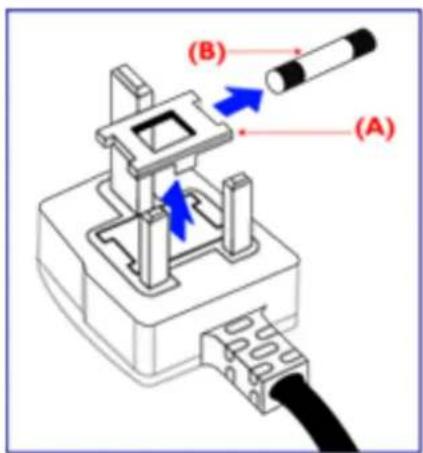
If the fitted plug is not suitable for your socket outlets, it should be cut off and an appropriate 3-pin plug fitted in its place.
If the mains plug contains a fuse, this should have a value of 5A. If a plug without a fuse is used, the fuse at the distribution board should not be greater than 5A.
Note: The severed plug must be destroyed to avoid a possible shock hazard should it be inserted into a 13A socket elsewhere.
How to connect a plug
The wires in the mains lead are colored in accordance with the following code:
BLUE - "NEUTRAL" ("N")
BROWN - "LIVE" ("L")
GREEN & YELLOW - "EARTH" ("E")

- The GREEN AND YELLOW wire must be connected to the terminal in the plug which is marked with the letter "E" or by the Earth symbol or colored GREEN or GREEN AND YELLOW.
- The BLUE wire must be connected to the terminal which is marked with the letter "N" or colored BLACK.
- The BROWN wire must be connected to the terminal which is marked with the letter "L" or colored RED.
Before replacing the plug cover, make certain that the cord grip is clamped over the sheath of the lead - not simply over the three wires.
For units set at 230 V:
Multimedia foot.
*Product will be exchanged with a new or renewed to original specifications unit within two business days for the first year.
WHO IS COVERED?
You must have proof of purchase to receive warranty service. A sales receipt or other document showing that you purchased the product as new is considered proof of purchase.
WHAT IS COVERED?
Warranty coverage begins the day you buy your product. For one year thereafter, all parts will be repaired or replaced, and labor is free. All parts, including repaired and replaced parts, are covered only for the original warranty period. When the warranty on the original product expires, the warranty on all replaced and repaired products and parts also expires.
WHAT IS EXCLUDED?
Your warranty does not cover:
- labor charges for installation or setup of the product, adjustment of customer controls on the product, and installation or repair of systems outside of the product.
- product repair and/or part replacement because of misuse, accident, unauthorized repair or other cause not within the control of Philips Consumer Electronics.
- a product that requires modification or adaptation to enable it to operate in any country other than the country for which it was designed, manufactured, approved and/or authorized, or repair of products damaged by these modifications.
- incidental or consequential damages resulting from the product. (Some states do not allow the exclusion of incidental or consequential damages, so the above exclusion may not apply to you. This includes, but is not limited to, prerecorded material, whether copyrighted or not copyrighted.)
- a product used for commercial or institutional purposes.
- A product that has been modified from the original design.
Where IS SERVICE AVAILABLE?
Warranty service is available in all countries where the product is officially distributed by Philips
United States Guarantee
Consumer Electronics. In countries where Philips Consumer Electronics does not distribute the product, the local Philips service organization will attempt to provide service (although there may be a delay if the appropriate spare parts and technical manual(s) are not readily available).
WHERE CAN I GET MORE INFORMATION AND HOW CAN I OBTAIN SERVICE?
For more information, contact the Philips Customer Care Center by calling (877) 835-1838 (U.S.A. customers only) or (903) 242-4804.
Before Requesting Service...
Please check your owner's manual before requesting service. Adjustments of the controls discussed there may save you a service call.
TO GET WARRANTY SERVICE IN U.S.A., PUERTO RICO OR U.S. VIRGIN ISLANDS...
Contact the Philips Customer Care Center phone number listed below for product assistance and procedures for servicing:
Philips Customer Care Center
(877) 835-1838 or (903) 242-4804
(In U.S.A., Puerto Rico and U.S. Virgin Islands, all implied warranties, including implied warranties of merchantability and fitness for a particular purpose, are limited in duration to the duration of this express warranty. But, because some states do not allow limitations on how long an implied warranty may last, this limitation may not apply to you.)
TO GET WARRANTY SERVICE IN CANADA...
Please contact Philips at:
(800) 479-6696
One year free parts and one year free labor will be provided at Philips Canada depot or any one of its authorized service centers.
REMEMBER... Please record the model and serial numbers found on the product below.
MODEL # ____
SERIAL #
This warranty gives you specific legal rights. You may have other rights which vary from state/province
United States Guarantee
to state/province.
Philips Customer Care Center, P. O. Box 2976, Longview, TX 75601
Your International Philips F1rst Choice Warranty
Thank you for purchasing this Philips monitor.

All Philips monitors are designed and manufactured to high standards and deliver high-quality performance, ease of use and ease of installation. Should you encounter any difficulties while installing or using this product, please contact Philips directly to benefit from your Philips F1rst Choice Warranty. This one-year service warranty entitles you to a swap model on-site within 48 hours of your call being received within the first year of purchase. If you have any problems with your monitor within the second or third year of purchase, we will repair it after it has been sent to the service provider at your expense and returned to you within five working days, free of charge.
An extended warranty called Philips F1rst Choice Premium is available in addition to your Philips F1rst Choice warranty. For more details contact your Philips dealer.
Before contacting Philips, please prepare the following details so we can solve your problem quickly.
• Philips type number • Philips serial number • Purchase date (copy of purchase may be required) • PC environment Processor:
- 286/386/486/Pentium Pro/Internal memory ○ Operating system (Windows, DOS, OS/2, MAC)
- Fax/Modem/Internet program?
- Other cards installed
Having the following information available will also help speed up the process:
- Your proof of purchase indicating: date of purchase, dealer name, model and product serial number.
- The full address to which the swap model should be delivered.
Philips warranty applies provided the product is handled properly for its intended use. Philips warranty will not apply if it appears during the repair process that:
- the reported failure is caused by improper handling or accidents
- the monitor is not defective and is within the specification
- the monitor has been altered or repaired by non authorised persons
If warranty claims are determined to be invalid, Philips may invoice the customer for all related repair, verification and transportation costs.
Just a phone call away
Philips' customer help desks are located worldwide. You can contact Philips Monday - Friday from 08.00 - 20.00 hrs Central European Time (CET) and on Saturdays and Sundays from 10.00 to 18.00 hrs CET by using one of the toll-free numbers. Click here to access the F1rst Choice Contact Information. Or you can reach us via:
Website: http://www.philips.com
LIMITED WARRANTY (Computer monitor)
THREE YEARS FREE LABOR / THREE YEARS FREE SERVICE ON PARTS / ONE YEAR FOR EXCHANGE*
WHERE CAN I GET MORE INFORMATION?
Philips Customer Care Center, P. O. Box 2976, Longview, TX 75601
Your international Philips F1rst Choice warranty
Philips Representation Office
Ul. Usacheva 35a
119048 Moscow
Phone: 095-755 6900
Fax: 095-755 6923
TURKEY
Türk Philips Ticaret A.S.
Talatpasa Caddesi No 5.
80640-Gültepe/Istanbul
Phone: (0800)-211 40 36
Fax: (0212)-281 1809
Latin America
ANTILLES
Philips Antillana N.V.
Kaminda A.J.E. Kusters 4
Zeelandia, P.O. box 3523-3051
Willemstad, Curacao
Phone: (09)-4612799
Fax: (09)-4612772
ARGENTINA
Philips Antillana N.V.
Kaminda A.J.E. Kusters 4
Zeelandia, P.O. box 3523-3051
Willemstad, Curacao
Phone: (09)-4612799
Fax: (09)-4612772
BRASIL
Phone: (01)-9800-9-18971 (toll free)
Fax: (01)-619-5377
MEXICO
Consumer Information Centre
Norte 45 No.669
Col. Industrial Vallejo
C.P.02300, -Mexico, D.F.
Phone: (05)-3687788 / 9180050462
Fax: (05)-7284272
PARAGUAY
Philips del Paraguay S.A.
Avenida Artigas 1519
Philips Consumer Service.
Customer Information Centre.
3 Figtree Drive
Homebush Bay NSW 2140
Phone: (02)-131391
Fax: (02)-97644681
NEW ZEALAND
Philips New Zealand Ltd.
Consumer Help Desk
2 Wagener Place, Mt.Albert
P.O. box 1041
Auckland
Phone: 0800 658 224 (toll free)
Fax : (09)-8497858
Asia
BANGLADESH
Philips Service Centre
100 Kazi Nazrul Islam
Avenue Kawran Bazar C/A
Dhaka-1215
Phone: (02)-812909
Fax: (02)-813062
CHINA
SHANGHAI
No. 1102 Wuding Road, Jing'an District,
200040 Shanghai,
P.R. China
Phone: (021)-62582912
No. 12-2 Dong Da Ying Bei, Zhu Jiang Road,
210018 Nanjing,
P.R. China
Phone: (025)-3682807
Fax: (025)-3682807
HANGZHOU
No. 20 Jiao Gong Road,
310012 Hangzhou,
P.R. China
Phone: (0571)-8807199
Fax: (0571)-8807199
BEIJING
No. 171-3 Hai Dian Road, Hai Dian District,
100086 Beijing,
P.R. China
Phone: (010)-62510743
Fax: (010)-62510223
SHENYANG
No. 84-1 San Hao Street,
110003 Shenyang
P.R. China
Phone: (024)-23900452
Fax: (024)-23900452
XIAN
No. 6-9 Yan Ta Road South Part,
710061 Xi'an,
P.R. China
Phone: (029)-5520833
Fax: (029)-5534655
GUANGZHOU
No. 15-17 Long Kou Dong Road, Tian He District,
510070 Guangzhou,
P.R. China
Phone: (020)-87566316
Fax: (020)-87566315
SHENZHEN
Room 603, Electronic BLD, No. 30 Shen Nan Zhong Road,
518031 Shenzhen,
P.R. China
Phone: (0755)-3780244
Fax: (0755)-3780244
CHANGSHA
Room 18, Heyi Computer City, Chao Yang Road,
Changsha,
P.R. China
Phone: (0731)-4159123
Fax: (0731)-4159123
WUHAN
No. 60-66 Gui Yuan Road, Hong Shan District,
430070 Wuhan,
P.R. China
Phone: (027)-87653038
Fax: (027)-87653038
CHENGDU
Chengdu Science and Technology University Service Building, No. 24 Nan Yi Duan of
Yi Huan Road,
410061 Chengdu,
P.R. China
Phone: (028)-5249175
Fax: (028)-5220012
HONG KONG
Philips Hong Kong Limited
Consumer Information Centre
16/F Hopewell Centre
17 Kennedy Road, WANCHAI
Phone: 2821-5345
Fax: 2861-3104
INDIA
BOMBAY
Philips India
Customer Relation Centre
Bandbox House
254-D Dr. A Besant Road, Worli
Bombay 400 025
Phone: (022)-4926611
Fax : (022)-4941698
CALCUTTA
Customer Relation Centre
7 justice Chandra Madhab Road
Calcutta 700 020
Phone: (033)-747333
Fax : (033)-4753839
MADRAS
Customer Relation Centre
3, Haddows Road
Madras 600 006
Phone: (044)-8292221
Fax : (044)-8275208
NEW DELHI
Customer Relation Centre
68, Shivaji Marg
New Delhi 110 015
Phone: (011)-5469692
Fax : (011)-5442402
INDONESIA
Philips Group of Companies in Indonesia
Consumer Information Centre
Jl. Buncit Raya Kav. 99-100
12510 Jakarta
Phone: (021)-7940040
Fax: (021)-7940080
JAPAN
Philips Consumer Electronics
1-11-9, Ebisuminami
Shibuya-Ku
Tokyo 150
Phone: (03)-3719-2235
Fax: (03)-3715-9992
KOREA
Philips Korea Ltd.
Philips House
C.P.O. Box 3680
260-199, Itaewon-Dong.
Yongsan-Ku, Seoul 140-202
Phone: (02)-5961195/1196 / (02)-5967632/76325
Fax: (02)-5959688
MALAYSIA
Philips Malaysia Sdn. Berhad
Service Dept.
No.51, Sect.13 Jalan University.
46200 Petaling Jaya, Selangor.
P.O. Box 12163
50768 Kuala Lumpur.
Phone: (03)-7562144
Fax: (03)-7560761
PAKISTAN
KARACHI
Philips Electrical Ind. of Pakistan
Consumer Information Centre
F-54, S.I.T.E, P.O.Box 7101
75730 KARACHI
Phone: (021)-2560071-82
Fax : (021)-2562386
Philips Consumer Service Centre
168-F, Adamjee Road
Rawalpindi Cantt
Phone: (051)-580902-3
Fax : (051)-584944
PHILIPPINES
Philips Electronics and Lighting Inc.
106 Valero St., Salcedo Village
Makati, Metro Manilla.
Phone: (02)-8100161
Fax: (02)-8173474
SINGAPORE
Philips Singapore Private Ltd.
Consumer Service Dept.
Lorong 1, Toa Payoh., P.O. box 340
Singapore 1231
Phone: 3502000
Fax: 2508037
TAIWAN
Philips Taiwan Ltd.
Consumer Information Centre
Nr 96 Section 1, Chien-Kuo N.Road
TAIPEI
Phone: (02)-382-4567
Philips Service Centre
209/2 Sanpavut Road,
Bangna, Bangkok 10260
Phone: (02)-3980141/3980790
Fax: (02)-3983319
Africa
MOROCCO
Philips Electronique Maroc
304, BD Mohamed V
Casablanca
Phone: (02)-302992
Fax: (02)-303446
SOUTH AFRICA
South African Philips.
S.V. Div. 195 Main R.D.
Martindale., Johannesburg
P.O. Box 58088
Newville 2114
Phone: (011)-4715000
Fax: (011)-4715034
Middle East
DUBAI
Philips Middle East B.V.
Consumer Information Centre
P.O. Box 7785
DUBAI
Phone: (04)-353666
Fax: (04)-353999
EGYPT
Philips Egypt
Consumer Information Centre
10, Abdel Rahman El Rafei
Mohandessin - Cairo, P.O.Box 242
DOKKI
Phone: (02)-3313993
Fax: (02)-3492142

- WHAT IS THE ON-SCREEN DISPLAY
- CRT OSD TREE / ENGLISH
- CUSTOMER CARE AND WARRANTY
- WHAT IS 'XTRASPACE DESIGN' (XSD)
- WHAT IS 'CUSTOMAX
- CUSTOMAX
- GEOMETRIC ERROR
- OSD (ON SCREEN DISPLAY)
- AGAS (ANTI-GLARE, ANTI-STATIC) COATING
- ARAS (ANTI-REFLECTION, ANTI-STATIC) COATING
- TROUBLESHOOTING
- REGULATORY INFORMATION
- TCO '99 INFORMATION
- ENVIRONMENTAL REQUIREMENTS
- FLAME RETARDANTS
- CADMIUM
- MERCURY
- CFCS (FREONS)
- LEAD
- ENERGY STAR DECLARATION
- PHILIPS
- 201P1
- RETURN TO TOP OF THE PAGE
- FEDERAL COMMUNICATIONS COMMISSION (FCC) NOTICE (U.S. ONLY)
- FEDERAL COMMUNICATIONS COMMISSION (FCC DECLARATION)
- EN 55022 COMPLIANCE (CZECH REPUBLIC ONLY)
- VCCI NOTICE (JAPAN ONLY)
- MIC NOTICE (SOUTH KOREA ONLY)
- CLASS B DEVICE
- POLISH CENTER FOR TESTING AND CERTIFICATION NOTICE
- WARNING
- END-OF-LIFE DISPOSAL
- INFORMATION FOR UK ONLY
- WARNING - THIS APPLIANCE MUST BE EARTHED
- IMPORTANT
- HOW TO CONNECT A PLUG
- MULTIMEDIA FOOT
- WHO IS COVERED
- WHAT IS COVERED
- WHAT IS EXCLUDED
- WHERE IS SERVICE AVAILABLE
- WHERE CAN I GET MORE INFORMATION AND HOW CAN I OBTAIN SERVICE
- BEFORE REQUESTING SERVICE
- TO GET WARRANTY SERVICE IN U.S.A., PUERTO RICO OR U.S. VIRGIN ISLANDS
- TO GET WARRANTY SERVICE IN CANADA
- REMEMBER... PLEASE RECORD THE MODEL AND SERIAL NUMBERS FOUND ON THE PRODUCT BELOW
- YOUR INTERNATIONAL PHILIPS F1RST CHOICE WARRANTY
- PHILIPS WARRANTY APPLIES PROVIDED THE PRODUCT IS HANDLED PROPERLY FOR ITS INTENDED USE. PHILIPS WARRANTY WILL NOT APPLY IF IT APPEARS DURING THE REPAIR PROCESS THAT
- JUST A PHONE CALL AWAY
- LIMITED WARRANTY (COMPUTER MONITOR)
- THREE YEARS FREE LABOR / THREE YEARS FREE SERVICE ON PARTS / ONE YEAR FOR EXCHANGE
- TURKEY
- LATIN AMERICA
- ANTILLES
- ARGENTINA
- BRASIL
- MEXICO
- PARAGUAY
- NEW ZEALAND
- ASIA
- BANGLADESH
- CHINA
- SHENZHEN
- CHANGSHA
- WUHAN
- CHENGDU
- HONG KONG
- INDIA
- INDONESIA
- JAPAN
- KOREA
- MALAYSIA
- PAKISTAN
- PHILIPPINES
- SINGAPORE
- TAIWAN
- AFRICA
- MOROCCO
- SOUTH AFRICA
- MIDDLE EAST
- DUBAI
- EGYPT
Brand : PHILIPS
Model : 201P10
Category : Screen