
THR10 - Guitar Amplifier YAMAHA - Free user manual and instructions
Find the device manual for free THR10 YAMAHA in PDF.

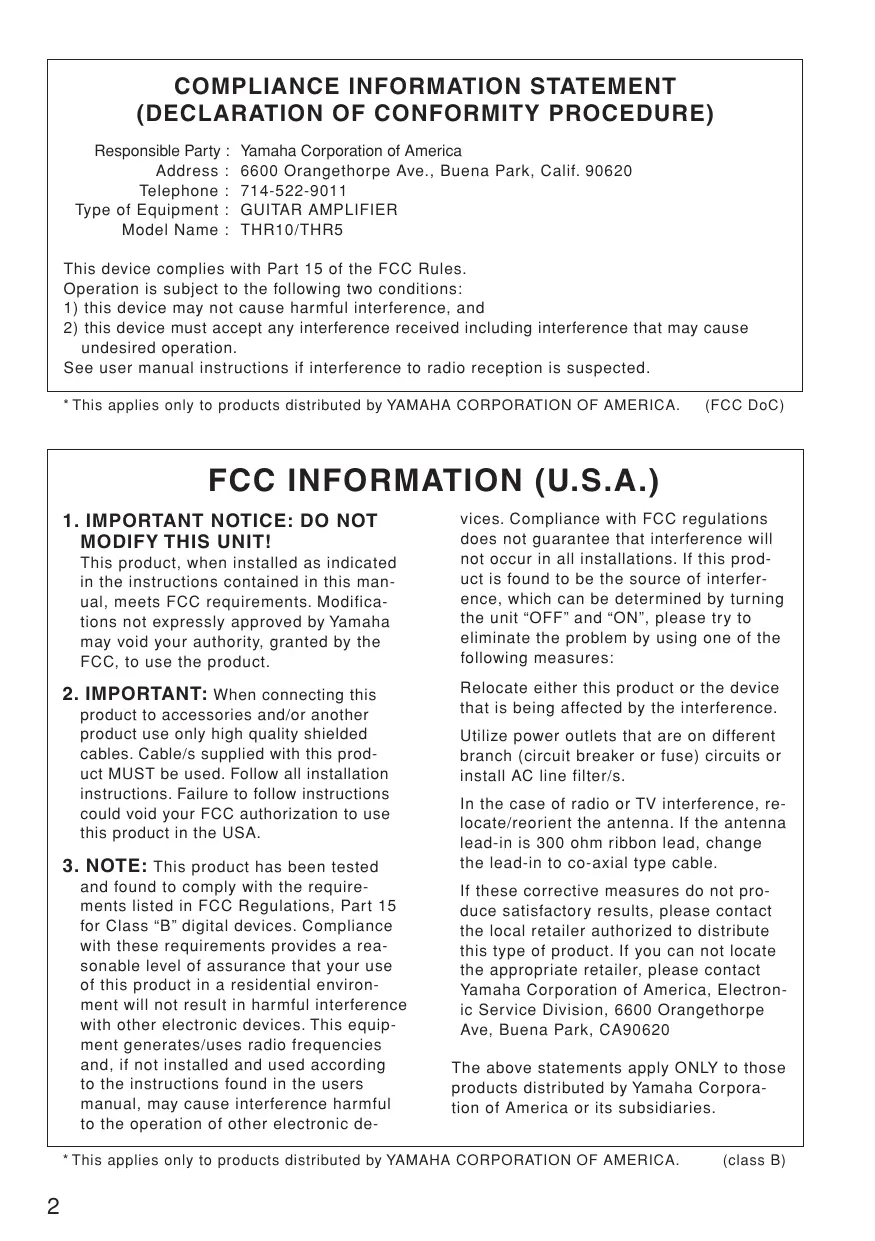

| Product type | Portable modeling guitar amplifier |
| Brand | Yamaha |
| Model | THR10 |
| Dimensions (W x H x D) | 360 x 180 x 140 mm |
| Weight | 3.5 kg |
| Power supply | 12V DC power adapter or 8 AA batteries (not included) |
| Output power | 10 W (2 x 5 W stereo) |
| Speakers | 2 x 8 cm |
| Amp models | Clean, Crunch, Lead, Brit Hi, Modern, Bass, Acoustic, Flat |
| Built-in effects | Chorus, Flanger, Phaser, Tremolo, Delay, Reverb |
| Functions | Built-in tuner, headphone output, auxiliary input, USB port |
| Connections | Guitar input (6.35 mm jack), auxiliary input (3.5 mm jack), headphone output (3.5 mm jack), USB type B |
| Included accessories | Power adapter, USB cable |
| Maintenance and cleaning | Clean with a dry, soft cloth. Avoid solvents. |
| Safety | Do not expose to humidity or rain. Do not open the device. |
| Spare parts and repairability | Device not user-serviceable. Contact a Yamaha authorized service center. |
| General information | Stereo modeling guitar amplifier, compact design, suitable for home. |
Frequently Asked Questions - THR10 YAMAHA
User questions about THR10 YAMAHA
0 question about this device. Answer the ones you know or ask your own.
Ask a new question about this device
Download the instructions for your Guitar Amplifier in PDF format for free! Find your manual THR10 - YAMAHA and take your electronic device back in hand. On this page are published all the documents necessary for the use of your device. THR10 by YAMAHA.
USER MANUAL THR10 YAMAHA
PykoBoDCTBO noJb30BaTeJIa
使用手册
사용품명서
COMPLIANCE INFORMATION STATEMENT (DECLARATION OF CONFORMITY PROCEDURE)
Responsible Party : Yamaha Corporation of America
Address: 6600 Orangethorpe Ave., Buena Park, Calif. 90620
Telephone:714-522-9011
Type of Equipment : GUITAR AMPLIFIER
Model Name: THR10/THR5
This device complies with Part 15 of the FCC Rules.
Operation is subject to the following two conditions:
1) this device may not cause harmful interference, and
2) this device must accept any interference received including interference that may cause undesired operation.
See user manual instructions if interference to radio reception is suspected.
- This applies only to products distributed by YAMAHA CORPORATION OF AMERICA. (FCC DoC)
FCC INFORMATION (U.S.A.)
1. IMPORTANT NOTICE: DO NOT MODIFY THIS UNIT!
This product, when installed as indicated in the instructions contained in this manual, meets FCC requirements. Modifications not expressly approved by Yamaha may void your authority, granted by the FCC, to use the product.
2. IMPORTANT: When connecting this product to accessories and/or another product use only high quality shielded cables. Cable/s supplied with this product MUST be used. Follow all installation instructions. Failure to follow instructions could void your FCC authorization to use this product in the USA.
3. NOTE: This product has been tested and found to comply with the requirements listed in FCC Regulations, Part 15 for Class "B" digital devices. Compliance with these requirements provides a reasonable level of assurance that your use of this product in a residential environment will not result in harmful interference with other electronic devices. This equipment generates/uses radio frequencies and, if not installed and used according to the instructions found in the users manual, may cause interference harmful to the operation of other electronic de
vices. Compliance with FCC regulations does not guarantee that interference will not occur in all installations. If this product is found to be the source of interference, which can be determined by turning the unit "OFF" and "ON", please try to eliminate the problem by using one of the following measures:
Relocate either this product or the device that is being affected by the interference.
Utilize power outlets that are on different branch (circuit breaker or fuse) circuits or install AC line filter/s.
In the case of radio or TV interference, relocate/reorient the antenna. If the antenna lead-in is 300 ohm ribbon lead, change the lead-in to co-axial type cable.
If these corrective measures do not produce satisfactory results, please contact the local retailer authorized to distribute this type of product. If you can not locate the appropriate retailer, please contact Yamaha Corporation of America, Electronic Service Division, 6600 Orangethorpe Ave, Buena Park, CA90620
The above statements apply ONLY to those products distributed by Yamaha Corporation of America or its subsidiaries.
This device complies with Part 15 of the FCC Rules. Operation is subject to the following two conditions:
(1) this device may not cause harmful interference, and (2) this device must accept any interference received, including interference that may cause undesired operation.
This Class B digital apparatus complies with Canadian ICES-003.
If the socket outlets in the home are not suitable for the plug supplied with this appliance, it should be cut off and an appropriate 3 pin plug fitted. For details, refer to the instructions described below.
Note
The plug severed from the mains lead must be destroyed, as a plug with bared flexible cord is hazardous if engaged in a live socket outlet.
SPECIAL INSTRUCTIONS FOR U.K. MODEL
IMPORTANT NOTICE FOR THE UNITED KINGDOM
Connecting the Plug and Cord
WARNING: THIS APPARATUS MUST BE EARTHED IMPORTANT.
The wires in this mains lead are coloured in accordance with the following code:
GREEN-AND-YELLOW : EARTH
BLUE:NEUTRAL
BROWN:LIVE
As the colours of the wires in the mains lead of this apparatus may not correspond with the coloured markings identifying the terminals in your plug proceed as follows:
The wire which is coloured GREEN-and-YELLOW must be connected to the terminal in the plug which is marked by the letter E or by the safety earth symbol ② or colored GREEN or GREEN-and-YELLOW.
The wire which is coloured BLUE must be connected to the terminal which is marked with the letter N or coloured BLACK.
The wire which is coloured BROWN must be connected to the terminal which is marked with the letter L or coloured RED.
(3 wires)
To assure the finest performance, please read this manual carefully. Keep it in a safe place for future reference.
1 Install this unit in a well ventilated, cool, dry, clean place - away from direct sunlight, heat sources, vibration, dust, moisture, and/or cold. (Do not use/keep this unit in a car etc.)
2 Locate this unit away from other electrical appliances, motors, or transformers to avoid humming sounds.
3 Do not expose this unit to sudden temperature changes from cold to hot, and do not locate this unit in an environment with high humidity (i.e. a room with a humidifier) to prevent condensation inside this unit, which may cause an electrical shock, fire, damage to this unit, and/or personal injury.
4 Avoid installing this unit where foreign objects may fall onto this unit and/or this unit may be exposed to liquid dripping or splashing. On the top of this unit, do NOT place:
-- Other components, as they may cause damage and/or discoloration on the surface of this unit.
-- Burning objects (i.e. candles), as they may cause fire, damage to this unit, and/or personal injury.
-- Containers with liquid in them, as they may fall and liquid may cause electrical shock to the user and/or damage to this unit.
5 Do not cover this unit with a newspaper, tablecloth, curtain, etc. in order not to obstruct heat radiation. If the temperature inside this unit rises, it may cause fire, damage to this unit, and/or personal injury.
6 Do not operate this unit upside-down. They may overheat, possibly causing damage.
7 Do not use force on switches, knobs, and/or cords.
8 When disconnecting the power cable from the wall outlet, grasp the AC plug; do not pull the cord.
9 Do not clean this unit with chemical solvents; this might damage the finish. Use a clean, dry cloth.
10 Only the voltage specified on this unit must be used. Using this unit with a higher voltage than specified is dangerous and may cause fire, damage to this unit, and/or personal injury. Yamaha will not be held responsible for any damage resulting from use of this unit with a voltage other than that specified.
11 If the power adaptor you are using has a grounded three-prong plug, make sure that the plug is connected to an appropriate outlet with a protective grounding connection. Improper grounding can result in electrical shock.
12 Do not connect the instrument to an electrical outlet using a multiple-connector. Doing so can result in lower sound quality, or possibly cause overheating in the outlet.
13 Before connecting the instrument to other electronic components, turn off the power for all components. Before turning the power on or off for all components, set all volume levels to minimum.
14 Be sure to set the volumes of all components at their minimum levels and gradually raise the volume controls while playing the instrument to set the desired listening level.
15 Do not attempt to modify or fix this unit. Contact qualified Yamaha service personnel when any service is needed. The cabinet should never be opened for any reason.
16 When not planning to use this unit for long periods of time (i.e. when going on vacation), disconnect the power cable from the AC wall outlet.
17 Be sure to read the "TROUBLESHOOTING" section regarding common operating errors before concluding that the unit is faulty.
18 Before moving this unit, disconnect the power cable from the wall outlet.
19 Be sure to use the AC adaptor supplied with this unit. Using an AC adaptor other than the one provided may cause fire or damage to this unit.
20 Do not use batteries other than those recommended on page 13. Using other types of batteries may result in an inability to achieve full function of the unit, cause unit failure, or damage.
21 Always replace all batteries at the same time. Do not use new batteries together with old ones.
22 Do not mix battery types, such as alkaline batteries with manganese batteries, or batteries from different makers, or different types of batteries from the same maker, since this can cause overheating, fire, or battery fluid leakage.
23 If the batteries do leak, avoid contact with the leaked fluid. If the battery fluid should come in contact with your eyes, mouth, or skin, wash immediately with water and consult a doctor. Battery fluid is corrosive and may possibly cause loss of sight or chemical burns.
24 Always make sure all batteries are inserted in conformity with the +/- polarity markings. Failure to do so might result in overheating, fire, or battery fluid leakage.
25 When the batteries run out, or if the instrument is not to be used for a long time, remove the batteries from the instrument to prevent possible leakage of the battery fluid.
26 Install this unit near the wall outlet and where the power cable can be reached easily.
27 For added protection for this product during a lightning storm, or when it is left unattended and unused for long periods of time, unplug it from
the wall outlet. This will prevent damage to the product due to lightning and powerline surges.
28 The batteries shall not be exposed to excessive heat such as sunshine, fire or the like. When you dispose of batteries, follow your regional regulations.
29 Do not use the instrument/device or headphones for a long period of time at a high or uncomfortable volume level, since this can cause permanent hearing loss. If you experience any hearing loss or ringing in the ears, consult a physician.
There is a chance that placing this unit too close to a CRT-based (Braun tube) TV set might impair picture color. Should this happen, move this unit away from the TV set.
WARNING
TO REDUCE THE RISK OF FIRE OR ELECTRIC SHOCK, DO NOT EXPOSE THIS UNIT TO RAIN OR MOISTURE.
CAUTION
Danger of explosion if battery is incorrectly replaced. Replace only with the same or equivalent type.
Yamaha cannot be held responsible for damage caused by improper use or modifications to the instrument, or data that is lost or destroyed.
The name plate is located on the bottom of the unit.
- Even when the power switch is in standby status, electricity is still flowing to the instrument at the minimum level. When you are not using the instrument for a long time, make sure you unplug the power cord from the wall AC outlet.
Information
About copyrights
- Copying of the commercially available musical data including but not limited to MIDI data and/or audio data is strictly prohibited except for your personal use.
- This product incorporates and bundles computer programs and contents in which Yamaha owns copyrights or with respect to which it has license to use others' copyrights. Such copyrighted materials include, without limitation, all computer software, style files, MIDI files, WAVE data, musical scores and sound recordings. Any unauthorized use of such programs and contents outside of personal use is not permitted under relevant laws. Any violation of copyright has legal consequences. DON'T MAKE, DISTRIBUTE OR USE ILLEGAL COPIES.
About this manual
- The illustrations and LCD screens as shown in this manual are for instructional purposes only, and may appear somewhat different from those on your instrument.
- Windows is a registered trademark of Microsoft® Corporation in the United States and other countries.
- Apple, Mac and Macintosh are trademarks of Apple Inc., registered in the U.S. and other countries.
- The company names and product names in this manual are the trademarks or registered trademarks of their respective companies.
Thank you for purchasing the Yamaha THR10/5 Guitar Amp. In order to get the most of this product, please read this Owner's Manual thoroughly before using. After you've finished reading the manual, keep it in a safe place for future reference.
■ Features
-
Compact design delivers professional quality guitar and audio sound.
-
The THR10/5 utilizes a newly developed amp-modeling technology made possible with Yamaha's original VCM technology*. With this new technology, the user interface is able to reproduce the operational characteristics of each control to deliver guitar amp sound with greater realism.
- The THR10/5 offers high quality audio sound that only a company like Yamaha, with its expertise in advanced audio technologies, can deliver. Its ability to playback audio files on a computer via a USB connection, or playback audio files on a smartphone or other audio playback device connected to the AUX IN jack, makes it feel like you are in the studio, playing along with the musicians as they record. And because the THR10/5 is portable, you can enjoy this experience wherever you like.
- Incorporates VCM Effects similar to those found in Yamaha's high-end mixers for high quality effects.
- Utilizes Yamaha's original Extended Stereo technology to deliver an unbelievably wide stereo image, wider than the unit's compact size.
- Includes Steinberg's professional quality music production software Cubase AI that lets you enjoy full-fledged recording in the convenience of your home.
- Two-way power system allows the unit to operate either on AC power or battery power so you can use the amp outside and other places that lack access to AC power.
- Includes a chromatic auto tuner.
*What is VCM Technology?
An original physical modeling technology developed by Yamaha, VCM Technology reproduces the characteristics of analog circuitry at a micro level to accurately reproduce the modeled equipment.
Package Contents
The following items are included in the package.
Make sure that all items are present.
- THR10 Package
- THR10 Main Unit
Power Adaptor - THR10/5 Owner's Manual (this booklet)
Stereo Mini Cable
USB Cable
Cubase AI DVD-ROM
- THR5 Package
THR5 Main Unit
Power Adaptor
- THR10/5 Owner's Manual (this booklet)
Stereo Mini Cable
USB Cable
Cubase AI DVD-ROM
About the Supplied Disc
Steinberg's Cubase AI music editing software is included on the supplied DVD-ROM.
Special Notices
CAUTION
- Steinberg and Yamaha make no representations or warranties with regard to any problems while attempting to copy the disks or software and cannot be held responsible for the results of attempts to copy the data.
- This disk is NOT for audio/visual purposes.
- Do not attempt to play the disk on a CD/DVD player.
- Doing so may result in irreparable damage to your audio CD/DVD player.
- The software included in the Cubase AI DVD-ROM and the copyrights thereof are under exclusive ownership by Steinberg Media Technologies GmbH.
- Copying/reproduction of the software in whole or in part by any means is expressly forbidden without the written consent of the manufacturer.
- For the latest information of the software contained in the accessory disk, please see the site below: Future upgrades of application and system software and any changes in specifications announced separately on the web site.
http://www.steinberg.net
Contents
CAUTION 4
Features 6
Package Contents 7
About the Supplied Disc 7
Names And Functions 8
Control Panel 8
Rear Panel 11
Connection 12
Connection Examples 12
Power 13
Connecting a Computer to the Unit 14
Installing the Software 14
Connections and Operation 15
Troubleshooting 17
Specifications 18
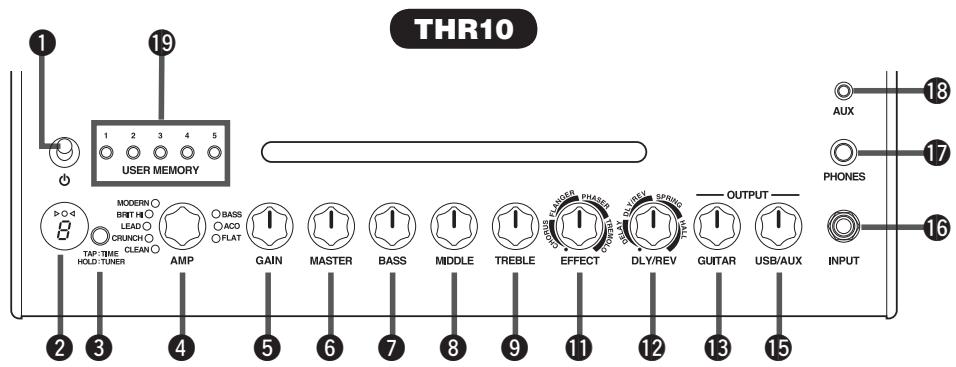
Control Panel
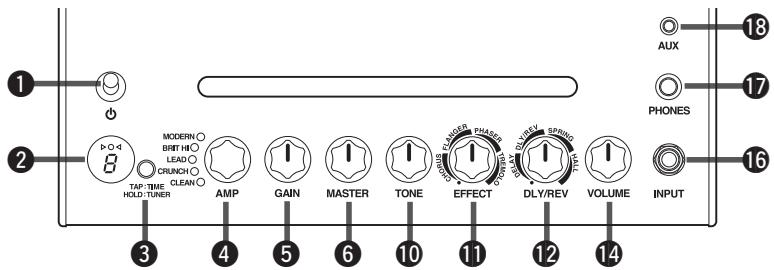
THR5
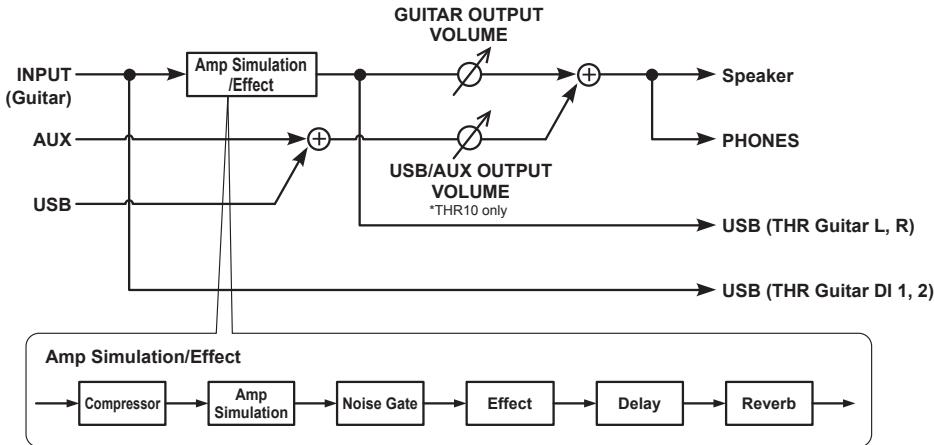
- Block Diagram of Amp Simulation and Effects
(Power Switch)
This is the unit's power switch. When the power is ON, the lamp corresponding to the selected amp type and the Power Lamp in the speaker cabinet light.
- The Power Lamp in the speaker cabinet can be switched ON or OFF using the THR Editor. (page 16).
LED Display
Indicates each of the THR's settings and conditions.
3 TAP/TUNER
Tuner Function
Holding the switch for 1 second engages the tuner function and lights the indicators.
The tuner is calibrate to A4=440Hz. Tune the guitar until the pitch that you want to tune to appears in the display.
Tuning is complete when only the in the center of the display is visible.
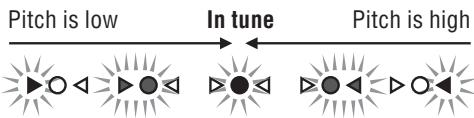
Press the TAP/TUNER switch (less than one second) to turn OFF the tuner function.
- When the tuner function is set ON, guitar sound to the main speakers, PHONES, and USB is muted. Input received from the AUX and USB jacks is output.
Tap Tempo Function
When a DLY or DLY/REV effect is selected with the DLY/REV 12 control, the tempo of the delay can be set by tapping (more than twice) on the switch.
Extended Stereo Setting
Hold the switch for more than three seconds to switch the Extended Stereo* function ON/OFF.
ON:"#on LED 2 is off (default setting). OFF:"#on LED 2 is lit.
-
Extended Stereo: The Extended Stereo function produces a much wider stereo field. Extended Stereo effects the USB/AUX inputs as well as guitar sounds with DLY/REV or HALL effects applied.
-
The Extended Stereo setting (ON/OFF) is saved when the power is switched OFF.
4 AMP
Selects the amp type. The lamp for the corresponding amp type lights.
- When the power is switched ON, the most recent amp type is selected.
[About amp types]
THR's GAIN 5 and MASTER 6 controls work in the same way as the preamp and master controls on a tube amp. The GAIN 5 control provides preamp gain and distortion while the MASTER 6 control affects power amp level. The response of the MASTER 6 control differs depending on the amp model used but it affects volume, gain and power amp compression. Using the GUITAR OUTPUT 13 control you can use the amp's GAIN 5 and MASTER 6 controls to set your tone at any level.
THR utilizes a newly designed amp-modeling technology using Yamaha's Virtual Circuitry Modeling (VCM) technology. VCM gives THR the power to model real amps incredibly accurately, with each control working and responding exactly as it does on the real thing.
CLEAN: Rich, clean tones from a 6L6 power section with gentle breakup for incredible jazz, blues and country sounds.
- When the BASS, MIDDLE, and TREBLE controls are all set to 0, there is no guitar sound output.
CRUNCH: Low-powered, class-A tube output with bright, clear, dynamic power amp distortion characteristics.
LEAD: Classic British single channel tone. A combination of a low-gain preamp section and EL34s in the power section give rich, controllable distortion with great midrange definition.
BRIT HI: EL34s keep the classic British clarity while a higher gain preamp allows you to push the amp into serious distortion.
MODERN: Ultra high-gain input section combined with 6L6 output section delivers smooth, powerful distortion and awesome power amp compression.
- The following amp types are available only on the THR10.
BASS: High-power all-tube design for dynamic, driving bass tone.
ACO: Electro-acoustic optimized input with mic simulations for natural, clear tone.
FLAT: Flat response clean input for line sources, tone and effect controls allow shaping of non-guitar sources.
GAIN
Adjusts the amount of guitar distortion. Rotate the knob clockwise to increase the amount of distortion.
- On the THR10, the blend function, which blends the pickup direct sound with the mic simulation sound, is active when ACO is selected with the AMP ④ control. (Setting the blend function to its minimum level produces the pickup direct sound only while a maximum setting produces the mic sound only.)
6 MASTER
Adjusts the volume for the amp section. Rotate the knob clockwise to increase volume while reproducing compression and poweramp distortion of the simulated amp.
- Only adjusts the volume when BASS, ACO, or FLAT is selected with the AMP ④ control (THR10 only).
BASS (THR10 only)
Tone adjustment for the guitar's sound. Rotate the knob clockwise to enhance the low range frequencies.
MIDDLE (THR10 only)
Tone adjustment for the guitar's sound. Rotate the knob clockwise to enhance the mid-range frequencies.
TREBLE (THR10 only)
Tone adjustment for the guitar's sound. Rotate the knob clockwise to enhance the high-range frequencies.
10 TONE (THR5 only)
Tone adjustment for the guitar's sound.
Rotate the knob clockwise to brighten the sound and counterclockwise to darken it.
1 EFFECTS
Selects one of the four different effects; CHORUS, FLANGER, PHASER, and TREM- OLO. Rotate the knob clockwise to increase the amount of each effect.
- Rotate the knob fully to the left (● position) to set the effect OFF.
DLY/REV
Selects one of the four different effects; DLY (delay), DLY/REV (delay/reverb), SPRING (spring reverb), and HALL (hall reverb). Rotate the knob clockwise to increase the amount of each effect.
-
Rotate the knob fully to the left (● position) to set the effect OFF.
-
When DLY or DLY/REV is selected, the TAP/TUNER ③ button can be used to set the delay time freely.
13 GUITAR OUTPUT (THR10 Only)
Adjusts the overall volume of the guitar sound.
13 VOLUME (THR5 only)
Adjusts the overall volume of the guitar sound.
USB/AUX OUTPUT (THR10 only)
Adjusts the audio playback volume for audio from the computer connected to the USB
20 jack or an audio device connected to the AUX 18 jack.
16 INPUT
This jack is used to connect a guitar to the unit.
17 PHONES
This a standard phone jack used to connect a pair of stereo headphones to the unit. It can also be used as a line out jack.
- Main speaker sound is muted when a connector is inserted into the PHONES jack.
18 AUX
This is a stereo mini phone jack used for audio input from an external device such as an MP3 player, etc.
19 USER MEMORY (THR10 only)
Saves up to five sets of amp section controller settings (GAIN, MASTER, BASS, MIDDLE, TREBLE, EFFECT, DLY/REV). Press and hold the number of the switch you want to save your settings to (about 2 seconds). The save operation is complete when the memory number for the switch being pushed appears in the LED display. Press one of the numbered switches (less than 2 seconds) to recall the saved settings.
Rear Panel
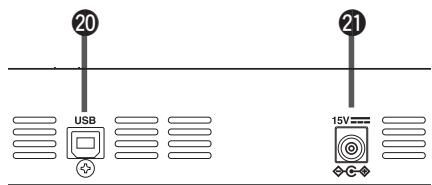
20 USB
Use the supplied USB cable to connect a computer to the unit.
2 DC IN
Connects the supplied power adaptor.
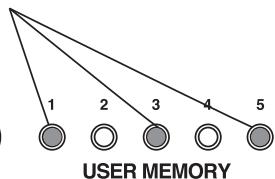
About the Default Settings (THR10 only)
To reset user memory 1-5 contents to their factory defaults, switch on the power while holding down USER MEMORY switches 1, 3, and 5.
Hold down switches 1, 3, and 5.
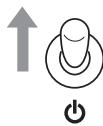
Switch on the power.
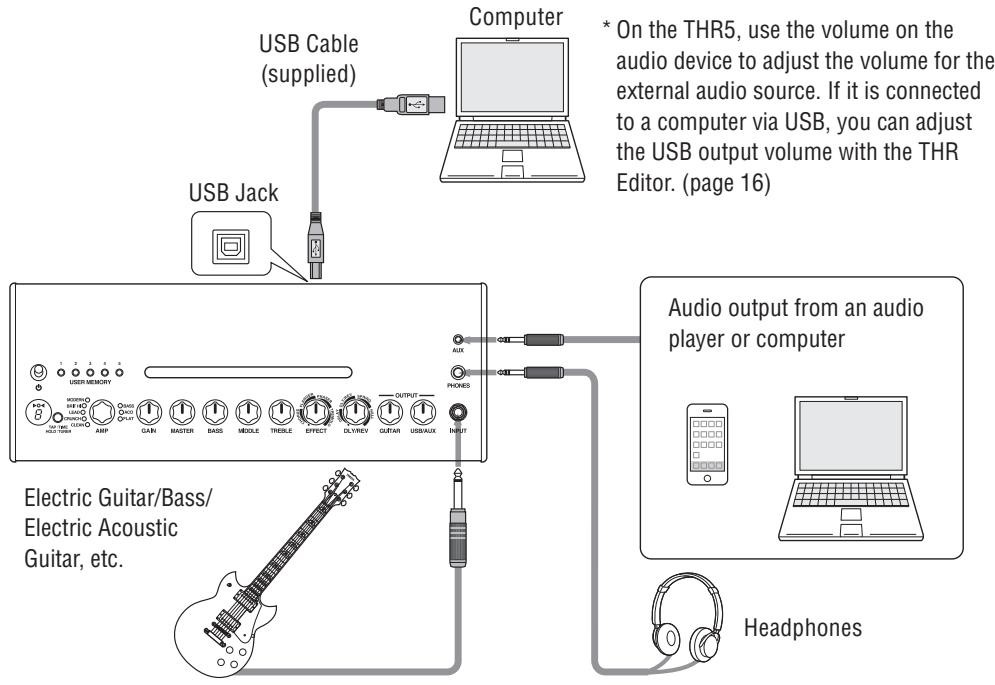
Connection Examples
- Before making any connections, make sure that the power on all devices is switched OFF.
- When connecting the unit to an external device, check the shape of the jack and use an appropriate cable that matches with the jack's specifications and connect surely.
Precautions in regard to using the USB jack
Make sure you follow the points below when connecting a computer to the THR10/5 USB jack. Failing to do so may result in the computer or the THR10/5 freezing or shutting down, as well as corruption or even loss of data. If the device or computer does freeze, restart the application or computer.
CAUTION
- Be sure to wake the computer from suspended/sleep/ standby mode before connecting a computer to the USB jack.
- Always quit all applications that are running on the computer before connecting or disconnecting the USB cable and set the volume output on the computer to its minimum level.
- When connecting or disconnecting the USB cable, be sure to set the VOLUME and the USB/AUX OUTPUT on the THR10/5 to their minimum levels.
- Wait at least 6 seconds between connecting or disconnecting the USB cable.
Power
The THR10/5 can operate on either battery power or with the power adaptor.
- Power is automatically supplied from the power adaptor when the adaptor is connected to the unit with batteries installed. To prevent batteries from leaking, we recommend that the batteries be removed from the unit when using the power adaptor.
- When using the power adaptor
Connect the supplied power adaptor to the DC IN jack located on the rear side of the THR10/5. Connect the AC plug to a power outlet.
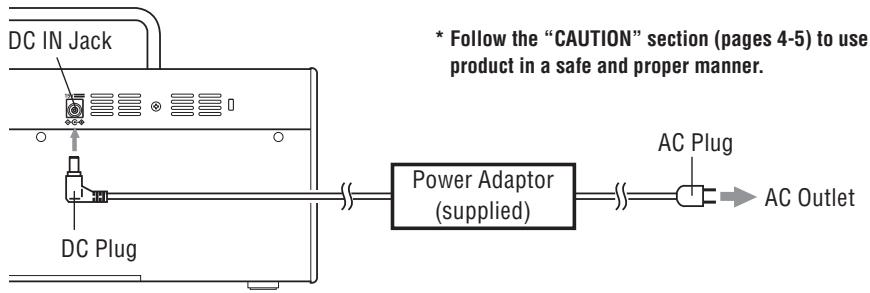
- When using batteries
Use AA alkaline batteries or nickel hydride batteries*.
Make sure that the batteries are installed with their +/- poles aligned properly as shown below.
- When using nickel hydride batteries, we recommend eneloop® batteries. When using eneloop batteries, please read the eneloop battery instruction manual carefully. (eneloop® is a registered trademark of Sanyo Electric Co., Ltd.)
- Do not use manganese batteries.
- Follow the "CAUTION" section (pages 4-5) to use the product in a safe and proper manner.
The amp turns off automatically when battery power is depleted. After replacing the batteries or connecting the power adaptor, turn the power switch OFF and wait for ten seconds before turning the power switch back ON again.
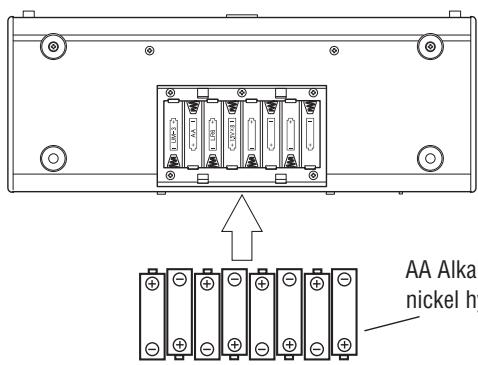
THR10 (Bottom)
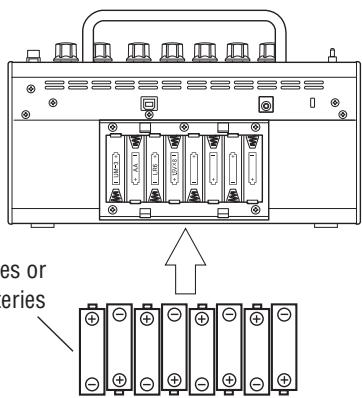
THR5 (Rear)
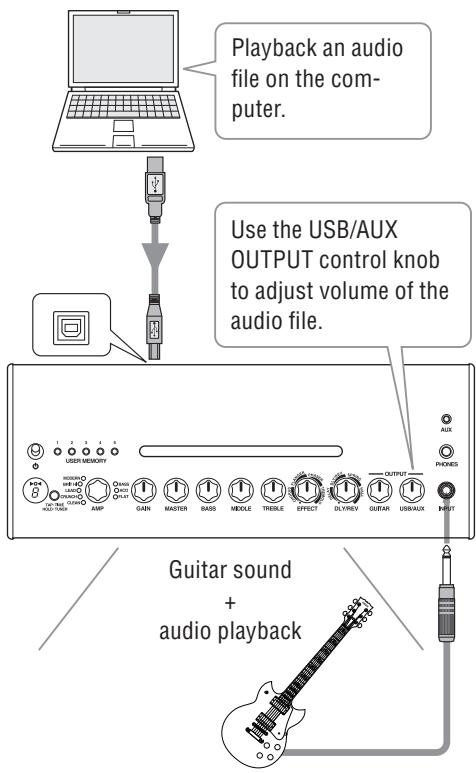
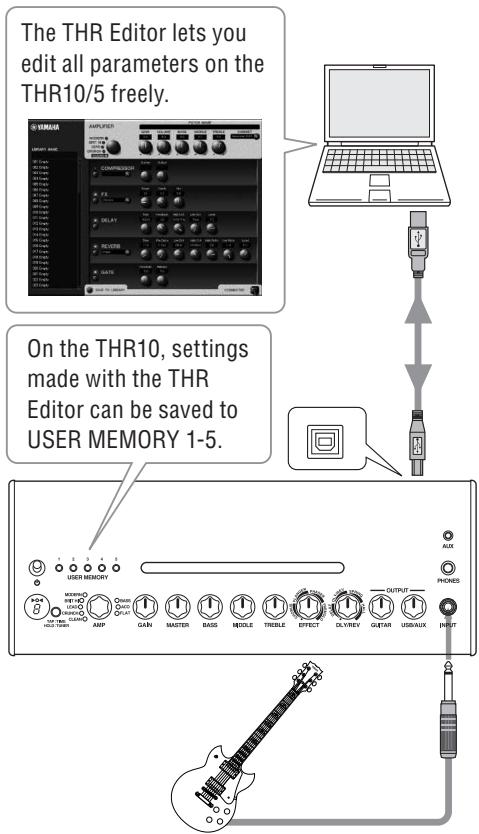
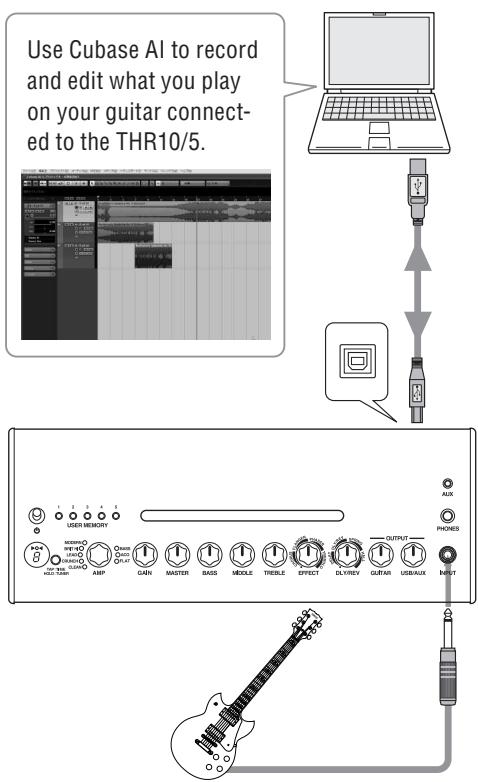
Connecting a computer to the THR10/5 makes the following possible:
1) Playback audio files on the computer through the THR10/5.
2) Edit THR10/5 amp settings using the editing application on a computer.
3) Record audio using the Cubase AI application.
The following software must be installed in the computer in order to carry out the functions listed above.
■ Installing the Software
Driver Installation
Using the THR10/5 with a computer requires the installation of a driver.
[Installing the Driver]
- Access the following website and download the latest version of the Yamaha Steinberg USB Driver, the file will decompress and open.
http://download.yamaha.com
- Check the above website for information on system requirements.
-
The Yamaha Steinberg USB Driver may be updated without notice. Please visit the above website for the latest details and updates.
-
Install the Yamaha Steinberg USB Driver in your computer. Refer to the Installation Guide that is included in the downloaded file.
- After installing the driver, quit all applications and then select the THR10 or the THR5 as the computer's audio output. Each OS has its own setting display that can be accessed as follows.
Windows
Control Panel Sound "Sound" tab
Mac
System Preferences Sound "Output" tab
- THR Editor Installation
Using the THR Editor, you can edit effect and tone settings for the THR10/5 in greater detail. Edited settings can be saved in the THR10/5.
[Installing the THR Editor]
- Access the following web site and download the THR Editor. http://download.yamaha.com
- Start the downloaded file and follow the instructions that appear in the display to install the THR Editor.
- Refer to the THR Editor's Owner's Manual or the Help Guide for information on settings and operation of the THR Editor.
Cubase AI Installation
The THR10/5 comes bundled with Steinberg's Cubase AI music editing application. Using Cubase AI you can record a guitar connected to the THR10/5 and edit songs.
[Cubase AI System Requirements]
In order to install and run the Cubase AI application supplied on the accompanying DVD-ROM, your computer must meet the following requirements.
Windows
| OS: | Windows 7 (32-bit, 64-bit) |
| CPU: | Intel or AMD dual core CPU |
| Memory: | 2 GB or more |
| Audio Device: | Windows compatible (ASIO, WDM) |
| Display Resolution: | 1280 x 800 — full color |
| Interface: | Equipped with a USB connector |
| Hard Disk: | Free disk space of 4 GB or more; high-speed hard disk |
Mac OS X
| OS: | Mac OS X 10.6 |
| CPU: | Intel dual core CPU |
| Memory: | 2 GB or more |
| Audio Device: | CoreAudio compatible |
| Display Resolution: | 1280 x 800 — full color |
| Interface: | Equipped with a USB connector |
| Hard Disk: | Free disk space of 4 GB or more; high-speed hard disk |
- A DVD drive is required for installation.
- In order to have continuous use of Cubase AI, including support and other benefits, you will need to register the software and activate your software license by starting it while the computer is connected to the internet.
- Note that the system requirements may be slightly different from those described above depending on the particular operating system.
[Installing Cubase AI]
- Start the computer and log on to the Administrator account.
- Insert the Cubase AI DVD-ROM into the DVD-ROM drive.
- When the "WELCOME TO CUBASE AI" window appears, choose your preferred language by clicking on the corresponding national flag icon.
- Click "Install CUBASE AI."
-
Follow the onscreen instructions to install the software.
-
In order to have continuous use of Cubase AI, including support and other benefits, you will need to register the software and activate your software license by starting it while the computer is connected to the Internet. Click the "Register Now" button shown when the software is started, then fill in all required fields for registration. If you do not register the software, you will be unable to use it after a limited period of time expires.
Connections and Operation
1) Playback audio files on the computer through the THR10/5
Install the Yamaha Steinberg USB Driver, and select the THR10 or THR5 as the audio output (page 14).
Use the supplied USB cable to connect the computer's USB jack to the USB jack on the THR10/5 as shown in the diagram below.
This lets you play audio files on the computer through the speakers on the THR10/5. Connect your guitar to the unit and play along. On the THR10 the audio volume is controlled using the USB/AUX OUTPUT control knob.
- On the THR5, use the volume control on the computer to adjust the audio volume.
2) Edit THR10/5 amp settings using the editing application on a computer.
Download and install the THR Editor (page 14). Use the supplied USB cable to connect the computer's USB jack to the USB jack on the THR10/5 as shown in the diagram below.
The THR Editor lets you change settings (parameters) in the THR10/5 using the display shown below. After editing the settings with your computer, you can save them in your computer, and create a library of sound settings. Holding down the USER MEMORY button for a few seconds on the THR10 saves the settings being edited to the unit's internal memory.
- For more information on settings and operation, refer to the THR Editor Owner's Manual or its Help file.
3) Record audio using the Cubase AI application.
Install the Cubase AI application (page 14).
Use the supplied USB cable to connect the computer's USB jack to the USB jack on the THR10/5 as shown in the diagram below.
Cubase AI lets you record what you play on a guitar connected to the THR10/5 to a computer. After recording, you can go back and edit the recorded data.
- For more information on settings and operation, refer to the THR Editor Owner's Manual or its Help file.
No power
Is the power adaptor properly connected? ( page 13)
- Are the batteries properly installed? (→ page 13)
No sound
1) No instrument sound
Is the guitar properly connected to the INPUT jack? ( page 12)
Is the volume control on the instrument turned up?
- If the GAIN, MASTER, GUITAR OUTPUT (THR10), VOLUME (THR5) controls set to 0, the instrument will produce no sound. ( page 10)
- If the AMP control is set to CLEAN and all of the tone controls are set to 0, the instrument will produce no sound. ( page 9)
- Are the headphones disconnected from the PHONES jack? ( page 11)
- If the Compressor Output set to 0 with the THR Editor the instrument will produce no sound. ( page 16)
Is the Tuner function switched OFF? ( page 9)
Is the cable connecting the instrument to the unit damaged?
2) No audio sound from the computer
- Is the USB cable properly connected to both devices? ( page 12)
- Is the Yamaha Steinberg USB Driver properly installed in the computer? ( page 14)
Is the proper audio output port selected in the "Connecting a Computer to the Unit" section? ( page 14) -
Is output from the computer or the application muted?
-
With the THR10, is the USB/AUX OUTPUT control turned up? ( page 11)
- Is the USB cable connecting the devices damaged?
3) No audio sound from the AUX Input
- Is the cable connecting the device to the AUX Input properly connected? ( page 12)
- Is the volume control on the connected device turned up?
- With the THR10, is the USB/AUX OUTPUT control turned up? ( page 11)
- Is the cable connecting the device to the AUX Input damaged?
(THR5 only) Audio volume from the computer connected to the unit via USB is too low or too high.
- Launch the THR Editor on the computer and adjust the volume output using the "USB Volume" setting. ( page 16)
Cannot set the Tap Tempo
- Is DLY or DLY/REV selected? The tap tempo cannot be set with any other effects. ( page 9)
The Power Lamp does not light
- In the THR Editor ( page 16) open the Preferences and set the Power Lamp to ON.
A “#” appears in the LED display
- A “#” appears in the display when the Extended Stereo setting is set to OFF. ( page 9)
Noise is heard during audio playback
- Lower the volume on the guitar amp.
Can not edit parameters with the THR Editor
Is the unit's Tuner Function switched ON? Switch the Tuner Function OFF. ( page 9)
Digital Section
Built-in Amp Simulations
THR10: CLEAN, CRUNCH, LEAD, BRIT HI, MODERN, BASS, ACO, FLAT
THR5: CLEAN, CRUNCH, LEAD, BRIT HI, MODERN
Built-in Effects
- CHORUS, FLANGER, PHASER, TREMOLO
- DELAY, DELAY/REVERB, SPRING REVERB, HALL REVERB
- COMPRESSOR*
-
NOISE GATE*
-
Only available in the THR Editor.
Built-in Chromatic Auto Tuner
Controller/Switch
THR10: AMP, GAIN, MASTER, BASS, MIDDLE, TREBLE, EFFECT, DLY/REV, GUITAR OUTPUT, USB/AUX OUTPUT, USER MEMORY Switch x5, TAP/TUNER Switch
THR5: AMP, GAIN, MASTER, TONE, EFFECT, DLY/REV, VOLUME, TAP/TUNER Switch
Display
LED x1
Connections
INPUT (Standard Monaural Phone Jack)
PHONES (Standard Stereo Phone Jack)
AUX (Stereo Mini Jack)
USB 2.0
DC IN
A/D Converter
24-bit + 3 Bit Floating
D/A Converter
24-bit
Sampling Frequency
44.1 kHz
Memory Allocations (THR10 only)
User Memory: 5
Input Level
GUITAR IN: -10 dBu
AUX IN: -10 dBu
PHONES Output Level
10 mW
Rated Output
10 W (5 W + 5 W)
Power Source
Power Adaptor or Batteries
Power Adaptor (EADP-38EB A or UIB345-1530)
- Input:
U.S.A. and Canada models: AC120 V, 60 Hz
Other models: AC100 V to 240 V, 50/60 Hz
Output: DC 15 V
- Batteries (AA alkaline batteries or nickel-hydride batteries (eneloop) x 8)
Battery Life
Alkaline batteries: approx. 6 hours
Nickel-hydride batteries: approx. 7 hours
- Depending upon usage and conditions
Power Consumption
18W
Dimensions (W× H× D)
THR10: 360 × 183.5 × 140 mm ( 14.2'' × 7.2'' × 5.5'' )
THR5: 271 × 167 × 120 mm ( 10.7'' × 6.6'' × 4.7'' )
Weight
THR10: 2.8 kg (6 lbs. 3 oz.)
THR5: 2.0kg (4 lbs. 7 oz.)
Accessories
Power Adaptor
USB Cable
- Stereo-Mini Cable
- Owner's Manual (This booklet)
Cubase AI DVD-ROM
Information for Users on Collection and Disposal of Old Equipment and used Batteries


Cd
These symbols on the products, packaging, and/or accompanying documents mean that used electrical and electronic products and batteries should not be mixed with general household waste.
For proper treatment, recovery and recycling of old products and used batteries, please take them to applicable collection points, in accordance with your national legislation and the Directives 2002/96/EC and 2006/66/EC.
By disposing of these products and batteries correctly, you will help to save valuable resources and prevent any potential negative effects on human health and the environment which could otherwise arise from inappropriate waste handling.
For more information about collection and recycling of old products and batteries, please contact your local municipality, your waste disposal service or the point of sale where you purchased the items.
[For business users in the European Union]
If you wish to discard electrical and electronic equipment, please contact your dealer or supplier for further information.
[Information on Disposal in other Countries outside the European Union]
These symbols are only valid in the European Union. If you wish to discard these items, please contact your local authorities or dealer and ask for the correct method of disposal.
Note for the battery symbol (bottom two symbol examples):
This symbol might be used in combination with a chemical symbol. In this case it complies with the requirement set by the Directive for the chemical involved.