
ACPLR-01 - Uncategorized CRUX - Free user manual and instructions
Find the device manual for free ACPLR-01 CRUX in PDF.


| Product Type | Smart-Play Integration System (Android Auto and CarPlay) |
| Brand | CRUX |
| Model | ACPLR-01 |
| Compatible Vehicles | Jaguar and Land Rover with 8" factory screen (2012-2016: Freelander 2, Discovery 4, Range Rover Evoque, Range Rover Sport, Range Rover, XE, XF, XJ) |
| Main Functions | Connects Android and other phones to factory infotainment; supports Android Auto and CarPlay |
| Display Interface | Uses factory touch screen for Smart-Play controls |
| Audio Input | Uses factory Aux Input for audio |
| Included Parts | Module, Vehicle Harnesses, GVIF Video Cable, Smart-Play Interface Module, 4K HDMI Cable, Microphone, USB Extension Cable, 3.5mm Aux Cable, Power Harness |
| Power Supply | 12V ACC and Ground |
| Installation Location | Behind factory touch screen |
| Required Connections | GVIF, LVDS, HDMI, Aux, USB, and power |
| DIP Switch Settings | Vehicle-specific: set DIP switches per chart for Range Rover, Discovery, Jaguar models |
| Navigation Integration | DIP#5 controls NAV icon; software update required for vehicles without factory navigation |
| Software Update | Contact issues@cruxinterfacing.com for update |
| Microphone | External microphone included for voice commands |
| USB Port | USB extension cable for smartphone connection |
| HDMI | 4K HDMI cable between modules |
| Safety Precautions | Disconnect battery before installation; secure all connections |
| Maintenance | Keep connectors clean; ensure firm connections |
| Repairability | No user-serviceable parts; contact manufacturer for service |
Frequently Asked Questions - ACPLR-01 CRUX
User questions about ACPLR-01 CRUX
0 question about this device. Answer the ones you know or ask your own.
Ask a new question about this device
Download the instructions for your Uncategorized in PDF format for free! Find your manual ACPLR-01 - CRUX and take your electronic device back in hand. On this page are published all the documents necessary for the use of your device. ACPLR-01 by CRUX.
USER MANUAL ACPLR-01 CRUX
- Smart-Play Integration system allows connection of Android and other phones to the Jaguar and Land Rover infotainment system.
- Made for Android Auto and CarPlay.
- Uses the factory touch screen for Smart-Play controls.
- Uses the factory Aux Input for audio.
PARTS INCLUDED:
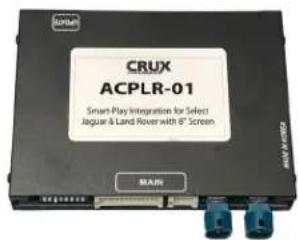


ACPLR-01 Module Vehicle Harnesses GVIF Video Cable
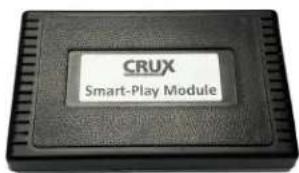


Smart-Play Interface Module 4K HDMI Cable


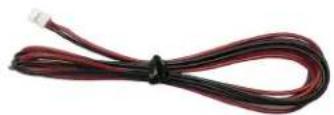
Microphone
USB Extension Cable 3.5mm Aux Cable Power Harness
WIRING DIAGRAM:
![graph TD A["Microphone"] --> B["Aux Input"] B --> C["Smart-Play Power"] C --> D["Line Out"] D --> E["HDMI"] E --> F["Power Port"] F --> G["CRUX+ Smart-Play Module"] G --> H["USB"] H --> I["Original Smartphone Cable"] I --> J["To Smartphone"] K["Microphone"] --> L["12V ACC Ground"] L --> M["To Vehicl…](/content/2026/06/1151106/images/26a7e99463c078283a3035745a5799af87efb01cc012ec8415e67a5e72b36183.jpg)
DIP SWITCH SETTINGS:
| DIP SETTING VEHICLE | ____ | |
| 1 to 8 ALL | UP Range Rover Evoque, Range Rover Sport | |
| 1 DOWN | (rest UP) Discovery 4 | |
| 3 DOWN | (rest UP) Jaguar XF, XJ | |
| 4 DOWN | (rest UP) Range Rover | |
For vehicles without factory navigation, set DIP# 5 to ON (down) before powering the ACPLR-01 module. This creates a NAV icon on the screen which is used to select Smart-Play mode. See DIP SWITCH SETTING FOR NAVIGATION on page 6 for details.
For vehicles with factory navigation, set DIP#5 to OFF (up). See page 6 for more details.
INSTALLATION INSTRUCTIONS:
NOTE: Connections are made behind the touch screen.

- Pop off the bezel around the touch screen with a trim tool.

- Pop off the left trim cover to expose the screws.
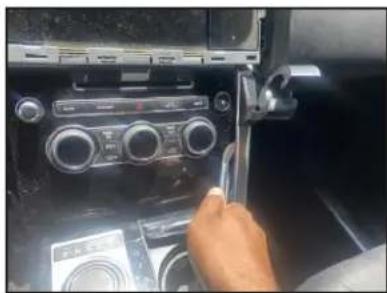
- Pop off the right trim cover to expose the screws.

- Carefully remove the AC control panel using a pry tool.
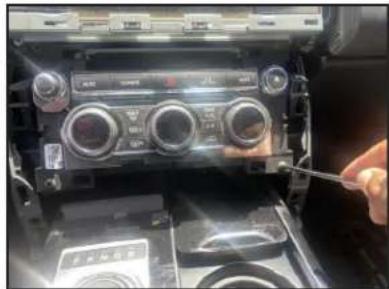
- Remove the 4 Torx screws holding the AC control panel and unplug the connector.

- Remove the Torx screws holding the left and right radio control panels.

- Remove the radio control panels and unplug the connectors.

- Remove the 4 Torx screws holding the touch screen.
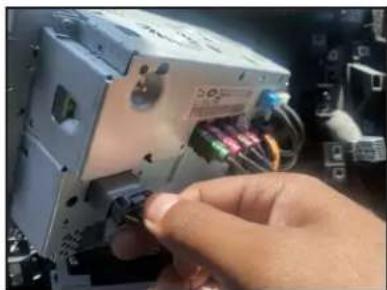
- Unplug the gray connector behind the touch screen.
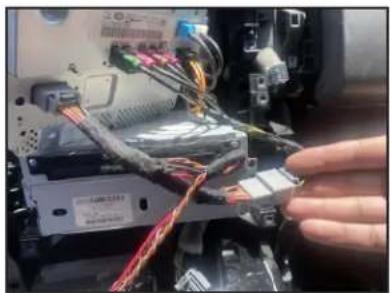
- Mate the ACPLR-01 t-harness to the factory touch screen and OE harness.
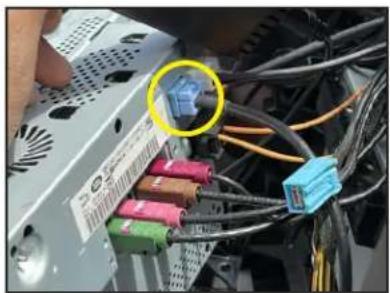
- Unplug the blue GVIF connector from behind the touch screen and mate it to the ACPLR-01 GVIF video cable.
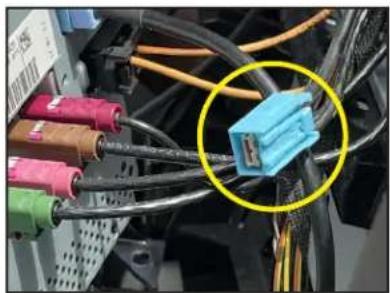
- The factory GVIF connector is not used and should be wrapped with tape.

- Set the DIP switches according to the chart on page 2.

- Plug the LVDS connector of the GVIF video cable to "OUT" port on the module.
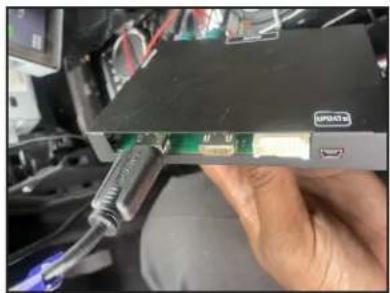
- Plug in one end of the HDMI cable to the left HDMI port on the module.

- Plug in the other end of the HDMI cable to the HDMI port on the Smart-Play module.

- Plug in the 3.5mm to 3.5mm Aux cable to the Smart-Play module.
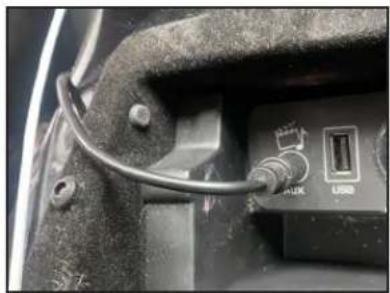
- Plug the other end of the 3.5mm Aux cable to the factory Aux input.
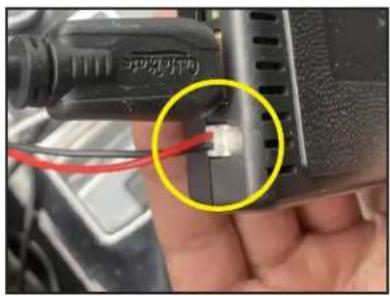
- Plug in the Smart-Play power plug and tap to 12V ACC and Ground.

- Mount the microphone to the desired location and run the cable towards the Smart-Play module. Plug it to the microphone input.

- Plug in the USB extension cable and run it to an easily accessible location.
DIP SWITCH SETTING FOR NAVIGATION:
Vehicles without factory navigation will require a software update for the ACPLR-01 module. Please send an email to issues@cruxinterfacing.com to receive the software update. Once the module has been updated, set DIP#5 to ON (down) before powering the module. When the module is powered up, the screen will boot up then reboot. The navigation icon will show once the screen reboots.
For vehicles with factory navigation, set DIP# 5 to OFF (up).

For vehicles without factory navigation set DIP#5 to ON (down) before powering the module.

For vehicles with factory navigation set DIP#5 to OFF (up) before powering the module.
DIP SWITCH SETTING FOR NAVIGATION:
To toggle to Smart-Play mode, tap the navigation icon (On road Nav) or press the NAV button on the dash.


VEHICLE APPLICATIONS:
Compatible with Jaguar and Land Rover vehicles with 8" factory screen.
| Land Rover | |
| 2012-2016 | Freelander 2 |
| 2012-2016 | Discovery 4 |
| 2012-2016 | Range Rover Evoque |
| 2012-2016 | Range Rover Sport |
| 2012-2016 | Range Rover |
| Jaguar | |
| 2012-2016 | XE |
| 2012-2016 | XF |
| 2012-2016 | XJ |

2016 Range Rover Evoque 2016 Jaguar XJ

Brand : CRUX
Model : ACPLR-01
Category : Uncategorized