PDMIUSBLP14 - Microphone Pyle - Free user manual and instructions
Find the device manual for free PDMIUSBLP14 Pyle in PDF.


User questions about PDMIUSBLP14 Pyle
0 question about this device. Answer the ones you know or ask your own.
Ask a new question about this device
Download the instructions for your Microphone in PDF format for free! Find your manual PDMIUSBLP14 - Pyle and take your electronic device back in hand. On this page are published all the documents necessary for the use of your device. PDMIUSBLP14 by Pyle.
USER MANUAL PDMIUSBLP14 Pyle
natural_image
Close-up of a black audio recording device with a microphone, a USB port, and a red-lit indicator light (no text or symbols visible)☆♣★☆☆☆☆☆☆ √
□○□★☆☆☆□☆☆☆□□□□
Pure Copper Mic Shield with Smart Mute Switch
User Manual
PRELIMINARY SETUP WITH MAC OS X
- Plug the free end of the provided USB cable into the USB port on your computer. Your computer will automatically recognize the USB device.
- To select the Pyle USB Microphone as your audio input first open your System Preferences.

text_image
Finder File Edit View Go Window Help About This Mac Software Update... Mac OS X Software... System Preferences... Dock Location Recent Items Force Quit Finder Sleep Restart... Shut Down... Log Out ATUS... QNote:
Many recording software programs are available online. Audacity is a widely used free software for recording and editing sounds.
- Next, click Sound to display the Sound Preference panel.

text_image
System Preferences Show All Personal Appearance Dashboard & Expost Desktop & Screen Saver Dock International Security Spotlight Hardware Bluetooth CDs & DVDs Displays Energy Saver Keyboard & Mouse Print & Fax Sound Internet & Network Mac Network QuickTime Sharing System Accounts Date & Time Software Update Speech Startup Disk Universal Access- Click the input tab and select the Pyle USB Microphone as the device for sound input.

text_image
Sound Show All Sound Effects Output Input Choose a device for sound input Name Port Internal microphone Built-in Pyle USB Microphone USB Settings for the selected devices Input level: Input volume: Output volume: Mute Show volume in menu barYour preferences are now set to use the Pyle USB Microphone on your Mac with the recording program of your choice.
PRELIMINARY SETUP WITH WINDOWS XP
- Plug the free end of the provided USB cable into the USB port on your computer. Your computer will automatically recognize the USB device.
- To select the Pyle USB Microphone as your default recording device, begin at your START menu.
- Select Control Panel.

text_image
Internet Internet Explorer E-mail Microsoft Office Outlook Microsoft Office Word 2003 Microsoft Office Excel 2003 Adobe Acrobat 7.0 Standard All Programs My Documents My Recent Documents My Pictures My Music My Computer My Network Places Control Panel Set Program Access and Defaults Connect To Printers and Foxes Help and Support Search Run...4. Select Sounds and Audio Devices.
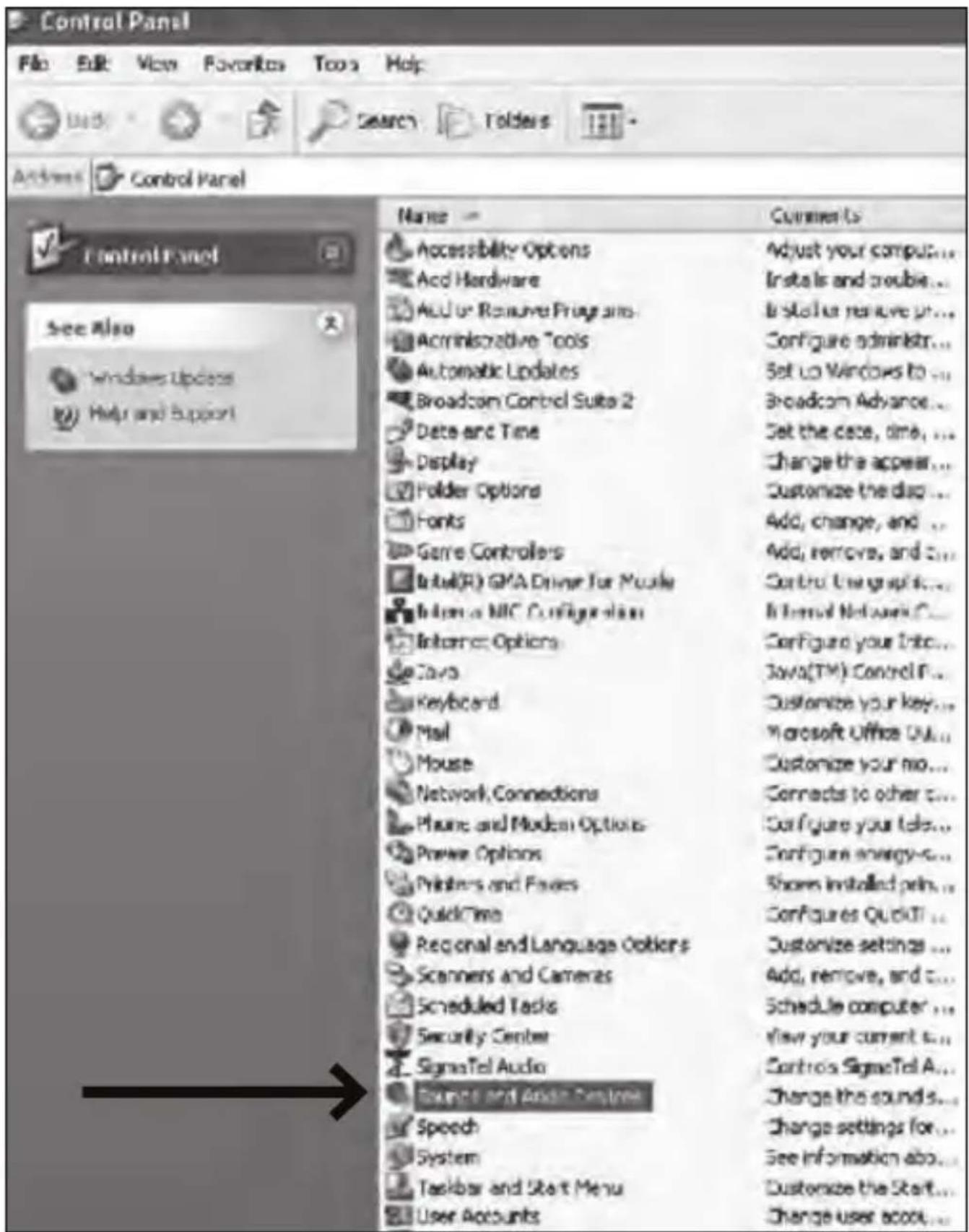
text_image
Control Panel File Edit View Favorites Tools Help Back Search Tolders Actions Control Panel Name Accessibility Options Acid Hardware Audio or Remote Programs Administrative Tools Automatic Updates Broadcom Control Suite 2 Data and Time Display Folder Options Fonts Game Controllers Intel(R) GMA Driver for Music Intron a MIC Configuration Internet Options Java Keyboard Mail Mouse Network Connections Phone and Modem Options Power Options Printers and Faxes Quick Time Regional and Language Options Scanners and Cameras Scheduled Tasks Security Center Signal Tel Audio Balance and Audio Connection Speech System Toolbar and Start Menu User Accounts Comments Adjust your computer... Installs and trouble... Install or remove print... Configure administrator... Set up Windows to ... Broadcom Advance... Set the case, time, ... Change the appear... Customize the diag... Add, change, and ... Add, removes, and ... Control Use grid... Internal Network C... Configure your Info... Java(TM) Control F... Customize your key... Microsoft Office Out... Customize your mode... Connects to other c... Configure your Info... Configure energy-c... Shown installed pin... Configure QuickT... Customize settings ... Add, remove, and ... Schedule computer ... View your current s... Controls Signal Tel A... Change the sounds... Change settings for ... See information info... Customize the Start... Change user scoo...- Adjust computer volume by clicking on the Volume button beneath the Sound recording default device.
- Through the Wave In window, you can set the computer volume or mute the microphone.
- Your preferences are now set to use the Pyle USB Microphone with the Windows and with the recording program of your choice.
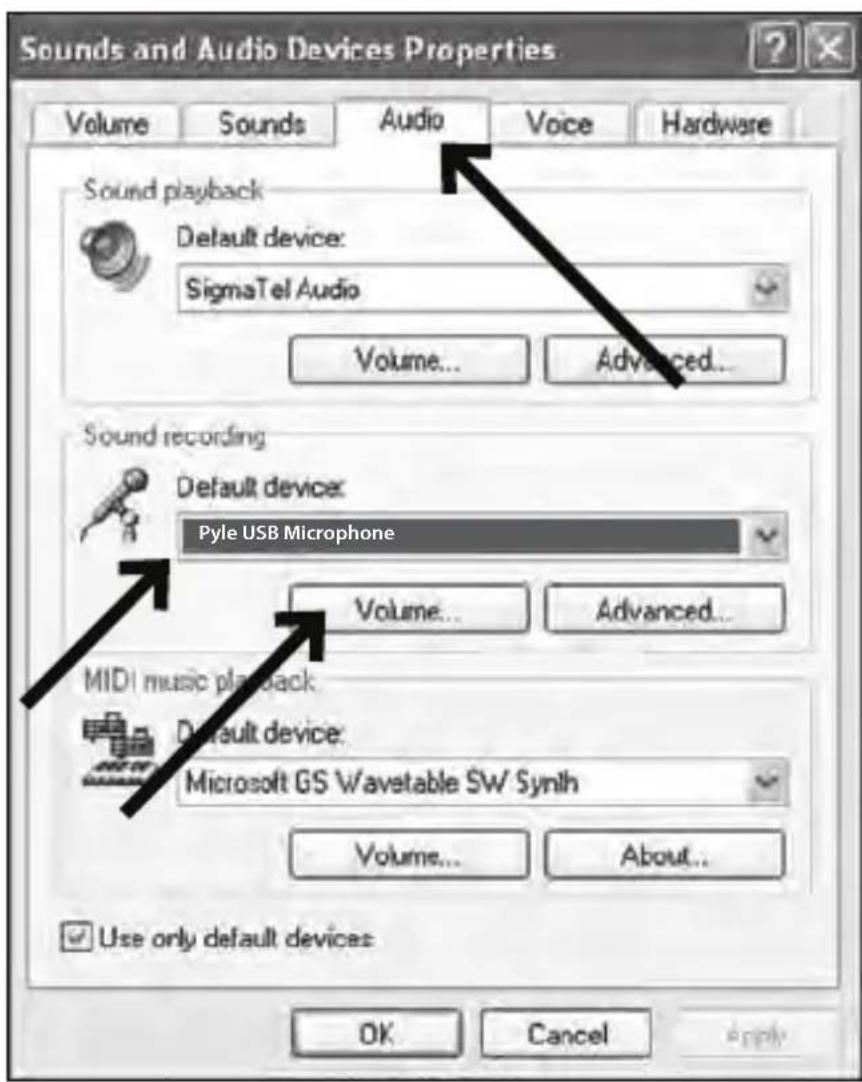
text_image
Sounds and Audio Devices Properties Volume Sounds Audio Voice Hardware Sound playback Default device: SigmaTel Audio Volume... Advanced... Sound recording Default device: Pyle USB Microphone Volume... Advanced... MIDI music playback Default device: Microsoft GS Wavetable SW Synth Volume... About... Use only default devices OK Cancel Apply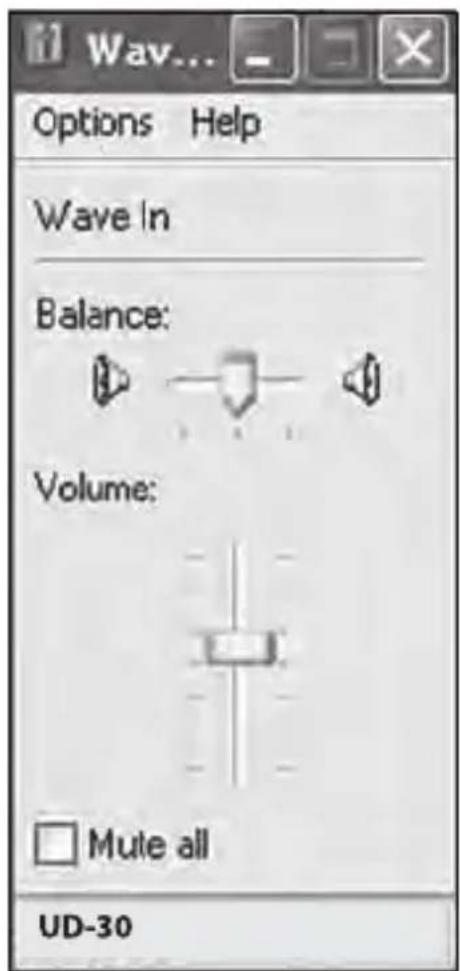
text_image
Wav... Options Help Wave In Balance: Volume: □ Mute all UD-30PRELININARY SETUP WITH WINDOWS VISTA
- Plug the free end of the provided USB cable into the USB port on your computer. Your computer will automatically recognize the USB device.
- START menu > Control Panel » Sound
To select the Pyle USB Microphone as your default recording device, begin at your START menu. Select Control Panel.
- Select (double-click) Sound.
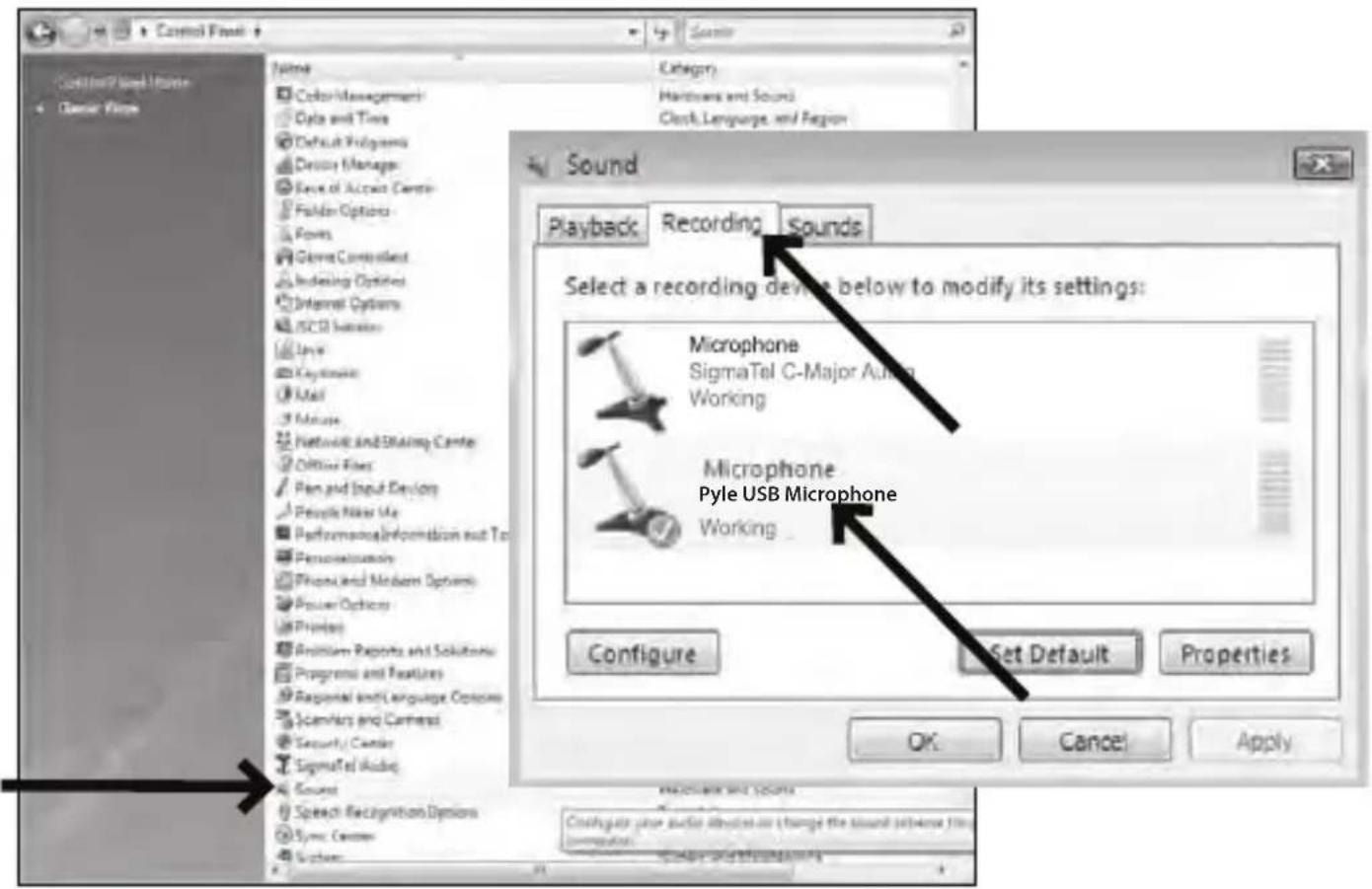
text_image
Control Panel Name Color Management Data and Time Default Programs Device Manager Save of Account Center Folder Options Fines Gamma Continent Indexing Options Internal Options MSCI Settings Uplink Keyboard Mail Mouse Networks and Sharing Center Offline Files Plan and Input Devices People Need Use Performance Information and To Personnel Supply Phone and Modem Options Power Options Phone Problem Reports and Solutions Programs and Features Response and Language Options Scambers and Connects Security Camera SigmaTel Audio Sound Speech Recognition Options Sync Camera System... Category Hardness and Sounds Clock, Language, and Region Sound Playback Recording Sounds Select a recording device below to modify its settings: Microphone SigmaTel C-Major Audio Working Microphone Pyle USB Microphone Working Configure Set Default Properties OK Cancel Apply RECORDER AND SCORES Configure your audio attention on change the sound sequence file (or configuration) Modify and Modemining- Select the Recording tab. Make sure that the Pyle USB Microphone is set as the default recording device.
(You should see a green check mark beside the USB microphone icon.)
Your preferences are now set to use the Pyle USB Microphone with Windows Vista with the recording program of your choice.
PRELININARY SETUP WITH WINDOWS 7/10
- Plug the free end of the provided USB cable into the USB port on your computer. Your computer will automatically recognize the USB device.
- START menu > Control Panel » Sound
To select the Pyle USB Microphone as your default recording device, begin at your START menu. Select Control Panel.

text_image
Microsoft Outlook 2010 Cisco AnyConnect VPN Client Microsoft Word 2010 Microsoft Excel 2010 Adobe Reader 9 Lotus Notes iTunes Snipping Tool Connect to a Projector Getting Started All Programs Search programs and files Mike Edwards Documents Pictures Music Computer Control Panel Devices and Printers Default Programs Help and Support Shut down3. Select Sound.

text_image
Adjust your computer's settings ActionsChannel Color Management Device Manager Folder Options Internet Options Master Plains and Modem Dropout and Language Search Recognition User Accounts Windows Defender Administrative Tools Credential Managers Desktops and Protocols Fonts Java Language and Starting Center Power Options Reconfigurable Defaults Generation System VIAAP Interface MasterSet Windows Firewall AutoPlay Data-and Time Display Getting Started Keyboard Modification Active Hours Program and Features SAP Configuration (32 KB) System VALID Content Accelerating Settings Windows Availability Center Backup and Aspiration Default Programms Ease of Abstract Centers HomeGroup Accessories and Other Services Performance Information and Tools QuickTime (32 KB) SAP Grid Configuration Lockbar and Start Menu Windows Anytime Upgrade Windows Update4. The following screen will pop up.
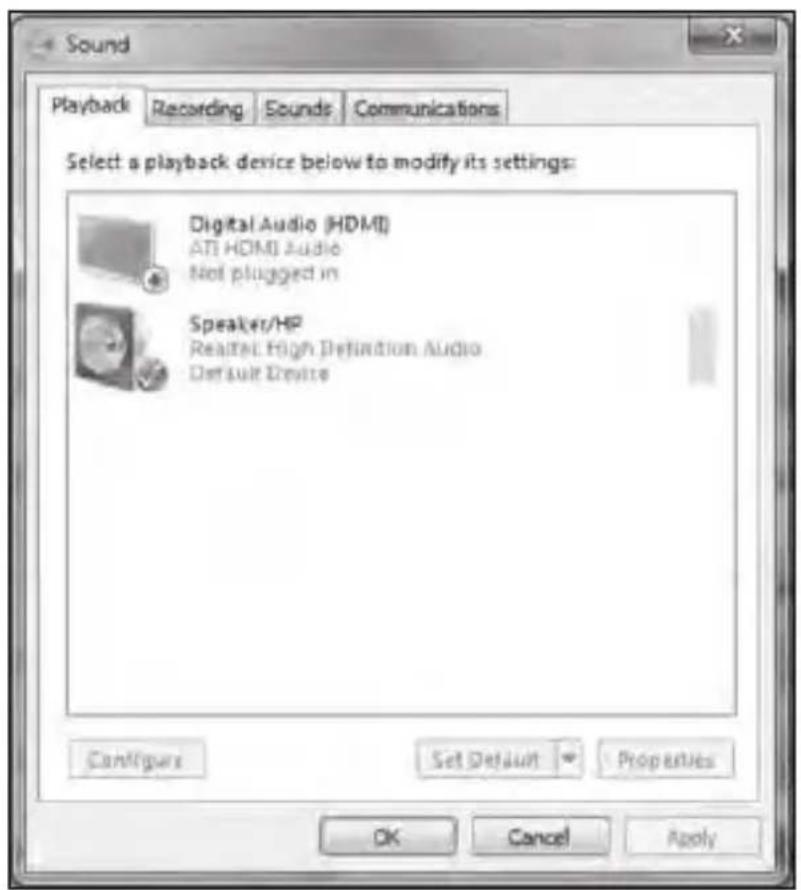
text_image
Sound Playback Recording Sounds Communications Select a playback device below to modify its settings: Digital Audio (HDMI) ATI HDMI Audio Not plugged in Speaker/HP Realtek High Definition Audio Default Devise Configure Set Default Properties OK Cancel Apply- Select the Recording tab, and choose Pyle USB Microphone as the default device.
- Double click on the Pyle USB Microphone icon to open the Microphone Properties window. Select the levels tab to adjust microphone level (loudness). You may need to come back to this window to readjust the level after you begin recording.
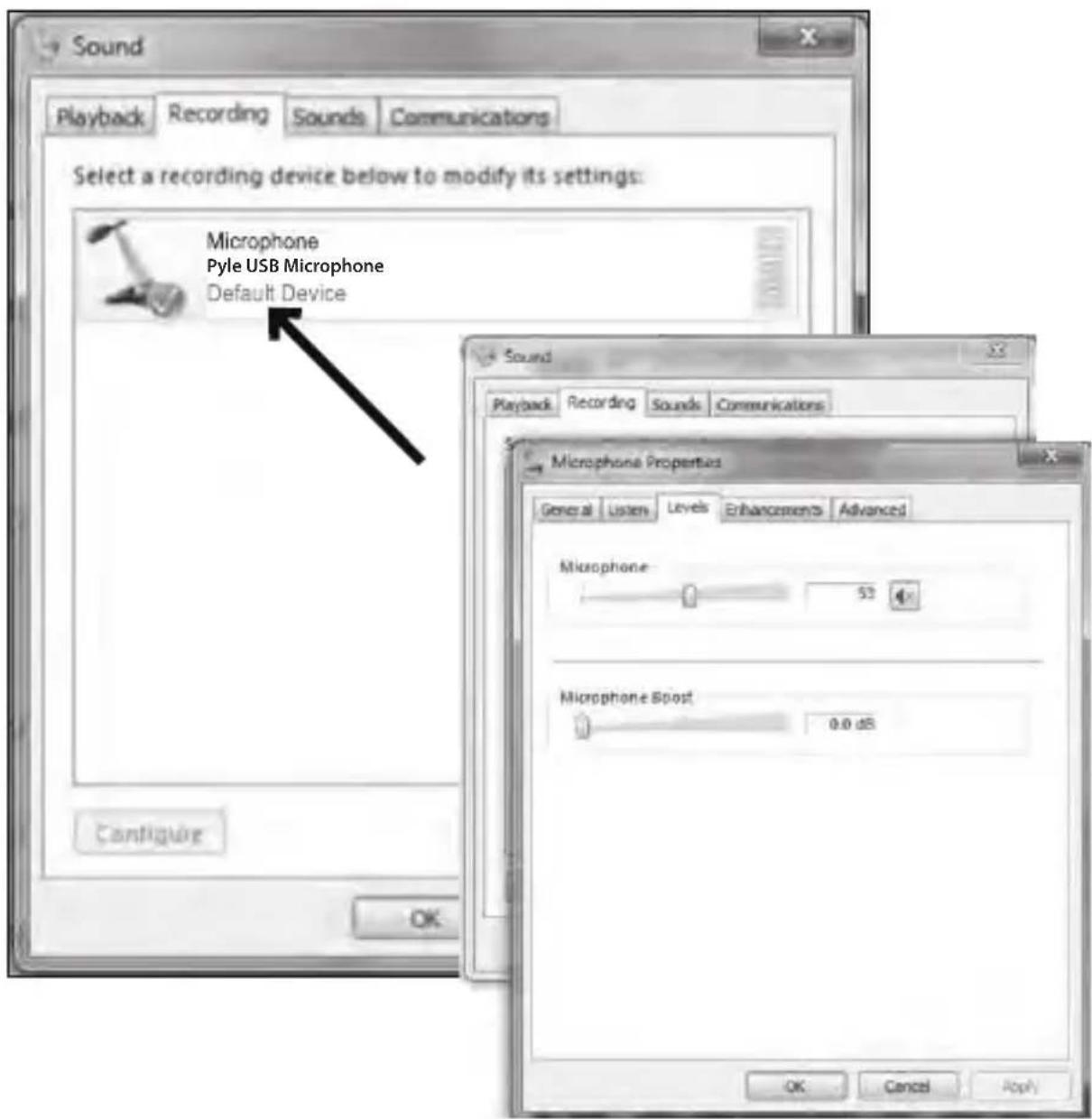
text_image
Sound Playback Recording Sounds Communications Select a recording device below to modify its settings: Microphone Pyle USB Microphone Default Device Configure OK Sound Playback Recording Sounds Communications Microphone Properties General Listen Levels Enhancements Advanced Microphone: 53 Microphone Boost: 0.0 dB OK Cancel ApplyYour preferences are now set to use the Pyle USB Microphone with Windows 7/10 with the recording program of your choice.

text_image
Press button to muteSYSTEM REQUIREMENTS
Macintosh: Mac OS X: USB 1.0 or 2.0: 64MB RAM (minimum)
Windows: XP/Vista/7/10: USB 1.0 or 2.0: 64MB RAM (minimum)
ADDITIONAL INFORMATION
You have many choices in recording software. Audacity, is available for free online and is a widely used software program that provides basic recording software. Correct adjustment of microphone levels is important for optimum performance. Ideally, the microphone level should be as high as possible without overloading the input of your computer. If you hear distortion, or if your recording program shows levels that are consistently overloaded (at peak levels), turn the microphone volume (or level) down, either through your control panel (or systems preferences) settings, or through your recording software. If your recording program shows insufficient level, you can increase the microphone gain either from the control panel (or system preferences) settings or through your recording program.
It is important to position the microphone directly in line (on axis) with the person speaking/singing or the instrument (or other sound source) to achieve the best frequency response of the microphone. This requires the user to speak into the microphone positioned towards the mouth. As this microphone is directional. The distance from the mouth should be about 1-inch, or 10-40mm for optimal recording. For use in speaking/singing applications, the ideal placement for the microphone is directly in front of the person speaking/singing. The same placement is optimal when an instrument is miked, such as an acoustic guitar, drums or piano. Experiment with different mic placements to find the best sound for your particular setup.
Features:
- Super Compact Size
- Selected Japan Capsule
• Pure Cooper Microphone Shielding - Extra Long High-Quality Flexible Wire
- One Button Mute Switch
- Clear and Quality Sound
• Strong and Sturdy Metal USB Type and Tight Clip - Flexible and Durable Cable for Multiple Application
• High-quality, Plug and Play Microphone for PC and MAC - Perfect for Capturing Interviews, Conducting Podcasts, Creating Online Videos and more
What's in the Box:
- USB Lapel Microphone
- Foam Filter
- Leather Pouch
- Cable Wrap
- USB A to C Adapter
Technical Specs:
- Technical Specs:
• Construction Material: Copper - Pick up Pattern: Omni-directional
• Frequency Response: 30-18,000Hz - Sensitivity: -36dB +/- 3dB (0dB=1V/Pa at 1KHz)
• THD Ratio: 0.40%
• Signal to Noise Ratio: 53.42 dB - USB Cable Length: 6.5 ft.
• Supports Up to 32-bits Data Length and 384k Sampling Rate
- Connector: Standard USB type A (Plug-and-play for PC/MAC)
PYLE
PyleUSA.com

natural_image
Illustration of a laptop with a red checkmark on screen (no text or symbols)VISIT US ONLINE:
Have a question?
Need service or repair?
Want to leave a comment?
PyleUSA.com/ContactUs

Questions? Issues?
We are here to help!
Phone: (1) 718-535-1800
Email: support@pyleusa.com