SC-N8012 - Controller AMX - Free user manual and instructions
Find the device manual for free SC-N8012 AMX in PDF.


User questions about SC-N8012 AMX
0 question about this device. Answer the ones you know or ask your own.
Ask a new question about this device
Download the instructions for your Controller in PDF format for free! Find your manual SC-N8012 - AMX and take your electronic device back in hand. On this page are published all the documents necessary for the use of your device. SC-N8012 by AMX.
USER MANUAL SC-N8012 AMX
natural_image
Exterior view of an AMX server rack unit with visible internal components and ventilation slots (no text or symbols on main body)IMPORTANT SAFETY INSTRUCTIONS
-
READ these instructions.
-
KEEP these instructions.
-
HEED all warnings.
-
FOLLOW all instructions.
-
DO NOT use this apparatus near water.
-
CLEAN ONLY with dry cloth.
-
DO NOT block any ventilation openings. Install in accordance with the manufacturer's instructions.
-
DO NOT install near any heat sources such as radiators, heat registers, stoves, or other apparatus (Including amplifiers) that produce heat.
-
DO NOT defeat the safety purpose of the polarized or grounding type plug. A polarized plug has two blades with one wider than the other. A grounding type plug has two blades and a third grounding prong. The wider blade or the third prong are provided for your safety. If the provided plug does not fit into your outlet, consult an electrician for replacement of the obsolete outlet.
-
PROTECT the power cord from being walked on or pinched, particularly at plugs, convenience receptacles, and the point where they exit from the apparatus.
-
ONLY USE attachments/accessories specified by the manufacturer.
-
UNPLUG this apparatus during lightning storms or when unused for long periods of time.
-
REFER all servicing to qualified service personnel. Servicing is required when the apparatus has been damaged in any way, such as power-supply cord or plug is damaged, liquid has been spilled or objects have fallen into the apparatus, the apparatus has been exposed to rain or moisture, does not operate normally, or has been dropped.
-
DO NOT expose this apparatus to dripping or splashing and ensure that no objects filled with liquids, such as vases, are placed on the apparatus.
-
To completely disconnect this apparatus from the AC Mains, disconnect the power supply cord plug from the AC receptacle.
-
Where the mains plug or an appliance coupler is used as the disconnect device, the disconnect device shall remain readily operable.
-
DO NOT overload wall outlets or extension cords beyond their rated capacity as this can cause electric shock or fire.
-
Elevated Operating Ambient - If installed in a closed or multi-unit rack assembly, the operating ambient temperature of the rack environment may be greater than room ambient. Therefore, consideration should be given to installing the equipment in an environment compatible with the maximum ambient temperature (Tma) specified by the manufacturer.
-
Reduced Air Flow - Installation of the equipment in a rack should be such that the amount of air flow required for safe operation of the equipment is not compromised.
-
Mechanical Loading - Mounting of the equipment in the rack should be such that a hazardous condition is not achieved due to uneven mechanical loading.
-
Circuit Overloading - Consideration should be given to the connection of the equipment to the supply circuit and the effect that overloading of the circuits might have on overcurrent protection and supply wiring. Appropriate consideration of equipment nameplate ratings should be used when addressing this concern.
-
Reliable Earthing - Reliable earthing of rack-mounted equipment should be maintained. Particular attention should be given to supply connections other than direct connections to the branch circuit (e.g. use of power strips).

The exclamation point, within an equilateral triangle, is intended to alert the user to the presence of important operating and maintenance (servicing) instructions in the literature accompanying the product.

The lightning flash with arrowhead symbol within an equilateral triangle is intended to alert the user to the presence of uninsulated "dangerous voltage" within the product's enclosure that may be of sufficient magnitude to constitute a risk of electrical shock to persons.

ESD Warning: The icon to the left indicates text regarding potential danger associated with the discharge of static electricity from an outside source (such as human hands) into an integrated circuit, often resulting in damage to the circuit.
WARNING: To reduce the risk of fire or electrical shock, do not expose this apparatus to rain or moisture.
WARNING: No naked flame sources - such as candles - should be placed on the product.
WARNING: Equipment shall be connected to a MAINS socket outlet with a protective earthing connection.
WARNING: To reduce the risk of electric shock, grounding of the center pin of this plug must be maintained.
COPYRIGHT NOTICE
AMX© 2018, all rights reserved. No part of this publication may be reproduced, stored in a retrieval system, or transmitted, in any form or by any means, electronic, mechanical, photocopying, recording, or otherwise, without the prior written permission of AMX. Copyright protection claimed extends to AMX hardware and software and includes all forms and matters copyrightable material and information now allowed by statutory or judicial law or herein after granted, including without limitation, material generated from the software programs which are displayed on the screen such as icons, screen display looks, etc. Reproduction or disassembly of embodied computer programs or algorithms is expressly prohibited.
LIABILITY NOTICE
No patent liability is assumed with respect to the use of information contained herein. While every precaution has been taken in the preparation of this publication, AMX assumes no responsibility for error or omissions. No liability is assumed for damages resulting from the use of the information contained herein. Further, this publication and features described herein are subject to change without notice.
AMX WARRANTY AND RETURN POLICY
The AMX Warranty and Return Policy and related documents can be viewed/downloaded at www.amx.com.
ESD WARNING

To avoid ESD (Electrostatic Discharge) damage to sensitive components, make sure you are properly grounded before touching any internal materials.
When working with any equipment manufactured with electronic devices, proper ESD grounding procedures must be followed to make sure people, products, and tools are as free of static charges as possible. Grounding straps, conductive smocks, and conductive work mats are specifically designed for this purpose.
Anyone performing field maintenance on AMX equipment should use an appropriate ESD field service kit complete with at least a dissipative work mat with a ground cord and a UL listed adjustable wrist strap with another ground cord
WARNING: Do Not Open! Risk of Electrical Shock. Voltages in this equipment are hazardous to life. No user-serviceable parts inside. Refer all servicing to qualified service personnel. Qualified personnel must disconnect BOTH power supplies before servicing.
Place the equipment near a main power supply outlet and make sure that you can easily access the power breaker switch.
WARNING: This product is intended to be operated ONLY from the voltages listed on the back panel or the recommended, or included, power supply of the product. Operation from other voltages other than those indicated may cause irreversible damage to the product and void the products warranty. The use of AC Plug Adapters is cautioned because it can allow the product to be plugged into voltages in which the product was not designed to operate. If the product is equipped with a detachable power cord, use only the type provided with your product or by your local distributor and/or retailer. If you are unsure of the correct operational voltage, please contact your local distributor and/or retailer.
FCC AND CANADA EMC COMPLIANCE INFORMATION:
This device complies with part 15 of the FCC Rules. Operation is subject to the following two conditions:
(1) This device may not cause harmful interference, and (2) this device must accept any interference received, including interference that may cause undesired operation.
NOTE: This equipment has been tested and found to comply with the limits for a Class A digital device, pursuant to part 15 of the FCC Rules. These limits are designed to provide reasonable protection against harmful interference in a residential installation. This equipment generates, uses and can radiate radio frequency energy and, if not installed and used in accordance with the instructions, may cause harmful interference to radio communications. However, there is no guarantee that interference will not occur in a particular installation. If this equipment does cause harmful interference to radio or television reception, which can be determined by turning the equipment off and on, the user is encouraged to try to correct the interference by one or more of the following measures:
•Reorient or relocate the receiving antenna.
- Increase the separation between the equipment and receiver.
- Connect the equipment into an outlet on a circuit different from that to which the receiver is connected.
- Consult the dealer or an experienced radio/TV technician for help.
Approved under the verification provision of FCC Part 15 as a Class A Digital Device.
Caution: Changes or modifications not expressly approved by the manufacturer could void the user's authority to operate this device.
CAN ICES-3 (B)/NMB-3(B)
You may obtain a free copy of the Declaration of Conformity by visiting http://www.amx.com/techcenter/certifications.asp.
EU COMPLIANCE INFORMATION:
Eligible to bear the CE mark; Conforms to European Union Low Voltage Directive 2006/95/EC; European Union EMC Directive 2004/108/EC; European Union Restriction of Hazardous Substances Recast (RoHS2) Directive 2011/65/EU.
WEEE NOTICE:

This appliance is labeled in accordance with European Directive 2012/19/EU concerning waste of electrical and electronic equipment (WEEE). This label indicates that this product should not be disposed of with household waste. It should be deposited at an appropriate facility to enable recovery and recycling.
LASER SAFETY STATEMENT
The DVD drive included in this equipment contains a laser that is compliant with IEC 60825-1, Ed. 2. 2007.
Table of Contents
Chapter 1: Introducing Your New N8000 ....6
Product Overview....6
Hardware Overview....7
N8001 N-Command Controller 7
N8002 N-Command Controller 7
N8012 N-Command Controller 8
Chapter 2: Installing and Configuring the N8000 ......9
Preparing for Install 9
Connecting the N8000 to the Network 9
Establishing Communication with the N8000 10
Logging In 10
Chapter 3: Configuration Options ...... 11
View Options 11
Video Matrix Page 12
Audio Matrix Page.... 13
USB Matrix Page 15
NVR Controls Page.... 16
Panel Viewer Page.... 19
Build Options.... 20
Script Builder Page 21
Task Builder Page 23
Wall Builder Page 24
Third Party Page 25
Panel Builder Page 26
Admin Options.... 27
Unit Management Page 28
IP Addresses Page 29
System Settings Page 31
User-Groups Page 33
Logs Page 34
Master-Client Page 35
Setup Time Page 36
Firmware Updater Page 37
Local Play Options 38
Library-Playlist Page 38
Batch Upload Page 39
Batch LP 1-to-1 Page 40
Backups Options 41
Unit Migrate Page 42
Appendix A: Panel Builder Tutorial ....43
Beginning a Panel Builder Project.... 43
Top Ribbon Option Descriptions 45
Project Pane Option Descriptions 47
Item Properties Tab.... 47
Panel Tab.... 48
Project Tab 49
Assets Tab 49
Tools Pane Option Descriptions.... 50
Buttons Tab.... 50
Widgets Tab 51
Templates Tab 51
Appendix B: Wall Builder Tutorial ....52
Wall Builder Basics 52
Sample Configuration Using Wall Builder 52
Appendix C: Minimum Network Requirements ....55
Appendix D: N-Command Failover Configuration ....57
Introduction.... 57
Needed equipment.... 57
Connection Diagram 57
General Functionality.... 57
Failover Scenarios 58
Override Mechanisms 58
Setup 58
Stopping Master/Client 61
Important Notes 61
Chapter 1: Introducing Your New N8000
Product Overview
The SC-N8000 N-Command Series of Control Applications provides intuitive and powerful management of SVSI system configuration, task automation, scripting, and wall building. SC-N8001 offers AV switching for 5 users and 50 devices, while the SC-N8002/SC-N8012 allow unlimited users and devices. N-Command Control Appliances also include a simplified ASCII interface for third-party control via TCP/IP. Basic features are listed below. See Table 1 for a break-down on the features offered for each of the three N-Command control devices.
Features
- Multi-user, web-based graphical matrix displays offer easy point-and-click control distributing and switching.
- Switch Decoders to different Encoder streams using single graphical matrix.
- Tasks can be scheduled, edited, deleted, or executed immediately for content display.
- Includes wallbuilder, scripting, and panel builder features.
- Manage multiple video streams on a single Ethernet connection.
• Power Requirements: 120 Volt AC power input
• Certifications: FCC, CE, and NTRL
• Temperature: 32° to 104°F (0° to 40°C)
• Humidity: 10% to 90% RH (non-condensing)
TABLE 1 Basic Specifications
| Features SC-N8001 SC-N8002 SC-N8012 | |||
| Interface Ethernet 2xEthernet 2xEthernet | |||
| Web-Based Control Yes | Yes | Yes | |
| Custom Panels | Yes | Yes | Yes |
| Custom Scripts | Yes | Yes | Yes |
| Max Devices | 50 | Unlimited | Unlimited |
| Group Management | Yes | Yes | Yes |
| Host PC Required | No | No | No |
| Platform | Dedicated Hardware | Dedicated Hardware | Dedicated Hardware |
| Users | 5 Simultaneous | Unlimited | Unlimited |
| Audio Matrix Control | Yes | Yes | Yes |
| Backup and Restore | Yes | Yes | Yes |
| Direct TCP | Yes | Yes | Yes |
| Control Third-Party Devices | Yes | Yes | Yes |
| Dimensions (HWD) | 1.5" x 7.5" x 7.5"(3.81 x 19.05 x 3.81 cm) | 3.5" x 17" x 15.5"(8.9 x 43.18 x 39.37 cm) | 3.5" x 17.5" x 18"(8.9 x 44.45 x 45.72 cm) |
| Weight | 2 lbs (0.9 kg) | 19 lbs (8.61 kg) | 30 lbs (13.61 kg) |
Hardware Overview
N8001 N-Command Controller
Refer to Figure 1 as well as the Front and Rear Panel Descriptions table on page 8 for hardware details on the N8001 N-Command Controller.
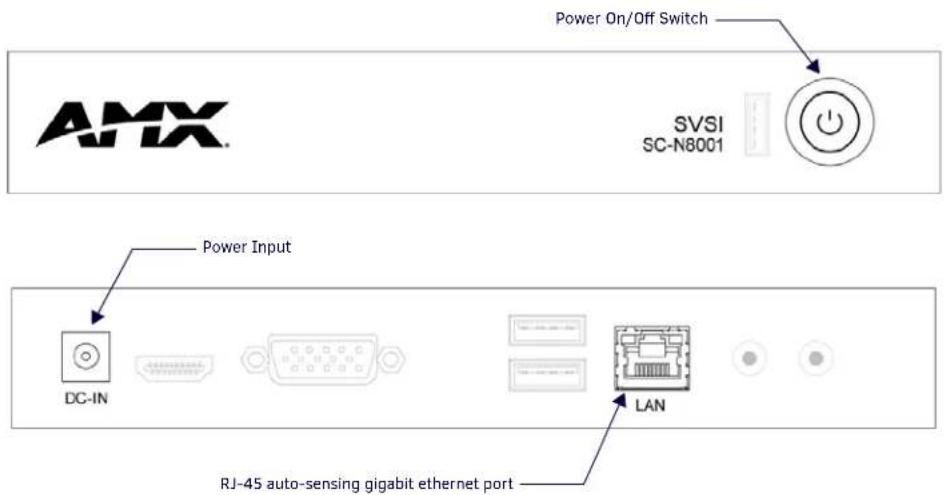
FIG. 1 N8001 Front and Rear Panel
N8002 N-Command Controller
The N8002 is built from a standard computer, but not all buttons, LEDs, and connectors are enabled. Refer to Figure 2 as well as the Front and Rear Panel Descriptions table on page 8 for hardware details on the N8002 N-Command Controller.
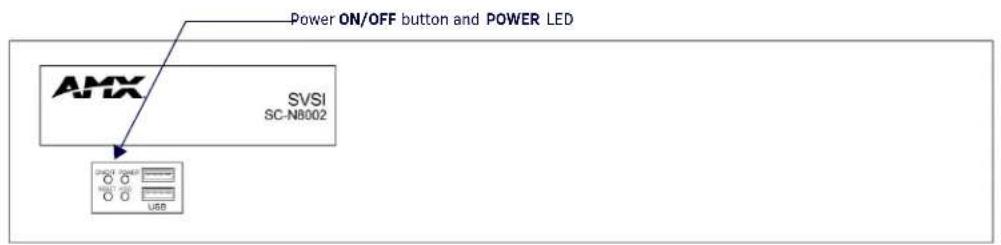
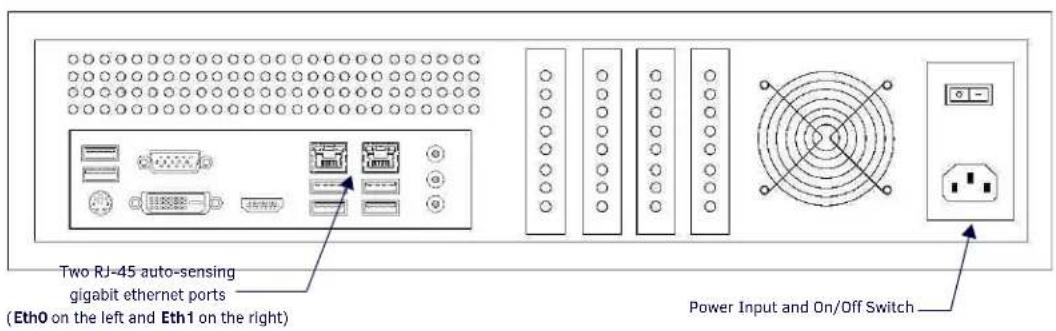
FIG. 2 N8002 Front and Rear Panel
N8012 N-Command Controller
The N8012 is built from a standard computer, but not all buttons, LEDs, and connectors are enabled. Refer to Figure 3 as well as the Front and Rear Panel Descriptions table on page 8 for hardware details on the N8012 N-Command Controller.
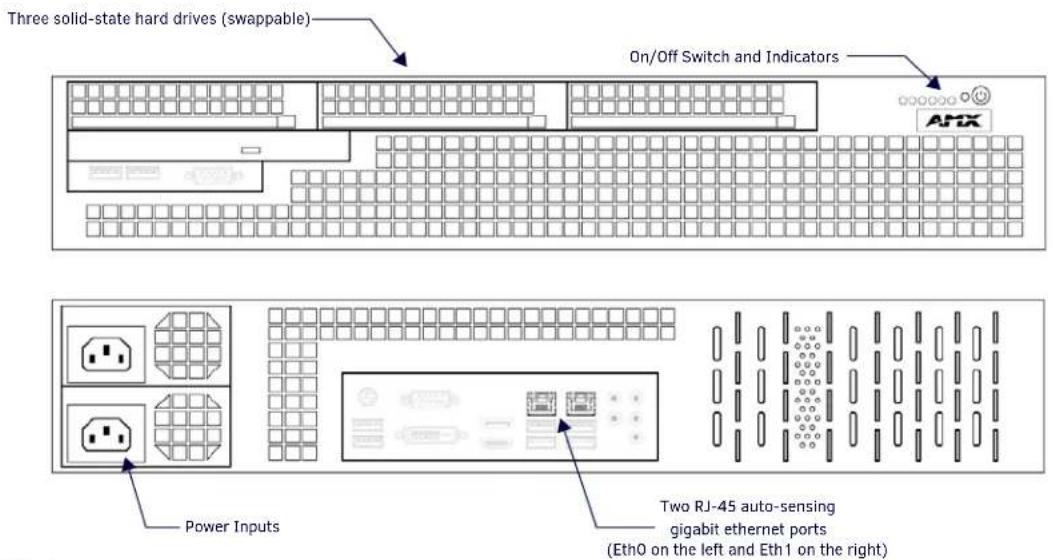
FIG. 3 N8012 Front and Rear Panel
TABLE 2 Front and Rear Panel Descriptions
| Front Panel | |
| ON/OFF button Press to turn unit | on or off. |
| POWER indicator | For the N8001, the power button illuminates green when power is on. For the N8002/N8012 the power LED turns solid (blue) when power is on. |
| HDD LED On flashing (red) when | there is software activity. (N8002 only.) |
| Solid-State Hard Drives | Three 128 GB solid-state hard drives that are configured in a raid configuration, allowing for swapping in the event of failure. (N8012 only.) |
| Rear Panel | |
| RJ-45 ports- One on the N8001- Two on the N8002 and N8012 | ETH 0 (N8002, N8012):8-wire RJ45 female. 10/100/1000 Mbps 10/100/1000Base-T auto-sensing gigabit Ethernet switch port. Can be used to connect to a separate corporate LAN.ETH 1 (N8001, N8002, N8012):8-wire RJ45 female. 10/100/1000 Mbps 10/100/1000Base-T auto-sensing gigabit Ethernet switch port. Must be connected to the network in order to provide device and user control. |
| Power Input N8001: | Comes with an AC power brick. Input is 120V - 240V. Output is 12V/5A.N8002/N8012:120 Volt AC power input for external power supply. |
| Power On/Off Switch Use to apply | or remove power to the unit from the power supply (N8002 only).NOTE: This On/Off switch should only be used to disconnect the N8002 from main power once it has been properly shut down. Use the on/off button on the front of the unit for proper shut down. |
Chapter 2: Installing and Configuring the N8000
Preparing for Install
This chapter provides step-by-step guidance for installing and configuring equipment from the N-Series product family on your network. The steps provided here assume the following to be true:
1. There are switches operational on the network.
N-Series equipment can operate on many different brands of networking equipment. The network itself needs to meet certain requirements to be able to support deployment. These instructions assume that you have purchased and installed a pre-configured switch from AMX or that your existing equipment meets the following physical and protocol requirements:
- Layer 2 via IGMP and Layer 3 through PIM (Protocol Independent Multicast)
• G i g a b i t E t h e r n e t - IGMP Snooping
• IGMP Snooping Querier
NOTE: To proceed with this installation, the switches must already be successfully connected to your network. If needed, refer to your product's documentation for installation instructions.
2. Deployment considerations have been made for the addition of high-speed video.
Our Networked AV solutions provide unsurpassed video and audio quality at bandwidths appropriate to any network segment or link. Matrix switches as large as 1200x800 have been constructed on a house network using N-Series equipment. Alternatively, many customers choose to deploy on physically separate networks in order to use low-cost network appliances but keep video traffic separate from data and voice.
NOTE: For a more detailed requirements list, refer to Appendix C: Minimum Network Requirements on page 55.
NOTE: N-Able and N-Command products include software developed by the OpenSSL Project for use in the OpenSSL Toolkit (http://www.openssl.org/).
Step 1: Connecting the N8000 to the Network
The SC-N8001 only requires the included power adapter and a single network connection (to the LAN port) to allow up to five users to simultaneously configure, set-up, and control as many as 50 Networked AV devices. The SC-N8002 and SC-N8012 require a network connection to the Eth 1 port in order to control unlimited devices with unlimited users. Eth 0 is used for separate corporate LAN. See Figure 4 for an example showing the N8002.
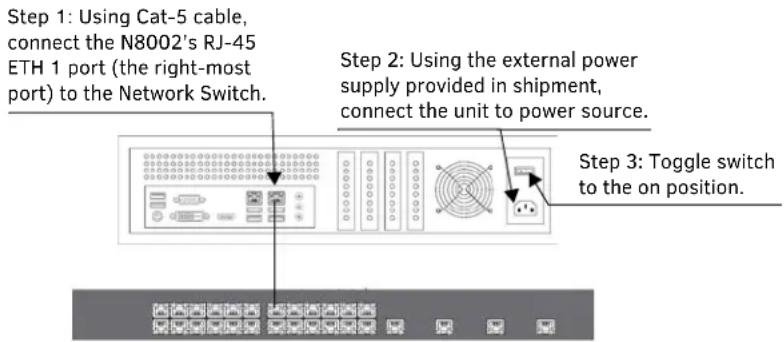
FIG. 4 CONNECTING N8002 TO THE NETWORK
NOTE: On the N8002 and N8012, there are two Ethernet ports (ETH 0 and ETH 1). ETH 0 (on the left) is used for an optional connection to a separate corporate LAN. ETH 1 (on the right) must be connected to the network to provide device and user control.
Step 2: Establishing Communication with the N8000
Each controller ships with dual IP addresses (192.168.1.99 with a netmask of 255.255.255.0 and 169.254.10.99 with a netmask of 255.255.0.0).
• For the single Ethernet port of the N8001:
The single Eth1 port is assigned both IP addresses.
• For the two Ethernet ports of the N8002/N8012:
Eth0 gets the 192 address and should be used as the outward-facing IP address for LAN or WAN control. The 169 address (assigned to Eth1) is in the default IP address range with which all N-Series Encoders and Decoders are shipped.
Logging In
The N-Command Controller has a web-based interface. To access the interface, open a web browser and navigate to the unit's IP address. Google Chrome is the recommended browser.
• After applying power to the unit, allow approximately one minute for initialization.
- Once the unit boots, enter 192.168.1.99 into your web browser's URL bar.
- The device log-in page displays. Enter the default username (admin) and password (password). These can be changed after initial login.
- After successful login, click on the Admin > Unit Management drop-down menu to discover all networked AV devices on the video network.
• These units display on the Matrix page. The login IP address can be changed by going to Admin > IP Address.
NOTE: The N8000 Software is based in part on the work of the Independent JPEG Group.
NOTE: This product includes software developed by the OpenSSL Project for use in the OpenSSL Toolkit (http://www.openssl.org/).
From any main page in the web interface, you can access all other main pages by clicking the links in the top navigation bar.
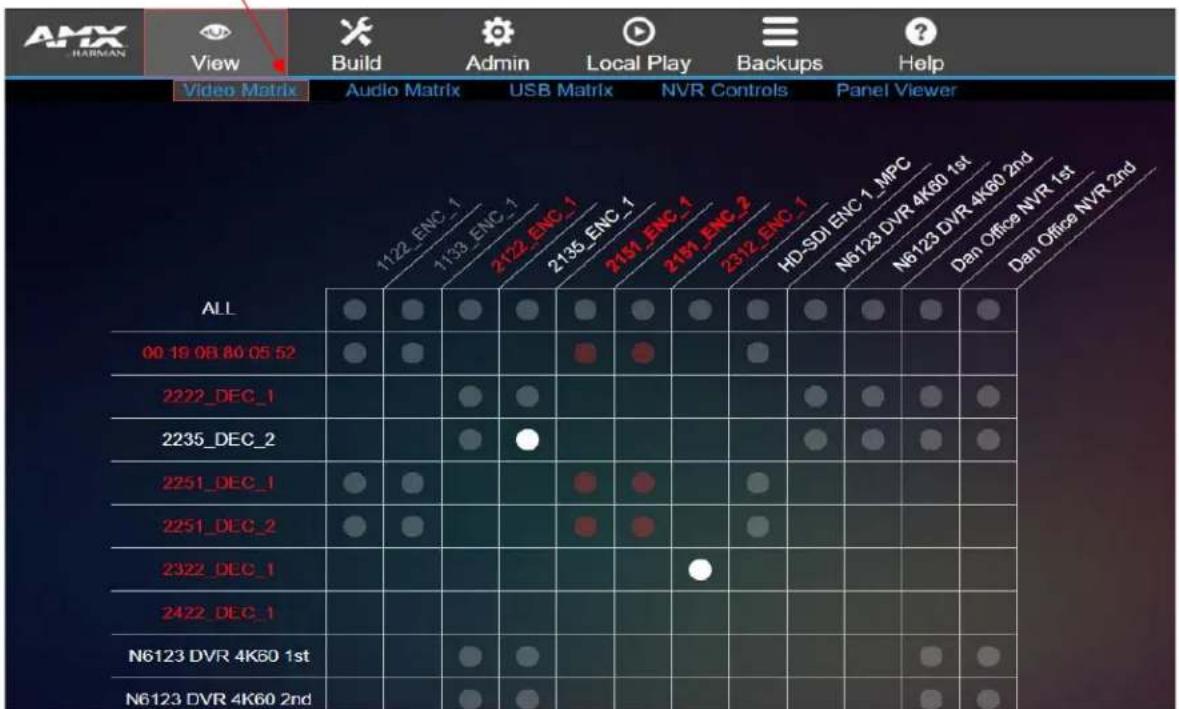
FIG. 5 VIEW VIDEO PAGE
NOTE: Screen-by-screen descriptions of the web interface options are provided for your reference in Chapter 3: Configuration Options on page 11.
These units function as a virtual matrix switch for N-Series Encoders/Decoders and serve as a touch-panel editor for easy graphical control of networked AV installations.
Chapter 3: Configuration Options
This chapter defines N-Command's configuration options. For ease of navigation, it is organized to reflect the graphical user interface (GUI).
From any main page in the GUI, you can access all other main sections by clicking the links in the top navigation bar Figure 6 shows the navigation bar and provides hot links to the sections of this chapter which describe each main section.
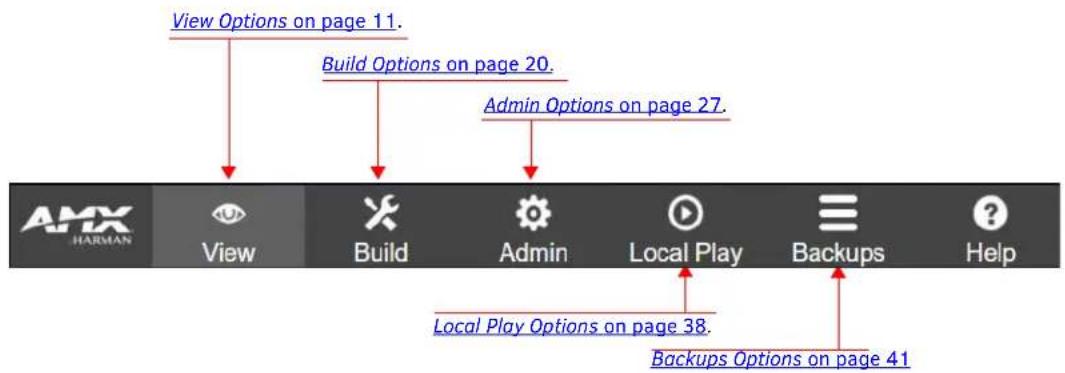
FIG. 6 Section Links
View Options
Click the View link at the top of any of the main web pages to access the options shown in Figure 7. Refer to the following sections for detailed descriptions:
• Video Matrix Page on page 12
• Audio Matrix Page on page 13
• USB Matrix Page on page 15
• NVR Controls Page on page 16
• Panel Viewer Page on page 19
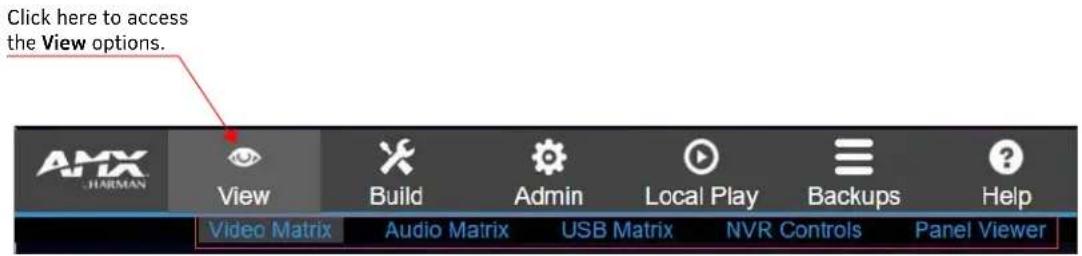
FIG. 7 Choosing View
Video Matrix Page
Click View > Video Matrix to access the page shown in Figure 8. This page displays all discovered devices on your network. Encoders are listed horizontally across the top of the page while Decoders are listed vertically down the left side. Clicking a unit's name takes you to the configuration pages for that device.
Use this page to route video from an Encoder to a Decoder by simply clicking the circle in their common cell on the matrix. If the two units are not compatible, there will be no circle in that cell. The circle's color provides you with current connection information. For example:
- White circles signify an active connection.
- Gray circles signify that the two units are available for connection (i.e., compatible with each other).
- Dark Red circles signify that the two units are compatible with each other, but one of them is offline.
- Light Red circles signify that the two units have an active connection, but one of them is offline.
Options are described in Table 3.
![AMX HARDEN View Build Admin Local Play Backups Help Video Matrix Audio Matrix USB Matrix NVR Controls Panel Viewer ALL 1122_ENC_1 1133_ENC_1 2122_ENC_1 2135_ENC_1 2161_ENC_1 2181_ENC_2 2312_ENC_1 HD-SDI_ENC_1_MPC N6123_DVR_4K60_1st N6123_DVR_4K60_2nd Dan Office NVR_1st Dan Office NVR_2nd 00:10:08:30:05:52 2222_DEC_1 2235_DEC_2 2251_DEC_1 2251_DEC_2 2322_DEC_1 2422_DEC_1 N6123_DVR 4K60_1st N6123_DVR 4K60_2nd Dan Office NVR_1st Dan Office NVR_2nd Hide inactive Hide NVR [Launch Script] [All Units] Cancel Take](/content/2026/06/1150753/images/cc0531c49f2310fc1779d6d804e7439ebaf5145bda3632b3797be81aca1756af.jpg)
FIG. 8 Viewing Video Equipment
TABLE 3 Video Matrix Page Option Descriptions
| Option Description Notes | ||
| All Click the circle in the Encoder's ALL cell to connect all compatible streams to that Encoder. | This triggers N-Command to send a command to all compatible Decoders to switch to that one Encoder. | |
| Hide inactive checkbox | Enable to hide any discovered units that are currently not communicating (off-line). | |
| Hide NVR checkbox Enable to hide all discovered N6123 Network Video Recorders on this network. | ||
| Launch Script drop-down | Choose a script to launch from the drop-down menu. Scripts are created using the Script Builder. | SeeScript Builder Page on page 21for more information. |
| All Units drop-down | If you have created anyUser-Groups, they will be available for selection in this drop-down menu. Once a group is selected, only the units in that group are displayed In the matrix. | SeeUser-Groups Page on page 33for more Information. |
| Cancel button Click to cancel any pending changes. | ||
| Take button Click to accept changes made on this page. | ||
Audio Matrix Page
Click View > Audio Matrix to access the page shown in Figure 9. This page displays all discovered devices (Decoders, Encoders, NVRs, ATRs, etc.) on your network. Encoders/transmit streams are listed horizontally across the top of the page while Decoders/receive streams are listed vertically down the left side. Use this page to route audio from one device to another by simply clicking the common cell on the matrix, followed by clicking the Take button. Clicking a unit's name takes you to the configuration pages for that device.
You can route any N-Series Encoder to any N-Series Decoder. For example, you can route the audio from an N1000 Encoder to an N2235 Decoder. This is why all the cells show as being common (represented by gray circles). Options are described in Table 4.
![AMX HARMAN View Build Admin Local Play Backups Help Video Matrix Audio Matrix USB Matrix NVR Controls Panel Viewer ALL 00:19:08 80:05:52 2222_DEC_1 2235_DEC_2 2251_DEC_1 2251_DEC_2 2322_DEC_1 2422_DEC_1 Follow 1122_ENC_1 1133_ENC_1 2122_ENC_1 2135_ENC_1 2151_ENC_1 2151_ENC_2 2312_ENC_1 HD-SDI_ENC_1_MPC Hide inactive Hide NVR [Launch Script] | [All Units] | Cancel Take](/content/2026/06/1150753/images/68a862c0548420e22dccd7e7008b15001d62071828ec3531bbf18f6d55e6ebbf.jpg)
FIG. 9 Viewing Audio Equipment
TABLE 4 Audio Matrix Page Option Descriptions
| Option Description Notes | ||
| All Click the circle in the Encoder's ALL cell to connect all compatible streams to that Encoder. | This triggers N-Command to send a command to all compatible Decoders to switch to that one Encoder. | |
| Hide inactive checkbox Enable to hide any discovered units that are currently not communicating (off-line). | ||
| Hide NVR checkbox Enable to hide all discovered N6123 Network Video Recorders on this network. | ||
| Launch Script drop-down | Choose a script to launch from the drop-down menu. Scripts are created using the Script Builder. | See Script Builder Page on page 21for more information. |
| All Units drop-down | If you have created any User-Groups, they will be available for selection in this drop-down menu. Once a group is selected, only the units in that group are displayed in the matrix. | See User-Groups Page on page 33 for more information. |
| Cancel button Click to cancel any pending changes. | ||
| Take button Click to accept changes made on this page. | ||
USB Matrix Page
Click View> USB Matrix to access the page shown in Figure 10. This page displays all discovered devices on your network which feature USB support. Encoders are listed horizontally across the top of the page while Decoders are listed vertically down the left side. Use this page to route which Encoder the Decoder's KVM is connected to by simply clicking the common cell on the matrix, followed by clicking the Take button. Clicking a unit's name takes you to the configuration pages for that device. Options are described in Table5.
![AMX HARMAN View Build Admin Local Play Backups Help Video Matrix Audio Matrix USB Matrix NVR Controls Panel Viewer 1133_ENC_1 2135_ENC_1 2151_ENC_1 2151_ENC_2 2235_DEC_2 2251_DEC_1 2251_DEC_2 2422_DEC_1 Hide inactive Hide NVR [Launch Script] [All Units] Cancel Take](/content/2026/06/1150753/images/7d52d43ebcafd2a197ed448ff6ecba3a1368c955701f8412d04f1c158ff58916.jpg)
FIG. 10 Viewing Equipment with USB Support
TABLE 5 USB Matrix Page Option Descriptions
| Option Description Notes | ||
| Hide inactive checkbox | Enable to hide any discovered units that are currently not communicating (off-line). | |
| Hide NVR checkbox | Enable to hide all discovered N6123 Network Video Recorders on this network. | |
| Launch Script drop-down | Choose a script to launch from the drop-down menu. Scripts are created using the Script Builder. | See Script Builder Page on page 21 for more information. |
| All Units drop-down | If you have created any User-Groups, they will be available for selection in this drop-down menu. Once a group is selected, only the units in that group are displayed in the matrix. | See User-Groups Page on page 33 for more information. |
| Cancel button Click | to cancel any pending changes. | |
| Take button Click | to accept changes made on this page. | |
NVR Controls Page
Click View > NVR Controls to access the page shown in Figure 11. Options are described in Table 6.
![AMX HARMAN View Build Admin Local Play Backups Help Video Matrix Audio Matrix USB Matrix NVR Controls Panel Viewer NVR: [Choose...] Mode: [Choose...] Playback [Choose...] Channel: 1 Loop: Recording NVR Copy MPEG](/content/2026/06/1150753/images/80547b4426d66cfe8731254703334ba1fb5603cb27128f86c1fde5230c78f0c4.jpg)
FIG. 11 NVR Controls Page
TABLE 6 NVR Controls Option Descriptions
| Option Description Notes | ||
| NVR drop-down Select an NVR from the list of discovered NVRs on your network. | ||
| Mode drop-down | Select the NVR mode (N1000, N2000, N2400, N3000). | |
| Playback drop-down Select a recorded file stored on the selected NVR to play back. | ||
| Channel drop-down | Select which stream to use for recording playback. | |
| Loop checkbox Enable this option to place the recording you are playing back in a continuous loop (so it constantly repeats). | ||
| Playback controls Use these controls to start/stop/pause/navigate the recording. | ||
| Recording link | Refer to Recording Settings on page 17 for details on the options available from this link. | |
| NVR Copy link | Refer to NVR Copy Settings on page 18 for details on the options available from this link. | |
| MPEG link | Refer to MPEG Settings on page 18 for details on the options available from this link. | |
Recording Settings
The section of the NVR Controls page shown in Figure 12 is displayed when you click the Recording link. Options are described in Table 7.
![Recording Description: Description for recording. Time (min) 30 Record Vid 1: [Choose...] Channel: 1 Continuous: Convert: Bitrate: Recommended Record Stop Record](/content/2026/06/1150753/images/e1a5b053cacf621e2351681730d0ab9ebcf0c672c8ee63ff72c115021b3f653a.jpg)
FIG. 12 Recording Settings
TABLE 7 NVR Controls Page: Recording Settings
| Option Description Notes | ||
| Description field Enter a description for this recording. | ||
| Time (min) field Limit | recording time by entering a duration (in minutes). | How this limit is enforced depends on whether or not theContinuouscheckbox is enabled. |
| Record Vid Choose | from a list of compatible Encoders to choose to record from. | These fields are dependent on the chosenMode.The number of record stream numbers listed depends on which series is selected.The N1000, N2000, and N2400 series each have one recording channel. The N1000's recording channel can only record one stream, whereas the N2000 can record two streams on that one channel (dual recording). The N3000 has ten recording channels, and each channel can only record one stream. |
| Channel field | Select which channel/stream to record from. | This selection is dependent on whichModeyou are in (i.e., which series you are recording from).In N1000 mode, this field is not applicable.In N2000 mode, you can select 1 for channel 1 or dual to record both streams.In N3000 mode, there will be ten different channels to select. |
| Continuous checkbox Enable if you would like the recording to continue beyond theTimeentered. | IfContinuousis not enabled, the recording will simply end after theTimeentered has been reached (see theTimefield description earlier in this chapter).IfContinuousis enabled, the NVR will continue recording after theTimeentered. However, it will only create a recording matching the designated length of time. In other words, ifTimeis set to 10 minutes and the recording continues for 40 minutes, you will only capture the last 10 minutes of that recording. | |
| Convert checkbox Enable if you want a conversion to take place automatically once the recording is complete. | ||
| Bitrate drop-down Leave the bitrate at the recommended setting or adjust as needed. | The higher the bitrate, the higher the quality (and the larger the file) of the conversion. The default is 7500 kbps. | |
| Record button | Click to begin recording using the current settings. | |
| Stop Record button | Click to end the recording. | |
NVR Copy Settings
The section of the NVR Controls page shown in Figure 13 is displayed when you click the NVR Copy link. Options are described in Table8.
![NVR Copy Destination NVR: [Choose...] Recording: [Choose...] Copy](/content/2026/06/1150753/images/1e218b6d31feb7f0c2b4918fd9c792ee0b81b0e7cb01bf45f42cc05e55ac320c.jpg)
FIG. 13 NVR Copy Settings
TABLE 8 NVR Controls Page: NVR Copy Settings
| Option Description Notes | ||
| Destination NVR drop-down | Choose to copy a recording from the NVR selected at the top of theNVR Controlspage to the NVR selected as theDestination NVR. | |
| Recording drop-down | Choose which recording you wish to copy. | |
| Copy button Click to begin copying the recording. | ||
MPEG Settings
The section of the NVR Controls page shown in Figure 14 is displayed when you click the MPEG link. Options are described in Table9.
![MPEG Recording: [Choose...] Bitrate: Recommended Convert MPEG List Stop converting Delete Download mpeg](/content/2026/06/1150753/images/56b215dcef3f200941d3b863e351e62d6a96ffd232428cb6ea1f3e6a9bf0578e.jpg)
FIG. 14 MPEG Settings
TABLE 9 NVR Controls Page: MPEG Settings
| Option Description Notes | ||
| Recording drop-down | Select a recording to convert to an MPEG file. | |
| Bitrate drop-down | Leave the bitrate at the recommended setting or adjust as needed. | The higher the bitrate, the higher the quality (and the larger the file) of the conversion. |
| Convert button Click | to begin the conversion. | |
| MPEG List Completed | conversions are listed here. | |
| Stop converting button | Click to end the conversion. | |
| Delete button Click | to delete the MPEG file selected in the MPEG List. | |
| Download mpeg button | Select a conversion from the list and then click this button to download the file. | |
Panel Viewer Page
Click View > Panel Viewer link to access the page shown in Figure 15. Options are described in Table 10.
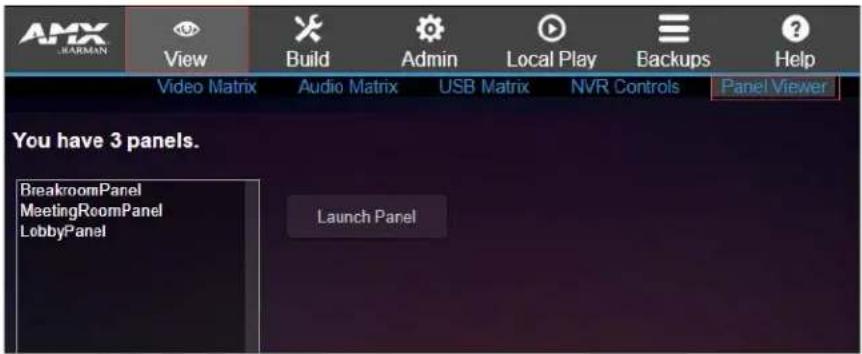
FIG. 15 Panel Viewer Page
TABLE 10 Panel Viewer Option Descriptions
| Option Description Notes | ||
| Panels list Lists any panels that are saved on N-Command (through Panel Builder). | ||
| Launch Panel button CI | ck to launch a window with a preview of the selected panel in it. | This launches just a preview of the panel. You can click on buttons but cannot edit the panel. |
Build Options
Click the Build link at the top of any of the main web pages to access the options shown in Figure 16. Refer to the following sections for detailed descriptions:
• Script Builder Page on page 21
• Task Builder Page on page 23
• Wall Builder Page on page 24
• Third Party Page on page 25
• Panel Builder Page on page 26
Click here to access the Build options.

FIG. 16 Choosing Build
Script Builder Page
Click Build > Script Builder to access the page shown in Figure 17. Scripts are programs you write to use over and over again. For example, you could create scripts that shut all equipment down for the evening, putting your Encoders and Decoders in lower power mode, turning off all TVs and lights, etc. A predefined set of commands could be created here. Basically, anything that can be controlled with TCP commands can be controlled in this script. There are also predefined actions that you can choose (no programming knowledge needed). Options are described in Table 11.
NOTE: Script commands are accessible via TCP port 50020 and SSL port 50120.
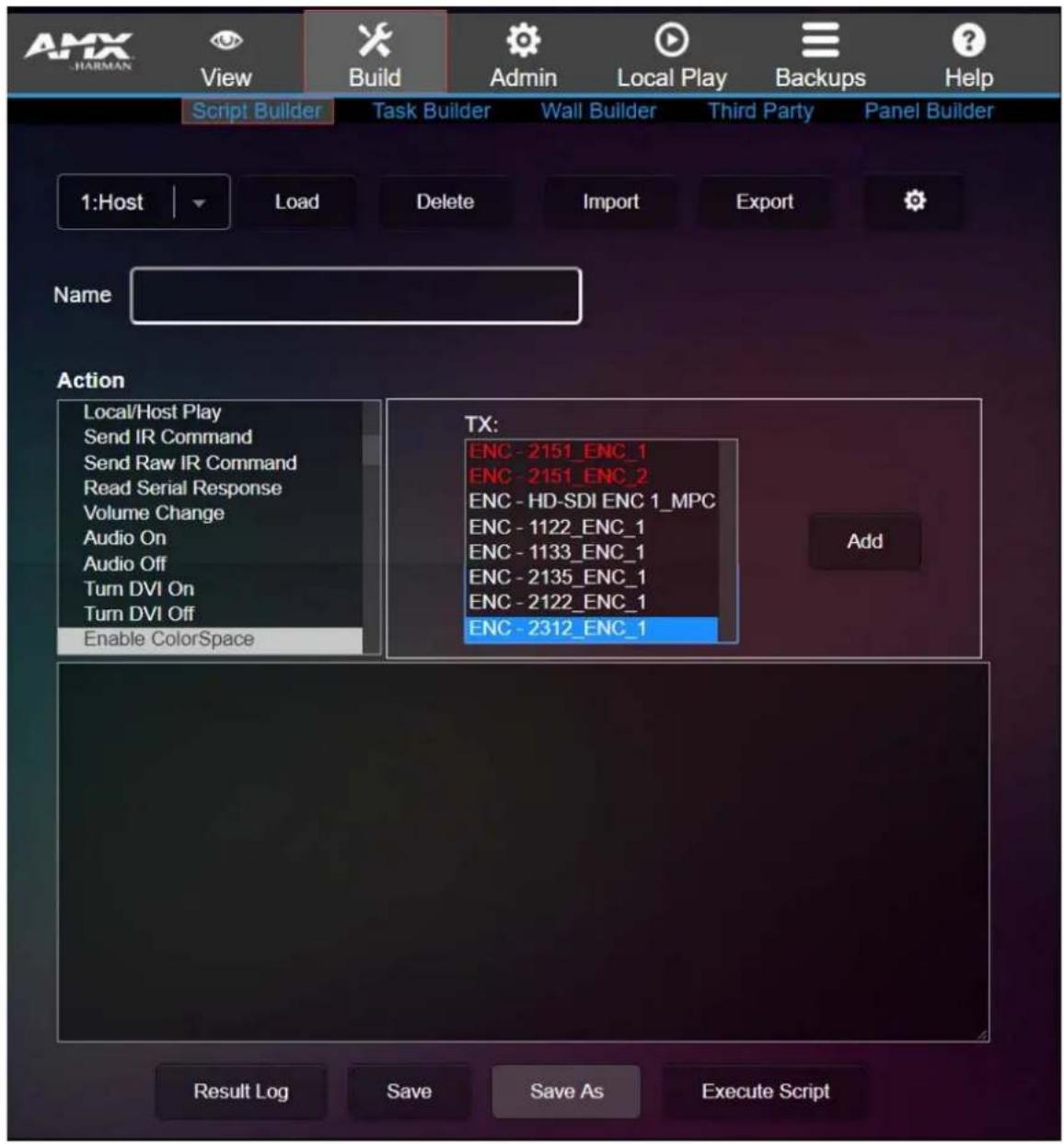
FIG. 17 Script Builder Page
TABLE 11 Script Builder Option Descriptions
| Option Description Notes | ||
| Script selection drop-down | Select an existing script to load. This list shows all scripts that were already created and saved on this unit. | Scripts are displayed in the format:"Script ID":"Name of script" |
| Load button Click to load the script selected from the drop-down (described previously). | ||
| Delete button Click to delete the selected script. | ||
| Option Description | Notes | |
| Import button Click to import a script. | ||
| Export button | Click to export a script. | Scripts export as JSON (a standard human-readable serialized format). |
| Tools icon Here you can select if the scripts are created with the IP address, the MAC address, or the name of the unit. | ||
| Name field Enter a name for the script you are creating. | ||
| Action list | Pick the command you want it to do | The selections to the right of the Action box change based on what unit type is affected by the action.Misc commands are used often. You generate the command and then edit the command as you need for your purposes. This works with third party equipment as well (anything with an IP address and port number). |
| Save button Click to save changes made to this page. | ||
| Save As button Click to save the changes you made under a new script name. | ||
| Execute Script button Click to launch the selected script. | ||
Task Builder Page
Click Build > Task Builder to access the page shown in Figure 18. After you have created scripts (as discussed previously in the Script Builder Page on page 21) use Task Builder to schedule when those scripts will be executed. Click on a day to schedule a task. Options are described in Table 12.
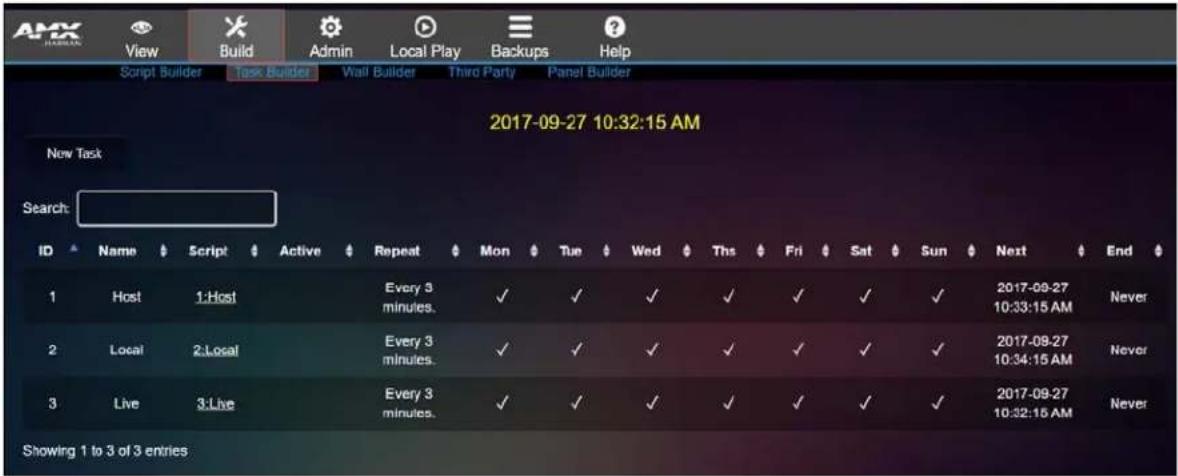
FIG. 18 Task Builder Page
TABLE 12 Task Builder Option Descriptions
| Option Description Notes | ||
| New Task button Click to add a new task to the selected day. | ||
| Search field | Enter the name of a script to search. | This searches every field in the table, including tasks and script names. |
Wall Builder Page
Click Build > Wall Builder to access the page shown in Figure 19. Refer to Appendix B: Wall Builder Tutorial on page 52 for details on this feature.
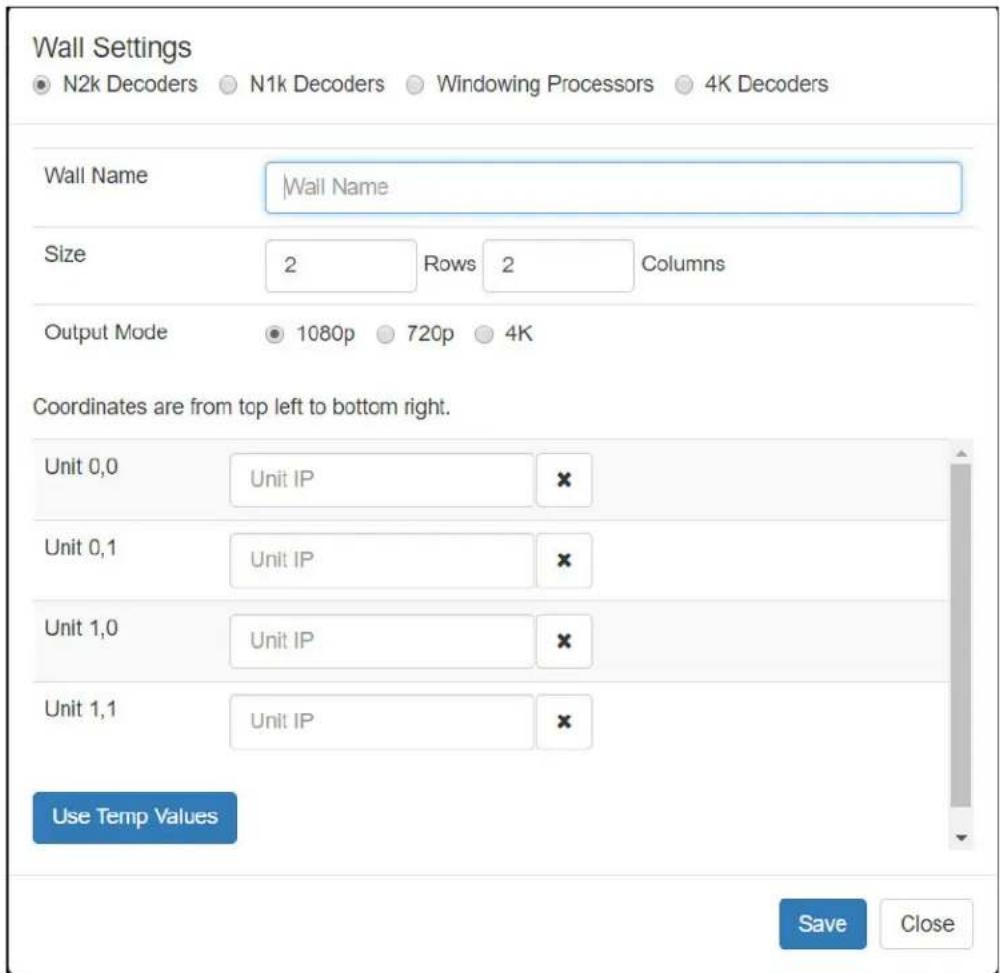
FIG. 19 Wall Builder Page
Third Party Page
Click Build > Third Party to access the page shown in Figure 20. Options are described in Table 13. Here you can add information about your third party system. This information then populates within Panel Builder and Script Builder. For example, if you know you are going to be controlling a certain brand of television, you can enter the model information here and then re-use that information in Panel Builder and Script Builder.
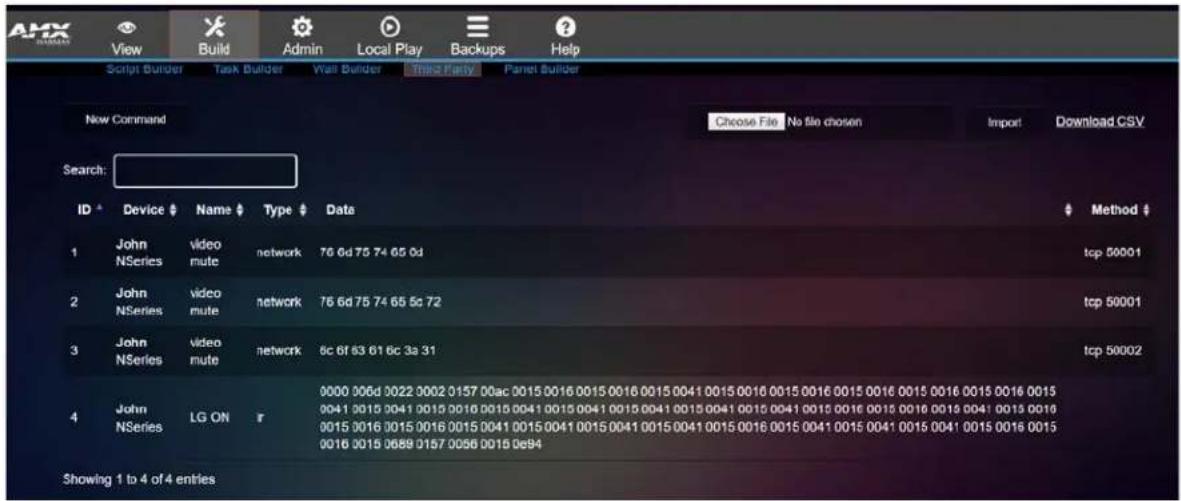
FIG. 20 Third Party Page
TABLE 13 Third Party Option Descriptions
| Option Description Notes | ||
| New Command button Click to begin addition of a new third party related command. | ||
| Choose File button Click to browse to a CSV file to upload. | ||
| Import button Click to import the selected CSV file. | ||
| Download CSV link | Click to export a CSV file for editing. | This CSV is for third-party commands only.N-Command has a special CSV format for third-party command entries. |
| Search field Search for devices in the list (by name, type, etc.). | ||
Panel Builder Page
Click Build > Panel Builder to access the page shown in Figure 21. Panel Builder is a GUI application that allows you to create custom panels to be used as a standalone control option or as an extension to a third-party control system. Using Panel Builder, you can generate panels for display on any mobile device or PC/Mac. Refer to Appendix A: Panel Builder Tutorial on page 43 for details on this feature.
Welcome to the panel builder.
Would you like to create a new, open, or import an existing project?
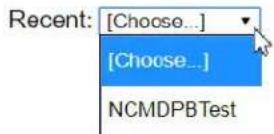
New
Open
Import
FIG. 21 Panel Builder Page
Admin Options
Click the Admin link at the top of any of the main web pages to access the options shown in Figure 22. Refer to the following sections for detailed descriptions:
• Unit Management Page on page 28
• IP Addresses Page on page 29
• System Settings Page on page 31
• User-Groups Page on page 33
- Logs Page on page 34
• Master-Client Page on page 35
• Setup Time Page on page 36
• Firmware Updater Page on page
37 Click here to access the Admin options.

FIG. 22 Choosing Admin
Unit Management Page
Click Admin > Unit Management to access the page shown in Figure 23. Options are described in Table 14.
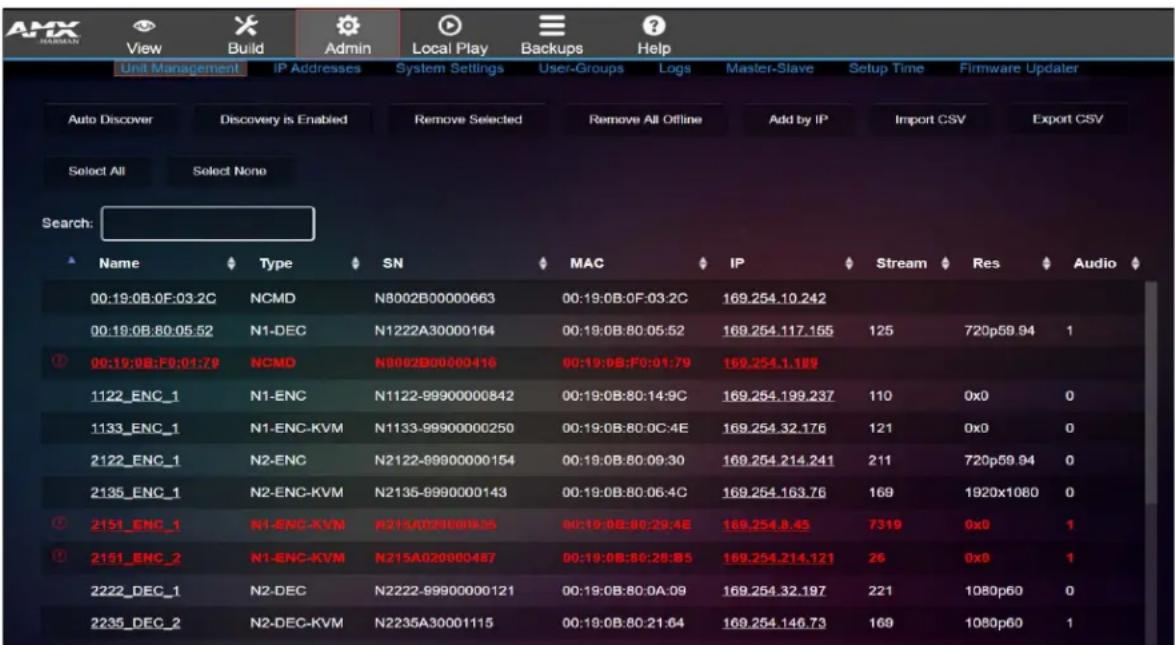
FIG. 23 Unit Management Page
TABLE 14 Unit Management Option Descriptions
| Option Description Notes | ||
| Auto Discover/Discover Units button | If this button says Auto Discover, then N-Command is scanning periodically for new units. If it says Discover Units, click to search for newly-added units on the network. | |
| Discovery is Enabled/Disabled | If this button says Discovery is Enabled then N-Command can discover units on the network. Click to change to Discovery is Disabled at which point N-Command will no longer discover units on the network. | |
| Remove Selected | Click to remove all selected units from the Unit Management page display. | Removes the selected unit from the list of units discovered by N-Command. |
| Remove All Offline | Click to remove all inactive units from the Unit Management page display. | Removes any units in the list that are offline/not communicating. |
| Add by IP Click to | search for and add a unit by its IP address. | |
| Import CSV Click to | select a CSV file to import for batch configuration. | |
| Export CSV Click to | export the CSV file for editing. | |
| Select All button Click | to select all units in the list. | |
| Select None button Click | to clear out any selections. | |
| Search field | Search for a unit on the network by name, IP address, stream, etc. | Anything listed In the column headings of this page can be used as a search term (e.g., Name, Type, SN, etc.). |
IP Addresses Page
Click Admin > IP Addresses to access the page shown in Figure 24. Options are described in Table 15.
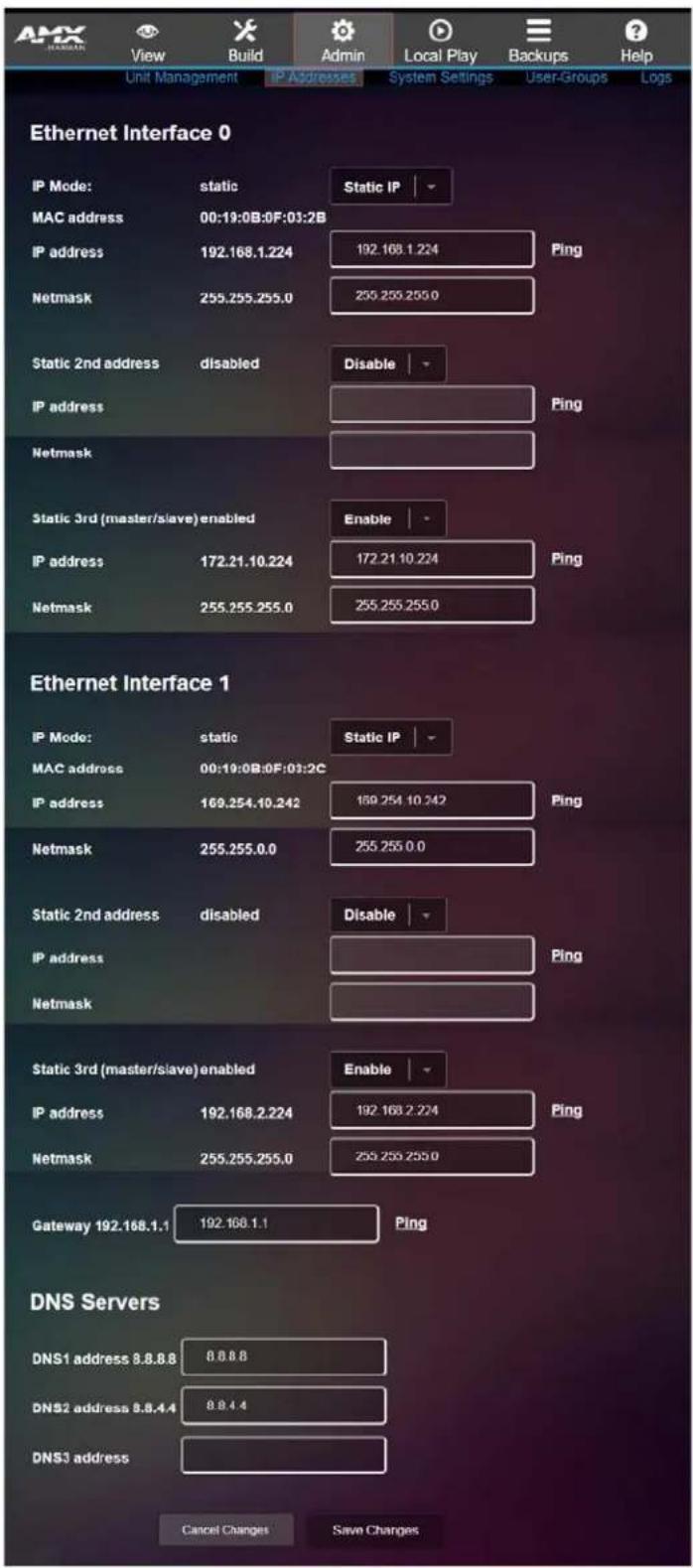
FIG. 24 IP Addresses Page
TABLE 15 IP Addresses Option Descriptions
| Option Description Notes | ||
| IP Mode | Choose Static IP or Disable. When set to Static IP, an IP address, Netmask, and Gateway address must be manually entered. | |
| MAC address View the MAC addresses for the Ethernet interface. | ||
| IP address | View/edit the current IP address of the N8000 unit's Ethernet interfaces. | |
| Netmask | View/edit the current Netmask for the N8000 unit's interfaces. | |
| Static address | Add second and/or third Static IP addresses. | These are general purpose IP addresses. Complicated networks sometimes need multiple IP addresses on N-Command. It is not used often.Static 3rd is used for master/client setup. If master/client is not needed, it can instead be used by a third general purpose IP address. |
| Gateway | View the current Gateway address for the N8000 unit's Ethernet interfaces. When in Static IP mode, you may enter a new Gateway address into this field. | |
| DNS Servers DNS server settings are required to reach domain names on the Internet (such as when using an Internet NTP service). | ||
| Ping | The Ping links allow you to test connectivity. | |
| Cancel Changes button Click to return all controls to the last saved configuration. | ||
| Save Changes button Click to save changes made to this page. | ||
System Settings Page
Click Admin > System Settings to access the page shown in Figure 25. Options are described in Table 16.
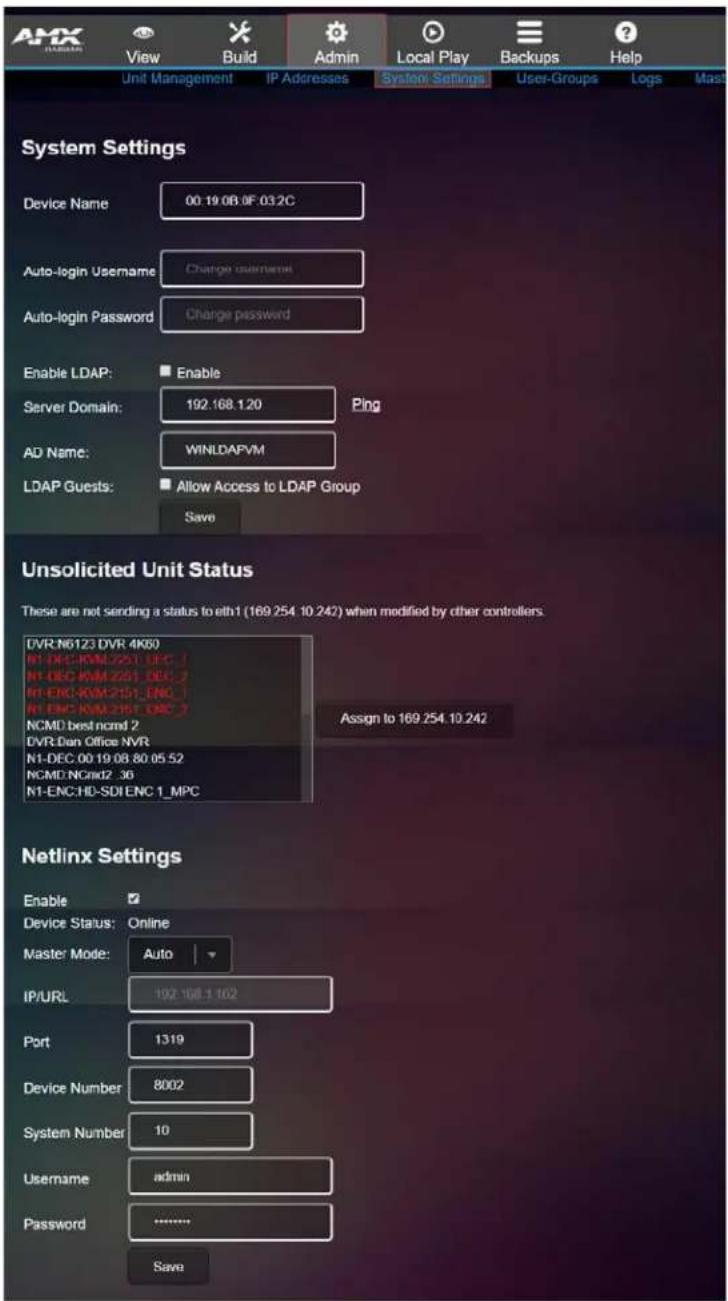
FIG. 25 System Settings Page
TABLE 16 System Settings Option Descriptions
| Option Description Notes | ||
| Device Name | Enter a user-friendly name for the unit. | More descriptive names in this field help you organize and manage the N-Series system efficiently. Names based on the unit's location and function are very useful. |
| Auto-login Username | In most cases, leave at default setting (admin). | Mostly for use with legacy products. If a unit does not support self-hosted web pages, N-Command will try to log in to display the web page using the given username and password. |
| Option | Description | Notes |
| Auto-login Password | In most cases, leave at default setting (password). | Mostly for use with legacy products. If a unit does not support self-hosted web pages, N-Command will try to log in to display the web page using the given username and password. |
| Enable LDAP Enable | to configure the unit to access the network's LDAP (lightweight directory access protocol) services. | |
| Server Domain Enter | the IP address of the LDAP server. | |
| AD Name Enter the | Active Directory's name. | |
| LDAP Guests Enable | to allow guest access to LDAP through N-Command. | If enabled, this allows base-level users with guest credentials to access certain systems through N-Command. |
| Save button Click to | save setting made to this section. | |
| Unsolicited Unit Status section | Devices in this list are not configured to send periodic status packets to this N-Command unit. To enable a device to begin sending unsolicited status packets, select it in the list and then click the Assign to... button on the right. | |
| Enable Netlinx Settings checkbox | Click to enable/disable NetLinx on this device. | |
| Device Status | This status field will show the device to be Online, Connected, Offline, or Unknown. | |
| Master Mode dropdown | Select Auto, Listen, or URL. | |
| IP/URL field Enter the address of the Master Controller. | ||
| Port | This field should always be set to 1319. | |
| Device Number Defaults to a dynamic device number. May be set to a static range (e.g., 8000). | ||
| System Number Determines which system to connect. This setting is dependent upon the Master Mode selected (see above).If Master Mode is set to Auto, the System Number is set and the system discovers the Master Controller's IP address.If Master Mode is set to Listen, the device connects to any Master Controller.If Master Mode is set to URL, the IP of the Master Controller is set. | ||
| Username | Username for the Master Controller. | |
| Password | Password for the Master Controller. | |
| Save button Click to save settings made on this page. | ||
User-Groups Page
Click Admin > User Groups to access the page shown in Figure 26. You can control permissions in the network here based on user names assigned to user groups. Options are described in Table 17.
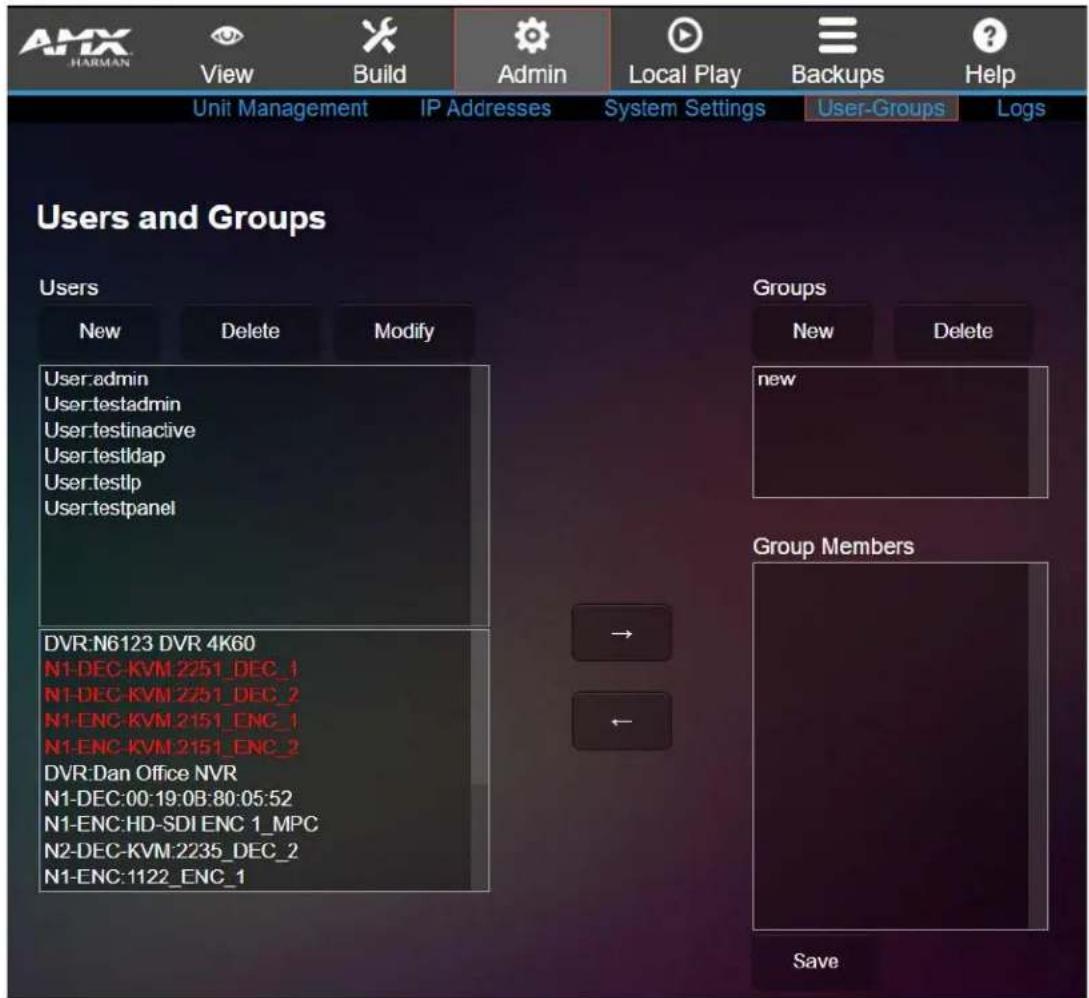
FIG. 26 User-Groups Page
TABLE 17 User-Groups Option Descriptions
| Option Description Notes | ||
| Users section Use to create a user's account and grant them either full admin access or limited access. | ||
| Groups section | Use to create a group and associate users/units inside a group. | Place a user into a group with certain units. If that user logs in, they will only be able to see those units. |
Logs Page
Click Admin > Logs to access the page shown in Figure 27. Options are described in Table 18.
Provides information on task/script executions and shows system configuration errors (e.g., duplicate IP addresses, duplicate streams, etc.).
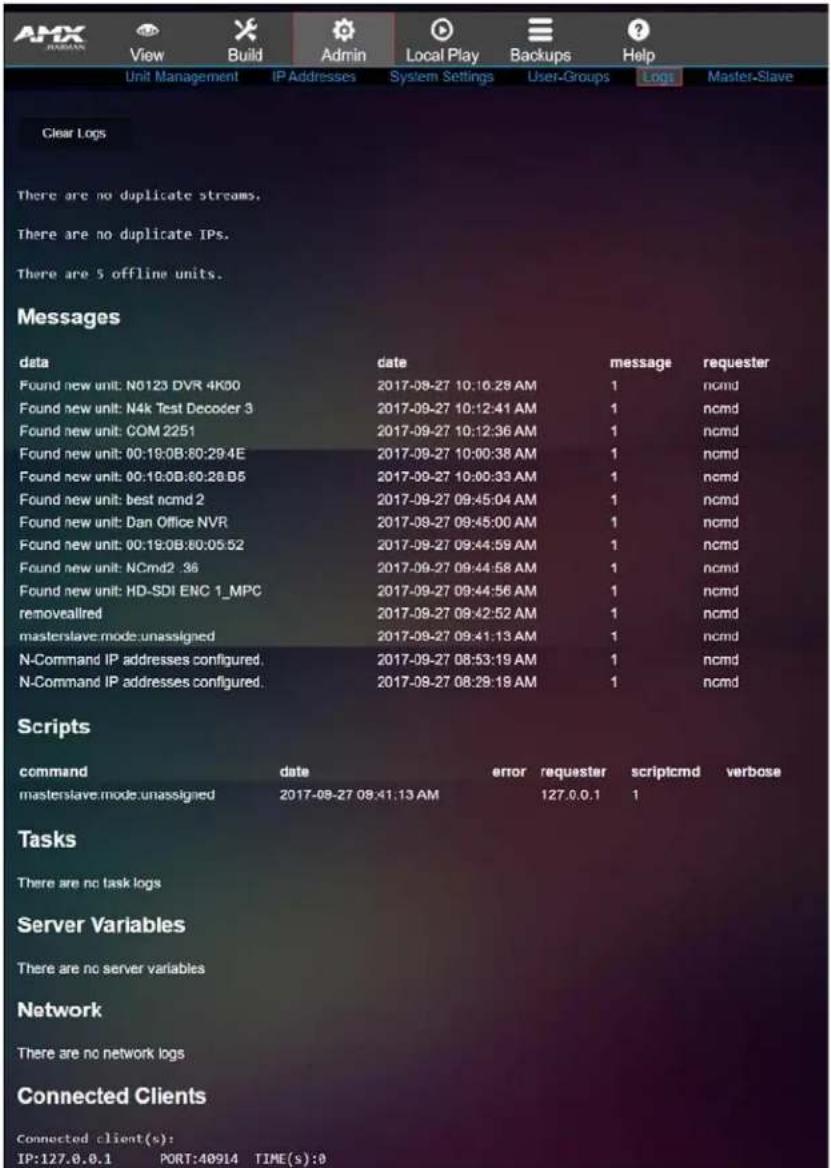
FIG. 27 Logs Page
TABLE 18 Logs Option Descriptions
| Option Description Notes | ||
| Clear Logs button Click to clear all logs listed on this page. | ||
| Messages View current system messages. | ||
| Scripts View current script logs. | ||
| TasksView current task logs. | ||
| Server Variables View current server variables. | ||
| Network View current network logs. | ||
| Connected Client(s) View client(s) IP address, port number, and time (in seconds) that the connection has been active. | ||
Master-Client Page
Click Admin > Master-Client to access the page shown in Figure 28. These setting allow you to create paths between two N8000 devices in case the primary (master) device fails. If the master fails, the assigned client can take over and continue with operations until the master comes back on-line. Refer to Appendix D: N-Command Failover Configuration on page 57 for more details.
![AMX H8800 View Build Admin Local Play Backups Help Unit Management IP Addresses System Settings User-Groups Logs Master-Slave This unit (00:19:0B:0F:03:2C) is currently unassigned. It will be assigned master. The master will send the configuration to the slave. Assign to be slave (must have 3rd IPs set) [Choose..] Assign Master and Slave](/content/2026/06/1150753/images/2419573fd164cf9e90514458dbc278a08a40bae656f744f01a93182a4d141bff.jpg)
FIG. 28 Master-Client Page
Setup Time Page
Click Admin > Setup Time to access the page shown in Figure 29. Use this section to specify Network Time Protocol (NTP) servers or to manually set time. Options are described in Table 19.
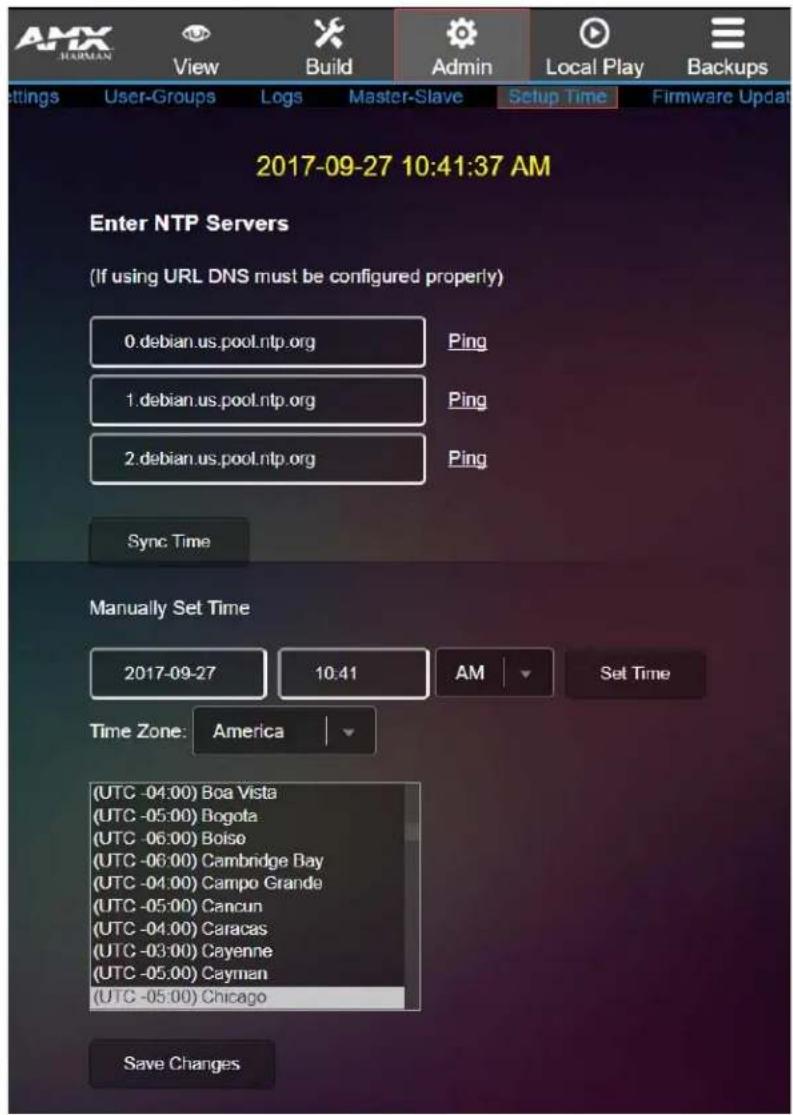
FIG. 29 Setup Time Page
TABLE 19 Setup Time Option Descriptions
| Option Description Notes | ||
| Enter NTP Servers fields | Specify up to three NTP servers. | |
| Sync Time button Syncs the current time with the NTP servers. | ||
| Manually Set Time fields | Manually enter date and time. | |
| Set Time button Click to accept date/time settings. | ||
| Time Zone drop-down Choose a time zone. | ||
| Save Changes button Click to save changes made to this page. | ||
Firmware Updater Page
Click Admin > Firmware Updater to access the page shown in Figure 30. Use this page for batch firmware upgrades on managed units. Once you upload the updater zip package, select the update in the list. Then select the units you want to update. The color-coded legend appears when you select the update.
![AMX View Build Admin Local Play Backups Help Unit Management IP Addresses System Settings User-Groups Logs Master-Slave Setup Time Firmware Updater Choose File No file chosen Uploaded Firmware Web FW README.txt Size ■ KVMUpdate_04-03-2017_v1.14.11e.bin 04/03/2017 4/3/2017 Product Name: N-Series N2x35 Video Encoder/Deco[...] 18.84 MIB ■ KVMUpdate_04-03-2017_v1.14.11e_Harman.bin 04/03/2017 4/3/2017 Product Name: N-Series N2x35 Video Encoder/Deco[...] 18.84 MIB ■ KVMUpdate_12-13-2016_v1.13.6d.bin 01/06/2017 12/13/2016 Version 12/13/2016 (v1.13.6) • Improved monitor[...] 13.86 MIB ■ N2000Update_04-03-2017_v1.14.11e.bin 07/20/2017 4/3/2017 Product Name: N-Series N2xx2 Video Encoder/Deco[...] 18.84 MIB ■ N2000Update_04-03-2017_v1.14.11e_Harman.bin 07/20/2017 4/3/2017 Product Name: N-Series N2xx2 Video Encoder/Deco[...] 18.84 MIB ■ N2000Update_06-08-2017_v1.14.12_A.bin 07/20/2017 5/8/2017 Product Name: N-Series N2xx2 Video Encoder/Deco[...] 28.71 MIB ■ N2050_Update_09-13-2016_v1.5.3e.bin 10/24/2016 9/13/2016 Version 9/13/2016 (v1.5.3) • Added NetLinx supp[...] 21.81 MIB ■ N2050_Update_09-13-2016_v1.5.3f.bin 01/06/2017 9/13/2016 Version 9/13/2016 (v1.5.3) • Added NetLinx supp[...] 21.81 MIB ■ N2300Update_2017-01-17.bin 01/17/2017 1/17/2017 N2300 Release 00.02.03 16 Jan 2017 Change[...] 7.39 MB ■ N2315Update_2017-07-26.bin 07/26/2017 7/17/2017 Product Name: N2315 Video Encoder FG #: NMX-ENC-N[...] 4.4 MB ■ N2412_Update_07-07-2017_v1.1.3.bin 07/07/2017 7/7/2017 Product Name: N-Series N24xx Video Encoder/Decoder[...] 16.8 MB ■ N2422_Update_07-07-2017_v1.1.3.bin 07/07/2017 7/7/2017 Product Name: N-Series N24xx Video Encoder/Decoder[...] 16.76 MB ■ N3510Update_2017-01-06.bin 01/06/2017 11/16/2016 N3510 Release 1.2.8.06 Jan 2017 Change list[...] 95.79 MB ■ N3KV2Update_2017-07-29.bin 07/20/2017 7/11/2017 Product Name: N-Series N3000 Video Encoder/Decoder[...] 13.87 MB ■ N4Update_2017-01-06c.bin 02/24/2017 12/1/2016 N4321 Release 01.00.00 6 Jan 2017 Change[...] 4.67 MB ■ WPUdate_02-17-2017.bin 02/17/2017 2/17/2017 Version 2017-02-17 (2.1.1) • Correct audi[...] 16.5 MB ■ WPUdate_2017-08-03.bin 08/03/2017 08/03/2017 Product Name: N1030 Windowing Processor, 4x1 + [...] 1.28 KB Select Newest Select None Invert Selection Delete Update Select Green Select None Update Selected Units](/content/2026/06/1150753/images/1b10b0d16fb3ce70ec5aa159d0db0d755b14449bf3929ef35ea6091bed6ee162.jpg)
FIG. 30 Firmware Updater Page
Local Play Options
Click the Local Play link at the top of any of the main web pages to access the options shown in Figure 31. Refer to the following sections for detailed descriptions:
• Library-Playlist Page on page 38
• Batch Upload Page on page 39
• Batch LP 1-to-1 Page on page 40
Click here to access the Local Play options.

FIG. 31 Choosing Local Play
Library-Playlist Page
Click Local Play > Library-Playlist to access the page shown in Figure 32. Here you can create custom playlists of selected images. These playlists can then be assigned to multiple units (using the Batch Upload Page on page 39). The units use their assigned playlists whenever they are in Local Play/Host Play mode. Options are described in Table 21.
![Free Space: 34.67 GB Choose Files No file chosen Upload (Crimesen Tide) jpg balloon 4K.jpg Crimson Tide.bmp desert valley 4K.jpg Hydrain_gears - Copyjpg img11 - Copy (2) jpg img_9 - Copy.jpg InterScaler2.jpg InterScaler3.jpg Jellyfish - Copy.jpg Delete Selected Playlist Manager [New_] Load How likely are you to recommend Windows 10 to a friend or colleague?](/content/2026/06/1150753/images/650b7fd3f2a27b61e02696e906b5c479c9c6e5527bff3bb7b0914aebf2184bcb.jpg)
FIG. 32 Library-Playlist Page
TABLE 21 Library-Playlist Option Descriptions
| Option Description Notes | ||
| Choose Files button | Browse to an image file to upload. Upload images using this button. | |
| Upload button | Upload the selected Image file. | This feature allows you to upload an image once and then use it for multiple units being managed by this N8000 device. |
| Delete Selected button | Click to delete the selected image file. | |
| Arrow buttons Add images to a playlist by highlighting the image from the left side, then clicking the right arrow.Remove images from a playlist by highlighting them on the playlist and clicking the left arrow | ||
| Playlist Manager Use the dropdown to select any already made playlists and then click the Load button. | Use to view a list or to edit by removing/adding images. | |
TABLE 21 Library-Playlist Option Descriptions
| Option Description Notes | ||
| Delete List button | Click to delete the list selected in the Playlist Manager section. | |
| Save New button Click to save the changes you made under a new list name. | ||
| Save button Click to save the changes you made under the current list name. | ||
Batch Upload Page
Click Local Play > Batch Upload to access the page shown in Figure 33. Options are described in Table 22.
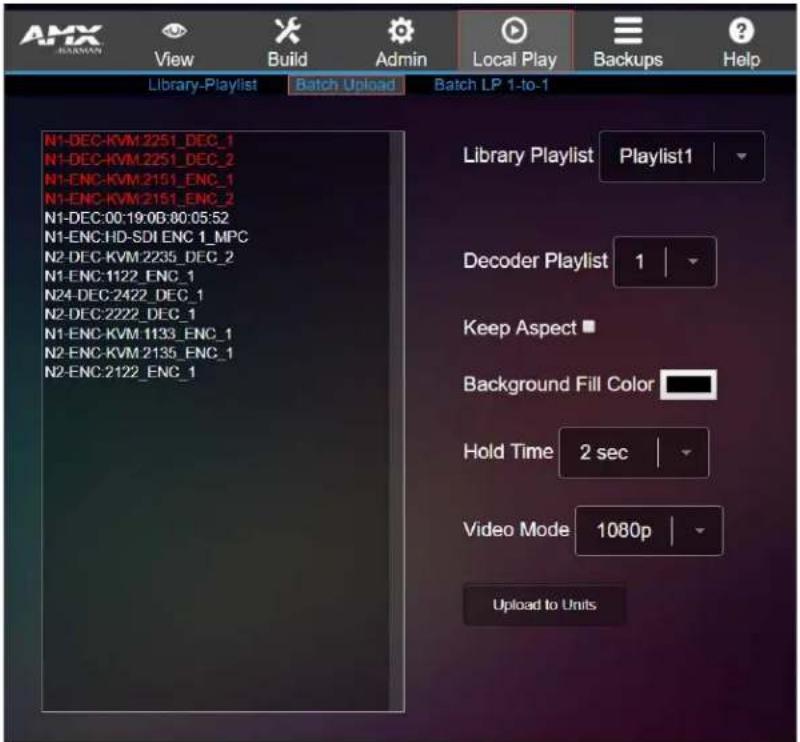
FIG. 33 Batch Upload
TABLE 22 Batch Upload Option Descriptions
| Option Description Notes | ||
| Library Playlist drop-down | Choose a playlist to upload to the selected unit(s). This list Includes playlists created on the Library-Playlist page (described on page 38). | Select multiple units by holding thekey. |
| Decoder Playlist drop-down | Choose the playlist (on the unit) to which the chosen Library Playlist will be assigned. | This overwrites any existing playlist on the unit with that name. |
| Keep Aspect checkbox | Enable to lock in the aspect ratio of the given image when displaying. | |
| Background Fill Color C | Customize the background color (used behind HostPlay images that do not take up the entire screen). | |
| Hold Time drop-down | Select how long each image in the playlist is displayed. | |
| Video Mode drop-down | Choose video mode for the playlist. | |
| Upload to Units button C | Click to begin uploading the playlist to the selected units. | |
Batch LP 1-to-1 Page
Click Local Play > Batch LP 1-to-1 to access the page shown in Figure 34. Use this page to send a single image to the selected units by following the steps below.
- Highlight the desired image from the Available Images box.
- Highlight the desired units and click the right arrow.
- Select the Playlist to upload this image to.
-
Select the Mode.
-
Click Start Batch button to begin the process.
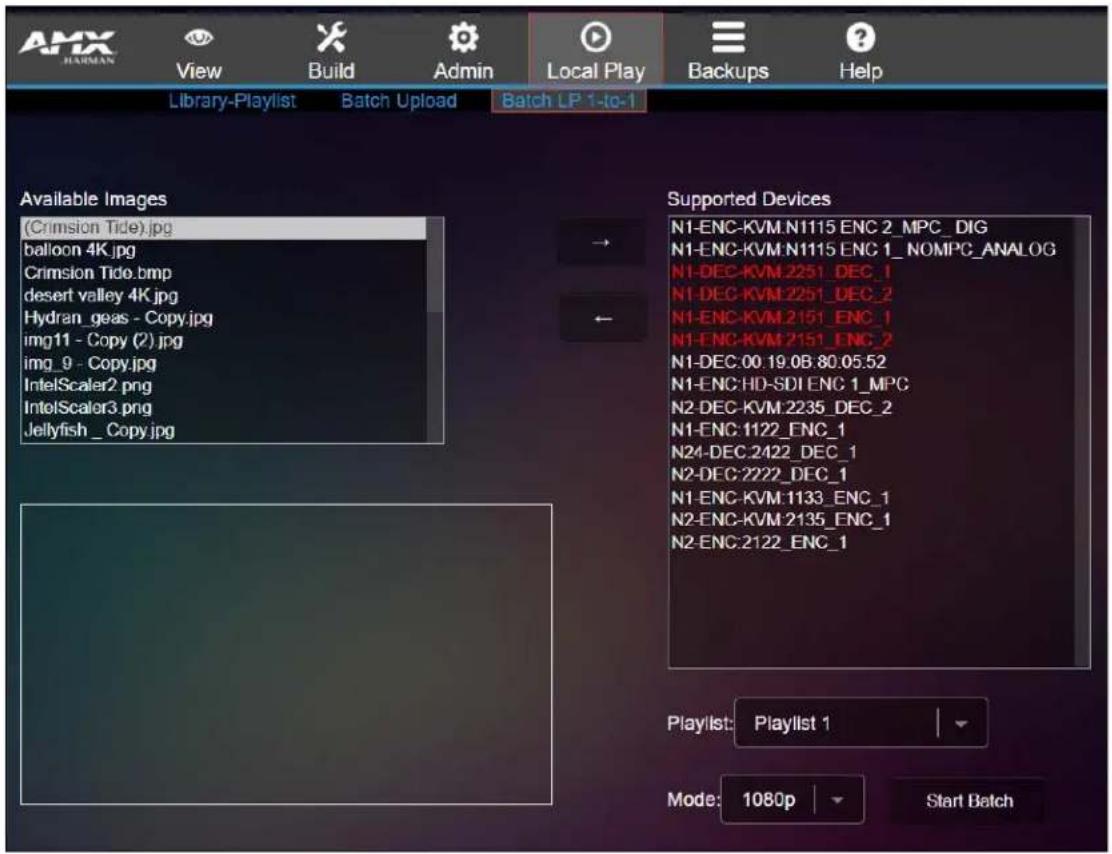
FIG. 34 Batch LP 1-to-1 Page
Backups Options
Click the Backups link at the top of any of the main web pages to access the options shown in Figure 35. Refer to the following sections for detailed descriptions:
• Backup Restore Page on page 41
• Unit Migrate Page on page 42
Click here to access the Backups options.

FIG. 35 Choosing Backups
Backup Restore Page
Click Backups > Backup-Restore to access the page shown in Figure 36. Use this page to create a backup of all data (including Panel Builder) with the exception of the Local Play library and unit backups. This can later be used to restore those portions of N-Command. Options are described in Table 23.
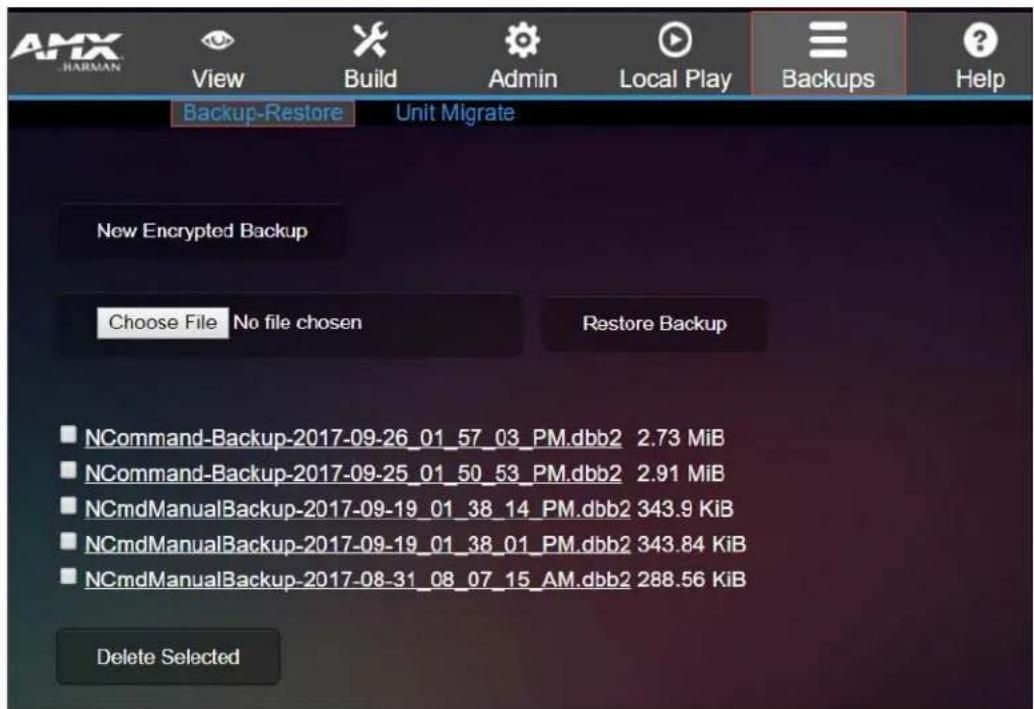
FIG. 36 Backup-Restore Page
TABLE 23 Backup-Restore Option Descriptions
| Option Description Notes | ||
| New Encrypted Backup button | Click to create a backup file. | |
| Choose File Click to choose the selected file for use in backing up N-Command. | To use one of the listed backups, click on it to download it locally on your computer, then upload using the Choose File box. | |
| Restore Backup Click to begin restoring N-Command. | ||
| File list All backup files are listed here. Use the checkboxes to select a file to delete. | ||
| Delete Selected Delete all selected files. | ||
Unit Migrate Page
Click Backups > Unit Migrate to access the page shown in Figure 37. These settings allow you to set up relationships between units being managed by N-Command in which if one unit goes down, that unit's settings are transferred to another designated unit. Options are described in Table 24.
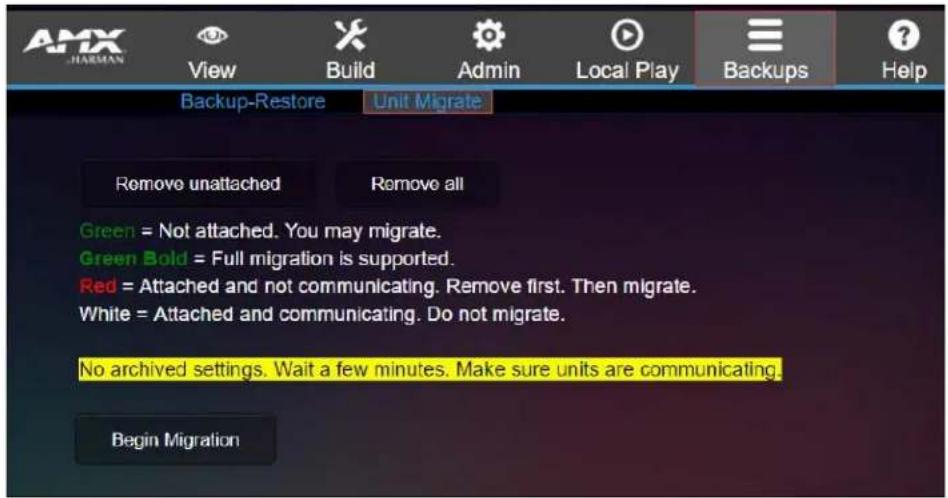
FIG. 37 Unit Migrate Page
TABLE 24 Unit Migrate Option Descriptions
| Option Description Notes | ||
| Remove unattached button | Click to remove the archived settings of units not currently in database. | |
| Remove all button Click to remove the archived settings for all units. | ||
| From/To drop-downs | Choose the unit you wish to backup in case it fails. | |
| Begin Migration button Choose a backup unit. | ||
Appendix A: Panel Builder Tutorial
Panel Builder allows you to design attractive, intuitive, and easy-to-use touch panel layouts for controlling SVSI's Networked AV Systems and third-party equipment. Panel Builder provides an easy way to design a panel to control any room or facility with just a few simple steps. You can choose to use button and widget libraries that are part of Panel Builder, or import your own images to customize the panel to look exactly as you want.
The following sections explore the Panel Builder user interface, defining each option for easy reference. For more step-by-step project building instructions, refer to the tutorials provided in Panel Builder's Help menu (see Top Ribbon Option Descriptions section on page 45).
NOTE: Panel Builder is accessible through N-Touch (as discussed in this document), through N-Command (N8001/N8002/N8012 web-based controllers), and also through a stand-alone version that installs directly on your computer.
Beginning a Panel Builder Project
Follow these steps to begin a project in Panel Builder and explore the options provided in the Project Editor.
- Launch Panel Builder. The Welcome screen appears.
![2. Click the New button. Welcome to the panel builder. Would you like to create a new, open, or import an existing project? Recent: [Choose...] New Open Import](/content/2026/06/1150753/images/6f07fab75320737fda3d33084e6e4c378c0e98cd0243f9d5d72a62d8b180cdb3.jpg)
![3. Enter a Panel Name, Width, and Height. Add a panel to your project. Enter the details of your new panel: Panel Name: Panel-1 Common Sizes: [Choose...] Panel Width (px): 1024 Panel Height (px): 768 4. Click Add. Add Cancel](/content/2026/06/1150753/images/17510f4592cde7f87e9d9a2eebdf462949e68d69495b4b5c810a78b75b608ba3.jpg)
FIG. 38 Beginning a New Project in Panel Builder
- The system launches the Project Editor (as shown in Figure 39).
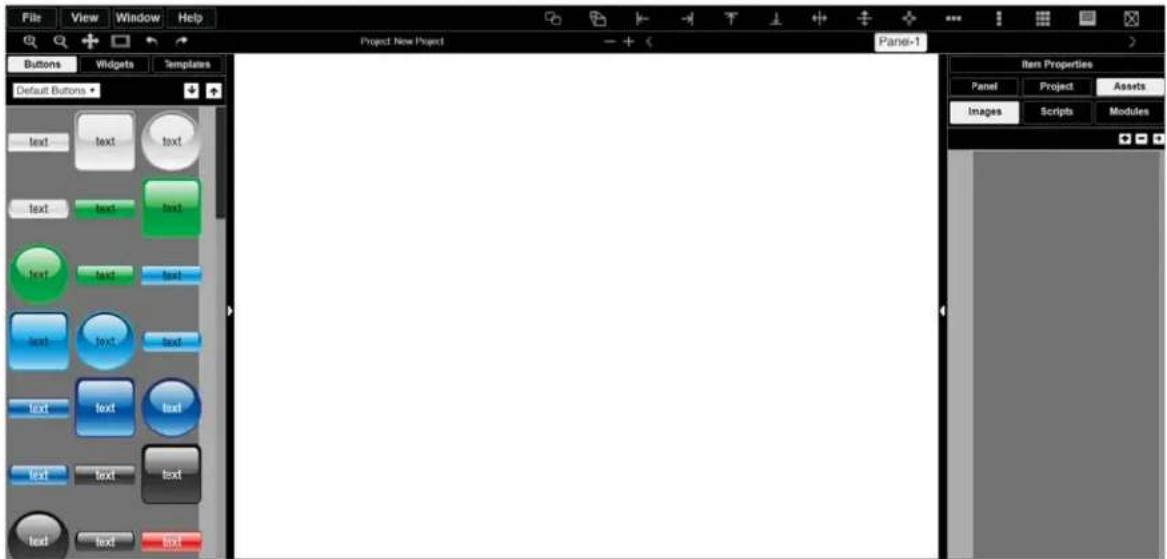
FIG. 39 Project Editor
NOTE: For step-by-step panel building instructions, refer to the Panel Builder Tutorial (available in the Panel Builder Help menu).
Once you arrive at the main Project Editor page, the following screen is displayed. See the sections referenced in the callouts for descriptions of each area of the Project Editor interface.
See the section Top Ribbon Option Descriptions on page 45 for descriptions of the interface's top ribbon of options and icons.
See the section Project Pane Option Descriptions on page 47 for descriptions of this section of the interface.
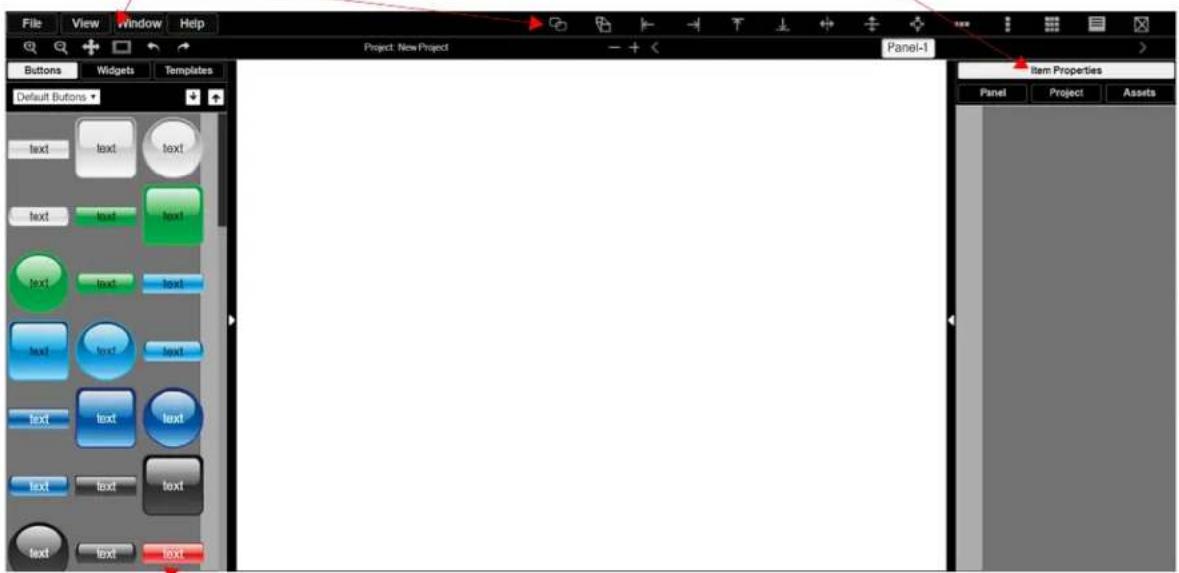
See the section Tools Pane Option Descriptions on page 50 for descriptions of this section of the interface.
FIG. 40 Project Editor Section References
Top Ribbon Option Descriptions
Refer to Table 25 for detailed descriptions of the options available in the top ribbon of the Project Editor initial page. Hold the Shift key when selecting multiple buttons/widgets (for aligning groups of objects, etc.).
TABLE 25 Top Ribbon Option Descriptions
| Option Description | |
| File | Open new and existing projects, save or delete projects, and perform import/export project functions. |
| View | Preview the current panel in a separate browser window or open the setup script in thePanel Buildereditor to view/edit. |
| Window | SelectTools Paneto display the left pane of the interface (which allows you to add buttons/sliders/etc. to your panel). SelectProject Paneto display the right pane of the interface (which allows you to further edit the panel you are building as well as the overall project, add scripts, etc.). |
| Help | SelectEditorto view a tutorial for Panel Builder,Modulesto view a list of module scripts,Scriptsto view a user guide for Panel Builder scripting, orCommandsto view a list of direct control API commands. |
 | Create a copy of the selected button or widget. This will also clone any scripts/conditionals that are loaded onto the button. |
 | Use to make all buttons the same size. The first button you select (highlighted in green) will be the size that the other selected buttons (highlighted in blue) will conform to when this icon is clicked. Hold theShiftkey to select multiple objects. |
| [XKDA] | Left-align the selected buttons or widgets to the main selected item. The first button you select (highlighted in green) stays in position as the other selected buttons (highlighted in blue) are aligned to it. Hold theShiftkey to select multiple objects. |
| [XKSW] | Right-align the selected buttons or widgets to the main selected item. The first button you select (highlighted in green) stays in position as the other selected buttons (highlighted in blue) are aligned to it. Hold theShiftkey to select multiple objects. |
 | Top-align the selected buttons or widgets to the main selected item. The first button you select (highlighted in green) stays in position as the other selected buttons (highlighted in blue) are aligned to it. Hold theShiftkey to select multiple objects. |
 | Bottom-align the selected buttons or widgets to the main selected item. The first button you select (highlighted in green) stays in position as the other selected buttons (highlighted in blue) are aligned to it. Hold theShiftkey to select multiple objects. |
| [60CA] | Center-align the selected buttons or widgets horizontally. Hold theShiftkey to select multiple objects. |
| [DIYSO] | Center-align the selected buttons or widgets vertically. Hold theShiftkey to select multiple objects. |
| [WX35] | Center-align the selected buttons or widgets horizontally and vertically. Hold theShiftkey to select multiple objects. |
 | Align and evenly distribute the selected buttons or widgets horizontally. Hold theShiftkey to select multiple objects. |
 | Align and evenly distribute the selected buttons or widgets vertically. Hold theShiftkey to select multiple objects. |
| [SDTC] | Align the selected buttons or widgets to the grid. Allows you to select the number of rows/columns and then aligns the selected objects to that grid. Hold theShiftkey to select multiple objects. |
 | Open the script editor and assign/change scripts for the selected button or widget. |
 | Delete the selected button(s) and/or widget(s). |
| [6820] | Zoom in. |
| [92HD] | Zoom out. |
 | Click/drag to reposition the panel on the screen. |
| [24WT] | Resize and center the project to fit the current browser window. |
 | Undo previous action. |
 | Redo a previous action that was undone using the undoaction (see above). |
 | Delete a panel from the current project. |
 | Add a panel to the current project. |
 | Scroll through the panels of the current project. |
Project Pane Option Descriptions
On the right side of the main screen, you will find options that allow you to edit the current panel you are building, your overall project, as well as view your project assets (such as available images, created scripts, and related modules). If you do not see this pane displayed on the main page of the Project Editor, select Window > Project Pane.
This section shows the screens associated with these options as well as tables that contain details regarding each screen.
Item Properties Tab
Refer to Figure 41 and Table 26 for detailed descriptions of the options available on the Item Properties tab. You must have an item (button or widget) selected before clicking this tab in order to view the options.
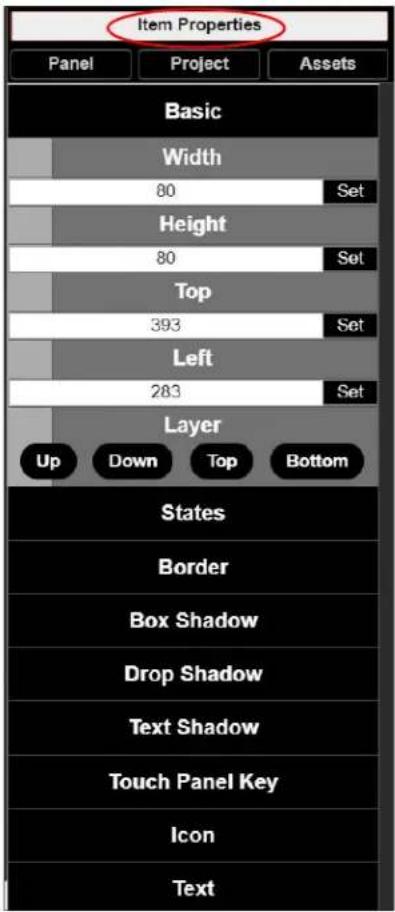
FIG. 41 Item Properties Tab Pane
TABLE 26 Item Properties Pane Option Descriptions
| Option Description | |
| Basic View/edit the width, | height, and location of the selected item (i.e., the selected button or widget). |
| Layer | Choose what layer the selected item is on. Send the itemUporDownone layer, send to front (Top), or send to back (Bottom). |
| States Edit/add different states for the selected item (and the associated scripts and appearances during each state). | |
| Border Set the border width/color/etc. for the selected item. | |
| Box, Drop, and Text Shadow | Add/remove/adjust shadow settings for the selected item. |
| Touch Panel Key Use to assign a touch panel key number (if applicable). | |
| Icon Choose an image to serve as an icon for the selected item. | |
| Text Edit the text to be displayed on the selected item. | |
Panel Tab
Refer to Figure 42 and Table 27 for detailed descriptions of the options available on the Panel tab.
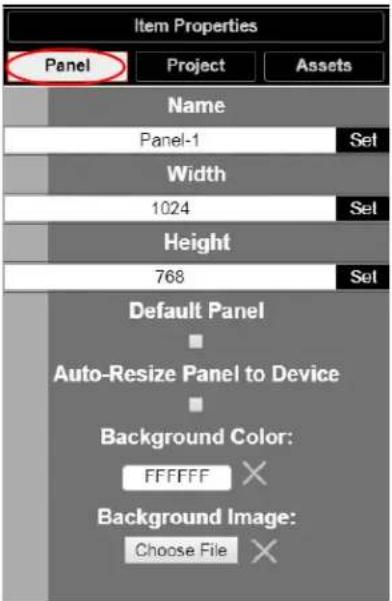
FIG. 42 Panel Tab Pane
TABLE 27 Panel Tab Option Descriptions
| Option Description | |
| Name | View/edit the current panel's name. Click the Set button to accept changes. |
| Width | Set the width of the current panel (in pixels). Click the Set button to accept changes. |
| Height | Set the height of the current panel (in pixels). Click the Set button to accept changes. |
| Default Panel Enable this checkbox to set the current panel as the device's home screen. | |
| Auto-Resize Panel to Device | Enable this checkbox to automatically size the current panel to fit the device's screen when viewed as the active panel. |
| Background Color Edit the current panel's background color. | |
| Background Image | Select an image from your computer to be displayed as the current panel's background. |
Project Tab
Refer to Figure 43 and Table 28 for detailed descriptions of the options available on the Project tab.
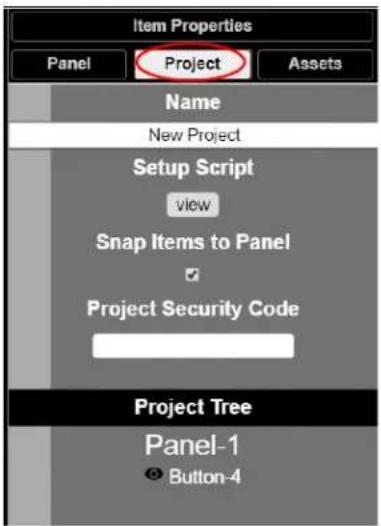
FIG. 43 Project Tab Pane
TABLE 28 Project Tab Option Descriptions
| Option Description | |
| Name View/edit the current project's name. | |
| Setup Script View/edit the setup script for the project. | |
| Snap Items to Panel | Enable this checkbox to force all buttons and widgets to remain on the panel background template of the editor (i.e., the white portion of the editor screen). |
| Project Security Code | Enter a pass code (any combination of numbers 1 through 8) if you would like a code to be required to access that panel on the N-Touch Wall Controller. If a code has been entered, a dialog appears on the N-Touch Wall Controller's screen prompting the user to enter the key for access. |
| Project Tree | Lists all items in the project. Click an item in the list to select it on the actual panel. |
Assets Tab
Refer to Figure 44 and Table 29 for detailed descriptions of the options available on the Assets tab.
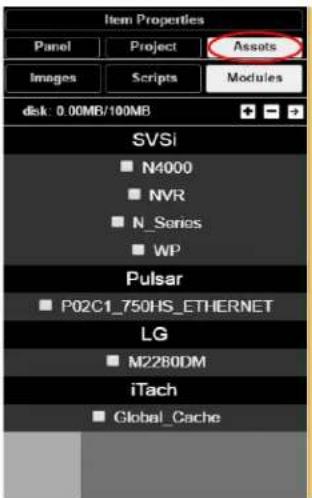
FIG. 44 Assets Tab Pane
TABLE 29 Assets Tab Option Descriptions
| Option Description | |
| Images View all images in the project. | |
| Scripts Creates scripts that can be dragged and dropped onto multiple buttons at once. | |
| Modules | Use to control a specific type of device with the commands specific to that item. |
Tools Pane Option Descriptions
On the left side of the main screen, you will find options that allow you to access/create buttons, access widgets (such as sliders, text fields, etc.), as well as store panel templates for future use. If you do not see this pane displayed on the main page of the Project Editor, select Window > Tools Pane.
To add a button or widget to your project, simply drag and drop it onto your module display as shown in Figure 45.
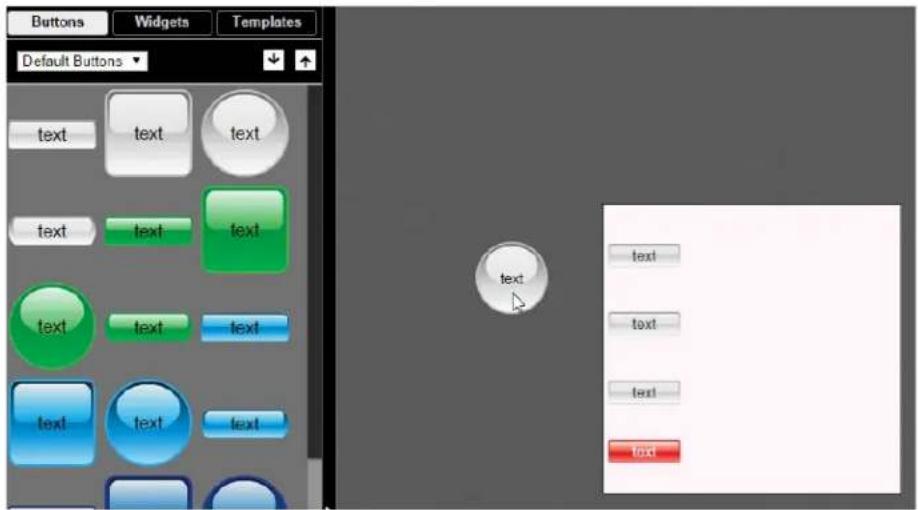
FIG. 45 Adding a Button to the Display
This section shows the screens associated with these options as well as tables that contain details regarding each screen.
Buttons Tab
Refer to Figure 46 and Table 30 for detailed descriptions of the options available under the Buttons tab.
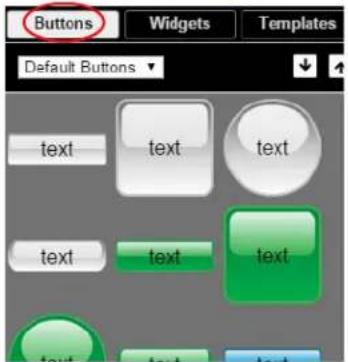
FIG. 46 Buttons Tab Pane
TABLE 30 Buttons Tab Option Descriptions
| Option Description | |
| Default/User Buttons | Choose Default Buttons from the drop-down menu to access all of the system buttons. Select User Buttons to access buttons created previously to use as a template. Drag and drop to add a button you created to the User Button library. |
| Click the down arrow to export a selected button to your computer. Click the up arrow to browse to a (previously exported) button file and import it into the User Button library. | |
Widgets Tab
Refer to Figure 47 and Table 31 for detailed descriptions of the options available on the Widgets tab.
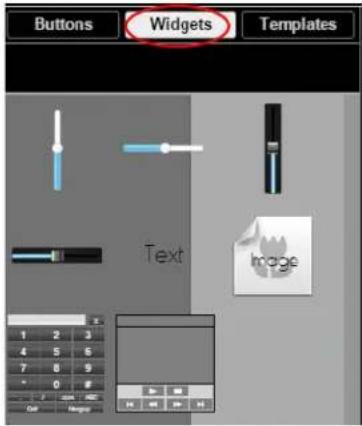
FIG. 47 Widget Tab Pane
TABLE 31 Widget Tab Option Descriptions
| Option Description | |
| Sliders | Allows script to fill in value from 0 to 100 (or custom values between two numbers). |
| Text Adds text to the panel. | |
| Image Adds an image to the panel. Drag and drop this icon to the panel and then double-click it to select an image file (supports .gif, .jpg, or .png file types). | |
| Dialer widget Adds keypad to the panel (for data entry). | |
| NVR Control widget Adds play, stop, pause, etc. buttons for network video recorder (NVR) control. | |
Tem plate s Tab
Refer to Figure 48 and Table 32 for detailed descriptions of the options available on the Templates tab.
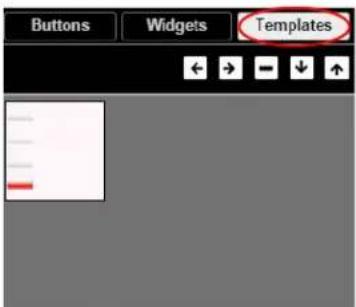
FIG. 48 Templates Tab Options
TABLE 32 Templates Tab Option Description
| Option Description | |
 | Click the left arrow button to add the current panel to the template page. Click the right arrow button to apply the template to the current panel. |
| Deletes the currently selected template. | |
| Click the down arrow to export the template library to your computer. Click the up arrow to browse to a (previously exported) file and import it into the template library.When buttons are exported, they become .zip files. | |
Now that you have familiarized yourself with the interface options, use the tutorials provided in the Help menu of Panel Builder to further explore its capabilities.
Appendix B: Wall Builder Tutorial
N-Command's Wall Builder allows you to design walls of any size in minutes using N-Series Networked AV Encoders, Decoders, and Windowing Processors. The configuration utility is part of the N-Command Controller and provides a user-friendly interface to customize video wall layouts to suit the need of the installation. The Wall Builder utility allows the manipulation of N-Series encoded video sources to be arranged in almost any configuration on the video wall. Wall Builder is easy to use and operate, and it allows you to build a wall on-site or remotely using N-Series Windowing Processors and/or Decoders.
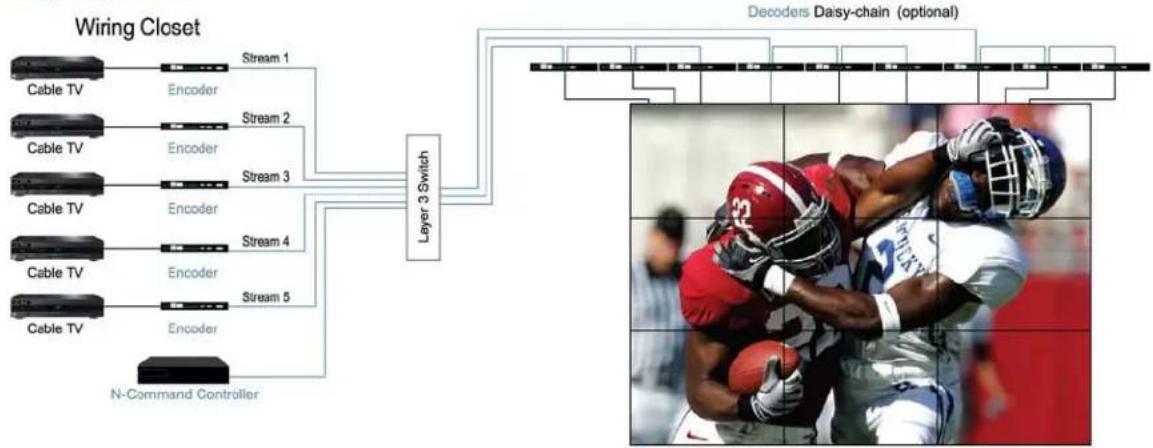
Video walls require a Decoder per display panel, but can be constructed with or without Windowing Processors. See Figure 49 for an example of a 3x3 wall using nine Decoders.
Large Sports Bar
flowchart
graph TD
    A["Cable TV"] --> B["Encoder"]
    C["Cable TV"] --> D["Encoder"]
    E["Cable TV"] --> F["Encoder"]
    G["Cable TV"] --> H["Encoder"]
    I["N-Command Controller"] --> J["Layer 3 Switch"]
    J --> K["Decoders Daisy-chain (optional)"]
    K --> L["Image of NFL players in action"]
Sports Room 1 / 3x3 wall
*In this example, all Decoders are watching the same stream.
FIG. 49 Sample Wall Builder Configuration
NOTE: Some advanced configurations require Windowing Processors. Without them, video windows must be bound by the displays. When using one Windowing Processor per display, video windows can be anywhere on the full video wall pallet at pixel-by-pixel resolution. Including Windowing Processors in a video wall adds to its presentation capabilities but increases video latency by approximately 100 milliseconds.
Wall Builder Basics
Keep the following guidelines and terminology in mind while building your wall:
- Wall Builder allows you to create multiple layouts for the same wall configuration.
- Within a layout there are multiple windows.
- The windows can be layered to determine which one is displayed on top (if two windows overlap).
NOTE: Windows can only overlap when using Windowing Processors.
Sample Configuration Using Wall Builder
This tutorial demonstrates a 3x3 video wall configuration using nine N2000 Series Decoders (one for each display).
-
Log in to your N-Command Controller.
-
Select Build > Wall Builder (as shown in Figure 50).
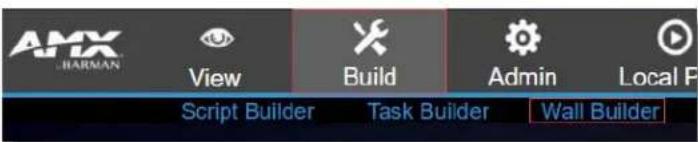
FIG. 50 Launching Wall Builder
- The first Wall Builder Setup screen appears. For this tutorial, follow the steps given in FIG. 51 on page 53 to create a wall from Decoder sources.
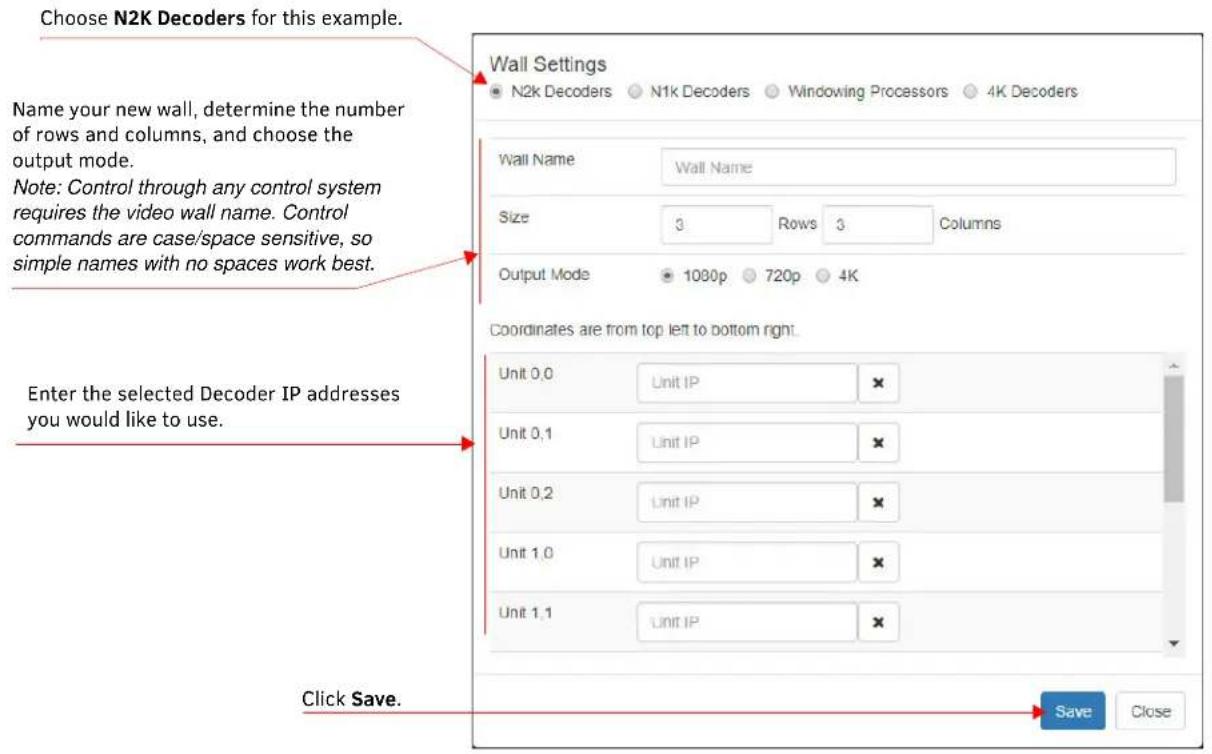
FIG. 51 Configuring the Wall Builder Setup Page
- The screen shown in Figure 52____ appears. Refer to the guidelines and option descriptions given in Figure 52, Figure 53, and Table 33 as you create your design.
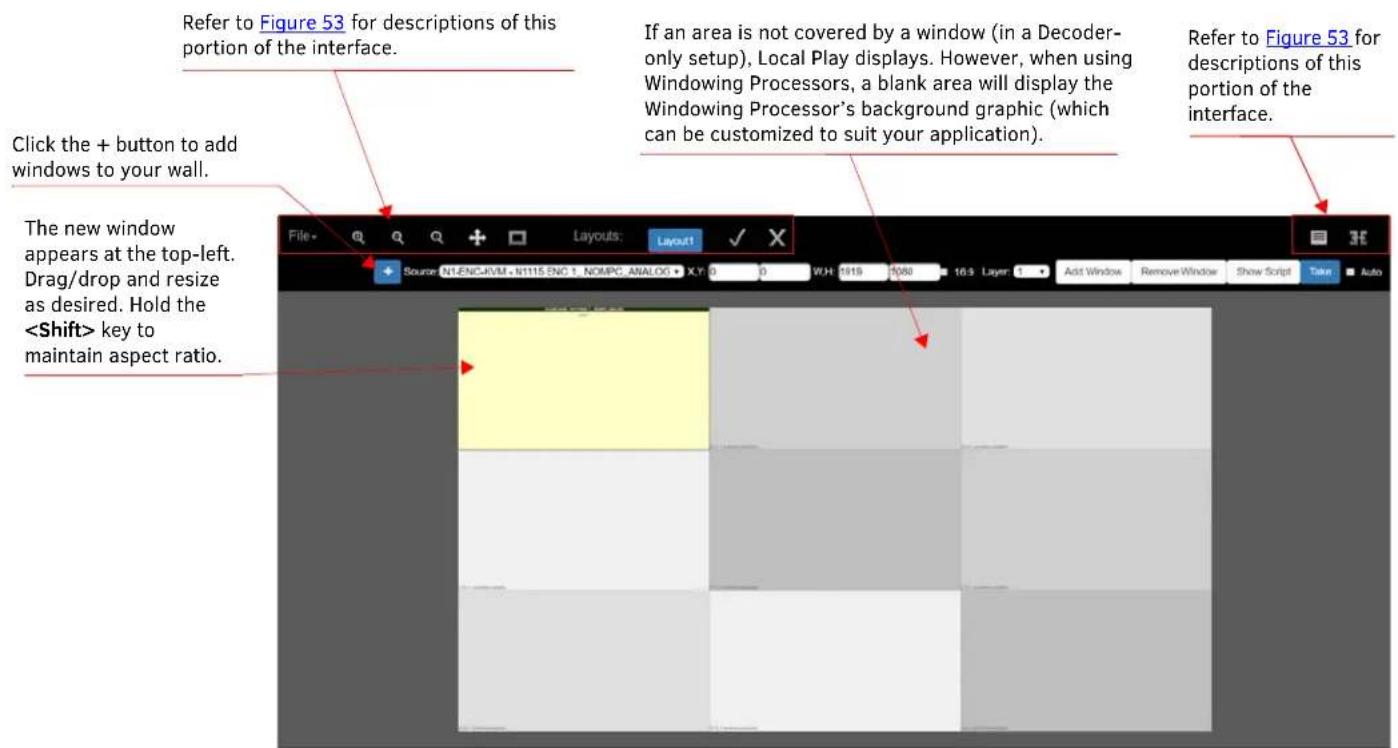
FIG. 52 Arranging the Wall
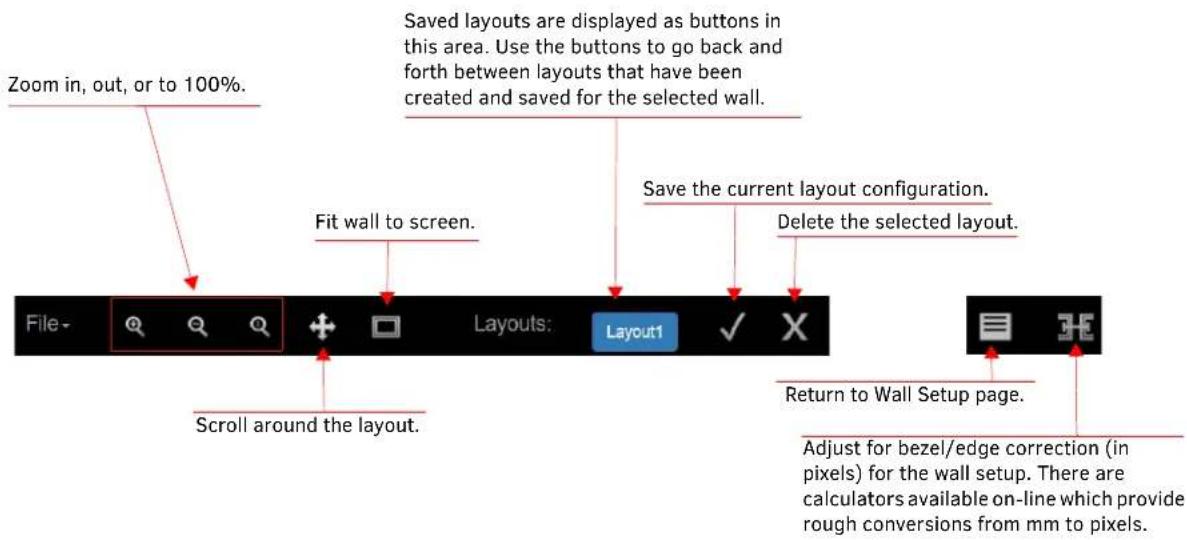
FIG. 53 Wall Arrangement Page: Top Menu Bar Icons
TABLE 33 Wall Arrangement Options
| Option Description | |
| File drop-down menu | Choose to create a new wall, open an existing project, save, delete, import, etc. |
| Source drop-down menu | Change the source for the selected window. The current source name is displayed at the top of the window.Note: All windows must have a default source that will be recalled when a preset is recalled. |
| X, Y fields | Enter the x and y coordinates of where you would like the window's upper left-hand corner to be re-positioned (or you can use mouse to re-size). |
| W, H fields | Enter width and height values (in pixels) to re-size the selected window (or use mouse to re-size). |
| 16:9 checkbox Enable to lock all the windows to a 16:9 aspect ratio. | |
| Layer drop-down menu | Choose a layer number for the selected window. The window with the highest layer number is displayed in the front and the lowest is displayed in the back.Note: Layer numbers are also used for video wall switching commands. All windows must have a unique layer number to avoid accidentally affecting multiple windows with a command. |
| Add Window button Click to add a new window to the current layout. | |
| Remove Window button Click to remove the selected window from the current layout. | |
| Show Script button | Displays the generated script from the layout that are sent to each Decoder for wall setup. These can be copy/pasted into Script Builder. |
| Take button | Click to view the current layout on your displays. |
| Auto checkbox | Click to automatically send a Take command whenever the layout changes. |
| Editing field | Selects/displays the wall currently being edited. It is important to note that you can create multiple layouts for a given wall. As you create and save the different layouts, they will appear as selections at the bottom of the screen. |
Appendix C: Minimum Network Requirements
The following list specifies the minimum network requirements that must be considered when deploying your equipment. These requirements cover the necessary protocols and features needed to drive N-Series streams.
NOTE: Specific configuration recommendations are based off of the Cisco Catalyst series. These recommendations could vary from manufacturer to manufacturer.
1. Managed Network Switch
2. Gigabit Ethernet (N1000/2000 Based Systems)
3. Internet Group Management Protocol (IGMP) Version 2
- IGMP Snooping
- Snooping must be enabled on all switches that are communicating with the querier.
- IGMP Snooping Querying
☐ Network must include at least one IGMP Querier to maintain stream connections.
- It is recommended to have all capable switches with the querier enabled and allow IGMP auto-elect to determine the Designated Querier (DQ). DQ is determined by the lowest IP addressed switch, but can be manually assigned. However, this would need to be manually configured on all switches to bypass the auto-elect.
- Query interval – 30 seconds. This is the interval between sending IGMP general queries.
☐ Query Response Interval – 10 seconds. This is the maximum time the system waits for a response to general queries.
☐ Last Member Query Interval – 100 milliseconds. This is the interval to wait for a response to a group specific or group-and-source-specific query message.
☐ Immediate Leave (required for N1000, N2x51 4K, N2300 4K, N2400, and N2x35 [Extreme Quality] Low Latency Models)
- Used to immediately break up multi-cast groups when a leave message is received.
- Immediate Leave will break any daisy chaining of multiple units together with a single home run and as such you will not be able to have both Immediate Leave and daisy chaining in the same VLAN.
- Some manufacturers do not have Immediate Leave as an option and use Fast Leave instead. Fast Leave does not guarantee an immediate leave from the multi-cast group and can affect switching speeds and performance.
□ Optional Protocols
- IGMP Robustness - Default 2
a. Robustness can be adjusted generally from 2-10. The higher the value, the more leave latency is added. b. This protocol is effectively inactive when Immediate Leave is enabled.
- Warnings/Notices
☐ There is a known behavior within IGMP V2 that Encoder streams, whether requested across an uplink or not, will be requested by the DQ and will be present on the uplinks of all switches between the stream source switch and the DQ.
- Essentially this means that even though you may not be routing a stream to another switch, the DQ's request will still put the stream on the uplink. Therefore, ensure that you have accounted for all streams forwarding to the DQ.
- A good rule of thumb, when planning for bandwidth considerations on uplinks, is to not exceed 80% of the uplink's total bandwidth capacity to give plenty of overhead for spikes and additional traffic.
- Multicast routing capabilities on each switch (configured for PIM-SM and with an established rendezvous point) can be designed to limit or mitigate this behavior.
☐ When a multicast host leaves a group, it sends an IGMP leave message. When the leave message is received by the switch, it checks to see if this host is the last to leave the group by sending out an IGMP group-specific or group-and-source specific query message, and starting a timer. If no reports are received before the timer expires, the group record is deleted and a report is sent to the upstream multicast router/querier switch. Lower interval times will increase bandwidth utilization slightly as querying will happen more often.
4. Protocol Independent Multicast (PIM)
• Used to route multicast between VLANs
• PIM Sparse Mode (PIM-SM)
- Recommended for use with N-Series multicast products.
☐ PIM-SM uses a pull model to deliver multicast traffic. Only network segments with active receivers that have explicitly requested the data will receive the traffic.
☐ Requires configuration of a Rendezvous Point (RP).
- Must be configured by administrator.
- Similar to the DQ in IGMP.
- All multicast sources must register with the RP to be able to be routed throughout the network.
- Other PIM modes – not recommended for N-Series
□ Dense Mode (PIM-DM)
□ Bidirectional (bidir-PIM)
5. Jumbo Frames Enabled (For N2300 Series)
- The N2300 Series Encoders and Decoders produce a frame payload larger than 1500 bytes. This requires the switch to have the capacity of handling jumbo frames enabled.
6. Quality of Service (QOS): Managing the delay, delay variation (jitter), bandwidth, and packet loss parameters on a network becomes the secret to a successful end-to-end business solution.
• Not required for use with N-Series devices
- Policing
☐ A policer typically drops traffic.
☐ Differentiated Services Code Point (DSCP) values can be configured in N-Series devices if QOS is required on the network.
- Shaping
☐ A shaper typically delays excess traffic using a buffer, or queueing mechanism, to hold packets and shape the flow when the data rate of the source is higher than expected.
☐ Cannot be used with N2300 series.
7. TCN Flood Off
- TCN (Topology Change Notification) flooding will cause unnecessary backplane and bandwidth usage when adding or removing a device on the network, which can cause stream interruptions as the flooding sweeps through the network.
Note that this command has to be assigned individually per port that is assigned to that VLAN. However it is not necessary with ports on the same switch that will not be set up on the same VLAN as the N-Series devices.
Command Example: NO IP IGMP SNOOPING TCN FLOOD
Should you encounter any problems not covered by these guidelines, please contact technical support via email (svsisupport@harman.com) or call 256.461.7143 x9900.
Appendix D: N-Command Failover Configuration
Introduction
You can configure N-Command for failover support by establishing a master/client relationship between two N-Command devices. Once properly configured, the system behaves as follows:
- If a master unit fails, the client unit initiates SVSI system services and assumes the eth0/eth1 IP addresses of the master unit.
- Any third-party controller communicating with the N-Command detects the failover only as a momentary disruption because the client assumes the master's old IP addresses.
- When the master is back on-line, it overrides the client and resumes control.
- Once the master resumes control, the client releases the assumed IP addresses and returns to monitoring the master's status.
NOTE: The failover feature is supported by the N8002 and N8012 N-Command devices (not by the N8001).
Needed equipment
Required equipment for an N-Command master/client system includes:
- Two N8002/N8012 N-Command units
• Network cables, power source, computer with web browser, etc.
Connection Diagram
All communication between the two N-Command units is performed through their eth0 and eth1 connections and binded to the third IP address. Each N-Command monitors each other's health. See Figure 54.
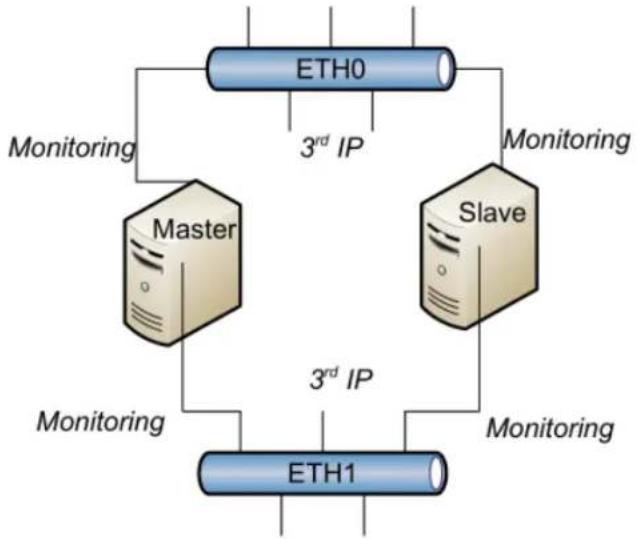
flowchart
graph TD
    A["ETH0"] -->|Monitoring| B["Master"]
    A -->|Monitoring| C["Slave"]
    B -->|Monitoring| D["ETH1"]
    C -->|Monitoring| D
    D -->|Monitoring| A
    style A fill:#cce5ff,stroke:#333
    style B fill:#e6f7ff,stroke:#333
    style C fill:#e6f7ff,stroke:#333
    style D fill:#e6f7ff,stroke:#333
FIG. 54 Connection Diagram
This means during normal operation the master eth0 and eth1 card will have at least two IP address: one for normal Encoder/Decoder management and another for master/client communication. When the client takes control, it assumes all the IP addresses of the master except for the third IP address of each card.
General Functionality
Every minute, the master communicates with the client, and the client communicates with the master. The communication between the two determines if a failover scenario has occurred or if it is time to sync the databases. All communication is performed through https master/client web services. See the Failover Scenarios section on page 58 for more details on failover conditions.
- During master > client communication, if the master detects the client has tried to take control, and the master's own databases and services are good, then the master will override the client, and the client will shut down most system services and begin syncing with the master. The most common reason a client may have taken control with a good master is if the client or master (or both) were disconnected from the network.
- During client>master communication, the client is asking the master for its system health status. Three bad health reports (including a non-communicative master) will trigger a failover. Every ten minutes, if the master says its database is good, the client asks for a copy of the database. The master generates, compresses, and
encrypts its database, and then the client transfers, decrypts, and imports it in to itself. The transferred database contains essentially all static settings (scripts, tasks, units, users, panels, system settings, etc.).
NOTE: The LocalPlay audio/image library is not part of the transferred database.
Failover Scenarios
The following scenarios constitute a failover, causing the client to take control.
- Loss of communication with the master for a period of three minutes (on both network cards).
Every minute, the client queries the master. If it gets no response three times in a row, the client assumes the master is offline.
☐ Both network cards need to be down for communication to be lost. If eth1 is down and eth0 is working, the status is considered good.
• Database errors for a period of three minutes.
□ Every minute, the client asks the master the status of its database. If the master reports a database problem three times in a row, the client takes over.
• System services down for a period of three minutes.
☐ Every minute, the client asks the master the status of its system services. If the master reports services are down three times in a row, the client takes over and the master shuts itself down. The master determines the state of system services by monitoring a list of running processes.
• Any combination of the above has occurred for a period of three minutes.
☐ For example, if the master is reported offline, followed by a report of services down, followed by database errors, then the client will take over (due to too many errors in a row). The error count restarts only if the master reports a full level of health.
Override Mechanisms
To override a unit, one unit (usually the master) sends the other unit a command to shut down. This causes the receiving unit to turn off SVSI system services, release its old IP addresses, and then begin monitoring.
Overriding mechanisms include the following:
- Client overriding master. Client only overrides master during the failover scenarios.
- Master overriding client. If at any time the master detects the client has taken control, and the master has determined its own health is good, it will send the override command.
- User overriding. During initial setup, when an administrator is determining the master and client, the master
N-Command will send an override command to the client N-Command.
Setup
- Decide which unit will be the master and which unit will be the client. Units are shipped from the factory with this setting unassigned.
- Configure the Static 3rd IP addresses for each unit and eth card. It is highly recommended that the master and client 3rd IPs are in their own subnet. They will not need to communicate with any other device except each other. See Figure 55.
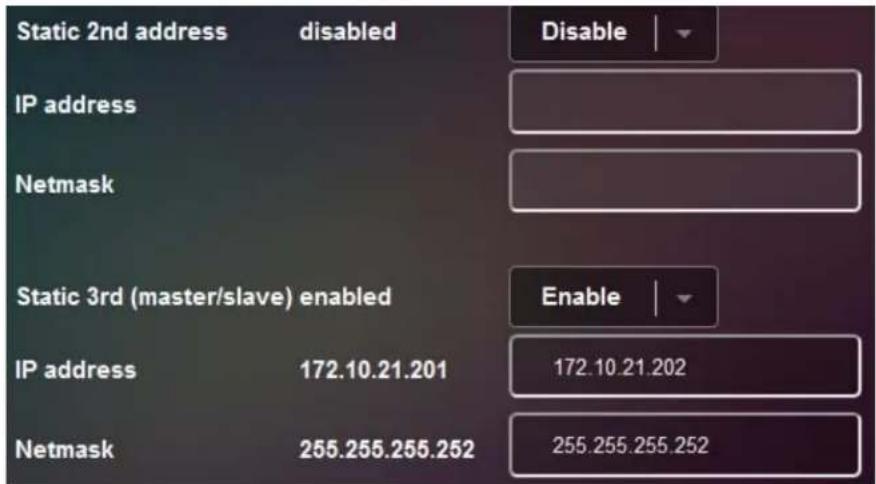
FIG. 55 Configure IP Addresses
A 2nd address is not required, so it is left blank. The 3rd IP address has a subnet just big enough for the master, client, and a few spare computers for troubleshooting.
- Repeat the 3rd IP address setup on the client unit. Choose IP addresses for each network card within the subnet of the master. You may use the Ping tool on the IP settings page to check communication.
- If you do not have strict IP requirements, an example master/client IP configuration could be:
Master
☐ Eth0: 172.10.21.201 / 255.255.255.252
☐ Eth1: 172.20.21.201 / 255.255.255.252
Client
☐ Eth0: 172.10.21.202 / 255.255.255.252
☐ Eth1: 172.20.21.202 / 255.255.255.252
- Navigate to Admin > Master / Client on the master unit. Now that the 3rd IP addresses are configured, the menu shows other N-Commands it has found on the network and offers to configure them to be the client. See Figure 56.
This unit (UUT 2.0 Dev) is currently unassigned. It will be assigned master. The master will send the configuration to the slave.
Assign to be slave (must have 3rd IPs set)
[Choose..]
[Choose..]
NTERNCMD / 169.254.10.111
NCmd x64 .36 / 169.254.10.200
NCMD-MAC-0083/169.254.10.34
Assi
FIG. 56 Choose Client
- The client must have its 3rd IP addresses configured. If the unit is not configured correctly, N-Command will offer the address so you may configure it.
Assign to be slave (must have 3rd IPs set)
NCmd x64.36/169.254.10.200
This unit does not have both 3rd IPs configured.
Configure it at 169.254.10.200. Then Refresh when finished.
FIG. 57 Configure Client Address
- Once all addresses are configured, click the Assign Master and Client button to set up master/client. You may also use the Ping tool to check connections. N-Command internally tests configurations before accepting the unit as client. See Figure 58.
This unit (NCmd x64 .36) is currently unassigned. It will be assigned master. The master will send the configuration to the slave.
Assign to be slave (must have 3rd IPs set)
UUT 2.0 Dev / 169.254.57.31
This unit has 3rd IPs at 172.10.21.201 Ping and 172.20.21.201 Ping
Assign Master and Slave
FIG. 58 Assign Master and Client
Figure 59 shows some possible status messages once master/client configuration is successful.
The screen below displays when logged into the client's 3^rd IP address and the client has not taken over.
Notify
Currently slave mode and dormant. The master is at 172.20.254.188
The screen below displays when logged into the client's 3^rd IP address (or the master's IP address) after the client has taken over.
Notify
Slave mode is active. The master is at 172.20.254.188
FIG. 59 Status Messages
Stopping Master/Client
At any time, the master/client relationship can be severed by navigating (on each unit) to Admin > Configure master/client and setting the unit to Unassigned. If system services have stopped, they will be started.
NOTE: If the databases have been synced, this could cause duplicate IP problems. It is best to isolate the client unit when un-pairing.
Important Notes
- During failover/override transitions, the N-Command units are reconfiguring their network cards to new IP addresses. Units that are connected will see the connection broken and will need to reestablish connection (very common occurrence for network devices).
- A master will not override another master. If a system is misconfigured and has two masters, both units will start as normal and refuse to override each other.
- If a system is misconfigured to have two clients, whichever unit boots first will take control.
- A client will not attempt to import if the master says its data is not good.
- There are no configuration options on the client. The master dictates everything.
• Data only flows from the master to the client. The master never imports from the client. - Once configured for master/client, the client's web page is accessible only from the 3rd IP addresses (until a failover or it is Unassigned).